

Page 1

Quick Start Guide
HUAWEI Ascend Q
Welcome to HUAWEI
Page 2

Phone at a Glance
Power key
Back camera
Speaker
Volume keys
Headset jack
Home
Menu
Back
Delete
Enter
Alt
Cap
Smiley
Space
Symbol
All the pictures in this guide are for your reference only. Your
phone’s actual display features may be different to those
described here, depending on its software version.
Key Functions at Your Fingertips
• Press and hold to power on your mobile phone.
• Press and hold to open the
menu.
• Press to lock the screen when your mobile phone
is active.
• Touch to return to the previous screen or exit the
application you are running.
Phone options
• Touch to hide the keyboard.
Touch to open the menu on an active screen.
1
Page 3
• Touch to return to the Home scr een.
• Touch and hold to show the most recently used
applications.
(Optional) Installing the microSD Card
Your mobile phone is already equipped with a large-volume built-in
embedded MultiMediaCard (eMMC). If you want to expand your
phone memory, you can also insert a microSD card.
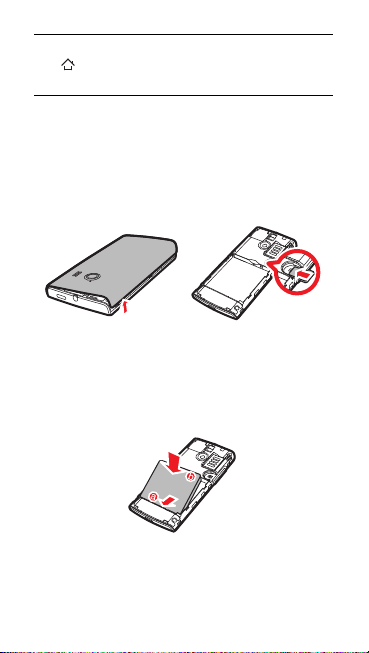
1. Remove the battery cover.
2. Insert the microSD card into the card slot as shown in the
diagram.
Installing the Battery
1. Angle the edge labeled a (with the contacts) into the bottom end
of the battery compartment.
2. Push the edge labeled b into the compartment until the battery
clicks firmly into place.
2
Page 4

Charging the Battery
Status Indicator
Green: Fully charged (when connected to charger).
Orange: Charging in progress (when connected to charger).
Red: Battery low.
Before charging the battery, ensure that it has been properly installed
on your phone.
1. Connect the USB cable that came with your mobile phone to
the charger.
2. Connect the other end of the USB cable to your mobile phone.
Then, to start charging, plug the charger into an electrical outlet.
If you charge your mobile phone while it is powered on, the battery
icon on the notification bar indicates the charging status. When the
battery icon changes to , your mobile phone is fully charged.
Status Indicator
The color of the status indicator tells you the status of your mobile
phone’s battery.
3
Page 5
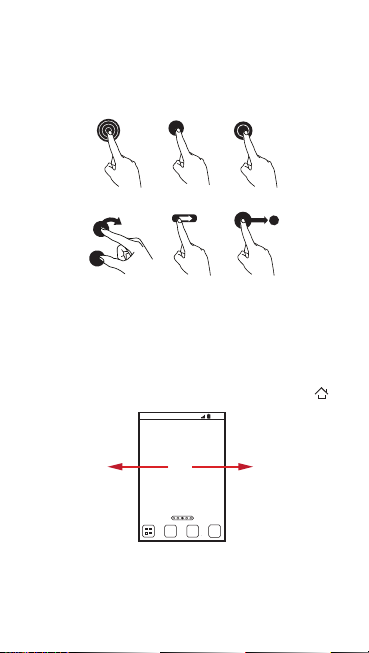
Touchscreen Actions
Touch & hold
Touch Double touch
Rotate Flick Drag
Flick your finger left or right
across the Home screen.
10:23
Using your finger on the touchscreen, you can operate your phone
conveniently.
Home Screen
You can set up the Home screen according to your own
preferences, for example by adding a shortcut or a widget to your
Home screen, changing the wallpaper, or setting the number of
Home screen extensions.
To return to the Home screen from any of its extensions, press .
When a new notification icon appears on the notification bar, place
your finger on the notification bar and flick down to open the
notification panel.
4
Page 6

Adding a New Home Screen Item
10:23
10:23
1. Touch and hold a blank area on the Home screen until the
to Home screen
menu is displayed.
2. Select an item to add it to the Home screen.
Add
Removing a Home Screen Item
1. Touch and hold an item on the Home screen until the item
expands and the mobile phone vibrates.
2. Without lifting your finger, drag the item to the trash can. When
the item and the trash can turn red, the item is ready to be
removed.
3. Release the item to remove it from the Home screen.
5
Page 7

Using the Phone Keypad
A/a
A/a
A/a
A/a
Cursor:
Cursor:
Cursor: To enter one upper-case letter, press
Cursor:
To enter an upper character of one
key, press
desired key.
To enter only upper characters, pr ess
case letters.
To enter only upper-case letters,
press twice before typing. Press
Press to display all expressions.
Press to display all symbols.
first and then the
twice before typing. Press
again to switch back to lower-
first and then a key.
again to input lower-case letters.
Adding a Contact
1. In the contact list, touch >
2. If you have more than one account with contacts, touch the
account to which you want to add the contact.
3. Enter the contact's name, and then add detailed information
such as phone number and address.
4. When you are finished, touch
information.
Create contact
Save
to save the contact
6
.
Page 8
Making a Call with the Dialer
10:23
Application
On the home screen, touch to open the
Your mobile phone supports the SmartDial function, that is, when
you touch numbers on the dialer, the phone automatically searches
among your contacts and lists the matching results ordered
according to the accuracy of the match. If no contacts match the
information entered, the phone will not display any result.
Dialer
.
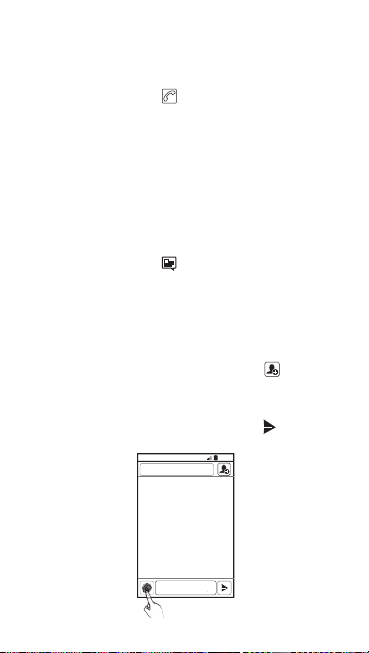
Creating and Sending a Multimedia Message
On the home screen, touch to open the
You can use multimedia messages to make everyday
communications very special. You can record a message and send
it as an audio file, sing 'Happy Birthday' and send it to friend, or send
a slideshow of photographs of a special event. The possibilities are
endless.
1. Enter a phone number in the To field, or touch to select a
contact from
Contacts
or
2. Touch the composition text box to start entering your message.
3. When the message is ready to be sent, touch .
Groups
Messaging
.
.
7
Page 9

Connecting Internet
Get online using your phone’s Wi-Fi to save your money.
Turning On Wi-Fi
1. Touch >
2. Touch
box to turn on Wi-Fi.
Settings
Wireless & networks
.
, and then select the
Wi-Fi
check
Opening the Browser
Touch >
Browser
to open the home page.
When known or open Wi-Fi networks and mobile data
networks are available at the same time, your phone will
preferably select a Wi-Fi network for Internet access.
Opening a Webpage
1. In a browser window, touch the URL field at the top of the
screen.
2. Use the keyboard to enter a webpage address. You can touch
to enter the web page address by voice.
3. As you enter the address, matching webpage addresses will
appear on the screen. If you see the address you want, touch it
and go directly to that webpage or complete entering your
desired webpage.
Turning Off Your Data Service
When you are not using your data service, to eliminate unwanted
data traffic, you can turn it off quickly.
1. Open the notification bar.
2. Touch at the top of the screen to switch data services on or
off.
8
Page 10

Play Store
Android Market provides direct access to applications and games
which you can download and install on your phone.
Opening Play Store
1. On the Home screen, touch >
2. When you open
Terms of Service
continue.
Play Store
window will appear. Touch
Play Store
for the first time, the
.
Google Play
Accept
to
Installing an Application
1. In the
Play Store
application you want to download.
2. To install the application, touch
the button with a price (if it is not free), and confirm your
download or purchase.
After the application has been downloaded and installed on your
mobile phone, the content download icon appears in the notification
bar.
If you want to install a non-Market application, touch >
Settings
sources
application.
, select a category, and then touch the
Download
(if it is free) or touch
>
Applications
check box to allow installation of the non-Market
, and then select the
Unknown
Uninstalling an Application
You cannot uninstall the applications that are pre-installed on
the system.
1. On the
Settings
applications
2. Touch an application, and then touch
screen, touch
.
Applications
9
Uninstall
>
Manage
.
Page 11

Opening Your Camera
Touch to customize the camera settings.
Thumbnail of the
last photo. Touch
to preview the
photos or videos.
Slide up to record
videos; slide down
to take photos.
Touch to take a
photo.
You can take and share photos using the camera. Your camera
supports multiple capture modes and photo effects. After taking a
picture, access the
share photos and videos, see the User Guide.
Gallery
to view it. For information on how to
Using the microSD Card as a USB Mass Storage
1. Connect your mobile phone to your PC with the USB cable
provided. Your PC will detect the microSD card as a removable
storage device.
2. Open the notification bar, and then touch
3. Touch
Turn on USB storage
confirm that you want to transfer files.
You can now transfer files from your PC to your mobile phone’s
microSD card.
USB connected
in the dialog box that opens to
10
.
Page 12

DTS Envelo
DTS Envelo is a virtual surround sound solution for consumer
electronics. It can create virtual surround sound from any input
source: mono, stereo, or 5.1 multi-channel.
®
Using DTS Envelo
DTS can be used only with a headset and when music or
movies are played through music.
1. Touch >
2. Touch
Sound
Settings
>
DTS mode
.
.
Synchronizing Information
Some applications on your mobile phone give you access to the
same personal information that you can add, view, and edit on your
computer. If you add, change, or delete your information in any of
these applications on the web, the updated information also appears
on your mobile phone.
This is made possible thro ugh over-the-air data synchronizatio n. The
process occurs in the background and does not interfere with use of
your mobile phone. When your phone is synchronizing, a data
synchronization icon will be shown in the notification bar.
For more information, see the User Guide.
11
Page 13

FAQs
How Can I Use a microSD Card to Import Contacts to My
Phone from a Different Mobile Phone?
Your mobile phone only supports contact files in the
1.
Save the contacts you want to import to your mobile
phone to a microSD card as a
2.
Insert the microSD card into your mobile phone and find
the
.vcf
file using
3.
Touch the
asking whether you want to import the contacts.
4.
Touch OK to import the contacts.
Compatibility problems may occur with
different mobile phones and certain contact information may be
lost after contacts are imported.
How Do I Prevent Automatic Change of Screen Orientation
When Rotating My Phone?
On the Home screen, touch >
rotate screen
How Do I Set an Unlock Pattern?
On the Home screen, touch >
>
Set up screen lock
How Can I Change the Input Method?
Touch and hold the area where you write text and then select the
input method you prefer.
How Do I Stop the Song Playing in the Background?
Touch the notification bar, flick downwards to open the notifications
panel, touch the music playing notification to go to the music playing
screen, and then stop playing the song.
File Manager
.vcf
file. The phone displays a message
to disable the function.
>
Pattern
Settings
.
12
.vcf
.
Settings
.vcf
file.
.vcf
files created by
>
Display
>
Location & security
format.
>
Auto-
Page 14

How Do I Return to the Call Screen?
While in a call, if you’re on another screen, you can touch the
notification bar, and flick downwards to open the notifications panel.
Then touch the current call notification to return to the call screen.
How Do I Create an Application Shortcut on the Home
Screen?
Touch and hold an application icon on the application screen until the
Home screen is displayed. Then drag the icon to where you want to
place it and release your finger.
How Do I Hide the Keyboard?
Touch to hide the keyboard.
How Do I Forward a Message?
Touch and hold a message, and then touch
that opens.
Forward
in the menu
Why Am I Unable to Use Navigation?
Navigation
is unavailable in some countries or regions.
How Do I Use Quick GPS?
On the Home screen, touch >
>
Use Quick GPS
Quick GPS downloads data to enhance the GPS satellite
.
Settings
>
Location & security
information and may therefore incur additional data charges.
13
Page 15

Warnings and Precautions
This section contains important information pertaining to the
operating instructions of your device. It also contains information
about how to use the device safely. Read this information carefully
before using your device.
Electronic Device
Power off your device if using the device is prohibited. Do not use the
device when using the device causes danger or interference with
electronic devices.
Medical Device
• Follow rules and regulations set forth by hospitals and health
care facilities. Do not use your device when using the device is
prohibited.
• Pacemaker manufacturers recommend that a minimum
distance of 5.9 inches (15 cm) be maintained between a device
and a pacemaker to prevent potential interference with the
pacemaker. If you are using a pacemaker, use the device on the
opposite side of the pacemaker and do not carry the device in
your front pocket.
• Some wireless devices may affect the performance of hearing
aids. For any such problems, consult your service provider.
• To ensure that the Hearing Aid Compatibility rating for your
device is maintained, secondary transmitters such as Bluetooth
and Wi-Fi components must be disabled during a call.
Potentially Explosive Atmosphere
Power off your device in any area with a potentially explosive
atmosphere, and comply with all signs and instructions. Areas that
may have potentially explosive atmospheres include the areas
where you would normally be advised to turn off your vehicle engine.
Triggering of sparks in such areas could cause an explosion or a fire,
resulting in bodily injuries or even deaths. Do not power on your
device at refueling points such as service stations. Comply with
14
Page 16

restrictions on the use of radio equipment in fuel depots, storage, and
distribution areas, and chemical plants. In addition, adhere to
restrictions in areas where blasting operations are in progress.
Before using the device, watch out for areas that have potentially
explosive atmospheres that are often, but not always, clearly
marked. Such locations include areas below the deck on boats,
chemical transfer or storage facilities, and areas where the air
contains chemicals or particles such as grain, dust, or metal
powders. Ask the manufacturers of vehicles using liquefied
petroleum gas (such as propane or butane) whether this device can
be safely used in their vicinity.
Traffic Security
Observe local laws and regulations while using the device. In
addition, if using the device while driving a vehicle, comply with the
following guidelines:
• Concentrate on driving. Your first responsibility is to drive safely.
• Do not talk on the device while driving. Use hands-free
accessories.
• When you have to make or answer a call, park the vehicle at the
road side before using your device.
• RF signals may affect electronic systems of motor vehicles. For
more information, consult the vehicle manufacturer.
• In a motor vehicle, do not place the device over the air bag or in
the air bag deployment area. Otherwise, the device may hurt you
owing to the strong force when the air bag inflates.
• Do not use your device while flying in an aircraft. Power off your
device before boarding an aircraft. Using wireless devices in an
aircraft may cause danger to the operation of the aircraft and
disrupt the wireless telephone network. It may also be
considered illegal.
15
Page 17

Operating Environment
• Do not use or charge the device in dusty, damp, and dirty places
or places with magnetic fields. Otherwise, it may result in a
malfunction of the circuit.
• The device complies with the RF specifications when the device
is used near your ear or at a distance of 0.59 inch (1.5 cm) from
your body. Ensure that the device accessories such as a device
case and a device holster are not composed of metal
components. Keep your device 0.59 inch (1.5 cm) away from
your body to meet the requirement earlier mentioned.
• On a stormy day with thunder, do not use your device when it is
being charged, to prevent any danger caused by lightning.
• When you are on a call, do not touch the antenna. Touching the
antenna affects the call quality and results in increase in power
consumption. As a result, the talk time and the standby time are
reduced.
• While using the device, observe the local laws and regulations,
and respect others' privacy and legal rights.
• Keep the ambient temperature between 32°F (0 °C) and 113°F
(45 °C) while the device is being charged. Keep the ambient
temperature between 14°F (-10 °C) to 131°F (55 °C) for using
the device powered by a battery.
Prevention of Hearing Damage
Using a headset at high volume can damage your hearing. To
reduce the risk of damage to hearing, lower the headset volume to a
safe and comfortable level.
Safety of Children
Comply with all precautions with regard to children's safety. Letting
the child play with your device or its accessories, which may include
parts that can be detached from the device, may be dangerous, as it
may present a choking hazard. Ensure that small children are kept
away from the device and accessories.
16
Page 18

Accessories
Choose only batteries, chargers, and accessories approved for use
with this model by the device manufacturer. The use of any other
type of battery, charger, o r accessory may invalidate any warranty for
the device, may be in violation of local rules or laws, and may be
dangerous. Please contact your dealer for information about the
availability of approved batteries, chargers, and accessories in your
area.
Battery and Charger
• Unplug the charger from the electrical plug and the device when
not in use.
• The battery can be charged and discharged hundreds of times
before it eventually wears out. When the standby time and the
talk time are shorter than the normal time, replace the battery.
• Use the AC power supply defined in the specifications of the
charger. An improper power voltage may cause a fire or a
malfunction of the charger.
• Do not connect two poles of the battery with conductors, such as
metal materials, keys, or jewelries. Otherwise, the battery may
be short-circuited and may cause injuries and burns on your
body.
• If battery electrolyte leaks out, ensure that the electrolyte does
not touch your skin and eyes. When the electrolyte touches your
skin or splashes into your eyes, wash your eyes with clean water
immediately and consult a doctor.
• If there is a case of battery deformation, color change, or
abnormal heating while you charge or store the battery, remove
the battery immediately and stop using it. Otherwise, it may lead
to battery leakage, overheating, explosion, or fire.
• If the power cable is damaged (for example, the cord is exposed
or broken), or the plug loosens, stop using the cable at once.
Otherwise, it may lead to an electric shock, a short circuit of the
charger, or a fire.
17
Page 19

• Do not dispose of batteries in fire as they may explode. Batteries
may also explode if damaged.
• Do not modify or remanufacture, attempt to insert foreign objects
into the battery, immerse or expose to water or other liquids,
expose to fire, explosion or other hazard.
• Avoid dropping the device or battery. If the device or battery is
dropped, especially on a hard surface, and the user suspects
damage, take it to a qualified service center for inspection.
• Improper battery use may result in a fire, explosion or other
hazard.
• Promptly dispose of used batteries in accordance with local
regulations.
• The device should only be connected to products that bear the
USB-IF logo or have completed the USB-IF compliance
program.
• Only use the battery with a charging system that has been
qualified with the system per this standard, IEEE-Std-1725-
2006. Use of an unqualified battery or charger may present a risk
of fire, explosion, leakage, or other hazard.
• Replace the battery only with another battery that has been
qualified with the system per this standard, IEEE-Std-1725-
2006. Use of an unqualified battery may present a risk of fire,
explosion, leakage or other hazard.
Cleaning and Maintenance
• The device, battery, and charger are not water-resistant. Keep
them dry. Protect the device, battery, and charger from water or
vapor. Do not touch the device or the charger with a wet hand.
Otherwise, it may lead to a short circuit, a malfunction of the
device, and an electric shock to the user.
• Do not place your device, battery, and charger in places where
they can get damaged because of collision. Otherwise, it may
18
Page 20

lead to battery leakage, device malfunction, overheating, fire, or
explosion.
• Do not place magnetic storage media such as magnetic cards
and floppy disks near the device. Radiation from the device may
erase the information stored on them.
• Do not leave your device, battery, and charger in a place with an
extreme high or low temperature. Otherwise, they may not
function properly and may lead to a fire or an explosion. When
the temperature is lower than 32°F (0 °C), performance of the
battery is affected.
• Do not place sharp metal objects such as pins near the earpiece.
The earpiece may at tract these objects and hur t you when you
are using the device.
• Before you clean or maintain the device, power off the device
and disconnect it from the charger.
• Do not use any chemical detergent, powder, or other chemical
agents (such as alcohol and benzene) to clean the device and
the charger. Otherwise, parts of the device may be damaged or
a fire can be caused. You can clean the device and the charger
with a piece of damp and soft antistatic cloth.
• Do not dismantle the device or accessories. Otherwise, the
warranty on the device and accessories is invalid and the
manufacturer is not liable to pay for the damage.
• If the device screen is broken by colliding with hard objects, do
not touch or try to remove the broken part. In this case, stop using
the device immediately, and then contact an authorized service
center in time.
Emergency Call
You can use your device for emergency calls in the service area. The
connection, however, cannot be guaranteed in all conditions. You
should not rely solely on the device for essential communications.
19
Page 21

Certification Information (SAR)
This device meets guidelines for exposure to radio waves.
Your device is a low-power radio transmitter and receiver. As
recommended by international guidelines, the device is designed not
to exceed the limits for exposure to radio waves. These guidelines
were developed by the independent scientific organization
International Commission on Non-Ionizing Radiation Protection
(ICNIRP) and include safety measures designed to ensure safety for
all users, regardless of age and health.
The Specific Absorption Rate (SAR) is the unit of measurement for
the amount of radio frequency energy absorbed by the body when
using a device. The SAR value is determined at the highest certified
power level in laboratory conditions, but the actual SAR level of the
device when being operated can be well below the value. This is
because the device is designed to use the minimum power required
to reach the network.
The SAR limit adopted by USA and Canada is 1.6 watts/kilogram
(W/kg) averaged over one gram of tissue. The Highest SAR value
reported to the FCC and IC for this device type when tested for use
at the ear is 0.900 W/kg, when properly worn on body is 1.330 W/kg,
and when using Wi-Fi hotspot function is 0.982 W/Kg.
FCC Statement
This equipment has been tested and found to comply with the limits
for a Class B digital device, pursuant to Part 15 of the FCC Rules.
These limits are designed to provide reasonable protection against
harmful interference in a residential installation. This equipment
generates, uses and can radiate radio frequency energy and, if not
installed and used in accordance with the instructions, may cause
harmful interference to radio communications. However, there is no
guarantee that interference will not occur in a particular installation. If
this equipment does cause harmful interference to radio or television
reception, which can be determined by turning the equipment off and
on, the user is encouraged to try to correct the interference by one or
more of the following measures:
--Reorient or relocate the receiving antenna.
20
Page 22

--Increase the separation between the equipment and receiver.
Caution
--Connect the equipment into an outlet on a circuit different from that
to which the receiver is connected.
--Consult the dealer or an experienced radio/TV technician for help.
This device complies with Part 15 of the FCC Rules. Operation is
subject to the following two conditions: (1) this device may not cause
harmful interference, and (2) this device must accept any
interference received, including interference that may cause
undesired operation.
Changes or modifications made to this device not expressly
approved by Huawei Technologies Co., Ltd. may void the
FCC authorization to operate this device.
Hearing Aid Compatibility (HAC) regulations for Mobile
phones
In 2003, the FCC adopted rules to make digital wireless telephones
compatible with hearing aids and cochlear implants. Although
analog wireless phones do not usually cause interference with
hearing aids or cochlear i mplants, digital wireless phones somet imes
do because of electromagnetic energy emitted by the phone's
antenna, backlight, or other components.
Your phone is compliant with FCC HAC regulations (ANSI C63.19).
While some wireless phones are used near some hearing devices
(hearing aids and cochlear implants), users may detect a buzzing,
humming, or whining noise.
Some hearing devices are more immune than others to this
interference noise, and phones also vary in the amount of
interference they generate.
The wireless telephone industry has developed a rating system for
wireless phones, to assist hearing device users find phones that may
be compatible with their hearing devices. Not all phones have been
rated. Phones that are rated have the rating on their box or a label
located on the box. The ratings are not guarantees. Results will vary
depending on the user's hearing device and hearing loss. If your
hearing device happens to be vulnerable to interference, you may
21
Page 23

not be able to use a rated phone successfully. Trying out the phone
with your hearing device is the best way to evaluate it for your
personal needs.
M-Ratings: Phones rated M3 or M4 meet FCC requirements and are
likely to generate less interference to hearing devices than phones
that are not labeled.
M4 is the better/higher of the two ratings.
T-Ratings: Phones rated T3 or T4 meet FCC requirements and are
likely to be more usable with a hearing device's telecoil ("T Switch" or
"Telephone Switch") than unrated phones. T4 is the better/higher of
the two ratings. (Note that not all hearing devices have telecoils in
them.) Hearing devices may also be measured.
Your phone meets the M4/T4 level rating. Hearing devices may also
be rated. Your hearing device manufacturer or hearing health
professional may help you find this rating. This phone has been
tested and rated for use with hearing aids for some of the wireless
technologies that it uses. However, there may be some newer
wireless technologies used in this phone that have not been tested
yet for use with hearing aids. It is important to try the different features
of this phone thoroughly and in different locations, using your hearing
aid or cochlear implant, to determine if you hear any interfering noise.
Consult your service provider or the manufacturer of this phone for
information on hearing aid compatibility. If you have questions about
return or exchange policies, consult your service provider or phone
retailer.
For more information about the FCC Hearing Aid Compatibility
please go to http://transition.fcc.gov/cgb/dro/hearing.html.
Personal Information and Data Security
The use of some functions or third-party applications on your device
could result in your personal information and data being lost or
becoming accessible to others. Several measures are
recommended to help you protect personal and confidential
information.
22
Page 24

• Place your device in a safe area to prevent it from unauthorized
use.
• Set your device screen to lock and create a password or unlock
pattern to open it.
• Periodically back up personal information kept on your memory
card, or stored in your device memory. If you change to a
different device, be sure to move or delete any personal
information on your old device.
• If you are worried about viruses when you receive messages or
emails from a stranger, you can delete them without opening
them.
• If you use your device to browse the Internet, avoid websites that
might pose a security risk to avoid theft of your personal
information.
• If you use services such as Wi-Fi tether or Bluetooth, set
passwords for these services to prevent unauthorized access.
When these services are not in use, turn them off.
• Install or upgrade device security software and regularly scan for
viruses.
• Be sure to obtain third-party applications from a legitimate
source. Downloaded third-party applications should be scanned
for viruses.
• Install security software or patches released by Huawei or third-
party application providers.
• Some applications require and transmit location information. As
a result, a third-party may be able to share your location
information.
• Your device may provide detection and diagnostic information to
third-party application providers. Third party vendors use this
information to improve their products and services.
• If you have concerns about the security of your personal
information and data, please contact mobile@huawei.com.
23
Page 25

Legal Notice
Copyright © Huawei Technologies Co., Ltd. 2012. All rights
reserved.
No part of this document may be reproduced or transmitted in any
form or by any means without prior written consent of Huawei
Technologies Co., Ltd.
The product described in this manual may include copyrighted
software of Huawei Technologies Co., Ltd. and possible licensors.
Customers shall not in any manner reproduce, distribute, modify,
decompile, disassemble, decrypt, extract, reverse engineer, lease,
assign, or sublicense the said software, unless such restrictions are
prohibited by applicable laws or such actions are approved by
respective copyright holders.
Trademarks and Permissions
, , and are trademarks or registered
trademarks of Huawei Technologies Co., Ltd.
Android is a trademark of Google Inc.
The Bluetooth® word mark and logos are registered trademarks
owned by Bluetooth SIG, Inc. and any use of such marks by Huawei
Technologies Co., Ltd. is under license.
Other trademarks, product, service and company names mentioned
are the property of their respective owners.
Notice
Some features of the product and its accessories described herein
rely on the software installed, capacities and settings of local
network, and therefore may not be activated or may be limited by
local network operators or network service providers. Thus the
descriptions herein may not match exactly the product or its
accessories you purchase.
Huawei Technologies Co., Ltd. reserves the right to change or
modify any information or specifications contained in this manual
without prior notice and without any liability.
24
Page 26

Third-Party Software Statement
Huawei Technologies Co ., Ltd. does not own the intellectual pr operty
of the third-party software and applications that are delivered with this
product. Therefore, Huawei Technologies Co., Ltd. will not provide
any warranty of any kind for these third-party software and
applications. Neither will Huawei Technologies Co., Ltd. provide
support to customers who use these third-party software and
applications, nor be responsible or liable for the functions of these
third-party software and applications.
Third-party software and applications services may be interrupted or
terminated at any time. Huawei Technologies Co., Ltd. does not
guarantee that any content or service would be maintained for any
period during its availability. Third-party service providers provide
content and services through network or transmission tools outside
of the control of Huawei Technologies Co., Ltd. To the greatest
extent permitted by applicable law, it is explicitly stated that Huawei
Technologies Co., Ltd. shall not compensate or be liable for services
provided by third-party service providers, or the interruption or
termination of third-party contents or services.
Huawei Technologies Co., Ltd. shall not be responsible for the
legality, quality, or any other aspects of any software installed on this
product, or for any uploaded or downloaded third-party works, such
as texts, images, videos, or software. Customers shall bear the risk
for any and all effects, including incompatibility between the software
and this product, which result from installing software or uploading or
downloading the third-party works.
This product uses the open-source Android™ platform. Huawei
Technologies Co., Ltd. has made necessary changes to the
platform. Therefore, this product may not support all the functions
that are supported by the standard Android platform or may be
incompatible with third-party software. Huawei Technologies Co.,
Ltd. shall not be liable for any of such situation.
25
Page 27

DISCLAIMER OF WARRANTIES
THE CONTENTS OF THIS MANUAL ARE PROVIDED "AS IS ".
EXCEPT AS REQUIRED BY APPLICABLE L AWS, NO
WARRANTIES OF ANY KIND, EITHER EXPRESS OR IMPLIED,
INCLUDING BUT NOT LIMITED TO, THE IMPLIED
WARRANTIES OF MERCHANTABILITY AND FITNESS FOR A
PARTICULAR PURPOSE, ARE MADE IN RELATION TO THE
ACCURACY, RELIABILITY OR C ONTENTS OF THIS MANUAL.
LIMITATIONS OF LIABILITY
TO THE MAXIMUM EXTENT PERMITTED BY APPLICABLE
LAW, IN NO EVENT SHALL HUAWEI TECHNOL OGIES CO.,
LTD. BE LIABLE FOR ANY SPE CIAL, INCIDENTAL, INDIRECT,
OR CONSEQUENTIAL DAMAGES, OR LOST PROFITS,
BUSINESS, REVENUE, DATA, GOODWILL OR ANT ICIPATED
SAVINGS.
THE MAXIMUM LIABILITY (THIS LIMITATION SHALL NO T
APPLY TO LIABILITY FOR PERSONAL INJURY TO THE
EXTENT APPLICABLE LAW PROHIBITS SUCH A LIMITATION)
OF HUAWEI TECHNOLOGIES CO., LTD. ARISING FROM THE
USE OF THE PRODUCT DESCRIBED IN THIS DOCUMENT
SHALL BE LIMITED TO THE AMOUNT PAID BY CUST OMERS
FOR THE PURCHASE OF THIS PROD UCT.
Import and Export Regulations
Customers shall comply with all applicable export or import laws and
regulations and be responsible to obtain all necessary governmental
permits and licenses in order to export, re-export or import the
product mentioned in this manual including the software and
technical data therein.
Getting More
• Please visit www.huaweidevice.com/worldwide for user guide.
• Please visit www.huaweidevice.com/worldwide/support/hotline
for recently updated hotline and email address in your country or
region.
26
Page 28

Manufactured under license from DTS
Licensing Limited. DTS, the Symbol,
& DTS and the Symbol together are
registered trademarks & DTS Envelo |
Headphone is a trademark of DTS, Inc.
Product includes software. © DTS, Inc.
All Rights Reserved.
HUAWEI M660
V100R001_01 31010LPL
 Loading...