

Page 1
Safety Precautions
Before using the phone, read safety precautions and inform your
children about using the phone correctly and safely. For details, see
"Warnings and Precautions" on page 26.
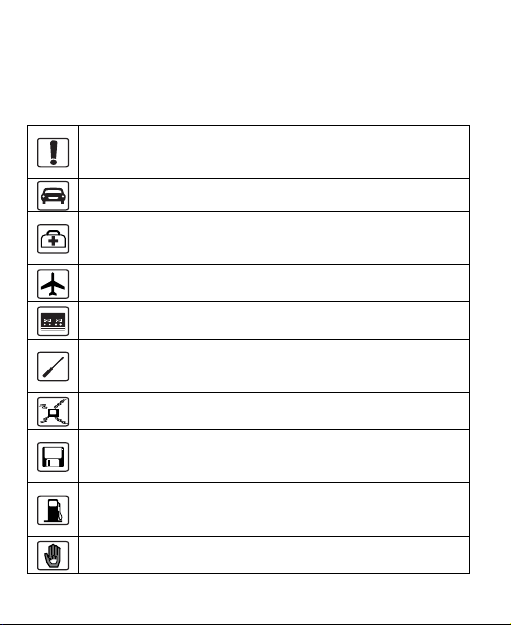
Do not switch on your phone when using the phone is
prohibited or when using the phone may cause interference or
danger.
Do not use your phone while driving.
Follow the rules or regulations set forth by the hospitals and
health care facilities. Switch off your phone near medical
apparatus.
Switch off your phone in an aircraft. The phone may cause
interference to control signals of the aircraft.
Switch off your phone near high-precision electronic devices.
The phone may affect the performance of these devices.
Do not attempt to disassemble your phone or its accessories.
Only qualified personnel are allowed to service or repair the
phone.
Do not place your phone or the accessories in containers with
strong electromagnetic field.
Do not place magnetic storage media near your phone.
Radiation emitted from the phone may erase the information
stored on the magnetic storage media.
Do not place your phone in a high-temperature place or where
it can come in contact with flammable gas, such as a gas
station.
Keep your phone and its accessories away from children. Do
not allow children to use your phone without guidance.
Page 2
Use only approved batteries and chargers to avoid explosion.
Observe the laws or regulations on using the phone. Respect
others' privacy and legal rights when using your phone.
Specifications
Dimensions (L × W × H) 109 mm×45.4 mm×15 mm
Weight About 84g (including the
Battery 1150 mAh Li-ion
Standby time 360 hours (network dependent)
Talk time 6 hours (network dependent)
battery)
Page 3

Copyright © Huawei Technologies Co., Ltd. 2010.
All rights reserved.
No part of this document may be reproduced or transmitted in any
form or by any means without prior written consent of Huawei
Technologies Co., Ltd.
The product described in this manual may include copyrighted
software of Huawei Technologies Co., Ltd and possible licensors.
Customers shall not in any manner reproduce, distribute, modify,
decompile, disassemble, decrypt, extract, reverse engineer, lease,
assign, or sublicense the said software, unless such restrictions are
prohibited by applicable laws or such actions are approved by
respective copyright holders under licenses.
Trademarks and Permissions
, HUAWEI, and are trademarks or registered
trademarks of Huawei Technologies Co., Ltd.
Other trademarks, product, service and company names mentioned
are the property of their respective owners.
Notice
Some features of the product and its accessories described herein
rely on the software installed, capacities and settings of local
network, and may not be activated or may be limited by local
network operators or network service providers, thus the
descriptions herein may not exactly match the product or its
accessories you purchase.
Page 4

Huawei Technologies Co., Ltd reserves the right to change or modify
any information or specifications contained in this manual without
prior notice or obligation.
NO WARRANTY
THE CONTENTS OF THIS MANUAL ARE PROVIDED "AS IS".
EXCEPT AS REQUIRED BY APPLICABLE LAWS, NO
WARRANTIES OF ANY KIND, EITHER EXPRESS OR IMPLIED,
INCLUDING BUT NOT LIMITED TO, THE IMPLIED WARRANTIES
OF MERCHANTABILITY AND FITNESS FOR A PARTICULAR
PURPOSE, ARE MADE IN RELATION TO THE ACCURACY,
RELIABILITY OR CONTENTS OF THIS MANUAL.
TO THE MAXIMUM EXTENT PERMITTED BY APPLICABLE LAW,
IN NO CASE SHALL HUAWEI TECHNOLOGIES CO., LTD BE
LIABLE FOR ANY SPECIAL, INCIDENTAL, INDIRECT, OR
CONSEQUENTIAL DAMAGES, OR LOST PROFITS, BUSINESS,
REVENUE, DATA, GOODWILL OR ANTICIPATED SAVINGS.
Import and Export Regulations
Customers shall comply with all applicable export or import laws and
regulations and will obtain all necessary governmental permits and
licenses in order to export, re-export or import the product mentioned
in this manual including the software and technical data therein.
Page 5

Table of Contents
1 Getting to Know Your Phone ....................................... 1
Your Phone ......................................................................................... 1
Keys and Functions .......................................................................... 2
Screen Icons ...................................................................................... 4
2 Getting Started ................................................................ 6
Installing the Battery ......................................................................... 6
Charging the Battery ......................................................................... 6
3 Voice Services ................................................................. 7
Making a Call ..................................................................................... 7
Answering a Call ............................................................................... 7
4 Text Entry .......................................................................... 9
Text Input Modes ............................................................................... 9
Entering English ................................................................................ 9
Entering Numbers ........................................................................... 10
Entering Symbols ............................................................................ 10
5 SMS .................................................................................. 11
Writing and Sending a Text Message .......................................... 11
Reading a Text Message ............................................................... 11
6 MMS .................................................................................. 12
Writing and Sending a Multimedia Message .............................. 12
Receiving a Multimedia Message ................................................. 12
i
Page 6

Viewing a Multimedia Message .................................................... 13
7 Contacts .......................................................................... 14
Adding a Contact ............................................................................. 14
Searching for a Contact ................................................................. 14
8 Alarm Clock .................................................................... 15
Activating an Alarm Clock .............................................................. 15
Deactivating an Alarm Clock ......................................................... 15
9 Security ........................................................................... 16
Activating/Deactivating the Phone Lock ...................................... 16
Changing the Phone Lock Code ................................................... 16
Locking the Keypad ........................................................................ 17
10 Recorder ....................................................................... 18
Recording a Sound Clip ................................................................. 18
Playing a Sound Clip ...................................................................... 18
11 Camera .......................................................................... 19
Taking a Picture ............................................................................... 19
Viewing a Picture ............................................................................. 20
12 Bluetooth® .................................................................... 21
Sending Data Through the Bluetooth Connection ..................... 21
Receiving Data Through the Bluetooth Connection .................. 22
ii
Page 7

13 Troubleshooting .......................................................... 24
14 Warnings and Precautions ....................................... 26
15 Futurewei Technologies, Inc. Limited Warranty . 37
iii
Page 8
1 Getting to Know Your Phone
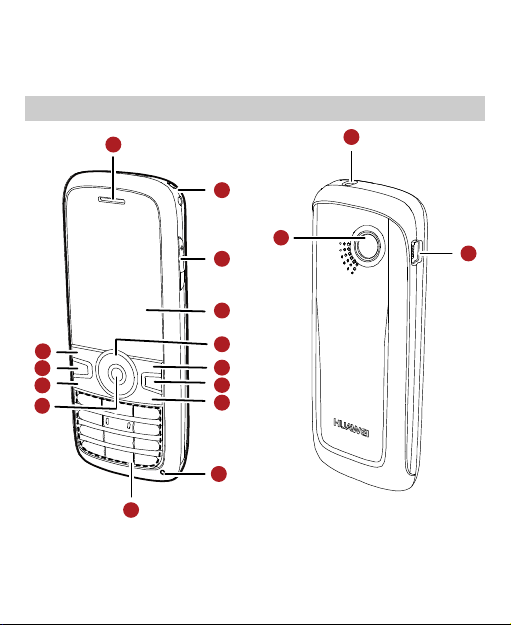
Your Phone
1
2
15
17
3
4
14
13
12
11
10
The preceding figure is for your reference only.
5
6
7
8
9
1
16
Page 9
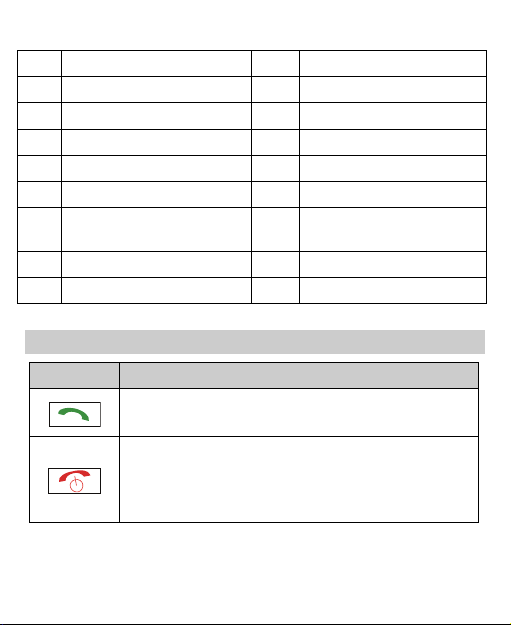
1 Earpiece 10 Number Keys
2 Hole for a wrist strap 11 Confirm Key
3 Volume Key 12 Send/Talk Key
4 Screen 13 Speaker Key
5 Navigation Keys 14 Left Soft Key
6 Right Soft Key 15 Headset Jack
7 Clear Key 16 Charger Interface/ Data
Cable Connecter
8 End/Power Key 17 Camera
9 Microphone - -
Keys and Functions
Press… To…
View the call log in standby mode.
Make a call or answer an incoming call.
Power on or off the phone (by pressing and
holding the key).
End a call or reject an incoming call.
Return to the standby mode.
2
Page 10
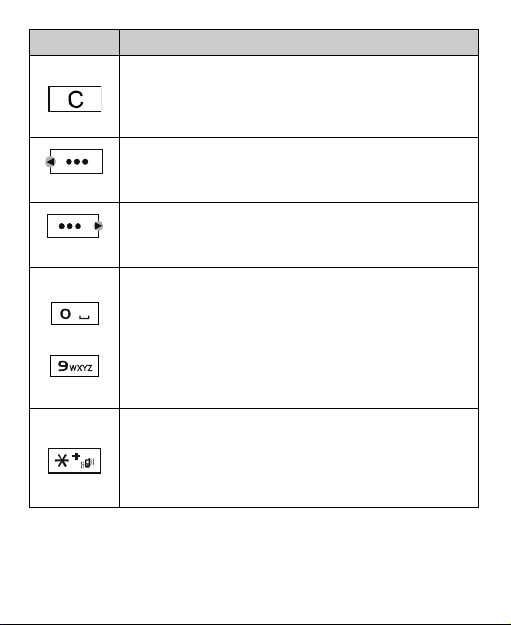
Press… To…
In text input mode, clear one character to the left of
the cursor, or clear all characters (by pressing and
holding the key).
Return to the previous screen.
Select the option displayed on the lower left corner
of the screen.
(Left)
(Right)
In the standby mode, access the Menu.
Select the option displayed on the lower right
corner of the screen.
In the standby mode, access the Contacts.
Enter numbers, letters, and symbols.
In standby mode, call the voice mail center (by
pressing and holding the 1 key).
In standby mode, speed dial a phone number (by
…
pressing and holding the 2-9 keys).
Select a submenu item labeled with the
corresponding number.
Enter the symbol *, symbol +, letter P, or letter T
(by pressing the key once, twice, three times or
four times).
In standby mode, activate or deactivate the
Vibration mode (by pressing and holding the key).
3
Page 11
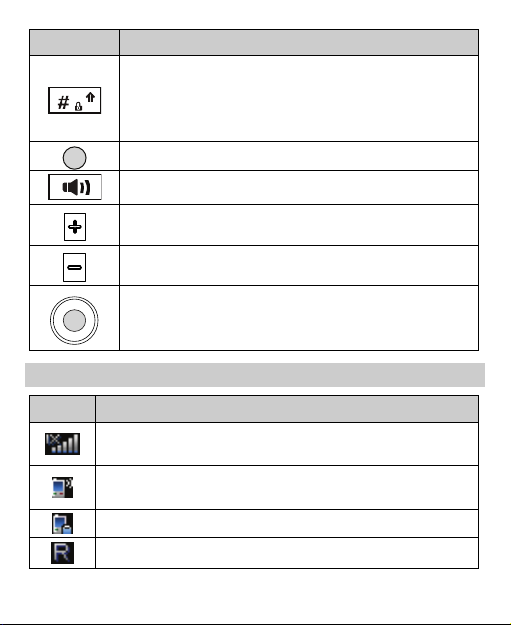
Press… To…
Enter the # symbol.
In standby mode, lock the keypad (by pressing and
holding the key).
Change input modes when editing texts.
Confirm a selection.
Enable or disable the speaker mode.
Increase the volume.
Decrease the volume.
Scroll through a menu.
Access the corresponding shortcut menu in
standby mode.
Screen Icons
Icon Indicates…
Indicates the signal strength. The more the bars are, the
stronger the signal is.
There is an incoming call; a call is being set up; or the
phone is in conversation.
The voice privacy function is enabled.
The phone is in the roaming status.
4
Page 12
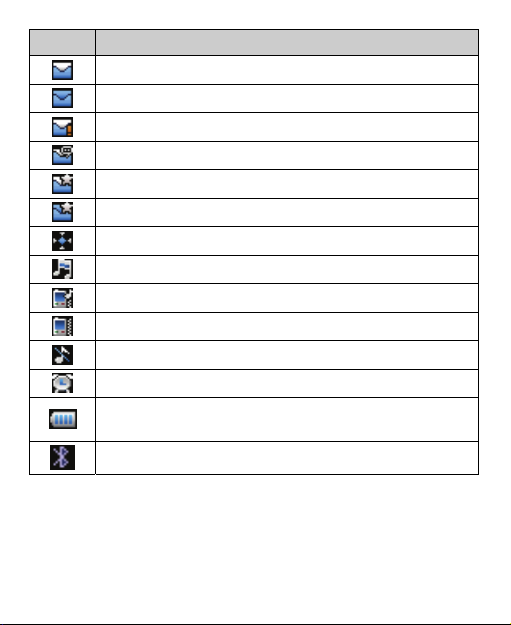
Icon Indicates…
A new message is received.
The memory for messages is full.
An urgent message is received.
A new voice mail is received.
A new PUSH message is received.
The PUSH message inbox is full.
The AGPS indicator mode is
The alert type is
The alert type is
The alert type is
The alert type is
An alarm clock is set.
Indicates the battery power level. The more the bars are,
the higher the remaining battery level is.
The Bluetooth function is activated.
Ring
Ring & Vibration
Vibration
Silence
Location On
.
.
.
.
5
.
Page 13
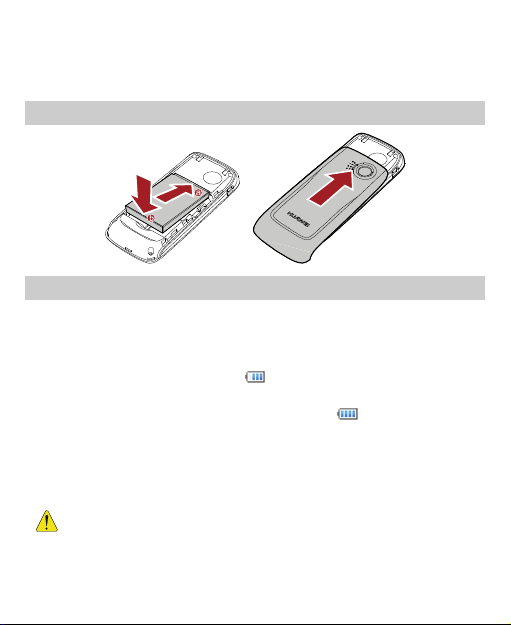
2 Getting Started
Installing the Battery
Charging the Battery
To charge the battery, do as follows:
1. Connect the charger connector to the charger.
2. Connect the power plug of the charger to an AC power socket.
During the charging process, appears on the upper right
corner of the screen in an animated status.
3. Wait until the phone is fully charged. When becomes static,
the battery is fully charged.
4. Disconnect the power plug of the charger from the AC power
socket.
5. Disconnect the charger connector from the phone.
Do not use a damaged battery or charger.
Before using the travel charger, ensure that the battery
is installed in your phone.
6
Page 14
3 Voice Services
Making a Call
1. In standby mode, press number keys to enter a phone number.
To call a phone number with an extension, press three
times to insert P or press four times to insert T between
the phone number and the extension number.
2. Press to call the number.
3. Press or (End) to end the call or cancel the call.
When the phone is locked, enter the lock code to unlock
the phone first; otherwise, you can only make emergency
calls or answer calls.
In standby mode, press to view Call Log. Select
a record and press to call the number.
Select a contact from the contacts and press to
call the number.
Select a message in the inbox and press to call
the message sender.
When making or answering a call, press to
enable or disable the speaker mode.
Answering a Call
When there is an incoming call, you can select the following options:
7
Page 15
Press , (Answer), or to answer it. Press
to answer in handsfree mode. Press to reject it.
If the Any Key Answer function is enabled, press any key (except
and ) to answer it.
If the headset is connected to the phone properly, press the button
on the headset to answer an incoming call; press the button again
to end the call.
If the headset mode and the Headset Auto Answer function are
enabled, and the headset is connected to the phone properly, the
phone answers an incoming call automatically.
8
Page 16

4 Text Entry
Text Input Modes
The indicator of the current input mode is displayed on the upper left
corner of the screen. You can press to change the input
mode.
Indicator Text Input Mode Indicator Text Input Mode
En Smart English
123 Numbers - -
In editing mode, press once to delete the letter to
the left of the cursor. Alternatively, press and hold
to clear all letters at a time.
Entering English
Smart English Input
You can enter English letters as follows:
1. According to the sequence of the word, press each corresponding
key only once for one letter. Then the phone displays the common
words according to the numeric sequence of key presses.
2. Press to view alternative words.
3. Press
to switch between the uppercase and lowercase.
Abc/ABC/
abc
9
Alphabetical text
Page 17

4. Press to confirm the selection; or press
the selection and enter a space after the word.
to confirm
Alphabetical Text Input
The alphabetical text input allows you to enter uppercase or
lowercase English letters. You can press the key labeled with the
required letter once to enter the first letter on the key, twice to enter
the second letter on the key, and so on.
If the letter you want to enter is labeled on the same key as the
previous one, you can enter the latter letter only after the cursor
appears again or press to move the cursor to the next space.
Entering Numbers
In "123" input mode, directly press the number key labeled with
the required number.
In "Abc" input mode, press a number key repeatedly or press and
hold it until the required number appears on the screen.
In "En" input mode, press a number key and then press until
the required number appears on the screen. Or you can press and
hold the key until the required number appears on the screen.
Entering Symbols
In any input mode, you can enter a symbol as follows:
1. Press to display a symbol list.
2. Press or to select a symbol.
3. Press or the corresponding number key to enter the symbol.
10
Page 18

5 SMS
Writing and Sending a Text Message
To write and send a message, do as follows:
1. Select Menu > Messages > SMS > Create Message.
2. Write a message. You can enter up to 160 letters.
3. Press or in the text editing screen to send the
message directly, or select Options > Send to send the message.
4. Enter the phone number of a recipient.
Up to 10 recipients can be added.
5. Press or to send the message.
Reading a Text Message
To read a message stored in the inbox, do as follows:
1. Select Menu > Messages > SMS > Inbox.
2. Press to select a message.
3. Press to read the message, or press (Options)
Select a message, and then select Options to perform the
operations of the option list.
11
Page 19

6 MMS
Writing and Sending a Multimedia Message
1. Select Menu > Messages > MMS > Create Message.
2. Enter the content of a multimedia message in the following fields:
To: Allows you to enter the message recipients. You can add up
to 10 recipients.
Sub: Allows you to enter the subject of the message.
Text field: Allows you to insert texts.
Media field: Allows you to insert images or audio files into a
page.
The capacity of a multimedia message can be up to 500
KB, including the slides.
3. After you edit the multimedia message, select Options > Send to
send it.
Receiving a Multimedia Message
If you select MMS > Settings > Receive Settings > Retrieval
Mode > Manual, a notification can be received in the inbox and you
can press to view the notification. Then select Options >
Receive to receive the multimedia message.
If you select MMS > Settings > Receive Settings > Retrieval
Mode > Automatic, the multimedia message is downloaded in the
inbox directly.
12
Page 20

Viewing a Multimedia Message
To view multimedia messages stored in the inbox, do as follows:
1. Select Menu > Messages > MMS > Inbox.
2. Press to select a message.
3. Press to view contents of the message or press
(Options) to perform the operations of the option list.
13
Page 21

7 Contacts
Adding a Contact
To add a contact, do as follows:
1. Select Menu > Contacts > Add New .
2. Press to enter information in Name, and then press
(OK).
3. Enter the necessary information about a contact.
4. Press (Save) to save the contact to the phonebook.
Searching for a Contact
To search for a contact, do as follows:
1. Select Menu > Contacts > Search.
2. Enter the name of a contact. Then press (Search) or .
3. After the contact is found, press (Options) to perform the
operations of the option list.
In standby mode, press (Contacts) to access
the phonebook.
To quickly search for a contact, you can press the
number key (except and ) to enter the first
letter of the contact name. Then the phone lists English
contacts that start with the letter.
14
Page 22

8 Alarm Clock
After the alarm clock is activated, the phone notifies you at the preset
time. You can set up to five alarm clocks.
Activating an Alarm Clock
1. Select Menu > Too ls > Alarms.
2. Press to select an alarm clock.
3. Press (On) to activate the alarm clock, or press for
the following options:
Time: Allows you to set the time.
Ringtone: Allows you to set the alarm tone.
Frequence: Allows you to set the alerting mode.
4. Press (Save) to save the settings of the alarm clock.
Deactivating an Alarm Clock
1. Select Menu > Too ls > Alarms.
2. Press (Off) to deactivate the alarm clock.
Select Menu > Tools > Al arms > Cancel All to deactivate
all alarm clocks.
15
Page 23

9 Security
Activating/Deactivating the Phone Lock
The phone lock protects your phone from unauthorized use. By
default, the phone lock function is not activated. You can change the
default phone lock code to any numeric string of 1 to 8 digits.(The
default phone lock code is the last four numbers of MDN.)
1. Select Menu > Settings > Security Settings > Phone Lock.
2. Select one of the following phone lock modes:
Immediate: The phone is locked immediately.
Power On: The phone lock is activated when the phone is
powered on next time.
Off: The phone lock is deactivated.
Changing the Phone Lock Code
Do remember your phone lock code. If you forget it, contact your
local dealer.
1. Select Menu > Settings > Security Settings > Change Phone
Code.
2. Enter the correct phone lock code and press (OK).
3. Enter the new phone lock code and press (OK).
4. Enter the new phone lock code again and press (OK).
16
Page 24

Locking the Keypad
When the keypad is locked, you can still answer an incoming call by
pressing (Answ er), or , and you can make
emergency calls by pressing .
Manually Locking the Keypad
In standby mode, press and hold to lock the keypad.
Automatically Locking the Keypad
If the auto keyguard function is enabled, after the phone has been
idle for a preset period in standby mode, the keypad is locked
automatically.
1. Select Menu > Settings > Phone Settings > Auto Keyg uard.
2. Press for the following options:
Off: Allows you to disable the auto keyguard function.
15 Seconds, 30 Seconds or 1 Minute: In standby mode, when
the phone has been idle for the selected time, the keypad is
locked automatically.
3. Press (Select) to save the settings.
Unlocking the Keypad
In standby mode, press (Unlock) and then press to
unlock the keypad.
When the keypad is locked, you can press
the screen.
17
or
to light
Page 25

10 Recorder
Recording a Sound Clip
1. In standby mode, select Menu > Too ls > Voice Record.
2. Press to start recording; press again to pause.
3. Press (Back) to stop recording, with displaying a prompt
to confirm:
Press (Yes) to save the sound clip to the recorder
folder under Menu > My Files > To ne s.
Press (No) to return to the previous menu.
When recording a sound clip, you can press
(Stop) to save the sound clip to the recorder folder under
My Files > Tones automatically.
When recording a sound clip, keep the microphone of
your phone near the sound source for a better recording
effect.
Playing a Sound Clip
1. In standby mode, select Menu > My Files > Tones.
2. Select a sound clip and then press to play it; or press
(Options) and select Play to play it.
3. Press (Options) to perform the operations of the option
list.
18
Page 26

11 Camera
Taking a Picture
1. In standby mode, select Menu > Camera to launch the camera.
2. Press (Options) for the following options:
Resolution: Allows you to select the resolution.
Self Timer: Allows you to set the countdown time for the phone
to take a picture automatically. If the auto timer is activated, you
can select 5 Seconds or 10 Seconds that indicates the
duration after which the phone takes a picture automatically.
Night Mode: Allows you to activate or deactivate the night
mode.
Effect: Allows you to set the effect. You can set Color,
Monochrome, Negative and Sepia.
Shortcut Guide: Allows you to view the shortcut keys.
Settings: Allows you to set Quality, Shot Tone, Timer
Reminder, and Reset All.
Go To Gallery: Allows you to access the picture folder under
My Files to view pictures.
3. Focus the lens on the scene and press to take a picture. Then
you can preview the picture and save it.
4. Press (Options) for the following operations:
Delete: Allows you to delete the picture.
Send: Allows you to send the picture as a multimedia message
or through Bluetooth.
19
Page 27

Set: Allows you to set the picture as the wallpaper or contact
image.
When focusing the lens, press to zoom in; press
to zoom out; press to decrease the luminance;
and press to increase the luminance.
The camera can not be zoomed when the resolution is
640 × 480.
Viewing a Picture
1. In standby mode, select Menu > Camera.
2. Press (Options). Then select Go To Gallery to access
the phone album.
3. Press to select a picture.
4. Press to view the picture, and then press to change to
the previous or the next picture.
5. Press (Options) to perform the operations in the option
list.
6. Press (Back) to return to the picture list.
20
Page 28

12 Bluetooth
You can use the built-in Bluetooth function of your phone to
exchange data with other Bluetooth devices. You can also call by
using the Bluetooth headset or Bluetooth loudspeaker.
Bluetooth supports a wireless connection between Bluetooth devices
within a distance of 10 m; however, the Bluetooth wireless
connection can be disturbed by other electronic devices and blocked
by obstacles, such as walls.
In certain areas, using Bluetooth devices might be restricted or
prohibited. Observe applicable laws and regulations.
Do not accept the connection request of an unknown device. Thus,
you can prevent your mobile phone from the intrusion of destructive
contents.
The Bluetooth function supported by your phone meets the
requirements of Bluetooth Specification 2.0. It works
normally only when you use it with compatible Bluetooth
devices. For more information, refer to the user manuals of
related devices, or consult the manufacturers of related
devices.
®
Sending Data Through the Bluetooth
Connection
You can set up only one Bluetooth connection each time.
1. Select Menu > Settings > Phone Settings > Bluetooth > Power
On to activate Bluetooth.
21
Page 29

2. Launch the application that contains the file to be sent. For
example, if you want to send an image to another device, you
need to launch the My Files application.
3. Select the file you want to send. Press (Options) and
select Send > Bluetooth.
4. Select the device you want to connect with from the device list.
If the devices on the device list are already paired with
your phone, select the device that is to be connected
with, and press to transfer data.
When the device list is null or the device that is to be
connected with does not exist on the list, press
(Search) to search for other Bluetooth-activated devices
in the effective range. Then the names of the found
devices are displayed on the screen. Press to
stop searching.
5. If the device that is to be connected with requests identity
authentication before connection, your phone displays "Input pair
password:" on the screen. Create a shared password. After the
same password is entered on both devices, the Bluetooth
connection is set up.
6. After the connection is set up, information about the data being
transferred is displayed on your phone.
Receiving Data Through the Bluetooth
Connection
1. When other device sends data to your phone through Bluetooth,
your phone displays "Receive?" on the screen.
22
Page 30

Press (Yes) to receive the data. The filename and
receiving progress are displayed on the screen.
Press (No) to reject the data.
For the first time to connect with another device through
Bluetooth, your phone displays "Input pair password" on
the screen for you to authenticate the identity of the device.
Enter the password of one to eight digits, and press
(Select). After the same password is entered on the other
device, your phone starts to receive data.
2. When your phone displays "Receiving succeeded. Saved to
phone." on the screen, it indicates that the data is received and
saved under My Files.
23
Page 31

13 Troubleshooting
If you encounter any problem when using the phone, try to solve the
problem according to the following table. If the problem still occurs,
contact the service provider or the dealer.
Problem Ensure that…
The battery can not be
charged.
The phone can not be
powered on.
You can not make a call
except an emergency call.
Bad call quality.
During a call, the other side
can not hear your voice.
The charger is properly connected
to the phone and the power socket.
The battery power is enough.
The battery is properly installed.
Press and hold .
The phone number is correct.
You are in the network service
area.
You do not enable the call
restriction function.
The signal strength is strong
enough.
If you are staying indoors, move
near to a window.
The microphone is not covered.
24
Page 32

Problem Ensure that…
The signal strength is not
strong enough or the phone
is often offline.
Other Bluetooth devices can
not be found; the phone
fails to send or receive data.
The antenna is in good condition.
Move near to a place with strong
signal strength.
The Bluetooth function is
activated on both devices.
The distance between the two
devices is less than 10 m.
No obstacles exist between the
two devices.
The other device is not in the
hidden state.
The phone displays "No
service found", "Service
unavailable" or "Network
problem".
You are not in an area with weak
magnetic field (in a tunnel or
surrounded by buildings). If so,
move to another area and try
again.
Do not visit the service option
without obtaining authorization
from your service provider.
25
Page 33

14 Warnings and Precautions
Electronic Device
Power off your phone near high-precision electronic devices. The
phone may affect the performance of these devices.
Pacemaker manufacturers recommend that a minimum
separation of 7 inches (20 cm) be maintained between a mobile
phone and a pace-maker to avoid potential interference with the
pace-maker. To maintain this distance, it is recommended that you
use the phone on the opposite ear from your pacemaker and do
not carry it in a breast pocket. If you have reason to believe
interference is occurring, power off your phone immediately and
consult with your physician.
Some wireless phones may interfere with some hearing aids. In
the event of such interference, consult your service provider or
consult with your physician. To ensure that the Hearing Aid
Compatibility rating for your phone is maintained, secondary
transmitters such as Bluetooth and WLAN components must be
disabled during a call.
Health Care Facilities
Note the following concerning use of your phone in health care
facilities:
Do not take your phone into the operating room (OR), intensive
care unit (ICU), or coronary care unit (CCU).
Do not use your phone in any area of a health care facility where
mobile phone use is prohibited.
26
Page 34

Area with Inflammables and Explosives
In any area with flammables and explosives, power off your phone
and do not take out, install or charge the battery, to prevent
explosion and fire. Areas with inflammables and explosives may
include, but are not limited to:
Gas stations
Areas for storing fuels (such as below deck on a ship)
Devices/Vehicles transporting and storing fuels or chemical
products
Areas containing chemical substances or particles (such as sand,
dust, or metal powder) in the air
Areas with posted signs warning of "Explosives"
Areas advising to "Power off bi-direction wireless equipment"
Any Area where it is recommended to turn off the engine of a
vehicle.
Traffic Safety
Please observe federal, state, and local laws and regulations
concerning phone use while driving.
Secure the phone in its holder. Do not place the phone on the seat
or other places where it could become loose in a sudden stop or
collision.
Do not place the phone over the air bag or in the air bag
deployment area. The phone may cause injury due to the strong
force created by the inflating air bag.
Observe all rules and regulations during air travel. When boarding
an airplane, power off the phone and take out the battery. In areas
where phone use is prohibited, power-off the phone. The radio
27
Page 35

signal of the phone may interfere with the airplane's navigation or
instrumentation systems.
Storage Environment
Do not place magnetic storage media such as magnetic cards and
floppy disks near the phone. Electromagnetic radiation from the
phone may erase the information stored on them.
Do not put your phone, battery, or other accessories in containers
with a strong magnetic field, such as an induction oven or a
microwave oven. Otherwise, circuit failure, fire, or explosion may
occur.
Do not leave your phone, battery, or charger in a very hot or cold
place. Otherwise, malfunction, fire, or explosion may occur.
Do not place sharp metal objects such as pins near the earpiece.
The earpiece emits a magnetic field that may attract objects,
causing injury.
Operating Environment
The phone, battery, and charger are not water-resistant. Keep
them dry. Protect the phone, battery and charge from water or
steam. Do not touch the phone with a wet skin. Otherwise,
short-circuit and malfunction of the product or electric shock may
occur.
Do not use the phone in dusty, damp and dirty places or areas
with excessive magnetic fields. Otherwise, malfunction of the
circuitry may occur.
The phone meets applicable radio frequency exposure guidelines
when used in the normal when positioned at least 1.5 cm away
from the body. When a carry pouch or belt clip is used, it should
28
Page 36

not contain metallic objects, and the phone should be positioned
at the above-stated distance from your body.
Do not subject your phone, battery, and charger to serious
collision or shock. Otherwise, battery leakage, phone malfunction,
overheating, fire, or explosion may occur.
If you experience discomfort (such as becoming nauseous or
dizzy) after playing games on your phone for long periods of time,
consult a physician immediately.
During electrical storms, do not use your phone outdoors or while
it is charging.
Do not touch the antenna when during a call. Touching the
antenna may affect call quality and may cause the phone to
expend additional power. As a result, the talk time and standby
time may be shortened.
Use only phone accessories authorized by the manufacturer.
Use of unauthorized accessories will void warranty.
While using the mobile phone, observe all federal, state, and local
laws and regulations, and respect others' privacy and legal rights.
This device should be installed and operated with a minimum
distance of 20 cm between the radiator and your body when you
use the device via a USB cable.
Child Safety
Keep your phone, battery, and charger beyond the reach of
children. Do not allow children to use the phone, battery, or
charger without adult supervision.
Do not allow children to place batteries in their mouths. The
electrolyte in the battery is poisonous.
29
Page 37

Your phone contains small parts with small edges that may cause
choking.
Clearing and Maintenance
Before you clean or maintain the phone, power off the phone and
disconnect it from the charger. Otherwise, electric shock or
short-circuit of the battery or charger may occur.
Do not use any chemical detergent, powder, or other chemical
agent (such as alcohol or benzene) to clean the phone and the
charger. Otherwise, damage or fire could occur. Clean the phone
and the charger with a piece of soft damp antistatic cloth.
Keep the plug dry during cleaning to prevent fire.
If the phone or any of its fittings does not work, return to a local
authorized service center for repair.
Do not dismantle the mobile phone or accessories. Only an
authorized service center is allowed to disassemble the mobile
phone. Any disassembly of the mobile phone beyond what is
necessary for routine maintenance (such as changing the battery)
will void the warranty.
Environmental Protection
Please observe all federal, state, and local regulations regarding
the disposal of your packaging materials, dead battery and used
phone. Do not dispose of dead battery or used phone in municipal
waste or by incineration. Otherwise, explosion may occur. Please
recycle.
This HUAWEI device complies with Directive 2002/95/EC on the
restriction of the use of certain hazardous substances in electrical
and electronic equipment.
30
Page 38

Emergency Call
Your phone can be used to place emergency calls. However,
connections in all conditions cannot be guaranteed. Never rely solely
on the phone for essential communications.
Battery
Use batteries approved by the manufacturer only. Otherwise,
malfunction, fire, or explosion may occur.
Do not dispose of the battery by incineration. Otherwise, the
battery might ignite or explode.
Do not connect the two poles of the battery with conductors such
as cables, jewelry, or any other metal. Otherwise, the battery may
short-circuit, causing injury.
Keep mobile phone at a temperature between 0 ºC and 40 ºC
while the battery is being charged. Store the battery at a
temperature between 0 ºC and 40 ºC. Storage at temperatures
that are too low (especially blow 0 ºC) or too high, will reduce the
capacity and life of the battery. More importantly, improper storage
may destabilize the battery, rendering it unsafe.
Do not disassemble the battery or solder the battery poles.
Otherwise fluid leakage, overheating, fire, or explosion may occur.
If battery leakage, smoke, or strange smells occur, remove battery
from phone and keep it away from open flame to avoid fire or
explosion. Then take to local authorized service center for repair.
If battery fluid contacts your skin or clothing, wash with clean
water immediately to avoid skin irritation.
If battery fluid gets into eyes, do not rub them. This could cause
injury. Wash with clean water and consult a doctor immediately.
31
Page 39

If battery deformation, color change or abnormal heating occurs
during storage or charging, remove battery immediately and
properly dispose. Otherwise, battery leakage, overheating,
explosion, or fire may occur.
Do not force battery into place during installation.
Do not remove the battery while the phone is turned on.
Charger
Use only manufacturer-approved chargers. Use of a
non-approved charger may cause malfunction, and will also void
warranty.
Do not short-circuit the charger. Short-circuiting the charger may
cause fire or malfunction of the charger.
If the power cord is damaged (for example, if the wire is exposed
or broken), or the plug becomes loose, stop using the cable at
once. Otherwise, electric shock, short-circuit, or fire may occur.
Do not use the charger in a dusty or damp environment. Keep the
power cord away from excessive heat or flame.
Use only the AC-power supply defined in the specifications of the
charger. Improper power voltage or current can cause fire or
malfunction of the charger.
During charging, do not touch the plug, power cord or the charger
itself with wet skin. Otherwise, electric shock could occur.
If liquid leaks into the charger, remove the plug of the charger from
the socket immediately. Otherwise, overheating, fire or other
malfunction may occur.
The Travel Adaptor for this phone meets UL 1310 safety
requirements. Please adhere to the safety instructions per UL
guidelines.
32
Page 40

Certification Information (SAR)
THIS DEVICE MEETS THE CANADIAN AND UNITED STATES
GOVERNMENTS' REQUIREMENTS FOR EXPOSURE TO RADIO
FREQUENCY ELECTROMAGNETIC FIELD.
Your mobile phone is a low-power radio transmitter and receiver.
When it is turned on, it emits low levels of radio frequency energy
("RF") (also known as radio waves or radio frequency fields).
Governments around the world have adopted comprehensive
international safety guidelines, developed by scientific organizations,
like ICNIRP (International Commission on Non-Ionizing Radiation
Protection) and IEEE (Institute of Electrical and Electronics
Engineers Inc.), through periodic and thorough evaluation of
scientific studies. These guidelines establish permitted levels of
radio wave exposure for the general population. The levels include a
safety margin designed to assure the safety of all persons,
regardless of age and health, and to account for any variations in
measurements.
Specific Absorption Rate (SAR) is the unit of measurement for the
amount of radio frequency energy absorbed by the body when using
a mobile phone. The SAR value is determined at the highest certified
power level in laboratory conditions, but the actual SAR level of the
mobile phone while operating can be well below the value. This is
because the mobile phone is designed to use the minimum power
required to reach the network.
All models of Huawei's mobile phones are designed to meet radio
frequency exposure guidelines. Before a phone model is available
for sale to the public, it must be tested and certified by the FCC that it
does not exceed the limit established by the government-adopted
requirement for RF exposure. The tests are performed in positions
and locations (that is, at the ear and worn on the body) as required
33
Page 41

by the FCC for each model. For body worn operation, this phone has
been tested and meets FCC RF exposure guidelines when the
handset is positioned a minimum of 15 mm from the body with an
accessory that contains no metal part. Use of other accessories may
not ensure compliance with FCC RF exposure guidelines.
The SAR limit adopted for this particular device by the USA and
Canada is 1.6 watts/kilogram (W/kg) averaged over one gram of
tissue. The highest SAR value reported to the FCC and IC for this
device type when tested for use at the ear is 1.06 W/kg, and when
properly worn on the body is 0.833 W/kg.
Hearing Aid Compatibility (HAC) regulations for
Mobile phones
In 2003, the FCC adopted rules to make digital wireless telephones
compatible with hearing aids and cochlear implants. Although analog
wireless phones do not usually cause interference with hearing aids
or cochlear implants, digital wireless phones sometimes do because
of electromagnetic energy emitted by the phone's antenna, backlight,
or other components.
Your phone is compliant with FCC HAC regulations (ANSI C63.19).
While some wireless phones are used near some hearing devices
(hearing aids and cochlear implants), users may detect a buzzing,
humming, or whining noise.
Some hearing devices are more immune than others to this
interference noise, and phones also vary in the amount of
interference they generate.
The wireless telephone industry has developed a rating system for
wireless phones, to assist hearing device users find phones that may
be compatible with their hearing devices. Not all phones have been
34
Page 42

rated. Phones that are rated have the rating on their box or a label
located on the box. The ratings are not guarantees. Results will vary
depending on the user's hearing device and hearing loss. If your
hearing device happens to be vulnerable to interference, you may
not be able to use a rated phone successfully. Trying out the phone
with your hearing device is the best way to evaluate it for your
personal needs.
M-Ratings: Phones rated M3 or M4 meet FCC requirements and are
likely to generate less interference to hearing devices than phones
that are not labeled.
M4 is the better/higher of the two ratings. Your phone meets the M4
level rating. Hearing devices may also be rated. Your hearing device
manufacturer or hearing health professional may help you find this
rating.
For more information about the FCC Hearing Aid Compatibility
please go to
http://www.fcc.gov/cgb/dro
FCC Statement
This device complies with Part 15 of the FCC Rules. Operation is
subject to the following two conditions: (1) this device may not cause
harmful interference, and (2) this device must accept any
interference received, including interference that may cause
undesired operation.
NOTE: This device has been tested and found to comply with the
limits for a Class B digital device, pursuant to Part 15 of the FCC
Rules. These limits are designed to provide reasonable protection
against harmful interference in a residential installation. This device
generates uses and can radiate radio frequency energy and, if not
installed and used in accordance with the instructions, may cause
35
Page 43

harmful interference to radio communications. However, there is no
guarantee that interference will not occur in a particular installation. If
this device does cause harmful interference to radio or television
reception, which can be determined by connecting or disconnecting
the device to a PC, the user is encouraged to try to correct the
interference by adopting one or more of the following measures:
Reorient or relocate the receiving antenna.
Increase the distance between the device and the receiver.
Connect the device to an outlet on a circuit different from that to
which the receiver is connected.
Consult the dealer or an experienced radio or TV technician for help.
Warn ing: Changes or modifications made to this equipment not
expressly approved by HUAWEI may void the FCC authorization for
the user to operate this equipment.
Proposition 65 Compliance Statement
WARNING : This product contains chemicals known to the State of
California to cause cancer and birth defects or other reproductive
harm. Wash hands after handling.
36
Page 44

15 Futurewei Technologies, Inc.
Limited Warranty
Futurewei Technologies, Inc. (“Huawei”) represents and warrants to
the original purchaser (“Purchaser”) that Huawei’s phones and
accessories (“Product”) are free from material defects, including
improper or inferior workmanship, materials, and design, during the
designated warranty period, and subject to the following terms and
conditions, when used normally and in accordance with all
operating instructions:
1. Warranty Period: Coverage under this warranty is limited to the
following time periods:
a) Phone: a period of 12 months from the date of purchase.
b) Battery and Charger: a period of 12 months from the date of
purchase.
c) Other accessories (If included in the box set): a period of 3
2. This limited warranty only applies to products manufactured by
3. The Warranty extends only to Purchasers who purchased the
months from the date of purchase.
or for Huawei and that can be identified by the “Huawei”
trademark, trade name, or logo affixed to them. The limited
warranty does not apply to any non-Huawei products or
software.
Product in the United States of America and is not assignable or
37
Page 45

transferable to any subsequent purchaser/customer.
4. During the limited warranty period, Huawei will repair or replace
at Huawei’s sole option, any parts of the Product that are
defective or malfunction during normal usage. Huawei reserves
the right to use new or refurbished replacement parts in repair of
the Product.
5. This limited warranty covers only the costs of parts and labor.
Other related costs such as shipping and delivery costs may be
born by purchaser at Huawei’s option.
6. At Huawei’s request, Purchaser must prove the date of the
original purchase of the Product by a dated bill of sale or dated
itemized receipt.
7. This warranty does not cover damage resulting from:
a) Abuse, accident, misuse, improper storage, exposure to liquid,
moisture, or dampness;
b) External causes such as from collision, fire, flooding, sand, dirt,
windstorm, lightning, or earthquake;
c) Exposure to extreme weather conditions, Acts of God, theft,
blown fuse, or improper use of any electrical source;
d) Computer or internet viruses, bugs, worms, Trojan Horses,
cancelbots;
e) Use with non-Huawei products or products not recommended
for use with Huawei products;
38
Page 46

f) normal wear and tear of the equipment;
g) Usage of equipment other than its normal and customary
manner;
h) Improper testing, operation, maintenance, installation, or any
alteration or modification of Product;
i) Consumable parts, such as batteries, unless damage has
occurred due to a defect in Huawei materials and workmanship;
j) Service performed by anyone who is not a Huawei
representative or an authorized Huawei service provider;
k) Other acts which are not the fault of Huawei, including damage
caused by shipping;
l) Cosmetic damages, including but not limited to dents or
scratches in decorative, structural, or non-operative parts
resulting from normal customer use;
m) Spillage of food or liquid, corrosion, rust or incorrect voltage;
and
n) The defective function of the cellular system or inadequate
signal reception by the external antenna, or viruses or other
software problems introduced into the Product.
8. Huawei does not warrant that the operation of this product will
be uninterrupted or error-free.
9. This warranty will also be null and void in any of the following
events:
a) The serial number or warranty seal on the equipment has been
altered, defaced or removed;
b) Any term contained in this warranty has been altered or
39
Page 47

modified in any way without prior written consent of Huawei;
c) Huawei has not been notified by Purchaser of the alleged
defect or malfunction of the Product during the applicable
10. If Product is returned to Huawei after the expiration of the
11. This limited warranty provides Purchaser’s sole and exclusive
warranty period.
warranty period, Huawei's normal service policies shall apply
and Purchaser will be charged accordingly.
a) Huawei assumes no obligation or liability beyond that which is
expressly provided for in this limited warranty.
b) All warranty information, pricing, product features and
specifications are subject to change.
remedy to be provided by Huawei. The agents, employees,
distributors, and dealers of Huawei products are not authorized
to make modifications to this limited warranty, or make
additional warranties binding on Huawei.
LIMIT OF LIABILITY
12. HUAWEI’S LIMIT OF LIABILITY UNDER THIS LIMITED
WARRANTY SHALL BE THE ACTUAL CASH VALUE OF THE
PRODUCT AT THE TIME PURCHASER RETURNS THE PRODUCT
FOR REPAIR, AS DETERMINED BY THE PRICE PAID BY THE
PURCHASER FOR THE PRODUCT LESS A REASONABLE
AMOUNT OF USAGE. HUAWEI SHALL NOT BE LIABLE FOR
ANY OTHER LOSSES OR DAMAGES SUCH AS SPECIAL,
40
Page 48

INCIDENTAL, CONSEQUENTIAL, OR PUNITIVE DAMAGES
(INCLUDING BUT NOT LIMITED TO LOSS OF ANTICIPATED
BENEFITS OR PROFITS, LOSS OF SAVINGS OR REVENUE,
LOSS OF DATA, LOSS OF USE OF THE PRODUCT OR ANY
ASSOCIATED EQUIPMENT, COST OF CAPITAL, COST OF ANY
SUBSTITUTE EQUIPMENT OR FACILITIES, DOWNTIME, ANY
COSTS OF RECOVERING, REPROGRAMMING, OR
REPRODUCING ANY PROGRAM OR DATA, ANY FAILURE TO
MAINTAIN THE CONFIDENTIALITY OF DATA STORED ON THE
PRODUCT, THE CLAIMS OF ANY THIRD PARTIES, INCLUDING
SUBSEQUENT PURCHASERS, AND INJURY TO PROPERTY,
RESULTING FROM THE PURCHASE OR USE OF THE PRODUCT
OR ARISING FROM BREACH OF THIS WARRANTY, BREACH OF
CONTRACT, NEGLIGENCE, STRICT LIABILITY, OR ANY OTHER
LEGAL OR EQUITABLE THEORY, EVEN IF HUAWEI KNEW OF
THE LIKELIHOOD OF SUCH DAMAGES). HUAWEI SHALL NOT
BE LIABLE FOR DELAY IN RENDERING SERVICE UNDER THE
LIMITED WARRANTY, OR LOSS OF USE DURING THE PERIOD
THAT THE PRODUCT IS BEING REPAIRED.
DISCLAIMER OF WARRANTY
13. HUAWEI’S LIABILITY UNDER EITHER THE IMPLIED WARRANTY
OF MERCHANTABILITY OR FITNESS FOR A PARTICULAR
PURPOSE, SHALL BE LIMITED TO THE DURATION OF THE
FOREGOING LIMITED WRITTEN WARRANTY. OTHERWISE, THE
FOREGOING LIMITED WARRANTY IS PURCHASER’S SOLE AND
EXCLUSIVE REMEDY AND IS IN LIEU OF ALL OTHER
41
Page 49

WARRANTIES, EXPRESS OR IMPLIED.
14. Some states do not allow exclusion or limitation of incidental,
consequential, or punitive damages, or permit limitations on the
length of implied warranties, so certain of these warranty
limitations may not apply to Purchaser. This limited warranty
gives Purchaser specific legal rights; Purchaser may also have
other rights which vary from state to state. If any term of this
limited warranty is held to be illegal or unenforceable, the legality
or enforceability of the remaining terms shall not be affected or
impaired.
15. This limited warranty allocates risk of Product failure between
Purchaser and Huawei, and Huawei’s Product pricing reflects
this allocation of risk and the limitations of liability contained in
this limited warranty.
Contact Huawei
WEB SITE: HTTP://WWW.HUAWEIDEVICE.COM
EMAIL: SUPPORTUSA@HUAWEI.COM
* This contact information may change without notice.
Please contact your authorized Huawei retailer for updated
contact information.
Version: V100R001C16_01 Part Number: 31010DYJ
42
 Loading...