

Page 1

Copyright © 2008 Huawei Technologies Co., Ltd.
All Rights Reserved
No part of this document may be reproduced or transmitted in any form or by any
means without prior written consent of Huawei Technologies Co. , Ltd.
Trademarks and Permissions
and other Huawei trademarks are trademarks of Huawei Technologies Co.,
Ltd.
All other trademarks and trade names mentioned in this document are the
property of their respective holder s.
Notice
The information in this document is subject to change without notice. Every effort
has been made in the preparation of this document to ensure accuracy of the
contents, but all statements, information, and recommendations in t his document
do not constitute the warranty of any kind, express or implied.
Page 2

Table of Contents
Getting to Know Your E880...................................................................... 1
Requirements for the Computer ............................................................... 4
Preparation........................................................................................... 4
Safety Information................................................................................. 8
i
Page 3
Thank you for choosing Huawei E880 data card
(hereinafter referred to as the E880). With the
E880 data card, you can access the Internet
through wireless network at a high speed.
Note:
This manual describes the appearance, installation and removal of the E880. For
the operation of the management program, refer to the User Manual.
Getting to Know Your E880
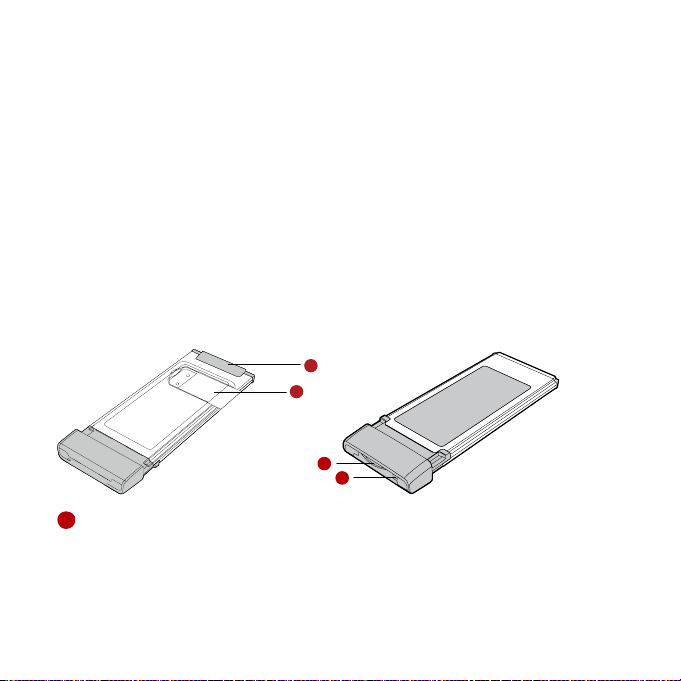
The following figure shows the appearance of the E880. It is only for your
reference. The actual product may differ.
1
2
3
1
ExpressCard Interface
It connects the E880 to a computer.
4
1
Page 4
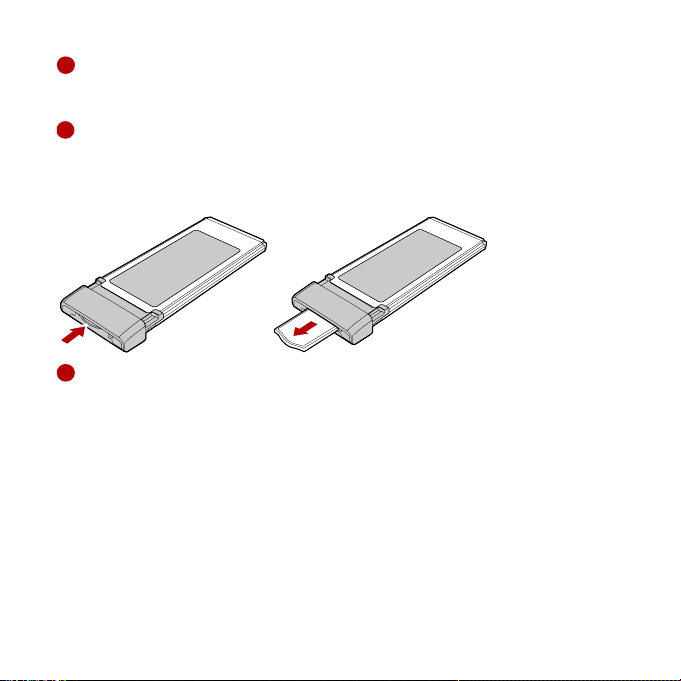
2
USIM/SIM Card Slot
It is where you insert the user identity module (USIM/SIM) card.
3
Built-in Aerial
Simply press the end and it will extend. We recommend you always have the
aerial extended when connected to get optimum performance. When you have
finished, push it back into the ExpressCard until it clicks.
4
Indicator
It indicates the status of the E880.
Colour Status Meaning
Green Blinking (on for 100ms and
off for 100ms; then on for
100ms and off for
2700ms)
Green Blinking (on for 100ms and
off for 2900ms)
Blue Blinking (on for 100ms and
off for 2900ms)
The E880 is powered on.
The E880 is registered to a
GSM/GPRS/EDGE network.
The E880 is registered to a UMTS
network.
2
Page 5

Green On The E880 is connected to a GPRS/EDGE
Blue On The E880 is connected to a WCDMA
Cyan On The E880 is connected to a HSPA
- Off The E880 is removed.
network.
network.
network.
3
Page 6
Requirements for the Computer
To use the E880, the computer must meet the following requirements:
Equipped with ExpressCard slot.
Windows 2000 SP4, Windows XP SP2, Windows Vista.
Mac OS X 10.4 and 10.5 with latest upgrades
Your computer’s hardware system should meet or exceed the recommended
system requirements for the installed version of OS.
Resolution for the display: 800 × 600 or above.
Preparation
Getting Your E880 Ready
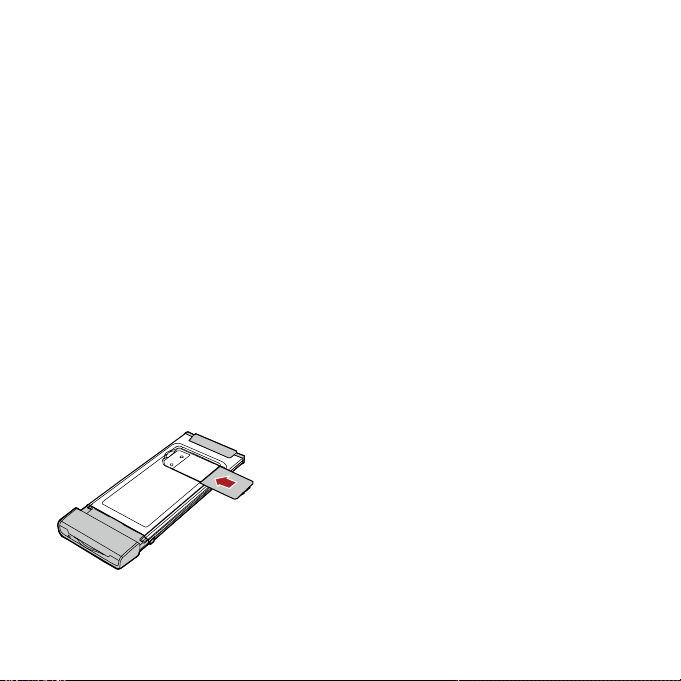
Insert the User Identity Module (UIM) card into th e slot of the data card w ith the
golden contacts side facing downwards and the cut corner directing inwards.
Follow the direction on the back of the data card.
4
Page 7
Installation/Removal Guide
On different operating systems (OSs), the installation and removal procedures
may differ. Follow the system prompts during operation.
Connecting the E880 with a Computer
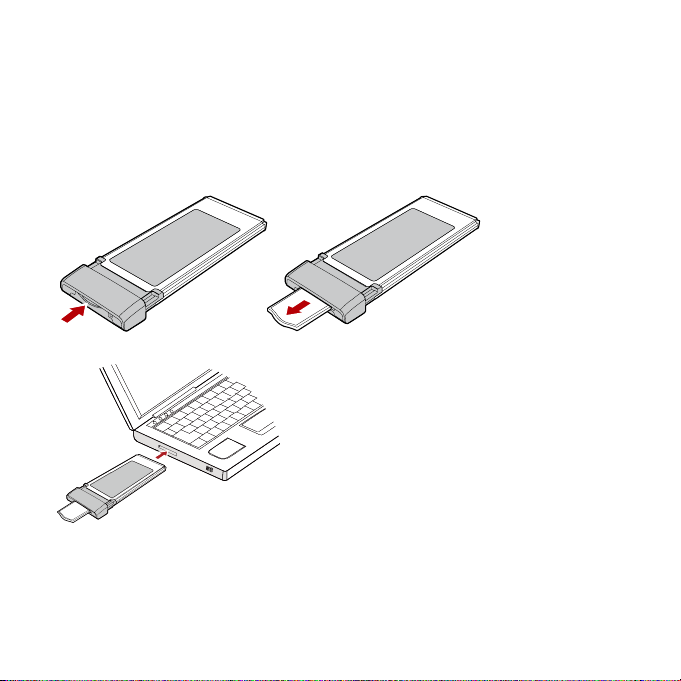
1. Pop up the Built-in Aerial. Simply press the end and it will extend.
2. Plug the E880 into the ExpressCard slot of a laptop.
3. Insert the supplied CD of the data card into the CD-ROM drive of the laptop.
4. The OS automatically detects and recognises new hardware and starts the
installation wizard.
5
Page 8

5. Follow the prompts of the installation wizard.
6. After the program is installed, a shortcut icon for the E880 management
program is displayed on the desktop.
Note:
If the program does not respond, run the Setup.exe file in the CD drive
path of the laptop.
Starting the Management Program
1. Double-click the shortcut icon on the desktop to start the management
program of the E880.
2. Enter the personal identity number (PIN) code if you have enabled the PIN
lock.
Removing the E880
1. Exit the management program.
2. Remove the E880.
Removing the Management Program
1. Click Start Menu.
2. Click Control Panel.
3. Click Add/Remove Program to remove the management program of the E880.
6
Page 9

Note:
Before removing the management program, exit the management
program.
7
Page 10

Safety Information
Read the safety information carefully to ensure the correct and safe use of your
wireless device.
Interference
Do not use your wireless device if using the dev ice is prohib ited or when it caus e
danger or interference with electric devices.
Medical Device
Do not use your wireless device and follow the ru les and regulations set forth
by the hospitals and health care facilities.
Some wireless devices may affect the performance of the hearing aids. For
any such problems, consult your service provider.
If you are using an electronic medical device, consult the doctor or device
manufacturer to confirm whether the radio wav e affects the ope rat ion of this
device.
Area with Inflammables and Explosives
To prevent explosions and fires in areas that are stored with inflammable and
explosive devices, do not use your w ireless device and observe the rules. Areas
stored with inflammables and explosives include but are not limited to the
following:
Gas station
Fuel depot (such as the bunk below the deck of a ship)
Container/Vehicle for stor ing or transporting fuels or chemical products
8
Page 11

Area where the air contains chemical substances and particles (such as
granule, dust, or metal powder)
Area indicated with the "Explosives" sign
Area indicated with the "Power off bi-direction wireless equipment" sign
Area where you are generally suggested to stop the engine of a vehicle
Traffic Security
Observe local la ws and regulat ions while using th e wireless device. To prevent
accidents, do not use your wireless device while driving.
RF signals may affect electronic systems of motor vehicles. For more
information, consult the vehicle manufacturer.
In a motor vehicle, do not place the wireless device o ver the air bag or in th e
air bag deployment area. Otherwise, the wireless device may hurt y ou owing
to the strong force when the air bag inflates.
Observe the rules and regulations of airline companies. When boarding,
switch off your wireless device. Otherwise, the radio signal of the wireless
device may interfere with the plane control signals.
Safety of Children
Do not allow children to use the wireless device without guidance. Small and
sharp components of the wireless device may cause danger to children or cause
suffocation if children swallow the components.
Environment Protection
Observe the local regulations regarding the d isposal of your packag ing materials,
used wireless device and accessories, and promote their recycling.
9
Page 12

WEEE Approval
The wireless device is in compliance with the essential requirements and other
relevant provisions of the Waste Electrical and Electronic Equipment Directive
2002/96/EC (WEEE Directive).
RoHS Approval
The wireless device is in compliance with the restriction of the use of certain
hazardous substances in electrical and electronic equipment Directive
2002/95/EC (RoHS Directive).
Laws and Regulations Observance
Observe laws and regulations when using your wireless device. Respect the
privacy and legal rights of the others.
Care and Maintenance
It is normal that your wireless device gets hot whe n y ou us e or cha rge it . Bef ore
you clean or ma intain the w ireless dev ice, stop al l applicat ions and dis connect th e
wireless device from your PC.
Use your wireless device and accessories with care and in clean en vironment.
Keep the wireless device from a fire or a lit cigarette.
Protect your wireless device and accessories from w ater a n d vapor and keep
them dry .
Do not drop, throw or bend your wireless dev ice.
Clean your wireless device with a piece of damp and soft antistatic cloth. Do
not use any chemical agents (such as alcohol and benzene), chemical
detergent, or powder to clean it.
Do not leave your wireless device and accessories in a place with a
10
Page 13

considerably low or high temperature.
Use only accessories of the wireless device appro ved by the manufacture.
Contact the authorized service center for any abnormit y of the wireless device
or accessories.
Do not dismantle the wireless device or accessories. Otherwise, the wireless
device and accessories are not covered by the warranty.
Emergency Call
This wireless device functions through receiving and transmitting radio signals.
Therefore, the connection cannot be guaranteed in all conditions. In an
emergency, you should not rely solely on the wireless device for essential
communications.
Specific Absorption Rate (SAR)
Your wireless device is a radio transmitter and receiver. It is designed not to
exceed the limits for exposure to radio waves recommended by international
guidelines. These guidelines were develo ped by the independent scientific
organization ICNIRP and include safety marg ins designed to assure the protect ion
of all persons, regardless of age and health.
The guidelines use a unit of measurement known as the Specif ic Absorption Rate,
or SAR. The SAR limit for wireless devices is 2 .0 W/kg and the highe st SAR v alue
for this device when tested properly worn on the body is 0.547W/kg.
SAR complianc e h a s b e en e s ta blished in typical laptop com p u ter(s) with Express
card slot, and product may be used in a typical laptop computer. Other
applications like handheld PCs or smaller host devices have not been v erified and
may not comply with relevant RF exposure rule an d such use shall be pro hibited.
Unless special co -transmiss ion configur ation(s) wh ich has (have) a pproved by t he
authority , this transmitter must not be co-transm itting or operating in conjunction
with any other antenna or transmitter to avoid exceeding the RF exposure limit.
11
Page 14

Body Worn Operation
Important safety information reg
T o ensure compliance with RF exposure guidelines the device must be used with a
minimum of 1.0 cm separation from the body.
Failure to observe these instructions could resu
the relevant guideline limits.
Regulatory Informati
The following approvals and notices
CE Approval (European Union)
The wireless device is approved to be us
wireless device is in compliance with the essential requ irements and other
relevant pro visions of the Radio and Telecommunications Terminal Equipment
Directive 1999/5/EC (R&TTE Directive).
Federal Communications Com mission Not
device model is available for sale to the public, it must be tested and certified to
the FCC that it does not exceed the limit establ ished by th e gov ernment - adopted
requirement for safe exposure.
FCC Statement
The SAR limit ado
averaged over one gram of t issue.
this device type when tested properly worn on the body is 1.130W/kg.
This device complies with Part 15 of the FCC Rules. Oper ation is subject
following two conditions: (1) this device may not cause harmful interferen ce, and
(2) this device must accept any interfer ence rece ived, i ncludin g inter ference t hat
may cause undesired operation.
pted by the USA and Canada is 1.6 watts/kilogra m (W/kg)
arding radiofrequency radiation (RF) exposure
lt in your RF exposure exceeding
on
apply in specific regions as noted.
ed in the member states of the EU. The
ice (United States): Before a wireless
The highest SAR value reported to the FCC fo
to the
12
r
Page 15

15.19
NOTICE
:
This devic
Canada].
Operation
(1) this device may not cause harmful interference, a
(2) this device must accept any interfer ence rece ived, i nclu
may cause undesired operation.
15.21
NOTICE
Any changes
compliance could void the user's a u thority to operate this equipment.
15.105
NOTE: T
Class B digital device, pursuant to Part 15 of the FCC Rules. The se limits are
designed to provide reasonable protection against harmful interference in a
residential installation. This equipment generates, uses and can radiate rad io
frequency energy and, if not installed and used in accordance with the instruction
may cause harmful interference to radio communications. However, there is no
guarantee that interference will not occur in a particular installat ion . If this
equipment does cause harmful interference to radio or telev ision reception, which
can be determined by turning the equipment off and on, the user is encouraged to
try to correct the interference by one or more of the following measures:
• Reorient o r relocate the receiving antenna.
• Increase the separation between the equ ipm
• Connect the equipment into an outlet on a circuit different from t
e complies with Part 15 of the FCC Rules [and with RSS-210 of Industry
is subject to the following two conditions:
nd
ding interferen ce that
:
or modifications not expressly approved by the part y responsible for
his equipment has been tested and found to comply with the limits for a
ent and receiver.
hat to which the
13
s,
Page 16

receiver is conn e ct ed.
• Consu rienced radio/TV technician for help.
lt the dealer or an expe
Version: V100R001_01 Part Number: 3101****
14
 Loading...