

Page 1
Three Customer Services, Hutchison 3G UK Ltd, PO Box 333, Glasgow, G2 9AG.
© 2010 Hutchison 3G UK Limited. A Hutchison Whampoa company.
Published by Hutchison 3G UK Limited, trading as Three.
The contents of this publication are believed to be correct at the
time of going to press, but any information, products or services
mentioned may be modified, supplemented or withdrawn.
DD1087101 May10
<224mm>
<112mm>
PANTONE Green C: For positional purposes only – Do NOT Print
Page 2
Wireless Modem
Huawei E585
Set-up guide.
Page 3
Set-up your own
Mobile Wi-Fi.
Your new wireless modem sends out a Wi-Fi
signal so that you can connect to the internet
without the need for wires. Your modem can link
multiple devices at any one time, for example
your laptop, iPod touch, iPad or Nintendo DSi.
In this Set-up guide we’ll tell you how to set
up your modem and get it working. For help
with connecting individual devices, you’ll need
to look at the Help cards that came in your
modem box for instructions.
2
<224mm>
<112mm>
PANTONE Green C: For positional purposes only – Do NOT Print
Page 4
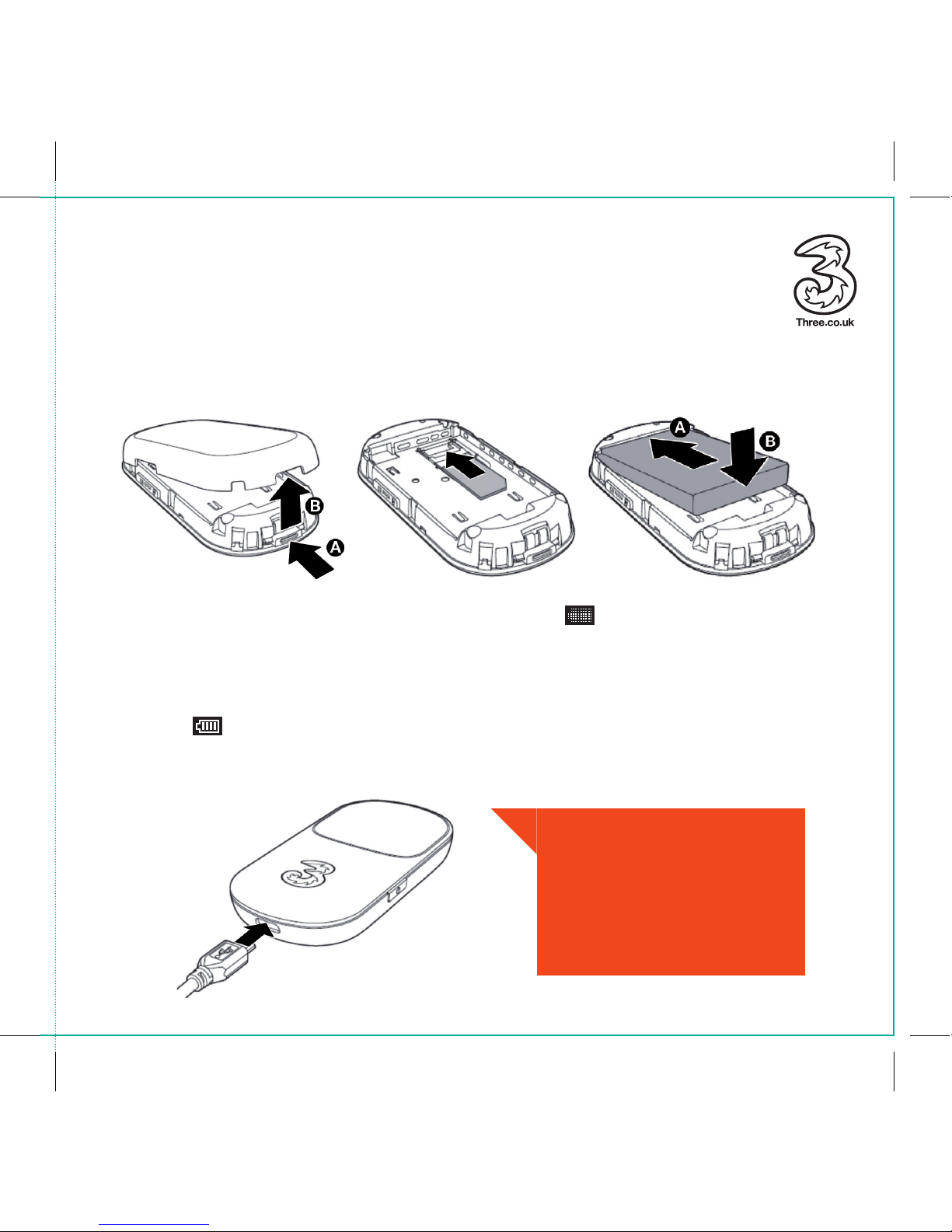
First of all, you’ll need to insert the SIM and battery into your modem.
Getting started.
Now connect your modem to the
charger and plug it into the mains or
the USB port on your PC. The first time
you do this it’ll take around 8 hours
to fully charge the battery. You’ll see
this icon
when the battery is fully
charged and the modem is on. When
the modem is off, and fully charged,
this icon
will appear. To get an idea
of how long the battery can last when
fully charged, go to ‘Frequently asked
questions’ at the back of this guide.
The battery will gradually lose power,
even when it’s not being used, so if
you haven’t used it for a while, you’ll
probably need to recharge it.
Whenever you take the
SIM or battery out of
your modem, make sure
you turn it off first and
unplug the charger.
3
Page 5
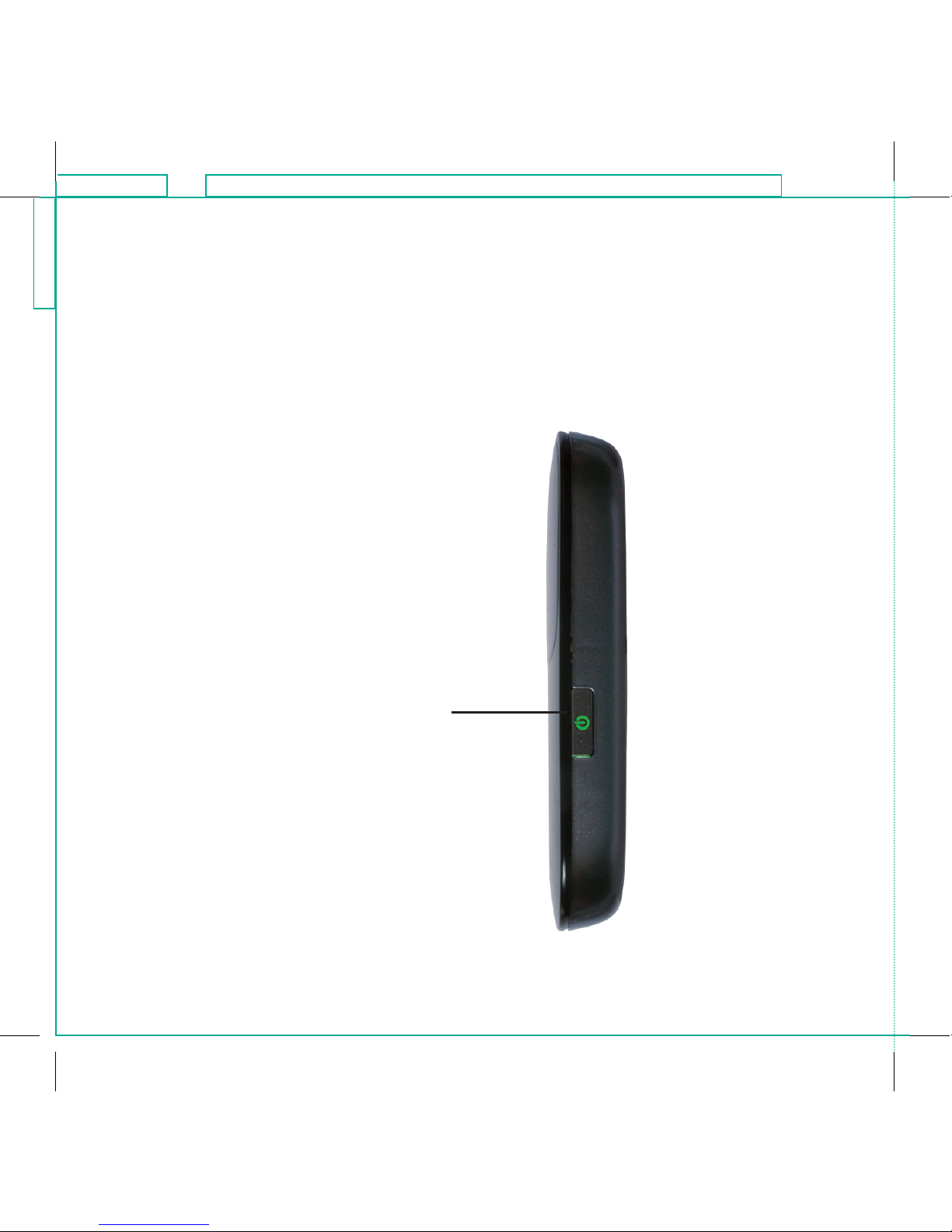
Press and hold down the Power on/off
key for 2 seconds. The modem will
automatically connect to the Three
network and turn on the Wi-Fi signal.
Once connected, you’ll see the digital
display show the icons explained on
the next page (typically this takes 6090 seconds).
You’re now ready to connect your
laptop or other Wi-Fi enabled device
to your modem. To do this see the
relevant Help card found in your
modem box.
Power on/off key
Get your
modem working.
4
<224mm>
<112mm>
PANTONE Green C: For positional purposes only – Do NOT Print
Page 6
Getting to know
your modem.
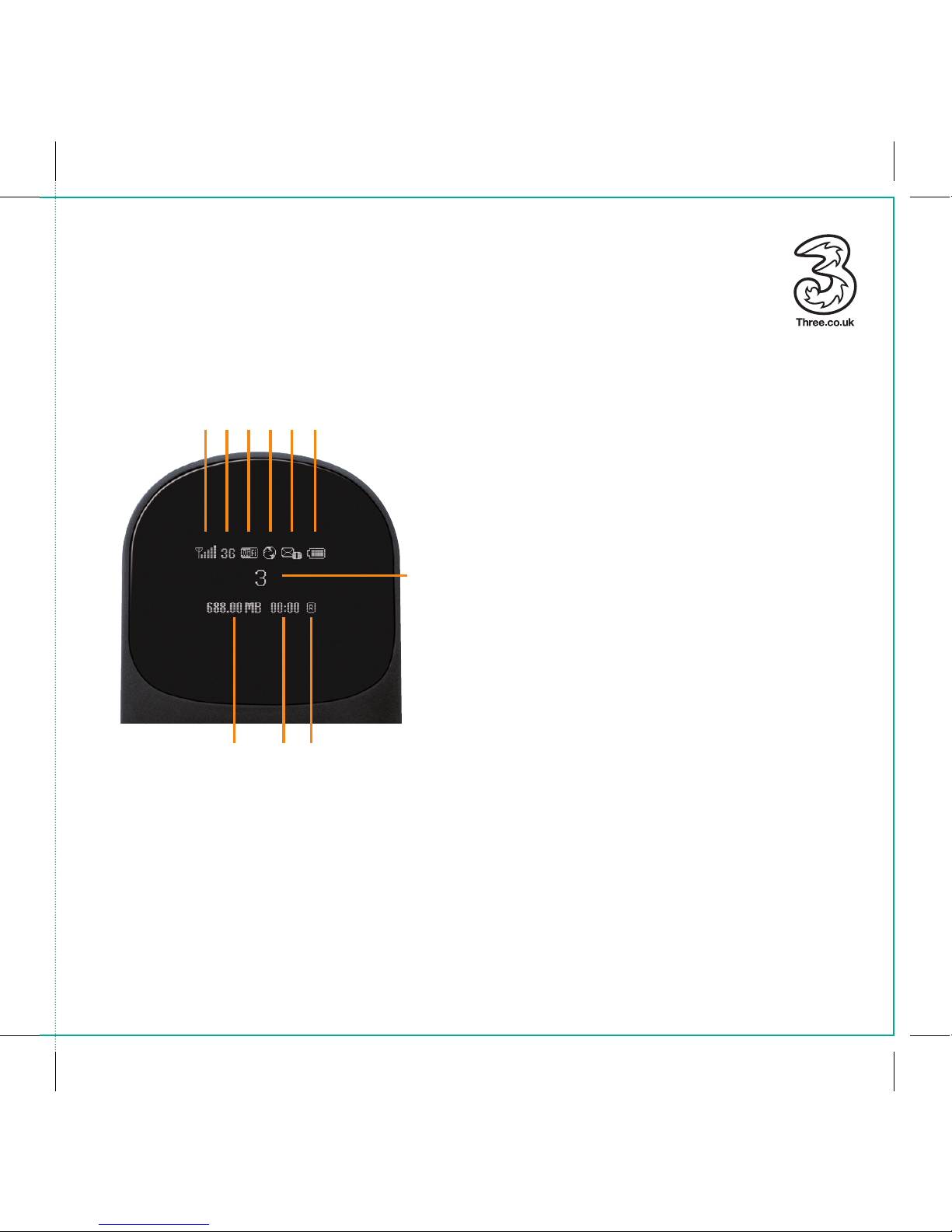
1. 3G signal strength. To get the
best signal move your modem
to a position where at least
3 bars are showing.
2. Network speed. Shows whether
you have 3G or the faster HSDPA
download speed.
3. Wi-Fi connections. Shows the
number of Wi-Fi devices connected
to your modem.
4. Internet connection. Shows you’re
connected to the internet.
5. SMS inbox. Shows any
unread messages in your
dashboard inbox.
6. Battery charge. Shows battery
charge level.
7. Network. Shows the network
you’re connected to and current
connection status.
8. Data used. Shows how much
data used in MB (megabytes)
during this session.
9. Connection time. Shows how long
you’ve been connected to the
internet this session.
10. International roaming. Shows when
the modem is being used outside
of the Three network (3UK).
1 42 53 6
7
5
8 9 10
Page 7
6
SSID and WIFI Key.
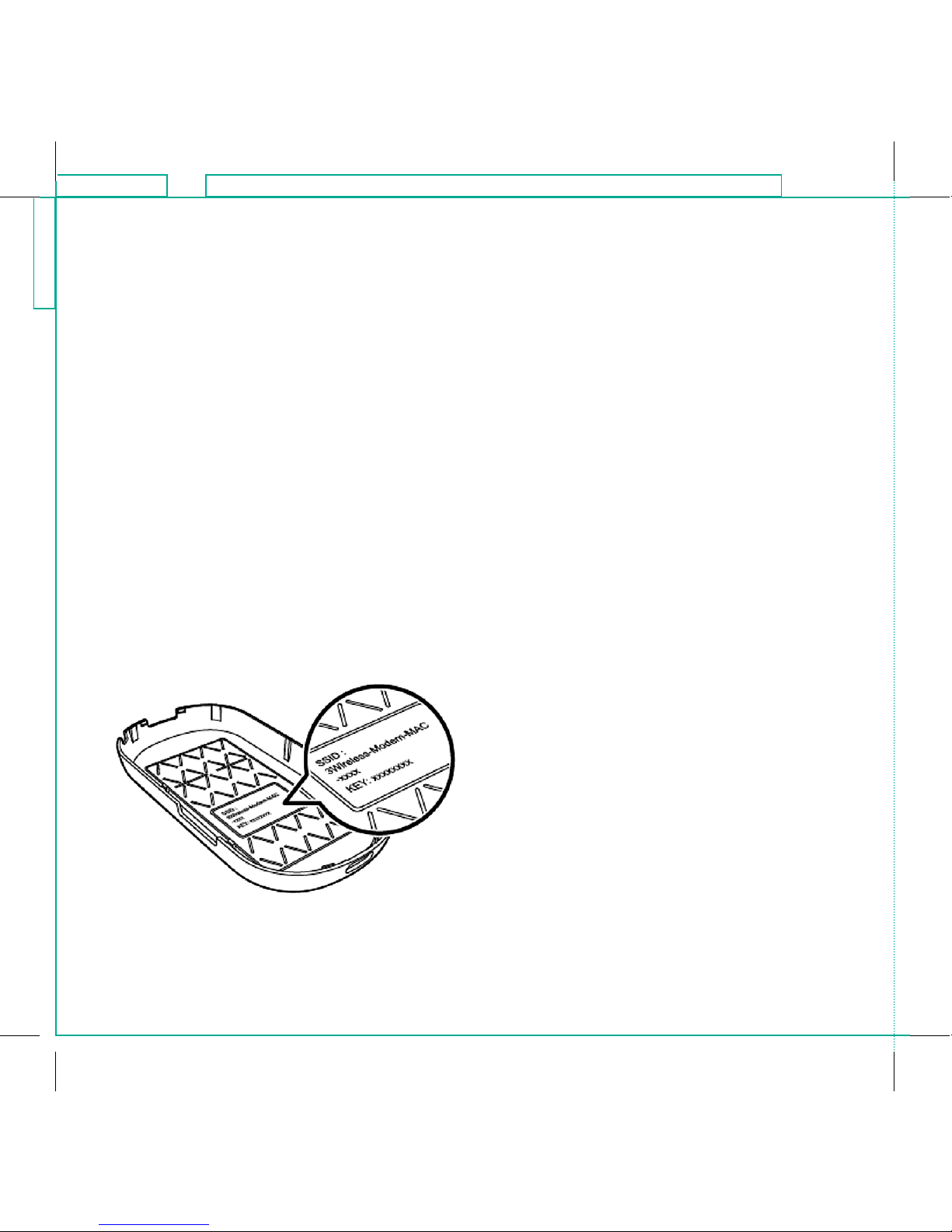
Your modem is password protected
with unique codes so that no-one else
can use your Wi-Fi connection. The
unique codes are called SSID (modem
name) and WIFI Key (unique password).
You’ll find them on a sticker on the
inside back cover of your wireless
modem. It’s also on the Keepsake card
that came in the box.
You can change either the SSID
(modem name) or the WIFI Key
(unique password) via ‘Change your
settings’ on the dashboard. If you do
change them, you must make a note
of the new details as the old ones
won’t work anymore unless you
reset the modem (see page 11).
<224mm>
<112mm>
PANTONE Green C: For positional purposes only – Do NOT Print
Page 8
Accessing your
dashboard from
a PC or Mac.
If you haven’t already got a connection
you’ll need to look at the Help cards
that came in your modem box which
will show you what to do.
There are two ways to access the
dashboard from a PC and one
from a Mac.
From a PC or Mac
Enter the URL http://3.home/
into your browser and save it
as a Favourite.
From a PC only
The first time you connect your
wireless modem using the USB
cable, the modem will create a
desktop shortcut to the dashboard.
Double click on this icon to open
your browser and go straight to
the dashboard.
7
You’ll need to be connected to
your Mobile Wi-Fi to access and
use the dashboard. This is free to
do and won’t use up any of your
data allowance.
Page 9
Getting to know
your dashboard.
Your new wireless modem has an online
dashboard to help you manage your
Three account. The dashboard is a
useful tool that allows you to:
Change your SSID (modem name)
and WIFI Key (unique password) to
something more memorable.
Change your dashboard
login password.
View network signal strength.
View important messages from Three
relating to your Mobile Wi-Fi service.
Send and receive text messages to
and from mobile phones.
Your dashboard has a user name and
password to make sure that no-one
else can change your settings.
The default user name is ‘Admin’ and
the default password is also ‘Admin’.
We recommend that you change the
password the first time you open the
dashboard via the ‘Change your
settings’ link on the dashboard.
If you change your dashboard password
and then forget it next time you log on,
you can reset all passwords to the
default settings by resetting your
modem (see page 11 of this guide).
8
<224mm>
<112mm>
PANTONE Green C: For positional purposes only – Do NOT Print
Page 10
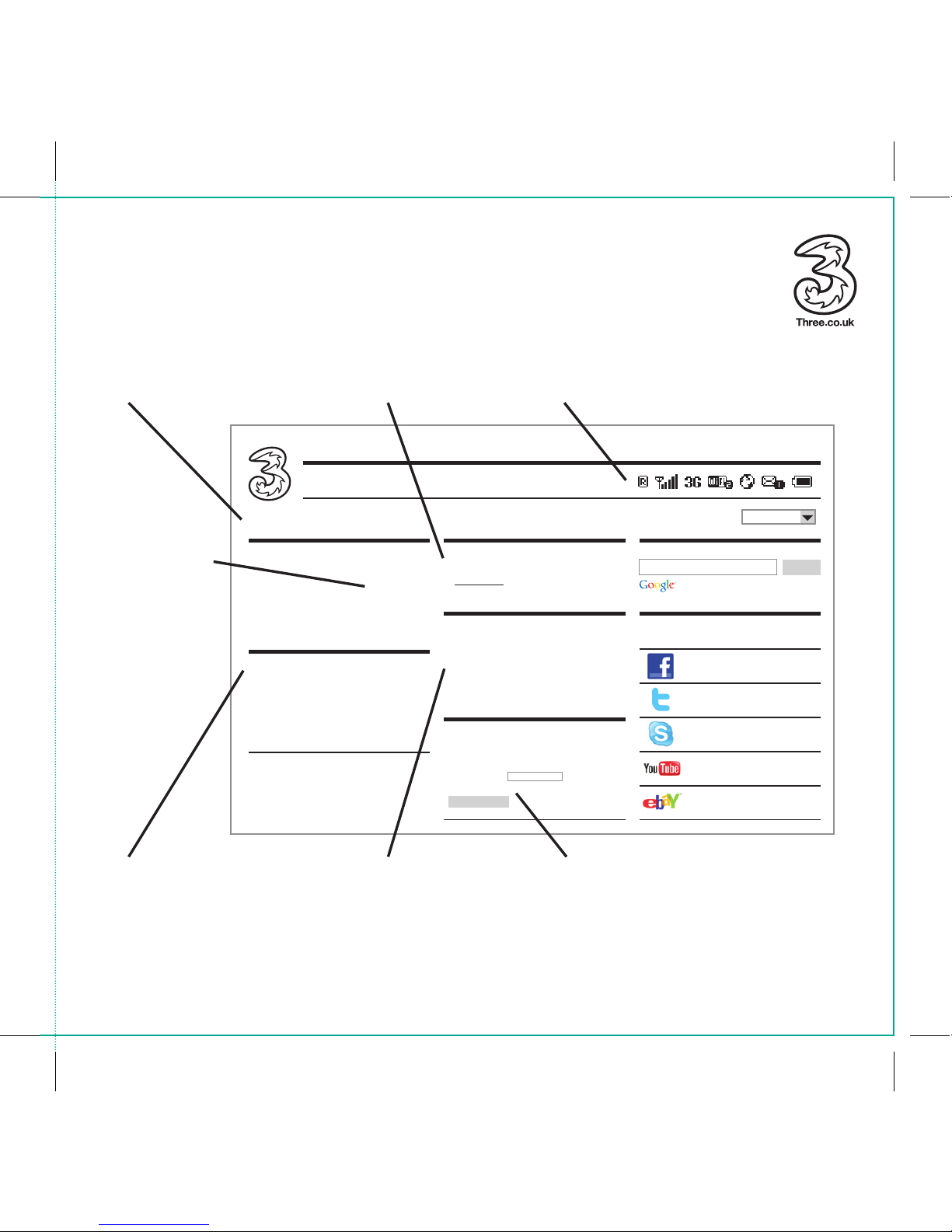
Real-time
information
on your data
usage in MB
(megabytes)
Your Mobile Broadband
number to use when
sending messages or
calling Customer Services
SMS Inbox to
view and send
text messages
Full details of what these
icons mean can be found in
‘Getting to know your modem’
(see page 5 of this guide)
If you have an SD card in
your modem (not included)
it allows you to save files
onto the modem and share
them with anybody who’s
connected to your modem
Change all current
settings including default
dashboard password
Go to My3 to
manage your
account or top-up
9
Mobile Wi-Fi 3
075751234567
Data usage.
MicroSD memory card.
Total volume 9.6MB
Duration 01:45:46
>View details.
>Go to inbox.
Check what’s stored on your MicroSD card
by clicking below
>View your MicroSD folders
Check your usage and account
information in My3
> My3
> Three.co.uk home.
powered search
User name Admin
Password Admin
Log in
Search
English
Text messages.
Change your settings.
My3 account.
Favourite sites.
Facebook
http://www.facebook.com
ebay
http://www.ebay.com
YouTube
http://www.youtube.com
Skype
http://www.skype.com
Twitter
http://www.twitter.com
Page 11
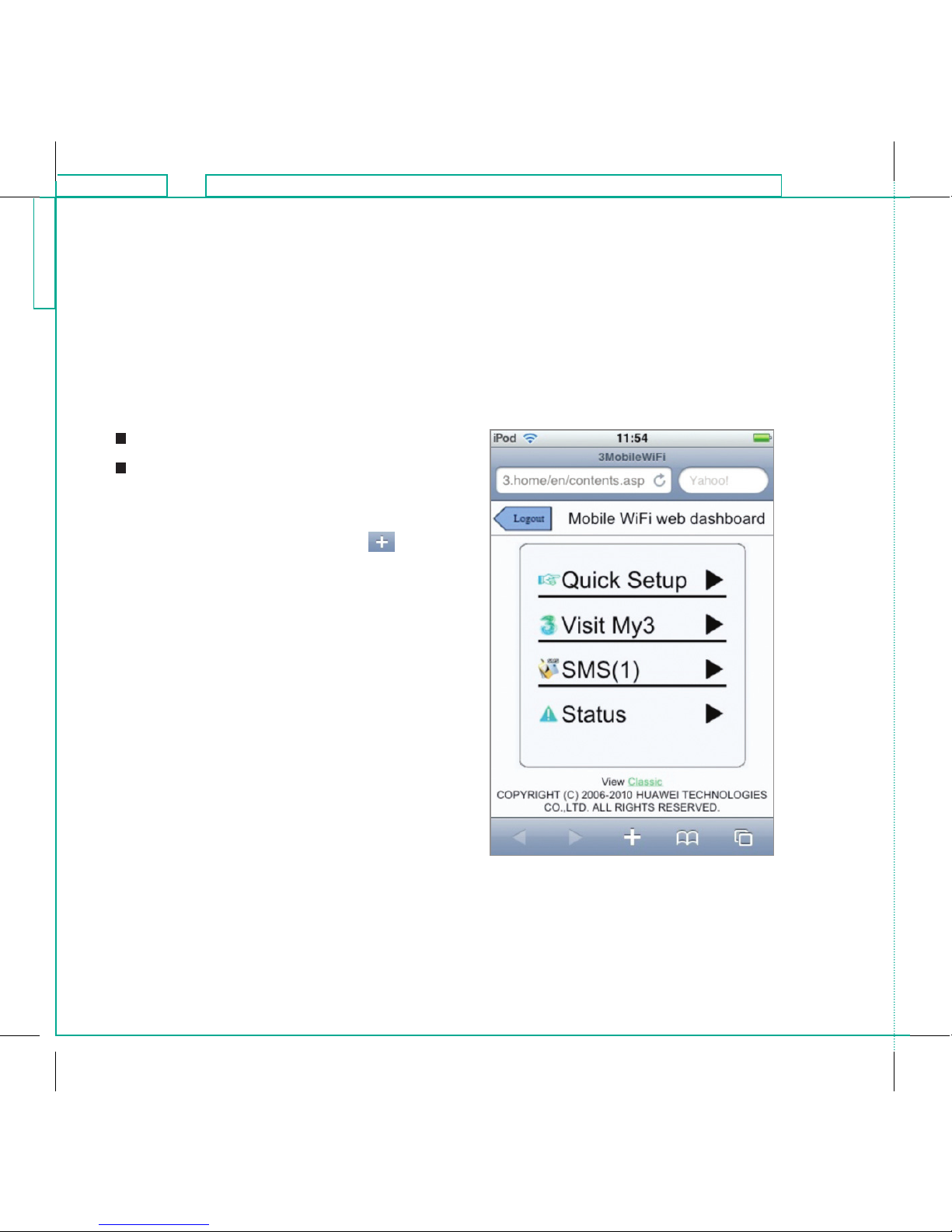
Open the Safari browser.
Enter the URL http://3.home/ in the
browser bar.
Add shortcut for the dashboard to the
home screen by touching the
icon
on the bottom toolbar and selecting
‘Add to Home Screen’. A ‘3MobileWiFi’
icon will then be added.
Accessing your dashboard
from an iPod touch or iPad.
10
<224mm>
<112mm>
PANTONE Green C: For positional purposes only – Do NOT Print
Page 12
Resetting
modem settings.
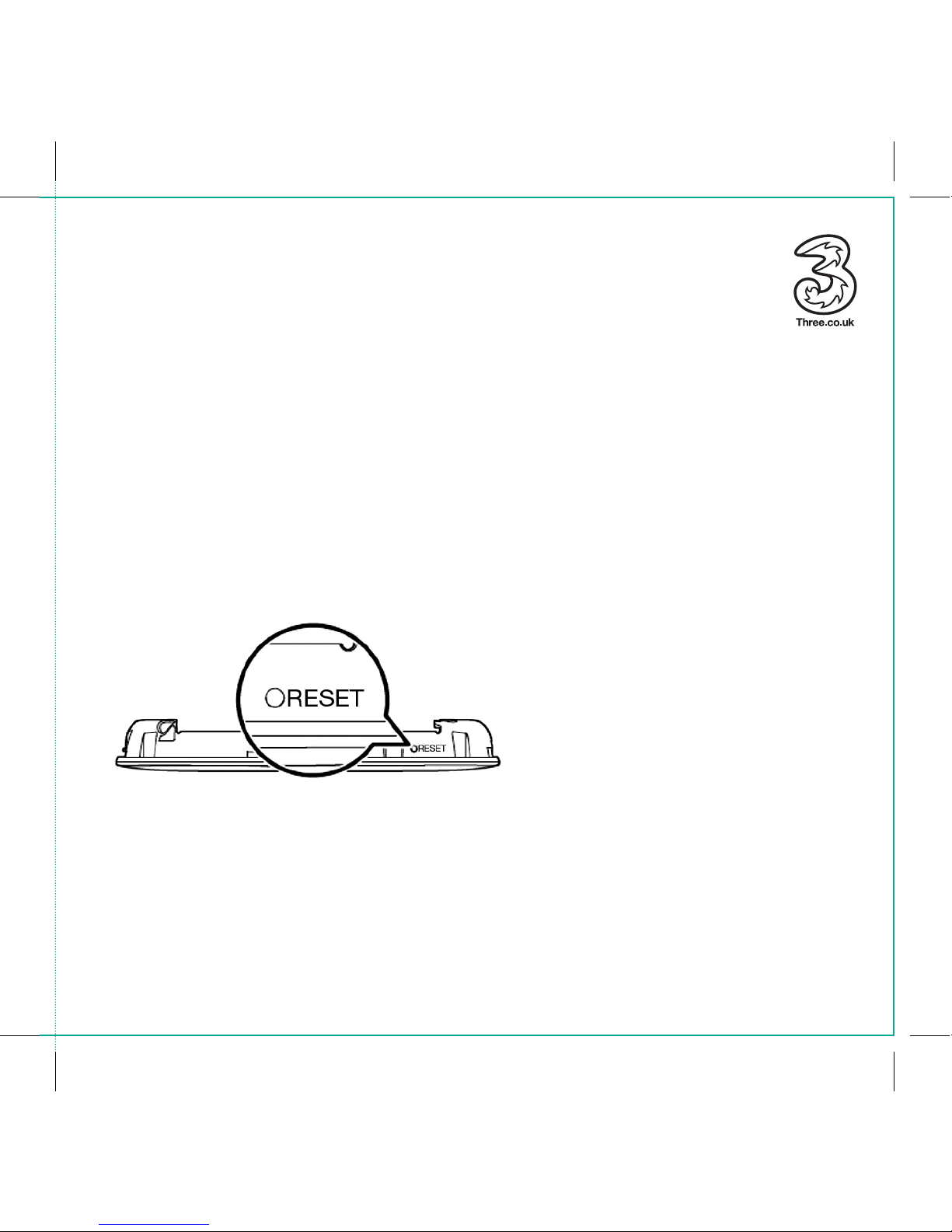
If you’re experiencing any issues
connecting to your modem we suggest
that you reset it. To do this and return
it to its default settings, turn on the
modem, use a pin and press and hold
the ‘Reset’ button for 5 seconds. The
‘Reset’ button can be found on the inside
of the modem below the power key.
The modem will automatically switch off
and then back on. Once it’s rebooted it
will have been reset to its default settings.
11
Page 13
Frequently asked
questions.
How long does it take to charge
the battery from flat?
When charging with a mains charger it
takes a maximum of 2 hours when not in
use and up to 4 hours when in use.
When charging from a PC via a USB cable
the charge time is up to 2
1
/
2
hours when
not in use and up to 8 hours when in use.
How long does the battery last?
The Wi-Fi modem can work for around
4
1
/
2
hours when powered by the battery
and in continuous use.
What is the Wi-Fi signal
strength like?
To get the best signal strength try to
position the modem near a window and
not in a basement.
As a rough guide to signal strength:
When powered by a mains charger
– up to 30 metres indoors.
When powered by a PC or with the battery
– up to 10 metres indoors.
My Wi-Fi is getting hot when I use
it for long periods of time?
This is quite normal. The modem has a
built in temperature protection function.
This means that if it gets too hot it’ll turn
itself off to protect itself.
12
<224mm>
<112mm>
PANTONE Green C: For positional purposes only – Do NOT Print
Page 14
Can other people use my
connection?
The Wi-Fi modem has WPA encryption
as standard with a unique WIFI Key
password so no-one can use it without
your permission.
How many people or devices
can share my connection at
any one time?
Up to 5 people. With increased users
and high data downloading (ie streaming
music) the speed may be slower.
What do I do if I forget my WIFI
Key or dashboard login password?
Your Wi-Fi modem unique password
codes can be found on a sticker on the
inside back cover of the modem. If you’ve
changed your Wi-Fi password or your
dashboard login, you can reset them
to their default settings by pressing the
‘Reset’ button for 5 seconds (as shown on
page 11 of this guide).
Does the Wi-Fi modem work
on Mac, Linux or Windows 7
computers?
Yes, Wi-Fi works with most Wi-Fi enabled
devices. The dashboard is browser based
so works with any operating system.
13
Page 15
Help and
support.
If you need answers or you have a
problem, have a look at our website –
there’s lots of info and advice on getting
the best out of your Mobile Wi-Fi.
Visit Three.co.uk/wifihelp
If you can’t get online and you have a
Three phone call us free on 500 or you
can call 0843 373 0500 from any other
line (5p/min from a BT landline, other
networks may vary).
14
<224mm>
<112mm>
PANTONE Green C: For positional purposes only – Do NOT Print
Page 16

15
 Loading...