

Page 1
User guide
HTC CONFIDENTIAL
For certification review only
HTC CONFIDENTIAL
HTC Device
For certification review only
Page 2

2 Contents
Contents
Unboxing
HTC Device overview 5
Inserting the nano SIM and microSD cards 7
Charging the battery 9
Switching the power on or off 9
Setting up your device for the first time 10
Basics
Navigation Bar 11
Ways to capture screenshots 11
Sleep mode 11
Lock screen 12
Getting to know your settings 12
Using Quick Settings 13
Restarting HTC Device (Soft reset) 13
Notifications 14
Selecting, copying, and pasting text 15
Index
HTC CONFIDENTIAL
For certification review only
HTC CONFIDENTIAL
For certification review only
Page 3
3 About this guide
About this guide
We use the following symbols to indicate useful and important information:
This is a note. It provides detailed information for setup, common questions, and what to do in
specific situations.
This is a tip. It will give you an alternative way to do a particular step or procedure that you may
find helpful.
This indicates important information that you need in order to accomplish a certain task or to
get a feature to work properly.
This is a warning. Take note to avoid potential problems or prevent damage to your hardware.
Information contained in this guide may have changed. For the most up-to-date information,
including the latest version of this guide, contact HTC.
HTC CONFIDENTIAL
For certification review only
HTC CONFIDENTIAL
For certification review only
Page 4

4 Important note on recoverable data
Important note on recoverable data
Files and other data that have been deleted, cleared, removed, or erased from your device
may still be recoverable by third-party data recovery software. Even a factory reset may not
permanently erase all data from your mobile device, including personal information.
HTC CONFIDENTIAL
For certification review only
HTC CONFIDENTIAL
For certification review only
Page 5
5 Unboxing
Unboxing
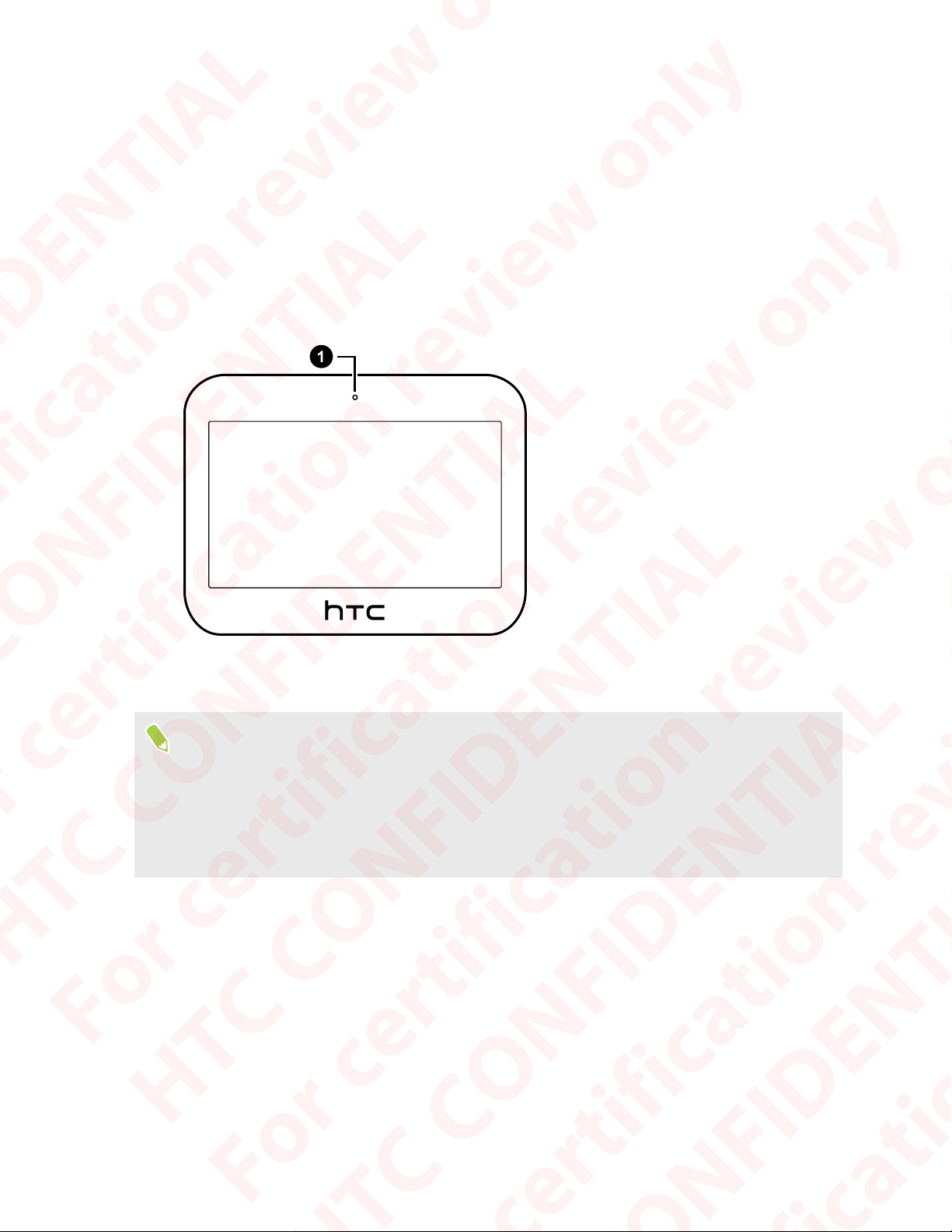
HTC Device overview
After taking HTC Device out of the box, familiarize yourself with the location of the card tray,
controls, and sensors.
1. Microphone
You need a 5G NR plan to use your operator's 5G NR network for data services. Check your operator
for details.
§ Before use, check all items in the box and make sure there's no damage.
§ Don't disassemble any part of the device. Don't try to open the device or remove the battery by
force. This may damage the device or its electronics and will invalidate the warranty.
§ Please read the safety and usage guidelines in the Safety and regulatory guide included in the
box.
HTC CONFIDENTIAL
For certification review only
HTC CONFIDENTIAL
For certification review only
Page 6
6 Unboxing
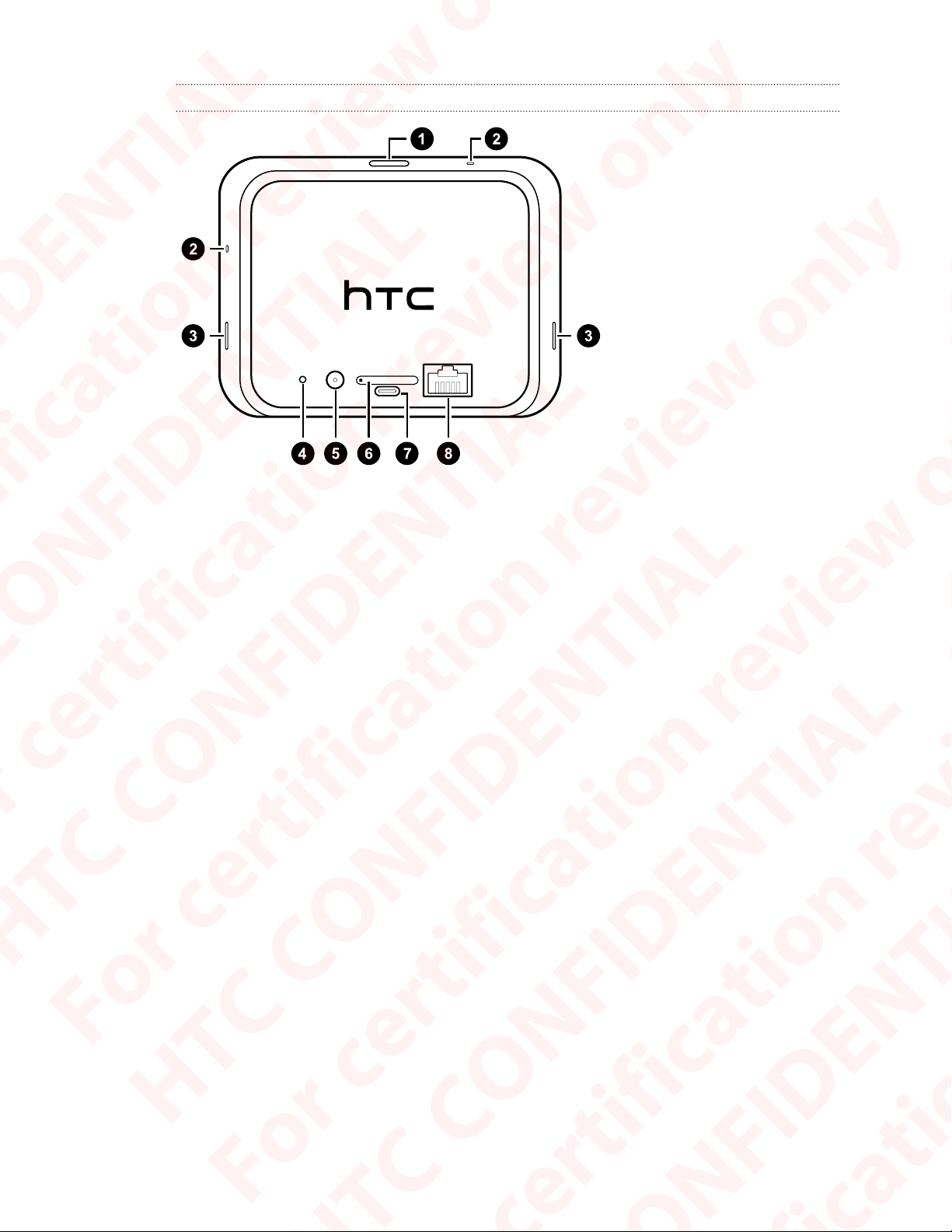
Back panel
1. POWER button
2. Microphones
3. HTC BoomSound
Hi-Fi edition
speakers
4. VOLUME DOWN
button
5. DC charging port
6. nano SIM and
storage card tray
7. USB Type-C™ port
8. Gigabit Ethernet port
™
HTC CONFIDENTIAL
For certification review only
HTC CONFIDENTIAL
For certification review only
Page 7
7 Unboxing
Inserting the nano SIM and microSD cards
§ Use a standard nano SIM card. A modified card that is thicker than the standard nano SIM card
will not fit properly on the tray and may damage the card slot.
§ The microSD™ card is optional and sold separately.
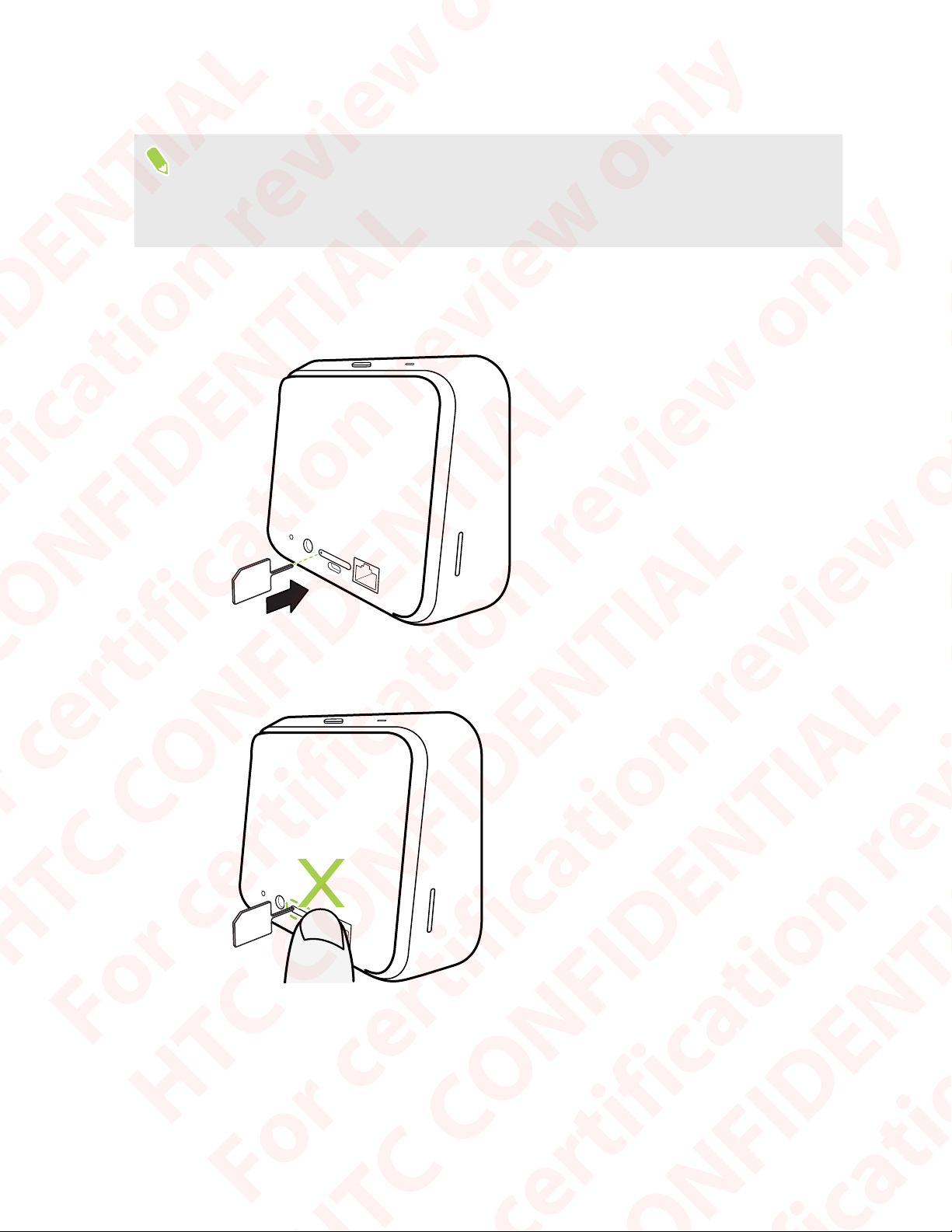
1. Set the device on a flat surface.
2. Insert the tip of the tray eject tool that came with your device—or a small bent paperclip—
into the tray eject hole.
When inserting the eject tool into the tray eject hole to remove the card tray, do not obstruct
the tray to avoid damaging the eject mechanism inside the slot.
HTC CONFIDENTIAL
3. Push the tip all the way into the hole until the tray ejects, and then pull the tray out.
For certification review only
HTC CONFIDENTIAL
For certification review only
Page 8
8 Unboxing
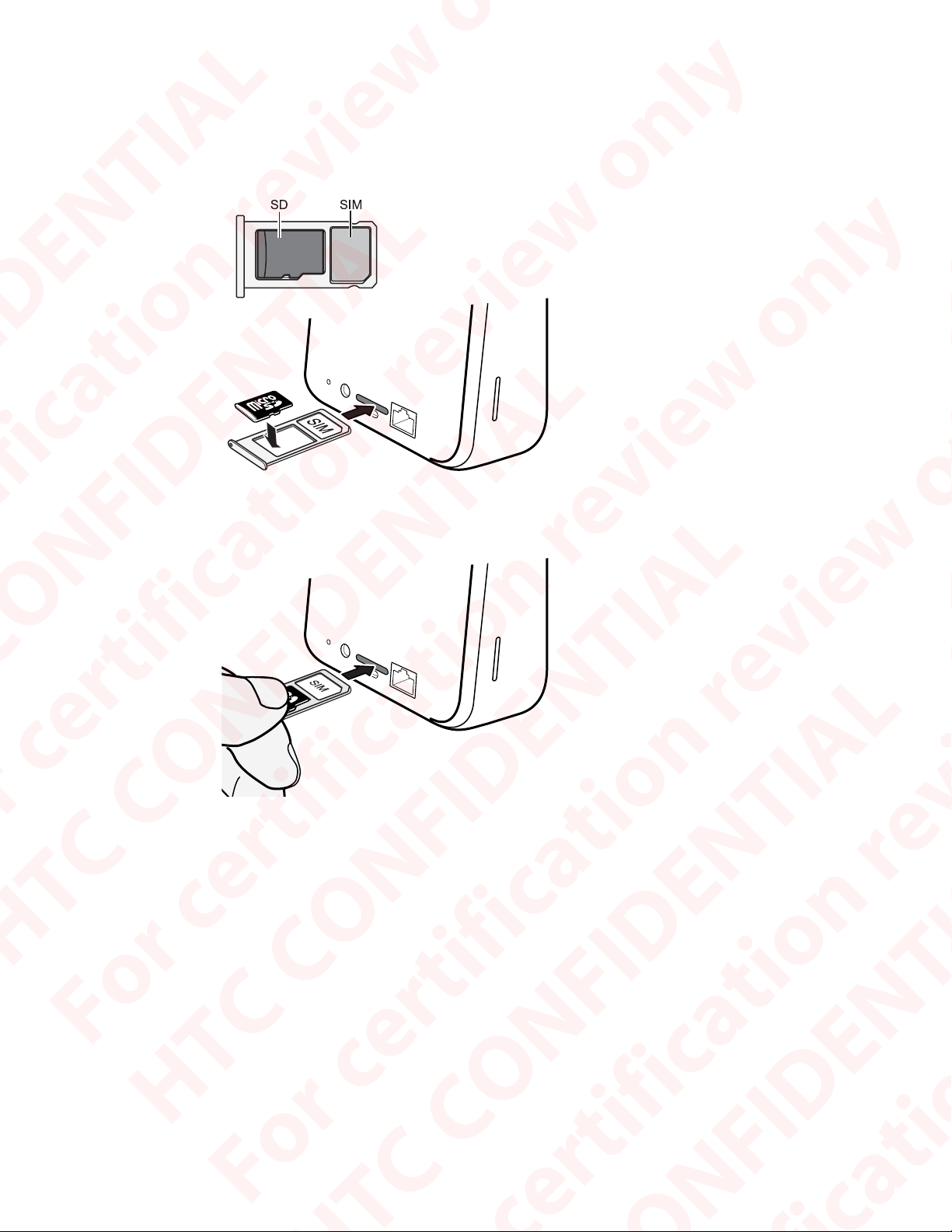
4. Do the following to place your nano SIM and microSD cards into the tray:
With the gold contacts facing down, place your nano SIM and microSD cards into the SIM
and SD holders of the tray. Make sure to align the cut-off corner of the nano SIM card to the
notch on the holder.
5. When reinserting the tray, make sure it is facing up so that your cards don't fall out. With the
outer card holder between your fingers, steadily slide the tray all the way into the slot.
6. Make sure the tray is fully inserted and doesn't protrude from the slot.
HTC CONFIDENTIAL
For certification review only
HTC CONFIDENTIAL
For certification review only
Page 9
9 Unboxing
Charging the battery
Before you turn on and start using HTC Device, it is recommended that you charge the battery.
§ If the battery has been fully drained, you may need to charge HTC Device for several minutes
before powering it on.
§ Use the HTC power adapter to charge the battery.
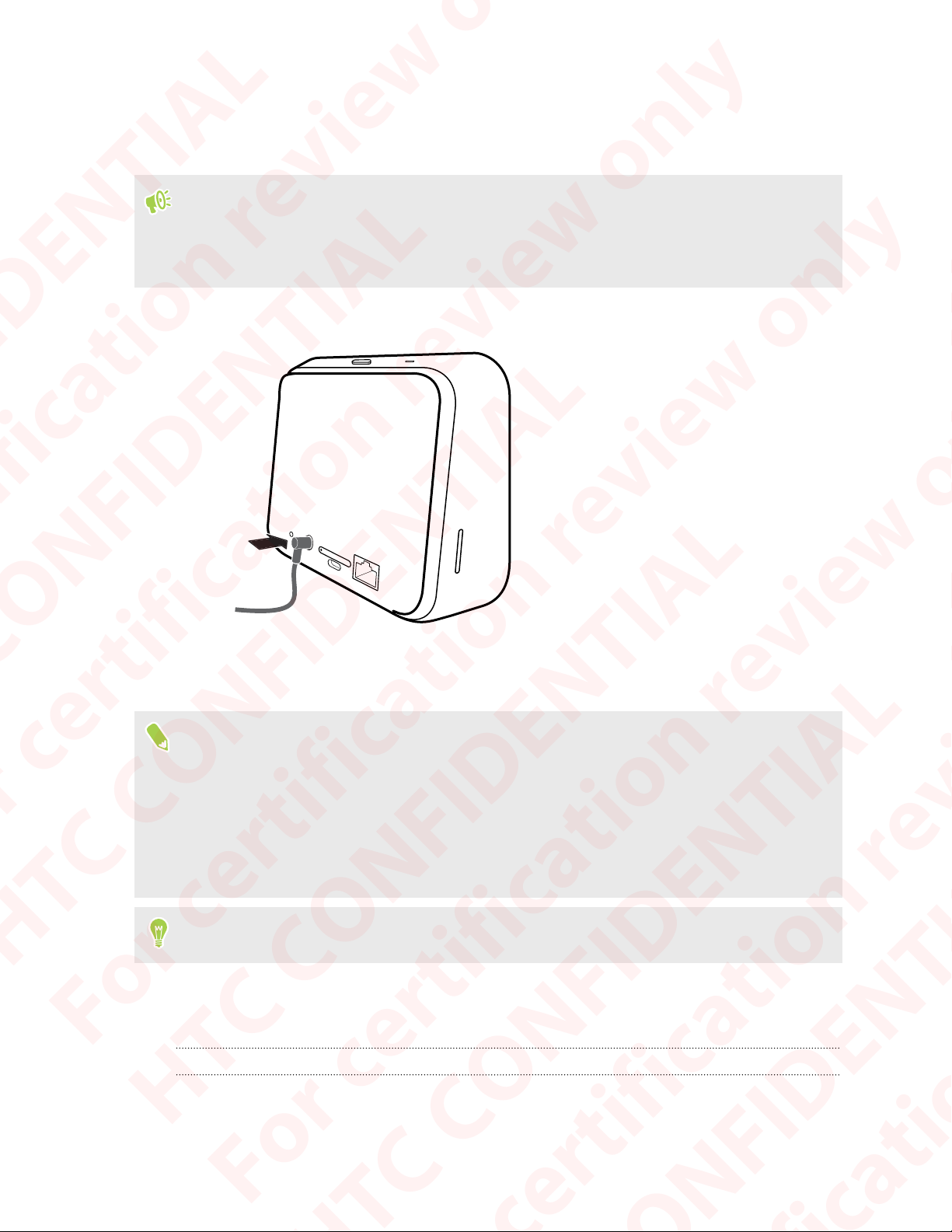
1. Insert the small end of the charging cable into the DC charging port on the back of the device.
2. Plug in the power adapter to an electrical outlet to start charging the battery.
3. After you finish charging, unplug the charger from your device first.
§ Avoid charging the battery in hot environments. As a safety precaution, the battery may stop
charging to avoid overheating.
§ When you're using battery-intensive apps such as games or video streaming apps while charging
the battery, your device may become warmer. This is normal.
§ It is strongly recommended to unplug the power adapter from the electrical outlet when not in
use.
You can also charge your device with a USB Type-C cable.
HTC CONFIDENTIAL
Switching the power on or off
For certification review only
Switching the power on
Press the POWER button until the HTC Device screen illuminates.
HTC CONFIDENTIAL
When you turn on HTC Device for the first time, you’ll need to set it up.
For certification review only
Page 10
10 Unboxing
Switching the power off
1. If the display is off, press the POWER button to turn it back on.
2. Press and hold the POWER button for a few seconds.
3. Tap Power off on the options menu.
You can also go to Settings, and then tap System Shut down Power off.
Setting up your device for the first time
When you switch on your HTC device for the first time—or after you've done a factory reset—you’ll
need to set it up.
1. If you need to navigate by voice feedback, turn on TalkBack by pressing and holding two
fingers on the first screen until you hear a message and then a beep.
Or if you accidentally enabled TalkBack, follow the onscreen tutorial to turn it off.
2. Choose the system language you want to use, then read and agree to the terms of use.
3. Set a name and password for your Wi-Fi hotspot. Then set up your WiGig hotspot. You will
need to enter this information on each device you want to connect.
4. On the Google Services screen, it is recommended to have the options under Location and
Device maintenance turned on.
5. Set a screen lock with a PIN. You can do this later.
6. Choose your device mode.
7. Follow the remaining instructions to finish your device setup.
Some features that need to connect to the Internet such as location-based services and auto-sync
of your online accounts may incur extra data fees. To avoid incurring data fees, disable these
features under Settings.
HTC CONFIDENTIAL
For certification review only
HTC CONFIDENTIAL
For certification review only
Page 11
11 Basics
Basics
Navigation Bar
Use the available action buttons on the Navigation Bar to perform frequently-used actions.
Here's what you can do on the Navigation Bar:
§ Tap to go back to the previous screen.
§ Tap to go to the Home screen.
§ Tap to show recent apps that you've used.
§ Tap the Volume Button to display the volume controls.
Ways to capture screenshots
Want to show off your high game score? It's easy to take a picture of the screen to share.
Here are different ways to capture screenshots.
§ POWER button and onscreen HOME button
Press and hold the POWER button, and then tap on the Navigation Bar while still
pressing the POWER button.
§ POWER
Press and hold the POWER button, then tap Capture screenshot.
Sleep mode
Sleep mode saves battery power by putting HTC Device into a low power state while the display is
off. It also stops accidental button presses when HTC Device is in your bag.
Switching to Sleep mode
To turn off the display and switch to Sleep mode, briefly press the POWER button.
HTC CONFIDENTIAL
HTC Device also automatically goes into Sleep mode when it’s left idle for a while. You can change
the time before HTC Device sleeps by setting the screen timeout.
For certification review only
Waking up from Sleep mode
Press the POWER button.
HTC CONFIDENTIAL
For certification review only
Page 12
12 Basics
Lock screen
Here's what you can do on the Lock screen:
§ Swipe up on the lock screen to unlock the screen.
§ Tap twice on a notification to go directly to the related app.
§ Swipe left or right on the notification to remove it.
§ Slide left or right on a notification until you see and . Tap to snooze the
notification.
§ Press and hold a notification, and then tap Stop notifications or Keep showing to customize
the notification settings.
If you don't want notification content to appear on the lock screen, go to Settings Security
& Location Lock screen preferences On the lock screen, and then tap Don't show
notifications at all.
Getting to know your settings
Want to change the ringtone, set up a Wi-Fi® connection, or add your accounts? Do this and more in
Settings.
1. Open Settings from the Apps screen or Notifications panel:
§ From the Home screen, find and tap Settings.
§ Swipe down from the top of the screen and then tap .
2. Here are some of the basic settings you can change:
§ Tap Network & Internet to connect and configure your Wi-Fi and data connection,
check your data usage, turn your phone into a Wi-Fi hotspot, and more.
§ Tap Display & gestures to change the wallpaper, adjust the font and display size, set a
screen saver, and more.
§ Tap Sound to change the ringtone, decide if sound and vibration occur when interacting
with the phone, set Do not disturb preferences, and more.
§ Tap Security & Location to help secure your phone, choose lock screen preferences, set
your location option, and more.
§ Tap an item under Suggestions to check out new or recommended settings to
customize.
HTC CONFIDENTIAL
Tap in Settings to quickly find options and settings.
For certification review only
HTC CONFIDENTIAL
For certification review only
Page 13
13 Basics
Using Quick Settings
In the Quick Settings panel, easily turn settings such as Wi-Fi and Bluetooth® on or off.
1. Swipe down from the top of the screen to open the Notifications panel.
Right below the status bar, you'll see the short Quick Settings bar.
2. To see the full Quick Settings panel, do any of the following:
§ On the lock screen, swipe down once from the top of the screen.
§ On any other screen, swipe down once with two fingers or swipe down twice with one
finger from the status bar.
§ With the short Quick Settings bar opened, slide the menu downward.
3. Swipe left or right to see more tiles.
4. To turn a setting on or off, just tap its tile.
Customizing Quick Settings
You can remove, replace, or rearrange the tiles in Quick Settings.
1. With two fingers, swipe down from the top of the screen to open Quick Settings.
2. Tap and do one of the following:
§ Press and hold a tile, and then drag it to your desired position.
§ Press and hold a tile, and then drag it down under the Drag to add tiles section to hide it
from the Quick Settings panel.
§ Under the Drag to add tiles section, drag a tile up to show it in the Quick Settings panel.
3. Press .
There is a limit to the number of tiles that can be shown in the first panel of Quick Settings. You
may need to swipe left on the Quick Settings panel to see more Quick Settings tiles.
Restarting HTC Device (Soft reset)
If HTC Device is running slower than normal, is unresponsive, or has an app that is not performing
properly, try rebooting and see if that helps solve the problem.
1. If the display is off, press the POWER button to turn it back on.
2. Press and hold the POWER button, and then tap Restart.
HTC CONFIDENTIAL
For certification review only
HTC CONFIDENTIAL
For certification review only
Page 14
14 Basics
HTC Device not responding?
If HTC Device freezes, you can still restart it.
Press and hold the POWER button until your device restarts, and then release your finger.
You may need to press and hold the button for around 12 seconds before the device
restarts.
Notifications
Notifications panel
Notification icons inform you of new messages, calendar events, alarms, and activities in progress
such as files downloading. When you see notification icons, open the Notifications panel to check
out details of the notifications that you've received.
To open the Notifications panel, slide down from the top of the screen.
§ Tap the notification to open the corresponding app.
§ To dismiss just one notification in the list, drag it left or right.
§ Slide two fingers apart on the notification to expand it and see more details or see if there are
more notifications bundled inside it. Slide two fingers together on the notification to minimize
it again.
§ Some notifications allow you to take immediate action. For example, tap to reply to a text
message.
§ If you have several notifications, scroll through the list screen to see them all.
§ To dismiss all non-persistent notifications, tap Clear all.
§ You can change what app notifications you want to receive and also snooze some notifications
to temporarily remove them.
Snoozing notifications
You can snooze notifications to temporarily remove them from the status bar and notifications
panel.
HTC CONFIDENTIAL
1. Swipe down from the top of the screen to open the Notifications panel.
2. Slide the notification slowly to the right or left, and then tap .
3. Tap then choose how long you want to snooze the notification.
For certification review only
The snoozed notification shows up again on the status bar and notifications panel as soon as the
snooze time ends.
HTC CONFIDENTIAL
For certification review only
Page 15

15 Basics
Turning icon dots on or off
Some apps may show a dot when they have notifications. You can choose to show or hide the dot on
the app icons.
1. From the Home screen, swipe up and then tap Settings Apps & notifications.
2. Tap Notifications.
3. Tap the On/Off switch next to the Allow icon dots option to turn it on or off.
Managing app notifications
You can choose which types of app notifications to mute, block, or override your Do Not disturb
settings.
1. From the Home screen, swipe up and then tap Settings Apps & notifications.
2. Tap Notifications Notifications, and then tap the app whose notifications you want to
customize.
You can also press and hold a notification in the Notifications panel or the lock screen to see
the notification settings you can customize.
3. Tap the On/Off switch next to option you want to toggle.
Settings for app notifications are applied to notifications in the Notifications panel and the lock
screen.
Selecting, copying, and pasting text
1. Press and hold on a word.
2. Drag the start and end anchors to highlight the text you want to select.
3. Tap Copy.
4. In a text entry field (for example, while composing an email), press and hold at the point
where you want to paste the text.
5. Tap Paste.
Sharing text
1. After you have selected the text, tap Share.
2. Choose where to share the selected text.
HTC CONFIDENTIAL
For certification review only
HTC CONFIDENTIAL
For certification review only
 Loading...