

Page 1

installation
guide
hp StorageWorks
SAN switch 2/32
Product Version: 4.0.x
Second Edition (February 2003)
Part Number: AA-RTQVB-TE
This installation guide provides basic procedures for setting up, configuring, and managing the
SAN Switch 2/32 and SAN Switch 2/32 Power Pak models.
Page 2

© Hewlett-Packard Company, 2003. All rights reserved.
Hewlett-Packard Company makes no warranty of any kind with regard to this material, including, but not limited to,
the implied warranties of merchantability and fitness for a particular purpose. Hewlett-Packard shall not be liable for
errors contained herein or for incidental or consequential damages in connection with the furnishing, performance,
or use of this material.
This document contains proprietary information, which is protected by copyright. No part of this document may be
photocopied, reproduced, or translated into another language without the prior written consent of Hewlett-Packard.
The information contained in this document is subject to change without notice.
Microsoft®, MS-DOS®, MS Windows®, Windows®, and Windows NT® are U.S. registered trademarks of
Microsoft Corporation.
UNIX® is a registered trademark of The Open Group.
BROCADE, the Brocade B weave logo, Brocade: the Intelligent Platform for Networking Storage, SilkWorm, and
SilkWorm Express, are trademarks or registered trademarks of Brocade Communications Systems, Inc. or its
subsidiaries in the United States and/or other countries.
Hewlett-Packard Company shall not be liable for technical or editorial errors or omissions contained herein. The
information is provided “as is” without warranty of any kind and is subject to change without notice. The warranties
for Hewlett-Packard Company products are set forth in the express limited warranty statements for such products.
Nothing herein should be construed as constituting an additional warranty.
Printed in the U.S.A.
SAN Switch 2/32 Installation Guide
Second Edition (February 2003)
Part Number: AA-RTQVB-TE
Page 3

3SAN Switch 2/32 Installation Guide
contents
Contents
About this Guide. . . . . . . . . . . . . . . . . . . . . . . . . . . . . . . . . . . . . . . . . . . . . . . . . . . .9
Overview. . . . . . . . . . . . . . . . . . . . . . . . . . . . . . . . . . . . . . . . . . . . . . . . . . . . . . . . . . . . . . . . . 10
Intended Audience . . . . . . . . . . . . . . . . . . . . . . . . . . . . . . . . . . . . . . . . . . . . . . . . . . . . . . 10
Prerequisites . . . . . . . . . . . . . . . . . . . . . . . . . . . . . . . . . . . . . . . . . . . . . . . . . . . . . . . . . . . 10
Related Documentation . . . . . . . . . . . . . . . . . . . . . . . . . . . . . . . . . . . . . . . . . . . . . . . . . . 10
Conventions . . . . . . . . . . . . . . . . . . . . . . . . . . . . . . . . . . . . . . . . . . . . . . . . . . . . . . . . . . . . . . 11
Document Conventions . . . . . . . . . . . . . . . . . . . . . . . . . . . . . . . . . . . . . . . . . . . . . . . . . . 11
Text Symbols . . . . . . . . . . . . . . . . . . . . . . . . . . . . . . . . . . . . . . . . . . . . . . . . . . . . . . . . . . 11
Equipment Symbols . . . . . . . . . . . . . . . . . . . . . . . . . . . . . . . . . . . . . . . . . . . . . . . . . . . . . 12
Rack Stability . . . . . . . . . . . . . . . . . . . . . . . . . . . . . . . . . . . . . . . . . . . . . . . . . . . . . . . . . . . . . 14
Getting Help . . . . . . . . . . . . . . . . . . . . . . . . . . . . . . . . . . . . . . . . . . . . . . . . . . . . . . . . . . . . . . 15
HP Technical Support . . . . . . . . . . . . . . . . . . . . . . . . . . . . . . . . . . . . . . . . . . . . . . . . . . . 15
HP Storage Website . . . . . . . . . . . . . . . . . . . . . . . . . . . . . . . . . . . . . . . . . . . . . . . . . . . . . 15
HP Authorized Reseller . . . . . . . . . . . . . . . . . . . . . . . . . . . . . . . . . . . . . . . . . . . . . . . . . . 15
1 Overview . . . . . . . . . . . . . . . . . . . . . . . . . . . . . . . . . . . . . . . . . . . . . . . . . . . . . . . .17
SAN Switch 2/32 Features . . . . . . . . . . . . . . . . . . . . . . . . . . . . . . . . . . . . . . . . . . . . . . . . . . . 18
Firmware . . . . . . . . . . . . . . . . . . . . . . . . . . . . . . . . . . . . . . . . . . . . . . . . . . . . . . . . . . . . . 18
Hardware . . . . . . . . . . . . . . . . . . . . . . . . . . . . . . . . . . . . . . . . . . . . . . . . . . . . . . . . . . . . . 18
Port Side of the SAN Switch 2/32. . . . . . . . . . . . . . . . . . . . . . . . . . . . . . . . . . . . . . . 19
Optical Ports . . . . . . . . . . . . . . . . . . . . . . . . . . . . . . . . . . . . . . . . . . . . . . . . . . . . . . . 20
Fan Assembly Side of the SAN Switch 2/32. . . . . . . . . . . . . . . . . . . . . . . . . . . . . . . 20
Optional Hardware Kits . . . . . . . . . . . . . . . . . . . . . . . . . . . . . . . . . . . . . . . . . . . . . . . . . . . . . 21
2 Installing the SAN Switch 2/32 . . . . . . . . . . . . . . . . . . . . . . . . . . . . . . . . . . . . . . . .23
Unpack and Verify Carton Contents. . . . . . . . . . . . . . . . . . . . . . . . . . . . . . . . . . . . . . . . . . . . 24
Locating SAN Switch 2/32 Serial Numbers. . . . . . . . . . . . . . . . . . . . . . . . . . . . . . . . . . . . . . 27
Installation and Safety Guidelines . . . . . . . . . . . . . . . . . . . . . . . . . . . . . . . . . . . . . . . . . . . . . 28
Selecting an Operating Location . . . . . . . . . . . . . . . . . . . . . . . . . . . . . . . . . . . . . . . . . . . 28
Cooling Requirements . . . . . . . . . . . . . . . . . . . . . . . . . . . . . . . . . . . . . . . . . . . . . . . . . . . 28
Page 4

Contents
4 SAN Switch 2/32 Installation Guide
Power Requirements . . . . . . . . . . . . . . . . . . . . . . . . . . . . . . . . . . . . . . . . . . . . . . . . . . . . 29
Setting Up the Switch as a Stand-alone Unit . . . . . . . . . . . . . . . . . . . . . . . . . . . . . . . . . . . . . 30
Installing the SAN Switch 2/32 in an HP Series 9000 or EIA Cabinet . . . . . . . . . . . . . . . . . 31
Rack Mount Checklist . . . . . . . . . . . . . . . . . . . . . . . . . . . . . . . . . . . . . . . . . . . . . . . . . . . 31
Installing the Slide Rail Assemblies to the Switch . . . . . . . . . . . . . . . . . . . . . . . . . . . . . 32
Separating the Inner Slide Rail Assembly from the
Outer Slide Rail Assembly . . . . . . . . . . . . . . . . . . . . . . . . . . . . . . . . . . . . . . . . . . . . 32
Attaching the Inner Slide Rails to the Switch . . . . . . . . . . . . . . . . . . . . . . . . . . . . . . 32
Attaching the Rear or Front Rack Mount Brackets . . . . . . . . . . . . . . . . . . . . . . . . . . . . . 34
For Rear Rack Access . . . . . . . . . . . . . . . . . . . . . . . . . . . . . . . . . . . . . . . . . . . . . . . . 34
For Front Rack Access . . . . . . . . . . . . . . . . . . . . . . . . . . . . . . . . . . . . . . . . . . . . . . . 35
Attaching the Outer Slide Rails to the HP 9000 Series Rack . . . . . . . . . . . . . . . . . . . . . 35
Finalizing the Rack Mounting Procedure . . . . . . . . . . . . . . . . . . . . . . . . . . . . . . . . . . . . 38
Positioning the Switch in the HP 9000 Series Rack . . . . . . . . . . . . . . . . . . . . . . . . . 38
Securing the Rack Mount Brackets . . . . . . . . . . . . . . . . . . . . . . . . . . . . . . . . . . . . . . 39
Installing the Switch in the Optional HP System/e Rack. . . . . . . . . . . . . . . . . . . . . . . . . . . . 40
Connecting AC Power . . . . . . . . . . . . . . . . . . . . . . . . . . . . . . . . . . . . . . . . . . . . . . . . . . . . . . 45
Power On Self-Test. . . . . . . . . . . . . . . . . . . . . . . . . . . . . . . . . . . . . . . . . . . . . . . . . . . . . . . . . 46
Checking POST Results. . . . . . . . . . . . . . . . . . . . . . . . . . . . . . . . . . . . . . . . . . . . . . . . . . 46
Configuring SAN Switch 2/32 Network Addressing . . . . . . . . . . . . . . . . . . . . . . . . . . . . . . . 47
Requirements . . . . . . . . . . . . . . . . . . . . . . . . . . . . . . . . . . . . . . . . . . . . . . . . . . . . . . . . . . 47
Setting Network Addresses via a Serial Connection . . . . . . . . . . . . . . . . . . . . . . . . . . . . 47
Connecting the SAN Switch 2/32 to the LAN . . . . . . . . . . . . . . . . . . . . . . . . . . . . . . . . . . . . 51
Core Switch PID Format Summary . . . . . . . . . . . . . . . . . . . . . . . . . . . . . . . . . . . . . . . . . . . . 52
Important Information on Checking the Core Switch PID Format . . . . . . . . . . . . . . . . . 52
Optional Configuration Settings. . . . . . . . . . . . . . . . . . . . . . . . . . . . . . . . . . . . . . . . . . . . . . . 54
Modifying Domain IDs . . . . . . . . . . . . . . . . . . . . . . . . . . . . . . . . . . . . . . . . . . . . . . . . . . 54
Specifying Custom Status Policies. . . . . . . . . . . . . . . . . . . . . . . . . . . . . . . . . . . . . . . . . . 54
Connecting the SAN Switch 2/32 to the Fabric . . . . . . . . . . . . . . . . . . . . . . . . . . . . . . . . . . . 56
Verifying Operation . . . . . . . . . . . . . . . . . . . . . . . . . . . . . . . . . . . . . . . . . . . . . . . . . . . . . 57
Installing Multiple Switches into an Existing SAN . . . . . . . . . . . . . . . . . . . . . . . . . . . . . . . . 58
Recommendations for Cable Management. . . . . . . . . . . . . . . . . . . . . . . . . . . . . . . . . . . . . . . 59
3 Managing the SAN Switch 2/32 . . . . . . . . . . . . . . . . . . . . . . . . . . . . . . . . . . . . . . .61
Interpreting LED Activity. . . . . . . . . . . . . . . . . . . . . . . . . . . . . . . . . . . . . . . . . . . . . . . . . . . . 62
LEDs on the Port Side of the Switch . . . . . . . . . . . . . . . . . . . . . . . . . . . . . . . . . . . . . . . . 62
LEDs on the Non-Port Side of the SAN Switch 2/32 . . . . . . . . . . . . . . . . . . . . . . . . . . . 65
Management Overview. . . . . . . . . . . . . . . . . . . . . . . . . . . . . . . . . . . . . . . . . . . . . . . . . . . . . . 68
Optional Management Feature – Fabric Manager . . . . . . . . . . . . . . . . . . . . . . . . . . . . . . 69
Page 5

Contents
5SAN Switch 2/32 Installation Guide
Displaying the Optional Feature Licenses. . . . . . . . . . . . . . . . . . . . . . . . . . . . . . . . . 69
Running Basic Switch Operations Using Telnet . . . . . . . . . . . . . . . . . . . . . . . . . . . . . . . . . . 70
Logging into the SAN Switch 2/32 . . . . . . . . . . . . . . . . . . . . . . . . . . . . . . . . . . . . . . . . . 70
Changing the Admin Password and User ID . . . . . . . . . . . . . . . . . . . . . . . . . . . . . . . . . . 70
Configuring the IP and Fibre Channel Address. . . . . . . . . . . . . . . . . . . . . . . . . . . . . . . . 71
Displaying Devices within the Fabric . . . . . . . . . . . . . . . . . . . . . . . . . . . . . . . . . . . . . . . 72
Checking the Firmware Version . . . . . . . . . . . . . . . . . . . . . . . . . . . . . . . . . . . . . . . . . . . 72
Setting the Switch Date and Time . . . . . . . . . . . . . . . . . . . . . . . . . . . . . . . . . . . . . . . . . . 73
Displaying Switch Configuration Settings. . . . . . . . . . . . . . . . . . . . . . . . . . . . . . . . . . . . 73
SAN Switch 2/32 Diagnostics . . . . . . . . . . . . . . . . . . . . . . . . . . . . . . . . . . . . . . . . . . . . . . . . 74
Interpreting POST Results . . . . . . . . . . . . . . . . . . . . . . . . . . . . . . . . . . . . . . . . . . . . . . . . 74
Additional Diagnostic Tests. . . . . . . . . . . . . . . . . . . . . . . . . . . . . . . . . . . . . . . . . . . . . . . 74
Field Replaceable Units . . . . . . . . . . . . . . . . . . . . . . . . . . . . . . . . . . . . . . . . . . . . . . . . . . . . . 75
Power Supplies. . . . . . . . . . . . . . . . . . . . . . . . . . . . . . . . . . . . . . . . . . . . . . . . . . . . . . . . . 75
Fan Assemblies . . . . . . . . . . . . . . . . . . . . . . . . . . . . . . . . . . . . . . . . . . . . . . . . . . . . . . . . 76
Motherboard Assembly . . . . . . . . . . . . . . . . . . . . . . . . . . . . . . . . . . . . . . . . . . . . . . . . . . 77
4 Backing Up the Configuration and Upgrading Firmware. . . . . . . . . . . . . . . . . . . . . .79
Backing Up System Configuration Settings. . . . . . . . . . . . . . . . . . . . . . . . . . . . . . . . . . . . . . 80
Restoring the System Configuration Settings. . . . . . . . . . . . . . . . . . . . . . . . . . . . . . . . . . . . . 81
Upgrading or Restoring Switch Firmware . . . . . . . . . . . . . . . . . . . . . . . . . . . . . . . . . . . . . . . 82
Downloading Firmware from the HP Website. . . . . . . . . . . . . . . . . . . . . . . . . . . . . . . . . . . . 83
A Technical Specifications . . . . . . . . . . . . . . . . . . . . . . . . . . . . . . . . . . . . . . . . . . . . . .85
Dimensions . . . . . . . . . . . . . . . . . . . . . . . . . . . . . . . . . . . . . . . . . . . . . . . . . . . . . . . . . . . . . . . 86
Power Supply Specifications . . . . . . . . . . . . . . . . . . . . . . . . . . . . . . . . . . . . . . . . . . . . . . . . . 87
Environmental Requirements . . . . . . . . . . . . . . . . . . . . . . . . . . . . . . . . . . . . . . . . . . . . . . . . . 88
Memory Specifications. . . . . . . . . . . . . . . . . . . . . . . . . . . . . . . . . . . . . . . . . . . . . . . . . . . . . . 89
Serial Port Specifications . . . . . . . . . . . . . . . . . . . . . . . . . . . . . . . . . . . . . . . . . . . . . . . . . . . . 90
B Updating the Core Switch PID Format . . . . . . . . . . . . . . . . . . . . . . . . . . . . . . . . . . .91
HP Recommendations on Changing the Core
Switch PID Format . . . . . . . . . . . . . . . . . . . . . . . . . . . . . . . . . . . . . . . . . . . . . . . . . . . . . . . . . 92
How to Check the Current Core PID Setting for Switches Running Firmware Lower than
V4.0.0. . . . . . . . . . . . . . . . . . . . . . . . . . . . . . . . . . . . . . . . . . . . . . . . . . . . . . . . . . . . . . . . 93
Updating the Core Switch PID Format Online . . . . . . . . . . . . . . . . . . . . . . . . . . . . . 93
Updating the Core Switch PID Format Offline. . . . . . . . . . . . . . . . . . . . . . . . . . . . . 95
HP/UX Procedure for Updating the Core Switch PID Format . . . . . . . . . . . . . . . . . 97
AIX Procedure for Updating the Core Switch PID Format. . . . . . . . . . . . . . . . . . . . 99
Page 6

Contents
6 SAN Switch 2/32 Installation Guide
C Regulatory Compliance Notices . . . . . . . . . . . . . . . . . . . . . . . . . . . . . . . . . . . . . . .101
FCC EMC Statement (USA) . . . . . . . . . . . . . . . . . . . . . . . . . . . . . . . . . . . . . . . . . . . . . . . . 102
EMC Statement (Canada). . . . . . . . . . . . . . . . . . . . . . . . . . . . . . . . . . . . . . . . . . . . . . . . . . . 103
EMC Statement (European Union). . . . . . . . . . . . . . . . . . . . . . . . . . . . . . . . . . . . . . . . . . . . 104
Germany Noise Declaration . . . . . . . . . . . . . . . . . . . . . . . . . . . . . . . . . . . . . . . . . . . . . . . . . 105
VCCI EMC Statement (Japan) . . . . . . . . . . . . . . . . . . . . . . . . . . . . . . . . . . . . . . . . . . . . . . . 106
BSMI EMC Statement (Taiwan) . . . . . . . . . . . . . . . . . . . . . . . . . . . . . . . . . . . . . . . . . . . . . 107
RRL EMC Statement (Korea) . . . . . . . . . . . . . . . . . . . . . . . . . . . . . . . . . . . . . . . . . . . . . . . 108
Laser Safety . . . . . . . . . . . . . . . . . . . . . . . . . . . . . . . . . . . . . . . . . . . . . . . . . . . . . . . . . . . . . 109
A. Certification and Classification Information . . . . . . . . . . . . . . . . . . . . . . . . . . . 109
B. Product Information . . . . . . . . . . . . . . . . . . . . . . . . . . . . . . . . . . . . . . . . . . . . . . 109
C. Usage Restrictions . . . . . . . . . . . . . . . . . . . . . . . . . . . . . . . . . . . . . . . . . . . . . . . 109
Battery Replacement Notice. . . . . . . . . . . . . . . . . . . . . . . . . . . . . . . . . . . . . . . . . . . . . . . . . 110
Glossary. . . . . . . . . . . . . . . . . . . . . . . . . . . . . . . . . . . . . . . . . . . . . . . . . . . . . . . .111
Index . . . . . . . . . . . . . . . . . . . . . . . . . . . . . . . . . . . . . . . . . . . . . . . . . . . . . . . . . .123
Figures
1 Port side of the SAN Switch 2/32 . . . . . . . . . . . . . . . . . . . . . . . . . . . . . . . . . . . . . . . . . . 19
2 Fan assembly side of the SAN Switch 2/32. . . . . . . . . . . . . . . . . . . . . . . . . . . . . . . . . . . 20
3 Shipping carton contents . . . . . . . . . . . . . . . . . . . . . . . . . . . . . . . . . . . . . . . . . . . . . . . . . 25
4 Securing the inner slide rails to the switch. . . . . . . . . . . . . . . . . . . . . . . . . . . . . . . . . . . . 33
5 Attaching the rear rack mount brackets . . . . . . . . . . . . . . . . . . . . . . . . . . . . . . . . . . . . . . 34
6 Attaching the outer slide rails to the HP 9000 Series rack. . . . . . . . . . . . . . . . . . . . . . . . 37
7 Sliding the SAN Switch 2/32 into an HP 9000 Series rack . . . . . . . . . . . . . . . . . . . . . . . 39
8 Installing the mounting brackets . . . . . . . . . . . . . . . . . . . . . . . . . . . . . . . . . . . . . . . . . . . 41
9 Installing the Tinnerman clips . . . . . . . . . . . . . . . . . . . . . . . . . . . . . . . . . . . . . . . . . . . . . 42
10 Installing the rubber washers . . . . . . . . . . . . . . . . . . . . . . . . . . . . . . . . . . . . . . . . . . . . . . 43
11 Assembling the inner rails . . . . . . . . . . . . . . . . . . . . . . . . . . . . . . . . . . . . . . . . . . . . . . . . 44
12 Connecting the power cords. . . . . . . . . . . . . . . . . . . . . . . . . . . . . . . . . . . . . . . . . . . . . . . 45
13 Connecting the Serial cable . . . . . . . . . . . . . . . . . . . . . . . . . . . . . . . . . . . . . . . . . . . . . . . 48
14 Connecting the Ethernet cable . . . . . . . . . . . . . . . . . . . . . . . . . . . . . . . . . . . . . . . . . . . . . 51
15 Inserting a cable into an SFP . . . . . . . . . . . . . . . . . . . . . . . . . . . . . . . . . . . . . . . . . . . . . . 57
16 LEDs on port side of SAN Switch 2/32. . . . . . . . . . . . . . . . . . . . . . . . . . . . . . . . . . . . . . 62
17 LEDs on non-port side of SAN Switch 2/32 . . . . . . . . . . . . . . . . . . . . . . . . . . . . . . . . . . 65
18 Power supplies and fan assemblies locations. . . . . . . . . . . . . . . . . . . . . . . . . . . . . . . . . . 75
19 Power supplies and fan assemblies locations. . . . . . . . . . . . . . . . . . . . . . . . . . . . . . . . . . 76
Page 7

Contents
7SAN Switch 2/32 Installation Guide
20 ioscan output . . . . . . . . . . . . . . . . . . . . . . . . . . . . . . . . . . . . . . . . . . . . . . . . . . . . . . . . . . 98
21 ioscan -funC disk command output . . . . . . . . . . . . . . . . . . . . . . . . . . . . . . . . . . . . . . . . . 99
Tables
1 Document Conventions . . . . . . . . . . . . . . . . . . . . . . . . . . . . . . . . . . . . . . . . . . . . . . . . . . 11
2 SAN Switch 2/32 Orderable Hardware . . . . . . . . . . . . . . . . . . . . . . . . . . . . . . . . . . . . . . 21
3 Shipping Carton Contents . . . . . . . . . . . . . . . . . . . . . . . . . . . . . . . . . . . . . . . . . . . . . . . . 26
4 Front Panel LED Patterns During Normal Operation . . . . . . . . . . . . . . . . . . . . . . . . . . . 63
5 Non-Port Side LED Patterns During Normal Operation . . . . . . . . . . . . . . . . . . . . . . . . . 66
6 Management Options for the SAN Switch 2/32 . . . . . . . . . . . . . . . . . . . . . . . . . . . . . . . 68
7 Physical Specifications. . . . . . . . . . . . . . . . . . . . . . . . . . . . . . . . . . . . . . . . . . . . . . . . . . . 86
8 Power Supply Specifications . . . . . . . . . . . . . . . . . . . . . . . . . . . . . . . . . . . . . . . . . . . . . . 87
9 Environmental Requirements. . . . . . . . . . . . . . . . . . . . . . . . . . . . . . . . . . . . . . . . . . . . . . 88
10 Cabling Pinouts if Pin 7 is Used . . . . . . . . . . . . . . . . . . . . . . . . . . . . . . . . . . . . . . . . . . . 90
Page 8

Contents
8 SAN Switch 2/32 Installation Guide
Page 9

9SAN Switch 2/32 Installation Guide
about this
guide
About this Guide
About this Guide
This installation guide provides information to help you:
■ Set up and configure the hp StorageWorks SAN Switch 2/32.
■ Maintain and operate the switch.
About this Guide topics include:
■ Overview, page 10
■ Conventions, page 11
■ Rack Stability, page 14
■ Getting Help, page 15
Page 10

About this Guide
10 SAN Switch 2/32 Installation Guide
Overview
This section covers the following topics:
■ Intended Audience
■ Prerequisites
■ Related Documentation
Intended Audience
This book is intended for use by customers who purchased the SAN Switch 2/32,
and for authorized service providers who are experienced with the following:
■ Configuration aspects of customer Storage Area Network (SAN) fabric
■ Customer host environments, such as Windows 2000, Windows NT, and IBM
AIX
■ Web Tools Graphical User Interface (GUI), for configuring the switch via a
supported Web browser
Prerequisites
Before you unpack the switch, make sure you consider the items below.
Related Documentation
For a list of related documents included with this product, see the Related
Documents section of the HP StorageWorks SAN Switch 2/32 Release Notes.
For the latest information, documentation and firmware releases, please visit the
following HP StorageWorks website:
http://www.q.c.com/storage/productindexdisk.html
For information about Fibre Channel standards, visit the Fibre Channel
Association website, located at
http://www.fibrechannel.com
.
Page 11

About this Guide
SAN Switch 2/32 Installation Guide
11
Conventions
Conventions consist of the following:
■ Document Conventions
■ Text Symbols
■ Equipment Symbols
Document Conventions
The document conventions included in Tabl e 1 apply in most cases.
Text Symbols
The following symbols may be found in the text of this guide. They have the
following meanings.
WARNING: Text set off in this manner indicates that failure to follow
directions in the warning could result in bodily harm or death.
Table 1: Document Conventions
Element Convention
Cross-reference links Blue text: Figure 1
Key and field names, menu items,
buttons, and dialog box titles
Bold
File names, application names, and text
emphasis
Italics
User input, command and directory
names, and system responses (output
and messages)
Monospace font
COMMAND NAMES
are uppercase
monospace font unless they are case
sensitive
Variables
<monospace, italic font>
Website addresses
Blue, underlin
ed sans serif font text:
http://www.hp.com
Page 12

About this Guide
12 SAN Switch 2/32 Installation Guide
Caution: Text set off in this manner indicates that failure to follow directions
could result in damage to equipment or data.
Note: Text set off in this manner presents commentary, sidelights, or interesting points
of information.
Equipment Symbols
The following equipment symbols may be found on hardware for which this guide
pertains. They have the following meanings.
Any enclosed surface or area of the equipment marked with these
symbols indicates the presence of electrical shock hazards. Enclosed
area contains no operator serviceable parts.
WARNING: To reduce the risk to personal safety from electrical shock
hazards, do not open this enclosure.
Any RJ-45 receptacle marked with these symbols indicates a network
interface connection.
WARNING: To reduce the risk of electrical shock, fire, or damage to the
equipment, do not plug telephone or telecommunications connectors
into this receptacle.
Any surface or area of the equipment marked with these symbols
indicates the presence of a hot surface or hot component. Contact with
this surface could result in injury.
WARNING: To reduce the risk to personal safety from a hot
component, allow the surface to cool before touching.
Page 13
About this Guide
SAN Switch 2/32 Installation Guide
13
Power supplies or systems marked with these symbols indicate the
presence of multiple sources of power.
WARNING: To reduce the risk to personal safety from electrical
shock, remove all power cords to completely disconnect power
from the power supplies and systems.
Any product or assembly marked with these symbols indicates that the
component exceeds the recommended weight for one individual to
handle safely.
WARNING: To reduce the risk to personal safety or damage to the
equipment, observe local occupational health and safety requirements
and guidelines for manually handling material.
Page 14

About this Guide
14 SAN Switch 2/32 Installation Guide
Rack Stability
Rack stability protects personnel and equipment.
WARNING: To reduce the risk of personal safety or damage to the
equipment, be sure that:
■ The leveling jacks are extended to the floor.
■ The full weight of the rack rests on the leveling jacks.
■ In single rack installations, the stabilizing feet are attached to the rack.
■ In multiple rack installations, the racks are coupled.
■ Only one rack component is extended at any time. A rack may become
unstable if more than one rack component is extended for any reason.
Page 15

About this Guide
SAN Switch 2/32 Installation Guide
15
Getting Help
If you still have a question after reading this guide, contact an HP authorized
service provider or access our website:
http://www.hp.com
.
HP Technical Support
In North America, call technical support at 1-800-652-6672, available 24 hours a
day, 7 days a week.
Note: For continuous quality improvement, calls may be recorded or monitored.
Outside North America, call technical support at the nearest location. Telephone
numbers for worldwide technical support are listed on the HP website under
support:
http://thenew.hp.com/country/us/eng/support.html
.
Be sure to have the following information available before calling:
■ Technical support registration number (if applicable)
■ Product serial numbers
■ Product model names and numbers
■ Applicable error messages
■ Operating system type and revision level
■ Detailed, specific questions
HP Storage Website
The HP website has the latest information on this product. Access storage at
http://thenew.hp.com/country/us/eng/prodserv/storage.html
. From this website,
select the appropriate product or solution.
HP Authorized Reseller
For the name of your nearest HP authorized reseller:
■ In the United States, call 1-800-345-1518
■ In Canada, call 1-800-263-5868
Page 16

About this Guide
16 SAN Switch 2/32 Installation Guide
■ Elsewhere, see the HP website for locations and telephone numbers:
http://www.hp.com
.
Page 17

17SAN Switch 2/32 Installation Guide
1
Overview
The HP StorageWorks SAN Switch 2/32 is a high-performance, 32-port,
2 gigabit (Gb) Fibre Channel switch used to interconnect storage devices, hosts,
and servers in a Storage Area Network (SAN). It integrates Fabric Operating
System (FOS) firmware V4.0.2x or higher, and is compatible with the HP
StorageWorks switch product family. The SAN Switch 2/32 operates in a fabric
containing multiple switches, or as the only switch in the fabric.
This chapter provides the following information:
■ SAN Switch 2/32 Features, page 18
■ Optional Hardware Kits, page 21
Note: This guide refers to both models as the SAN Switch 2/32, unless otherwise
noted.
Page 18

Overview
18 SAN Switch 2/32 Installation Guide
SAN Switch 2/32 Features
Read the following sections for feature-specific information.
Firmware
The SAN Switch 2/32 operates using FOS firmware version 4.0.2x or higher. The
firmware supports:
■ High-speed data traffic using Interswitch Link (ISL) trunking technology
■ Automatic rerouting through the Fabric Shortest Path First (FSPF) algorithm
■ Application Programming Interface (API) which is a protocol that allows
applications to interface with switch services
■ Zoning functionality which provides a means to allocate storage controllers to
groups of computers. Allows you to create logical subsets of the fabric to
accommodate closed user groups or to create functional user groups within a
fabric
■ Per port statistics which help technicians diagnose and isolate problem ports
without disrupting switch operations
■ Error detections and fault isolation which automatically disables failing ports
and restarts when the problem is resolved
■ Industry standard Management Information Base (MIB) support
■ Automatic self-discovery which discovers and registers host server and
storage devices
■ Web Tools which provide a Graphical User Interface (GUI) to allow
management of a SAN from a browser, such as Internet Explorer or Netscape
Hardware
The SAN Switch 2/32 consists of the following components:
■ Air-cooled 1.5U chassis that can be set up as a stand-alone unit or mounted in
a standard Electronic Industries Association (EIA) 19-inch rack
■ 32 Fibre Channel ports
■ One RS-232 Serial port, designed to connect to a DTE port
■ One 10/100 Mb/s Ethernet port with an RJ-45 connector
■ Two redundant power supplies, with AC switches and built-in fans
Page 19

Overview
19SAN Switch 2/32 Installation Guide
■ Three redundant fan assemblies, hot-swappable if replaced one at a time
■ A field-replaceable motherboard assembly enclosed in a grounded EMI cage
■ Slide Rack Mount Kit
■ The following LED indicators:
— Switch Power/Status LED on the port side of the switch
— Port Readiness LED on the non-port side of the switch
— Port Status LED and Port Speed LED for each port
— Power LED on each power supply
— Fan Failure LED on each fan assembly
Port Side of the SAN Switch 2/32
Figure 1 shows the port side of the SAN Switch 2/32.
Figure 1: Port side of the SAN Switch 2/32
1 Serial port
2 Fibre Channel
port
3 IP address
label
4 Power switch
5 Ethernet port
SHR-2568A
1 3
5 4
2
Page 20

Overview
20 SAN Switch 2/32 Installation Guide
Optical Ports
The Fibre Channel ports are numbered from left to right, with ports 0–15 in the
lower row, and ports 16–31 in the upper row. The ports provide the following
functionality:
■ Automatic negotiation to highest common speed of all devices connected to
port
■ Port interfaces compatible with Small Form Factor Pluggable (SFP)
transceivers, both Short Wavelength (SWL) and Long Wavelength (LWL)
■ Universal and self-configuring: capable of becoming an F_Port (fabric
enabled), FL_Port (fabric loop enabled), or E_Port (expansion port).
The ports are color-coded into groups of four to indicate which ports can be used
in the same Interswitch Link (ISL) trunking group.
Note: ISL Trunking is an integrated software component that enables ISL trunking
groups between adjacent switches. For more information about trunking, refer to the
HP
StorageWorks ISL Trunking Version 3.0.x/4.0.x User Guide
.
Fan Assembly Side of the SAN Switch 2/32
Figure 2 shows the fan assembly side of the SAN Switch 2/32. The fan assembly
side houses the fans with corresponding LEDs, power supplies, and the port
readiness LED.
Figure 2: Fan assembly side of the SAN Switch 2/32
1 Power supply
2 Fan assembly (1 0f 3)
3 Power supply
4 Port readiness LED
SHR-2569A
1 3
4
2
Page 21

Overview
21SAN Switch 2/32 Installation Guide
Optional Hardware Kits
HP provides the following optional hardware kits in support of the SAN Switch
2/32; see Tabl e 2.
* premerger HP part number
** premerger Compaq part number
Table 2: SAN Switch 2/32 Orderable Hardware
Accessory Part Number
Short wavelength SFP A6515A* or 300834-B21**
Long wavelength SFP, 10 km A6516A* or 300835-B21**
2m LC-to-LC Fibre Channel (fc) cable C7524A*
2m LC-to-LC multimode fc cable 221692-B21**
16m LC-to-LC fc cable C7525A*
5m LC-to-LC multimode fc cable 221692-B22**
50m LC-to-LC fc cable C7526A*
15m LC-to-LC multimode fc cable 221692-B23**
200m LC-to-LC fc cable C7527A*
30m LC-to-LC multimode fc cable 221692-B26**
50m LC-to-LC multimode fc cable 221692-B27**
2m LC-to-SC fc cable C7529A*
2m LC-to-SC multimode fc cable 221691-B21**
16m LC-to-SC fc cable C7530A*
5m LC-to-SC multimode fc cable 221691-B21**
15m LC-to-SC multimode fc cable 221691-B23**
30m LC-to-SC multimode fc cable 221691-B26**
50m LC-to-SC multimode fc cable 221691-B27**
SC female to SC female adapter C7534A*
2m LC male to SC male adapter kit C7534A*
Page 22

Overview
22 SAN Switch 2/32 Installation Guide
Page 23

23SAN Switch 2/32 Installation Guide
2
Installing the
SAN Switch 2/32
This chapter covers the following topics:
■ Unpack and Verify Carton Contents, page 24
■ Locating SAN Switch 2/32 Serial Numbers, page 27
■ Installation and Safety Guidelines, page 28
■ Setting Up the Switch as a Stand-alone Unit, page 30
■ Installing the SAN Switch 2/32 in an HP Series 9000 or EIA Cabinet, page 31
■ Installing the Switch in the Optional HP System/e Rack, page 40
■ Connecting AC Power. page 45
■ Power On Self-Test, page 46
■ Configuring SAN Switch 2/32 Network Addressing, page 47
■ Connecting the SAN Switch 2/32 to the LAN, page 51
■ Core Switch PID Format Summary, page 52
■ Optional Configuration Settings, page 54
■ Connecting the SAN Switch 2/32 to the Fabric, page 56
■ Installing Multiple Switches into an Existing SAN. page 58
■ Recommendations for Cable Management, page 59
Page 24

Installing the SAN Switch 2/32
24 SAN Switch 2/32 Installation Guide
Unpack and Verify Carton Contents
Unpack and inspect the SAN Switch 2/32 carton contents as follows:
1. Inspect the shipping container for possible damage caused during transit.
2. Unpack the shipping cartons.
Note: The Rack Mount Kit shown in Figure 3 may not represent the kit that shipped
with your switch. HP reserves the right to substitute Rack Mount Kits, providing
applicable instructions with each switch.
3. Verify that the carton contains the items shown in Figure 3 and Tab le 3.
Page 25

Installing the SAN Switch 2/32
25SAN Switch 2/32 Installation Guide
Note: If any items are damaged or missing, please contact HP or an HP authorized
reseller.
Figure 3: Shipping carton contents
SHR-2570A
1
3
2
Page 26

Installing the SAN Switch 2/32
26 SAN Switch 2/32 Installation Guide
Table 3: Shipping Carton Contents
Number Item
1
One HP StorageWorks SAN Switch 2/32 product accessories box
containing:
■ One RS-232 Serial cable (convertible to an RJ-45 connector, by
removing the adapter on the end of the cable)
■ Rack Mount hardware pouch:
—Power cord clips (6)
—3-hole bar nuts (4)
— 10-32 x 3/8 inch Black Phillips head screws (12)
— 8-32 x 3/16 inch Phillips head screws (10)
— Square alignment washers (8)
— Right and left rear rack mount brackets (2); use if installing
so that port side slides from the rear of the rack
— Right and left front mount brackets (2); use if installing so
that power supply end slides out from the front of the rack
■ Documentation, release notes, license, warranty, and CD
■ Two country-specific AC power cords
■ Two Power Distribution Unit (PDU) power cords (not shown in
Figure 3)
■ Four rubber mounting feet for stand-alone installations on a
table or lab bench
2 Slide assembly; includes one inner and one outer slide rail, with the
following items preinstalled:
■ L-bracket, slide mount, 3-hole (4)
■ Nut, Hex, Locking, 8-32 (4 nuts in each slide assembly, for a
total of 8)
■ 8-32 x 3/8 inch, zinc slotted screw (requiring a torque of 15
inch-pounds) (8)
3 HP StorageWorks SAN Switch 2/32
Page 27

Installing the SAN Switch 2/32
27SAN Switch 2/32 Installation Guide
Locating SAN Switch 2/32 Serial Numbers
Before contacting HP for technical support or service, obtain the three serial
numbers located on the switch. Each serial number provides specific logistical
information, identifying the device’s manufacturing location.
Page 28

Installing the SAN Switch 2/32
28 SAN Switch 2/32 Installation Guide
Installation and Safety Guidelines
Read the following sections for installation guidelines. Install the SAN Switch
2/32 in one of the following ways:
■ As a stand-alone unit on a flat surface.
■ In an Electronics Industries Association (EIA) cabinet (like the HP 9000
Series Rack), using the Slide Rack Mount Kit provided with the switch. See
Slide Rack Mount Kit contents outlined in Tab le 3.
■ In an HP System/e rack.
Selecting an Operating Location
To ensure correct operation of the switch, the location where the switch is in use
must meet the following requirements:
■ Adequate supply circuit, line fusing, and wire size, as specified by the
electrical rating on the switch nameplate.
■ An air flow of at least 300 cubic feet per minute, available in the immediate
vicinity of the switch.
■ If installing the switch in the HP 9000 Series, or comparable EIA rack:
— All equipment installed in the rack should have a reliable branch circuit
ground connection, and should not rely on a connection to a branch
circuit, such as a power strip.
— The rack should be balanced and the installed equipment should be within
the rack’s weight limits. Ensure the rack is mechanically secured to insure
stability in the event of an earthquake.
Cooling Requirements
Cooling air is drawn into the switch chassis by the fans mounted on the rear of the
chassis. The air is expelled through vents in the front (port side) of the chassis,
next to the HP logo. HP recommends installing the switch so that air intake and
exhaust for all components in the rack is flowing in the same front-to-back
direction.
Note: HP highly recommends mounting the switch in a cabinet or rack so that the fans
reside in the front of the cabinet, and the ports (cables) reside in the rear of the cabinet.
Page 29

Installing the SAN Switch 2/32
29SAN Switch 2/32 Installation Guide
Follow these guidelines to ensure proper air flow, and prevent component
overheating:
■ To ensure adequate cooling, install the switch with the non-port side, which
contains the air intake vents, facing the cool-air aisle.
■ Verify a minimum of 47 cubic feet/minute (79.8 cubic meters/hour) of air
flow is available to the air intake vents on the non-port side of the switch.
■ Verify that the ambient air temperature does not exceed 40° Celsius (104°
Fahrenheit) while the switch is operating.
Caution: Do not block air vents. The switch uses ambient air for cooling.
Power Requirements
Two AC power cords connect to the switch on either side of the rear panel. The
AC power source must meet these requirements:
■ Primary AC Input 100–240 VAC (switch auto-senses input voltage) 47–63 Hz
■ Correctly wired primary outlet, with circuit protected by a circuit breaker and
grounded in accordance with local electrical codes
■ Adequate supply circuit, line fusing, and wire size, as specified by the
electrical rating on the switch nameplate
■ Voltage capability of 85–264 VAC
■ Input voltage frequency of 47–63 Hz
■ Power capability of 75 W maximum
The switch has a universal power supply capable of functioning worldwide
without voltage jumpers or switches. The power supply is auto ranging in terms of
accommodating input voltages and line frequencies.
Page 30

Installing the SAN Switch 2/32
30 SAN Switch 2/32 Installation Guide
Setting Up the Switch as a Stand-alone Unit
Use these procedures for setting up the switch as a stand-alone unit. The following
items are required for this setup:
■ SAN Switch 2/32
■ AC power cords and cables supplied with the switch
■ Rubber mounting feet supplied with the switch
1. Place the SAN Switch 2/32 on a flat, sturdy surface like a table or lab bench.
2. Apply the rubber feet as follows:
a. Clean the four depressions that are at each corner of the bottom of the
switch to ensure they are free of dust.
b. Place a rubber foot in each depression, with the adhesive side against the
chassis, and press into place.
Caution: Installing the rubber feet on the switch is recommended to help
prevent the switch from accidentally sliding off the table or bench.
3. Connect the power cables to the SAN Switch 2/32 power connectors and to a
power outlet. Ensure the power cable is routed so that it is not exposed to
stress.
4. Turn on the power to the switch (flip the AC switch to “1”). The switch
automatically runs a Power On Self-Test (POST).
Caution: Do not connect the switch to the network until the IP address is
correctly set. For instructions on how to set the IP address, see “Configuring
SAN Switch 2/32 Network Addressing,” later in this chapter.
Page 31

Installing the SAN Switch 2/32
31SAN Switch 2/32 Installation Guide
Installing the SAN Switch 2/32 in an HP Series 9000
or EIA Cabinet
Read the following sections for complete installation instructions. Before you
begin, obtain the following tools:
■ #2 Phillips screwdriver, with torque capability
■ Torx screwdriver
■ Slotted blade screwdriver, 1/4 inch, with torque capability
Rack Mount Checklist
Verify that the rack and the area around the rack meets the following
requirements:
■ The cabinet must be a standard EIA cabinet.
■ Plan a cabinet space that is 1.5 rack units high (2.6 inches; 6.7 cm), 19 inches
(48.3 cm) wide, and at least 23 inches (68.6 cm) deep.
■ Ground all equipment in the cabinet through a reliable branch circuit
connection, and maintain ground at all times. Do not rely on a secondary
connection to a branch circuit, such as a power strip.
■ Ensure that airflow and temperature requirements are met on an ongoing
basis, particularly if the switch is installed in a closed or multi-rack assembly.
■ Verify that the additional weight of the switch does not exceed the cabinet’s
weight limits or unbalance the cabinet in any way.
■ Secure the cabinet to insure stability in case of unexpected movement.
Note: This procedure is written with the assumption that the non-port side of the switch,
which contains the air intake vents, is installed facing the cool-air aisle.
Page 32

Installing the SAN Switch 2/32
32 SAN Switch 2/32 Installation Guide
Installing the Slide Rail Assemblies to the Switch
The SAN Switch 2/32 Rack Mount Kit consists of two slide rail assemblies
consisting of an inner slide rail attached to an outer slide rail. Read the following
sections for complete instructions on first separating, then installing the Slide Rail
Assemblies.
Separating the Inner Slide Rail Assembly from the
Outer Slide Rail Assembly
Separate the two inner (smaller) slide rails from the two outer (larger) slide rails as
follows.
1. Holding one slide rail assembly horizontally, pull the inner slide rails out of
the outer slide rail until the lock release lever engages.
2. Press the lock release lever located on the inner slide rails. The inner slide rail
separates from the outer slide rail.
3. Repeat steps 1 and 2 to separate the second slide rail assembly.
4. Put the outer slide rails aside. Follow the steps in the next section, “Attaching
the Inner Slide Rails to the Switch.”
Attaching the Inner Slide Rails to the Switch
Use the following steps to secure each inner slide rail to the switch chassis.
Caution: It is important to install the inner slide rails using the Phillips head,
8-32 x 3/16 inch screws supplied in the Rack Mount Kit. Installing screws
longer than 3/16 inch can damage the switch.
1. Position the inner slide rails with the flat side against the switch, oriented in
one of the following two ways:
Page 33
Installing the SAN Switch 2/32
33SAN Switch 2/32 Installation Guide
Caution: HP recommends installing the SAN Switch 2/32 so that the port side
of the switch slides out the rear of the rack (as described in step 1a below). In
this way, the switch faces the aisle where exhaust air is released. Air intake
and exhaust for all components in the rack should flow in the same direction.
a. To allow the port side of the switch to slide out the rear of the rack:
Orient the inner slide rail with the end containing the lock release lever
towards the power supply end of the switch.
b. To allow the power supply side of the switch to slide out the front of the
rack:
Orient the inner slide rail with the end containing the lock release lever
towards the port end of the switch.
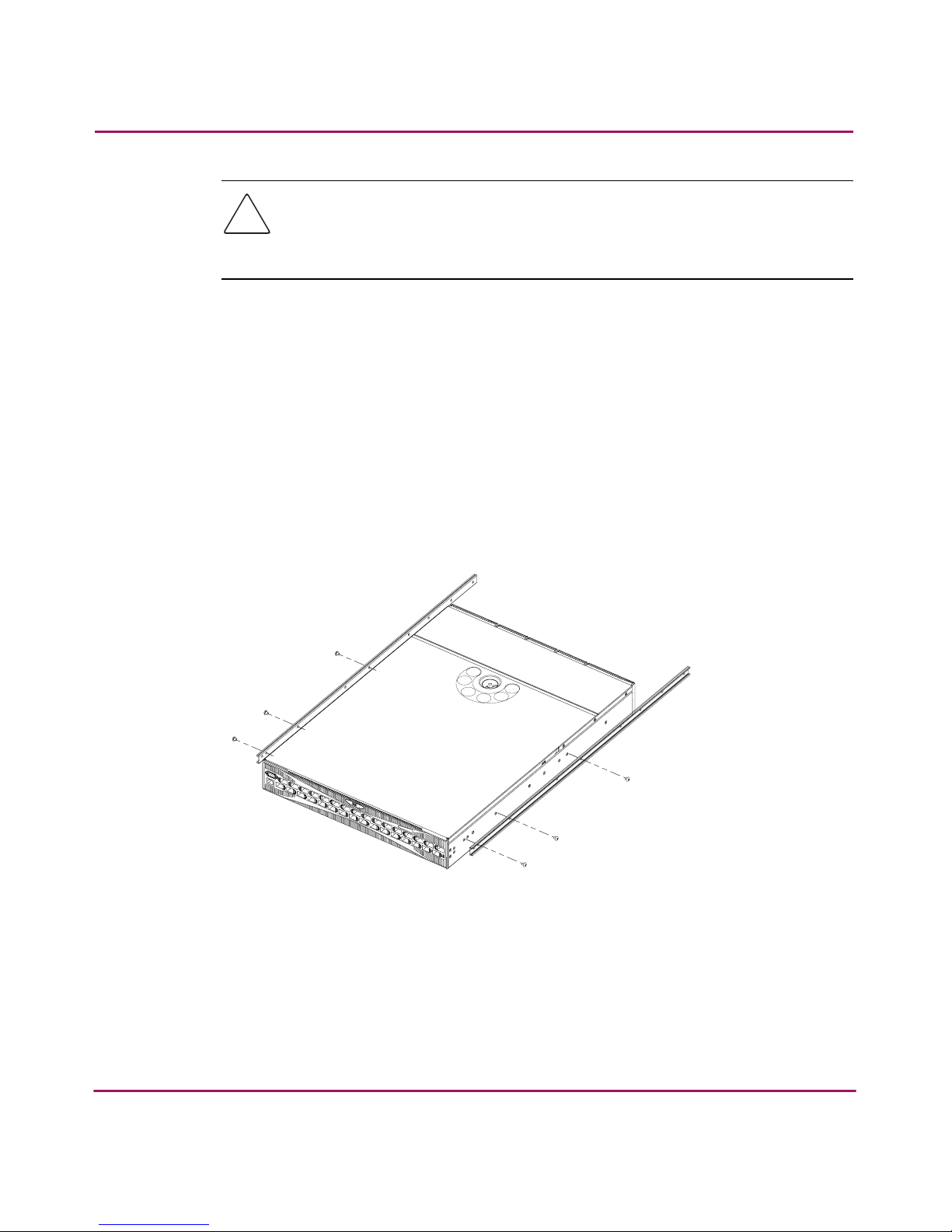
2. Locate three Phillips head, 8-32 x 3/16 inch screws provided in the Rack
Mount Kit. Secure the inner slide rail to the switch, see Figure 4.
3. Tighten the screws and torque to 15 inch-pounds.
Figure 4: Securing the inner slide rails to the switch
4. Repeat steps 1 and 2 to attach the second inner slide rail to the switch. Make
sure to orient the second inner slide rail in the same way you positioned the
first (based on 1a or 1b above).
SHR-2575A
Page 34

Installing the SAN Switch 2/32
34 SAN Switch 2/32 Installation Guide
Attaching the Rear or Front Rack Mount Brackets
The Rack Mount Kit supplied with the SAN Switch 2/32 contains two rear rack
mount brackets and two front rack mount brackets. Install these rack mount
brackets to prevent the switch from accidentally sliding out of the rack, as follows.
Caution: HP recommends installing the SAN Switch 2/32 so that the port side
of the switch slides out the rear of the rack. (For example, the switch should
face the aisle where exhaust air is released. Air intake and exhaust for all
components in the rack should flow in the same direction.)
For Rear Rack Access
Use these steps to attach the rear rack mount brackets to the switch. The rear rack
mount brackets act as “stops” to prevent the switch from sliding out the rear of the
rack. Use these steps if you installed the inner slide rails to the switch using the
procedure outlined in “Attaching the Inner Slide Rails to the Switch,” step 1a.
1. Align the right rack mount bracket with the two screw holes at the port end of
the switch.
2. Locate two Phillips head 8-32 x 3/16 inch screws, contained in the Rack
Mount Kit. Secure the right mount bracket to the switch; see Figure 5.
Figure 5: Attaching the rear rack mount brackets
SHR-2576A
Page 35

Installing the SAN Switch 2/32
35SAN Switch 2/32 Installation Guide
3. Tighten the screws and torque to 15 inch-pounds.
4. Repeat steps 1 through 3 to install the left mount bracket on the left side of the
switch; see Figure 5.
For Front Rack Access
Use these steps to attach the front rack mount brackets to the switch. The front
rack mount brackets act as “stops” to prevent the switch from sliding out the front
of the rack. Use these steps if you installed the inner slide rails to the switch using
the procedure outlined in “Attaching the Inner Slide Rails to the Switch,” step 1b.
1. Align the right rack mount bracket with the two screw holes at the end of the
inner rails on the right, power supply end of the switch.
2. Locate two slotted head Phillips head 8-32 x 3/8 inch screws and two lock
nuts contained in the Rack Mount Kit accessory pouch.
3. Secure the right mount bracket to the end of the inner slide rail using the
screws and lock nuts.
4. Tighten the screws and torque to 15 inch-pounds.
5. Repeat steps 1 through 4 to install the left mount bracket onto the second
inner slide rail.
Attaching the Outer Slide Rails to the HP 9000 Series Rack
Use the following steps to install the outer slide rails in the HP 9000 Series Rack.
Note: This procedure requires two technicians to properly align the outer slide rails in
the HP 9000 Series Rack.
Obtain the following items, located in the Rack Mount Kit:
■ Four 3-hole bar nuts
■ Eight Phillips head 8-32 x 3/8 inch screws
■ Eight square alignment washers
■ # 2 Phillips screwdriver with torque capability
Page 36

Installing the SAN Switch 2/32
36 SAN Switch 2/32 Installation Guide
Note: Before starting this procedure, verify that two of the slide mount L-brackets are
preinstalled at the end of each outer slide rail; see Figure 6. The L-brackets are
necessary to attach the outer rails to the rack.
1. Determine the appropriate placement for the switch inside the rack. The HP
9000 Series Rack’s rails are divided into Units (Us). Each U is marked with a
small, round hole and three square openings for mounting equipment.
Note: The SAN Switch 2/32 requires 1.5 Units of rack space.
2. Locate the small, round marker hole on the rack’s rails, which coincides with
the location selected in step 1. Each marker hole delineates the beginning of
one U.
3. Insert one square alignment washer on each of the
eight 10-32 x 3/8 inch Phillips
head screws.
Note: The square alignment washers are mandatory for proper switch alignment.
4. Adjust the outer slide rail’s length to fit the length of the rack.
5. Position one of the outer slide rails in the rack, as described below:
a. To allow the switch’s port end to slide out the back of the rack, orient with
the closed end of the outer slide rail towards the front of the rack.
b. To allow the power supply end to slide out the front of the rack, orient the
closed end of the outer slide rail towards the back of the rack.
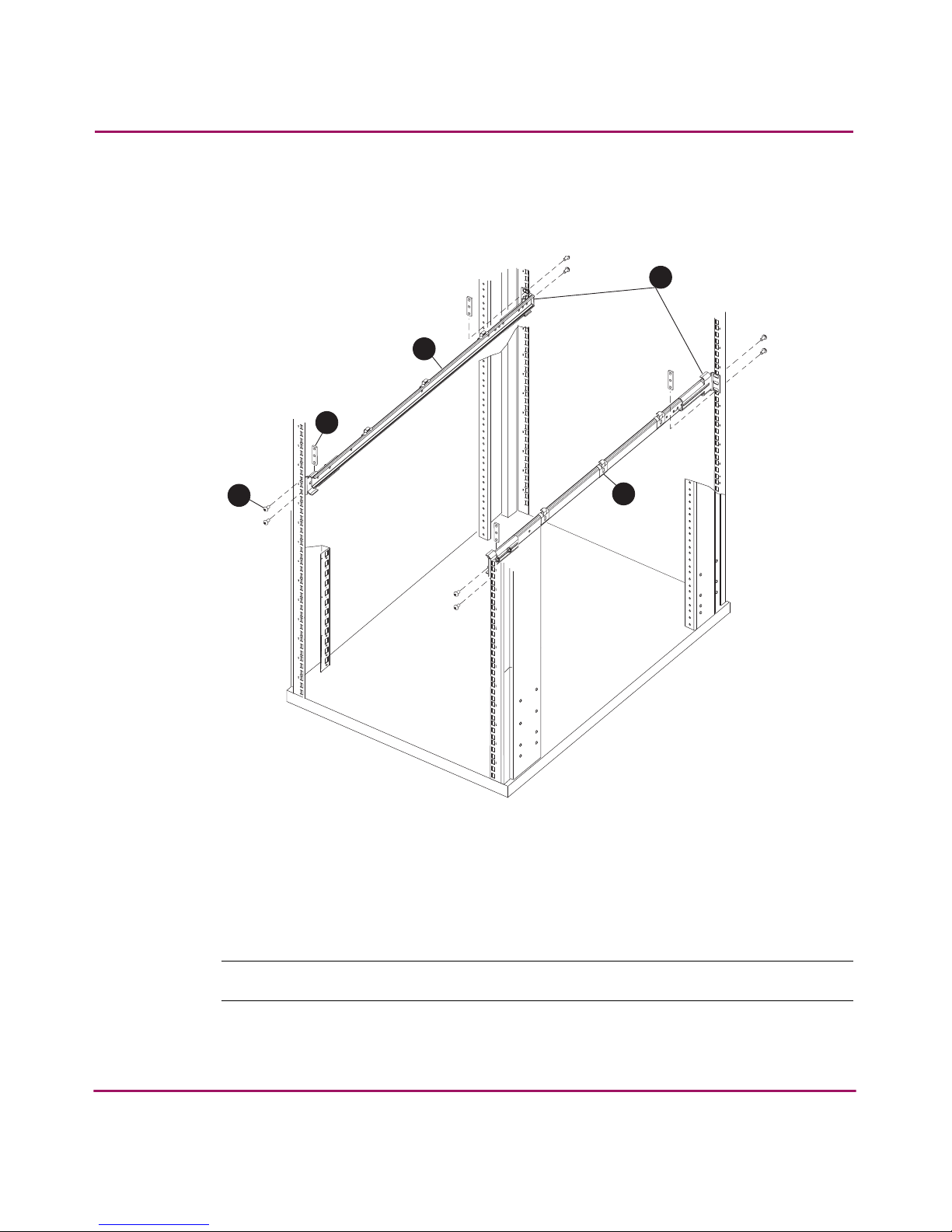
6. Holding the outer slide rail in place, insert one 3-hole bar nut in between the
rack’s rail and the L-bracket at the end of the outer slide rail, Figure 6.
Note: Position the square alignment washers onto the Phillips head 10-32 x 3/8 inch
screws, as described in step 3. The square alignment washers are mandatory for
proper switch alignment.
Page 37
Installing the SAN Switch 2/32
37SAN Switch 2/32 Installation Guide
7. Secure each L-bracket and 3-hole bar nut to the rack’s rails with two Phillips
head 10-32 x 3/8 inch screws (and attached square alignment washers); see
Figure 6.
.
Figure 6: Attaching the outer slide rails to the HP 9000 Series rack
Note: Remember to position the 3-hole bar nut behind the L-bracket.
8. Tighten the screws, and torque to 25 inch-pounds.
1 Phillips head 10-32 x 3/8 in screw
2 3-hole bar nut
3 Outer slide rail
4 L-Brackets
5 Power cord clip (1 of 6)
[1] Select this graphic frame.
[2] Select File.
[3] Select Import.
[4] Select File.
[5] Choose the appropriate graphic file name.
[6] Make sure you’ve checked the Copy Into Document.
[7] Select Import. Position the illustration as required.
Delete this set of instructions
[8] Adjust the size of the outer graphic frame as required.
SHR-2478A
1
3
4
5
2
Page 38

Installing the SAN Switch 2/32
38 SAN Switch 2/32 Installation Guide
9. Repeat steps 5 through 7 to secure the other end of the outer slide rail.
10. Repeat steps 3 through 7 to install the second outer slide rail.
Finalizing the Rack Mounting Procedure
Read this section to finalize the rack mount procedure.
Positioning the Switch in the HP 9000 Series Rack
Follow these steps to install the switch in the rack.
Note: If installing more than one SAN Switch 2/32 directly on top of one another (in a
3U space), you must mount the slide rails attached to the switch using the set of holes
on the top of the switch, and the bottom using the set of holes on the bottom of the
switch.
1. Depending on the type of install (front or rear access), slide the outer slide
rails all the way toward the front or back of the rack.
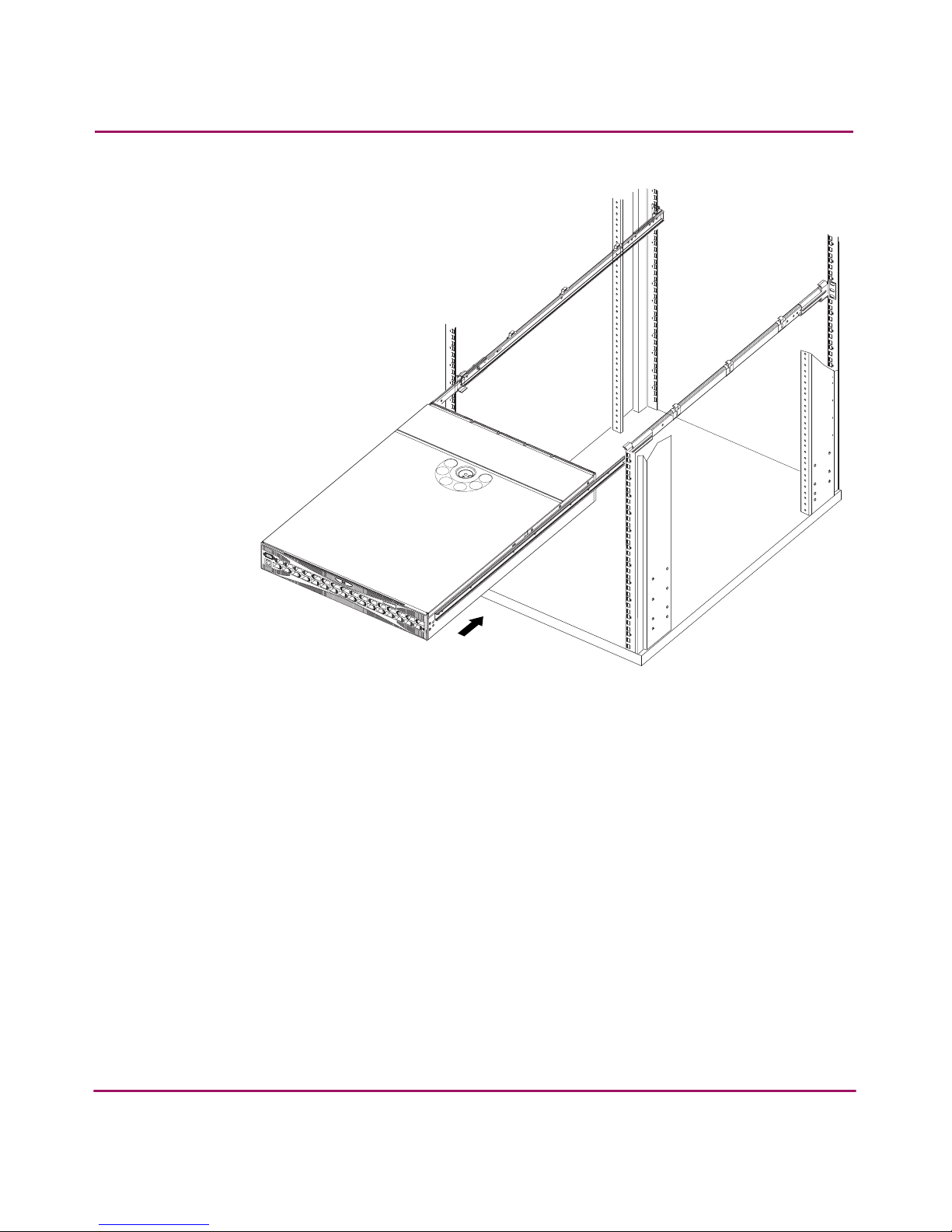
2. Carefully lift the switch into the rear of the rack, inserting the inner slide rails
(attached to the switch) into the outer slide rails (attached to the rack).
3. Slide the switch into the rack; see Figure 7.
Page 39
Installing the SAN Switch 2/32
39SAN Switch 2/32 Installation Guide
.
Figure 7: Sliding the SAN Switch 2/32 into an HP 9000 Series rack
4. To verify proper alignment, slide the switch in and out of the rack.
Securing the Rack Mount Brackets
Secure the Rack Mount Brackets (installed earlier; see “Attaching the Rear or
Front Rack Mount Brackets”) to the rack rails, as follows:
1. Locate two Phillips head 10-32 x 3/8 inch screws in the Rack Mount Kit
accessory pouch.
2. Secure each rack mount bracket to the rack rails.
3. Tighten the screws, and torque to 25 inch-pounds.
SHR-2577A
Page 40

Installing the SAN Switch 2/32
40 SAN Switch 2/32 Installation Guide
Installing the Switch in the Optional HP System/e Rack
This section provides instructions for installing the SAN Switch 2/32 in the
optional HP System/e rack. The HP System/e Rack Kit consists of the following
items:
■ HP System/e Rack Rail Kit - pre-merger HP part number A7340-87901;
pre-merger Compaq part number QA-71AAA-GZ
■ HP System/e Rack Rail Kit Hardware - part number A7340-87902
The following hardware is required to install the HP System/e Rack Mount Kit:
■ Rails rear mounting brackets
■ Rail mounting hardware, shown next
:
Caution: For proper airflow, the SFP media side of the SAN Switch 2/32
faces the rear of the rack. This mounting allows air to enter from the front of the
rack and to exhaust at the rear of the rack, similar to other rack-mounted
equipment. This prevents switch overheating, which may cause it to fail.
Use these steps to install the switch in the HP System/e rack.
1. Verify that all required hardware is available.
(6) #8-32 x 5/16 inch Phillips pan-head screw with captive star
lock washer
(6) #8 Flat washer
(6) M5 Torx head screw with captive lock washer
(2) Rubber washer
(4) M5 U-type Tinnerman clip
Page 41
Installing the SAN Switch 2/32
41SAN Switch 2/32 Installation Guide
2. Choose a mounting location in the rack for the switch.
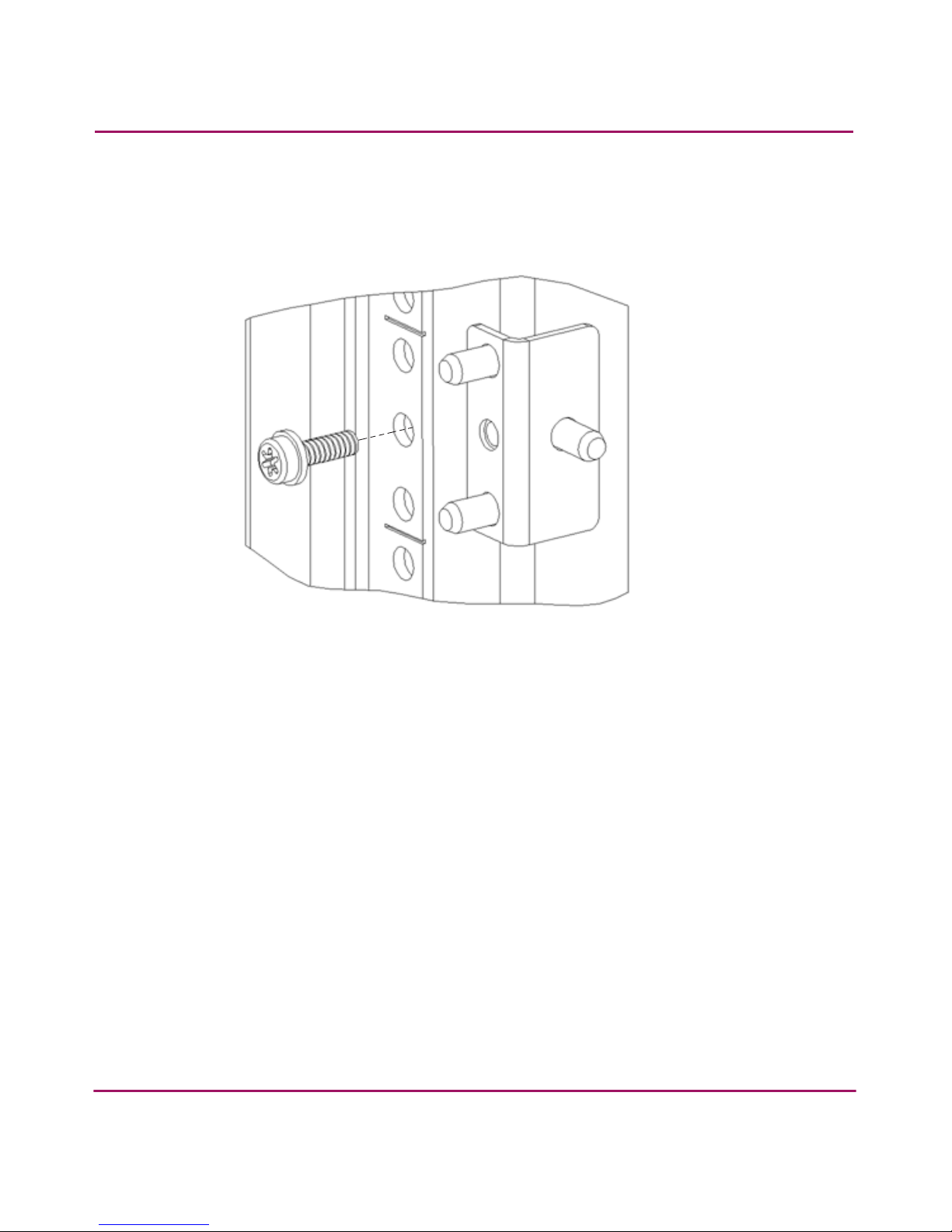
3. Install each of the two mounting brackets with (1) M5 Torx head screw with
captive lock washers as shown in Figure 8.
Figure 8: Installing the mounting brackets
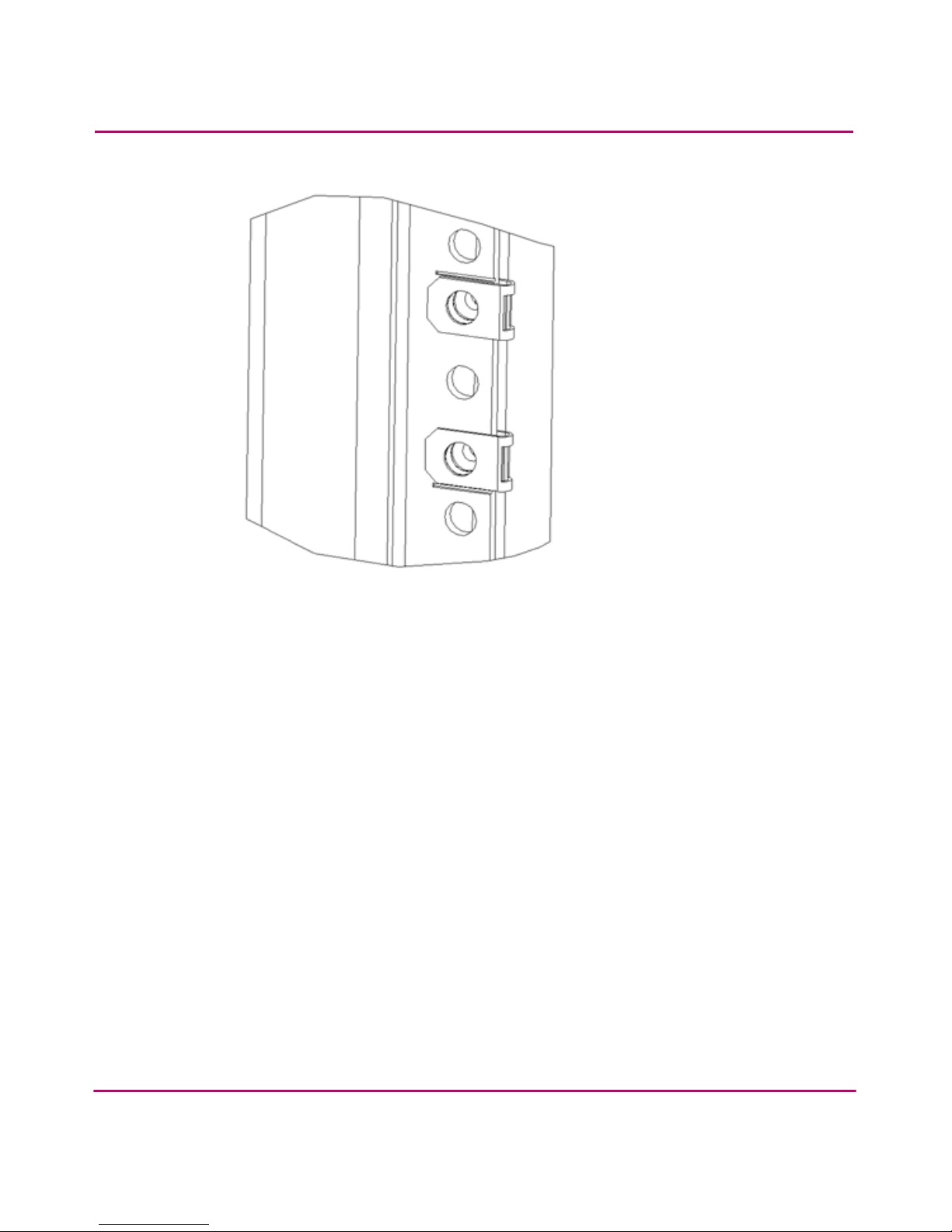
4. Install (2) M5 U-type Tinnerman clips for each of the front columns of the
rack in the top and bottom positions of the three-hole EIA pattern as shown in
Figure 9.
SHR-2581A
Page 42
Installing the SAN Switch 2/32
42 SAN Switch 2/32 Installation Guide
Figure 9: Installing the Tinnerman clips
5. Assemble the outer rails by completing the following steps:
a. As an aid in assembly, two rubber washers have been included to help
keep the rear slotted portion of the outer rail flush against the rear rail-tray
brackets. Install them as shown in Figure 10.
b. Insert the alignment pins attached to the outer rail front flange into the
center opening in the rack.
SHR-2582A
Page 43

Installing the SAN Switch 2/32
43SAN Switch 2/32 Installation Guide
I
Figure 10: Installing the rubber washers
6. Install(1) M5 Torx screw in the upper hole location of the right rail. Then,
install (1) M5 Torx screw in the lower location of the left rail. See Figure 11.
Note: Do not install the upper left and the lower right screws until step 9.
1 Rubber washer (1 of 2) 2 Rear rail tray bracket (1 of 2)
[1] Select this graphic frame.
[2] Select File.
[3] Select Import.
[4] Select File.
[5] Choose the appropriate graphic file name.
[6] Make sure you’ve checked the Copy Into Document.
[7] Select Import. Position the illustration as required.
Delete this set of instructions
[8] Adjust the size of the outer graphic frame as required.
1
2
SHR-2559A
Page 44
Installing the SAN Switch 2/32
44 SAN Switch 2/32 Installation Guide
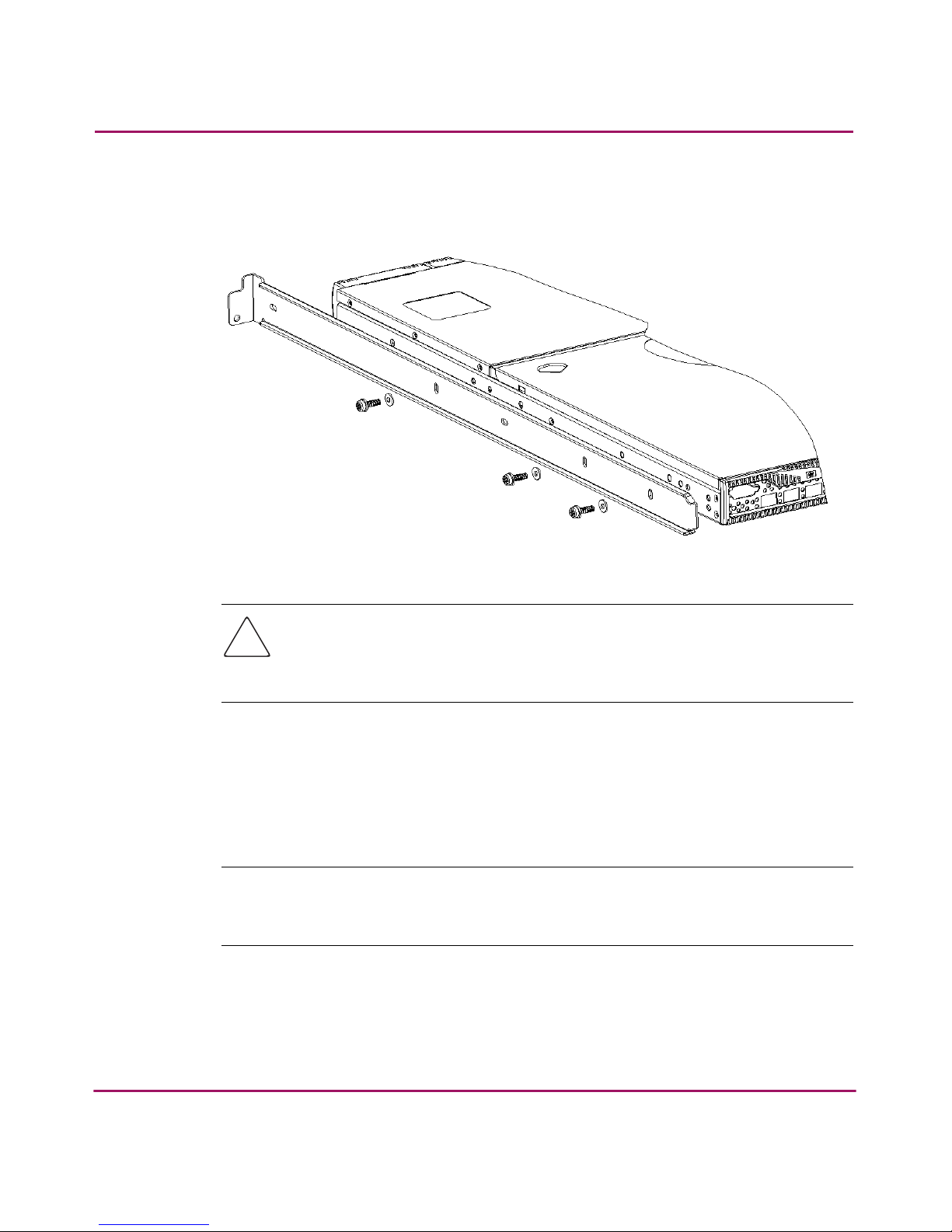
7. Assemble the two inner rails (one on each side) to the switch using (6) #8-32
x 5/16 inch Phillips pan-head screws, and #8 flat washer as shown in
Figure 11.
Figure 11: Assembling the inner rails
Caution: Do not use any screws other than the six that are provided. Use of
any longer lengths can cause damage to internal components of the switch.
Before tightening screws, make sure that the rails are centered to the overall
height of the switch.
8. Insert the switch with the attached inner rails into the outer rails.
9. Install the (2) remaining M5 Torx screws to complete the installation.
10. Go to the next section, “Connecting AC Power” for steps on applying power
to the switch.
Caution: Do not connect the switch to the network until the IP address is
correctly set. For instructions on how to set the IP address, see “Configuring
SAN Switch 2/32 Network Addressing,” later in this chapter.
Page 45

Installing the SAN Switch 2/32
45SAN Switch 2/32 Installation Guide
Connecting AC Power
Use these steps to power on the SAN Switch 2/32.
Caution: Do not plug the power cords into the power source until the switch is
completely installed in the rack.
1. Connect the SAN Switch 2/32 power cords to the power connectors on the
switch, see Figure 12.
Figure 12: Connecting the power cords
2. Attach the remaining ends of the power cords to power outlets.
3. Turn on the power switch (the 1 position indicates power on, the O position
indicates power off). The switch automatically runs POST.
WARNING: Do not connect the switch to the network until the IP address is
correctly set. For instructions on setting the IP address, see “Configuring SAN
Switch 2/32 Network Addressing,” later in this chapter.
SHR-2571A
Page 46

Installing the SAN Switch 2/32
46 SAN Switch 2/32 Installation Guide
Power On Self-Test
Each time the switch is powered on, rebooted, or reset, the switch automatically
runs POST. During POST, the port status LEDs flash, verifying that the switch is
operating properly. POST completes in approximately six minutes, with total boot
time approximately seven minutes.
POST runs through the following test cycles:
■ Preliminary POST diagnostics
■ Initialization of operating system
■ Initialization of hardware
■ Diagnostic tests are run on a number of functions, including circuitry, port
functionality, memory, parity, statistics counters, and serialization
If the switch prompt does not display when POST completes, POST was
unsuccessful. Contact your authorized HP switch supplier for more information.
To determine whether POST completed without errors, verify that all LEDs return
to a normal state after POST is complete. If one or more LEDs do not return to a
normal state (and this is not due to the switch being set to beacon), see
“Interpreting LED Activity,” in Chapter 3.
Note: For more information about beaconing, refer to the
HP StorageWorks Fabric
OS Procedures Version 3.0.x/4.0.x User Guide
.
Checking POST Results
Check the success/fail results of the diagnostic tests run during POST via LED
activity, the error log, or CLI using the errShow command. For more
information about error messages, refer to the HP StorageWorks
Fabric OS
Version 3.0.x/4.0.x Reference Guide.
Page 47

Installing the SAN Switch 2/32
47SAN Switch 2/32 Installation Guide
Configuring SAN Switch 2/32 Network Addressing
Read the following sections for information on how to configure the SAN Switch
2/32 addressing scheme.
For instructions about configuring the switch to operate in a fabric containing
switches from other vendors, refer to the HP StorageWorks Fabric OS Procedures
Version 3.0.x/4.0.x User Guide.
For detailed information about the commands used in this procedure, refer to the HP
StorageWorks
Fabric OS Version 3.0.x/4.0.x Reference Guide.
Requirements
The following items are required for configuring and connecting the SAN Switch
2/32 in a network and fabric:
■ An unused IP address and corresponding subnetmask and gateway address
from your Network Administrator
■ SAN Switch 2/32 installed and connected to a power source
■ A local workstation (desktop or notebook computer) with:
— Microsoft Windows 98, Windows 2000, Windows Millennium Edition, or
Windows NT 4.0 operating system
— RS-232 Serial communication software (for example, ProComm Plus or
HyperTerminal)
■ Serial cable provided with the switch
■ Ethernet cable
■ SFP transceivers and compatible cables, as required
■ Access to an FTP server for backing up the switch configuration
Setting Network Addresses via a Serial Connection
Use the following steps to verify or change the SAN Switch 2/32 IP address,
subnetmask, or gateway address.
Page 48

Installing the SAN Switch 2/32
48 SAN Switch 2/32 Installation Guide
Note: During first time setup, you must replace the factory IP, subnetmask and gateway
addresses with addresses provided by your Network Administrator.
1. Remove the shipping plug from the SAN Switch 2/32 Serial port.
2. Connect the Serial cable to the SAN Switch 2/32 Serial port; see Figure 13.
Figure 13: Connecting the Serial cable
3. Connect the other end of the Serial cable to an RS-232 Serial port on the
workstation. If no RS-232 Serial port is available on the workstation, the
adapter on the end of the Serial cable can be removed to use the RJ-45
connector to create a Serial connection.
4. Verify that the switch power is on and POST is completed. See the “Power On
Self-Test” section, earlier in this chapter.
5. Power on the workstation and establish a connection to the switch using a
terminal emulator application (such as Hyperterminal).
Note: These steps show instructions specific to Hyperterminal. If using a different
application, consult the specific application’s documentation.
SHR-2572A
Page 49

Installing the SAN Switch 2/32
49SAN Switch 2/32 Installation Guide
6. Using Hyperterminal (or similar application), configure the port settings as
follows:
■ Bits per second: 9600
■ Databits: 8
■ Parity: None
■ Stop bits: 1
■ Flow control: None
To configure port settings in a UNIX environment, type:
tip /dev/ttyb -9600
7. Login to the switch (with administrative privileges). The default
administrative logon is admin and the default password is password.
a. Enter the following at the prompt:
ipAddrSet
b. Enter the following information at the corresponding prompts, as in the
example below:
Example
c. To verify that the IP address was entered correctly, type:
ipAddrShow
d. Once the IP address is verified as correct, remove the Serial cable, and
replace the shipping plug in the Serial port.
switch:admin> ipaddrset
Ethernet IP Address [10.77.77.77]:10.32.53.47
Ethernet Subnetmask [255.0.0.0]:255.255.240.0
Fibre Channel IP Address [0.0.0.0]:
Fibre Channel Subnetmask [0.0.0.0]:
Gateway IP Address [0.0.0.0]:10.32.48.1
Set IP address now? [y = set now, n = next
reboot]:y
IP address being changed...
Committing configuration...Done.
switch:admin>
Page 50

Installing the SAN Switch 2/32
50 SAN Switch 2/32 Installation Guide
Caution: The Serial port is intended only for use during the initial setting of
the IP address and for service purposes. Using the Serial port during normal
switch operation or for regular maintenance is not recommended.
8. Record the IP address on the label affixed to the SAN Switch 2/32.
Page 51

Installing the SAN Switch 2/32
51SAN Switch 2/32 Installation Guide
Connecting the SAN Switch 2/32 to the LAN
Use the following steps to connect the SAN Switch 2/32 to the Ethernet Local
Area Network (LAN) segment.
1. Remove the shipping plug from the SAN Switch 2/32 Ethernet port.
2. Connect one end of an Ethernet cable to the SAN Switch 2/32 Ethernet port;
see Figure 14.
Figure 14: Connecting the Ethernet cable
3. Connect the other end of the Ethernet cable to the workstation or to an
Ethernet network containing the workstation.
Note: You can now access the switch remotely (and from multiple connections), using
telnet or the Web Tools application. Verify that the switch is not accessed from any other
connections during the remaining steps.
4. Login to the switch with administrative privileges by telnet. The default
administrative logon is admin and the default password is password.
SHR-2573A
Page 52

Installing the SAN Switch 2/32
52 SAN Switch 2/32 Installation Guide
Core Switch PID Format Summary
A Core PID format is one of several addressing formats used in Fibre Channel.
The parameter is used by the routing and zoning services in Fibre Channel fabrics
to identify ports in the network.
The PID format is analogous to specifying the physical switch and port that a
device is attached to in data networks. It is not analogous to an IP address. PIDs
are assigned by a Fibre Channel switch when a device logs into the fabric. An
example PID might look like this: 011F00.
Many scenarios cause a device to receive a new PID. For example, unplugging the
device from one port and plugging it into a different port will cause this. (This
might happen when cabling around a bad port, or when moving equipment
around.) Another example is changing the domain ID of a switch, which might be
necessary when merging fabrics, or changing compatibility mode settings.
Note: All switches running Fabric OS version 4.0.x or higher are shipped with the
Core Switch PID Format enabled, so it is not necessary to change the Core Switch PID
format on these switches. For example, the HP StorageWorks SAN Switch 2/32 and HP
StorageWorks Core Switch 2/64 always use Core Switch PID format 1. This parameter
is always 1 and cannot be changed.
Important Information on Checking the Core Switch PID Format
Updating the Core Switch PID Format is necessary when upgrading an existing
SAN to support larger port-count switches. When a switch with more than 16
ports is introduced into an existing fabric, this parameter needs to be set on all
switches in the fabric.
For example, all SAN Switch 2/32 units ship with the Core Switch PID format set
to 1. Before connecting to the SAN, you must verify that the Core Switch PID
formats of all switches already running in the SAN are also set to 1.
Note: If the Core PID format is set to 0 in switches already running in the SAN, you
must follow the procedures in Appendix B, “Updating the Core Switch PID Format” to
change the parameter to 1. If the Core Switch PID format is not changed to 1 to match
the SAN Switch 2/32’s value, then the switches residing in the SAN will fail to
communicate with one another.
Page 53

Installing the SAN Switch 2/32
53SAN Switch 2/32 Installation Guide
For detailed recommendations and instructions on updating the Core Switch PID,
please refer to Appendix B in this guide, “Updating the Core Switch PID Format.”
Page 54

Installing the SAN Switch 2/32
54 SAN Switch 2/32 Installation Guide
Optional Configuration Settings
The following sections describe how to modify domain IDs and status policies.
Modifying Domain IDs
Optional. Modify the domain IDs, if desired, as follows.
Note: The default domain ID is 1. If the default domain ID is already in use when the
switch is connected to the fabric, the domain ID for the new switch is automatically reset
to a unique value. The domain IDs that are currently in use can be determined using the
telnet command fabricShow.
1. Disable the switch by entering the following:
switchDisable
2. Enter the following:
configure
3. Enter y after the Fabric parameters prompt.
Fabric parameters (y, n)
4. Enter a unique domain ID (such as the domain ID used by the previous
switch, if still available).
Domain: (1..239) [1] 3
5. Complete the remaining prompts (or press CTRL+D to accept the remaining
settings without completing all the prompts).
6. Re-enable the switch by entering the following:
switchEnable
Specifying Custom Status Policies
Optional If desired, specify any custom status policies for the fabric as follows.
1. Enter the following at the prompt.
switchStatusPolicySet
2. Specify the desired status policies. To completely deactivate the alarm for a
particular condition, enter 0 at the prompt for that condition.
Page 55

Installing the SAN Switch 2/32
55SAN Switch 2/32 Installation Guide
Note: Configure each port to match the topology of each host or target before
connecting to the device. The default port configuration is fabric, not private loop. The
switch does not auto-sense topology.
Page 56

Installing the SAN Switch 2/32
56 SAN Switch 2/32 Installation Guide
Connecting the SAN Switch 2/32 to the Fabric
Use these steps to connect the SFPs and cables to SAN Switch 2/32 ports as
required.
Note: The ports and cables used in trunking groups must meet specific requirements.
For a list of these requirements, refer to the
HP StorageWorks ISL Trunking Version
3.0.x/4.0.x User Guide
.
1. Remove the shipping plug from the appropriate ports.
2. Position the SFP so that the key (the tab near the cable-end of the SFP) is on
top.
3. Insert the SFP into the port until it is firmly seated and the latching
mechanism clicks.
Note: The SFP is keyed so that it can only be inserted with the correct orientation into
the port. If the SFP does not slide in easily, check the orientation.
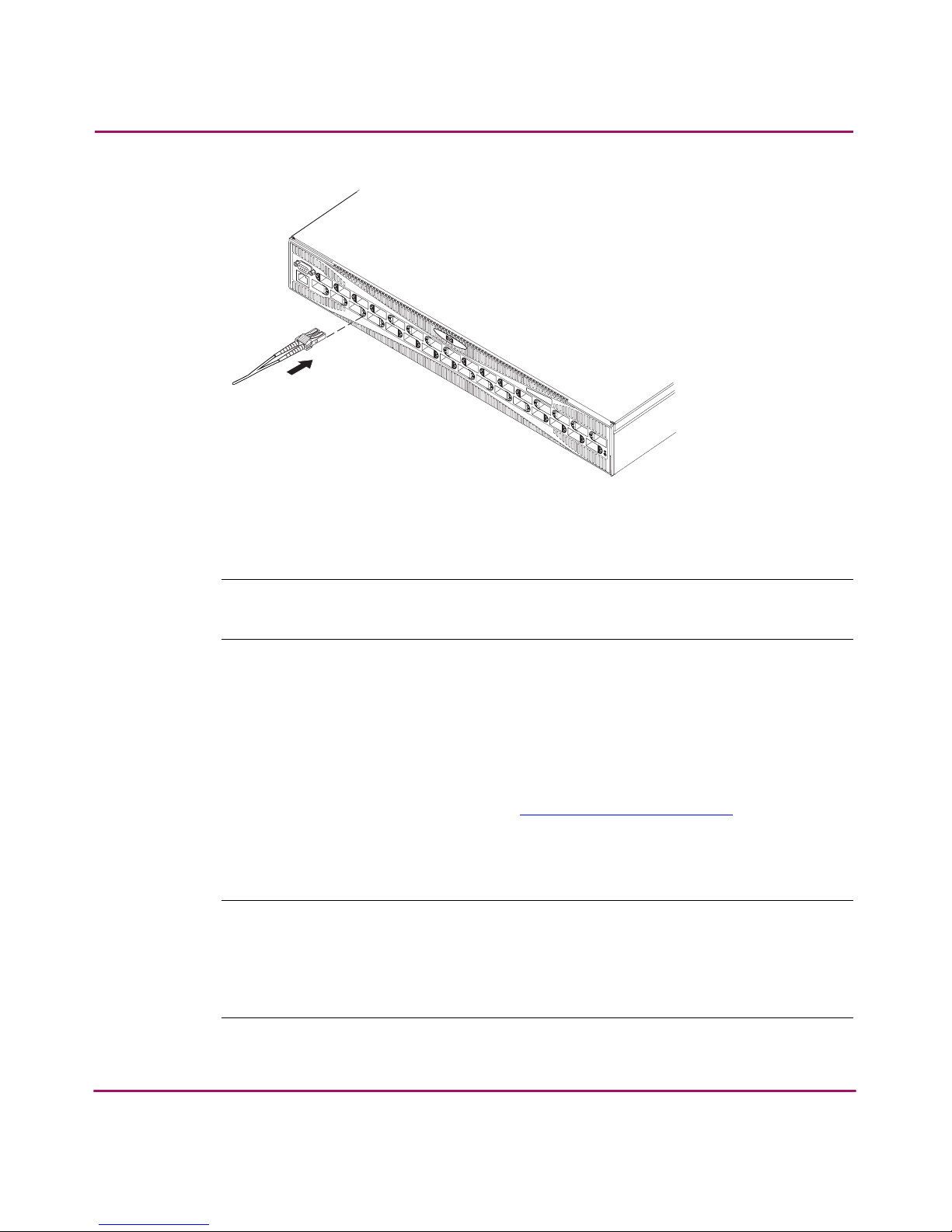
4. Connect the cables to the SFPs as appropriate to the fabric topology, by
positioning each cable so that the key (the ridge on one side of the cable
connector) is aligned with the slot in the SFP; see Figure 15.
Page 57
Installing the SAN Switch 2/32
57SAN Switch 2/32 Installation Guide
Figure 15: Inserting a cable into an SFP
Note: The cable is keyed so that it can only be inserted correctly into the SFP. If the
cable does not slide in easily, check the orientation.
Verifying Operation
After making the appropriate connections, as outlined in this chapter, use these
steps to verify that the switch is running properly.
1. Access your browser.
2. At the URL address window, type
http://your switch IP address.
3. If connected properly, the name of your switch appears (in green) at the
prompt, indicating Healthy/OK.
Note: Backing up the configuration is strongly recommended. This ensures that a
complete configuration is available if required for a replacement switch. For instructions
on how to back up the configuration, refer to Chapter 4, “Backing Up Configuration
Data and Upgrading Firmware.” Or, for more detailed information and commands,
refer to the
HP StorageWorks Fabric OS Procedures Version 3.0.x/4.0.x User Guide.
SHR-2574A
Page 58

Installing the SAN Switch 2/32
58 SAN Switch 2/32 Installation Guide
Installing Multiple Switches into an Existing SAN
Use these steps to set up more than one SAN Switch 2/32 in an existing SAN.
1. Connect the appropriate components as outlined in the installation section of
this chapter.
2. Connect the power cord to the AC connector on the switch. The switch
performs POST.
If a malfunction occurs during POST, error messages are written to the switch
error log and can be viewed by a telnet or terminal session when the POST
session completes.
If the malfunction prohibits the switch from completing the boot process (fatal
error), the switch stops the boot process. If the switch does not fully boot, the
switch prompt will not be displayed when the Serial port is connected.
3. Connect the Serial cable, provided in the package contents, between a host
computer and the Serial port of the switch. See “Setting Network Addresses
via a Serial Connection,” earlier in this chapter, to make a Serial connection
through a workstation and to set the IP address.
4. Set the switch Domain Address using the configure command to the next
unused domain in the SAN. The default domain setting is 1.
Note: If a switch boot failure occurs, the switch must be taken offline for repair or
replacement. Contact your HP Technical Support for assistance.
5. Power off the new switch and connect one Fibre Channel cable from the SAN
to the new switch.
Page 59

Installing the SAN Switch 2/32
59SAN Switch 2/32 Installation Guide
Recommendations for Cable Management
HP recommends following these cable management guidelines:
■ Plan cable management before installing the switch in a rack.
■ Leave at least one meter of slack for each port cable (this provides room to
remove and replace the switch).
■ If using ISL Trunking:
— Group cables by trunking groups.
— The cables used in trunking groups must meet specific requirements. For
a list of these requirements, refer to the HP StorageWorks ISL Trunking
Version 3.0.x/4.0.x User Guide.
■ Label the fiber optic cables and record the devices to which they are
connected.
■ Keep LEDs visible by routing port cables and other cables directly
downwards or otherwise away from the LEDs.
■ Do not use tie wraps on fiber optic cables, because they are easily
overtightened and can damage the optic fibers.
Note: The minimum bend radius for a 50-micron cable is 2 inches under full tensile
load, and 1.2 inches with no tensile load.
Page 60

Installing the SAN Switch 2/32
60 SAN Switch 2/32 Installation Guide
Page 61

61SAN Switch 2/32 Installation Guide
3
Managing the
SAN Switch 2/32
This chapter covers the following topics:
■ Interpreting LED Activity, page 62
■ Management Overview, page 68
■ Running Basic Switch Operations Using Telnet, page 70
■ SAN Switch 2/32 Diagnostics, page 74
■ Field Replaceable Units, page 75
Page 62

Managing the SAN Switch 2/32
62 SAN Switch 2/32 Installation Guide
Interpreting LED Activity
SAN Switch 2/32 status is determined through the LED activity on the switch.
There are three possible LED states: no light, a steady light, and a flashing light.
The lights may be any of the following colors:
■ Green
■ Orange (may be referred to as “amber” in related documentation)
■ Yellow (appears when both green and orange LED elements are lit)
Note: Any errors related to LED activity are listed in the error log. For information
about the error log, refer to the
HP StorageWorks Fabric OS Procedures Version
3.0.x/4.0.x User Guide
.
LEDs on the Port Side of the Switch
The port side of the switch contains the following LEDs; see Figure 16:
■ One Switch Power/Status LED on right side
■ One Port Status LED next to each Fibre Channel port (lower LED)
■ One Port Speed LED next to each Fibre Channel port (upper LED)
Note: The port LEDs for the upper ports (ports 16–31) are to the left of the ports. The
Port LEDs for the lower ports (ports 0–15) are to the right of the ports.
.
Figure 16: LEDs on port side of SAN Switch 2/32
1 Port status LEDs (lower LED)
2 Port speed LEDs (upper LED)
3 Status LED
SHR-2578A
1
32
Page 63

Managing the SAN Switch 2/32
63SAN Switch 2/32 Installation Guide
Tabl e 4 describes the LEDs on the port side of the switch.
Table 4: Front Panel LED Patterns During Normal Operation
LED Name
and
Location
LED
Location
Color
Display
Hardware
Status
Recommended
Action
Switch
Power/
Status LED
On far
right
when
viewing
switch
from port
side
No light Switch is off, or
boot is not
complete, or boot
failed.
Verify switch is on
and has
completed
booting.
Steady
green
No action
required.
Flashing
green
One or both of the
following are true:
■ One or more
environmental
ranges are
exceeded.
■ Error log
contains one
or more port
diagnostic
error
messages.
1. Check
environmental
conditions,
error log, Port
Status LEDs,
transceivers,
cables, and
loopback
plugs.
2. Correct error
condition.
3. Clear error
log.
4. Rerun
diagnostics to
verify fix.
Port Status
LED
Lower LED
next to
each port
No light No signal
detected.
Check transceiver
and cable.
Steady
green
Port is online
(connected to
external device)
but has no traffic.
No action
required.
Port Status
LED
Location Slow
flashing
green
Port is online but
segmented,
indicating a
loopback cable or
incompatible
switch.
Verify correct
device is
connected to port,
and switch and
port settings are
correct.
Page 64

Managing the SAN Switch 2/32
64 SAN Switch 2/32 Installation Guide
Fast-flashing
green
Port is in internal
loopback
(diagnostic).
No action
required.
Flickering
green
Port is online, with
traffic flowing
through port.
No action
required.
Flashing or
steady
yellow
POST is running. No action
required.
Steady
orange
Port is receiving
light or signal
carrier, but is not
yet online.
No action
required.
Slow-flashin
g orange
The port is
disabled
(result of
diagnostics or
portDisable
command).
Reset the switch
from a
management
station.
Fast-flashing
orange
The port is faulty. 1. Check
transceiver and
cable or loopback
plugs for correct
insertion.
2. Check and
clear error log.
Table 4: Front Panel LED Patterns During Normal Operation (Continued)
LED Name
and
Location
LED
Location
Color
Display
Hardware
Status
Recommended
Action
Page 65

Managing the SAN Switch 2/32
65SAN Switch 2/32 Installation Guide
LEDs on the Non-Port Side of the SAN Switch 2/32
The non-port side of the switch contains the following LEDs, see Figure 17:
■ One Port Readiness LED on right side
■ One Power Supply LED next to the AC power switch on each power supply
■ One Fan Failure LED at the top of each fan assembly (inside the bezel)
Figure 17: LEDs on non-port side of SAN Switch 2/32
Tabl e 5 describes the LEDs on the non-port side of the switch.
Port Status
LED
(continued)
Location
(continued
)
Alternating
green and
orange
Port is bypassed. Reset the port from
a management
station or check
configuration of
the Fibre Channel
loop.
Port Speed
LED
Above
each port,
on right
No light The port is
transmitting/
receiving at 1
Gbps.
No action
required.
Steady
green
The port is
transmitting/
receiving at 2
Gbps.
No action
required.
Table 4: Front Panel LED Patterns During Normal Operation (Continued)
LED Name
and
Location
LED
Location
Color
Display
Hardware
Status
Recommended
Action
1 Power supply LED
2 Fan failure LED
3 Port readiness LED
SHR-2579A
1
32
Page 66

Managing the SAN Switch 2/32
66 SAN Switch 2/32 Installation Guide
Table 5: Non-Port Side LED Patterns During Normal Operation
LED
Name
and
Location
LED
Location
Color
Display
Hardware
Status
Recommended
Action
Port
Readiness
LED
On far
right when
viewing
switch from
non-port
side
No light Switch is off, or
boot is not
complete, or
boot failed.
Verify switch is on
and has
completed
booting.
Steady green Switch is on and
all ports are
ready for use.
No action
required.
Steady
yellow
One or more
ports are offline.
Verify switch has
completed
booting and is not
disabled. If light is
still yellow, check
error log and Port
Status LEDs.
Name and
Location
(continued)
Location
(continued)
Slow-flashing
yellow
(on 1 second;
off 1 second)
One or both of
the following are
true:
One or more
environmental
ranges are
exceeded.
Error log
contains one or
more port
diagnostic error
messages.
1. Check
environmental
conditions,
error log, Port
Status LEDs,
transceivers,
cables, and
loopback
plugs.
2. Correct error
condition.
3. Clear error
log.
4. Rerun
diagnostics to
verify fix.
Power
SupplyLED
On each
power
supply (left
corner)
No light Power supply is
not providing
power.
Verify power
supply is on and
seated, and
power cord is
connected to a
functioning power
source.
Page 67

Managing the SAN Switch 2/32
67SAN Switch 2/32 Installation Guide
Steady green Power supply is
providing
power.
No action
required.
Fan Failure
LED
On each
fan
assembly
(left corner)
No light Fan assembly is
either healthy or
is not receiving
power.
Verify power
supply is on and
power cord is
connected to a
functioning power
source.
Flashing
orange
(on 1 second;
off 1 second)
Fan assembly
has failed.
Replace fan
assembly.
Table 5: Non-Port Side LED Patterns During Normal Operation (Continued)
LED
Name
and
Location
LED
Location
Color
Display
Hardware
Status
Recommended
Action
Page 68

Managing the SAN Switch 2/32
68 SAN Switch 2/32 Installation Guide
Management Overview
You can use the management functions built into the SAN Switch 2/32 to monitor
the fabric topology, port status, physical status, and other information to aid in
performance analysis and system debugging.
You can manage the switch using any of the management options listed in Tab le 6.
Note: For information about upgrading the version of Fabric OS installed on the
switch, refer to the
HP StorageWorks Fabric OS Procedures Version 3.0.x/4.0.x User
Guide.
Table 6: Management Options for the SAN Switch 2/32
Management Tool
Out-of-band
Support
In-band
Support
Command Line Interface (CLI)
Runs up to two admin sessions and four user
sessions simultaneously. Refer to the
HP
StorageWorks Fabric OS Procedures Version
3.0.x/4.0.x User Guide
.
Ethernet or
Serial
connection
IP over Fibre
Channel *
Fabric Manager (option)
For information refer to the
HP StorageWorks
Fabric Manager Version 3.0.x/4.0.x User
Guide
.
Ethernet IP over Fibre
Channel *
Advanced Web Tools
For information refer to the
HP StorageWorks
Web Tools Version 3.0.x/4.0.x User Guide
.
Ethernet or
Serial
connection
IP over Fibre
Channel *
Standard SNMP applications
For information refer to the
HP StorageWorks
MIB Version 3.0.x/4.0.x Reference
Guide.
Ethernet or
Serial
connection
IP over Fibre
Channel *
Page 69

Managing the SAN Switch 2/32
69SAN Switch 2/32 Installation Guide
* Requirements for running IP over Fibre Channel:
— Must be run on both HBA and switch.
— Must be supported by both HBA and HBA driver.
Note: The HP StorageWorks SAN Switch 2/32 includes a different set of integrated
features, depending upon the model purchased. Refer to the
HP StorageWorks SAN
Switch 2/32 Version 4.0.2b Release Notes
for a complete list of supported features.
Optional Management Feature – Fabric Manager
Fabric Manager provides a GUI that allows the administrator to monitor and
manage an entire fabric from a standard workstation. Use Fabric Manager to
manage fabrics containing integrated fabrics, in addition to individual switches.
Contact your HP authorized reseller for purchasing information.
Displaying the Optional Feature Licenses
Use these steps to display optional features installed on your switch.
1. Login to the switch as the admin user.
2. At the command line enter the following command:
licenseShow
This command displays the license keys that have been entered for the switch
and the features enabled by those licenses.
Management server
For more information, refer to the
HP
StorageWorks Fabric OS Procedures Version
3.0.x/4.0.x User Guide
and the
HP
StorageWorks Fabric OS Version 3.0.x/4.0.x
Reference
G
uide
.
Ethernet or
Serial
connection
Native inband
interface
(over HBA
only)
Table 6: Management Options for the SAN Switch 2/32 (Continued)
Management Tool
Out-of-band
Support
In-band
Support
Page 70

Managing the SAN Switch 2/32
70 SAN Switch 2/32 Installation Guide
Running Basic Switch Operations Using Telnet
Read the following sections to run common switch operations via telnet.
Logging into the SAN Switch 2/32
Use these steps to log into the SAN Switch 2/32.
1. Open a telnet connection to the switch. The login prompt is displayed if the
telnet connection successfully found the switch in the network.
Note: The switch must be connected to your IP network through the RS-232 port to
enable connection through telnet.
2. At the login prompt, enter the user ID you are logging in as. For example:
login: admin
The password prompt is displayed if the user exists.
3. Enter the password for the user:
password: xxxxxx
The default password is password.
4. If the login was successful, a prompt is displayed showing the switch name
and user ID you are logged in as. For example:
switch55>admin:
Changing the Admin Password and User ID
Use these steps to change the Admin user ID and password. For security reasons,
the first time you log into the Fabric OS you are requested to change the admin
user ID and system password.
Note: Previous switches did not require a password to access the management via the
Serial line. With V4.0.0 and higher, a password is required to use the Serial line,
similar to using the admin level telnet or admin level web tools.
1. Login to the switch as the admin user.
Page 71

Managing the SAN Switch 2/32
71SAN Switch 2/32 Installation Guide
2. At the command line, enter the following command:
Password admin
An interactive session is opened and you are prompted for configuration
values.
3. At the New username prompt, enter a new name for the admin user. You
can change the name of the admin user without changing the password. Press
Enter to leave the name as is.
4. At the Old Password prompt, enter the old password.
5. At the New password prompt, enter the new password. The new password
must be from 8 to 40 characters in length.
6. At the New password prompt, enter the new password exactly as entered to
the previous prompt.
7. Press Enter to commit the configuration to the firmware.
Note: Save your passwords in a safe place. It is nearly impossible to access a switch
without knowing the switch password.
Configuring the IP and Fibre Channel Address
The SAN Switch 2/32 is shipped with a default IP address of 10.77.77.77.
Use these steps to change the default IP Address and configure the Fibre Channel
IP address of the switch.
1. Login to the switch as the admin user.
2. At the command line enter the following command:
ipAddrSet
An interactive session is opened and you are prompted for configuration
values. Press Enter to skip over a prompt and leave the parameter value as is.
3. At the Ethernet IP Address prompt, enter the new IP address for the
Ethernet port on the switch. Press Enter.
4. At the Ethernet Subnetmask prompt, enter the address of the
subnetmask, if applicable. Press Enter.
5. At the Fibre Channel IP address prompt, enter the Fibre Channel
IP address for the switch. Press Enter.
Page 72

Managing the SAN Switch 2/32
72 SAN Switch 2/32 Installation Guide
6. At the Fibre Channel Subnetmask prompt, enter the address of the
subnetmask, if applicable. Press Enter.
7. At the Gateway Address prompt, enter the IP address of the gateway
system if applicable. Press Enter.
The configuration is then committed to the switch firmware.
8. You are then prompted whether to make the IP address changes active now or
at the next reboot. Enter y at the prompt to have the IP address changes take
effect immediately.
Displaying Devices within the Fabric
To verify that you have fabric wide connectivity when you install a new switch,
display the fabric wide device count from the newly installed switch. Use these
steps to display the fabric.
1. Login to the switch as the admin user.
2. At the command line enter the following command:
nsAllShow
This command displays all the connected devices in the fabric.
Checking the Firmware Version
Use these steps to display the SAN Switch 2/32 firmware version.
1. Login to the switch as the admin user.
2. At the command line enter the following command:
version
This command displays the Kernel version, and Fabric OS release number.
Page 73

Managing the SAN Switch 2/32
73SAN Switch 2/32 Installation Guide
Setting the Switch Date and Time
All switches maintain current date and time in non-volatile memory. Date and
time are used for logging events. Switch operation does not depend on the date
and time; a switch with an incorrect date and time value still functions properly.
Uses these steps to set the date and time of a switch.
1. Login to the switch as the admin user.
2. At the command line, enter the following command:
date "MMDDhhmmYY"
where:
— MM is the month, valid values are 01–12.
— DD is the date, valid values are 01–31.
— hh is the hour, valid values are 00–23.
— mm is minutes, valid values are 00–59.
— YY is the year, valid values are 00–99.
Note: Year values greater than 69 are interpreted as 1970-1999; year values less than
70 are interpreted as 2000-2069. The date function does not support daylight saving
time or time zones.
Displaying Switch Configuration Settings
Use these steps to display the system configuration settings.
1. Login to the switch as the admin user.
2. At the command line enter the following command:
configShow
The system configuration settings display.
Page 74

Managing the SAN Switch 2/32
74 SAN Switch 2/32 Installation Guide
SAN Switch 2/32 Diagnostics
Read the following sections for information on using POST and diagnostic tests.
Interpreting POST Results
Each time the switch is powered on or reset, the switch automatically performs
POST, a one-minute system check during which the port status LEDs flash
different colors.
To determine whether POST completed without errors, verify that all LEDs return
to a normal state after POST is complete. If one or more LEDs do not return to a
normal state, and this is not due to the switch being set to beacon, refer to the HP
StorageWorks Fabric OS Procedures Version 3.0.x/4.0.x User Guide.
Note: If the switch prompt does not display when POST completes, POST was not
successfully completed and the switch should be returned to your switch supplier for
repair.
Any errors detected during POST are written to the system log, accessible through
the errShow command. For more information about error messages, refer to the
HP StorageWorks Fabric OS Procedures Version 3.0.x/4.0.x User Guide.
Additional Diagnostic Tests
The SAN Switch 2/32 uses diagnostic tests to help troubleshoot hardware and
firmware. The diagnostic tests provided on the switch include tests of internal
connections and circuitry, fixed media, and any SFP modules and fiber optic
cables in use. The tests are implemented by command, either through a telnet
session or through a terminal set up for a Serial connection to the switch. Some
tests require the ports to be connected by external cables, to allow diagnostics to
verify the serializer/deserializer interface, and to verify the attached SFP and
cable.
All diagnostic tests are run at link speeds of both 1 Gbps and 2 Gbps. For
information about the specific diagnostic tests and how to run them, refer to the
HP StorageWorks Fabric OS Procedures Version 3.0.x/4.0.x User Guide.
Page 75

Managing the SAN Switch 2/32
75SAN Switch 2/32 Installation Guide
Note: The transmit and receive speed of the links may be temporarily locked to a
specific speed during diagnostic testing.
Field Replaceable Units
You can replace the power supplies, fan assemblies, and motherboard in the field
without the use of special tools. The power supplies and fan assemblies are keyed
to ensure correct orientation during installation. Replacement instructions are
provided with all replacement units ordered.
Note: The SAN Switch 2/32 uses two AC power cords. To remove all power from the
switch, disconnect both power cords before servicing.
Power Supplies
The two power supplies are hot-swappable if replaced one at a time. They are
identical and fit into either power supply slot; see Figure 18.
Figure 18: Power supplies and fan assemblies locations
1 Power supply #2
2 Fan assembly containing
fans 5,6
3 Fan assembly containing fans 3,4
4 Fan assembly containing fans 1,2
5 Power supply #1
SHR-2580A
1 3 4 5
2
Page 76

Managing the SAN Switch 2/32
76 SAN Switch 2/32 Installation Guide
The Fabric OS identifies the power supplies as follows (viewing the switch from
the non-port side):
■ Power supply #1 is on the right when viewing the switch from the non-port
side.
■ Power supply #2 is on the left when viewing the switch from the non-port
side.
To determine whether a power supply requires replacing:
■ Check the Power Supply LED next to the AC switch
■ Enter the psshow command
■ In Web Tools, click the Power Status icon
Fan Assemblies
The three fan assemblies are hot-swappable if replaced one at a time. The fan
assemblies are identical and fit into any fan assembly slot; see Figure 19.
Figure 19: Power supplies and fan assemblies locations
Each fan assembly contains two fans, identified by Fabric OS as follows (viewing
the switch from the non-port side assembly on the right contains fans #1 and #2).
■ The fan assembly in the center contains fans #3 and #4.
■ The fan assembly on the left contains fans #5 and #6.
1 Power supply #2
2 Fan assembly containing fans 5,6
3 Fan assembly containing fans 3,4
4 Fan assembly containing fans 1,2
5 Power supply #1
SHR-2580A
1 3 4 5
2
Page 77

Managing the SAN Switch 2/32
77SAN Switch 2/32 Installation Guide
Any of the following methods can be used to determine whether a fan assembly
requires replacing:
■ Check the Fan Failure LED on the face of the fan assembly
■ Enter the fanshow command
■ In Web Tools, click the Fan Status icon
Motherboard Assembly
The switch must be powered off and removed from the fabric (and possibly from
the cabinet) to replace the motherboard assembly. To determine whether the
motherboard assembly requires replacing, first check the Switch Power/Status and
Port Status LEDs. Next, run diagnostics (refer to the HP StorageWorks Fabric OS
Procedures Version 3.0.x/4.0.x User Guide). If the motherboard assembly appears
to require replacing, contact your switch supplier.
Page 78

Managing the SAN Switch 2/32
78 SAN Switch 2/32 Installation Guide
Page 79

79SAN Switch 2/32 Installation Guide
4
Backing Up the Configuration
and Upgrading Firmware
This chapter covers the following topics:
■ Backing Up System Configuration Settings, page 80
■ Restoring the System Configuration Settings, page 81
■ Upgrading or Restoring Switch Firmware, page 82
■ Downloading Firmware from the HP Website, page 83
Page 80

Backing Up the Configuration and Upgrading Firmware
80 SAN Switch 2/32 Installation Guide
Backing Up System Configuration Settings
HP strongly recommends saving the configuration after the initial configuration
changes and periodically thereafter.
FTP must be used on Windows workstations to back up the system configuration.
The FTP server must be running before an upload can occur. Use the RSHD
service or FTP on a UNIX machine.
Note: The two supplied utilities, RSHD.EXE and CAT.EXE currently do not support
uploads for Windows, only downloads. These utilities are available from the support
web site:
http://www.hp.com/support
.
Use these steps to upload a backup copy of the configuration settings to a host
computer.
1. Verify that the RSHD service (on a UNIX machine) or the FTP service (on a
Windows or UNIX machine) is running on the host workstation.
2. Login to the switch as the admin user.
3. At the command line enter the following command:
configUpload "hostIPaddr", "user",
"path_filename","password"
For example, hostIPaddr is the IP address of the host computer, user is the User
ID used to log into this computer, path_filename is the path location and filename
of the configuration file, and password is the password for the user ID specified.
If only configupload is entered, the system will prompt you for each
parameter, as follows:
Example:
switch:admin> configupload
Server Name or IP Address [host]: 123.45.678.901
User Name [user]: kelev
File Name [config.txt]: switch1
Protocol (RSHD or FTP) [rshd]: ftp
Password:
upload complete
Page 81

Backing Up the Configuration and Upgrading Firmware
81SAN Switch 2/32 Installation Guide
Restoring the System Configuration Settings
Use these steps to restore the system configuration settings from a backup.
1. Verify that the RSHD service or the FTP service is running on the host
workstation.
2. Login to the switch as the admin user.
3. Shut down the switch by entering the following command:
switchDisable
4. At the command line, enter the following command:
configdownload hostIPaddr,user,path_filename,password
For example, hostIPaddr is the IP address of the host computer, user is the User
ID used to log into this computer, path_filename is the path location and filename
of the configuration file, and password is the password for the user ID specified.
The password operand is only required if you are using FTP.
5. Reboot the switch, type:
fastBoot
Page 82

Backing Up the Configuration and Upgrading Firmware
82 SAN Switch 2/32 Installation Guide
Upgrading or Restoring Switch Firmware
The SAN Switch 2/32 ships with preloaded firmware. In most cases there is no
need to update the firmware on the new switch. The firmware version can be
determined by using:
■ The version Telnet command
■ The Switch Management Application page in Web Tools
Use these steps to upgrade or restore the switch firmware.
1. Verify that the RSHD service or the FTP service is running on the host
workstation.
2. Login to the switch as the admin user.
3. Enter the following command:
firmwareDownload hostIPaddr, user, path_filename,
password
For example, where hostIPaddr is the IP address of the host computer,
user is the User ID used to log into this computer, path_filename is the
path location and filename of the new firmware file, and password is the
password for the user ID specified.
The password operand is only required if you are using FTP.
4. Reboot the switch by entering the following command:
fastBoot
Page 83

Backing Up the Configuration and Upgrading Firmware
83SAN Switch 2/32 Installation Guide
Downloading Firmware from the HP Website
To download the firmware from the HP website, go to
http://www.hp.com/support
. The HP StorageWorks SAN Switch software CD
contains the switch firmware, loaders, and downloading instructions.
Page 84

Backing Up the Configuration and Upgrading Firmware
84 SAN Switch 2/32 Installation Guide
Page 85

85SAN Switch 2/32 Installation Guide
A
Technical Specifications
This appendix covers the following topics:
■ Dimensions, page 86
■ Power Supply Specifications, page 87
■ Environmental Requirements, page 88
■ Memory Specifications, page 89
■ Serial Port Specifications, page 90
Page 86

Technical Specifications
86 SAN Switch 2/32 Installation Guide
Dimensions
Tabl e 7 lists SAN Switch 2/32 dimensions.
Table 7: Physical Specifications
Dimension Value
Height 2.58 in (65.5 mm)
Depth 23.06 in (585.6 mm)
Width 16.87 in (42.86 cm)
Weight (with both power supplies) 35.8 lb (16.2 kg)
Page 87

Technical Specifications
87SAN Switch 2/32 Installation Guide
Power Supply Specifications
Tabl e 8 lists power supply specifications. The power supply is universal and
capable of functioning worldwide without using voltage jumpers or switches. It
meets IEC 61000-4-5 surge voltage requirements. The power supply has its own
built-in fan for cooling, pushing the air towards the front of the switch.
.
Table 8: Power Supply Specifications
Specification Value
Outlet Correctly wired and earth-grounded
Maximum output 300 watts, with internal fans operating
Maximum system power
consumption
190–220 watts (with some variation
depending on transceiver vendor)
Input voltage 100–240 VAC (nominal 80% efficiency)
auto-ranging
Input line frequency 47–63 Hz
Harmonic distortion Active power factor correction per
EN61000-3-2
Btu rating at 80% efficiency 220 watts / 0.8 x 3.412 Btu/hr/watts =
938 Btu/hr
Inrush current Maximum of 15 amps for periods
longer than 300 microseconds, at 50
degrees Celsius, hot or cold start
Input line protection Fused in both hot and neutral lines,
using independent fuses
Page 88

Technical Specifications
88 SAN Switch 2/32 Installation Guide
Environmental Requirements
Table 9 lists the environmental ranges that are acceptable when the switch is operating,
and the acceptable ranges when the switch is not operating.
.
Table 9: Environmental Requirements
Condition Acceptable Range
Temperature (operating) 10×C to 40×C
Temperature (non-operating) -25×C to 70×C
Humidity (operating) 20% to 85% RH non condensing, at
40×C, with maximum gradient with
10% per hour
Humidity (non-operating) 10% to 850% RH non-condensing, at
70°C
Altitude (operating) 0 to 3 km above sea level
Altitude (non-operating) 0 to 12 km above sea level
Shock (operating) 80 G, 2.4 ms, half sine
Shock (non-operating) 20 G, 11 ms, half sine wave
Page 89

Technical Specifications
89SAN Switch 2/32 Installation Guide
Memory Specifications
The switch utilizes the following memory.
■ Main Memory (SDRAM): 128 MB per switch
■ Flash Memory: 32 MB
■ Boot Flash: 512KB of 8-bit for system boot
■ Compact Flash: 256 MB
The centralized memory maximizes the overall switch throughput by guaranteeing
full transmit and receive bandwidth to all Fibre Channel ports at all times.
Page 90

Technical Specifications
90 SAN Switch 2/32 Installation Guide
Serial Port Specifications
Note: For dust and ESD (electrostatic discharge) protection, a cover is provided for the
Serial port and should be kept on the port whenever the Serial port is not in use.
The Serial port can be used to connect to a computer workstation to configure the
switch IP address without connecting to the fabric. The Serial port’s parameters
are 9600 baud, 8 data bits, no parity, 1 stop bit, and no flow control.
The port requires a straight Serial cable with a female 9-pin subminiature-D
connector. Only pins 2, 3, and 5 are supported; if pin 7 is used, the signal must
always be driven high, using the pinouts listed in Tabl e 10.
.
Table 10: Cabling Pinouts if Pin 7 is Used
PIN Signal Description
1
2TxDataTransmit Data
3RxDataReceive Data
4
5GNDLogic Ground
6
7CTSClear to Send
8
9
Page 91

91SAN Switch 2/32 Installation Guide
B
Updating the Core Switch PID
Format
This Appendix provides detailed information for changing the Core Switch PID
format. The SAN Switch 2/32 units ship with the Core Switch PID format set to 1.
Before connecting to the SAN, you must verify that the Core Switch PID formats
of all switches already running in the SAN are also set to 1. If the Core Switch
PID format is not changed to 1 to match the SAN Switch 2/32’s value, then the
switches residing in the SAN will fail to communicate with one another.
Note: All switches running Fabric OS version 4.0.x or higher are shipped with the
Core Switch PID Format enabled, so it is not necessary to change the Core Switch PID
format on these switches. For example, the HP StorageWorks SAN Switch 2/32 and HP
StorageWorks Core Switch 2/64 always use Core Switch PID format 1. This parameter
is always 1 and cannot be changed.
Page 92

Updating the Core Switch PID Format
92 SAN Switch 2/32 Installation Guide
HP Recommendations on Changing the Core
Switch PID Format
Proactively setting the core PID format on all new fabrics before they enter
production will prevent the need to update those fabrics in the future. This is
strongly recommended as a step in the deployment of all new fabrics. There is no
difference in the behavior of a fabric with either PID format; changing to the new
format during deployment will merely save administrative effort later on.
HP strongly recommends against using drivers that bind by PID. There are several
routine maintenance procedures which may result in a device receiving a new
PID; the core PID format update is just one example of such a procedure.
Examples include but are not limited to:
■ Changing “Compatibility Mode” settings.
■ Changing switch domain IDs.
■ Merging fabrics.
■ Relocating devices to new ports or new switches (that is, for Add, Move,
Change type operations.
■ Using hot spare switch ports to deal with failures.
■ In every case where devices bind by PID, any such procedure will become
difficult or impossible to execute without downtime.
Note: HP always recommends redundant fabrics and multi-pathing software for
uptime-sensitive environments. If a redundant SAN architecture is in place, the Core PID
update can take place without application downtime. To ensure maximum ease of
administration, this parameter can and should be proactively set on a fabric before it
ever enters production, whether or not an upgrade to larger switches is planned.
Page 93

Updating the Core Switch PID Format
93SAN Switch 2/32 Installation Guide
How to Check the Current Core PID Setting for Switches Running
Firmware Lower than V4.0.0
To view a switch’s current Core Switch PID format, connect directly to a switch in
your SAN and complete the following steps via a telnet session or the Serial cable
supplied.
1. Type configShow and press Enter.
2. About 15 lines down (press Enter to display more information on the page),
locate the following line:
fabric.ops.mode.pidFormat: 0
Note: The [0] value shown above indicates the Core Switch PID parameter is not set on
this particular switch, and the switch will not use the Core Switch PID format addressing.
If necessary, proceed to the next section for detailed procedures on changing the
Core Switch PID format to 1.
Updating the Core Switch PID Format Online
In order for the switches already running in the SAN to interoperate properly with
the SAN Switch 2/32, all of them must use a Core Switch PID format setting of 1.
If the Core Switch PID format assigned to switches already running in the SAN is
0, then you must use these steps to update the value to 1.
Note: The online update process is only intended for use in uptime-critical dual-fabric
environments, with multi-pathing software. If dual-fabrics are not in place, there are a
number of routine maintenance scenarios which require scheduled downtime, the core
PID migration process being only one example. High-uptime environments should
always use a redundant fabric SAN architecture.
Complete these steps to update the Core Switch PID format while the SAN is
running online.
1. Back up all data. Verify backups.
2. If the multi-pathing software cannot automatically switch over between
fabrics seamlessly enough for the users of the SAN, use the software’s
administrative tools to manually disassociate, or mark offline all storage
Page 94

Updating the Core Switch PID Format
94 SAN Switch 2/32 Installation Guide
devices on the first fabric to be updated. (This is the best practice in cases
where any doubt exists about the multi-pathing software’s behavior, but is
more labor intensive.)
3. Verify that I/O continues over the other fabric.
4. Disable all switches one at a time in the fabric to be updated.
5. Verify that I/O continues over the other fabric after each switch disable.
6. Change the PID format on each switch in the fabric, as follows:
a. Telnet into each switch in the fabric.
b. Type switchDisable, and press Enter.
c. Type configure and press Enter.
d. Type y at the Fabric parameters prompt, (yes, y, no, n): [no] y.
e. To view the Core Switch PID setting, press Enter until you reach the
Core Switch PID format line, similar to the following.
Core Switch PID Format: (0..1) [0]
Note: The [0] value shown above indicates the Core Switch PID parameter set on this
particular switch.
f. Type 1 to update the Core Switch PID format.
g. Continue to press Enter until you have completed the configure section
and have returned to the admin prompt.
7. One at a time, re-enable the switches in the updated fabric. In a core/edge
network, enable the core switches first.
8. Once the fabric has re-converged, type cfgEnable myZoningCfg (where
myZoningCfg is the name of your zone configuration). Press Enter to
update zoning.
Note: This does not change the definition of zones in the fabric, but causes the lowest
tables in the zoning database to update with the new Core Switch PID format.
9. Repeat steps 3 through 6 for all fabrics in the SAN.
Page 95

Updating the Core Switch PID Format
95SAN Switch 2/32 Installation Guide
10. For any devices manually bound by PID, update their bindings. This may
involve changing them to the new PIDs, or may (preferably) involve changing
to WWN binding.
11. For any devices automatically bound by PID, two options exist:
a. Execute a custom procedure to rebuild its device tree online. Examples
are given in this appendix.
b. Reboot the device to rebuild the device tree. Some operating systems
require a special command to do this. E.g. boot –r in Solaris.
12. For devices that do not bind by PID, or have had their PID binding updated,
mark online or re-associate the disk devices with the multi-pathing software
and resume I/O over the updated fabric.
Updating the Core Switch PID Format Offline
Complete these steps to update the Core Switch PID format while the SAN is
running offline.
1. Back up all data. Verify backups.
2. Shut down all hosts and storage devices attached to the SAN.
3. Disable all switches in the fabric requiring the update.
4. Change the PID format on each switch in the fabric, as follows.
a. Telnet into each switch in the fabric.
b. Type switchDisable, and press Enter.
c. Type configure and press Enter.
d. Type y at the Fabric parameters prompt, (yes, y, no, n): [no] y.
e. To view the Core Switch PID setting, press Enter until you reach the
Core Switch PID format line, similar to the following.
Core Switch PID Format: (0..1) [0]
Note: The [0] value shown above indicates the Core Switch PID parameter set on this
particular switch.
f. Type 1 to update the Core Switch PID format.
g. Continue to press Enter until you have completed the configure section
and have returned to the admin prompt.
Page 96

Updating the Core Switch PID Format
96 SAN Switch 2/32 Installation Guide
5. One at a time, re-enable the switches in the updated fabric. In a core/edge
network, enable the core switches first.
6. Once the fabric re-converges, type cfgEnable myZoningCfg, (where
myZoningCfg is the name of your zone configuration). Press Enter to
update zoning.
Note: This does not change the definition of zones in the fabric, but causes the lowest
tables in the zoning database to update with the new Core Switch PID format.
7. Repeat steps 3 through 6 for all fabrics in the SAN.
8. Bring the devices online in the order appropriate to the SAN. This usually
involves starting up the storage arrays first, and the hosts last.
9. For any devices manually bound by PID, bring the device back online, but do
not start applications. Update their bindings and reboot again if necessary.
This may involve changing them to the new PIDs, or may (preferably) involve
changing to WWN binding.
10. For any devices automatically bound by PID, reboot the device to rebuild the
device tree. (Some operating systems require a special command to do this.
E.g. boot –r in Solaris.)
11. For devices that do not bind by PID or have had their PID binding updated,
bring them back up and resume I/O.
12. Verify that all I/O has resumed correctly.
Note: Migrating from manual PID binding (e.g. persistent binding on an HBA) to
manual WWN binding and/or upgrading drivers to versions that do not bind by PID
can often be done before setting the core PID format. This can be advantageous, as it
prevents the update process from having as many variables.
Note: Once the switch PID format is set, it is stored in the flash memory of the switch,
and it is NOT necessary to set it again during subsequent firmware upgrades.
Page 97

Updating the Core Switch PID Format
97SAN Switch 2/32 Installation Guide
HP/UX Procedure for Updating the Core Switch PID Format
Use these procedures for updating the Core Switch PID format in an HP/UX
environment.
1. Back up all data. Verify backups.
2. If you are not using multi-pathing software, stop all I/O going to all volumes
connected through the switch/fabric to be updated.
3. If you are not using multi-pathing software, unmount the volumes from their
mount points using umount. The proper usage would be umount <mount
point>. For example:
umount /mnt/jbod
4. If you are using multi-pathing software, use that software to remove one
fabric’s devices from its configuration.
5. Deactivate the appropriate volume groups using vgchange. The proper usage
would be vgchange –a n <path to volume group>. For example:
vgchange –a n /dev/jbod
6. Make a backup copy of the volume group directory using tar from within /dev.
For example:
tar –cf /tmp/jbod.tar jbod
7. Export the volume group using vgexport. The proper usage would be vgexport
–m <map file> <path to volume group>. For example:
vgexport –m /tmp/jbod_map /dev/jbod
8. Login into each switch in the fabric
9. Issue the command switchDisable.
10. Issue the command configure and change the Core Switch PID Format to
1.
11. Issue the command switchEnable. Enable the core switches first, then the
edge switches.
12. Once you have done this to all switches in the fabric and verified that it has
re-converged properly, issue the command cfgEnable [effective zone
configuration] on one of the switches in that fabric. For example:
cfgEnable my_zones
13. Clean the lvmtab file by using the command vgscan.
Page 98

Updating the Core Switch PID Format
98 SAN Switch 2/32 Installation Guide
14. Change to /dev and untar the file that was tared in step 4. For example:
tar –xf /tmp/jbod.tar
15. Import the volume groups using vgimport. The proper usage would be
vgimport –m <map file> <path to volume group> <physical volume path>.
For example:
vgimport –m /tmp/jbod_map /dev/jbod /dev/dsk/c64t8d0
/dev/dsk/c64t9d0
16. Activate the volume groups using vgchange. The proper usage would be
vgchange –a y <path to the volume group>. For example:
vgexport –a y /dev/jbod
17. If you are not using multi-pathing software, mount all devices again and
restart I/O. For example, mount /mnt/jbod
18. If you are using multi-pathing software, re-enable the affected path. The
preceding steps do not “clean up” the results from ioscan. When viewing the
output of ioscan, notice the that the original entry is still there, but now has a
status of NO_HW.
Figure 20: ioscan output
19. To remove the original (outdated) entry, use the command rmsf (remove
special file). For example:
rmsf –a –v /dev/dsk/c65t8d0
20. Validate that the entry has been removed by using the command ioscan
–funC disk. Notice in the figure below that the NO_HW entry is no longer
listed.
# ioscan -funC disk
Class I H/W Path Driver S/W State H/W Type Description
------------------------------------------------------------------------------------disk 0 0/0/1/1.2.0 adisk CLAIMED DEVICE SEAGATE ST39204LC
/dev/dsk/clt2d0 /dev/rdsk/c1t2d0
disk 1 0/0/2/1.2.0 adisk CLAIMED DEVICE HP DVD-ROM 304
/dev/dsk/c3t2d0 /dev/rdsk/c3t2d0
disk 319 0/4/0/0.1.2.255.14.8.0 adisk CLAIMED DEVICE SEAGATE ST336605FC
/dev/dsk/c64t8d0 /dev/rdsk/c64t8d0
disk 320 0/4/0/0.1.18.255.14.8.0 adisk NO_HW DEVICE SEAGATE ST336605FC
/dev/dsk/c65t8d0 /dev/rdsk/c65t8d0
Page 99

Updating the Core Switch PID Format
99SAN Switch 2/32 Installation Guide
Figure 21: ioscan -funC disk command output
21. Repeat for all fabrics.
AIX Procedure for Updating the Core Switch PID Format
Use these procedures for updating the Core Switch PID format in an AIX
environment.
1. Back up all data. Verify backups.
2. If you are not using multi-pathing software, stop all I/O going to all volumes
connected through the switch or fabric to be updated.
3. If you are not using multi-pathing software, varyoff the volume groups. Type,
varyoffvg datavg
4. If you are not using multi-pathing software, unmount the volumes from their
mount points using umount. For example:
umount /mnt/jbod
5. If you are using multi-pathing software, use that software to remove one
fabric's devices from its configuration.
6. Remove the device entries for the fabric you are migrating. For example, if the
HBA for that fabric is fcs0, execute the command:
rmdev -Rdl fcs0
7. Login into each switch in the fabric.
8. Issue the switchDisable command.
9. Issue the configure command. Change the Core Switch PID Format to 1.
10. Issue the configenable, (effective_zone_configuration) command.
For example:
configenable my_config
het46 (HP-50001)> ioscan -funC disk
Class I H/W Path Driver S/W State H/W Type Description
------------------------------------------------------------------------------------disk 0 0/0/1/1.2.0 adisk CLAIMED DEVICE SEAGATE ST39204LC
/dev/dsk/clt2d0 /dev/rdsk/c1t2d0
disk 1 0/0/2/1.2.0 adisk CLAIMED DEVICE HP DVD-ROM 304
/dev/dsk/c3t2d0 /dev/rdsk/c3t2d0
disk 319 0/4/0/0.1.2.255.14.8.0 adisk CLAIMED DEVICE SEAGATE ST336605FC
/dev/dsk/c64t8d0 /dev/rdsk/c64t8d0
Page 100

Updating the Core Switch PID Format
100 SAN Switch 2/32 Installation Guide
11. Issue the switchEnable command. Enable the core switches first, then the
edge switches.
12. Rebuild the device entries for the affected fabric using the cfgmgr
command.
For example:
cfgmgr -v
This command may take several minutes to complete.
13. If you are not using multi-pathing software, varyon the disk volume groups.
The proper usage would be varyonvg <volume_group_name>. For example:
varyonvg datavg
14. If you are not using multi-pathing software, mount all devices again and
restart I/O. For example,
mount /mnt/jbod
15. If you are using multi-pathing software, re-enable the affected path.
16. Repeat for all fabrics.
 Loading...