

Page 1

hp StorageWorks
NAS 1000s
First Edition (April 2003)
Part Number: 338724-001
administration guide
This guide provides information on performing the administrative tasks necessary to manage the HP
StorageWorks NAS 1000s server. Overview information as well as procedural instructions are included in this
guide.
Page 2

© Copyright 2003 Hewlett-Packard Development Company, L.P.
Hewlett-Packard Company makes no warranty of any kind with regard to this material, including, but not limited to, the implied
warranties of merchantability and fitness for a particular purpose. Hewlett-Packard shall not be liable for errors contained herein or for
incidental or consequential damages in connection with the furnishing, performance, or use of this material.
This document contains proprietary information, which is protected by copyright. No part of this document may be photocopied,
reproduced, or translated into another language without the prior written consent of Hewlett-Packard. The information contained in this
document is subject to change without notice.
Compaq Computer Corporation is a wholly-owned subsidiary of Hewlett-Packard Company.
Microsoft®, MS-DOS®, Windows®, and Windows NT® are trademarks of Microsoft Corporation in the U.S. and/or other countries.
Intel and Pentium are trademarks of Intel Corporation in the U.S. and/or other countries.
UNIX® is a trademark of The Open Group in the U.S. and/or other countries.
All other product names mentioned herein may be trademarks of their respective companies.
Hewlett-Packard Company shall not be liable for technical or editorial errors or omissions contained herein. The information is provided
“as is” without warranty of any kind and is subject to change without notice. The warranties for Hewlett-Packard Company products are
set forth in the express limited warranty statements accompanying such products. Nothing herein should be construed as constituting an
additional warranty.
NAS 1000s Administration Guide
First Edition (April 2003)
Part Number: 338724-001
Page 3

contents
About this Guide. . . . . . . . . . . . . . . . . . . . . . . . . . . . . . . . . . . . . . . . . . . . . . . . . . . . . . . . . . . . . . 11
Overview. . . . . . . . . . . . . . . . . . . . . . . . . . . . . . . . . . . . . . . . . . . . . . . . . . . . . . . . . . . . . . . . . . . . . . . . . . . . . . .12
Intended Audience . . . . . . . . . . . . . . . . . . . . . . . . . . . . . . . . . . . . . . . . . . . . . . . . . . . . . . . . . . . . . . . . . . . .12
Prerequisites . . . . . . . . . . . . . . . . . . . . . . . . . . . . . . . . . . . . . . . . . . . . . . . . . . . . . . . . . . . . . . . . . . . . . . . . .12
Conventions . . . . . . . . . . . . . . . . . . . . . . . . . . . . . . . . . . . . . . . . . . . . . . . . . . . . . . . . . . . . . . . . . . . . . . . . . . . .13
Document Conventions . . . . . . . . . . . . . . . . . . . . . . . . . . . . . . . . . . . . . . . . . . . . . . . . . . . . . . . . . . . . . . . .13
Text Symbols . . . . . . . . . . . . . . . . . . . . . . . . . . . . . . . . . . . . . . . . . . . . . . . . . . . . . . . . . . . . . . . . . . . . . . . .13
Equipment Symbols . . . . . . . . . . . . . . . . . . . . . . . . . . . . . . . . . . . . . . . . . . . . . . . . . . . . . . . . . . . . . . . . . . .13
Rack Stability . . . . . . . . . . . . . . . . . . . . . . . . . . . . . . . . . . . . . . . . . . . . . . . . . . . . . . . . . . . . . . . . . . . . . . . . . . .15
Getting Help . . . . . . . . . . . . . . . . . . . . . . . . . . . . . . . . . . . . . . . . . . . . . . . . . . . . . . . . . . . . . . . . . . . . . . . . . . . .15
HP Technical Support . . . . . . . . . . . . . . . . . . . . . . . . . . . . . . . . . . . . . . . . . . . . . . . . . . . . . . . . . . . . . . . . .15
HP Storage Website . . . . . . . . . . . . . . . . . . . . . . . . . . . . . . . . . . . . . . . . . . . . . . . . . . . . . . . . . . . . . . . . . . .16
HP Authorized Reseller . . . . . . . . . . . . . . . . . . . . . . . . . . . . . . . . . . . . . . . . . . . . . . . . . . . . . . . . . . . . . . . .16
1 System Overview . . . . . . . . . . . . . . . . . . . . . . . . . . . . . . . . . . . . . . . . . . . . . . . . . . . . . . . . . . . . . 17
Product Definition and Information . . . . . . . . . . . . . . . . . . . . . . . . . . . . . . . . . . . . . . . . . . . . . . . . . . . . . . . . . .18
Server Hardware Features . . . . . . . . . . . . . . . . . . . . . . . . . . . . . . . . . . . . . . . . . . . . . . . . . . . . . . . . . . . . . .18
Optional Features. . . . . . . . . . . . . . . . . . . . . . . . . . . . . . . . . . . . . . . . . . . . . . . . . . . . . . . . . . . . . . . . . .19
Software Features. . . . . . . . . . . . . . . . . . . . . . . . . . . . . . . . . . . . . . . . . . . . . . . . . . . . . . . . . . . . . . . . . . . . .19
Product Information . . . . . . . . . . . . . . . . . . . . . . . . . . . . . . . . . . . . . . . . . . . . . . . . . . . . . . . . . . . . . . . . . . .19
Product Manageability. . . . . . . . . . . . . . . . . . . . . . . . . . . . . . . . . . . . . . . . . . . . . . . . . . . . . . . . . . . . . .20
Product Redundancy . . . . . . . . . . . . . . . . . . . . . . . . . . . . . . . . . . . . . . . . . . . . . . . . . . . . . . . . . . . . . . .20
Product Scalability. . . . . . . . . . . . . . . . . . . . . . . . . . . . . . . . . . . . . . . . . . . . . . . . . . . . . . . . . . . . . . . . .20
Deployment Scenarios . . . . . . . . . . . . . . . . . . . . . . . . . . . . . . . . . . . . . . . . . . . . . . . . . . . . . . . . . . . . . . . . . . . .21
Environment Scenarios. . . . . . . . . . . . . . . . . . . . . . . . . . . . . . . . . . . . . . . . . . . . . . . . . . . . . . . . . . . . . . . . . . . .22
Workgroup . . . . . . . . . . . . . . . . . . . . . . . . . . . . . . . . . . . . . . . . . . . . . . . . . . . . . . . . . . . . . . . . . . . . . . . . . .22
Domain. . . . . . . . . . . . . . . . . . . . . . . . . . . . . . . . . . . . . . . . . . . . . . . . . . . . . . . . . . . . . . . . . . . . . . . . . . . . .22
User Interfaces . . . . . . . . . . . . . . . . . . . . . . . . . . . . . . . . . . . . . . . . . . . . . . . . . . . . . . . . . . . . . . . . . . . . . . . . . .23
NAS 1000s Web-Based User Interface . . . . . . . . . . . . . . . . . . . . . . . . . . . . . . . . . . . . . . . . . . . . . . . . . . . .23
Status . . . . . . . . . . . . . . . . . . . . . . . . . . . . . . . . . . . . . . . . . . . . . . . . . . . . . . . . . . . . . . . . . . . . . . . . . . .23
Network . . . . . . . . . . . . . . . . . . . . . . . . . . . . . . . . . . . . . . . . . . . . . . . . . . . . . . . . . . . . . . . . . . . . . . . . .24
Disks . . . . . . . . . . . . . . . . . . . . . . . . . . . . . . . . . . . . . . . . . . . . . . . . . . . . . . . . . . . . . . . . . . . . . . . . . . .24
Users . . . . . . . . . . . . . . . . . . . . . . . . . . . . . . . . . . . . . . . . . . . . . . . . . . . . . . . . . . . . . . . . . . . . . . . . . . .24
Shares. . . . . . . . . . . . . . . . . . . . . . . . . . . . . . . . . . . . . . . . . . . . . . . . . . . . . . . . . . . . . . . . . . . . . . . . . . .24
Maintenance. . . . . . . . . . . . . . . . . . . . . . . . . . . . . . . . . . . . . . . . . . . . . . . . . . . . . . . . . . . . . . . . . . . . . .24
HP Utilities . . . . . . . . . . . . . . . . . . . . . . . . . . . . . . . . . . . . . . . . . . . . . . . . . . . . . . . . . . . . . . . . . . . . . .24
Help . . . . . . . . . . . . . . . . . . . . . . . . . . . . . . . . . . . . . . . . . . . . . . . . . . . . . . . . . . . . . . . . . . . . . . . . . . . .24
Contents
3NAS 1000s Administration Guide
Page 4

Contents
Take a Tour . . . . . . . . . . . . . . . . . . . . . . . . . . . . . . . . . . . . . . . . . . . . . . . . . . . . . . . . . . . . . . . . . . . . . .24
Rapid Startup Wizard . . . . . . . . . . . . . . . . . . . . . . . . . . . . . . . . . . . . . . . . . . . . . . . . . . . . . . . . . . . . . .24
Set Server Appliance Name. . . . . . . . . . . . . . . . . . . . . . . . . . . . . . . . . . . . . . . . . . . . . . . . . . . . . . . . . .24
Set Administrator Password . . . . . . . . . . . . . . . . . . . . . . . . . . . . . . . . . . . . . . . . . . . . . . . . . . . . . . . . .24
Set Default Page . . . . . . . . . . . . . . . . . . . . . . . . . . . . . . . . . . . . . . . . . . . . . . . . . . . . . . . . . . . . . . . . . .24
NAS 1000s Desktop. . . . . . . . . . . . . . . . . . . . . . . . . . . . . . . . . . . . . . . . . . . . . . . . . . . . . . . . . . . . . . . . . . .25
NAS Management Console . . . . . . . . . . . . . . . . . . . . . . . . . . . . . . . . . . . . . . . . . . . . . . . . . . . . . . . . . .26
Install Data Copy. . . . . . . . . . . . . . . . . . . . . . . . . . . . . . . . . . . . . . . . . . . . . . . . . . . . . . . . . . . . . . . . . .26
2 Setup Completion and Basic Administrative Procedures . . . . . . . . . . . . . . . . . . . . . . . . . . . . . . . . . 27
Setup Completion . . . . . . . . . . . . . . . . . . . . . . . . . . . . . . . . . . . . . . . . . . . . . . . . . . . . . . . . . . . . . . . . . . . . . . . .28
Managing System Storage . . . . . . . . . . . . . . . . . . . . . . . . . . . . . . . . . . . . . . . . . . . . . . . . . . . . . . . . . . . . . .28
Creating and Managing Users and Groups . . . . . . . . . . . . . . . . . . . . . . . . . . . . . . . . . . . . . . . . . . . . . . . . .28
Creating and Managing File Shares. . . . . . . . . . . . . . . . . . . . . . . . . . . . . . . . . . . . . . . . . . . . . . . . . . . . . . .29
Installing and Configuring Data Replication Software . . . . . . . . . . . . . . . . . . . . . . . . . . . . . . . . . . . . . . . .30
Basic Administrative Procedures . . . . . . . . . . . . . . . . . . . . . . . . . . . . . . . . . . . . . . . . . . . . . . . . . . . . . . . . . . . .32
Setting the System Date and Time. . . . . . . . . . . . . . . . . . . . . . . . . . . . . . . . . . . . . . . . . . . . . . . . . . . . . . . .33
Shutting Down or Restarting the Server . . . . . . . . . . . . . . . . . . . . . . . . . . . . . . . . . . . . . . . . . . . . . . . . . . .34
Viewing and Maintaining Audit Logs . . . . . . . . . . . . . . . . . . . . . . . . . . . . . . . . . . . . . . . . . . . . . . . . . . . . .35
Using Terminal Services . . . . . . . . . . . . . . . . . . . . . . . . . . . . . . . . . . . . . . . . . . . . . . . . . . . . . . . . . . . . . . .36
Setting up E-mail Alerts. . . . . . . . . . . . . . . . . . . . . . . . . . . . . . . . . . . . . . . . . . . . . . . . . . . . . . . . . . . . . . . .36
Updating the Software . . . . . . . . . . . . . . . . . . . . . . . . . . . . . . . . . . . . . . . . . . . . . . . . . . . . . . . . . . . . . . . . .37
Changing System Network Settings. . . . . . . . . . . . . . . . . . . . . . . . . . . . . . . . . . . . . . . . . . . . . . . . . . . . . . .37
3 Persistent Storage Manager. . . . . . . . . . . . . . . . . . . . . . . . . . . . . . . . . . . . . . . . . . . . . . . . . . . . . . 39
Operational Overview. . . . . . . . . . . . . . . . . . . . . . . . . . . . . . . . . . . . . . . . . . . . . . . . . . . . . . . . . . . . . . . . . . . . .39
Reading Snapshots . . . . . . . . . . . . . . . . . . . . . . . . . . . . . . . . . . . . . . . . . . . . . . . . . . . . . . . . . . . . . . . . . . . . . . .40
Creating Snapshots . . . . . . . . . . . . . . . . . . . . . . . . . . . . . . . . . . . . . . . . . . . . . . . . . . . . . . . . . . . . . . . . . . . . . . .40
PSM Snapshot Attributes . . . . . . . . . . . . . . . . . . . . . . . . . . . . . . . . . . . . . . . . . . . . . . . . . . . . . . . . . . . . . . . . . .40
Read Only. . . . . . . . . . . . . . . . . . . . . . . . . . . . . . . . . . . . . . . . . . . . . . . . . . . . . . . . . . . . . . . . . . . . . . . . . . .40
Read/Write . . . . . . . . . . . . . . . . . . . . . . . . . . . . . . . . . . . . . . . . . . . . . . . . . . . . . . . . . . . . . . . . . . . . . . . . . .40
Always Keep . . . . . . . . . . . . . . . . . . . . . . . . . . . . . . . . . . . . . . . . . . . . . . . . . . . . . . . . . . . . . . . . . . . . . . . .41
Automated Snapshot Deletion . . . . . . . . . . . . . . . . . . . . . . . . . . . . . . . . . . . . . . . . . . . . . . . . . . . . . . . . . . . . . .41
Data Recovery . . . . . . . . . . . . . . . . . . . . . . . . . . . . . . . . . . . . . . . . . . . . . . . . . . . . . . . . . . . . . . . . . . . . . . . . . .41
File/Folder/Volume Recovery . . . . . . . . . . . . . . . . . . . . . . . . . . . . . . . . . . . . . . . . . . . . . . . . . . . . . . . . . . .41
Snapshots and Drive Defragmentation. . . . . . . . . . . . . . . . . . . . . . . . . . . . . . . . . . . . . . . . . . . . . . . . . . . . .41
PSM and Backup . . . . . . . . . . . . . . . . . . . . . . . . . . . . . . . . . . . . . . . . . . . . . . . . . . . . . . . . . . . . . . . . . . . . .42
Snapshots Performance Impact. . . . . . . . . . . . . . . . . . . . . . . . . . . . . . . . . . . . . . . . . . . . . . . . . . . . . . . . . . . . . .43
Recovering Snapshots after a System Restore or System Loss . . . . . . . . . . . . . . . . . . . . . . . . . . . . . . . . . . . . .43
Granule Size Update Utility . . . . . . . . . . . . . . . . . . . . . . . . . . . . . . . . . . . . . . . . . . . . . . . . . . . . . . . . . . . . . . . .44
Clearing the Cache File from the System. . . . . . . . . . . . . . . . . . . . . . . . . . . . . . . . . . . . . . . . . . . . . . . . . . . . . .45
Re-extending Volumes from Old Snapshots . . . . . . . . . . . . . . . . . . . . . . . . . . . . . . . . . . . . . . . . . . . . . . . . . . .45
Volume Display in Persistent Storage Manager . . . . . . . . . . . . . . . . . . . . . . . . . . . . . . . . . . . . . . . . . . . . .45
Persistent Storage Manager Storage Limitations. . . . . . . . . . . . . . . . . . . . . . . . . . . . . . . . . . . . . . . . . . . . .46
Accessing Persistent Storage Manager. . . . . . . . . . . . . . . . . . . . . . . . . . . . . . . . . . . . . . . . . . . . . . . . . . . . . . . .46
Global Settings . . . . . . . . . . . . . . . . . . . . . . . . . . . . . . . . . . . . . . . . . . . . . . . . . . . . . . . . . . . . . . . . . . . . . . . . . .47
Maximum Persistent Images . . . . . . . . . . . . . . . . . . . . . . . . . . . . . . . . . . . . . . . . . . . . . . . . . . . . . . . . . . . .47
Inactive Period . . . . . . . . . . . . . . . . . . . . . . . . . . . . . . . . . . . . . . . . . . . . . . . . . . . . . . . . . . . . . . . . . . . . . . .47
Inactive time-out . . . . . . . . . . . . . . . . . . . . . . . . . . . . . . . . . . . . . . . . . . . . . . . . . . . . . . . . . . . . . . . . . . . . .48
Image directory . . . . . . . . . . . . . . . . . . . . . . . . . . . . . . . . . . . . . . . . . . . . . . . . . . . . . . . . . . . . . . . . . . . . . .48
4 NAS 1000s Administration Guide
Page 5

Contents
Restore Defaults. . . . . . . . . . . . . . . . . . . . . . . . . . . . . . . . . . . . . . . . . . . . . . . . . . . . . . . . . . . . . . . . . . . . . .48
Volume Settings . . . . . . . . . . . . . . . . . . . . . . . . . . . . . . . . . . . . . . . . . . . . . . . . . . . . . . . . . . . . . . . . . . . . . . . . .48
Available Volume . . . . . . . . . . . . . . . . . . . . . . . . . . . . . . . . . . . . . . . . . . . . . . . . . . . . . . . . . . . . . . . . . . . .48
Size. . . . . . . . . . . . . . . . . . . . . . . . . . . . . . . . . . . . . . . . . . . . . . . . . . . . . . . . . . . . . . . . . . . . . . . . . . . . . . . .49
Free Space . . . . . . . . . . . . . . . . . . . . . . . . . . . . . . . . . . . . . . . . . . . . . . . . . . . . . . . . . . . . . . . . . . . . . . . . . .49
Cache Size . . . . . . . . . . . . . . . . . . . . . . . . . . . . . . . . . . . . . . . . . . . . . . . . . . . . . . . . . . . . . . . . . . . . . . . . . .49
Usage . . . . . . . . . . . . . . . . . . . . . . . . . . . . . . . . . . . . . . . . . . . . . . . . . . . . . . . . . . . . . . . . . . . . . . . . . . . . . .49
Volume Configuration Settings . . . . . . . . . . . . . . . . . . . . . . . . . . . . . . . . . . . . . . . . . . . . . . . . . . . . . . . . . .49
Warning threshold reached when . . . . . . . . . . . . . . . . . . . . . . . . . . . . . . . . . . . . . . . . . . . . . . . . . . . . .50
Begin deleting images when . . . . . . . . . . . . . . . . . . . . . . . . . . . . . . . . . . . . . . . . . . . . . . . . . . . . . . . . .50
Cache size . . . . . . . . . . . . . . . . . . . . . . . . . . . . . . . . . . . . . . . . . . . . . . . . . . . . . . . . . . . . . . . . . . . . . . .50
Schedules . . . . . . . . . . . . . . . . . . . . . . . . . . . . . . . . . . . . . . . . . . . . . . . . . . . . . . . . . . . . . . . . . . . . . . . . . . . . . .50
Create a New Schedule . . . . . . . . . . . . . . . . . . . . . . . . . . . . . . . . . . . . . . . . . . . . . . . . . . . . . . . . . . . . . . . .51
Editing Persistent Image Schedule Properties . . . . . . . . . . . . . . . . . . . . . . . . . . . . . . . . . . . . . . . . . . . . . . .52
Deleting a Persistent Image Schedule . . . . . . . . . . . . . . . . . . . . . . . . . . . . . . . . . . . . . . . . . . . . . . . . . . . . .53
Persistent Image and Group Information . . . . . . . . . . . . . . . . . . . . . . . . . . . . . . . . . . . . . . . . . . . . . . . . . . . . . .54
Image name and location on volume . . . . . . . . . . . . . . . . . . . . . . . . . . . . . . . . . . . . . . . . . . . . . . . . . . . . . .54
Persistent image group name . . . . . . . . . . . . . . . . . . . . . . . . . . . . . . . . . . . . . . . . . . . . . . . . . . . . . . . . . . . .54
Number of images in group . . . . . . . . . . . . . . . . . . . . . . . . . . . . . . . . . . . . . . . . . . . . . . . . . . . . . . . . . . . . .54
Volumes included in this image. . . . . . . . . . . . . . . . . . . . . . . . . . . . . . . . . . . . . . . . . . . . . . . . . . . . . . . . . .54
Image attributes . . . . . . . . . . . . . . . . . . . . . . . . . . . . . . . . . . . . . . . . . . . . . . . . . . . . . . . . . . . . . . . . . . . . . .54
Retention weight . . . . . . . . . . . . . . . . . . . . . . . . . . . . . . . . . . . . . . . . . . . . . . . . . . . . . . . . . . . . . . . . . . . . .55
Most recent image in group . . . . . . . . . . . . . . . . . . . . . . . . . . . . . . . . . . . . . . . . . . . . . . . . . . . . . . . . . . . . .55
Oldest image in group . . . . . . . . . . . . . . . . . . . . . . . . . . . . . . . . . . . . . . . . . . . . . . . . . . . . . . . . . . . . . . . . .55
Next image in group to be deleted . . . . . . . . . . . . . . . . . . . . . . . . . . . . . . . . . . . . . . . . . . . . . . . . . . . . . . . .55
Managing Persistent Images. . . . . . . . . . . . . . . . . . . . . . . . . . . . . . . . . . . . . . . . . . . . . . . . . . . . . . . . . . . . . . . .55
Creating a New Persistent Image . . . . . . . . . . . . . . . . . . . . . . . . . . . . . . . . . . . . . . . . . . . . . . . . . . . . . . . . . . . .56
Deleting a Persistent Image . . . . . . . . . . . . . . . . . . . . . . . . . . . . . . . . . . . . . . . . . . . . . . . . . . . . . . . . . . . . . . . .57
Editing Persistent Image Properties . . . . . . . . . . . . . . . . . . . . . . . . . . . . . . . . . . . . . . . . . . . . . . . . . . . . . . . . . .58
Undo Persistent Image Changes. . . . . . . . . . . . . . . . . . . . . . . . . . . . . . . . . . . . . . . . . . . . . . . . . . . . . . . . . . . . .59
Restoring an Image. . . . . . . . . . . . . . . . . . . . . . . . . . . . . . . . . . . . . . . . . . . . . . . . . . . . . . . . . . . . . . . . . . . . . . .60
Known Issues . . . . . . . . . . . . . . . . . . . . . . . . . . . . . . . . . . . . . . . . . . . . . . . . . . . . . . . . . . . . . . . . . . . . . . . . . . .62
Event log error at cache full. . . . . . . . . . . . . . . . . . . . . . . . . . . . . . . . . . . . . . . . . . . . . . . . . . . . . . . . . . . . .62
Display Error on SAK . . . . . . . . . . . . . . . . . . . . . . . . . . . . . . . . . . . . . . . . . . . . . . . . . . . . . . . . . . . . . . . . .62
Always Keep error at cache file full . . . . . . . . . . . . . . . . . . . . . . . . . . . . . . . . . . . . . . . . . . . . . . . . . . . . . .62
Improper display of default Cache File Size . . . . . . . . . . . . . . . . . . . . . . . . . . . . . . . . . . . . . . . . . . . . . . . .62
Page file setting . . . . . . . . . . . . . . . . . . . . . . . . . . . . . . . . . . . . . . . . . . . . . . . . . . . . . . . . . . . . . . . . . . . . . .62
No Boot - No Revert . . . . . . . . . . . . . . . . . . . . . . . . . . . . . . . . . . . . . . . . . . . . . . . . . . . . . . . . . . . . . . . . . .62
Reverting of System Drive Prohibited . . . . . . . . . . . . . . . . . . . . . . . . . . . . . . . . . . . . . . . . . . . . . . . . . . . . .62
No support for mount points in UNIX, AppleTalk, or NetWare . . . . . . . . . . . . . . . . . . . . . . . . . . . . . . . . .62
4 User and Group Management . . . . . . . . . . . . . . . . . . . . . . . . . . . . . . . . . . . . . . . . . . . . . . . . . . . .63
Domain Compared to Workgroup Environments. . . . . . . . . . . . . . . . . . . . . . . . . . . . . . . . . . . . . . . . . . . . . . . .64
User and Group Name Planning. . . . . . . . . . . . . . . . . . . . . . . . . . . . . . . . . . . . . . . . . . . . . . . . . . . . . . . . . . . . .64
Managing User Names. . . . . . . . . . . . . . . . . . . . . . . . . . . . . . . . . . . . . . . . . . . . . . . . . . . . . . . . . . . . . . . . .65
Managing Group Names . . . . . . . . . . . . . . . . . . . . . . . . . . . . . . . . . . . . . . . . . . . . . . . . . . . . . . . . . . . . . . .65
Workgroup User and Group Management . . . . . . . . . . . . . . . . . . . . . . . . . . . . . . . . . . . . . . . . . . . . . . . . . . . . .66
Managing Local Users . . . . . . . . . . . . . . . . . . . . . . . . . . . . . . . . . . . . . . . . . . . . . . . . . . . . . . . . . . . . . . . . .66
Adding a New User . . . . . . . . . . . . . . . . . . . . . . . . . . . . . . . . . . . . . . . . . . . . . . . . . . . . . . . . . . . . . . . .67
Deleting a User . . . . . . . . . . . . . . . . . . . . . . . . . . . . . . . . . . . . . . . . . . . . . . . . . . . . . . . . . . . . . . . . . . .67
5NAS 1000s Administration Guide
Page 6

Contents
Modifying a User Password . . . . . . . . . . . . . . . . . . . . . . . . . . . . . . . . . . . . . . . . . . . . . . . . . . . . . . . . .68
Modifying User Properties . . . . . . . . . . . . . . . . . . . . . . . . . . . . . . . . . . . . . . . . . . . . . . . . . . . . . . . . . .68
Managing Local Groups. . . . . . . . . . . . . . . . . . . . . . . . . . . . . . . . . . . . . . . . . . . . . . . . . . . . . . . . . . . . . . . .69
Adding a New Group. . . . . . . . . . . . . . . . . . . . . . . . . . . . . . . . . . . . . . . . . . . . . . . . . . . . . . . . . . . . . . .70
Deleting a Group . . . . . . . . . . . . . . . . . . . . . . . . . . . . . . . . . . . . . . . . . . . . . . . . . . . . . . . . . . . . . . . . . .70
Modifying Group Properties . . . . . . . . . . . . . . . . . . . . . . . . . . . . . . . . . . . . . . . . . . . . . . . . . . . . . . . . .71
General Tab. . . . . . . . . . . . . . . . . . . . . . . . . . . . . . . . . . . . . . . . . . . . . . . . . . . . . . . . . . . . . . . . . . .71
Members Tab . . . . . . . . . . . . . . . . . . . . . . . . . . . . . . . . . . . . . . . . . . . . . . . . . . . . . . . . . . . . . . . . .71
Drive Quotas. . . . . . . . . . . . . . . . . . . . . . . . . . . . . . . . . . . . . . . . . . . . . . . . . . . . . . . . . . . . . . . . . . . . . . . . . . . .72
Managing Quotas . . . . . . . . . . . . . . . . . . . . . . . . . . . . . . . . . . . . . . . . . . . . . . . . . . . . . . . . . . . . . . . . . . . . .72
Enabling and Disabling Quota Management . . . . . . . . . . . . . . . . . . . . . . . . . . . . . . . . . . . . . . . . . . . . . . . .74
Creating New Quota Entries for a User or Group . . . . . . . . . . . . . . . . . . . . . . . . . . . . . . . . . . . . . . . . . . . .75
Deleting Quota Entries for a User or Group . . . . . . . . . . . . . . . . . . . . . . . . . . . . . . . . . . . . . . . . . . . . . . . .76
Modifying Quota Entries for a User or Group. . . . . . . . . . . . . . . . . . . . . . . . . . . . . . . . . . . . . . . . . . . . . . .76
5 Folder and Share Management . . . . . . . . . . . . . . . . . . . . . . . . . . . . . . . . . . . . . . . . . . . . . . . . . . .79
Folder Management . . . . . . . . . . . . . . . . . . . . . . . . . . . . . . . . . . . . . . . . . . . . . . . . . . . . . . . . . . . . . . . . . . . . . .80
Navigating to a Specific Volume or Folder . . . . . . . . . . . . . . . . . . . . . . . . . . . . . . . . . . . . . . . . . . . . . . . . .81
Creating a New Folder . . . . . . . . . . . . . . . . . . . . . . . . . . . . . . . . . . . . . . . . . . . . . . . . . . . . . . . . . . . . . . . . .82
Deleting a Folder . . . . . . . . . . . . . . . . . . . . . . . . . . . . . . . . . . . . . . . . . . . . . . . . . . . . . . . . . . . . . . . . . . . . .83
Modifying Folder Properties . . . . . . . . . . . . . . . . . . . . . . . . . . . . . . . . . . . . . . . . . . . . . . . . . . . . . . . . . . . .83
Creating a New Share for a Volume or Folder . . . . . . . . . . . . . . . . . . . . . . . . . . . . . . . . . . . . . . . . . . . . . .84
Managing Shares for a Volume or Folder . . . . . . . . . . . . . . . . . . . . . . . . . . . . . . . . . . . . . . . . . . . . . . . . . .85
Managing File Level Permissions . . . . . . . . . . . . . . . . . . . . . . . . . . . . . . . . . . . . . . . . . . . . . . . . . . . . . . . .86
Share Management . . . . . . . . . . . . . . . . . . . . . . . . . . . . . . . . . . . . . . . . . . . . . . . . . . . . . . . . . . . . . . . . . . . . . . .92
Share Considerations . . . . . . . . . . . . . . . . . . . . . . . . . . . . . . . . . . . . . . . . . . . . . . . . . . . . . . . . . . . . . . . . . .92
Defining Access Control Lists . . . . . . . . . . . . . . . . . . . . . . . . . . . . . . . . . . . . . . . . . . . . . . . . . . . . . . . . . . .92
Integrating Local File System Security into Windows Domain Environments. . . . . . . . . . . . . . . . . . . . . .93
Comparing Administrative (Hidden) and Standard Shares . . . . . . . . . . . . . . . . . . . . . . . . . . . . . . . . . . . . .93
Planning for Compatibility between File Sharing Protocols . . . . . . . . . . . . . . . . . . . . . . . . . . . . . . . . . . . .93
NFS Compatibility Issues . . . . . . . . . . . . . . . . . . . . . . . . . . . . . . . . . . . . . . . . . . . . . . . . . . . . . . . . . . .93
Managing Shares . . . . . . . . . . . . . . . . . . . . . . . . . . . . . . . . . . . . . . . . . . . . . . . . . . . . . . . . . . . . . . . . . . . . .94
Creating a New Share . . . . . . . . . . . . . . . . . . . . . . . . . . . . . . . . . . . . . . . . . . . . . . . . . . . . . . . . . . . . . .94
Deleting a Share. . . . . . . . . . . . . . . . . . . . . . . . . . . . . . . . . . . . . . . . . . . . . . . . . . . . . . . . . . . . . . . . . . .95
Modifying Share Properties. . . . . . . . . . . . . . . . . . . . . . . . . . . . . . . . . . . . . . . . . . . . . . . . . . . . . . . . . .96
CIFS Sharing. . . . . . . . . . . . . . . . . . . . . . . . . . . . . . . . . . . . . . . . . . . . . . . . . . . . . . . . . . . . . . . . . .96
NFS Sharing . . . . . . . . . . . . . . . . . . . . . . . . . . . . . . . . . . . . . . . . . . . . . . . . . . . . . . . . . . . . . . . . . .98
FTP Sharing . . . . . . . . . . . . . . . . . . . . . . . . . . . . . . . . . . . . . . . . . . . . . . . . . . . . . . . . . . . . . . . . . .98
Web Sharing (HTTP) . . . . . . . . . . . . . . . . . . . . . . . . . . . . . . . . . . . . . . . . . . . . . . . . . . . . . . . . . . .98
NetWare Sharing (NCP) . . . . . . . . . . . . . . . . . . . . . . . . . . . . . . . . . . . . . . . . . . . . . . . . . . . . . . . . .99
AFP (AppleTalk) Sharing. . . . . . . . . . . . . . . . . . . . . . . . . . . . . . . . . . . . . . . . . . . . . . . . . . . . . . .100
Installing Services for AppleTalk. . . . . . . . . . . . . . . . . . . . . . . . . . . . . . . . . . . . . . . . . . . . . .100
Installing Windows NT Services for Macintosh . . . . . . . . . . . . . . . . . . . . . . . . . . . . . . . . . .100
Protocol Parameter Settings . . . . . . . . . . . . . . . . . . . . . . . . . . . . . . . . . . . . . . . . . . . . . . . . . . . . . . . . . . . . . . .101
CIFS Protocol Settings. . . . . . . . . . . . . . . . . . . . . . . . . . . . . . . . . . . . . . . . . . . . . . . . . . . . . . . . . . . . . . . .102
NFS Protocol Settings . . . . . . . . . . . . . . . . . . . . . . . . . . . . . . . . . . . . . . . . . . . . . . . . . . . . . . . . . . . . . . . .102
FTP Protocol Settings . . . . . . . . . . . . . . . . . . . . . . . . . . . . . . . . . . . . . . . . . . . . . . . . . . . . . . . . . . . . . . . .102
HTTP Protocol Settings . . . . . . . . . . . . . . . . . . . . . . . . . . . . . . . . . . . . . . . . . . . . . . . . . . . . . . . . . . . . . . .102
NCP (NetWare) Protocol Settings . . . . . . . . . . . . . . . . . . . . . . . . . . . . . . . . . . . . . . . . . . . . . . . . . . . . . . .102
AFP (AppleTalk) Protocol Settings . . . . . . . . . . . . . . . . . . . . . . . . . . . . . . . . . . . . . . . . . . . . . . . . . . . . . .103
6 NAS 1000s Administration Guide
Page 7

Contents
6 UNIX File System Management . . . . . . . . . . . . . . . . . . . . . . . . . . . . . . . . . . . . . . . . . . . . . . . . . .105
Network File System . . . . . . . . . . . . . . . . . . . . . . . . . . . . . . . . . . . . . . . . . . . . . . . . . . . . . . . . . . . . . . . . . . . .106
Server for NFS . . . . . . . . . . . . . . . . . . . . . . . . . . . . . . . . . . . . . . . . . . . . . . . . . . . . . . . . . . . . . . . . . . . . . . . . .106
Authenticating User Access. . . . . . . . . . . . . . . . . . . . . . . . . . . . . . . . . . . . . . . . . . . . . . . . . . . . . . . . . . . .107
Indicating the Computer to Use for the NFS User Mapping Server . . . . . . . . . . . . . . . . . . . . . . . . . . . . .107
Logging Events . . . . . . . . . . . . . . . . . . . . . . . . . . . . . . . . . . . . . . . . . . . . . . . . . . . . . . . . . . . . . . . . . . . . .108
Installing NFS Authentication Software on the Domain Controllers and Active Directory Domain
Controllers . . . . . . . . . . . . . . . . . . . . . . . . . . . . . . . . . . . . . . . . . . . . . . . . . . . . . . . . . . . . . . . . . . . . . . . . .109
NFS File Shares . . . . . . . . . . . . . . . . . . . . . . . . . . . . . . . . . . . . . . . . . . . . . . . . . . . . . . . . . . . . . . . . . . . . . . . .110
Creating a New Share. . . . . . . . . . . . . . . . . . . . . . . . . . . . . . . . . . . . . . . . . . . . . . . . . . . . . . . . . . . . . . . . .110
Deleting a Share. . . . . . . . . . . . . . . . . . . . . . . . . . . . . . . . . . . . . . . . . . . . . . . . . . . . . . . . . . . . . . . . . .111
Modifying Share Properties. . . . . . . . . . . . . . . . . . . . . . . . . . . . . . . . . . . . . . . . . . . . . . . . . . . . . . . . .111
Encoding Types. . . . . . . . . . . . . . . . . . . . . . . . . . . . . . . . . . . . . . . . . . . . . . . . . . . . . . . . . . . . . . .113
NFS Protocol Properties Settings . . . . . . . . . . . . . . . . . . . . . . . . . . . . . . . . . . . . . . . . . . . . . . . . . . . . . . . . . . .114
NFS Async/Sync Settings . . . . . . . . . . . . . . . . . . . . . . . . . . . . . . . . . . . . . . . . . . . . . . . . . . . . . . . . . . . . .115
NFS Locks. . . . . . . . . . . . . . . . . . . . . . . . . . . . . . . . . . . . . . . . . . . . . . . . . . . . . . . . . . . . . . . . . . . . . .115
NFS Client Groups . . . . . . . . . . . . . . . . . . . . . . . . . . . . . . . . . . . . . . . . . . . . . . . . . . . . . . . . . . . . . . . . . . . . . .117
Adding a New Client Group . . . . . . . . . . . . . . . . . . . . . . . . . . . . . . . . . . . . . . . . . . . . . . . . . . . . . . . . . . .118
Deleting a Client Group . . . . . . . . . . . . . . . . . . . . . . . . . . . . . . . . . . . . . . . . . . . . . . . . . . . . . . . . . . . . . . .118
Editing Client Group Information . . . . . . . . . . . . . . . . . . . . . . . . . . . . . . . . . . . . . . . . . . . . . . . . . . . . . . .119
NFS User and Group Mappings . . . . . . . . . . . . . . . . . . . . . . . . . . . . . . . . . . . . . . . . . . . . . . . . . . . . . . . . . . . .120
Types of Mappings. . . . . . . . . . . . . . . . . . . . . . . . . . . . . . . . . . . . . . . . . . . . . . . . . . . . . . . . . . . . . . . . . . .120
Explicit Mappings . . . . . . . . . . . . . . . . . . . . . . . . . . . . . . . . . . . . . . . . . . . . . . . . . . . . . . . . . . . . . . . .120
Simple Mappings. . . . . . . . . . . . . . . . . . . . . . . . . . . . . . . . . . . . . . . . . . . . . . . . . . . . . . . . . . . . . . . . .120
Squashed Mappings. . . . . . . . . . . . . . . . . . . . . . . . . . . . . . . . . . . . . . . . . . . . . . . . . . . . . . . . . . . . . . .121
User Name Mapping Best Practices. . . . . . . . . . . . . . . . . . . . . . . . . . . . . . . . . . . . . . . . . . . . . . . . . . . . . .121
Creating and Managing User and Group Mappings . . . . . . . . . . . . . . . . . . . . . . . . . . . . . . . . . . . . . . . . .122
General Information . . . . . . . . . . . . . . . . . . . . . . . . . . . . . . . . . . . . . . . . . . . . . . . . . . . . . . . . . . . . . .122
Simple Mapping . . . . . . . . . . . . . . . . . . . . . . . . . . . . . . . . . . . . . . . . . . . . . . . . . . . . . . . . . . . . . . . . .123
Explicit User Mapping. . . . . . . . . . . . . . . . . . . . . . . . . . . . . . . . . . . . . . . . . . . . . . . . . . . . . . . . . . . . .124
Explicit Group Mapping . . . . . . . . . . . . . . . . . . . . . . . . . . . . . . . . . . . . . . . . . . . . . . . . . . . . . . . . . . .125
Backing up and Restoring Mappings . . . . . . . . . . . . . . . . . . . . . . . . . . . . . . . . . . . . . . . . . . . . . . . . . . . . .126
Backing up User Mappings . . . . . . . . . . . . . . . . . . . . . . . . . . . . . . . . . . . . . . . . . . . . . . . . . . . . . . . . .127
Restoring User Mappings . . . . . . . . . . . . . . . . . . . . . . . . . . . . . . . . . . . . . . . . . . . . . . . . . . . . . . . . . .127
NFS File Sharing Tests. . . . . . . . . . . . . . . . . . . . . . . . . . . . . . . . . . . . . . . . . . . . . . . . . . . . . . . . . . . . . . . . . . .128
Terminal Services, Telnet Service, and Remote Shell Service . . . . . . . . . . . . . . . . . . . . . . . . . . . . . . . . . . . .129
Using Terminal Services . . . . . . . . . . . . . . . . . . . . . . . . . . . . . . . . . . . . . . . . . . . . . . . . . . . . . . . . . . . . . .129
Using Telnet Server . . . . . . . . . . . . . . . . . . . . . . . . . . . . . . . . . . . . . . . . . . . . . . . . . . . . . . . . . . . . . . . . . .129
Using Remote Shell Service. . . . . . . . . . . . . . . . . . . . . . . . . . . . . . . . . . . . . . . . . . . . . . . . . . . . . . . . . . . .129
Password Synchronization . . . . . . . . . . . . . . . . . . . . . . . . . . . . . . . . . . . . . . . . . . . . . . . . . . . . . . . . . . . . . . . .130
Password Synchronization Best Practices . . . . . . . . . . . . . . . . . . . . . . . . . . . . . . . . . . . . . . . . . . . . . . . . .130
Password Synchronization Requirements . . . . . . . . . . . . . . . . . . . . . . . . . . . . . . . . . . . . . . . . . . . . . . . . .131
Implementing Password Synchronization . . . . . . . . . . . . . . . . . . . . . . . . . . . . . . . . . . . . . . . . . . . . . . . . .131
Configuring Advanced Settings . . . . . . . . . . . . . . . . . . . . . . . . . . . . . . . . . . . . . . . . . . . . . . . . . . . . . . . . .131
Installing Password Synchronization on Domain Controllers and Active Directory Domain Controllers132
Customizing Password Synchronization . . . . . . . . . . . . . . . . . . . . . . . . . . . . . . . . . . . . . . . . . . . . . . . . . .133
7 NetWare File System Management . . . . . . . . . . . . . . . . . . . . . . . . . . . . . . . . . . . . . . . . . . . . . . . 135
Installing Services for NetWare . . . . . . . . . . . . . . . . . . . . . . . . . . . . . . . . . . . . . . . . . . . . . . . . . . . . . . . . . . . .136
Managing File and Print Services for NetWare . . . . . . . . . . . . . . . . . . . . . . . . . . . . . . . . . . . . . . . . . . . . . . . .137
7NAS 1000s Administration Guide
Page 8

Contents
Creating and Managing NetWare Users. . . . . . . . . . . . . . . . . . . . . . . . . . . . . . . . . . . . . . . . . . . . . . . . . . . . . .138
Adding Local NetWare Users . . . . . . . . . . . . . . . . . . . . . . . . . . . . . . . . . . . . . . . . . . . . . . . . . . . . . . . . . .138
Enabling Local NetWare User Accounts . . . . . . . . . . . . . . . . . . . . . . . . . . . . . . . . . . . . . . . . . . . . . . . . . .139
Managing NCP Volumes (Shares) . . . . . . . . . . . . . . . . . . . . . . . . . . . . . . . . . . . . . . . . . . . . . . . . . . . . . . . . . .140
Creating and Managing NCP File Shares Using the WebUI . . . . . . . . . . . . . . . . . . . . . . . . . . . . . . . . . . .140
Creating a New NCP Share . . . . . . . . . . . . . . . . . . . . . . . . . . . . . . . . . . . . . . . . . . . . . . . . . . . . . . . . .140
Deleting an NCP Share . . . . . . . . . . . . . . . . . . . . . . . . . . . . . . . . . . . . . . . . . . . . . . . . . . . . . . . . . . . .141
Modifying NCP Share Properties . . . . . . . . . . . . . . . . . . . . . . . . . . . . . . . . . . . . . . . . . . . . . . . . . . . .142
Creating and Managing NCP Shares using the NAS Management Console . . . . . . . . . . . . . . . . . . . . . . .143
Creating a New NCP Share using the NAS Management Console. . . . . . . . . . . . . . . . . . . . . . . . . . .144
Modifying NCP Share Properties using the NAS Management Console . . . . . . . . . . . . . . . . . . . . . .147
NOTES:. . . . . . . . . . . . . . . . . . . . . . . . . . . . . . . . . . . . . . . . . . . . . . . . . . . . . . . . . . . . . . . . . . . . .148
8 Remote Access Methods and Monitoring . . . . . . . . . . . . . . . . . . . . . . . . . . . . . . . . . . . . . . . . . . . 149
Web Based User Interface . . . . . . . . . . . . . . . . . . . . . . . . . . . . . . . . . . . . . . . . . . . . . . . . . . . . . . . . . . . . . . . .150
Terminal Services. . . . . . . . . . . . . . . . . . . . . . . . . . . . . . . . . . . . . . . . . . . . . . . . . . . . . . . . . . . . . . . . . . . . . . .150
Telnet Server. . . . . . . . . . . . . . . . . . . . . . . . . . . . . . . . . . . . . . . . . . . . . . . . . . . . . . . . . . . . . . . . . . . . . . . . . . .151
Enabling Telnet Server. . . . . . . . . . . . . . . . . . . . . . . . . . . . . . . . . . . . . . . . . . . . . . . . . . . . . . . . . . . . . . . .151
Configuring Telnet Server . . . . . . . . . . . . . . . . . . . . . . . . . . . . . . . . . . . . . . . . . . . . . . . . . . . . . . . . . . . . .151
Authentication Information . . . . . . . . . . . . . . . . . . . . . . . . . . . . . . . . . . . . . . . . . . . . . . . . . . . . . . . . .151
Auditing Information. . . . . . . . . . . . . . . . . . . . . . . . . . . . . . . . . . . . . . . . . . . . . . . . . . . . . . . . . . . . . .152
Server Settings. . . . . . . . . . . . . . . . . . . . . . . . . . . . . . . . . . . . . . . . . . . . . . . . . . . . . . . . . . . . . . . . . . .152
Sessions Information . . . . . . . . . . . . . . . . . . . . . . . . . . . . . . . . . . . . . . . . . . . . . . . . . . . . . . . . . . . . . .152
Remote Shell Daemon . . . . . . . . . . . . . . . . . . . . . . . . . . . . . . . . . . . . . . . . . . . . . . . . . . . . . . . . . . . . . . . . . . .152
A Backup Management . . . . . . . . . . . . . . . . . . . . . . . . . . . . . . . . . . . . . . . . . . . . . . . . . . . . . . . . . 153
Backup Solutions . . . . . . . . . . . . . . . . . . . . . . . . . . . . . . . . . . . . . . . . . . . . . . . . . . . . . . . . . . . . . . . . . . . . . . .153
System Environments. . . . . . . . . . . . . . . . . . . . . . . . . . . . . . . . . . . . . . . . . . . . . . . . . . . . . . . . . . . . . . . . .153
SCSI Direct Connect Environments . . . . . . . . . . . . . . . . . . . . . . . . . . . . . . . . . . . . . . . . . . . . . . . . . .153
Hardware Options . . . . . . . . . . . . . . . . . . . . . . . . . . . . . . . . . . . . . . . . . . . . . . . . . . . . . . . . . . . . . . . . . . .154
Software Options . . . . . . . . . . . . . . . . . . . . . . . . . . . . . . . . . . . . . . . . . . . . . . . . . . . . . . . . . . . . . . . . . . . .154
Best Practices . . . . . . . . . . . . . . . . . . . . . . . . . . . . . . . . . . . . . . . . . . . . . . . . . . . . . . . . . . . . . . . . . . . . . . . . . .155
Regular and Reliable Backups . . . . . . . . . . . . . . . . . . . . . . . . . . . . . . . . . . . . . . . . . . . . . . . . . . . . . . . . . .155
Automated Tape Libraries . . . . . . . . . . . . . . . . . . . . . . . . . . . . . . . . . . . . . . . . . . . . . . . . . . . . . . . . . . . . .155
Multiple Backup Devices. . . . . . . . . . . . . . . . . . . . . . . . . . . . . . . . . . . . . . . . . . . . . . . . . . . . . . . . . . . . . .155
Backup Schedules . . . . . . . . . . . . . . . . . . . . . . . . . . . . . . . . . . . . . . . . . . . . . . . . . . . . . . . . . . . . . . . . . . .156
Media Rotation. . . . . . . . . . . . . . . . . . . . . . . . . . . . . . . . . . . . . . . . . . . . . . . . . . . . . . . . . . . . . . . . . . . . . .156
Offsite Storage . . . . . . . . . . . . . . . . . . . . . . . . . . . . . . . . . . . . . . . . . . . . . . . . . . . . . . . . . . . . . . . . . . . . . .156
Server Setup Information Archival . . . . . . . . . . . . . . . . . . . . . . . . . . . . . . . . . . . . . . . . . . . . . . . . . . . . . .156
Snapshots and Quick Online Restores . . . . . . . . . . . . . . . . . . . . . . . . . . . . . . . . . . . . . . . . . . . . . . . . . . . .157
Readiness Testing. . . . . . . . . . . . . . . . . . . . . . . . . . . . . . . . . . . . . . . . . . . . . . . . . . . . . . . . . . . . . . . . . . . .158
Disaster Recovery . . . . . . . . . . . . . . . . . . . . . . . . . . . . . . . . . . . . . . . . . . . . . . . . . . . . . . . . . . . . . . . . . . .158
B PSM Error Codes. . . . . . . . . . . . . . . . . . . . . . . . . . . . . . . . . . . . . . . . . . . . . . . . . . . . . . . . . . . . . 159
Index . . . . . . . . . . . . . . . . . . . . . . . . . . . . . . . . . . . . . . . . . . . . . . . . . . . . . . . . . . . . . . . . . . . . . 167
Figures
1 Primary WebUI screen. . . . . . . . . . . . . . . . . . . . . . . . . . . . . . . . . . . . . . . . . . . . . . . . . . . . . . . . . . . . . . . . 23
2 NAS 1000s desktop . . . . . . . . . . . . . . . . . . . . . . . . . . . . . . . . . . . . . . . . . . . . . . . . . . . . . . . . . . . . . . . . . . 25
8 NAS 1000s Administration Guide
Page 9

Contents
3 NAS data copy install wizard. . . . . . . . . . . . . . . . . . . . . . . . . . . . . . . . . . . . . . . . . . . . . . . . . . . . . . . . . . . 31
4 Maintenance menu . . . . . . . . . . . . . . . . . . . . . . . . . . . . . . . . . . . . . . . . . . . . . . . . . . . . . . . . . . . . . . . . . . . 32
5 Date and Time dialog box . . . . . . . . . . . . . . . . . . . . . . . . . . . . . . . . . . . . . . . . . . . . . . . . . . . . . . . . . . . . . 33
6 Shutdown menu . . . . . . . . . . . . . . . . . . . . . . . . . . . . . . . . . . . . . . . . . . . . . . . . . . . . . . . . . . . . . . . . . . . . . 34
7 Logs menu . . . . . . . . . . . . . . . . . . . . . . . . . . . . . . . . . . . . . . . . . . . . . . . . . . . . . . . . . . . . . . . . . . . . . . . . . 35
8 Terminal Services session . . . . . . . . . . . . . . . . . . . . . . . . . . . . . . . . . . . . . . . . . . . . . . . . . . . . . . . . . . . . . 36
9 Network menu . . . . . . . . . . . . . . . . . . . . . . . . . . . . . . . . . . . . . . . . . . . . . . . . . . . . . . . . . . . . . . . . . . . . . . 37
10 PSM Main screen. . . . . . . . . . . . . . . . . . . . . . . . . . . . . . . . . . . . . . . . . . . . . . . . . . . . . . . . . . . . . . . . . . . . 46
11 Global settings . . . . . . . . . . . . . . . . . . . . . . . . . . . . . . . . . . . . . . . . . . . . . . . . . . . . . . . . . . . . . . . . . . . . . . 47
12 Volume settings . . . . . . . . . . . . . . . . . . . . . . . . . . . . . . . . . . . . . . . . . . . . . . . . . . . . . . . . . . . . . . . . . . . . . 48
13 Volume configuration settings. . . . . . . . . . . . . . . . . . . . . . . . . . . . . . . . . . . . . . . . . . . . . . . . . . . . . . . . . . 49
14 Persistent Image Schedules . . . . . . . . . . . . . . . . . . . . . . . . . . . . . . . . . . . . . . . . . . . . . . . . . . . . . . . . . . . . 50
15 Create Persistent Image Schedule . . . . . . . . . . . . . . . . . . . . . . . . . . . . . . . . . . . . . . . . . . . . . . . . . . . . . . . 51
16 Edit schedule properties . . . . . . . . . . . . . . . . . . . . . . . . . . . . . . . . . . . . . . . . . . . . . . . . . . . . . . . . . . . . . . . 52
17 Delete scheduled images . . . . . . . . . . . . . . . . . . . . . . . . . . . . . . . . . . . . . . . . . . . . . . . . . . . . . . . . . . . . . . 53
18 Persistent Image and Group Information. . . . . . . . . . . . . . . . . . . . . . . . . . . . . . . . . . . . . . . . . . . . . . . . . . 54
19 Managing persistent images. . . . . . . . . . . . . . . . . . . . . . . . . . . . . . . . . . . . . . . . . . . . . . . . . . . . . . . . . . . . 55
20 Create new persistent image. . . . . . . . . . . . . . . . . . . . . . . . . . . . . . . . . . . . . . . . . . . . . . . . . . . . . . . . . . . . 56
21 Delete Verification. . . . . . . . . . . . . . . . . . . . . . . . . . . . . . . . . . . . . . . . . . . . . . . . . . . . . . . . . . . . . . . . . . . 57
22 Edit Persistent Image Properties . . . . . . . . . . . . . . . . . . . . . . . . . . . . . . . . . . . . . . . . . . . . . . . . . . . . . . . . 58
23 Undo Image Changes . . . . . . . . . . . . . . . . . . . . . . . . . . . . . . . . . . . . . . . . . . . . . . . . . . . . . . . . . . . . . . . . . 59
24 Images available to restore. . . . . . . . . . . . . . . . . . . . . . . . . . . . . . . . . . . . . . . . . . . . . . . . . . . . . . . . . . . . . 60
25 Restore confirmation screen. . . . . . . . . . . . . . . . . . . . . . . . . . . . . . . . . . . . . . . . . . . . . . . . . . . . . . . . . . . . 61
26 Local Users dialog box. . . . . . . . . . . . . . . . . . . . . . . . . . . . . . . . . . . . . . . . . . . . . . . . . . . . . . . . . . . . . . . . 66
27 Create New User dialog box . . . . . . . . . . . . . . . . . . . . . . . . . . . . . . . . . . . . . . . . . . . . . . . . . . . . . . . . . . . 67
28 User Properties dialog box. . . . . . . . . . . . . . . . . . . . . . . . . . . . . . . . . . . . . . . . . . . . . . . . . . . . . . . . . . . . . 68
29 Local Groups dialog box . . . . . . . . . . . . . . . . . . . . . . . . . . . . . . . . . . . . . . . . . . . . . . . . . . . . . . . . . . . . . . 69
30 Create New Group dialog box, General tab. . . . . . . . . . . . . . . . . . . . . . . . . . . . . . . . . . . . . . . . . . . . . . . . 70
31 Group Properties dialog box, General tab . . . . . . . . . . . . . . . . . . . . . . . . . . . . . . . . . . . . . . . . . . . . . . . . . 71
32 Group Properties dialog box, Members tab . . . . . . . . . . . . . . . . . . . . . . . . . . . . . . . . . . . . . . . . . . . . . . . . 72
33 Disk Quota dialog box . . . . . . . . . . . . . . . . . . . . . . . . . . . . . . . . . . . . . . . . . . . . . . . . . . . . . . . . . . . . . . . . 73
34 Default Quota dialog box. . . . . . . . . . . . . . . . . . . . . . . . . . . . . . . . . . . . . . . . . . . . . . . . . . . . . . . . . . . . . . 74
35 Quota Entries dialog box . . . . . . . . . . . . . . . . . . . . . . . . . . . . . . . . . . . . . . . . . . . . . . . . . . . . . . . . . . . . . . 75
36 New Quota Entry dialog box . . . . . . . . . . . . . . . . . . . . . . . . . . . . . . . . . . . . . . . . . . . . . . . . . . . . . . . . . . . 76
37 Quota Entry dialog box for a user . . . . . . . . . . . . . . . . . . . . . . . . . . . . . . . . . . . . . . . . . . . . . . . . . . . . . . . 77
38 Volumes dialog box . . . . . . . . . . . . . . . . . . . . . . . . . . . . . . . . . . . . . . . . . . . . . . . . . . . . . . . . . . . . . . . . . . 81
39 Folders dialog box . . . . . . . . . . . . . . . . . . . . . . . . . . . . . . . . . . . . . . . . . . . . . . . . . . . . . . . . . . . . . . . . . . . 82
40 Create a New Folder dialog box, General tab . . . . . . . . . . . . . . . . . . . . . . . . . . . . . . . . . . . . . . . . . . . . . . 83
41 Folder Properties dialog box, General tab . . . . . . . . . . . . . . . . . . . . . . . . . . . . . . . . . . . . . . . . . . . . . . . . . 84
42 Create New Share dialog box, General tab . . . . . . . . . . . . . . . . . . . . . . . . . . . . . . . . . . . . . . . . . . . . . . . . 85
43 Security Properties dialog box for folder name NTSF Test. . . . . . . . . . . . . . . . . . . . . . . . . . . . . . . . . . . . 87
44 Access Control Settings dialog box for folder name NTSF Test, Permissions tab . . . . . . . . . . . . . . . . . . 88
45 User or Group Permission Entry dialog box for folder name NTSF Test . . . . . . . . . . . . . . . . . . . . . . . . . 88
46 Access Control Settings, Auditing tab dialog box for folder name NTSF Test. . . . . . . . . . . . . . . . . . . . . 89
47 Select User, Computer, or Group dialog box. . . . . . . . . . . . . . . . . . . . . . . . . . . . . . . . . . . . . . . . . . . . . . . 90
48 Auditing Entry dialog box for folder name NTSF Test. . . . . . . . . . . . . . . . . . . . . . . . . . . . . . . . . . . . . . . 90
49 Access Control Settings, Owner tab dialog box for folder name NTSF Test . . . . . . . . . . . . . . . . . . . . . . 91
50 Create a New Share dialog box, General tab . . . . . . . . . . . . . . . . . . . . . . . . . . . . . . . . . . . . . . . . . . . . . . . 95
51 Share Properties dialog box, General tab. . . . . . . . . . . . . . . . . . . . . . . . . . . . . . . . . . . . . . . . . . . . . . . . . . 96
52 Share Properties dialog box, CIFS Sharing tab . . . . . . . . . . . . . . . . . . . . . . . . . . . . . . . . . . . . . . . . . . . . . 97
9NAS 1000s Administration Guide
Page 10

Contents
53 Share Properties dialog box, NFS Sharing tab. . . . . . . . . . . . . . . . . . . . . . . . . . . . . . . . . . . . . . . . . . . . . . 98
54 Share Properties dialog box, NetWare Sharing tab . . . . . . . . . . . . . . . . . . . . . . . . . . . . . . . . . . . . . . . . . . 99
55 Local Area Connection Properties page, Install option . . . . . . . . . . . . . . . . . . . . . . . . . . . . . . . . . . . . . . 100
56 Sharing Protocols dialog box . . . . . . . . . . . . . . . . . . . . . . . . . . . . . . . . . . . . . . . . . . . . . . . . . . . . . . . . . . 101
57 NAS Management Console Server for NFS screen, User Mapping tab . . . . . . . . . . . . . . . . . . . . . . . . . 108
58 NAS Management Console Server for NFS screen, Logging tab . . . . . . . . . . . . . . . . . . . . . . . . . . . . . . 108
59 Create a New Share dialog box, General tab . . . . . . . . . . . . . . . . . . . . . . . . . . . . . . . . . . . . . . . . . . . . . . 110
60 Share Properties dialog box, General tab. . . . . . . . . . . . . . . . . . . . . . . . . . . . . . . . . . . . . . . . . . . . . . . . . 112
61 NFS Sharing tab. . . . . . . . . . . . . . . . . . . . . . . . . . . . . . . . . . . . . . . . . . . . . . . . . . . . . . . . . . . . . . . . . . . . 112
62 NFS Sharing Protocols menu. . . . . . . . . . . . . . . . . . . . . . . . . . . . . . . . . . . . . . . . . . . . . . . . . . . . . . . . . . 114
63 NFS Async/Sync Settings dialog box . . . . . . . . . . . . . . . . . . . . . . . . . . . . . . . . . . . . . . . . . . . . . . . . . . . 115
64 NFS Locks dialog box . . . . . . . . . . . . . . . . . . . . . . . . . . . . . . . . . . . . . . . . . . . . . . . . . . . . . . . . . . . . . . . 116
65 NFS Client Groups dialog box. . . . . . . . . . . . . . . . . . . . . . . . . . . . . . . . . . . . . . . . . . . . . . . . . . . . . . . . . 117
66 New NFS Client Group dialog box . . . . . . . . . . . . . . . . . . . . . . . . . . . . . . . . . . . . . . . . . . . . . . . . . . . . . 118
67 Client Groups dialog box . . . . . . . . . . . . . . . . . . . . . . . . . . . . . . . . . . . . . . . . . . . . . . . . . . . . . . . . . . . . . 119
68 Edit NFS Client Groups dialog box . . . . . . . . . . . . . . . . . . . . . . . . . . . . . . . . . . . . . . . . . . . . . . . . . . . . . 119
69 Mapping Server "ls -al" Command example . . . . . . . . . . . . . . . . . . . . . . . . . . . . . . . . . . . . . . . . . . . . . . 121
70 User and Group Mappings dialog box, General tab. . . . . . . . . . . . . . . . . . . . . . . . . . . . . . . . . . . . . . . . . 123
71 User and Group Mappings dialog box, Simple Mapping tab. . . . . . . . . . . . . . . . . . . . . . . . . . . . . . . . . . 124
72 User and Group Mappings dialog box, Explicit User Mapping tab. . . . . . . . . . . . . . . . . . . . . . . . . . . . . 125
73 User and Group Mappings dialog box, Explicit Group Mapping tab . . . . . . . . . . . . . . . . . . . . . . . . . . . 126
74 NAS Management Console User Name Mapping screen, Map Maintenance tab. . . . . . . . . . . . . . . . . . 127
75 Password Synchronization screen . . . . . . . . . . . . . . . . . . . . . . . . . . . . . . . . . . . . . . . . . . . . . . . . . . . . . . 130
76 Password Synchronization screen, Advanced Settings dialog box . . . . . . . . . . . . . . . . . . . . . . . . . . . . . 132
77 Local Area Connection Properties page, Install option . . . . . . . . . . . . . . . . . . . . . . . . . . . . . . . . . . . . . . 136
78 Installing File and Print Services for NetWare . . . . . . . . . . . . . . . . . . . . . . . . . . . . . . . . . . . . . . . . . . . . 137
79 File and Print Services for NetWare screen. . . . . . . . . . . . . . . . . . . . . . . . . . . . . . . . . . . . . . . . . . . . . . . 137
80 New User dialog box . . . . . . . . . . . . . . . . . . . . . . . . . . . . . . . . . . . . . . . . . . . . . . . . . . . . . . . . . . . . . . . . 138
81 NetWare Services tab. . . . . . . . . . . . . . . . . . . . . . . . . . . . . . . . . . . . . . . . . . . . . . . . . . . . . . . . . . . . . . . . 139
82 Create a New Share dialog box, General tab . . . . . . . . . . . . . . . . . . . . . . . . . . . . . . . . . . . . . . . . . . . . . . 141
83 Share Properties dialog box, General tab. . . . . . . . . . . . . . . . . . . . . . . . . . . . . . . . . . . . . . . . . . . . . . . . . 142
84 Share Properties dialog box, NetWare Sharing tab . . . . . . . . . . . . . . . . . . . . . . . . . . . . . . . . . . . . . . . . . 143
85 Create Shared Folder dialog box . . . . . . . . . . . . . . . . . . . . . . . . . . . . . . . . . . . . . . . . . . . . . . . . . . . . . . . 144
86 NetWare Basic Share Permissions dialog box. . . . . . . . . . . . . . . . . . . . . . . . . . . . . . . . . . . . . . . . . . . . . 145
87 Customize Permissions dialog box, Share Permissions tab. . . . . . . . . . . . . . . . . . . . . . . . . . . . . . . . . . . 146
88 Customize Permissions dialog box, Security tab. . . . . . . . . . . . . . . . . . . . . . . . . . . . . . . . . . . . . . . . . . . 147
89 Telnet Server interface screen . . . . . . . . . . . . . . . . . . . . . . . . . . . . . . . . . . . . . . . . . . . . . . . . . . . . . . . . . 151
Tables
1 Document Conventions . . . . . . . . . . . . . . . . . . . . . . . . . . . . . . . . . . . . . . . . . . . . . . . . . . . . . . . . . . . . . . . 13
2 Adjusting Granule Size . . . . . . . . . . . . . . . . . . . . . . . . . . . . . . . . . . . . . . . . . . . . . . . . . . . . . . . . . . . . . . . 44
3 Group Name Examples . . . . . . . . . . . . . . . . . . . . . . . . . . . . . . . . . . . . . . . . . . . . . . . . . . . . . . . . . . . . . . . 65
4 Command Line Interface Command Prompts . . . . . . . . . . . . . . . . . . . . . . . . . . . . . . . . . . . . . . . . . . . . . 129
5 PSM Error Codes . . . . . . . . . . . . . . . . . . . . . . . . . . . . . . . . . . . . . . . . . . . . . . . . . . . . . . . . . . . . . . . . . . . 159
10 NAS 1000s Administration Guide
Page 11

about this guide
This administration guide provides information to help you:
■ Plan your storage configuration
■ Set up physical storage
■ Set up virtual storage
■ Manage users and groups
■ Manage folders and shares
■ Manage a UNIX® file system
■ Manage a NetWare file system
■ Remotely access the HP StorageWorks NAS 1000s server
About this Guide
About this Guide
About this Guide topics include:
■ Overview, page 12
■ Conventions, page 13
■ Rack Stability, page 15
■ Getting Help, page 15
11NAS 1000s Administration Guide
Page 12

About this Guide
Overview
This section covers the following topics:
■ Intended Audience
■ Prerequisites
■ Conventions
Intended Audience
This book is intended for use by system administrators who are experienced with setting up
and managing a network server.
Prerequisites
Before beginning, make sure you consider the following:
■ Knowledge of Microsoft® Windows NT or 2000 operating systems
■ Knowledge of HP hardware
■ Location of all documentation shipped with your device
12 NAS 1000s Administration Guide
Page 13
Conventions
Conventions consist of the following:
■ Document Conventions
■ Text Symbols
■ Equipment Symbols
Document Conventions
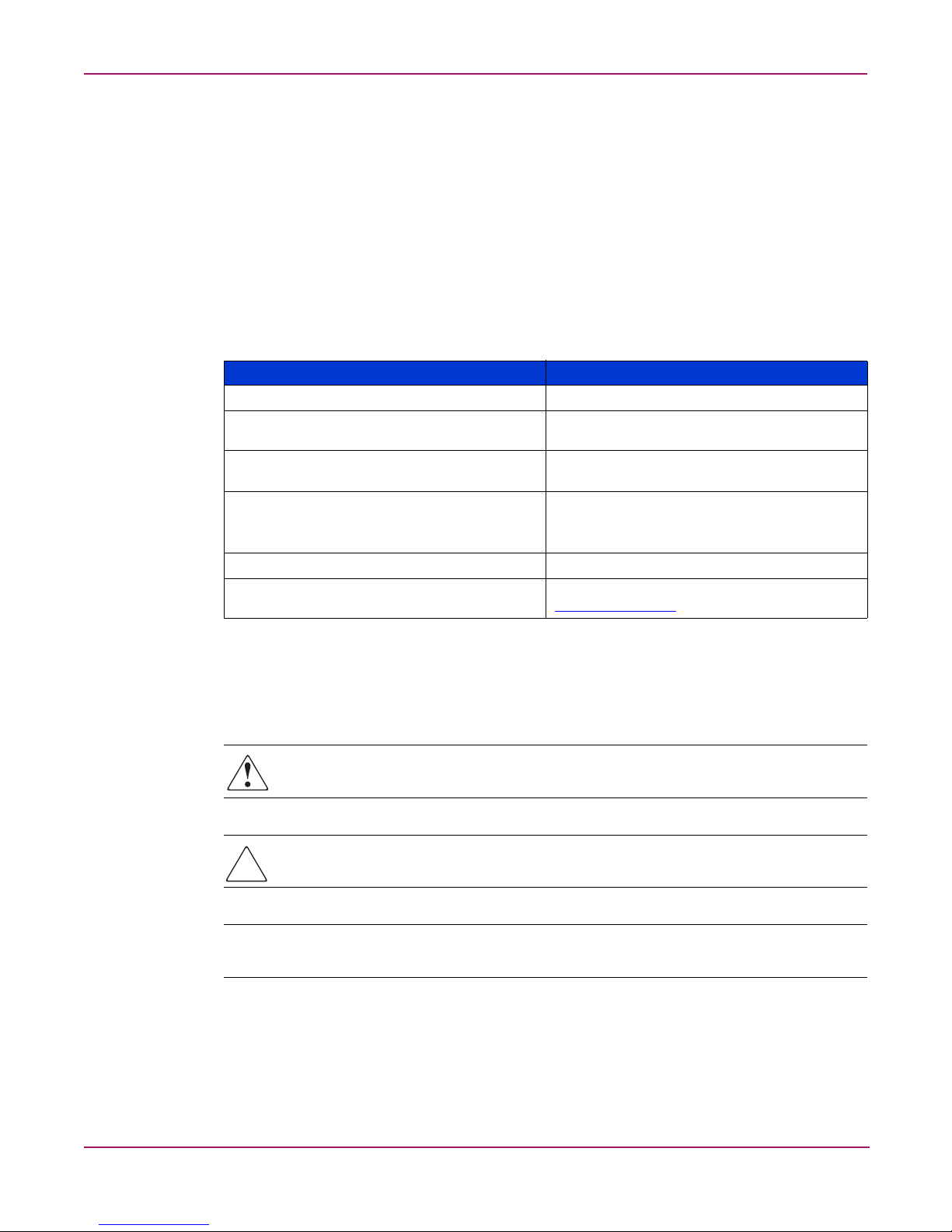
The document conventions included in Tabl e 1 apply in most cases.
Table 1: Document Conventions
Cross-reference links Figure 1
Key and field names, menu items, buttons, and
dialog box titles
File names, application names, and text
emphasis
User input, command and directory names,
and system responses (output and messages)
Variables <monospace, italic font>
Website addresses Underlined sans serif font text:
About this Guide
Element Convention
Bold
Italics
Monospace font
COMMAND NAMES are uppercase monospace
font unless they are case sensitive
http://www.hp.com
Text Symbols
The following symbols may be found in the text of this guide. They have the following
meanings.
Note: Text set off in this manner presents commentary, sidelights, or interesting points of
information.
Equipment Symbols
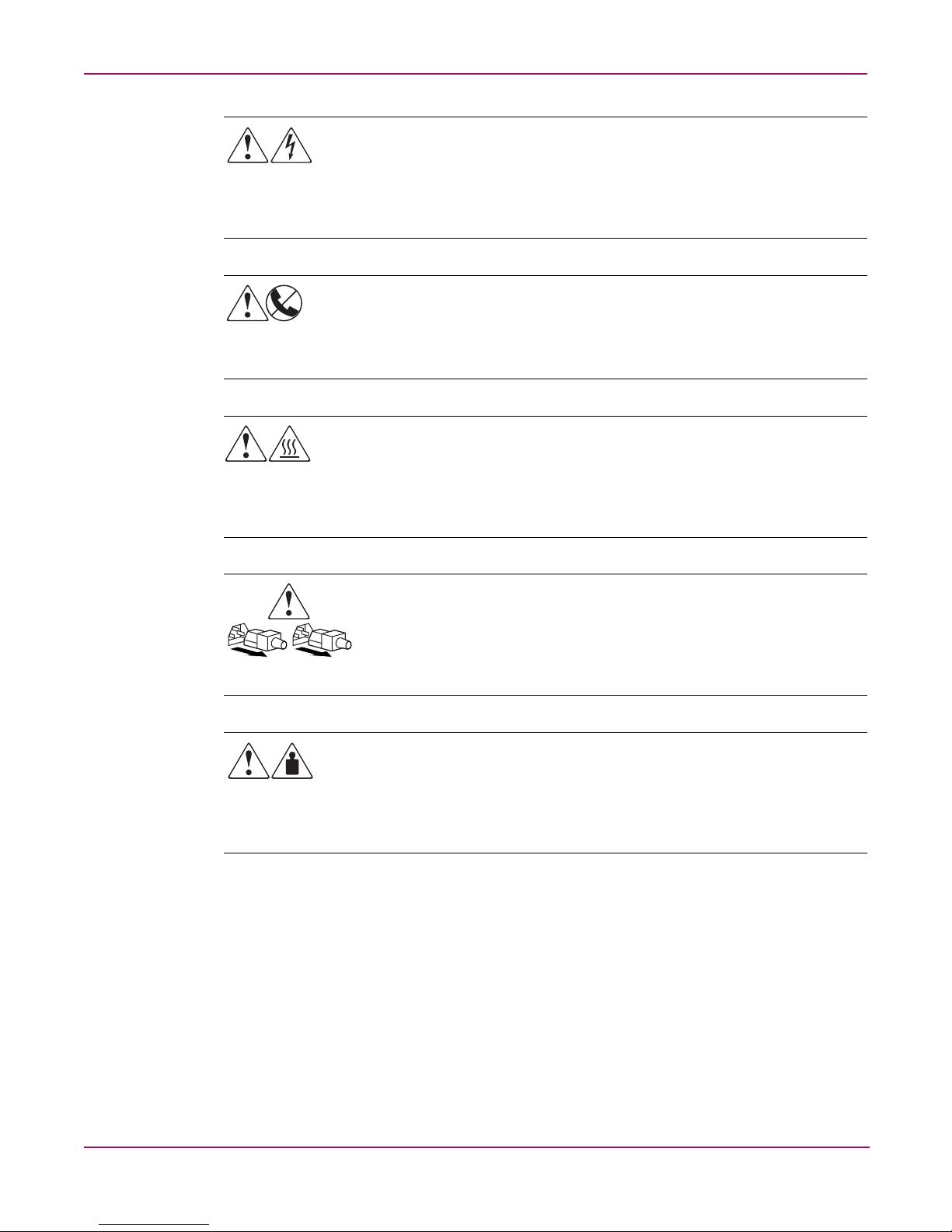
The following equipment symbols may be found on hardware for which this guide pertains.
They have the following meanings.
WARNING: Text set off in this manner indicates that failure to follow directions in the
warning could result in bodily harm or death.
Caution: Text set off in this manner indicates that failure to follow directions could result in
damage to equipment or data.
13NAS 1000s Administration Guide
Page 14
About this Guide
Any enclosed surface or area of the equipment marked with these symbols indicates
the presence of electrical shock hazards. Enclosed area contains no operator
serviceable parts.
WARNING: To reduce the risk of personal injury from electrical shock hazards, do
not open this enclosure.
Any RJ-45 receptacle marked with these symbols indicates a network interface
connection.
WARNING: To reduce the risk of electrical shock, fire, or damage to the equipment,
do not plug telephone or telecommunications connectors into this receptacle.
Any surface or area of the equipment marked with these symbols indicates the
presence of a hot surface or hot component. Contact with this surface could result in
injury.
WARNING: To reduce the risk of personal injury from a hot component, allow the
surface to cool before touching.
Power supplies or systems marked with these symbols indicate the presence of
multiple sources of power.
WARNING: To reduce the risk of personal injury from electrical shock, remove
all power cords to completely disconnect power from the power supplies and
systems.
Any product or assembly marked with these symbols indicates that the component
exceeds the recommended weight for one individual to handle safely.
WARNING: To reduce the risk of personal injury or damage to the equipment,
observe local occupational health and safety requirements and guidelines for
manually handling material.
14 NAS 1000s Administration Guide
Page 15

Rack Stability
Rack stability protects personal and equipment.
Getting Help
If you still have a question after reading this guide, contact an HP authorized service provider
or access our website:
HP Technical Support
About this Guide
WARNING: To reduce the risk of personal injury or damage to the equipment, be sure that:
■ The leveling jacks are extended to the floor.
■ The full weight of the rack rests on the leveling jacks.
■ In single rack installations, the stabilizing feet are attached to the rack.
■ In multiple rack installations, the racks are coupled.
■ Only one rack component is extended at any time. A rack may become unstable if more
than one rack component is extended for any reason.
http://www.hp.com
.
In North America, call technical support at 1-800-652-6672, available 24 hours a day, 7 days a
week.
Note: For continuous quality improvement, calls may be recorded or monitored.
Outside North America, call technical support at the nearest location. Telephone numbers for
worldwide technical support are listed on the HP website under support:
http://www.hp.com.
Be sure to have the following information available before calling:
■ Technical support registration number (if applicable)
■ Product serial numbers
■ Product model names and numbers
■ Applicable error messages
■ Operating system type and revision level
■ Detailed, specific questions
.
15NAS 1000s Administration Guide
Page 16

About this Guide
HP Storage Website
The HP website has the latest information on this product, as well as the latest drivers. Access
storage at:
HP Authorized Reseller
For the name of your nearest HP authorized reseller:
■ In the United States, call 1-800-345-1518
■ In Canada, call 1-800-263-5868
■ Elsewhere, see the HP website for locations and telephone numbers:
http://www .hp.com.
. From this website, select the appropriate product or solution.
http://www.hp.com
.
16 NAS 1000s Administration Guide
Page 17

System Overview
The HP StorageWorks NAS 1000s server can be used in many types of computing
environments, from basic Microsoft Windows workgroups to complicated multiprotocol
domains using CIFS, NFS, NCP, AppleTalk, FTP, and HTTP. The corresponding varieties of
clients that can be serviced include any Windows, UNIX, Linux, Novell, or Macintosh variant.
This chapter provides an overview of these environments and deployments and includes brief
descriptions of system user interfaces, applications, and options.
■ Product Definition and Information
— Server Hardware Features
— Software Features
— Product Information
■ Deployment Scenarios
■ Environment Scenarios
■ User Interfaces
— NAS 1000s Web Based User Interface
1
— NAS 1000s Console
Note: The NAS 1000s Console can be accessed via a directly connected keyboard and mouse, or
using Terminal Services.
17NAS 1000s Administration Guide
Page 18

System Overview
Product Definition and Information
The NAS 1000s is a business class NAS solution that provides reliable performance,
manageability, and fault tolerance.
Server Hardware Features
The following features are included in the NAS 1000s Model 1 server:
■ Intel Pentium 4 2.4 GHz processor
■ 512-MB 200 MHz PC2100 DDR SDRAM memory
■ 64-bit PCI-X slot
■ 64-bit PCI slot
■ Four 80GB 7200 rpm hot-pluggable hard drives
■ Two embedded 10/100/1000 WOL (Wake on LAN) network interface controllers (NICs)
■ SCSI Controller for tape backup
The following features are included in the NAS 1000s Model 2 server:
■ Intel Pentium 4 2.8 GHz processor
■ 512-MB 200 MHz PC2100 DDR SDRAM memory
■ 64-bit PCI-X slot
■ 64-bit PCI slot
■ Four 160GB 7200 rpm hot-pluggable hard drives
■ Two embedded 10/100/1000 WOL (Wake on LAN) network interface controllers (NICs)
■ SCSI Controller for tape backup
The following features are included in the NAS 1000s Model 3 server:
■ Intel Pentium 4 2.8 GHz processor
■ 512-MB 200 MHz PC2100 DDR SDRAM memory
■ 64-bit PCI-X slot
■ 64-bit PCI slot
■ Four 250GB 7200 rpm hot-pluggable hard drives
■ Two embedded 10/100/1000 WOL (Wake on LAN) network interface controllers (NICs)
■ SCSI Controller for tape backup
18 NAS 1000s Administration Guide
Page 19

Optional Features
The following features are optional for the NAS 1000s server:
■ Additional memory
■ Network interface cards (NICs)
■ Tape drive
■ SAN Fibre Channel Adapter for tape backup
Software Features
Advanced features included and supported by the NAS 1000s include:
■ Microsoft Services for Macintosh
■ Microsoft Services for NetWare
■ Microsoft Services for UNIX (SFU)
■ NAS Web Based User Interface (WebUI)
■ StorageWorks Data Copy (Trial Version)
■ Windows Powered OS
System Overview
■ Columbia Data Products Persistent Storage Manager
■ Optional third party supported software (not included):
— Backup software
— Management software
— Quota management
— Virus protection
For specific software product recommendations, go to the HP website:
http://h18000.www1.hp.com/products/s torageworks/nas/supportedsoftware.html
Product Information
The NAS 1000s provides performance gains over general purpose servers by integrating
optimized hardware components and specialized software. Integrating NAS devices into the
network improves the performance of existing servers because NAS devices are optimized for
file serving tasks.
19NAS 1000s Administration Guide
Page 20

System Overview
Product Manageability
The NAS 1000s ships with the following utilities and features that ease the administration
tasks associated with managing the system:
■ The Rapid Startup Utility is a user friendly configuration utility that ensures easy
configuration.
■ The WebUI is a simple, graphical user interface (GUI) that helps with administration
tasks.
Product Redundancy
The NAS 1000s is specifically designed to perform file serving tasks for networks, using
industry standard components to ensure reliability.
Other industry standard features, such as redundant array of independent drives (RAID) and
remote manageability, further enhance the overall dependability of the NAS 1000s.
To ensure redundancy and reliability, the hard drives installed in the NAS 1000s are configured
so that a single drive failure will not cause data loss or system failure. The NAS 1000s is
configured a with dual boot capibility. When powered on, the NAS 1000s can boot using a
primary OS or a secondary recovery OS. The primary OS resides on drive 0 and is mirrored
on drive 1 while the secondary OS resides on drive 2 and is mirrored on drive 3. If the primary
OS becomes corrupted and un-bootable, the secondary OS is available for data backup prior to
using the Quick Restore DVD to restore the system to the factory default state.
The data volume is configured as a RAID 5 volume across all four drives. This ensures
redundancy in the event of a drive failure and the data volume is accessible by both the primary
OS and secondary OS.
Product Scalability
The NAS 1000s offers optimized performance for a growing environment. Storage capacity
can increase as a business grows without downtime or compromised performance. Internally
the NAS 1000s can grow up to four data drives. With four 250GB disk drives storage capacity,
it can grow up to 1TB of raw storage.
20 NAS 1000s Administration Guide
Page 21

Deployment Scenarios
The default shipping configuration contains two 10/100/1000 integrated network interface
controller (NIC) ports for client data access. These data ports also allow access to the Web user
interface (WebUI) that accompanies the product. It is from the WebUI that most management
and administrative procedures can be accomplished.
Typical deployment scenarios include:
■ File server consolidation
As businesses continue to expand their information technology (IT) infrastructures, they
must find ways to manage larger environments without a corresponding increase in IT
staff. Consolidating many servers into a single NAS device decreases the number of points
of administration and increases the availability and flexibility of storage space.
■ Multiprotocol environments
Some businesses require several types of computing systems to accomplish various tasks.
The multiprotocol support of the NAS 1000s allows it to support many types of client
computers concurrently.
■ Protocol and platform transitions
When a transition between platforms is being planned, the ability of the NAS 1000s to
support most file sharing protocols allows companies to continue to invest in file storage
space without concerns about obsolescence. For example, an administrator planning a
future transition from Windows to Linux can deploy the NAS 1000s with confidence that
it can support both CIFS and NFS simultaneously, assuring not only a smooth transition,
but also a firm protection of their investment.
■ Remote office deployment
Frequently, branch offices and other remote locations lack dedicated IT staff members. An
administrator located in a central location can use the WebUI of the NAS 1000s, and
Microsoft Terminal Services to configure and administer all aspects of the NAS 1000s.
System Overview
21NAS 1000s Administration Guide
Page 22

System Overview
Environment Scenarios
The NAS 1000s is deployed into one of two modes:
■ Wo rkg ro up
■ Domain (Windows NT Domain or Active Directory Domain)
The NAS 1000s uses standard Windows user and group administration methods in each of
these environments. For procedural instructions on managing users and groups, see Chapter 4,
User and Group Management, of this guide.
Regardless of the deployment, the NAS 1000s integrates easily into multiprotocol
environments, supporting a wide variety of clients. The following protocols are supported:
■ Common Internet File System (CIFS)
■ Network File System (NFS)
■ NetWare Core Protocol (NCP)
■ Hypertext Transfer Protocol (HTTP)
■ File Transfer Protocol (FTP)
■ AppleTalk for Macintosh (AFP, also called MAC)
Workgroup
Domain
In a workgroup environment, users and groups are stored and managed separately, on each
member server of the workgroup. Workgroups are typical for very small deployments where
little or no computing environment planning is required.
When operating in a Windows NT or Active Directory domain environment, the NAS 1000s is
a member of the domain and the domain controller is the repository of all account information.
Client machines are also members of the domain and users log on to the domain through their
Windows based client machines. The domain controller also administers user accounts and
appropriate access levels to resources that are a part of the domain. Additional information
about planning for domain environments can be found at:
http://www.microsoft.com/windows2000/technologies/directory/ad/default .a s p
The NAS 1000s obtains user account information from the domain controller when deployed
in a domain environment. The NAS 1000s itself cannot act as a domain controller.
22 NAS 1000s Administration Guide
Page 23

User Interfaces
There are several user interfaces that administrators can use to access and manage the NAS
1000s. Two of these interfaces are:
■ NAS 1000s WebUI
■ NAS 1000s Console
Each interface contains the same or similar capabilities, but presents them in a different
manner. Each of these interfaces are illustrated in the following sections.
NAS 1000s Web-Based User Interface
The WebUI provides for system administration, including user and group management, share
management, and local storage management.
To access the WebUI, launch a Web browser and enter the following in the address field:
http://<your NAS machine name or IP Address>:3201/
Extensive online help for the WebUI is available by clicking Help on the primary WebUI
screen.
The primary screen of the WebUI is shown in Figure 1.
System Overview
Figure 1: Primary WebUI screen
As shown in Figure 1, the following areas are administered through this interface:
Status
The Status option displays system information, including disk status data and system
information.
23NAS 1000s Administration Guide
Page 24

System Overview
Network
Disks
Users
Shares
Maintenance
The Network option contains system settings, including system identification, global settings,
interfaces settings, administration settings, Telnet settings, and SNMP settings.
Use this option to manage disks, volumes, and disk quotas, and snapshots.
When deployed, the administrator uses this option to manage local users and groups. Local
users and groups are discussed in Chapter 4, User and Group Management.
The administrator creates folders and shares to control access to files. When a share is created,
the administrator indicates the protocols that can be supported by that share as well as the
users and groups of users that have access. Protocol parameters are entered in this Shares
option. See Chapter 5, Folder and Share Management, for additional information.
Maintenance tasks include setting date and time, performing system restarts and shutdowns,
viewing audit logs, accessing Terminal Services, and setting up Email alerts.
HP Utilities
Access HP system management utilities such as NAS Data Copy.
Help
This option contains help information for the WebUI.
Take a Tour
Take a tour and learn how to use your server appliance.
Rapid Startup Wizard
Use this utility to enter system setup and configuration information.
Set Server Appliance Name
Choose a name so that client computers can connect to the server appliance.
Set Administrator Password
Create a password for the server appliance administrator.
Set Default Page
Choose which page the server appliance displays first.
24 NAS 1000s Administration Guide
Page 25

NAS 1000s Console
The NAS 1000s Console can be accessed by:
■ Directly connecting a keyboard and mouse
■ Using the WebUI Maintenance tab and selecting Terminal Services
Note: When using Terminal Services to connect to the NAS 1000s Console do not use the window
close feature ( ). Click on Start/Log Off Administrator to exit Terminal Services.
System Overview
Figure 2: NAS 1000s Console
The following icons are available from the Desktop:
■ NAS Management Console
■ Install Data Copy
25NAS 1000s Administration Guide
Page 26

System Overview
NAS Management Console
Click this icon to access the following folders:
■ Core Operating System is used to manage local users and groups, access performance
logs and alerts, and manage the event viewer.
■ Disk System contains access to local disk management, including a volume list and a
graphical view of the disks.
■ File Sharing contains modules for the configuration of file sharing exports. CIFS
(Windows) and NFS (UNIX) file shares are managed through this folder.
■ System contains system summary information.
Data Copy
StorageWorks NAS Data Copy is a real time data replication and failover software product that
augments existing data protection and tape backup strategies. This product is not intended to
replace regular tape backups.
Download and install a free 30-day trial version of Data Copy from the software and driver
link of the NAS 1000s product page. To access the NAS 1000s product page:
go to
www.hp.com
1. select storage
2. select network attached storage from the networked storage options.
3. select the NAS 1000s
4. select software and drivers
See Chapter 2, Setup Completion and Basic Administrative Procedures, for additional
information.
26 NAS 1000s Administration Guide
Page 27

Setup Completion and Basic
Administrative Procedures
This chapter continues the process of setting up the system that was started using the HP
StorageWorks NAS 1000s Quick Start Guide by discussing additional setup procedures and
options.
Basic system administration functions are also included in this chapter.
Unless otherwise instructed, all procedures are performed using the NAS Web Based User
Interface (WebUI).
The following topics are included in this chapter:
■ Setup completion
— Managing system storage
— Creating and managing users and groups
— Creating and managing file shares
— Installing and configuring data replication software
■ Basic administrative procedures
2
— Setting the system date and time
— Powering down and restarting the server
— Viewing and maintaining audit logs
— Using terminal services
— Setting up email alerts
— Updating the software
— Changing system network settings
27NAS 1000s Administration Guide
Page 28

Setup Completion and Basic Administrative Procedures
Setup Completion
After the NAS device is physically set up and the basic configuration is established, additional
setup steps must be completed. Depending on the deployment scenario of the NAS device,
these steps may vary.
Additional setup steps may include:
■ Managing system storage
■ Creating and managing users and groups
■ Creating and managing file shares
■ Installing and configuring data replication software
Each of these setup steps is discussed in the following sections.
Managing System Storage
The NAS administrator uses Logical Disk Manager to manage disks and volumes, and uses
Persistent Storage Manager to manage snapshots. See the following chapters for more detailed
information on managing system storage:
■ Chapter 3, Persistent Storage Manager, discusses snapshot management procedures.
■ Chapter 5, Folder and Share Management, discusses folder and share management
procedures.
Creating and Managing Users and Groups
User and group information and permissions determine whether a user can access files. If the
NAS device is deployed into a workgroup environment, this user and group information is
stored locally on the device. By contrast, if the NAS device is deployed into a domain
environment, user and group information is stored on the domain.
To enter local user and group information, see Chapter 4, User and Group Management.
The following information is included:
■ Domain compared to workgroup environments
■ User and group name planning
— Managing user names
— Managing group names
■ Workgroup user and group management
— Managing local users
— Managing local groups
■ Drive quotas
— Managing quotas
— Enabling and disabling quota management
— Creating new quota entries for a user or group
— Deleting new quota entries for a user or group
— Modifying new quota entries for a user or group
28 NAS 1000s Administration Guide
Page 29

Creating and Managing File Shares
Files shares must be set up, granting and controlling file access to users and groups. See
Chapter 5, Folder and Share Management for complete information on managing file shares.
The following information is included:
■ Folder Management
— Navigating to a specific volume or folder
— Creating a new folder
— Deleting a folder
— Modifying folder properties
— Creating a new share for a volume or folder
— Managing shares for a volume or folder
— Managing file level permissions
■ Share Management
— Share considerations
— Defining Access Control Lists
— Integrating local file system security into Windows domain environments
Setup Completion and Basic Administrative Procedures
— Comparing administrative (hidden) and standard shares
— Planning for compatibility between file sharing protocols
— Managing shares
■ Protocol parameter settings
UNIX specific information is discussed in Chapter 6, UNIX File System Management.
29NAS 1000s Administration Guide
Page 30

Setup Completion and Basic Administrative Procedures
Installing and Configuring Data Replication Software
Data replication is the process of making a copy of system data. StorageWorks NAS Data
Copy is a real time data replication and failover software product that augments existing data
protection and tape backup strategies. This product is not intended to replace regular tape
backups.
Using NAS Data Copy, mission critical data and data that must be protected is marked. NAS
Data Copy replicates this data in real time from the production machine (source) to a backup
machine (target). The target machine can be either on site or off site. After the initial copy out,
NAS Data Copy monitors any changes to the specified data files and sends only the changes to
the target machine.
NAS Data Copy can operate in many different system environments, including:
■ Single machine—Source and target components are loaded on the same machine,
allowing data to be replicated from one location to another on the same machine.
■ One-to-one—One target machine, having no production activity, is dedicated to support
one source machine. An alternative one-to-one scenario is when each machine acts both as
a source and a target, actively replicating data to each other.
■ Many-to-one—Many source machines are protected by one target machine.
■ One-to-many—One source machine sends data to multiple target machines. The target
machines may or may not communicate with each other.
■ Chained—One or more source machines send replicated data to a target machine that in
turn acts as a source machine and sends selected data to a final target machine.
NAS Data Copy is supported for all deployments of the NAS 1000s.
30 NAS 1000s Administration Guide
Page 31

Setup Completion and Basic Administrative Procedures
To download and install a free 30-day trial version of Data Copy:
go to
www.hp.com
1. select storage
2. select network attached storage from the networked storage options.
3. select the NAS 1000s
4. select software and drivers
5. Double-click on the downloaded file, then follow the onscreen instructions.
Figure 3: NAS data copy install wizard
31NAS 1000s Administration Guide
Page 32

Setup Completion and Basic Administrative Procedures
Basic Administrative Procedures
Basic administrative procedures include:
■ Setting the system date and time
■ Shutting down or restarting the server
■ Viewing and maintaining audit logs
■ Using Terminal Services
■ Setting up email alerts
■ Updating the software
■ Changing system network settings
These functions are performed in the Maintenance menu of the WebUI.
Figure 4: Maintenance menu
32 NAS 1000s Administration Guide
Page 33

Setting the System Date and Time
To change the system date or time:
1. From the WebUI, select Maintenance and Date/Time. The Date and Time Settings
dialog box is displayed.
2. Enter the new values and then click OK. The Maintenance menu is displayed.
Setup Completion and Basic Administrative Procedures
Figure 5: Date and Time dialog box
33NAS 1000s Administration Guide
Page 34

Setup Completion and Basic Administrative Procedures
Shutting Down or Restarting the Server
Caution: Notify users before powering down the system. Both UNIX and Windows NT users
can be drastically affected if they are not prepared for a system power-down.
1. From the NAS 1000s WebUI, select Maintenance, Shutdown. Several options are
displayed: Restart, Shut Down, and Scheduled Shutdown.
Figure 6: Shutdown menu
a. To shut down and automatically restart the server, click Restart.
b. To shut down and power off the server, click Shut Down.
c. To schedule a shutdown, click Scheduled Shutdown.
2. Regardless of the choice, a confirmation prompt is displayed. After verifying that this is
the desired action, click OK. Several status messages are displayed during the shutdown
process.
34 NAS 1000s Administration Guide
Page 35

Viewing and Maintaining Audit Logs
A variety of audit logs are provided on the NAS 1000s. System events are grouped into similar
categories, representing the seven different logs.
To access the logs from the WebUI, select Maintenance, Logs. The Logs menu is displayed.
Setup Completion and Basic Administrative Procedures
Figure 7: Logs menu
A variety of logs are available and are listed in Figure 7.
Each log has viewing, clearing, printing, and saving options.
35NAS 1000s Administration Guide
Page 36

Setup Completion and Basic Administrative Procedures
Using Terminal Services
Terminal Services is provided in the WebUI to allow for additional remote system
administration and the use of approved third-party applications. Backup software and antivirus
programs are examples of approved applications.
In addition, Terminal Services is used to access the NAS Management Console of the NAS
device.
To open a Terminal Services session from the WebUI, select Maintenance, Ter mi na l
Services. A Terminal Services session is opened. Enter the appropriate password to log on to
the server.
Figure 8: Terminal Services session
Caution: Two open sessions of Terminal Services are allowed to operate at the same time.
After completing an application do not use the window close feature ( ) to close that
session of Terminal Services. Click on Start/Log Off Administrator to exit Terminal Services.
Setting up E-mail Alerts
If desired, the system sends emails of system events to a specified email account. When
activated, this feature sends an e-mail whenever system alerts occur.
To activate this option:
1. From the WebUI, select Maintenance, Alert E-mail. The Set Alert E-Mail dialog box is
displayed.
2. Select Enable Alert E-mail.
3. Indicate the types of messages to be sent.
■ Critical alerts
■ Warning alerts
■ Informational alerts
4. Enter the desired e-mail address in the appropriate boxes.
5. After all settings have been entered, click OK.
36 NAS 1000s Administration Guide
Page 37

Updating the Software
To update the software, click on Software Update from the Maintenance menu. The
Software Update Wizard will guide you through selecting, verifying, and updating the desired
software.
Changing System Network Settings
Network properties are entered and managed from the Network menu. Most of these settings
are entered as part of the Rapid Startup process. Settings made from this menu include adding
the NAS 1000s to a domain.
Online help is available for these settings. Figure 9 is an illustration of the Network settings
menu.
Setup Completion and Basic Administrative Procedures
Figure 9: Network menu
37NAS 1000s Administration Guide
Page 38

Setup Completion and Basic Administrative Procedures
38 NAS 1000s Administration Guide
Page 39

Persistent Storage Manager
Persistent Storage Manager lets the administrator make replicas, called snapshots, of disks in a
matter of seconds. Snapshots enable the creation of multipurpose virtual replicas of production
data without having to physically copy the data. They can be used to immediately recover a
lost file or directory, to test a new application with realistic data without affecting the "real"
data, and to serve as a source of data for backups. Snapshots record data changes on volumes
and are thus not a replacement for off-line backups.
This chapter covers the following items:
■ Operational Overview
■ Data Recovery
■ Snapshot (Persistent Image) Considerations
■ Accessing Persistent Storage Manager
Operational Overview
3
Each snapshot is a complete point-in-time representation of the data on the volumes. Each
snapshot requires only a fraction of the hard-drive capacity of the original data. PSM does not
keep all the data that was ever written. PSM maintains only the data required to maintain a
snapshot.
PSM works below the operating system as a Filter Driver at the Volume block level. PSM
maintains a library of snapshots, each representing a specific point-in-time. Snapshots can be
accessed by users, administrators, or any Windows application, and look just like the familiar
file/folder view.
With the first snapshot taken on a target volume, PSM establishes a cache file for that volume
within which PSM retains overwritten data required to build a snapshot. The cache file size is
based on a percentage of the volume it resides on and is configured through the WebUI; the
default is 10 percent. As soon as the first snapshot is taken, PSM starts monitoring all writes on
the target volume. When a write request occurs, PSM intercepts and pauses the write, reads the
data that is to be overwritten, and saves the data in a Diff Directory within the PSM-specific
cache file. After the original data is written to the Diff Directory, the new data is written on the
active volume. This process is referred to as "copy-on-write." Only the first write forces a
copy-out, subsequent writes to the same data block does not force a new copy-out, unless of
course a new snapshot is taken between the initial and subsequent write.
PSM can create and manage up to 250 snapshots system wide. A snapshot can cover several
volumes at once with an upper limit of 63 volumes within a single snapshot. However, when
reverting from a "grouped" snapshot, the revert is non-selective and it reverts all volumes
associated with the "grouped" snapshot.
39NAS 1000s Administration Guide
Page 40

Persistent Storage Manager
Reading Snapshots
Users who have been granted access by the NAS Administrator see snapshots as network
shares.
A snapshot is a representation of the NAS volume at the time it was created. During the
copy-on-write operation, the data to be overwritten is preserved in the PSM Diff Directory.
When reading a snapshot, PSM determines if the data has changed, meaning it is located in the
Diff Directory, or if it is on the live volume. For data that has changed, PSM inserts the
original data, held in the Diff Directory and, where no changes have occurred, PSM reads
directly from the live volume.
Creating Snapshots
Creation of snapshots is scheduled through the SAK interface or may be generated by the NAS
Administrator as a one-time request. When the command to create a snapshot is issued, PSM
begins monitoring the file system looking for a quiescent period. A quiescent period is the
amount of time a volume must be dormant before a snapshot is created. The default quiescent
duration is five seconds but the NAS administrator may configure this, as can the amount of
time PSM should search for this inactivity window. The quiescent period provides sufficient
time for completion of writes and for the various software buffers to flush, the premise being
that, by the end of the quiescent period, a volume will be produced which is in a stable state
meaning that the volume is at rest and in a functional condition ready for users to access. If the
volume is captured in a stable state, then that volume, or files and folder contained in the
volume, will be returnable in a stable state or "useable condition" to users.
Following the quiescent period, PSM creates the snapshot.
PSM Snapshot Attributes
When creating PSM snapshots there are three basic attributes which affect the life and
consistency of the snapshot. They are Read-only, Read/write and Always Keep. Read-only
should be used to enforce the integrity of a snapshot so that changes can not be made to.
Read/Write can be used in instances where test data is useful, such as developers altering a test
website. Always Keep is useful when a snapshot needs to live indefinitely. These attributes are
described in detail below.
Read Only
The default setting is for PSM to create "READ ONLY" snapshots which prohibits any
modification to the snapshot - this is the most common parameter for snapshots. A READ
ONLY snapshot allows users, who have been granted access, to view, open and save a copy of
any file represent in the snapshot. The properties of a READ ONLY snapshot may be modified
by the NAS Administrator to READ/WRITE or ALWAYS KEEP.
Read/Write
The READ/WRITE attribute may be assigned at the time of creation or the NAS
Administrator may at any time change the attribute of any snapshot. READ/WRITE snapshots
provide some unique capabilities to PSM.
READ ONLY snapshots changed to READ/WRITE snapshots and then modified return the
data represented in the snapshot to the way it was originally, effectively acting as an UNDO.
40 NAS 1000s Administration Guide
Page 41

Other applications for READ/WRITE snapshots: CFOs and auditors can run trial balances to
accounting systems without affecting the actual systems. Prototyping, a new version of a
program, can be installed in a READ/WRITE snapshot and its compatibility within the system
tested with no adverse effects to the primary system.
Always Keep
ALWAYS KEEP snapshots are treated as untouchable by PSM. In a cache file fill situation
PSM will cease writing to the cache file to avoid deleting or corrupting an ALWAYS KEEP
snapshot. A "disk full" error will be returned to the user. ALWAYS KEEP allows the
administrator to set some milestones that are not subject to the automatic deletion routines.
Automated Snapshot Deletion
PSM has a snapshot weighting system (low to highest) that helps set the priority of the
snapshot. This weighting combined with the age of the snapshot determines the order by
which it is deleted by PSM when the cache file fills up.
A key fact to consider is that PSM provides Primary Data Protection automatically. Once set
up, PSM continues to provide Data Protection generating new scheduled snapshots or deleting
older snapshots with little or no input required from system administrators.
Persistent Storage Manager
Data Recovery
File/Folder/Volume Recovery
PSM facilitates instant data recovery from the stored on-line images. Individual files, groups
of files, folders, groups of folders or complete volumes can be restored. Recovering the data
can be accomplished by the NAS Administrator or the NAS Administrator can give individual
users access to their data for that purpose through file share access over the network.
Security rights and privileges, as well as file and directory attributes, remain in effect as they
were at the time the snapshot was created.
Snapshots and Drive Defragmentation
A drive defragmenter attempts to consolidate files on a drive by reading various parts of the
files and rewriting them to become contiguous on the drive. When volumes are created they
are initially contiguous as possible on the underlying storage units (RAID arrays and LUNs).
If defrag utilities are used on volumes where snapshots exists, snapshots would grow as the
defrag utility moves blocks from one part of the disk to another. PSM disables defrag on
volumes that have current running snapshots to prevent the unnatural growth of the snapshot.
PSM (current versions) is fully compatible with the Windows 2000 system file defrag utility.
On drives upon which snapshots are not installed or are not active, the defrag utility runs
without interruption. If snapshots are active, by design, the drive is automatically marked as
unavailable for defragmentation. In operation, the utility works as designed - providing defrag
on volumes where it is allowed and omitting drives with active PSM Images. There is no user
intervention required. This is consistent with the defragmentation handling of system and
special files and is officially supported by the Microsoft defrag API. In the rare case when an
existing volume requires defrag, disable scheduled snapshots, delete all snapshots on the
volume and defrag the volume. When defrag completes, re-enable scheduled snapshots.
Defrag is only effective when there are NO snapshots active on the volume being defragged.
41NAS 1000s Administration Guide
Page 42

Persistent Storage Manager
Note: Defragmentation can not be performed if snapshots exist. To defragment a disk, first delete
the snapshots. Drive defragmentation only operates on volumes formatted with a 4 KB or smaller
allocation size. HP recommends larger allocation cluster sizes to improve performance.
PSM and Backup
Because snapshots are quick to create, it is possible to capture a coherent view of the volume
data with little or no application downtime. Lack of application downtime removes the
traditional backup window or the amount of time taken to back up to offline media. While
many applications must be shut down to capture an accurate backup, snapshots capture a point
in time view of the data that can be used as the source of backup data. Applications can
continue processing against the volume. Therefore, applications may only have to be
interrupted for a few seconds during the snapshot process.
Caution: Snapshots are not a replacement for reliable, periodic data backup. If free cache
space becomes critical, snapshots are automatically deleted. See the "Automated Snapshot
Deletion" section. In addition, snapshots are a short term convenience and may reside on
the same physical drives as the data. If something happens to the data drives, the snapshots
are also affected. Read Appendix A for suggestions on how to back up the NAS device.
Although snapshots provide a mechanism for backup that does not require downtime, there are
some considerations that should be given when performing backup and restore of a system
using snapshots. HP recommends you review this section prior to establishing backup and
restore policies. Backup and Restore programs are not trivial applications. As such they
require effort to set up and use effectively. Given the nature of these products, it is critical that
any backup and recovery plan be thoroughly tested before use on a live system.
Be sure to use a backup program that is PSM aware and has been certified for operation with
PSM. This is especially true for open file options, system agents, and disaster recovery.
For backup:
■ For base volumes that have snapshots in use or when backing up snapshots, archive bit
resets and incremental backups should not be used. Archive bit resets are recorded as a
change to the data and can fill the cache file with changes. Incremental backups make use
of the archive bit set as well. Note if the snapshot is set to read only the backup will also
fail.
■ Be careful in the selection of folders, since snapshot folders provide a view into the data
that can result in the backup of multiple views of the data. Forcing the backup to grow
based on the number of snapshots in use.
■ Junction points should be turned off to prevent the traversal of multiple snapshot
directories of base volume backups.
■ Junction points should be turned on when backing up a single snapshot. Be sure to pick the
single snapshot and not the root folder. Selecting the root folder will cause multiple
snapshot backups.
42 NAS 1000s Administration Guide
Page 43

For restore:
■ Delete all active snapshots as the restore will cause the cache file to grow.
■ Select only the files representing the data of the volume and not the *.psm files.
■ Be sure to restore to the root of the target volume.
■ Restoration of operating system partitions does not restore the registry hive. System state
backups should be utilized in these instances.
Snapshots Performance Impact
When using snapshots, performance of the disk may be affected, depending on the rate that
data is changing and the number of snapshots kept for each disk. Read performance of the disk
remains constant, regardless of the presence of snapshots. Read performance of the snapshot is
identical to that of the disk. Write performance, however, may vary. PSM creates minimal
additional I/O overhead which is limited to writes. The copy-on-write process adds one read
(the write is paused to read the old data) and one write (the old data is written to the Diff
Directory file) to each write system request. This only affects each initial write to a disk area
that has a snapshot running on it. Copy out is not performed on subsequent writes to the same
disk block, so write performance is unaffected after the initial write to each block.
Predicting the exact effect of snapshots on any particular disk is difficult, because several
variables are involved. These variables include the type of applications accessing the data and
the rate of change of the files on the disk. When a high percentage of writes is made to the
same area, as when a file is constantly rewritten, the effect is called write locality. Disks with
high write locality experience less performance degradation due to snapshots.
Persistent Storage Manager
Recovering Snapshots after a System Restore or System Loss
The NAS 1000s ships with a Quick Restore DVD in case the server must be restored to its
factory default state. If the primary operating system becomes corrupted and unaccessable,
registry information for existing snapshots are lost. Volume data remains unaltered and
accessable using the secondary OS. However, the snapshots are invalid. Even though all
snapshot folders and cache files exist on the system volumes, the snapshots are not accessible
to PSM in the secondary OS, and are orphaned. At this time, the user should backup all data
by booting using the secondary OS and then restore the system to it's factory default state
using the included Quick Restore DVD.
Caution: Performing a quick restore prcedure using the Quick Restore DVD will delete all
data on all drives in the system.
43NAS 1000s Administration Guide
Page 44
Persistent Storage Manager
Granule Size Update Utility
PSM ships with a utility for adjusting the Granule size of the snapshots. Granules determine
the largest cache size that can be managed by PSM. The default setting in the PSM product
that ships on the NAS 1000s is 64 K. This setting will allow for up to 1 TB of data to be
written to the cache file. In order to gain greater cache file space, the granule size will need to
be adjusted. The following table provides an overview of the addressable storage space and
maximum cache size of each Granular size.
Table 2: Adjusting Granule Size
Granule Size Largest Cache Size
64K granule 1 TB
128K granule 2 TB
256K granule 4 TB
When considering the granule size the following rules should be observed.
■ Before altering the granule size, all snapshots should be removed from the target system.
■ Cache File size is fixed as in the above table and the limit applies to the sum total of all
cache files system wide.
■ Granule size affects only the block size utilized for each change that is written to the cache
files. Regardless of the setting, there is approximately 15.6 million blocks available for
storing snapshot information system wide other system limitations may further limit this
maximum such as memory consumption.
■ If the changes occur in different underlying blocks, more blocks of larger space could get
written for any set of changes, versus if the changes all occur in the same block. Therefore
increased granule size does not necessarily lead to increased coverage for changes on the
originating volumes. In theory, larger blocks should lead to fewer blocks consumed to
record the original data due to write locality.
■ Highly fragmented disk space could lead to increased separate cache writes and more
consumption of the maximum available number of blocks system wide.
■ Setting the value too low will limit the available space for cache file writes. For example, a
10 TB system undergoing change could only experience a 10 % change in original data if
the granule size is set to 64 KB, assuming all of the changes fit neatly into the 64KB
blocks.
■ PSM now supports the PSM granule sizes of 64K, 128K, 256K with 64K as the default.
This will allow for cache file to be 1TB, 2TB, and 4TB respectively. The program
GRANSIZE.EXE, available in the directory c:\winnt\system32\serverappliance, is
provided for setup - By increasing the granule size, PSM can be better suited to support
very large terabyte systems. The command provides an error message if there are running
snapshots on the system. Typing GRANSIZE ? will display the current granule size in use
in the system. Typing just GRANSIZE will display the command usage. The command
must be executed from a command prompt while residing in the directory stated above.
44 NAS 1000s Administration Guide
Page 45

■ When changing to a larger granule for systems, thus allowing for larger cache file sizes
and accommodating larger amounts of storage, users should lower their percentage of
volume space for the cache file. For example, if the percent is 30 and the supported
amount of space in the system is 20 TB, then the cache file limit of 4 TB would get
exceeded. Should the limit get exceed, PSM will issue an "Out of Memory" error in the
event log and the WebUI status page. If the limit is exceeded, the cache file must be
removed or reduced in size prior to system restart using either the clearvol command or by
reducing the percent cache size under volume settings.
Clearing the Cache File from the System
The PSM interface allows the user to set the cache file to any percentage from 1 - 70 percent
but it will not allow the deletion of the cache file in its entirety. It is possible to delete these
files but the process must be done from the command prompt either through Terminal Services
or from the NAS console. To delete the PSM cache files and cache directories the following
command: CleanVol.exe Vol: must be performed for each existing volume where the cache file
is no longer desired. The command may be found in c:\winnt\system32\serverappliance.
Typing cleanvol will display the command usage. Prior to these steps the snapshots on the
target volume need to be deleted as well or "access denied" error will be returned.
Persistent Storage Manager
Re-extending Volumes from Old Snapshots
Volumes based on dynamic disks may be extended utilizing LDM. Corresponding snapshots
can exist at points in time prior to the extension and after the extension. If a re-extended
volume containing snapshots of the pre-extended volume is reverted, the re-extended area of
the disk will be unusable. To reclaim this space, make sure the included utility reextend.exe is
executed after reverting from a snapshot of the pre-extended volume.
This utility is available in the directory c:\winnt\system32\serverappliance and must be
executed either through terminal services or at the NAS console.
Usage of this utility is available by typing reextend -?.
This program will extend a volume back to its original size after a restore operation of a
smaller volume from a snapshot.
Volume Display in Persistent Storage Manager
PSM fully supports the use of all Logical Disk Manager storage elements this includes basic,
dynamic, partitions, extended partitions, and volumes provided they are formatted as NTFS
when created. PSM makes use of two items when displaying storage elements in the UI. These
include the volume label and the GUID representing that volume or partition. In several web
pages, the information displayed is limited with regard to the identification information and
the volume label is essentially all that can be viewed. It is therefore important that volume
labels be identifiable by the user to avoid confusing one volume over another. By default,
Local Volume, followed by the drive letter is displayed, for mount points the GUID is
displayed. This label should be updated to reflect a unique label either during volume/partition
creation in LDM or post volume/partition creation via File Explorer and the properties tab of
the target drive.
45NAS 1000s Administration Guide
Page 46

Persistent Storage Manager
Persistent Storage Manager Storage Limitations
The version of PSM included in the NAS 1000s is currently designed to work with 10 TB of
storage with the ability to take 250 snapshots The NAS 1000s is capable of addressing 1TB
using the fully populated system and 250 GB Drives. PSM will continue to function with
larger systems but the snapshot coverage should only encompass 10 TB worth of storage.
There are no safeguards to prevent the use of storage greater than 10 TB. HP is currently
working with CPD to address this storage limitation. Please check the HP website for updates
reagarding this suppport.Accessing Persistent Storage Manager
To access PSM, from the WebUI Welcome screen, select Disks, then Persistent Storage
Manager.
Figure 10: PSM Main screen
46 NAS 1000s Administration Guide
Page 47

Global Settings
From the Global Settings screen you can control the overall environmental settings for
Persistent Storage Manager. Some options will be disabled if there are already active
snapshots.
Persistent Storage Manager
Figure 11: Global settings
Maximum Persistent Images
This option determines the maximum number of active Persistent Images (snapshots). PSM
will support a maximum of 250 snapshots per server. The size of the cache file will determine
the actual amount each server can hold.
If the creation of a new snapshot would cause the maximum number to be exceeded, the
system will delete the oldest existing persistent image according to the deletion heuristics
established by the user.
Inactive Period
This option specifies the amount of time a volume must be dormant before a snapshot is
created. Before starting a snapshot, the system will wait for the volume being imaged to
become inactive. The default value will allow systems to start an image with a consistent file
set and a minimal time-out. Administrators can change this value for system optimization.
Reducing the inactive period will allow you to create snapshots even on busy systems, but with
possible synchronization problems within applications which are concurrently writing to
multiple files.
47NAS 1000s Administration Guide
Page 48

Persistent Storage Manager
Inactive time-out
This option specifies how long the server should try to create a snapshot. A snapshot will not
begin until a period of relative inactivity set by the Inactive period has passed. If an interval
passes that is longer than the Inactive time-out period, the snapshot will not be created and a
notice generated to the system event log.
Image directory
This option specifies the root directory used for the snapshot. Each snapshot appears as a
subdirectory of the volume that is being imaged. The entire content of the volume as it existed
at the moment the snapshot was created will appear under this directory.
Restore Defaults
The Restore Defaults button will reset the system defaults.
Volume Settings
From the PSM screen select Volume Settings. From the Volume Settings screen you can view
the Persistent Storage Manager attributes for each volume and change volume settings using
the Configure button in the Tasks list.
Figure 12: Volume settings
Available Volume
This field lists all of the volumes that can support snapshots. You can select the volume you
want to configure.
48 NAS 1000s Administration Guide
Page 49

Size
This column displays the size of the volume.
Free Space
This column displays the available storage size of the volume.
Cache Size
This column specifies the amount of space allocated to the cache file. Increasing this value will
allow more and larger snapshots to be maintained.
Usage
This column displays the current cache file use as a percentage of the cache size.
Volume Configuration Settings
Persistent Storage Manager
Figure 13: Volume configuration settings
Click Configure from the Volume Settings to modify the various aspects of the PSM volume
attributes. Some of the fields will appear read-only if there are active snapshots. The Restore
Defaults button will re-establish the system defaults. If it is desired to remove the cache files
all together the CLEANVOL.EXE can be used to remove them; see the section on clearing the
cache file. Also note the section on granular size in this chapter, prior to updating the percent
reserved for cache size. The default value is 10 percent.
49NAS 1000s Administration Guide
Page 50

Persistent Storage Manager
Note: Changing the values for the cache size can result in cache files that exceed the maximum
cache file based on the current granule size. If the limit is exceeded "out of memory" notices appear
in the event log and the WebUI status page when the first snapshot utilizing that cache file is taken.
The snapshot will fail to create but the cache file is built regardless. It is important to reduce the
cache file size via the above screen or clean the cache files prior to the restart of the NAS system if
an oversized cache file is created.
Warning threshold reached when
This option defines the percentage of cache space which, when consumed, will trigger warning
messages to the system event log.
Begin deleting images when
This option defines the percentage of cache space which, when consumed, will trigger the
automatic deletion of the oldest snapshot on the system. Automatic snapshot deletions are
recorded in the system log.
Cache size
This option specifies the amount of space allocated to the cache file. Increasing this value will
allow more and larger snapshots to be maintained. Make sure that adequate space is available
on the drive where snapshots are stored.
Schedules
Figure 14: Persistent Image Schedules
The Persistent Storage Manager Schedules page displays a list of scheduled snapshots and
associated tasks.
50 NAS 1000s Administration Guide
Page 51

Each scheduled snapshot contains information such as its scheduled time, day, frequency,
starting date, and group name.
Schedules screen allows you to create new schedules, delete existing schedules, and edit
schedule properties.
Create a New Schedule
Persistent Storage Manager
Figure 15: Create Persistent Image Schedule
To create a new schedule, you must supply a starting time, repeat period, starting day, volume,
and the number of snapshots to make available to users.
To add a snapshot to the schedule:
1. Select Schedules from the PSM Main screen.
2. In the Ta sk s list, select New.
3. Select the parameters you want for the schedule.
4. Click OK.
51NAS 1000s Administration Guide
Page 52

Persistent Storage Manager
Editing Persistent Image Schedule Properties
Figure 16: Edit schedule properties
To edit persistent image schedule properties:
1. Select Schedules from the PSM Main screen.
2. In the Ta sk s list, select Properties.
3. Select the changes you want to make to the schedule.
4. Click OK.
52 NAS 1000s Administration Guide
Page 53

Deleting a Persistent Image Schedule
Persistent Storage Manager
Figure 17: Delete scheduled images
To delete a persistent image schedule:
1. Select Schedules from the PSM Main screen.
2. Select the schedule you want to delete.
3. In the Tasks list, select Delete.
4. Click OK.
53NAS 1000s Administration Guide
Page 54

Persistent Storage Manager
Persistent Image and Group Information
Figure 18: Persistent Image and Group Information
After a snapshot is created from the schedule you specify, it becomes a member of an image
group. The Persistent Image and Group Information page can be accessed by selecting the
desired snapshot and clicking Details on the Persistent Images to Restore screen. The screen
displays the following information about the image group:
Image name and location on volume
This field displays the name of the image and its path.
Persistent image group name
This field displays the name assigned to this group.
Number of images in group
This field displays the maximum number of images that can be included in the group.
Volumes included in this image
This field displays each volume included in the image.
Image attributes
This field displays the read-only or read/write attribute of the image.
54 NAS 1000s Administration Guide
Page 55

Retention weight
This field displays the relative retention weight of the image.
Most recent image in group
This field displays the date and time of the image most recently added to the group.
Oldest image in group
This field displays the chronologically oldest image in the group.
Next image in group to be deleted
This field displays the date and time of the image that will be deleted next so the system can
stay within the saved images limit.
Managing Persistent Images
Persistent Storage Manager
Figure 19: Managing persistent images
The Persistent Images page displays active persistent images. Each entry identifies the date
and time the snapshot was created, the read-only or read/write attribute, the preservation
weight, and the volume it preserves.
To manage snapshots:
1. From the PSM Main screen select Persistent Images.
2. Select the snapshot you want.
55NAS 1000s Administration Guide
Page 56

Persistent Storage Manager
3. Choose one of the following tasks:
a. Choose New to create a new snapshot.
b. Choose Properties to view or change the image read/write attribute or retention
weight.
c. Choose Delete to delete the image from the system.
d. Choose Undo to undo changes to a read/write image.
Creating a New Persistent Image
Figure 20: Create new persistent image
Snapshots may be created directly through the Persistent Images page. You can also use the
Schedules page to schedule future or recurring snapshots. To create a new snapshot:
1. From the PSM Main screen select Persistent Images.
2. In the Ta sk s list, choose New.
3. In the Volumes to include list, choose volumes to be included in the image.
4. Select the Read-only or Read/Write button.
5. Select a retention weight from the Retention weight list.
6. Type the image name in the Image name box.
7. Choose OK.
56 NAS 1000s Administration Guide
Page 57

Deleting a Persistent Image
Persistent Storage Manager
Figure 21: Delete Verification
To delete a persistent image:
1. From the PSM Main screen select Persistent Images.
2. Select the snapshot you want to delete.
3. In the Ta sk s list, choose Delete.
4. Choose OK.
57NAS 1000s Administration Guide
Page 58

Persistent Storage Manager
Editing Persistent Image Properties
Figure 22: Edit Persistent Image Properties
You can change properties such as the read-only attribute or preservation weight of an image.
To edit persistent image properties:
1. From the PSM Main screen select Persistent Images.
2. In the Ta sk s list, choose Properties.
3. Select a retention weight from the Retention weight list.
4. Select the Read-only or Read/Write button.
5. Choose OK.
58 NAS 1000s Administration Guide
Page 59

Undo Persistent Image Changes
Persistent Storage Manager
Figure 23: Undo Image Changes
After you create a read/write snapshot, you can make changes to the image, for example, you
can modify files in the image, add new files, or delete existing files. If you make a change to an
existing image and later want to revert to the original file contents, you can use the following
procedure to restore the original snapshot.
To undo snapshot changes:
1. From the PSM Main screen select Persistent Images.
2. Select the snapshot you want to restore to its original state.
3. In the Ta sk s list, choose Undo.
4. Choose OK.
59NAS 1000s Administration Guide
Page 60

Persistent Storage Manager
Restoring an Image
Figure 24: Images available to restore
The Persistent Images to Restore page displays a list of all snapshots. You can choose to
view an image or restore your server appliance to an image you have previously created.
To restore a snapshot:
1. On the PSM Main screen select Restore Persistent Images.
2. Select the snapshot you want to restore.
3. Choose Restore.
60 NAS 1000s Administration Guide
Page 61

Persistent Storage Manager
Figure 25: Restore confirmation screen
4. After selecting Restore the Are you sure screen will appear.
5. Choose OK.
Note: PSM will not allow the restoration of the system partition from a snapshot. No error is issued,
it simply will not revert the volume. PSM protects the system partition against the revert operation,
since it would potentially lead the operating system in an inconsistent state.
61NAS 1000s Administration Guide
Page 62

Persistent Storage Manager
Known Issues
These were the known issues at time of publication. Please refer to the release notes for the
NAS 1000s for updated information regarding known issues.
Event log error at cache full
The eventlog error a driver below this one has failed in some way may occur when the cached
file is full.
Display Error on SAK
Status events not rendered properly on SAK. The percent signs not displayed value
substitutions missing in displayed message
Always Keep error at cache file full
If all your snapshots on C:\ are tagged as Always Keep and the cache file fills up, the system
may experience a BSOD at reboot.
It is not recommended to flag all snapshots as Always Keep because this disallows the PSM
deletion logic to delete the older snapshots to free up cache file space.
Improper display of default Cache File Size
You must delete all snapshots before changing the cache size.
Page file setting
The Page file size must not change and the initial size must be set equal to the maximum size.
This setting is located in the Virtual Memory settings under System Properties.
No Boot - No Revert
If the system cannot boot, a revert operation cannot be performed.
Reverting of System Drive Prohibited
PSM does not allow the ability to revert the system boot drive.
No support for mount points in UNIX, AppleTalk, or NetWare
Microsoft confirmed that the Microsoft NFS Services for UNIX, Services for Macintosh, and
Services for NetWare do not support volume mount points. These clients will not be able to
access data on volumes mounted using a volume mount point. Since snapshots for a volume
are mounted as directory junctions (AKA mount points), and even though they are shared
these clients will not be able to access the snapshots.
Please refer to the Microsoft Release Notes for Microsoft Server Appliance Kit dated June
2001.
62 NAS 1000s Administration Guide
Page 63

User and Group Management
The HP StorageWorks NAS 1000s supports a variety of file sharing protocols for file access
over a network, including:
■ Common Internet File System (CIFS)
■ Network File System (NFS)
■ Novell Core Protocol (NCP)
■ AppleTalk (AFP)
Access to shares requires a network logon (username and password). It follows that a
fundamental part of managing shares involves managing the users and groups that have access.
There are two system environments for users and groups: workgroup and domain. Because
users and groups in a domain environment are managed through standard Windows NT or
Windows 2000 domain administration methods, this document discusses only local users and
groups, which are stored and managed on the NAS device. For information on managing users
and groups on a domain, refer to the domain documentation.
4
The following topics are addressed in this chapter:
■ Domain Compared to Workgroup Environments
■ User and Group Name Planning
— Managing User Names
— Managing Group Names
■ Workgroup User and Group Management
— Managing Local Users
— Managing Local Groups
■ Drive Quotas
— Managing quotas
— Enabling and disabling quota management
— Creating new quota entries for a user or group
— Deleting new quota entries for a user or group
— Modifying new quota entries for a user or group
63NAS 1000s Administration Guide
Page 64

User and Group Management
Domain Compared to Workgroup Environments
NAS 1000s devices can be deployed in workgroup or domain environments. When in a
domain environment, the server is a member of the domain. The domain controller is a
repository of accounts and account access for the NAS 1000s. Client machines are also
members of the domain, and users log on to the domain through their Windows clients. The
domain controller also administers user accounts and appropriate access levels to resources
that are a part of the domain.
In a CIFS environment, when mapping a network drive or a client machine, a user sends a
logon credential to the server. This credential includes the username, password, and if
appropriate, domain information. Using the credential, the server authenticates and provides
the corresponding access to the user.
When a NAS 1000s is deployed into a workgroup environment, all user and group account
access permissions to file resources are stored locally on the server.
By contrast, when a NAS 1000s is deployed into a domain environment it uses the account
database from the domain controller, with user and group accounts stored outside the server.
The server integrates with the domain controller infrastructure.
Note: The NAS 1000s cannot act as a domain controller for other servers on the network. If user
and group account information is stored locally, those accounts may be used only to authenticate
logons to the NAS 1000s, resulting in a workgroup configuration.
Administering users and groups in a domain environment is similar in a mechanical sense to
administering them in a workgroup environment. If using an Active Directory domain
controller, the Computer Management tool allows for adding, modifying, and removing users
in the same context as in a workgroup environment. The concepts, however, are very different.
Additional information about planning for domain environments can be found at:
http://www.microsoft.com/windows2000/technologies/directory/ad/default .a s p
The configuration of the domain controller is reflected on the NAS 1000s because it obtains
user account information from the domain controller when deployed in a domain environment.
As mentioned previously, the server cannot act as a domain controller itself.
User and Group Name Planning
Effective user and group management is dependent upon how well the user and group names
are organized. Administrators typically create a small number of groups on the network and
then assign users to the appropriate group or groups. File system and share permissions can
then be applied at the group level, rather than at the user level. If the number of groups is
small, assigning the appropriate permissions to selected group, or groups, is more efficient
than assigning permissions to each user.
Although each organization has specific conventions, following general guidelines makes
administration simpler and more efficient. Because CIFS is dependent on users and groups to
grant appropriate access levels to file shares, CIFS administration benefits from a consistent
user and group administration strategy.
64 NAS 1000s Administration Guide
Page 65

Managing User Names
Usernames should reflect a logical relationship between the username and the person who uses
the account. It is important that rules are established to ensure that usernames are:
■ Systematic
■ Easy to follow and implement
■ Easy to remember
Using a combination of the user's first name, middle initial, and last name results in systematic
usernames for every member of a particular organization. Common examples include:
■ First initial followed by last name (jdoe for John Doe)
■ First initial followed by middle initial and last name (jqpublic for John Q. Public)
■ First name followed by last name, separated by a period (john.smith for John Smith)
■ Last name followed by first initial (doej for Jane Doe)
Guidelines must be in place for instances when two users have the same initials or name. For
example, a number can be added to the end of the username (jdoe1 and jdoe2).
Other conventions can be applied. Just ensure that conventions are both systematic and
consistent.
User and Group Management
Managing Group Names
Group management follows many of the same principles as user management.
It is recommended that group naming conventions be systematic and easy to understand. Make
the group name convey some logical information about the function or purpose of the group.
Tabl e 3 provides examples of group names.
Table 3: Group Name Examples
Group Name Description
Administrators All designated administrators on the server
Users All standard server users
Power users All standard server users requiring advanced access levels
Using tags is a helpful convention that indicates the specific access that a particular user has to
a network resource. For example, if there is a data share on the device, the network
administrator can create a "Data Users ROnly" group and a "Data Users RWrite" group to
contain users that have read only or read write access on the share, respectively.
65NAS 1000s Administration Guide
Page 66

User and Group Management
Workgroup User and Group Management
In a workgroup environment, users and groups are managed through the WebUI of the NAS
1000s. Within the Users option, there are two choices:
■ Managing local users
■ Managing local groups
User and group administrative tasks include adding, deleting, and modifying user and group
information. Managing local users and managing local groups are discussed in the following
paragraphs.
Managing Local Users
Managing users includes the following tasks:
■ Adding a new user
■ Deleting a user
■ Setting a user password
■ Modifying user properties
In the WebUI, under Users, Local Users is the Local Users on Server Appliance dialog box.
All workgroup user administration tasks are performed in the Local Users dialog box.
Figure 26: Local Users dialog box
All available options include: New, Delete, Set a Password, and Properties. When the Local
Users dialog box is initially displayed, only the New option is available. After an existing user
is selected, the additional actions are displayed. Each of these options is discussed in the
following paragraphs.
66 NAS 1000s Administration Guide
Page 67

Existing user records can be retrieved in one of two ways:
■ By entering the user's User Name or Full Name in the Search fields to retrieve a specific
■ By selecting the user from the list of displayed users in the dialog box. The sort order of
Adding a New User
To add a user:
1. From the Local Users dialog box, click New. The Create New User dialog box is
User and Group Management
user record. To redisplay the complete user list, space out the Search field.
the display is controlled by clicking the Name field heading. The names are displayed in
alphanumeric order or reverse alphanumeric order.
displayed.
Deleting a User
Figure 27: Create New User dialog box
2. Enter the user information and then click OK. The user is added and the Local Users
dialog box is displayed again.
To delete a user:
1. In the Local Users dialog box, select the user to delete, and then click Delete.
The Delete User dialog box is displayed, including a warning note about deleting users.
2. To delete the user, click OK. The user is deleted and the Local Users dialog box is
displayed again.
67NAS 1000s Administration Guide
Page 68

User and Group Management
Modifying a User Password
Follow these steps to modify a user password:
1. In the Local Users dialog box, select the user whose password needs to be changed. Then,
click Set a Password.
The Set Password dialog box is displayed.
2. Enter the password and click OK. The Local Users dialog box is displayed again.
Modifying User Properties
To modify other user properties:
1. From the Local Users dialog box, select the user whose record needs to be modified.
Then, click Properties.
The General information page of the Properties dialog box is displayed. Figure 28 is an
illustration of the User Properties dialog box.
Figure 28: User Properties dialog box
2. The following information can be changed or set:
■ User name
■ Full name
■ Description
■ Home Directory
■ Disable this user account
3. After completing the changes, click OK. The Local Users dialog box is displayed again.
68 NAS 1000s Administration Guide
Page 69

Managing Local Groups
Managing groups includes the following tasks:
■ Adding a new group
■ Deleting a group
■ Modifying group properties, including user memberships
Local groups in a workgroup environment are managed through the Users option in the
WebU I.
In the WebUI, under Users, Local Groups is the Local Groups on Server Appliance dialog
box. All workgroup group administration tasks are performed in the Local Groups on Server
Appliance dialog box.
User and Group Management
Figure 29: Local Groups dialog box
69NAS 1000s Administration Guide
Page 70

User and Group Management
Adding a New Group
To add a group:
1. In the Local Groups dialog box, click New.
The Create New Group dialog box is displayed.
Deleting a Group
Figure 30: Create New Group dialog box, General tab
2. Enter the group name and description.
3. To indicate the user members of this group, click Members. See "Modifying Group
Properties" for procedural instructions on entering group members.
4. After all group information is entered, click OK. The group is added, and the Local
Groups dialog box is displayed again.
To delete a group:
1. From the Local Groups dialog box, select the group to delete, and then click Delete.
2. The Delete Group dialog box is displayed. Verify that this is the intended group and then
click OK. The Local Groups dialog box is displayed again.
70 NAS 1000s Administration Guide
Page 71

Modifying Group Properties
To modify other group properties:
1. From the Local Groups dialog box, select the desired group and then click Properties.
The Properties dialog box is displayed.
User and Group Management
Figure 31: Group Properties dialog box, General tab
Within the Properties dialog box are two tabs:
■ General tab
■ Members tab
Each of these tabs is discussed in the following paragraphs.
2. Enter the desired changes in each of the tabs. Then, click OK. The Local Groups dialog
box is displayed again.
General Tab
Within the General tab, basic group information can be changed, including:
■ Group name
■ Description
Members Tab
To indicate or change the members of a group, click the Members tab. Within this dialog box,
users are added and removed from a group.
Two boxes are displayed: Members and Add user or group. Current members of that group
are listed in the Members box. All users are listed in the Add user or group box.
■ To add an existing local user to a group, select the desired user from the Add user or
group box and then click the Add button.
71NAS 1000s Administration Guide
Page 72

User and Group Management
■ To remove an existing local user from a group, select the desired user from the Members
■ To add user or group from a domain to this group, the scroll bar at the right of the screen
Figure 32 is an example of the Members tab.
box, and then click the Remove button.
may need to be used to scroll up the screen display. Enter the user or group name to
include in the indicated format (domain/user).
Figure 32: Group Properties dialog box, Members tab
Drive Quotas
Drive quotas let administrators control the allocation of drive space to individual users or
groups of users. When quotas are enabled and properly configured, it is impossible for one
person or group to consume all of the available space on a disk.
When quotas are enabled on a volume that already contains files, the system calculates the
drive space used by all users on the volume. The quota limit and warning level are then applied
to all current users. Administrators can then modify quotas as needed. By enabling and then
disabling quotas, administrators take advantage of the auditing capabilities provided by
quotas, without reducing server performance.
Managing Quotas
Managing quotas includes:
■ Enabling and disabling quota management
■ Creating new quota entries for a user or group
■ Deleting quota entries for a user or group
■ Modifying quota entries for a user or group
Each of these tasks is discussed in the following sections.
72 NAS 1000s Administration Guide
Page 73

User and Group Management
Quota management tasks are performed from the Disks, Disk Quota selection from the
WebUI me nu. Figure 33 is an illustration of the disk quota dialog box.
Note: If the volume is not formatted with the NTFS file system, or if you are not a member of the
administrators group, the Disk Quota option is not displayed (not accessible).
Note: For more information about quotas, refer to online help for NAS device quota help.
Figure 33: Disk Quota dialog box
73NAS 1000s Administration Guide
Page 74

User and Group Management
Enabling and Disabling Quota Management
To enable drive quotas:
1. From the WebUI, select Disks, Disk Quota. From the Volumes and Quotas dialog box,
select a volume, and then click Quota. The Default Quota dialog box for the specified
volume is displayed.
Figure 34: Default Quota dialog box
2. To enable quotas on the selected disk, select Enable quota management. Compete the
additional data fields on the screen, including disk space and warning level limits and
auditing settings.
3. To disable quotas on the selected disk, de-select Enable quota management.
4. After completed all field entries, click OK. The Volume and Quotas dialog box is
displayed again.
74 NAS 1000s Administration Guide
Page 75

Creating New Quota Entries for a User or Group
To create new quotas for a user or group:
1. From the WebUI, select Disks, Disk Quotas. In the Volumes and Quotas dialog box,
select a volume and then click Quota Entries. The Quota Entries dialog box is
displayed.
User and Group Management
Figure 35: Quota Entries dialog box
2. All users and groups with established quotas are displayed. To create a new quota for a
user or group, click New. The New Quota Entry dialog box is displayed.
75NAS 1000s Administration Guide
Page 76

User and Group Management
Figure 36: New Quota Entry dialog box
3. Indicate the user that the quota is for. For local users and groups, select the desired user
from the Select a local user box. For users on the domain, enter the user's domain account
name in the indicated box.
4. Enter a disk space limit.
5. Verify the accuracy of the field entries, and then click OK. The Quota Entries dialog box
is displayed again.
Deleting Quota Entries for a User or Group
To delete quotas for a user or group:
1. From the WebUI, select Disks, Disk Quotas. In the Volumes and Quotas dialog box,
select a volume and then click Quota Entries. The Quota Entries dialog box is
displayed.
2. All users and groups with established quotas are displayed. To delete a quota for a user or
group, click Delete. A verification dialog box is displayed.
3. Verify that this is the correct user, and then click OK. The Quota Entries dialog box is
displayed again.
Modifying Quota Entries for a User or Group
Usage limit parameters for a user's quota can be changed. To modify these user quota settings:
1. From the WebUI, select Disks, Disk Quotas. In the Volumes and Quotas dialog box,
select a volume and then click Quota Entries. The Quota Entries dialog box is
displayed.
2. All users and groups with established quotas are displayed. To modify quota for a user or
group, select a user, and then click Properties. The Quota Entry dialog box for that user
is displayed.
76 NAS 1000s Administration Guide
Page 77

User and Group Management
Figure 37: Quota Entry dialog box for a user
3. Enter the new disk limit information, and then click OK. The Quota Entries dialog box is
displayed again.
77NAS 1000s Administration Guide
Page 78

User and Group Management
78 NAS 1000s Administration Guide
Page 79

Folder and Share Management
The HP StorageWorks NAS 1000s supports several file sharing protocols, including CIFS,
NFS, FTP, HTTP, NCP, and AFP (AppleTalk). This chapter discusses overview information as
well as procedural instructions for the setup and management of the file shares for the
supported protocols. In addition, discussions on security at the file level and at the share level
are included in this chapter.
Abbreviated information on creating NFS file shares is included in this chapter; for detailed
information on setting up and managing NFS file shares, see Chapter 6, UNIX File System
Management.
NCP shares must be set up and managed through the NAS Management Console user
interface. For information on managing NCP file shares, see Chapter 7, NetWare File System
Management.
More information about Windows file system security is available on the Microsoft website:
www.mic rosoft.com/
The following topics are discussed in this chapter:
■ Folder Management
5
— Navigating to a Specific Volume or Folder
— Creating a New Folder
— Deleting a Folder
— Modifying Folder Properties
— Creating a New Share for a Volume or Folder
— Managing Shares for a Volume or Folder
— Managing File Level Permissions
■ Share Management
— Share Considerations
— Defining Access Control Lists
— Integrating Local File System Security into Windows Domain Environments
— Comparing Administrative (Hidden) and Standard Shares
— Planning for Compatibility between File Sharing Protocols
79NAS 1000s Administration Guide
Page 80

Folder and Share Management
— Managing Shares
■ Protocol Parameter Settings
All procedures in this chapter are documented using the WebUI. In addition to this guide, you
may use the WebUI online help.
> Creating a new share
> Deleting a share
> Modifying share properties
> CIFS sharing
> NFS sharing
>FTP sharing
> Web sharing (HTTP)
> Netware sharing (NCP)
> AFP (AppleTalk) sharing
> Installing services for AppleTalk
> Installing Windows NT Services for Macintosh
Folder Management
Volumes and folders on any system are used to organize data. Regardless of system size,
systematic structuring and naming conventions of volumes and folders eases the
administrative burden. Moving from volumes to folders to shares increases the level of
granularity of the types of data stored in the unit and the level of security access allowed.
Although a variety of methods can be used to create and manage file folders on the NAS
1000s, this document discusses using the NAS Web based user interface (WebUI.)
Managing system volumes and file folders includes the following tasks:
■ Navigating to a specific volume or folder
■ Creating a new folder
■ Deleting a folder
■ Modifying folder properties
■ Creating a new share for a volume or folder
■ Managing shares for a volume or folder
■ Managing file level permissions
80 NAS 1000s Administration Guide
Page 81

Navigating to a Specific Volume or Folder
When you work with volumes and folders, the first task is to gain access to the desired volume
or folder.
The steps are the same, whether navigating to a volume or a folder:
1. To navigate to a specific volume or folder, from the WebUI, select Shares and then
Folders. Initially, the Vol um e s dialog box is displayed.
This initial dialog box displays all system volumes.
Folder and Share Management
Figure 38: Volumes dialog box
2. From this dialog box, navigate to a specific folder by selecting the appropriate volume and
then clicking Open. The Folders dialog box is displayed, with a list of all of the folders
within that volume.
3. To navigate to a subfolder, select the folder in which the subfolder resides, and then click
Open. Repeat this searching and opening process until the desired folder is opened. See
Figure 39 for an example of Folders dialog box.
81NAS 1000s Administration Guide
Page 82

Folder and Share Management
Figure 39: Folders dialog box
After accessing the desired folder, the following actions can be performed:
■ Creating a new folder
■ Deleting a folder
■ Modifying folder properties
■ Creating a new share for the volume or folder
■ Managing shares for the volume or folder
Creating a New Folder
To create a new folder:
1. From the Shares directory, navigate to the Folders menu and then select New. The Create
New Folder dialog box is displayed.
Two tabs are displayed: General and Compress. Use these two tabs to enter the
parameters for the new folder.
2. In the General tab, enter a name for the folder and specify the folder attributes.
82 NAS 1000s Administration Guide
Page 83

Folder and Share Management
Figure 40: Create a New Folder dialog box, General tab
3. In the Compress tab, indicate whether and how this folder and its contents are to be
compressed.
4. After all information for the new folder is entered, click OK.
Deleting a Folder
To delete a folder:
1. From the Shares directory, navigate to the folder to delete. Select the folder and then click
Delete. The Delete Folder dialog box is displayed.
Summary information about the deletion is displayed.
Note: View the summary information to confirm that this is the intended share.
2. Verify that the displayed folder is the folder to delete and then click OK.
The folder and all of its subfolders are deleted and the main dialog box is displayed again.
Modifying Folder Properties
To modify folder properties:
1. From the Shares directory, navigate to the folder whose properties need to be edited. Then
click Properties. The Properties dialog box is displayed.
83NAS 1000s Administration Guide
Page 84

Folder and Share Management
Figure 41: Folder Properties dialog box, General tab
2. In the General tab, enter the new information for the folder, which may include:
■ Folder Name
■ Folder Attributes
3. In the Compress tab, indicate whether and how this folder and its contents are to be
compressed.
4. After all changes have been completed, click OK. The Folders dialog box is displayed
again.
Creating a New Share for a Volume or Folder
Within the WebUI, there are two access points to the same screens used to create file shares:
■ A share can be created for a folder while working with that folder in the Folders screens.
■ A share can be created and, if necessary, new folders can be created, while working with
file shares in the Shares screens.
This section discusses creating shares from the Folders menu, and is an overview of the
procedures. Complete details on the process of creating shares are included in the discussion
that documents creating shares through the Shares menu. See the "Managing Shares" section
of this chapter for these details.
To create a new share for a specific volume or folder while in the Folders menu:
1. Navigate to the desired volume or folder and click Share. The Create New Share dialog
box is displayed.
84 NAS 1000s Administration Guide
Page 85

Folder and Share Management
Figure 42: Create New Share dialog box, General tab
2. Enter the information for the share, including the name of the share, the allowed protocols,
and corresponding permissions.
Note: The Share path is the path of the previously selected volume or folder. This field is
automatically completed by the system.
3. Select the appropriate tab to enter protocol specific information.
See the "Managing Shares"section for detailed information about these entries.
4. After entering all share information, click OK.
Managing Shares for a Volume or Folder
Within the WebUI, there are two access points to the same screens used to manage file shares:
■ While working with a folder in the Folders dialog boxes, the administrator can create,
delete, and modify shares for that folder.
■ While working with file shares in the Shares dialog boxes, the administrator can create,
delete, and modify shares (and if necessary, create new folders).
Note: This section discusses managing shares from the Folders menu, and is an overview of the
procedures. Complete details on the process of managing shares are included in the discussion that
documents creating shares through the Shares menu. See the "Managing Shares" section later in
this chapter for these details.
85NAS 1000s Administration Guide
Page 86

Folder and Share Management
To create, delete, and manage shares for a particular volume or folder while in the Folders
menu:
1. From the Folders directory, navigate to the target volume or folder and click Manage
Shares. The Shared Folders dialog box is displayed.
All associated shares for that folder or volume are listed.
2. To create a new share, click New. The Create a New Share dialog box is displayed.
Because the screens are the same whether shares are managed through the Folders menu
or the Shares menu, the procedures are only documented once. See "Creating a New
Share" in the "Share Management" section for detailed procedural instructions on creating
new file shares.
3. To delete a share, select the share to delete and click Delete. The Delete Share dialog box
is displayed.
Because the screens are the same whether shares are managed through the Folders menu
or the Shares menu, the procedures are only documented once. See "Deleting a New
Share" in the "Share Management" section for detailed procedural instructions on deleting
file shares
4. To modify share properties, select the share to modify, and click Properties. The Share
Properties dialog box is displayed.
Because the screens are the same whether shares are managed through the Folders menu
or the Shares menu, the procedures are only documented once. See "Moifying Share
Properties" in the "Share Management" section for detailed procedural instructions on
modifying shares.
Managing File Level Permissions
The WebUI of the NAS 1000s provides security at the share level and is discussed later in this
chapter. Security at the file level is managed using Windows Explorer available from the
desktop of the NAS 1000s. To access the NAS 1000s Console from the WebUI, go to the
Maintenance menu and select Terminal Services.
File level security includes settings for permissions, ownership, and auditing for individual
files.
To enter file permissions:
1. Using Windows Explorer, navigate to the folder or file that needs to be changed and then
right-click the folder.
2. Select Properties and then select the Security tab. Figure 43 illustrates the properties
available on the Security tab.
86 NAS 1000s Administration Guide
Page 87

Figure 43: Security Properties dialog box for folder name NTSF Test
Folder and Share Management
Several options are available in the Security tab dialog box:
■ To add users and groups to the permissions list, click Add. Then follow the dialog box
instructions.
■ To remove users and groups from the permissions list, highlight the desired user or group
and then click Remove.
■ If the Allow inheritable permissions from parent to propagate to this object box at the
bottom of the screen is checked, the file or directory inherits permissions from the parent
directory. In this case, existing user and group permissions cannot be changed; however,
additional users or groups can be added.
■ The center section of the Security tab provides a listing of permission levels. When new
users or groups are added to the permissions list, select the appropriate boxes to configure
the common file access levels.
Note: Selections can be made when the Allow inheritable permissions from parent to propagate
to this object box is disabled.
■ To modify ownership of files or to modify individual file access level permissions, click
Advanced.
87NAS 1000s Administration Guide
Page 88

Folder and Share Management
Figure 44: Access Control Settings dialog box for folder name NTSF Test, Permissions tab
To modify specific permissions assigned to a particular user or group for a selected file or
folder in the Advanced screen:
1. Select the desired user or group.
2. Click View/Edit.
3. Check all the permissions that you want to enable, and clear the permissions that you want
to disable. Enable or disable permissions by selecting the Allow box to enable permission
or the Deny box to disable permission. If neither box is selected, permission is
automatically disabled. Figure 45 illustrates the View/Edit screen and some of the
permissions.
Figure 45: User or Group Permission Entry dialog box for folder name NTSF Test
88 NAS 1000s Administration Guide
Page 89

Folder and Share Management
Other functionality available in the Advanced Access Control Permissions tab is illustrated
in Figure 45 and includes:
■ Add a new user or group. Click Add, and then follow the dialog box instructions.
■ Remove a user or group. Click Remove.
■ Inherit permissions from the parent folder. Enable the Allow inheritable permissions
from parent to propagate to this object box.
■ Reset permissions. If the object being configured is a folder, check the Reset
permissions on all child objects and enable propagation of inheritable permissions
box, which allows all child folders and files to inherit the current folder permissions by
default.
Another area of the Advanced Access Control is the Auditing tab. Auditing allows you to set
rules for the auditing of access, or attempted access, to files or folders. Users or groups can be
added, deleted, viewed, or modified through the advanced Access Control Settings Auditing
tab. The Auditing tab dialog box is illustrated in Figure 46.
Figure 46: Access Control Settings, Auditing tab dialog box for folder name NTSF Test
Figure 47 illustrates the screen that is displayed when a user or group to be audited is added.
4. Select the appropriate domain or machine name from the Look in: drop-down list box at
the top of the screen.
Note: A list of users and groups from the desired domain can be viewed if the current user has
permission to view the information on the domain.
5. Select the user or group.
89NAS 1000s Administration Guide
Page 90

Folder and Share Management
Figure 47: Select User, Computer, or Group dialog box
6. Click OK. Figure 48 illustrates the Auditing Entry screen that is displayed.
Figure 48: Auditing Entry dialog box for folder name NTSF Test
7. Select the desired Successful and Failed audits for the user or group as shown in
Figure 48.
8. Click OK.
Note: Auditing must be enabled to configure this information. Use the local Computer Policy Editor
to configure the audit policy on the NAS 1000s.
90 NAS 1000s Administration Guide
Page 91

Folder and Share Management
The final tab in the advanced Advanced Access Control Settings security configuration is the
Owner tab. This tab allows for taking ownership of files. Typically, administrators use this
area to take ownership of files when the file ACL is incomplete or corrupt. By taking
ownership, you gain access to the files and then manually apply the appropriate security
configurations. Figure 49 illustrates the Owner tab.
Figure 49: Access Control Settings, Owner tab dialog box for folder name NTSF Test
The current owner of the file or folder is listed at the top of the screen. To take ownership:
1. Select the appropriate user or group from the Change owner to list.
2. If it is also necessary to take ownership of subfolders and files, enable the Replace owner
on subcontainers and objects box.
3. Click OK to execute the commands.
91NAS 1000s Administration Guide
Page 92

Folder and Share Management
Share Management
There are several ways to set up and manage shares. The WebUI provides screens for setting
up and managing shares. Additional methods include using a command line interface,
Windows Explorer, or NAS Management Console. This guide demonstrates using the WebUI
to set up and manage shares.
As previously mentioned, the file sharing security model of the NAS device is based on the
NTFS file-level security model. Share security seamlessly integrates with file security. In
addition to discussing share management, this section discusses share security. See "Managing
File Level Permissions" earlier in this chapter for information on file security.
Shares management topics include:
■ Share Considerations
■ Defining Access Control Lists
■ Integrating Local File System Security into Windows Domain Environments
■ Comparing Administrative and Standard Shares
■ Planning for Compatibility between File-Sharing Protocols
■ Managing Shares
Share Considerations
Planning the content, size, and distribution of shares on the NAS 1000s can improve
performance, manageability, and ease of use.
The content of shares should be carefully chosen to avoid two common pitfalls: either having
too many shares of a very specific nature or of having very few shares of a generic nature. For
example, shares for general usage are easier to set up in the beginning, but can cause problems
later. Frequently, a better approach is to create separate shares with a specific purpose or group
of users in mind. However, creating too many shares also has its drawbacks. Take care to avoid
creating shares unnecessarily. For example, if it is sufficient to create a single share for user
home directories, create a "homes" share rather than creating separate shares for each user.
By keeping the number of shares and other resources low, the performance of the NAS 1000s
is optimized. For example, instead of sharing out each individual user's home directory as its
own share, share out the top level directory and let the users map personal drives to their own
subdirectory.
Defining Access Control Lists
The Access Control List (ACL) contains the information that dictates which users and groups
have access to a share, as well as the type of access that is permitted. Each share on an NTFS
file system has one ACL with multiple associated user permissions. For example, an ACL can
define that User1 has read and write access to a share, User2 has read only access, and User3
has no access to the share. The ACL also includes group access information that applies to
every user in a configured group. ACLs are also referred to as permissions.
92 NAS 1000s Administration Guide
Page 93

Folder and Share Management
Integrating Local File System Security into Windows Domain Environments
ACLs include properties specific to users and groups from a particular workgroup server or
domain environment. In a multidomain environment, user and group permissions from several
domains can apply to files stored on the same device. Users and groups local to the NAS 1000s
can be given access permissions to shares managed by the device. The domain name of the
NAS 1000s supplies the context in which the user or group is understood. Permission
configuration depends on the network and domain infrastructure where the server resides.
File-sharing protocols (except NFS) supply a user and group context for all connections over
the network. (NFS supplies a machine based context.) When new files are created by those
users or machines, the appropriate ACLs are applied.
Configuration tools provide the ability to share permissions out to clients. These shared
permissions are propagated into a file system ACL and when new files are created over the
network, the user creating the file becomes the file owner. In cases where a specific
subdirectory of a share has different permissions from the share itself, the NTFS permissions
on the subdirectory apply instead. This method results in a hierarchical security model where
the network protocol permissions and the file permissions work together to provide
appropriate security for shares on the device.
Note: Share permissions and file level permissions are implemented separately. It is possible for files
on a file system to have different permissions from those applied to a share. When this situation
occurs, the file level permissions override the share permissions.
Comparing Administrative (Hidden) and Standard Shares
CIFS supports both administrative shares and standard shares. Administrative shares are
shares with a last character of $. Administrative shares are not included in the list of shares
when a client browses for available shares on a CIFS server. Standard shares are shares that do
not end in a $ character. Standard shares are listed whenever a CIFS client browses for
available shares on a CIFS server.
The NAS 1000s supports both administrative and standard CIFS shares. To create an
administrative share, end the share name with the $ character when setting up the share. Do not
type a $ character at the end of the share name when creating a standard share.
Planning for Compatibility between File Sharing Protocols
When planning for cross-platform share management on the NAS 1000s, it is important to
understand the different protocols and their associated constraints. Each additional protocol
that is supported adds another level of constraints and complexity.
NFS Compatibility Issues
Of the file sharing protocols that are supported on the NAS 1000s, NFS introduces the most
constraints. When planning to manage CIFS and NFS shares, consider two specific
requirements.
Note: Further information, including details about the NFS Service and the User Mapping service, is
available in Chapter 6, UNIX File System Management.
93NAS 1000s Administration Guide
Page 94

Folder and Share Management
■ NFS service does not support spaces in the names for NFS file shares.
NFS translates any spaces in an export into an underscore character. Additional
translations can be set up for files. See the "OEM Supplemental Help" chapter of the SFU
help, found on the NAS 1000s. This feature is designed to ensure the greatest level of
compatibility with NFS clients, because some do not work with NFS exports that contain a
space in the export name.
If you plan to use the same name when sharing a folder through CIFS, and then exporting
it through NFS, do not put spaces in the CIFS share name.
■ NFS service does not support exporting a child folder when its parent folder has
already been exported.
An NFS client can access a child folder by selecting the parent folder and then navigating
to the child folder. If strict cross-platform compatibility is an administration goal, CIFS
must be managed in the same way. Do not share a folder through CIFS if the parent folder
is already shared.
Managing Shares
Shares can be managed through the Shares menu option of the WebUI. Tasks include:
■ Creating a new share
■ Deleting a share
■ Modifying share properties
Each of these tasks is discussed in this section.
Creating a New Share
To create a new share:
1. From WebUI main menu, select the Shares directory and then select the Shares option.
The Shares dialog box is displayed. From the Shares dialog box, click New. The General
tab of the Create a New Share dialog box is displayed.
94 NAS 1000s Administration Guide
Page 95

Folder and Share Management
Deleting a Share
Figure 50: Create a New Share dialog box, General tab
2. Enter the following information:
■ Share name
■ Share path
■ Client protocol types
To create a folder for the new share, check the indicated box and the system will create the
folder at the same time it creates the share.
Protocol specific tabs are available to enter sharing and permissions information for each
sharing type. See "Modifying Share Properties" for detailed information on these tabs.
3. After entering all share information, click OK.
Caution: Before deleting a share, warn all users to exit that share and confirm that no one
is using the share.
To delete a share:
1. From the Shares menu, click Delete.
2. Verify that this is the correct share, and then click OK.
Note: This option deletes only the share. The resource is not deleted.
95NAS 1000s Administration Guide
Page 96

Folder and Share Management
Modifying Share Properties
To change share settings:
1. From the Shares menu, select the share to modify and then click Properties. The General
tab of the Share Properties dialog box is displayed.
Figure 51: Share Properties dialog box, General tab
The name and path of the selected share is displayed.
2. To enter or change client protocol information, check the appropriate boxes and then click
the corresponding tabs.
■ CIFS Sharing
■ NFS Sharing
■ FTP Sharing
■ Web Sharing (HTTP)
■ NetWare Sharing (NCP)
■ AFP (AppleTalk) Sharing
Each of these tabs is discussed in the following paragraphs.
3. After all share information has been entered, click OK. The Share menu is displayed
again.
CIFS Sharing
From the CIFS Sharing tab of the Share Properties dialog box:
1. Enter a descriptive Comment, and the User limit (optional).
See Figure 52 for an example of the CIFS Sharing tab screen display.
2. If file caching on the client machines is allowed, click Enable file caching on client
computers accessing this share.
96 NAS 1000s Administration Guide
Page 97

Folder and Share Management
Select one of the following caching policies:
■ Manual Caching for Documents—The default setting. Recommended for folders
containing user documents. Users must manually specify any files that they want available
when working offline. To ensure proper file sharing, the server version of the file is always
open.
■ Automatic Caching for Documents—Also recommended for folders containing user
documents. In contrast to the default setting of Manual Caching, with this option, open
files are automatically downloaded and made available when working offline. Older
copies are automatically deleted to make room for newer, more recently accessed files. To
ensure proper file sharing, the server version of the file is always open.
■ Automatic Caching for Programs—Recommended for folders with read only data or run
from the network applications. File sharing is not ensured. Open files are automatically
downloaded and made available when working offline. Older copies are automatically
deleted to make room for newer, more recently accessed files.
Figure 52: Share Properties dialog box, CIFS Sharing tab
3. Enter Permissions information:
The Permissions box lists the currently approved users for this share.
■ To add a new user or group, either select a user or group from the box at the bottom
right of the screen or manually enter the user or group name in the Add a user or group
box and then click Add. That user or group is added to the Permissions box.
■ To remove access to a currently approved user or group, select the user or group from
the Permissions box and then click Remove.
■ To indicate the type of access allowed for each user, select the user and then expand
the Allow and Deny drop down boxes. Select the appropriate option.
4. After all CIFS Sharing information is entered, either click the next Sharing tab or click
OK.
97NAS 1000s Administration Guide
Page 98

Folder and Share Management
NFS Sharing
From the NFS Sharing tab of the Create a New Share dialog box:
1. Indicate the machines that will have access to this share.
Select the machine to include in the Select a client or client group box or manually enter
the NFS client computer name or IP address. Then click Add.
Figure 53: Share Properties dialog box, NFS Sharing tab
2. Indicate whether to allow anonymous access to the NFS share.
3. Indicate the permissions.
Select the machine from the main user display box, and then select the appropriate access
methods from the Type of access drop down box at the bottom of the screen.
4. After all NFS sharing information is entered, either click the next Sharing tab or click
OK.
FTP Sharing
From the FTP Sharing tab of the Create a New Share dialog box:
1. Select the read and write access permissions that are allowed, and indicate whether visits
should be written to the FTP log.
2. Then, either click the next Sharing tab or click OK.
Web Sharing (HTTP)
From the Web Sharing tab of the Create New Share dialog box:
1. Select the read and write access permissions that are allowed, and indicate whether visits
should be written to the HTTP log.
2. Then, either click the next Sharing tab or click OK.
98 NAS 1000s Administration Guide
Page 99

Folder and Share Management
NetWare Sharing (NCP)
Note: NCP shares can be set up only after Microsoft Services for NetWare (SFN) has been installed
on the NAS 1000s. Procedures for installing SFN are included in Chapter 7, NetWare File System
Management.
From the NetWare Sharing tab, as illustrated in Figure 54, of the Create a New Share dialog
box:
1. Enter a user limit.
2. Enter Permissions information.
The Permissions box lists the currently approved users for this share.
■ To add a new user or group, either select a user or group from the box at the bottom
right of the screen or manually enter the user or group name in the Add a user or
group box. Then click Add. That user or group is added to the Permissions box.
■ To remove access to a currently approved user or group, select the user or group from
the Permissions box, and then click Remove.
■ To indicate the allowed access for each user, select the user and then expand the
Allow and Deny drop down boxes. Then, select the appropriate option.
3. After all NetWare Sharing information is entered, either click the next Sharing tab or click
OK.
Figure 54: Share Properties dialog box, NetWare Sharing tab
99NAS 1000s Administration Guide
Page 100

Folder and Share Management
AFP (AppleTalk) Sharing
AppleTalk shares can be set up only after Service for AppleTalk and Microsoft Windows NT
Services for Macintosh have been installed on the NAS 1000s.
Installing Services for AppleTalk
To install Services for AppleTalk:
1. From the desktop of the NAS 1000s, click Start, navigate to Settings-Network and
Dial-up Connections, click Local Area Connection, and then click Properties.
2. Click Install. The Select Network Component Type dialog box is displayed.
Figure 55 is an example of the Select Network Component Type dialog box.
Figure 55: Local Area Connection Properties page, Install option
3. Select Protocol and click Add.
4. Select AppleTalk Protocol and click OK.
Installing Windows NT Services for Macintosh
To install Windows NT Services for Macintosh:
1. Select Maintenance from the WebUI interface.
2. Select Terminal Services.
3. Open Add/Remove Programs from the Control Panel.
4. Click Add/Remove Windows Components.
5. Double-click Other Network File and Print Services.
6. Select File Services for Macintosh then click OK.
7. Click Next.
8. Click Finish.
100 NAS 1000s Administration Guide
 Loading...