

Page 1

ArcPad User Guide MCAP Assessment
T
a
T
a
bll
b
ett
e
P
P
C
C
NC Department of Transportation
State Road Maintenance Unit Page - 1
Page 2

ArcPad User Guide MCAP Assessment
Getting Started with the Tablet PC:
(How to utilize the Tablet PC for the Assessment)
1
SStteepp 1
Power on the Tablet PC by sliding on the Power button located on the front left of
the Tablet (Shown below). Once you’ve powered the Tablet on, unlock the screen
by sliding the unlock button located on the front center of the Tablet.
Once you have turned on the Tablet PC and unlocked the screen, you now have
two options: (1) Leave the screen up and use the Tablet PC like a normal laptop or
(2) Rotate the screen the push it down to make it more compact as shown below.
NC Department of Transportation
State Road Maintenance Unit Page - 2
Page 3

ArcPad User Guide MCAP Assessment
2
SStteepp 2
After you have the Tablet PC unlocked and Powered On, Press:
Control – Alt – Delete (By using either the Keypad or Touchpad).
**If using the touchpad, undock the pen which is located
on the left side of the Tablet PC**
Login using the given username and password:
Username: field
Password: DotSrmu1
NC Department of Transportation
State Road Maintenance Unit Page - 3
Page 4

ArcPad User Guide MCAP Assessment
3
SStteepp 3
If the Tablet PC is fully charged, you will be able to use it for just a couple of hours
at best. It is recommended that you use the car charger that was also given to you
periodically throughout the day.
**Inside the Briefcase you were given you should find the car charger along
with a wall charger that can be used to charge the Tablet PC over night.**
4
SStteepp 4
1. At the end of the day make sure you have Saved all your work!!!
2. Save your files also on the USB Drive as a Back-Up each day as well!!
3. Properly shutdown the Tablet PC (Control-Alt-Delete or Start Menu).
4. If you rotated the monitor make sure you rotate it back to normal.
5. But the Tablet PC and chargers along with GPS contents back in briefcase.
6. Take inside with you…DO NOT leave outside!!
NC Department of Transportation
State Road Maintenance Unit Page - 4
Page 5

ArcPad User Guide MCAP Assessment
a
EExxttrra
If you have to walk a lot during your assessing, it might be helpful to “undock” the
Tablet PC from its docking station. This makes carrying the Tablet PC a little
easier by making it lighter.
**To “undock” the Tablet PC, simply pull the lever shown in the first
picture, while at the same time lifting up the Tablet PC. Too reattach
them, gently place the Tablet PC on top of the extended battery and
push down.**
NC Department of Transportation
State Road Maintenance Unit Page - 5
Page 6

ArcPad User Guide MCAP Assessment
G
G
P
P
S
S
D
D
e
e
vii
v
c
c
e
e
NC Department of Transportation
State Road Maintenance Unit Page - 6
Page 7

ArcPad User Guide MCAP Assessment
Using the GPS Receiver
(Operating Instructions for the BU-353 GPS Device)
What is a BU-353 GPS Receiver?
A Global Positioning System Receiver that plugs directly into a USB port on the
Tablet PC. It then Syncs with ArcPad to show your current location in relation to
all surrounding elements and random sections.
How it works:
The BU-353 is suitable for use in vehicle, marine and aviation navigation, as well
as commercial and municipality applications such as fire trucks, police cars, buses,
GIS data collection and much more!
With a 60” cable, placement of the GPS receiver anywhere within the vehicle will
usually get sufficient GPS signal reception, but in those rare occurrences when
towering high-rises offer challenging satellite reception, simply place the BU-353
on the vehicle’s roof (attaches with its built-in magnet) for improved reception.
Since power and data are transferred through the same USB cable from the BU-
353, there’s no need for batteries or any other external power source.
NC Department of Transportation
State Road Maintenance Unit Page - 7
Page 8

ArcPad User Guide MCAP Assessment
On
1
SStteepp 1
***After you turn on the Tablet PC but Before you open your
ArcPad files plug the GPS Device into the USB Port on the left
hand side of your Tablet PC.***
The GPS Receiver has a built in LED light that denotes 1 of 3 things:
LED Indication What to do?
Off
(solid)
On
(flashing)
GPS Receiver is Off
No Fix, searching for GPS
Signals
Position fix established and
GPS Signals are being
Received.
Make sure GPS is plugged into USB Port, check to make sure
connection is good. If still not working try a different USB Port
Turn on ArcPad and make sure on the menu bar that the GPS is
set to Active.
Nothing…Everything is in Sync and ready to begin.
LED Light located at rear of unit.
NC Department of Transportation
State Road Maintenance Unit Page - 8
Page 9

ArcPad User Guide MCAP Assessment
3
SStteepp 3
***Reminder***
• For the GPS Receiver to work properly you need to be outside where
satellites can pick up the signal from the receiver.
• If you see a Flashing LED light on the device once you have the
Tablet PC on, the GPS Device plugged in, ArcPad Open you are good
to go!
• Any other problem that occurs will be from the ArcPad software.
See the ArcPad section for details pertaining to GPS connection
problems.
NC Department of Transportation
State Road Maintenance Unit Page - 9
Page 10
ArcPad User Guide MCAP Assessment
A
A
r
r
c
c
P
P
a
a
d
d
NC Department of Transportation
State Road Maintenance Unit Page - 10
Page 11

ArcPad User Guide MCAP Assessment
What is ArcPad?
ArcPad is software for mobile GIS and field mapping
applications that are deployed to handheld and mobile devices.
ArcPad provides field-based personnel with the ability to
capture, analyze, and display geographic information, without
the use of paper maps.
What can ArcPad do?
• Use existing GIS data
• Capture data in the field
• Query data
• Measure distances
• Navigate with GPS
• Edit data in the Field
Need more information about ArcPad?
http://www.esri.com/software/arcgis/arcpad/index.html
NC Department of Transportation
State Road Maintenance Unit Page - 11
Page 12
ArcPad User Guide MCAP Assessment
PART 1: Getting Started in ArcPad
1
SStteepp 1
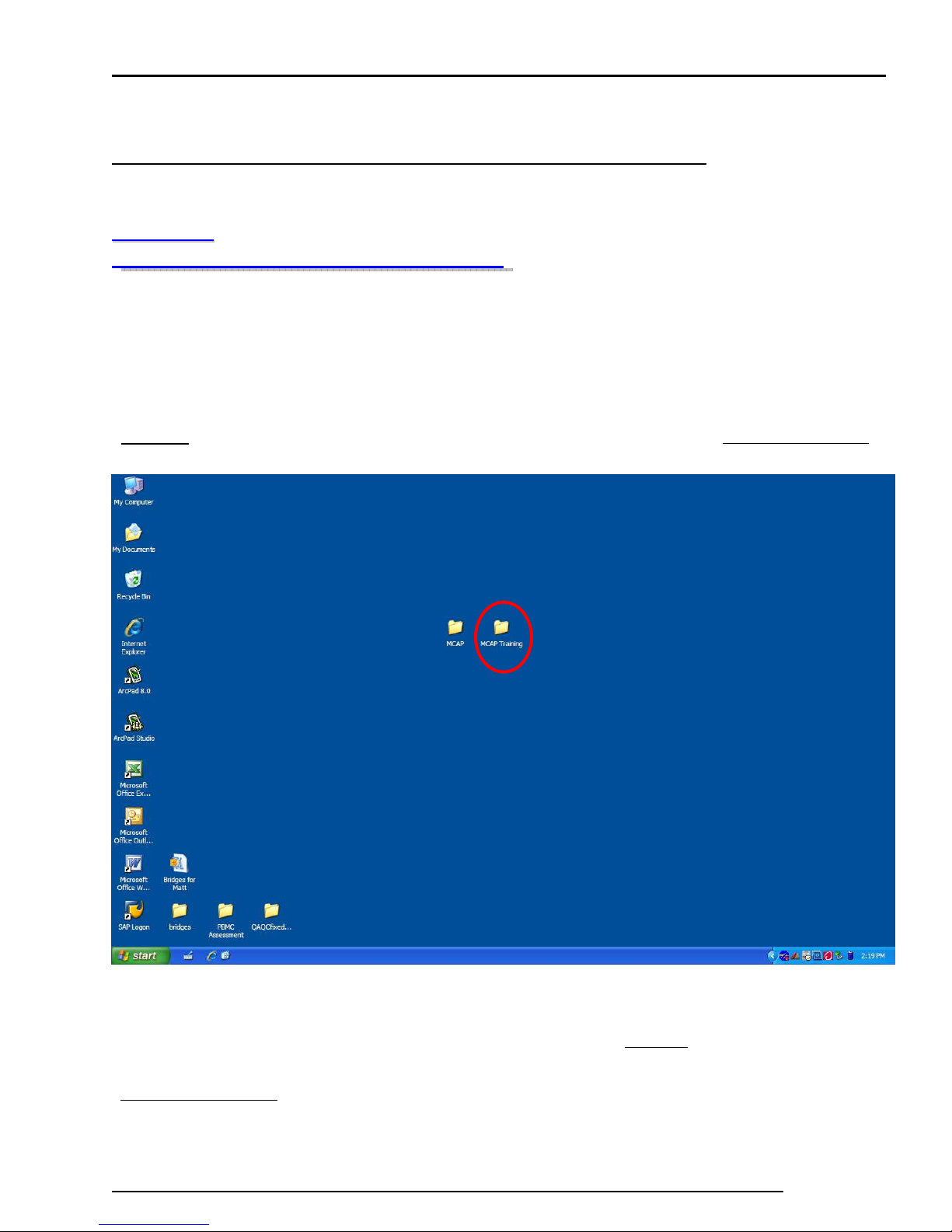
Once you have successfully logged onto your Tablet PC, plugged in the
GPS, you should see a screen similar to the one below.
Everything you need for this assessment is located in one folder labeled:
“MCAP.” For our Training session we’ll be using the folder: “MCAP Training.”
****Each assessment team will have contents in their “MCAP” folder that is
specific to their sections. For this Manual and training purposes we have set up a
“MCAP Training” folder that will function the same way your real assessment
data is loaded.****
NC Department of Transportation
State Road Maintenance Unit Page - 12
Page 13
ArcPad User Guide MCAP Assessment
2
SStteepp 2
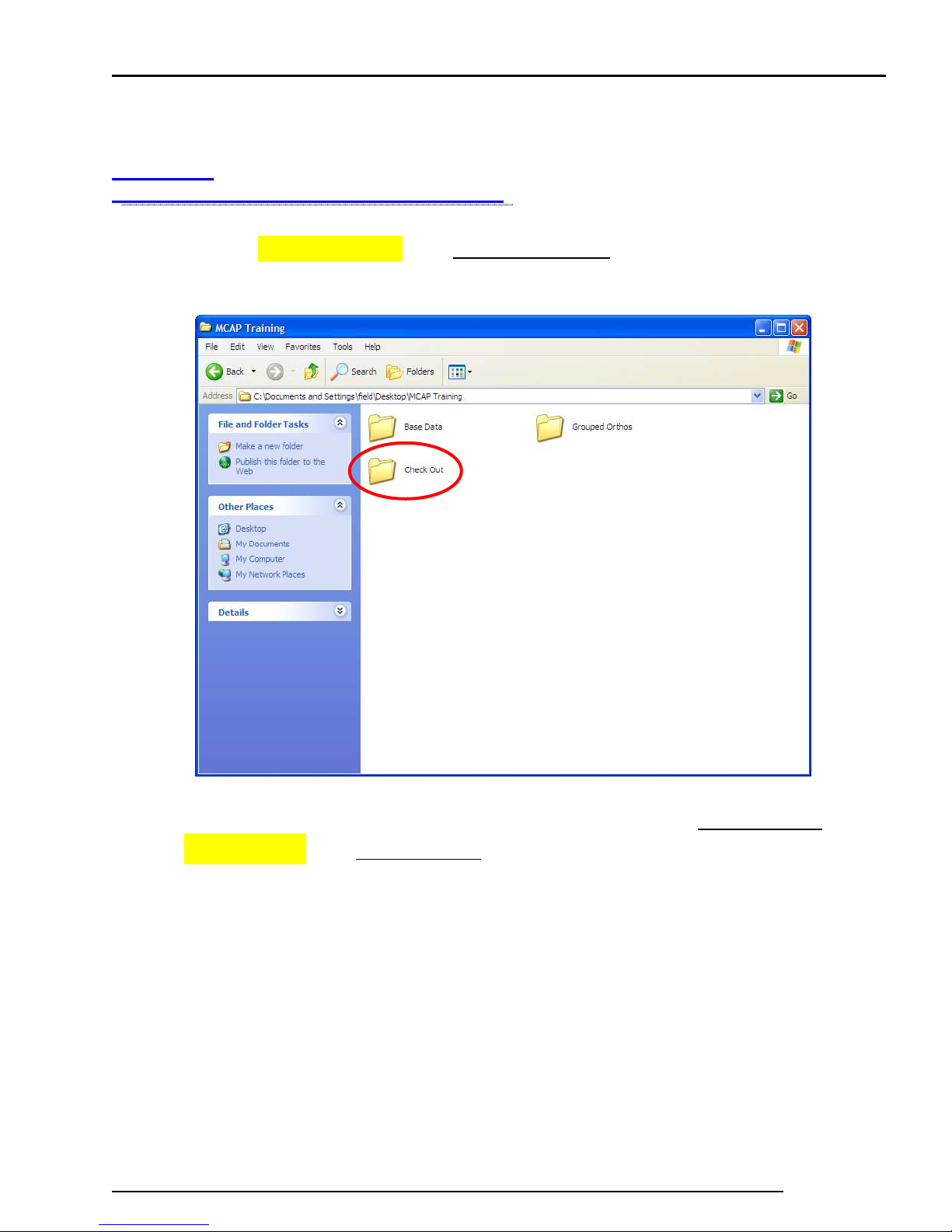
Once you have Double Clicked the “MCAP Training”folder, you should see the
following:
The only folder we will be concerned with at this point is the “Check Out”
folder. Double Click the “Check Out” folder to proceed.
**The “Check Out” folder contains the ArcPad file that you will work on
during the duration of the project.
**The “Base Data” folder contains GIS Layers that were used to construct the
ArcPad file. You should not need to be concerned with this folder.
**The “Grouped Orthos” folder contains all the aerial imagery that has
already been loaded into the ArcPad file. You should not need to be
concerned with this folder.
NC Department of Transportation
State Road Maintenance Unit Page - 13
Page 14
ArcPad User Guide MCAP Assessment
3
SStteepp 3
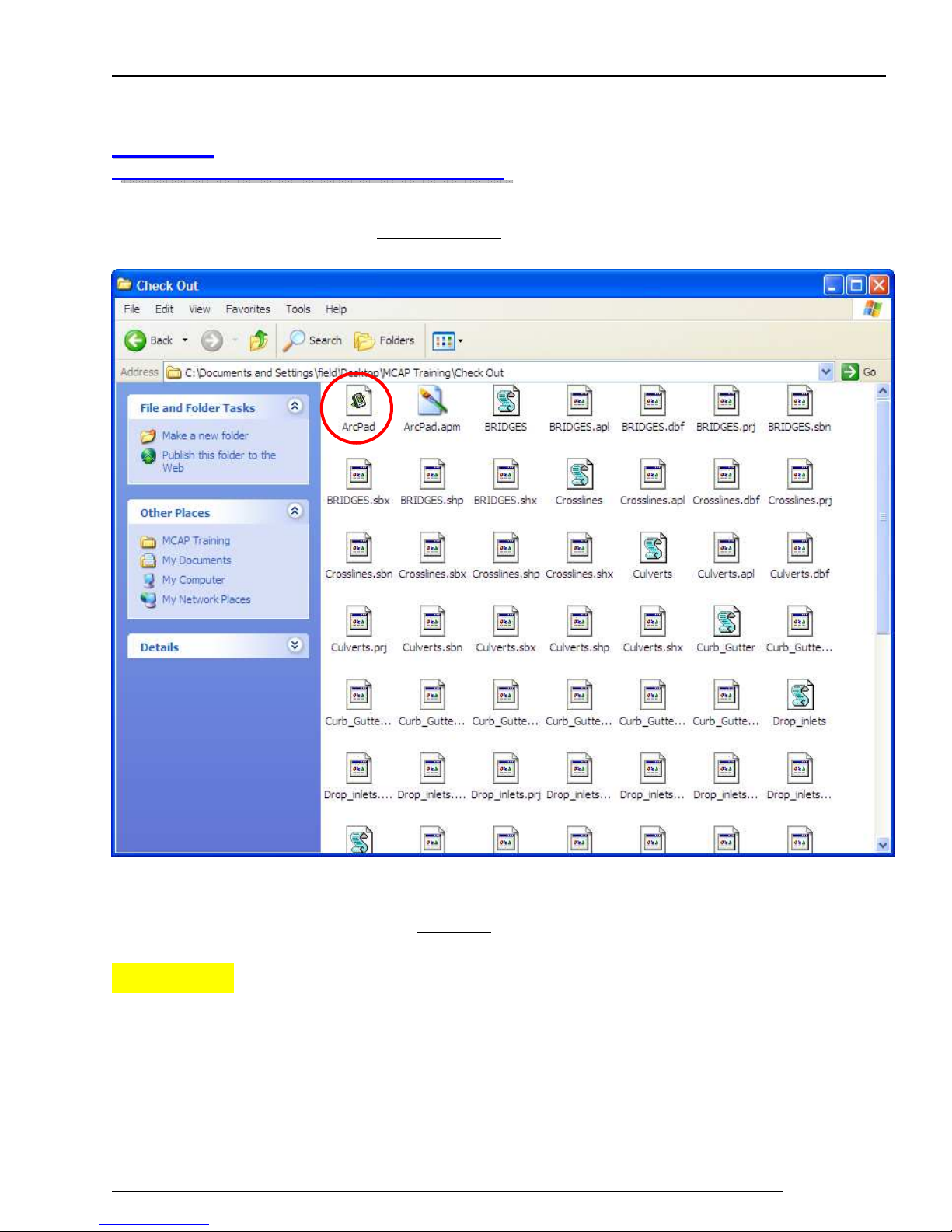
Once you have opened the “Check Out” folder you would see the following:
The only file you will use is the “ArcPad” file. It can usually be found in the upper
left corner in thumbnail format, or if in list format it will be the very first file listed.
Double Click the “ArcPad” file to proceed.
NC Department of Transportation
State Road Maintenance Unit Page - 14
Page 15
ArcPad User Guide MCAP Assessment
4
SStteepp 4
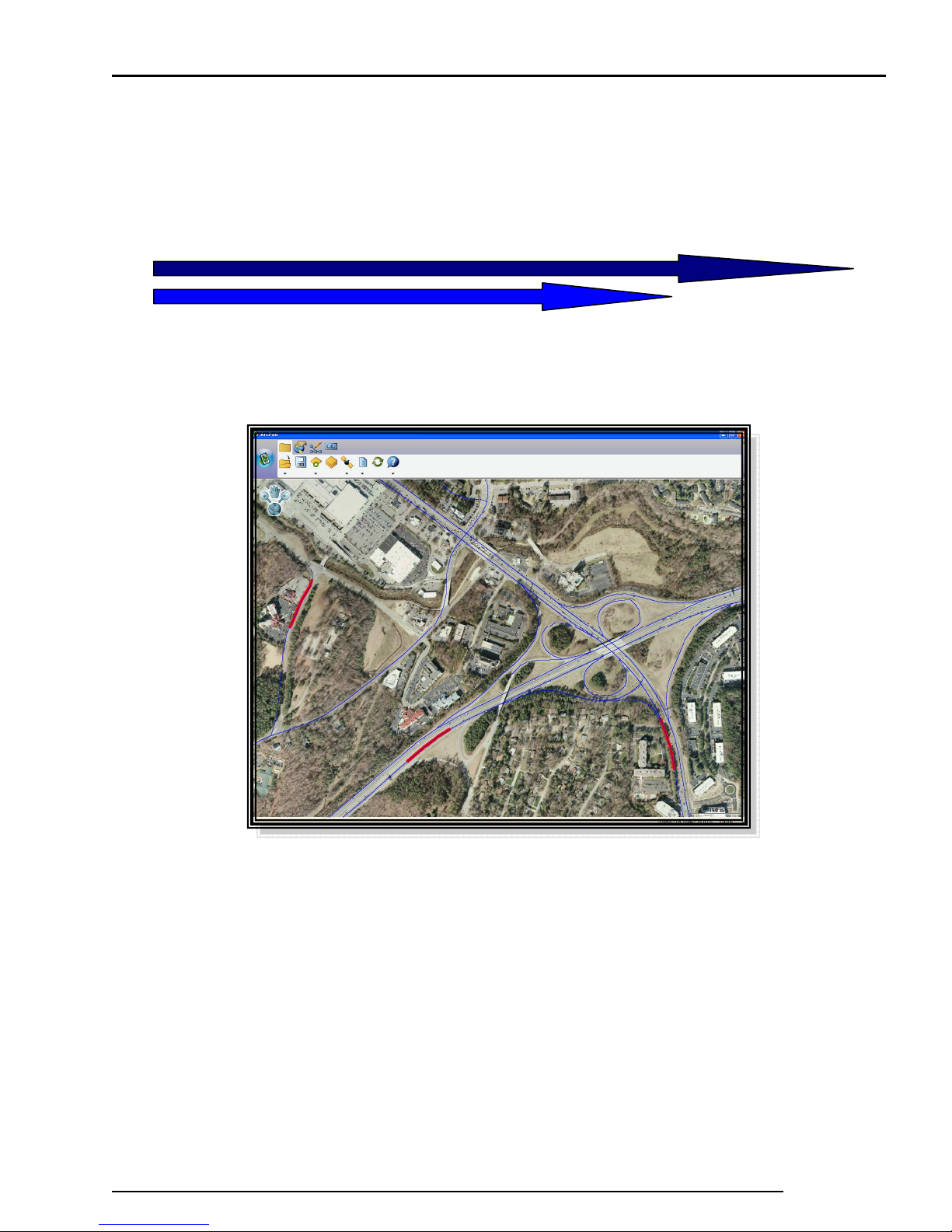
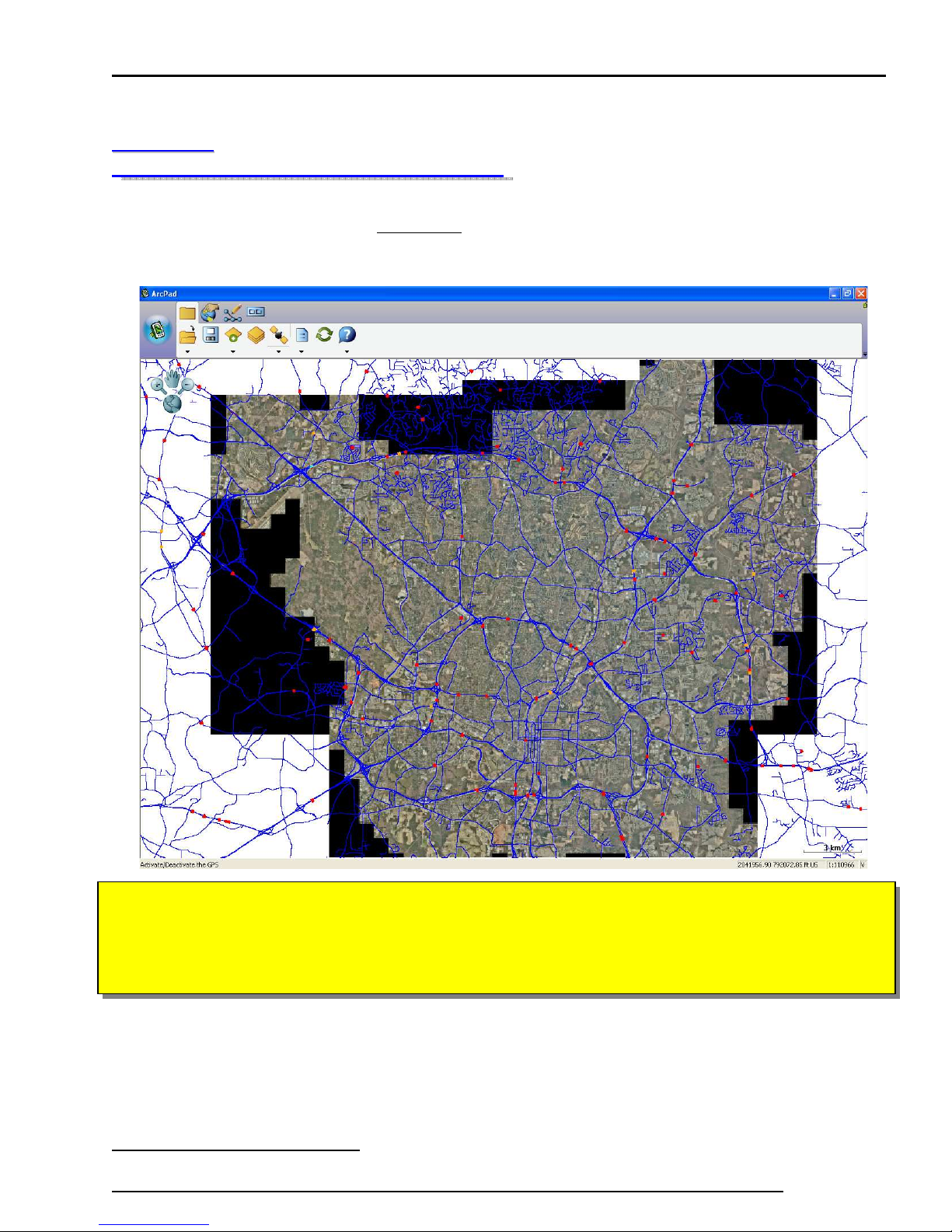
Once you have opened the “ArcPad” file, you should see a screen similar to the
following:
****You may need to Zoom Out to see your boundaries along with the full extent
of your assessment area. To achieve this: Click the “Earth” icon located in the
upper left corner of the main screen.
****
You have now opened the ArcPad software which has already been created and
loaded with your specific files. You are now ready to start assessing your section!
End of PART 1
NC Department of Transportation
State Road Maintenance Unit Page - 15
Page 16
ArcPad User Guide MCAP Assessment
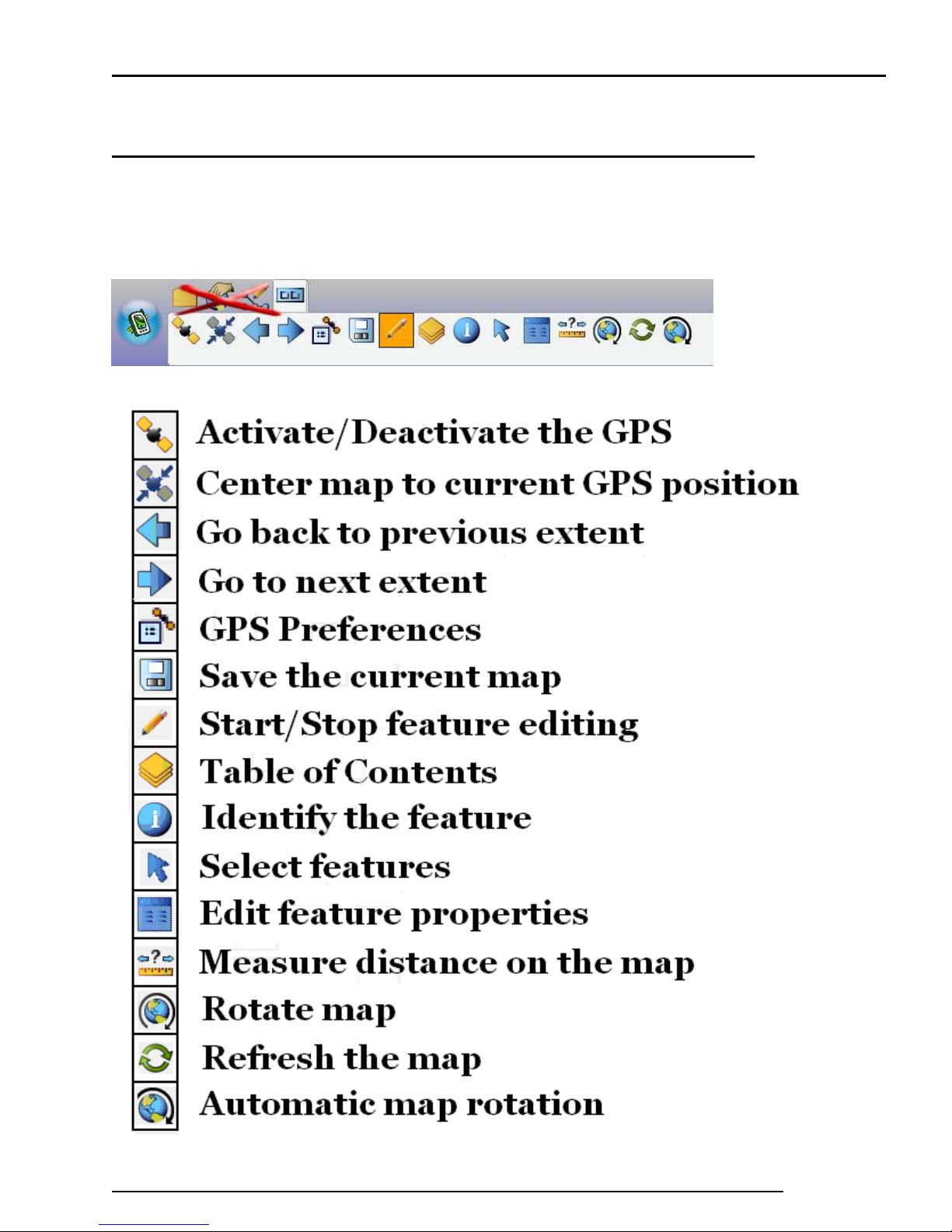
PART 2: Navigating ArcPad In Detail
(What you need to know to Successfully Assess)
Main Menu Items:
NC Department of Transportation
State Road Maintenance Unit Page - 16
Page 17
ArcPad User Guide MCAP Assessment
****As previously mentioned, you may need to Zoom Out to see your boundaries
along with the full extent of your assessment area. However, you will need to
Zoom In closer to see every segment that needs to be assessed on the map. This is
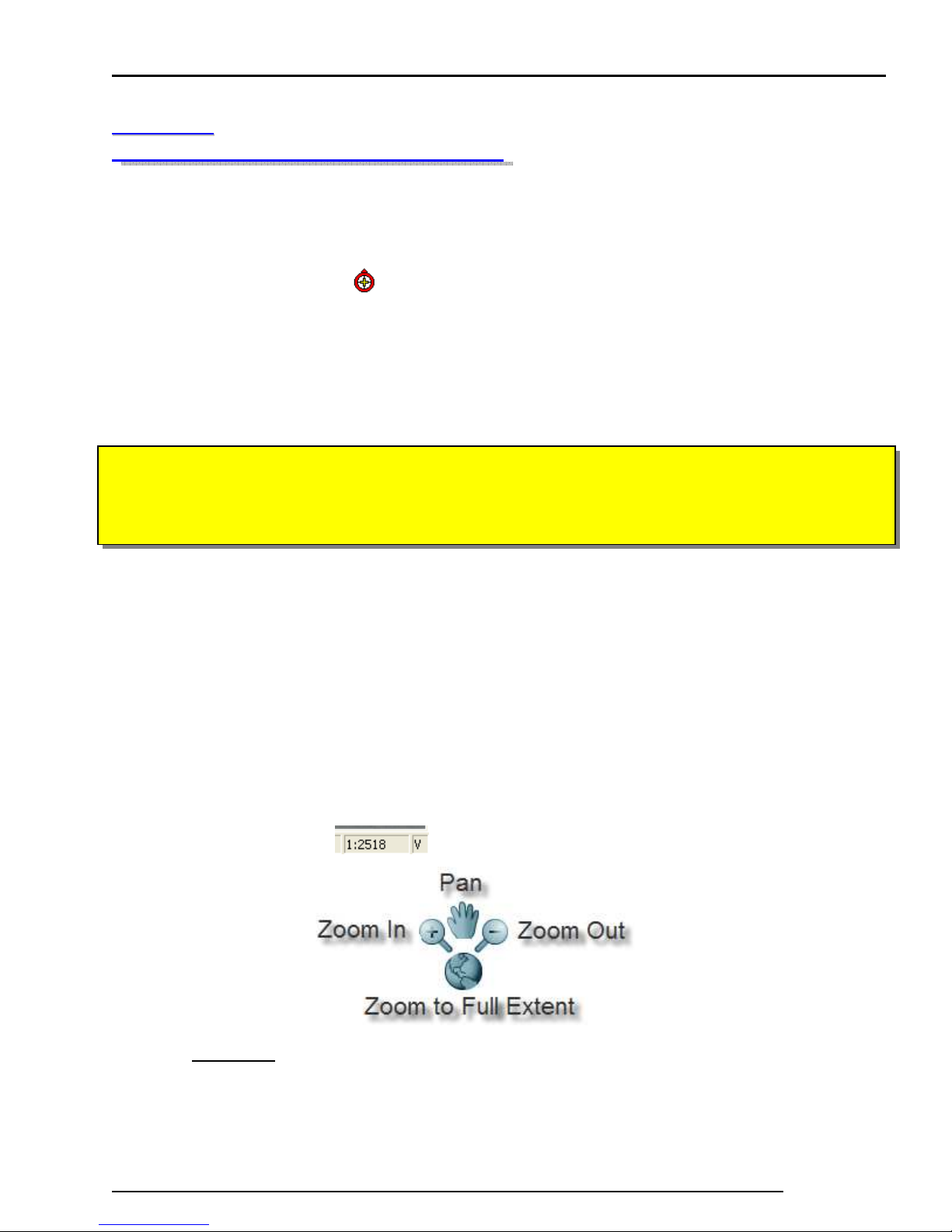
done by using the Zoom tool which is located right below the Main Menu. The 4
different Zoom tools are:
If using Zoom In or Zoom Out, clicking on the screen will not work. You will need
to click and drag to make a box around the area you wish to view.
1
SStteepp 1
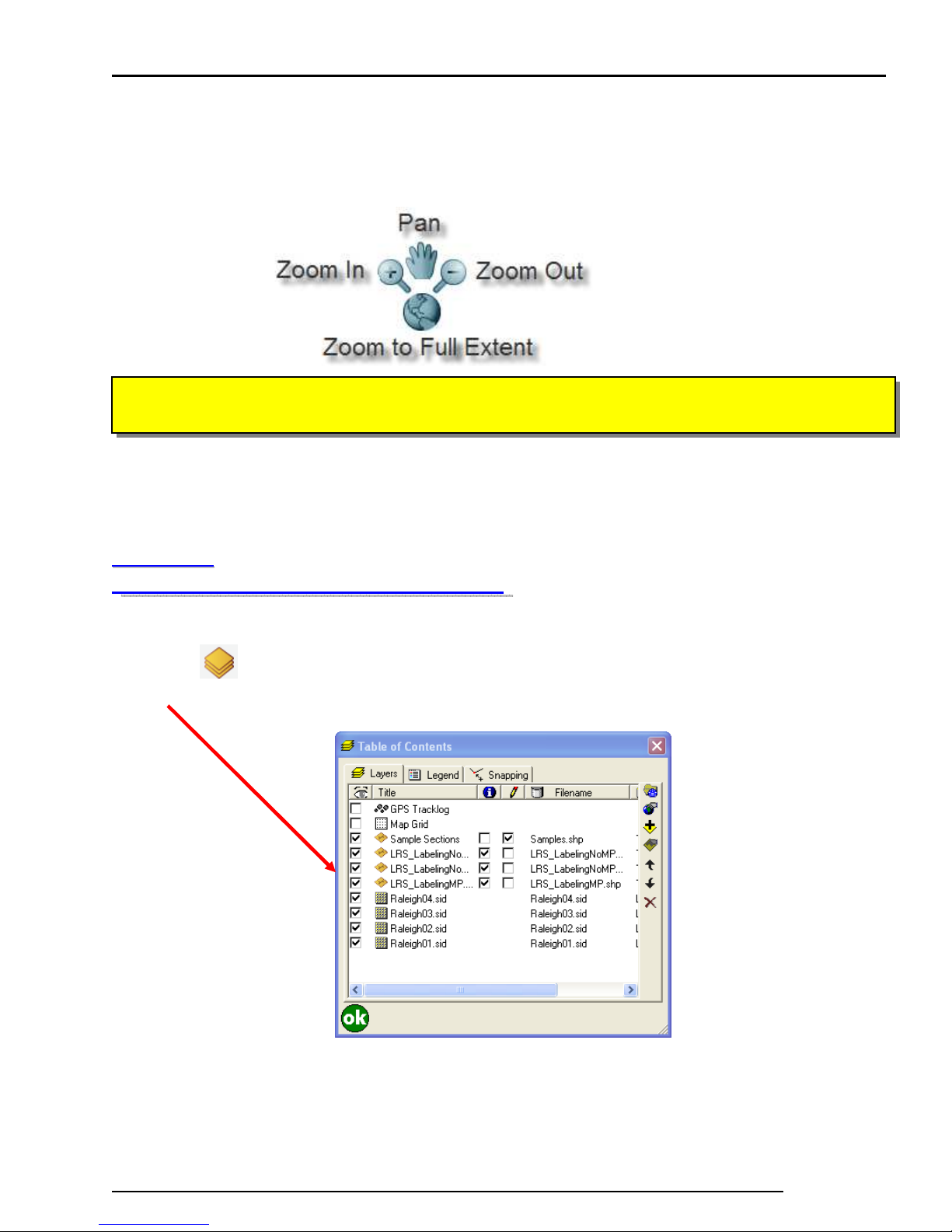
To make sure your Sample Sections are Visible and Selectable open your Table of
Contents and place a check on them if they are not already. This goes for your
Ortho/sid files and your LRS Linework as well.
NC Department of Transportation
State Road Maintenance Unit Page - 17
Page 18
ArcPad User Guide MCAP Assessment
2
SStteepp 2
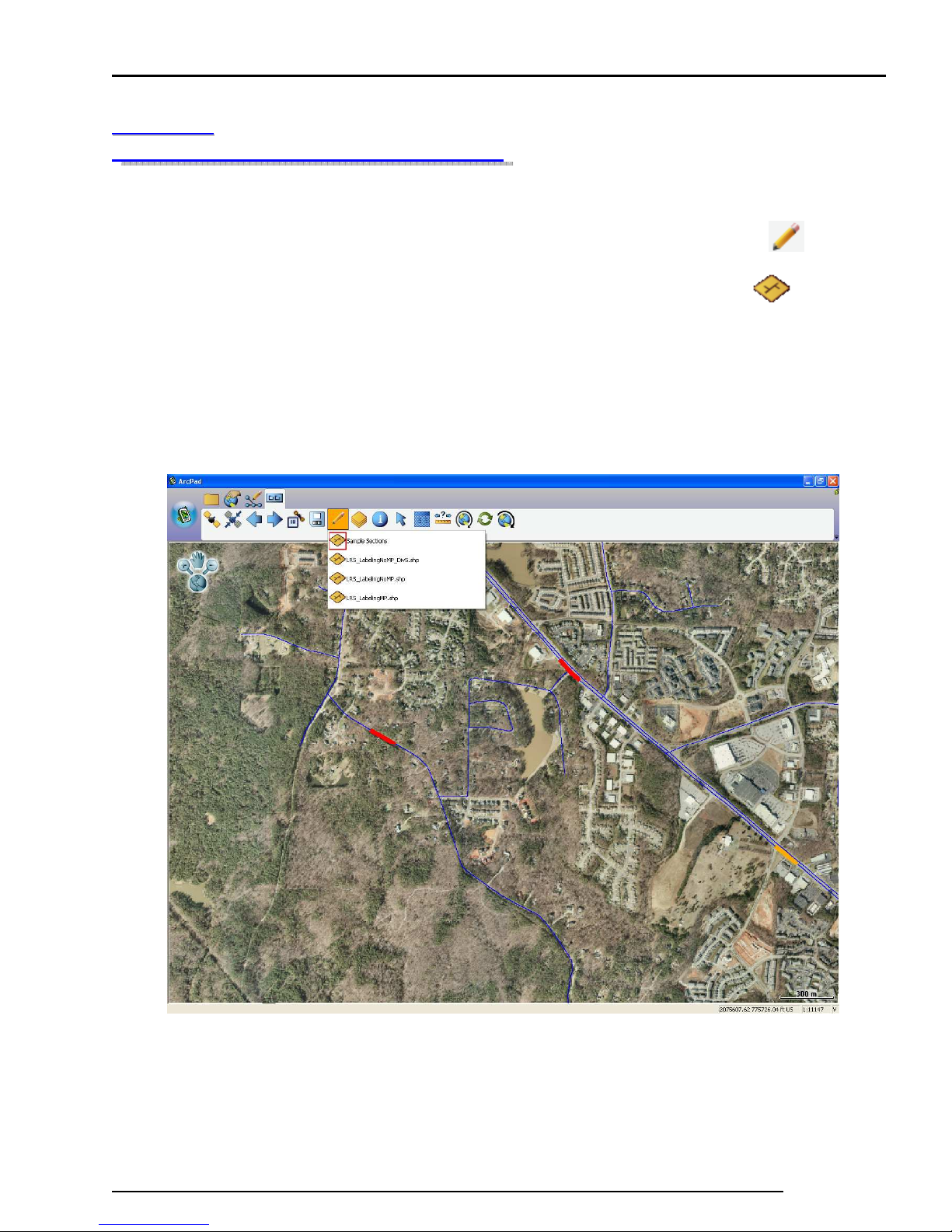
After opening and checking your Table of Contents, you will need to go to
the Main Menu and select your Start/Stop Editing Feature Tool . This
will open a drop down menu listing 4 selectable features. The only one you
will use is “Sample Sections.” Simply select the Shapefile Icon beside
the words “Sample Sections” and you will see a red box appear around it. If
there is already a red box around it, you do not need to click it again.
Clicking it again will unselect it. Example: In the screen shot below, the
Sample Sections has been selected and is ready to be edited.
NC Department of Transportation
State Road Maintenance Unit Page - 18
Page 19
ArcPad User Guide MCAP Assessment
3
SStteepp 3
You are now ready to drive / navigate to the Sample Sections so you can
begin Assessing!
If you see this symbol: on your screen then your GPS Receiver is
working perfectly and is synced with the Tablet PC and ArcPad. It has
pinned down your exact location and is ready to be used as your
navigational tool to help you find the exact locations of all your items that
need to be assessed.
**This GPS is not like a Garmin or Tom-Tom. It will NOT tell you turn by
turn where to go to your Sample Sections, it simply points out your location
in reference to where the Sample Sections are located.**
As mentioned on Page 17 and shown below, you will need to use the Zoom
Tools to get in close to know when you are exactly are at the beginning and
end of a Sample Section. You may want to zoom in relatively close so you
can see a few Sample Sections at a time. This way you will know when you
are approaching the next one so you can have plenty of time to slow down
and find a good place to pull off the road and assess it. A good scale to use
is 1:700 once you’ve gotten close to one of the Sample Sections. While you
are driving you may want to zoom out to about 1:5000 or even further out,
the choice is yours. To see the scale you will need to look in the lower left
corner of the screen:
****You Can Not zoom in on another part of the screen that doesn’t include your
current location. This is due to the fact that the screen moves along with the GPS
and always keeps it located centrally.
NC Department of Transportation
State Road Maintenance Unit Page - 19
Page 20
ArcPad User Guide MCAP Assessment
4
SStteepp 4
At this Point:
1. The Tablet PC is on,
2. The GPS is Plugged in and Active,
3. You’ve opened your ArcPad File,
4. You’ve Setup it to make the Sample Sections selectable,
5. You’ve Zoomed to a comfortable level so that you can see your current
location in relation to Sample Sections.
Now, you need to proceed to one of the Samples.
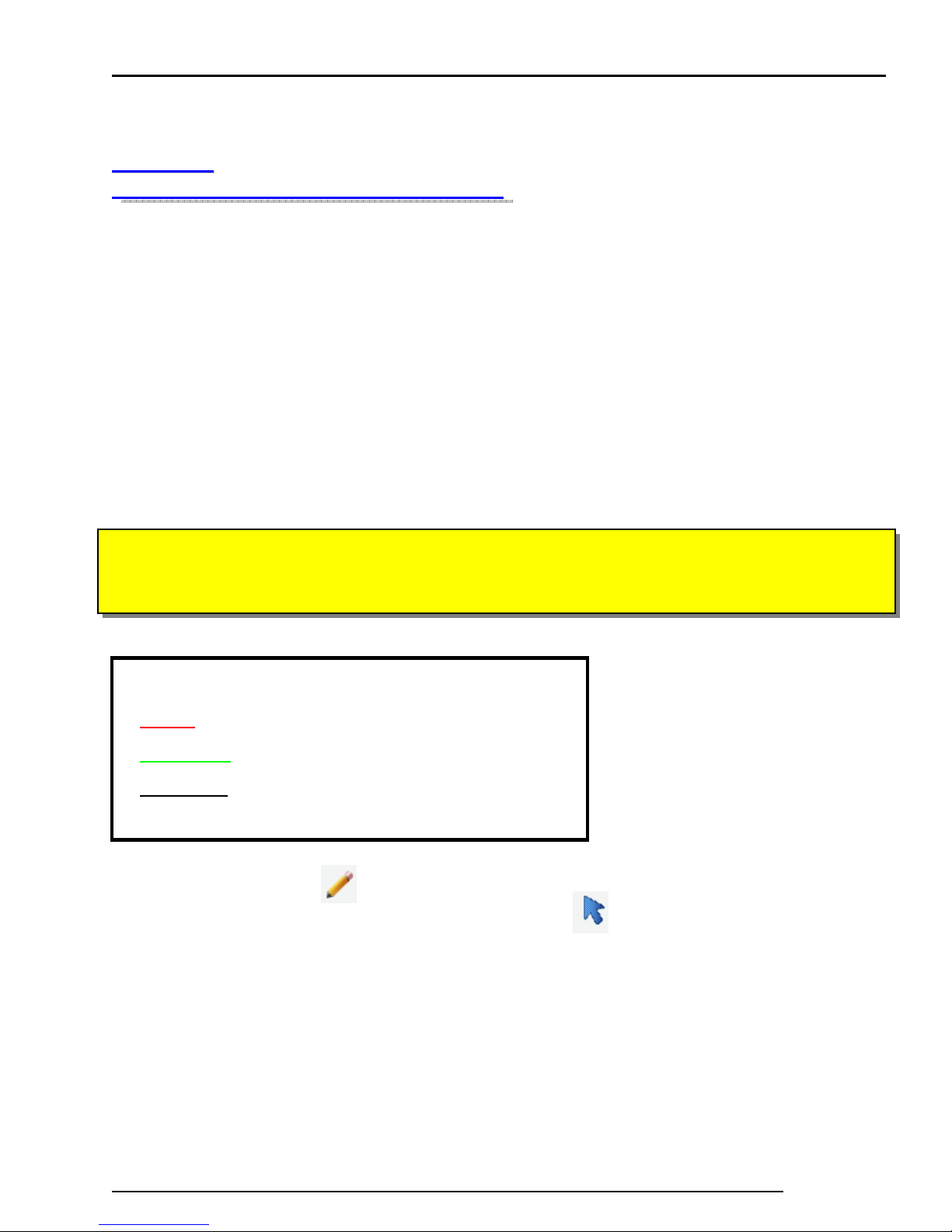
****Your Sample Sections that need to be assessed will be shown in RED.
Each one starts out RED and during the assessment becomes either GREEN
or BLACK. The colors represent the following:
RED = Incomplete / NOT Assessed
GREEN = Successfully Assessed
BLACK = Section Skipped
After you’ve selected (Start / Stop Editing Feature tool) you will then
need to go back to the Main Menu and Select . This tool is your Selection
tool that you will use to double click on the Sample Section, which will open
it up for editing.
NC Department of Transportation
State Road Maintenance Unit Page - 20
Page 21
ArcPad User Guide MCAP Assessment
IMPORTANT******IMPORTANT******IMPORTANT******IMPORTANT
***Reminder: When you are assessing the random segments you
are responsible for assessing both sides of the Route!! You are also
responsible for assessing the median. The random segments are
not completely assessed until this is done.***
***Past MCAP Assessments required that you come back out at
night to assess the markers and symbol, This is no longer
necessary. All Assessing will be done during the Day.***
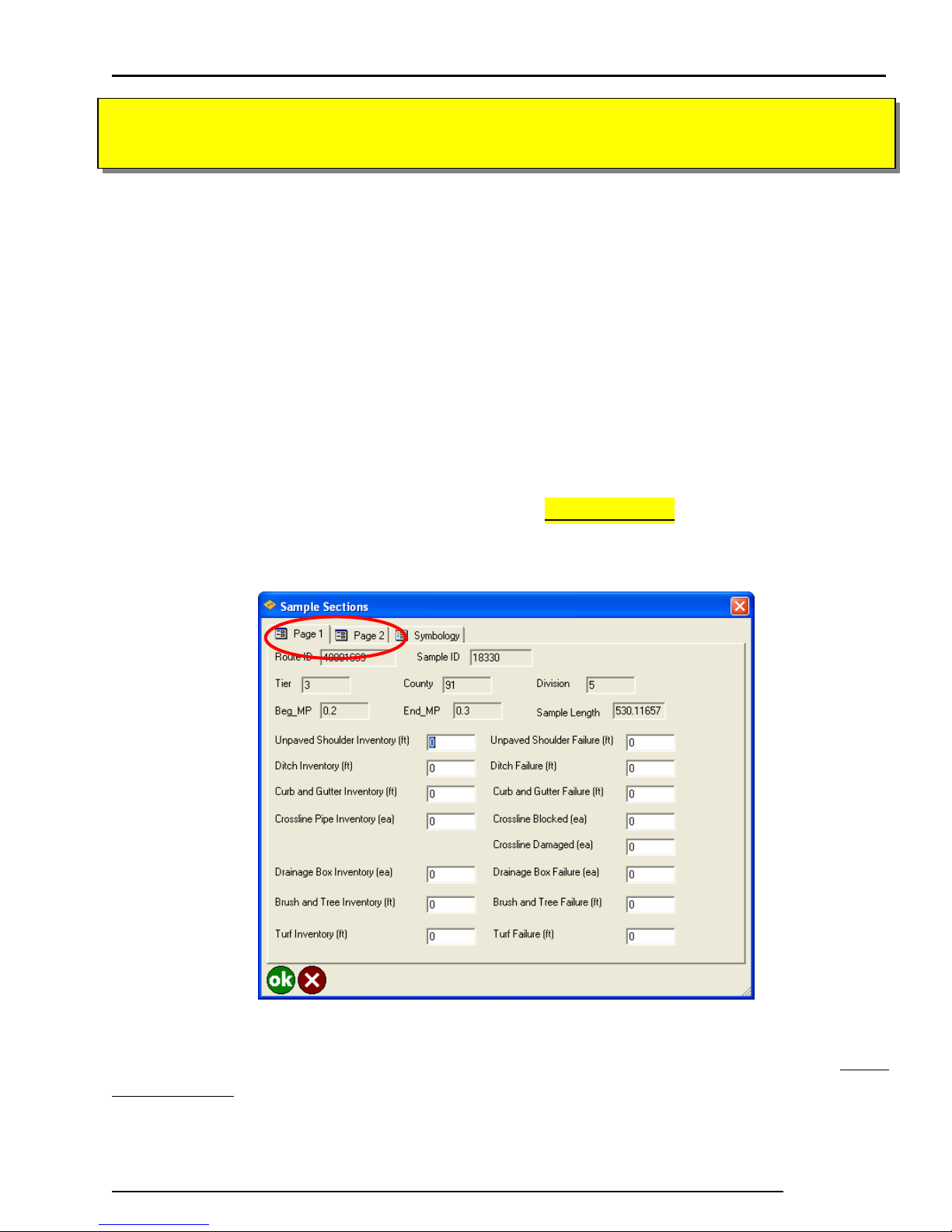
If you arrive at a Sample Section, you need to Double Click the Red (Unassessed)
Section with either the pen or with the mouse. This will open the following
window:
You are looking at the criteria that needs to be looked at when assessing a Sample
Section. You will notice near the top of the window, there are 2 tabs labeled: Page
1 and Page 2. Each of the pages has specific criteria that needs to be addressed
line item by line item. Not all line items will be applicable, so you might leave
some blank or N/A.
NC Department of Transportation
State Road Maintenance Unit Page - 21
Page 22
ArcPad User Guide MCAP Assessment
***Flip to the Elements / Features section in this Manual for guidelines on what
classifies as passing and failing.***
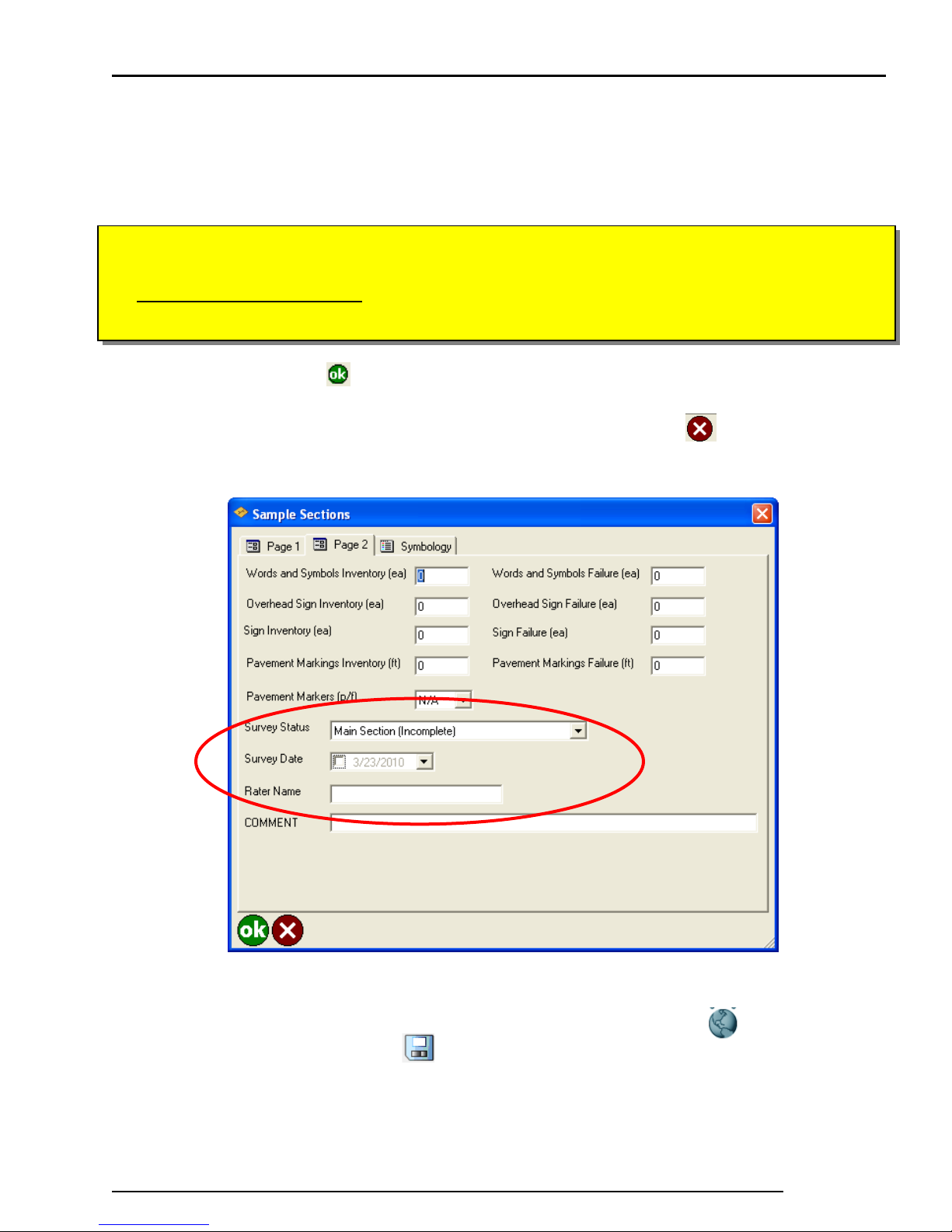
When you have gone line item by line item through both Pages and assessed
everything, you need to make sure you have changed the “Survey Status” on Page 2
to Assessment Complete in the drop down box. Also you need to Click beside
the date so that a check mark appears and type in the rater’s name below it.
Lastly, click the Green in the lower left corner of the window to close it. This
indicates to ArcPad that the given Sample Section has been assessed. You should
now see the section turn from Red to Green. If you click the then your edits
will NOT be saved!
When you have completed work for the day and you’ve checked to make sure all your sections
are showing in Green instead of Red. Go ahead and Click the Earth Icon to Zoom out to
full extent. Next, hit the Save Icon one more time. Now you can click the Red “X” in the
upper right corner to exit out of ArcPad. You can now close your MCAP_DivX folder as well.
NC Department of Transportation
State Road Maintenance Unit Page - 22
Page 23
ArcPad User Guide MCAP Assessment
IMPORTANT******IMPORTANT******IMPORTANT******IMPORTANT
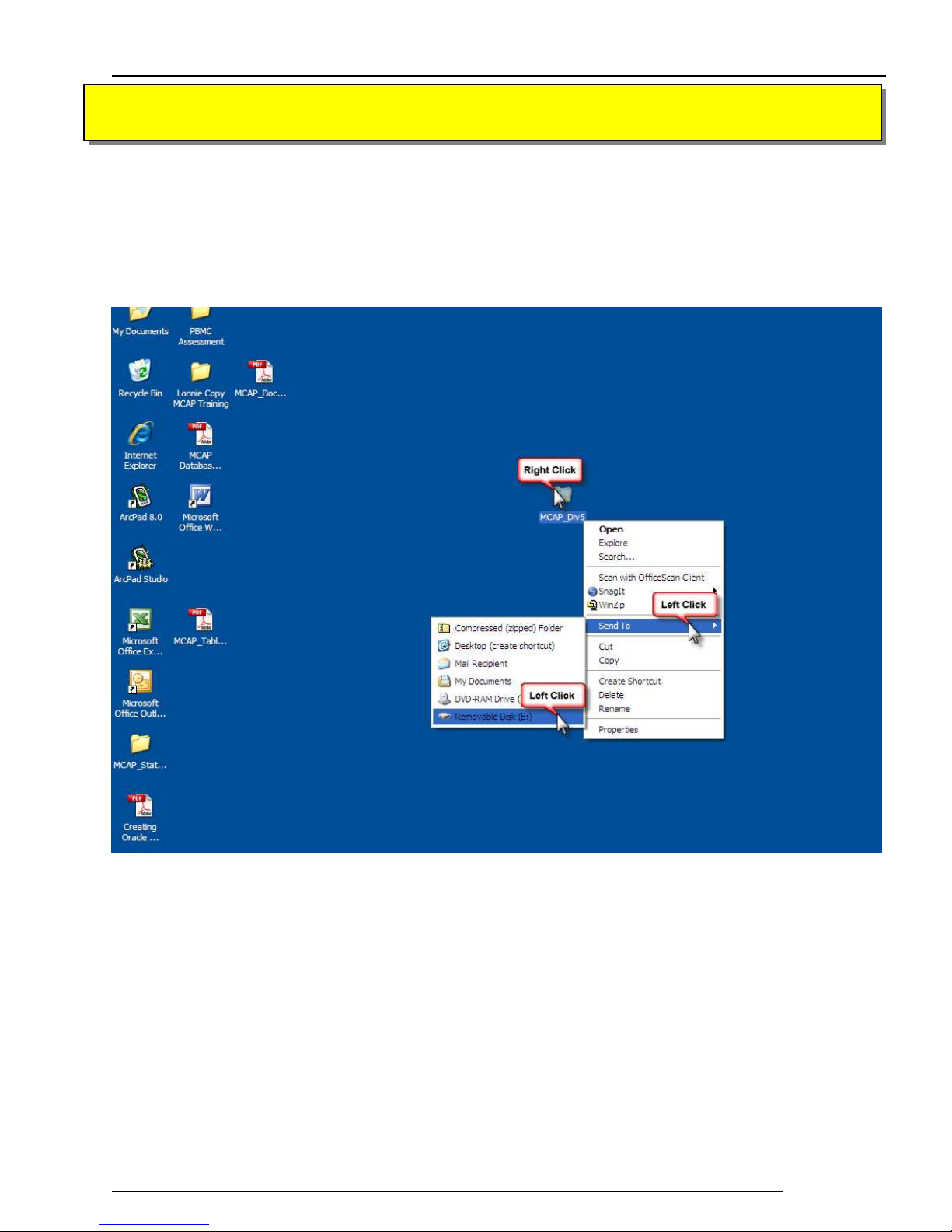
To Save: Right click on the “MCAP_DivX” folder and send to your USB Drive
(Removable Drive E) as shown below. If prompted that there is already a folder on
the USB Drive that is named “MCAP_DivX,” click “yes to all” to Over-Ride the
existing file.
At the end of the day, make sure you have saved all your work on both the Hard
drive and on the USB flash drive. Next, shut down the Tablet PC and place it along
with any items you’ve pulled out of the PC Case and put back into the PC Case and
store the equipment in a safe place. You may want to charge the Tablet overnight
but as long as you have the PC car charger, then it is not necessary.
NC Department of Transportation
State Road Maintenance Unit Page - 23
Page 24
ArcPad User Guide MCAP Assessment
IMPORTANT******IMPORTANT******IMPORTANT******IMPORTANT
Once you have clicked “yes to all”, you will notice that your USB Flash Drive will
blink for a few seconds. Once it has stopped flashing, you can exit out of your
“MCAP_DivX” folder and unplug the GPS Unit.
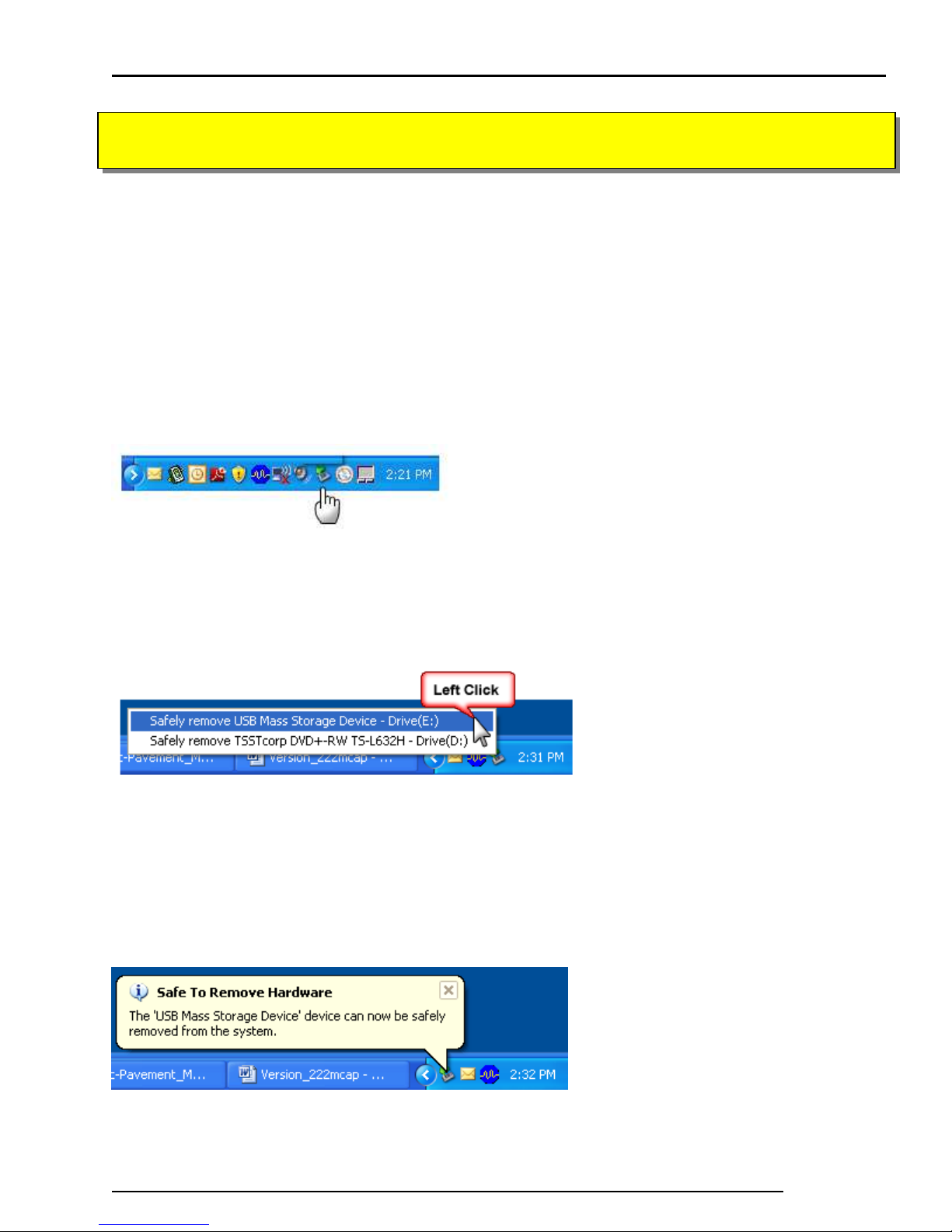
In the lower right corner of the screen you will see a mini USB drive with a green
arrow on top. You will need to Left click this Icon.
After you have Left clicked the Icon you will see a window pop up asking which
Drive would you like to remove. You will need to select the drive that is labeled
“USB Mass Storage Device” and Left Click.
After you have Left clicked the correct USB Drive to Safely remove, you will see the
following screen. You should also notice that your USB Flashdrive is no longer lit
up Orange. You can now pull out the USB drive from the Tablet PC and hook it
back into the bag where you first found it.
You have now successfully backed-up all data!
NC Department of Transportation
State Road Maintenance Unit Page - 24
 Loading...