

Page 1
Installation Reference
HP 9000 Series 300 Computers
HP
Part
umber
98561-90000
Fliiil
~~
Hewlett-Packard Company
3404 East Harmony Road. Fort Collins. Colorado 80525
HEWLETT
PACKARD
Page 2
NOTICE
The information containedinthis
HEWLETT-PACKARD MAKESNOWARRANTY OF ANY KIND WITH REGARD TO THIS MANUAL. INCLUDING. BUT NOT LIMITED TO.
THE IMPLIED WARRANTIES OF MERCHANTABILITY AND FITNESS
for errors contained herein or direct. indirect. special. incidental or consequential damagesinconnection with the furnishing. performance.
or
use of
this
material.
documentissubject to change without notice.
FOR
A PARTICULAR PURPOSE Hewlett-Packard shall not be liable
WARRANTY
A
copy
of
the specific warranty terms applicable to your Hewlett-Packard product and replacement parts can be obtained from your local
Sales
and
Service
Office.
CopYright © Hewlett-Packard Company 1986. 1988
This document contains information whichisprotectedbycopyright.
pnor written permission
Use. duplication or disclosure
Rights
In
Technical Data and Software clauseinFAR
is
prohibited. except as allowed under the copyright laws
Restricted Rights Legend
by
the U.S. Government Department of Defenseissubject to restrictionsasset forthinparagraph (b)(3)(ii) of the
52.227-7013.
ii
All
rights are reserved. Reproduction. adaptation. or translation without
Page 3
Jold--
MANUAL COMMENT CARD
HP
Part
Number 98561-90000 E1188
Your
comments and suggestions help us determine how well we meet your needs.
Installation Reference
Agree Disagree
The manualiswell organized.
Itiseasy·to find informationinthe manual.
The manual explains features well.
The manual contains enough examples.
The examples are appropriate for my needs.
The manual covers enough topics.
Overall, the manual meets my expectations.
You
have used this product:
Less than 1 week
Less than 1 month
Less than 1 year
1 to 2 years
0 0 0 0 0
0 0 0 0 0
0 0 0 0 0
0 0 0 0 0
0 0 0 0 0
0
0
0
0 0 0
0
0
More than 2 years
0
0
Please write additional comments, particularly if
above. Use additional pages if you wish. The more specific your comments, the
more useful they are to us.
Comments: _
Please
Tape
Here
you
disagree with a statement
Page 4
Please print or type your name and address.
Name: _
Company: _
Address: _
City, State, Zip: _
Telephone: _
Additional Comments: _
Installation Reference
HP Part Number 98561-90000
E1188
BUSINESS REPLY MAIL
FIRST CLASS PERMIT NO. 37 LOVELAND, COLORADO
POSTAGE WILL BE
Hewlett-Packard Company
Attn:
3404
Fort Collins, Colorado
PAID
BY ADDRESSEE
Learning Products Center
East Harmony Road
80525-9988
11111111,,111111,1111.1.1.111,11.11111111111111111,1
NO
POSTAGE
NECESSARY
IF
MAILED
IN
THE
UNITED STATES
Page 5
Printing History
New editions of this manual will incorporate all material
edition.
additional pagestobe merged into
indicated by a revision
indicates
on a previous page are
The
date
incorporatedatreprintdonot
changes when extensive technical changes are incorporated.
May 1985 Edition 1
May 1986 Edition 2
December 1986
November 1988
Update
the
manual printing
changes when a new editionisprinted. (Minor corrections and
packages may be issued between editions
the
manual by
dateatthe
changes on each page. Note
not
considered revised.
date
and
Edition
Edition
3
4
bottomofthe
part
number
cause
the
that
pages which are rearranged due to changes
indicate its
datetochange.)
the
user. Each
page. A vertical
updated
and
current
The
since
contain replacement
updated
barinthe
edition.
updates
manual
the
previous
page will
margin
The
printing
which are
part
number
and
be
Printing
History
iii
Page 6

iv
Printing
History
Page 7
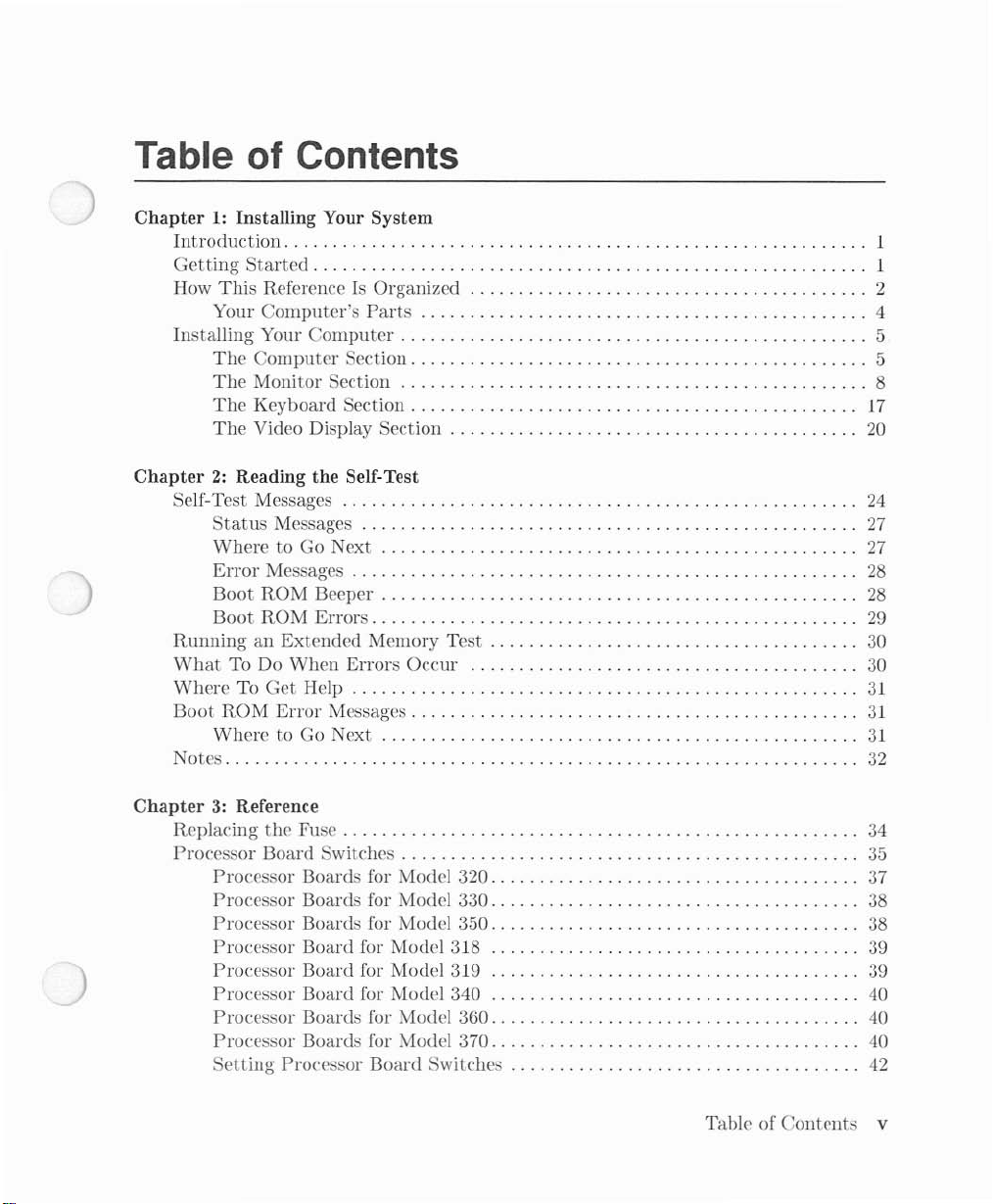
Table of Contents
Chapter1:Installing Your
Introduction.
Getting
How
This
Your
Installing Your
The
The
The
The
Chapter2:Reading the Self-Test
Self-Test Messages
Status
Where to Go Next . . . . . . . . . . . . . . . . . . . . . . . . . . . . . . . . . . . . . . . . . . . . . . .
Error
Boot
Boot
RunninganExtended
What
To Do When
WhereToGet
Boot
ROM
Where to Go Next
Notes
. . . . . . . . . . . . . . . . . . . . . . . . . . . . . . . . . . . . . . . . . . . . . . . . . . . . . . . . ...1
Started.
Reference Is Organized 2
Computer's
Computer
Computer
Monitor Section 8
Keyboard
Video Display Section
Messages
Messages . . . . . . . . . . . . . . . . . . . . . . . . . . . . . . . . . . . . . . . . . . . . . . . . . .
ROM
ROM
Help
Error
System
. . . . . . . . . . . . . . . . . . . . . . . . . . . . . . . . . . . . . . . . . . . . . . . . . . . . . ...1
Parts
Section 5
Section 17
Beeper
Errors
Memory
Errors
Messages
20
24
27
..
27
..
28
28
29
Test
. . . . . . . . . . . . . . . . . . . . . . . . . . . . . . . . . . . .
Occur 30
..
30
31
31
31
32
4
5
Chapter3:Reference
Replacing
Processor Board Switches 35
the
Fuse . . . . . . . . . . . . . . . . . . . . . . . . . . . . . . . . . . . . . . . . . . . . . . . . . . .
Processor Boards for Model 320 37
Processor Boards for Model 330. . . . . . . . . . . . . . . . . . . . . . . . . . . . . . . . . . . .
Processor Boards for Model 350. . . . . . . . . . . . . . . . . . . . . . . . . . . . . . . . . . . . . . 38
Processor Board for Model 318 39
Processor I30ard for Model 319 39
Processor Board for Model 340 40
Processor Boards for Model 360. . . . . . . . . . . . . . . . . . . . . . . . . . . . . . . . . . . .
Processor Boards for Model 370 40
Setting
Processor
Board
Switches 42
Table of
Contents
..
34
..
38
..
40
v
Page 8
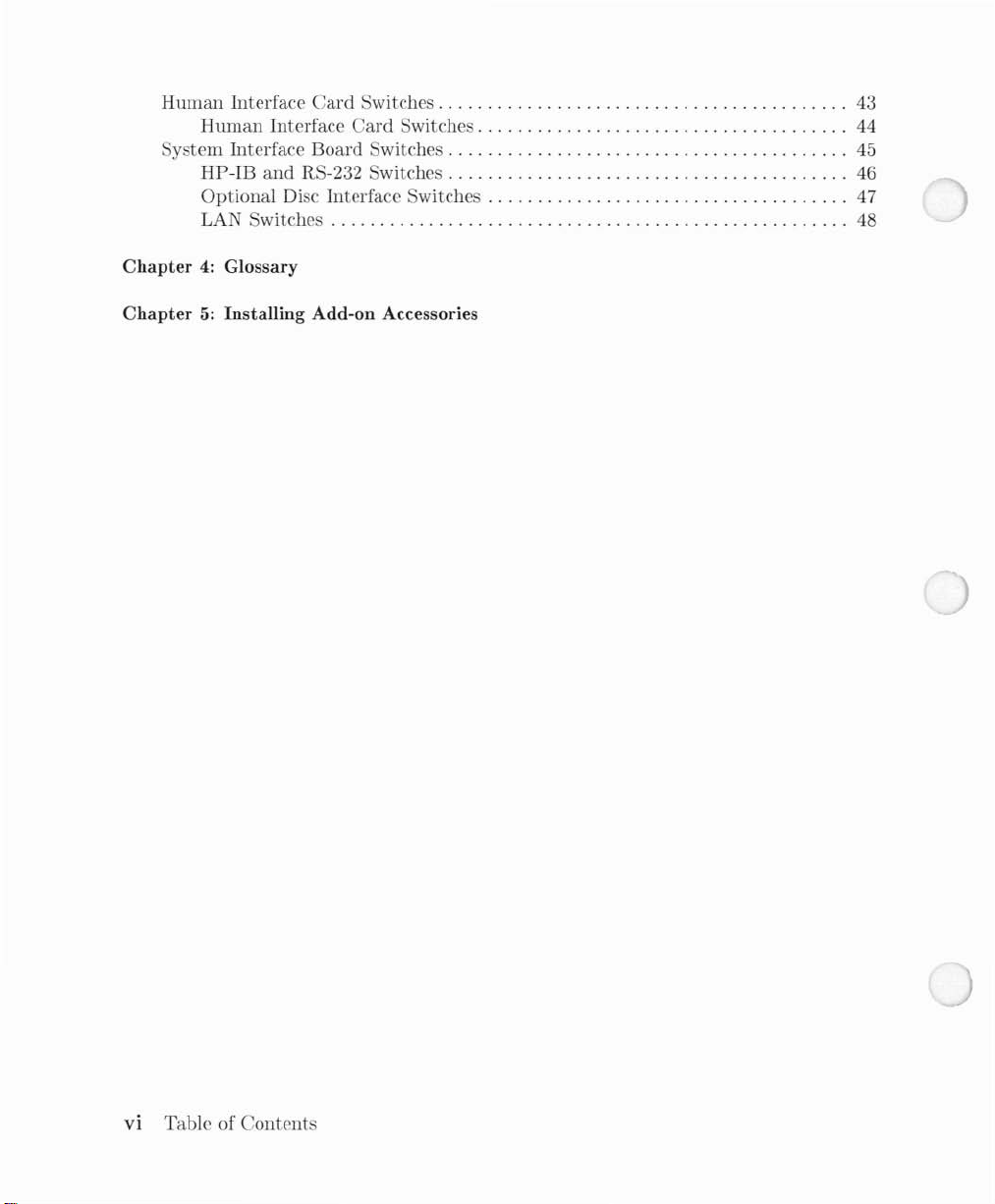
Human
Interface
Human
Card
Interface
Switches
Card
Switches
System Interface Board Switches
HP-IB
and
RS-232 Switches 46
Optional Disc Interface Switches 47
LA
J Switches
Chapter4:Glossary
Chapter5:Installing Add-on Accessories
43
44
45
48
VI
Table of
Contents
Page 9
Installing
Your
Introduction
This
manual covers
and
keyboards.
For
the
only.
The
purpose of consistency,
term, "the computer" will be used when referringtoany of
the
installation of all Series 300 computers, as well as
Getting Started
Your new
it
setupand
right place.
computer
running,
has
and
System
their
the
computers
just
arrived. You're looking for some easy instructionstoget
you've
turned
will be referredtoby
to this reference for help. You've cometothe
their
product
the
various models.
1
monitors
number
Before you proceed,
computer
reading this reference. You're concerned
finally
you're afraid
schematic of
Forget it.
computer
be
ready to load
documentation. Yes, we know
put
the book down
that
the
That's
system
we
wanttoaddress a
and
actually
we'll presume you have a
computer,
not
together
and
and
tell youtofigure it
goingtohappen
and
turniton.
use your
operating
few
preconceptions you may have
that
you may be less
that
you'll havetoread for hours before you
do
something
Ph.D.
here.
This
When
system or applications program.
with
in electrical engineering, give you a
out
for yourself.
reference tells you howtoput
you're finished
than
enthusiastic
your computer.
with
this manual, you'll
Installing Your
Or
perhaps
System
about
about
can
your
1
Page 10

How
This
procedures as you
This Reference
reference has two chapters. Please read
go.
Is
Organized
them
in order, performing
the
installation
Chapter
your installation guide
your system.
problems.
Chapter
system
Reference.
tion,
to
Glossary.
Add-on Accessories.
you will install
accessories which you purchase
1 - Installing Your System.
It
expands on
2 - Reading
and
read and
This
but
that
may be valuableata
this section from
This
The
interpret
section contains information
the
section contains definitions of terms used in
If
them
yourself. Store
is
organized.
the
Self-Test.
main
you purchase add-on accessories after your systemisinstalled,
The
The
procedure in
This
the
self-test messages.
later
bodyofthe
the
with
the
system willbeinstalledatthe
section you're now reading tells you how
rest of
chapter tells you howtoturn
date
guide where
installation instructions in this section. Those
the
Installation
that
you
or for
the
chapter
don't
tutorial
appropriate.
explains howtoinstall
Card,
and
deals with any
on your
normally need for installapurposes. You are referred
this
reference.
computer
factory.
2 Installing Your System
Page 11
'l-
_.-
-
-
....
--,,~-...,.;--~-_
-
....
·~_......-~····
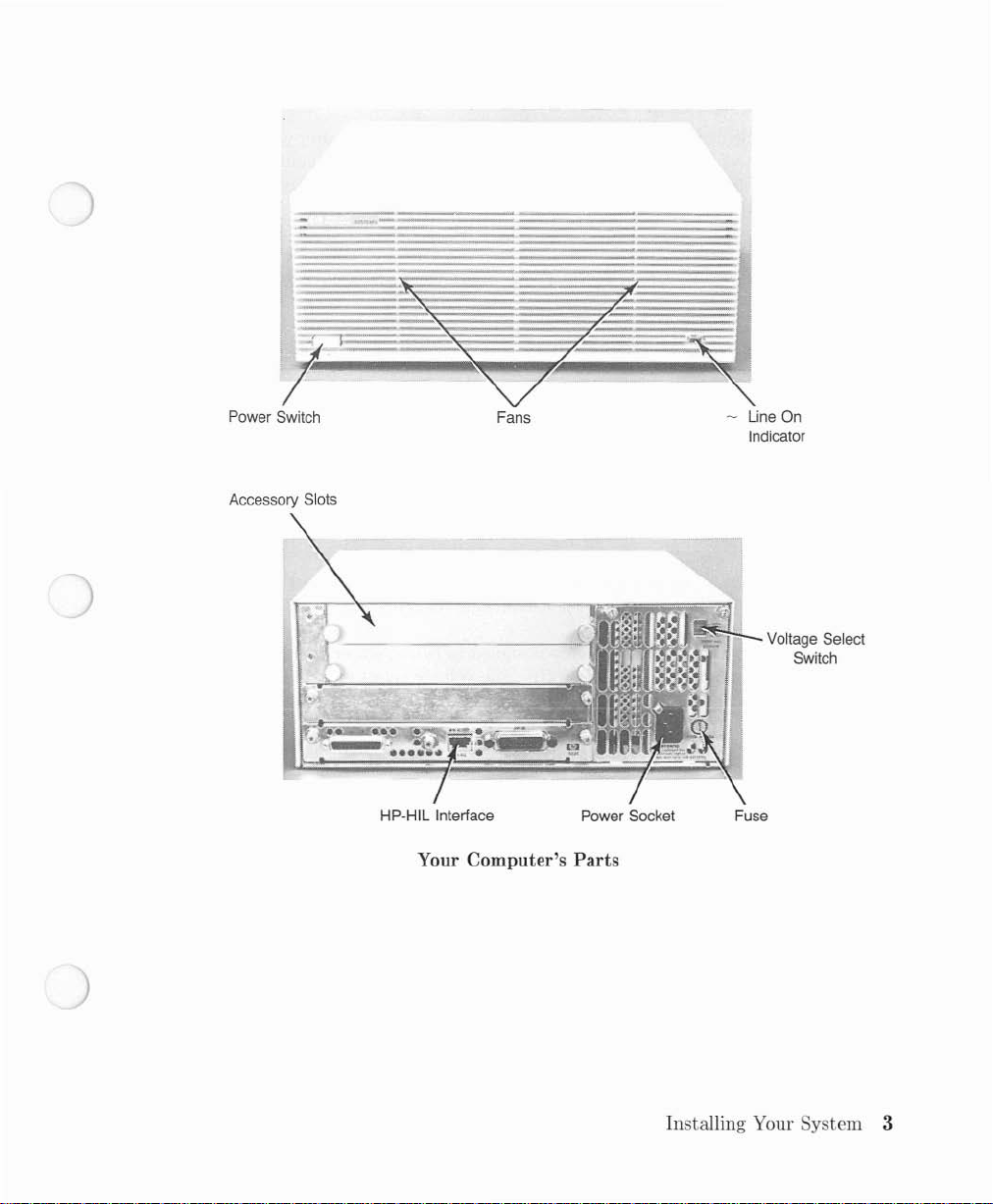
Power Switch
Accessory Slots
Fans
HP-HIL
Interface
Your Computer's Parts
Line On
Indicator
.,
I".~'S'I'+:!-_
Power Socket Fuse
Voltage Select
Switch
Installing Your System 3
Page 12
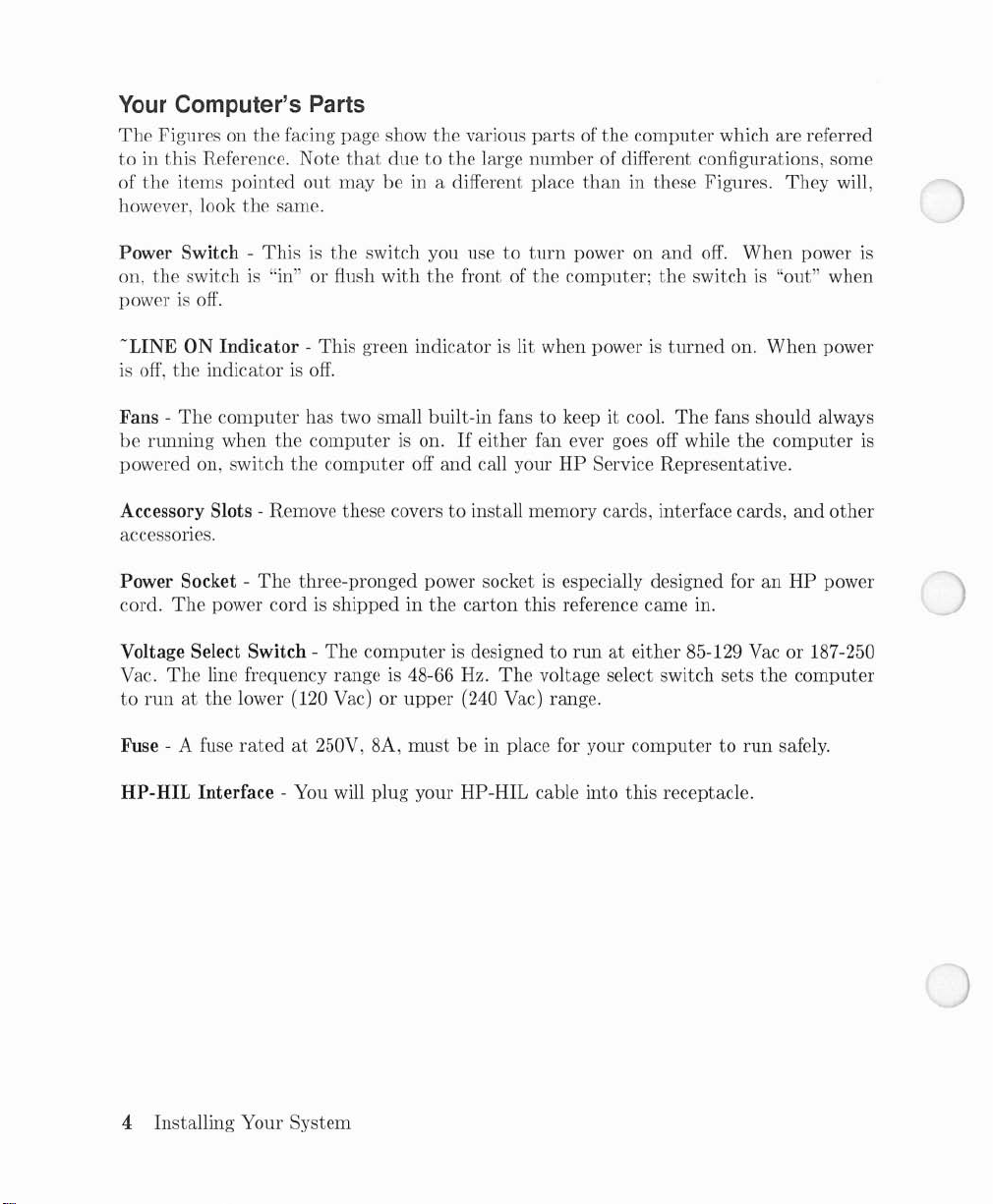
Your
Computer's Parts
The
Figures on
tointhis
of
the
however, look
Reference. Note
items
pointed
the
facing page show
out
the
same.
the
various
that
due to
maybein a different place
the
large
partsofthe
number
computer
of different configurations, some
than
in these Figures.
which are referred
They
will,
Power Switch on,
the
switchis"in" or flush
power
be
powered on, switch
is
off.
-LINE
is
Fans -
Accessory Slots - Remove these covers
accessories.
Power Socket cord.
Voltage Select Switch Vac.
to
Fuse - A fuse
ON
off,
the
The
running
The
The
runatthe
HP-HIL Interface - You will plug
Thisisthe
Indicator-This
indicatorisoff.
computer
when
power cordisshipped in
line frequency range is 48-66 Hz.
lower (120 Vac)orupper
ratedat250V, 8A,
has two small built-in fans to keep it cool.
the
the
The
three-pronged power socketisespecially designed for an
switch you usetoturn
with
green indicatorislit when poweristurned
computerison.Ifeither fan ever goes off while
computer
The
off
computerisdesignedtorunateither 85-129 Vac or 187-250
mustbein place for your
your
power on
the
front of
and
to
the
carton
(240 Vac) range.
HP-HIL cable into this receptacle.
the
computer;
call your
install memory cards, interface cards,
The
HP
Service Representative.
this reference came in.
voltage select switch sets
and
the
The
computertorun
off.
When
power
switchis"out" when
on.
When
power
fans should always
the
computer
and
other
HP
power
the
computer
safely.
is
is
4 Installing Your System
Page 13
Installing
This
section explains how to install your system.Itexpands on
in
the
Installation Picture-guide,
The
computer
guide
due
here except for
Before you move on to
and
familiarize yourself
as you look over
There
are
section,
the
Your
comes in several versions.
to differences in
the
the
four sections to
Keyboard
Computer
the
monitors, which are quite different.
the
first step, lookatthe
wiLh
list.
the
section
and
deals
with
any problems which you may encounter.
Each
version has a different Installation Picture-
hardware. However,
the
computer
installation procedure:
and
the
parts.
Video Display section.
photoatthe
Find
The Computer Section
This
section covers unpacking
Remove the computer from this carton.
The
computerispacked in a large
ahead
and
Go
remove
the
and
computer
installing
carton
from
the
together
the
large box.
computer
withabox
the
procedure presented
the
versions will be covered together
beginning of this
each
part
on your own
the
Computer
mainframe.
section,
containing accessory items.
the
chapter
computer
Monitor
Placeiton
Place
the
computerisdesigned for remote operation. Be sure
inches) of spaceatthe
the
grill in
excessive
the
dust
your desk.
computer
the
front panel
or smoke.
on any convenient surface.
front
and
back for ventilation.
and
out
the
back. Do
It
not
need
not
beatyour work area, as
that
thereisat
The
fans draw cooling air
operate
the
computer
Installing Your System 5
least 50mm
through
in areas
(2
with
Page 14
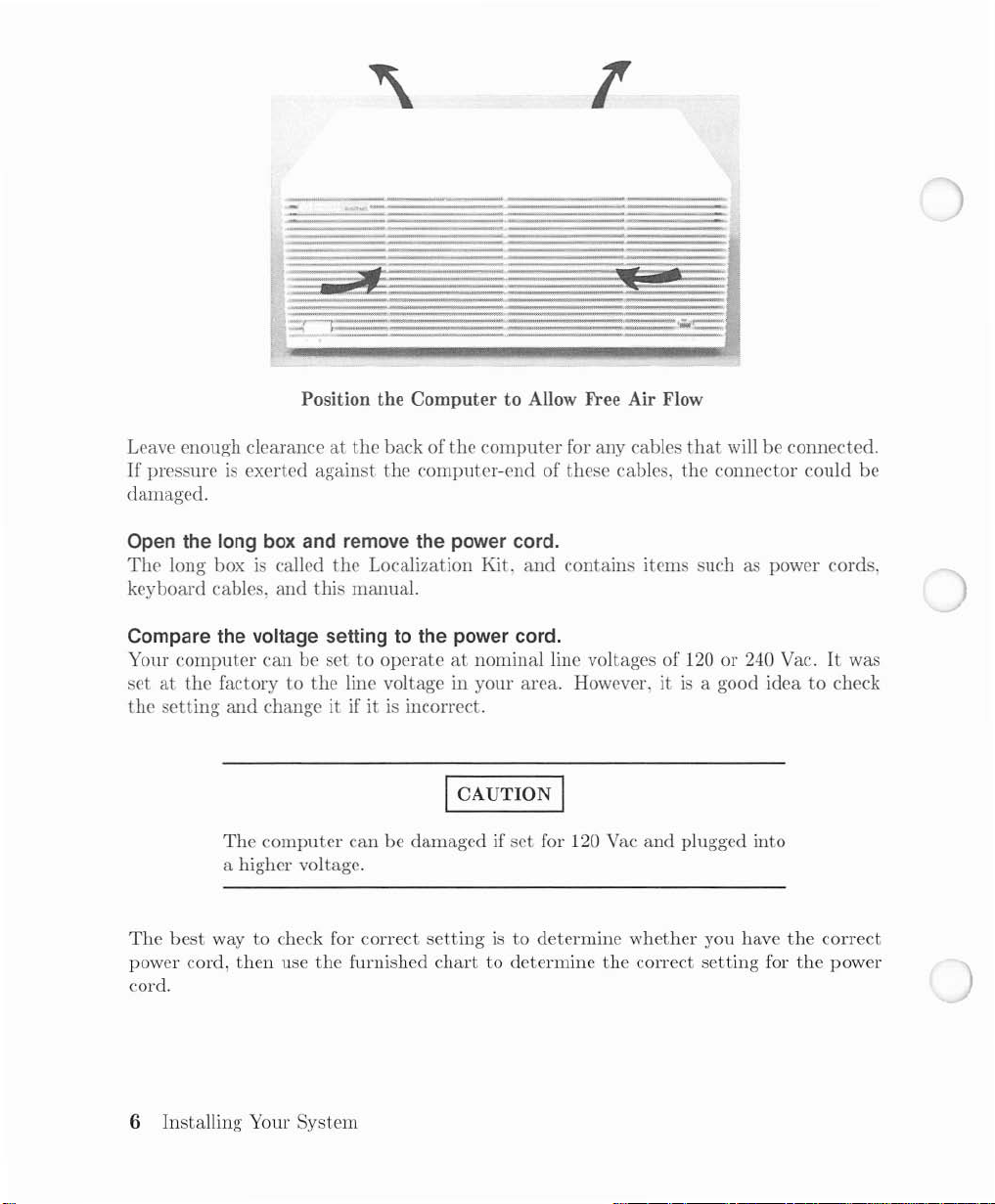
Position the Computer to Allow
Leave enough clearance
If
pressureisexerted against
damaged.
at
the
Free
Air Flow
back of
the
the
computer
computer-end of these cables, the connector could
for any cables
that
will be connected.
be
Open the
The
keyboard cables,
Compare the voltage settingtothe power cord.
Your
set
the
long
box
long boxiscalled
and
computer
at
the
setting
can be set to
factory to
and
change it if itisincorrect.
and remove the power cord.
the
Localization Kit.
this
manual.
operateatnominal line voltages of 120 or 240 Vac.Itwas
the
line voltage in your area. However, itisa good idea to check
and
I CAUTION I
The
The
best
way to check for correct
power cord,
cord.
computer
a higher voltage.
then
use
can be damaged if
the
furnished
set
settingisto
chart
to determine
for 120 Vac
determine whether you have
contains items such as power cords,
and
plugged into
the
correct
the
correct
setting
for
the
power
6 Installing Your System
Page 15
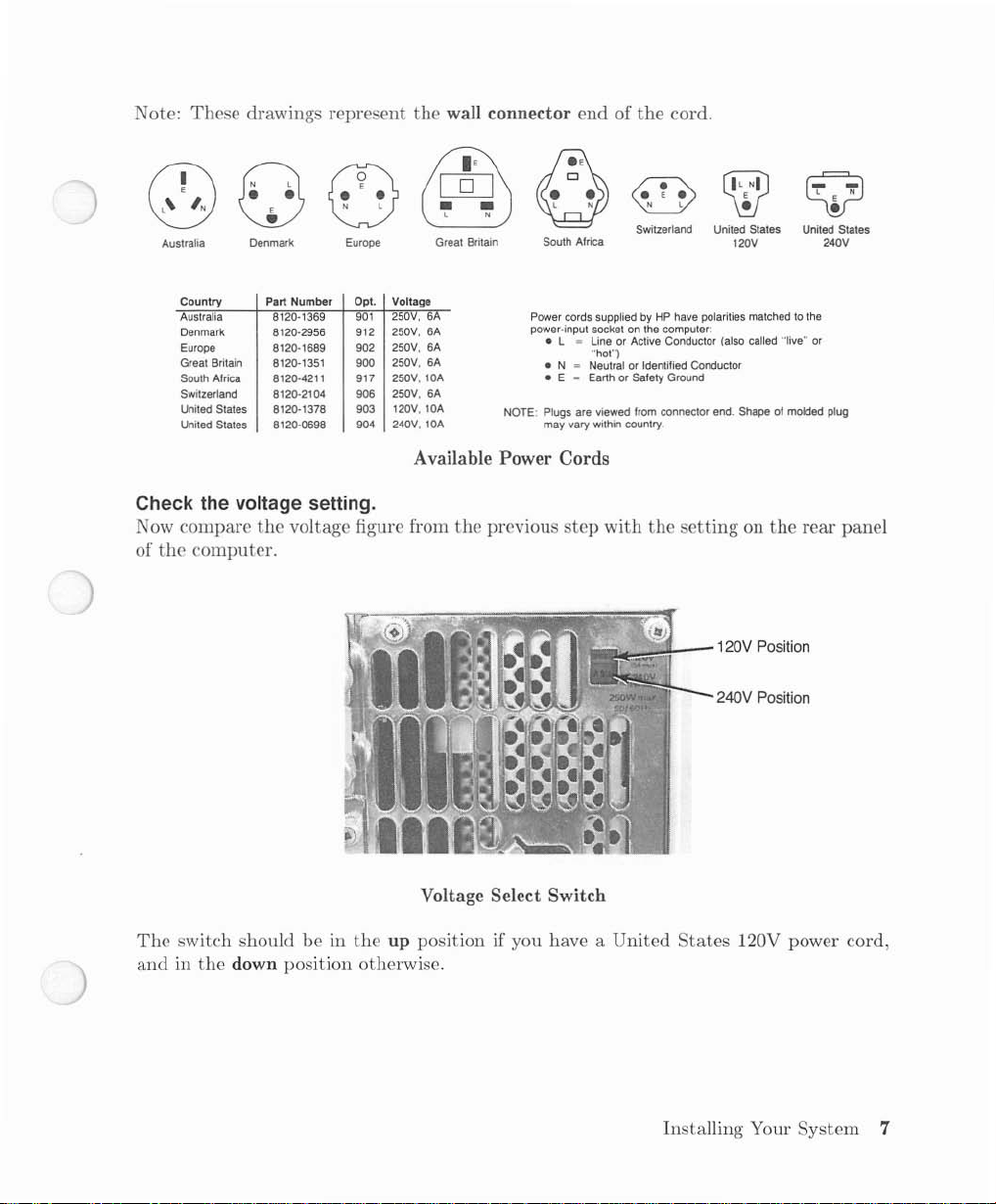
Note: These drawings represent
the
wall connector end of
the
cord.
• •
(3
(0)
Australia
Country Part Number Opt. Voltage
Australia
Denmark
Europe
Great Britain 8120-1351 900
South
Switzerland
United
United
E
•
Denmark
8120·1369
8120·2956
8120-1689 902
Africa
8120·4211
8120·2104 906
States 8120-1378
States 8120-0698
N l
0
Europe
901
912
917 250V, lOA
903
904 240V, lOA
Check the voltage setting.
Now compare
of
the
computer.
the
voltage figure from
[Q]
&§)
• •
l N
Great
Britain
250V, 6
6A
250V,
250V, 6A
250V, 6A
250V, 6A
120V, lOA
• •
0
South Africa
Power
power-input socketonthe
• L
• N
• E
Plugs
NOTE:
may
Available Power Cords
the
previous
l N
cords
suppliedbyHP have
~
LineorActive
"hot")
Neutral
~
EarthorSafety Ground
are viewed
vary
within
step
with
N l
V
Switzerland United States
computer:
or
Identified Conductor
from
connector
country.
the
"':':'Ji-_-120V
CWJ
120V
polarities
Conductor (also
Shape of mOlded plug
end.
settingonthe
240V Position
United States
matchedtothe
"live"
called
rear panel
Position
l N
E
Q
•
240V
or
The
switch shouldbein
andinthe
down position otherwise.
Voltage Select Switch
the
up position if you have a United
States
120V power cord,
Installing Your System 7
Page 16
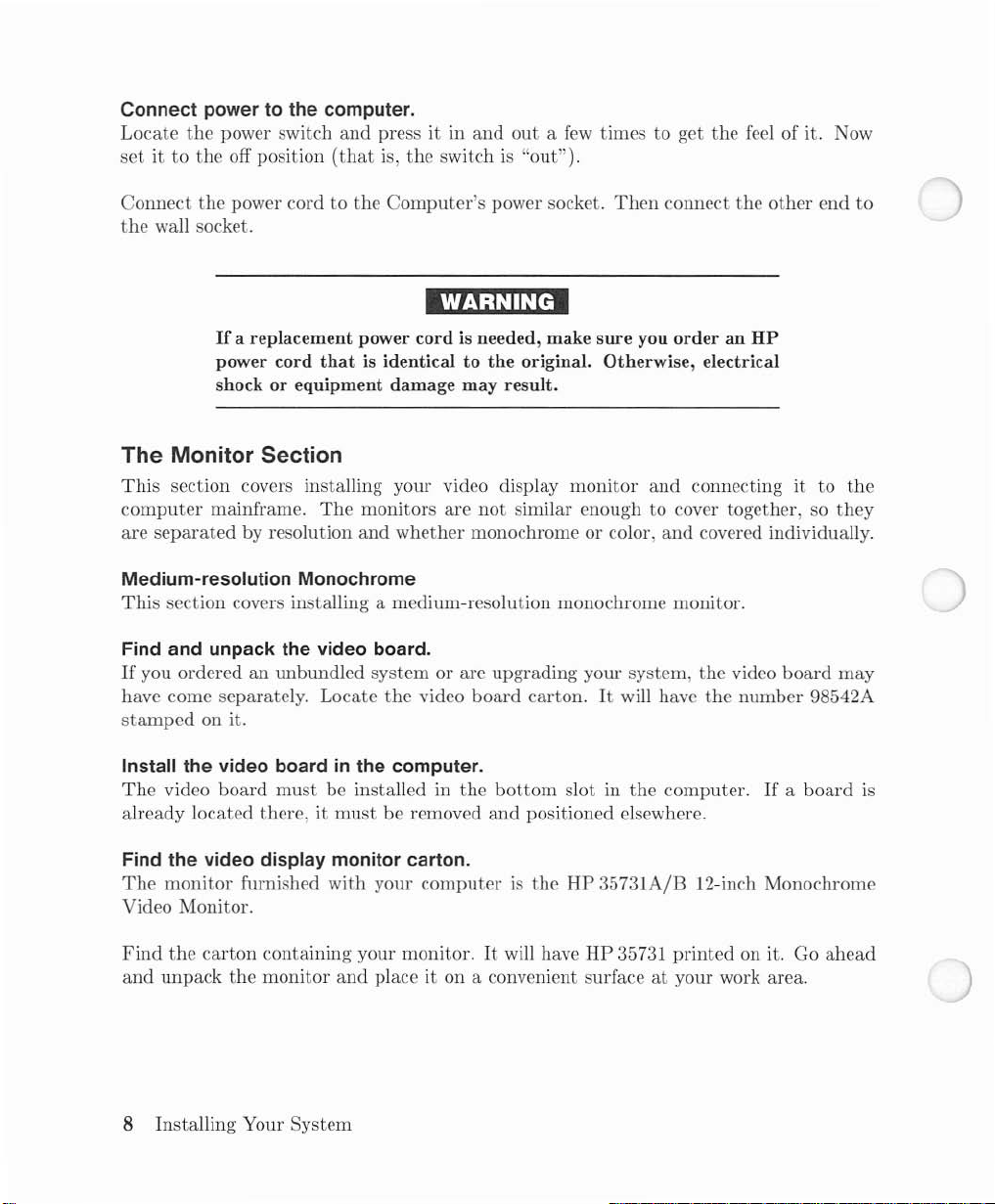
Connect powertothe computer.
Locate
set
it to
the
power switch
the
off position
and
(that
press it in
is,
and
the
switchis"out").
outafew
times to get
the
feel of it. Now
Connect
the
the
power cordtothe
wall socket.
If
a replacement power
power cord
Computer's
power socket.
cordisneeded, make
thatisidenticaltothe
Then
sure
you
original. Otherwise, electrical
shock or equipment damage may result.
The Monitor Section
This
section covers installing your video display
computer
are
Medium-resolution Monochrome
This
Find and unpack the video board.
If
you orderedanunbundled system or are upgrading your system,
have come separately. Locate
stamped
Install the video boardinthe computer.
The
already located there, it
mainframe.
separated
by resolution
The
monitors are
and
whether
not
monochrome or color,
section covers installing a medium-resolution monochrome monitor.
the
video
board
on it.
video
board
must
be installed in
must
be removed
the
bottom
and
monitor
similar enough to cover together, so
carton.Itwill have
slot in
the
positioned elsewhere.
connect
order
and
and
the
an
HP
connecting it to
covered individually.
the
video
the
number
computer.Ifa
other
board
end
they
may
9S542A
board
to
the
is
Find the video display monitor carton.
The
monitor
furnished
with
your
computeristhe
Video Monitor.
Find
the
and
carton
unpack
containing your monitor.Itwill have
the
monitor
and
place it on a convenient surfaceatyour work area.
8 Installing Your System
HP
35731A/B 12-inch Monochrome
HP
35731
printed
on it. Go
ahead
Page 17
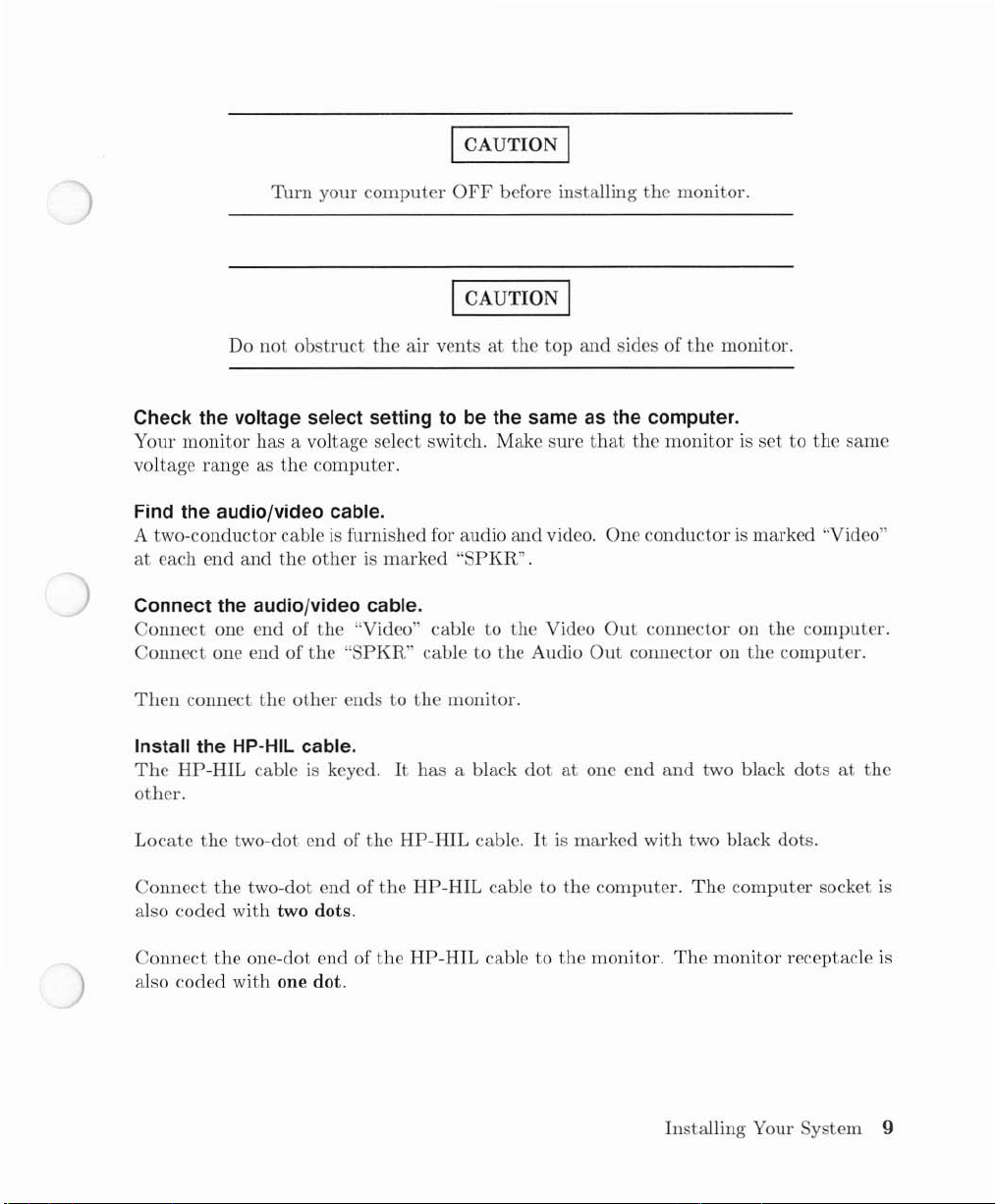
ICAUTION I
Turn
your
computer
OFF
before installing
the
monitor.
ICAUTION I
Do
not
obstruct
Check the voltage select settingtobe the same as the computer.
Your monitor has a voltage select switch. Make sure
voltage range as
Find the audio/video cable.
A two-conductor cableisfurnished for audio
at
each end
Connect the audio/video cable.
Connect
Connect
Then
one end of
one end of
connect
and
the
the
otherismarked
the
the
other
the
computer.
the
"Video" cable to
"SPKR"
endstothe
air
ventsatthe
"SPKR".
cabletothe
monitor.
top
and
video. One
the
Video
Audio
and
that
Out
sides of
Out
the
monitor.
the
monitorisset to the
conductorismarked "Video"
connector on
connector on
the
the
computer.
same
computer.
Install the HP-HIL cable.
The
HP-HIL
other.
Locate
Connect
also
coded
Connect
also coded with one dot.
cableiskeyed.Ithas
the
two-dot end of
the
two-dot end of
with
two dots.
the
one-dot end of
the
the
the
HP-HIL
HP-HIL
HP-HIL
a black
cable.Itis
cable to
cabletothe
dotatone end
marked with two black dots.
the
computer.
monitor.
and
The
The
Installing Your System 9
two black
computer
monitor
dotsatthe
socket
receptacle
is
is
Page 18
Connect powertothe monitor.
The
power cordislocated in
socket.
Turn
Then
the
monitor01.
connect
the
This
the
other
allows
carton
end to
the
containing
the
wall socket.
monitor
the
to warmupwhile you are installing
keyboard.
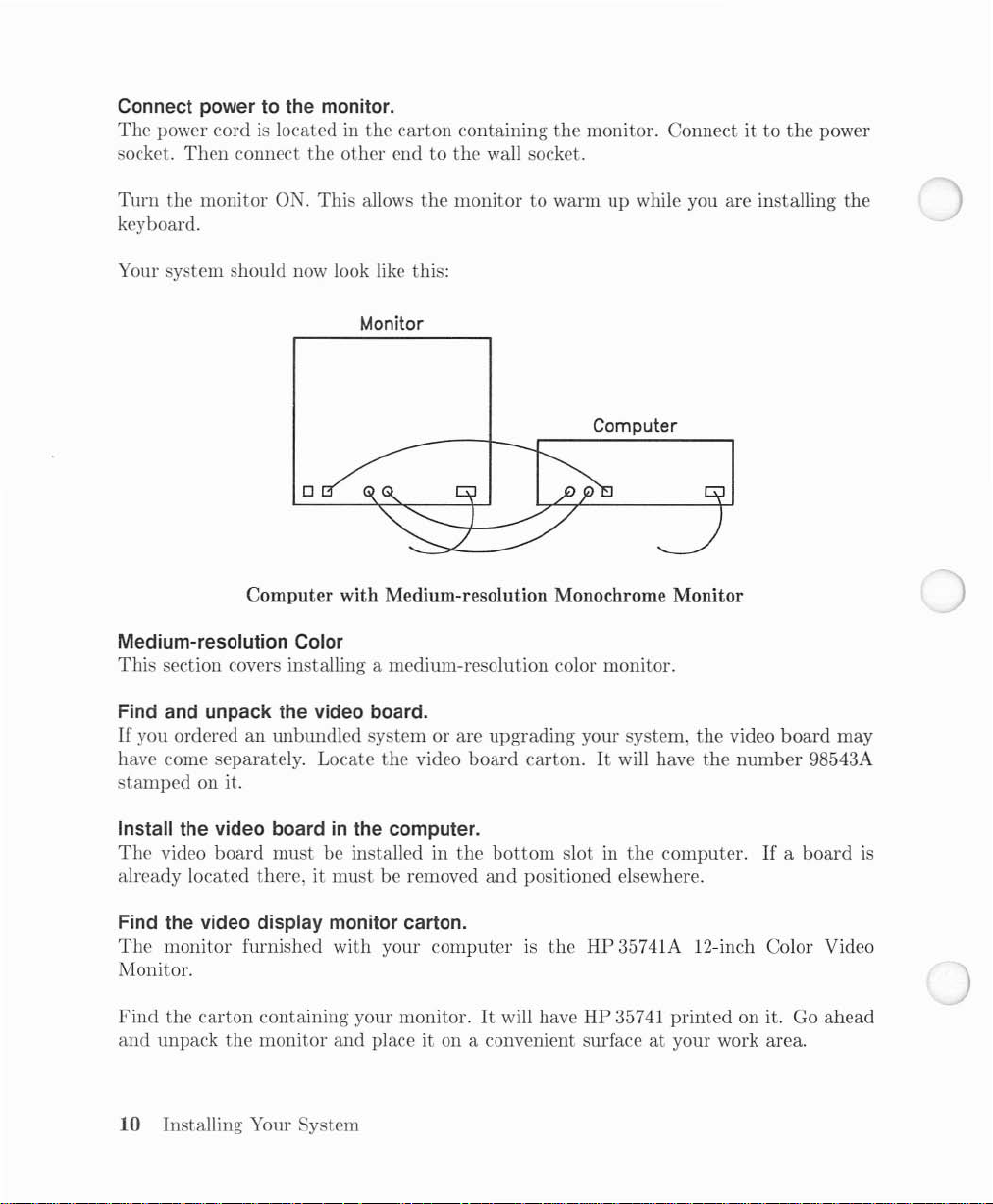
Your system should now look like this:
Monitor
o
Computer with Medium-resolution Monochrome Monitor
Medium-resolution Color
This
section covers installing a medium-resolution color monitor.
monitor. Connectitto
Computer
the
power
the
Find and unpack the video board.
If
you orderedanwlbundled systemorare
have come separately. Locate
stamped
Install the video boardinthe computer.
The
video
on it.
board
must
be installed in
already located there, it
Find the video display monitor carton.
The
monitor
furnished with your
the
video
the
mustberemoved
computerISthe
Monitor.
Find
the
and
carton
unpack
containing your monitor.Itwill have HP 35741
the
monitor
and
place it on a convenient surfaceatyour work area.
10 Installing Your System
upgrading
board
carton.Itwill have
bottom
and
slot in
positioned elsewhere.
your system,
the
the
video
the
number
computer.Ifa
board
98543A
board
may
HP 35741A 12-inch Color Video
printed
on it. Go
ahead
is
Page 19
Turn
your
computer
Do
not
obstruct
Check the voltage select setting.
Your
monitor
voltage range as
Find the video cables.
The
video cable carries video signals from
has
three
be
used for any color.
Connect the video cables.
The
video cables are color-coded Red, Blue
are labelled R,
connector on
has a voltage select switch. Make sure
the
separate
video cables for red, blue
Band
the
computer.
the
air ventsatthe
computer.
G.
Connect each video cable connectortothe
Then
I CAUTION I
OFF
before installing
I CAUTION I
the
and
and
connect
the
the
top and sides of
that
the
computertothe
green.
The
cables are identical
Green.
other
The
ends of
the
monitor.
the
monitor.
monitorisset to
monitor. Your
monitor
output
appropriate
cablestothe
the
same
monitor
and
may
connectors
video
Monitor.
Install the audio cable.
Now find
between
Install the HP-HIL cable.
The
other.
Locate
Connect
also coded
Connect
also coded
and
the
HP-HIL
the
the
the
install
computer
cableiskeyed.Ithas a black
two-dot
two-dot end of
with
one-dot end of
with
the
and
endofthe
two dots.
one dot.
audio cable.IthasanRCA connector on each end. Install it
the
monitor.
HP-HIL
the
HP-HIL
the
HP-HIL cable
dotatone end
cable.Itis
cable to
to
marked with two black dots.
the
computer.
the
monitor.
and
two black dotsatthe
The
computer
The
monitor
Installing Your System
socket
receptacle
11
is
is
Page 20
Connect powertothe monitor.
The
power cordislocated in
socket.
Turn
Then
the
connect
monitor
ON.
the
This
the
other
allows
carton
end to
the
containing
the
wall socket.
the
monitor. Connect ittothe power
monitortowarmupwhile you are installing the
keyboard.
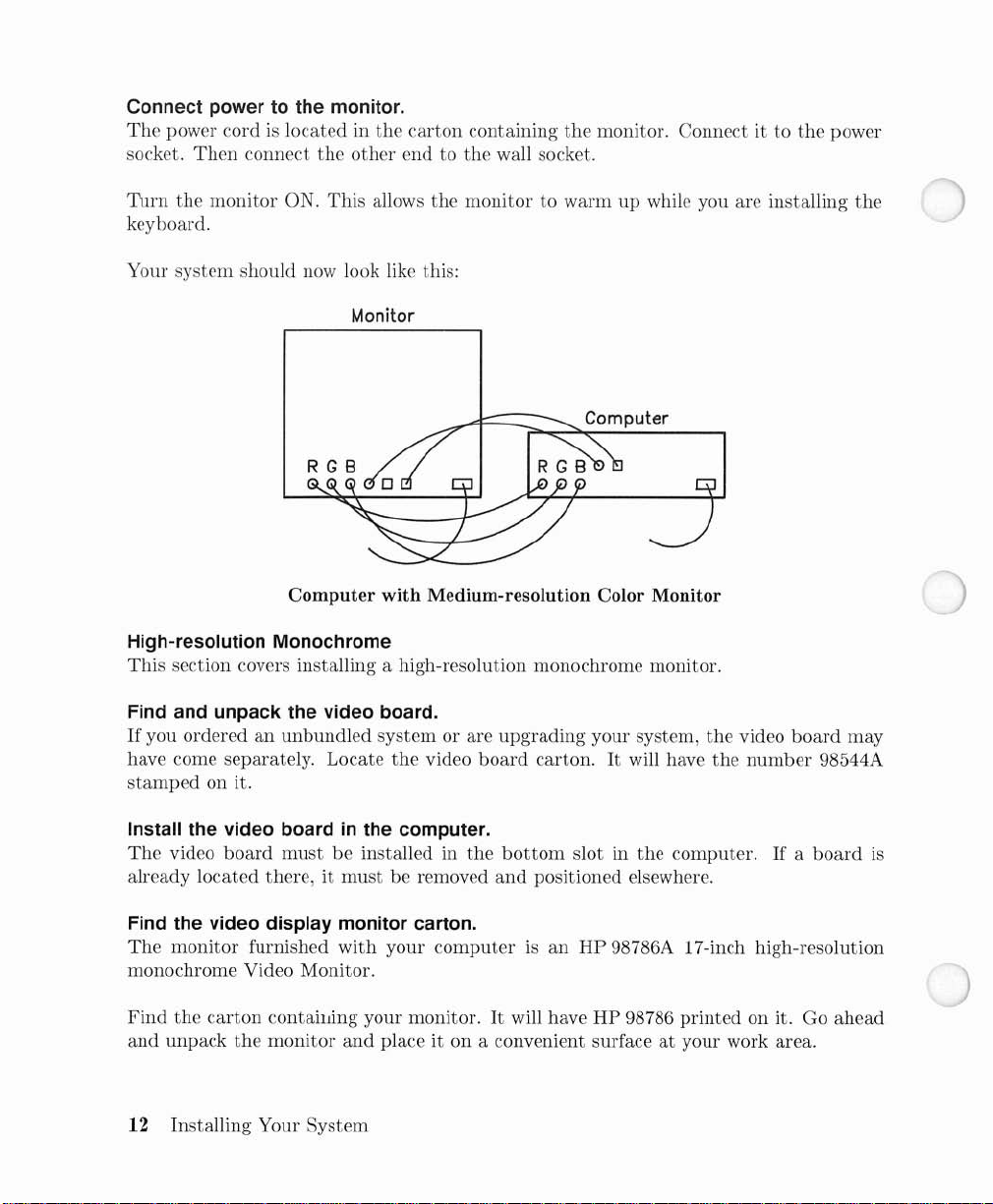
Your system should now look like this:
Monitor
Computer
Computer with Medium-resolution Color Monitor
High-resolution Monochrome
This
section covers installing a high-resolution monochrome monitor.
Find and unpack the video board.
If
you orderedanunbundled
have come separately. Locate
stamped
Install the video boardinthe computer.
The
video
on it.
board
mustbeinstalled in
already located there,itmust
Find the video display monitor carton.
The
monitor
furnished
with
system
the
or are
video
be removed
your
computerISan
the
monochrome Video Monitor.
Find
the
and
carton
unpack
contailJing your monitor.Itwill haveHP98786
the
monitor
and
place it on a convenient surfaceatyour work area.
12 Installing Your System
upgrading
board
carton.Itwill have
bottom
and
slot in
positioned elsewhere.
HP
your system,
the
the
video
the
number
computer.Ifa
board
98544A
board
98786A 17-inch high-resolution
printed
on it. Go
may
is
ahead
Page 21
Turn
your
computer
Do
not
obstruct
Check the voltage select setting.
Your
monitor
voltage range as
Install the video cable.
The
video cableisblack
on
the
other.
has a voltage select switch. Make sure
the
computer.
and
the
air ventsatthe
has an
I CAUTION I
OFF
before installing
ICAUTION I
top
RCA
connector on one end
the
or sides of
that
the
monitor.
the
monitor.
monitorissettothe
and
a BNC connector
same
Connect
the
Install the Speaker Module.
HP
needtoinstall a Speaker Module.
Installation
attaching
The
on a clean,
Suggested locations are
location which interferes
Select a suitable
fastener
attach
the
other
98786A
fastener
pad. Place
the
end
with
the
RCA connectortothe
endtothe
monitor
involves selecting a location for
the
pad
dry
moduletothe
monitor.
does
not
haveaninternal speaker or HP-HIL circuitry, so you will
moduletothe
has a pressure-sensitive adhesive backing.
and
oil-free surface.Itshouldbeflat,
mounting
the
pad.
the
back or side of
with
equipment ventilation grilles.
location
padatthe
fastener pad.
and
remove
location
video
output
the
module, installing a fastener
smooth
the
monitororthe
the
paper
and
press firmly for a
jack on
The
and
edge of a desk. Avoid any
covering from
Installing Your
the
backing
non-porous.
few
computer
must
the
back of
seconds. Now
System
and
pad
be placed
and
the
13
Page 22
Install the audio cable.
Now find
the
audio cable
and
connect one end to
the
speaker module.
Now locate
Then
Install the HP-HIL cable.
The
the
phono-to-RCA
connect it to
the
RCA
adapter
connector on
HP-HIL cableiskeyed.Ithas
other.
the
Locate
Connect
also coded
Connect
two-dot end of
the
two-dot end of
with
two dots.
the
one-dot end of
module receptacleisalso coded
Connect powertothe monitor.
The
power cordislocated in
socket.
Then
connect the
the
HP-HIL cable.Itis
the
HP-HIL cable to
the
HP-HIL cable to
with
the
carton
other
endtothe
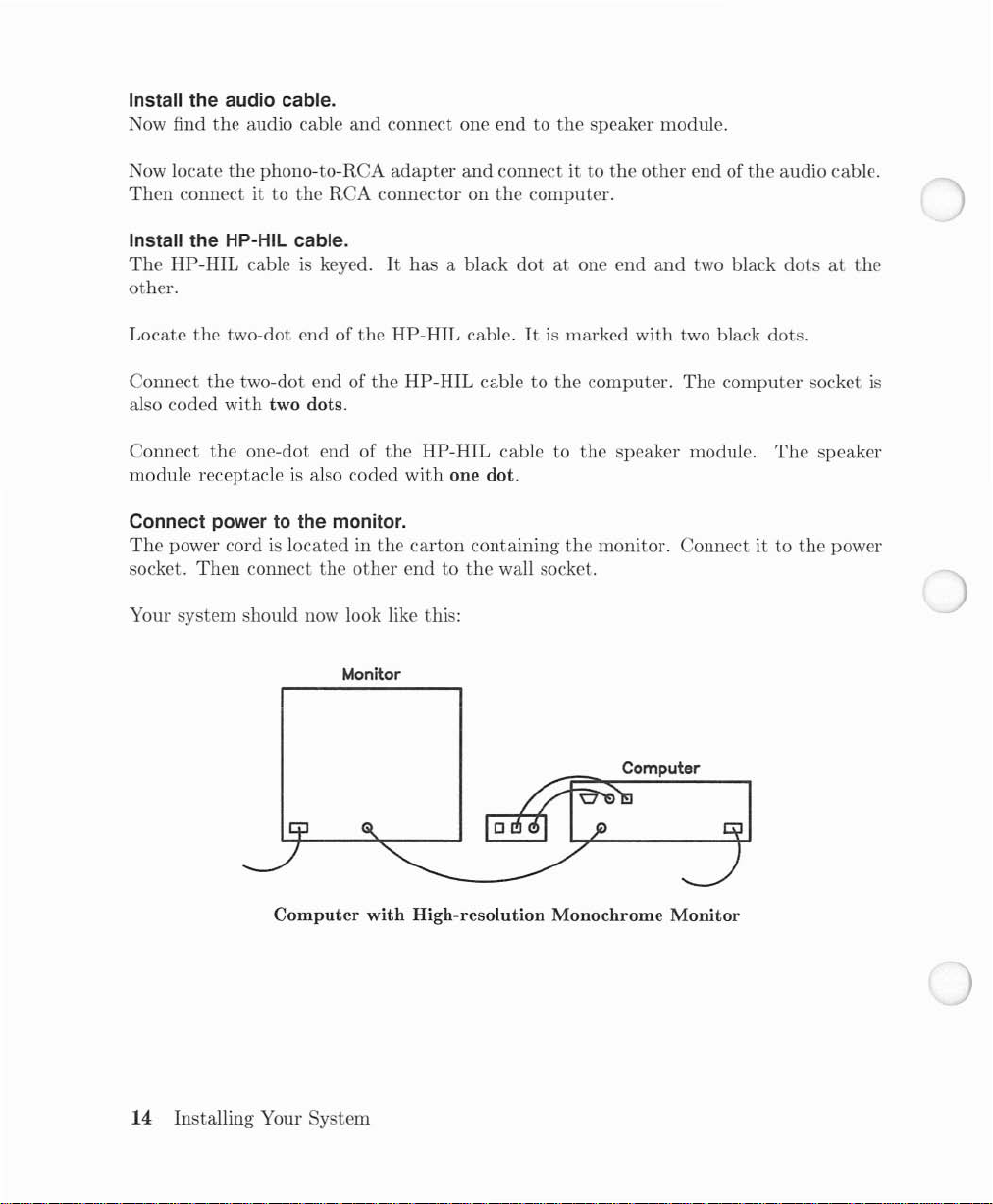
Your system should now look like this:
Monitor
and
the
a black
one dot.
containing
connect it to
computer.
dotatone end
marked with two black dots.
the
computer.
the
the
wall socket.
the
other
end of
the
and
two black
The
computer
speaker module.
The
monitor. Connectitto
audio cable.
dotsatthe
socket
speaker
the
power
is
Computer with High-resolution Monochrome Monitor
14 Installing Your System
Computer
Page 23

High-resolution Color
This
section covers installing a high-resolution color monitor.
Find and unpack the video board.
If
you orderedanunbundled system or are upgrading your system, the video
have come separately. Locate
stamped
Install the video boardinthe computer.
The
already located there.itmust
Find the video display monitor carton.
The
high-resolution Color Video Monitor.
have
it on a convenient surface
on it.
video
board
must
monitor furnished with your
HP
98751 or
HP
98752
the
video
be installed in
be removed
computerisan
printed
at
your work area.
board
carton.Itwill have the
the
bottom
and
positioned elsewhere.
Find
the
carton
on it. Go ahead
slot in
HP
the
computer.Ifa
98751 or
containing your monitor.Itwill
and
unpack
an
HP 98752A 19-inch
the
ICAUTION I
Turn
your
computer
OFF
before installing
the
monitor.
board
may
number
monitor and place
98547A
board
is
Do
not
obstruct
Check the voltage select setting.
Your monitor
voltage range as
has
a voltage select switch. Make sure
the
computer.
the
air ventsatthe
I CAUTION I
top
and
that
sides of
the
monitor.
the
monitorissettothe
Installing Your System
same
15
Page 24
Locate the video cables.
The
video cables carry video signals from
has
a three-conductor video
Connect the video cables.
The
video cables are color-coded Red, Blue and Green.
are
labelled R,
connector on
Install the Speaker Module.
These
monitors do
install a Speaker Module.
Band
the
computer.
not
cable-one
G.
Connect each video cable connector to
Then
connect
haveaninternal speaker or
the
conductor for red, blue and green.
the
computer to
other ends of
HP-HIL
the
monitor. Your monitor
The
video
output
the
appropriate video
the
cables to the monitor.
circuitry, so you will need to
connectors
Installation
attaching
The
fastener pad has a pressure-sensitive adhesive backing.
on a clean, dry
Suggested locations are
location which interferes with equipment ventilation grilles.
Select a suitable mounting location
fastener pad. Place the
ow
attach
N
Install the audio cable.
Now find
Now locate the phono-to-RCA
Then
Install the HP-HIL cable.
The
HP-HIL
other.
Locate
Connect
also coded with two dots.
involves selecting a location for the module, installing a fastener
the
module to
and
the module to
the
audio cable
connectitto the RCA connector on
cableiskeyed.Ithas a black
the
two-dot
the
two-dot end of the
the
pad.
oil-free surface.Itshould be flat, smooth
the
end
back or side of
padatthe
the
fastener pad.
and
connect one
adapter
of the
HP-HIL
HP-HIL
and
the
monitor or
remove
location
and
cable.Itis
cable to the computer.
the
paper
and
press down firmly for a
end
to the speaker module.
connect it to the
the
computer.
dotatone end
marked
The
backing
and
the
edge of a desk. Avoid any
covering from
other
and
with
two black dots.
The
must
non-porous.
the
back of
few
end of
the
audio cable.
two black dotsatthe
computer socket
pad
and
be placed
the
seconds.
is
Connect
module receptacle
the
one-dot end of
is
also coded with one dot.
16 Installing Your System
the
HP-HIL
cable to
the
speaker module.
The
speaker
Page 25
Connect powertothe monitor.
The
power cordislocated in
socket.
Then
connect
the
the
other
carton
containing
endtothe
the
wall socket.
monitor. Connect ittothe
power
Turn the monitor
This
allows
Your
system
on.
the
monitortowarmupwhile you are installing
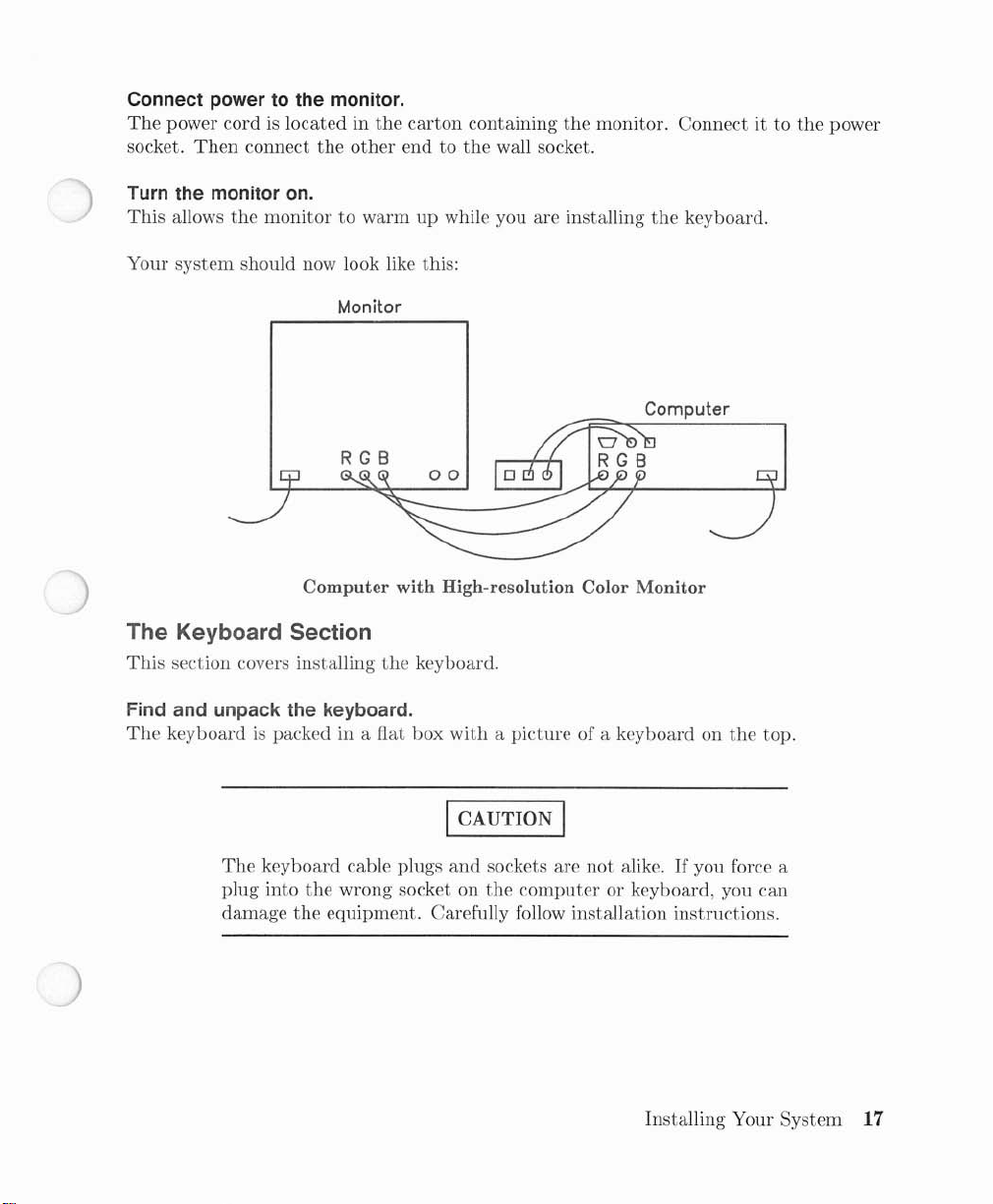
should now look like this:
Monitor
RGB
Computer with High-resolution Color Monitor
The Keyboard Section
This
section covers installing
Find and unpack the keyboard.
The
keyboardispacked in a fiat
the
keyboard.
box
with
the
keyboard.
Computer
a picture of a keyboard on
the
top.
The
keyboard cable plugs
plug into
damage
the
wrong socket on
the
equipment. Carefully follow installation instructions.
I CAUTION I
and
sockets are
the
computer
not
alike.Ifyou force a
or keyboard, you can
Installing Your System
17
Page 26
Locate the keyboard cable.
The
keyboard cableissimilar to
like
the
HP-HIL cable, with
goingtothe
containing
Connect the two-dot endofthe keyboard cable.
Find
the
also has two dots. Install
on
the
Connect the one-dot endofthe keyboard cable.
Install
(as viewed from
Slide
the
up
or down as you like.
speaker module.Itis
the
computer.
two black
dot
speaker module.
the
keyboard cable plug
the
back).
keyboard cable into
end of HP-HIL keyboard cable.
the
the
HP-HIL cable, except
the
one-dot end going to
located in
two
dot
end of
with
one dot in
The
right-hand keyboard socketisalso coded
the
cable
the
the
runonthe
thatitis
the
keyboard
small hox in
The
the
socket on
HP-HIL cable into
the
right-hand socket of
keyboard. Fold
coiled.Itis
and
the
two-dot end
large,
outer
the
speaker module
the
two-dot socket
the
with
the
keyboard
keyed
carton
keyboard
one dot.
stand
18 Installing Your System
Page 27
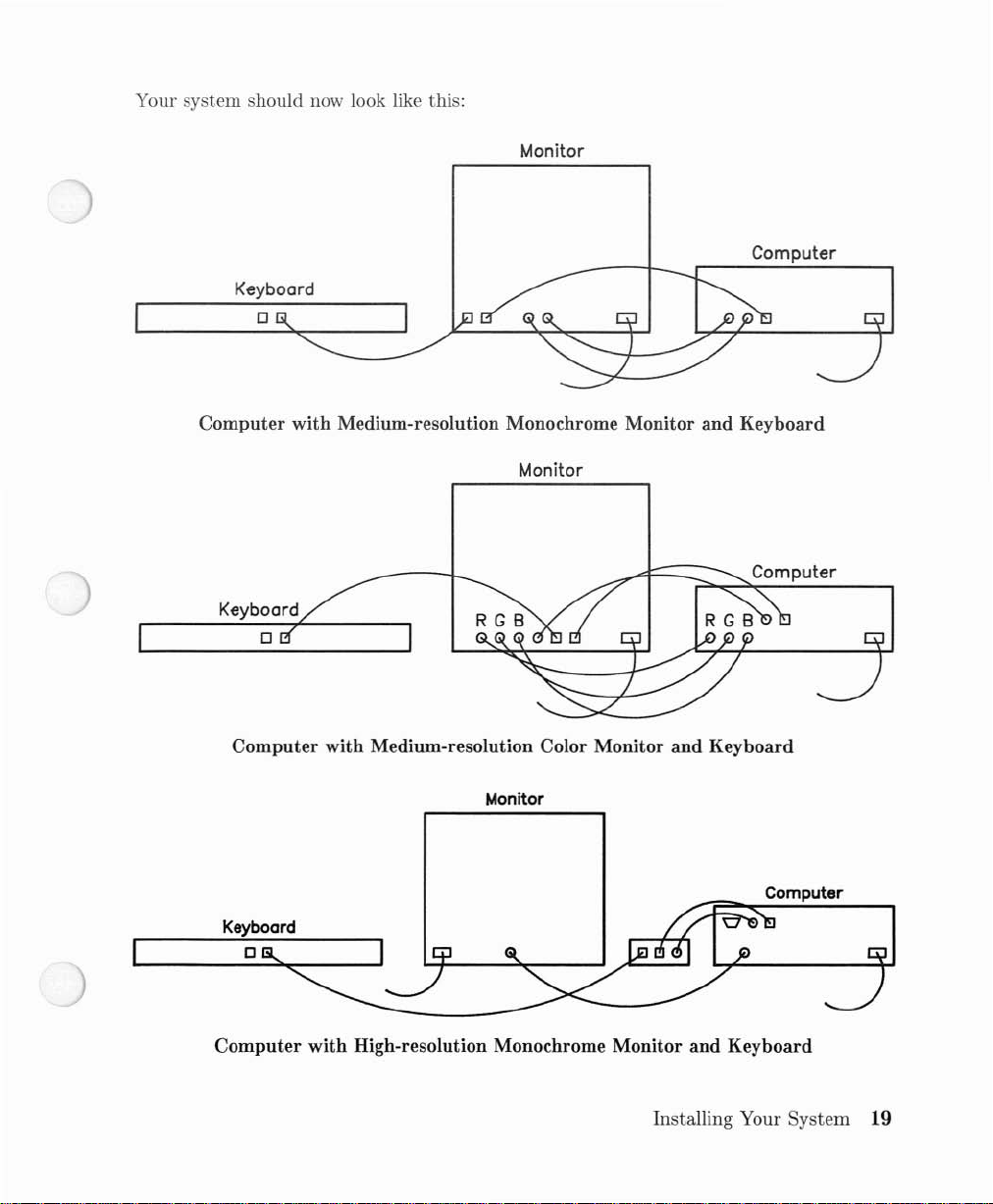
Your system should now look like this:
Keyboard
o
Computer with Medium-resolution Monochrome Monitor and Keyboard
Monitor
Computer
Monitor
Computer
Computer with Medium-resolution Color Monitor and Keyboard
Monitor
Computer
Computer with High-resolution Monochrome Monitor and Keyboard
Installing Your
System
19
Page 28
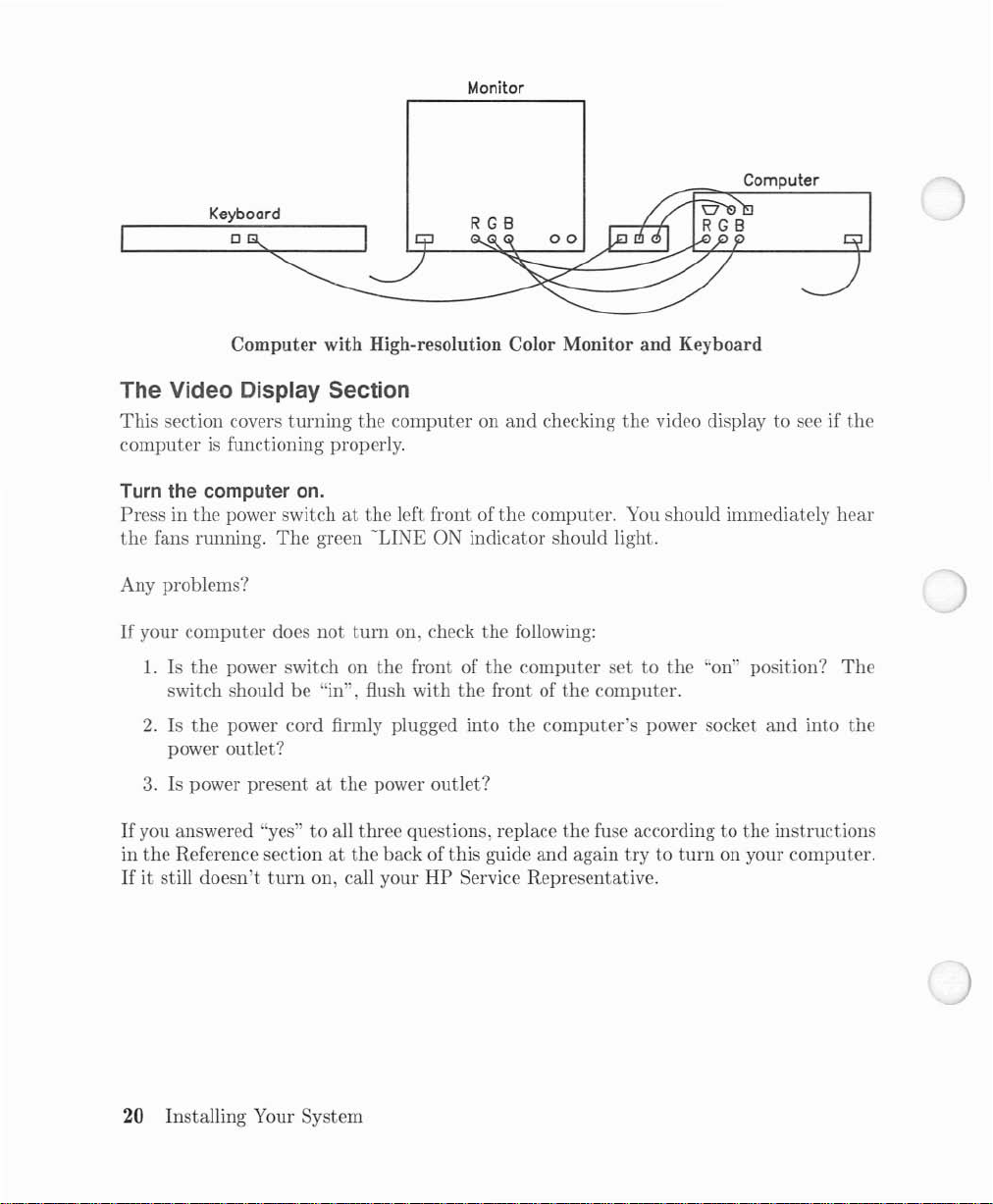
Keyboard
o
Computer with High-resolution Color Monitor and Keyboard
The Video Display Section
This
section covers
computerisfunctioning properly.
turning
the
computeronand
Monitor
checking
Computer
the
video displaytosee if
the
Turn the computer
Pressinthe
the
fans running.
power switchatthe
The
on.
green
left front of
-LINE
the
ON indicator should light.
Any problems?
If
your
computer
1.
Is
the
switch should be "in", flush
2.Isthe
does
not
turn
power switch on
on, check
the
front of
with
the
the
power cord firmly plugged into
the
front of
power outlet?
3.
Is power presentatthe
If
you answered "yes"toall three questions, replace
in
the
Reference sectionatthe
If
it still
doesn't
turn
on, call your
power
back of
outlet?
this
guide
HP
Service Representative.
computer. You should immediately
following:
computer
the
computer's
and
settothe
the
computer.
power socket
the
fuse according to
again
trytoturn
"on" position?
and
the
on your
hear
The
into
the
instructions
computer.
20
Installing Your System
Page 29

Compare the displaytothis picture.
If
the
displayisincorrect, proceed to
If
you do not see a display,
installed your system.
A list of HP Sales
If
you do
not
see a display
correctly installed
to
• Is
check are:
the
monitor plugged in
Areas
If
and
the
video display monitor.
but
you have, refer
Support
and
Chapter
hear
a series of beeps, make sure
Officesispacked
don't
hear
and
turned
2.
the
problemtoyour HP Service Representative.
with
any beeps either, make sure
on?
your computer.
• Are the video cables correctly installed?
If
the
displayiscorrect, you have installed your computer.Ifyou have
an
HP 98570A eight-slot backplane expander
included with
If
you do
to
install your peripherals.
not
the
expander or those in
have an
expander
to install, proceed to
to
install, do so now. Use
the
Peripheral Installation Guide.
the
that
you have correctly
that
you have
an
HP 98568A or
the
instructions
Peripheral Installation Guide
Installing Your
System
21
Page 30

22 Installing Your System
Page 31

Reading the Self-Test
2
Computers
problem
and
hours
Your
this
way,
of a mid-session failure.
In
this
should do in case of a failure.
canbevaluable time-savers,
goes
undetected
of your labor may be wasted.
computer
chapter,wedescribe howtointerpret
minimizes this risk by performing a self-test every time you
most
problems are
and
your
caught
but
computer
before you
only if they are
fails in
the
the
middle of a job,
start
to work, sparing you
self-test messages
operating
and
suggest
reliably.
data
turn
the
If
canbelost
it on. In
frustration
what
you
a
Reading
the
Self-Test 23
Page 32

Self-Test Messages
Turn
your
monitor
on.
If
you have one or more
after
the
word Keyboard appears.
otice
the
messages
displaytothe
on,
and
appearing
appropriate
turn
operating
one below.
your
computer
systems on-line,
This
along
the
Adjust
on or press IShift
inhibits
the
left-hand side of
your
monitor
I-I
Reset
Iif
tap
the
space
bar
a couple times
boot
ROM from loading a system.
the
screen.
Compare
if necessary.
itisalready
your
Copyright
Hewlett-Packard
All
BOOTROM
MC68010
Bit
Keyboard •
MC68881
HP-IB
HP98626
XXXXXX
SEARCHING
RESETToPower-Up
Rights
Rev. B
Processor
Mapped
Co-processor
at
Bytes
1985,
Reserved.
Display.
9
FORASYSTEM
Company.
~
(Press
RETURNToPause)
Model 310 Display
These
if
installed.
items
listed
only
24
Reading
the
Self-Test
Page 33

Copyright
Hewlett-Packard
All
Rights
1985,
Reserved.
Company.
BOOTROM
MC68020
Bit
Keyboard •
MC68881
HP-IB
HP98626at9
xxx
SEARCHING
RESETToPower-Up
Rev. B
Processor
Mapped
XXX
DisplaY:1==::::======~~These
Co-processor~
Bytes
FORASYSTEM
(or
C1)
~
(Press
RETURNToPause)
Model 320 Display
if
installed.
items
listed
only
Reading the Self-Test 25
Page 34

Copyright
Hewlett-Packard
All
Rights
1985,
Reserved.
Company.
BOOTROM
MC68020
MC68881
Bit
Keyboard
HP-IB
DMA-CO
HP98644at9
HP98625
HP98643at20
XXXXXXX
SEARCHING
RESETToPower-Up
The
lines
computer
Rev.
Processor
Co-processor
Mapped
at
Bytes
under
has
displayed; if
C1
Display
14 ...
--
FORASYSTEM
the
BOOTROM
just
been tested.Ifthe
the
component failed
This
item
if
installed.
(Press
RETURNToPause)
Models 330 and 350 Display
Rev. Amessage tell you
component
the
test,anerror message will appear.
that
passed the test, a
listed
only
each major component in
status
your
message
is
26 Reading
the
Self-Test
Page 35

Status Messages
Usually, each component will pass its
The
first
computer's
The
next
Co-processor.
status
messageiseither MC68010 or
central processorisfunctioning properly.
three
status
tell you
that
messages.
the
floating-point coprocessor. respectively, are working properly.
The
next
message
low
thatisthe message HP98644
nications interfaceisworking.
Local
Area
namc
and
select code wouldbelisted, also.
The
final
status
its test.
up
While
This
your
amountofRAM
the
memory
reports
that
your
The
Net interfaceisworking.Ifyou have
message in
the
self-test list
figure will be different for
and
subtracting
testisin progress,
test
and
Bit
Mapped
monitor's
bit-mapped
computer's
at
9,
which indicates
message, HP98643
(XXXXXX
the
various models. You may check it by adding
174 bytes.
the
message:
only
status
68020
Processor,
Display.
display.
built-in HP- IB interfaceisfunctional. Be-
that
at
20,
another
interface in your computer, its
Bytes)
shows
messages willbedisplayed.
and
tells you
Keyboard,
the
keyboard
your built-in
indicates
that
that
memory
that
and
MC68881
and
Data
Commu-
your built-in
has
passed
the
the
TESTING
appearsatthe
self-test
RAMisreportedinthe
WheretoGo
You have completed
arc
now ready to install peripheral devices, such as
The
Peripheral Installation Guide
information.Itis
MEMORY
bottomofthe
and
see this message.
Next
located in
screen.
When
the
Press
memory
self-test list (e.g.,
the
installation of your computer, keyboard
(part
number
the
carton
containing your software or
IShift
I-I
testisfinished,
524114
Bytes).
printers
97005-90000)isthe
Reset I if you want to
the
number
and
monitor. You
and
mass storage devices.
place togofor
operating
Reading
the
re-start
the
of bytes of
this
system.
Self-Test 27
Page 36

Error Messages
If
a component fails its test, an error messageisdisplayed in place of
message.
the
rest
There
in the
are a
Boot
few
ROM
types of
Error
error
messages; we'll discuss one of
Messages list which follows in this chapter.
the
them
usual
here
status
and
list
You might get
Keyboard
This
means
with
what
should look at.
After displaying an
self-test list. After all components are tested,
load, or displays
WAITING1MINUTE
This
message tells you
minute
the
to read
waiting period.
the
Failed
that
it found.
the
the
message:
the
computer
This
error
message:
(Press
error
found
the
keyboard's electronics,
message indicates a problem
message,
that
message(s) on the screen. You
the
computer
RETURNToAbort Wait)
the
computer
foundatleast one
Boot ROM Beeper
In additiontodisplayinganerror
of beeps.
error
Error
you
service representative may ask youtorestart
code sounded.
The
boot
ROMisactually sendinganerror messagetoa service person.Ifthis
patternissounded, check
Messages list which follows in
cannot
correct,orif
the
and
waiting a minute,
the
display foranerror message. Refertothe
this
chapter.Ifthe
display is
not
working, you should call
thatanHP
moves on to
the
computer
the
self-test so he
butitwasn't
Service Representative
the
next
either
looks for software
error
and
can
press IReturn Ito
the
boot
ROM
message indicates
HP
can
happy
component in
it's
giving you a
terminate
sounds a
for service. Your
listentothe
pattern
Boot
ROM
something
error
the
to
the
error
then
the
pattern
the
display any
Self-Test
After
you want to cancel
ROM
will
system you want loaded.
28 Reading
has sounded,
one-minute delay
operating
the
boot
ROM
and
the
beeps, you
systems found
searches for a systemtoload.
can
press [ReturnI.The
and
wait for youtospecify which
If
boot
Page 37

Boot ROM Errors
If
the
displays
computer
the
detects a problem
message:
with
the
boot
ROM
(that
is,itfailed checksum), it
BOOTROM
insteadofthe
displays
CONTINUEATOWN
The
computer
is
somewhat
Rev. X
the
BOOTROM
message:
will do
Failed
RISK
nothing
unpredictable in this
Rev. X message displayed when powerup
(Press
RETURNToContinue)
further
until you press
state
load from a disk. Therefore, if you decide
of any disks or programs
that
the
boot
ROM
the
IReturn Ikey. Your
and
could alter
to
continue, make sure you have
the
programs
might access.
is
successful.
that
computer
you
want
extra
It
also
copies
to
Reading
the
Self-Test 29
Page 38

Running
If
you wishtorun
or press
When
Tlw
intermittent
~I
@K)-w
the
Configure menu appears, press:
hoot
ROM
an
Extended Memory Test
a more complete
Reset Iwhile
will
restart
problems
the
the self-teRt and
not
seen by
test
of all
RAMinthe
computerisself-testing:
run
a longer RAM test.
the
power-up self-test.
computer,
turnonthe
This
test
computer
may catch
What
Very
always
If
the
Error
recommended
if
the
your
To
Do
few
self-test errors are serious enoughtorequire service. Whenanerrorisreported,
run
the
self-test again
same
errorisreported
Messages list which follows.
adjustment
error message you get
HP
Service Representative for help.
When Errors Occur
and
see if
the
errorisrepeated.
a second time, look
You
can often correct
and
run
the
self-test again.Ifthe
doesn't
appearinthe
Boot
up
the
message in
the
problem yourself. Make
same
ROM
Error
the
errorisreported, or
Messages list, call
Boot
ROM
the
30 Reading the Self-Test
Page 39

Where
When
Service Representative. A
and
Support
To
Get Help
your
computer
develops a problem
Offices list which was packed
number
that
of service
with
Boot ROM Error Messages
This
section lists error messages
tions
that
tell
the
computertotest
for a
system
program.
We
indicate a hardware mis-configuration
after
HP
for service.
making
the
recommended
sentbythe
the
computer, display
have
triedtoanticipate some errors you might receive
rather
adjustment,itmeans
you
cannot
contracts
correct yourself, call
are available. Refer to
your computer.
boot
ROM.
The
boot
status
than
a failure.Ifyou still receive
that
thereisa real problem; call
ROM
stores instruc-
messages,
the
and
your
search
the
HP
Sales
that
error
Error
Message
WAITING1MINUTE
HP-IB
Failed
CONTINUEATOWN
UNEXPECTED
USE
OF
RISK
xxxxxx
Description
The
self-test found a failure. After
either
pressIReturnIto
for service.
Either
more
than
are
turned
OFFora deviceonthe
test.
First
turn
each deviceonor
self-test again.Ifthe
Errors
detectedinthe
the
self-test.
ROM
may
Indicatesasystem
Ensure
access.Ifthe
and
Recovery
begin
the
booting
halfofthe
message is
you have a copy of every file
failure. CallHPfor service.
devicesonthe
disconnect it.
repeated,
boot
ROM.
error
persists, callHPfor service.
WheretoGo Next
You have completed the installation of your computer, keyboard
now ready to install peripheral devices, such as printers
Peripheral Installation Guide
carton
containing your software or
is
the
placetogo for this information.Itis
operating
system.
and
mass storage devices.
Action
evaluating
HP-IB
PressIReturnIto
and
the
processorcall
HP-IB
has
failed
Then
call for service.
monitor. You are
located in
message,
HP
interface
the
self-
run
the
continue
the
boot
The
the
Reading
the
Self-Test 31
Page 40

Notes
32 Reading
the
Self-Test
Page 41

Reference
This
section contains
• Replacing the Fuse
• Processor Board Switches
the
following reference
and
tutorial
information:
Human
•
• System Interface Board Switches
Interface
Card
Switches
Reference
33
Page 42

Replacing the Fuse
New fuses are availableatHewlett-Packard Sales
1.
Turn
off
the
computer's
2.
nplug
the
power cord from
on
the
computer.
3.
The
fuseislocated
power witch.
just
beside
the
outlet
the
power cord.
Fuse Location
and
and
Service Centers.
then
unplug it from
the
power socket
4.
Open
the
5.
Remove
6.
Install
cover,
7.
Close
8.
Plug
9.
Pressinthe
the
and
the
the
34 Reference
fuse cover by
the
fuse cover.Itshould contain a 250V, 8A fuse. Remove
replacement fuse
slide
the
cover by
power cord into
power switch on
turningitcounter-clockwise
that
was shipped
cover into
turning
the
it clockwise
the
computer's
the
computer.
computer.
with
with
a screwdriver.
power socket
with
your
and
a screwdriver.
the
computer
into
into
the
power outlet.
fuse.
the
fuse
Page 43

Processor Board Switches
Processor
section tells howtoset
part
The
Processor Boards for Model 310
boards
number
contain communications functions with switch-selected
98561-66519
following tables list
Processor
Board
98561-66511
98561-66512
98561-66513
98561-66514
98561-66515
• MC 68010
• 0.5M
• Rev. A
•
•
• 1.0M
• Rev. A
•
•
• 1.0M
• Rev. A
• No Video
•
• 0.5M
• Rev. A
•
•
•
• 1.0M
• Rev. A
•
•
the
switches for desired operation. Processor
and
98561-66521 do
and
describe processor boards used in
Features
at
10MHz
RAM
bootROM
512x400xl
MC
68010atlOMHz
512x400x
MC
68010atlOMHz
MC
68010at10MHz
512x400xl
UpgradetoRev B
MC
68010at10MHz
512x400xl
UpgradetoRev B
Mono
RAM
bootROM
1 Mono Video
RAM
bootROM
RAM
bootROM
Mono Video
RAM
bootROM
Mono
Video
bootROM
Video
bootROM
not
contain switches.
Used
HP
Opt
HP
HP
Opt
HP
Opt
1
HP
1
attributes.
boards
the
Series 300 computers.
Replaced
In
98561A 98561-69525
002
98561A
98561A 98561-69526
003
98561A
002
98561A 98561-69525
98561-69525
98561-69525
with
By
This
the
)
Reference 35
Page 44

Processor Boards for Model 310 (continued)
Processor
Board
98561-66516
98561-66524
98561-66525
98561-66526
MC
•
• 1.0M
• Rev. A
• No Video
UpgradetoRev B
•
MC
•
• 0.5M
• Rev. B
•
512x400xl
MC
•
• 1.0M
• Rev. B
•
512x400x1Mono
•
MC
• 1.0M
• Rev. B
• No Video
Features
68010atlOMHz
RAM
bootROM
bootROM
68010at10MHz
RAM
bootROM
Mono
Video
68010atlOMHz
RAM
bootROM
Video
68010at10MHz
RAM
bootROM
l
Used
In
Replaced
HP
98561A 98561-69526
Opt
003
and'
98563-83500
Repair
HP
Opt
HP
HP98561A
Kit
98561A 98561-69525
002
98561A 98561-69525
98561-69526
Opt
003
By
1 Upgrade to Rev B
36 Reference
bootROM
with
98563-67001
Page 45

Processor Boards for Model 320
Processor
Board
98561-66519
98561-66520
98561-66521
98561-66522
•
MC
• No RAM 16K Cache
•
MC
at
• Rev. A
•
512x400x1
•
UpgradetoRev B
•
MC
• No RAM 16K Cache
•
MC
at
• Rev. A
•
512x400x1
•
UpgradetoRev B
•
MC
• No RAM 16K Cache
MC
•
at
• Rev.
• No Video
•
MC
o RAM 16K Cache
•
•
MC
at
• Rev.
•
512x400x1
Features
68020at16.67MHz
68881
Flot.
Pt.
12.5MHz
bootROM
Mono Video
68020at16.67MHz
68881 Flot.
16.67MHz
bootROM
68020at16.67
68881
12.5MHz
B
bootROM
68020at16.67MHz
68881
16.67MHz
B
bootROM
Pt.
Mono Video
Flot.
Pt.
Flot.
Pt.
Mono Video
Coproc.
bootROM
Coproc.
bootROM
Coproc.
Coproc.
l
l
Used
In
HP98561B
HP98561B
HP98561B
HP98561B
Replaced
98561-69521
98561-69522
98561-69521
98561-69522
By
1 Upgrade to Rev B bootROM with 98563-67001
Reference
37
Page 46

Processor Boards for Model 330
Processor
Board
98562-66511
98562-66513
•
MC
• 4M
•
MC
•
MC
• Rev A2
• No Video
•
MC
• 4M RAM
MC
•
•
MC
• Rev C
• No Video
Features
68020at16MHz
RAM
68881
Co-FPU.
68851 MMU
bootROM
68020at16MHz
68881
Co-FPU
68851 MMU
bootROM
Processor Boards for Model 350
Processor
Board
98562-66516
98562-66512
•
MC
• 4M
•
MC
•
Custom
• Rev A2
• No Video
•
MC
• 4M
•
MC
•
Custom
• Rev C
1
•
Features
68020at25MHz
RAM
68881
Co-FPU
MMU
bootROM
68020at25MHz
RAM
68881
Co-FPU
MMU
bootROM
Video
0
Used
In
•HP98562A 98562-66513
HP
98562A 98562-69013
Used
HP
98562B 98562-66517
HP
98562B 98562-69j)
In
Replaced
Replaced
By
By
12
38 Reference
Page 47

Processor Board for Model 318
Processor
Board
98571-66510
MC
•
• No
•
MC
•
MC
• Rev
• No Video
Features
68030at16MHz
RAM
68882
Co-FPU
68851 MMU
Cl
bootROM
Processor Board for Model 319
Processor
Board
98564-66510
98564-66511
MC
•
• 4M
•
MC
•
MC
• Rev
• No Video
MC
•
• 8M
•
MC
•
MC
• Rev
• No Video
Features
68020at16MHz
RAM
68881
Co-FPU
68851 MMU
Cl
bootROM
68020at16MHz
RAM
68881
Co-FPU
68851 MMU
Cl
bootROM
Used
In
Replaced
HP98563E
HP98563G
HP
98564C
HP
98564G
HP
98573C
Used
HP
98564A 98564-69510
HP
98564A 98564-69511
In
98571-69510
Replaced
By
By
Reference 39
Page 48

Processor Board for Model 340
Processor
Board
98571-66510
• MC 68030
o RAM
•
• MC 68882
• MC 68851 MMU
• RevC1bootROM
• No Video
Features
at
16MHz
Co-FPU
Processor Boards for Model 360
Processor
Board
98579-66510
• MC 68030
• 4M RAM
• MC 68881
• MC 68851 MMU
• RevC1bootROM
•NoVideo
Features
at
16MHz
Co-FPU
Processor Boards for Model 370
Used
In
HP98563E
HP98563G
HP98564C
HP98564G
HP98573C
Used
In
HP98579A
and
HP98247A
Upgrade
kit
Replaced
98571-69510
Replaced
98579-69510
By
By
Processor
Board
98579-66515
40 Reference
• MC 68020
• MC 68882
• Rev
C1
•NoVideo
Features
at
33MHz
Co-FPU
bootROM
Used
In
HP98579B
and
HP98247B
and
HP98247C
Replaced
98579-69515
By
Page 49

The
following illustration shows
their
default positions. Switch descriptions follow
and
change
them
as required.
the
processor
Processor Board Switches
board
switches. All switches are shown in
the
illustration. Check
the
switches
)
Reference 41
Page 50

Setting Processor Board Switches
Switch
SC
DIS
REM
EN
Label
Internal
1
o=
Display Disable
o=
1 = Disabled
Remote
o= Local
1 =
RS-232 Control Line Defeat
HP-IB
= System
Not
System
Enabled(Shipped
Terminal
Mode
Remote
o= Control Lines
1 = Control Lines Defeated (Shipped setting)
Function/How
System
Controller
Controller
Enable
(Shipped
Mode
Defeated
Controller
(Shipped setting)
setting)
setting)
It's
Used
42 Reference
Page 51

Human Interface Card Switches
The
98561-66530
functions
for desired operation.
The
their
and
with
following illustration shows
default positions. Switch descriptions follow
change
and
switch-selected
them
as required.
98561-66531
attributes.
the
human
interface
interface cards contains communications
This
section tells howtoset
card
switches. All switches are shown in
the
o
SW1
illustration. Check
the
the
switches
switches
0r--::::::::::::::::::::::::--
10
/
/
/
/
/
I
4
~
Human Interface Card Switches
Reference
43
Page 52

Human Interface Card Switches
Switch
Label
SC
REM
EN
Internal
1
o=
Remote
o= Local
1
RS-232
HP-IB
System
= System Controller (Shipped
Not
=
Remote
System
Terminal
Control
Controller
Mode
(Shipped setting)
Mode
Line Defeat
o= Control Lines Defeated
1
= Control Lines Defeated (Shipped setting)
Function/How
Controller
Enable
It's
setting)
Used
44 Reference
Page 53

System Interface Board Switches
The
98237-66530, 98237-66533,
munications functions
switches for desired operation.
The
following illustration shows
follow
are
the
shown in
illustration. Check
their
with
default positions.
and
98561-66534 system interface
switch-selected
the
system interface
the
switches
attributes.
and
change
board
boards
This
section tells howtoset
switches. Switch descriptions
them
as required. All switches
contain com-
the
LAN
HPIB
D
System Interface Board Switches
OPT
1_
CARD
-
-
-
Reference 45
Page 54

HP-IB and RS-232 Switches
HP-IB and RS-232 Configuration Switches
Switch
Label
SC
DIS
REM
MEN
Internal
1
o=
RS-232 Disable
o=
1 = Disabled
Remote
1 =
o= Local
Modem
1 =
o=
HP-IB
=
System
Not
System
Enabled(Shipped
Terminal
Remote
Mode
Enable
Modem
Modem
a
~~~:c
o
lulu
O::~
Function/How
System
Controller (Shipped setting)
Mode
lines enabled (Shipped setting)
lines disabled
Controller
Controller
setting)
Enable
(Shipped setting)
It's
Used
46
Reference
Page 55

Optional Disc Interface Switches
o
Switch
Label
LOW
(9)
SC
(8)
INT
(6)
LEV
(7)
SELECT
(1-5)
Optional
Low
o= High
1 = Low
System Controller
1
o= Not
Interrupt
76
- -
00
o1 = Level 4 (Shipped
10
Select Code: 5 (M) is MSB.
Shipped
Disc
jHigh
Interface
Speed
Speed
Speed
Configuration
Function/How
(Shipped
setting)
= System Controller (Shipped setting)
System
Level:
Controller
LEV
(7) is MSB
= Level 3
setting)
= Level 5
1 1
= Level 6
setatSelect
Code14(01110)
Switches
It's
Used
Reference
47
Page 56

LAN
Switches
Switch
Label
REM
(8)
Local/Remote
o= Local (Shipped setting)
1
INT
(6)
LEV (7)
SELECT
(1
- 5) Shipped
Interrupt
76
- -
00
01
1 1 = Level 6
Select Code: 5 (M)isMSB.
=
Remote
= Level 3
= Level 4
Function/How
Level:
LEV
setatSelect
(7)isMSB
Code20(10100)
It's
Used
48 Reference
Page 57

Glossary
Bit: A
Boot ROM:
a system program.
can take over.
Byte:
generally equivalenttoone character, like "A".
Character
computer.
CRT:
Cursor:
the
Disk: Similartoa phonograph record, except
of music.
Disk Drive:
and
Hardware:
binary
The
The
next
the
digit(1or 0).
The
boot
ROM
stores instructions
They
basically keep
unit
of memory used on your computer. One
Code: A numeric code whichisused to represent a
computer's
The
blinking underline
character
An
computer's
All of
screen
will be typed.
input/output
memory.
the
electrical
(cathode
character
device
and
the
computer
ray
tube).
that
that
transfers programs
mechanical components of
that
tell
the
running until a system
marks
that
the
it stores programs
computer
byte
equals eight
character
position on
and
data
the
computer.
howtosearch for
program
bits
and
inside
the
the
screen where
and
data
instead
between a disk
is
1024
K bytes:
Language System: A large
program,
Language-dependent
to
run.
Language-dependent programs are always loaded into memory after a language
system
)
M bytes:
has
bytes.
plus
supports
been booted.
1048576
program
a programming language like BASIC or Pascal.
Program:Aprogram
bytes.
which performs all of
which requires a language system in
the
functions of a
system
Glossary
order
49
Page 58

Memory:
cannot
The
areaofthe
runaprogram
computer
unless
where
programs
the
programisin memory.
and
data
are stored.
The
processor
Memory Address: A
Processor:
other
Program: A set of instructions
Thisisthe
computer
Most programs are
RAM:
Random
are usually copied into
by
the
processor,
number
which uniquely identifies one
"brain" of
functions.
written
in a high-level
Access Memory.
RAM
and
then
erased from RAM.
the
computer
that
tell
the
processor how to perform a
programming
Thisiserasable
from a disk drive or
erased.
ROM: Read-Only Memory.
storing essential programs.
Software: Programs, languages, or routines
Thisispermanent
ProgramsinROM
that
are never erased, so ROMisnot
solving a given problem.
System Program: A program which handles all of
such as defining
When
the
computeristurnedonand
for a system
Stand-alone Program: A
without
any underlying language
the
keyboard, managing
programtoboot.
program
the
peripherals, refreshing
passes its self-test, it immediately begins searching
that
has a "built-in" system
support.
byte
of memory.
that
runs programs
and
regulates
particular
language like BASIC or Pascal.
program
other
When
memory.
Programs
and
mass storage device, executed
the
poweristurned
off,
RAM
program memory, used primarily for
reusable.
control
the
operations of a
the
overhead functions of computing,
program
computer
the
display, etc.
and
can
most
task.
data
is
in
run
50 Glossary
Page 59

Installing Add-on Accessories
Add-on accessories are devices
expanders, interfaces, video
at
the
time you purchased
purchasedanaccessoryata
When
this
finished
page.
with
the
output
the
later
installation ofanaccessory, place
that
attachtoyour computer.
cards,
computer, they will be assembledatthe
date,
and
other
enhancements.Ifyou ordered any
you will have to install it yourself.
They
include backplane
the
Installation Note
factory.Ifyou
behind
Installing Add-on Accessories
51
Page 60

52 Installing Add-on Accessories
Page 61

HP
9000 System Support Log
Introduction
Hello-Let
me tell you a
few
things
about
this document.
Place this document behind
keep the binder closetothe systemitis
this system
system more useful
service.
This
and/or
options, modifications,
historical document
no other system.
Certain
save you time
A system information pageisshipped
and
has some white labels affIxed to it. These labels record the model
for the
backplaneatthe
this
page if you haveanagreement
book in front of
The
Peripheral page has spaces for youtoenter some
the
model
support
document
software problems.Italso contains information
entries are left for youtomake
computer
number
logfor
and
has
information
that
and
frustration if serviceisrequired.
and/or
factory. Be sure to
the
blue Peripheral pageatthe
and
the
installation document
associated with. Use the spine
the
binder title.Itcontains information
productive with less down time if your system should ever require
about
where
and
repair/maintenance
contains information
with
expander, plusitidentifies the boards
enter
with
serial number for each:
and
about
and
maintain. Careful and accurate entries will
the
Computer
the
HP Maintenance Agreement Numbers on
Hewlett-Packard. Place this page in
how to
required.
the
front of
that
about
systemitis
for your system.
the
important
came with your system
that
that
will make your
obtain
service for hardware
your systems configuration,
In
other words, thisisan
prepared for
Its
color is blue
and
serial
that
were installed in
Installation section.
information. Record
and
came with
and
number
the
LOG
the
• Monitor
• Disc drive
• Graphics Hardware
And
other
Accessories
that
makeupyour system.
HP 9000
Support
Log 1
Page 62

Notes
2
HP
9000 Support Log
Page 63

Available Services
Introduction
Available Services provides you, in one section, information
system
This
software problems.
been
reference in case of need.
ever needs service, or you need assistance with your
section has information
The
cut
so you can insert business cards in an
about
where
Local
HEWLETT-PACKARD
and
how to obtain service for hardware
appropriate
that
you will require if your
operating
Representative card page
slot. You
system software.
and/or
then
have a
has
ready
Services 3
Page 64

Notes
4 Services
Page 65

Installation Record
Introduction
Installation Records contain
and
optionsattime of installation.
Careful and accurate entries will save you time
the
information
Certain
about
entries are left for you to make
your computer system configuration
and
and
frustration if serviceisrequired.
maintain.
A system information pageisshipped with
blue
and
has some white labels affIxed to it. These labels record:
•
The
model
•
The
Be sure
an
blue Accessory
Services section.
The
tion. Record
And
to
agreement with Hewlett-Packard. Place this page in the LOG book in front of
Accessory
• Monitor
• Disc drive
• Graphics Hardware
other
and
boards
that
enter
the
and
and
the
model number
Accessories
serial number for
were installedatthe
HP
Maintenance Agreement Numbers on this page if you have
Peripheral page
Peripheral page has spaces for you to enter some
that
makeupyour system.
and
and
serial
the
behind
number
the
Computer
computer
factory.
the
for your system.
and/or
Introduction page for
for each:
expander, plus
important
the
Its
color
Available
informa-
is
the
)
Installation Record 5
Page 66

Notes
6 Installation Record
Page 67

Computer Information
Introduction
Hello-This
Computer that you have just received.
you
if
Computer/Expander
Model Number
Serial Number
Factory Installed Boards
page contains information, preparedatthe factory from your order, about the
WeatHewlett-Packard believe this information
you ever require service or assistance.
360/98588W
2903A04694
1:
2:
98579-66510
98562-66533
COMPUTER
CPU
68030.
I/O
Card
LAN
10:
080009-03D800
will
assist
3:
4:
5:
6:
98562-66531
98267A
98550A
-
Hi
4Mb
Res
FHPIB
RAM
Color
Maintenance Agreement Number
If
you have a maintenance agreement with Hewlett-Patkard, record the numbersinthis space.
Hardware:
Software:
Where
Place this pageinthe Service Support Log behind the Installation Record tab andinfront of the
Peripheral Information page.
Do
I Put It
Page 68

HP
Part Number
09000-90661
Microfiche
Printed
No.
09000-99661
in
U.S.A. 5/86
Hewlett-Packard
Company.
3404 East Harmony
Road.
Fort Collins. Colorado 80525
09000-90661
Page 69

Peripheral Information
Introduction
This
page contains space for youtodocument
system
assist you if you ever require serviceorassistance.
that
you have
just
received. WeatHewlett-Packard believe
additional information
about
the
this
information will
Computer
Here are spaces for you
makeupyour system.
Monitor
Model
Number
Serial
Number
Peripherals
Keyboard: _
Printer:
HP-HIL
Disc Drive: _
Device: _
to
record
the
Model
and
Serial numbers of
_
_
Graphics Device: _
Device: _
_
Device: _
Device: _
the
peripherals
that
Peripheral Information 7
Page 70

Notes
8 Peripheral Information
Page 71

Software Information
Introduction
This page contains space for you to document additional information
puter
system. This information will be helpful if your computer system requires service
or
you need assistance.
Software
HP
Operating
HP
Application Program: _
Third
Party
System: _
Software: _
about
your com-
Supported
•
Locally Developed Software: _
•
Supported
Additional
By: _
By: _
Software Information 9
Page 72

Notes
10 Software Information
Page 73

Maintenance Record
Introduction
Maintenance records areanimportant
computer
records are kept of up-dates, modifications,
will
products. Time
maintain
and
effort are saved whenever service or repair are required if
the
usefulness of this section.
link in
the
maintenance
and
service performed. Careful Log entries
and
troubleshooting of
Periodic Maintenance
such as disc drives, printers,
the
help of your Hewlett-Packard CE, you
using
the
Field Preventive Maintenance
Included in this section
historical record. Also included are several copies of
record
Another
assistance
and
filled
Again, you may copy this page as often as required.
sheet
maybecopied as needed.
form included hereisthe
with
call
your
nearest
out
by your Hewlett-Packard
is
not
required on
and
is
an
instruction page
a problem. Briefly describe
HP
Sales
and
HP
plotters
Procedure
HP
PICS
Service Office for assistance.
CEo
This
9000 series computers, however, peripherals
may needtobe
can
establish a periodic maintenance
included here.
that
Historical Record. Use this when you need
the
problem on
will be a
serviced periodically.
explains howtouse
the
historical record sheet.
the
upper
half of
The
lower half will
permanent
record of
the
that
With
program
system
This
the
form
be
service.
Maintenance Record
11
Page 74

FIELD PREVENTIVE
Often.
the
prCH'llIi\€
P.:'.l. <lcti\'ltie:--.
··P.!'vl.'s"
on a
I'ound in
\\"ill
localHPCustomel"
:-:.\·stem.
Preventive
mentofthe
1110:--1
maintenance
are
essentialinobtainingahigh
regularl~J
the
installation
enable
yOlI
Maintenance
system.
cOlllmon
scheduled
to
consolidate
Engineer
Where
MAINTENANCE
INTRODUCTION
denominator
progralll.
basis.
and
schedules
conditions
a:-,:-:ocitlted \\"jth
Thi:-, .-;€ction pro\"ide.-;iIcOI1\"Cnienl
on-the-air
Specific
manual
P.i"I.
a.:-::,;il:'t
must
are
instructions
creach
procedure
.vou in
take
into
more
harsh,
service
each
will
,vield frolll
de\'ice.
intoavearly
planning
consideration
maintenance
poorly
performing
complex
and
methodsofpre\'enti\'€
Blank
"worksheets"
scheduleofsvstem
,,;nd
p~rforming
the
hoursofoperation
mustbeperformed
PROCEDURE
.
..;y~tell1:-;
i:-;
01"
:,cheduling
and
shouldbeperformed
maintenance
ha\"e
P.~1.
program
the
been
maintenance.
and
more
menn....:
systems
a
lackofa :-,ound
and
logging
ma~'
provided
thai
Your
suitedto.your
the
environ-
frequently.
be
1.
:2
..
:~
-I.
;:'.
('i. (;\;l:'S
I.
K.
9.
10.
11.
12.
Descl'iption
1.
Cleaner
De,!.n·ea...;er
2.
Detergent.
3.
Forced
Air
4. Tis:-iues
5. Tisslle.s. Soft
MATERIALS
Description
Aemsol
Oe-gre<l.
-\ndero
(;enr
.-\pplic:alol"s.
Bt'u:,h..-\cid
Freon
Hypodermic
H.\·podel'lllic
Isopropyl Alcohol.
Luhricating:
Slidewil'e
Slidewire
Luhricant
Cotton
I-lead
Cleaner
rlenner..-\rui
Syring'e
r\eedle
Oil. l.ig·ht
Cleaner
I.ubricant
\Iild
F~lc:ial
..;er
Tipped
Static
Filtered
Commercial
...-\ero
"him
SN
"Crown
INa
COMMONLY
HP
Pl'odllcts
(Non-HPl
Trade
Du:-:t"
(\IS-:220l
\Vipe" 1900-Sl
:q15
Chiffon"
.
...J~21
Name
NEEDED
Pl'odlicts
FOR
PM
HP
Pal·t
~,:;OO-02:12
60~0-0222
H520-002:l
8520-0015
H500-1251
H500-00:19
9101-0171
9:101-0112
H500-0559
560A-95N·3
50HO-:l605
5tlHO-:1635
Mfg.
No.
Harrell
So. NOl'walk.
"-elite
Chemical
261
Hamilton
Palo
Alto. Calif.
:'vliller
Ste\'enson
1001
EastIslStreel
Lo
....
Angeler-;.
I":::imberly-Clark
Neenah,
Crown
1
Bush
San
Francisco,
No.
or
Add"ess
Corp.
"A"
Conn,
Calif.
\Vi:-iconsin
Zellerbach
Street
Di,·.
Corp.
Avenue
Co.
Corp.
Corp.
Calif.
12 Maintenance Record
Page 75

PREVENTIVE
MAINTENANCE
TIMETABLE
WORK
SHEET
PRODUCT
~
1 2 3
4
5
7
6
8 9 10
12
11
TOTAL
REO'D.
SCHEDULED
SCHEDULED
CE
INITIAL
HRS.
DATE
TIME
Maintenance Record 13
Page 76

Filling Out The
System Maintenance Record
Customer Entry
Enter
date
and
HP
notified
Found By
HP
Contact
Symptom
Enter
name
Enter
the
Enter
the
happened
dates.
time Hewlett-Packard was notified of
of person observing
name of
symptom(s) observed. Be as specific as possible.Ifonly
once, so state.Ifa reoccurring problem give times
HP
person contacted.
Hewlett-Packard Entry
Enter
Date
and
Time
On
Site
CE/Tech
CSO#
Product#
Serial#
Completed
Problem
Parts
Enter
initials of Person performing
Enter
Customer
Enter
Product
Enter
Serial
Enter
Date
enter
a note, or indicate time of
Give a description of
Include
to
Enter
what
complete repair this visit, make a note of it.
part
number.
numberofproduct.
and
action was
numbers of all
of arrival on site.
Service
Time
Order
repairisaccomplished.Ifnot
the
problem(s) found. Be as specific as Possible.
takentoeliminate problem(s).Ifnot
parts
the
symptom(s).
the
repair.
number.
next
visit.
used in accomplishing
the
problem.
and
accomplished,
able
the
repair.
14 Maintenance Record
Page 77

System Maintenance Record
Customer
HP
Notified
Found
by
HP
Contact
Symptom
Entry
H.P.
Entry
On
Site
CE/Tech#
Product
Completed Problem
Parts
Time
CSO #
SIN
PIN PIN
PIN
PIN
PIN PIN
)
Page 78

System Maintenance Record
Customer
HP
Notified
Found
by
HP
Contact
Symptom
Entry
On
Site
CE/Tech#
Product
Completed
Parts
PIN
PIN
PIN
H.P.
Entry
Time
CSO
SIN
Problem
PIN
PIN
PIN
#
Page 79

System Maintenance Record
Customer
HP
Notified
Found
by
HP
Contact
Symptom
Entry
H.P.
Entry
On
Site
CE/Tech#
Product
Completed
Parts
PIN
PIN
Time
CSO
SIN
Problem
PIN
PIN
PIN PIN
#
)
Page 80

Customer
System Maintenance Record
H.P.
Entry
Entry
HP
Notified
Found
by
HP
Contact
Symptom
On
Site
CE/Tech#
Product
Completed
Parts
PIN
PIN
PIN
Time
CSO #
SIN
Problem
PIN
PIN
PIN
Page 81

System Maintenance Record
Customer
HP
Notified
Found
by
HP
Contact
Symptom
Entry
H.P.
Entry
On
Site
CE/Tech#
Product
Completed
Parts
PIN
Time
CSO
SIN
Problem
PIN
PIN PIN
PIN
PIN
#
)
Page 82

System Maintenance Record
Customer
HP
Notified
Found by
HP
Contact
Symptom Completed
Entry
On
Site
CE/Tech#
Product
Parts
PIN
PIN PIN
PIN PIN
H.P.
Entry
Time
CSO #
SIN
Problem
PIN
Page 83

System Maintenance Record
Customer
HP
Notified
Found
by
HP
Contact
Symptom
Entry
H.P.
Entry
On
Site
CE/Tech#
Product
Completed Problem
Parts
PIN
Time
CSO #
SIN
PIN
PIN PIN
PIN PIN
Page 84

System Maintenance Record
Customer
HP
Notified
Found
by
HP
Contact
Symptom
Entry
On
Site
CE/Tech#
Product
Completed
Parts
PIN
PIN
PIN
H.P.
Entry
Time
CSO #
SIN
Problem
PIN
PIN
PIN
Page 85

System Maintenance Record
Customer
HP
Notified
Found
by
HP
Contact
Symptom Completed
Entry
On
Site
CE/Tech#
Product
Parts
PIN
PIN
PIN PIN
H.P.
Entry
Time
CSO #
SIN
Problem
PIN
PIN
Page 86

System Maintenance Record
Customer
HP
Notified
Found
by
HP
Contact
Symptom
Entry
H.P.
Entry
On
Site
CE/Tech#
Product
Completed
Parts
PIN
PIN
Time
CSO #
SIN
Problem
PIN
PIN
PIN PIN
Page 87

HP
Pics Historical Record
Date
Problem Description: _
HP
Response: Date _
Problem Resolution: _
Time _
_
Time _
Pics ID # _
HP Contact _
Page 88

HP
Pics Historical Record
Date _ Time _
Problem Description: _
.€'
Pics ID # _
HP
Response: Date _
Problem Resolution: _
Time _
HP
Contact _
Page 89

HP
Pics Historical Record
Date
Problem Description: _
HP
Response:
Problem Resolution: _
Date
Time _
_
Time _
_
Pics ID # _
HP Contact _
Page 90

HP
Pics Historical Record
Date
Problem Description: _
HP
Response:
Problem Resolution: _
Date
_
Time _
Time _
_
Pics ID
HP
#.
Contact _
_
Page 91

Appendix
Introduction
An appendixisa placetoadd
Use this section for keeping notes
useful information.
supplementary or additional information
about
this computer system,
update
thatisuseful.
notes,
and
other
)
Appendix
15
Page 92

Notes
16
Appendix
Page 93

HP
Part Number
98561-90000
Microfiche No. 98561-99000
in
Printed
U.S.A. E1188
Flin-
~~
HEWLETT
PACKARD
)
98561-90614
For Internal Use Only
 Loading...