

Page 1

Dolphin™ CK65
powered by Android™
Quick Start Guide
CK65-A-EN-QS-01 Rev A
4/19
Page 2

Out of the Box
Make sure that your shipping box contains these items:
• CK65 mobile computer
(Model CK65L0N)
• Rechargeable 3.6 VDC Li-ion battery
•Hand strap
• Product documentation
If you ordered accessories for your mobile computer, verify that
they are also included with the order. Be sure to keep the original
packaging in case you need to return the mobile computer for
service.
Memory Card Specifications
Honeywell recommends the use of Single Level Cell (SLC)
industrial grade microSD™ or microSDHC™ memory cards with
Dolphin mobile computers for maximum performance and
durability. Contact a Honeywell sales representative for
additional information on qualified memory card options.
2
Page 3
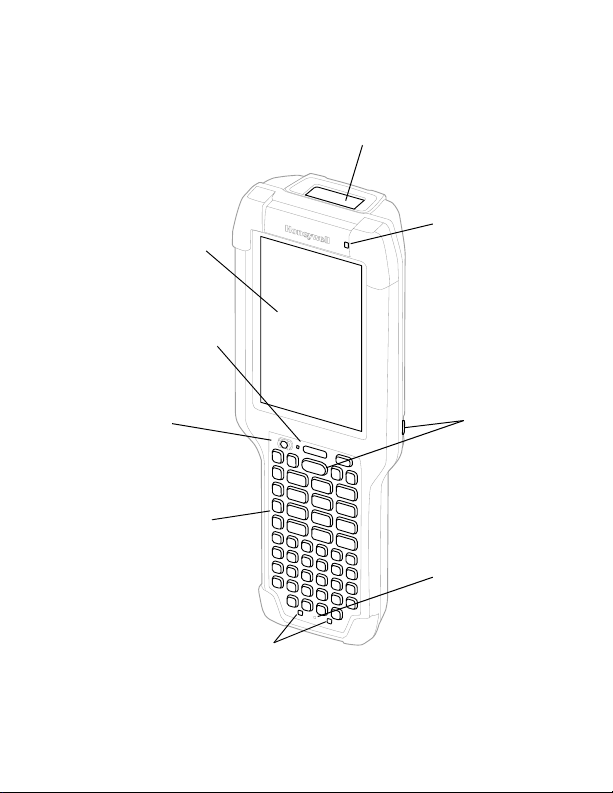
Mobile Computer Features
Microphone
Power Button
Ambient Light
Sensor
Touch Panel
Keyboard
(model dependent)
Notification/Scan/
Battery Status LEDs
Imager (LED / Laser Aperture)
Keypad Status LEDs
Scan Buttons
All Imagers
3
Page 4
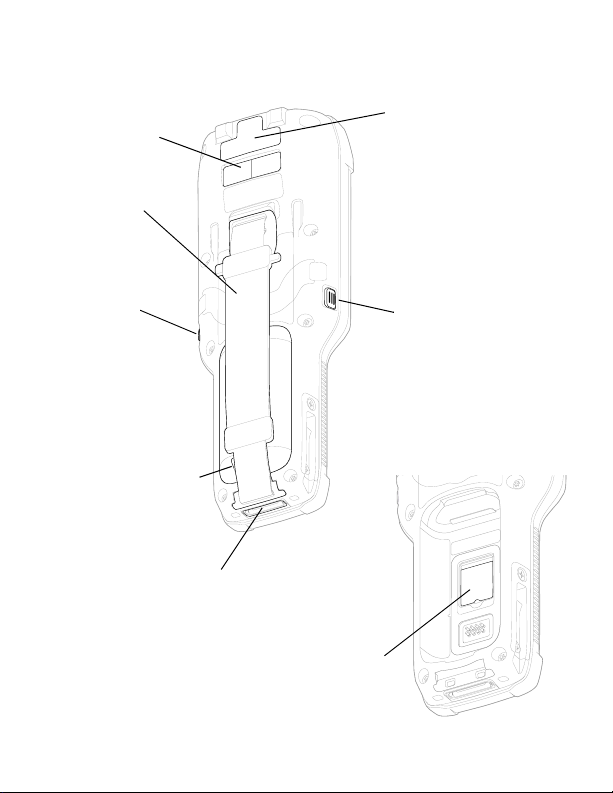
Camera Lens
and Flash
Battery Latch
(under hand strap)
Laser Safety
Label Location
Scan/Aux Button
Hand Strap
I/O Connector
Scan/Aux
Button
CK65 Model with N6703 Imager
MicroSD Card Door
(battery and hand strap removed)
All CK65 Units
4
Page 5

Camera Lens
and Flash
MicroSD Card Door
(battery and hand strap removed)
Battery Latch
(under hand strap)
Laser Safety
Label Location
Scan/Aux Button
Hand Strap
I/O Connector
Scan/Aux
Button
CK65 Model with EX20 Imager
All CK65 Units
5
Page 6
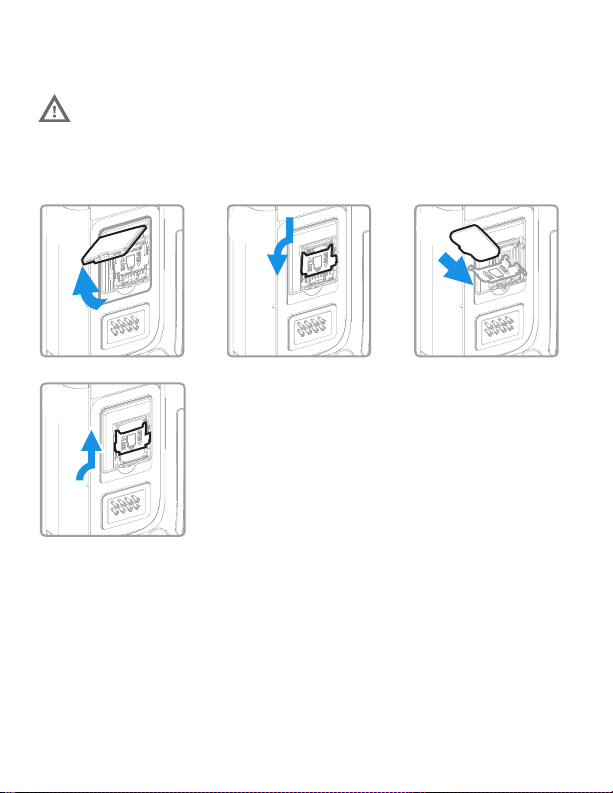
Install a microSD Card (Optional)
1 2
4
3
Always power off the computer before attempting to
install or remove a card.
See Install the Battery for hand strap release information.
Format the microSD card before initial use.
6
Page 7
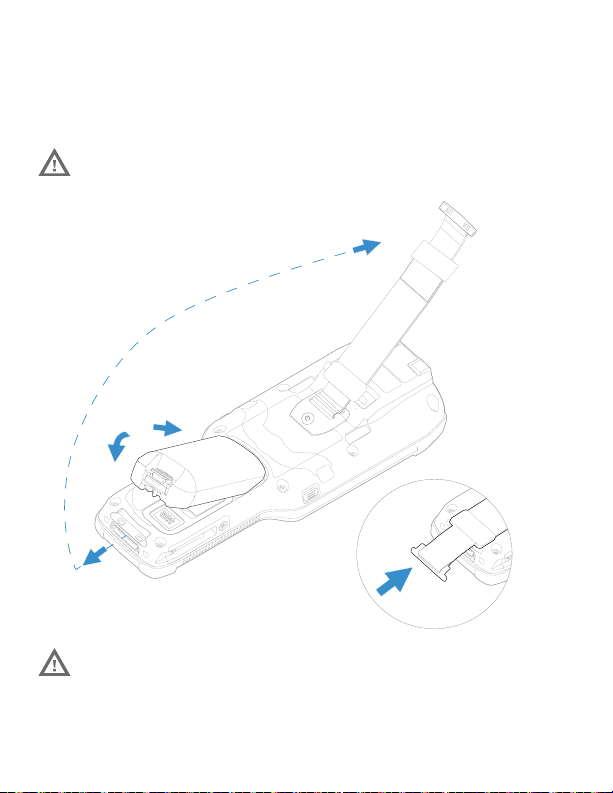
Install the Battery
1
2
3
4
The CK65 mobile computer ships with a Li-ion 3.6 VDC,
18 watt-hour battery manufactured for Honeywell International
Inc.
Use only Honeywell Li-ion battery pack models
AB17, AB18, and 1001AB01.
Ensure all components are dry prior to placing the
battery in the computer. Mating wet components may
cause damage not covered by the warranty.
7
Page 8

Charge the Mobile Computer
The CK65 mobile computer ships with a partially charged
battery. Charge the battery with a CK3 Series charging device for
a minimum of 4 hours. Using the computer while charging the
battery increases the time required to reach a full charge.
We recommend the use of Honeywell accessories and
power adapters. Use of any non-Honeywell
accessories or power adapters may cause damage not
covered by the warranty.
CK65 mobile computers are designed for use with CK3 Series
charging accessories.
Ensure all components are dry prior to mating the
computers and batteries with peripheral devices.
Mating wet components may cause damage not
covered by the warranty.
8
Page 9

Turn Power On/Off
The first time you power on the computer, a Welcome screen
appears. You can either scan a configuration bar code or use the
Wizard to manually set up the computer. Once setup is
complete, the Welcome screen no longer appears on startup
and Provisioning mode is automatically turned off (disabled).
To turn the computer on:
•Press and hold the Power button for approximately 3 seconds,
and then release.
To turn the computer off:
1. Press and hold the Power button until the options menu
appears.
2. Touch Power off.
Battery Replacement
Swap Battery Mode
You should always place the computer in Swap Battery mode
before removing the battery. Swap Battery mode places the
computer in a low power state so that the battery can be
removed for a short time.
To activate Swap Battery mode:
1. Press and hold the Power button until the options menu
appears.
2. Touch Swap Battery and follow the on-screen instructions.
3. Once you replace the battery, press the Power button.
9
Page 10
Sleep Mode
Sleep mode automatically turns the touch panel display off and
locks the computer to save battery power when the computer is
inactive for a programmed period of time.
1. Press and release the Power button to wake the computer.
2. Drag the toward the top of the display to unlock the
computer.
Adjust the Display Sleep Time
To adjust the amount of time before the display sleeps after
inactivity:
1. Touch > Settings > Display > Advanced > Sleep.
2. Select the amount of time before the display goes to sleep.
3. Touch to return to the Home screen.
10
Page 11
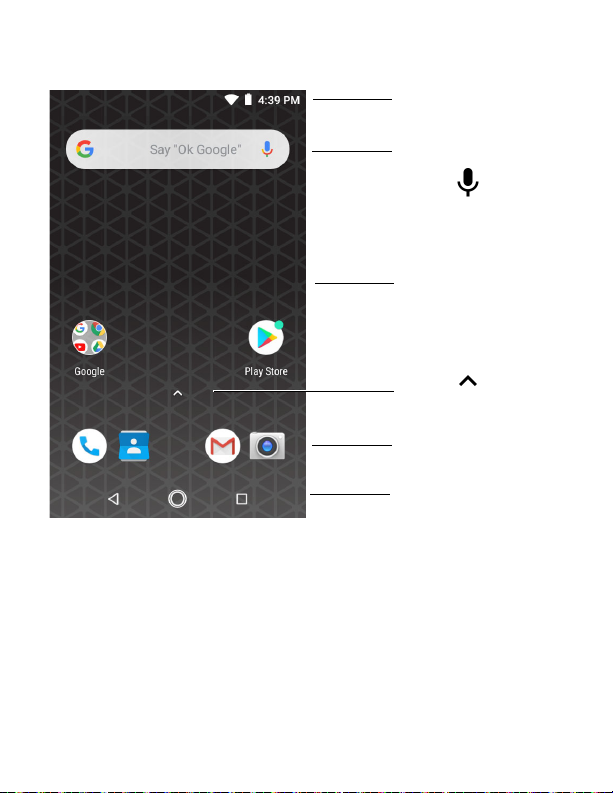
About the Home Screen
Notification /
Status Bar
Search Bar
Touch to
initiate a voice
search or
command.
Home Screen
Panel
Touch to
access all apps.
Favorites Tray
Navigation Buttons
11
Page 12
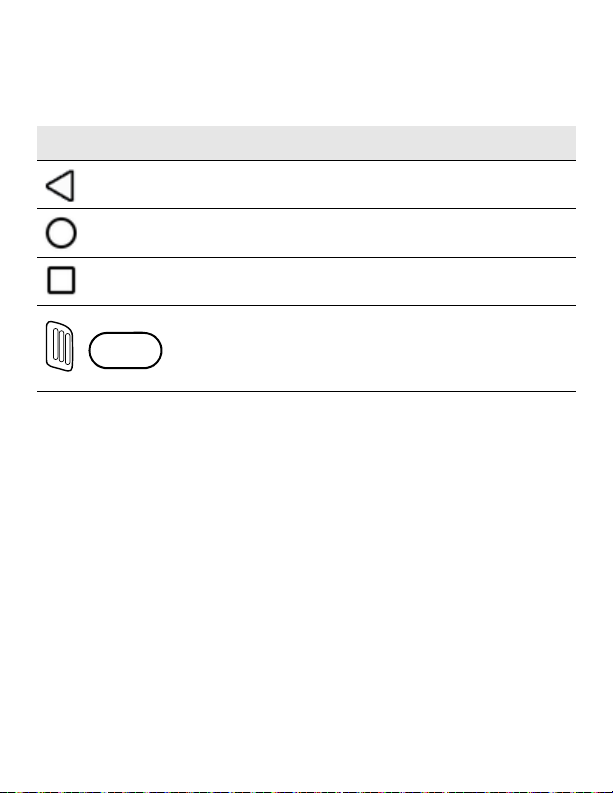
Navigation and Function Buttons
For button locations, see Mobile Computer Features.
Button Description
Back Return to the previous screen.
Home Return to the Home screen.
Recent Apps View and switch between
recently used apps.
Scan Press the right, left or front
scan button to trigger the
scanner.
12
Page 13
About Provisioning Mode
After completing the out-of-box set up process, Provisioning
mode is automatically turned off. Scanning a bar code to install
applications, certificates, configuration files, and licenses on
the computer is restricted unless you enable Provisioning mode
in the Settings app. To learn more, see the user guide.
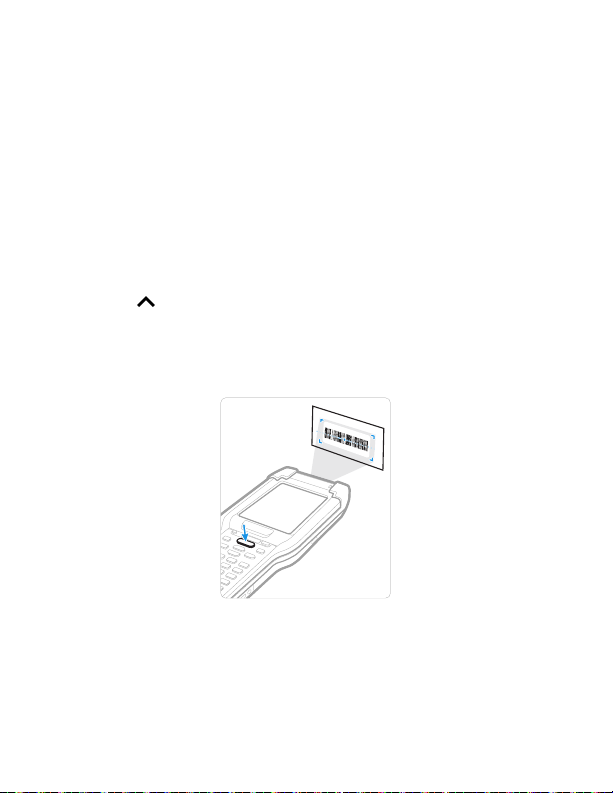
Scan a Bar Code with the Scan Demo
Note: For optimum performance, avoid reflections by scanning the bar
code at a slight angle.
1. Touch > Demos > Scan Demo.
2. Point the computer at the bar code.
3. Touch Scan on the touch screen or press and hold any Scan
button. Center the aiming beam over the bar code.
The decode results appear on the screen.
Note: In the Scan Demo app, not all bar code symbologies are enabled
by default. If a bar code does not scan, the correct symbology may
not be enabled. To learn how to modify the default app settings,
see the user guide.
13
Page 14

Sync Data
To move files between your CK65 and a computer:
1. Connect the CK65 to your computer using a USB charge/
communication accessory.
2. On the CK65, swipe down from the top of the screen to see
the notifications panel.
3. Touch the Android System USB Connection notification
twice, to open the options menu.
4. Select either Trans fer files or Transfer photos (PTP).
5. Open the file browser on your computer.
6. Browse to the CK65. You can now copy, delete and move
files or folders between the computer and CK65 as you
would with any other storage drive (e.g., cut and paste or
drag and drop).
Note: When Provisioning mode is turned off, some folders are hidden
from view in the file browser.
14
Page 15

Restart the Mobile Computer
You may need to restart the mobile computer to correct
conditions where an application stops responding to the system
or the computer seems to be locked up.
1. Press and hold the Power button until the options menu
appears.
2. Select Restart.
To restart the computer if the touch panel display is
unresponsive:
•Press and hold the Power button for approximately 8 seconds
until the computer restarts.
Note: To learn about advanced reset options, see the user guide.
Support
To search our knowledge base for a solution or log into the
Technical Support Portal and report a problem, go to
www.hsmcontactsupport.com.
Documentation
Product documentation is available at www.honeywellaidc.com.
15
Page 16

Limited Warranty
For warranty information, go to www.honeywellaidc.com and
click Get Resources > Product Warranty.
Patents
For patent information, see www.hsmpats.com.
Trademarks
Google, Android, Google Play and other marks are trademarks of
Google LLC.
Disclaimer
Honeywell International Inc. (“HII”) reserves the right to make
changes in specifications and other information contained in
this document without prior notice, and the reader should in all
cases consult HII to determine whether any such changes have
been made. The information in this publication does not
represent a commitment on the part of HII.
HII shall not be liable for technical or editorial errors or
omissions contained herein; nor for incidental or consequential
damages resulting from the furnishing, performance, or use of
this material. HII disclaims all responsibility for the selection
and use of software and/or hardware to achieve intended
results.
This document contains proprietary information that is
protected by copyright. All rights are reserved. No part of this
document may be photocopied, reproduced, or translated into
another language without the prior written consent of HII.
Copyright © 2019 Honeywell International Inc. All rights
reserved.
16
 Loading...