

Page 1

CK75
powered by Android 6.0
Quick Start Guide
Preliminary Draft, Not for Release
Please Review 2/1/17
CK75-A6-EN-QS-01 Rev (a)
2/17
Page 2

Out of Box
Preliminary Draft, Not for Release
Please Review 2/1/17
Make sure that your shipping box contains these items:
• CK75 mobile computer (Model CK75LAN)
• Rechargeable 3.7 V, Lithium-ion battery
• Product Documentation
If you ordered accessories for your mobile computer, verify that
they are also included with the order. Be sure to keep the original
packaging in case you need to return the mobile computer for
service.
Memory Card Specifications
Honeywell recommends the use of Single Level Cell (SLC)
industrial grade microSD™ memory cards with the computer for
maximum performance and durability. Contact a Honeywell
sales representative for additional information on qualified
memory card options.
Page 3
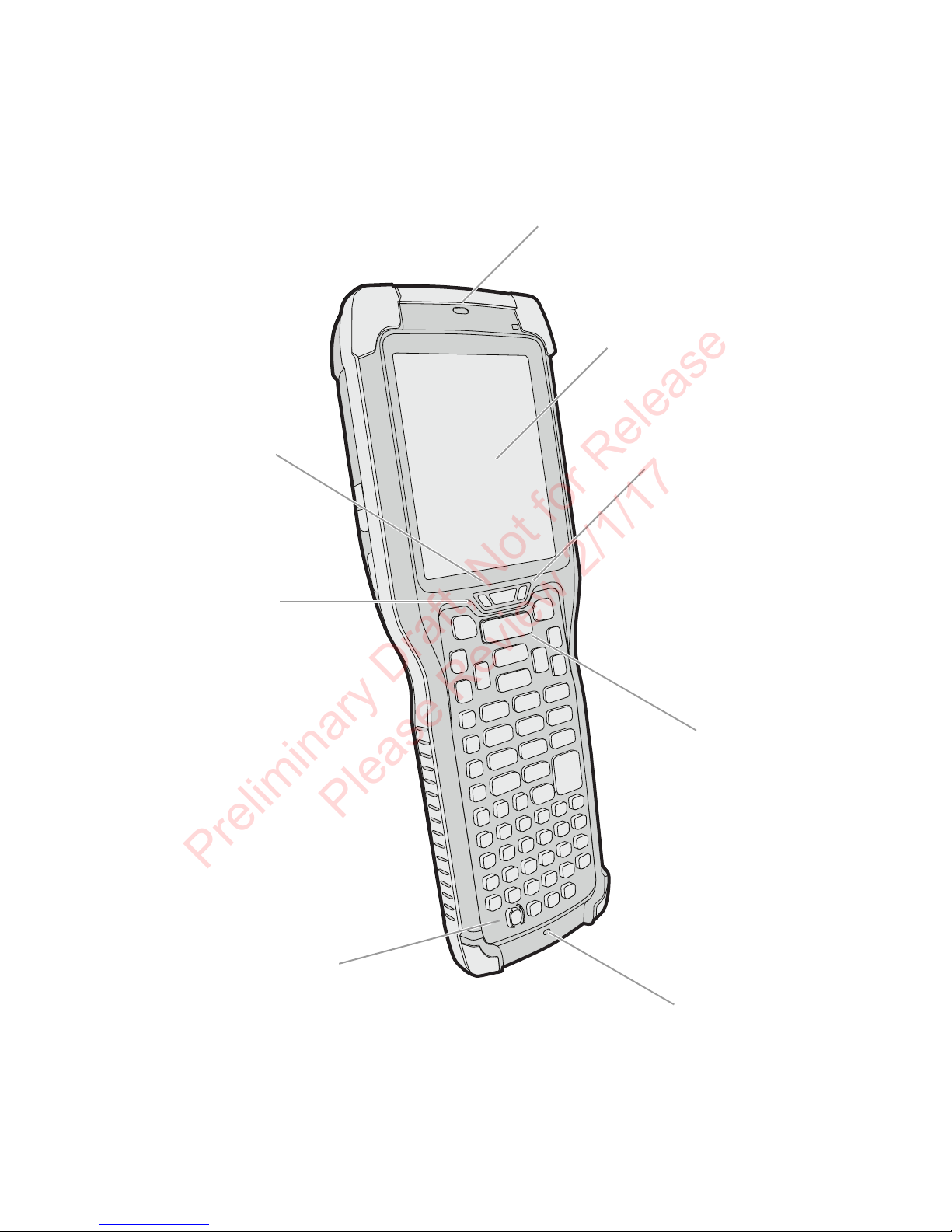
Computer Features
Notification
LED
Scan Button
Microphone
Power Button
Battery Status
LED
Good Read LED
Speaker
Touch Panel
Preliminary Draft, Not for Release
Please Review 2/1/17
Page 4
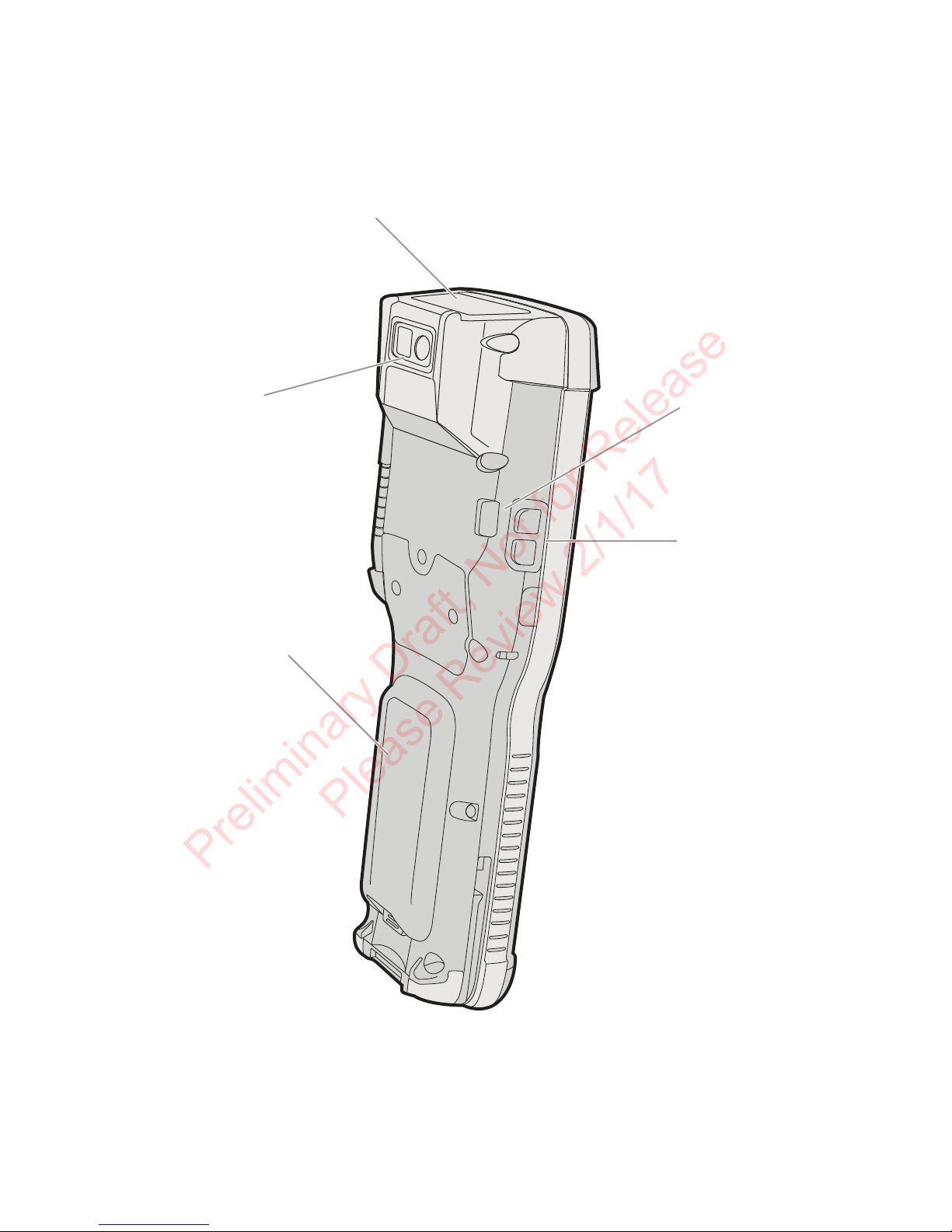
Volume
Buttons
Speaker Port
Battery
Camera
Imager
(LED/Laser Aperture)
Preliminary Draft, Not for Release
Please Review 2/1/17
Page 5
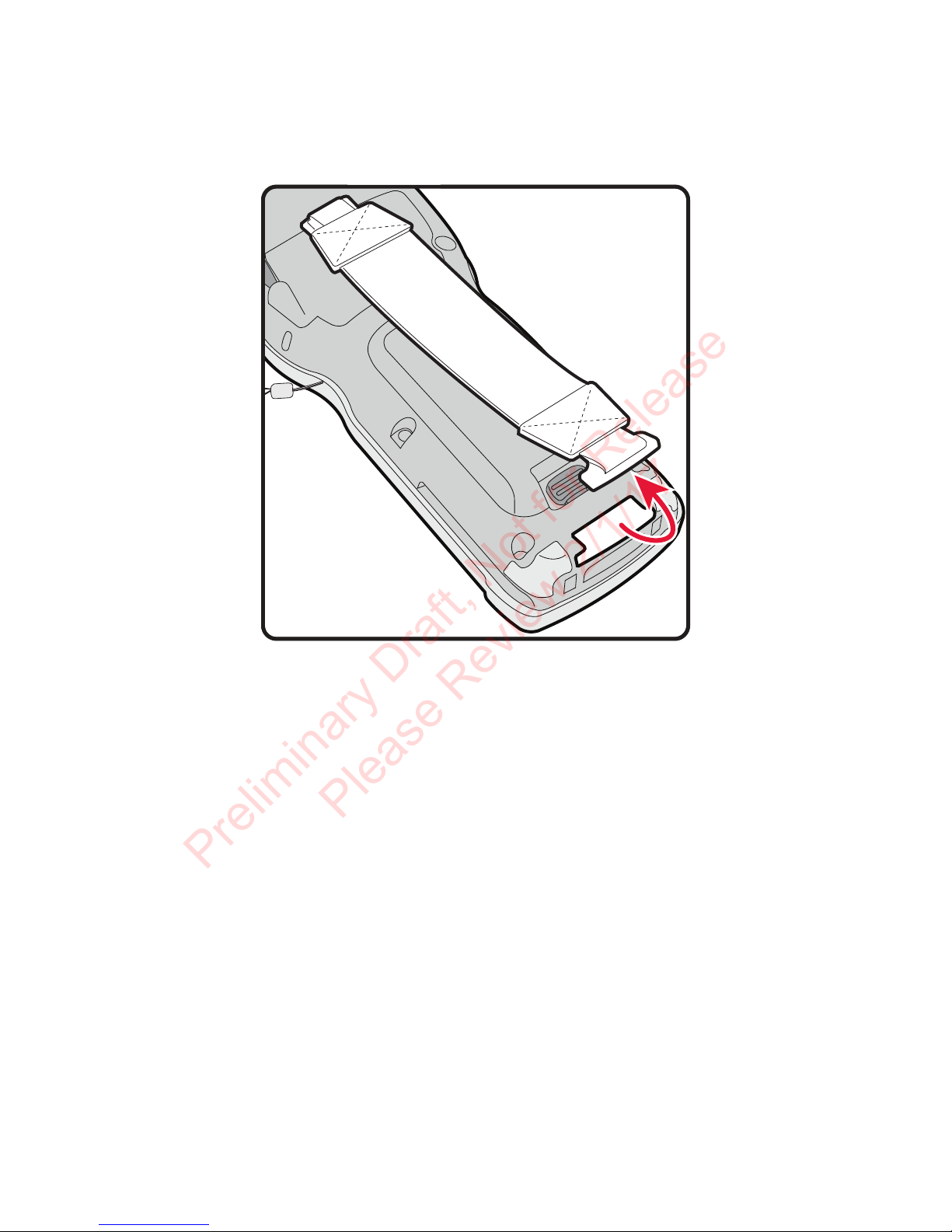
Detach Hand Strap
Preliminary Draft, Not for Release
Please Review 2/1/17
Detach the hand strap to access to the back of the computer.
Page 6
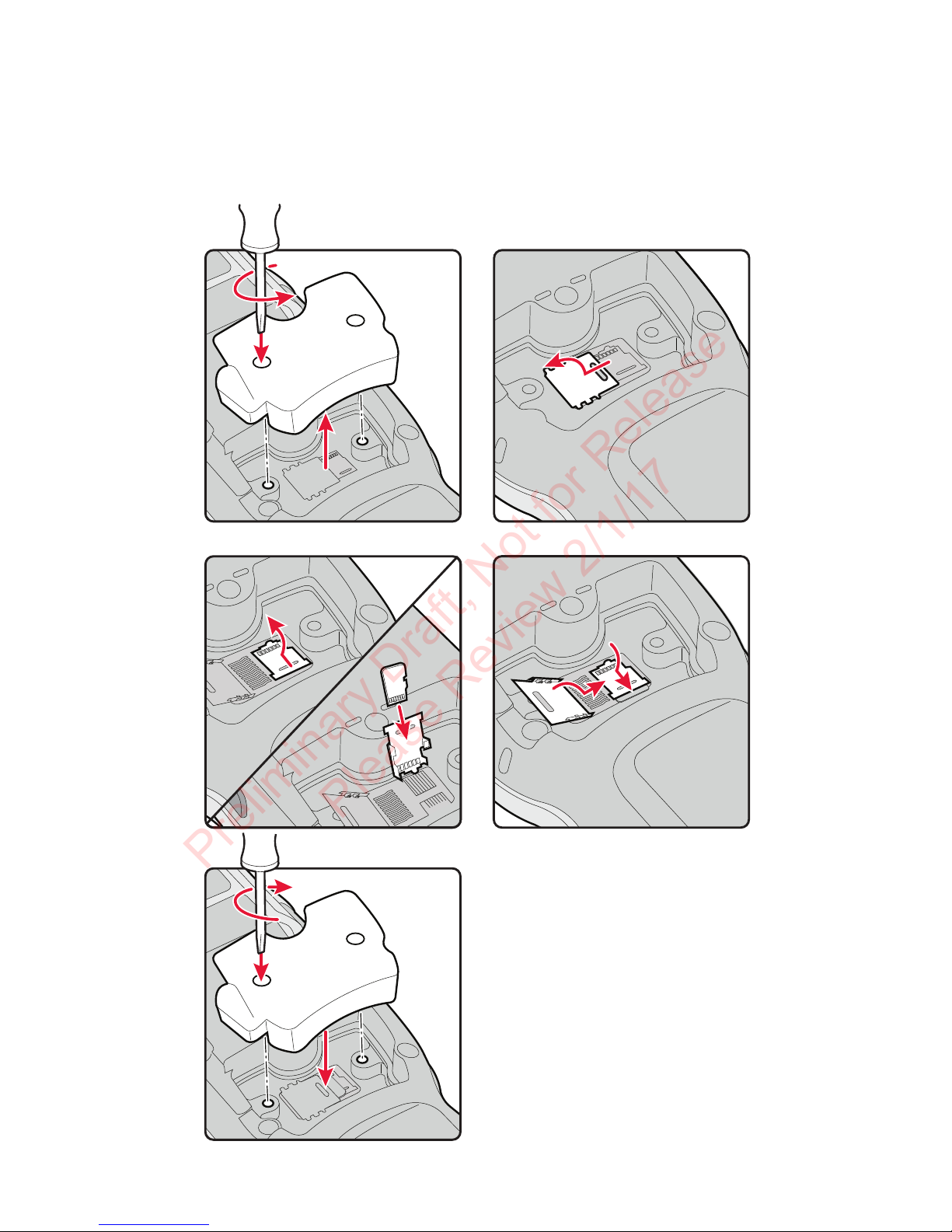
Install a microSD Card
1 2
3 4
5
Preliminary Draft, Not for Release
Please Review 2/1/17
Note: Format the microSD card before initial use.
Page 7
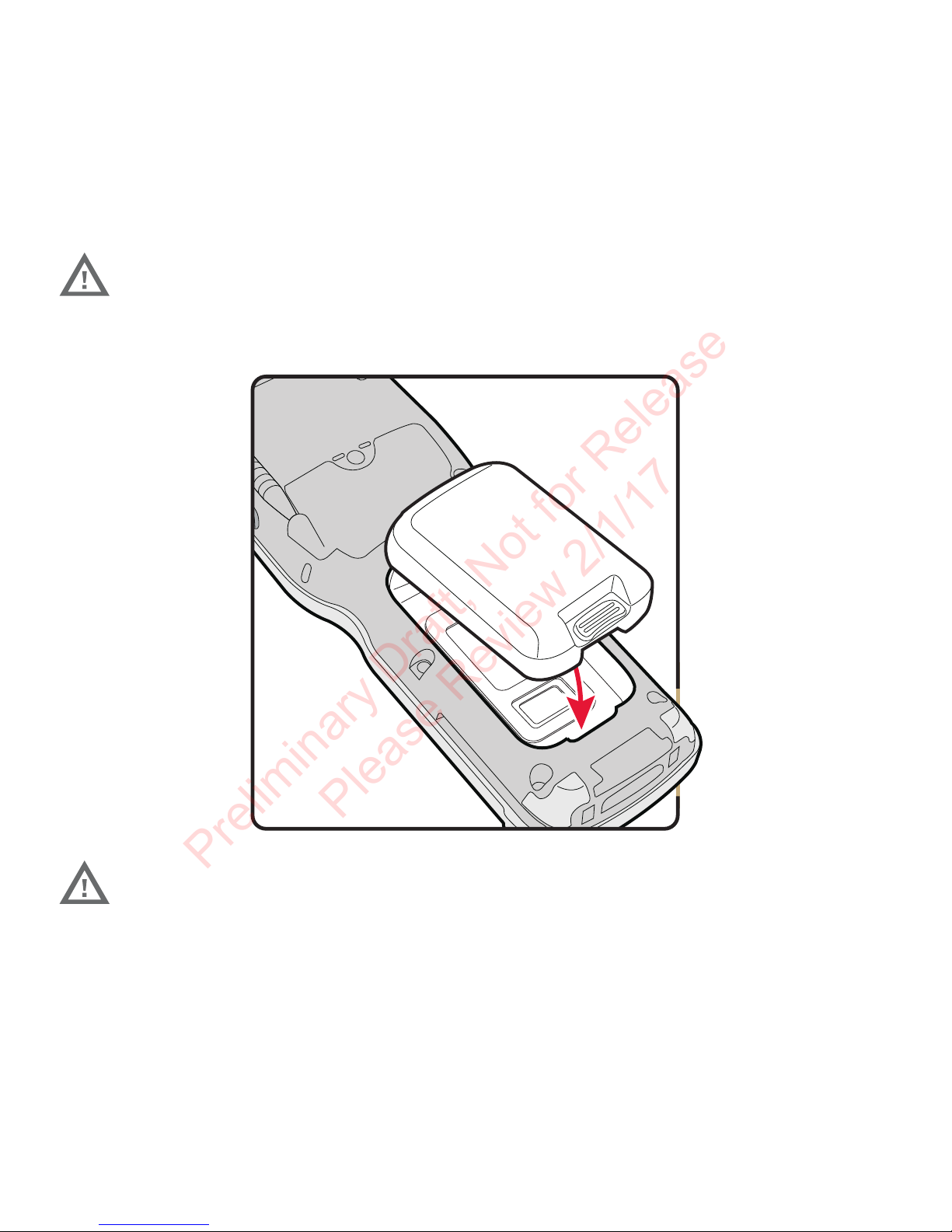
Install the Battery
Preliminary Draft, Not for Release
Please Review 2/1/17
The CK75 mobile computer ships with a Lithium-ion 3.7 V, 5200
mAH (19.24 Wh) battery manufactured for Honeywell International Inc.
We recommend use of Honeywell Li-ion battery
packs. Use of any non-Honeywell battery may result
in damage not covered by the warranty.
Ensure all components are dry prior to placing the
battery in the terminal. Mating wet components may
cause damage not covered by the warranty.
Page 8

Charge the Computer
Preliminary Draft, Not for Release
Please Review 2/1/17
The CK75 mobile computer ships with a partially charged
battery. Charge the battery with a 70 Series charging device for
a minimum of 6 hours.
Using the computer while charging the battery increases the
time required to reach a full charge. If the terminal is drawing
more current than supplied by the charging source, charging
will not take place. For additional information, see the user
guide.
We recommend the use of Honeywell peripherals,
power cables and power adapters. Use of any nonHoneywell accessories or power adapters may cause
damage not covered by the warranty.
CK75 mobile computers are designed for use with the
following charging accessories: DX1 Desktop Dock, DX2 Dual
Dock, and DX4 Quad Dock and a power supply.
Ensure all components are dry prior to mating the
computers and batteries with peripheral devices.
Mating wet components may cause damage not
covered by the warranty.
Page 9

Turn Power On/Off
Preliminary Draft, Not for Release
Please Review 2/1/17
The computer automatically turns on when you install the
battery pack.
Note: You should always power off the computer before
removing the battery.
To turn the computer off:
1. Press and hold the Power button until the options menu
appears.
2. Touch Power Off.
3. When prompted to shut down the phone, touch OK.
Note: To turn the computer back on, press and release the Power
button.
Sleep Mode (Suspend Mode)
Sleep mode automatically turns the touch panel display off and
locks the computer to save battery power when the computer is
inactive for a programmed period of time.
1. Press and release the Power button to wake the computer.
2. Drag the lock toward the top of the display to unlock the
computer.
Note: To adjust the time out limit, touch All Apps > Settings >
Display > Sleep.
Page 10
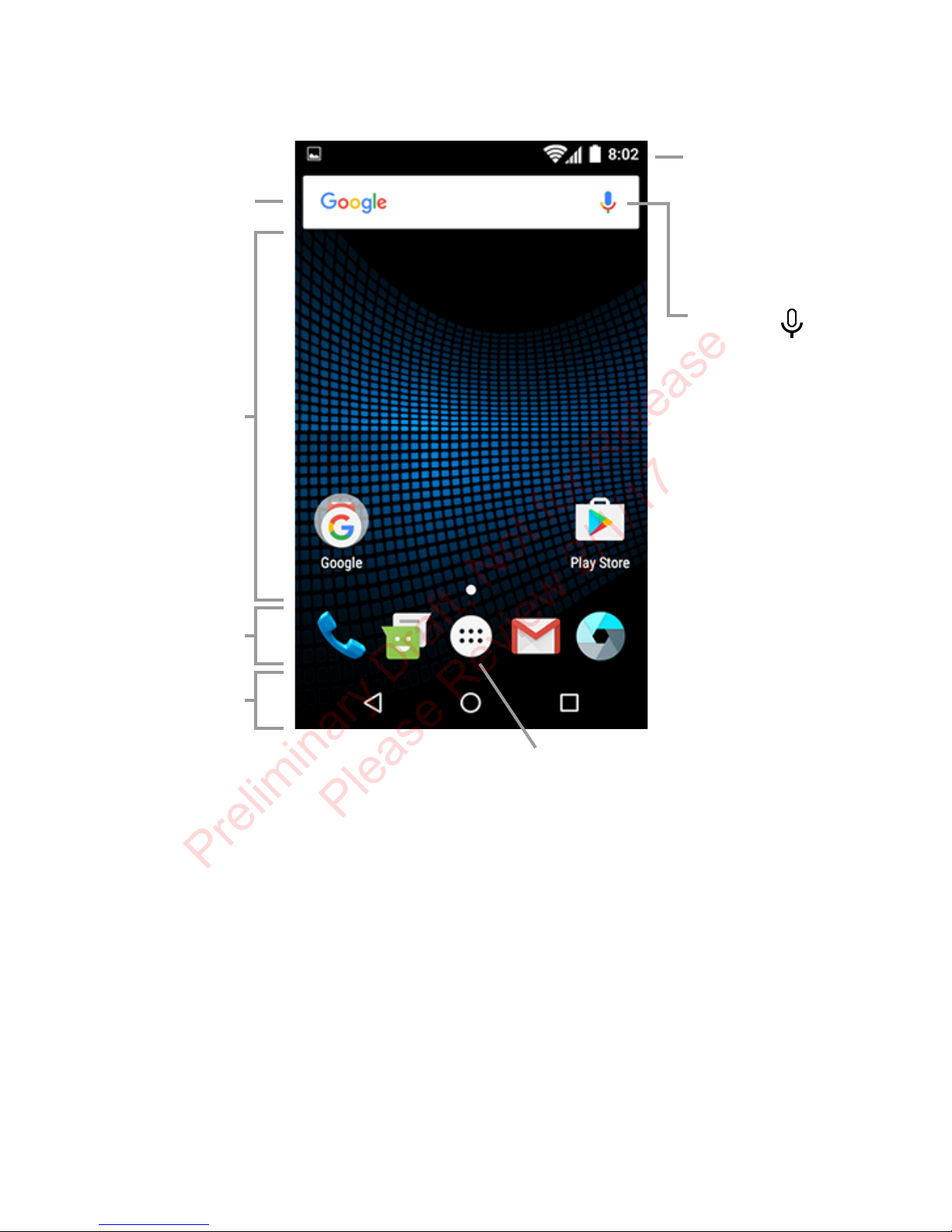
About the Home Screen
Search Bar
Home Screen
Panel
Notification /
Status Bar
Touch to
initiate a voice
search or
command.
Touch the All Apps icon to
access apps and settings.
Favorites
Tray
Navigation
Buttons
Preliminary Draft, Not for Release
Please Review 2/1/17
To learn how to customize the Home screen, see the user guide.
Page 11
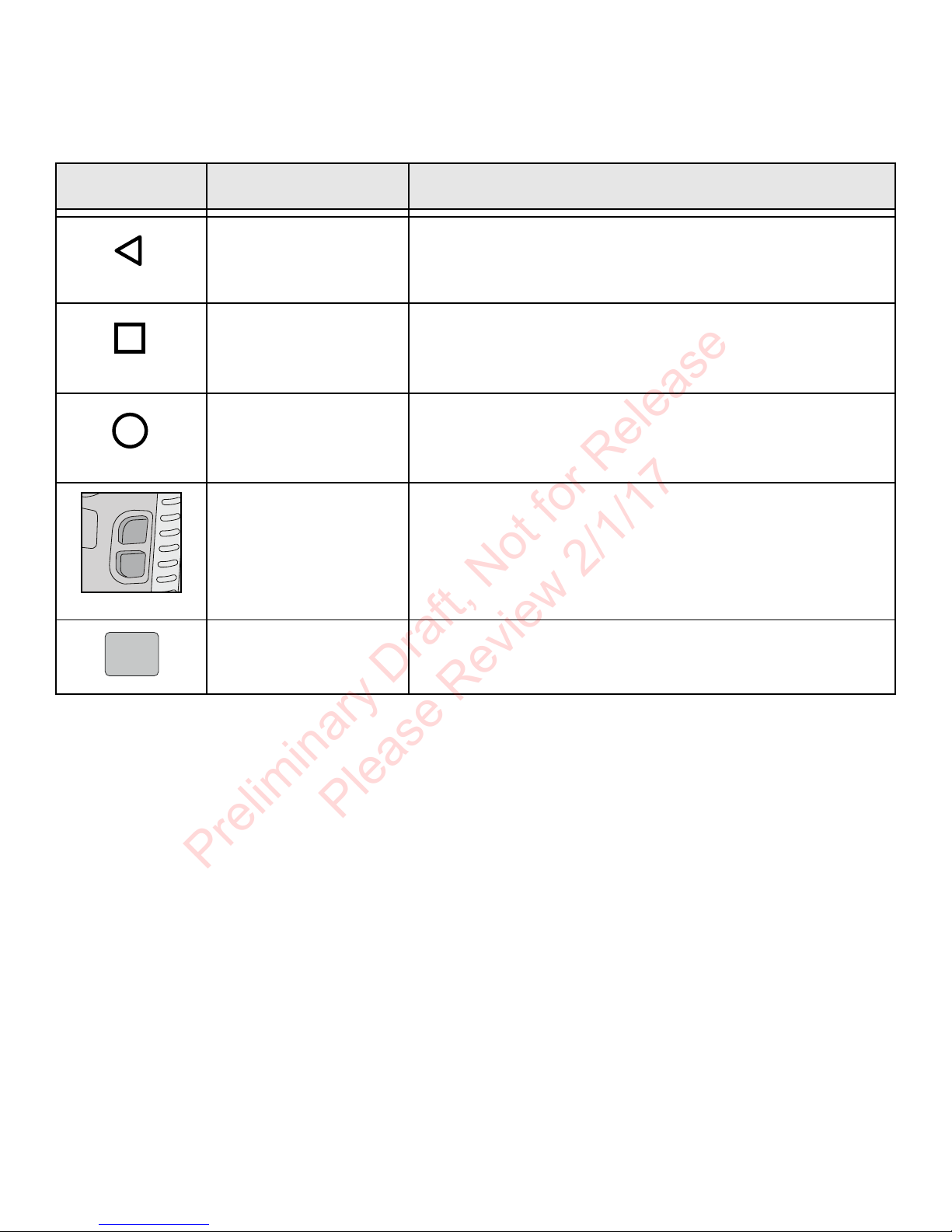
Navigation and Function Buttons
Preliminary Draft, Not for Release
Please Review 2/1/17
Buttons Description Function
Back Return to the previous screen.
Recent Apps View and switch between recently
used apps.
Home Return to Home screen.
Volume Raises or lowers the volume of the
speaker.
Scan Trigger the scanner.
To learn more about how to use the keypad for your computer
model, see the user guide.
To change the default button function of the scan button, use
the Key remap option under Settings. For additional
information on how to remap a button function, see the user
guide.
Page 12
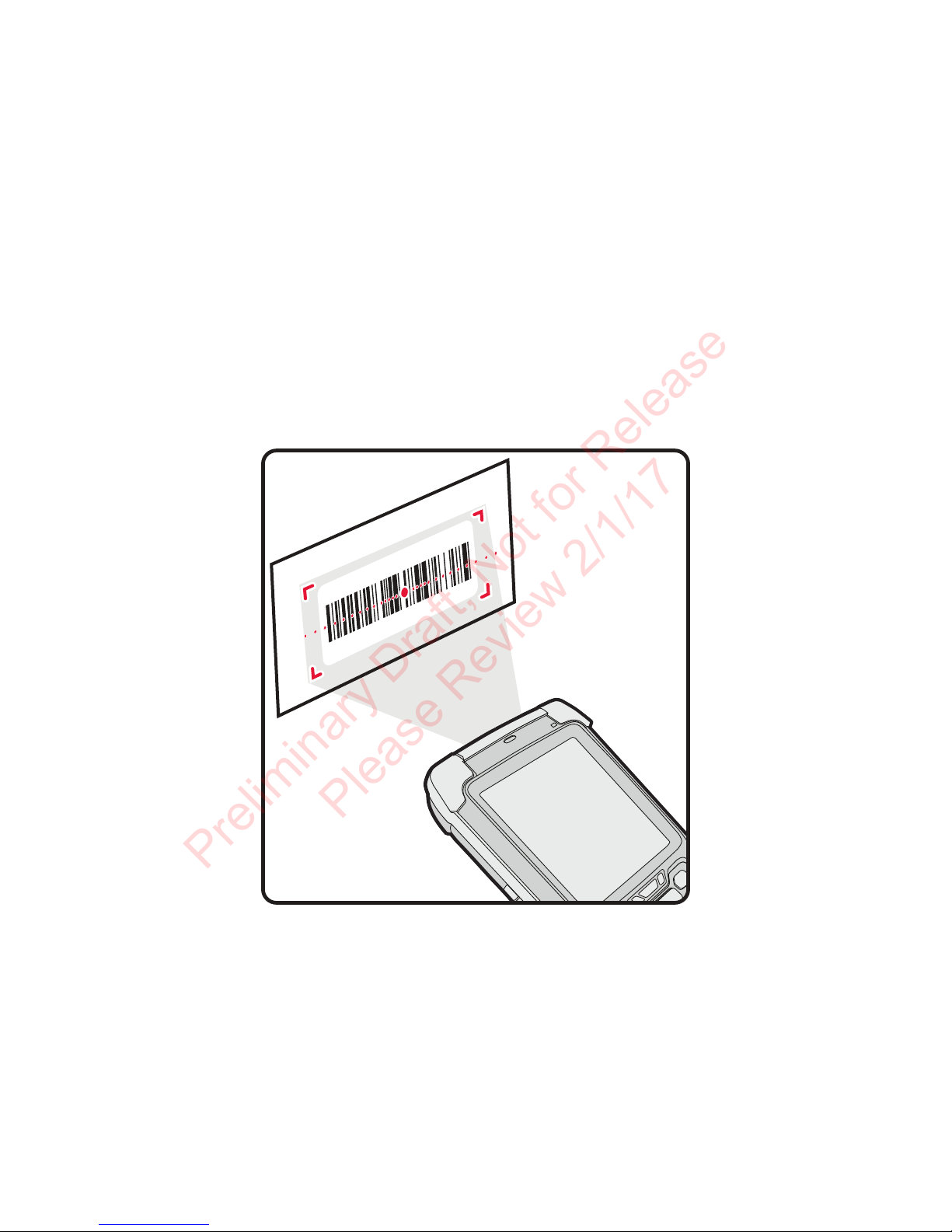
Scan a Bar Code
Preliminary Draft, Not for Release
Please Review 2/1/17
Note: For optimum performance, avoid reflections by scanning
the bar code at a slight angle.
1. Touch All Apps > Demos > Scan Demo.
2. Point the computer at the bar code.
3. Touch and hold Scan on the touch screen or press and hold
the Scan button. Center the aiming beam over the bar code.
The decode results appear on the screen.
Page 13

Take a Photo or Video
Preliminary Draft, Not for Release
Please Review 2/1/17
1. Touch on the Home Screen. The camera application
opens on the computer.
2. Swipe from the left side of the screen to select either single
photo mode or video mode .
3. Point the camera lens at the object you want to capture. The
camera lens is located on the back of the computer.
4. Touch to capture a single photo or touch to start
recording video. Touch to stop recording video.
Page 14

Sync Data
Preliminary Draft, Not for Release
Please Review 2/1/17
To move files between your and a computer:
1. Connect the CK75 to your computer using a USB charge/
communication accessory.
2. By default, the CK75 is in USB charging only mode.
To enable file transfers, swipe down from the top of the
Home screen to access the Notifications panel.
3. Touch the USB notification, and then select either File
transfers (MTP) or Photo transfer (PTP).
4. Depending on the Windows® operating system, either open
File Explorer or Windows Explorer.
5. Under Computer, click on CX75 NCF.
6. You can now copy, delete and/or move files or folders
between the computer and CK75 or a microSD card
installed in the CK75 as you would with any other storage
drive (e.g., cut and paste or drag and drop).
Page 15

Restart the Computer
Preliminary Draft, Not for Release
Please Review 2/1/17
You may need to restart the mobile computer to correct
conditions where an application stops responding to the system
or the computer seems to be locked up.
1. Press and hold the Power button until the options menu
appears.
2. Select Reboot and then OK.
To restart the computer if the touch panel display is
unresponsive:
•Press and hold the Power button for approximately 8 seconds
until the computer restarts.
Note: If you try to restart the computer and still experience
issues, you may need to see the user guide for information
on how to perform a Factory Reset (Clean Boot).
Support
To search our knowledge base for a solution or log into the
Technical Support portal and report a problem, go to
www.hsmcontactsupport.com.
User Documentation
For the user guide and other documentation, go to
www.honeywellaidc.com.
Page 16

Limited Warranty
Preliminary Draft, Not for Release
Please Review 2/1/17
For warranty information, go to www.honeywellaidc.com and
click Get Resources > Product Warranty.
Patents
For patent information, see www.hsmpats.com.
Trademarks
Android and Google and other marks are trademarks of Google
Inc.
Windows, File Explorer, and Windows Explorer are either
registered trademarks or registered trademarks of Microsoft
Corporation in the United States and/or other countries.
Disclaimer
Honeywell International Inc. (“HII”) reserves the right to make
changes in specifications and other information contained in
this document without prior notice, and the reader should in all
cases consult HII to determine whether any such changes have
been made. The information in this publication does not
represent a commitment on the part of HII.
HII shall not be liable for technical or editorial errors or
omissions contained herein; nor for incidental or consequential
damages resulting from the furnishing, performance, or use of
this material. HII disclaims all responsibility for the selection
and use of software and/or hardware to achieve intended
results.
This document contains proprietary information that is
protected by copyright. All rights are reserved. No part of this
document may be photocopied, reproduced, or translated into
another language without the prior written consent of HII.
Copyright © 2017 Honeywell International Inc. All rights
reserved.
 Loading...