

Page 1

T E C H N O L O G Y
R E F E R E N C E
G U I D E
o w n e r s . h o n d a . c o m
201 2 H onda P i lot EX - L a nd EX- L w i th RES
31SZAB 3 0 Tec hnol ogy Ref eren ce Guid e
00X31- S Z A - B 3 0 0 ©2011 American Honda Motor Co., Inc. — All Righ ts Reserved Printe d in U . S . A .
2012 PILOT
EX-L and EX-L with Rear
Entertainment System
Page 2
TE C HN OLO GY RE FER ENC E GUI DE
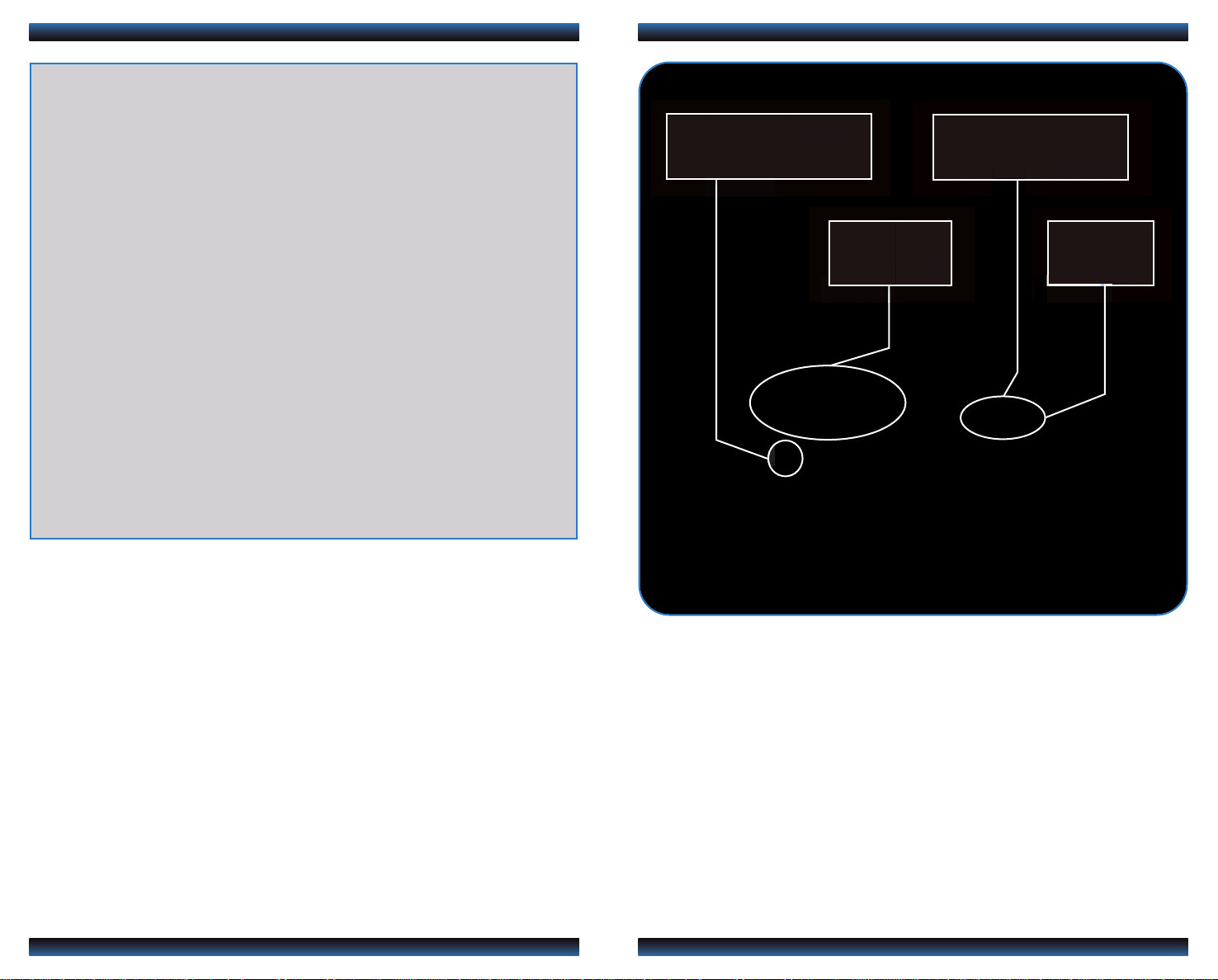
TheTechnology Reference Guide is designed to help you get
acquainted with your new Honda and provide basic
BLUETOOTH
®
HANDSFREELINK®p.10
REAR ENTERTAINMENT
SYSTEM p.18
p.
instructions on some of its technology and convenience
features. This guide covers the Pilot EX-L and EX-L with Rear
Entertainment System.
This guide is not intended as a substitute for the Owner’s
Manual. For complete information on vehicle controls and
operation, please refer to the respective sections in the
Owner’s Manual.
Auto Door Locks .....................................................................................................2
Instrument Panel Indicators ...................................................................................4
INSTRUMENT
PANEL p.4
Bluetooth®Audio......................................................................................................15
®
iPod
or USB Flash Drive .....................................................................................16
AUDIO p.15
EX-L shown
Information Display..................................................................................................6
Tire Pressure Monitoring System (TPMS)...........................................................7
Rearview Camera .....................................................................................................8
HomeLink
Bluetooth
®
.................................................................................................................9
®
HandsFreeLink®(HFL)........................................................................10
CD Library ...............................................................................................................17
Rear Entertainment System (RES)
Owner Link..............................................................................................................20
Safety Reminder......................................................................................................21
Fuel Recommendation...........................................................................................21
*
.....................................................................18
*if equipped
Page 3
AUTO DO OR L OCKS
AUTO DO OR L OCKS
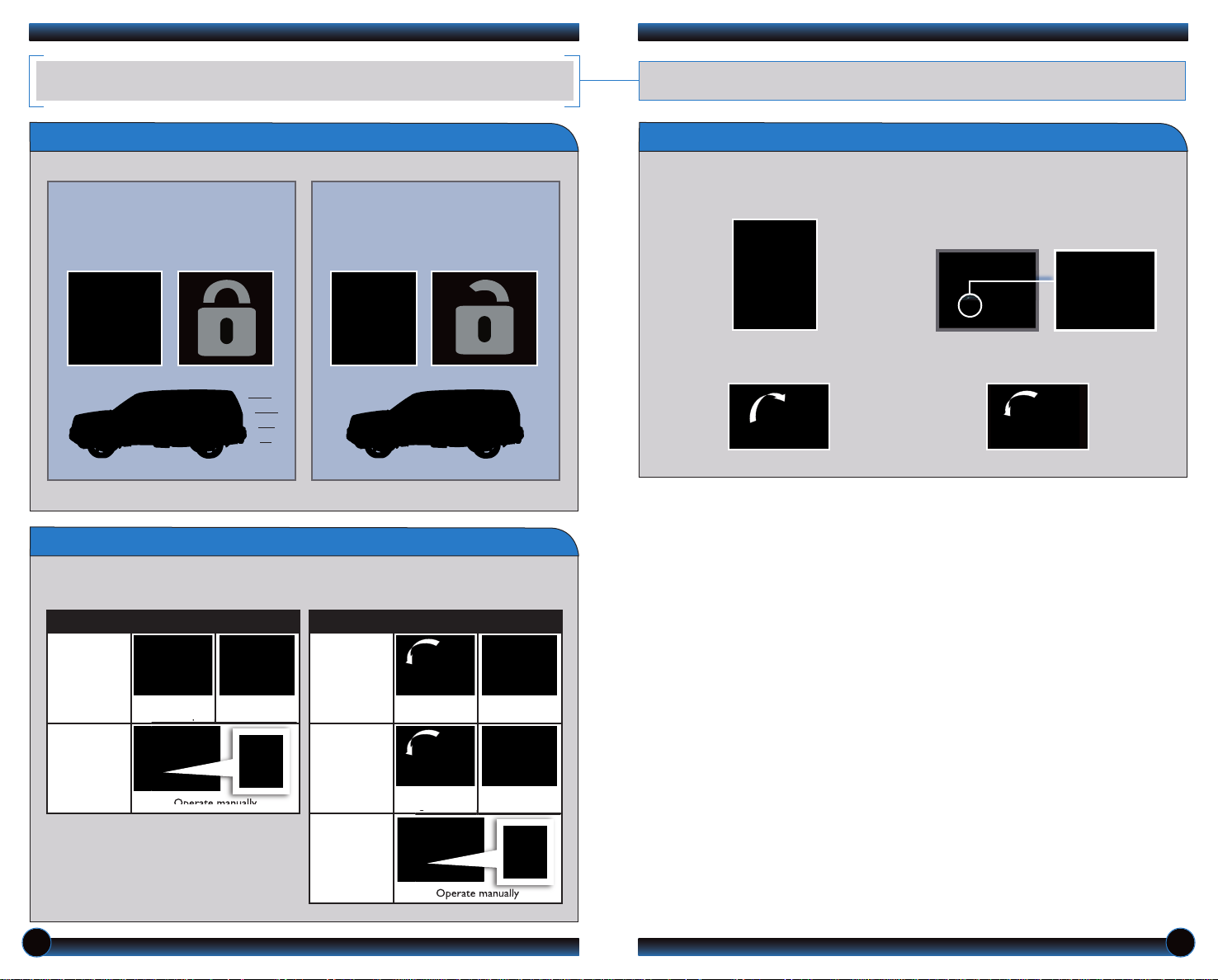
Program how and when the vehicle doors automatically lock and unlock.
Program how and when the vehicle doors automatically lock and unlock.
Default Lock/Unlock Setting
Default Lock Setting
All doors and the tailgate are
preset to lock when your vehicle
reaches about 10 mph.
Default Unlock Setting
Only the driver’s door is preset to
unlock when you shift into Park (P).
Programmable Auto Door Lock/Unlock Settings
Below are the options you can choose. See Auto Door Locking/Unlocking in your
Owner’s Manual for instructions on programming these settings.
Programming the Auto Door Unlock Setting
To program all doors and the tailgate to unlock when you shift to Park:
1. Close the driver’s door. Shift into
Park.
2. Turn the ignition switch to ON (II). 4.Within 20 seconds, turn the ignition
3. Press and hold the unlock side of
the master lock switch for about
10 seconds. In that time, you will
hear three clicks.
switch to LOCK (0).
Auto Lock
Turn off
Auto Lock
AUTO DOOR LOCK
When you
reach 10 mph
Operate manually
When you shift
out of Park
Auto Unlock
Auto Unlock
(only driver’s
Auto Unlock
AUTO DOOR UNLOCK
(all doors)
door)
Turn off
When you turn
the ignition OFF
When you turn
the ignition OFF
Operate manually
When you shift
into Park
When you shift
into Park
2 3
Page 4
INSTRUMENT PANEL INDICATORS
ECO
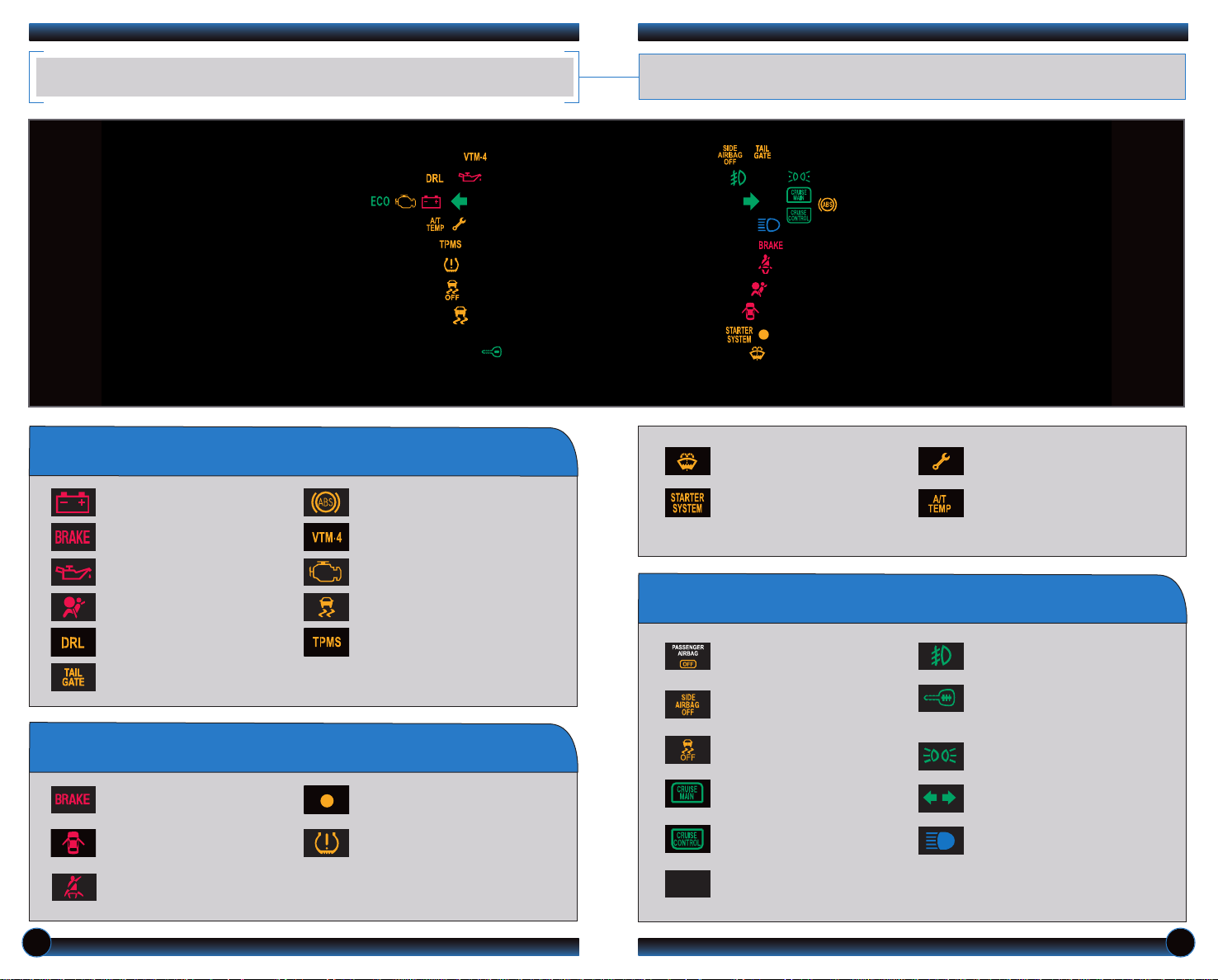
Briefly appear with each engine start. Red and amber indicators are most critical. Blue
and green indicators are used for general information.
If an indicator remains on, there may be a problem; see your dealer
Charging system
Low brake fluid, Brake system
Low oil pressure
SRS (supplemental restraint system)
DRL (daytime running lights)
Power tailgate
ABS (anti-lock brake system)
VTM-4 (4WD only)
Malfunction lamp (check engine light)
®
VSA
(vehicle stability assist)
TPMS
(tire pressure monitoring system)
Condition Indicators
Action is needed by driver
Malfunction Indicators
Parking brake on:
Release
Door/Tailgate open:
Close door(s) / tailgate
Seat belt reminder:
Fasten seat belt(s)
Low fuel:
Refill
Low tire pressure:
Add air
Washer level (if equipped):
Add fluid
Starter system: Hold ignition
switch in START (III) for
up to 15 seconds
On/Off Indicators
PASSENGER AIRBAG OFF
(located on center panel)
SIDE AIRBAG OFF
VSA OFF
CRUISE MAIN on
CRUISE CONTROL on
Fuel economy on
Maintenance Minder:
Make dealer appointment
A/T temperature (4WD only):
Pull over and let engine idle
Fog lights on
Immobilizer
Flashes: improperly coded key;
use correct key
Headlights on
Turn signals/hazards on
High beams on
4 5
Page 5

INFORM ATION DISPLAY
INFORM ATION DISPLAY
TIRE PRESSURE MONITORING SYSTEM (TPMS)
Consists of several displays that provide you with useful information.
Consists of several displays that provide you with useful information.
Accessing the Information Display
When you start the engine, the
display shows your last active
selection from the previous drive
cycle.
To toggle between the different
displays, press and release the
select/reset knob repeatedly.
Information Displays
Odometer Fuel range
Monitors the vehicle’s tire pressures.
How It Works
Each tire valve stem contains
a TPMS sensor.
When the tire pressure drops
significantly below recommended
levels, the low tire pressure
indicator comes on.
If the TPMS indicator appears, there
may be a problem with the system.
See your dealer.
What to Do
1. Visually inspect the tires for
damage.
2. Use a tire air pressure gauge to
check which tire(s) have low
pressure.
3. Inflate the tire(s), if necessary,
to the recommended pressures
listed on the label on the
driver’s doorjamb.
Engine oil life
Trip meter A
or B, Average
fuel economy,
Instant fuel
economy
6 7
Page 6

Press and hold the button on the
remote and the HomeLink buttonat
the same time. Then, while
continuing to hold the HomeLink
button, press and release the button
on the remoteevery2 seconds.
Does the LED blinkat a faster rate within 20
seconds?
Press and hold
the HomeLink
button again.
Training
complete
YESNO
HomeLink indicator
flashes for 2 seconds,
then remains on.
HomeLink LED
remains on.
YESNO
YESNO
Position the remote transmitter you
wish to link 1–3 inches from the
HomeLink buttonyouwant to program.
1
Press and hold the desired
HomeLink button and the button on
the remote transmitter.
Does the HomeLink indicator(LED) blink at a
faster rate after about10 seconds?
2
a
The remote has a rolling code.
Press the “learn” button on the
remote-controlled device (e.g.,
garage door opener).
Press the programmed HomeLink
button again; the remote-controlled
device should operate.
Within 30 seconds, press and
hold the programmed HomeLink
button for 2 seconds.
a
Press and hold the programmed
HomeLink button for about a
second.
Does the device(garage door opener) work?
3
b
4
5
REARVI EW C AMERA
HOMELI NK
®
For added convenience, the area behind your vehicle is displayed to help you navigate
while backing up.
How It Works
• When you shift into Reverse (R), a realtime image of the area behind your vehicle
is shown in the center display.
• Yellow parking guide lines also appear to
help you judge distance.
• The rearview display turns off when you
shift out of Reverse.
Turning the Guide Lines On or Off
Press and hold RETURN for
about 3 seconds.
EX-L shown
The HomeLink Universal Transceiver can be programmed to operate up to three
remote-controlled devices around your home, such as garage doors, lighting,or home
security systems.
Training a Button
If you have any problems programming HomeLink, see the owner’s manual included
with the device you are trying to program, call HomeLink at (800) 355-3515, or
visit www.homelink.com.
98
Page 7

BLUETOOTH
Place and receive phone calls through your vehicle’s audio system. Visit
handsfreelink.honda.com to check if your phone is compatible.
®
HANDSFREELINK®(HFL)
Pairing Your Phone
Use this pairing method when no phone has ever been paired to the system.You
can pair your Bluetooth-compatible phone only when the vehicle is stopped.
Use the audio selector knob to make and enter selections.
How to Use HFL
Pick-Up button: Go directly to the Phone screen,
or answer an incoming call.
Talk button: Use to call speed dial entries with
stored voice tags.
Back button: Cancel a selection.
Hang-Up button: End a call.
Use these buttons to navigate through the HFL menus.
EX-L shown
1. Press the Pick-Up button to
access the Phone screen. A
prompt appears. Select Yes.
2. Make sure your phone is in
discovery mode, and
select Continue.
3. HFL searches for your phone.
Select it when it appears on
the list. Go to step 4.
If your phone does not appear:
Select “Phone Not Found?” and
search for a HandsFreeLink
device from your phone.
Connect to HFL. Go to step 4.
4. HFL gives you a four-digit
code. Enter it on your phone
when prompted. Select OK
to complete.
PHONE button:
Go directly to the
phone screen.
Return button: Press
to cancel an operation
or return to the previous
screen.
Audio selector knob:
Rotate to scroll through
selections and press to
make a selection.
10 11
Page 8

Pairing Your Phone (continued)
Dialing a Number
Use this pairing method when a phone has already been paired to the system, or
when you want to pair an additional phone.
Use the audio selector knob to make and enter selections.
1. Press the Pick-Up button to
access the Phone screen.
If a prompt appears asking to
connect to a phone, select
No and continue to step 2.
2. Select Phone Setup.
3. Select Connection.
4. Select Add a New Phone.
6. Make sure your phone is in
discovery mode, and select OK.
7. HFL searches for your phone.
Select your phone when it appears
on the list.
If your phone does not appear:
Select “FindAnother Phone”
and search for HandsFreeLink
from your phone. Connect to
HFL. Go to step 4.
Use the audio selector knob to make and enter selections.
1. Press the Pick-Up button to
go to the Phone screen.
2. Select Dial.
Receiving a Call
1. A notification is heard and
the incoming phone number
appears on the center
display screen.
3. Enter the phone number.
Select the green Dial icon or
press the Pick-Up button to call.
4. The call is connected and heard
through the vehicle speakers.
3. Press the Hang-Up button to
end or decline the call.
8. HFL gives you a four-digit
code. Enter it on your phone
when prompted.The phone is
5. Select an empty location for
the phone.
now paired.
2. Press the Pick-Up button to
accept the call.
12 13
Page 9

Using the Phonebook
When your phone is paired, its entire phonebook is automatically imported to
the system.
Use the audio selector knob to make and enter selections.
BLUETOOTH
Play audio files from your compatible phone through your vehicle’s audio system. Visit
handsfreelink.honda.com to check if this feature is available on your phone.
®
AUDIO
1. Press the Pick-Up button
to go to the Phone screen.
2. Select Phonebook.
Using Speed Dial
Up to 15 numbers can be stored with voice tags*.
Use the audio selector knob to make and enter selections.
1. Press the Pick-Up button
to go to the Phone screen.
3. Scroll the list to find the name
you want to call, and press
ENTER to begin the call.
4. The call is connected and heard
through the vehicle speakers.
3. Scroll through the list to find
the name you want to call, and
press ENTER to begin the call.
Playing
1. Make sure your phone is on and
2. Press USB/AUX until “Bluetooth
3. From your phone, open the desired
Bluetooth
paired to Bluetooth®HandsFreeLink
(see page 11).
Audio” appears on the screen.
audio player or app and begin playing.
Sound is redirected to the audio
system.
Audio Files
®
4. Press (
control panel or (+) or (-) on the
steering wheel to change tracks.
) or () on the audio
2. Select Speed Dial.
* When a voice tag is stored for a speed dial entry, you can make a call using voice commands.
See your Owner’s Manual for instructions.
4. The call is connected and heard
through the vehicle speakers.
NOTE:
• Make sure the volume on your phone is properly adjusted.
• You may need to enable additional Bluetooth settings on your phone for playback.
• The play/pause function may not be supported on all phones.
• Remote audio controls may not be supported on all phones.
EX-L shown
14 15
Page 10

iPod®OR USB FLA SH DRIVE
CD LIBRAR Y
Play audio files from your compatible iPod or USB flash drive through your vehicle’s
audio system.
Connecting Devices and Playing Audio Files
1. Open the center console, and pull
out the USB adapter cable.
2. Connect the USB connector to your
iPod dock connector or flash drive.
3. Press USB/AUX to begin playing.
4. To change tracks, rotate the selector
knob or press the SKIP () or ()
.
button
Store up to 18 audio CDs in the system memory.
Recording an Audio CD
Use the audio selector knob to make and enter selections.
1. Insert an audio CD. 3. Select the location to store
2. The system asks if you want to
record the CD to memory.
Select Yes.
NOTE:Albums can only be selected from the CD library if recorded in their entirety.
Partially recorded albums may appear, but cannot be played.
the CD.
4. The CD records. If available,
album information is displayed.
Using the CD Library
iPod is a registered trademark of Apple Computer, Inc., registered in the U.S. and other countries. iPod not included.
EX-L shown EX-L shown
Use the audio selector knob to make and enter selections.
1. Press CD/CDL. The last album
recorded begins playing.
To change tracks, press the
() or ()
SKIP
rotate the selector knob.
To change albums, press the
CATEGORY (+) or (-) button.
button, or
2. To view the CD library, press
the selector knob.
3. A list of recorded CDs
appears. Select the album and
track you want to hear.
1716
Page 11

REAR EN TER TAINMENT SY STEM (RES)
(if eq uipped )
Operating the RES from the Front
With the rear entertainment system and headphones, rear passengers can enjoy a
different entertainment source than the front seat occupants.
RES Front Panel Controls
Rear Entertainment System
Press OPEN to release the
overhead screen.
1. Press REAR POWER.Rear
passengers will hear audio through
the headphones.
2. Press REAR SOURCE. Select an
entertainment source for the rear
passengers.
Operating the RES from the Rear
1.
Press REAR POWER on the front
audio panel. Open the overhead
screen.
3. Press REAR SOURCE again to return
to the front audio controls.
3.
Press the () () () () buttons
to navigate the menu options. Press
ENTER to select an option.
Pivot the earpieces to turn on or
off. Wireless headphones only
work in the rear seats.
Wired headphones may also be
used.
Pivot the overhead screen to
fully open it.
2. Press DVD/AUX, CD/CDL, XM, or
FM/AM.
4. The rear control panel can be detached
and used as a remote control. Press
RELEASE to remove it.
1918
Page 12

OWNER L INK
SAFETY RE MINDER
Owner Link allows you to explore features and technologies specific to your vehicle,
schedule service appointments, obtain and update maintenance and service records,
manage your financial services account, and access other useful information. Register
at owners.honda.com to ensure that you continue to enjoy the experience of owning a
Honda.
Your vehicle is equipped with airbags. Airbags do not replace seat belts; they add to
the protection offered by seat belts. Airbags can help protect you in some types of
collisions, but they do not provide protection in all collisions.
Always make sure you and your passengers wear seat belts, and that young children
are properly secured in a child seat or booster in the rear seat. Never place an infant
seat in the front passenger’s seat as the force of a deploying airbag can seriously
injure an infant.
FUEL RE COM MENDATION
• Only use unleaded gasoline of 87 octane or higher.
• Some gasoline in North America contains MMT, a manganese-based fuel additive.
Prolonged and consistent use of gasoline containing MMT can deteriorate your
vehicle’s performance, fuel economy, and the emission control system. Always use
MMT-free gasoline if available. Failures caused by use of gasoline containing MMT
may not be covered under warranty.
• “TOP TIER Detergent Gasoline” meets a new gasoline standard jointly established
by leading automotive manufacturers to meet the needs of today’s advanced
engines. In most cases, qualifying gasoline retailers will identify their gasoline as
having met “TOP TIER Detergent Gasoline” standards at the retail location. This
fuel is guaranteed to contain the proper level of detergent additives and be free of
metallic additives. This helps avoid build-up of deposits in your engine and
emission control system. Because the level of detergency and harmful metallic
additives (such as MMT) in gasoline vary in the market, Honda endorses the use
of “TOP TIER Detergent Gasoline” where available to help maintain the
performance and reliability of your vehicle. For more information, visit
www.toptiergas.com.
• For further important information on fuel and lubricants for your car and
information on gasoline that does not contain MMT, contact your dealer or visit
Owner Link at owners.honda.com.
2120
 Loading...