

Page 1
© 2012 FXpansion Audio
Operation Manual
Page 2

Operation Manual2
© 2012 FXpansion Audio
Table of Contents
1 Introduction 3
2 DCAM Dynamics processors 4
................................................................................................................................... 6BusComp2.1
................................................................................................................................... 9ChanComp2.2
................................................................................................................................... 12CrossComp2.3
................................................................................................................................... 17EnvShaper2.4
3 MIDI Learn 19
4 Credits 21
Page 3

Introduction 3
© 2012 FXpansion Audio
1 Introduction
Welcome to FXpansion DCAM Dynamics, a powerful set of compression plugins. After the
installation, 4 new plugins are added to your system:
DCAM BusComp
DCAM BusComp is based on a classic bus compressor design from the centre section of a wellknown British large-format mixing console. It is usually intended to be inserted on subgroups like
drum mixes or the entire master output to add ‘glue’ and power to a mix of tracks. However, it also
works very well as a channel compressor in its own right, offering a different type of compression
to that offered by the ChanComp.
DCAM ChanComp
DCAM ChanComp is based on a classic limiting amplifier design commonly used as a channel
compressor. It features very fast attack response and is usually intended to be applied to
individual tracks.
DCAM CrossComp
Frequency selective compression and shaping
DCAM CrossComp provides a simple but effective set of additions to a bus compressor core that
allow you to quickly dial in frequency-dependent compression without the complicated overhead of
a full multi-band device.
DCAM EnvShaper
DCAM EnvShaper takes a different approach to dynamics processing than a standard
compressor. It allows you to adjust the attack and sustain portions of transients in order to
change the dynamic shape of a signal.
Common features in DCAM Dynamics
The DCAM Dynamics plugins contain some common menus and preset controls: these are
described at the start of chapter 2.
All plugins also feature a built-in MIDI Learn system for mapping MIDI continuous controllers (MIDI
CCs) to the plugins' controls.
Page 4
Operation Manual4
© 2012 FXpansion Audio
2 DCAM Dynamics processors
Common controls in DCAM Dynamics
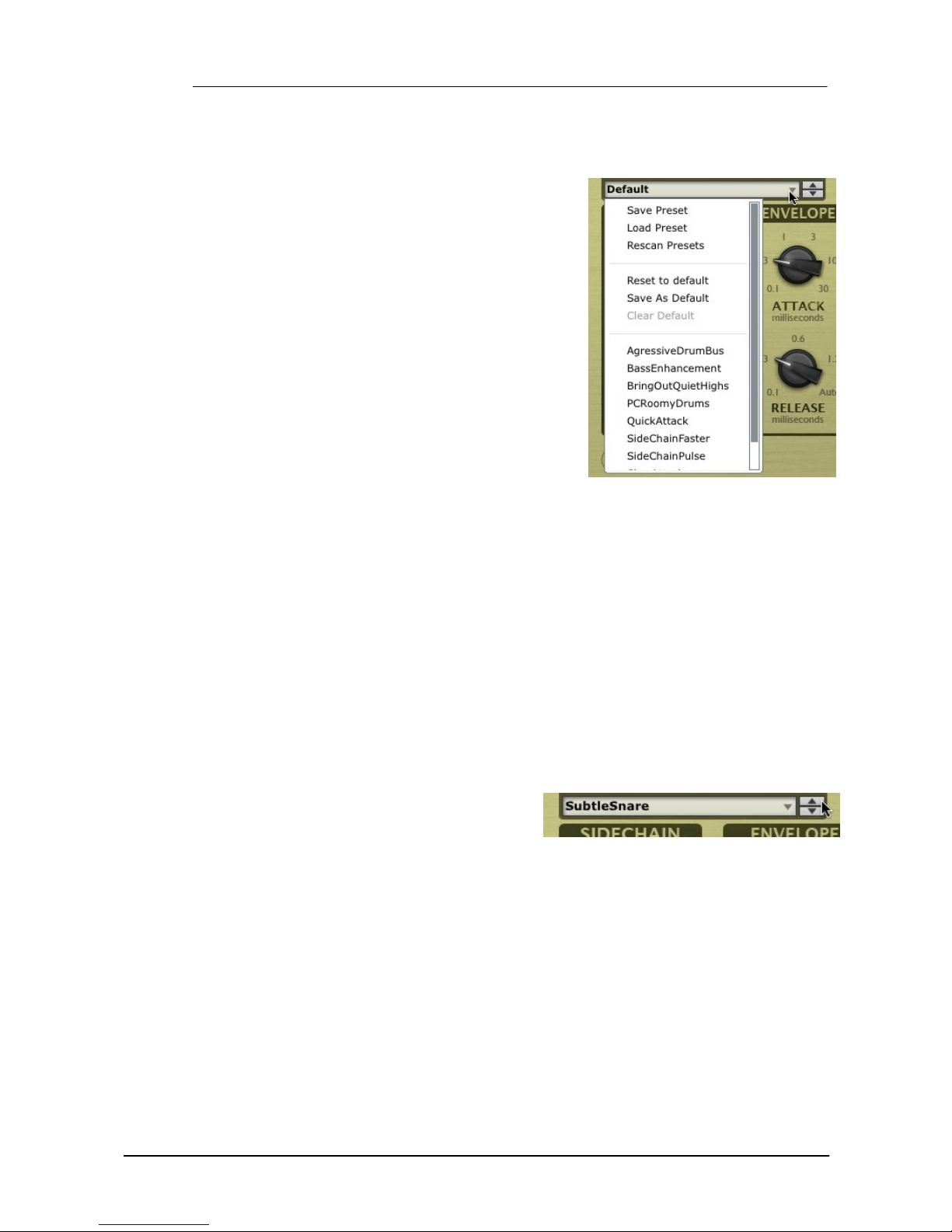
Preset picker
This drop-down menu displays all available presets of the
relevant type, arranged in category sub-menus, as well as
the following functions:
Sav e preset
This function prompts you for a filename in order to save
the current settings to disk. It is recommended that you
save presets to the default folder that is shown so that
they can easily be reloaded using the preset picker menu.
Load preset
This function allows you to browse to and load a preset
from any location.
.
Rescan presets
The Rescan presets function scans the preset location for new presets you may have copied there
since you launched the plugin.
Reset to default
This function resets the plugin state to a pre-defined default state (saved using the Save as
default function) or to the factory default state if no user-defined default exists.
Sav e as default
This function saves the current plugin state as the default state. The default state is recalled when
initializing the plugin or when using the Reset to default function.
Clear default
This function clears the user-defined default settings, so that the factory default state is used
when initializing the plugin or when using using the Reset to default function. This function is
unavailable if no user-defined default settings exist.
Prev/Next preset
These buttons sequentially step backward/forward
through the available presets.
.
Page 5
DCAM Dynamics processors 5
© 2012 FXpansion Audio
Options menu
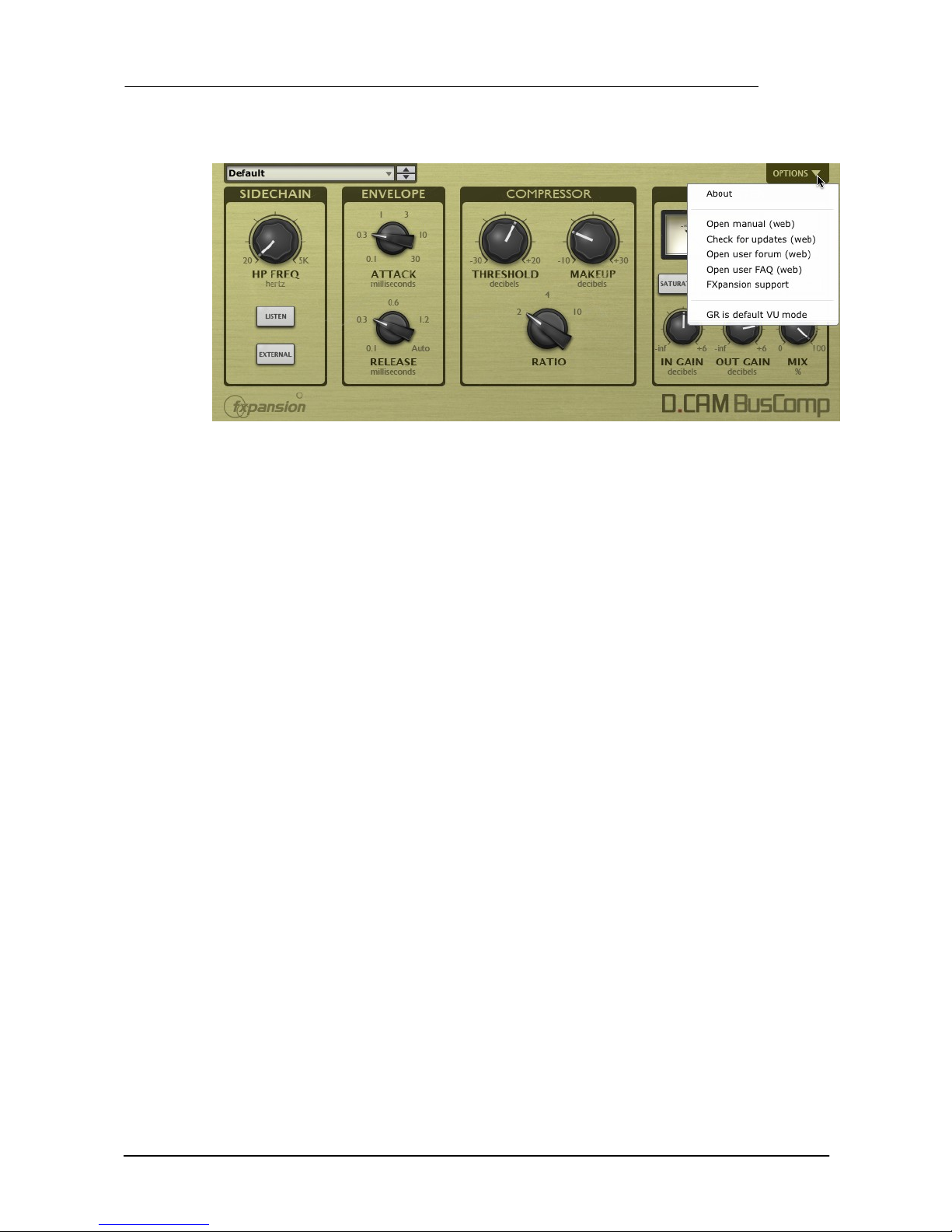
About
This function displays the DCAM Dynamics version number and credits listing.
Open manual
This function opens the DCAM Dynamics online manual in your OS's default browser.
Check for updates
This function checks the FXpansion website for any available DCAM Dynamics software updates.
Open user forum, Open user FAQ, FXpansion support
These functions open the DCAM Dynamics online forum, FAQ and FXpansion support pages in
your default browser.
GR is default VU mode
Activating this preference results in the plugin's metering being set to display gain reduction by
default.
Page 6
Operation Manual6
© 2012 FXpansion Audio
2.1 BusComp
DCAM BusComp is based on a classic bus compressor design from the centre section of a wellknown British large-format mixing console. It is usually intended to be inserted on subgroups like
drum mixes or the entire master output to add ‘glue’ and power to a mix of tracks. However, it also
works very well as a channel compressor in its own right, offering a different type of compression
to that offered by the ChanComp.
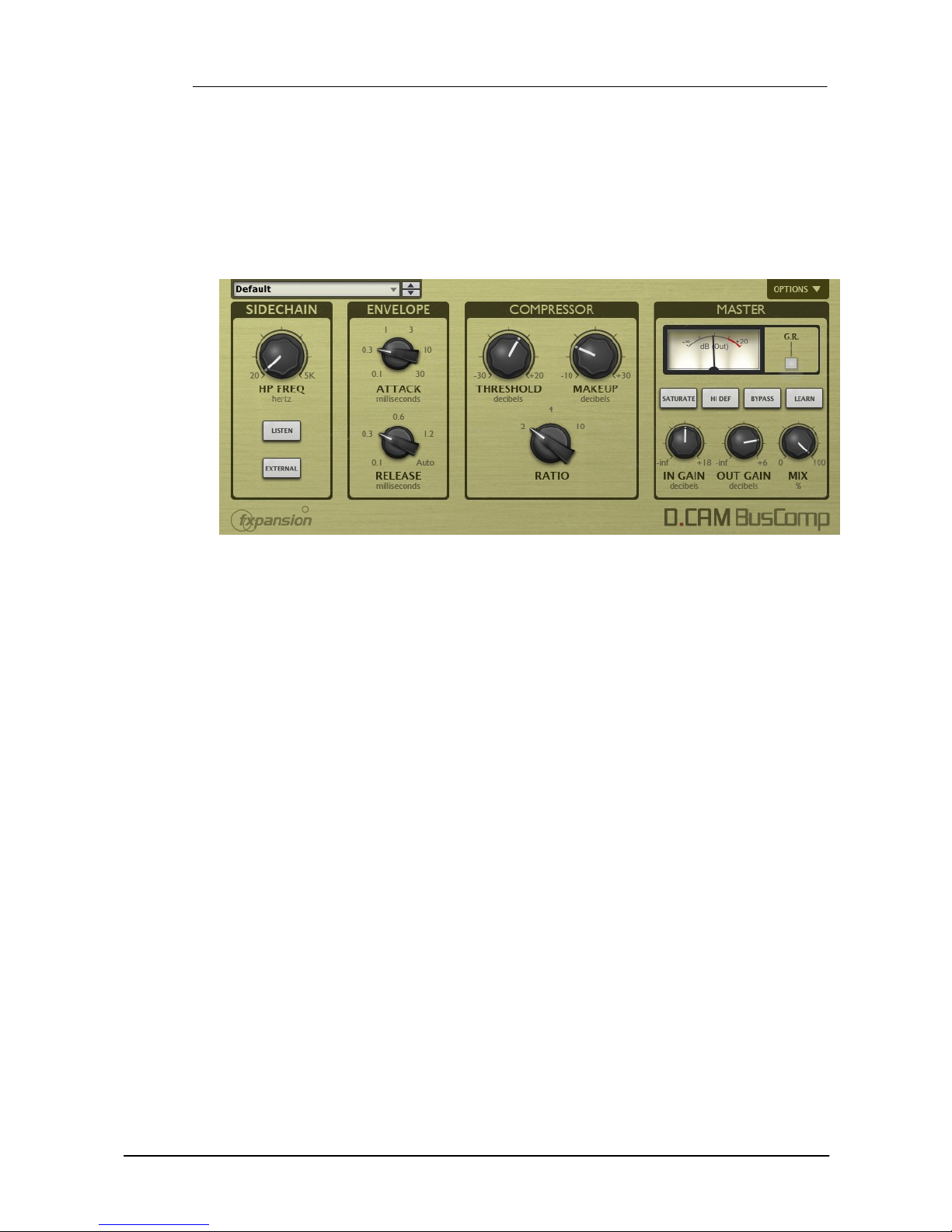
Detection section
HP Freq
The HP Freq control allows you to apply a variable high pass filter on the key signal that is used
for the compressor’s amplitude detection circuit. This control is useful when there is too much lowend in the signal fed into the peak detection circuit, which can result in the compressor reacting
too heavily.
Listen
Activating the Listen button allows you to monitor the signal used for the compressor's detection
circuit, according to the current settings of the HP Freq and External controls.
External (External sidechain)
Activate the External button in order to use the sidechain signal as the source for the peak
detection circuit, allowing you to control the dynamics of the input signal with another signal
entirely.
This function involves routing the desired external sidechain signal to inputs 3-4 of the plugin.
Envelope section
Attack
The Attack control adjusts the speed at which the program (input signal) gain is reduced when a
peak is detected.
Six attack times are available: 0.1 ms, 0.3 ms, 1 ms, 3 ms, 10 ms, 30 ms.
Release
The Release control sets the speed at which the gain level returns to normal after a transient has
passed.
The following Release settings are available: 0.1 ms, 0.3 ms, 0.6 ms, 1.2 ms and Auto.
Page 7

DCAM Dynamics processors 7
© 2012 FXpansion Audio
Compressor section
Threshold
The Threshold represents the input level at which the compressor starts to react - any signals
over the Threshold level engage the compressor circuit.
Makeup
The Makeup control increases the output gain after the compressor circuit has applied gain
reduction to the input signal.
Ratio
The Ratio specifies the gain reduction applied by the compressor.
3 Ratio settings are available: 2:1, 4:1 and 10:1. The numbers represent the change in gain after
compression.
For example, assuming that the threshold level has been breached, then a Ratio of 4:1 would
mean that for every 4 dB of in- creased signal level coming into the compressor, the output level
rises by 1dB.
Master section
In Gain
The In Gain control adjusts the level of the input signal, from -inf dB to +6 dB.
Out Gain
The Out Gain control adjusts the level of the final output signal, from -inf dB to +6 dB.
Mix
The Mix control allows you to blend the final output mix between the input signal (0%) and output
signal (100%).
This is useful for quickly introducing parallel dynamics processing without having to perform extra
routing in your DAW/host, allowing you to achieve the ‘huge’ compressed sound while keeping the
transients of the original signal intact.
Page 8
Operation Manual8
© 2012 FXpansion Audio
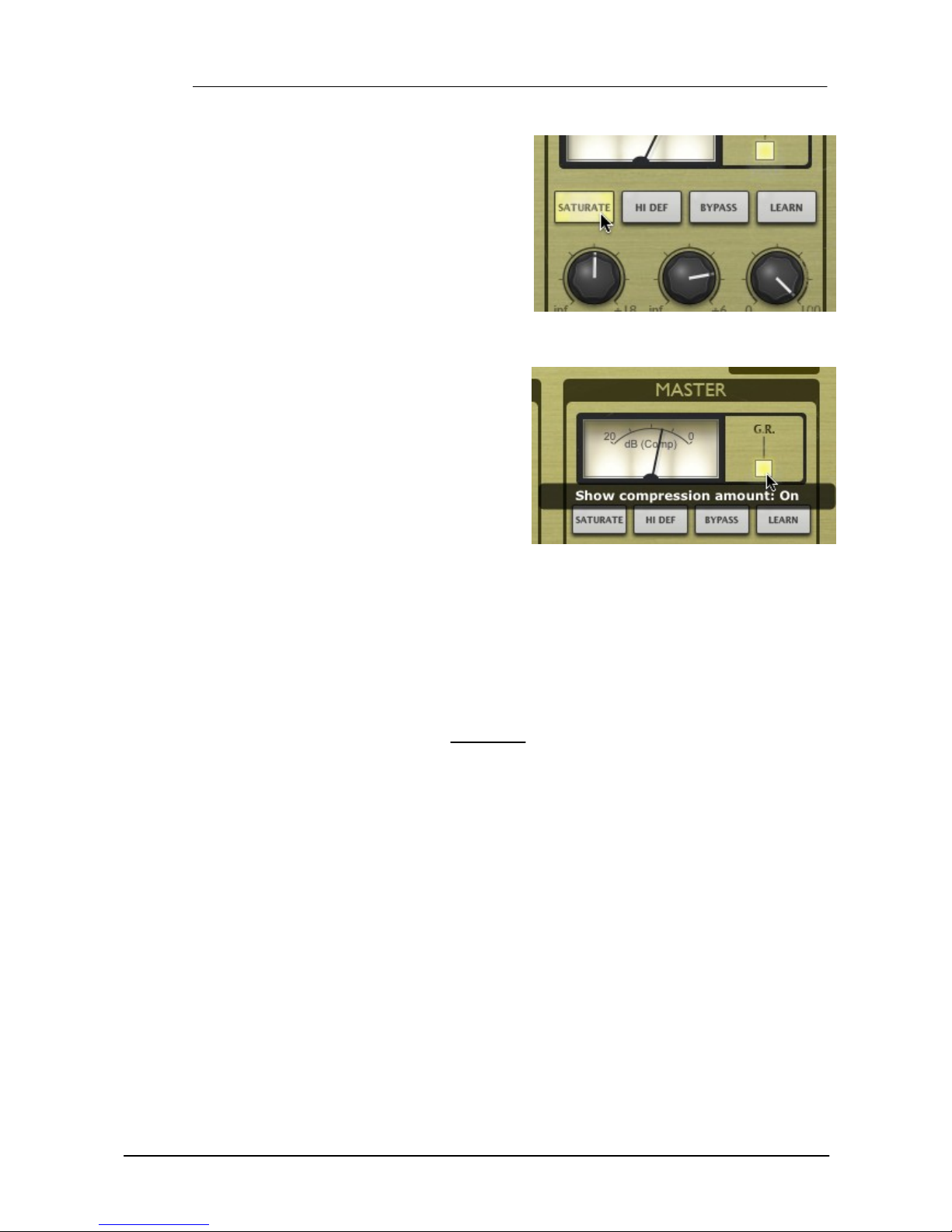
Saturate
Activating the Saturate button enables the
BusComp's saturation circuit. The saturation
behaviour is dependent on the level of the input
signal. Note that this function is not a peak
clipper - the signal can still exceed 0dB
depending on the input level and compression
settings.
.
Meter section
G.R.
By default, the meter displays the output level
from the compressor. Activate the G.R. button to
switch to metering the amount of gain reduction.
Hi Def
By default, all processing in the DCAM
Dynamics plugins is performed at 2x
oversampling.
With the Hi Def button activated, all processing
in the plugin is performed at 4x oversampling.
This achieves better sounding results but
requires more CPU.
.
Bypass
With the Bypass button activated, the plugin is disabled and the input audio signal passes through
unaffected.
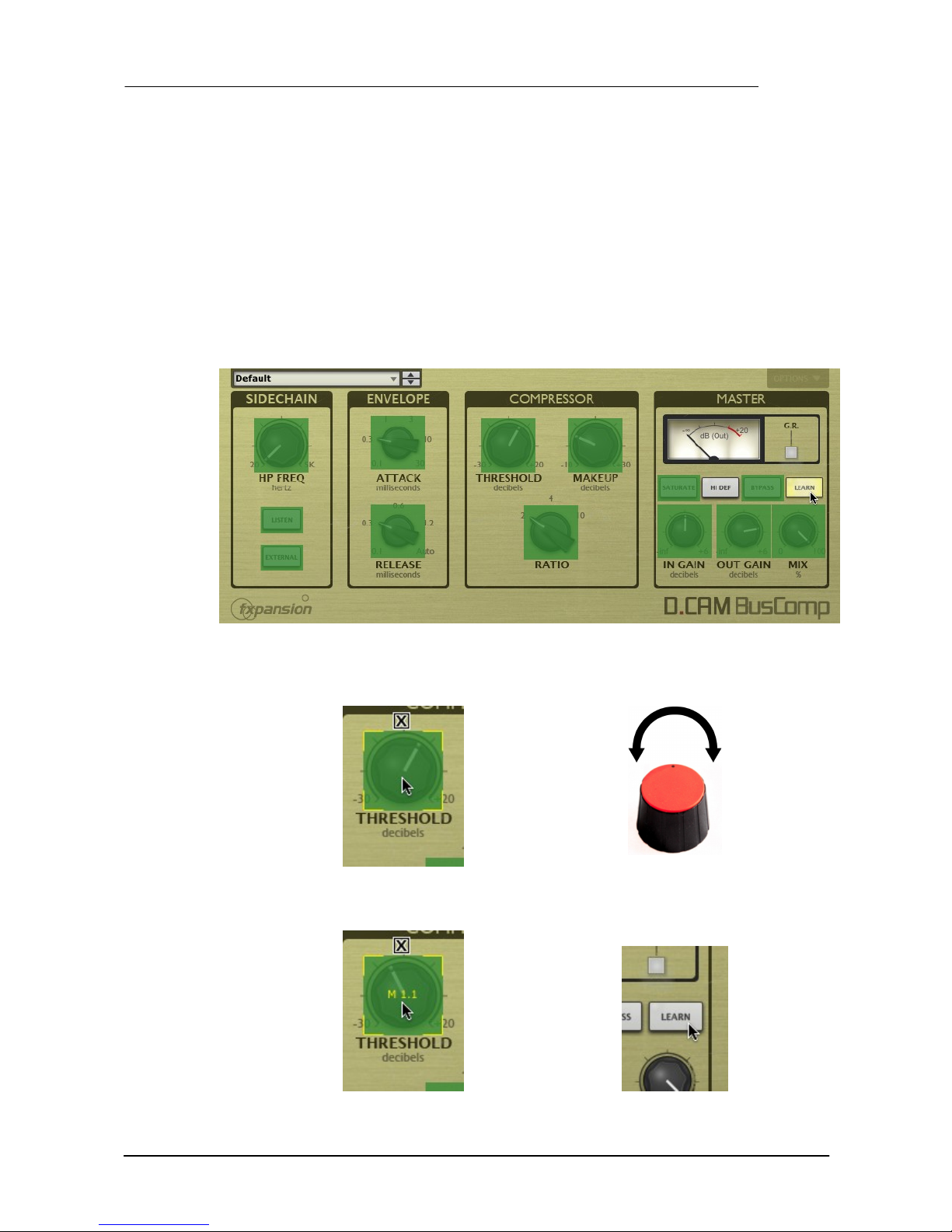
Learn
Activating the Learn button initiates Learn mode which allows you to assign MIDI continuous
controllers (MIDI CCs) to DCAM Dynamics' plugin parameters.
Page 9
DCAM Dynamics processors 9
© 2012 FXpansion Audio
2.2 ChanComp
DCAM ChanComp is based on a classic limiting amplifier design commonly used as a channel
compressor. It features very fast attack response and is usually intended to be applied to
individual tracks.
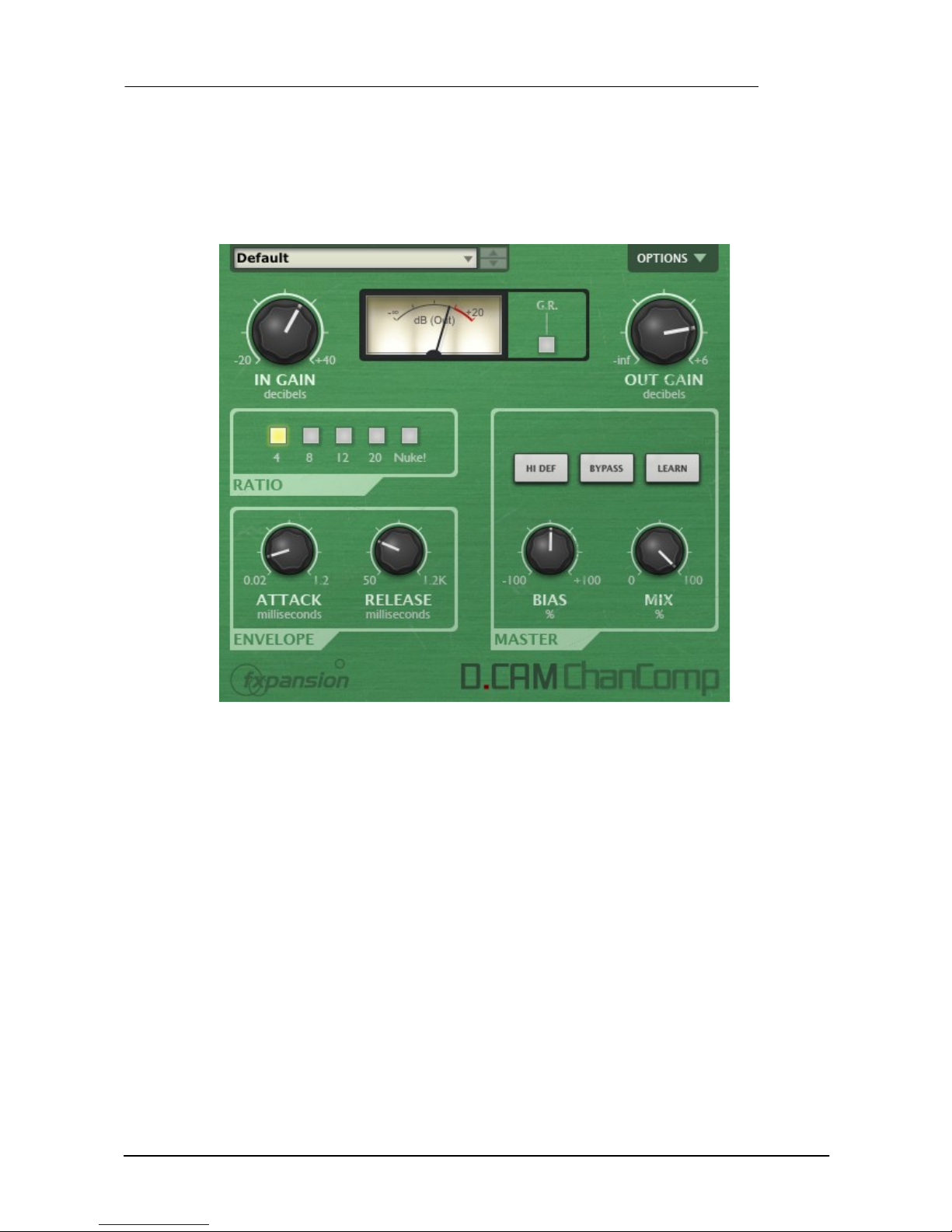
In Gain
Increase the In Gain control to make the sound more compressed (higher signals engage the
compression circuit more)
Out Gain
Adjust the Out Gain to reduce the final level as required.
Ratio section
The Ratio specifies the gain reduction applied by the compressor.
Five Ratio settings are available: 4, 8, 12, 20 and Nuke. The numbered settings correspond to
ratios of 4:1, 8:1, 12:1 and 20:1. The numbers represent the change in gain after compression.
For example, assuming that the threshold level has been breached, then a Ratio of 4:1 would
mean that for every 4 dB of increased signal level coming into the compressor, the output level
rises by 1dB.
The Nuke setting is an emulation of the ‘all buttons’ ratio mode on a classic limiting amplifier
design. It affects the compression characteristics in various ways, affecting the attack and
causing limiting and distortion effects, resulting in rather brutal, heavy sounds.
Page 10
Operation Manual10
© 2012 FXpansion Audio
Envelope section
Attack
The Attack control adjusts the speed at which the program (input signal) gain is reduced when a
peak is detected.
The Chan Comp is designed for fast compression with Attack times from 0.02ms to 1.2ms.
Release
The Release control sets the speed at which the gain level returns to normal after a transient has
passed.
The Release time ranges from 50ms to 1.2 seconds.
Master section
Bias
The Bias control continuously varies between different capacitor values which were used on
various hardware revisions of the hardware on which the Chan Comp is based.
Settings between -25% and +25% result in subtle sonic variations in the compression
characteristics. More extreme settings are useful for driving the compression circuit hard.
Mix
The Mix control allows you to blend the final output mix between the input signal (0%) and output
signal (100%).
This is useful for quickly introducing parallel dynamics processing without having to perform extra
routing in your DAW/host, allowing you to achieve the ‘huge’ compressed sound while keeping the
transients of the original signal intact.
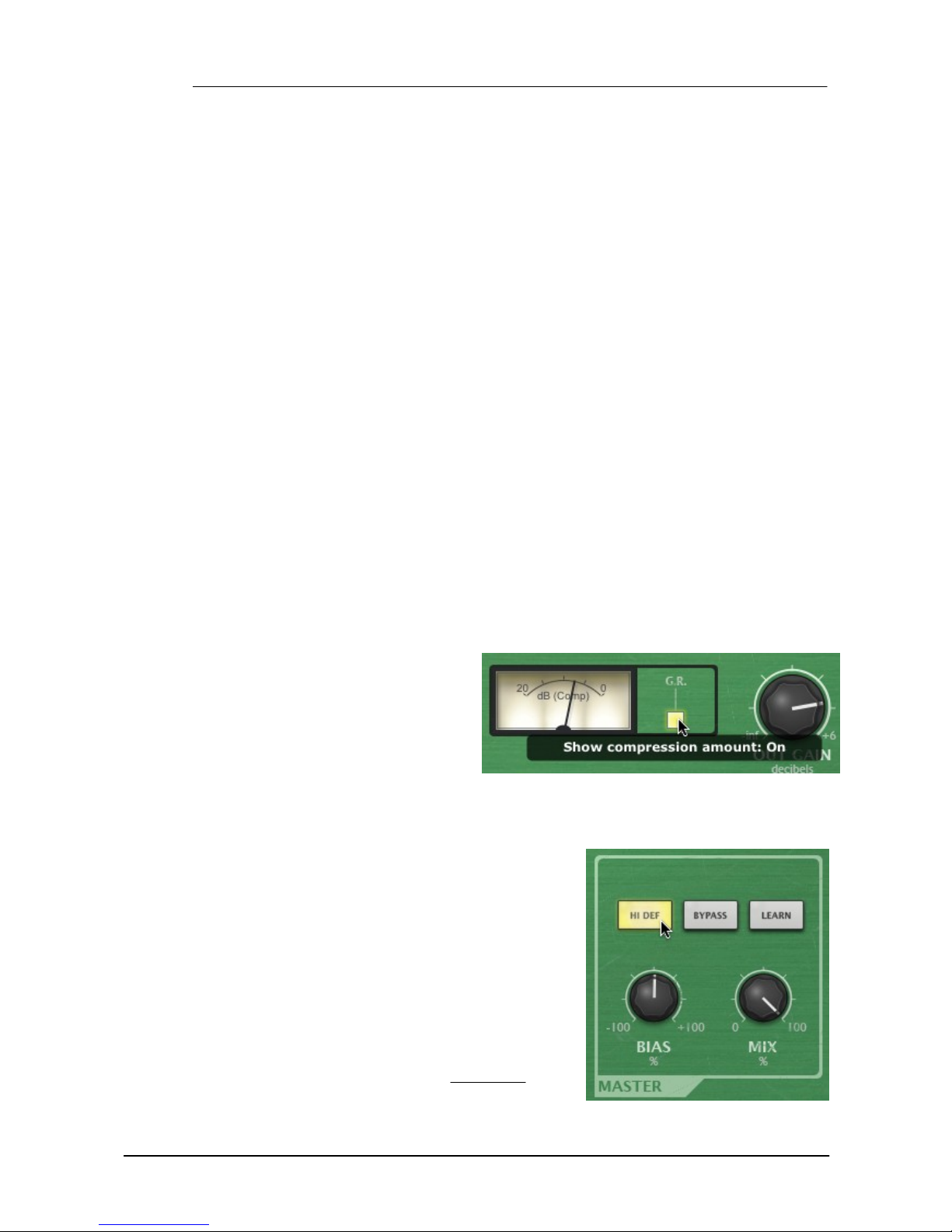
Meter section
G.R.
By default, the meter displays the output
level from the compressor.
Activate the G.R. button to enable
metering of the amount of gain reduction.
.
Master section
Hi Def
By default, all processing in the DCAM Dynamics plugins
is performed at 2x oversampling.
With the Hi Def button activated, all processing in the
plugin is performed at 4x oversampling. This achieves
better sounding results but requires more CPU.
Bypass
With the Bypass button activated, the plugin is disabled
and the input audio signal passes through unaffected.
Learn
Activating the Learn button initiates Learn mode which
allows you to assign MIDI continuous controllers (MIDI
CCs) to DCAM Dynamics' plugin parameters.
.
Page 11

DCAM Dynamics processors 11
© 2012 FXpansion Audio
Page 12
Operation Manual12
© 2012 FXpansion Audio
2.3 CrossComp
DCAM CrossComp provides a simple but effective set of additions to a bus compressor core that
allow you to quickly dial in frequency-dependent compression without the complicated overhead of
a full multi-band device.
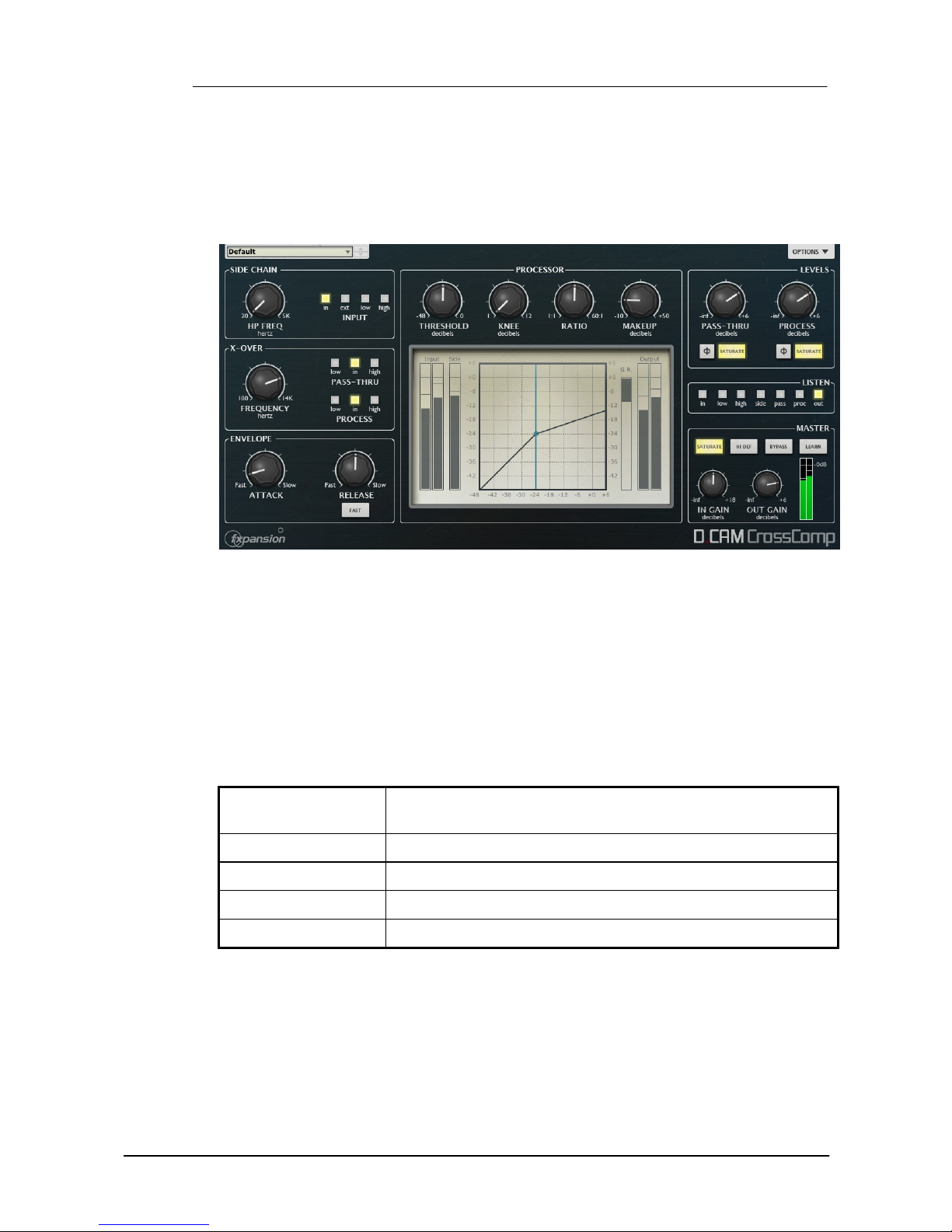
Sidechain section
HP Freq
The HP Freq control allows you to define the cutoff frequency of the high-pass filter before the
compressor's detection circuit. This HPF exists no matter which signal is used as the Key
source.
Input
This switch allows you to select which signal is used for the compressor's peak detection circuit.
Self
The current input to the compressor, which is dependent on the
above settings in the Pre-processing section, is used.
In
The entire input signal is used.
Ext
The external sidechain (inputs 3-4) is used.
Low
The frequency band below the Frequency setting is used.
High
The frequency band above the Frequency setting is used.
X-Over (Crossover) section
Frequency (Crossover Frequency)
The Frequency control defines the point between the Low and High frequency bands.
Page 13
DCAM Dynamics processors 13
© 2012 FXpansion Audio
Pass-Thru
The Pass-Thru switch selects which signal is used as the Pass-thru signal. The final level of this
signal is adjusted using the Pass-thru control in the Processor section.
Low
The frequency band below the Frequency setting is used.
Input
The entire input signal is used.
High
The frequency band above the Frequency setting is used.
Process
The Process switch allows you to select which signal to feed through the compressor. The final
level of this signal after processing is adjusted using the Process control in the Processor section.
Low
The frequency band below the Frequency setting is used.
Input
The entire input signal is used.
High
The frequency band above the Frequency setting is used.
Envelope section
Attack
The Attack control adjusts the speed at which the program (input signal) gain is reduced when a
peak is detected.
6 Attack time settings are available: 0.1 ms, 0.3 ms, 1 ms, 3 ms, 10 ms, 30 ms.
Release
The Release control sets the speed at which the gain level returns to normal after a transient has
passed.
The following Release settings are available: 0.1 ms, 0.3 ms, 0.6 ms, 1.2 ms and Auto.
With the Auto setting active, the Release is automatically set
according to the input signal characteristics.
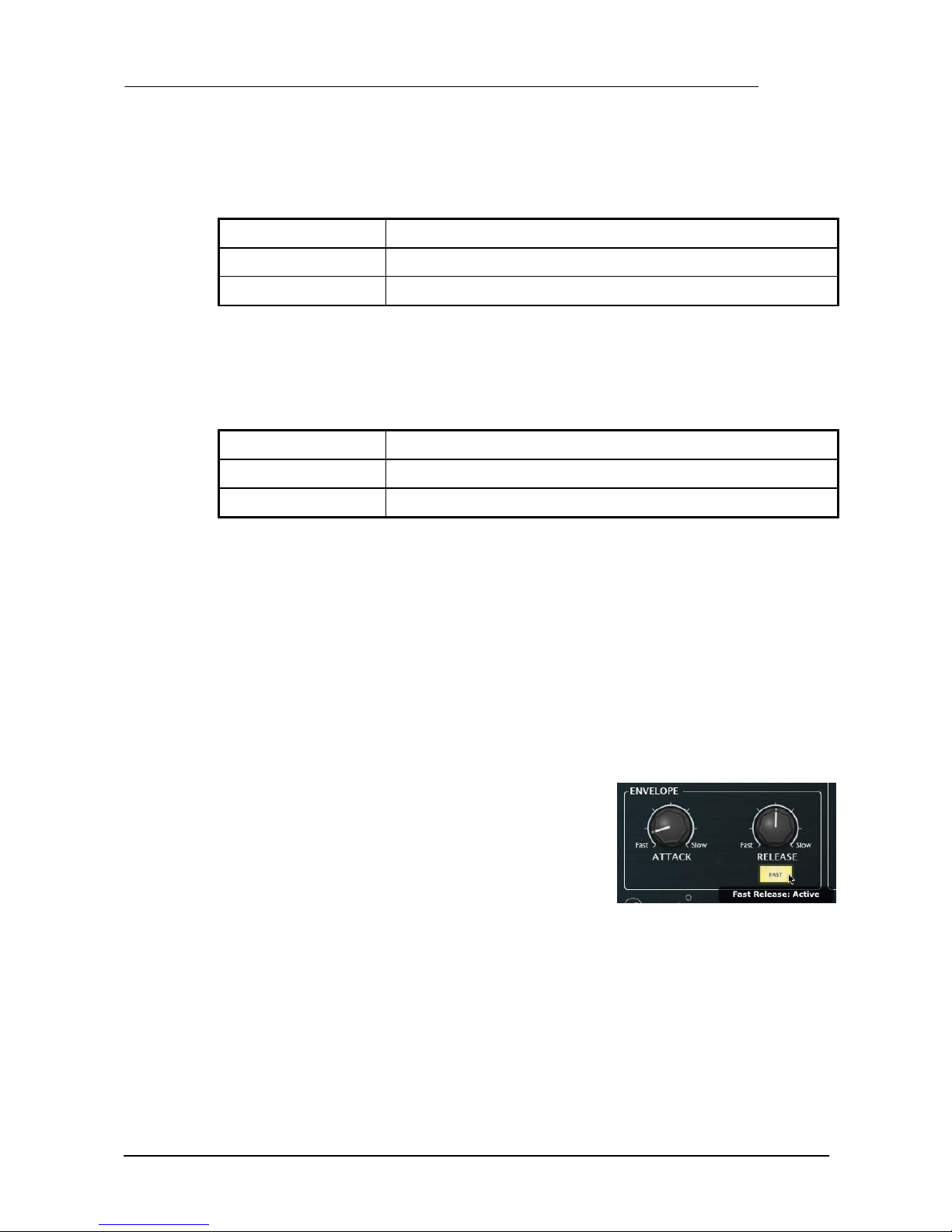
Fast
Activating the Fast button scales down the range of the
Release control, resulting in much faster release
characteristics.
.
Processor section
Threshold
The Threshold represents the input level at which the compressor starts to react - any signals
over the Threshold level engage the compressor circuit.
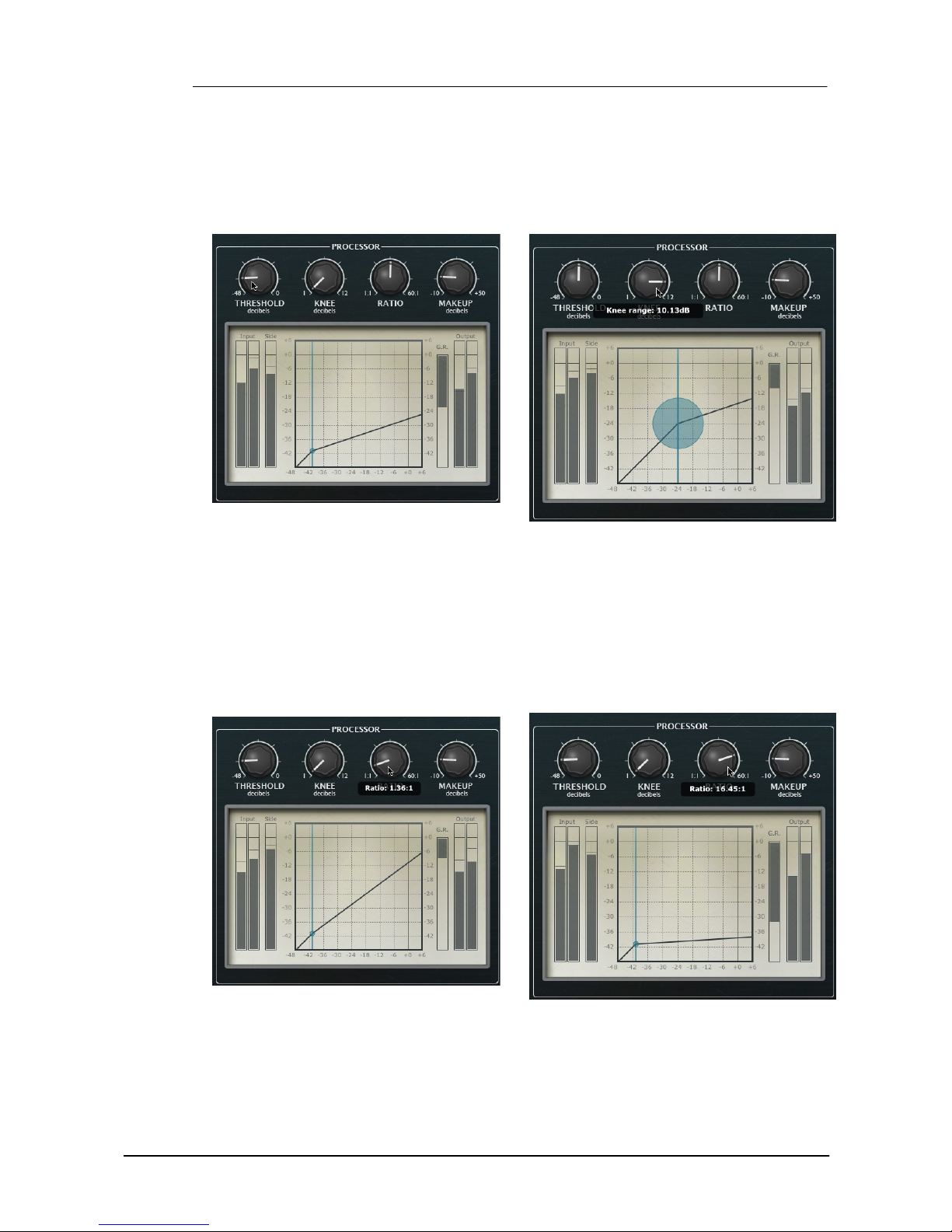
Knee
The Knee control sets the bandwidth of the compression circuit's knee. The minimum setting (1)
results in a hard-knee setting. Increasing the Knee control makes the knee gradually softer.
Page 14
Operation Manual14
© 2012 FXpansion Audio
Hard-knee compression reduces the gain of any signal above the Threshold level and does not
affect any signals below it. Soft-knee compression begins to introduce gain reduction at levels just
under the Threshold level and gradually increases the amount of gain reduction above it, leading to
a more gentle, natural-sounding type of compression behaviour.
Reducing the Threshold control
Increasing the Knee control
.
Ratio
The Ratio specifies the gain reduction applied by the compressor.
The Ratio can be continuously varied between 1:1 and 60:1. The numbers represent the change in
gain after compression.
For example, assuming that the threshold level has been breached, then a Ratio of 4:1 would
mean that for every 4 dB of in- creased signal level coming into the compressor, the output level
rises by 1dB.
Setting a low Ratio
Setting a high Ratio
.
Makeup
The Makeup control allows you to increase the output gain after the compressor circuit has
applied gain reduction to the input signal.
Page 15
DCAM Dynamics processors 15
© 2012 FXpansion Audio
Levels section
Pass-Thru
The Pass-Thru control adjusts the level of the Pass-Thru signal, as defined by the Pass-Thru
switch in the X-Over section.
Process
The Process control adjusts the level of the Process
signal, as defined by the Process switch in the X-Over
section.
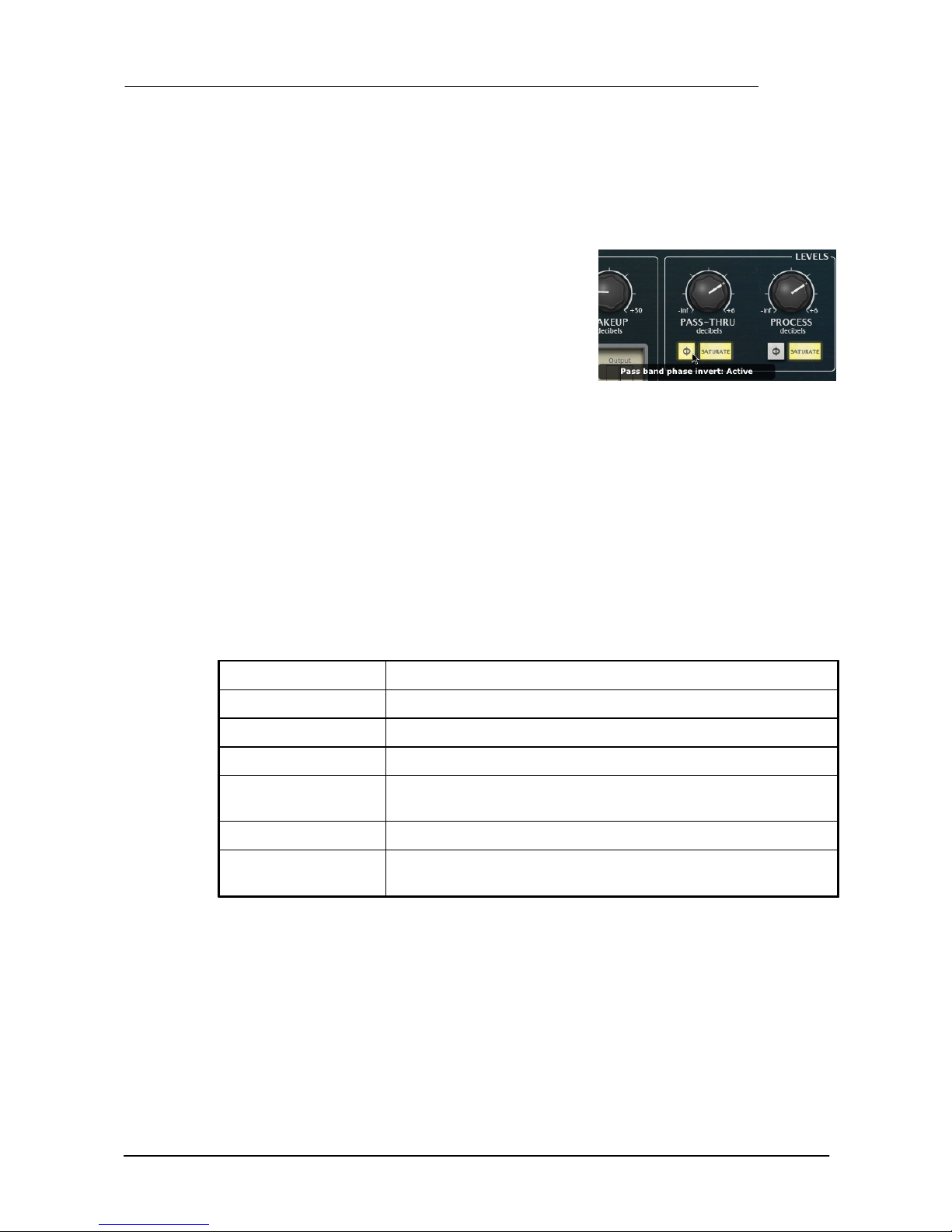
Phase invert
Activating the Phase invert button for the Pass-Thru or
Process signals flips the phase of the signal.
.
Saturate
Both the Pass-Thru and Process signals feature individual saturation circuits, activated by the
Saturate buttons.
The saturation behaviour is dependent on the level of the input signal. Note that this function is not
a peak clipper - the signal can still exceed 0dB depending on the input level and compression
settings.
Listen section
Listen switch
The Listen switch selects which signal is monitored from the plugin output. It is useful for
confirming the state of each signal when setting up the CrossComp's parameters.
In
The input signal is monitored, prior to any processing.
Low
The Low band is monitored, prior to any additional processing.
High
The High band is monitored, prior to any additional processing.
Side
The signal used for the compressor's detection circuit is monitored.
Pass
The Pass-Thru signal is monitored, prior to any additional
processing..
Proc
The Process signal is monitored, prior to any additional processing.
Out
The output signal after all processing blocks is monitored. This is the
default setting.
Master section
In Gain
The In Gain control adjusts the level of the input signal, from -inf dB to +6 dB.
Out Gain & meter
The Out Gain control adjusts the level of the final output signal, from -inf dB to +6 dB. The meter
to the right of this control displays the output level.
Page 16

Operation Manual16
© 2012 FXpansion Audio
Saturate
The Master section's Saturate button activates a saturation circuit which is applied to the entire
output signal. The saturation behaviour is dependent on the signal level. Note that this function is
not a peak clipper - the signal can still exceed 0dB depending on the input level and compression
settings.
Hi Def
By default, all processing in the DCAM Dynamics plugins is performed at 2x oversampling.
With the Hi Def button activated, all processing in the plugin is performed at 4x oversampling. This
achieves better sounding results but requires more CPU.
Bypass
With the Bypass button activated, the plugin is disabled and the input audio signal passes through
unaffected.
Learn
Activating the Learn button initiates Learn mode which allows you to assign MIDI continuous
controllers (MIDI CCs) to DCAM Dynamics' plugin parameters.
Page 17
DCAM Dynamics processors 17
© 2012 FXpansion Audio
2.4 EnvShaper
DCAM EnvShaper takes a different approach to dynamics processing than a standard
compressor. It allows you to adjust the attack and sustain portions of transients in order to
change the dynamic shape of a signal.
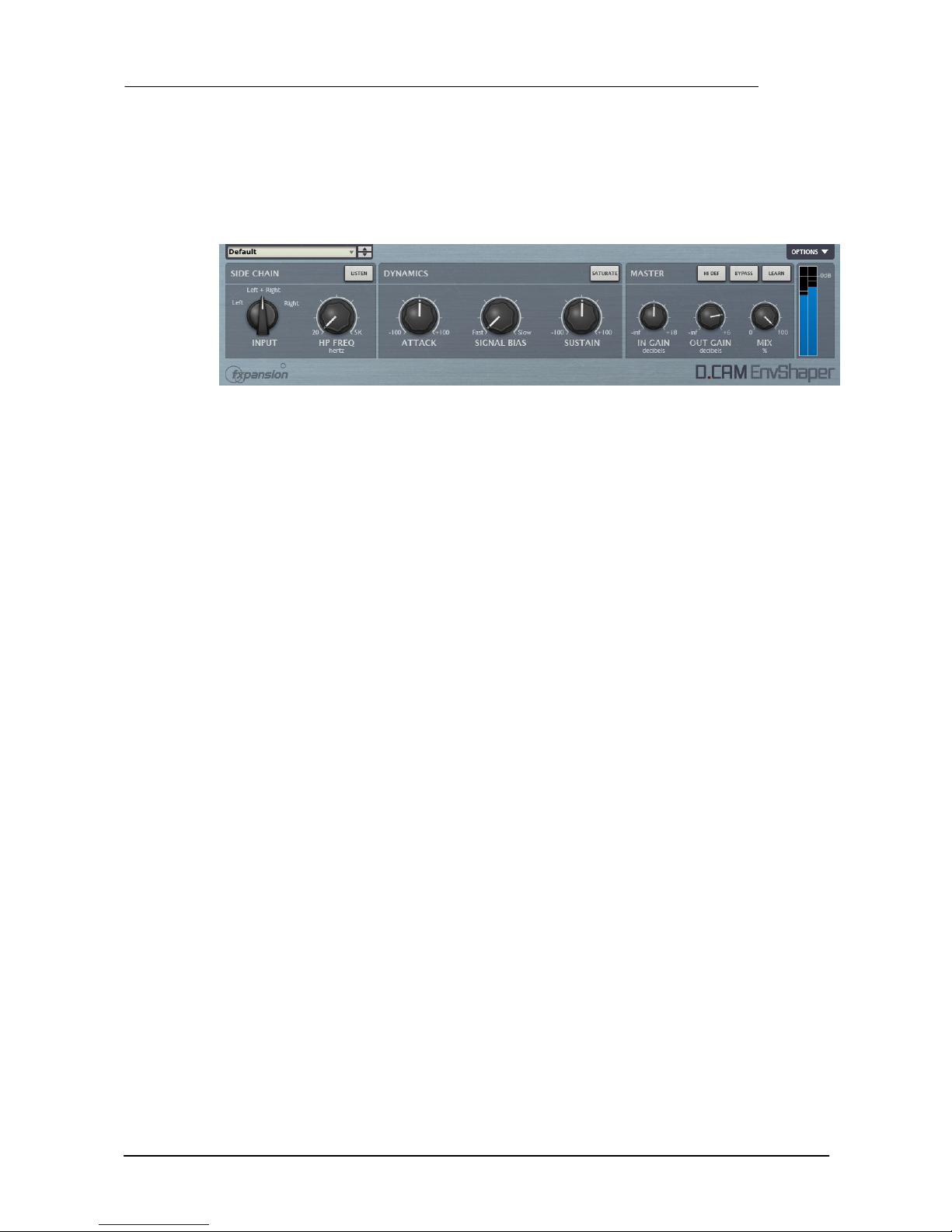
Detection Signal section
Input
The Input control allows you to switch between the left channel, right channel and both channels
of an incoming stereo signal to use as the input to the EnvShaper's amplitude detection circuit.
Using only one channel in a complex stereo signal can achieve better results.
HP Freq
The HP Freq control allows you to apply a variable high pass filter on the key signal that is used
for the amplitude detection circuit. This control is useful when there is too much low-end in the
signal fed into the peak detection circuit, which can result in the transient shaping reacting too
heavily.
Listen
Activating the Listen button allows you to monitor the signal used for the EnvShaper's detection
circuit.
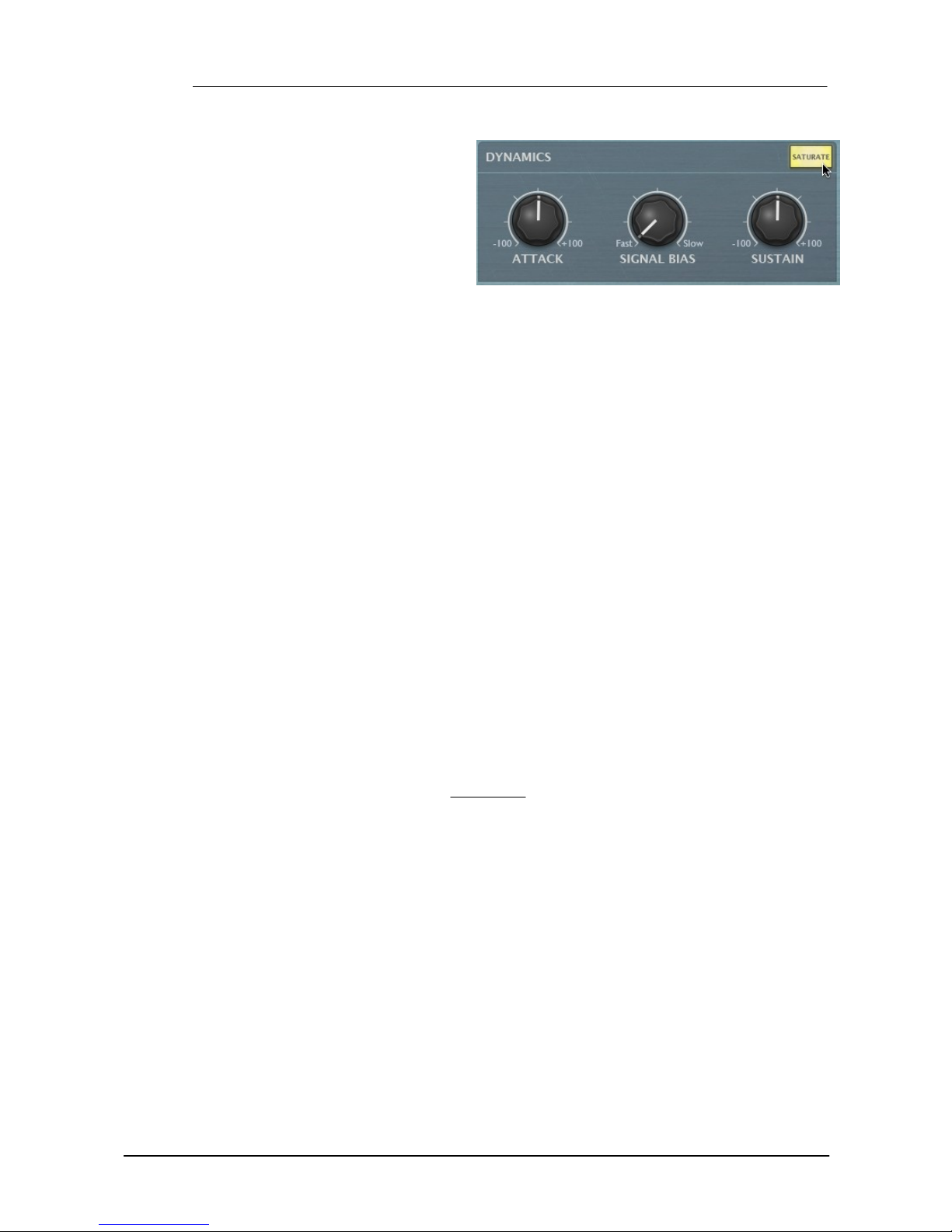
Dynamics section
Attack
The Attack control adjusts the intensity of the attack phase of detected peaks in the audio signal.
Increase the control to intensify attack transients, and decrease it to soften transients.
Sustain
The Sustain control adjusts the intensity of release portions of detected peaks in the audio signal,
which increases or decreases the apparent sustain of sounds in the signal. Increase the control
for more sustain, and decrease it for less sustain. This control is useful for adjusting the perceived
level of ambience in a channel. Negative settings can produce damping effects for drum sounds.
Signal Bias
The Signal Bias control adjusts the sensitivity and release characteristics of the EnvShaper. At
low settings (towards the Fast setting) it is more sensitive to short transients while at higher
settings (towards the Slow setting) it is more sensitive to longer transients (towards the Slow
setting).
Page 18
Operation Manual18
© 2012 FXpansion Audio
Saturate
Activating the Saturate button enables
the EnvShaper's saturation circuit. The
saturation behaviour is dependent on the
level of the input signal. Note that this
function is not a peak clipper - the signal
can still exceed 0dB depending on the
input level and the Attack/Decay
settings.
.
Master section
In Gain
The In Gain control adjusts the level of the input signal, from -inf dB to +6 dB.
Out Gain
The Out Gain control adjusts the level of the final output signal, from -inf dB to +6 dB.
Mix
The Mix control allows you to blend the final output mix between the input signal (0%) and output
signal (100%).
This is useful for quickly introducing parallel dynamics processing without having to perform extra
routing in your DAW/host, allowing you to achieve the ‘huge’ compressed sound while keeping the
transients of the original signal intact.
Hi Def
By default, all processing in the DCAM Dynamics plugins is performed at 2x oversampling.
With the Hi Def button activated, all processing in the plugin is performed at 4x oversampling. This
achieves better sounding results but requires more CPU.
Bypass
With the Bypass button activated, the plugin is disabled and the input audio signal passes through
unaffected.
Learn
Activating the Learn button initiates Learn mode which allows you to assign MIDI continuous
controllers (MIDI CCs) to DCAM Dynamics' plugin parameters.
Page 19
MIDI Learn 19
© 2012 FXpansion Audio
3 MIDI Learn
The built-in MIDI Learn mode allows you to map MIDI CCs (continuous controllers) to parameters
in the DCAM Dynamics plugins.
MIDI Learn CC setups are saved with the host project containing the plugin. They are not saved
within individual plugin presets (saved using the Preset picker).
For the MIDI Learn system to function, it is necessary for your host/DAW to route MIDI to the
plugin slot in which the DCAM Dynamics plugin is inserted. Please see your host's documentation
for details on how to achieve this.
Mapping a MIDI CC to a control
1. Click the Learn button to enter MIDI Learn mode. Parameters in the DCAM Dynamics plugins which
can be mapped to MIDI CCs are highlighted in green.
2. Click the parameter you want to map on
the interface.
3. Move the physical MIDI CC knob, slider
or other controller you want to use.
4. The parameter is now m apped. The MIDI
channel and CC number are overlaid on the
5. Click the Learn button again to exit MIDI
Learn mode.
Page 20
Operation Manual20
© 2012 FXpansion Audio
control.
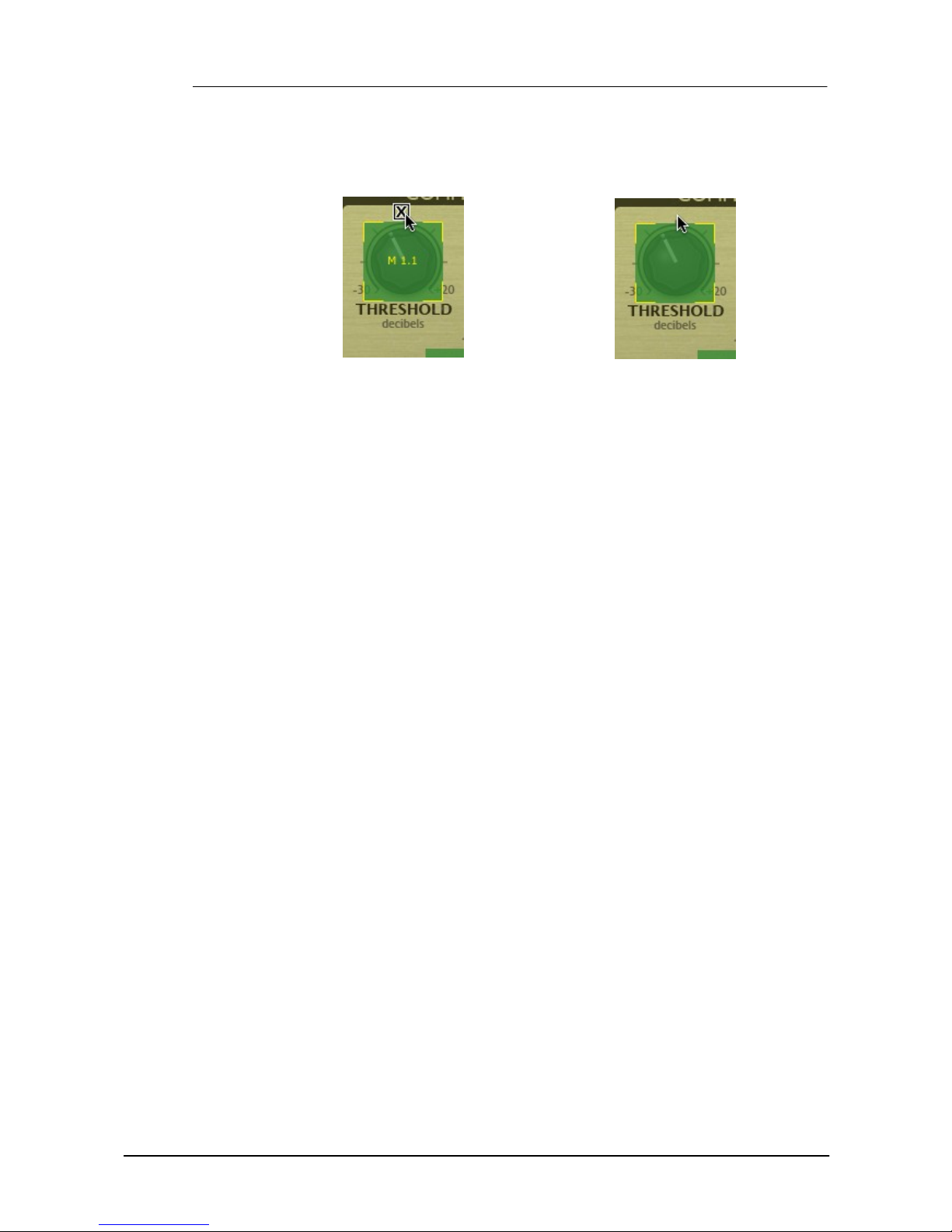
Removing a MIDI Learn assignment
1. While in MIDI Learn mode, click the 'X' button
above each assigned control.
2. The assignment is now removed.
Page 21

Credits 21
© 2012 FXpansion Audio
4 Credits
Programming and GUI design: Paul Chana
QA: Drew Vernon, Tom Meaney, Mike Bugh, Sam Gillies
Video: Rory Dow
Sound design: Tom Meaney, Mike Bugh
Documentation: Mayur Maha
Image design: Rus Brockman
Web development: Andreas Schnetzler, Sam Sharp, Rob Philp
Project management: Rhiannon Bankston-Thomas
Artist Relations: Clare O'Brien
Support: Alex Volmer, Ryan Sellers
Additional contributions: Angus Hewlett, Steve Baker, SKoT McDonald, Jamaine Obeng
FXpansion USA: Terry Hardin, Leslie Crook
© FXpansion Audio 2012
 Loading...