

Page 1
This Quick Reference Guide is not intended to replace your
vehicle Owner’s Manual which contains more detailed
information concerning the features of your vehicle, as well
as important safety warnings designed to help reduce the
risk of injury to you and your passengers. Please read your
entire Owner’s Manual carefully as you begin learning about
your new vehicle and refer to the appropriate chapters when
questions arise. All information contained in this Quick
Reference Guide was accurate at the time of duplication.
We reserve the right to change features, operation and/
or functionality of any vehicle specification at any time.
Your Ford dealer is the best source for the most current
information. For detailed operating and safety information,
please consult your Owner’s Manual.
United States
Ford Customer Relationship Center
1-800-392-3673 (FORD)
(TDD for the hearing impaired: 1-800-232-5952)
owner.ford.com
@FordService
Canada
Ford Customer Relationship Centre
1-800-565-3673 (FORD)
(TDD for the hearing impaired: 1-888-658-6805)
ford.ca
@FordServiceCA
2017 Escape
Quick Reference Guide
HJ5J 19G217 AA
June 2016
Second Printing
Quick Reference Guide
Escape
Litho in U.S.A.
2471978_17b_Escape_QRG_060616.indd 2-3 11/10/16 3:54 PM
Page 2
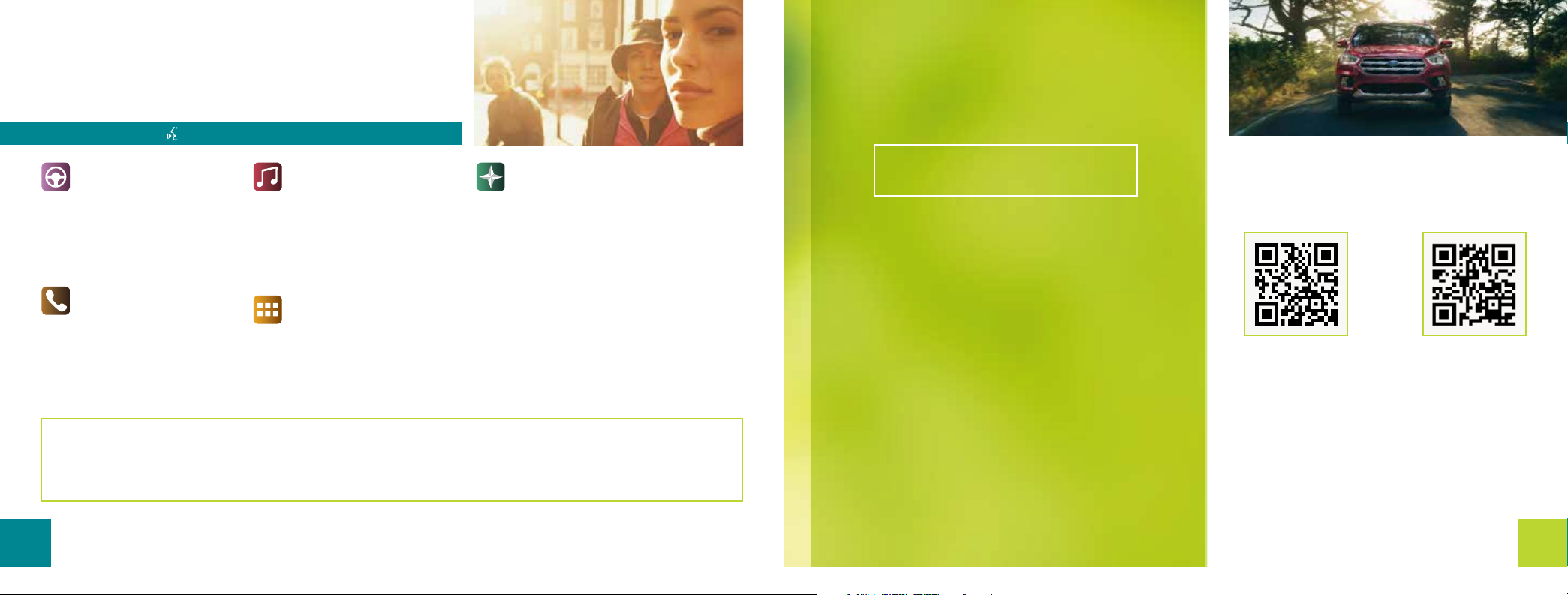
SYNC® 3
Commonly Used Voice Commands
Press the voice button on the steering wheel and then say:
Basic Commands
• Main menu
• Go back
• Cancel
• List of commands
• Next page
• Previous page
• Help
Phone
• Phone list of commands
• Pair phone
• Call <name> <on cell/
at home/at work>
• Dial <number>
• Listen to message
Some services may not be available in your area. Refer to the SYNC 3 chapter in your Owner’s Manual, visit the website or call the
toll-free number for more information.
For U.S. customers: Visit owner.ford.com or call 1-800-392-3673 (select Option 1 or 2 for language, then Option 3).
For Canadian customers: Visit syncmyride.ca or call 1-800-565-3673 (select Option 1 or 2 for language, then Option 3).
2
*if equipped
Audio
• AM <530-1710>
• FM <87.9-107.9>
• Bluetooth audio
• CD
• USB
• Bluetooth audio
• Sirius <0-233>*
• <Sirius channel name>*
Apps
• List mobile apps
• Find new apps
Navigation*
• Navigation list of commands
• Destination <home/
previous destination>
• Find <POI/intersection/
an address>
• Show route
• Where am I?
• SiriusXM Trac and Travel
Link* list of commands
- Show <trac/weather
map/5 day forecast/
fuel prices>
- Help
Table of Contents
Instrument Panel
SYNC
SYNC 3
Convenience
Comfort
Ligate
Function
Essential Information
4 – 5
6 – 7
8 – 10
11
12 – 13
14 – 15
16 – 17
18 – 23
Learn More About Your New Vehicle
Scan the country-appropriate QR code with
your smartphone (make sure you have a scanner
app installed) and you can access even more
information about your vehicle.
owner.ford.com (U.S.)
ford.ca (Canada)
WARNING
Driving while distracted can result in loss of vehicle
control, crash and injury. We strongly recommend
that you use extreme caution when using any device
that may take your focus o the road. Your primary
responsibility is the safe operation of your vehicle.
We recommend against the use of any hand-held
device while driving and encourage the use of voiceoperated systems when possible. Make sure you are
aware of all applicable local laws that may aect the
use of electronic devices while driving.
3
2471978_17b_Escape_QRG_060616.indd 2-3 11/10/16 3:54 PM
Page 3
,,
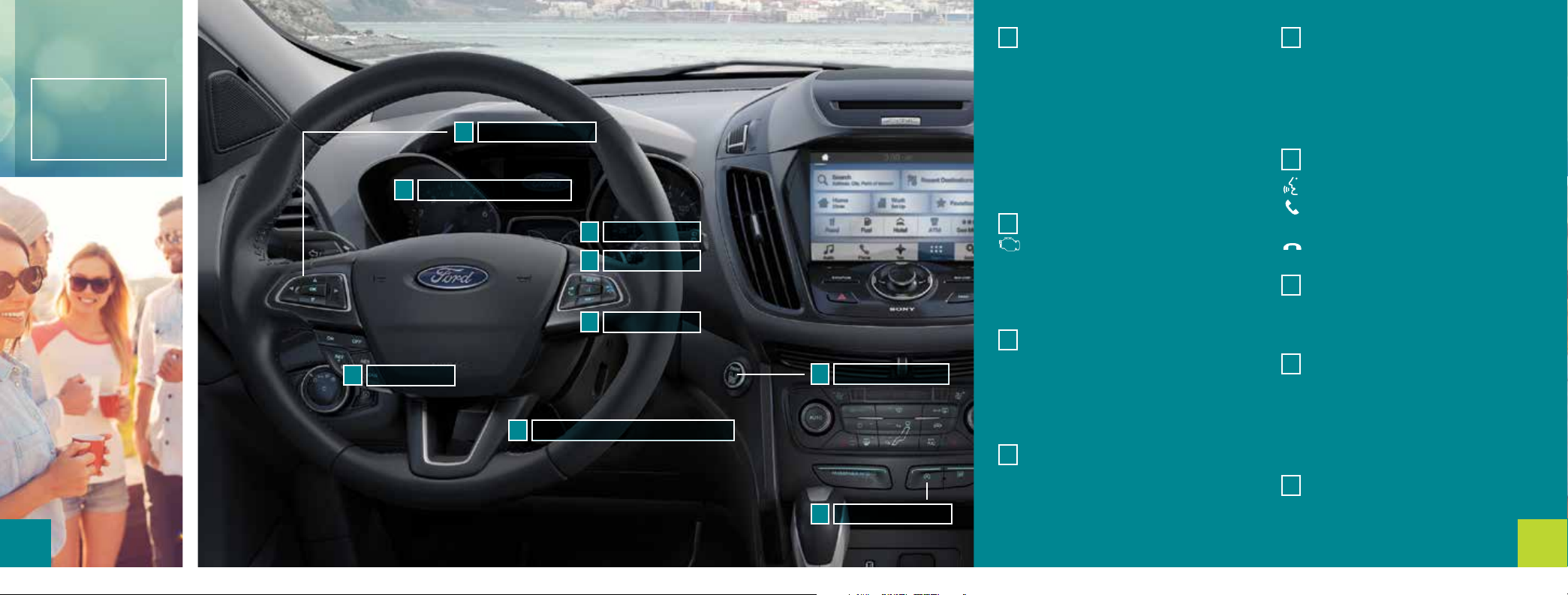
Instrument
Panel
4
Cruise Control
1
Information Display
3
Service Engine Soon Light
2
Wiper Controls*
7
Media Controls*
5
Voice Controls*
6
Tilt and Telescope Steering Column
4
Push Button Start*
8
Auto-Start-Stop*
9
1
Cruise Control
To Set Your Cruise Control Speed
A. Press and release ON.
B. Drive to the desired speed.
C. Press and release SET +, then take your foot
o the accelerator.
Aer you set a speed, you can press SET + or
SET – to adjust cruise speed. To cancel the set
speed, pull the CAN (Cancel) control toward
you or tap the brake pedal.
Service Engine Soon Light
2
Lights briefly when you switch on the
ignition. If it remains on or is flashing aer you
start the engine, the On-Board Diagnostics
(OBD-II) system has detected a problem.
Drive in a moderate fashion and contact your
authorized dealer as soon as possible.
Information Display
3
Provides information about various systems on
your vehicle. Use the le, 5-way controls located
on the steering wheel to choose and confirm
settings and messages. Refer to the Information
Displays chapter of your Owner’s Manual for
more information.
4
Tilt and Telescope Steering Column
Unlock the steering wheel by pulling the lever
down. Adjust the wheel to the desired position
(in, out, up and down). Push the lever back up
to lock the steering wheel in place.
5
Media Controls*
Press VOL + to increase or VOL - to decrease
volume levels.
Press |⊳⊳ ⊲⊲| to hear the next or previous saved
radio station, CD or MP3 track.
Press and hold to seek up or down the
frequency band, or through CD and MP3 tracks.
6Voice Controls*
Press to access voice recognition.
Press the phone button to answer an
incoming call.
Press and hold to exit phone mode or
end a call.
7
Wiper Controls
Use the rotary control on the lever to
adjust the wipe intervals. Pull the lever
toward you to wash the windshield.
8
Push Button Start*
Allows you to start your vehicle by pressing the
START STOP button when fully pressing down
on the brake pedal. Press the button again to
switch o the engine.
Note: Your intelligent access transmitter* must
be inside the vehicle to start the ignition.
9Auto-Start-Stop*
For more information about Auto-Start-Stop,
please see page 18.
*if equipped
5
2471978_17b_Escape_QRG_060616.indd 4-5 11/10/16 3:55 PM
Page 4
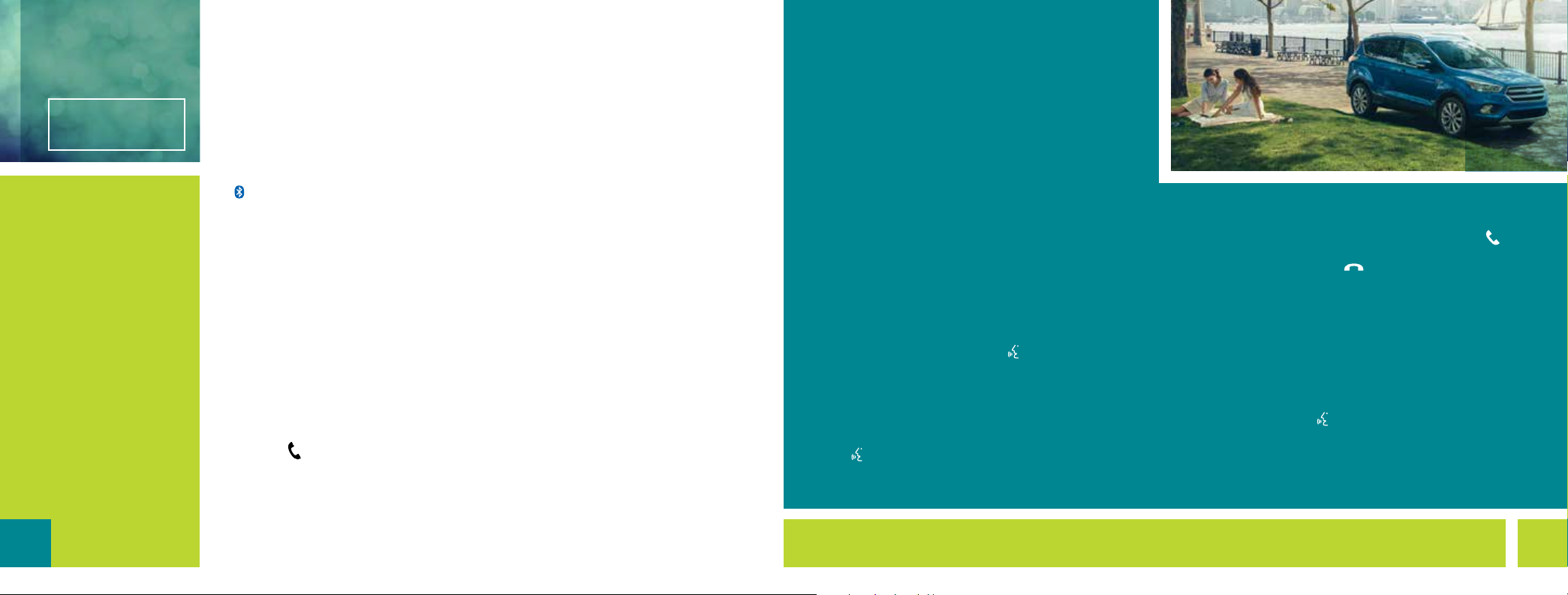
SYNC
®
Getting Started
with Your
SYNC System
SYNC is a hands-free, voice
recognition system used for
entertainment, information
and communication.
SYNC. Say the Word.
6
Before You Get Started
1. Set up your owner account at:
owner.ford.com (U.S.) or
syncmyride.ca (Canada)
Follow the on-screen instructions to
register, and then see what available
services you are eligible for.
2. SYNC uses a wireless connection called
Bluetooth® to communicate with your
phone. Switch on Bluetooth mode in your
phone’s menu options. This allows your
phone to find SYNC. If you need more
details on setting up your phone with
SYNC, visit the SYNC website or your
phone manufacturer’s website.
Pairing Your Phone with SYNC
In order to use many of the features of
SYNC, first pair your phone with SYNC.
Make sure that your vehicle is in park (P)
and you switch on your ignition.
To Pair Your Phone for the First Time
1. Make sure you switch Bluetooth on and
that your device is discoverable.
2. Press the
display indicates there is no paired phone,
select the option to add.
3. When a message to begin pairing appears,
search for SYNC on your phone.
phone button. When the
4. If your phone prompts you to enter a PIN,
enter the PIN on the touchscreen. Skip the
next step.
5. When prompted from SYNC, confirm the
PIN provided by SYNC matches the PIN
that your phone displays.
6. The display indicates when the pairing
is successful.
Note: The system may prompt you
to set your phone as primary or favorite
(the primary phone receives messages and
voicemail), download your phone book
(a requirement to use the full set of voice
commands) and switch on 911 Assist®.
Tips
• Make sure you accept the request from
SYNC to access your phone.
• To pair subsequent phones, please refer to
the SYNC chapter of your Owner’s Manual.
• If you experience pairing problems, try
performing a clean pairing by deleting your
services from SYNC, deleting your phone
pairing from SYNC and then repeating the
Pairing Your Cell Phone with SYNC process.
Why Do You Need a SYNC Owner Account?
A SYNC owner account allows you to receive the latest
soware updates and when you have questions, free
customer support. Some services may not be available
in your area.
Create Your Account
Create your account by visiting the website. Call the
toll-free number for more information.
In the United States:
owner.ford.com
1-800-392-3673
In Canada:
syncmyride.ca
1-800-565-3673
Using Your Cell Phone with SYNC
Note: You must download your phone book to make phone
calls with voice commands by name.
Making a Phone Call
Use SYNC to make a phone call to anyone in your phone
book by pressing the voice button
a voice command.
For example, you could say “Call Jake Smith at home”.
When the system confirms the number, say “Dial” to
initiate the call.
Note: You can also make phone calls by pressing the voice
button
. When prompted, say the voice command “Dial”,
then verbally say the phone number.
. When prompted, say
Answering Incoming Calls
When you have an incoming call, the name and number
of the person calling displays. Press the phone button
to answer an incoming call. You can hang up at any time
by pressing the phone button
.
Using SYNC to Access Digital Media
Plug your USB media device, such as a phone or MP3
player, into a USB port and wait for the system to finish
indexing your music. When indexing is complete, you can
use SYNC to play all of your favorite music.
Using Voice Commands to Play Music
1. Plug your media player into your USB port.
2. Press the voice button
say “USB”, then follow-up saying a voice command
such as “Browse”.
. When prompted,
7
2471978_17b_Escape_QRG_060616.indd 6-7 11/10/16 3:55 PM
Page 5

SYNC 3®*
Using SYNC 3
SYNC is a hands-free, voice recognition system used for
entertainment,information and communication.
Use the touchscreen to explore and interact with
your vehicle.
The touchscreen works the same way traditional
controls, knobs and buttons do. The system provides easy
interaction with your audio, phone, navigation*, mobile
apps and settings.
Press Settings on the feature bar your touchscreen to
personalize the many features and settings of your vehicle
all in one place.
Pairing Your Cell Phone
with SYNC 3
Pair your phone to SYNC 3
before use Make sure that your
vehicle is in park (P) and you
switch on your ignition.
1. Follow the on-screen
instructions.
2. A prompt alerts you to search
for the system on your phone.
3. Select your vehicle’s make
and model as it displays on
your phone.
4. Confirm that the six-digit
number appearing on your
phone matches the six-digit
number on the touchscreen.
5. The touchscreen
indicated when the pairing
is successful.
6. Your phone may prompt
you to give the system
permission to access
information. To check your
phone’s compatibility, see
your phone’s manual or visit
the website.
Get in Touch Using Your Touchscreen
Use the feature bar at the bottom of the touchscreen to access the many features of SYNC 3.
Phone
Aer pairing your phone, you can access
more phone-dependent features:
• Recent call lists.
• Contacts: Sort alphabetically and
choose a specific letter to begin
viewing your entries.
• Phone settings: Pair another phone,
and set ring tones and alerts.
• Text messages.
• Do not disturb: Send all calls to your
voicemail, and all ring tones and alerts
set to silent mode.
Note: Refer to the SYNC 3 chapter in your
Owner’s Manual, owner.ford.com (US) or
syncmyride.ca (Canada) for details.
Navigation*
Press the Navigation* icon to set your
destination. Select one of two ways to
find your destination:
• Destination mode lets you key in a
specific address or use a variety of
search methods to locate where you
want to go.
• Map mode shows advanced viewing
of 2D city maps, 3D landmarks and 3D
city models (when available).
Refer to the
Owner’s Manual
Set a Destination
Press Destination on your touchscreen
and then press Search. Enter a street
address, intersection, city or a point of
interest (POI).
Aer you choose your destination,
press Start. The system uses a variety of
screens and visible prompts to guide you
to your destination.
SYNC 3 chapter in your
for complete details.
During your route, you can press the
maneuver arrow icon on the map if you
want the system to repeat the previous
route guidance instructions.
The navigation map shows your
estimated time of arrival, remaining travel
time or the distance to your destination.
Navigation Menu
When you are on your route, you
can change your touchscreen view.
To change the view, touch Menu on
the bottom of the screen and then
select Screen View to choose from
any of the following:
• Full Map.
• Highway Exit Info displays on the
• Turn List shows all of the available
• Trac List displays SiriusXM Trac
right side of the touchscreen. View
POI icons (restaurants, ATMs, etc.)
as they pertain to each exit. You can
select a POI as a waypoint.
turns on your current route.
and Travel Link* information.
8
2471978_17b_Escape_QRG_060616.indd 8-9 11/10/16 3:55 PM
*if equipped
*if equipped
9
Page 6

SYNC 3®*
(continued)
Audio
SYNC 3 gives you a mix of media. Press
the Audio icon on the touchscreen and
select Sources. Choose from AM, FM,
SiriusXM*, CD, USB, Bluetooth Stereo
or Apps.
Set Your Radio Presets
• Tune to the station and then press
and hold one of the memory preset
buttons. The audio mutes briefly while
the system saves the station, and then
the audio returns.
• Two preset banks are available for
AM and three banks for FM. To access
additional presets, tap the preset
button. The indicator on the preset
button shows which bank of presets
you are currently viewing.
10
Using SYNC 3 to Access Digital Media
Play all of your favorite music from
phones, flash drives and other devices.
Plug your device into a USB port, select
Sources and then choose USB. Wait for
the system to finish indexing your music
to begin listening.
You can even create random playlists by
using the Shue function.
Settings
Touch the Settings icon to customize
information within your vehicle.
Adjust the clock, display, some vehicle
features and sound settings.
Apps
Voice Control Your Smartphone Apps
The system supports the use of
certain apps such as Pandora
iHeartRadio® (U.S. only), Spotify®
and Glympse® through a USB or
Bluetooth-enabled device.
Each app gives you dierent onscreen
options depending on the app’s
content. To find new apps, use the voice
command, “Find new apps”. Refer to the
SYNC 3 chapter of your Owner’s Manual
for more information.
®
or
SYNC Connect
Connect to your vehicle using the app
on your smartphone. The embedded
modem in your vehicle communicates
with the app and allows you to start,
lock, unlock and locate your vehicle
remotely. The app also connects you
with other vehicle resources like a
parking locator, roadside assistance,
dealer locations and Ford Support.
*if equipped
Convenience
Intelligent Access*
Note: Your transmitter must be within
3 feet (1 meter) of the vehicle for
intelligent access to operate properly.
To unlock and open the door, pull a
front exterior door handle. Tolock the
doors, press and hold the sensor button
on the door handle.
Tounlock and open the ligate, press
the exterior ligate release button
in the top of the pull cup handle.
Theintelligent access transmitter also
contains a mechanical key blade that
you can use to unlock the driver door,
if necessary.
Adaptive Cruise Control*
Adjusts your vehicle speed to a set gap
between you and the vehicle in front
of you in the same lane. You can select
from one of four GAP settings. Refer
to the Cruise Control chapter of your
Owner’s Manual for more information.
Note: Driving aids do not replace the
need to watch where the vehicle is
moving and brake where necessary.
Refer to your Owner’s Manual for safety
information, more details
and limitations.
*if equipped
Universal Garage Door Opener*
Your driver visor
has a built-in
wireless transmitter
that replaces the
common hand-held
garage door opener.
You can program this system to security
systems, entry gates and home or oce
lighting. Refer to the Universal Garage
Door Opener chapter in your Owner’s
Manual for programming instructions
and additional information on how to
use this device.
Remote Entry Icons
• Press once to lock all of the doors.
Press it again within a few seconds to
confirm all doors are locked.
• Press
door. Press again within a few
seconds to unlock all of the doors.
• Press
alarm. Press it again to switch it o or
switch on the ignition.
• Press
to open the ligate.
• Car finder: Press
few seconds to locate your vehicle.
The horn sounds and the direction
indicators flash.
once to unlock the driver’s
to switch on the panic
twice within a few seconds
twice within a
11
2471978_17b_Escape_QRG_060616.indd 10-11 11/10/16 3:56 PM
Page 7

Comfort
Ambient Lighting*
Light your vehicle interior with a choice of several
colors with the ambient lighting feature. You can
access this feature through the Settings menu
for SYNC 3.
Tap a color to switch on ambient lighting to set a
color. Drag the colors up and down to increase or
decrease the intensity.
To switch ambient lighting o, press the active color
once or drag the active color all the way down to
zero intensity.
The ambient lighting turns on when you switch on
the ignition and the headlamps. Your vehicle interior
remains lit until you switch o the ignition and either
lock your vehicle or allow the accessory delay timer
to expire.
Rear Reclining Seats
Pull the lever up to recline the seatback to the
desired position. Pull the lever up to fold the seatback
forward. You may need to fold the outboard head
restraints and lower the center head restraint first.
Heated Front Seats*
The front heated seat controls are
on the center stack. Adjust the
control to your desired heat setting.
Remote Start*
Remote start allows you to start
the engine from outside your
vehicle using your transmitter.
To start, press
twice within a few seconds.
When inside, apply the brake while
pressing the START STOP button.
Shi into drive (D) and go. To
switch o the engine from outside
the vehicle aer using your remote
start, press
and then press
once.
Moonroof and Sunscreen*
The moonroof and sunscreen have a one-touch open and
close feature. To stop them during a one-touch operation,
press the control a second time.
Press and release the rear of the control to open the
sunscreen. Press and release the front of the control to
close the sunscreen.
Note: If the moonroof is open, it closes automatically before
the sunscreen.
Press and release the rear of the control to open the
moonroof. The moonroof stops short of the fully opened
position. Press and hold the control again to open the
moonroof fully. Press and release the front of the control to
close the moonroof.
Memory Function*
Use this feature to program and recall
the positions of the driver seat and
power mirrors. The controls are on
the driver door. To program position 1,
switch on the ignition, and press and
Use this same procedure to set positions 2 and 3 using
the respective buttons. You can now use these controls to
recall the set memory positions.
See the Seats chapter in your Owner’s Manual for details.
hold the 1 button until you hear a tone.
Tilting Front-row Head Restraints
Tilt the head restraint
forward for additional
comfort by gently pulling
the top of the head
restraint. Once it is in the
forward-most position,
tilting it forward again
releases it to the
upright position.
Note: Do not attempt to
force the head restraint
backward aer you tilt it.
12
2471978_17b_Escape_QRG_060616.indd 12-13 11/10/16 3:57 PM
*if equipped
13
Page 8

14
Liftgate
Manual Ligate
To Open the Ligate
1. Unlock all the vehicle doors.
2. Press the button located inside the
ligate pull cup handle to unlatch
the ligate.
3. Pull on the outside handle to raise
the ligate.
Power Ligate*
Note: If the vehicle is running, the ligate
operates only with the transmission in
park (P).
Touch a Button to Open or Close
the Ligate
Press
your remote entry transmitter or the
button on the instrument panel. A tone
sounds when the ligate starts to close.
You Can Also Open the Ligate From
the Rear of Your Vehicle
1. Unlock your ligate and then press the
2. Allow the power system to open the
3. To close the ligate, press and release
twice within a few seconds on
button in the top of the ligate pull
cup handle.
ligate aer pressing the button.
the button in the following picture.
When the ligate begins to close, three
tone sounds.
Setting the Ligate Open Height
Once you open the power ligate,
you can move it manually to a
desired height. If the previously
programmed ligate height is lower
than the fully opened position, you
can manually push it upward.
To Program a New Height
1. Open the ligate.
2. Stop the ligate
movement by
pressing the button
on the ligate
when it reaches
your desired height. When the ligate
stops moving, you can also move it
manually to your desired height.
3. Press and hold the button on the
ligate until you hear a tone indicating
that your programming of the ligate
height is successful.
The ligate then opens to its newly
programmed height when you use the
power feature to open it.
To change the programmed height,
repeat the process.
*if equipped
Obstacle Detection
When you use the power open or
close feature and the ligate detects a
problem, it sounds warning tones and
the ligate stops.
The Ligate Cannot Power Open or
Close When:
• It detects an object in its opening or
closing path.
• The vehicle battery does not have
enough charge to power the ligate.
• The ignition is on and the
transmission is not in park (P).
• You are traveling at speeds at or
above 1 mph (1 km/h).
Note: Entering the vehicle when
the ligate is closing could cause
the vehicle to bounce and turn on
obstacle detection.
Hands-Free Ligate Operation*
To Open Your Ligate Hands-Free
While You Are at the Ligate:
1. Make sure you have an intelligent
access transmitter* behind the
ligate, within 3 feet (1 meter).
2. Move your foot under and away
from the rear bumper using a single
kicking motion. Do not move your
foot sideways or the sensors may not
detect the motion.
Note: In vehicles that have the towing
package and the hands-free power ligate
feature, you must move your foot in a
single kicking motion between the trailer
hitch and the exhaust system. Do not kick
under the hitch.
*if equipped
15
2471978_17b_Escape_QRG_060616.indd 14-15 11/10/16 3:57 PM
Page 9

Function
Rear View Camera
This system provides a video
image of the area behind
the vehicle. The image
automatically appears when
the vehicle is in reverse (R)
and uses green, yellow and
red guides to alert you of your
proximity to objects.
Note:
If mud, water or debris
obstructs the camera’s view,
clean the lens with a so,
lint-free cloth and nonabrasive cleaner.
SecuriCode™ Keyless Entry Keypad*
Lock or unlock the doors
without using a key. You can
operate the keypad with the
factory-set, 5-digit entry code.
This code is on the owner’s
wallet card in the glove box.
In addition to the factory-set code, you can
also create up to five of your own 5-digit
personal entry codes.
To lock all of the doors and the ligate, press
and hold 7•8 and 9•0 at the same time
with the driver’s door closed. For complete
information, refer to the Locks chapter in your
Owner’s Manual.
SelectShi® Automatic Transmission
To enable, move the SelectShi gearshi lever
from drive (D) to sport (S). Sport mode selects
the optimum gear for best performance. This
gear selection is typically lower than that of
drive (D) and the shis are faster.
When the vehicle is in sport mode, it enables
a manual gear selection when you use the
paddle shiers or the button on the side of the
gearshi lever. Press (+) to upshi, press (–)
to downshi. Move the gearshi lever to drive
(D) to return to automatic control.
Blind Spot Information System
®
(BLIS
vehicles approaching from the sides when the
transmission is in reverse (R).
Both systems display an amber indicator
light in your exterior mirrors. Cross trac alert
also sounds tones and displays messages
to warn you from which direction vehicles
are approaching. For more information
on Cross Trac Alert, see page 23.
Refer to the Driving Aids chapter in your
Owner’s Manual for more information.
MyKey
MyKey allows you to program certain driving
restrictions in order to promote good driving
habits. For complete information, refer to the
MyKey chapter in your
) and Cross Trac Alert*
BLIS aids you in
detecting vehicles
that enter into
your blind spot
zone. Cross trac
alert warns you of
®
Owner’s Manual.
Wiper Operation
Adjust the wiper lever and its controls to
operate the front and rear wipers.
• Single wipe: Pull the lever down.
• Intermittent wipe: Raise the lever
upward to position 1 and then rotate
the control:
- upward for short wipe intervals.
- downward for long wipe intervals.
• Normal wipe: Raise the lever upward
to position 2.
• High-speed wipe: Raise the lever to
position 3, its highest position.
Washing the Windshield
To operate the windshield washer, pull
the wiper lever toward you.
Speed Dependent Wipers
When your vehicle speed increases, the
interval between wipes decreases.
Autowipers*
The wipers operate when the system
detects moisture on the windshield, and
adjusts the wiper speed automatically.
Use the rotary control to adjust the
sensitivity of the rain sensor.
• Low sensitivity: The wipers
automatically operate when the
sensor detects a large amount of
moisture on the windshield.
• High sensitivity: The wipers
automatically operate when the
sensor detects a small amount of
moisture on the windshield.
Note: Keep the outside of the windshield
clean. Dirt, bugs and excessive road debris
can prevent it from detecting rain.
To Reduce Smearing, We Recommend
the Following:
• Lower the sensitivity of the autowipers.
• Switch to normal or high-speed wipe.
• Switch the autowipers o.
Note: Make sure you switch o the
windshield wipers before entering a
car wash.
Rear Window Wiper and Washer
To operate the wiper, press the rocker
switch on the end of the lever to change
between o, intermittent and low speed.
When you switch on the front wipers and
move the gearshi lever to reverse (R),
the rear intermittent wiper automatically
turns on.
To use the rear washer, push the wiper
lever away from you. When you release
the lever, the rear wiper operates for a
short time.
16
2471978_17b_Escape_QRG_060616.indd 16-17 11/10/16 3:58 PM
*if equipped
*if equipped
17
Page 10

18
Essential
Information
*if equipped
Fuel Tank Capacity and Fuel Info
Your vehicle has a 15.7 gallon (59.4 L) fuel
tank capacity. We recommend regular
unleaded gasoline with a pump (R+M)/2
octane rating of 87. To provide improved
performance, we recommend premium
fuel for severe duty usage such as trailer
towing. Do not use fuel ethanol (E85),
diesel, fuel-methanol, leaded fuel or any
other fuel because it could damage or
impair the emission control system.
Refueling
When fueling your vehicle:
1. Put your vehicle in park (P) and
switch the ignition o.
2. Open the fuel filler door and slowly
insert the fuel filler nozzle fully into
the fuel system. Leave the nozzle fully
inserted until you are done pumping.
3. Wait at least 10 seconds before removing
the fuel pump nozzle to allow any
residual fuel to drain into the fuel tank.
When using a portable fuel container,
slowly insert the fuel funnel (located
in the spare wheel storage tray)
and pour the fuel into the funnel.
Note: Do not use aermarket
funnels as they do not work with the
Easy Fuel system and may cause
damage. Properly clean or dispose
of the funnel aer each use.
Auto-Start-Stop*
The system automatically turns o
the engine when you stop your vehicle
to help reduce fuel consumption*
• Automatically turns the engine on
when you release the brake pedal.
• Automatically turns the engine
on to make sure there is no
impact to cabin comfort.
• The feature turns o automatically
when you put your vehicle in sport
(S) mode, in (P) park or connect
a trailer to your vehicle using the
Smart Trailer Tow* connector.
The system turns on automatically
each time you start your vehicle,
but you can switch it o. Just press
the Auto-Start-Stop button on the
center console. The button lights
when you switch the system o.
Towing Your Escape
Towing your vehicle behind an RV
or any other vehicle may be limited.
Refer to Towing the Vehicle on
Four Wheels section in the Towing
chapter of your Owner’s Manual.
Location of Spare Tire and Tools
Your spare tire and tools are beneath the carpeted load floor
in the rear of your vehicle. The spare tire is for emergency use
only. Replace it as soon as possible. For complete details on
changing your tire, refer to the Wheels and Tires chapter of
your Owner’s Manual.
Tire Pressure Monitoring System
Your vehicle shows a low tire pressure warning light in
your instrument cluster when one or more of your tires are
significantly under-inflated. If this happens, stop and check
your tires as soon as possible. Inflate them to the proper
pressure. Refer to the Wheels and Tires chapter of your
Owner’s Manual for more information.
Rear Window Bueting
You may hear a pulsing noise when just one of the windows is
open. Lower the opposite window slightly to reduce this noise.
Front and Rear Parking Aids*
These systems sound audible warning tones if there
is an obstacle near the vehicle’s front or rear bumpers.
As the vehicle moves closer to the obstacle, the rate
of the warning tone increases in frequency.
The front sensors automatically turn on when the vehicle
transmission is in any position other than park (P) or neutral
(N) and the vehicle speed is below 6 mph (10 km/h). The
system can detect objects up to 28 in (70 cm) away from
the front of the vehicle and decreases at the outer corners.
The rear sensors are active only when the vehicle is in reverse
(R), and can detect objects up to 6 feet (1.8 meters) away,
with decreased coverage at the outer corners of the bumper.
See the Parking Aids chapter in your Owner’s Manual for
complete information on your vehicle’s sensing systems.
Note: Visibility aids do not replace the need to watch where
the vehicle is moving. Refer to your Owner’s Manual for safety
information, more details and limitations.
Roadside Assistance
Your new Ford vehicle comes with the assurance and
support of 24-hour emergency roadside assistance.
To receive roadside assistance in the United States, call
1-800-241-3673. In Canada, call 1-800-665-2006.
*if equipped
19
2471978_17b_Escape_QRG_060616.indd 18-19 11/10/16 3:58 PM
Page 11

Pre-Collision Assist Warning System*
This system alerts you of certain collision risks.
The system’s sensor detects your vehicle’s rapid
approach to other vehicles traveling in the same
direction as your vehicle. When your vehicle rapidly
approaches another vehicle, a red warning light
flashes and a tone sounds.
The brake support system assists you in reducing
any collision speed by pre-charging the brakes. If
the risk of collision continues to increase aer the
audiovisual warning, the brake support prepares the
brake system for rapid braking. The system does not
automatically activate the brakes, but if you press
the brake pedal lightly, the brakes apply full stopping
power. Refer to the Driving Aids chapter in your
Owner’s Manual for more details.
You can adjust the warning system’s sensitivity
through your information display. Refer to the
Information Displays chapter in your Owner’s Manual
for more details.
Lane Keeping System*
Notifies you to stay in your lane through the steering system and the
instrument cluster display when the front camera detects an unintentional
dri out of your lane is likely to occur. The system automatically detects
and tracks the road lane markings using a camera mounted behind the
interior rear view mirror.
Press the button on the le steering wheel lever to switch the system
on or o.
Note: The system stores the on or o setting until you manually change
it, unless the system detects a MyKey. Set your preferred system settings
by Mode and Intensity through your information display screen. Refer to
the Information Displays chapter in your Owner’s Manual for more details
on how to change your settings. Refer to the Driving Aids chapter in your
Owner’s Manual for more information on the Lane Keeping System.
110-Volt Power Outlet*
The power outlet is on the rear of the center console. You can use it to
power electrical devices that require up to 150 watts.
20
2471978_17b_Escape_QRG_060616.indd 20-21 11/10/16 3:59 PM
*if equipped
21
Page 12

Active Park Assist and Park Out Assist*
Detects an available parallel or perpendicular
parking space and automatically steers the vehicle
into the space (hands-free) when you control the
accelerator, gearshi and brakes. The system visually
and audibly instructs you to park your vehicle or
enter trac. The button is on the center stack.
To use active park assist for parallel parking, press
the button once.
To use the system for perpendicular parking, press
the button twice.
Use the park out assist feature when your vehicle is
at rest in a parallel parking space. Press the button,
and then follow the instructions on the display. Use
your direction indicator to signal which side of your
vehicle you want to exit the parking space. Aer the
system directs your vehicle past the adjacent vehicle
or object, it guides you to take control of the steering
to complete the exit from the parking spot.
To stop the parking procedure, grab the steering
wheel or press the control again. For complete
information, refer to the Parking Aids chapter of
your Owner’s Manual.
Side Sensing System*
The side sensing system uses the front and rear side sensors
to detect and map obstacles that are near to the sides of your
vehicle. The side sensors are active when the transmission is
in any position other than park (P). As the object comes closer
to the side of your vehicle, the rate of the audible warning
increases.
Note: Visibility aids do not replace the need to watch where
the vehicle is moving. Refer to your Owner’s Manual for safety
information, more details and limitations.
Cross Trac Alert*
This system is designed to warn you of vehicles approaching
from the sides when the transmission is in reverse (R). It
detects vehicles that approach with speeds of up to 37 mph
(60 km/h). The system illuminates an amber alert indicator
in the outside mirror on the side of your vehicle that the
approaching vehicle is coming from. In addition, cross trac
alert also sounds an audible alert and a message appears in
the information display indicating a vehicle is coming from the
right or le.
Note: Visibility aids do not replace the need to watch where
the vehicle is moving. Refer to your Owner’s Manual for safety
information, more details and limitations.
22
2471978_17b_Escape_QRG_060616.indd 22-23 11/10/16 3:59 PM
*if equipped
23
 Loading...