

Page 1
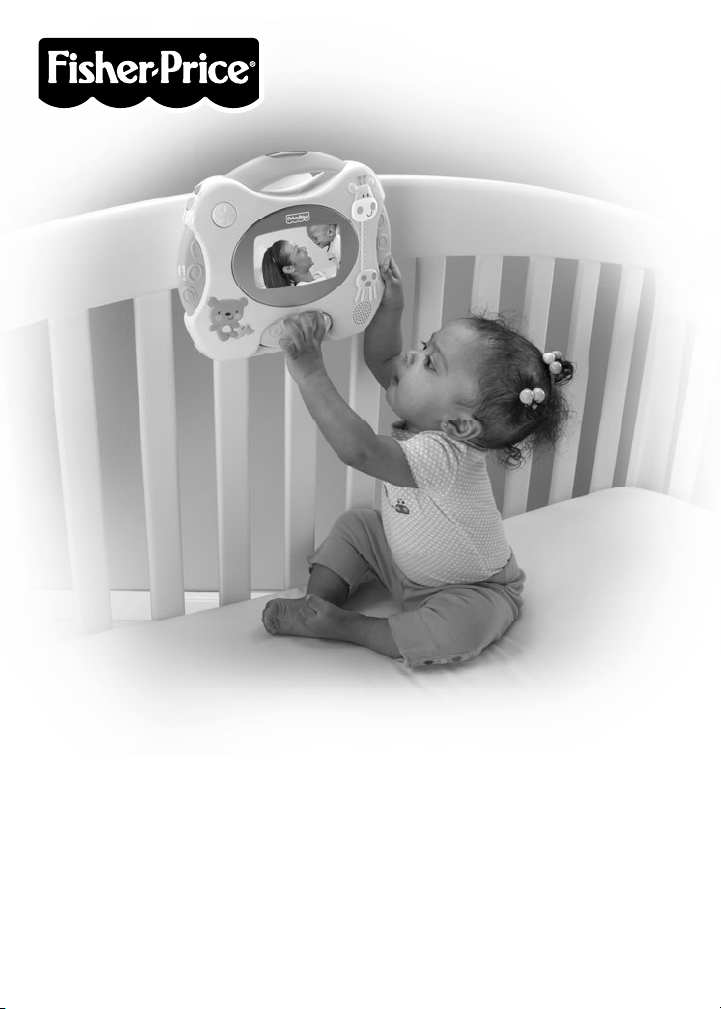
W9894
Please keep this instruction sheet for future reference,
as it contains important information.
Requires two “D” batteries (included) for soother operation and two
“AAA” (LR03) alkaline batteries (not included) for remote operation.
The soother batteries included are for demonstration purposes only.
Adult assembly is required for crib attachment and battery installation.
Tool required: Phillips screwdriver (not included).
fisher-price.com
1
Page 2
Consumer Information
1-800-432-5437 (US & Canada)
1300 135 312 (Australia)
Fisher-Price, Inc., 636 Girard Avenue, East Aurora, NY 14052.
Hearing-impaired consumers: 1-800-382-7470.
Outside the United States:
Canada: Mattel Canada Inc., 6155 Freemont Blvd.,
Mississauga, Ontario L5R 3W2; www.service.mattel.com.
Great Britain: Mattel UK Ltd, Vanwall Business Park,
Maidenhead SL6 4UB. Helpline: 01628 500303.
www.service.mattel.com/uk
Mattel Europa B.V., Gondel 1, 1186MJ Amstelveen, Nederland.
Australia: Mattel Australia Pty. Ltd., 658 Church Street,
Locked Bag #870, Richmond, Victoria 3121 Australia.
New Zealand: 16-18 William Pickering Drive,
Albany 1331, Auckland.
Care
• Wipe this toy with a clean, damp cloth. Do not immerse.
• This toy has no consumer serviceable parts. Do not take apart.
• Protect the environment by not disposing of this product with
household waste (2002/96/EC). Check your local authority for
recycling advice and facilities.
PRINTED IN CHINA W9894pr-0920
©2012 Mattel. All Rights Reserved.
2
Page 3
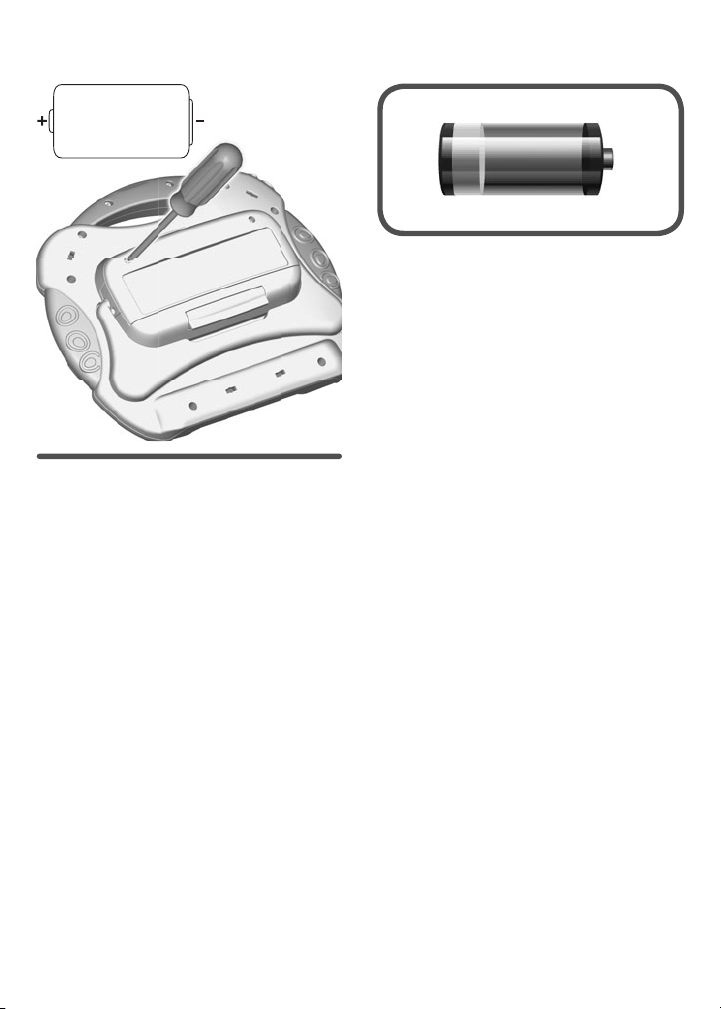
Soother Battery Replacement
1,5V x 2
"D" (LR20)
For best performance, we
recommend replacing the batteries
that came with the soother with two,
new “D” (LR20) alkaline batteries.
• Locate the battery compartment on
the back of the soother.
• Loosen the screws in the battery
compartment door with a Phillips
screwdriver and remove the door.
• Remove the exhausted batteries and
dispose of them properly.
• Insert two, new “D” (LR20)
alkaline batteries.
• Replace the battery compartment
door and tighten the screws. Do
not over-tighten.
• If the soother begins to operate
erratically, you may need to reset the
electronics. Turn the power dial off
and then back on.
• A low battery indicator will appear on
screen when there is approximately
30% of battery power left, and again
when battery power is below 10%.
• When you see the low battery
indicator on the screen, it's time for
an adult to change the batteries.
IMPORTANT! Under normal use
conditions, the batteries in the soother
will require replacement more often
than the batteries in the remote.
3
Page 4
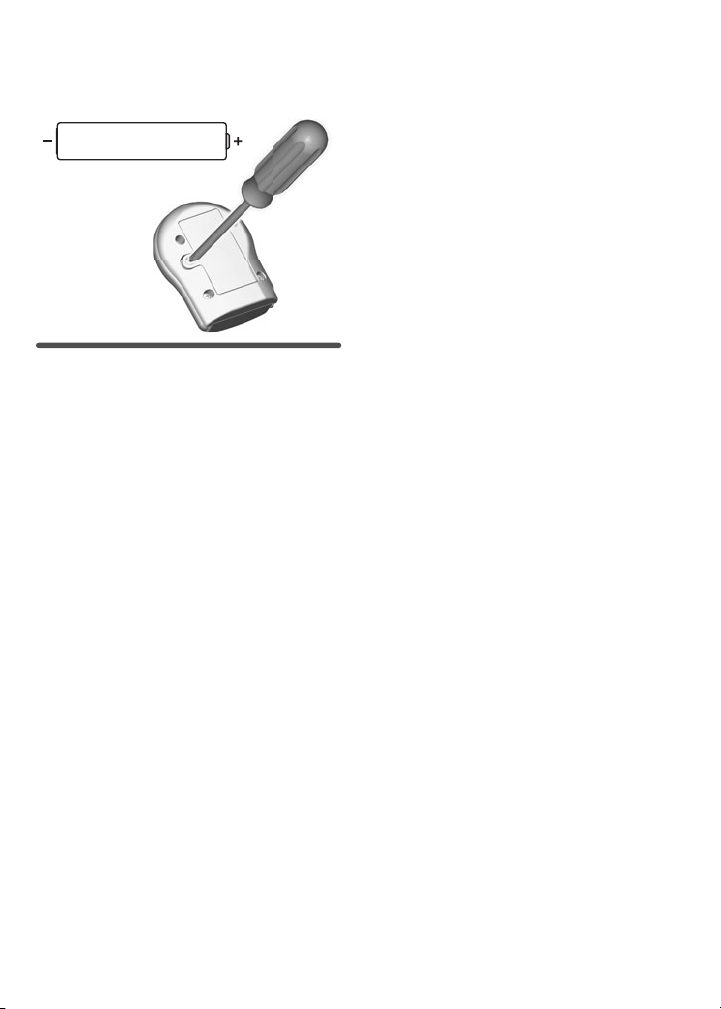
Remote Battery
Installation
Battery Safety
Information
1,5V x 2
“AAA” (LR03)
• Locate the battery compartment on
the back of the remote.
• Loosen the screw in the battery
compartment door with a Phillips
screwdriver and remove the door.
• Insert two “AAA” (LR03)
alkaline batteries.
• Replace the battery compartment
door and tighten the screw. Do not
over-tighten.
• If the remote begins to operate
erratically, you may need to reset the
electronics. Remove the batteries
and reinstall them.
In exceptional circumstances,
batteries may leak fluids that can
cause a chemical burn injury or
ruin your product. To avoid
battery leakage:
• Do not mix old and new batteries or
batteries of different types: alkaline,
standard (carbon-zinc) or
rechargeable (nickel-cadmium).
• Insert batteries as indicated inside
the battery compartment.
• Remove batteries during long
periods of non-use. Always remove
exhausted batteries from the product.
Dispose of batteries safely. Do not
dispose of product in a fire. The
batteries inside may explode or leak.
• Never short-circuit the
battery terminals.
• Use only batteries of the same or
equivalent type, as recommended.
• Do not charge non-rechargeable batteries.
• Remove rechargeable batteries from
the product before charging.
• If removable, rechargeable batteries
are used, they are only to be charged
under adult supervision.
4
Page 5
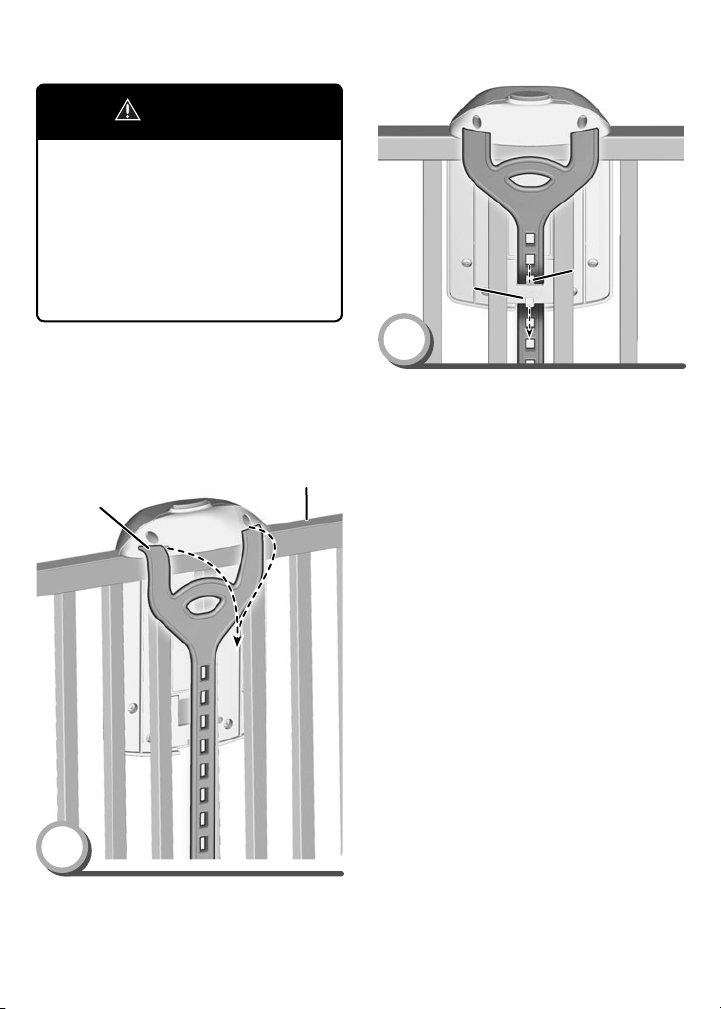
Crib Attachment
Attachment
Strap
Crib Rail
Slot
Peg
OUTSIDE CRIB VIEW
WARNING
Prevent Entanglement Injury
This product may not attach
to all crib designs. Do not add
additional strings or straps
to attach to a crib or playpen.
Use only the crib connector.
Peg
Slot
IMPORTANT! Always attach with all
provided fasteners tightly to a crib
according to the instructions. Do not
add additional strings or straps to
attach to a crib. Check frequently.
Crib Rail
Attachment
Strap
OUTSIDE CRIB VIEW
1
• Position the crib connector inside
the crib.
• Wrap the attachment strap around
the top of the crib rail.
2
• Slide the end of the attachment strap
through the slot on the back of the
crib connector.
• Pull the end of the attachment strap
up and fasten the strap slot onto the
peg on the back of the crib connector.
Note: The crib connector should be
snug against the crib rail and spindles.
Use the strap slot that provides the
tightest fit.
5
Page 6
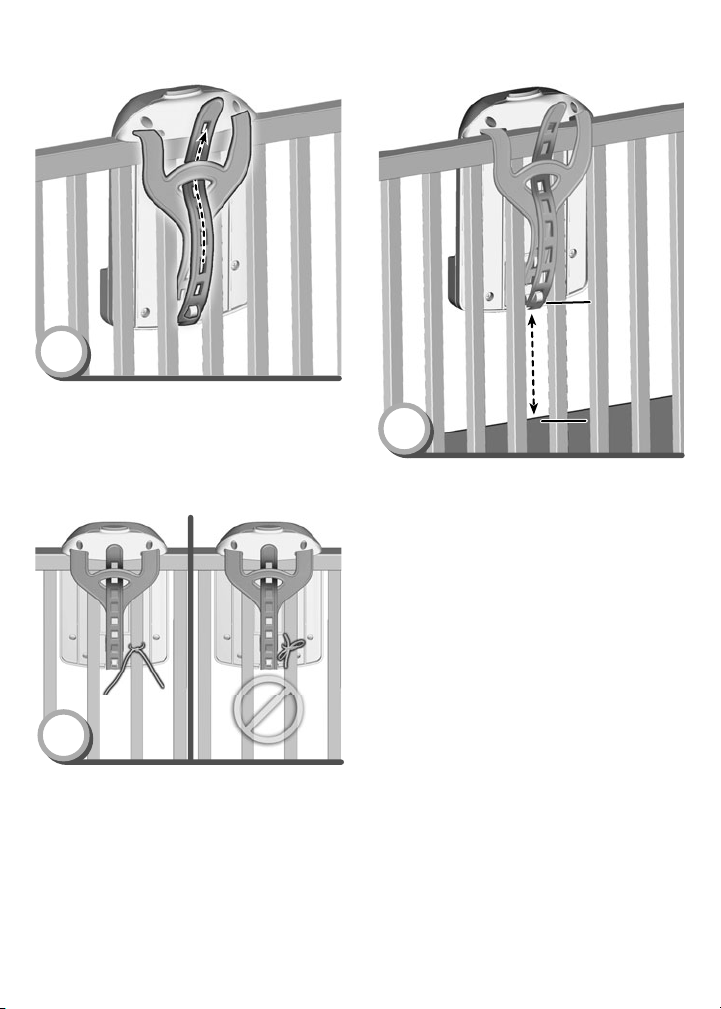
At least
7 inches (18 cm)
Crib Attachment
Mattress
Crib
Connector
3
• If you have excess strap, slide the
free end of the attachment strap
under the slot at the top of the
attachment strap.
Crib
Connector
At least
7 inches (18 cm)
Mattress
5
• Make sure the distance between the
bottom of the crib connector and the
crib mattress is at least 7 inches
(18 cm).
• If the distance is less than 7 inches
(18 cm), readjust the attachment
strap to lift the crib connector; or
lower the crib mattress.
4
• Tie the strings to a crib spindle.
Note: It is better to tie the strings in
a knot than a bow, since a bow may
be easily untied.
6
Page 7

INSIDE CRIB VIEW
Soother Tab
Soother Receiver
Remote
Crib Attachment
Soother Tab
INSIDE CRIB VIEW
6
• At an angle, fit the tab on the back
of the soother into the slot in the
crib connector.
7
• Push the top of the soother to
“snap” in place.
Remote Use
Soother Receiver
Remote
• Make sure there is a clear path
between the remote and the soother.
• Point the end of the remote toward
the soother receiver and press
the button.
Notes:
• You can use the remote to "wake up"
the soother from "sleep" mode (for
up to 10 hours of inactivity).
• In the unlikely event that use of the
remote interferes with normal use of
other remote controlled equipment,
such as televisions and stereos, or
use of other electronic or battery
powered appliances interfere with
operation of the soother, do not use
both at the same time.
• You may notice a loss of range
between the remote and the soother
when using in bright or flourescent
light. For best performance, avoid
using the remote in areas of bright
light. Move the soother, or
reduce the amount of light to
improve performance.
7
Page 8

Lots of Music & Fun Sounds!
Nightlight Button
Next and Select Button
Power/Volume Dial
Nightlight Button
Next and Select Button
Power/Volume Dial
• Rotate the power/volume dial to turn
the soother ON and select a volume
level. When you are finished playing
with this toy, rotate the power/
volume dial OFF .
• Press the nightlight button to
turn the nightlight ON.
• Press the next button to change
the nightlight image.
Hint: You can also change the nightlight image in the Advanced Settings
menu. See the Advanced Settings
section for more information.
• Press the nightlight button again to
turn the nightlight OFF.
8
Page 9

Main Menu
Personal
Photos App
Northern
Lights App
High
Contrast App
• From the main menu, press the next
button to scroll to the desired
app. Then press the select button
to open the app menu.
3 Entertaining Apps!
Personal Photos - Allows you to
upload your own photos for baby
to watch!
High Contrast - Watch black and
white images to enhance baby's
visual skills
Peek-a-boo Rainforest - Baby is
surprised by animal friends!
Peek-a-boo
Rainforest App
Counting
Sheep App
Aquarium
Wonders App
3 Soothing Apps!
Northern Lights - Watch sleepy time
lights and snuggly animals.
Counting Sheep - Baby can count the
sheep on screen.
Aquarium Wonders - Watch your
ocean friends and listen to
soothing sounds.
9
Page 10

Advanced Settings
The soother comes ready to use! Or, you can customize each app using
advanced settings.
Time Out Nightlight
Brightness
Setting
Exit
The image above shows the advanced
settings menu for the entertaining
apps. The advanced settings menu
for the soothing apps has a darker
background and moon in the upper
left corner.
• From an app menu, press the next
button to scroll to the advanced
settings menu
. Press the select
button to open the advanced
settings menu.
• Use the next button to scroll
through settings: Time Out, Brightness,
or Nightlight. Press the select button
to choose a setting.
Time Out
• Choose a 10 minute or 5 minute time
out for entertaining apps.
• Choose 20 minute or 10 minute time
out for soothing apps.
• The soother will time out after 5, 10
or 20 minutes of inactivity, depending
on the duration you chose, and go into
"sleep" mode. Press the next button ,
select button or spin the roller to
"wake up" the product.
Brightness
• Press the select button to adjust
the brightness up or down.
10
Page 11

Advanced Settings
Nightlight
• Press the next button to scroll
through nightlight images. Press
the select button to to choose
an image.
Note: The nightlight image you select
will apply to all apps. You can also
change a night image by pressing the
next button
in on.
• When finished, press the next button
to go to the exit icon . Press the
select button to close the advanced
settings menu.
while the nightlight
11
Page 12

Personal Photos
Play a photo slide show for baby!
Music Icon
Sounds Icon
Advanced
Settings IconApp Icon
Exit
• Press the next button to scroll to
the music
or sounds icon.
Press the select button to make
a selection.
• Press the next button to scroll to
the app icon
.
• Press the select button to start
the Personal Photos app.
• Baby can watch a photo slide show
while listening to fun tunes and sounds.
Note: You can insert a SD card (not
included) with your own personal
photos into the soother. Please see the
SD Card Installation section.
• Spin the roller for more sounds!
• Press the select button to return
to the main menu or press the next
button to go directly to the next app.
12
Page 13

High Contrast
Black and white images enhance visual skills
App Icon
Music Icon
Sounds Icon
Advanced
Settings Icon
Exit
• Press next button
the music
to scroll to
or sounds icon.
Press the select button to make
a selection.
• Press the next button to scroll to
the app icon .
• Press the select button
to start the
High Contrast app.
• Baby can watch images move across
the screen while listening to sounds!
• Spin the roller to change the image
and hear more sounds!
• Press the select button to return
to the main menu or press the next
button to go directly to the next app.
13
Page 14

Peek-a-boo Rainforest
Lots of animal friends and surprises
App Icon
Music Icon
Sounds Icon
Advanced
Settings Icon
Exit
• Press the next button
the music
or sounds icon.
to scroll to
Press the select button to make
a selection.
• Press the next button to scroll to
the app icon .
• Press the select button to start the
Peek-a-boo Rainforest app.
• Baby can watch animals appear on
screen and make fun sounds.
• Spin the roller to change the rainforest
animals and sounds!
• Press the select button to return
to the main menu or press the next
button to go directly to the next app.
14
Page 15

Northern Lights
Sleepy time lights and snuggles
App Icon
Music Icon
Sounds Icon
Advanced
Settings Icon
Exit
• Press the next button
the music
or sounds icon.
to scroll to
Press the select button to make
a selection.
• Press the next button to scroll to
the app icon .
• Press the select button to start the
Northern Lights app.
• Baby can watch images on the screen
while listening to soothing tunes.
• Spin the roller to hear more sounds!
• Press the select button to return
to the main menu or press the next
button to go directly to the next app.
15
Page 16

Counting Sheep
Baby gets sleepy counting the sheep go by
App Icon
Music Icon
Sounds Icon
Advanced
Settings Icon
Exit
• Press the next button
the music
or sounds icon.
to scroll to
Press the select button to make
a selection.
• Press the next button to scroll to
the app icon .
• Press the select button to start the
Counting Sheep app.
• Baby can watch images on the screen
while listening to soothing tunes.
• Spin the roller to hear more sounds!
• Press the select button to return
to the main menu or press the next
button to go directly to the next app.
16
Page 17

Aquarium Wonders
Ocean friends mesmerize baby
App Icon
Music Icon
Sounds Icon
Advanced
Settings Icon
Exit
• Press the next button
the music
or sounds icon.
to scroll to
Press the select button to make
a selection.
• Press the next button to scroll to
the app icon .
• Press the select button to start the
Aquarium Wonders app.
• Baby can watch images on the screen
while listening to soothing tunes.
• Spin the roller to hear more sounds!
• Press the select button to return
to the main menu or press the next
button to go directly to the next app.
17
Page 18

SD Card Installation
SD Card
• You can insert a secure digital
(SD or SDHC) memory card (sold
separately) in the soother.
• Make sure the soother power is OFF.
• Loosen the screws in the battery
compartment door with a Phillips
screwdriver and remove the door.
• Insert your SD card into the slot in
the soother.
• Replace the battery compartment
door and tighten the screws.
• Turn the soother power ON.
Notes:
- The soother only supports JPEG
files. If the photos on your SD card
are a different file type, you will need
to remove the SD card to convert the
files to JPEG files and reinstall the
SD card.
- The soother may not support all SD
or SDHC memory cards.
18
Page 19

Tummy Time
PRESS
• Press the button on top of the crib
connector and pull the soother to
remove it.
• Pull out the easel on the back of the
soother for tummy time fun!
19
Page 20

Consumer Information
ICES-003
• This Class B digital apparatus
complies with Canadian ICES-003.
• Operation is subject to the following
two conditions: (1) this device may
not cause harmful interference and
(2) this device must accept any
interference received, including
interference that may cause
undesired operation.
NMB-003
• Cet appareil numérique de la classe
B est conforme à la norme NMB-003
du Canada.
• L’utilisation de ce dispositif est
autorisée seulement aux conditions
suivantes : (1) il ne doit pas produire
de brouillage et (2) l’utilisateur du
dispositif doit être prêt à accepter
tout brouillage radioélectrique
reçu, même si ce brouillage est
susceptible de compromettre le
fonctionnement du dispositif.
FCC Statement (United States Only)
This equipment has been tested and
found to comply with the limits for a Class
B digital device, pursuant to Part 15 of
the FCC Rules. These limits are designed
to provide reasonable protection against
harmful interference in a residential
installation. This equipment generates,
uses and can radiate radio frequency
energy and, if not installed and used
in accordance with the instructions,
may cause harmful interference to
radio communications. However, there
is no guarantee that interference will
not occur in a particular installation.
If this equipment does cause harmful
interference to radio or television
reception, which can be determined by
turning the equipment off and on, the
user is encouraged to try to correct the
interference by one or more of the
following measures:
• Reorient or relocate the
receiving antenna.
• Increase the separation between the
equipment and receiver.
• Consult the dealer or an experienced
radio/TV technician for help.
Note: Changes or modifi cations not
expressly approved by the manufacturer
responsible for compliance could void the
user’s authority to operate the equipment.
This device complies with Part 15 of the
FCC Rules. Operation is subject to the
following two conditions: (1) This device
may not cause harmful interference and
(2) this device must accept any interference
received, including interference that may
cause undesired operation.
20
 Loading...