

Page 1
TVO-ACC-BOK-001
FD1 Prism
®
Important Safety Information
Before using your new Set Top Box, please take a minute to read the
following safety information:
• Only use the supplied AC adapter.
• Do not allow the Set Top Box to get wet.
• Do not expose the Set Top Box to rain or moisture.
• Do not use the Set Top Box in hot, humid or excessively dusty
places.
• Do not place any objects on the Set Top Box.
• Leave a space of at least 10cm around the Set Top Box to allow for
adequate ventilation.
• To clean the Set Top Box, use a lightly dampened, soft cloth. Do not
use any kind of abrasive cloth, sponge or cleaner.
• Do not attempt to open the Set Top Box. Refer all servicing to
qualifi ed service personnel.
• To help prevent Screen Burn on Plasma and LCD screens, use the
Screen Saver feature whenever possible.
The Main menu
9
Physical Specifi cation
Size:
Weight:
Operating Temp.:
Storage Temp.:
(W) 77mm x (L) 160mm x (H) 73mm
0.774kg
+10°C to +40°C
-20° to + 60°C
Front Panel
LED Indicator
Colour:
Operation:
Colour:
Operation:
Red
On = STBY, Flashing = IR reception
Green
On = Full Power, Off = STBY
Rear Panel
DC Input:
Tuner:
AV Connector:
6mm Jack plug with 2mm Centre Pin
UHF Channels 21-68,
RF-in, RF-loop-through
8-pin Mini-Din
Accessories
Instruction Manual, Power Adaptor, Mini-Din to SCART cable,
RF Lead, Remote Control (incl. battery)
Power Requirements
Input Voltage:
Power Consumption (On)
Power Consumption (STBY)
5.2V DC
6.2W
5.5W
Video Decoder
Video Decoding:
Video Formats:
Video Output:
MPEG-2 Main Level/Main Profi le
4:3 & 16:9
CVBS or RGB
Audio Decoder
Audio Decoding:
Audio Mode:
MPEG 1/2
Stereo/Mono
Weight and dimensions are approximate.
Because we continually strive to improve our products we may
change specifi cations and designs without prior notice.
Digital Helpline: 08700 100484
Open: Mon-Fri 8.30-20.00,
Sat 09.00-18.00,
Sun 09.00-17.30
(all calls charged at National Rate)
Checking Reception in your Area
Freeview website: www.freeview.co.uk
Freeview Tel. No:
08708 809980 (calls charged at National Rate)
Freeview SMS: 83331 (standard text rate)
Partmaster Direct can provide accessories, spares, batteries and
replacement parts with Next Day Delivery available upon request.
Please call:
0870 600 1338 (calls charged at National Rate),
or visit our website at www.partmaster.co.uk
Disposal of Old Electrical & Electronic Equipment (Applicable in
the European Union and other European countries with separate
collection systems)
This symbol on the product or its packaging indicates
that this product shall not be treated as household
waste. Instead it shall be handed over to the applicable
collection point for the recycling of electrical and
electronic equipment. By ensuring this product is
disposed of correctly, you will help prevent potential
negative consequences for the environment and
human health, which could otherwise be caused by
inappropriate waste handling of this product. The
recycling of materials will help to conserve natural
resources. For more detailed information about recycling
of this product, please contact your local Civic Offi ce,
your household waste disposal service or the shop
where you purchased the product.
Specifi cations10
To Press
Access the Main menu... MENU button.
Move around the Main menu... M and m buttons.
Select a setting...
< and , buttons.
Move back to the previous
level...
BACK button.
Make a selection... OK button.
Exit the Main menu... MENU button.
Main menu options
Edit Channel List:
Hide: Allows you to hide unwanted channels.
Press OK to select a channel to hide.
Sort: Allows you to rearrange the channel order.
Press OK to select the channel you wish to move.
Press M or m to select the new position. Press
OK to swap the channels.
Settings menu
Language: Allows you to change the language setting (if
available).
Country: Allows you to change the country setting.
Subtitle: Allows you to set your preferred subtitle setting (if
available).
Audio: Allows you to set your preferred audio setting (if
available).
TV Out: Allows you to switch the picture output between
RGB and Composite video.
Picture Mode: Allows you to change the TV type between 4:3
and 16:9.
Picture Format: Allows you to display widescreen pictures as full
screen or letterbox when “Picture Mode” is set to
“4:3”.
Parental Controls
Allows you to set your PIN and lock channels. Locked channels can
only be viewed once the correct PIN is entered. The default PIN is
0000.
Tuning
Allows you to automatically or manually tune channels. You will be
asked to enter your PIN. The default PIN is 0000. Press Help for
more information on Tuning.
Service
Allows you to check the current software version and the signal
strength.
Software Upgrade
Allows you to search for software updates through your aerial.
The Electronic Programme
Guide (EPG)
8
002 BBC 2 Thur May 5
08:58
10:45-11:05
Schools: Razzledazzle
[Age 4-5] Marvellous Monsters: Razzledazzle is here with more
games, stories, singing and dancing. We’ll play a guessing game and
hear a story about monsters.
Thur May 5 09:30 10:3010:00
Pg Up
Pg Down
-24 +24
BBC NEWS 24
BBC News
BBC News
CBBC Channel
Class...
Class...
Class...
Class T...
Class...
Class...
BBCi
No Information Available
BBC 2
Schoo... Schoo... Sc... Schools...Schools:... Schoo...
BBC ONE
City Hospital
Homes Under...
Car Booty
BBC THREE
This is BBC THREE
The Electronic Programme Guide (EPG)
Main Menu
Edit Channel List
Settings
Parental Control
Tuning
Service
Software Upgrade
OK
The Main menu
To Press
Access the EPG... EPG button.
Move around the EPG... M, m, < and , buttons.
Display the previous six
channels in the list...
RED button.
Display the next six channels
in the list...
GREEN
button.
Move forward 24 hours... BLUE button.
Move back 24 hours... YELLOW button.
Preview a current
programme...
OK button (while highlighting a
current programme).
Switch to the programme
being previewed...
OK button (while highlighting
a currently previewed
programme).
Set a reminder for a future
programme...
OK button (while highlighting a
future programme).
Cancel a reminder... OK button (while highlighting
the required programme).
Exit the EPG... EPG button.
The following symbols may be visible in the EPG, Channel List
and Info menu:
Locked channel.
Encrypted/scrambled channel.
Multilanguage option available (audio and subtitle).
Reminder has been set.
Radio channel.
Teletext available.
Swap channel.
Hide channel.
Page 2
Supplied accessories1 Connecting to your TV2 Preparing the Remote
Control
3 Automatically tuning4
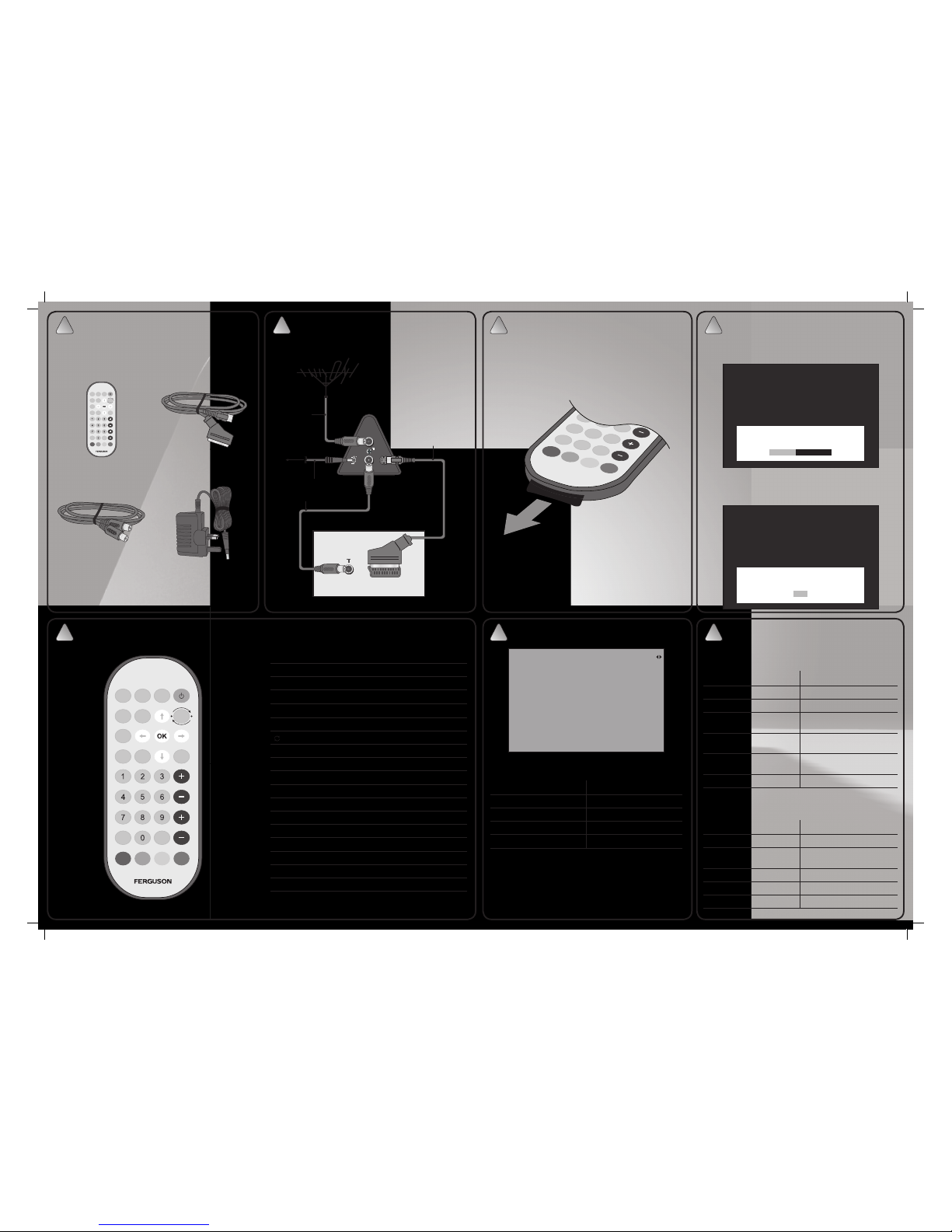
MUTE - Turns the sound on/off.
SAVER - Switches on a screen saver. Press any button to cancel.
CLOCK - Displays the time.
1 - Switches the Set Top Box On/into standby.
TV/RADIO - Switches between TV and radio channels.
HELP - Displays the Help menu.
- Toggles between the current and previous channel.
INFO - Displays brief information on the current programme.
V, v, B, b - Navigate.
OK - Displays the Channel List / Confi rms a selection.
MENU - Displays the menu.
EPG - Switches the Electronic Programme Guide on/off.
BACK - Returns to the previous level.
0-9 - Selects channels/enter PIN/use Help pages.
CHAN +/- - Selects channels.
VOL +/- - Adjusts the volume.
SUB - Switches subtitles on/off.
TEXT - Displays digital text (if available).
COLOURED buttons - Selects options in digital text/EPG/Info (if
available)/Channel List.
The Remote Control5
MUTE CLOCK
TV/RADIO
INFO
MENU
SUB
HELP
EPG BACK
TEXT VOL
CHAN
SAVER
).
/54
$#).
!
MUTE CLOCK
TV/RADIO
INFO
MENU
SUB
HELP
EPG BACK
TEXT VOL
CHAN
SAVER
Remote Control Scart Lead
Rear of TV
SUB
0
TEXT
7
8
9
4
5
6
VOL
Remove the insulation sheet before using the Remote Control.
Supplied RF Lead
Supplied Scart Lead
Aerial Lead
The Channel List and Info7
To Press
Access the Help pages... HELP button.
Select a help topic... 1-9 buttons.
Return to the index page... 0 button.
Exit the Help pages... HELP button.
The Help pages give advice and information for many of the
features of this Set Top Box.
The Help pages
6
The Channel List
The Channel List displays all the available channels.
To Press
Access the Channel List... OK button while watching TV.
Select channels... M and m buttons.
Display the previous nine
channels in the list...
RED button.
Display the next nine channels
in the list...
GREEN button.
Switch to the selected
channel...
OK button.
Exit the Channel List... BACK button.
Info
Info displays brief information on the current and future
programmes.
To Press
Access Info... INFO button.
View information for future/
previous programmes...
M, m, < and , buttons.
Change the Audio setting... RED button (if available).
Change the Subtitle setting... GREEN button (if available).
Exit Info... BACK button.
Power Adaptor
Supplied Power Adaptor
To w al l
socket
Additionally, pressing the HELP button whilst accessing any of the
following will take you directly to the relevent help page:
Channel Banner, Channel Information, Channel List, Edit Channel
List, Electronic Programme Guide, Settings, Parental Control,
Tuning and Software Upgrade.
0
Help pages index
1
Channel banner
2
Channel information
9
8
7
6
5
4
3
Channel list
Edit channel list
Programme guide
Settings
Parental control
Tuning
Software upgrade
page 0 / 9
A scan for channels is in progress please wait.
Channels Found: 34
When the Set Top Box is fi rst switched on, the automatic tuning
process starts. This will tune in all available TV channels, radio
channels and interactive services.
Automatic tuning complete. Total channels found: 80
TV channels: 34 Radio channels: 24 Data channels: 6
OK
RF Lead
When replacing the battery, use battery type CR2025.
Always observe the correct polarity when inserting a battery.
Dispose of old batteries in an envirnomentally friendly way.
Once automatic tuning is completed, the Set Top Box will display
the number of channels and services found and, where there are
duplicates, will select the strongest. Press the OK button to start
watching digital TV.
 Loading...