

Page 1
Start Here
Read these instructions before using your product.
1
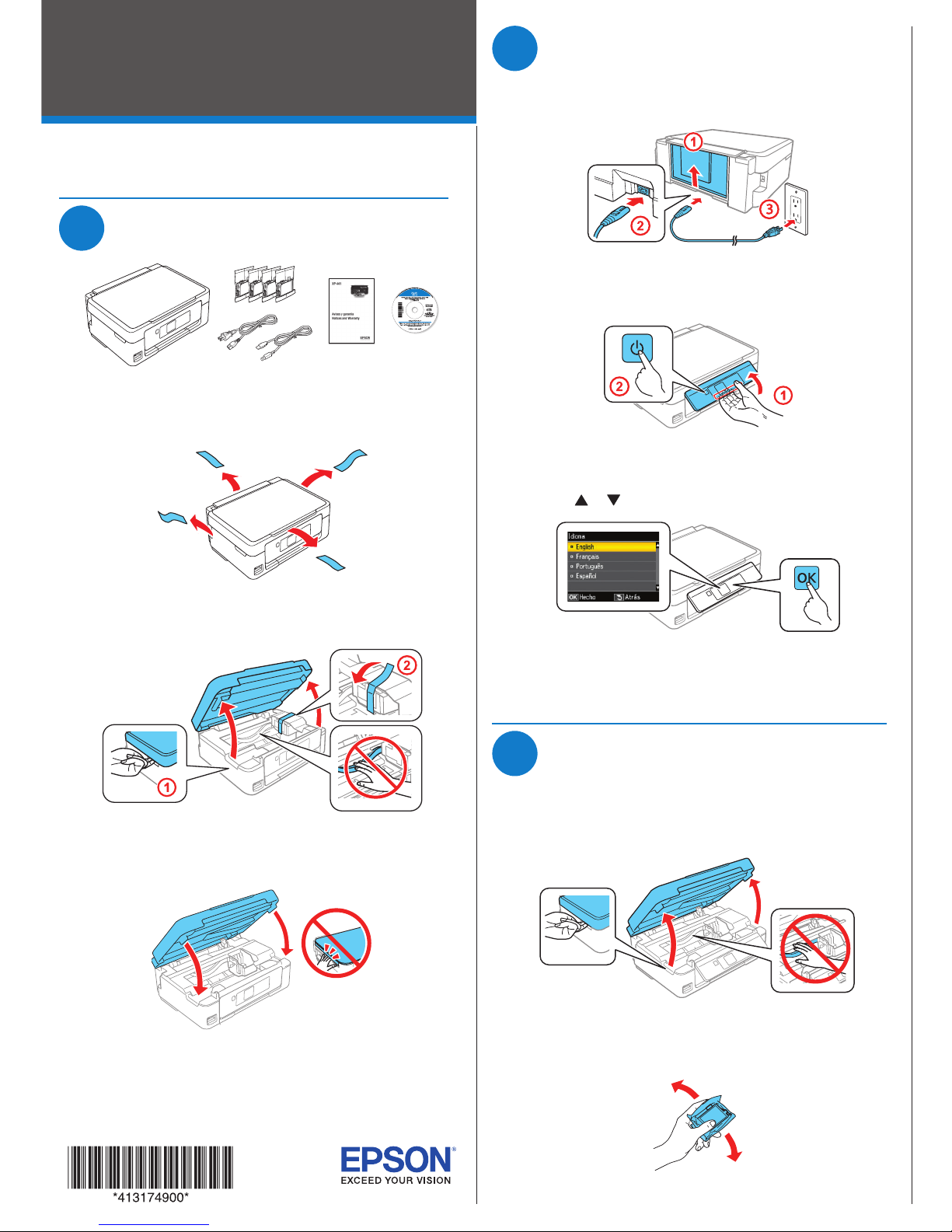
Unpack
Note: Do not open ink cartridge packages until you are ready to install
the ink. Cartridges are vacuum packed to maintain reliability.
1 Remove all protective materials from the product.
2 Lift up the scanner unit and remove all protective materials
from inside the product.
Caution: Do not touch the flat white cable.
3 Lower the scanner unit.
2
Turn on and configure
1 Connect the power cord to the back of the product and to
an electrical outlet.
Caution: Do not connect to your computer yet.
2 Raise the control panel and turn on the product.
Caution: Do not lower the control panel without first squeezing
the release bar underneath or you may damage the product.
3 Press or to select your language, then press OK.
Note: You can change the language later using the product’s
control panel. For more information, see the online User’s Guide.
3
Install ink cartridges
Caution: Keep ink cartridges out of the reach of children and do not
drink the ink.
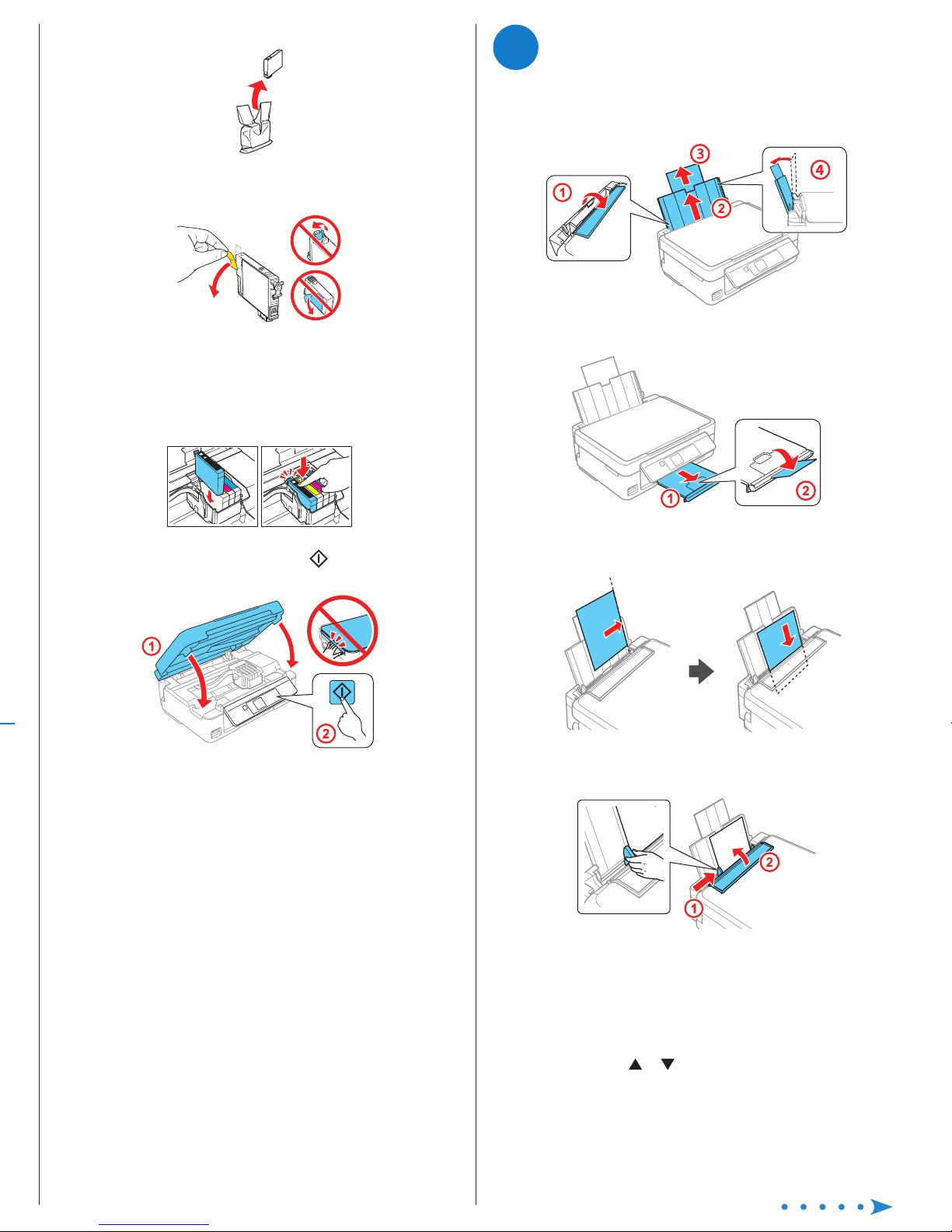
1 Lift up the scanner unit.
Caution: Do not touch the flat, white cable.
2 Gently shake the ink cartridges.
3 Unpack the ink cartridges.
4 Remove only the yellow tape from each ink cartridge.
Caution: Do not remove any other labels or seals, or ink will
leak. Do not touch the green chip on the cartridge.
5 Insert the cartridge in the holder for each color. Press each
cartridge down until it clicks. Make sure all cartridges are
pushed down into place.
6 Lower the scanner unit, then press to start charging
the ink delivery system.
7 The printer starts charging the ink. Ink charging takes
approximately 4 minutes. When you see a completion
message on the printer’s LCD screen, charging is
complete.
Caution: Don’t turn off the printer while it is charging or you’ll
waste ink.
Note:
• The printer is designed for use with Epson
third-party cartridges or ink.
• The cartridges included with the printer are designed for
printer setup and not for resale. After some ink is used for
charging, the rest is available for printing.
XP-441
Page 2
4
Load paper
1 Make sure the product is done charging ink. Then flip the
feeder guard forward, raise the paper support, and tilt it
backwards slightly.
2 Slide out the output tray.
3 Load paper, glossy or printable side up and short edge
first, against the right side of the rear paper feed slot.
4 Slide the edge guide against the paper, but not too tightly,
and flip the feeder guard back.
Note: Make sure you place the paper against the right side of
the rear paper feed slot. Otherwise, the printer cannot detect the
paper and the paper setup screen is not displayed on the control
panel.
5 Check the current paper settings on the control panel.
To use these settings, press OK. If you want to change the
settings, press or to select Change, then press OK.
Select paper size, press OK, select the paper type, press
OK, then press OK again to confirm settings.
3 Unpack the ink cartridges.
4 Remove only the yellow tape from each ink cartridge.
Caution: Do not remove any other labels or seals, or ink will
leak. Do not touch the green chip on the cartridge.
5 Insert the cartridge in the holder for each color. Press each
cartridge down until it clicks. Make sure all cartridges are
pushed down into place.
6 Lower the scanner unit, then press to start charging
the ink delivery system.
7 The printer starts charging the ink. Ink charging takes
approximately 4 minutes. When you see a completion
message on the printer’s LCD screen, charging is
complete.
Caution: Don’t turn off the printer while it is charging or you’ll
waste ink.
Note:
• The printer is designed for use with Epson® cartridges only, not
third-party cartridges or ink.
• The cartridges included with the printer are designed for
printer setup and not for resale. After some ink is used for
charging, the rest is available for printing.
Page 3
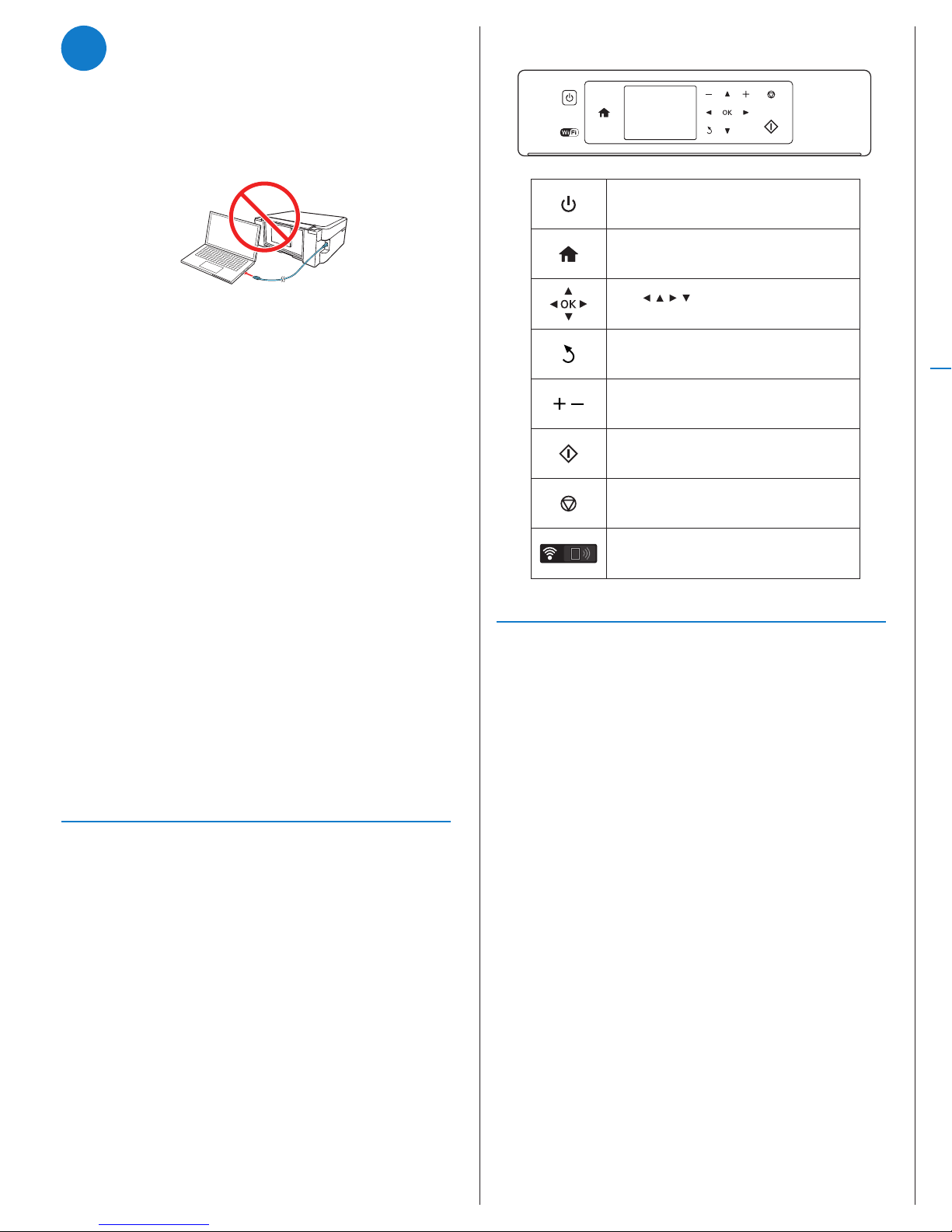
Control panel
Turns the printer on or off.
Displays the home screen.
Press , , , to select menus. Press the OK
button to enter the selected menu.
Cancels/returns to the previous menu.
Sets the number of copies and prints.
Starts the operation you selected.
Stops the ongoing operation or initializes the
current settings.
Icons showing the network status are displayed
at the top-right of the LCD screen.
Any problems?
If you experience problems during setup, see below:
Network setup was unsuccessful.
• Make sure you select the right network name (SSID).
• The printer can only connect to a network that supports
2.4 GHz. If your router offers both 2.4 GHz and 5 GHz
connections, make sure 2.4 GHz is enabled.
• If you see a firewall alert message, click Unblock or Allow
to let setup continue.
• If your network has security enabled, make sure you enter
your network password (WEP key or WPA passphrase)
correctly. Passwords must be entered in the correct case.
5
Install software
Note: If your computer does not have a CD/DVD drive or you are
using a Mac, an Internet connection is required to obtain the product
software.
1 Make sure the product is NOT CONNECTED to your
computer.
Windows®: If you see a Found New Hardware screen, click
Cancel and disconnect the USB cable.
2 Insert the product CD or go to your product’s support
page to download and run your product’s software
package:
www.epson.com.jm/support/xp441
3 Follow the instructions on the screen to run the setup
program.
OS X: Make sure you install Software Updater to receive
firmware and software updates for your product.
4 When you see the Select Your Connection screen, select
one of the following, then continue with the on-screen
instructions:
• Wireless connection
In most cases, the software installer automatically
attempts to set up your wireless connection. If setup
is unsuccessful, you may need to enter your network
name (SSID) and password.
• Direct USB connection
Make sure you have the USB cable.
Note: If you see a message on the product’s control panel reminding
you to set up an Epson Connect™ account, select No to turn off the
reminders. You can set up an account later from your computer or
mobile device. See the “Mobile printing” section for more information.
Mobile printing
To print from a mobile device, your product must be set up for
wireless printing or Wi-Fi Direct®. See the online User’s Guide
for instructions.
Epson Connect Solutions
Epson Connect offers a variety of remote printing options for
your product. Connect wirelessly from your tablet, smartphone,
or computer. Print documents and photos from across the
room or around the world.
www.epson.com.jm/connect
Epson iPrint™ for iOS/Android
™
Download the Epson iPrint app from the App Store or Google
Play™ to print documents and photos from your iOS or Android
device on any email-enabled Epson printer.
Setup is unable to find my printer after connecting it
with a USB cable.
Make sure the printer is turned on and that it is securely
connected as shown:
There are lines or incorrect colors in my printouts.
Run a nozzle check to see if any of the print head nozzles are
clogged. Then clean the print head, if necessary. See the online
User’s Guide for more information.
Any questions?
User’s Guide
Windows: Click the icon on your desktop or Apps screen to
access the online User’s Guide.
OS X: Click the icon in Applications/Epson Software/Guide to
access the online User’s Guide.
If you don’t have a User’s Guide icon, go to the Epson website,
as described below.
Technical support
Visit www.epson.com.jm/support/xp441 and search for
your product to download drivers, view manuals, get FAQs, or
contact Epson.
You can also speak to a service technician by calling one of
these numbers:
Argentina (54 11) 5167-0300 Honduras** 800-0122
0800-288-37766 Code: 8320
Bolivia* 800-100-116 Mexico 01-800-087-1080
Chile (56 2) 2484-3400 Mexico City (52 55) 1323-2052
Colombia 018000-915235 Nicaragua* 00-1-800-226-0368
Bogota (57 1) 523-5000 Panama* 00-800-052-1376
Costa Rica 800-377-6627 Paraguay 009-800-521-0019
Dominican Peru 0800-10126
Republic* 1-888-760-0068 Lima (51 1) 418-0210
Ecuador* 1-800-000-044 Uruguay 00040-5210067
El Salvador* 800-6570 Venezuela (58 212) 240-1111
Guatemala* 1-800-835-0358
* Contact your local phone company to call this toll free number from a mobile
phone.
** Dial the first 7 digits, wait for a message, then enter the code.
If your country does not appear on the list, contact your nearest
Epson sales office. Toll or long distance charges may apply.
Page 4
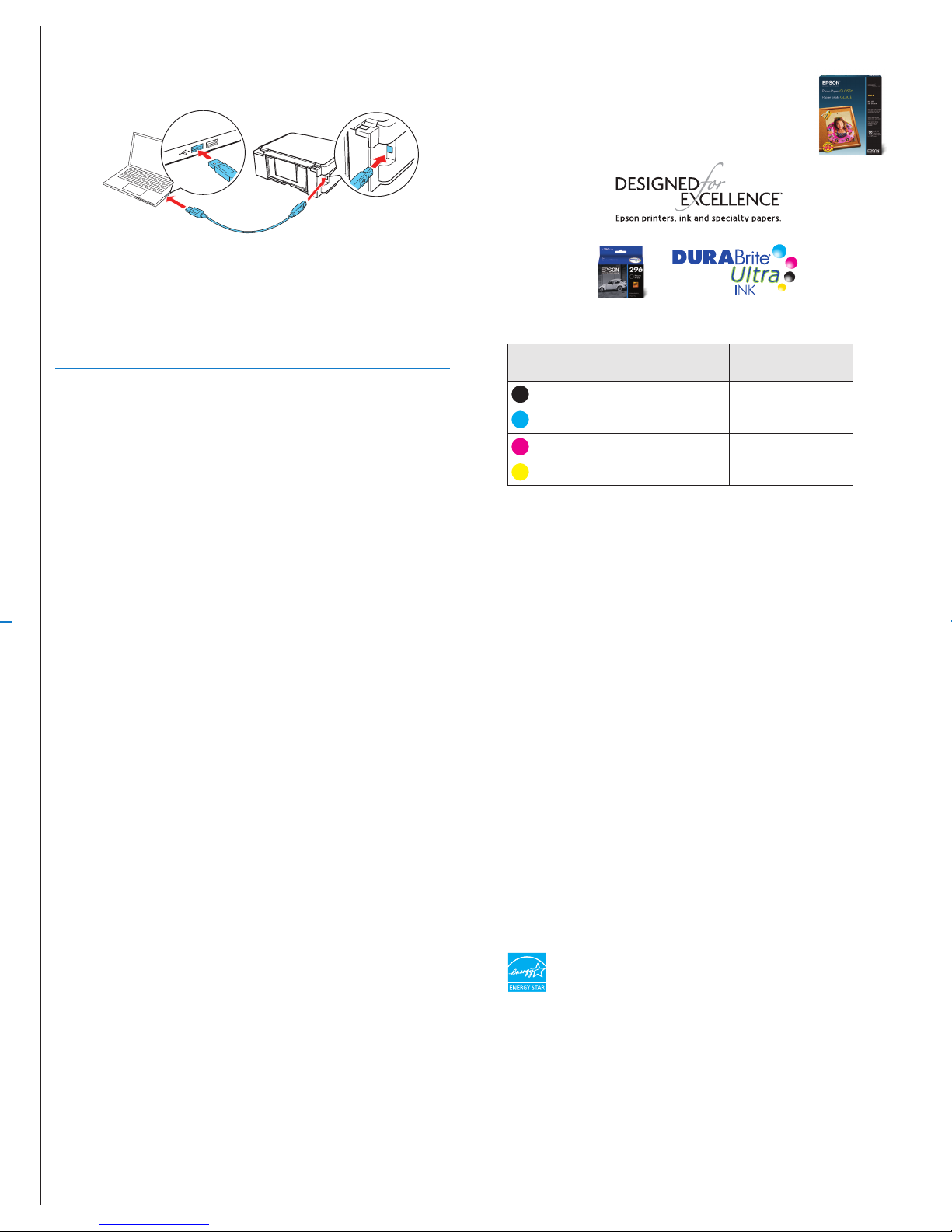
Need paper and ink?
Try Epson specialty papers with DURABrite® Ultra
Ink for professional results. You can purchase them
from an Epson authorized reseller. To find the
nearest one, visit www.epson.com.jm or contact
Epson as described in “Any questions?”.
XP-441 replacement ink cartridges
Color Standard-capacity High-capacity
Black 296 297
Cyan 296 —
Magenta 296 —
Yellow 296 —
EPSON and DURABrite are registered trademarks, Epson Connect and Epson iPrint are
trademarks, and EPSON Exceed Your Vision is a registered logomark of Seiko Epson Corporation.
Designed for Excellence is a trademark of Epson America, Inc.
Mac and OS X are trademarks of Apple Inc., registered in the U.S. and other countries.
App Store is a service mark of Apple Inc.
Android and Google Play are trademarks of Google Inc.
Wi-Fi Direct® is a registered trademark of Wi-Fi Alliance®.
General Notice: Other product names used herein are for identication purposes only and may be
trademarks of their respective owners. Epson disclaims any and all rights in those marks.
This information is subject to change without notice.
© 2016 Epson America, Inc., 4/16
Printed in XXXXXX CPD-51361
Setup is unable to find my printer after connecting it
with a USB cable.
Make sure the printer is turned on and that it is securely
connected as shown:
There are lines or incorrect colors in my printouts.
Run a nozzle check to see if any of the print head nozzles are
clogged. Then clean the print head, if necessary. See the online
User’s Guide for more information.
Any questions?
User’s Guide
Windows: Click the icon on your desktop or Apps screen to
access the online User’s Guide.
OS X: Click the icon in Applications/Epson Software/Guide to
access the online User’s Guide.
If you don’t have a User’s Guide icon, go to the Epson website,
as described below.
Technical support
Visit www.epson.com.jm/support/xp441 and search for
your product to download drivers, view manuals, get FAQs, or
contact Epson.
You can also speak to a service technician by calling one of
these numbers:
Argentina (54 11) 5167-0300 Honduras** 800-0122
0800-288-37766 Code: 8320
Bolivia* 800-100-116 Mexico 01-800-087-1080
Chile (56 2) 2484-3400 Mexico City (52 55) 1323-2052
Colombia 018000-915235 Nicaragua* 00-1-800-226-0368
Bogota (57 1) 523-5000 Panama* 00-800-052-1376
Costa Rica 800-377-6627 Paraguay 009-800-521-0019
Dominican Peru 0800-10126
Republic* 1-888-760-0068 Lima (51 1) 418-0210
Ecuador* 1-800-000-044 Uruguay 00040-5210067
El Salvador* 800-6570 Venezuela (58 212) 240-1111
Guatemala* 1-800-835-0358
* Contact your local phone company to call this toll free number from a mobile
phone.
** Dial the first 7 digits, wait for a message, then enter the code.
If your country does not appear on the list, contact your nearest
Epson sales office. Toll or long distance charges may apply.
 Loading...