

Page 1
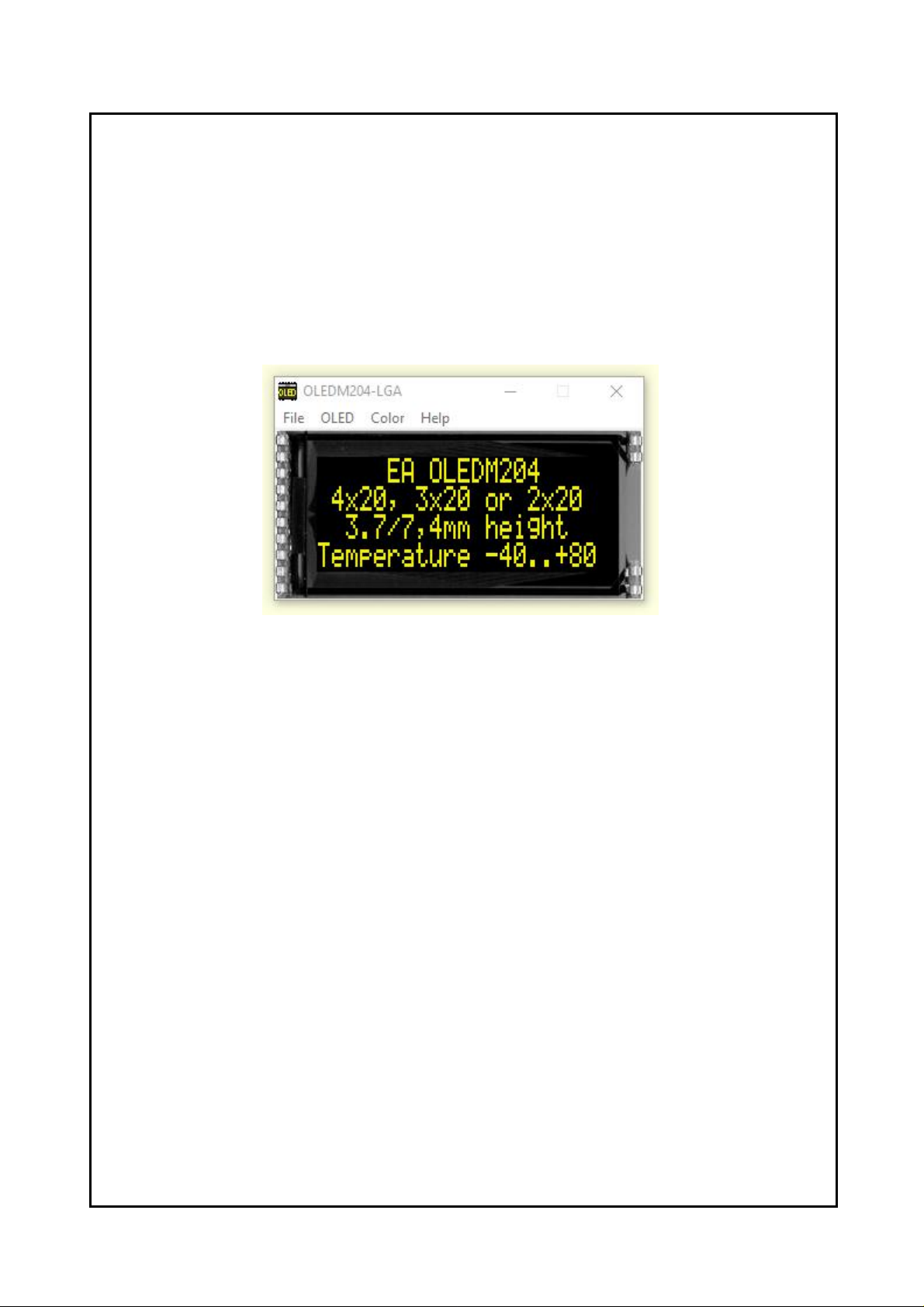
EA OLED-Simulator V2.0
manual
Oktober 2021
© ELECTRONIC ASSEMBLY GmbH
Page 2

EA StartOled helpI
Table of Contents
Part I
Part II
Part III
Part IV
General
StartOled V2.0.exe
OLED Simulator
................................................................................................................................... 51 File
................................................................................................................................... 72 OLED
................................................................................................................................... 93 Color
................................................................................................................................... 104 Help
EA 9781-1USB
................................................................................................................................... 111 Features
................................................................................................................................... 122 External Interface
................................................................................................................................... 133 9781-1 EMPTY
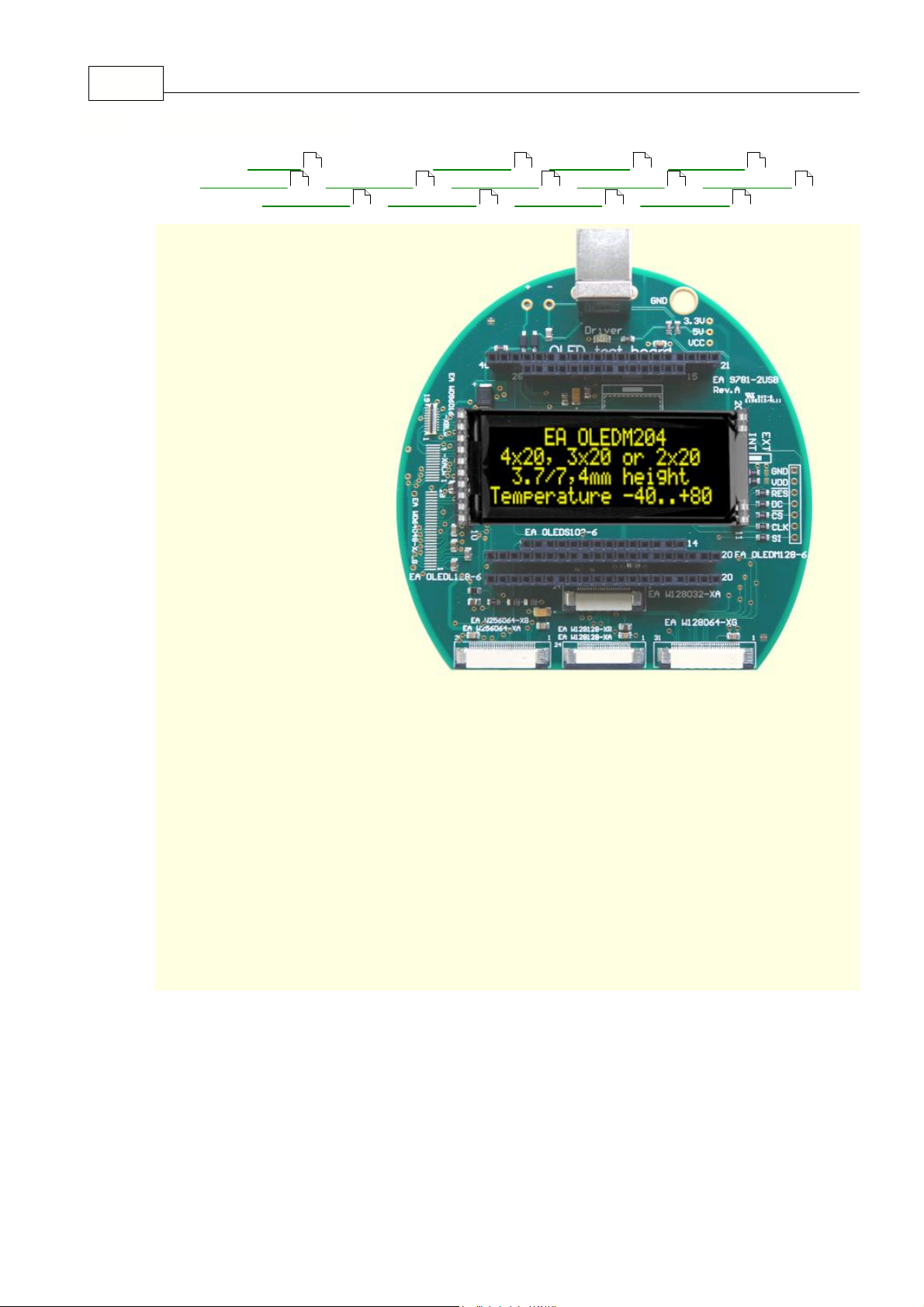
................................................................................................................................... 144 9781-1 OLEDM204
................................................................................................................................... 155 9781-1 OLEDS102
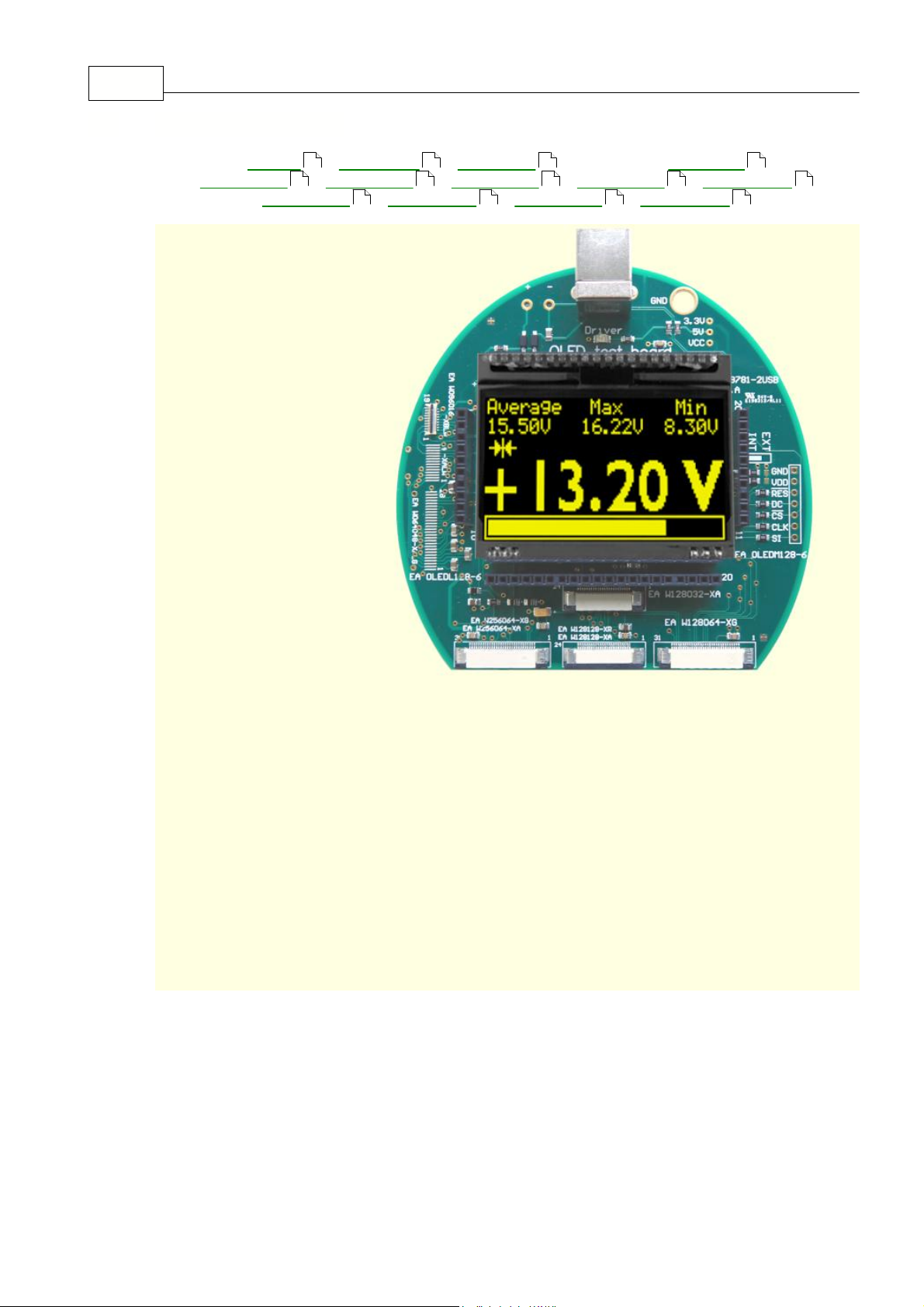
................................................................................................................................... 166 9781-1 OLEDM128
................................................................................................................................... 177 9781-1 OLEDL128
................................................................................................................................... 188 9781-1 W128032-XA
................................................................................................................................... 199 9781-1 W128064-XG
................................................................................................................................... 2010 9781-1 W128128-XA
................................................................................................................................... 2111 9781-1 W128128-XR
................................................................................................................................... 2212 9781-1 W256064-XA
................................................................................................................................... 2313 9781-1 W256064-XG
3
4
5
11
Part V
EA 9781-2USB
................................................................................................................................... 241 Features
................................................................................................................................... 252 External Interface
................................................................................................................................... 263 9781-2 EMPTY
................................................................................................................................... 274 9781-2 OLEDM204
................................................................................................................................... 285 9781-2 OLEDS102
................................................................................................................................... 296 9781-2 OLEDM128
................................................................................................................................... 307 9781-2 OLEDL128
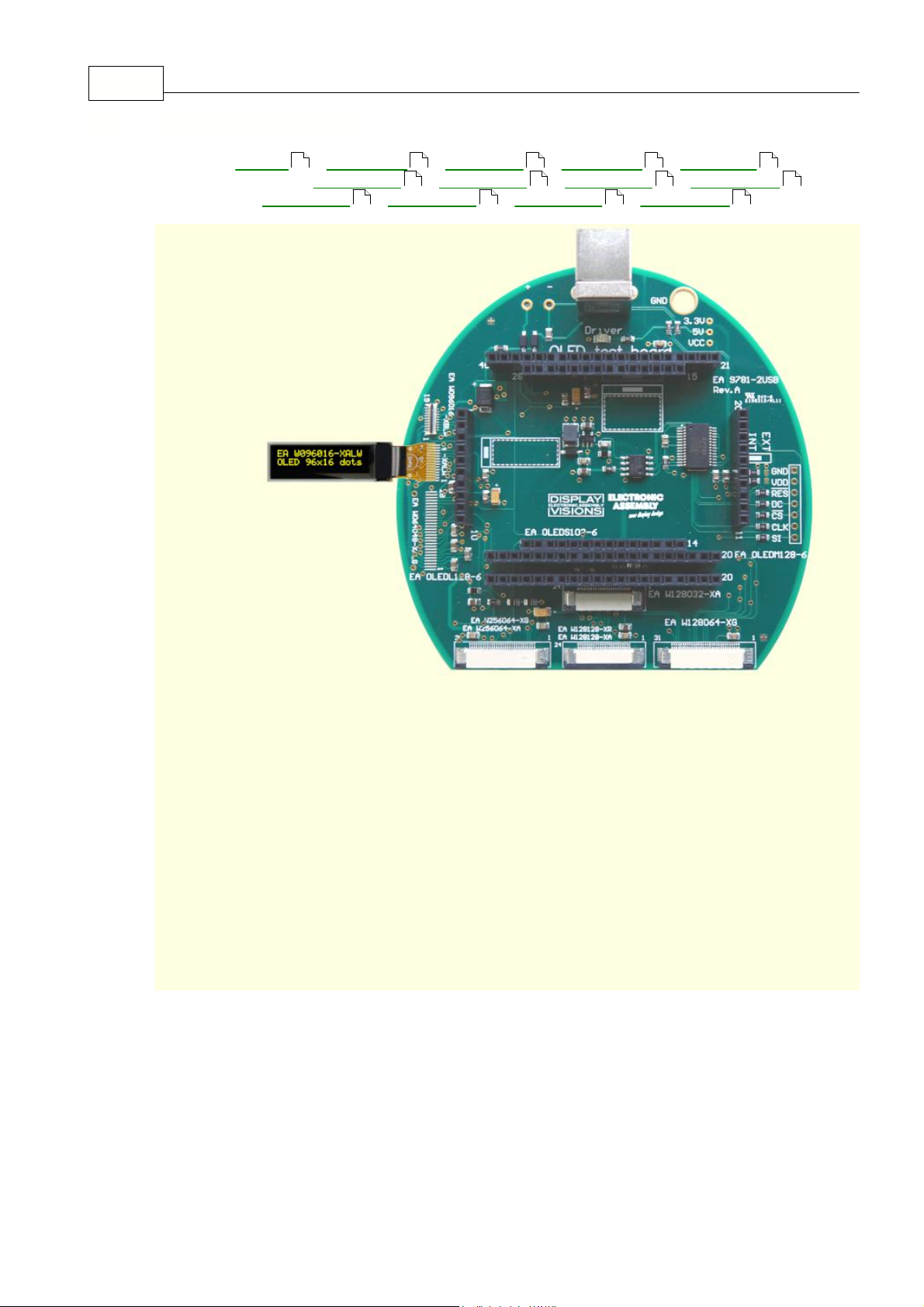
................................................................................................................................... 318 9781-2 W096016-XA
................................................................................................................................... 329 9781-2 W096016-XB
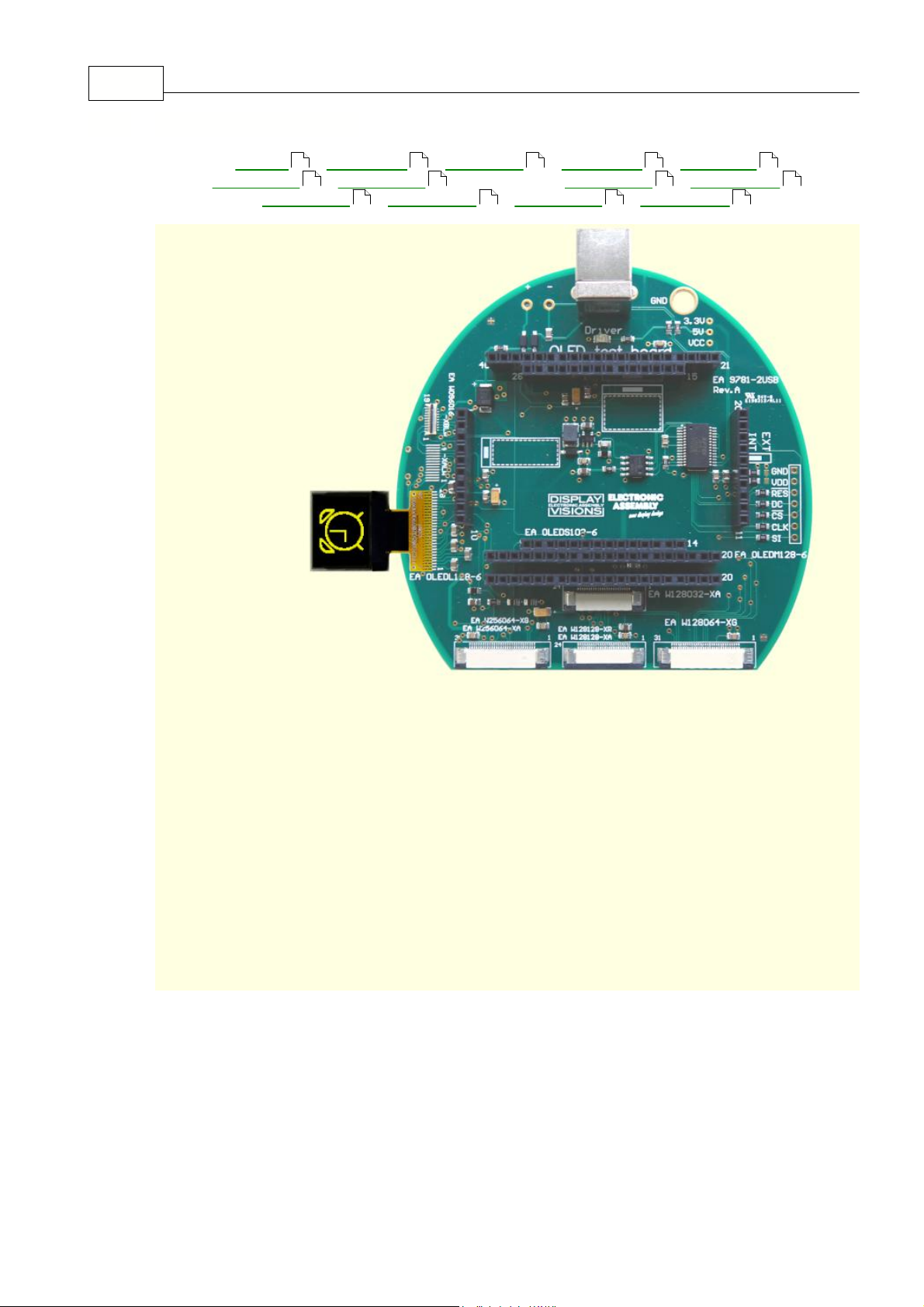
................................................................................................................................... 3310 9781-2 W064048-XA
................................................................................................................................... 3411 9781-2 W128032-XA
................................................................................................................................... 3512 9781-2 W128064-XG
................................................................................................................................... 3613 9781-2 W128128-XA
................................................................................................................................... 3714 9781-2 W128128-XR
................................................................................................................................... 3815 9781-2 W256064-XA
................................................................................................................................... 3916 9781-2 W256064-XG
24
Page 3

IIContents
Part VI
Part VII
Individual Pictures/Text
Troubleshooting
40
41
Page 4
EA StartOled help3
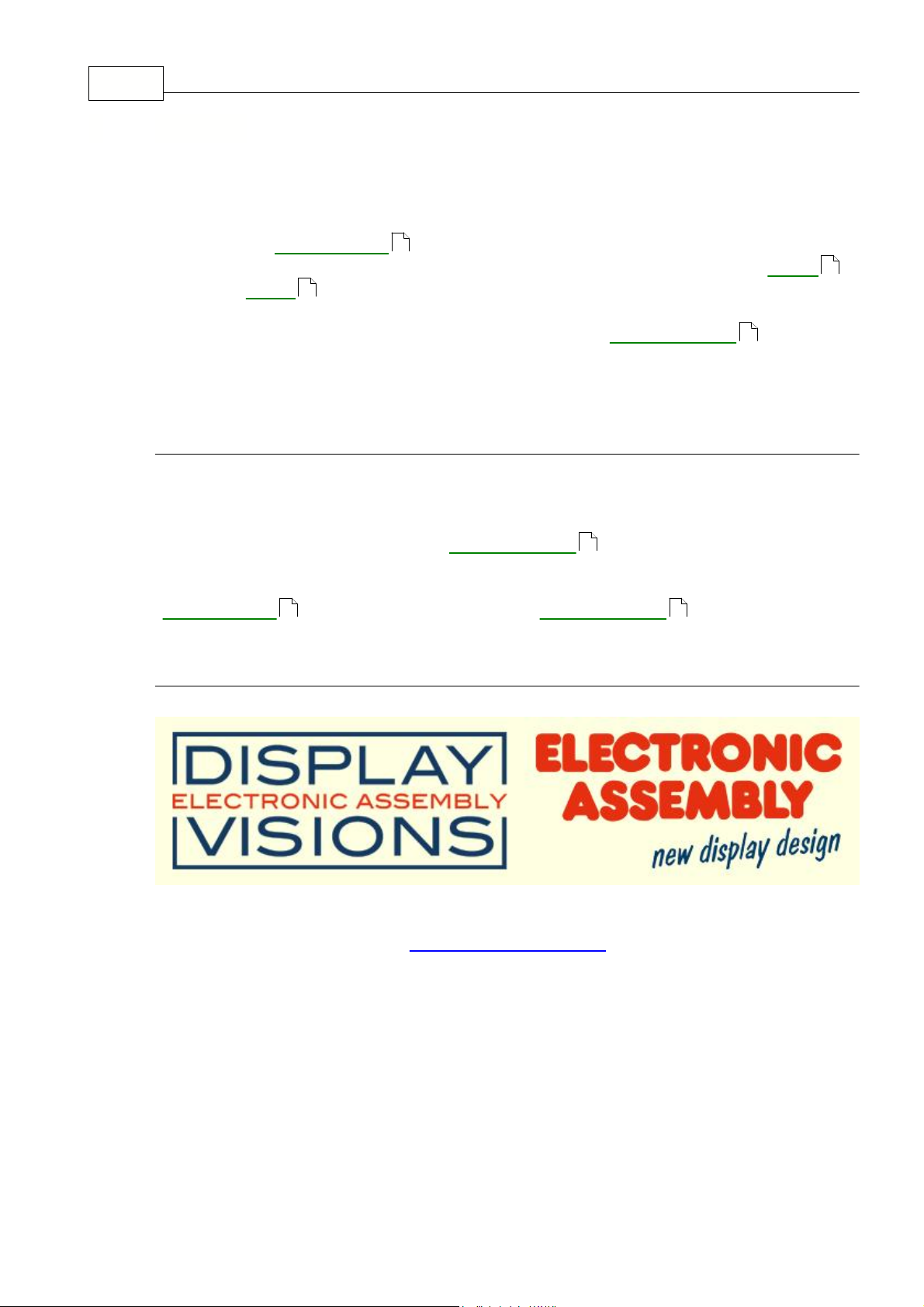
OLED-Simulator "StartOled.exe"
The program „
StartOled.exe
" simulates all displays from EA OLED series and
some OLEDs from EA Wxxx series. Display setting will be done via menu
OLED
.
The menu
Color
selects one of various types. This does mean that with this little
program all display types and colors can be simulated.
This simulator can be used
alone but also together with our Test- and Demoboard
EA 9781-2USB
.
V2.0
: Add support for Displays EA W096016-XALW, EA W096016-XBLW and EA
W064048-XALW.
Test-Board "EA 9781-2USB"
For easy startup, a USB test board
EA 9781-2USB
is available that can be
connected to a PC. All
displays from EA OLED series will put into operation in a
flash. There is no hardware or software knowlegde necessary. The program
„
StartOled.exe
" runs also with a connected
EA 9781-2USB
. Text and pictures
(BMP) can be shown directly on the connected display.
Zeppelinstrasse 19, D-82205 Gilching
Phone +49-8105-778090, Fax +49-8105-778099
http://www.lcd-module.de
1 General
4
7
9
24
24
4 24
Page 5
2 StartOled V2.0.exe
EA OLED Simulator
StartOled.exe V2.0
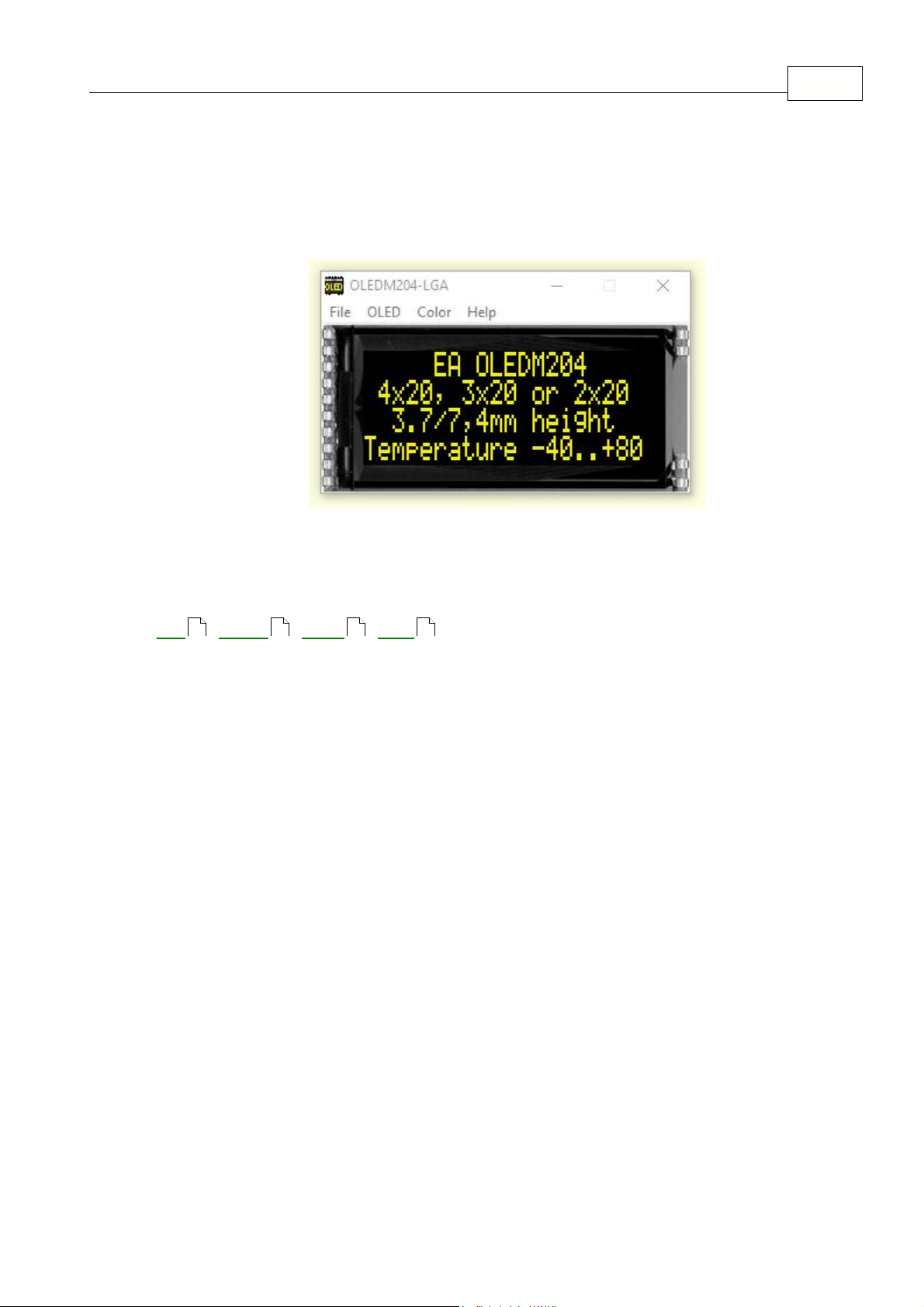
You can download the OLED Simulator Software
V2.0
free of charge from our Homepage as
a .zip file. After unzip you easily can start our StartOled Simulator with a double click on the
startoled.exe.
It starts up immediately with a windows frame and a tool bar with
4
pull down
buttons:
File
OLED
Color
Help
StartOled V2.0.exe 4
5 7 9 10
Page 6
EA StartOled help5
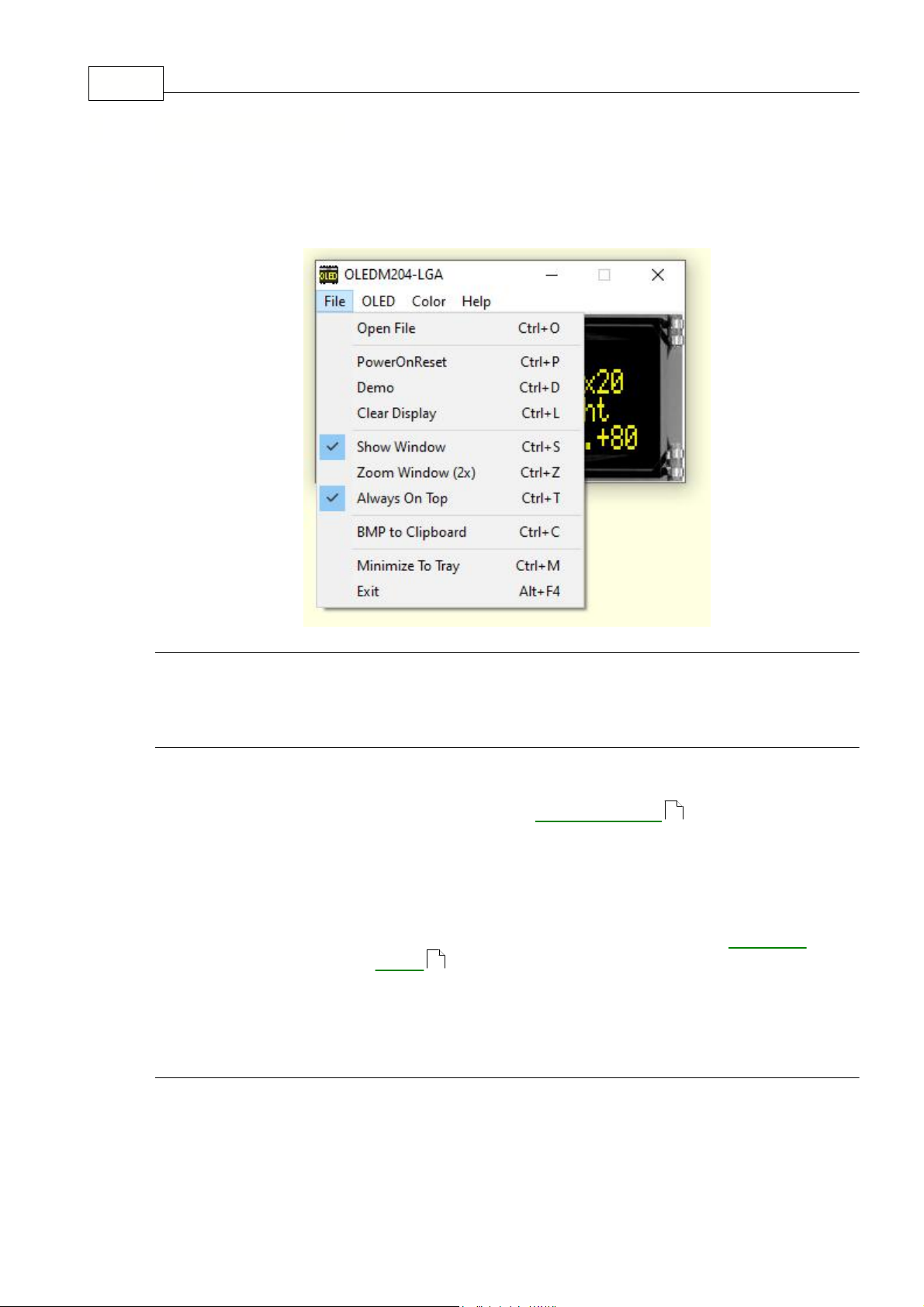
Under the
File Pull DownButton you can select special functions in four sections:
Open File
Open the File-Dialogbox where you can choose a text or
graphic file;
Power on Reset
Makes a Reset to the external display, if it is connected
with our test board
EA 9781-2USB
to the USB I/F of
the computer; After the Reset the module gets new
initializing and the cursor moves to the left upper position,
ready to write text to the display from the PC keyboard;
Demo
Starts a Demo with four alternating contents on the screen
and optional on the display plugged to our
EA 9781-
2USB
;
Clear Display
Clears the display and the cursor moves to the left upper
position, ready to write text to the display from the PC
keyboard;
Show Window
Shows or hides the frame of the OLED Simulation on the
PC screen; When the frame with the menu is hidden you
can find the menu with a right mouse click in the display
area;
Always on Top
The Window of the OLED-Simulator always stays in front
3 OLED Simulator
3.1 File
24
24
Page 7

OLED Simulator 6
of the other software pages, whatever page or other
Software you are opening;
Minimize to Tray
Hides the OLED window from the window screen into a
small symbol in the tool bar; The
EA 9781-2USB
is still
working as before.
Exit
Stores display organization, color that had been changed
in the last session and closes the application;
24
Page 8
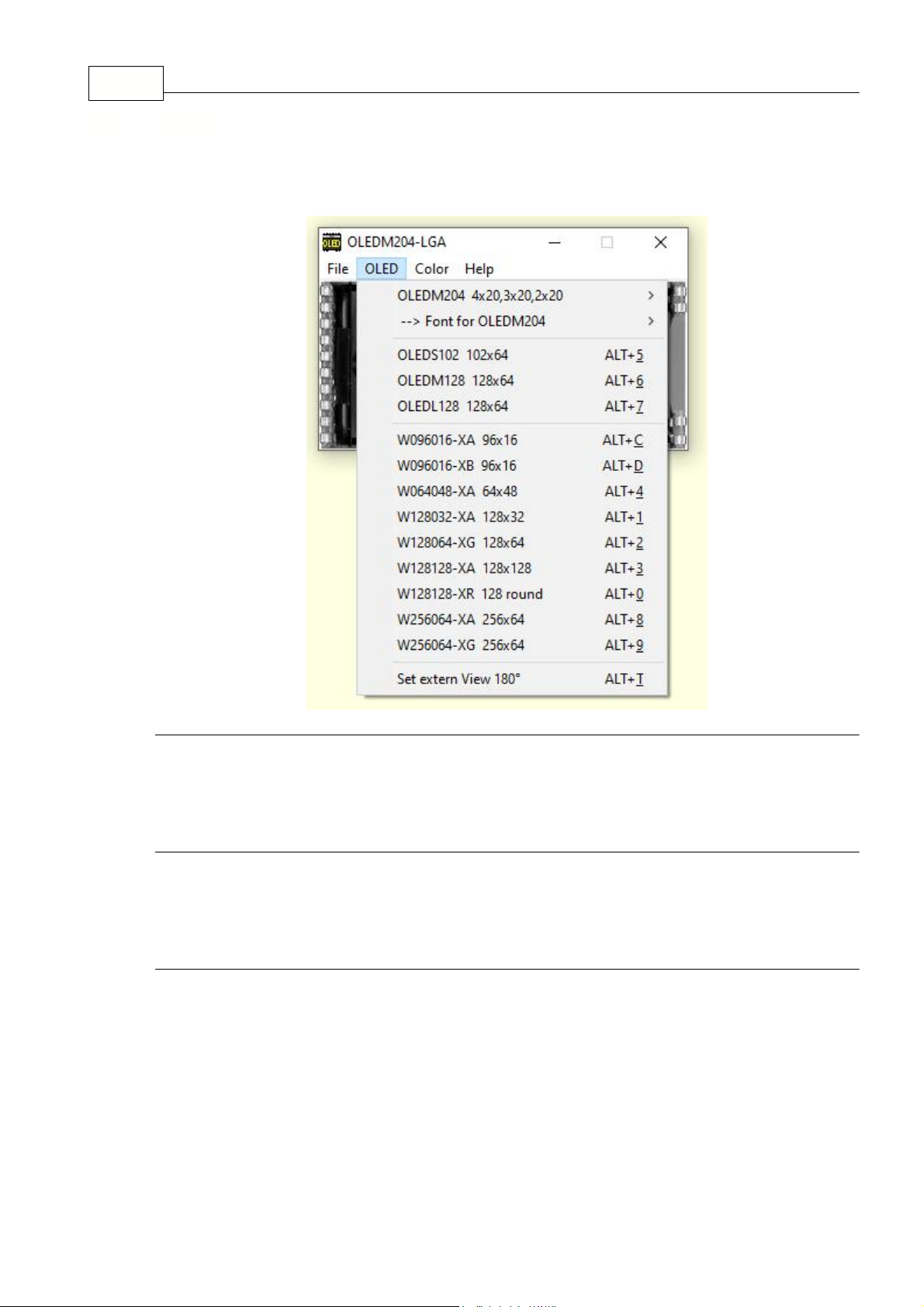
EA StartOled help7
Under the
OLED
Pull Down Button you can select different display organisations in two
sections:
O
LEDM204
4x204/3/2
lines with
20
digits
Font for OLEDM204
s
witch between ROMA
-european, ROMB-cyrillic and
ROMC-japanese
OLED
S10
2 102x64 Graphicdisplay 1
0
2 by
64
dots
OLED
M128
128x64 Graphicdisplay 12
8
by 64 dots
OLED
L128
128x64 Graphicdisplay 12
8
by 64 dots
W
096016-XA 96
x16 Graphicdisplay
96
by 16 dots
(solder connection)
W
096016-XB 96
x16 Graphicdisplay
96
by 16 dots
(with flex cable)
W
064048-XA 64
x48 Graphicdisplay
64
by 48 dots
(solder connection)
W12
8032-XA
128x32 Graphicdisplay 12
8
by 32 dots
W12
8064-XG
128x64 Graphicdisplay 12
8
by 64 dots
W12
8128-XA
128x
128
Graphicdisplay 12
8
by
128
dots
W12
8128-XR
12
8 round
Graphicdisplay 12
8 round
W
256064-XA
256
x64 Graphicdisplay
256
by 64 dots
W
256064-XG
256
x64 Graphicdisplay
256
by 64 dots
3.2 OLED
Page 9

OLED Simulator 8
Set extern TopView
If a
graphic
display is connected with our demo- and
test board
EA 9781-2USB
to the USB I/F of the
computer, content will be rotated by 180°; otherwise
this option is grayed-out.
24
Page 10
EA StartOled help9
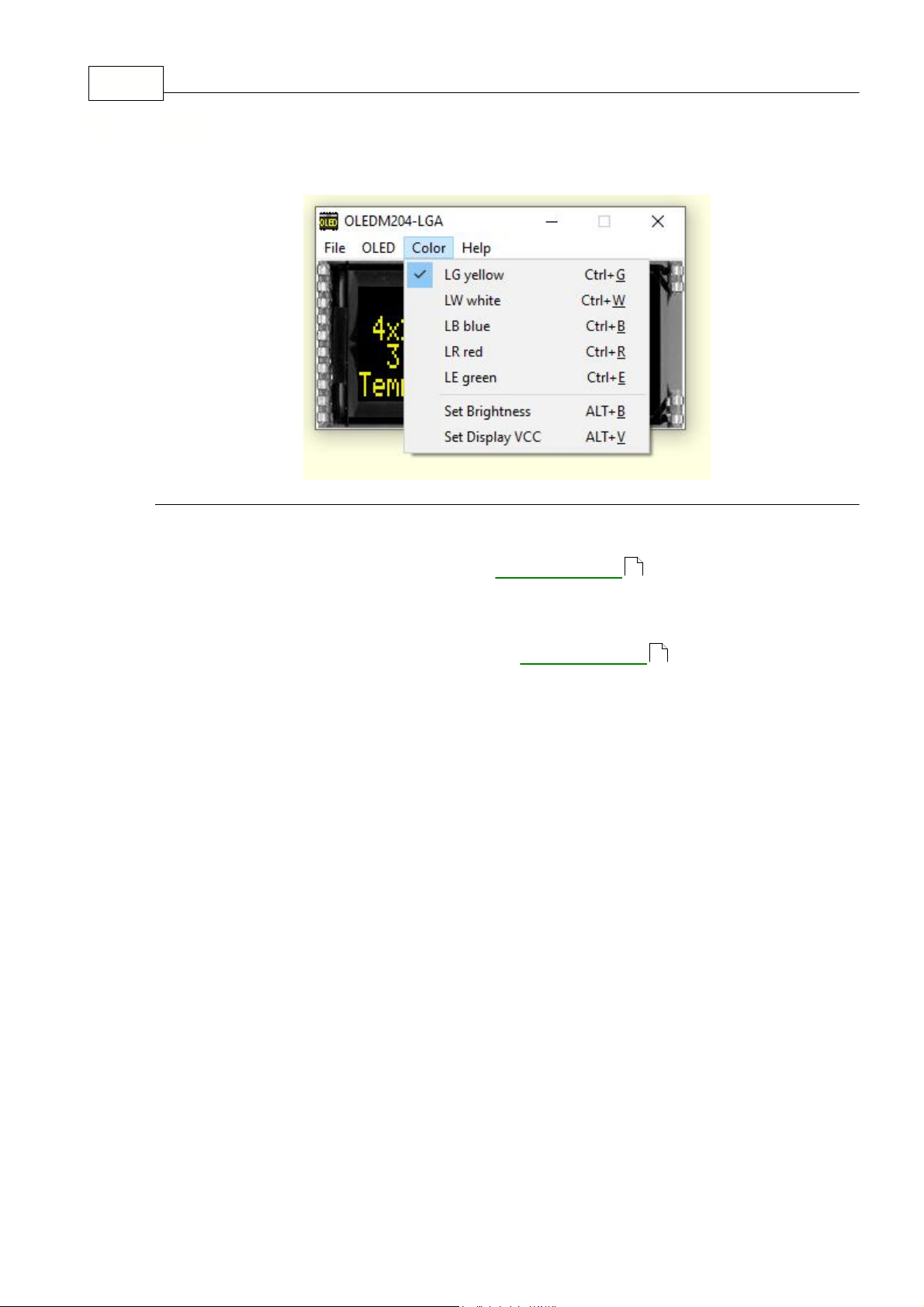
Under the
Color
Pull Down Button you have the choice to select colors:
Y
ou can select the single color for simulation yellow, white, blue, red and green
.
The backlight of a connected OLED with
EA 9781-2USB
naturally can not
change.
S
et
Brightness
If a display is connected with our test board
EA 9781-2USB
to the USB I/F of the
computer; A window with a sliding resistor is opened on the monitor and you can
move it with the mouse;
s
econd click on this label closes the sliding resistor window.
Note: Setting will be stored after closing the Simulator;
3.3 Color
24
24
Page 11
3.4 Help
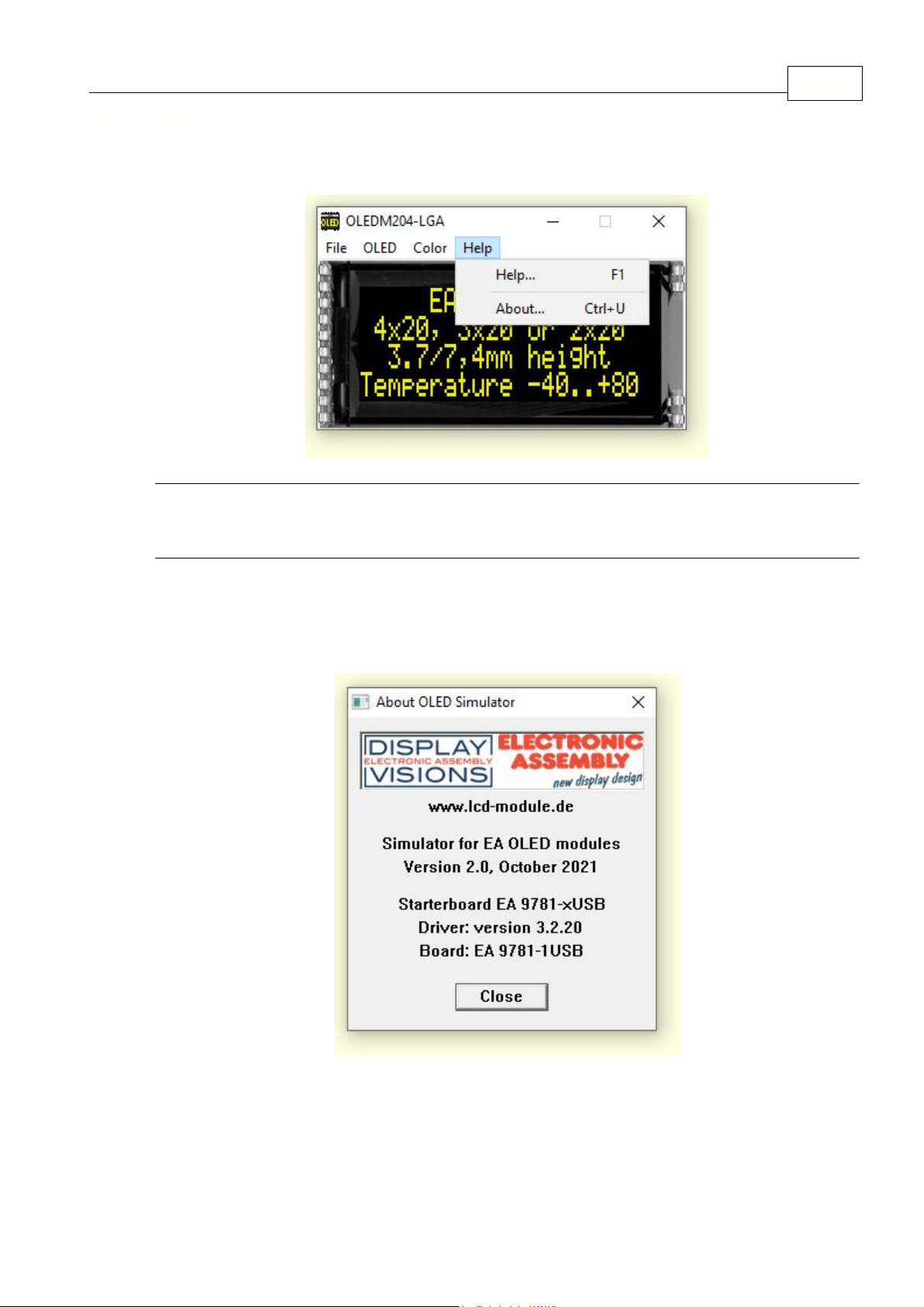
Under the
Help
Pull Down Button you have the choice to select this Help-text or an info box:
Help
This click shows you the
Help-File;
About
This click shows you the software version of the OLED
Simulator and whether the USB-Board is successfully
connected to the PC;
OLED Simulator 10
Page 12

EA StartOled help11
With that test board all displays from
EA OLED series and some OLEDs from EA
Wxxx series
will put into operation in a flash. There is no hardware or software
knowlegde necessary. The included USB cable performs easyly the connection to
the PC. Text and pictures (BMP) can be shown direct on the connected display.
*
Connection to USB: simple Usage
*
Good for all EA OLED Modules and s
ome from EA Wxxx series
*
no power supply necessary
*
with demo-text and demo-pictures
*
individual text and pictures are supported also
*
OLED VCC driving circuit integrated
*
inclusive USB cable (1.5m)
*
connect an
external microcontroller
to the EA 9781-1USB
4 EA 9781-1USB
4.1 Features
12
Page 13
4.2 External Interface
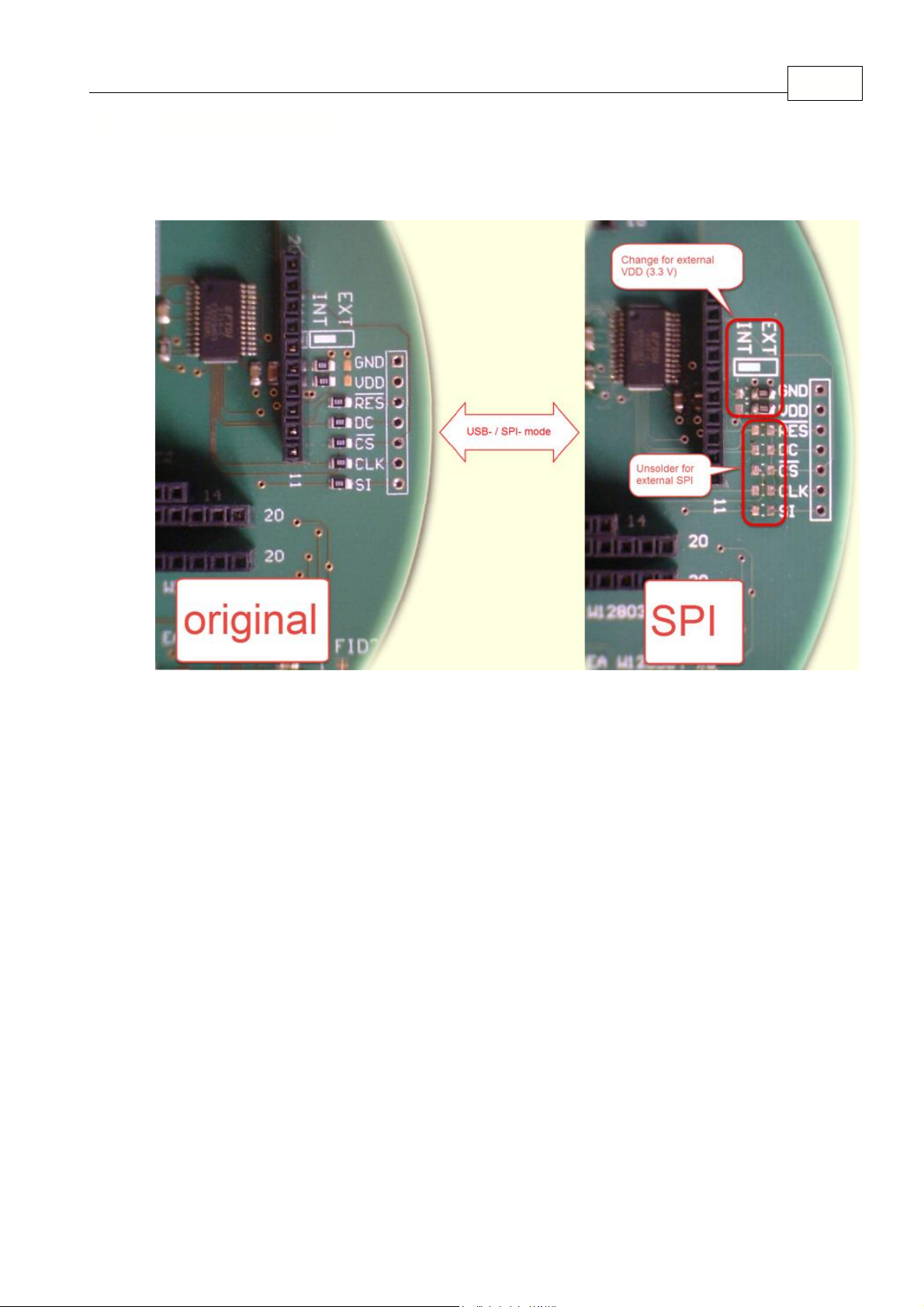
If you want to connect your microcontroller to EA USB 9781-1USB it is necessary to switch off the USB
connection.
EA 9781-1USB 12
Page 14
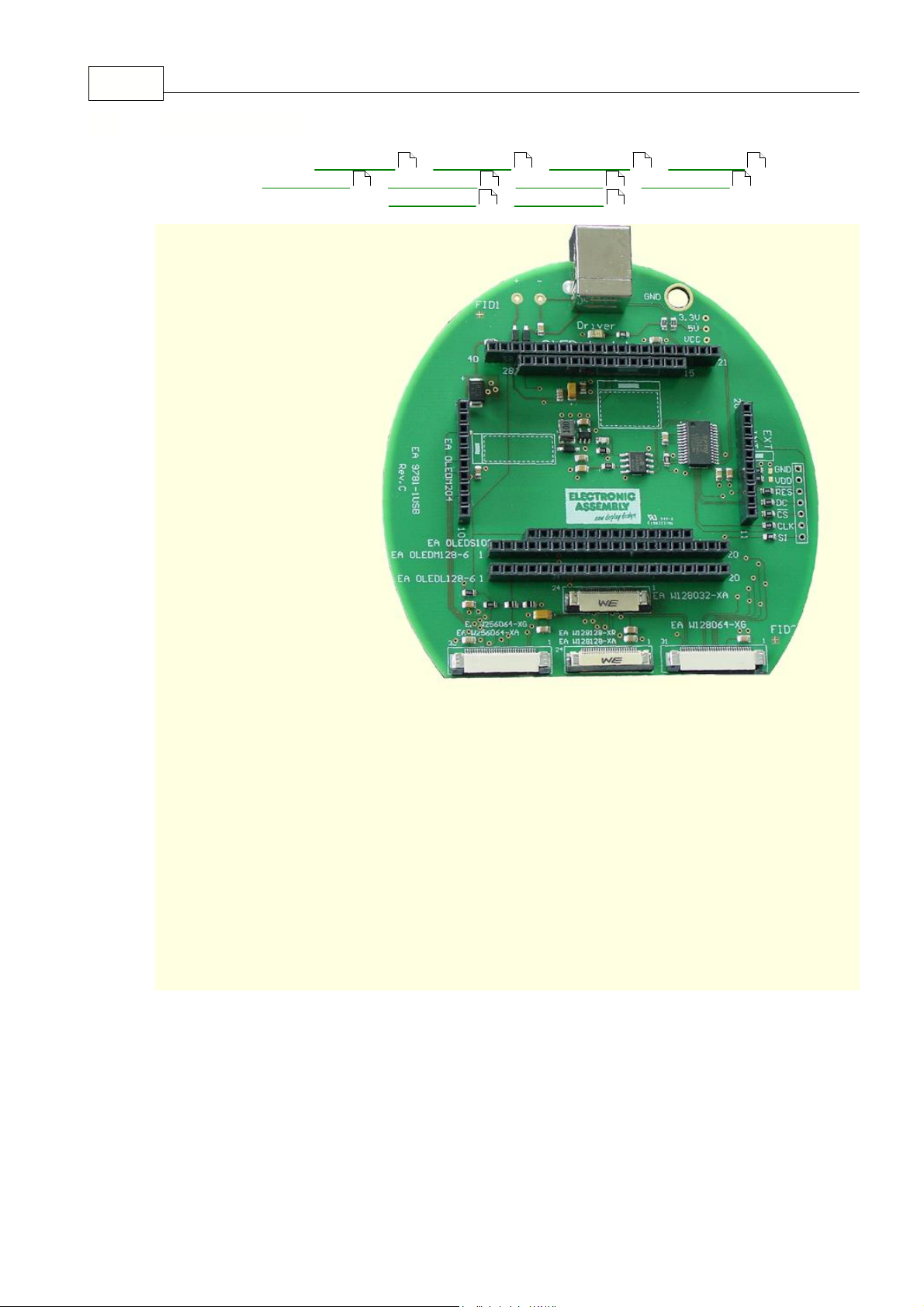
EA StartOled help13
EMPTY -
OLEDM204
-
OLEDS102
-
OLEDM128
-
OLEDL128
W128032XA
-
W128064XG
-
W128128XA
-
W128128XR
W256064XA
-
W256064XG
4.3 9781-1 EMPTY
14 15 16 17
18 19 20 21
22 23
Page 15
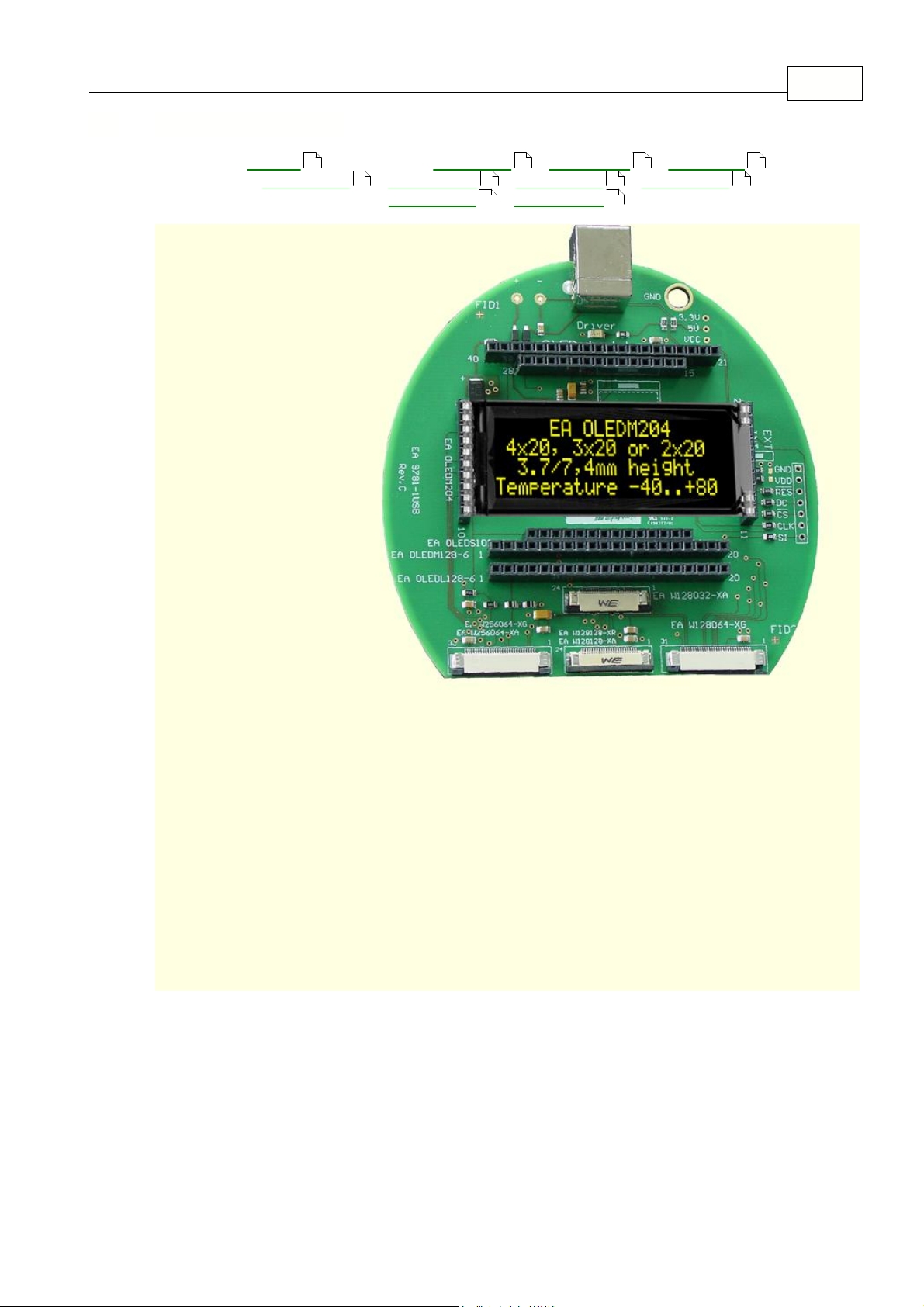
4.4 9781-1 OLEDM204
EMPTY
- OLEDM204 -
OLEDS102
-
OLEDM128
-
OLEDL128
W128032XA
-
W128064XG
-
W128128XA
-
W128128XR
W256064XA
-
W256064XG
13 15 16 17
EA 9781-1USB 14
18 19 20 21
22 23
Page 16
EA StartOled help15
EMPTY
-
OLEDM204
- OLEDS102 -
OLEDM128
-
OLEDL128
W128032XA
-
W128064XG
-
W128128XA
-
W128128XR
W256064XA
-
W256064XG
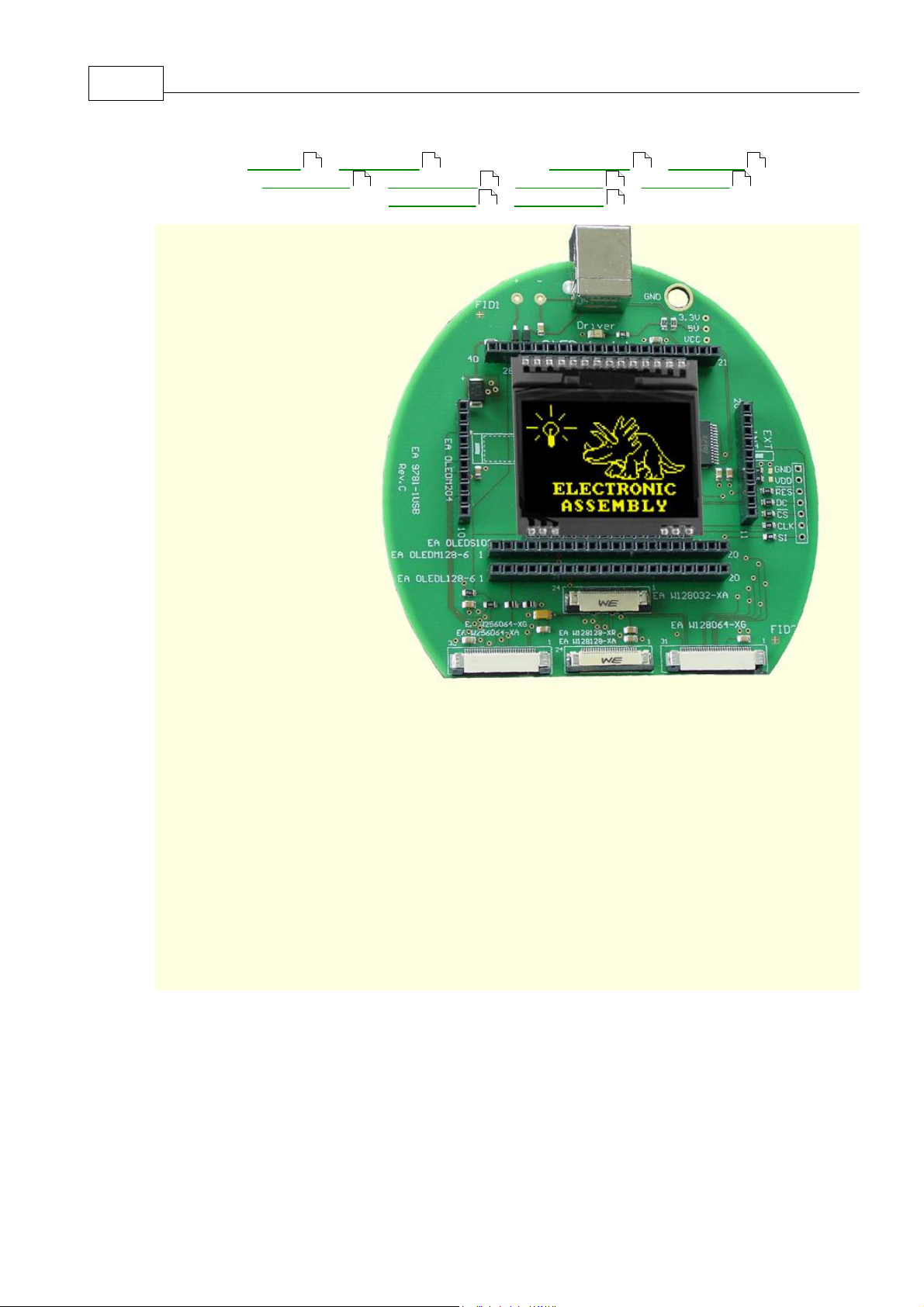
4.5 9781-1 OLEDS102
13 14 16 17
18 19 20 21
22 23
Page 17
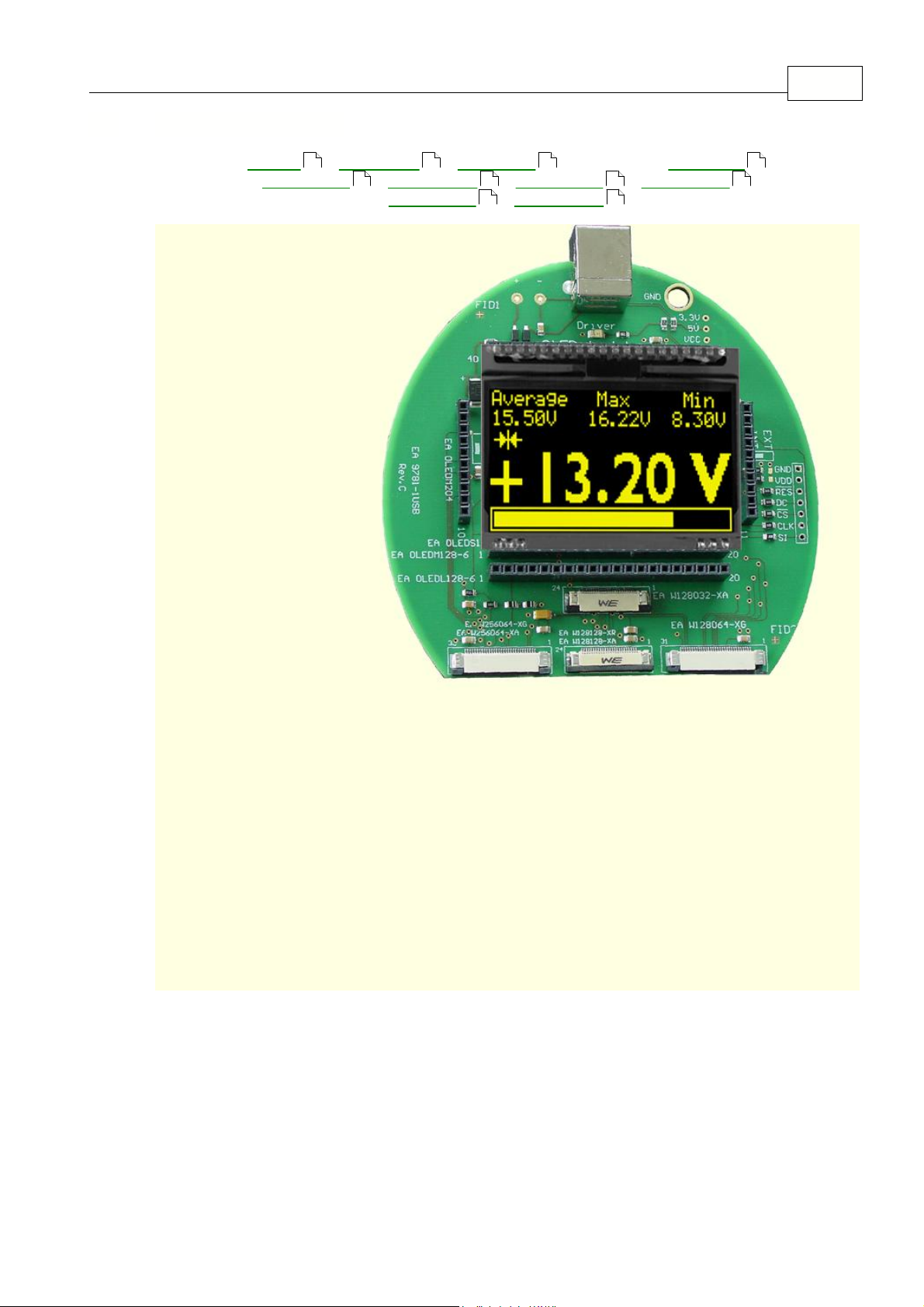
4.6 9781-1 OLEDM128
EMPTY
-
OLEDM204
-
OLEDS102
- OLEDM128 -
OLEDL128
W128032XA
-
W128064XG
-
W128128XA
-
W128128XR
W256064XA
-
W256064XG
13 14 15 17
EA 9781-1USB 16
18 19 20 21
22 23
Page 18
EA StartOled help17
EMPTY
-
OLEDM204
-
OLEDS102
-
OLEDM128
- OLEDL128
W128032XA
-
W128064XG
-
W128128XA
-
W128128XR
W256064XA
-
W256064XG
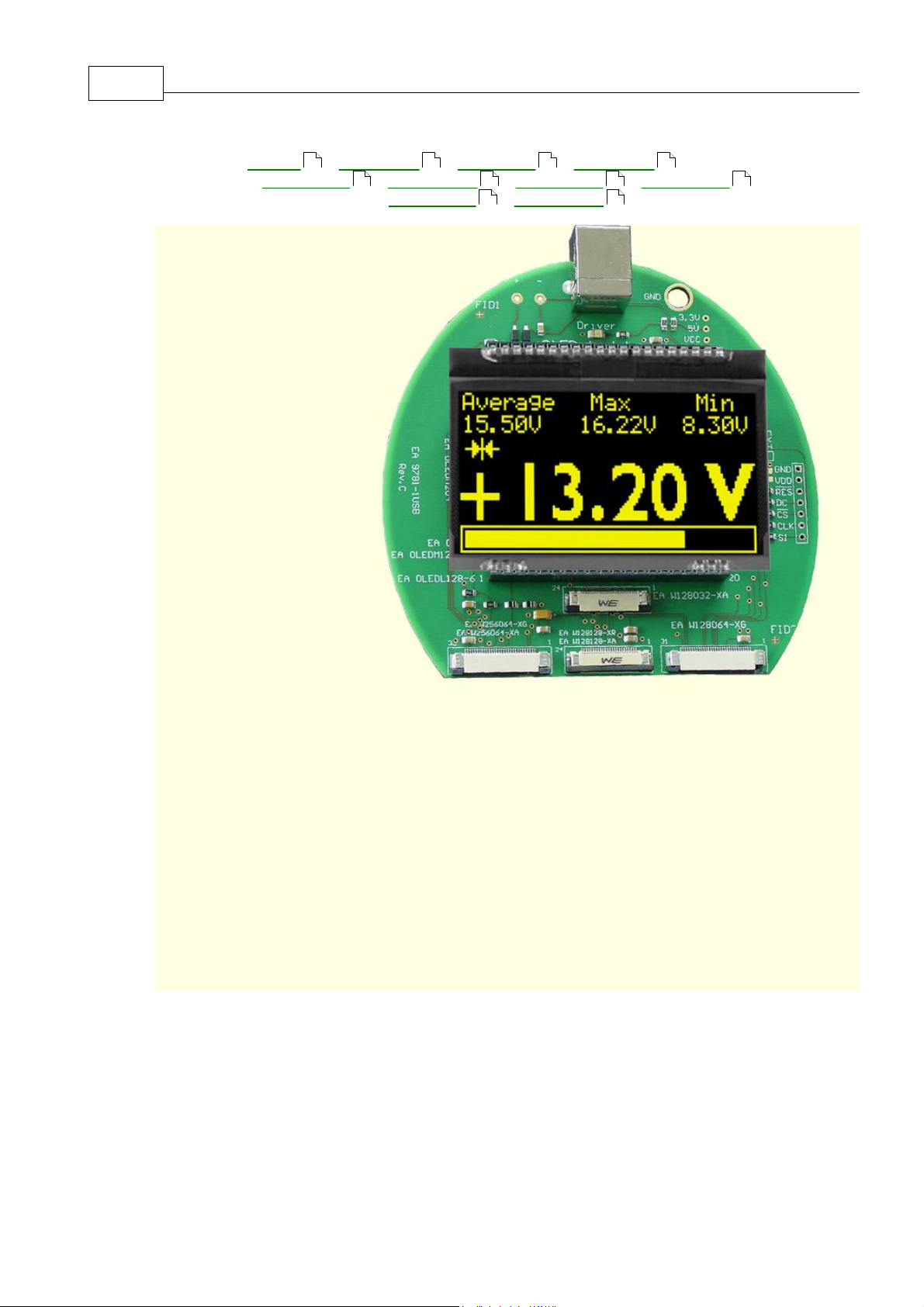
4.7 9781-1 OLEDL128
13 14 15 16
18 19 20 21
22 23
Page 19
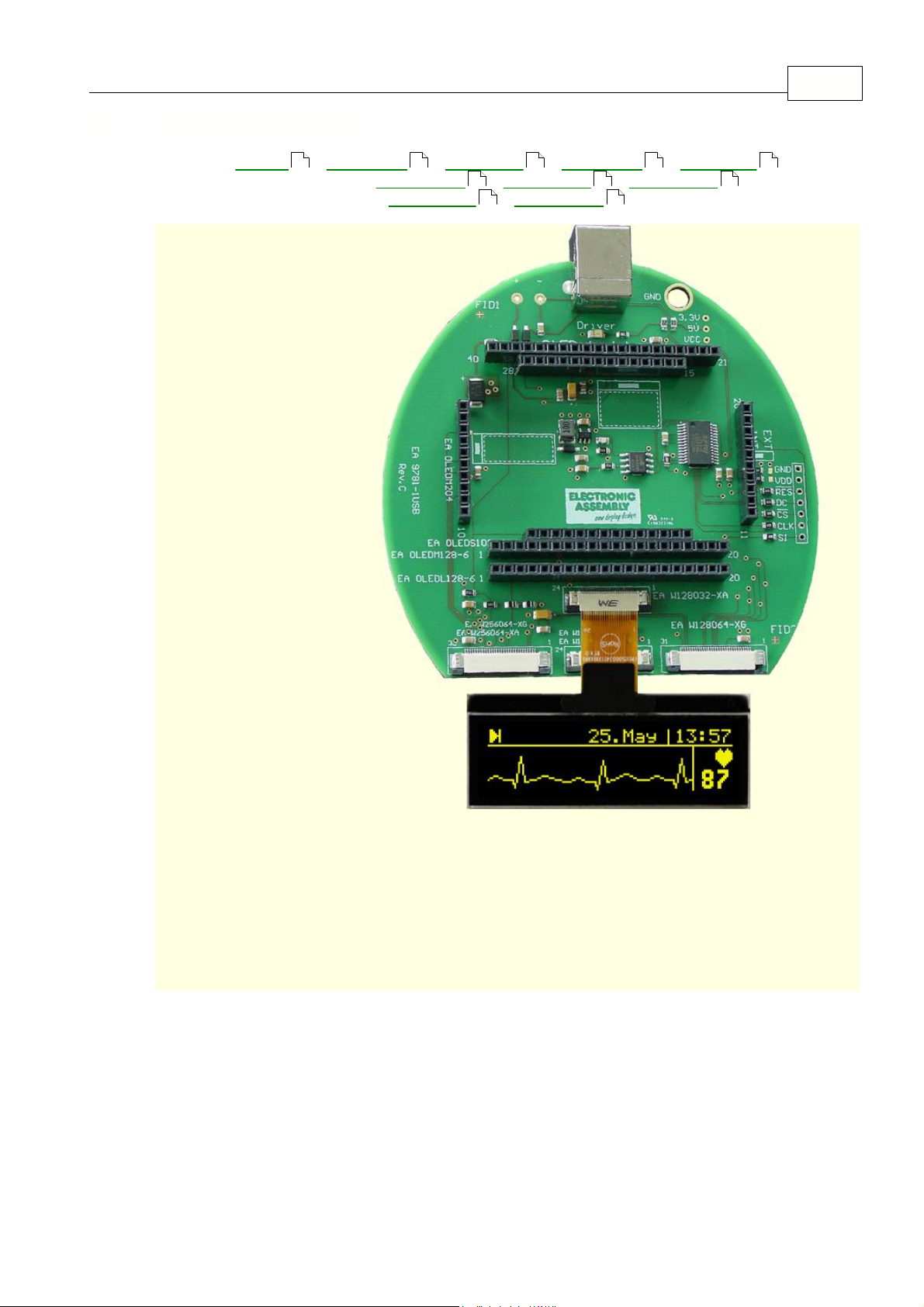
4.8 9781-1 W128032-XA
EMPTY
-
OLEDM204
-
OLEDS102
-
OLEDM128
-
OLEDL128
W128032XA -
W128064XG
-
W128128XA
-
W128128XR
W256064XA
-
W256064XG
13 14 15 16 17
EA 9781-1USB 18
19 20 21
22 23
Page 20
EA StartOled help19
EMPTY
-
OLEDM204
-
OLEDS102
-
OLEDM128
-
OLEDL128
W128032XA
- W128064XG -
W128128XA
-
W128128XR
W256064XA
-
W256064XG
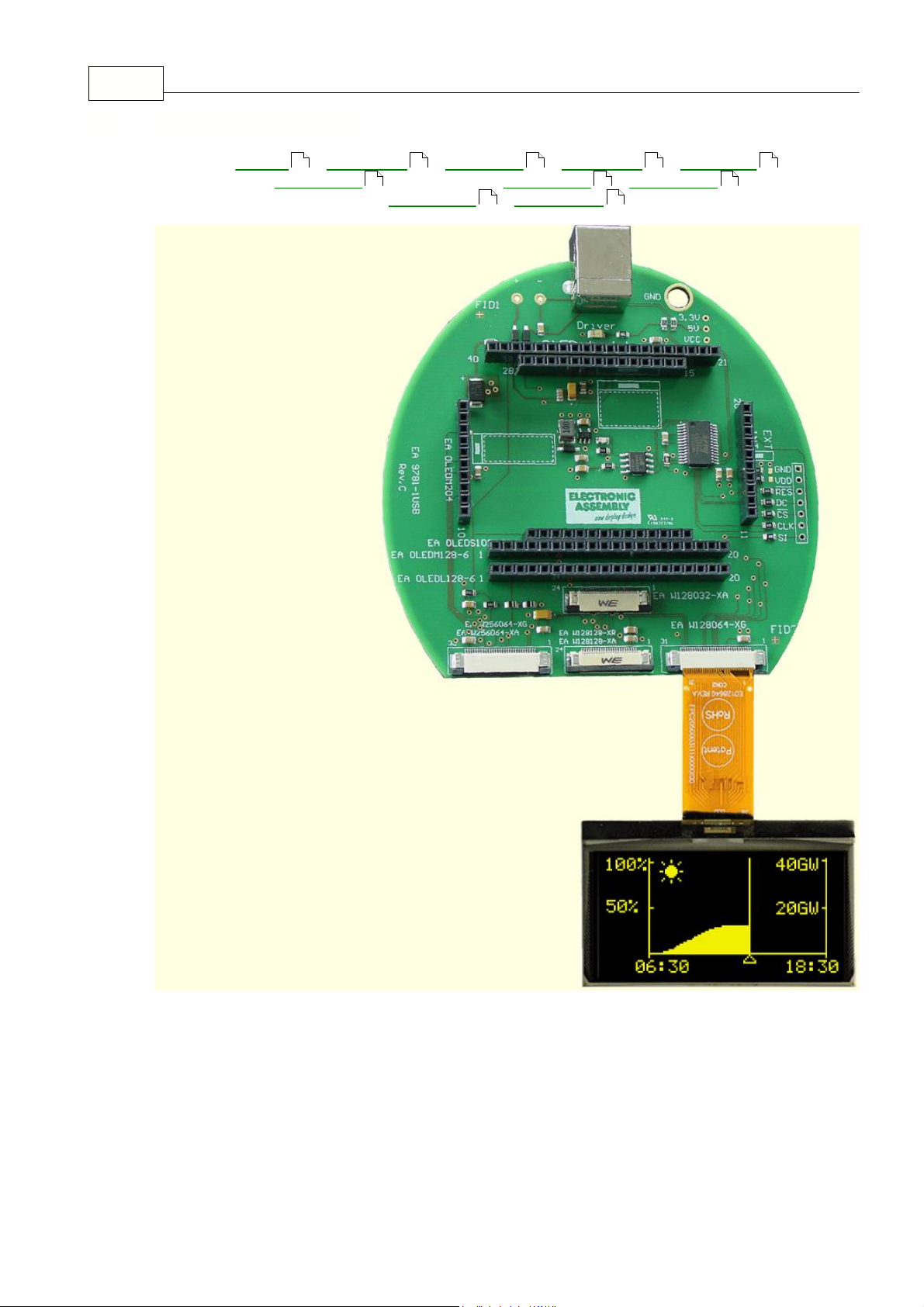
4.9 9781-1 W128064-XG
13 14 15 16 17
18 20 21
22 23
Page 21
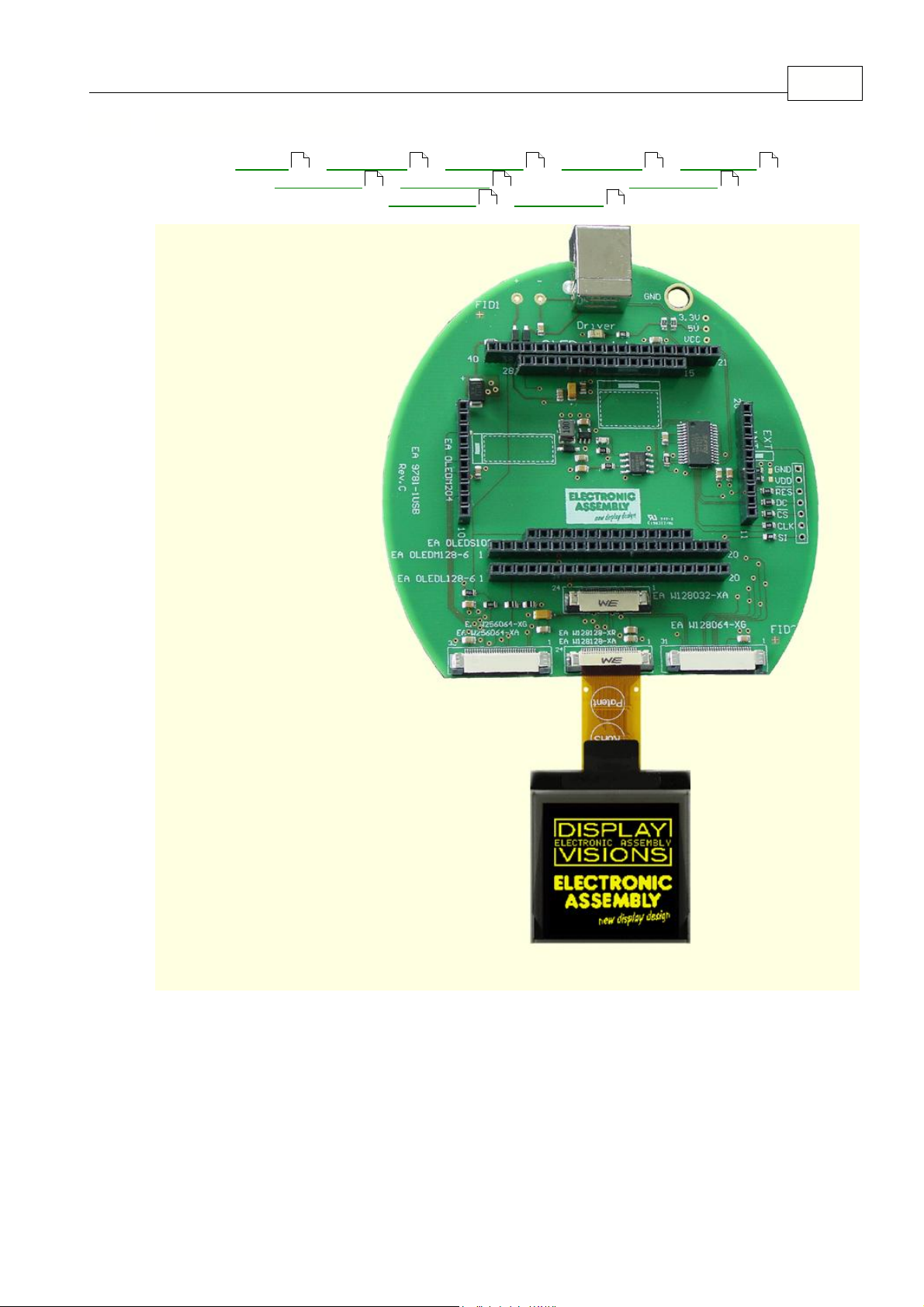
4.10 9781-1 W128128-XA
EMPTY
-
OLEDM204
-
OLEDS102
-
OLEDM128
-
OLEDL128
W128032XA
-
W128064XG
- W128128XA -
W128128XR
W256064XA
-
W256064XG
13 14 15 16 17
EA 9781-1USB 20
18 19 21
22 23
Page 22
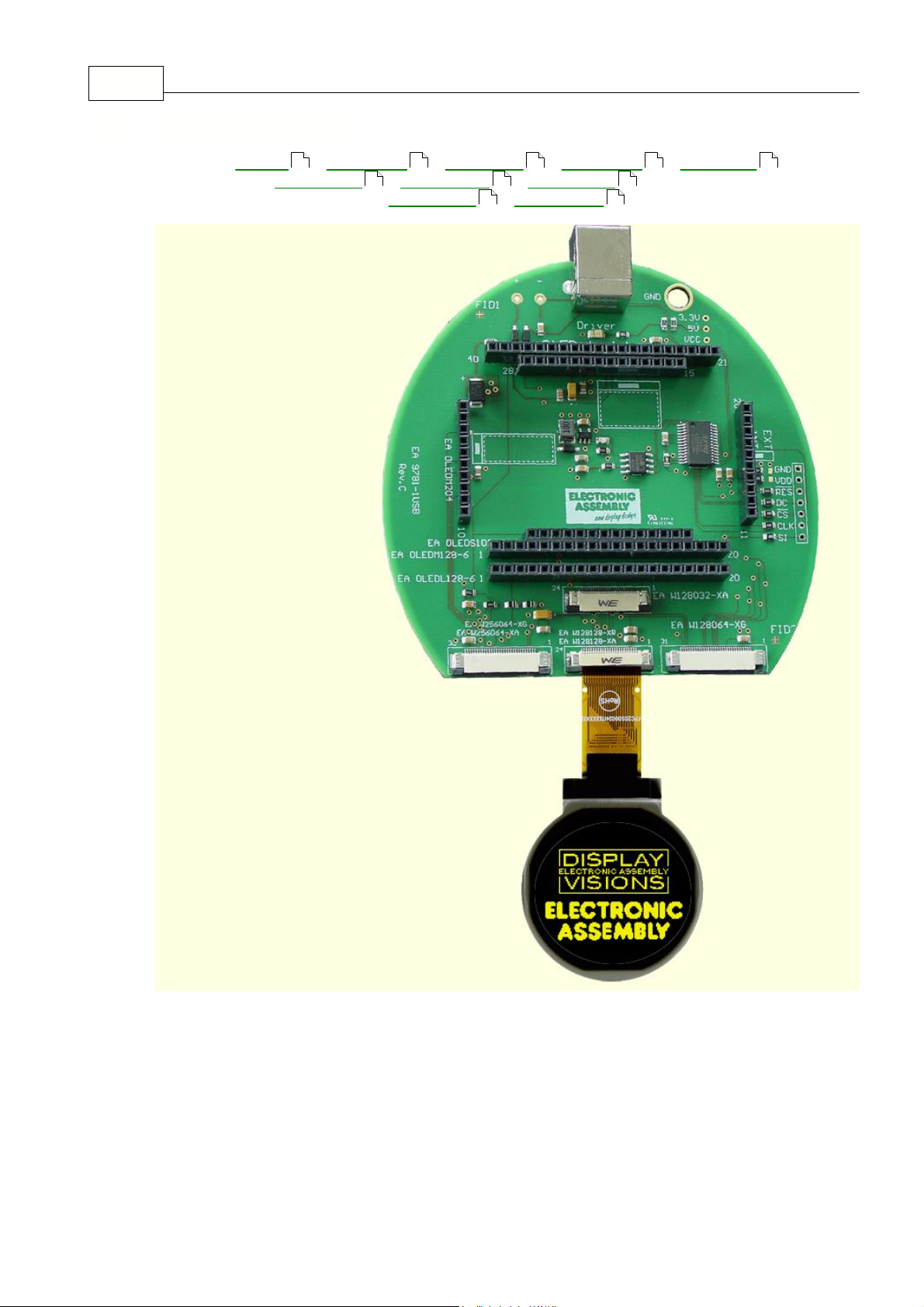
EA StartOled help21
EMPTY
-
OLEDM204
-
OLEDS102
-
OLEDM128
-
OLEDL128
W128032XA
-
W128064XG
-
W128128XA
- W128128XR
W256064XA
-
W256064XG
4.11 9781-1 W128128-XR
13 14 15 16 17
18 19 20
22 23
Page 23
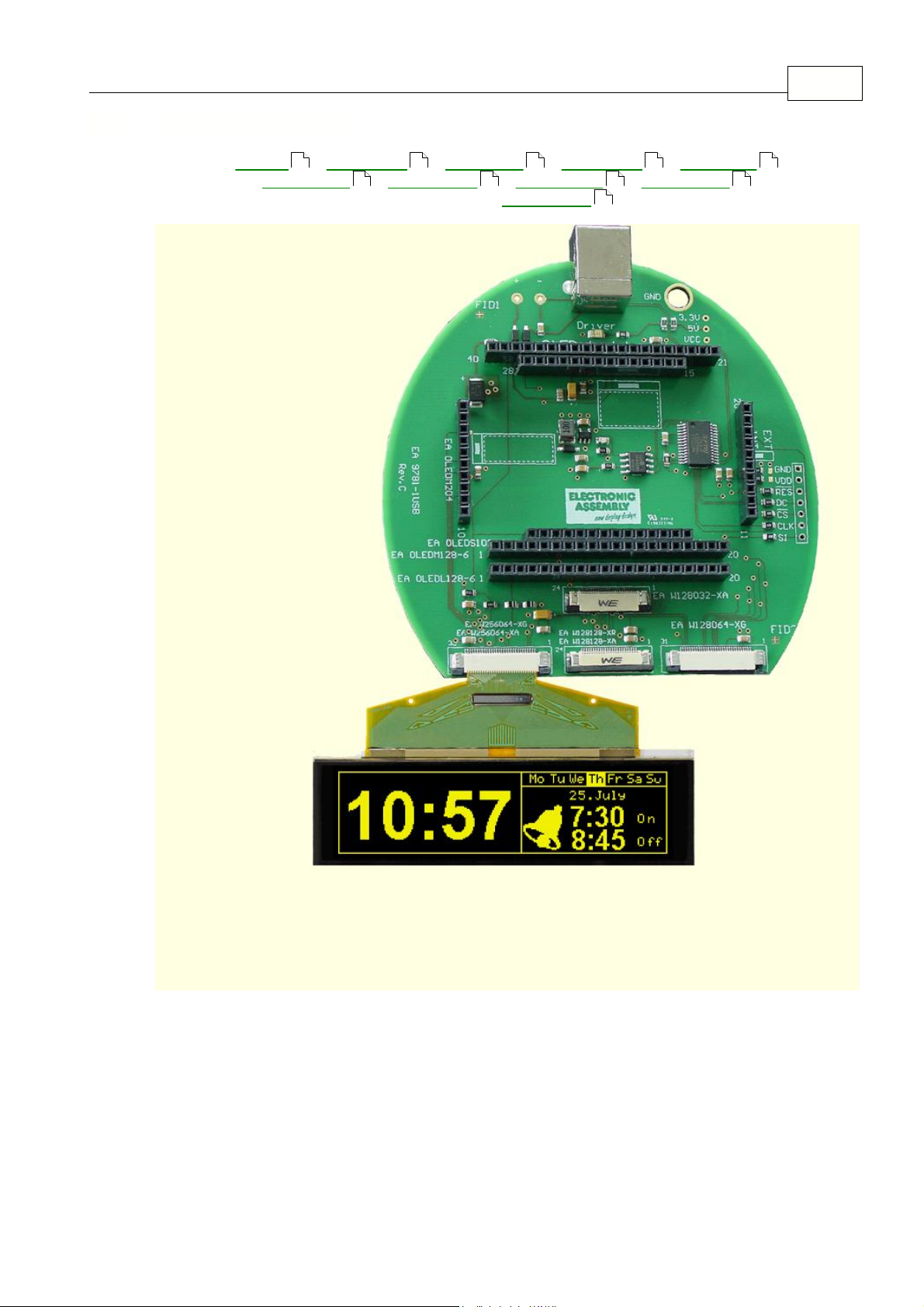
4.12 9781-1 W256064-XA
EMPTY
-
OLEDM204
-
OLEDS102
-
OLEDM128
-
OLEDL128
W128032XA
-
W128064XG
-
W128128XA
-
W128128XR
W256064XA -
W256064XG
13 14 15 16 17
EA 9781-1USB 22
18 19 20 21
23
Page 24
EA StartOled help23
EMPTY
-
OLEDM204
-
OLEDS102
-
OLEDM128
-
OLEDL128
W128032XA
-
W128064XG
-
W128128XA
-
W128128XR
W256064XA
- W256064XG
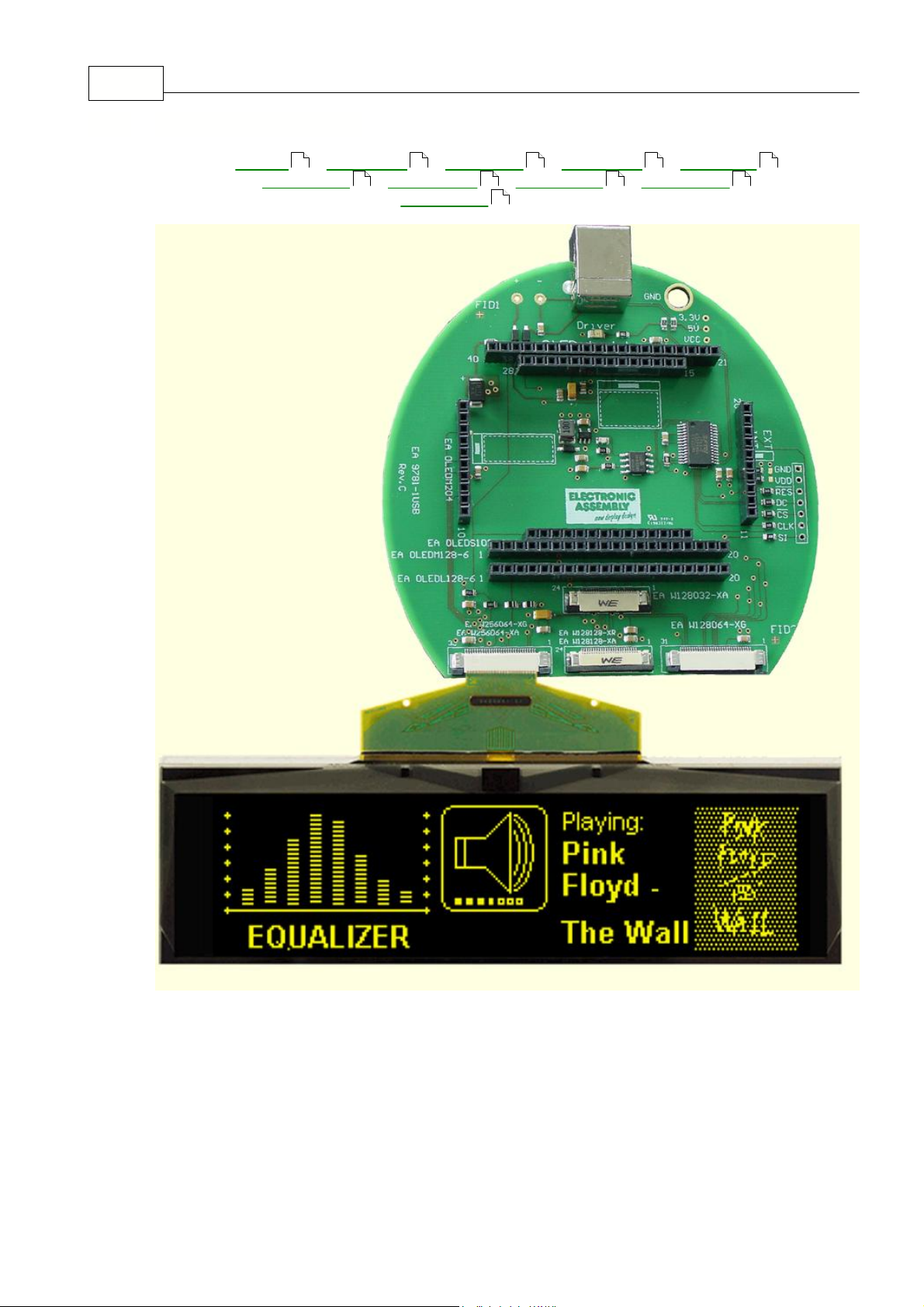
4.13 9781-1 W256064-XG
13 14 15 16 17
18 19 20 21
22
Page 25

5 EA 9781-2USB
With that test board all displays from
EA OLED series and some OLEDs from EA
Wxxx series
will put into operation in a flash. There is no hardware or software
knowlegde necessary. The included USB cable performs easyly the connection to
the PC. Text and pictures (BMP) can be shown direct on the connected display.
*
New Displays:
EA W096016-XALW, EA W096016-XBLW and EA W064048-
XALW
*
Good for all EA OLED Modules and s
ome from EA Wxxx series
*
Connection to USB: simple Usage
*
no power supply necessary
*
with demo-text and demo-pictures
*
individual text and pictures are supported also
*
OLED VCC driving circuit integrated
*
inclusive USB cable (1.5m)
*
connect an
external microcontroller
to the EA 9781-2USB
5.1 Features
EA 9781-2USB 24
25
Page 26
EA StartOled help25
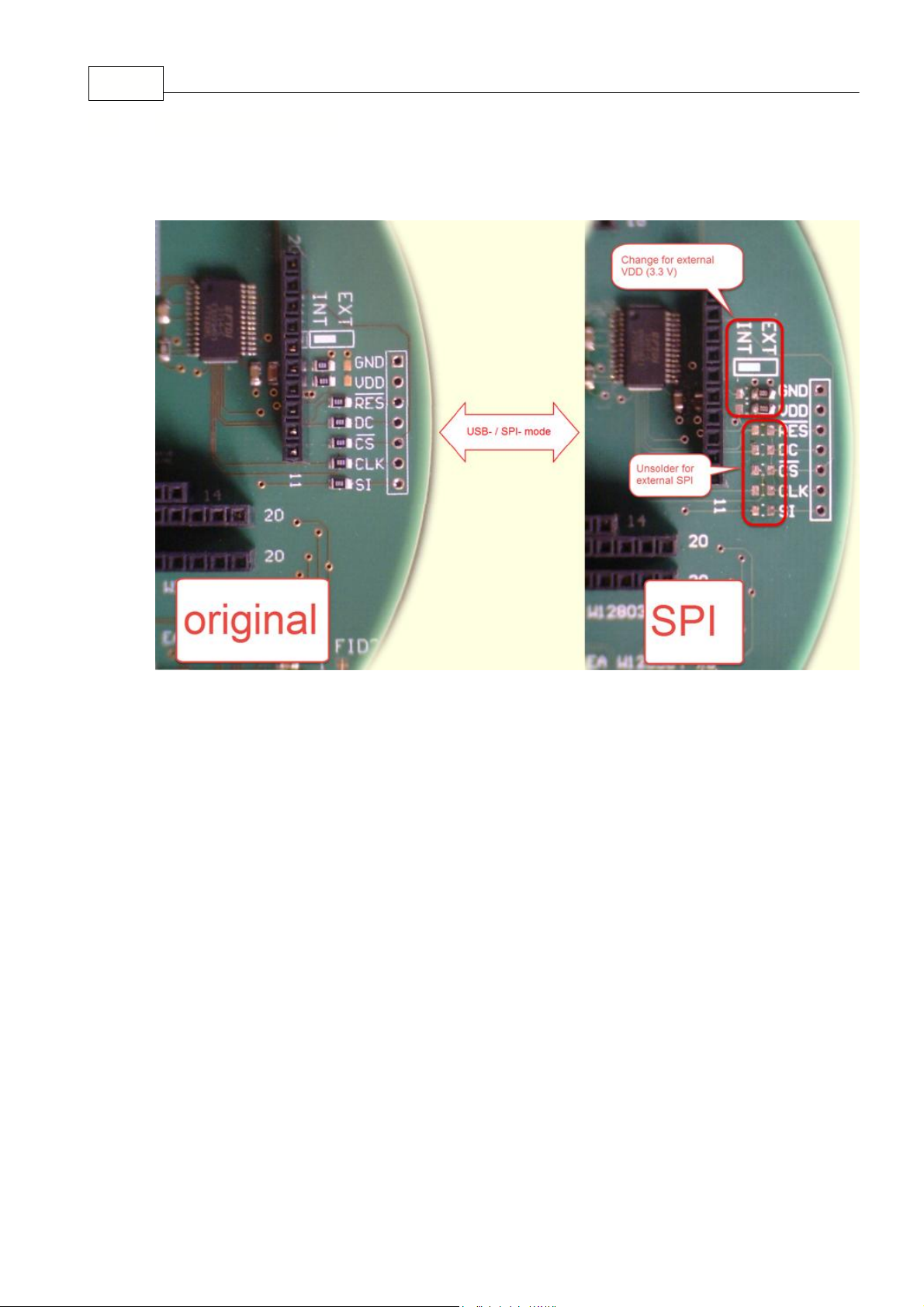
If you want to connect your microcontroller to EA USB 9781-2USB it is necessary to switch off the USB
connection.
5.2 External Interface
Page 27
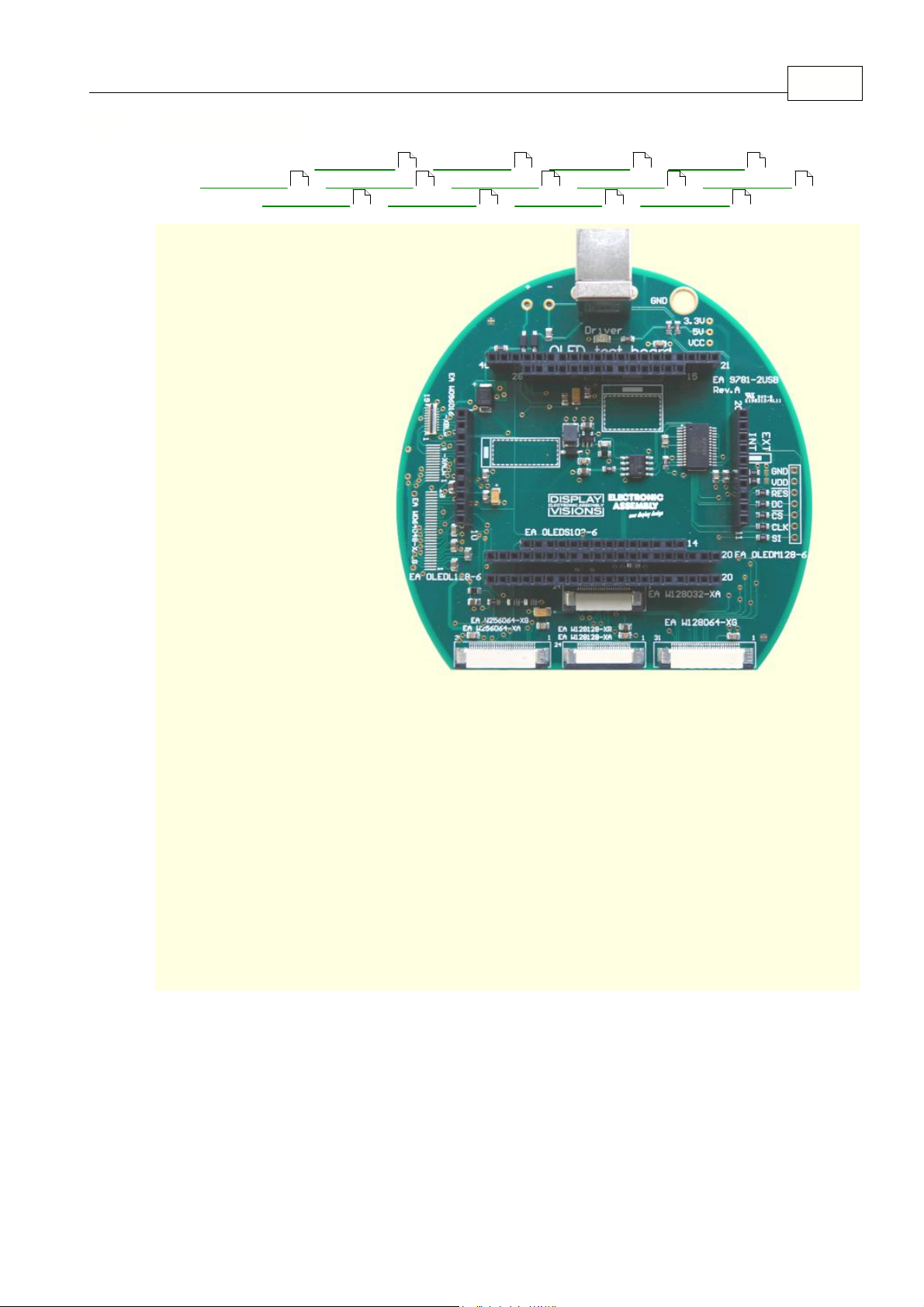
5.3 9781-2 EMPTY
EMPTY -
OLEDM204
-
OLEDS102
-
OLEDM128
-
OLEDL128
W096016XA
-
W096016XB
-
W064048XA
-
W128032XA
-
W128064XG
W128128XA
-
W128128XR
-
W256064XA
-
W256064XG
EA 9781-2USB 26
27 28 29 30
31 32 33 34 35
36 37 38 39
Page 28
EA StartOled help27
EMPTY
- OLEDM204 -
OLEDS102
-
OLEDM128
-
OLEDL128
W096016XA
-
W096016XB
-
W064048XA
-
W128032XA
-
W128064XG
W128128XA
-
W128128XR
-
W256064XA
-
W256064XG
5.4 9781-2 OLEDM204
26 28 29 30
31 32 33 34 35
36 37 38 39
Page 29
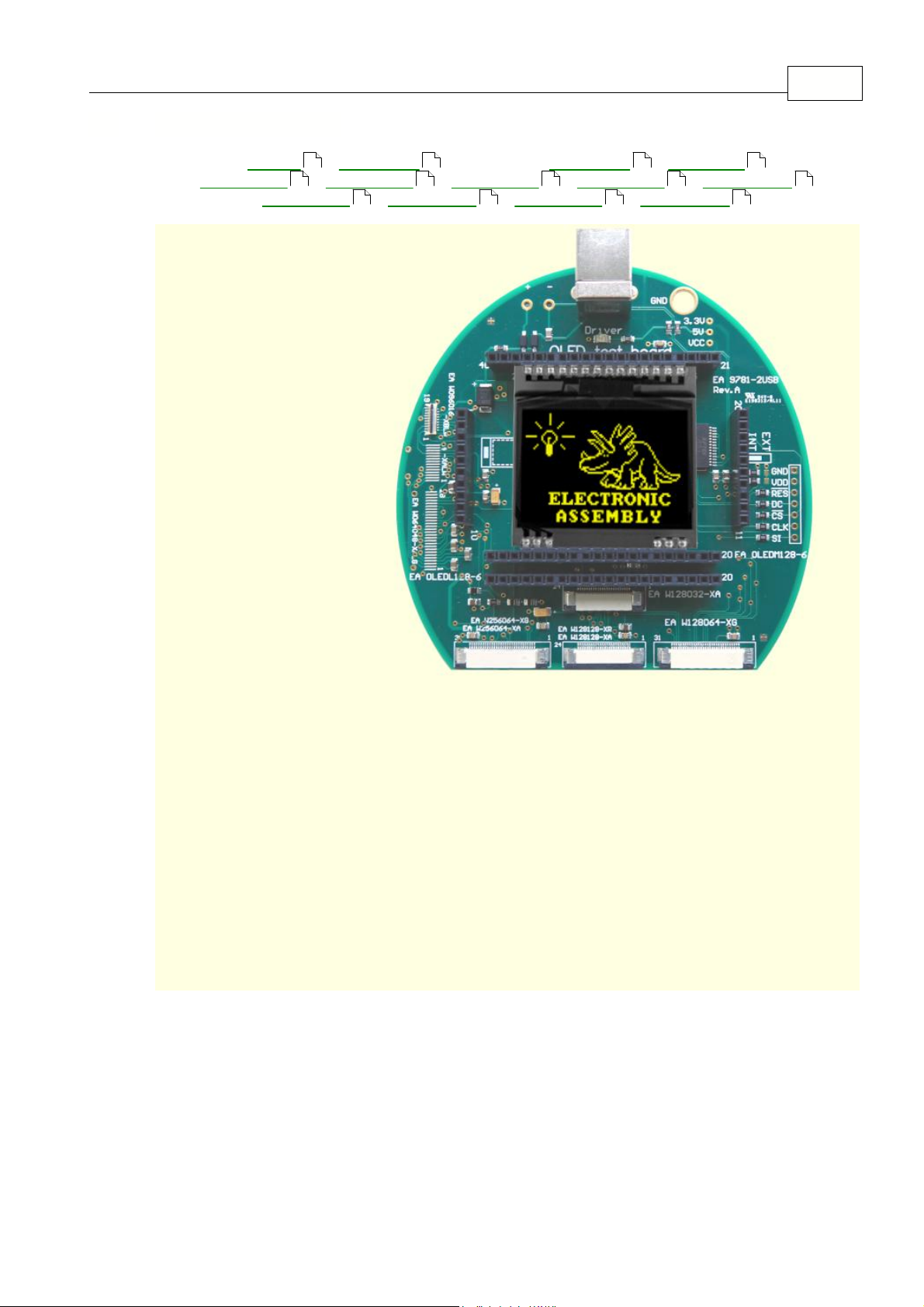
5.5 9781-2 OLEDS102
EMPTY
-
OLEDM204
- OLEDS102 -
OLEDM128
-
OLEDL128
W096016XA
-
W096016XB
-
W064048XA
-
W128032XA
-
W128064XG
W128128XA
-
W128128XR
-
W256064XA
-
W256064XG
26 27 29 30
31 32 33 34 35
EA 9781-2USB 28
36 37 38 39
Page 30
EA StartOled help29
EMPTY
-
OLEDM204
-
OLEDS102
- OLEDM128 -
OLEDL128
W096016XA
-
W096016XB
-
W064048XA
-
W128032XA
-
W128064XG
W128128XA
-
W128128XR
-
W256064XA
-
W256064XG
5.6 9781-2 OLEDM128
26 27 28 30
31 32 33 34 35
36 37 38 39
Page 31
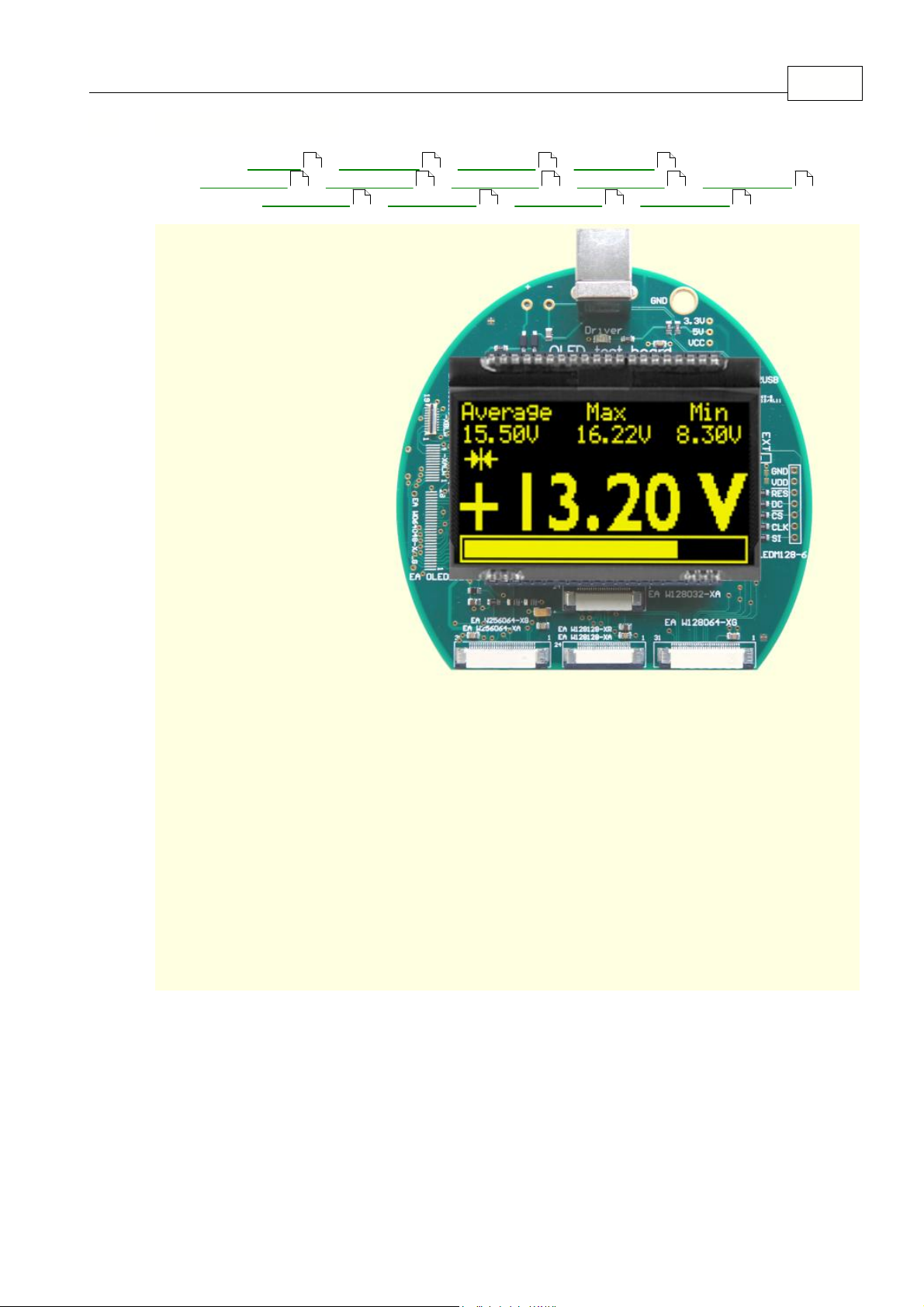
5.7 9781-2 OLEDL128
EMPTY
-
OLEDM204
-
OLEDS102
-
OLEDM128
- OLEDL128
W096016XA
-
W096016XB
-
W064048XA
-
W128032XA
-
W128064XG
W128128XA
-
W128128XR
-
W256064XA
-
W256064XG
26 27 28 29
31 32 33 34 35
EA 9781-2USB 30
36 37 38 39
Page 32
EA StartOled help31
EMPTY
-
OLEDM204
-
OLEDS102
-
OLEDM128
-
OLEDL128
W096016XA -
W096016XB
-
W064048XA
-
W128032XA
-
W128064XG
W128128XA
-
W128128XR
-
W256064XA
-
W256064XG
5.8 9781-2 W096016-XA
26 27 28 29 30
32 33 34 35
36 37 38 39
Page 33
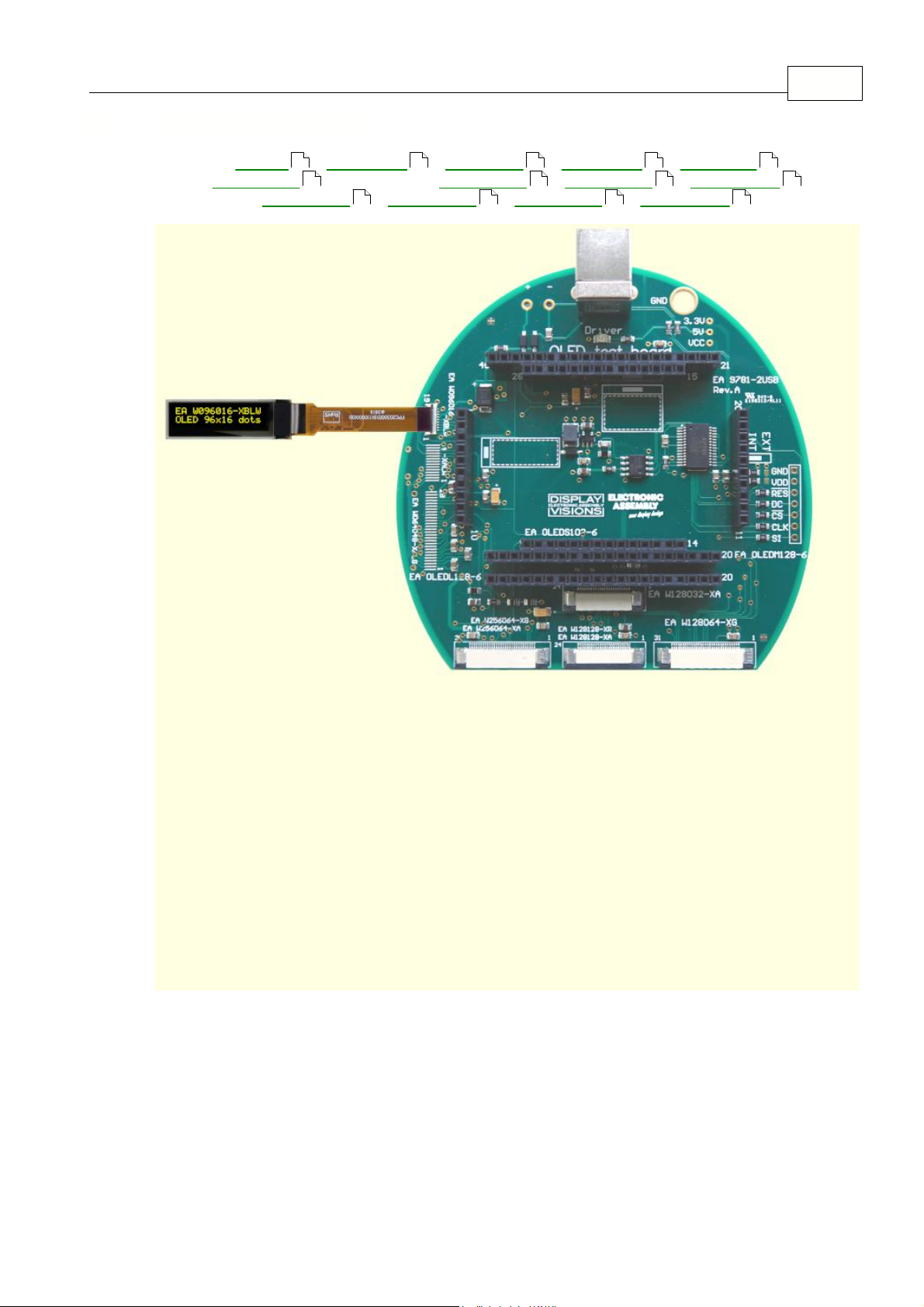
5.9 9781-2 W096016-XB
EMPTY
-
OLEDM204
-
OLEDS102
-
OLEDM128
-
OLEDL128
W096016XA
- W096016XB -
W064048XA
-
W128032XA
-
W128064XG
W128128XA
-
W128128XR
-
W256064XA
-
W256064XG
26 27 28 29 30
31 33 34 35
EA 9781-2USB 32
36 37 38 39
Page 34
EA StartOled help33
EMPTY
-
OLEDM204
-
OLEDS102
-
OLEDM128
-
OLEDL128
W096016XA
-
W096016XB
- W064048XA -
W128032XA
-
W128064XG
W128128XA
-
W128128XR
-
W256064XA
-
W256064XG
5.10 9781-2 W064048-XA
26 27 28 29 30
31 32 34 35
36 37 38 39
Page 35
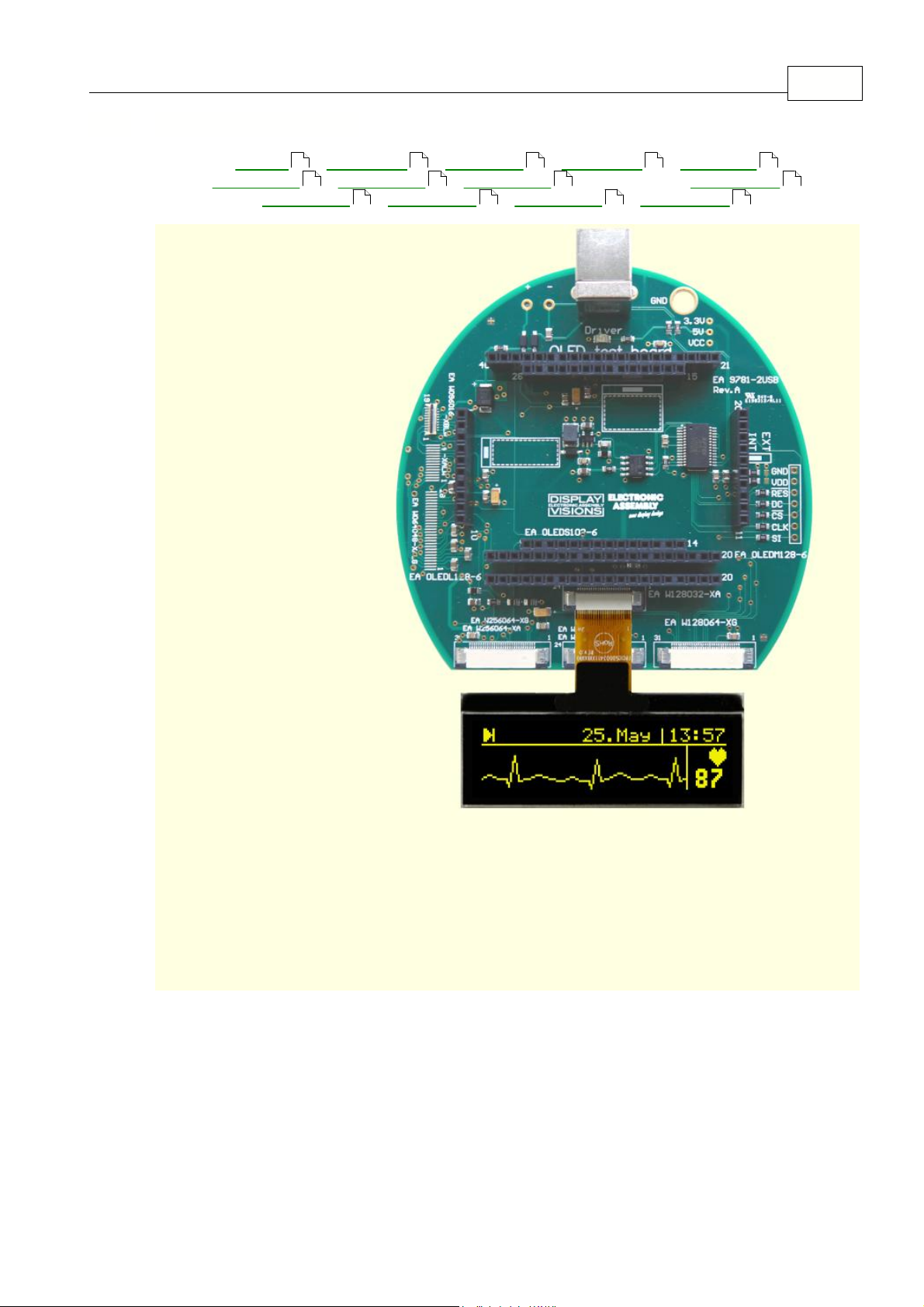
5.11 9781-2 W128032-XA
EMPTY
-
OLEDM204
-
OLEDS102
-
OLEDM128
-
OLEDL128
W096016XA
-
W096016XB
-
W064048XA
- W128032XA -
W128064XG
W128128XA
-
W128128XR
-
W256064XA
-
W256064XG
26 27 28 29 30
31 32 33 35
EA 9781-2USB 34
36 37 38 39
Page 36
EA StartOled help35
EMPTY
-
OLEDM204
-
OLEDS102
-
OLEDM128
-
OLEDL128
W096016XA
-
W096016XB
-
W064048XA
-
W128032XA
- W128064XG
W128128XA
-
W128128XR
-
W256064XA
-
W256064XG
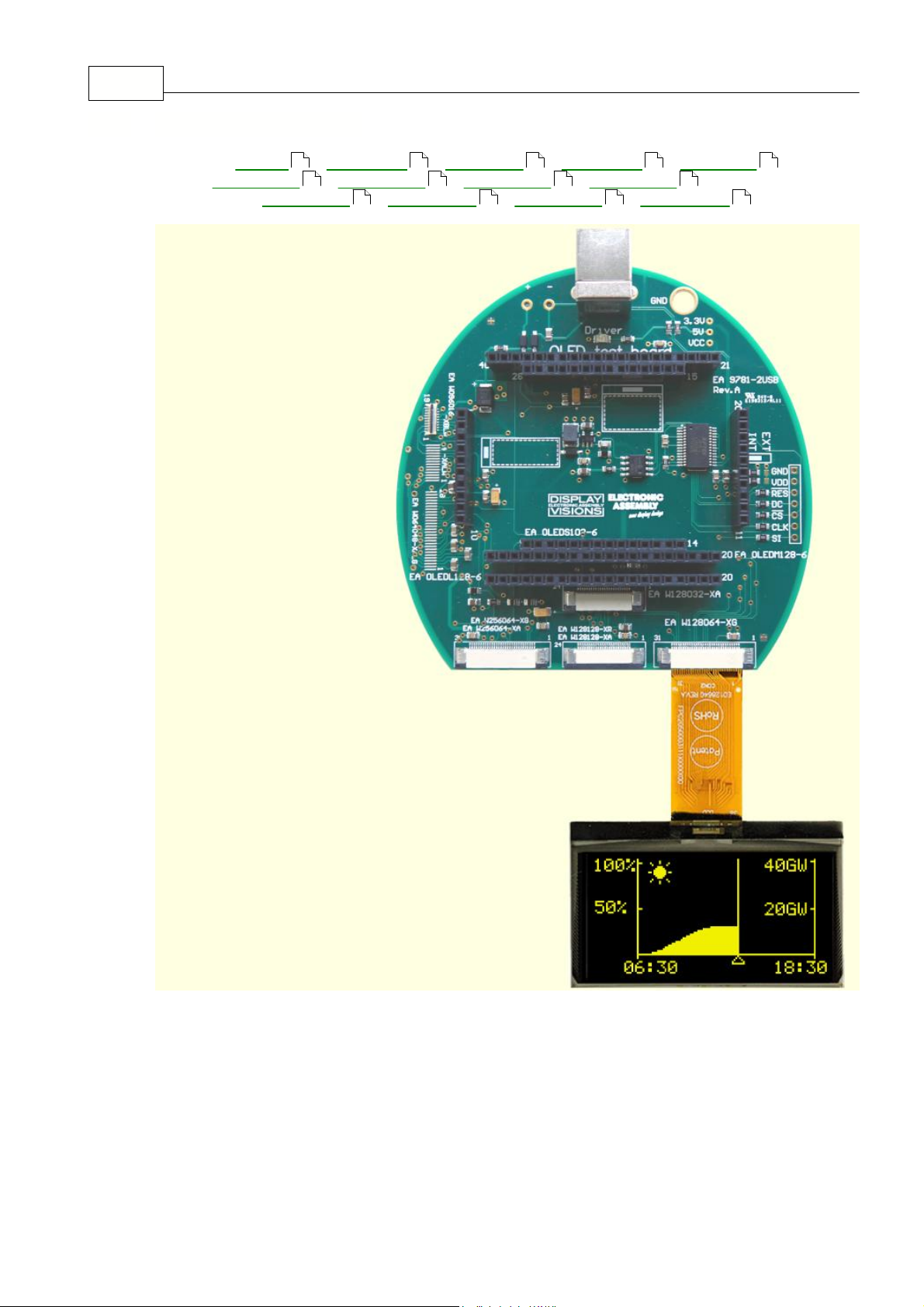
5.12 9781-2 W128064-XG
26 27 28 29 30
31 32 33 34
36 37 38 39
Page 37
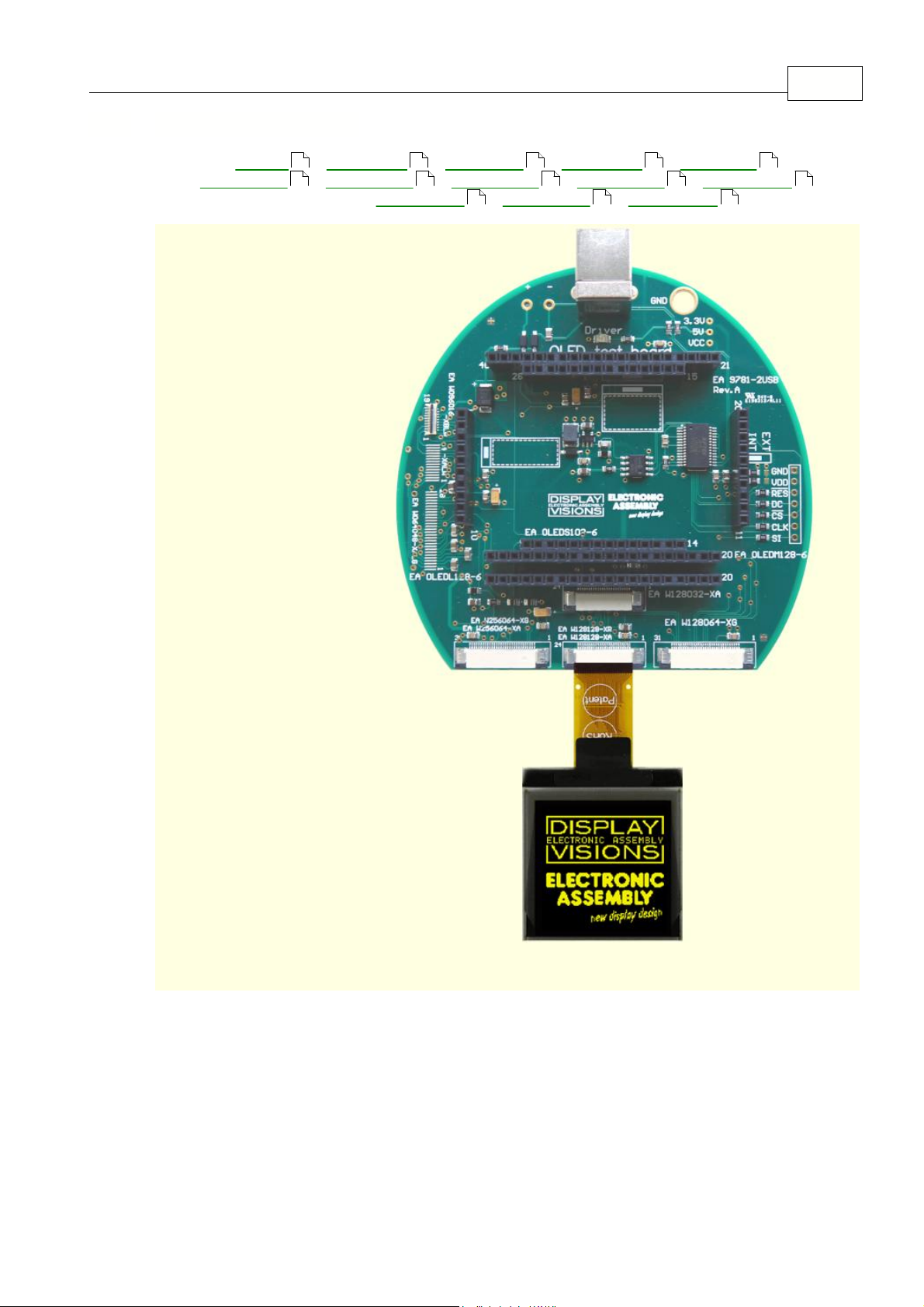
5.13 9781-2 W128128-XA
EMPTY
-
OLEDM204
-
OLEDS102
-
OLEDM128
-
OLEDL128
W096016XA
-
W096016XB
-
W064048XA
-
W128032XA
-
W128064XG
W128128XA -
W128128XR
-
W256064XA
-
W256064XG
26 27 28 29 30
31 32 33 34 35
EA 9781-2USB 36
37 38 39
Page 38
EA StartOled help37
EMPTY
-
OLEDM204
-
OLEDS102
-
OLEDM128
-
OLEDL128
W096016XA
-
W096016XB
-
W064048XA
-
W128032XA
-
W128064XG
W128128XA
- W128128XR -
W256064XA
-
W256064XG
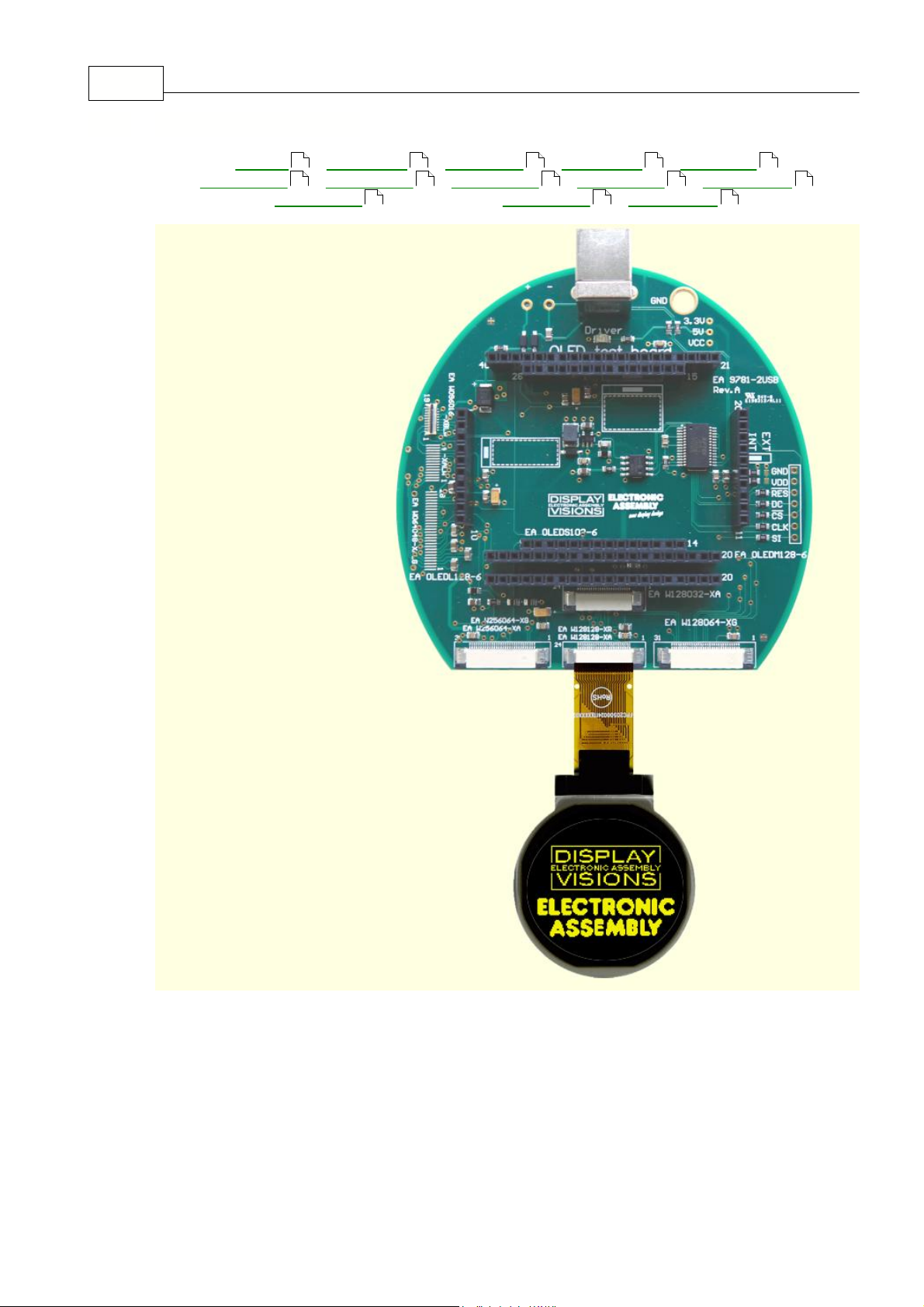
5.14 9781-2 W128128-XR
26 27 28 29 30
31 32 33 34 35
36 38 39
Page 39
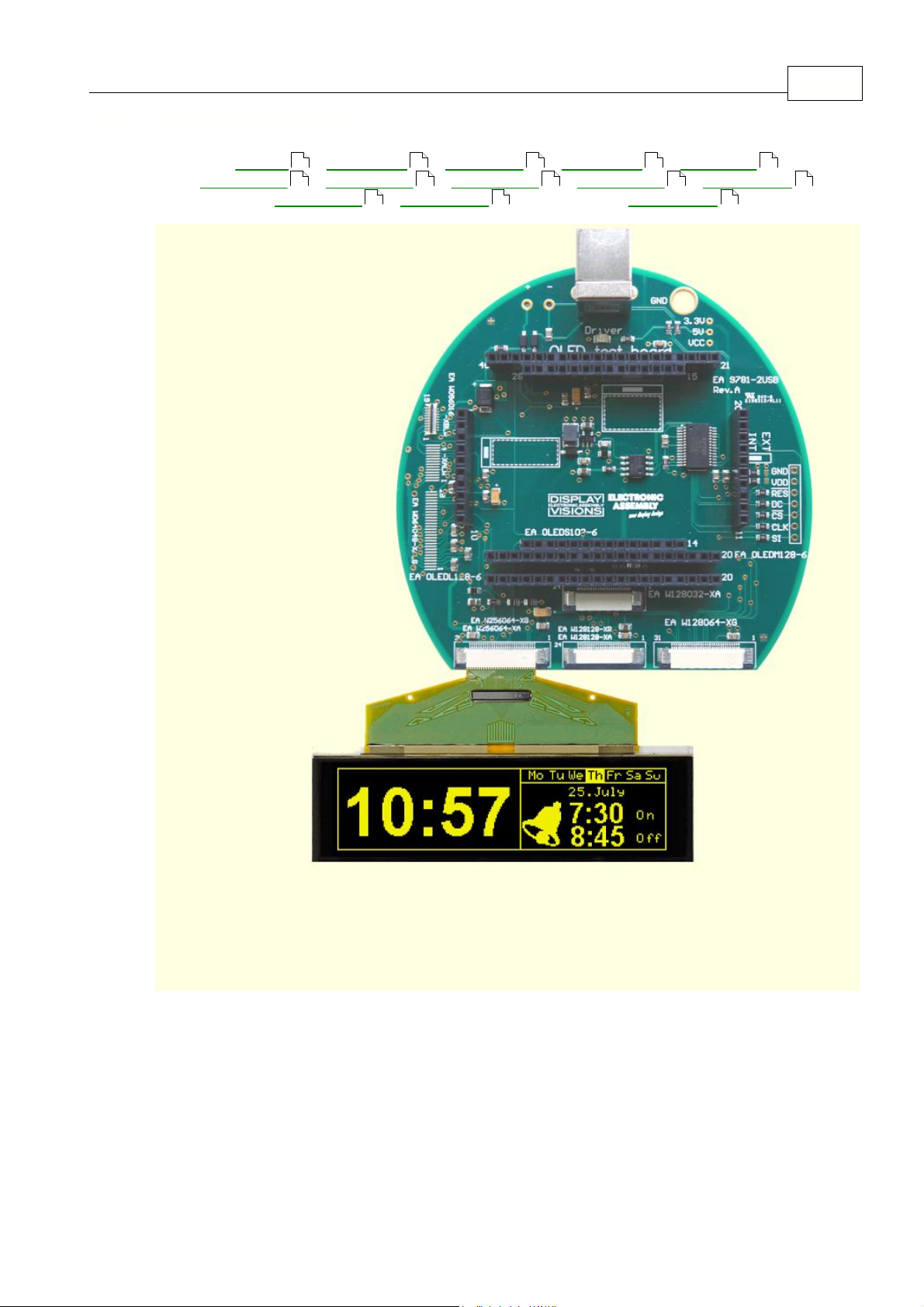
5.15 9781-2 W256064-XA
EMPTY
-
OLEDM204
-
OLEDS102
-
OLEDM128
-
OLEDL128
W096016XA
-
W096016XB
-
W064048XA
-
W128032XA
-
W128064XG
W128128XA
-
W128128XR
- W256064XA -
W256064XG
26 27 28 29 30
31 32 33 34 35
EA 9781-2USB 38
36 37 39
Page 40
EA StartOled help39
EMPTY
-
OLEDM204
-
OLEDS102
-
OLEDM128
-
OLEDL128
W096016XA
-
W096016XB
-
W064048XA
-
W128032XA
-
W128064XG
W128128XA
-
W128128XR
-
W256064XA
- W256064XG
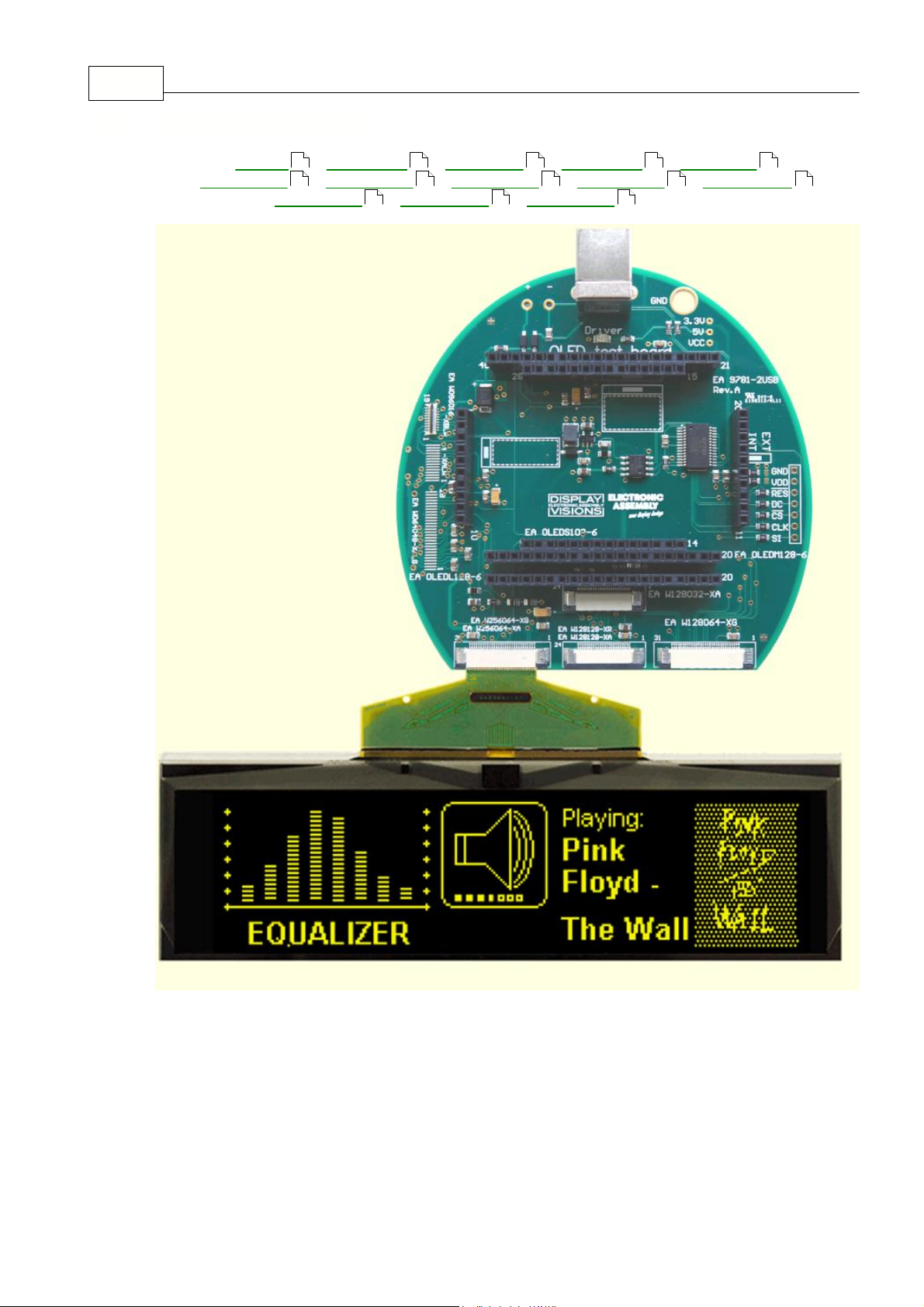
5.16 9781-2 W256064-XG
26 27 28 29 30
31 32 33 34 35
36 37 38
Page 41
6 Individual Pictures/Text
How to bring Text/Pictures to the Display
By Simulator Software:
When you have double clicked to the startoled.exe,
immediately a demo page appears on the monitor, when a
EA 9781-2USB
the demo page appears as soon as the
right organization is chosen under the
OLED
pull down
button;
Additionally you can select under the
File
pull down
button the function Demo for other pictures/text;
By Keyboard:
Easiest way to get individual text to the displays is to click
under
File
to Power on Reset or Clear Display. A full
dot cursor appears blinking on the top left position. Now
you can type with the keyboard the text you want to show
in the display. When the line is full it writes to the next line,
when it is at the end of the last line it shifts all content 1
line higher and writes again to the last line.
Individual Pictures/Text:
If you want that the demo starts with your own text you
can change the text files in the folder StartOled
(OLEDM204_x.txt) and save it. Immediately the program
will take the new file and show your text.
If you want to show your own graphic file you should copy
it into the bitmap files in the folder StartOled
(OLEDxxx.bmp) and save it. Immediately the program will
take the new file and will show your graphic.
Also you can take a bmp- or text file with the mouse and
drop it on the display area, it will include it.
Notes:
The bmp-file must be a black and white one without gray
scales and must not be bigger than the display resolution.
Otherwise you will get an error note on the screen. Only
1pc.
EA 9781-2USB
can be connected to a PC;
Individual Pictures/Text 40
24
7
5
5
24
Page 42

EA StartOled help41
No Demo appears on the display plugged to the EA 9781-2USB
Please click in the menu
Help
the button About;
The display may be damaged;
"
Board:
not connected
" please check:
Is the USB-cable plugged in well on both sides;
Is the USB driver installed on the PC;
The test board
EA 9781-2USB
may be damaged;
Nothing is seen on the display:
The display pins are not correct plugged in;
Is the right display type selected in the
OLED
Menu;
The display may be damaged;
7 Troubleshooting
10
24
7
 Loading...