

Page 1
You must have at least the following:
• An Apple PowerBook running Mac OS X (10.3.x *) with an available 32-bit Cardbus
slot
• An 802.11g or 802.11b Access Point (for Infrastructure Mode) or another 802.11g
or 802.11b wireless adapter (for Ad-Hoc; Peer-to-Peer networking mode.)
AirAir
AirAir
Air
PlusPlus
PlusPlus
Plus
™™
™™
™
G G
G G
G
802.11g/2.4GHz802.11g/2.4GHz
802.11g/2.4GHz802.11g/2.4GHz
802.11g/2.4GHz
Wireless Cardbus Adapter Wireless Cardbus Adapter
Wireless Cardbus Adapter Wireless Cardbus Adapter
Wireless Cardbus Adapter
DD
DD
D
WL-G650XWL-G650X
WL-G650XWL-G650X
WL-G650X
If any of the above items are missing, please contact your reseller.
CD-ROM (containing Drivers, Manual and Warranty)
This product works with the following operating
system software:
Macintosh OS X
(version 10.3.x *)
BefBef
BefBef
Bef
oror
oror
or
e Ye Y
e Ye Y
e Y
ou Beginou Begin
ou Beginou Begin
ou Begin
DWL-G650X AirPlus™ G 2.4GHz Wireless
Cardbus Adapter
Check YCheck Y
Check YCheck Y
Check Y
our Pour P
our Pour P
our P
ackack
ackack
ack
age Contentsage Contents
age Contentsage Contents
age Contents
These are the items included with your DWL-G650X purchase:
©2004 D-Link Systems, Inc. All rights reserved. Trademarks or registered trademarks are the property of
their respective holders. Software and specifications subject to change without notice. DWL-G650X.07082004
* Please visit http://support.dlink.com for a list of supported operating system versions.
Page 2
2
Installing the DWL-G650X Into Your
Computer
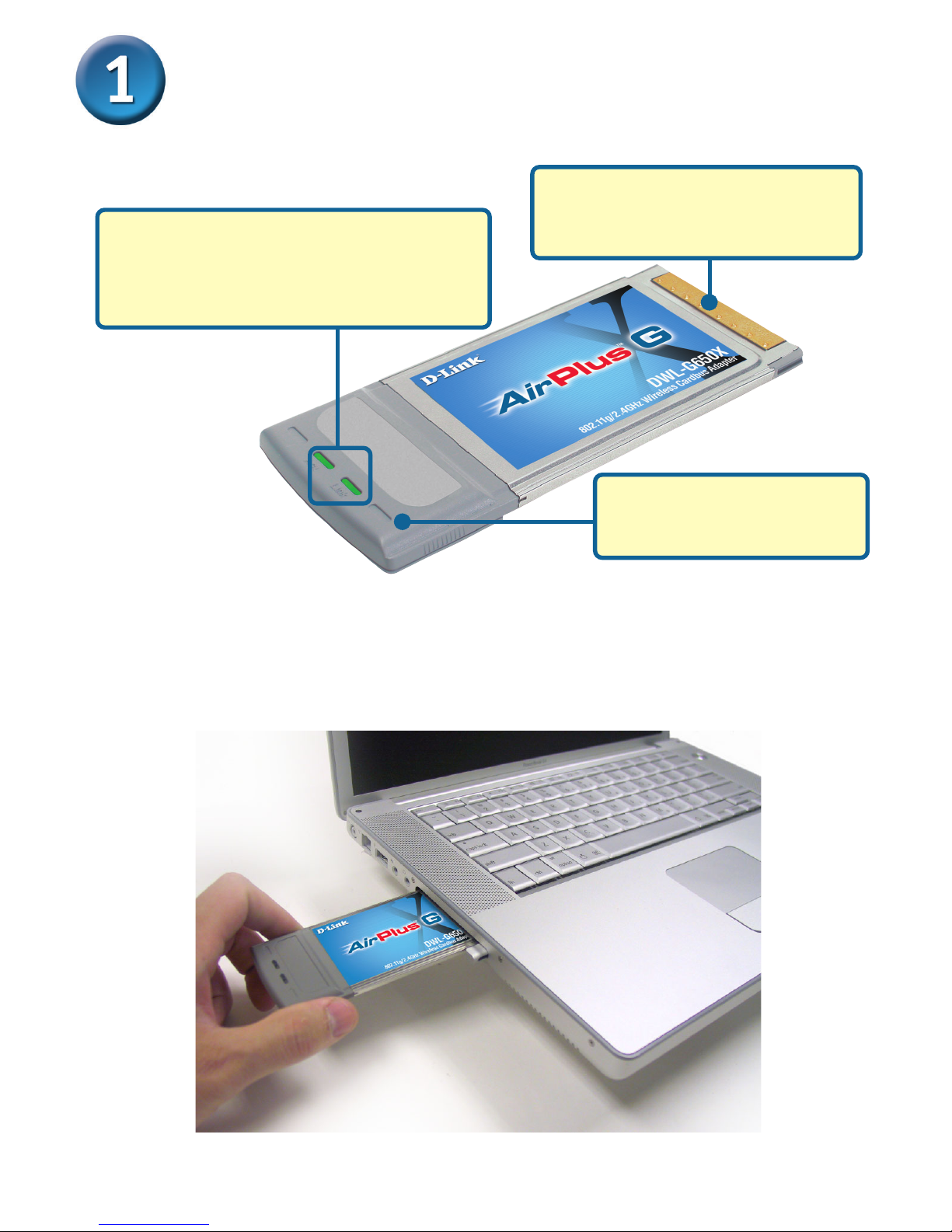
A. Locate the Cardbus slot on your laptop computer.
B. Gently insert the DWL-G650X into the Cardbus slot in your laptop
computer (as shown.)
Link/Activity LED
Indicates that the DWL-G650X is properly
installed when the computer is on and
blinks when data is being transmitted.
Antenna
Used to wirelessly connect
to 802.11b networks.
32-bit connector
This is the connector that fits into
the Cardbus slot of your laptop.
Page 3

3
Installing the DriversInstalling the Drivers
Installing the DriversInstalling the Drivers
Installing the Drivers
Double click the D-Link® icon
Insert the DWL-G650X Driver
CD into the CD-ROM drive.
Double-click D-Link
DWL-G650X.pkg
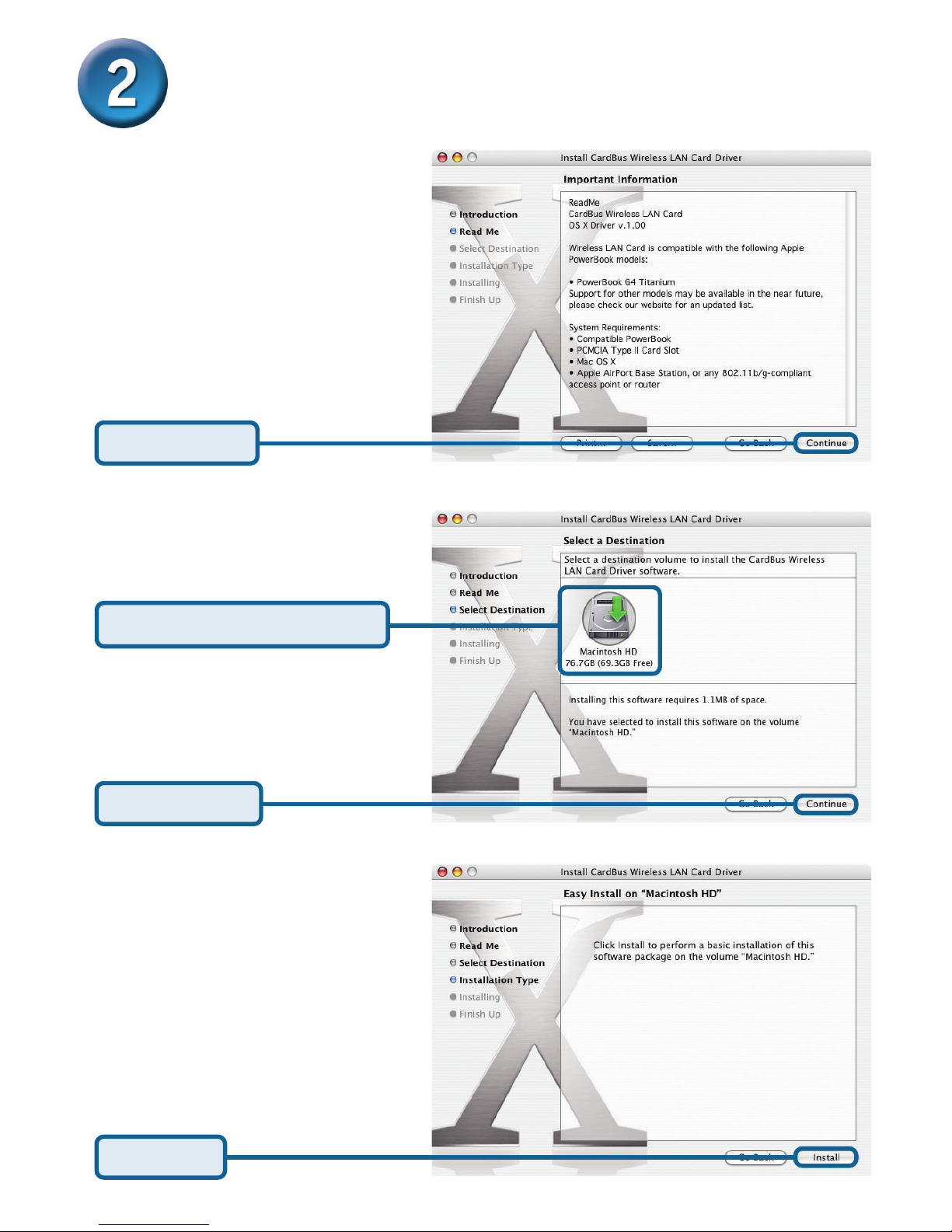
Click Continue
Page 4
4
Select a Destination Volume
Click Continue
Click Continue
Installing the Drivers (continued)Installing the Drivers (continued)
Installing the Drivers (continued)Installing the Drivers (continued)
Installing the Drivers (continued)
Click Install
Page 5
5
Installing the Drivers (continued)Installing the Drivers (continued)
Installing the Drivers (continued)Installing the Drivers (continued)
Installing the Drivers (continued)
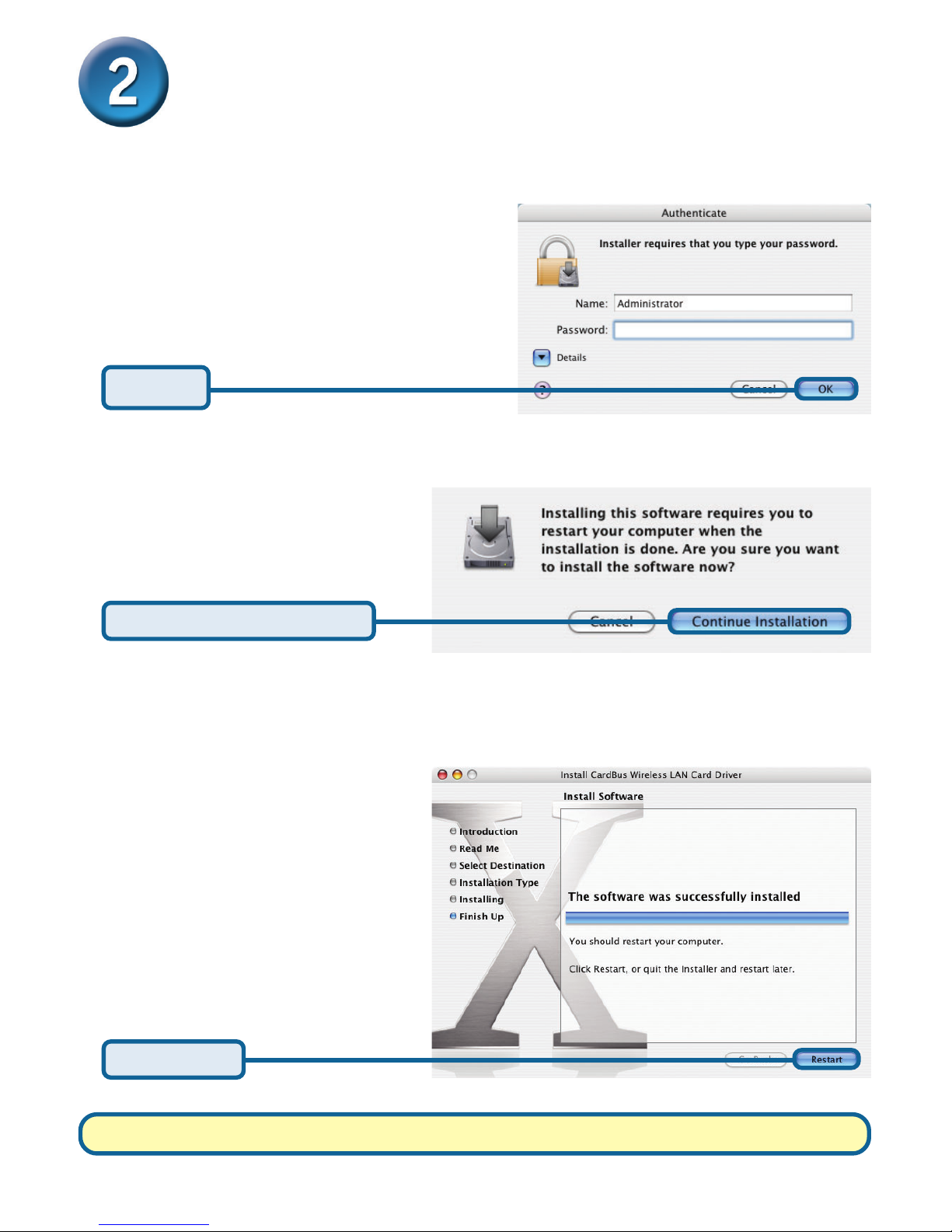
Click OK
Enter the name and password of a user
with administrative rights.
Click Continue Installation
Click Restart
Driver Installation is Complete!
Page 6
6
Connecting to YConnecting to Y
Connecting to YConnecting to Y
Connecting to Y
our Wirour Wir
our Wirour Wir
our Wir
eless Netweless Netw
eless Netweless Netw
eless Netw
orkork
orkork
ork
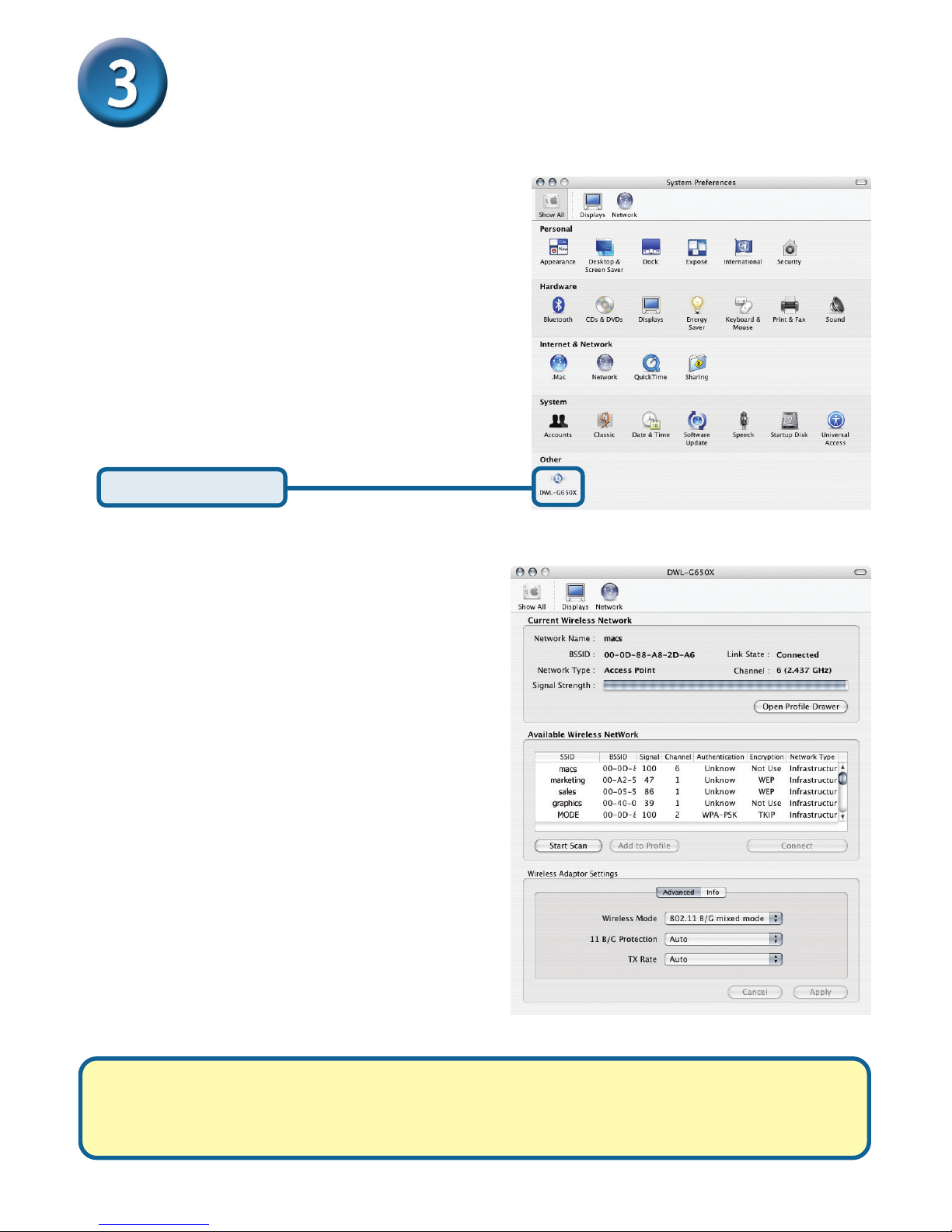
Click DWL-G650X
Go to the Apple Menu and
select System Preferences.
Scroll through the list of available
wireless networks. If the network
is not listed, click the Start Scan
button.
To connect to a wireless network,
locate the network in the list of
available networks and double
click on it.
If connecting to a network with a DHCP server then your configuration is complete!
If you need to assign a static IP address to your DWL-G650X, then please follow the
steps on the following page.
Page 7
7
Appendix - Assigning a Static IP Address to theAppendix - Assigning a Static IP Address to the
Appendix - Assigning a Static IP Address to theAppendix - Assigning a Static IP Address to the
Appendix - Assigning a Static IP Address to the
DWL-G650XDWL-G650X
DWL-G650XDWL-G650X
DWL-G650X
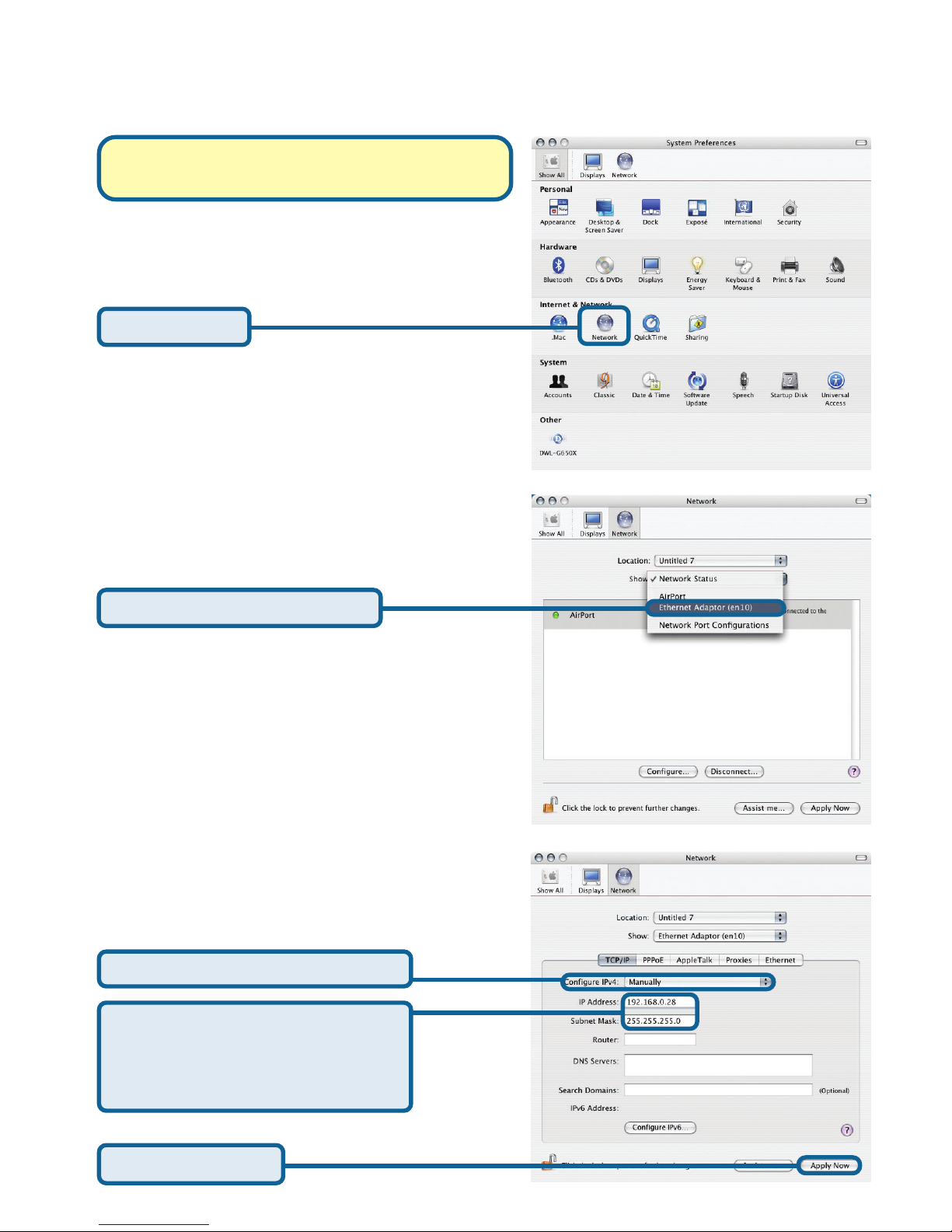
Select the Ethernet Adapter
Click Network
Go to the Apple Menu and
select System Preferences.
Note: Only perform these steps if you have
to assign a static IP address to your system.
Enter a unique IP address within
the same range as your network.
Enter the Subnet Mask of your
network.
Click Apply Now
Be sure Manually is selected.
Page 8
TT
TT
T
echniechni
echniechni
echni
cal Supportcal Support
cal Supportcal Support
cal Support
You can find software updates and user documentation on the D-Link website.
D-Link provides free technical support for customers within the United States and
within Canada for the duration of the warranty period on this product.
U.S. and Canadian customers can contact D-Link technical support through our
website, or by phone.
Tech Support for customers within the United States:
D-Link Technical Support over the Telephone:
(877) 453-5465
24 hours a day, seven days a week.
D-Link Technical Support over the Internet:
http://support.dlink.com
email:[email protected]
Tech Support for customers within Canada:
D-Link Technical Support over the Telephone:
(800) 361-5265
Monday to Friday 7:30am to 12:00am EST
D-Link Technical Support over the Internet:
http://support.dlink.ca
email:[email protected]
 Loading...