

Page 1

Model DP-101
Multiprotocol Ethernet
Print Server
Hardware Guide
Rev. 03 (October, 2000)
Page 2

ii
Limited Warranty
Hardware:
D-Link warrants each of its hardware products to be free from defects in workmanship and
materials under normal use and service for a period commencing on the date of purchase from
D-Link or its Authorized Reseller and extending for the length of time stipulated by the
Authorized Reseller or D-Link Branch Office nearest to the place of purchase.
This Warranty applies on the condition that the product Registration Card is filled out and
returned to a D-Link office within ninety (90) days of purchase. A list of D-Link offices is
provided at the back of this manual, together with a copy of the Registration Card.
If the product proves defective within the applicable warranty period, D-Link will provide repair
or replacement of the product. D-Link shall have the sole discretion whether to repair or replace,
and replacement product may be new or reconditioned. Replacement product shall be of
equivalent or better specifications, relative to the defective product, but need not be identical.
Any product or part repaired by D-Link pursuant to this warranty shall have a warranty period of
not less than 90 days, from date of such repair, irrespective of any earlier expiration of original
warranty period. When D-Link provides replacement, then the defective product becomes the
property of D-Link.
Warranty service may be obtained by contacting a D-Link office within the applicable warranty
period, and requesting a Return Material Authorization (RMA) number. If a Registration Card
for the product in question has not been returned to D-Link, then a proof of purchase (such as a
copy of the dated purchase invoice) must be provided. If Purchaser's circumstances require
special handling of warranty correction, then at the time of requesting RMA number, Purchaser
may also propose special procedure as may be suitable to the case.
After an RMA number is issued, the defective product must be packaged securely in the original
or other suitable shipping package to ensure that it will not be damaged in transit, and the RMA
number must be prominently marked on the outside of the package. The package must be mailed
or otherwise shipped to D-Link with all costs of mailing/shipping/insurance prepaid. D-Link shall
never be responsible for any software, firmware, information, or memory data of Purchaser
contained in, stored on, or integrated with any product returned to D-Link pursuant to this
warranty.
Any package returned to D-Link without an RMA number will be rejected and shipped back to
Purchaser at Purchaser's expense, and D-Link reserves the right in such a case to levy a
reasonable handling charge in addition mailing or shipping costs.
Software:
Warranty service for software products may be obtained by contacting a D-Link office within the
applicable warranty period. A list of D-Link offices is provided at the back of this manual,
together with a copy of the Registration Card. If a Registration Card for the product in question
has not been returned to a D-Link office, then a proof of purchase (such as a copy of the dated
purchase invoice) must be provided when requesting warranty service. The term "purchase" in
this software warranty refers to the purchase transaction and resulting license to use such
software.
D-Link warrants that its software products will perform in substantial conformance with the
applicable product documentation provided by D-Link with such software product, for a period of
ninety (90) days from the date of purchase from D-Link or its Authorized Reseller. D-Link
warrants the magnetic media, on which D-Link provides its software product, against failure
during the same warranty period. This warranty applies to purchased software, and to
replacement software provided by D-Link pursuant to this warranty, but shall not apply to any
update or replacement which may be provided for download via the Internet, or to any update
which may otherwise be provided free of charge.
D-Link's sole obligation under this software warranty shall be to replace any defective software
product with product which substantially conforms to D-Link's applicable product documentation.
Purchaser assumes responsibility for the selection of appropriate application and system/platform
Page 3

iii
software and associated reference materials. D-Link makes no warranty that its software
products will work in combination with any hardware, or any application or system/platform
software product provided by any third party, excepting only such products as are expressly
represented, in D-Link's applicable product documentation as being compatible. D-Link's
obligation under this warranty shall be a reasonable effort to provide compatibility, but D-Link
shall have no obligation to provide compatibility when there is fault in the third-party hardware
or software. D-Link makes no warranty that operation of its software products will be
uninterrupted or absolutely error-free, and no warranty that all defects in the software product,
within or without the scope of D-Link's applicable product documentation, will be corrected.
D-Link Offices for Registration and Warranty Service
The product's Registration Card, provided at the back of this manual, must be sent to a D-Link
office. To obtain an RMA number for warranty service as to a hardware product, or to obtain
warranty service as to a software product, contact the D-Link office nearest you.
An address/ telephone/fax/e-mail/Web site list of D-Link offices is provided in the back of this
manual.
LIMITATION OF WARRANTIES
IF THE D-LINK PRODUCT DOES NOT OPERATE AS WARRANTED ABOVE, THE
CUSTOMER'S SOLE REMEDY SHALL BE, AT D-LINK'S OPTION, REPAIR OR
REPLACEMENT. THE FOREGOING WARRANTIES AND REMEDIES ARE EXCLUSIVE AND
ARE IN LIEU OF ALL OTHER WARRANTIES, EXPRESSED OR IMPLIED, EITHER IN FACT
OR BY OPERATION OF LAW, STATUTORY OR OTHERWISE, INCLUDING WARRANTIES OF
MERCHANTABILITY AND FITNESS FOR A PARTICULAR PURPOSE. D-LINK NEITHER
ASSUMES NOR AUTHORIZES ANY OTHER PERSON TO ASSUME FOR IT ANY OTHER
LIABILITY IN CONNECTION WITH THE SALE, INSTALLATION MAINTENANCE OR USE
OF D-LINK'S PRODUCTS
D-LINK SHALL NOT BE LIABLE UNDER THIS WARRANTY IF ITS TESTING AND
EXAMINATION DISCLOSE THAT THE ALLEGED DEFECT IN THE PRODUCT DOES NOT
EXIST OR WAS CAUSED BY THE CUSTOMER'S OR ANY THIRD PERSON'S MISUSE,
NEGLECT, IMPROPER INSTALLATION OR TESTING, UNAUTHORIZED ATTEMPTS TO
REPAIR, OR ANY OTHER CAUSE BEYOND THE RANGE OF THE INTENDED USE, OR BY
ACCIDENT, FIRE, LIGHTNING OR OTHER HAZARD.
LIMITATION OF LIABILITY
IN NO EVENT WILL D-LINK BE LIABLE FOR ANY DAMAGES, INCLUDING LOSS OF DATA, LOSS OF
PROFITS, COST OF COVER OR OTHER INCIDENTAL, CONSEQUENTIAL OR INDIRECT DAMAGES
ARISING OUT THE INSTALLATION, MAINTENANCE, USE, PERFORMANCE, FAILURE OR
INTERRUPTION OF A D- LINK PRODUCT, HOWEVER CAUSED AND ON ANY THEORY OF
LIABILITY. THIS LIMITATION WILL APPLY EVEN IF D-LINK HAS BEEN ADVISED OF THE
POSSIBILITY OF SUCH DAMAGE.
IF YOU PURCHASED A D-LINK PRODUCT IN THE UNITED STATES, SOME STATES DO NOT ALLOW
THE LIMITATION OR EXCLUSION OF LIABILITY FOR INCIDENTAL OR CONSEQUENTIAL
DAMAGES, SO THE ABOVE LIMITATION MAY NOT APPLY TO YOU.
Trademarks
Copyright 2000 D-Link Corporation.
Contents subject to change without prior notice.
D-Link is a registered trademark of D-Link Corporation/D-Link Systems, Inc.
All other trademarks belong to their respective proprietors.
Copyright Statement
No part of this publication may be reproduced in any form or by any means or used to make any
derivative such as translation, transformation, or adaptation without permission from D-Link
Corporation/D-Link Systems Inc., as stipulated by the United States Copyright Act of 1976.
Page 4

iv
Wichtige Sicherheitshinweise
1. Bitte lesen Sie sich diese Hinweise sorgfältig durch.
2. Heben Sie diese Anleitung für den spätern Gebrauch auf.
3. Vor jedem Reinigen ist das Gerät vom Stromnetz zu trennen. Vervenden Sie keine Flüssigoder Aerosolreiniger. Am besten dient ein angefeuchtetes Tuch zur Reinigung.
4. Um eine Beschädigung des Gerätes zu vermeiden sollten Sie nur Zubehörteile verwenden, die
vom Hersteller zugelassen sind.
5. Das Gerät is vor Feuchtigkeit zu schützen.
6. Bei der Aufstellung des Gerätes ist auf sichern Stand zu achten. Ein Kippen oder Fallen
könnte Verletzungen hervorrufen. Verwenden Sie nur sichere Standorte und beachten Sie die
Aufstellhinweise des Herstellers.
7. Die Belüftungsöffnungen dienen zur Luftzirkulation die das Gerät vor Überhitzung schützt.
Sorgen Sie dafür, daß diese Öffnungen nicht abgedeckt werden.
8. Beachten Sie beim Anschluß an das Stromnetz die Anschlußwerte.
9. Die Netzanschlußsteckdose muß aus Gründen der elektrischen Sicherheit einen
Schutzleiterkontakt haben.
10.Verlegen Sie die Netzanschlußleitung so, daß niemand darüber fallen kann. Es sollete auch
nichts auf der Leitung abgestellt werden.
11.Alle Hinweise und Warnungen die sich am Geräten befinden sind zu beachten.
12.Wird das Gerät über einen längeren Zeitraum nicht benutzt, sollten Sie es vom Stromnetz
trennen. Somit wird im Falle einer Überspannung eine Beschädigung vermieden.
13.Durch die Lüftungsöffnungen dürfen niemals Gegenstände oder Flüssigkeiten in das Gerät
gelangen. Dies könnte einen Brand bzw. Elektrischen Schlag auslösen.
14.Öffnen Sie niemals das Gerät. Das Gerät darf aus Gründen der elektrischen Sicherheit nur
von authorisiertem Servicepersonal geöffnet werden.
15.Wenn folgende Situationen auftreten ist das Gerät vom Stromnetz zu trennen und von einer
qualifizierten Servicestelle zu überprüfen:
a –Netzkabel oder Netzstecker sint beschädigt.
b –Flüssigkeit ist in das Gerät eingedrungen.
c – Das Gerät war Feuchtigkeit ausgesetzt.
d –Wenn das Gerät nicht der Bedienungsanleitung ensprechend funktioniert oder Sie mit
Hilfe dieser Anleitung keine Verbesserung erzielen.
e –Das Gerät ist gefallen und/oder das Gehäuse ist beschädigt.
f – Wenn das Gerät deutliche Anzeichen eines Defektes aufweist.
16.Bei Reparaturen dürfen nur Orginalersatzteile bzw. den Orginalteilen entsprechende Teile
verwendet werden. Der Einsatz von ungeeigneten Ersatzteilen kann eine weitere
Beschädigung hervorrufen.
17.Wenden Sie sich mit allen Fragen die Service und Repartur betreffen an Ihren Servicepartner.
Somit stellen Sie die Betriebssicherheit des Gerätes sicher.
18. Zum Netzanschluß dieses Gerätes ist eine geprüfte Leitung zu verwenden, Für einen
Nennstrom bis 6A und einem Gerätegewicht großer 3kg ist eine Leitung nicht leichter als
H05VV-F, 3G, 0.75mm2 einzusetzen.
Page 5
v
FCC Warning
This equipment has been tested and found to comply with the limits for a Class A device, pursuant to part
15 of the FCC Rules. These limits are designed to provide reasonable protection against harmful
interference when the equipment is operated in a commercial environment. This equipment generates, uses,
and can radiate radio frequency energy and, if not installed and used in accordance with the instruction
manual, may cause harmful interference to radio communications. Operation of this equipment in an
residential area is likely t cause harmful interference in which case the user will vbe required to correct the
interference at his own expense.
1. This device may not cause harmful interference.
2. This device must accept any interfernece received, including interference that may cause
undesired operation.
CE Mark Warning
Warning
This is a Class A product. In a domestic environment, this product may cause radio interference
in which case the user may be required to take adequate measures.
Warnung!
Dies ist ein Produkt der Klasse A. Im Wohnbereich kann dieses Produkt Funkstoerungen
verursachen. In diesem Fall kann vom Benutzer verlangt werden, angemessene Massnahmen zu
ergreifen.
Precaución!
Este es un producto de Clase A. En un entorno doméstico, puede causar interferencias de radio,
en cuyo case, puede requerirse al usuario para que adopte las medidas adecuadas.
Attention!
Ceci est un produit de classe A. Dans un environnement domestique, ce produit pourrait causer
des interférences radio, auquel cas l`utilisateur devrait prendre les mesures adéquates.
Attenzione!
Il presente prodotto appartiene alla classe A. Se utilizzato in ambiente domestico il prodotto può
causare interferenze radio, nel cui caso è possibile che l`utente debba assumere provvedimenti
adeguati.
BSMI Warning
VCCI A Warning
Page 6

Page 7

T
ABLE OF CONTENTS
1 ABOUT THIS GUIDE .................................................................................................................................. 1
2 INTRODUCTION ......................................................................................................................................... 2
S
ERVICE FEATURES
.............................................................................................................................................. 2
E
XTERNAL FEATURES
.......................................................................................................................................... 3
Front End ........................................................................................................................................................3
Rear End.......................................................................................................................................................... 3
3 UNPACKING AND INSTALLATION........................................................................................................ 5
U
NPACKING AND INSPECTING
............................................................................................................................... 5
I
NSTALLING THE
DP-101...................................................................................................................................... 5
P
OWER-UP AND SELF-TEST
.................................................................................................................................. 6
LED Test Series ............................................................................................................................................... 6
Component Test Series .................................................................................................................................... 6
Operational Test.............................................................................................................................................. 7
4 PRODUCT SPECIFICATIONS................................................................................................................... 8
5 PORT PINOUTS ........................................................................................................................................... 9
6 INDEX .......................................................................................................................................................... 10
0
Page 8

Page 9

DP-101 Print Server Hardware Guide
About this Guide
1
1 A
BOUT THIS
G
UIDE
This manual describes the D-Link DP-101 Multiprotocol Ethernet Print Server, including full
descriptions of its features, detailed installation procedures, and troubleshooting information.
Your DP-101 package includes important software components, and additional user manuals. The
software components, and procedures for installation and setup of the software, are covered in
the PS Admin User’s Guide.
Page 10

DP-101 Print Server Hardware Guide
Introduction
2
1
2 I
NTRODUCTION
The DP-101 Print Server is a compact pocket-sized print server which connects your Ethernet
network directly to your printer, wherever it is. It manages the flow of print files from your
workstations or file servers to its connected printers, delivering print jobs to high-performance
printers much faster than a file server or a PC acting as a print server can.
Service Features
DP-101 print servers improve network printing services in three ways:
♦ The DP-101 picks up the workload of managing print file traffic to its connected printers. This
provides workload relief to your file servers, and allows the file servers' full capacity to be used
for file access or other direct services to network users. On peer-to-peer networks, workstations
can print directly to the DP-101 without increasing the load of another workstation or server.
♦ The DP-101's IEEE 1284 compliant high-speed bi-directional parallel printer port can transmit
to high-speed laser printers much faster than a PC's parallel printer port. A high-speed laser
printer can be driven at its full capacity.
♦ Because the DP-101 is very portable (pocket-sized) and inexpensive compared to a PC-based
print server, and because the DP-101 connects to your file servers through the network, the
printer can be stationed at the location of maximum convenience to users.
The DP-101 offers extraordinary flexibility, operating with all major network operating systems
and protocols:
♦
IPX/SPX
Novell NetWare 3.x, 4.x (Using either bindery emulation or native NDS)
♦
TCP/IP
UNIX lpr/lpd (HP-UX, SunOS, Solaris, SCO, UnixWare, IBM AIX)
Windows NT
♦
NetBEUI
Windows NT, Windows 95, Windows for Workgroups, Microsoft LAN Manager, IBM LAN
Server
♦
AppleTalk
MacOS EtherTalk
Your D-Link DP-101 package includes PS Admin, a Windows-based setup and administration
program, which makes configu-ration and management of your D-Link print servers quick and
easy in a Windows environment. The DP-101 also has a Telnet interface for management
communications. If Windows is not available on the station you choose for print server
administration, then all configuration and management commands may be issued to the DP-101,
and all console messages and management report information will be returned, via Telnet.
Page 11
DP-101 Print Server Hardware Guide
Introduction
3
External Features
This section describes the external features of the DP-101 print server.
Front End
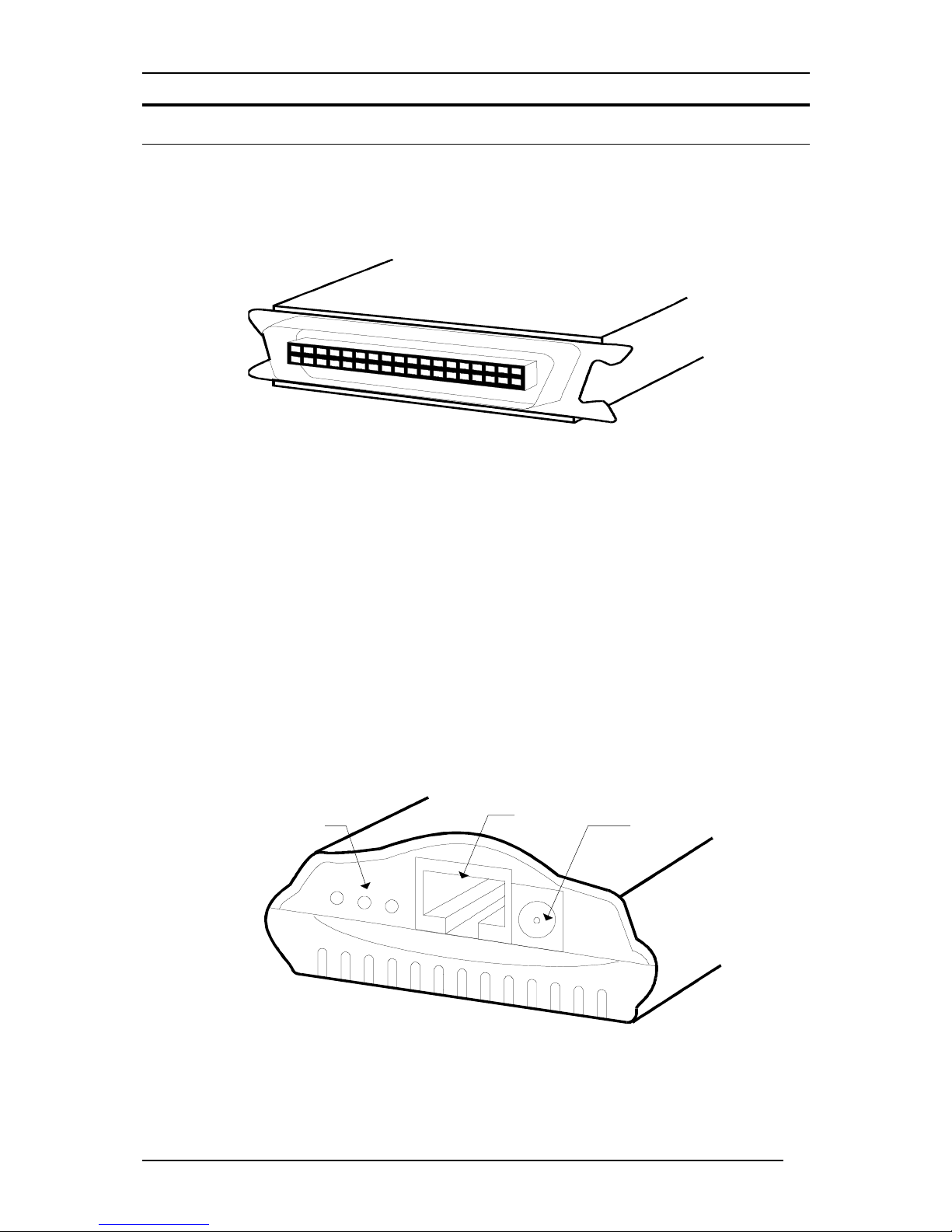
The DP-101 printer port is located at the front.
DP-101 Front End
Printer Port
The printer port, is configurable by commands in the PS Admin program, or by commands issued
to the DP-101 via Telnet. See the PS Admin User’s Guide for configuration procedures.
Rear End
The network port, power input socket, and LED indicators are all located at the rear .
Led Indicators
Network Port
DC Power
Input
DP-101 Rear End
Page 12

DP-101 Print Server Hardware Guide
Introduction
4
Network Port
The network port (
RJ-45
receptacle) provides for connection to the network through 10Base-T
Ethernet cabling.
DC Power Input
The DC power input socket uses a 7.5V power supply.
The power supply included in your DP-101 package is correct for the DP-101. Substitution of
other equipment may void warranty.
LED Indicators
The rear of the DP-101 includes three LED indicators. See "Power-up and Self-Test," Chapter 2,
for LED indications upon starting up the DP-101. During operations following a normal startup,
the LED indicators provide the following status signals:
♦
Pw/Tx
Steady or flashing green confirms power on.
This indicator blinks (briefly dark) when the DP-101 is transmitting to the network.
♦
Lk/Rx
Steady or flashing green confirms that the DP-101 has a good connection to the Ethernet
network.
This indicator blinks (briefly dark) when the DP-101 is receiving from the network.
♦
LPT
This indicator shows steady green while the DP-101 is transferring print data through its
printer port.
Page 13

DP-101 Print Server Hardware Guide
Unpacking and Installation
5
2
3 U
NPACKING AND INSTALLATION
This chapter explains how to install your DP-101 print server and connect it to the network. It
also describes the automatic power-on self test.
Unpacking and Inspecting
Carefully remove all items from the package. Please check to be certain that you have:
♦ One print server
♦ One AC power adapter suitable for AC power in your area
♦ One Installation CD-ROM
♦ One Multi-language Installation Guide
If any item is missing, or if you find any damage or mismatch, promptly contact your dealer for
assistance.
Installing the DP-101
Follow these steps for a trouble-free start of print-server operations with your DP-101. Please
take particular notice of the warning in step 4: the network connection should be made before
supplying power to the DP-101.
1.
Confirm proper operation of the printer to be connected to the DP-101.
2.
When you have confirmed proper operation of the printer, switch its power off.
3.
Confirm that your network is operating normally.
4.
Connect the DP-101 to the network (through the RJ-45 receptacle on the print server’s rear
end).
WARNING:
Configuration problems may result if the DP-101 is powered up without first
establishing its network connection. Follow this procedure to avoid complications at
the configuration stage.
5.
While the printer is power off, connect the DP-101 print server directly to the printer parallel
port.
6.
Switch printer power on.
7.
Plug the AC Power adapter’s output plug into the DC power input socket on the rear end of the
DP-101.
8.
Plug the AC Power adapter into an electric service outlet. This will supply power to the DP-
101. (The DP-101 has no power switch.) The DP-101’s self-test routines will proceed
automatically.
Page 14
DP-101 Print Server Hardware Guide
Unpacking and Installation
6
Power-up and Self-Test
Whenever the DP-101 is powered up, two kinds of testing procedures follow automatically. The
first procedure is just a programmed series of LED flashes, to confirm proper operation of the
three LED indicators. The second procedure comprises programmed tests of each of the DP-101's
major components. If any fault is found during the component test series, testing is halted and a
continuous pattern of LED flashes signals the nature of the fault.
LED Test Series
Immediately upon power-up, all three of the LED indicators will show steady green for several
seconds. Then the LPT indicator will flash three times while Pw/Tx and Lk/Rx remain steady.
Irregularity of any of the LEDs during this LED test series indicates that there is a problem with
the LEDs themselves. Contact your dealer for correction of any LED problems before proceeding.
Component Test Series
The actual component tests immediately follow the LED tests. A normal (no fault) result is
signaled by three flashes of the LPT indicator and the start of normal print server operation.
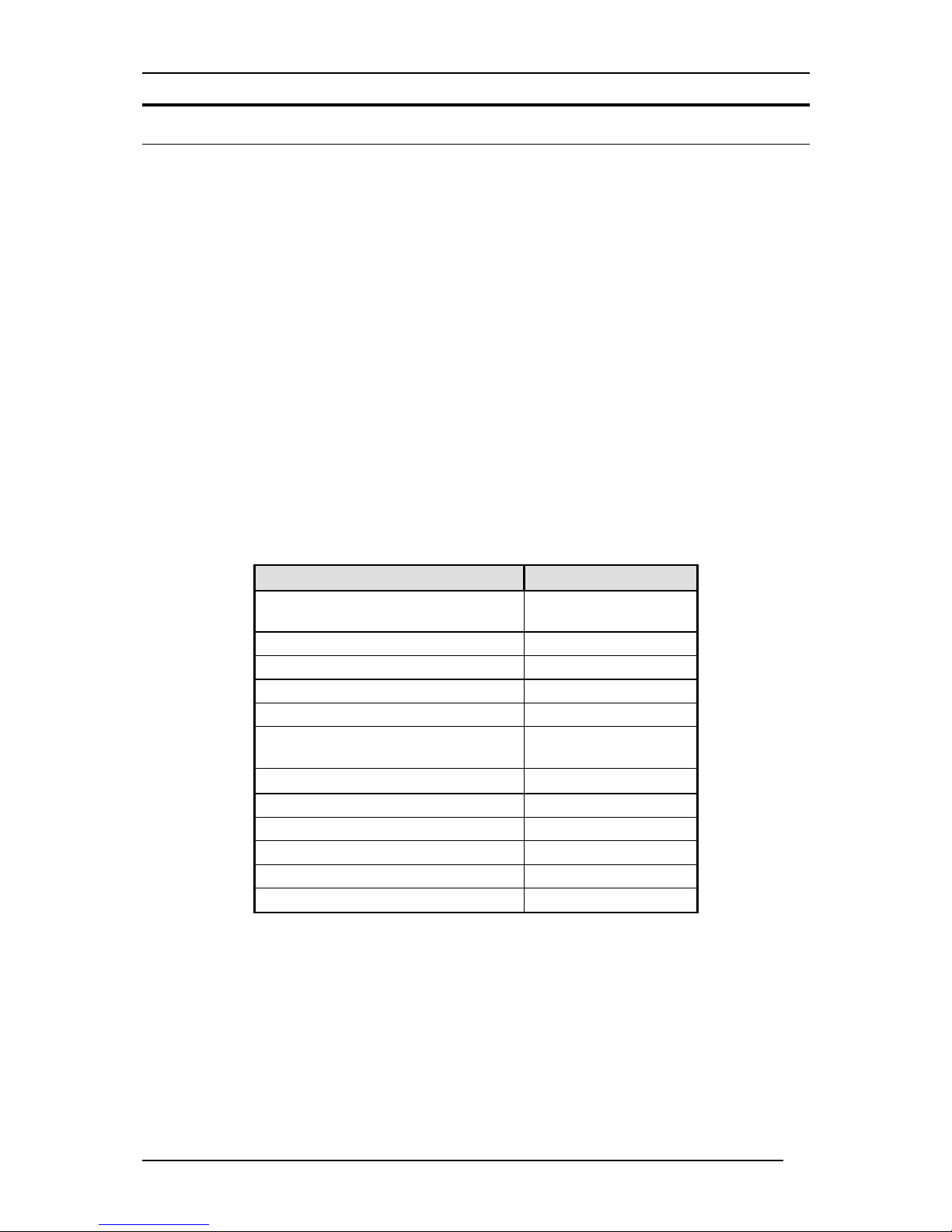
If any error condition is found during the component test series, then the test will halt with the
LPT LED continuously signaling the particular error according to the following table.
LPT Flash Pattern Error Type
steady long flashes Firmware Reload
Required
continuous on DRAM Error
One long, two short flashes Timer INT Error
One long, three short flashes Flash Protected
One long, four short flashes Flash ID Error
One long, five short flashes
Flash Erase / Program
Error
One long, six short flashes
LAN Controller Error
One long, seven short flashes LAN Memory Error
One long, eight short flashes Parallel Controller Error
One long, nine short flashes LPT Error
steady short flashes EEPROM Error
One long, eleven short flashes LAN I/O Base error
In the event of a Firmware Reload Required error at startup, proceed according to instructions
given in the PS Admin User’s Guide ("PS Admin Administration" section, under the heading
"Upgrading the Print Server's Internal Firmware").
In the event that any of the other listed error conditions is encountered on startup, contact your
dealer for correction of the fault.
Page 15

DP-101 Print Server Hardware Guide
Unpacking and Installation
7
Operational Test
The PS Admin software includes a Print Test function for confirmation of connections and
functions. That operational test can be performed after you have completed installation of the PS
Admin software, and the PS Admin procedures for configuring the DP-101. See instructions
given in the PS Admin User’s Guide ("Getting Started Setting up Your Print Server" section,
under the heading "Testing your Print Server").
Page 16

DP-101 Print Server Hardware Guide
Product Specifications
8
A
4 P
RODUCT SPECIFICATIONS
Printer Connection
Printer Port
: IEEE 1284 standard bidirectional parallel interface with 36-pin connector.
Bidirectional Communication
: Hewlett-Packard PJL (Printer Job Language) standard for
bidirectional communication.
Network Connection
Network Standards
: IEEE 802.3 10Base-T Ethernet .
Network Data Transfer Rate
: 10Mbps (megabits per second) .
Network Connector
: RJ-45 connector for 10Base-T twisted pair connection .
Network Protocols
Ethernet Frame Types:
802.2, 802.3, Ethernet II, SNAP (auto-switching)
Transport Protocols:
IPX/SPX, TCP/IP NetBEUI, AppleTalk/EtherTalk
TCP/IP Protocols Supported:
BOOTP, SNMP, Telnet, TFTP, FTP, lpd, RARP, DHCP
Management and Diagnostics
Standard:
SNMP
MIBs
: MIB-II (RFC 1213)
Diagnostic LED Indicators
: Pw/Tx, Lk/Rx, LPT
Environmental and Physical
Power Supply
: External power supply providing 7.5VDC/ 500mA
Dimensions
: 92.8mm × 58mm × 25.3mm
Weight
: approx. 65g
Operating Temperature
: 0 to 50°C
Storage Temperature
: -25 to 55°C
Humidity
: 5% to 95% non-condensing
Emissions
: FCC Class A, CE Class A, BSMI Class A, C-Tick Class A, VCCI Class A
Safety
: UL (UL 1950), CSA (CSA950), TUV/GS (EN60950)
Page 17
DP-101 Print Server Hardware Guide
Port Pinouts
9
B
5 P
ORT PINOUTS
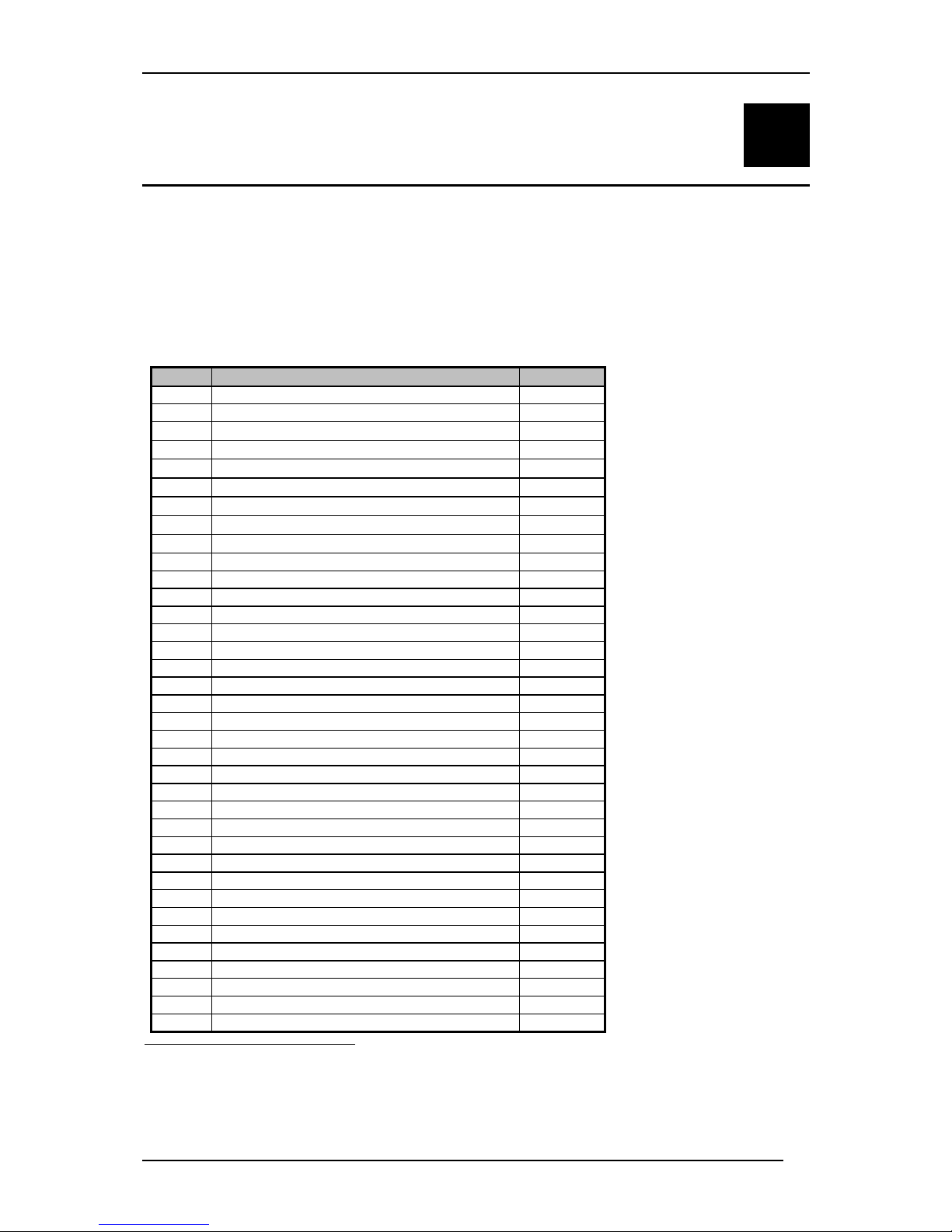
The following table lists the pinouts of the DP-101's 36-pin parallel port connector (identical to the
parallel port connector used on most printers.)
Signal names beginning with n are active-low signals.
Pin # Signal Source
1 nStrobe H
2 Data 1
♣
Bi-Di
♠
3 Data 2
Bi-Di
♠
4 Data 3
Bi-Di
♠
5 Data 4
Bi-Di
♠
6 Data 5
Bi-Di
♠
7 Data 6
Bi-Di
♠
8 Data 7
Bi-Di
♠
9 Data 8
♦
Bi-Di
♠
10 nAck P
11 Busy P
12 PError P
13 Select P
14 nAutoFd H
15 Not Defined
16 Logic Gnd
17 Chassis Gnd
18 Peripheral Logic High P
19 Signal Ground (nStrobe)
20 Signal Ground (Data 1)
21 Signal Ground (Data 2)
22 Signal Ground (Data 3)
23 Signal Ground (Data 4)
24 Signal Ground (Data 5)
25 Signal Ground (Data 6)
26 Signal Ground (Data 7)
27 Signal Ground (Data 8)
28 Signal Ground (PError, Select, nAck)
29 Signal Ground (Busy, nFault)
30 Signal Ground (nAutoFd, nSelectIn, nInit)
31 nInit H
32 nFault P
33 Not Defined
34 Not Defined
35 Not Defined
36 nSelectIn H
♣
Least Significant Bit
♠
Data signals will be driven by some , but not all peripheral devices.
♦
Most Significant Bit
Page 18

6 I
NDEX
10Base-T, 2, 4, 8
7.5V DC, 4, 8
AC power adapter, 4, 5, 6, 8
AppleTalk, 2, 8
automatic self test, 5
bidirectional printer port, 2, 8
cabling, 4
diskettes, 5
error condition, 6, 7
Ethernet, 2, 4, 8
EtherTalk, 2, 8
firmware, 6, 7
IEEE 1284, 2, 8
IEEE 802.3, 2, 4, 8
IPX/SPX, 2, 8
LED error signals, 6, 7
LED status signals, 3, 4, 6, 8
Lk/Rx LED, 4, 6, 8
lpd network printing utility, 2, 8
lpr network printing utility, 2
LPT LED, 3, 4, 6, 8
MIB, 8
NetBEUI, 2, 8
network connector, 3, 4
Network Connector, 8
network port, 3, 4, 8
Network Port, 4
pinouts, 9
power adapter, 4, 8
power switch (none), 6
printing operational test, 7
protocols, 2, 8
PS Admin, Print Server Administration
program, 2, 3, 5, 7
Pw/Tx LED, 6, 8
reload firmware, 6, 7
RJ-45, 3, 4, 8
self test, 5
SNMP, 8
software diskette, 5
standards, 8
startup tests, 5
TCP/IP, 2, 8
warning, network connection before
power, 5
Page 19

Offices
AUSTRALIA D-LINK AUSTRALASIA
Unit 16, 390 Eastern Valley Way, Roseville, NSW 2069, Australia
TEL: 61-2-9417-7100 FAX: 61-2-9417-1077
TOLL FREE: 1800-177-100 (Australia), 0800-900900 (New Zealand)
URL: www.dlink.com.au
E-MAIL: [email protected], [email protected]
CANADA D-LINK CANADA
2180 Winston Park Drive, Oakville, Ontario L6H 5W1 Canada
TEL: 1-905-829-5033 FAX: 1-905-829-5223 BBS: 1-965-279-8732
FREE CALL: 1-800-354-6522
URL: www.dlink.ca
FTP: ftp.dlinknet.com
E-MAIL: [email protected]
CHILE D-LINK SOUTH AMERICA
Isidora Goyenechea #2934 of.702, Las Condes, Santiago, Chile
TEL: 56-2-232-3185 FAX: 56-2-2320923
URL: www.dlink.cl
E-MAIL: [email protected], [email protected]
DENMARK D-LINK DENMARK
Naverland 2, DK-2600 Glostrup, Copenhagen, Denmark
TEL:45-43-969040 FAX:45-43-424347
URL: www.dlink.dk
E-MAIL: [email protected]
EGYPT D-LINK MIDDLE EAST
7 Assem Ebn Sabet Street, Heliopolis Cairo, Egypt
TEL: 202-2456176 FAX: 202-2456192
URL: www.dlink-me.com
E-MAIL: [email protected], [email protected]
FRANCE D-LINK FRANCE
Le Florilege #2, Allee de la Fresnerie
78330 Fontenay Le Fleury France
TEL: 33-1-30238688 FAX: 33-1-3023-8689
URL: www.dlink-france.fr
E-MAIL: [email protected]
GERMANY D-LINK CENTRAL EUROPE/D-LINK DEUSTSCHLAND GMBH
Schwalbacher Strasse 74, 65760 Eschborn Germany
TEL: 49-(0) 6196-7799-0 FAX: 49-(0) 6196-7799-300
URL: www.dlink.de
E-MAIL: [email protected], [email protected]
INDIA D-LINK INDIA
Plot No.5, Kurla-Bandra Complex Road,
Off Cst Road, Santacruz (E), Bombay - 400 098 India
TEL: 91-22-652-6696 FAX: 91-22-652-8914
URL: www.dlink-india.com
E-MAIL:[email protected]
ITALY D-LINK ITALY
Via Nino Bonnet No. 6/b, 20154 Milano, Italy
TEL: 39-02-2900-0676
FAX: 39-02-2900-1723
E-MAIL: [email protected]
URL: www.dlink.it
Page 20

JAPAN D-LINK JAPAN
10F, 8-8-15 Nishi-Gotanda, Shinagawa-ku, Tokyo 141 Japan
TEL: 81-3-5434-9678
FAX: 81-3-5434-9868
URL: www.d-link.co.jp
E-MAIL: [email protected]
RUSSIA D-LINK RUSSIA
Michurinski Prospekt 49, 117607 Moscow, Russia
TEL: 7-095-737-3389, 7-095-737-3492 FAX: 7-095-737-3390
E-MAIL: [email protected]
SINGAPORE D-LINK INTERNATIONAL
1 International Business Park, #03-12 The Synergy, Singapore 609917
TEL: 65-774-6233 FAX: 65-774-6322
URL: www.dlink-intl.com
E-MAIL: [email protected]
S. AFRICA D-LINK SOUTH AFRICA
Unit 2, Parkside 86 Oak Avenue
Highveld Technopark Centurion, Gauteng, Republic of South Africa
TEL: 27(0)126652165 FAX: 27(0)126652186
CELL NO: 0826010806 (Bertus Moller)
CELL NO: 0826060013 (Attie Pienaar)
E-MAIL: [email protected], [email protected]
SWEDEN D-LINK SWEDEN
P.O. Box 15036, S-167 15 Bromma Sweden
TEL: 46-(0)8564-61900
FAX: 46-(0)8564-61901
E-MAIL: [email protected]
URL: www.dlink.se
TAIWAN D-LINK TAIWAN
2F, No. 119 Pao-Chung Road, Hsin-Tien, Taipei, Taiwan
TEL: 886-2-2910-2626
FAX: 886-2-2910-1515
URL: www.dlinktw.com.tw
E-MAIL: [email protected]
U.K. D-LINK EUROPE
D-Link (Europe) Ltd. 4
th
Floor Merit House,
Edgware Road, Colindale, London NW95AB U.K.
TEL: 44-20-8731-5555 FAX: 44-20-8731-5511
URL: www.dlink.co.uk
E-MAIL: [email protected]
U.S.A D-LINK U.S.A.
53 Discovery Drive, Irvine, CA 92618 USA
TEL: 1-949-788-0805 FAX: 1-949-753-7033
INFO LINE: 1-800-326-1688
BBS: 1-949-455-1779, 1-949-455-9616
URL: www.dlink.com
E-MAIL: [email protected], [email protected]
Page 21
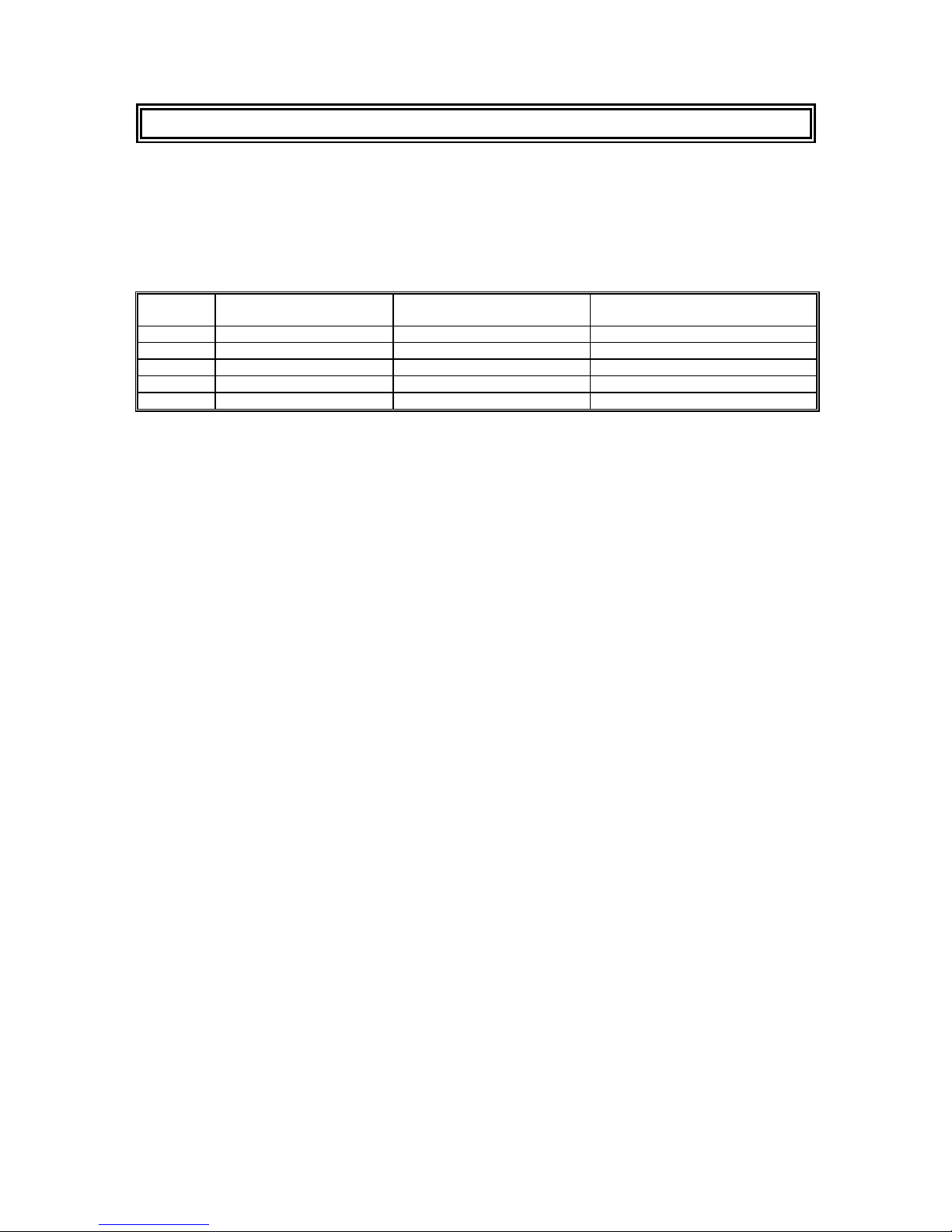
Registration Card
Print, type or use block letters.
Your name: Mr./Ms__________________________________________________________________________
Organization: ____________________________________________Dept.______________________________
Your title at organization:_____________________________________________________________________
Telephone:_________________________________________ Fax:___________________________________
Organization's full address:___________________________________________________________________
_________________________________________________________________________________________
Country:__________________________________________________________________________________
Date of purchase (Month/Day/Year):____________________________________________________________
Product
Model
Product Serial No. * Product installed in type of
computer (e.g., Compaq 486)
* Product installed in computer serial No.
(* Applies to adapters only)
Product was purchased from:
Reseller's name:____________________________________________________________________________
Telephone:_________________________________________ Fax:___________________________________
Reseller's full address:_______________________________________________________________________
_________________________________________________________________________________________
Answers to the following questions help us to support your product:
1. Where and how will the product primarily be used?
Home Office Travel Company Business Home Business Personal Use
2. How many employees work at installation site?
1 employee 2-9 10-49 50-99 100-499 500-999 1000 or more
3. What network protocol(s) does your organization use ?
XNS/IPX TCP/IP DECnet Others_______________________________________________________
4. What network operating system(s) does your organization use ?
D-Link LANsmart Novell NetWare NetWare Lite SCO Unix/Xenix PC NFS 3Com 3+Open
Banyan Vines DECnet Pathwork Windows NT Windows NTAS Windows '95
Others________________________________________________________________________________
5. What network management program does your organization use ?
D-View HP OpenView/Windows HP OpenView/Unix SunNet Manager Novell NMS
NetView 6000 Others___________________________________________________________________
6. What network medium/media does your organization use ?
Fiber-optics Thick coax Ethernet Thin coax Ethernet 10BASE-T UTP/STP
100BASE-TX 100BASE-T4 100VGAnyLAN Others_________________________________________
7. What applications are used on your network?
Desktop publishing Spreadsheet Word processing CAD/CAM
Database management Accounting Others_________________________________________________
8. What category best describes your company?
Aerospace Engineering Education Finance Hospital Legal Insurance/Real Estate
Manufacturing
Retail/Chainstore/Wholesale Government Transportation/Utilities/Communication VAR
System house/company Other____________________________________________________________
9. Would you recommend your D-Link product to a friend?
Yes No Don't know yet
10.Your comments on this product? _________________________________________________
__________________________________________________________________________________
__________________________________________________________________________________
__________________________________________________________________________________
__________________________________________________________________________________
Page 22
 Loading...