

Page 1

4G LTE WIFI MODEM
User manual
Page 2

1. Brief Introduction
This device is designed for WIFI users to get access to internet
via GPRS/EDGE/UMTS/HSPA/LTE. In order to connect to high
speed network easily and fast, it uses the standard USB port.
2.
LED indicator lights
LED indicator lights can show the device working status device
visually.
Color of the
light
Network
registered
3-second
flashing
2-second
flashing
1-second
flashing
Green
4G LTE
Network
registered, not
connected
WIFI started,
network
registered, not
connected
WIFI started,
Network
registered and
connected
Blue
HSPA+
Network
registered, not
connected
WIFI started,
network
registered, not
connected
WIFI started,
Network
registered and
connected
Purple
EVDO
Yellow
GSM/EDGE/CDMA
1X
Network
registered, not
connected
WIFI started,
network
registered, not
connected
WIFI started,
Network
registered and
connected
Red
Network not
registered
Network not
registered(check
(U)SIM status)
WIFI started,
Network not
registered
3. install/uninstall driver
Install
·
plug 4g WIFI modem to computer via USB port, open ”my
Page 3
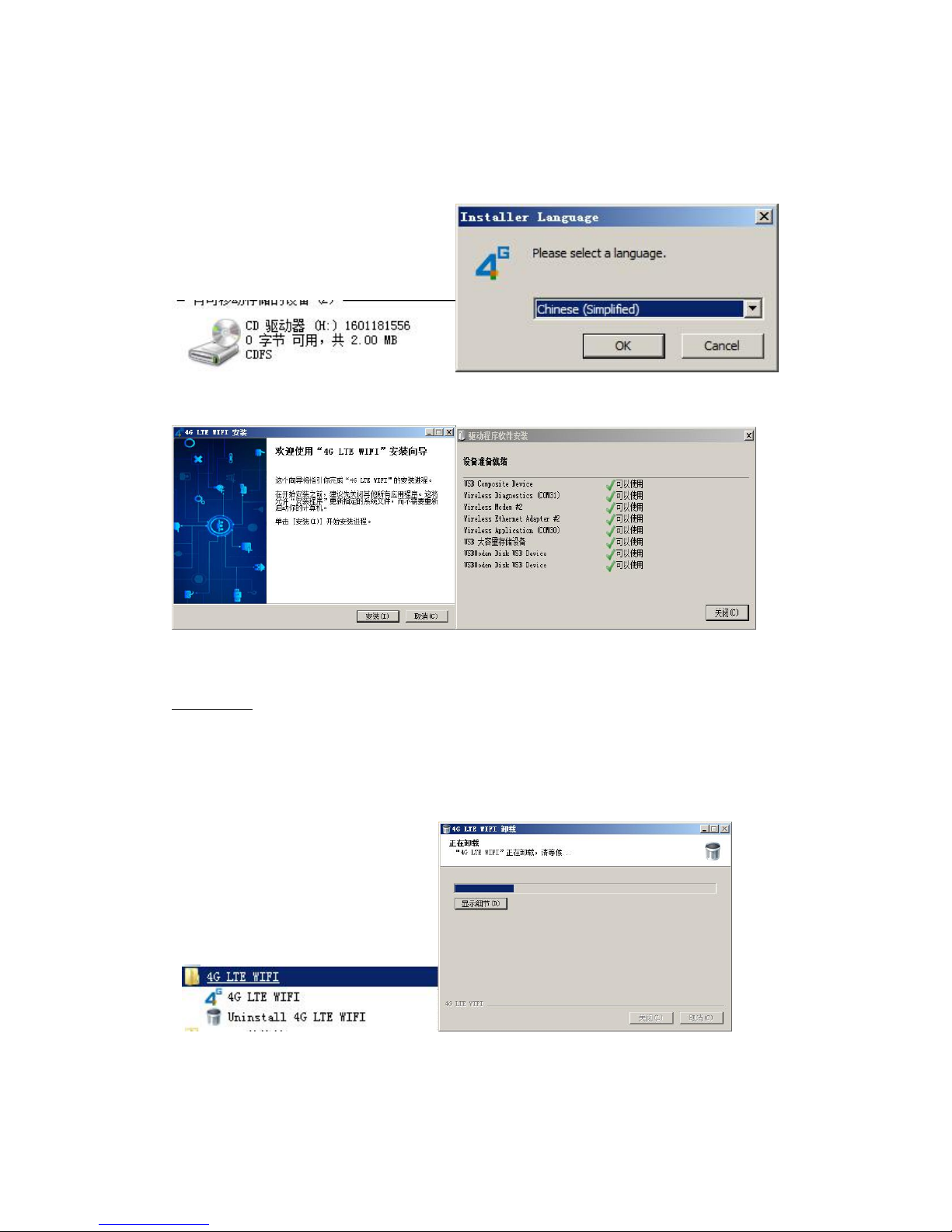
computer”, run the CD driver to install the software(if the computer
has display the CD automatically, the installation UI will pop up)
·
Click ”next step” to install the software
·
Driver software installation complete
Uninstall
·
Click start menu, choose”4G LTE WIFI”-Uninstall 4G LTE WIFI
·
Click ”next step” to uninstall
Page 4
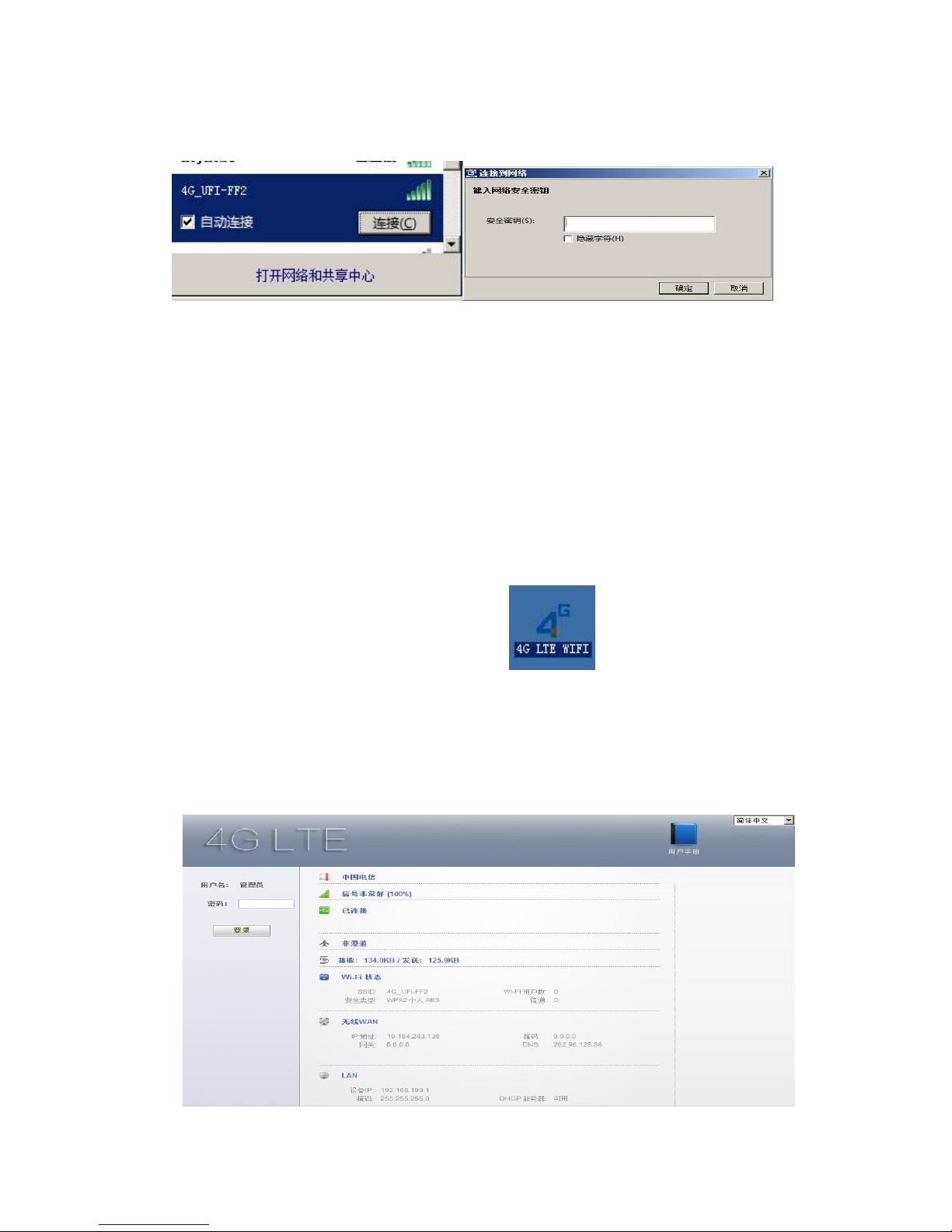
4 WIFI connection
Searching network to find SSID: 4G-UFI-XXX, Click connect, input
password: 1234567890, and confirm.(see detailed information on
the label on the device)
5 WEB UI description
Log on WEB UI
Double click shortcut icon on the desk .
1. Connect to WIFI, open you browser, input”
http://192.168.199.1” to open WEB UI.(IE, QQ Browser
recommended)
Page 5
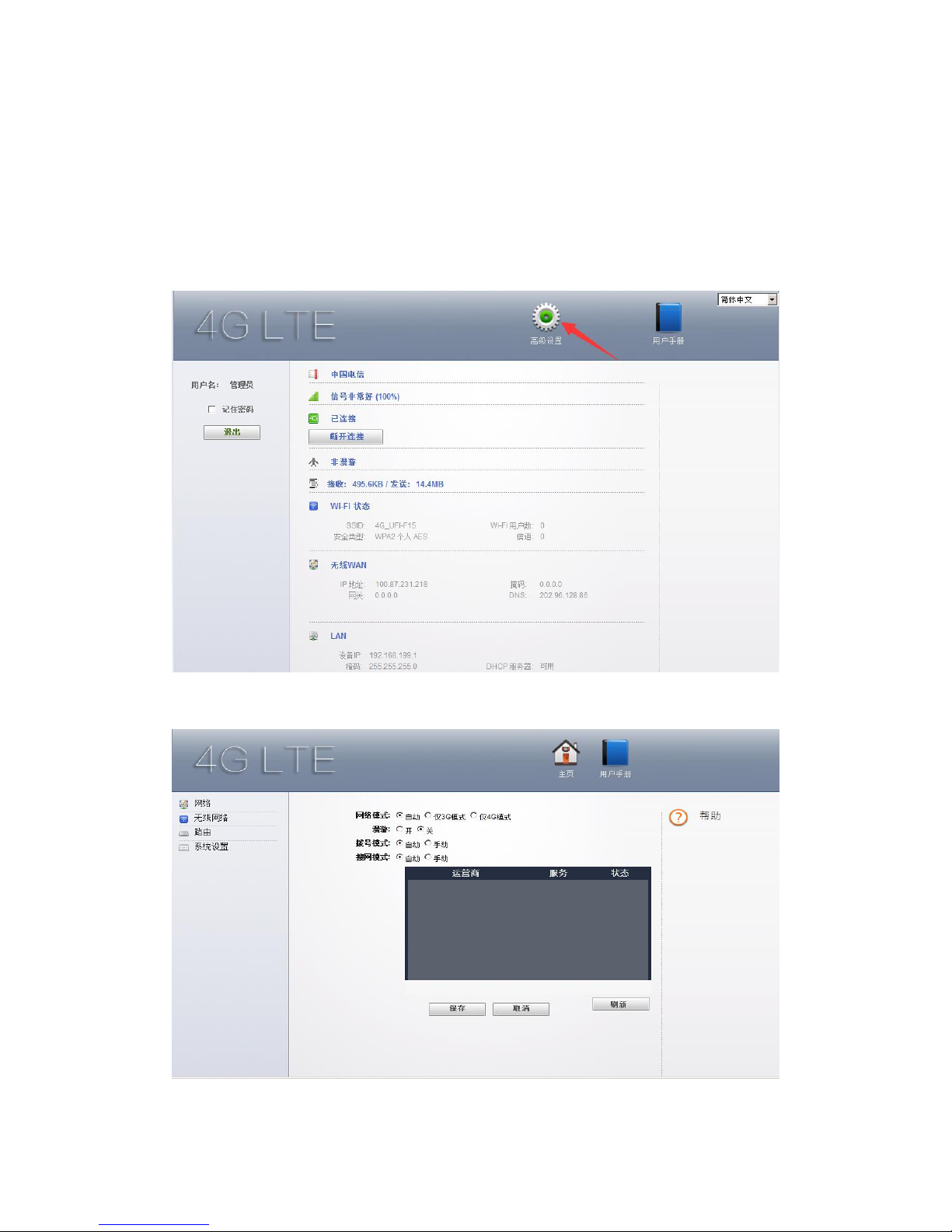
2. Detailed information (operator, connection status, flow usage,
WIFI, SSID) of the device can be seen on the home page.
3. Input password: admin to enter management
page(English/Chinese language optional)
4. Choose advanced setting icon to enter the setting page.
5. Network mode
Page 6
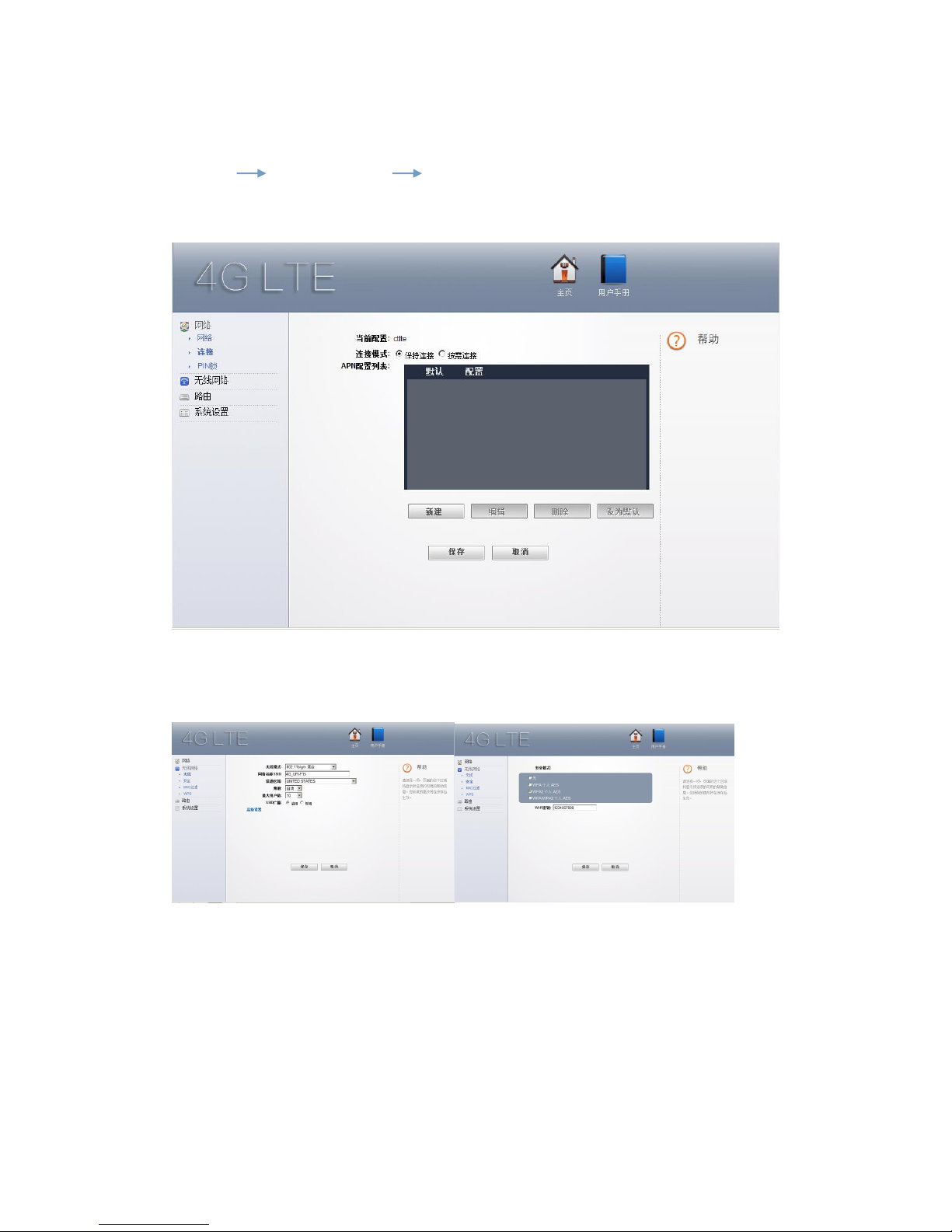
Auto mode searching sequence
4GLTE HSPA/EVDO GSM/1X
(Auto mode is default mode)
6. Connecting network configuration files, common APN already
built in, add extra APN, click “New” to add and save.
7. Wireless network: Modify parameter(SSID, channel, password,
etc)
Page 7
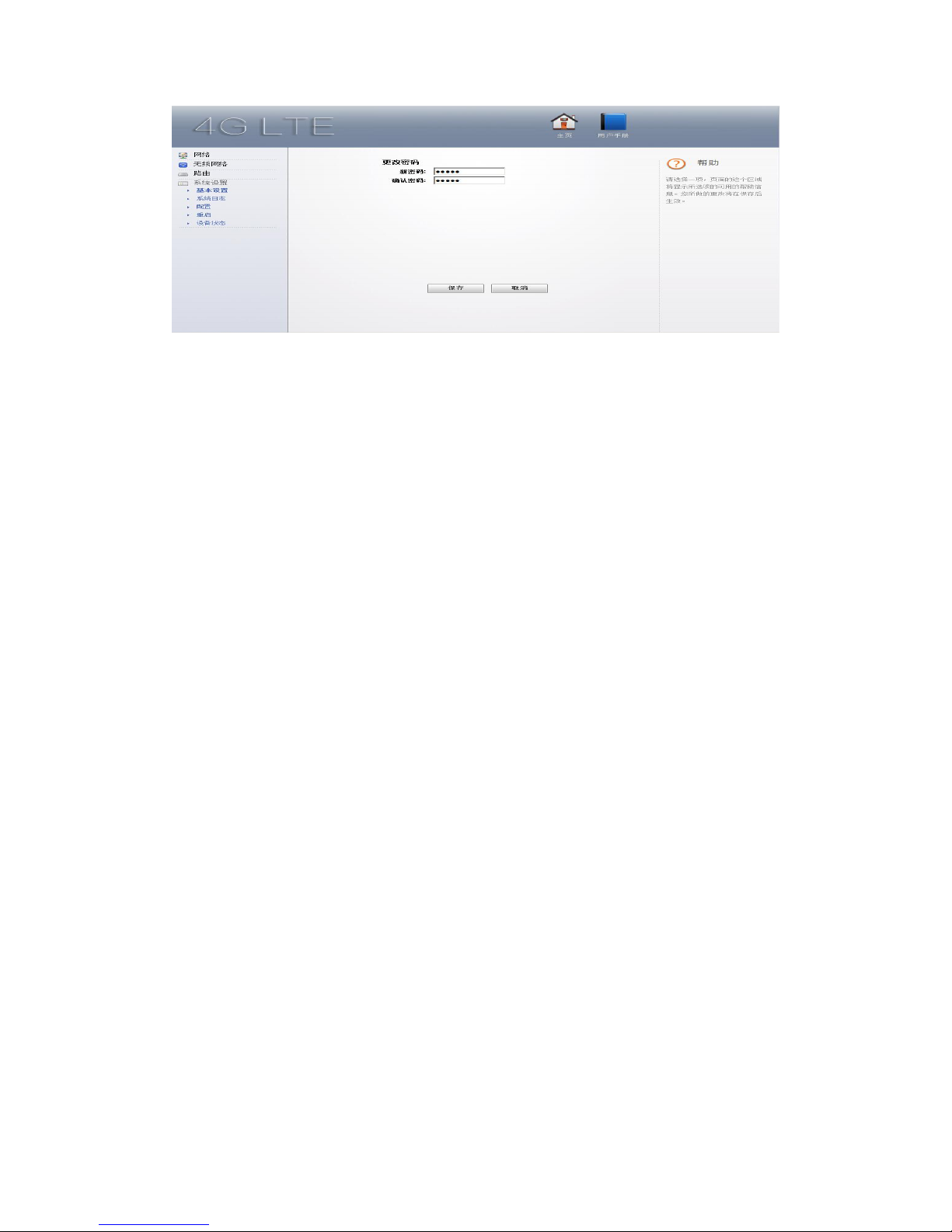
8. System setting: Modify WEB UI logging password, restore
factory setting, resetting the device information.
6. FAQ
1. What OS does this device support?
Windows XP, Windows Vista, Windows 7 Windows
8
2. Can not install the software?
Reasons as below:
1. if the auto-installation has not completed, please check if the
anti-virus and security software are running, if yes, please close
them and do the installation again; for the software that can not be
forbidden, please close the monitoring software, open it after
installation.
2. For some PC, the installing time maybe long because of the
different configuration. Thus, when installing, be patient, do not
cancel it, nor plug out the device. If still not succeed, please uninstall
the driver and install it again.
Page 8

3. SIM card not resigstered
Reasons as below
:
1. local signal is not stable
2. software is old version
3. hardware problem
You can:1. Try to log on at another place.
2. update the software
3. check the hardware or change another device to connect
again
4.Why prompt ”can not connect to configuration files ”
?
Please add a configuration file manually.
5.Can not connect to internet?
Please make sure the configuration files and setting correct.
6.Connecting and data exchange too slow?
Please check local network signal strength.
7.Fail to send messages?
Please make sure message center number is correct.
8.Can not receive message?
Please check (U)SIM memory full or not.
9.Why only save a few names when add contacts?
The input character is longer than (U)SIM card
10. Does this support roaming?
Page 9

It depends on the telecom operator, please consult the local operator
or service apartment.
 Loading...