

Page 1

DFW-500 Quick Installation Guide
Thank you for purchasing the D-Link DFW-500 PCI FireWire® Upgrade Card. This guide
describes how to install the devices and use it with Ulead VideoStudio 4.0.
Key Features:
§ Speed as high as 400Mbps
§ Enables Hot Plug cable hookup to other devices
§ Easy connection to Digital camcorder, DTV, DVCR, DVD and computer
§ Links up to 63 devices
§ Plug and Play installation
§ Compatible with Windows 98/ME/2000
§ IEEE 1394-1995 compliant and compatible with 1394A specification
§ Compliant with PCI revision 2.2 specification
§ Box includes 3-port PCI Upgrade Card, 6-Pin to 4-Pin IEEE 1394 cable, Ulead
VideoStudio Editing Software.
Installation
Step 1. Hardware Installation
The DFW-500 is a PCI compliant IEEE 1394 Adapter. To install, turn off and unplug your
computer. Touch an unpainted screw on the outside of the case to ground yourself and
avoid static discharge that could render the card inoperable. Remove the case, and insert
the adapter into one of your computer’s PCI slots.
Step 2. Installing Drivers on Windows 98
Note: Installation in Windows Me and 2000 is similar. The screenshots will not match
exactly, so let Windows search for the drivers automatically and choose the driver that
Windows suggests. Doing so will ensure that the proper dr iver is installed.
After you have installed the DFW-500 into one of your available PCI slots, power the
computer on and boot into Windows. Windows will automatically detect the DFW-500 and
prompt you for drivers. The following steps illustrate how to install the DFW-500.
- 1 -
Page 2
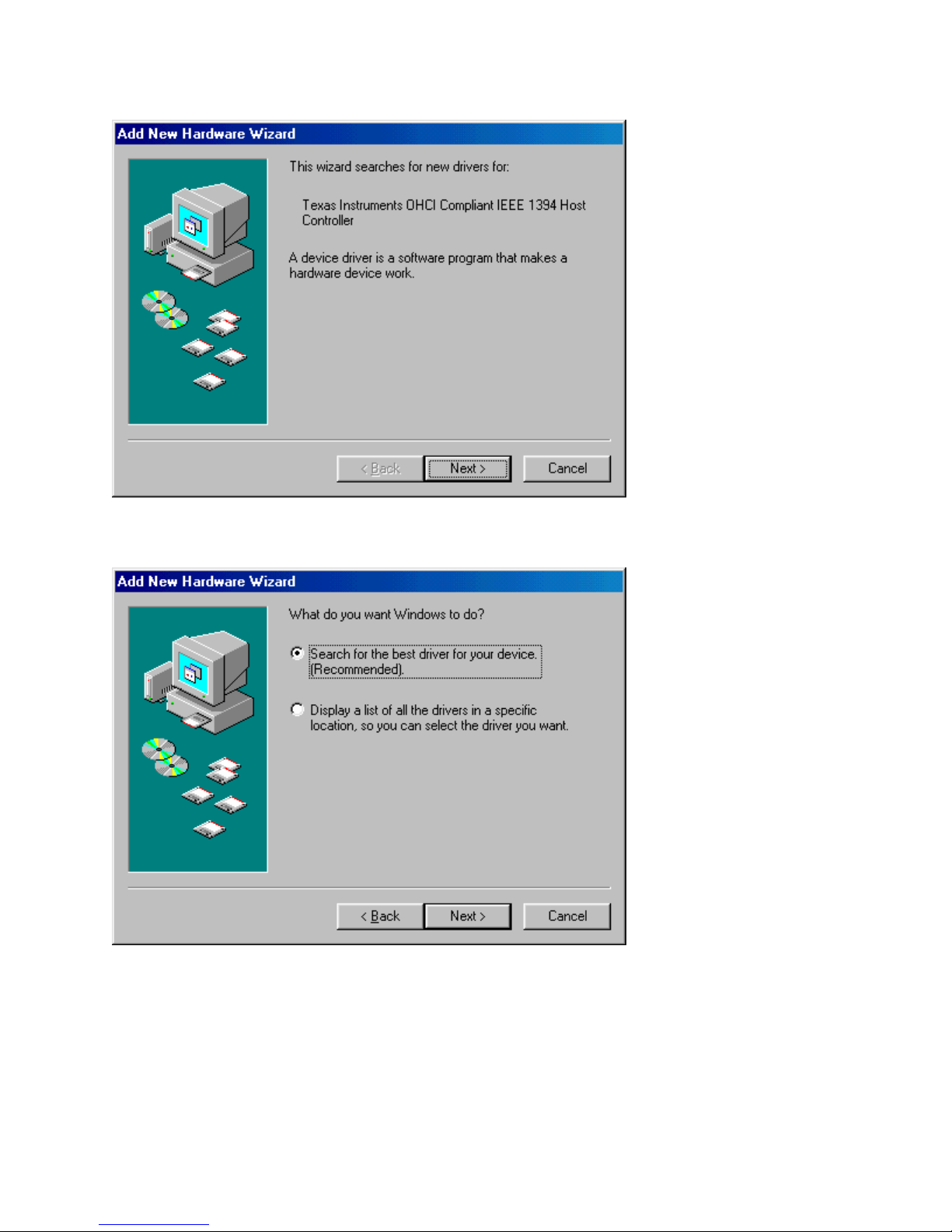
Press the “Next” button.
Select “Search for the best driver…” and press “Next”.
- 2 -
Page 3
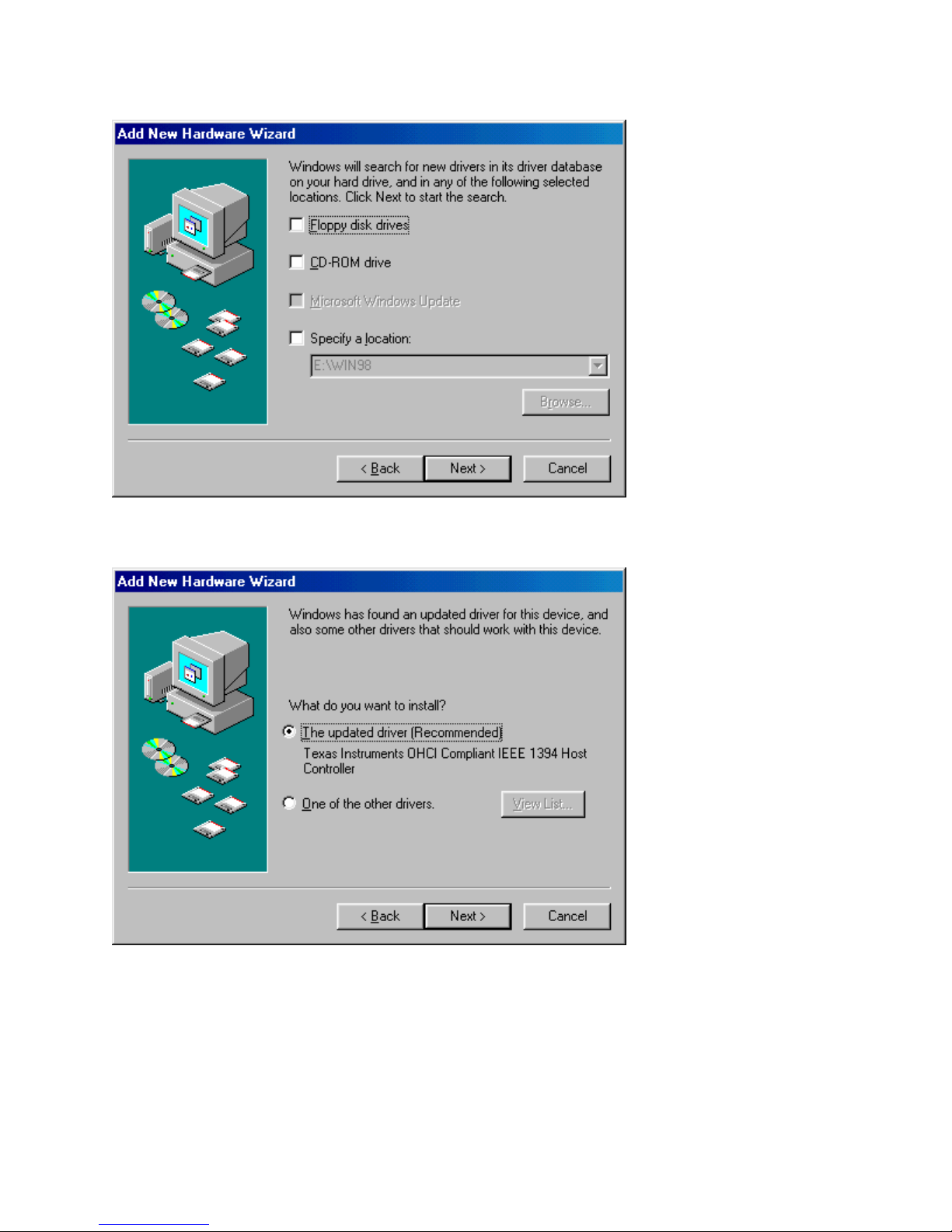
Press the “Next” button.
Select “The updated driver” and press “Next”.
- 3 -
Page 4
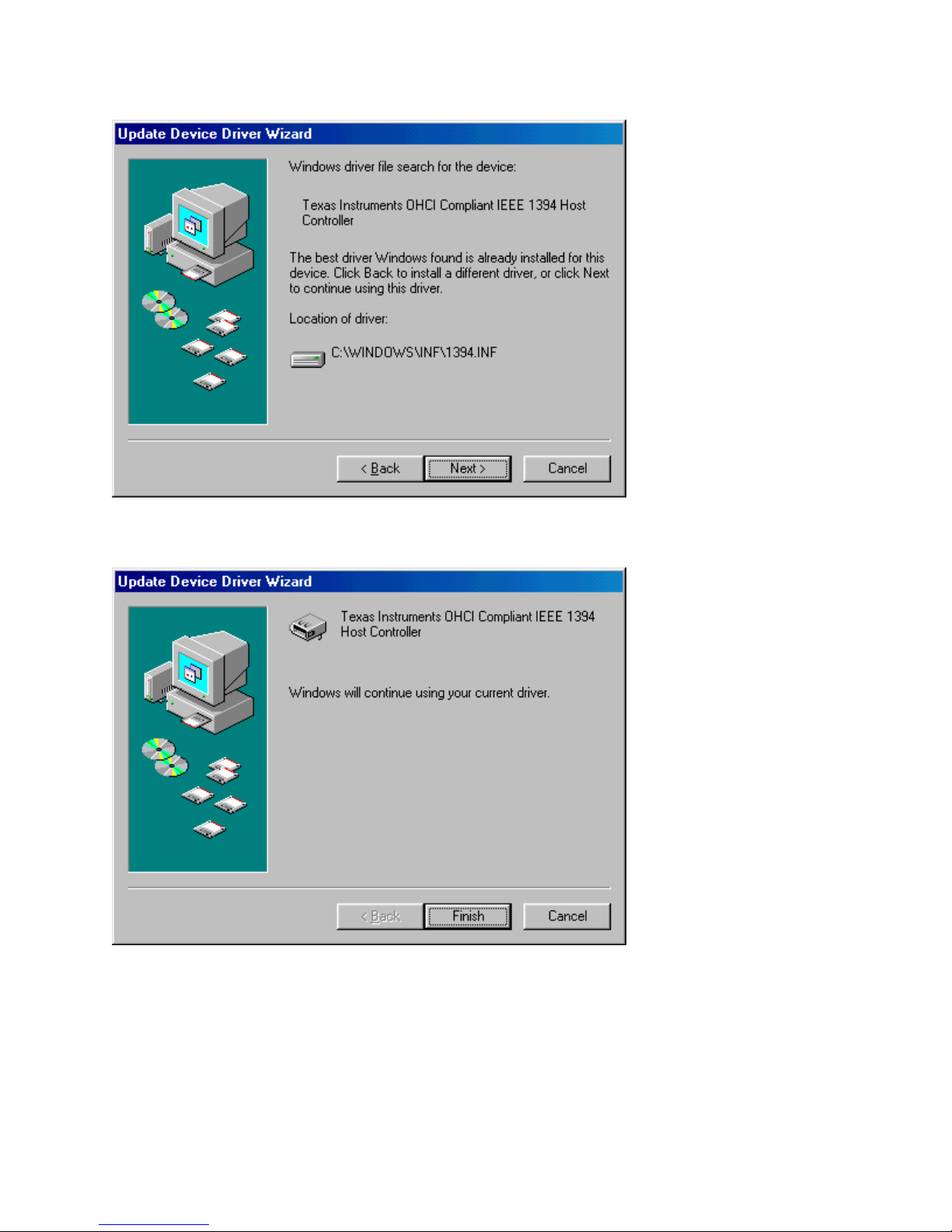
Press the “Next” button.
Press “Finish” and the DFW-500 is installed!
- 4 -
Page 5

Step 3: Setting Up Video Capture Using Ulead VideoStudio
Before using VideoStudio, you will need to ensure that your Digital Video Camera is set
up properly and recognized by your system. Start out by connecting the FireWire®
connector on your video camera to any of the FireWire® connectors on the DFW-500
Make sure your Digital Video Camera is in VTR mode before launching the Ulead
software. Check your camera manual to verify this has been done.
Installing Video Capture Application
Insert the Ulead CD into the CD-ROM drive and follow the on screen instructions.
VideoStudio has a tutorial on the CD that covers the basics of using it. The following
information is intended to help you get started using VideoStudio.
Set Audio and Video Source
You must set the source of your video content. The source is the device the audio and/ or
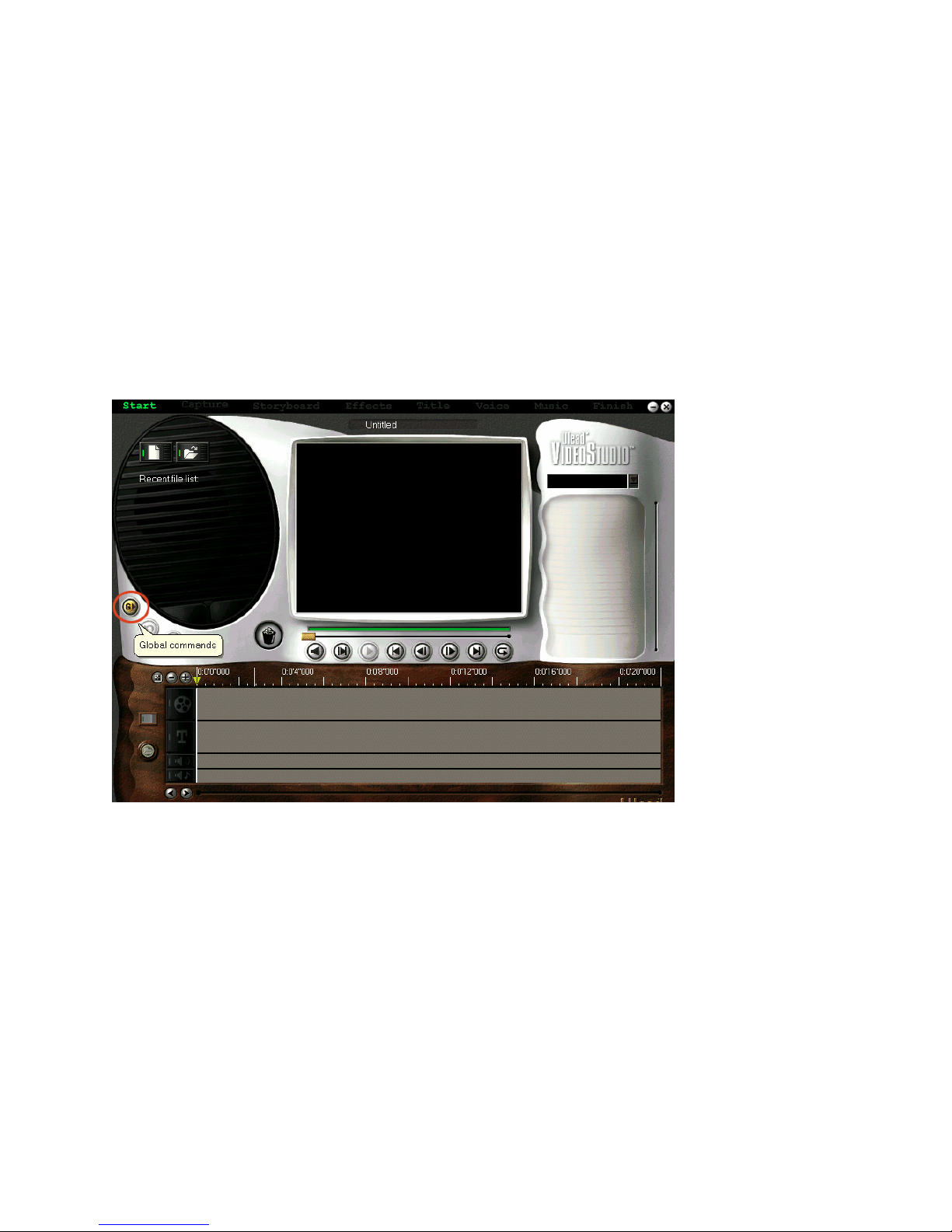
video is coming from. Open VideoStudio and click on the “G” icon to set the global
preferences. Make sure the Global preferences are set correctly for the source you are
using. Select Microsoft DV Camera and VCR.
Attention: Ulead has a minimum hardware requirement for running VideoStudio
efficiently. If your computer does not meet the requirements listed below, the performance
of your video capture will result in dropped frames and possible fragmented video clips.
Ulead VideoStudio 4.0SE System Requirement
§ For DV (Digital Video) device control, an IEEE1394 card and a DV camcorder.
§ You need a hard disk with a sustained transfer rate of over 3.6 MB per second
(SCSI and Ultra-DMA hard disks are recommended).
§ Pentium III 500 MHz and above is recommended for DV (Digital Video)
§ Microsoft Windows 98 or Windows NT 4.0 Service Pack 6 (For DV support,
Windows 98, Windows 98 SE, Windows ME or Windows 2000 is required.)
§ 128 MB RAM (256 MB Recommended)
§ At least 300 MB of available hard disk space (4 GB is recommended)
§ CD-ROM drive
- 5 -
Page 6
§ True Color or Hi-Color display (800 x 600 pixels)
§ Windows pointing device
§ Video for Windows or DirectShow (WDM) compatible video capture board
(Recommended)
§ Windows-compatible sound card (Recommended)
With all video editing software, the more hard disk space the better. The 300MB hard disk
space requirement is for the Ulead software only. 4GB of hard disk space can capture
about 5 minutes DV AVI video format data.
Pressing the “Global commands” icon will display a list of preferences. If a device is not
working, check the Global settings and verify they are compatible with the device being
used.
Once you launch the Ulead software you can verify that the camera was recognized by
performing the following steps:
- 6 -
Page 7
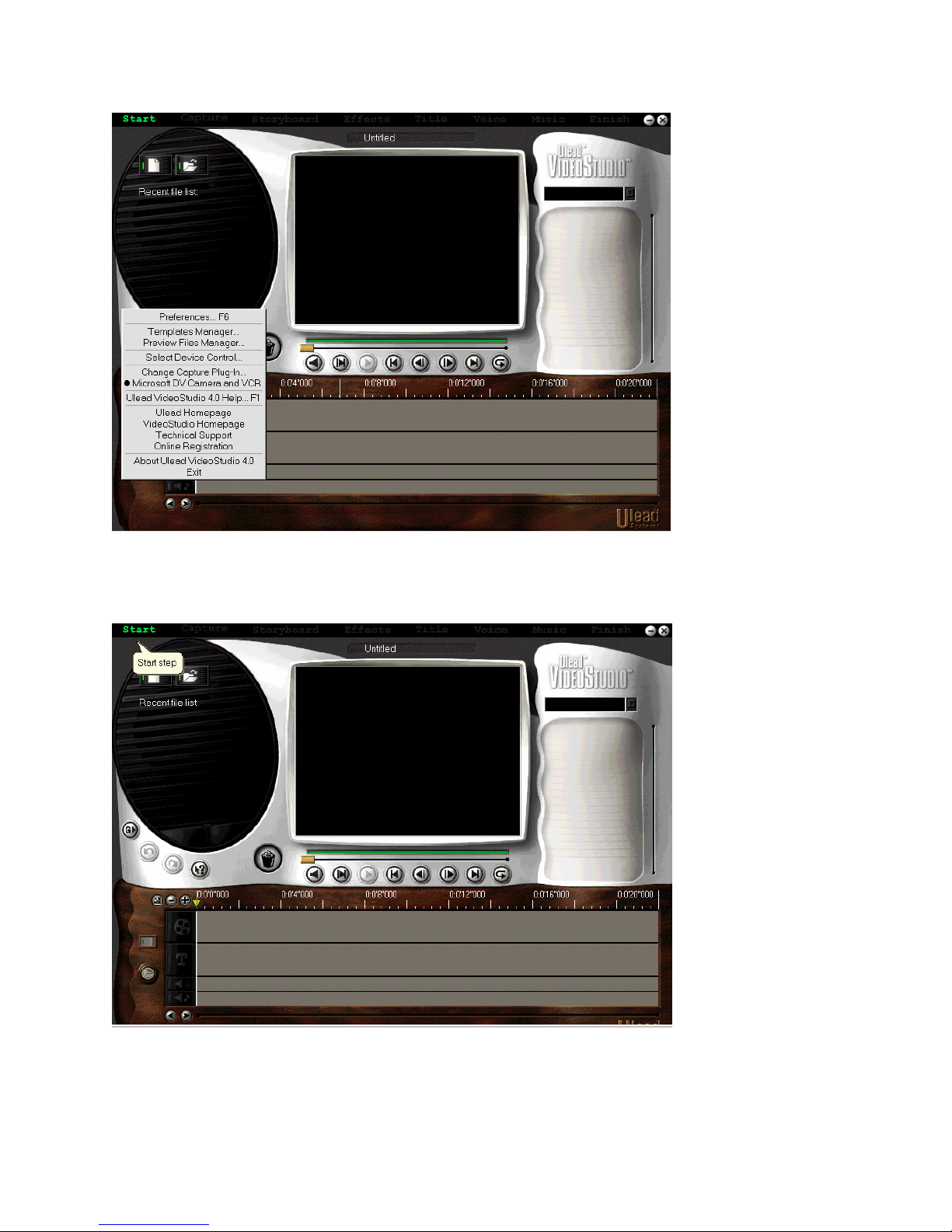
Find the small “G” for Global Commands on the left side of the screen and double-click it.
Verify that that “Microsoft DV Camera and VCR” is selected, as shown in the picture.
You are now ready to begin creating your own movies. Click on Start, as shown in the
picture, and follow the on screen instructions to begin capturing audio and video.
- 7 -
Page 8
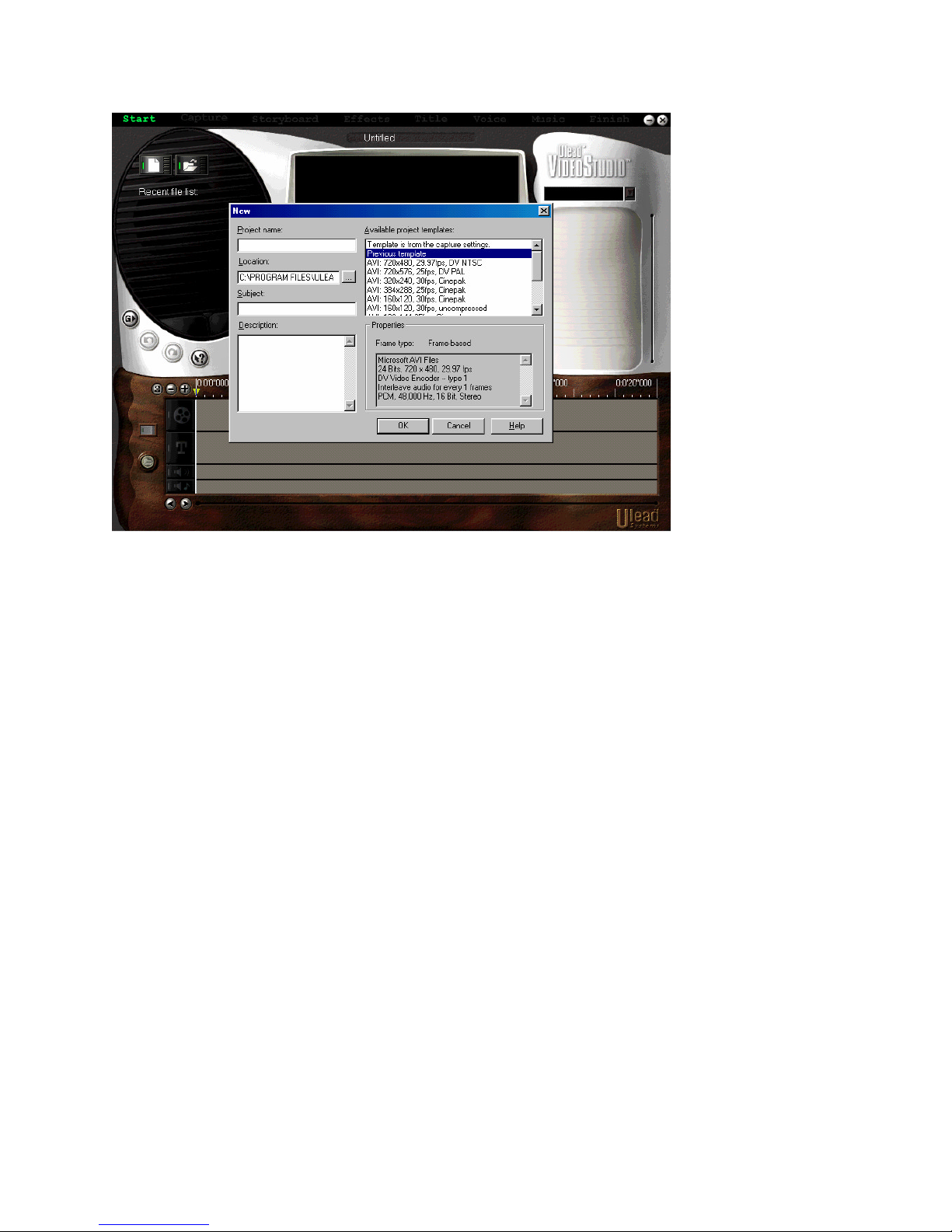
Clicking on “Start” brings up the “Starting your first video project” window. The other
options along the top of the screen become available after you have made a video
capture.
Note: Audio will not be played while capturing video. Audio can be heard during playback.
- 8 -
Page 9
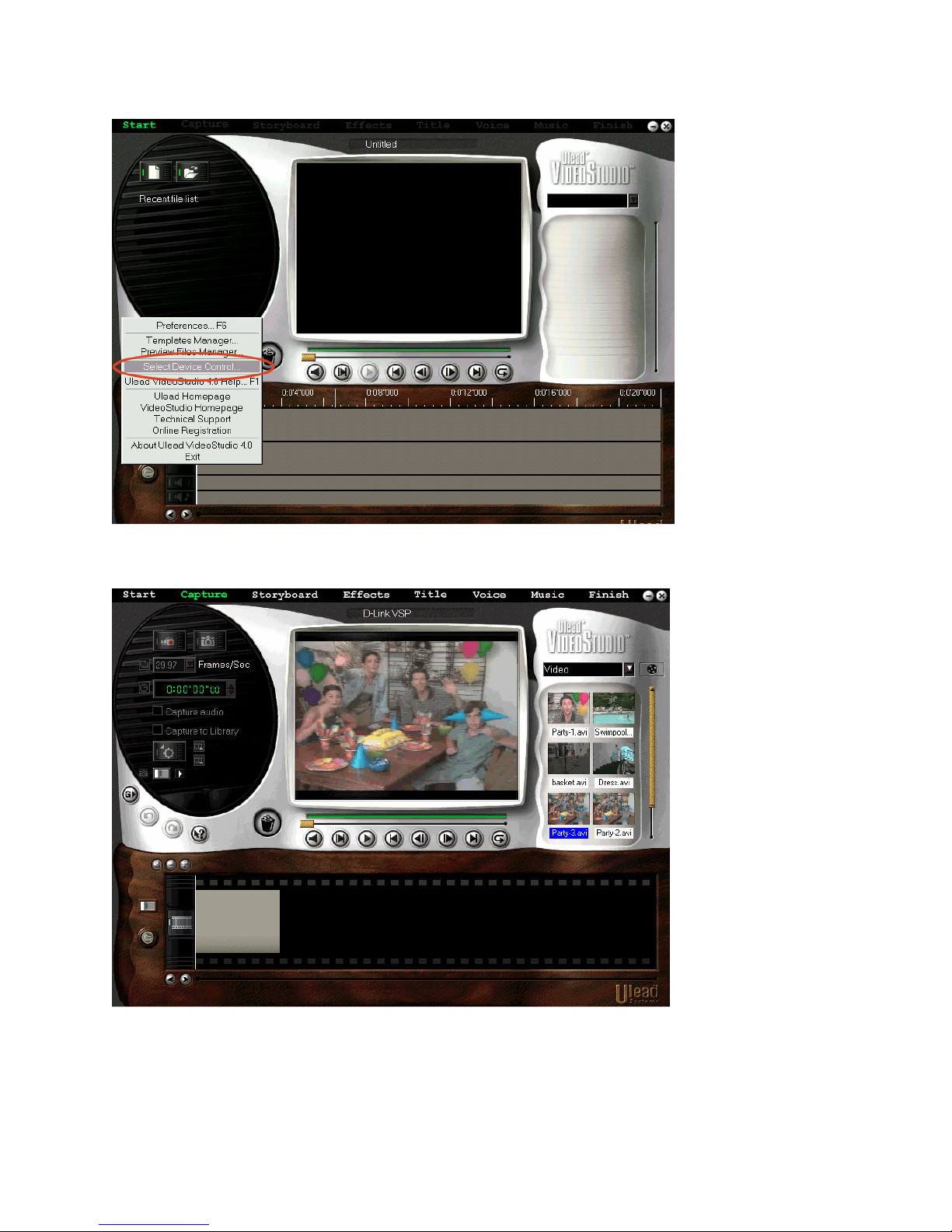
Click 'Select Device Control' to select the DV Driver you want to use.
Press the Start command at the top of the screen, as shown in the picture, to begin editing
your first Video! Ulead comes with extensive help files to guide you through each step of
the Video creation process.
- 9 -
Page 10

Troubleshooting
play projects from the timeline while recording to
1. Please contact Ulead Technical Support by following the following link to Uleads
Technical Support web page for VideoStudio: http://www.ulead.com/tech/vs_ftp02.htm
Download and update UleadStudio 4.01 patch file and Microsoft DirectX8.0
Ulead VideoStudio 4.01 Update Patch
New Patch Features
§ DV SmartPlay a 1394 device; no final movie render necessary
§ Improved compatibility for Windows 2000
§ Improved compatibility while using Sony TRV camcorders with
TI drivers.
§ Capture high-quality still images from DV Camcorders
§ Latest Ligos MPEG drivers included
§ Improved audio for DV AVI movies
§ Full MPA audio support
§ Improved Greeting Card preview window stability
§ Improved 3D transition performance
§ Improved synchronization for MPEG video and audio output
Video Capture Update for DirectX 8.0 (formerly known as Digital Video Update for
DirectX 8.0)
If you use a video capture device, you may need to install the Video Capture Update for
DirectX 8.0. Affected video capture devices include:
• TV tuner and video capture cards/peripherals (AGP, PCI, USB, or IEEE 1394),
such as ATI All -In-Wonder, VIVO, or TV Tuner cards.
• Digital Video (DV) devices connected to OHCI-compliant IEEE 1394 ports, also
called FireWire or i-link.
- 10 -
Page 11
2. If you are experiencing dropped frames while capturing video with Ulead VideoStudio
of
Remove other 1394 device for Camcorder
or any other video capturing software, then your hard driver may not be capable of the
speed necessary to transfer the high amounts of data required of digital video. If your
hard drive speed is under 7200 rpm you can change your hard drive configuration to
tweak the performance. Follow the steps below:
Go to Console ->System->System Manager->Floppy->Generic IDE DISK
TYPEXX->Content->Configure. Put a check-mark on DMA . This will improve hard
disk Read/Write performance.
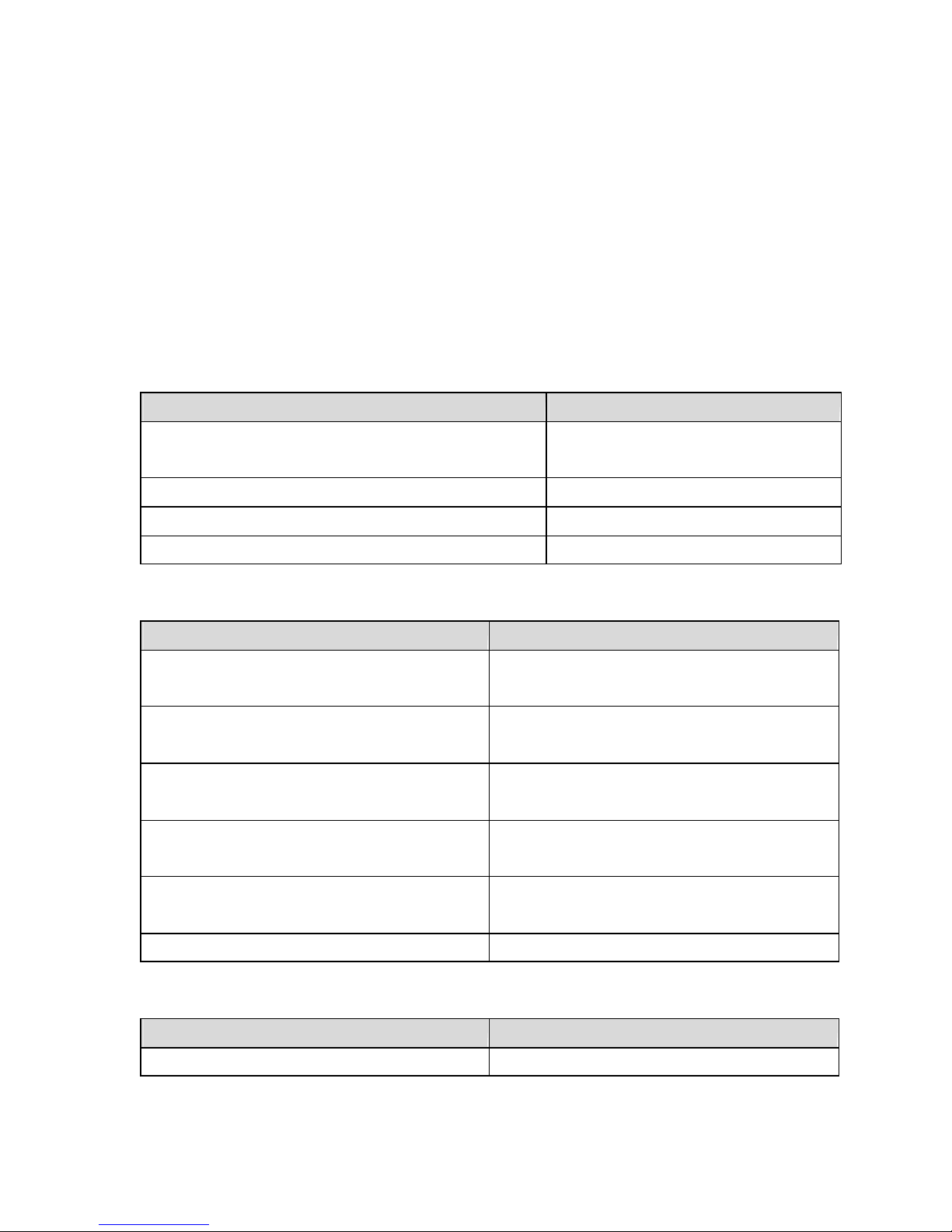
3. DFW-500 installed and Hardware cannot detect the card or device
Problem Trouble shooting
System unstable, Driver, Registry conflict,
Format Hard disk or reinstall OS
Memory Allocation error.
Driver not detected, Driver incorrect Remove or disable previous Driver
DFW-500 1394 Card not seated firmly Re-insert the Card
PCI Slot IRQ conflict Change to an available PCI Slot
4. Capture Image error
Problem Trouble Shooting
Hardware resource insufficiency, RAM
Expand memory size
size not enough
Too many programs running. S ystem
Close application s or unused windows
resources are exhausted
Memory management error Remove unsuitable memory manager
software
Hard disk space insufficiency Remove unnecessary file or replace a
sufficiency space hard disk
When capture image simultaneous use
other 1394 Device
Connector connect problem Reconnect connector
5. Archive processed image data to Camcorder problem
Problem Trouble Shooting
System requirement insufficiency Expand insufficiency portion
only
- 11 -
Page 12

Too many programs running. S ystem
resources are exhausted
Memory allocation error Reconfigure or remove unnecessary
Simultaneous use other 1394 device Remove other 1394 Device for
1394 Cable problem Replace a new cable
Connector connection problem Reconnect connector
Camcorder out of work Contact Camcorder supplier
6. DFW-500 cannot detect IEEE 1394 Hard Disk through external box
Problem Trouble Shooting
1394 Cable problem Replace with new Cable
Driver incomplete installed Remove existing driver. Reinstall
Hard disk Jumper did not set on Master posit ion Set Jumper on Master position
Connector connection problem Check out connector and
Close application s or unused windows
additional memory manage program
Camcorder only
reconnect
Technical Specifications
§ IEEE 1394-1995 Compliant.
§ Speeds of 100/200/400 Megabits per second.
§ PCI Revision 2.2 Compliant.
§ Easily connect your Digital camcorder, DTV, DVCR, or DVD player to your
computer.
§ Link up to 63 devices.
§ Simple, Plug and Play Installation.
§ 3 6-Pin FireWire® Ports.
§ Works with Windows 98/ME/2000 or Mac OS 9.1.
§ Box includes 3-Port PCI Upgrade Card, 6-Pin to 4-Pin IEEE 1394 cable, and Ulead
Video Editing Software.
- 12 -
Page 13

DFW-500 Camcorder Compatibility List
Manufacturer
Model
Functional Test
CANON
OPTURA
Fully functional with native driver.
CANON
ZR “”
CANON
SL-
1(NTSC)
“”
CANON
VISTURA
“”
CANON
XL-
1(PAL)
“”
SONY
TRV-7 “” SONY
TRV-10 “” S
ONY
TRV-8 “” SONY
TRV-105 “” SONY
TRV-510 “” SONY
GV-
D900
“”
SONY
GV-
D300
“”
SONY
VX1000
“”
SONY
TRV-310 “” SONY
TRV-410E
“”
SONY
TRV-110E
“”
SONY
DCR PC1E
“”
SONY
DCR PC1
“”
SONY
DCR TR7000
“”
SONY
DRV-9 “” SONY
TRV-310E
“”
JVC DVL9500
“”
JVC GR-DV9800
“”
JVC GR-DVL805U
“”
JVC GR-DVL505U
“”
JVC GR-DVL300U
“”
JVC GR-DVL20
“”
JVC GR-DVM90
“”
JVC GR-DVM80
“”
JVC GR-DVM70
“”
JVC GR-DVM50
“”
PANASONIC
AGEX30P
“”
PANASONIC
DX110E
“”
PANASONIC
DV710
“”
PANASONIC
PV-
DV401
“”
PANASONIC
DV910
“”
Valid - May 2001
- 13 -
 Loading...