

Page 1
To subscribe to programming,
or for assistance with installing
or using the system,
visit mydish.com/chat or
call Customer Service at
Page 2
Warning and Attention Symbols
You must be aware of safety when you install and use this system. This User Guide provides various procedures. If you do
some of these procedures carelessly, you could injure or kill yourself or damage equipment or property. Some other
procedures require special attention.
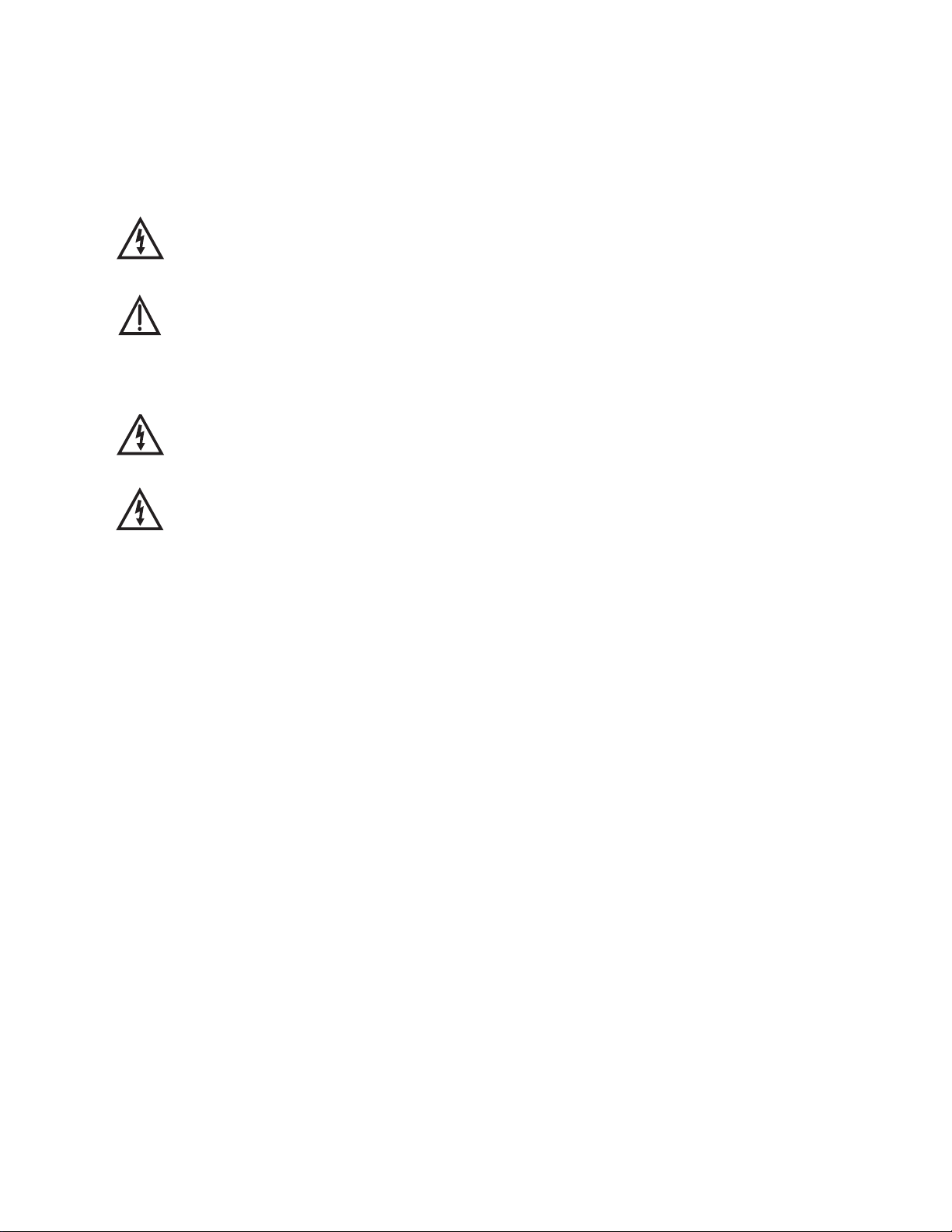
The lightning flash with arrowhead symbol, within an equilateral triangle, is intended to alert the user to
the presence of uninsulated “dangerous voltage” within the product’s enclosure that may be of sufficient
magnitude to constitute a risk of electric shock to persons.
The exclamation point within an equilateral triangle is intended to alert the user to the presence of
important operating and maintenance (servicing) instructions in the literature accompanying the
apparatus.
For Your Safety
Do not try to open the case of the receiver. There is risk of electrical shock, which may cause damage to
the apparatus and/or personal injury or death to you. There are no user-serviceable parts inside the
receiver. Opening the receiver case or making unauthorized changes will void the warranty.
Warning: To reduce the risk of fire or electric shock, do not expose this apparatus to rain or moisture.
Important Software Notice
As with all software controlled products, unexpected behavior could arise if the user tries to perform operations in a nonroutine manner. This product, like almost any other high tech product, is subject to bugs and hence EchoStar CANNOT
AND DOES NOT GUARANTEE OR WARRANT THAT ALL FEATURES, SUCH AS PARENTAL CONTROL, WILL WORK
AS INTENDED UNDER ALL CIRCUMSTANCES. EchoStar endeavors to improve such conditions and will periodically
download improvements.
In compliance with the terms of the GNU Public License (GPL), EchoStar is making some source code available to the
public to download from echostar.com.
Equipment and Software Covered by this User’s Guide
This User Guide covers the ViP612™ DVR receiver, and software models ViP612. This Guide may cover other devices not
listed here.
Copyright Notice
Copyright © 2012 EchoStar Technologies L.L.C., Englewood, Colorado 80112. All rights reserved.
The information in this User Guide may change without notice. We may issue revisions to tell you about such changes.
Please send comments or questions about this User Guide to: Technical Publications, EchoStar Technologies L.L.C., 90 Inverness Drive
Circle East, Englewood, Colorado 80112.
Part Number: 188342
Printed in the United States of America.
DISH is a registered trademark of DISH Network L.L.C. For information about DISH, please visit our website at mydish.com.
We acknowledge all product names, trade names, or corporate names we mention in this User Guide to be the proprietary property of the
registered owners.
Manufactured under license from Dolby Laboratories. “Dolby” and the double-D symbol are trademarks of Dolby Laboratories.
HDMI, the HDMI logo and High-Definition Multimedia Interface are trademarks or registered trademarks of HDMI Licensing LLC.
This equipment may incorporate copyright protection technology that is protected by U.S. patents, patent applications, and/or other
intellectual property rights. Use of such copyright protection technology is intended for home and other limited pay-per-view uses only
unless otherwise authorized. Reverse engineering or disassembly is prohibited.
Page 3
Important Safety Instructions .........................vii
Introduction ........................................................1
WELCOME....................................................................2
OW TO USE THIS GUIDE .............................................2
H
BOUT YOUR DISH ACCOUNT......................................3
A
ATCHING TV NOW .....................................................4
W
DDITIONAL SERVICES .................................................6
A
BOUT SATELLITE TV RECEPTION................................7
A
HY CONNECT TO A PHONE LINE OR BROADBAND .......7
W
OVING ON-SCREEN LOGO ..........................................8
M
Satellite Receiver ...............................................9
SATELLITE RECEIVER OVERVIEW ................................10
ATELLITE RECEIVER FRONT PANEL...........................10
S
ATELLITE RECEIVER BACK PANEL ............................10
S
EMOTE CONTROL.....................................................11
R
SING THE ON-SCREEN MENUS ..................................15
U
SING TEXT FIELDS ...................................................17
U
i
Page 4

Table of Contents
Watching TV .....................................................19
CHANGING CHANNELS................................................20
U
U
U
Pay Per Programs ............................................25
PAY-PER-VIEW...........................................................26
SING THE PROGRAM GUIDE ......................................20
SING THE BROWSE BANNER.....................................21
SING THEMES AND SEARCH......................................22
DISH O
ONSIDERATIONS.......................................................28
C
N DEMAND.....................................................26
Favorites Lists ..................................................31
WHAT ARE FAVORITES LISTS? ...................................32
REATING OR CHANGING FAVORITES LISTS ................32
C
AMING FAVORITES LISTS..........................................33
N
SING FAVORITES LISTS ............................................34
U
Locks ................................................................. 35
WHAT ARE LOCKS? ...................................................36
REATING OR CHANGING RATINGS LOCKS..................36
C
REATING OR CHANGING CHANNEL LOCKS ................40
C
OCKING OR UNLOCKING PAY-PER-VIEW CHANNELS ..41
L
IDING ADULT CONTENT OR LOCKED CHANNELS........41
H
OCKING OR UNLOCKING THE FRONT PANEL ..............42
L
REATING OR CHANGING A PASSWORD......................43
C
ii
OCKING AND UNLOCKING YOUR RECEIVER................44
L
Interactive TV ....................................................45
DISHHOME INTERACTIVE TV .....................................46
USTOMER SERVICE ..................................................46
C
Page 5

Table of Contents
Digital Video Recording ...................................47
WHAT IS DVR?..........................................................48
AUSING A PROGRAM ................................................48
P
EVERSING, FAST FORWARDING, AND SKIPPING .........49
R
LOW MOTION AND FRAME-BY-FRAME.......................49
S
ECORDING A LIVE PROGRAM....................................50
R
LAYING A RECORDED PROGRAM...............................50
P
ELETING RECORDED PROGRAMS..............................51
D
ROUPING AND SORTING RECORDED PROGRAMS .......51
G
NABLING RECORD LINK ............................................52
E
Record Future Programs .................................53
TIMERS AND RECORDINGS..........................................54
SING THE TIMERS LIST .............................................55
U
SING THE DAILY SCHEDULE......................................56
U
REATING AN AUTOMATIC TIMER................................58
C
REATING A MANUAL TIMER ......................................58
C
REATING A DISHPASS™ TIMER...............................59
C
ELETING A TIMER.....................................................60
D
Remote Control Setup .....................................63
IMPROVING RECEIVER CONTROL .................................64
PERATING OTHER DEVICES ......................................66
O
HE RECOVER BUTTON ..............................................77
T
ENDING DISCRETE POWER ON AND OFF ...................78
S
iii
Page 6

Table of Contents
Customizing Receiver ......................................79
USING MULTIMEDIA ....................................................80
U
C
C
U
S
R
S
NACTIVITY STANDBY ..................................................91
I
Connections .....................................................93
CONNECTING TO YOUR DISH SYSTEM ........................94
SING CALLER ID ......................................................83
USTOMIZING THE GUIDE AND CHANNEL LISTS ...........85
HANGING LANGUAGES..............................................87
SING CLOSED CAPTIONING.......................................88
ETTING UP AUDIO OUTPUT .......................................89
ESETTING TO FACTORY DEFAULTS ...........................90
CHEDULING RECEIVER UPDATES...............................91
ONNECTING AN OVER-THE-AIR ANTENNA..................96
C
CANNING FOR OVER-THE-AIR CHANNELS..................96
S
SING TROUBLESHOOTING TOOLS............................100
U
Reference ........................................................ 103
TROUBLESHOOTING TABLES.....................................104
EMOTE CONTROL DEVICE CODES ...........................115
R
Appendix ......................................................... 121
LIMITED WARRANTY .................................................122
ESIDENTIAL CUSTOMER AGREEMENT ......................123
R
FCC C
OMPLIANCE ...................................................131
Index ................................................................ 133
iv
Page 7
Important Safety Instructions
1 Read these instructions.
2 Keep these instructions.
3 Heed all warnings.
4 Follow all instructions.
5 Do not use the apparatus near water.
6 Clean only with a dry cloth.
7 Do not block any ventilation openings. Install in accordance with the manufacturer’s instructions.
8 Do not install near any heat sources such as radiators, heat registers, stoves, or other apparatus (including
amplifiers) that produce heat.
9 Do not defeat the safety purpose of the polarized or grounding-type plug. A polarized plug has two blades
with one wider than the other. A grounding-type plug has two blades and a third grounding prong. The wide
blade or the third prong are provided for your safety. If the provided plug does not fit into your outlet, consult
an electrician for replacement of the obsolete outlet.
10 Protect the power cord from being walked on or pinched, particularly at plugs, convenience receptacles, and
the point where they exit from the apparatus.
11 Only use attachments/accessories specified by the manufacturer.
12 Unplug the apparatus during lightning storms or when unused for long periods of time.
13 Refer all servicing to qualified service personnel. Servicing is required when the apparatus has been
damaged in any way, such as the power supply cord or plug is damaged, liquid has been spilled or objects
have fallen into it, the apparatus has been exposed to rain or moisture, does not operate normally, or has
been dropped.
14 The power plug must be readily accessible so that the apparatus can be easily disconnected from the AC
power.
15 The receiver is still connected to the AC power whenever it is plugged into a live power outlet, even if it is
turned off using the remote control or front panel buttons.
16 No flame sources, such as lit candles, should be placed on the equipment.
17 The apparatus shall not be exposed to dripping or splashing, and no objects filled with liquids, such as vases,
shall be placed on the top of it.
18 Operate the receiver using only the type of power source indicated on the marking label. Unplug the receiver
power cord by gripping the power plug, not the cord.
19 Do not overload wall outlets or extension cords; this can result in a risk of fire or electrical shock.
20 Never insert objects of any kind into the receiver through openings, as the objects may touch dangerous
voltage points or short out parts. This could cause fire or electrical shock.
21 Do not locate the antenna near overhead light or power circuits, or where it can fall into such power lines or
circuits. When installing the antenna, take extreme care to avoid touching such power lines or circuits, as
contact with them can be fatal.
22 Do not attempt to service the receiver yourself, as opening or removing covers may expose you to dangerous
voltage and will void the Limited Warranty. Refer all servicing to authorized service personnel.
23 Unplug the receiver from the AC power outlet before cleaning.
24 Do not place the receiver in an enclosure such as a cabinet without proper ventilation.
25 Do not install the receiver in any area where the temperature can be less than 40°F or more than 113°F. If the
receiver is cold to the touch, do not plug it in immediately. Let it sit unplugged at room temperature for at least
45 minutes before plugging it in.
v
Page 8
Safety
t
26 Use an outlet that contains surge suppression or ground fault protection. During an electrical storm
or when the receiver is left unattended and unused for long periods of time, unplug the power cord
from the wall outlet, disconnect the lines between the receiver and the antenna, and disconnect the
telephone line. These actions provide additional protection against damage caused by lightning or
power line surges.
27 Tighten all of the coaxial cable connections only by hand. If you use a wrench, you may overtighten
the connections and damage your equipment.
CAUTION—To reduce the risk of fire, use only No. 26 AWG or larger
telecommunication line cord.
Proper Care of Your Equipment
• Always handle the satellite receiver carefully. Excessive shock and vibration can damage the
hard drive.
• If the equipment is turned on and needs to be moved, unplug the equipemnt and let it sit for at
least 30 seconds before moving it.
• The use of accessories or attachments not recommended by the receiver manufacturer voids
the Limited Warranty.
• Do not stack the receiver on top of or below other electronic devices as this can cause heat
build-up and vibration.
On some TVs, the presence of fixed images for extended periods of time may cause
them to be permanently imprinted on the screen. Consult your TV user guide for
information on whether this is a problem for your TV, what operating/viewing restrictions
apply to avoid this problem, and associated TV warranty coverage.
If this equipment does cause harmful interference to radio or television reception, which can be
determined by turning the equipment off and on, the user is encouraged to try to correct the
interference by one or more of the following measures:
• Reorient or relocate the antenna assembly.
• Increase the separation between the equipment.
• Connect the equipment into an outlet on a circuit different from that to which the DISH receiver
is connected.
• Consult the dealer or an experienced radio/TV technician for help.
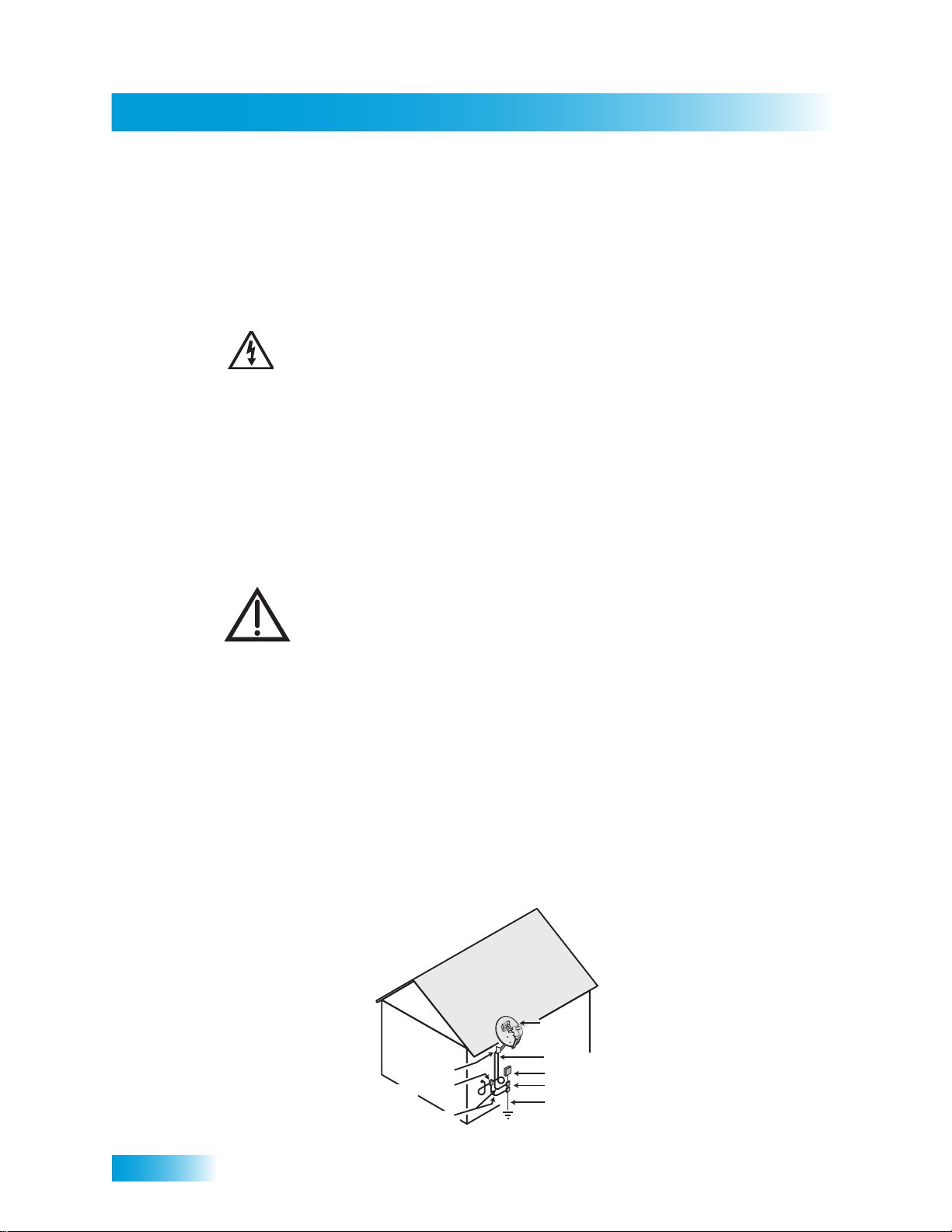
Note to Satellite TV System Installer: This reminder is provided to call the satellite TV system installer’s attention
to Article 820-40 of the National Electrical Code (NEC) that provides guidelines for proper grounding and, in
particular, specifies that the cable ground shall be connected to the grounding system of the building as close to
the point of cable entry as practical.
Satellite Dish
vi
Coaxial Cable
Ground Clamp
Antenna Discharge
Unit
Grounding Conductors
(NEC Section 810-21)
from Satellite Dish
Electric Service Equipmen
Ground Clamps
Power Service Grounding
Electrode System
(NEC Art. 250, Part H)
Page 9
Introduction
Introduction to DISH Services
What you’ll find in this chapter:
• WELCOME
• HOW TO USE THIS GUIDE
• ABOUT YOUR DISH ACCOUNT
• WATCHING TV NOW
• ADDITIONAL SERVICES
• ABOUT SATELLITE TV RECEPTION
• WHY CONNECT TO A PHONE LINE OR
BROADBAND
• MOVING ON-SCREEN LOGO
1
Page 10

Chapter 1
Welcome
WELCOME
HOW TO USE THIS GUIDE
Thank you for choosing DISH. You are about to experience the excitement and
convenience of our Direct Broadcast Satellite (DBS) service, which delivers the very best
picture and sound quality. DISH consistently provides the latest products and satellitedelivered services—with high performance, ease of operation, and a wide variety of
entertainment options.
Your new DISH Digital Video Recorder (DVR) receiver has three tuners (two satellite and
one over-the-air) for recording and playback in standard or high definition. Additionally, the
DVR features and a host of other functions make it one of the most versatile and exciting
devices in home entertainment.
This satellite receiver lets you decide how you watch TV. You can record and play back
audio and video with full digital quality. You can pause a live program and not miss any of
the action or you can record a program to watch later, without a DVR/VCR.
This section explains how the guide is divided and the conventions used throughout.
Guide Overview
This guide contains several chapters to make it easy for you to find what you need:
• Chapter 1—Introduction gives you a brief overview of DISH and your new receiver.
• Chapter 2—Satellite Receiver explains the basic features of your system and how to
use the remote control, front panel buttons, and back panel connections.
• Chapter 3—Watching TV describes how to change channels and look for programs.
• Chapter 4—Pay Per Programs shows you how to order and watch Pay-Per-View and
DISH On Demand programs.
• Chapter 5—Favorites Lists explains how to create, name, and use favorites lists.
• Chapter 6—Locks explains how to set locks and passwords.
• Chapter 7—Interactive TV describes how to use the DishHOME Interactive TV
features of your satellite TV system.
• Chapter 8—Digital Video Recording explains how to use the recording features of
your satellite TV receiver to maximize your viewing pleasure.
• Chapter 9—Record Future Programs shows you how you can record and play back
your favorite programs when you want to watch them.
• Chapter 10—Remote Control Setup contains instructions for programming your
remote to control your satellite receiver and equipment like a TV, DVD, or VCR.
• Chapter 11—Customizing Receiver shows you how to customize your receiver.
• Chapter 12—Connections explains how to connect your satellite receiver to your TV
and other equipment, such as a TV, DVD, or VCR.
• Reference includes troubleshooting steps for common issues and remote control
device codes.
• Appendix includes the warranty, the Residential Customer Agreement, and FCC
compliance information.
2
Page 11
Introduction
About Your DISH Account
Guide Conventions
• The names of remote control buttons are all uppercase.
Example: Press SAT.
• On-screen options are bold
Example: Select System Setup.
• Select means to move the highlight to an on-screen option or choice in a list and press
SELECT on the remote control.
Example: Select the Locks option.
• Back panel connections of the satellite receiver are small uppercase.
Example: Look at the S
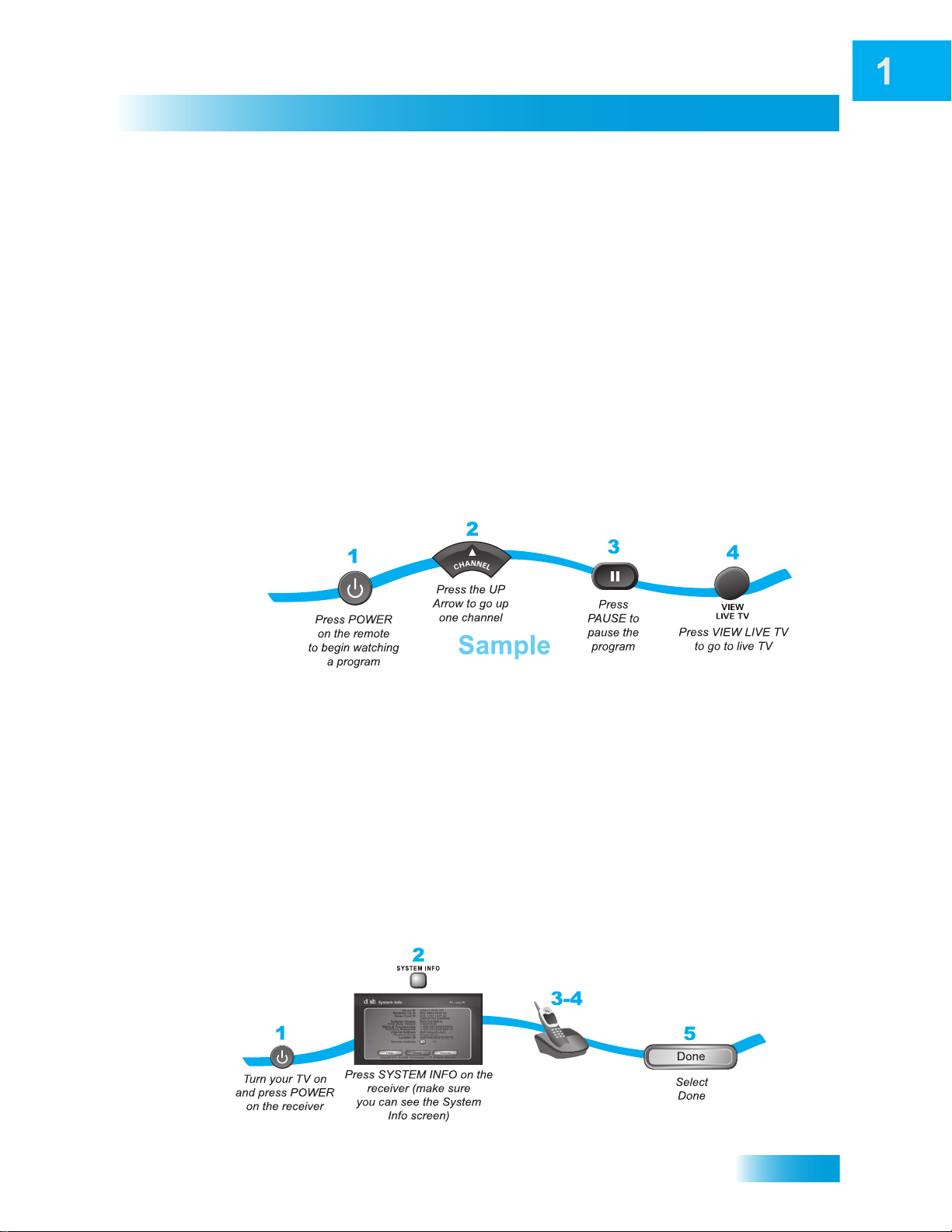
• The instructions in this guide are shown in two ways:
– Instructions in the form of pictures are handy if you’d like to learn something
quickly. These instructions are numbered left to right as shown in the sample
below.
– Instructions that are written out are helpful if you’d like to learn more details.
ATELLITE IN connections.
ABOUT YOUR DISH ACCOUNT
This section describes how to order your packages and provides information on how to
find information about your DISH account.
Ordering Your Programming Packages
Before you can enjoy your new receiver, order your programming packages. You can also
add programming using the Customer Support Application through DishHOME (see
page 46 for more details).
1-800-333-DISH (3474)
Call
and request
programming
3
Page 12

Chapter 1
Watching TV Now
1 Press POWER on the front panel to turn on the receiver.
2 Press SYSTEM INFO on the front panel to display the receiver’s System Info screen on
the nearby TV screen.
3 Call 1-800-333-DISH (3474) and tell the Customer Service Center the system has been
installed and you would like to begin receiving services. A representative will explain the
available program packages. Give the representative information from the System Info
screen, as requested.
4 Your services will be turned on via the satellite signal. This process usually takes just a
few minutes.
5 Select Done.
Where to Find Information on Your Account
If you want to know about charges to your DISH account or if you would like to make
changes to your programming packages, be sure to have your account information handy
and choose one of the following:
• Go to our website at mydish.com/myaccount.
• Press MENU on your remote control and then select Customer Service.
• Call DISH by calling 1-800-333-DISH (3474).
Note: Additional authorization may be required before high definition programming and/or
over-the-air broadcasts can be viewed; additional fees may apply.
WATCHING TV NOW
After you have ordered your programming package, you can begin enjoying the features
of your new satellite TV receiver. When you complete these simple tours, you’ll be familiar
with the remote control and be able to find a program to watch, pause live TV, and record
your favorite shows.
4
Page 13
Introduction
Watching TV Now
Finding a Program to Watch
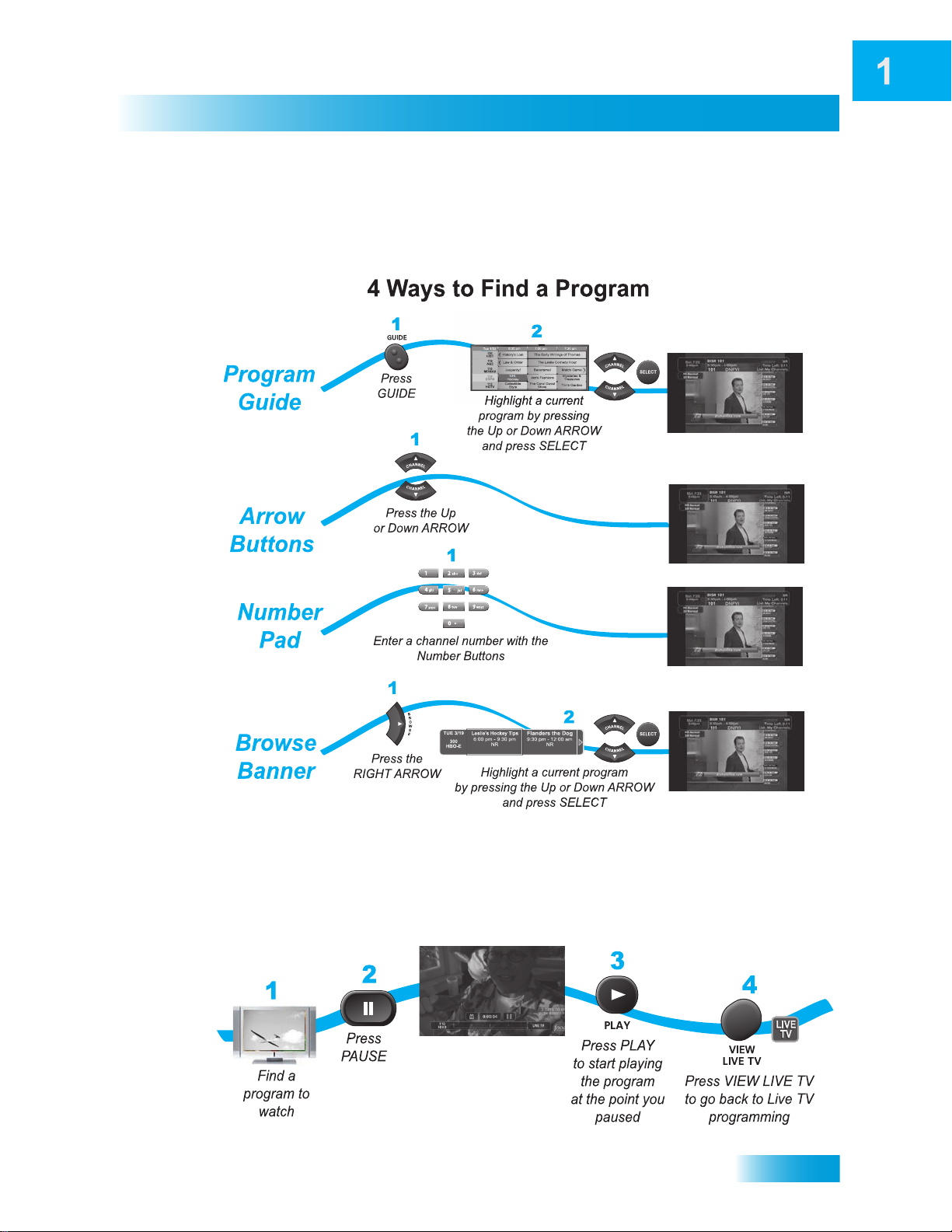
If you want to know more about watching TV, see Chapter 3—Watching TV starting on
page 19.
Pausing Live TV
Here’s something you can’t do with regular old TV: pause live TV because someone’s at
the door or calling you on the phone. For more about the pause feature of your receiver,
see Pausing a Program on page 48.
5
Page 14
Chapter 1
Additional Services
Recording and Playing Back a Program
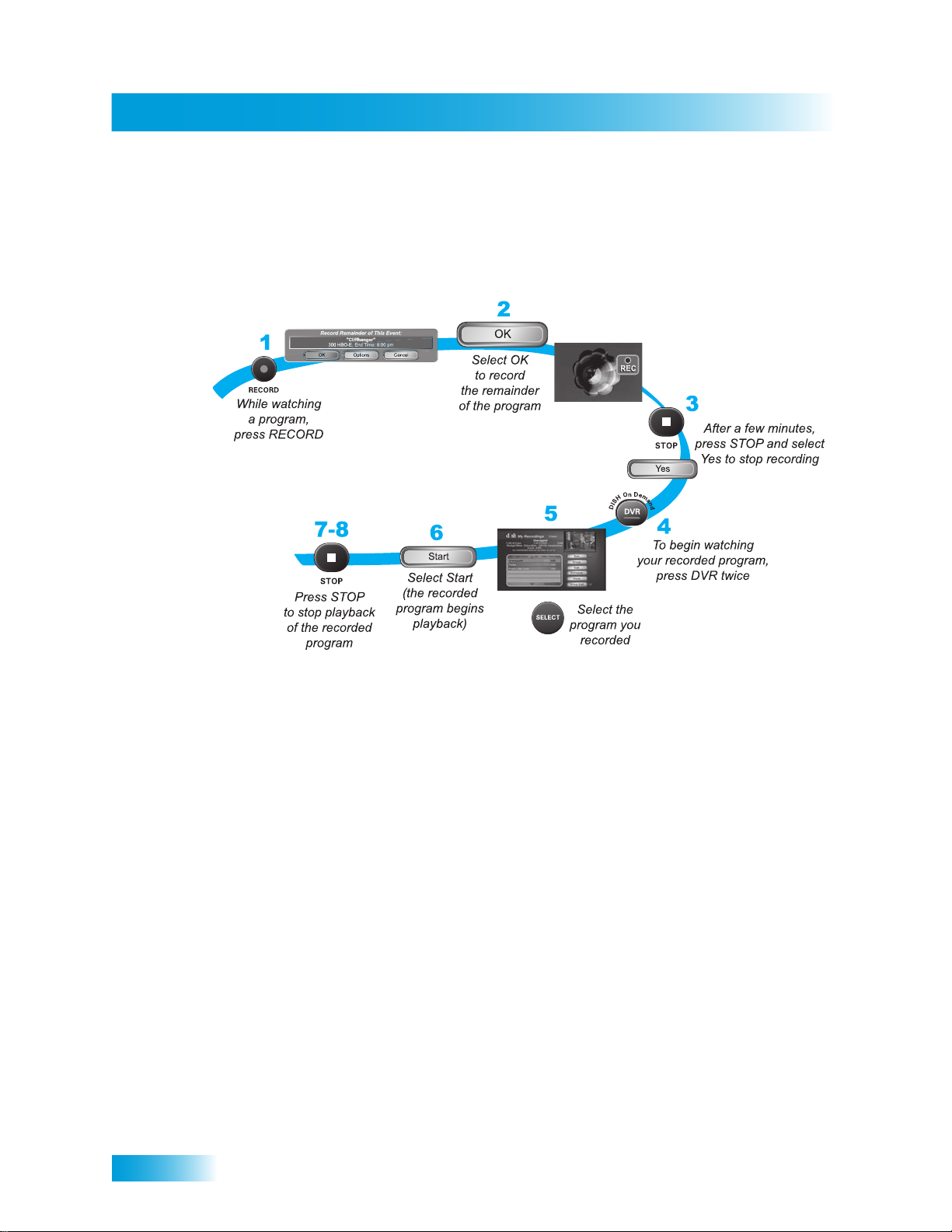
Take this tour to learn how to make basic recordings of your favorite shows. For more
about the DVR features of your receiver, see Chapter 8—Digital Video Recording starting
on page 48.
6
ADDITIONAL SERVICES
Pay-Per-View
Catch all the action on Pay-Per-View. Take a break from regular TV and order the latest
movies, sports, and special events. For details on ordering Pay-Per-View events, see
page 26. Be sure to connect an active phone line or broadband Internet connection to your
receiver before you order a Pay-Per-View event (see the instructions on page 95).
DISH On Demand
Enjoy movies and other programming any time without schedules, without waiting, and
without leaving your home. For details on ordering DISH On Demand events, see
page 27.
DishHOME
On DishHOME (press DISH on your remote control), you’ll find news, sports, weather
information, TV and movie buzz, customer service, games, and more.
Page 15
ABOUT SATELLITE TV RECEPTION
Satellite television uses satellites in a stationary orbit over the Earth to deliver television
and audio programming. This type of orbit enables the satellites to stay aligned over one
place on the surface of the Earth. Once the satellite dish is aimed at the satellite, the dish
does not have to move to follow it.
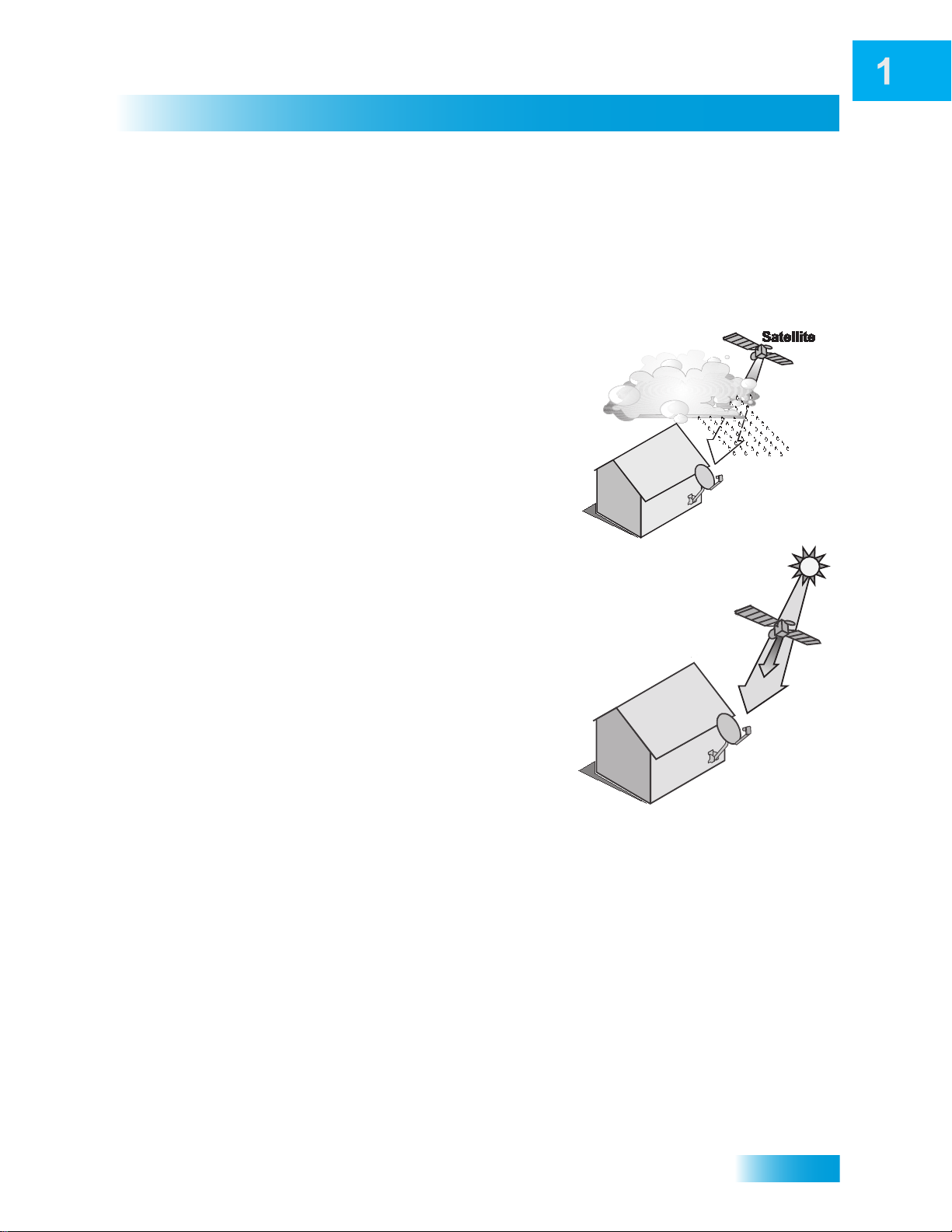
Rain and Snow Fade
Heavy rain, snow, or dense cloud cover can
reduce the satellite signal, which may interrupt
your programming service. Your service will
return after the weather condition has passed.
Aiming the satellite dish to get the strongest
signal during installation helps prevent rain and
snow from interrupting the signal.
Solar Interference
Introduction
About Satellite TV Reception
Twice a year, the sun moves to a position behind
the DISH satellite as it orbits the Earth. This
event occurs during a few days at the beginning
of the spring and the beginning of the autumn
and lasts only a few minutes.
During these brief periods, you will not be able to
see programs on DISH. When the sun has
moved from behind the satellite, the programs
reappear. This is an unavoidable natural event
and has an adverse effect on many satellite
program providers.
WHY CONNECT TO A PHONE LINE OR BROADBAND
Your satellite receiver is equipped with a standard telephone jack that you use to connect
to an active telephone line. Keep the receiver connected to an active telephone line so
that you are able to order pay-per-view programs using your remote control, use all of the
DishHOME Interactive TV features, and use other services from DISH (see the
instructions on page 95).
Your satellite receiver can be connected to your broadband home network. Currently this
connection allows you to order pay-per-view programs using your remote control, as well
as providing access to additional features and servces (see connection instructions on
page 94).
7
Page 16
Chapter 1
Moving On-screen Logo
MOVING ON-SCREEN LOGO
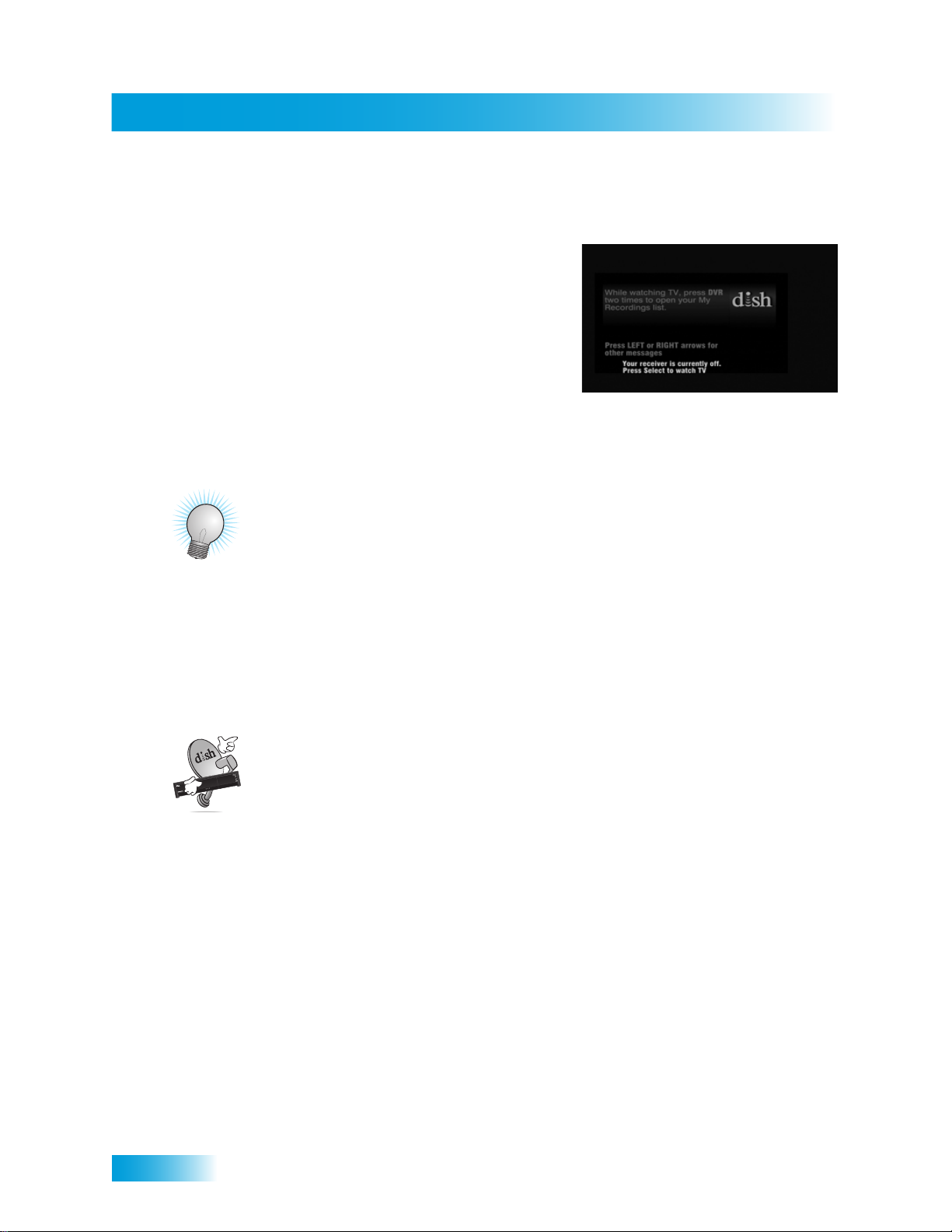
Whenever the receiver is turned off using the
remote control or front panel POWER button, the
DISH logo and helpful tips displays on your TV
screen. This feature is included with your receiver
to assure you that the connections between your
receiver and TV(s) are not lost and also provides
useful information about your receiver and its
features. Press POWER or SELECT on the remote
control to resume watching satellite TV
programming.
TIPS
• Always have the latest software—Put the receiver into standby when you’re not
using it.
• Order Pay-Per-View with your remote control—Keep an active phone line or
broadband Internet connection connected to the receiver to give you Pay-Per-View
and On Demand programs at your fingertips..
QUESTIONS
• How do I find something to watch? Refer to page 4. For more information on finding
something to watch, see Chapter 3 —Watching TV.
• Why are some of the channels red in the Program Guide? The channels that are
red in the Program Guide are those which are not currently in your subscription. If
you’d like to add channels, call 1-800-333-DISH (3474), go to mydish.com/myaccount,
or use the Customer Support Application through DishHOME (see page 46 for more
on the Customer Support Application).
• I’m looking at program information in a guide I bought at the grocery store, but
nothing matches what’s on my DISH receiver, is something wrong? No. DISH
programming may vary from what you’ll find in a local publication. For best results,
use the Program Guide on your receiver or order DISH Entertainment Magazine.
8
Page 17
Satellite Receiver
About Your Satellite Receiver
What you’ll find in this chapter:
• SATELLITE RECEIVER OVERVIEW
• SATELLITE RECEIVER FRONT PANEL
• SATELLITE RECEIVER BACK PANEL
• REMOTE CONTROL
• USING THE ON-SCREEN MENUS
• USING TEXT FIELDS
9
Page 18
Chapter 2
Satellite Receiver Overview
SATELLITE RECEIVER OVERVIEW
• This receiver is an advanced MPEG-4 dual-tuner, single-TV high-definition (HD)
satellite receiver with integrated digital video recorder (DVR).
• View and record DISH high-definition (HD) and standard-definition (SD) programming.
• Watch one program while recording another program, or record two programs while
watching a pre-recorded program.
• View and record digital over-the-air broadcasts using the receiver’s built-in digital
over-the-air tuner.
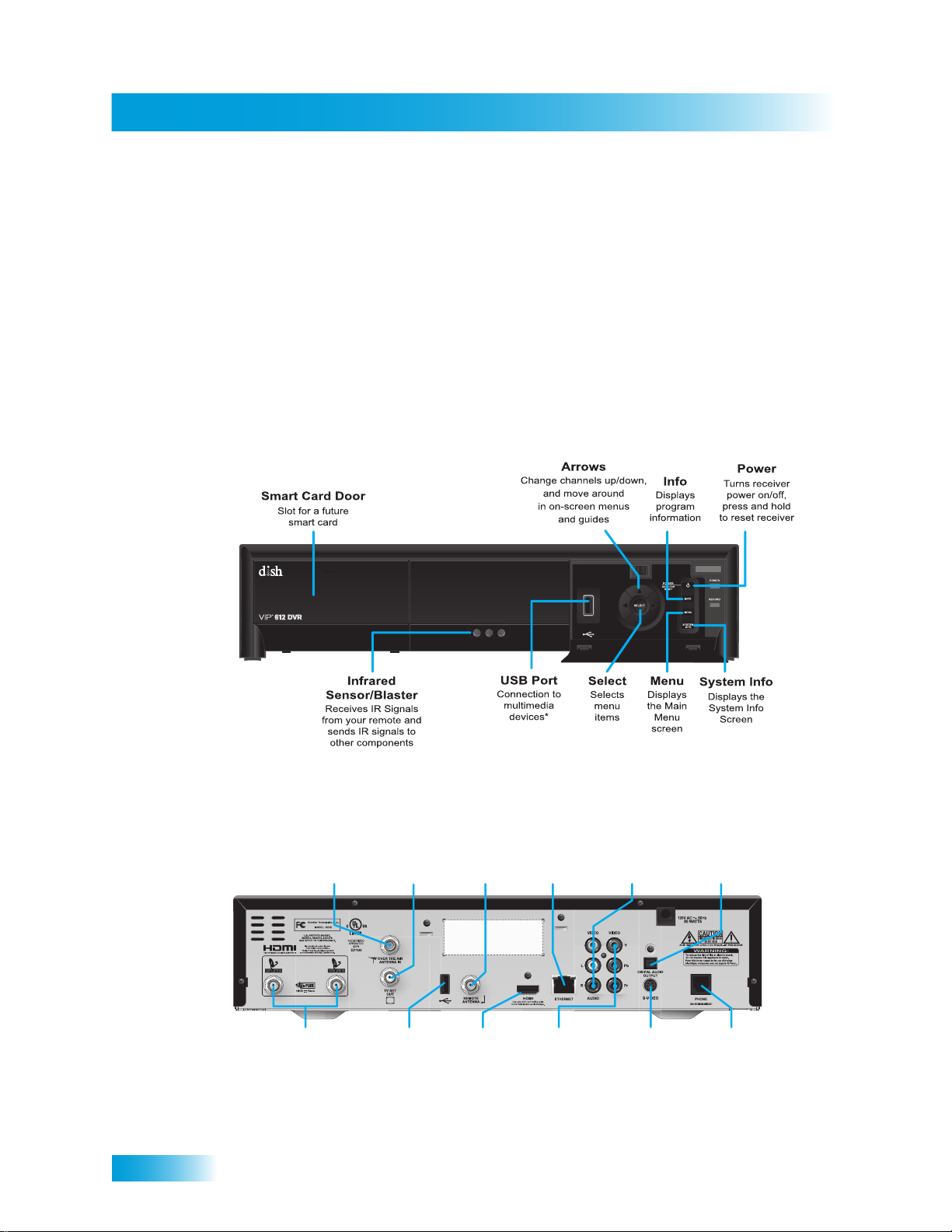
SATELLITE RECEIVER FRONT PANEL
10
SATELLITE RECEIVER BACK PANEL
Over-the-Air
Antenna In
Input connection
to your over-the-air
antenna
Satellite In
Connection to
your satellite dish
TV Set Out
Audio and video
connection to your
standard-definition
TV input
USB Port
Connect to
multimedia
devices
Remote
Antenna
Connection to
remote control
antenna
HDMI
Output
Provides digital
audio and video
to your HDTV
*Some USB multimedia devices may not be compatible.
Ethernet
Port
Connect to
your broadband
home network
YPbPr/
Component
Output
Optional connection to
your high-definition
TV video input
Audio/Video
Output
High-quality standard-
definition connection
to your TV audio
and video input
S-Video
High-quality standard
definition connection
to your TV video input
Digital Audio
Output connection
to a high-quality
digital sound
decoding system
Phone Jack
Connect to your
telephone line
Page 19
REMOTE CONTROL
The remote control gives you access to all the features of your satellite receiver. You can
set up the remote control to operate the satellite receiver and up to three other devices
(see page 66). These devices can be a TV, a DVD or VCR player, and a third device.
The remote control uses IR (infrared) signals to control the receiver and other equipment.
IR signals travel short distances (up to 40 feet) and cannot go through walls or other solid
objects. With IR signals, you must point the remote control directly at the equipment you
want to control, with no objects to block the signal path.
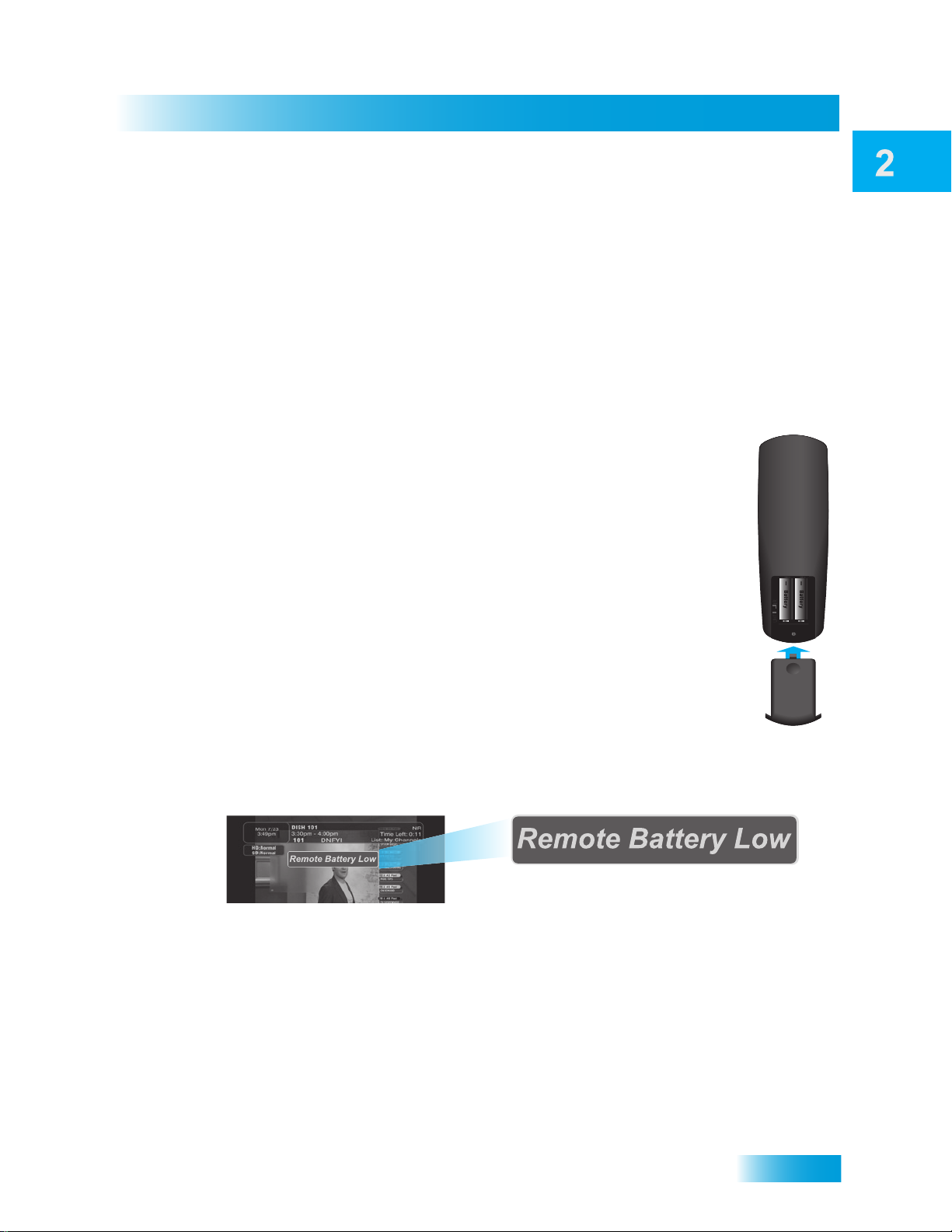
Batteries
The remote control comes with AAA batteries. When you replace old
batteries, you should replace all of the batteries. Use batteries of the same
kind, for example, alkaline or carbon zinc. Don’t mix batteries of different
kinds. To change the batteries:
Satellite Receiver
Remote Control
1 Press down on the top of the battery cover and slide the cover off.
2 Take out all of the old batteries.
3 Put the new batteries in. Make sure you match the plus (“+”) ends with the
plus markings on the battery case.
4 Slide the cover back into place.
Low Battery Warning
When you see a low battery warning message on your screen below the Program Banner,
the batteries in your remote control are weak and need to be replaced.
11
Page 20
Chapter 2
/
Remote Control
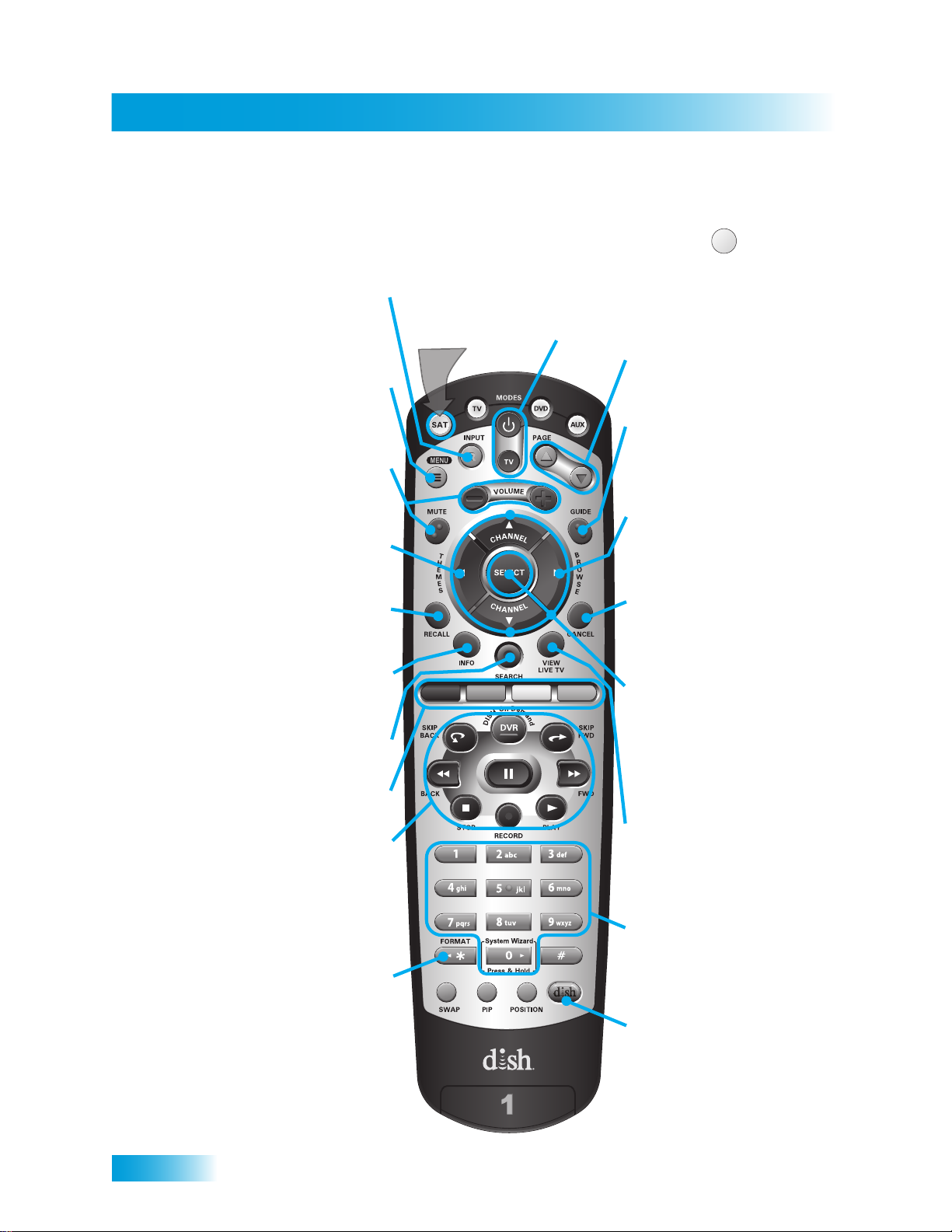
Remote Control Buttons—SAT Mode
To use the features described in this section, make
sure you are in SAT mode by pressing the SAT Mode button.
Input
Press once for Input,
Press and hold
for Recover
Receiver Menu
Accesses receiver
features and settings
Volume and
Mute Buttons
Controls TV volume
Programming required
Themes
Searches for programs
using Themes
Recall
Returns to last
channel viewed
Info
Retrieves information
on programs
Search
Searches for a program
Shortcut Keys
(for future use)
Digital Video
Recorder (DVR)
Buttons
Pauses live TV and
plays or records
programming
Format
Formats the picture
to the desired width
to match the program
you are viewing
Press this
button for
SAT Mode
SAT
Receiver Power & TV Power
Top button turns the receiver on/off,
Bottom button turns the TV on/off
Page Buttons
Pages up/down in
menus
Program Guide
Displays current and
future satellite
program listings
Browse
View what is on other
channels while
watching TV
Cancel
Returns to previous
menu or to watching
a program
Arrows/Select
Buttons
Channel up/down,
navigates through
menus, and selects
a desired option
View Satellite
Programming
Exits out of any menu
guide and returns to
viewing live TV
Number Buttons
Enter a channel
number, or navigate
through menus
DishHOME
Explore interactive
TV features
12
Page 21
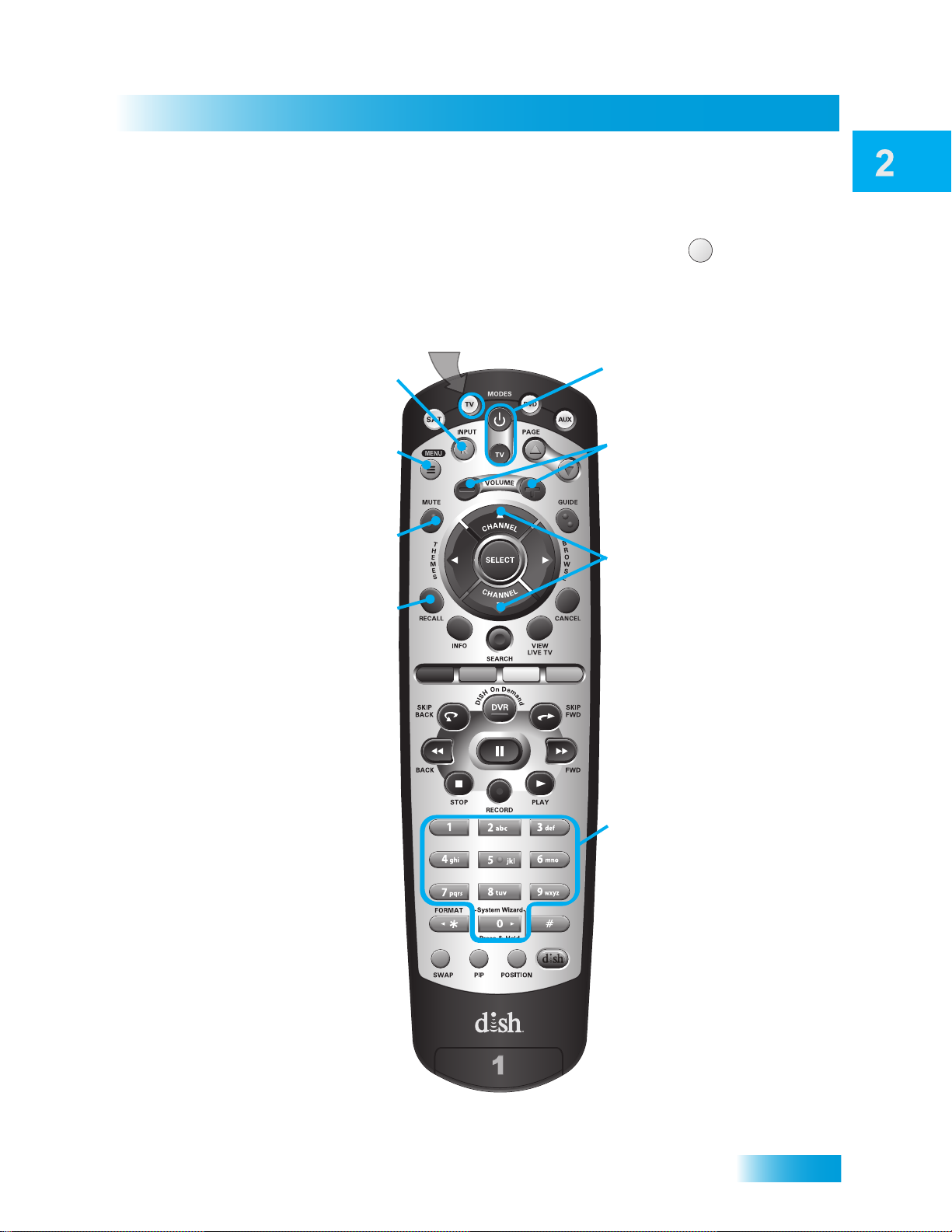
Remote Control Buttons—TV Mode
Satellite Receiver
Remote Control
To use the features described in this section, make
sure you are in TV mode by pressing the TV Mode button.
Remote programming is required.
Press this
button for
TV Mode
Input
Switches between
TV inputs
TV Menu
Accesses menu
features available
on some TVs
Mute
Turns TV volume
on or off
Recall
Returns to last
TV channel viewed
TVTV
Receiver Power
& TV Power
Turns the TV on/off
Volume
Controls TV
volume
Up/Down
Arrow Buttons
Channel up/down
on TV
Number Buttons
Enter a desired TV
channel number
Note: Remote operation is different on DISH TVs.
See your DISH TV User's Guide for proper operation.
13
Page 22
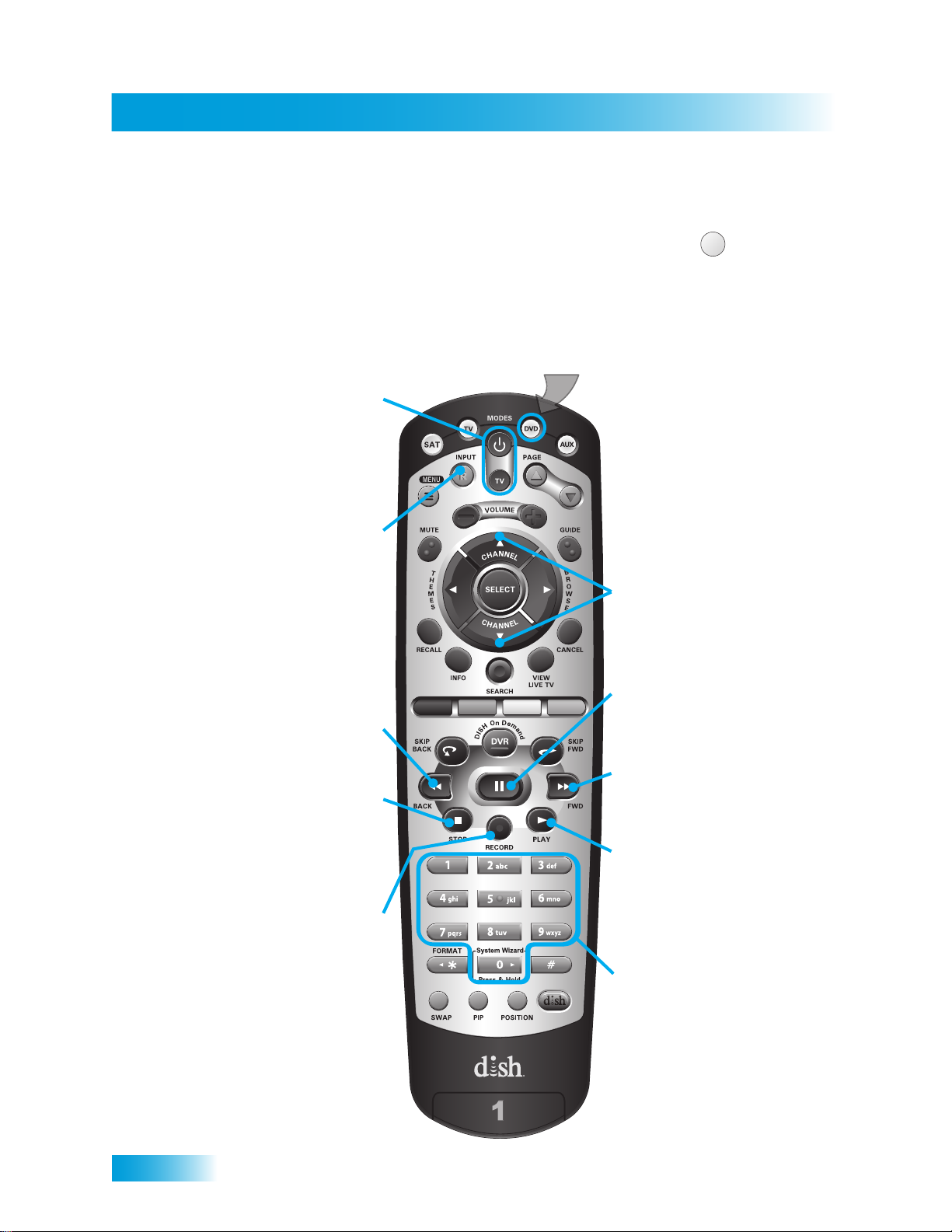
Chapter 2
Remote Control
Remote Control Buttons—DVD Mode
To use the features described in this section, make
sure you are in DVD mode by pressing the DVD Mode button.
You can use this mode to operate your VCR player instead of a DVD.
DVD/VCR Power
& TV Power
Top button turns the
DVD player/VCR
power on and off,
Bottom button turns
the TV on and off
Input
Switches DVD between
its TV & DVD mode
DVD
Remote programming is required.
Press this
button for
DVD Mode
Up/Down
Arrow Buttons
Channel up/down
on DVD or VCR
Back
Reverses a DVD or
rewinds a videotape
Stop
Stops playing a DVD,
stops playing or
recording a
videotape
Record
Records on a
CD or videotape
Pause
Pauses a DVD
or videotape
FWD
Forwards a DVD
or videotape
Play
Plays a DVD
or videotape
Number Buttons
Enter a channel
number for DVD or VCR
14
Page 23
USING THE ON-SCREEN MENUS
The on-screen menus make using the receiver and selecting programs quick and easy.
Use the menus to control the receiver and to use its features, such as setting locks,
choosing a program, or creating a favorites list.
Open and Close Menus
You can open the menus in either of two ways:
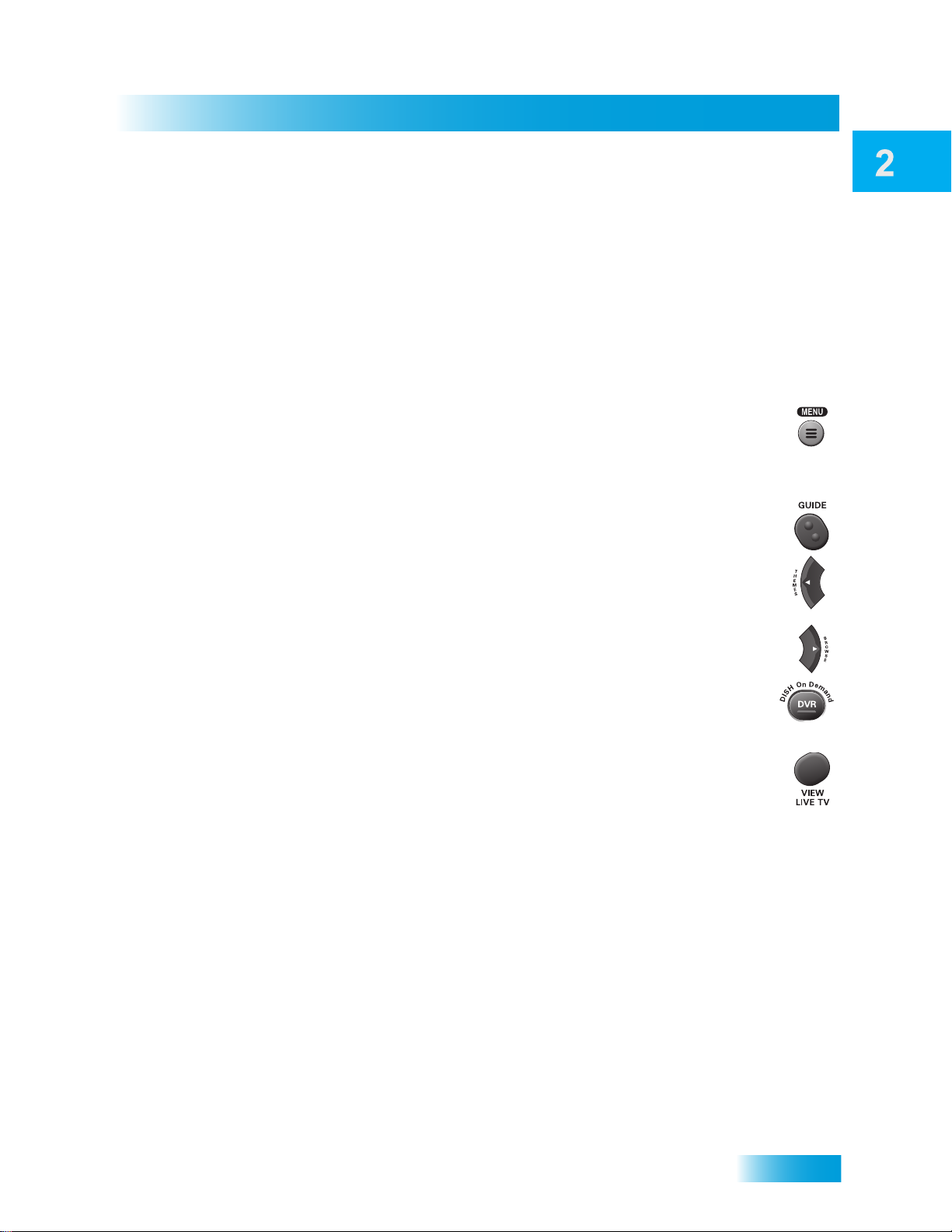
• Press MENU on the remote control to open the Main Menu, then select any of
the other menus from the Main Menu.
• Use the following buttons on the remote control to quickly open certain
features:
– Press GUIDE to open the Program Guide.
– Press THEMES (LEFT ARROW) when watching a program to open the
Themes and Search menu.
Satellite Receiver
Using the On-screen Menus
– Press BROWSE (RIGHT ARROW) to display the Browse Banner.
– Press DVR to access the My Recordings List on DISH On Demand.
To close a menu and return to watching a program, press VIEW LIVE TV.
Highlighting Menu Options
Use the remote control ARROWS to move the on-screen highlight to menu options. When
you move the on-screen highlight, the option turns amber.
15
Page 24
Chapter 2
Using the On-screen Menus
Selecting Menu Options
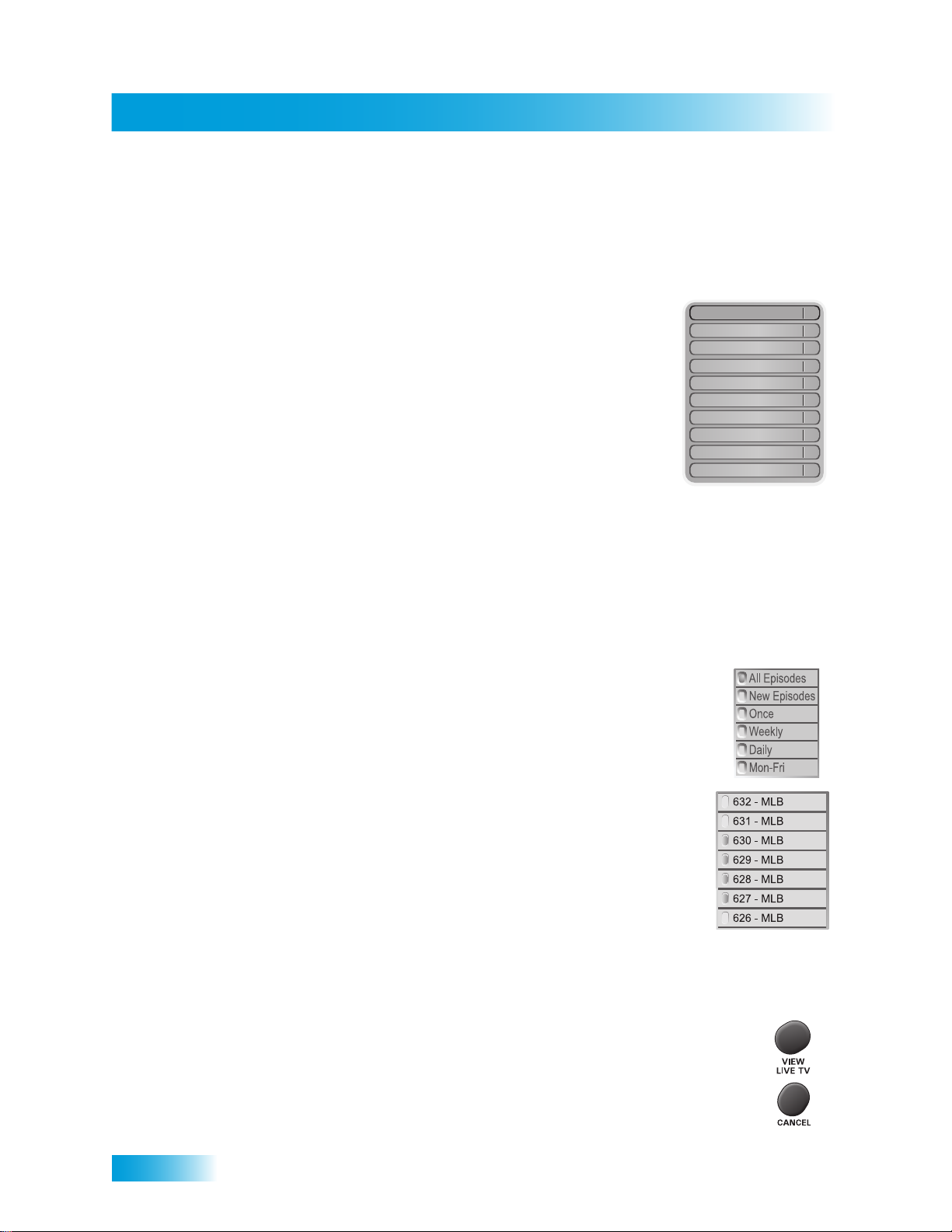
When you select a menu option, that option takes effect right away. You can select a menu
option in one of two ways:
• Move the highlight to the menu option using the remote
control ARROW buttons. Then press SELECT to choose
the highlighted option. In the example, Program Guide is
highlighted.
• If an option has a number next to it, press the number on
the remote control NUMBER PAD that matches the option.
When you use the NUMBER PAD, you do not need to
highlight the option or press the SELECT button.
Program Guide
Themes & Search
Customer Support
Multimedia
Locks
System Setup
Daily Schedule
Preferences
DISH On Demand
Cancel
List of Choices in the Menus
When you make a choice in a list, the receiver does not apply the change until you select
Save or Done. If you do not want to save any changes, select Cancel to discard all the
changes made in the menu.
There are two types of lists:
• A single choice list allows you to select only one choice at a time.
If you select another choice, your previous choice is deselected.
1
2
3
4
5
6
7
8
9
0
16
• A multiple choice list allows you to select more than one choice
at one time. If you select another choice, your previous choice(s)
stays selected.
Canceling a Procedure
You can cancel a procedure in any of three ways:
• If you want to return to watching a program, press VIEW LIVE TV.
• If you want to return to the previous menu, press CANCEL.
• If you wait a few moments, the menu closes automatically, discarding
any changes you have made.
Page 25
USING TEXT FIELDS
When you use features on the receiver, you might be required to enter information, such
as the name of a movie when using Search, into areas known as text fields. Your receiver
has two ways to enter the information:
• On-screen keyboard
• Remote Control NUMBER PAD
Using the On-screen Keyboard
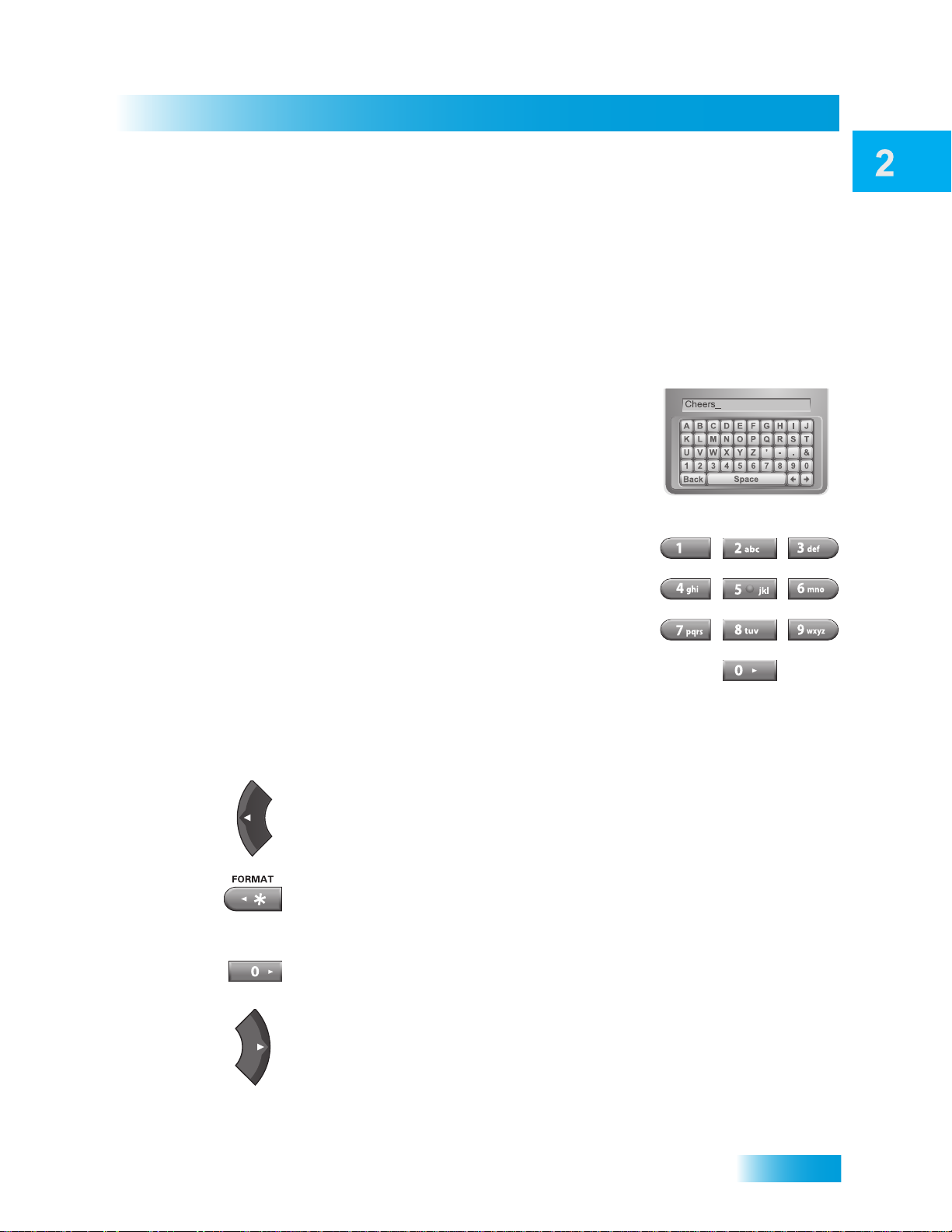
Use the on-screen keyboard letters to type the information.
Use the LEFT, RIGHT, UP, and DOWN ARROWS to navigate
around the keyboard. Press SELECT to enter the characters
you want.
Using the Remote Control Number Pad
Satellite Receiver
Using Text Fields
Use the letters above the NUMBER PAD on the remote
control—just like on a telephone—while the highlight is in the
field. For example, when looking for the channel and times to
watch Rudy Friml Presents, you press 7 three times for an R,
8 two times for a U, 3 one time for a D, and 9 three times for a
Y to spell the word “Rudy.”
While in the Text Field
When the cursor is in the text field:
Press the LEFT ARROW to delete characters.
Press FORMAT (*) to backspace without deleting characters.
Press 0 to enter a blank space, such as between words.
Use the RIGHT ARROW to forward space without deleting characters.
17
Page 26

Chapter 2
Tips
TIPS
• If you do not do anything in a menu for several minutes, the menu automatically
closes. This discards any changes you made and displays the program you were
watching.
• On the remote control, press * (FORMAT) on the remote control to change the aspect
ratio (display shape) of HD and SD channels.
18
Page 27

Watching TV
Finding Programs to Watch
What you’ll find in this chapter:
• CHANGING CHANNELS
• USING THE PROGRAM GUIDE
• USING THE BROWSE BANNER
• USING THEMES AND SEARCH
19
Page 28
Chapter 3
Changing Channels
CHANGING CHANNELS
There are two basic ways to change the channel on your satellite TV receiver:
• Use UP and DOWN ARROWS on your remote control.
• Enter a channel number with the NUMBER PAD.
Using the Up and Down Arrows
While watching live TV, if you want to change the channels one at a time
to see what’s on, press the UP and DOWN ARROWS on your remote
control. You can also change the channels the same way using the UP
and DOWN ARROWS on the receiver front panel.
Entering a Channel Number
While watching live TV, if you know the specific channel you want
to watch, enter the channel number using the NUMBER PAD on
the remote control.
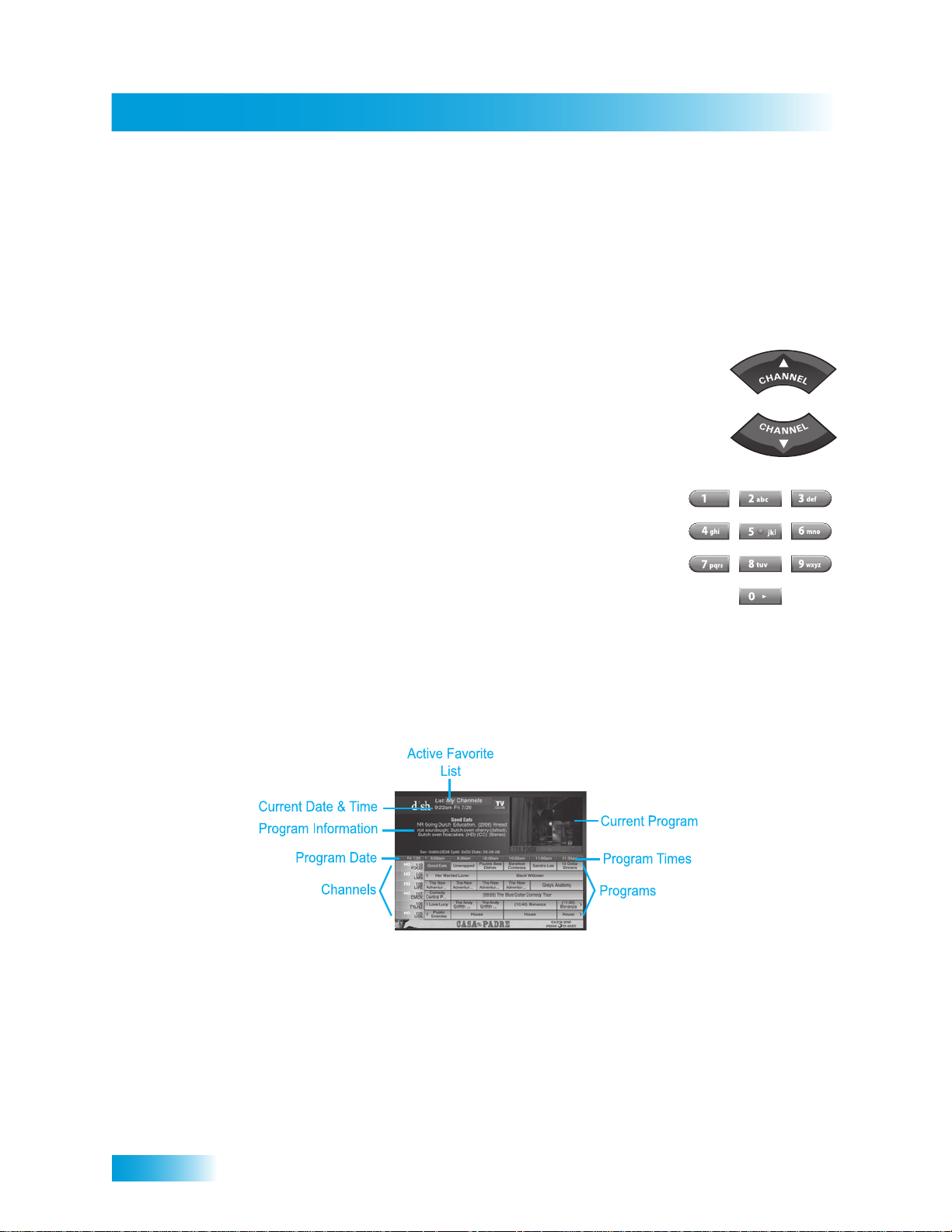
USING THE PROGRAM GUIDE
You can use the Program Guide to see what programs are on, to change channels, and to
set up recordings. To access the guide, press GUIDE.
• A red background behind a channel usually means you have not subscribed to the
channel. After you subscribe to a channel, you can view it. To subscribe to a channel,
visit our website at mydish.com/upgrades or call 1-800-333-DISH (3474).
• A yellow background behind a channel is for digital over-the-air channels. See
page 96 for instructions to connect an over-the-air antenna (optional) to your receiver.
• A green background behind a channel means that you can use your remote control to
add the channel to your subscription. Press SELECT and follow the on-screen
messages to order the channel.
20
Page 29
Watching TV
Using the Browse Banner
• The Program Guide shows which Favorites List is active. If All Chan is active, the
Program Guide shows all available channels, whether or not you subscribe to them.
The My Channels list shows only the channels in your subscription. The My HD
Channels list shows only the HD channels in your subscription. If you activate another
list, the Program Guide shows only the channels on that list. See page 32 for
information on Favorites Lists.
• The Program Guide shows programs currently showing and coming on within the next
nine days. The guide does not show programs that have ended.
While using the Program Guide, you can:
• Press PAGE UP or PAGE DOWN to move a page at a time.
• Enter the number of hours you want to skip, and then press the RIGHT/LEFT ARROW
to move forward or back in the schedule.
• Press SKIP FWD and SKIP BACK to move forward or back a day at a time.
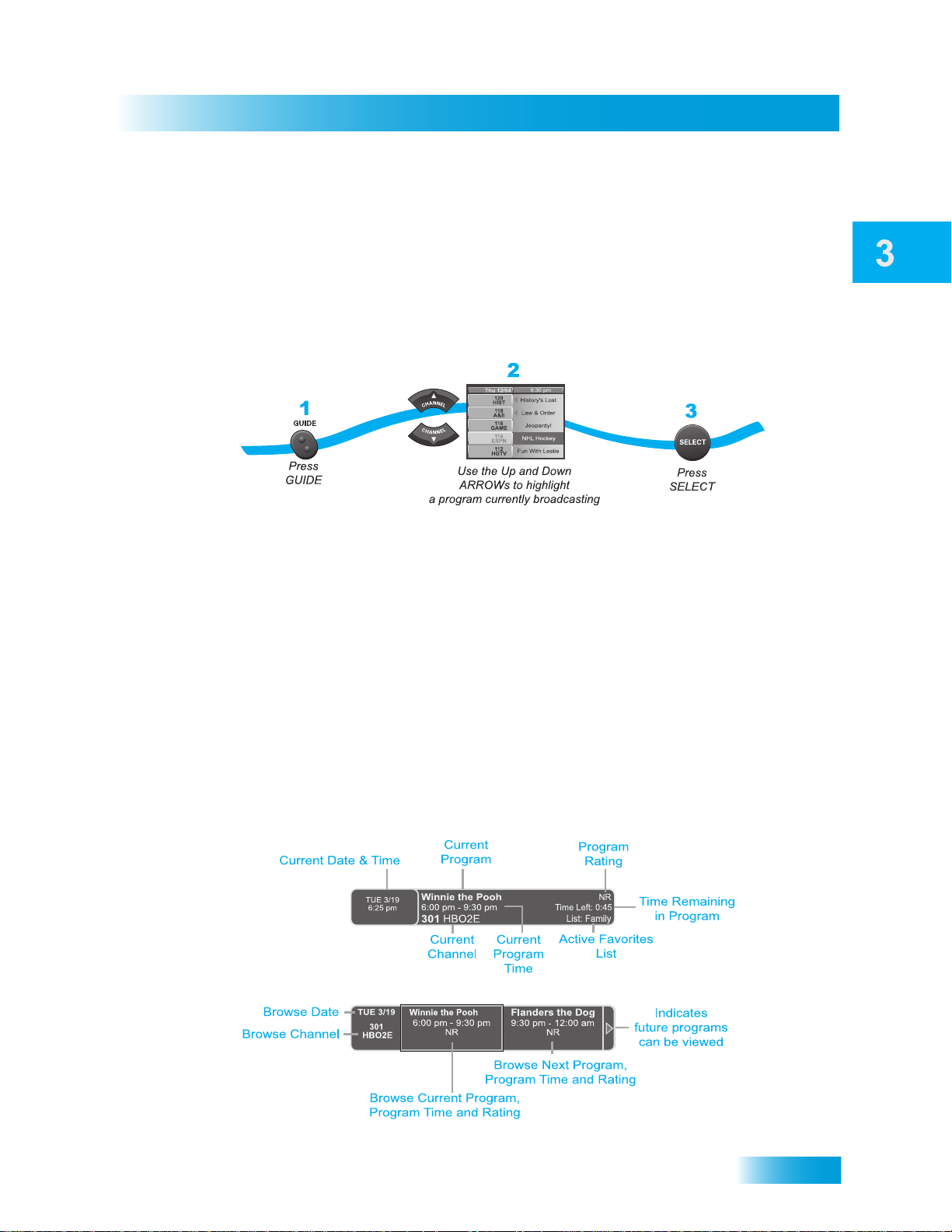
USING THE BROWSE BANNER
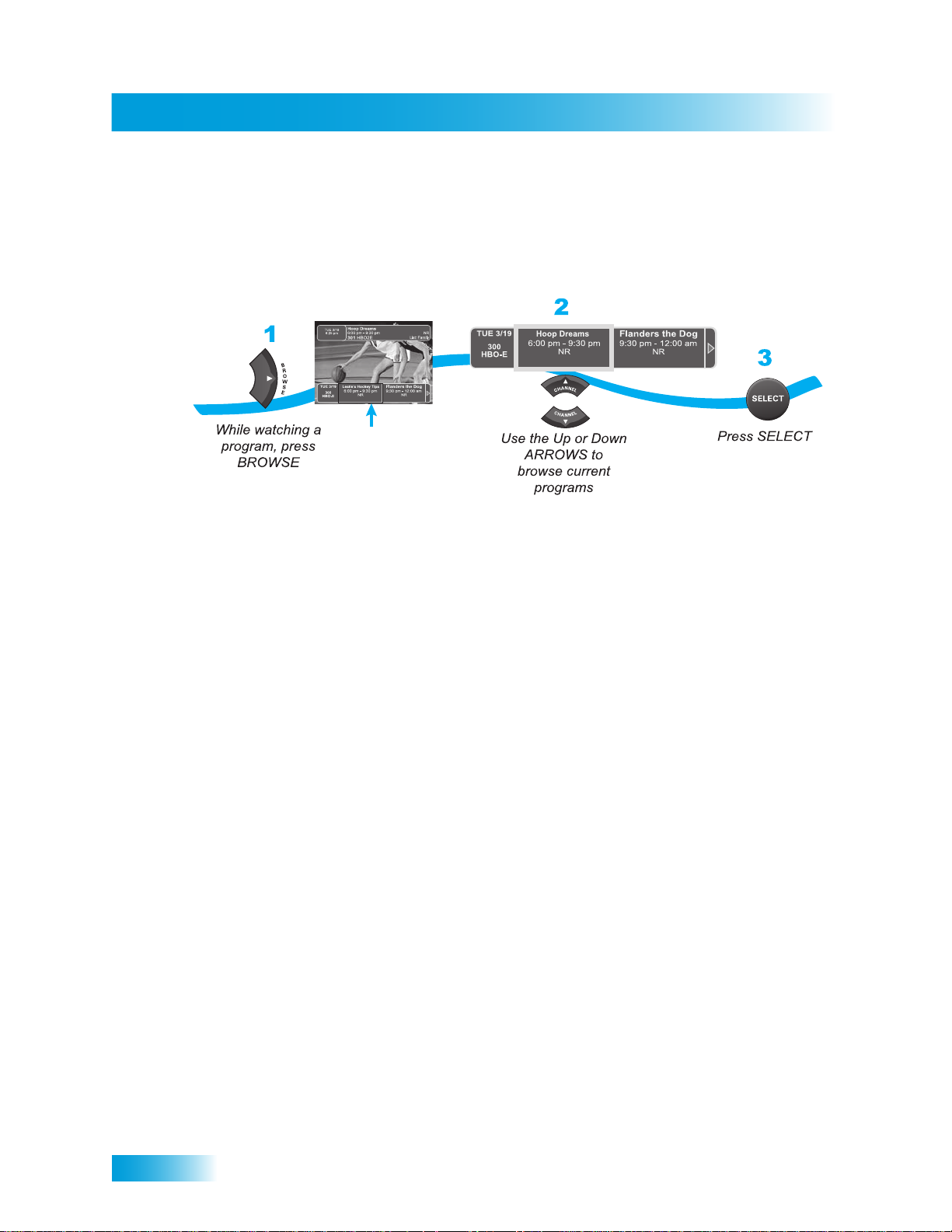
Use the Browse Banner to see what other programs are on and not miss any of a program
you are watching. Press the RIGHT ARROW (BROWSE) button to open the browse
banner.
21
Page 30
Chapter 3
Using Themes and Search
When the Browse Banner is open, the program information of the current channel displays
at the top of the screen, and the Browse Banner displays at the bottom of the screen. The
Browse Banner displays program information for the current and upcoming program on
other channels. Press the UP or DOWN ARROWS to view the program information for
other channels.
USING THEMES AND SEARCH
Use the Themes and Search feature to find exactly what you want to watch. This section
shows you how to use Themes to find your favorite programs by type (such as movies,
sports, or news), or by keyword (if you’re looking for a particular actor or description).
You can list and choose programs by the theme of their contents, for example, just movies
or just sports. Use Themes and Search to quickly find programs based on the following:
• Theme and Sub-Theme. Search for programs by category (such as Movies or
Sports). Use sub-theme to narrow the type of program. The Sub-Theme feature is
different for each Theme category.
• Keyword. Use this selection to be even more specific (for example, actor or
description). You can even search for something to watch just by Keyword. This
feature also categorizes programs on off-air channels (if an over-the-air antenna is
connected to the receiver as described on page 96). You can search for events two
ways:
– Select Title to search for the words that appear in the title of a program.
– Select Info to search for words that are in the program description or title.
Enter the Keyword(s) in the Search Criteria Field in one of two ways:
– Use the on-screen keyboard.
22
– Use the letters on the NUMBER PAD.
Page 31

Using Themes
Watching TV
Using Themes and Search
1
Press
THEMES
2
Theme
News / Business
Family / Kids
Education
Series / Specials
Music / Arts
Religious
Select
a theme
3
Sub-Theme
All News
Agriculture
Community
Talk
Entertainment
Health
Select
a sub-theme
4
Get Results
Select
Get Results
1 Press THEMES on your DISH remote control.
2 Select a theme.
3 Select a sub-theme.
4 Select Get Results. The programming that matches the themes and sub-themes selected
displays.
Using Keywords
1
Press
SEARCH
2
Cheers_
A B C D E F G H I J
K L M N O P Q R S T
U V W X Y Z ' - . &
1 2 3 4 5 6 7 8 9 0
Space
Back
Enter keyword
search criteria
Select Title or Info
(and Exact Match if
3
Exact Match
or
Title
Search by:
and (optional)
necessary)
Info
4
Done
Select
Done
5
Get Results
Select
Get Results
1 Press SEARCH on your DISH remote control.
2 Using the keypad, enter keywords that define your search.
3 Select Title or Info.
4 Select Done.
5 Select Get Results.
23
Page 32

Chapter 3
Tips
Using Search History
1 Press SEARCH on your DISH remote control.
2 Select Cancel.
After you have searched previously for programs or other information, your receiver builds
a history. You can use the Search History to re-search programming instead of typing the
information again.
Note: Use the Edit or Delete options to change or delete search keywords.
3 Select History.
4 Select a program from the list.
5 Select Search.
TIPS
• Press INFO to get more information about a highlighted program.
• Press VIEW LIVE TV to cancel almost any screen and return to live TV.
• Customize the channels listed in the Program Guide by creating Favorites Lists as
described on page 32.
QUESTIONS
• Why are some of my channels missing?
24
– You may have locked or hidden the channels. See Locking and Unlocking Your
Receiver on page 44 for more information.
– You may have a different favorites list showing in the Program Guide. Press
GUIDE to open the Program Guide, and press GUIDE repeatedly to scan through
the available favorites lists. See Favorites Lists on page 32.
Page 33

Pay Per Programs
Available Pay-Per-View Services
What you’ll find in this chapter:
• PAY-PER-VIEW
• DISH ON DEMAND
• CONSIDERATIONS
25
Page 34

Chapter 4
Pay-Per-View
PAY-PER-VIEW
Ordering a Pay-Per-View Program
To order Pay-Per-View programs using your remote control, you must connect the
receiver to an active phone line or broadband (high-speed) Internet connection. After you
order a Pay-Per-View program, you can watch it on all of the receivers on your DISH
account. Using the remote control, you can order the exact same program for each
receiver, but you pay for the program only once. However, replays of programs are
separate events. Go to mydish.com/ppv for a description of the types of Pay-Per-View
events.
26
Page 35

DISH ON DEMAND
DISH On Demand is DISH’s Video On Demand service. Enjoy Movies On Demand and
other exciting DISH On Demand programs. Through All Movies, you have immediate
access to the newest movies on DISH. You can even use your DVR buttons (PAUSE,
FWD, and BACK) to control your viewing experience. For more information, go to
mydish.com/vod.
To Order a Program Through All Movies
Pay Per Programs
DISH On Demand
3
New Releases
Select
New
Releases
4
5
1
Scroll
through
choices
Select
program
6
Rent
Select
RENT
1
Press DVR
button
2
All Movies
Select
All Movies
2
1 Press the DVR button to open the DISH On Demand menu.
2 Select All Movies.
3 Select New Releases, Special Offers, Explore Movies, Search Movies, or My Rentals.
4 Use the UP and DOWN ARROW buttons to scroll through the featured choices.
5 Select the program you want to watch.
6 Select Rent or Done.
DISH On Demand Considerations
• You can repeatedly watch a rented program for the period of time (for example, 24
hours) listed. Rented programs cannot be saved to the My Recordings list.
• The My Rentals option shows you how much time you have remaining on rented
DISH On Demand Programs.
• Be sure to keep Updates and Inactivity Standby enabled so that your receiver always
has the latest DISH On Demand programs. See Scheduling Receiver Updates on
page 91.
27
Page 36

Chapter 4
Considerations
CONSIDERATIONS
Keep in mind these important considerations about Pay-Per-View and On Demand
programs.
• When you confirm an order for a DISH On Demand or Pay-Per-View program, you
cannot cancel the order and you will be billed for it.
• You can use Pay-Per-View Locks and Ratings Locks to control the programs your
family views. See What are Locks? on page 36.
• You can review what you have rented during the last 30-60 days by looking in
Purchase History.
• The programs you order appear on your DISH bill.
28
Page 37

Pay Per Programs
Considerations
Reviewing Orders
1
MENU
2
Done
System Setup
Purchase History
Press MENU, select System Setup,
and then select Purchase History
1 Press MENU on your DISH remote control. Select System Setup and then Purchase
History. The Purchase History screen displays.
2 Select Done when you are finished viewing your purchase history.
6
4
Purchase History
screen displays
Select Done
29
Page 38

Chapter 4
Tips
TIPS
• You can set up the receiver to record Pay-Per-View programs. See page 58 for more
details.
• You can prevent others from ordering Pay-Per-View and On Demand programs by
using locks (see page 41).
• Keep a broadband Internet connection or an active phone line connected to your
receiver so you can order Pay-Per-View and On Demand programs with your remote
control.
QUESTIONS
• How can I order a Pay-Per-View event for all my receivers?
– Order on each receiver, one at a time with the remote control. Make sure a broad-
band Internet connection or an active phone line is connected to each receiver.
– Order the event online at mydish.com/ppv.
– Order the event over the phone at 1-800-333-DISH (3474). Charges may apply.
• I ordered a Pay-Per-View but can only see it on one receiver. Some Pay-Per-View
programs are restricted to one receiver per account.
• Will I be charged more than once for ordering the same Pay-Per-View on two or
more receivers? If you’re using the remote control, you won’t be charged more than
once as long as it is the same exact event (for example, at the same time or All Day
events).
• Why doesn’t my Program Guide show any Pay-Per-View channels? You may be
using a Favorites List that doesn’t include Pay-Per-View channels. Press GUIDE to
open the Program Guide and then press GUIDE again until you see All Chan in the
upper left corner of the Program Guide. See Chapter 5—Favorites Lists on page 31
for more information on using Favorites Lists. You may have Pay-Per-View channels
locked and hidden. See Chapter 6—Locks on page 35.
• Why are some Pay-Per-View programs blacked out? Sporting events and other
programs are sometimes blacked out because of local restrictions.
30
• Why did my all-day Pay-Per-View program shut off while I was watching it? The
all-day events run from 3 AM to 3 AM (Mountain Time).
Page 39

Favorites Lists
Setting Up and Using Favorites Lists
What you’ll find in this chapter:
• WHAT ARE FAVORITES LISTS?
• C
REATING OR CHANGING FAVORITES LISTS
• NAMING FAVORITES LISTS
• USING FAVORITES LISTS
31
Page 40

Chapter 5
What are Favorites Lists?
WHAT ARE FAVORITES LISTS?
Favorites Lists are custom lists of your favorite channels. You can create and change the
lists, adding and removing channels as you wish. Your favorite channels can be grouped
into up to four lists.
• When using a Favorites List, the Program Guide and Browse Banner display only the
channels in that Favorites List. When you use the remote control UP or DOWN
ARROW to change channels, the receiver skips channels that are not on the list.
• The All Chan list contains all the channels, including channels not in your current
subscription. You cannot make any changes to the All Chan list.
• The My Channels list contains all the channels in your subscription. You cannot make
any changes to the All Sub list, except by changing your subscription.
• The My HD Channels list contains all of the HD channels in your subscription, as well
as over-the-air digital channels if your receiver is connected to an over-the-air
antenna.
• Each Favorites List has a unique color in the Program Guide. You can also give each
list a name. The four lists are named List 1, List 2, List 3, and List 4, until you change
the name. The lists are empty until you add channels to them.
• If you choose a program using Themes or by entering a channel number using the
remote controls, the receiver tunes to the channel for that program whether or not that
channel is on the active Favorites List.
• You can include over-the-air channels in your Favorites Lists if an over-the-air antenna
is connected to the receiver. See page 96 for instructions on connecting an over-theair antenna.
CREATING OR CHANGING FAVORITES LISTS
You can create, add channels to, and remove channels from a Favorites List. When you
use your Favorites List only those channels in your list are shown in the Program Guide
and Browse Banner.
2
1
MENU
Preferences
Favorites
Press the MENU,
select Preferences,
then Favorites
8
Select list to
2
create or change
3
Modify List
Select
Modify List
Add or delete channels
4-7
Modify Selected List:
List 1
632 - MLB
631 - MLB
630 - MLB
629 - MLB
628 - MLB
627 - MLB
626 - MLB
from the list
8
Done
Select Done
32
Page 41

Favorites Lists
Naming Favorites Lists
1 Press MENU on your DISH remote control. Select Preferences, and then Favorites.
2 Select the list that you want to change, or select List 1, List 2, List 3, or List 4 to create a
list.
3 Select Modify List.
4 Using the SELECT button, add or delete channels from the list.
5 Select DONE.
NAMING FAVORITES LISTS
You can name your Favorites Lists whatever you want, up to eight characters long.
1
MENU
Preferences
Favorites
Press MENU,
select Preferences,
then select Favorites
8
2
2
Select list
to change
3
Edit Name
Select Edit
Name
4
Use the Alpha-Numeric Pad on the
remote or the On Screen Keyboard
to edit Favorite List Name
Enter List Name:
Family_
A B C D E F G H I J
K L M N O P Q R S T
U V W X Y Z ' - . &
1 2 3 4 5 6 7 8 9 0
Space
Back
Enter the name
for the list
5
Done
Select Done
1 Press MENU on your DISH remote control. Select Preferences, and then select
Favorites.
2 Select the list that you want to rename.
3 Select Edit Name.
4 Enter the name you want for the list.
5 Select Done.
33
Page 42

Chapter 5
Using Favorites Lists
USING FAVORITES LISTS
Press GUIDE to open the Program Guide. Press GUIDE again to select the
next Favorites List. Press GUIDE repeatedly to scan through all the available
lists.
Note: GUIDE only works in this manner if the Guide button is selected under
MENU, Preferences, Favorites and Guide Options.
You can tell which favorites lists is active by looking in the Program Guide.
List: My Channels
9:22am Fri 7/20
TIPS
• Two lists cannot have the same name.
• Pressing GUIDE to switch Favorites Lists functions only if you have added channels to
the Favorites List. If you have not created a Favorites List, pressing GUIDE switches
the receiver between the All Chan, My Channels, and My HD Channels Lists.
• Locked and hidden channels do not display in Favorites Lists.
QUESTIONS
• Why are channels missing from the Program Guide?
– You might have a Favorites List that does not contain those channels. Press
GUIDE until the All Chan or My Channels list displays.
– You might have channels locked and hidden.
34
Page 43

Locks
Securing Your Receiver
What you’ll find in this chapter:
• WHAT ARE LOCKS?
• C
REATING OR CHANGING RATINGS LOCKS
• CREATING OR CHANGING CHANNEL LOCKS
• LOCKING OR UNLOCKING PAY-PER-VIEW
CHANNELS
• HIDING ADULT CONTENT OR LOCKED
CHANNELS
• LOCKING OR UNLOCKING THE FRONT PANEL
• CREATING OR CHANGING A PASSWORD
• LOCKING AND UNLOCKING YOUR RECEIVER
35
Page 44

Chapter 6
What are Locks?
WHAT ARE LOCKS?
Locks allow you to password-protect programming based on ratings or on a channel-bychannel basis. When you have locked the receiver:
• If you try to access a locked item or open the Locks menu, the receiver displays a
• The receiver allows three attempts to enter the correct password. If you fail to enter
• If you enter the correct password, you can access the locked item or open the Locks
• If you exit a locked item or close the Locks menu, you must enter the password to
Locking the receiver is a two-step process:
1 Choose the locks that you want. Available locks types are the following:
message prompting you to enter the password.
the correct password, the receiver does not allow you to try again for several minutes.
menu.
access the item again.
• Ratings Locks—locks programs based on ratings.
• Channel Locks—locks channels regardless of content.
• Lock PPV—prevents unauthorized pay-per-view or on demand ordering.
• Hide Adult or Hide Locked—hides adult channels or locked channels from being
displayed in the Program Guide and other channel lists.
• Front Panel Lock—prevents the front panel buttons from being used.
2 Lock the system. When the receiver is locked, anyone who wants to access locked items
must enter the password.
CREATING OR CHANGING RATINGS LOCKS
You can lock programs based on Motion Picture Association of America (MPAA) ratings
(PG, PG-13, etc.) and expanded ratings (violence, language, etc.).
36
Page 45

Locks
Creating or Changing Ratings Locks
1 Press MENU and select Locks.
2 If the receiver is locked, enter the password using the NUMBER PAD. The receiver
displays stars (*) as you enter the digits of the password. Select OK.
3 Select Ratings Locks.
4 Highlight the least restrictive rating that you want to block. Press SELECT to lock the
highlighted rating and all ratings more restrictive than it (for example, locking PG-13
automatically locks R and NC-17).
MPAA Ratings
G—General Audiences. A G-rated motion picture contains nothing in theme, language,
nudity, sex, violence or other matters that, in the view of the Rating Board, would offend
parents whose younger children view the motion picture. The G rating is not a “certificate
of approval,” nor does it signify a “children’s” motion picture. Some snippets of language
may go beyond polite conversation but they are common everyday expressions. No
stronger words are present in G-rated motion pictures. Depictions of violence are minimal.
No nudity, sex scenes, or drug use are present in the motion picture.
PG—Parental Guidance Suggested. Some Material May Not Be Suitable For
Children. A PG-rated motion picture should be investigated by parents before they let
their younger children attend. The PG rating indicates, in the view of the Rating Board,
that parents may consider some material unsuitable for their children, and parents should
make that decision. The more mature themes in some PG-rated motion pictures may call
for parental guidance. There may be some profanity and some depictions of violence or
brief nudity. But these elements are not deemed so intense as to require that parents be
strongly cautioned beyond the suggestion of parental guidance. There is no drug use
content in a PG-rated motion picture.
PG-13—Parents Strongly Cautioned. Some Material May Be Inappropriate For
Children Under 13. A PG-13 rating is a sterner warning by the Rating Board to parents to
determine whether their children under age 13 should view the motion picture, as some
material might not be suited for them. A PG-13 motion picture may go beyond the PG
rating in theme, violence, nudity, sensuality, language, adult activities or other elements,
but does not reach the restricted R category. The theme of the motion picture by itself will
not result in a rating greater than PG-13, although depictions of activities related to a
mature theme may result in a restricted rating for the motion picture. Any drug use will
initially require at least a PG-13 rating. More than brief nudity will require at least a PG-13
rating, but such nudity in a PG-13 rated motion picture generally will not be sexually
oriented. There may be depictions of violence in a PG-13 movie, but of the harsher
sexually-derived words, though only as an expletive, initally requires at least a PG-13
rating. More than one such expletive requires an R rating, as must even one of those
words used in a sexual context. The Rating Board nevertheless may rate such a motion
picture PG-13 if, based on a special vote by a two-thirds majority, the Raters feel that most
American parents would believe that a PG-13 rating is appropriate because of the context
or manner in which the words are used or because the use of those words in the motion
picture is inconspicuous.
37
Page 46

Chapter 6
Creating or Changing Ratings Locks
R—Restricted. Children Under 17 Require Accompanying Parent or Adult Guardian. An
R-rated motion picture, in the view of the Rating Board, contains some adult material. An
R-rated motion picture may include adult themes, adult activity, hard language, intense or
persistent violence, sexually-oriented nudity, drug abuse or other elements, so that
parents are counseled to take this rating very seriously. Children under 17 are not allowed
to attend R-rated motion pictures unaccompanied by a parent or adult guardian. Parents
are strongly urged to find out more about R-rated motion pictures in determining their
suitability for their children. Generally, it is not appropriate for parents to bring their young
children with them to R-rated motion pictures.
NC-17—No One 17 and Under Admitted. An NC-17 rated motion picture is one that, in
the view of the Rating Board, most parents would consider patently too adult for their
children 17 and under. No children will be admitted. NC-17 does not mean “obscene” or
“pornographic” in the common or legal meaning of those words, and should not be
construed as a negative judgment in any sense. The rating simply signals that the content
is appropriate only for an adult audience. An NC-17 rating can be based on violence, sex,
aberrational behavior, drug abuse or any other element that most parents would consider
too strong and therefore off-limits for viewing by their children.
NR/AO—Not Rated. Programs created before MPAA rating system have an NR/AO
rating. Also, if connection to the satellite is lost, the NR/AO rating appears.
TV Ratings
TV Ratings contain information about the audience and a content label.
Audience Ratings of TV Ratings
TV-Y—All Children. This program is designed to be appropriate for all children. Whether
animated or live-action, the themes and elements in this program are specifically designed
for a very young audience, including children from ages 2-6. This program is not expected
to frighten younger children.
TV-Y7—Directed to Older Children. This program is designed for children age 7 and
above. It may be more appropriate for children who have acquired the developmental
skills needed to distinguish between make-believe and reality. Themes and elements in
this program may include mild fantasy violence or comedic violence, or may frighten
children under the age of 7. Therefore, parents may wish to consider the suitability of this
program for their very young children.
TV-Y7-FV—Directed to Older Children - Fantasy Violence. For those programs where
fantasy violence may be more intense or more combative than other programs in this
category, such programs will be designated TV-Y7-FV.
TV-G—General Audience. Most parents would find this program suitable for all ages.
Although this rating does not signify a program designed specifically for children, most
parents may let younger children watch this program unattended. It contains little or no
violence, no strong language and little or no sexual dialogue or situations.
38
TV-PG—Parental Guidance Suggested. This program contains material that parents
may find unsuitable for younger children. Many parents may want to watch it with their
Page 47

Locks
Creating or Changing Ratings Locks
younger children. The theme itself may call for parental guidance and/or the program may
contain one or more of the following: some suggestive dialogue (D), infrequent coarse
language (L), some sexual situations (S), or moderate violence (V).
TV-14—Parents Strongly Cautioned. This program contains some material that many
parents would find unsuitable for children under 14 years of age. Parents are strongly
urged to exercise greater care in monitoring this program and are cautioned against letting
children under the age of 14 watch unattended. This program may contain one or more of
the following: intensely suggestive dialogue (D), strong coarse language (L), intense
sexual situations (S), or intense violence (V).
TV-MA—Mature Audience Only. This program is specifically designed to be viewed by
adults and therefore may be unsuitable for children under 17. This program may contain
one or more of the following: crude indecent language (L), explicit sexual activity (S), or
graphic violence (V).
Content Labels—TV Parental Guidelines may have one or more letters added to the
basic rating to let parents know when a show may contain violence, sex, adult language,
or suggestive dialogue.
D—suggestive dialogue (usually means talks about sex)
L—coarse or crude language
S—sexual situations
V—violence
FV—fantasy violence (children’s programming only)
5 Select the expanded rating code(s), if you want to also lock these ratings.
6 To unlock a rating code, select the code.
7 Select Done. Make sure the receiver is locked as described on page 44.
39
Page 48

Chapter 6
Creating or Changing Channel Locks
CREATING OR CHANGING CHANNEL LOCKS
You can lock any channel, including Pay-Per-View and over-the-air channels.
1 Press MENU and select Locks.
2 If the receiver is locked, enter the password using the NUMBER PAD. The receiver
displays stars (*) as you enter the digits of the password. Select OK.
3 Select Channel Locks.
4 Highlight and select each channel that you want to lock or unlock. Press the UP or DOWN
ARROW to highlight the channel. You can also move to each channel number using the
NUMBER PAD. If the checkbox next to the channel has a checkmark, the channel is
locked.
5 Select Done. Make sure the receiver is locked as described on page 44.
40
Page 49

Locks
Locking or Unlocking Pay-Per-View Channels
LOCKING OR UNLOCKING PAY-PER-VIEW CHANNELS
This locks all Pay-Per-View channels so that a password must be entered before ordering
pay-per-view or on demand content. You can also lock individual Pay-Per-View channels
by using channel locks.
1 Press MENU and select Locks.
2 If the receiver is locked, enter the password using the NUMBER PAD. The receiver
displays stars (*) as you enter the digits of the password. Select OK.
3 Select Lock PPV or Unlock PPV.
4 Select Yes. Make sure the receiver is locked as described on page 44.
HIDING ADULT CONTENT OR LOCKED CHANNELS
When you hide adult channels or locked channels, you prevent the Program Guide,
Themes lists, and the Browse Banner from displaying adult channels or locked channels.
It also prevents anyone from choosing these channels by using the UP or DOWN
ARROWS or the remote control NUMBER PAD.
1 Press MENU and select Locks.
2 If the receiver is locked, enter the password using the NUMBER PAD. Select OK.
41
Page 50

Chapter 6
Locking or Unlocking the Front Panel
3 Select Hide Adult to remove the adult channels from the channel lists or Show Adult to
display the adult channels in channel lists. Select Hide Locked to remove locked
channels from the channel lists or Show Locked to display locked channels in channel
lists.
4 Select Yes. Make sure the receiver is locked as described on page 44.
LOCKING OR UNLOCKING THE FRONT PANEL
Locking the front panel prevents anyone from using the front panel buttons unless they
enter the correct password. It does not lock the remote control buttons.
42
1 Press MENU and select Locks.
2 If the receiver is locked, enter the password using the NUMBER PAD. The receiver
displays stars (*) as you enter the digits of the password. Select OK.
3 Select Front Panel Lock to lock or unlock the front panel.
4 Select Yes. To activate the Front Panel Lock, you must lock the receiver. Make sure the
receiver is locked as described on page 44.
Page 51

Creating or Changing a Password
Ch
CREATING OR CHANGING A PASSWORD
Set up your password before using the receiver locks.
annel Locks
Lock System
Front Panel Lock
Change Password
Locks
Select Lock System
OR
Change Password
1 Press MENU and select Locks.
2 If the receiver is locked, enter the password using the NUMBER PAD. The receiver
displays stars (*) as you enter the digits of the password. Select OK.
3 Select Change Password. If Change Password is grayed out, select Lock System and
go to step 6 to create a new password.
4 Enter the current password using the NUMBER PAD. Select OK.
5 Press SELECT.
6 Enter the new password using the NUMBER PAD. Select OK.
7 Enter the new password again for confirmation, using the NUMBER PAD. The receiver
displays stars (*) as you enter the digits of the password. Select OK.
8 Memorize the new password. From now on, enter this password to lock or unlock the
receiver. If you forget your password, contact a Customer Service Representative.
43
Page 52

Chapter 6
Locking and Unlocking Your Receiver
LOCKING AND UNLOCKING YOUR RECEIVER
You must lock the receiver for any receiver locks you set to take effect. To lock the
receiver, you must first create a password (see Setting Up a Password in the previous
section). Be sure to refer to this section whenever you set any lock on your receiver.
1 Press MENU and select Locks.
2 If the receiver is locked, enter the password using the NUMBER PAD. The receiver
displays stars (*) as you enter the digits of the password. Select OK.
3 Select Lock System or Unlock System. If you are locking the receiver, the receiver
displays a message prompting you to enter a password.
4 Enter a password, using the NUMBER PAD. The receiver displays stars (*) as you enter
the digits of the password. Select OK.
5 Confirm the password by re-entering it. Select OK. All the locks you have set are now in
effect.
TIPS
• If the receiver displays a message prompting you to enter a password, it is locked.
• When you lock a rating, you also lock all other more restrictive ratings. For example, if
you lock PG-13 rated programs, then all programs with the R, NC-17, and NR/AO
ratings are also locked.
QUESTIONS
44
• Why didn’t a lock I set take effect? You must lock the receiver for any lock you set to
take effect. See page 44 for details.
• What do I do if I forget my password? If you forget your password, contact a
Customer Service Representative.
Page 53

Interactive TV
Interacting with Your TV
What you’ll find in this chapter:
• DISHHOME
• C
USTOMER SERVICE
45
Page 54

Chapter 7
DishHOME Interactive TV
DISHHOME INTERACTIVE TV
Press DISH on the remote control to access the DishHOME features available with your
service. You can order channels, check the news and weather, and even play games.
Make sure you connect an active phone line to your receiver to use all the features
available through DishHOME.
CUSTOMER SERVICE
An important feature of your satellite TV receiver is Customer Support. This menu
provides convenient access to your DISH account to review your statement, pay your bill,
upgrade programming, and more. Make sure you connect an active phone line to your
receiver to use the Customer Support features.
Press MENU and then select Customer Support.
46
TIPS
• Whenever you want to exit an interactive feature and return to watching programming,
press VIEW LIVE TV and you’ll be taken to the last channel you were watching.
• You can also get to Customer Support from DishHOME.
Page 55

Digital Video Recording
Recording and Pausing Programs
What you’ll find in this chapter:
• WHAT IS DVR?
• P
AUSING A PROGRAM
• REVERSING, FAST FORWARDING, AND
SKIPPING
• SLOW MOTION AND FRAME-BY-FRAME
• RECORDING A LIVE PROGRAM
• PLAYING A RECORDED PROGRAM
• DELETING RECORDED PROGRAMS
• GROUPING AND SORTING RECORDED
PROGRAMS
• ENABLING RECORD LINK
47
Page 56

Chapter 8
What is DVR?
WHAT IS DVR?
PAUSING A PROGRAM
The Digital Video Recorder (DVR) features let you watch TV the way you want. You can
pause, reverse, or skip back through a program. Then you can continue watching TV.
Also, you can record and play back programs with full digital audio and video quality,
without a DVD or VCR.
For example, if you get a phone call while you are watching a live or pre-recorded
program, you can pause the program, talk on the phone for an hour, restart the program,
and not miss any of the action.
You can move through a program forward and backward in slow motion or frame-by-frame
while using the DVR’s auto recording features while watching live or recorded programs.
48
On some TVs, the presence of fixed images for extended periods of time may
cause them to be permanently imprinted on the screen. Consult your TV user’s
guide for information on whether this is a problem for your TV, what operating/
viewing restrictions apply to avoid this problem, and associated TV warranty
coverage.
For a live program, the on-screen pause timer shows how long you’ve paused the
program. You can pause up to one hour for a live program. If you think you might be away
from the TV for more than an hour but don’t want to miss any of the program, consider
recording the program (see page 50).
.
Page 57

Digital Video Recording
Reversing, Fast Forwarding, and Skipping
REVERSING, FAST FORWARDING, AND SKIPPING
This section describes how to use the DVR buttons to move forward and back quickly
while you watch TV.
Press BACK once to reverse the program 4 times as fast as normal play. Press
BACK twice to reverse at 15 times normal speed, three times to reverse at 60
times normal speed, and four times to reverse at 300 times normal speed. The onscreen bar shows how far you’ve gone. For a live program, you can only reverse
back to the last channel change or back one hour, whichever occurs first.
Press FWD (forward) once to fast forward through the program 4 times normal
speed. Press FWD twice to forward at 15 times normal speed, three times to
forward at 60 times normal speed, and four times to forward at 300 times normal
speed. The on-screen bar shows how far you’ve gone. Of course, you can’t
“forward” into the part of a “live” program that hasn’t been broadcast yet.
Press SKIP BACK to skip back about 10 seconds in a program.
Press SKIP FWD to skip ahead about 30 seconds in the program.
SLOW MOTION AND FRAME-BY-FRAME
Your satellite receiver has features that allow you to slow down live TV. This section
describes how to use the DVR buttons to use slow motion and frame-by-frame advance or
reverse while you watch TV. Press PLAY to exit any of the features described below.
Press PAUSE and then press BACK to reverse the program in slow motion at
1/4 the speed of normal play. Press BACK again to reverse at normal speed.
Press PAUSE and then press FWD to forward the program in slow motion at
1/15 the speed of normal play. Press FWD twice to forward at 1/4 as fast as
normal play. Press FWD three times to play the program. Of course, you can’t
“forward” into the part of a “live” program that hasn’t been broadcast yet.
Press PAUSE and then press SKIP BACK to reverse the recording frame-byframe.
Press PAUSE and then press SKIP FWD to advance the recording frame-byframe.
49
Page 58

Chapter 8
Recording a Live Program
RECORDING A LIVE PROGRAM
Use these steps to record a live program. Keep in mind, if you tune to a program after it
starts, you can record only the part of the program after you tune to it.
Press
RECORD
When you record a live program, you have the following recording options available:
• Stop Recording Manually—the receiver records until you press STOP.
• Extend End Time—you can extend the stop time for the recording. Choose this
option for programs that might run into overtime, like sporting events or awards
shows.
• Create Recurring Timer—you can set up a timer that automatically records a pro-
gram. Refer to Creating an Automatic Timer on page 58.
If you selected Options, select
the desired recording option
• Record the Entire Event—the receiver stops recording at the end of the event. This
option is available only if the receiver was tuned to the channel at the beginning of the
program.
Note: Programs recorded in HD require up to six times more storage space than programs
recorded in SD.
PLAYING A RECORDED PROGRAM
Use these steps to view the list of previously recorded programs and select one for
viewing.
1
Press DVR
twice
from the list of recorded
1 Press DVR two times (or press DVR and select My Recordings).
2
0:34
1:04
2:30
Select the program
programs
3
Start
or
Start Over
or
Resume
Select Start, Start Over,
or Resume
50
2 Select a program to view.
Note: To start viewing a program from the beginning, press PLAY on the remote control.
3 Select Start, Start Over, or Resume.
Page 59

DELETING RECORDED PROGRAMS
Use these steps to delete previously-recorded programs.
1
2
1
Digital Video Recording
Deleting Recorded Programs
3
Delete
Press DVR
twice
Edit
Select Edit
Select programs you
Select Delete and Yes
Yes
want to remove.
to confirm
1 Press DVR two times (or press DVR and select My Recordings).
2 To delete multiple programs, select Edit.
3 Highlight and select the programs you want to remove, then select Delete. Select Yes to
confirm you wish to delete the programs.
GROUPING AND SORTING RECORDED PROGRAMS
Use these steps to group or sort recorded programs.
1
2
1
Sort
Press DVR
twice
Select a group or
sort option
Group
1 Press DVR two times (or press DVR and select My Recordings).
2 Choose a group or sort option to help you quickly find the program you want to watch:
• To sort programs by name, date, or other categories, select Sort, then select a Sort
Option.
• To group programs into folders, select Group, then select a Group Option.
3 The My Recordings list rearranges itself to match your sorting or grouping selection.
51
Page 60

Chapter 8
Enabling Record Link
ENABLING RECORD LINK
Your receiver has a timer feature called Record Link. This feature sends data (audio,
video, and other commands) to an external device, such as the PocketDISH, which you
can connect to the receiver’s RCA-type outputs. This timer type allows the receiver to tell
the external device to start and stop recording, instead of recording to the receiver’s hard
drive.
select System Setup,
then TV Enhancements
1
MENU
System Setup
Installation
TV Enhancements
Press MENU,
then Installation,
Select ERD Setup
6
1
6
2
ERD Setup
3
Disable recordings to an external device
Enable recordings to an external device
Select Enable
recordings to an
external device
4
OK
Select OK
52
TIPS
• If you have a program paused, press PLAY to watch the program. Also, press PLAY to
switch from forward or reverse to play.
• Press VIEW LIVE TV to catch up with the program as it’s showing now.
QUESTIONS
• How can I fast forward through commercials? If you’re watching a pre-recorded
program or if you’ve delayed a live program, press SKIP FWD or FWD on your remote
control. However, you cannot skip ahead while watching live TV.
Page 61

Record Future Programs
Setting Up and Using Timers
What you’ll find in this chapter:
• TIMERS AND RECORDINGS
• USING THE TIMERS LIST
• USING THE DAILY SCHEDULE
• CREATING AN AUTOMATIC TIMER
• CREATING A MANUAL TIMER
• CREATING A DISHPASS™ TIMER
• DELETING A TIMER
53
Page 62

Chapter 9
Timers and Recordings
TIMERS AND RECORDINGS
A timer is your instruction telling the satellite receiver the programs you want to view in the
future. For most Digital Video Recorder (DVR) timers, you select a specific program on a
specific channel, and tell the satellite receiver how often you want to record that program.
DVR recordings are listed in the My Recordings screen, which you can find quickly by
pressing DVR twice on the remote control.
Timer Types
There are four types of timers:
• DVR—records an event onto your receiver’s hard drive for later viewing.
• Auto—automatically changes the channel for live viewing of the event.
• Ext—automatically changes the channel for live viewing of the event and sends
commands to a compatible external device, such as the PocketDISH, which is
connected to your RCA-type or S-Video outputs. This option is not available unless
you enable the feature. See Enabling Record Link on page 52. This timer type allows
you to record to the external device, instead of recording to the receiver’s hard drive.
• Reminder—creates an on-screen reminder when the event is about to air.
Timer Frequency
Deciding how often you want to watch a program will help you make the best choice:
• All Episodes—records each time that program is on that channel.
• New Episodes—records current season programs each time they occur on that
channel.
• Once—records a program once (good for movies, sporting events, or other one-time
programs).
• Weekly—records a program once a week, at that time, on that channel.
• Daily—records a program once a day, at that time, on that channel.
• Monday-Friday—records a program once a day, Monday through Friday, at the
selected time, on that channel.
• DishPASS—records programs on all channels (default) or a specific channel, based
on your specific criteria. See page 59 for details.
Timer Priorities
Priorities are used by the receiver to know which program you would prefer to record, if
multiple timers are scheduled to start at the same time. This receiver can only record two
satellite programs at one time. If three programs are scheduled to record at the same time,
priorities tells the receiver which two programs to record.
54
• All timers have a priority that you can change at any time.
• The larger the number, the lower the priority (for example, priority 1 is higher than
priorities 2, 3, and 4).
Page 63

Record Future Programs
Using the Timers List
• You can override a specific timer's priority by skipping or restoring a specific program.
Select a timer in the Daily Schedule, then you'll have an option to Skip or Restore for
that timer (see page 56).
Timer Options
The Timer Options screen lets you set the following:
Note: Not all options not available for all timer types.
• Protect Event—prevents your programs from being erased when the receiver fills up.
• Set Channel—selects a specific channel.
• HD Preference, HD Only, or SD Only—tells the timer if you prefer to record matching
programs in HD if available, if you only want to record the program if it is broadcast in
HD, or if you only want to record the program if it is broadcast in SD.
• Start Early—select this option if you want to begin recording a few minutes early.
• End Late—select this option if you want to continue recording after the scheduled
program ending.
USING THE TIMERS LIST
Use the Timers List to:
• View the general list of timers.
• If you select a timer from this list, you'll see a detailed list with specific dates and times
of upcoming timers for that program or DishPASS search term(s).
• Set priorities for each timer. See Timer Priorities, above.
• Create a Manual timer.
• Create a DishPASS timer.
• Select Edit List to edit or delete a timer.
55
Page 64

Chapter 9
Using the Daily Schedule
USING THE DAILY SCHEDULE
The Daily Schedule lists the timers that are planned for today, up to nine days in the
future, and those that occurred in the recent past. Use the Daily Schedule to:
• Review today's timers. You can choose to skip a scheduled timer, or restore a timer
that was not planned to occur, perhaps because of a conflict with another program.
See Timer Priorities on page 54.
• Review future timers, up to nine days in advance, and make changes as necessary.
• Review past timers to see which occurred, and the reason why one did not, if
applicable. See Reasons Why Timers are Skipped on page 56.
Use the ARROWS to select a future program to Skip or Restore. You can also choose to
Protect it, or view the start early/end late settings.
• To change the start early/end late setting, select the event within the Timers List.
• Press PAGE UP to see the previous days' timers. Review these timers to see the
result of your timers (for example, if it recorded successfully or why it might have been
skipped).
Reasons Why Timers are Skipped
If a timer is skipped, the reason is stated on the Timers List.
• Priority—this timer had a lower priority than other events being recorded at the time.
• User—a user chose to skip that timer.
• Duplicate event—there is already another timer set to record that program.
• Event exists in DVR—the program was already recorded and can be seen in the
Daily Schedule list.
• Not a new episode—used for New Episode timers. Currently, a New Episode is one
that has the current year listed in the Program Guide information.
• Incorrect event—for Weekly, Daily and Monday-Friday timers. If the guide has a
different event listed the timer will be skipped. For example, the timer was set up on a
Saturday for Daily, but the program is broadcast only Monday-Friday, so the timer will
be skipped on the weekends.
56
Page 65

Record Future Programs
Using the Daily Schedule
When a Timer Starts a Recording
For two minutes before an timer starts a recording, the receiver may
display a digital countdown (timer reminder) on the TV screen. This
countdown disappears when the program begins. While the
countdown is displayed, you can do one of the following options:
• Press CANCEL to clear the symbol from the TV screen. This does not stop the timer
from starting.
• Press INFO or SELECT to see more information on the timer. If you do this, you have
the following choices:
– Select OK to continue with the timer.
– Select Stop Timer to stop the timer.
Note: Pressing INFO on the timer reminder only works one time. Subsequently
pressing INFO results in the current program’s information being displayed.
When the Receiver is Off
If the receiver is off when a timer is scheduled, the receiver does one of the following
actions:
• DVR Timer Type—remains off but will record the scheduled event.
• Auto Timer Type—turns on for the event and tunes to the correct channel.
• Reminder Timer Type—turns on at the scheduled time. After a period of time, if you
do nothing, the receiver turns off.
• Ext. Timer Type—turns on for the event and commands the connected external
device to record. The external device must be connected to the receiver’s RCA-type
or S-VIDEO output and must be turned on when the timer starts.
Special Considerations When Using Timers
• For Locked Programs—you must enter the receiver password before you can create
an automatic timer. You can create a manual timer for a locked program without
entering the password. However, if you do this, when the timer operates, the receiver
may display only an error or password entry menu.
• For Pay-Per-View Programs—you must order a Pay-Per-View program before you
can create a timer for it.
• For Blacked Out Programs—if you set a timer for a program that is blacked out in
your area, when the timer operates the receiver may only display an error.
57
Page 66

Chapter 9
Creating an Automatic Timer
CREATING AN AUTOMATIC TIMER
1 Find the program that starts in the future to record using the Program Guide or Browse
Banner. The program can be a satellite or off-air program (see page 96 for instructions on
connecting an over-the-air antenna to your receiver).
2 Select the future event. The Create Timer screen displays.
3 Select the Timer Frequency (see page 54 for more details).
4 Select a Timer Type (see page 54 for more details).
5 Select Options (see page 55 for more details).
6 Select Set Priority if you would like to change the priority of the timer (see page 54 for
more information).
7 Select Create Timer to finish making the new timer.
CREATING A MANUAL TIMER
Duration:
0hr 0min
1 Press MENU and select Daily Schedule.
2 Select Timers.
58
3 Select Manual Timer.
4 Select the Timer Frequency (see page 54 for more details).
5 Select a Timer Type (see page 54 for more details).
Page 67

Record Future Programs
Creating a DishPASS™ Timer
6 Select the channel (satellite or over-the-air), using the remote control ARROWS or
NUMBER PAD to find the channel.
7 Select Options (see page 55 for more details).
8 Select Edit Time.
9 Set the Start Time and End Time, being sure to specify AM or PM.
10 Set the Date.
11 Select Done.
12 Select Create Timer.
CREATING A DISHPASS™ TIMER
DishPASS lets you create timers to record programs automatically based on your search
terms. When the receiver finds programs that meet your search term, it automatically sets
a timer to record that program. As the program guide is updated, DishPASS continues to
find and records your shows based upon your search criteria.
An example of how to use DishPASS may be that you saw a movie in the theaters and you
want to watch it again as soon as it comes out on a movie channel. Use the Exact Match
and Title options, and enter the exact title of the movie. If the movie is made available on
a movie channel you subscribe to, the receiver automatically sets a timer to record that
movie for you.
1 Press MENU and select Daily Schedule.
2 Select DishPASS.
3 Select the Search Method:
• Title—search for programs by title.
• Info—search for programs whose descriptions or titles contain key words.
4 Optionally, select Exact Match if you want to find only programs that match exactly what
you’ve entered in either the program title or info.
59
Page 68

Chapter 9
Deleting a Timer
5 Enter your search term. You can use the on-screen keyboard or the remote control’s
alpha-numeric keypad while the highlight is in the Enter Search Criteria field. See Using
Text Fields on page 17 for instructions.
6 Select Options as described on page 55.
7 Select Create Timer. When the receiver has completed your search, the Timer Schedule
will display the results.
Note: After entering your search words, and selecting Create Timer, be sure to review the
timers that DishPASS creates—some may not be what you are expecting. You can:
• Pick selected events to Skip. Review future timers each time the Program Guide is
• Adjust your search terms and method. Select Set Priority to change the priority of
updated.
your DishPASS. To adjust your search, delete the unwanted DishPASS timer and try
the following:
– Change your DishPASS search term(s) to be more specific.
– Select Exact Match with the Title or Info.
– Choose DishPASS when you select a future program within the Program Guide,
Browse Banner or Search. This enters the program's exact title.
8 Select Done.
DELETING A TIMER
1 Press MENU and then select Daily Schedule.
2 Select Timers.
3 Select Edit List.
60
4 Select the timers to delete.
5 Select Delete. The timers are deleted.
Page 69

Record Future Programs
Tips
TIPS
• Make sure the Updates feature is enabled as described on page 91. This feature
ensures the Program Guide has the most up-to-date information and can adjust or
create timers accordingly.
• Weekly, Daily, and Monday-Friday timers move only if the program is within one hour
earlier or four hours later than the original time the timer was set up. These timers
adjust their length if their program's time block is extended, and the change is
reflected in the Program Guide.
• DishPASS recordings may fill the hard drive quickly. If you have other timers you know
you don't want to be recorded over, choose Protect on those important programs.
• DVR Timers set for sporting events typically have an end late time of 60 minutes to
allow for overtime. Change this setting in Options when you set up the timer.
QUESTIONS
• Why is my receiver recording programs I didn’t schedule? A DishPASS Timer
may include more programs than you planned. If you’d like to refine your search,
delete the DishPASS Timer and start again as described on page 59.
• Why did the receiver delete a program I recorded? Your recording was
unprotected. When the receiver fills, it writes over the oldest unprotected recording.
You can protect your recordings as described on page 55.
• Where can I go to find out why the receiver didn’t record something I
scheduled? Look at your Daily Schedule and refer to Reasons Why Timers are
Skipped on page 56.
61
Page 70

Chapter 9
Questions
Notes
62
Page 71

Remote Control Setup
Setting Up Your Remote Control
What you’ll find in this chapter:
• IMPROVING RECEIVER CONTROL
• OPERATING OTHER DEVICES
• THE RECOVER BUTTON
• SENDING DISCRETE POWER ON AND OFF
63
Page 72

Chapter 10
Improving Receiver Control
IMPROVING RECEIVER CONTROL
These instructions help you improve your remote control settings to best operate your
satellite receiver.
Making the Remote Work with the Receiver
These instructions configure your remote.
Press RECORD.
The receiver then
matches the
remote’s address
Confirm that your
remote operates your
receiver by pressing
remote buttons
Turn your receiver
and TV on, and press
SYSTEM INFO on the
front of the receiver
Confirm that
you see the
System Info screen
1 Turn your receiver and TV on, and press SYSTEM INFO on the front of the receiver.
2 Confirm that you see the System Info screen.
3 Press RECORD on your remote. The receiver then matches the remote’s address.
4 Confirm that your remote operates your receiver by pressing remote buttons. If this is not
working, go back to step 3.
Checking the Remote Control Address
1 Press and hold SAT for three seconds, until all of the Mode buttons light up, and then
release SAT.
64
2 Press POUND (#) twice. The SAT mode button flashes the same number of times as the
address number (for example, three flashes means address 3).
Page 73

Remote Control Setup
Improving Receiver Control
Changing the Remote Control Address
Because UHF signals travel long distances and go through walls, a neighbor’s remote
may control your receiver by mistake. To prevent this, change the remote address.
1 Press SYSTEM INFO on the receiver's front panel. The System Info screen displays on
the TV and shows the Remote Address.
Write down the Remote Address:
2 Press and hold SAT on your remote control for about three seconds, until all of the Mode
buttons light up, and then release SAT.
3 Use the NUMBER PAD to enter any number between 1 and 16, but not the one you wrote
in step 1.
4 Press POUND (#). If you entered the address correctly, SAT flashes three times.
Write down the number you entered:
5 Press RECORD. Make sure the Remote Address you see on the System Info screen is
the same as the one you entered in step 3. If it isn't, the remote cannot control the
receiver.
6 Press SELECT to close the System Info screen.
Confirming Remote Control Operation
1 Make sure the remote has fresh batteries and is in SAT mode.
2 Press SYSTEM INFO on the receiver front panel to display the system information screen.
3 Press RECORD on the remote control. The Remote Address in the System Info screen
changes to match the address preset in your remote control.
4 Press POWER on the remote control to turn on/off receiver.
65
Page 74

Chapter 10
Operating Other Devices
OPERATING OTHER DEVICES
To use the remote control to operate other devices (such as a TV, VCR, DVD player, tuner,
amplifier, or DISH satellite receiver), you must first program it to operate these other
devices. You can do this by either following the instructions in Programming Using Device
Code Tables on page 70, or the Programming Using Device Codes Scan procedure
described on page 71.
Remote Control Modes
Use the remote control’s mode buttons, SAT (satellite receiver), TV (for a TV), DVD (for a
VCR or a DVD player), and AUX (“auxiliary,” for a second TV, a VCR or DVD, a tuner, an
audio amplifier, or a second DISH satellite receiver) to set the remote to the correct mode
for the device. To change the mode, press the button for the device you want the remote to
operate. The mode button lights for two seconds to show you have set the remote to that
mode.
Limited Mode
You can program your remote control in Limited Mode to keep from accidentally changing
the channel on your TV or VCR and causing a snowy or blue screen. When the remote
control is in Limited Mode for TV mode, you will only be able to use POWER, MUTE, and
VOLUME functions for your TV. When the remote control is in Limited Mode for VCR
mode, you will only be able to use POWER and the VCR functions for your VCR.
Note: Limited Mode is not used with amplifiers.
Turning Limited Mode On and Off
Press PAGE UP to
Press and hold the
correct Mode button until
all Mode buttons light.
Release Mode button
1 Press and hold the correct mode button (for example, TV) until all of the mode buttons
light. Release the mode button.
2 Press:
• PAGE UP to turn Limited Mode on.
• PAGE DOWN to turn Limited Mode off.
3 Press POUND (#).
turn Limited Mode on.
Press PAGE DOWN to
turn Limited Mode off
Press POUND (#)
66
Page 75

Remote Control Setup
Operating Other Devices
SAT Auto-Tune
Most snowy, blue, or black screen issues occur because the TV is set to the wrong
channel. Using the SAT Auto-Tune feature helps prevent these screen issues from
occurring on TVs connected to the receiver’s modulated output (usually TV2). Use SAT
Auto-Tune to program the correct TV channel for satellite viewing into the remote control.
When the SAT button is pressed, the remote sends that channel to the TV.
This feature is enabled by default; however, if you want to use this feature, the channel
must be programmed by following these steps.
Setting SAT Auto-Tune Channel
1 Make sure the remote control operates your TV.
2 Press and hold TV for three seconds until all four Mode buttons are lit.
3 Press STAR (*).
4 Enter the channel used for viewing (up to three digits in range of 002 to 125), for example
channel “010.”
5 Press POUND (#). The Mode button flashes three times to indicate programming was
successful.
6 Press SAT. The channel changes.
67
Page 76

Chapter 10
Operating Other Devices
Enabling and Disabling SAT Auto-Tune
Note: SAT Auto-Tune is enabled by default; however, the channel must be set (see
Setting SAT Auto-Tune Channel).
1 Press and hold SAT for three seconds until all four Mode buttons are lit.
2 Press STAR (*).
3 Press VOLUME UP to enable SAT Auto-Tune or VOLUME DOWN to disable.
4 Press POUND (#).
Removing SAT Auto-Tune Channel
1 Press and hold TV until it stays lit.
2 Press STAR (*).
3 Enter 00 or 000.
4 Press POUND (#).
68
Page 77

Remote Control Setup
Operating Other Devices
Setting Auto-Tune for DVD/VCR
You can set Auto-Tune for your DVD and/or VCR. Auto-Tune allows you to return to the
channel for your DVD/VCR output when you accidentally change the channel or video
input.
1 Make sure the remote control operates your DVD/VCR.
2 Press and hold DVD for three seconds until all four Mode buttons are lit.
3 Press STAR (*).
4 Enter the channel used for viewing (up to three digits in range of 002 to 125), for example
channel “003” or “004.”
5 Press POUND (#). The Mode button flashes three times to indicate programming was
successful.
Removing Auto-Tune for DVD/VCR
If you want to remove Auto-Tune for your DVD and/or VCR, follow these steps.
1 Press and hold DVD until it stays lit.
2 Press STAR (*).
3 Enter 00 or 000.
4 Press POUND (#).
69
Page 78

Chapter 10
Operating Other Devices
Combination Devices
If you are programming the remote to operate a combination device, such as a TV/VCR or
a TV/DVD, program the remote control in one mode, and then repeat the procedure in the
other mode. For example, to program the remote to control a TV/VCR using code 748,
follow the instructions to program the remote to control the TV using code 748, and then
repeat the instructions for the VCR using the same code.
Programming Using Device Code Tables
Program the remote to control other devices using the device codes listed on page 115.
DVD
DVD
Find code in
Remote Codes
(separate
document)
Press
POWER to
see if device
turns off
DVD
1 Turn the device on, using the device’s front panel buttons or its remote control.
2 Find the brand name of the device in the codes insert packaged with the remote. If the
brand is not listed, see Programing using Device Codes Scan on page 71.
3 Press and hold the Mode button until all the other mode buttons light up, and then release
the button. The Mode button flashes. For example, hold TV for a TV until all of the other
mode buttons light. When you release it, TV flashes.
4 For AUX only. Press 0 for a second TV, 1 for a second DVD and/or VCR, 2 for a tuner or
amplifier, or audio receiver. If you are not programming in AUX mode, skip to step 5.
5 Enter one of the three-digit device codes for your brand from the table using the number
buttons. The three-digit device code should be for the brand name of your device that you
found in step 2.
6 If you want to program Limited Mode, press 1. If not, skep to step 7. See Limited Mode for
more information.
7 Press POUND (#). The Mode button flashes three times.
70
8 Press POWER to turn off the device. If the device does not turn off, go to step 10. If the
code works, the device turns off.
9 Turn the device back on and try some other buttons to make sure they work. If the code
works for other buttons, stop here. Sometimes POWER works when other buttons do not.
If in Limited Mode, try VOLUME or MUTE.
10 If the code does not work, repeats steps 3 through 9 with the next device code from the
tables. Try every code listed for your brand until one works for your device.
11 If you are unable to find a code that works, try Programming Using Device Codes Scan.
Page 79

Remote Control Setup
Operating Other Devices
Programming Using Device Codes Scan
If the code for your device is not listed in the Remote Codes (separate document), use this
procedure to scan the remote control’s memory for the device code.
DVD
DVD
DVD
1 Turn the device on, using the device’s front panel buttons or its remote control.
2 Press and hold the mode button until all the other mode buttons light up, and then release
the button. The mode button flashes. For example, hold TV for a TV until all of the other
mode buttons light. When you let go, TV flashes.
3 For AUX Mode only. Press 0 for a second TV, 1 for a second DVD and/or VCR, or 2 for a
tuner, amplifier, or audio receiver. Press STAR(*). This step programs the type of device
that you want to program in AUX mode. If you are not programming in AUX mode, skip to
step 4.
4 Press POWER. Your remote is now in scan mode.
5 Press the UP or DOWN ARROW repeatedly until the device turns off. As you press the UP
or DOWN ARROW, the remote tries each code in the memory to see if it can turn off the
device. When the device turns off, you have found a code that might work.
Note: The mode button for the device flashes rapidly eight times when you have scanned
all the codes for that device.
6 Press POUND (#). The mode button flashes three times if the code was entered correctly.
This stores the code you found.
7 Turn the device back on and try some other buttons to make sure they work. Sometimes
POWER works when other buttons do not. If using Limited Mode, try VOLUME or MUTE.
8 If necessary, repeat this procedure until you have tried all the codes. You may need to
repeat the scan to find the best code for your device.
Learning From Another Device’s Remote
Use this procedure if you are unable to find a code that allows your DISH remote to control
your device. This procedure is also applicable if after you have programmed your DISH
remote to control your device (in TV, DVD, or AUX modes), some of the commands are
not functioning as you expect. Use this procedure to have your DISH remote learn the
commands of the other device’s remote control.
71
Page 80

Chapter 10
O
Operating Other Devices
The remote control can learn commands in one of two ways:
• You can follow the instructions for using device codes to program a specific mode, and
then learn commands that add new or overwrite existing functions of the remote
control’s buttons in this mode. For this type of learning, any button without a learned
command keeps the previous command (if any) for that device code. To program a
specific mode, use the instructions for Programming Using Device Codes Tables on
page 70 or Programming Using Device Codes Scan on page 71.
or
• Each button on this remote learns a command from the device’s original remote
control. For this type of learning, any button without a learned command keeps the
previous command (if any) for that device code.
Learning can occur only in TV, DVD, or AUX modes. The Mode
buttons (SAT, TV, DVD, and AUX) cannot learn a command. For
each Mode button, the POWER button can be learned to turn the
devices associated with that Mode on and off.
Note: The TV POWER button turns the TV on and off in all Modes. It cannot be
learned.
Note: The remote times out if a button isn’t pressed within 20 seconds. If the remote times
out, then the learning process needs to start over again.
To have the DISH remote control learn specific commands for another device, complete
the following steps.
1 Ensure the DISH remote control is working with the receiver (see Making the Remote
Work with the Receiver on page 64).
2 Place both your DISH remote and the original device’s remote control on a flat, stable
surface. Point the front of the original device’s remote to face the small square (IR
window) on the front, left-hand side of the DISH remote, as shown below. The remotes
should be no more than 3” apart.
SAT
TV
MENU
MUTE
T
H
E
M
E
S
RECALL
INFO
IP
DVR
K
PAUSE
S
I
T
VIEW TV
SKIP
FWD
PLAY
FWD
N
O
I
POWER
I
TV
VOLUME
GUIDE
B
R
O
W
S
E
CANCEL
3”
VCR
AUX
PAGE
3 On the DISH remote, press and hold the Mode button you want to use for the device until
all the mode buttons light up (approximately three seconds), and then release it. The
selected Mode button blinks continuously.
72
Page 81

Remote Control Setup
Operating Other Devices
4 To start learning commands for this mode, select one of the folowing choices:
• If you have found a code for the device and programmed it into the remote,
press and release RECALL (the Mode light goes off when RECALL is
pressed and comes on when released), then hold the RECORD button until
the Mode button is lit again (about three seconds). The Mode button remains lit
while learning.
• If the device code has not been programmed for that device or if you are
unable to find a code, press and hold the RECORD button until the Mode
button is lit (approximately three seconds). The button remains lit while
learning.
5 On the DISH remote, press and release the button you want the DISH remote to learn
from the original device’s remote. The Mode light goes off and comes back on.
6 On the original device’s remote control, press and hold the button you want learned until
the Mode light goes out and comes back on. You may need to press and hold the button
on the original remote several times before the DISH remote learns the command.
• If the DISH remote learns the command, the Mode light blinks off and then back on.
• If the Mode light blinks three times or remains lit, the DISH remote did not learn the
command.
SAT
TV
MENU
POWER
I
MUTE
TV
T
H
E
M
E
S
RECALL
INFO
DVR
VIEW TV
SKIP
FWD
PLAY
FWD
VCR
VOLUME
AUX
PAGE
GUIDE
B
R
O
W
S
E
CANCEL
7 After a button has learned a command successfully, repeat step 5 and step 6 until all
commands you want have been learned.
8 Press and release one of the Mode buttons on the DISH remote to end the learning
sequence. This saves all the commands for that mode and exits learning to return to
normal remote control operation.
To cancel learning, do not press any buttons on either remote control for at least
20 seconds. The DISH remote control times out and returns to normal operation.
Note: If the remote control batteries are too low for learning, all the Mode buttons blink
quickly eight times. Learning ends without saving learned commands, and the remote
returns to normal operation. Change the batteries and begin learning again.
Note: No learned commands are saved if the DISH remote controls times out before
completion.
73
Page 82

Chapter 10
Operating Other Devices
Checking the Device Codes
You can find out what device code you’ve set for each remote control mode (TV, DVD, and
AUX).
DVD
1
Press and hold the appropriate mode button until all the other mode buttons light up, and
then release the button. The Mode button flashes. For example, hold TV for a TV until all
of the other mode buttons light. When you let go, TV flashes.
DVD
2 Press POUND (#) twice. Watch the mode light to determine your code. The mode button
flashes the number for each digit of the device code, with a pause between the groups of
flashes. A quick flash is for zero. For example, if the code is 570, the Mode button flashes
five times, pauses, flashes several tiems, pauses, and flashes once quickly.
For AUX mode: The first group of flashes tells you what the AUX mode controls. A quick
flash (zero) before the three-digit code is for a TV; one regular flash is for a DVD and/or
VCR; and two flashes for for a tuner, amplifier, or audio receiver.
For a satellite receiver programmed in AUX mode: The AUX mode button flashes the
same number of times as the address number.
For Limited Mode: If you have programmed a TV or DVR/VCR in Limited Mode, the
mode button flashes once at the end of the flash sequence.
74
Controlling a Tuner or Amplifier
Use the following remote control buttons to control a tuner, amplifier, or audio receiver.
When the remote control is set up as described on pages 66 and 75, press the AUX mode
button to set the remote to AUX mode. The AUX mode button stays lit for two seconds to
show you’ve set the remote to AUX mode. Make sure to keep the remote in AUX mode to
use the following buttons.
Page 83

Remote Control Setup
A
Operating Other Devices
Switching Between TV and Tuner/Amplifier Volume Control
When the remote control is setup to operate your TV, the VOLUME and MUTE buttons will
adjust your TV volume. To use the remote to adjust the volume of a remote-controllable
audio receiver or amplifier instead of adjusting the TV’s volume, use the steps To Use a
Tuner or Amplifier’s Volume Control, below. To switch back to control the TV’s volume, use
the steps To Use the TV’s Volume Control.
To Use a Tuner or Amplifier’s Volume Control
Note: You must first program the tuner or amplifier into the AUX mode of the remote
control to use these steps.
Press
Press and hold the
UX Mode button for
four seconds
(AUX flashes)
POUND (AUX
button flashes
three times)
1 Press and hold the AUX button until all the mode buttons are lit, then let it go.
2 Press the POUND (#) button.
3 Press the PLUS side of the VOLUME button.
4 Press 0.
5 Press POUND (#). The AUX button flashes three times.
To confirm the VOLUME buttons are operating the tuner/amplifier’s volume control, press
SAT and then try adjusting the volume. Your tuner/amplifier’s volume should change
rather than your TV’s volume.
To Use the TV’s Volume Control
Press
Press and hold the
TV Mode button for
four seconds
(TV flashes)
POUND (TV
button flashes
three times)
1 Press and hold the TV button until all the mode buttons are lit, then let it go.
2 Press the POUND (#) button.
75
Page 84

Chapter 10
Operating Other Devices
3 Press the PLUS side of the VOLUME button.
4 Press 0.
5 Press POUND (#). The TV button flashes three times.
To confirm the VOLUME buttons are operating the TV’s volume control, press SAT and
then try adjusting the volume. The TV’s volume should change.
Programming to Control a Second Satellite Receiver
If you have a second DISH satellite receiver installed, you can use this remote in AUX
mode to operate your other receiver in addition to operating this receiver. When you
program the remote to operate the other receiver, the remote sends out IR signals to the
receiver so the line of sight to the second receiver must be unobstructed. You can program
the remote control to operate any other DISH receiver, except where UHF is used, such as
TV2 on DISH receivers.
1
Display System Info
screen and note the
Remote Control Address
2
AUX
Press and hold the
AUX Mode button until all
Mode buttons light up
(AUX flashes)
Press the
3 button
3
4
Enter remote
address from
Step 1
5
Press POUND
(AUX flashes
three times)
6
Press
RECORD
76
1 Turn on the other receiver and display the System Info screen as described in that user’s
guide.
Write down the remote control address:
2 Press and hold AUX until all the other mode buttons light up, and then let go of the button.
AUX flashes.
3 Press the 3 button.
4 Use the NUMBER PAD to enter the address you wrote in step 1.
5 Press POUND (#). AUX blinks three times.
6 Press RECORD to ensure the address in the remote matches the address on the receiver.
Page 85

THE RECOVER BUTTON
Use RECOVER if you accidentally change the TV channel or video input and have a
snowy, blue, or black screen on your TV. When you press RECOVER as described below,
the remote control sends commands to your TV to change channels or video inputs to get
back to watching satellite programming. This procedure works only if you have
accidentally changed the TV channel or video input. It does not recover lost satellite signal
(see Troubleshooting Tables on page 104 for information on solving problems).
Note: The remote control must be programmed to operate the TV (and VCR, if applicable)
for RECOVER to work as described. RECOVER will first try to tune your TV to channel 3,
then channel 4, and then other video inputs with each press of RECOVER. You may need
to press RECOVER multiple times to recover your satellite TV video.
Using the Recover Button
To use RECOVER, the remote control must be programmed to operate the TV and, if
installed, the VCR.
Remote Control Setup
The Recover Button
Note: Press any remote control button other than RECOVER to end this procedure.
1 Turn on your TV if it isn’t already on.
2 Press and hold the RECOVER button until all the Mode buttons light up.
3 Press the RECOVER button again and wait for the TV or DVD mode buttons to flash once
then all four Mode buttons flash once.
4 When the System Info screen displays, your satellite programming is recovered. Press
SELECT to exit this screen.
If the System Info screen doesn’t display, repeat Steps 2 and 3 until the System Info
screen appears.
77
Page 86

Chapter 10
Sending Discrete Power On and Off
SENDING DISCRETE POWER ON AND OFF
Discrete power ON and power OFF IR commands are used when programming macro
commands into universal remotes. Using an ON-only or OFF-only command is more
effective than a toggle ON/OFF command when trying to make sure the satellite receiver
is reliably in one state or the other. To send a discrete power ON or OFF command, use
the following steps:
4
or
Press VOLUME UP
5
Press any
button
to end this
procedure
1
Program the
remote control
2
SAT
Press
SAT Mode
until all Mode
buttons light up
3
Press
POWER
for discrete power on
or press VOLUME DOWN
for discrete power off
1 Program the remote control to control all the devices that you would like to control.
2 Press SAT until all the Mode buttons light up.
3 Press POWER.
4 Press VOLUME UP for discrete power on. Press VOLUME DOWN for discrete power off.
5 Press any button to end this procedure.
QUESTIONS
78
• My remote doesn’t control my receiver or other components. What should I do?
– Put the remote control is in the correct mode (page 66).
– Check the batteries (page 11).
– Check the remote control address (page 64).
• Why does my receiver change channels or display menus at random? Your
neighbor may have their remote control set on the same address. Change the
address on your remote control and receiver as described on page 65.
Page 87

Customizing Receiver
Personalizing Your Satellite Receiver
What you’ll find in this chapter:
• USING MULTIMEDIA
• USING CALLER ID
• C
USTOMIZING THE GUIDE AND CHANNEL
LISTS
• CHANGING LANGUAGES
• USING CLOSED CAPTIONING
• SETTING UP AUDIO OUTPUT
• RESETTING TO FACTORY DEFAULTS
• SCHEDULING RECEIVER UPDATES
• INACTIVITY STANDBY
79
Page 88

Chapter 11
Using Multimedia
USING MULTIMEDIA
Photos
You can transfer photos from compatible USB storage devices and cameras to view on
your TV using your DISH receiver. Now you don’t have to pass photos around or have a
crowd of people hover around your digital camera.
Transferring Photos to Your Receiver
1 Connect your receiver to a digital camera or other USB supported device using the USB
Connection.
Note: Some cameras and USB multimedia devices may not be compatible.
2 Press MENU and select Multimedia.
3 Select the option under External USB Devices.
4 Select Get from Device under Photo.
5 Select the pictures that you want to send to your receiver.
6 Select Send Photos.
7 Select OK after the photos have been sent to your receiver.
80
Page 89

Viewing Photos on Your Receiver
1
MENU
2
My DISH Receiver
My Photos
Select
Multimedia
Press MENU and
select Multimedia
My Photos under
4
My DISH
Receiver
1 Press MENU and select Multimedia.
2 Select My Photos under My DISH Receiver.
3 Select the photo folder you want to view.
4 Select Slideshow.
1
3
August 31 2005 10:03am
September 3 2005 9:03am
December 2 2005 10:03am
January 8 2006 11:00pm
Select the
photo folder
you want to
view
Customizing Receiver
Using Multimedia
4
Slideshow
Select
Slideshow
5
Play
Select Play
(or set up your
options then
select Play)
CANCEL button
to exit out of the
6
Press the
slideshow
5 Set up your options if desired, and/or select Play.
6 Press CANCEL to exit the slideshow.
External Hard Drive
You can expand the storage capacity of your DVR receiver by connecting a compatible
USB 2.0 hard disk drive. Transfer programs from the receiver to your external drive for
storage, and play back programs directly from the external hard drive.
Warning
The attached USB storage device needs to be
reformatted to support DISH Network DVR
functionality. All existing data on the device will be
erased.
Do you want to reformat the device?
Select Yes
to reformat
the Hard Drive
Purchase an
external USB 2.0
Hard Drive
Connect Hard Drive
to receiver’s
USB port
Choosing a compatible external hard drive:
• The hard drive must have a USB 2.0 connection.
• The capacity of the hard drive can be up to 1TB and needs to be a minimum of 40GB.
• Using a hard drive with an external power supply is recommended. External hard
drives powered by the USB cable may not function properly with your receiver.
• Do-it-yourself kits and expandable racks may not be compatible.
• Only hard drives that are single-disk units are supported.
• Dedicate the hard drive for use only with the receiver; do not use the drive for other
purposes, such as storing computer files.
865
865
USB Storage
select USB Storage
Press DVR and
Follow the
on-screen prompt
4
to activate
the feature
81
Page 90

Chapter 11
Using Multimedia
To use the external hard drive feature:
1 Purchase a USB 2.0 hard-disk drive from a local consumer electronics store.
2 Connect the drive to one of the receiver’s two USB ports, making sure to follow any
instructions that came with the hard drive.
Note: Currently, the receiver supports having one USB device connected at a time. If you
have a second USB device such as a camera or portable media player connected to the
receiver, disconnect it before connecting the external hard drive.
3 If the hard drive is compatible, you’ll receive a popup confirming the connection and
asking if you want to manage its contents. Select Yes.
4 Follow the on-screen prompts for activation on your DISH account of the DVR External
Hard Disk Drive feature for storage and playback of DVR content.
5 Once the feature has been activated, you’ll receive a popup asking if you want to format
the drive. Formatting is necessary to store your recorded programs on the external hard
drive. After selecting Yes, anything on the external hard drive is erased, the drive is
formatted, and then the receiver reboots. You can use the Manage Device option to view
and manage programs stored on the external hard drive. Use the Send to Device option
to transfer programs from your receiver to the external hard drive. Copy protection for
certain content may apply. See mydish.com/support for more information.
6 Press DVR and select USB Storage to manage the contents of the external hard drive.
Portable Media Players
You can take your recorded content on the go with a portable media player from
ARCHOS. Visit archos.com for compatible models and a free DISH plug-in. A one-hour
standard-definition program will transfer in only about five minutes! Copy protection for
certain content may apply. See mydish.com/support for more information.
82
Page 91

USING CALLER ID
If you subscribe to Caller ID from your local phone company and your receiver is
connected to a phone line, enabling the Caller ID feature allows the receiver to display on
your TV the names of people and/or telephone numbers as they call.
Setting Up Caller ID Display
Use these instructions to enable or disable Caller ID.
Customizing Receiver
Using Caller ID
1 Press MENU and select System Setup. Select Installation and then Caller ID.
2 Select Enable Caller ID or Disable Caller ID.
3 Select Done.
83
Page 92

Chapter 11
Using Caller ID
Caller ID Screens
Using Caller ID History
When you receive a call, you will see a Caller ID popup screen.
Select OK to dismiss the message. If you do nothing, it will disappear after 20 seconds.
If you are using a menu when a call comes in, a different Caller ID screen appears.
Your receiver also stores a history of the incoming calls. Use the following steps to view
and delete numbers from your Caller ID History.
Delete
Clear List
Done
1 Press MENU and select System Setup and then Caller ID History.
2 Scroll through the list that displays.
3 Select Delete to delete selected histories or Clear List to delete all histories.
4 Select Done.
84
Page 93

Customizing Receiver
Customizing the Guide and Channel Lists
CUSTOMIZING THE GUIDE AND CHANNEL LISTS
You can set up the on-screen Program Guide to list channels from higher to lower, with the
highest channel number at the top of the screen, or from lower to higher with the highest
channel number at the bottom of the screen. The default setting is to list channels from
higher to lower.
Guide Format
5
1 Press MENU and select Preferences, and then select Guide Format.
2 Select Higher to Lower or Lower to Higher for the Channel Order.
3 Select Done.
Changing the Guide Display
The receiver comes set to display the Program Guide with video in the upper right corner.
However, you can change the way the Program Guide displays.
Guide Format
Press MENU and
select Preferences,
then Guide Format
1
1 Press MENU and select Preferences and then select Guide Display.
2 Select one of the following Guide Display Options:
• Small. This is the default option. The Program Guide displays video in the upper right
corner and 7 rows of channels per page.
• Medium. Choose this option if you’d like larger text on your Program Guide. The
Program Guide displays video in the upper right corner and five rows of channels per
page.
85
Page 94

Chapter 11
Customizing the Guide and Channel Lists
• Large. Choose this option if you’d like to see video in the upper right corner and four
rows of channels per page on the Program Guide.
3 Select Done.
Channel Display Preferences
The Guide Format option on the Local Channels menu allows you to customize how your
local satellite channels and your DishHD channels display in the Program Guide and other
channel lists.
Guide Format
Press MENU and
select System Setup,
then Guide Format
1
Select either
HD Only
or HD & SD
1 Press MENU, select System Setup, and then Guide Format.
2 Choose a preference for how local channels display in the Program Guide and other
channel lists under Local Sat Channels:
Note: Changing the channel display preference may cause timers on those channels to be
lost. Review your timers list after making any changes (refer to Using the Timers List on
page 55).
• HD Only—display only HD versions of the local channel below 100 at the local
station’s channel number. If an HD local channel is not available, the SD channel is
listed.
• HD and SD (default)—display both HD and SD local channels at the local station’s
channel number.
3 Select Done.
86
Page 95

CHANGING LANGUAGES
You may be able to change the language of some programs. An alternate language may
not be available for all programs. Some programs, such as movies, indicate at the
beginning whether an alternate language or descriptive audio is available. An alternate
language applies only to the audio part of a program and does not change the language
used in the menus displayed by the receiver. Descriptive audio—not included on all
channels and programs—is a feature for the visually impaired that describes what is
happening during a program.
Customizing Receiver
Changing Languages
1 Press MENU on your DISH remote control, select Preferences, and then select Alternate
Audio.
2 Select the preferred language.
3 Select Done.
87
Page 96

Chapter 11
Using Closed Captioning
USING CLOSED CAPTIONING
The receiver has many options for Closed Captioning (CC), which allow you to change the
feature to suit your needs. Also, you can display captions when you play back programs
recorded using the receiver’s DVR (Digital Video Recorder), even if you didn't have closed
captioning turned on when the program was recorded.
Note: Not all programming contains closed captioning information.
To enable or disable closed captions and adjust how they are displayed, use the following
steps:
1
Press MENU and
select Preferences,
then Closed Captions
2
3
Caption On/Off
Turn Caption
On/Off
Select from
the list of options
1 Press MENU. Select Preferences, then select Closed Captions.
2 Select Caption On/Off.
3 Select CC is On (to turn captions on) or CC is Off (to turn captions off), then select Done.
4 Choose the display options that match your preferences, then select Done.
• Caption Font/Size—select a comfortable font and size.
• Caption Colors—sets the background, letter, and edge colors. Choose the color
combinations that makes the captioning easy to see.
• Caption Edge Style—sets the edge style of the CC available text.
• Captioning Service—selects the service you want to use.
• Caption Opacity—choose from Provider, Transparent (see-through), Translucent
(semi-see-through), Solid, and Flashing.
• Reset CC Defaults—reset all closed captions settings to the default setting.
88
Page 97

SETTING UP AUDIO OUTPUT
This receiver uses HDMI or an optical port for outputting digital audio. The HDMI or optical
output can provide two audio data types—Dolby® Digital and Linear PCM (only Dolby
Digital can provide full 5.1-channel sound). Dolby Digital gives you the capability to enjoy
programs in surround sound. An external decoder is required to enjoy this feature. Refer
to your decoder user’s guide.
Note: Not all programs contain a Dolby Digital sound track.
2
MENU
1
Decoder
System Setup
Audio Output
Press MENU and
Connect receiver to an
external decoder
select System Setup,
then Audio Output
Customizing Receiver
Setting Up Audio Output
3-4
5
6
6
Select from
the options
Done
Select Done
1 Connect an external Dolby Digital decoder to the receiver’s back panel Digital Audio Out-
put using an HDMI or optical cable (available at consumer electronics stores).
2 Press MENU, select System Setup, and then select Audio Output (MENU-6-6) to open the
Audio Output screen.
3 Select one of the following digital audio output options under Decoder:
• Dolby Digital/PCM—select this option only if the stereo system or amplifier can
decode both Dolby Digital and Linear PCM signals.
• PCM Only—select this option only if the stereo system or amplifier cannot decode
Dolby Digital signals.
The audio output is also dependent on what is present in the program you are watching.
The table below shows what type of output you will hear:
Signal Present in Program
Optical Output Setting Dolby Digital PCM Both
Dolby Digital/PCM Dolby Digital PCM Dolby Digital
PCM Only PCM (downmix) PCM PCM
Note: When both audio signals are present in the program, the receiver defaults to Dolby
Digital output unless you have selected PCM Only. If you have selected Dolby Digital Only
but there is only PCM audio in the program, you will hear nothing. This also applies to the
analog audio outputs.
89
Page 98

Chapter 11
Resetting to Factory Defaults
• Line Mode. When you use this setting, in comparison to RF Mode, the dynamic range
is wider, which makes the music and loud noises louder, but voices quieter. This
setting is good if you don’t mind turning the volume up louder to hear the speaking
portions of programs.
• RF Mode. When you use this setting, in comparison with Line Mode, the dynamic
range is narrower, which makes music and loud noises quieter, but voices louder. This
setting is good if you need to keep the volume lower.
4 If Volume Leveling is desired, select Enable to turn on Volume Leveling. Volume leveling
keeps the volume levels consistent between programs and commercials, preventing
drastic volume changes while watching television.
Note: When volume leveling is enabled, only the digitial PCM and RCA analog line outputs
are affected.
5 Select Done.
RESETTING TO FACTORY DEFAULTS
You can reset the receiver to discard any changes you have made to the receiver, except
for remote control address setting and locks. Resetting the receiver to factory default
settings also discards all Favorite Lists except the All Chan, All Sub, and All HD lists.
If you have set any locks on the receiver, and the receiver is locked, these locks will be
kept. If the receiver is unlocked, any such locks will be lost. You cannot reset the receiver
to default settings to discard a password you have forgotten. No one but a Customer
Service Representative can reset the receiver to bypass a receiver lock.
1
2
System Setup
Factory Defaults
Press Menu, then System Setup
and Factory Defaults
1 Press MENU, select System Setup, and then Factory Defaults. The receiver displays a
Warning message to confirm that you want to reset the receiver’s preferences.
6
4
Select Yes.
STB returns to
Factory Defaults.
90
2 Select Yes.
Page 99

SCHEDULING RECEIVER UPDATES
The receiver comes scheduled to update the Program Guide at 3:00 am every day. This
section describes how to change the Updates settings.
Note: This feature does not interfere with scheduled timers.
Customizing Receiver
Scheduling Receiver Updates
1
MENU
Preferences
Updates
Press MENU and
select Preferences,
then Updates
8
4
2
Time Set
03:00
Select
time
3
AM/PM
AM
Select
AM or
PM
4
Done
Select Done
1 Press MENU, select Preferences, and then select Updates.
2 Select the time that you would like the updated software to be downloaded to your
receiver.
3 Select AM or PM.
4 Select Done.
INACTIVITY STANDBY
If your receiver is on for a preset period of time without any activity (for example, no
channel changes), the Inactivity Standby feature turns off the receiver so that you’ll always
have the latest Program Guide and DISH On Demand programs. Enabling this feature is
recommended, as it also helps improve the reliability of your receiver. To change the
settings for this feature, use the following steps:
1-2
Preferences
Updates
Press MENU and select
Preferences, then
Updates
8
4
1 Press MENU on the remote control.
2 Select Preferences, and then Updates.
Select Inactivity
3
4
Done
Select Done
Duration
91
Page 100

Chapter 11
Tips
3 Use the UP and DOWN ARROW buttons to select the amount of time the receiver waits
4 Select Done.
before turning off.
Note: Select Defaults to reset the changes you’ve made to this feature.
TIPS
• To take full advantage of Dolby Digital 5.1 surround sound, you need an optical cable
and a stereo that supports this feature.
• To use the Caller ID feature on this receiver, be sure to have the receiver connected to
an active phone line and subscribe to Caller ID service from your phone company.
QUESTIONS
• How can I see who has called me in the past? Open your Caller ID History by pressing
MENU, select System Setup and then Caller ID History.
• Why is my audio in another language? You may have selected an alternate language.
See the instructions on page 87 to change your preferred language.
• How can I change the channel order in the Program Guide? You can switch from
lowest to highest or highest to lowest by following the instructions on page 85.
92
 Loading...