

Page 1
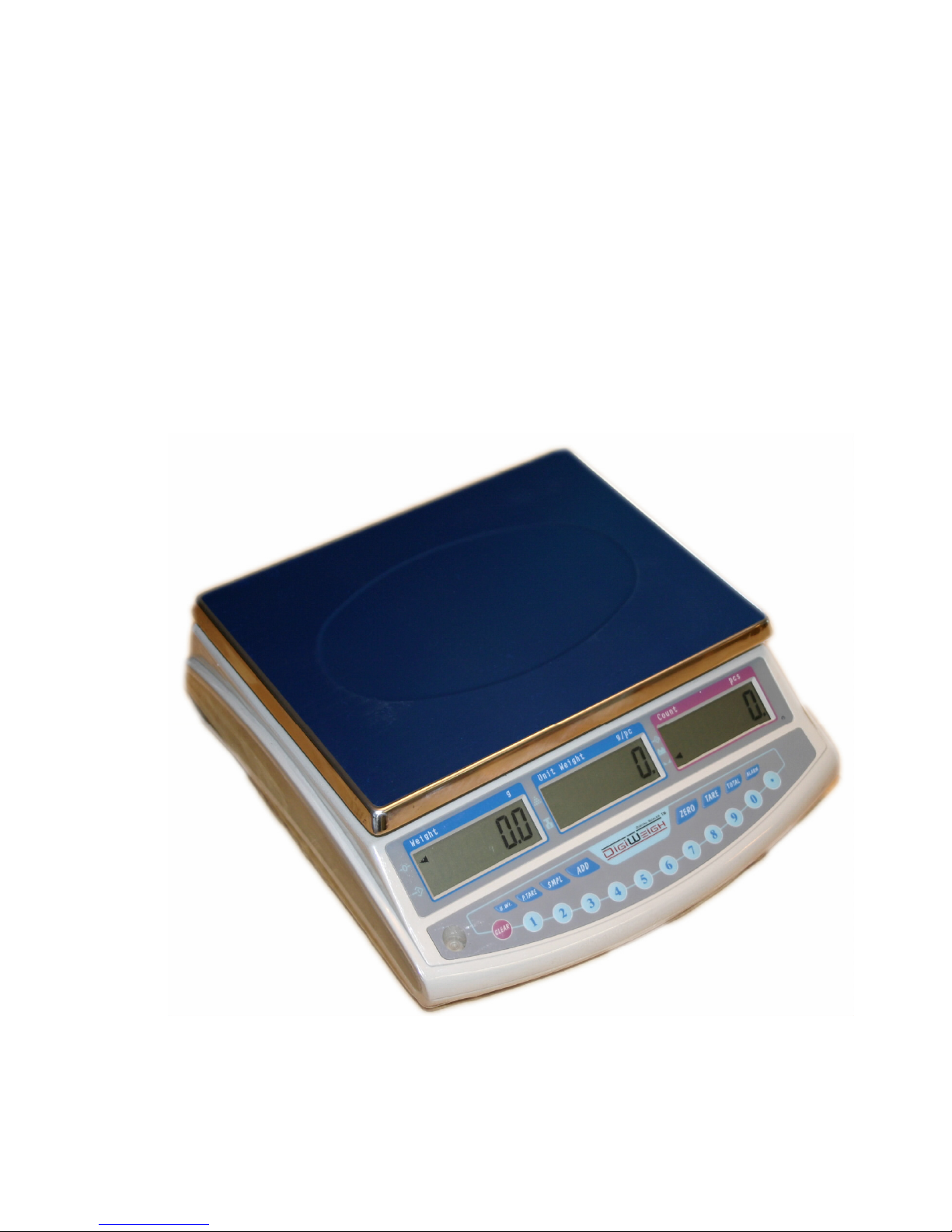
DigiWeigh
DW-97/98 Series
Digital Counting Scales
SCALES usa © 2004 Page 1 of 16
Page 2

SCALES usa © 2004 Page 2 of 16
Page 3

INTRODUCTION.....................................................................................................5
SPECIFICATIONS...................................................................................................6
DW-97/98 SERIES................................................................................................6
Common Specifications.........................................................................................6
SETUP......................................................................................................................8
GENERAL INSTALLATION...............................................................................8
INSTALLATION OF DW-97/98 SERIES.............................................................8
KEYBOARD FUNCTIONS.................................................................................9
DISPLAYS .............................................................................................................10
WEIGHT DISPLAY ...........................................................................................10
UNIT WEIGHT DISPLAY .................................................................................10
COUNT /PCS DISPLAY..................................................................................... 10
OPERATION..........................................................................................................11
ZEROING THE DISPLAY .................................................................................11
TARING .............................................................................................................11
Normal Tare:................................................................................................... 11
Pretare:............................................................................................................ 12
PARTS COUNTING...........................................................................................12
SETTING UNIT WEIGHT.............................................................................. 12
WEIGHING A SAMPLE TO DETERMINE THE UNIT WEIGHT................. 12
ENTERING A KNOWN UNIT WEIGHT.......................................................13
STORING A UNIT WEIGHT ......................................................................... 13
RECALLING A STORED UNIT WEIGHT .................................................... 13
COUNTING MORE PARTS...........................................................................15
AUTOMATIC PART WEIGHT UPDATES....................................................15
PRESET CHECK-WEIGHING....................................................................... 15
PRESET COUNTING ALARM...................................................................... 16
ACCUMULATED TOTAL(Count or Weight)................................................. 16
BATTERY OPERATION................................................................................16
RS-232 OUTPUT.................................................. Error! Bookmark not defined.
OPTION SETTINGS...........................................................................................18
OPTION SETTINGS...........................................................................................20
SCALE CALIBRATION.....................................................................................20
DIGIWEIGHPRO WARRANTY INFORMATION ............................................21
SCALES usa © 2004 Page 3 of 16
Page 4

INTRODUCTION
The DigiWeigh DW-97/98 series of scales provides an accurate, fast and
versatile series of counting and check-weighing scales. The scales are
changeable from pounds to Kilograms.
There are 3 models, with capacities up to 60lb/30 kg. They all have stainless
steel weighing platforms on an ABS base assembly. All the keypads are
sealed, membrane switches and the displays are large easy to read liquid
crystal type displays (LCD). The LCD’s are supplied with a backlight.
Features include automatic zero tracking, audible alarm for pre-set weights,
automatic tare, pre-set tare and an accumulation facility that allows the count
to be stored and recalled as an accumulated total. There are 10 memories
for storing and recalling Unit Weights.
SCALES usa © 2004 Page 4 of 16
Page 5
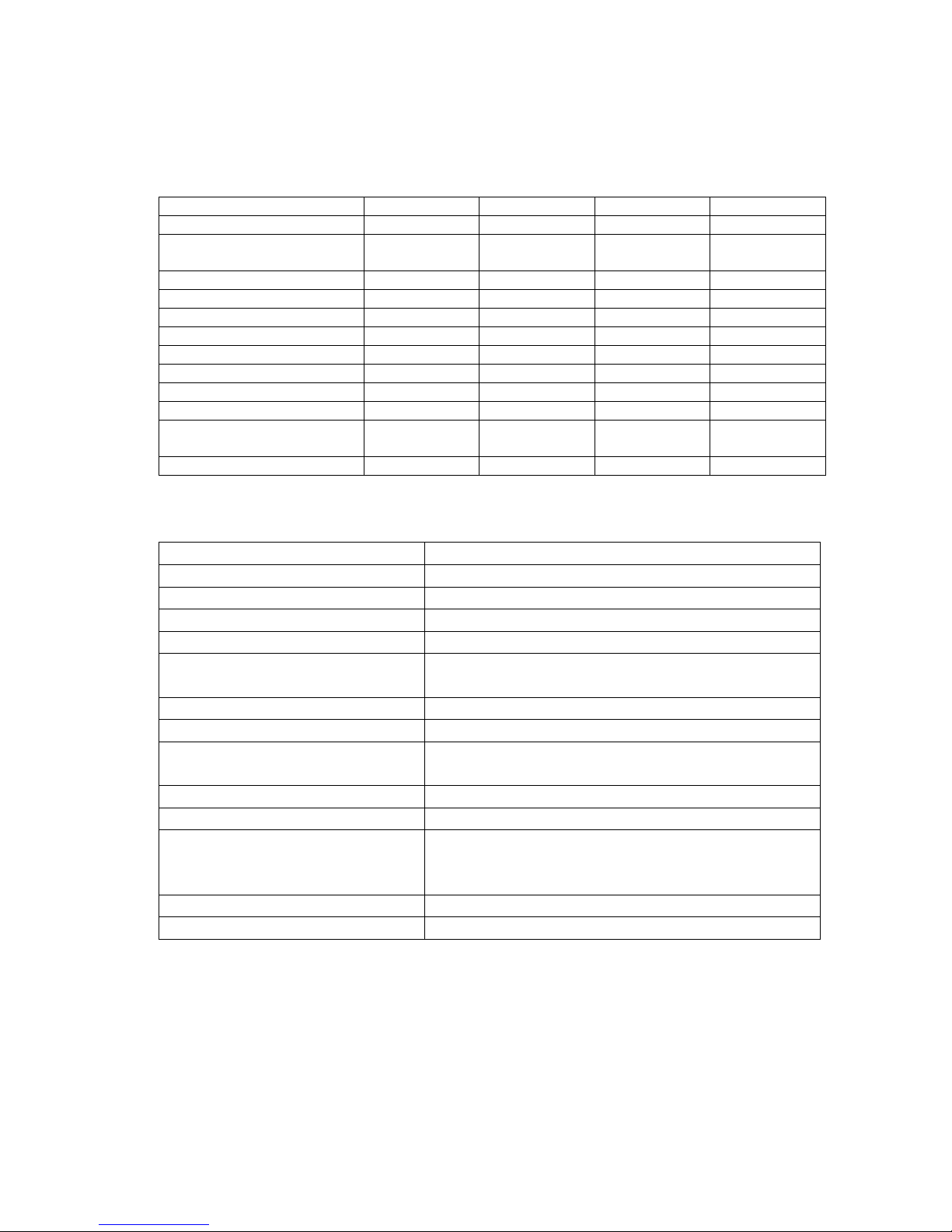
SPECIFICATIONS
DW-97/98 SERIES
Model # DW98PDH04 DW97PBM04 DW97PAM04 DW98PAH04
Maximum Capacity 6lb/3000g 30lb/15Kg 60 lb/30Kg 60 lb/30Kg
Readability 0.0001lb /
0.05g
External Resolution 1:60,000 1:30,000 1:30,000 1:60,000
Internal Resolution 1:600,000 1:600,000 1:600,000 1:600,000
Tare Range KG Mode 1 KG 7 KG 30 KG 10 KG
Tare Range LB Mode 6 LB 30LB 60 LB 60 LB
Minimum Capacity 1g 5g 10g 10g
Repeatability (Std Dev) 0.0002lb / .1g 0.002lb /1g 0.004lb / 2g 0.002lb / 1g
Linearity ± 0.0008lb/ 0.4g 0.004lb / 2g 0.008lb / 4g 0.008lb / 4g
Units of Measure lb/kg lb/kg lb/kg lb/kg
Recommended Calibration
Weight
Unit Weight Memories 10 10 10 10
2KG or 3KG
or 5LBS
0.001lb / 0.5g 0.002lb / 1g 0.001lb / 0.5g
10KG or
25LBs
20KG or
50LBS
20KG or
50LBS
Common Specifications
Interface RS-232 Output (optional)
Stabilization Time 2 Seconds typical
Calibration Automatic External
Display 3 x 6 digits LCD digital display, 20mm digits
Operating Temperature 0°C - 40°C 32°F - 104°F
Power supply 12Vdc, 800ma from external adapter or
Internal Rechargeable Battery
Balance Housing ABS Plastic, Stainless Steel platform
Pan Size 225 x 295mm 8.9 x 11.6”
Overall Dimensions (W x D x
310 x 330 x 114mm (12.2” x 13” x 4.5”)
H),
Gross Weight 4.1kg/9.1lb
Applications General Purpose Parts Counting Scale
Functions Pound / Kilogram weight parts counting
accumulating memory preset count with
alarm
Internal Rechargeable Battery FM650E 6V / 5Ah Sealed Lead Acid Battery
Other Features Accuracy enhancement for parts counting
SCALES usa © 2004 Page 5 of 16
Page 6

SETUP
GENERAL INSTALLATION
The scales should be sited in a location that will not degrade the
accuracy.
Avoid extremes of temperature. Do not place in direct sunlight or near
air conditioning vents.
Avoid unsuitable tables. The tables or floor must be rigid and not
vibrate. Do not place near vibrating machinery.
Avoid unstable power sources. Do not place near large users of
electricity such as welding equipment or large motors.
Avoid high humidity that might cause condensation. Avoid direct
contact with water. Do not spray or immerse the scales in water.
Avoid air movement such as from fans or opening doors. Do not place
near open windows.
Keep the scales clean.
Do not stack material on the scales when they are not in use.
INSTALLATION OF DW-97/98 SERIES
REMOVE the Shipping Protection Screw from the bottom of the
scale before using!
Level the scale by adjusting the four feet. Center the bubble in the
spirit level located on the top surface of the scale. If the scale rocks
readjust the feet.
The DW-97/98 Series comes with a stainless steel platform packed
separately. Place the platform in the locating holes on the top cover.
Do not press with excessive force as this could damage the load cell
inside.
Attach the power supply cable to the connector on the bottom of the
scale. Be certain that it is firmly seated and that the shoulder of the
plug fits into the hole in the scale case. Plug in the power supply
module. The power switch is located on the bottom near the front of
the scale.
The red battery charge light will come on whenever the scale is
attached to power.
SCALES usa © 2004 Page 6 of 16
Page 7

KEYBOARD FUNCTIONS
0-9 Numeric entry keys, used to manually enter a value for
tare weights, unit weight, and sample size.
Decimal Used with numeric entry keys to place the decimal point.
CLEAR Used to clear the displayed numeric readings.
U.Wt Used to enter the known unit weight.
Ptare Used manually enter the container or tare weight.
Smpl Used to input the sample size.
ADD Add the current weight/count to the accumulator. Up to
99 values or full capacity of the weight display can be
added.
Zero Set the weight display to “0” when a minor value is
displayed on the scale (ex. from drifting).
Tare Used to subtract the weight of a container. Indicates that
the current reading is the net weight.
Total Recalls the total accumulated weight and count from the
memory.
ALARM To set the upper and lower limit for the number of items
counted. When the number of items on the scale is within
this range, the scale will sound the beeper.
SCALES usa © 2004 Page 7 of 16
Page 8

DISPLAYS
The scales have three digital displays. The displays show WEIGHT, UNIT
WEIGHT and COUNT.
WEIGHT DISPLAY
A 6 digit display which displays the weight on the scale.
Arrowheads adjacent to the symbols will indicate the following:
Zero Indicator, "Zero"
Net Weight Indicator
UNIT WEIGHT DISPLAY
This display will show the unit weight of a sample. This value is either input by
the user or computed by the scale. The unit of measure is grams on all scales
with Kilogram weight units or in pounds on scales that show pounds.
There is an insufficient number of samples to accurately
determine the count:
Indicates that a unit weight must be entered either
manually, or via the sample process.
COUNT /PCS DISPLAY
The display will show the number of items on the scale or the value of the
accumulated count. See OPERATION section.
Scale is in Accumulate Mode
Low battery Symbol
Display Reading is Stable
SCALES usa © 2004 Page 8 of 16
Page 9

OPERATION
ZEROING THE DISPLAY
You can press the ZERO key at any time to set the zero point from which all
other weighing and counting is measured, It is active within 4% of power up
zero. This will usually only be necessary when the platform is empty. When
the zero point is obtained the Weight display will show the indicator for zero.
The scale has an automatic re-zeroing function to account for minor drifting or
accumulation of material on the platform. However you may need to press
ZERO to re-zero the scale if small amounts of weight are shown when the
platform is empty.
TARING
There are two methods to enter a tare value. The first uses the weight on the
platform and the second uses a value input by the user.
Normal Tare:
Zero the scale by pressing the ZERO key if necessary. The zero
indicator will be on.
Place a container on the platform, a value for its weight will be
displayed.
Press the TARE key to tare the scale. The weight that was displayed is
stored as the tare value and that value is subtracted from the display,
leaving zero on the display.
The "Net" indicator will be on. As product is added only the weight of
the product will be shown. The scale could be tared a second time if
another type of product was to be added to the first one. Again only the
weight that is added after taring will be displayed.
When the container is removed, a negative value will be shown. If the
scale was tared just before removing the container this value is the
gross weight of the container plus all product that was removed. The
zero indicator will also be on because the platform is back to the same
condition it was when the ZERO key was last pressed.
Press the TARE key again to remove the tare weight .
Pretare:
This method allows you to enter a value for the tare weight from the
keypad. This is useful if all containers weigh the same, or if the
container is already full but the net weigh is required and the tare
weight of the container is known.
SCALES usa © 2004 Page 9 of 16
Page 10

Remove all weight from the platform, and press the ZERO key to zero
the display.
Press the P.Tare key and the unit weight display will flash PrEtA
Enter the value for the Tare weight including decimal values (50.00)
using the keypad, press P.Tare to store the tare value. The weight will
show a negative value equal to the tare.
Place the container on the platform. The display will then show the
weight of the container minus the tare weight. Then when the full
container is put on the platform the tare value will be subtracted from
the gross weight displaying only the net weight of the contents.
PARTS COUNTING
SETTING UNIT WEIGHT
In order to do parts counting it is necessary to know the average piece weight
of the items to be counted. This can be done by weighing a known number of
the items and letting the scale determine the average unit weight or by
manually entering a known weight using the keypad.
WEIGHING A SAMPLE TO DETERMINE THE UNIT WEIGHT
To determine the average weight of the items to be counted it will be
necessary to place a known quantity of the items on the scale and then
to key in the number of items being weighed. The scale will then divide
the total weight by the number of items and display the average unit
weight.
Zero the scale by pressing the ZERO key if necessary. If a container is
to be used, place the container on the scale and tare as discussed
earlier.
Place a known quantity of items on the scale. After the weight display
is stable enter the quantity of items using the numeric keys followed by
SMPL key. The number of units will be displayed on the "Count"
display and the computed average weight will be shown on the "Unit
Weight" display.
As more items are added to the scale, the weight and the quantity will
increase.
If the scale is not stable, the calculation will not be completed. If the
weight is below zero, the “Count” display will show all dashes.
The SMPL key may be pressed during the counting to update the unit
weight.
SCALES usa © 2004 Page 10 of 16
Page 11

ENTERING A KNOWN UNIT WEIGHT
If the unit weight is already known then it is possible to enter that value
using the keypad.
Enter the value of the unit weight using the numeric keys followed by
pressing the U.Wt key. The "Unit Weight" display will show the value
as it was entered.
Add the sample to the scale and the weight will be displayed as well as
the quantity based upon the unit weight.
When weighing in kilograms the unit weight is shown in grams. When
weighing in pounds the unit weight is displayed in pounds.
STORING A UNIT WEIGHT
Up to 10 unit weights may be stored in the scale memory and recalled later.
Obtain the unit weight by sampling or by entering it as described in the
above sections.
Press and hold the U.Wt key for approximately 2 seconds
Press any of the numeric keys (0-9) to store the unit weight in the
corresponding memory.
RECALLING A STORED UNIT WEIGHT
Clear the scale display and set the zero point and Tare any container
on the scale.
Press and release the numeric key corresponding to the location of the
stored unit weight.
The Count Display will begin flashing.
Now double click U.Wt key (Press twice quickly)
The stored unit weight will appear in the unit weight display and you
may begin counting..
SCALES usa © 2004 Page 11 of 16
Page 12

COUNTING MORE PARTS
After the unit weight has been determined or entered it is possible to use the
scale for parts counting. The scale can be tared to account for package
weight as discussed in an earlier section.
After the scale is tared, the items to be counted are added and the "Count"
display will show the number of items computed using the weight and the unit
weight.
It is possible to increase the accuracy of the unit weight at any time during the
counting process by entering the count displayed then pressing the SMPL
key. You must be certain the quantity displayed matches the quantity on the
scale before pressing the key. The unit weight will be adjusted based upon a
larger sample quantity. Use of larger sample sizes will give greater accuracy
when counting larger quantities.
AUTOMATIC PART WEIGHT UPDATES
The scales will automatically update the unit weight when a sample equal to
or less than the sample already on the platform is added. A beep will be
heard when the value is updated. It is wise to check that the quantity is
correct when the unit weight has been updated automatically. This feature is
turned off as soon as the number of items added exceeds the count used as
a sample. This feature may be enabled or disabled in the scale setup mode.
PRESET CHECK-WEIGHING
Check-weighing is a procedure to cause an alarm to sound when the weight
on the scale falls within a preset range. The weight range is set as follows.
1. Press the ALARM key while the scale is either loaded or unloaded. Hi
will show in the weight display
2. Key in the high limit weight value and press the ALARM key again.
3. Now Lo will be displayed. Key in the low limit weight value and press
the U.Wt key to store the value and return to the normal weighing
mode.
4. To disable the function, follow the above steps entering “0” for the high
and low preset values
PRESET COUNTING ALARM
Pre-Set Counting is a procedure to cause an alarm to sound when the
quantity of items on the scale falls within a preset range. The item count
range is set as follows.
SCALES usa © 2004 Page 12 of 16
Page 13

1. Press the ALARM key while the scale is loaded or unloaded. Hi will show
in the weight display
2. Key in the high limit count value and press the ALARM key again.
3. Now Lo will be displayed. Key in the low limit count value and press the
Smpl key to store the value and return to the normal counting mode
4. To disable the function, follow the above steps entering “0” for the high
and low preset values
ACCUMULATED TOTAL(Count or Weight)
The values (weight and count) shown on the display can be added to the
values in the memory as follows
1. Press the ADD key. The "Weight" display will show the total weight,
the "Count" display will show the total accumulated count, and the
"Unit Weight" display will show the number of times that items have
been added to the accumulation memory. The values will be displayed
for 2 seconds before returning to normal.
2. The scale must return to zero or a negative number before another
count or weight can be added to the memory.
3. Additional product can then be weighed or counted and the ADD key
pressed again. This can continue for up to 99 entries, or until the
weight capacity is reached.
4. To observe the total stored press the TOTAL key. The totals will be
displayed for 2 seconds.
5. To clear the memory press TOTAL to recall the totals from memory
and then press the CLEAR key to clear all values from memory.
BATTERY OPERATION
The scales can be operated from the battery if desired. The battery life is
approximately 70 hours. When the battery needs charging the arrow above
the low battery symbol under the COUNT/PCS display will turn on. The
battery should be charged as soon as the arrow above the symbol is on. The
scale will still operate for about 10 hours after which it will automatically
switch off to protect the battery. To charge the battery, simply plug the AC
Adapter into the scale and the AC power outlet. IF the LED is red, the battery
is receiving a charge. The scale does not need to be turned on. The battery
should be charged for 12 hours for full capacity. When the battery life
becomes unacceptable then contact DigiWeigh or Scales USA for current
replacement information.
SCALES usa © 2004 Page 13 of 16
Page 14

OPTION SETTINGS
To set the parameters it is necessary to enter a setup menu. This is
done by entering a password number while the scale is starting up.
To enter the settings menus press the numeric “5”key 4 times during
the initial counting of the display as power is turned on.
The parameter menu has 9 functions that can be accessed using the
Total key The Unit Weight Display will show the name of the functions
and the Weight Display will show the setting.
To step through available settings, press the TARE key.
At any time. Press the CLEAR key to return to weighing.
Unit
Description and Settings (Shown in Weight Display)
Weight
Display
ROFF Auto Shutoff Time Span
0 – Disabled
2 – 2 minutes
5 – 5 minutes
8 – 8 minutes
trAC Set the Zero Tracking Range. Larger numbers give a wider range.
Settings Available – 0 – 4
ZEro Zero Display Range. The higher numbers give a wider range.
Settings Available – 0 – 4
FiLt Stable Class Range. Smaller numbers give a shorter settling time
for stability.
Settings Available – 0 – 5
tLAtE Zero Return Range. Larger numbers give a more stable zero
point.
Settings Available – 0 – 5
bL Backlighting.
0 –Auto backlighting. Illuminates automatically when a key is
pressed or a weight larger than 9 resolution is on the Scale
platform.
1 - Manual Backlight. Press the Decimal Point Key to switch
the backlight on or off. The scale will save this setting for
future use.
Unit Change measurement units to KG or Pounds
0 – Kg
1 – Pounds
SCALES usa © 2004 Page 14 of 16
Page 15

OPTION SETTINGS
RU Unit Weight Recalculation, Enable or disable automatic update of
the unit weight.
0 - Disabled
1 – Automatic. The unit weight wil be averaged again if you
add items gradually. This will eliminate errors caused by the
possible weight variation among objects. When adding more
items to the scale, add less than are currently on the scale.
The scale will beep when the unit weight is averaged again.
Remember, a sampling operation must be done to obtain the
initial unit weight.
PASS Check Alarm Type. The alarm sounds when the count or weight
falls either inside or outside the preset range.
0 – Outside
1 - Inside
SCALE CALIBRATION
You must have a calibration weight that is calibrated in grams, kilograms, or
pounds to calibrate the scale.
The scale will be calibrated in kilograms while set to the KG mode, and in
pounds while set to the Pound mode.
Turn on scale, and let it warm up for at least 15 minutes, longer is
better.
Press and continue holding down the ZERO key until the word CAL
appears in the COUNT/PCS Display. The Unit Weight Display will
show the size of the calibration weight in KG or LB depending on the
units the scale is using.
If the calibration weight being used is different from the display, enter
the appropriate value
Place the weight on the scale and the Unit Weight will start blinking.
When finished, the scale will return to the normal operating mode.
Press ZERO to escape from the calibration mode at any time.
SCALES usa © 2004 Page 15 of 16
Page 16

DIGIWEIGHPRO WARRANTY INFORMATION
Thank you for purchasing DigiWeighPro.
The DigiWeighPro scale comes with a manufacturers direct 5-year warranty.
If you need service for your scale, please email your request to our customer
service center at support@digiweighpro.com or fax it to 909-869-5765. Also
you can log on our website at www.digiweighpro.com and contact us through
our customer service page.
This warranty will cover all defective scales within their warranty period. You
must provide a copy of your receipt. This warranty will be void if the scale
has been damaged due to misuse, physical abuse, accident, unauthorized
service, or other cause not arising out of defects in materials or workmanship.
During the five years warranty period, if your scale fails to work properly when
used under normal conditions, DigiWeighPro will repair, or at our option,
replace it without charge. The DigiWeighPro user has to pay the shipping
charge to send the defective scale with the receipt of purchasing back to
us and we will pay the cost of shipping to return the repaired or replaced
scale to user. There are no other charges to the consumer for warranty
coverage other than the shipping cost back to the manufacturer.
Our USA service center address is:
DigiWeighPro
632 Brea Canyon Rd
Walnut, CA 91789
USA
Digiwigh will provide the best quality scales and customer service for our
entire satisfied customers and appreciate your business!
Thank you for your business!
The DigiWeighPro customer service staff.
SCALES usa © 2004 Page 16 of 16
 Loading...