

Page 1

Inspiron 7706 2-in-1
Setup and Specifications
Reg ula tor y M ode l: P98 F
Reg ula tor y T ype : P 98F 001
Sep tem ber 20 20
Rev . A 00
Page 2

Notes, cautions, and warnings
NOTE: A NOTE indicates important information that helps you make better use of your product.
CAUTION: A CAUTION indicates either potential damage to hardware or loss of data and tells you how to avoid
the problem.
WARNING: A WARNING indicates a potential for property damage, personal injury, or death.
© 2020 Dell Inc. or its subsidiaries. All rights reserved. Dell, EM C, and other trademarks are trademarks of Dell Inc. or its subsidiaries. Oth er
trademarks may be trademarks of their respective owners.
Page 3

Contents
Chapter 1: Set up your Inspiron 7706 2-in-1................................................................................... 4
Chapter 2: Using the privacy shutter.............................................................................................6
Chapter 3: Views of Inspiron 7706 2-in-1....................................................................................... 7
Right........................................................................................................................................................................................7
Left.......................................................................................................................................................................................... 7
Base........................................................................................................................................................................................ 8
Display.................................................................................................................................................................................... 9
Bottom..................................................................................................................................................................................10
Modes................................................................................................................................................................................... 10
Chapter 4: Specifications of Inspiron 7706 2-in-1.........................................................................12
Dimensions and weight..................................................................................................................................................... 12
Processor............................................................................................................................................................................. 12
Chipset..................................................................................................................................................................................13
Operating system............................................................................................................................................................... 13
Memory.................................................................................................................................................................................13
External ports......................................................................................................................................................................14
Internal slots........................................................................................................................................................................ 14
Wireless module..................................................................................................................................................................14
Audio..................................................................................................................................................................................... 15
Storage................................................................................................................................................................................. 15
Intel Optane Memory H10 with Solid State Storage (optional).............................................................................. 16
Media-card reader............................................................................................................................................................. 16
Keyboard.............................................................................................................................................................................. 16
Camera..................................................................................................................................................................................17
Touchpad..............................................................................................................................................................................17
Power adapter.................................................................................................................................................................... 18
Battery.................................................................................................................................................................................. 18
Display...................................................................................................................................................................................19
Fingerprint reader..............................................................................................................................................................20
GPU—Integrated.............................................................................................................................................................. 20
GPU—Discrete.................................................................................................................................................................. 20
Operating and storage environment............................................................................................................................. 20
Chapter 5: Keyboard shortcuts of Inspiron 7706 2-in-1................................................................ 22
Chapter 6: Getting help and contacting Dell................................................................................ 24
Contents 3
Page 4
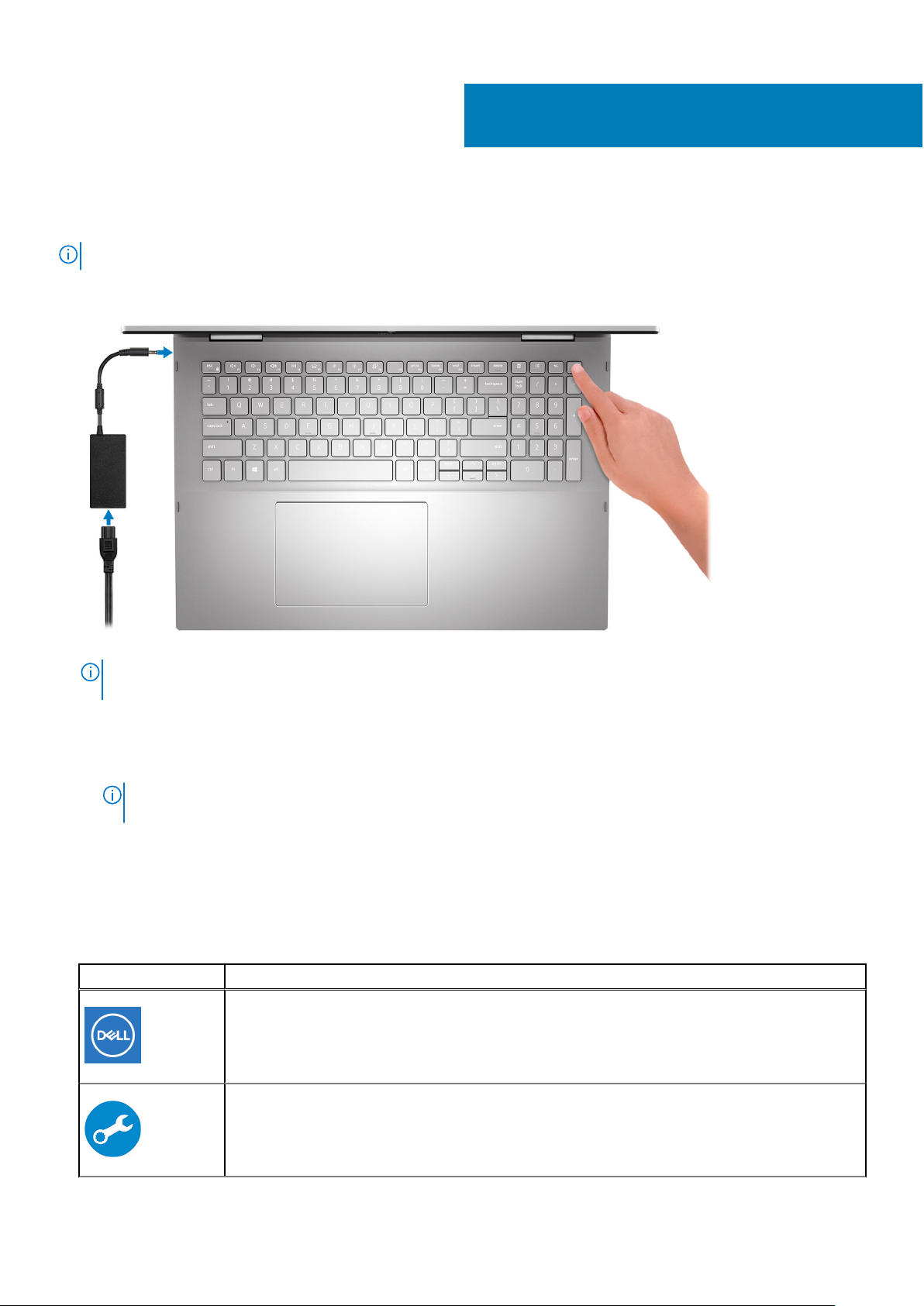
Set up your Inspiron 7706 2-in-1
NOTE: The images in this document may differ from your computer depending on the configuration you ordered.
1. Connect the power adapter and press the power button.
1
NOTE: The battery may go into power-saving mode during shipment to conserve charge on the battery. Ensure that the
power adapter is connected to your computer when it is turned on for the first time.
2. Finish Windows setup.
Follow the on-screen instructions to complete the setup. When setting up, Dell recommends that you:
● Connect to a network for Windows updates.
NOTE:
If connecting to a secured wireless network, enter the password for the wireless network access when
prompted.
● If connected to the Internet, sign in with or create a Microsoft account. If not connected to the Internet, create an
offline account.
● On the Support and Protection screen, enter your contact details.
3. Locate and use Dell apps from the Windows Start menu—Recommended.
Table 1. Locate Dell apps
Resources Description
My Dell
Centralized location for key Dell applications, help articles, and other important information about
your computer. It also notifies you about the warranty status, recommended accessories, and
software updates if available.
SupportAssist
Proactively checks the health of your computer’s hardware and software. The SupportAssist OS
Recovery tool troubleshoots issues with the operating system. For more information, see the
SupportAssist documentation at www.dell.com/support.
4 Set up your Inspiron 7706 2-in-1
Page 5

Table 1. Locate Dell apps (continued)
Resources Description
NOTE: In SupportAssist, click the warranty expiry date to renew or upgrade your warranty.
Dell Update
Updates your computer with critical fixes and latest device drivers as they become available. For
more information about using Dell Update, see the knowledge base article SLN305843 at
www.dell.com/support.
Dell Digital Delivery
Download software applications, which are purchased but not pre-installed on your computer. For
more information about using Dell Digital Delivery, see the knowledge base article 153764 at
www.dell.com/support.
Set up your Inspiron 7706 2-in-1 5
Page 6
2
Using the privacy shutter
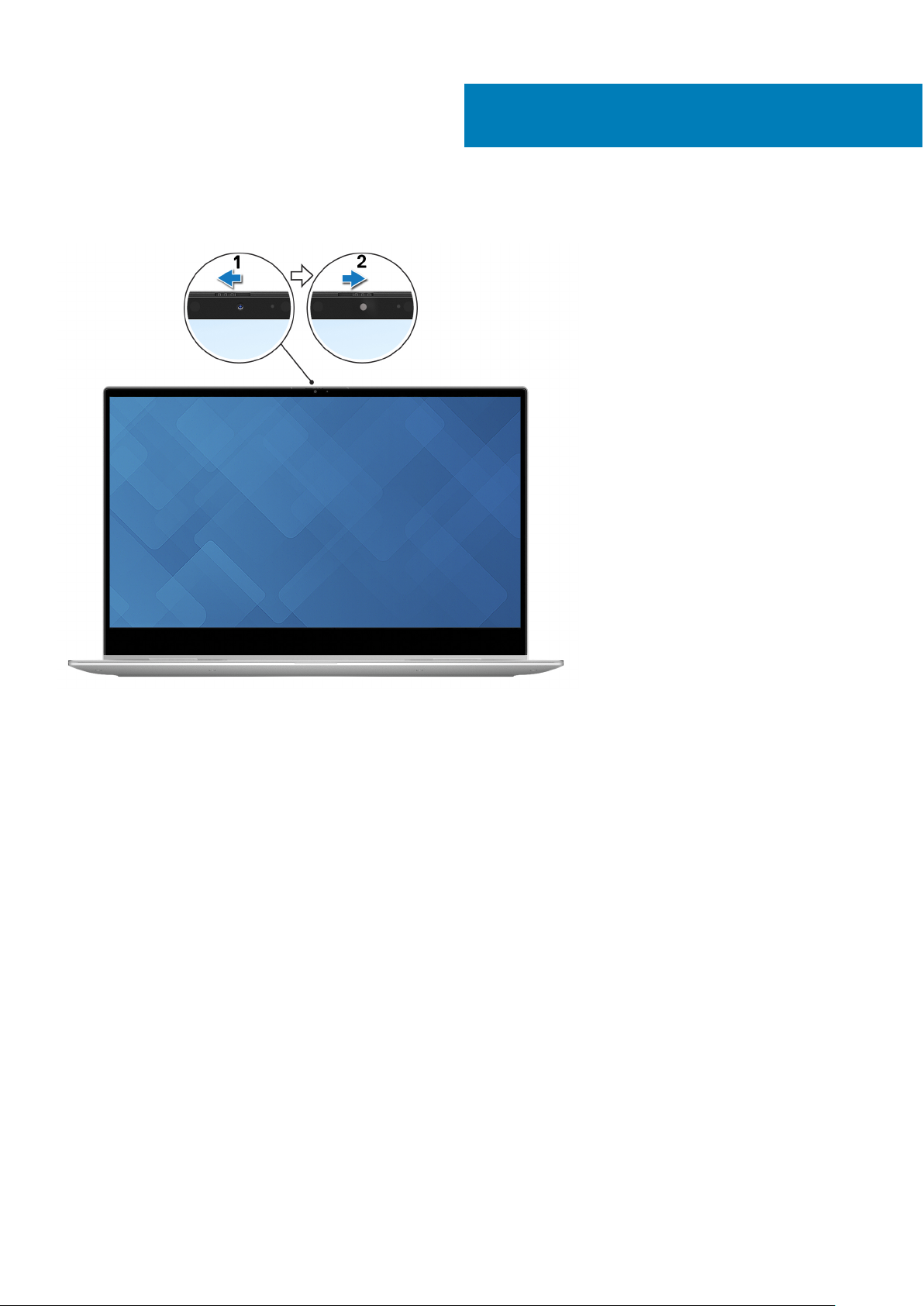
1. Slide the privacy shutter to the left to access the camera lens.
2. Slide the privacy shutter to the right to cover the camera lens.
6 Using the privacy shutter
Page 7
Views of Inspiron 7706 2-in-1
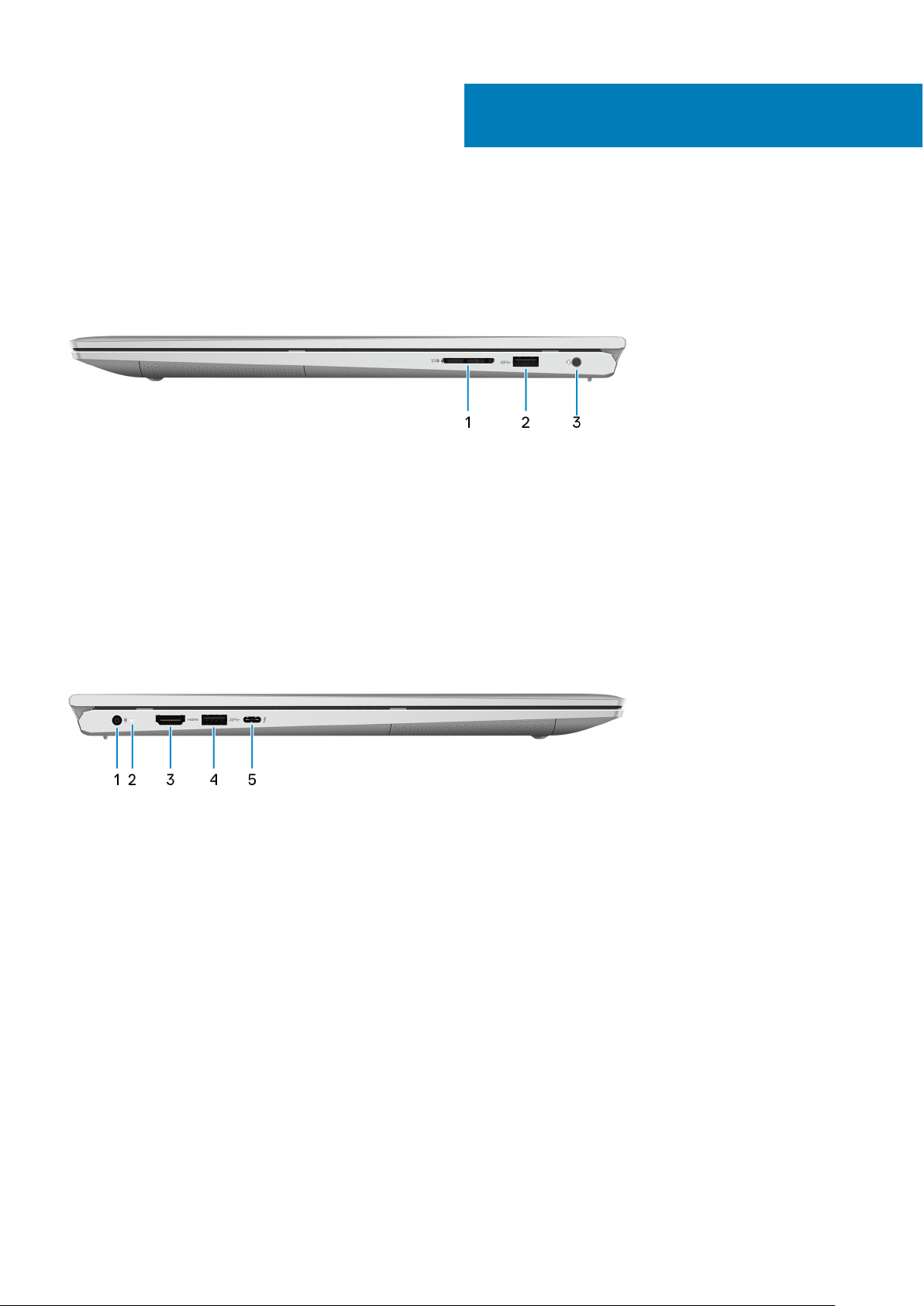
Right
1. SD-card slot
Reads from and writes to the SD card.
2. USB 3.2 Gen 1 port
Connect peripherals such as external storage devices and printers. Provides data transfer speeds up to 5 Gbps.
3. Headset port
Connect headphones or a headset (headphone and microphone combo).
3
Left
1. Power-adapter port
Connect a power adapter to provide power to your computer.
2. Power and battery-status light
Indicates the power state and battery state of the computer.
Solid white—Power adapter is connected and the battery is charging.
Solid amber—Battery charge is low or critical.
Off—Battery is fully charged.
3. HDMI port
Connect to a TV or another HDMI-in enabled device. Provides video and audio output.
4. USB 3.2 Gen 1 port
Connect peripherals such as external storage devices and printers. Provides data transfer speeds up to 5 Gbps.
5. Thunderbolt 4 USB Type-C port with Power Delivery
Connects to an external display using a display adapter. Provides data transfer rates of up to 40 Gbps.
Supports Power Delivery that enables two-way power supply between devices. Provides up to 5 V/3 A power output that
enables faster charging.
Views of Inspiron 7706 2-in-1 7
Page 8
NOTE: You can connect a Dell Docking Station to the Thunderbolt 4 port. For more information, see the knowledge
base article SLN286158 at www.dell.com/support.
NOTE: A USB Type-C to DisplayPort adapter (sold separately) is required to connect a DisplayPort device.
NOTE: Connecting a USB Type-C power adapter to this port provides power to your computer and charges the battery.
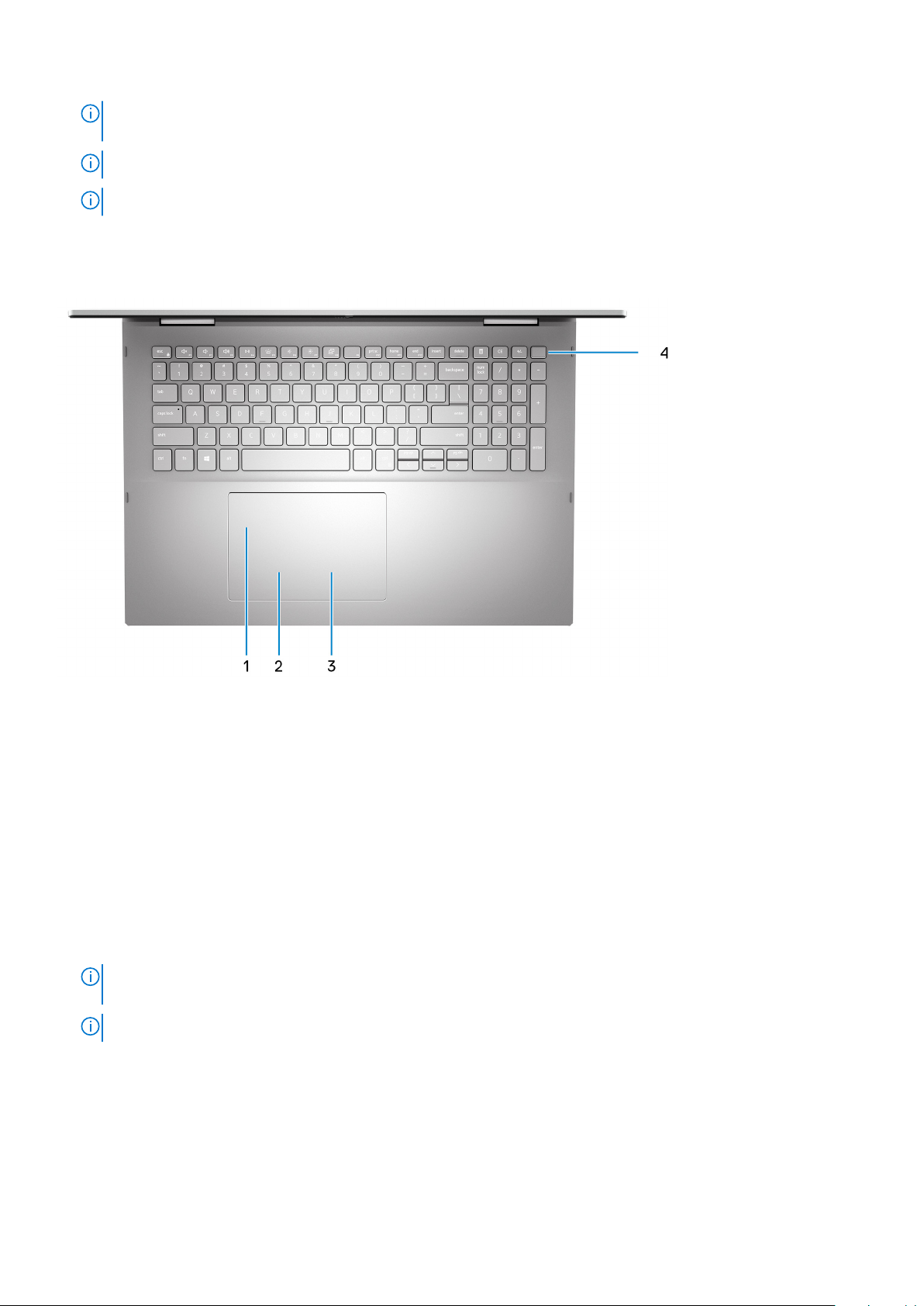
Base
1. Touchpad
Move your finger on the touchpad to move the mouse pointer. Tap to left-click and two finger tap to right-click.
2. Left-click area
Press to left-click.
3. Right-click area
Press to right-click.
4. Power button with fingerprint reader
Press to turn on the computer if it is turned off, in sleep state, or in hibernate state.
When the computer is turned on, press the power button to put the computer into sleep state; press and hold the power
button for 10 seconds to force shut-down the computer.
The power button has a fingerprint reader, place your finger on the power button to log in.
You can customize power-button behavior in Windows. For more information, see Me and My Dell at
NOTE:
www.dell.com/support/manuals.
NOTE: To reset the battery, press and hold the power button for 25 seconds.
8 Views of Inspiron 7706 2-in-1
Page 9
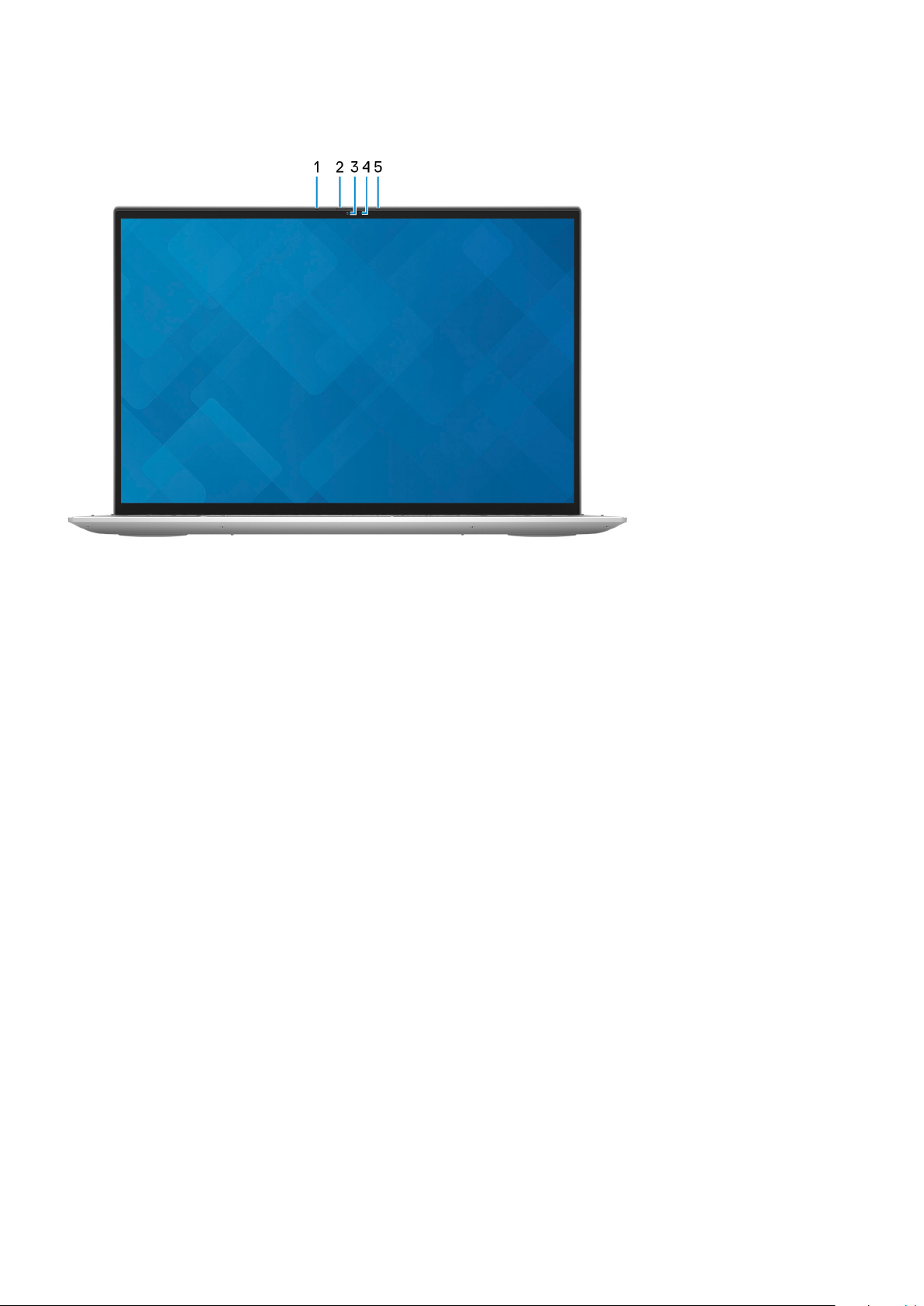
Display
1. Left microphone
Provides digital sound input for audio recording and voice calls.
2. Privacy shutter
Slide the privacy shutter to cover the camera lens and protect your privacy when the camera is not in use.
3. Camera
Enables you to video chat, capture photos, and record videos.
4. Camera-status light
Turns on when the camera is in use.
5. Right microphone
Provides digital sound input for audio recording and voice calls.
Views of Inspiron 7706 2-in-1
9
Page 10
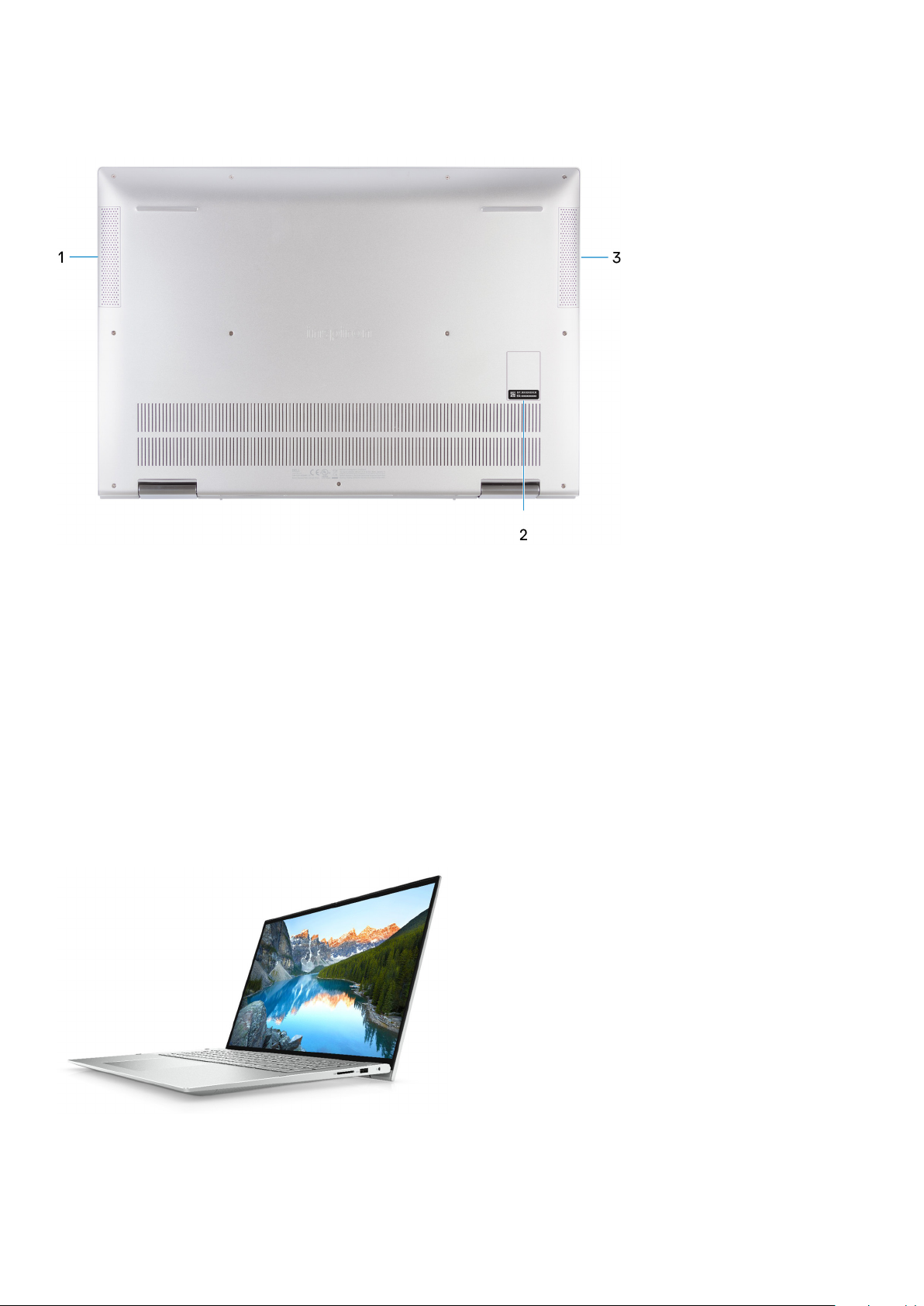
Bottom
1. Left speaker
Provides audio output.
2. Service Tag label
The Service Tag is a unique alphanumeric identifier that enables Dell service technicians to identify the hardware
components in your computer and access warranty information.
3. Right speaker
Provides audio output.
Modes
Notebook
10
Views of Inspiron 7706 2-in-1
Page 11
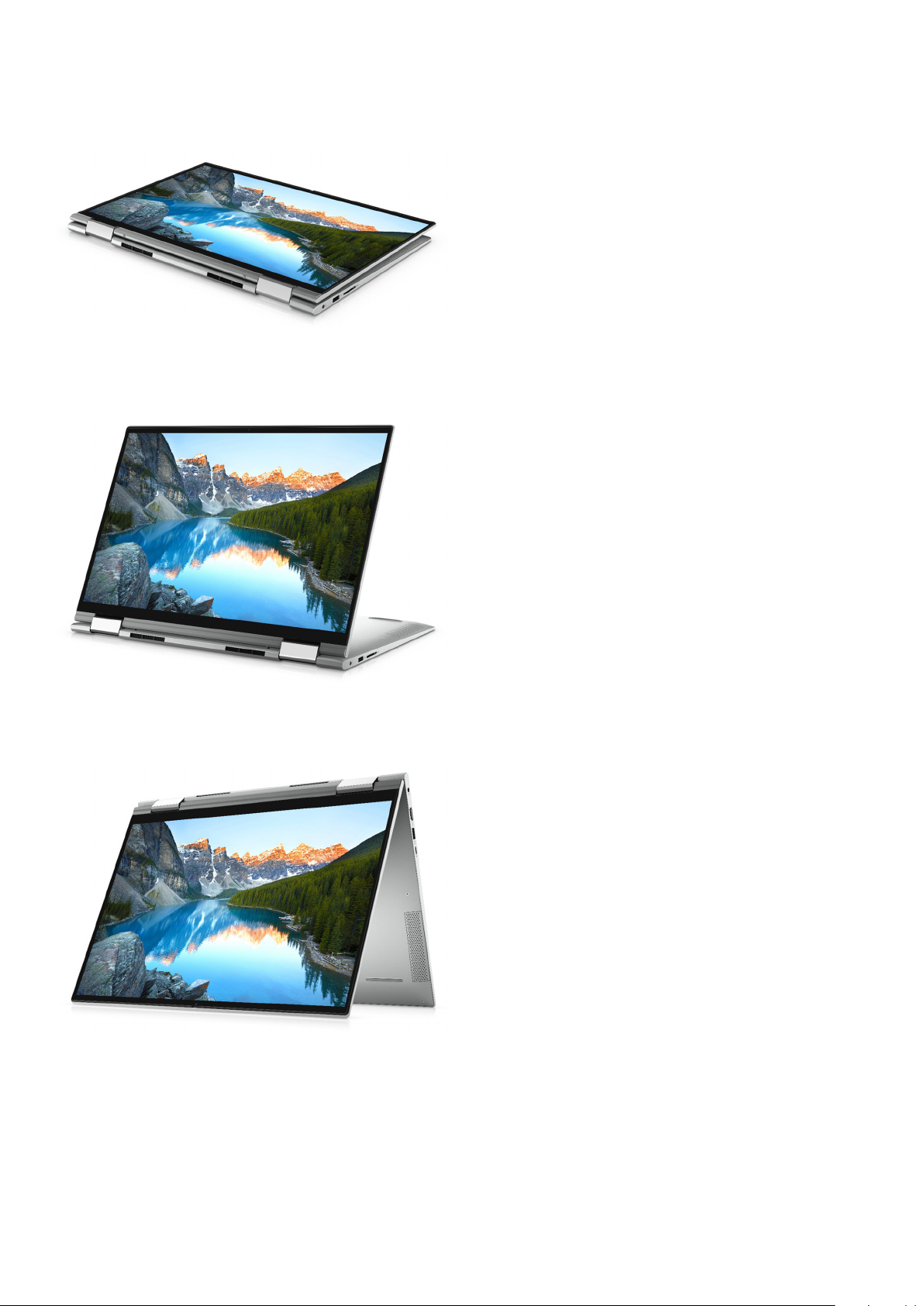
Tablet
Stand
Tent
Views of Inspiron 7706 2-in-1
11
Page 12
Specifications of Inspiron 7706 2-in-1
Dimensions and weight
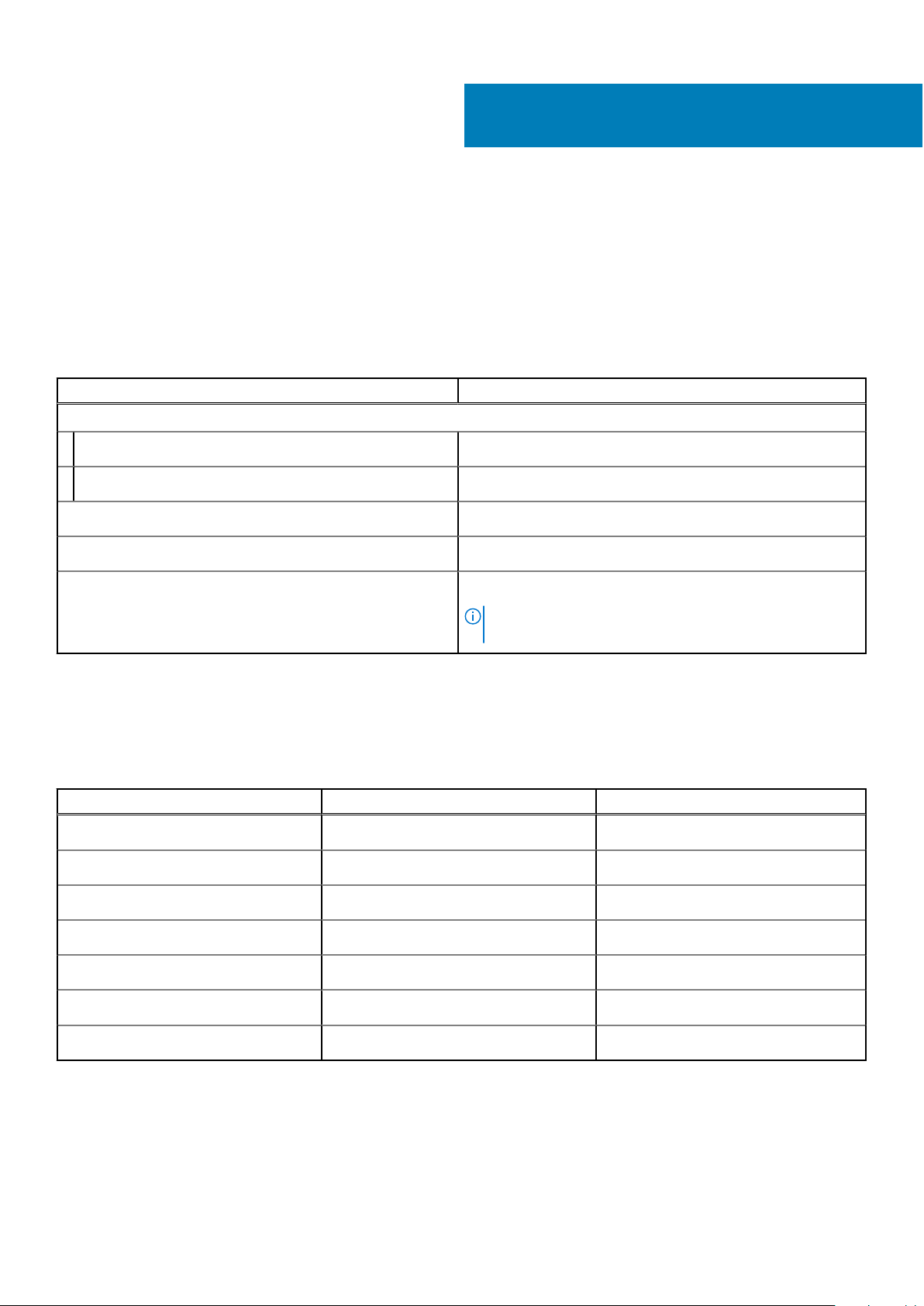
The following table lists the height, width, depth, and weight of your Inspiron 7706 2-in-1.
Table 2. Dimensions and weight
Description Values
Height:
4
Front height
Rear height
Width
Depth
Weight (maximum)
15.26 mm (0.60 in.)
19.30 mm (0.76 in.)
379.80 mm (14.95 in.)
266.40 mm (10.49 in.)
2.43 kg (5.36 lb)
NOTE: The weight of your computer depends on the
configuration ordered and manufacturing variability.
Processor
The following table lists the details of the processors supported by your Inspiron 7706 2-in-1.
Table 3. Processor
Description Option one Option two
Processor type
Processor wattage
11th Generation Intel Core i5-1135G7 11th Generation Intel Core i7-1165G7
28 W 28 W
Processor core count
Processor thread count
Processor speed
Processor cache
Integrated graphics
12 Specifications of Inspiron 7706 2-in-1
4 4
8 8
Up to 4.2 GHz Up to 4.7 GHz
8 MB 12 MB
Intel Iris Xe Graphics Intel Iris Xe Graphics
Page 13
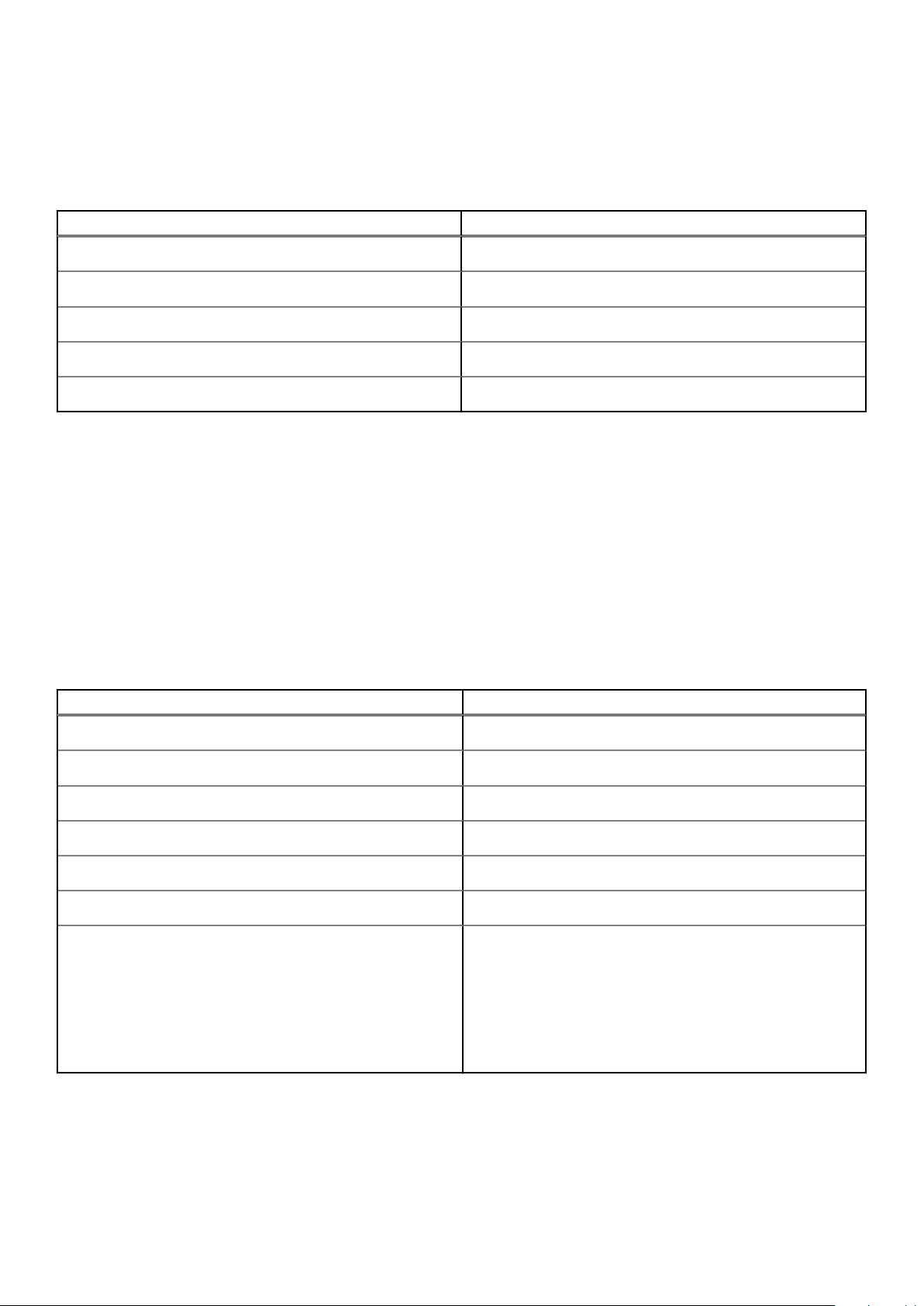
Chipset
The following table lists the details of the chipset supported by your Inspiron 7706 2-in-1.
Table 4. Chipset
Description Values
Chipset
Processor
DRAM bus width
Flash EPROM
PCIe bus
Integrated in the processor
11th Generation Intel Core i5/i7
64-bit
32 MB
Up to Gen3
Operating system
Your Inspiron 7706 2-in-1 supports the following operating systems:
● Windows 10 Home (64-bit)
● Windows 10 Professional (64-bit)
Memory
The following table lists the memory specifications of your Inspiron 7706 2-in-1.
Table 5. Memory specifications
Description Values
Memory slots
Memory type
Memory speed
Maximum memory configuration
Minimum memory configuration
Memory size per slot
Memory configurations supported
Two SoDIMM slots
Dual-channel DDR4
3200 MHz
16 GB
4 GB
4 GB, 8 GB, 16 GB
● 4 GB, 1 x 4 GB, DDR4, 3200 MHz
● 8 GB, 2 x 4 GB, DDR4, 3200 MHz, dual-channel
● 8 GB, 1 x 8 GB, DDR4, 3200 MHz
● 12 GB, 1 x 4 GB + 1 x 8 GB, DDR4, 3200 MHz, dual-
channel
● 16 GB, 1 x 16 GB, DDR4, 3200 MHz
● 16 GB, 2 x 8 GB, DDR4, 3200 MHz, dual-channel
Specifications of Inspiron 7706 2-in-1 13
Page 14
External ports
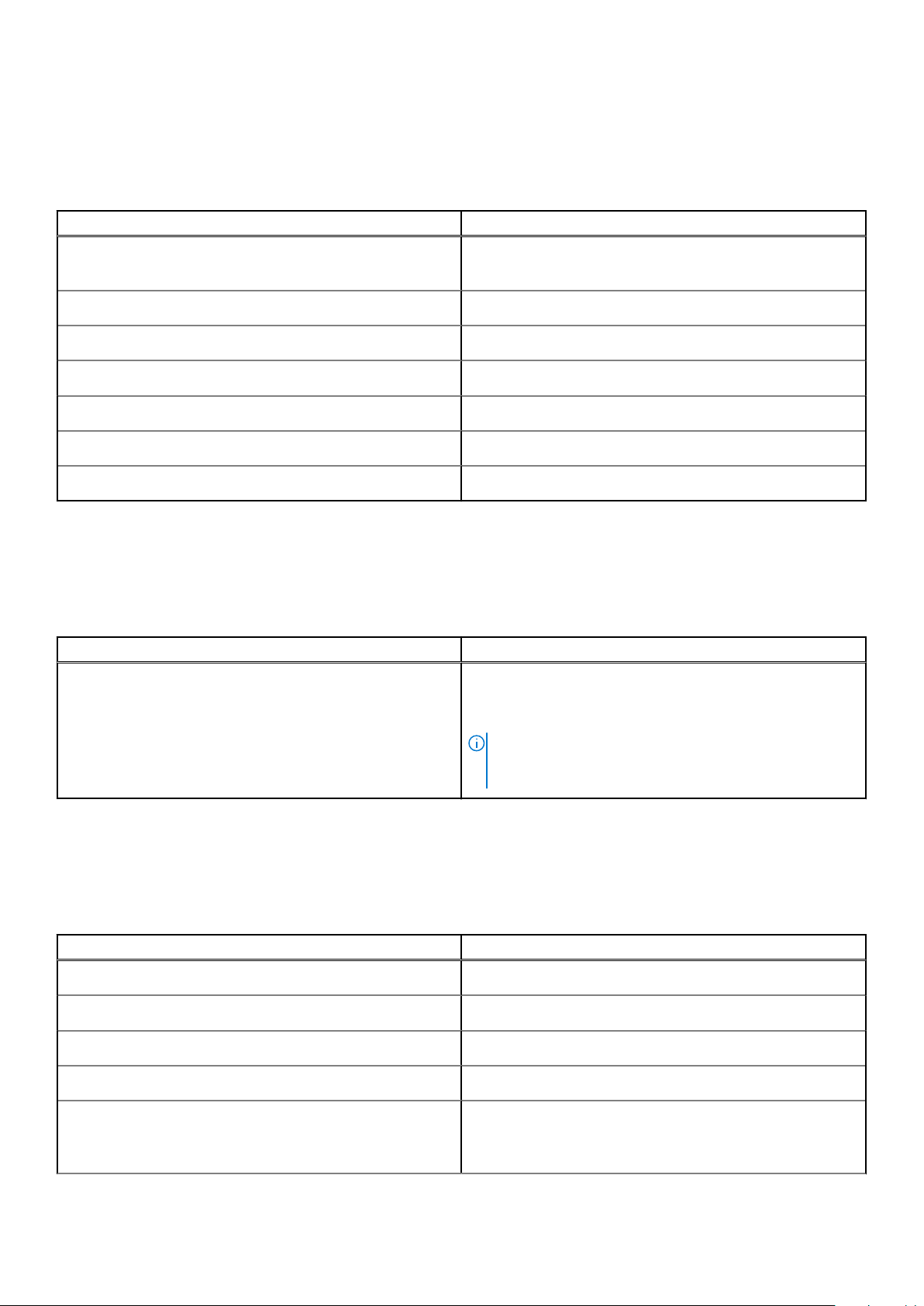
The following table lists the external ports on your Inspiron 7706 2-in-1.
Table 6. External ports
Description Values
USB ports
Audio port
Video port
Media-card reader
Docking port
Power-adapter port
Security
● Two USB 3.2 Gen 1 ports
● One Thunderbolt 4 Type-C port with Power Delivery
One headset (headphone and microphone combo) port
One HDMI 1.4 port
One SD-card slot
N/A
One 4.5 mm barrel
N/A
Internal slots
The following table lists the internal slots of your Inspiron 7706 2-in-1.
Table 7. Internal slots
Description Values
M.2
● One M.2 2230 slot for WiFi and Bluetooth combo card
● One M.2 2230/2280 slot for solid-state drive/Intel Optane
memory
NOTE: To learn more about the features of different
types of M.2 cards, see the knowledge base article
SLN301626 at www.dell.com/support.
Wireless module
The following table lists the Wireless Local Area Network (WLAN) module supported on your Inspiron 7706 2-in-1.
Table 8. Wireless module specifications
Description Values
Model number
Transfer rate
Frequency bands supported
Wireless standards
Encryption
14 Specifications of Inspiron 7706 2-in-1
Intel AX201
Up to 2400 Mbps
2.4 GHz/5 GHz
● Up to Wi-Fi 6 (WiFi 802.11ax)
● 64-bit/128-bit WEP
● AES-CCMP
● TKIP
Page 15
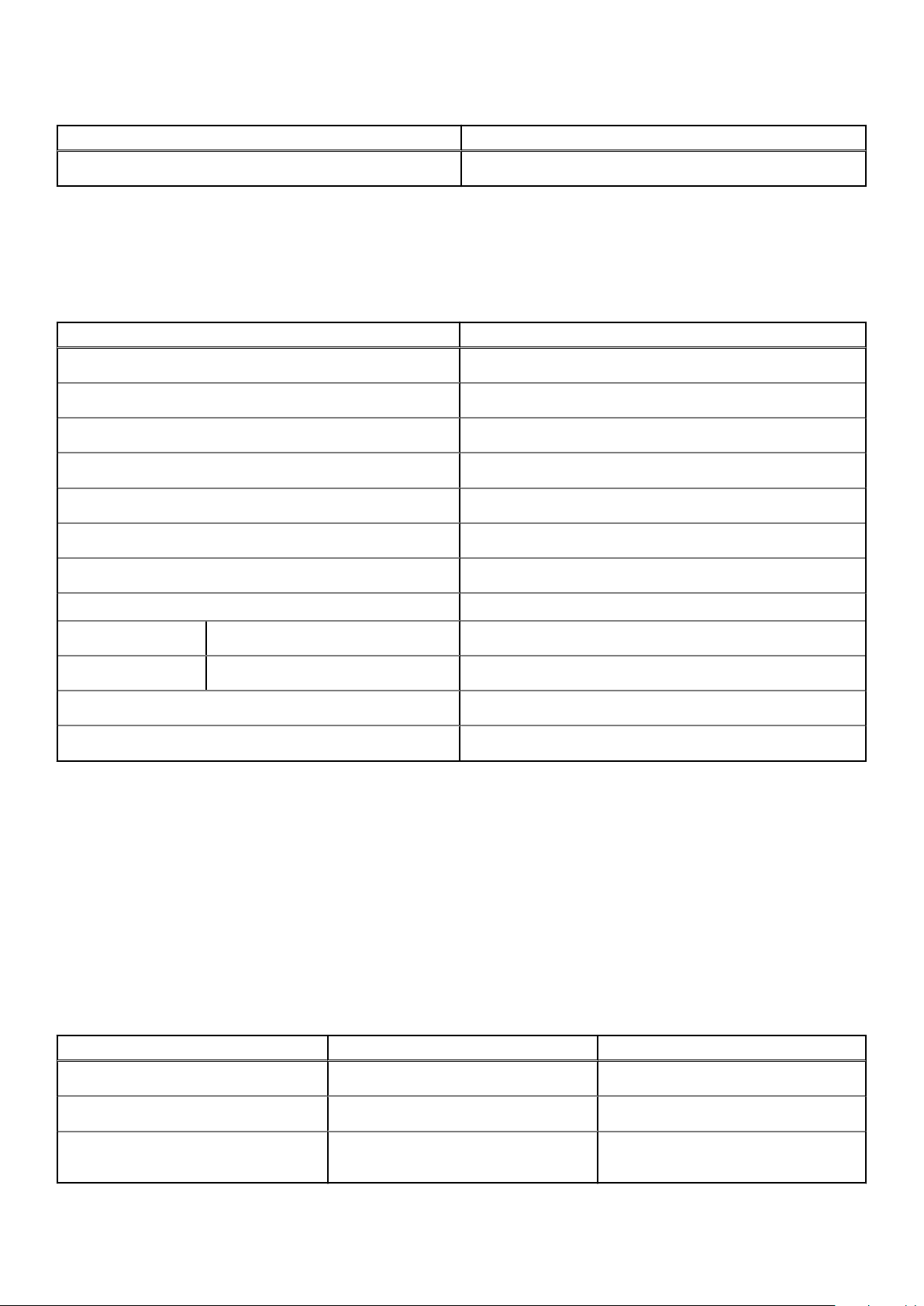
Table 8. Wireless module specifications (continued)
Description Values
Bluetooth
Bluetooth 5.1
Audio
The following table lists the audio specifications of your Inspiron 7706 2-in-1.
Table 9. Audio specifications
Description Values
Audio controller
Stereo conversion
Internal audio interface
External audio interface
Number of speakers
Internal-speaker amplifier
External volume controls
Speaker output:
Realtek ALC3204
Supported
High-definition audio interface
Universal Audio Jack
2
Supported
Keyboard shortcut controls
Average speaker output
Peak speaker output
Subwoofer output
Microphone
2 W
2.5 W
Not supported
Digital-array microphones in camera assembly
Storage
This section lists the storage options on your Inspiron 7706 2-in-1.
Your Inspiron 7706 2-in-1 supports one of the following storage configurations:
● One M.2 2230/2280 solid-state drive
● One M.2 2280 Intel Optane Memory H10
The primary drive of your Inspiron 7706 2-in-1 varies with the storage configuration. For computers:
● With the M.2 2230/2280 solid-state drive, the solid-state is the primary drive
● With the M.2 2280 Intel Optane Memory H10, the Intel Optane Memory H10 is the primary drive
Table 10. Storage specifications
Storage type Interface type Capacity
One M.2 2230 solid-state drive PCIe Gen3 x4 NVMe, up to 32 Gbps Up to 512 GB
One M.2 2280 solid-state drive PCIe Gen3 x4 NVMe, up to 32 Gbps Up to 2 TB
One M.2 2280 Intel Optane Memory H10
with Solid State Storage
PCIe Gen3 x2 NVMe, up to 16 Gbps Up to 1 TB
Specifications of Inspiron 7706 2-in-1 15
Page 16
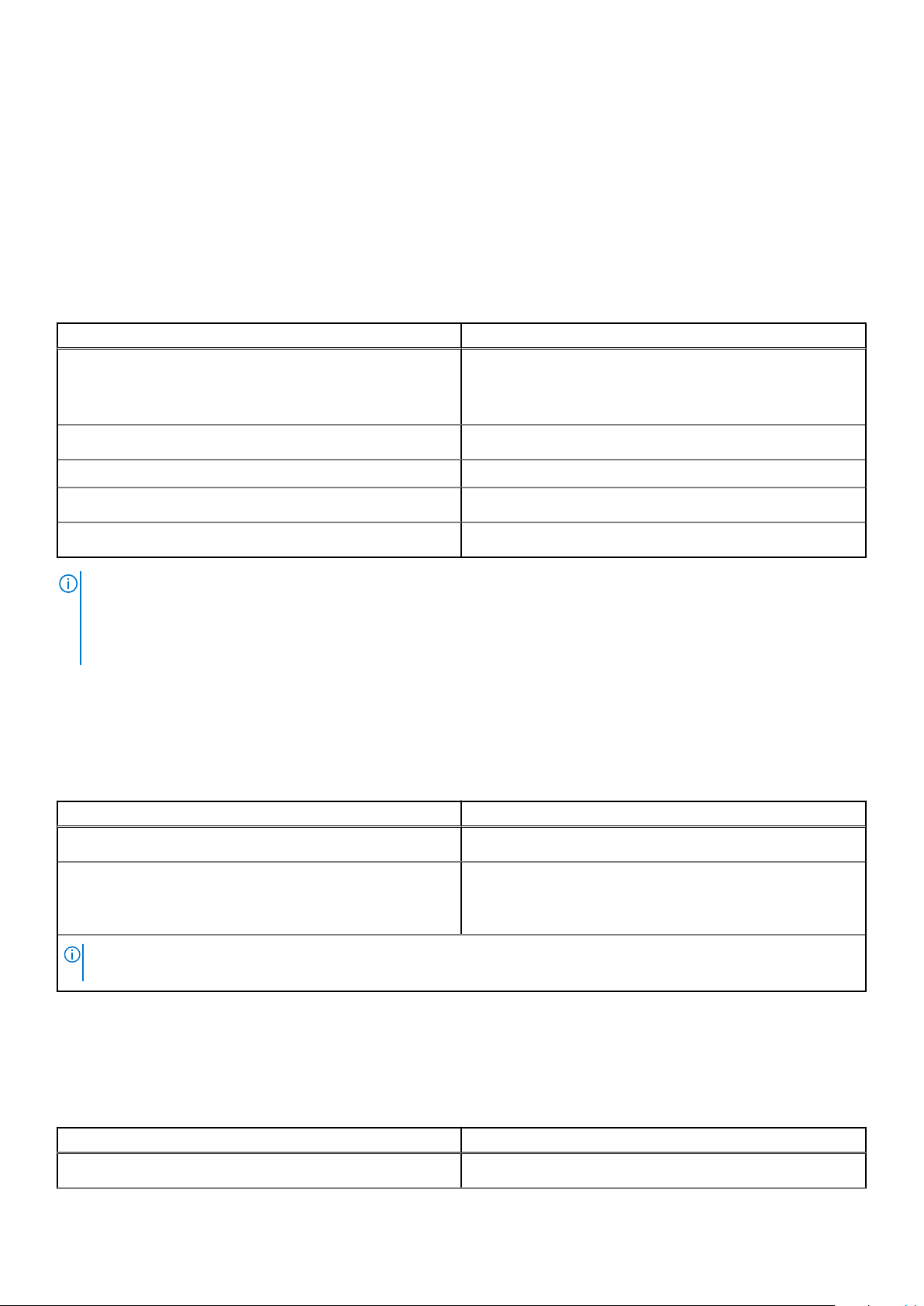
Intel Optane Memory H10 with Solid State Storage (optional)
Intel Optane Memory technology utilizes 3D XPoint memory technology and functions as a non-volatile storage cache/
accelerator and/or storage device depending on the Intel Optane Memory installed in your computer.
Intel Optane Memory H10 with Solid State Storage functions as both a non-volatile storage cache/accelerator (enabling
enhanced read/write speeds for hard-drive storage) and a solid-state storage solution. It neither replaces nor adds to the
memory (RAM) installed on your computer.
Table 11. Intel Optane Memory H10 with Solid State Storage specifications
Description Values
Interface
Connector
Form factor 2280
Capacity (Intel Optane memory)
Capacity (solid-state storage)
NOTE: Intel Optane Memory H10 with Solid State Storage is supported on computers that meet the following requirements:
● 9th Generation or higher Intel Core i3/i5/i7 processors
● Windows 10 64-bit version or higher (Anniversary Update)
● Intel Rapid Storage Technology driver version 15.9.1.1018 or higher
PCIe 3 x4 NVMe
● One PCIe 3 x2 for Optane memory
● One PCIe 3 x2 for solid-state storage
M.2
Up to 32 GB
Up to 1 TB
Media-card reader
The following table lists the media cards supported by your Inspiron 7706 2-in-1.
Table 12. Media-card reader specifications
Description Values
Media-card type
Media-cards supported
NOTE: The maximum capacity supported by the media-card reader varies depending on the standard of the media card
installed in your computer.
One SD-card slot
● Secure Digital (SD)
● Secure Digital High Capacity (SDHC)
● Secure Digital Extended Capacity (SDXC)
Keyboard
The following table lists the keyboard specifications of your Inspiron 7706 2-in-1.
Table 13. Keyboard specifications
Description Values
Keyboard type
16 Specifications of Inspiron 7706 2-in-1
Backlit keyboard
Page 17
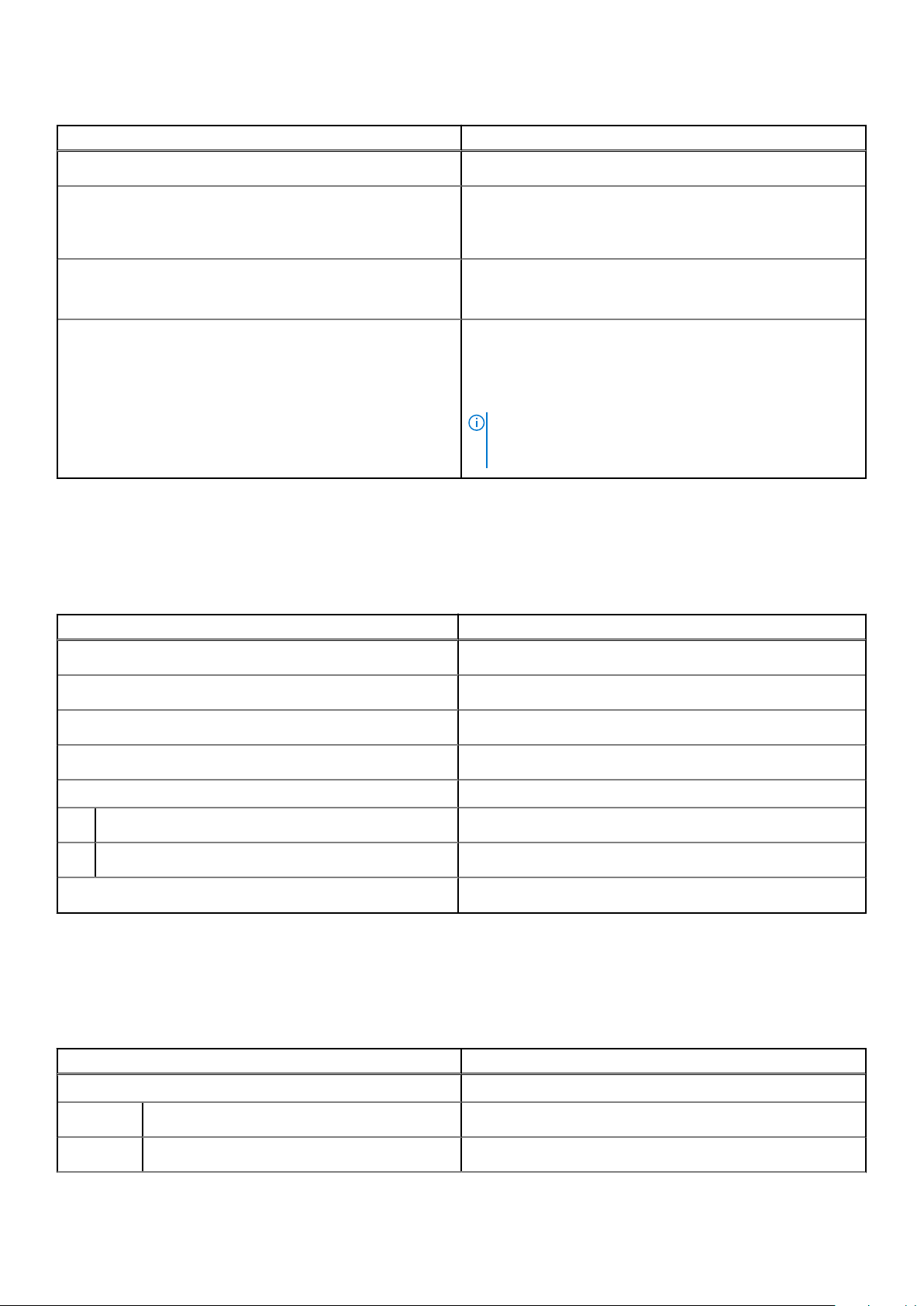
Table 13. Keyboard specifications (continued)
Description Values
Keyboard layout
Number of keys
Keyboard size
Keyboard shortcuts
QWERTY
● United States and Canada: 101 keys
● United Kingdom: 102 keys
● Japan: 105 keys
X=18.7 mm key pitch
Y=18.05 mm key pitch
Some keys on your keyboard have two symbols on them.
These keys can be used to type alternate characters or to
perform secondary functions. To type the alternate character,
press Shift and the desired key. To perform secondary
functions, press Fn and the desired key.
NOTE: You can define the primary behavior of the
function keys (F1–F12) changing Function Key Behavior
in BIOS setup program.
Camera
The following table lists the camera specifications of your Inspiron 7706 2-in-1.
Table 14. Camera specifications
Description Values
Number of cameras
Camera type
Camera location
Camera sensor type
Camera resolution:
Still image
Video
Diagonal viewing angle:
One
RGB HD camera
Front
CMOS sensor technology
0.92 megapixel
1280 x 720 (HD) at 30 fps
74.9 degrees
Touchpad
The following table lists the touchpad specifications of your Inspiron 7706 2-in-1.
Table 15. Touchpad specifications
Description Values
Touchpad resolution:
Horizontal
Vertical
4085
2742
Specifications of Inspiron 7706 2-in-1 17
Page 18
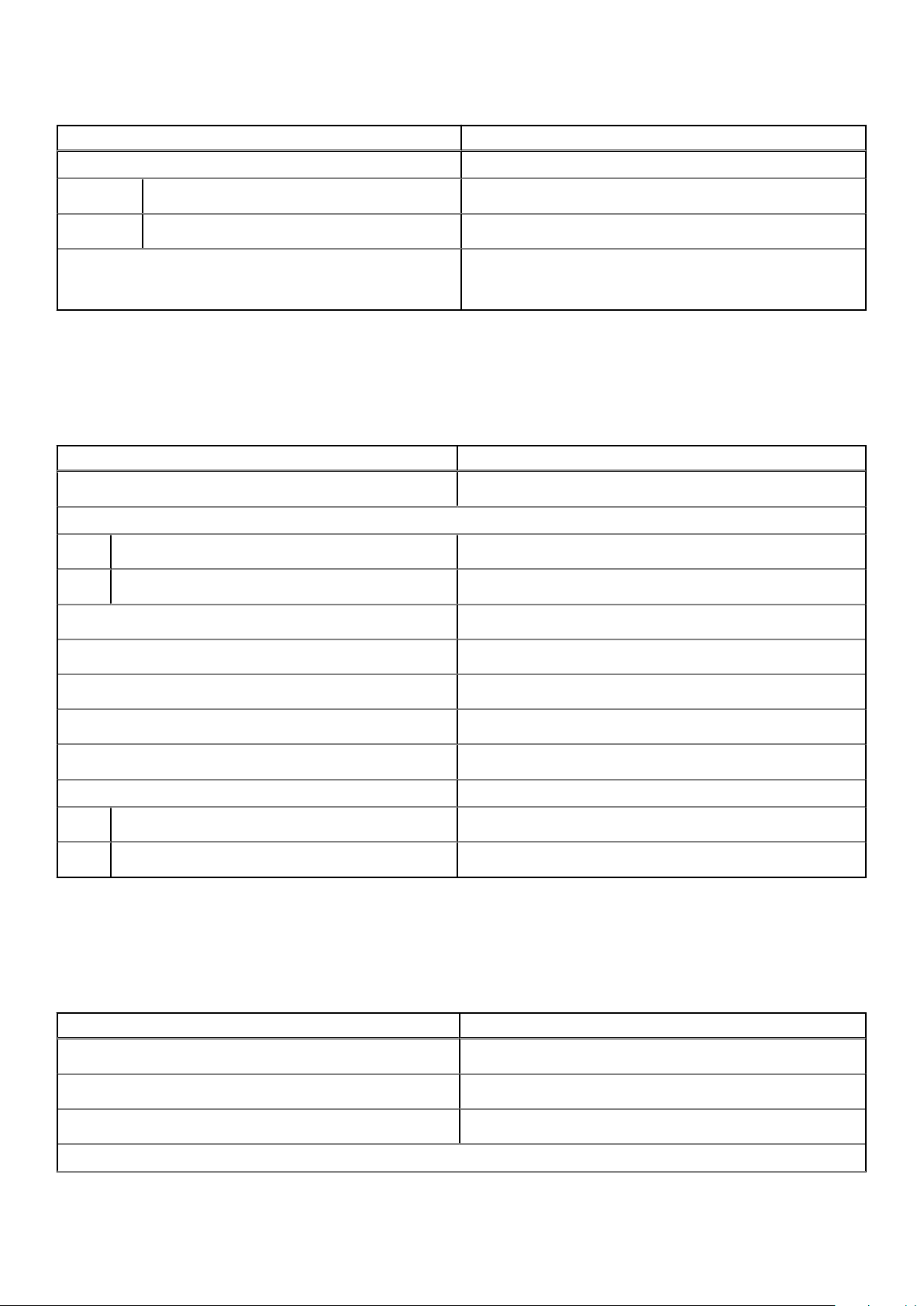
Table 15. Touchpad specifications (continued)
Description Values
Touchpad dimensions:
Horizontal
Vertical
Touchpad gestures For more information about touchpad gestures available on
133 mm (5.24 in.)
90 mm (3.54 in.)
Windows 10, see the Microsoft knowledge base article
4027871 at support.microsoft.com.
Power adapter
The following table lists the power adapter specifications of your Inspiron 7706 2-in-1.
Table 16. Power adapter specifications
Description Values
Type
Connector dimensions:
External diameter
Internal diameter
Input voltage
E90W
4.50 mm
2.90 mm
100 VAC–240 VAC
Input frequency
Input current (maximum)
Output current (continuous)
Rated output voltage
Temperature range:
Operating
Storage
50 Hz–60 Hz
1.50 A
4.62 A
19.50 VDC
0°C to 40°C (32°F to 104°F)
-40°C to 70°C (-40°F to 158°F)
Battery
The following table lists the battery specifications of your Inspiron 7706 2-in-1.
Table 17. Battery specifications
Description Values
Battery type
Battery voltage
4-cell 68 Wh "smart" lithium-ion
15.20 VDC
Battery weight (maximum)
Battery dimensions:
18 Specifications of Inspiron 7706 2-in-1
0.34 kg (0.75 lb)
Page 19
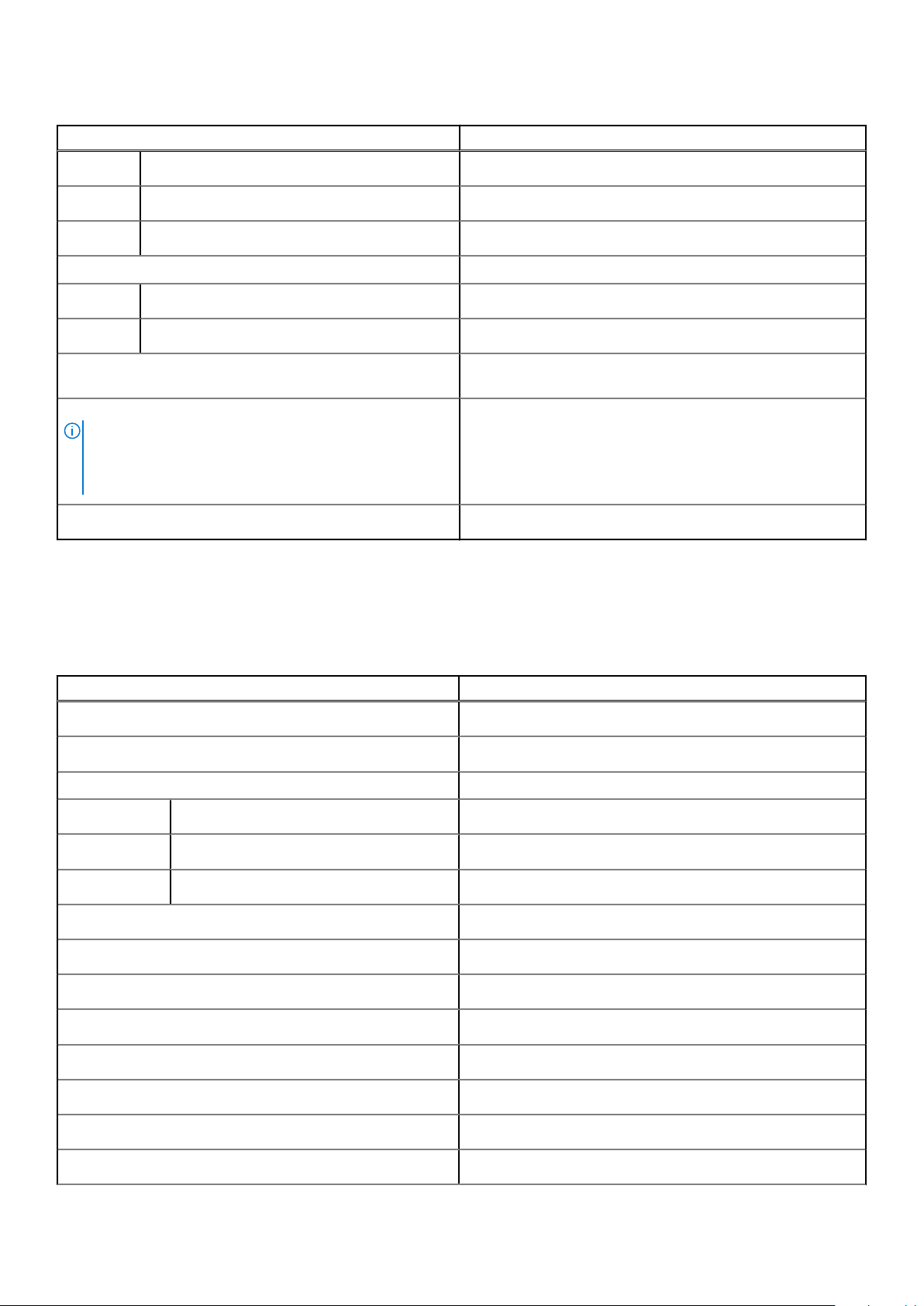
Table 17. Battery specifications (continued)
Description Values
Height
Width
Depth
Temperature range:
Operating
Storage
Battery operating time Varies depending on operating conditions and can significantly
Battery charging time (approximate)
NOTE: Control the charging time, duration, start and end
time, and so on using the Dell Power Manager application.
For more information on the Dell Power Manager see, Me
and My Dell on www.dell.com.
Coin-cell battery
233 mm (9.17 in.)
95.90 mm (3.78 in.)
7.05 mm (0.28 in.)
0°C to 35°C (32°F to 95°F)
-40°C to 65°C (-40°F to 149°F)
reduce under certain power-intensive conditions.
4 hours (when the computer is off)
CR 2032
Display
The following table lists the display specifications of your Inspiron 7706 2-in-1.
Table 18. Display specifications
Description Values
Display type
Display-panel technology
Display-panel dimensions (active area):
Height
Width
Diagonal
Display-panel native resolution
Luminance (typical)
Megapixels
Color gamut
Pixels Per Inch (PPI)
Quad High Definition (QHD+)
Wide Viewing Angle
228.96 mm (9.01 in.)
366.34 mm (14.42 in.)
432 mm (17.01 in.)
2560 x 1600
300 nits
4.09
sRGB 100%
178
Contrast ratio (min)
Response time (max)
Refresh rate
41.67
35 ms
60 Hz
Specifications of Inspiron 7706 2-in-1 19
Page 20
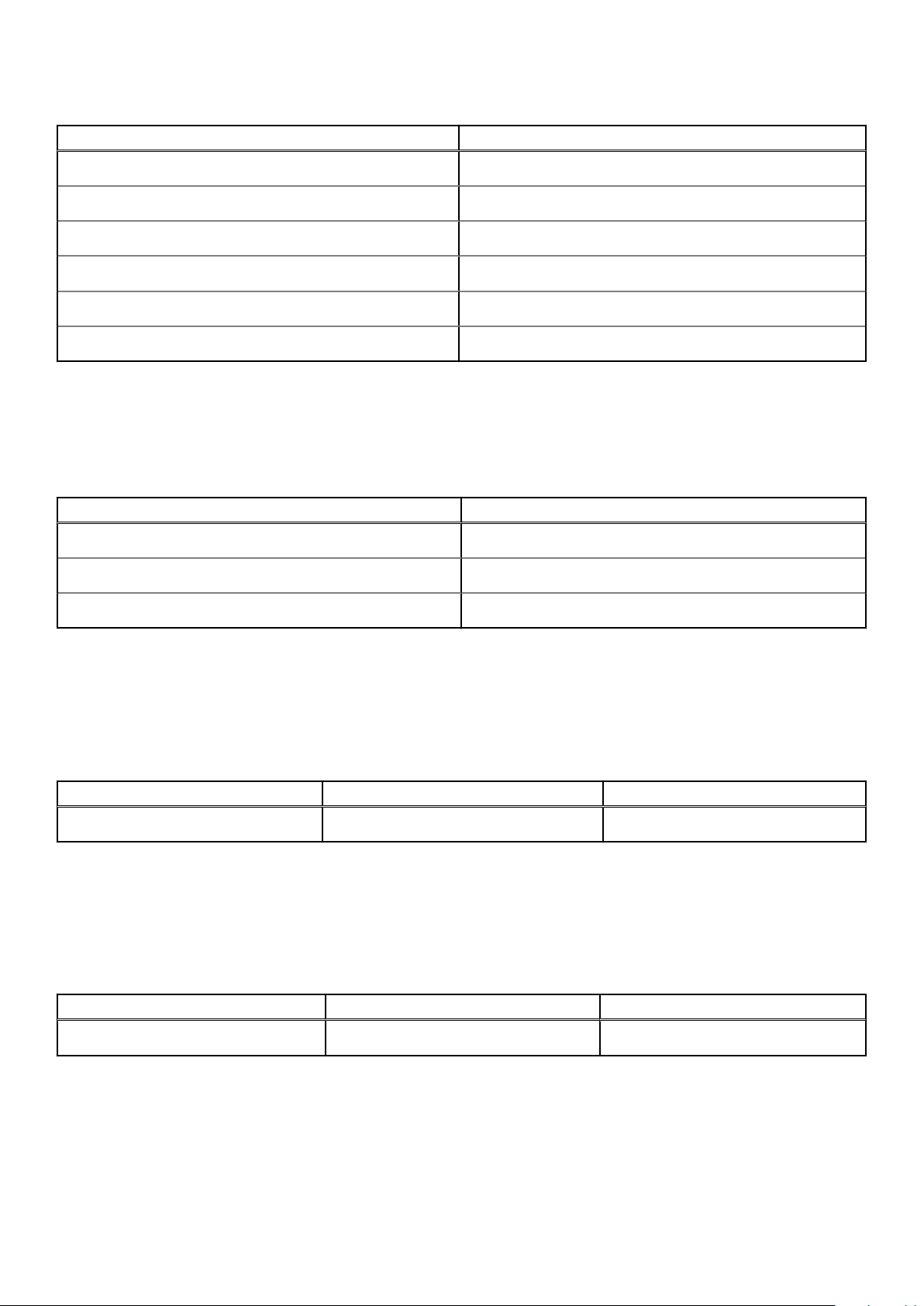
Table 18. Display specifications (continued)
Description Values
Horizontal view angle
Vertical view angle
Pixel pitch
Power consumption (maximum)
Anti-glare vs glossy finish
Touch options
+/- 85 degrees
+/- 85 degrees
0.14 mm
5.55 W
Glossy
Yes
Fingerprint reader
The following table lists the fingerprint-reader specifications of your Inspiron 7706 2-in-1.
Table 19. Fingerprint reader specifications
Description Values
Fingerprint-reader sensor technology
Fingerprint-reader sensor resolution
Fingerprint-reader sensor pixel size
Capacitive
500 dpi
80 x 64
GPU—Integrated
The following table lists the specifications of the integrated Graphics Processing Unit (GPU) supported by your Inspiron 7706 2in-1.
Table 20. GPU—Integrated
Controller Memory size Processor
Intel Iris Xe Graphics Shared system memory 11th Generation Intel Core i5/i7
GPU—Discrete
The following table lists the specifications of the discrete Graphics Processing Unit (GPU) supported by your Inspiron 7706 2in-1.
Table 21. GPU—Discrete
Controller Memory size Memory type
NVIDIA GeForce MX350 2 GB GDDR5
Operating and storage environment
This table lists the operating and storage specifications of your Inspiron 7706 2-in-1.
Airborne contaminant level: G1 as defined by ISA-S71.04-1985
20
Specifications of Inspiron 7706 2-in-1
Page 21

Table 22. Computer environment
Description Operating Storage
Temperature range
Relative humidity (maximum)
Vibration (maximum)
*
Shock (maximum)
Altitude range
* M eas ure d u sin g a ra ndo m v ibr ati on spectrum that simulates user en vir onm ent .
† M eas ure d u sin g a 2 ms hal f-s ine pulse when the hard drive is i n u se.
0°C to 35°C (32°F to 95°F) -40°C to 65°C (-40°F to 149°F)
50% to 90% (non-condensing) 0% to 95% (non-condensing)
0.66 GRMS 1.30 GRMS
140 G† 160 G†
N/A N/A
Specifications of Inspiron 7706 2-in-1 21
Page 22
5
Keyboard shortcuts of Inspiron 7706 2-in-1
NOTE: Keyboard characters may differ depending on the keyboard language configuration. Keys that are used for shortcuts
remain the same across all language configurations.
Some keys on your keyboard have two symbols on them. These keys can be used to type alternate characters or to perform
secondary functions. The symbol shown on the lower part of the key refers to the character that is typed out when the key is
pressed. If you press shift and the key, the symbol shown on the upper part of the key is typed out. For example, if you press 2,
2 is typed out; if you press Shift + 2, @ is typed out.
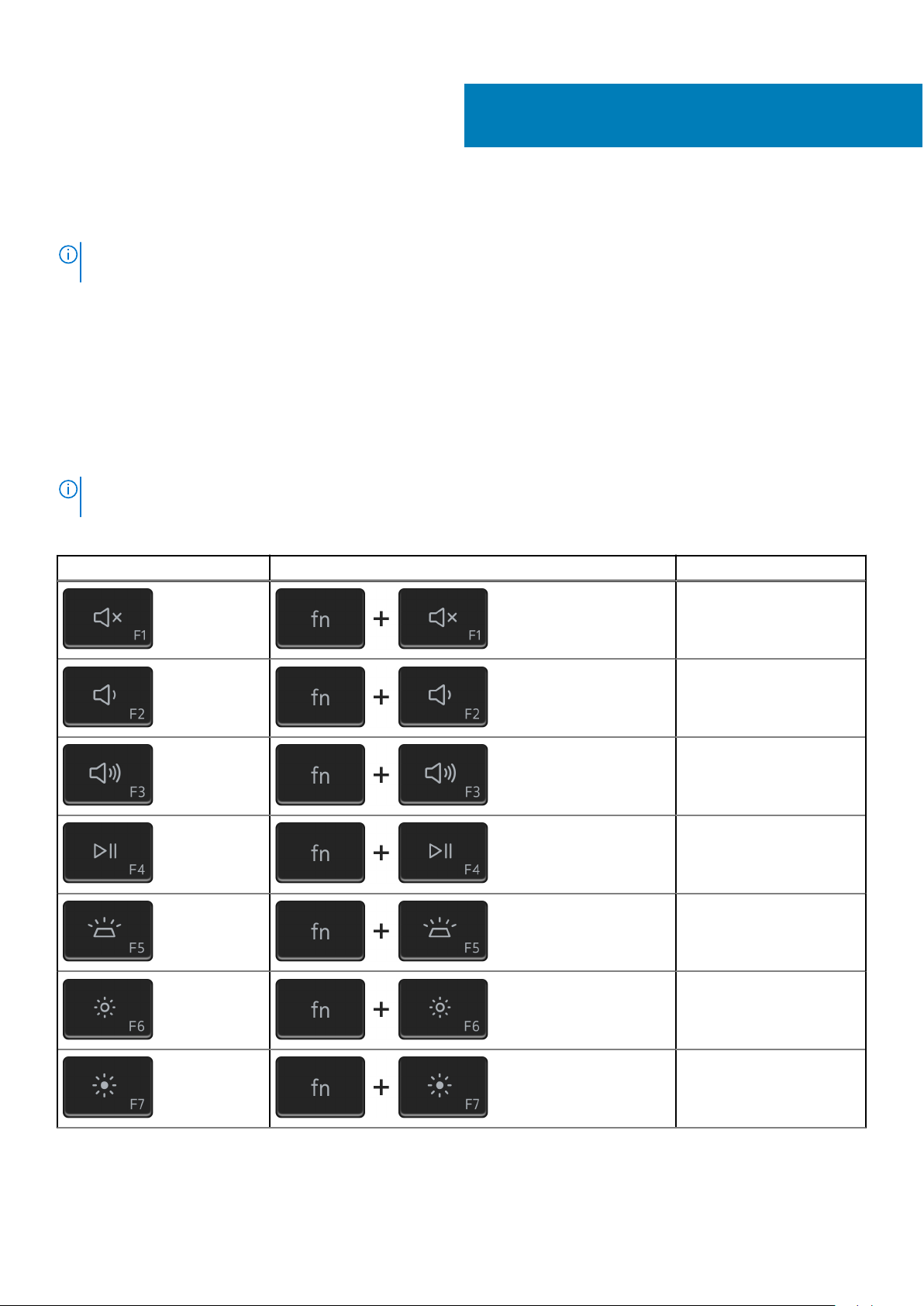
The keys F1-F12 at the top row of the keyboard are function keys for multi-media control, as indicated by the icon at the
bottom of the key. Press the function key to invoke the task represented by the icon. For example, pressing F1 mutes the audio
(refer to the table below).
However, if the function keys F1-F12 are needed for specific software applications, multi-media functionality can be disabled by
pressing fn + esc. Subsequently, multimedia control can be invoked by pressing fn and the respective function key. For
example, mute audio by pressing fn + F1.
NOTE: You can also define the primary behavior of the function keys (F1-F12) by changing Function Key Behavior in
BIOS setup program.
Table 23. List of keyboard shortcuts
Function key Redefined key (for multimedia control) Behavior
Mute audio
Decrease volume
Increase volume
Play/Pause
Toggle keyboard backlight
Decrease brightness
22 Keyboard shortcuts of Inspiron 7706 2-in-1
Increase brightness
Page 23
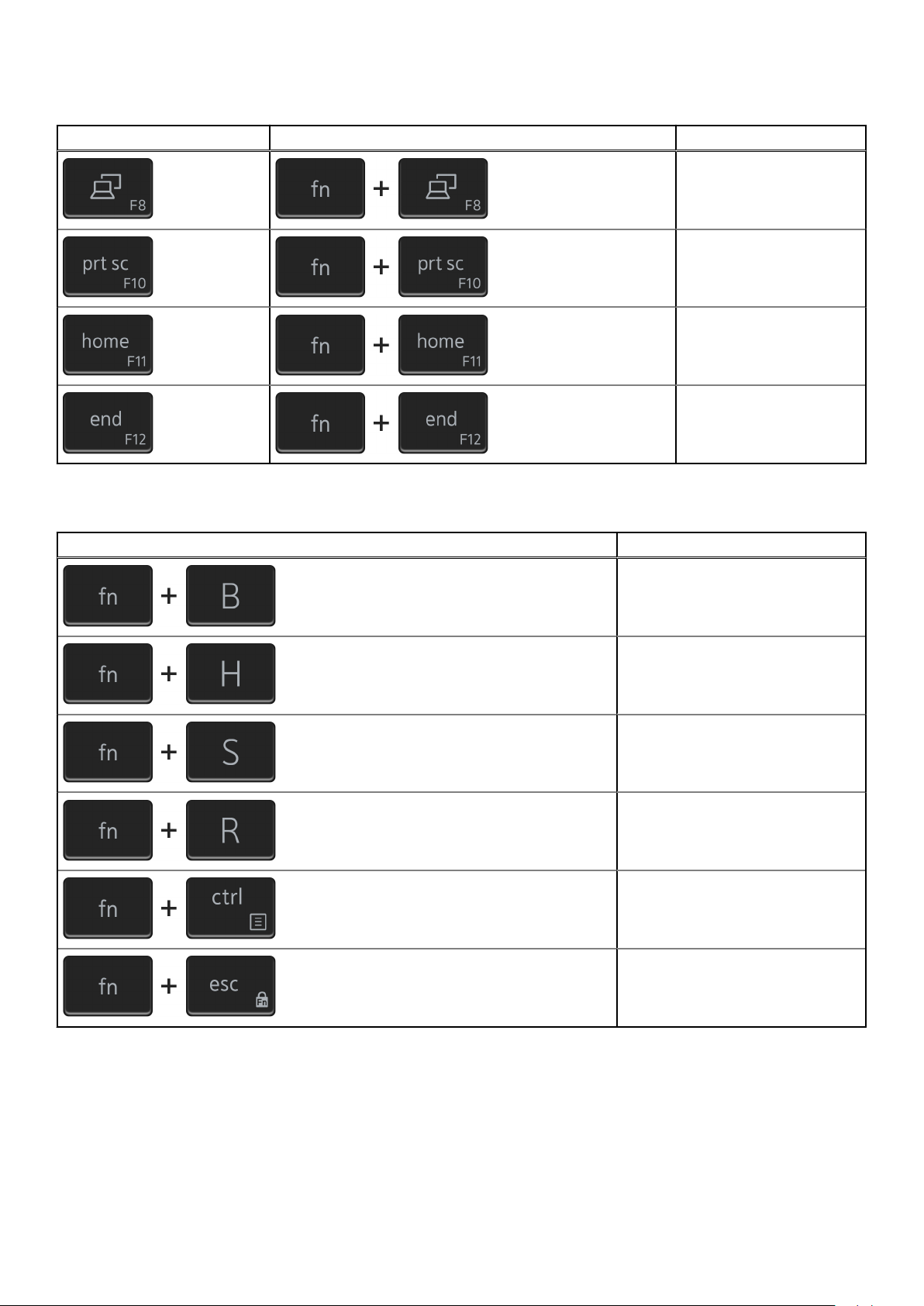
Table 23. List of keyboard shortcuts (continued)
Function key Redefined key (for multimedia control) Behavior
Switch to external display
Print screen
Home
End
The fn key is also used with selected keys on the keyboard to invoke other secondary functions.
Table 24. List of keyboard shortcuts
Function key Behavior
Pause/Break
Toggle between power and batterystatus light
Toggle scroll lock
System request
Open application menu
Toggle Fn-key lock
Keyboard shortcuts of Inspiron 7706 2-in-1 23
Page 24
Getting help and contacting Dell
Self-help resources
You can get information and help on Dell products and services using these self-help resources:
Table 25. Self-help resources
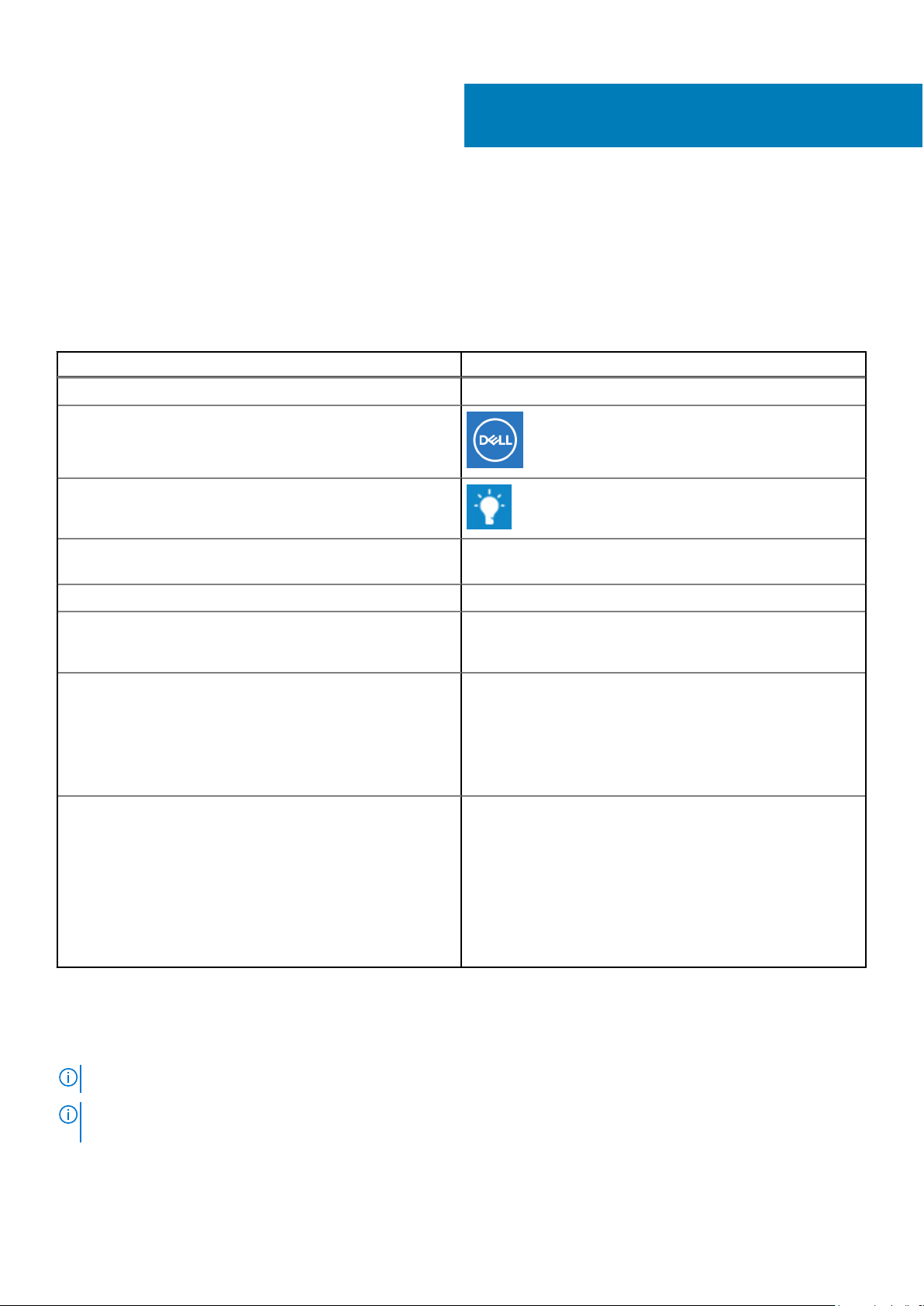
Self-help resources Resource location
Information about Dell products and services www.dell.com
My Dell app
Tips
Contact Support In Windows search, type Contact Support, and press
Enter.
6
Online help for operating system www.dell.com/support/windows
Troubleshooting information, user manuals, set up
instructions, product specifications, technical help blogs,
drivers, software updates, and so on.
Dell knowledge base articles for a variety of computer
concerns
Learn and know the following information about your product:
● Product specifications
● Operating system
● Setting up and using your product
● Data backup
● Troubleshooting and diagnostics
● Factory and system restore
● BIOS information
www.dell.com/support
1. Go to www.dell.com/support.
2. On the menu bar at the top of the Support page, select
Support > Knowledge Base.
3. In the Search field on the Knowledge Base page, type the
keyword, topic, or model number, and then click or tap the
search icon to view the related articles.
See Me and My Dell at www.dell.com/support/manuals.
To locate the Me and My Dell relevant to your product,
identify your product through one of the following:
● Select Detect Product.
● Locate your product through the drop-down menu under
View Products.
● Enter the Service Tag number or Product ID in the
search bar.
Contacting Dell
To contact Dell for sales, technical support, or customer service issues, see www.dell.com/contactdell.
NOTE: Availability varies by country/region and product, and some services may not be available in your country/region.
NOTE: If you do not have an active Internet connection, you can find contact information about your purchase invoice,
packing slip, bill, or Dell product catalog.
24 Getting help and contacting Dell
 Loading...