

Page 1

OptiPlex 7480 All-In-One
Setup and Specifications
Reg ula tor y M ode l: W26 C
Reg ula tor y T ype : W 26C 001 /W26C002
Sep tem ber 20 20
Rev . A 03
Page 2

Notes, cautions, and warnings
NOTE: A NOTE indicates important information that helps you make better use of your product.
CAUTION: A CAUTION indicates either potential damage to hardware or loss of data and tells you how to avoid
the problem.
WARNING: A WARNING indicates a potential for property damage, personal injury, or death.
© 2020 Dell Inc. or its subsidiaries. All rights reserved. Dell, EM C, and other trademarks are trademarks of Dell Inc. or its subsidiaries. Oth er
trademarks may be trademarks of their respective owners.
Page 3

Contents
Chapter 1: Set up your computer................................................................................................... 4
Chapter 2: Views of OptiPlex 7480 All-in-One...............................................................................11
Front...................................................................................................................................................................................... 11
Retractable camera........................................................................................................................................................... 12
Left........................................................................................................................................................................................ 13
Right...................................................................................................................................................................................... 14
Back.......................................................................................................................................................................................15
Bottom.................................................................................................................................................................................. 17
System board layout..........................................................................................................................................................18
Chapter 3: Specifications of OptiPlex 7480 All-in-One................................................................. 19
Dimensions and weight.....................................................................................................................................................19
Processors........................................................................................................................................................................... 19
Chipset.................................................................................................................................................................................20
Operating system............................................................................................................................................................... 21
Memory.................................................................................................................................................................................21
Ports and connectors....................................................................................................................................................... 22
Communications................................................................................................................................................................ 23
Audio.....................................................................................................................................................................................23
Storage................................................................................................................................................................................ 24
Intel Optane memory........................................................................................................................................................25
Media-card reader.............................................................................................................................................................25
Camera.................................................................................................................................................................................25
Power supply unit..............................................................................................................................................................26
Display.................................................................................................................................................................................. 27
Video.....................................................................................................................................................................................28
Computer environment.................................................................................................................................................... 28
Security................................................................................................................................................................................28
Data security...................................................................................................................................................................... 29
Environmental.................................................................................................................................................................... 29
Regulatory...........................................................................................................................................................................30
Accessories......................................................................................................................................................................... 30
Service and support...........................................................................................................................................................31
Chapter 4: Getting help and contacting Dell................................................................................ 32
Contents 3
Page 4
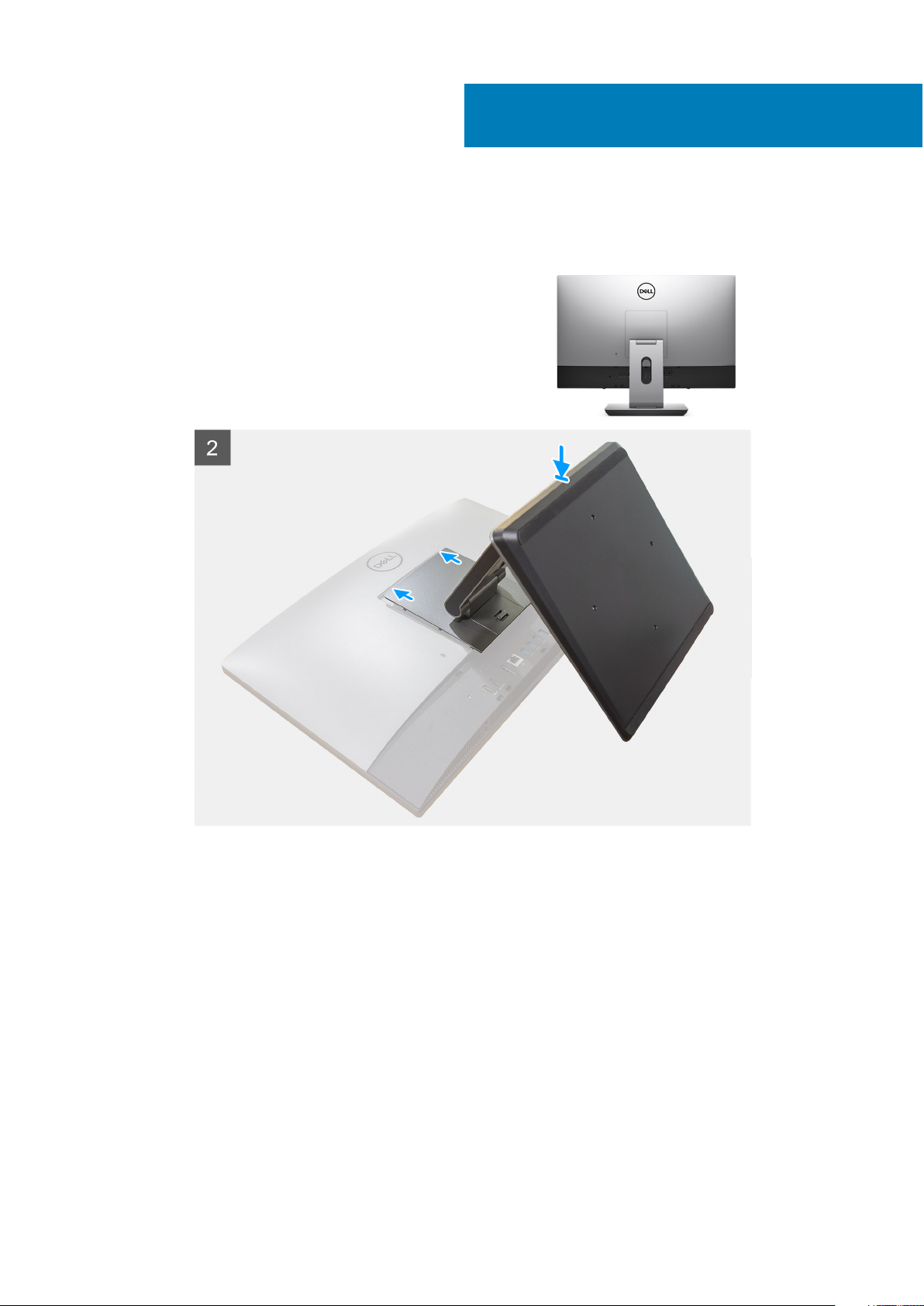
1. Set up the stand.
1
Set up your computer
Figure 1. Articulating stand
4 Set up your computer
Page 5
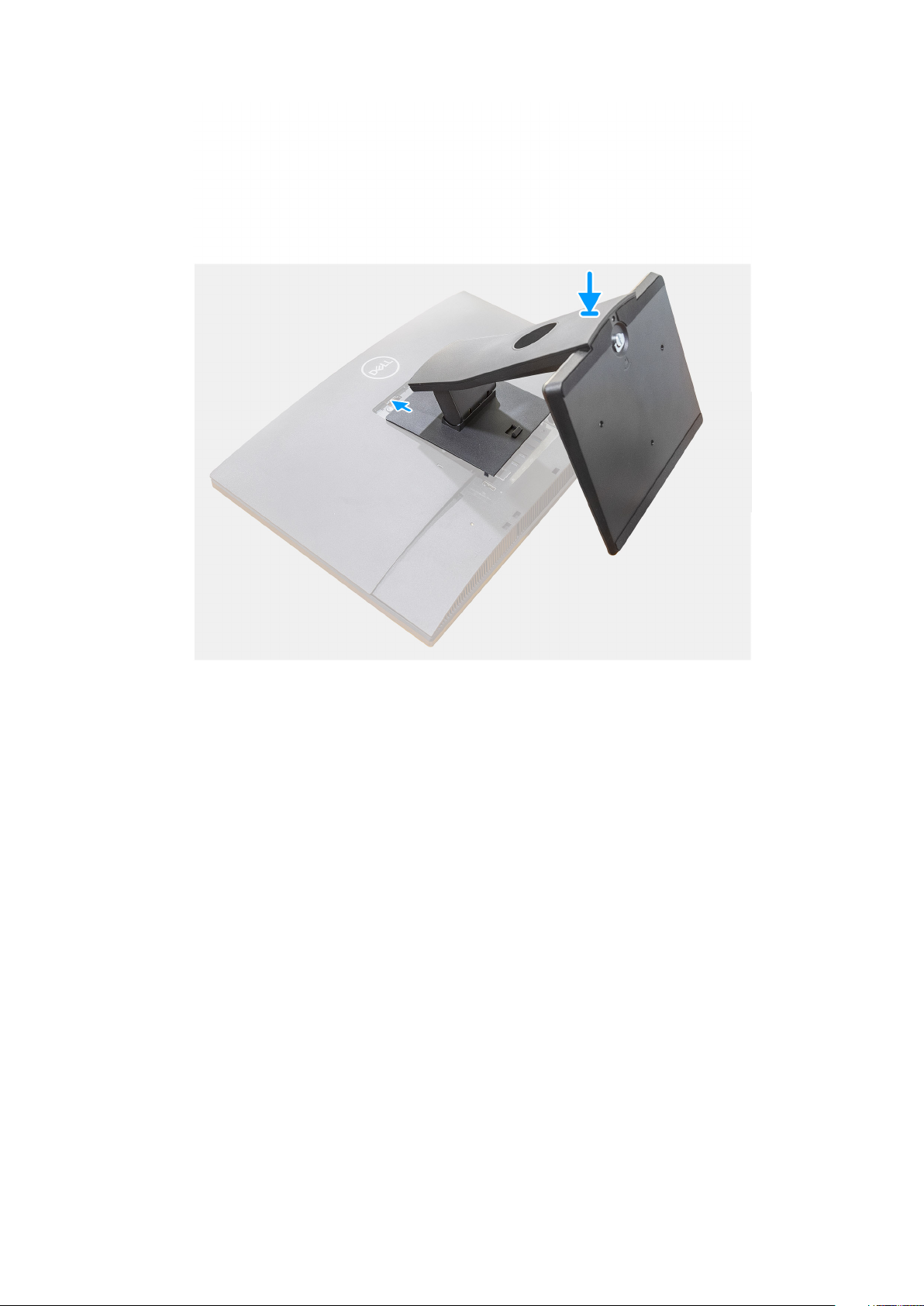
Figure 2. Fixed stand
Set up your computer
5
Page 6
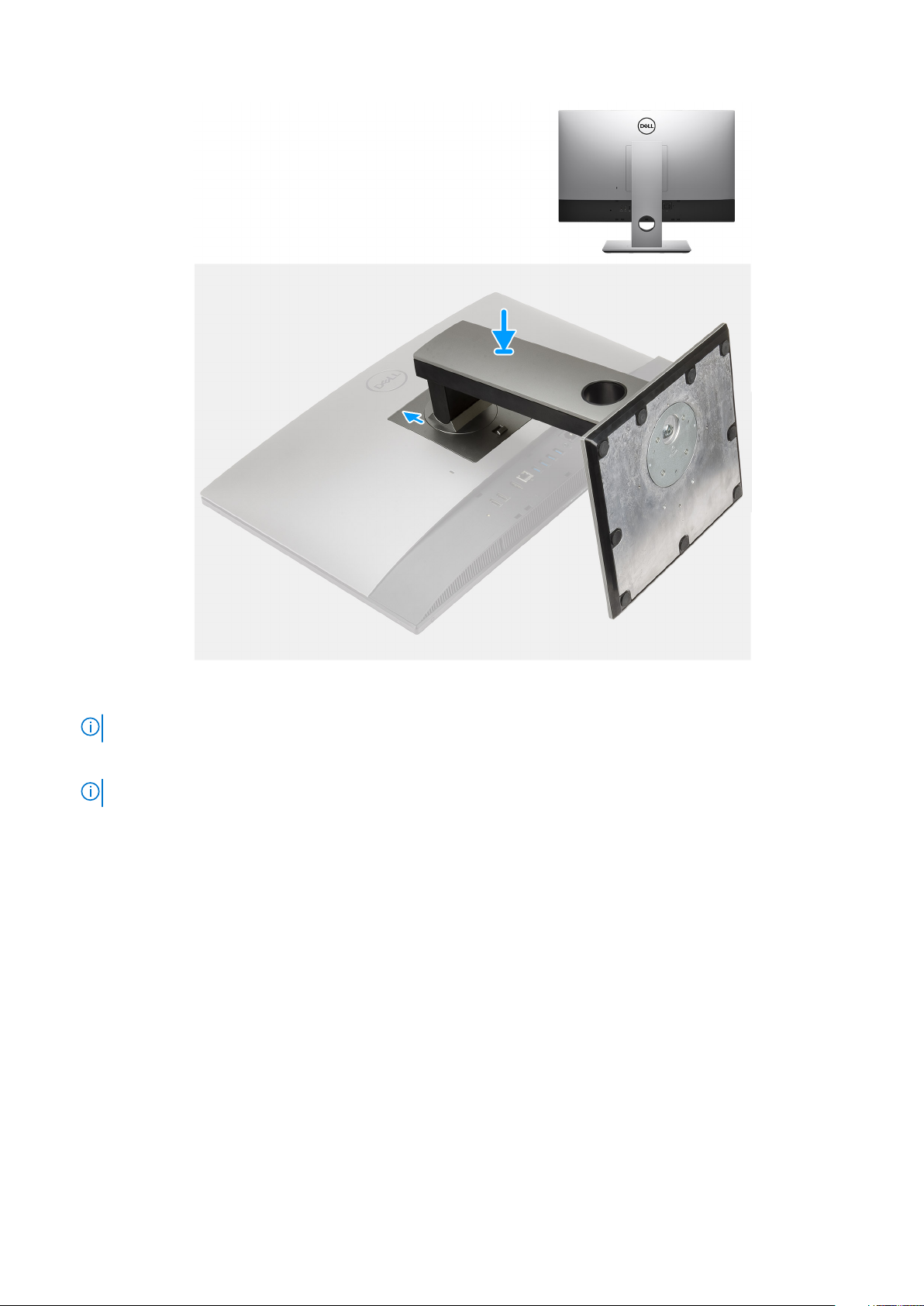
Figure 3. Height Adjustable Stand
NOTE: Follow the same procedure to install the Height Adjustable Stand with Optical Disk Drive.
2. Set up the keyboard and mouse.
NOTE: For setup instructions, see the documentation shipped with the keyboard and mouse.
6 Set up your computer
Page 7
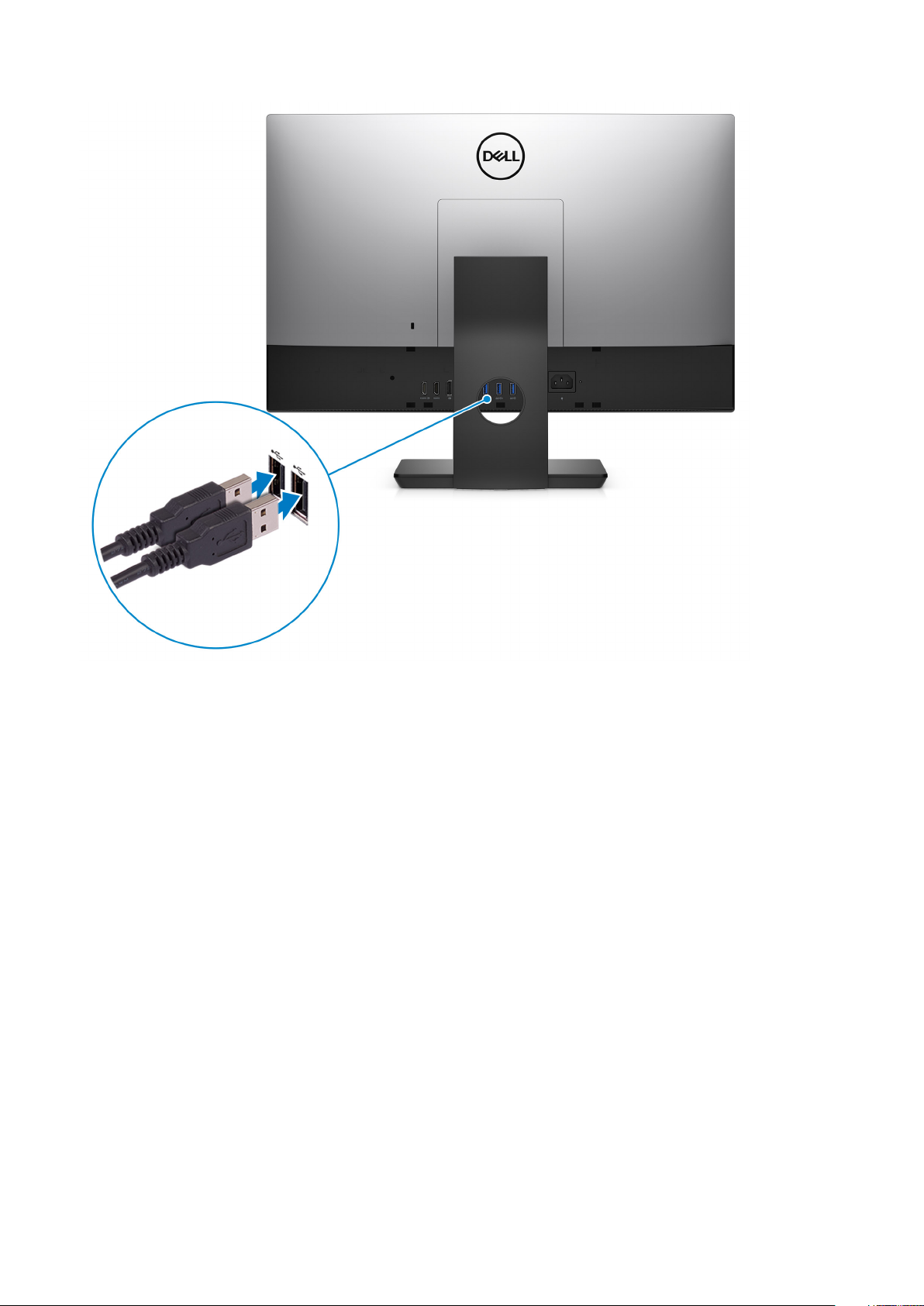
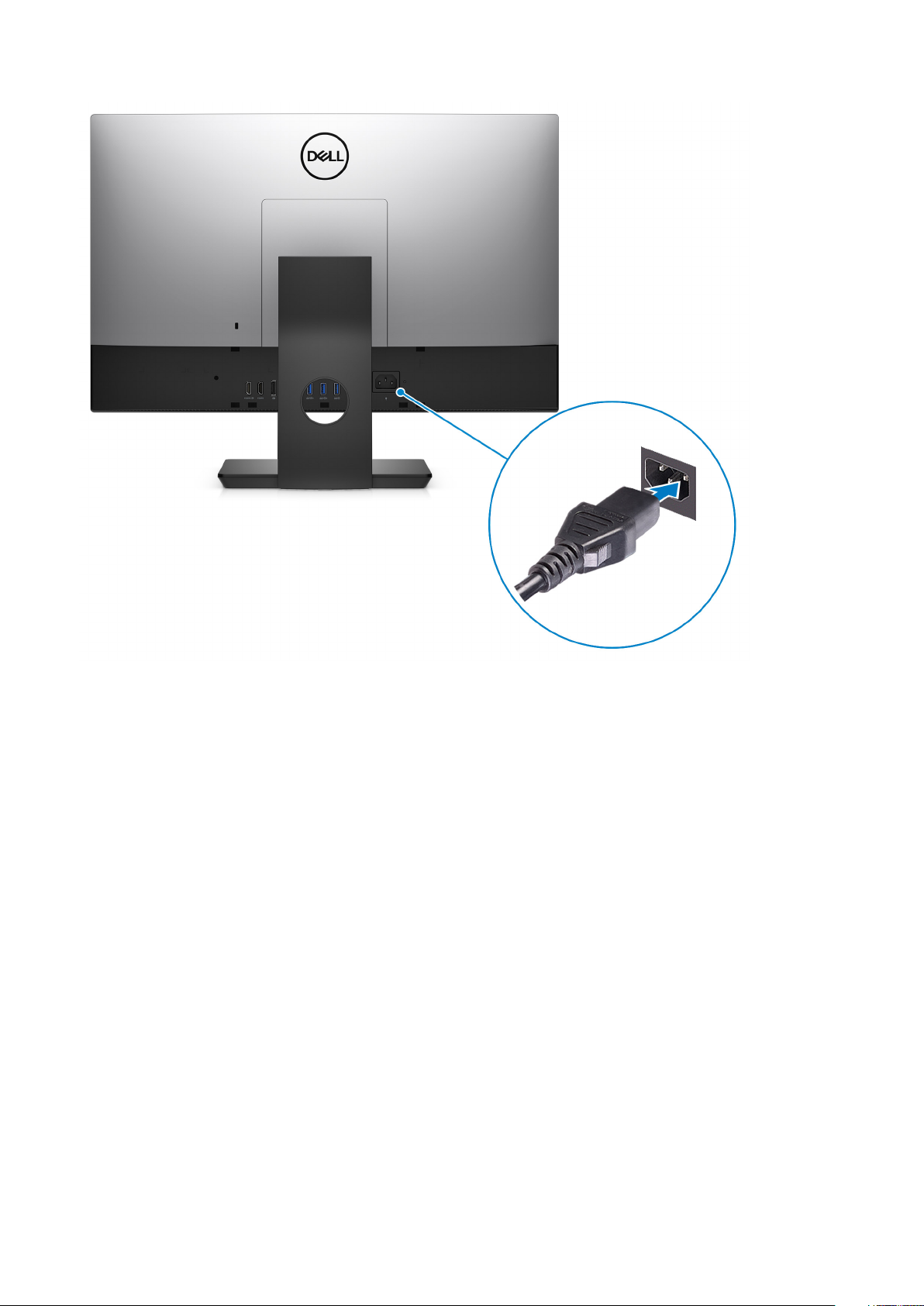
3. Route the power cable through the stand, then connect the power cable.
Set up your computer
7
Page 8
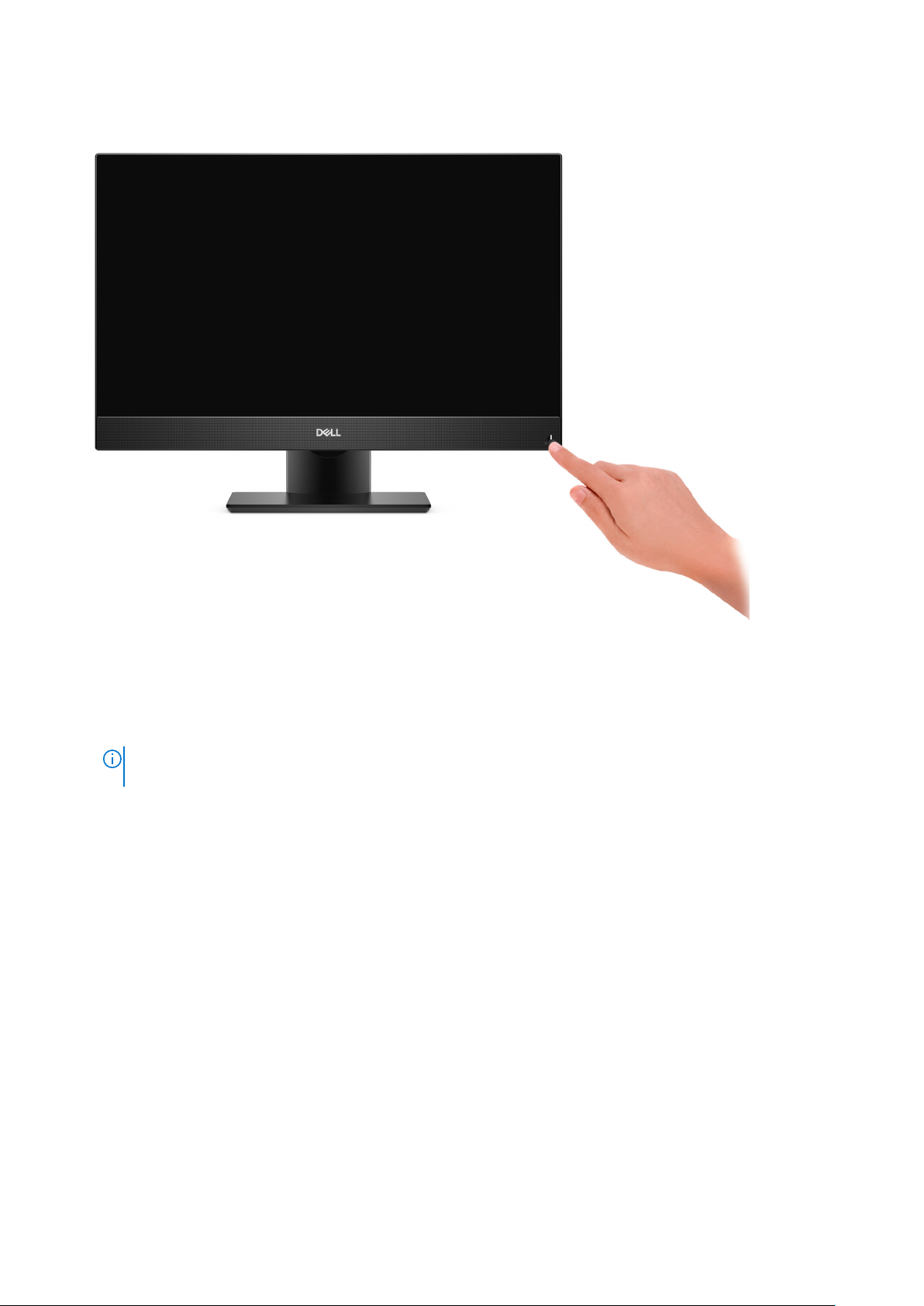
4. Press the power button.
8
Set up your computer
Page 9
5. Finish Windows setup.
Follow the on-screen instructions to complete the setup. When setting up, Dell recommends that you:
● Connect to a network for Windows updates.
NOTE:
If connecting to a secured wireless network, enter the password for the wireless network access when
prompted.
Set up your computer 9
Page 10
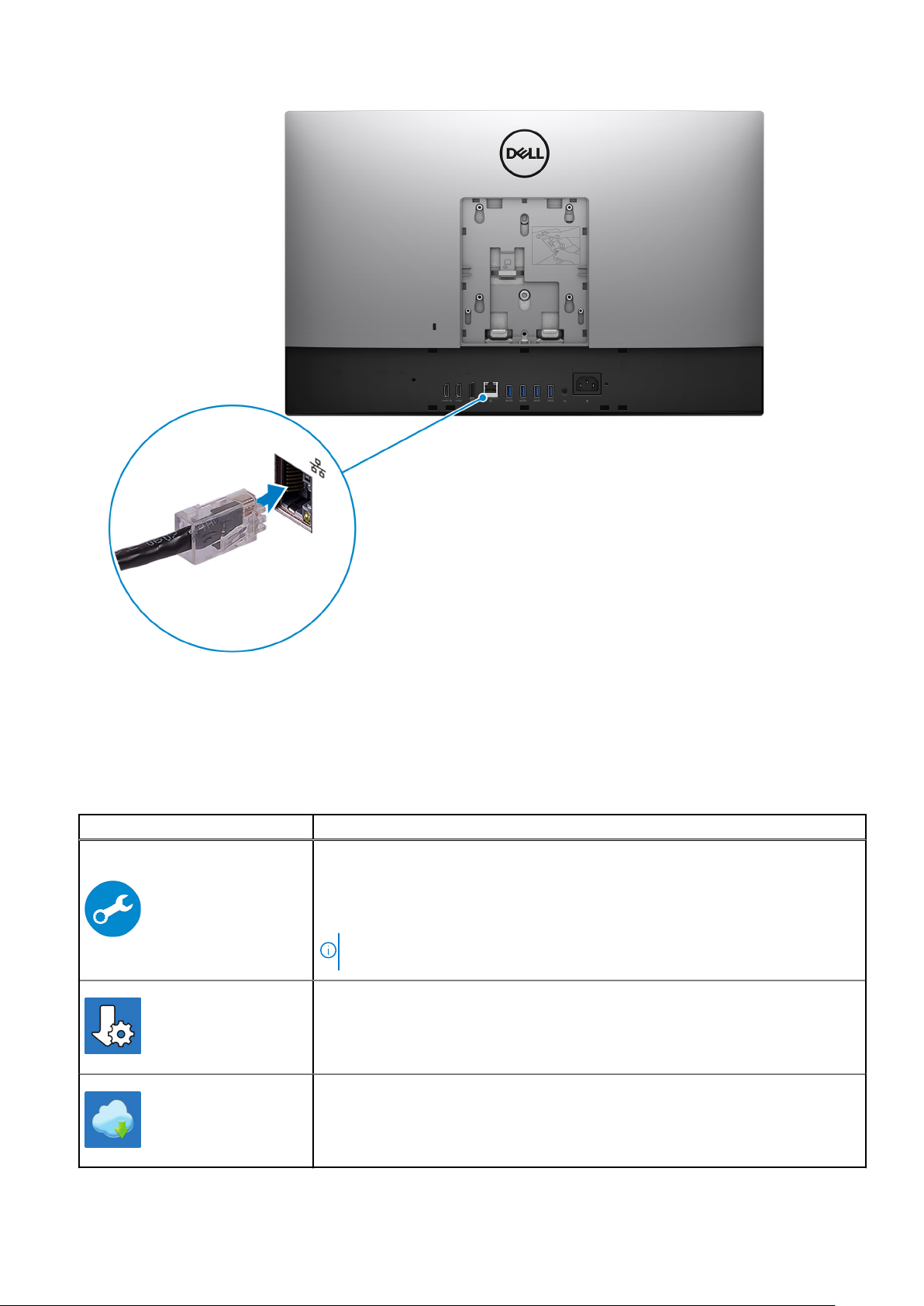
● If connected to the internet, sign-in with or create a Microsoft account. If not connected to the internet, create an
offline account.
● On the Support and Protection screen, enter your contact details.
6. Locate and use Dell apps from the Windows Start menu—Recommended
Table 1. Locate Dell apps
Resources Description
SupportAssist
Pro-actively checks the health of your computer’s hardware and software. The
SupportAssist OS Recovery tool troubleshoots issues with the operating system. For
more information, see the SupportAssist documentation at www.dell.com/support.
NOTE: In SupportAssist, click the warranty expiry date to renew or upgrade your
warranty.
Dell Update
Updates your computer with critical fixes and latest device drivers as they become
available. For more information about using Dell Update, see the knowledge base
article SLN305843 at www.dell.com/support.
Dell Digital Delivery
Download software applications, which are purchased but not pre-installed on your
computer. For more information about using Dell Digital Delivery, see the knowledge
base article 153764 at www.dell.com/support.
10 Set up your computer
Page 11
Topics:
• Front
• Retractable camera
• Left
• Right
• Back
• Bottom
• System board layout
Front
2
Views of OptiPlex 7480 All-in-One
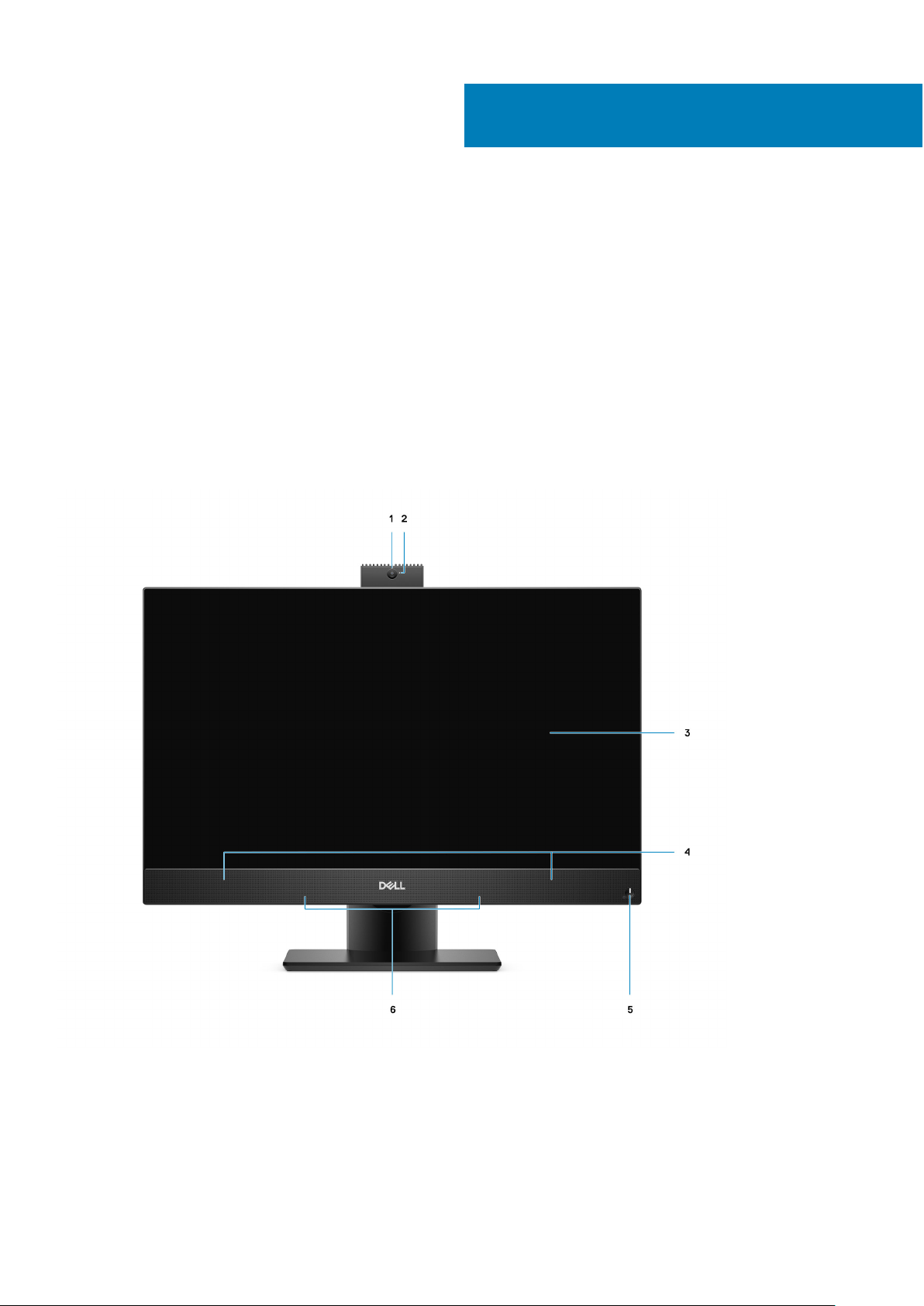
1. Full HD webcam 2. Camera-status light
3. Display 4. Speakers
5. Power button/power-status indicator 6. Array microphones
Views of OptiPlex 7480 All-in-One 11
Page 12
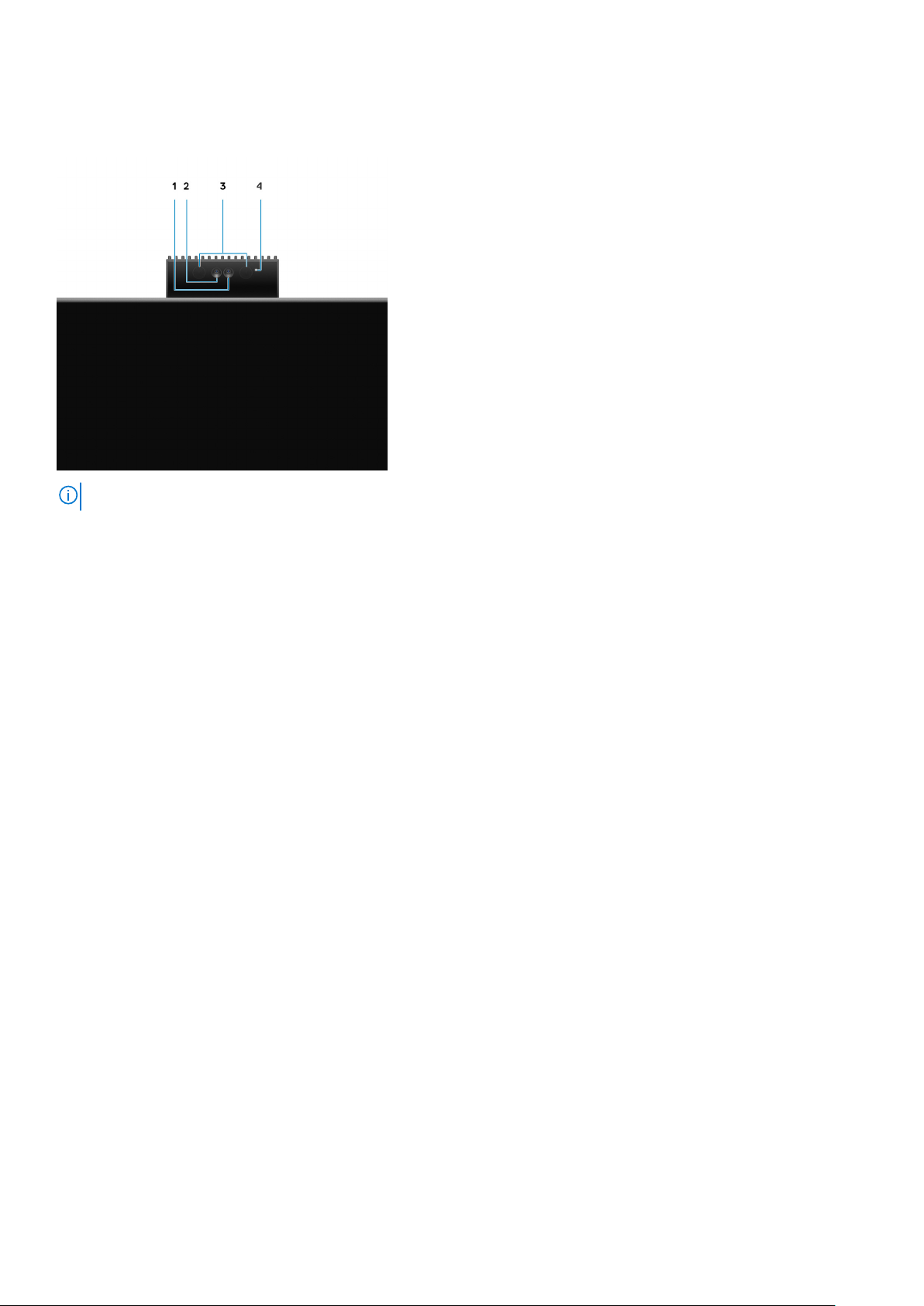
Retractable camera
NOTE: Depending on the configuration ordered, your computer will have only camera or both camera and Infrared camera.
1. Camera
2. Infrared camera
3. Infrared emitter
4. Camera-status light
12
Views of OptiPlex 7480 All-in-One
Page 13
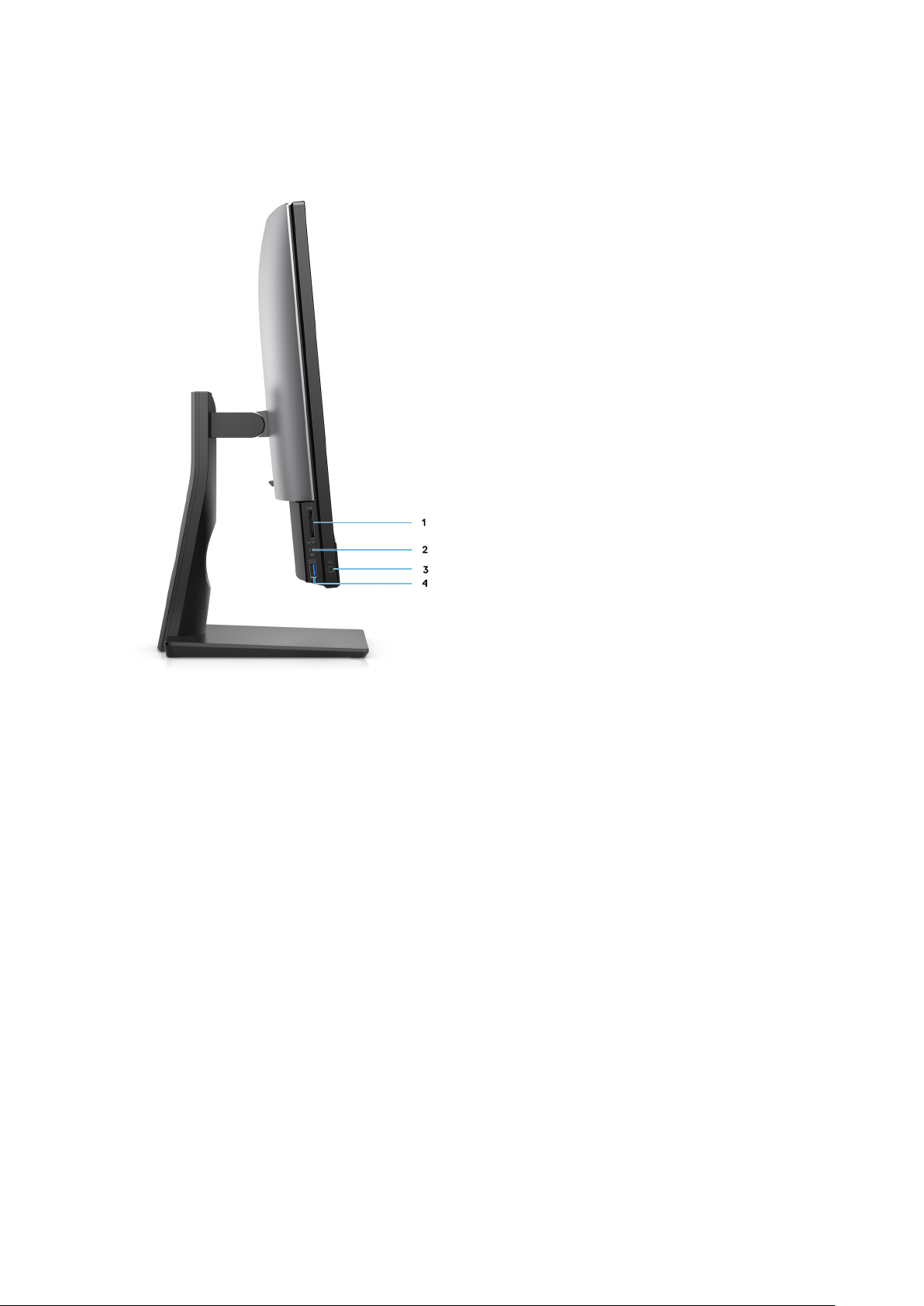
Left
1. SD 4.0 card slot 2. USB 3.2 Gen 2 Type-C port
3. Universal audio jack 4. USB 3.2 Gen 1 Type-A port with PowerShare
Views of OptiPlex 7480 All-in-One 13
Page 14
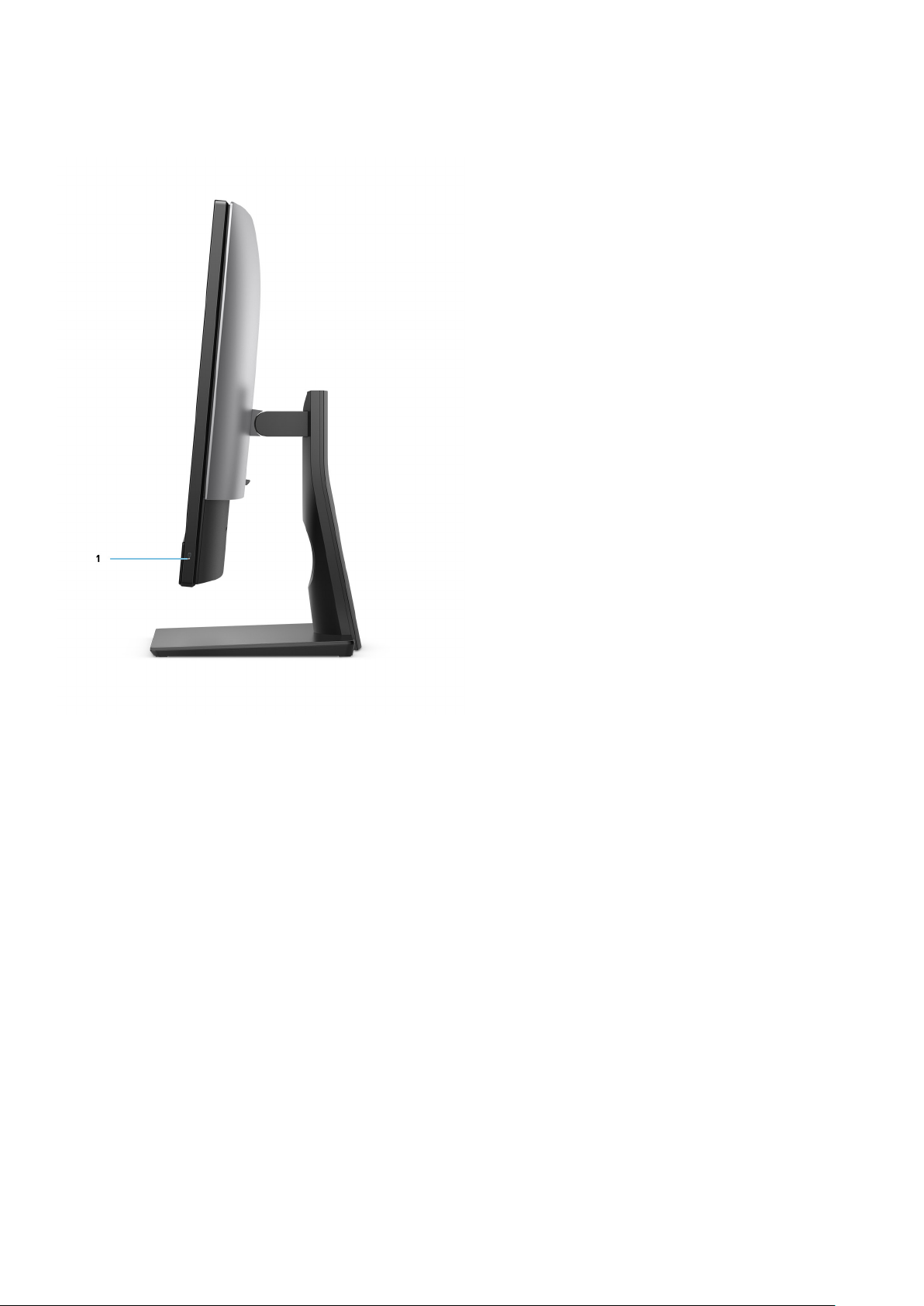
Right
1. Hard-drive status indicator
14
Views of OptiPlex 7480 All-in-One
Page 15
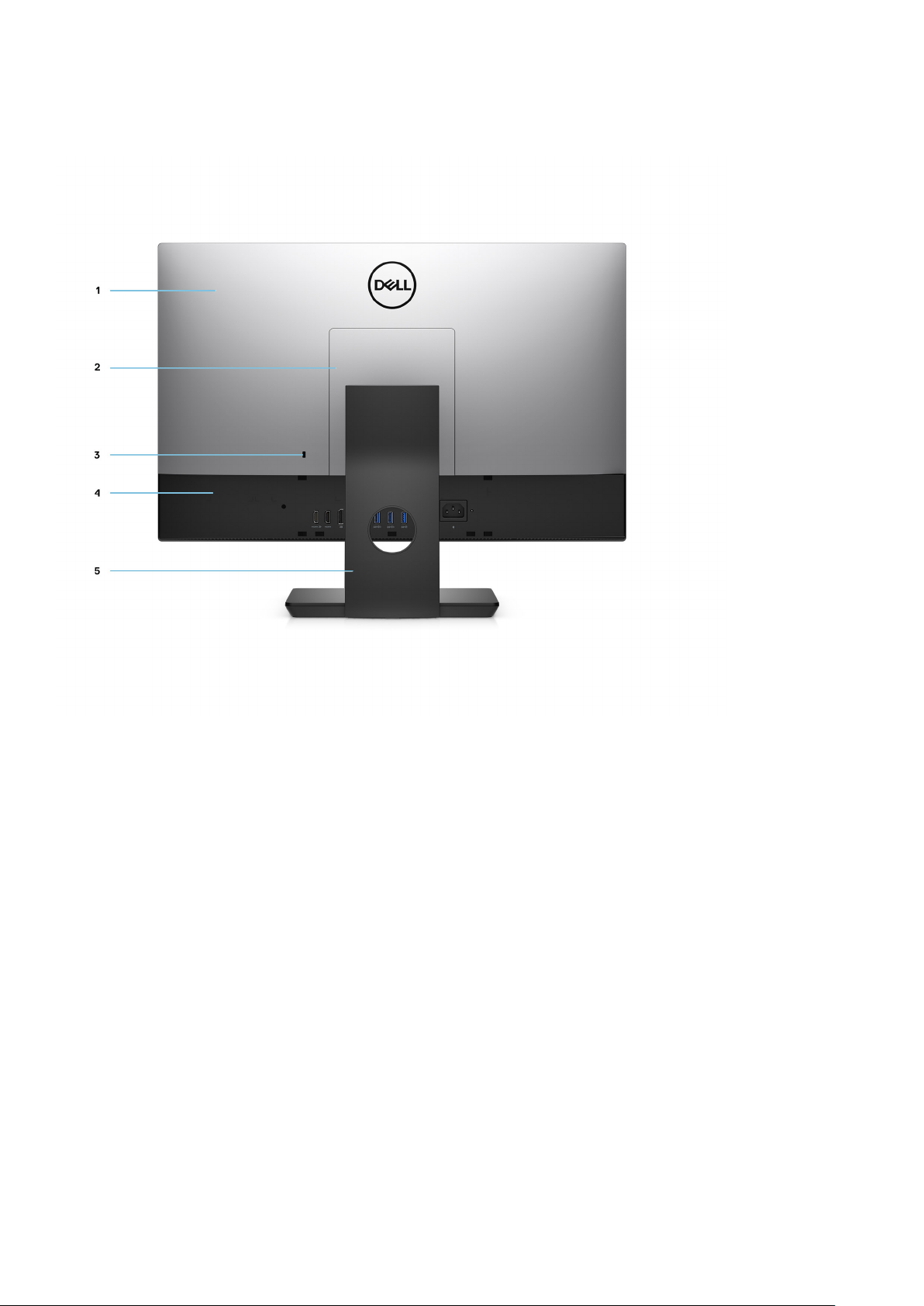
Back
1. Back cover 2. Stand cover
3. Kensington security-cable slot 4. Bottom cover
5. Stand
Views of OptiPlex 7480 All-in-One 15
Page 16
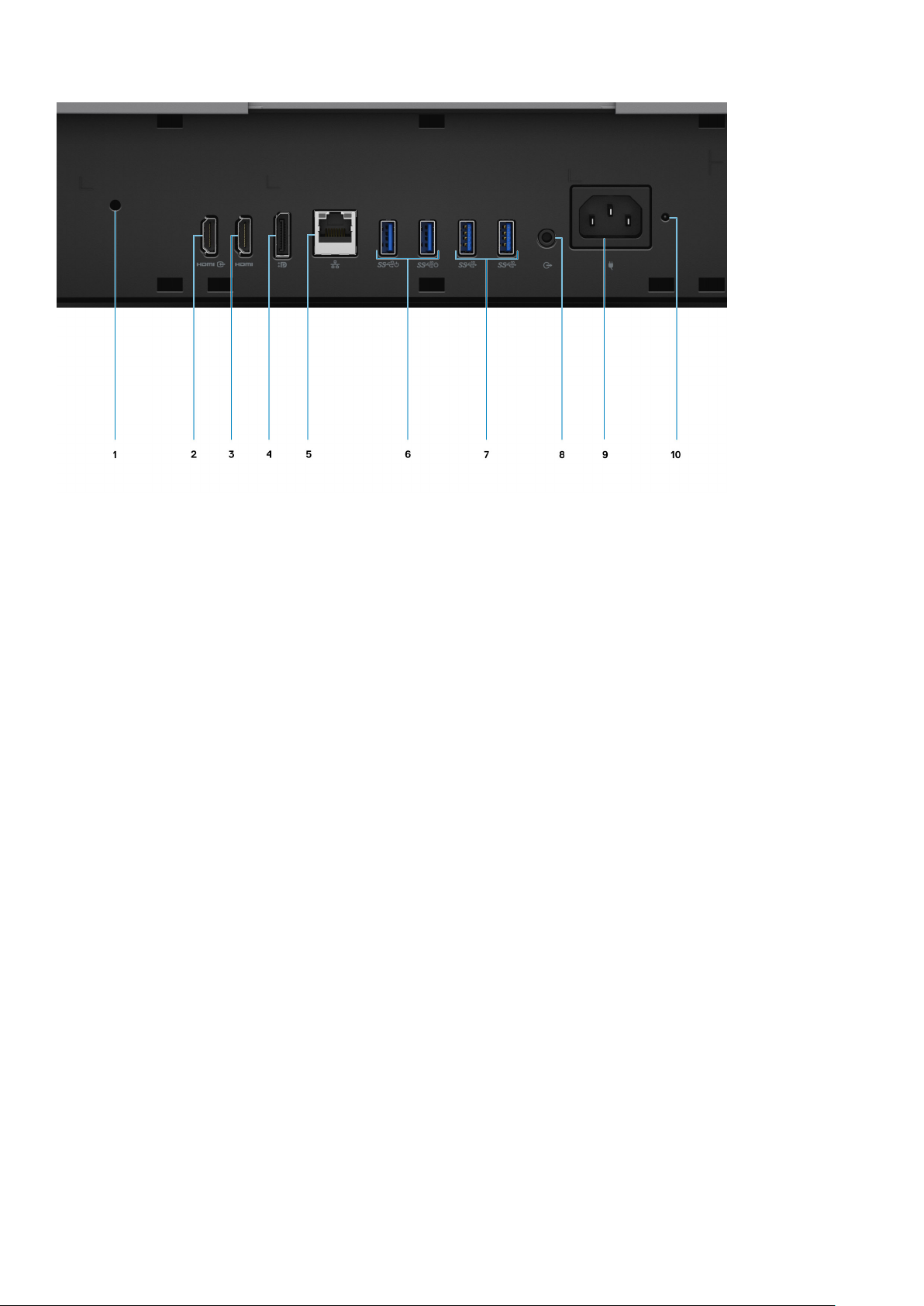
1. Cable cover screw hole 2. HDMI-in port
3. HDMI-out port
● HDMI 1.4b for UMA Graphics
● HDMI 2.0 for Discrete Graphics
5. RJ-45 port 10/100/1000 Mbps 6. USB 3.2 Gen 2 Type-A ports with Smart Power On
7. USB 3.2 Gen 2 Type-A ports 8. Line-out audio port
9. Power connector 10. PSU status indicator LED
4. DP++ 1.4/HDCP 2.3 port
16 Views of OptiPlex 7480 All-in-One
Page 17
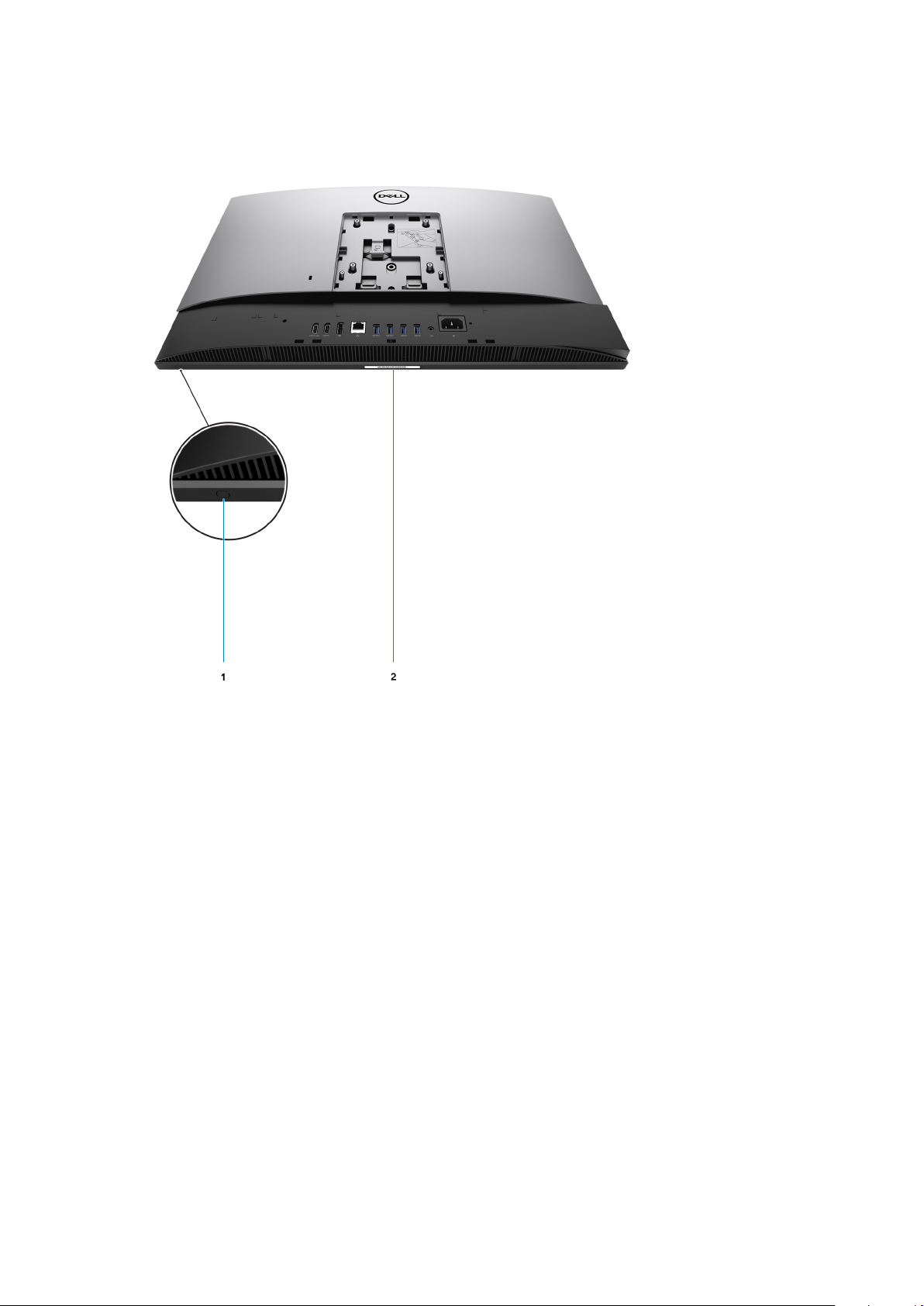
Bottom
1. Display Built-in Self Test button
This button has two functions:
● When the computer is on, use this button to select the video input-source.
Press the button to switch the display between the internal system display and HDMI input.
● When the computer is off (there is no power; neither is it in sleep state nor hibernate state), use this button to run the
built-in self-test for the display.
Press and hold down this button, and then press the power button to turn on the computer. The built-in color pattern for
the LCD monitor will appear on the screen.
For more information, see the Troubleshooting section in the Service Manual at www.dell.com/support/manuals.
2. Service tag label
Views of OptiPlex 7480 All-in-One
17
Page 18
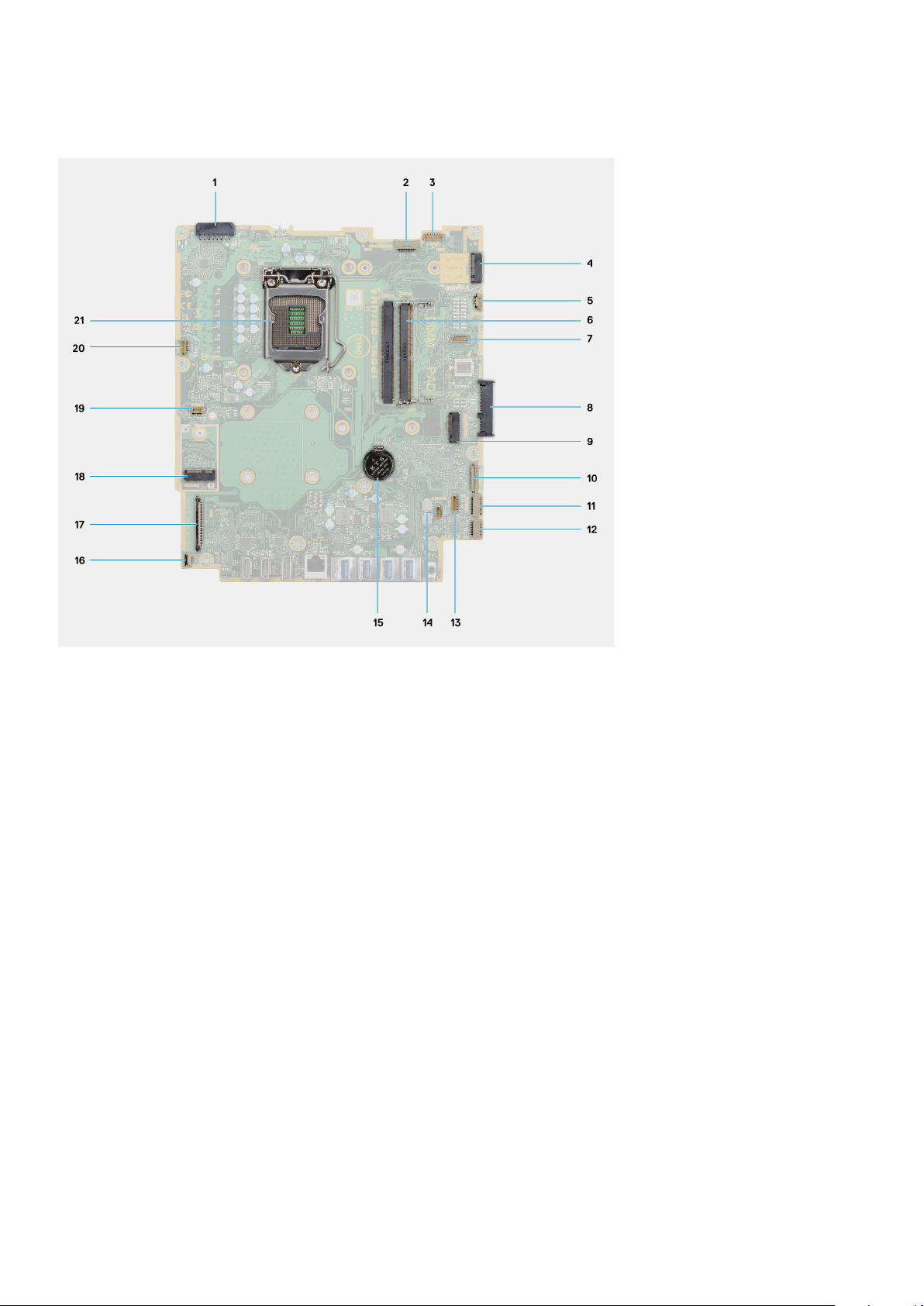
System board layout
1. Power-supply unit (PSU) cable connector
2. Display back-light cable connector
3. Camera cable connector
4. M.2 2230/2280 solid-state drive/Intel Optane PCIe connector
5. System-fan cable connector
6. Memory modules
7. LPC debug card connector
8. Hard-drive connector
9. M.2 2230/2280 solid-state drive PCIe connector
10. SIO-signal cable connector
11. SIO-power cable connector
12. Audio-board cable connector
13. Microphone-module cable connector
14. Speaker cable connector
15. Coin-cell battery
16. Power-button cable connector
17. Display cable connector
18. M.2 WLAN connector
19. PSU-fan cable connector
20. Touchscreen cable connector
21. Processor
18
Views of OptiPlex 7480 All-in-One
Page 19
Specifications of OptiPlex 7480 All-in-One
Topics:
• Dimensions and weight
• Processors
• Chipset
• Operating system
• Memory
• Ports and connectors
• Communications
• Audio
• Storage
• Intel Optane memory
• Media-card reader
• Camera
• Power supply unit
• Display
• Video
• Computer environment
• Security
• Data security
• Environmental
• Regulatory
• Accessories
• Service and support
3
Dimensions and weight
Table 2. Dimensions and weight
Description Values for touch display Values for non-touch display
Height
Width
Depth
Weight (maximum)
Weight (Minimum) 5.95 kg (13.11 lb) 5.94 kg (13.09 lb)
NOTE: The weight of your system depends on the configuration that is ordered and the manufacturing variability.
344.00 mm (13.54 in.)
540.20 mm (21.26 in.)
52.80 mm (2.07 in.)
6.32 kg (13.93 lb)
344.00 mm (13.54 in.)
540.20 mm (21.26 in.)
52.80 mm (2.07 in.)
6.61 kg (14.57 lb)
Processors
Global Standard Products (GSP) are a subset of Dell’s relationship products that are managed for availability and
NOTE:
synchronized transitions on a worldwide basis. They ensure the same platform is available for purchase globally. This allows
Specifications of OptiPlex 7480 All-in-One 19
Page 20
customers to reduce the number of configurations managed on a worldwide basis, thereby reducing their costs. They also
enable companies to implement global IT standards by locking in specific product configurations worldwide.
Device Guard (DG) and Credential Guard (CG) are the new security features that only available on Windows 10 Enterprise
today. Device Guard is a combination of enterprise-related hardware and software security features. When you configure
together, it locks a device and it can only run trusted applications. Credential Guard uses virtualization-based security to isolate
secrets (credentials) and only privileged system software can access the system. Unauthorized access to these secrets can lead
to credential theft attacks. Credential Guard prevents these attacks by protecting NTLM password hashes and Kerberos Ticket
Granting Tickets.
NOTE: Processor numbers are not a measure of performance. Processor availability subject to change and may vary by
region/country.
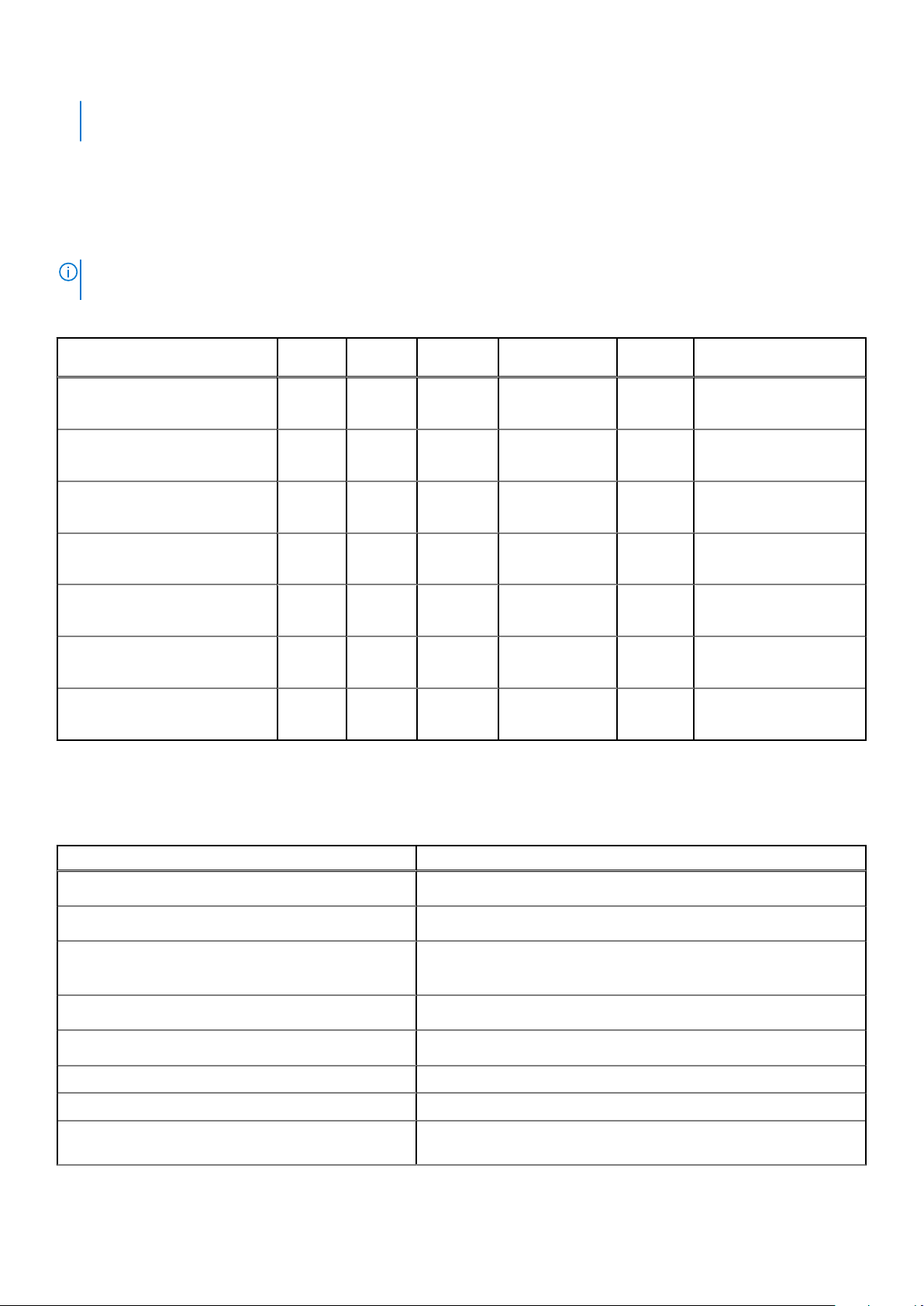
Table 3. Processors
Processors Wattage Core
10th Generation Intel Core
i3-10100
10th Generation Intel Core
i3-10300
10th Generation Intel Core
i5-10400
10th Generation Intel Core
i5-10500
10th Generation Intel Core
i5-10600
10th Generation Intel Core
i7-10700
10th Generation Intel Core
i9-10900
65 W 4 8 3.6 GHz to 4.3
65 W 4 8 3.7 GHz to 4.4
65 W 6 12 2.9 GHz to 4.3
65 W 6 12 3.1 GHz to 4.5
65 W 6 12 3.3 GHz to 4.8
65 W 8 16 2.9 GHz to 4.8
65 W 10 20 2.8 GHz to 5.2
count
Chipset
Thread
count
Speed Cache Integrated graphics
6 MB Intel UHD Graphics 630
GHz
8 MB Intel UHD Graphics 630
GHz
12 MB Intel UHD Graphics 630
GHz
12 MB Intel UHD Graphics 630
GHz
12 MB Intel UHD Graphics 630
GHz
16 MB Intel UHD Graphics 630
GHz
20 MB Intel UHD Graphics 630
GHz
Table 4. Chipset
Description Values
Chipset
Processor
DRAM bus width
Flash EPROM
PCIe bus
Non-volatile memory Yes
BIOS configuration Serial Peripheral Interface (SPI) 256 Mbit (32 MB) located at SPI_FLASH
Trusted Platform Module (TPM) 2.0 (Discrete TPM
Enabled)
20 Specifications of OptiPlex 7480 All-in-One
Intel Q470
10th Generation Intel Core i3/i5/i7/i9
● 64-bit (for single channel)
● 128-bit (for dual channel)
32 MB
Up to Gen 3
24 KB located at TPM 2.0 on chipset
Page 21
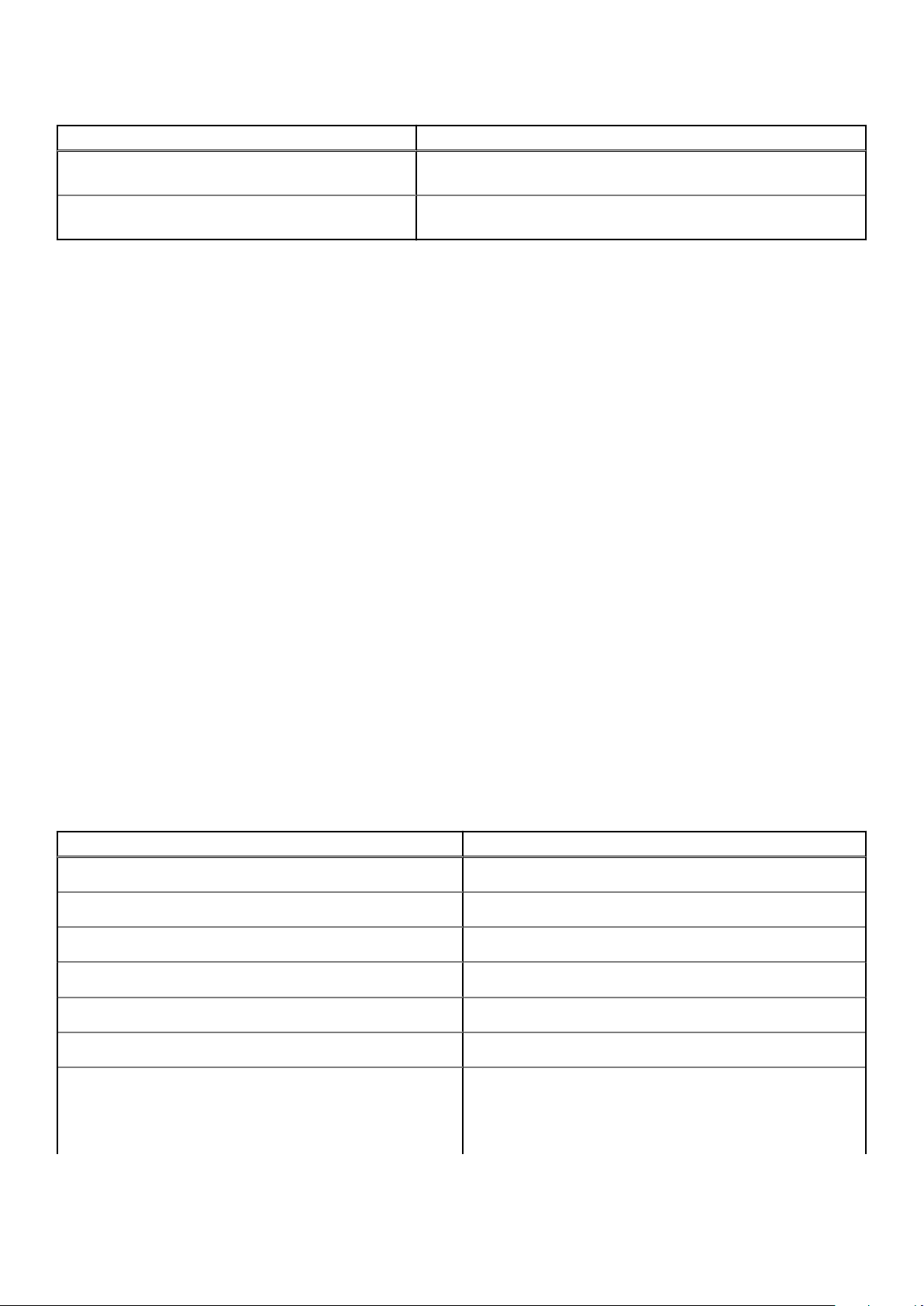
Table 4. Chipset (continued)
Description Values
Firmware-TPM (Discrete TPM disabled) By default the Platform Trust Technology feature is visible to the
operating system.
NIC EEPROM LOM configuration contained within SPI flash ROM instead of LOM
e-fuse
Operating system
● Windows 10 Home (64-bit)
● Windows 10 IoT Enterprise 2019 LTSC (OEM Only)
● Windows 10 Professional (64-bit)
● Windows 10 Pro Education (64-bit)
● NeoKylin 7.0 (China only)
● Ubuntu 18.04 (64-bit)
For more information about Dell OS Recovery image, see How to Download and Use the Dell OS Recovery Image in Microsoft
Windows, at Dell support site.
Commercial platform Windows 10 N-2 and 5-year operating system supportability:
All newly introduced 2019 and later commercial platforms (Latitude, OptiPlex, and Dell Precision) will qualify and ship with the
most current factory installed Semi-Annual Channel Windows 10 version (N) and qualify (but not ship) the previous two versions
(N-1, N-2). The OptiPlex 7480 All-in-One will RTS with Windows 10 version v19H2 at time of launch, and this version will
determine the N-2 versions that are initially qualified for this platform.
For future versions of Windows 10, Dell continues to test the commercial platform with coming Windows 10 releases during
device production and for five years post-production, including both fall and spring releases from Microsoft.
For additional information about N-2 and 5-year Windows operating system supportability, see the Dell Windows as a Service
(WaaS), at Dell support site.
EOML 411
The OptiPlex 7480 All-in-One continues to test the coming Semi-Annual Channel Windows 10 version releases for five years
post-production, including both fall and spring releases from Microsoft.
Memory
Table 5. Memory specifications
Description Values
Slots
Type
Speed
Maximum memory
Minimum memory
Memory size per slot
Configurations supported
Two SO-DIMM slots
DDR4, Non-ECC
2666 MHz/2933 MHz
64 GB
4 GB
4 GB, 8 GB, 16 GB, 32 GB
● 4 GB, 1 x 4 GB, 2666 MHz for Intel Core i3/i5 processors,
● 8 GB, 1 x 8 GB, 2666 MHz for Intel Core i3/i5 processors,
2933 MHz for Intel Core i7/i9 processors
2933 MHz for Intel Core i7/i9 processors
Specifications of OptiPlex 7480 All-in-One 21
Page 22
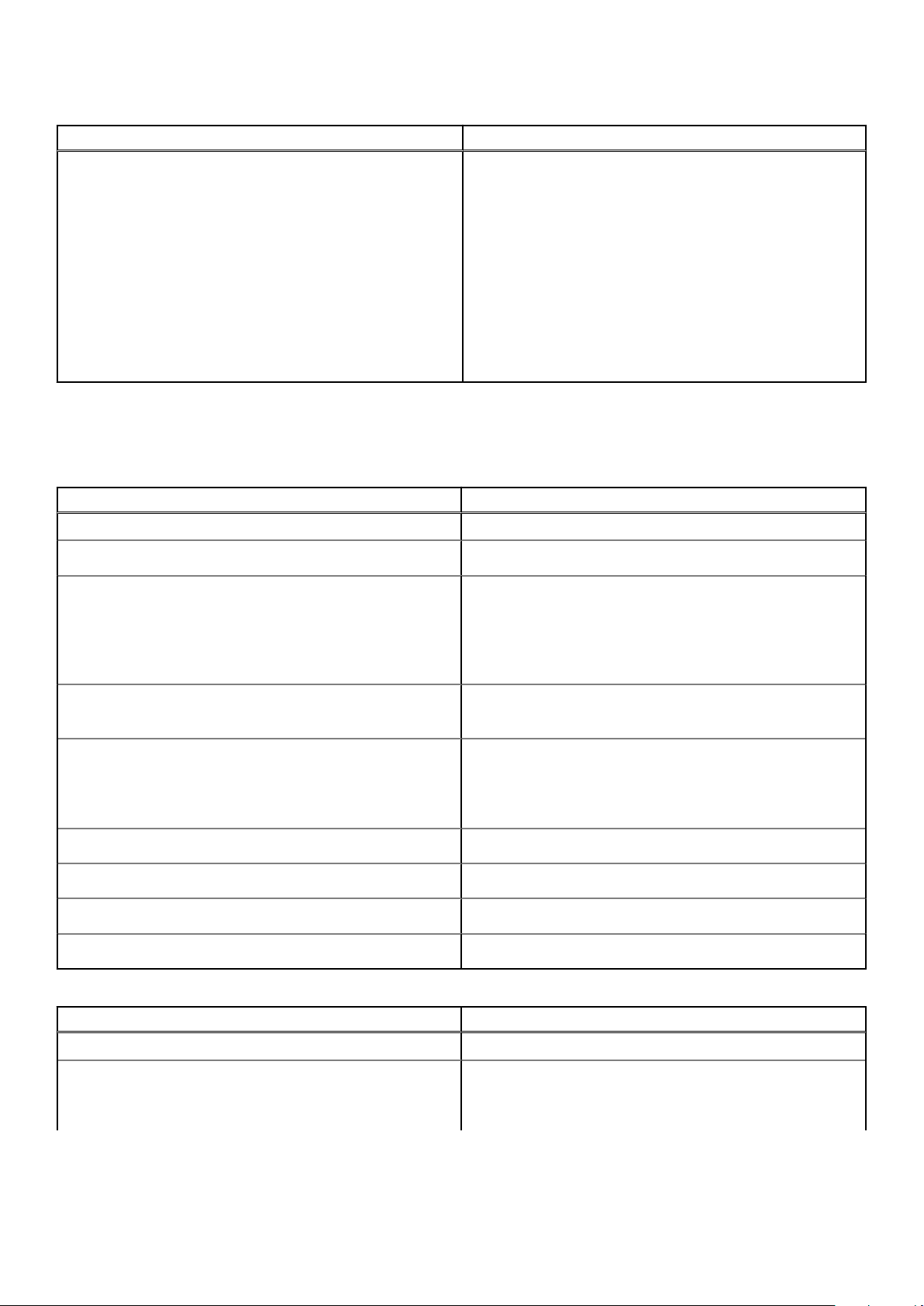
Table 5. Memory specifications (continued)
Description Values
● 8 GB, 2 x 4 GB, 2666 MHz for Intel Core i3/i5 processors,
● 16 GB, 1 x 16 GB, 2666 MHz for Intel Core i3/i5
● 16 GB, 2 x 8 GB, 2666 MHz for Intel Core i3/i5
● 32 GB, 1 x 32 GB, 2666 MHz for Intel Core i3/i5
● 32 GB, 2 x 16 GB, 2666 MHz for Intel Core i3/i5
● 64 GB, 2 x 32 GB, 2666 MHz for Intel Core i3/i5
Ports and connectors
Table 6. External ports and connectors
Description Values
External:
2933 MHz for Intel Core i7/i9 processors
processors, 2933 MHz for Intel Core i7/i9 processors
processors, 2933 MHz for Intel Core i7/i9 processors
processors, 2933 MHz for Intel Core i7/i9 processors
processors, 2933 MHz for Intel Core i7/i9 processors
processors, 2933 MHz for Intel Core i7/i9 processors
Network
USB
Audio
Video
Media card reader
Docking port
Power adapter port
Security
Table 7. Internal ports and connectors
One RJ-45 port 10/100/1000 Mbps (rear)
● One USB 3.2 Gen 2 Type-C port (side)
● One USB 3.2 Gen 1 Type-A port with PowerShare (side)
● Two USB 3.2 Gen 2 Type-A ports with Smart Power On
(rear)
● Two USB 3.2 Gen 2 Type-A ports (rear)
● One Universal audio jack (side)
● One Line-out audio port (rear)
● One DP++ 1.4/HDCP 2.3 port (rear)
● One HDMI-IN port (rear)
● One HDMI-OUT port (rear)—HDMI 1.4b for UMA Graphics
and HDMI 2.0 for Discrete Graphics
One SD 4.0 card slot (side)
Not supported
Not supported
One Kensington security-cable slot
Description Values
Internal:
M.2
22 Specifications of OptiPlex 7480 All-in-One
● One M.2 2230 slot for Wi-Fi and Bluetooth card
● Two M.2 2230/2280 slots for solid-state drive/Intel
Optane
Page 23
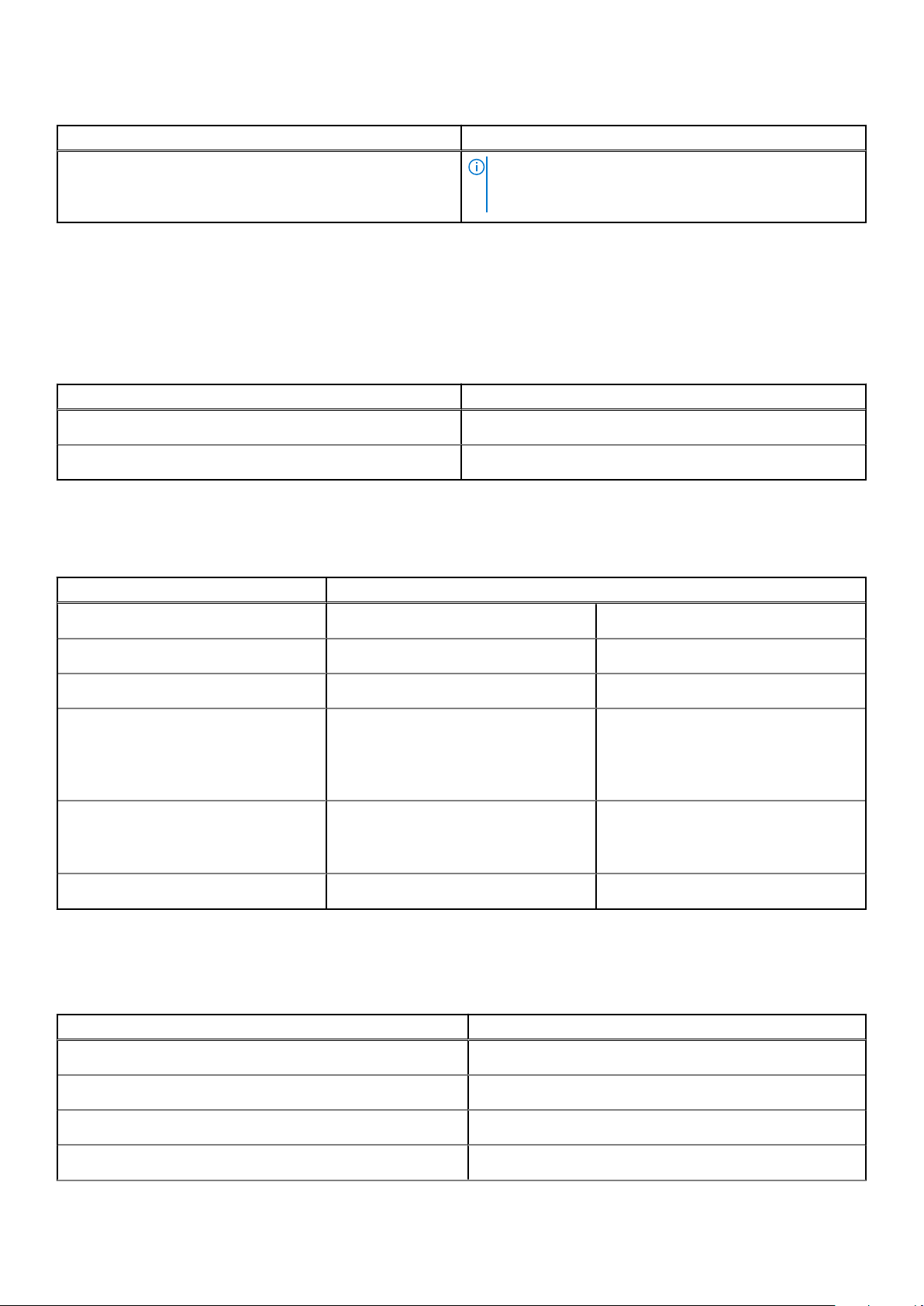
Table 7. Internal ports and connectors (continued)
Description Values
Communications
Ethernet
Table 8. Ethernet specifications
Description Values
NOTE: To learn more about the features of different
types of M.2 cards, see the knowledge base article
SLN301626.
Model number
Transfer rate
Intel i219LM
10/100/1000 Mbps
Wireless module
Table 9. Wireless module specifications
Description Values
Model number
Transfer rate
Frequency bands supported
Wireless standards
Encryption
Intel Wi-Fi 6 AX201 Qualcomm QCA61x4a
Up to 2400 Mbps Up to 867 Mbps
2.4 GHz/5 GHz 2.4 GHz/5 GHz
● Wi-Fi 802.11 a/b/g
● Wi-Fi 4 (WiFi 802.11n)
● Wi-Fi 5 (WiFi 802.11ac)
● Wi-Fi 6 (WiFi 802.11ax)
● 64-bit/128-bit WEP
● AES-CCMP
● TKIP
● Wi-Fi 802.11 a/b/g
● Wi-Fi 4 (WiFi 802.11n)
● Wi-Fi 5 (WiFi 802.11ac)
● 64-bit/128-bit WEP
● AES-CCMP
● TKIP
Bluetooth
Bluetooth 5.1 Bluetooth 5.0
Audio
Table 10. Audio specifications
Description Values
Controller
Stereo conversion
Internal interface
External interface
Realtek Codec ALC3289
Supported
High definition audio interface
Universal audio jack
Specifications of OptiPlex 7480 All-in-One 23
Page 24
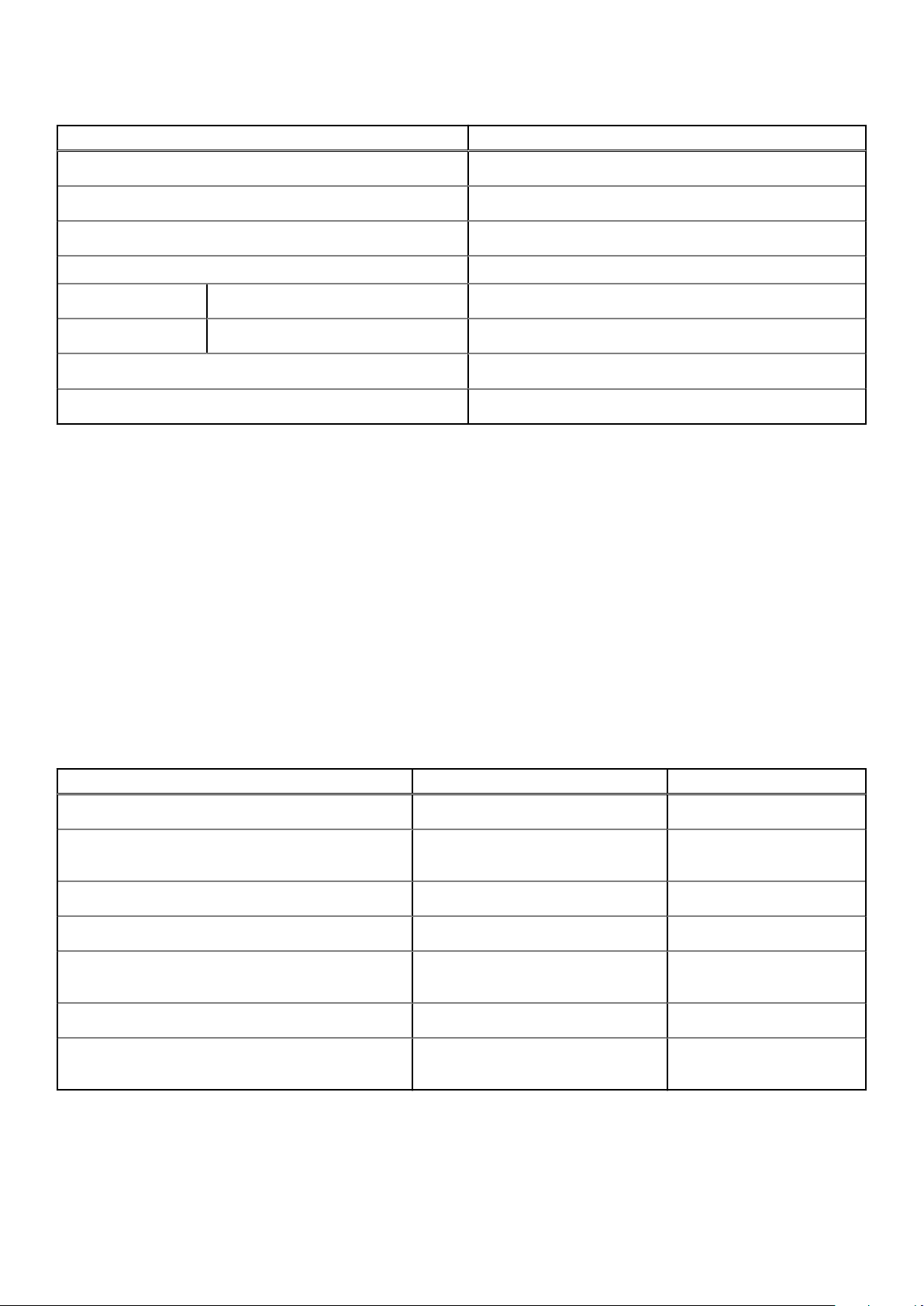
Table 10. Audio specifications (continued)
Description Values
Speakers
Internal speaker amplifier
External volume controls
Speaker output:
Average
Peak
Subwoofer output
Microphone
2
Realtek Amplifier ALC1302
Not supported
5 W
6 W
Not supported
4
Storage
Your computer supports one of the following configurations:
● One 2.5-inch hard-disk drive
● One M.2 2230/2280 solid-state drive (class 35, 40)
● One M.2 2230/2280 solid-state drive (class 35, 40) and one 2.5-inch hard-disk drive
● Dual M.2 2230/2280 solid-state drives (class 35, 40)
● Dual M.2 2230/2280 solid-state drives (class 35, 40) and one 2.5-inch hard-disk drive
● One 2.5-inch hard-disk drive and one M.2 16 GB Intel Optane Memory
The primary drive of your computer varies with the storage configuration. For computers:
● With a M.2 drive, the M.2 drive is the primary drive
● Without a M.2 drive, the 2.5-inch hard-disk drive is the primary drive
● With a M.2 16 GB Intel Optane memory, the 2.5-inch hard-disk drive is the primary drive
Table 11. Storage specifications
Storage type Interface type Capacity
2.5-inch, 7200 RPM, hard-disk drive SATA Up to 1 TB
2.5-inch, 7200 RPM, Opal Self-Encrypting hard-disk
drive
2.5-inch, 5400 RPM, hard-disk drive SATA Up to 2 TB
M.2 2230, Class 35 solid-state drive Gen 3 PCIe x4 NVMe Up to 512 GB
M.2 2230, Opal Self-Encrypting Class 35 solid-state
drive
M.2 2280, Class 40 solid-state drive Gen 3 PCIe x4 NVMe Up to 2 TB
M.2 2280, Opal Self-Encrypting Class 40 solid-state
drive
FIPS SATA Up to 500 GB
Gen 3 PCIe x4 NVMe Up to 256 GB
Gen 3 PCIe x4 NVMe Up to 1 TB
24 Specifications of OptiPlex 7480 All-in-One
Page 25
Intel Optane memory
Intel Optane memory functions only as a storage accelerator. It neither replaces nor adds to the memory (RAM) installed on
your computer.
NOTE: Intel Optane memory is supported on computers that meet the following requirements:
● 7th Generation or higher Intel Core i3/i5/i7 processor
● Windows 10 64-bit version or higher (Anniversary Update)
● Latest version of Intel Rapid Storage Technology driver
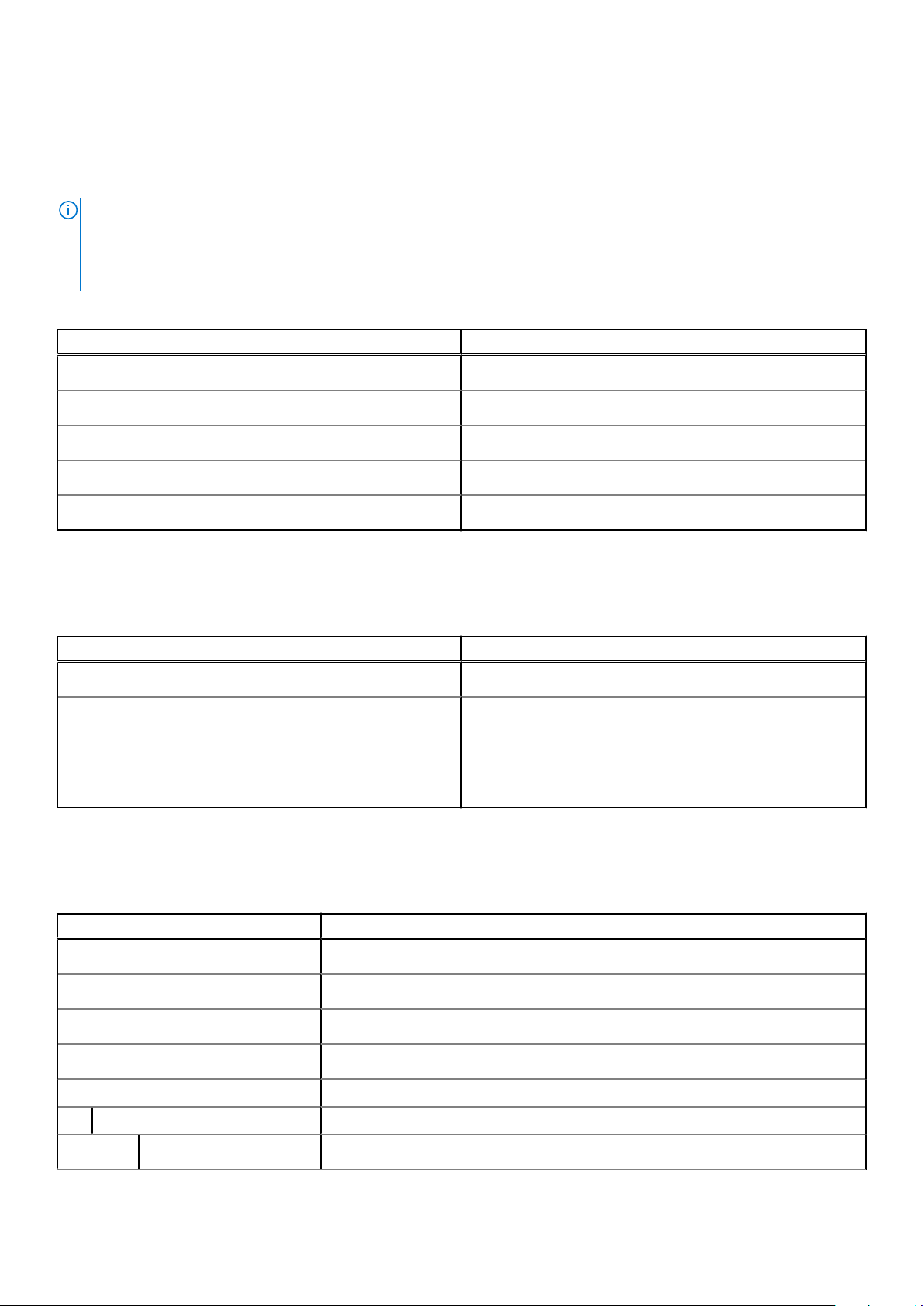
Table 12. Intel Optane memory
Description Values
Type
Interface
Connector
Configurations supported
Capacity
Memory
Gen 3 PCIe x4 NVMe
2280
16 GB
Up to 16 GB
Media-card reader
Table 13. Media-card reader specifications
Description Values
Type
Cards supported
One Secure Digital (SD) 4.0 card
● Secure Digital High Capacity (SDHC)
● Secure Digital Extended Capacity (SDXC)
● Secure Digital (SD) 4.0
● SD UHS-I (UHS104)
● SD UHS-II
Camera
Table 14. Full HD Infrared Webcam (with Windows Hello support)
Description Values
Number of cameras
Type
Location
Sensor type
Resolution
Camera
Still image
Two
FHD RGB camera/VGA infrared camera
Front camera
CMOS sensor technology
2.07 megapixel
Specifications of OptiPlex 7480 All-in-One 25
Page 26
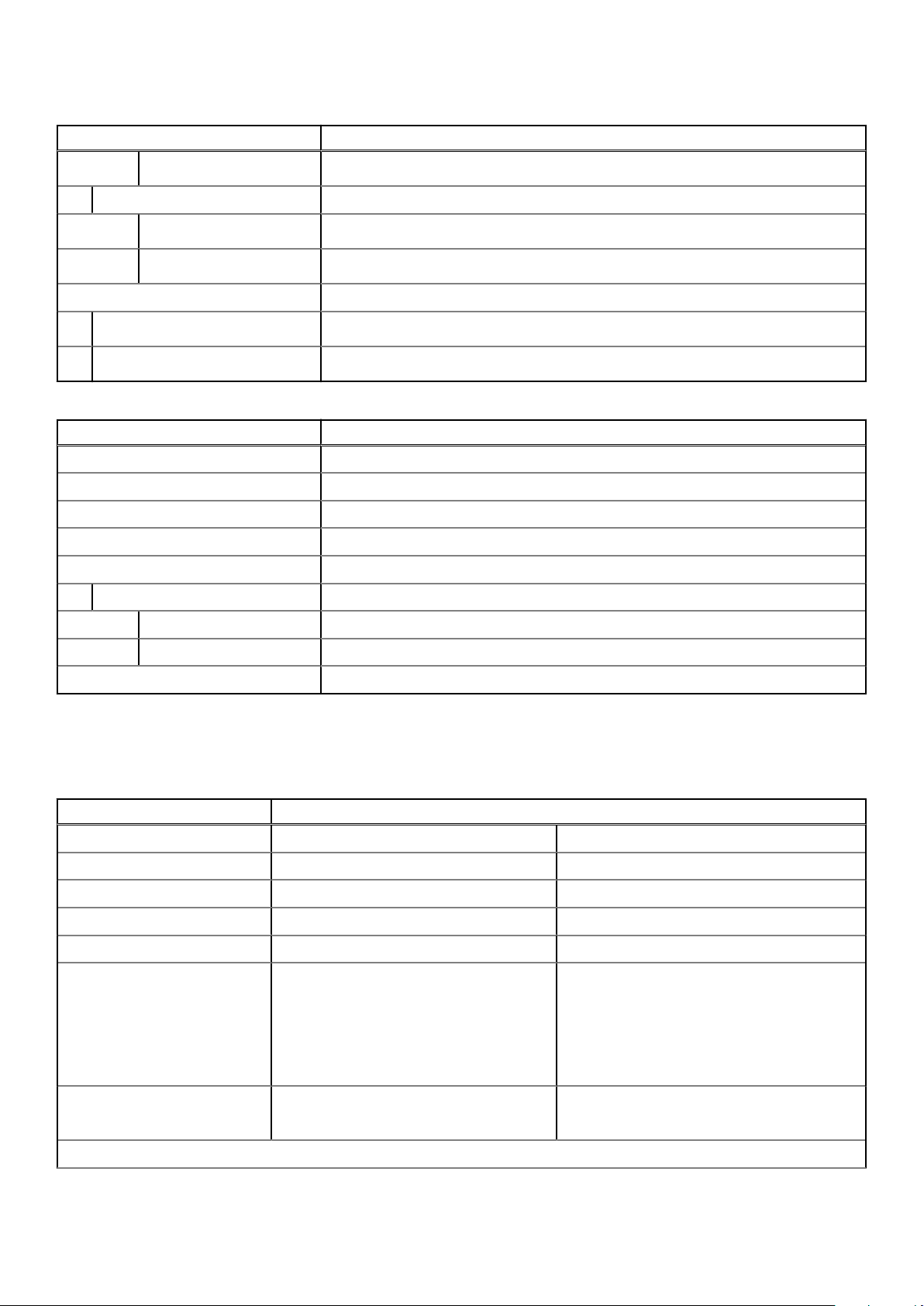
Table 14. Full HD Infrared Webcam (with Windows Hello support) (continued)
Description Values
Video
Infrared camera
Still image
Video
Diagonal viewing angle
Camera
Infrared camera
1920 x 1080 (FHD) at 30 fps
0.30 megapixel
640 x 480 (VGA) at 30 fps
77.5 degrees
82.8 degrees
Table 15. Full HD Webcam
Description Values
Number of cameras One
Type FHD RGB camera
Location Front camera
Sensor type CMOS sensor technology
Resolution
Camera
Still image 2.07 megapixels
Video 1920 x 1080 (FHD) at 30 fps
Diagonal viewing angle 77.4 degrees
Power supply unit
Table 16. Power supply unit specifications
Description Values
Type 220 W Platinum 160 W Bronze
Diameter (connector) Not supported Not supported
Input voltage 90 VAC to 264 VAC 90 VAC to 264 VAC
Input frequency 47 Hz to 63 Hz 47 Hz to 63 Hz
Input current (maximum) 3.6 A 3.6 A
Output current (continuous)
● +19.5 VA/8.5 A
● +19.5 VB/9.2 A
Standby mode:
● +19.5 VA/0.5 A
● +19.5 VB/1.75 A
● +19.5 VA/7.5 A
● +19.5 VB/7.0 A
Standby mode:
● +19.5 VA/0.5 A
● +19.5 VB/1.75 A
Rated output voltage
Temperature range:
26 Specifications of OptiPlex 7480 All-in-One
● +19.5 VA
● +19.5 VB
● +19.5 VA
● +19.5 VB
Page 27
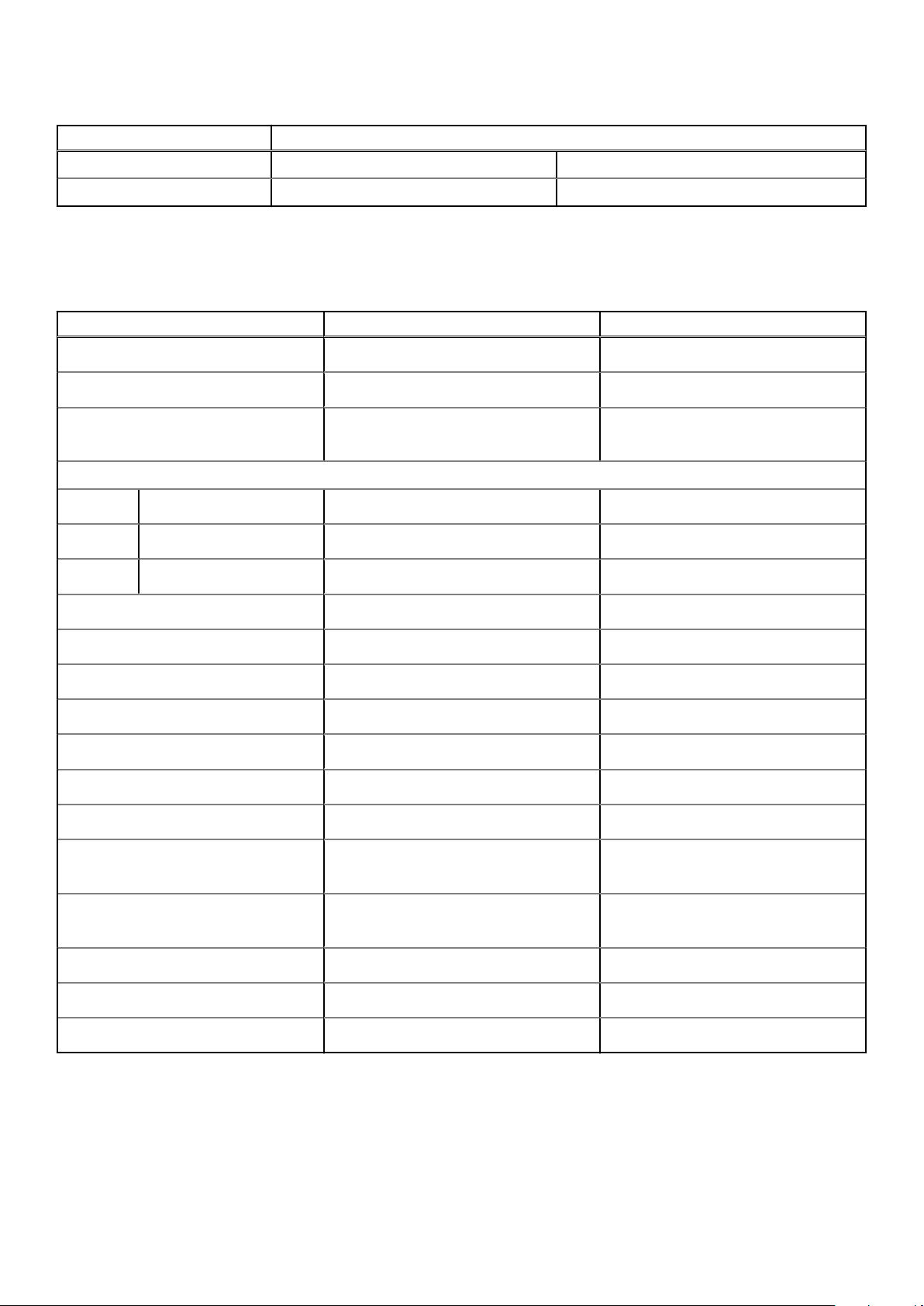
Table 16. Power supply unit specifications (continued)
Description Values
Operating 5°C to 45°C (41°F to 113°F) 5°C to 45°C (41°F to 113°F)
Storage -40°C to 70°C (-40°F to 158°F) -40°C to 70°C (-40°F to 158°F)
Display
Table 17. Display specifications
Description Values for touch display Values for non-touch display
Type
Panel technology
Luminance
Dimensions (Active area):
Height
Width
Diagonal
Native resolution
Megapixels
Color gamut
Pixels per inch (PPI)
Contrast ratio (min)
Response time (max)
Full High Definition (FHD) Full High Definition (FHD)
Wide Viewing Angle (WVA) Wide Viewing Angle (WVA)
● 250 Nits (typical)
● 200 Nits (minimum)
296.46 mm (11.67 in.) 296.46 mm (11.67 in.)
527.04 mm (20.75 in.) 527.04 mm (20.75 in.)
604.70 mm (23.81 in.) 604.70 mm (23.81 in.)
1920 x 1080 1920 x 1080
16.7 million colors 16.7 million colors
72% NTSC typical 72% NTSC typical
92.56 92.56
600:01:00 600:01:00
25 ms 25 ms
● 250 Nits (typical)
● 200 Nits (minimum)
Refresh rate
Horizontal view angle
Vertical view angle
Pixel pitch
Power consumption (maximum)
Anti-glare vs glossy finish
60 Hz 60 Hz
● 85 +/-degrees (minimum)
● 89 +/-degrees (typical)
● 85 +/-degrees (minimum)
● 89 +/-degrees (typical)
0.2745 x 0.2745 mm 0.2745 x 0.2745 mm
16.60 W 16.60 W
Anti-glare Anti-glare
Specifications of OptiPlex 7480 All-in-One 27
● 85 +/-degrees (minimum)
● 89 +/-degrees (typical)
● 85 +/-degrees (minimum)
● 89 +/-degrees (typical)
Page 28
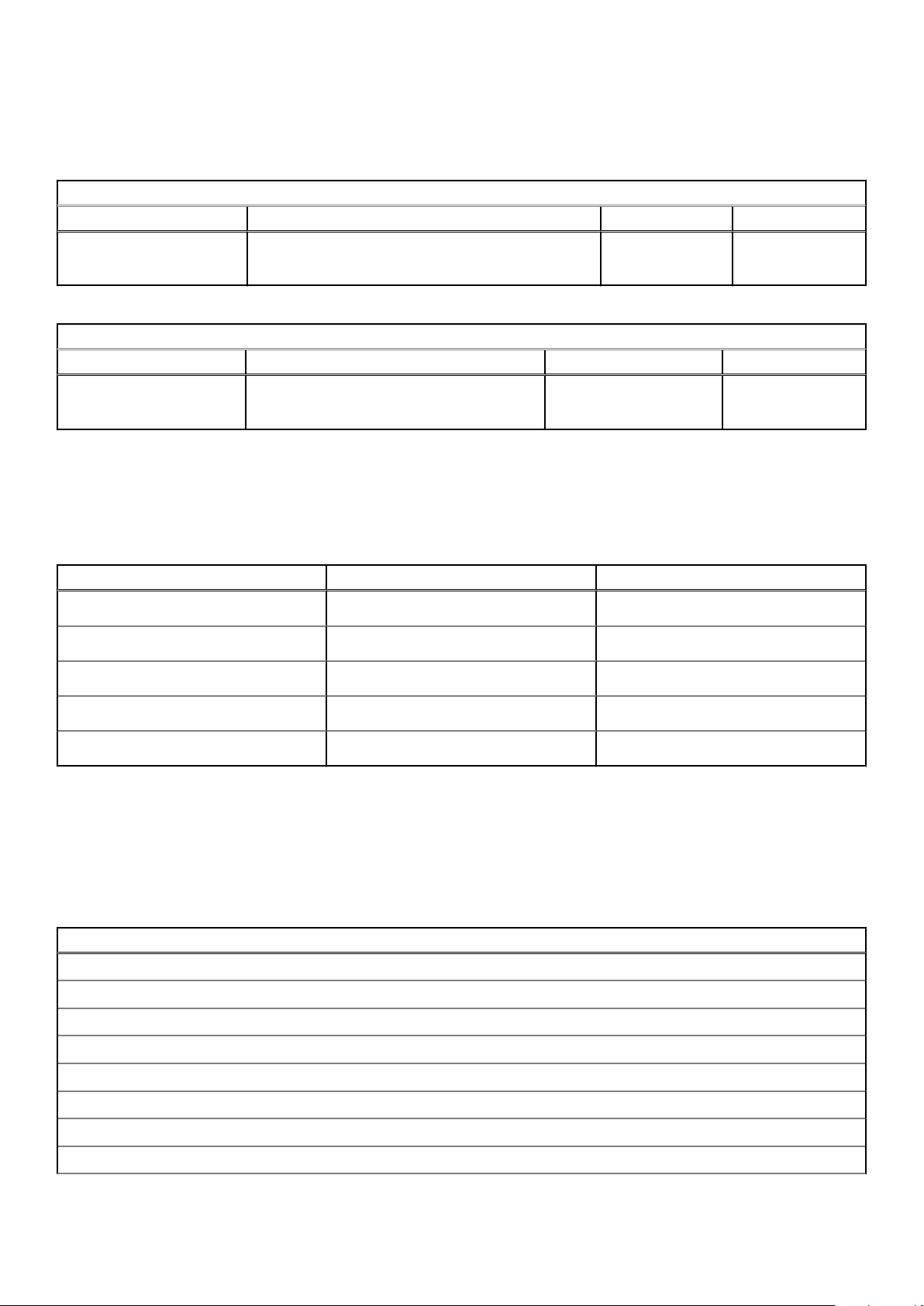
Video
Table 18. Discrete graphics specifications
Discrete graphics
Controller External display support Memory size Memory type
NVIDIA GeForce GTX 1650 ● DP++ 1.4/HDCP 2.3 port
● HDMI-out—HDMI 2.0 port
4 GB GDDR5
Table 19. Integrated graphics specifications
Integrated graphics
Controller External display support Memory size Processor
Intel UHD 630 Graphics ● DP++ 1.4/HDCP 2.3 port
● HDMI-out—HDMI 1.4b port
Shared system memory 10th Generation Intel
Core i3/i5/i7/i9
Computer environment
Airborne contaminant level: G1 as defined by ISA-S71.04-1985
Table 20. Computer environment
Description Operating Storage
Temperature range
Relative humidity (maximum)
Vibration (maximum)
*
10°C to 35°C (50°F to 95°F) -40°C to 65°C (-40°F to 149°F)
20% to 80% (non-condensing) 5% to 95% (non-condensing)
0.26 GRMS 1.37 GRMS
Shock (maximum)
Altitude (maximum)
* M eas ure d u sin g a ra ndo m v ibr ati on spectrum that simulates user en vir onm ent .
† M eas ure d u sin g a 2 ms hal f-s ine pulse when the hard drive is i n u se.
40 G† 105 G†
0 m to 3048 m (0 ft to 10000 ft) 0 m to 10668 m (0 ft to 35000 ft)
Security
Table 21. Security
Security options
Kensington lock
Dell Lockable port cover (optional)
Chassis lock slot support
Noble Custom AIO Plate Lock (optional)
Supply chain tamper alerts
Chassis intrusion switch
Trusted Platform Module (Discrete TPM Enabled)
SafeBIOS including Dell Off-host BIOS Verification
28 Specifications of OptiPlex 7480 All-in-One
Page 29
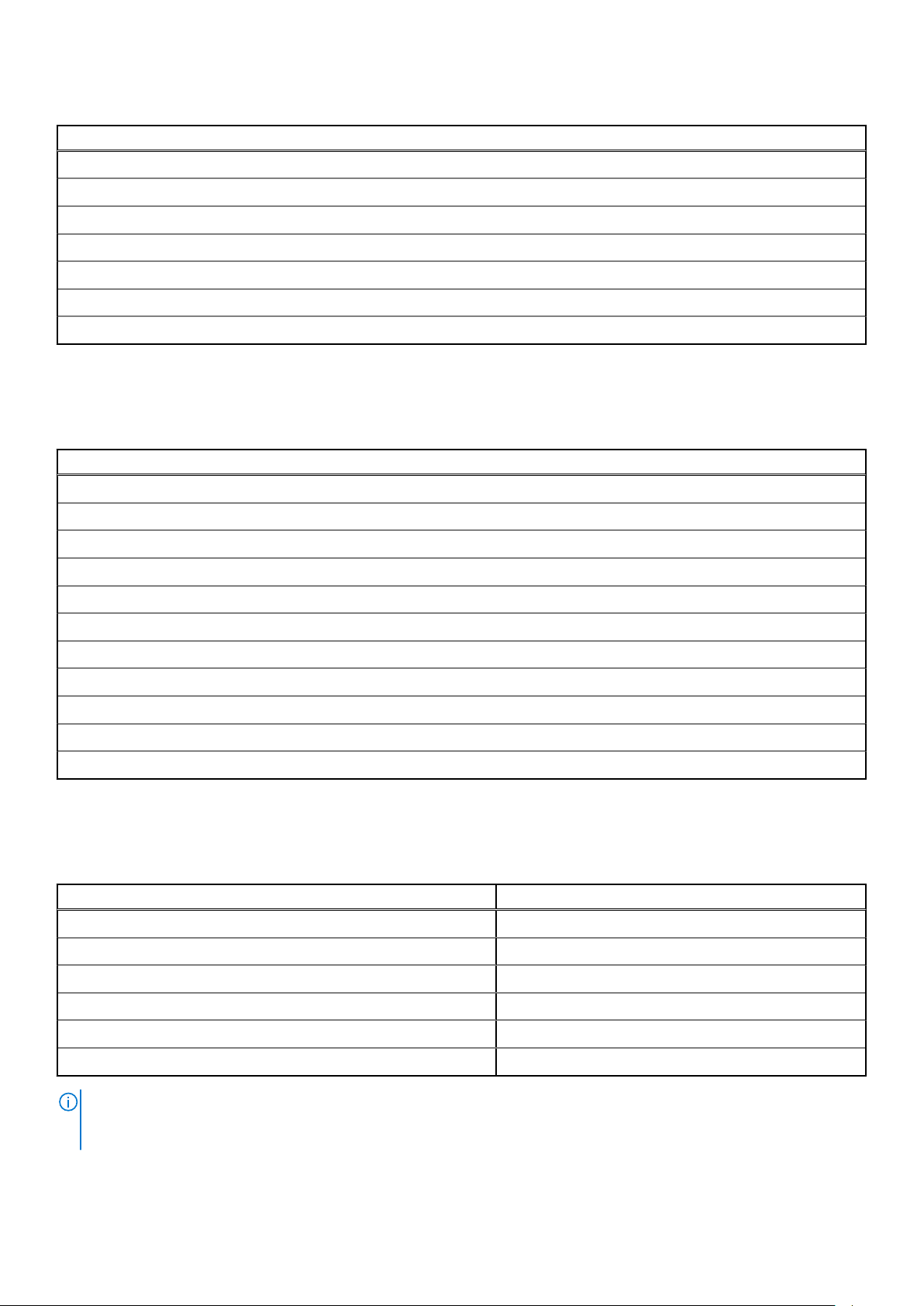
Table 21. Security (continued)
Security options
BIOS Resilience
BIOS Recovery, and additional BIOS Controls
SafeID including Trusted Platform Module (TPM) 2.0
Self-Encrypting Drives (SED)
Smart card keyboard (FIPS)
D-Pedigree (Secure Supply Chain Functionality)
Dell wired mouse with fingerprinter reader
Data security
Table 22. Data security
Data security options
McAfee® Small Business Security 30 Day Free Trial
McAfee® Small Business Security 12-month subscription
McAfee® Small Business Security 36-month Subscription
SafeGuard and Response, which is powered by VMware Carbon Black and Secureworks
Next Generation Anti-virus (NGAV)
Endpoint Detection and Response (EDR)
Threat Detection and Response (TDR)
Managed Endpoint Detection and Response
Incident Management Retainer
Emergency Incident Response
SafeData
Environmental
Table 23. Environmental specifications
Feature Values
Recyclable packaging Yes
BFR/PVC—free chassis No
Vertical orientation packaging support Yes
Multi-Pack packaging No
Energy-Efficient Power Supply Standard
ENV0424 compliant Yes
NOTE: Wood‐based fiber packaging contains a minimum of 35% recycled content by total weight of wood‐based fiber.
Packaging that contains without wood‐based fiber can be claimed as Not Applicable. The anticipated required criteria for
EPEAT 2018.
Specifications of OptiPlex 7480 All-in-One 29
Page 30
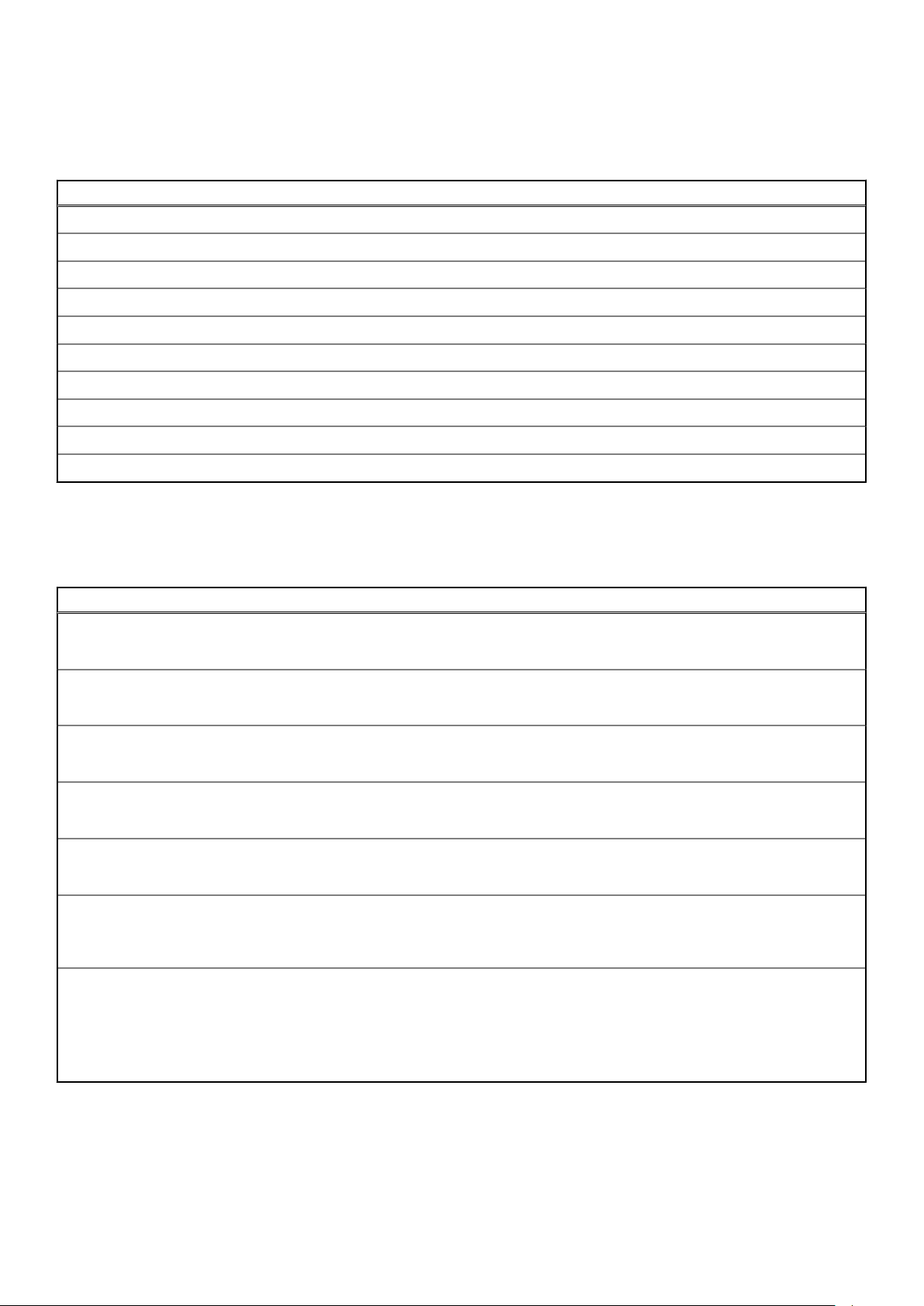
Regulatory
Table 24. Regulatory
Regulatory compliance
EPEAT registered configurations available
ENERGY STAR compliant configurations available
TCO 8.0 certified configurations available
CEL
WEEE
Japan Energy Law
South Korea E-standby
South Korea Eco-label
EU RoHS
China RoHS
Accessories
Table 25. Accessories
Accessories
Audio
Optional external speakers, Dell Pro Stereo Headset UC350
Keyboard
Dell wired keyboard, Dell wireless keyboard, Dell Smart Card keyboard
Mouse
Dell wired mouse, Dell wireless mouse, Dell USB Laser mouse, Dell Fingerprint Reader mouse
Stylus
Targus Stylus for Capacitive Touch Devices
Additional Monitor
Qualified with select Dell UltraSharp, Professional, and E-series monitors
Locks
Noble custom AIO Plate Lock, Dell Combination Lock LC300, Dell Premium Lock LP500, KensingtonTwin Head Lock, Dell
Lockable Port Cover
Stands
● Fixed Stand
● Articulating Stand
● Height Adjustable Stand
● Height Adjustable Stand with Optical Disk Drive
30 Specifications of OptiPlex 7480 All-in-One
Page 31

Service and support
Table 26. Service and support
Warranty Accidental Damage Service
3 Years Hardware Service with
Onsite/In-Home Service after Remote
Diagnosis, warranty extensions up to 5
years
ProSupport with Next Business Day
Onsite Service is available to
complement certain warranty options.
ProSupport Plus for Client is available
to complement certain warranty
options.
Accidental Damage Service is available to complement certain warranty options
Optional.
Specifications of OptiPlex 7480 All-in-One 31
Page 32
Getting help and contacting Dell
Self-help resources
You can get information and help on Dell products and services using these self-help resources:
Table 27. Self-help resources
Self-help resources Resource location
Information about Dell products and services www.dell.com
Tips
Contact Support In Windows search, type Contact Support, and press
Enter.
Online help for operating system www.dell.com/support/windows
www.dell.com/support/linux
4
Troubleshooting information, user manuals, setup instructions,
product specifications, technical help blogs, drivers, software
updates, and so on.
Dell knowledge base articles for a variety of computer
concerns.
www.dell.com/support
1. Go to https://www.dell.com/support/home/?
app=knowledgebase.
2. Type the subject or keyword in the Search box.
3. Click Search to retrieve the related articles.
Contacting Dell
To contact Dell for sales, technical support, or customer service issues, see www.dell.com/contactdell.
NOTE: Availability varies by country and product, and some services may not be available in your country.
NOTE: If you do not have an active internet connection, you can find contact information on your purchase invoice, packing
slip, bill, or Dell product catalog.
32 Getting help and contacting Dell
 Loading...