

Page 1

Dell DVS Simplified Appliance
Reference Architecture
Dell Desktop Virtualization Solutions
10/29/2012
Page 2

ii Dell DVS Simplified Appliance Reference Architecture
Contents
1 Executive Summary ....................................................................... 1
2 Introduction ................................................................................ 2
2.1 Introducing the DVS Simplified Appliance .................................................... 2
2.2 Value Proposition ................................................................................. 2
2.3 “Why Dell” ......................................................................................... 3
2.4 Feature Overview ................................................................................. 4
2.4.1 Design Principles ............................................................................ 4
2.4.2 Architecture Scalability.................................................................... 4
2.5 Ideal Deployments ................................................................................ 5
2.6 When is DVS Simplified Appliance Right for Me? ............................................. 6
2.7 New Features ...................................................................................... 7
2.8 Dell ProSupport and Professional Services Overview ....................................... 8
2.9 Desktop Virtualization Solutions Overview ................................................... 9
3 Solution Architecture ................................................................... 12
3.1 Architecture Overview ......................................................................... 12
3.1.1 Simplified Appliance Form Factor Options ........................................... 12
3.1.2 Hypervisor Platform Options ............................................................ 12
3.1.3 Appliance Scale Configuration Options ............................................... 12
3.1.4 Appliance User Loads .................................................................... 13
3.2 VDI-in-a-box Core Components ............................................................... 13
4 Hardware Components ................................................................. 15
4.1 The Simplified Appliances ..................................................................... 15
4.1.1 PowerEdge R720 Rack-Based Solution ................................................. 15
4.1.2 PowerEdge T620 Tower-Based Solution ............................................... 16
4.2 Storage ............................................................................................ 16
4.2.1 Disk Space Requirement by Workload ................................................. 17
4.2.2 Drive IOPS Requirement by Workload ................................................. 19
4.2.3 Persistent and Non-Persistent Desktops Defined .................................... 20
4.2.4 Persistent vs. Non-Persistent Desktop Characteristics ............................. 21
4.2.5 Persistent vs. Shared Image Disk Space Planning ................................... 21
4.3 Dell Wyse Xenith 2 and Xenith Pro Zero Clients ........................................... 23
5 Software Components .................................................................. 24
5.1 Citrix VDI-in-a-Box 5.1 ......................................................................... 24
5.2 The DVS Simplified Hypervisors ............................................................... 27
5.2.1 Microsoft Windows Server 2008 R2 SP1 with Hyper-V Role ........................ 27
5.2.2 Citrix XenServer 6.0.2 ................................................................... 27
5.3 Microsoft Licensing with DVS Simplified .................................................... 28
5.3.1 Microsoft Windows Licensing ........................................................... 28
5.3.2 Microsoft Office Licensing ............................................................... 28
5.4 Citrix Desktop Receiver ........................................................................ 28
5.5 Citrix XenCenter ................................................................................. 29
5.6 Citrix TCP/UDP Port Communication ........................................................ 29
5.7 Citrix Desktop Receiver ........................................................................ 30
5.8 Virtual Desktop Antivirus ...................................................................... 30
5.9 Windows Active Directory Integration ....................................................... 30
5.10 Network Architecture ......................................................................... 31
Page 3

iii Dell DVS Simplified Appliance Reference Architecture
5.10.1 Physical Network Connectivity ........................................................ 31
6 End-User Workload Characterization ................................................ 32
6.1 Characterization Overview .................................................................... 32
6.1.1 Basic Workload Characterization ...................................................... 32
6.1.2 Standard Workload Characterization .................................................. 32
6.1.3 Premium Workload Characterization .................................................. 33
6.2 Workload Characterization Testing Details ................................................. 34
7 Performance and Testing .............................................................. 35
7.1 Load Generation and Monitoring ............................................................. 35
7.1.1 Login VSI – Login Consultants ........................................................... 35
7.1.2 Liquidware Labs Stratusphere UX ...................................................... 35
7.1 Testing Summary ................................................................................ 36
7.1.1 End User Experience Testing Summary ............................................... 36
7.2 Testing ............................................................................................ 37
7.2.1 Testing Methodology ..................................................................... 37
7.2.2 User Workloads ............................................................................ 37
7.2.3 Standard Workload ....................................................................... 37
7.3 Testing Results – Standard Configuration ................................................... 38
7.3.1 Hyper-V 2008 R2 .......................................................................... 38
7.3.2 XenServer 6.0.2 ........................................................................... 46
7.3.3 Hyper-V ..................................................................................... 52
7.3.4 XenServer 6.0.2 ........................................................................... 59
8 High Availability ......................................................................... 67
8.1 DVS Simplified Appliance Resiliency ......................................................... 67
9 Customer Provided Stack Components .............................................. 68
9.1 Customer Provided Switching Requirements ............................................... 68
10 Conclusion ............................................................................... 69
11 Acknowledgements .................................................................... 70
Page 4

1 Dell DVS Simplified Appliance Reference Architecture
1 Executive Summary
Dell and Citrix have taken another significant step toward eliminating the complexity of
desktop virtualization. Together we have developed an improved turn-key solution – the
DVS Simplified Appliance – to help small and medium enterprise customers leverage this
compelling technology. For those new to the space, desktop virtualization is a proven
methodology for delivering a rich computing experience to end users from centralized
data centers.
These data centers can be on-site or cloud-based, in either customer-hosted or Dellmanaged configurations. In desktop virtualization the OS, applications, user preferences,
and user data are decoupled from the client device. This gives IT departments the ability
to deliver standardized desktops to multiple end points, to improve operational efficiency
and security, and to ultimately enhance user productivity.
Dell‖s Desktop Virtualization and Cloud Client Computing solutions meet the needs of a
rapidly changing and increasingly mobile workforce by providing near universal access to
corporate apps and data. They also provide IT departments with a greater degree of
control by delivering a flexible user experience without compromising security. With Citrix
VDI-in-a-Box 5.1, the Dell DVS Simplified Appliance provides a simplified, cost effective
solution in a convenient appliance. This allows companies with limited budgets and IT
staff to leverage the benefits of desktop virtualization at as few as 50 users.
VDI-in-a-Box 5.1 integrates connection brokering, load balancing, desktop provisioning,
high-availability, and user personalization features using Citrix Personal vDisk (PVD). VDIin-a-Box 5.1 also delivers preferred management functions in a single package running on
standard Dell servers with local storage while enabling anytime anywhere access with
built-in support for the Citrix® HDX™ high definition desktop virtualization experience to
end users for any application, device, or network. Finally, VDI-in-a-Box offers hypervisor
support for Citrix XenServer and Microsoft Hyper-V.
This reference architecture provides an introduction to the technology, benefits, general
sizing guidance and configuration recommendations for implementing a Dell virtual
desktop infrastructure (VDI) solution powered by Citrix VDI-in-a-Box 5.1 with a Citrix
XenServer or Microsoft Hyper-V infrastructure. This configuration combines Dell
PowerEdge R720 rack or Dell PowerEdge T620 tower servers with VDI-in-a-Box software
to create a flexible VDI solution capable of providing a user experience that is the same or
better than a traditional PC desktop.
Solution flexibility allows us to support smaller deployments of only 50 users and broader
deployments supporting 100 users on either a tower or a rack based server. The smaller
configuration provides virtual desktops at the same cost per seat but with a lower overall
cost of entry than the 100 user deployment. In this way, Dell‖s Desktop Virtualization
Solutions (DVS) are indeed giving you the power to do more.
Page 5

2 Dell DVS Simplified Appliance Reference Architecture
2 Introduction
2.1 Introducing the DVS Simplified Appliance
Dell’s DVS Simplified Appliance is a simple, practical VDI appliance designed
specifically to address the business and technical needs of mid-sized virtual desktop
deployments so you can unlock innovation and productivity enabled by the mobile
“consumerization” era. The pre-configured DVS Simplified Appliance pre-integrates
hardware and software, simplifying implementation and accelerating your time to value.
The DVS Simplified Appliance also delivers the core benefits of the best VDI solutions
including: streamlined desktop management, enhanced security, added agility and
flexibility and a rich user experience that can allow your IT organization to transition from
traditional tasks such as answering break/fix calls and patching software to addressing
more strategic projects.
The DVS Simplified Appliance includes the following key features:
Easy to deploy and manage – with an all in one appliance and single server based
grid architecture.
Rich end user experience – maximum leverage of Citrix HDX technologies.
Simple grid infrastructure – provides for linear and predictable expansion.
Available in both rack and tower server configurations.
Support for Microsoft Hyper-V and Citrix XenServer hypervisors.
Available in a lower cost-of-entry initial configuration for deployments of 50 users.
2.2 Value Proposition
The DVS Simplified Appliance is architected to support the needs of your simple nonenterprise deployments with an appliance-based solution with the following attributes:
Affordable – can be purchased with existing PC refresh budgets – less than $500
per seat depending on user count.
Easy to deploy – wizard-based four-step setup, factory-installed software and pre-
configured hardware.
Easy to manage – all in one software, server based grid architecture.
Easy to operate – single intuitive management console.
Easy to expand – modular, provides linear and predictable expansion.
Rich end user experience – leverages Citrix HDX for a rich user experience.
Justifiable capital expense – rapid ROI for deployments of 25+ desktops.
Practical – no specialized IT experience required to deploy and manage.
Page 6

3 Dell DVS Simplified Appliance Reference Architecture
Simple
VDI Appliance: – Integrated pre-configured hardware and Citrix VIAB 5.1 software
eliminates implementation and operational complexity.
Quick and Simple deployment: – Wizard-driven setup and configuration –
rapidly deploy in hours to a few days, no special expertise required
Simplified desktop operations: – “All-in-one” VDI software consolidates
connection brokering, load balancing, provisioning and VDI management
functions with Dell server hardware to radically simplify management and
provisioning of desktops
Affordable
All in one appliance – Integrates VDI Manager software, Dell ProSupport and Dell
PowerEdge servers to create a cost-efficient simple appliance with no requirement
for network storage
Ideal balance of cost and performance – Designed specifically with no-
compromise solution components for simple IT environments and medium-sized
deployments
A La Carte Dell Services – Dell JumpStart Remote training and Remote
Configuration Services are available to get you up and running in one to three
days.
Practical
Rich user experience – Delivers a rich end-user experience with built-in Citrix
HDX® technology for optimizing a user‖s virtual desktop experience. End users can
access their virtual desktops and work resources from virtually anywhere,
seamlessly across different locations and with the device of their choosing.
N+1 Grid Architecture – Implements an easy to manage server grid architecture
with integrated server redundancy. Scales linearly and predictably in a modular
fashion.
End to end solution – Dell‖s single integrated solution contains components that
are pre-integrated to save time. Dell provides end-to-end support on the appliance
and software that utilizes the solution. The solution is complemented by the
extensive portfolio of Citrix-validated Dell Wyse thin and zero clients like the new
Dell Wyse Xenith 2.
2.3 “Why Dell”
Benefit:
Significantly decreases “Time to Value” return versus DIY or competitor solutions.
Designed to fit within customer‖s environment regardless of current infrastructure.
Also allows for flexibility in terms of services and ownership models.
Select competitors offer proprietary solutions that lock their customers into certain
technologies, limiting future expansion and increasing cost over time.
Offers increased productivity, better end user experience and higher levels of
efficiency.
Page 7

4 Dell DVS Simplified Appliance Reference Architecture
Addresses the whole solution to meet both planned and unplanned future growth
requirements.
Value:
Removes the inherent complexity and allows you to realize value and efficiencies
versus customer DIY and competitors.
Removes economic barriers of entry and mitigates risk due to our extensive
experience in cloud computing models.
Offers you the choice from data center to end point clients/devices, ease of
expansion and mitigates cost by providing a scalable architecture for future
growth.
Fosters IT alignment to core business objectives and needs increasing overall
business performance.
The solution will maintain long term agility and financial viability for years to come.
Differentiation:
Only Dell offers an end-to-end solution.
Single point of contact for all hardware, software and services support.
2.4 Feature Overview
2.4.1 Design Principles
The design principles for the flexible computing solution are:
● Secure – Security risks, concerns and policies are addressed or mitigated.
● Manageable – The solution includes the tools and software services required to
manage the environment.
● Standards based – Makes use of commodity, off-the-shelf components wherever
possible.
● Distributed – Non-blocking and built with distributed components to maximise
the use of available computing resources and eliminate bottlenecks.
● Scalable – Capable of scaling up / down to support business needs.
● Resilient – The solution must be able to withstand the failure of a single
infrastructure component.
2.4.2 Architecture Scalability
The architecture is designed to provide a scalable platform:
● The components can be scaled either horizontally or vertically by adding
additional DVS Simplified appliances to the VDI-in-a-box grid.
● The architecture has been designed to eliminate bandwidth and performance
bottlenecks as much as possible.
Page 8

5 Dell DVS Simplified Appliance Reference Architecture
● The architecture has been designed to allow future horizontal and vertical scaling
with the objective of reducing the future cost of ownership of the infrastructure.
2.5 Ideal Deployments
The Dell DVS Simplified Appliance is designed for the progressive mid-market VDI
customer supporting anywhere from 50 users to hundreds of end users. While these
customers may have considerable IT expertise, they may not have the resources to
design and implement a highly flexible and scalable desktop virtualization solution. This
design helps drive optimizations in the simplicity and agility of the solution and help
customers address these common business needs:
DVS Simplified is ideal for IT professionals who are:
IT Managers in private and public sector organizations spanning all sectors
including all core verticals.
Those responsible for management and operations of client computing and/or
desktop computing infrastructure in the IT organization.
Those whose responsibilities include:
Operations of IT systems and related hardware for client computing.
Providing maintenance, update and break/fix support services for IT systems and
equipment.
Design and implementation of end user computing infrastructure and systems.
Ensure compliance with relevant governmental regulations and mandates.
Establish organization policies and procedures for secure and safe end user
computing.
Develop requests/proposal for IT budgets, both capital expenditures and operating.
expenses for end user computing systems, hardware and services.
Managing operating expenditures.
Influencers:
CIO, CFO and related staff.
Data center management and operations.
Network management and operations.
Security management and operations.
Business unit decision makers.
Employees and end users (end users may not be employed by the organization –
end users can include; students, partners, contractors, vendors, regulators,
associates or stakeholders external to the organization).
Use cases for the Dell DVS Simplified Appliance:
Organizations that lack in-house server and storage virtualization expertise - SMBs
such as accounting firms, law firms, mortgage companies, insurance brokers, K-12
and higher education, credit unions, regional banks.
Page 9

6 Dell DVS Simplified Appliance Reference Architecture
Organizations that must limit capital outlay or who must fit VDI into their PC
refresh budget – State/Local government libraries, county/community hospitals,
financial brokerages, community banks.
Companies that want to employ VDI for a specific user group – department
deployment, specific work group, or non-enterprise wide rollouts - VDI desktops
for retail stations, call centers, for departments in larger organizations such as the
administration staff at a branch office, tellers at credit union retail offices.
Non-primary desktops or access scenarios – home office, office “hotel-ing,” mobile
user access via tablets, remote service technicians, office desktop pools
2.6 When is DVS Simplified Appliance Right for Me?
The Dell DVS Simplified Appliance is specifically targeted at customers that have hundreds
of users versus the DVS Enterprise customers that have thousands of users. DVS Simplified
is an architecture that has been perfected to meet the features and requirements of small
and medium business. Refer to the charts below to determine if DVS Simplified is right for
you.
The DVS Simplified Appliance is typically best suited to IT professionals who agree with
the following statements:
I only have a small IT staff of primarily IT generalists.
I am willing to forego advanced VDI features (e.g. image management or
automation) in order to have simplified deployment and management.
I don‖t need application virtualization or application streaming.
I am comfortable with basic high availability.
I only need virtual desktops for a few hundred users.
My budget for VDI deployment is severely constrained.
I don‖t anticipate needing an upgrade path to XenDesktop.
Page 10

7 Dell DVS Simplified Appliance Reference Architecture
DVS Simplified versus DVS Enterprise Options:
DVS Simplified Appliance
DVS Enterprise
Advanced Image
Management
No
Yes
High Availability Option (HA)
Basic (Failover)
Enterprise grade
Dynamic Motion
No
Optional
Application Streaming
No
Optional
Application Virtualization
No
Yes
Shared Storage
Optional
Yes
Persistent and Non
Persistent Desktops
Yes
Yes
Integrated Profile
Persistence
Basic
Basic
2.7 New Features
Citrix VDI‑in‑a‑Box 5.1 makes deploying virtual desktops easier, more intuitive and
simpler than ever before. With an enhanced single management console, the latest HDX
technology stack, a choice of hypervisors between Citrix XenServer and Microsoft HyperV and a completely integrated Citrix offering, VDI‑in‑a‑Box 5.1 makes pooled and
personalized virtual desktops easy to deploy.
Pooled and personalized virtual desktops
VDI-in-a-Box 5.1 provides personalized desktops that allow users to install their own
choice of applications and store personalized configurations and data. These personalized
desktops are generated from a master image providing the best of both worlds: users get
personalized desktops while Windows desktop administrators manage a single master
image. This saves time and money while delivering a highly personalized end-user
experience. With personalized virtual desktops, user installed data and applications are
stored in a user specific layer that is used in conjunction with a base image. Thus, VDI-ina-Box 5.1 offers both personalized virtual desktops and pooled VDI virtual desktops
derived from the same base image.
Personalized virtual desktops offer another benefit ― single instance management. Rather
than juggling many persistent desktops, IT departments can maintain one master copy of
desktop images while preserving the personalization of user applications and data. This
dramatically reduces recurring management overhead and can cut data center storage
costs by up to 90 percent.
Page 11

8 Dell DVS Simplified Appliance Reference Architecture
Simple and intuitive installation and management
Point-and-click wizards guide you through key virtual desktop administration tasks such
as desktop image preparation and updates. VDI‑in‑a‑Box 5.1 has an expanded set of
wizards to cover every frequent operation. Setting up and upgrading master images has
never been simpler. With VDI-in-a-Box 5.1, the desktop agent is automatically installed
whenever a master image is created or updated. This “touchless” desktop agent (dtAgent)
can save your administrator time related to setting up and maintaining desktop images.
Windows desktop administrators are now able to specify complete names to VDI
desktops. This full control over virtual desktop names allows your administrators to
automate various management routines by running scripts inside the desktops that
leverage its name.
Built-in scalability and high-availability gets even better
Citrix‖s VDI-in-a-Box has always had on-demand scalability and high-availability built-in.
Now, VDI-in-a-Box 5.1 extends high-availability to device access and Microsoft Active
Directory. Both of these features make the VDI-in-a-Box solution more resilient to failures
in the customers‖ IT environment. In case a customer‖s IT environment is configured for
Active Directory failover, VDI-in-a-Box 5.1 will default to a backup Active Directory server
when a primary server fails. The grid-wide virtual IP address feature of VDI-in-a-Box 5.1
ensures that the entire grid is accessible by one highly available virtual IP address. This
ensures end-to-end high availability regardless of the endpoint device being used and
without requiring a load balancer.
2.8 Dell ProSupport and Professional Services Overview
Dell ProSupport is included with the DVS Simplified Appliance, providing
comprehensive hardware and software support for three years. This allows your support
staff to spend less time on issue resolution and more time on strategic initiatives. With
Dell ProSupport, customers can access highly trained experts to help resolve any issue
quickly and effectively 24 hours a day, 365 days per year. Additionally, Dell ProSupport
provides access to software updates, bug fixes/patches and product updates for Citrix
VDI-in-a-Box and Citrix XenServer.
Dell ProSupport benefits:
Maximize uptime with the help of expert DVS Simplified Appliance
technicians.
Software support for Citrix VDI-In-A-Box 5.1 and XenServer 6.0.2.
Maintain productivity with Dell ProSupport Next Business Day and optional
4-hour response time.
Additionally, Dell offers the following optional value-add services in support of its DVS
Simplified Appliance:
Highly recommended:
JumpStart Training – Jumpstart training for Dell DVS Simplified Appliance is
available as a 4-hour* Web-based course that includes the guidance and hands-on
Page 12

9 Dell DVS Simplified Appliance Reference Architecture
exercises necessary for IT administrators of all levels to master appliance
configuration and administration activities quickly and effectively. The curriculum
can be customized to fit your specific needs.
*The training is also available as a 2-hour option when combined with Remote
Advisory/Configuration Services.
Remote Advisory Services – Dell Remote Advisory Services are available to
remotely configure the DVS Simplified Appliance. The 4-hour service also includes
an option for knowledge transfer.
Recommended:
Onsite Installation Services – Dell Onsite Installation Services provide a 3-day
engagement at the customer‖s site to perform physical to virtual creation of
desktop image, installation of the Dell DVS Simplified Appliance and other client
devices and knowledge transfer.
Blueprint Assessment Services – Dell‖s Blueprint Assessment Service uses a virtual
appliance and agent software, deployed on the customer‖s network, to gather
detailed data from every desktop targeted for virtualization. The outcome is an
expansive and detailed report of the desktop environment and user profiles. This
data-driven feedback is used as a basis for a productive virtual desktop
environment. This information also helps Dell create a detailed and accurate
design and implementation plan for delivering virtual desktops.
Blueprint Assessment Lite Services – Dell‖s Blueprint Assessment Lite Service is
similar to the Blueprint Assessment Service with the exception that the customer
executes data collection activities and engages Dell to conduct the data analysis.
Network Optimization Services – Dell‖s Network Optimization Service includes a
comprehensive assessment of your network with detailed recommendations to
optimize performance and availability.
Image Creation Services – Dell‖s Image Creation Service converts physical
desktop images into virtual images in accordance with Dell or customer-defined
specifications, for use with the Dell DVS Simplified Appliance.
2.9 Desktop Virtualization Solutions Overview
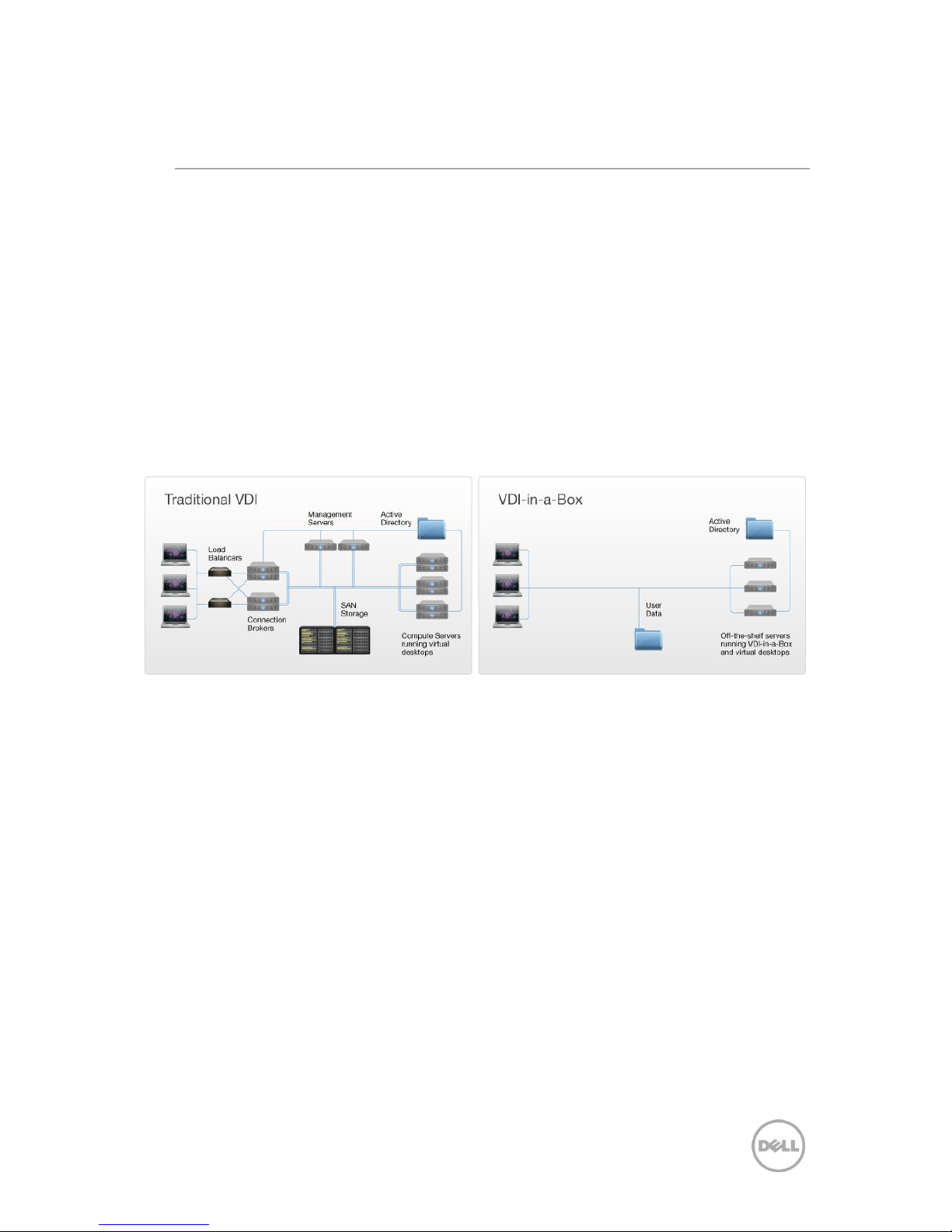
A typical Dell DVS Enterprise VDI deployment requires components that are not needed
for the typical DVS Simplified Appliance customer. An illustration of a typical DVS
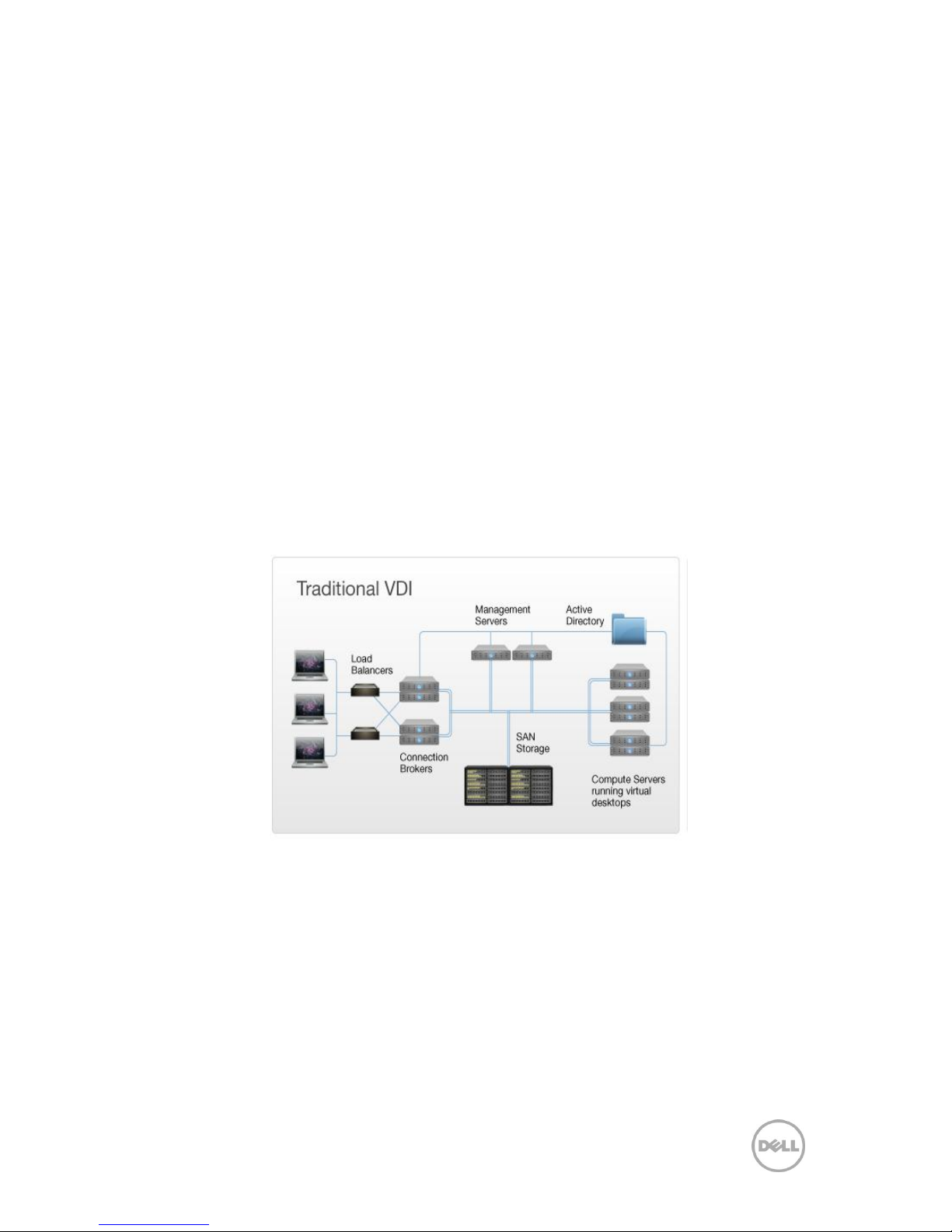
Enterprise deployment is shown in Figure 1 and described below:
Provisioning Servers: These management servers control the dynamic provisioning and
de-allocation of virtual desktops. Typically, a minimum of two provisioning servers are
required for high-availability.
Page 13
10 Dell DVS Simplified Appliance Reference Architecture
Delivery controllers: These servers manage and broker the end-user connections to the
virtual desktops. Typically, a minimum of two delivery controllers/connection brokers is
required for high-availability.
Virtual desktop hosts: These are the servers that run the virtual desktop workload and
the number of these depends on their capacity and the sizing guidelines of the VDI
solution.
Load balancers: A minimum of two load balancers are typically placed in front of the
delivery controllers to evenly distribute the desktop workload.
Shared storage SAN: Shared storage is required to create a centralized storage resource
pool for the running virtual desktops, so that in the event of a server failure, a different VM
host can pick up the desktop state from the SAN and run the desktops.
High-speed interconnects: Typically, for performance reasons, high-speed interconnects
are used among these components.
While this DVS Enterprise VDI architecture is cost-effective for large deployments, it
requires a sizable investment that may not be efficient for smaller deployments. Dell
configures the solution for customers and provides a thoroughly-tested, well-integrated
appliance.
Figure 1: Enterprise VDI
While a DVS Enterprise VDI architecture is cost-effective for large deployments, it requires
a sizable investment that may not be efficient or ideal for smaller deployments. Either way
however, we configure the solution for you and provide a thoroughly-tested, wellintegrated appliance that will fit your needs.
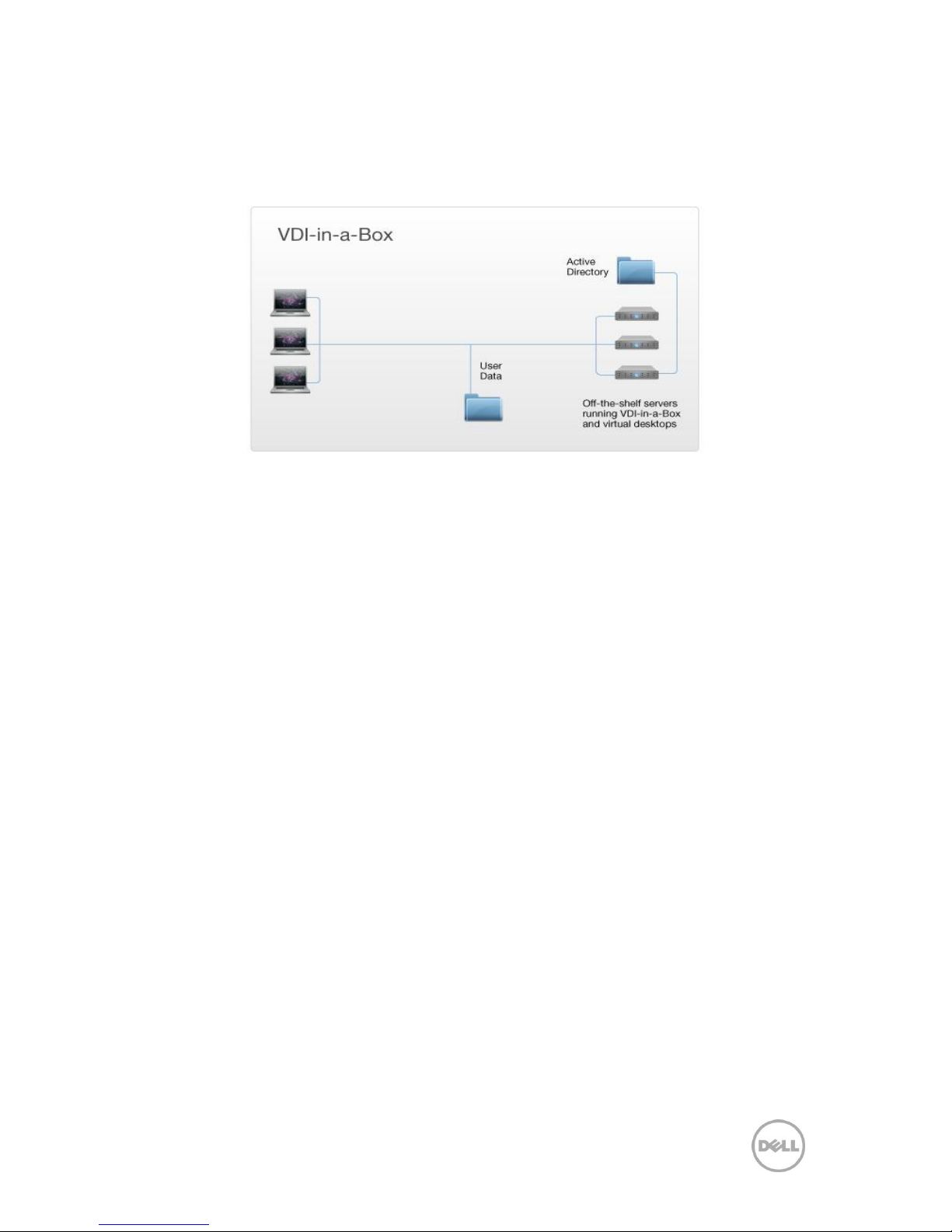
Figure 2 below references a Citrix “VDI-in-a-Box” deployment using a grid architecture
that makes expansion easy and delivers high-availability (HA) without requiring externally
attached shared storage (such as a SAN). This results in a significant cost savings. To
expand a VDI-in-a-Box deployment, simply load the Citrix software on additional Dell
Page 14
11 Dell DVS Simplified Appliance Reference Architecture
PowerEdge servers. Then add the new servers to the VDI-in-a-Box grid by answering two
simple questions posed by the Citrix management software. VDI-in-a-Box automatically
prepares the new servers with the appropriate desktop images and load balances the
desktop workload across the grid.
Figure 2: Citrix VDI-in-a-Box
Page 15

12 Dell DVS Simplified Appliance Reference Architecture
3 Solution Architecture
3.1 Architecture Overview
Dell‖s Desktop Virtualization Solutions are a combination of purpose-built horizontal
architectures designed to be modular and scalable for an array of customer needs and a
defined and tested services methodology. To provide this scalable and predictive solution
stack, Dell developed specific design criteria based on extensive testing and validation
within our Engineering Solutions Lab. This drove the design criteria to allow modular
scalability which requires certain design constraints as outlined in this document.
The DVS Simplified base configuration provides customers with the following choices:
● Appliance hardware form factor
o Rack-based or Tower-based
● Base hypervisor platform
o Citrix XenServer or Microsoft Hyper-V
● Appliance scale level
o Entry Level (up to 65 users) or Standard Level (up to 129 users)
Customers can be assured that no matter what hypervisor, appliance hardware platform,
or scale level they choose, the DVS Simplified solution will meet and/or exceed all
performance levels and provide users with the best possible VDI experience.
3.1.1 Simplified Appliance Form Factor Options
Customers can now choose between two appliance hardware form factors. The DVS
Simplified appliance can either be ordered as a rack-based solution based on Dell‖s
PowerEdge R720 platform, or as a tower-based solution based on Dell‖s PowerEdge T620
platform.
3.1.2 Hypervisor Platform Options
Additionally, customers can now choose between hypervisor platforms. The DVS
Simplified solution now supports and can be configured with Citrix XenServer or Microsoft
Hyper-V. These choices have been tested and validated to provide the same high level of
performance while adhering to the customer‖s standard or preference.
3.1.3 Appliance Scale Configuration Options
The DVS Simplified appliance can now be ordered in two hardware scale configurations,
regardless of appliance form factor; depending on deployment size and purpose. While
the two configurations share the same rack-based and tower-based hardware platform(s),
the differences between the two are as follows;
● Standard Configuration
o Chassis for Up to 16 2.5-Inch Hard Drives
o Dual Intel Xeon® ES-2680 2.7Ghz, 8 Cores
o 192 GB (12x16GB) DDR3 1666MHz
Page 16
13 Dell DVS Simplified Appliance Reference Architecture
o 16, 300 GB 10K RPM SAS 6 Gbps 2.5 Inch Hot plug Hard Drives
● Entry Level Configuration
o Chassis for Up to 8 2.5-Inch Hard Drives
o Dual Intel Xeon® ES-2640 2.5Ghz, 6 Cores
o 96 GB (12x8GB) DDR3 1333MHz
o 8, 300 GB 10K RPM SAS 6 Gbps 2.5 Inch Hot plug Hard Drives
3.1.4 Appliance User Loads
The DVS Simplified solution is marketed as a simplified VDI configuration that can serve
as a great entry point for customers into the VDI market. All management roles will be
virtualized on the DVS Simplified appliances. Maximum per Standard Configuration
appliance user estimations are based on one of the following:
● 129 users per server running a basic workload.
● 100 users per server running a standard workload.
● 70 users per server running a premium workload.
Maximum per Entry Level Configuration appliance user estimations are based on one of
the following:
● 65 users per server running a basic workload.
● 50 users per server running a standard workload.
● 35 users per server running a premium workload.
The solution is based on Citrix VDI-in-a-Box. Citrix VDI-in-a-Box provides a complete
end-to-end solution that delivers Microsoft Windows XP, Vista or Windows 7 virtual
desktops to users on a wide variety of endpoint devices. Citrix VDI-in-a-Box provides a
complete virtual desktop delivery system by combining management and virtual desktops
onto a single server.
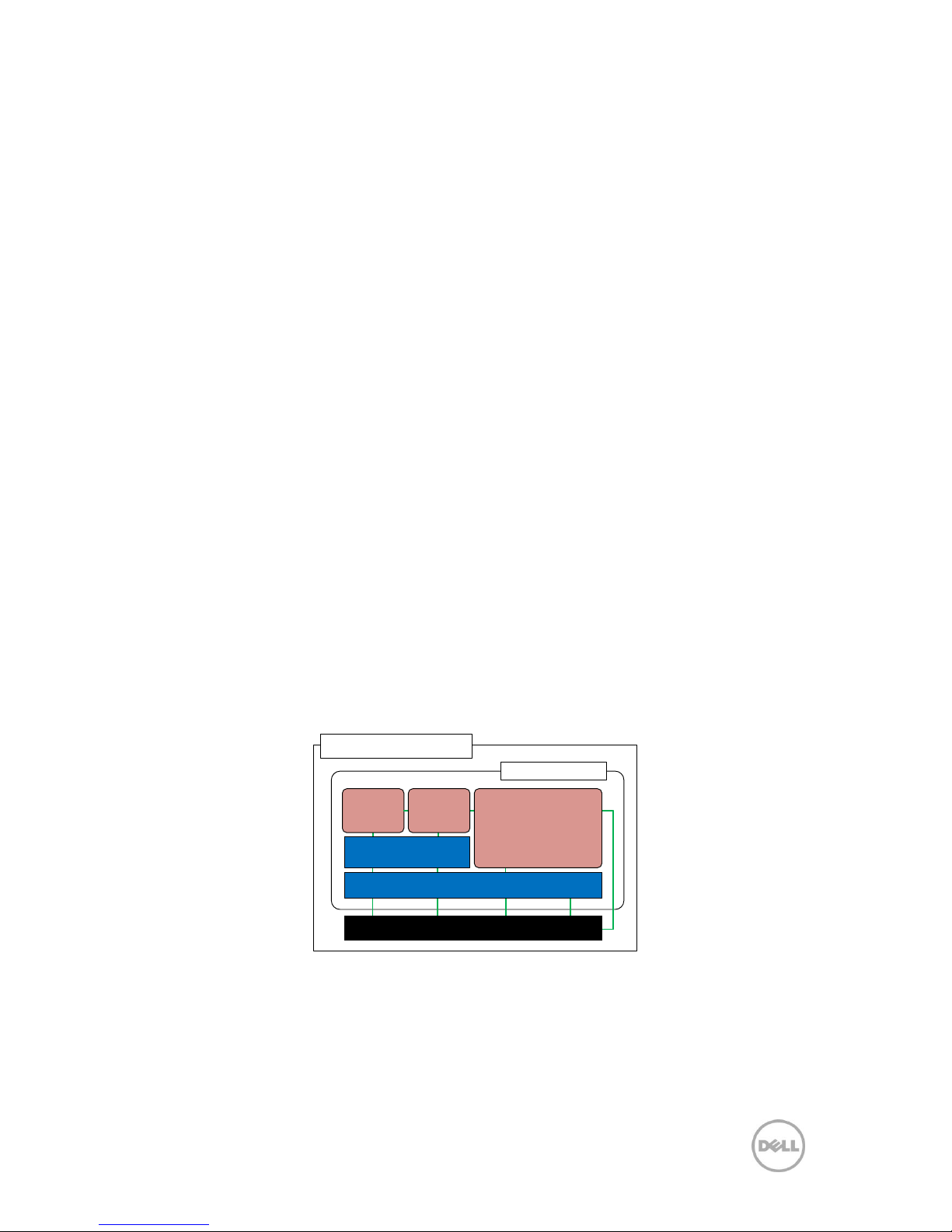
3.2 VDI-in-a-box Core Components
DVS Simplified Appliance
VDI-in-a-box
Citrix vdiManager
Load
Balancing
Common Base OS Image
Template
Manager
VDI Desktop Pool
Hypervisor Platform
Page 17

14 Dell DVS Simplified Appliance Reference Architecture
The core components that encompass VDI-in-a-Box are:
● VDI-in-a-Box 5.1 Broker
o Installed on servers either in the data center or branch office, the broker
authenticates users, manages the assembly of users‖ virtual desktop
environments and brokers connections between users and their virtual
desktops.
● Provisioning Service
o Enables and controls dynamic provisioning and de-allocation of virtual
desktops.
● High Availability
o vdiManager instances on physical servers communicate with each other to
share key operational and configuration information. When a physical
server fails, the remaining servers in the grid have the needed information
to create extra desktops to replace those on the failed server. When the
failed server is repaired and re-joins the grid, the key operational and
configuration information is sent to it and it then resumes desktop
provisioning.
● Load Balancing
o Desktops are created across servers running vdiManager based on how
many desktops are currently running on each server and the availability of
computing resources (memory and cores) on each server. When a user
logs on, vdiManager provisions a desktop from a lightly loaded server.
● Virtual Desktop Agent
o Installed on virtual desktops, the agent enables direct ICA (Independent
Computing Architecture) connections between the virtual desktop and
users‖ endpoint devices.
● Template Management
o Virtual desktops are created from templates. Templates consist of:
An image that includes a desktop operating system, a set of
applications and the VDI-in-a-Box Desktop Agent
Policies that specify how many desktops to create, how much RAM
to allocate to each, whether local USB peripherals can be accessed
by the virtual desktop and the desktop refresh policy.
● Citrix Desktop Receiver
o Software running on an endpoint that enables the device to connect to a
virtual Windows XP, Vista or 7 desktop running on a server
● Additional VDI-in-a-Box components
o Hypervisor Integration. The Citrix VDI-in-a-Box solution can be used in
conjunction with Citrix XenServer or Microsoft Hyper-V for the provisioning
of virtual machines.
o Active Directory Integration. VDI-in-a-Box optionally uses Active Directory
for security services like authentication.
o Antivirus Management - An optional component that is not built into the
solution but is highly recommended.
Page 18
15 Dell DVS Simplified Appliance Reference Architecture
4 Hardware Components
4.1 The Simplified Appliances
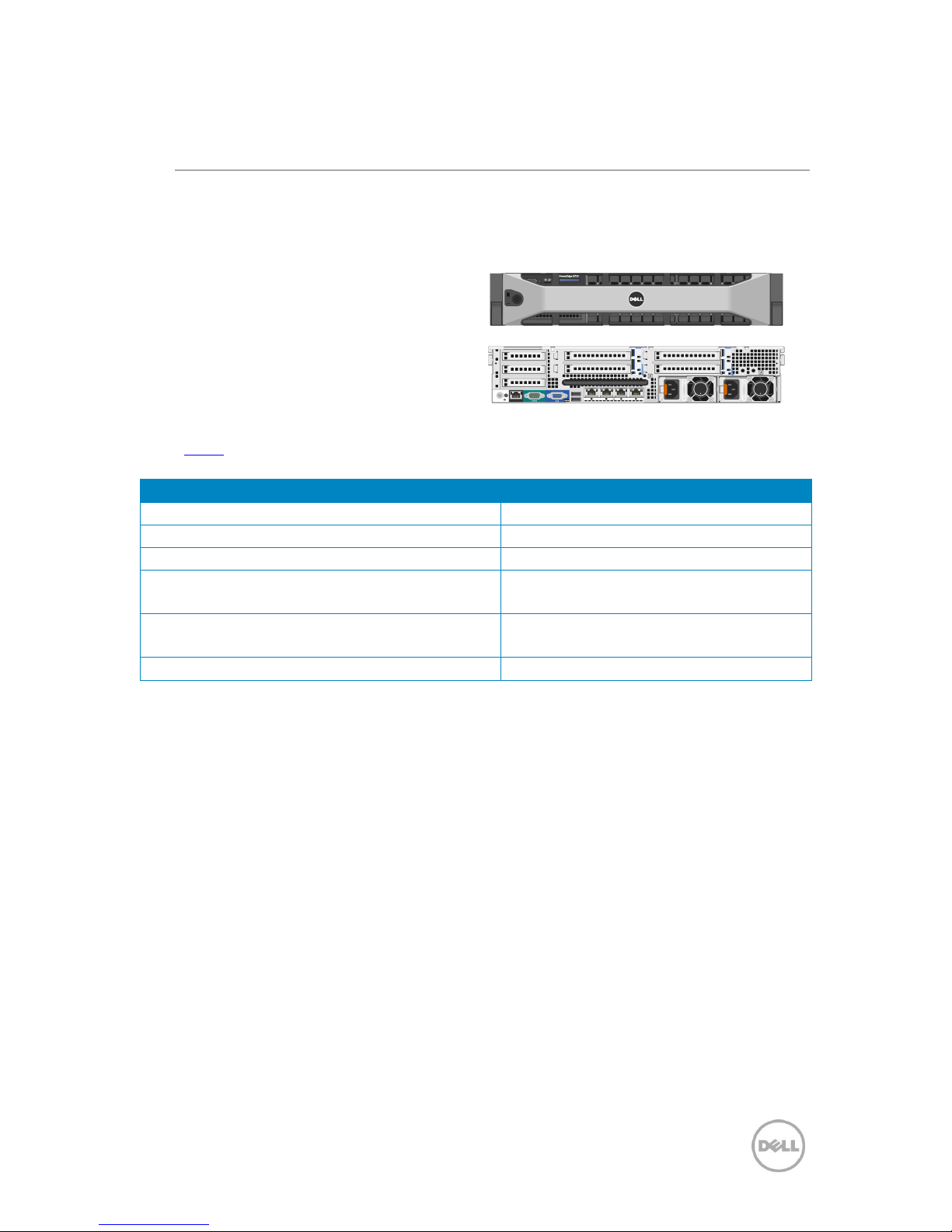
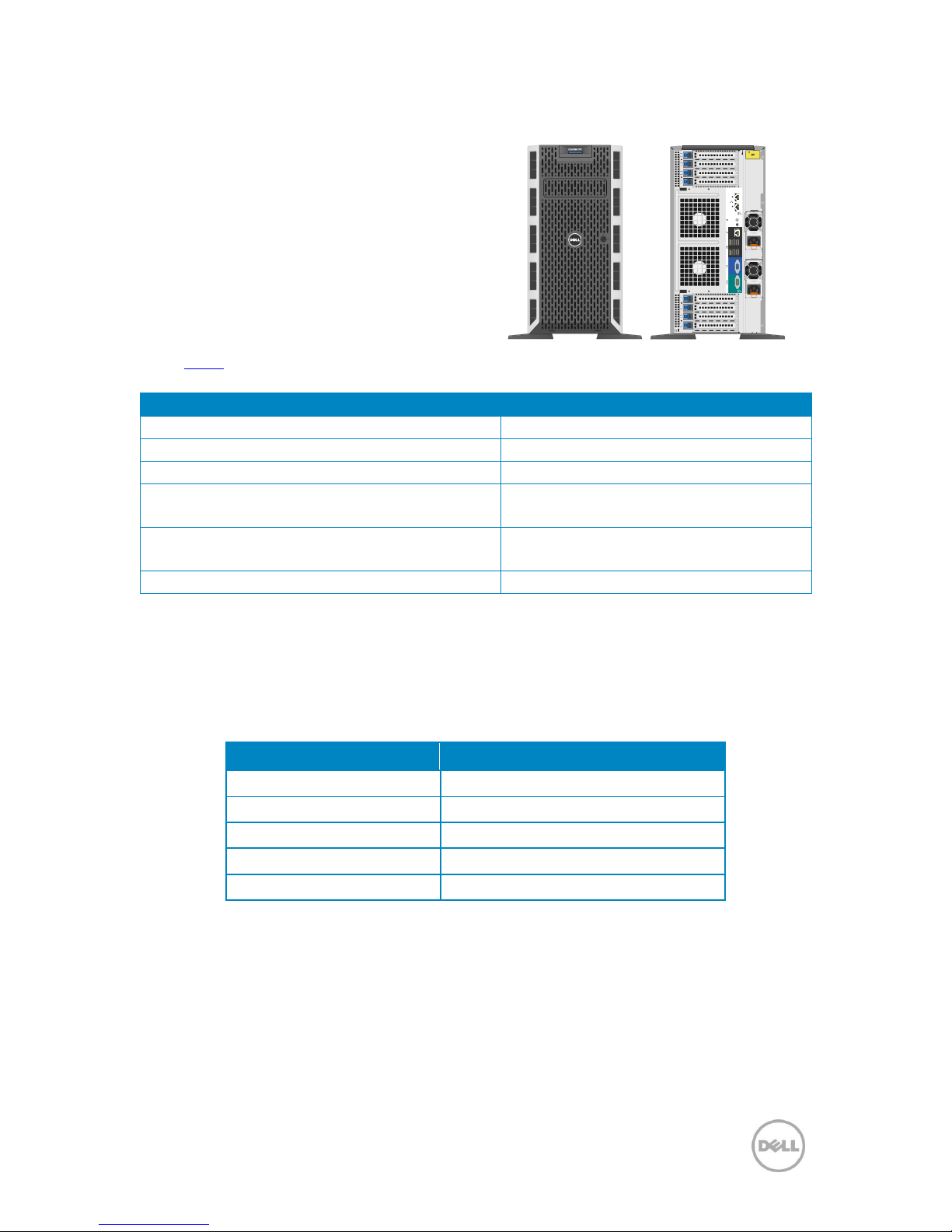
4.1.1 PowerEdge R720 Rack-Based Solution
The PowerEdge R720 dramatically boosts
application performance with nextgeneration Intel® Xeon® E5-2600 family
processing power and up to 24 DIMMs. Built
with 32-nanometer process technology
with up to 8 cores per processor, it enables
super-fast processing for computingintensive tasks.
Click HERE for more information on the R720 rack mount server.
PowerEdge R720 Standard Configuration
PowerEdge R720 Entry Configuration
2x Intel Xeon E5-2680 @ 2.7ghz – 8 cores
2x Intel Xeon E5-2640 @2.5ghz – 6 cores
192GB Memory @ 1666mhz
96GB Memory @ 1333mhz
16x 300GB SAS 6Gbps 10k Disks - RAID10
8x 300 GB SAS 6Gbps 10k Disks - RAID10
PERC H710P Integrated RAID Controller 1Gb RAM
PERC H710P Integrated RAID Controller
1Gb RAM
Broadcom 5720 GbE Quad Port Daughter-card
Broadcom 5720 GbE Quad Port Daughtercard
iDRAC7 Enterprise
iDRAC7 Enterprise
DVS Simplified running on the PowerEdge T620 is the same compelling technology in a
different form factor that runs exactly the same as the PowerEdge R720. We offer the
R720 and the T620 in a full 100 user configuration and we offer a R720 and a T620 in the
50 user version. This second option is a compelling offering for IT departments
anticipating a lower seat count and who want to enter this space on a trial basis at a
lower cost.
Dell‖s newest 12G PowerEdge R720 servers feature energy-tuned technologies designed
to reduce power consumption while increasing performance and capacity.
Enhancements include:
Efficient power supply units right-sized for system requirements.
Improved system-level efficiency.
Policy-driven power and thermal management.
Highly efficient standards-based Energy Smart components.
1 2 3 4
ST
2
1
iDRAC
2
1
3
750W750W
5
4
7
6
Page 19
16 Dell DVS Simplified Appliance Reference Architecture
4.1.2 PowerEdge T620 Tower-Based Solution
The PowerEdge T620 stands in the same class
of performance and shares the same hardware
configuration options as the R720; only
delivering it in Dell‖s tower-based form factor.
The T620 tower-based form factor is ideal for
deployments where rack and power resources
are unavailable (small branch offices or remote
locations), or in VDI pilots/proofs of concept
where the appliance location may be
temporary.
Click HERE for more information on the T620 tower server.
PowerEdge T620 Standard Configuration
PowerEdge T620 Entry Configuration
2x Intel Xeon E5-2680 @2.7ghz – 8 cores
2x Intel Xeon E5-2640 @2.5ghz – 6 cores
192GB Memory @ 1666mhz
96GB Memory @ 1333mhz
16x 300GB SAS 6Gbps 10k Disks - RAID10
8x 300GB SAS 6Gbps 10k Disks - RAID10
PERC H710P Integrated RAID Controller 1Gb RAM
PERC H710P Integrated RAID Controller
1Gb RAM
Broadcom 5720 GbE Quad Port Daughter-card
Broadcom 5720 GbE Quad Port Daughtercard
iDRAC7 Enterprise
iDRAC7 Enterprise
4.2 Storage
Since VDI-in-a-Box only supports local storage, determining the correct size and type of
disk is crucial. The following table details the methods by which to assume storage
capacity:
Storage
Disk Space
Golden Desktop Images
2x Golden Image size
VM Storage
15% x Image size x #VMs
VDI-in-a-box VM
75GB
Recommended Swap Space
VM RAM size x VM #
Thin clone expansion buffer
10% x Golden Image Size x Number of VMs
Also note that VDI-in-a-Box utilizes linked clones technology to further reduce the
amount of storage required. This means the virtual machine is a copy of the golden
image and in turn, shares virtual disks of the parent clone (i.e., golden image). This is why
the storage required per VM is only 15% of the golden image as opposed to 100%. In order
to provide linked clones, VDI-in-a-box must copy the golden images to each server on
the grid so that linked clones can be created on each host server. Note that the hypervisor
must be configured to utilize thin provisioning in order to take advantage of this 85%
750W750W
CAUTION
TWO PERSON LIFT
REQUIRED
FCC 1
FCC 2
PPID AC
Gb
2
Gb
1
2
1
6
5
7
CPU2
4
3
2
1
CPU1
Page 20

17 Dell DVS Simplified Appliance Reference Architecture
storage reduction. Otherwise, each VM would require 100% of the disk space reservation
used by the golden image.
Another significant point is that the vdiManager virtual machine must be installed on each
host machine. This requirement expands the storage necessity by 75 GB per server for the
vdiManager VM as well as an additional amount for swap and other transient activity that
varies based on the number of virtual desktops and memory allocated to each virtual
desktop.
The next important factor when considering storage capacity is the type of local storage
(e.g., SATA or SAS) to utilize for virtual machines. The type of storage must be able to
accommodate the amount of input/output operations per second (i.e., IOPS) that
originate from the virtual machines. Note that each virtual machine may be allocated
differently and therefore must take into account the user profile assigned.
As guidance for the solution, disk IOPS and user profile IOPS were used to calculate the
type of drive needed. The following tables outline the IOPS profile per drive and per user
type, respectively.
Drive Type
IOPS per Drive
7200 RPM SATA Hard Drive
75 IOPS
10k RPM SAS Hard Drive
150 IOPS
User Type
IOPS per User Type
Basic Workload
10 IOPS
Standard Workload
12 IOPS
Premium Workload
15 IOPS
4.2.1 Disk Space Requirement by Workload
Given these listed storage considerations, we can calculate the amount of storage
required to house the 129, 100 and 70 desktop VM configurations for the standard level
system and the 65, 50 and 35 desktop VM configurations for the entry level system. Using
2 golden images that are the same size, it is straight forward to calculate the amount of
storage required:
Standard Configuration
User Type
Storage Type
Space Requirements
Basic Workload
Golden Images
2 x 20GB × 2 Golden Images = 80GB
Virtual Machines
15% × 20 GB × 129 VMs = 387GB
Total Server Capacity
80GB + 387GB + 129GB(Swap) + 75GB
(vdiManager VM) = 671GB per Server
Recommended Buffer Space
10% × 20GB ×129 VMs = 258 GB
Standard
Workload
Golden Images
2 x 25GB × 2 Golden Images = 100GB
Virtual Machines
15% × 25GB × 100 VMs = 375GB
Page 21

18 Dell DVS Simplified Appliance Reference Architecture
Standard Configuration
User Type
Storage Type
Space Requirements
Total Server Capacity
100GB + 375GB + 150GB(Swap) + 75GB
(vdiManager VM) = 700GB per Server
Recommended Buffer Space
10% × 25GB × 100 VMs = 250GB
Premium
Workload
Golden Images
2 x 30GB × 2 Golden Images = 120GB
Virtual Machines
15% × 30GB × 70 VMs = 315GB
Total Server Capacity
120GB + 315GB + 175GB(Swap) + 75GB
(vdiManager VM) = 685GB per Server
Recommended Buffer Space
10% × 30GB × 70 VMs = 210GB
Entry Level Configuration
User Type
Storage Type
Space Requirements
Basic Workload
Golden Images
2 x 20GB × 2 Golden Images = 80GB
Virtual Machines
15% × 20 GB × 65 VMs = 195GB
Total Server Capacity
80GB + 195GB + 65GB(Swap) + 75GB
(vdiManager VM) = 415GB per Server
Recommended Buffer Space
10% × 20GB × 65 VMs = 130 GB
Standard
Workload
Golden Images
2 x 25GB × 2 Golden Images = 100GB
Virtual Machines
15% × 25GB × 50 VMs = 188GB
Total Server Capacity
100GB + 188GB + 75GB(Swap) + 75GB
(vdiManager VM) = 438GB per Server
Recommended Buffer Space
10% × 25GB × 50 VMs = 125GB
Premium
Workload
Golden Images
2 x 30GB × 2 Golden Images = 120GB
Virtual Machines
15% × 30GB × 35 VMs = 158GB
Total Server Capacity
120GB + 158GB + 88GB(Swap) + 75GB
(vdiManager VM) = 441GB per Server
Recommended Buffer Space
10% × 30GB × 35 VMs = 105GB
Page 22

19 Dell DVS Simplified Appliance Reference Architecture
4.2.2 Drive IOPS Requirement by Workload
The next step is to determine how approximately many drives can satisfy both the
storage and the average IOPS requirement for each workload.
Standard Configuration
User Type
Drive Metrics
Drive Requirements
Basic Workload
Average IOPS per Server
129 Desktops x10 Average IOPS = 1290 IOPS
# of 10k RPM SAS Drives
1290 IOPS ÷ 150 IOPS per Disk = ~9
10k RPM SAS Drive Size
929 GB ÷ 9 = ~103GB
Standard
Workload
Average IOPS per Server
100 Desktops x12 Average IOPS = 1200 IOPS
# of 10k RPM SAS Drives
1200 IOPS ÷ 150 IOPS per Disk = ~8
10k RPM SAS Drive Size
950 GB ÷ 8 = ~119GB
Premium
Workload
Average IOPS per Server
70 Desktops x15 Average IOPS = 1050 IOPS
# of 10k RPM SAS Drives
1050 IOPS ÷ 150 IOPS per Disk = ~7
10k RPM SAS Drive Size
895 GB ÷ 7 = ~128GB
The Standard Configuration was built using 16, 300GB 10K SAS to not only satisfy these
calculations but to allow for more space for persistent and PVD desktop users as well as
to support an increase in IOPS without a dramatic increase in the price of the system.
These additional drives will also allow the array to be configured as RAID-10; thereby
adding fault tolerance to the storage array, while minimizing performance degradation.
Entry Level Configuration
User Type
Drive Metrics
Drive Requirements
Basic Workload
Average IOPS per Server
65 Desktops x10 Average IOPS = 650 IOPS
# of 10k RPM SAS Drives
650 IOPS ÷ 150 IOPS per Disk = ~5
10k RPM SAS Drive Size
545GB ÷ 5 = ~109GB
Standard
Workload
Average IOPS per Server
50 Desktops x12 Average IOPS = 600 IOPS
# of 10k RPM SAS Drives
600 IOPS ÷ 150 IOPS per Disk = ~4
10k RPM SAS Drive Size
563GB ÷ 4 = ~141GB
Premium
Workload
Average IOPS per Server
35 Desktops x15 Average IOPS = 525 IOPS
# of 10k RPM SAS Drives
525 IOPS ÷ 150 IOPS per Disk = ~4
10k RPM SAS Drive Size
546GB ÷ 4 = ~137GB
The Entry Level Configuration was built using eight 300GB 10K SAS to not only satisfy
these calculations but to allow for more space for persistent and PVD desktop users as
well as to support an increase in IOPS without a dramatic increase in the price of the
solution. These additional drives will also allow the array to be configured as RAID-10;
Page 23

20 Dell DVS Simplified Appliance Reference Architecture
thereby adding fault tolerance to the storage array, while minimizing performance
degradation.
While the solution offers high availability when multiple servers are joined to a grid, not
using a RAID configuration with redundancy would allow a single point of failure for the
entire solution for single server deployments. Even with multiple servers in a grid, desktop
failover is not instantaneous as each failed desktop will have to be provisioned as new
desktops on the remaining servers.
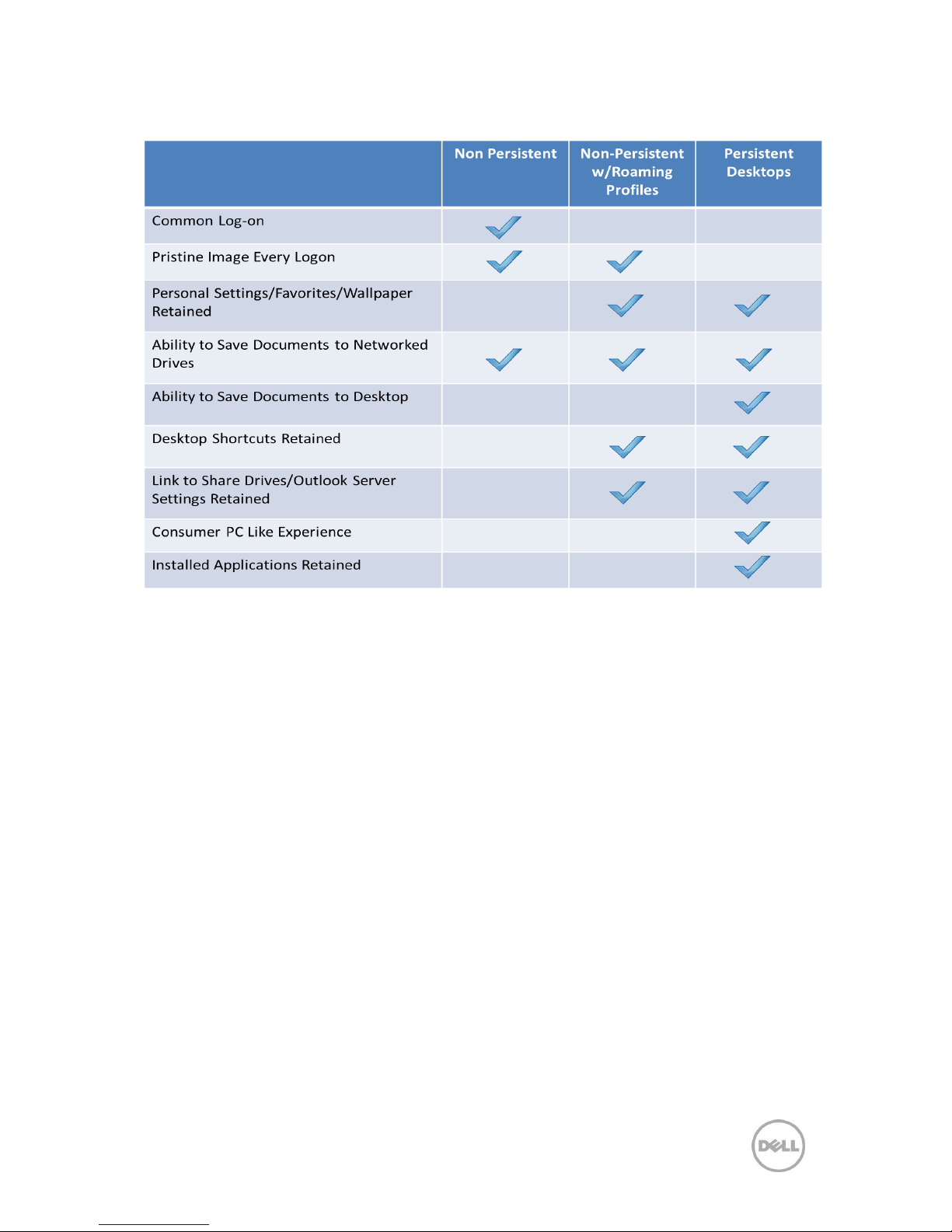
4.2.3 Persistent and Non-Persistent Desktops Defined
Persistent Desktops:
• Gives users the flexibility to have their own customized workspace. This
workspace allows users to install applications, customize settings and make
other workspace related changes that are saved between sessions.
Persistent desktops give users the benefit of having a customized
workspace while still enjoying all the security and manageability benefits of
desktop virtualization. The downside is that they use substantially more
storage than non-persistent.
Non-persistent Desktops:
• Non-persistent virtualized desktops revert back to the golden image
between sessions. All desktop-related modifications, such as user installed
applications, are removed when the user logs off, reverting back to a clean
image on reboot. User-specific settings (persona/profile) that are recorded
in the user profile, however, can optionally be stored and re-used.
Page 24
21 Dell DVS Simplified Appliance Reference Architecture
4.2.4 Persistent vs. Non-Persistent Desktop Characteristics
4.2.5 Persistent vs. Shared Image Disk Space Planning
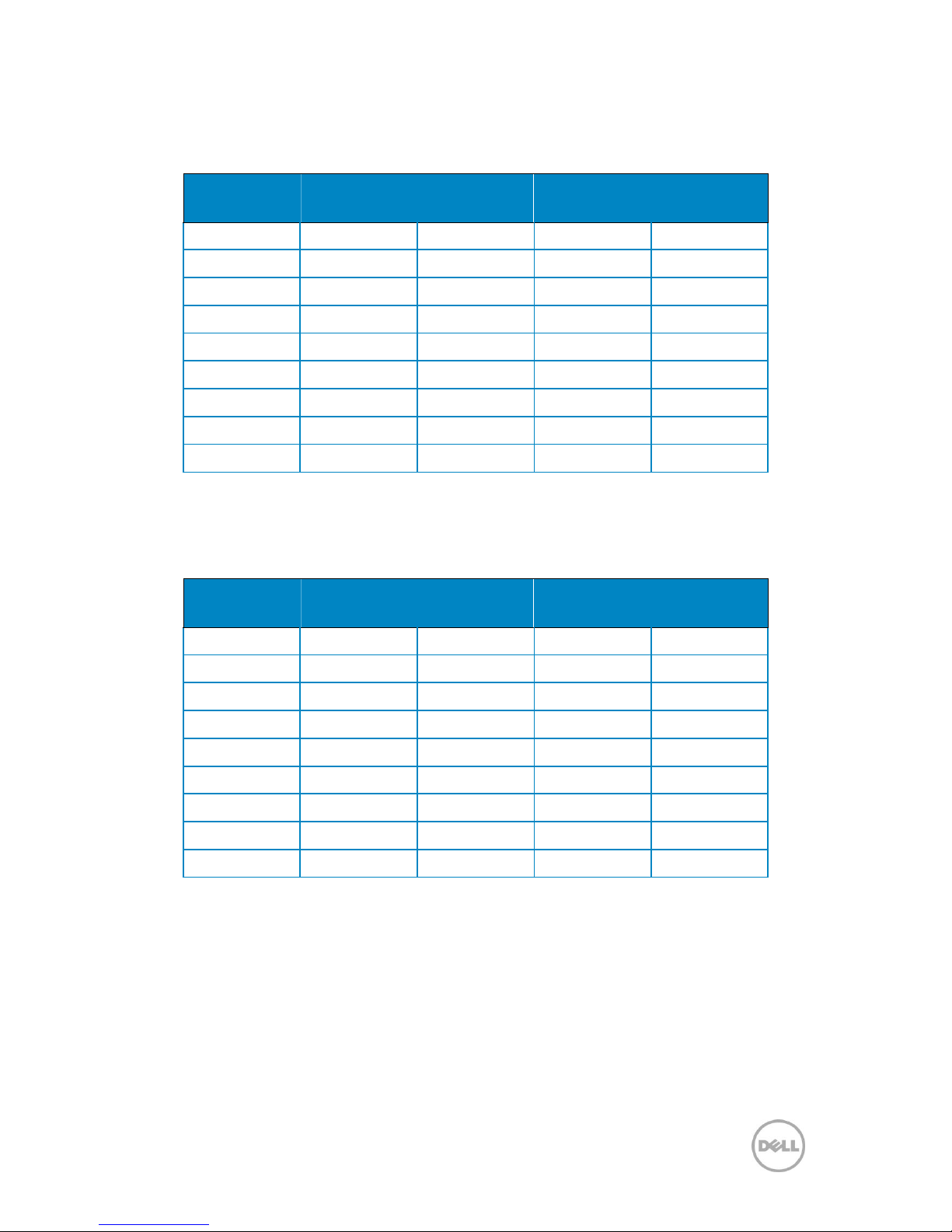
When planning a DVS Simplified deployment with persistent desktops, we must assume
that users can potentially utilize 100% of the disk space given to the golden image. As the
number of, or size of the golden image increases, the amount of persistent users
supported decreases. Below are examples of how the maximum number of users per
server varies by workload as you increase the number of golden images.
Note: Any number of golden images can be supported. The table below is displaying
three data points of 2, 5 and 10 golden images for example purposes only.
Page 25
22 Dell DVS Simplified Appliance Reference Architecture
Persistent Image Disk Space Planning Chart: Standard
Workload
Golden
Images
Golden
Image Size
Desktop
Memory
Maximum
User Count
Basic
2
20 GB
1 GB
98
Standard
2
25 GB
1.5 GB
72
Premium
2
30 GB
2.5 GB
56
Basic
5
20 GB
1 GB
93
Standard
5
25 GB
1.5 GB
67
Premium
5
30 GB
2.5 GB
51
Basic
10
20 GB
1 GB
84
Standard
10
25 GB
1.5 GB
59
Premium
10
30 GB
2.5 GB
43
Persistent Image Disk Space Planning Chart: Entry Level
Workload
Golden
Images
Golden
Image Size
Desktop
Memory
Maximum
User Count
Basic
2
20 GB
1 GB
49
Standard
2
25 GB
1.5 GB
36
Premium
2
30 GB
2.5 GB
27
Basic
5
20 GB
1 GB
44
Standard
5
25 GB
1.5 GB
31
Premium
5
30 GB
2.5 GB
22
Basic
10
20 GB
1 GB
35
Standard
10
25 GB
1.5 GB
22
Premium
10
30 GB
2.5 GB
14
Page 26
23 Dell DVS Simplified Appliance Reference Architecture
4.3 Dell Wyse Xenith 2 and Xenith Pro Zero Clients
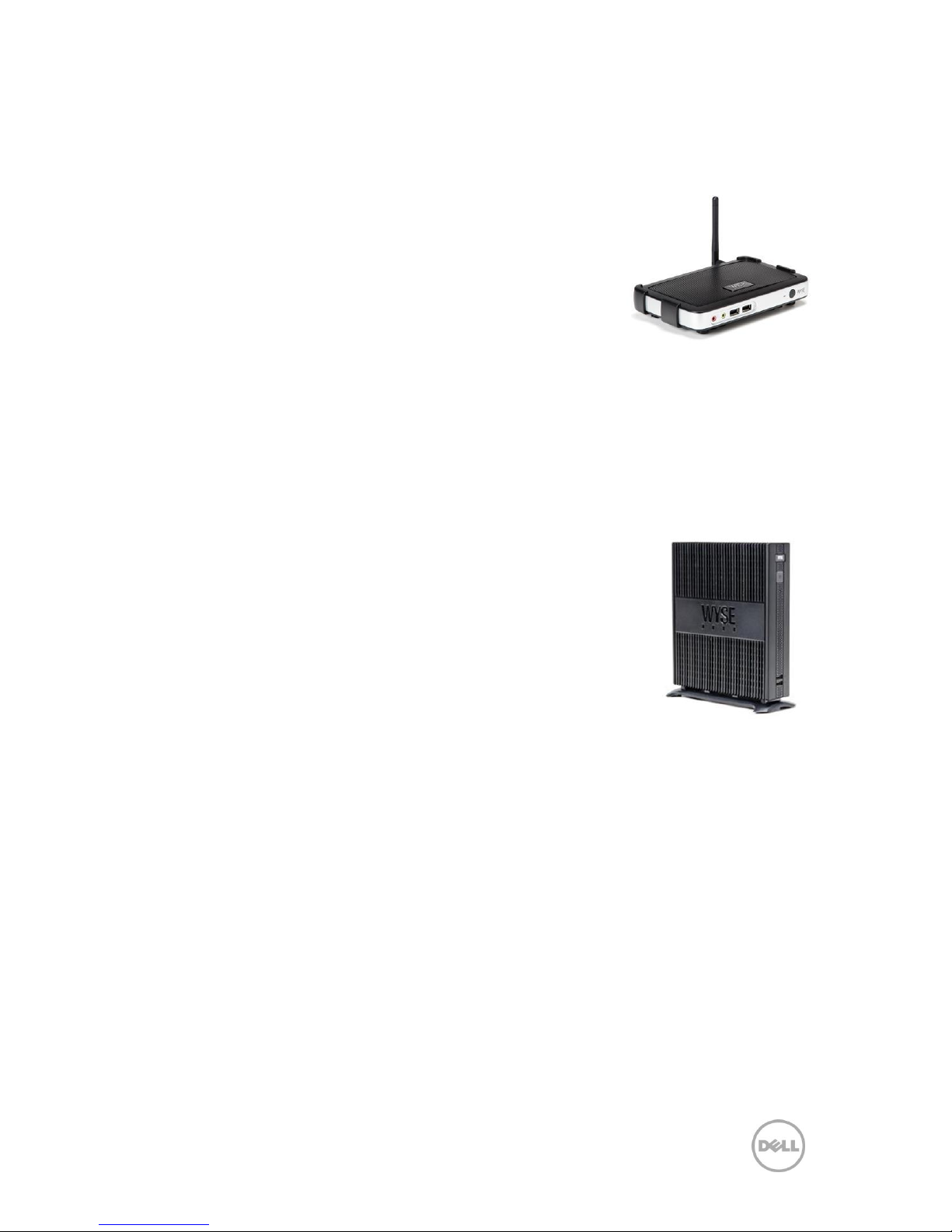
Establishing a new price/performance standard for zero
clients for Citrix, the new Dell Wyse Xenith 2 provides an
exceptional user experience at a highly affordable price for
Citrix XenDesktop and XenApp environments. With zero
attack surface, the ultra-secure Xenith 2 offers networkborne viruses and malware zero target for attacks. Xenith 2
boots up in just seconds and delivers exceptional
performance for Citrix XenDesktop and XenApp users while
offering usability and management features found in
premium Dell Wyse cloud client devices. Xenith 2 delivers
outstanding performance based on its system-on-chip (SoC) design optimized with its
Dell Wyse zero architecture and a built-in media processor delivers smooth multimedia,
bi-directional audio and Flash playback. Flexible mounting options let you position Xenith
2 vertically or horizontally on your desk, on the wall or behind your display. Using about 7
Watts of power in full operation, the Xenith 2 creates very little heat for a greener, more
comfortable working environment.
Dell Wyse Xenith Pro is the next-generation zero client for Citrix
HDX and Citrix XenDesktop, delivering ultimate performance,
security and simplicity. With a powerful AMD G-series processor,
Xenith Pro is three times faster than competing devices. This
additional computing horsepower allows dazzling HD multimedia
delivery without overtaxing your server or network. The Wyse
Xenith Pro requires no configuration and management—your Citrix
XenDesktop server configures it out-of-the-box to your preferences
for plug-and-play speed and ease of use. The Xenith Pro draws
under 14 watts of power in full operation—less than almost any PC.
Page 27
24 Dell DVS Simplified Appliance Reference Architecture
5 Software Components
5.1 Citrix VDI-in-a-Box 5.1
The DVS Simplified Appliance is based on Citrix‖s VDI-in-a-box solution. VDI-in-a-Box is
an easy, affordable, all-in-one desktop virtualization solution that makes the benefits of
desktop virtualization available to nearly every business. VDI-in-a-Box is the virtualization
solution that makes the benefits of desktop virtualization available to every business.
Customers of VDI-in-a-Box are radically improving PC management and availability by
replacing traditional PCs with virtual desktops that are centrally managed and
provisioned. Since VDI-in-a-Box seats generally cost less than PCs to deploy and scale on
demand, organizations are able to repurpose existing PC budgets to deploy it. Desktop
administrators manage a grid of VDI-in-a-Box servers centrally with an intuitive wizarddriven interface that abstracts virtualization details. Automated policy-based management
cuts desktop support costs.
Here are some scenarios in which VDI-in-a-Box can be effective:
● PC Replacement: When considering a PC refresh cycle, for the same budget you
can upgrade to VDI-in-a-Box. Benefits include sizable reduction in the
operational costs of patching and updating desktops, greater security, lower
unplanned downtime, disaster recovery options and extension of the client
lifecycle by two to three times.
● Windows 7 Migration: Ease the migration issues typically associated with an
operating system upgrade by deploying Microsoft Windows 7 on VDI-in-a-box.
This enables you to preserve the current user desktops while upgrading.
● Remote Office/Branch Office: The appliance-based approach of VDI-in-a-Box
offers the flexibility to co-locate servers at remote or branch offices and still
manage them centrally. This overcomes the WAN bandwidth constraints that
traditional centralized (VDI) architectures face.
● Desktops as a cloud-based service and managed services: The scale-on-demand
architecture of VDI-in-a-Box enables service providers to incrementally scale
their data center as demand grows, without having to over-invest and overprovision upfront.
Page 28

25 Dell DVS Simplified Appliance Reference Architecture
Features and enhancements to Citrix VDI-in-a-Box:
Personal Desktops
o IT departments can now create personalized desktops from a common
published Windows 7 image while users can install applications of their choice,
set their own profiles and store their data. Administrators can update, manage,
backup and restore these personalized desktops. When the published image is
updated, the base image of all the personal desktops are automatically updated
with the administrator‖s changes and yet the user installed applications, profiles
and data remain intact. Citrix recommends using a profile management
application with the personal desktop feature to backup user profile data. Citrix
Profile management is included with VDI-in-a-Box.
o VDI-in-a-Box 5.1 uses proprietary Personal vDisk (PvD) layering technology
available with XenDesktop to provide personalized desktops. With PvD, userinstalled data and applications are stored in a user specific layer that is used in
conjunction with a base image. This allows users to install applications and
personalize their desktops while enabling the administrator to manage their
desktops by administering and upgrading the base image. The result is
potentially the best of both worlds: personalized desktops for users coupled
with single image management for administrators.
Automated Desktop Agent
o The VDI-in-a-Box Desktop Agent resides on each desktop created from the
published image. vdiManager communicates with the desktop through the
agent. The new Desktop Agent process installs the agent on the draft image
automatically. The automated installation process is part of the process for
creating a first draft image.
Active Directory Failover
o This release introduces Active Directory failover. VDI-in-a-Box automatically
starts to use another Active Directory server if the primary server fails.
Administrators can specify two or more Active Directory servers in a prioritized
list. VDI-in-a-Box uses the primary Active Directory until it fails and then
defaults to the next Active Directory on the list and continues in this fashion.
VDI-in-a-Box periodically checks to see if failed Active Directory servers have
recovered and automatically reverts back to the highest priority Active
Directory server.
Ability to specify virtual desktop names
o VDI-in-a-Box 5.1 allows administrators to specify the complete name of their
virtual machines and computers. This allows administrators to track your
virtual machines on your hypervisors and the associated computers on the
Active Directory server.
Grid-wide virtual IP address
o This feature allows user devices to access the grid through a single virtual IP
address hosted by one of the servers in the grid. All user connection requests
are sent to this host server. If the host server fails, another server in the grid
becomes the host and fields the connection requests. The grid-wide virtual IP
address feature provides end-to-end high availability without requiring a load
Page 29

26 Dell DVS Simplified Appliance Reference Architecture
balancer between the user and the grid of servers. This feature works with any
user device.
Multiple virtual CPU
o Some applications either require or perform much better with multiple CPUs.
This release allows a virtual desktop to be specified to run on multiple virtual
CPUs. Use this option with care as it does require more physical CPU resources
and can impact the number of desktops that can run on a server.
Separate user and computer domains
o VDI-in-a-Box enables the flexibility to place users and desktops in different
Windows domains. This is useful when security regulations require a more
stringent relationship between users and their desktops.
Remote Desktop Gateway
o Remote access to VDI-in-a-Box desktops is available through the Remote
Desktop Gateway. It should be in the same domain as the virtual desktops to
which it provides remote access. The VDI Manager must be configured with
the Remote Desktop Gateway‖s IP address.
Network Time Protocol
o VDI-in-a-Box allows the use of a Network Time Protocol server as the master
clock with which all the VDI Managers in the grid synchronize. This ensures
that cross-server logs are consistent with respect to time.
Click HERE to learn more about Citrix VDI-in-a-Box.
Page 30

27 Dell DVS Simplified Appliance Reference Architecture
5.2 The DVS Simplified Hypervisors
5.2.1 Microsoft Windows Server 2008 R2 SP1 with Hyper-V Role
Hyper-V builds on the architecture and functionality of Windows Server 2008 R2 SP1 by
adding multiple new features that enhance product flexibility. Hyper-V provides a
dynamic, reliable and scalable virtualization platform combined with a single set of
integrated management tools to manage both physical and virtual resources, enabling
you to create an agile and dynamic data center. The benefits of using Windows Server
2008 R2 SP1 with Hyper-V Role include:
Monitoring, management, and general administration.
The Hyper-V Manager is a snap-in for the Microsoft Management Console (MMC) that
Windows administrators are familiar with.
Comes pre-loaded in the Server Manager MMC on all Hyper-V versions of the
appliance.
Can be loaded on Windows 7 (and above) clients that have “Remote Server
Administration Tools” installed (as a free download from Microsoft).
VDI with Windows Server 2008 R2 SP1 with Hyper-V Role benefits from a rich end user
experience with support for rich media and USB devices with Microsoft RemoteFX as well
as a great better together story with Windows 7 as the guest OS due to increased VM
density with Dynamic Memory and near-invisible integration of virtualized desktops in
Windows 7.
5.2.2 Citrix XenServer 6.0.2
Citrix XenServer is a complete, managed server virtualization platform built on the
powerful Xen hypervisor. Citrix XenServer technology is widely acknowledged as the
fastest and most secure virtualization software in the industry. XenServer is designed for
efficient management of Windows® and Linux® virtual servers and delivers cost-effective
server consolidation and business continuity.
XenServer is the enterprise-ready, cloud-proven virtualization platform that contains all
the capabilities required to create and manage a virtual infrastructure. It is trusted by
demanding organizations to run the most mission critical applications and used by the
largest clouds.
● Cuts costs. By reducing the number of physical servers required in the data
center, organizations are able to save on their power and cooling costs.
● Increases IT agility and efficiency. Customers can easily adapt to changing data
center and computing needs by dynamically flexing capacity, optimizing VM
placement and automating repetitive management tasks.
● Improves performance and user productivity. By enabling ―zero downtime‖
maintenance, automatically recovering from hardware failure and providing
failover capabilities in disaster situations, end users are ensured access to mission
critical applications in all scenarios.
The free edition of XenServer starts with a 64-bit
hypervisor and centralized management, live
migration and conversion tools to create a virtual
Page 31

28 Dell DVS Simplified Appliance Reference Architecture
platform that maximizes guest density and performance. The premium editions of
XenServer extend the platform to enable organizations of any size to integrate and
automate management processes, delivering a virtual data center solution.
Citrix XenServer 6.0.2 will be installed with thin provisioning enabled.
Click HERE for a Citrix XenServer product overview.
Click HERE for Citrix XenServer documentation and FAQ.
5.3 Microsoft Licensing with DVS Simplified
5.3.1 Microsoft Windows Licensing
VDI-in-a-Box 5.x supports both KMS and MAK Volume Licensing for Windows 7 desktops.
Volume Activation methods were introduced with Windows 7 and do not apply to
Windows XP. VDI-in-a-Box only supports Volume Licensed versions of Windows XP,
which do not require activation with Microsoft. KMS activation is the preferred method for
most customers that have at least 25 unique Windows activations across both physical
and virtual (VDI-in-a-Box) machines every 30 days. KMS allows for unlimited number of
activations, can be easily managed a KMS host and VAMT and usually requires no change
to the golden image.
VDI-in-a-Box 5.1 offers a new setting at the template level to reset the KMS activation
timer. Leaving this unchecked implies that the image‖s activation clock is not rearmed
during prepare. Checking the box implies that the image‖s activation clock is rearmed
during prepare, decrementing the activation count. If the image‖s activation clock is
rearmed more than 3 times before the image is activated by KMS (Microsoft activation Key
Management Service), the image cannot be prepared because the /generalize will fail.
If your environment is already using a KMS Host, the only thing an administrator needs to
do is ensure the DNS SRV records are available to the VDI-in-a-Box virtual desktops. The
administrator can also configure the golden image to contact a KMS Host manually. For
these details and more information on Windows KMS activation, please refer to the “VDIin-a-Box Best Practices for Windows Activation:”
http://support.citrix.com/article/CTX134349
5.3.2 Microsoft Office Licensing
Microsoft Office 2010 can be activated using the same KMS Host used by the Windows
machines using KMS activations. Unlike Windows 7 activations which require at least 25
requests to activate, Office 2010 only requires 5 requests to activate when using KMS.
Using KMS for both Microsoft Windows and Microsoft Office works like a charm and
typically requires no modification of the Office installation. However, it is important to
trigger the activation on the golden image before publishing it.
For more information, please refer to “VDI-in-a-Box Best Practices for Microsoft Office
Activation:” http://support.citrix.com/article/CTX134351.
5.4 Citrix Desktop Receiver
The Citrix Desktop Receiver is a client-based plug-in that is installed on the user‖s
endpoint device. This is to be used in-conjunction with Citrix VDI-in-a-box when the user
Page 32
29 Dell DVS Simplified Appliance Reference Architecture
requires the ability to interact with their local desktop as well as the virtual desktop. This
package provides the toolbar functionality, allowing the user to pan and scale their virtual
desktop inside their local desktop. When a user logs into a VDI-in-a-box site to access a
virtual desktop, the web site can detect that the Citrix Desktop Receiver is absent from
endpoint devices and automatically prompt users to download and install it from the site.
Click HERE for more information on the Citrix Desktop Receiver.
5.5 Citrix XenCenter
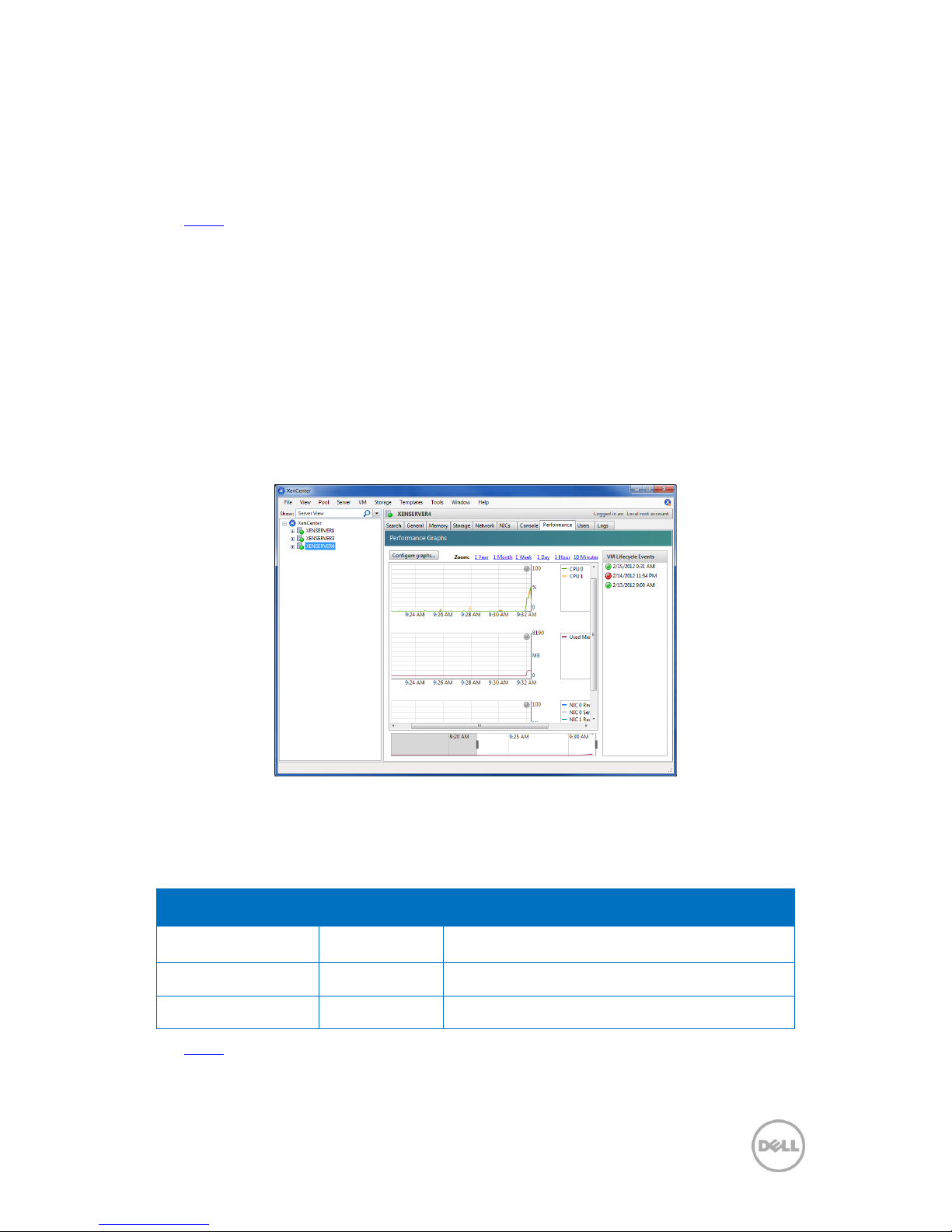
The DVS Simplified Appliance virtual machine environment provided by Citrix XenServer
is monitored, managed and configured using Citrix XenCenter. Citrix XenCenter provides
all the VM monitoring, management and general administration functions in a single
interface including configuration, patch management and virtual machine libraries. A DVS
Simplified Appliance administrator can easily manage hundreds of virtual machines from
a centralized, highly available management console that installs on any Windows client
desktop. Citrix XenCenter‖s highly resilient distributed management architecture leverages
resource pooling to ensure that there is no single point of management failure.
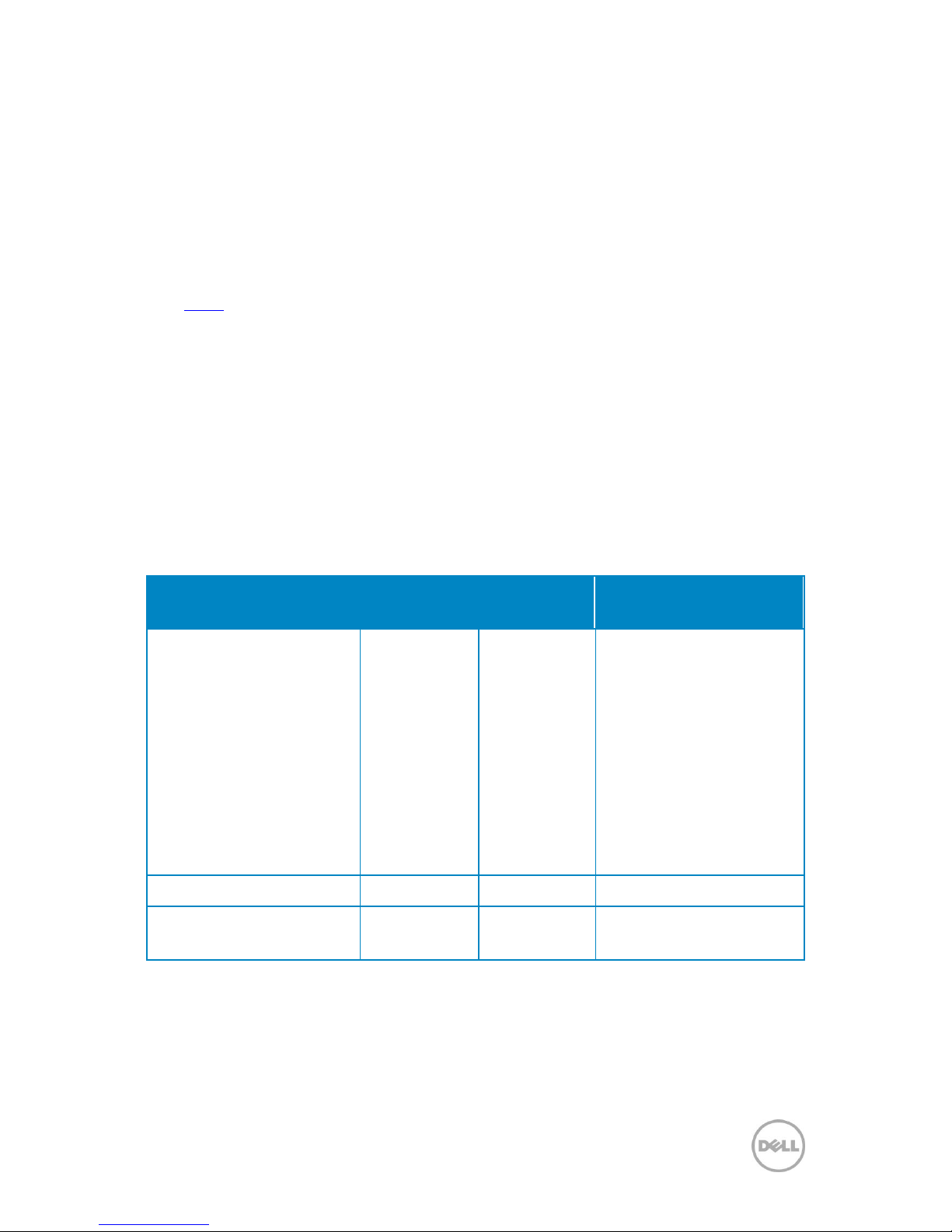
5.6 Citrix TCP/UDP Port Communication
Component
Port
Notes
Citrix XenServer
TCP 80/443
Communication with XenServer infrastructure
VDI-in-a-box VDI
TCP 1494/2598
Citrix ICA/HDX Client Communication
VDI-in-a-box Web UI
TCP 80/443
VDI-in-a-box Web UI for admin and user access
Click HERE for more information on VDI-in-a-Box and XenDesktop port communication.
Page 33
30 Dell DVS Simplified Appliance Reference Architecture
5.7 Citrix Desktop Receiver
The Citrix Desktop Receiver is a client-based plug-in that is installed on the user‖s
endpoint device. This is to be used in-conjunction with Citrix VDI-in-a-Box when the user
requires the ability to interact with their local desktop as well as the virtual desktop. This
package provides the toolbar functionality, allowing the user to pan and scale their virtual
desktop inside their local desktop. When a user logs into a VDI-in-a-Box site to access a
virtual desktop, the web site can detect that the Citrix Desktop Receiver is absent from
endpoint devices and automatically prompt users to download and install it from the site.
Click HERE for more information on the Citrix Desktop Receiver.
5.8 Virtual Desktop Antivirus
When using hosted VM-based VDI desktops, those virtual desktops are located within the
data center and/or on the network with other critical systems. If a virus makes it into the
data center, the entire infrastructure can be at serious risk. Therefore, it is highly
recommended to employ an agent-based anti-virus solution that has the ability to scan
and monitor the DVS Simplified Appliance appliance(s) as well.
Since the virtual desktops will be based on a single read-only image streamed from the
DVS Simplified appliance, there are a number of exclusions that can be configured to
optimize performance of the on-access or real-time scanning.
Exclusion
Exclude Sub-
folders
Read/Write
Notes
C:\*.*
Yes
Read
This prevents files from the
C drive of the desktops being
scanned since these are
scanned prior to setting the
drive as read only, from
which point on no
permanent changes will be
maintained across reboots
of a machine. Any files
written (e.g. temporary files
will be scanned on write)
Pagefile.sys
No
Read/Write
Windows swap file
C:\windows\system32\spool
Yes
Read/Write
Print spooler directory –
Best practice
5.9 Windows Active Directory Integration
Active Directory (AD) is required for user authentication for desktops in the Windows
Domain. You can use any read-only user account from AD to provide authentication. You
Page 34
31 Dell DVS Simplified Appliance Reference Architecture
may want to consider creating a separate account such ―VDI read‖ for this purpose. Active
Directory is also not needed if the VDI desktops are part of a Workgroup. In this case you
can maintain the list of users in the VDI-in-a-Box internal database.
Active Directory can also be used to provide “roaming profiles,” keeping user application
configurations and their My Documents folders in a central location outside of the
desktop. With this approach users are presented with a personalized desktop each time
they log on. While the use of roaming profiles is optional, it provides personalization that
makes the user experience for virtual desktops nearly identical to that for a physical
desktop. Use of third-party profile management tools with VDI-in-a-Box requires only the
deployment of their agents on each VDI-in-a-Box image.1
Each server running VDI Manager requires sufficient local storage to keep images,
templates and configuration information needed for a highly available system. VDI-in-aBox does not back up user data stored on virtual desktops. Typical usage is to create
desktops dynamically from a template and destroy them based on a refresh policy. A
simple network file system is sufficient to keep user data outside the desktop.
For sites using Workgroups, VDI-in-a-Box includes a user database for authentication.
5.10 Network Architecture
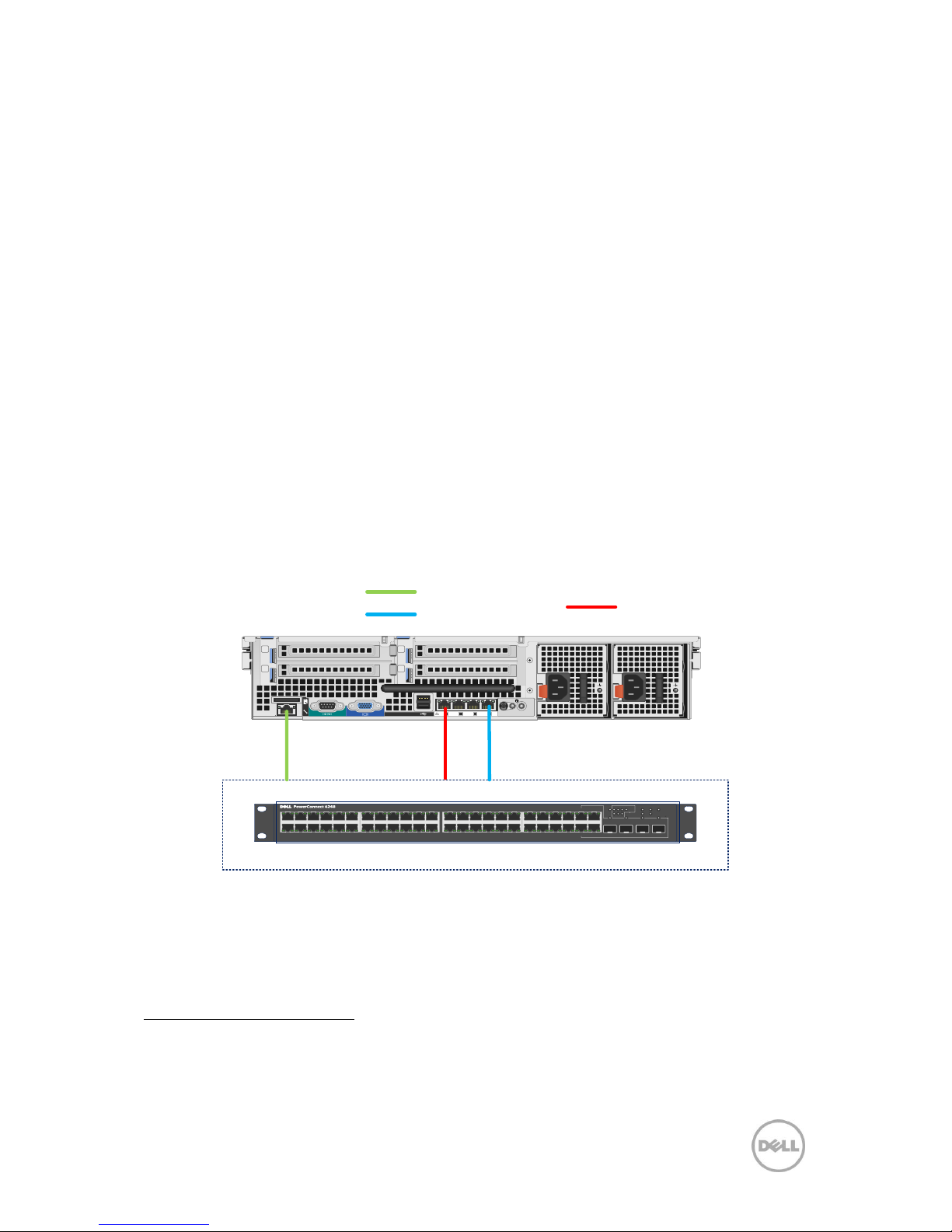
5.10.1 Physical Network Connectivity
The network will comprise of single 1 Gbps network. The physical configuration of the
network is shown below.
Gb 4Gb 3Gb 2Gb 1
3
4
1
2
4/10
5/11
6/12
STACK ID
3/9 Unit 7-121/7 2/8MASTER
PWRRPS
FAN
DIAG
TEMP
RESET
LNK/ACT LNK/ACT LNK/ACT LNK/ACT
49 50 51 52
252627282930313233343536373839404142434445
46 48
47
FDX
/HDX
LNK
/ACT
1234567891011121314151617181920212223
24
HW Management
Hypervisor
Management
1 Gbps
Network
VDI-in-a-Box & VDI
1
http://support.citrix.com/proddocs/topic/vdi-51/vdi-architecture.html
Page 35
32 Dell DVS Simplified Appliance Reference Architecture
6 End-User Workload Characterization
It is important to understand the user workloads when designing a Desktop Virtualization
Solution. The Dell Desktop Virtualization Solution methodology includes a blueprint
process to assess and categorize a customer‖s environment according to the workloads
defined in this section. In the Dell Desktop Virtualization solution this will map directly to
the SLA levels we offer in our Integrated Stack. There are three levels, each of which is
bound by specific metrics and capabilities.
6.1 Characterization Overview
6.1.1 Basic Workload Characterization
The Basic User workload profile consists of simple task worker workloads. Typically
a repetitive application use profile with a non-personalized virtual desktop image.
Sample use cases may be a kiosk or call-center use cases which do not require a
personalized desktop environment and the application stack is static. In a virtual
desktop environment the image is dynamically created from a template for each
user and returned to the desktop pool for reuse by other users. The workload
requirements for a basic user is the lowest in terms of CPU, memory, network and
Disk I/O requirements and will allow the greatest density and scalability of the
infrastructure.
User
Workload
VM
Memory
Allocation
VM Memory
Reservation
User Data
Disk Space
OS Image Notes
Basic
1GB
0.5GB
5GB
This user workload leverages a shared
desktop image emulates a task worker.
Only two apps are open simultaneously
and session idle time is approximately one
hour and forty-five minutes.
6.1.2 Standard Workload Characterization
The Standard User workload profile consists of email, typical office productivity
applications and web browsing for research/training. There is minimal image
personalization required in a standard user workload profile. The workload
requirement for a Standard User is moderate and most closely matches the majority
of office worker profiles in terms of CPU, memory, network and Disk I/O. This will
allow moderate density and scalability of the infrastructure.
Page 36
33 Dell DVS Simplified Appliance Reference Architecture
User
Workload
VM
Memory
Allocation
VM Memory
Reservation
User Data
Disk Space
OS Image Notes
Standard
1.5GB
1GB
5GB
This user workload leverages a shared
desktop image emulates a medium
knowledge worker. Five applications are
open simultaneously and session idle time
is approximately 45 seconds.
6.1.3 Premium Workload Characterization
The Premium User workload is an advanced knowledge worker. All office
applications are configured and utilized. The user has moderate-to-large file size
(access, save, transfer requirements). There is some graphics creation or editing
done for presentations or content creation tasks. Web browsing use is typically
research/training driven, similar to Standard Users. The Premium User requires
extensive image personalization, for shortcuts, macros, menu layouts etc. The
workload requirements for a Premium User are heavier than typical office workers
in terms of CPU, memory, Network and Disk I/O. This will limit density and
scalability of the infrastructure.
User
Workload
VM
Memory
Allocation
VM Memory
Reservation
User Data
Disk Space
OS Image Notes
Premium
2.5GB
1.5GB
5GB
This user workload leverages a shared
desktop image emulates a high level
knowledge worker. Eight applications are
open simultaneously and session idle time
is approximately two minutes.
Page 37

34 Dell DVS Simplified Appliance Reference Architecture
6.2 Workload Characterization Testing Details
User
Workload
VM
Memory
OS Image
Workload Description
Basic
1GB
Shared
This workload emulates a task worker.
The light workload is very light in comparison to medium.
Only 2 apps are open simultaneously.
Only apps used are IE, Word and Outlook.
Idle time total is about 1:45 minutes
Standard
1.5GB
Shared
This workload emulates a medium knowledge working using Office, IE and
PDF.
Once a session has been started the medium workload will repeat
every 12 minutes.
During each loop the response time is measured every 2 minutes.
The medium workload opens up to 5 apps simultaneously.
The type rate is 160ms for each character.
Approximately 2 minutes of idle time is included to simulate real-
world users.
Each loop will open and use:
Outlook 2007, browse 10 messages.
Internet Explorer, one instance is left open (BBC.co.uk), one instance
is browsed to Wired.com, Lonelyplanet.com and heavy flash app
gettheglass.com.
Word 2007, one instance to measure response time, one instance to
review and edit document.
Bullzip PDF Printer & Acrobat Reader, the word document is printed
and reviewed to PDF.
Excel 2007, a very large randomized sheet is opened.
PowerPoint 2007, a presentation is reviewed and edited.
7-zip: using the command line version the output of the session is
zipped.
Premium
2.5GB
Shared
The heavy workload is based on the standard workload; the differences in
comparison to the standard workload are:
Type rate is 130ms per character.
Idle time total is only 40 seconds.
The heavy workload opens up to 8 apps simultaneously
Page 38

35 Dell DVS Simplified Appliance Reference Architecture
7 Performance and Testing
7.1 Load Generation and Monitoring
7.1.1 Login VSI – Login Consultants
The Login VSI tool (developed by Login Consultants) was used to generate the desktop
workloads. It is a widely-used tool for testing VDI environments and server-based
computing / terminal services environments. It installs a standard collection of desktop
application software (e.g. Microsoft Office, Adobe Acrobat Reader, etc.) on each VDI
desktop, it then uses launcher systems to connect a specified number of users to available
desktops within the environment.
Once the user is connected the workload is started via a logon script which starts the test
script once the user environment is configured by the login script. Each launcher system
can launch connections to a number of ―target‖ machines (i.e. VDI desktops) the launchers
are managed via a Microsoft Management Console which is used to configure where the
sessions are launched in parallel (sessions are created from each launcher in a round
robin mechanism) or sequential (all sessions to be connected from each launcher are
connected before the next launcher is used).
7.1.2 Liquidware Labs Stratusphere UX
Stratusphere UX was used during each test run to gather data relating to User Experience
and desktop performance. Data was gathered at the Host and Virtual Machine layers and
reported back to a central server (Stratusphere Hub). The hub was then used to create a
series of “Comma Separated Values” (.csv) reports which have then been used to generate
graphs and summary tables of key information. In addition the Stratusphere Hub
generates a magic quadrate style scatter plot showing the Machine and IO experience of
the sessions. The Stratusphere hub was deployed onto the core network therefore its
monitoring did not impact the servers being tested. This core network represents an
existing customer environment and also includes the following services;
● Active Directory
● DNS
● DHCP
● Anti-Virus
Stratusphere UX calculates the User Experience by monitoring key metrics within the
Virtual Desktop environment, the metrics and their thresholds are shown in the following
screen shot;
Page 39
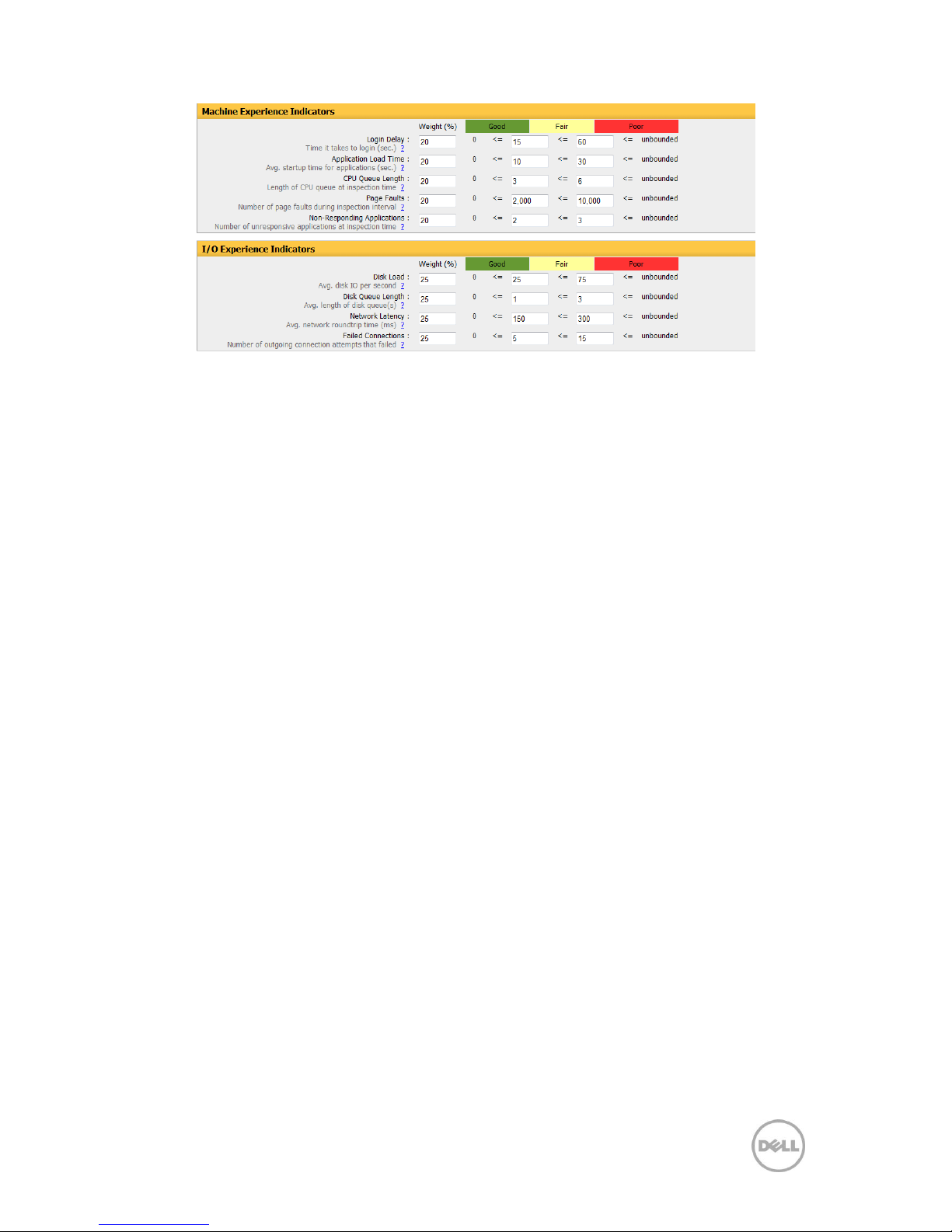
36 Dell DVS Simplified Appliance Reference Architecture
7.1 Testing Summary
7.1.1 End User Experience Testing Summary
Stratusphere UX was used during each test run to gather data relating to User Experience
and desktop performance. Data was gathered at the Host and Virtual Machine layers and
reported back to a central server (Stratusphere Hub). The hub was then used to create a
series of “Comma Separated Values” (.csv) reports which have then been used to generate
graphs and summary tables of key information. In addition the Stratusphere Hub
generates a magic quadrate style scatter plot showing the Machine and IO experience of
the sessions. The Stratusphere hub was deployed onto the core network therefore its
monitoring did not impact the servers being tested.
The Stratusphere UX by User data shows that for almost all the tests 100% of users were
rated as having a Good Users experience and those users which had a fair user experience
were only just outside the Good category. It should be noted that total number of users
for each test run typically exceeds the number of desktops available, the reason for this is
that the Dell team found it was necessary to configure the Login VSI tool to launch more
sessions than were actually needed since there is always a percentage of the users that
fail to fully connect in every run, this is something that was noted by Login Consultants in
their documentation.
VDI UX is based on the following 9 metrics; User login, Application load time, CPU Queue,
Page faults, Disk IOPS, Disk Queue, Network latency, Non responding applications and
Incomplete connections.
Each time the ConnectorID (CID) in the VDI sessions sends a report, Stratusphere
associates a VDI UX score to the machine and the user logged in at the time. VDI UX
classification for a time period is compiled based on the VDI UX ratings received for each
CID (agent) report. So a few peaks could move a user overall rating from good to fair
although the average values observed for that same time period are below the fair
threshold.
Page 40

37 Dell DVS Simplified Appliance Reference Architecture
7.2 Testing
7.2.1 Testing Methodology
The testing undertaken by the Dell DVS Engineering team was intended to provide a set
of results that were as closely aligned with a production environment as possible within a
lab based environment. In addition multiple runs for each workload were completed to
allow the team to understand and record any performance differences within the
environment.
Login VSI has two modes for launching user‖s sessions;
● Parallel
o Sessions are launched from multiple launcher hosts in a round robin
fashion; this mode is recommended by Login Consultants when running
tests against multiple host servers. In parallel mode the VSI console is
configured to launch a number of sessions over a specified time period
(specified in seconds)
● Sequential
o Sessions are launched from each launcher host in sequence, sessions are
only started from a second host once all sessions have been launched on
the first host, this is repeated for each launcher host. Sequential launching
is recommended by Login Consultants when testing a single desktop host
server. The VSI console is configure to launch a specified number of
session at a specified interval specified in seconds
All test runs were conducted using the Login VSI “Parallel Launch” mode, all sessions were
launched over an hour to try and represent the typical 9am logon storm. Once the last
user session has connected, the sessions are left to run for 15 minutes prior to the
sessions being instructed to logout at the end of the current task sequence, this allows
every user to complete a minimum of two task sequences within the run before logging
out. The single server test runs were configured to launch user sessions every 60 seconds,
as with the full bundle test runs sessions were left to run for 15 minutes after the last user
connected prior to the sessions being instructed to log out.
7.2.2 User Workloads
As defined in the Solution Architecture section of this document the solution has been
tested against the Standard workload. Details of the vCPU and memory configuration for
each of these workloads are defined within the Workload Characterization section. The
tasks undertaken by the users in the Standard workload are outlined below;
7.2.3 Standard Workload
● This workload emulates a medium knowledge working using Office, IE and PDF.
Once a session has been started the medium workload will repeat every 12
minutes. During each loop the response time is measured every 2 minutes. The
medium workload opens up to 5 apps simultaneously. The type rate is 160 ms for
each character. Approximately 2 minutes of idle time is included to simulate realworld users.
● Each loop will open and use:
● Outlook 2007, browse 10 messages.
Page 41
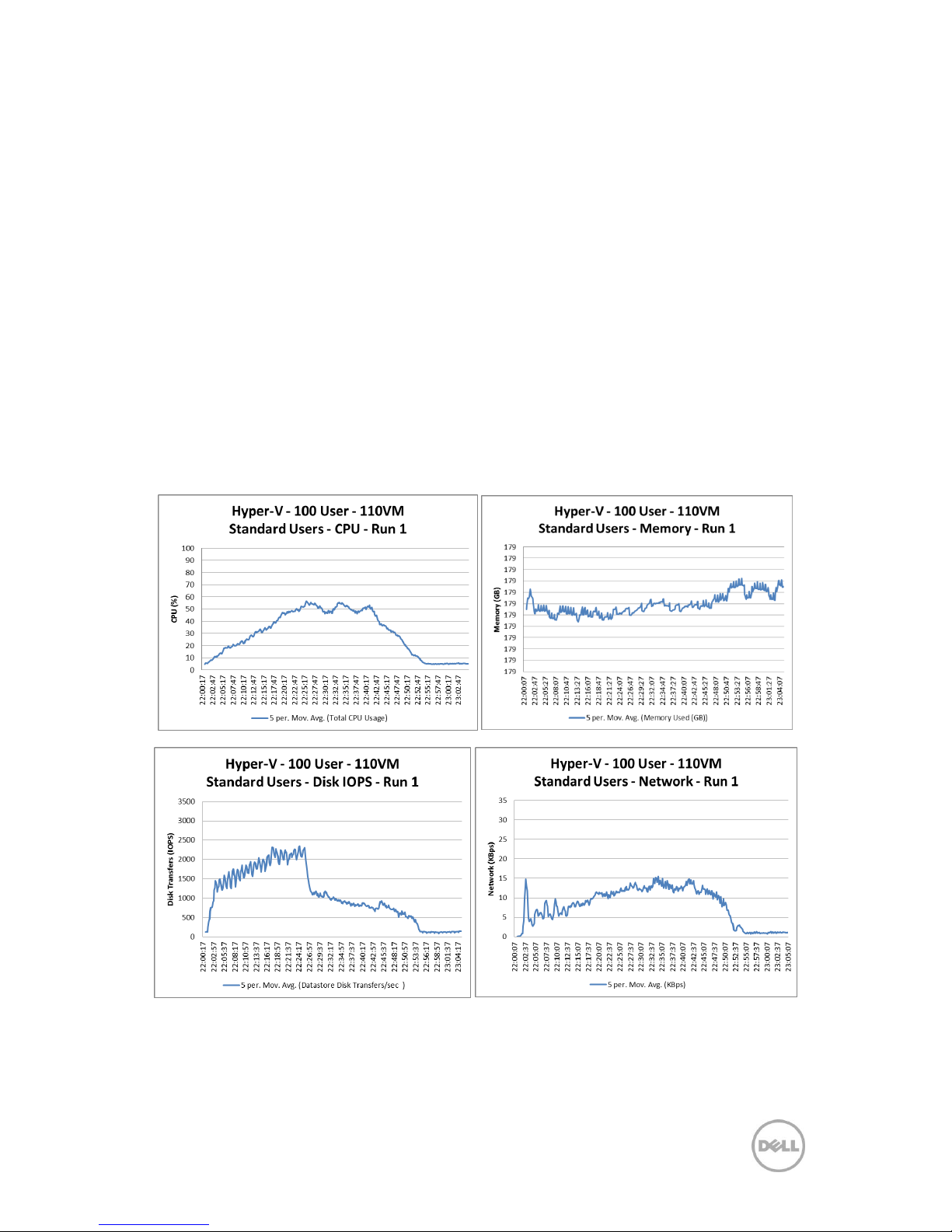
38 Dell DVS Simplified Appliance Reference Architecture
● Internet Explorer, one instance is left open (BBC.co.uk), one instance is browsed
to Wired.com, Lonelyplanet.com and heavy flash app gettheglass.com.
● Word 2007, one instance to measure response time, one instance to review and
edit document.
● Bullzip PDF Printer & Acrobat Reader, the word document is printed and reviewed
to PDF.
● Excel 2007, a very large randomized sheet is opened.
● PowerPoint 2007, a presentation is reviewed and edited.
● 7-zip: using the command line version the output of the session is zipped.
7.3 Testing Results – Standard Configuration
7.3.1 Hyper-V 2008 R2
7.3.1.1 Test: Standard Run 1 (110 Users)
The graphs below show the CPU, memory, local disk IOPS, network and VDI UX scatter
plot results from this validation.
Page 42
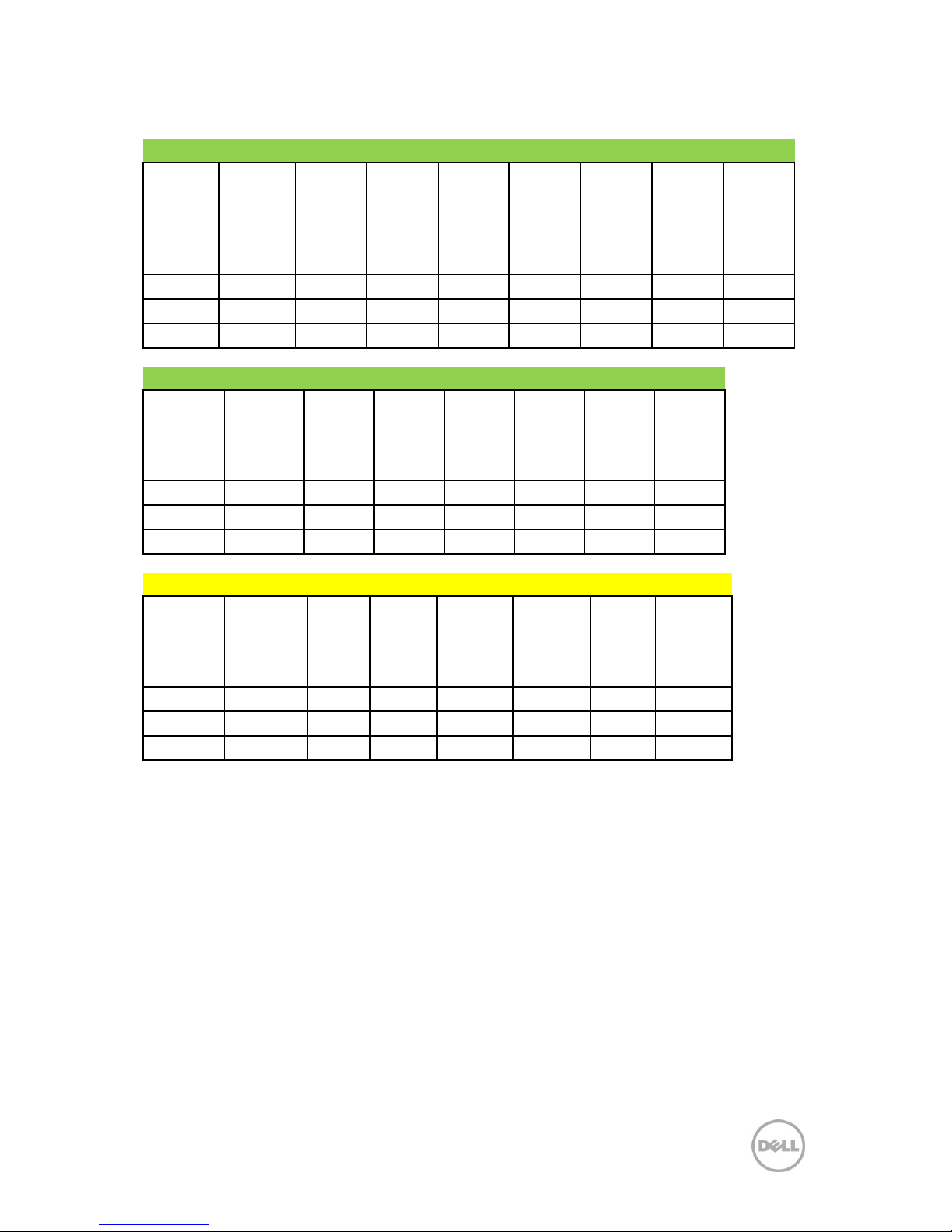
39 Dell DVS Simplified Appliance Reference Architecture
Good VDI UX - By Machine
Machine
Avg. CPU
Machine
CPU
Queue
Machine
Context
Switches
Machine
Avg.
Memory
(MB)
Machine
Page
Faults
Machine
Avg.
Graphics
Intensity
Machine
Avg. Disk
IOPS
Machine
Avg.
Network
I/O
(KB/s)
Averages
0.63%
2.84
246.85
650.54
747.11
6.39
3.95
20.03
Maximum
1.02%
10.59
518.00
650.54
1909.00
27.14
7.78
126.37
Minimum
0.38%
1.30
175.00
556.57
423.00
4.26
0.61
4.72
Good VDI UX - By User
Avg.
Login
Duration
(s)
Avg. App
Load
Time
(ms)
Avg.
CPU
Avg.
Memory
Avg.
Graphics
Intensity
Avg.
Disk
IOPS
Avg.
Network
I/O
(KB/s)
Average
15.13
47.83
1.00%
614.19
6.27
11.29
40.64
Maximum
33.00
116.50
2.66%
677.57
32.96
42.61
698.00
Minimum
13.00
15.00
0.27%
572.76
4.15
0.48
7.24
Fair VDI UX - By User
Avg. Login
Duration
(s)
Avg.
App
Load
Time
(ms)
Avg.
CPU
Avg.
Memory
Avg.
Graphics
Intensity
Avg.
Disk
IOPS
Avg.
Network
I/O (KB/s)
Average
14.13
1.59%
621.72
4.29
25.60
52.41
Maximum
15.00
2.27%
673.87
4.30
41.25
172.00
Minimum
13.00
0.43%
569.27
4.27
2.07
9.00
Page 43
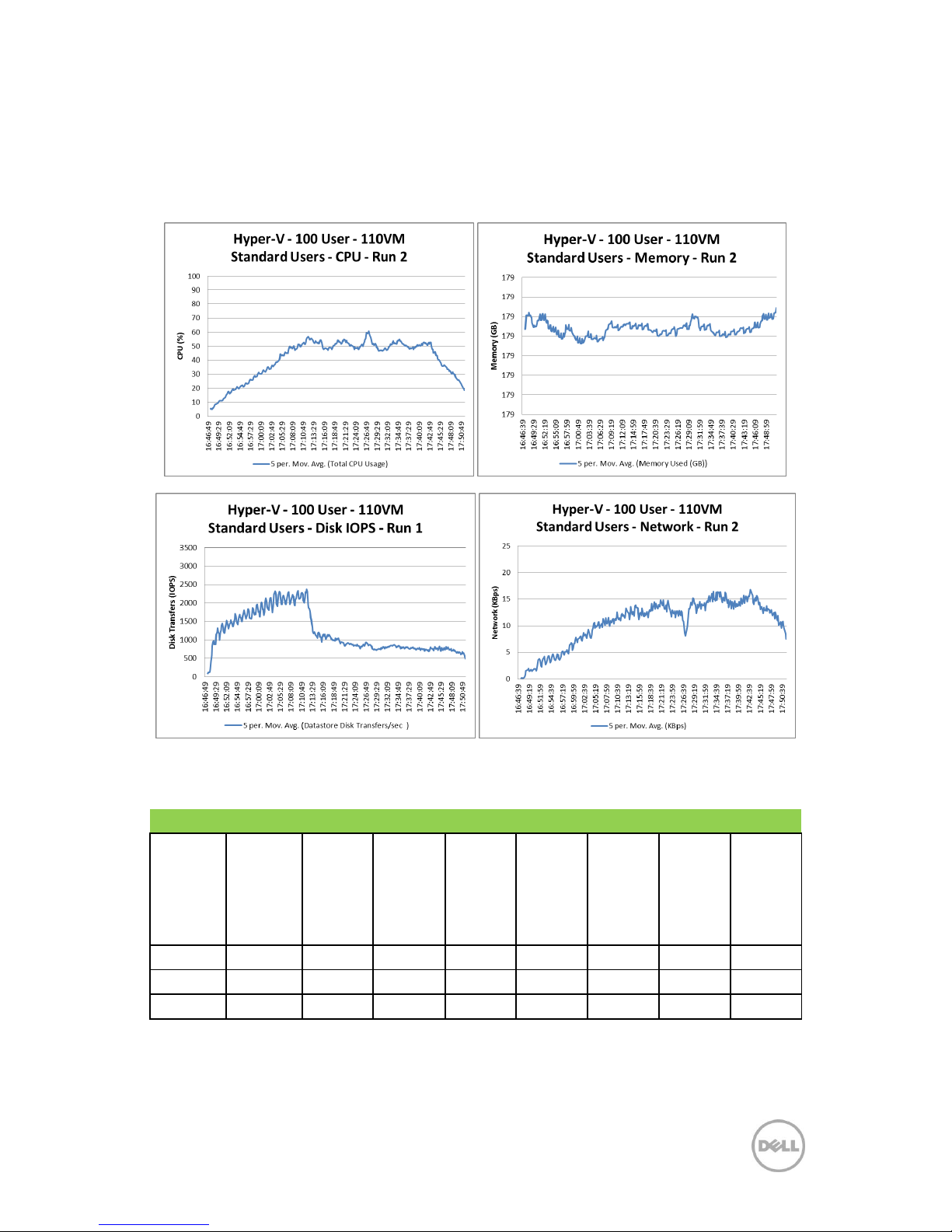
40 Dell DVS Simplified Appliance Reference Architecture
7.3.1.2 Test: Standard Run 2 (110 Users)
The graphs below show the CPU, memory, local disk IOPS, network and VDI UX scatter
plot results from this validation.
Good VDI UX - By Machine
Machine
Avg. CPU
Machine
CPU
Queue
Machine
Context
Switches
Machine
Avg.
Memory
(MB)
Machine
Page
Faults
Machine
Avg.
Graphics
Intensity
Machine
Avg. Disk
IOPS
Machine
Avg.
Network
I/O
(KB/s)
Averages
0.66%
3.31
252.46
560.40
623.56
6.11
4.23
19.30
Maximum
1.09%
10.20
398.00
594.68
1673.00
14.59
9.47
46.45
Minimum
0.37%
1.49
169.00
533.56
322.00
4.25
0.59
2.59
Page 44
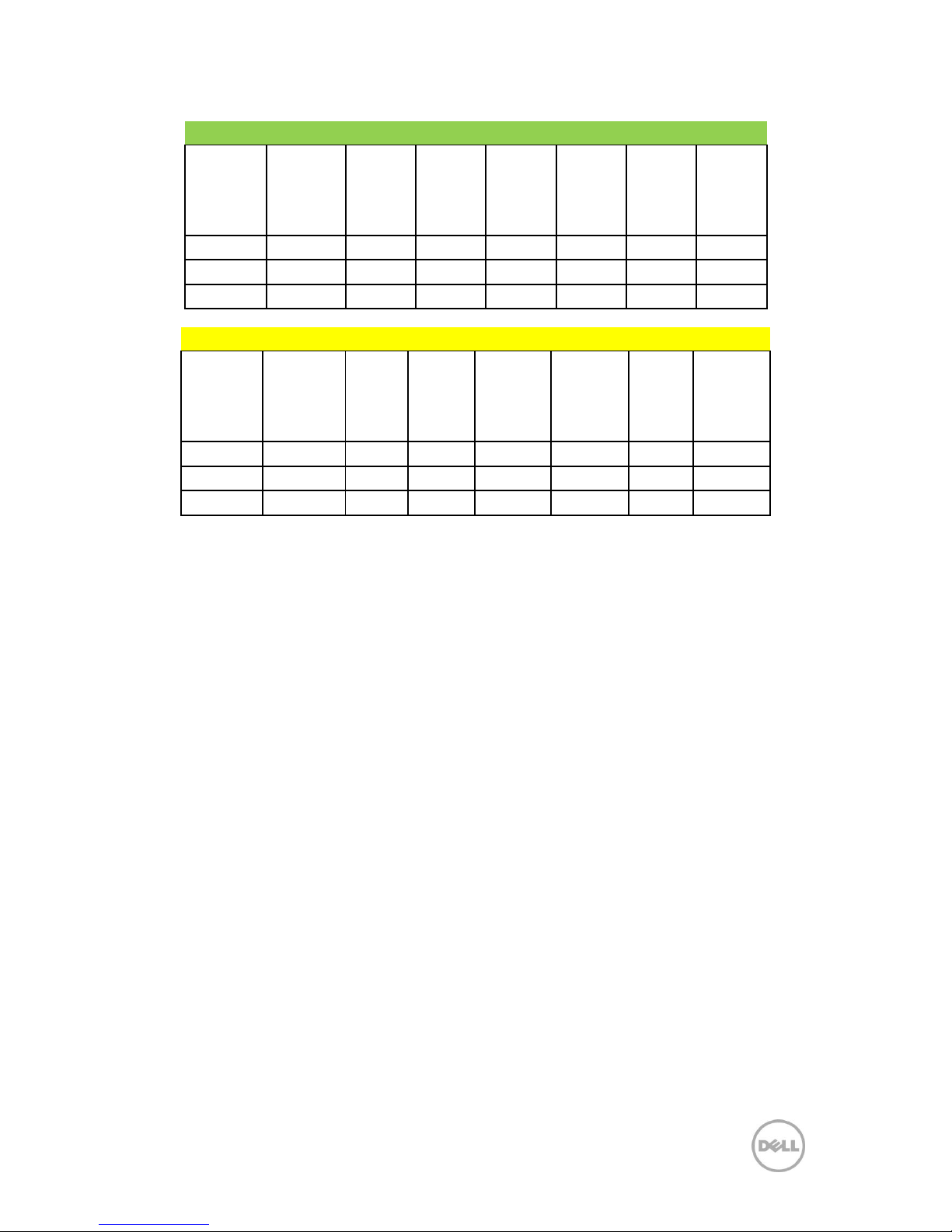
41 Dell DVS Simplified Appliance Reference Architecture
Good VDI UX - By User
Avg. Login
Duration
(s)
Avg. App
Load
Time
(ms)
Avg. CPU
Avg.
Memory
Avg.
Graphics
Intensity
Avg. Disk
IOPS
Avg.
Network
I/O
(KB/s)
Average
14.07
53.87
1.09%
609.04
6.24
10.85
40.86
Maximum
16.00
132.00
2.46%
683.53
25.25
42.48
145.00
Minimum
12.00
15.00
0.27%
554.38
4.20
0.46
7.92
Fair VDI UX - By User
Avg. Login
Duration
(s)
Avg.
App
Load
Time
(ms)
Avg.
CPU
Avg.
Memory
Avg.
Graphics
Intensity
Avg.
Disk
IOPS
Avg.
Network
I/O (KB/s)
Average
14.22
1.28%
609.31
4.30
18.69
40.83
Maximum
16.00
2.22%
664.29
4.43
41.74
130.00
Minimum
13.00
0.32%
565.50
4.26
0.64
8.00
Page 45
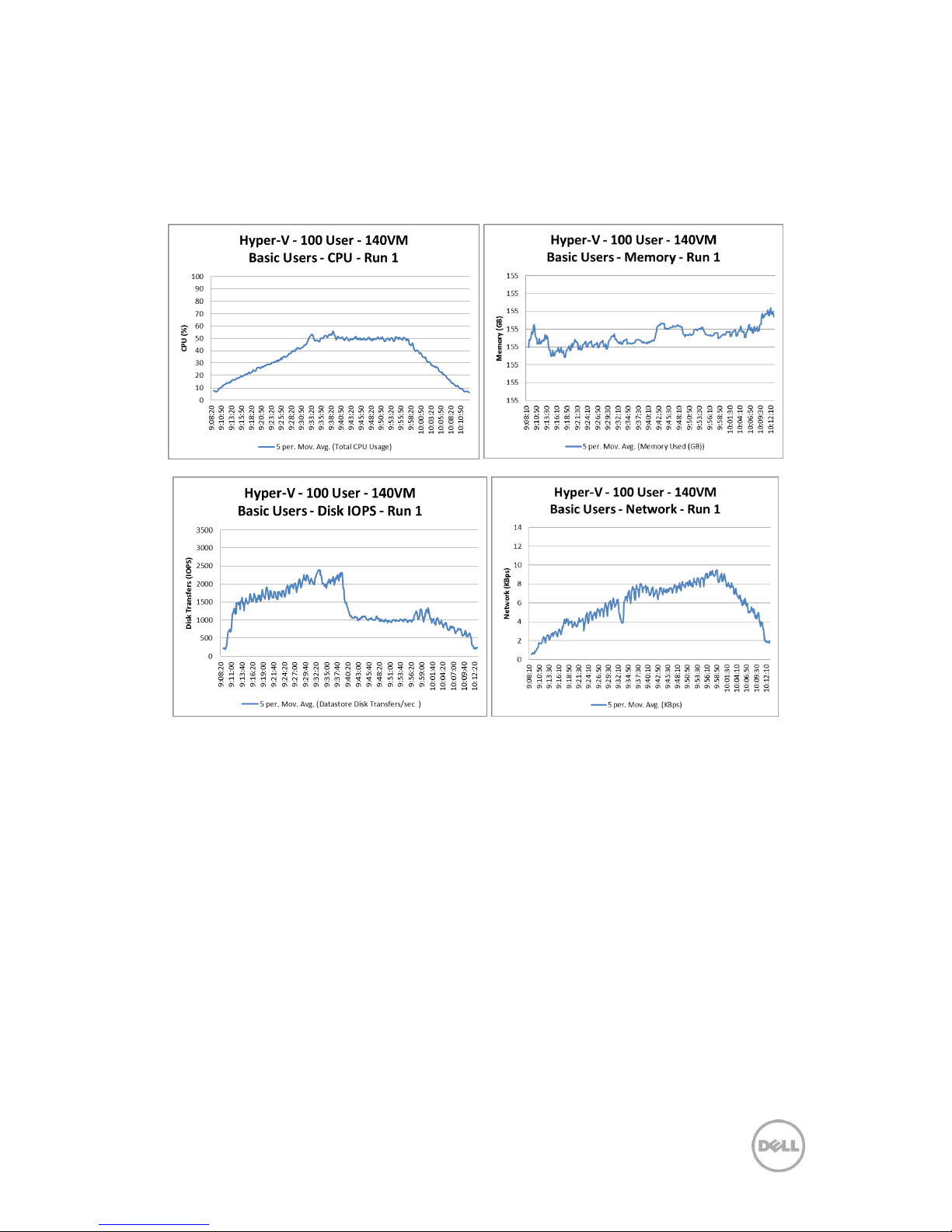
42 Dell DVS Simplified Appliance Reference Architecture
7.3.1.3 Test: Basic Run (140 Users)
The graphs below show the CPU, memory, local disk IOPS, network and VDI UX scatter
plot results from this validation.
Page 46
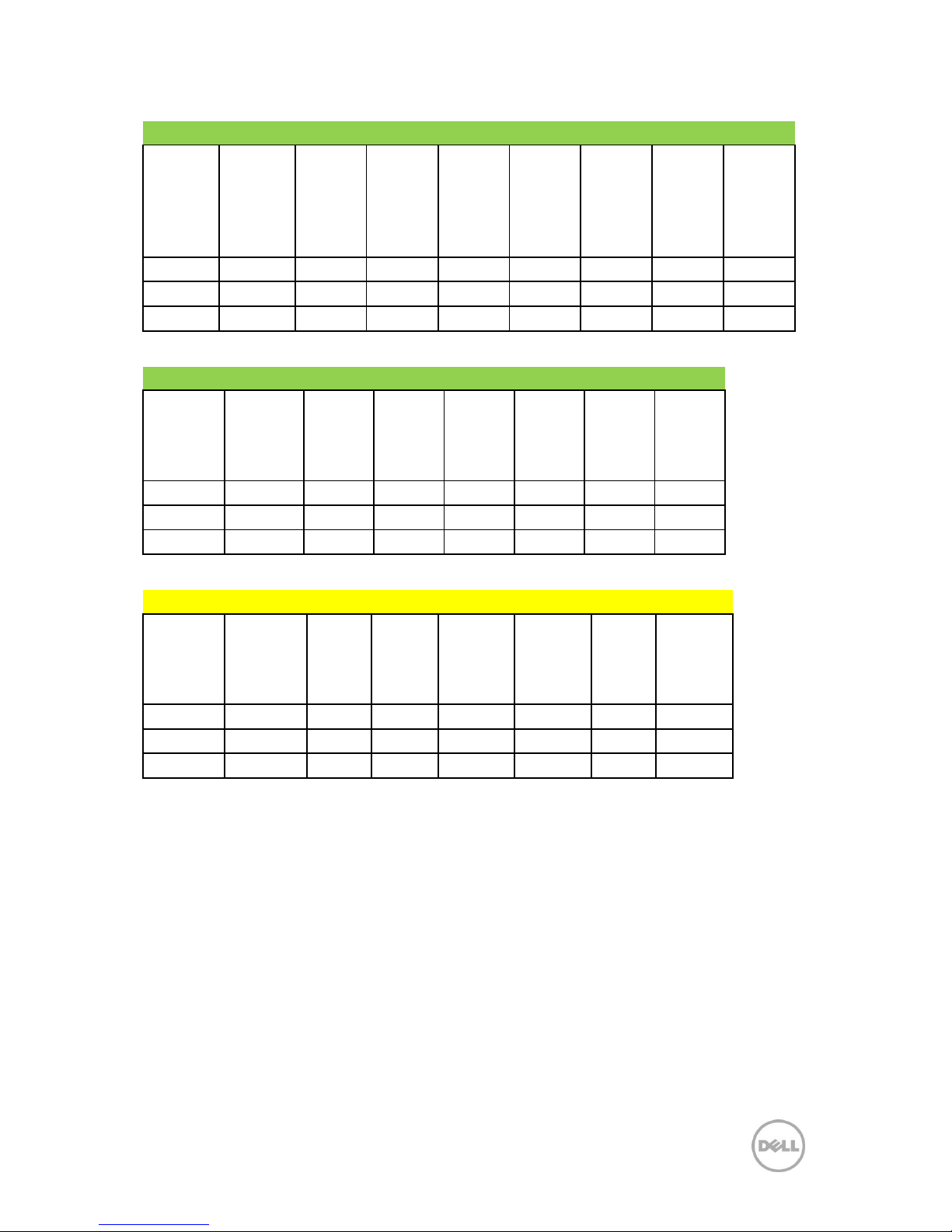
43 Dell DVS Simplified Appliance Reference Architecture
Good VDI UX - By Machine
Machine
Avg. CPU
Machine
CPU
Queue
Machine
Context
Switches
Machine
Avg.
Memory
(MB)
Machine
Page
Faults
Machine
Avg.
Graphics
Intensity
Machine
Avg. Disk
IOPS
Machine
Avg.
Network
I/O
(KB/s)
Averages
0.68%
3.10
249.64
557.23
801.54
6.88
4.23
13.58
Maximum
1.02%
11.24
446.00
599.23
2338.00
15.18
10.56
36.86
Minimum
0.40%
1.49
166.00
534.94
397.00
4.25
0.72
4.47
Good VDI UX - By User
Avg. Login
Duration
(s)
Avg. App
Load
Time
(ms)
Avg. CPU
Avg.
Memory
Avg.
Graphics
Intensity
Avg. Disk
IOPS
Avg.
Network
I/O
(KB/s)
Average
14.67
53.16
1.05%
598.20
7.65
12.21
24.25
Maximum
18.00
93.50
2.95%
666.05
27.68
41.94
69.65
Minimum
12.00
15.00
0.24%
549.85
4.20
0.44
10.13
Fair VDI UX - By User
Avg. Login
Duration
(s)
Avg.
App
Load
Time
(ms)
Avg.
CPU
Avg.
Memory
Avg.
Graphics
Intensity
Avg.
Disk
IOPS
Avg.
Network
I/O (KB/s)
Average
15.38
35.67
1.56%
601.50
5.10
21.38
25.29
Maximum
17.00
35.67
3.76%
642.19
9.80
41.65
39.00
Minimum
13.00
35.67
0.32%
553.48
4.27
0.90
11.00
Page 47
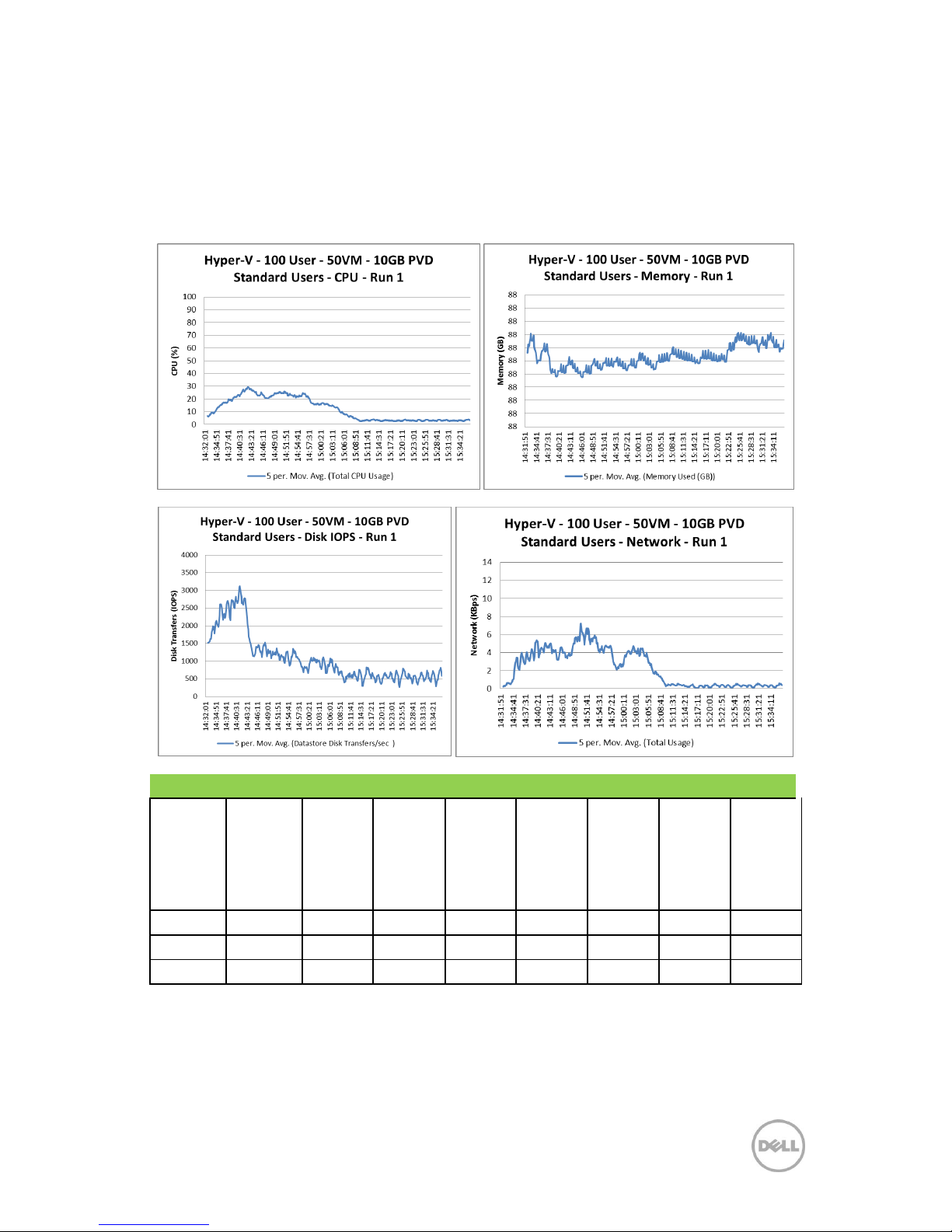
44 Dell DVS Simplified Appliance Reference Architecture
7.3.1.4 Test: 10GB PVD Standard Run (50 Users)
Each desktop was configured to use a 10GB personal disk. The graphs below show the
CPU, memory, local disk IOPS, network and VDI UX scatter plot results from this
validation.
Good VDI UX - By Machine
Machine
Avg. CPU
Machine
CPU
Queue
Machine
Context
Switches
Machine
Avg.
Memory
(MB)
Machine
Page
Faults
Machine
Avg.
Graphics
Intensity
Machine
Avg. Disk
IOPS
Machine
Avg.
Network
I/O
(KB/s)
Averages
0.83%
1.13
303.84
621.24
942.36
7.07
7.64
17.83
Maximum
1.14%
2.03
501.00
658.79
1632.00
15.11
9.45
53.36
Minimum
0.41%
0.79
196.00
593.66
482.00
4.17
4.80
0.70
Page 48
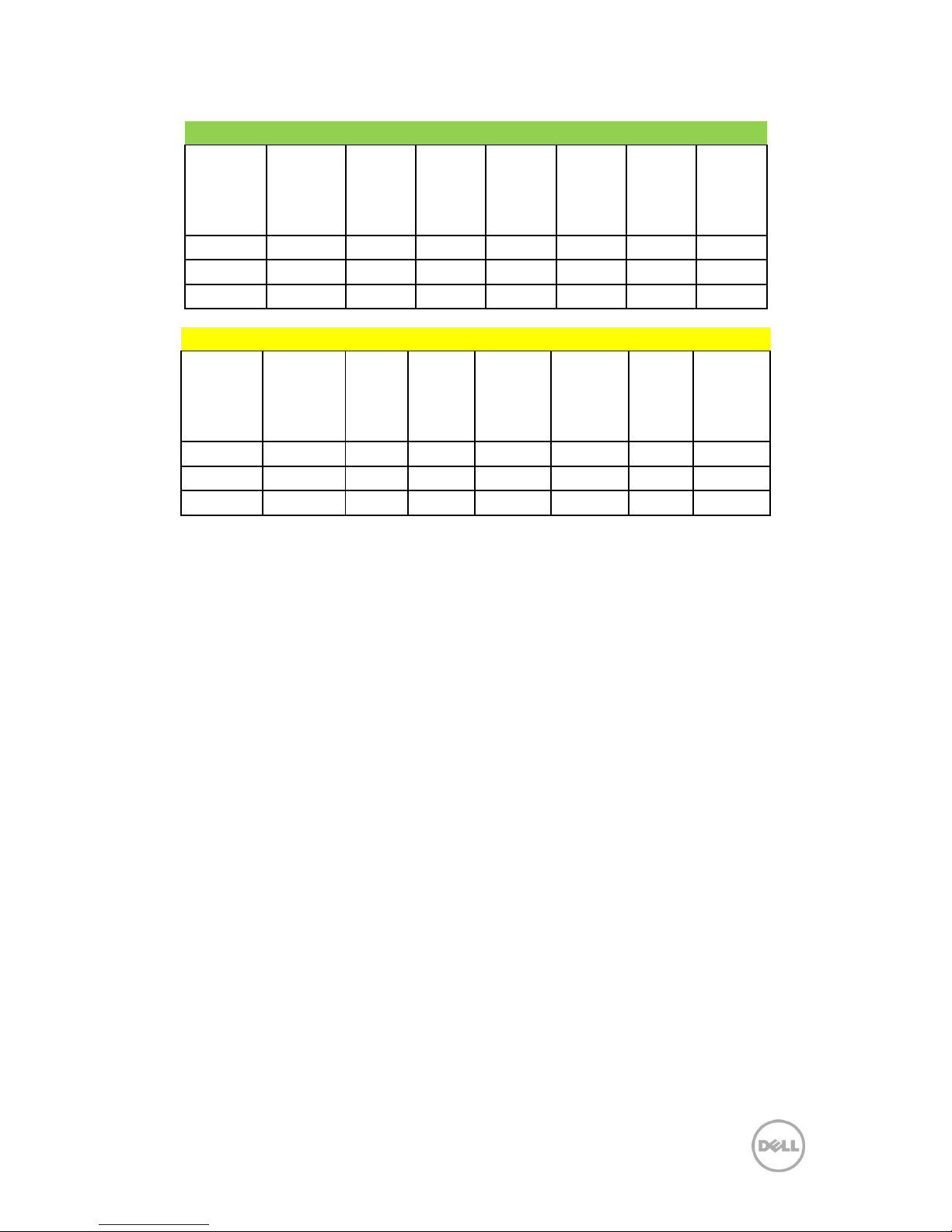
45 Dell DVS Simplified Appliance Reference Architecture
Good VDI UX - By User
Avg. Login
Duration
(s)
Avg. App
Load
Time
(ms)
Avg. CPU
Avg.
Memory
Avg.
Graphics
Intensity
Avg. Disk
IOPS
Avg.
Network
I/O
(KB/s)
Average
14.83
39.87
1.26%
649.30
6.70
9.55
32.98
Maximum
21.00
114.00
2.54%
710.67
20.95
23.24
151.00
Minimum
10.00
15.00
0.46%
602.55
4.13
0.91
0.00
Fair VDI UX - By User
Avg. Login
Duration
(s)
Avg.
App
Load
Time
(ms)
Avg.
CPU
Avg.
Memory
Avg.
Graphics
Intensity
Avg.
Disk
IOPS
Avg.
Network
I/O (KB/s)
Average
17.00
2.22%
692.30
4.29
22.94
192.00
Maximum
17.00
2.22%
692.30
4.29
22.94
192.00
Minimum
17.00
2.22%
692.30
4.29
22.94
192.00
Page 49
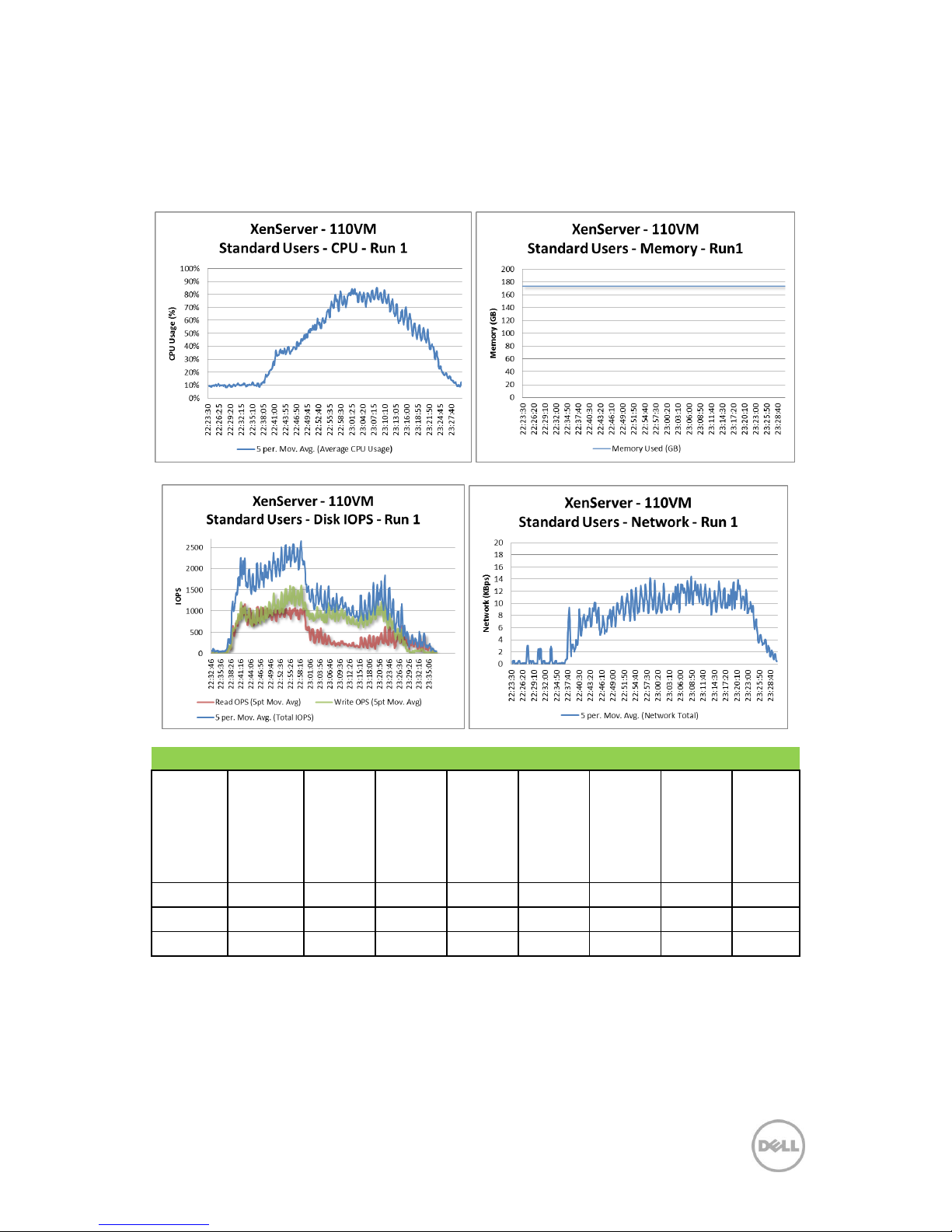
46 Dell DVS Simplified Appliance Reference Architecture
7.3.2 XenServer 6.0.2
7.3.2.1 Test: Standard Run 1 (110 Users)
The graphs below show the CPU, memory, local disk IOPS, network and VDI UX scatter plot results
from this validation.
Good VDI UX - By Machine
Machine
Avg. CPU
Machine
CPU
Queue
Machine
Context
Switches
Machine
Avg.
Memory
(MB)
Machine
Page
Faults
Machine
Avg.
Graphics
Intensity
Machine
Avg. Disk
IOPS
Machine
Avg.
Network
I/O
(KB/s)
Averages
1.12%
5.09
412.76
731.30
2068.93
12.58
5.85
26.10
Maximum
1.60%
7.22
583.31
779.06
2796.12
23.70
9.57
58.92
Minimum
0.79%
3.35
223.25
681.36
1370.77
4.78
1.28
3.89
Page 50
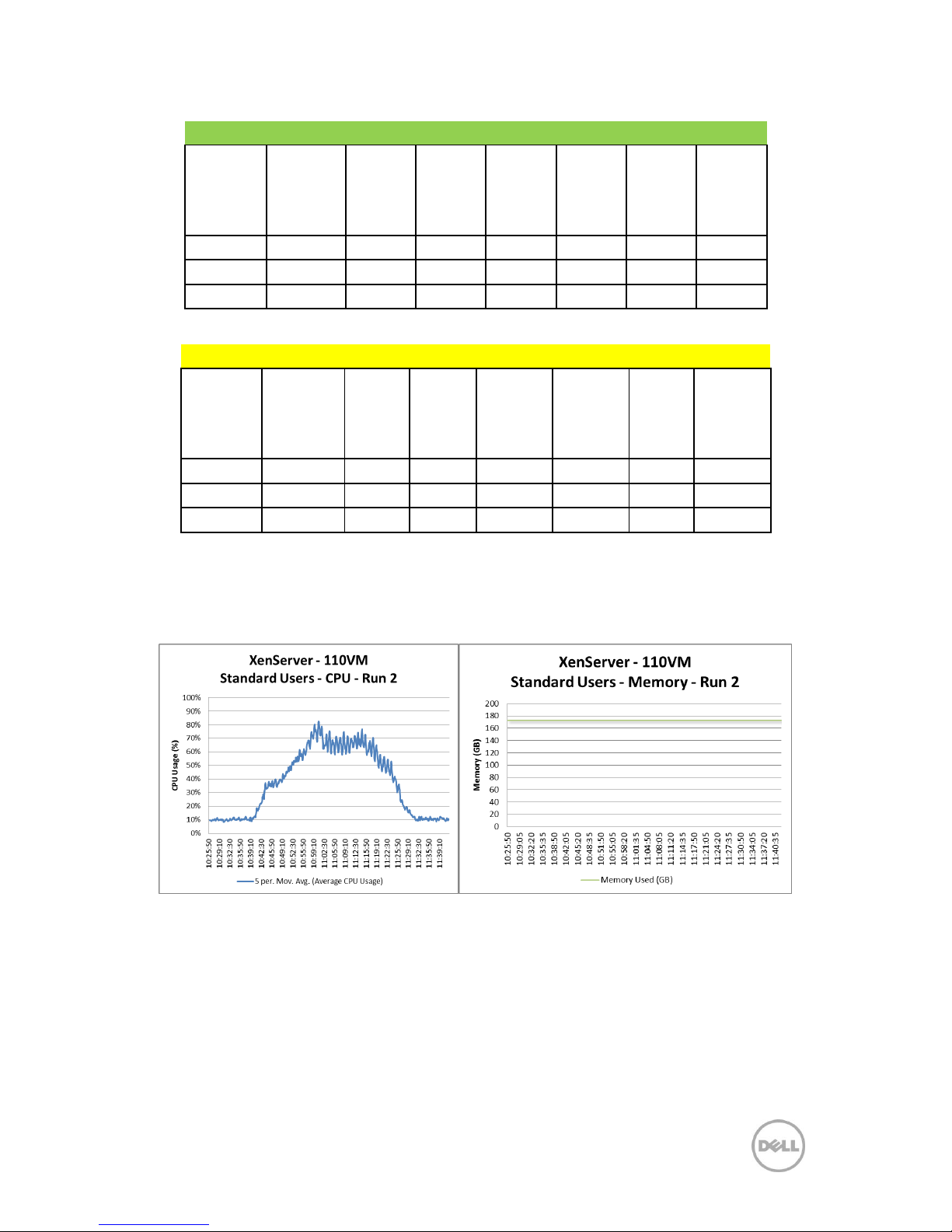
47 Dell DVS Simplified Appliance Reference Architecture
Good VDI UX - By User
Avg. Login
Duration
(s)
Avg. App
Load
Time (s)
Avg. CPU
Avg.
Memory
Avg.
Graphics
Intensity
Avg. Disk
IOPS
Avg.
Network
I/O
(KB/s)
Average
19.25
48.76
3.01%
899.95
40.57
8.29
94.59
Maximum
23.00
77.00
3.97%
951.54
55.75
24.81
133.00
Minimum
15.00
30.00
1.91%
707.62
4.73
5.54
13.00
Fair VDI UX - By User
Avg. Login
Duration
(s)
Avg.
App
Load
Time (s)
Avg.
CPU
Avg.
Memory
Avg.
Graphics
Intensity
Avg.
Disk
IOPS
Avg.
Network
I/O (KB/s)
Average
19.69
65.45
2.66%
841.99
19.51
32.66
66.64
Maximum
27.00
93.00
3.97%
956.14
46.70
42.98
107.00
Minimum
15.00
30.00
1.48%
706.81
4.76
13.61
14.00
7.3.2.2 Test: Standard Run 2 (110 Users)
The graphs below show the CPU, memory, local disk IOPS, network and VDI UX scatter plot results from this
validation.
Page 51
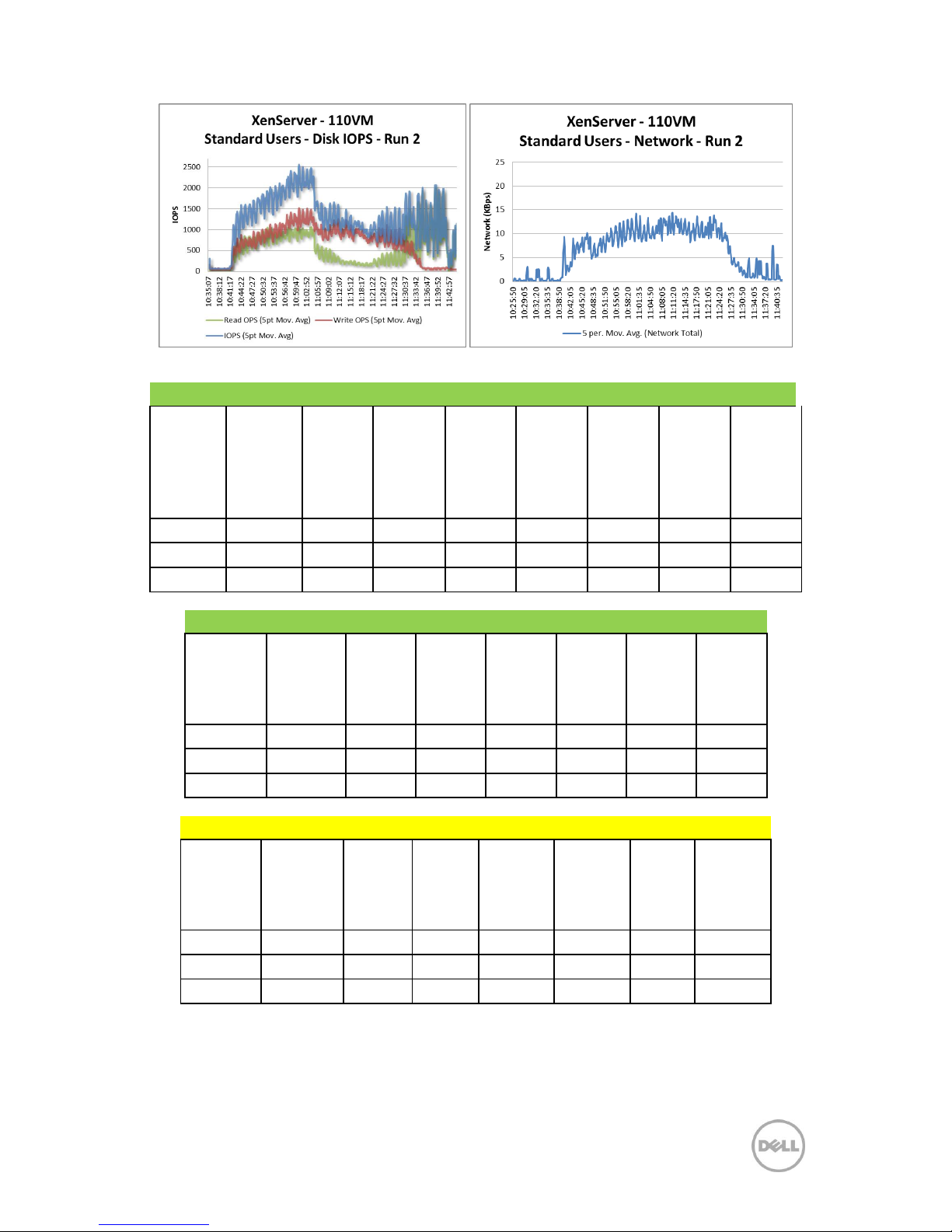
48 Dell DVS Simplified Appliance Reference Architecture
Good VDI UX - By Machine
Machine
Avg. CPU
Machine
CPU
Queue
Machine
Context
Switches
Machine
Avg.
Memory
(MB)
Machine
Page
Faults
Machine
Avg.
Graphics
Intensity
Machine
Avg. Disk
IOPS
Machine
Avg.
Network
I/O
(KB/s)
Averages
1.13%
4.65
423.70
746.07
2082.71
17.05
4.91
20.01
Maximum
1.72%
5.83
651.30
806.82
3259.11
36.33
7.70
46.66
Minimum
0.75%
3.26
261.60
700.14
1455.42
5.97
1.25
3.76
Good VDI UX - By User
Avg. Login
Duration
(s)
Avg. App
Load
Time (s)
Avg. CPU
Avg.
Memory
Avg.
Graphics
Intensity
Avg. Disk
IOPS
Avg.
Network
I/O
(KB/s)
Average
17.25
47.83
2.26%
934.96
57.33
5.63
70.73
Maximum
22.00
77.50
3.13%
965.88
89.35
18.53
119.00
Minimum
15.00
31.00
1.17%
877.46
38.44
1.49
6.00
Fair VDI UX - By User
Avg. Login
Duration
(s)
Avg. App
Load
Time (s)
Avg.
CPU
Avg.
Memory
Avg.
Graphics
Intensity
Avg.
Disk
IOPS
Avg.
Network
I/O (KB/s)
Average
19.08
73.69
2.61%
828.92
15.76
31.38
67.99
Maximum
26.00
124.50
3.66%
995.59
76.19
42.83
118.00
Minimum
13.00
41.00
1.24%
733.30
4.73
1.54
9.00
Page 52
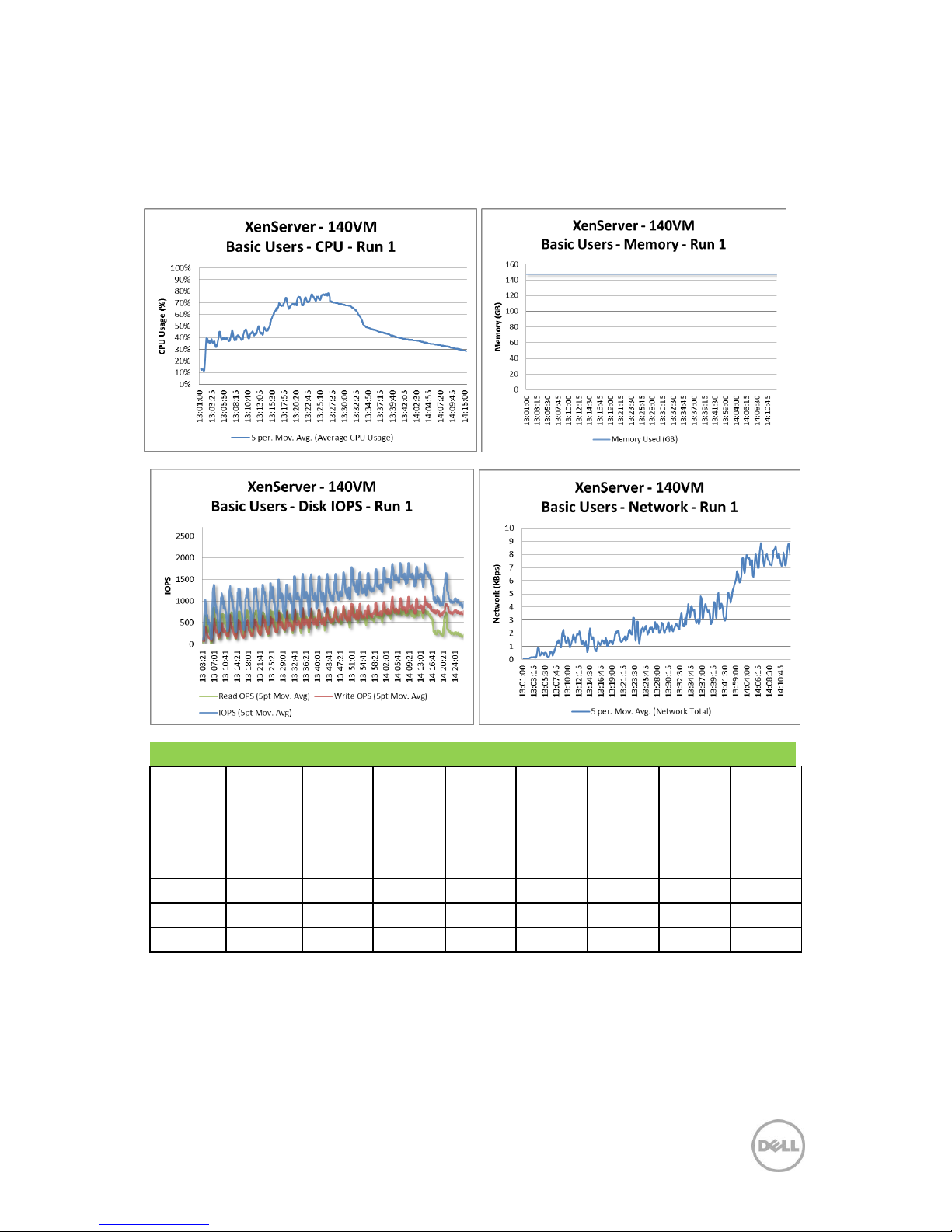
49 Dell DVS Simplified Appliance Reference Architecture
7.3.2.3 Test: Basic Run (140 Users)
The graphs below show the CPU, memory, local disk IOPS, network and VDI UX scatter
plot results from this validation.
Good VDI UX - By Machine
Machine
Avg. CPU
Machine
CPU
Queue
Machine
Context
Switches
Machine
Avg.
Memory
(MB)
Machine
Page
Faults
Machine
Avg.
Graphics
Intensity
Machine
Avg. Disk
IOPS
Machine
Avg.
Network
I/O
(KB/s)
Averages
1.55%
5.36
684.55
770.12
3288.67
24.89
6.03
26.24
Maximum
2.04%
6.90
873.06
809.43
4342.80
33.38
8.77
40.40
Minimum
0.96%
3.76
348.72
716.57
1496.04
14.16
3.36
10.27
Page 53
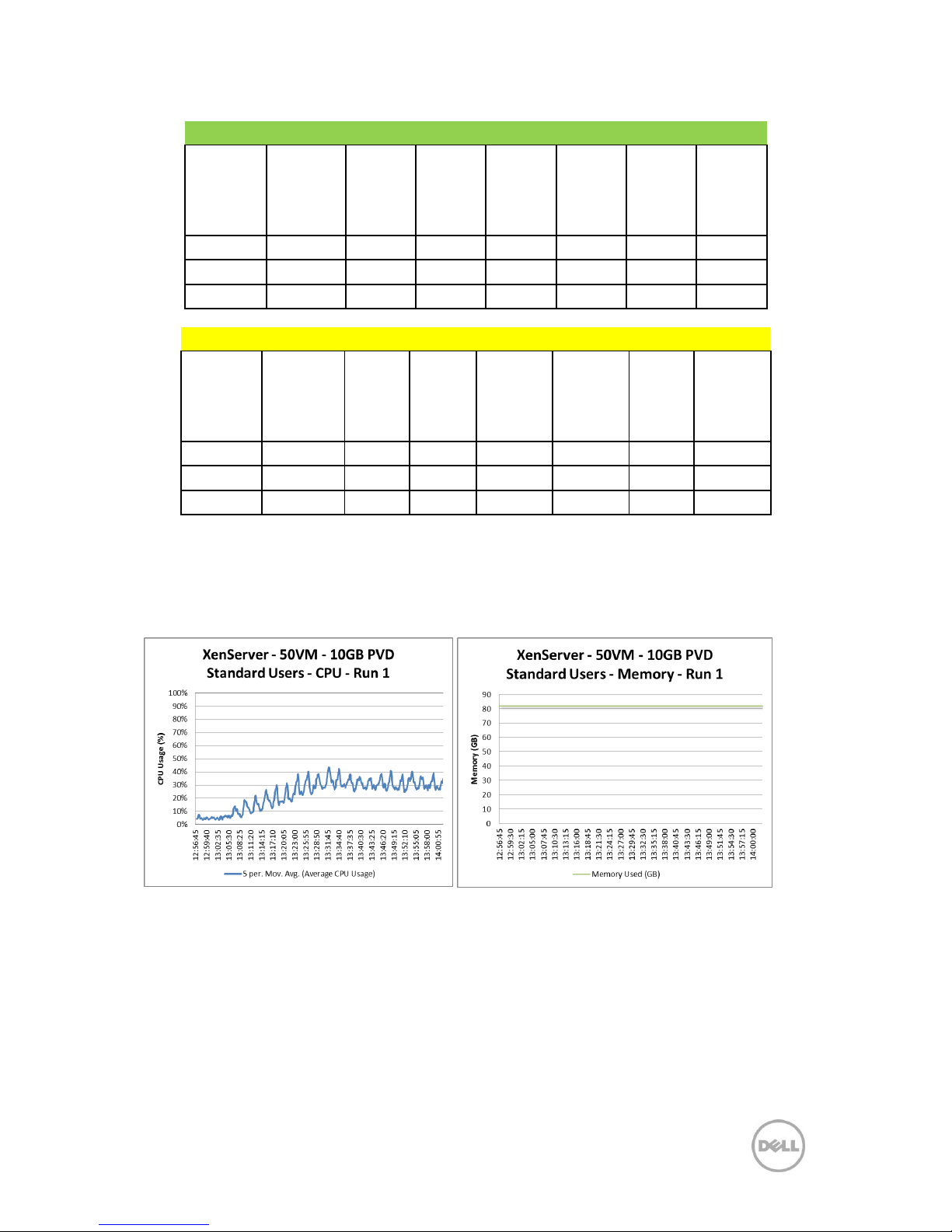
50 Dell DVS Simplified Appliance Reference Architecture
Good VDI UX - By User
Avg. Login
Duration
(s)
Avg. App
Load
Time (s)
Avg. CPU
Avg.
Memory
Avg.
Graphics
Intensity
Avg. Disk
IOPS
Avg.
Network
I/O
(KB/s)
Average
18.83
42.29
2.15%
819.78
33.02
8.71
35.22
Maximum
22.00
61.00
2.62%
872.32
46.14
24.90
72.37
Minimum
15.00
27.60
1.30%
674.84
4.76
2.64
11.00
Fair VDI UX - By User
Avg. Login
Duration
(s)
Avg.
App
Load
Time (s)
Avg.
CPU
Avg.
Memory
Avg.
Graphics
Intensity
Avg.
Disk
IOPS
Avg.
Network
I/O (KB/s)
Average
21.69
55.98
2.45%
769.95
10.22
36.22
47.03
Maximum
32.00
82.33
2.99%
867.56
44.08
52.52
232.00
Minimum
15.00
37.00
2.09%
705.06
4.73
5.31
11.00
7.3.2.4 Test: 10GB PVD Standard Run (50 Users)
Each desktop was configured to use a 10GB personal disk. The graphs below show the
CPU, memory, local disk IOPS, network and VDI UX scatter plot results from this
validation.
Page 54
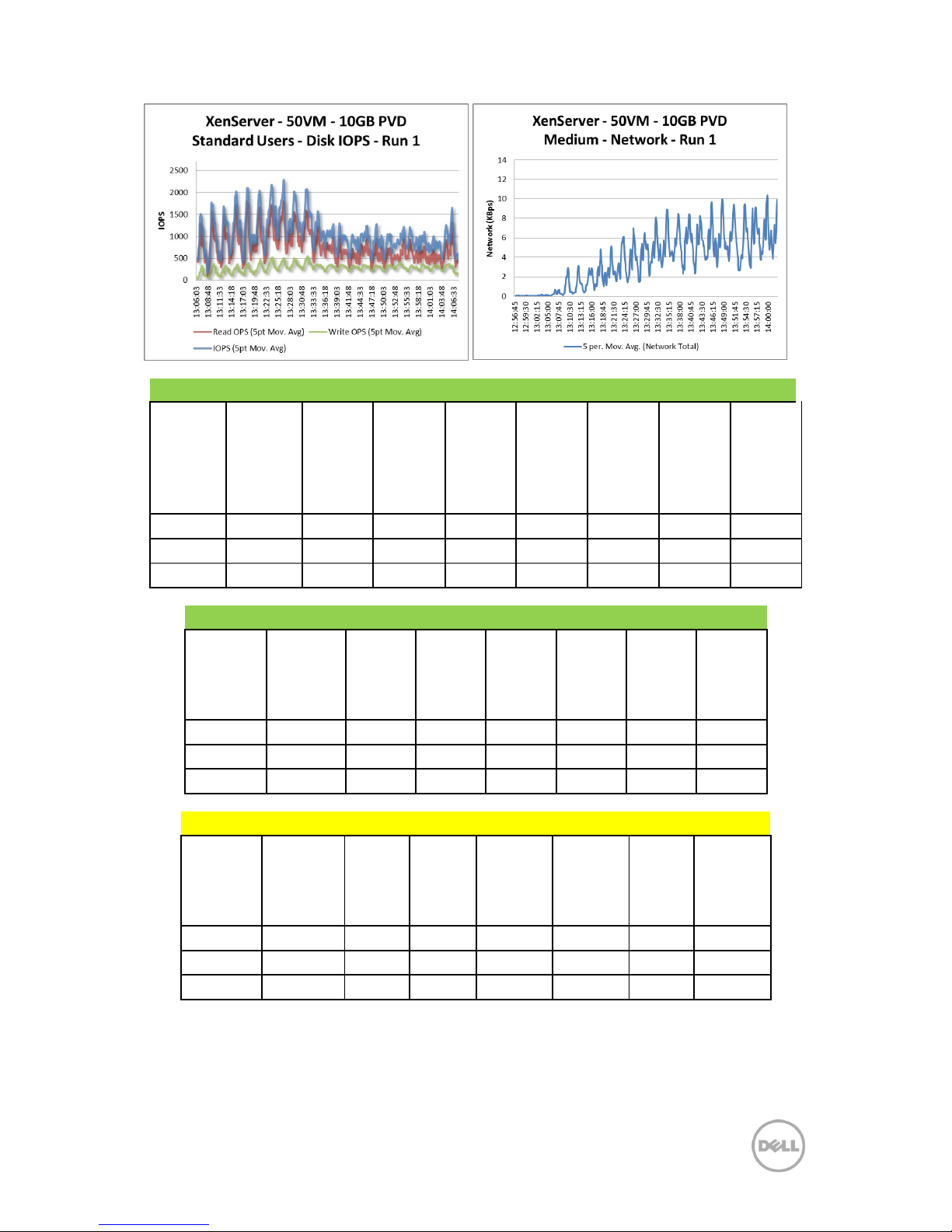
51 Dell DVS Simplified Appliance Reference Architecture
Good VDI UX - By Machine
Machine
Avg. CPU
Machine
CPU
Queue
Machine
Context
Switches
Machine
Avg.
Memory
(MB)
Machine
Page
Faults
Machine
Avg.
Graphics
Intensity
Machine
Avg. Disk
IOPS
Machine
Avg.
Network
I/O
(KB/s)
Averages
1.26%
1.22
472.24
798.80
1794.73
21.33
11.22
15.05
Maximum
1.53%
1.78
713.70
878.91
2521.68
46.34
17.17
34.04
Minimum
0.76%
1.00
218.28
719.77
1235.54
4.79
1.72
1.32
Good VDI UX - By User
Avg. Login
Duration
(s)
Avg. App
Load
Time (s)
Avg. CPU
Avg.
Memory
Avg.
Graphics
Intensity
Avg. Disk
IOPS
Avg.
Network
I/O
(KB/s)
Average
14.64
41.45
2.26%
939.78
51.53
20.25
51.82
Maximum
19.00
93.00
2.93%
1002.42
87.33
31.66
115.00
Minimum
10.00
15.00
1.80%
745.62
4.80
12.61
12.00
Fair VDI UX - By User
Avg. Login
Duration
(s)
Avg.
App
Load
Time (s)
Avg.
CPU
Avg.
Memory
Avg.
Graphics
Intensity
Avg.
Disk
IOPS
Avg.
Network
I/O (KB/s)
Average
17.08
91.33
2.71%
858.76
11.90
41.28
58.75
Maximum
20.00
93.00
3.97%
952.96
43.17
47.58
107.00
Minimum
14.00
88.00
2.28%
808.61
4.73
34.90
22.00
Page 55
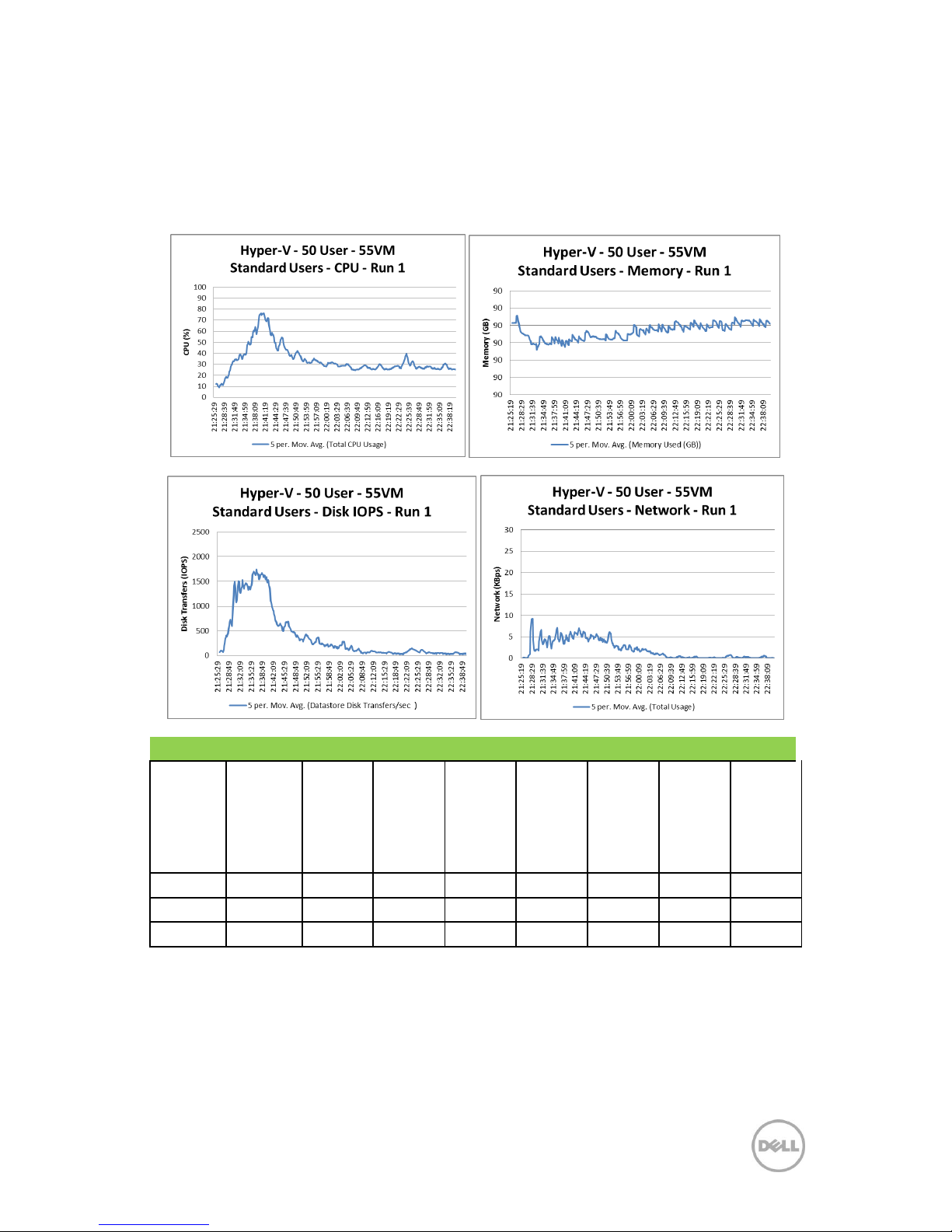
52 Dell DVS Simplified Appliance Reference Architecture
7.3.3 Hyper-V
7.3.3.1 Test: Standard Run 1 (55 Users)
The graphs below show the CPU, memory, local disk IOPS, network and VDI UX scatter
plot results from this validation.
Good VDI UX - By Machine
Machine
Avg. CPU
Machine
CPU
Queue
Machine
Context
Switches
Machine
Avg.
Memory
(MB)
Machine
Page
Faults
Machine
Avg.
Graphics
Intensity
Machine
Avg. Disk
IOPS
Machine
Avg.
Network
I/O
(KB/s)
Averages
2.26%
3.58
268.54
572.68
644.54
14.60
4.11
12.31
Maximum
3.99%
6.79
397.00
621.66
1,205.00
28.46
8.81
48.46
Minimum
0.94%
1.79
149.00
518.11
301.00
4.27
0.53
0.32
Page 56
53 Dell DVS Simplified Appliance Reference Architecture
Fair VDI UX - By Machine
Machine
Avg. CPU
Machine
CPU
Queue
Machine
Context
Switches
Machine
Avg.
Memory
(MB)
Machine
Page
Faults
Machine
Avg.
Graphics
Intensity
Machine
Avg. Disk
IOPS
Machine
Avg.
Network
I/O
(KB/s)
Averages
3.00%
11.27
365.00
607.09
730.00
24.06
5.53
16.23
Maximum
3.00%
11.27
365.00
607.09
730.00
24.06
5.53
16.23
Minimum
3.00%
11.27
365.00
607.09
730.00
24.06
5.53
16.23
Good VDI UX - By User
Avg.
Login
Duration
(s)
Avg. App
Load
Time
(ms)
Avg.
CPU
Avg.
Memory
Avg.
Graphics
Intensity
Avg.
Disk
IOPS
Avg.
Network
I/O
(KB/s)
Average
23.00
67.94
4.25%
641.23
24.71
11.67
32.22
Maximum
33.00
164.00
9.52%
723.18
56.05
48.70
259.00
Minimum
16.00
22.50
0.66%
551.63
4.14
0.45
0.00
Fair VDI UX - By User
Avg. Login
Duration
(s)
Avg.
App
Load
Time
(ms)
Avg.
CPU
Avg.
Memory
Avg.
Graphics
Intensity
Avg.
Disk
IOPS
Avg.
Network
I/O (KB/s)
Average
21.33
85.00
3.28%
609.20
4.79
28.66
41.06
Maximum
33.00
85.00
5.41%
655.14
8.34
46.58
69.00
Minimum
15.00
85.00
0.70%
559.76
4.27
0.57
4.33
Page 57
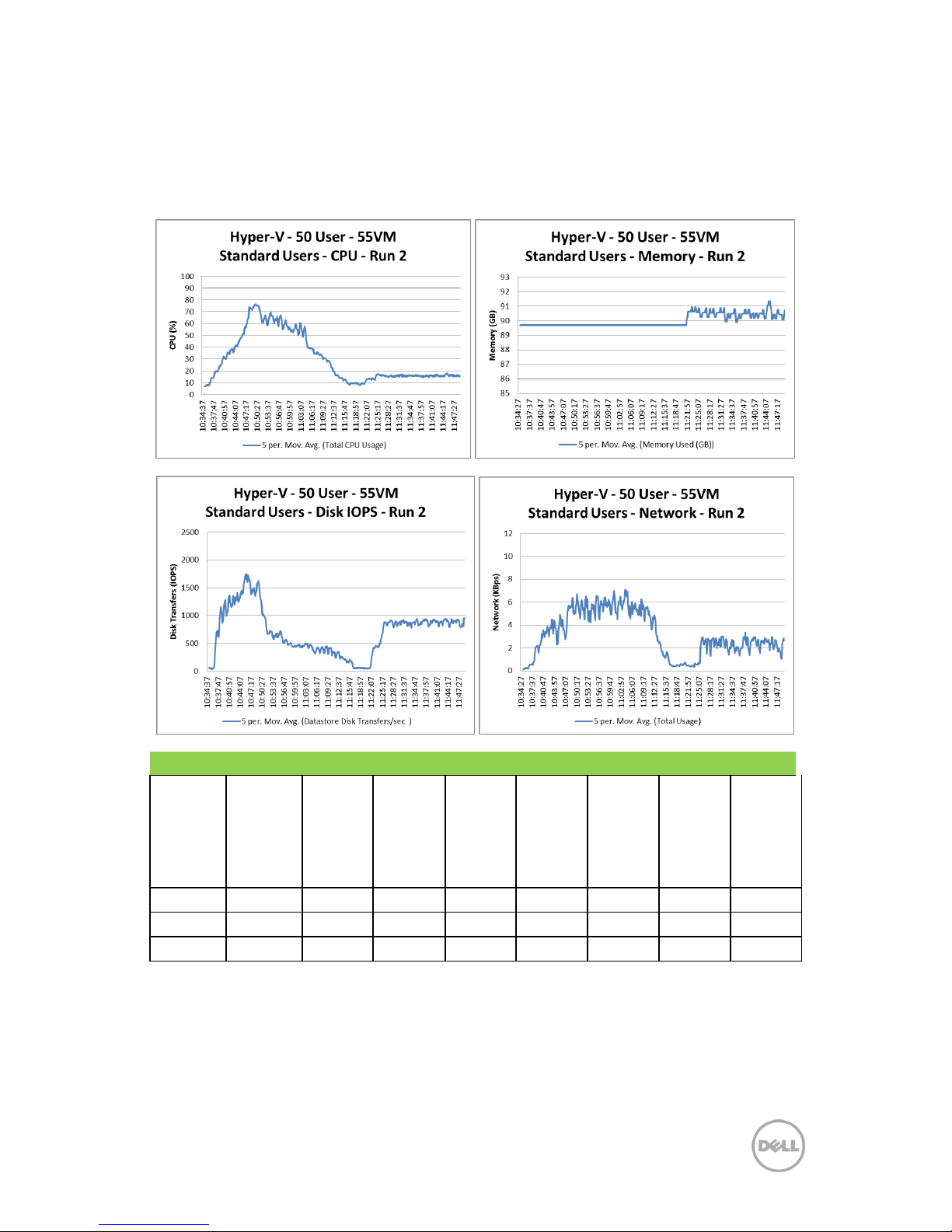
54 Dell DVS Simplified Appliance Reference Architecture
7.3.3.2 Test: Standard Run 2 (55 Users)
The graphs below show the CPU, memory, local disk IOPS, network and VDI UX scatter plot results
from this validation.
Good VDI UX - By Machine
Machine
Avg. CPU
Machine
CPU
Queue
Machine
Context
Switches
Machine
Avg.
Memory
(MB)
Machine
Page
Faults
Machine
Avg.
Graphics
Intensity
Machine
Avg. Disk
IOPS
Machine
Avg.
Network
I/O
(KB/s)
Averages
1.19%
3.99
209.36
565.68
604.58
6.53
3.09
11.78
Maximum
2.30%
10.38
494.00
637.13
1457.00
21.33
11.10
45.29
Minimum
0.83%
1.81
172.00
537.35
200.00
4.26
0.49
3.82
Page 58
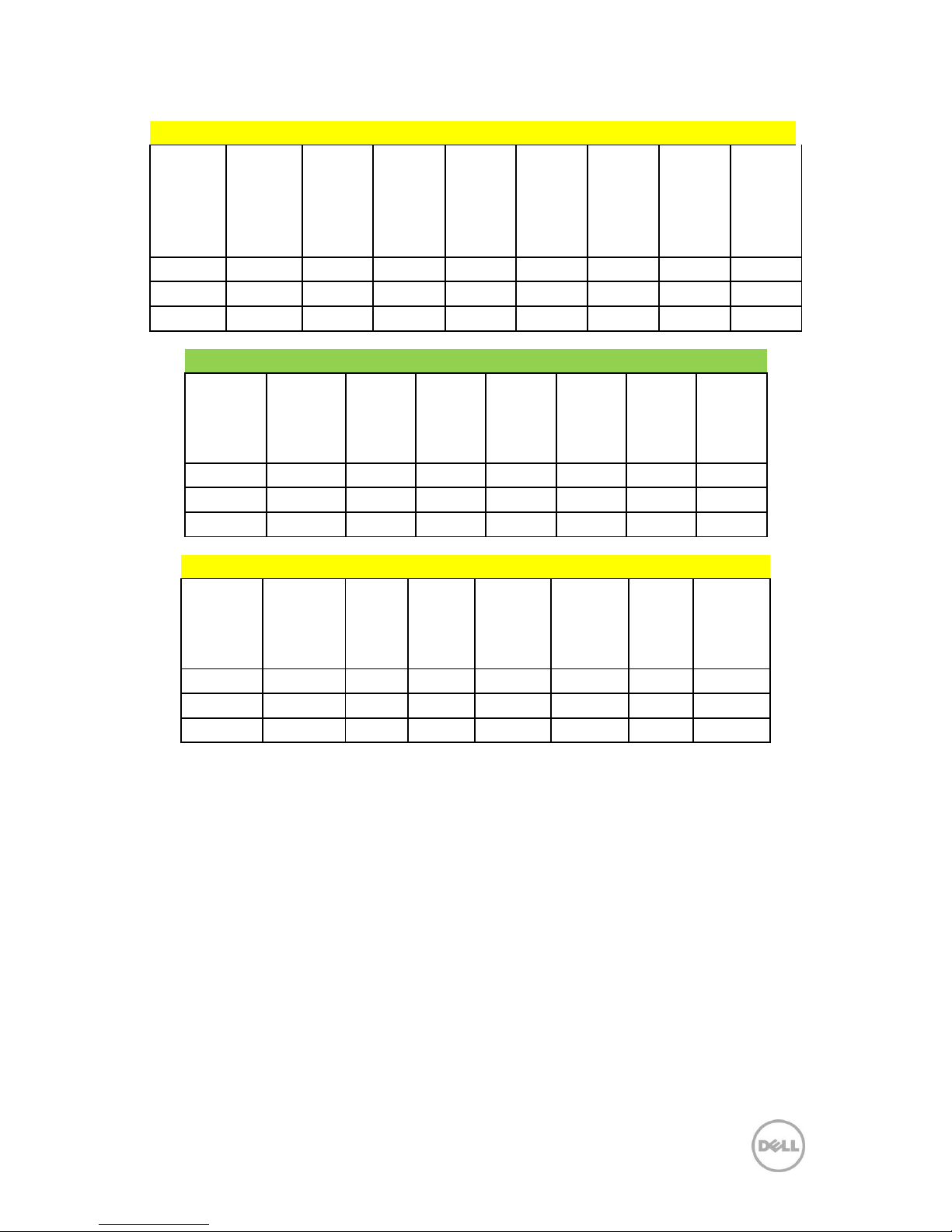
55 Dell DVS Simplified Appliance Reference Architecture
Fair VDI UX - By Machine
Machine
Avg. CPU
Machine
CPU
Queue
Machine
Context
Switches
Machine
Avg.
Memory
(MB)
Machine
Page
Faults
Machine
Avg.
Graphics
Intensity
Machine
Avg. Disk
IOPS
Machine
Avg.
Network
I/O
(KB/s)
Averages
1.48%
12.17
208.00
571.83
503.00
6.24
3.79
10.03
Maximum
1.48%
12.17
208.00
571.83
503.00
6.24
3.79
10.03
Minimum
1.48%
12.17
208.00
571.83
503.00
6.24
3.79
10.03
Good VDI UX - By User
Avg.
Login
Duration
(s)
Avg. App
Load
Time
(ms)
Avg.
CPU
Avg.
Memory
Avg.
Graphics
Intensity
Avg.
Disk
IOPS
Avg.
Network
I/O
(KB/s)
Average
18.67
57.73
1.53%
590.10
5.83
6.63
18.66
Maximum
28.00
109.00
4.73%
669.40
26.66
45.27
60.00
Minimum
16.00
15.00
0.53%
557.96
4.14
0.51
5.35
Fair VDI UX - By User
Avg. Login
Duration
(s)
Avg.
App
Load
Time
(ms)
Avg.
CPU
Avg.
Memory
Avg.
Graphics
Intensity
Avg.
Disk
IOPS
Avg.
Network
I/O (KB/s)
Average
18.86
2.69%
616.59
4.79
19.53
35.90
Maximum
24.00
4.65%
680.14
6.80
40.41
103.00
Minimum
17.00
0.60%
573.06
4.26
0.51
6.68
Page 59
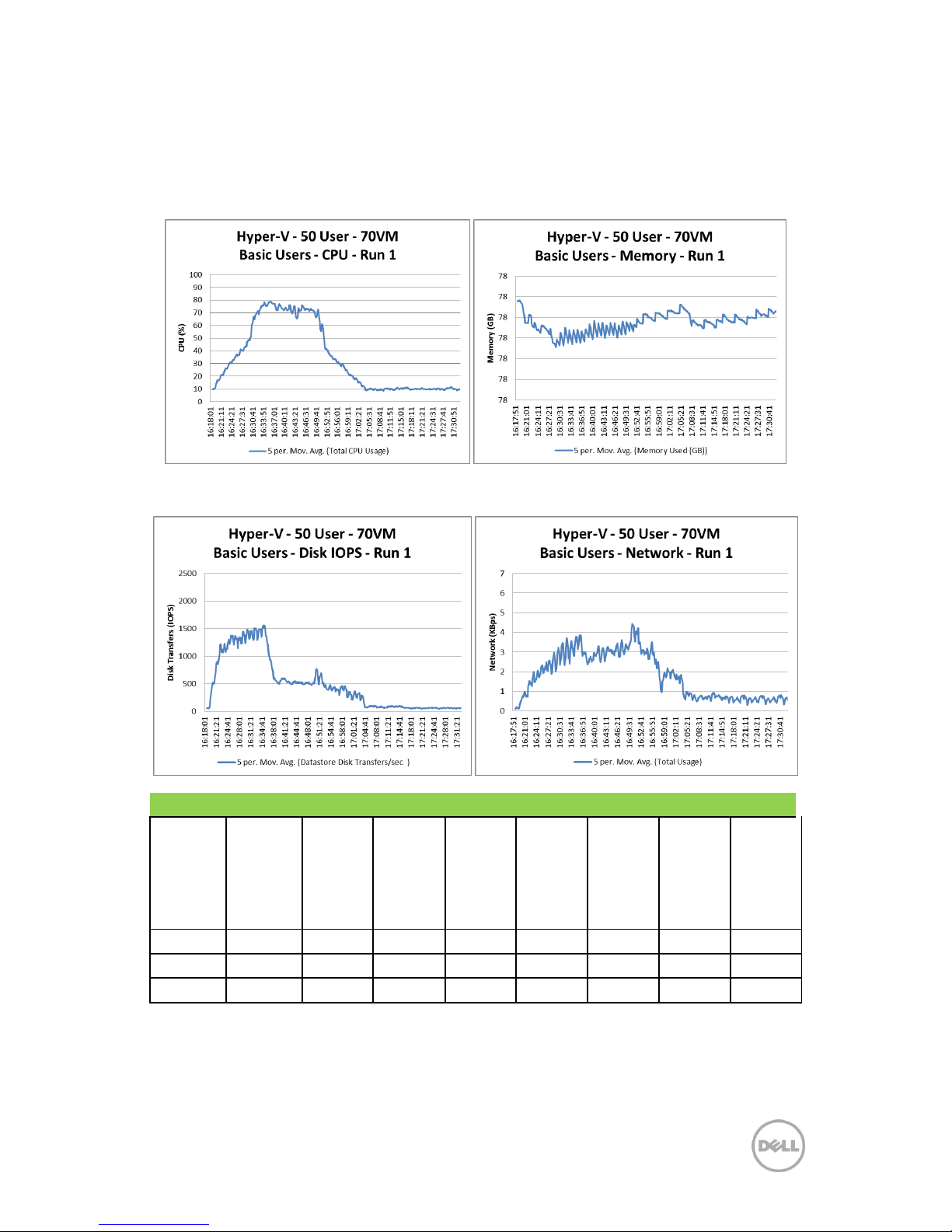
56 Dell DVS Simplified Appliance Reference Architecture
7.3.3.3 Test: Basic Run (70 Users)
The graphs below show the CPU, memory, local disk IOPS, network and VDI UX scatter plot results
from this validation.
Good VDI UX - By Machine
Machine
Avg. CPU
Machine
CPU
Queue
Machine
Context
Switches
Machine
Avg.
Memory
(MB)
Machine
Page
Faults
Machine
Avg.
Graphics
Intensity
Machine
Avg. Disk
IOPS
Machine
Avg.
Network
I/O
(KB/s)
Averages
1.31%
4.53
223.04
552.56
597.51
6.82
3.20
9.85
Maximum
2.83%
10.64
451.00
609.91
2009.00
17.03
7.31
20.54
Minimum
0.73%
1.50
173.00
537.69
369.00
4.23
0.60
4.50
Page 60
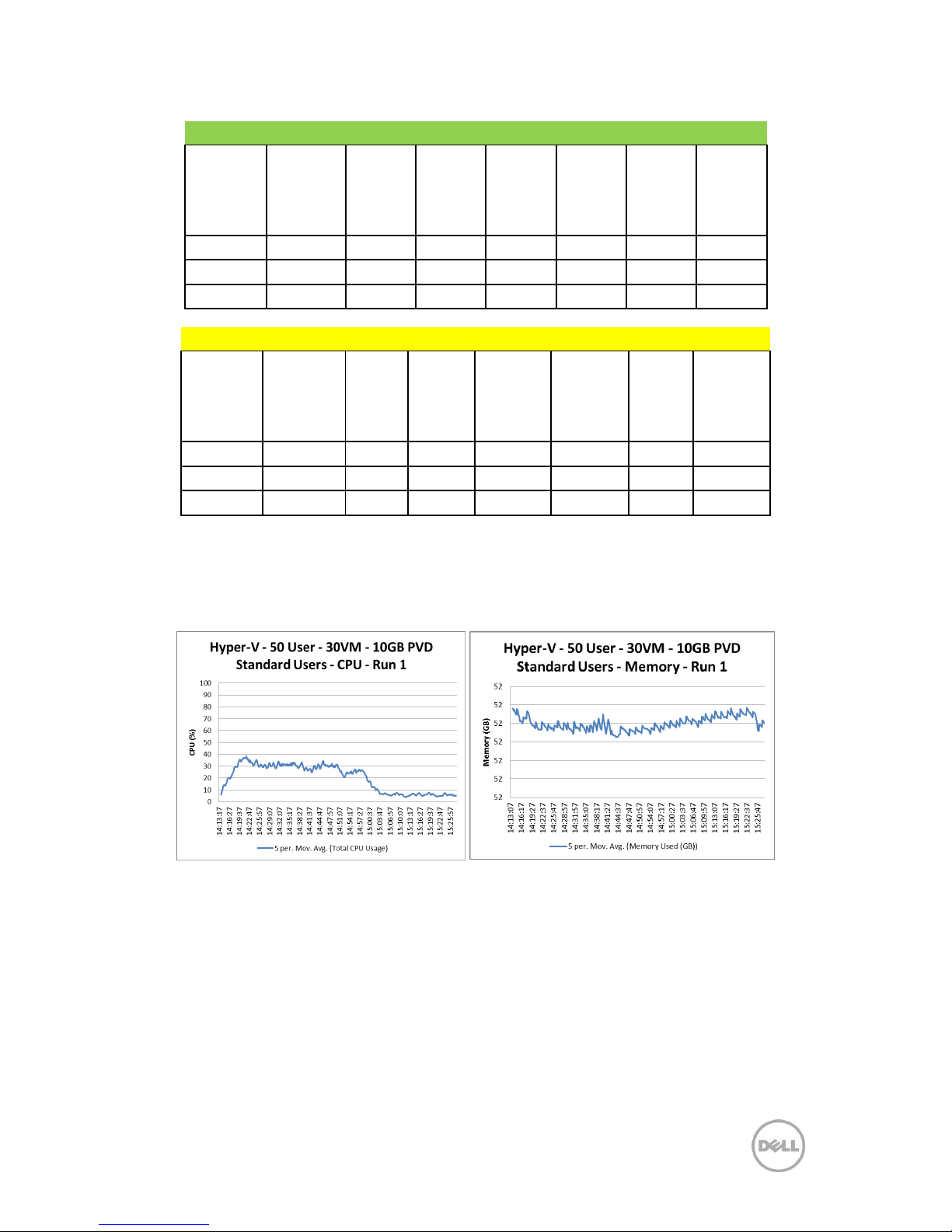
57 Dell DVS Simplified Appliance Reference Architecture
Good VDI UX - By User
Avg. Login
Duration
(s)
Avg. App
Load
Time
(ms)
Avg. CPU
Avg.
Memory
Avg.
Graphics
Intensity
Avg. Disk
IOPS
Avg.
Network
I/O
(KB/s)
Average
21.65
25.33
1.72%
573.83
6.41
7.36
17.83
Maximum
31.00
31.00
6.10%
650.97
22.21
39.94
68.00
Minimum
17.00
15.00
0.59%
549.55
4.20
0.56
7.01
Fair VDI UX - By User
Avg. Login
Duration
(s)
Avg.
App
Load
Time
(ms)
Avg.
CPU
Avg.
Memory
Avg.
Graphics
Intensity
Avg.
Disk
IOPS
Avg.
Network
I/O (KB/s)
Average
22.56
3.64%
604.04
4.51
23.60
27.12
Maximum
32.00
6.08%
643.77
6.72
39.80
66.00
Minimum
16.00
0.81%
549.84
4.15
0.75
11.40
7.3.3.4 Test: 10GB PVD Standard Run (30 Users)
Each desktop was configured to use a 10GB personal disk.The graphs below show the CPU, memory,
local disk IOPS, network and VDI UX scatter plot results from this validation.
Page 61
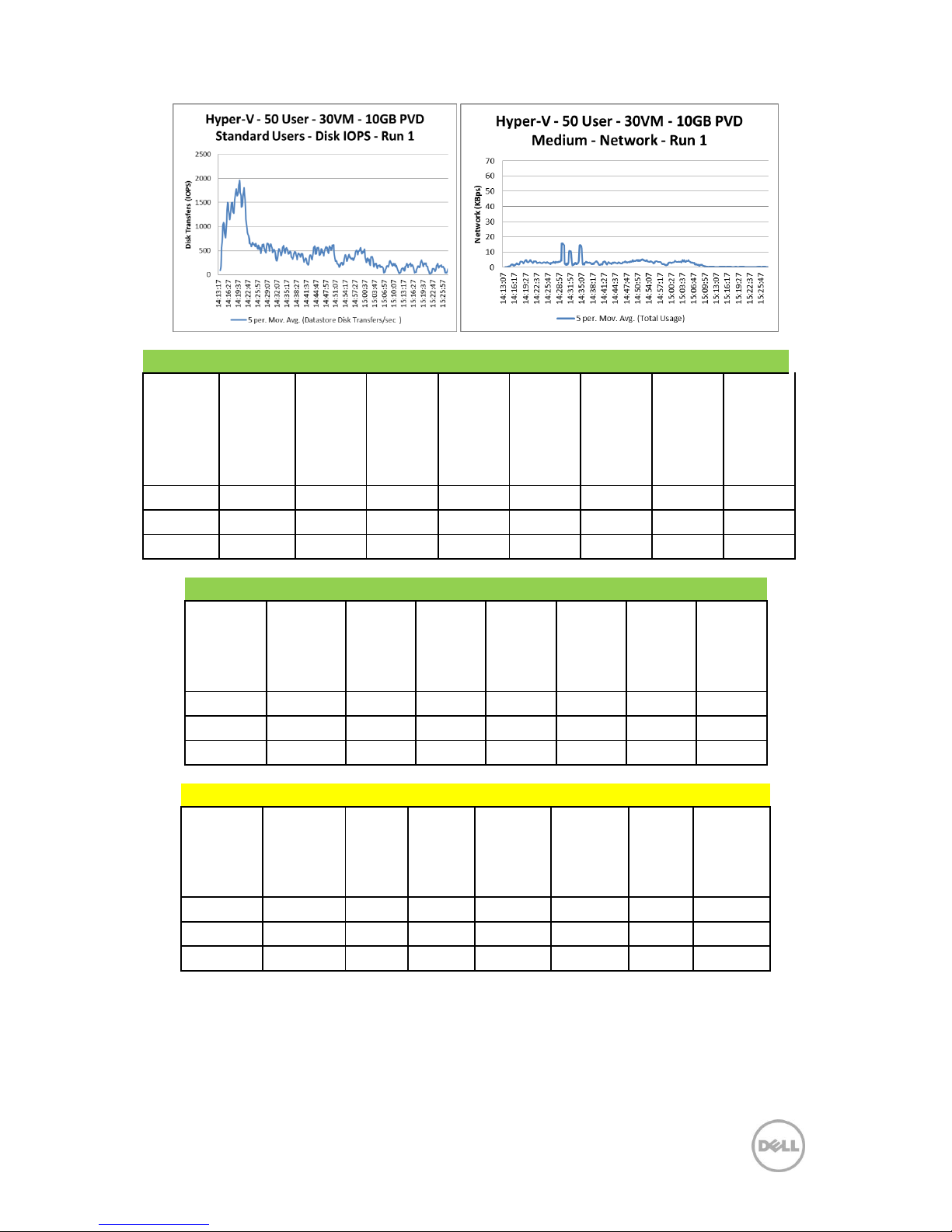
58 Dell DVS Simplified Appliance Reference Architecture
Good VDI UX - By Machine
Machine
Avg. CPU
Machine
CPU
Queue
Machine
Context
Switches
Machine
Avg.
Memory
(MB)
Machine
Page
Faults
Machine
Avg.
Graphics
Intensity
Machine
Avg. Disk
IOPS
Machine
Avg.
Network
I/O
(KB/s)
Averages
1.61%
3.39
259.46
610.49
1196.57
6.97
3.71
16.63
Maximum
2.12%
8.68
409.00
655.65
3454.00
16.91
7.77
33.11
Minimum
1.00%
1.25
179.00
593.95
620.00
4.23
0.78
3.52
Good VDI UX - By User
Avg.
Login
Duration
(s)
Avg. App
Load
Time
(ms)
Avg.
CPU
Avg.
Memory
Avg.
Graphics
Intensity
Avg.
Disk
IOPS
Avg.
Network
I/O
(KB/s)
Average
17.27
52.61
2.07%
637.66
8.83
29.83
29.83
Maximum
23.00
82.67
4.77%
709.21
26.16
147.00
147.00
Minimum
11.00
30.00
1.04%
594.47
4.18
7.00
7.00
Fair VDI UX - By User
Avg. Login
Duration
(s)
Avg.
App
Load
Time
(ms)
Avg.
CPU
Avg.
Memory
Avg.
Graphics
Intensity
Avg.
Disk
IOPS
Avg.
Network
I/O (KB/s)
Average
17
3.09%
649.58
4.27
14.70
77.49
Maximum
23
4.78%
696.04
4.29
30.41
163.00
Minimum
14
1.09%
611.68
4.18
0.57
8.45
Page 62
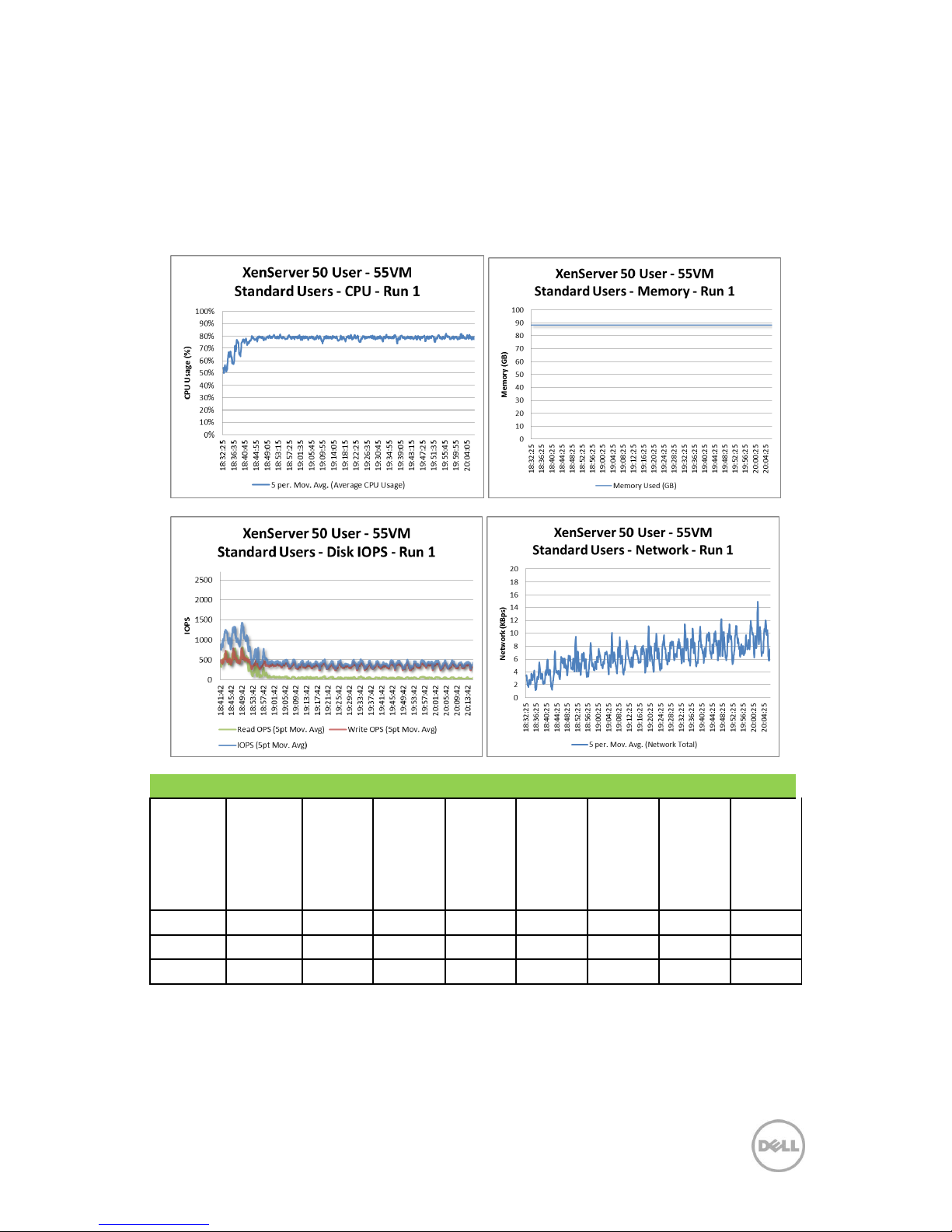
59 Dell DVS Simplified Appliance Reference Architecture
7.3.4 XenServer 6.0.2
7.3.4.1 Test: Standard Run 1 (50 Users)
The graphs below show the CPU, memory, local disk IOPS, network and VDI UX scatter plot results
from this validation.
Good VDI UX - By Machine
Machine
Avg. CPU
Machine
CPU
Queue
Machine
Context
Switches
Machine
Avg.
Memory
(MB)
Machine
Page
Faults
Machine
Avg.
Graphics
Intensity
Machine
Avg. Disk
IOPS
Machine
Avg.
Network
I/O
(KB/s)
Averages
2.78%
4.75
280.63
705.22
1650.83
7.61
6.99
16.23
Maximum
4.53%
8.21
582.31
789.90
2896.10
21.73
19.24
95.94
Minimum
1.51%
2.16
197.68
673.54
1220.13
4.72
0.33
0.99
Page 63
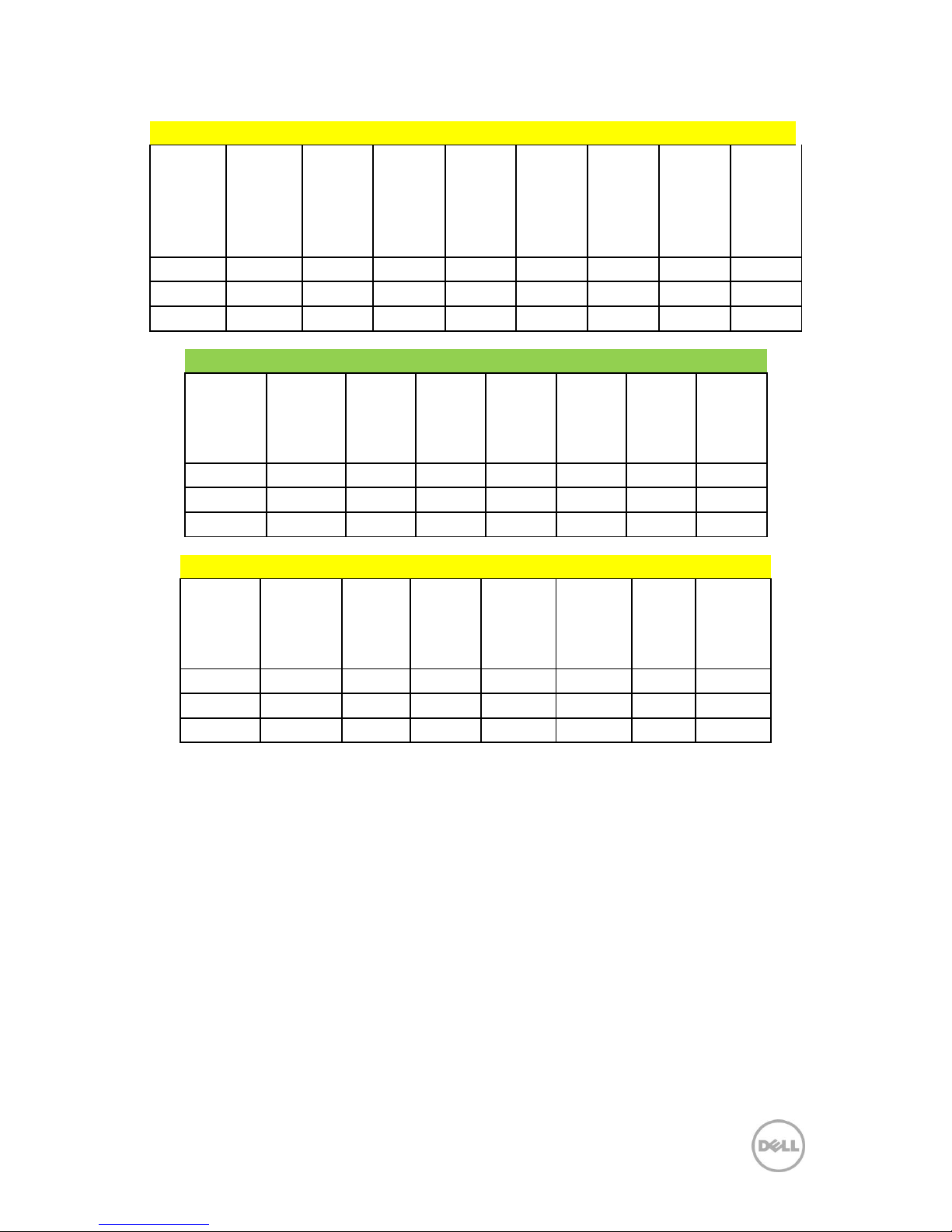
60 Dell DVS Simplified Appliance Reference Architecture
Fair VDI UX - By Machine
Machine
Avg. CPU
Machine
CPU
Queue
Machine
Context
Switches
Machine
Avg.
Memory
(MB)
Machine
Page
Faults
Machine
Avg.
Graphics
Intensity
Machine
Avg. Disk
IOPS
Machine
Avg.
Network
I/O
(KB/s)
Averages
3.26%
10.24
332.06
721.97
1876.03
10.62
8.20
19.72
Maximum
6.11%
13.92
624.83
821.39
3178.23
32.52
14.19
63.45
Minimum
1.46%
7.25
198.55
678.22
1226.04
4.75
0.36
1.89
Good VDI UX - By User
Avg.
Login
Duration
(s)
Avg. App
Load
Time
(ms)
Avg.
CPU
Avg.
Memory
Avg.
Graphics
Intensity
Avg.
Disk
IOPS
Avg.
Network
I/O
(KB/s)
Average
31.50
69.00
5.85%
823.86
26.49
13.01
74.50
Maximum
33.00
77.00
7.71%
945.21
49.90
24.85
154.00
Minimum
30.00
61.00
3.63%
707.38
4.80
5.57
13.00
Fair VDI UX - By User
Avg. Login
Duration
(s)
Avg.
App
Load
Time
(ms)
Avg.
CPU
Avg.
Memory
Avg.
Graphics
Intensity
Avg.
Disk
IOPS
Avg.
Network
I/O (KB/s)
Average
32.62
118.91
7.66%
821.47
14.00
34.16
67.88
Maximum
39.00
171.00
11.28%
957.72
58.30
43.25
148.00
Minimum
28.00
69.75
3.77%
714.37
4.73
16.82
14.00
Page 64
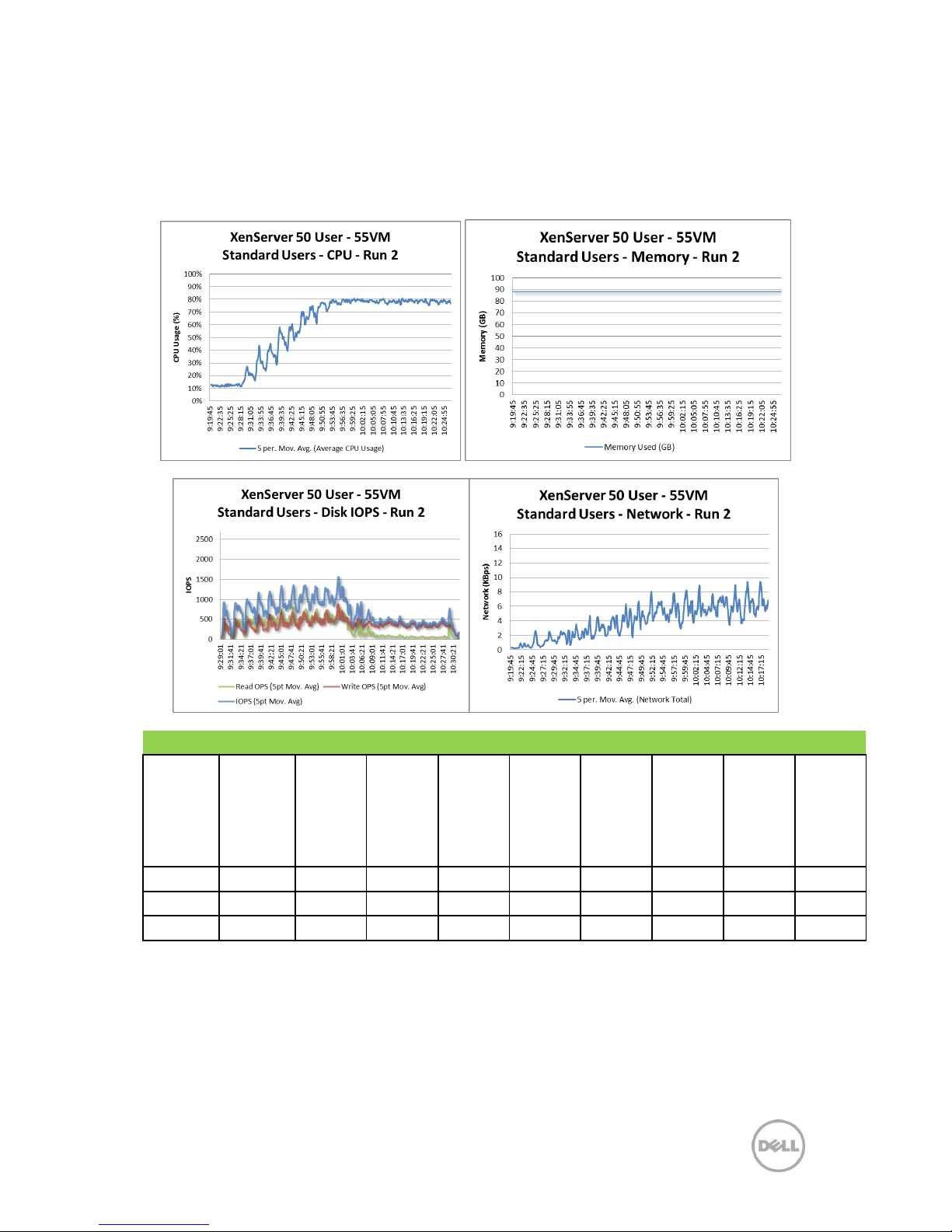
61 Dell DVS Simplified Appliance Reference Architecture
7.3.4.2 Test: Standard Run 2 (50 Users)
The graphs below show the CPU, memory, local disk IOPS, network and VDI UX scatter plot results
from this validation.
Good VDI UX - By Machine
Machine
Avg. CPU
Machine
CPU
Queue
Machine
Context
Switches
Machine
Avg.
Memory
(MB)
Machine
Page
Faults
Machine
Avg.
Graphics
Intensity
Machine
Avg. Disk
IOPS
Machine
Avg.
Network
I/O
(KB/s)
Machine
Total
ANR
Averages
2.94%
5.23
358.24
730.02
1557.43
15.37
4.51
23.99
0
Maximum
5.18%
9.34
772.24
819.10
2322.25
34.20
7.78
41.16
0
Minimum
1.92%
2.38
214.30
681.89
1263.30
4.88
0.62
3.87
0
Page 65
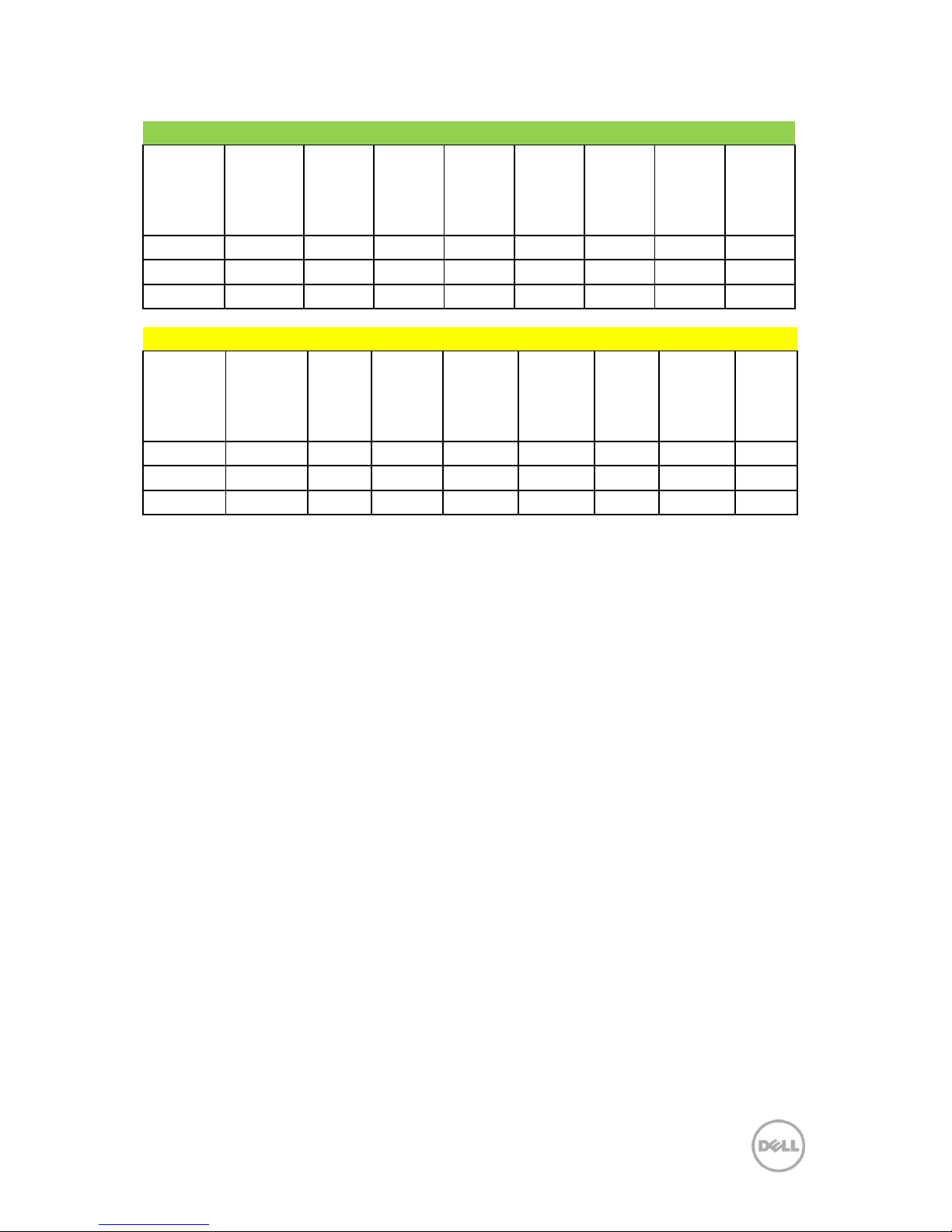
62 Dell DVS Simplified Appliance Reference Architecture
Good VDI UX - By User
Avg.
Login
Duration
(s)
Avg. App
Load
Time (s)
Avg.
CPU
Avg.
Memory
Avg.
Graphics
Intensity
Avg.
Disk
IOPS
Avg.
Network
I/O
(KB/s)
Total
ANR
Average
30.38
90.85
5.51%
907.44
60.97
5.55
29.60
0
Maximum
38.00
249.00
11.78%
984.45
106.25
18.30
95.00
0
Minimum
25.00
31.00
2.68%
734.62
4.80
0.52
6.00
0
Fair VDI UX - By User
Avg.
Login
Duration
(s)
Avg.
App
Load
Time
(s)
Avg.
CPU
Avg.
Memory
Avg.
Graphics
Intensity
Avg.
Disk
IOPS
Avg.
Network
I/O
(KB/s)
Total
ANR
Average
30.73
77.22
6.65%
828.04
21.09
28.00
24.59
0
Maximum
35.00
77.33
13.95%
970.26
93.55
42.65
63.00
0
Minimum
22.00
77.00
2.81%
714.21
4.76
0.59
6.00
0
Page 66
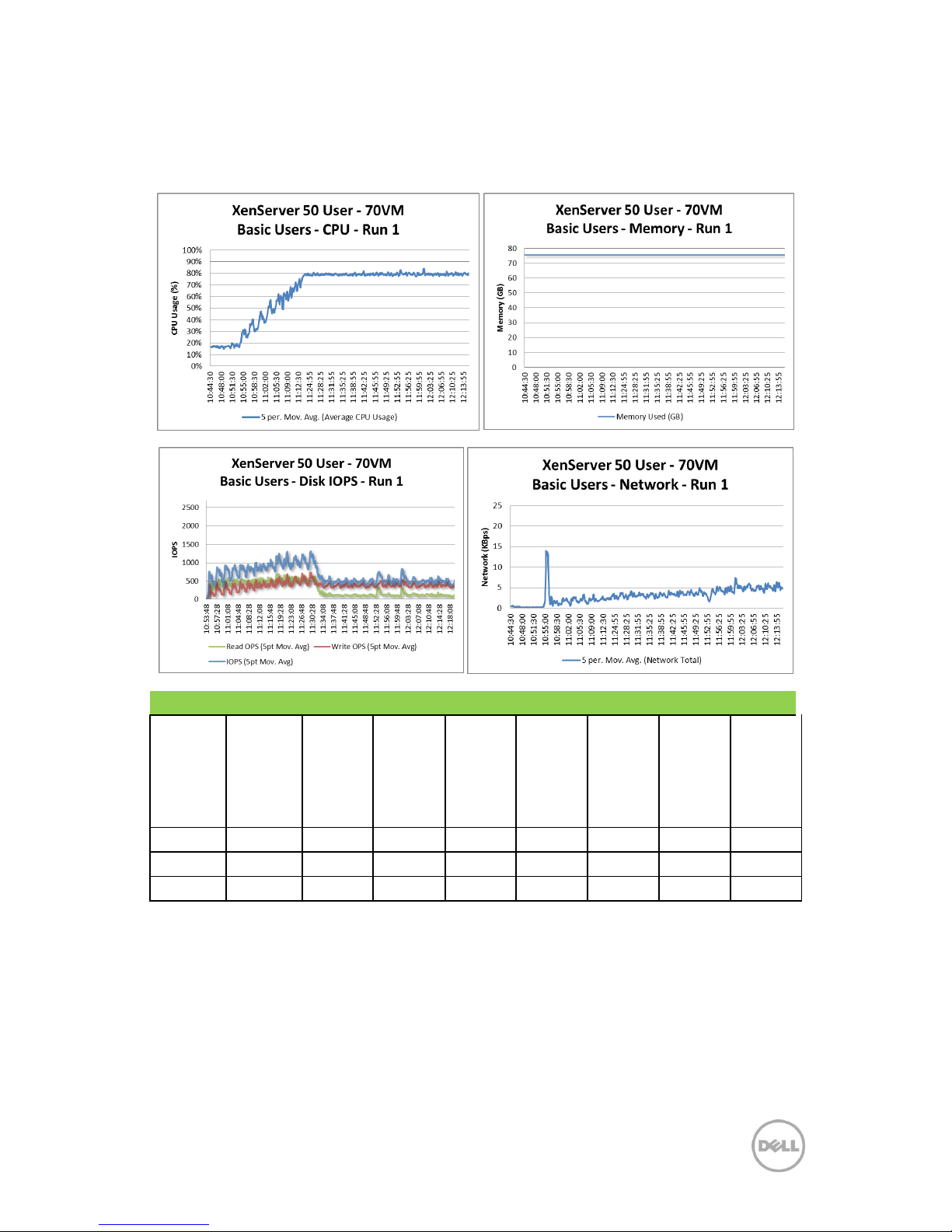
63 Dell DVS Simplified Appliance Reference Architecture
7.3.4.3 Test: Basic Run (70 Users)
The graphs below show the CPU, memory, local disk IOPS, network and VDI UX scatter plot results
from this validation.
Good VDI UX - By Machine
Machine
Avg. CPU
Machine
CPU
Queue
Machine
Context
Switches
Machine
Avg.
Memory
(MB)
Machine
Page
Faults
Machine
Avg.
Graphics
Intensity
Machine
Avg. Disk
IOPS
Machine
Avg.
Network
I/O
(KB/s)
Averages
2.50%
5.28
248.88
666.01
1418.70
7.87
1.90
10.46
Maximum
4.27%
10.00
505.41
722.80
2636.85
9.97
15.33
27.30
Minimum
1.77%
1.63
209.94
650.37
1236.27
4.71
0.40
2.96
Page 67
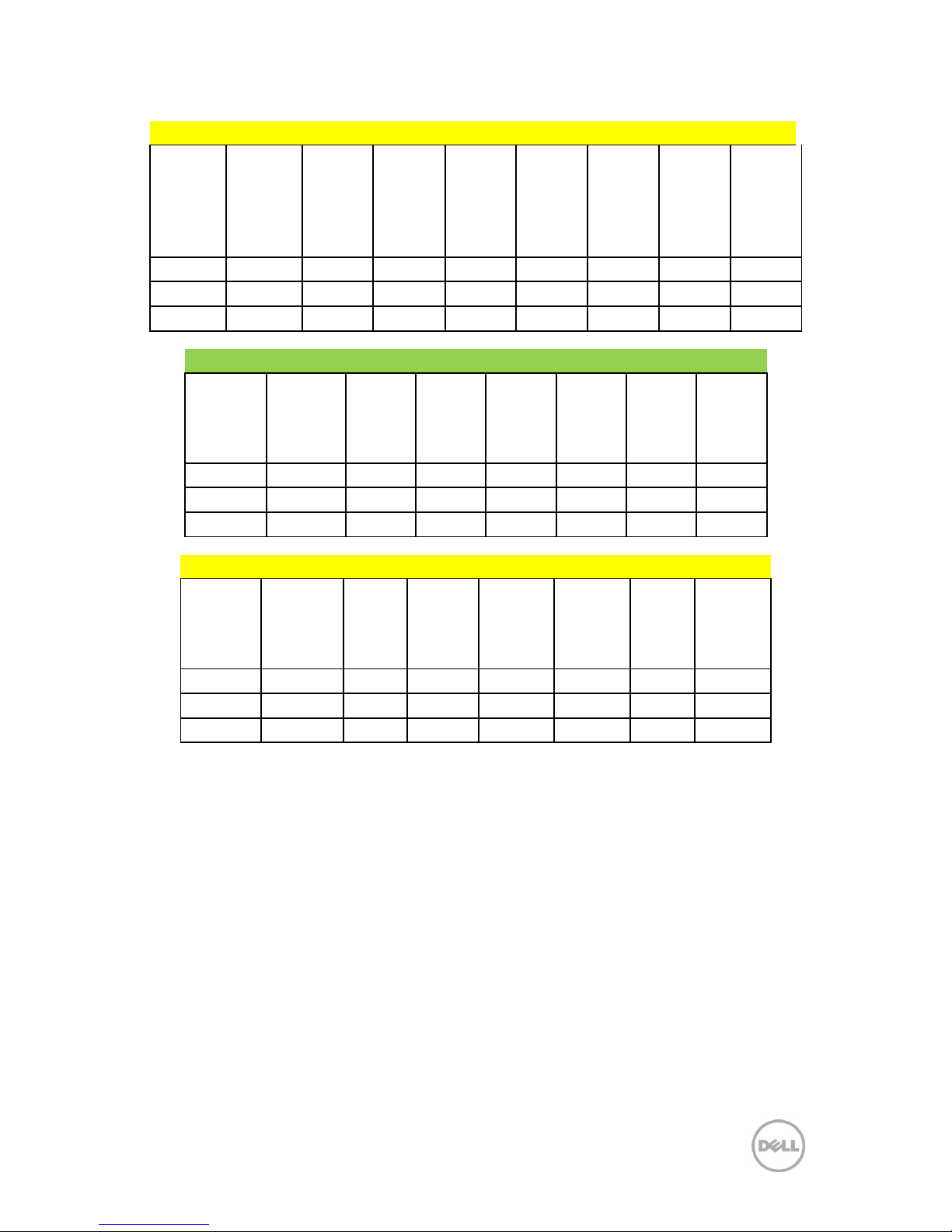
64 Dell DVS Simplified Appliance Reference Architecture
Fair VDI UX - By Machine
Machine
Avg. CPU
Machine
CPU
Queue
Machine
Context
Switches
Machine
Avg.
Memory
(MB)
Machine
Page
Faults
Machine
Avg.
Graphics
Intensity
Machine
Avg. Disk
IOPS
Machine
Avg.
Network
I/O
(KB/s)
Averages
3.68%
8.49
353.22
697.97
1772.53
4.80
13.63
33.14
Maximum
4.14%
11.77
477.63
724.93
2346.82
5.00
21.90
111.15
Minimum
2.18%
4.69
213.43
661.19
1234.81
4.72
0.55
5.69
Good VDI UX - By User
Avg.
Login
Duration
(s)
Avg. App
Load
Time (s)
Avg.
CPU
Avg.
Memory
Avg.
Graphics
Intensity
Avg.
Disk
IOPS
Avg.
Network
I/O
(KB/s)
Average
13.90
64.78
5.50%
905.63
59.44
5.34
30.43
Maximum
18.00
124.25
11.78%
984.45
106.25
18.30
95.00
Minimum
11.00
34.50
2.68%
734.62
4.80
0.52
6.00
Fair VDI UX - By User
Avg. Login
Duration
(s)
Avg.
App
Load
Time (s)
Avg.
CPU
Avg.
Memory
Avg.
Graphics
Intensity
Avg.
Disk
IOPS
Avg.
Network
I/O (KB/s)
Average
33.46
46.33
7.35%
788.45
14.86
29.47
49.75
Maximum
42.00
62.00
13.95%
960.93
93.55
45.80
224.00
Minimum
22.00
15.00
2.91%
686.40
4.76
1.00
6.00
Page 68
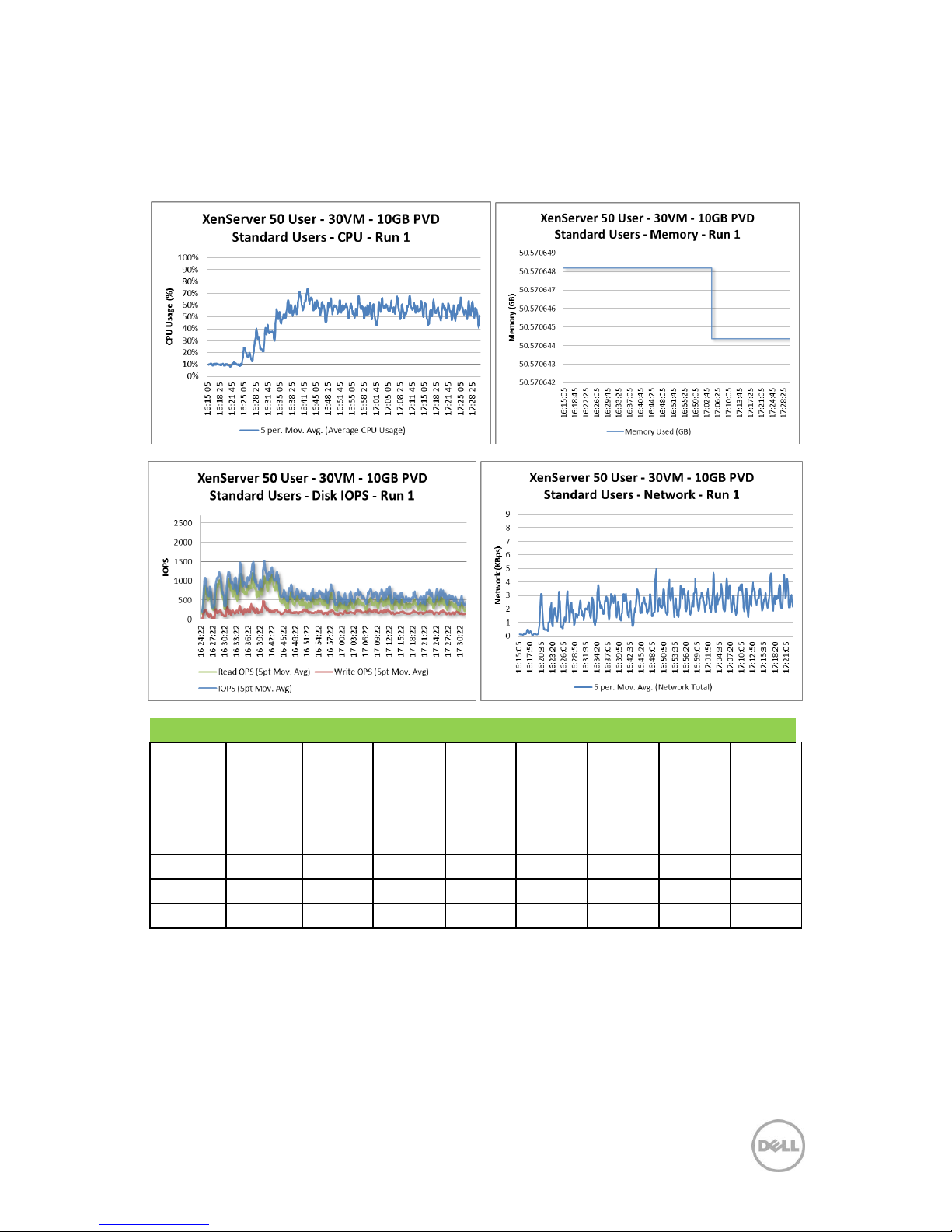
65 Dell DVS Simplified Appliance Reference Architecture
7.3.4.4 Test: 10GB PVD Standard Run (30 Users)
Each desktop was configured to use a 10GB personal disk. The graphs below show the CPU, memory,
local disk IOPS, network and VDI UX scatter plot results from this validation.
Good VDI UX - By Machine
Machine
Avg. CPU
Machine
CPU
Queue
Machine
Context
Switches
Machine
Avg.
Memory
(MB)
Machine
Page
Faults
Machine
Avg.
Graphics
Intensity
Machine
Avg. Disk
IOPS
Machine
Avg.
Network
I/O
(KB/s)
Averages
4.57%
1.54
480.29
755.93
1755.74
16.22
16.10
56.40
Maximum
9.05%
2.59
1113.36
880.33
3841.25
45.75
22.77
141.57
Minimum
2.16%
0.49
244.19
694.34
1028.77
5.08
10.06
0.00
Page 69
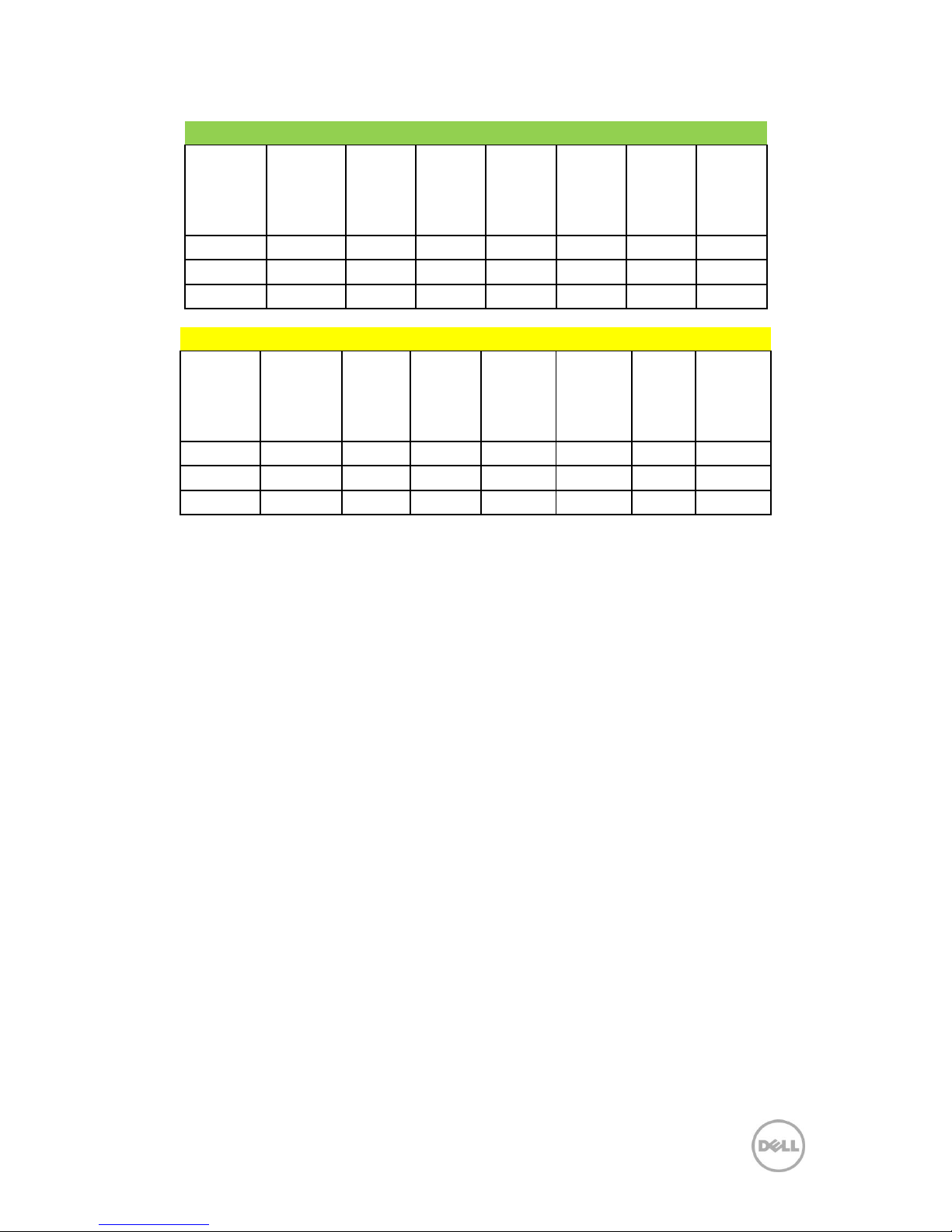
66 Dell DVS Simplified Appliance Reference Architecture
Good VDI UX - By User
Avg.
Login
Duration
(s)
Avg. App
Load
Time
(ms)
Avg.
CPU
Avg.
Memory
Avg.
Graphics
Intensity
Avg.
Disk
IOPS
Avg.
Network
I/O
(KB/s)
Average
24.40
40.92
6.91%
897.17
53.08
17.23
48.02
Maximum
33.00
84.44
10.85%
974.86
97.24
34.08
104.00
Minimum
18.00
15.00
3.11%
708.20
5.24
8.59
5.00
Fair VDI UX - By User
Avg. Login
Duration
(s)
Avg.
App
Load
Time
(ms)
Avg.
CPU
Avg.
Memory
Avg.
Graphics
Intensity
Avg.
Disk
IOPS
Avg.
Network
I/O (KB/s)
Average
26.23
287.08
8.21%
794.76
10.49
32.21
37.53
Maximum
33.00
639.00
12.70%
907.53
62.17
37.96
196.94
Minimum
19.00
47.00
6.72%
750.55
5.18
25.58
8.00
Page 70

67 Dell DVS Simplified Appliance Reference Architecture
8 High Availability
8.1 DVS Simplified Appliance Resiliency
In the event of a server failure, VDI-in-a-Box provides built-in high-availability without
requiring shared storage. The grid architecture maintains fault-tolerance via redundancy
so that if any server on the grid fails others can pick-up the workload. These multiple grid
servers can be linked together to automatically provide this high availability as well as the
brokering and load management of all the connections across the grid.
Users connected to desktops hosted on a failed server will lose their desktop connection.
When users re-login to connect to their desktop, the system will re-authenticate the user
and will attempt to connect the user to a new desktop running on a live server. Upon
logon, the system automatically migrates the workload to an active server on the grid. To
avoid data loss, network file sharing is recommended. Additionally, in instances where
data is mission critical, additional HA protection solutions may be implemented.
In order to accomplish the scenario described above, the solution uses an N+1 model
with hot sparing. This means the server infrastructure must be designed to include a
“spare” server to support failover. For proper set up, the infrastructure must include
servers to accommodate all required desktops for the organization, plus one additional
server that is equal in capacity to the largest server in the grid for high availability usage.
Regardless of deployment size only one (1) extra server is required for failover.
Page 71
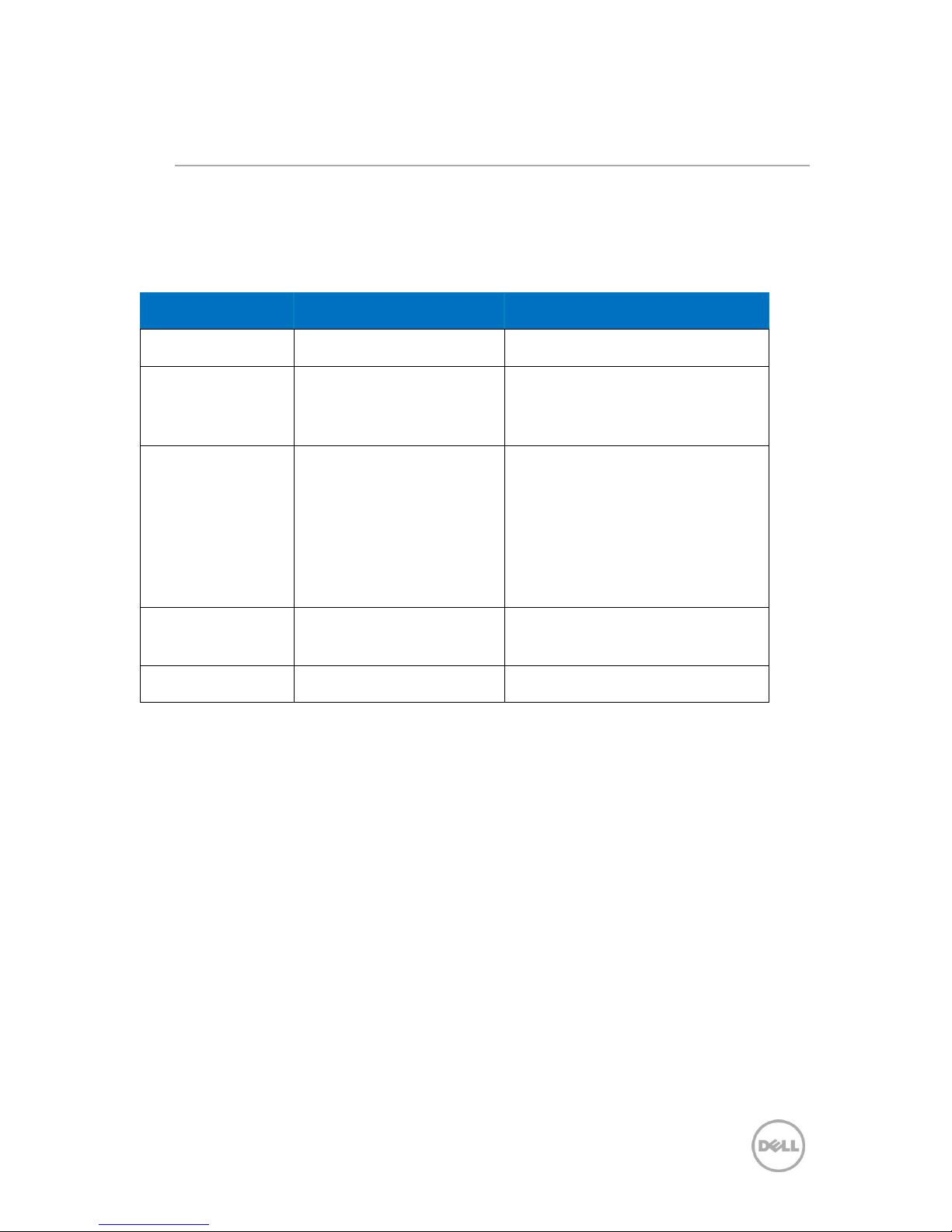
68 Dell DVS Simplified Appliance Reference Architecture
9 Customer Provided Stack Components
9.1 Customer Provided Switching Requirements
When a customer provides his or her own rack network switching solution for a DVS
Simplified Appliance -based solution, the following minimum hardware requirements
must be met.
Feature
Minimum Requirement
Notes
Switching Capacity
180Gbps
10Gbps Ports
None Required
The DVS Simplified Appliance
solution is based on 1Gbps network
connectivity.
1Gbps Ports
1x for Hypervisor
Management
1x for Hardware
Management
1x for Virtual Desktop
Access
VLAN Support
IEEE 802.1Q tagging and
port-based VLAN support.
Stacking Capability
Optional
Page 72

69 Dell DVS Simplified Appliance Reference Architecture
10 Conclusion
The DVS Simplified Appliance is a simple, practical VDI appliance designed specifically to
address the business and technical needs for mid-sized virtual desktop deployments so
you can unlock innovation in the virtual era. The appliance integrates pre-configured Dell
PowerEdge 12G servers with factory installed Citrix VDI-in-a-Box 5.1 software simplifying
implementation and accelerating your time to value. Dell Cloud Client Computing is a
true end to end solution combining Dell Desktop Virtualization Solutions (DVS),
composed of Dell data center components, virtualization and management software from
Citrix and Microsoft, with the portfolio of Dell Wyse software and with powerful end
points including Dell Wyse thin, zero and cloud clients. In that way, Dell is giving small
and medium business owners the power to do more. The Dell Team is with you every
step of the way to ensure extremely high levels of performance that meet or exceed end
users‖ legacy desktop experience. Your Dell sales representative will help you work
through any remaining questions or provide any additional information.
Page 73
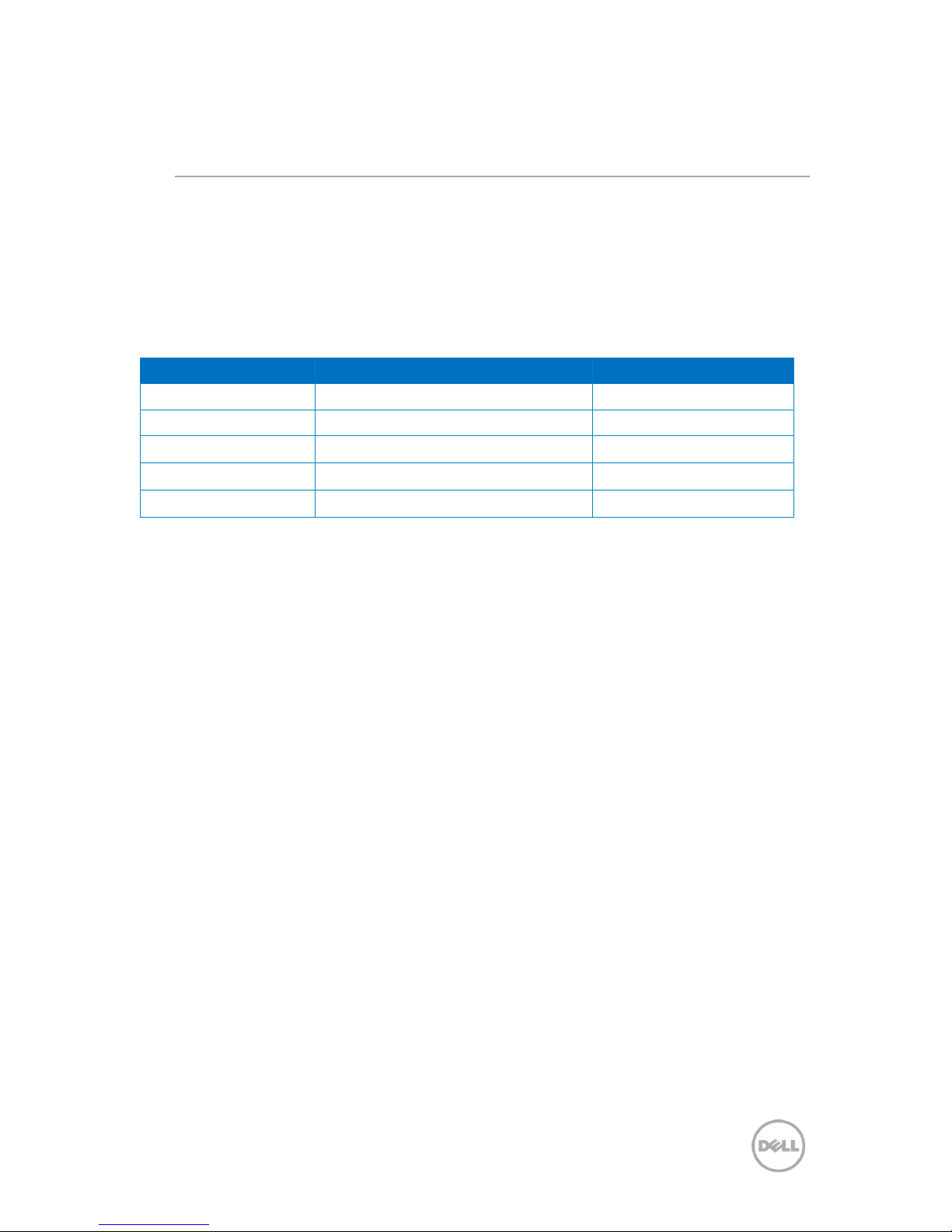
70 Dell DVS Simplified Appliance Reference Architecture
11 Acknowledgements
The author and co-author, Christopher Bell and Jason Maynard, would like to thank the
extended team for their contributions of this document. It would not have been possible
without the joint effort between the DVS engineering, marketing and solution
management team. Some of the key individual contributors of the reference architecture
are below.
Key Contributors:
Name
Title
Role
Christopher Bell
DVS Technical Marketing Manager
Author
Jason Maynard
DVS Solutions Architect
Co-Author
Rick Biedler
DVS Solution Development Manager
Contributor
Brent Doncaster
DVS Product Marketing Manager
Contributor
Reed Martin
Technology Marketing Sr. Advisor
Contributor
THIS WHITE PAPER IS FOR INFORMATIONAL PURPOSES ONLY, AND MAY CONTAIN TYPOGRAPHICAL ERRORS AND
TECHNICAL INACCURACIES. THE CONTENT IS PROVIDED AS IS, WITHOUT EXPRESS OR
IMPLIED WARRANTIES OF ANY KIND.
© 2012 Dell Inc. All rights reserved. Reproduction of this material in any manner whatsoever without
the express written permission of Dell Inc. is strictly forbidden. For more information, contact Dell.
Dell, the DELL logo, and the DELL badge and Compellent are trademarks of Dell Inc. XenDesktop, XenServer VDI-in-a-Box are
trademarks of Citrix Systems Inc. Other trademarks and trade names may be used in this document to refer to either the entities
claiming the marks and names or their products. Dell Inc. disclaims any proprietary interest in trademarks and trade names
other than its own.
 Loading...