

Dell OptiPlex 780 SFF, OptiPlex 780, DCSM1F, DCNE1F, DCCY1F Setup And Features Information Tech Sheet
...Page 1
About Warnings
13
1
2
4
5
3
10
11
15 14
98 7 6
16
12
WARNING: A WARNING indicates a potential for property damage, personal injury, or death.
Dell™ OptiPlex™ 780
Setup and Features Information Tech Sheet
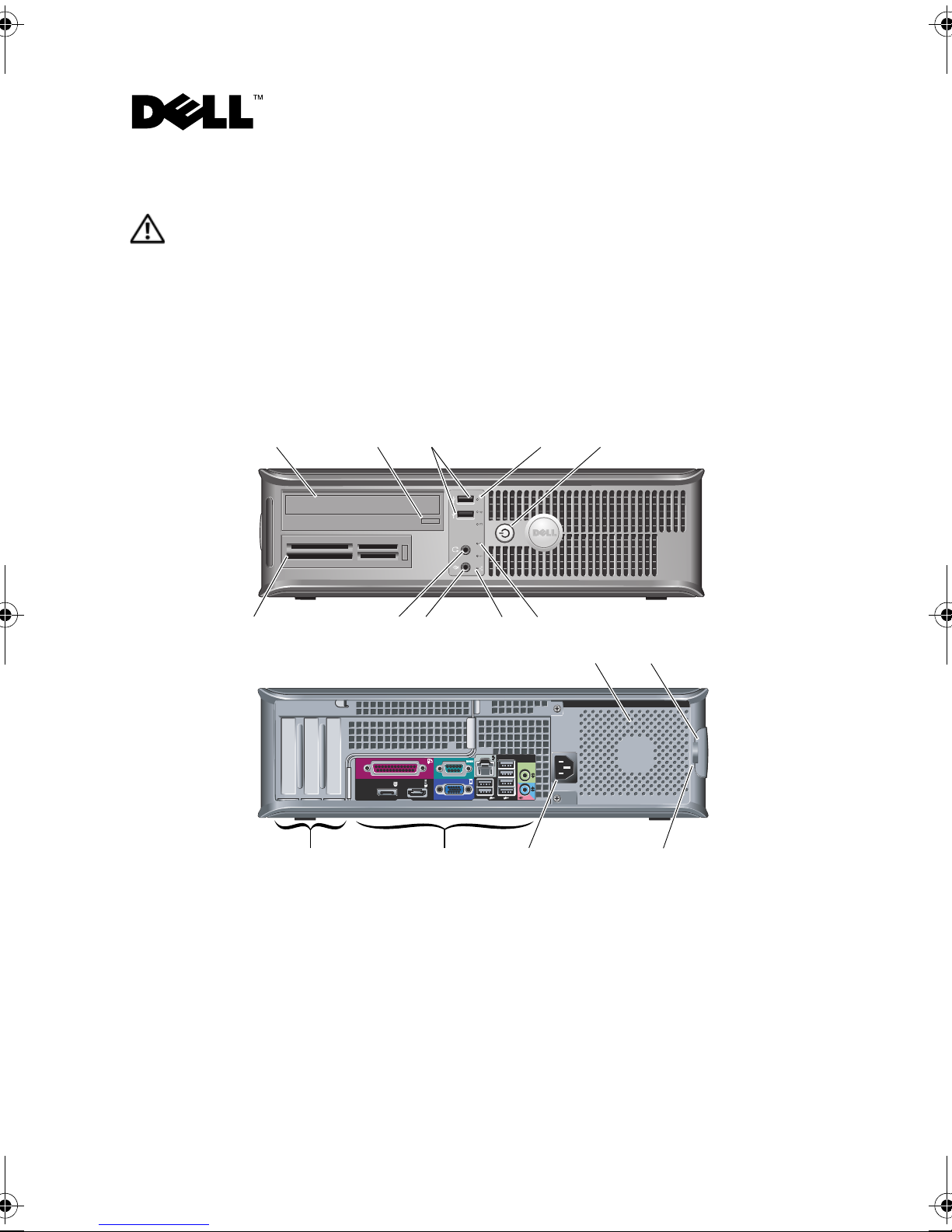
Front and Back View — Desktop
1 optical drive 2 optical drive eject button
3 USB 2.0 connectors (2) 4 drive activity light
5 power button, power light 6 diagnostic lights (4)
7 network connectivity light 8 microphone connector
9 headphone connector 10 Media Card Reader (optional)
March 2010
Models: DCSM1F, DCNE1F,
DCCY1F, DCSM, DCNE, and
DCCY series
Page 2
11 cooling vents 12 cover release latch
1
2
4
5
6
3
7
11
16
12
15
17
13
14
10
9
8
13 padlock ring 14 power connector
15 back panel connectors 16 expansion card slots (3)
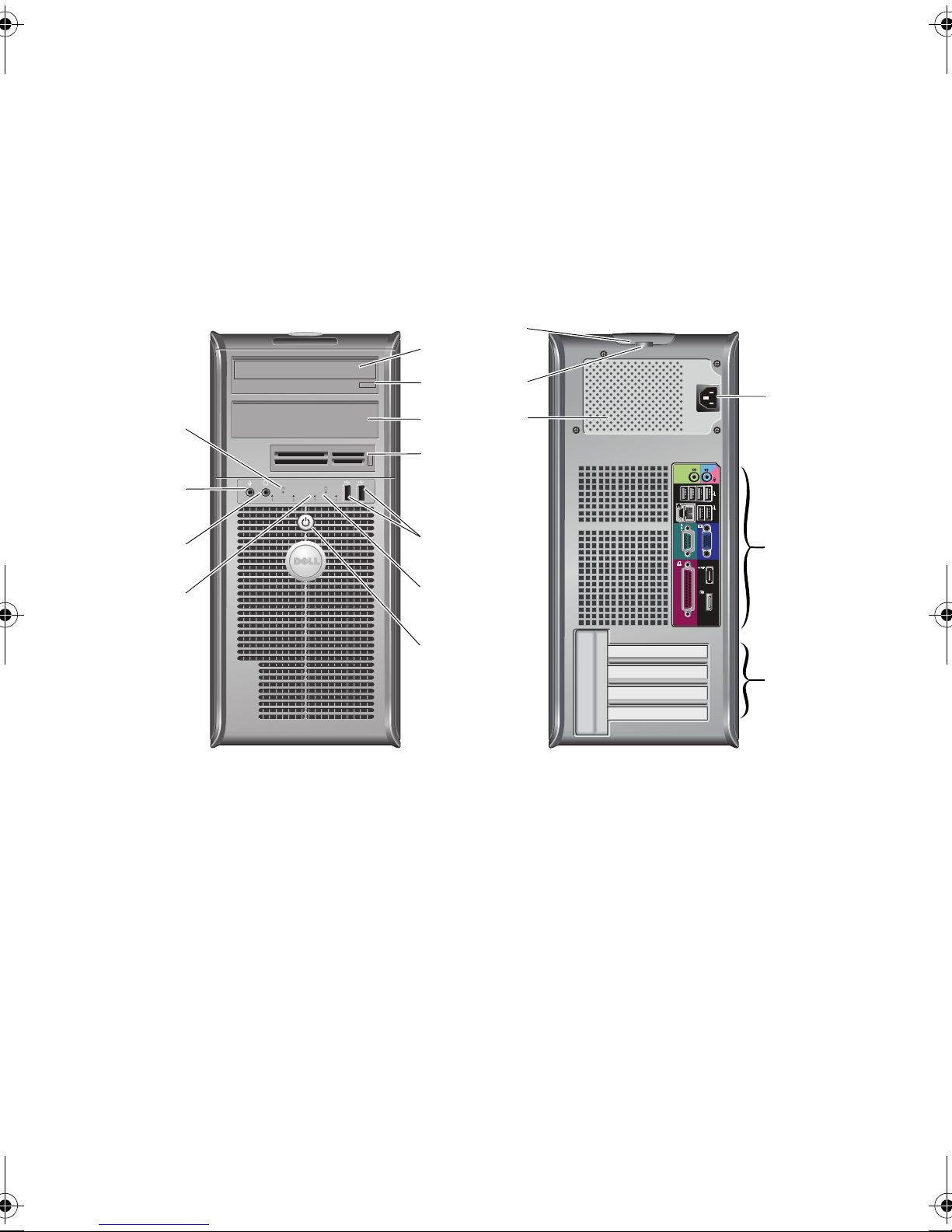
Front and Back View — Mini-Tower
1 optical drive 2 optical drive eject button
3 optical drive bay (optional) 4 Media Card Reader (optional)
5 USB 2.0 connectors (2) 6 drive activity light
7 power button, power light 8 diagnostic lights (4)
9 headphone connector 10 microphone connector
11 network connectivity light 12 power connector
13 back panel connectors 14 expansion card slots (4)
15 cooling vents 16 padlock ring
17 cover release latch
Page 3
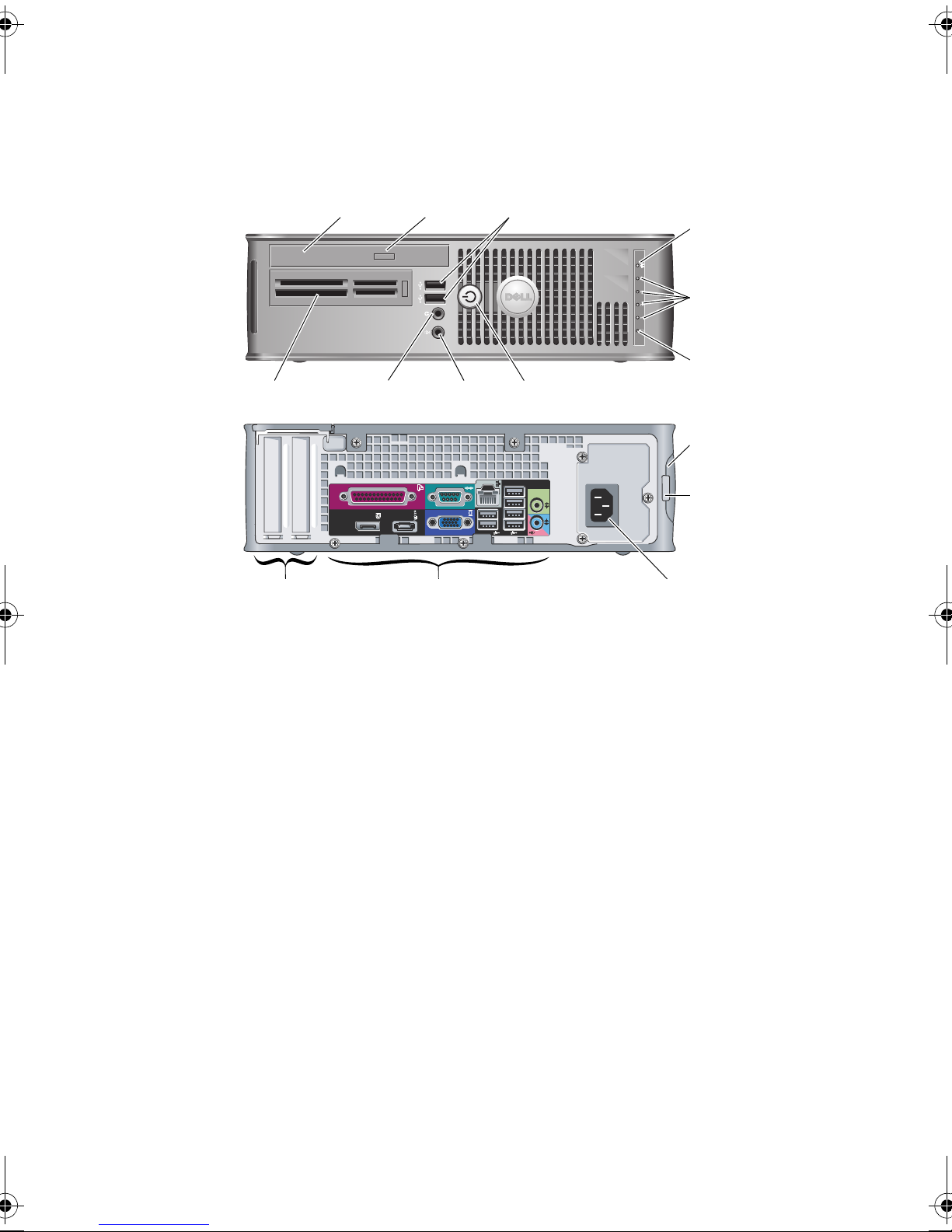
Front and Back View — Small Form Factor
1
2
4
6
78
3
910
5
15
12
11
1314
1 optical drive 2 optical drive eject button
3 USB 2.0 connectors (2) 4 network connectivity light
5 diagnostic lights (4) 6 drive activity light
7 power button, power light 8 microphone connector
9 headphone connector 10 Media Card Reader (optional)
11 cover release latch 12 padlock ring
13 power connector 14 back panel connectors
15 expansion card slots (2)
Page 4
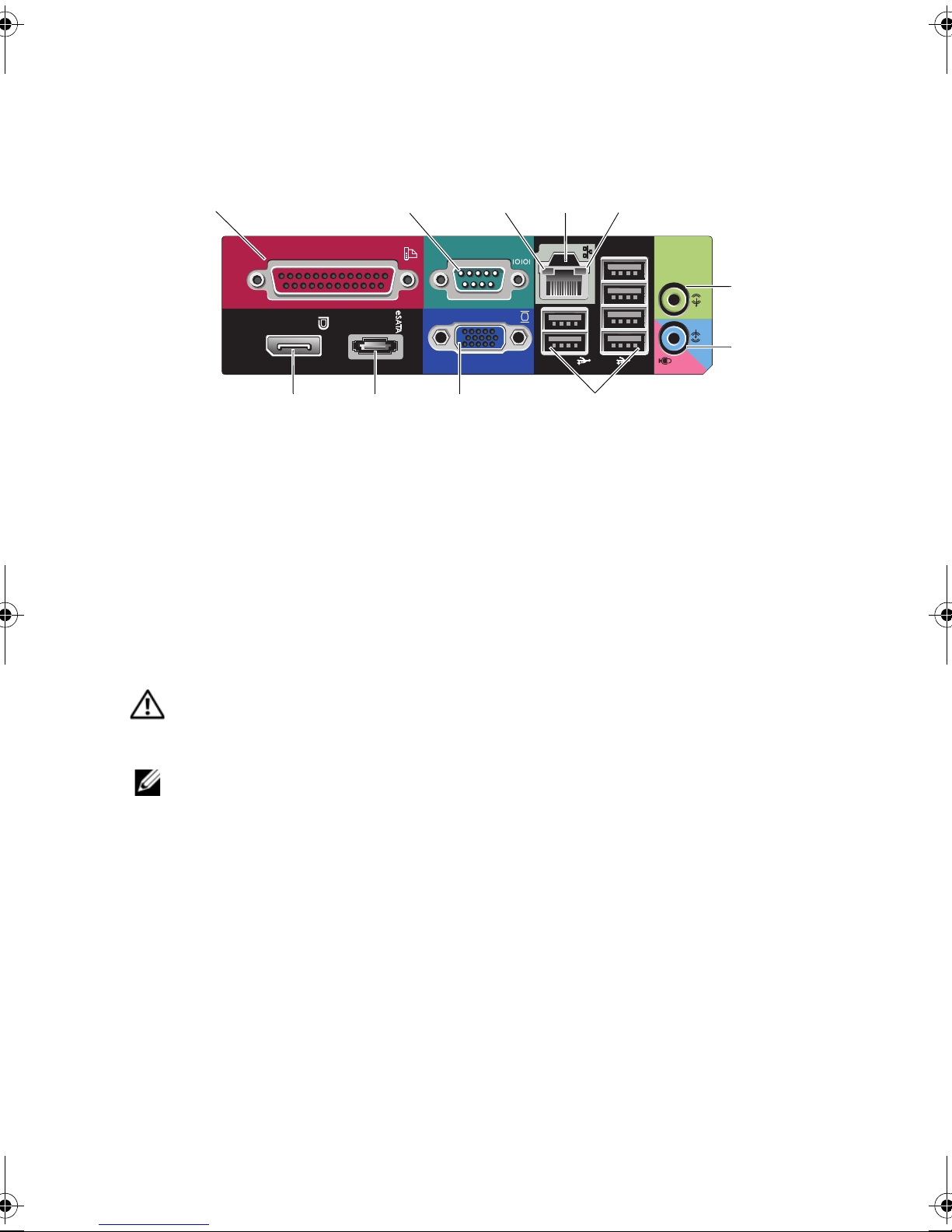
Back Panel Connectors — Desktop, Mini-Tower, and Small Form Factor
1
2
8
7
345
6
1011 9
1 parallel connector 2 serial connector
3 link integrity light 4 network connector
5 network activity light 6 line-out connector
7 line-in/microphone connector 8 USB 2.0 connectors (6)
9 VGA connector 10 eSata connector
11 DisplayPort connector
Quick Setup
WARNING: Before you begin any of the procedures in this section, read the safety
information that shipped with your computer. For additional best practices information,
see www.dell.com/regulatory_compliance.
NOTE: Some devices may not be included if you did not order them.
Page 5
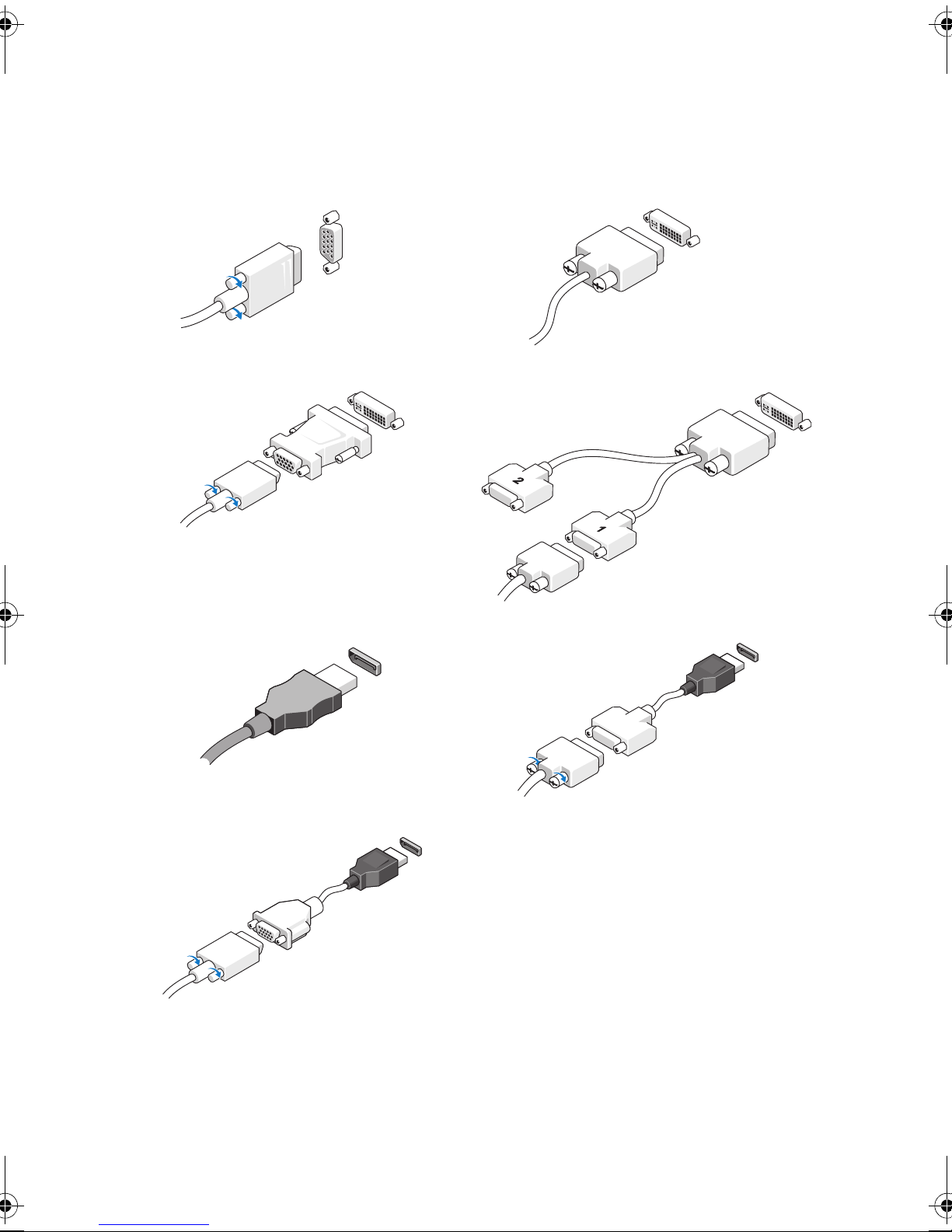
1
Connect the monitor using only one of the following cables:
a
The blue VGA cable
c
The VGA cable to a DVI adapter
b
d
The white DVI cable
The dual monitor Y-adapter cable
e
The DisplayPort cable
g
The VGA cable to DisplayPort Adapter
f
The DVI cable to DisplayPort adapter
Page 6
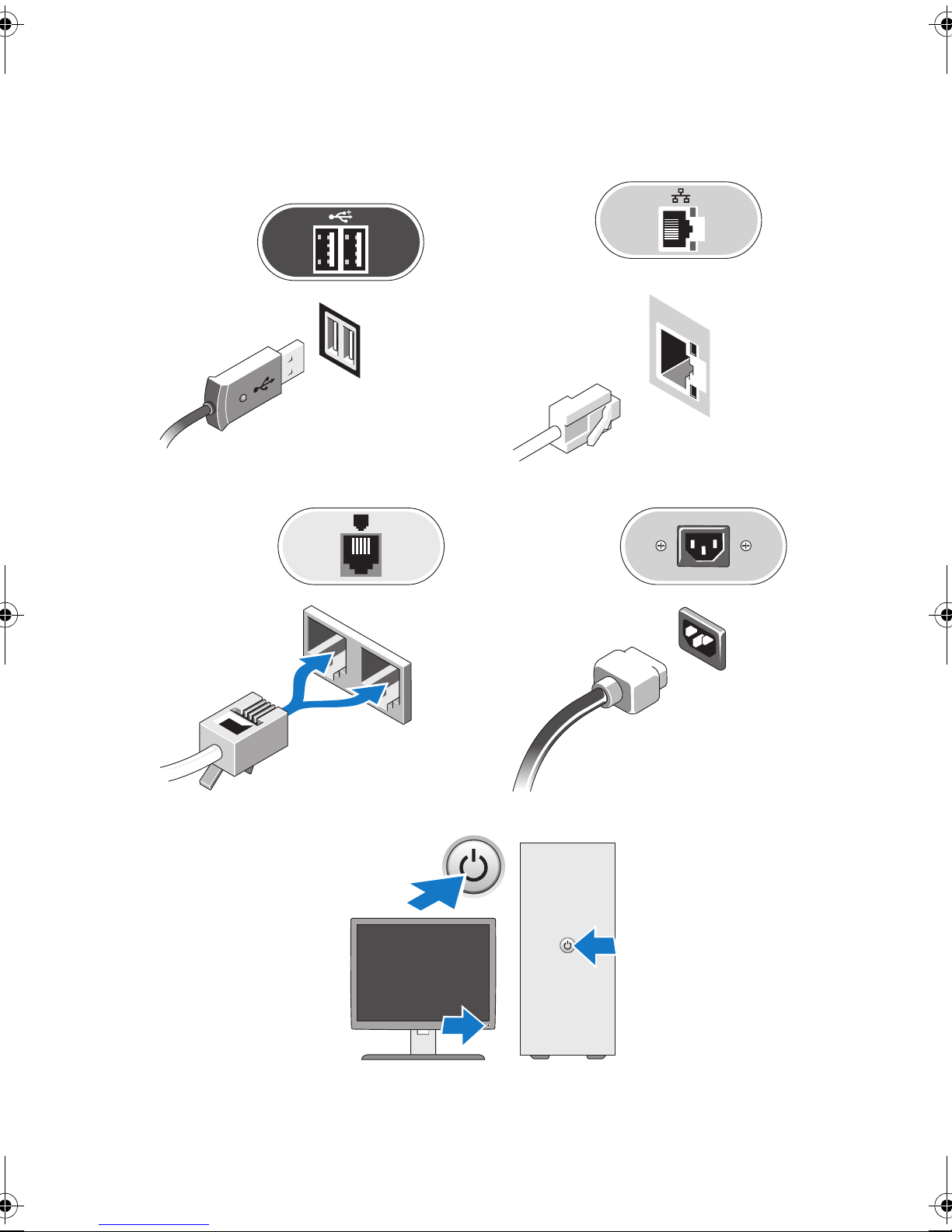
2
Connect the USB keyboard or mouse
(optional).
4
Connect the modem (optional).
3
Connect the network cable (optional).
5
Connect the power cable(s).
6
Press the power buttons on the monitor and the computer.
Page 7
Specifications
NOTE: The following specifications are only those required by law to ship with your computer.
For a complete and current listing of the specifications for your computer, go to support.dell.com.
System Information
Chipset Intel® Q45 Express chipset w/ICH10DO
Processor
Processor Intel Core™2 Duo, Intel Core 2 Quad,
®
Intel Pentium
Video
Dual Core, and Intel Celeron
Video type:
Integrated
Discrete
Intel integrated video
PCI Express x16 graphics adapter
NOTE: The PCI Express x16 slot is disabled when a display is
connected to the integrated DisplayPort connector.
Video memory:
Integrated
Memory
Memory module connector Four DIMM slots
Memory module capacity 1 GB, 2 GB, or 4 GB
Type 1066 MHz DDR3 SDRAM (non-ECC only)
Up to 256 MB shared video memory (system memory greater
than 512 MB)
®
Minimum memory 1 GB
Maximum memory 16 GB
Drives
Externally accessible:
5.25-inch drive bays
5.25-inch slimline bay
3.5-inch drive bay
3.5-inch slimline bay
Mini-Tower — two
Desktop — one
Small Form Factor — one
Mini-Tower and Desktop — one
Small Form Factor — one
Page 8
Drives (continued)
Internally accessible:
3.5-inch SATA drive bays Mini-Tower — two
Desktop and Small Form Factor — one
Available devices:
2.5-inch SATA hard drive
Mini-Tower, Desktop, and Small Form Factor — two
(with brackets)
3.5-inch SATA hard drive
Mini-Tower — two
Desktop and Small Form Factor — one
19-in-1 Media Card Reader
Mini-Tower and Desktop — one
Small Form Factor — one (slimline drive)
5.25-inch SATA DVD-ROM,
DVD+/-RW, or DVD/CDRW
combo drive
Control Lights and Diagnostic Lights
Mini-Tower — two
Desktop — one
Small Form Factor — one (slimline drive)
Power button light Green light — Solid green light indicates power-on state;
blinking green light indicates sleep state of the computer.
Amber light — Solid amber light when the computer does not
start indicates a problem with the system board or power supply.
Blinking amber light indicates a problem with the system board.
Drive activity light Green light — Blinking green light indicates that the computer
is reading data from or writing data to the hard drive.
Network connectivity light Green light — A good connection exists between the network
Diagnostic lights Four lights located on the front panel of the computer.
and the computer.
Off (no light) — The computer is not detecting a physical
connection to the network.
For more information on the diagnostic lights, see the Service
Manual available on the Dell Support website at
support.dell.com/manuals.
Page 9
Power
Wattage Mini-Tower — 305 W (non-EPA) or 255 W (EPA)
Desktop — 255 W
Small Form Factor — 235 W
Maximum heat dissipation Mini-Tower — 1041 BTU/hr
Desktop — 955 BTU/hr
Small Form Factor — 938 BTU/hr
NOTE: Heat dissipation is calculated by using the power supply wattage rating.
Voltage (see the safety information
that shipped with your computer
for important voltage–setting
information)
Mini-Tower — 90–265 VAC, 50/60 Hz
Desktop — 90–265 VAC, 50/60 Hz
Small Form Factor — 90–265 VAC, 50/60 Hz
Coin-cell battery 3V CR2032 lithium coin cell
Physical
Height Mini-Tower — 40.80 cm (16.10 inches)
Desktop — 11.40 cm (4.50 inches)
Small Form Factor — 9.26 cm (3.65 inches)
Width Mini-Tower — 18.70 cm (7.40 inches)
Desktop — 39.90 cm (15.70 inches)
Small Form Factor — 31.40 cm (12.40 inches)
Depth Mini-Tower — 43.30 cm (17.00 inches)
Desktop — 35.30 cm (13.90 inches)
Small Form Factor — 34.00 cm (13.40 inches)
Weight Mini-Tower — 11.70 kgs (25.80 lbs)
Environmental
Temperature:
Operating
Storage
Relative humidity 20% to 80% (noncondensing)
Desktop — 8.26 kgs (18.20 lbs)
Small Form Factor — 6.80 kgs (15.00 lbs)
10 °C to 35 °C (50 °F to 95 °F)
–40 °C to 65 °C (–40 °F to 149 °F)
Page 10
Environmental (continued)
Altitude:
Operating
Storage
Airborne contaminant level G2 or lower as defined by ISA-S71.04-1985
–15.2 m to 3048 m (–50 ft to 10,000 ft)
–15.2 m to 10,668 m (–50 ft to 35,000 ft)
Finding More Information and Resources
If you need to: See:
Find safety best practices information for your
computer, review Warranty information,
Terms and Conditions(U.S only),
Safety instructions, Regulatory information,
Ergonomics information, and
End User License Agreement
The safety and regulatory documents that shipped
with your computer and the Regulatory
Compliance Homepage at
www.dell.com/regulatory_compliance.
____________________
Information in this document is subject to change without notice.
© 2009–2010 Dell Inc. All rights reserved.
Reproduction of these materials in any manner whatsoever without the written permission of Dell Inc.
is strictly forbidden.
Trademarks used in this text: Dell, the DELL logo, and OptiPlex are trademarks of Dell Inc.;
Intel, Pentium,andCeleron are registered trademarks and Core is a trademark of Intel Corporation
in the U.S. and other countries.
Other trademarks and trade names may be used in this document to refer to either the entities claiming
the marks and names or their products. Dell Inc. disclaims any proprietary interest in trademarks and
trade names other than its own.
 Loading...