

Page 1

?
?
?
?
AccessRunner
TM
PCI - ADSL Modem
User Guide
Preliminary Draft
Page 2

?
?
Tigris AccessRunner User’s Guide
?
?
(07-Sept-00)
This page intentionally left blank.
Preliminary Draft 2
Page 3

?
?
Tigris AccessRunner User’s Guide
?
?
(07-Sept-00)
1. INTRODUCTION......................................................................................................................... 4
1.1 OVERVIEW.................................................................................................................................. 4
1.2 HARDWARE DESCRIPTION AND FEATURES .................................................................................... 4
1.3 SOFTWARE DESCRIPTION AND FEATURES ..................................................................................... 5
1.3.1 DSL Wizard....................................................................................................................... 5
1.3.2 AccessRunner Control Panel.............................................................................................. 5
1.3.3 AccessRunner AutoLog...................................................................................................... 6
1.3.4 Taskbar Applets................................................................................................................. 6
1.3.5 Manual Uninstaller............................................................................................................ 6
2. INSTALLATION AND SETUP.................................................................................................... 7
2.1 SYSTEM REQUIREMENTS.............................................................................................................. 7
2.2 INSTALLATION ............................................................................................................................ 7
2.2.1 Installing the PCI Modem.................................................................................................. 7
2.2.2 Installing the AccessRunner Software................................................................................. 7
2.2.3 Upgrading the AccessRunner Software............................................................................. 10
2.2.4 Removing the AccessRunner Software.............................................................................. 12
2.2.4.1 Removing Manually...................................................................................................................12
2.2.4.2 Removing with the DSL Wizard.................................................................................................12
3. OPERATION..............................................................................................................................15
3.1 OVERVIEW................................................................................................................................ 15
3.2 USING THE ACCESS RUNNER CONTROL P ANEL ............................................................................ 15
3.3 USING THE TASKBAR APPLET .................................................................................................... 15
4. TROUBLESHOOTING.............................................................................................................. 17
4.1 DIFFICULTIES INSTALLING THE DSL WIZARD............................................................................. 18
4.2 CONTROL PANEL PROBLEMS ...................................................................................................... 18
4.3 HARDWARE INSTALLATION........................................................................................................ 18
4.4 DSL LINK STATUS .................................................................................................................... 19
4.5 DATA MODES............................................................................................................................ 19
4.6 CONNECT RATES ....................................................................................................................... 19
Preliminary Draft 3
Page 4
?
?
Tigris AccessRunner User’s Guide
PCI Interface
Line Driver
?
?
(07-Sept-00)
1. Introduction
1.1 Overview
The Conexant AccessRunner is a complete reference design package prepared for
manufacturers who are interested in accelerating the development and production of PCI
based internal ADSL modems. The modem reference design, code named Tigris,
allows manufacturers to go directly into production of the reference hardware design as
supplied, or rapidly meet unique requirements after customization. The AccessRunner
software package allows for immediate installation on Win98SE, Win2000, and WinNT
platforms. Use of the Conexant AccessRunner reference design and software can save
the manufacturer engineering resources and significantly reduce the product’s time-tomarket.
The AccessRunner supports T1.413, G.dmt and G.lite ADSL and is designed to operate
in LAN (RFC 1483), WAN (RFC 2364), or Connection Oriented (CO) modes.
AccessRunner is WHQL certified for Win98SE and Win2000.
1.2 Hardware Description and Features
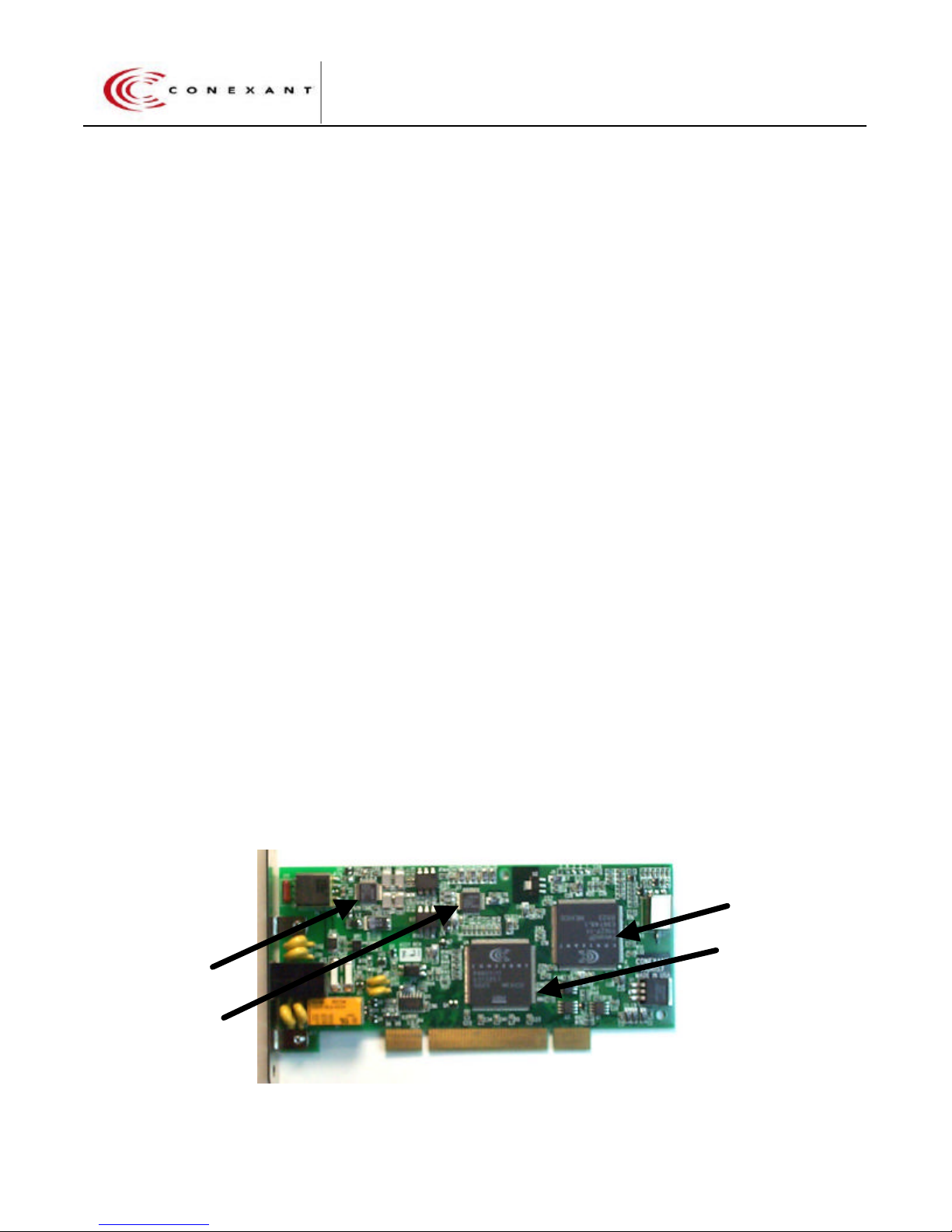
The Tigris reference design consists of a single PCI card utilizing the Conexant four-chip
ADSL chipset and the supporting hardware components. The four Conexant chips
making up the chipset are:
?? 11627 Falcon ADSL Datapump
?? 20431 Analog Front End
?? 20441 Line Driver
?? P4601 PCI Interface
The Tigris reference design complies with part 15B and 68 of the US Federal
Communication Commission (FCC) requirements, UL1950 and EN 60950 Safety
requirements.
Analog Front End
ADSL Datapump
Preliminary Draft 4
PCI Reference Board
Page 5
?
?
Tigris AccessRunner User’s Guide
?
?
(07-Sept-00)
1.3 Software Description and Features
1.3.1 DSL Wizard
The DSL Wizard is an installation and configuration program that guides the user
through installing and/or configuring the Conexant AccessRunner. This allows the end
user to quickly and easily configure the options of the AccessRunner, including:
?? Physical Layer Options (line modulations)
?? ATM Layer Parameters (Virtual Circuit type(s) and addresses and QoS
parameters)
?? AAL Layer Parameters (Protocol encapsulation)
?? TCP/IP Parameters (IP address and gateway address)
This provisioning information is typically defined by the DSL data service provider in DSL
configuration files (*.ins). The DSL Wizard can also easily be customized by editing text
file (.ini) settings.
1.3.2 AccessRunner Control Panel
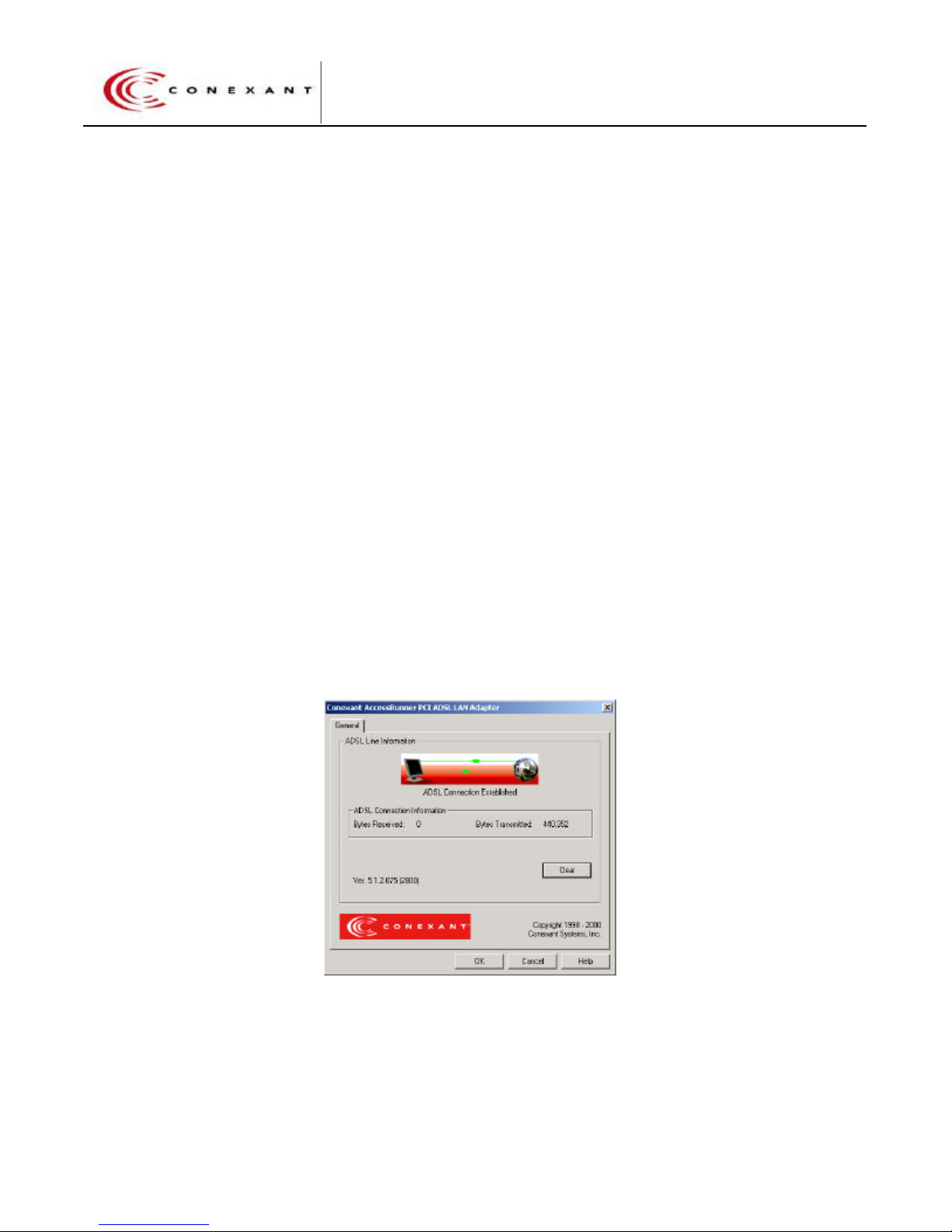
The AccessRunner Control Panel is a dynamic status display with an animated glyph. It
shows the current ADSL link status, the total ADSL bytes transmitted and received and
the current software version.
Access Runner Control Panel
Preliminary Draft 5
Page 6
?
?
Tigris AccessRunner User’s Guide
?
?
(07-Sept-00)
1.3.3 AccessRunner AutoLog
The AccessRunner AutoLog tool collects performance data and logs this information to
disk to support long-term trouble shooting. Collected data is stored in the text file
“CnxAdslL.log”. An Autolog example is shown in appendix A.
1.3.4 Taskbar Applets
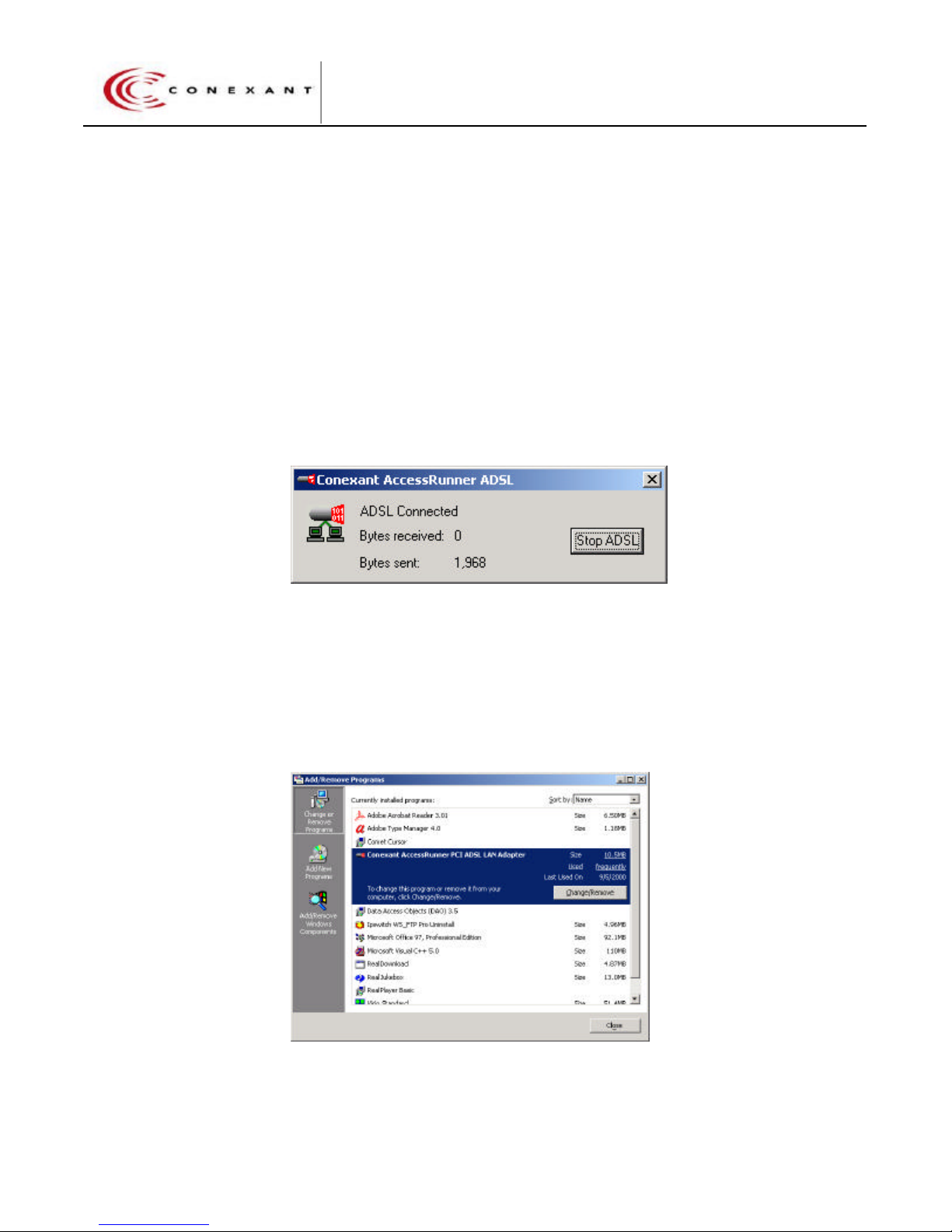
Link status information is also available from the Windows? taskbar menu. The
Taskbar status applet retains the format of a status applet for dial-up networking and
provides the user with a Connect Status indicator and the total number of bytes sent and
received. The ADSL link can be stopped and restarted from this applet. The “About”
function will display the complete software version identification.
Taskbar Applet “Show Status”
1.3.5 Manual Uninstaller
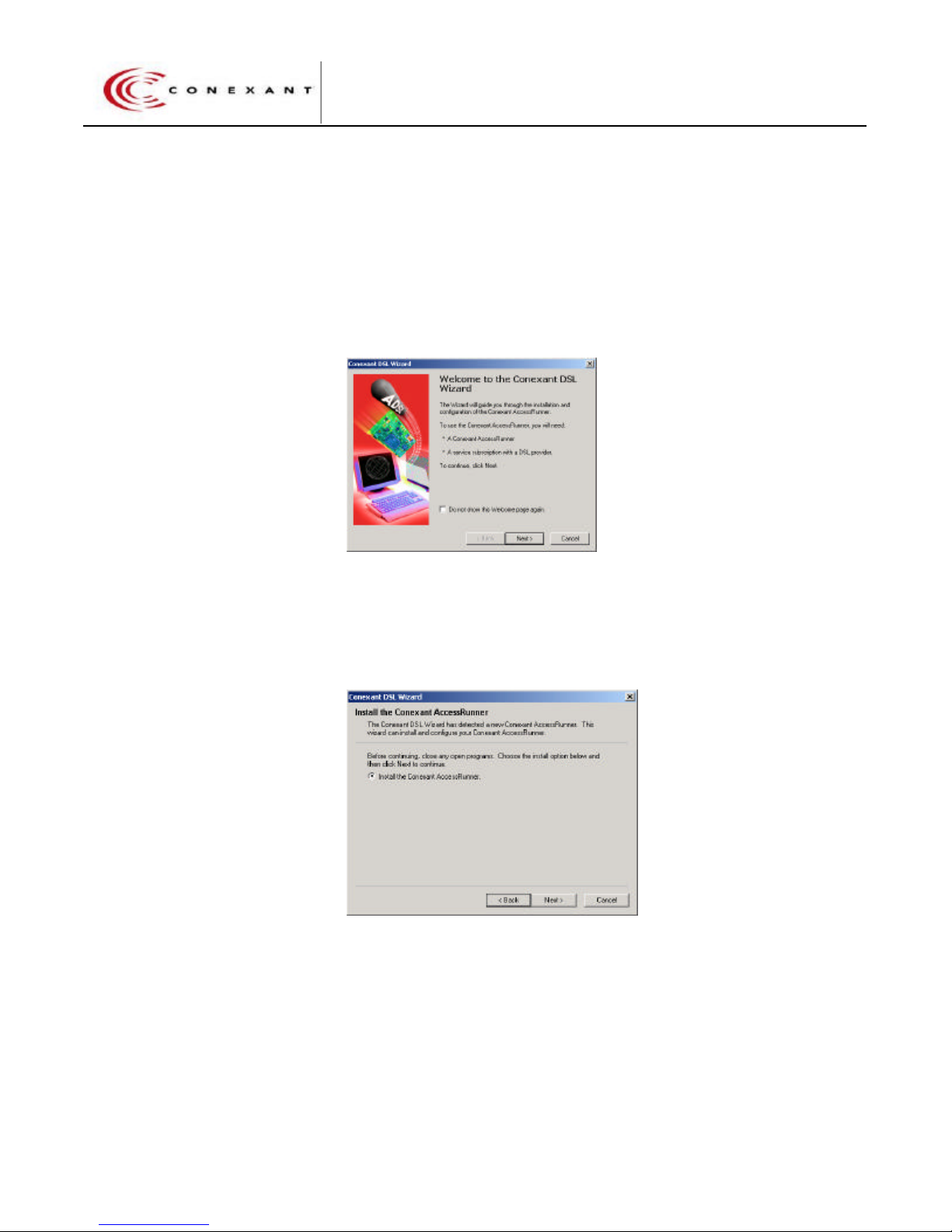
The manual uninstall program operates through the Windows “Add/Remove Programs”
function found on the Windows Control Panel. The DSL Wizard will automatically initiate
when the user selects the option to remove the AccessRunner LAN Adapter.
Windows Control Panel “Add/Remove Programs”
Preliminary Draft 6
Page 7

?
?
Tigris AccessRunner User’s Guide
?
?
(07-Sept-00)
2. Installation and Setup
2.1 System Requirements
?? 400 MHz Pentium processor or better
?? 64mb RAM
?? 20mb disk space
?? Win98SE, Win2000, or WinNT
2.2 Installation
2.2.1 Installing the PCI Modem
The Conexant AccessRunner can be installed in any available PCI slot in the PC. There
are no option switches for the user to set. Once the board is installed in a PCI slot,
connect the DSL input to the DSL RJ11 jack on the card. Some designs may have a
second RJ11 for connecting a POTS handset directly to the PCI card.
2.2.2 Installing the AccessRunner Software
The DSL Wizard is installed by running the DSL Wizard “Setup.exe” from the provided
installation CD.
Note: The AccessRunner ADSL modem must be installed in the system prior to
installation of the DSL Wizard.
To install the DSL Wizard:
1. Insert the installation CD. If Autorun is enabled, the installation will begin
automatically and you may skip steps 2 and 3.
2. From the Start menu, select Run.
3. Enter x:\Setup where x is the drive letter for your CD-ROM drive.
4. Follow the prompts on the screen.
The setup initialization will display a Splash screen as it verifies that the system is ready
to install the DSL Wizard.
Preliminary Draft 7
Splash Screen
Page 8
?
?
Tigris AccessRunner User’s Guide
?
?
(07-Sept-00)
After the setup routine has verified that the AccessRunner DSL adapter is physically
installed and that the system has sufficient resources, the setup initialization will display
a Welcome Screen with “Getting Started” information. If the setup routine determines
that the DSL adapter is not installed or if the system does not have sufficient resources,
an error message will be displayed in a dialog box. Setup will then exit without copying
or installing any files.
Welcome Screen
After the Welcome Screen, the DSL Wizard will display an Initial Screen, prompting the
user to select the desired action.
Initial Screen
From the DSL Wizard Initial Screen, select Install the Conexant AccessRunner.
Click Next to continue.
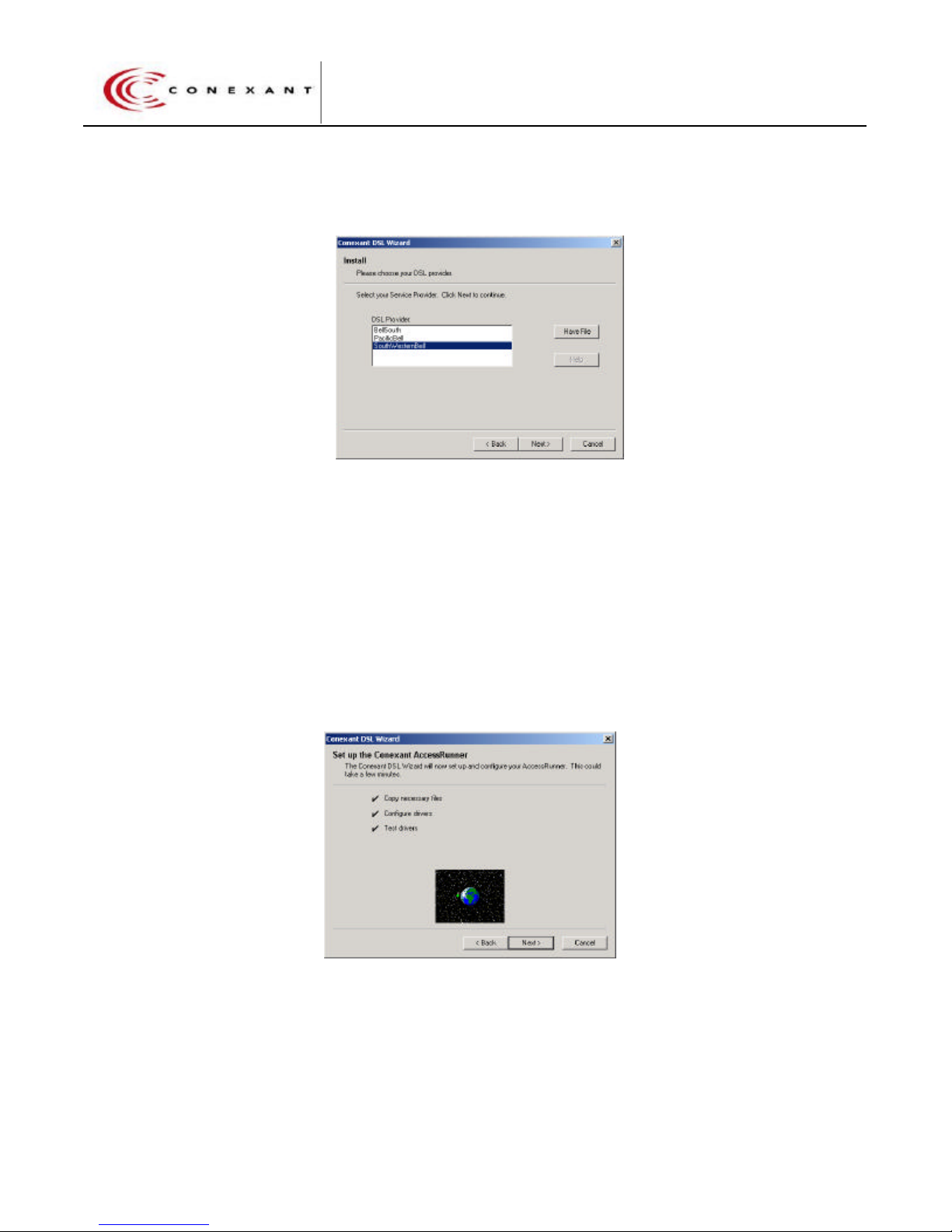
The Install Screen will be displayed if there are more than one DSL profiles (x.ins files).
If there is only one profile loaded on the CD, the DSL Wizard will skip the Install Screen
and proceed directly to the Progress Screen.
Preliminary Draft 8
Page 9
?
?
Tigris AccessRunner User’s Guide
?
?
(07-Sept-00)
Install Screen
Select the appropriate DSL Provider.
The DSL Provider selection specifies an ADSL profile that contains settings for the
AccessRunner. The DSL Provider will typically be given to the user either by the user’s
local telephone service provider or by the user’s Internet Service Provider (ISP).
Click Next to continue.
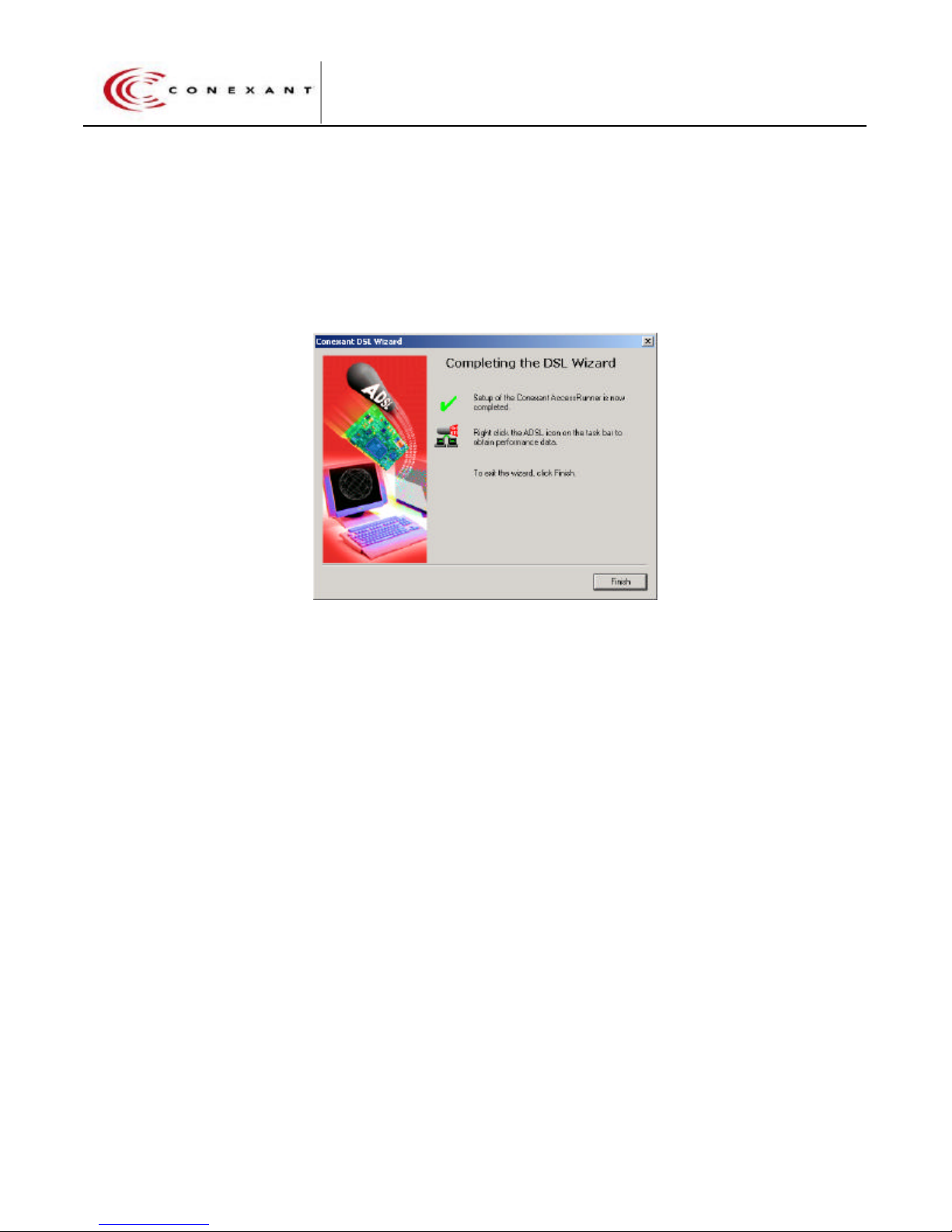
The DSL Wizard will begin installing the AccessRunner and displays a Progress Screen.
The Progress Screen identifies each task of the install process as it is performed.
?? Each task is displayed as that task is performed.
?? A check mark is placed to the left of the task description after that task is
completed.
Preliminary Draft 9
Progress Screen
Page 10
?
?
Tigris AccessRunner User’s Guide
?
?
(07-Sept-00)
?? An animated graphic is also displayed as each task is executing. This provides
a visual indication that the current task is actually being performed.
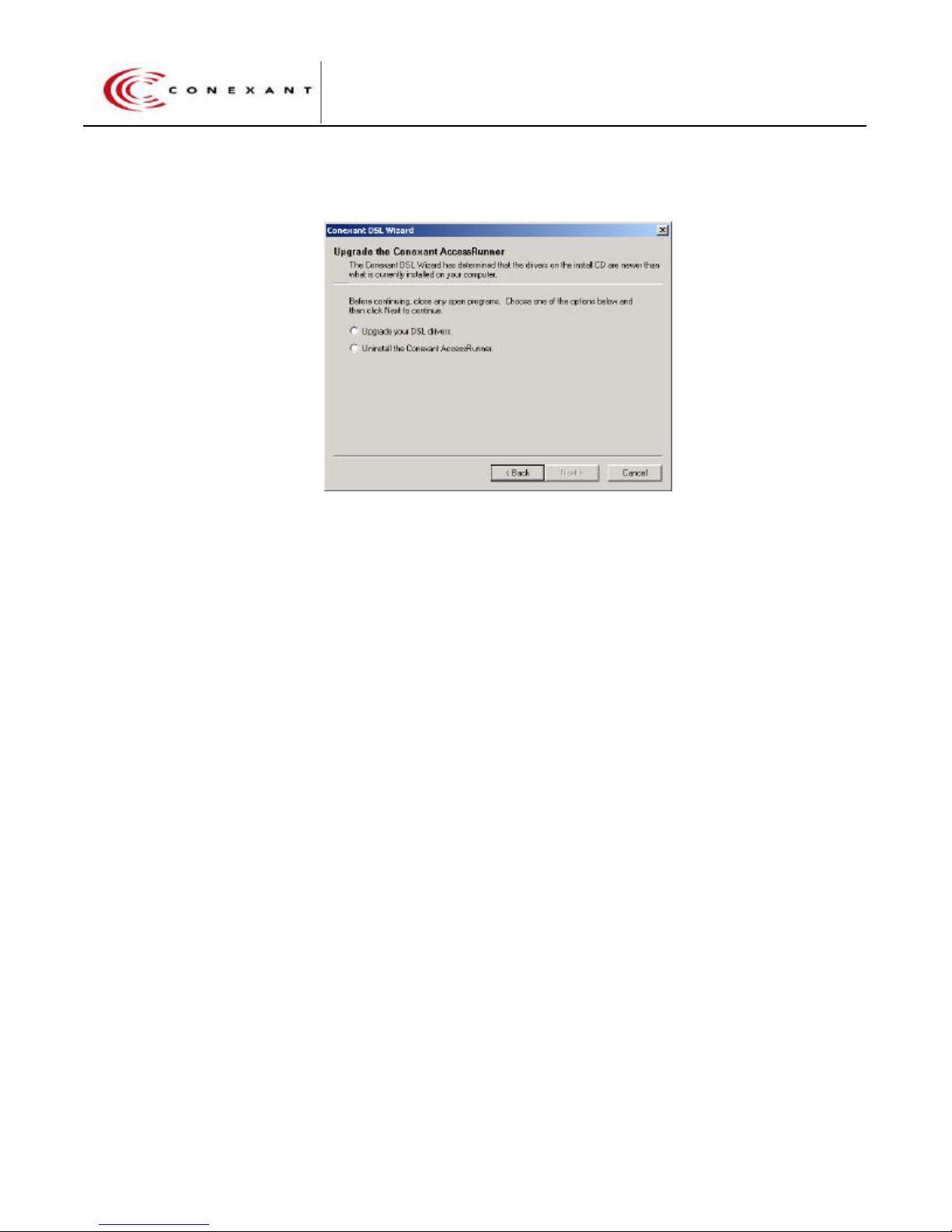
Once each task is complete, a “Finished Screen” is displayed and the user will only be
prompted to reboot if it is needed.
Finished Screen
Click Finish to complete the installation of the AccessRunner.
The installation of the AccessRunner places the shortcut for the DSL Wizard on the
Windows taskbar Start>Programs>AccessRunner DSL menu and on the Windows
desktop. An AccessRunner Taskbar applet is also placed in the Windows startup menu.
2.2.3 Upgrading the AccessRunner Software
The DSL Wizard is used to upgrade the AccessRunner and all of its applications. To
upgrade the AccessRunner to a newer version, run the DSL Wizard from the provided
installation CD that has the newer AccessRunner. The Splash and Welcome
screens will be displayed as they were during the initial installation. When the Welcome
Screen is displayed, click Next to continue.
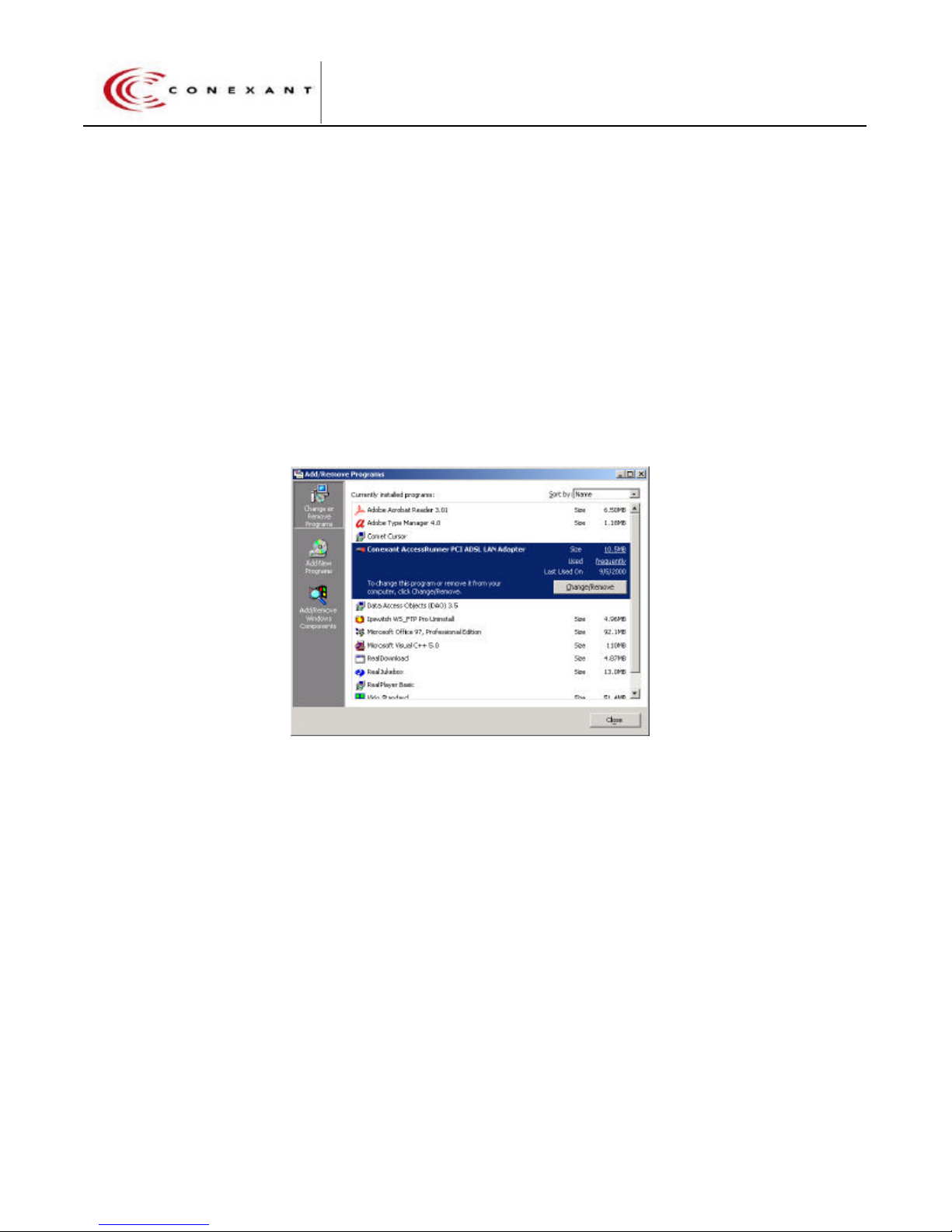
The DSL Initial Screen is displayed with the option to upgrade the DSL drivers or to
remove the AccessRunner.
At the Initial Screen, select the Upgrade your DSL drivers option.
Preliminary Draft 10
Page 11
?
?
Tigris AccessRunner User’s Guide
?
?
(07-Sept-00)
Upgrade Initial Screen
Click Next to continue.
The Upgrade Screen is displayed.
Select the appropriate DSL Provider.
The DSL Provider selection specifies an ADSL profile that contains settings for the
AccessRunner. The DSL Provider will typically be given to the user either by the user’s
local telephone service provider or by the user’s Internet Service Provider (ISP).
The indication NEW! Indicates that the DSL Profile is a newer version than the currently
installed DSL profile.
Click Next to continue.
When the upgrade option is selected:
?? The existing AccessRunner will be uninstalled.
?? The AccessRunner from the provided installation CD will be installed.
The DSL Wizard will begin installing the AccessRunner and displays a Progress Screen.
See figure 5 for an example of a typical Progress Screen .
Preliminary Draft 11
Page 12
?
?
Tigris AccessRunner User’s Guide
?
?
(07-Sept-00)
2.2.4 Removing the AccessRunner Software
The AccessRunner software and its’ drivers can be removed from the host system by
either one of two methods. The Windows “Add/Remove Programs” utilitity can be used
to manually remove the AccessRunner or the DSL Wizard can be used to remove the
AccessRunner.
2.2.4.1 Removing Manually
Select Start>Settings> Control Panel .
Double click the “Add/Remove Programs”
Windows Control Panel “Add/Remove Programs”
Selecting the “Change/Remove” button will begin removing the AccessRunner and
display the DSL Wizard Uninstall Screen.
2.2.4.2 Removing with the DSL Wizard
To begin uninstalling the AccessRunner software, run the DSL Wizard.
After the Splash Screen, the Welcome Screen will be displayed. At the Welcome
Screen, click Next to continue.
The DSL Initial Screen will be displayed.
Preliminary Draft 12
Page 13
?
?
Tigris AccessRunner User’s Guide
?
?
(07-Sept-00)
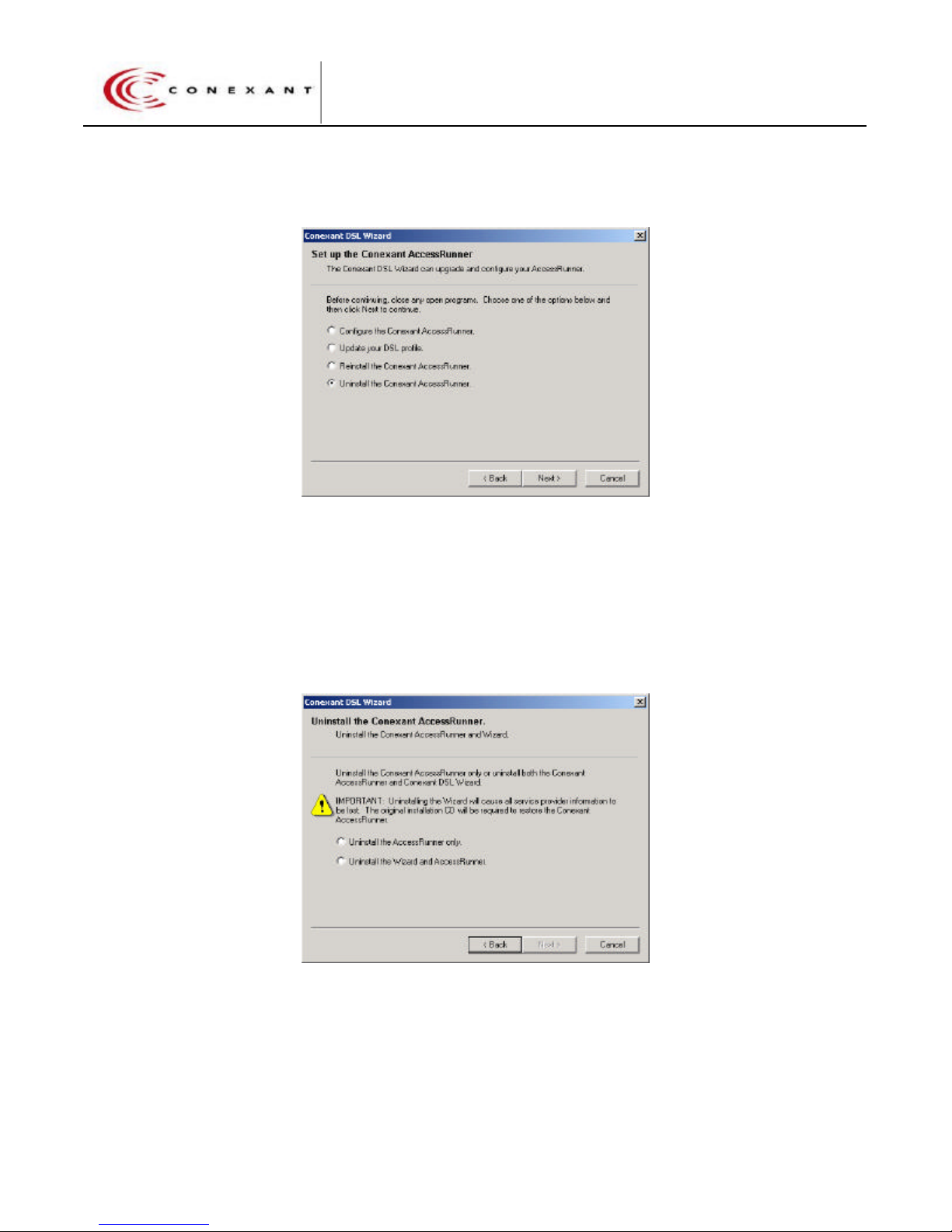
Uninstall Initial Screen
From the DSL Wizard Initial Screen, select the Uninstall the Conexant AccessRunner
option.
Click Next to continue.
The Uninstall Screen is displayed.
The Uninstall Screen prompts the user to select what to uninstall and to confirm the
uninstall request.
Select the Uninstall the Wizard and AccessRunner option.
Preliminary Draft 13
Uninstall Screen
Page 14
?
?
Tigris AccessRunner User’s Guide
?
?
(07-Sept-00)
Click Next to continue.
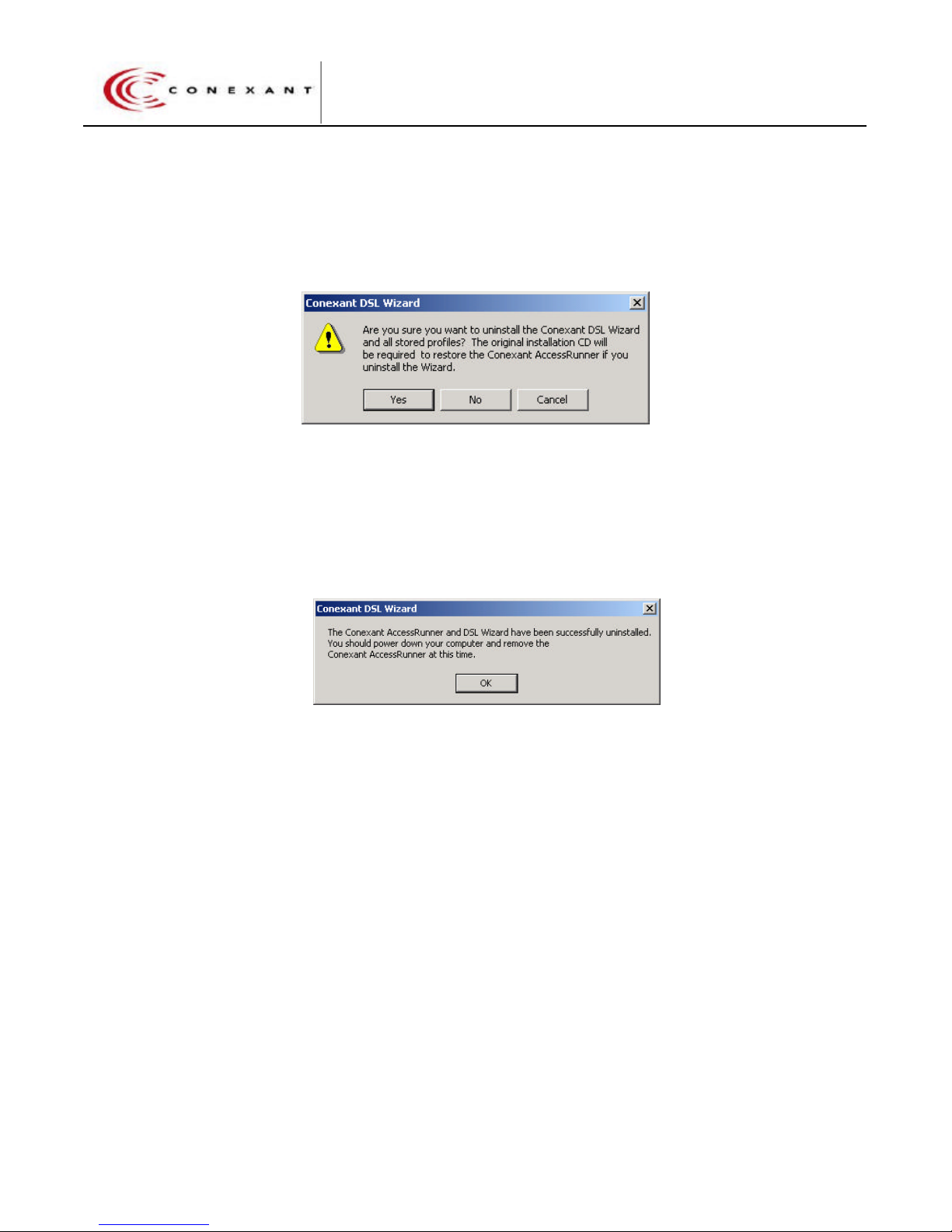
The DSL Wizard will confirm with an “Are You Sure?” dialog box.
Uninstall Screen
Click Yes to continue.
The DSL Wizard will now uninstall both the DSL Wizard and the AccessRunner. When
the uninstall is complete, the DSL Wizard will display the Uninstall Success Screen.
Uninstall Success Screen
Click OK to exit the DSL Wizard.
Preliminary Draft 14
Page 15
?
?
Tigris AccessRunner User’s Guide
?
?
(07-Sept-00)
3. Operation
3.1 Overview
The DSL Wizard will install all of the software that is required to use the AccessRunner
ADSL modem. The user can monitor the status of the ADSL link through either the
AccessRunner Control Panel or through the Windows? taskbar applet.
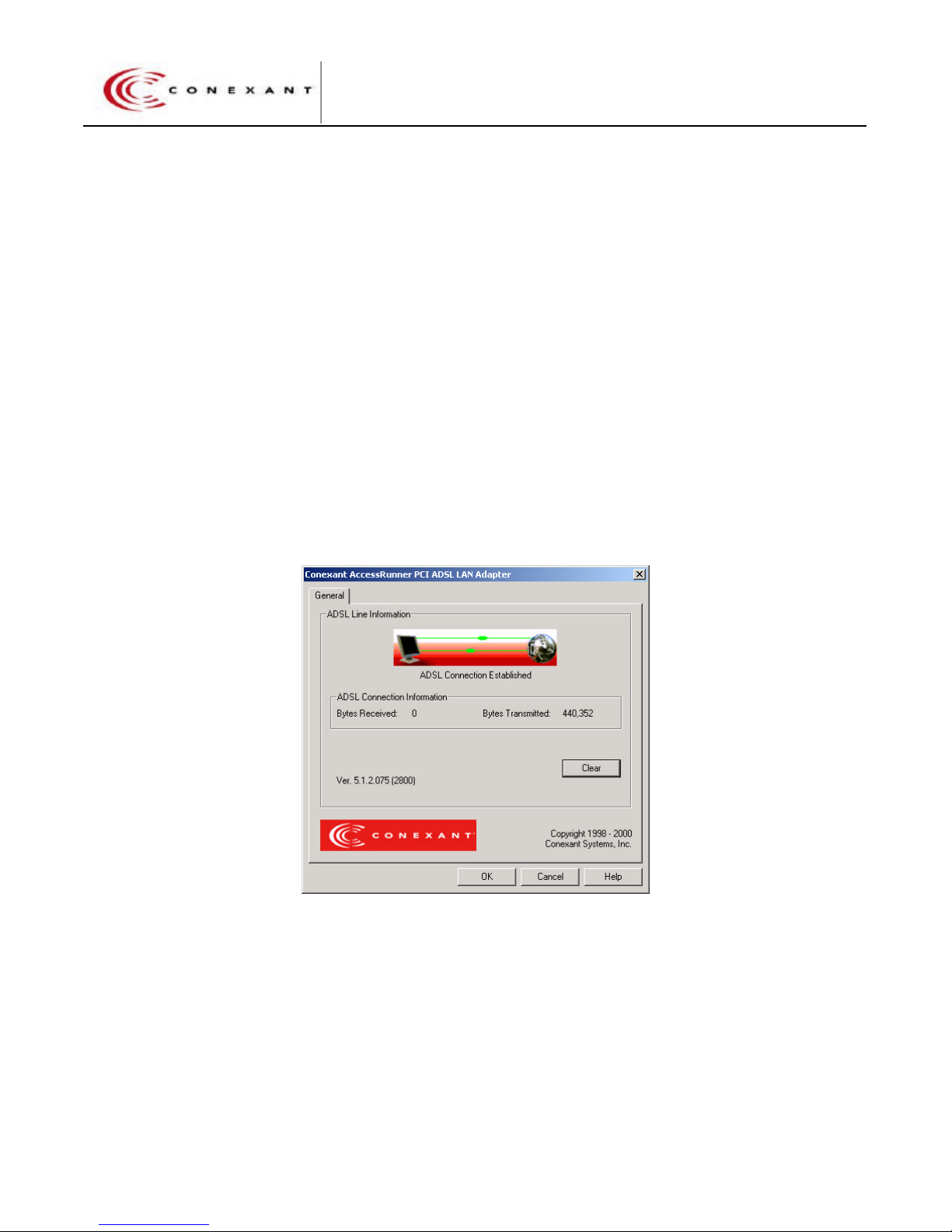
3.2 Using the AccessRunner Control Panel
The AccessRunner Control Panel is accessed by selecting
Start>Programs>AccessRunnerDSL>AccessRunnerControlPanel from the
Windows? taskbar. This is non-intrusive to the DSL link and may be opened and closed
without effecting the DSL data path.
The Control Panel displays link status, the AccessRunner software version and the
transmit/receive byte counts. The byte count can be reset by clicking the Clear button.
3.3 Using the Taskbar Applet
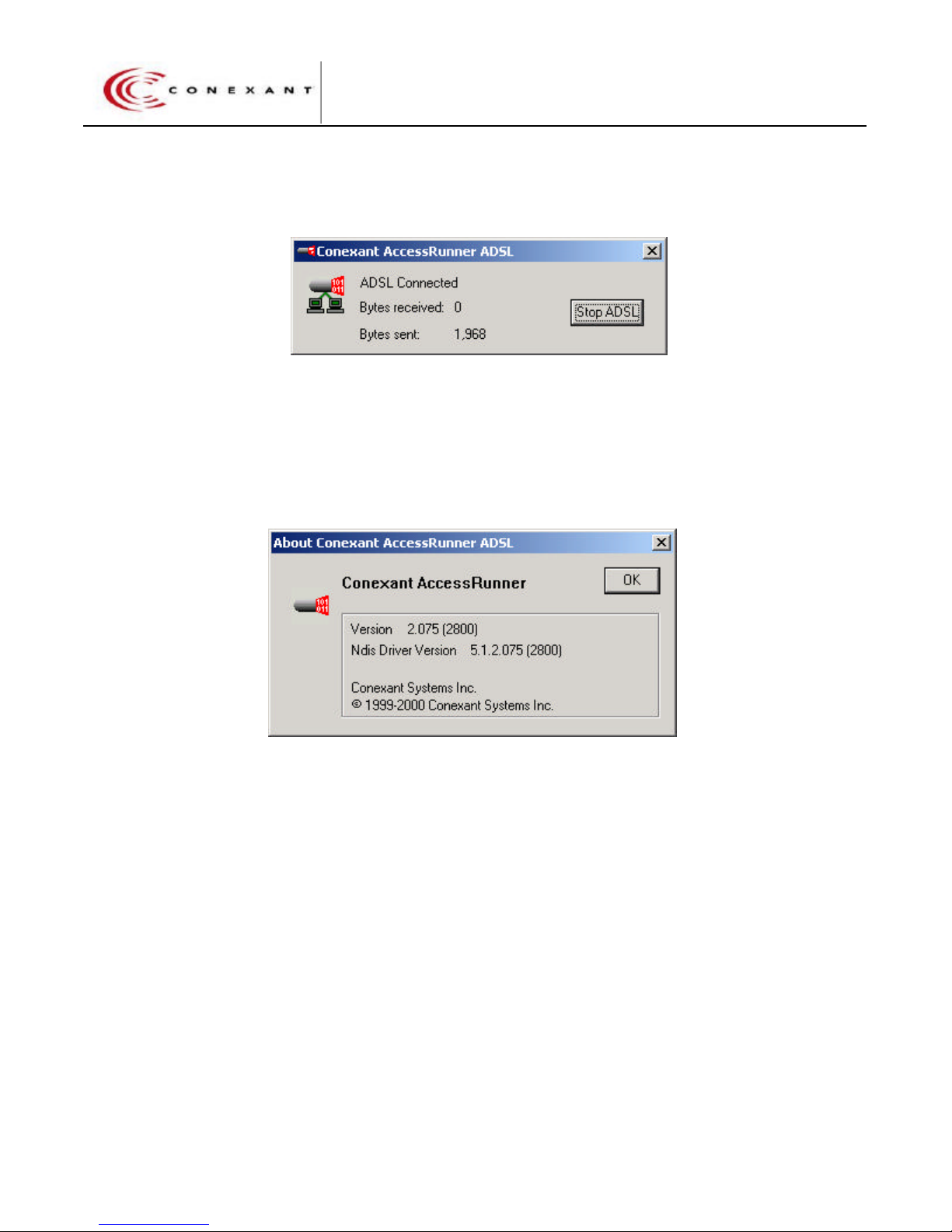
The Taskbar applet is a Dial-Up Networking (DUN) style of status window that provides
link status, byte count, and a button to start/stop the ADSL link.
Preliminary Draft 15
AccessRunner Control Panel
Page 16
?
?
Tigris AccessRunner User’s Guide
?
?
(07-Sept-00)
To access the taskbar applet, double click the AccessRunner icon on the Windows
taskbar.
Taskbar Applet “Show Status”
In order to display the version of AccessRunner software currently running, right-click the
taskbar icon and select “About …” . The About AccessRunner ADSL will display the
current AccessRunner software and the current NDIS driver information.
About AccessRunner
Preliminary Draft 16
Page 17

?
?
Tigris AccessRunner User’s Guide
?
?
(07-Sept-00)
4. Troubleshooting
Did the Wizard Install
Properly ?
Yes
Will the Control Panel
Open ?
Yes
No
No
Refer to Section 4.1 "Problems with DSL Wizard Installation
Refer to Section 4.2 "Control Panel Problems"
Is the DSL Adapter
Installed Properly ?
Yes
Is the DSL Link Up
(Showtime) ?
Yes
Will It Pass Data ?
Yes
Are the Upstream /
Downstream Rates
Correct ?
No
No
No
No
Refer to Section 4.3 "Hardware Installation"
Refer to Section 4.4 "DSL Link Status Issues"
Refer to Section 4.5 "Data Modes"
Refer to Section 4.6 Connect Rates "
Preliminary Draft 17
Page 18
?
?
Tigris AccessRunner User’s Guide
?
?
(07-Sept-00)
4.1 Difficulties Installing the DSL Wizard
4.2 Control Panel Problems
4.3 Hardware Installation
Verify that the card is fully seated in a PCI slot and that the card is secured to the PC
frame.
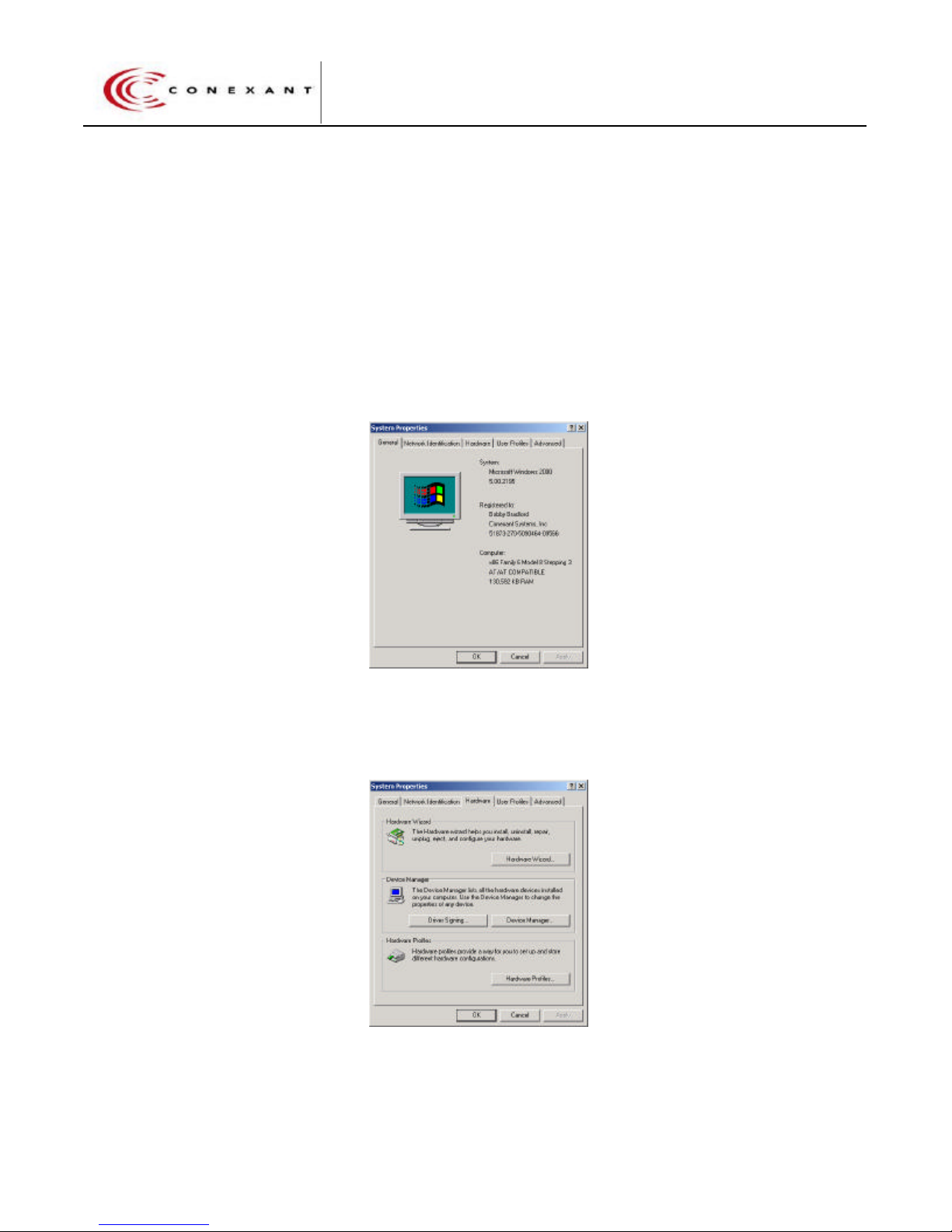
Verify that the host system recognizes the AccessRunner PCI card by selecting
Start>Settings>Control Panel and double click the System icon.
Select the Hardware tab
System Properties – General
System Properties – Hardware
Preliminary Draft 18
Page 19
?
?
Tigris AccessRunner User’s Guide
?
?
(07-Sept-00)
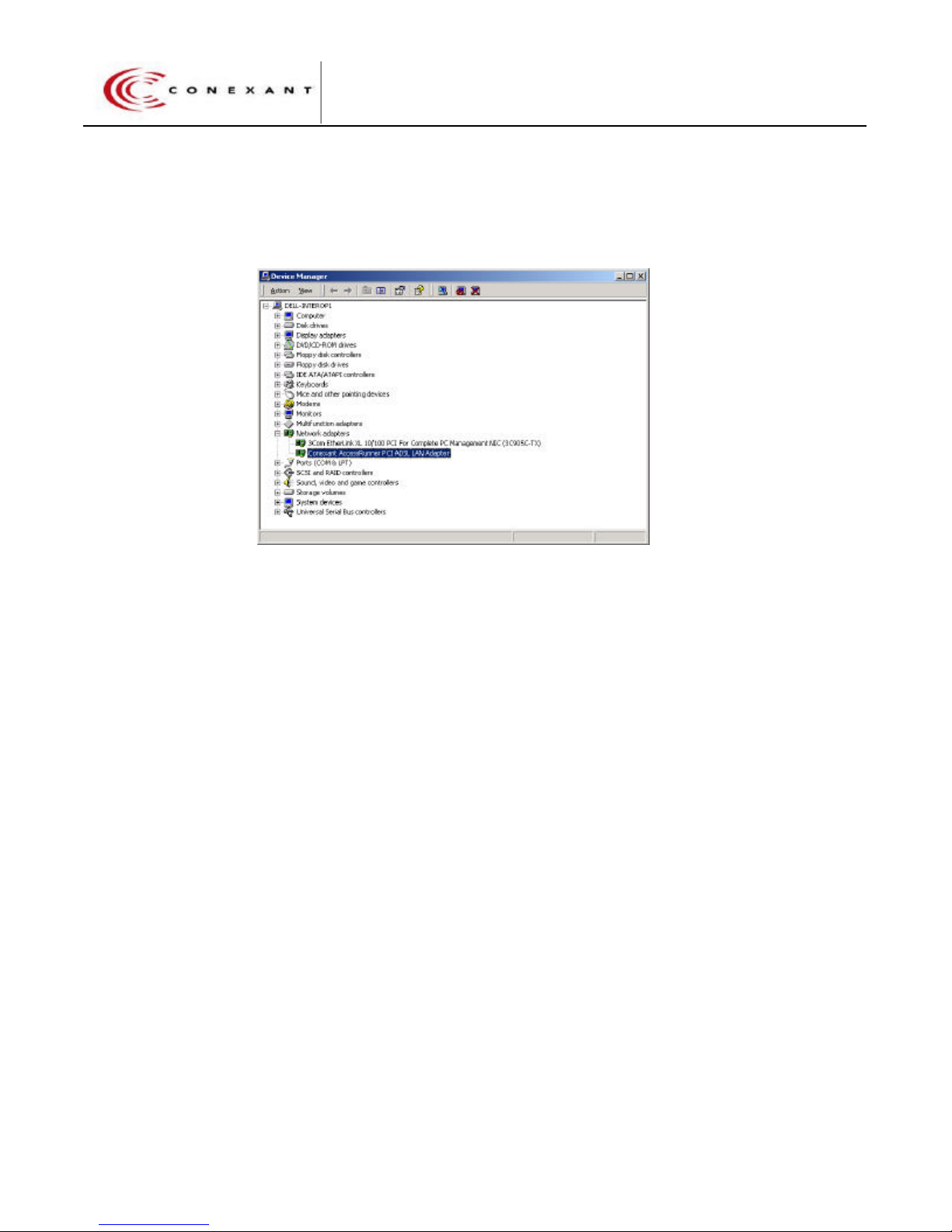
Select the Device Manager button and expand the Network Adapters section. If the PCI
card is installed properly, there will be an entry for the PCI ADSL LAN Adapter.
4.4 DSL Link Status
4.5 Data Modes
4.6 Connect Rates
Device Manager Display
Preliminary Draft 19
Page 20

?
?
Tigris AccessRunner User’s Guide
?
?
(07-Sept-00)
Preliminary Draft 20
 Loading...