

Page 1

VideoMate H900
PCI TV Tuner Card
Start Up Guide
Compro Technology, Inc.
www.comprousa.com
Page 2

ii
Copyright © 2001-2006. Compro Technology, Inc. No part of this
document may be copied or reproduced in any form or by any means
without the prior written consent of Compro Technology, Inc.
Compro, VideoMate, Poladyne, Play with Power, and the Compro
logo are trademarks of Compro Technology, Inc. Other names and
marks are trademarks of their respective owners.
COMPRO makes no warranties with respect to this documentation
and disclaims any implied warranties of merchantability, quality, or
fitness for any particular purpose. The information in this document is
subject to change without notice. COMPRO reserves the right to
make revisions to this publication without obligation to notify any
person or entity of any such changes.
Compro Technology, Inc.
Tel. +886 2 2918 0169, Fax +886 2 2915 2389
3/F, No.12, Alley 6, Lane 45, Pao Shin Road
Hsintein City, Taipei, Taiwan.
www.comprousa.com
Page 3

1
Table of Contents
About This Guide ......................................................2
About VideoMate PCI TV Tuner Card....................... 2
VideoMate PCI TV Tuner Card Contents..................3
Remote Control Key Definition and Use...................4
VideoMate PCI TV Tuner Card Connectors.............. 6
Hardware Installation ................................................7
Software Installation................................................10
Remote Wake Up.................................................... 11
ComproFM 2...........................................................12
ComproPVR 2.........................................................13
ComproDVD 2.........................................................22
Troubleshooting ......................................................23
Page 4

2
About This Guide
This manual tells you how to install and use your VideoMate PCI TV Tuner
Card. For more information on using applications, please see the User’s
Guides in the programs, on the CDs, or at our website for the latest manuals
http://www.comprousa.com/download.
About VideoMate PCI TV Tuner Card
VideoMate H900 lets you watch and record TV (including hardware and
software compression) on your PC. It features an analog TV tuner, 3D Y/C
Separation for NTSC signal, FM Tuner, Remote Power on/off, and Power Up
Scheduling. You can do Digital Video Recording (DVR) functions, scheduled
recording at anytime, watching crystal video quality, intelligent TV viewing, and
Multi-function Remote Control. Additionally, VideoMate TV also provides a
Video capture function so that you can transfer videos from video devices,
such as video cameras, to your PC.
MINIMUM SYSTEM REQUIREMENTS
Your PC must meet or exceed the following system requirements to watch TV
on your PC.
600 MHz Pentium II or equivalent CPU
866 MHz CPU for Hardware MPEG-2 or Timeshifting
128 MB RAM
Sound card or on-board sound chip
Open PCI slot
CD-ROM drive for software installation
Windows XP, 2000 or above with DirectX 9.0c
50 MB free disk space for basic software installation.
600 MB (VCD-quality) to 3 GB (DVD-quality) per hour of recorded video.
RECOMMENDED SYSTEM REQUIREMENTS
To use all the features of VideoMate TV, including software encode recording
at DVD quality and power up scheduling, your PC should meet the following
requirements.
1.7 GHz or above CPU
256 MB RAM
Page 5
3
Sound card or on-board sound chip
Open PCI version 2.2 slot
CD-ROM for software installation
Windows XP SP2 or above
50 MB free space for software installation
600 MB (VCD-quality) to 3 GB (DVD-quality) per hour of recorded video
ATX power supply
A computer case with a separate power switch cable from power on
button for power up feature.
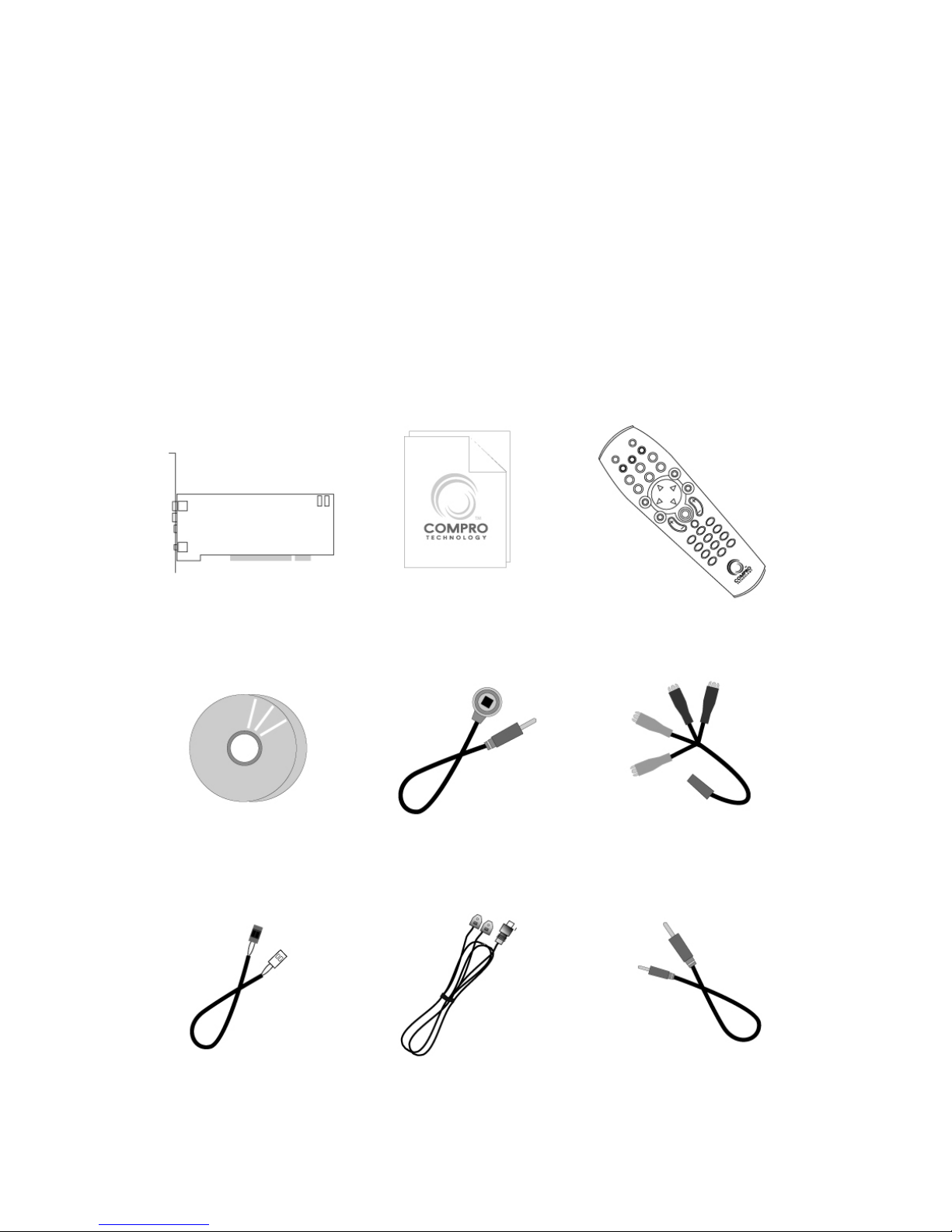
VideoMate PCI TV Tuner Card Contents
VideoMate H900
PCI TV Tuner card
FM Antenna
IR Receiver
Software CDs
Start Up Guide
IR Remote Control
(batteries included)
Power Up Cable
(Power switch
patch cable)
4 in 1 breakout
cable
Audio patch
cable
Page 6
4
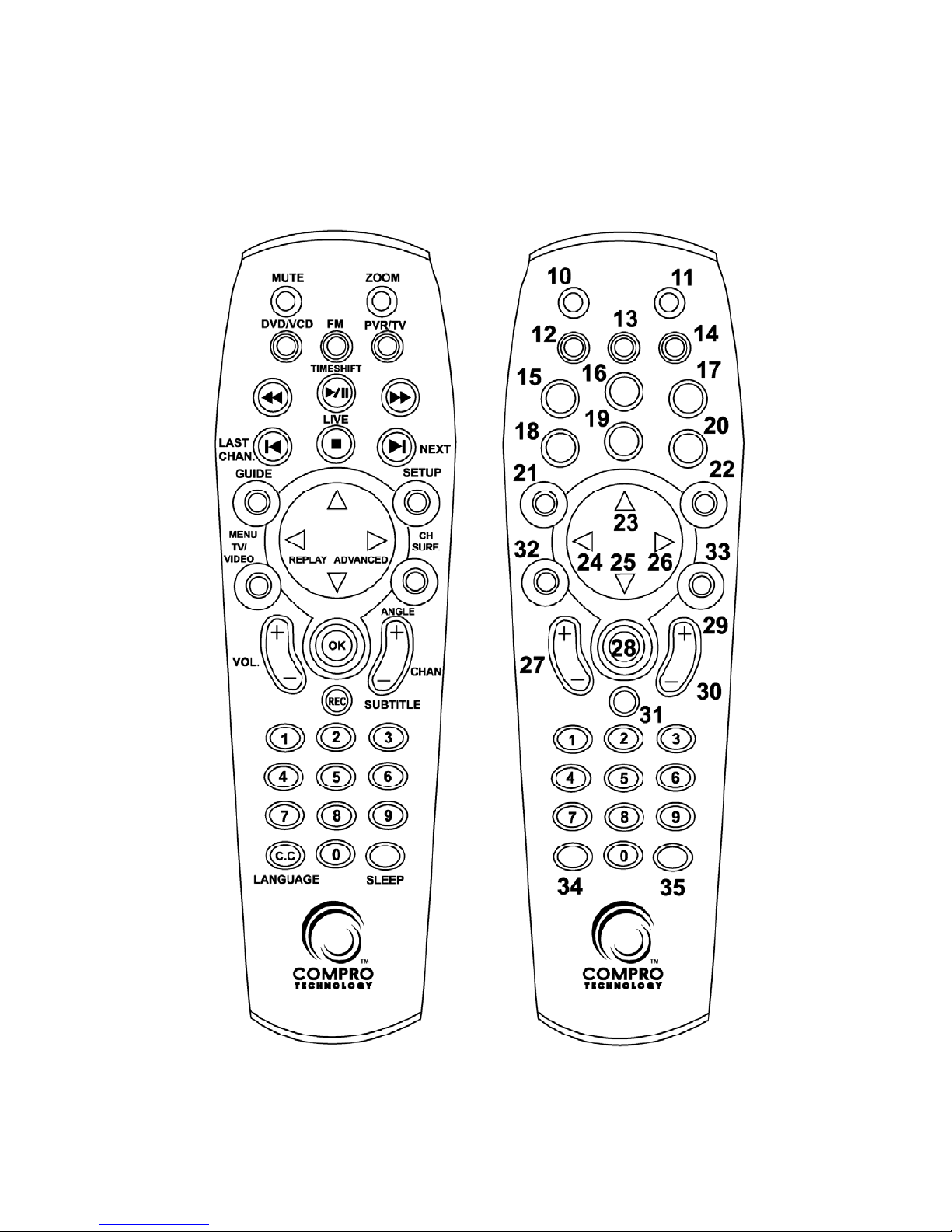
Remote Control Key Definition and Use
Please refer to the buttons and their corresponding function listed on the next
page.
Page 7

5
Key ComproPVR 2 ComproFM 2 ComproDVD 2
0-9 Number keys Pre-set stations Number keys
10 Mute sound Mute Mute sound
11 Zoom In/Out Minimize/Maximize Zoom In/Out
12 Start/Close ComproDVD 2
13 Start/Close ComproFM 2
14 Start/Close ComproPVR 2
15 Replay Rewind Rewind
16
Pause or enable
timeshifting
Play/Pause during
playback
Play/Pause during
playback
17 Advance Forward Forward
18 Previous channel Jump to last station Last chapter
19 Stop Stop Stop
20 Tab function Not used Next chapter
21 EPG (US only) Open on-line help Main manual
22 Open setup dialog Open setup dialog Open setup dialog
23
Up arrow or select
Mono/Stereo/SAP
Up arrow Up arrow
24
Replay or switch
TV format
Scan down Left arrow
25
Down arrow
or snapshot
Down arrow Down arrow
26 Advance Scan up Right arrow
27 Volume control Volume control Volume control
28 Open play list Open play list OK
29 Channel up Station up Choose DVD angle
30 Channel down Station down DVD subtitle select
31 Record Record Snapshot
32
TV/ S-Video/
Composite
Not used Add to bookmark
33 Channel surfing Not used Go to bookmark
34 Not used Enter frequency Select lan guage
35 Sleep function Sleep function AB repeat
Page 8
6
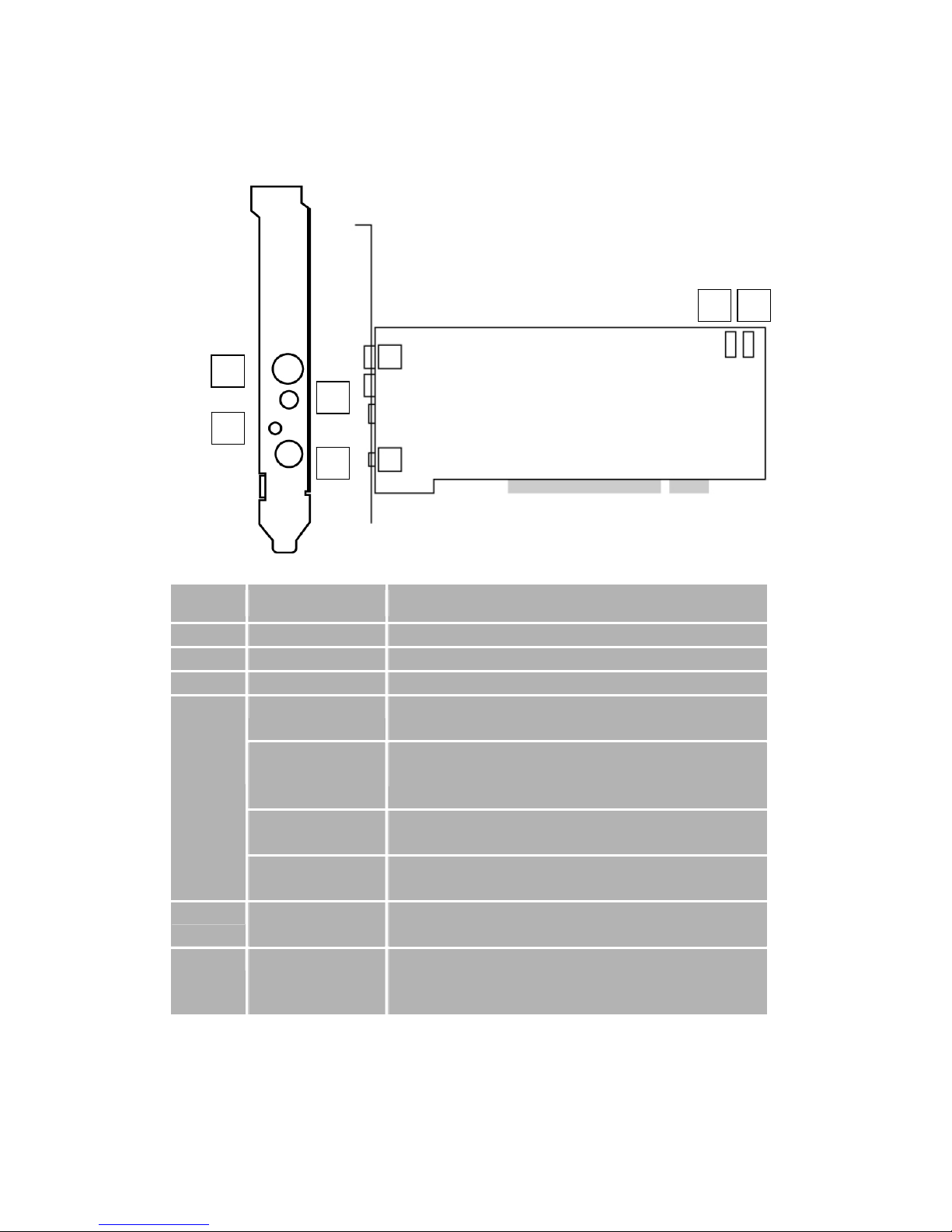
VideoMate PCI TV Tuner Card Connectors
Item Function Description
1 TV Tuner-In Connect to a TV antenna or TV cable feed.
2 FM Tuner-In Connect to an FM antenna feed.
3 IR Connect the IR receiver here.
Audio-In (Blue) Use an audio patch cable to connect to an audio
source, such as a VCR, DVD or VCD.
External
Audio-Out
(Green)
Use the supplied audio patch cable to connect to
the Line-In port of your sound card.
S-Video-In
(Black)
Use an S-Video patch cable to connect to a
video source, such as a VCR, DVD or VCD.
4
(4 in 1
breakout
cable)
Composite-In
(Yellow)
Use a Composite video patch cable to connect to
a video source, such as a VCR, DVD or VCD.
5 To Case Power
Switch
Connect the ATX Power Switch cable of your
computer case here.
6 To Mainboard
Power Switch
Connector
Use the supplied power switch patch cable to
connect to the ATX Power Switch pins on the
mainboard.
1
3
5 6
2
4
Page 9
7
Hardware Installation
Warning
Unplug your PC’s main power cord before installing VideoMate TV.
Failure to do so may cause damage to your VideoMate TV tuner card and
void your warranty.
1. Shut down your computer and unplug main power cord.
2. Remove the computer case cover.
Power Up Connections
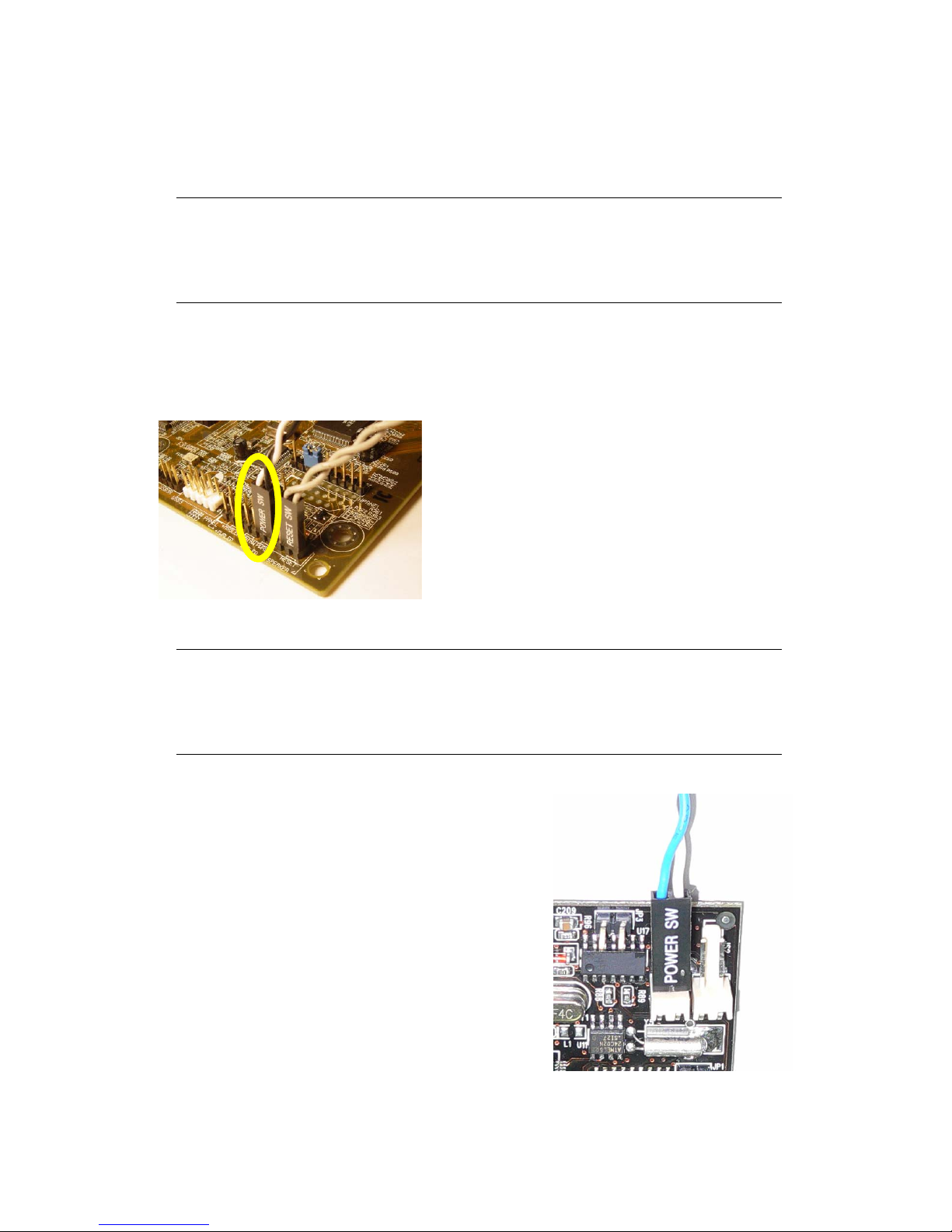
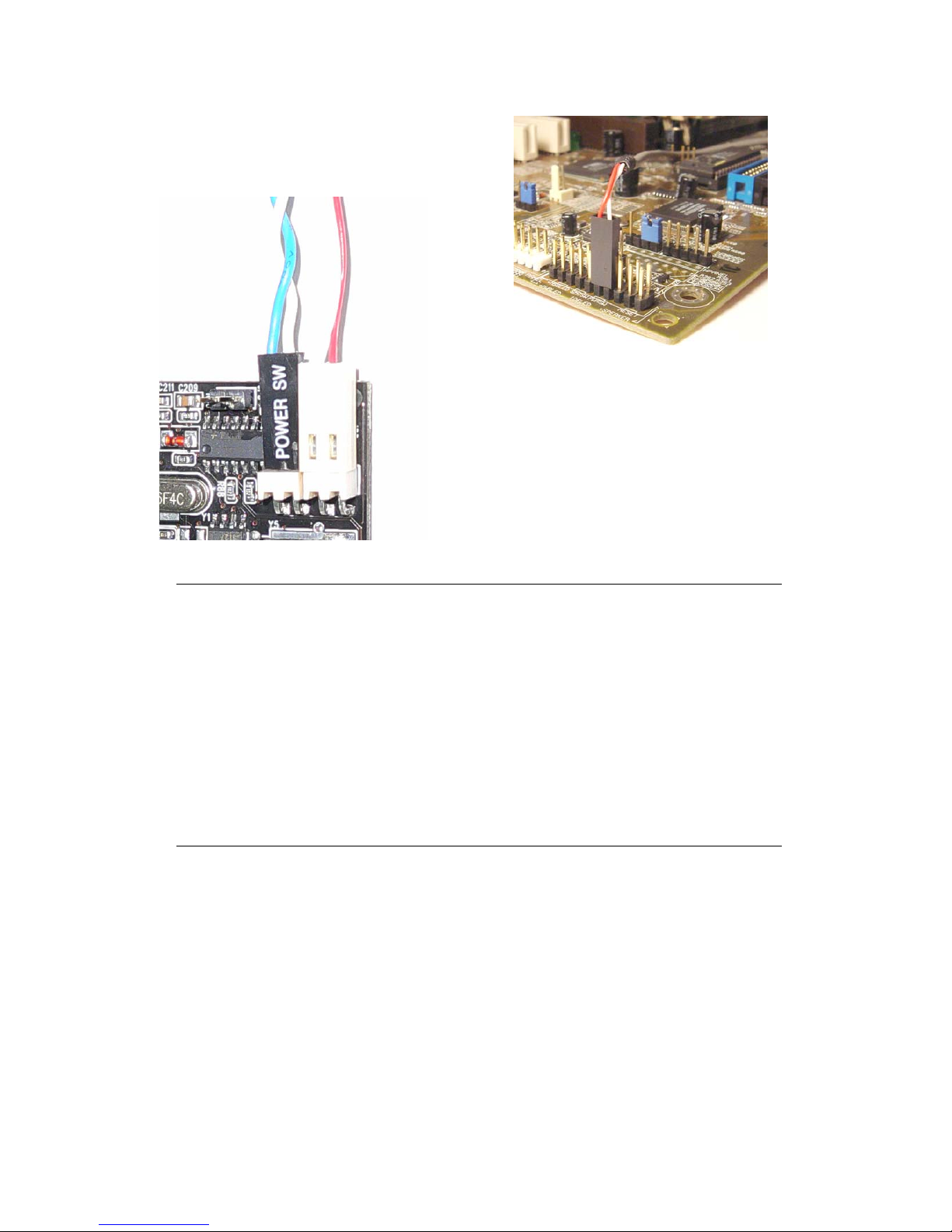
3. Locate the ATX power switch pins on
your computer case and trace the wires
to the power switch connector on your
mainboard. The ATX power switch cable
is normally a twisted pair cable with a
two-pin connector as shown above.
Note
On the mainboard, the ATX power switch pins are usually labeled “POWER
SW” or similar. It is vital to remember the position of these pins for a later step
in the installation process.
4. Unplug the ATX power switch cable from
the mainboard and connect it to the
connector JS1 on the VideoMate PCI TV
Tuner Card, as shown on the right.
Page 10
8
5. Connect the black socket of Power Up
power patch cable to the power switch
connector on the mainboard.
6. Connect the white socket of Power Up
patch cable to the connector JS2 on the
VideoMate PCI TV Tuner card.
Note
Double check your work. If you plug the cables into the incorrect pins, your PC
may not start or otherwise function improperly.
Connect the white end of the Power Up patch cable to the TV tuner card and
the black end to the mainboard.
Power Up Scheduling is not a required for using VideoMate TV. If you don’t
want to use Power Up Scheduling from the Windows Shut down state, you
can skip the power switch circuit connections, in other words, you can skip
Power Up Connections in steps 3 through 6. You can still use scheduled
recording from Standby mode or powered on state.
7. Verify that the power cord to your PC case is unplugged.
8. Insert VideoMate TV in an open PCI slot. Compro recommends installing
the card in the third or fourth PCI slot from AGP away from the AGP slot.
9. Before closing your PC case, plug in main power cord of the PC case. You
should see a green LED light on the PCI TV tuner card. If you don't see the
green light, please read the notes on the following page.
10. Replace the computer cover.
Page 11
9
TV signal and FM cable
11. Connect your TV signal to the upper and the supplied FM antenna to the
lower connector. Adjust FM antenna for optimal reception.
Note
If the computer cannot be turned on, verify the position of the power patch
cable on the mainboard. Consult the mainboard documentation to determine
the position of the ATX power switch connector. Also, double check that the
AC power cable is properly connected to your PC.
Power Up will start your computer 5 minutes in advance of the scheduled
recording time, for example, if you have set ComproPVR to record a program
at 4 o’clock, it will start your computer at 3:55. Therefore, you need to shut
down the computer before 3:54 in order to let Power Up start the computer.
Power Up from Windows Shutdown mode, i.e., ACPI S5
state, requires:
z An ATX power supply in your PC.
z Mainboard support for PCI version 2.2 in order to
have 3.3V standby power.
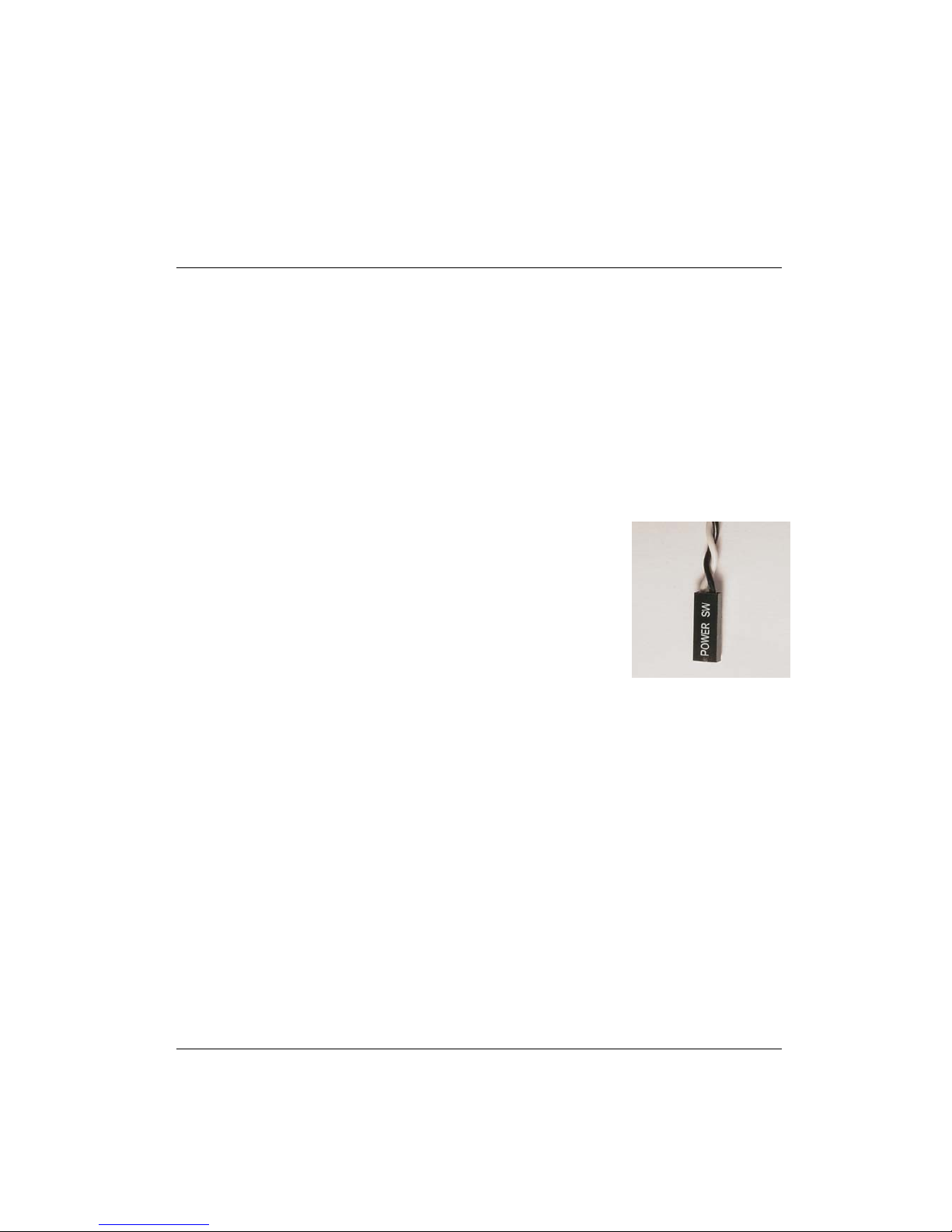
z An ATX power switch cable, which is a pair of twisted
wires with a two-wire connector, as shown to the
right.
If you don't have the above items, you can still use Power-Up Scheduling with
Windows Stand by mode, i.e., ACPI S1/S3 state, if your system supports it.
If your ATX power switch cable in your PC case cannot reach to the power up
socket of TV Tuner card, you cannot use the Power Up function with system
shutdown mode. Please try to move the card to another PCI socket.
You can use VideoMate TV without using Power Up Scheduling. If you don’t
want to use Power Up Scheduling from the Windows Shut down state, you
can skip the power switch circuit connections, in other words, you can skip
Power Up Connections in steps 3 through 6. You can still use scheduled
recording from Standby mode or leave your PC powered on.
The ATX power switch cable is not polarized. You can plug it in either
direction.
Page 12
10
Software Installation
After installing the PCI card and cables in your computer, you should restart it
and follow these steps to install the software.
Step 1. Af ter rest arting, Windows will detect your V ideoMate TV card and st art
the Add/Remove Hardware Wizard, prompting you to install the
VideoMate TV drivers. Please press Cancel and go to the next step.
Step 2. Insert the installation CD into your CD drive. If you have Autorun
enabled, the installer will start automatically. (If Autorun is disabled,
double-click on “setup.exe” on the installation CD.) You can choose
Complete to install all necessary software (VideoMate TV drivers,
ComproPVR 2, ComproDVD 2, ComproFM 2, Ulead PhotoExplorer
8.5 SE) or choose Custom to select item by item. Compro
recommends you choose Complete.
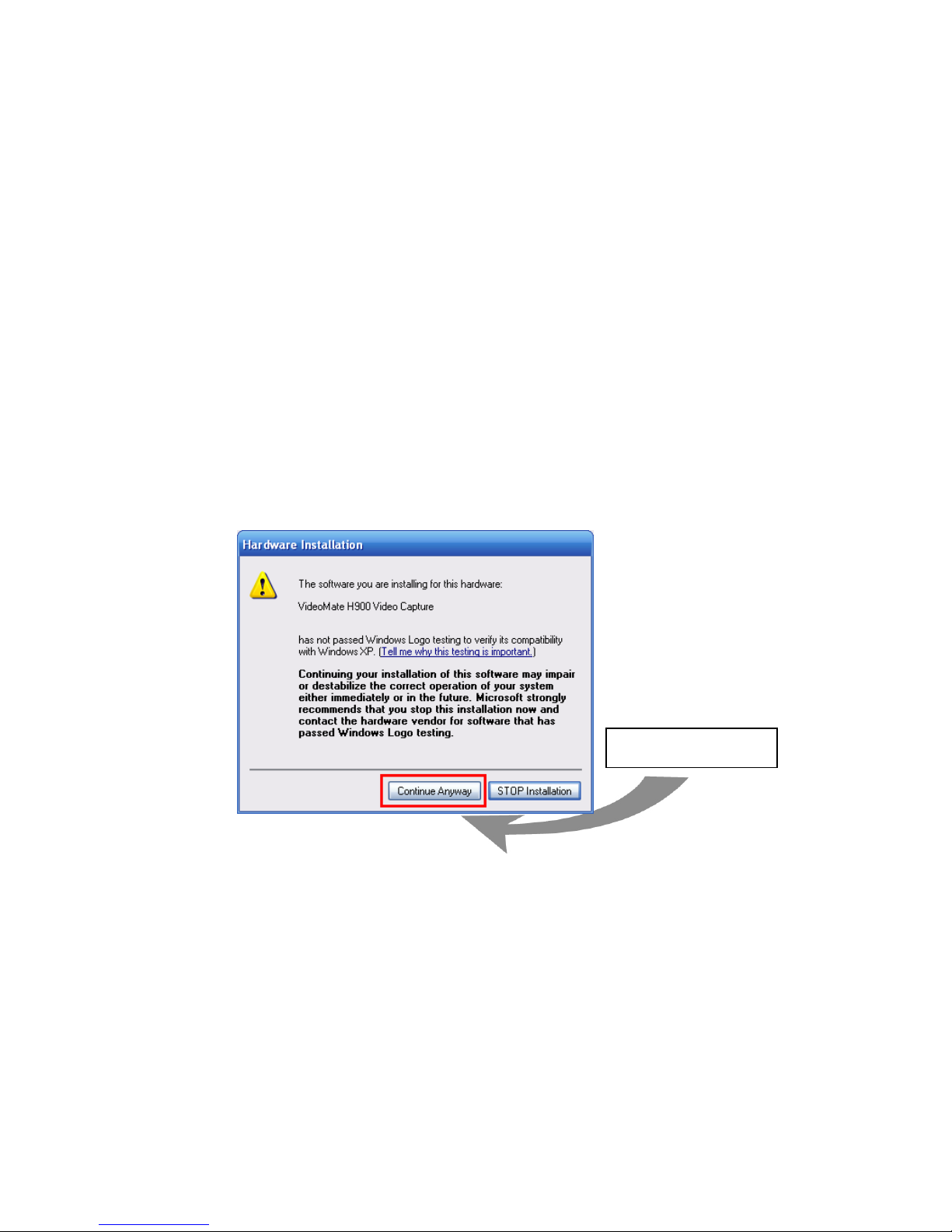
Step 3. If you see the Windows Logo testing message, below, please press
“Continue Anyway” to proceed.
Step 4. Press Next to install ComproPVR 2, ComproDVD 2, ComproFM 2,
Ulead PhotoExplorer 8.5 SE.
Step 5. When installation completes, press Finish to restart computer.
Step 6. Open ComproPVR to enjoy the show.
Continue Anyway
Page 13
11
Remote Wake Up
Compro has always focused on developing products with great features.
Integration of hardware and software support, you can start your computer
from the shut down state by pressing a button on the remote keypad. You don’t
need to reach over to your computer anymore. You can also shut down the
computer by remote control as well. No more mouse clicks on the screen. This
feature converts your PC into a convenient home entertainment video
appliance.
After install the TV card driver , put batteri es in the remote control. Pressing one
of the PVR/TV, FM, DVD/VCD buttons will start your computer.
Note
You must correctly install the driver and Power Up connectors in order to use
Remote Wake Up function. There will be a two second delay before the PC
powers on.
If you want to disable the Remote Wake Up function, move the red jumper JP1
on your TV card from position 2-3 (right, default) to position 1-2 (left)..
This feature cannot logon your system. You may need to enter your user name
and password.
Remote Shut Down
There are two situations for the operation.
When not watching TV, i.e. no ComproPVR running:
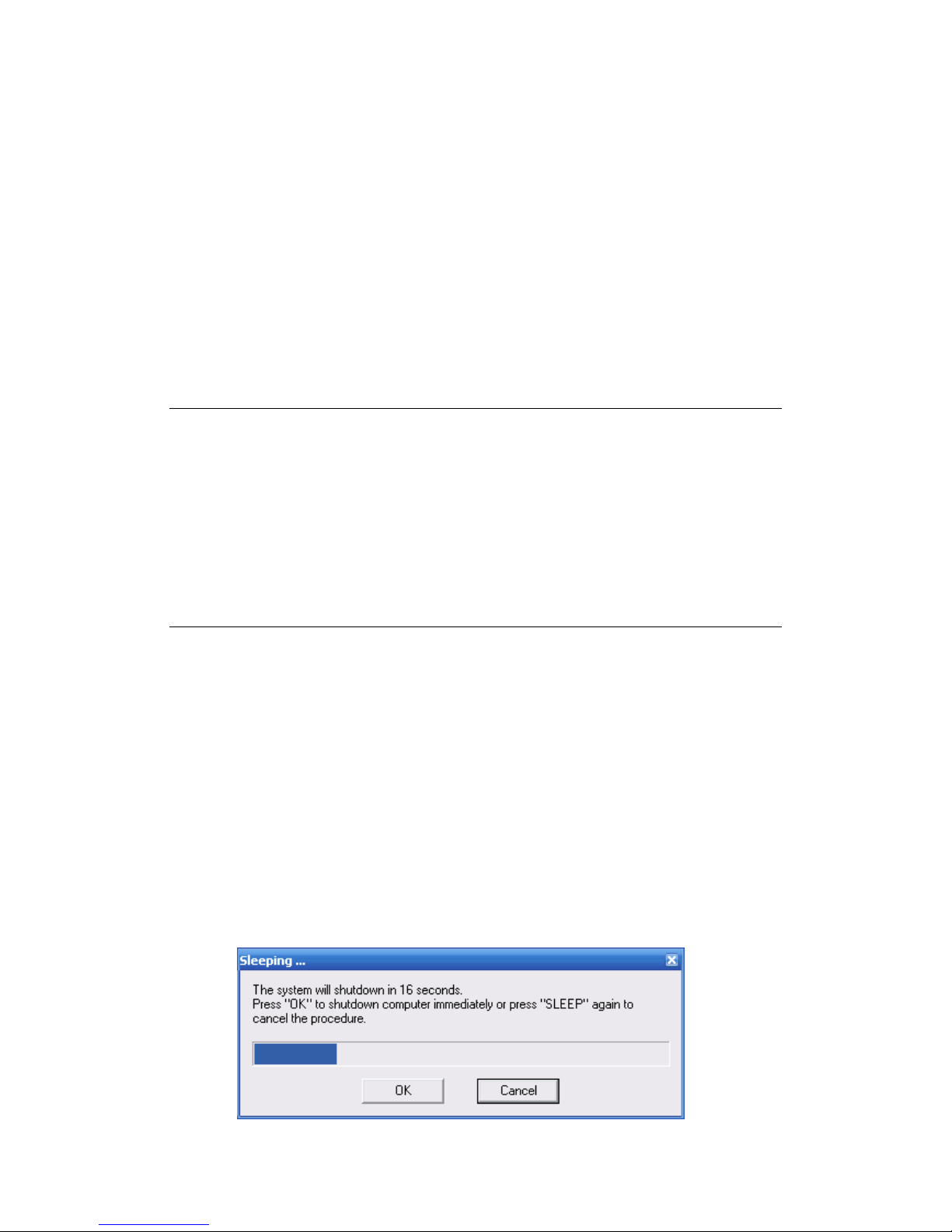
Just press the SLEEP button on the lower-right corner on the remote keypad,
you will see a dialog as shown below. Program will countdown 20 seconds to
shutdown the computer. If you don’t want to shut down the computer, please
press the SLEEP button again, in other words, pressing the SLEEP key a
second time is the same as pressing the “Cancel” button. You may also use
your mouse to press the cancel button. Press OK to immediately shutdown the
computer.
Page 14
12
When watching TV, i.e. ComproPVR is running:
Just press the SLEEP button on the lower-right corner of the remote keypad
repeatedly , you will see the text on the screen turns to SLEEP OFF, SLEEP ON
- 30 MINUTES, SLEEP ON - 1 HOUR, SLEEP ON - 2 HOURS, and
SHUTDOWN. When the text shows SHUTDOWN, the program will countdown
20 seconds to shutdown the computer. If you don’t want to shutdown the
computer, please press the SLEEP button again.
ComproFM 2
Introduction
ComproFM lets you enjoy FM radio programs on your PC. Listen to music or
other programs while you work or browse the Internet.
Control Panel
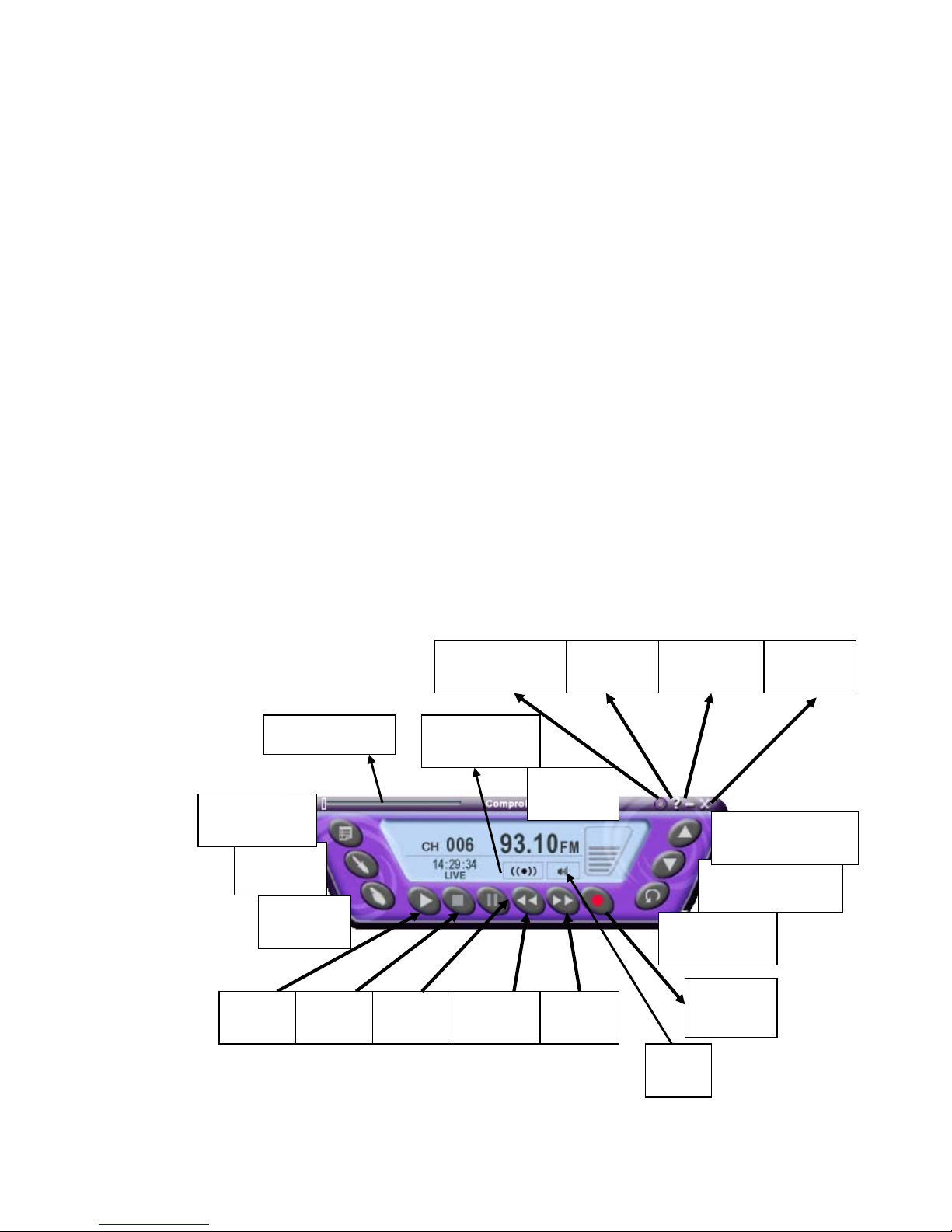
The following describe the ComproFM control panel functions, and tips for
using ComproFM. The following figure gives you the function of the button with
(Hot Key.)
Options
(S)
Close
(CTRL+W)
Last Channel
(N)
Backward
(Å)
Schedule
Record (B)
Frequency
(K)
Channel Down
(Page down)
Volume
(+, -)
Minimize
(Z)
Mute
(M)
Record
(R)
Channel Up
(Page Up)
Always on top
(CTRL+A)
Help
(H)
Progress bar
Pause
(Space)
Forward
(Æ)
Stop
(O)
Stereo/Mono
(CTRL+S)
Play
(Space)
Page 15
13
ComproPVR 2
Introduction
ComproPVR is a complete digital entertainment solution for your system.
Watch and record TV programs on your PC, in full-screen mode or in a window.
Timeshifting lets you watch TV, pause live TV, or review your favorite scenes
without missing a minute of the program. Integrated deinterlacing technology
assures the highest picture quality. All this, with the universal remote control.
Control Panel
The ComproPVR control panel resembles the controls on a VCR. Keep in mind
that not all options are available at all times, and may be grayed out or
inaccessible depending on your hardware setup and TV services available.
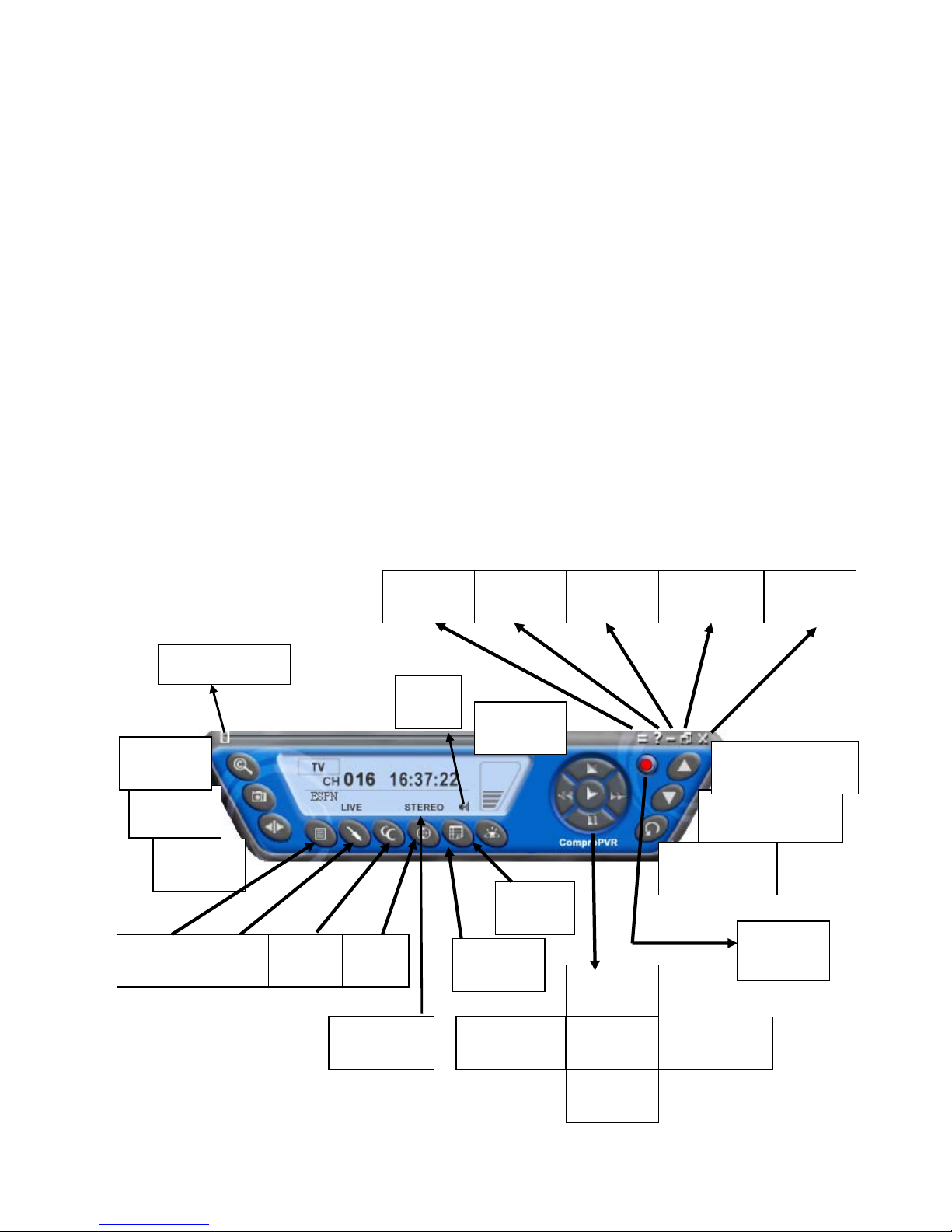
The following describe the ComproPVR control panel functions, and tips for
using ComproPVR. The following figure gives you the function of the button
with (Hot Key. )
Snapshot
(Space)
Close
(CTRL+X)
Last Channel
(N)
Not
used
Schedule
(B)
Channel
Surf(F)
Language
Select (Q)
Timeshift
(T)
Channel Down
(Page down)
Stop
(S)
Docking
(D)
Volume
(+, -)
Full Screen
(Z)
Mute
(M)
Record
(R)
Channel Up (Page
Up) with lists( I )
Help
(H)
Minimize
(G)
Timeshift bar
Play
(P)
Pause
(U)
Replay
(Left Arrow)
Advance
(Right Arrow)
Options
(O)
EPG
(E)
Source
(V)
Lists
( I )
Page 16
14
Icon HotKey Description
A
Enable/Disable Always-on-Top function for
TV window.(Orange circle on the upper-right
corner of the TV window)
n/a
L Sleep function
Note: Language select is only available while the program supports it.
Watching
After installation, just press the PVR/TV button on the remote or double click
the ComproPVR icon on the desktop you will be able to watch TV.
The first time you start ComproPVR, Autoscan will automatically scan for
available TV channels. When Autoscan is finished, detected channels are
automatically enabled and marked with the green check mark
. Channels,
where a valid signal could not be detected, are disabled and marked with a
blank.
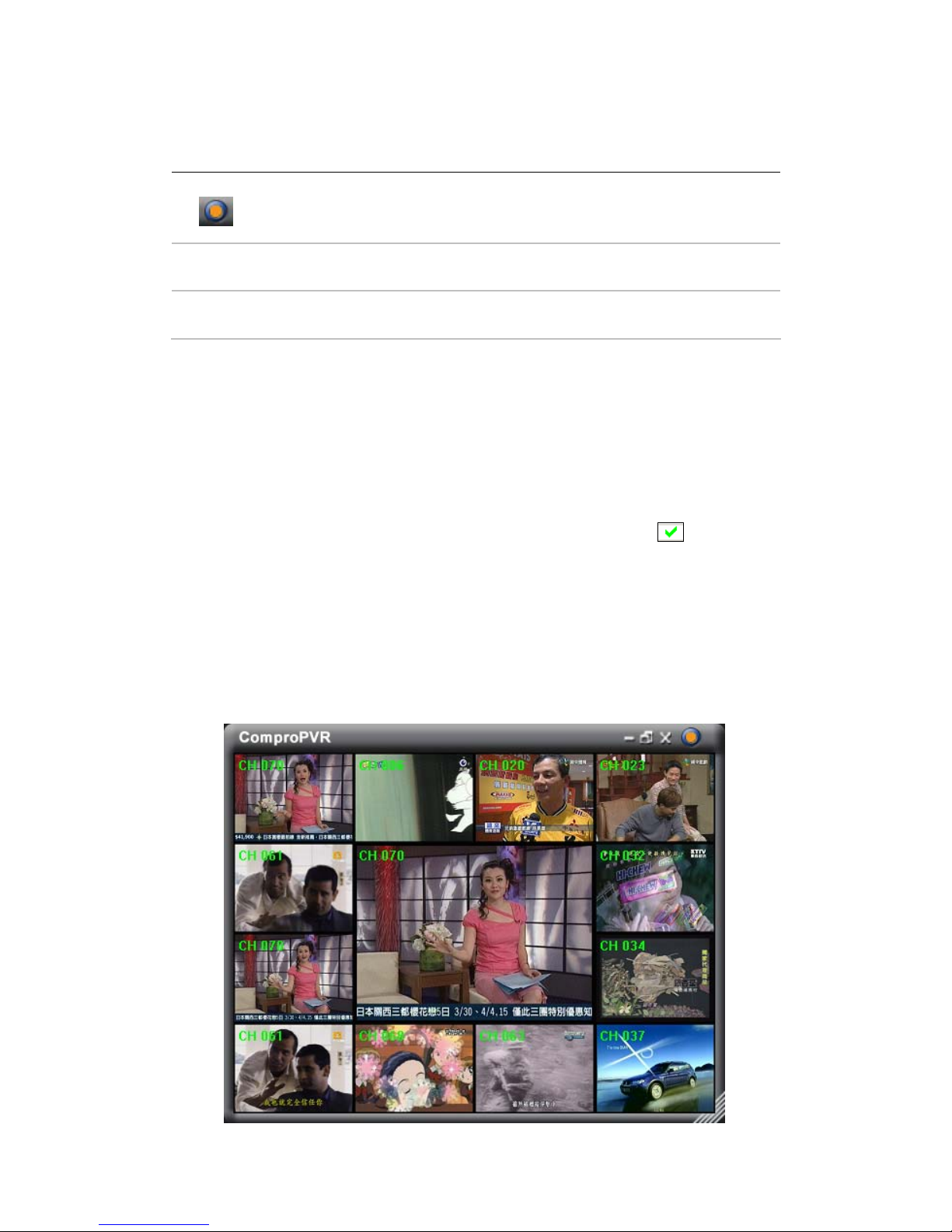
Channel Surfing
While watching TV, the channel surfing feature displays a 4x4 grid of channel
images to give you an overview of available programming.
Page 17
15
Right-Click Mouse Menu
If using mouse to right-click on the TV screen, you can see a menu pop up.
There are many useful options for your convenience.
Zooming image
If you would like to see more details on a certain part of a video image, you can
press the mouse right button to drag a zone on the screen. You will see the
zoomed image.
Also you can press the mouse right button and move on the screen to shift the
zoomed area of the image. Just click the mouse left button to resume normal
mode.
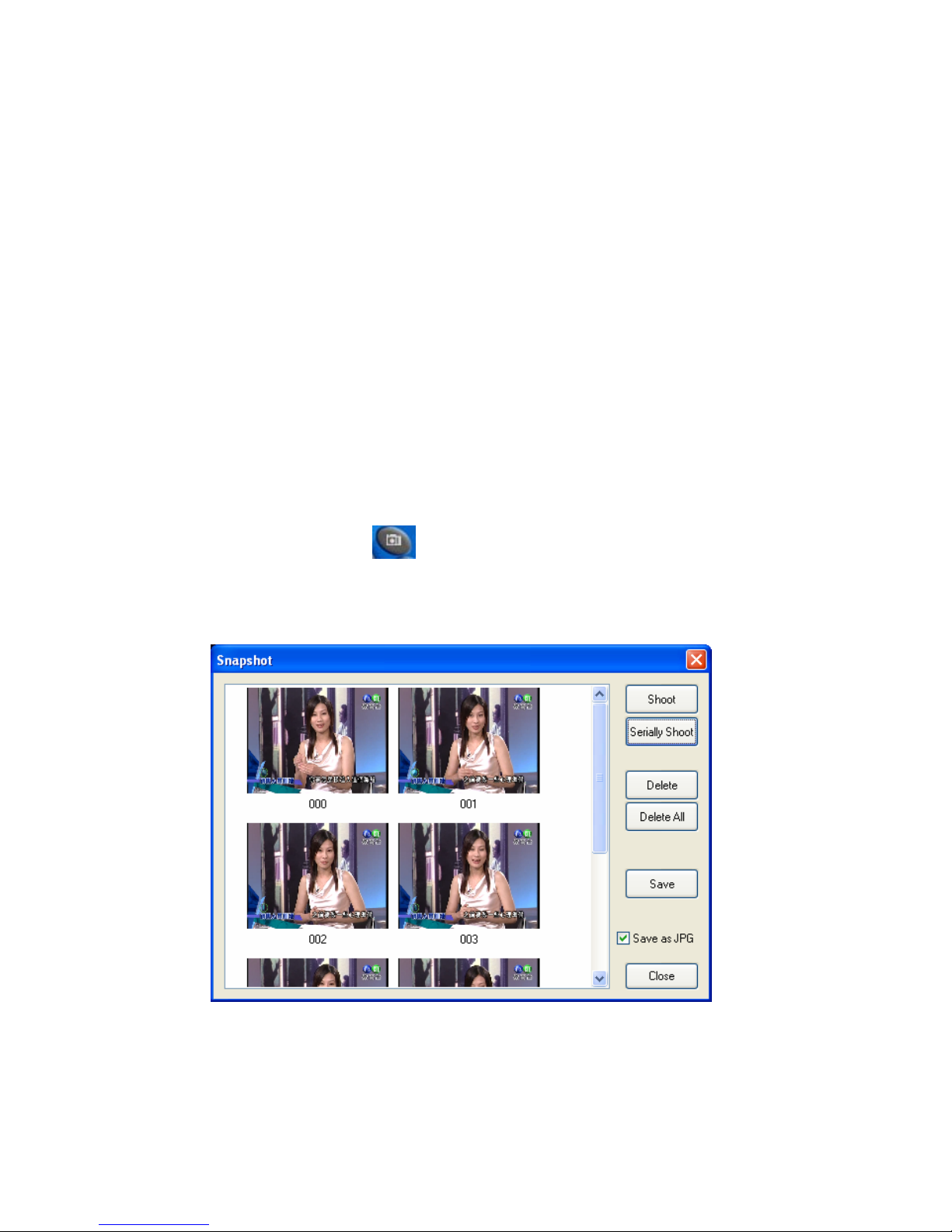
Still Frame Capture
Click on the capture icon on the control panel or hit the "Space Bar" of
the keyboard shortcut to capture an image of the display window. You can see
the screen capture dialog as below.
Page 18

16
Recording
ComproPVR is a digital video recorder. ComproPVR can record full-motion
video and audio from your video source and save it to your hard disk.
ComproPVR supports MPEG-1, MPEG-2, MPEG-4 encoding, which saves
disk space while providing high video quality.
To instantly start recording:
1. Press the Record button . ComproPVR starts recording the video
source currently showing in the display window. It will save it to a file on
your disk. While recording, you can click the Record button again to setup
recording time as 30, 60, 90, 120 minutes for more convenient.
2. Press the Stop button to stop recording.
To playback the recorded file, press the Play button and select the file you wish
to view.
PlP or POP for Playback
ComproPVR features PIP or POP for playback window. You will see a window
popping up after choosing a file for playback as following.
Main window has all features while sub window has limited functions only.
Double-click on the sub window can switch the TV program to the main
Page 19

17
The buttons on the upper-left corner sub window are Mute,
Windows Alignment, and Close respectively. Sub window can be resized by
mouse dragging lower-left corner to any ratio.
Note
PIP or POP can’t let you watch two different channels at the same time due to
one tuner can only tune to one frequency.
Running additional windows needs more CPU usage. If CPU usage reaches
100%, then video lag will occur. Please close the sub windows for this case.
Sub window has no full screen mode. Please double-click on sub window to
switch program with main window in order to do so.
It is available to hear audio on multiple programs at the same time. You can
mute or un-mute the sound of sub window at any time. However, main
window audio can’t be muted separately from sub window.
Timeshifting
Timeshifting lets you pause, replay, or skip commercials during live TV, without
interrupting an ongoing recording session. Timeshifting gives you absolute
control over how you watch television, like never before. For example, you
watch your favorite sporting event, pause the live action and help yourself to
an ice-cold beverage from the fridge.
Press the Timeshifting
button and the Time Monitoring bar will appear.
(See below.)
The Time Monitoring bar informs you of how much of the timeshifting buffer is
in use You can also use your mouse to drag the Time Control Shuttle to jump
to a specific time in the program.
You may also press the Advance (for commercial skip) and Replay (for instant
replay) buttons on the control panel or remote control to navigate through the
program.
Timeshifting temporarily saves the video to your hard disk for a specified
period of time.
When you return to your seat, you can resume viewing the program from the
point when you left.
Page 20
18
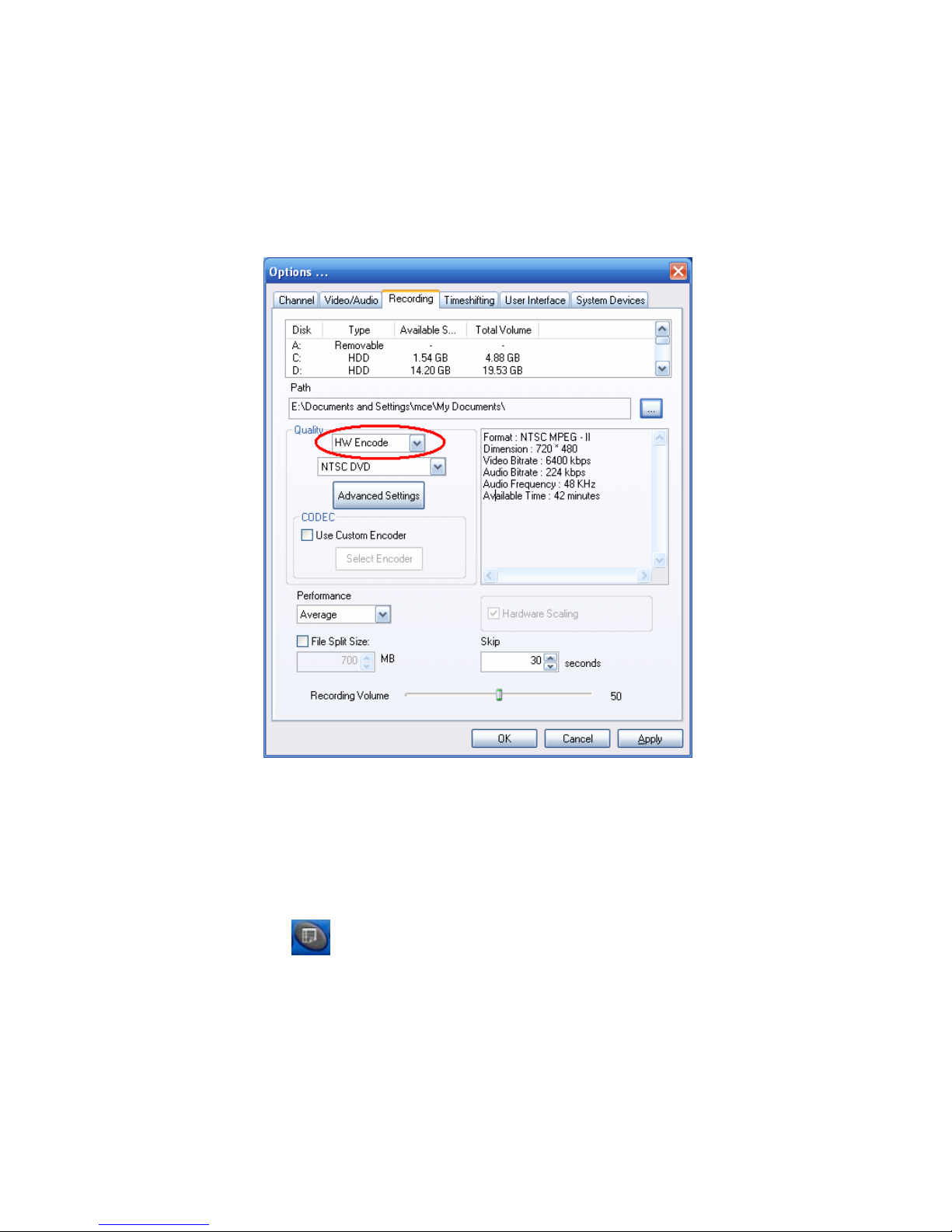
Record Recording Format
VideoMate H900 can record video by software compression or hardware
compression. You are welcome to choose the method you like in the Record
tab in Settings of ComproPVR..
Scheduled Recording
ComproPVR can be scheduled to record a TV program later or remind you of
an upcoming program. The schedule can be set for a one-time or a recurring
session. You can repeatedly record any regularly scheduled programs. Never
miss your favorite shows.
Press the icon to open the Scheduled Recording dialog box.
Page 21
19
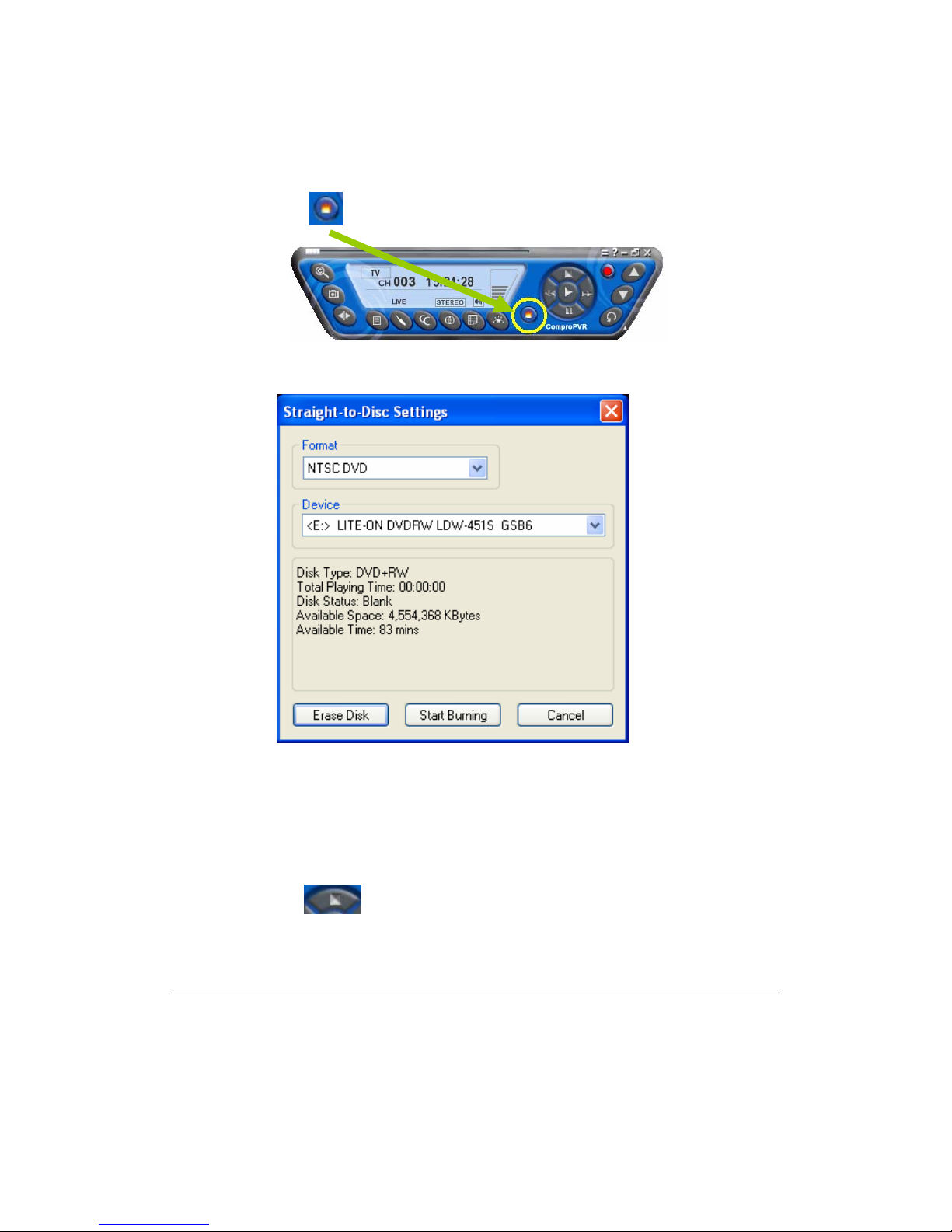
Straight-to-Disc
Click on the icon on the control panel.
You can see the straight-to-disc dialog as below.
Format: Choose the recording format you like.
Device: Choose the CD-R or DVD-R device here.
Erase Disk: If the disc is re-writable and not empty, you need to erase it first.
Start Burning: Press this button to start burning disc.
Stop: Press the button on the control panel to stop burning.
Cancel: Press this button to exit the dialog.
Note
You need to install the bundled Ulead DVD MovieFactory software in order to
use this feature.
Page 22
20
CD-R or DVD-R is necessary to use this feature and the recorded file will not
be saved in the disk.
ComproPVR will estimate your CD or DVD capacity automatically. It will stop
recording when it comes full..
Straight-to-Disc uses software encoding so that this process consumes CPU
usage a lot.
The quality is related to the recording performance. Choosing better
performance in the recording option will result in a better video quality.
Options
You can press the Options button to open the Options dialog box. You
can change detail settings of ComproPVR here.
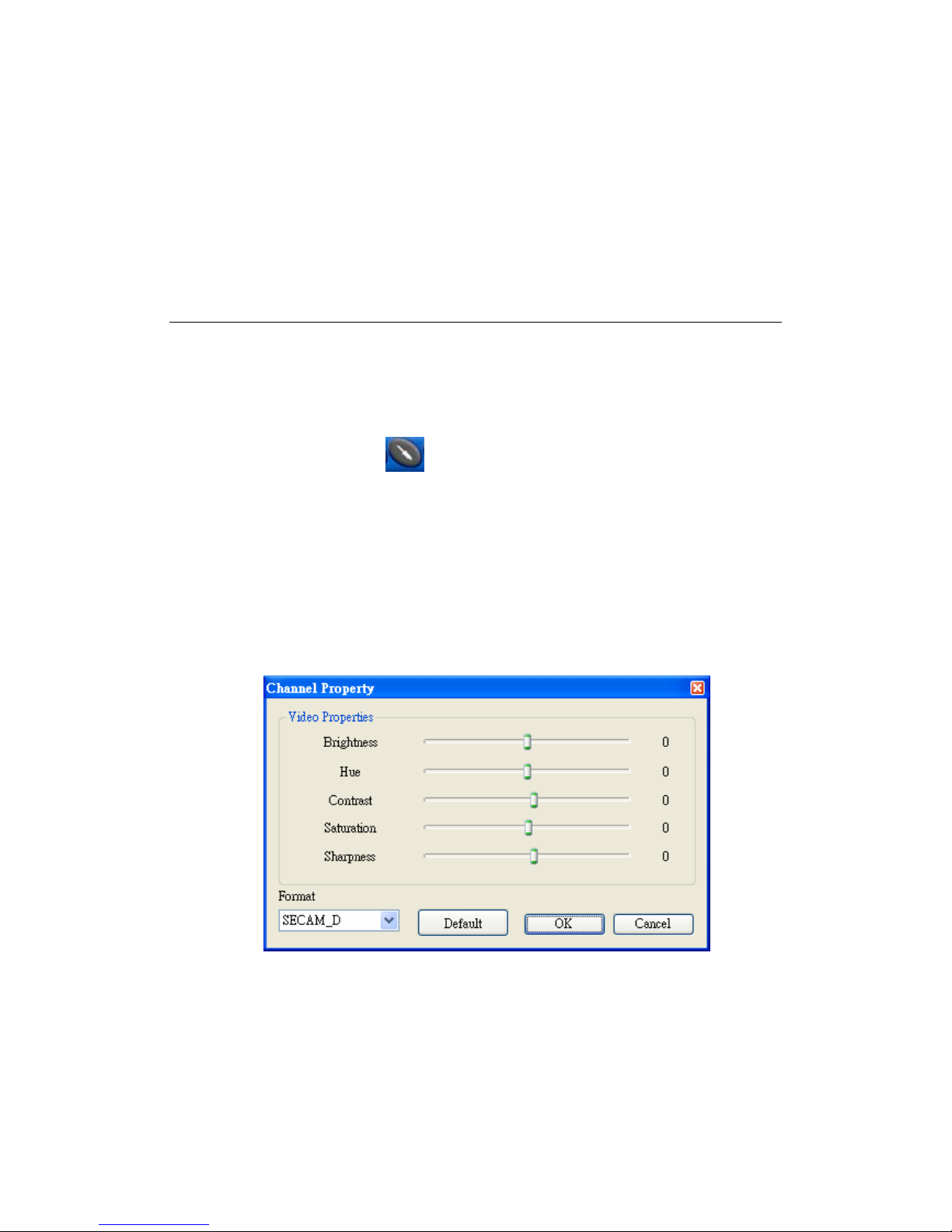
Custom channels
ComproPVR can also set video properties (brightness, contrast, etc) for each
channel. Just press the button on the custom column in Channel tab in
Settings of ComproPVR. The dialog box will pop up as follow
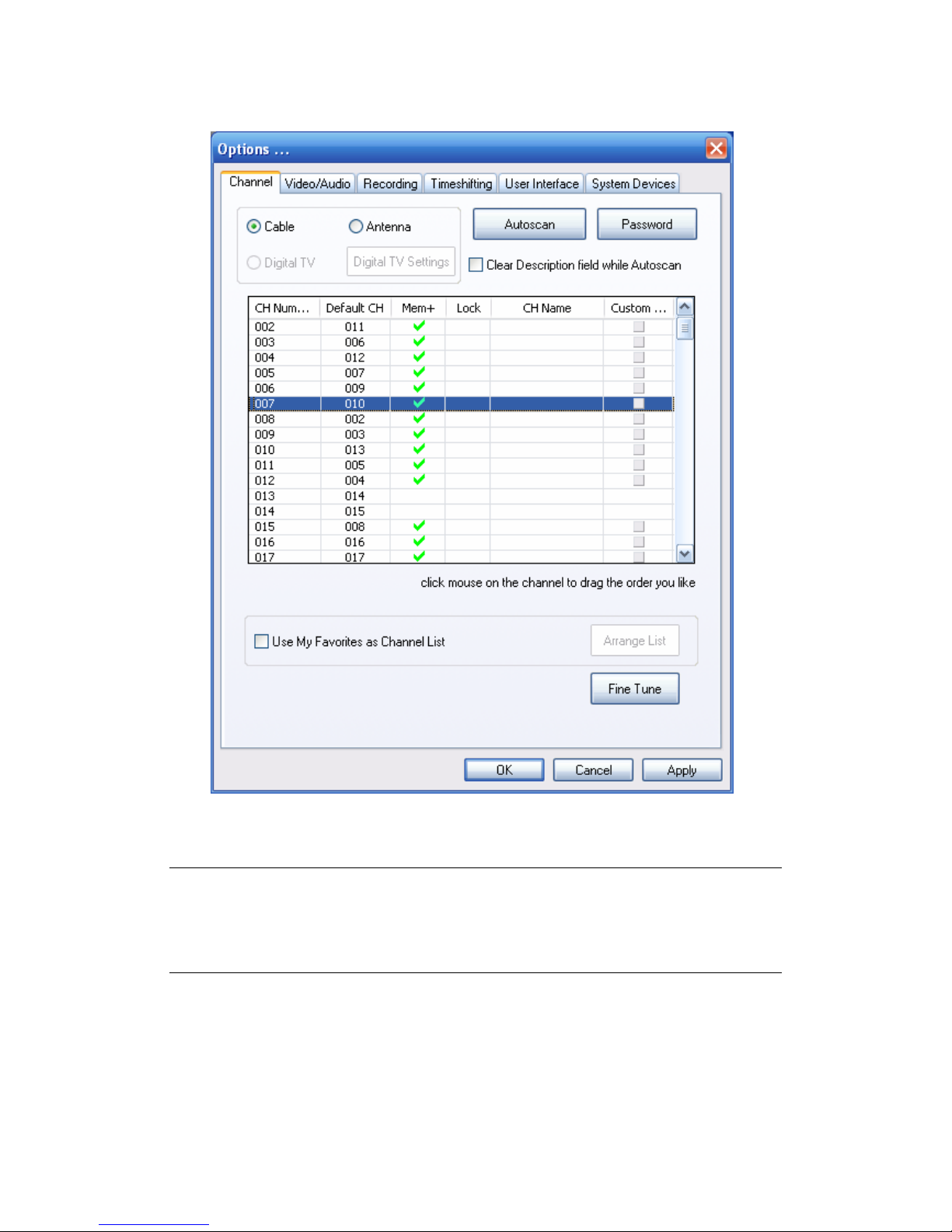
ComproPVR can let you re-order channel number if necessary. After Autoscan
channels, channel number is as same as default channel number. What if your
local TV station uses different channel number, you can click mouse on the
column of the channel to drag up or down to the channel order you like.
Page 23
21
Note
This manual only provides basic information for the ComproPVR 2. For more
information on using applications, please see the User’s Guides in the
programs, on the CDs, or at our website for the latest manuals.
Page 24
22
ComproDVD 2
Introduction
Stability, simplicity, and superiority. ComproDVD epitomizes these traits to
the maximum and gives users all they wish for in a DVD player.
Note
This section provides basic information for ComproDVD. For more details,
please check the help file of ComproDVD or the manual in the installation CD.
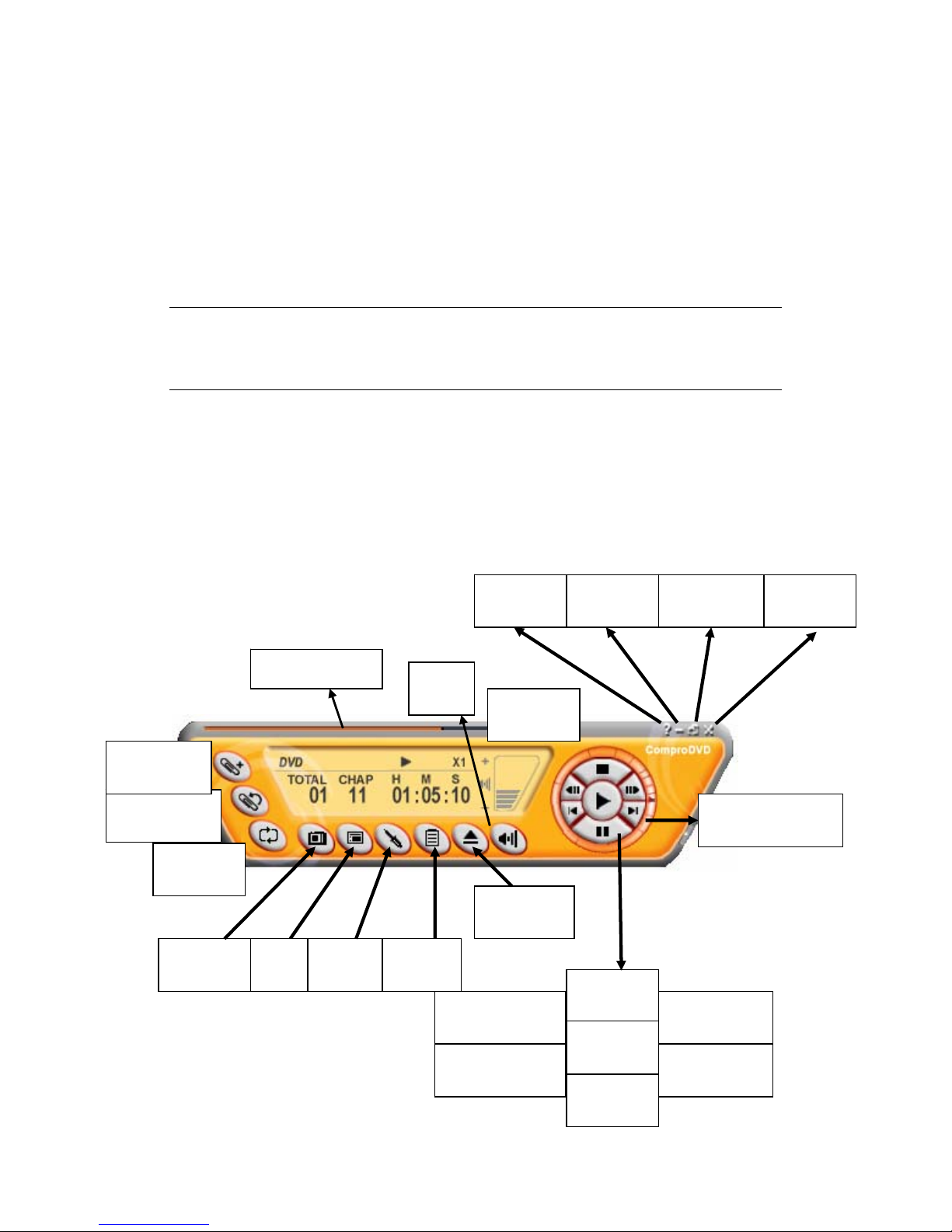
Control Panel
The following describe the ComproDVD control panel functions, and tips for
using ComproDVD. The following figure gives you the function of the button
with (Hot Key. )
Go to Bookmark
(F5)
Close
(CTRL+X)
Options
(E)
Add Bookmark
(F6)
Repeat
(R)
Shuttle search
Controls
Stop
(S)
Volume
(+, -)
Full Screen
(W)
Mute
(M)
Help
(H)
Minimize
(CTRL+N)
Progress bar
Play
(Enter)
Pause
(Space)
Step backward
( / )
Step forward
( . )
Menu
(M)
Media
Source
Eject
(CTRL+E)
Snapshot
(G)
Next chapter
( N )
Last chapter
( P )
Page 25
23
Troubleshooting
OS requirement
VideoMate H900 has to work on Windows XP / Windows 2000 with DirectX
9.0c or above OS. You are welcome to www.WindowsUpdate.com website for
the Service Pack update of Microsoft.
VideoMate H900 can also works on Microsoft XP Media Center 2005. Make
sure your system is MCE ready (MCE needs specific graphics card etc.) and
have installed driver correctly (see below.) Also, MCE has no decoder at
default and you need to install decoder like NVDVD or WinDVD 6.0 by yourself.
For more information on MCE 2005, please check Microsoft website.
Driver Installation
The most common cause of problems with the TV Tuner Card is incorrect
installation of the TV capture and TV tuner drivers. If you have problems
watching, recording, or timeshifting live TV, please check the status of the
drivers with Device Manager.
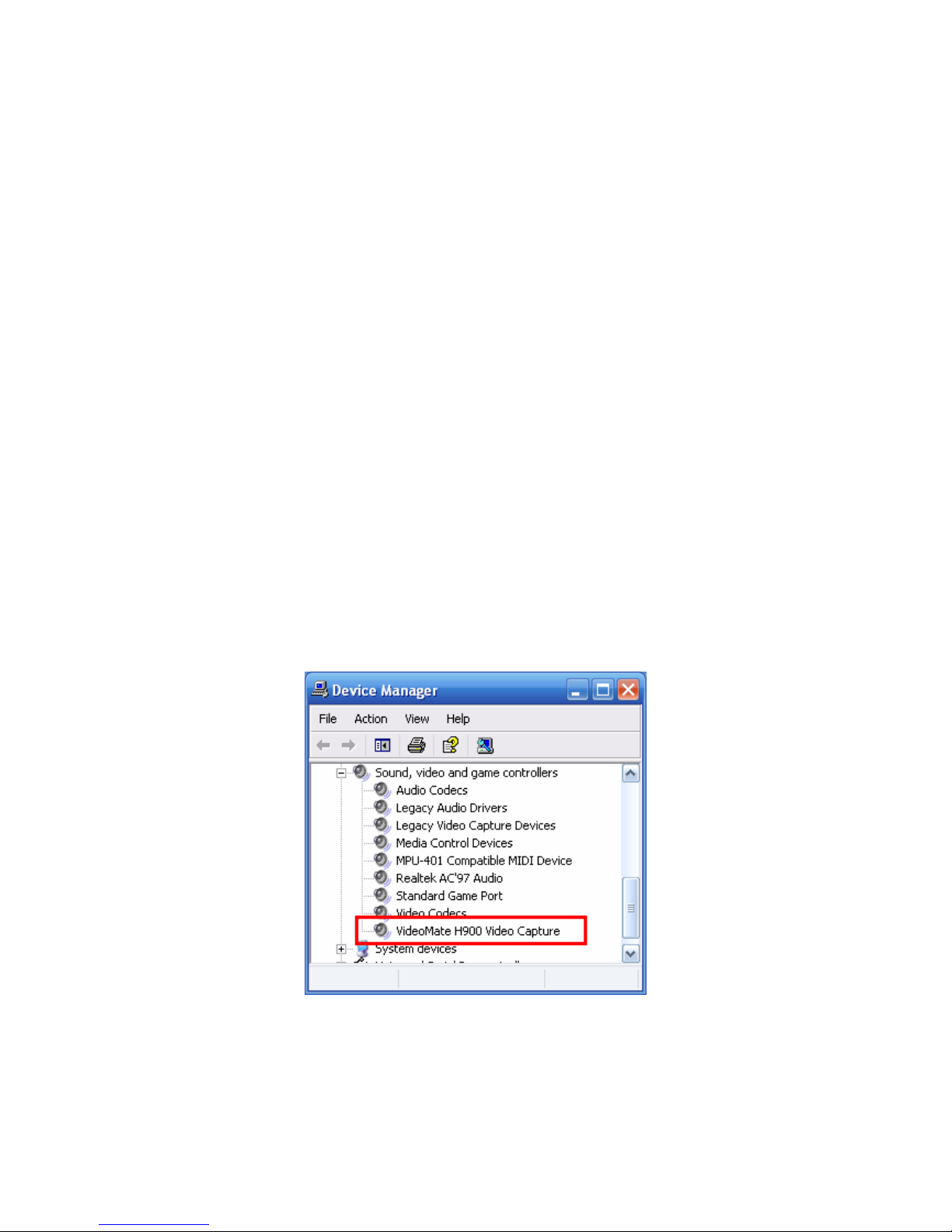
You should see the "VideoMate H900 Video Capture " driver in the "Sound,
video and game controllers" section of Windows Device Manager.:
If the driver is not there, uninstalling and reinstalling the VideoMate TV drivers
can help. Use the Add/Remove Programs Control Panel applet to uninstall the
drivers. Reinstalling the drivers should fix this problem.
If the problem persists, your problem could also be the result of an IRQ conflict.
Page 26
24
IRQ conflicts happen when other devices, e.g., network card or sound card, in
your computer share the same IRQ with your TV tuner card.
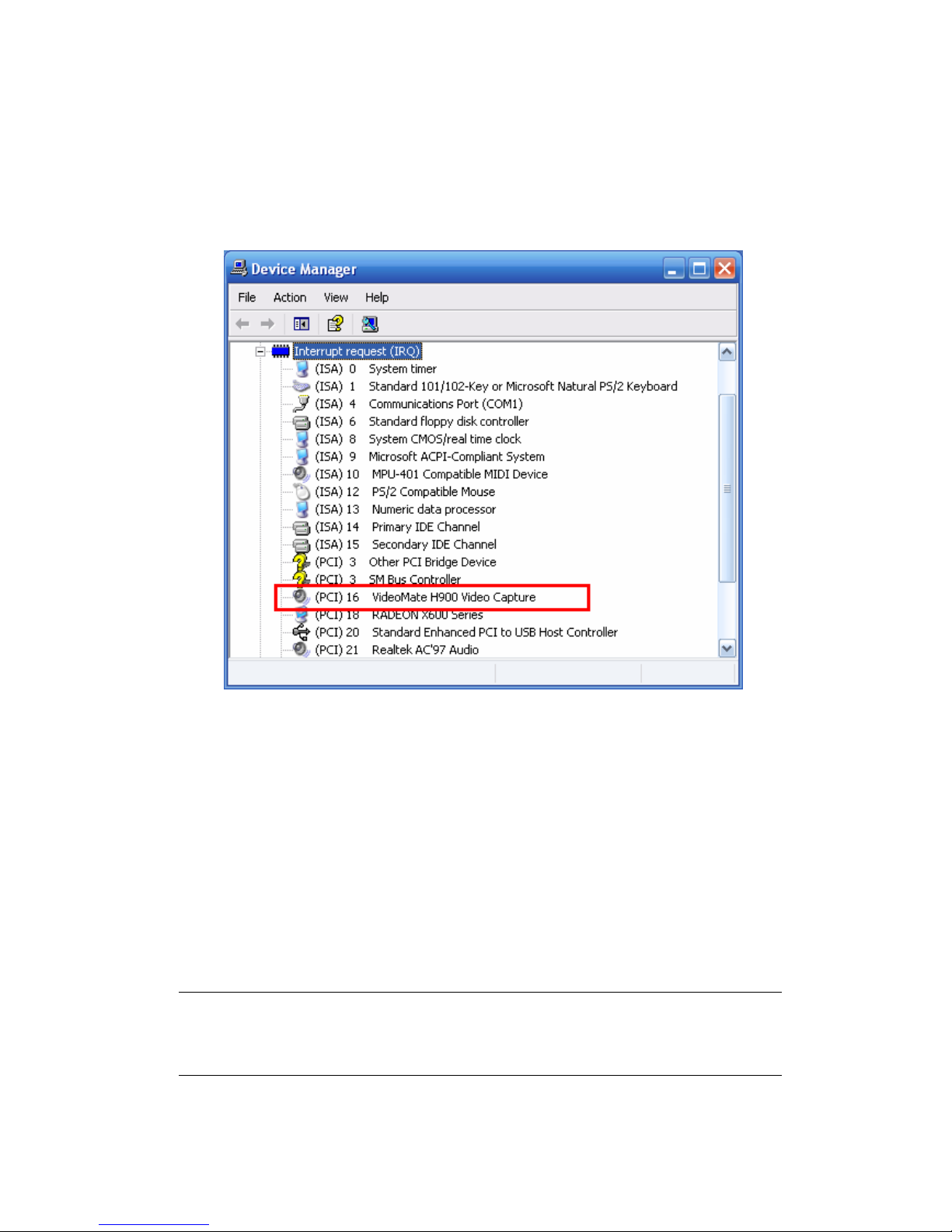
Using Device Manager detects IRQ conflicts. In Device Manager, choose
"View -> Resource by type" and click on the "+" besides Interrupt request (IRQ).
You should see the following.
For best performance, no device should share an IRQ with the VideoMate TV
card.
If another device shares an IRQ with the TV tuner card, remove other PCI
cards from your PC and insert TV card on the third or fourth slot from AGP only
(if available). Then uninstall and reinstall the TV card driver. This usually
solves the problem. If the problem persists, you should move the PCI TV Tuner
card to another PCI slot.
After you are able to successfully use ComproPVR, install the other PCI
devices one at a time. Restart your system and test ComproPVR after
installing each card.
Note
Pay attention to the IRQ numbers of networking, sound, and SCSI cards.
They should not share IRQs with the TV tuner card.
Page 27

25
What is 3D Y/C Separation?
Television signals actually contain two signals, Luminance and Chrominance.
By convention, Y represents Luminance and C represents Chrominance. The
Y signal describes the brightness of the picture and C represents the color
information. Black and white TV signals contain only the Y signal. When color
TV was introduced many years ago, the Y and C signals were combined into a
composite video signal. This has the advantages of being compatible with
black and white TV set and using less bandwidth. All TV sets must separate
the Y and C signals before presenting a picture.
The disadvantage of this scheme is that it is impossible to perfectly separate
the Y and C signals. If part of the Y signal is treated as C signal, the picture will
show rainbow-like color pattern as known as the Cross-Color Artifact
phenomenon. If part of the C signal is treated as Y signal, the picture will show
the vertical or horizontal dot lines color as known as the Cross-Luminance
phenomenon. In other words, better separation of the Y and C signals results
in a clearer, sharper picture with brighter and more accurate color. Incomplete
separation of the Y and C signals results in Cross-Color Artifact and
Cross-Luminance phenomena. Scientists developed many algorithms trying to
solve these problems. Among them, 2D and 3D Y/C separation algorithms
have been widely adopted. These algorithms are superior to the simple comb
filters found on most TV sets today.
VideoMate H900 incorporates the NTSC Y/C separation in the CX23418 chip
to process Y/C separation and noise reduction. The chip provides 2D Y/C
separation, Digital Noise Reduction (DNR), and 3D Y/C sep aration
calculations in hardware, greatly reducing Cross-Color Artifacts and
Cross-Luminance problems. Combined with the deinterlacing technology in
ComproPVR, you can enjoy crystal clear video and less eyestrain, giving you
greater enjoyment of TV programs. Different algorithms are optimal for
different types of TV programs, for example, action, news, or drama shows. 2D
Y/C separation, for example, has the side effect of turning oblique lines into
hanging dots while 3D algorithms can cause blurring in action videos. However,
3D Y/C separation algorithm is only available in NTSC system while 2D Y/C
separation and Digital Noise Reduction (DNR) applies to PAL and SECAM
signal.
Input Signal
TV System
TV and Composite Video Input S-Video Input
NTSC
3D Y/C Separation +
2D Y/C Separation +
Advanced Digital Noise Reduction (DNR)
Advanced Digital Noise
Reduction (DNR)
PAL/SECAM
2D Y/C Separation +
Advanced Digital Noise Reduction (DNR)
Advanced Digital Noise
Reduction (DNR)
Page 28

26
Why won’t my PC start?
Don’t panic. The most common reason for this is because you connected the
ATX power switch cable to the wrong pins on the mainboard. Verify the
position of the power patch cable on the mainboard. Check the mainboard
documentation to verify the position of the connector for ATX power switch
cable.
If that doesn’t help, remove the TV card and restart your PC. If you still cannot
turn the computer on, the problem is not caused by VideoMateTV. Recheck
the ATX power switch cable connection.
If computer can’t boot up while plugging in VideoMate TV tuner card, switch
the blue jumper from JP3 to JP2 to solve this problem. After doing so, you
have to switch the red jumper JP1 from 2-3 to 1-2 (left) and this disables the
remote wake up function.
My system cannot Power Up, What should I do?
Make sure you connect the Power Up circuit correctly. Please refer the
hardware installation section for more information.
Second, make sure you see a green LED light on the VideoMate TV tuner card.
If you don’t see the green light, your mainboard does not support the standby
power. You can only use Power Up with mainboard that provide standby
power.
Third, Power Up will start your computer 5 minutes in advance of the schedule
time. If you set the schedule on 4 o’clock, Power up will wake up your
computer at 3:55. Therefore, you need to shut down the computer before 3:54
in order to let Power Up start the computer.
Fourth, make sure you have the correct schedule time, Also, verify your
system time or clock.
Fifth, some mainboard BIOS have an option “Wake up by PME# or PCI.” This
option must be ENABLED to use Power Up function.
Finally, it is possible that your power supply doesn’t provide the standard 3.3V
standby power. Therefore, changing your power supply might help.
Why can I not shut down my PC?
In rare circumstances, the VideoMate TV card must be reset. Unplugging the
AC power cord from PC case for 5 seconds will reset the card.
When you set up for scheduled recording, VideoMate TV will issue the Power
Page 29

27
Up signal to the computer until ComproPVR starts. If your computer cannot
start ComproPVR for some reason, the TV tuner card will try to wake up PC
even you shut it down. Unplug the main power cord to reset VideoMate TV
card. You can shut down the computer normally after that.
Other possible causes of this problem include:
1. If you have a multi-Boot system and ComproPVR is not installed and
running on the default OS. Solution: Set the default OS properly or install
ComproPVR on the default OS.
2. There may be other, independent problems preventing Windows from
starting normally. Solution: Remove the VideoMate TV card and troubleshoot
PC start up. Remember to correctly reconnect the power switch cables.
3. The ComproPVR Scheduler shortcut is missing from the Programs “Startup”
folder. Reinstalling ComproPVR can help.
Audio OK / No Video
The main reason for this problem usually is the result of an IRQ conflict. Please
see Driver Installation, above, to solve it.
Video OK / No Audio
VideoMate H900 uses PCI audio by default. Check that the sound is not muted
or “WAVE” volume too low in the Windows Volume Control dialog.
(Double-click on the speaker icon in the system tray.)
Sometimes updating the sound card driver from vendor or TV card’s driver and
application from our website may help as well.
Audio disappear after few minutes
If you have Anti-V irus software running, please uncheck the Instant Messenger
(like ICQ, MSN, Yahoo Messenger) protection in the Internet settings.
Audio jittering
In some rare cases, you will hear jittering audio when PCI audio conflicts with
certain PC system chipset. If happens, please connect external audio patch
cable and disable PCI audio as following instruction:
First directly connect the speaker to the audio-out (green circle) port on the 4 in
1 breakout cable of TV card to see if the sound comes out normally.
Page 30
28
Second, the external audio patch cable is color-coded. Connect the green plug
to the green Audio-Out port on Vi deoMate PCI TV Tuner card and the blue
plug to the “Line-In” port of your sound card and that you have selected the
audio source to be “Line-In” and disable PCI audio option in the System Device
in Settings of ComproPVR.
Third, check that the sound is not muted or volume is not too low in the
Windows Volume Control dialog. (Double-click on the speaker icon in the
system tray.)
Sometimes updating the sound card driver from vendor or TV card’s driver and
application from our website may help as well.
No audio in the recorded file. What's wrong?
Check the recording volume levels in the ComproPVR Recording tab in the
Settings dialog.
How to record video from VCR?
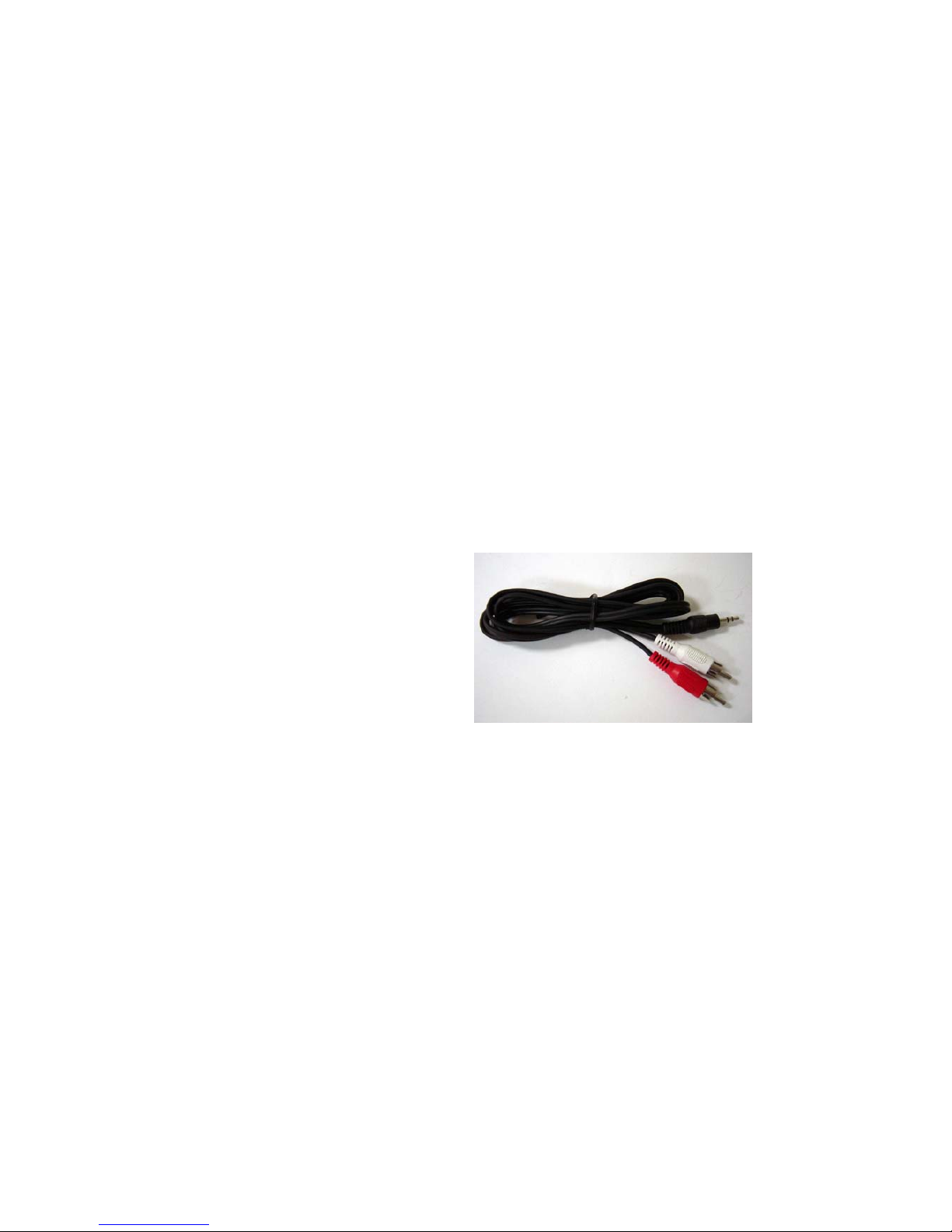
Please plug VCR Composite video
cable (yellow) into TV card yellow
connector which is on the 4 in 1
breakout cable. Composite Audio
needs to connect to the Audio-In port
of TV card. You have to buy a
converter (see the right) to transfer
Composite Audio cable (red one and
white one) into stereo jack.
Why playback the recorded video has lags?
VideoMate H900 TV Tuner card supports both hardware encoding (does not
require high CPU usage) and software encoding (need high CPU usage). This
usually happens when you are using software encoding method to record
DVD/VCD quality. When CPU is not fast enough to calculate, it will drop
frames to catch up with the live TV. In this case, we would recommend you to
select hardware encoding as recording method.
How can I choose MPEG-4 format for recording?
If you would like to record video in MPEG-4 format, your system must include
MPEG-4 CODEC. Furthermore, the CODEC must be installed before using
Page 31

29
ComproPVR 2. In general, you can download MPEG-4 CODEC from the
following web sites. http://www.divx.com/
After you install the CODEC software, you will see the MPEG-4 format appear
in the field of recording quality. However, Compro does not guarantee
compatibility or performance with third-party CODECs.
Why does the remote control fail?
The remote control sensor, which is plugged into the TV card, may be loose.
Please unplug it and plug it again. You should also check the batteries of the
remote control. Do not use rechargeable batteries.
Verify that the IR icon (ComproRemote) is in the system tray on the
lower-right corner of the screen. If you don't have ComproRemote on the
system tray, start the following program:
C:\Program Files\Common Files\VideoMate\ComproRemote.exe
Then you should see the icon on the system tray. The IR icon should turn
bright when you press buttons on the remote. If you see no response, your IR
drivers may not be properly installed. Please remove ComproPVR using
"Add/Remove programs" in the Control Panel and reinstall it.
If you have switched the blue jumper to another pins set, you have to switch
the red jumper to 1-2 pin (left) in order to use remote function.
Why does ComproPVR start by itself?
Some device emits the IR signal around. Please check if there is any
microwave or light could do that. And make sure as few cable as possible
crossing the IR receiver. Also do not use rechargeable batteries for remote
control. And make sure there is no button getting stocked.
My PC is not stable after installed the TV card?
Here are few things to check.
Verify that the TV tuner card is securely seated in the PCI slot. Removing and
reseating the card can help. Sometimes gently clean the contact (golden
fingers) by a rubber eraser can help as well.
Please update the video and sound card drivers from vendors’ web sites. Make
sure the drivers for mainboard chipset is also up to date. The default drivers
supplied with the Windows operating system are usually too old to operate
Page 32

30
correctly. If you still have problems, please install the latest ComproPVR and
drivers from our website.
Some software, such as MSN Messenger, ICQ, Yahoo Messenger, and Norton
LiveUpdate, can interfere with the tuner card. Please try to close those
programs.
Make sure the PCI TV card is using an independent IRQ. Try moving the card
to another PCI slot.
Check your mainboard BIOS settings, as follows:
Assign IRQ to VGA — ENABLE
PCI Master 0 Write — DISABLE
IRQ activate by — Level
PCI Peer Concurrency — DISABLE
CPU to PCI write buffer — DISABLE
PCI Latency Timer — a higher value (64) can help image quality
TV picture is not clear?
TV signal could be reduced by the branching. Please make sure the cable
signal is good. Try to move the computer to a TV set and connect the cable
which is being used for the TV set. Also directly connecting the cable before
the splitter may help.
This problem could also come from with static. Once you connect the cable to
our TV card, the static interfere the system. It's possible to correct this problem
by connecting a wire from the grounding of the cable to ground. Also make
sure computer grounding is good.
Contacting Compro Technical Support
Before you submit an email for support, please check support FAQs on our
web site. http://www.comprousa.com/support
You can download the latest update from our website. Many issues should be
solved on the newer version. When contacting Compro for technical support,
please use the Compro support request form and provide as much of the
requested information as possible. Please write the details in order to
determine the problem. And also provide the product serial number (19 digits
numbers) on the PCI card. Please use the form from
http://comprousa.com/support/form.htm
or directly email to [email protected].
We will get back to you as soon as possible.
 Loading...