

Page 1
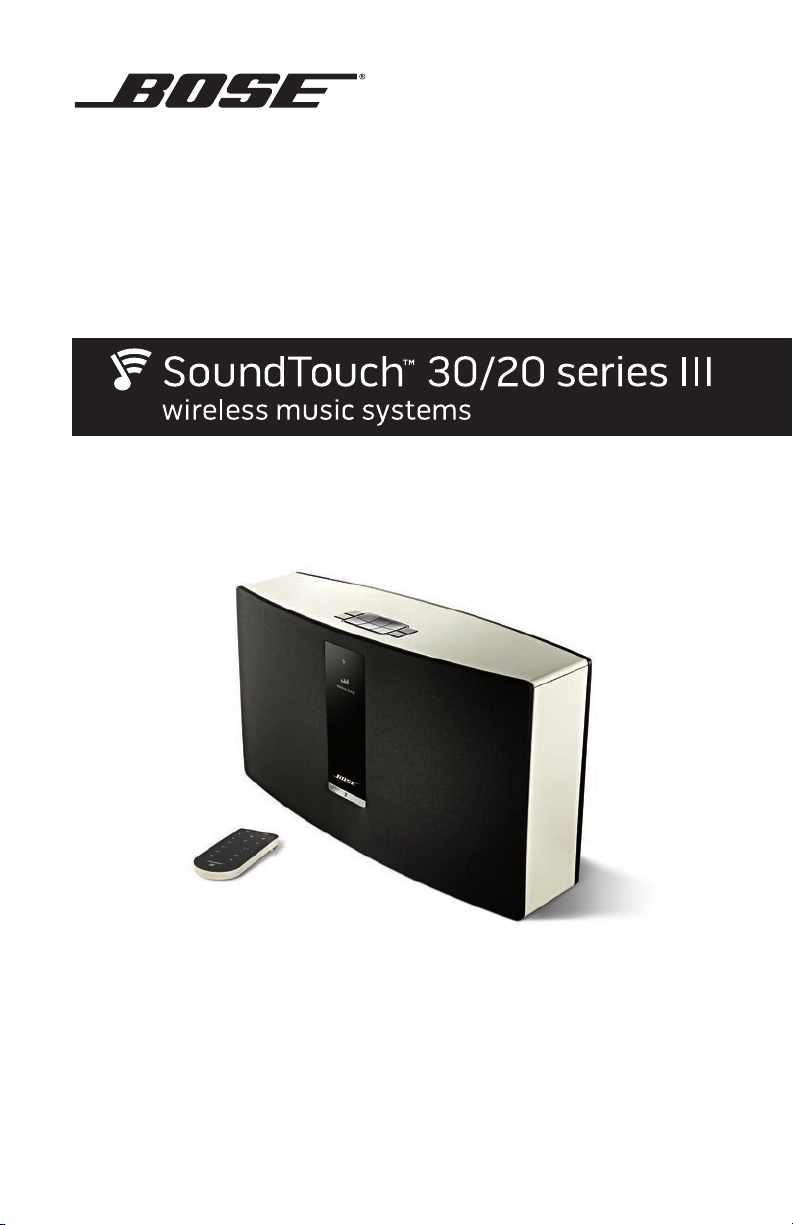
Owner’s Guide
Page 2
Important Safety Instructions
Please take the time to carefully read and follow these Important Safety Instructions. They will help you set
up and operate your system properly and enjoy its advanced features. Save this guide for future reference.
The lightning flash with arrowhead symbol within an equilateral triangle alerts the user to the
presence of uninsulated, dangerous voltage within the system enclosure that may be of sufficient
magnitude to constitute a risk of electric shock.
The exclamation point within an equilateral triangle alerts the user to the presence of important
operating and maintenance instructions in the owner’s guide.
WARNINGS:
• To reduce the risk of fire or electric shock, do not expose this product to rain or moisture.
• Do not expose this apparatus to dripping or splashing, and do not place objects filled with
liquids, such as vases, on or near the apparatus. As with any electronic products, use care not to
spill liquids into any part of the product. Liquids can cause a failure and/or a fire hazard.
CAUTIONS:
• Keep new and used batteries away from children. Do not ingest battery, chemical burn hazard.
The remote control supplied with this product contains a coin/button cell battery. If the coin/
button cell battery is swallowed it can cause severe internal burns in just 2 hours and can lead
to death. If the battery compartment does not close securely, stop using the product. If you
think the battery may have been swallowed or placed inside any part of the body seek immediate medical attention. May explode or cause a fire or chemical burn if incorrectly replaced or
mishandled. Do not recharge, disassemble, heat above 212°F (100°C), or incinerate. Replace
only with an agency approved (ex. UL) CR2032 or DL2032 3-volt lithium battery. Dispose of used
batteries promptly.
• Do not place naked flame sources, such as lighted candles, on or near the apparatus.
WARNING: Contains small parts which may be a choking hazard. Not suitable for children under
age 3.
Please dispose of used batteries properly, following local regulations.
Do not incinerate.
This symbol means the product must not be discarded as household waste, and should be
delivered to an appropriate collection facility for recycling. Proper disposal and recycling helps
protect natural resources, human health and the environment. For more information on disposal
and recycling of this product, contact your local municipality, disposal service, or the shop where
you bought this product.
2 - English
Page 3

Important Safety Instructions
The product contains magnetic material. Please contact your physician if you have any questions
on whether this might affect the operation of your implantable medical device.
CAUTION: Make no modifications to the system or accessories. Unauthorized alterations may
compromise safety, regulatory co mpliance, and system performance.
NOTES:
• Where the mains plug or appliance coupler is used as the disconnect device, such disconnect device
shall remain readily operable.
• This product must be used indoors. It is neither designed nor tested for use outdoors, in recreation
vehicles, or on boats.
• The product label can either be located on the back or bottom of the system.
Important Safety Instructions
1. Read these instructions.
2. Keep these instructions.
3. Heed all warnings.
4. Follow all instructions.
5. Do not use this apparatus near water or moisture.
6. Clean only with a dry cloth.
7. Do not block any ventilation openings. Install in accordance with the manufacturer’s instructions.
8. Do not install near any heat sources, such as radiators, heat registers, stoves, or other apparatus
(including amplifiers) that produce heat.
9. Protect the power cord from being walked on or pinched, particularly at plugs, convenience
receptacles, and the point where they exit from the apparatus.
10. Only use attachments/accessories specified by the manufacturer.
11. Unplug this apparatus during lightning storms or when unused for long periods of time.
12. Refer all servicing to qualified service personnel. Servicing is required when the apparatus has been
damaged in any way: such as power supply cord or plug is damaged; liquid has been spilled or
objects have fallen into the apparatus; the apparatus has been exposed to rain or moisture, does not
operate normally, or has been dropped.
English - 3
Page 4

Regulatory Information
Information about products that generate electrical noise
This equipment has been tested and found to comply with the limits for a Class B digital device, pursuant
to Part 15 of the FCC rules. These limits are designed to provide reasonable protection against harmful
interference in a residential installation. This equipment generates, uses, and can radiate radio frequency
energy and, if not installed and used in accordance with the instructions, may cause harmful interference
to radio communications. However, there is no guarantee that interference will not occur in a particular
installation. If this equipment does cause harmful interference to radio or television reception, which can be
determined by turning the equipment off and on, the user is encouraged to try to correct the interference
by one or more of the following measures:
• Reorient or relocate the receiving antenna.
• Increase the separation between the equipment and receiver.
• Connect the equipment to an outlet on a different circuit than the one to which the receiver is connected.
• Consult the dealer or an experienced radio/TV technician for help.
FCC WARNING
Changes or modifications not expressly approved by Bose Corporation could void the user’s authority to
operate this equipment.
Important USA and Canada compliance Information
This device complies with part 15 of the FCC rules and Industry Canada license-exempt RSS standard(s).
Operation is subject to the following two conditions: (1) this device may not cause harmful interference,
and (2) this device must accept any interference received, including interference that may cause undesired
operation.
This equipment complies with FCC and Industry Canada radiation exposure limits set forth for an uncontrolled environment. This equipment should be installed and operated with a minimum distance of 20 cm
between radiator and your body.
This equipment must not be co-located or be operating in conjunction with any other antennas or
transmitters.
This device complies with Industry Canada licence-exempt RSS standards(s).
This Class B digital apparatus complies with Canadian ICES-003.
CAN ICES-3 (B)/NMB-3(B)
Bose Corporation hereby declares that this product is in compliance with the essential
requirements and other relevant provisions of Directive 1999/5/EC and all other applicable
EU directive requirements. The complete declaration of conformity can be found at:
www.Bose.com/compliance
4 - English
Page 5
Regulatory Information
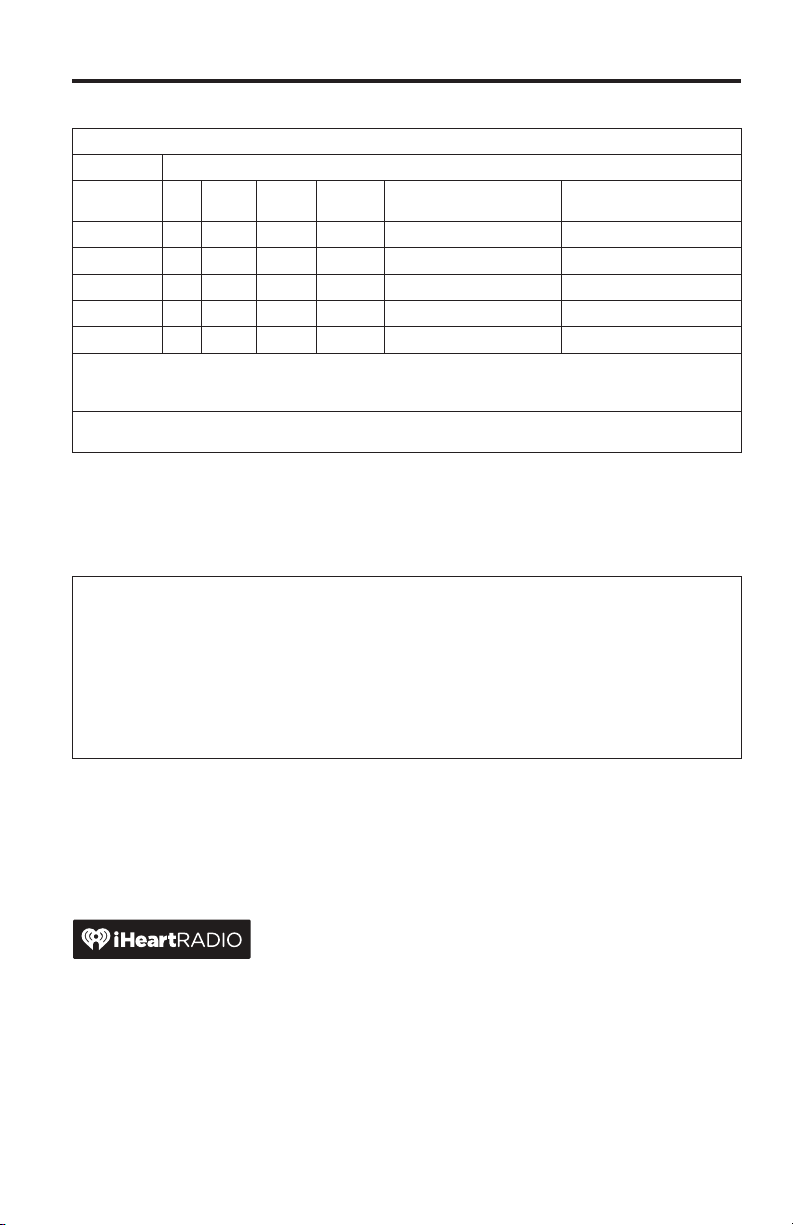
Names and Contents of Toxic or Hazardous Substances or Elements
Toxic or Hazardous Substances and Elements
Lead
Mercury
Part Name
PCBs
Metal parts
Plastic parts
Speakers
Cables
This table is prepared in accordance with the provisions of SJ/T 11364.
O: Indicates that said hazardous substance contained in all of the homogeneous materials for this part is below the limit requirement of
GB/T 26572.
X: Indicates that said hazardous substance contained in at least one of the homogeneous materials used for this part is above the limit require-
ment of GB/T
(Pb)
X O O O O O
X O O O O O
O O O O O O
X O O O O O
X O O O O O
26572.
(Hg)
Cadmium
Please complete and retain for your records
The serial and model number can be found on the back or bottom of the system.
Serial number: ___________________________________________________________________
Model number: ___________________________________________________________________
Purchase date: ___________________________________________________________________
We suggest you keep your receipt in a safe place.
(Cd)
Hexavalent
(CR(VI))
Polybrominated Biphenyl
(PBB)
Polybrominated diphenylether
(PBDE)
App Store is a service mark of Apple Inc.
Amazon, Kindle and Fire are trademarks of Amazon.com, Inc. or its affiliates.
Android and Google Play are trademarks of Google Inc.
The Bluetooth
of such marks by Bose Corporation is under license.
iHeartRadio is a registered trademark of iHeartMedia, Inc.
This product incorporates Spotify software which is subject to 3rd party licenses found here:
www.spotify.com/connect/third-party-licenses.
Spotify is a registered trademark of Spotify AB.
SoundTouch and the wireless note design are trademarks of Bose Corporation in the U.S. and other
countries.
Wi-Fi is a registered mark of the Wi-Fi Alliance.
Windows is a registered trademark of Microsoft Corporation in the United States and other countries.
© 2015 Bose Corporation. No part of this work may be reproduced, modified, distributed, or otherwise
used without prior written permission.
®
word mark and logos are registered trademarks owned by Bluetooth SIG, Inc. and any use
English - 5
Page 6

Contents
SoundTouch
™
System benefits ....................................................................................................... 8
Hardware features ................................................................................................... 8
SoundTouch™ app ................................................................................................... 8
Setting up the System
Unpacking the system .................................................................................................... 9
Connecting the system to power ................................................................................. 10
Adding the system to your Wi-Fi
Add the system to an existing SoundTouch
Download and install the SoundTouch
Connect the system to your home Wi-Fi
®
network ................................................................ 10
™
account .................................... 10
™
app ..................................................... 11
®
network ........................................... 11
Connecting the system to a new network .................................................................. 11
Using the System
Powering on the system................................................................................................. 12
Getting system information .......................................................................................... 12
Messages on the display ........................................................................................ 13
®
Wi-Fi
indicator ........................................................................................................ 13
System control buttons ................................................................................................. 14
Using the
button ...................................................................................... 15
Controlling the System using the App
Using the SoundTouch™ app ........................................................................................ 16
Getting help .............................................................................................................. 16
Controlling the system from another smartphone,
tablet, or computer ................................................................................................. 16
Personalizing your Presets
How Presets work ............................................................................................................ 17
What you need to know .......................................................................................... 17
Playing a Preset ............................................................................................................... 17
Setting a Preset ............................................................................................................... 18
6 - English
Page 7

Contents
Bluetooth
Pairing a Bluetooth® enabled device ............................................................................ 19
Connecting to a paired Bluetooth
Using the
Using the Bluetooth
Clearing the system’s Bluetooth
Connecting a Device to the AUX IN Connector
Using a cable to connect an audio device ................................................................... 22
Advanced Features
Updating system software ............................................................................................ 23
Disabling Wi-Fi
Re-enabling Wi-Fi
Resetting the system ..................................................................................................... 24
Care and Maintenance
Troubleshooting .............................................................................................................. 25
Getting diagnostic information ........................................................................... 26
Cleaning ............................................................................................................................. 26
Replacing the remote control battery ......................................................................... 27
Customer service ............................................................................................................. 28
Limited warranty information ....................................................................................... 28
®
®
enabled device ................................................... 21
button .................................................................................... 21
®
feature on the paired device ........................................ 21
®
pairing list ............................................................ 21
®
capability............................................................................................. 23
®
capability ........................................................................................ 24
Technical Information
SoundTouch™ 30 system ............................................................................................... 29
SoundTouch™ 20 system ............................................................................................... 29
Appendix: Using a Computer for Setup
Important setup information ........................................................................................ 30
Using a desktop computer for setup ................................................................... 30
Setting up the system using a computer ................................................................... 30
English - 7
Page 8

SoundTouch
™
Your SoundTouch™ wireless music system provides clear, room-filling sound
streamed wirelessly over your home Wi-Fi network. With SoundTouch
™
, you can
stream Internet radio, music services, and your music library.
If you have Wi-Fi at home, you’re ready to enjoy your favorite music in any room
you want.
System benefits
• Enjoy wireless access to Internet radio, music services and your music library.
• Access your favorite music easily with your personalized Presets.
• Wireless setup using your smartphone or tablet.
• Works with your existing home Wi-Fi network.
• Stream music from Bluetooth
• Free SoundTouch
™
app for your computer, smartphone, or tablet.
®
enabled devices.
• Simply add additional systems at any time for a multi-room listening experience.
• Wide selection of Bose
®
audio systems lets you choose the right solution for
any room.
Hardware features
• Six Presets on the system and its remote deliver your music with just one touch.
• 1.6-in. display communicates system status and information.
• AUX connector enables playback from an audio device.
• Remote control for point-and-click control from up to 20 feet away.
• Thumbs up/Thumbs down buttons on remote control for customized listening.
• Ethernet connector enables wired access to your home network.
SoundTouch™ app
• Set up and control your system from your smartphone, tablet, or computer.
• Use the SoundTouch
• Explore Internet radio, music services and your music library.
• Manage system settings
8 - English
™
app to easily personalize Presets to your favorite music.
Page 9
Setting up the System
Unpacking the system
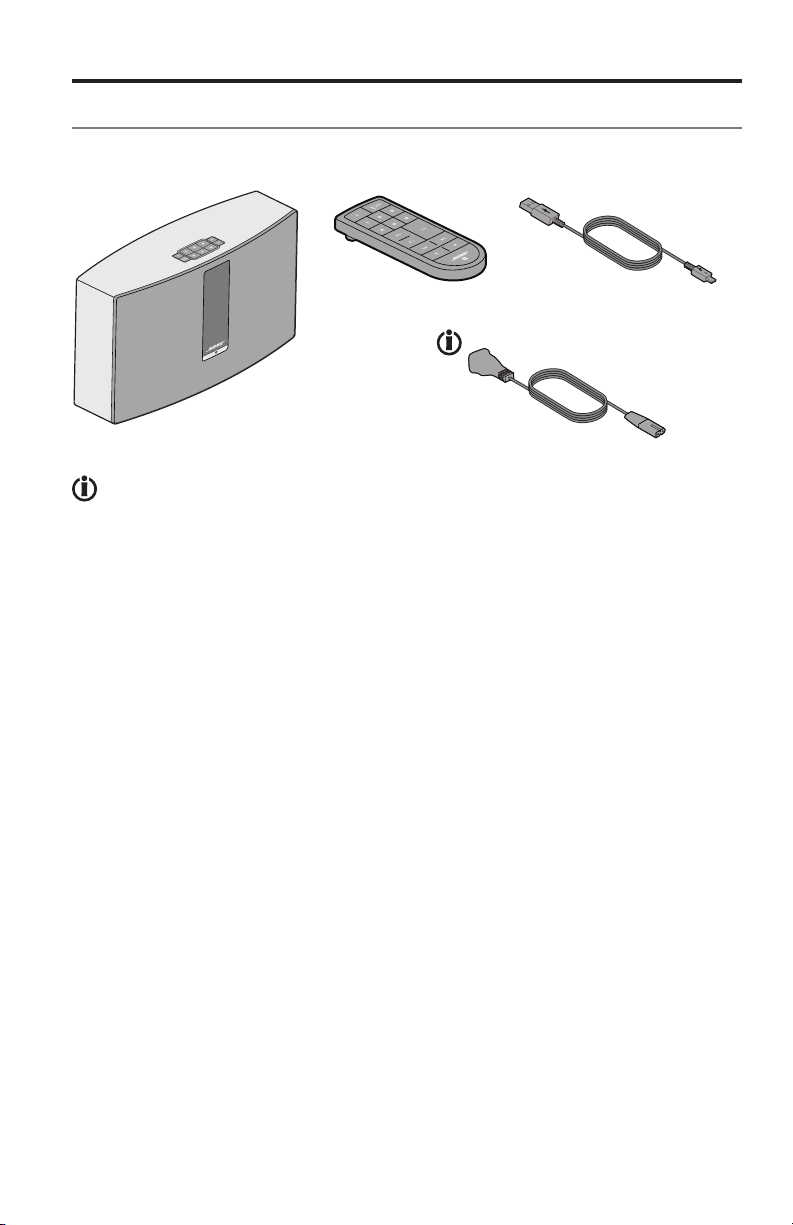
Carefully unpack the carton and confirm that the following parts are included.
Remote control
SoundTouch™ Wi-Fi® music system
USB cable
(computer setup only)
Power cord
May ship with multiple power cords. Use the power cord for your region.
Note: If part of the system is damaged, do not use it. Contact your authorized
®
Bose
dealer or Bose customer service. Refer to the quick start guide in the
carton for contact information.
Save the carton and packing materials for transporting or storing the system.
English - 9
Page 10
Setting up the System
Connecting the system to power
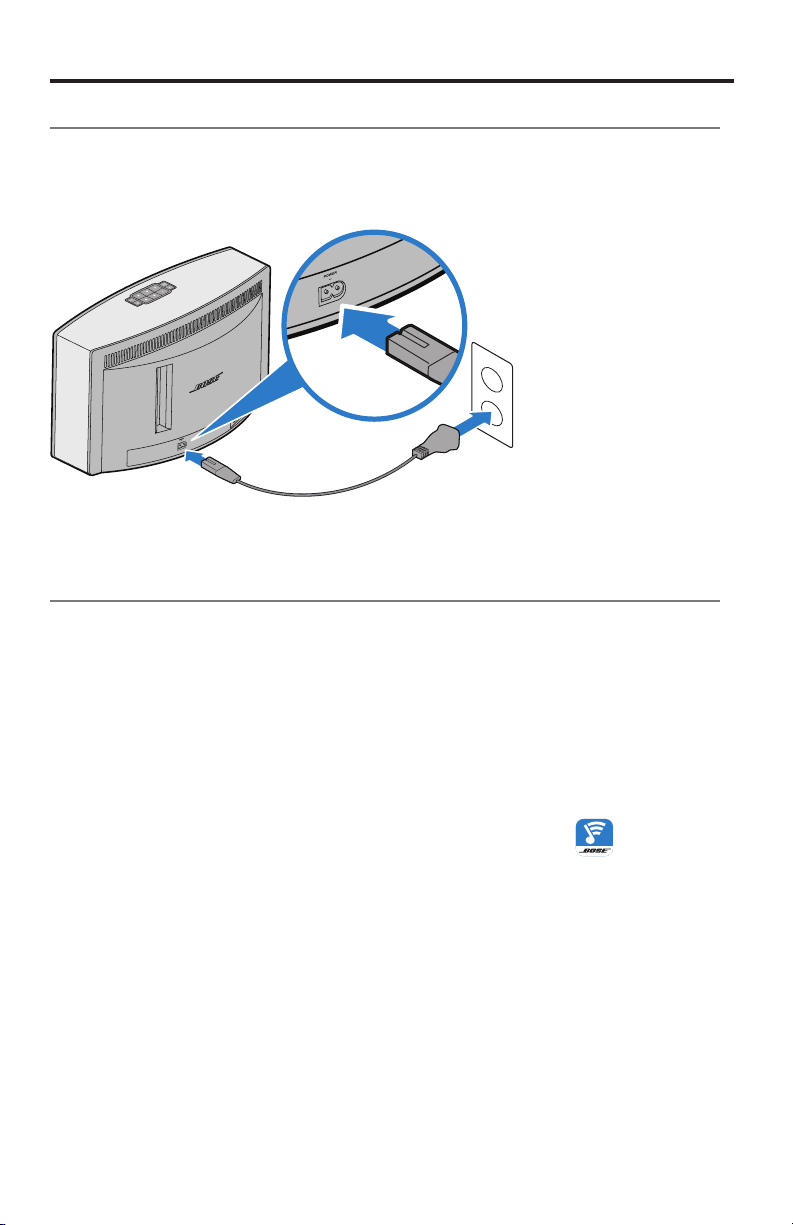
Before you set up the system on your network, connect the system to power.
1. Plug the power cord into the POWER connector on the system.
2. Plug the other end of the power cord into an AC (mains) power outlet.
Adding the system to your Wi-Fi® network
After you connect the system to power, you must download and install the
SoundTouch
The app guides you through connecting the system to your network.
Note: If you do not have a smartphone or tablet, you can use a computer for
™
app onto a smartphone or tablet that is connected to your network.
setup. See page 30.
Add the system to an existing SoundTouch™ account
If you have already set up SoundTouch™ for another system, you do not need to
download the SoundTouch
1. On your smartphone or tablet, select the SoundTouch
launch the app.
2. Select EXPLORE > SETTINGS > Systems > ADD SYSTEM to add
another system.
The app guides you through setup.
10 - English
™
app again.
™
icon to
Page 11
Setting up the System
–
Download and install the SoundTouch™ app
If this is your first time setting up a SoundTouch™ system, you must install the app.
On your smartphone or tablet, download the SoundTouch
Bose® SoundTouchTM
controller app
• iOS users: download from the App Store
• Android
™
users: download from the Google Play™ store
• Amazon Kindle Fire users: download from the Amazon Appstore for Android
Connect the system to your home Wi-Fi® network
After you install the app, add the system to your network:
™
controller app.
1. On your smartphone or tablet, select
The app guides you through connecting the system to your Wi-Fi
2. Follow the instructions in the app to complete setup, including creating
SoundTouch
™
account, adding a music library and music services.
to launch the app.
®
network.
Connecting the system to a new network
If your network information changes, you must add the system to the new network.
You can do this by manually putting the system in to setup mode.
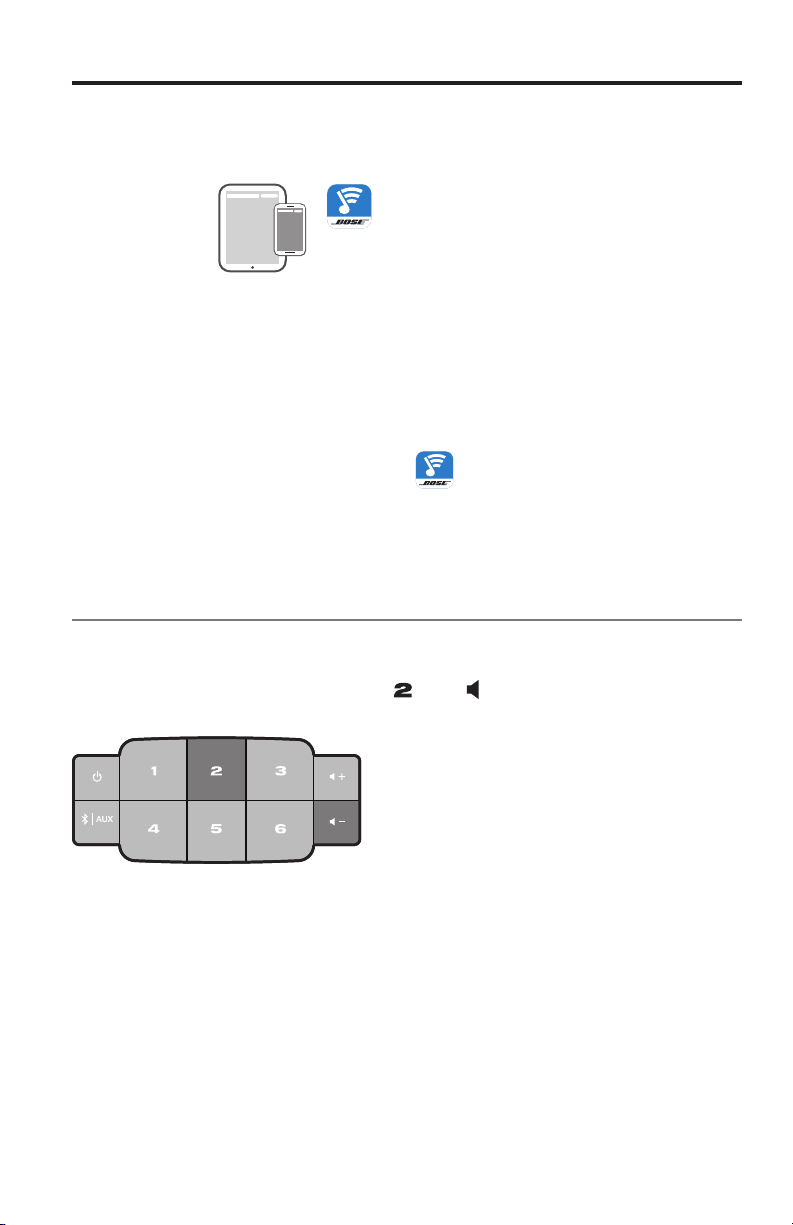
1. On the button pad, press and hold
display and the Wi-Fi indicator glows amber.
2. On your smartphone, tablet or computer, open the app.
3. From the EXPLORE panel, select SETTINGS > Systems.
4. Select your system.
The app guides you through setup.
and
until Setup appears on the
English - 11
Page 12
Using the System
Powering on the system
On the button pad or the remote control, press Power ( ). The display may
show an icon, message, or Now Playing information, depending on system state.
For a list of icons that may appear on the display, see page 13.
Tip: You can also press a Preset or
to power on the system.
Getting system information
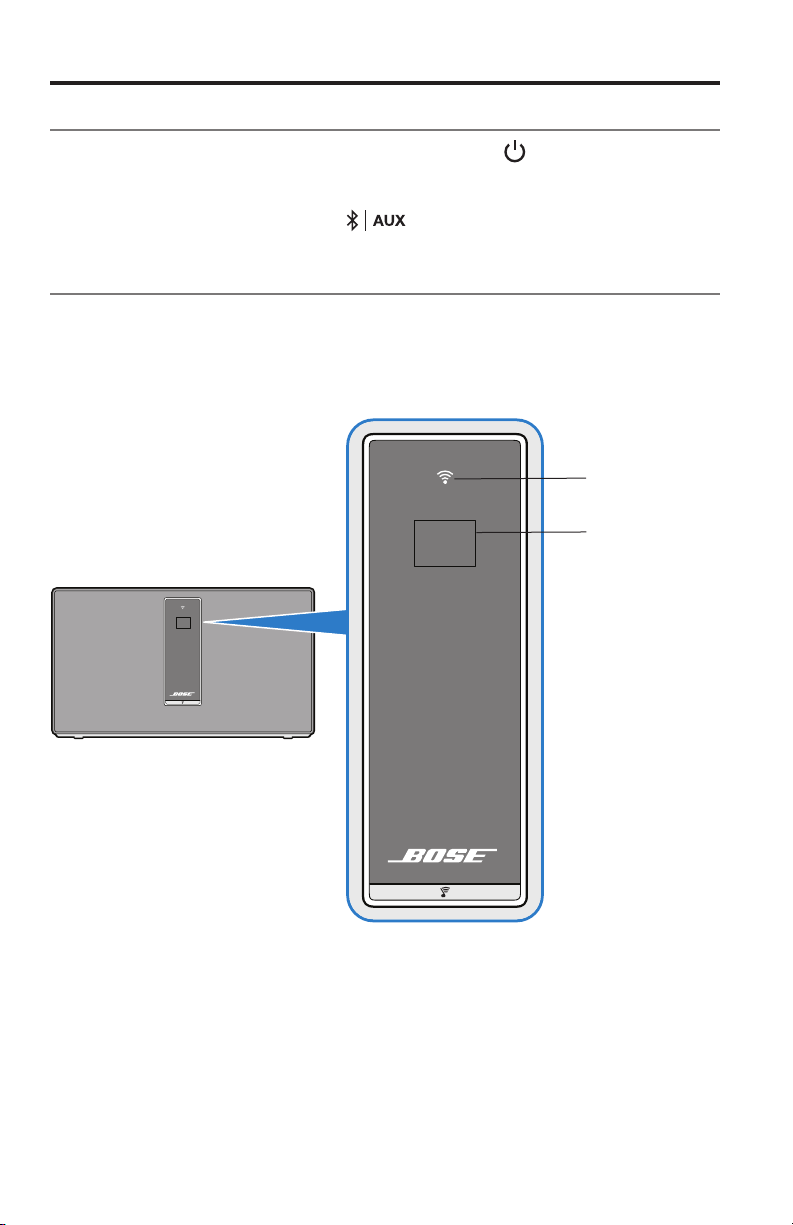
The front of the system shows information via the display and the Wi-Fi® indicator
(see page 13).
• Display: shows system messages and Now Playing information.
• Wi-Fi indicator: shows Wi-Fi status.
Wi-Fi indicator
Display
12 - English
Front panel of the system
Page 13
Using the System
Messages on the display
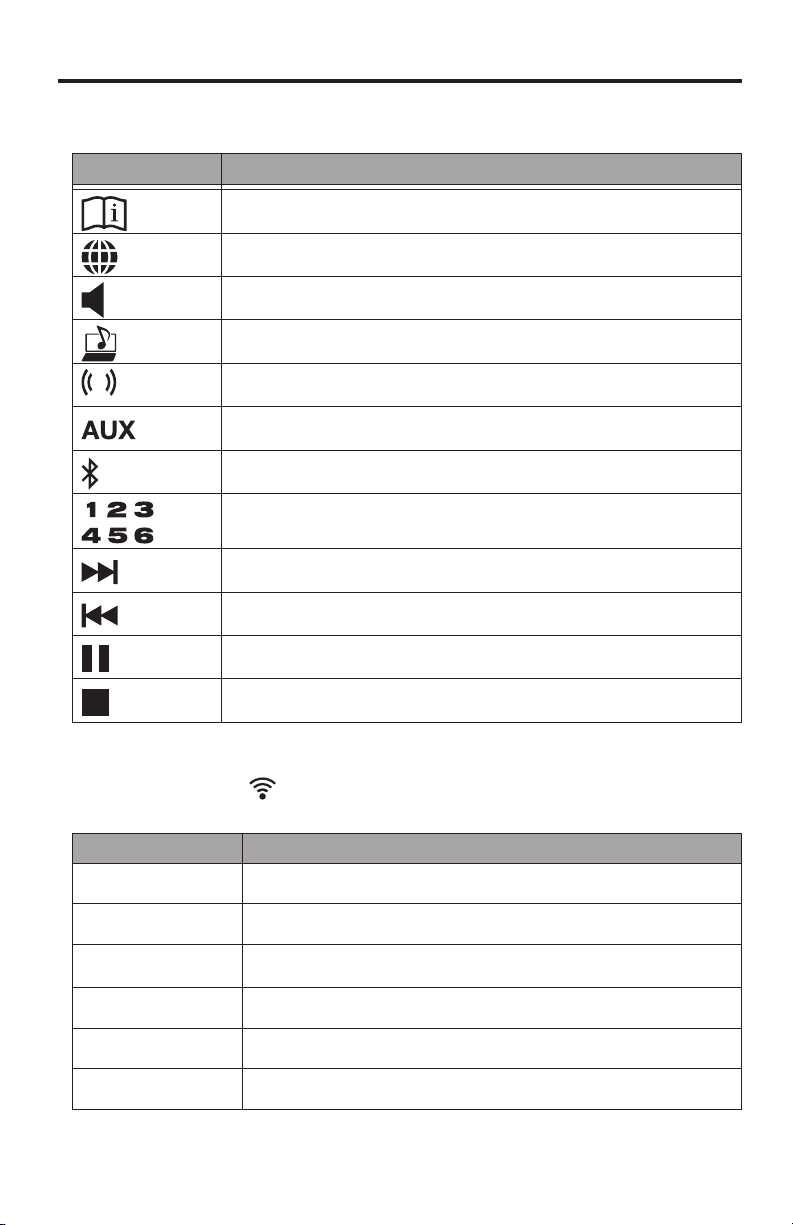
The display shows system information and icons, and may include album or artist.
Display icon Description
Appears at initial power on. Instructs you to refer to setup instructions
Internet radio is playing
Volume is being adjusted
Music library is playing
Multi-room audio is active
Auxiliary mode is active
Bluetooth® source is active
Preset is selected
Skipping forward to the next track
Skipping backward to the previous track
Audio is paused
Audio is stopped
Wi-Fi® indicator
The Wi-Fi® indicator ( ) on the front of the system indicates the Wi-Fi connection status of the system.
Indicator activity System state
Blinking white Connecting to Wi-Fi network
Solid white (dim) Power saving mode and connected to Wi-Fi network
Solid white (bright) System is on and connected to Wi-Fi network
Blinking amber Disconnected from Wi-Fi network
Solid amber System is in setup mode
Off Networking disabled or system connected to Ethernet
English - 13
Page 14
Using the System
–
+
System control buttons
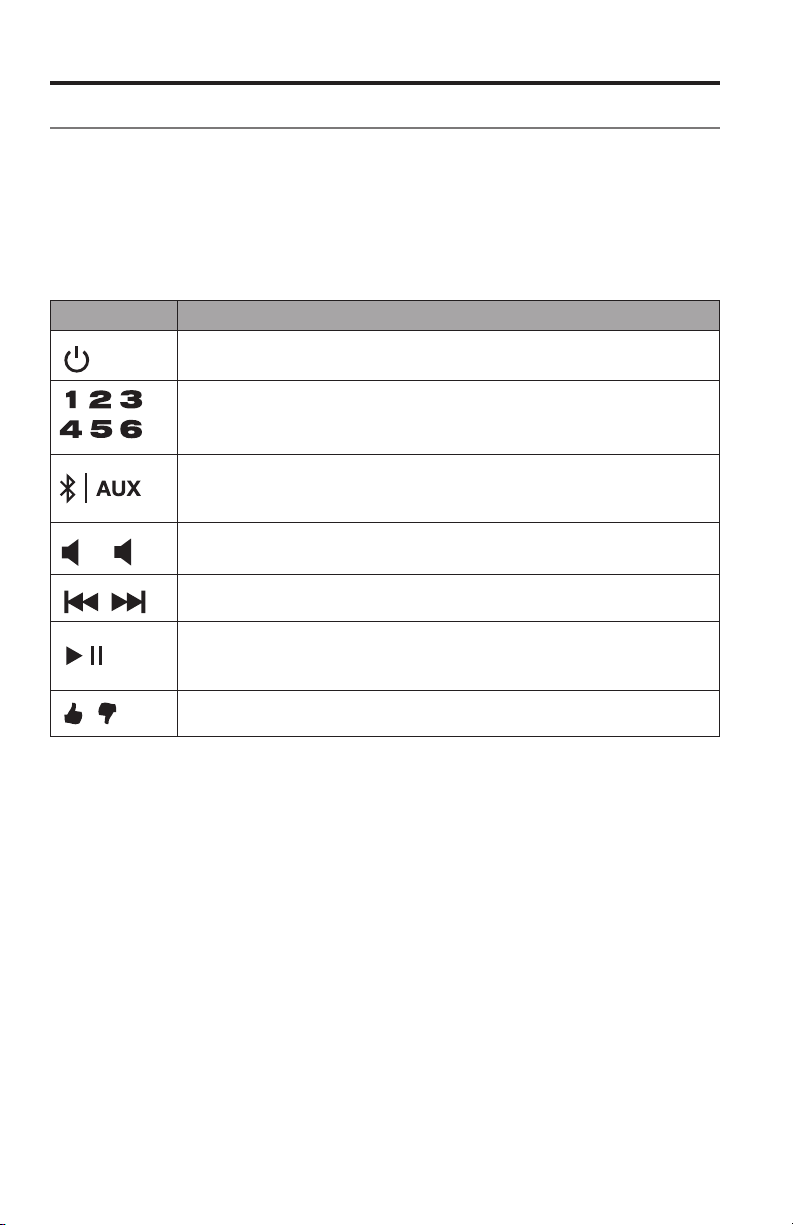
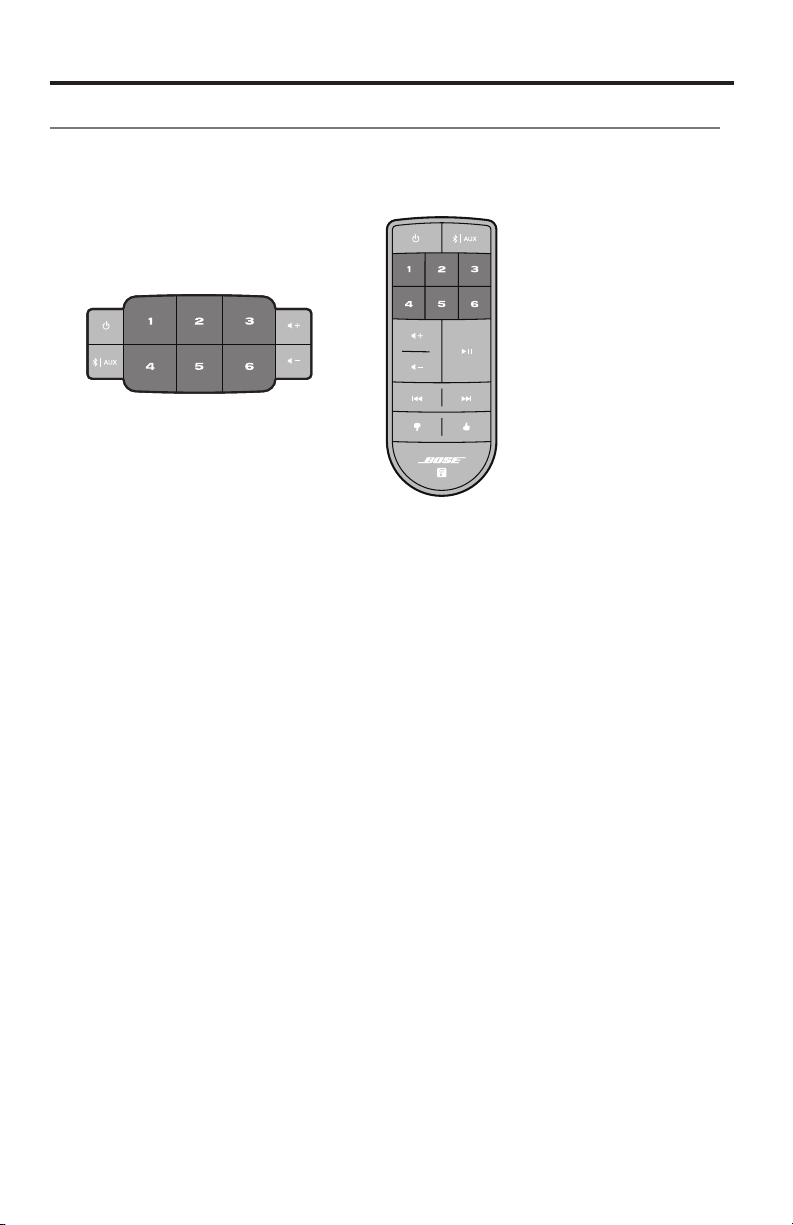
The system controls reside on the button pad and on the remote control.
You can also control the system using the SoundTouch
• Button pad: enables you to power the system, set and play your Presets,
adjust the volume, and activate the Bluetooth
™
app (see page 16).
®
and auxiliary sources.
• Remote control: enables the same functionality as the button pad, plus:
skip backward/skip forward and play/pause, and Thumbs up/Thumbs down.
Button Description
Power: Press to power on/off the system
Six Preset buttons:
• Press and hold to set a Preset to what is currently playing
• Press a Preset to play it
Bluetooth/Auxiliary button:
• Press to toggle between the Bluetooth and auxiliary source
• Icon or text on the display indicates source
Volume Up/Volume Down: Press to increase/decrease volume
Skip Backward/Skip Forward: Press to skip tracks (remote control only)
• Play/Pause: Press to toggle play or pause audio
• Mute/Unmute: Press to mute or unmute a device connected to AUX
(remote control only)
• Thumbs Up/Thumbs Down: Press to like/dislike the currently playing
selection
14 - English
Page 15

Using the System
Using the button
This multifunction button enables you to play more music on your system.
• Stream music from a connected Bluetooth
• Connect an audio device to the AUX IN connector
Press
to toggle between Bluetooth ( ) and auxiliary ( ) sources.
Bluetooth® wireless technology
Your system has Bluetooth wireless technology which lets you stream music from
Bluetooth enabled devices to your system. Your system stores eight previously
connected devices in its pairing list.
See page 19 for more information.
Auxiliary source
The auxiliary source lets you play music from an audio device connected to your
system’s AUX IN connector. You need a stereo cable with a 3.5 mm stereo cable
plug (not provided).
See page 22 for more information.
®
enabled device
English - 15
Page 16

Controlling the System using the App
Using the SoundTouch™ app
The SoundTouch™ app is a software application that enables you to set up and
control SoundTouch
your smart device acts as a rich remote for your SoundTouch
The app enables you to manage your SoundTouch
™
from your smartphone, tablet, or computer. Using the app,
™
settings, add music services,
™
system.
explore local and global Internet radio stations, set and change Presets, stream
music to the system, view what is playing, plus much more.
After you set up the system on your network using the SoundTouch
™
app, you are
ready to explore streaming music and personalize your Presets.
Getting help
SoundTouch.com
Provides access to the owner support center, which includes: owner’s manuals,
articles, tips, tutorials, a video library, and the owner community where you post
questions and answers.
1. Open a browser.
2. In the address field, type SoundTouch.com
In-app help
Provides help articles for using SoundTouch™.
1. On your device, select
2. From the EXPLORE panel, select HELP.
to open the app.
Controlling the system from another smartphone, tablet, or computer
Once you set up the SoundTouch™ system on your home Wi-Fi® network, you can
control the system from any smartphone, tablet, or computer on the same network.
1. Connect the device to the same network as your system.
2. On the device, download and install the SoundTouch
• If you are using a smartphone or tablet, see page 11.
• If you are using a computer, open a browser and go to:
SoundTouch.com/app
™
app:
16 - English
Page 17
Personalizing your Presets
How Presets work
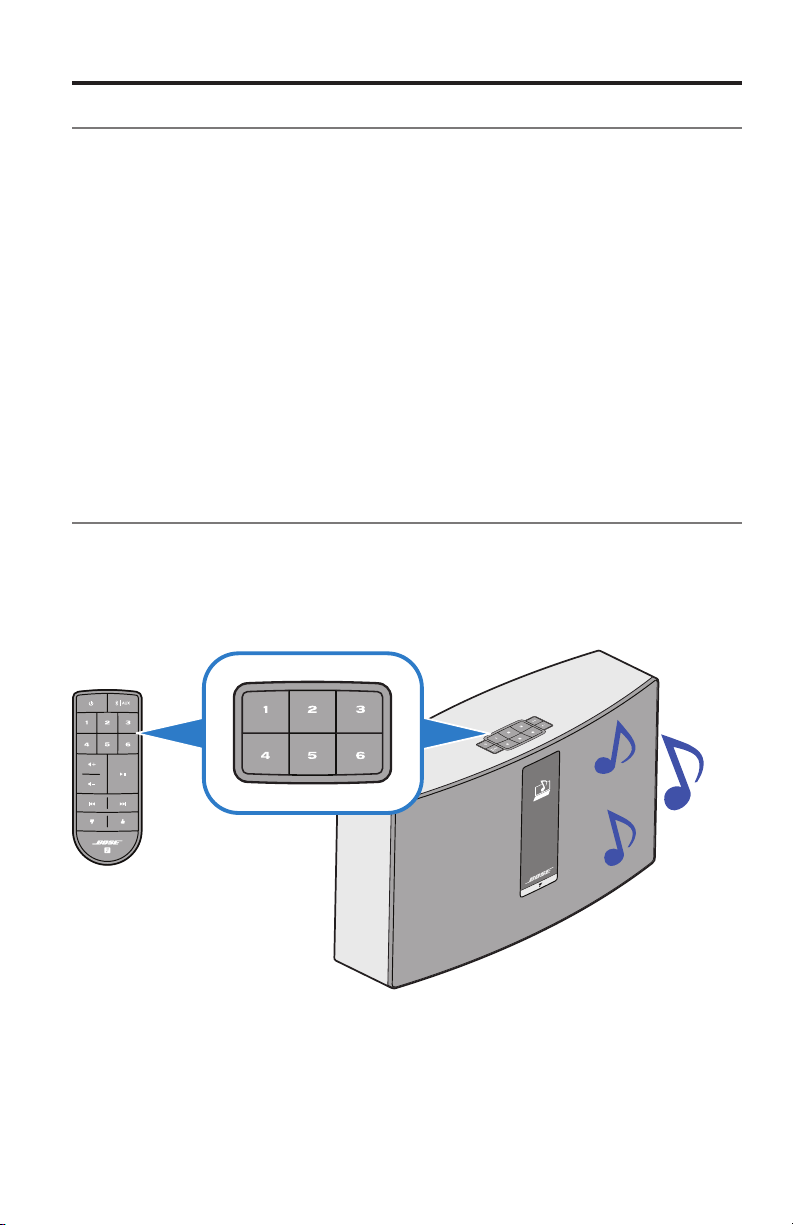
You can personalize six Presets to your favorite streaming music services, stations,
playlists, artists, albums or songs from your music library. You can access your
music, at any time, with a simple touch of a button on the SoundTouch
™
system or
its remote control.
Tip: You can also access your Presets using the SoundTouch
™
app on your
computer, smartphone, or tablet.
What you need to know
• You can set Presets from the app, the button pad and the remote control.
• If the Preset source is your iTunes or Windows Media Player music library,
ensure the computer storing your music library is on and connected to the
same network as the SoundTouch
• You cannot set Presets to a Bluetooth
to the AUX IN connector.
™
system.
®
stream or audio device connected
Playing a Preset
Once you personalize your Presets using the app, press a Preset on the button pad
or on the remote control to play it. If you have not set your Presets, launch the app
and set your Presets. For help, refer to the in-app help.
If using the remote control, aim the remote toward the system while pressing a
Preset on the remote.
Music plays on the system. Information appears on the display, which may include
an icon, song or station depending on the source. See page 13.
Note: If no music plays and a Preset empty message appears on the
display, see “Setting a Preset” on page 18.
English - 17
Page 18
Personalizing your Presets
Setting a Preset
1. Stream music to the system using the app.
2. While the music is playing, press and hold a Preset on the button pad or
remote control (about 2 seconds).
The system emits a tone when the Preset is set. A New Preset assigned
message appears on the display.
Note: For information on using the SoundTouch
Presets, refer to the in-app help.
™
app to set and change your
18 - English
Page 19
Bluetooth
Pairing a Bluetooth® enabled device
Bluetooth® wireless technology enables you to stream music from Bluetooth
enabled smartphones, tablets, computers or other audio devices to your
SoundTouch
that are not part of your SoundTouch
tablet.
Before you can stream music from a Bluetooth enabled device, you must pair the
device with your system.
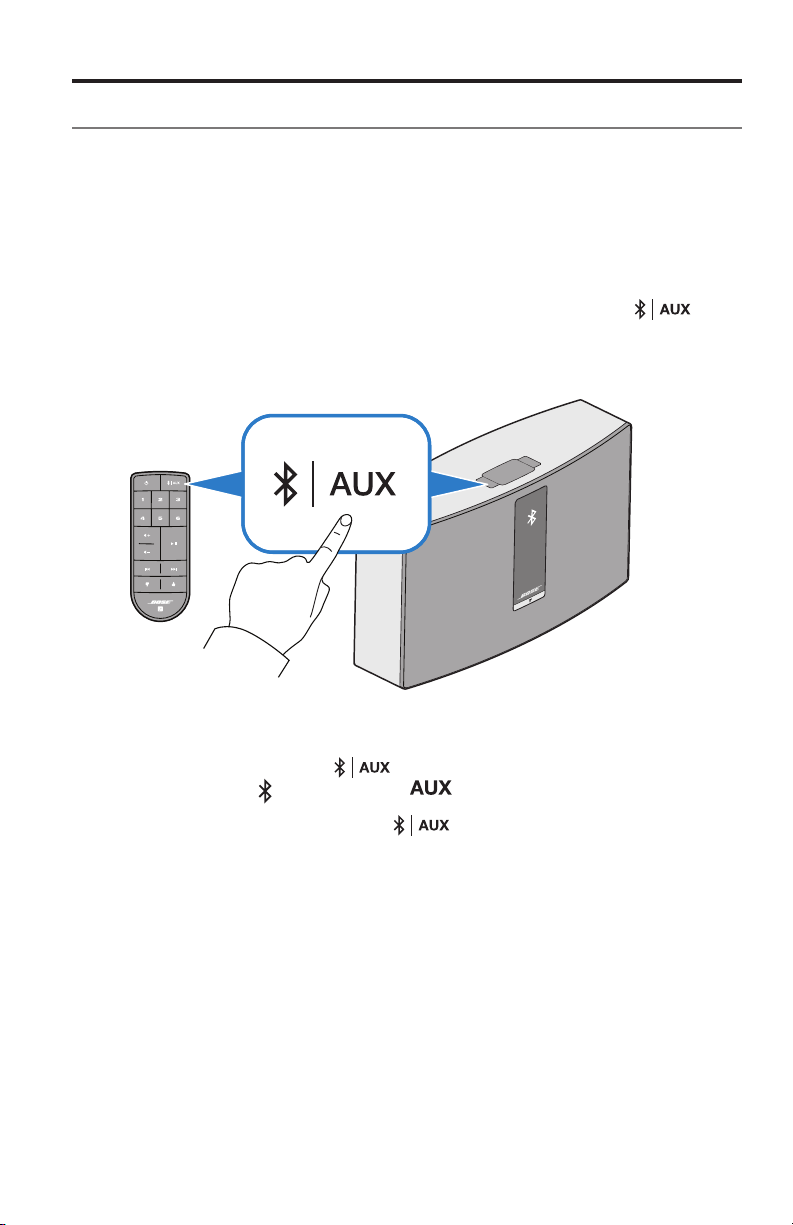
1. On the system’s button pad or remote control, press and release
a Bluetooth pairing message appears on the display.
™
system. You can even stream music from Bluetooth enabled devices
™
ecosystem, such as a guest’s smartphone or
until
®
Note: Each time you press , the system toggles between
Bluetooth (
Tip: You can also press and hold
) and auxiliary ( ) sources.
for two seconds to pair a device.
Make sure you see a Bluetooth message on the display before you pair your
device.
English - 19
Page 20
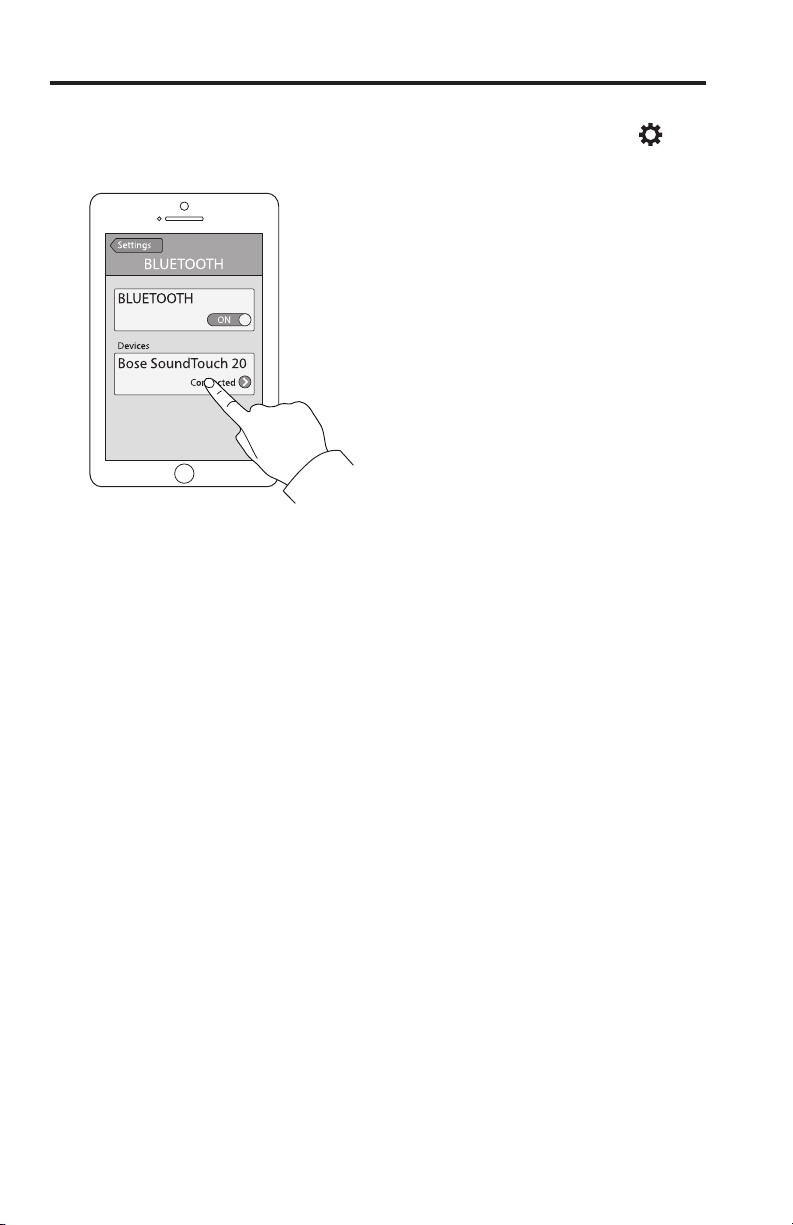
Bluetooth
®
2. On your Bluetooth® enabled device, turn on the Bluetooth feature.
Tip: The Bluetooth feature is usually found in Settings. A gear icon (
represents Settings on the Home screen.
3. Select your SoundTouch™ system from the device list.
Once paired, your SoundTouch
™
system’s name appears connected in the
device list.
4. On the Bluetooth enabled device, play music to stream to your system.
) often
If you cannot pair your device
You may need to clear the system’s Bluetooth pairing list (page 21). After you
clear the list, try pairing again (page 19).
See “Troubleshooting” on page 25 for more information.
20 - English
Page 21
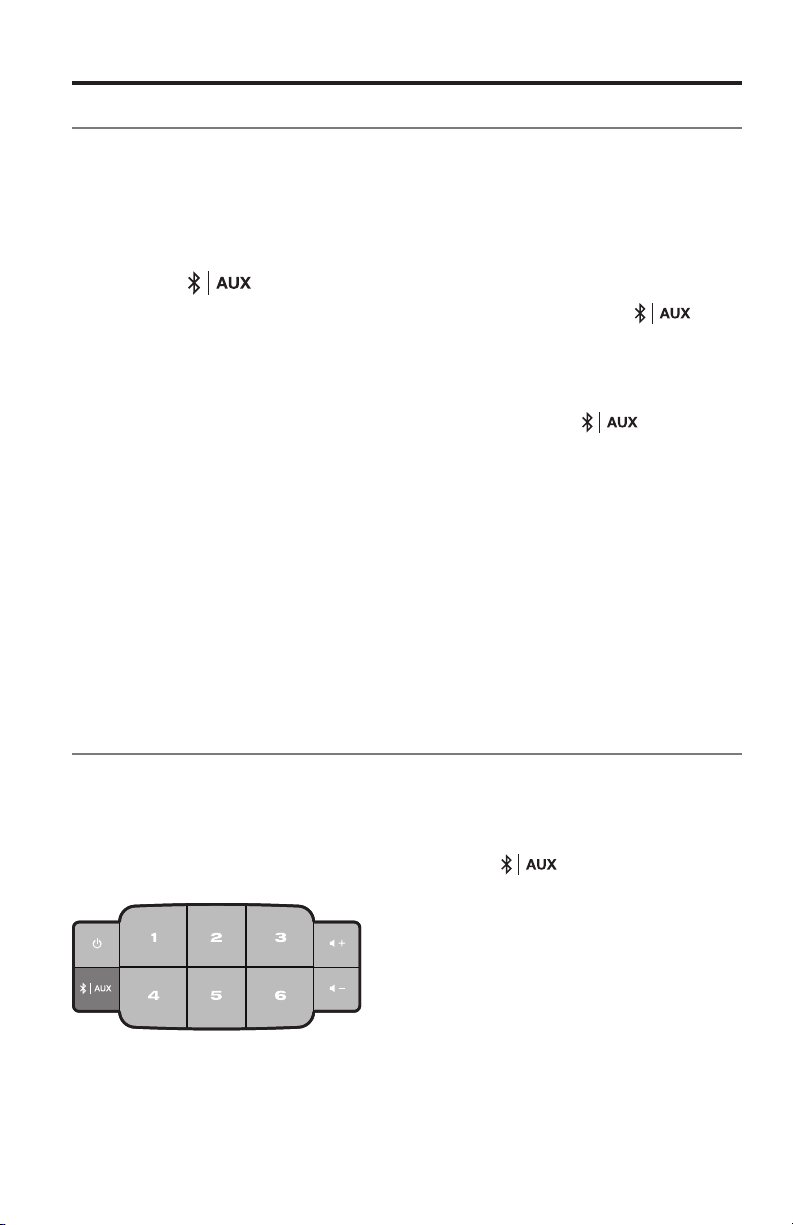
Bluetooth
Connecting to a paired Bluetooth® enabled device
®
You can stream audio from a Bluetooth® enabled device to your system. There are
two ways to stream audio from a paired device to your SoundTouch
If there are multiple devices stored in the system’s pairing list, it may take a minute
or two for the paired device to connect. Your system’s display indicates connection
status.
™
system.
Using the button
1. On the system’s button pad or remote control, press and release
until a Bluetooth connecting message appears on the display.
The system connects to the last device that streamed to your system.
2. On the device, play music.
Tip: If a paired device is connected, you do not need to press
.
If you cannot stream audio from a paired device
Your SoundTouch™ system may have lost connection to the device. Check the
system’s display. If the paired device is out of range of your system, move the
device within range.
Using the Bluetooth® feature on the paired device
1. On the Bluetooth enabled device, turn on the Bluetooth feature.
2. Select your SoundTouch
3. Once connected, on the Bluetooth enabled device, play music to stream to
your system.
™
system from the device list.
Clearing the system’s Bluetooth® pairing list
When you pair a Bluetooth enabled device to your system, the connection is stored
in the system’s pairing list. You may need to clear the pairing list if you cannot
connect to a device. Once you clear the list, you need to pair previously-paired
devices again.
On the button pad or remote control, press and hold
A message similar to Pairing list cleared appears on the display.
The system is ready to pair to a device (page 19).
(about 10 seconds).
English - 21
Page 22
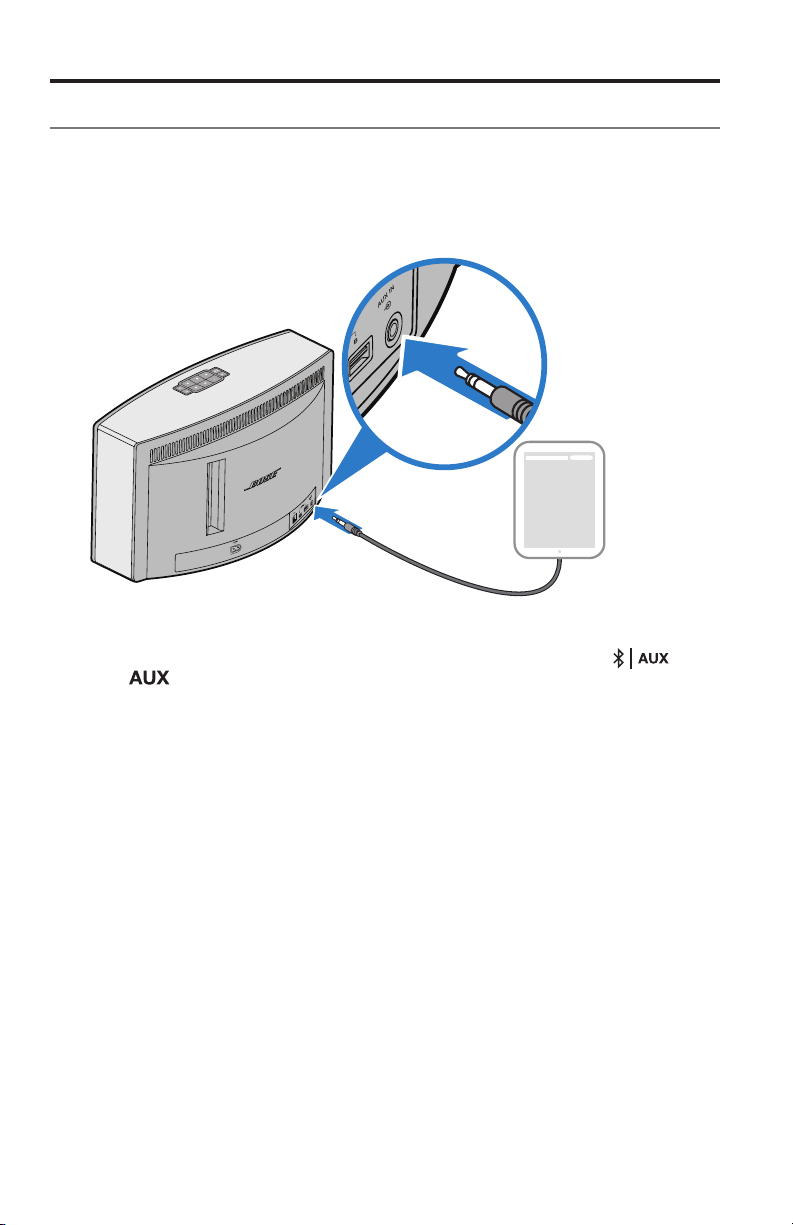
Connecting a Device to the AUX IN Connector
Using a cable to connect an audio device
You can connect the audio output of a smartphone, tablet, computer or other type
of audio device to your system’s AUX IN connector. The AUX IN connector accepts
a 3.5 mm stereo cable plug (not provided).
1. Using a stereo cable, connect your audio device to the AUX IN connector on
the system.
2. On the system’s button pad or remote control, press and release
until
3. Start playing music on the audio device.
22 - English
appears on the display.
Page 23
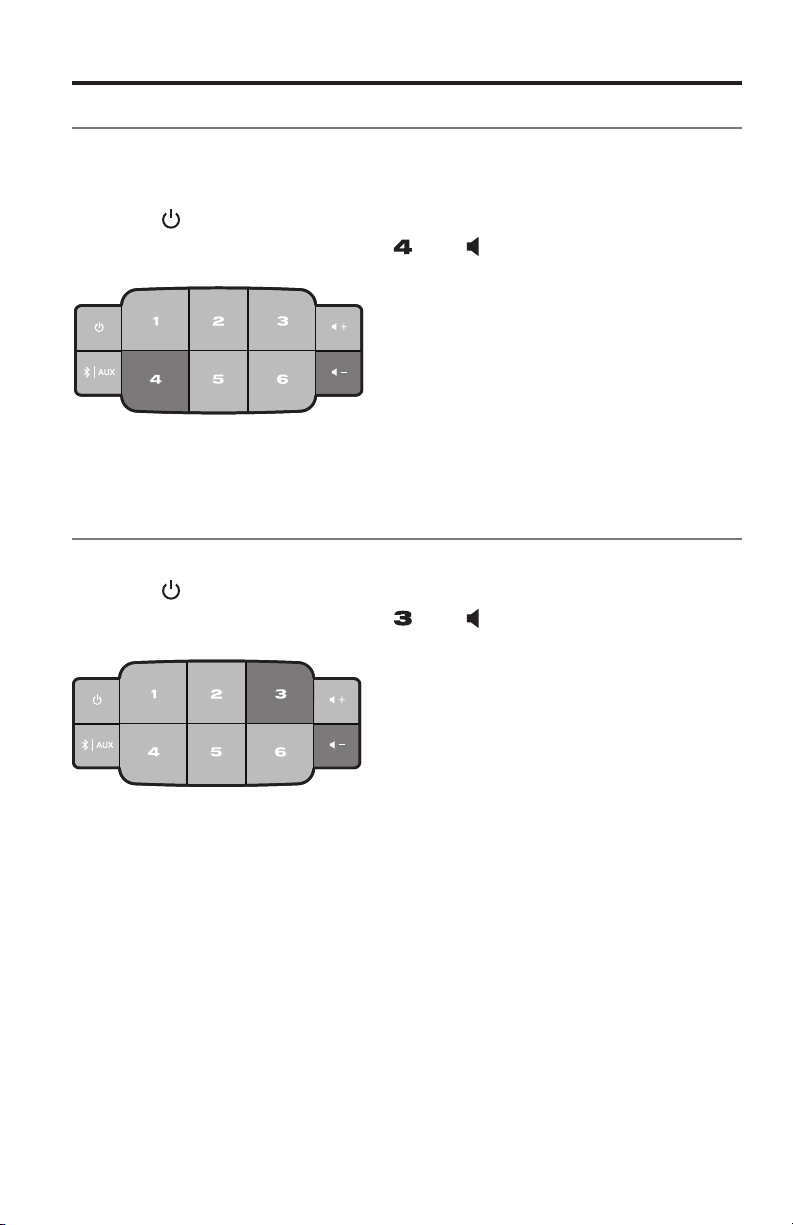
Advanced Features
–
–
Updating system software
The app alerts you when a software update is available, at which time you can
update the system within the app. However, you can also update system software
using the button pad.
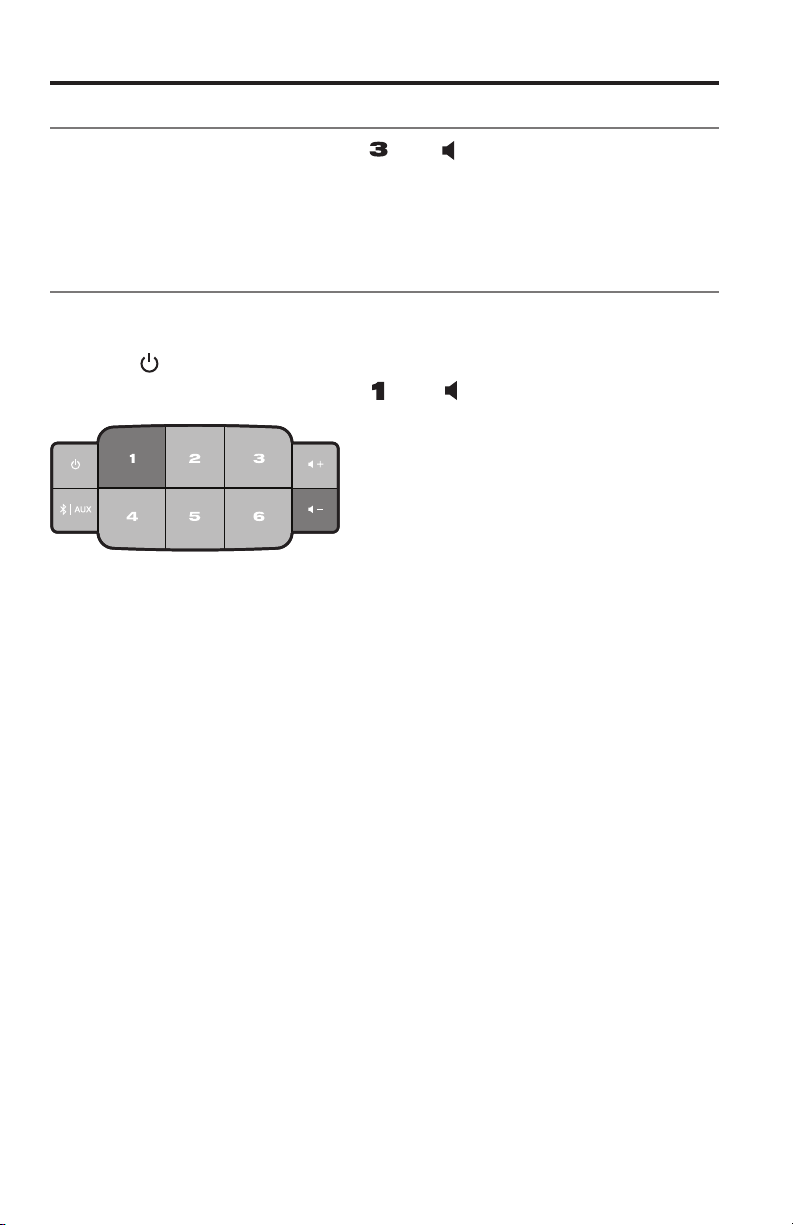
1. Press
2. On the button pad, press and hold
The display shows a countdown from 5-1. A progress bar indicates status.
An update complete message appears on the display.
to power the system on.
and
(about 5 seconds).
Disabling Wi-Fi® capability
The system has built-in Wi-Fi® capability that enables wireless connectivity.
1. Press
2. On the button pad, press and hold
to power the system on.
and
(about 5 seconds).
The display shows a countdown from 5 – 1 and a message similar to
Hold to disable networking appears on the display.
The Wi-Fi indicator turns off when Wi-Fi is disabled.
English - 23
Page 24
Advanced Features
–
–
Re-enabling Wi-Fi® capability
While the system is on, press and hold and
The display shows a countdown from 5 – 1 and a message similar to
Hold to enable networking appears on the display.
The Wi-Fi
®
indicator illuminates when Wi-Fi is enabled.
(about 5 seconds).
Resetting the system
Factory reset clears all source, volume, and network settings from the system and
returns it to original factory settings.
1. Press
2. On the button pad, press and hold
The display shows a countdown from 10 – 1 and a message similar to
Hold to restore factory settings appears on the display.
The system restarts.
3. Launch the SoundTouch
network (see page 10).
to power the system on.
™
app on your computer and add the system to your
and
(about 10 seconds).
24 - English
Page 25

Care and Maintenance
Troubleshooting
For more troubleshooting information, refer to the in-app help.
Problem What to do
Cannot complete
network setup
Cannot connect to
network
Intermittent or no audio • Move system away from possible interference
Cannot play Bluetooth®
audio
Bass is too heavy or low • Adjust the bass level of your system in the app. Refer to the
• Connect the system to AC (mains) power.
• Select correct network name and enter password.
• Connect the device and SoundTouch™ system to the same
Wi-Fi® network.
• Place the wireless adapter within range of the router.
• Enable Wi-Fi on the device (mobile or computer) you are
using for setup .
• If network name does not appear or is hidden, select
Manually Connect to Another Network on the
CONNECT TO HOME WI-FI NETWORK screen.
• Close other open applications.
• If using a computer for setup, check firewall settings to
ensure that the SoundTouch™ app and
SoundTouch™ Music Server are allowed programs.
• Test your Internet connection by loading SoundTouch.com
• Restart your mobile device, or computer, and router.
• Uninstall the app, reset the system, and restart setup.
• If your network information has changed or to connect
your system to another network, refer to the in-app help.
• Connect to the network using an Ethernet cable.
(microwaves, cordless phones, etc.).
• Stop other audio or video streaming applications.
• Move your mobile device closer to the speaker and away
from any interference or obstructions.
• Move system or audio device closer to wireless router or
access point.
• Ensure system volume is not muted or too low.
• Unplug the power cord; reconnect after one minute.
On your speaker:
• Pair a device (page 19).
• Clear the speaker’s pairing list (page 21).
• Try pairing a different device.
• Set up SoundTouch™ first, and perform all system updates.
On your mobile device:
• Disable and re-enable the Bluetooth feature.
• Remove the speaker from the Bluetooth menu. Pair again.
• Refer to your Bluetooth enabled device’s documentation.
• See Intermittent or no audio section.
in-app help.
English - 25
Page 26
Care and Maintenance
–
+
–
Getting diagnostic information
Get detailed information, such as MAC address and network information, serial
number and software version.
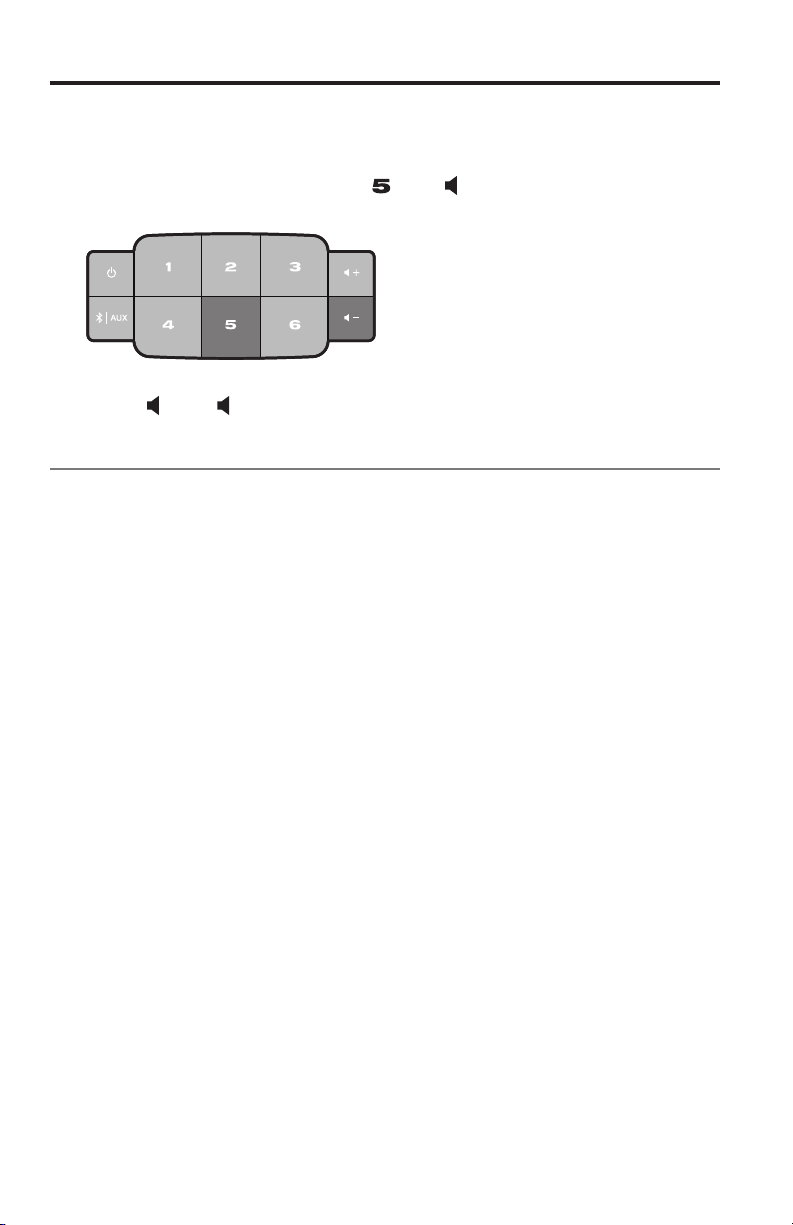
1. On the button pad, press and hold
appears on the display.
and
until system information
2. Press
or
to scroll through system information.
Cleaning
To clean your SoundTouch™ system, wipe the exterior using a soft, dry cloth.
You can also lightly vacuum the grille on the system.
• DO NOT use solvents, chemicals, or sprays.
• DO NOT allow liquids to spill or objects to drop into any openings.
26 - English
Page 27
Care and Maintenance
Replacing the remote control battery
WARNING: Keep new and used batteries away from children. Do not ingest
battery, chemical burn hazard. The remote control supplied with this product
contains a coin/button cell battery. If the coin/button cell battery is swallowed it
can cause severe internal burns in just two hours and can lead to death. If the
battery compartment does not close securely, stop using the product and keep it
away from children. If you think the battery may have been swallowed or placed
inside any part of the body, seek immediate medical attention. The coin/button cell
battery may explode or cause a fire or chemical burn if incorrectly replaced or mishandled. Do not recharge, disassemble, heat above 212ºF (100ºC), or incinerate.
Replace only with an agency approved (ex. UL) CR2032 or DL2032 3-volt lithium
battery. Dispose of used batteries promptly.
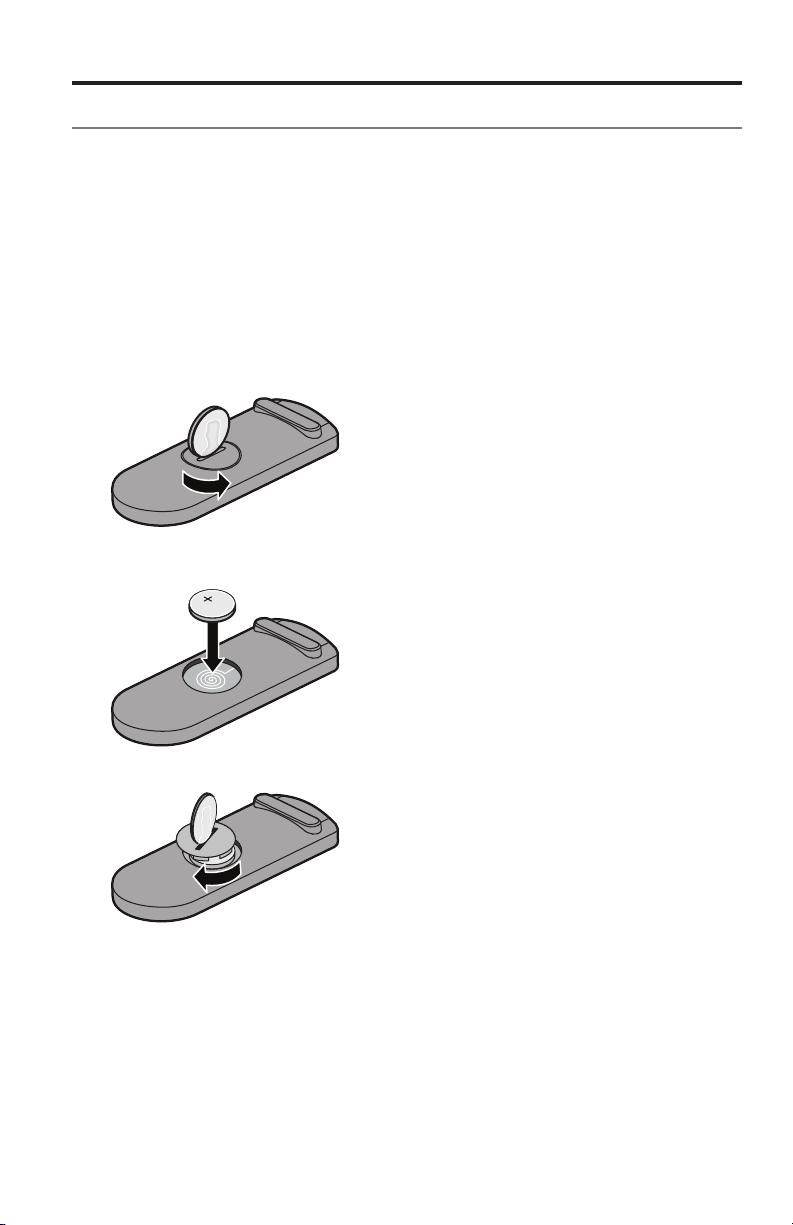
1. Use a coin to turn the battery cover slightly counterclockwise.
2. Remove the cover. Insert the new battery flat side up, with the + symbol
in view.
3. Reseat the cover and turn it clockwise to lock into place.
English - 27
Page 28

Care and Maintenance
Customer service
For additional help using the system:
• Visit SoundTouch.com
• Contact Bose
contact information.
®
Customer Service. Refer to the quick start guide in the carton for
Limited warranty information
Your SoundTouch™ system is covered by a limited warranty. Details of the limited
warranty are provided on the quick start guide in the carton. Please refer to the
quick start guide for instructions on how to register. Failure to do so will not affect
your limited warranty rights.
The warranty information provided with this product does not apply in
Australia and New Zealand. See our website at www.bose.com.au/warranty or
www.bose.co.nz/warranty for details of the Australia and New Zealand warranty.
28 - English
Page 29

Technical Information
SoundTouch™ 30 system
Size: 9.7"H x 17.1"W x 7.1"D (24.7 cm x 43.5 cm x 18.1 cm)
Weight:
Input power rating:
18.5 lb (8.39 kg)
U.S.A./Canada: 120V
International: 220-240V
Japan: 100V
50/60 Hz, 150W
50/60 Hz, 150W
50/60 Hz, 150W
SoundTouch™ 20 system
Size:
Weight:
Input power rating:
7.4"H x 12.4"W x 4.1"D (18.8 cm x 31.4 cm x 10.4 cm)
7.0 lb (3.18 kg)
USA/Canada/
International: 100-240V
50/60 Hz, 90W
English - 29
Page 30

Appendix: Using a Computer for Setup
Important setup information
• You can set up your system using a computer rather than a smartphone
or tablet.
• Use a computer that is on your Wi-Fi
• Use a computer where your music library is stored.
• You need the provided USB cable.
• Do not connect the USB cable until the app instructs you to connect the cable.
*
The SETUP A USB connector on the back of the system is for computer setup only. The USB
connectors are not designed to charge smartphones, tablets, or similar devices.
®
network.
*
Using a desktop computer for setup
If you are using a desktop computer, move the system near the computer to set up
your system. During setup, the app prompts you to connect the USB cable from
the computer to the system (temporarily).
After setup, disconnect the USB cable from your computer and from your system
and move the system to its permanent location.
Setting up the system using a computer
1. Plug the power cord into an AC (mains) power outlet.
2. On your computer, open a browser and go to
SoundTouch.com/app
Tip: Use the computer where your music library is stored.
3. Download and run the SoundTouch
The app guides you through setup.
™
app.
30 - English
Page 31

English - 31
Page 32

©2015 Bose Corporation, The Mountain,
Framingham, MA 01701-9168 USA
AM7747473 Rev. 00
 Loading...