

Page 1

Basic Call Management Reporting Desktop
R2.4.3 Release Notes
Page 2

Basic Call Management Reporting Desktop R2.4.3 Release Notes
Notice
While reasonable efforts were made to ensure that the information in
this document was complete and accurate at the time of printing,
Avaya Inc. can assume no liability for any errors. Changes and
corrections to the information in this document might be incorporated
in future releases.
Documentation disclaimer
Avaya Inc. is not responsible for any modifications, additions, or
deletions to the original published version of this documentation
unless such modifications, additions, or deletions were performed by
Avaya. Customer and/or End User agree to indemnify and hold
harmless Avaya, Avaya's agents, servants and employees against all
claims, lawsuits, demands and judgments arising out of, or in
connection with, subsequent modifications, additions or deletions to
this documentation to the extent made by the Customer or End User.
Link disclaimer
Avaya Inc. is not responsible for the contents or reliability of any
linked Web sites referenced elsewhere within this documentation,
and Avaya does not necessarily endorse the products, services, or
information described or offered within them. We cannot guarantee
that these links will work all the time and we have no control over the
availability of the linked pages.
Warranty
Avaya Inc. provides a limited warranty on this product. Refer to your
sales agreement to establish the terms of the limited warranty. In
addition, Avaya’s standard warranty language, as well as information
regarding support for this product, while under warranty, is available
through the Avaya Support Web site:
http://www.avaya.com/support
License
USE OR INSTALLATION OF THE PRODUCT INDICATES THE END
USER'S ACCEPTANCE OF THE TERMS SET FORTH HEREIN
AND THE GENERAL LICENSE TERMS AVAILABLE ON THE
AVAYA WEB SITE
http://support.avaya.com/LicenseInfo/ ("GENERAL LICENSE
TERMS"). IF YOU DO NOT WISH TO BE BOUND BY THESE
TERMS, YOU MUST RETURN THE PRODUCT(S) TO THE POINT
OF PURCHASE WITHIN TEN (10) DAYS OF DELIVERY FOR A
REFUND OR CREDIT.
Avaya grants End User a license within the scope of the license types
described below. The applicable number of licenses and units of
capacity for which the license is granted will be one (1), unless a
different number of licenses or units of capacity is specified in the
Documentation or other materials available to End User. "Designated
Processor" means a single stand-alone computing device. "Server"
means a Designated Processor that hosts a software application to
be accessed by multiple users. "Software" means the computer
programs in object code, originally licensed by Avaya and
ultimately utilized by End User, whether as stand-alone Products or
pre-installed on Hardware. "Hardware" means the standard hardware
Products, originally sold by Avaya and ultimately utilized by End User.
License type(s)
Concurrent User License (CU). End User may install and use the
Software on multiple Designated Processors or one or more Servers,
so long as only the licensed number of Units are accessing and using
the Software at any given time. A "Unit" means the unit on which
Avaya, at its sole discretion, bases the pricing of its licenses and can
be, without limitation, an agent, port or user, an e-mail or voice mail
account in the name of a person or corporate function
(e.g., webmaster or helpdesk), or a directory entry in the
administrative database utilized by the Product that permits one user
to interface with the Software. Units may be linked to a specific,
identified Server.
CPU License (CP). End User may install and use each copy of the
Software on a number of Servers up to the number indicated by
Avaya provided that the performance capacity of the Server(s) does
not exceed the performance capacity specified for the Software. End
User may not re-install or operate the Software on Server(s) with a
larger performance capacity without Avaya's prior consent and
payment of an upgrade fee.
Copyright
Except where expressly stated otherwise, the Produ ct is prote cte d by
copyright and other laws respecting proprietary rights. Unauthorized
reproduction, transfer, and or use can be a criminal, as well as a civil,
offense under the applicable law.
Third-party components
Certain software programs or portions thereof included in the Product
may contain software distributed under third party agreements ("Third
Party Components"), which may contain terms that expand or limit
rights to use certain portions of the Product ("Third Party Terms").
Information identifying Third Party Components and the Third Party
Terms that apply to them is available on the Avaya Support Web site:
http://support.avaya.com/ThirdPartyLicense/
Preventing toll fraud
"Toll fraud" is the unauthorized use of your telecommunications
system by an unauthorized party (for example, a person who is not a
corporate employee, agent, subcontractor, or is not working on your
company's behalf). Be aware that there can be a risk of toll fraud
associated with your system and that, if toll fraud occurs, it can result
in substantial additional charges for your telecommunications
services.
Avaya fraud intervention
If you suspect that you are being victimized by toll fraud and you
need technical assistance or support, call Technical Service Center
Toll Fraud Intervention Hotline at +1-800-643-2353 for the United
States and Canada. For additional support telephone numbers, see
the Avaya Support Web site:
http://www.avaya.com/support
Trademarks
Avaya and the Avaya logo are either registered trademarks or
trademarks of Avaya Inc. in the United States of America and/or other
jurisdictions. All other trademarks are the property of their respective
owners.
Downloading documents
For the most curre nt versions of documentation, see the Avaya
Support Web site:
Avaya support
Avaya provides a telephone number for you to use to report problems
or to ask questions about your product. The support telephone
number is 1-800-242-2121 in the United States. For additional
support telephone numbers, see the Avaya Support Web site:
http://www.avaya.com/support
http://www.avaya.com/support
Page 3

Contents
Release notes overview........................................................................................3
What's New...........................................................................................................3
Supported Communication Manager versions......................................................4
Problems fixed......................................................................................................5
BCMRD R2.4.3 (Build 318) Installation Instructions..............................................7
*Assumptions ....................................................................................................8
Reference Images.................................................................................................9
Hints and tips......................................................................................................10
To upgrade to BCMRD R2.4.3 ........................................................................10
Technical Support...............................................................................................11
Page 4

Basic Call Management Reporting Desktop R2.4.3 Release Notes
Release notes overview
BCMRD R2.4.3 aims to provide an essential upgrade to the current release of BCMRD R2.4.2.
The upgrade enables BCMRD to operate with Windows Vista operating system.
The document provides important information about the Avaya Basic Call Management Reporting
Desktop (BCMRD) including issue description, enhancements and suggested solutions for
R2.4.3. It also includes scenarios with the corresponding installation instructions and assumptions
that the user must consider while installing BCMRD. This document also includes the supported
Communication Manager (CM) versions.
BCMRD R2.4.3 release includes fixes like dual/multi-core processor support made in the previous
service pack R2.4.1 and provides support to CM5.2 made in service pack R2.4.2.
It provides a description of the Database Merge Utility for upgrading the database to the latest
format, i.e, from 7 digit dial plan to 13 digit dial plan.
For more information about R2.4.1, R2.4.2 features,fixes and Database merge utility please refer
to the R2.4.1 and R2.4.2 release notes respectively on the Avaya support web site.
Note:
BCMRD R2.4 and later releases are not certified to work on a 64-bit operating system.
Please refer to the Installation guide and User guide on the Avaya support Web site,
http://www.avaya.com/support for more information on previously supported platforms,
functionality and installation instructions.
What's New
1. BCMRD R2.4.3 compatibility with Windows Vista operating system
The BCMRD R2.4.3 release supports Windows Vista operating system (Enterprise, Professional
and Business versions supported)
This includes effective localization and improved report templates for historical reports, boundary
condition checks for static entities (like Agent ID, VDN ID, etc) and improvement in schedul ed
historical download.
and also supports Windows XP and Windows Server 2003.
Use Pursuant to Company Instructions Page 3 of 11
Avaya Inc. – Proprietary
Page 5

Basic Call Management Reporting Desktop R2.4.3 Release Notes
2. Boundary Error checks are added to BCMRD Historical Reports.
The BCMRD R2.4.3 release has imposed restriction on the end u se r for various measured
entities. In previous releases these restrictions were just documented but not enforced in the
software resulting in an occasional crash.The threshold values to display historical reports for
Agents, Skills, etc are as follows:
Switch capacities supported by BCMRD
Measured Entities R2.4 R2.4.3
Agents 200 200
Skills 99 99
VDNs 99 99
Trunk Groups 32 32
Split ID number (digits
supported)
Dialing Plan (digits supported) 7 13
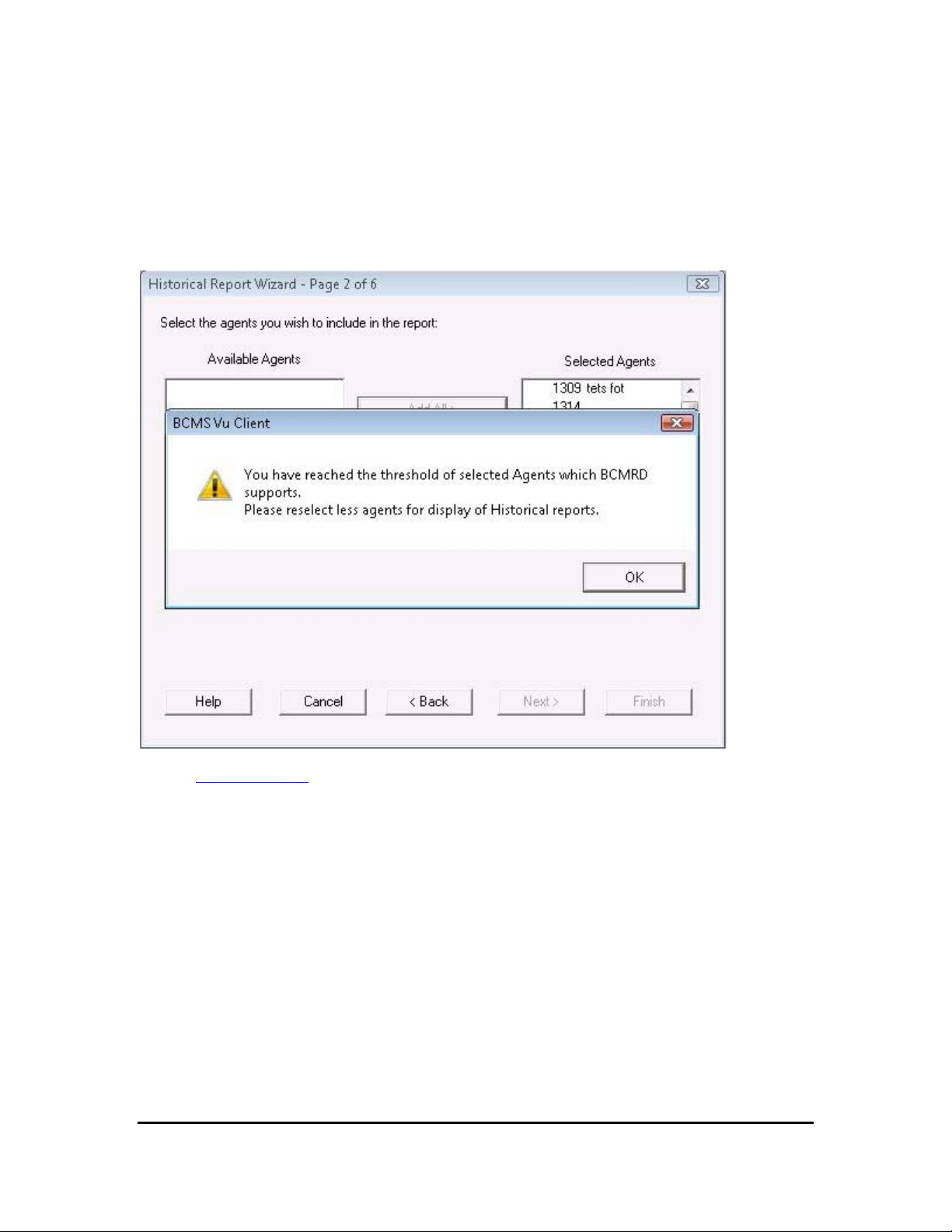
BCMRD will pop up an error message box indicating to the customer that they have reached the
threshold values for that particular entity, while using the historical report wizard.
4 4
Supported Communication Manager versions
The BCMRD R2.4.3 release supports Communication Manager 5.2 along with backward
compatibility with Communication Manager releases 5.1, 5.0, and 4.0.
Use Pursuant to Company Instructions Page 4 of 11
Avaya Inc. – Proprietary
Page 6

Basic Call Management Reporting Desktop R2.4.3 Release Notes
Problems fixed
This section consists of the following table, describing and summarizing the issues:
Work Item
Number
wi00307675 1101 Database error : Could not
wi00310667 There is spelling mistake in Historical
wi00316700 The Help button on the server
wi00317453 The error message is incomplete for
wi00317734 A boundary error message should be
wi00333104 On installing the BCMRD server/client
Issue Description Resolution/Workaround
update; currently locked by user
‘admin’ on machine
Data Connection window
selection window in BCMRD Client is
not working.
repair database
added to the BCMRD application
in an operating system other than the
English language, the DAO
installation screen hangs
This happens when we perform a scheduled
historical download operation with delete data
option and also in the scenario where there is
large data download. After applying BCMRD
R2.4.3, the scheduled download will work
smoothly.
This has been rectified in BCMRD R2.4.3 with
proper content in error message.
After applying BCMRD R2.4.3, the Help file
option will be available consistently in the
BCMRD Client.
This has been rectified in BCMRD R2.4.3 with a
proper error message.
Please refer to section “What’s New” (point 2) for
details of the prescribed threshold values.
The workaround to this problem will be to clean
up the DAO components from the machine on
which the BCMRD server has been installed.
The location for DAO is "C:\Program
Files\Common Files\Microsoft Shared\DAO".
Please re-install BCMRD after this activity.
wi00336917 The indentation of Agent Summary
Historical report is improper
wi00341714 The Help topics in Windows Vista
operating system for BCMRD Server
and client do not open
Avaya Inc. – Proprietary
Use Pursuant to Company Instructions Page 5 of 11
After applying BCMRD R2.4.3, the historical
report templates for all the supported languages
will be upgraded to support the 13 digit dial plan.
After applying BCMRD R2.4.3, it will be
mandatory for the customer to download and
install the WinHlp32 setup from the link below.
This is required to run the help files of BCMRD
R2.4.3.
http://support.microsoft.com/?kbid=917607 .
To obtain the WinHlp32.exe download for
Windows Vista, visit the following Microsoft Web
site:
http://go.microsoft.com/fwlink/?LinkID=82148
Page 7

Basic Call Management Reporting Desktop R2.4.3 Release Notes
Work Item
Issue Description Resolution/Workaround
Number
wi00251298 The version number cannot be seen
when the BCMRD client or server
application is launched.
wi00344665 The Help button on the Historical Data
Connection window in BCMRD Server
is not working.
wi00345814 The Agent Work state Summary Pie
Chart report for split/skill does not
refresh when we change the status of
an agent in that skill/split.This issue
occurs only when BCMRD Server
R2.4 and any later release is installed
on Windows 2003 server and BCMRD
Client R2.4 and any later release is
installed on Windows XP.
After applying BCMRD R2.4.3, the customer will
be able to see the version number in the splash
screen when the user launches the BCMRD
server and client. The version will also be visible
in the Help --> About Server/Client dialog box.
After applying BCMRD R2.4.3, Help file option
will be available consistently in the
BCMRD Server.
Resize (or minimize/maximise) the Agent Work
state Summary Pie Chart report window so that
it will get refreshed and the correct status of the
agent will be displayed.
Use Pursuant to Company Instructions Page 6 of 11
Avaya Inc. – Proprietary
Page 8

Basic Call Management Reporting Desktop R2.4.3 Release Notes
BCMRD R2.4.3 (Build 318) Installation Instructions
This section consists of the following table, providing scenarios and assumptions corresp onding
to the installation instructions:
Scenarios Installation instructions
Scenario 1: Upgrade to
BCMRD 2.4.3.
Assumptions:
BCMRD server and client
(R2.4 (Build 314) or R2.4
(Build 315) or R2.4.1 (Build
316)) or R2.4.2 (Build 317))
is already installed.
Sentinel driver compatible
with the hardware system
and operating system is
already installed.
1. Stop BCMRD Clients if running.
2. Stop BCMRD Server if running.
3. Go to Task Manager and click Processes tab.
4. Confirm that the following processes are not running. If these
processes are running, you can terminate them by using
Windows Task Manager > Processes. Select the specific
process and click End Process:
a. Omninames.exe
b. ConnectionServer.exe
c. BCMSVuClient.exe
d. BCMSVuServer.exe
5. Run Setup.exe from the folder BCMRD R2.4.3 upgrade.
6. While installing the BCMRD server or client on a Windows
Vista operating system, you need to download and install the
WinHlp32.exe from the link
http://support.microsoft.com/?kbid=917607 and
http://go.microsoft.com/fwlink/?LinkID=82148 .
7. Reboot all the machines where BCMRD applications are
installed.
8. Check to verify that the upgrade is successful. Check that a
folder, BCMRD_Backup is created at the location "\BCMS
Vu\BCMRD_Backup" that stores the folders and files of
previous version of BCMRD as backup. The upgrade
installation log file is located at: "\BCMS
Vu\Upgrade_log\log_318.txt".
Note:
If the installation fails due to a sharing violation error, check the
task manager for any BCMRD processes that are still running
(Refer points 3 and 4 above).
Contact Avaya BCMRD Support for any other errors.
9. Start the BCMSVu Server and check that the server is
connected successfully to the respective CM. Check that the
Server version is R2.4.3 (Build 318) by using the
menu, Help > About BCMSVu.
10. Start the BCMSVu Client and check that the client is
connected successfully to the BCMSVu server. Check that
the client version is R2.4.3 (Build 318) by using the
menu Help > About BCMSVu.
Use Pursuant to Company Instructions Page 7 of 11
Avaya Inc. – Proprietary
Page 9

Basic Call Management Reporting Desktop R2.4.3 Release Notes
Scenarios Installation instructions
Scenario 2: A fresh
BCMRD installation of
R2.4.3.
1. Install BCMRD Server (R2.4 (Build 314)).
2. Install BCMRD Client (R2.4 (Build 314)).
3. Install the Sentinel driver software with version 7.4.0.
4. Reboot all the machines where BCMRD applications are
installed.
5. Run the Setup.exe from the folder BCMRD R2.4.3 Upgrade.
6. While installing the BCMRD server or client on a Windows
Vista operating system, you need to download and install the
WinHlp32.exe from the link
http://support.microsoft.com/?kbid=917607 and
http://go.microsoft.com/fwlink/?LinkID=82148 .
7. Check that the upgrade was successful. Check that a folder
BCMRD_Backup is created at the location, "\BCMS
Vu\BCMRD_Backup" which stores the folders and files of
previous versions of BCMRD as backup. The upgrade
installation log file can be found at the location: "\BCMS
Vu\Upgrade_log\log_318.txt".
Contact Avaya BCMRD Support for any other errors.
8. Reboot all the machines where BCMRD applications are
installed.
9. Start the BCMSVu Server, configure the CM switch and
check that the server is connected successfully to the
respective CM. Check that the Server version is R2.4.3
(Build 318) by using the menu Help > About BCMSVu.
10. Complete the historical download.
11. Register the BCMSVu Client on the BCMSVu server.
12. Start the BCMSVu Client and check that the client is
connected successfully to BCMSVu server. Check that the
client version is R2.4.3 (Build 318) by using the menu
Help > About BCMSVu.
*Assumptions
• The scenarios mentioned in the section BCMRD R2.4.3 (Build 318) Installation
Instructions assume that BCMRD components are installed under the parent
BCMRD folder named \BCMS Vu.
For example:
The BCMRD server files should be located inside the folder, \BCMS Vu\Server.
• All references in the document of BCMRD and BCMSVu refer to Basic Call
Management Reporting Desktop (which was earlier called as BCMSVu).
Use Pursuant to Company Instructions Page 8 of 11
Avaya Inc. – Proprietary
Page 10
Basic Call Management Reporting Desktop R2.4.3 Release Notes
Reference Images
wi00317734
The following image displays the threshold limit error message box for AgentID:
Back to
Use Pursuant to Company Instructions Page 9 of 11
Problems Fixed section
Avaya Inc. – Proprietary
Page 11

Basic Call Management Reporting Desktop R2.4.3 Release Notes
Hints and tips
To upgrade to BCMRD R2.4.3
Copy BCMRD R2.4.3 Upgrade.zip file from Avaya Support Web site to your hard disk. After
unzipping the file, you will see the following files and folders:
1. ServicePack2
2. Setup.exe
To upgrade BCMRD R2.4.3 run the installer, Setup.exe.
The installer takes a backup of the existing BCMRD version and copies the new service pack
files to their respective folders.
Help System of BCMRD for Windows Vista operating system : If the user is installing BCMRD
server or client on Windows Vista operating system, the user needs to download and install the
WinHlp32.exe from the link
http://go.microsoft.com/fwlink/?LinkID=82148
http://support.microsoft.com/?kbid=917607 and
Use Pursuant to Company Instructions Page 10 of 11
Avaya Inc. – Proprietary
Page 12

Basic Call Management Reporting Desktop R2.4.3 Release Notes
Technical Support
If you are having trouble with BCMRD R2.4.3, you should:
1. Retry the action. Carefully follow the instructions in written or online documentation.
2. Check the documentation that comes with your hardware for maintenance or Ha rdwarerelated problems.
3. Note the sequence of events that led to the problem and the exact messages displayed.
Have the Avaya documentation available.
4. If the problem occurs again, contact Avaya Technical Support by:
• Logging in to the Avaya Technical Support Web site
http://www.avaya.com/support
• Calling or faxing Avaya Technical Support at one of the telephone numbers in the
Support Directory listings on the Avaya support Web site.
You may be asked to email one or more files to Technical Support for analysis of your
application and its environment.
Note:
If you have difficulty reaching Avaya Technical Support through the above URL or email address,
please go to
Management provides the means to escalate urgent service issues. For more information, see
Escalation Contacts listings on the Avaya Web site. For information about patches and
the
product updates, see the Avaya Technical Support Web site
http://www.avaya.com for further information. Avaya Global Services Escalation
http://www.avaya.com/support.
Use Pursuant to Company Instructions Page 11 of 11
Avaya Inc. – Proprietary
 Loading...