

Page 1
B as i c M a n ua l
Safety
precautions
Getting ready
Basic
operations
au
災害対策
(au Disaster
Countermeasure) app
Calling
Function settings
Appendix
Page 2

Preface
Thank you for buying the INFOBAR A02 (simply
called the 'INFOBAR A02' or the 'product' from
here on).
Before using the product, be sure to read the
"Basic Manual" (this manual) to ensure correct
use. After you have finished reading this manual,
be sure to store it in a safe place so that you can
retrieve it whenever needed.
• In this manual, the term "Instruction Manual"
is used collectively
anual), Setting Guide and Full Instruction
m
Manual (Japanese) which can be downloaded
from the au homepage.
for the Basic Manual (this
About operating instructions
■ Basic Manual (This Manual)
The Basic Manual handles only basic operations
for main features.
For detailed descriptions of various functions,
refer to the "Instruction Manual" app that can be
used on the product or
(Japanese) available on the au homepage:
http://www.au.kddi.com/notice/recycle/index.html
• Company names and product names referred
to in this manual are trademarks or registered
trademarks of their respective companies.
“Full Instruction Manual”
ii
Page 3
■ "Instruction Manual" app
You can use the "Instruction Manual" app on
the product to confirm detailed operational
procedures.
1
On the iida Home, tap [取扱説明書] and
download the latest "Instruction Manual"
app by following the on-screen directions.
If you receive an Install blocked message, tap
'Settings' and make sure 'Unknown sources' box
is checked and then download the app again.
2
On the iida Home, tap [取扱説明書].
■ Downloading manuals
You can download the "Basic Manual" (this
manual) and the "Setting Guide" or the "Full
Instruction Manual" (Japanese) in PDF format
from the au homepage.
http://www.au.kddi.com/torisetsu/index.html
Safety precautions
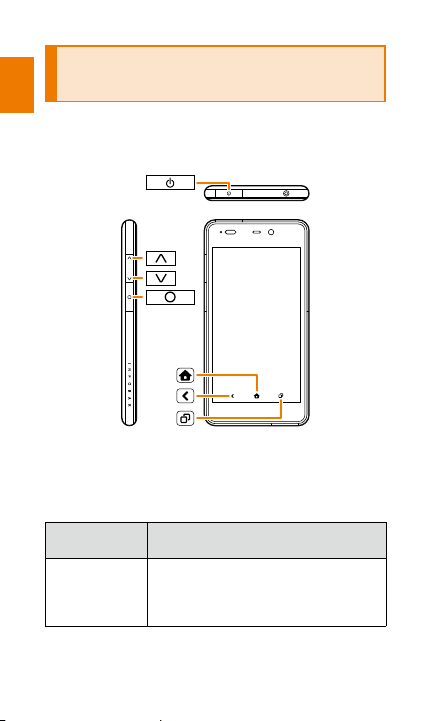
Before you start using the product, be sure to
read the 'Safety precautions' to ensure correct
use.
Before you assume that the product is
malfunctioning, check for possible remedies
in the followin
Support) site on the au homepage:
http://cs.kddi.com/support/komatta/kosho/index.html
お客様サポート (au Customer
g au
1
Page 4

When using the product
• Communication is not possible even inside the
service area in places where the signal does
not reach (e.g. tunnels and basements). Also,
communication is sometimes not possible
in poor reception areas. Communication is
sometimes interrupted if you move into a poor
reception areas during communications.
• Since this product uses radio waves, the
possibility of communication i
parties cannot be eliminated. (Though the LTE/
CDMA/GSM/UMTS system has highly secure
and confidential communication features.)
• This product is compatible with the international
roaming service. Each network service varies
depending on the area and service content.
• Since this product is a radio station under
the Radio Law, you may be asked to
temporarily submit the product for
ccordance with the Radio Law.
a
• The IMEI information of your cell phone is
automatically sent to KDDI CORPORATION for
maintenance and monitoring operational status
of your cell phone.
• Take care not to inconvenience people around
you when you use the product in a public
place.
• Before using this product overseas, check on
the local applicable laws and regulations of the
country or re
When the product is used by a child, parents
•
or guardians should thoroughly read the
"Instruction Manual" and teach the child how
to use it.
2
gion you visit.
nterc
epts by third
inspection in
Page 5

■ Use of the product is not allowed in
the following places!
• Do not use a cell phone while driving a car
or riding a motorbike or bicycle. It may cause
a traffic accident. Use of a cell phone while
driving a car or motorbike is prohibited by law.
Use of a cell phone while riding a bicycle may
be punishable by some regulations.
• Be sure to turn off the product while you
are aboard an airplane. Us
devices transmitting radio waves in airplanes
is prohibited by law. Some airline companies,
however, allow their passengers to use
cell phones. For details, contact the airline
company you use.
e of electro
nic
■ Be considerate of where you use
the cell phone and how loudly you
talk!
Do not make calls in theaters, museums, libraries
and other similar places. Turn power off or turn
on the manner mode so as not to disturb others
a
round you by ringtone.
• Do not use the cell phone on a street where you
might interrupt the flow of pedestrians.
• Move to areas where you will not inconvenience
others on trains, in hotel lobbies, etc.
• Refrain from talking in a loud voice.
• Obtain the permission of other people before
you take their photos with the cell phone's
camera.
3
Page 6

■ Be considerate of people around
you!
• Some people close to you in crowded places
such as packed trains may be using a cardiac
pacemaker. Turn the cell phone off in such
places.
• Abide by the rules of hospitals and other
medical institutions where it is forbidden to use
or carry cell phones.
4
Page 7
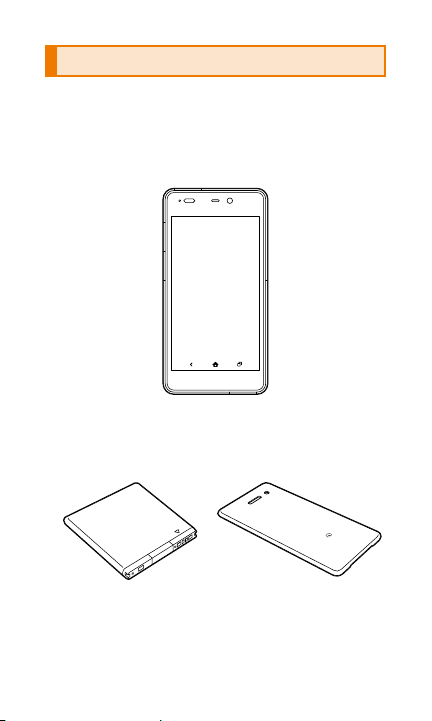
List of packaged items
Before you start using the product, make sure
that you have all the following items packaged
with the product.
■ Main unit
INFOBAR A02
■ Accessories
Battery pack
(HTX21UAA)
• Quick Start Guide (Japanese)
• Setting Guide (Japanese)
• Warranty card (main unit) (Japanese)
※1
Battery cover
※1※2
5
Page 8
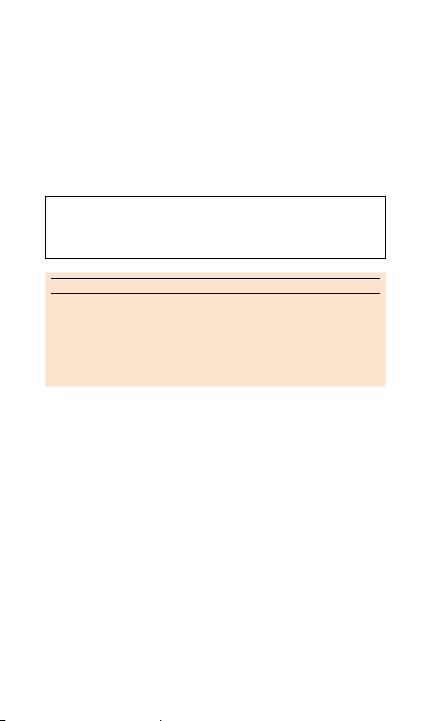
※1 The battery pack is pre-installed at the time of
purchase.
※2 The model number depends on the color.
Battery cover NISHIKIGOI (HTX21TRA)
Battery cover AOAO (HTX21TLA)
Battery cover ICE GRAY (HTX21TWA)
The following items are NOT included in the
package:
• AC adapter
• microUSB cable
• Earphones
• microSD memory card
memo
◎ Purchase a specified charging equipment (sold
separately).
◎ Illustrations of the product in this manual are only for
reference. They may look different from the actual
product.
6
Page 9

Contents
Preface ............................................................... ii
Safety precautions .............................................1
When using the product .....................................2
List of packaged items .......................................5
Contents .............................................................7
Safety precautions ........................................
Regarding notations used in this manual .................10
Exemptions ...............................................................12
Safety precautions (observe strictly) ........................14
Handling precautions ...............................................32
Available security codes ...........................................45
Notes on water-proof and dustproof properties .......48
Note on using Bluetooth
functions ...................................................................59
Notes on packet communication charge..................63
Application ................................................................64
®
and wireless LAN (Wi-Fi®)
Getting ready....................................................65
Names and functions of parts ..................................66
Attaching/re
Opening/closing the connector cover ......................72
Installing/removing the au Micro IC Card (LTE) ........74
Installing/removing a microSD memory card............77
Charging ...................................................................79
Turning the power on/off ...........................................82
Unlock screen .........
moving the battery pack .......................68
..................................................8
Basic operations ..............................................85
Home screen ............................................................86
Monitoring the product's status ................................95
Displaying a menu ....................................................97
.....9
3
7
Page 10

au災害対策 (au Disaster Countermeasure) app ...99
Using the au災害対策
(au Disaster Countermeasure) app ........................100
Using the 災害用伝言板
(Disaster Message Board) ......................................101
Using 緊急速報メール (Emergency Rapid Mail) .......102
Using the
(Disaster Voice Messaging Service) .......................105
災害用音声お届けサービス
Calling ............................................................107
Making calls ............................................................108
Receiving calls........................................................110
Checking your phone number ................................110
Function settings ............................................ 111
Viewing the setting menu........................................112
Appendix ........................................................115
Peripheral equipment .............................................116
Troubleshooting ......................................................117
Updating software ..................................................119
After-sales service ..................................................122
Main specifications .................................................127
Specific Absorption
FCC Notice .............................................................132
FCC RF exposure information.................................133
Body-worn operation ..............................................134
DECLARATION OF CONFORMITY .........................134
Export Administration Regulations .........................138
Intellectual property rights .............
Rate (SAR) of cell phones .
.........................1
.....130
39
8
Page 11

Safety
precautions
Regarding notations used in this manual .....10
Exemptions ...................................................12
Safety precautions (observe strictly) ............14
Handling precautions ...................................32
Available security codes ..............................45
Notes on water-proof and dustproof
properties .....................................................48
te on using Bluetooth
No
®
(Wi-Fi
) functions ..........................................59
Notes on packet communication charge .....63
Application ...................................................64
®
and wireless LAN
9
Page 12
Regarding notations used in this manual
Safety precautions
■ Key indications used in this manual
In this manual, keys are represented by
simplified illustrations as shown below.
■ Indications used for the operation
of selecting items/icons/keys, etc.
Notations used for operation procedures in this
manual are as follows.
Description in
this manual
On the iida
Home, tap
[Phone]
→
'141'
→ [Call]
Explanation of operation
On the iida Home, tap 'Phone', then
tap '1', '4'. '1' in this order, and finally
tap 'Call'.
10
Page 13
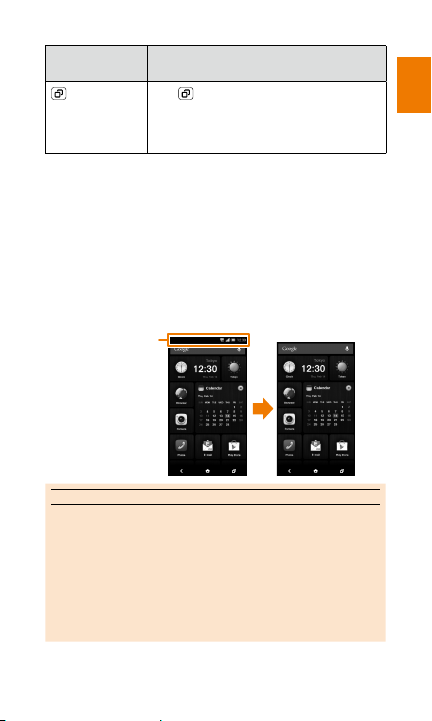
Description in
Actual screen
An example of illustration
this manual
→ tap app
to start up
※ Tapping is the action to lightly touch a key, an icon or
any other item displayed on the screen to select it.
Explanation of operation
Tap to display the most recently
used apps. Flick up or down to select
the app you want to start up and then
tap the displayed app.
■ Illustrations/screen displays used
in this manual
Screen illustrations shown in this manual may
look different from the actual screens. In some
cases, minor details or a part
of a screen may be
omitted.
In the illustration,
the icons at the
top of the screen
are omitted.
in this manual
memo
◎ The explanations in this manual are based on the
initial default settings for the 'NISHIKIGOI' model.
Note that the fonts and shapes of the actual keys,
button and screens on the product may be different
from those shown here. Also, some elements may
be omitted in this manual. Please also note that
illustrations of the product in this manual may differ
from the actual appearance of the produ
ct.
Safety precautions
11
Page 14

◎ Unless specifically stated otherwise, all operations
in this manual are performed based on portrait
(vertical) screen orientation. Note that menu items,
icons, on-screen buttons, and other elements may
Safety precautions
be different when landscape (horizontal) screen
orientation is being used.
◎ In this manual, 'microSD™ memory card' and
'microSDHC™ memory card' are abbreviated as
'microSD memory card' or 'micro
◎ This manual uses the abbreviation 'app' in place of
'application'.
SD'.
Exemptions
◎ The Company is not liable for any damages
arising from earthquakes, lightning, storms,
floods or other natural disasters, as well as
fires, actions by third parties, other accidents,
intentional or mistaken misoperation by
the customer, or use under other unusual
conditions outside the responsibility of the
Company
◎ The Company is not liable for any incidental
damages (change/disappearance of recorded
content, loss of business income, disruption of
business, etc.) arising from use of or inability
to use the product.
◎ The Company is not liable for any damages
arising from failure to observe the described
content of the 'Instruction Manual'.
◎ The Company is not liable for any damages
arising, for example, from malfunction caused
b
software not related to the Company.
.
y combination with connected devices or
12
Page 15

◎ Captured image data or downloaded data
may sometimes be altered or lost due to faults,
repair or other mishandling of the product. The
Company is not liable for any damage or lost
income resulting from recovery of these data.
◎ It is recommended you keep a copy of
important data in your PC's hard disk, etc.
Whatever the cause of fault or malfunction may
be, the Company assumes no responsibility
for alteration or loss of saved inform
◎ The Company does not provide any type of
ation.
data restoration or recovery services for data
that is lost or corrupted through the use of this
phone.
※ 'The Company' as appears in this manual refers to the
following companies:
Sold by: KDDI CORPORATION •OKINAWA CELLULAR
TELEPHONE COMPANY
Imported by: HTC NIPPON Corporation
Manufactured by: HTC Corporation
■ Information
◎ Reproduction of the content of this manual in part or
in whole is prohibited.
◎ The content of this manual is subject to change
without notice.
◎ Every effort has been made in the preparation of
this manual. Should you notice any unclear points,
omissions, etc., feel free to contact us.
◎ Wrong page order or missing pages will be replaced.
Safety precautions
13
Page 16
Safety precautions (observe strictly)
Safety precautions
■ Before using this product, thoroughly read
these 'Safety precautions' for proper use. After
reading, store the precautions in a safe place.
● These 'Safety precautions' describe
instructions that should be observed to
prevent damage to property or injury to the
customer or others using the product.
● These instructions are divided into the
following categories.
■ Explanation of indications used in
this manual
This symbol indicates the potential and
imminent danger of death or serious
(※1)
injury
to a person.
This symbol indicates the possibility of
death or serious injury
This symbol indicates the possibility
of personal injury
※1 Serious injury: This refers to loss of sight, injury,
burns (high- and low-temperature), electric shock,
broken bones, injuries with residual aftereffects
from poisoning, etc., and injuries requiring hospital
admission for treatment or longterm hospital
attendance as an outpatient.
※2 Injury: This refers to injuries, burns (high- and
low-temperature), electric shock, etc. that do not
require hospital admission for treatment or long-term
hospital attendance as an outpatient.
※3 Physical damage: This refers to extended damage
to buildings, furniture, livestock, or pets.
physical damage
(※1)
to a person.
(※2)
to a person or
(※3)
.
14
Page 17
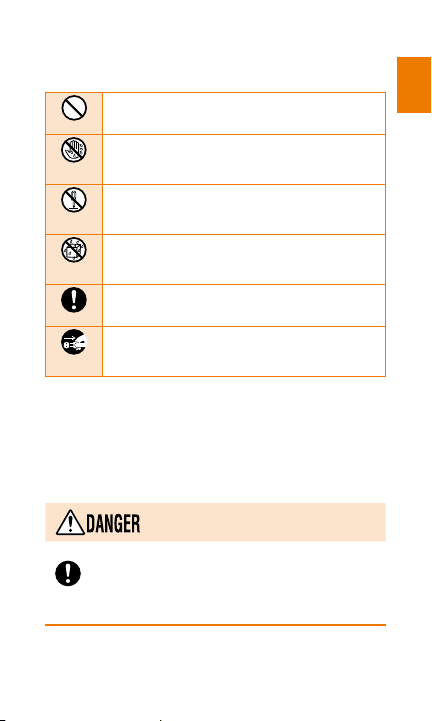
■ Explanation of graphic symbols
used in this manual
Indicates an action that is not allowed.
Prohibited
Indicates that handling with wet hands is not
allowed.
Wet hands
prohibited
Indicates that disassembly is not allowed.
Disassembly
prohibited
Indicates that use in a place where the
product is likely to get wet or allowing the
Wetting with
product to get wet is not allowed.
water prohibited
Indicates an action that must be done.
Instruction
Indicates that the power plug must be
disconnected from the power outlet.
Disconnect plug
from power outlet
■ Precautions common to the main
unit, battery pack, battery cover,
charging equipment, au Micro
IC Card (LTE) and peripheral
equipment
Be sure to read the following
before use.
Be sure to use only the specified peripheral
devices. Use of other peripheral devices might
Instruction
cause overheating, fire, electric shock, rupture,
fault, or leakage of liquid.
Safety precautions
15
Page 18
Prohibited
Safety precautions
Instruction
Prohibited
Prohibited
Prohibited
Prohibited
Prohibited
Do not use, store or leave the product in hot
places (e.g. by the fire, near a heater, under
a kotatsu, in direct sunlight, in a car in the hot
sun). Doing so might cause ignition, rupture,
fault, fire or injury.
Before entering an area where flammable gas
is generated such as a gas station, be sure to
turn off the product. Do not charge the battery.
Failure to observe these precautions might
cause the gas to catch fire. In addition, when
using NFC/Osaifu-Keitai
sure to turn off the power in advance.
(If the 'NFC/Osaifu-Keitai
unlock it and then turn off the product.)
Do not put the product in a cooking apparatus
such as microwave oven or a pressure vessel.
Doing so might cause ignition, rupture, fault,
fire or injury.
Do not throw the product into a fire or heat it.
Doing so might cause ignition, rupture or fire.
Do not short-circuit the connection terminals.
Do not allow conductive foreign objects (metal
fragments, pencil leads, etc.) to come into
contact with or get inside the connection
terminals. Doing so might cause fire or a fault.
When using a metal accessory, make sure the
metal parts do not come in contact with the
connection terminals or power outlet. Doing so
might cause electric shock, fire, injury or a fault.
Do not expose the camera lens to direct
sunlight for an extended period. Doing so might
cause ignition, rupture or fire by the lightcollecting mechanism of the lens.
®
at a gas station, be
®
Lock' is turned on,
16
Page 19
The customer is not allowed to disassemble,
modify or repair the product. Doing so might
Disassembly
prohibited
cause a fault, fire, electric shock, or injury.
The Company is not liable even in the event of
any nonconformities arising on the product or
peripheral devices as a result of modification,
etc. Modification of the product is in violation of
the Radio Law.
Be sure to read the following
warnings before use.
Do not drop the product or subject it to strong
impact, such as by throwing it. Doing so might
Prohibited
cause rupture, overheating, fire, or a fault.
Do not use outside when you can hear thunder.
Doing so may result in lightning strikes and
Prohibited
electric shock.
Do not let your hands, fingers or other parts
of your body touch the connection terminals.
Prohibited
Doing so might cause electric shock, injury or
a fault.
If the product is damaged because it is
dropped or something, and its display is
Prohibited
cracked or internal parts are exposed, do not
touch the cracked display or exposed parts
with your hands. Doing so might cause electric
shock or injury from damaged parts. Contact an
au shop or Secure cell phone support center.
Although the product has waterproof property,
stop use if liquid such as water gets inside the
Wetting with
water prohibited
main unit from the connector cover or battery
cover. Continued use of the product in this state
may cause overheating, ignition or a fault.
Safety precautions
17
Page 20
Prohibited
Safety precautions
Prohibited
Prohibited
Prohibited
Prohibited
Prohibited
Prohibited
When removing the battery cover, do not exert
more than necessary force. The battery pack
might jump out, for example, and cause injury
or fault.
Do not operate the product while driving an
automobile or motorized bicycle, riding a
bicycle or walking. Doing so may compromise
traffic safety and cause an accident.
If charging is not complete after the specified
charging time, stop charging. Failure to do so
might cause leakage of liquid, overheating,
rupture or fire.
Do not leave in places within the reach of small
children. Small children might swallow small
parts, etc. by mistake and choke on them,
or might drop them by mistake and cause
accidents or injury.
Be sure to read the following
cautions before use.
Do not store the product in places subject to
direct sunlight (e.g. in automobiles), places that
get hot, places that get extremely cold, and in
humid or dusty places. Doing so might cause
overheating, fire, deformation or a fault.
Do not leave the product on unstable places such
as rocky stands or tilting surfaces. Dropping the
product may cause injury or damage. Be careful
especially when the vibration mode is set. Also,
pay sufficient attention to impact, etc.
Do not cover or wrap the product with bedding,
etc. while using or charging the product. Doing
so might cause fire, fault or injury.
18
Page 21
Do not touch the main unit or the specified AC
adapter (sold separately) for a long time while
Prohibited
power is being supplied from an external source.
Doing so might cause low-temperature burns.
The product may become hot by prolonged use
especially in high-temperature environment. Be
Instruction
careful when using the product if it is touching
your skin for a long time, as it might cause lowtemperature burns.
Do not use power outlets or wiring apparatus
beyond the products rating. Also, exceeding
Prohibited
the rating, for example, by connecting multiple
devices to a single power strip might cause
overheating and fire.
Do not use the product with the battery cover
removed.
Prohibited
Do not place near corrosive chemicals or in
places where corrosive gas is generated. Doing
Prohibited
so might cause a fault or loss of internal data.
Do not leave or store the product with the
battery cover removed from the main unit.
Prohibited
Doing so might allow dust or other foreign
objects to get inside and cause s fault.
Do not use the product if there is smoke,
abnormal odor or noise, excessive overheating,
Instruction
or other abnormalities. If an abnormality occurs
during charging the battery, disconnect the
specified charging equipment (sold separately)
from the power outlet, make sure that the
product is not overheating before turning
the power off, removing the battery pack off
and contact an au shop or Secure cell phon
upport center. Also, if you have dropped or
s
damaged the product, do not continue to use it
in that state, and contact an au shop or Secure
cell phone support center.
Safety precautions
e
19
Page 22
Instruction
Safety precautions
Instruction
Instruction
Prohibited
Prohibited
20
When plugging earphones (sold separately),
etc. into the product, adjust the volume to the
proper level. Setting too loud a volume or using
the earphones continuously for a long period of
time might adversely affect your ears.
Also, raising the volume too high might prevent
you from hearing sounds around you, which
might in turn lead to a traffic accident at a
railroad crossing or pedestrian crossi
When adjusting the volume with earphones
(sold separately) plugged into the product,
raise the volume a little at a time. If you raise
the volume too much from the outset, sudden
loud noise from the earphones might adversely
affect your ears.
When using a charging equipment or external
device, insert/remove the connector straight to/
from the terminal. Make sure the orientation of
the connector is correct. Failure to do so might
cause damage or a fault.
■ Main unit
Be sure to read the following
warnings before use.
Do not use the product while driving a car or
riding a motorbike or bicycle. Doing so may
cause a traffic accident. Use of the product
while driving a car or motorbike is prohibited by
law. Use of the product while riding a bicycle
may be punishable by some regulations.
Do not use this product while you are aboard an
airplane. Use of electronic devices transmitting
radio waves in airplanes is prohibited by law.
Some airline companies, however, allow their
passengers to use cell phones. For details,
contact the airline company you use.
ng.
Page 23

The product sometimes affects high-precision
electronic devices. So, turn it off near such
Instruction
devices. (Examples of electronic devices
that might be affected by the product include
cardiac pacemakers, hearing aids, other
electronic medical devices, fire alarms,
and automatic doors. If you are using an
electronic medical device, contact the device
manufacturer or retailer for information about
the pos
sible aff
ect of radio waves.)
When using the product near an implanted
pacemaker, implanted cardioverter-defibrillator
Instruction
or other electronic medical device, radio waves
might affect these units and devices. So, please
observe the following.
1. Those with an implanted pacemaker or
implanted cardioverter-defibrillator should
carry or use the product at least 22 cm
away from the pacemaker or cardioverterdefibrillator.
2. Turn the pr
other crowded places, since there may
be people with a cardiac pacemaker or
implanted cardioverter-defibrillator nearby.
3. Pay attention to the following points
when using the product inside medical
institutions.
• Do not bring the product into operating
• Turn the product off in hospital wards.
• Even
• When a medical institution has laid
oduct off
in crowded trains or
theaters, intensive-care units (ICU) and
coronary care units (CCU).
in a lobby, etc., be sure
if you are
to turn the product off when there are
electronic medical devices nearby.
down designated areas where use of the
product is prohibited or is not allowed to
be brought in, abide by the instructions
of that medical institution.
Safety precautions
21
Page 24
Safety precautions
Instruction
Prohibited
Prohibited
Prohibited
Instruction
4. When using electronic medical devices
other than an implanted pacemaker and
implanted cardioverter-defibrillator outside
a medical institution (e.g. home medical
treatment), check individually with the
manufacturer of the electronic medical
device regarding the influence of radio
waves.
Stay alert to your surroundings when calling,
messaging, browsing the Internet, shooting
photos, playing games, watching TV (1Seg) or
listening to music. Failure to do so might cause
a fall or traffic accident.
Do not send data by infrared communication
with the infrared port pointing toward anyone's
eyes. Doing so might affect their eyes. Also,
sending data with the infrared port pointing
toward some other infrared device might cause
false operation, etc.
Do not light the flash in front of a person's eyes. Do
not gaze at the light emitting part when the photo
light is lighted. Doing so might cause impairment
of eyesight, etc. Be especially careful not to
point the flash at small children from a very close
distance.
Do not point the photo light toward a driver of
a car, motorbike or bicycle. If dazzled by the
light, the driver might become unable to drive
and cause an accident.
Sometimes, very rarely, some people
demonstrate symptoms such as temporary
muscle spasms, loss of consciousness, etc. by
watching repeatedly flickering screens. Those
with a past history of this should consult with a
physician before using the product.
22
Page 25
Be sure to read the following
cautions before use.
Use of the product in an automobile might
sometimes affect on-board electronic devices,
Prohibited
though this rarely happens. If this happens,
stop use since this may impair safe travel.
If you feel any abnormality with your skin,
immediately consult a dermatologist. Itching,
Instruction
rashes, eczema, etc. sometimes occur depending
on your physical constitution and condition.
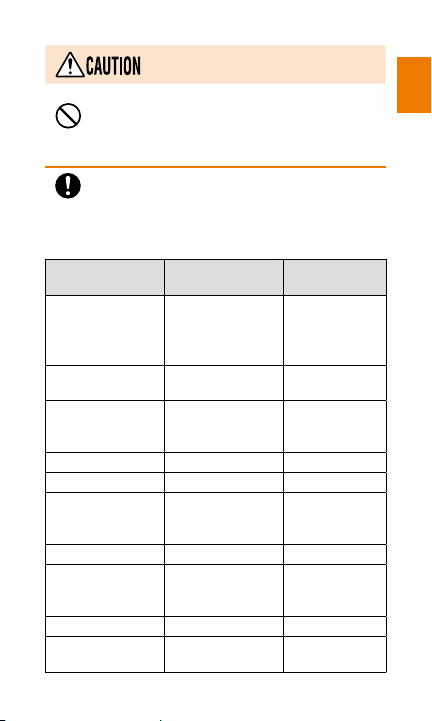
The materials of parts used on the product are as follows.
Part Material Surface
Main unit frame Metal: aluminum
Plastic: polyamide
+ ABS resin + 20
% glass fiber
Display Glass Hard coating
Display
surrounding
frame
Polycarbonate UV coating
treatment
UV coating
treatment
Battery cover Polycarbonate UV coating
Connector cover Polycarbonate UV coating
Camera lens Acrylic resin Antireflection
Infrared port Polycarbonate
Volume key/
Function key/
Power ke
y
Polycarbonate UV coating
Receiver Polycarbonate
Speaker mesh Polyethylene
terephthalate
(AR) coating +
black coating
-
-
Coating
Safety precautions
23
Page 26
Prohibited
Safety precautions
Prohibited
Prohibited
Instruction
Instruction
Instruction
Prohibited
Do not bring the product close to magnetized
objects such as cash cards, floppy disks, credit
cards, and prepaid cards. Doing so might result
in loss of recorded information.
Do not allow liquids, metal objects, burnable
items, and other foreign matter to get inside
the microSD memory card slot, connector, and
stereo earphone jack. Failure to do so might
cause fire, electric shock or a fault.
Do not swing the product around by holding
the earphones (sold separately), etc. Doing so
might cause an accident or damage.
Use the product with the connector cover, etc.
closed. If the covers are open, dirt or water may
get inside causing a fault.
If you have a weak heart, be careful when
setting the incoming vibration and ringtone
volume. Failure to do so might have an adverse
effect on your heart.
Pay attention to items becoming stuck to the
main unit. The speaker uses magnets, and
so thumbtacks and pins, craft knife blades,
staples, and other metal objects sometimes
become stuck to the main unit, and cause
unexpected injury. Before using the product, be
sure to check that there are no foreign objects
on the speaker or other parts.
Do not put the product directly on sand at a
beach, etc. Sand or other small particles might
get inside the receiver, microphone or speaker,
causing the volume to drop. If sand gets inside
the product, it might cause overheating or a
fault.
24
Page 27
When using the product for calling or data
communication, be careful not to keep the
Prohibited
product in direct contact with your skin for a
prolonged period, or not to cover the product
with paper, cloth, bedding, etc. The product
might get hot, causing fire, burns or a fault.
Do not use a ballpoint pen, pencil, or any
other pointed object to perform touch panel
Prohibited
operations. Doing so can damage the display.
Do not leave the product inside a closed
motor vehicle during the summer or in any
Prohibited
other environment subject to extremely high
temperatures. Doing so can cause the product to
become very hot and creates the risk of burn injury.
Extreme heat can also decrease battery capacity,
shorten the lifespan of the battery, deform the case
of the phone, and cause other problems.
■ Battery pack
(The battery pack of this product is
a lithium ion battery.)
The battery pack is not fully charged
at the time of purchase. Charge the
battery before using the product.
Be sure to read the following
before use.
Do not short-circuit the positive (+) and
negative (-) terminals of the battery pack.
Prohibited
Connect the battery pack to the product in
the correct orientation. Connecting in an
Instruction
incorrect orientation might cause rupture, fire
or overheating. Do not try to forcibly connect
the battery pack, instead thoroughly check the
connection terminals before connection.
Safety precautions
25
Page 28
Prohibited
Safety precautions
Prohibited
Disassembly
prohibited
Prohibited
Wetting with
water prohibited
Instruction
Do not puncture the battery pack with a nail, hit
it with a hammer or step on it. Doing so might
cause fire or damage.
Do not allow metal objects (such as necklaces
and hairpins) to come in contact with the
connection terminals when carrying or storing
the battery pack. Doing so might cause fire or a
fault due to a short-circuit.
Do not disassemble, modify or directly solder
the battery pack. Doing so might cause spilling
of the battery liquid resulting in an accident
such as loss of eye sight if it gets into eyes, or
cause overheating, fire or rupture.
Do not use a battery pack that has been
dropped, stepped on, damaged or leaking
battery liquid. Immediately move the battery
pack away from fire if you notice leakage of
liquid or unusual odor. Failure to do so might
cause the leaked liquid to catch fire resulting in
fire and rupture.
The battery pack is not waterproof. Do not
wet a battery pack with water, seawater, pet
urine, etc. A wet battery pack might cause
overheating, rupture or fire. If you drop the
product into water by mistake, immediately
turn off the power, remove the battery pack,
and contact an au shop or Secure cell phone
support center. Never charge the wet battery
pack.
If the leaked liquid gets on your skin or clothes,
immediately rinse it off with water to avoid injury.
If the liquid gets into your eyes, do not rub your
eyes, wash them with water, and immediately
consult a doctor to avoid the risk of losing your
eyesight. If the liquid gets on a device, wipe it
off without touching it.
26
Page 29
The battery pack is a consumable item. If the
performance of a battery pack does not recover
Instruction
(e.g. the usable time after each charge has
become extremely short), the battery pack is
at the end of its service life, so stop use and
buy a new one of the specified type. Failure to
do so might cause overheating, fire, rupture
or leakage. Note that the length of service life
varies depending on the usag
When removing the battery pack from the
product, hook your fingertip (nail) on the
Instruction
concave portion on the bottom of the battery
pack, and lift up the battery to remove it.
Attempting to remove the battery pack by
inserting a sharp-pointed object such as a pen
might cause ignition or damage.
Be careful to not have the battery pack
bitten by your pet. It might cause leakage,
Instruction
overheating, rupture or ignition of the battery
pack.
e conditions, etc.
■ Charging equipment
Be sure to read the following
warnings before use.
Do not use a charging equipment other than
the specified one. Also, do not use at other
Prohibited
voltages than the specified power supply
voltage. Doing so might cause fire, overheating
or electric shock.
• AC adapter (sold separately) : 100 VAC to
240 VAC
• DC adapter (sold separately): 12/24 VDC (for
negative grounded vehicles only)
For information about specified charging
equipment (sold separately), see
equipment
ʼ (▶P.116).
Safety precautions
ʻPeripheral
27
Page 30
Instruction
Safety precautions
Instruction
Prohibited
Prohibited
Prohibited
Disconnect plug
from power outlet
Instruction
Firmly insert the plug of the specified charging
equipment (sold separately) into the power
outlet down to the base of the pins. Incomplete
insertion of the power plug might result in
electric shock or fire caused by overheating
and fire. Do not use damaged specified
charging equipment (sold separately) or loose
power outlets.
If the fuse in the Common DC Adapter 03 (sold
separately) blows, replace it with a fuse of the
specified type (250 V, 1 A). Replacing with a
different type of fuse might cause overheating
or fire. (For information about fuse replacement,
carefully read the manual for the Common DC
Adapter 03 (sold separately.)
Do not damage, modify, twist, pull or place
a heavy object on the power cable of
the specified charging equipment (sold
separately). Do not use a cable that is
damaged. Doing so might cause an electric
shock, short circuit or fire.
Do not let your hands, fingers or other parts
of your body touch the connection terminals.
Doing so might cause electric shock, injury or
a fault.
If you hear thunder, do not touch the power
plug. Doing so might cause an electric shock
as a result of a lightning strike.
Before cleaning the specified charging
equipment (sold separately), unplug its power
plug from the outlet or cigarette lighter socket.
If the plug remains plugged in when you clean
the equipment, it might cause an electric shock
or short circuit.
Wipe off dust on the power plug. Failure to do
so might cause fire, burns or electric shock.
28
Page 31
Install and position in-car devices where they
do not hinder driving or safety equipment
Instruction
such as airbags. Doing so may cause a traffic
accident. Install in-car devices following the
instructions their manuals.
When the AC adapter is not to be used for a
long time, disconnect the AC adapter's power
Disconnect plug
from power outlet
plug from the power outlet. Failure to do so
might cause electric shock, fire or a fault.
The specified charging equipment (sold
separately) is not waterproof. Do not use in
Wetting with
water prohibited
places subject to direct splashing with water,
pet urine or other liquids. Doing so might result
in faults resulting from overheating, fire, electric
shock, or short-circuiting of electronic circuits.
In the event that the product is splashed with
liquid, immediately disconnect the power plug
from the power outlet.
Be sure to read the following
cautions before use.
Do not use in humid places such as bath areas,
or connect/disconnect the specified charging
Wetting with
water prohibited
equipment (sold separately) with wet hands.
Doing so might cause electric shock or a fault.
Wet hands
prohibited
Charge the battery in a stable place, especially
while the vibration mode is set. If placed on an
Instruction
inclined surface or wobbly stand, the product might
fall causing injury or damage. Be careful especially
when the vibration mode is set. In addition, do not
cover or wrap the product with a cloth or bedding.
Doing so might cause fire or a fault.
Safety precautions
29
Page 32
When unplugging the plug of the specified
charging equipment (sold separately) from the
Instruction
power outlet, hold and pull the power plug.
Safety precautions
Pulling by the cable can damage it.
Do not use the Common DC Adapter 03 (sold
separately) with the car engine stopped. Doing
Prohibited
so might result in draining of car battery.
Do not leave the specified charging equipment
(sold separately) connected to the main unit
Prohibited
with the battery pack removed. Doing so might
cause fire or electric shock.
■ au Micro IC Card (LTE)
Be sure to read the following
warnings before use.
Do not put the au Micro IC Card (LTE) in a
cooking apparatus such as a microwave oven or
Prohibited
a pressure vessel. Doing so might cause melting,
overheating, fuming, loss of data or a fault.
Be sure to read the following
cautions before use.
Keep these warnings in mind when inserting
and removing the au Micro IC Card (LTE).
Instruction
Failure to do so may result in injures to your
hands and fingers.
Insert the au Micro IC Card (LTE) only into the
devices specified by the Company. Using a
Instruction
device not specified by the Company might
cause loss of data or a fault.
For the specified devices, contact an au shop
or Customer Service Center.
30
Page 33
Do not disassemble or modify the au Micro IC
Card (LTE). Doing so might cause loss of data
Disassembly
prohibited
or a fault.
Do not use or leave the au Micro IC Card (LTE)
in hot places such as by a fire or a heater.
Prohibited
Doing so might cause melting, overheating,
fuming, loss of data or a fault.
Do not heat or throw the au Micro IC Card (LTE).
Doing so might cause melting, overheating,
Prohibited
fuming, loss of data or a fault.
Do not touch the IC (metal) part of the au Micro
IC Card (LTE). Doing so might cause loss of
Prohibited
data or a fault.
Do not drop the au Micro IC Card (LTE) or
subject it to strong impact. Doing so can cause
Prohibited
malfunction.
Do not fold, bend or place a heavy object on
the au Micro IC Card (LTE). Doing so can cause
Prohibited
malfunction.
You are responsible for any damage caused by
inserting your au Micro IC Card (LTE) into some
Instruction
other IC card reader/writer, etc.
Do not put stickers, etc. on the au Micro IC
Card (LTE).
Prohibited
Do not wet the au Micro IC Card (LTE). Doing
so can cause malfunction.
Wetting with
water prohibited
Do not scratch the IC (metal) part of the au
Micro IC Card (LTE). Doing so can cause
Prohibited
malfunction.
Do not store the au Micro IC Card (LTE) in dusty
places. Doing so can cause malfunction.
Prohibited
Safety precautions
31
Page 34

Do not store the au Micro IC Card (LTE) in
places exposed to direct sunlight or hot and
Prohibited
humid places. Doing so can cause malfunction.
Safety precautions
Store the au Micro IC Card (LTE) out of reach
of small children. Failure to do so might cause
Instruction
injury or asphyxiation, etc. if they accidentally
swallow and choke on it.
Handling precautions
These precautions are provided to ensure
that performance can be fully demonstrated.
Thoroughly read these precautions to ensure
correct use.
■ Precautions common to the main unit, battery
pack, battery cover, charg
Micro IC Card (LTE) and peripheral equipment
● Do not apply excessive force to the product
during use. Be sure not to put the product into
a tightly packed bag or place a heavy object
on the product in a bag. Sitting on the product
in your pocket might damage the display or
internal circuit board resulting in a malfunction.
Keeping an external device connected
to the connector or
might damage the connector resulting in a
malfunction. Such damage and malfunction
are not covered by the warranty, even if there
is no external damage.
ing equipment, au
o earphone jack
stere
32
Page 35

● To ensure waterproof (equivalent to IPX5 and
IPX7) and dustproof (equivalent IP5X) properties
of this product, use the product with the battery
cover and connector cover tightly closed.
Note that the waterproof property is not
guaranteed in every usage condition. Do not
let water and dust enter inside the product
or adhere liquid or dust to the battery pack,
specified charging equipment (sold se
parately)
or optional parts. Do not attach/remove the
battery cover or open/close the connector
cover in the rain or with waterdrops or dust
on the surface of the product. Doing so might
cause water intrusion resulting in internal
corrosion. Also, the accessories and optional
parts are neither waterproof nor dustproof.
Malfunction determined to be caused by water
or dust intrusion are not covered b
● Do not use the product in extremely hot, cold
y the warranty.
or humid places.
(Use within an ambient temperature range of 5
to 35
°C and humidity range of 35% to 85%.)
• Charging equipment
• Peripheral equipment
● Do not use the product in extremely hot, cold
or humid places.
(Use within an ambient temperature range
of 5
°C to 35°C and humidity range of 35%
to 85%. Temporary use within an ambient
temperature
range of 36°C to 40°C is allowed.)
• INFOBAR A02 main unit
• Battery pack, battery cover, au Micro IC
Card (LTE) (attached to the INFOBAR A02
main unit)
Safety precautions
°C
33
Page 36

● Do not use in places subject to lots of dust or
vibration.
● Clean the connection terminals with dry
cotton swabs, etc. every now and then. Soiled
Safety precautions
terminals might cause poor connection. Do not
exert a strong force to clean the connection
terminals to prevent deformation.
● Clean the product with a soft dry cloth (such
as the type used for eyeglasses). Forceful
rubbing with a dry cloth may scratch the
d
isplay. The display may be stained if
splashed liquid or smears are left on the
surface. Wiping the product using alcohol,
thinner, benzene, detergent, etc. might erase
the printing on the outer casing or cause
discoloration.
● Use as far away as possible from land-line
phones, TVs and radios. Use nearby might
affect them.
● The product may become warm while
charging or during other operations,
d
epending on the situation, but this is not
abnormal.
● When the product is used by a child, parents
or guardians should thoroughly read the
Instruction Manual and teach the child how to
use it.
● Turn off the power before removing the battery
pack. If you remove the battery pack with the
power on, saved data might be altered or lost.
● If the product becomes hot during charging,
charging may be temporarily interrupted to
p
rotect the product against damage.
34
Page 37

■ Main unit
● Charging, talking on the product, camera
operation, and other operations can cause
parts of the main unit to heat up. Take care to
avoid prolonged contact with your hand, face,
etc.
● Do not forcefully press, tap or intentionally
subject the display to strong impact. Doing so
might cause scratching or damage.
● Do not forcefully press your fingernails, sharp
objects or hard objects against keys or display
s
urface. Doing so might cause scratching or
damage.
The touch panel is designed to be touched
lightly by your finger. Do not exert too much
pressure with your finger or press sharppointed objects (fingernails, ballpoint pens,
pins, etc.) against it.
In the following cases, the touch panel may
not work even if you touch it. It may also
malfunction.
• Operation with a gloved finge
Operation with your fingernails
•
r
• Operation with foreign objects placed on the
operation pad
• Operation with protective sheets or stickers
on the touch panel
• Operation when the display is wet or fogged
• Operation with wet or sweaty fingers
● Do not remove the stickers printed with the
IMEI that can be seen when the battery pack
is removed. These stickers prove that the
product and the communicat
re using comply with the Wireless Telegraphy
a
ion module you
Act and Telecommunication Operation Act.
Safety precautions
35
Page 38

● Never use modified au cell phones. Use of a
modified device violates the Radio Law.
This product has acquired the certification of
conformity with technical regulations for the
Safety precautions
specified radio station based on the Radio
Law, and the 'Technical Conformity Mark
is printed on the nameplate seal affixed on the
main unit of the product as a certificate.
If the product is disassembled and
modifications are made to the internal
components, the certification of conformity
with technical regulations will become
invalid. Never use the product without a valid
certification. Doing so violates the Radio Law.
● To prevent unlawful modification, the product
has been designed so that it cannot be easily
d
isassembled. Modifying the product is
prohibited by the Radio Law.
● Contents saved in this product, such as
contacts, mails and favorites, might be
altered or lost by an accident, fault, repair
or mishandling. Be sure to keep a copy of
important contents. Note that the Company
assumes no responsibility for any damages
or lost profits resulting from altered or
c
ontents.
● Note that content data (both charged or free
content) saved on the product cannot be
returned to the customer when the product is
replaced for repair of a fault, for example.
'
lost
36
Page 39

● This product uses liquid crystal for its
display. The display response speed may
become slow when the ambient temperature
is low, which is due to the property of liquid
crystal and not a malfunction. The display
response speed will return to normal at room
temperature.
● Although the display used on the product is
made using high-precision technology, some
pixels (dots) might be lit or out at all times.
T
his is not a malfunction.
● Take care not to inconvenience people around
you when you use the product in a public
place.
● You are recommended to store copies of
individual data such as photos or videos
you
took and music in your PC by sending each
file as a mail attachment, etc. Note, however,
that you may not be able to make copies of
some copyrighted data even by the abovementioned mea
● Take care not to place magnetized items such
ns.
as magnetic cards, speakers and TV sets near
the product, as it might cause malfunction.
Putting strong magnets close to the product
might cause false operation.
Safety precautions
37
Page 40

● Keep this product away from permanent
magnets (such as the magnetic necklaces or
clasps of bags) and household appliances
(such as TVs and speakers) that generate
Safety precautions
powerful magnetism. Note that there is a
risk that when the product itself generates
magnetism (known as magnetization or
magnetizing), it may affect the accuracy of the
compass or cause a malfunction.
● When you put the product in your pocket or
bag, take care so that the display does not
come in contact with metal objects or other
hard objects. Doing so might cause scratching
or damage.
● The product may become hot if the display
is on continuously for a long time, so it may
cause low-temperature burns if it is against
your skin for a long time.
● When suddenly brought into a warm place
from a cold place, or when in a humid location,
o
r when used where temperature suddenly
changes (e.g. near the air discharge port
of an air conditioner), water droplets (i.e.
condensation) sometimes are formed inside
the product. Note that when used under
conditions such as this, humidity might cause
corrosion or a fault.
● When wiping the display, wipe with a soft, dry
cloth. Use of a moistened cloth, glass cleaner
or other similar liquid might cause a fault.
● When connecting or disconnecting the
specified microUSB cable (sold separately)
to the connector, be sure the connector of the
specified microUSB cable (sold separately) is
straight in relation to the connector.
38
Page 41

● Note that applying excessive force when the
specified microUSB cable (sold separately) is
attached may damage it.
● Do not discard the product together with
regular trash. Please cooperate in the
collection of the product when it is no longer
needed to protect the environment and
effectively use resources. Old products are
collected at au shops and other places.
● Insert only a microSD memory card into the
microSD memory card slot on the product.
● Do not exert excessive force when installing/
removing a microSD memory card. Doing so
might injure your hands or fingers.
● While writing/reading data to/from a microSD
memory card, do not subject the product to
vibration or impact, remove the battery pack or
turn off the power. Doing so might cause loss
of data or a fault.
● When hearing the other party's voice, make
sure that the receiver is placed at the center of
your ear. If the receiver (audio output port) is
closed by the ear lobe, it may be hard to hear
the voice.
● Even if you cover the microphone to make
your voice inaudible to the other party, the
other party can hear your voice.
● When using handsfree call, take care to keep
the speaker at a safe distance from your ears.
The speaker volume may be too loud.
● Do not peel off the sheet on the inner side
of the battery cover. Doing so might make
it impossible for FeliCa data to be read or
written.
Safety precautions
39
Page 42

● Note that covering the light sensor/proximity
sensor with your finger, or putting a sticker
over the sensor prevents the sensor from
responding to ambient light so it may not
Safety precautions
operate normally.
● Note that putting a sticker over the light
sensor/proximity sensor will cause it to
malfunction and the display will often
malfunction when calls come in or during calls
and operation may not be possible
■ Touch panel
● Use your finger to operate the touch panel. Do
.
not use ballpoint pens, pencils or other sharppointed objects. Using such objects not only
hinder correct operation of the touch panel,
but also may cause scratching or damage to
the display.
● Do not put stickers or sheets (e.g.
commercially available protective films, peep
prevention sheets) on the display. Doing so
might hinder corr
anel.
p
● Do not operate the touch panel with
ect operation of the touch
fingernails. Doing so might result in split nails
or jammed fingers.
● If the display surface is dirty or wet with sweat
or water, it may not function correctly. In such
case, wipe the display surface with a dry, soft
cloth.
● When carrying the product in your pocket
or bag, take care not to put the touch panel
close to metal or other conductive materials,
a
s it might cause false operation of the touch
panel.
40
Page 43

■ Battery pack
● Use in very hot or cold environments, for
example, leaving it in an automobile with
the windows closed in summer, will cause
the battery capacity to drop and shorten the
available battery usage time. This will also
shorten the battery pack's service life. Try to
use the battery pack, as far as possible, at
room temperature.
● When the battery pack is not to be used for a
long time, re
move the battery pack from the
main unit and store it away from hot and humid
places.
● Charge the battery before using the product
for the first time after purchase, or if you have
not used the product for a long time.
● The battery pack is a consumable item. If the
performance of the battery pack is degraded
and does not recover even after it is fully
charged, it is at the end of service life,
se and buy a new one of the specified type.
u
so stop
The length of service life varies depending on
the usage conditions, etc.
● Do not discard the product together with
regular trash. Please cooperate in the
collection of used battery packs to protect the
environment and effectively use resources. au
shop and other retailers collect used battery
packs.
● Battery packs sometimes swell up as
they appro
ach the end of their service life
depending on the usage conditions. This is
due to the properties of lithium-ion batteries,
and is not a problem in terms of safety.
Safety precautions
41
Page 44

■ Charging equipment
● When not using the specified charging
equipment (sold separately), remove the plug
from the power outlet.
Safety precautions
● Do not wrap the cord of the specified charging
equipment (sold separately) around the
adapter itself. Doing so may cause a electric
shock, overheating, or fire.
● Do not forcibly bend the plug of the specified
charging equipment (sold separately) or the
connection between the connector and power
c
ord. Doing so may cause a electric shock,
overheating, or fire.
■ au Micro IC Card (LTE)
● The au Micro IC Card (LTE) is lent to you by
au. In case of loss or damage, the card will be
replaced at your expense. When malfunction
is suspected, or in case of theft or loss,
contact an au shop or PiPit.
● Do not forcibly remove or insert the au
Micro IC Card (LTE). Be careful not to exert
excessive force when inserting the card into
your au cell phone.
● You are responsible for any damage caused
by inserting your au Micro IC Card (LTE) into
some other IC card reader/writer, etc.
● Keep the IC (metal) part of your au Micro IC
Card (LTE) clean. Wipe the card with a dry,
soft cloth (such as for cleaning eyeglasses) for
cleaning.
● Do not put stickers, etc. on the au Micro IC
Card
(LTE).
● Do not insert a card other than au Micro IC
Card (LTE) into the product.
42
Page 45

■ Camera
● When using the camera, follow common rules
of etiquette regarding camera use.
● Image data might be altered or lost due to
malfunction, repair or mishandling of this
product. The Company takes no responsibility
for recovery of altered or lost data, damages
resulting from altered or lost data, or lost
profits.
● When photographing important occasions
(such as a wedding), take a trial shot and
c
heck the shot image to make sure it is
correctly shot.
● Do not use the camera for recording
commercially available books or information of
which photographing is not allowed.
● Do not leave the camera lens exposed to
direct sunlight. Imaging elements might be
discolored or burnt.
■ Music, videos and TV (1Seg)
● Do not listen to music or watch videos or TV
(1Seg) while driving a car or motorbike, or
r
iding a bicycle. Use of the product while
driving a car or motorbike is prohibited by
law. (Use of the product while riding a bicycle
may also be punishable by law.) In addition,
stay alert to the traffic around you even
when walking. Surrounding sounds may not
be heard clearly, and gazing at the screen
might distract your attention causing a traffic
accident. Be especially careful at railroa
rossings, station platforms and pedestrian
c
d
crossings.
Safety precautions
43
Page 46

● Take care not to listen at ear-splitting volume
for a long time, as it might affect hearing.
● Be careful of sound leakage from earphones
(sold separately) in trains or other places with
Safety precautions
many people around you.
■ Copyrights and rights of portrait
● You are not allowed to copy, distribute,
publish, modify or edit the data you shot or
recorded or downloaded using this product
without consent of the
copyright holder,
for personal use, under the copyright law.
In addition, do not use or modify portraits
or names of other individuals without their
consent, as it might infringe on rights of
portrait.
Note that shooting and recording may be
restricted at some live performances, shows
and exhibitions even for personal use.
● Be careful about the copyright and portrait
right when posting photos you shot, etc. on
I
nternet homepages.
<Backup content on the product>
◎ Please back up important content recorded or
downloaded to the product to an outside source.
Content recorded to memory on the product
sometimes disappears or is altered by unexpected
factors, such as static electricity or a fault, repair,
mishandling, etc.
※ How to make backups: Store important data such as
phonebook data, music, photos and videos on microSD
memory card
or transfer them to your PC. Note, however, that there are
some data that cannot be copied by using these means.
s. You can also send files as mail attachments
except
44
Page 47
Available security codes
About various security codes
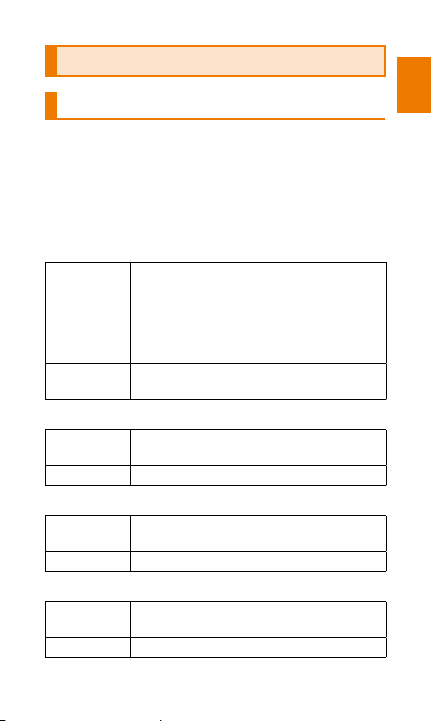
The product has various security codes that you
can use.
The available security codes are as follows. Do
not forget the various security codes that are set
as they are necessary for various operations and
contracts.
■ Security code
Example of
usage
Initial value A four digit number you chose when you
■ Security code to unlock your terminal
Example of
usage
Initial value None
■ PIN code
Example of
usage
Initial value 1234
■ Lock No. (NFC/Osaifu-Keitai lock)
Example of
usage
Initial value 1234
① To do remote operation of voice mail
and call forwarding services from a
landline phone
② To use Customer Service Center and to
do various inquiries, applications, and
modifications on the au homepage
established your cell phone contract
To set and release the screen lock
To prevent unauthorized use of the au
Micro IC card (LTE)
To use the 'NFC/Osaifu-Keitai lock'
Safety precautions
45
Page 48

Functions to protect your privacy
The product has the following functions to
protect the privacy of your stored data.
Safety precautions
• Screen lock
• NFC/Osaifu-Keitai lock
PIN code
■ PIN code
You can make it necessary to input a PIN code
each time the power is turned on to prevent
unauthorized use of the au Micro IC Card (LTE)
by third parties. It is also necessary to input the
PIN code to turn off the PIN code functi
f the PIN code is incorrectly entered three times
I
consecutively, the PIN code will be locked. You
can unlock the PIN code by using the PUK code.
• The initial default PIN code is '1234' and PIN
code entry is set to not be required at the time
of purchase. You can set the product to require
PIN code entry by performing the following
operation: on the iida Home, tap [Settings]
[Security]
au IC card] to select the check box. You also
can tap 'Change au IC PIN' and change the
current PIN code to any four to eight-digit code
you want.
→ [Set up au IC card lock] → [Lock
on.
→
46
Page 49

■ PUK code
You can release the lock by inputting this code if
the PIN code is locked.
• PUK code is an eight-digit number given at the
time of purchase, which is printed on the back
side of the plastic card on which your au Micro
IC Card (LTE) is attached.
• If you input the PUK code, set a new PIN code.
• If PUK code is incorrectly entered ten times
consecutively, contact an au shop, PiPit or
Custom
er Service Center.
The 'PIN code' is not reset even if data is
•
initialized.
Safety precautions
47
Page 50

Notes on water-proof and dustproof properties
Safety precautions
This product has a waterproof property
equivalent to IPX5
dustproof property equivalent to IP5X
condition that connector cover and battery
cover are securely attached (based on in-house
testing).
Specifically, you can make calls holding the
product with wet hands in the rain (less than
20 mm per hour) without umbrella
u
se the product in a place with water such as a
bathroom or a kitchen.
Before using the product, thoroughly read
'Important items to remember before use' and
'Tips for comfortable use' to ensure correct use.
Failure to follow the contents described in these
sections may cause intrusion of water, sand or
other foreign material, resulting in overheating,
ignition, electric shock, injury or
※1 IPX5 means that the product will maintain its
operability as a phone even if it is sprayed with
water from a 6.3 mm diameter nozzle at a distance
of about 3 meters for more than 3 minutes at a rate
of about 12.5 liters per minute from any direction.
※2 IPX7 means that the product will maintain its
operability as a phone with no water getting inside
the main unit even if it is gently sub
f still tap water at room temperature to a depth of 1
o
meter for about 30 minutes.
※3 IP5X means that the product will securely maintain
its operability as a phone even after it has been
placed in an apparatus with grit and dust of
diameters of 75
※1
and IPX7※2, as well as a
※3
as well as
a fault.
merged in a tank
μm or less and shaken for 8 hours.
on the
48
Page 51

memo
◎ Since the operation of the product on each
usage scene was confirmed based on the above
assumptions, proper operation of the product in
every possible condition during the actual use is not
guaranteed. Malfunctions determined to be caused
by mishandling by the customer are not covered by
the warranty.
■ Important items to remember
before use
• Make sure that the connector cover is firmly
closed, and the battery
attached.
- Waterproofness and dustproofness are
only effective when the covers are securely
closed.
- Just a small particle (a hair, etc.) between
contact surfaces of the main unit and the
covers can cause water or dust to enter
inside.
- Do not open/close connector cover or attach/
remove the battery cover if waterdrops are
on the main unit or your hands are wet.
※ For the information on how to close the connector
cover, see
ʻClosing the connector coverʼ (▶P.73).
• Do not immerse the product in
water with soap, detergent or bath
salts in it.
cover is securely
detergent/
bath salts
Soap/
Safety precautions
49
Page 52
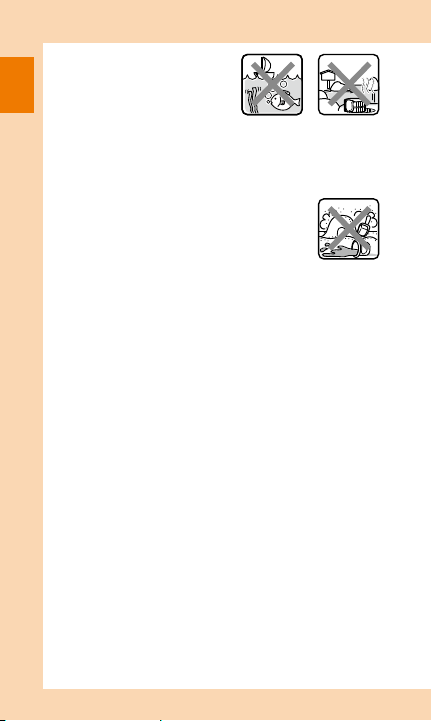
• Do not immerse the
product in seawater, a
swimming pool or hot
Safety precautions
spring.
Seawater
• Do not immerse the product in any liquid (juice
and alcohol, etc.) other than fresh water or tap
water at room temperature (5
°C to 35°C).
• Do not put the product directly
on sand at a beach, etc. Grains
of sand or other small particles
might get into receiver, microphone
or speaker, causing the volume
to drop. If sand gets inside the
product, it might cause overheating
or a fault.
• Do not use the product underwater.
• Do not leave the product in a humid place
such as a bathroom or kitchen for an extended
period of time.
■ Tips for comfortable use
• Once the product gets wet, water may remain
in gaps of the main unit. Shake the product well
to drain water. Especially make sure to drain
water remaining in the battery cover and key
parts.
• Even after water is drained, the inner
might be still wet. Although, you can use the
product, do not place it near things that must
not be wet. Take care not to wet your clothes,
bag or contents of the bag.
• Drain water if it becomes temporarily hard to
hear the sound due to water remaining in the
microphone or receiver.
part
Hot spring
Sand/mud
s
50
Page 53

■ Notes on various usage scenes
"In the rain": You can make calls holding the
product with wet hands in the rain without
umbrella.
• The rain in this case means moderately-heavy
rain. (less than 20 mm per hour)
• Water drops on the display might cause errors
in the touch panel operations.
• Never open/close connector cover or attach/
remove the battery cover if the product is
exposed to rain, waterdro
on the surface
ps are
of the product or your hands are wet.
"In the shower": You can make calls holding the
product with wet hands while taking a shower.
• Water drops on the display might cause errors
in the touch panel operations.
• Avoid spraying the product with high-pressure
water, as the product is not designed to
withstand high water pressure.
"Washing": You can wash the product under
a mild fl
ow (less than 6 liters per minute) of
ap water at room temperature (5
t
°C to 35°C) at
a distance of about 10 cm from the faucet or
showerhead.
• Do not spray the product with high-pressure
water or submerge it in water for extended
periods of time, as the product is not designed
to withstand high water pressure.
• Make sure that the battery cover is tightly
closed, and while holding the connector cov
s
o that it does not open, wash the product with
er
your hands. Do not use a brush or sponge.
• Do not wash the product in a washing machine
or ultrasound bath.
Safety precautions
51
Page 54

• Do not splash the product with or immerse it
in soap water, detergent water, etc. other than
tap water.
"In the bath": You can use the product in a
Safety precautions
bathroom. Although you can make calls with
wet hands, do not immerse the product into a
bathtub. The product is not resistant to high
temperature.
• Do not use the product in a bathroom for an
extended period of time. The product is not
moisture proof
Do not immerse the product in hot spring water,
•
.
soap water, detergent water or water with
bath salts in it. Also, do not use the product
underwater. Doing so may cause a fault.
• Extreme changes in temperature cause
condensation. Wait until the main unit reaches
the room temperature before you bring the
product from a cold place into a warm place
such as bathroom.
• If condensation occurs inside
the display,
the product at room temperature for a while
until the condensation is cleared.
• When viewing TV (1Seg), place the product on
a stable surface.
• Do not splash the product with hot water. The
product is not resistant to high temperature.
• Do not bring the desktop holder (sold
separately) into a bathroom.
• Use it within an ambient temperature range of
5
°C to 35°C (temporary use at 36°C to 40°C in a
bathroom, etc. is allowed) and humidity range
of 35% to 85%.
leave
52
Page 55

"In the kitchen": You can use the product in the
kitchen and other places where water is used.
• Do not splash the product with or immerse it
in soap water, detergent water, seasonings,
juices, etc. other than tap water.
• Do not immerse the product in or splash it with
boiling water. The product is not resistant to
high temperature.
• Do not place the product where it gets
extremely hot or cold suc
refrigerator.
a
h as near a stove or in
• When viewing TV (1Seg), place the product on
a stable surface.
"On the poolside"
• When viewing the TV (1Seg), place the product
on a stable surface.
• Do not use the product underwater. Doing so
can cause malfunction.
• When the product gets pool water, wash the
product under a mild flow (less than 6 liters per
minute) of tap water at room temperature (5
to 35
°C).
°C
• Make sure that the battery cover is tightly
closed, and while holding the connector cover
so that it does not open, wash the product with
your hands. Do not use a brush or sponge.
■ Common precautions
• Connector cover, battery cover
Make sure that the connector cover is firmly
closed and the battery cover is securely
attached. Just a small particle (a hair, etc.)
between contact surfaces can
ust to enter inside.
d
cause water or
Safety precautions
53
Page 56

Do not open/close the connector cover or
attach/remove the battery cover with gloved
hands. Just a small particle (a hair, etc.)
between contact surfaces can cause water or
Safety precautions
dust to enter inside. Wipe off any minuscule
droplet of water or dirt with a clean dry cloth
before closing the cover.
If the connector cover or battery cover is
deteriorated or damaged, the waterproof and
dustproof properties
become ineff
ective. In
such case, contact an au shop near you.
• If any liquid other than plain water gets on
the product
If any liquid other than plain water (e.g.
seawater, detergent, alcohol, juices) gets on the
product, immediately rinse it with plain water.
You can wash the product under a mild flow
(less than 6 liters per minute) of tap water at
room temperature (5
about 10 cm fro
°C to 35°C) at a distance of
m the faucet or showerhead.
If the product gets dirty, wash it with your
hands holding the battery cover and connector
cover so that they do not open. Do not use a
brush or sponge.
• After the product gets wet
After the product gets wet, drain water and
wipe the main unit and the battery cover with
a clean dry cloth without removing the battery
cover.
In cold climates, water on the main
urn to frost. Using the product with frost may
t
unit may
cause a fault. Do not leave the product without
wiping off water. (No special measures against
condensation have been implemented in this
product.)
54
Page 57

When cleaning the earphone/microphone jack
section, do not use tools such as cotton swab
or jam a cloth into the jack section. Doing
so may cause fault such as impairment of
waterproof/dustproof property.
• Rubber seals
The rubber seals on the inner edge of the
connector cover and the battery cover are
important to maintain waterproof and dustproof
properties. Do not damage or remove the
rubber sea
hen closing the connector cover or battery
W
ls.
cover, take care not to get the rubber seals
caught. Forcibly closing the cover with the
rubber seals caught may damage them
resulting in loss of waterproof and dustproof
properties. Just a small particle (a hair, etc.)
between contact surfaces can cause water or
dust to enter inside.
If any liquid other than plain water and tap
water at the room tempe
(5°C to 35°C)
rature
(heated water, sea water, detergent, chemicals
and sweat, etc.) gets on the rubber seals, it
may cause deterioration in durability.
Do not insert sharp objects into gaps around
the connector cover and battery cover. Doing
so might damage or deform the product or
damage the rubber seals, causing water or
dust to enter inside.
• Part replacement for maintaining waterproof
and dust
of properties
pro
For information on part replacement, contact an
au shop near you.
A charge may be incurred for replacement.
Safety precautions
55
Page 58

• Charging
Never charge the battery if product is wet.
Doing so might cause electric shock or shortcircuit resulting in a fire or fault.
Safety precautions
The accessories and optional parts are neither
waterproof nor dustproof.
If you charge the battery with the connector
cover open, be sure to tightly close the cover
when charging is finished. We recommend
using the desktop holder (sold separately) to
charge the ba
to prevent water or dust
ttery
from entering from the connector cover.
Do not touch the desktop holder (sold separately)
or specified charging equipment (sold separately)
with wet hands. Doing so might cause electric
shock.
• Waterproof property
Do not use the product in places where it may
be sprayed with high-pressured water (e.g.
near a faucet or showerhead) or submerge it
in water for extended pe
roduct is not designed to withstand high water
p
riods of time, as the
pressure. Also, do not expose the product to
a water flow stronger than the specified flow
rate (i.e. 6 liters per minute from a faucet or
showerhead, at which you might even feel pain
in the skin). Doing so might cause a fault, even
though the product has a waterproof property
equivalent to IPX5. Do not wash the product in
a wa
shing machine or ultrasound bath.
his product does not float on water.
T
56
Page 59

• Dustproof property
The dustproof property of the product only
guarantees a protection rating equivalent to
IP5X and does not guarantee its performance
under other using conditions such as when the
product is directly put on sand at the beach.
If dust is attached to the product, immediately
wash it away with water or otherwise clear it
completely before use.
• Heat resistance
Do not use the product
in places where
boiling
water may splash on it, sauna or near hot air
(e.g. hair dryer). This product is not resistant to
high temperature.
• Shock
This product is not resistant to shock. Do not
drop the product or subject it to shock. Also, do
not jab the receiver, microphone and speaker
with a cotton swab or any sharp object. Doing
so might damage or deform the main unit
causing intrusion of water
■ Draining water after wetting the product
.
As some parts of this product are not watertight.
If you use the product after it gets wet, water
remaining in those parts might wet your clothes
or bag, or the sound might become hard to hear.
Follow the steps below to drain water.
① Wipe off water on the product with dry towel,
cloth, etc.
② Place dry towel or cloth under the product
and leave them for a couple of hours at ro
om
temperature to dry.
※ If the product is not dried enough, you cannot hear the
sound easily. Leave the product enough time to dry
before use.
Safety precautions
57
Page 60

■ Precautions on charging
The accessories and optional parts are neither
waterproof nor dustproof. Check the following
before and after charging.
Safety precautions
• Never charge the battery if the main unit is wet.
Doing so might cause electric shock or shortcircuit resulting in a fire or fault.
• Check that the main unit is not wet. If you are
charging the battery just after the product gets
wet, drain water well
and wipe re
maining water
off with a clean dry cloth before placing it in the
desktop holder (sold separately) or opening the
connector cover.
• If you charge the battery with the connector
cover open, be sure to tightly close the cover
when charging is finished. We recommend
using the desktop holder to charge the battery
to prevent water or dust from entering from the
connector cover.
• Do not touch
sold separately) or desktop holder (sold
(
the specified charging equipment
separately) with wet hands. Doing so might
cause electric shock.
• Do not splash water over the specified
charging equipment (sold separately) and
desktop holder (sold separately) when using
them. Do not use them near water such as in a
bathroom, shower room, kitchen or washroom.
Failure to do so might cause fire, electric
r a fault. Do not bring it into a bathroom, etc.
o
even when you are not charging with it. Doing
so might cause a fire or electric shock.
shock
58
Page 61

Note on using Bluetooth® and
wireless LAN (Wi-Fi
®
) functions
• The Bluetooth® and wireless LAN (Wi-Fi®)
functions of this product conform to domestic,
FCC standards and EC directive, and have
been certified.
• The 2.4 GHz frequency band used by the
wireless LAN (Wi-Fi
®
) and Bluetooth® functions
is also shared by a variety of other devices.
For this reason, the communication speed and
range may be de
ased, or disconnection
cre
may occur due to interference by other
devices.
• Do not use this product in places where
electromagnetic waves are generated or near
electric products, AV and OA equipment or
other magnetized devices.
• Subjecting this product to magnetic or
electrical noise might increase noise and
prevent it from performing communication.
(This product is particularly susceptible to
nois
e when used near a micro
wave oven.)
• Using this product near TV, radio or similar
appliance might cause reception interference
and disrupt TV images.
• Searching might not be successful if there are
multiple wireless LAN access points. Devices
may not be found correctly if there are multiple
LAN (Wi-Fi
®
) access points near to the product
or the same channel is being used.
Safety precautions
59
Page 62

• The wireless LAN function cannot be used in
airplane. Be sure to turn off the power even
in a Wi-Fi
companies, however, allow their passengers to
Safety precautions
use cell phones. For details, contact the airline
®
compliant airplane. Some airline
company you use.
• Communication speed and range depends
on the distance between the communication
devices, obstacles, and the devices that are
connecting.
Precautions when using the
2.4 GHz frequency band
This product uses the 2.4 GHz frequency band
for Bluetooth
(Wi-Fi
shared by microwave ovens and other household
appliances, by industrial, scientific, and medical
equipment, other similar wireless networks,
as well as licensed built-in wireless stations,
industrial production, and other applicat
icense-free special small power wireless stations
l
and amateur wireless stations (collectively called
'other wireless stations').
1. Before using the product, check to make
sure that other wireless stations are not in
operation nearby.
2. Should radio interference occur between
this product and other wireless stations,
immediately move and use this product in
another location or terminate
e
®
functions and wireless LAN
®
) functions. This frequency band is also
ions, and
use of the other
quipment (so it is not emitting radio waves).
60
Page 63

3. If you are unclear on any points or are
troubled by anything, contact an au shop or
Customer Service Center.
memo
◎ The product has not been confirmed for connection
and operation for all Bluetooth
®
(Wi-Fi
) devices. This means that operational
compatibility with any particular Bluetooth
wireless LAN (Wi-Fi
◎ This product supports security features for
wireless communications that are compliant with
the Bluetooth
specifications, but the security may not be
s
ufficient depending on the usage environment
and configuration. Be careful when making data
communication using Bluetooth
®
(Wi-Fi
) function.
◎ Wireless LAN (Wi-Fi
can be freely connected anywhere within the radio
wave range, as it uses radio waves for exchanging
information. At the same time, there is a risk that
a mal
icious third
access if security settings have not been configured.
You are recommended to configure security settings
before using wireless LAN at you decision and
responsibility.
◎ The Company assumes no responsibility for leakage
of data or information that may occur Bluetooth
wireless LAN (Wi-Fi
◎ Since Bluetooth
the same fre
the same time may cause radio wave interference
resulting in decreased communication speed or
disconnection from the network. If connection fails,
stop using either of the Bluetooth
®
(Wi-Fi
) communication.
®
®
or wireless LAN (Wi-Fi®) standard
®
party may obtain unauthorized
®
®
and wireless LAN (Wi-Fi®) use
quency band, using the functions at
®
and wireless LAN
®
or
) devices is not guaranteed.
®
or wireless LAN
) has the advantage that it
) communication.
®
or wireless LAN
®
or
Safety precautions
61
Page 64
Bluetooth® and wireless LAN (Wi-Fi®) of this
product use frequencies in the 2.4 GHz band.
• Bluetooth® function: 2.4FH1
Safety precautions
The product uses the 2.4 GHz frequency
band. FH-SS is used as the modulation
scheme. The interference distance is
approximately 10 meters maximum.
The bands of mobile unit identification
device cannot be avoided.
• Wireless LAN (Wi-Fi®) function: 2.4DS4/
OF4
The product uses the 2.4 GHz frequency
band. DS-SS and OFDM are used as the
modulation scheme. The interference
distance is approximately 40 meters
maximum.
The bands of mobile unit identification
device can be avoided.
Available channels differ depending on the
country.
Before using the LAN function inside an aircraft,
check with the applicable airline com
ach instance of use.
e
pany for
Precautions when using the 5
GHz frequency band
Wireless function (Wi-Fi®) of this product uses the
5 GHz frequency band. Using 5.2 GHz and 5.3
GHz bands outdoor is prohibited by the Radio
Law.
The following are the channels used by this
product in Japan.
W52 (5.2 GHz band / 36, 40, 44, 48 ch)
W53 (5.3 GHz band / 52, 56, 60, 64 ch)
W56 (5.6GHz band / 100, 104, 108, 112, 11
1
20, 124, 128, 132, 136, 140 ch)
6,
62
Page 65

Notes on packet communication charge
• Since constant Internet connection is possible
with this product, packet communication
may be performed automatically by some
applications, resulting in high packet
communication charges. Therefore,
subscription to a packet communication
charge discount service or flat rate plan is
recommended.
• To browse homepages, download applications,
communicate using app
ceive e-mails and configure various settings,
re
connection to the Internet is required, to which
packet communication charge applies.
※ Packet communication charge does not apply to
wireless LAN (Wi-Fi
lications, send/
®
) connection.
Safety precautions
63
Page 66

Application
• Be sure to check the security of the
application, then install it at your own risk.
Safety precautions
Some applications might cause virus infection,
damage various data, and send out your
location information, usage history or personal
information stored in your cell phone via the
Internet.
• The Company assumes no responsibility
for any failure that might be caused by
applications you have installed. R
n this case may be charged even during the
i
warranty period.
• The Company assumes no responsibility for
any disadvantage brought to you or any third
party by applications you have installed.
• Insertion of a microSD memory card is
necessary to use some applications.
• Some applications prohibit the product from
entering sleep mode while they are active, or
rapidly drain the battery while
ackground.
b
• Operation procedures and screen
appearances of the applications preinstalled
in this product and those installed by you are
subject to change without notice as a result
of version upgrade. In addition, operation
procedures described in this manual may differ
from the actual procedures.
epair cost
running in the
64
Page 67

Getting ready
Names and functions of parts ......................66
Attaching/removing the battery pack ...........68
Opening/closing the connector cover ..........72
Installing/removing the au Micro IC Card
(LTE) .............................................................74
Installing/removing a microSD memory
card ..............................................................77
Charging .......................................................7
Turning the power on/off ...............................82
Unlock screen ..............................................83
9
65
Page 68
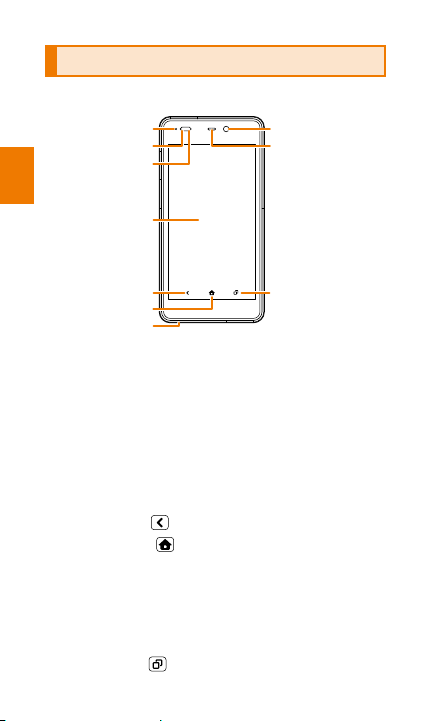
Names and functions of parts
)
■ Front
1)
2)
3)
(8)
9)
(
Getting ready
(1) Indicator: Shows the remaining charge and
(2) Light sensor: Detects local brightness and
(3) Proximity sensor: Detects when your face
(4) Display (touch panel)
(5)
(6)
(7) Microphone: Transmits your voice to the other
(8) Front-facing camera
(9) Receiver: Emits voice of the other party during
(10)
66
4)
5)
6)
7)
indicates when there are unread notifications
automatically adjusts display brightness
accordingly.
or other body part is near and prevents
unintentional touch panel operation.
Back key
Home key
party during a call.
a call.
Task key
: Returns to the previous screen.
: Displays the iida Home.
: Shows the recently used apps.
(10
Page 69
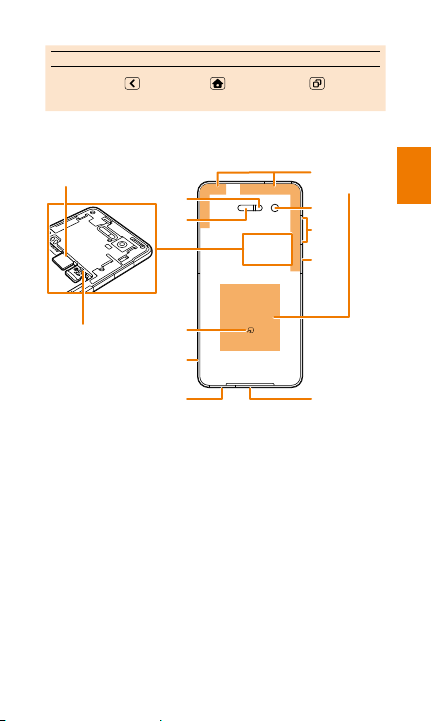
memo
Built-in antenna
◎ Back key , Home key and Task key are
operable only when the touch panel is displayed.
■ Back
(
11)
(12)
※1
au Micro IC Card (LTE)
portion
(
17)
(18)
(19)
※2
Getting ready
(
13)
※1 For handling au Micro IC Card (LTE), see ʻInstalling/
removing the au Micro IC Card (LTE)
※2 The antenna is built into the main unit. Note the
following points to maintain the quality of your phone
calls and communications.
• Do not cover the built-in antenna with your hand
during phone calls, etc.
• Do not affix stickers or any other object to the builtin antenna area.
(14)
(15)
(16)
(20)
ʼ (▶P.74).
(11) Flashlight
(12
nfrared port
) I
(13) microSD memory card slot
(14) FeliCa mark
(15) Desktop holder charging terminal
(16) Connector
(17) Main camera
67
Page 70
Volume key
(22)
(18)
Function key
(19)
(20) Speaker
■ Top edge
(21) Stereo earphone jack
Getting ready
(22)
Power key
Attaching/removing the battery pack
Use only the specified battery pack for the
product and be sure to attach it correctly.
memo
◎ When removing the battery cover, do not exert an
excessive force to warp or bend the cover, as it is
made of soft material.
◎ Before removing the battery cover, remove the cable
or cord from the connector.
◎ If the main unit is wet, carefully wipe off water before
removing the battery cover.
◎ Do not replace the battery pack with wet hands.
68
Page 71
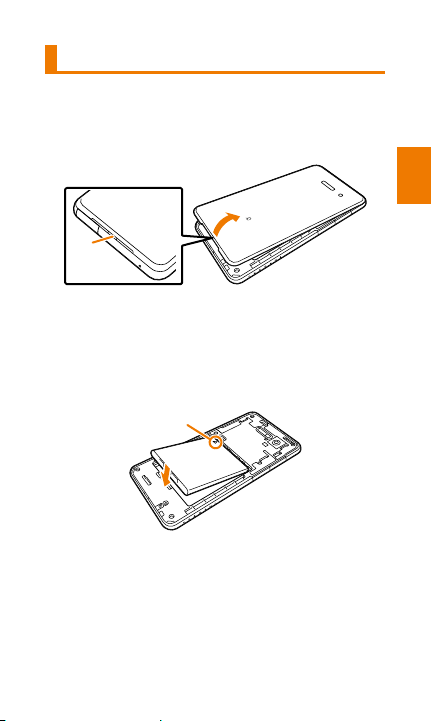
Attaching the battery pack
Terminal
1
Removing the battery cover
Hook a fingertip (nail) on the concave portion
①) on the bottom of the battery cover, lift up the
(
cover slightly and then remove it carefully.
①
2
Attaching the battery pack
Align the terminal of the battery back with the
terminal on the main unit, insert the battery pack
in the direction or the arrow.
Check the shape of the battery pack, and insert
it making sure that it is facing the correct way.
Getting ready
69
Page 72
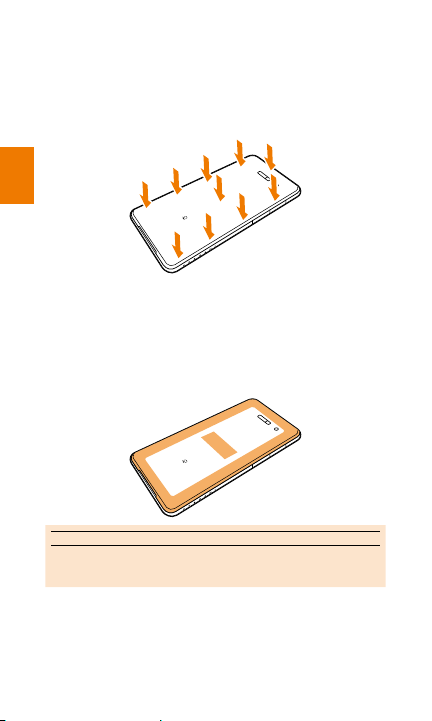
3
Attaching the battery cover
Align the battery cover with the main unit and
press the outer circumference and central
portion of the battery cover until it snaps to
securely attach the cover.
Getting ready
4
Check the outer circumference and central
portion of the battery cover and press any
portion sticking up into place.
Firmly close the cover while confirming no
part of the cover is sticking up to maintain the
waterproof and dustproof performance.
memo
◎ If the battery cover is not attached correctly, the
NFC/Osaifu-Keitai may become unavailable.
70
Page 73
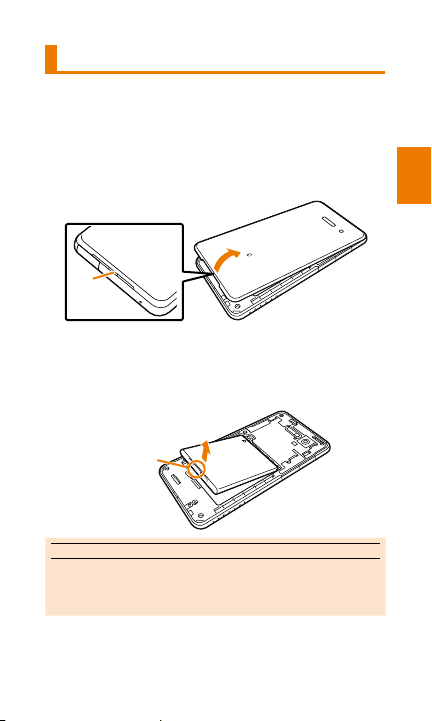
Removing the battery pack
Before removing the battery pack, turn off the
power on the main unit.
1
Removing the battery cover
Hook a fingertip (nail) on the concave portion
①) on the bottom of the battery cover, lift up the
(
cover slightly and then remove it carefully.
①
2
Removing the battery pack
Hook your fingertip (nail) on the concave portion
on the bottom of the battery pack, and lift up the
battery to remove it.
Concave
portion
memo
◎ Lifting the battery pack from the direction other than
the concave may damage the terminals of the main
unit and battery pack.
Getting ready
71
Page 74
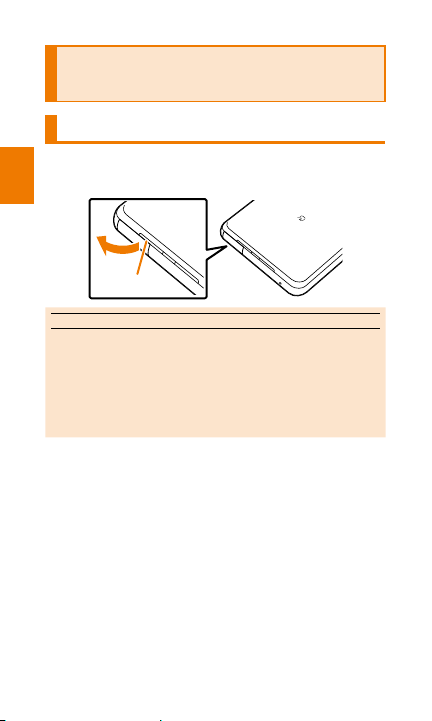
Opening/closing the connector cover
Opening the connector cover
1
Put your ngertip (nail) into the groove
and open in the direction of the arrow.
Getting ready
Groove
memo
◎ Take care to avoid pulling on the cover with strong
force. Particular care is required when disconnecting
cables and cords from the connector to make sure
you do not pull the cover along with the cable/cord.
◎ Pulling on a cover with strong force can cause it to
become deformed or can break it off.
72
Page 75
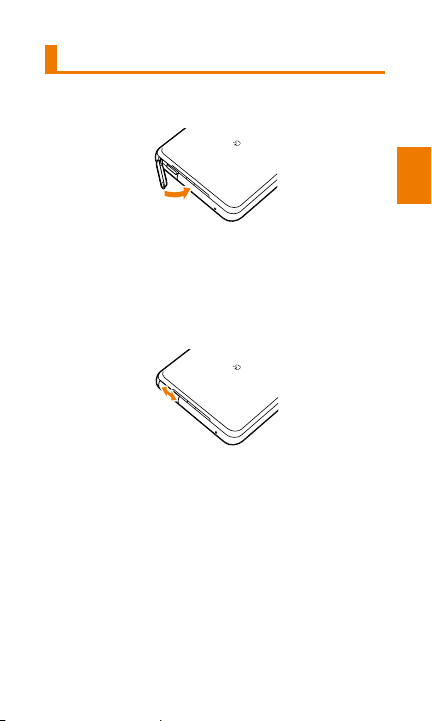
Closing the connector cover
1
Push the cover in the direction of the
arrow.
2
Rub the cover with your nger in the
direction of the arrow to ensure that the
cover is not partially open.
Firmly close the cover while confirming no
part of the cover is sticking up to maintain the
waterproof and dustproof performance.
Getting ready
73
Page 76
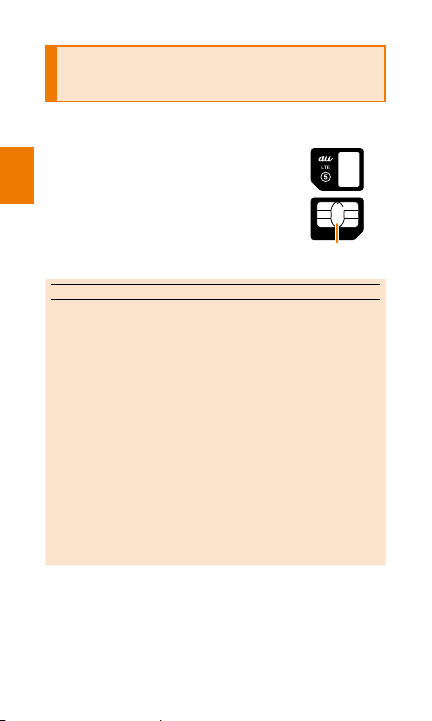
Installing/removing the au Micro IC Card (LTE)
Your au Micro IC Card (LTE)
contains information such as your
phone number.
The product supports only au
Micro IC card (LTE). You cannot
Getting ready
use an au IC-Card or au Micro IC
Card from another au cell phone
or smartphone.
IC (metal) part
memo
◎ Note the following points, which may cause
malfunction or damage, when handling the au Micro
IC Card (LTE).
• Do not touch the IC (metal) part of the au Micro IC
Card (LTE) or the IC card terminal in the main unit
as much as possible.
• Insert the IC card in the correct direction.
• Do not use force to install or remove the IC card.
◎ Disconnect all cables and cords from the connector
before installing or re
(LTE).
◎ If the au Micro IC Card (LTE) is installed incorrectly
or if there is some problem with the au Micro IC Card
(LTE), an error message will be displayed.
◎ Do not lose the au Micro IC Card (LTE) after it has
been removed.
74
moving an au Micro IC Card
au Micro IC Card
(LTE)
Page 77
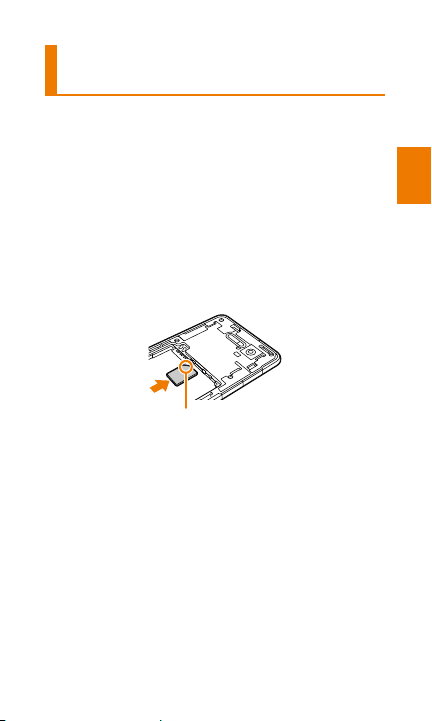
Installing the au Micro IC Card
(LTE)
Turn off the product and remove the battery pack
before installing the au Micro IC Card (LTE).
For information on how to attach/remove the
battery pack, see
battery pack
1
With the IC (metal) part of the au Micro IC
Card (LTE) facing down, carefully push the
card straight into the slot until you hear
it click.
Take care that the notch of the card is in the
correct position.
ʻAttaching/removing the
ʼ (▶P.68).
Notch
Getting ready
75
Page 78
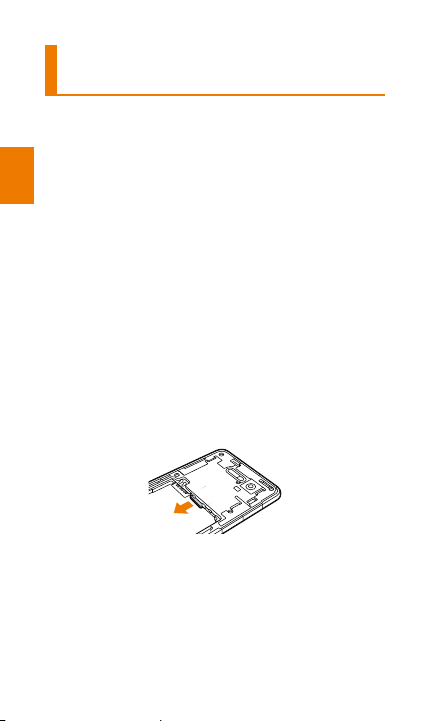
Removing the au Micro Card IC
Card (LTE)
Turn off the product and remove the battery pack
before removing the au Micro IC Card (LTE).
For information on how to attach/remove the
battery pack, see
battery pack
Getting ready
1
Push slowly the au Micro IC Card (LTE)
towards inside with your ngers until you
hear it click.
After it clicks, pull back your fingers without
releasing them fro
The au Micro IC Card (LTE) will pop out slightly.
Keep your fingers in contact with the au Micro
IC Card (LTE). Note that strongly pressing in on
the au Micro IC Card (LTE) and then suddenly
releasing it can cause the card to pop all the
way out of the slot.
2
Pull the au Micro IC Card (LTE) straight
out.
ʻAttaching/removing the
ʼ (▶P.68).
m the au Micro IC Card (LTE).
76
Page 79
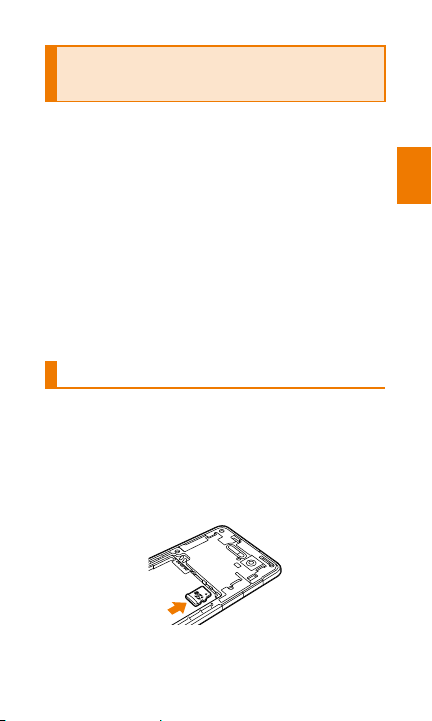
Installing/removing a microSD memory card
This product supports use of a microSD memory
card or microSDHC memory card.
■ Handling precautions
• Do not remove the microSD memory card,
remove the battery pack, turn off the product,
or subject the product to impact when the
product is accessing the data on a microSD
memory card. Doing so may corrupt the data.
• This product supports microSD and
microSDHC
the microSD and microSDHC memory cards
supported, contact your microSD memory card
retailer or refer to the au homepage.
memory
cards. For details about
Installing a microSD memory card
1
Remove the battery cover, and then
remove the battery pack (
2
With the metal terminal side of the
microSD memory card facing down,
carefully push the card straight into the
slot until you hear it click.
▶ P.71).
Getting ready
3
Attach the battery pack, and then attach
the battery cover (
▶ P.69).
77
Page 80

memo
◎ A microSD memory card has specified back, front,
top and bottom sides. Inserting a microSD memory
card forcibly into the slot could result in failure to
remove the card or a damage.
◎ Do not touch the terminal part of microSD memory
card.
Getting ready
Removing a microSD memory
card
Before removing the microSD memory card, first
unmount it.
1
On the iida Home, tap [Settings] →
[Storage]
When the unmount confirmation screen displays,
tap 'OK'.
2
Turn off the product, remove the battery
cover, and then remove the battery pack
(
▶ P.71).
3
Carefully push the microSD memory card
into the slot all the way until you hear it
click.
After you hear the click, slowly move your finger
back, keeping it in contact with the microSD
memory card. The above causes the microSD
memory card to eject slightly. Use your finger to
ull the microSD card all the way out to remove
p
it. Note that strongly pressing in on the microSD
memory card and then suddenly releasing it can
cause the card to pop all the way out of the slot.
→ [Unmount SD card].
78
Page 81
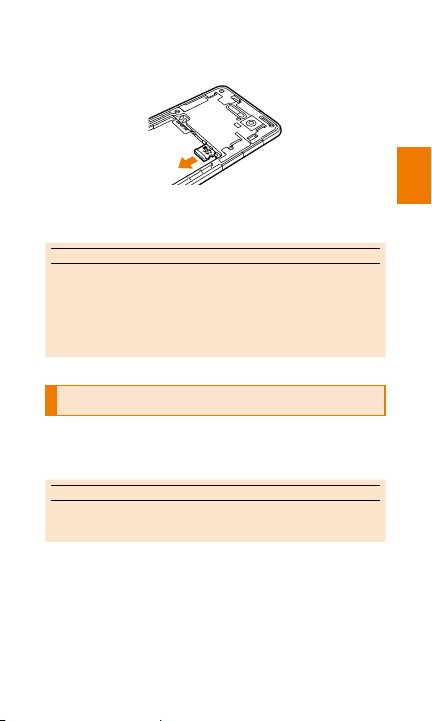
4
Pull the microSD memory card straight
out.
5
Attach the battery pack, and then attach
the battery cover (
▶ P.69).
memo
◎ Do not forcibly pull out the microSD memory card. It
may cause a damage or data loss.
◎ Applications installed on a microSD memory card
are not available when the microSD memory card is
removed.
Charging
When you purchase the product, the battery
pack is not fully charged. Use the product only
after it is fully charged.
memo
◎ For information on the usage time, see ʻMain
specifications
ʼ (▶P.127).
Getting ready
79
Page 82
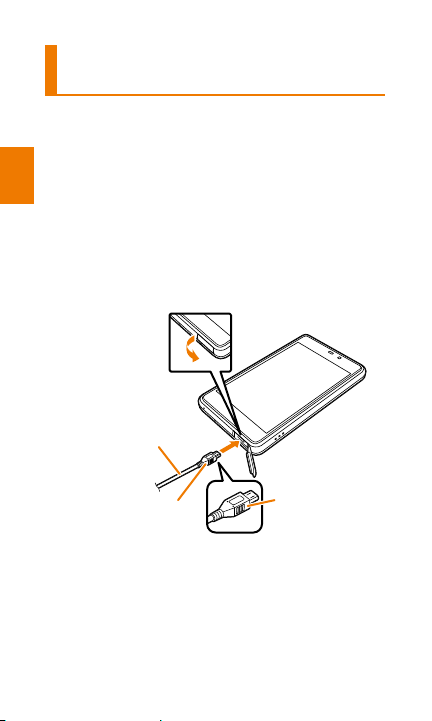
Direct connection of a specied charging
equipment (sold separately) for charging
This section explains charging with the Common
AC Adapter 04 (sold separately).
• For information about specified charging
equipment (sold separately), see
Getting ready
equipment
1
ʼ (▶P.116).
Open the connector cover (①) and then
plug in the microUSB plug (
Common AC Adapter 04 (sold separately).
Paying attention to the contours of the microUSB
plug and the connector, insert the plug straight
into the connector.
①
Common AC Adapter 04
(sold separately)
microUSB plug
• Please note that Illustrations and actual forms
may differ depending on the AC adapter you
use.
②
ʻPeripheral
②) of the
Make sure
that the USB
mark is facing
downward.
80
Page 83
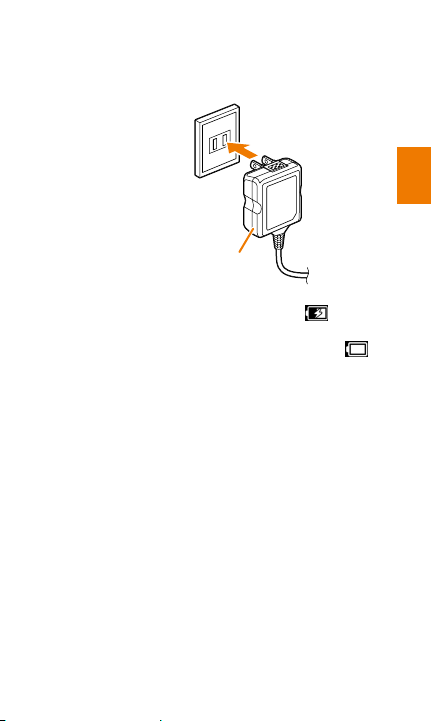
2
A
C 100V outlet
3
4
Insert the power plug of the Common AC
Adapter 04 (sold separately) into a power
outlet.
Common AC Adapter 04
(sold separately)
While charging is being performed, the indicator
will light in red and a charging icon '
appear in the status bar. The indicator will
change to green and a fully charged icon '
will appear on the status bar when charging is
complete.
' will
'
After charging is complete, pull out the
power plug of the Common AC Adapter 04
(sold separately) from the power outlet.
Holding the microUSB plug of the
Common AC Adapter 04 (sold separately),
pull it straight out from the connector, and
then close the connector cover.
• Firmly close the connector cover to maintain
the waterproof and dustpro
▶P.73).
(
of performance
Getting ready
81
Page 84
Turning the power on/off
Turning on the power
1
Press and hold for at least two
seconds until the product vibrates, and
then release it.
After a while, the unlock screen appears
Getting ready
▶P.83).
(
memo
◎ When you power on the product for the first time, the
setup wizard will be displayed. For details see the
"Setting Guide" that comes with the product.
Turning off the power
1
If the unlock screen appears, unlock the
product (
2
Press and hold for at least two
seconds.
The Phone options screen is displayed.
3
[Power off]
memo
◎ On the Phone options screen, tap [Restart] →
[Restart] to exit all the apps and restart the product.
Note that restarting will cause any unsaved data to
be lost.
▶ P.83).
82
Page 85
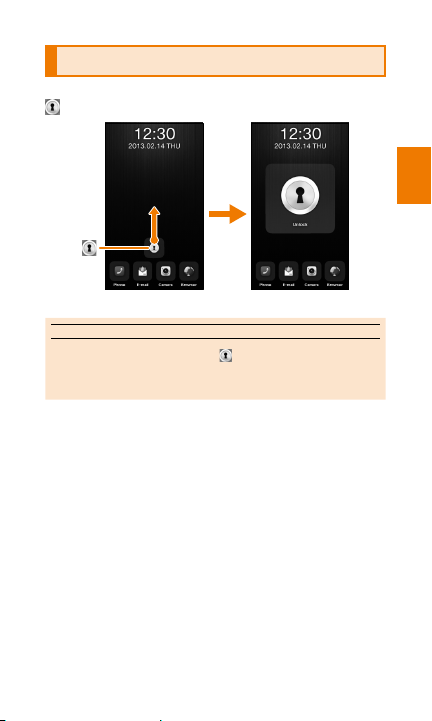
Unlock screen
When the unlock screen is displayed, sliding
upward will unlock the product.
《Unlock screen》
memo
◎ Sliding an icon other than will start up the app.
◎ You can change the icons displayed at the bottom of
the screen (dock).
Getting ready
83
Page 86

Getting ready
84
Page 87

Basic
operations
Home screen ................................................86
Monitoring the product's status ....................95
Displaying a menu ........................................97
85
Page 88
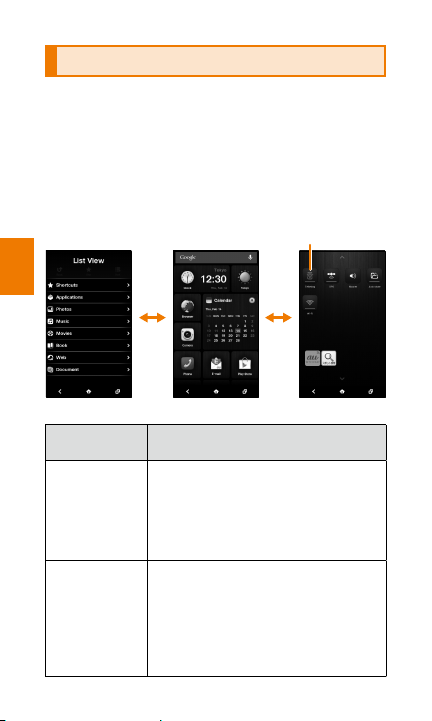
Home screen
Widget
》
Home consists of three screens which are the iida
Home, widget Home and List View. You can paste
applications, shortcuts, etc. on the iida Home,
and you can paste widgets on the widget Home.
On the List View, you can activate various apps
and data files such as music, videos and books.
Flick the Home screen to the left or right to switch
between these three screens.
Basic operations
Flick Flick
List View》 《iida Home》 《
Types of
Home screens
iida Home Apps and shortcuts are displayed in
widget Home Widgets are displayed. By adding a
86
panels. Tap a panel to activate the
app. As the panel can be resized,
added or moved, you can customize
and personalize the layout of the
screen according to your interests.
calendar, bookmarks and au widgets,
you can check such information on
the widget Home. Also, if you plac
tethering, Wi-Fi, GPS, or other widgets
on the widget Home, you can switch on/
off these functions with just one touch.
Description
widget Home
e
Page 89
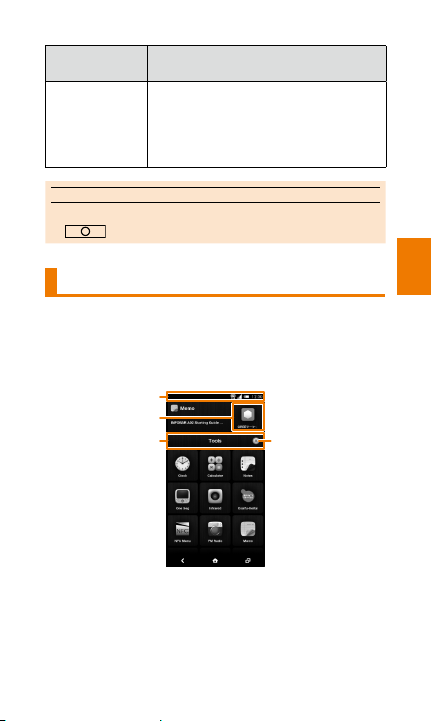
Types of
①
Home screens
List View Various apps and data files such
as music, videos and books are
displayed by category.
Tap the respective app or data file to
activate or play it.
Description
memo
◎ You can also display the List View by pressing
.
Using the iida Home
■ Viewing the iida Home
Apps and shortcuts, etc. are displayed in panels
on a section-by-section basis. Select a panel to
activate an app.
②
③
《iida Home》
① Status bar: Displays notification icons and
status icons (
downwards opens a notification panel (
② Panel: Activates an app when tapped. You can
also paste pictures and information, etc. here.
▶P.95). Sliding the status bar
④
Basic operations
▶P.96).
87
Page 90
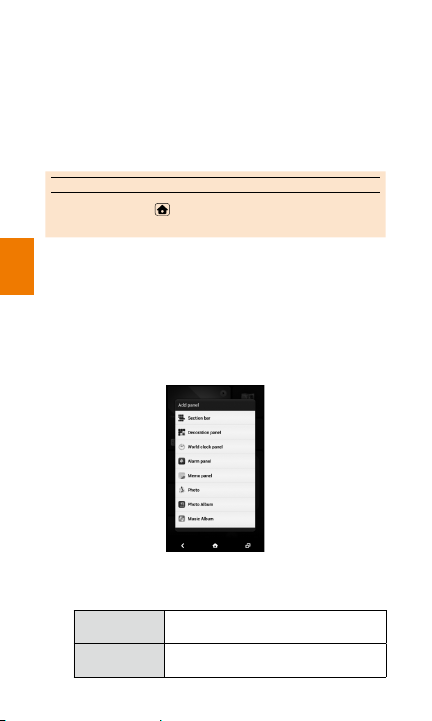
③ Section bar: Indicates a section of apps or
shortcuts and displays the section title. Tap the
bar to edit the section title. Long-touch a section
bar to display a section bar list. Drag it to any
location to rearrange section bars.
④ Opening/Closing section button: Opens or
closes the section bar each time you tap.
memo
◎ Long-touching and dragging it to 'Google' will
activate Google Search.
■ Adding panels
Basic operations
1
To add a panel, pinch out on or long-touch
an empty space on the iida Home.
Pinching out is the action to touch a screen with
two of your fingers and then move them apart.
The [Add panel] screen will be displayed.
2
Tap the type of panel that you want to add.
The available options are as follows:
Section bar Add section bars to manage apps
Decoration
panel
88
by group.
Add decoration panels that meet
your liking.
Page 91
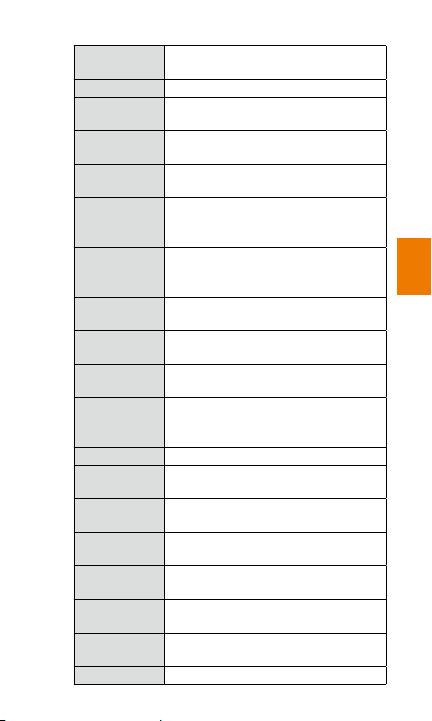
World clock
panel
Add clocks of the selected cities.
Alarm panel Add alarms.
Memo panel Add memos created with the
Photo Add still pictures stored in the
Photo Album Add the album or events of the still
Music Album Add music albums stored on the
Music
Playlist
Book panel Add electronic books downloaded
People panel Add persons registered in the
Facebook
panel
Facebook
panel (Photo)
Memo app.
Gallery.
pictures stored in the Gallery.
LISMO Player or downloaded from
the LISMO unlimited.
Add playlists of songs stored on
LISMO Player or
LISMO unlimited.
downloaded fro
from au Book Pass.
People (contact list).
Add Facebook to check the
updates.
Add photo images managed
with the Facebook Photo stream
feature.
m
Twitter panel Add Twitter to check the updates.
Twitter panel
(Photo)
Friends Note
panel
Friends Note
panel (Photo)
Bookmark Add Google Chrome or browser
Directions &
Navigation
Settings
shortcut
Add photo images managed with
the Twitter
Adds Friends Note to check the
updates.
Add photo images managed with
the Friends Note app.
Photo stre
am feature.
bookmarks.
Add the Google navigation directions
to get to a specific destination.
Add setting menu items.
Gmail label Add Gmail labels.
Basic operations
89
Page 92
3
Select the size of the panel and then
select the data to be positioned.
Note, however, that depending on the option,
you need not to select size.
4
Drag the panel to the desired location and
release your nger.
■ Moving panels
1
On the iida Home, long-touch a panel.
2
Drag it to the desired location and release
your nger.
When you long-touch a panel, all the section
bars open. Drag the panel to any section bar
Basic operations
nd release your finger to move the panel to the
a
section.
■ Changing the display size of a panel
1
On the iida Home, long-touch a panel to
be resized.
If a Caution screen appears, tap 'Ok'.
The panel flashes.
2
Tap the panel.
Each time you tap the panel, the size of the
panel changes.
3
■ Deleting panels
1
On the iida Home, long-touch a panel.
2
Without releasing your nger, drag the
panel to the right edge of the screen to
90
3
display '
Tap [Yes].
' and then release your nger.
Page 93
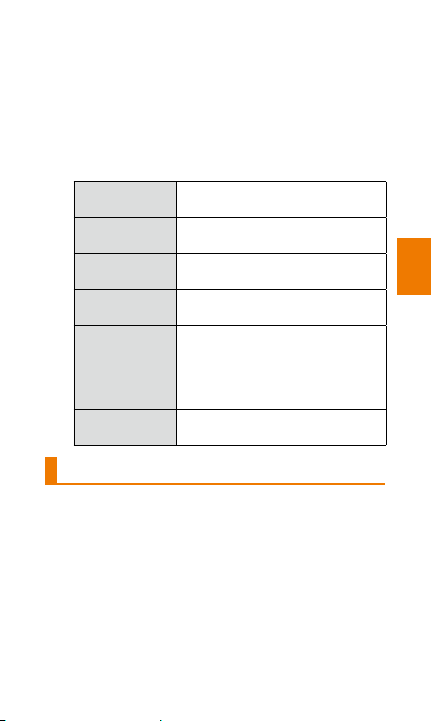
■ Congure various settings on the
iida Home
1
On the iida Home, tap [Settings] → [iida
Home Settings].
2
Tap a setting item. The available options
are as follows:
Theme Allow you to change the
Quick Search
Box
Animation
effect
iida permission Allow you to check the License
widget Home
Wallpaper
S
how all Quick
Tips
background images for panels.
Set whether to display the Google
Search box on the iida Home.
Enable or disables animation
effects.
Agreement for iida UI.
Allow you to change the wall
papers of the widget Home and
lock screen to an image that is
preregistered or stored in the
Gallery.
Display or hide quick tips.
Using the widget Home
■ Adding widgets
1
To add a widget, pinch out on or long-touch
an empty space on the widget Home.
Pinching out is the action to touch a screen with
two of your fingers and then move them apart.
When you long-touch an empty space, tap 'Add
Widget'.
2
Long-touch the widget that you want to
add.
Basic operations
91
Page 94
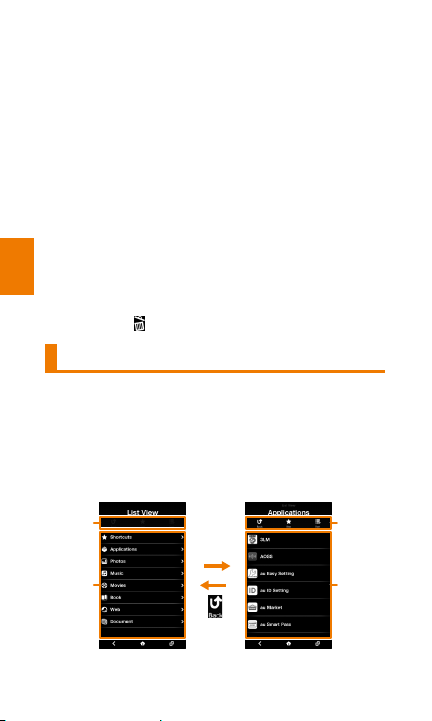
3
》
Drag the widget to the desired location
and release your nger.
Note, however, depending on the widget, some
settings may be necessary (name entry, etc.).
■ Moving widgets
1
On the widget Home, long-touch a widget.
2
Drag it to the desired location and release
your nger.
■ Deleting widgets
1
On the widget Home, long-touch a widget.
2
Without releasing your nger, drag the
Basic operations
panel to the right edge of the screen to
display '
' and then release your nger.
Using the List View
■ Displaying the List View
Various apps and data files such as music,
videos and books are displayed by category. Tap
a category to display the apps and various data
that belong to the category. Tap an app or data
to activate the app.
①
Tap
①
92
②
《List View》 《
③
App & data list
Page 95
① Control buttons
Back: Returns to the top of the List View.
Star: Adds a star that denotes a shortcut to the
currently displayed page. The pages with a star
will be displayed under 'Shortcuts' on the category
list.
Sort: Sorts apps and data alphabetically by name,
by date (newest to oldest/oldest to newest) or by
type.
② Category list: Displays the List View categories in
lists. Tap a category to display apps and data that
b
elong to the category.
③ Apps & data list: Displays the apps and data of
the selected category in lists. Tap an app or data
to activate the app.
memo
◎ You can also display the List View by pressing
.
■ Adding apps to a category
1
On the List View, tap a category.
2
[+ Add Item]
3
Tap an app to be added.
memo
◎ Note, however, that depending on the category,
apps may not be added.
■ Deleting apps from a category
1
On the List View, tap a category.
2
Long-touch an app to be deleted.
Basic operations
93
Page 96
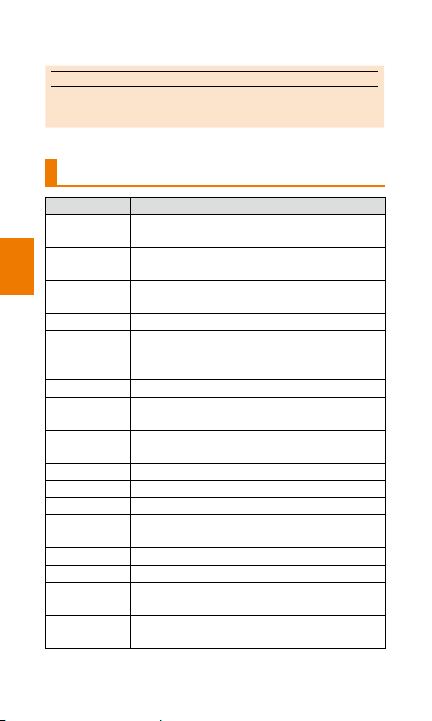
3
[OK]
memo
◎ Note, however, that the preset apps cannot not be
deleted.
Main Apps
Icon name Description
Clock Display a world clock and allow you to
Weather Displays weather in the selected
Calendar Display calendars and manage your
Basic operations
Camera Shoot photos and videos.
Photos Shares photos and videos and displays
Phone Make phone calls (
E-mail Send and receive messages by using
SMS Send and receive messages by using
Browser View websites.
Play Store Use Google Play.
Settings Display the settings menu (
Maps Display your current location, search for
YouTube Allow you to use YouTube.
Facebook Allow you to use Facebook services.
Twitter Allow you to use Twitter to post tweets or
GREE
マーケット
set alarms, stopwatch and timer.
location.
schedule.
them as a list. You can also edit photos
and perform other operations.
-mail (@ezweb.ne.jp) addresses.
e
phone numbers as address.
other locations or routes, etc.
ad tweets from other persons.
re
Allows you to look for games or contents
provided by GREE.
▶P.108).
▶P.112).
94
Page 97
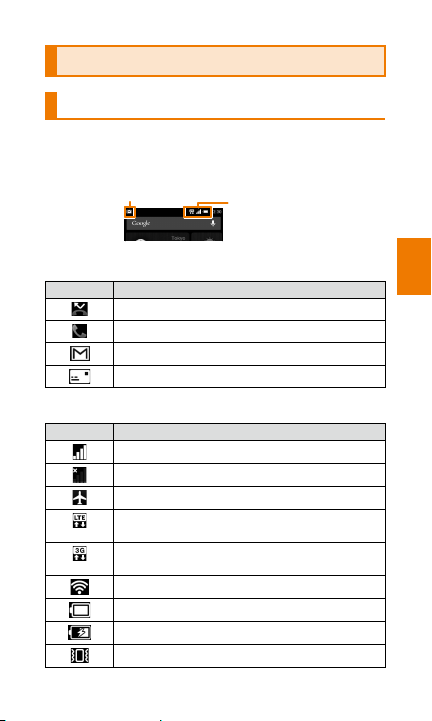
Monitoring the product's status
Understanding icons
The notification icons indicating the status of the
product appear in the status bar at the top of the
screen.
Notication icons
■ Main notication icons
Icon Description
Missed call
Sending, call in progress, receiving
New G-mail
New SMS
■ Main status icons
Icon Description
Signal strength
Out of service area
Airplane mode
Packet communication (LTE
communication) status
Packet communication (3G data
communication) status
Wireless LAN (Wi-Fi®) signal strength
Battery level
Charging
Vibrate mode
Status icons
Basic operations
95
Page 98
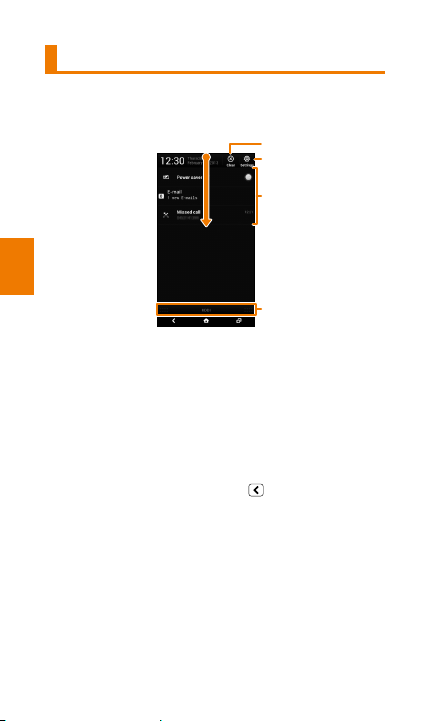
Notication panel
①
When a notification icon is displayed on
the status bar, you can slide the status bar
downwards to open a notification panel.
②
③
Basic operations
① Clear: Deletes a notification. Note, however, that
depending on content, some notifications cannot
be deleted.
② Settings: Displays the Settings menu (▶P.112).
③ Notication Area: Tapping some notifications will
display related information.
④ Close bar: Slide this bar upwards to close
the notification panel. You can also close the
notification panel by tapping
96
④
.
Page 99
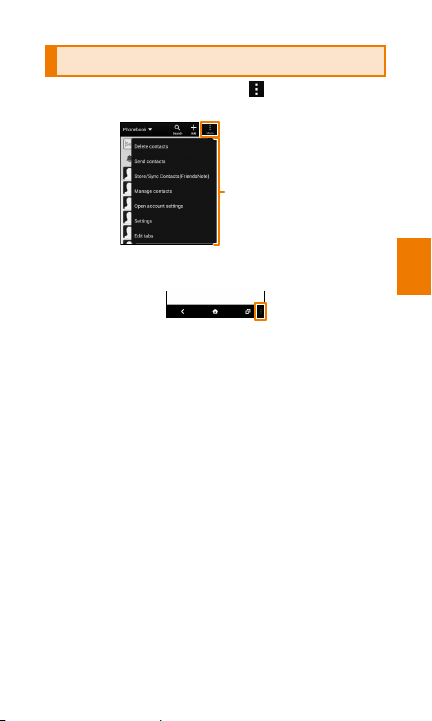
Displaying a menu
》
On the screen, tap 'Menu' or ' '.
※ The display is different depending on the screen.
Settings menu
is displayed.
Some apps may display a menu bar at the
bottom of the screen.
Example menu bar
Basic operations
97
Page 100

Basic operations
98
 Loading...