

Page 1
Contents
Safety Precautions/Notes on
Waterproof and Dustproof
Getting Ready
Basic Operation
Phone
Tools/Applications
File Management
Basic Manual
Settings
Appendix/Index
Page 2
Preface
Thank you for buying the G’zOne TYPE-L (simply called the
“G’zOne” or the “product” from here on).
Before using the product, be sure to read the “Basic Manual” (this
PDF manual) on the au homepage to ensure correct use. After you
have finished reading this PDF manual, be sure to store it in safe
places so that you can retrieve them whenever you need them.
Operating Instructions
■ “Setting Guide” / “Basic Manual” (This Manual)
These manuals describe basic operations of major functions.
For detailed descriptions of various functions, refer to the
“Instruction Manual” application (Japanese) that can be used on the
product or “取扱説明書詳細版” (Full Instruction Manual) (Japanese)
available on the au homepage:
http://www.au.kddi.com/torisetsu/index.html
• Company names and product names referred to in this manual are
trademarks or registered trademarks of respective companies.
■ “Instruction Manual” Application (Japanese)
You can use the “Instruction Manual” application on the product to
confirm detailed operational procedures.
On the home screen, tap
• When using the application for the first time, you must download
and install it following the on-screen instructions.
■ Downloading Manuals
You can download the “Basic Manual” (this PDF manual) and the
“Instruction Manual” (Accessory) (Japanese) or “Full Instruction
Manual” (Japanese) in PDF format from the au homepage.
ii
→ [取扱説明書].
Safety Precautions
Before you start using the product, be sure to read the “Safety
Precautions” to ensure correct use.
Before you assume that the product is malfunctioning, check for
possible remedies in the following au Customer Support site of au
homepage: http://cs.kddi.com/support/komatta/kosho/index.html
When Using the Product
• Communication is not possible even inside the service area
in places where the signal does not reach (e.g. tunnels and
basements). Also, communication is sometimes not possible in
poor reception areas. Communication is sometimes interrupted if
you move into a poor reception areas during communications.
• Since this product uses radio waves, the possibility of
communication intercepts by third parties cannot be eliminated.
(Though LTE/CDM A/GSM/UMTS system has highly secure
confidential communication features.)
• Since this product is a radio station under the Radio Law, you
may be asked to temporarily submit the product for inspection in
accordance with the Radio Law.
• The IMEI information of your cell phone is automatically sent to
KDDI CORPORATION for maintenance and monitoring operational
status of your cell phone.
• Take care not to inconvenience people around you when you use
the product in a public place.
• When the product is used by a child, parents or guardians should
thoroughly read this PDF manual and teach the child how to use it.
• This product is compatible with the international roaming service.
Each network service described in this manual varies depending
on the area and service content.
• If you use the product overseas, check the relevant laws and
regulations of the country/region you visit.
Page 3
Cell Phone Etiquette
Cell phones always emit weak radio waves when power is on. Use
cell phones in an enjoyable and safe manner without forgetting to be
considerate of others around you.
■ Use of the product is not allowed in the
following places!
• Do not use a cell phone while driving a car or riding a motorbike or
bicycle. It may cause a traffic accident. Use of a cell phone while
driving a car or motorbike is prohibited by law. Use of a cell phone
while riding a bicycle may be punishable by some regulations.
• Do not use this product while you are aboard an airplane. Use of
electric devices transmitting radio waves in airplane is prohibited
by law. Some airline companies, however, allow their passengers to
use cell phones. For details, contact the airline company you use.
■ Be considerate of where you use the cell phone
and how loudly you talk!
Do not make calls in theaters, museums, libraries, and other similar
places. Turn power off or turn on the manner mode so as not to
disturb others around you by ringtones.
• Do not use the cell phone on a street where you might interrupt the
flow of pedestrians.
• Move to areas where you will not inconvenience others on trains, in
hotel lobbies, etc.
• Refrain from talking in a loud voice.
• Obtain the permission of other people before you take their photos
with the cell phone’s camera.
■ Be considerate of people around you!
• Some people close to you in crowded places such as packed
trains may be using a cardiac pacemaker. Turn the cell phone off
in such places.
• Abide by the rules of hospitals and other medical institutions where
it is forbidden to use or carry cell phones.
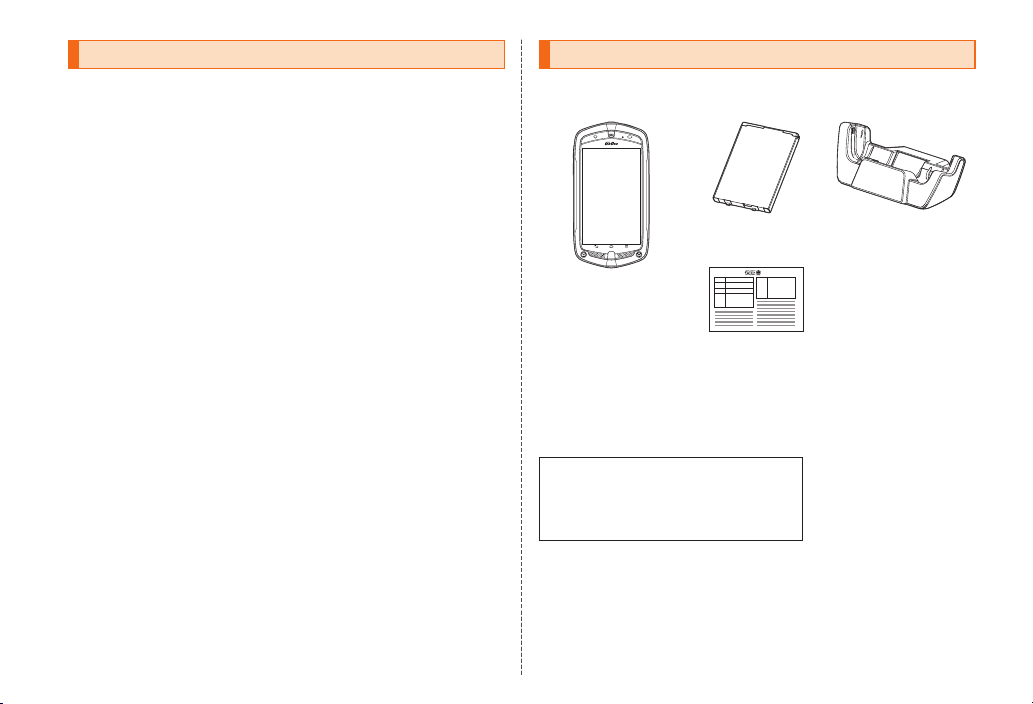
List of Packaged Items
Before you start using the product, make sure that you have all the
following packaged with the product.
Battery pack
(CAL 21UAA)
G’zOne
Warranty
(Jap anese)
• 取扱説明書 (Instruction Manual) (Japanese)
• 設定ガイド (Set ti ng Guide) (Ja panese)
The following items are not included in the package:
• microSD memory card
• AC adapter
• Earphones
• microUSB cable
• Purchase a specified charger (sold separately).
• Illustrations of cell phones and related accessories in this manual
are only for reference. They may look different from the actual
product.
Desktop holder
(CAL 21PUA)
1
Page 4

Contents
Preface........................................................ii
Operating Instructions .................................ii
Safety Precautions ......................................ii
When Using the Product ............................. ii
Cell Phone Etiquette ...................................1
Contents
List of Packaged Items................................1
Contents ....................................................2
Safety Precautions/Notes on
Waterproof and Dustproof
Regarding Notations Used in This
Document....................................................4
Exemptions .................................................5
Safety Precautions (Observe Strictly) .........5
Handling Precautions ................................14
Notes on Waterproof, Dustproof and
Shock-resistant Properties ........................20
Available Security Codes ..........................25
Functions to Protect Your Privacy .............25
PIN Code ..................................................25
Notes on Using Bluetooth
Wireless LAN (Wi-Fi
2.4 GHz Frequency Band Precautions .....26
5 GHz Frequency Band Precautions ........27
Notes on Packet Communication
Charge ......................................................27
Notes on Google Play™/au Market/
Applications...............................................28
2
®
/
®
) Functions ..............26
Getting Ready
Names and Functions of Parts..................29
Opening/Closing the External Connection
Jack Cover or Earphone Jack Cover ........31
Opening the External Connection Jack
Cover or Earphone Jack Cover ................31
Closing the External Connection Jack
Cover or Earphone Jack Cover ................31
Attaching/Removing the Battery Pack ......32
Removing the Battery Pack ......................32
Attaching the Battery Pack .......................33
au Micro IC Card (LTE) .............................34
Removing the au Micro IC Card (LTE) ......34
Attaching the au Micro IC Card (LTE) .......35
Charging ...................................................36
Turning the Power On/Off .........................39
Turning Your Terminal On ..........................39
Turning Your Terminal Off ..........................39
Sleep Mode...............................................40
Initial Settings............................................40
Setting Up a Google™ Account ...............40
Setting the au ID .......................................41
Basic Operation
Basic Operation .......................................42
Using the Touch Panel..............................42
Using the Home Screen ............................43
Using the APPS Tray ................................43
Monitoring the Product’s Status ................48
Understanding Icons ................................48
Using Notification Panel............................49
Learning Common Operations ..................50
Displaying the Menu .................................50
Character Input ........................................51
Keyboards .................................................51
Inputting with the Numeric Keypad ...........53
Switching Input Modes of the Numeric
Keypad .....................................................53
Inputting with the QWERTY Keypad .........53
Inputting with the Face Mark/
Symbol Panel ............................................53
Inputting with the Common Phrase/
Text Code Panel .......................................53
Phone
Making a Call ............................................54
Making a Call Using Pause Dial ...............56
Making an International Call
(au International Call Service) ..................56
Answering a Call .......................................57
Rejecting Calls ..........................................58
Using the Menu When a Call is
Received ...................................................58
Tools/Applications
Using au Disaster Countermeasure
Application ...............................................59
Using Disaster Message Board ................59
Using Emergency Early Warning Mail ......59
Using Disaster Voice Delivery Service......61
Page 5

File Management
Using microSD Memory Card ..................62
Inserting microSD Memory Card...............63
Removing microSD Memory Card ............63
Settings
Displaying Setting Menu ...........................65
Checking and Updating the Phone Info ....66
Performing a Major Update ......................66
Appendix/Index
Appendix ..................................................68
Introduction of Related Accessories .........68
Electronic Compass ..................................69
Troubleshooting ........................................70
After-sales Service ....................................72
Main Specifications ...................................75
Specific Absorption Rate (SAR) of Cell
Phones ......................................................76
FCC Notice ...............................................77
FCC RF Exposure Information..................77
European RF Exposure Information .........78
Declaration of Conformity for CDMA
CAL21 .......................................................78
Export Administration Regulations ............78
Intellectual Property Rights .......................79
Gracenote® End User License Agreement ...83
Index ........................................................84
Contents
3
Page 6
Regarding Notations Used in This Document
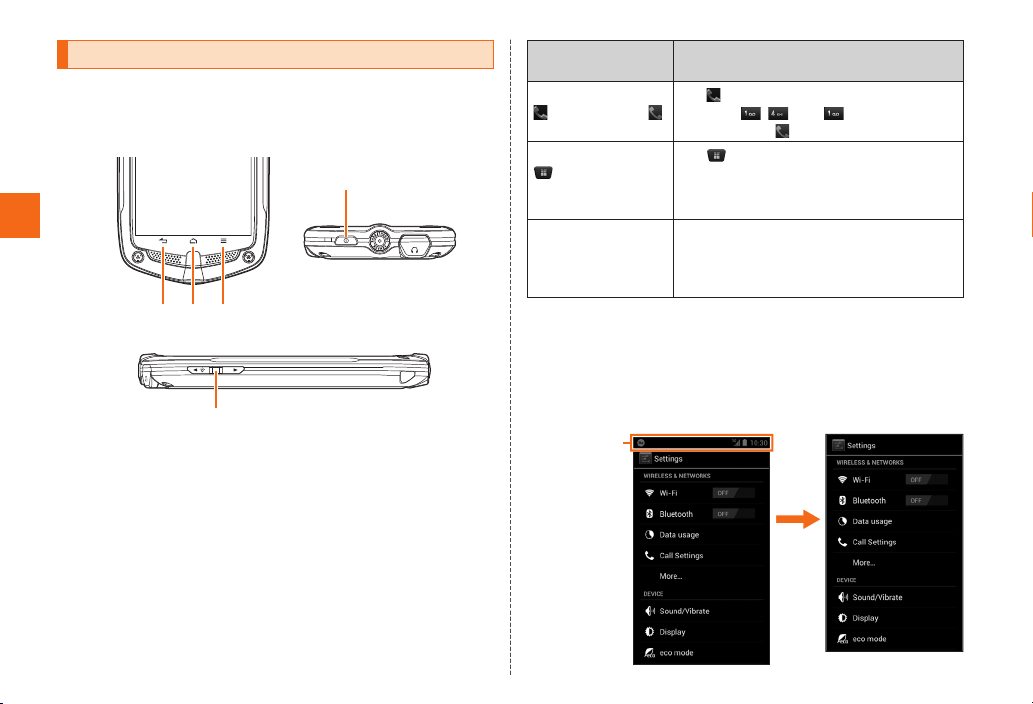
■ Key Indications Used in This Manual
In this manual, keys are represented by simplified illustrations as
shown below.
P
Safety Precautions/ Notes on Waterproof and Dustproof
BHM
><
■ Indications Used for the Operation of Selecting
Items/ Icons /Buttons, etc.
Notations used for operation procedures in this manual are as
follows.
Tapping is the operation to gently touch an item or icon on the
display with a finger and then immediately release your finger.
Descriptions in This
Manual
On the home screen,
→ [1] [4] [1]→
On the home screen,
→ [Settings] →
[Sound/Vibrate]
On the home screen,
M → [Manage
apps]
Tap at the bottom of the home screen.
Next, tap
then finally tap
Tap
Next, tap the “Settings” icon in the
displayed app tray, and tap [Sound/Vibrate]
in the displayed set ting menu.
Tap the Menu key (M) at the bottom of
the display. Next, tap [Manage apps] in the
option menu displayed at the bottom of the
screen.
Explanation of Operation
, , and in order, and
.
at the bottom of the home screen.
■ Illustrations/Screen Displays Used in This
Manual
Screen illustrations shown in this manual may look different from the
actual screens. In some cases, minor details or a part of a screen
may be omitted.
In this manual,
part of the
screen such
as icons are
omitted.
Actual screen In this manual
4
Page 7
◎ In this manual, “microSD™ memory card (commercially available)”
and “microSDHC™ memory card (commercially available)” are
abbreviated as “microSD memory card” or “microSD”.
◎ Explanations of this manual are based on the case when the product
is held vertically. If you hold it horizontally, menu items/icons/onscreen keys etc. may be different.
◎ Menu items, layers and icons described in this manual may be
different according to functions being used and conditions.
Exemptions
◎ The Company is not liable for any damages arising from earthquakes,
lightning, storms, floods or other natural disasters, as well as fires,
actions by third parties, other accidents, intentional or mistaken
misoperation by the customer, or use under other unusual conditions
outside the responsibility of the Company.
◎ The Company is not liable for any incidental damages (change/
disappearance of described content, loss of business income,
disruption of business, etc.) arising from use of or inability to use the
product.
You are recommended to keep a copy of important phone numbers, etc.
◎ The Company is not liable for any damages arising from failure to
observe the described content of this manual.
◎ The Company is not liable for any damages arising, for example, from
malfunction caused by combination with connected devices not related
to the Company.
◎ Captured image data or downloaded data may sometimes be altered or
lost due to faults, repair or other handling of the product. The Company
is not liable for any damage or lost income resulting from recovery of
these data.
◎ It is recommended you keep a copy of important data in your PC’s
hard disk, etc. Whatever the cause of fault or malfunction may be,
the Company assumes no responsibility for alteration or loss of saved
information.
* “The Co mpany” as appears in this manual refers to the following
companies:
Sold by: KD DI COR PORATION, OKI NAWA CELLU LAR TELEP HONE
COMPANY
Manufactu red by: CASIO C OMPU TER CO., LTD.
◎ Reproduction of the content of this manual in part or in whole is
prohibited.
◎ The content of this manual is subject to change without notice.
◎ Every effort has been made in the preparation of this manual. Should
you notice any unclear points, omissions, etc., feel free to contact
us.
◎ Wrong page order or missing pages will be replaced.
Safety Precautions (Observe Strictly)
■ Before using this product, thoroughly read these safety
precautions for proper use. After reading, store the
precautions in a safe place.
These “Safety Precautions” describe instructions that should be
observed to prevent damage to property or injury to the customer or
others using the product.
These instructions are divided into the following categories.
Safety Precautions/ Notes on Waterproof and Dustproof
5
Page 8
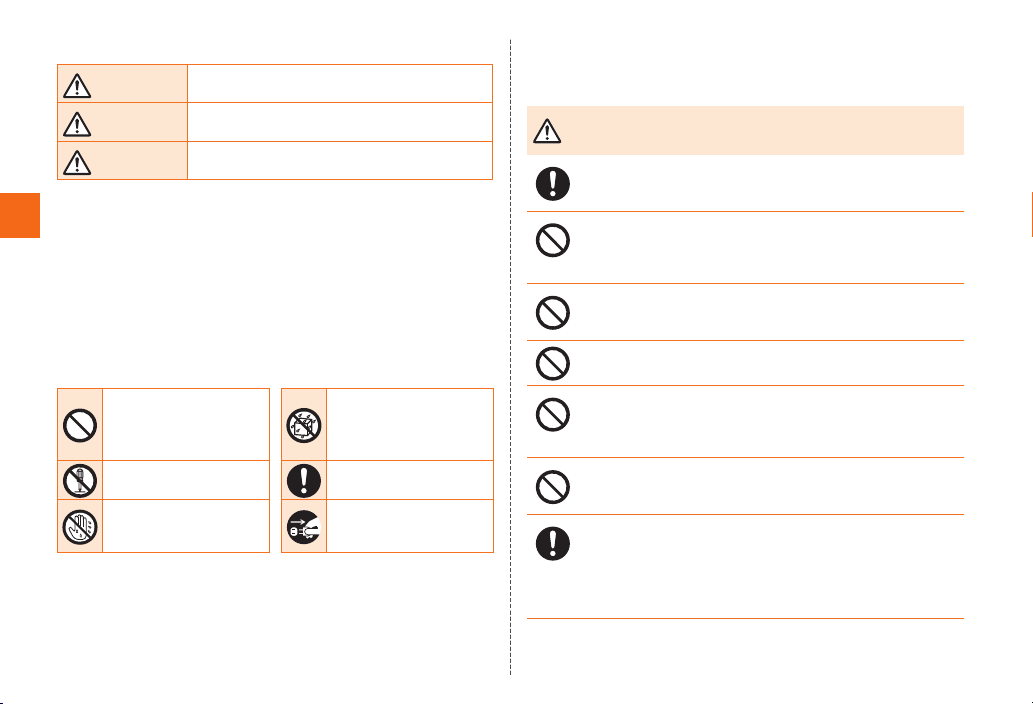
■ Explanation of indications used in this manual
DANGER
WARNING
CAUTION
*1 Serious injury: This refers to loss of sight, in jury, burns (hig h- and low-
temperature), electric shock, broken bo nes, injuries with residual aftereffects
from poiso ning, etc., and injuries requiring hospital admissio n for treatment
Safety Precautions/ Notes on Waterproof and Dustproof
or long- term hospital attend ance as an ou tpatient.
*2 Injury: This refers to i njuries, bu rns (high- a nd low-temperature), elect ric
shock, etc. that do not require hospital admission fo r treatment o r long-term
hospital attendanc e as an outpatient.
*3 Physical damage: Thi s refers to extended damage to buildings, fu rniture,
livestock, o r pets.
This symbol indicates the potential and imminent
danger of death or serious injury
This symbol indicates the possibility of death or
serious injury
This symbol indicates the possibility of personal
injury
(*1)
to a person.
(*2)
to a person or physical damage (*3).
(*1)
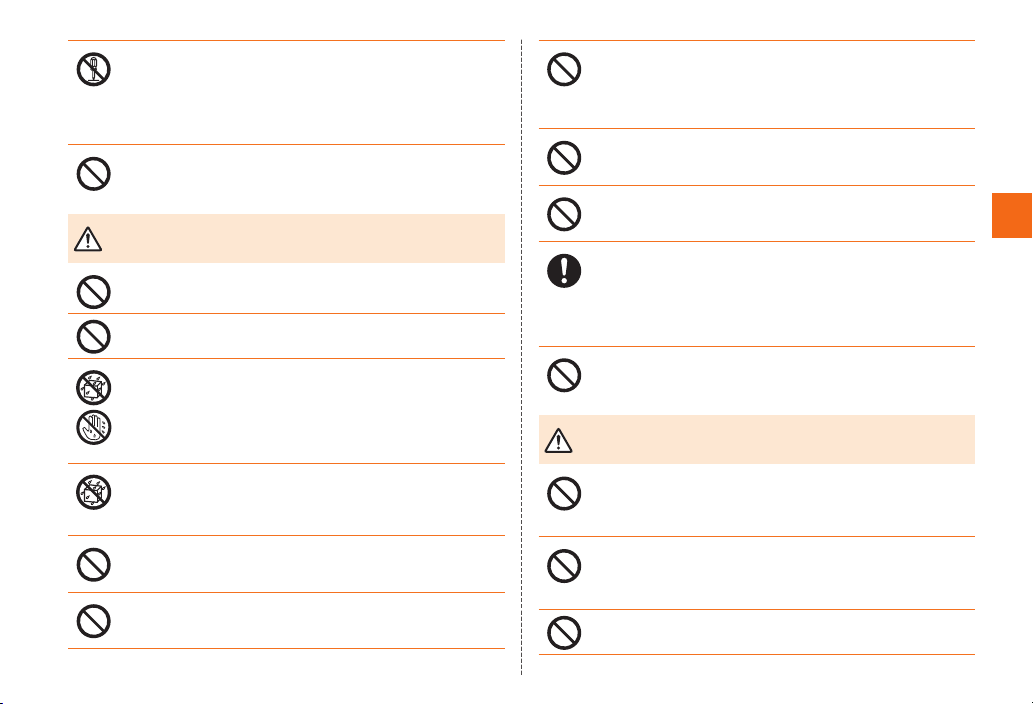
■ Explanation of graphic symbols used in this
manual
Indicates an action that is
not allowed.
Indicates that disassembly
is not allowed.
Indicates that handling with
wet hands is not allowed.
Indicates that use in a
place where the product
is likely to get wet is not
allowed.
Indicates an action that
must be done.
Indicates that the power
plug must be disconnected
from the power outlet.
to a person.
■ Precautions common to the main unit, au
Micro IC Card (LTE), battery pack, charging
equipment, peripheral devices
DANGER
Be sure to use on ly the specified periph eral device s. Use of othe r
peripheral d evices might c ause overheating, fire, rupture, fault, or
leakage of liq uid.
Do not use, sto re or leave the pro duct in hot places (e.g. by the fire,
near a heater, under a kotatsu, in di rect sunlight, in a car in the h ot
sun). Doing so might cause igniti on, rupture, faul t, fire, injur y or low
temperature burn.
Do not put th e product in a co oking app aratus such as microwave
oven or a pressure vessel. Doing so might cause ignition, rupture,
fault, fire or inj ury.
Do not throw t he product into a f ire or heat it. D oing so might cause
fire, rupture or fire.
Do not sho rt-circuit the con nection jacks. Do not a llow condu ctive
foreign objects (metal fragme nts, pencil leads, etc.) to come into
contact with or get inside the conne ction terminals. Doing so might
cause fire or a fau lt.
Do not expose the camera lens to direct s unlight for an ex tended
period. Doing so might cause ignitio n, rupture or fire by the lightcollectin g mechanis m of the lens.
Before entering an area where flammable gas is generate d such as a
gas station, be sure to turn of f the produ ct. Do not charge the battery.
Failure to observe these precautions might cause the gas to catch
fire. In additio n, when using Osaifu -Keitai
to turn off th e power in advance. (If Osaif u-Keitai
locked, can cel the loc k before turning off the po wer.)
Be sure to read th e following hazards before
use.
®
at a gas statio n, be sure
®
function h as been
6
Page 9
The customer is not allowed to disassemble, modify or repair the
product. Doing so might cause a fault, fire, e lectric shock, or inju ry.
The Company is not liabl e even in the event of any nonconfo rmities
arising on the product or peripheral devices as a res ult of
modification, etc. Mo dificatio n of the product is in violati on of the
Wireless Telegraphy Act.
When using a metal acce ssories, etc., take sure not to allow the meta l
part com e in contact w ith the connection jacks or power o utlet. Do ing
so might cause electric sh ock, fire, inj ury or a fault .
WARNING
Do not drop or s ubject to strong impact, such a s throwing. Doing so
might cause ru pture, overheating, fire, or a fault.
Do not use outside when you can hear t hunder. Doing s o might risk
lightning st rikes and ele ctric sho ck.
Althoug h this product model has waterproof/dustproof property,
stop use if liquid such as water, dust gets inside the main unit from
the external connection jack cover, the earphone jack cover or the
battery cover.
Continued use of the product in this state might cause overheating,
fire or a fault.
Never charge the batter y if the main unit is wet. Doing so might cause
electric shock or short-circuit resulting in a fault or fire. Faults caused
by charging when the product is wet with water a re not covered by
the warrant y and the repair cannot be a ccepted.
Do not let you r hands, fingers and other parts of th e body touch the
connection jacks. D oing so might c ause electric shock, injury or a
fault.
If charging is not completed after the specified charging time, stop
charging. Failure to do so might ca use leakage of liquid, overheating,
rupture or fire.
Be sure to read th e following wa rnings
before use.
If the product is damaged because it is dro pped or something, an d
its display is cracked or internal parts are exposed, do not touch the
cracked display or exposed parts with your hands. Doing so might
cause electric shock o r injury from damaged p arts. Co ntact an au
shop or Se cure cell pho ne support center.
When removing the bat tery cove r, do not exert more t han necessary
force. The bat tery pack m ight jump ou t, for example, and cause injury
or a fault.
Do not use th e product to play games, music or watch TV (1Seg)
while driving a car or motor bike, or riding a bicycle or walking. D oing
so might com promise traf fic safet y and cause a n accident.
When inserting an earphone, etc. into t he product, adjust the volume
to the proper leve l. Setting to o loud a volume or using the earphone
continuo usly for a lon g period of time might adversely affect your
ears. Also, raising the vo lume too high might prevent you f rom hearin g
sounds around you, whic h might in turn lead to a traffic a ccident at a
railroad crossing or pedestrian crossing.
Do not leave in places within the reach of small children. Small
children might s wallow small parts, etc. by mistake and choke on
them, or might drop them by m istake and cause accident s or injury.
CAUTION
Do not store th e product in pl aces subject to direct sunlig ht (e.g. in
automobiles), places that get hot, places that get extremely cold, and
in humid or du sty places. Doing so might cause over heating, fire,
deformatio n or a fault.
Do not leave on unstable places such as ro cky stands or tilting
surfaces especially while the vib ration mod e set. Dropping the
product may cause injury or damage. Also, pay suff icient atte ntion to
impact, etc.
Do not cover o r wrap the prod uct with bedding, etc. while using or
charging the product. Doing so might cau se fire, fault or injury.
Be sure to read th e following cautions before
use.
Safety Precautions/ Notes on Waterproof and Dustproof
7
Page 10
Do not use in humid places . If you wear the product, humidity of
sweat might cau se a fault.
Do not use if t here is smoke, abnormal o dor or noise, excessive
overheating, or other abnormalities. If an abn ormalit y occurs,
disconne ct the specified charging e quipment (sold separately) from
the power ou tlet, make sure that the product is not over heating befo re
turning the power off o r removing the batter y off, and co ntact an au
shop or Se cure cell pho ne suppor t center. Also, if you have dropped
or damaged t he product, d o not continue to use it in that state, and
contact an au shop or Se cure cell pho ne suppor t center.
Safety Precautions/ Notes on Waterproof and Dustproof
The product may become hot due to prolo nged use, par ticularly in
high-tem perature environments. B e aware that prolo nged use of th e
product while contacting the body, such as in a pants pocket, can
result in a low -temperat ure skin burn.
Do not touch the main unit o r the specif ied AC adapter (sold
separately) for a long time while power is being supplied fro m an
external source. Doin g so might cause low temperature burn.
Do not use power outlets or wiring apparatus beyond i ts rating. Also,
exceeding rating, for example, by connecti ng multiple d evices to a
single power strip might cau se overheating and fire.
Do not place n ear corrosive chemic als or in place s where corrosive
gas is generated. Doing s o might cause a fault or loss of internal data.
Do not use th e product with the batte ry cover rem oved.
Do not leave or store with the b attery c over removed from the main
unit. Doin g so might allow dust or othe r foreign objects to get inside
and cause a fault.
Be careful so that dust does not attach to the conn ection jac ks. Doing
so might cause a fault.
When adjusting the volum e with an earphone, etc. inserted into the
product, raise the volume a little at a time. If you raise the volume too
much from th e outset, su dden loud noise from the earphone, etc.
might adversely affect yo ur ears.
When using an AC adapter or ex ternal device, inser t/remove the
connecto r straight to/from the term inal. Make sure the orientation of
the conne ctor is correct. Failure to do so might cause damage or a
fault.
■ Main unit
WARNING
Do not use a ce ll phone while driving a car or riding a motorbike or
bicycle. It may cause a traffic ac cident. Use of a cell phone w hile
driving a car o r motorbike is p rohibited by law. Use of a c ell phone
while riding a bicycle may be puni shable by some regulatio ns.
Do not use th is product while you are aboard an airplane. Use of
electric devices trans mitting rad io waves in airpla ne is prohibited by
law. Some airline companies, however, allow th eir passengers to use
cell phone s. For deta ils, contact the airline c ompany you use.
Hardened gl ass is used for t he display of the product. In case it is
broken, do not touch the broken part. Doing so might cause injur y by
the broken part. Cont act an au shop o r Secure cell phone support
center.
When using the product n ear an impla nted pacema ker, implanted
cardioverter-defibrillator or other electronic medical device, radio
waves might affect these units and devices. So, please observe the
following.
1. Those with an im planted pace maker or imp lanted cardiove rterdefibrillato r should carry or use th e product at least 22 cm away
from the pacemaker or cardioverter-defibrillator.
2. Turn the product off in crowded trains or other crowded places,
since there may be people with a cardiac pacemaker or im planted
cardioverter-defibrillator nearby.
Be sure to read th e following wa rnings
before use.
8
Page 11
3. Pay attention to the fo llowing points when using the product inside
medical institutions.
• Do not bring the pro duct into operating theaters, intensive -care
units (ICU) and corona ry care uni ts (CCU).
• Turn the product off in hospital wards.
• Even if yo u are in a lobby, etc., be sure to turn the product off
when there a re electronic medical devices near by.
• When a medical institutio n has laid down designated a reas
where use of th e product is pro hibited or is not allowed to be
brought in, abide by the instr uctions of that medical i nstitution.
4. When using ele ctronic medical devices other than a n implanted
pacemaker and implanted cardioverter-defibrillato r outside a
medical institution (e.g. home medica l treatment), check individ ually
with the manufacturer of th e electronic medical dev ice regarding
the influen ce of radio waves.
The product sometimes affects high-p recision electronic devices.
So, turn it of f near such devices. (E xamples of electronic devices
that might be af fected by the p roduct include cardiac pac emakers,
hearing aid s, other ele ctronic medical devices, fire alarms, and
automatic doors. If you a re using an electronic medi cal device,
contact the device manu facturer or reta iler for information abo ut the
possible af fect of radio wave s.)
Stay aler t to your surroundings when calling, me ssaging, sh ooting
photos, play ing games, browsing the I nternet, watching TV (1Seg)
or listening to music. Failure to do s o might cause a fall or traffic
accident.
Do not light the photo light (fla sh light) in front of a person’s eyes. D o
not gaze at th e light emit ting part w hen the photo light (flash light) is
lighted.
Doing so mig ht cause impa irment of eyesight, etc. Be especially
careful not to s hoot small children from a very close distance.
Do not light the photo light (flash light) toward a drive r of a car,
motorbike or bicycle. If dazzled by the light, the driver might become
unable to drive a nd cause an accident.
Sometimes, very rarely some pe ople demonstrate symptoms such as
temporar y muscle sp asms, los s of consciousness , etc. by receiving
stimulati on by strong lig ht or watching repeatedly fli ckering scre ens.
Those with a past histor y of this sho uld consult with a physician
beforehand.
Do not send d ata by infrared communication with t he infrared po rt
pointing toward eyes. Doing so might cause impa irment of eyesight.
Also, sending data with the infrared por t pointing towa rd some othe r
infrared device might cause false operation, etc.
CAUTION
Use of the main unit in an auto mobile might sometim es affects
on-vehicle electronic devices, though this rarely happens. If this
happens, sto p use since th is may impair safe travel.
If you feel any ab normality with your skin, imm ediately co nsult a
dermatologist. Itching, rashes, ecze ma, etc. sometimes occurs
depending o n your physic al constit ution and c ondition.
The materia ls of parts used on the product are as follow s.
Be sure to read th e following cautions before
use.
Part Material Surface treatment
Outer case (Camera) PC resin Acrylic U V hard coatin g
Outer case (Display sur face) PC resin Acrylic U V hard coatin g
Inside case (Battery) PC- GF resin —
Camera pan el PC-GF resin Acrylic U V hard coatin g
Batter y cover PC-GF resin Acr ylic UV ha rd coating
Lock switch (Battery cover) PC resin —
Lock knob (Batter y cover) POM resin —
Display panel Hardened glass —
Sensor pi ece Elastomer re sin Surface tex turing
Strap piece E lastomer re sin Surface texturing
Earphon e jack cover P C resin/
Elastomer resin
Acrylic U V hard coating
Safety Precautions/ Notes on Waterproof and Dustproof
9
Page 12
External connection jack cover PC resin/
Earpiece c over PC resin Acrylic U V hard coatin g
Micropho ne/Speaker cover PC resin Acrylic U V hard coatin g
Side Key (volume U P/DOW N) PC re sin Acr ylic UV hard coating
Power Key PC resin Acrylic U V hard coatin g
Photo light /Infrare d port cove r PMMA resin Hard coating
Lens cover PMMA resin Hard coating
Lens ring PC resin Acrylic U V hard coatin g
TV antenna tip cover A BS resin Surface tex turing
Safety Precautions/ Notes on Waterproof and Dustproof
TV anten na origin Jo int Stainle ss steel Nickel plati ng
Screw Stainless steel Chromium plating
Charging term inal Stainless steel Gold plating
Do not bring t he product cl ose to magnetized objects su ch as cash
cards, floppy disks, credit c ards, and prepa id cards. Doing so might
result in loss of recorded information.
Use the product with the c overs of exter nal conne ction jack a nd
earphone jack closed. If the covers are open, dirt or water may get
inside causing a fault.
Do not allow liquids, met al objects, b urnable ite ms, or othe r foreign
matter to get i nside the ex ternal con nection jack, earph one jack,
or microS D memor y card slot. Fa ilure to do so might cause a fire,
electric sh ock, or a faul t. Be sure to cover the externa l connection
jack and earp hone jack w hen not using them to prevent du st and
other obje cts from get ting inside.
Do not swing the product a round by holding the earphone (sold
separately) or ha nd strap, etc. Doin g so might cause injury, accident,
malfunction or damage. Do not use a damaged hand strap.
Stow the T V antenna when not watching TV (1Seg). If you operate the
product for ca lling, etc. with t he TV ante nna extend ed, it might cau se
unexpected injury by hit ting your fac e, etc.
Elastomer resin
Acrylic U V hard coating
Part Material Surface treatment
Do not fold th e TV anten na or swing th e product wit h the TV antenna
extended. D oing so might cause injur y or deform or damage of the
TV antenna.
Pay attentio n to items becoming stuck to the main unit . The earpiece,
speaker uses magnets, a nd so thumbt acks and pins, c raft knife
blades, staples, and oth er metal objects sometimes bec ome stuck to
the main uni t, and cause u nexpected injury. Before using the produ ct,
be sure to check t hat there are no fo reign object s on the earpiece,
speaker or other par ts.
Do not put th e product dire ctly on sand at a beach, etc. Sa nd or other
small par ticles might get inside th e micropho ne, earpie ce or speake r,
causing the volume to drop. If s and gets inside the product’s main
unit, it might c ause overheating or a fault.
If you have a weak heart, be careful when s etting th e incomin g
vibration and ringtone volu me. They might affect hea rt.
When using t he product for calling, data c ommunic ation or watching
TV (1Seg), be careful n ot to keep the product in direct contact wi th
your skin for a prolonged pe riod, or not to c over the produ ct with
paper, cloth, bedding, etc. Doing so might cause f ire, burns or a fault.
When attaching a mic roSD card, push it in the s pecified direction until
the lock is engaged. Do n ot release your finger suddenly as the card
may fly out. W hen removing the micro SD card, push it in the sam e
direction until the lock disengages. Do not move your face close to
the card. The card may fly out q uickly resu lting in injury or damage.
When usin g the compass bearing function, large discrepancies may
occur in the measurement results depending on the measurement
location. Be particularly ca reful when m easuring inside buildings
or moving objects or nea r permane nt magnets (such as magnetic
necklace s), high-voltage wires, over head wires, m etal (such as steel
desks or lockers), and home electronics (such as TVs, co mputers,
and speakers).
10
Page 13
Do not use th is product ne ar perman ent magnets (such as the
magnetic ne cklaces or clasps of bags), hom e electroni cs (such as
TVs or speakers), or other objects with a strong magnet ic field. No te
that if the product come s under the influence of a st rong magnetic
field (referred to as becoming mag netized), the accuracy of the
compass b earing may be ad versely af fected.
■ Battery pack
(The b attery pack o f this product i s a lithium-io n
battery.)
The battery pack is not fully charge d at the time of
purchase. Charge the bat tery before u sing the prod uct.
DANGER
Do not sho rt-circ uit the positive (+) and negative (−) terminals of the
battery pack.
Connect t he batter y pack to this pro duct in the co rrect orient ation.
Connecting in an incorrect orient ation might cause rupture, fire
or overheating. Do not tr y to forcibly co nnect the battery pack,
instead thoroughly che ck the connection ter minals care fully before
connection.
Do not puncture the battery pack wi th a nail, hit it with a hammer or
step on it. Do ing so might cause fire or damage.
Do not allow m etal objects (such as necklaces and hair pins) to come
in contact with the connection ter minals whe n carryi ng or storing
the batter y pack. Do ing so might cause fire or a fault d ue to a short
circuit.
Do not disassemble, m odify or directly sold er the battery pack. A lso,
do not remove t he stickers of the batter y pack. Doing so might c ause
spilling of the battery liquid resulting in an accide nt such as los s of
eyesight if it gets into eyes, or cause overheating, fire or rupture.
Be sure to read th e following hazards before
use.
Do not use a battery pac k that has bee n dropped, stepped on,
damaged, or leaking bat tery liqu id. Immediately move the battery
pack away from fire i f you notice leakage of liqu id or unusual odor.
Failure to do so might cause the leaked liquid to c atch fire result ing in
fire or rupture.
The battery pack is not waterproof/du stproof. Do not wet the battery
pack with water, seawater, pet urin e, etc. Never charge the wet
battery p ack. A wet battery pack mig ht cause overh eating, ruptu re or
fire. If you drop th e product into wate r by mistake, contact an au sho p
or Secure cell phone su pport ce nter.
Never use the p roduct with wet hands.
If the leaked liquid gets on yo ur skin or clothes, immediately rin se it
off with wate r to avoid injur y. If the liquid gets into your eyes, do not
rub but wash yo ur eyes with water, and im mediately c onsult a doctor
to avoid the risk of l osing your eye sight. If the liquid gets on a dev ice,
wipe it off without tou ching it.
Immediate ly move the bat tery pack away from fire if you n otice
leakage of liq uid or unusual odor. Failure to do so might cause the
leaked liquid to c atch fire result ing in fire or rupt ure.
The battery pack is a co nsumable item. If the pe rforma nce of a
battery pack does no t recover (e.g. the usa ble time af ter each
charge has be come ext remely short), the bat tery pack is at the end
of servic e life, so stop use a nd buy a new one of the specif ied type.
Failure to do so mig ht cause overheating, fire, rupture or leakag e.
Note that the length of ser vice life varies depend ing on the usage
condition, etc.
Be careful not to have the battery pack bitten by your pet. It might
cause leakage, overheati ng, rupture or ignition of the battery pack.
Safety Precautions/ Notes on Waterproof and Dustproof
11
Page 14
■ Charging equipment
WARNING
Do not use at other voltag es than the sp ecified po wer supply voltage.
Doing so mig ht cause fire, ove rheating, o r electric shock.
• Common AC adapter 01 (sold separately): AC 100 V (home use
in Japan)
Do not charge in single- phase 20 0 V or using transformer for
international travel.
• AC adapter (sold se parately) that ca n be charged overseas except
Safety Precautions/ Notes on Waterproof and Dustproof
above: AC 100 V - 240 V
• DC adapter (sold separately): DC 12 /24 V (for negative g rounded
vehicles onl y)
Firmly ins ert the plug of the speci fied chargin g equipment (sold
separately) into th e power outl et down to the ba se of its pins.
Incompl ete insert ion of the power plug might re sult in electric shock
or fire cause d by overheatin g and fire. Do no t use damage d adapters
or loose power outlet s.
If the fuse in t he common DC adapter 01/ 03 (sold separately) blows,
replace it with a fuse of the s pecified t ype (250 V, 1 A). Replacing
with a diffe rent type of f use might cau se overheating or fire. (Fo r
information about fu se replacement, carefully read the ma nual for the
common DC adapter 01/0 3 (sold separately).)
Do not damage, modif y, twist, pull or place a heav y object on the
power cord of the specifie d charging equipment (sold separately).
Do not use a da maged cord. D oing so might cause an ele ctric shoc k,
short ci rcuit or fire.
Do not let you r hands, fingers and other parts of th e body touch the
connection termina ls. Doing so might cause electric sho ck, injur y or
a fault.
If you hear thunder, do not touch t he power plug. Doing so mig ht
cause an ele ctric shock as a result of a lightning stri ke.
12
Be sure to read th e following wa rnings
before use.
Before cleaning the specified chargin g equipment (sold separately),
unplug its power plug from t he outlet o r cigarette lighter socket. I f
the plug rema ins plugged i n when you clean the equipment, it might
cause an ele ctric shock or shor t circuit. Al so, wipe off dust on the
charging equ ipment ’s power plug. If t he plug is lef t covered with dust,
it might cause fire.
Install and p osition in -car devices where they do not hinder driving
or safety eq uipment su ch as airbags. Failure to do so mig ht cause
a traffic accident. Install in-c ar devices following the instructio ns of
their manuals.
The specif ied charging equipment (sold separately) is not waterproof/
dustproof. Do not use in places subject to splashing with water, pet
urine or oth er liquids. D oing so might result in faults resulting from
overheatin g, fire, electr ic shock, or short-circuiting of electro nic
circuits. In the event that the p roduct is splashed with liquid,
immediate ly disconn ect the powe r plug from the power plug.
Never use the p roduct with wet hands.
When the AC ad apter is not to be us ed for a long time, disconnect
the AC adapter’s power plug fro m the power ou tlet or cigarette lighter
socket. Failure to do so might cause electric shock, fire or a fault.
If you feel any ab normality with your skin, imm ediately co nsult a
dermatologist. Itching, rashes, ecze ma, etc. sometimes occurs
depending o n your physic al constit ution and c ondition.
The materials of parts us ed on the des ktop hold er are as follows .
Part Material Surface treatment
Outer case (l ower on) ABS resin —
Terminal cover POM resin —
Connection Terminal Phosphor bronze Gold plating
Connection jack (micro USB) SUS Nickel plating
Screw Carbon steel for cold
Lock tab POM resin —
forging
Trivalent chromate
Page 15
Switch button POM resin —
Part Material Surface treatment
Rubber foot Polyurehthan e resin —
CAUTION
Charge the bat tery in a st able place especially while the vibration
mode set. If p laced on an in clined sur face or wobbly stand, the
product might fall causing injury or damage. In addition, do not cove r
or wrap the pro duct with a cl oth or bedding. Doing so m ight cause
removal of the p roduct, fire o r a fault.
When unplugging the plu g of the speci fied charging equipment (sold
separately) fro m the power outlet or cigarette lighter socket, hold a nd
pull the powe r plug. If you pull the cord, the c ord might be damaged.
Do not use th e commo n DC adapter 01/03 (sold separate ly) with
the car engi ne stopped. D oing so might result in draining of the car
battery.
Never use the product in humid places as a bath area. Doi ng so
might cause electric sho ck or a fault.
Never charge the wet batter y pack.
Do not leave th e specified charging equipment (sold separately)
connected to the main unit with the bat tery pack re moved. Doi ng so
might cause fire or electric shock.
Do not use th e desktop h older in a vehi cle. An accide nt may occur as
a result of the desktop ho lder falling and interfering with drivi ng. The
desktop h older is designed for use in a s table location indoors.
Be sure to read th e following cautions before
use.
■ au Micro IC Card (LTE)
WARNING
Do not put th e au Micro IC Ca rd (LTE) in a cooking apparatus s uch
as a microwave oven or a pressure vess el. Doing so might cause
melting, overheating, fu ming, loss of data or a fault.
CAUTION
Be careful n ot to injure your hand or finger when at taching/removing
the au Micro IC Card (LTE).
Use only the devices spe cified by the C ompany to ins ert the au M icro
IC Card (LTE) in. Us ing a device not specifie d by the Company might
cause loss o f data or a fault. F or the specified devic es, contact an au
shop or Customer Ser vice Center.
Do not disassemble or modify t he au Micro IC Card (LTE). Doing so
might cause loss of data or a fau lt.
Do not use or leave the au Micro IC Card (LTE) in hot places such a s
by the fire or a heater. Doing so might cause melting, overheating,
fuming, loss of data or a fault.
Do not throw t he au Micro IC Card (LTE) into a fire or he at it. Doing s o
might cause m elting, overh eating, fuming, loss of data or a fault.
Do not touch the IC (metal) part of the au Mi cro IC Card (LTE) or
short- circuit it. D oing so might cause los s of data or a fault .
Do not drop th e au Micro IC Card (LTE) or subject it to strong impact.
Doing so mig ht cause a fault.
Do not fold, bend or place a he avy object on the au Micro IC Card
(LTE). Doing so might cause a fault .
Be sure to read th e following wa rnings
before use.
Be sure to read th e following cautions before
use.
Safety Precautions/ Notes on Waterproof and Dustproof
13
Page 16
Do not wet the au Micro IC Card (LTE). Doing so might cause a fault.
Do not scratch t he IC (metal) part of the au Micro IC Card (LTE).
Doing so mig ht cause a fault.
Do not store th e au Micro IC Ca rd (LTE) in dusty places. Doing so
might cause a fault.
Do not store the au Micro IC Card (LTE) in places ex posed to direct
sunlight or hot and humid places. Doin g so might caus e a fault.
Safety Precautions/ Notes on Waterproof and Dustproof
Store the au Micro IC Card (LTE) o ut of reach of sm all children. F ailure
to do so might cau se injury o r asphyxiation, etc. if they accidentall y
swallow and ch oke on it.
Handling Precautions
These precautions are provided to ensure that performance can be
fully demonstrated. Thoroughly read these precautions to ensure
correct use.
■ Precautions common to the main unit, au Micro IC Card (LTE),
battery pack, charging equipment, peripheral devices
• This product is waterproof/dustproof, however, do not allow
water to seep in or dust to get in the product and do not allow
accessories or optional devices to get wet or be exposed to
dust. The supplied and optional accessories are not waterproof/
dustproof.
• This product has waterproof protection compliant with IPX5 and
IPX8, and dustproof protection compliant with IP5X when the
external connection jack cover, earphone jack cover, and battery
cover are securely closed. However, this does not imply that the
product is completely waterproof/dustproof. Do not attach or
remove the battery pack or open or close the external connection
jack cover, earphone jack cover or bat tery cover in the rain or
when waterdrops or dust is on the sur face of the product. Doing
so could cause water to get inside, resulting in corrosion of the
internal parts or a fault. The supplied and optional accessories are
not waterproof or dustproof. Malfunctions determined to be caused
by exposure to water or dust getting inside are not covered by the
warranty.
• The display or internal substrate might be damaged if it is subject
to forcible impact resulting in a fault. Do not sit down with the
product in a pocket of trousers or skirt or place the product under
the heavy object in a bag. Keeping an external device connected
to the external connection jack or earphone jack might damage
the connector resulting in a malfunction. Such damage and
malfunction are not covered by the warranty, even if there is no
external damage.
• Do not use the product in extremely hot, cold or humid places.
(Use within an ambient temperature range of 5°C to 35° C and
humidity range of 35% to 85%.)
- Charging equipment
- Peripheral devices
• Do not use the product in extremely hot, cold or humid places.
(Use within an ambient temperature range of 5°C to 35° C and
humidity range of 35% to 90%. Temporary use at 3 6°C to 40°C is
allowed.)
- Main unit
- Battery pack, au Micro IC Card (LTE) (attached to the main unit)
14
Page 17

• Do not use in places subject to lots of dust or vibration.
• Clean the connection jacks with dry cot ton swabs, etc. every
now and then. Soiled jacks might cause poor connection. Do
not exert a strong force to clean the connection jacks to prevent
deformation.
• Clean the product with a soft dry cloth (such as the type used
for eyeglasses). Forceful rubbing with a dry cloth may scratch
the display. The display may be stained if splash or smear is lef t
attached to the surface. Wiping the product using alcohol, thinner,
benzene, detergent, etc. might erase the printing on the outer
casing or cause discoloration.
• Use as far away as possible from land-line phones, TVs and
radios. Use nearby might affect them.
• The product may become warm during camera operation, voice
calls, TV (1Seg) viewing, charging or other operations under
certain conditions, but this is not a malfunction.
• Turn off the power before removing the battery pack. If you remove
the battery pack with the power on, saved data might be altered or
lost.
• When the product is used by a child, parents or guardians should
thoroughly read this manual and teach the child how to use it.
Also, take care that the child uses the product according to the
instructions.
■ Main unit
• Do not forcefully press, tap or intentionally subject the display to
strong impact. Doing so might cause scratching or damage.
• Do not forcefully press your fingernails, sharp objects or hard
objects against keys or display surface. Doing so might cause
scratching or damage. The touch panel is designed to be lightly
touched by fingers. Do not apply strong pressure with your fingers
or sharp-pointed objects (such as fingernails, ballpoint pens and
pins) on the touch panel.
In the following cases, the product may not respond to touching
the touch panel, or errors in operation may occur.
• Operation with gloved hands
• Operation with fingernails
• Operation with a foreign object placed on the touch panel
• Operation with a protective sheet or sticker on the touch panel
• Operation with wet or sweaty fingers
• Operation under water
• This product uses liquid crystal for its display. The display
response speed may become slow when the ambient temperature
is low, which is due to the property of liquid crystal and not a
malfunction. The display response speed will return to normal at
room temperature.
• Although the display used on the product is made using high-
precision technology, some pixels (dots) might be lit or out at all
times. This is not a malfunction.
• When you put the product in your pocket or bag, take care so that
the display does not come in contact with metal objects or other
hard objects. Also, be careful not to scratch or damage the display
by using a strap whose metal or other hard part comes in contact
with the display.
• When storing in your pocket or bag, be sure to always retract the
TV antenna. Also, do not pull out the T V antenna or bend it with
excessive force. This could break the antenna or damage the
product.
Safety Precautions/ Notes on Waterproof and Dustproof
15
Page 18
• If answering a phone call while watching T V (1Seg) with the TV
antenna extended or raised, be particularly careful that the tip of
the TV antenna does not harm people in the surrounding area and
that it does not poke a child’s or your own eyes.
• Do not affix stickers or other objects on the display or keys. This
could result in a malfunction or shorten the usage time. This could
also damage the product.
• A protective sheet is af fixed to the display of this product when it
is first purchased. Be sure to remove this sheet before use. Screen
confirmation and touch operations will fail to operate properly if this
Safety Precautions/ Notes on Waterproof and Dustproof
sheet is not removed before use.
• When wiping the display, wipe with a soft, dry cloth. Use of a glass
cleaner or other similar liquid might cause a fault.
• Do not discard the product together with regular trash. Please
cooperate in the collection of the product when it is no longer
needed to protect the environment and effectively use resources.
Old products are collected at au shops and other places.
• Insert only a microSD memory card into the microSD memor y card
slot on the product.
• Do not exert excessive force when attaching/removing a microSD
memory card. Doing so might injure your hands or fingers.
• While writing/reading data to/from a microSD memory card, do not
subject the product to vibration or impact, remove the battery pack
or turn off the power. Doing so might cause loss of data or a fault.
• Do not remove the stickers printed with the IMEI that can be seen
when the battery cover is removed. These stickers prove that the
product and the communication module you are using comply with
the Wireless Telegraphy Act and Telecommunications Operations
Act.
16
• Never use modified au cell phones. Use of a modified device
violates the Radio Law.
This product has acquired the cer tification of conformity with
technical regulations for the specified radio station based on the
Radio Law, and the “Technical Conformity Mark
” is printed on
the nameplate of the product as a cer tificate.
If the screws of the product are removed and modifications are
made to the internal components, the certification of conformity
with technical regulations will become invalid. Never use the
product without the valid certification. Doing so violates the Radio
Law.
• To prevent unlawful modification, the product has been designed
so that it cannot be easily disassembled. Modifying the product is
prohibited by the Radio Law.
• Contents saved in this product, such as contacts, mails and
favorites, might be altered or lost by an accident, fault, repair or
mishandling. Be sure to keep a copy of impor tant contents. Note
the Company assume no responsibility for any damages or lost
profits resulting from altered or lost contents.
• Note that mails and downloaded data (both charged or free
content) saved on the product cannot be returned to the customer
when the product is replaced for repair of a fault, for example.
• Note that applying unnecessary force with the external device
connected to the external connection jack might cause damage.
• Note that pulling strongly or applying excessive force to the
external connection jack cover or earphone jack cover may cause
damage.
• Continuous, prolonged use of this product by shooting with
the video camera, watching T V (1Seg), using the browser, or
displaying the camera screen in camera shooting can cause
certain par ts of this product to become hot, and prolonged contact
with these parts can cause a low-temperature skin burn.
Page 19

• Take care not to inconvenience people around you when you use
the product in a public place.
• When hearing the other par ty’s voice, make sure that the earpiece
is placed at the center of your ear. If the earpiece (audio output
port) is closed by the ear lobe, it may be hard to hear the voice.
• When suddenly brought into a warm place from a cold place,
or when in a humid location, or when used where temperature
suddenly changes (e.g. near the air discharge port of an air
conditioner), water droplets (i.e. condensation) sometimes are
formed inside the product. Note that when used under conditions
such as this, humidity might cause corrosion or a fault.
• You are recommended to store copies of individual data such as
photos you took, videos and music in your PC by sending each file
as mail attachment, etc. Note, however, that you may not be able
to make copies of some copyrighted data even by the above mentioned means.
• Do not use the product while driving a car, etc. Using functions
such as mail and camera other than talking on the phone with a
handsfree kit might cause a traffic accident and is prohibited by
law.
• Take care not to place magnetized items such as magnetism,
speakers and T V sets near the product, as it might cause
malfunction.
• Even if you cover the microphone to make your voice inaudible to
the other party, the other par ty can hear your voice.
• When using handsfree call, take care to keep the speaker at a safe
distance from your ears, as the speaker volume may be too loud.
• Do not peel off the black sheet on the inner side of the battery
cover. Doing so might make it impossible for FeliCa data to be
read or written.
• Before putting the product in your bag or pocket, we recommend
setting the screen lock to prevent unintended key operation.
• Do not cover the light sensor with your finger or put a sticker on it.
Doing so may hinder the light sensor from detecting the ambient
brightness and functioning correctly.
• Do not cover the proximity sensor with your finger or put a sticker
on it. Doing so may cause the sensor to malfunction and make the
display always turned off while receiving a call or during a call.
■ Touch panel
• Do not press the touch panel strong, operate with wet finger
or humid finger with sweat, or operate when water droplets are
attached on the display or condensation is formed on the display.
Doing so might hinder correct operation of the touch panel.
• Before putting the product in your pocket or bag when carrying it
around, apply the screen lock. If the screen is unlocked when you
carry it around, unintended operations may be performed.
• Use your finger to operate the touch panel. Do not use ballpoint
pens, pencils or other sharp-pointed objects. Using such objects
does not only hinder correct operation of the touch panel, but also
might cause scratching or damage to the display.
• Do not put stickers or sheets (e.g. commercially available
protective sheets, peep prevention sheets) on the display. Doing
so might hinder correct operation of the touch panel.
• Do not try to operate the touch panel with your fingernails or
fingernail tips. Doing so can result in split nails or injuries such
as jammed fingers, or malfunctions where operation fails to be
performed when using the touch panel.
Safety Precautions/ Notes on Waterproof and Dustproof
17
Page 20

• If the display surface is dirty, wet with sweat or water, or attached
with dust, it may not function correctly. In such case, wipe the
display surface with a dry, soft cloth. Note that forceful rubbing
with a dry cloth may scratch the display.
■ Battery pack
• The batter y pack is a consumable item. If the performance of a
battery pack does not recover (e.g. the usable time after each
charge has become extremely short), the bat tery pack is at the
end of service life, so buy a new one of the specified type. Note
that the length of service life varies depending on the usage
Safety Precautions/ Notes on Waterproof and Dustproof
condition, etc.
• Use in very hot or cold environments, for example, when lef t in
an automobile with the windows closed in summer, will cause the
battery capacity to drop and shorten the available battery usage
time. This will also shorten the batter y pack’s service life. Try to use
the battery pack as far as possible at room temperature.
• When the bat tery pack is not to be used for a long time, remove
the battery pack from the main unit, and store it away from hot and
humid places.
• Charge the battery before using the product for the first time after
purchase, or if you have not used the product for a long time (the
battery pack might become warm while charging, but it is not
abnormal).
• Do not discard battery packs together with regular trash. Please
cooperate in the collection of used battery packs to protect the
environment and effectively use resources. au shops and other
retailers collect used battery packs.
• Battery packs sometimes swell up as they approach the end
of their service life. This is due to the properties of lithium-ion
batteries, and is not a problem in terms of safety.
18
■ Charging equipment
• When not using the specified charging equipment (sold
separately), remove the plug from the power outlet.
• If trying to charge the product in an extremely hot or cold
environment, the protective function may be activated, and
charging may fail to be per formed. Move the product in an
environment with an ambient temperature of 5°C to 3 5°C before
starting charging.
• Do not wrap the cord of the specified charging equipment (sold
separately) around the power plug or the desktop holder. Doing so
might cause electric shock, ignition or fire.
• Do not forcibly bend the charging equipment’s plug or the
connection between the connector and power cord. Doing so
might cause electric shock, overheating or fire.
■ Camera
• Do not leave the camera lens exposed to direct sunlight. Imaging
elements might be discolored or burnt.
• When using the camera, follow common rules of etiquette
regarding camera use.
• Image data might be altered or lost due to malfunction, repair or
mishandling of this product. The Company takes no responsibility
for recovery of altered or lost data, damages resulting from altered
or lost data, and lost profits.
• When photographing important occasions (such as a wedding),
take a trial shot and check the shot image to make sure it is
correctly shot and the audible sound is recorded.
• Be careful of shooting and publishing other individuals indiscreetly,
as it might infringe on their portrait rights, etc.
• Do not use the camera for recording commercially available books
or information of which photographing is not allowed.
Page 21
■ Music, videos and TV (1Seg)
• Do not listen to music or watch videos or T V (1Seg) while driving
a car or motorbike, or riding a bicycle. Use of cell phones while
driving a car or motorbike is prohibited by law. (Use of cell phones
while riding a bicycle may also be punishable by law.) In addition,
stay alert to the traffic around you even when walking. Surrounding
sounds may not be heard clearly, and gazing at the screen might
distract your attention causing a traffic accident. Be especially
careful at railroad crossings, station platform and pedestrian
crossings.
• Take care not to listen at ear-splitting volume for a long time, as it
might affect hearing.
• Be careful of sound leakage from earphones (sold separately) in
trains or other places with many people around you.
■ Copyrights and rights of portrait
• You are not allowed to copy, distribute, publish, modify or edit the
data you shot, recorded or downloaded using this product without
consent of the copyright holder, except for personal use, under the
copyright law. In addition, do not use or modify por traits or names
of other individuals without their consent, as it might infringe on
rights of portrait.
Note that shooting and recording may be restricted at some live
performances, shows and exhibitions even for personal use.
• Be careful about the copyright and portrait right when posting
photos you shot, etc. on Internet homepages.
■ au Micro IC Card (LTE)
• The au Micro IC Card (LTE) is lent to you by au. In case of loss
or damage, the card will be replaced at your expense. When a
malfunction is suspected, or in case of theft or loss, contact an au
shop or PiPit.
• Do not forcibly remove or insert the au Micro IC Card (LTE). Be
careful not to exert excessive force when inserting the card into
your au cell phone.
• When inser ting and removing the au Micro IC Card (LTE), be
careful not to touch the IC (metal) section.
• You are responsible for any damage caused by inser ting your au
Micro IC Card (LTE) into some other IC card reader/writer, etc.
• Keep the IC (metal) part of your au Micro IC Card (LTE) clean.
Wipe the card with a dry, soft cloth for cleaning.
• Do not put stickers, etc. on the au Micro IC Card (LTE).
• Do not inser t a card other than au Micro IC Card (LTE) into the
product. You cannot use the product with a card other than au
Micro IC Card (LTE).
• Do not use the au Micro IC Card (LTE) with the card adapter.
Doing so might cause a fault.
Backup content on the product
• Please back up important content recorded or downloaded to the
product to an outside source.
the product sometimes disappears or is altered
factors, such as static electricity or a fault, repair, mishandling, etc.
* How to make backups: Store important data such as phonebook data,
music on microSD mem ory cards. You can also send f iles as mail
attachm ent or transfer to your PC. Note, h owever, that there are so me
data that cannot be copi ed by using the se means.
Content recorded to memory on
by unexpected
Safety Precautions/ Notes on Waterproof and Dustproof
19
Page 22
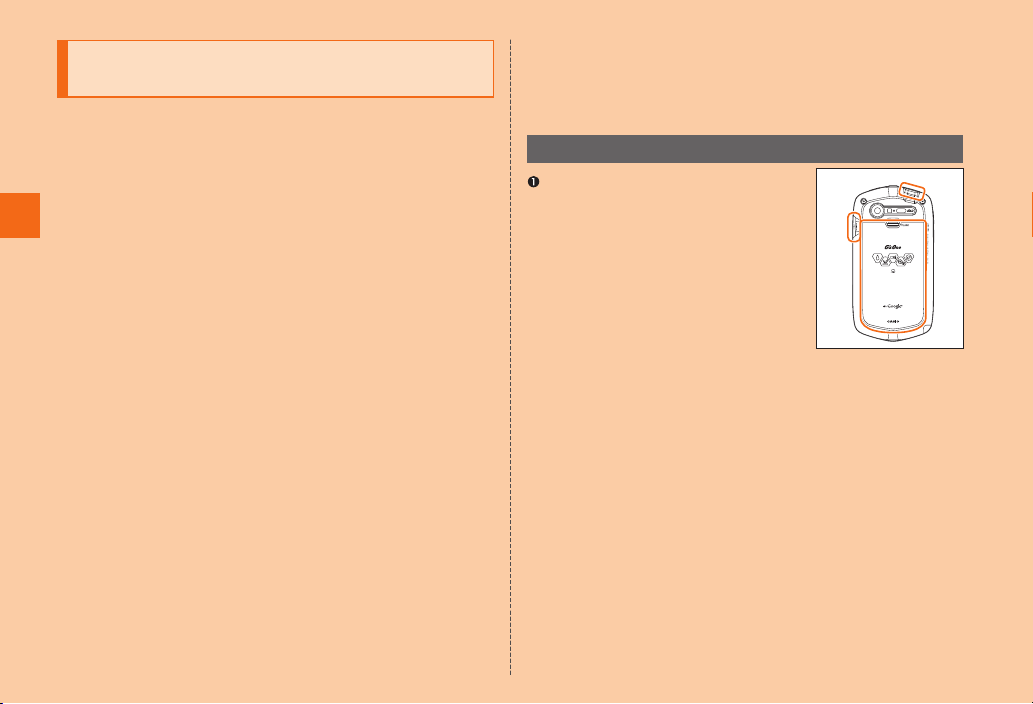
Notes on Waterproof, Dustproof and Shock-resistant Properties
This product has a waterproof property equivalent to IPX5*1 and
*2
IPX8
, as well as a dustproof property equivalent to IP5X*3 on
the condition that the external connection jack cover, earphone
jack cover and bat tery cover are securely attached. Furthermore,
the product has a shock-resistant property (compliant with MIL
standards
testing.)
Safety Precautions/ Notes on Waterproof and Dustproof
Before using the product, thoroughly read “Important items to
remember before use” and “Tips for comfortable use” to ensure
correct use. Failure to follow the contents described in these
sections may cause intrusion of water, sand or other foreign material,
resulting in overheating, fire, electric shock, injury or a fault.
*4
) to withstand hard day-to-day use. (Based on in-house
*1 IPX5 equivalent me ans that the product will ma intain its op erability as a
phone even if it is sprayed with water from a 6.3 m m diameter n ozzle at a
distance of a bout 3 meter s for more than 3 minutes at a rate of ab out 12.5
liters per minute from any direction.
2
*
IPX8 equivalent me ans that the p roduct will ma intain its operability as
a phone wit h no water getting inside th e main unit even if it is gently
submerged in a tank of still ta p water at room tem perature to a depth of 1.5
meters for abo ut 30 minu tes.
3
*
IP5X equivalent mea ns that the pro duct will securely maint ain its
operabilit y as a phone eve n after it has been placed i n an apparatus w ith
grit and dust of diameters of 75 μm or less an d shaken for 8 ho urs.
4
*
Tests were performe d under independent standards com pliant to MIL-
STD- 810G Met hod 516.6- Procedure IV establis hed by the United States
Depart ment of Defense, where the product is drop ped closed from 1.22
m onto plywo od (lauan wo od) in 26 directions.
* Shock-resistant propert y of this prod uct is based o n the assum ption
that it is used in everyday life. Therefore, the pro duct might brea k if it
receives exce ssive impact s uch as being t hrown or drop ped forcibly.
Note also that the product gets scratches, e tc. by falling impact eve n
though its functionality of the main unit rem ains intact .
Since operation of the product on each usage scene was confirmed
based on the above assumption, proper operation of the product
in every possible condition during actual use is not guaranteed.
Malfunctions determined to be caused by mishandling by the
customer are not covered by the warrant y.
Important items to remember before use
Make sure that the external connection
jack cover and earphone jack cover are
firmly closed, and the battery cover is
securely attached.
• Waterproof, dustproof and shock-
resistant properties are only effective
when the covers are securely closed.
• Just a small particle (a hair, etc.) on
the seals can cause water or dust to
enter inside.
• Do not open/close the external connection jack cover,
earphone jack cover or battery cover if the main unit or your
hands are wet.
• For how to close the battery cover, refer to “Attaching/
Removing the Battery Pack” (▶P.3 2 ).
• For how to close the external connection jack cover and
earphone jack cover, refer to “Opening/Closing the External
Connection Jack Cover or Earphone Jack Cover” (▶P. 31 ).
20
Page 23
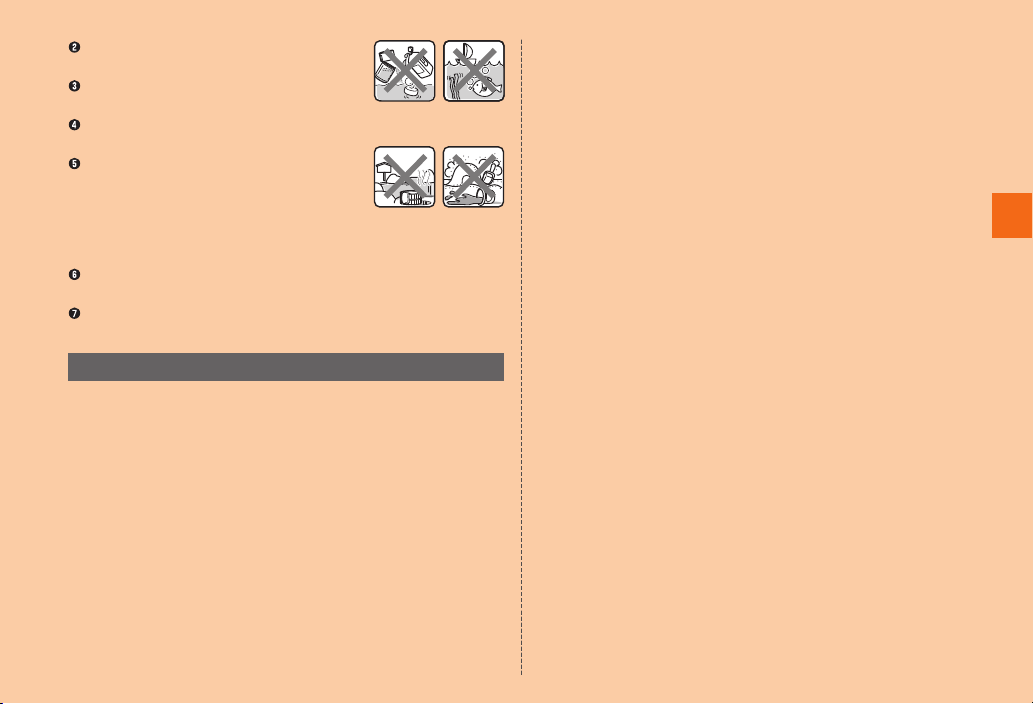
Do not immerse the product in water
with soap, detergent or bath salts in it.
Do not immerse the product in seawater, a
swimming pool or hot spring.
Do not immerse the product in any liquid
(alcohol, etc.) other than water.
Soap/
detergent/
bath salts
Seawater
Do not place the product directly on
sand at a beach, etc. Grains of sand or
other small particles might get into the
earpiece, microphone or speaker causing
Hot springSand/mud
the volume to drop. And if sand gets inside the main unit from the
hinge part, it might cause overheating or a fault.
Do not use the product under water (including touch operations
and key operations).
Do not leave the product in a humid place such as a bathroom or
kitchen for an extended period of time.
Tips for comfortable use
• Once the product gets wet, water may remain in gaps of the main
unit. Shake the product well to drain water. (If the product is carried
while it is still wet, water may get on your clothes, in your bag, etc.
Also, the sound may be quiet while the product is wet.)
• Even after water is drained, the inner parts might be still wet.
Although you can use the product, do not place it near things
that must not get wet. Take care not to wet your clothes, bag or
contents of the bag.
• Drain water if it becomes temporarily hard to hear the sound due
to water remaining in the earpiece, microphone or speaker. (▶P. 24
“Draining water after wetting the product”)
• If the display is dirty or wet with sweat or water, the touch panel
may operate incorrectly. In such a case, wipe clean the surface of
the display.
■ Notes on various usage scenes
In the rain: You can make calls holding the product with wet hands in
• The rain in this case means a moderately-heavy rain (less than 20
• Never open/close the external connection jack cover, earphone
• Water drops on the display might cause errors in the touch panel
In the shower: You can make calls holding the product with wet
• Avoid spraying the product with high-pressure water, as the
Washing: You can wash the product under a mild flow (up to 6
• Do not spray the product with high-pressure water or submerge
• Make sure that the batter y cover is tightly closed, and holding the
• Do not wash the product in a washing machine or ultrasound
• Do not splash the product with or immerse it in soap water,
the rain without umbrella.
mm per hour).
jack cover, or battery cover if the product is exposed to rain, there
are water drops on the product, or your hands are wet.
operation.
hands while taking a shower.
product is not designed to withstand high water pressure.
liters per minute) of tap water at room temperature (5°C
to 35°C) at a distance of about 10 cm from the faucet or
showerhead.
it in water for extended periods of time, as the product is not
designed to withstand high water pressure.
external connection jack cover and earphone jack cover so that
it does not open, wash the product with your hands. Do not use a
brush or sponge.
bath.
detergent water, etc. other than tap water.
Safety Precautions/ Notes on Waterproof and Dustproof
21
Page 24

In the bath : You can use the product in a bathroom. Although you
can make calls with wet hands, do not immerse the
product into a bathtub. The product is not resistant to
high temperatures.
• Do not use the product in a bathroom for an extended period of
time. The product is not moistureproof.
• Do not immerse the product in hot spring water, soap water,
detergent water, or water with bath salts in it. Also, do not use the
product under water. Doing so may cause a fault.
• Extreme changes in temperature cause condensation. Wait until
the main unit reaches room temperature before you bring the
Safety Precautions/ Notes on Waterproof and Dustproof
product from a cold place into a warm bathroom.
• If condensation occurs inside the display, leave the product at
room temperature for a while until condensation is cleared.
• When viewing 1Seg, place the product on a stable surface.
• Do not splash the product with hot water. The product is not
resistant to high temperatures.
• Do not bring the desktop holder into a bathroom.
• Water drops on the display might cause errors in the touch panel
operation.
In the kitchen: You can use the product in the kitchen and other
places where water is used.
• Do not splash the product with or immerse it in soap water,
detergent water, seasonings, juices, etc. other than tap water.
• Do not immerse the product in or splash it with boiling water. The
product is not resistant to hot temperatures.
• Do not place the product where it gets extremely hot or cold such
as near a stove or in a refrigerator.
• When viewing 1Seg, place the product on a stable surface.
Dropped onto water surface: Even if you accidently drop the product
onto a water surface, it will still function
as a phone.
22
• This assumes that the product is dropped no more than 1.5 m
above the water surface and that the water depth is 10 cm to 50
cm.
■ Common precautions
• External connection jack cover, earphone jack cover and battery
cover
Make sure that the external connection jack cover and earphone
jack cover are firmly closed, and the battery cover is securely
attached. Just a small particle (a hair, etc.) on the seals can cause
water or dust leak.
Do not open/close the external connection jack cover, earphone
jack cover or attach/remove the battery cover with gloved hands.
Just a small par ticle (a hair, etc.) on the seals can cause water or
dust leak. Wipe off any minuscule droplets of water or dir t with a
clean dry cloth before closing the covers.
If the external connection jack cover, earphone jack cover
or battery cover is deteriorated or damaged, the waterproof,
dustproof and shock-resistant proper ties become ineffective. In
such case, contact an au shop near you.
• If any liquid other than plain water gets on the product
If any liquid other than plain water (e.g. seawater, detergent,
alcohol) gets on the product, immediately rinse it with plain water.
You can wash the product under a mild flow (up to 6 liters per
minute) of tap water at room temperature (5°C to 35°C) at a
distance of about 10 cm from the faucet or showerhead.
If the product gets dir ty, wash it with your hands holding the
battery cover, external connection jack cover and earphone jack
cover so that they do not open. Do not use a brush or sponge.
Page 25
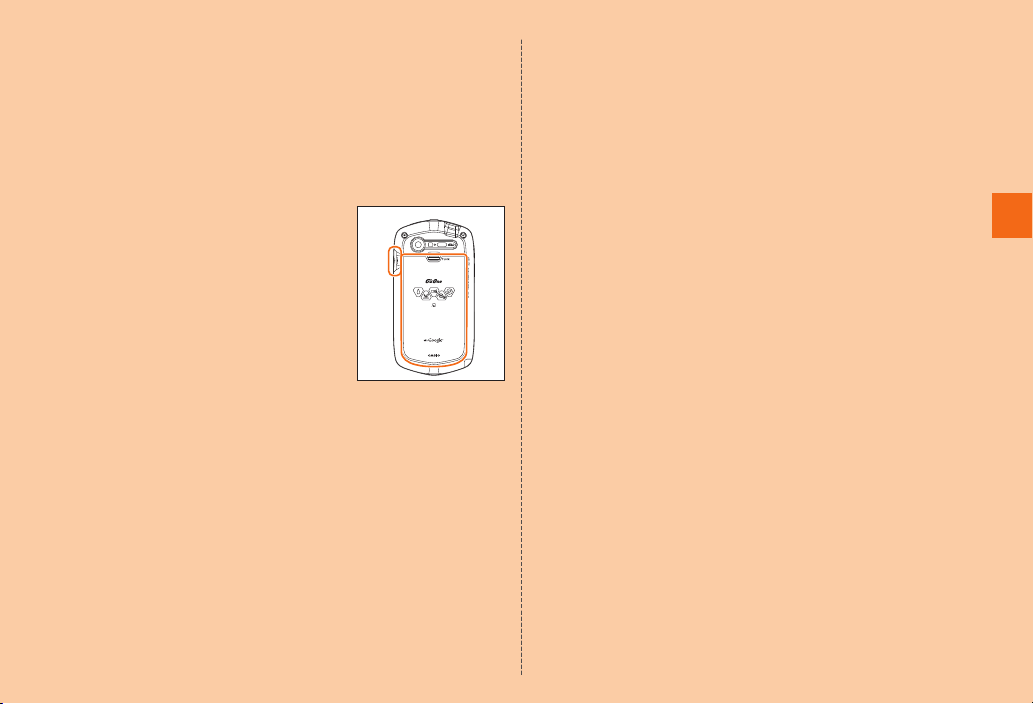
• After the product gets wet
After the product gets wet, drain water, and wipe the main unit
and the battery cover with a clean dry cloth without removing the
battery cover.
In cold climates, water on the main unit may turn to frost. Using
the product with frost may cause a fault. Do not leave the
product without wiping off water. (No special measures against
condensation have been implemented in this product.)
• Rubber seals
The rubber seals on the inner edges
of the external connection jack cover
and battery cover are important to
maintain waterproof and dustproof
properties. Do not touch the rubber
seals with a finger, or damage or
remove them.
When closing the external connection
jack cover or bat tery cover, take care
not to get the rubber seals caught.
Forcibly closing the cover with the rubber seals caught may
damage them resulting in loss of waterproof and dustproof
properties. Just a small par ticle (a hair, etc.) on the seals can
cause water or dust leak.
If any liquid other than plain water (e.g. alcohol) gets on the
rubber seals, it may cause deterioration in durability.
Do not inser t sharp objects into gaps around the external
connection jack cover and battery cover. Doing so might
damage or deform the product or damage the rubber seals,
causing water or dust leak.
It is recommended to replace the rubber seals for
maintaining waterproof and dustproof properties once ever y
2 years regardless of whether any abnormality is present. For
information on rubber seal replacement, contact an au shop
near you.
• Charging
Never charge the battery if the main unit is wet. The supplied and
optional accessories are not waterproof.
• Waterproof proper ty
Do not use the product in places where it may be sprayed
with high-pressure water (e.g. near a faucet or showerhead) or
submerge it in water for extended periods of time, as the product
is not designed to withstand high water pressure. Also, do not
expose the product to a water flow stronger than the specified
flow rate (i.e. 6 liters per minute from a faucet or showerhead,
at which you might even feel pain in the skin). Doing so might
cause a fault, even though the product has a waterproof property
equivalent to IPX5. Do not wash the product in a washing machine
or ultrasound bath.
This product does not float on water.
• Heat resistance
Do not use the product in places where boiling water may splash
on it, in saunas or near hot air (e.g. hairdryer). The product is not
resistant to high temperatures.
• Shock
Be careful because throwing or subjecting the product to an
unreasonable drop or an other wise intentional excessive impact
may break the product. Also, the product may be scratched or
otherwise damaged by the drop or impact even if there is no
problem with performance.
Safety Precautions/ Notes on Waterproof and Dustproof
23
Page 26
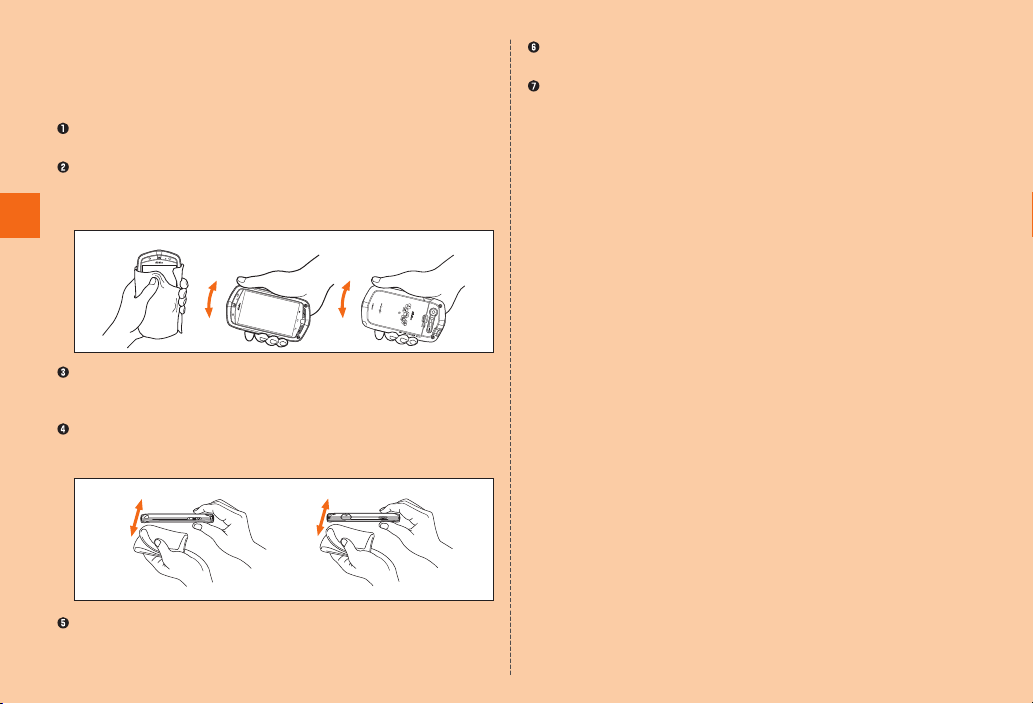
■ Draining water after wetting the product
If the product gets wet and you use it while it is wet, water may get
on your clothes, bag, and other items, and sound may become hard
to hear. Follow the steps below to remove the water.
Remove the water on the product by wiping the product well with
a dry towel, cloth, etc.
Hold the product securely and shake it in the direction of the
arrows in the figure about 20 times.
* When shaking the prod uct, check t hat it is safe around you and ho ld the
product sec urely so as not to drop it.
Safety Precautions/ Notes on Waterproof and Dustproof
❶❷
Hold the product securely and shake it in the direction of the
arrows in the figure about 5 times while gently touching the
microphone and speaker with a dry towel, cloth, etc.
Hold the product securely and shake it in the direction of the
arrows in the figure about 5 times while gently touching the
earpiece with a dry towel, cloth, etc.
❸
❹
Wipe off any water that has come out of the product with a dry
towel, cloth, etc.
24
Cover each key with a dry towel, cloth, etc. and then press the key
two or three times.
Place a dry towel, cloth, etc. under the product and leave it to dr y
at room temperature (for about 30 minutes).
■ Precautions on charging
The supplied and optional accessories are not waterproof and
dustproof. Be sure to check the following points before and after
charging.
• Never charge the battery if the main unit is wet. Doing so might
cause electric shock or short circuit resulting in fire or a fault.
• Check that the main unit is not wet. If you are charging the
battery just after the product gets wet, drain water well and wipe
remaining water off with a clean dr y cloth before placing it in the
desktop holder or opening the external connection jack cover.
• If you charge the battery with the external connection jack cover
open, be sure to tightly close the cover when charging is finished.
We recommend using the desktop holder to charge the battery to
prevent water and dust from entering from the external connection
jack.
• Do not touch the specified charging equipment (sold separately)
or desktop holder with wet hands. Doing so might cause electric
shock.
• Do not splash water over the specified charging equipment (sold
separately) and desktop holder when using them. Do not use
them near water such as in a bathroom, shower room, kitchen or
washroom. Doing so might cause fire, electric shock or a fault.
Do not bring them into a bathroom, etc. even when you are not
charging with them.
Page 27
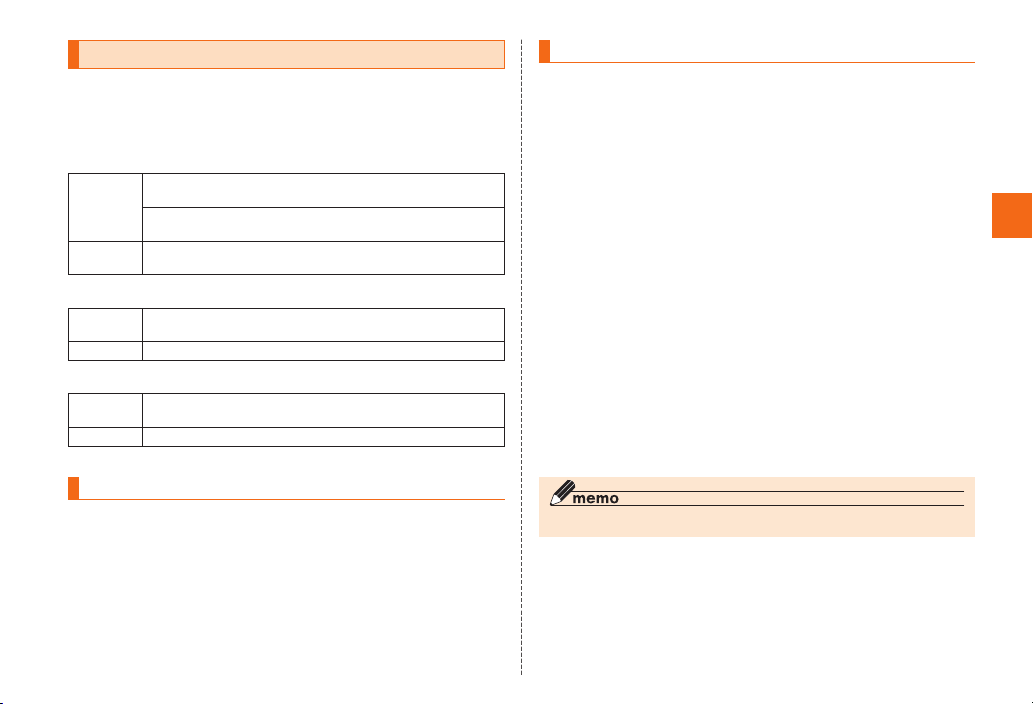
Available Security Codes
The product has various security codes that you can use.
The available security codes are as follows. Do not forget the
various security codes that are set as they are necessary for various
operations and contracts.
• Security Code
Example of
usage
Initial value A four digit number chosen by the c ustomer and noted on the
• Unlock Pattern/Lock Number/Password
Example of
usage
Initial value None
• PIN1 Code
Example of
usage
Initial value 1234
Functions to Protect Your Privacy
The product has the following functions to protect the privacy of
saved data.
• Osaifu-Keitai lock setting
• Screen lock
• SIM card lock
①To do remote operation of voice mail and call forwa rding
services from a landline phone
②To use Custo mer Ser vice Cente r and to do various inquiries,
applicatio ns, and modificatio ns on the au ho mepage
application form
To set and release th e screen loc k, etc.
To prevent unauthorized use of the au M icro IC Card (LTE) by
third parti es
PIN Code
If the PIN1 code is incorrectly entered three times consecutively, the
PIN code will be locked. You can unlock the PIN code using PUK
code.
■ PIN1 Code
To prevent unauthorized use of the au Micro IC Card (LTE) by a third
party, you can set the product to require PIN1 code entry every time
the power is turned on. You also need to enter PIN1 code when
setting whether PIN1 code entry is required.
• PIN1 code is “1234” and PIN1 code entry is set to not be required
at the time of purchase. You can change PIN1 code to any four- to
eight-digit number, and set PIN1 code entry to be required as
necessary.
■ PUK Code
In case PIN1 code is locked, you can unlock it by entering PUK
code.
• PUK code is an eight-digit number given at the time of purchase,
which is printed on the back side of the plastic card on which your
au Micro IC Card (LTE) is attached.
• Af ter entering PUK code, you need to set a new PIN1 code.
• If PUK code is incorrectly entered ten times consecutively, contact
an au shop, PiPit or Customer Service Center.
◎ “PIN1 code” is not reset by initializing the product.
Safety Precautions/ Notes on Waterproof and Dustproof
25
Page 28
Notes on Using Bluetooth®/
Wireless LAN (Wi-Fi
• The Bluetooth
conform to the domestic standards of Japan and FCC standards
and EC directives, and have been certified.
• The 5 GHz band wireless LAN (Wi- Fi
conforms to the domestic standards of Japan and has been
certified. You cannot use it overseas.
• The 2.4 GHz band used by wireless LAN and Bluetooth
devices is shared by various other devices. For this reason, the
Safety Precautions/ Notes on Waterproof and Dustproof
communication speed and connectable range may be decreased,
or disconnection may occur, due to interference by other devices.
• Do not use this product in places where electromagnetic waves
are generated or near electric products, AV and OA equipment, or
other magnetized devices.
• Subjecting this product to magnetic or electrical noise might
increase noise and prevent it from performing communications.
(This product is particularly susceptible to noise when it used near
a microwave oven.)
• Using this product near a TV, radio or similar appliance might
cause reception interference and disrupt TV images.
• Searching might not be successful if there are multiple wireless
LAN access points near to the product or the same channel is
being used.
• The wireless L AN function cannot be used in airplane. Be sure to
turn off the power even in a Wi- Fi compliant airplane. Some airline
companies, however, allow their passengers to use cell phones.
For details, contact the airline company you use.
• The communication speed and connectable range var y
depending on the distance between communication devices,
obstacles and the Bluetooth
®
and wireless L AN (Wi-Fi®) functions of the product
®
) Functions
®
) function of the product
®
devices used.
2.4 GHz Frequency Band Precautions
The frequencies used by the Bluetooth® and/or wireless LAN
function of this product are in the 2.4 GHz band. In this frequency
band, other similar wireless stations, in-plant wireless stations for
mobile unit identification that require a license for use, such as
factory production lines, specific small power wireless stations that
do not require licenses, amateur wireless stations (collectively called
“other wireless stations” from here on) are operated in addition to
®
home electrical appliances such as microwave ovens, devices for
industrial, scientific and medical devices.
1. Before using this product, make sure that “other wireless stations”
are not in operation nearby.
2. In the event that instances of radio wave interference have
occurred between this product and “other wireless stations”,
immediately either relocate this product or stop operation of the
device (stop emission of radio waves).
3. If you are unclear on any points or are troubled by anything,
contact an au shop or Customer Service Center.
◎ Connections between this product and all other Bluetooth
wireless LAN devices have not been confirmed. Therefore,
connections with all Bluetooth
guaranteed.
◎ This product supports security features for wireless communications
that are compliant with the Bluetooth
specifications, but the security may not be sufficient depending on
the usage environment and configuration. Be careful when making
data communication using Bluetooth
®
and wireless LAN devices are not
®
and wireless LAN standard
®
or wireless LAN function.
®
and
26
Page 29
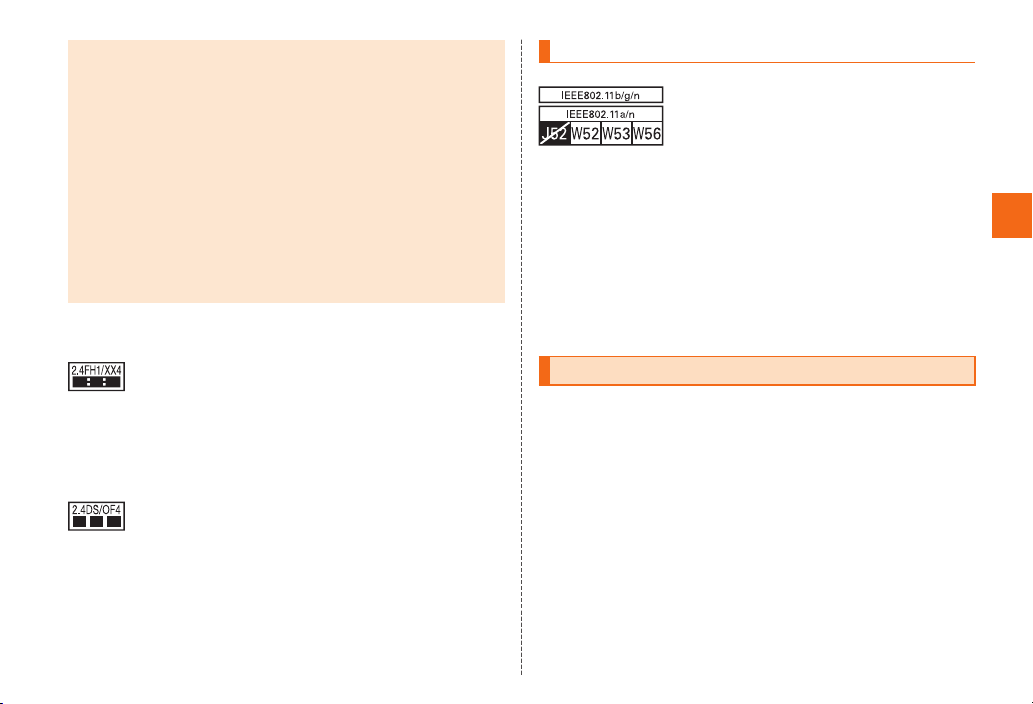
◎ Wireless LAN has the advantage that it can be freely connected
anywhere within the radio wave range, as it uses radio waves for
exchanging information. At the same time, there is a risk that a
malicious third party may obtain unauthorized access if security
settings have not been configured. You are recommended to
configure security settings before using wireless LAN at your
decision and responsibility.
◎ The Company assumes no responsibility for leakage of data
or information that may occur during Bluetooth
communication.
◎ Since Bluetooth
frequency band, using the both functions at the same may cause
radio wave interference resulting in decreased communication
speed or disconnection from the network. If connection fails, stop
using either of the Bluetooth
®
and wireless LAN functions use the same
®
and wireless LAN functions.
®
/wireless LAN
Bluetooth® and wireless L AN functions of this product use
frequencies in the 2.4 GHz band.
• Bluetooth
®
function: 2.4FH1/XX4
The G’zOne uses the 2.4 GHz band. FH1 uses
the FH- SS modulation scheme as the modulation
scheme, and has an interference distance of about
10 m or less. XX4 uses a different scheme, and has
an interference distance of about 40 m or less.
Bands of mobile unit identification devices cannot
be avoided.
• Wireless L AN function: 2.4DS/OF4
The product uses the 2.4 GHz band. DS -SS and
OFDM are used as the modulation schemes. The
interference distance is about 40 m or less.
Bands of mobile unit identification devices can be
avoided.
5 GHz Frequency Band Precautions
Wireless L AN function of this product uses 5 GHz band.
• J52 : 5.170 to 5.230 GHz (34, 38, 42, and 46 ch) cannot be used.
• W52 : 5.180 to 5.240 GHz (36, 40, 44, 48 ch, and 38, 46 ch) can
be used.
• W53 : 5.260 to 5.320GHz band (52, 56, 60, 64 ch, and 54, 62 ch)
can be used.
• W56 : 5.50 0 to 5.700GHz band (100, 104, 108, 112, 116, 120, 124,
128, 132, 136, 140 ch, and 102, 110, 118,126, 134 ch) can
be used.
Using 5.2 GHz band and 5.3 GHz band outdoors is prohibited by
the Radio Law.
Notes on Packet Communication Charge
• Since constant Internet connection is possible with this product,
packet communication may be performed automatically by some
applications, resulting in high packet communication charges.
Therefore, subscription to a packet communication charge
discount service or flat late plan is recommended.
• To browse homepages, download applications, communicate
using applications, send/receive e-mails and configure various
settings, connection to the Internet is required, to which packet
communication charge applies. (Charges also apply for receiving
important notification mail from au, WEB de Seikyu-sho notification
mail, and other email.)
* Packet communication charge does not apply to Wi-Fi® connection.
Safety Precautions/ Notes on Waterproof and Dustproof
27
Page 30
Notes on Google Play™/au Market/
Applications
◎ Be sure to check the security of the application, then install it at your
own risk. Some applications might cause virus infection, damage various
data, and send out your location information, usage history or personal
information stored in your cell phone via the Internet.
◎ The Company assumes no responsibility for various malfunctions that
might be caused by applications you have installed. In such a case, you
may be charged a repair fee even during the warranty period.
◎ The Company assumes no responsibility for any disadvantage brought
Safety Precautions/ Notes on Waterproof and Dustproof
to you or any third party by applications you have installed.
◎ Insertion of a microSD memory card is necessary to use some
applications.
◎ Some applications prohibit the product from entering sleep mode
while they are active, or rapidly drain the battery while running in the
background.
◎ Operation procedures and screen appearances of the applications
preinstalled in this product and those installed by you are subject
to change without notice as a result of version upgrade. In addition,
operation procedures described in this manual may differ from the
actual procedures.
◎ Some apps are installed in the microSD memory card, and some apps
are installed in the G’sOne memory.
28
Page 31
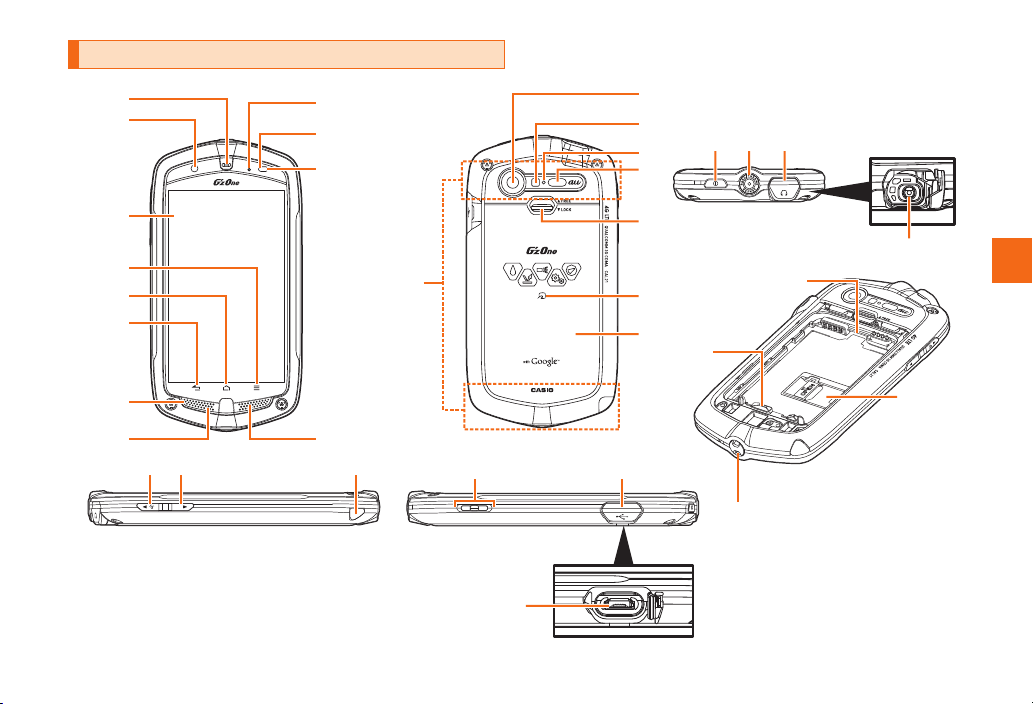
Names and Functions of Parts
①
②
③
④
⑤
⑥
⑦
⑧
㉙
㉚
⑨
⑩
⑪
⑬
⑫
㉛
㉜
㉞
⑭
⑮
⑯
⑰
⑱
⑲
⑳
㉝
㉑
㉒ ㉓
㉔
㉕
㉖
㉗
㉘
Getting Ready
29
Page 32

① Earpiece (Receiver)
Emits voice of other par ty during a call.
② Front camera
③ Display
④ M Menu key
Displays the option menu.
⑤ H Home key
Use it to display the home screen etc. Cancels sleep mode when
in sleep mode.
⑥ B Back key
Returns to the previous screen.
⑦ LED indicator
Lights while charging.
Blinks according to the settings when receiving a call or mail
Getting Ready
message, etc.
⑧ Microphone (Mouthpiece)
Transmits your voice during a call. It is also used for recording
sounds.
⑨ Sub microphone
⑩ Proximity sensor
Proximity sensor prevents operating the touch panel incorrectly
during a call.
⑪ Light sensor
Light sensor detects the ambient brightness and adjusts the
brightness of display.
⑫ Speaker
Emits ringtones, alarm tones, etc.
⑬ Built-in antenna
Do not cover the built-in antennas when you call, use the Internet,
®
Wi-Fi
, or Bluetooth®, or retrieve GPS information. (only at the top
in the case of the Bluetooth
®
, wireless LAN, and GPS positioning
functions). Also, do not attach a sticker, etc. over a built-in
antenna. Call/communication quality will deteriorate.
⑭ Camera
⑮ Photo light/ Flash light
30
⑯ Camera start indicator
Lights and blinks when the Camera is activated.
⑰ Infrared port
Sends and receives data via infrared communication.
⑱ Battery cover lock
⑲ FeliCa mark
Hold it over a reader/writer when using Osaifu- Keitai
®
.
⑳ Battery pack /cover
㉑ PPower key
Turns on/of f the power, and sets/cancels sleep mode.
㉒ Atmospheric pressure sensor/Temperature sensor
Used when measuring atmospheric pressure and temperature
with G’zGEAR
®
.
㉓ Earphone jack cover
㉔ Earphone jack
Use it to connect an earphone.
㉕ microSD memor y card slot
㉖ Lock switch
㉗ au Micro IC Card (LTE)
㉘ Strap eyelet
㉙ >Volume Up key /Light key
Increases the volume.
If you press and hold this when the home screen or unlock
screen is displayed or the display is off, the flashlight turns on
(except when music or other content is playing).
㉚ <Volume Down key
Reduces the volume.
㉛ TV antenna
Extend this T V antenna when you want to watch or record TV
(1Seg). It only serves as an antenna for watching and recording
TV (1Seg).
㉜ Charging terminal
Use this to charge with the desktop holder.
㉝ External connection jack cover
Page 33
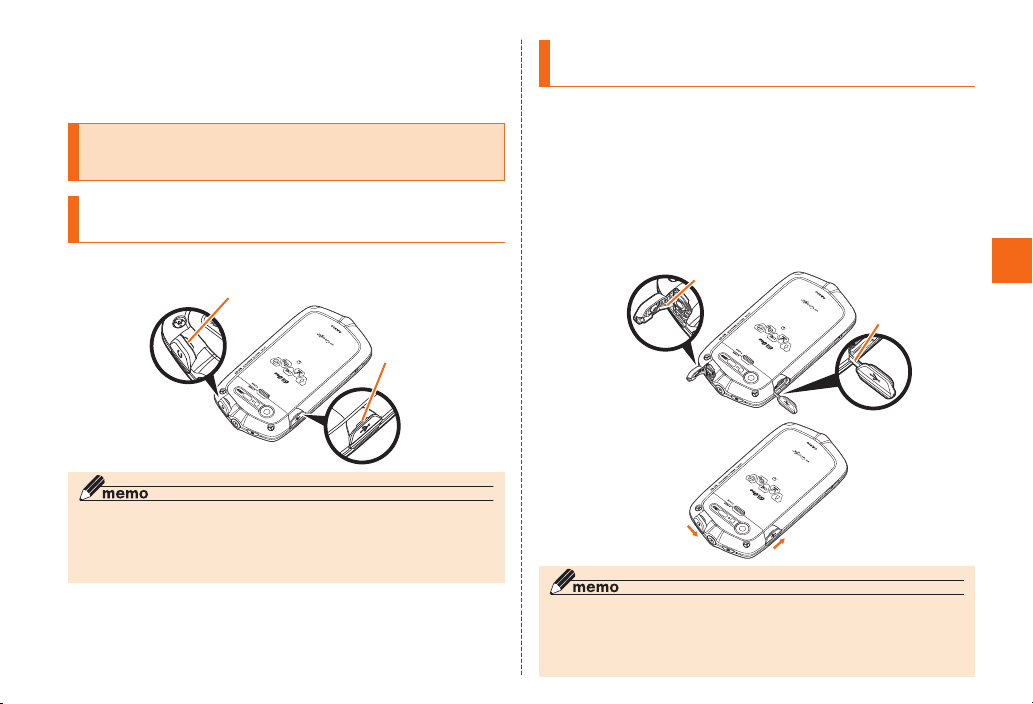
㉞ External connection jack
Use it to connect the IS11CA to the microUSB cable 01 (sold
separately), the 18-pin microUS B conversion adapter 01 (sold
separately), etc.
Opening/Closing the External Connection Jack Cover or Earphone Jack Cover
Opening the External Connection Jack
Cover or Earphone Jack Cover
Open the external connection jack cover or earphone jack cover
properly using the grooves shown in the figure below.
Groove
Groove
◎ Opening a cover in a way other than the one specified may damage
the cover, resulting in a loss of waterproof, dustproof, and shockresistant properties.
◎ Never open or close a cover when your hands or the G’zOne is wet.
Closing the External Connection Jack
Cover or Earphone Jack Cover
Stow away the hinge of the external
connection jack cover or earphone jack cover,
and then press on the entire cover with the ball
of your finger
Rub your finger over the cover in the direction
of the arrow to make sure that the cover is not
partially open
◎ Completely closing the covers facilitates waterproof, dustproof, and
shock-resistant properties.
◎ Just a small particle (a hair, etc.) on the seals can cause water or
dust leaks.
Hinge
Hinge
Getting Ready
31
Page 34
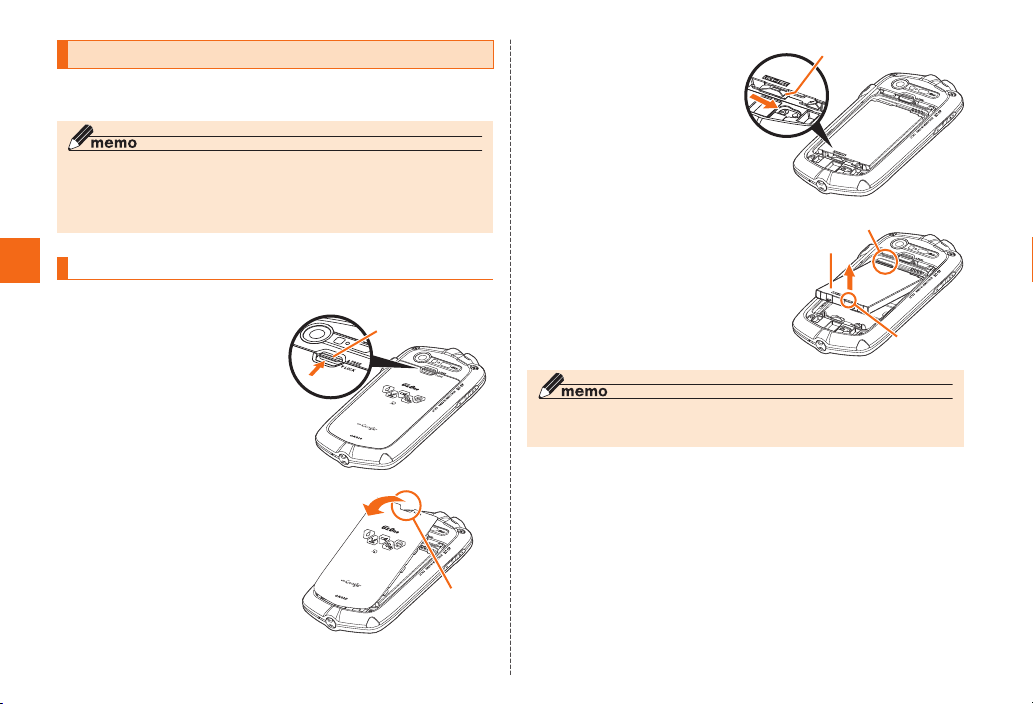
Attaching/Removing the Battery Pack
Use only the bat tery pack for the G’zOne, and be sure to install it
correctly.
◎ Be sure to follow the designated procedures when replacing the
battery pack. Failure to follow the correct procedures when removing
and attaching the battery pack may result in damage to the battery
pack or battery cover.
Removing the Battery Pack
Getting Ready
Before removing the battery pack, turn off the G’zOne.
Slide the battery cover
lock to the “FREE”
position
Pull the battery cover
upward in the direction
of the arrow from the
concave portion in the
G’zOne
Battery cover lock
Concave
portion
Slide the lock
Lock switch
switch to the
“FREE” position
Remove the battery
pack by pulling the
Contacts on G’zOne
Battery pack
tab at the bottom of
the battery pack in the
direction of the arrow
◎ When removing the battery pack, always pull up on the tab. Doing
otherwise may result in damage to the contacts on the G’zOne.
Tab
32
Page 35
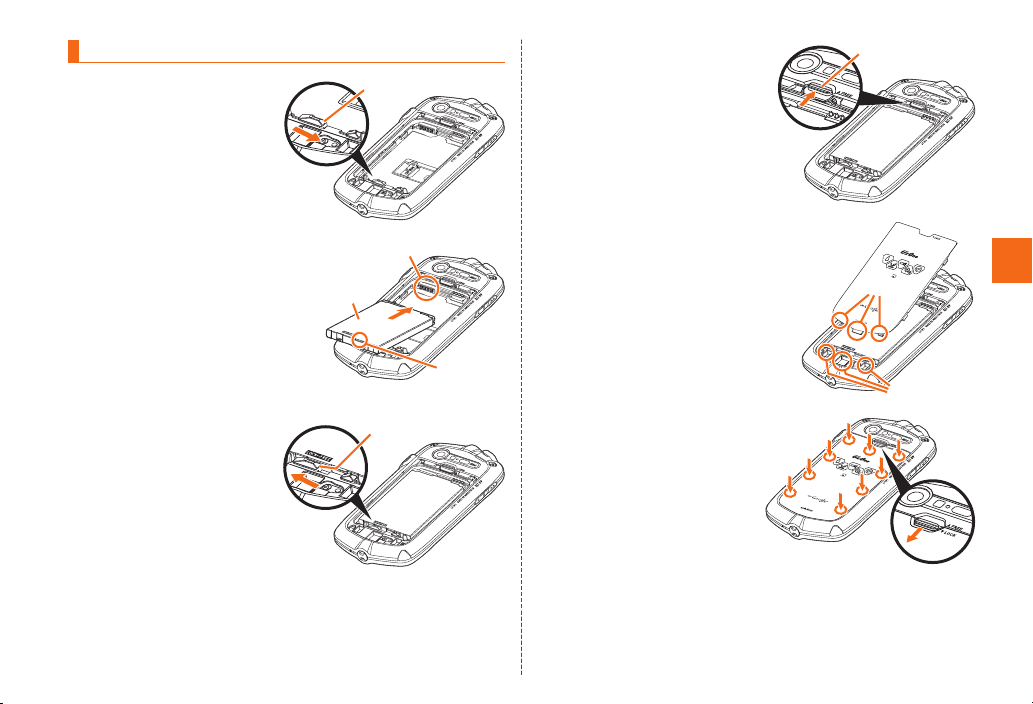
Attaching the Battery Pack
Slide the lock
switch in the
direction of the
arrow
Lock switch
Slide the battery cover
lock in the direction
of the arrow (“FREE”
position)
Battery cover lock
Make sure that the tab
on the battery pack is
at the top, confirm the
position of the contacts
on the G’zOne, and then
attach the battery pack
while pushing it in the
direction of the arrow
Slide the lock
switch to the
“LOCK” position
Contacts on G’zOne
Battery
pack
Lock switch
Tab
Hold the battery cover
so that the three tabs
on the bottom edge are
at an angle, insert them
into the holes in the
G’sOne, and then close
the battery cover
Firmly press the
battery cover at
the nine places
indicated by the ○
marks in the figure,
make sure that the
entire battery cover
is firmly seated in
place, and then slide
the battery cover
lock to the “LOCK”
position
Tab
Getting Ready
Holes
33
Page 36
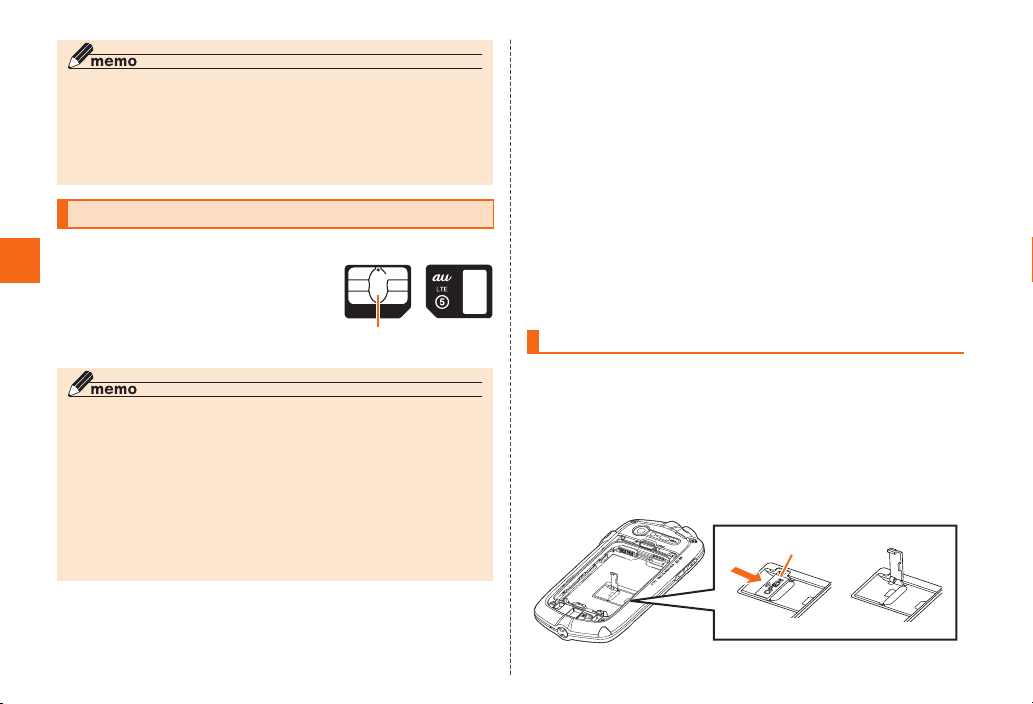
◎ Before attaching the battery pack, make sure that the microSD
memory card and au Micro IC Card (LTE) are inserted securely. If the
card is not completely inserted, that may lead to microSD memory
card, au Micro IC Card (LTE), or battery pack damage.
◎ If the battery cover is forcibly pushed with fingers with the tabs of the
battery cover attached on the G’zOne, the tabs may be damaged.
au Micro IC Card (LTE)
au Micro IC Card (LTE) stores your
personal information such as a phone
Getting Ready
number.
The product is compliant with au Micro
IC Card (LTE) only. You cannot use the
product by inserting the au IC-Card for
au phones and smartphones instead.
◎ Note the following points, which may cause malfunction or damage,
when handling the au Micro IC Card (LTE).
• Do not touch the IC (metal) part of the au Micro IC Card (LTE) or
the IC card terminal inside the product.
• Insert the IC card in the correct direction.
• Do not use force to attach or remove the IC card.
◎ Make sure to unplug the microUSB plug of the microUSB cable 01
(sold separately) etc. from the product when attaching or removing the
au Micro IC Card (LTE).
◎ Do not lose the au Micro IC Card (LTE) after it has been removed.
■
When the au Micro IC Card (LTE) is not inserted
If the au Micro IC Card (LTE) is not inserted, the following operations
are unavailable.
34
au Micro IC Card (LTE)
IC (metal surface) part
• Making*/receiving a call
• Sending/receiving mails and SM S
• Setting SIM card lock
• Confirming your own phone number
Besides the above, functions which requires your phone number etc.
may not be available.
* Making an e mergency call to 110 (Police), 119 (Fire and Ambulance) and 118
(Regional Coast Guard Headquaters) and making a call to 157 (Customer
Servic e Center) are also u navailable.
■ Restriction Settings with PIN Code
You can set the product to restrict the use of the product by others
through changing the PIN1 code or locking the SIM card in order to
protect your important private information while you are using your
au Micro IC Card (LTE).
Removing the au Micro IC Card (LTE)
Turn off the power and remove the battery
pack before removing the au Micro IC Card
(LTE).
For how to remove the battery pack, refer to “Attaching/
Removing the Battery Pack” (▶P.3 2 ).
Insert a finger in the direction of the arrow in
the figure and open the stopper
Stopper
Page 37
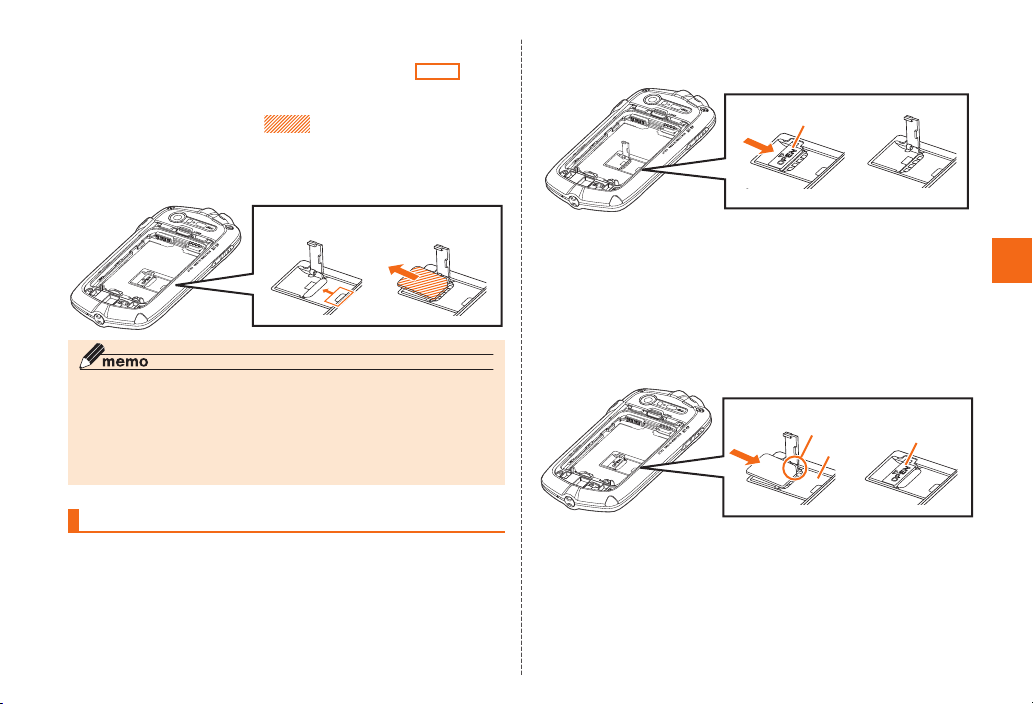
Slide the au Micro IC Card (LTE) in the
direction of the arrow away from the
portion shown in the figure with a fingertip
Gently support the portion shown in
the figure of the au Micro IC Card (LTE) with
a fingertip and slide out the au Micro IC Card
(LTE) in the direction of the arrow
◎ Be sure to use a finger to remove the au Micro IC Card (LTE). Using
a sharp object such as the tip of a ballpoint pen may cause the
IC card terminal on the G’zOne or the au Micro IC Card (LTE) to
malfunction or become damaged.
◎ If the au Micro IC Card (LTE) is difficult to remove because of, for
example, oily skin, wipe your fingertips and then try again.
Attaching the au Micro IC Card (LTE)
Turn off the power and remove the battery
pack before removing the au Micro IC Card
(LTE).
For how to remove the battery pack, refer to “Attaching/
Removing the Battery Pack” (▶P.3 2 ).
Insert a finger in the direction of the arrow in
the figure and open the stopper
Stopper
Hold the au Micro IC Card (LTE) so that the
IC surface is facing downward, confirm the
position of the cutout, and then insert the au
Getting Ready
Micro IC Card (LTE) beneath the guide in the
direction of the arrow to push and slide it all the
way in while gently pressing from above
Push the stopper closed until it clicks
Cutout
Guide
Stopper
35
Page 38
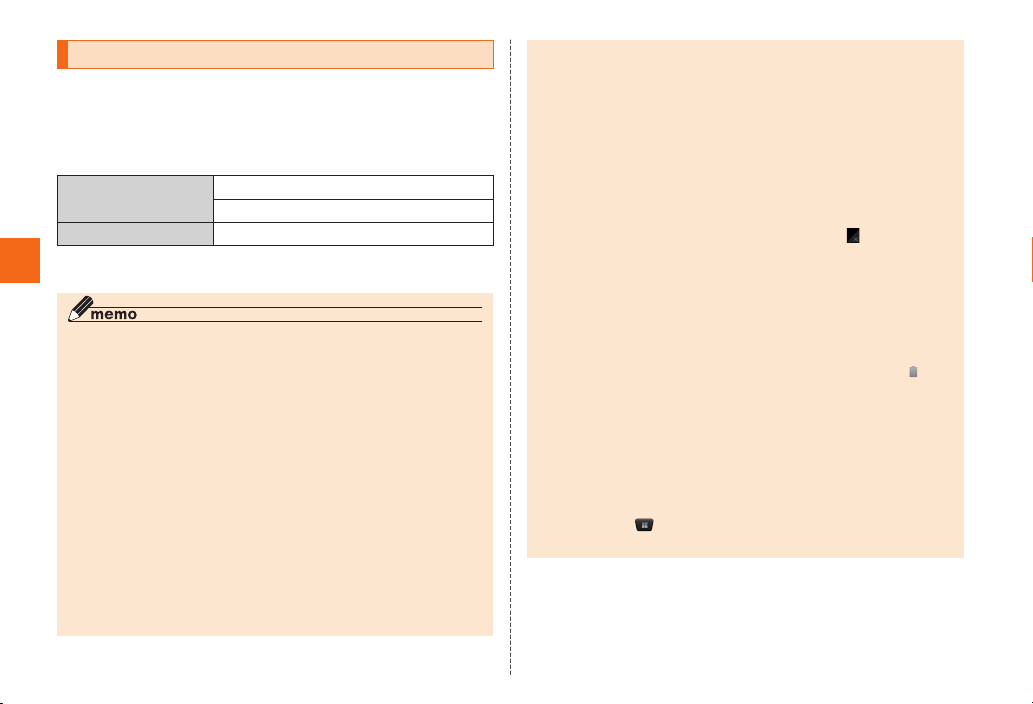
Charging
The battery pack is not fully charged at the time of purchase. Charge
the battery pack when you use the G’zOne for the first time or the
battery level becomes low. Charging is finished when the LED
indicator goes out.
■ Usage Times
Continuous standby
time
Continuous talk time Approx. 630 min.
* These tim es are based on the case when the product is used in Japan. For
details on the usage tim e overseas, refer to “Main S pecifications” (▶P.7 5 ).
Getting Ready
◎ The product and the battery pack may become warm during
charging, but this is not a fault.
◎ Charging the battery pack while using the camera function etc. may
lengthen the charging time.
◎ If you perform various operations with a specified AC adapter (sold
separately) connected to the product, charging/electric discharge
may take place repeatedly in a short time. Frequently charging the
battery pack shortens its service life.
◎ Use the common AC adapter 04 (sold separately), common AC
adapter 03 (sold separately), or common AC adapter 02 (sold
separately)* for charging overseas. These common AC adapters
support a voltage of 100 V to 240 V AC.
Only use the common AC adapter 01 (sold separately) for domestic
use with a 100 V AC power outlet. Do not charge with single phase
200 V or using a travel voltage transformer.
* To charge with the common AC adapter 01 (sold separately) or the
common AC adapter 02 (sold separately), the 18-pin microUSB
conversion adapter 01 (sold separately) is required.
Approx. 460 hours (3G area)
Approx. 350 hours (LTE area)
◎ Properly close the external connection jack cover, the earphone jack
cover and the battery cover. Also, do not pull them forcibly or twist
them.
◎ The continuous talk time and continuous standby time are average
usage times combining the time during which a cell phone is carried
around by a user and properly receives radio waves plus the time
during which a cell phone is stationary and properly receives radio
waves. According to usage conditions such as battery level status
and temperature, the signal strength in a place where the cell phone
is used, settings of functions, etc., the usage times may be reduced
to less than half under the following cases.
• A cell phone is frequently used in a place where (out of service
area indicator) appears on it.
• The Wi-Fi
®
function, mail function, camera function, 1Seg function,
location information, etc. is used.
• A cell phone is set not to enable sleep mode because of an
application etc.
• Applications which remain activated in the background are used.
◎ If you stop charging while the LED indicator still illuminates during
charging, the cell phone may be left not fully charged even if
appears on it. In such case, the average usage times shorten.
Sleep mode
◎ With the default settings, sleep mode is not switched to automatically
even if no operation is performed for a certain amount of time during
charging. (Press P to switch to sleep mode.)
◎ If charging is performed without switching to sleep mode, charging
may take longer.
◎ To enable sleep mode to be switched to automatically during
charging, tap
on the home screen → [Settings] →
[Developer options] → [Stay awake], and then clear the check box.
(Full)
36
Page 39
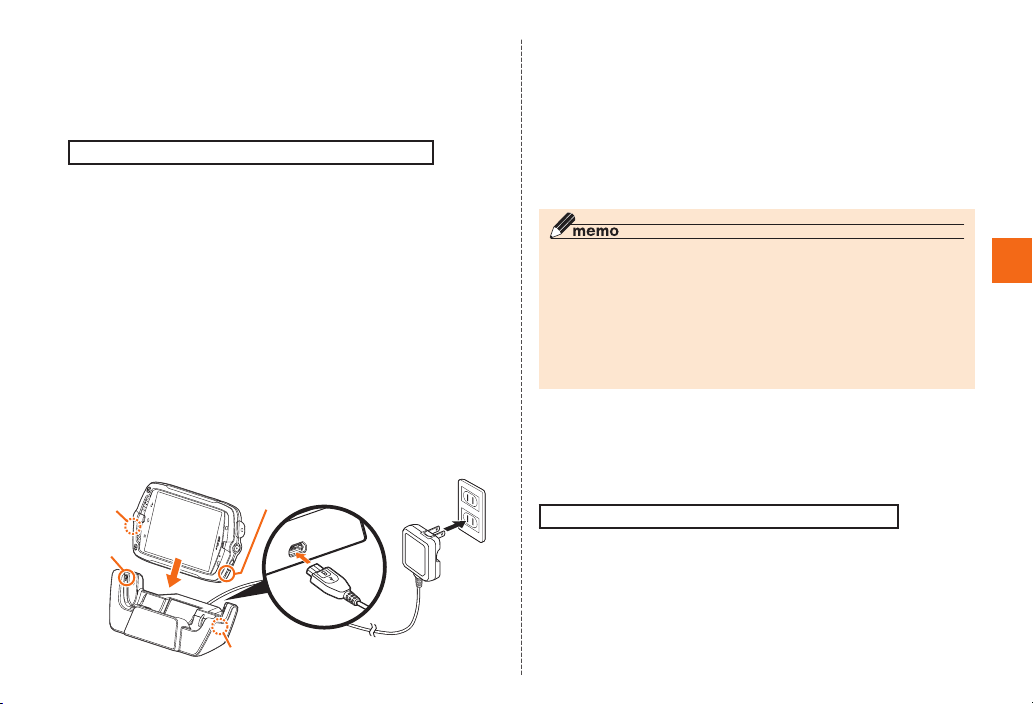
■ Charging with the Desktop Holder and
Specified AC Adapter (sold separately)
The following describes how to charge with the common AC adapter
04 (sold separately). For details on the specified AC adapter, refer to
“Introduction of Related Accessories” (▶P.6 8 ).
It takes about 110 minutes to charge the battery pack.
Insert the microUSB plug of the common AC
adapter 04 (sold separately) into the jack on
the desktop holder
Check the orientation of the USB plug and then insert it straight
into the jack.
Insert the G’zOne into the desktop holder
Align the lock tabs on the desktop holder with the holes in the
G’zOne and then insert the G’zOne.
Insert the power plug of the common AC
adapter 04 (sold separately) into the power
outlet
The LED indicator on the G’zOne lights and the charging
indicator appears. When charging is complete, the LED
indicator goes out.
Hole
Lock
tab
Hole
When charging is finished, remove the G’zOne
from the desktop holder, and then pull out
the power plug of the common AC adapter 04
(sold separately) from the power outlet
When removing the G’zOne from the desktop holder, hold the
desktop holder.
When disconnecting the common AC adapter 04 from the
desktop holder, pull out the plug while keeping it straight.
Desk top hold er charging me nu
◎ When you start charging using the desktop holder, the desktop
holder charging menu is displayed.
◎ You can start YouTube™, TV, Gallery, and Browser from the desktop
holder charging menu.
◎ If you tap H while the desktop holder charging menu is displayed,
the home screen is displayed and you can start apps other than the
above.
■ Charging with the Specified AC Adapter (sold
separately)
The following describes how to charge with the common AC adapter
04 (sold separately). For details on the specified AC adapter, refer to
“Introduction of Related Accessories” (▶P.6 8 ).
It takes about 150 minutes to charge the battery pack.
Getting Ready
Lock tab
37
Page 40
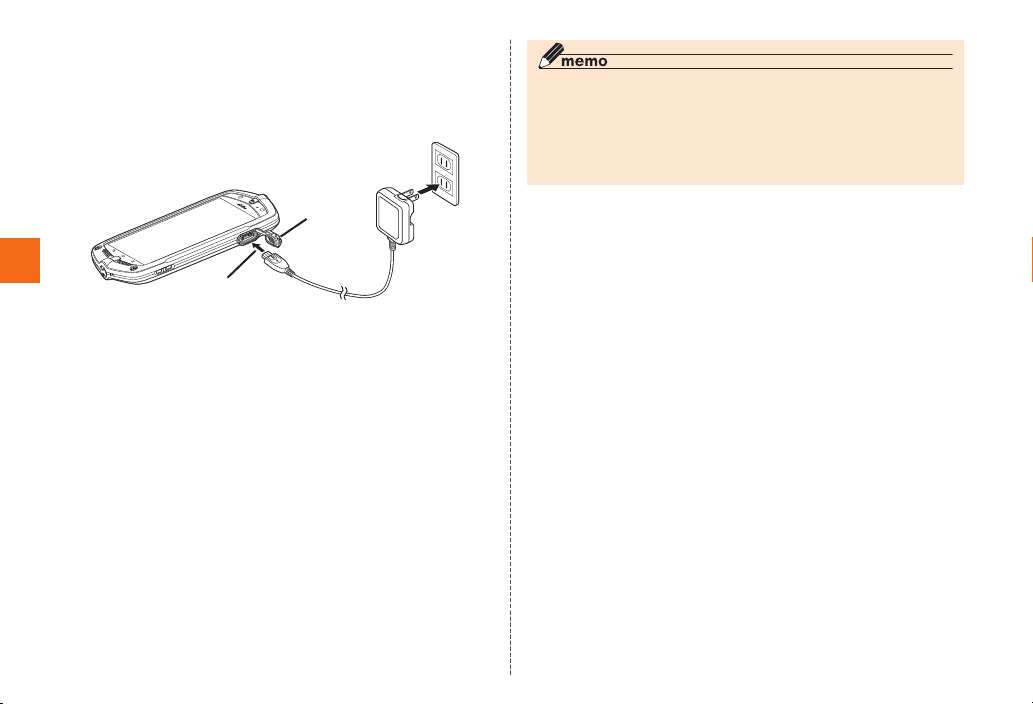
Connect the common AC adapter 04 (sold
separately) to the G’zOne
Open the external connection jack cover (-1), confirm the
orientation of the connection portion of the plug, and insert the
plug straight into the jack (-2).
◎ If you charge the battery pack when the battery has run out, the LED
indicator may not illuminate soon. However, charging is in progress.
◎ Charging is possible with the common AC adapter 01 (sold
separately) or common AC adapter 02 (sold separately) and the
18-pin microUSB conversion adapter 01 (sold separately) but
charging will take longer.
-1
Getting Ready
-2
Insert the power plug of the common AC
adapter 04 (sold separately) into the power
outlet
The LED indicator on the G’zOne lights and the charging
indicator appears.
When charging is complete, the LED indicator goes out.
When charging is finished, pull out the plug
from the G’zOne while keeping it straight
Close the external connection jack cover of the
G’zOne
Pull out the power plug of the common AC
adapter 04 (sold separately) from the power
outlet
38
■ Charging with a PC
If the USB driver for the G’zOne is installed on your PC, you can
charge the G’zOne by connecting it to a USB por t that suppor ts
charging on your PC.
• For the USB driver and installation manual, visit the following
webpage.
au webpage: http://www.au.kddi.com/seihin/ichiran/shuhenkiki /
usb_cable_win/usb_driver.html
Connect the microUSB cable 01 (sold
separately) to a USB port of a PC after the PC
is activated completely
Check the orientation of the USB plug and insert it straight into
the jack.
Page 41
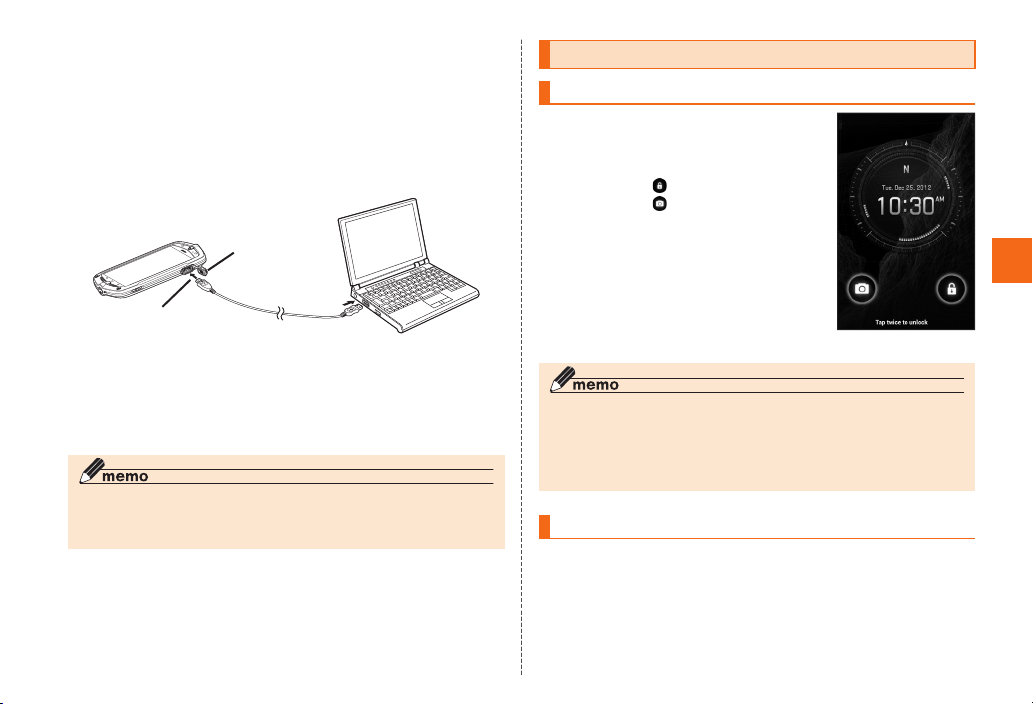
Connect the microUSB cable 01 (sold
separately) to the product
Open the external connection jack cover (-1), and then check
the orientation of the microUSB plug and insert it straight into
the jack (-2).
The LED indicator on the G’zOne lights and the charging
indicator appears.
When charging is complete, the LED indicator goes out.
-1
-2
When charging is finished, pull out the
microUSB plug while keeping it straight
Close the external connection jack cover of the
G’zOne
◎ If the battery has no charge, the LED indicator may not light and
charging may not start. If that happens, use the specified AC
adapter (sold separately) for charging.
Turning the Power On/Off
Turning Your Terminal On
Hold down P for at least
five seconds
The unlock screen is displayed.
• Double tap
• Double tap
camera.
◎ The initial setting of the touch panel is executed while the logo
is displayed. Do not touch the screen, otherwise touch panel
operations may not be performed properly.
◎ After you purchase the G’zOne, the Initial Settings screen is
displayed automatically when turning on the power for the first time.
Turning Your Terminal Off
Hold down P for at least two seconds
The Phone options screen is displayed.
[Power off] → [OK]
to unlock.
to unlock and enable
《Unlock screen》
Getting Ready
39
Page 42
Sleep Mode
If you press P or no operation is made for a specified time, the
screen is turned of f temporarily, and then sleep mode is set. Press
P to cancel sleep mode.
Initial Settings
The initial set tings screen is displayed automatically when first
turning on the power after purchasing the G’zOne, or restarting after
initializing the G’zOne.
For detailed operations on the initial settings, refer to the supplied
Setting Guide.
Hold down P for at least five seconds to
Getting Ready
turn on the power
The screen for selecting the language to use is displayed.
[日本語] (Japanese)/[English] → [次へ] (Next)
The screen displays an explanation on set ting the initial
settings.
Follow the instructions on the screen to
configure the initial settings
Configure [Setting Google Account], [Setting Google Latitude],
and [au Easy Setting].
◎ Packet communication charges will be incurred when you configure
the initial settings.
Setting Up a Google™ Account
If you set up a Google account on your G’zOne, you will be able to
use the online services provided by Google.
The Google account setup screen is displayed when, for example,
you configure the initial settings or first start an application that
requires a Google account
On the Google account setup screen,
[Settings]
The Setting Google Account screen is displayed.
[Existing] / [New]
If you already have a Google account, tap [Existing], enter your
username and password, tap [Sign in], and then register for an
account as described in the instructions on the screen.
If you do not have a Google account, tap [New] and register for
an account as described in the instructions on the screen.
■ To reset your Google password
On the home screen, → [Browser] → If the
URL display field is not displayed, flick/drag
the screen downward → Tap the URL display
field → Enter “http://www.google.co.jp / ” →
[ログイン] (Sign in)
The Google account screen is displayed.
[アカウントにアクセスできない場合] (Can’t
access your account?)
The screen for resetting your account password is displayed.
Follow the instructions on the screen
40
Page 43
Setting the au ID
If you set an au ID, you can use various ser vices provided by au
such as “au Simple Payment Service” which allows you to purchase
apps from the au Market or Google Play.
On the au Easy Setting screen, [Next] →
[Registration]
A packet communication confirmation screen appears.
If you select “Don’t display again.”, the confirmation screen will
not be displayed from the next time.
[OK] → [au IDの設定・保存] (Set/Save au ID)
Authentication starts.
Set the au ID in accordance with the
instructions on the screen
If you have already obtained an au ID, set your au ID.
If you do not have an au ID, make a new registration.
◎ To set the au ID and other settings after making the initial settings,
display the au Easy Setting screen from the home screen by
selecting
→ [au Easy Setting]
Getting Ready
41
Page 44
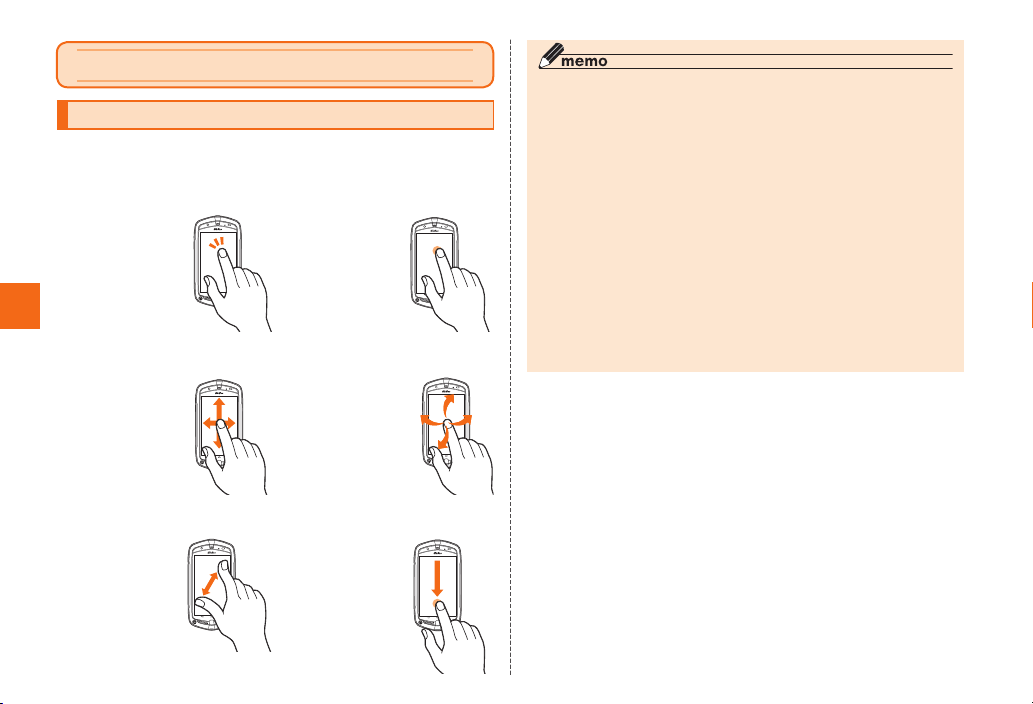
Basic Operation
Using the Touch Panel
The display on the product is a touch panel operated by touching it
with your finger.
■ Tap /D o uble Tap ■ Long Touch
Tap: Gently touch
a screen and
then immediately
release your finger.
Double tap: Tap
the same position
twice.
Basic Operation
■ Slide ■ Flick
While your finger
is gently touching
the screen, trace
it to the desired
direction to move
over.
■ Pinch ■ Drag
Touch the screen
with two fingers
and widen
(pinch-out) or
narrow (pinchin) the fingers’
distance.
42
Keep touching
an item or key
with your finger.
Operate the
screen by
quickly moving
(flicking) your
finger up, down,
right, or left.
Keep touching
an item or icon,
trace it to the
desired direction
to move.
◎ In the following cases, the touch panel may not work even if you
touch it. It may also malfunction.
• Operation with a gloved finger
• Operation with your fingernails
• Operation with a sharp-pointed object such as a ballpoint pen or
pencil
• Operation with foreign objects placed on the operation pad
• Operation with protective sheets or stickers on the touch panel
• Operation involving pressing down hard on the screen
• Operation with wet or sweaty fingers
• Operation when the display is wet or fogged
• Operation under water
◎ When performing flick operations, move your finger slowly and then
flick it gently.
◎ Enabling “Touch panel sensitivity” of “Touch panel Setting” may
result in a response when you bring a finger close to the touch
panel, even if you do not touch it.
Page 45
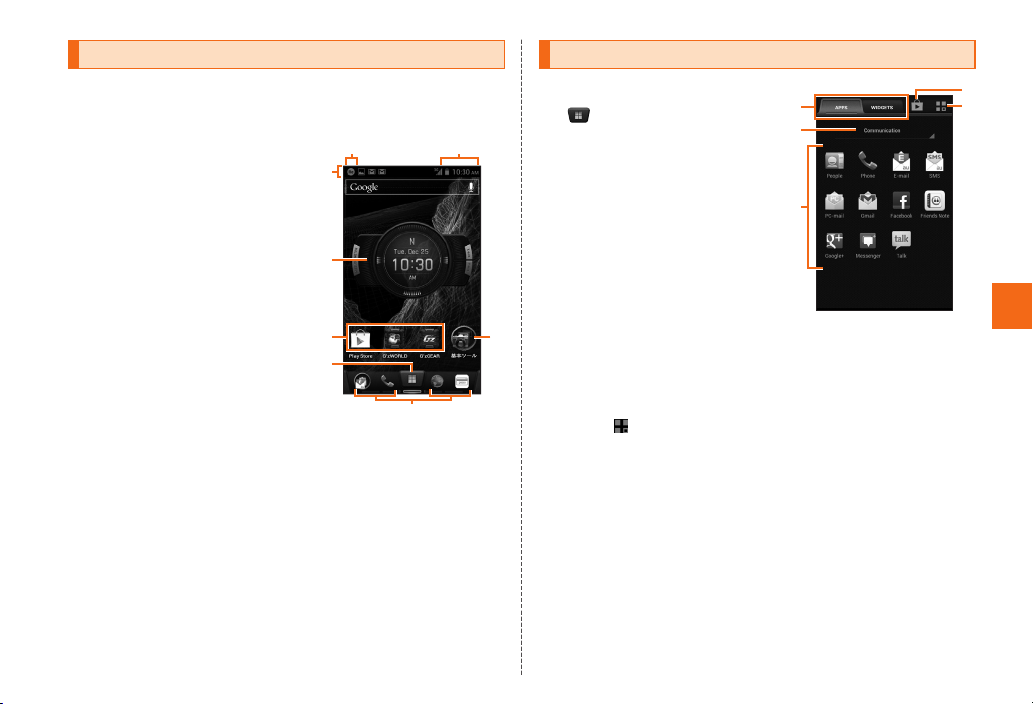
Using the Home Screen
On the home screen, you can check the status and current settings
of the G’zOne, star t an application from a shortcut icon, etc. You can
also place and use your favorite widgets.
① Status bar
② Notification icons
③ Status icons
④ Widgets
⑤ Shortcuts
⑥ Apps button
⑦ Folder
⑧ Quick menu
②
①
④
⑤
⑥
《Home screen》
* This screen is for the
explanatio n of each fun ction,
so it is different from the default
status.
③
⑧
Using the APPS Tray
On the home screen,
The APPS tray appears.
Slide/flick left or right to switch
to the APPS tray on the left or
right.
If the WIDGET tray is
displayed, tap the “APPS”
screen selection tab.
①Screen selection tabs
Switch to the APPS tray or
WIDGET tray.
②Category name
⑦
Tap this to display the
category list. Tap a
category name in the list to
display the APPS tray for
that category.
Ta p
③App icons
Tap an icon to start the app.
④Google Play icon
Tap this to display the Google Play screen.
⑤Edit mode icon
Tap this to switch the APPS tray to edit mode.
and the category
name to enable editing.
Tap an icon
The app starts.
①
②
③
《APPS tray screen》
④
⑤
Basic Operation
43
Page 46
■ Application List
Communication
People Register and manage your name, phone
number, mail address, and other information as
a contact.
Phone Make calls and check the call log.
E-mail Sends and receives mails using an address
(@ez we b.n e.j p).
SMS Sends and receives S MS (Shor t Message
Service) messages.
PC-mail Use the mail account you usually use with your
PC and other devices to exchange mail.
Gmail
Facebook Access Facebook.
Basic Operation
Use Gmail™.
Friends Note “Friends Note” can manage Native Address
Book of your phone and multiple social
networking services in just one application.
Google+ This service allows you to follow friends and
family, view shared content, and share your own
content.
Messenger Invite the people you know who are registered
to Google+™ and have text chats with them.
Tal k
Use Google Talk™ for chats.
Too ls
Calendar Display the calendar and manage your
schedule.
Alarms Set the alarm.
Calculator Perform calculations with the calculator.
Clock Display the clock. You can also set the alarm.
44
Barcode Reader
ICONIT - Barcode Reader Evolving
Shoot barcode with ICONIT to get something
more than ever.
Just scan QR code or UPC/EAN code and you
will get high-quality movies, music, images on
your Smartphone.
Receive data
by Ir
Receive contacts and still images via infrared
communication.
Hand Mirror Use the G’zOne as a hand mirror.
®
Osaifu-Keitai Use Osaifu-Keitai
.
Maps Display a map to confirm your current location.
Navigation Search for routes from your current location to
your destination, and use navigation.
Local Search for restaurants, tourist spots, and other
places of interest for the area around your
current location.
Latitude Check the location of your friends and send
them mail using Google Latitude™.
®
Quickoffice Display and edit Microsoft
Word files and other
documents.
File Manager Per form operations on files stored in the G’zOne
memory or microSD memory card.
Media
TV Watch 1Seg digital terrestrial broadcasts.
auテレビ
.Gガイド (au
TV.G-GUIDE
View TV program table or search programs.
Functions using 1Seg or remote timer recording
can be used.
program table)
Camera Shoot photos and movies with the camera.
Gallery Play photos and movies stored in the G’zOne
memory or microSD memory card.
Page 47
YouTube Play and search for YouTube movies.
ニコニコ動画
(au) (NICO
NICO DOUGA
(au))*
LISMO Player Plays music or checks information on the music
au Cloud* The application to move photos & movies of
Photo Album* The application to see photos & movies in au
Uta Pass Streaming music channel ser vice that enables
Video Pass* Enjoy popular movies and dramas, animation.
Music Play music files stored in the G’zOne memory or
Movie Studio Edit the movies you shot.
Play Movies
& TV
DiXiM Player This is a D LNA compliant home network player.
Chrome
Browser View websites.
Search Search for information on your G’zOne or the
This app is for using NICO NICO DOUGA.
using the LISMO Player. Moreover, try listening
it and purchase the investigated music.
smart Phone into au Cloud either automatically
or manually. Automatic movement is limited to
the area covered by Wi-Fi
Cloud, make an album and share the album
with friends and family.
you to listen to varieties of preset channels and
you can also listen with your friends.
microSD memory card.
Rent movies and watch them instantly with
Google Play Movies & TV.
Internet
View websites. This app syncs with Chrome™
on your PC.
Internet.
®
.
Downloads View the download history.
News &
Weather
auスマートパス
(au Smart
Pass)
Play Store
au Market You can install Android-based applications
GREE Market This application allows you to browse games
G’zWORLD This ser vice allows you to record your field
G’zGEA R Multiple tools developed for the G’zOne that
★GET CA★
by CASIO
CA’zCAFE Connect to CA’zCAFE (special Casio site).
G-SHOCK
App*
Twipple* This app allows you to use Twitter easily.
View news and weather information.
Market
You can enjoy as many applications as you
want from among over 500 apps by ¥390
(including tax) per month! Also coupons,
presents, photo storage and securit y apps
are available. Please enjoy your safety and
comfortable smartphone life!
Install Android™ apps from Google Play and
rent movies.
offered with au Smart Pass ser vice.
and other content provided by GREE. You do
not need a GREE account in order to use this
application.
Manufacturers
activities and share them with friends around
the world.
can be used in various situations outdoors or
downtown.
Connect to Casio’s official members-only fan
site.
Experience G-S HOCK’s proud toughness and
watch functions.
Basic Operation
45
Page 48
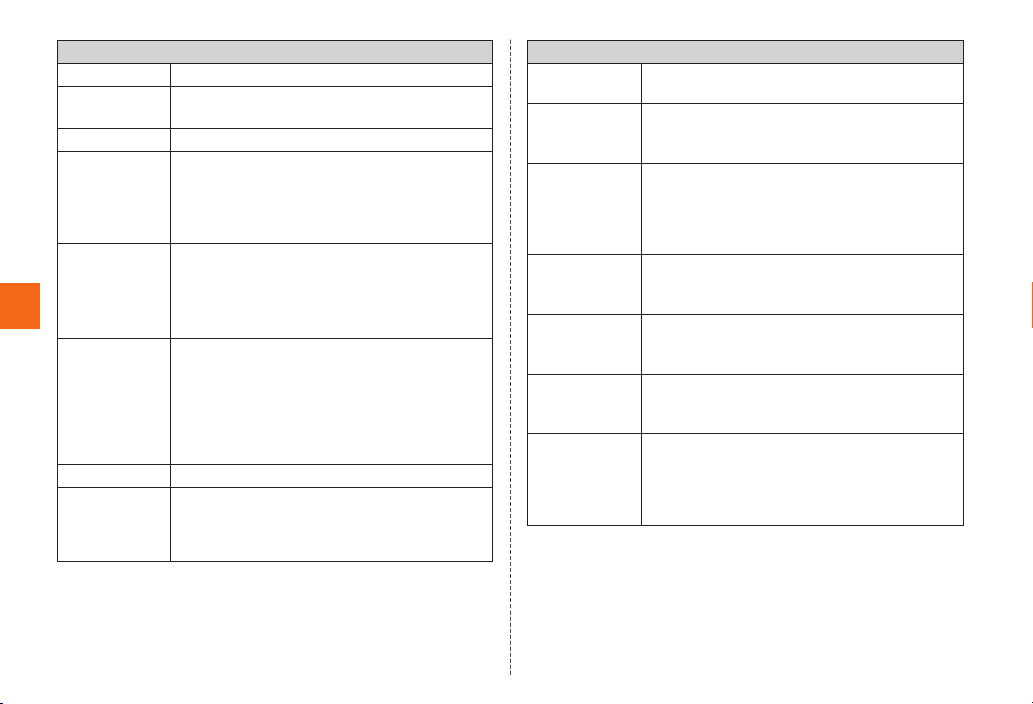
Settings
Settings Allows you to set the G’zOne.
au Easy
Setting
“au Easy Setting” assist you to set up au
services and functions.
ATOK Configure the ATOK settings.
®
au Wi-Fi接続ツ
ール (au Wi-Fi
connection
tool)
らくらく無線
スタートEX
for Android
(Rakuraku
Basic Operation
WLAN Start)*
Connects to a Wi-Fi
where au Wi- Fi SPOT is available. Also, you can
®
set Wi-Fi
easily with a wireless LAN (Wi- Fi®)
access point on which “Simple connection” is
available.
“Rakuraku WLAN Start” is a technology
developed by NEC AccessTechnica, Ltd. It
is possible to make wireless LA N settings by
using the “Rakuraku Star t Button” of the Aterm
series.
network easily in an area
LAWSON* Welcome to Lawson’s All- New mobile app.
Check for latest information and deals!
By logging in, loyalty program “Ponta”
members will have FREE access to “Lawson
Wi-Fi,” our in-store Wi-Fi
®
service. Members
can get exclusive limited coupons and check
point balance.
au ID Setting Set an au ID.
GLOBAL
PAS SP ORT *
Check whether the connected carrier applies
to Overseas Double-Teigaku or confirm the
method of making international calls and the
call fees.
Support
3LM Lock the G’zOne by remote operation in the
event of it being lost or stolen.
リモートサポ
ート (Remote
Support)
auお客さま
サポート
(au Customer
Support)
安心アクセス
(Safet y
®
Access)*
取扱説明書
(Instruction
Manual)*
ウイルスバ
スター (Virus
Call for technical supports on the phone
operations by sharing the screen that you are
watching with au operators.
You can check the subscription contents or
monthly usage of your au phones etc. with
this aplication. You can change your rate plan,
apply for optional services and so on at au
Customer Support website.
This is an application which limit the access to
the inappropriate application and web page so
that your child can use a smartphone safely.
This is an app version of the instruction manual
that allows you to check how to perform
advanced operations on the screen.
Blocks improper applications and sites in order
to protect young people.
Buster)*
au災害対策
au Disaster
(
Countermeasure)
This is an application in which you can use
Disaster Message Board, emergency early
warning mail (earthquake early warnings and
disaster/evacuation information) and Disaster
Voice Delivery Service.
46
Page 49
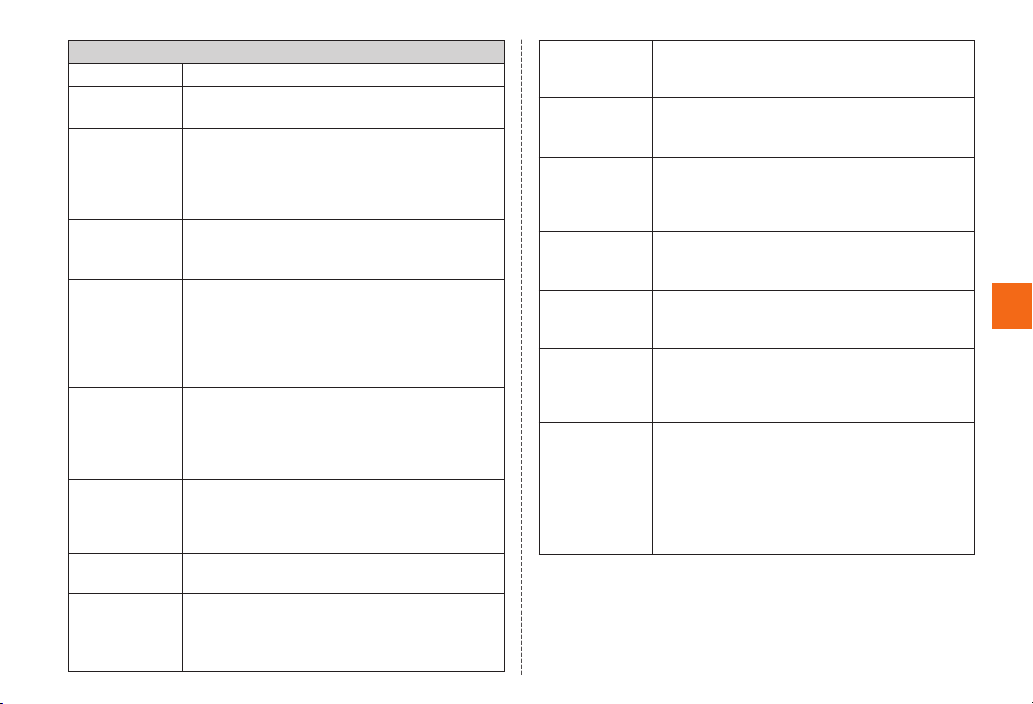
Recommend
LISMO WAVE* Enjoy FM radio all over Japan and music clips.
LISMO Book
Store*
逆転裁判
(Phoenix
Wright: Ace
Attorney)*
スマホカバー
(Smartphone
Cover) *
SATCH* SATCH VIEWER is an app that allows you to
TOLOTフォト
TOLOT
ブック (
PHOTOBOOK
LINE* LINE is a new communication app which allows
Skype* Makes a call or exchanges instant messages
おはなしア
シスタント
(Ohanashi
Assistant)*
Enjoy many e-books such as comics, novels
and photo albums.
Join lawyer Phoenix Wright and defend the
innocent in this point-and-click adventure
that’s sure to tickle the brain! Investigate crime
scenes and use the evidence to your advantage
in the courtroom!
Purchase a smartphone cover from an
assortment of original designs of popular
fashion brands.
experience AR content in a more convenient
and fun manner. The なんでもAR (Nandemo
AR) function which allows anyone to create
original AR content easily is also worth trying
out.
The application for make a beautiful photo book
easily! A photo book is a good way for save
your precious tour or anniversary, or give your
)*
friends or family as a present, just by using the
photos were taken by your smartphone!
you to make free voice calls and send free
messages whenever and wherever you are, 24
hours a day.
(chat).
This application lets you place phone calls,
send E-mails, manage schedules, and set
alarm etc. easily by talking. It also provides you
fun conversations with the assistant character.
GREE* This is an official application from GREE, a free
お買い物サー
チ (Shopping
Search)*
じぶん 銀行
(JIB UN
BANK)*
Dolphin
Browser for
au*
Paper
Camera*
PicCollage for
au*
自転車
NAVITIME for
auスマートパ
ス (Bicycle
NAVITIME
for au Smart
Pass)*
* They are applic ation sho rtcuts. To use the applicatio ns, you need to
download them.
social mobile gaming network with more than
25 million users.
Helps you search various goods sold on many
popular shopping sites.
You can check the statement of your account
balance, search for nearest available ATMs,
and so on through the screen optimized for
Smartphones.
This app is popularity rise. Internet comfortable
to use. It have convenient feature. For example
speed dial and gesture.
This camera app offers an assortment of
shooting modes and effects to choose from, as
well as enhanced functionality.
Just use the PicCollage, you can create a
collage at will simply fun! If you share on
Facebook or E-mail, family and friends can
enjoy together.
“Bicycle NAVITIME for au Smart Pass” is a GPS
navigation app for cyclists.
Five type of routes can be searched: least hills;
most hills; along large roads; along back roads;
and shortest distance.
Basic Operation
47
Page 50
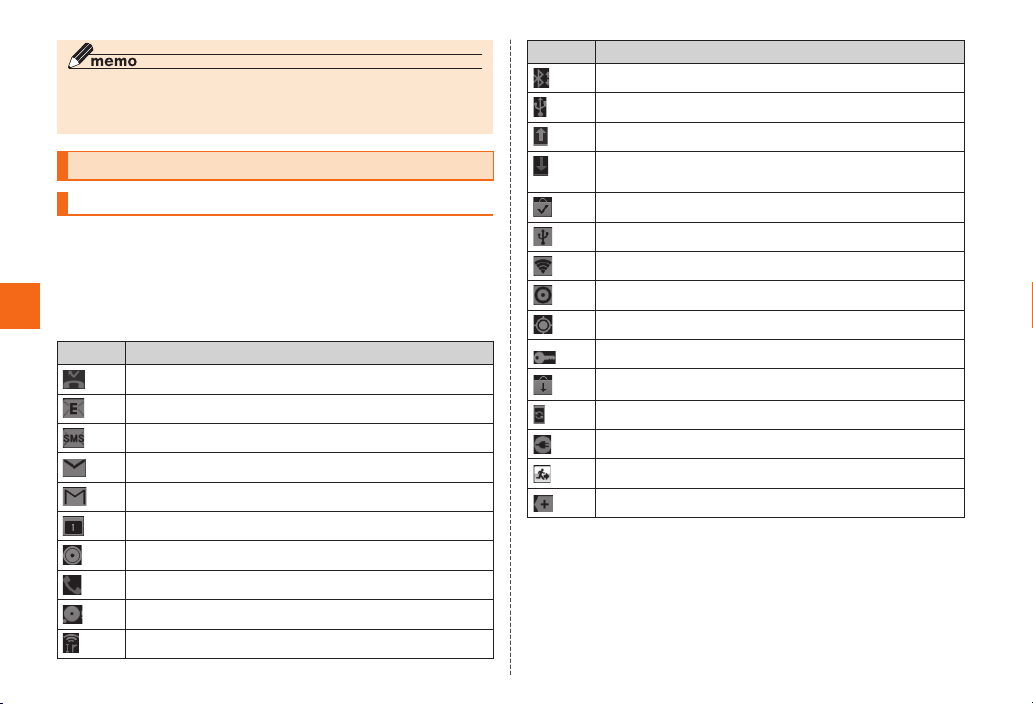
◎ When you use applications, packet communication charges may
apply depending on the application.
◎ Icon designs and names may be changed without prior notice.
Monitoring the Product’s Status
Understanding Icons
The status bar is on the top of the screen of the G’zOne. The
notification icons to notif y you of a missed call, a new mail message,
or a running operation are displayed on the left side of the status
bar, while the status icons to show the status of the G’zOne are on
the right side.
Basic Operation
■ Examples of Notification Icon
Icon Description
Missed call
New mail message (E-mail)
New mail message (SMS)
New mail message (PC-mail)
New mail message (Gmail)
Schedule notification of the calendar
Playing music
Dialing/Incoming
Few space available in the G’zOne
Infrared communication in progress
48
Icon Description
New file received by Bluetooth® communication
USB connecting
Uploading data/Finished uploading
Downloading/finished downloading/installing data or
application
Finished installing
Using USB tethering
Using Wi-Fi tethering/Wi-Fi Direct
Using USB tethering and Wi-Fi tethering
GPS in use
Connected to VPN
Update available
Major update available
Finished charging
New mail message (emergency early warning)
Not possible to display all of the notification indicators
Page 51
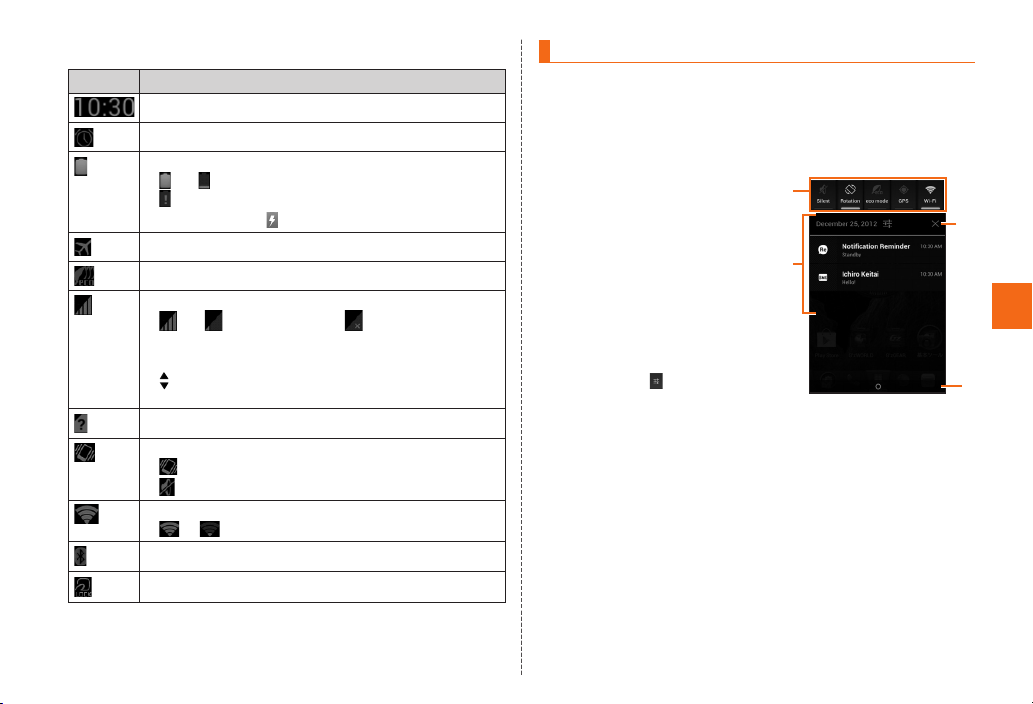
■ Examples of Status Icon
Icon Description
Time
Alarm set
Battery level
〜 Remaining battery power indicators /
No battery power
• The charge icon is displayed.
Airplane mode set
eco mode set
Signal strength
〜 Level indicators / Out of service area
• The indicator that indicates the net work being used
for data communication is displayed on the top left.
• is displayed over the indicator during
communication.
au Micro IC Card (LTE) not inserted
Silent mode status
Silent mode on (with vibration)
Silent mode on (without vibration)
Wi-Fi® signal strength
〜 Level indicators
Bluetooth® waiting/connecting/in use
Osaifu-Keitai® lock setting in use
Using Notification Panel
In the notification panel, you can check the details on notification
icons and status icons or activate an application corresponding to
the icon.
Flick/drag the status bar downward
The notification panel appears.
①Function switches
You can set “Silent mode”,
“Auto-rotate screen”, “eco
mo d e”, “GPS ”, “Bl u eto oth ”,
“Wi- Fi”, “Brightness”, “Autosync”, and “Surround”.
If you tap [Tap search], you
can perform a search by
tapping the characters you
want to search for on the
screen.
If you tap
change the icons displayed
for the function switches and
change the display order of
icons.
②Notification area
You can view the status of the G’zOne and contents of
notifications.
You can tap to activate a corresponding application
depending on the notification.
③Clear button
Clear the notifications. However, some notifications may not
be able to be cleared.
④Close tab
Flick or drag upward to close the notification panel.
, you can
①
②
《Notification panel》
③
Basic Operation
④
49
Page 52
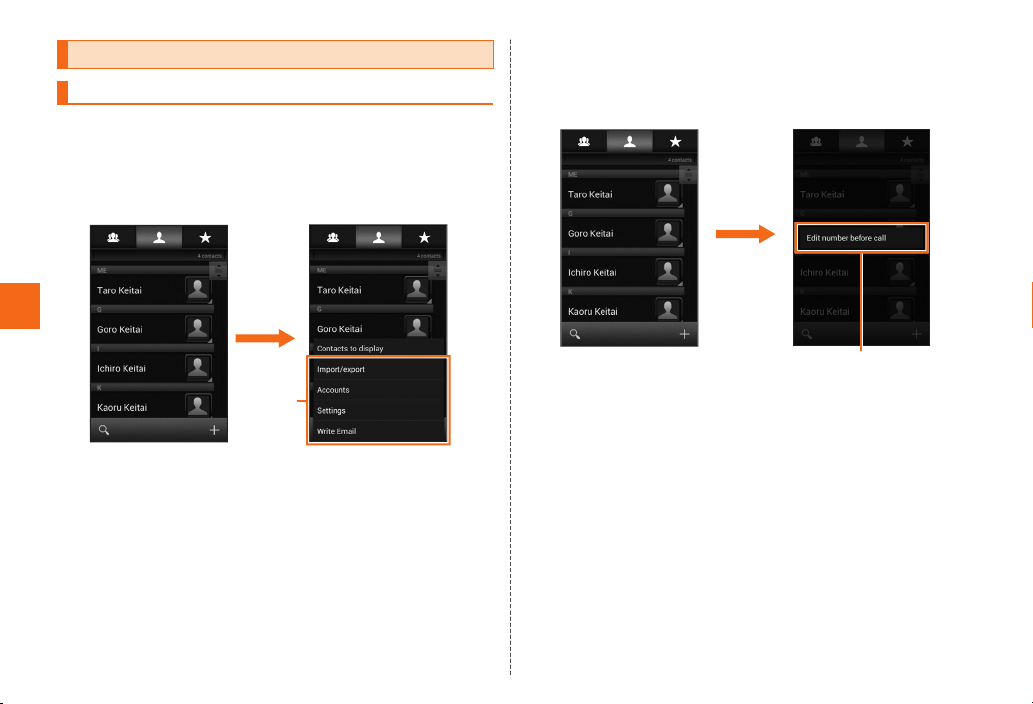
Learning Common Operations
Displaying the Menu
There are two types of menus: context menu and option menu.
■ Option Menu
The option menu is displayed by tapping M on the screen where
the menu is available.
Example: In the Contacts list screen
Basic Operation
Tap M
Option
menu
■ Context Menu
The context menu is displayed by long touching an item or a display
where the menu is available.
Example: In the Contacts list screen
Long touch
“Ichiro Keitai”
Context Menu
50
Page 53
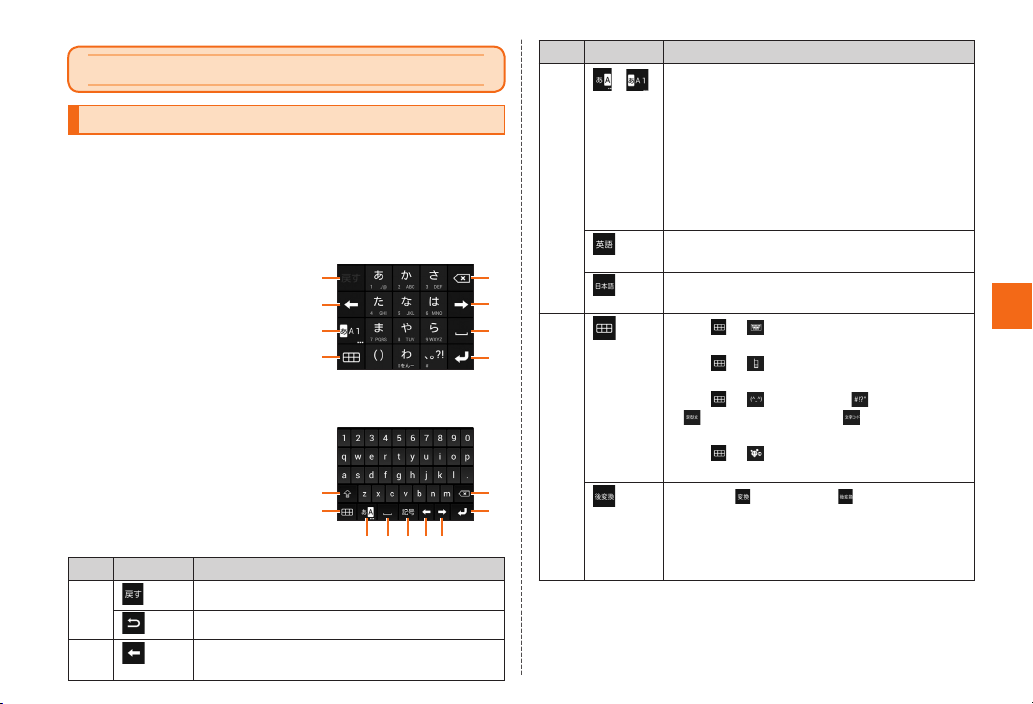
Character Input
Keyboards
The G’zOne uses the ATOK keyboard for inputting text.
You can display the keyboard on the screen by tapping the
character entry field and hide it by tapping B.
ATOK has two types of keyboard.
■ Numeric Keypad
Characters are arranged the
same as the keyboard on a
conventional cell phone. You can
use five input modes on this
keyboard: Numeric keypad input,
Gesture input, Flick input, T9 input
and 2-touch input.
■ QWERTY Keypad
Characters are arranged on the
keyboard the same as on a
conventional computer.
No. Key Description
①
②
Undo the last input operation.
Display the characters in the opposite order.
Move the cursor to the left and select the
conversion target.
①
②
③
④
⑨
④
⑪
No. Key Description
③
⑤
⑥
④
⑦
⑧
⑤
⑧
⑥②⑦⑩
/
Switch the character type between hiragana
input, alphabet input, and number input.
• With number input, only single -byte
numbers can be input.
• If “Number type keypad” is disabled, tap to
switch the character type to hiragana input
or alphabet input.
• Long touch to select “ATOK Settings” or
“Register Words”.
Displayed during T9 input. Switches to
English input.
Displayed during T9 input. Switches to
Japanese input.
• Tap → while the numeric keypad is
displayed to switch to the QWERT Y keypad.
• Tap → while the QWERT Y keypad is
displayed to switch to the numeric keypad.
• Tap → (Face mark), (Symbol),
(Common phrase), or (Text code) to
switch to the corresponding panel.
• Tap → (ATOK Direct) to display a list
of mushroom compatible applications.
If you tap and then tap , you can select
hiragana, double-byte katakana, single-by te
katakana, double-by te alphabet letters, or
single-by te alphabet letters from a list and
then confirm the selection.
Basic Operation
51
Page 54
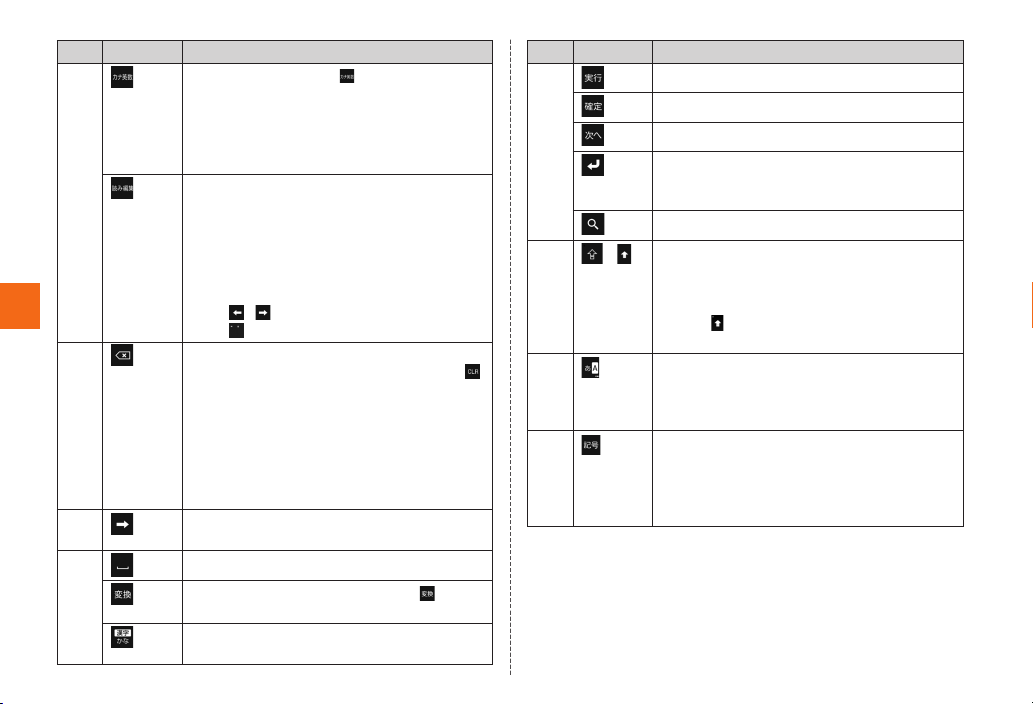
No. Key Description
④
Enter hiragana and tap to display the
katakana, number, alphabet letter, and date
conversion candidates that correspond to the
keys tapped during input.
• Tap “半角” or “全角” to switch to a single-
byte or double-byte conversion candidate.
Displayed during T9 input. Switches to
reading edit mode and moves the cursor to
the beginning of the unconfirmed characters.
The characters for the line of the hiragana at
the position of the cursor are displayed, and
if you tap a character, the original character is
replaced with that character.
Basic Operation
⑤
• Tap / to move the cursor.
• Tap to display “
Delete the character on the left of the cursor.
• If “Character delete key” is set to “Clear”,
is displayed. Tap to delete the character on
the right of the cursor.
• If “Delete key flick” is enabled, flicking
upwards allows you to delete all characters
or all characters on the right. Flicking left
allows you to delete the sentence (word) or
all characters on the left.
⑥
Move the cursor to the right and select the
conversion target.
⑦
Input a space.
Convert unconfirmed hiragana. Tap to
convert to the next candidate.
Displayed during T9 input. Switches the kanji/
kana of the predictive conversion candidate.
52
” or “ ° ”.
゛
No. Key Description
⑧
Execute the operation for the input content.
Confirm the operation for the input content.
Move to the next input item.
Insert a line feed when possible. If there are
unconfirmed characters, the characters are
confirmed.
Search for the entered text.
⑨
Each tap switches key input in the order of
/
Uppercase → Uppercase (Lock) →
Lowercase.
• When input is Uppercase (Lock), the top
left of
lights. This allows you to input
uppercase and symbols continuously.
⑩
Switch the character type between hiragana
input and alphabet input.
• Long touch to select “ATOK Settings” or
“Register Words”.
⑪
Displayed on the QWERT Y keypad in the
vertical screen if “Show numeric keys (vertical
screen)” is enabled. Tap to switch to a
keyboard for symbol only input. Tap again to
return to the ordinary QWERT Y keypad.
* Some keys may n ot be displayed depending on the input item or input state.
Page 55
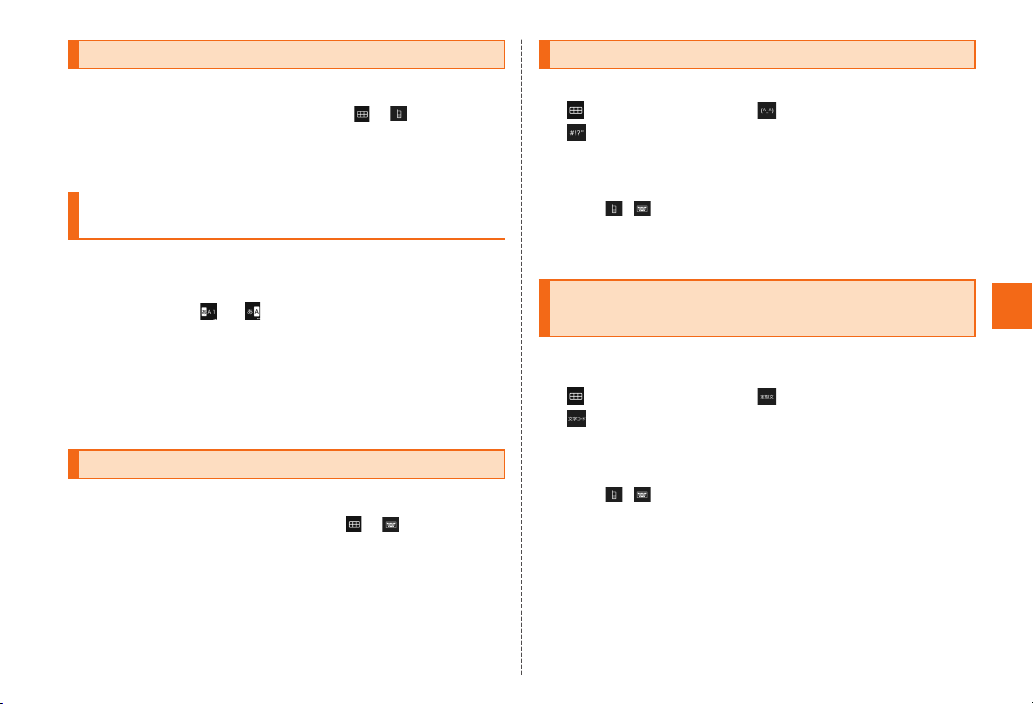
Inputting with the Numeric Keypad
Tap a text input field
If the QWERTY keypad is displayed, tap → to switch to
the number keyboard.
Input text
Switching Input Modes of the Numeric
Keypad
You can use any of the five input modes with the numeric keypad:
Numeric keypad input, Gesture input, Flick input, T9 input and
2-touch input.
Long touch or on the keyboard → [ATOK
Settings]
The ATOK Settings screen is displayed.
[Input mode] → [Numeric keypad input] /
[Gesture input] / [Flick input] / [T9 input] /
[2-touch input]
Inputting with the QWERTY Keypad
Tap a text input field
If the numeric keypad is displayed, tap → to switch to the
QWERTY keypad.
Input text
If the number keys are set not to be displayed, you can flick
a key downward to input the number or symbol displayed at
the bottom of the key. You can flick a key upward to input the
uppercase or lowercase character.
Inputting with the Face Mark/Symbol Panel
You can select and input a face mark or symbol from a list.
on the keyboard → (Face mark) /
(Symbol)
The face mark /symbol panel is displayed.
• Slide or flick the categories or list left or right to scroll.
• Tap a categor y to display the list for that category.
• Tap / to return to the numeric keypad or QWERTY
keypad.
Tap a face mark/symbol in the list
Inputting with the Common Phrase/ Text Code Panel
You can select and input a common phrase, or select and input text
from displayed text codes.
on the keyboard → (Common phrase) /
(Text code)
The common phrase/ text code panel is displayed.
• Tap a categor y to select a category from a list.
• Slide or flick up or down in a list to scroll.
• Tap / to return to the numeric keypad or QWERTY
keypad.
Tap a common phrase/character in the list
Basic Operation
53
Page 56
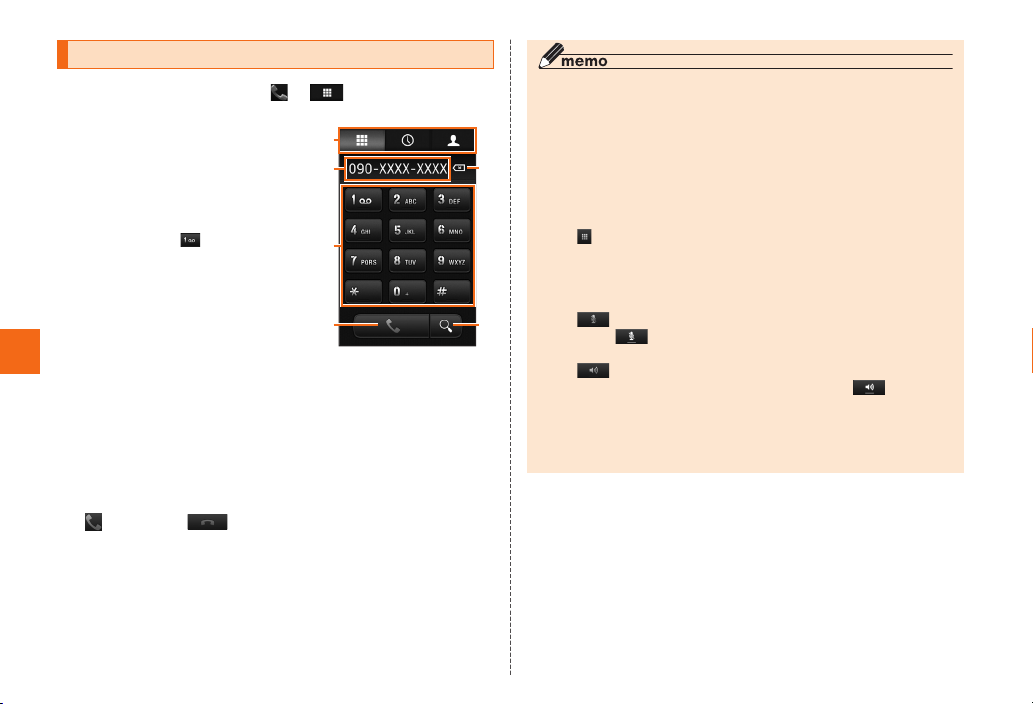
Making a Call
On the home screen, →
The phone number entry screen is displayed.
① Screen selection tabs
Switch to the phone number
entry screen, call log screen,
or contact list screen.
② Phone number entry field
③ Dial keys
Long touch
to call the
Answering Service and play
messages and voice mail.
* Answering S ervice EX is a paid
option service.
④ Call key
⑤ Correction key
Deletes one digit of the input
Phone
number. Long touch the key to
delete all of the digits.
⑥ Search indicator
Search for a contact.
Enter a phone number
When calling to a fixed-line phone, enter the phone number
starting with the area code even if you are in the same area.
→ Talk →
Press > or < during a call to adjust the volume of the
other party’s voice.
①
②
③
④
《Phone number entry screen》
◎ If your face, etc. comes close to the proximity sensor during dialing
or a call, the keys on the screen are hidden to prevent incorrect
operation.
◎ The call charges when calling with “1401” will be deducted from the
⑤
⑥
balance registered at the time of purchasing your au prepaid card.
◎ Note that even if you cover the microphone, your voice will be
conveyed to the other party.
◎ Even if “Airplane mode” is set, you can make calls to emergency call
numbers (110, 119, and 118).
◎ Tap during a call to display the dial key screen. You can send a
touch-tone signal of a tapped number.
* The sound of the touch-tone signal to b e sent cannot be heard from
the G’zOne.
To turn o ff the microphone:
◎ Tap during a call to prevent the other party from hearing your
voice. Tap
To call using hands-free :
◎ Tap during a call to hear the voice of the other party from
the speaker and enable hands-free for the call. Tap
disable hands-free.
◎ A loud sound may be emitted from the speaker when you use
hands-free. Be careful to, for example, keep your ears a sufficient
distance from the speaker during use.
again to enable your voice to be heard.
again to
54
Page 57
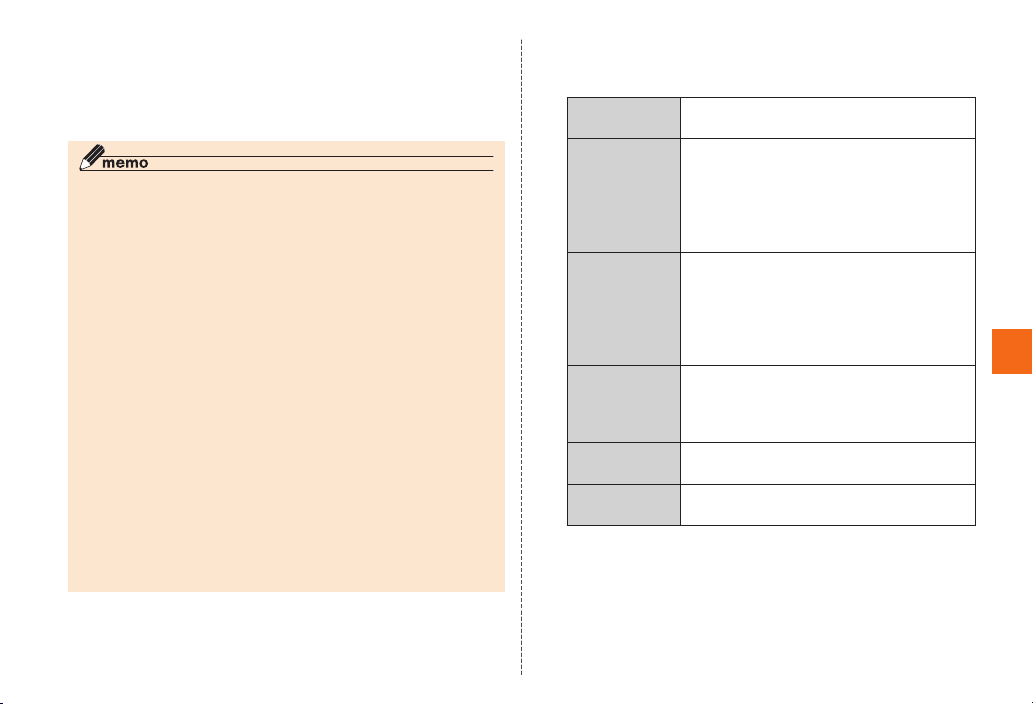
■ Emergency Call Location Notification
This product supports “Emergency call location notification” so that
if you make an emergency call to the police, fire station or Regional
Coast Guard Headquarters, your current location (GPS information)
will be transmit ted to the agency receiving the emergency call.
◎ In this section, the police (110), fire station (119) and Regional
Coast Guard Headquarters (118) are collectively referred to as the
emergency call receiving agency.
◎ This feature may not yet be available at some emergency call
receiving agencies.
◎ If you add “184” before the emergency call number 110/119/118, the
emergency call receiving agency will not be notified of your location
and phone number.
◎ In places where signal reception from GPS satellites or a base
station is relatively poor, such as in an underground mall, inside
a building or behind a tall building, the emergency call receiving
agency may be notified of some other place different from your
actual location.
◎ When GPS cannot be used to notify of your location, base station
signal is used instead.
◎ When making an emergency call to the police, fire station or
Regional Coast Guard Headquarters, always confirm where you are,
and tell them your exact location on the phone. Note that depending
on the area where you are calling, your call may not be connected to
the agency having jurisdiction over that area.
◎ If the emergency call receiving agency determines that human lives
and health are in danger, they will be able to acquire the caller’s
location information during the call or within a certain period of time
after the call.
■ Using the Phone Number Entry Screen
On the phone number entry screen, M
Add to
contacts
Send Caller ID Set whether to notify the other party of your
International
call
Add 2-sec
pause
Add wait Adds “;” to the phone number.
Settings Configure calling settings such as
* The displayed items diffe r depending on the phon e number entry state.
Register the phone number in the contacts.
phone number.
• Tap [Yes] to prefix “186” to your phone
number.
• Tap [No] to prefix “184” to your phone
number.
Displays the country code list. Select a
country code to input “+” and the country
code.
• The country code list displays the lists set
in “Country code” of “International dial
assist”.
Adds “,” to the phone number.
• A touch-tone signal can be sent
automatically if you enter the touch-tone
signal to send after “,” in advance.
▶P.56 “Making a Call Using Pause Dial”
Voicemail, Record message, etc.
Phone
55
Page 58
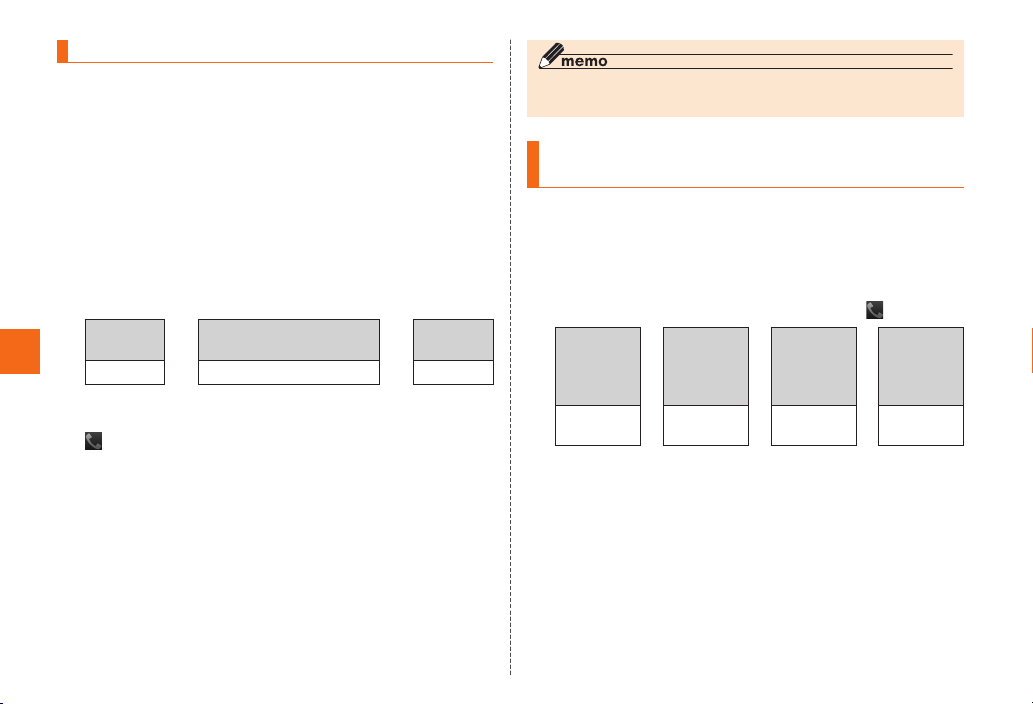
Making a Call Using Pause Dial
If you enter a touch -tone signal to send in advance, you can send
the touch-tone signal by tapping [Yes] during a call. This feature is
convenient for using various information services and automated
reservation services.
Example: Calling “03-0001-XXXX (bank’s phone number)” and
sending the branch code “22X” and account number
“123XX”
On the phone number entry screen, enter the
phone number → M → [Add wait]
You can enter a “;” (pause). Up to 32 digits including “;” (pause)
can be entered.
Enter the touch-tone signals to send
Branch
code
Phone
22X
* You can enter multipl e touch-to ne signals if you enter a “;” (pause)
between t hem.
➡
“;” (Pause)
→ [Add wait]
M
➡
A call is made to “030001XXXX” and a screen for confirming
whether to send a touch-tone signal (22X;123XX) appears.
[Yes]
The first touch-tone signal is sent (22X ) and then a screen
for confirming whether to send the second touch-tone signal
(123 X X ) a pp ear s.
[Yes]
The second touch-tone signal is sent (123XX).
When sending of the touch-tone signals is finished, the regular
call screen is redisplayed.
56
Account
number
123X X
◎ The touch-tone signals may not be sent correctly if the signal is
weak.
Making an International Call
(au International Call Service)
You can make international calls without any special procedure from
your G’zOne.
Example: To call “212-123-XXXX” in the USA
On the phone number entry screen, enter the
access code, country code, area code, and the
phone number of the other party →
International
access
*1
code
001010 or
010
*1 Long touch the “0” to e nter “+” and the internatio nal access c ode
(001010) is autom atically added when ca lling.
2
*
If the area code start s with “0”, dial it without including the “ 0”. (There
are some except ions such as fixed-li ne phones in some countries and
regions suc h as Italy, Moscow, etc.)
Country
code (USA)
➡
1 212 123XXXX
Area code
➡
*2
➡
Phone
number of
the other
party
Page 59
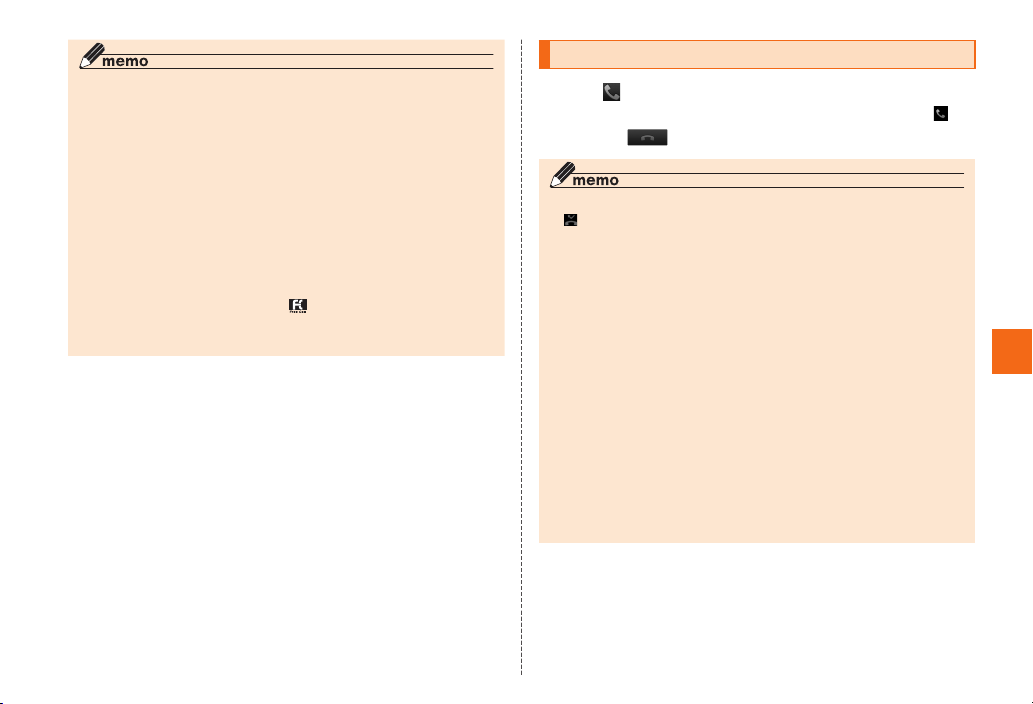
◎ The international access code differs depending on the country.
◎ A monthly usage limit fee is set for the au International Call Service.
The au International Call Service will be unavailable during the
period from when au confirms that the usage limit has been
exceeded to the last day of the same month.
◎ Even if use is suspended because the usage limit is exceeded, you
will be able to resume use from the first day of the next month. Also,
you can make domestic calls as usual while use is suspended.
◎ International call charges are billed together with monthly local call
charges.
◎ For more information on au International Call Service, dial either of
the following numbers:
From au cell phones (toll-free): 157 (area code not required)
From fixed-line phones (toll-free):
(Open 9:00 to 20:00 everyday)
◎ Calls can be forwarded to overseas.
0077-7-111
Answering a Call
Tap on the screen during an incoming call
If a call is received while the screen is locked, double tap .
Tal k →
When a call was not answered
◎ is displayed on the status bar. Flick/drag the status bar downward
to display the time that the call was received, either the phone
number or the name registered in the contacts, and other information
on the notification panel.
To mute the ring tone when you receive a call
◎ Press >/< when you receive a call to mute the ringtone and
stop the vibration.
When you receive a c all whil e using an other function
◎ When you receive a call while using another function such as the
mail or browser function, priority is given to the call.
◎ When you receive a call while recording with the voice recorder or
another function, recording is interrupted and the recorded data is
saved.
Display when a call is received
◎ If notification of the phone number is not received from the other
party, one of the following reasons appear on the display.
“ID Unsent”, “Pay Phone”, or “Not Support*”
* When the other party has called from a phone that cannot notify of the
phone number.
Phone
57
Page 60
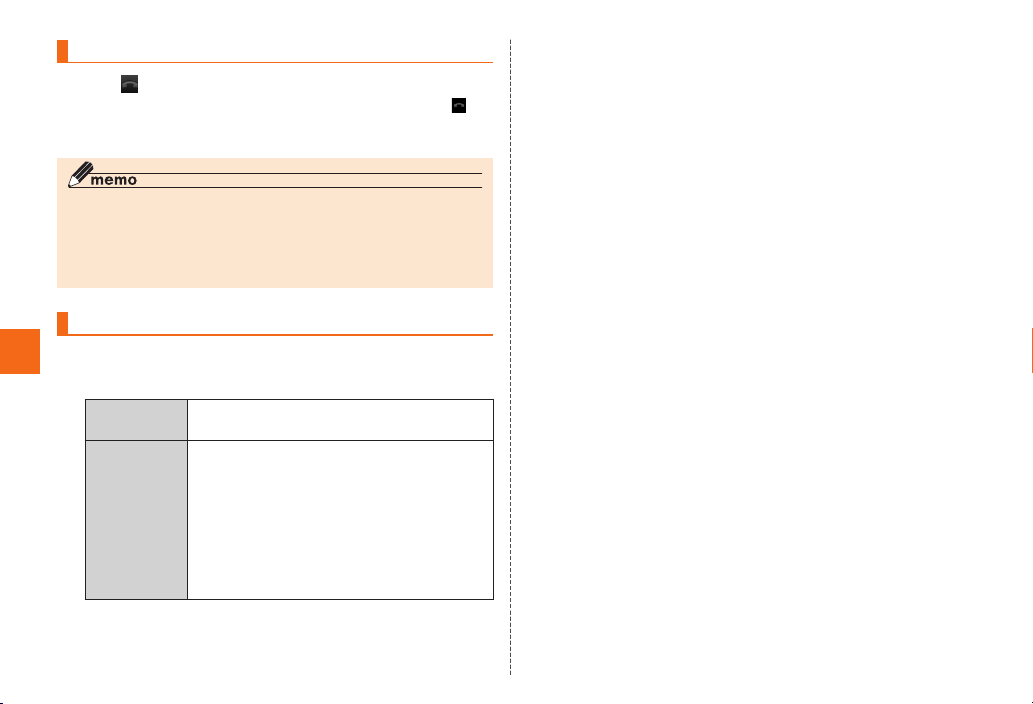
Rejecting Calls
Tap on the screen during an incoming call
If a call is received while the screen is locked, double tap .
The ringtone stops, the call is ended, and voice guidance
notifies the other party that the call was rejected.
◎ If the Answering Service* is activated or “Forward on no-reply” is set
for the Call Forwarding Service, priority is given to the Answering
Service* or Call Forwarding Service, even if you attempt to reject
the call.
* Answering Service EX is a paid option service.
Using the Menu When a Call is Received
Press M on the screen during an incoming
Phone
call
Record
message
Forwarding Do not answer the received call but instead
Answer a call with a Record message and
record the other party’s message.
forward it to the forwarding phone number.
• This is not available during international
roaming.
• When the Answering Service is activated,
the received call will be forwarded to the
Answering Service if the forwarding phone
number has not been registered.
* Answering S ervice EX is a paid option serv ice.
58
Page 61
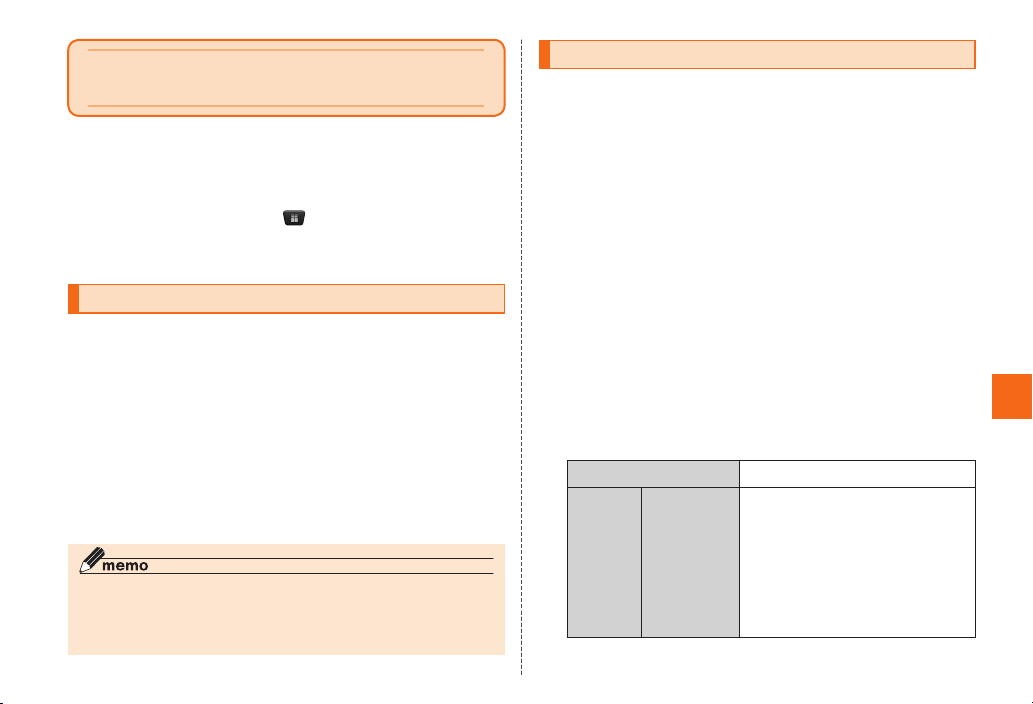
Using au Disaster
Countermeasure Application
au Disaster Countermeasure is an application in which you can use
Disaster Message Board, emergency early warning mail (earthquake
early warnings, disaster/evacuation information and tsunami
warnings) and Disaster Voice Delivery Service.
On the home screen, → [au災害対策] (au
Disaster Countermeasure)
The au disaster countermeasure menu is displayed.
Using Disaster Message Board
Disaster Message Board is a service to enable customers in disaster
areas to register their safety information via LTE NET when largescale disasters, such as an earthquake whose Japan seismic scale
is approximately 6 -lower or more, occur. The registered safety
information can be checked by customers using au phones, and
also from other carriers’ cell phones, PCs, etc.
For details, refer to “Disaster Message Board Service” on the au
homepage.
From the au disaster countermeasure menu,
[災害用伝言板] (Disaster Message Board)
Follow the on-screen instructions for registration/confirmation.
◎ To register the safety information, an e-mail address (~ezweb.ne.jp)
is required. Set the mail address in advance.
◎ Deleting and changing of the safety notification settings are not
available when there is a wireless LAN (Wi-Fi
®
) connection.
Using Emergency Early Warning Mail
The emergency early warning mail is a service to collectively deliver
earthquake early warnings and tsunami warnings provided by the
Japan Meteorological Agency and disaster/evacuation information
provided by the national government or the local governments to au
phones in the specified areas.
At the time of purchase, receiving setting of emergency early
warning mail (earthquake early warnings and disaster/evacuation
information) is set to “受信する” (Receive).
You can receive tsunami warnings by setting “災害・避難情報”
(Disaster/Evacuation information).
When receiving an earthquake early warning, secure your safety and
act composedly according to the surrounding situations.
When receiving a tsunami warning, leave sea coasts immediately
and evacuate to safe places such as hills and strongly-built tall
buildings.
From the au disaster countermeasure menu,
[緊急速報メール] (Emergency early warning
mail)
The inbox is displayed.
Select a mail to check to display the details of the mail.
削除 (Delete)
設定
(Settings)
受信設定
(Receiving
Setting)
Delete received mails.
緊急地震速報 (Earthquake early
warning): Set whether to receive
earthquake early warnings.
災害・避難情報 (Disaster/
Evacuation information): Set
whether to receive disaster/
evacuation information and
tsunami warnings.
Too ls /A pp lic at ion s
59
Page 62
Too ls /A pp lic at ion s
60
設定
(Settings)
通知設定
(Notification
Setting)
受信音/
バイブ確認
(Confirmation
of the
receiving
sound and
vibrator)
音量 (Volume): Set the volume of
the receiving sound.
バイブ (Vibrator): Set whether to
activate the vibrator at the time of
reception.
マナー時の鳴動 (Linkage to the
manner mode): Set whether to
notify you with the manner mode
settings applied in the manner
mode.
緊急地震速報 (Earthquake early
warning): Check the operations of
the receiving sound and vibrator
for earthquake early warnings.
災害・避難情報 (Disaster/
Evacuation information): Check
the operations of the receiving
sound and vibrator for disaster/
evacuation information and
tsunami warnings.
◎ When you receive an emergency early warning mail, the dedicated
alarm tone rings. The alarm tone cannot be changed.
◎ Earthquake early warning notifies areas where a strong shaking
(Japan seismic scale 4 or more) is expected when an earthquake
whose maximum Japan seismic scale is predicted of 5-lower or
more has been detected.
◎ This service detects an earthquake (P-wave, preliminary tremors)
near the seismic center immediately after the earthquake occurs and
automatically calculates its location, scale and predicted strength
of the shaking. After that, you will be notified of the earthquake as
soon as possible within a few seconds to dozens of seconds before
a strong shaking from the earthquake (S-wave, principal shock)
occurs.
◎ In the vicinity of the seismic center, a strong shaking may reach you
before an earthquake early warning.
◎ Tsunami warning notifies areas including target sea coasts of
tsunami warnings (major tsunami and tsunami) provided by the
Japan Meteorological Agency.
◎ Disaster/Evacuation information notifies information related to the
safety of citizens, such as evacuation advisories, evacuation orders
or various alarms delivered by the national government or the local
governments.
◎ This service is available only in Japan (Not available overseas).
◎ Emergency early warning mail is free of both information charges
and communication charges.
◎ KDDI is not liable for damages suffered by customers resulting from
the service’s information, lack or delay in the information caused by
transmission or system breakdowns, or other events that are outside
the responsibility of KDDI.
◎ For details on earthquake early warnings provided by the Japan
Meteorological Agency, refer to the agency’s homepage.
http://www.jma.go.jp/ (for computers)
◎ Emergency early warning mails cannot be received while the power
is turned off or during a call.
Page 63
◎ Emergency early warning mails may not be received during
communication such as while sending and receiving SMSs/e-mails
and while using the browser or when you are in a place where the
signal cannot be received (e.g. tunnels and basements) or the signal
is weak, even within the service area.
◎ Emergency early warning mails which failed to be received will not
be able to be received again.
◎ The earthquake early warning distribution system provided by
this service is different from that provided by TV, radio and other
communication media and thus the arriving time of earthquake early
warnings may be different among those media.
◎ Information intended for the areas of other than your present location
may be received.
Using Disaster Voice Delivery Service
Disaster Voice Delivery Ser vice is a ser vice to record voices with
a smartphone and deliver them as a voice message to people to
whom you want to deliver the information that you are safe when
large-scale disasters occur.
From the au disaster countermeasure menu,
[災害用音声お届けサービス] (Disaster Voice
Delivery Service)
■ Sending Voices (Send)
Tap [声をお届け] (Send voices) and operate in order of “①お届け
先を選択*” (Select to whom to send) → “②お届けしたい声を録音”
(Record voices to send).
* You can also select to whom to send your voices from the cont acts.
■ Receiving Voices (Receive)
You will be notified via a pop-up screen or an SMS that a voice
message has been received. You can listen to the message by
receiving (downloading) and playing the voice message.
* If the receive rs are using a sm artphone on which an au Disaste r
Counterm easure application sup porting Disaster Voic e Deliver y Service is
not enabled or using an au cell phone, th ey will be notif ied via an SM S.
* If the receive rs are notified via an SM S, the infor mation will n ot be saved in
the au Disas ter Counter measure ap plication.
◎ Sending and receiving voice messages are available only when
you are using LTE/3G network. Disable wireless LAN (Wi-Fi
communication etc. before use.
◎ Voice messages can be recorded for up to 30 seconds.
◎ Voice messages can be exchanged only among au cell phones
(interoperation with other carriers’ cell phones will be available from
the spring of 2013).
◎ Voices may not be heard when the media sound volume is set to low
or the silent mode is set.
◎ When no free space is left on the G’zOne memory, voice messages
may not be saved or played.
◎ Some cell phones cannot receive voice messages. For details, refer
to the au homepage.
®
)
Too ls /A pp lic at ion s
61
Page 64
Using microSD Memory Card
You can set microSD memory card (including microSDHC memory
card) to the G’zOne, and save data. And also you can keep mail
messages, bookmarks, etc. in microSD memory card.
◎ Some applications may not be available when a microSD memory
card is not inserted.
◎ A microSD memory card that was initialized with another device may
not be able to be used with the G’zOne properly. In such a case,
on the home screen → [Settings] → [Storage] → [Erase SD
tap
card] → [Erase SD card] → [Erase everything]. Please note that
File Management
tapping [Erase everything] will clear all of the data in the microSD
memory card.
◎ Some files such as copyright protected data may not be played on
G’zOne even if they are moved/copied from the PCs to a microSD
memory card successfully.
■ Handling Precautions
• Do not subject the G’zOne to vibration or impact, remove the
battery pack, or turn off the power while reading, writing, playing,
saving, or moving/copying data. Doing so may result in a loss of
data or a malfunction.
It may result in damage to data (deletion) in the G’zOne or microSD
memory card, or data loss.
• The G’zOne supports microSD and microSDHC memory cards.
For details on whether a microSD or microSDHC memory card is
supported, ask the corresponding manufacturer or check the au
website.
• Do not drop or subject the G’zOne to impact with a microSD
memory card inserted. It may result in damage to recorded data,
or data loss.
62
• Do not insert objects other than microSD memory card such
as liquid, metals or flammable items into the microSD memor y
card slot of the G’zOne. It may result in a fire, electric shock or
malfunction.
• Insert the microSD memory card correctly. An incorrectly inserted
microSD memory card cannot be used.
• Do not use unnecessary force when inser ting and removing
the microSD memory card. Doing so may result in you hurting a
hand or finger. Also, do not strongly press the back side near the
connectors. Doing so may damage a connector.
• Please note that the microSD memory card may spring out if you
flick it with a fingernail.
• Some microSD memor y cards may not be able to be used without
being initialized first. Initialize a microSD memory card with the
G’zOne before use.
Page 65
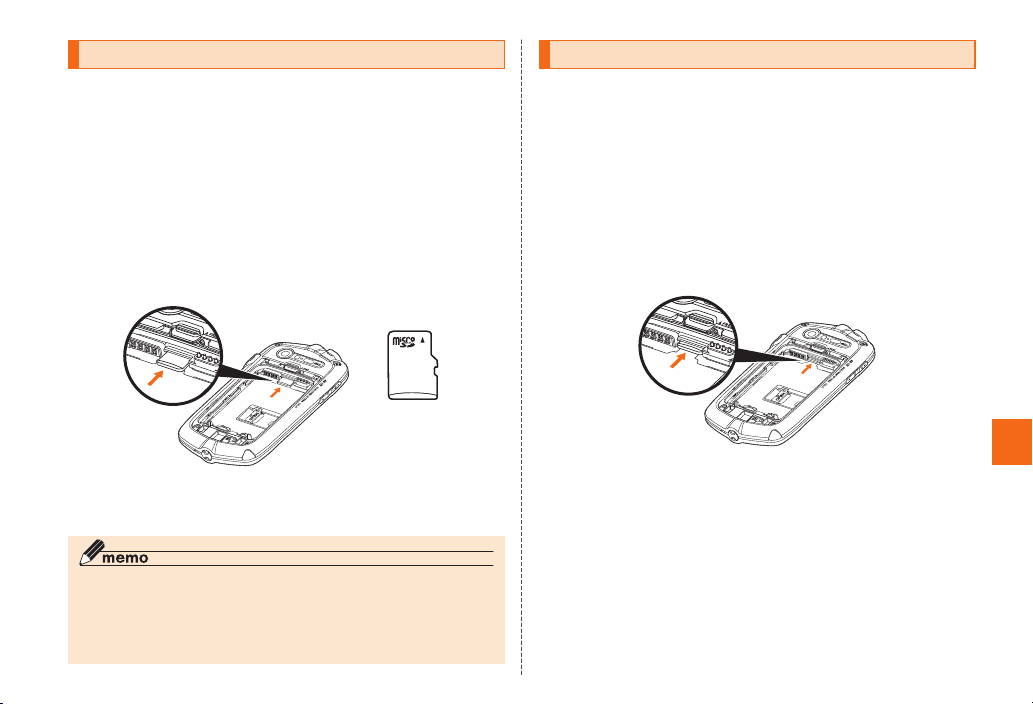
Inserting microSD Memory Card
Removing microSD Memory Card
Turn off the G’zOne and remove the battery
cover and battery pack
For how to remove the battery pack, refer to “Attaching/
Removing the Battery Pack” (▶P.3 2 ).
Confirm the direction of the microSD memory
card and slowly insert it into the slot until it
clicks
Insert a microSD memory card until you hear a click and
confirm it is locked. Releasing the microSD memory card before
it is locked may cause it to pop-out.
(microSD
logo side up)
Attach the battery pack, and attach the battery
cover
◎ Insert a microSD memory card with the right side up in the
appropriate direction.
Inserting a microSD memory card forcefully into the slot could result
in failure to remove the microSD memory card, or damage to the
microSD memory card or the G’zOne.
Turn off the G’zOne and remove the battery
cover and battery pack
For how to remove the battery pack, refer to “Attaching/
Removing the Battery Pack” (▶P.3 2 ).
Slowly push the microSD memory card toward
the slot until it clicks
After it clicks, pull back your finger and keep putting it on the
microSD memory card until it comes out a little. Releasing the
microSD memory card when it is pushed toward the slot may
cause ejection of the microSD memory card.
File Management
63
Page 66
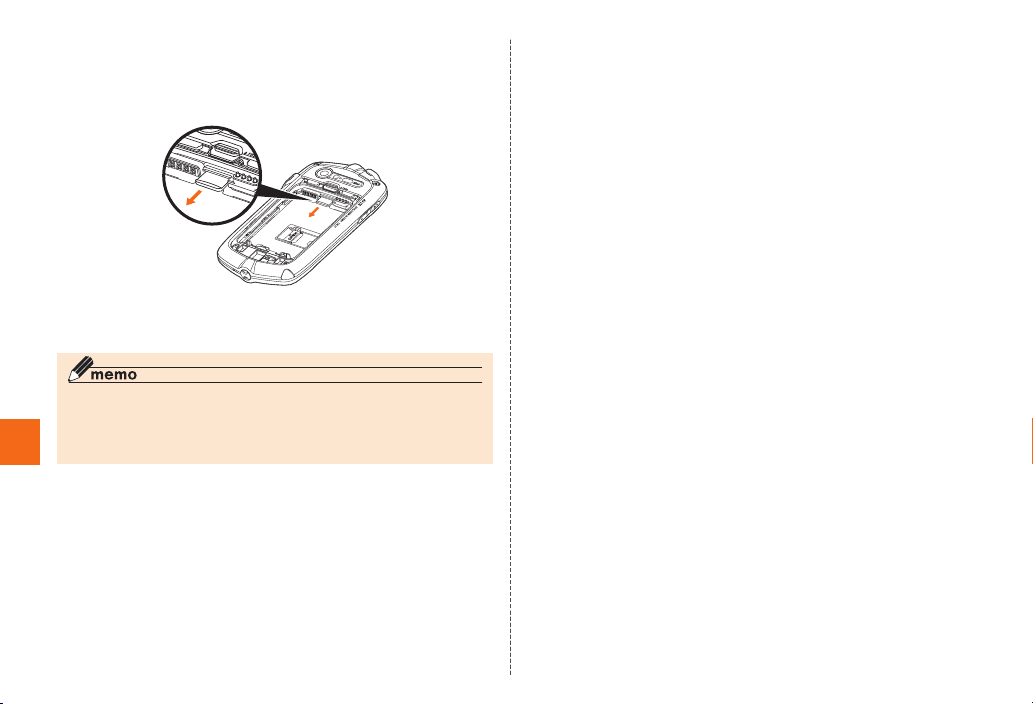
Slowly remove the microSD memory card
Slowly remove the microSD memory card.
Some microSD memory cards cannot be unlocked and do not
come out smoothly. In such case, pull it out with your finger.
File Management
Attach the battery pack, and attach the battery
cover
◎ Do not remove the microSD memory card forcefully. It may result in
damage to the microSD memory card or the G’zOne, or data loss.
◎ The microSD memory card may be warm after a long time use. It is
normal.
64
Page 67
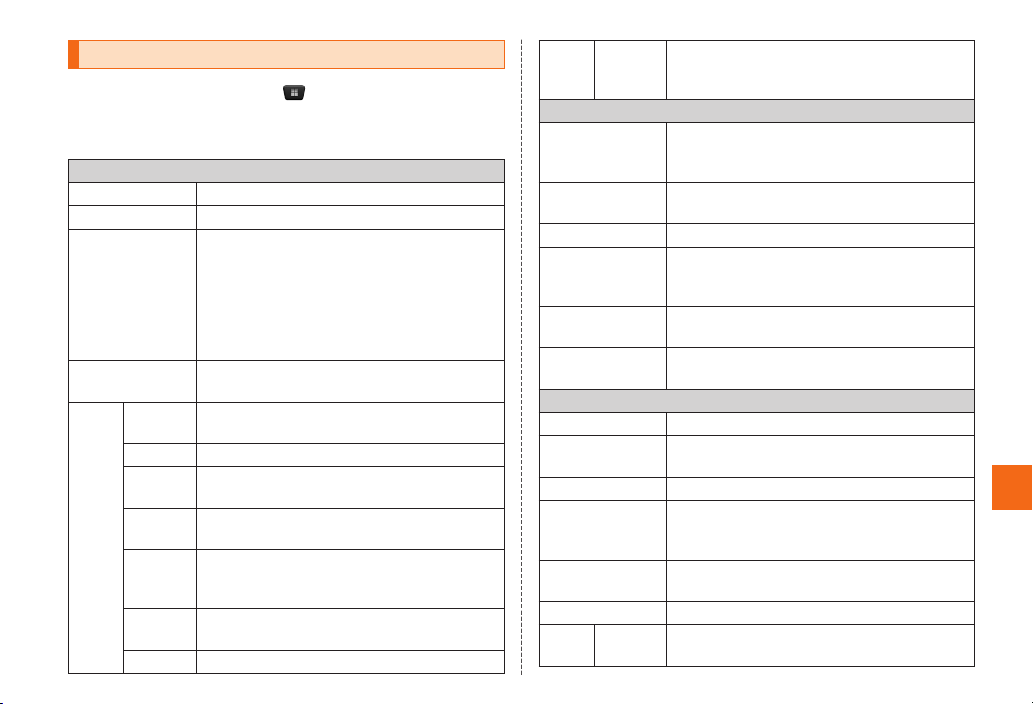
Displaying Setting Menu
On the home screen, → [Settings]
The Settings menu appears.
■ Settings Menu Item List
WIRELESS & NETWORKS
Wi-Fi Make Wi-Fi
Bluetooth Make Bluetooth
Data usage Display the data communication volume
Call Settings Make set tings related to calls such as the
More... A irplane
mode
VPN Set a VPN.
Tethering Set tethering for connecting to the Internet
Wi-Fi
direct
Wi-Fi
direct
settings
Mobile
networks
PC Link Switch PC Link ON/OFF.
record. You can enable/disable data
communication or set a communication
volume limit. If you tap M, you can
make settings such as enabling/disabling
data roaming and setting a limit for data
communication in the background.
Voicemail, Record message, etc.
Disable the use of all functions that use
communication.
from a PC or other device.
Switch Wi- Fi Direct ON/OFF.
Make settings for connecting a Wi-Fi Direct
compatible device and the G’zOne.
Make settings such as data communication
and roaming settings.
®
(wireless LA N) settings.
®
settings.
More... P C Link
settings
Sound/ Vibrate Make settings related to sound and vibration
Display Make settings such as the brightness, auto-
eco mode Set eco mode.
Storage Check the space in the G’zOne memory and
Battery Display the remaining amount of battery power
Apps Manage the applications installed on the
au ID Setting Set the au ID.
Accounts & sync Add an account or set the automatic
Location services Make settings for using location services.
Security Make settings related to security such as the
Language & input
Backup & reset Set backup and restore or reset the G’zOne.
More... S NS
share
Make settings for performing operations on
the data of the G’zOne from a PC using PC
Link.
DEVICE
such as the silent mode settings and
ringtones.
rotate screen, and font size settings.
microSD memory card, clear the data in the
microSD memory card, etc.
and battery usage.
G’zOne, etc.
PERSONAL
synchronization of data.
unlock security settings and Osaifu-Keitai lock
settings.
Set the language to use with the G’zOne and set
text input.
Make SNS share settings.
Settings
65
Page 68
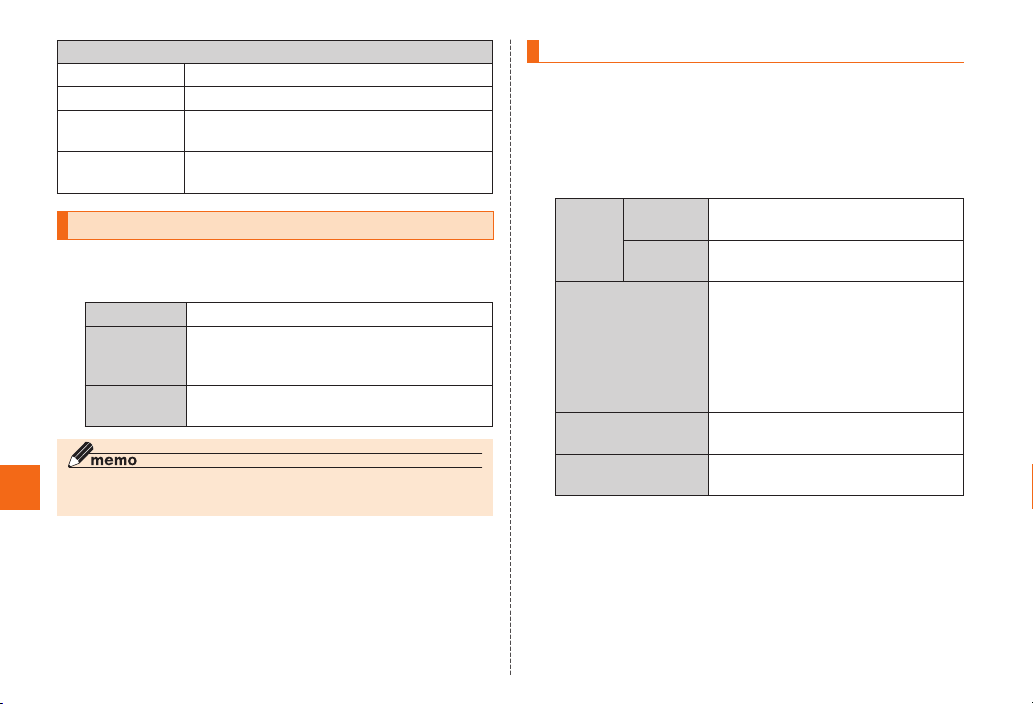
SYSTEM
Date & time Set the date and time.
Accessibility Set accessibility.
Developer options Set functions for developers such as USB
About phone Check information such as the version of the
debugging.
G’zOne. You can also update the G’zOne.
Checking and Updating the Phone Info
On the Settings menu screen, [About phone]
The About phone screen appears.
Major update
Status Check the phone status such as the
Settings
Legal
information
◎ On the About phone screen, you can check the model number,
software version, and other information in addition to the above.
66
▶P.66 “Performing a Major Update”
remaining amount of battery power and
phone number.
Display legal information such as the terms
of use.
Performing a Major Update
Major update is a function to update the software of the G’zOne. It
allows you to connect to the network to check the update information
for the G’zOne, and then download the software and update the
software if an update is necessary.
On the Settings menu screen, [About phone]
→ [Major update]
Update
now
Confirmation of
update
Auto update Set whether to automatically check
Auto download Set whether to automatically
■ Notes on Major Update
• Packet communication charges will be incurred if you use an LTE
or 3G network to perform a major update. Packet communication
charges may become high so we recommend subscribing to a
flat-rate/discount service. (No packet communications charge is
incurred when communication is performed using a wireless LAN
(Wi-Fi
Update by
network
Update by
SD card
®
).)
Perform an update using the
network.
Perform an update using a microSD
memory card.
Manually check for updates.
• When a message indicating that
a new version has been released
appears, select “OK” to start
the browser and display how to
perform a major update. Confirm
the details.
for updates on a regular basis.
download updates.
Page 69

• When software update is necessary, you will be informed on au
homepage, etc. For details, contact an au shop or Customer
Service Center (call toll-free 157).
• Charge the battery sufficiently before star ting update. If the battery
level is insufficient or the battery runs out during the update, the
major update will fail.
• When performing the update with “Update by net work”, check
the signal state. A major update may fail in a location with a poor
reception.
• Various data registered on the product (address books, mails, still
pictures, music data, etc.) and information of settings will not be
changed even after software is updated. However, note that data
may not be protected depending on the state of the product (fault,
damage, getting wet with water, etc.). Also, it is recommended to
back up your data before updating software.
• If an update failed or was cancelled, start the major update again
from “Update now”.
• “Auto download” is only available with a wireless L AN (Wi-Fi
If you are not using a wireless LAN (Wi-Fi
®
), perform the major
®
).
update manually.
• When an update is per formed, the phone info (model, IMEI, etc.) is
sent automatically to the server (software update ser ver managed
by KDDI CORPOR ATION). KDDI CORPORATION does not use
the received information for any purpose other than updating the
G’zOne.
Do not conduct the following operations during the major
update
• Do not remove the bat tery pack during software update. Doing so
may cause the sof tware update failure.
• Do not start any other functions during the major update.
• Do not move during the major update.
The following operations are not available during the major
update
• Operations are not available during major update. Making a call
to 110 (Police), 119 (Fire and Ambulance) or 118 (Regional Coast
Guard Headquarters) is not available either. Also, the alarm etc.
does not function.
However, incoming voice calls, etc. can be answered during
downloading.
When a major update cannot be per formed, etc.
• If an update fails, the “メジャーアップデート 書換えに失 敗しま
した” (Writing the major update failed) message appears and the
G’zOne may become inoperable. If this happens, take it to an au
shop or PiPit (cannot be accepted by some shops).
Settings
67
Page 70
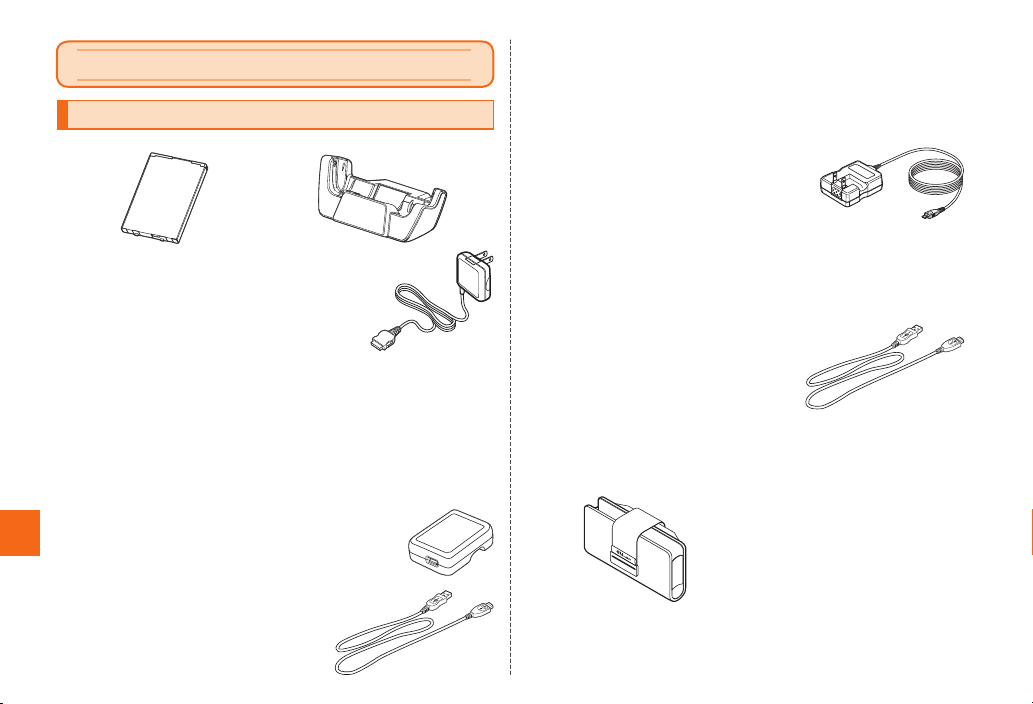
Appendix
Introduction of Related Accessories
■ Battery Pack (CAL 21UAA) ■
■ Common AC Adapter 01 (0 202PQA)
(sold separately)
■ Common AC Adapter 02 (0203PQA)
(sold separately)
AC Adapter MIDORI (0205PGA)
(sold separately)
AC Adapter AO (0204PLA) ( sold separately)
AC Adapter SHIRO (0204PWA) (sold separately)
AC Adapter MOMO (0204PPA) (sold separately)
Appendix/Index
AC Adapter CHA (02 04PTA) (sold separately)
AC Adapter REST (LS1P002A) ( sold separately)
AC Adapter RANGERS ( LS1P003A) (sold separately)
AC Adapter CHARGY (LS1P001A) (sold separately)
AC Adapter WORLD OF ALICE (LS1P0 04A) (sold separately)
AC Adapter KiiRoll (L01P00 5A) (sold separately)
■ Common AC Adapter 03 (0301PQA)
(sold separately)
Common AC Adapter 03 Navy (0301PBA)
(sold separately)
Common AC Adapter 03 Green
(0301PGA) (sold separately)
Common AC Adapter 03 Pink
(0301PPA) (sold separately)
Common AC Adapter 03 Blue
(0301PLA) (sold separately)
68
Desktop Holder (CAL21PUA)
AC Adapter JUPITRIS (White) ( L02P001W) ( sold separately)
AC Adapter JUPITRIS (Red) (L02P001R) (sold separately)
AC Adapter JUPITRIS (Blue) (L02P001L) (sold separaely)
AC Adapter JUPITRIS (Pink) (L02P0 01P) (sold separately)
AC Adapter JUPITRIS (Champagne) (L02P001N)
(sold separately)
■ Common AC Adapter 04 (0401PWA)
(sold separately)
* Illustratio ns and forms m ay not match
depending o n the AC adapter you u se.
* To charge with the co mmon AC adapter 01
(sold separately) or c ommon AC adapter 02 (sold sep arately), the 18- pin
microUS B conversio n adapter 01 (sold sep arately) is required.
* The common AC adapter 01 is d esigned for d omestic u se. When
charging overs eas, be sure to use one of the AC adapters above that can
be used overs eas (any one othe r than the common AC ad apter 01).
■ microUSB cable 01 (0301HVA)
(sold separately)
microUSB cable 01 N avy (0301HBA)
(sold separately)
microUSB cable 01 Green
(0301HGA) (sold separately)
microUSB cable 01 Pink (0301HPA) (sold separately)
microUSB cable 01 Blue (0301HLA) (sold separately)
■ au Carrying Case F Black (0105FCA) (sold separately)
Page 71
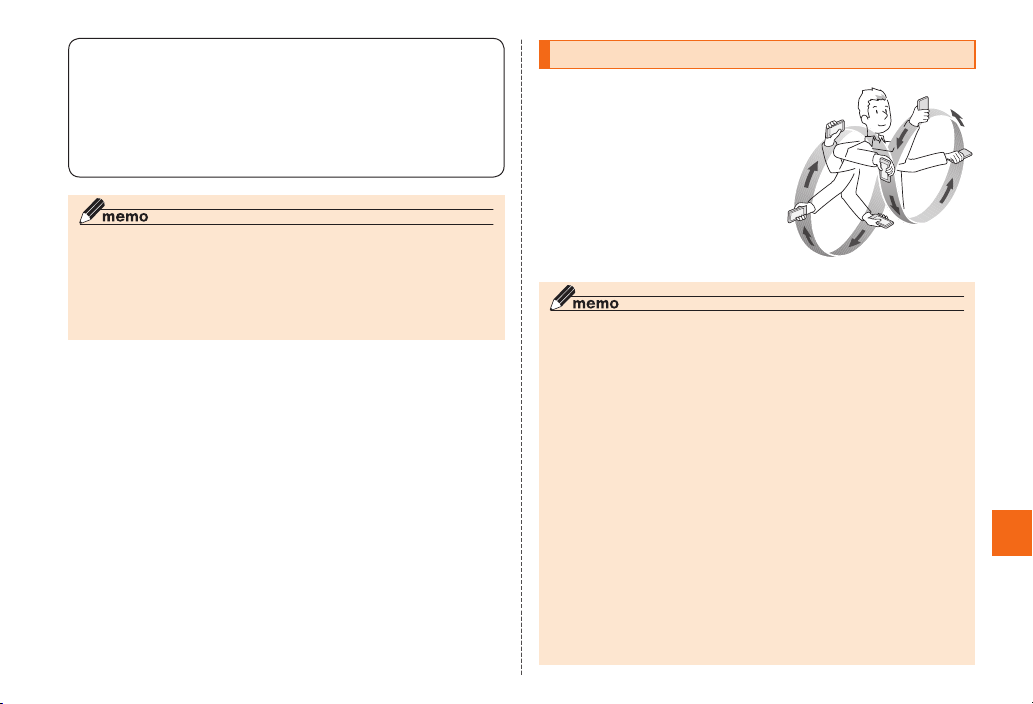
■ 18-pin microUSB conversion adapter 01 (0301QYA)
(sold separately)
■ Common DC adapter 01 (0201PEA) ( sold separately)
■ Common DC adapter 03 (0301PEA) (sold separately)
■ Portable charger 01 ( 0201PDA) (sold separately)
■ Portable charger 02 (0301PFA) (sold separately)
◎ For the latest information about available accessories, check au
homepage (http://www.au.kddi.com/) or contact Customer Service
Center.
◎ The above-mentioned accessories can be purchased from au online
shop.
http://auonlineshop.kddi.com
Electronic Compass
When you use apps that use the
electronic compass, the small
amount of geomagnetism is
detected to calculate the direction.
Calibrating the electronic compass
enables greater accuracy when
displaying direction. Wave the
G’zOne in the shape of a large
figure eight while rolling your wrist
as illustrated in the right figure for 5
to 10 seconds.
◎ The correct direction may not be able to be displayed immediately
after the electronic compass is activated or if there was a sudden
temperature change. To maintain measurement accuracy, calibrate
the electronic compass.
◎ The correct direction may not be able to be displayed when the
vibrator is vibrating or sound is being output from the speaker.
◎ The correct direction may not be able to be displayed near a place
or object that has an effect on magnetism. Move as far away as
possible from the location or object before using the electronic
compass in a case such as the following.
• When in or near a building, vehicle, or metal transport equipment
(elevator, etc.)
• When near metal equipment (guard rail, footbridge, etc.), high-
voltage power line, overhead wiring, etc.
• When near a metal object (iron desk, locker, etc.), magnet
(magnetic necklace, etc.), household electric appliance (TV,
computer, speaker, etc.)
◎ When using the electronic compass, orient the G’zOne horizontally.
When the G’zOne is at an angle, direction measurement errors
become large.
Appendix/Index
69
Page 72
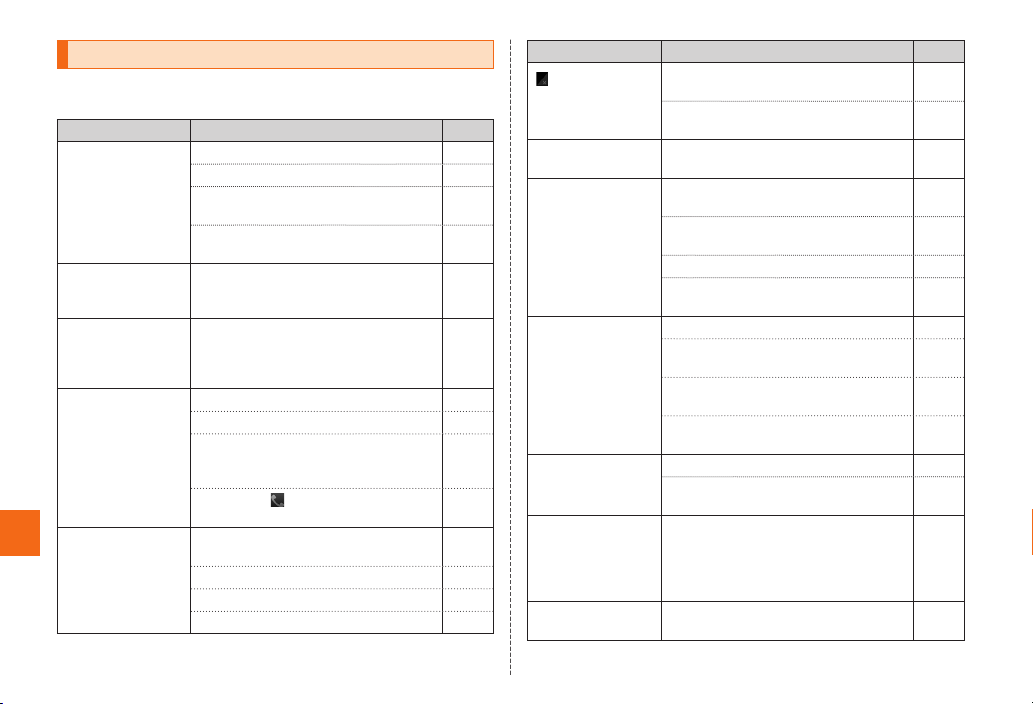
Trouble s ho o ti n g
Before you assume that the product is malfunctioning, check the
following:
Symptom What you should check Page
Cannot turn on
power by pressing
P.
The power
is turned off
automatically.
The power is
turned off while the
wake-up animation
is displayed.
Appendix/Index
Cannot make calls. Is power turned on? P.39
Cannot receive
calls.
Is the batter y pack charged? P.36
Is the batter y pack installed correctly? P.33
Are the contacts of the batter y pack
dirty?
Did you hold down P for at least
five seconds.
Is there enough power left in the
battery pack?
Is there enough power left in the
battery pack?
Is an au Micro IC Card (LTE) inserted? P.35
Did you enter the correct phone
number? (Did you enter the phone
number starting with the area code?)
Did you tap
number?
Does the G’zOne receive an adequate
signal?
Is the G’zOne out of the ser vice area? P.49
Is power turned on? P.39
Is an au Micro IC Card (LTE) inserted? P.35
after entering a phone
P.14
P. 39
P. 36
P. 36
P. 54
P. 54
P. 49
Symptom What you should check Page
(out of service
area) appears.
®
cannot be
Wi-Fi
connected.
Cannot charge the
battery pack.
Cannot operate
touch panel as
intended.
Cannot operate
key/touch panel.
Screen re sponse
is slow when you
tap on the screen/
press the keys.
Cannot use Osaifu-
®
.
Keitai
Is the G’zOne out of the ser vice area or
in a location w here the signal is weak?
Is your finger covering the area around
the built-in antenna?
Is reception for Wi-Fi® good enough? P.49
Are the charging devices connected
properly?
Are you charging the G’zOne with a PC
that has the USB driver installed?
Is the batter y pack installed correctly? P.33
Is the desktop holder, charging
terminal, etc. dir ty?
Are you operating with gloved hands? P.42
Are you operating with a fingernail or
foreign object on the screen?
Check the proper operation of touch
panel.
Turn off the power and then turn it on
again.
Is power turned on? P.39
Turn off the power and then turn it on
again.
Screen response may be slowed down
when a large amount of data is stored
in the product or being transmitted
between the product and a microSD
memory card.
Has the battery run out? P.36
P. 49
P. 3 0
P. 37
P. 38
P.14
P. 42
P. 42
P. 39
P. 39
—
70
Page 73
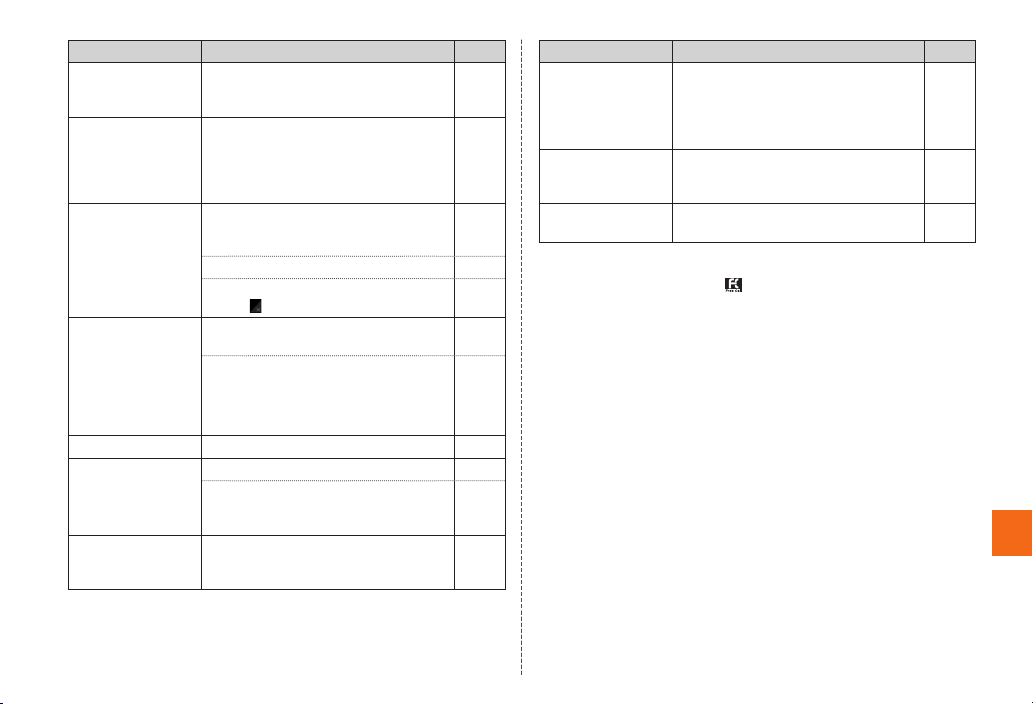
Symptom What you should check Page
The message
“No SIM card.”
appears.
A message
indicating
that charging
is necessary
appears.
Battery usage time
is short.
When making a
call, a beeping
sound is heard
from the earpiece
and a connection
cannot be
established.
Display is dark. Is “Brightness” set to dark? P.65
Cannot hear the
other party.
Cannot operate
any key and the
screen is frozen.
Is the au Micro IC Card (LTE) inserted? P.35
The batter y pack is almost empty. P.36
Is the batter y pack charged enough?
* Charge th e battery pack until the LED
indicator is turned off.
Is the battery pack at the end of its life? P.11
Do you often use the product in places
(out of service area) appears?
where
Are you out of the service area or in a
location where the signal is to o weak?
The wireless line is busy or the phone
you are calling is on another line. Try
again later.
Is the earpiece volume too low? P.54
Are you covering the earpiece with
your ear? Place your earhole to the
earpiece.
Turn off the power and then turn it on
again.
P. 36
P. 49
P. 49
P. 3 0
P. 39
Symptom What you should check Page
Cannot operate the
respective profile
settings in the
contacts.
Cannot recognize
a microSD memory
card.
Cannot operate the
camera.
Is the other party’s phone number
notified? If there is no notification, the
setting for individual incoming image of
the contact and the ringtone setting are
not enabled.
Is a microSD m emory card inserted
properly?
Is there enough power left in the
battery pack?
—
P. 63
P. 36
For more details, contact the Customer Service Center.
From a land-line phone,
0 07 7-7-111
From an au cell phone, 157 without area code
—
Appendix/Index
71
Page 74
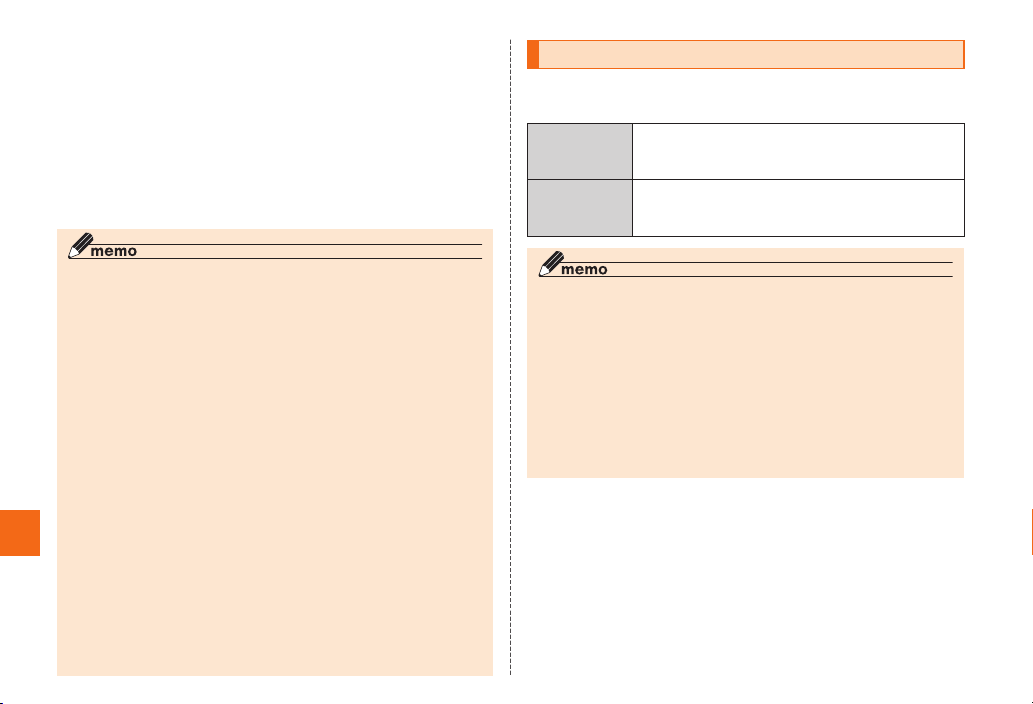
■ Applications That Use the Accelerometer
Applications that use the accelerometer may not operate correctly
when the vibrator is vibrating or sound is being output from the
speaker.
An application that uses the accelerometer to count the number
of steps detects the small amount of vibration that occurs during
walking or running as steps and uses it to count the number of steps.
If the number of steps cannot be detected properly or vibration from
other than walking or running is detected, the count error becomes
large.
◎ The number of steps may not be able to be counted accurately
when you are walking or running irregularly such as in the following
cases.
• When you shuffle your feet while walking (on a snowy road, etc.)
• When you wear footwear such as sandals or wooden clogs while
walking
• When you walk out of step because, for example, walking in a
Appendix/Index
72
crowded city
• When you start running at a faster pace
• When you walk extremely slow
◎ The number of steps may not be able to be counted accurately
when there is a lot of up/down movement or vibration such as in the
following cases.
• When you are doing sports other than walking or running
• When up/down movement or horizontal shaking in a vehicle
• When you are ascending or descending stairs or a steep slope
• When you are operating the G’zOne
• When you are standing and sitting
• When sound is coming out of the speaker
◎ The number of steps cannot be counted in the following case.
• When the vibrator is vibrating
◎ To prevent incorrect measurement, the number of steps is not
counted immediately after you start walking. However, if you continue
walking, the steps up until that time will be included in the count.
After-sales Service
■ When Asking for Repair
For repair, contact Secure cell phone support center.
During the
warranty
period
Outside the
warranty
period
◎ Before handing in the product for repair, make a backup of the
contents of memory since they may disappear during repair. Note
that the Company shall not be liable for any damages and loss of
income should the contents of memory be altered or lost.
◎ Recycled parts that meet the Company’s quality standards are
sometimes used for repair.
◎ Collected au cell phones by Replacement cell phone delivery
service which you used before are recycled to cell phones for
replacement after repairs. Also replaced parts by au after-sales
service are collected and recycled by KDDI. They are not returned
to customers.
■ Performance Parts for Repair
The Company retains performance par ts for repair of the G’zOne
main unit and its related accessories for 6 years af ter discontinuation
of production. “Performance parts for repair” refers to parts required
for maintaining the functions of the product.
Repairs will be done based on the terms of services
of the free-of-charge repair warranty described on
the warranty card.
We shall repair the product for a charge as
requested by the customer if repair renders it usable.
Page 75
■ Warranty Card
At the store of purchase, thoroughly check and read the name of the
retailer, date of purchase and other necessary details filled in on the
warranty card, and be sure to keep it in a safe place.
■ Secure cell phone support plus
An after-sales service membership program on a monthly basis
called “Secure cell phone support plus” (monthly fee: 399 yen
including tax) is available for using your au cell phone for a long time
without worries. This service expands coverage for many troubles
including malfunction, theft and loss. For details of this service, refer
to au homepage or contact Secure cell phone suppor t center.
◎ You can apply for membership only at the time of purchasing your
au cell phone.
◎ Once you cancel the membership, you cannot reapply for it until you
purchase an au cell phone next time.
◎ Note that when changing the model or purchasing an extra cell
phone, this service only covers the most recently purchased au cell
phone.
◎ When an au cell phone is handed over to you or someone else, the
Secure cell phone support plus membership is also handed over to
the successor of the cell phone.
◎ When you get a new au cell phone by changing the model or
purchasing an extra cell phone, the “Secure cell phone support
plus” membership for the old au cell phone is automatically
canceled.
◎ Service contents are subject to change without notice.
■ au Micro IC Card (LTE)
The au Micro IC Card (LTE) is lent to you by au. In case of loss
or damage, the card will be replaced at your expense. When
malfunction is suspected, or in case of theft or loss, contact an au
shop or PiPit.
■ After-sales Service
If you are unsure about anything regarding after-sales service,
contact the following service counter.
Customer Service Center (for service canceling procedure or
operation in case of loss or thef t)
From a land-line phone,
From an au cell phone, 113 without area code (toll free)
Secure cell phone support center (for loss, theft or damage)
From a land-line phone/an au cell phone,
Business hours 9:00 to 21:00 (7 days a week)
0077-7-113 (toll free)
0120-925-919 (toll free)
Appendix/Index
73
Page 76
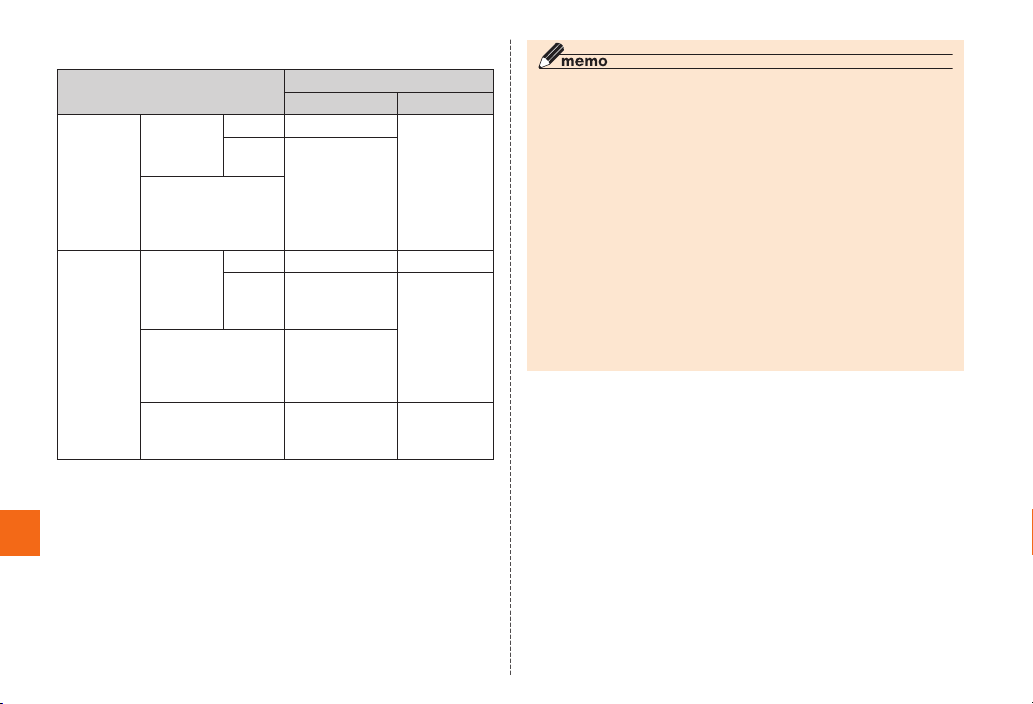
■ au After-sales Service Information
Service contents
Replacement
cell phone
delivery
service
Holding
over and
repair
Appendix/Index
* All the prices written above include tax.
Spontaneous
failure
Partial damage, water
soak, irreparable
damage, thef t and
loss
Spontaneous
failure
Partial damage Customer
Water soak,
irreparable damage,
theft and loss
1st year Free N/A
2nd year
and later
1st year Free Free
2nd year
and later
Secure cell phone suppor t plus
Member Free member
Customer
charge
1st: 5,250 yen
2nd: 8,40 0 yen
Free
(three-ye ar
warranty)
charge
Upper limit:
5,250 yen
N/A N/A
Actual cost
(mod el
change)
Replacement cell phone delivery servic e
◎ When you have trouble with your au cell phone, replacement cell
phone (same model, same color, including new battery) is delivered
to the specified place by calling to. Return your damaged cell phone
within 14 days after replacement cell phone is delivered.
◎ Available up to twice in a year from the day you use this service
as a start day. If you do not use this service in the past year at the
subscription to this service, it will be 1st and if you use, it will be 2nd.
* For details, refer to au homepage.
Holding over and re pair
◎ Repairs due to water soak and irreparable damage are not covered
by this service.
◎ Damages and malfunctions intentionally caused by the customer as
well as those due to modification (e.g. disassembly, change of parts,
painting, etc.) by the customer are not covered by this service.
◎ You cannot receive a refund for replacement of the outer casing due
to stains, scratches, paint removal, etc. on the outer casing.
74
Page 77
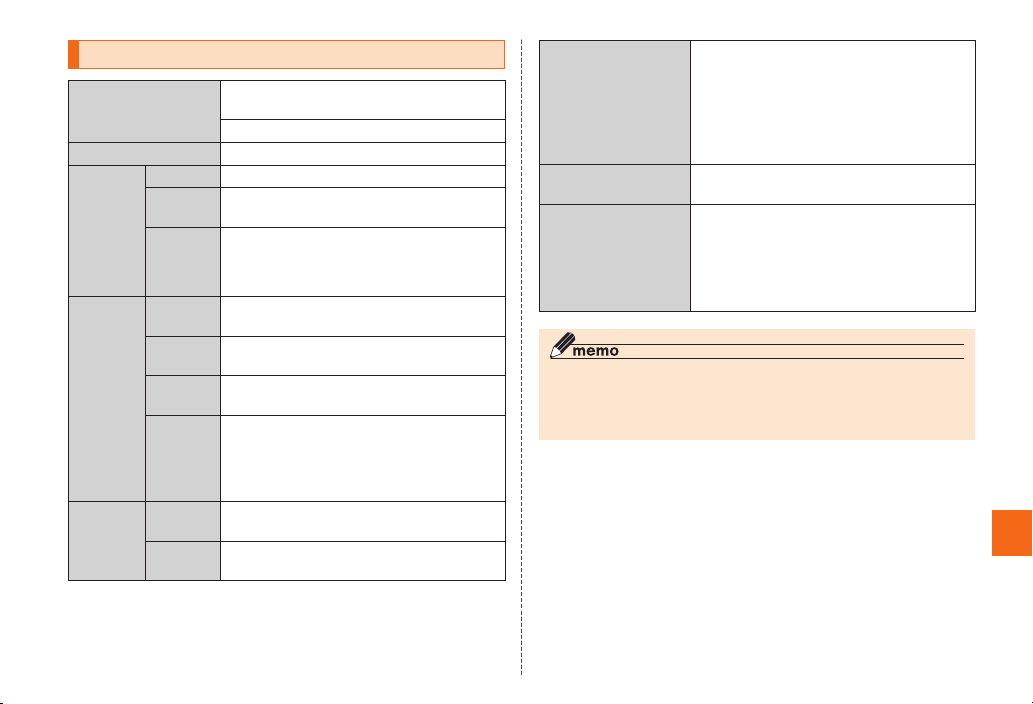
Main Specifications
Approx. 4.0 inches, max. 16.77 million
Display
Weight Approx. 181 g (with battery pack attached)
In Japan Approx. 630 min.
Overseas
Continuous
talk time
Continuous
standby
time
Continuous
Wi-Fi
tethering
time
(GSM )
Overseas
(CDM A)
In Japan
(3G area)
In Japan
(LTE area)
Overseas
(GSM )
Overseas
(CDM A)
In Japan
(3G)
In Japan
(LTE)
colors, IPS LCD
480 × 800 dots ( Wide-VGA)
Approx. 610 min.
Approx. 66 0 min. (U.S. mainland/Chinese
mainland/Hawaii)
* Informatio n on the intended countri es is valid
as of September 2012.
Approx. 46 0 hours
Approx. 35 0 hours
Approx. 53 0 hours
Approx. 39 0 hours (U.S. mainland/Chinese
mainland)
Approx. 49 0 hours (Hawaii)
* Informatio n on the intended countri es is valid
as of September 2012.
Approx. 410 min.
Approx. 23 0 min.
Approx. 110 min. (when using common AC
adapter 04 (sold separately) and desk top
Charging time
Size (W × H × D)
Camera
◎ The continuous talk time and continuous standby time may drop
to less than half depending on the battery charging status, usage
environment such as temperature, reception condition at the location
where the product is used, and the function settings.
holder)
Approx. 150 min. (when using common AC
adapter 04 (sold separately))
Approx. 26 0 min. (when using common DC
adapter 03 (sold separately))
Approx. 69 × 134 × 14.7 mm (15.9 mm at
thickest point)
Effective pixels: Approx. 8.08 million pixels
(approx. 1.36 million pixels for the front camera)
Still image (max. shooting size): 8 M (3,264 (W )
× 2,448 (H) dots)
Video (max. recording size): Full HD (1,920 ( W)
× 1,080 (H) dots)
Appendix/Index
75
Page 78
Specific Absorption Rate (SAR) of Cell Phones
This model G’zOne mobile phone complies with Japanese technical
regulations and international guidelines regarding exposure to
radio waves. This mobile phone has been designed in observance
of the Japanese technical regulations regarding exposure to radio
*1
waves (
) and limits to exposure to radio waves recommended by
equivalent international guidelines.
These international guidelines were set out by the International
Commission on Non-Ionizing Radiation Protection (ICNIRP), which
is in collaboration with the World Health Organization (WHO), and
the permissible limits include a substantial safety margin designed
to assure the safety of all persons, regardless of age and health
condition. The Japanese technical regulations and international
guidelines define the limits using a unit of measurement known as
the Specific Absorption Rate (SAR), which represents the average
amount of radio frequency energy absorbed by the human head.
The SAR limit for mobile phones is 2.0 W/kg. The highest SAR value
Appendix/Index
for this mobile phone when tested for use at the ear is 0.706 W/kg.
There may be slight dif ferences in SAR levels among individual
products, but they all satisfy the limit. The actual SAR of this mobile
phone while talking on the phone can be well below that indicated
above. This is due to automatic changes in the power level of the
mobile phone to ensure it only outputs the minimum power required
to communicate with a base station. Therefore in general, the closer
you are to a base station, the lower the power output of the mobile
phone.
This mobile phone can be used in positions other than against your
ear. This mobile phone satisfies the international guidelines when
used with au Carrying Case F Black (0105FCA) (sold separately)
recommended by KDDI (
*2
).
In case you are not using the au Carrying Case F Black (0105FCA)
(sold separately), use a product that contains no metal parts, and
one that can hold the mobile phone at least 1.5 cm away from your
body.
The World Health Organization has stated that present scientific
information does not indicate that use of mobile devices has any
harmful effects on the human body. They recommend that if you are
still worried about your exposure then you can limit your talk time
or use a handsfree kit to keep the mobile phone away from your
head and body. If you would like to know more detailed information,
please refer to the WHO website.
(http://www.who.int/docstore/peh-emf/publications/facts_press/
fact_english.htm)
Please refer to the websites listed below if you would like to know
more detailed information regarding SAR.
○ Ministr y of Internal Af fairs and Communications website:
http://www.tele.soumu.go.jp/e/sys/ele /index.htm
○ Association of Radio Industries and Businesses website:
http://www.arib -emf.org/index02.html (in Japanese only)
○ au homepage:
http://www.au.kddi.com/
*1 Technical regulations are d efined by the M inisterial O rdinance Related to
Radio Law (Article 14-2 of Radio Equipment Regulations).
2
*
Regarding the method o f measuring SAR when using mobil e phones in
positions other than against the ear, the international standard I EC622 09 -2
was set in March 2010. On the other hand, J apanese technical regulation
is currently un der deliberation by the Co mmitte e for Radio Wave Utilization
Environme nt set up in the Info rmation a nd Commu nication Technology
Group of the Ad visory C ommit tee on Information and C ommunications. (As
of October 2 011)
76
Page 79
FCC Notice
This device complies with part 15 of the FCC Rules. Operation
is subject to the following two conditions: (1) This device may
not cause harmful interference, and (2) this device must accept
any interference received, including interference that may cause
undesired operation.
Note:
This equipment has been tested and found to comply with the limits
for a Class B digital device, pursuant to part 15 of the FCC Rules.
These limits are designed to provide reasonable protection against
harmful inter ference in a residential installation. This equipment
generates, uses, and can radiate radio frequency energy and, if not
installed and used in accordance with the instructions, may cause
harmful inter ference to radio communications.
However, there is no guarantee that interference will not occur
in a particular installation. If this equipment does cause harmful
interference to radio or television reception, which can be
determined by turning the equipment off and on, the user is
encouraged to tr y to correct the interference by one or more of the
following measures:
- Reorient or relocate the receiving antenna.
- Increase the separation bet ween the equipment and receiver.
- Connect the equipment into an outlet on circuit different from that
to which the receiver is connected.
- Consult the dealer or an experienced radio/T V technician for help
and for additional suggestions.
Warning
The user is cautioned that changes or modifications not expressly
approved by the manufacturer could void the user’s authority to
operate the equipment.
FCC RF Exposure Information
In August 1996, the Federal Communications Commission (FCC)
of the United States, with its action in Report and Order FCC 96326, adopted an updated safety standard for human exposure to
radio frequency electromagnetic energy emit ted by FCC regulated
transmitters. Those guidelines are consistent with the safety
standard previously set by both U.S. and international standards
bodies. The design of this phone complies with the FCC guidelines
and these international standards.
Body-worn Operation
This device was tested for typical body-worn operations with the
back of the phone kept 0.39 inches (1.0 cm) from the body. To
comply with FCC RF exposure requirements, a minimum separation
distance of 0.3 9 inches (1.0 cm) must be maintained between the
user’s body and the back of the phone, including the antenna.
All beltclips, holsters and similar accessories used by this device
must not contain any metallic components. Body-worn accessories
that do not meet these requirements may not comply with FCC RF
exposure limits and should be avoided.
Turn off your phone before flying
You should turn off your phone when boarding any aircraft. To
prevent possible interference with aircraft systems, U.S. Federal
Aviation Administration (FAA) regulations require you to have
permission from a crew member to use your phone while the plane
is on the ground. To prevent any risk of interference, FCC regulations
prohibit using your phone while the plane is in the air.
Specific Absorption Rate (SAR) for Wireless Phones
The highest SAR value for this device when tested at the ear is
1.19 W/kg, and when worn on the body, 0.86 W/ kg.
The FCC has granted an Equipment Authorization for this model
phone with all reported SAR levels evaluated as in compliance with
the FCC RF exposure guidelines. SAR information on this model
phone is on file with the FCC and can be found under the Display
Appendix/Index
77
Page 80
Grant section of http://ww w.fcc.gov/oet/ea/fccid after searching on
FCC ID T YK-EYC4287.
Additional information on Specific Absorption Rates (SAR) can be
found on the Cellular Telecommunications & Internet Association
(CTIA) web-site at http://www.ctia.org.
European RF Exposure Information
Your mobile device is both a radio transmit ter and receiver, and
is designed not to exceed limits for exposure to radio waves
recommended by international guidelines. These guidelines were
produced by independent scientific organization, ICNIRP, and
include safety margins designed to protect all persons, regardless of
age and condition of health.
The guidelines apply a unit of measurement known as the Specific
Absorption Rate (SAR). The SAR limit for mobile devices is 2 W/kg,
and when tested at the ear, the highest SAR value for this device
was 0.796 W/kg*.
As testing measures SAR at the highest transmitting power of a
device, actual SAR tends to be lower during ordinary operation.
Appendix/Index
Lower SAR levels are typical during ordinary operation as automatic
changes are made within the device to ensure the network can be
reached with minimal power.
The World Health Organization (WHO) has stated that present
scientific information does not indicate the need for any special
precautions to be adopted when using mobile devices. WHO also
notes that those wishing to reduce exposure may do so by limiting
call length and by using a ‘hands-free’ device to distance the phone
from the head and body. For further information, please see the
WHO website: http://www.who.int/emf.
* Note that tests are also carri ed out in accordance with international testing
guidelines.
Declaration of Conformity for CDMA CAL21
The product “CAL21” is declared to conform with the essential
requirements of European Union Directive 199 9/5/EC Radio and
Telecommunications Terminal Equipment Directive 3.1 (a), 3.1 (b)
and 3.2. The Declaration of Conformity can be found on
http://k-tai.casio.jp/ (Japanese only).
Export Administration Regulations
This product and its accessories may be subject to the Japan Export
Administration Regulations (“Foreign Exchange and Foreign Trade
Law” and its related laws). In addition, U.S. Re -export Regulations
(Export Administration Regulations) may apply to this product
and its accessories. To export and re-expor t this product and its
accessories, take the required measures on your responsibility
and at your expenses. For details on the procedures, contact the
Ministry of Economy, Trade and Industry or the U.S. Department of
Commerce.
78
Page 81
Intellectual Property Rights
The soft ware installed on this product or par t of it may not be
altered, translated/adapted, reverse-engineered, decompiled or
reverse-assembled and any such actions are prohibited.
The microSD logo, microSDHC logo are trademarks of SD-3C, LLC.
®
Microsoft
trademark of Microsoft Corporation in the United States and/or other
countries.
Microsoft
trademark or registered trademarks of Microsoft Corporation in the
United States and/or other countries.
Google, the Google logo, Android, Google Play, the Google Play
logo, Gmail, the Gmail logo, YouTube, the YouTube logo, Google
Maps, the Google Maps logo, Google Search, the Google Search
logo, Google Voice Search, the Google Voice Search logo, Google
Latitude, the Google Latitude logo, Google+ Local, the Google+
Local logo, Google+, the Google+
Exchange ActiveSync® is a trademark or registered
®
, Windows®, Windows Media®, and Windows Vista® are
logo, Google Talk, the Google
Talk logo, Picasa, Chrome, Quickoffice are trademarks or registered
trademarks of Google Inc.
FeliCa is a contactless IC card technology developed by Sony
Corporation.
FeliCa is a registered trademark of Sony Corporation.
is a registered trademark of FeliCa Networks, Inc.
“Osaifu-Keitai” is a registered trademark of NT T DOCOMO, INC.
The product includes pictograms licensed by NT T DOCOMO, INC.
ロヴィ, Rovi, Gガイド, G- GUIDE, Gガイドモバイル, G-GUIDE
MOBILE, and any other G -GUIDE-related logos are trademarks
or registered trademarks of US-based Rovi Corporation and/or its
affiliated companies in Japan.
Music recognition technology and related data are provided by
Gracenote
®
.
Gracenote is a business standard for music recognition technology
and related contents delivery.
For details, refer to the following web page: www.gracenote.com
CD and music data provided by Gracenote: Copyright © 200 0 present Gracenote.
Gracenote Software: Copyright 2000 - present Gracenote.
This product and services may include one or several of the
following US Patent. #5,987,525, #6,061,680, #6,154,773,
#6,161,132, #6,230,192, #6,230,207, #6,240,4 59, #6,330,593, and
other granted or applied patents.
Part of services are provided by Open Globe, Inc. for US patent
(#6,304,523) under license.
Gracenote and CDDB are registered trademarks of Gracenote, Inc.
Logo and logo type of Gracenote and “Powered by Gracenote” logo
are either registered trademarks or trademarks of Gracenote, Inc.
For information on the use of Gracenote services, refer to the
following web page:
www.gracenote.com/corporate
Appendix/Index
79
Page 82
Bluetooth and the Bluetooth logo are registered trademarks of
Bluetooth SIG, Inc.
NEC CASIO Mobile Communications, Ltd. is granted a license for
their use from Bluetooth SIG, lnc. Other
trademarks and names
belong to their respective owners.
®
Wi-Fi
, Wi-Fi logo, Wi-Fi CERTIFIED logo, and Wi-Fi Protected Setup
logo are registered trademarks of Wi-Fi Alliance.
Wi-Fi CERTIFIED™, Wi- Fi Protected Setup™, WPA™, WPA2™ and
Wi-Fi Direct™ are trademarks of Wi-Fi Alliance.
AOSS™ is a trademark of BUFFALO Inc.
“らくらく無線スタート” is a registered trademark of NEC
AccessTechnica, Ltd.
“jibe” is a trademark of Jibe Mobile.
The Skype name, associated trademarks and logos and the “S” logo
are trademarks of Skype Limited.
“Twitter” is a registered trademark of Twitter, Inc.
Appendix/Index
“mixi” is a registered trademark of mixi, Inc.
®
Facebook
is a registered trademark of Facebook, Inc.
“GREE” is a registered trademark or trademark of Gree, Inc. in
Japan.
Copyright © 2010 - Three Laws of Mobility. All Rights Reserved.
TRENDMICRO and ウイルスバスター are registered trademarks of
Trend Micro Incorporated.
“ついっぷる” is a trademark or registered trademark of NEC
BIGLOBE, Ltd.
“ATOK” is a registered trademark of JustSystems Corporation.
80
®
is a trademark or registered trademark of Nuance
T9
Communications, Inc. and corporate owners of Nuance in the United
States and/or other countries.
Copyright © 2010 FUJISOFT Inc. All rights reserved
DigiOn and DiXiM are trademarks of DigiOn,
lnc.
and are trademarks of SRS Labs, Inc.
WOW HD and CS Headphone technologies are incorporated under
license from SRS Lads, Inc.
WOW HD™ significantly improves the playback quality of audio,
delivering a dynamic 3D entertainment experience with deep, rich
bass and high frequency clarity for crisp detail.
SRS CS Headphone™ delivers a 5.1 surround sound experience
over standard headphones or earbuds when listening to
multichannel content, such as DVD movies.
G-SHOCK is a trademark of Casio Computer Co., Ltd.
G’zOne is a trademark of Casio Computer Co., Ltd.
“PictMagic” are trademarks or registered trademarks of NEC CASIO
Mobile Communications, Ltd.
This product uses “Font Avenue” of NEC Corporation.
Other company names or product names are registered trademarks
or trademarks of those companies.
Page 83

Content owners use Microsoft PlayReady™ content access
technology to protect their intellectual property, including
copyrighted content. This device uses PlayReady technology to
access PlayReady-protected content and/or WMDRM-protected
content. IF the device fails to properly enforce restrictions on content
usage, content owners may require Microsoft to revoke the device’s
ability to consume PlayReady-protected content. Revocation should
not affect unprotected content or content protected by other content
access technologies. Content owners may require you to upgrade
PlayReady to access their content. If you decline an upgrade, you
will not be able to access content that requires the upgrade.
THIS PRODUCT IS LICENSED UNDER THE MPEG-4 VISUAL
PATENT PORTFOLIO LICENSE FOR THE PERSONAL AN D NONCOMMERCIAL USE OF A CONSUMER FOR (i) ENCODING VIDEO
IN COMPLIANCE WITH THE MPEG -4 VISUAL STANDARD (“MPEG4 VIDEO”) AND/OR (ii) DECODING MPEG -4 VIDEO THAT WAS
ENCOD ED BY A CONSUMER ENGAGED IN A PERSONAL AND
NON- COM MERCIAL ACTIVITY AND/OR WAS OBTAINED FROM A
VIDEO PROVIDER LICENSED BY MPEG L A TO PROVIDE MPEG -4
VIDEO. NO LICENSE IS GRANTED OR SHALL BE IMPLIED FOR
ANY OTHER USE. ADDITIONAL INFORMATION INCLUDING THAT
RELATING TO PROMOTIONAL, INTERNAL A ND COM MERCIAL
USES AN D LICEN SING MAY BE OBTAINED FRO M MPEG L A,
L.L.C. SEE HTTP://WWW.MPEGLA.COM.
THIS PRODUCT IS LICENSED UNDER THE AVC PATENT
PORTFOLIO LICENSE FOR THE PERSO NAL USE OF A
CONSUMER OR OTHER USES IN WHICH IT DOES NOT RECEIVE
REMUNERATION TO (i) ENCODE VIDEO IN COMPLIANCE WITH
THE AVC STANDARD (“AVC VIDEO”) AND/OR (ii) DECODE AVC
VIDEO TH AT WAS ENCODED BY A CONSUMER ENGAGED IN A
PERSONAL ACTIVITY AND/OR WAS OBTAINED FROM A VIDEO
PROVIDER LICENSED TO PROVIDE AVC VIDEO. NO LICENSE
IS GRANTED OR SHALL BE IMPLIED FOR ANY OTHER USE.
ADDITIONAL INFORMATION MAY BE OBTAINED FROM MPEG LA,
L.L.C. SEE HTTP://WWW.MPEGLA.COM.
• This product is licensed under the AVC patent portfolio license for
the personal and noncommercial use of a consumer to (i) encode
video in compliance with the AVC standard (henceforth referred
to as AVC video) and/or (ii) decode AVC video that was encoded
by a consumer engaged in a personal and noncommercial activity
and/or was obtained from a video provider licensed to provide
AVC video. No license is granted or shall be implied for any other
use. Additional information may be obtained from MPEG LA, L.L.C.
Visit http://www.mpegla.com
• This product is licensed under the VC-1 Patent Portfolio License for
the personal and noncommercial use of a consumer to (i) encode
video in compliance with the VC-1 standard (henceforth referred
to as VC-1 video) and/or (ii) decode VC-1 video that was encoded
by a consumer engaged in a personal and noncommercial activity
and/or was obtained from a video provider licensed to provide
VC-1 video. No license is granted or shall be implied for any other
use. Additional information may be obtained from MPEG LA, L.L.C.
Visit http://www.mpegla.com
■Regarding Windows notations
The names of operating systems (Japanese versions) used in this
manual are as follows.
• Windows 7 is the abbreviation for Microsoft
Home Basic, Home Premium, Professional, Enterprise, Ultimate).
• Windows Vista is the abbreviation for Microsoft
(Home Basic, Home Premium, Business, Enterprise, Ultimate).
• Windows XP is the abbreviation for Microsoft
Professional operating system and Microsoft
®
Windows® 7 (Starter,
®
Windows Vista®
®
Windows® XP
®
Windows® XP Home
Edition operating system.
Appendix/Index
81
Page 84
GPL/LGPL-applicable software
This product contains soft ware licensed complying with GNU
General Public License (GPL) or GNU Lesser General Public
License (LGPL). You can obtain the source code for the software
and reproduce, redistribute, or modify the sof tware in accordance
with the GPL or LGPL.
For information on GPL and LGPL, from the Home screen,
“Settings” → “About phone” → “Legal information” → “Open source
licenses”
■Obtaining source code
For information on obtaining source code, see the following website.
http://k-tai.casio.jp/support/ (in Japanese only)
Inquiries regarding the content of source code cannot be responded
to.
Appendix/Index
82
→
OpenSSL License
【OpenSSL License】
Copyright © 1998-2009 The OpenSSL Project. All rights reserved.
This product includes software developed by the OpenS SL Project
for use in the OpenSSL Toolkit. (http://www.openssl.org/)
THIS SOFT WARE IS PROVIDED BY THE OpenSSL PROJECT
‘’AS IS’’ AND ANY EXPRES SED OR IMPLIED WARRANTIES,
INCLUDING, BUT NOT LIMITED TO, THE IMPLIED WARRANTIES
OF MERCHANTABILITY AND FITNESS FOR A PARTICULAR
PURPOSE ARE DISCL AIMED. IN NO EVENT SHALL TH E
OpenSS L PROJECT OR ITS CONTRIBUTORS BE LIABLE FOR
ANY DIR ECT, INDIRECT, INCIDENTAL, SPECIAL, EXEMPLARY,
OR CONSEQUENTIAL DAMAGES (INCLUDING, BUT NOT
LIMITED TO, PROCUREMENT OF SUB STITUTE GOODS OR
SERVICES; LOSS OF USE, DATA, OR PROFITS; OR BUSINES S
INTERRUPTION) HOWEVER CAUSED AND ON ANY THEORY OF
LIABILITY, WHETHER IN CONTR ACT, STRICT LIABILIT Y, OR TORT
(INCLUDING NEGLIGENCE OR OTHERWISE) ARISING IN ANY
WAY OUT OF THE USE OF THIS SOFTWARE, EVEN IF ADVISED OF
THE POSSIBILITY O F SUCH DA MAGE.
【Original SSLeay License】
Copyright © 1995-1998 Eric Young (eay@cr yptsoft.com) All rights
reserved.
This product includes cryptographic software writ ten by Eric Young
(eay @cry ptsoft .com)
THIS SOFT WARE IS PROVIDED BY ERIC YOUNG ‘’AS IS’’ AND
ANY EXPRES S OR IMPLIED WARRANTIES, INCLUDING, BUT NOT
LIMITED TO, THE IMPLIED WARRANTIES OF MERCHANTABILIT Y
AND FITNESS FOR A PARTICULAR PURPOSE ARE DISCL AIMED.
IN NO EVENT SHALL TH E AUTHOR OR CONTRIBUTORS BE
LIABLE FOR ANY DIRECT, INDIRECT, INCIDENTAL, SPECIAL,
EXEM PLARY, OR CONSEQUENTIAL DAM AGES (INCLUDING, BUT
Page 85
NOT LIMITED TO, PROCUREMENT OF SUBSTITUTE GOODS OR
SERVICES; LOSS OF USE, DATA, OR PROFITS; OR BUSINES S
INTERRUPTION) HOWEVER CAUSED AND ON ANY THEORY OF
LIABILITY, WHETHER IN CONTR ACT, STRICT LIABILIT Y, OR TORT
(INCLUDING NEGLIGENCE OR OTHERWISE) ARISING IN ANY
WAY OUT OF THE USE OF THIS SOFTWARE, EVEN IF ADVISED OF
THE POSSIBILITY OF SUCH DAMAGE.
Gracenote® End User License Agreement
This application or device contains software from Gracenote, Inc. of
Emeryville, California (“Gracenote”). The sof tware from Gracenote
(the “Gracenote Software”) enables this application to perform
disc and/or file identification and obtain music-related information,
including name, artist, track, and title information (“Gracenote
Data”) from online servers or embedded databases (collectively,
“Gracenote Servers”) and to perform other functions. You may use
Gracenote Data only by means of the intended End-User functions
of this application or device.
You agree that you will use Gracenote Data, the Gracenote Software,
and Gracenote Servers for your own personal non-commercial
use only. You agree not to assign, copy, transfer or transmit the
Gracenote Sof tware or any Gracenote Data to any third party. YOU
AGREE NOT TO USE OR EXPLOIT GRACENOTE DATA, THE
GRACENOTE SOFTWARE, OR GRACENOTE SERVERS, EXCEPT
AS EXPRESSLY PERMITTED HEREIN.
The Gracenote service uses a unique identifier to track queries for
statistical purposes. The purpose of a randomly assigned numeric
identifier is to allow the Gracenote service to count queries without
knowing anything about who you are. For more information, see
the web page for the Gracenote Privacy Policy for the Gracenote
service.
The Gracenote Software and each item of Gracenote Data are
licensed to you “AS IS.” Gracenote makes no representations or
warranties, express or implied, regarding the accuracy of any
Gracenote Data from in the Gracenote Servers. Gracenote reserves
the right to delete data from the Gracenote Servers or to change
data categories for any cause that Gracenote deems sufficient. No
warranty is made that the Gracenote Software or Gracenote Servers
are error-free or that functioning of Gracenote Software or Gracenote
Servers will be uninterrupted. Gracenote is not obligated to provide
you with new enhanced or additional data types or categories that
Gracenote may provide in the future and is free to discontinue its
services at any time.
• GR ACENOTE DISCLAIMS ALL WARRANTIES EXPRESS
OR IMPLIED, INCLUDING, BUT NOT LIMITED TO, IMPLIED
WARRANTIES OF MERCHANTABILIT Y, FITNESS FOR A
PARTICULAR PURPOSE, TITLE, AND NON-INFRINGEMENT.
GRACENOTE DOES NOT WARRANT THE RESULTS THAT
WILL BE OBTAINED BY YOUR USE OF THE GRACENOTE
SOFTWARE OR ANY GRACENOTE SERVER. IN NO CASE
WILL GRACENOTE BE LIABLE FOR ANY CONSEQUENTIAL OR
INCIDENTAL DAMAGES OR FOR ANY LOST PROFITS OR LOST
REVENUES.
© Gracenote, Inc. 2000-present
Appendix/Index
83
Page 86
A
AC adapter ...................... 37, 68
Accessories ............................ 1
After-sales service ................72
APPS tray .............................. 43
Atmospheric pressure
sensor................................. 30
au Disaster Countermeasure
applic ati on .......................... 59
au ID setting .......................... 41
au Micro IC Card (LTE) ... 30, 34
Attaching ............................ 35
Removing ........................... 3 4
B
Appendix/Index
Back key ................................ 30
Batter y cover ......................... 30
Batter y pack ..............30, 32, 68
Attaching ............................ 33
Removing ........................... 3 2
Built-in antenna ..................... 30
C
Camera ................................. 30
Camera start indicator .......... 30
Character input ..................... 51
Common phrase ................ 53
Face mark .......................... 53
Numeric keypad ........... 51, 53
84
Index
QWERT Y keypad ......... 51, 53
Symbol ............................... 53
Tex t c o de ............................ 53
Charging ................................36
Charging time ..................... 75
Charging terminal ................. 30
Common operations ............. 50
Context menu ..................... 50
Option menu....................... 50
Continuous standby time ...... 75
Continuous talk time ............. 75
D
Desktop holder ................ 37, 68
Disaster Message Board ...... 59
Disaster Voice Delivery
Servi ce ............................... 61
Display .................................. 30
Dustproof property ................ 20
E
Earphone jack ....................... 30
Earpie ce ................................ 30
Earpiece volume ................... 54
Electronic compass .............. 69
Emergency early warning
mail ..................................... 59
Exempti ons ............................. 5
External connection jack ...... 31
F
FeliCa mark ........................... 30
Flash light .............................. 30
Front camera ......................... 30
G
Google account .....................40
H
Handling precautions ............ 14
Home key ..............................30
Home screen .........................43
Home Switcher...................... 46
I
Infrared port .......................... 30
Initial Settings ....................... 40
L
LED indicator ........................ 30
Light sensor .......................... 30
Lock switch ........................... 30
M
Major update ......................... 66
Menu key ............................... 30
Micro phone ........................... 30
microSD memor y card .......... 62
Inserting ............................. 63
Removing ........................... 6 3
microSD memor y card slot ... 30
Mouthpiece ........................... 30
N
Notations ................................ 4
Notification panel ..................49
P
Packet communication
charge ................................ 27
Phone .................................... 54
Call using hands-free ......... 54
Dialing ................................ 54
Forwarding ......................... 58
Incoming call ...................... 57
International call ................. 56
Pause dial ........................... 56
Record message ................58
Rejecting calls .................... 58
Turning off the
microphone ..................... 5 4
Photo light ............................. 30
PIN code ............................... 25
PUK code ...........................25
Power key .............................. 30
Proximity sensor ...................30
R
Receive r ................................ 30
Related ac cessories ............. 68
Page 87
S
Safety precautions .................. 5
SAR ....................................... 76
Secure cell phone support
plus ..................................... 73
Security code ........................ 25
Setti ngs ................................. 65
Shock-resistant property ...... 20
Sleep mode ..................... 36, 40
Speaker ................................. 30
Status bar .............................. 43
Notification icon ................. 48
Status icon ......................... 49
Strap eyelet ........................... 30
Sub microphone .................... 30
T
Temperature sensor .............. 30
Touch panel........................... 42
Double tap.......................... 42
Drag .................................... 42
Flick .................................... 42
Long touch ......................... 42
Pinch................................... 42
Slide.................................... 42
Tap ...................................... 42
Troublesho oting .................... 70
Turning the power on/off ....... 39
TV antenna............................ 30
V
Volume Down key ................. 30
Volume Up key/Light key ...... 30
W
Waterproof property .............. 20
Widget s ................................. 43
Appendix/Index
85
Page 88
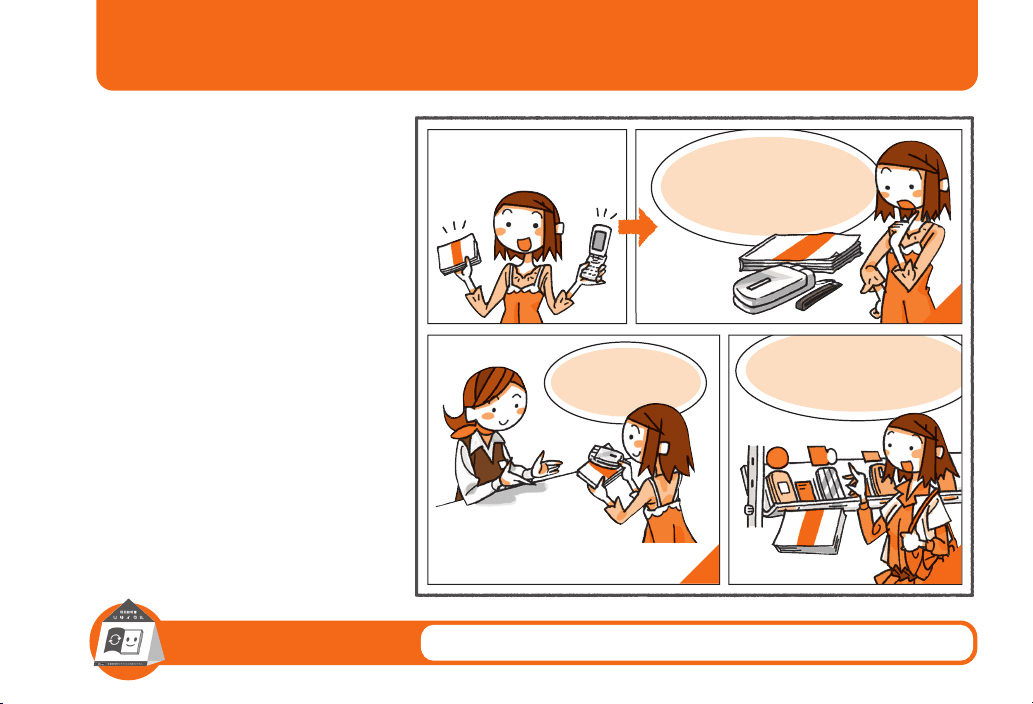
Please take your unneeded phones and manuals to your nearest au shop!
There is something you can do
for this world.
That is recycling your old phones
and manuals. A service we have just
started!
In phones and batteries are precious
and rare metals. We can also recycle
the paper from the manuals.
Paper such as manuals can be turned
into new paper and used to print
on again. To make things better,
proceeds of the recycled materials go
to protecting Japan’s forests.
So please take your unneeded phones
and manuals to your nearest au shop!
Thank you for your cooperation.
I got a new phone!
What should I do
with my old phone
and manual?
We can recycle those.
Please make sure you backu p and delete data
stored on your old phone.
I’ll take them to
my au shop!
Please do
recycle them
My old phone and manual
could be a precious resource.
I’m going to recycle them!
My old phone will be made into a new
product that will be sold in shops!
I love these phones!
Your manual will be reborn too!
1
32
Please take your unnee ded phones
and manuals to your nearest au shop!
http://www.au.kddi.com/notice/recycle/index.html
iii
Page 89
For inquiries, call:
Customer Service Center
For general information and charges (toll free)
From fixed-line phones: From au cell phones:
without area code
PRESSING ZERO WILL CONNECT YOU TO AN OPERATOR
AFTER CALLING 157 ON YOUR au CELL PHONE.
For loss or theft and operation information (toll free)
From fixed-line phones: From au cell phones:
In case above numbers are not available,
Secure cell phone support center
For loss, theft or damage (toll free)
From fixed-line phones/au cell phones:
Business hours: 9:00 to 21:00 (7 days a week)
without area code
(except Okinawa)
(Okinawa)
Cell phone and PHS operators collect and recycle
unused telephones, batteries and battery
chargers at stores bearing the logo regardless
of brand and manufacturer to protect the
environment and reuse valuable resources.
September 2012, 1st Edition
Sales: KDDI CORPORATION •
OKINAWA CELLULAR TELEPHONE COMPANY
Manufactured by: CASIO COMPUTER CO., LTD.
 Loading...