

Page 1
SCV31
BasicManual
Page 2
Preface
Thank you for purchasing the Galaxy S6 edge (referred to
as the "product" in this manual). Before using the product,
be sure to read the Setting Guide and Basic Manual (this
PDF manual) to ensure correct usage.
List of Packaged Items
Before you start using the product, make sure that you
have all the following packaged with the product.
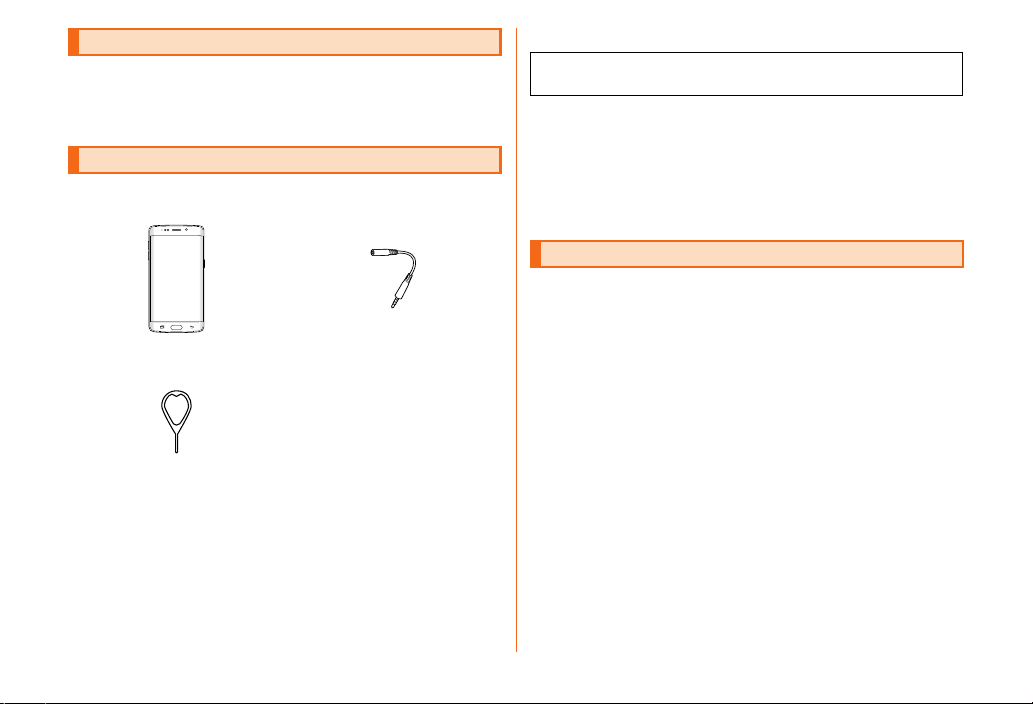
Phone
SIM card removal tool
Use to insert/eject the au Nano IC
Card 04.
• High-quality Earphone with Microphone (sample)
• Warranty (Main unit) (Japanese)
• 取扱説明書 (Instruction Manual) (Japanese)
• 設定ガイド (Setting Guide) (Japanese)
(sample)
SC TV Antenna Cable 03
(03SCHSA)
The following items are not included in the package.
• AC adapter
• microUSB cable
• Please purchase a specied charger (sold separately).
• The battery is built into the product.
• Illustrations used in this manual are just images for
explanations. They may be dierent from actual ones.
• When connecting the SC TV Antenna Cable 03 to watch TV,
refer to the "Instruction Manual" on your product or the Full
Instruction Manual (Japanese) available on the au homepage.
Instruction Manuals
■ "Setting Guide"/"Basic Manual" (This PDF Manual)
Handles only basic operations of major functions of the
product.
For detailed descriptions on various functions, refer to
the Full Instruction Manual (Japanese) available on the
au homepage or "Instruction Manual" application on your
product.
http://www.au.kddi.com/support/mobile/guide/manual/
• Company names and product names referred to in this
manual are trademarks or registered trademarks of respective
companies. The TM and ® marks may be omitted in this
manual.
ii
Page 3
■ Basic Manual application
You can use "Basic Manual" application on the your product
to check the operation of this product.
In the Application screen, [Basic Manual]
• When using the application for the rst time, you must
download and install it following the on-screen instructions.
Click here for the latest information on the Galaxy.
Ocial site :
http://www.samsung.com/us/
Facebook :
http://www.facebook.com/samsungmobileusa
Twitter :
http://twitter.com/samsungmobileus
Before Using the Product
Before you start using the product, be sure to read the
"Safety Precautions" to ensure correct use.
• Communication is not possible even inside the service area
in places where the signal does not reach (e.g. tunnels and
basements). Also, communication is sometimes not possible
in poor reception areas. Communication is sometimes
interrupted if you move into a poor reception areas during
communications.
• Since this product uses radio waves, the possibility of
communication intercepts by third parties cannot be
eliminated. (Though LTE/WiMAX 2+/GSM/UMTS system has
highly secure condential communication features.)
• Use au's VoLTE (LTE network) to connect to Japanese
emergency services. You cannot use 3G (call switching
network) to connect to emergency services.
• This product is compatible with the international roaming
service. Each network service described in this manual varies
depending on the area and service content.
For detailed descriptions, refer to the Full Instruction Manual
(Japanese) available on the au homepage.
• Since this product is a radio station under the Radio Law, you
may be asked to temporarily submit the product for inspection
in accordance with the Radio Law.
• The IMEI information of your cell phone is automatically sent
to KDDI CORPORATION for maintenance and monitoring
operational status of your cell phone.
• To use it overseas, check the condition such as regulations of
the country/region.
• The Company is not liable for any damages arising from
earthquakes, lightning, storms, oods or other natural
disasters, as well as res, actions by third parties, other
accidents, intentional or mistaken misoperation by the
customer, or use under other unusual conditions outside the
responsibility of the Company.
• The Company is not liable for any incidental damages
(change/disappearance of saved content, loss of business
income, disruption of business, etc.) arising from use of or
inability to use the product.
• The Company is not liable for any damages arising from
failure to observe the described content of Basic Manual (this
manual).
• The Company is not liable for any damages arising, for
example, from malfunction caused by combination with
connected devices or software not related to the Company.
• Captured image data or downloaded data may sometimes be
altered or lost due to faults, repair or other handling of the
product. The Company is not liable for any damage or lost
income resulting from recovery of these data.
• It is recommended you keep a copy of important data on
your PC's hard disk, etc. Whatever the cause of the defect or
malfunction may be, the Company assumes no responsibility
for alteration or loss of saved data.
• Contents saved in this product, such as contacts, mails and
bookmarks, might be altered or lost in an accident, fault, repair
or mishandling. Be sure to keep a copy of important contents.
1
Page 4
Note that the Company assume no responsibility for any
damages or lost prots resulting from altered or lost contents.
• Note that content data (both charged or free content) saved
with the product cannot be returned to the customer when
the product is replaced for repair of a fault, for example.
• This product uses a liquid crystal display. At low temperatures,
display response time may decrease, which is due to the
properties of the liquid crystals and not a fault. Once the liquid
crystals rise to room temperature, they return to normal.
• Although the display used by this product is made using highprecision technology, some pixels (dots) might not light or are
lit at all times. Please note that this is not a fault.
• If an image is displayed for a long time, an afterimage may
occur but this is not a fault. To prevent afterimage and to
conserve power, you are recommended to set the screen
timeout time to a short time.
• You are recommended to store copies of individual data such
as photos you took, still images/videos and music on your PC
by sending each le as mail attachment, etc. Note, however,
that you may not be able to make copies of any copyrighted
data even by the above-mentioned means.
• Do not discard the product together with regular trash.
Please cooperate in the collection of au phone when it is no
longer needed to protect the environment and eectively use
resources. Old au phones are collected at au shops and other
places.
* "The Company" as appears in this manual refers to the following companies:
Sold by: KDDI CORPORATION, OKINAWA CELLULAR TELEPHONE COMPANY
Imported by: SAMSUNG ELECTRONICS JAPAN Co., Ltd.
Manufactured by: Samsung Electronics Co., Ltd.
◎ Reproduction of the content of this manual in part or in whole is
prohibited.
◎ The content of this manual is subject to change without notice.
◎ Every effort has been made in the preparation of this manual.
Should you notice any unclear points, omissions, etc., feel free
to contact us.
2
Page 5

Take your manners with you as well
■ Use of the product is not allowed in the following places!
• Do not use a cell phone while driving a car or riding a
motorbike or bicycle. It may cause a trac accident. Use of a
cell phone while driving a car or motorbike is prohibited by law.
Use of a cell phone while riding a bicycle may be punishable
by some regulations. Trac accidents may be caused due
to ambient sounds being hard to hear, or due to you being
distracted by the screen display.
• As there are usage restrictions in an airplane, follow the
instructions from the airline.
■ Consider people around you!
• To prevent ringtone from bothering other people, not only
refrain from making a call but also power o or use Silent
mode at a movie theater, theater, museum, library, etc.
• In a city area, use in a place where you do not bother people
walking.
• It is extremely dangerous to walk while looking at the screen
of the cell phone. Do not make calls or operate a cell phone
while walking or by stopping suddenly.
• Move to a place where you do not disturb others while you are
in shinkansen, a hotel lobby, etc.
• Be careful not to be loud while talking.
• If you are in a place with people around you, such as a train, be
aware of noise emanating from your headphones or earphones,
such as the High-quality Earphone with Microphone (sample).
• Ask permission if you take photos with your cell phone camera.
• There may be a person with a cardiac pacemaker nearby
at a place lled with people such as in a crowded train. Set
"Airplane mode" or turn o beforehand.
• When a medical institution has laid down designated areas
where use of the product is prohibited or is not allowed
to be brought in, abide by the instructions of that medical
institution.
3
Page 6
Contents
Contents
Preface ……………………………………………………………………… ii
List of Packaged Items
Instruction Manuals
Before Using the Product
Take your manners with you as well
Contents ……………………………………………………… 4
Safety Precautions ……………………………………… 5
Illustrations and descriptions in this Manual ……………………… 5
Safety Precautions (Observe Strictly)
Handling precautions
Notes on using Bluetooth
Notes on packet communication charge
Notes on applications
Getting ready …………………………………………… 22
Names of parts and their functions ……………………………… 22
au Nano IC Card 04
Charging
Turning the power on/o
…………………………………………………………………… 26
Basic operation ………………………………………… 29
Using the home screen ……………………………………………… 29
Monitoring the product's status
Checking your phone number
Setting the Silent mode
Setting the Airplane mode
Emergency call location notication
au災害対策アプリ (au Disaster Countermeasure) … 33
au災害対策 (au Disaster Countermeasure) ……………………… 33
Using Disaster Message Board
Using Emergency Rapid Mail
Using Disaster Voice Messaging Service
Using Disaster Information
………………………………………………… ii
……………………………………………………… ii
……………………………………………… 1
…………………………………………………… 15
®
/wireless LAN (Wi-Fi®) functions … 19
………………………………………………… 21
…………………………………………………… 24
……………………………………………… 28
……………………………………………… 31
…………………………………………… 31
………………………………… 3
……………………………… 6
………………………… 21
…………………………………… 30
………………………………………… 31
……………………………… 32
…………………………………… 33
………………………………………… 33
……………………… 34
…………………………………………… 34
Appendix …………………………………………………… 35
Introduction of related accessories ……………………………… 35
Using High-quality Earphone with Microphone (sample)
Troubleshooting
Updating Software
After-sales service
Unlocking the SIM lock
Main specications
Specic Absorption Rate (SAR) of cell phones
FCC RF exposure information
Export Administration Regulations
Intellectual Property Rights
………………………………………………………… 36
……………………………………………………… 36
……………………………………………………… 37
………………………………………………… 39
…………………………………………………… 39
……………………………………… 41
………………………………… 41
………………………………………… 41
…… 35
………………… 40
4
Page 7
Safety Precautions
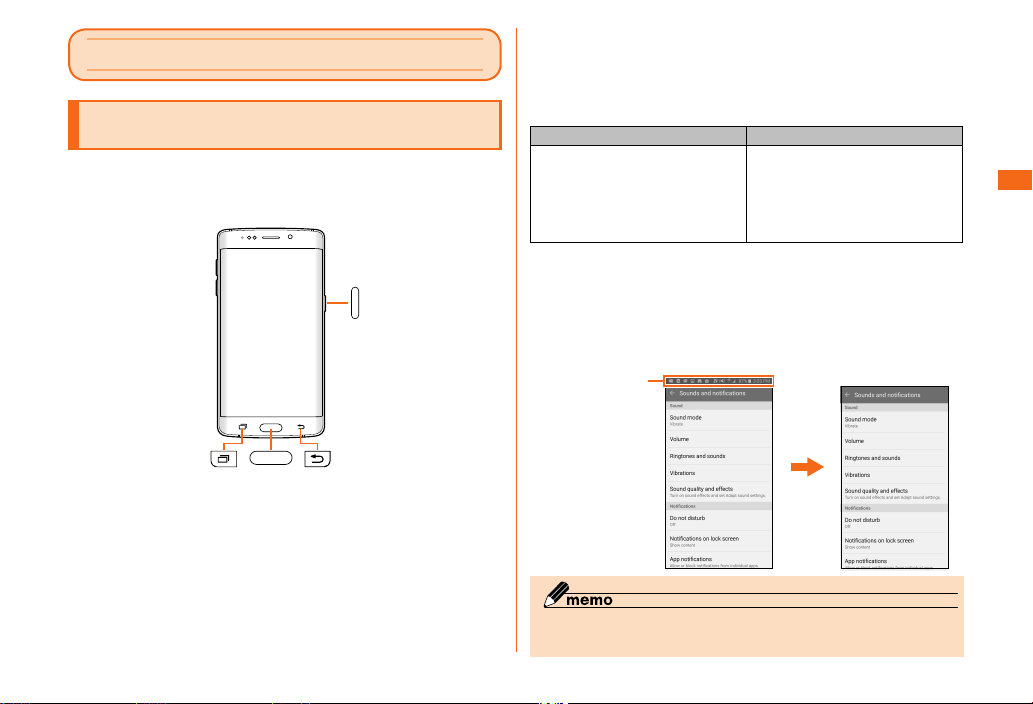
Actualscreen Examplescreenshot
Illustrations and descriptions in this Manual
■ Note on key illustrations
In this manual, the key illustrations are simplied as shown
below.
■ Description of operations for selecting item/icon/
key, etc.
In this manual, operation steps are described as follows.
Tapping is lightly touching a key or icon displayed on the
screen with your nger.
On the home screen, [基本フォル
ダ (Basic folder)] → [Settings] →
[Date and time]
Description Explanation
Slide the Favorite Apps panel on
the Edge screen on the home
screen up or down, On the home
screen, tap "基本フォルダ (Basic
folder)" and then tap "Date and
time" in the displayed window.
■ Note on Screenshots
• This manual uses screenshots and describes operations with
the au Nano IC Card 04 inserted.
• The illustrations and screenshots used in this manual are
simplied and may look dierent from the actual screens.
Safety Precautions
Iconsandthelike
atthetopofthe
screenareomitted
fordescriptionsin
thismanual.
◎ All of the indicated amounts exclude tax unless otherwise
specied.
inthismanual
5
Page 8
Safety Precautions (Observe Strictly)
Danger
Warning
Caution
Danger
■ Before using this product, thoroughly read these safety
precautions for proper use. After reading, store the
precautions in a safe place.
These "Safety Precautions" describe instructions that
should be observed to prevent damage to property or
injury to the customer or others using the product.
Safety Precautions
When the product is used by a child, parents or guardians
should thoroughly read the "Basic Manual" (this manual)
and teach the child how to use it.
These instructions are divided into the following
categories.
■ Explanation of indications used in this manual
This symbol indicates the potential and
imminent danger of death or serious injury (*1)
to a person from improper use.
This symbol indicates the possibility of death
or serious injury (*1) to a person from improper
use.
This symbol indicates the possibility of
personal minor injury (*2) to a person or
physical damage (*3) from improper use.
*1 Serious injury: This refers to loss of sight, injury, burns (high- and low-
temperature), electric shock, broken bones, injuries with residual aftereects
from poisoning, etc., and injuries requiring hospital admission for treatment or
longterm hospital attendance as an outpatient.
*2 Minor injury: This refers to injuries, burns (high- and low-temperature), electric
shock, etc. that do not require hospital admission for treatment or long-term
hospital attendance as an outpatient.
*3 Physical damage: This refers to extended damage to buildings, furniture,
livestock, or pets.
■ Explanation of graphic symbols used in this manual
Indicates an action that is not allowed.
Indicates that handling with wet hands is not allowed.
Indicates that disassembly is not allowed.
Indicates that use in a place where the product is likely to
get wet or allowing the product to get wet is not allowed.
Indicates an action that must be done.
Indicates that the power plug must be disconnected from
the power outlet.
■ Precautions common to the product main unit,
internal battery, charging equipment, au Nano IC
Card 04, peripheral devices
Be sure to read the following hazards
before use.
Be sure to use only the specied peripheral devices. Use of
other peripheral devices might cause overheating, ignition,
rupture, fault, or leakage of liquid.
Do not use, store or leave the product in hot places (e.g. by
the re, near a heater, under a kotatsu, in direct sunlight, in
a car in the hot sun). Doing so might cause ignition, rupture,
fault, re or injury.
6
Page 9
Do not put the product in a cooking apparatus such as
Warning
microwave oven or a pressure vessel. Doing so might cause
ignition, rupture, fault, re or injury.
Do not throw the product into a re or heat it. Doing so
might cause ignition, rupture or re.
The customer is not allowed to disassemble, modify or repair
the product. Doing so might cause a fault, ignition, electric
shock, or injury. The Company is not liable even in the event
of any nonconformities arising on this product or peripheral
devices as a result of modication, etc. Modication of cell
phones is in violation of the Wireless Telegraphy Act.
The battery for this product is built-in and cannot be replaced
by the customer. Contact an au shop or a Customer Service
Center to replace the battery.
Do not use outside when you can hear thunder. Doing so
might risk lightning strikes and electric shock.
Do not short-circuit the external connection terminals or the
headset connection terminal. Do not allow conductive foreign
objects (metal fragments, pencil leads, etc.) to come into
contact with or get inside the connection terminals. Doing so
might cause overheating, re, fault, electric shock or burns.
Do not let your hands, ngers and other parts of the body
touch the connection terminals. Doing so might cause
electric shock or injury.
If the product or the charging equipment (sold separately)
being wet is charged, electric shock, short circuit, or
corrosion may occur and overheating may cause re, fault or
burns.
Safety Precautions
Be sure to read the following
warnings before use.
Before entering an area where ammable gas is generated
such as a gas station, be sure to turn o the product. Do
not charge the battery. Failure to observe these precautions
might cause the gas to catch re. In addition, when using
Osaifu-Keitai
in advance. (If NFC/Osaifu-Keitai lock has been set, cancel
the lock before turning o the power.)
When using a metal accessories, etc., take sure not to
allow the metal part come in contact with the connection
terminals, the headset connection terminal or power outlet.
Doing so might cause electric shock, ignition, injury or a
fault.
Do not drop or subject to strong impact, such as throwing.
Doing so might cause rupture, overheating, ignition or a fault.
®
at a gas station, be sure to turn o the power
Do not splash with water or other liquids. Also, never use in
places subject to direct splashing with water or pet urine,
etc. or in humid places such as bathrooms, or use with wet
hands. Doing so might cause electric shock or fault from
short-circuiting or corrosion of electronic circuits. In the
event that the product is splashed with liquid, immediately
disconnect the power plug of the specied charging
equipment (sold separately). Faults caused by wetting
with water or humidity are not covered by the warranty and
charges will be incurred for repair.
Do not use a cell phone while walking or driving a car or riding
a motorbike or bicycle. It may cause a trac accident. Use
of a cell phone while driving a car or motorbike is prohibited
by law. Use of a cell phone while riding a bicycle may be
punishable by some regulations.
If charging is not completed after the specied charging
time, stop charging. Failure to do so might cause leakage,
overheating, rupture or ignition.
7
Page 10
Do not leave in places within the reach of small children.
Caution
Small children might swallow small parts, etc. by mistake and
choke on them, or might drop them by mistake and cause
accidents or injury.
Do not cover or wrap the product with bedding, etc. while
using or charging the product. Doing so might cause re,
fault or injury.
When using a charging equipment or external device, insert/
Safety Precautions
remove the connector straight to/from the terminal. Make
sure the orientation of the connector is correct. Unless it is
correct, it may cause overheating, ignition, damage or fault.
Do not expose the camera lens to direct sunlight for an
extended period. Doing so might cause ignition, rupture, re
or fault by the light-collecting mechanism of the lens.
Do not store the product in places subject to direct sunlight
(e.g. in automobiles), places that get hot, places that get
extremely cold, and in humid or dusty places. Doing so might
cause overheating, deformation or a fault.
Do not leave on unstable places such as rocky stands or
tilting surfaces especially while the vibration mode set.
Dropping the product may cause injury or damage. Also, pay
sucient attention to impact, etc. Doing so might cause re,
fault or injury.
This product may become hot if you use it for a long period of
time or when it is connected to an external power source. Do
not touch this product or the specied charging equipment
for a long period of time. Doing so may result in a low
temperature burn. Also do not cover this device with paper,
clothes or blankets. Doing so might cause a re, injury or a
fault.
Be sure to read the following cautions
before use.
Do not use power outlets or wiring apparatus beyond its
rating during charging the product. Also, exceeding rating,
for example, by connecting multiple devices to a single power
strip might cause re by overheating.
Do not place near corrosive chemicals or in places where
corrosive gas is generated. Doing so might cause a fault or
loss of internal data.
Do not use if there is smoke, abnormal odor or noise,
excessive overheating, or other abnormalities. If an
abnormality occurs, disconnect the specied charging
equipment (sold separately) from the power outlet or
cigarette lighter socket, make sure that the product is not
overheating before turning the power o, or removing the
battery o and contact an au shop or Keitai Guarantee
Service Center. Also, if you have dropped or damaged the
product, do not continue to use it in that state, and contact
an au shop or Keitai Guarantee Service Center.
When inserting High-quality Earphone with Microphone
(sample), etc. into the product, turn the volume up little by
little until the proper level. Setting too loud a volume or using
the earphone continuously for a long period of time might
adversely aect your ears. Also, raising the volume too high
might prevent you from hearing sounds around you, which
might in turn lead to a trac accident at a railroad crossing
or pedestrian crossing.
When using handsfree call, take care to keep the speaker at
a safe distance from your ears, as the speaker volume may
be too loud.
8
Page 11
■ Main unit
Danger
Warning
Caution
Be sure to read the following hazards
before use.
Do not insert nails into this product, hit it with a hammer or
step on it. Doing so might cause a re or a fault.
Make sure that any pets you may have do not bite this
product. Doing so might cause the internal battery to leak,
overheat, explode, ignite, re or injury.
Be sure to read the following
warnings before use.
When boarding an airplane, turn this product OFF or turn
airplane mode on. As there are usage restrictions in an
airplane, follow the instructions from the airline.
Failure to do so may cause airplane electronic equipment to
fail or malfunction. If you commit any prohibited acts, such
as using the phone in an airplane, you will be punished in
accordance with the law.
When using the terminal in a medical facility, follow the
instructions of the facility. Turn the terminal OFF in areas
where use is prohibited.
Failure to do so may cause electronic equipment or electronic
medical equipment to fail or malfunction.
If using the light, do not direct it at people's eyes, people
driving cars, riding scooters or bicycles. Also, do not look
directly at the light source when the light is turned on. Doing
so might cause damage to your vision. In particular, do not
take pictures of infants from a very close distance.
Sometimes, very rarely some people demonstrate symptoms
such as temporary muscle spasms, loss of consciousness,
etc. by watching repeatedly ickering screens. Those
with a past history of this should consult with a physician
beforehand.
Be sure to read the following cautions
before use.
Use of the product in an automobile might sometimes aect
on-vehicle electronic devices, though this rarely happens. If
this happens, stop use since this may impair safe travel.
If you feel any abnormality with your skin, immediately consult
a dermatologist. Itching, rashes, eczema, etc. sometimes
occurs depending on your physical constitution and
condition. The materials of parts used on the product are as
follows.
Part Material Surface treatment
Exterior case (front) Glass Evaporation+AF
Exterior case (back) Glass Evaporation+AF
Speaker PBT -
Camera lens, light/
sensor panel
surrounding area
Camera lens, light/
sensor panel
transparent cover
area
Side key (power/
screen lock key/
volume key)
Aluminum Anodic oxidation
Glass Print + AF coating
Aluminum Anodic oxidation
coating
coating
treatment
treatment
Safety Precautions
9
Page 12
Part Material Surface treatment
Danger
Home key/Fingerprint
sensor (surrounding
area)
Home key/Fingerprint
sensor (center area)
Display (touch panel) Glass Evaporation+AF
Infrared port (IrLED)
panel
Safety Precautions
Flush panel PC -
Flush decoration Aluminum Anodic oxidation
RCV decoration STS Mirror polishing
Exterior case (side) Aluminum + PC Anodic oxidation
au Nano IC Card 04
slot
microUSB connection
terminal
Headset connection
terminal
au Nano IC Card 04
tray
Do not bring the product close to magnetized objects such
as cash cards, oppy disks, credit cards, and prepaid cards.
Doing so might result in loss of recorded information.
Do not swing the product around by holding SC TV Antenna
Cable 03, the High-quality Earphone with Microphone
(sample), etc. Doing so might cause an accident or damage.
If you have a weak heart, be careful when setting the
incoming vibration and ringtone volume to prevent adverse
eects on your heart.
Aluminum Coating
Aluminum Coating
PC -
Aluminum Anodic oxidation
STS -
PBT -
PC -
coating
treatment
treatment
treatment
Pay attention to items becoming stuck to the main unit. The
speaker uses magnets, and so thumbtacks and pins, craft
knife blades, staples, and other metal objects sometimes
become stuck to the main unit, and cause unexpected injury.
Before using the product, be sure to check that there are no
foreign objects on the speaker or other parts.
Do not put the product directly on sand at a beach, etc.
Sand or other small particles might get inside the earpiece,
microphone (upper/lower) or the speaker, external connection
terminals, or headset connection terminal, causing the
volume to drop. If sand gets inside this product's main unit, it
might cause overheating or a fault.
■ Internal battery
(The internal battery of the product is a lithiumion battery.)
The internal battery is not fully charged at the time
of purchase. Charge the battery before using the
product.
Be sure to read the following hazards
before use.
If the leaked liquid gets on your skin or clothes, immediately
rinse it o with water to avoid injury. If the liquid gets into
your eyes, do not rub but after wash your eyes with water,
and immediately consult a doctor to avoid the risk of losing
your eyesight. If the liquid gets on a device, wipe it o
without touching it.
10
Page 13
The internal battery is a consumable item. If the performance
Warning
of an internal battery does not recover (e.g. the usable time
after each charge has become extremely short), the internal
battery is at the end of service life, so stop use and buy a
new one of the specied type. Failure to do so might cause
overheating, ignition, rupture or leakage. Since it uses an
internal battery, after handing it over to an au shop, you will
be charged for repairs. In addition, please note that there
may be periods when it cannot be used. Note that the length
of service life varies depending on the usage condition, etc.
■ Charging equipment
Be sure to read the following
warnings before use.
Do not use at other voltages than the specied power supply
voltage. Doing so might cause ignition, re, overheating,
electric shock, etc
• AC adapter (sold separately): 100 VAC to 240 VAC
• DC adapter (sold separately): 12/24 VDC (for negative
grounded vehicles only)
* Use the specied charging equipment (sold separately).
Firmly insert the power plug of the specied charging
equipment (sold separately) into the power outlet or cigarette
lighter socket down to the base of its pins. Incomplete
insertion of the power plug might result in electric shock,
re or injury caused by overheating and ignition. Do not use
damaged specied charging equipment (sold separately) or
loosen power outlets or cigarette lighter socket.
If the fuse in the common DC adapter 03 (sold separately)
blows, replace it with a fuse of the specied type (250
V, 1 A). Replacing with a dierent type of fuse might
cause overheating or ignition. (For information about fuse
replacement, carefully read the manual for the common DC
adapter 03 (sold separately).)
Do not damage, modify, twist, pull or place a heavy object
on the power cord of the specied charging equipment (sold
separately). Do not use a damaged cord. Doing so might
cause an electric shock, short circuit, re or injury.
If you hear thunder, do not touch the specied charging
equipment (sold separately). Doing so might cause an
electric shock as a result of a lightning strike.
Before cleaning the specied charging equipment (sold
separately), unplug its power plug from the power outlet or
cigarette lighter socket. If the plug remains plugged in when
you clean the equipment, it might cause an electric shock or
short circuit.
Wipe o dust on the power plug. Failure to do so might cause
re, burn, or electric shock.
When the specied charging equipment (sold separately) is
not to be used for a long time, disconnect the power plug
of the specied charging equipment (sold separately) from
the power outlet or cigarette lighter socket. Failure to do so
might cause re or a fault.
Please use this product in a place where it will not come into
direct contact with liquids, such as water or pet urine. Doing
so might cause a fault or injury as a result of overheating,
re, electric shock or short circuit. If the product does
accidentally come into contact with liquid, immediately
remove the power plug of the charging equipment (sold
separately).
When not using the specied charging equipment (sold
separately),remove, remove the plug from the power outlet
or cigarette lighter socket. Also, do not wrap the power
cord of the specied charging equipment (sold separately)
around the adapter. Doing so might cause electric shock,
overheating, re, a fault or injury.
Safety Precautions
11
Page 14
Do not forcibly bend the plug of the charging equipment
Caution
Caution
(sold separately) or the connection between the connector
and power cord. Doing so might cause electric shock,
overheating, re, fault or injury.
Do not put metallic items (such as straps and clips that
contain metal) between a wireless charging equipment (sold
separately) and the back of this product.
Doing so might cause ignition, re or injury.
Safety Precautions
Do not stick metallic items (such as stickers that contain
metal) on wireless charging equipment (sold separately) or
the back of this product. Doing so might cause re, a fault,
burns or injury from overheating.
Do not use in humid places such as bath areas, or connect/
disconnect the specied charging equipment (sold
separately) with wet hands. Doing so might cause electric
shock, injury or a fault.
When unplugging the power plug of the specied charging
equipment (sold separately) from the power outlet or
cigarette lighter socket, hold and pull the power plug. If you
pull the cord, the cord might be damaged.
Do not use the common DC adapter 03 (sold separately)
with the car engine stopped. Doing so might result in draining
of the car battery.
Be sure to read the following cautions
before use.
■ au Nano IC Card 04
Be sure to read the following cautions
before use.
Watch your hand or nger when attaching/removing the au
Nano IC Card 04. May injure your hands or ngers.
Do not do any of the following to damage the au Nano IC
Card 04 (using in high temperature areas, tossing into re,
allowing foreign matter to come into contact with metal
part, subjecting to shock, bending it, causing it to bear
loads or getting wet, etc.). It may cause data loss or other
malfunctions.
Do not throw the au Nano IC Card 04 into a re or heat it.
Doing so might cause loss of data or a fault.
Store the au Nano IC Card 04 out of reach of small children.
Failure to do so might cause injury or asphyxiation, etc. if
they accidentally swallow and choke on it.
12
Page 15
■ Use of this product near medical equipment and
Warning
Danger
Warning
Caution
inside a medical facility
Be sure to read the following
warnings before use.
When using the product near an implanted pacemaker,
implanted cardioverter-debrillator or other electronic medical
device, radio waves might aect these units and devices. So,
please observe the following.
1. Those with an implanted pacemaker or implanted cardioverterdebrillator should carry or use the product at least 15 cm
away from the pacemaker or cardioverter-debrillator.
2. Turn the product o or turn "Airplane mode" on when it may be
dicult to keep at least 15 cm away from others such as in a
situation you cannot move freely, since there may be people
with an implanted pacemaker or implanted cardioverterdebrillator nearby.
3. When a medical institution has laid down designated areas
where use of the product is prohibited or is not allowed to be
brought in, abide by the instructions of that medical institution.
4. When using electronic medical devices other than an
implanted pacemaker and implanted cardioverter-debrillator
outside a medical institution (e.g. home medical treatment),
check individually with the manufacturer of the electronic
medical device regarding the inuence of radio waves.
■ SC TV Antenna Cable 03
Be sure to read the following hazards
before use.
Do not touch with or insert into the headset connection terminal
material that conducts electricity (metal, pencil lead, etc.). Doing
so may cause a re, fault, or burns from overheating.
Be sure to read the following
warnings before use.
Do not use in places subject to direct splashing with water,
pet urine or other liquids. Doing so might result in faults
resulting from overheating, re, electric shock, injury or shortcircuiting of electronic circuits.
Be sure to read the following cautions
before use.
If you feel any abnormality with your skin, immediately consult
a dermatologist. Itching, rashes, eczema, etc. sometimes
occurs depending on your physical constitution and condition.
The materials of parts used on the SC TV Antenna Cable 03
are as follows.
Part Material Surface treatment
Headset connection
terminal (top)
Headset connection
terminal (exterior)
Cable HAOXIN
Connection plug
(outer cover)
Connection plug
(top)
BRASS(C3604)
POM(F20-03)
LDPE737
HFW2290(White)/
TPE
HFW22908006_WHITE
LDPE737
HFW2290(White)/
TPE
BRASS(C3604)
POM(F20-03)
Nickel plating(1 ~
5um)
Gold plating(0.03um
or more)
Nickel plating(1 ~
5um)
Gold plating(0.03um
or more)
Safety Precautions
-
-
-
13
Page 16
■ High-quality Earphone with Microphone (sample)
Warning
Caution
Warning
Do not use the product for playing game or music while
driving a car or motorbike, riding a bicycle or walking. Doing
so may compromise trac safety and cause an accident.
Safety Precautions
When playing game or music, adjust the volume to the
proper level. Setting too loud volume or using the earphone
continuously may be harmful to your ears. Even if the proper
volume is applied, using for a long time may cause hearing
loss. Also, raising the volume too high might prevent you
from hearing sounds around you, which might in turn lead to a
trac accident at a railroad crossing or pedestrian crossing.
Do not wrap the cord around the product. It may lower
its sensitivity and the sound may cut o or noise may be
generated. Do not pull the code to unplug. Do not hang
the phone with the code, either. It may damage the code,
connector plug and the headset connection terminal of the
product.
Be aware not to gather dust on the connector terminal.
Doing so may cause a fault.
Attach or remove the connector horizontally to or from the
headset connection terminal of the product.
When adjusting the volume, raise the volume a little at a
time. If you raise the volume too much from the outset,
sudden loud noise from the earphone, etc. might adversely
aect your ears.
Be sure to read the following
warnings before use.
Be sure to read the following
warnings before use.
If you feel any abnormality with your skin, immediately consult
a dermatologist. Itching, rashes, eczema, etc. sometimes
occurs depending on your physical constitution and
condition. The materials of parts used on the High-quality
Earphone with Microphone (sample) are as follows.
Part Material Surface treatment
Earphone outer cover PC (HF-1023IM) Print+UV coating
Cable TPE -
Switch/microphone
outer cover
Switch PC (HF-1023IM) -
Earpiece Silicone -
Plug (metal) Brass Nickel plating
Plug (resin) TPE -
PC (HF-1023IM) UV coating
■ SIM card removal tool (sample)
Be sure to read the following
warnings before use.
Be sure to read the following warnings before use.
The end of the SIM card removal tool (sample) is sharp. Do
not use pointed at yourself or other people.
Doing so might hit yourself or other people resulting in injury
or loss of sight.
14
Page 17
Caution
Be sure to read the following
warnings before use.
Be sure to read the following cautions before use.
Immediately stop using if your skin feels abnormal and
consult a dermatologist.
Itchiness, a rash or dermatitis may occur depending on your
constitution or condition.
The materials used in the SIM card removal tool (sample) are
as follows:
Part Material Surface treatment
Unit STS -
Store the SIM card removal tool (sample) in a place where
infants cannot reach.
If it is accidentally swallowed, it might result in suocation or
injury.
Handling precautions
These precautions are provided to prevent the product from
getting a malfunction and to ensure that performance can
be fully demonstrated. Thoroughly read these precautions
to ensure correct use.
■ Precautions common to the product, internal battery,
charging equipment, au Nano IC Card 04, peripheral devices
• Do not apply excessive force to the product during use. Be
sure not to put the product into a tightly packed bag or place
a heavy object on the product in a bag. Sitting on the product
in your pocket might damage the display or internal circuit
board resulting in a malfunction. Keeping an external device
connected to the microUSB connection terminal or headset
connection terminal might damage the connector resulting in
a malfunction. Such damage and malfunction are not covered
by the warranty, even if there is no external damage.
• Do not use the product in extremely hot, cold or humid places.
(Use within an ambient temperature range of 5℃ to 35℃
and humidity range of 35% to 85%. Store within an ambient
temperature range of 0℃ to 45℃ .)
- charging equipment
- peripheral devices
• Do not use the product in extremely hot, cold or humid places.
(Use within an ambient temperature range of 5℃ to 35℃ and
humidity range of 35% to 85%. However, if the temperature is
36℃ to 40℃ , use is possible for a short period of time. Store
within an ambient temperature range of 0℃ to 45℃ .)
- Galaxy S6 edge main unit
- au Nano IC Card 04 (when attached to the Galaxy S6 edge
main unit)
• Do not use in places subject to lots of dust or vibration.
• Clean the connection terminals with dry cotton swabs,
etc. every now and then. Soiled terminals might cause
poor connection. Do not exert a strong force to clean the
connection terminals to prevent deformation.
Safety Precautions
15
Page 18
• Clean the product with a soft dry cloth (such as the type used
for eyeglasses). Forceful rubbing with a dry cloth may scratch
the display. The display may be stained if splash or smear is
left attached to the surface. Wiping the product using alcohol,
thinner, benzine, detergent, etc. might erase the printing on
the outer casing or cause discoloration.
• Use as far away as possible from land-line phones, TVs,
radios, etc. Use nearby might aect them.
• The product may become warm while charging or during other
Safety Precautions
operations, depending on the situation, but this is not abnormal.
■ Main unit
• Do not forcefully press, tap or intentionally subject the display
to strong impact. Doing so might cause scratching or damage.
• Do not forcefully press your ngernails, sharp objects or hard
objects against keys or display surface. Doing so might cause
scratching or damage. The touch panel is designed to be
lightly touched by ngers. Do not apply strong pressure with
your ngers or sharp-pointed objects (such as ngernails,
ballpoint pens and pins) on the touch panel.
In the following cases, the product may not respond to
touching the touch panel, or errors in operation may occur.
• Operation with gloved hands
• Operation with ngernails
• Operation with a foreign object placed on the touch panel
• Operation with a protective sheet or sticker on the touch panel
• Operation with water drops or dew condensation attached
on the display
• Operation with wet or sweaty ngers
• Never use modied au phone. Use of a modied device
violates the Radio Law.
The product has acquired the certication of conformity with
technical regulations for the specied radio station based
on the Radio Law, and the "Technical Conformity Mark " is
indicated in this product.
How to conrm: Home screen → [基本フォルダ (Basic folder)] →
[Settings] → [About device] → [Regulatory information].
If the screws of the product are removed and modications
are made to the internal components, the certication of
conformity with technical regulations will become invalid.
Never use the product without the valid certication. Doing so
violates the Radio Law.
• Take care not to place magnetized items such as magnetic
cards, speakers and TV sets near the product, as it might
cause malfunction. Putting a strong magnetism close to the
product might cause false operation.
• When you put the product in your pocket or bag, take care so
that the display does not come in contact with metal objects
or other hard objects, as it might cause scratching or damage.
• When suddenly brought into a warm place from a cold place,
or when in a humid location, or when used where temperature
suddenly changes (e.g. near the air discharge port of an air
conditioner), water droplets (i.e. condensation) sometimes are
formed inside the product. Note that when used under conditions
such as this, the humidity might cause corrosion or a fault.
• When wiping the display, wipe with a soft, dry cloth. Use of
a moistened cloth, glass cleaner or other similar liquid might
cause a fault.
• When connecting/disconnecting an external device to/from
the microUSB connection terminal or headset connection
terminal, make sure that the connector of the external device
is straight with the connector terminal.
• Note that applying unnecessary force with an external device
connected to the microUSB connection terminal or headset
connection terminal might cause damage.
• Do not cover the proximity/light sensor with your nger or
put a sticker on it. Doing so may hinder it from detecting the
ambient brightness and functioning correctly.
• Do not put a sticker, etc., on the proximity/light sensor. Doing
so may cause the sensor to malfunction and make the display
always turned o while receiving a call or during a call.
16
Page 19

■ Touch Panel
• Use your nger to operate the touch panel. Do not use ballpoint
pens, pencils or other sharp-pointed objects. Using such objects
does not only hinder correct operation of the touch panel, but
also might cause scratching or damage to the display.
• Do not put stickers or sheets (e.g. commercially available
protective lms, peep prevention sheets) on the display. Doing
so might hinder correct operation of the touch panel.
• If the display surface is dirty or wet with sweat or water, it
may not function correctly. In such case, wipe the display
surface with a dry, soft cloth.
• When carrying the product in your pocket or bag, take care
not to put the touch panel close to metals or other conductive
materials, as it might cause false operation of the touch panel.
■ Organic EL (OLED) display
• Although lightning intensity of OLED can be decreased
partly when the same image has been displayed for a long
time, extreme continuous use is performed with "Brightness"
setting of "Display and wallpaper" set to be always bright, it is
not abnormal because that is the characteristic of OLED.
• Although the organic EL (OLED) display used on the product
is made using high-precision technology, some pixels (dots)
might be lit or out at all times. Or color may be changed or
unevenness of brightness may be shown if looked at from
dierent angles. Note that that is because of the structure of
OLED display, not a fault.
• Leaving the OLED exposed to the direct sunlight might cause
a fault. Take care when you place the product by the window
or outside.
■ Internal battery
• At extremely high or low temperatures, such as if you leave
this product in a closed car during summer, the capacity of the
internal battery decreases and the amount of time it can be
used decreases. This also decreases the lifespan of the battery.
Where possible, please use this product at room temperature.
• After charging the battery, it gradually discharges, even if
you do not use this product. If you do not use this product
for a long time, you should charge the battery as the internal
battery may have discharged.
• The internal battery is a consumable product. If it does not
function even after it has been charged, it has reached the end
of its life so do not use it. As the battery is built-in, you can
have it replaced by an au shop for a fee. Note that you will not
be able to use this product for a certain period of time. The
battery lifespan varies depending on how the product is used.
■ Wireless charging
• Although the information light on the wireless charger may remain
on after the product has nished charging, this is not a fault.
• Charging may stop just before the battery is fully recharged.
• If charging stops before the battery is fully recharged,
charging may not begin immediately.
• Depending on the Qi specication-compatible product,
charging may repeatedly start and stop.
Charge this product with an au-approved product.
• If the temperature exceeds a certain level, charging may stop
or take a long time, but this is not a fault. Please wait for the
temperature to decrease.
• Place the wireless charger on a at, stable surface and
charge the product.
• Turn o the vibration function when charging wirelessly.
If the product vibrates, it may not fully charge or fall o the
wireless charger.
• Remove any cases, covers, plastic lm, stickers, and so on
attached to the product before charging.
• Check that the wireless charger and the product are not wet.
• Do not wirelessly charge the product while it is connected to
an AC adapter (sold separately) or microUSB cable.
• Separate non-au wireless chargers by more than 30 cm. If you
fail to do so, the au product you want to charge may not be
detected correctly and may not be able to be charged.
• If the product receives interference from a radio or TV, use the
product as far away from the radio or TV as possible.
Safety Precautions
17
Page 20

• Depending on the Qi specication-compatible product, it may
not receive calls while charging. Charge this product with an
au-approved product.
• Depending on the Qi specication-compatible product,
charging may not be able to start due to mutual interference
with the Osaifu-Keitai
au-approved product.
• If you run an application on the product while it is being
charged wirelessly, it may not fully charge.
• Although the product may become warm while it is on the
Safety Precautions
wireless charger, this is not a fault.
• Reception quality may decrease while the product is charging
on the wireless charger.
• Do not move the wireless charger or the product while it is charging.
• After the product has nished charging, the remaining battery
level may decrease, even if the product is left as is.
®
function. Charge this product with an
■ au Nano IC Card 04
• Do not forcibly remove or insert the au Nano IC Card 04. Be
careful not to exert excessive force when inserting the card
into your au cell phone.
• You are responsible for any damage caused by inserting your
au Nano IC Card 04 into some other IC card reader/writer, etc.
• Keep the IC (metal) part of your au Nano IC Card 04 clean.
Wipe the card with a soft dry cloth (such as the type used for
eyeglasses) for cleaning.
• Do not put stickers, etc. on the au Nano IC Card 04.
• Do not insert an au Nano IC Card (LTE) to which a conversion
adapter is attached. Doing so may cause a fault.
■ SIM card removal tool (sample)
• Do not force the SIM card removal tool (sample). Doing so
might cause it to break or damage.
• When disposing of it, follow the rules regarding disposal in your area.
• Do not use the SIM card removal tool (sample) with other
mobile phones.
Doing so might cause the mobile phone to break or damage it.
■ Camera
• When using the camera, follow common rules of etiquette
regarding camera use.
• When photographing important occasions (such as a
wedding), take a trial shot and check the shot image to make
sure it is correctly shot.
• Do not use the camera for recording commercially available
books or information of which photographing is not allowed.
■ Copyrights and rights of portrait
• You are not allowed to copy, distribute, publish, modify or edit
the data you shot, recorded or downloaded using this product
without the consent of the copyright holder, except for
personal use, under the copyright law. In addition, do not use
or modify portraits or names of other individuals without their
consent, as it might infringe on rights of portrait.
Note that shooting and recording may be restricted at some
live performances, shows and exhibitions even for personal
use.
• Be careful about the copyright and portrait right when posting
images you shot, etc. on Internet homepages.
■ Backup content on the product
• Please back up*1 important content recorded or downloaded
for the product to an outside source. Content recorded to
memory on the product sometimes disappears or is altered by
unexpected factors, such as static electricity or a fault, repair,
mishandling, etc.
■ Available security codes
The product has various security codes that you can use.
The available security codes are as follows. Do not forget
the various security codes that are set as they are
necessary for various operations and contracts.
Make sure to change the initial value to your own unique
number.
18
Page 21
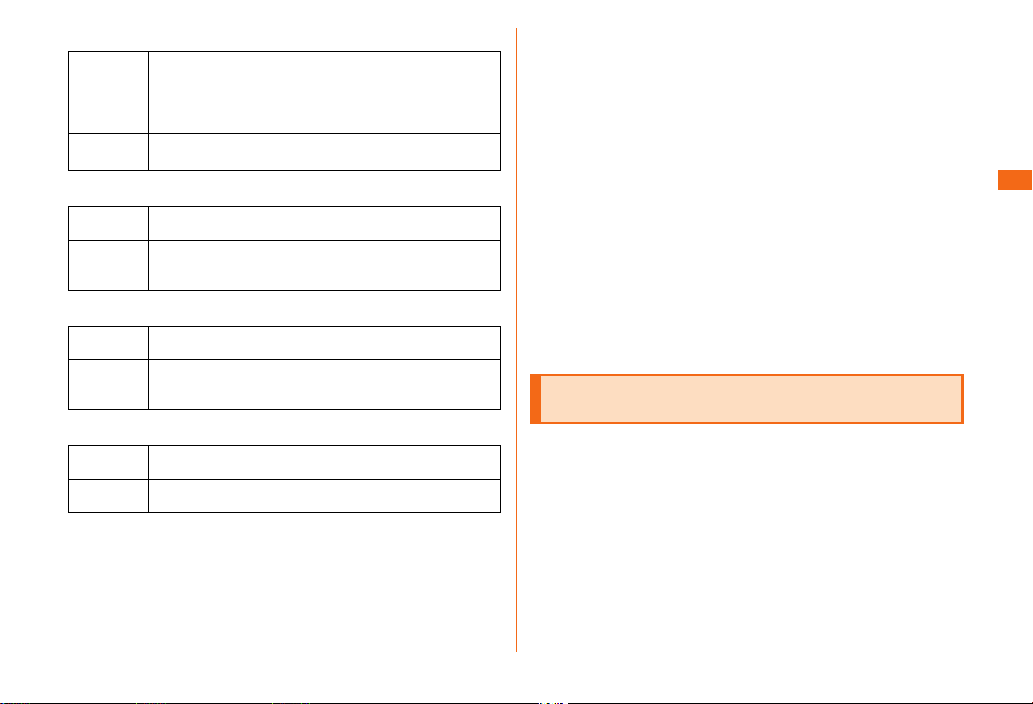
● Security code
①To do remote operation of Voice mail and Call
Example of
usage
Initial
value
forwarding services from a landline phone
②To use Customer Service Center and to do various
inquiries, applications, and modications on the au
homepage
A four-digit number chosen by the customer and noted
on the application form
● Pattern/PIN/password to unlock screen
Example of
usage
Initial
value
To set and release the screen lock
Swipe
Make sure to change the initial value to your own
unique number.
● PIN code
Example of
usage
Initial
value
To prevent unauthorized use of the au Nano IC Card
04 by third parties
1234
Make sure to change the initial value to your own
unique number.
● Lock No. (NFC/Osaifu-Keitai Lock)
Example of
usage
Initial
value
To set the "NFC/Osaifu-Keitai Lock" setting
1234
■ PIN code
● PIN code
To prevent unauthorized use of the au Nano IC Card 04 by a
third party, you can set the product to require PIN code entry
every time the power is turned on. You also need to enter PIN
code when setting whether the PIN code entry is required.
If the PIN code is incorrectly entered three times
consecutively, the PIN code will be locked. Use the PUK
code to unlock the PIN code.
• PIN code is "1234" and PIN code entry was set to not be
required at the time of purchase. You can change PIN code to
any four- to Sixteen-digit number, and set the PIN code entry
to be required as necessary.
If you require a PIN code to be entered, make sure to change
the number to your own unique number.
● PUK code
In case the PIN code is locked, you can unlock it by entering
the PUK code.
• PUK code is an eight-digit number given at the time of
purchase, which is printed on the back side of the plastic card
where your au Nano IC Card 04 is attached.
• After entering the PUK code, you need to set a new PIN code.
• If the PUK code is incorrectly entered ten times consecutively,
contact an au shop, PiPit or the Customer Service Center.
• "PIN code" is not reset by initializing the product.
Notes on using Bluetooth®/wireless LAN
®
(Wi-Fi
• The Bluetooth® function and wireless LAN (Wi-Fi®) function
of this product conform to the domestic standards of Japan,
FCC standards and EC Declaration, and have been certied.
• Use the wireless LAN (Wi-Fi®) function in the 5 GHz band in Japan.
The wireless LAN (Wi-Fi
domestic wireless standards in Japan, and has been certied.
Use overseas may be subject to punishment by law.
• The 2.4 GHz band used by wireless LAN (Wi-Fi®) and
Bluetooth
reason, the communication speed and connectable range may
be decreased, or disconnection may occur, due to interference
from other devices.
) functions
®
) function of this product conforms to
®
devices is shared by various other devices. For this
Safety Precautions
19
Page 22
• Do not use this product in places where electromagnetic
waves are generated or near electric products, AV and OA
equipment, or other magnetized devices.
• Subjecting this product to magnetic or electrical noise
might increase noise and prevent it from performing
communications. (This product is particularly susceptible to
noise when it used near a microwave oven.)
• Using this product near a TV, radio or similar appliance might
cause reception interference and disrupt TV images.
• The searching might not be successful if there are multiple
Safety Precautions
wireless LAN (Wi-Fi
®
) access points near to the product or the
same channel is being used.
• As there are usage restrictions in an airplane, follow the
instructions from the airline.
• The communication speed and connectable range vary
depending on the distance between communication devices,
obstacles and the Bluetooth
®
devices used.
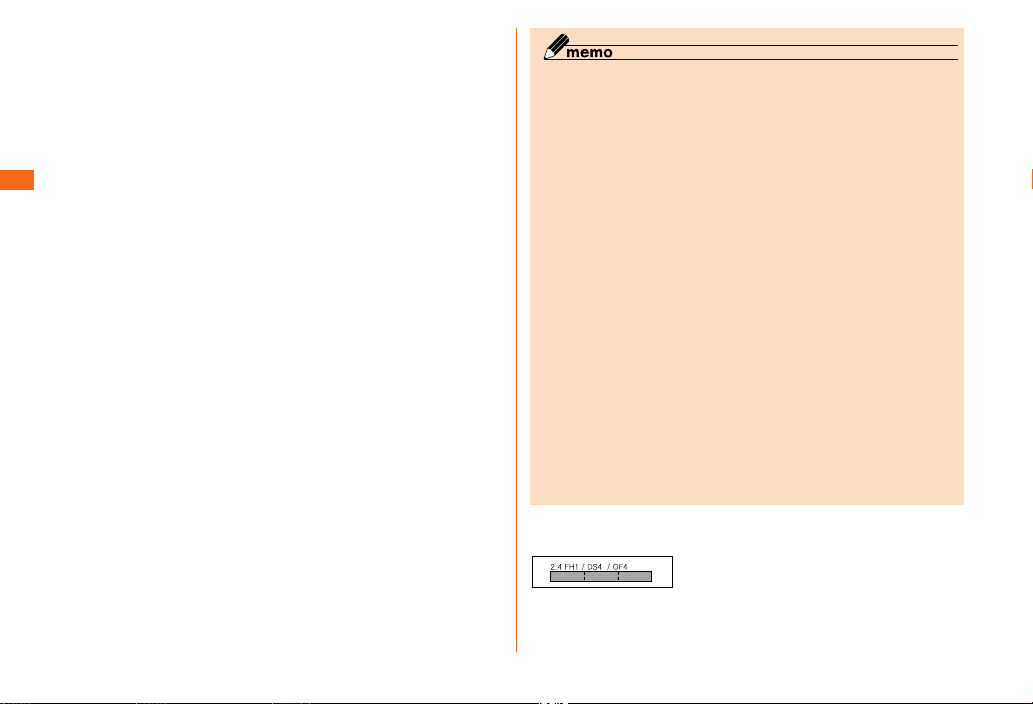
■ 2.4 GHz frequency band precautions
The frequencies used by the Bluetooth® and/or wireless
LAN (Wi-Fi
®
) function of this product are in the 2.4 GHz
band. In this frequency band, other similar wireless stations,
in-plant wireless stations for mobile unit identication that
require a license to use, such as factory production lines,
specic small power wireless stations that do not require
licenses, amateur wireless stations (collectively called
"other wireless stations" from here on) are operated in
addition to home electrical appliances such as microwave
ovens, devices for industrial, scientic and medical devices.
1. Before using this product, make sure that "other wireless stations" are not
in operation nearby.
2. In the event that instances of radio wave interference have occurred
between this product and "other wireless stations", immediately either
relocate this product or stop operation of the device (stop the emission of
radio waves).
3. If you are unclear on any points or are troubled by anything, contact an au
shop or Customer Service Center.
◎ The connections between this product and all other Bluetooth®
and wireless LAN (Wi-Fi
Therefore, connections with all Bluetooth
®
(Wi-Fi
) devices are not guaranteed.
◎ This product supports security features for wireless
communications that are compliant with the Bluetooth
wireless LAN (Wi-Fi
may not be sucient depending on the usage environment and
conguration. Be careful when making data communication
using Bluetooth
◎ Wireless LAN (Wi-Fi®) has the advantage that it can be freely
connected anywhere within the radio wave range, as it uses
radio waves for exchanging information. At the same time, there
is a risk that a malicious third party may obtain unauthorized
access if security settings have not been congured. You
are recommended to congure security settings before using
wireless LAN (Wi-Fi
◎ The Company assumes no responsibility for leakage of data or
information that may occur during Bluetooth
®
Fi
) communication.
◎ Since Bluetooth® and wireless LAN (Wi-Fi®) functions use the
same frequency band, using the both functions at the same
may cause radio wave interference resulting in decreased
communication speed or disconnection from the network.
If connection fails, stop using either of the Bluetooth
wireless LAN (Wi-Fi
®
) devices have not been conrmed.
®
) standard specications, but the security
®
or wireless LAN (Wi-Fi®) function.
®
) at your decision and responsibility.
®
) functions.
®
and wireless LAN
®
/wireless LAN (Wi-
®
and
®
and
Bluetooth® and wireless LAN (Wi-Fi®) functions of this
product use frequencies in the 2.4 GHz band.
/ XX8
20
Page 23
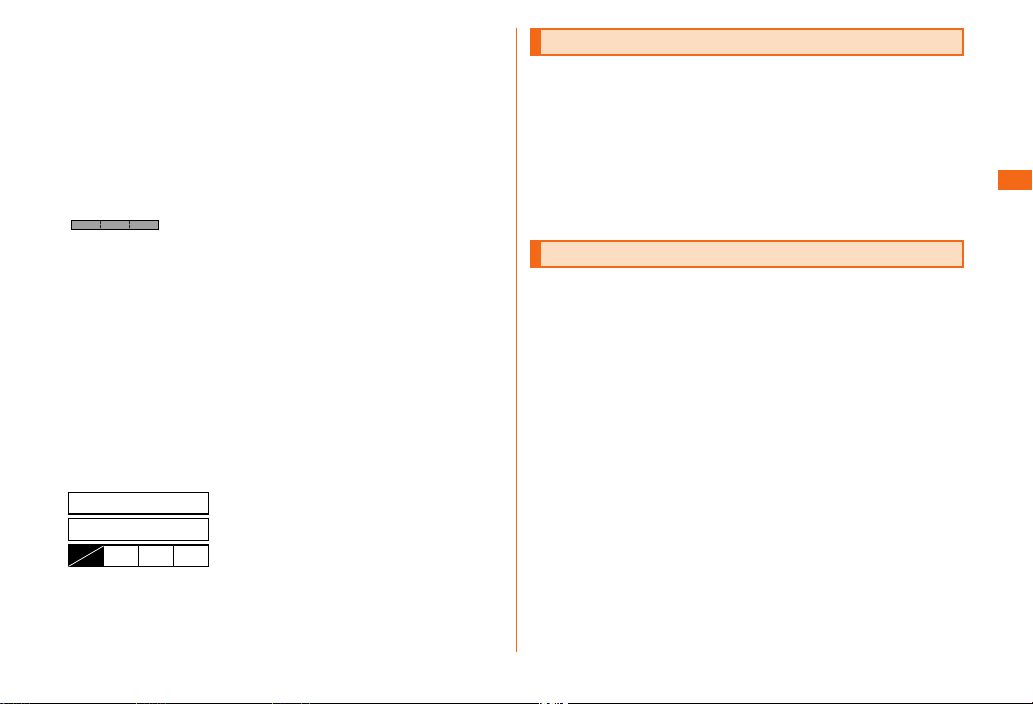
• Bluetooth® function: 2.4FH1/XX8
This product uses the 2.4 GHz band. For FH1, FH-SS is used
as the modulation scheme. The interference distance is about
10 m or less. XX8 uses other schemes and interference
distance is about 80 m or less.
• Wireless LAN (Wi-Fi®) function: 2.4DS/OF4
This product uses the 2.4 GHz band. DS-SS and OFDM are
used as the modulation schemes. The interference distance
is about 40 m or less.
This means that all bandwidths can be used,
:
and that bands of mobile unit identication
devices cannot be avoided.
Available channels dier depending on the country.
For use in an airplane, check with the airline company in
advance.
■ 5 GHz frequency band precautions
Wireless LAN (Wi-Fi®) function of this product uses 5 GHz
band. Using the 5.2 GHz band and 5.3 GHz band outdoors
is prohibited by the Radio Law.
The channels used on the product are as follows.
W52 (5.2 GHz band/36, 40, 44, 48 ch)
W53 (5.3 GHz band/52, 56, 60, 64 ch)
W56 (5.6 GHz band/100, 104, 108, 112, 116, 120, 124,
128, 132, 136, 140 ch)
IEEE802.11b/g/n
IEEE802.11a/n/ac
W52 W53 W56J52
Notes on packet communication charge
• Since a constant Internet connection is possible with this
product, packet communication may be performed automatically
by some applications, resulting in high packet communication
charges. Therefore, subscription to a packet communication
charge discount service or at late plan is recommended.
• To browse homepages, download applications, communicate
using applications, send/receive E-mails and congure various
settings, connection to the Internet is required, to which packet
communication charge applies.
* Packet communication charge does not apply to Wi-Fi® connection.
Notes on applications
• Be sure to check the security of the application, then install
it at your own risk. Some applications might cause virus
infection, damage various data, and send out your location
information, usage history or personal information stored in
your cell phone via the Internet.
• The Company assumes no responsibility for any problems that
might be caused by the applications you have installed. In
such case, you may be charged a repair fee even during the
warranty period.
• The Company assumes no responsibility for any disadvantage
brought to you or any third party by applications you have
installed.
• Some applications prohibit the product from entering sleep
mode while they are active, or rapidly drain the battery while
running in the background.
• Operational procedures and screen appearances of the
applications preinstalled in this product and those installed
by you are subject to change without notice as a result of
version upgrade. In addition, operating procedures described
in this manual may dier from the actual procedures.
Safety Precautions
21
Page 24
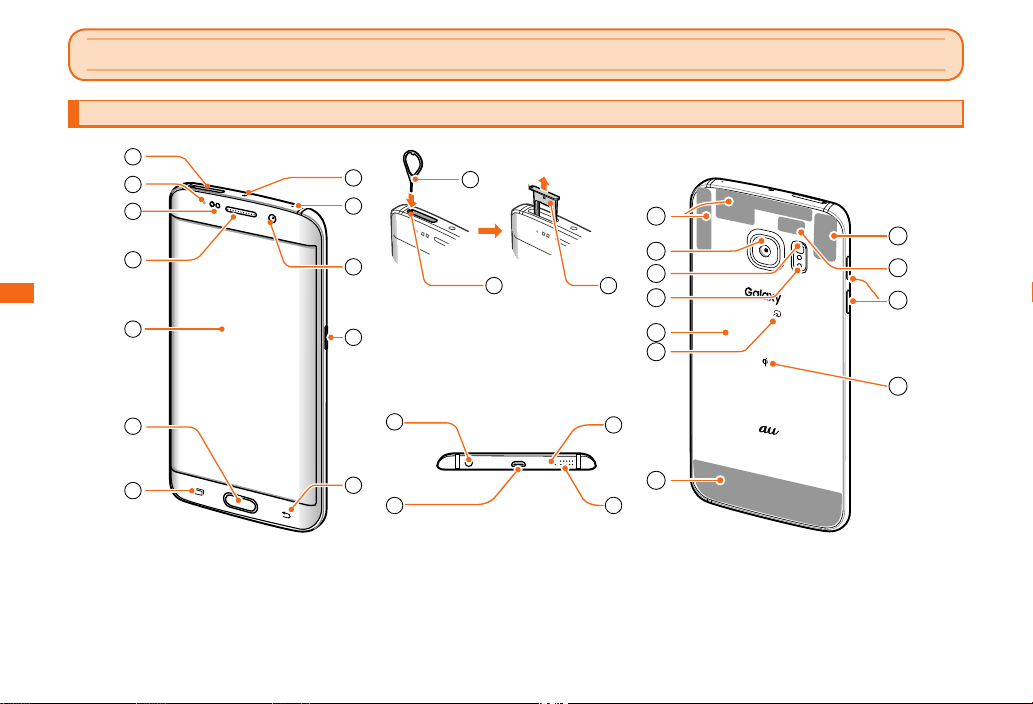
Names of parts and their functions
Getting ready
Getting ready
Getting ready
1
2
3
4
5
8
9
10
11
13
19
20
21
14
1
22
26
27
28
23
24
29
22
6
7
15
12
16
17
25
18
Page 25
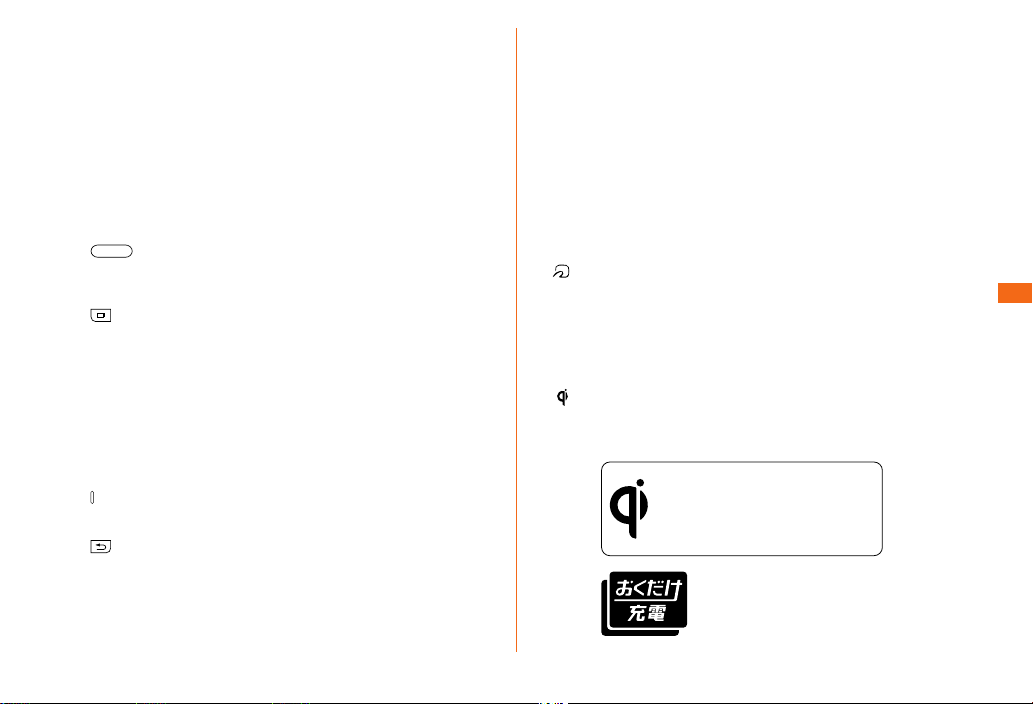
au Nano IC Card 04 slot
a
Notication LED
b
Notify missed calls, indicate charging status, etc. only while
the display backlight is turned o.
Proximity/Light sensor
c
Turn o display and adjust the display brightness when
proximity of face is detected or according to the ambient
brightness.
Earpiece
d
Display (Touch panel)
e
The screen is curved on the both sides. Colors may look
dierent depending on what angle you are looking at the
curved screen.
f
g
h
i
j
k
l
m
n
Home key/Fingerprint sensor
Return to the home screen. Press and hold for over one
second to start the "Google" application. Also, use it for
ngerprint authentication.
History key
Display the recently-used applications. Long-touch to start
split screen view.
Light-emitting part for remote control
When using remote functions on an application such as
"Smart Remote", point to the light receiving section of the
device.
Mouthpiece/Microphone (upper)
Mouthpiece/Microphone (upper) operates for calling,
handsfree calling or recording voice recorder, etc.
In-camera
Power key/Screen lock key
Press and hold for over one second to turn the power on.
Press while the power on to set screen lock.
Back key
End applications or return to the previous screen. Press and
hold to display menu.
SIM card removal tool (sample)
Tray eject hole
The holes for inserting the SIM card removal tool (sample) to
retrieve the au Nano IC Card 04 slot.
*1
*2
Headset connection terminal
o
microUSB connection terminal
p
Mouthpiece/Microphone (lower)
q
Mouthpiece/Microphone (lower) operates for speech
recognition such as calling, recording or using S voice, etc.
Speaker
r
GPS/LTE Built-in antenna part
s
Out-camera
t
Light
u
Cardiac rate sensor
v
Measure cardiac rate by activating the "S Health" application
and holding up your nger.
NFC/FeliCa antenna/Wireless charging coil
w
mark
x
LTE Built-in antenna part
y
Bluetooth®/Wi-Fi® antenna
z
Wi-Fi® second antenna
A
Volume key/Shutter key
B
Adjust ringtone volume and media sound volume.
Release the shutter while shooting a still picture and video.
mark
C
When doing wireless charging, this is the place which is
aligned with the "Qi" symbol on the Wireless Charging Pad
01 (sold separately).
*3
You can charge the product without a cable by just
placing it on an au-approved wireless charger (sold
separately) that has the symbol on the left. Refer to
the compatible device's User Manual as well.
Products with this symbol conform to the wireless
charging standard by the Wireless Power
Consortium (WPC).
ThisproductiscompatiblewithOkudake
Juden
OkudakeJudenandtheOkudakeJuden
logoareregisteredtrademarksofNTT
Docomo.
*2
*3
*3
*3
*3
®
.
Getting ready
Getting ready
23
Page 26
*1 Do not cover proximity/light sensor with a protective sheet, etc. Functions may
not work correctly.
*2 Be careful not to cover mouthpiece/microphones (upper/lower) with your nger.
*3 The antenna is built into the phone. Covering around the antenna by hand may
aect call/communication quality.
◎ The rear cover of this product cannot be removed. Forcibly
attempting to remove the rear cover may cause damage or a
fault.
◎ The battery is built-in to the product and you cannot remove it.
◎ There is no microSD memory card slot on this product. You will
need a commercial memory card reader/writer to use a microSD
memory card.
◎ To forcibly restart the product, refer to "Turning the power on/
o" (uP.28).
Getting ready
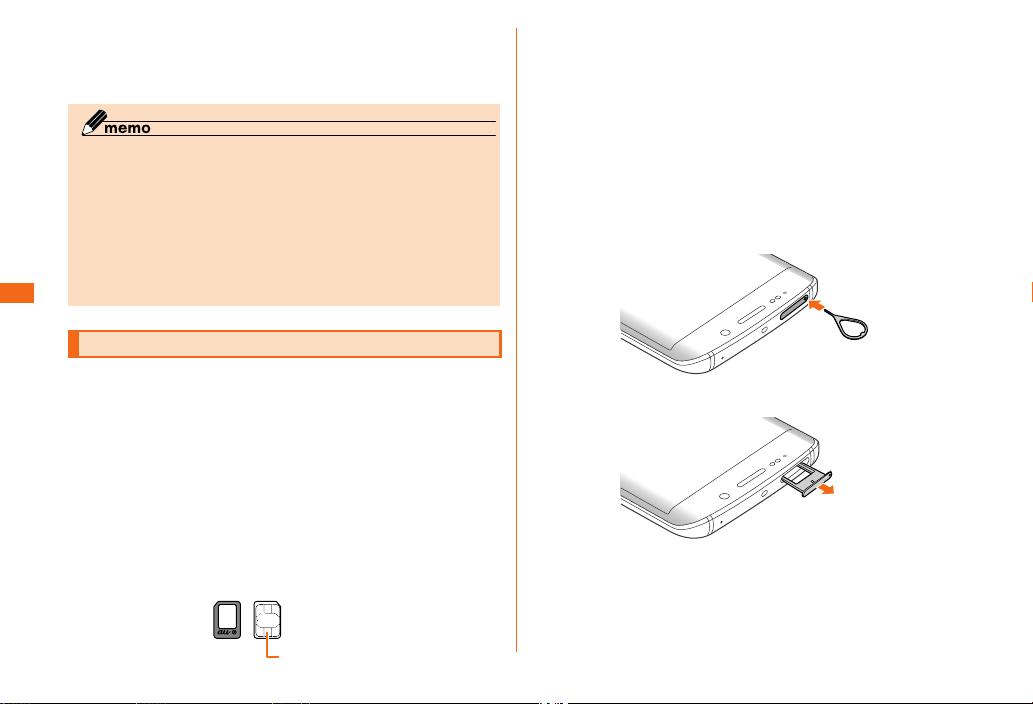
au Nano IC Card 04
Your phone number etc. is recorded on the au Nano IC Card 04.
This product is compliant with au Nano IC Card 04 only. IC
cards other than the au Nano IC Card 04 cannot be used.
Power o the product before attaching/removing the au
Nano IC Card 04.
• The bundled SIM card removal tool (sample) is necessary to
insert/eject the au Nano IC Card 04.
• Do not insert the bundled SIM card removal tool (sample) into
any hole other than the tray eject hole.
• Do not touch the IC (metal) part of the au Nano IC Card 04 or
the IC card terminal inside the product.
auNanoICCard04
(Front)(Back)
• Do not use force to attach or remove.
• Check that the card is inserted in the correct direction.
• Do not lose the au Nano IC Card 04 after it has been removed.
• Do not insert an IC card to which a conversion adapter is
attached. Doing so may cause a fault.
■ Attaching the au Nano IC Card 04
Insert the tip of the SIM card removal tool
a
(sample) into the tray eject hole in a straight line
The tray will slightly eject.
• Not inserting the tool in a straight line might result in
damage or a fault.
Pull out the tray in a straight line
b
24
IC(metallic)part
Page 27
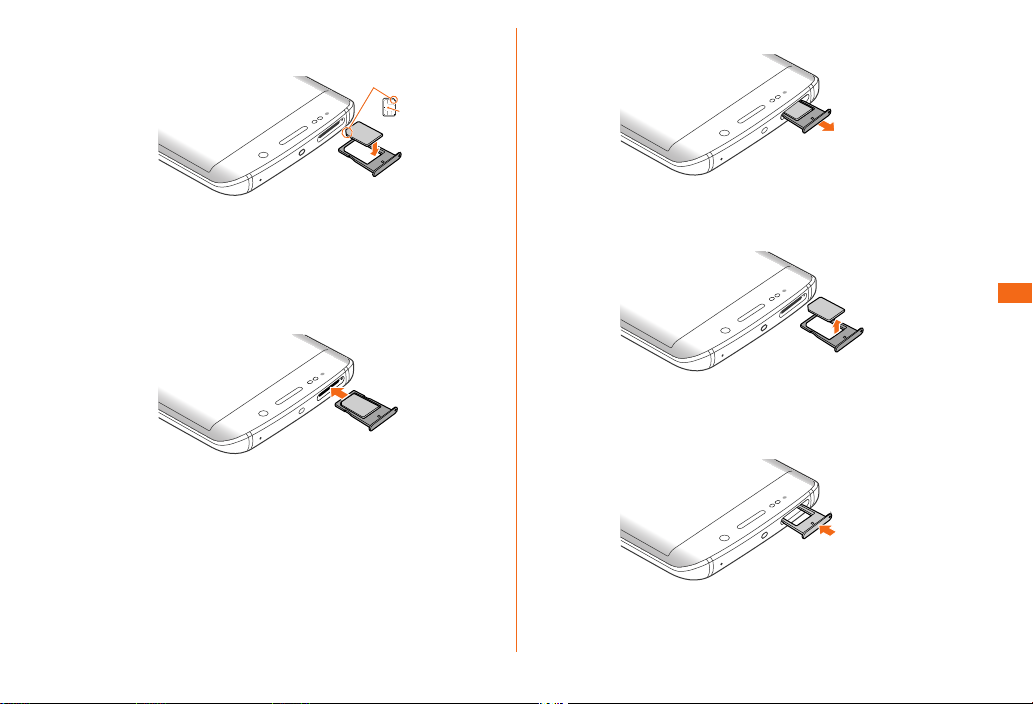
Place the IC (metallic) face of the au Nano IC
c
Card 04 face down on the tray
Notch
IC
Insert the tray in a straight line all the way into
d
the au Nano IC Card 04 slot as shown in the
diagram
• Take care to note the direction of the notch.
• If you turn the tray upside down, the au Nano IC Card 04
may dislodge.
■ Removing the au Nano IC Card 04
Insert the tip of the SIM card removal tool
a
(sample) into the tray eject hole in a straight
line
The tray will slightly eject.
• Not inserting the tool in a straight line might result in
damage or a fault.
Pull out the tray in a straight line
b
• If you turn the tray upside down, the au Nano IC Card 04
may dislodge.
Remove the au Nano IC Card 04 from the tray
c
Insert the tray in a straight line all the way into
d
the au Nano IC Card 04 slot as shown in the
diagram
Getting ready
25
Page 28
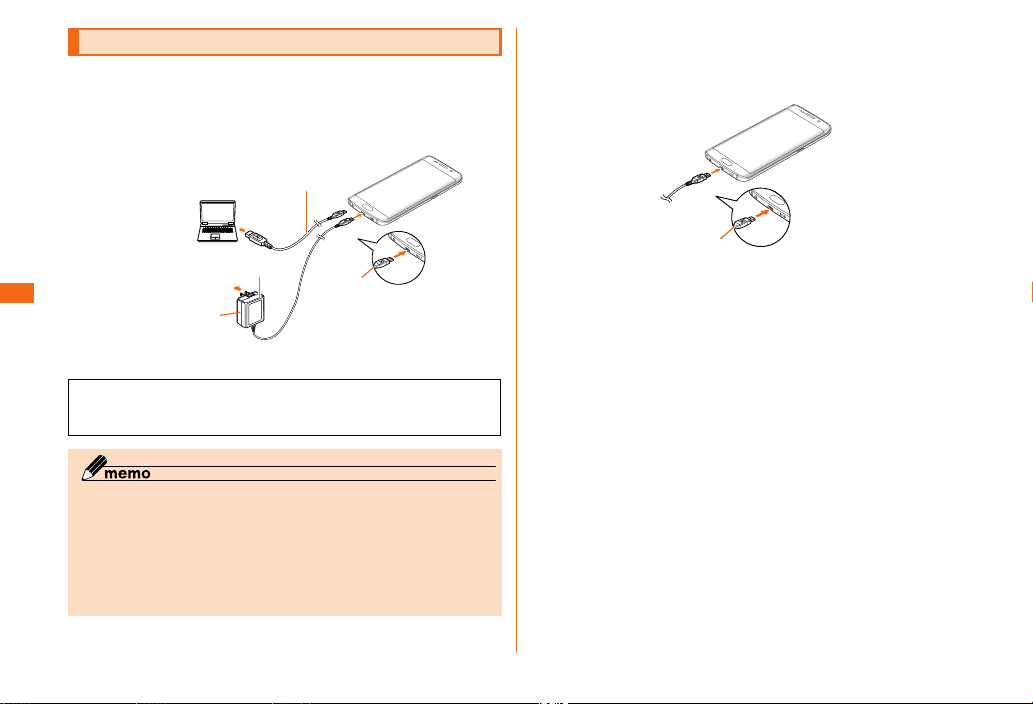
Charging
microUSBcable01
When you purchase your product, the internal battery is not
fully charged. Be sure to charge the internal battery before
use.
• "Charging: XX%" appears on the lock screen when charging.
(uP.28)
(soldseparately)
ToAC100Voutlet
Getting ready
* You cannot charge using both the specied AC adapter (sold separately) and a
CommonAC
adapter05
(soldseparately)
PC at the same time.
Failure to do so may cause signicant damage to the
product. Damage from incorrect connection is out of
compensation.
◎ Quick charging can be used when the power is o or backlight
of screen turns o. However, quick charging is not executed
during a call even if the screen turns o.
◎ When battery level is 50% or more, charging speed by quick
charging may be slow.
◎ Charging with a PC or using the camera function or other
functions while charging may increase charge time.
microUSB
plug
■ Plugging microUSB plug
When charging with microUSB cable 01 (sold separately)
Please insert straight in the microUSB connection terminal
of the product as shown in the gure below.
microUSB
plug
■ Charging with the AC adapter (sold separately)
The following describes how to charge the internal battery
using the common AC Adapter 05 (sold separately).
With the engraved side up, insert the microUSB
a
plug of the common AC Adapter 05 (sold
separately) straight into the microUSB
connection terminal (wider terminal on the right
side) of the product
26
Page 29
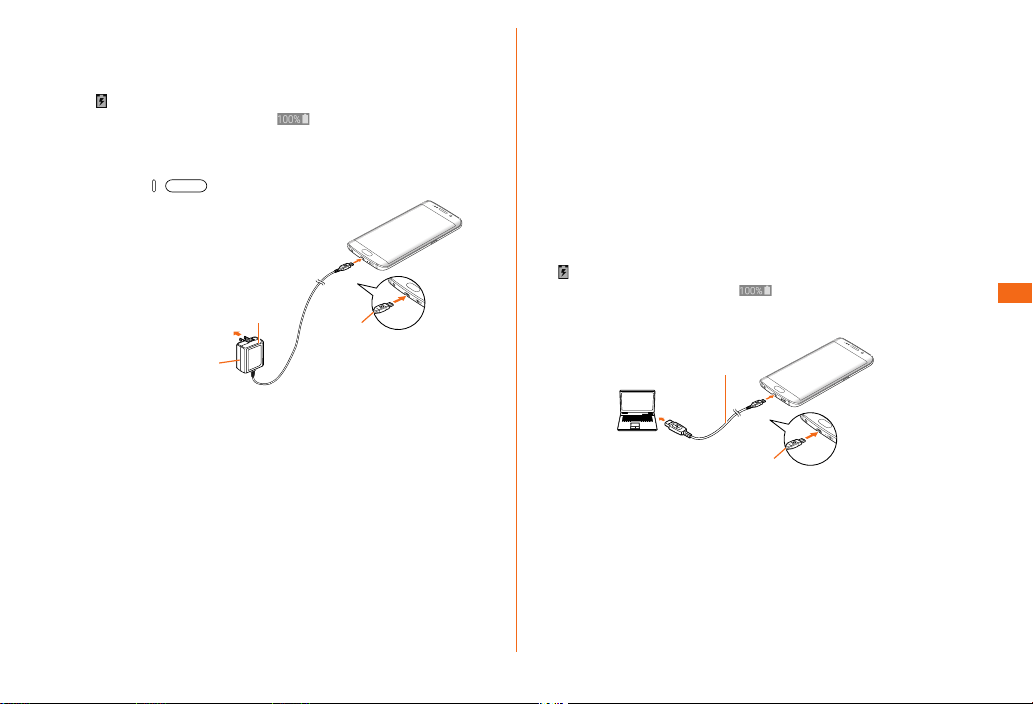
Insert the power plug of the common AC
b
Adapter 05 (sold separately) into the AC 100 V
outlet
appears on the status bar.
When charging is nished,
• When you start charging powered off, animation is
displayed to show the status of charging in a certain
period of time. It will be displayed after finished, if you
/ .
press
ToAC100Voutlet
CommonAC
adapter05
(soldseparately)
When the charging is nished, pull the microUSB
c
appears on the status bar.
microUSB
plug
plug of the common AC Adapter 05 (sold
separately) straight out from the product and
the power plug out from the outlet
■ Charging with a PC
You can charge using a PC with a microUSB cable 01
(sold separately). Make sure the direction to connect
them properly. Attempting to forcibly connect may cause
damage.
With the engraved side up, insert the microUSB
a
plug of the microUSB cable 01 (sold separately)
straight into the microUSB connection terminal
of the product
Insert the USB plug of the microUSB cable 01
b
(sold separately) into the USB port of the PC
appears on the status bar.
When charging is nished, appears on the status bar.
• If the found new hardware screen etc. appears on the PC,
select "キャンセル (Cancel)".
microUSBcable01
(soldseparately)
microUSB
plug
When charging is nished, remove the microUSB
c
cable 01 (sold separately) from this product
and the PC
Getting ready
27
Page 30
◎ If the screen backlight turns o during charging, press /
to display the lock screen. "Charging: XX%" is displayed on the
screen so you can check charge status. Also, if charging
nished while the backlight is turned o, "Charged" is displayed
on the lock screen and
is displayed on the status bar.
Turning the power on/o
■ Turning the power on
Press and hold (over one second)
a
The lock screen is displayed.
Swipe the screen up, down, left or right to
b
Getting ready
unlock the screen
◎ If the product is unstable or other problems occur, start it in
"Safe mode" to diagnose the problem. To start Safe mode,
for 1 seconds or more when power is o, and after au
press
logo disappears, continue to press lower side of the volume key.
* When Safe mode starts, "Safe mode" appears on the lower
left corner of the screen.
* To terminate Safe mode, restart the product.
■ Initial settings and switching to English mode
The rst time the product turns on, the initial setting screen
appears automatically. Follow the onscreen instructions to
switch to English mode. For details, refer to the supplied
"Setting Guide".
• To change language to use, on the home screen, [基本フォルダ
(Basic folder)] → [設定 (Settings)] → [言語と文字入力 (Language and
input)] → [言語 (Language)] → Select language you want to use.
28
■ Turning the power o
Press and hold (over one second)
a
[Power o] → [POWER OFF]
b
■ Force restarting
Press and hold and lower side of volume key
a
simultaneously for over seven seconds
Setting the screen lock
If the screen lock is set, the screen backlight turns o to
prevent the keys or touch panel from erroneous operation.
If no operation is made during certain period of time, the
screen of the product automatically turns o and is locked
in approximately ve seconds.
• When you carry in your bag to put this product, prevent
erroneous, please set the screen lock always. Also, the
of this product please do not pressed in such a bag.
While the screen is displayed,
a
Backlight turns o and screen lock activates.
■ Canceling the screen lock
While the screen is locked, /
a
The lock screen is displayed.
Flick (swipe) the screen up/down/left/right
b
or
Page 31
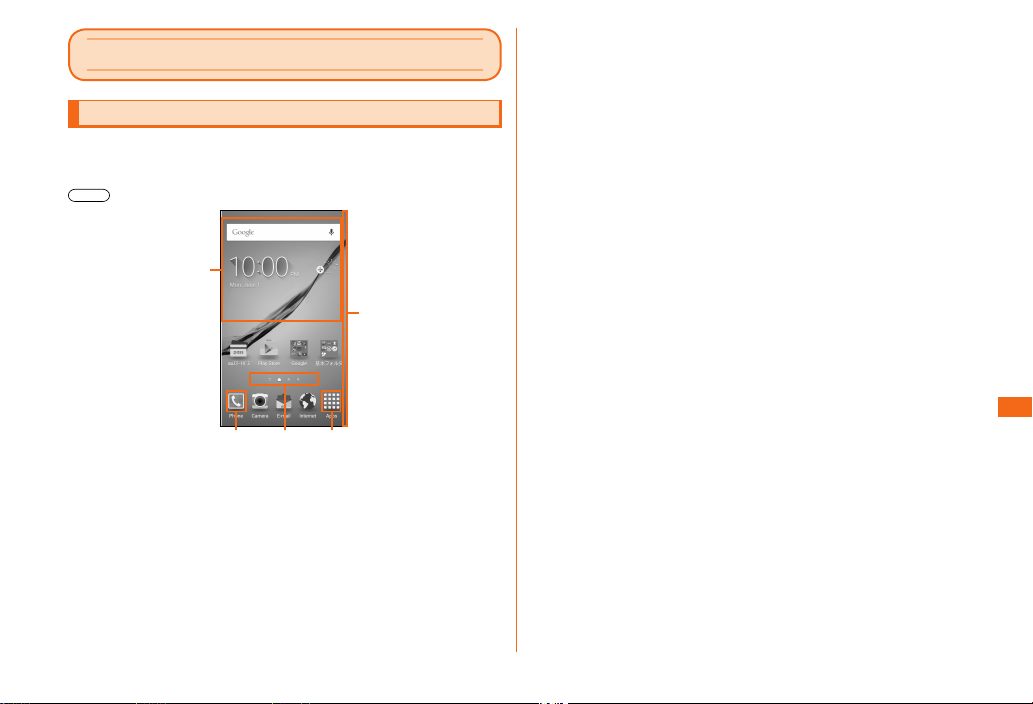
Basic operation
Using the home screen
The home screen consists of multiple screens that can be
switched by icking left or right.
You can return to the home screen at any time by pressing
.
a
e
Edge screen
e
You can check whether you have received a call or
notications when the product is face down by the lights on
the edge screen.
By registering important contacts, you can also identify that
you have received a notication from that contact by color.
■ Starting an application
On the home screen, [Apps]
a
Applications screen appears.
• Flicking from side to side toggles applications screen.
Tap an icon of the application to be used.
b
b c d
Widgets
a
Tap to activate or operate.
Phone icon
b
Tap to active the phone.
Home screen guide
c
Indicates which screen you are in.
Application icons
d
Tap to display the applications screen.
Basic operation
29
Page 32
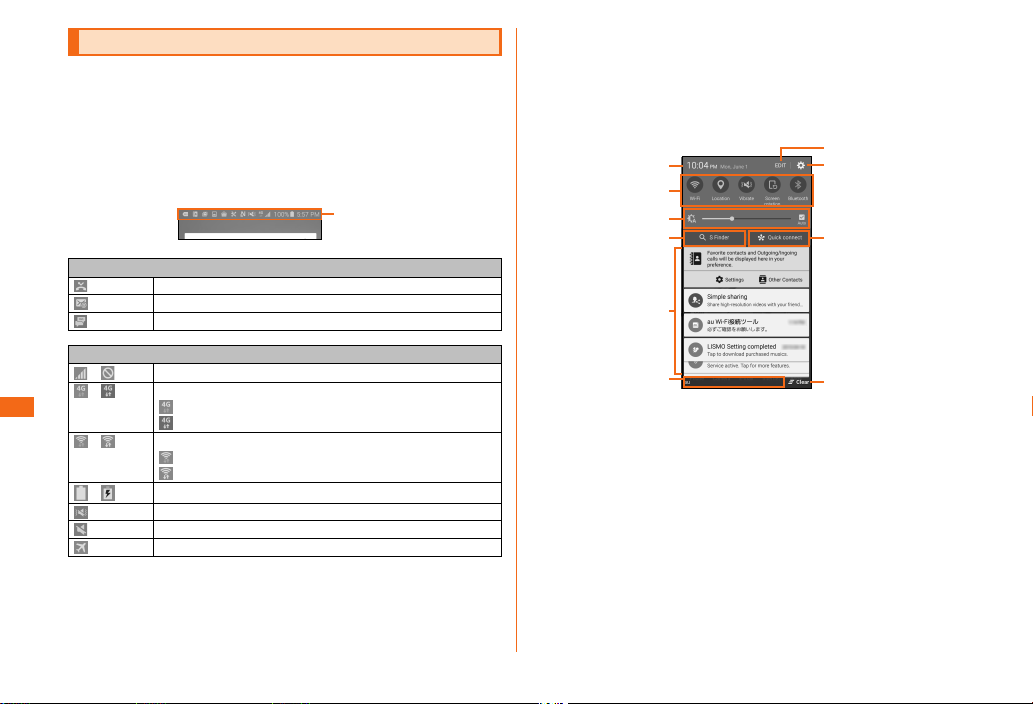
Monitoring the product's status
■ Status bar
Icons indicating the status of the product appear in the
status bar at the top of the screen. At the left of the status
bar, notication icons indicating missed calls, new mail,
running actions, etc. and at the right of the status bar,
status icons indicating the status of the product appear
respectively.
Statusbar
Main notication icons
Missed call
New PC-mail message
New SMS/Message
/
/
Signal strength/Out of range
4G (LTE/WiMAX 2+) data communication status*
Basic operation
/
/
* Both the "LTE" and "WiMAX 2+" networks can be used. Even if only one can be
used, "4G" will be displayed. Depending on network trac, au may determine that
one network has less traffic than the other and connect this product to that
network.
Wireless LAN (Wi-Fi®) communication status
Battery level/Charging
Silent mode (Vibrate) set
Silent mode (Mute) set
Airplane mode activated
Main status icons
4G (LTE/WiMAX 2+) communication available/
4G (LTE/WiMAX 2+) communication in process
Wireless LAN (Wi-Fi®) available/
Wireless LAN (Wi-Fi®) communication in process
■ Notication panel
When a notication icon appears on the status bar, you
can open the Notication panel by slide down the status
bar to check overview of the notication. Tap icon on the
Notication panel to set functions or check the information
notied.
g
a
b
c
d
e
f
Tap to show setting screen for date and time.
a
Switch on/o of each function (Quick Settings Button).
b
Drag from side to side, to show hidden icons. Long touch to
show setting menu screen for each function.
Set display brightness.
c
Display S nder.
d
Display notification information such as missed calls, new
e
arrival mails, information in progress or process, etc. Flick
left or right to delete.
Network operator currently connected is shown.
f
• Slide up to close the Notication panel.
Quick Settings Button editing screen appears.
g
Settings menu screen appears.
h
Quick connection screen appears.
i
h
i
j
*1
30
Page 33
Clear notication information.
j
*1 Automatically searches for other quick connection compatible devices and
connects to them so you can easily share data. For details about quick
connection, refer to Help by tapping [QUICK CONNECT HELP].
■ Notication LED
When the screen turns o, by the lighting/ashing
notication LED, you can promote the charge, or to inform
the state of charge of the charging, and receive mail and
missed calls.
Operations Description
Lights red Charging battery
Lights green Charging completes
Blinks red Battery level is low
Blinks blue (Approx. 5 sec.
interval)
Blinks blue (Approx. 1 sec.
interval)
Lights alternately in light
blue and blue
* If a notication exists while charging, operation for a notication (blinking blue) is
given priority.
Notications such as missed calls, new
mails, etc. exist
Recording
Turning on to activate/turning o to
shut down
Checking your phone number
On the home screen, [基本フォルダ (Basic folder)]
a
→ [Settings] → [About device] → [Status]
Your phone number is shown in the "My phone number" eld.
Setting the Silent mode
In the terminal, sounds (shutter sound, video sound, music
sound, etc.) are not muted even when silent mode (Mute,
Vibrate) is set.
Open notication panel
a
Tap one of [Sound]/[Vibrate]/[Mute] and set
b
[Vibrate] or [Mute]
Setting the Airplane mode
If you enable "Airplane mode", wireless functions (call,
packet communication, wireless LAN(Wi-Fi
turn o.
(Press and hold for over one second)
a
[Airplane mode]
b
®
), Bluetooth®)
Basic operation
31
Page 34
Emergency call location notication
If you make an emergency call to the police, re station or
Regional Coast Guard Headquarters, your current location
(GPS information) will be transmitted to the agency
receiving the emergency call.
• In this section, the police (110), re station (119) and
Regional Coast Guard Headquarters (118) are collectively
referred to as the emergency call receiving agency.
• This feature may not yet be available at some emergency call
receiving agencies.
• If you add "184" before the emergency call number
110/119/118, the emergency call receiving agency will not
be notied of your location and phone number.
• Use au's VoLTE (LTE network) to connect to Japanese
emergency services. You cannot use 3G (call switching
network) to connect to emergency services.
• In places where signal reception from GPS satellites or a base
station is relatively poor, such as in an underground mall,
inside a building or behind a tall building, the emergency call
receiving agency may be notied of some other place dierent
from your actual location.
• When GPS cannot be used to notify of your location, base
Basic operation
station signal is used instead.
• When making an emergency call to the police, re station or
Regional Coast Guard Headquarters, always conrm where
you are, and tell them your exact location on the phone. Note
that depending on the area where you are calling, your call
may not be connected to the agency having jurisdiction over
that area.
• If the emergency call receiving agency determines that human
lives and health are in danger, they will be able to acquire the
caller's location information during the call or within a certain
period of time after the call.
• If you insert a SIM card other than the au Nano IC Card 04,
you may not be able to make an emergency call to 110
(police), 119 (re and ambulance), and 118 (coast guard).
32
• You may not be able to make an emergency call on some
networks.
Page 35
• The Company makes no guarantees about the service quality.
au災害対策アプリ (au Disaster Countermeasure)
au災害対策 (au Disaster Countermeasure)
au災害対策 (au Disaster Countermeasure) is an application
The Company assumes no responsibility whatsoever for
any damages suered by customers resulting from failure
in registering information of well-being due to the number of
accesses or equipment failure, damage or loss of information
of well-being, or registered information of well-being.
a
in which you can use Disaster Message Board, Emergency
Rapid Mail (Earthquake Early Warning and Disaster and
Evacuation Information and Tsunami Warning), Disaster
Voice Messaging Service, and Disaster Information.
In the Apps list, [au災害対策 (au Disaster
a
Countermeasure)]
au災害対策 (au Disaster Countermeasure) screen appears.
Using Emergency Rapid Mail
Emergency Rapid Mail is a service that distributes
Earthquake Early Warning or Tsunami Warning delivered
from the meteorological bureau or Disaster and evacuation
Information delivered from the government or local public
Using Disaster Message Board
Disaster Message Board service enables you to register
information of well-being from an area of distress via LTE
NET in case of large-scale disaster such as earthquake with
a seismic intensity of over 6 lower. Registered information
can be viewed on any cell phones and PCs besides by au
cell phone users.
For details, refer to "Disaster Message Board" of au
homepage.
• To register information of well-being, E-mail address (ezweb.
ne.jp) is required. Set up E-mail address beforehand. For
details on E-mail address setup, refer to "Setting Guide"
available on au homepage.
• Clearing and changing setting of 安否お知らせメール (safety
notication mail) is unavailable while Wireless LAN (Wi-Fi
connected.
®
) is
organization to all au cell phones in specied areas
simultaneously.
* When you purchased the product, "受信設定 (Reception setting)" of Emergency
Rapid Mail (Earthquake Early Warning and Disaster and evacuation Information)
is set to "受信する (Receive)". Reception setting of Tsunami Warning is available
in the settings of Disaster and evacuation Information. When you receive
Earthquake Early Warning, ensure your safety and take proper action according
to the situation around you. When you receive Tsunami Warning, draw away from
sea coast immediately and evacuate to safe place such as upland or well-built
high building.
• Reception of Emergency Rapid Mail is notied by a special
warning tone and vibration. It is not possible to change the
warning tone.
* Reception of Earthquake Early Warning is notied by a special warning tone,
• When Emergency Rapid Mail is received during a phone call,
the alarm will not ring.
• Earthquake Early Warning are sent to areas where strong
quakes (over 4 degrees) are expected when the expected
maximum seismic intensity is higher than lower 5.
au災害対策 (au Disaster Countermeasure) menu
→ [災害用伝言板 (Disaster Message Board)]
Follow the onscreen instructions to register/conrm.
au Disaster Countermeasure
voice ("Jishindesu (It is an earthquake)") and vibration.
33
Page 36
• The Earthquake Early Warning system provides advance
announcement of the estimated seismic intensities and
expected arrival time of principal motion. These estimations
are based on prompt analysis of the focus and magnitude
of the earthquake using wave form data observed by
seismographs near the epicenter.
• Earthquake Early Warning may not arrive before strong
tremors in arrears near the epicenter.
• Tsunami Warning is a notication delivered from the Japan
Meteorological Agency (major tidal wave, seismic sea wave)
to the area including target coast.
• Disaster and evacuation Information is a service that
distributes bulletins concerning residents’ safety including
evacuation advisories, evacuation orders and other warnings
au Disaster Countermeasure
issued by the national and local governments.
• The service is available only in Japan (it cannot be used
overseas).
• No information fee or communication charge is required for
receiving Emergency Rapid Mail.
• The Company is not liable for damages suered by customers
resulting from the service's information, lack or delay in the
information caused by transmission or system breakdowns,
or other events that are outside the responsibility of the
Company.
• Refer to the Japan Meteorological Agency web page for
details about distribution of Earthquake Early Warning or
Tsunami Warning.
http://www.jma.go.jp/
• You cannot receive Emergency Rapid Mail when your cell
phone is turned o.
• Emergency Rapid Mail may not be received when your cell
phone is communicating such as while sending/receiving
SMS/mail or using the browser, or if you are in a place where
signal does not reach even in the service area (e.g. in a tunnel,
basement) or in a place with a poor reception.
• You cannot receive Emergency Rapid Mail that the reception
is failed.
• This delivery system is dierent from Earthquake Early
Warning provided through TV, radio, or other communication
procedures, which means that the time the Earthquake Early
Warning arrive may vary.
• Information from someplace other than your current location
may be received.
au災害対策 (au Disaster Countermeasure) menu
a
→ [緊急速報メール (Emergency Rapid Mail)]
Inbox appears. Select a mail you want to view to check the
detail.
Using Disaster Voice Messaging Service
Disaster Voice Messaging Service is a service which allows
you to record your voice and send someone you want to
inform your well-being in case of a large-scale disaster.
au災害対策 (au Disaster Countermeasure) menu
a
→ [災害用音声お届けサービス (Disaster Voice
Messaging Service)]
Follow the instructions on the screen, please select
the service. For detailed descriptions, refer to the Full
Instruction Manual (Japanese).
Using Disaster Information
Check history of disaster or evacuation information
delivered from local municipalities, disaster information
portal sites and websites for donation.
au災害対策 (au Disaster Countermeasure) menu
a
→ [災害関連情報 (Disaster Information)]
Select item to check.
34
Page 37
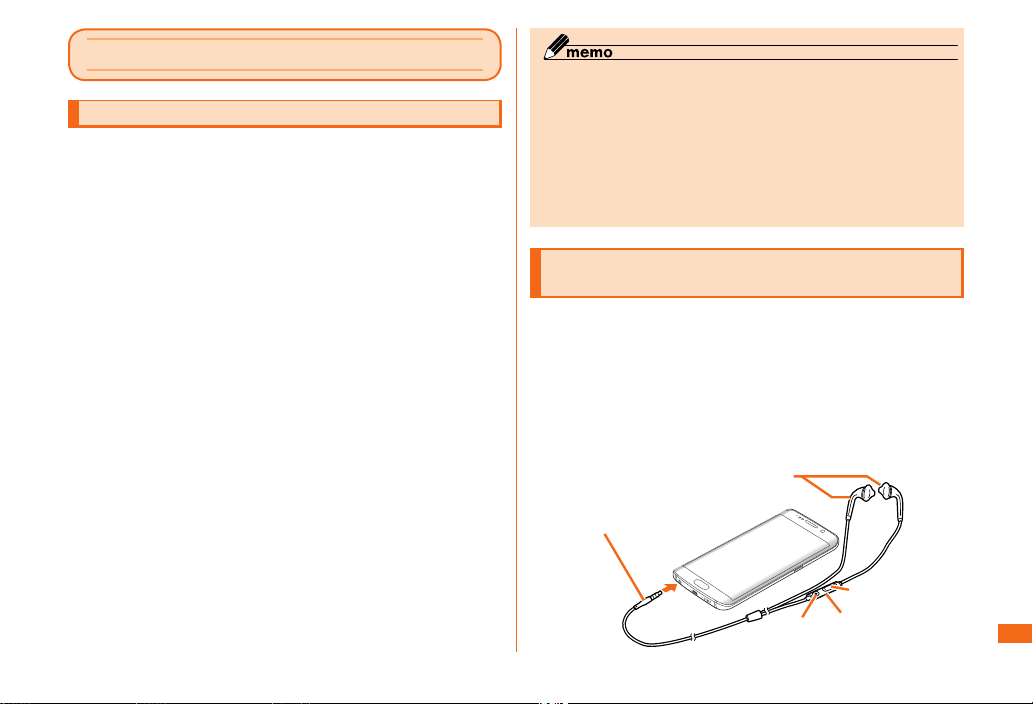
Appendix
Earphone
Introduction of related accessories
• SC TV Antenna Cable 03 (03SCHSA)
• Portable charger 02 (0301PFA)
• Wireless Charging Pad 01 (0101PUA)
• Common DC adapter 03 (0301PEA)
• 18-pin - microUSB conversion adapter 01 (0301QYA)
• microUSB cable 01 (0301HVA)
microUSB Cable 01 Navy (0301HBA)
microUSB Cable 01 Green (0301HGA)
microUSB Cable 01 Pink (0301HPA)
microUSB Cable 01 Blue (0301HLA)
• AC Adapter JUPITRIS (White) (L02P001W)
AC Adapter JUPITRIS (Red) (L02P001R)
AC Adapter JUPITRIS (Blue) (L02P001L)
AC Adapter JUPITRIS (Pink) (L02P001P)
AC Adapter JUPITRIS (Champagne) (L02P001N)
• Common AC Adapter 03 (0301PQA)
Common AC Adapter 03 Navy (0301PBA)
Common AC Adapter 03 Green (0301PGA)
Common AC Adapter 03 Blue (0301PLA)
Common AC Adapter 03 Pink (0301PPA)
Common AC Adapter 05 (0501PWA)
• au Carrying Case G Black (0106FCA)
au Carrying Case F Black (0105FCA)
au Carrying Case H Black (0107FCA)
*1 Sold separately.
*1
*1
*1
*1
*1
*1
*1
*1
*1
*1
*1
*1
*1
*1
*1
*1
*1
*1
*1
*1
*1
*1
◎ For the latest information on accessories, visit the au
homepage (http://www.au.kddi.com/) or contact the Customer
Service Center.
◎ This product is not compatible with ASYNC/FAX
communications.
◎ Accessories described on the other page can be purchased
from the au Online Shop. You may not be able to purchase them
depending on stock availability.
*1
http://auonlineshop.kddi.com/
Using High-quality Earphone with Microphone (sample)
Press the switch to play/pause music or receive/end a call.
In addition, press and hold the switch to activate S Voice
and outgoing call, sending SMS, such as the creation of
the memo, you can operate the function of this product by
the audio input.
Connect the connection plug of the High-quality
a
Earphone with Microphone (sample) to the
headset connection terminal of the product
Connectionplug
Switch
Volumekey
Microphone
(backside)
Appendix
35
Page 38
Troubleshooting
Before you assume that the product is malfunctioning,
check the following:
Symptom What you should check
Cannot turn on power. Is the internal battery charged?
Cannot charge the
battery.
Battery usage time is
short.
Cannot operate key/
touch panel.
The volume is low
when the ringtone
starts
The display is dark. Is "Power saving mode"/"Ultra power saving
If you checked items on Troubleshooting but symptom is
not improved, contact the following au Customer Support
site of au homepage:
http://www.au.kddi.com/support/mobile/trouble/repair
Appendix
pressed and held for over one second?
Is
Is the specied AC adapter (sold separately)
surely plugged into an outlet?
Do you often use the product in places
where
(out of service area) is displayed?
Is the internal battery end of its life?
Is screen lock set?
Is the power turned on?
Turn o the power and then turn it on again.
In order to not damage your ears, the
specication is designed to be at a low
volume when initially receiving a call and
then change to the congured volume.
mode" set?
Updating Software
When software update is necessary, you will be informed on
au homepage, etc.
• You are recommended to back up your data before updating
software.
• Be sure to fully charge the internal battery before use.
Updating software may fail if the battery level is low or
becomes low while updating.
• Check the radio wave condition. Updating software may fail in
poor reception areas.
• No operations can be made while updating. Calling to 110
(Police), 119 (Fire institution), 118 (Regional Coast Guard
Headquarters) is not available, either. Alarm, etc. do not
operate.
• If you fail to update software, it may become impossible to
operate the product. If this happens, bring it to an au shop or
PiPit (not accepted by some shops).
■ Downloading and updating software
Update les can be downloaded from the Internet web site
via wireless communication into the product directly.
On the home screen, [基本フォルダ (Basic folder)]
a
→ [Settings]
[About device] → [Software update]
b
[Update now]
c
From here on, follow the onscreen instructions.
■ Connecting to a PC for updating software
You can update software via a PC using "Galaxy Smart
Switch". For detailed descriptions, refer to the Full
Instruction Manual (Japanese).
36
Page 39
After-sales service
■ When asking for repair
For repair, contact Keitai Guarantee Service Center.
During the
warranty period
Outside the
warranty period
• Before handing in the product for repair, make a backup of the
contents of memory since they may disappear during repair.
Note that the Company shall not be liable for any damages
and loss of income should the contents of memory be altered
or lost.
• Recycled parts that meet the Company's quality standards
are sometimes used for repair.
• Collected au cell phones by Replacement cell phone delivery
service which you used before are recycled to cell phones for
replacement after repairs. Also replaced parts by au aftersales
service are collected and recycled by KDDI. They are not
returned to customers.
■ Performance parts for repair
The Company retains performance parts for repair of the
Galaxy S6 edge main unit and its peripherals for four years
after discontinuation of production. "Performance parts for
repair" refers to parts required for maintaining the functions
of the product.
■ Warranty card
At the store of purchase, thoroughly check and read the
name of the retailer, date of purchase and other necessary
details lled in on the warranty card, and be sure to keep it
in a safe place.
Repairs will be done based on the terms of
services of the free-of-charge repair warranty
described on the warranty card.
We shall repair the product for a charge as
requested by the customer if repair renders it
usable.
■ Keitai Guarantee Service Plus LTE
An after-sales service membership program on a monthly
basis called "Keitai Guarantee Service Plus LTE" (monthly
fee: 380 yen excluding tax) is available for using your au
cell phone for a long time without worries. This service
expands coverage for many troubles including malfunction,
theft and loss. For details of this service, refer to au
homepage or contact Keitai Guarantee Service Center.
• You can apply for membership only at the time of purchasing
your au cell phone.
• Once you cancel the membership, you cannot reapply for it
until you purchase an au cell phone next time.
• Note that when changing the model or purchasing an
extra cell phone, this service only covers the most recently
purchased au cell phone.
• When an au cell phone is handed over to you or someone else,
the Keitai Guarantee Service Plus LTE membership is also
handed over to the successor of the cell phone.
• When you get a new au cell phone by changing the model or
purchasing an extra cell phone, the "Keitai Guarantee Service
Plus"/"Keitai Guarantee Service Plus LTE" membership for the
old au cell phone is automatically canceled.
• Service contents are subject to change without notice.
■ au Nano IC Card 04
The au Nano IC Card 04 is lent to you by au. In case of
loss or damage, the card will be replaced at your expense.
When malfunction is suspected, or in case of theft or loss,
contact an au shop or PiPit.
Appendix
37
Page 40
■ After-sales service
If you are unsure about anything regarding after-sales
service, contact the following service contact.
Customer Service Center (for service canceling procedure
in case of loss or theft)
From a land-line phone,
0077-7-113 (toll-free)
From an au mobile phone, 113 without area code (toll free)
Business hours 24 hours (7 days a week)
Keitai Guarantee Service Center (for loss, theft, damage)
From a land-line phone/From an au cell phone,
0120-925-919 (toll-free)
Business hours 9:00-21:00 (7 days a week)
Online Repair Desk (24 hours a day over the Internet)
* Can be accepted only from a personal computer or smartphone
https://cs.kddi.com/support/n_login.html
• The Application for the Internet acceptance, if "damage",
"wet", "theft" and "loss" are eligible. In the case of spontaneous
failure (not the cause damage, such as water wet, but does
not power on, the screen does not function or other), it will be
accepted by phone for interview is required.
• To apply for the Internet, you need the e-mail address.
Appendix
■ au after-sales service information
Services Keitai Guarantee Service Plus LTE
Replacement cell phone delivery service
Spontaneous failure
(1st year)
Spontaneous failure
(2nd year or later)
Partially damage,
water soak,
irreparable damage,
theft or loss
Holding over and repair
Spontaneous failure
(1st year)
Spontaneous failure
(2nd year or later)
Partially damage Customer charge
Water soak,
irreparable
Loss, theft No recompense No recompense
* Charge amounts are all tax excluded.
Replacement cell phone delivery service
◎ When you have trouble with your au cell phone,
replacement cell phone (same model, same color) is
delivered to the specied place by calling to. Return your
damaged cell phone within 14 days after the replacement
cell phone is delivered.
Members Others
Free of charge No recompense
Customer charge
1st: 5,000 yen
2nd: 8,000 yen
Free of charge Free of charge
Free of charge (for 3
years)
Upper limit: 5,000 yen
Customer charge
10,000 yen
Actual cost
(model change)
38
Page 41
◎ Available up to twice in a year from the day you use this service
as a start day. If you do not use this service in the past year at
the subscription to this service, it will be 1st and if you use, it
will be the 2nd.
* For details, refer to au homepage.
Holding over and repair
◎ Damages and malfunctions intentionally caused by the
customer as well as those due to modication (e.g.
disassembly, change of parts, painting, etc.) by the customer
are not covered by this service.
◎ You cannot receive a refund for replacement of the outer casing
due to stains, scratches, paint removal, etc. on the outer
casing.
Unlocking the SIM lock
You can unlock the SIM lock for this product. If you unlock
the SIM lock, you can use other carrier's SIM cards.
• The au homepage and au shops are accepting requests to
unlock the SIM lock.
• If you use another carrier's SIM card, some services and
functions may be restricted. Note that au does not guarantee
any operations.
• To unlock the SIM lock, on the home screen, [基本フォルダ
(Basic folder)] → [Settings] → [About device] → [SIM card
status].
• For more details, refer to the au homepage.
Main specications
Display
Weight
Dimension (W × H × T)
CPU
System memory
Continuous
stand-by
*2
time
Continuous
call time
Continuous tethering time
Maximum number of
tethering connection
devices
Charging time
Camera Image pickup
Wireless LAN (Wi-Fi®)
In Japan
Overseas
(GSM/UMTS)
In Japan
*2
Overseas
(GSM/UMTS)
device
Eective pixels
Approx. 5.1 inches
Approx. 16,777,216 colors (super
AMOLED)
2560×1440 dots
Approx. 133 g
Approx. 70 mm×142 mm×7 mm
(Thickest part: 8.4 mm)
EXYNOS7420
ROM:32GB/64GB
RAM:3GB
Approx. 420 hours
Approx. 430 hours
Approx. 1060 min.
Approx. 870 min.
Approx. 590 min.
Up to 14 devices
• Wi-Fi® tethering 10 devices
• Bluetooth® tethering 3 devices
• USB tethering 1 device
Common AC Adapter 05 (sold
separately) Approx. 95 min.
Common DC adapter 03 (sold
separately) Approx. 330 min.
Wireless Charging Pad 01 (sold
separately) Approx. 180 min.
CMOS
Out-camera: Approx. 16,000,000
pixels
In-camera: Approx. 5,000,000
pixels
IEEE802.11a/b/g/n/ac-compliant
*1
Appendix
*3
39
Page 42
Bluetooth®
function
TV
(Continuous
watching
Version
Output
Communication
distance
Compatible
*5
proles
Frequency
bands
1Seg
Full Seg
Bluetooth® standard Ver. 4.1
Bluetooth® standard Power Class 1
Within 10 m with no obstacles in
*4
the range
OPP (Object Push Prole
HSP (Headset Prole
HFP (Hands-Free Prole
A2DP (Advanced Audio
Distribution Prole
AVRCP (Audio/Video Remote
Control Prole
SPP (Serial Port Prole
PBAP (Phone Book Access
Prole
HID (Human Interface Device
Prole
PAN (Personal Area Networking
Prole
DUN (Dial-up Networking Prole
SAP (SIM Access Prole
HOGP (HID over GATT Prole
2.4 GHz band (2.402 GHz to
2.480 GHz)
Approx. 530 min.
Approx. 360 min.
)
)
)
)
)
time)
*1 32GB:SCV31MKA/SCV31MWA/SCV31MNA
64GB:SCV31MKB/SCV31MWB/SCV31MNB
*2 The continuous call time and continuous stand-by time may drop to less than
Appendix
half depending on the battery charging status, usage environment such as
temperature, reception condition at the location where the product is used, and
the function settings.
*3 2.4 GHz and 5 GHz are supported for IEEE 802.11n.
*4 Changes according to objects obstructing devices and signal reception.
*5 Specifications provided in Bluetooth® standards for making communication
between Bluetooth®-compatible devices in accordance with their intended use.
*6 This application supports part of car navigations. For details, refer to the au homepage.
40
Specic Absorption Rate (SAR) of cell
phones
This model Galaxy S6 edge mobile phone complies with
)
)
)
)
)
)
Japanese technical regulations and international guidelines
regarding exposure to radio waves.
This mobile phone has been designed in observance of
the Japanese technical regulations regarding exposure
to radio waves
(*)
and limits to exposure to radio waves
recommended by equivalent international guidelines.
These international guidelines were set out by the
International Commission on Non-Ionizing Radiation
Protection (ICNIRP), which is in collaboration with the
World Health Organization (WHO), and the permissible
limits include a substantial safety margin designed to
assure the safety of all persons, regardless of age and
health condition. The Japanese technical regulations and
*6
)
international guidelines dene the limits using a unit of
measurement known as the Specic Absorption Rate (SAR),
which represents the average amount of radio frequency
energy absorbed by the human head. The SAR limit for
mobile phones is 2.0 W/kg. The highest SAR value for this
model handset when tested for use at the ear is 0.204
W/kg and when worn on the body is 0.373 W/kg. There
may be slight dierences in SAR levels among individual
products, but they all satisfy the limit. The actual SAR
of this mobile phone while talking on the phone can be
well below that indicated above. This is due to automatic
changes in the power level of the mobile phone to ensure it
only outputs the minimum power required to communicate
with a base station. Therefore in general, the closer you are
to a base station, the lower the power output of the mobile
phone.
Page 43
This mobile phone can be used in positions other than
against your ear. Use an accessory such as a carrying
case, etc. so that you can hold the product at least 1.5 cm
away from your body and also do not contain metal parts
between the product and your body. By doing this, this
mobile phone complies with Japanese technical regulations
and international guidelines regarding exposure to radio
waves.
The World Health Organization has stated that present
scientic information does not indicate that use of mobile
devices has any harmful eects on the human body. They
recommend that if you are still worried about your exposure
then you can limit your talk time or use a handsfree kit to
keep the mobile phone away from your head and body. If you
would like to know more detailed information, please refer to
the WHO website.
http://www.who.int/docstore/peh-emf/publications/facts_
press/fact_english.htm
Please refer to the websites listed below if you would like to
know more detailed information regarding SAR.
○ Ministry of Internal Aairs and Communications website:
http://www.tele.soumu.go.jp/e/sys/ele/index.htm
○ Association of Radio Industries and Businesses website:
http://www.arib-emf.org/01denpa/denpa02-02.html (in
Japanese only)
○ Galaxy homepage:
http://www.samsung.com/jp/support/sar/sarMain.do
○ au homepage:
http://www.au.kddi.com/
* Technical regulations are dened by the Ministerial Ordinance Related to Radio
Law (Article 14-2 of Radio Equipment Regulations).
FCC RF exposure information
This product has been certied of Federal Communications
Consortium (FCC).
FCC ID of this product is A3LSCV31.
In addition, you can also be found in the following way.
How to conrm:
Home screen → [基本フォルダ (Basic folder)] → [Settings] →
[About device] → [FCC certication].
Export Administration Regulations
This product and its accessories may be subject to
the Japan Export Administration Regulations ("Foreign
Exchange and Foreign Trade Law" and its related laws). In
addition, U.S. Re-export Regulations (Export Administration
Regulations) may apply to this product and its accessories.
To export and re-export this product and its accessories,
take the required measures on your responsibility and at
your expenses. For details on the procedures, contact
the Ministry of Economy, Trade and Industry or the U.S.
Department of Commerce.
Intellectual Property Rights
■ Trademarks
The company names and product names appearing in this
manual are trademarks or registered trademarks of their
respective holders.
• The Bluetooth® smart ready and logo are registered
trademarks owned by the Bluetooth SIG, Inc., and Samsung
Electronics Co., Ltd. is licensed to use these trademarks.
Appendix
41
Page 44
• Wi-Fi®, Wi-Fi Protected Setup™, Wi-Fi Direct™, Wi-Fi
CERTIFIED™, and the Wi-Fi logo are registered trademarks of
the Wi-Fi Alliance.
• Excel® and PowerPoint® are trademarks or registered
trademarks of Microsoft Corporation in the U.S.A. and other
countries.
• Microsoft® Word is a product name of Microsoft Corporation in
the U.S.A.
• Qi (pronounced chee) is a registered trademark of the Wireless
Power Consortium.
• FeliCa is a contactless IC card technology developed by Sony
Corporation.
FeliCa is a registered trademark of Sony Corporation.
• is a registered trademark of FeliCa Networks, Inc.
• Twitter is a trademark of Twitter, Inc., and is used under
license.
• Facebook® is a registered trademark of Facebook, Inc.
• "Google", "Google" logo, "Android", "Android" logo, "Google
Play", "Google Play" logo, "Gmail", "Google Calendar", "Google
Chrome", "Google Maps", "Hangouts", "Google+", "Google
Voice Search" and "YouTube" are trademarks or registered
trademarks of Google Inc.
• iWnn of OMRON SOFTWARE Co., Ltd. is used for conversion
methods. iWnn© OMRON SOFTWARE Co., Ltd. 2008-2015 All
Rights Reserved.
• Microsoft® , Windows Media®, ActiveSync® are trademarks or
registered trademarks of Microsoft Corporation in the U.S.A.
and other countries.
• Oracle and Java are registered trademarks of Oracle
Appendix
Corporation and the subsidiaries and aliate companies in the
U.S. and other countries. Company and product names in this
manual, etc., may be trademarks and registered trademarks of
each company.
• The product includes pictograms licensed by NTT DOCOMO,
INC.
• ©2015 Comic Communication Co., Ltd. All rights reserved.
• All other company names and product names are trademarks
or registered trademarks of respective companies referred to
in this manual.
■ Regarding Windows notations
The names of operating systems (Japanese versions) used
in this manual are as follows.
• Windows 8 is the abbreviation for Microsoft® Windows® 8,
Microsoft
• Windows 7 is the abbreviation for Microsoft® Windows® 7
(Starter, Home Basic, Home Premium, Professional, Enterprise,
Ultimate).
• Windows Vista is the abbreviation for Microsoft® Windows
Vista
Ultimate).
®
Windows® 8 Pro, Microsoft® Windows® 8 Enterprise.
®
(Home Basic, Home Premium, Business, Enterprise,
■ Others
The software installed on this product or part of it may
not be altered, translated/adapted, reverse-engineered,
decompiled or reverse-assembled and any such actions are
prohibited.
Under the MPEG-4 Visual Patent Portfolio License,
customers have licensed permission for the following use
of this product to engage in non-prot personal use. Other
uses are not permitted.
• Recording MPEG-4 Visual standard video (henceforth referred
to as MPEG-4 Video)
• Playing back MPEG-4 Video that a customer engaged in
personal and non-prot activities has recorded
• Playing back MPEG-4 Video obtained from a provider licensed
by MPEG-LA
When using for promotion, in-house use, prot use, and
other intended uses, contact MPEG LA. LLC.
42
Page 45

• This product is licensed under the AVC patent portfolio
license for the personal and noncommercial use of a consumer
to (i) encode video in compliance with the AVC standard
(henceforth referred to as AVC video) and/or (ii) decode AVC
video that was encoded by a consumer engaged in a personal
and noncommercial activity and/or was obtained from a video
provider licensed to provide AVC video. No license is granted
or shall be implied for any other use. Additional information
may be obtained from MPEG LA, LLC.
Visit http://www.mpegla.com
• This product is licensed under the VC-1 Patent Portfolio
License for the personal and noncommercial use of a
consumer to (i) encode video in compliance with the VC-1
standard (henceforth referred to as VC-1 video) and/or (ii)
decode VC-1 video that was encoded by a consumer engaged
in a personal and noncommercial activity and/or was obtained
from a video provider licensed to provide VC-1 video.
No license is granted or shall be implied for any other use.
Additional information may be obtained from MPEG LA, LLC.
Visit http://www.mpegla.com
Appendix
43
Page 46
Forinquiries,call:
CustomerServiceCenter
Forgeneralinformation,chargesandoperationinformation(tollfree)
Businesshours9:00−20:00(7daysaweek)
Fromfixed-linephones: Fromaucellphones:
withoutareacode
PRESSING“ZERO”WILLCONNECTYOUTOANOPERATOR
AFTERCALLING157ONYOURauCELLPHONE.
Forlossortheft(tollfree)
Businesshours24hours(7daysaweek)
Fromfixed-linephones: Fromaucellphones:
withoutareacode
Incaseabovenumbersarenotavailable,
calltoll-free:
KeitaiGuaranteeServiceCenter
Forloss,theft,damage(tollfree)
Businesshours9:00−21:00(7daysaweek)
Fromfixed-linephones/aucellphones,
April20151stEdition
Soldby:KDDICORPORATION・OKINAWACELLULARTELEPHONECOMPANY
Importedby:SAMSUNGELECTRONICSJAPANCo.,Ltd.
Manufacturedby:SamsungElectronicsCo.,Ltd.
CellphoneandPHSoperatorscollectandrecycleunused
telephones,batteriesandbatterychargersatstoresbearing
thelogoregardlessofbrandandmanufacturerto
protecttheenvironmentandreusevaluableresources.
 Loading...