

Page 1
Page 2
Preface
Thank you for buying the "BASIO 2" (called the "SHV36" or the
"product" from here on).
Before using the product, be sure to read the Basic Manual (this
manual) available on the au website for proper use. After reading this
PDF, save it in a convenient location or print and keep it in a convenient
place for future reference.
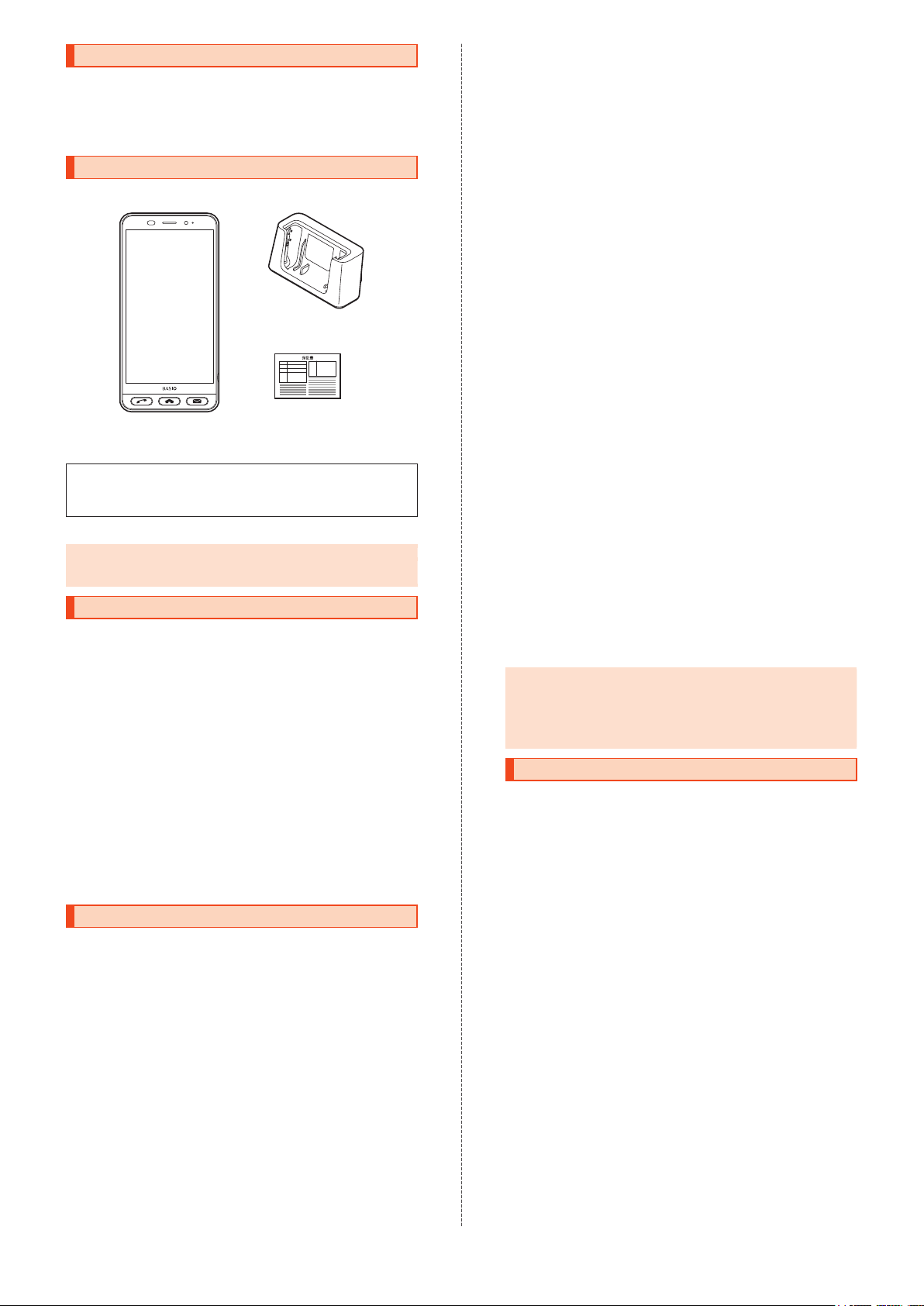
List of Packaged Items
Before using the product, make sure that you have all the following
packaged items.
Desktop holder
(SHV36PUA)
SHV36
•
かんたんマニュアル
* The desktop holder (SHV36PUA) is not waterproof/dustproof.
(Kantan Manual) (Japanese)
保証書 (Warranty)
(Japanese)
The following items are not included in the package.
•
microSD memory card •Earphones
•
AC adapter •microUSB cable
•
Purchase a specified charger (sold separately).
◎The battery is built into the product.
◎
Illustrations of cell phones in this manual are only for reference.
They may look different from the actual product.
Operating Instructions
Basic Manual (This Manual)
The Basic Manual (this manual) available on the au website describes
basic operations of major functions.
For detailed descriptions of various functions, refer to "
版
]" (Full Instruction Manual) available on the au website (Japanese):
取扱説明書[詳細
(http://www.au.kddi.com/support/mobile/guide/manual/)
•
The company names and product names in this manual are
trademarks or registered trademarks of their respective holders. Note
that ™ and ® marks may be omitted.
"Basic Manual" Application
You can use the Basic Manual application on the product to check
operation procedures (available approximately one month after the
product is released).
After switching the display language to English (▶P. 15), home screen → [開く]
(Open) in "
•
サポート/安心・安全
" (Support/Safety & Security) → [Basic Manual].
•If this is your first use, download and install the application by
following the on-screen instructions.
To use the Japanese version for detailed operation procedures: After
switching the display language back to Japanese, home screen
く
] (Open) in "
説明書
サポート/安心・安全
] (Basic Manual).
" (Support/Safety & Security) → [
When Using the Product
Before using the product, be sure to read the "Safety Precautions" for
proper use.
Before you assume that the product is malfunctioning, check for
possible remedies in au Customer Support on the au website:
http://www.au.kddi.com/english/support/
•
Communication is not possible in places where the signal does not
reach (e.g. tunnels and basements), even within the service area. In
addition, communication may not be possible in poor reception
areas. Communication may be interrupted if you move into a poor
reception ar
•
Since the product uses radio waves, the possibility of communication
intercepts by third parties cannot be eliminated. (Yet the LTE/WiMAX 2+/
GSM/UMTS system has highly secure confidential communication features.)
•au's VoLTE (LTE network) is used when connecting to emergency services
within Japan. You cannot connect using 3G (circuit-switched network).
•The product is compatible with the international roaming service. Each
network service varies depending on the area and service content.
For details, re
•
Since the product is a radio station under the Radio Law, you may be
asked to temporarily submit the product for inspection in accordance
with the Radio Law.
•
The IMEI information of your cell phone is automatically sent to KDDI
CORPORATION for maintenance and monitoring operational status
of your cell phone.
1
ea during communications.
fer to the au website.
→ [開
取扱
•
When using the product overseas, check the relevant laws and
regulations of the country/region you visit.
•
The Company is not liable for any damages arising from earthquakes,
lightning, storms, floods or other natural disasters, or from fires,
actions by third parties, other accidents, your actions, negligence,
misuse, or use under other unusual conditions outside the
responsibility of the Company
•
The Company is not liable for any incidental damages (change/
.
disappearance of saved content, loss of business profits, disruption of
business, etc.) arising from use of or inability to
use the product.
It is recommended that you keep a copy of important phone numbers, etc.
•The Company is not liable for any damages arising from failure to
observe the contents of this manual.
•
The Company is not liable for any damages arising from malfunction
or other problems caused by any combination of connected devices
or software not related to the Company.
•
Captured image data or downloaded data may be altered or lost due to
malfunctions, repairs, or mishandling of the product. The Company is not
liable for any damages or lost profits resulting from recovery of these data.
•It is recommended that you keep a copy of important data on your PC's
hard disk, etc. Whatever the cause of the defect or malfunction may be,
the Company assumes no responsibility for alteration or loss of saved
data.
•Contents such as contacts, mails, and bookmarks saved on the
product may be altered or lost due to accidents, malfunctions,
repairs, or mishandling. Be sure to keep a copy of important
contents. Note that the Company is not liable for any damages or
lost profits resulting from altered or lost contents.
•
Note that content data (whether paid or free) saved on the product
cannot be retained when the product is replaced for repair or other
reasons.
•
The product uses liquid crystal for its display. The display response
speed may become slow when the ambient temperature is low. This
is due to the property of liquid crystal and not a malfunction. The
display response speed will return to normal at room temperature.
•
Although the display used on the product employs high-precision
technology, some pixels (dots) may remain on/off. This is not a
malfunction.
•
It is recommended that you store separate copies of data such as still
pictures/videos you took and music on your PC by sending them as mail
attachments, etc. Note, however, that you may not be able to make
copies of some copyrighted data even by the above-mentioned means.
•
Do not dispose of the product with regular trash. Please cooperate in
the collection of the product and optional accessories when they are
no longer needed, to protect the environment and effectively use
resources. Old products are collected at au shops and other places.
* "The Company" as appears in this manual refers to the following companies:
Sold by: KDDI CORPORATION, OKINAWA CELLULAR TELEPHONE
COMPANY
Manufactur
e
d by: SHARP CORPORATION
◎Reproduction of the contents of this manual in part or in whole is
prohibited.
◎
The contents of this manual are subject to change without notice.
◎
Every effort has been made in the preparation of this manual.
Should you notice any unclear points, omissions, etc., feel free to
contact us.
Cell Phone Etiquette
Use of Cell Phones is Not Allowed in the
Following Places!
•Do not listen to music or watch videos/TV while driving a car or riding a
motorbike or bicycle. Use of a cell phone while driving a car or riding a
motorbike is prohibited by law. (Use of a cell phone while riding a bicycle
may be punishable by some regulations.) Be attentive to traffic around
you while walking. Not
the screen may cause a traffic accident. Be especially careful at railroad
crossings, on station platforms, and at crosswalks.
•
Use of cell phones on airplanes is restricted. Follow the instructions
of each airline.
Be Considerate of People Around You
•Do not make calls in theaters, museums, libraries, or other similar
places. Turn power off or turn on manner mode so as not to disturb
others around you with your ringtones.
•
Do not use the cell phone in places where you might hinder other
pedestrians.
•
Viewing a cell phone screen while walking is a serious hazard. Do not talk
on/operate the cell phone while walking or suddenly stop walking to do so.
•Move to areas where you will not inconvenience others on bullet
trains, in hotel lobbies, etc.
•
Refrain from talking on the cell phone in a loud voice.
•
Check whether sound from earphones, etc. is audible only to yourself when
there are other people around you on a train or in other closed spaces.
•Ask for permission before taking photos of other people with the cell
phone's camera.
•
When using the camera, follow common rules of etiquette regarding
camera use.
•
Some people near you in crowded places such as packed trains may
be using a cardiac pacemaker. Turn on "Airplane mode" or turn the
cell phone off in such places.
•
When a medical institution has designated areas where cell phones
are not allowed to be used or brought in, abide by the rules.
being able to hear surroundings or looking only at
Page 3
Contents
Preface .................................................................................. 1
List of Packaged Items .......................................................... 1
Operating Instructions ........................................................... 1
When Using the Product ....................................................... 1
Cell Phone Etiquette ............................................
Contents ................................................................................ 2
Safety Precautions .................................................... 3
Illustrations and Descriptions in This Manual ........................ 3
Safety Precautions (Observe Strictly) .................................... 3
Handling Precautions ............................................................ 7
Available Security Codes ...................................................... 8
Security Codes ............................................................................. 8
PIN ................................................................................................ 8
Notes on Waterproof and Dustproof Properties .................... 9
Notes on Using Bluetooth®/Wireless LAN (Wi-Fi®) Functions
Precautions for Bluetooth® ......................................................... 11
Precautions for Wireless LAN (Wi-Fi
Frequency Band ......................................................................... 11
®
) ........................................ 11
Notes on Voluntary Control of Radio Interference ............... 11
Notes on Packet Communication Fee ................................ 11
Notes on Applications ......................................................... 11
Getting Ready ......................................................... 12
Names and Functions of Parts ............................................ 12
Using the au Nano IC Card 04 ............................................ 13
au Nano IC Card 04 .................................................................... 13
Inserting the au Nano IC Card 04 ............................................... 13
Removing the au Nano IC Card 04
............................................. 13
Using a microSD Memory Card .......................................... 13
Inserting a microSD Memory Card ............................................. 13
Removing the microSD Memory Card ........................................ 14
Unmounting the microSD Memory Card .................................... 14
Charging .............................................................................. 14
Notes on Charging ...................................................................... 14
Charging with the Desktop Holder (SHV36PUA) and
Specified AC Adapter (Sold Separately) ..................................... 14
Charging with the Specified AC Adapter (S
Charging with a PC .....................................................................
Turning the Power On/Off .................................................... 15
Switching the Display Language to English ........................ 15
Turning the Display On/Off .................................................. 15
Lock Screen ...............................................
Making Initial Settings ......................................................... 16
Setting Up Language and Wi-Fi® ............................................... 16
Setting Up a Google Account ..................................................... 16
Calibrating Touch Panel .............................................................. 16
au Easy Setting ......................
..................................................... 1
Setting Permissions for Applications .................................. 16
Transferring Data ................................................................. 17
Restoring Data via the au Settings Menu ................................... 17
Saving Data via the au Settings Menu ........................................ 17
Basic Operations .................................................... 17
Using Touch Panel ............................................................... 17
Using Touch Keys ................................................................ 17
Using the Home Screen ...................................................... 18
Home Screen Layout .................................................................. 18
Using the Status Bar ........................................................... 18
Indicators .................................................................................... 18
Using the Notification/Status Panel ............................................ 18
Setting the Manner Mode .................................................... 19
Setting Airplane Mode ......................................................... 19
Registering Frequently Used Contacts to Quick Buttons ... 19
Registering Contacts to Quick Buttons ...................................... 19
Character Entry ....................................................... 19
Switching Software Keyboards ........................................... 19
Character Entry Screen Layout ........................................... 19
Character Entry Basics ........................................................ 20
Entering Characters .................................................................... 20
Entering Pictograms, Symbols, or Emoticons ............................ 20
Entering Characters Using Voice Input ....................................... 20
.................. 1
.. 11
old Separately) ....... 15
......................... 16
Using Call Functions ............................................... 20
Making Calls ........................................................................ 20
Making a Call by Entering a Phone Number ............................... 20
Making a Call Using Call History ................................................ 20
Making a Call Using Address Book ............................................ 20
Making
a Call Using a Quick Button ........................................... 20
Receiving Calls .................................................................... 20
Answering a Call ......................................................................... 20
Answering a Call Using Answering Memo .................................. 20
Playing Back Answering Memos ................................................ 20
Checking Your Own Phone Number ................................... 20
Saving Contacts to Address Book ...................................... 20
Using E-mail ............................................................ 21
Making Initial Settings for E-mail ......................................... 21
Changing E-mail Address .................................................... 21
Sending E-mails .................................................................. 21
Receiving E-mails ................................................................ 21
Using Camera ......................................................... 21
Shooting Still Pictures ......................................................... 21
Recording Videos ................................................................ 21
Appendix ................................................................. 21
Introduction of Peripheral Devices ...................................... 21
Troubleshooting ................................................................... 22
Updating Software .............................................................. 22
After-Sales Service .............................................................. 22
SIM-Unlocking the
Main Specifications ............................................................. 24
Specific Absorption Rate (SAR) of Cell Phones ..................
Regulatory information ........................................................ 25
FCC Notice .......................................................................... 25
Export Administration R
Intellectual Property Rights ................................................. 26
15
6
Product ................................................. 24
24
egulations ...................................... 26
2
Page 4
Safety Precautions
Illustrations and Descriptions in This Manual
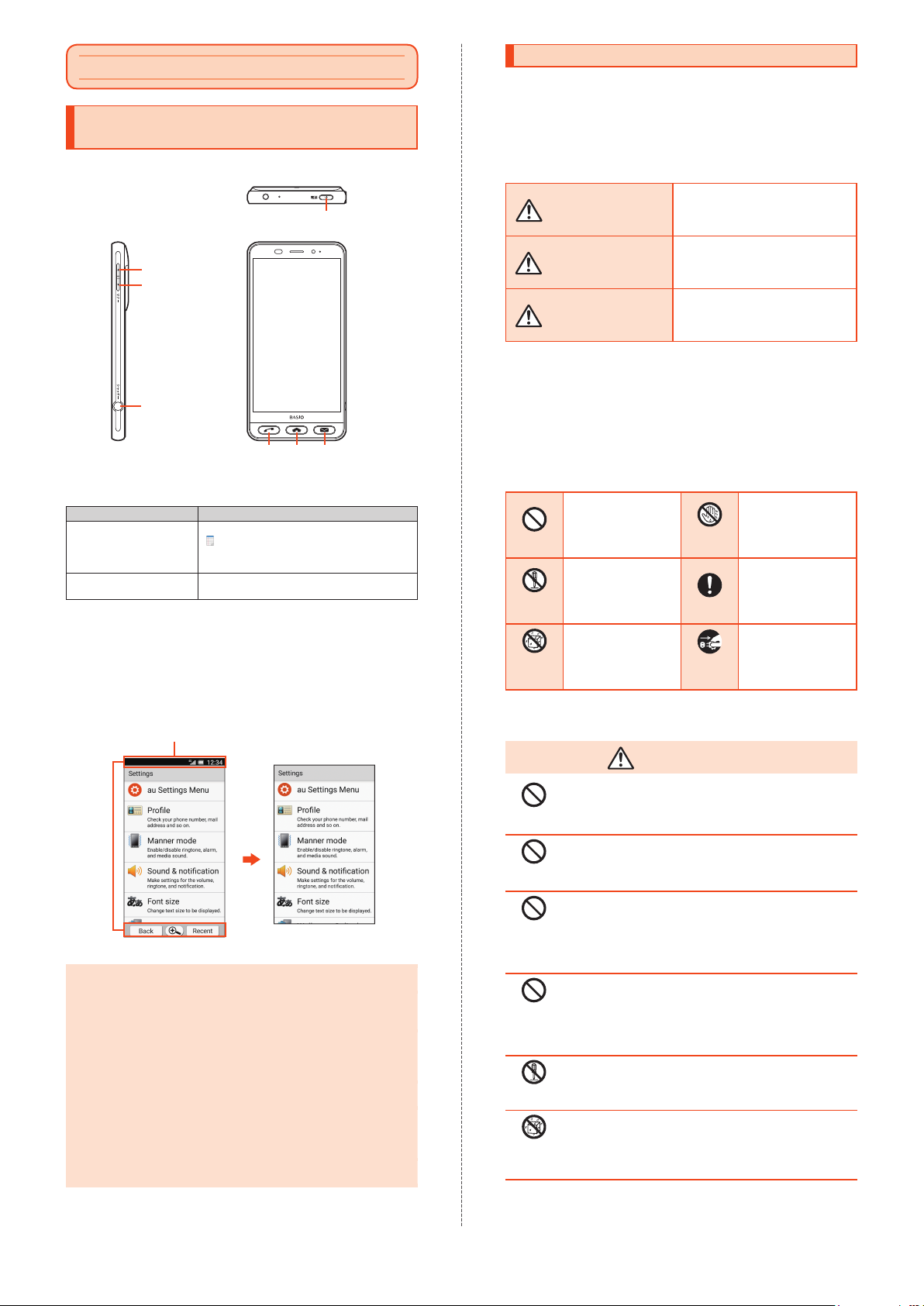
Note on Key Illustrations
In this manual, key illustrations are simplified as shown below.
f(p)
u(+)
d(−)
s(Shutter)
mch
Description of Navigation and Key Operation
In this manual, operation procedures are described as follows.
Description Meaning
Home screen
[Notepad] under "
ツール
Select a memo
f(p
for at least 2 seconds)
•
Tapping is to select a key or icon displayed on the screen by lightly
tapping it with your finger.
→
" (Handy Tools) →
) (press and hold
Notes on Illustrations and Screenshots
Screenshots and operations in this manual are based on the product
with an au Nano IC Card 04 installed.
Screenshots may look different fr
screen may be omitted.
In this manual, portions of the screen
such as indicators are omitted.
Slide/flick the home screen, and then tap
"
便利な
Notepad" under "
Tools). Then tap the memo you want to
open.
Press and hold f(p) for at least 2
seconds.
om the actual screen. Portions of the
便利なツール
" (Handy
Safety Precautions (Observe Strictly)
Before using the product, thoroughly read these safety
precautions for proper use. After reading, print and
keep the precautions in a safe place.
Be sure to observe the instructions described in these
precautions to prevent injury self or others, or damage
to property.
These labels show degree of risk from improper use.
Indicates imminent risk of death or
DANGER
WARNING
CAUTION
*1 Serious injury: This refers to loss of sight, injury, burns (high- and low-
temperature), electric shock, broken bones, injuries with residual aftereffects
from poisoning, etc., and injuries requiring hospital admission for treatment
or long-term hospital attendance as an outpatient.
*2 Minor injury: This refers
electric shock, etc. that do not require hospital admission for tr
long-term hospital attendance as an outpatient.
*3 Property damage: This refers to extended damage to buildings, furniture,
livestock, pets, etc.
to injuries, burns (high- and low-temperature),
serious injury
handling.
Indicates risk of death or serious
injury
Indicates risk of minor injury*2 and
property damage
handling.
Symbols Signifying Prohibited/Compulsory
Actions
Indicates an action
Prohibited
Disassembly
prohibited
Wetting
with water
prohibited
that is not allowed.
Indicates that
disassembly is not
allowed.
Indicates that use in a
place where the
product is likely to get
wet is not allowed.
Wet hands
prohibited
Instruction
Disconnect
plug from
power outlet
Precautions Common to the Main Unit, Charger,
au Nano IC Card 04, Peripheral Devices
*1
from improper
*1
from improper handling.
*3
from improper
eatment or
Indicates that
handling with wet
hands is not allowed.
Indicates an action
that must be done.
Indicates that the
power plug must be
unplugged from the
outlet.
Actual screen In this manual
◎In this manual, screenshots for body color "Gold" are provided as
examples.
◎
Descriptions in this manual are based on operations in portrait
orientation. In landscape orientation, menu items, icons, keys and
other user interface items may be different.
◎
Descriptions in this manual are based on operations for
ム
(default home application). Operations may be different
depending on the home application. Installed home applications
are accessible from "Home applications."
◎
Menu items, layers and icons described in this manual may be
different depending on functions being used and conditions.
◎
In this manual, "microSD™ memory card (commercially available),"
"microSDHC™ memory card (commercially available)" and
"microSDXC™ memory card (commercially available)" are referred
to as "microSD m
◎
The fees described in this manual exclude tax unless otherwise
noted.
emory card" or "microSD."
メインホー
Prohibited
Prohibited
Prohibited
Prohibited
Disassembly
prohibited
Wetting
with water
prohibited
DANGER
Do not use, store or leave in hot places or where heat
collects (e.g. by the fire, near a heater, under a kotatsu,
in direct sunlight, inside a vehicle in the hot sun).
Doing so might cause fire, burns, injury, electric shock, etc.
Do not put in a cooking apparatus such as a microwave
oven or induction stove or in a pressure vessel such as a
pressure cooker; do not place near such devices.
Doing so might cause fire, burns, injury, electric shock, etc.
Do not subject to or place directly on sand, soil, or mud.
Do not touch with dirty hands.
Doing so might cause fire, burns, injury, electric shock, etc.
For waterproof and dustproof properties, refer to the
following.
"Notes on Waterproof and Dustproof Properties" (
Do not charge the battery while the main unit or any of
its related products is wet with water or other liquids
(drinking water, sweat, seawater, pet urine, etc.).
Doing so might cause fire, burns, injury, electric shock, etc.
For waterproof property, refer to the following.
"Notes on Waterproof and Dustproof Properties" (
Do not disassemble or modify.
Doing so might cause fire, burns, injury, electric shock, etc.
Do not wet with water or other liquids (drinking water,
sweat, seawater, pet urine, etc.).
Doing so might cause fire, burns, injury, electric shock, etc.
For waterproof property, refer to the following.
"Notes on Waterproof and Dustproof Properties" (
▶
P. 9)
▶
P. 9)
▶
P. 9)
3
Page 5
Wetting
with water
prohibited
Instruction
Prohibited
Prohibited
Prohibited
Instruction
Instruction
Instruction
Prohibited
Prohibited
Prohibited
Prohibited
Prohibited
Instruction
Do not let water or other liquids (drinking water, sweat,
seawater, pet urine, etc.) enter the charging terminals or
external connection jack.
Doing so might cause fire, burns, injury, electric shock, etc.
For waterproof property, refer to the following.
"Notes on Waterproof and Dustproof Properties" (
Use optional accessories specified by au.
Failure to do so might cause fire, burns, injury, electric
shock, etc.
▶
P. 9)
WARNING
Do not drop, stomp, throw or subject to excessive force
or strong impact/vibration.
Doing so might cause fire, burns, injury, electric shock, etc.
Do not let conductive materials (metal strip, pencil lead,
etc.) come into contact with the charging terminals or
external connection jack. Do not let dust enter them.
Doing so might cause fire, burns, injury, electric shock, etc.
Do not cover or wrap with bedding, etc. while using or
charging.
Doing so might cause fire, burns, etc.
If charging is not completed after the specified charging
time, stop charging.
Failure to do so might cause fire, burns, injury, etc. due to
overcharge or for other reasons.
Before entering an area with a risk of flammable gas
generation such as a gas station or where dust is
generated, be sure to turn off the product and stop
charging.
Failure to do so might cause explosion, fire, etc.
If there is abnormal odor/noise, smoke, overheating,
discoloration, deformation, or other abnormalities, follow
these steps.
•
Unplug from the outlet.
•
Turn off the product.
Failure to follow the above steps might cause fire, burns,
injury, electric shock, etc.
CAUTION
Do not use if broken.
Doing so might cause fire, burns, injury, etc.
Do not place on a wobbly table, sloped surface, or other
unstable location. Be especially careful when the product
is set to vibrate.
Doing so might allow the product or its related products to
fall and cause injury, etc.
Do not use or store in places subject to excessive dust,
high humidity, or high temperatures.
Doing so might cause fire, burns, electric shock, etc.
For waterproof and dustproof properties, refer to the
following.
"Notes on Waterproof and Dustproof Properties" (
For use by a child, explain instructions and supervise
use.
Failure to do so might cause injury, etc.
Do not leave within the reach of small children.
Doing so may cause accidental swallowing, injury, electric
shock, etc.
The product may become hot if used continuously for an
extended period or while charging. Be careful of
prolonged contact even by accident such as falling
asleep.
The product or specified charger (sold separately) may
become hot after prolonged use of applications, call
functions, data communication, TV/video viewing functions,
etc. or while charging. Prolonged direct contact with hot
parts might c
temperature burns, etc. depending on your physical
condition.
ause skin irritation, itchiness, rashes, low-
▶
P. 9)
Main Unit
Prohibited
Prohibited
Instruction
Instruction
Prohibited
Prohibited
Prohibited
Prohibited
Prohibited
Prohibited
Prohibited
Instruction
Instruction
Instruction
Instruction
DANGER
Do not throw into a fire or apply heat.
The battery may ignite, burst, overheat, or leak, causing
fire, burns, injury, etc.
Do not apply excessive force; do not puncture with a nail
or other sharp-pointed object, hit with a hammer or other
hard object, or stomp.
The battery may ignite, burst, overheat, or leak, causing
fire, burns, injury, etc.
If substances in the internal battery get in eyes, do not
rub; rinse with clean water and consult a doctor
immediately.
Eye contact with substances in the internal battery might
cause loss of sight or other physical harm.
If substances in the display get in eyes or mouth, do not
rub; rinse with clean water and consult a doctor
immediately.
Substances in the display might cause loss of sight or
other physical harm.
WARNING
Do not point the infrared port at eyes when sending data
via infrared.
Doing so might adversely affect eyes or cause other
problems.
Do not point the infrared port at infrared devices when
using infrared communication.
Doing so might cause the infrared devices to malfunction,
leading to an accident or other problems.
Do not shine Mobile Light close to eyes. Maintain a safe
distance, especially from small children.
Doing so might cause visual impairment or other problems;
might temporarily affect eyesight or startle, leading to injury
or other accident.
Do not point the mobile light at drivers.
Doing so might hinder driving performance, leading to an
accident.
Do not view the screen for a long period when it is
flickering.
Doing so might cause spasms, loss of consciousness, etc.
Do not let water or other liquids (drinking water, sweat,
seawater, pet urine, etc.) or a foreign object (metal strip,
flammable material, etc.) enter the au Nano IC Card 04
tray slot or microSD memory card slot.
In addition, insert the au Nano IC Card 04 tray and a
microSD memory card into correct openings in correct
orientation.
Doing so might cause fire, burns, injury, electric shock, etc.
Do not expose the camera lens to direct sunlight for an
extended period.
Doing so might cause fire, burns, injury, etc. due to the
light-collecting mechanism of the lens.
Turn off the product or set it to Airplane mode before
boarding an airplane.
Since use of the product on airplanes is restricted, follow
the instructions given by the respective airlines.
Failure to do so might adversely affect an airplane's
electronic device.
If you engage in a prohibited activity while using the
product on an airplane, you might be punished by law.
Regarding the use of the product in a hospital, follow the
instructions given by the respective medical institution.
Turn off the product in areas where the use of cell
phones is prohibited.
Failure to do so might adversely affect the operation of
electronic devices and electronic medical devices.
When you are on a handsfree call, while the ringtone is
playing, when in standby, etc., be sure to keep the
product at a safe distance from your ears.
When you attach an earphone/microphone to the
product and play games, videos, or music, adjust the
volume to a comfortable level beforehand.
Setting the volume too high or using an earphone/
microphone continuously for a long period might impair
hearin
g.
In addition, not being able to hear surroundings might
cause an accident.
If you have a weak heart, be careful when setting the
incoming vibration and ringtone volume.
Failure to do so might adversely affect your heart.
4
Page 6
Instruction
Instruction
Instruction
Instruction
Instruction
Instruction
Prohibited
Prohibited
Prohibited
Prohibited
Prohibited
Instruction
Instruction
Instruction
Instruction
If you are using an electronic medical device, check with
its manufacturer or vendor on radio wave effects before
using the product.
Failure to do so might adversely affect the operation of the
electronic medical device.
Turn off the product near electronic devices that employ
high precision control systems or weak signals.
Failure to do so might cause the electronic devices to
malfunction or might adversely affect the operation.
Take added care near these devices: Hearing aids,
implanted pacemakers, implanted cardioverter-defibrillators
and other electronic medical devices; other automatic
control devices. If you a
re using an electronic medical
device such as an implanted pacemaker or implanted
cardioverter-defibrillator, check with its manufactur
er or
vendor on radio wave effects.
If the display or camera lens breaks, be careful with
shards of broken glass and exposed parts of the
product.
Touching the broken or exposed parts might cause burns,
injury, electric shock, etc.
If the internal battery leaks or there is abnormal odor,
discontinue use immediately and keep sources of flame
away.
Leaked fluid may catch fire, causing the battery to ignite,
burst, etc.
Do not let your pet bite the product.
Doing so might cause the internal battery to ignite, burst,
overheat, or leak, leading to fire, burns, injury, etc.
CAUTION
Do not swing the product holding the strap, etc.
Doing so might result in hitting yourself, other persons, or
nearby objects, causing injury or other accident.
When using the motion sensor and electromagnetic
sensor, make sure of the safety around you and hold the
product firmly; do not swing with excessive force.
Failure to do so might cause injury or other accident.
If the display breaks and internal substances leak, do not
let them come into contact with skin (face, hands, etc.)
or clothes.
Doing so might cause loss of sight, skin damage, etc.
If internal substances get in eyes or mouth or if they come
into contact with skin or clothes, rinse with clean water
immediately.
In case of contact with eyes or mouth, consult a doctor
immediately after rinsing.
Do not dispose of the product with regular trash.
Doing so might cause fire, burns, injury, etc. due to ignition;
might adversely affect the environment. When the product
is no longer needed, take it to an au shop, or follow the
local regulations regarding collection of the product.
If substances in the internal battery leak, do not let them
come into contact with skin (face, hands, etc.) or clothes.
Doing so might cause loss of sight, skin damage, etc.
If internal substances get in eyes or mouth or if they come
into contact with skin or clothes, rinse with clean water
immediately.
In case of contact with eyes or mouth, consult a doctor
immediately after rinsing.
Before using the product in a vehicle, check with the
manufacturer or dealer of the vehicle on radio wave
effects.
In rare cases, use of the product might adversely affect
operation of on-vehicle electronic devices, depending on
the type of vehicle. If this occurs, discontinue use
immediately.
If you feel any skin abnormalities associated with use of
the product, discontinue use and consult a doctor
immediately. Use of the product might cause itchiness,
skin irritation, rashes, etc. depending on your physical
condition.
For the materials used for parts of the product, refer to
"Materials" (
When opening/closing the camera slide cover, take care
not to get your finger or any other part of your body
caught.
Failure to do so might cause injury, etc.
The earpiece (receiver)/speaker and the camera slide
cover have magnetic parts; make sure that no metal strip
(a craft knife blade, staple, etc.) is adhered.
Metal strip on the product might cause injury, etc.
▶
P. 6).
Instruction
Charger
Prohibited
Prohibited
Prohibited
Prohibited
Prohibited
Prohibited
Prohibited
Prohibited
Prohibited
Wet hands
prohibited
Instruction
Instruction
Instruction
Instruction
Instruction
See the display in a sufficiently bright place at a
reasonable distance.
Seeing in a dark place or at a close distance might
deteriorate vision or cause other problems.
WARNING
Do not use the specified charger (sold separately) if the
cord is damaged.
Doing so might cause fire, burns, electric shock, etc.
Do not use the specified charger (sold separately) or
desktop holder (SHV36PUA) in humid places such as a
bathroom.
Doing so might cause fire, burns, electric shock, etc.
If you hear thunder, do not touch the specified charger
(sold separately).
Doing so might cause electric shock, etc.
Do not short-circuit the charging terminals when the
charger is plugged into the outlet. In addition, do not let
your hand, finger or any other part of your body come
into contact with the charging terminals.
Doing so might cause fire, burns, electric shock, etc.
Do not place a heavy object on the cord of the specified
charger (sold separately); do not apply excessive force
by pulling, etc.
Doing so might cause fire, burns, electric shock, etc.
When plugging/unplugging the specified charger (sold
separately) into/from the outlet, keep metal objects such
as a metal strap away.
Failure to do so might cause fire, burns, electric shock, etc.
Do not use the specified charger (sold separately) with a
voltage converter designed for overseas travel.
Doing so might cause ignition, overheating, electric shock,
etc.
When the specified charger (sold separately) is
connected to the product, do not apply excessive force
to the connection.
Doing so might cause fire, burns, injury, electric shock, etc.
Do not use the desktop holder (SHV36PUA) in a vehicle.
Doing so might allow the desktop holder to fall or might
hinder driving performance, leading to an accident. The
desktop holder (SHV36PUA) is designed for indoor use on
stable surfaces.
Do not touch the cord, charging terminals or power plug
of the specified charger (sold separately), or the desktop
holder (SHV36PUA) with wet hands.
Doing so might cause fire, burns, electric shock, etc.
Use at the specified power supply voltage.
When charging the battery overseas, use the specified
charger (sold separately) designed for overseas use.
Use at other power supply voltages might cause fire,
burns, electric shock, etc.
AC adapter: 100 V AC (connect to a household AC outlet
only)
AC adapter designed for overseas use: 100 V AC to 240 V
AC (connect to a household AC outlet only)
Wipe off dust on the power plug.
Using the charger when dust is on plug might cause fire,
burns, electric shock, etc.
Plug the specified charger (sold separately) into the
outlet firmly.
Failure to do so might cause fire, burns, electric shock, etc.
When unplugging the power plug of the specified
charger (sold separately) from the outlet, hold the
charger body and pull, without forcefully pulling the cord.
Pulling the cord of the specified charger (sold separately)
may damage the cord, causing fire, burns, electric shock,
etc.
When inserting/removing the specified charger (sold
separately) into/from the product, insert/remove it
straight into/from the jack, without forcefully pulling cord.
Inserting/removing in an incorrect orientation might cause
fire, burns, injury, electric shock, etc.
If the charging terminals become bent or deformed,
discontinue use immediately. In addition, avoid using the
charger by restoring the terminals to their original state.
Failure to do so might cause fire, burns, injury, electric
shock, etc. due to short-circuiting of the charging
terminals.
5
Page 7
Unplug the power plug of the specified charger (sold
Disconnect
plug from
power outlet
Disconnect
plug from
power outlet
Disconnect
plug from
power outlet
separately) from the outlet when not in use.
Leaving the power plug plugged in might cause fire, burns,
injury, electric shock, etc.
If water or other liquids (drinking water, sweat, seawater,
pet urine, etc.) enter, unplug the power plug from the
outlet immediately.
Failure to do so might cause fire, burns, electric shock, etc.
Before cleaning, unplug the power plug from the outlet.
Cleaning without unplugging the power plug might cause
fire, burns, electric shock, etc.
CAUTION
Do not touch the specified charger (sold separately) for a
Prohibited
Instruction
long period when it is plugged into the outlet.
Doing so might cause burns, etc.
If you feel any skin abnormalities associated with use of
the specified charger (sold separately) or desktop holder
(SHV36PUA), discontinue use and consult a doctor
immediately. Use of the product might cause itchiness,
skin irritation, rashes, etc. depending on your physical
condition.
For the materials used for the desktop holder (SHV36PUA),
refer to "Materials" (
▶
P. 6).
au Nano IC Card 04
CAUTION
When handling the au Nano IC Card 04, be careful with
cut edges so as not to damage your finger or any other
Instruction
Instruction
part of your body.
Failure to do so might cause injury, etc.
Be careful when inserting/removing the au Nano IC Card
04.
Failure to do so might injure your hand or finger.
Use near Medical Devices and Inside Medical
Facilities
WARNING
If you are using an electronic medical device such as an
implanted pacemaker or implanted cardioverter-
Instruction
Instruction
Instruction
Instruction
defibrillator, carry or use the product at least 15 cm away
from where the device is.
Radio waves might adversely affect the operation of the
electronic medical device.
Before using an electronic medical device other than an
implanted pacemaker or implanted cardioverterdefibrillator outside a medical institution (for home
treatment, etc.), check with its manufacturer on radio
wave effects.
Radio waves might adversely affect the operation of the
electronic medical device.
In a situation where you may not be able to maintain a
distance of at least 15 cm from other persons, such as
when your movement is restricted, disable radio wave
emission by setting Airplane mode, turning off the
product, etc.
There may be persons with an electronic medical device
such as an implanted pacemaker or implanted
cardioverter-defibrillator nearby. Radio waves may
adversely affect the op
device.
Regarding the use of the product in a medical institution,
follow the instructions given by the medical institution.
Failure to do so might adversely affect the operation of
electronic medical devices.
eration of the electronic medical
Materials
Main Unit (SHV36)
Part Material
Display surface Reinforced glass AF coating
Back
Outer casing PA resin + GF45% Acrylic UV cured
Power key PC Acrylic UV cured
Volume up/down key PC Acrylic UV cured
Shutter key Aluminum Anodizing
Phone key, Home key, Mail
key
Periphery of Phone key,
Home key, Mail key
Camera slide c
Camera panel Reinforced glass
Camera fringe Aluminum Anodizing
Mobile light lens PC None
Screen for earpiece (receiver)/
speaker
External connection jack
(resin portion)
External connection jack
(metal portion)
Charging terminals SUS Gold plating
Strap pin SUS None
au Nano IC Card 04/microS
memory card cover
Hinge of au Nano IC Car
microSD memory card cover
Seal on au Nano IC Card 04/
microSD memory card cover
au Nano IC Card 04 tray slot SUS None
microSD memory card slot SUS Nickel plating
au Nano IC Card 04 tray POM resin None
IMEI tray PET resin None
Camera fringe sheet Acrylic resin + PET
over PC + ABS Acrylic UV cured
PC + ABS (GF20%)
PC + PMMA Hard coating
PC + PMMA Hard coating
Polyester None
PA resin None
SUS + copper
alloy
D
PC resin Acrylic UV cured
d 04/
Elastomer resin None
EPDM None
resin
Desktop Holder (SHV36PUA)
Part Material
Outer casing (top/bottom) ABS resin Emboss
Lock lever POM resin None
Contact lever POM resin None
Charging terminals (positive
and negative pins)
External connection jack
(resin portion)
External connection jack
(metal portion)
Rubber foot Urethane foam None
Screw Carbon steel for
Rating plate Polyester f
Instruction label Polyester film Lamination
Phosphor bronze Gold plating
SUS None
SUS None
cold heading
ilm Lamination
Surface
treatment
Acrylic UV cured
coating
coating
coating
coating
coating
AR coating + AF
coating
Tin plating, gold
plating
coating
Hard coating
Surface
treatment
processing
Trivalent
chromate
6
Page 8
Handling Precautions
These precautions are provided to prevent product faults and to
ensure that performance can be fully demonstrated.
Thoroughly read these precautions for proper use.
Precautions Common to the Main Unit, Internal Battery,
Charger, au Nano IC Card 04, Peripheral Devices
●Do not apply excessive force to the product during use. Be sure not
to put the product into a tightly packed bag or place a heavy object
on the product in a bag. Sitting on the product in a pocket might
damage the main unit, display or internal cir
malfunction.
Keeping an extern
al device connected to the external connection
jack might damage the connector resulting in a malfunction. Such
damage and malfunction are not cover
there is no external damage.
●
To ensure waterproof and dustproof properties (equivalent to IPX5,
IPX8 and IP5X) of the product, use the product with the au Nano IC
Card 04/microSD memory card cover securely closed.
Note that the waterproof and dustproof properties are not
guaranteed in all cir
cumstances. Do not let foreign objects such as
liquid or dust enter the product or attach foreign objects such as
liquid or dust to the c
harger or optional accessories. Do not open/
close the au Nano IC Card 04/microSD memory card cover in the
rain or with water dr
ops on the surface of the product. Doing so
might cause water ingress resulting in internal corrosion.
Malfunctions determined to be caused by water seepage are not
covered by the warranty.
●
Do not use any of the following in extremely hot, cold or humid
places. (Use within an ambient temperature range of 5
and humidity range of 35% to 85%.)
•
SHV36
•
au Nano IC Card 04 (inserted into the SHV36)
•
Charger
•
Peripheral devices
●
Do not use in places subject to excessive dust or vibration. Doing
so might cause a fault.
●
Clean the product with a soft dry cloth (such as the type used for
eyeglasses). Forceful rubbing with a dry cloth may scratch the
display. The d
isplay may be stained if splash or smear is left
attached to the surface.
Wi
ping the product using alcohol, thinner, benzine, detergent, glass
, etc. might erase the printing on the outer casing or cause a
cleaner
fault.
●
Use as far away as possible from landline phones, TVs and radios.
Use nearby might affect them.
●
The product may become warm while charging or during operations.
This is normal.
●
Do not place near corrosive chemicals or in places where corrosive
gas is generated. Doing so might cause a fault.
●
Do not use outside when you hear thunder. There is a risk of
lightning strikes and electric shock.
●
Be sure to use only the specified peripheral devices. Use of other
peripheral devices might cause a fault.
●
Do not put the product in a cooking apparatus such as a microwave
oven or pressure vessel. Doing so might cause a fault.
●
The customer is not allowed to disassemble, modify or repair the
product. Doing so might cause a fault.
In addition, modification of the pro
duct is in violation of the Radio
Law and/or the Telecommunications Business Law.
●
To prevent short-circuiting of the external connection jack and
earphone/microphone jack, do not let your finger or any other part
of your body or conductive materials (metal strip, pencil lead, etc.)
come into contact with or enter these areas. Doing so might cause
a fault.
●
If the product gets wet while charging, unplug the power plug of the
specified charger (sold separately) immediately.
●
Do not use the product while driving a car or riding a motorbike or
bicycle or while walking. Use of a cell phone while driving a car or
riding a motorbike is prohibited by law. Use of a cell phone while
riding a bicycle may be punishable by some regulations.
●
Do not use or charge the product when it is in a bag or covered with
bedding, etc. Doing so might cause a fault.
●
When using a charger or external device, insert/remove the
connector straight into/from the jack. Inserting/removing in an
incorrect orientation might cause a f
●
Do not expose the camera lens to direct sunlight for an extended
period. Doing so might cause a fault.
●
Do not use, store or leave the product in places subject to direct
sunlight (e.g. inside a vehicle), in hot places, in extremely cold
places, or in humid or dusty places. Doing so might cause a fault.
●
Do not place the product on a wobbly table, sloped surface, or
other unstable location. Be especially careful while charging or when
the product is set to vibrate. Doing so might allow the product to fall
and cause a fault, etc.
●
When charging the product, do not exceed the rating given for the
outlet or wiring (for example, by connecting multiple devices to a
single power strip).
●
When the product becomes warm during use, the screen brightness
or some of its functions may be restricted.
cuit board resulting in a
ed by the warranty, even if
°
C to 35°C
ault.
Main Unit
●The battery is built into the product and it is not user replaceable.
For replacing the battery, contact an au shop or Customer Service
Center.
●
Do not forcefully press, tap or intentionally subject the display to
strong impact. Doing so might cause scratching or damage.
●
Do not forcefully press sharp objects or hard objects against keys or
display surface. Doing so might cause scratching or damage.
●
The touch panel is designed to be lightly touched by fingers. Do not
apply strong pressure to the touch panel with your fingers or press
sharp-pointed objects (such as ballpoint pens and pins) against it.
The touch panel may not respond or may malfunction in the
following cases.
•
Operation with gloved hands
•
Operation with fingernails
•
Operation with a foreign object left on the touch panel
•
Operation with a protective film or sticker on the touch panel
•
Operation with water drops or condensation on the touch panel
•
Operation with wet or sweaty fingers
•
Operation under water
●
Never use the product if it is modified. Use of a modified device
violates the Radio Law and/or the Telecommunications Business
Law.
To view the unique authentication and standard marks (including
certification/authentication numbers) for the product, perform the
following operations.
Home screen
[All settings menu]
The product has acquired the certification of conformity with
technical regulations for the specified radio station based on the
Radio Law and certification of conformity with technical regulati
for the terminal based on the Telecommunications Business Law,
and the "Technical Conformity Mark
as a certificate. View contents of electrical certificates in the product
for information on certification.
If any of the internal components of the product is modified, the
certification of conformity with technical regulations will become
invalid. Never use the product without the valid certification. Doing
so violates the Radio Law and/or the T
Law.
●
Take care not to place magnetized items such as magnetic cards,
speakers and TV sets near the product, as it might cause
malfunction.
Placing strong magnetism close to the product might cause false
operation.
●
Do not bring the product close to magnetized objects such as cash
cards, credit cards, and prepaid cards. Doing so might result in loss
of saved data.
●
When putting the product in a pocket or bag, keep the display away
from metal objects and other hard objects to prevent scratches and
damage. If using a strap whose metal or other hard part may come
into contact with the display, be careful not to scratch or damage
the display with it.
●
When suddenly brought into a warm place from a cold place, or
when in a humid location, or when used where temperature
suddenly changes (e
conditioner), water drops (i.e. condensation) might be formed inside
the product. Note that when used under conditions such as this,
humidity might cause corrosion or a fault.
●
Do not forcibly insert or remove a microSD memory card. Doing so
might injure your hand or finger.
●
While writing/reading data to/from a microSD memory card, do not
subject the product to vibration or impact or turn off the power.
Doing so might cause loss of data or a fault.
●
Do not cover the light sensor with your finger or place a sticker, etc.
on it. Doing so may hinder the light sensor from detecting the
ambient light level and the sensor may not work correctly.
●
Do not place a sticker, etc. on the proximity sensor. Doing so may
cause the sensor to malfunction and the display may remain turned
off while making a call or during a call, making it impossible to
operate the product.
●
Covering the earpiece (receiver)/speaker, mouthpiece (microphone),
sub microphone, or air vent with a sticker, your finger, etc. may
hinder the performance of the product.
●
If you hold the product to talk with your hair covering your ear, the
proximity sensor may malfunction. This may cause the display to
remain on, allowing the call to be disrupted if the display is
accidentally touched.
●
If the display breaks, discontinue use immediately and contact an au
shop or Keitai Guarantee Service Center. Continued use may cause
injury.
●
Do not apply excessive force to the sliding part of the camera slide
cover. Doing so might cause a fault or damage. Handle the cover
carefully.
●
Placing a sticker, etc. on the display or a key may cause malfunction
or shorten the usage time. Doing so may also damage the product.
●
If you place magnetized objects, metal straps, etc. close to the
product, the speaker may emit sounds. This is not a fault.
●
Note that forcibly pulling or applying excessive force to the au Nano
IC Card 04/microSD memory card cover may damage it.
●
The display may be hard to see in bright places such as under the
direct sunlight. This is not a fault.
→ [設定
] (Settings) under "
→
[About phone] → [Authentication]
" can be found in the product
elecommunications Bus
.g. near the air discharge port of an air
ショートカット
" (Shortcuts) →
ons
iness
7
Page 9
●Normally, use the product with the au Nano IC Card 04/microSD
memory card cover closed. If the cover is open, dust or water may
get inside causing a fault.
●
Do not let liquids, metal objects or other foreign objects enter the au
Nano IC Card 04 tray slot or microSD memory card slot. Doing so
might cause a fault.
●
Do not drop, throw, stomp or subject to strong impact.
Doing so might cause a fault.
●
Do not place the product directly on sand at a beach, etc. Sand or
other small particles might enter the earpiece (receiver)/speaker,
mouthpiece (microphone) or earphone/microphone jack, causing
the volume to drop. Letting sand or other small particles enter the
product might cause overheating or a fault.
Touch Panel
●Placing a sticker or sheet (e.g. a commercially available protective
film, peep prevention sheet) on the display might hinder correct
operation of the touch panel.
●
When carrying the product in a pocket or bag, take care not to put
the touch panel close to metals or other conductive materials; doing
so might cause the touch panel to malfunction.
Internal Battery
(The internal battery of the product is a lithium-ion battery.)
The internal battery is not fully charged at the time of purchase. Charge
it before using the product. In addition, charge the battery after a long
time of disuse before using the product.
●
Use of the product in very hot or cold environments, for example,
leaving it in a vehicle with the windows closed in summer, will
decrease the inte
battery usage time. This will also shorten the internal battery's life.
Try to use the product at r
●
The internal battery gradually discharges after charging even if the
product is not used. The internal battery may discharge completely
after a long period of disuse. It is recommended you charge it before
using the p
●
The internal battery is a consumable item. If its performance does
not recover, for example, if the usable time is extremely short even
after charging, the internal battery is at the end of its life; discontinue
use. Since the battery is a built-in type, its replacement requires
submission of the product to an au shop, etc. for a paid repair. In
addition, you may not be able to use the pr
period. Note that the internal battery's life varies depending on the
usage, etc.
●
To avoid decreasing the performance and life of the internal battery,
do not store the product in the following conditions:
•
The battery is fully charged (immediately after charging is
complete)
•
The battery has run out (too low to turn on the product)
•
In extremely hot or humid conditions
●
Depending on the usage, the internal battery may swell up near the
end of its life. This is due to the properties of lithium-ion batteries,
and does not affect safety.
rnal battery capacity and shorten the available
oom temperature whenever possible.
roduct.
oduct for a certain
Charger
●Do not wrap the power cord of the specified charger (sold
separately) around the charger body. Do not forcibly bend the
charger's plug or the connection between the connector and power
cord. Do not place a heavy object on the c
separately); do not apply excessive force by pulling, etc.
Doing so might cause a fault.
●
When unplugging the power plug of the specified charger (sold
separately) from the outlet, hold the power plug. Pulling the cord
may damage the cord.
ord of the charger (sold
au Nano IC Card 04
●Do not forcibly remove or insert the au Nano IC Card 04. Be careful
not to apply excessive force when inserting the card into your au cell
phone.
●
You are responsible for any damage caused by inserting the au
Nano IC Card 04 into other devices such as an IC card reader/
writer.
●
Do not place a sticker, etc. on the au Nano IC Card 04.
●
Do not subject the au Nano IC Card 04 to actions that can damage
it (using in hot places, throwing in a fire, letting a foreign object come
into contact with the metal contacts,
or pressing, wetting, etc.). Doing so might erase data or cause a
fault.
subjecting to impact, bending
Camera
●If the camera lens breaks, discontinue use immediately and contact
an au shop or Keitai Guarantee Service Center. Continued use may
cause injury.
●
Test the camera before shooting special moments.
●
Do not use the camera in places where shooting is prohibited.
Copyrights and Portrait Rights
●If the data you shot or recorded using the product or the data you
downloaded from the Internet, etc. is in part or in whole protected
by the third party's copyright, you are not allowed to copy, distribute,
publicly send, or modify the data without the consent of the
copyright holder, except for personal use, under the copyright law.
In addition, do not use or modify portraits or names of other
individuals without their consent, as it may infringe on portrait rights.
Note that shooting and re
performances, shows and exhibitions, even for personal use.
●
Be careful about copyrights and portrait rights when posting still
pictures you shot, etc. on websites.
cording may be restricted at some live
Back Up Contents of the Product
●Back up important contents of the product's memory. They may be
lost or altered due to unpredictable factors such as static electricity
and a fault, or by repair, mishandling, etc.
Available Security Codes
Security Codes
Various security codes are available on the product.
See below for the available security codes. Do not forget them as they
are necessary for various operations and contracts.
Be sure to change the default values to your own.
Security Code
Usage example① To use voicemail and call forwarding services
Default value A four-digit number you wrote in the application
Security Key
Usage example To set or cancel call blocking, etc.
Default value 1234
Be sure to change the default value to your own.
PIN Code
Usage example To prevent unauthorized use of the au Nano IC
Default value 1234
Be sure to change the default value to your own.
PIN
PIN Code
To prevent unauthorized use of the au Nano IC Card 04 by third
parties, set the product to require PIN code entry every time the power
is turned on. You also need to enter the PIN code when setting
whether PIN code entry is required.
The PIN code is locked after three consecutive failed entry attempts.
Unlock the PIN code using PUK code.
•
At the time of purchase, the PIN code is "1234," and PIN code entry
is not required. Change the PIN code to any four- to eight-digit
number and set the product to require PIN code entry if necessary.
If you set the product to require PIN code entry, be sur
the PIN code to your own.
PIN Unlock Key (PUK) Code
Use to unlock the PIN code.
•
PUK code is an eight-digit number given at the time of purchase. It is
printed on the back of the plastic card on which the au Nano IC Card
04 is attached.
•
After entering the PUK code, you need to set a new PIN code.
•
If you enter the wrong PUK code ten times consecutively, you will
need to contact an au shop, PiPit or Customer Service Center.
•
PIN code is not reset by initializing the product.
◎If the PIN code gets locked, the product may restart for security
reasons.
remotely from a landline phone
②
To use Customer Service Center or to make
inquiries, subscribe to services, or change your
subscription details on the au website
form
Card 04 by third parties
e to change
8
Page 10
Notes on Waterproof and Dustproof Properties
Thoroughly read the precautions described in "Notes on Waterproof
and Dustproof Properties" for proper use. Failure to observe the
precautions may cause ingress of liquid or dust, resulting in
overheating, ignition, electric shock, injury or a fault.
Note that proper operations of the product are not guaranteed in all
circumstances. Faults determined, aft
by mishandling by the customer such as using the product without
observing the precautions described in "Notes on Waterpr
Dustproof Properties" are not covered by the warranty.
Waterproof and Dustproof Properties of the
Product
The product has a protection rating (JIS C 0920) for waterproof
property equivalent to IPX5
equivalent to IP5X
microSD memory card cover is securely closed (based on the
experiments by the Company).
*1 IPX5 means that the cell phone continues to function as a phone after
being subjected to a water jet (approximately 12.5 liters/min) discharged
from a water pouring nozzle (inner diameter: 6.3 mm), from all directions
and approximately 3 mete
minutes.
*2 IPX8 means that the cell phone continues to function as a phone after
being gently lowered into a tank filled with still tap water (at room
temperatur
approximately 30 minutes and then taken out of the tank.
*3 IP5X means that the cell phone continues to function as a phone and its
safety i
(diameter: 75
prevention of dust ingress.)
e) to the depth of 1.5 meter, immersed at the bottom for
s maintained after being agitated in an apparatus with dust
μ
Examples of Waterproof and Dustproof Properties of
the Product
•The product can be used at the poolside. However, do not wet it with
water other than tap water such as pool water or submerge it in pool
water.
•
The product can be washed with a low-pressure flow of tap water (up
to 6 liters/min) at room temperature (5
Handling the Product
•Close the au Nano IC Card 04/microSD memory card cover securely.
The waterproof and dustproof properties are ensured when it is
securely closed. Even a small object (hair, sand, tiny fiber, etc.)
trapped between contact surfaces may cause ingress of liquid or
dust.
•
If liquid such as water is splashed onto the product with the au Nano
IC Card 04/microSD memory card cover opened, the liquid may
enter it, causing electric shock or a fault. Discontinue use and turn off
the power and then contact your local au shop or Keitai Guarantee
Service Center.
•
When the product is wet, wipe it with a dry, clean cloth.
•
When your hand or the product is wet or a foreign object is adhered
to it, never open/close the au Nano IC Card 04/microSD memory
card cover.
•
The product is only resistant to fresh/tap water at room temperature
(5
°
C to 35°C). If you let the product get wet with or submerged in
liquids other than fresh/tap water at room temperature, discontinue
use and wash it with fresh/tap water at room temperature.
•
Do not use the earphone/microphone jack or external connection
jack when it is wet or sand or dust is adhered to it. Doing so may
impair the waterproof and dustproof properties or cause electric
shock, short cir
cuit, etc. resulting in fire, burns, or a fault.
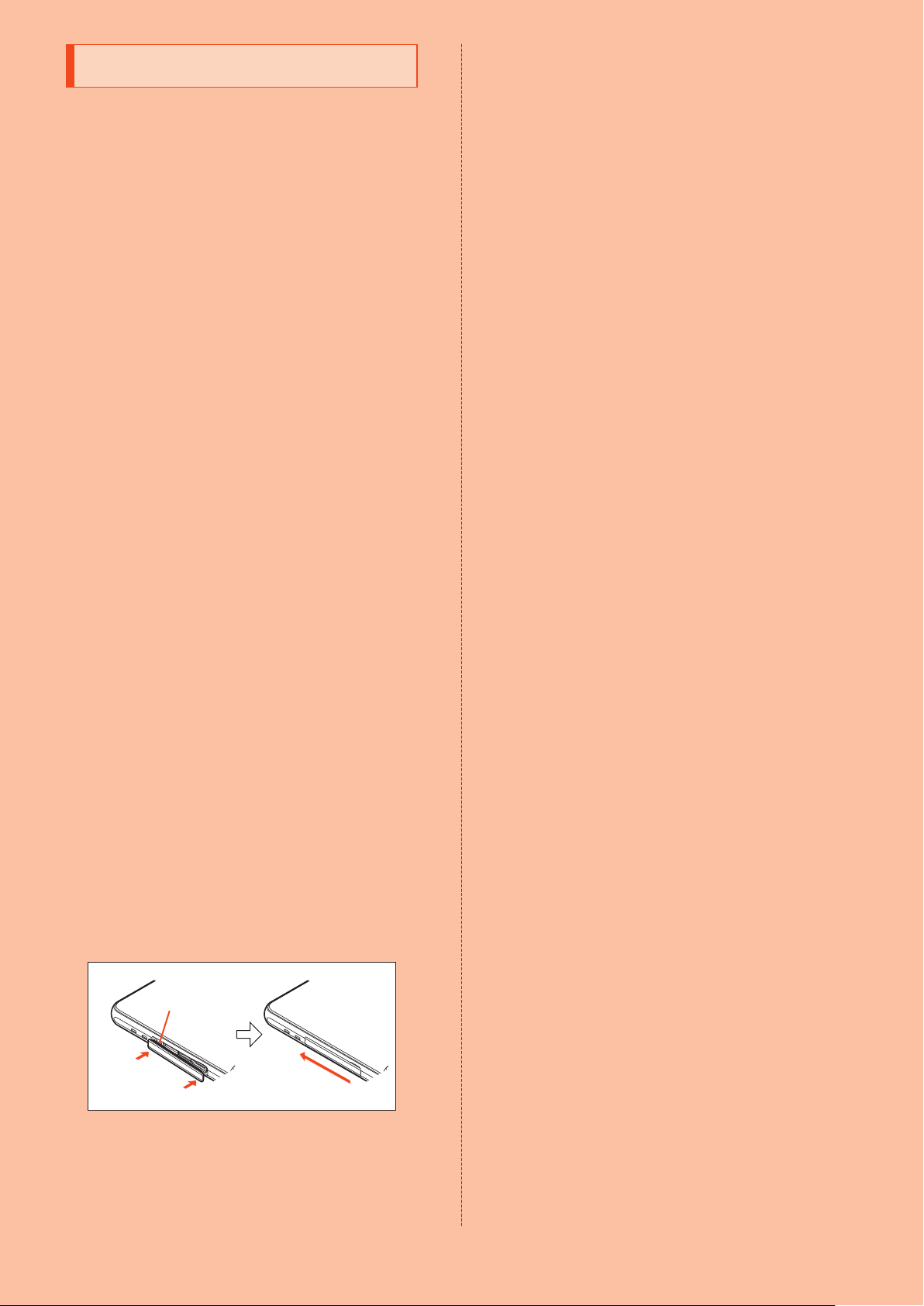
How to Close the au Nano IC Card 04/microSD Memory
Card Cover
Reinsert the hinge of the au Nano IC Card 04/microSD memory card
cover as shown (
no gap between the product and cover, and then push the cover in
the direction of the arrow (
firmly all the way to the hinge as shown (
①
*1
*3
on the condition that the au Nano IC Card 04/
rs away from the cell phone for at least 3
m or less) for 8 hours. (This does not guarantee complete
); place the cover over the opening so that there is
②
Hinge
er an inspection, to be caused
oof and
and IPX8*2, as well as dustproof property
°
C to 35°C).
) to close. When closing the cover, push it
③
).
Dustproof Property of the Product
•The dustproof property of the product only guarantees a protection
rating equivalent to IP5X and does not guarantee its performance
under other circumstances such as when the product is directly
placed on sand at a beach, etc.
•
If dust is adhered to the product, immediately wash it away with
water or otherwise clear it completely before use.
•
Any dust adhered to the product might cause a fault such as
malfunction of the sliding part of the camera slide cover.
Notes on Using the Product
•Do not let the product get wet with or submerged in liquids other
than tap water (seawater, pool water, spa water, soapy water,
detergent solutions, bubble baths, juice, condiments, etc.). In
addition, do not use the product in places subject to pet urine.
If the pro
duct gets exposed to such liquids, wash away with tap
water immediately.
•
Wash away salt water, seawater, drink, condiments, food, mud, soil
or any other foreign object immediately.
If allowed to dry,
it will be difficult to remove the residue and may
cause scratching or a fault.
•
Wash away sand, mud, etc. completely; any residue may scratch or
damage the product, or otherwise cause a fault.
•
Do not immerse the product in a bathtub or swimming pool. In
addition, do not use it under water (including key operations).
•
The product is not designed to resist water pressure. Do not expose
the product to a high-pressure flow of tap water, shower, etc. (6
liters/min or more) or submerge it under water.
•
Extreme temperature changes may cause condensation, resulting in
a fault. Wait until the product reaches room temperature before you
bring it from a cold place into a warm place. If condensation occurs,
leave the product in room temperatur
e until the condensation
evaporates.
•
Do not expose the product to hot water or hot air from a hair dryer,
etc. or use it in saunas. The product is not heat resistant.
•
Ingress of water into the earpiece (receiver)/speaker or mouthpiece
(microphone) may lower the volume temporarily. Drain water and dry
the product well before use.
•
The product does not float on water.
•
Do not use the product in heavy rain.
•
Do not leave the product wet. Doing so in cold places might cause
the liquid/moisture to freeze, resulting in a fault.
•
Do not place the product directly on sand at a beach, sandbox, etc.
or on mud. Sand may enter the earpiece (receiver)/speaker, etc.,
causing the volume to drop. Letting sand or other small particles
enter the product might cause overheating or a fault.
•
Letting sand or other small particles enter the sliding part of the
camera slide cover might cause excessive friction or noise when the
cover is opened/closed.
•
If the au Nano IC Card 04/microSD memory card cover is worn or
damaged, the waterproof and dustproof properties cannot be
maintained.
•
Do not use or store the product in humid places such as a bathroom
or kitchen for an extended period.
•
The product is not resistant to impact. Do not drop or subject to
impact. In addition, do not poke the earpiece (receiver)/speaker,
mouthpiece (microphone), air vent, etc. with a sharp object. Doing so
might damage or deform the product, resulting in impairment of the
waterp
roof and dustproof properties.
Maintaining the Waterproof and Dustproof
Properties
Rubber Seal
The rubber seal on the au Nano IC Card 04/microSD memory card
cover is important to maintain the waterproof and dustproof properties.
Observe the following:
•
Do not remove or scratch it.
•
When closing the au Nano IC Card 04/microSD memory card cover,
do not get the rubber seal caught. In addition, do not insert a sharp
object into gaps around the au Nano IC Card 04/microSD memory
car
d cover, the earphone/microphone jack or external connection
jack.
Doing so may damage the rubber seal, causing ingre
dust.
•
To maintain the waterproof and dustproof properties, it is
recommended that you replace the parts once every two years
regardless of their condition (paid service). For informati
replacement, contact your local au shop.
ss of liquid or
on on part
①
③
②
9
Page 11
Precautions for Charging
The desktop holder, specified charger (sold separately) and optional
accessories are not waterproof/dustproof. Be sure to check the
following before and after charging.
•
Check that there is no water drop or foreign object on the product. If
a foreign object is adhered to the product, wash it away immediately.
In addition, if the product is wet, drain water well and wipe
dry, clean cloth, etc. before inserting the microUSB plug into the
nal connection jack.
exter
•
Never connect the microUSB plug when the product or specified
charger (sold separately) is wet or a foreign object is adhered to it.
Although the pro
charger (sold separately) is not waterproof or dustpr
microUSB plug is inserted while th
water or a foreign object on the product or microUSB plug might
cause electric shock, short cir
overheating, burnout, fire, burns or a fault.
•
Do not touch the desktop holder or specified charger (sold
separately) with wet hands. Doing so might cause electric shock.
•
Do not expose the desktop holder, specified charger (sold separately)
or optional accessories to water. Do not use them in places where
water is regularly used, such as a bathroom, shower room, kitchen
and washroom. Doing so might cause fire, burns, electric shock, a
fault, etc. In addition, do not bring them into such places even if you
are not using them for charging. Doing so might cause fire, burns,
electric shock, a fault, etc.
duct is waterproof and dustproof, the specified
e product or charger is wet or dirty,
cuit or corrosion, resulting in abnormal
it with a
oof. If the
Washing the Product
If stain, dust, sand, soft drink, etc. is adhered to the surface of the
product, gently wipe it off with a cloth and wash the product under a
low-pressure flow of tap water (up to 6 liters/min) at room temperature
(5
°
C to 35°C) approximately 10 cm away from the faucet or shower
head.
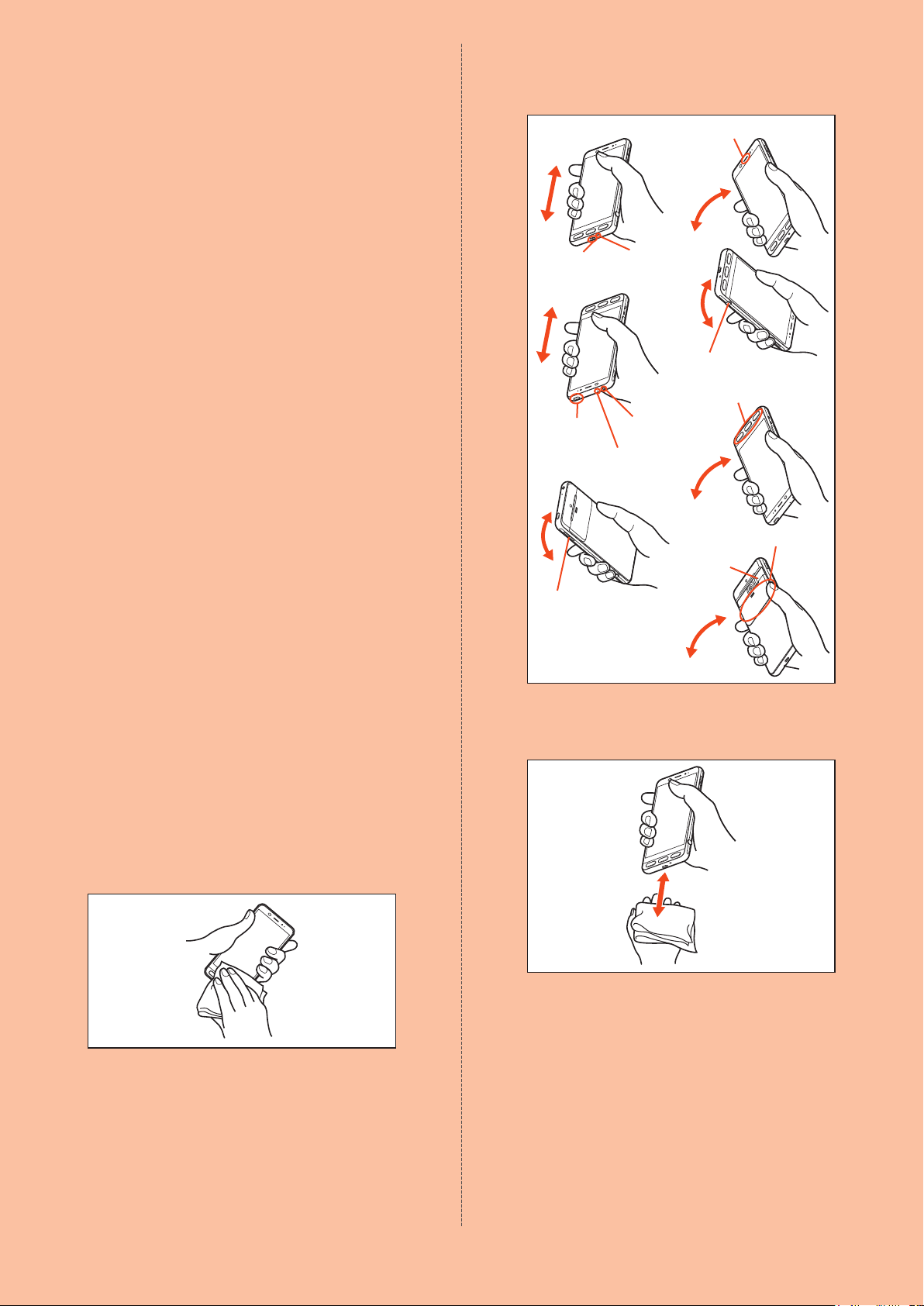
When washing the sliding part of the camera slide cover, shake the
product under fresh water in a container with
Holding the au Nano IC Card 04/microSD memory card closed, wash
the pr
oduct with your hands without using a brush or sponge. After
washing the product, drain water and then use the product.
•
Make sure that the au Nano IC Card 04/microSD memory card cover
is securely closed before washing the product.
•
Do not wash the product in a washing machine or ultrasound bath.
•
The earphone/microphone jack and external connection jack are
especially susceptible to dust, sand and other particles. Wash it away
thoroughly. After washing it away, make sure the jacks are dried off
before using the product. Any residue in the jacks may cause a fault.
•
When cleaning the earphone/microphone jack or external connection
jack, do not use tools such as a cotton swab or push a cloth into the
jack. D
oing so might cause impairment of the waterproof and
dustproof properties, resulting in fir
•
Never put the product in a microwave oven for drying it. Doing so
might cause the internal battery to leak, overheat, burst or ignite. In
addition, it might cause the product to overheat, emit smoke or
ignite, or destroy its circuit components.
•
Do not expose the product to hot air from a hair dryer or leave it in a
high temperature environment for drying it. Doing so might cause the
product to deform, discolor, malfunction, etc.
the cover open.
e, burns, or a fault.
Draining Water
If the product is wet, be sure to drain water from the earphone/
microphone jack, external connection jack, earpiece (receiver)/speaker,
mouthpiece (microphone), sub microphone, keys (Power key, Volume
up/down key, Shutter key, Phone key,
slide cover, air vent, etc.
Wipe off water on the surface of the product
1
Home key, Mail key), camera
thoroughly with a dry, clean cloth, etc.
If a strap is attached, dry it sufficiently as well.
Hold the product securely and shake it
2
approximately 20 times until there is no more
water splashing
Check the safety of your surroundings; while shaking the product,
hold it securely so as not to drop it.
Earpiece (receiver)/
speaker
External
connection jack
Power key
Sub microphone
Volume up/
down key
Pat the product against a dry, clean cloth, etc. to
3
Mouthpiece
(microphone)
Shutter key
Phone key,
Home key, Mail key
Earphone/
microphone jack
Camera slide cover
Air vent
remove moisture from the grooves
Water may be trapped in the openings; put a cloth against them
and pat the product to remove the water. Make sure that there is
no water or foreign object left in the openings.
Leave the product on a dry cloth, etc. for
4
approximately 2 to 3 hours at room temperature to
dry it
After wiping off the water, water remaining in the product may seep
out, if any.
Do not wipe off water trapped in the grooves directly with a cotton
swab, etc.
Precautions to be Taken after Water Draining
Do not use the product with water drops left on it.
•
Doing so might cause call failure or wet clothes, bags, etc.
•
Doing so might cause the earphone/microphone jack, external
connection jack, etc. to short-circuit, causing fire or a fault.
•
Doing so in cold places might cause the water drops to freeze,
resulting in a fault.
10
Page 12
Notes on Using Bluetooth®/Wireless
LAN (Wi-Fi
Precautions for Bluetooth
•The Bluetooth® function of the product conforms to the domestic
standards of Japan, FCC standards and EC directives, and has been
certified.
•
The 2.4 GHz band used by wireless LAN (Wi-Fi®) and Bluetooth®
devices is shared by various other devices. For this reason,
Bluetooth
devices using the same radio frequency band. In some cases,
however, the communication speed and connectable range may be
decreased, or disconnection may occur, due to interfer
devices.
•
The communication speed and connectable range vary depending
on the distance between communication devices, obstacles and the
connected devices used.
•The wireless LAN (Wi-Fi®) function of the product conforms to the
domestic standards of Japan, FCC standards and EC directives, and
has been certified.
•
Do not use the product in places where electromagnetic waves are
generated or near electric products, AV and OA equipment, or other
magnetized devices.
•
Subjecting the product to magnetic or electrical noise might increase
noise or prevent it from performing communications. (The product is
particularly susceptible to noise when it is used near a microwave
oven.)
•
Using the product near a TV, radio or similar appliance might cause
reception interference or disrupt TV images.
•
Search for access points might not be successful if there are multiple
wireless LAN (Wi-Fi
channel is being used.
•
The communication speed and connectable range vary depending
on the distance between communication devices, obstacles and the
connected devices used.
Bluetooth® and wireless LAN (Wi-Fi®) functions (2.4 GHz band) of the
product use frequencies in the 2.4 GHz band ranging from 2.402 GHz
to 2.480 GHz.
To view information on frequency band, perform the following
operations.
Home screen
[All settings menu]
•
Bluetooth® function: 2.4FH1/XX4
The product uses the 2.4 GHz band.
FH1 uses FH-SS as the modulation scheme. The interference
distance is about 10 m or less.
XX4 uses other schemes. The interference distance is about 40 m or
less.
Bands of mobile unit identification devices cannot be avoided.
•
Wireless LAN (Wi-Fi®) function: 2.4DS/OF4
®
devices use technologies for minimizing effects from other
Precautions for Wireless LAN (Wi-Fi®)
Frequency Band
®
) Functions
®
®
) access points near the product and the same
→ [設定
] (Settings) under "
→
[About phone] → [Authentication]
ショートカット
ence by other
" (Shortcuts) →
Precautions for Use of 2.4 GHz Band Wireless LAN
®
(Wi-Fi
)
The frequencies used by the wireless LAN (Wi-Fi®) function of the
product are in the 2.4 GHz band. In the 2.4 GHz frequency band, in
addition to home electrical appliances such as microwave ovens and
ind
ustrial, scientific and medical devices, other similar wireless stations,
in-plant wireless stations for mobile unit identification that require a
license for use such as factory production lines, specific small power
wireless stations that do not require licenses, and amateur wireless
sta
tions (collectively called "other wireless stations" from here on) are
operated.
Before using the product, make sure that "other wireless stations"
1.
are not in operation nearby.
2. In the event that instances of radio wave interference have occurred
between the product and "other wireless stations," immediately
either relocate the product or stop operation of the device (stop the
emission of radio
3. If you are unclear on any points or are tr
waves).
oubled by anything, contact
an au shop or Customer Service Center.
◎Connections between the product and all other Bluetooth® and
wireless LAN (Wi-Fi
connections with all Bluetooth
®
) devices have not been confirmed. Therefore,
®
and wireless LAN (Wi-Fi®) devices
are not guaranteed.
◎
The product supports security features for wireless
communications that are compliant with the Bluetooth
wireless LAN (Wi-Fi
®
) standard specifications, but the security may
®
and
not be sufficient depending on the usage environment and
configuration.
Be care
ful when establishing data communication using
Bluetooth
◎
Wireless LAN (Wi-Fi®) has the advantage that it can be freely
®
or wireless LAN (Wi-Fi®) function.
connected anywhere within the radio wave range, as it uses radio
waves for exchanging information. At the same time, there is a risk
that a malicious third party may obtai
security settings have not been configured. You are r
to configure security settings before using wireless LAN (Wi-Fi
n unauthorized access if
ecommended
®
) at
your own discretion and risk.
◎
The Company assumes no responsibility for leakage of data or
information that may occur during Bluetooth
®
/wireless LAN (Wi-Fi®)
communication.
◎
Since Bluetooth® and wireless LAN (Wi-Fi®) functions use the
same frequency band, using the both functions at the same time
may cause radio wave interference resulting in decreased
communication speed or disconnection fr
connection fails, stop using either of the Bluetooth
LAN (Wi-Fi
®
) functions.
om the network. If
®
and wireless
Notes on Voluntary Control of Radio Interference
The product conforms to technical regulations pursuant to the Rules
for Voluntary Control Measures of VCCI; the corresponding conformity
mark is shown on the electronic rating plate on the product.
To view the electronic rating plate, perform the following operations.
Home screen
[All settings menu]
→ [設定
] (Settings) under "
→
[About phone] → [Authentication]
ショートカット
" (Shortcuts) →
The product uses the 2.4 GHz band.
DS-SS and OFDM are used as the modulation schemes. The
interference distance is about 40 m or less.
Bands of mobile unit identification devices can be avoided.
Channels available with the 2.4 GHz band wireless LAN (Wi-Fi
the product are between 1 and 13.
Available channels differ depending on the country.
For use on airplanes, check with the respective airlines i
n advance.
Precautions for Use of Bluetooth® Function
The frequencies used by the Bluetooth® function of the product are in
the 2.4 GHz band. In this frequency band, in addition to home
electrical appliances such as microwave ovens and industrial, scientific
and medical devices, other similar wireless stations, in-plant wireless
stations for mobile unit identification that require a license for us
as factory production lines, specific small power wireless stations that
do not requir
e licenses, and amateur wireless stations (collectively
called "other wireless stations" from here on) are operated.
1. Before using the product, make sure that "other wireless stations"
are not in operation nearby.
2. In the event that instances of radio wave interference have occurred
between the product a
nd "other wireless stations," immediately
either relocate the product or stop operation of the device (stop the
emission of radio waves).
3. If you ar
e unclear on any points or are troubled by anything, contact
an au shop or Customer Service Center.
11
®
) of
e such
Notes on Packet Communication Fee
•Since a constant Internet connection is possible with the product,
packet communication may be performed automatically by some
applications, resulting in high packet communication fees. Therefore,
subscription to the flat-rate/discount service for packet
communication fees is recommended.
•
To browse websites, download applications, communicate using
applications, send/receive e-mails or configure various settings,
connection to the Internet is required, to which packet
communication fee applies.
(Packet communication fee does not apply to wireless LAN (Wi-Fi®).)
Notes on Applications
•Be sure to check the security of the application, then install it at your
own risk. Some applications might cause virus infection, damage
various data, and send out your location information, usage history or
personal information stored in your cell phone via the Internet.
•
The Company assumes no responsibility for any problems caused by
applications you have installed. In such cases, you may be charged a
repair fee even during the warranty period.
•
The Company assumes no responsibility for any loss or damage
suffered by you or any third party as a result of using applications you
have installed.
•
Some applications may not be used unless a microSD memory card
is inserted into the product.
•
Some applications keep the display turned on while they are active,
or rapidly drain the battery while running in the background.
•
Operation procedures and screen appearances of the applications
preinstalled in the product and those installed by you are subject to
change without notice as a result of version upgrade. In addition,
operation procedures described in the Basic Manual (this manual)
available on the au website and on the product may differ from the
actual procedu
res.
Page 13
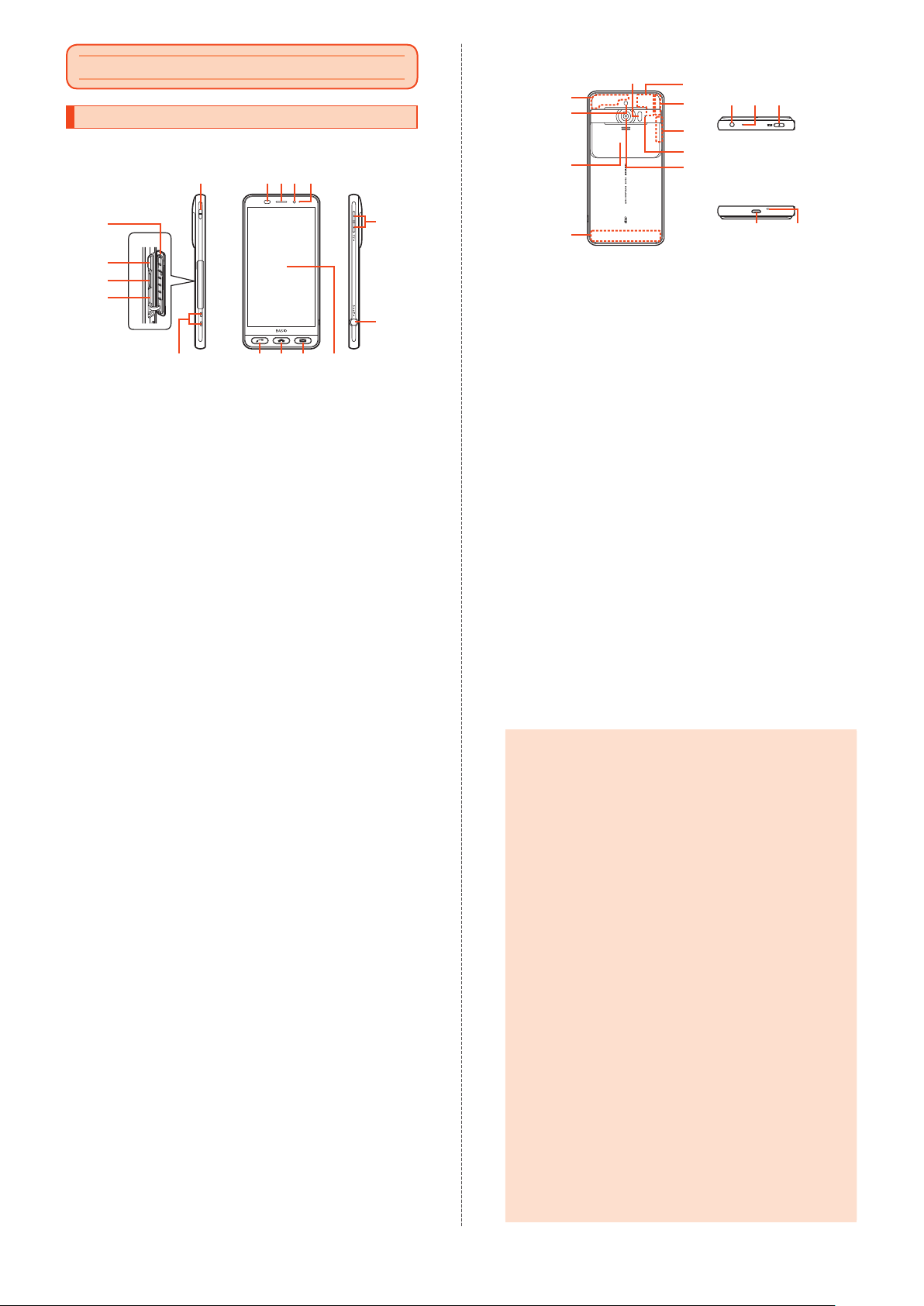
Getting Ready
Names and Functions of Parts
Front/Left Side/Right Side
⑤ ⑥ ⑦ ⑧ ⑨
Back/Top/Bottom
⑳
⑰
⑱
⑲
㉑
㉒
㉓
㉔
㉕
㉖ ㉘
㉗
①
⑩
②
③
④
⑪
⑫ ⑬ ⑭ ⑮ ⑯
au Nano IC Card 04/microSD memory card cover
au Nano IC Card 04 tray slot
IMEI tray
The product's IMEI can be checked.
microSD memory card slot
Strap eyelet
Proximity sensor/Light sensor
Proximity sensor prevents misoperation of the touch panel during a
call.
Light sensor adjusts the brightness of display according to the
ambient light level.
Earpiece (receiver)/speaker
Hear the other party's voice during a call or play back answering
memos, etc. through this.
In addition, hear ringtones and alarm sounds.
In camera lens
Charging lamp
Illuminates in red or green while charging depending on the battery
level.
u(+)d(-) Volume up/down key
Adjust the volume.
Press and hold
(-) in the lock screen to set/disable the manner
d
mode.
s Shutter key
Charging terminals
Use when charging with the desktop holder.
c Phone key
Make/receive calls. Flashes when there is a missed call.
h Home key
Return to the home screen.
m Mail key
Send/check mails. Flashes when there is a new mail.
Display (touch panel)
⑰
Internal antenna
㉙ ㉚
For talking on the phone or using the Internet, 4G (LTE/WiMAX 2+)
or UMTS.
Mobile light
Camera slide cover
Protects the out camera lens and infrared port. Slide down to
activate the camera.
Infrared port
Send/receive data using infrared communication.
TV antenna
GPS antenna
Wi-Fi®/Bluetooth® antenna
Air vent
Helps maintain the product's performance.
Out camera lens
Earphone/microphone jack
Connect an earphone/microphone, SHARP TV antenna cable 02
(sold separately), etc. here.
Sub microphone
Talk to the other party through this during a handsfree call.
f(p) Power key
Turn the display on/off.
Press and hold for power on/off or restart.
External connection jack
Connect the common AC adapter 05 (sold separately), microUSB
cable 01 (sold separately), USB cable for
peripherals (commercially
available), etc.
When the common AC adapter 05 (sold separately), microUSB
cable 01 (sold separately), etc. is connected, its magnetism may
affect the pr
oduct's geomagnetic sensor, causing some applications
to malfunction. In such cases, remove the connected device.
Mouthpiece (microphone)
Talk to the other party through this during a call. Also use while
recording vide
os or when talking to emopa.
◎The back cover of the product is not removable. Do not try to
remove it; doing so might cause damage or a fault.
◎
The battery is built into the product and not user removable. To
force the power off, refer to "Forcing the Power Off" (
▶
P. 15).
au Nano IC Card 04/microSD Memory Card Cover
◎
Note that forcibly pulling or applying excessive force to the au
Nano IC Card 04/microSD memory card cover may damage it.
IMEI Tray
◎
The IMEI (international mobile station equipment identity) is a
unique number to identify cell phones. The product's IMEI can be
checked by sliding out the IMEI tray.
◎
The IMEI is required for repairs, after-sales services, etc.
◎
The IMEI tray cannot be removed from the main unit. Handle it
carefully so as not to apply excessive force.
◎
You can also check the IMEI by navigating through the menu.
Home screen
→
[All settings menu] → [About phone] → [Status] → [SIM status]
→
Check the IMEI field
→ [設定
] (Settings) under "
ショートカット
" (Shortcuts)
Display (Touch Panel)
◎
When you attach a compatible flip cover (commercially available)
to the product, you can turn the display on/off by opening/closing
the flip cover. The display may not turn off if the flip cover is
misaligned.
Pro
ximity Sensor/Light Sensor, Earpiece (Receiver)/Speaker,
Mouthpiece (Microphone), Sub Microphone and Air V
◎
The earpiece is also a speaker. After you turn the speakerphone
ent
on/off or end calls, the volume increases gradually to prevent loud
sound from coming out of the speaker near your ear.
◎
Do not place a sticker, etc. on the proximity sensor/light sensor.
Doing so might cause the sensor to malfunction.
◎
Covering the earpiece (receiver)/speaker, mouthpiece
(microphone), sub microphone, or air vent with a sticker, your
finger, etc. may hinder the performance of the product.
Internal Antenna, Wi-Fi
®
/Bluetooth® Antenna, GPS Antenna and
TV Antenna
◎
Antennas are built into the product. Do not cover the antenna
areas with your hand during calls or data communication. Doing
so may affect the c
all/communication quality.
12
Page 14
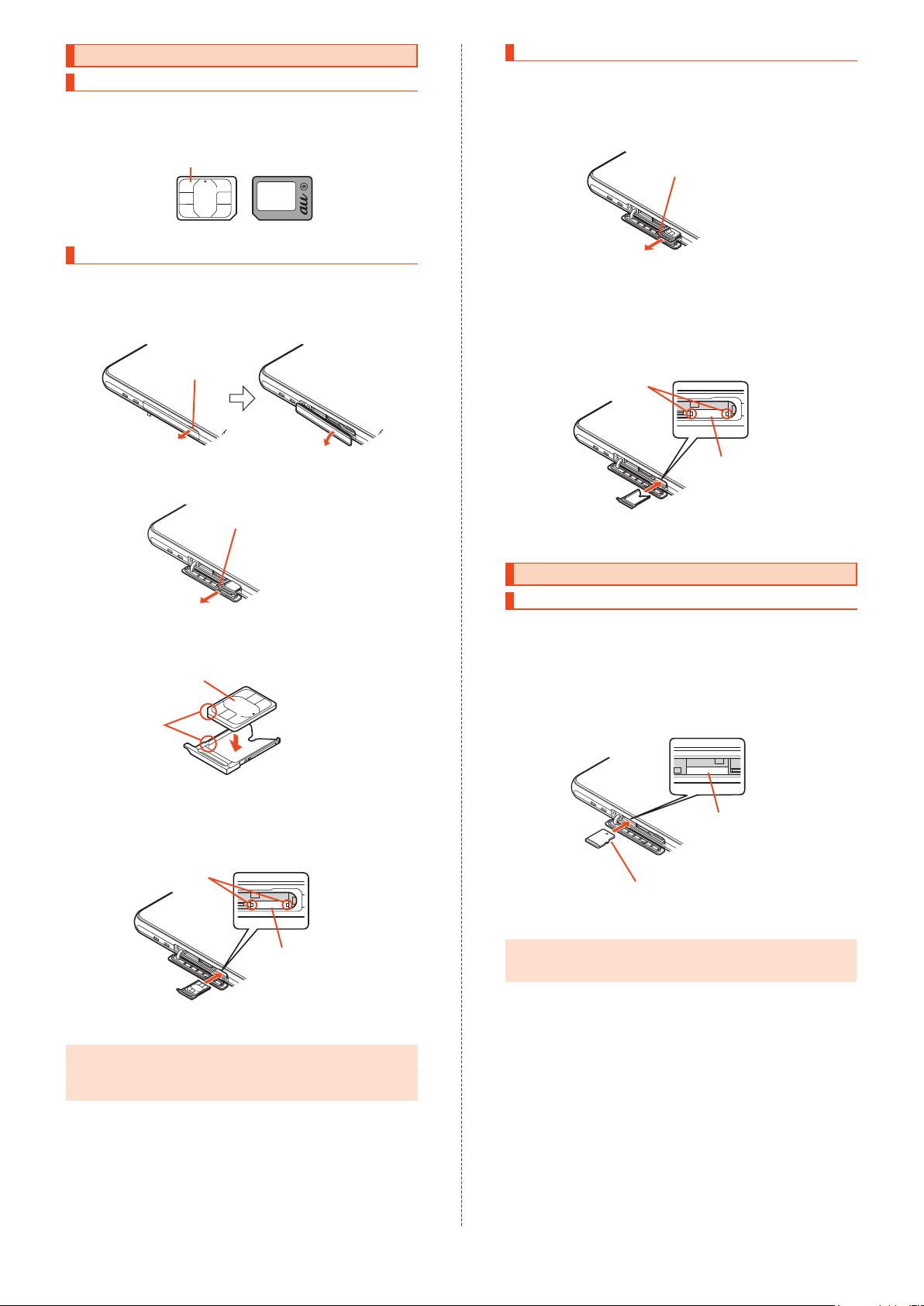
Using the au Nano IC Card 04
au Nano IC Card 04
The au Nano IC Card 04 contains your phone number and other
information.
The product supports the au Nano IC Card 04.
au Nano IC Card 04
IC (metal part)
Front Back
Inserting the au Nano IC Card 04
Turn the product off before inserting the au Nano IC Card 04.
Open the au Nano IC Card 04/microSD memory
1
card cover
Use the notch to pull the cover toward you as shown (①), and then
rotate it in the direction of the arrow (
Notch
②
).
Removing the au Nano IC Card 04
Turn the product off before removing the au Nano IC Card 04.
Open the au Nano IC Card 04/microSD memory
1
card cover (
Gently pull the au Nano IC Card 04 tray straight
2
out by hooking a finger on it
Remove the au Nano IC Card 04 from the au Nano
3
IC Card 04 tray
Gently insert the au Nano IC Card 04 tray into the
4
au Nano IC Card 04 tray slot
Check the position of the au Nano IC Card 04 tray slot and the
orientation of the au Nano IC Card 04 tray, and then insert the tray
all the way into the slot in the direction of the arrow. Forcing the
tray into the slot may damage the tray.
▶
P. 13)
Metal parts
au Nano IC Card 04 tray
①
Gently pull the au Nano IC Card 04 tray straight
2
②
out by hooking a finger on it
au Nano IC Card 04 tray
Place the au Nano IC Card 04 on the au Nano IC
3
Card 04 tray
Align the notches of the au Nano IC Card 04 and au Nano IC Card
04 tray, and then gently place the card on the tray.
IC (metal part)
facing up
Notches
Gently insert the au Nano IC Card 04 tray into the
4
au Nano IC Card 04
au Nano IC Card 04 tray
au Nano IC Card 04 tray slot
Check the position of the au Nano IC Card 04 tray slot and the
orientation of the au Nano IC Card 04 tray, and then insert the tray
all the way into the slot in the direction of the arrow. Forcing the
tray into the slot may damage the tray.
Metal parts
au Nano IC Card 04
tray slot
au Nano IC Card 04
tray slot
Close the au Nano IC Card 04/microSD memory
5
card cover (
▶
P. 9)
Using a microSD Memory Card
Inserting a microSD Memory Card
Open the au Nano IC Card 04/microSD memory
1
card cover (
Gently insert the microSD memory card into the
2
microSD memory card slot
Check the orientation of the card, and then insert the card in the
direction of the arrow until it clicks and is locked in place.
If you release the microSD memory card before it is locked in
place, it may pop out.
Close the au Nano IC Card 04/microSD memory
3
card cover (
◎Forcing the card into the slot upside down or in the wrong
direction may make the card unremovable or cause damage.
◎
Do not touch the terminals of the microSD memory card.
▶
P. 13)
Metal part facing down
▶
P. 9)
microSD
memory card slot
Close the au Nano IC Card 04/microSD memory
5
card cover (
◎If the au Nano IC Card 04 tray is not inserted properly, the product
may not function correctly.
◎
Take care not to lose or damage the removed au Nano IC Card 04
tray.
▶
P. 9)
13
Page 15
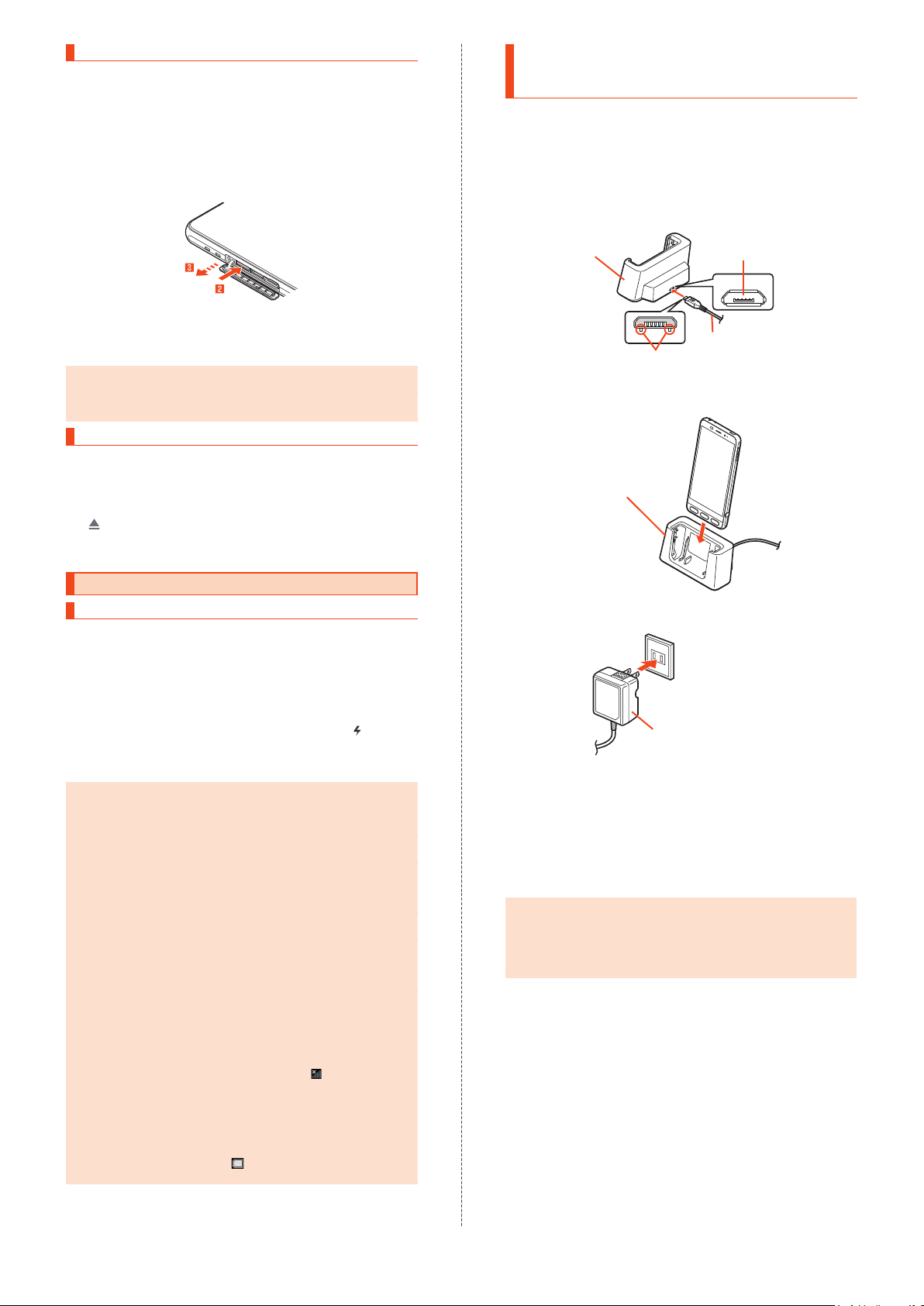
Removing the microSD Memory Card
Unmount the microSD card (▶P. 14) before removing it. Failure to do
so may corrupt data on the card or cause the card to malfunction.
Open the au Nano IC Card 04/microSD memory
1
card cover (
Gently push the microSD memory card in all the
2
▶
P. 13)
way
After a click, pull your finger back while touching the microSD
memory card until the card stops coming out. If you release the
card after pushing it in hard, it may jump out.
Gently pull the microSD memory card straight out
3
Close the au Nano IC Card 04/microSD memory
4
card cover (
◎Do not remove the microSD memory card forcibly. Doing so might
cause damage or loss of data on the card.
◎
The microSD memory card may become warm after a long period
of use. This is not a fault.
▶
P. 9)
Unmounting the microSD Memory Card
Home screen → [設定] (Settings) under "
1
ト
" (Shortcuts) → [All settings menu] → [Storage &
USB]
Storage & USB screen appears.
[ ] beside the name of the microSD memory card
2
To mount the microSD memory card again: Storage & USB screen
→
Tap the name of the microSD memory card → [Mount].
ショートカッ
Charging with the Desktop Holder
(SHV36PUA) and Specified AC Adapter
(Sold Separately)
Charge by connecting the desktop holder (SHV36PUA) and common
AC adapter 05 (sold separately). For details on the specified AC
adapter (sold separately), refer to "Introduction of Peripheral Devices"
(
▶
P. 21).
Insert the microUSB plug of the common AC
1
adapter 05 (sold separately) into the connection
terminal of t
Check the orientation of the microUSB plug, and then insert it in
the direction of the arrow.
Desktop holder
(SHV36PUA)
Place the product in the desktop holder
2
(SHV36PUA)
Place it as shown below.
he desktop holder (SHV36PUA)
Connection terminal
Common AC adapter
Tabs
Desktop holder
(SHV36PUA)
05 (sold separately)
Charging
Notes on Charging
The internal battery is not fully charged at the time of purchase. Be
sure to charge it before using the product.
•
If the performance of the internal battery does not recover, for
example, if the usable time is extremely short even after charging, the
battery may be at the end of its life. To check the charging
performance of the internal battery: Home screen
under "
ショートカット
phone]
→
•
While charging, the charging lamp illuminates in red and appears in
the battery indicator. The charging lamp illuminates in green when the
charge is approximately 95%. The charging lamp goes out when the
charge is full.
◎
◎
◎
◎
◎
◎
◎
[Status] → [Battery status].
◎The product may become warm while charging. This is normal.
The internal temperature of the product may increase depending
on the operation or usage environment, causing the product to
become hot. In such cases, charging may stop for safety.
Charging may take longer if the product is in use (for the camera
or other functions).
If you use the product while charging with the specified charger
(sold separately), the internal battery may charge and discharge
repeatedly in a short time. Frequent charging shortens the life of
the battery.
If you charge the internal battery after it has run out, the charging
lamp may not illuminate immediately (charging is in progress).
If the charging lamp is flashing in red, force the power off (▶P. 15)
and then turn the product back on. If the lamp is still flashing, stop
charging and contact an au shop or Keitai Guarantee Service
Center.
The continuous talk time and continuous standby time (▶P. 24) are
average measurements obtained in strong signal conditions at
rest. The actual usable time may be less than half depending on
the charge on the battery, usage environment such as temperature
or signal reception, function settings, etc. See below
examples.
•
Frequent use of the product in places where (out of service
area) appears on the display.
•
Use of the Wi-Fi® function, Bluetooth® function, mail functions,
camera, TV, location information, etc.
•
The display is set to remain turned on in applications, etc.
•
Applications are running in the background.
If you stop charging while the charging lamp illuminates, the
charge may not be full even if
such cases, the usable time shortens.
" (Shortcuts) → [All settings menu] → [About
is displayed on the display. In
→ [設定
] (Settings)
for the
Plug the power plug of the common AC adapter 05
3
(sold separately) into a 100 V AC outlet
Common AC adapter 05
(sold separately)
When charging is complete, remove the product
4
from the desktop holder (SHV36PUA), and then
unplug the power plug of the common AC adapter
05 (sold separately) from the outlet
Hold the desktop holder (SHV36PUA) when removing the product
from it.
When removing the microUSB plug of the common AC adapter 05
(sold separately) from the desktop holder (SHV36PUA), pull it
straight out.
◎When using the desktop holder (SHV36PUA), connect only the
specified charger (sold separately) to it. Do not connect
unspecified equipment such as a PC or portable charger to the
desktop holder (SHV36PUA); doing so might cause a fault.
◎
Although charging is possible even while the product is turned on,
charging takes longer.
14
Page 16
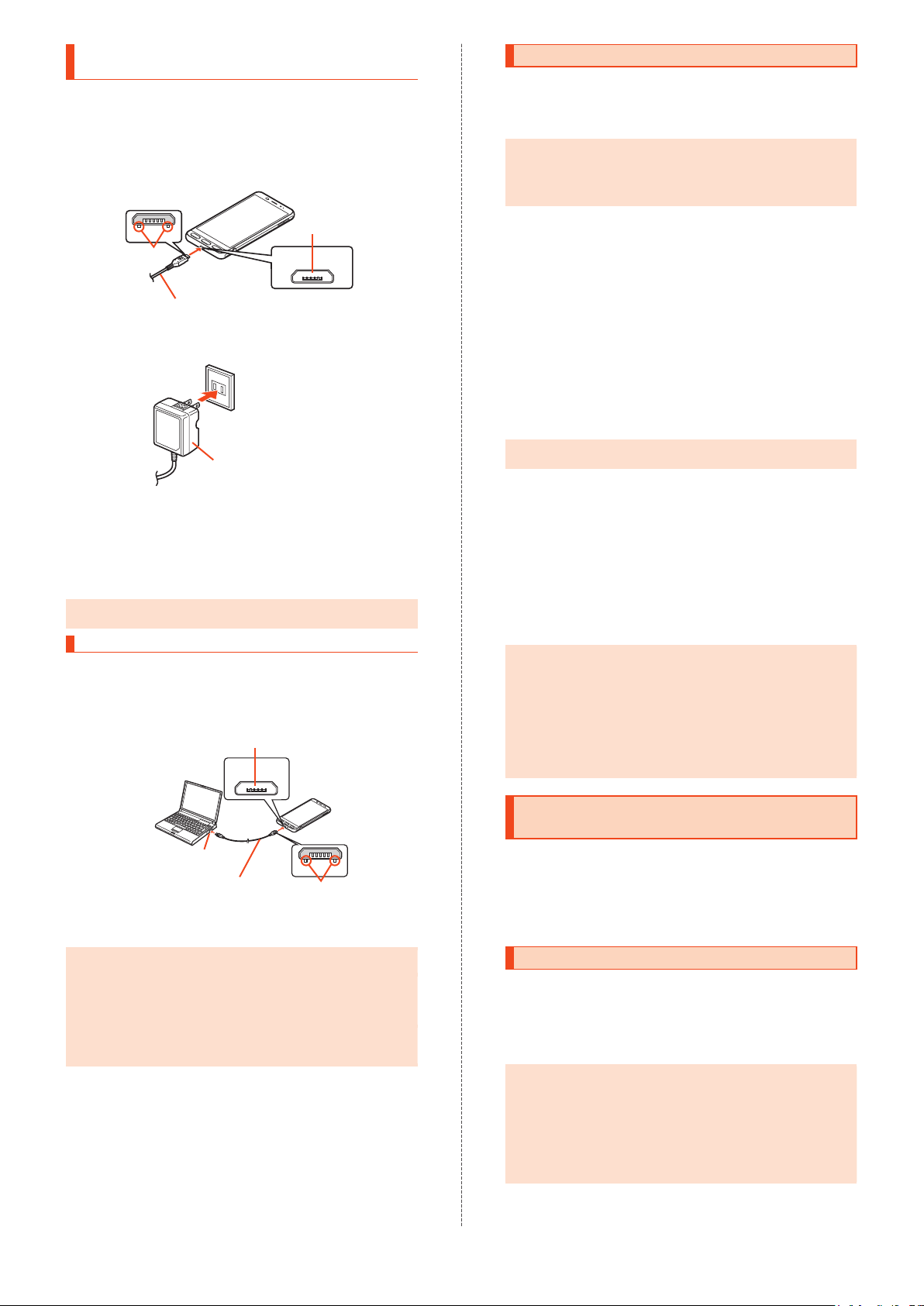
Charging with the Specified AC Adapter
(Sold Separately)
Charge by connecting the common AC adapter 05 (sold separately).
For details on the specified AC adapter (sold separately), refer to
"Introduction of Peripheral Devices" (
Check the orientation of the microUSB plug of the
1
▶
P. 21).
common AC adapter 05 (sold separately), and then
insert it into the external connection jack of the
product in the
Plug the power plug of the common AC adapter 05
2
direction of the arrow
External
connection
jack
Tabs
Common AC adapter 05
(sold separately)
(sold separately) into a 100 V AC outlet
Common AC adapter 05
(sold separately)
When charging is complete, pull the microUSB
3
plug of the common AC adapter 05 (sold
separately) straight out from the external
connection jack of the product
Unplug the power plug of the common AC adapter
4
05 (sold separately) from the outlet
◎Although charging is possible even while the product is turned on,
charging takes longer.
Charging with a PC
Charge by connecting the product to a PC's USB port that is capable
of charging.
Make sure that the PC is running, and then
1
connect microUSB cable 01 (sold separately) to a
USB port of the PC
External connection jack
Turning the Power On/Off
Turning the Power On
While the product is turned off, f(p) (press and
1
hold for at least 2 seconds)
◎After turning the power on, do not touch the display while "BASIO"
is displayed (setting up the touch panel). Failure to do so might
cause the touch panel to malfunction.
If the screen for touch panel calibration appears after turning the
power on, follow the on-screen instructions.
Turning the Power Off
) (press and hold for at least 2 seconds)
f(p
1
[Power off]
2
Restarting the Product
The product turns off and then turns back on.
) (press and hold for at least 2 seconds)
f(p
1
[Reboot]
2
Forcing the Power Off
If the screen is frozen or the product cannot be turned off, force the
power off.
) (press and hold for at least 8 seconds)
f(p
1
Release the key after the product vibrates; the product turns off.
◎If the power is forced off, unsaved data will be lost. Do not force
the power off unless the product is inoperable.
Starting the Product in Safe Mode
The product turns off and then turns back on in a state similar to its
state at the time of purchase.
If operation of the product is unstable, an application installed after
purchasing the product may be the cause. If the symptoms improve in
safe mo
de, uninstalling the application may remedy the symptoms.
) (press and hold for at least 2 seconds)
f(p
1
Touch and hold "Power off" → [OK]
2
While in safe mode, "Safe mode" is displayed at the bottom of the
screen.
To exit safe mode, restart the product.
◎To start the product in safe mode when it is turned off, turn it on
with
press and hold
logo.
◎
It is recommended that you back up data on the product before
starting it in safe mode.
◎
Widgets you created may be deleted by starting the product in
safe mode.
◎
Safe mode is not a normal state for the product to be started in.
Exit safe mode for normal use.
) (press and hold for at least 2 seconds), and then
f(p
(-) until the lock screen appears after the BASIO
d
PC's USB port
microUSB cable 01
(sold separately)
Connect microUSB cable 01 (sold separately) to
2
Tabs
the product
◎Charging by USB may take longer than by the specified AC
adapter (sold separately).
◎
Insert the microUSB plug straight into the external connection jack
of the product in the correct orientation (with the tabs facing
down). Failure to do so might damage the external connection
jack of the product.
◎
If you charge the internal battery after it has run out, the charging
lamp may not illuminate. In such cases, charge with the specified
AC adapter (sold separately).
15
Switching the Display Language to English
Show function names and other user interface items in English.
Home screen → [設定] (Settings) under "
1
ト
" (Shortcuts) → [
[
言語と入力
2
[English]
3
] (Language & input) → [言語] (Language)
すべてを見る
] (All settings menu)
ショートカッ
Turning the Display On/Off
The display turns off when f(p) is pressed or after a period of
inactivity.
Turning the Display On
While the display is turned off, f(p)
1
Alternatively, press h.
◎When the display turns on, the screen that was open before the
display turned off may appear depending on the application in
use.
◎
When "Turn screen on by holding" in "On/off with motion" is set,
the display turns on when the product is picked up from a flat
surface (the motion sensor is activated).
◎
When putting the product in a pocket or bag, turn off the display.
Leaving the display turned on in a pocket or bag may cause the
product to malfunction.
Page 17
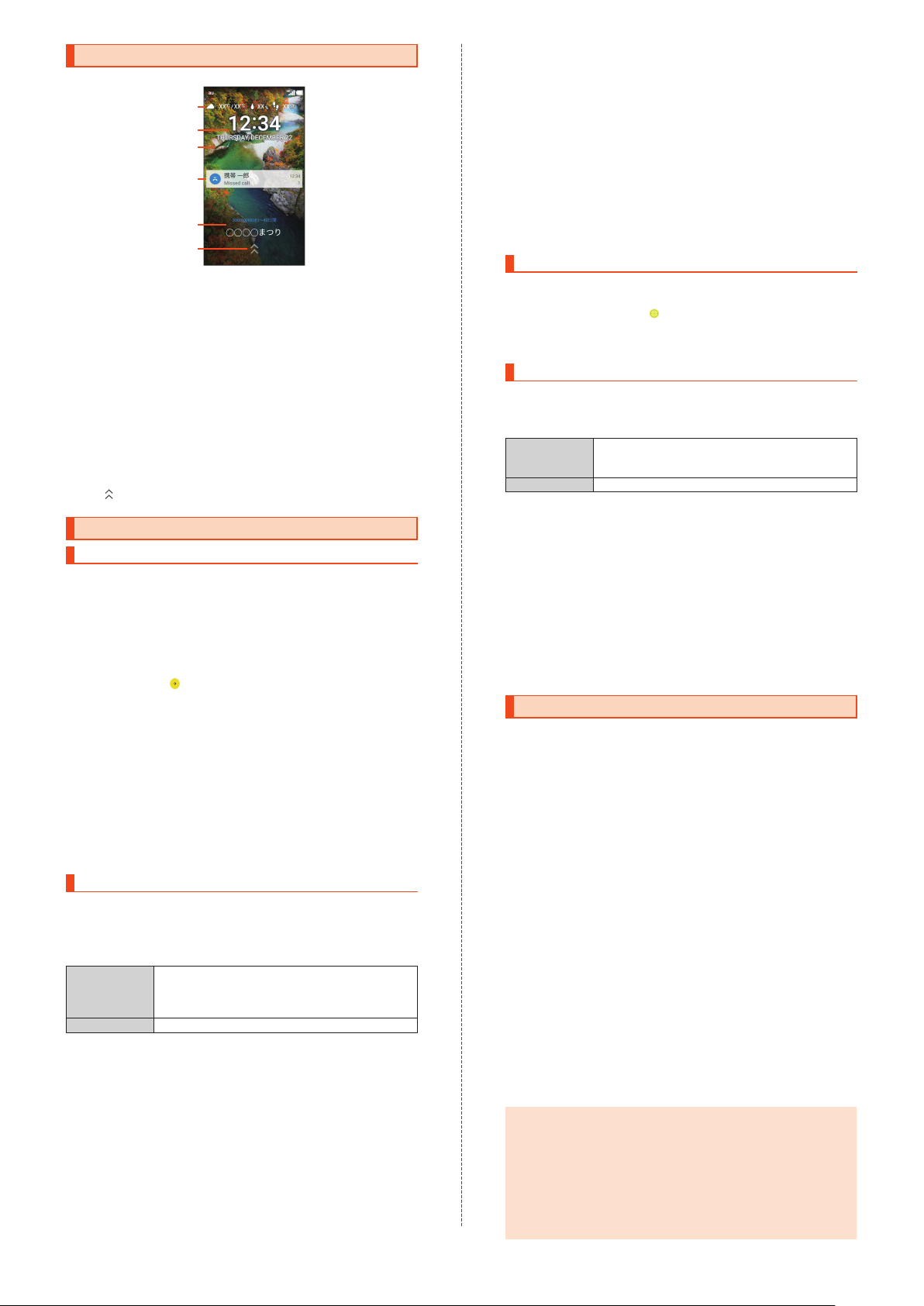
Lock Screen
When the display turns on, the lock screen appears.
①
②
③
④
⑤
⑥
《Lock Screen》
Weather and step count
Date and time
Wallpaper
Notifications area
Notifications for missed calls, new E-mail, new SMS, etc. pop up
here. Double-tap a notification for the corresponding screen.
Drag the notifications area down for a list of notifications. Tap a
notification for the corresponding screen.
Info area
When "
Slide
エモパー
emopa appears here.
•
Flick to the left/right to switch the information.
•
Double-tap information for the related information or details (may
not be available depending on the information).
Screen lock
(emopa)" is set to ON, a variety of information from
up to unlock the screen.
Making Initial Settings
▶
®
設
P. 16).
Setting Up Language and Wi-Fi
The Google initial settings screen appears automatically when you turn
the product on for the first time. Follow the on-screen instructions to
set each function.
•
In the following steps, you will skip Wi-Fi® connection settings and
"Got another device?" settings. The "Got another device?" settings
let you copy your Google Accounts, applications and data from a Tap
&
Go compatible Android device to the product.
Select the language ([
1
[English])
To change the language after initial setup: Home screen → [設定]
(Settings) under "
→
[Language & input] → [Language].
[SKIP] → [SKIP ANYWAY] → [No thanks]
2
To set up Wi-Fi® connection after initial setup: Home screen → [
定
] (Settings) under "
menu]
To use Tap & Go: [SKIP]
Accounts, apps, and data from your other device], and then follow
the on-screen instructions.
[NEXT]
3
Next, set up a Google Account.
Refer to "Setting Up a Google Account" (
→
[Wi-Fi].
→
[ ]
ショートカット
日本語
] (Japanese) →
" (Shortcuts) → [All settings menu]
ショートカット
→
" (Shortcuts) → [All settings
[SKIP ANYWAY] → [Copy your Google
Setting Up a Google Account
Set up a Google Account to use applications provided by Google Inc.
such as Play Store and Hangouts™. A Google Account may also be
required to use some other applications. (The product can be used
without setting up a Google Account.)
The main setting items are as follows.
Username Register a set of characters to use as your user ID
Password Set up a password for your Google Account.
•
The Google Account setup screen also appears when you first
activate an application that requires a Google Account.
•
Steps may differ depending on some conditions. In such cases,
follow the on-screen instructions.
[Or create a new account]
1
If you already have a Google Account, enter the e-mail address.
Enter your "First name" and "Last name" → [NEXT]
2
→
Enter your username → [NEXT] → Enter the
password
[NEXT]
Check the phone number for recovery → [NEXT] →
3
Check the phone number
contents
and e-mail address for your Google Account. You
cannot use a username that is already used by
another user.
→
[NEXT] → Enter the password again →
→
→
[I AGREE] → [NEXT]
[VERIFY] → Read the
Read the description of Google services → [NEXT]
4
[No thanks] → [CONTINUE]
5
To set up payment information for use with Google Play, follow the
on-screen instructions.
[Not now] → [NEXT]
6
To use an e-mail address other than the one for the Google
Account or E-mail (@ezweb.ne.jp), follow the on-screen
instructions.
Uncheck the checkbox → [SKIP]
7
To set up screen lock, check the checkbox and then follow the
on-screen instructions.
[SKIP ANYWAY]
8
Next, calibrate the touch panel.
Refer to "Calibrating Touch Panel" (
▶
P. 16).
Calibrating Touch Panel
Calibrate the touch panel for improved accuracy. Hold the product
normally during calibration.
Tap the six circles ( )
1
Calibration is complete when all the six circles have turned white.
Next, perform au Easy Setting.
Refer to "au Easy Setting" (
▶
P. 16).
au Easy Setting
Set up an au ID to use various services provided by au, such as au
マートパス
Service; a payment option for purchasing applications from Google
Play).
•
1
2
3
4
(au Smart Pass) and au
au ID Register your au phone number or a set of
au ID password Register a password to use your au ID.
To set the au ID after initial setup: Home screen → [設定] (Settings)
under "
ショートカット
Setting].
characters as your au ID. You cannot create an au
ID that is already used by another user.
" (Shortcuts) → [au Settings Menu] → [au Easy
[Next] → [Register "au ID"] → [Next] → [au ID
保存
] (Set/Save au ID)
かんたん決済
(au Simple Payment
の設定・
Enter the security code → [OK]
The default security code is the four-digit number you wrote in the
application form.
Enter the password → [設定] (Settings) → [終了]
(Finish)
au ID registration is complete.
Follow the on-screen instructions
Setting Permissions for Applications
When you first activate an application/function that accesses the
product's functions and information, First things first confirmation
screen appears.
Example: When activating
First things first screen → [Next]
1
[Deny]/[Allow]
2
Normally, tap "Allow" to allow use of the function.
Repeat step 2 for other functions, if any.
Other Methods for Setting Permissions for
Applications
Permissions for applications can also be set as follows.
Setting Functions to Use by Application
Home screen → [設定] (Settings) under "
1
ト
" (Shortcuts) → [All settings menu] → [Apps]
Select the application → [Permissions]
2
Select the function
3
Setting Applications to Allow Use by Function
Home screen → [設定] (Settings) under "
1
ト
" (Shortcuts) → [All settings menu] → [Apps] →
[Menu]
Select the function
2
Select the application
3
◎If you do not allow an application/function to use the related
functions, the application/function may not be activated or use of
functions may be restricted.
◎
A screen that explains the permissions may appear for some
applications/functions. In addition, multiple confirmation screens
may appear in a row or the contents may differ between
applications/functions. Read the contents carefully, and
the on-screen instructions.
◎
In this manual, descriptions about confirmation screens may be
omitted.
→
[Advanced] → [App permissions]
(Album)
ショートカッ
ショートカッ
then follow
ス
16
Page 18
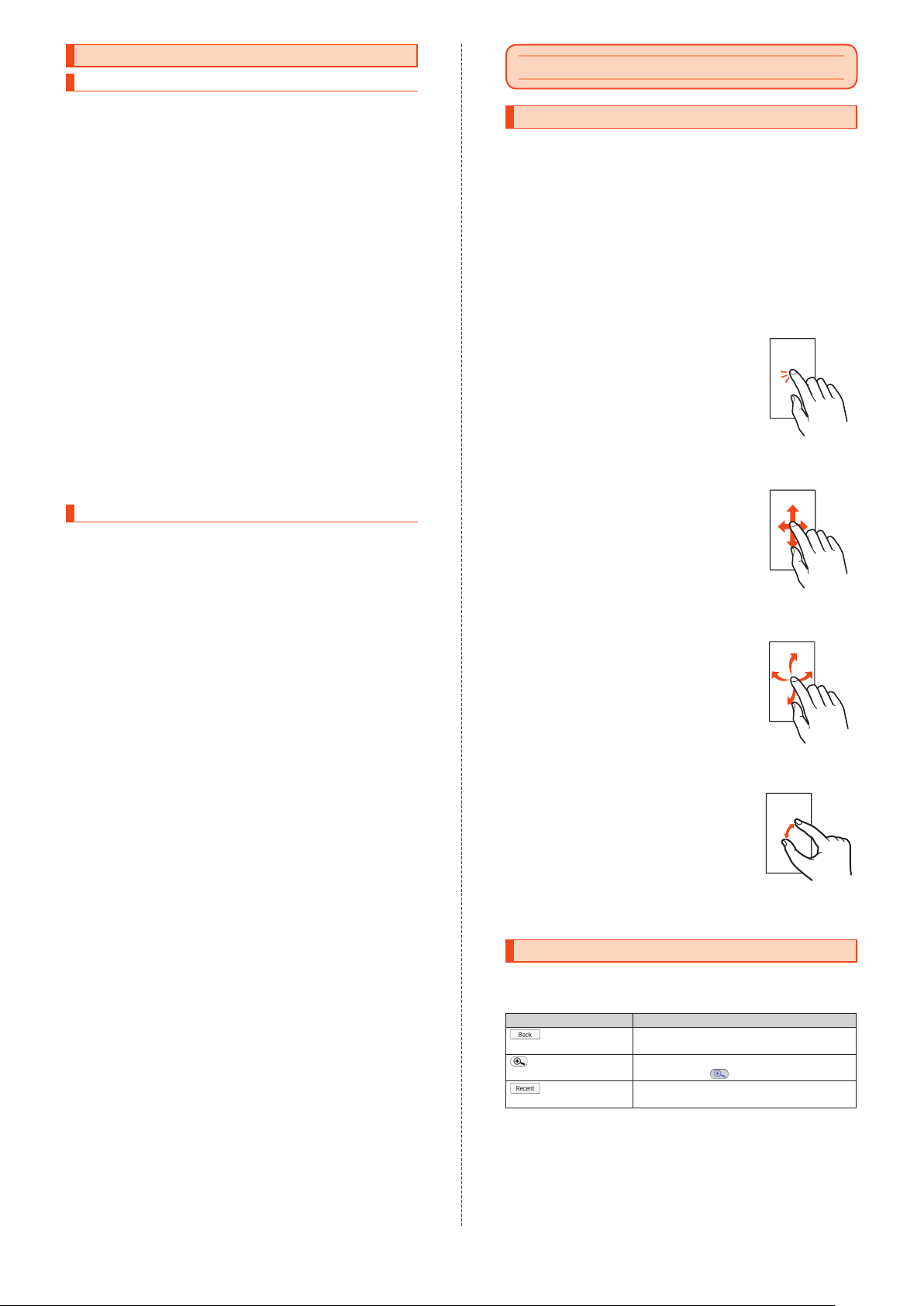
Transferring Data
Restoring Data via the au Settings Menu
Restore data from your previous au phone to the product using a
microSD memory card or au Smart Pass server.
•
To restore data using au Smart Pass server, you need to set up an au
ID beforehand.
•
To restore data using a microSD memory card, save the data to the
microSD memory card on your previous au phone beforehand.
Home screen → [設定] (Settings) under "
1
ト
" (Shortcuts) → [au Settings Menu]
[Data Transfer]
2
If a terms of use screen or privacy policy screen appears, follow
the on-screen instructions.
When Restoring Data from the Server
[au
スマートパスのサーバから戻す
3
] (Restore from au
Smart Pass server)
You need to set up an au ID beforehand.
Select the item(s) to restore, and then [戻す]
4
(Restore)
If a confirmation screen for Wi-Fi® connection appears, follow the
on-screen instructions.
→ [完了
] (Done)
When Restoring Data from a microSD Memory Card
[SD
カードから復元する
3
Select the type of your previous au phone
4
Select the item(s) to restore, and then [戻す]
5
(Restore)
If a confirmation screen for data restoration appears, follow the
on-screen instructions.
→ [完了
] (Restore from SD card)
] (Done)
Saving Data via the au Settings Menu
Back up important data regularly to a microSD memory card or au
Smart Pass server.
•
If the product needs to be submitted to an au shop, etc. for repair,
the memory will be cleared during the repair process. Back up data
beforehand.
•
To back up data using au Smart Pass server, you need to set up an
au ID beforehand.
Home screen → [設定] (Settings) under "
1
ト
" (Shortcuts) → [au Settings Menu]
[Data Transfer]
2
If a terms of use screen or privacy policy screen appears, follow
the on-screen instructions.
When Backing Up Data to the Server
[au
スマートパスのサーバに預ける
3
Pass server)
You need to set up an au ID beforehand.
Select the item(s) to back up, and then [
4
up)
→ [完了
If a confirmation screen for data backup or Wi-Fi® connection
appears, follow the on-screen instructions.
] (Done)
When Saving Data to a microSD Memory Card
[SD
カードに保存する
3
Select the item(s) to save, and then [
4
→ [完了
] (Done)
] (Save to SD card)
] (Back up to au Smart
ショートカッ
ショートカッ
預ける
保存する
] (Back
] (Save)
Basic Operations
Using Touch Panel
The product's display is a touch panel; operate with your fingers on
the display.
•
The touch panel is designed to be lightly touched by fingers. Do not
apply strong pressure to the touch panel with your fingers or press
sharp-pointed objects (such as ballpoint pens and pins) against it.
•
The touch panel may not respond or may malfunction in the following
cases.
・
Operation with gloved hands
・
Operation with fingernails
・
Operation with a foreign object left on the touch panel
・
Operation with a protective film or sticker on the touch panel
・
Operation with water drops or condensation on the touch panel
・
Operation with wet or sweaty fingers
・
Operation under water
Tap/Double-tap
Tap: Touch the screen lightly and briefly.
Double-tap: Tap the same position twice quickly
on the scree
•
Select an item or icon displayed on the screen.
Double-tap on a still picture, etc. to enlarge/
reduce it.
Slide/Swipe/Drag
Slide: Place your finger on the screen and move
your finger in the desired direction.
Swipe: Quickly slide a finger for a short distance.
Drag: Touch an item on the screen and slide your
finger across the screen.
•
Slide/swipe: Scroll the screen or toggle pages.
Operate the volume bar and brightness bar for
adjustment.
•
Drag: Move an item or icon to the desired
position.
Flick
Quickly brush the screen up/down or left/right.
•
Toggle pages, enter characters using flick input,
etc.
Pinch
Touch the screen with two fingers and move
them toward each other (pinch out) or away from
each other (pinch in).
•
Enlarge/reduce a still picture, etc.
n.
17
Using Touch Keys
The following icons appear at the bottom of the screen; use them as
touch keys.
•
Other icons (touch keys) may appear on some screens.
Icon Description
Back key
Magnifier key
Recent apps key
Return to the previous screen.
Enlarge part of the screen.
To cancel, tap .
Opens the recent apps screen.
Page 19
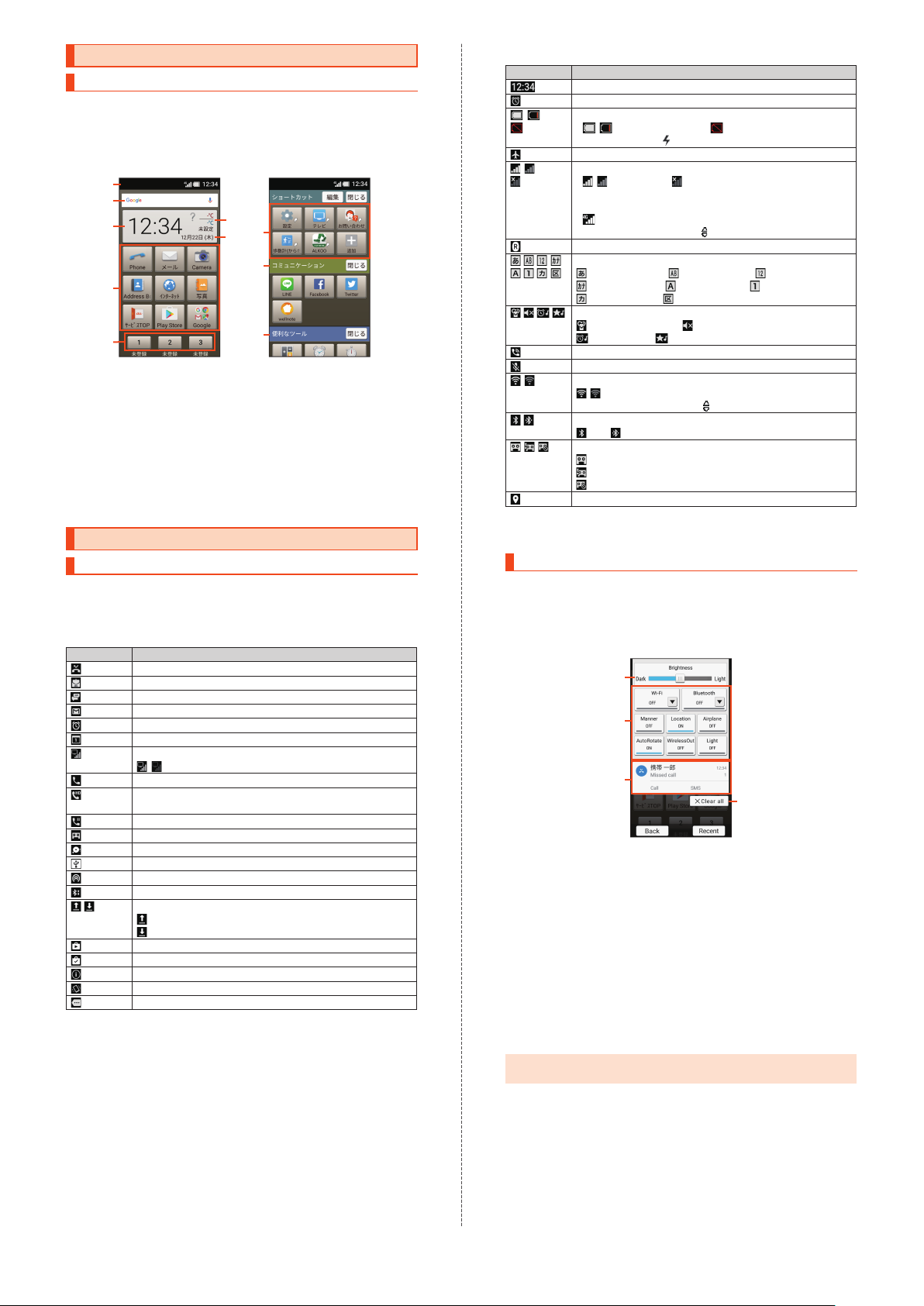
Using the Home Screen
Home Screen Layout
Most operations start from the home screen. Access main applications
from the top area, use Quick Buttons to call or send mail to registered
contacts, and save shortcuts to frequently used applications in
トカット
(Shortcuts). In the category area, applications are grouped by
type.
•
Slide/flick the home screen to scroll up/down for hidden portions.
①
②
③
⑥
⑧
⑦
⑨
④
⑤
《Home Screen (Top Area)》
Status bar
Quick search box
Time
Top area
Quick Buttons
Weather
Date
Shortcuts
Category
⑨
《Home Screen (Scrolled)》
ショー
Using the Status Bar
Indicators
Notification indicators (missed calls, new mail, running operations, etc.)
appear on the left side of the status bar, while status indicators appear
on the right side to show the status of the product.
Main Notification Indicators
Indicator Description
Missed call
New E-mail
New SMS
New Gmail
Alarm information
Calendar event
TV signal strength
- : Signal level
Call (dialing, in progress, arriving)
High-quality call in progress (with a model supporting
au's VoLTE)
Call on hold
Answering memo information
Low free space in the internal memory
USB tethering in use
Wi-Fi® tethering in use
Bluetooth® file reception request
Data (upload/download, transmission/reception, etc.)
: Data upload/transmission
: Data download/reception
Update available
Installation of application complete
Software update available
Bright Keep set to ON (Notify)
Indicators aggregated
Main Status Indicators
Indicator Description
- Battery level
- Signal strength (receiving electric field)
-
* "LTE" and "WiMAX 2+" networks are available. "4G" appears for both
networks. The product connects to the network deemed less congested by
the Company based on the network traffic.
Time
Alarm set
- : Charge remaining : No charge
•
While charging, appears in the battery indicator.
Airplane mode set
- : Signal level : Out of service area
•
A symbol indicating the network type appears in the
upper left corner.
: LTE/WiMAX 2+ available
During communication, appears in the indicator.
Roaming
Input mode
: Hiragana/Kanji : Half Alphabet : Half Numeric
: Half Katakana : Full Alphabet : Full Numeric
: Full Katakana : Character Code
Manner mode set
: Standard manner : Total silence
: Alarms only : Priority only
Handsfree call in progress
Microphone set to "Mute" during a call
Wi-Fi® signal strength
- : Signal level
•
During communication,
Bluetooth® in use
: On : Connected
Answering memo set
: No answering memo
: One to nine answering memos recorded
: Ten answering memos recorded
Determining location (High accuracy)
*
appears in the indicator.
Using the Notification/Status Panel
In the notification/status panel, check the status of the product and
notifications or activate applications corresponding to the notifications.
In addition, set manner mode, manage use of location information, etc.
Slide the status bar down
1
Notification/Status Panel Layout
①
②
③
④
《Notification/Status Panel》
Brightness bar
Use the slider to adjust brightness.
Function buttons
Change the settings of frequently used functions. Operations are
different depending on the function.
Notifications
Check the status of the product and notifications. Tap a notification
to activate the corresponding application.
•
Flick a notification to the left or right to delete it. Some notifications
may not be deleted.
•
Slide the notification area up for hidden notifications.
Clear all
Tap to delete all notifications. Some notifications may not be
deleted.
◎In the notification/status panel, slide the screen up to show only
notifications.
18
Page 20
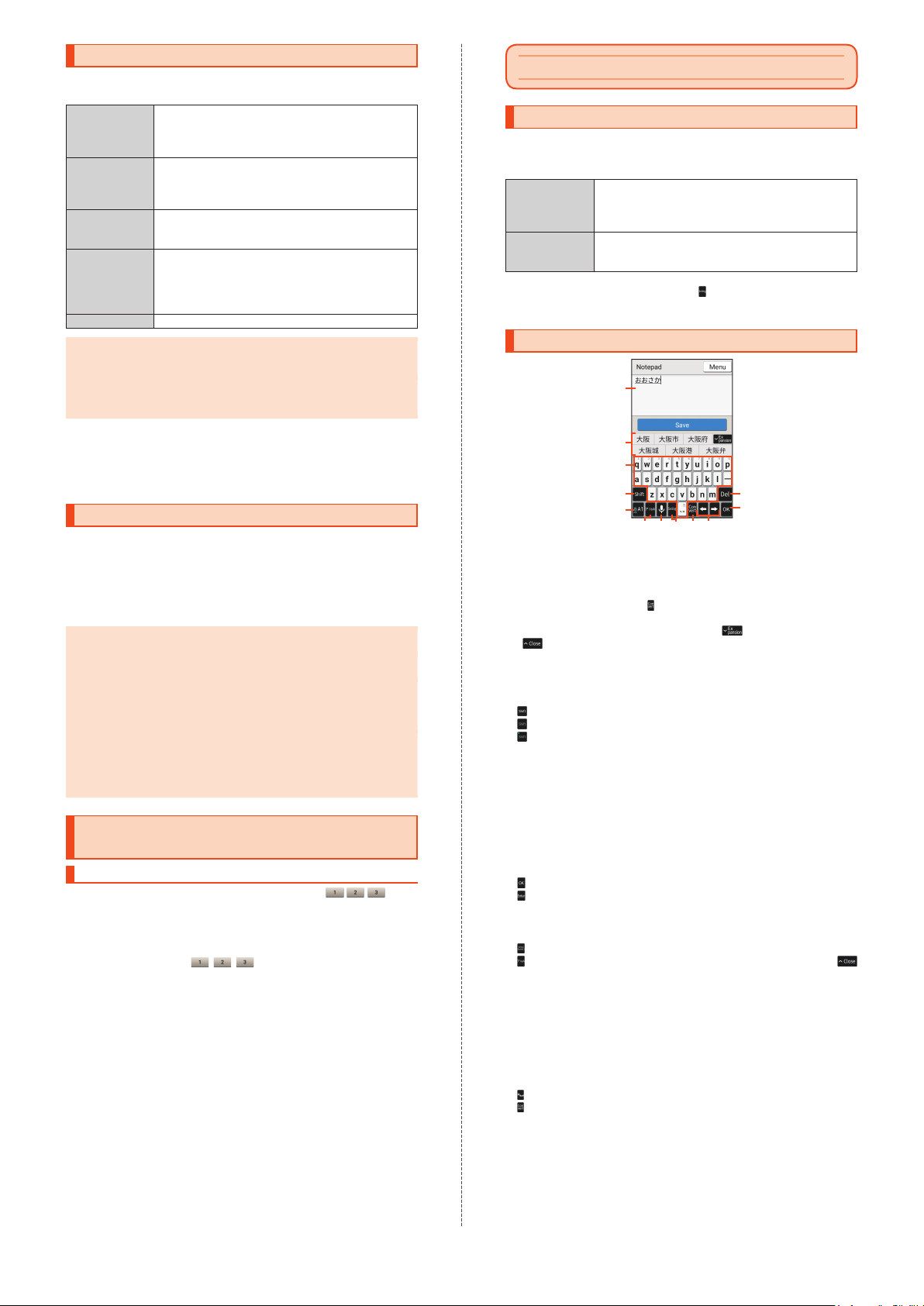
Setting the Manner Mode
Avoid disturbing others around you in public.
Available options are as follows.
Standard
manner
Total silence Ringtones and operation sounds are muted; the
Alarms only Ringtones and operation sounds are muted
Priority only Ringtones and notification sounds play accor
OFF Cancel the manner mode.
◎If the Answering memo setting is set to "Mannermode," answering
memo is enabled while the manner mode is set and follows the
answering memo settings.
◎
When the manner mode is set, the selected manner mode option
name appears in the corresponding function button. Tap the
button to cancel the manner mode.
Open the notification/status panel → Tap the
1
Ringtones and operation sounds are muted; the
product vibrates for incoming calls/mail, etc. Alarm
sounds according to the Alarm application settings.
Media sounds still play.
product does not vibrate for incoming calls/mail,
etc. Alarm sounds and media sounds are also
muted.
; the
product does not vibrate for incoming calls/mail,
etc. Alarm sounds and media sounds still play.
ding
to the "Priority only allows" settings in "Do not
disturb" under "Sound & notification." Other
responses are the same as when the manner
mode is canceled.
Manner function button
The manner mode setting screen appears.
Select the manner mode option to use
2
Setting Airplane Mode
When Airplane mode is set, wireless functions such as Phone features,
packet transmission, wireless LAN (Wi-Fi
disabled.
Home screen → [設定] (Settings) under "
1
ト
" (Shortcuts) → [All settings menu] → [More] →
[Airplane mode]
◎When using the product in Airplane mode on an airplane or in a
hospital, etc., follow the instructions of the airline/facility.
◎
Alternatively, to set Airplane mode, open the notification/status
panel
→
Tap the Airplane function button.
◎
When Airplane mode is set, calls cannot be made except to 110
(Police), 119 (Fire and Ambulance), 118 (Regional Coast Guard
Headquarters) or 157 (Customer Servi
Airplane mode will be disabled after the call.
◎
When Airplane mode is set, calling and sending/receiving mail are
not available. In addition, setting Airplane mode disables wireless
LAN (Wi-Fi
Bluetooth
Airplane mode.
®
) and Bluetooth®. To use wireless LAN (Wi-Fi®) or
®
while Airplane mode is set, enable it after setting
®
) and Bluetooth® are
ショートカッ
ce Center). Note that
Registering Frequently Used Contacts to Quick Buttons
Registering Contacts to Quick Buttons
Register frequently used contacts to Quick Buttons ( at the
bottom of the home screen) to make calls or create E-mail/SMS easily.
•
Save the contact with a phone number and e-mail address to
Address Book beforehand.
•
The name of the registered contact appears under the Quick Button.
Home screen → / / → [Yes] → Select the
1
contact to register
Select an icon for the contact
2
The contact is registered to the Quick Button.
To select a preset icon: [Select from presets]
[Yes].
→
[Next]
→
Select an icon →
Character Entry
Switching Software Keyboards
The software keyboard appears when an entry field is selected on a
character entry screen to save a contact, create a mail, etc.
Available software keyboards are as follows.
12-key
keyboard
QWERTY
keyboard
Character entry screen → [ ] → [Input UI] →
1
[QWERTY keyboard]/[12 keyboard]
Character Entry Screen Layout
Character entry field
Word suggestions
Predictive word suggestions appear when a character is entered.
Enter a character and tap
(available in the Hiragana/Kanji input mode).
•
To expand the word suggestion list, tap . To collapse it, tap
.
Character keys
Enter the assigned character.
Shift key
Toggle case. The key appearance changes as follows.
: Lowercase
: Uppercase
: Caps lock
In number entry, switch available symbol keys.
Input mode key
Toggle the input mode. The current input mode is indicated in blue
by one of the following characters.
あ
: Hiragana/Kanji
A
: Half Alphabet
1
: Half Numeric
Delete key
Delete characters.
OK key or Enter key
: Confirm the entry.
: Insert a line break at the cursor position.
•
The appearance and function of the key change depending on the
application or entry field.
Pictogram/symbol/emoticon key or Katakana/letter key
: Open the pictogram/symbol/emoticon list.
: Show word suggestions consisting of katakana or letters; tap
to close the word suggestion list. (Available in the Hiragana/Kanji
input mode.)
Voice Input key or Undo key
Change the input method to "Voice Input" or undo the last operation
(for example, tap the key after confirming an entry; the entered
characters revert to the unconfirmed state).
Setting key
Open the S-Shoin menu.
Space key or Conversion key
: Enter spaces.
: Show word suggestions.
Cursor keys
Move the cursor to the left or right.
Segment a word/phrase for conversion before confirming the entry
(available in the Hiragana/Kanji input mode). The right cursor key
acts as a space key when used at the end of text.
Keys are arranged in the same order as
conventional cell phones. Tap a character key to
toggle character options for that key, and then
enter the character.
Keys are arranged in the same order as
conventional computer keyboards. Tap a character
key to enter the assigned character.
①
②
③
④
⑤
⑥
⑦
⑩ ⑪ ⑫⑨⑧
《Character Entry Screen (QWERTY)》
for non-predictive word suggestions
19
Page 21
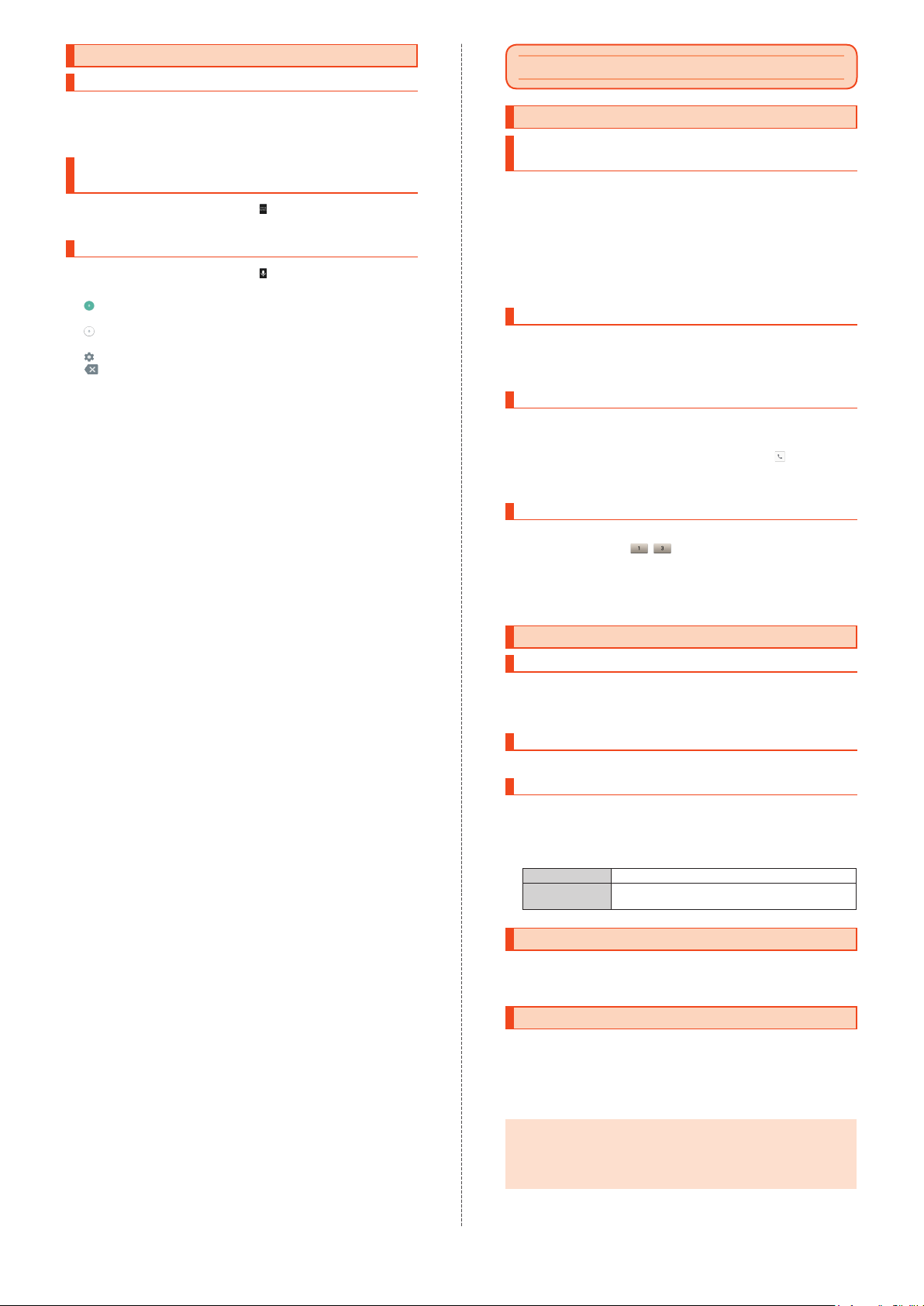
Character Entry Basics
Entering Characters
Example: When entering "Tokyo"
Character entry screen → Enter "tokyo"
1
Tap "Tokyo" in word suggestions
2
Entering Pictograms, Symbols, or
Emoticons
Character entry screen → [ ]
1
Select pictograms, symbols, or emoticons
2
Entering Characters Using Voice Input
Character entry screen → [ ]
1
Speak to the mouthpiece (microphone)
2
: Speech recognition is enabled. Characters are entered when
the recognition is complete. Tap to pause the recognition.
: Speech recognition is paused. Tap to resume.
×
: Tap to switch back to the software keyboard.
: Make voice input settings.
: Delete entered characters.
Using Call Functions
Making Calls
Making a Call by Entering a Phone
Number
c
1
Enter a phone number
2
Include the area code for landline phone numbers even if they are
in the same area code.
[Call] → Call connects
3
To adjust the call volume of the other party's voice, press u(+) or
(-) during a call.
d
[End call]
4
Making a Call Using Call History
→ [Incoming]/[Outgoing]
c
1
Select the record you want to use
2
[Call]
3
Making a Call Using Address Book
Save the contact to Address Book beforehand (▶P. 20).
→ [Addr.]
c
1
Select the contact you want to call → [ ] → Call
2
connects
[End call]
3
Making a Call Using a Quick Button
Register the contact to a Quick Button beforehand (▶P. 19).
Home screen → - (where the contact is
1
registered)
[Call] → Call connects
2
[End call]
3
Receiving Calls
Answering a Call
When a call arrives, c flashes.
When a call arrives,
1
Talk → [End call]
2
c
Answering a Call Using Answering Memo
When a call arrives, [Menu] → [Absence Memo]
1
Playing Back Answering Memos
Home screen → [設定] (Settings) under "
1
ト
" (Shortcuts) → [All settings menu] → [Call] →
[Call/Ans Memo]
2
Select the answering memo to play back
Stop Stop the playback.
Speaker on/
Speaker off
→
[Answering Memo List]
Switch between the speaker and earpiece for
the sound.
ショートカッ
Checking Your Own Phone Number
Home screen → [設定] (Settings) under "
1
ト
" (Shortcuts) → [Profile]
ショートカッ
Saving Contacts to Address Book
Home screen → [Address Book]
1
[Menu] → [Add new entry]
2
Enter information in the fields as needed
3
[Save] → [Yes]
4
◎Contacts saved in Address Book may be altered or lost due to
accidents or malfunctions. It is recommended that you keep a
copy of important phone numbers, etc. Note that the Company is
not liable for any damages or lost profits resulting from alteration
or loss of contacts due to accidents or malfunctions.
20
Page 22
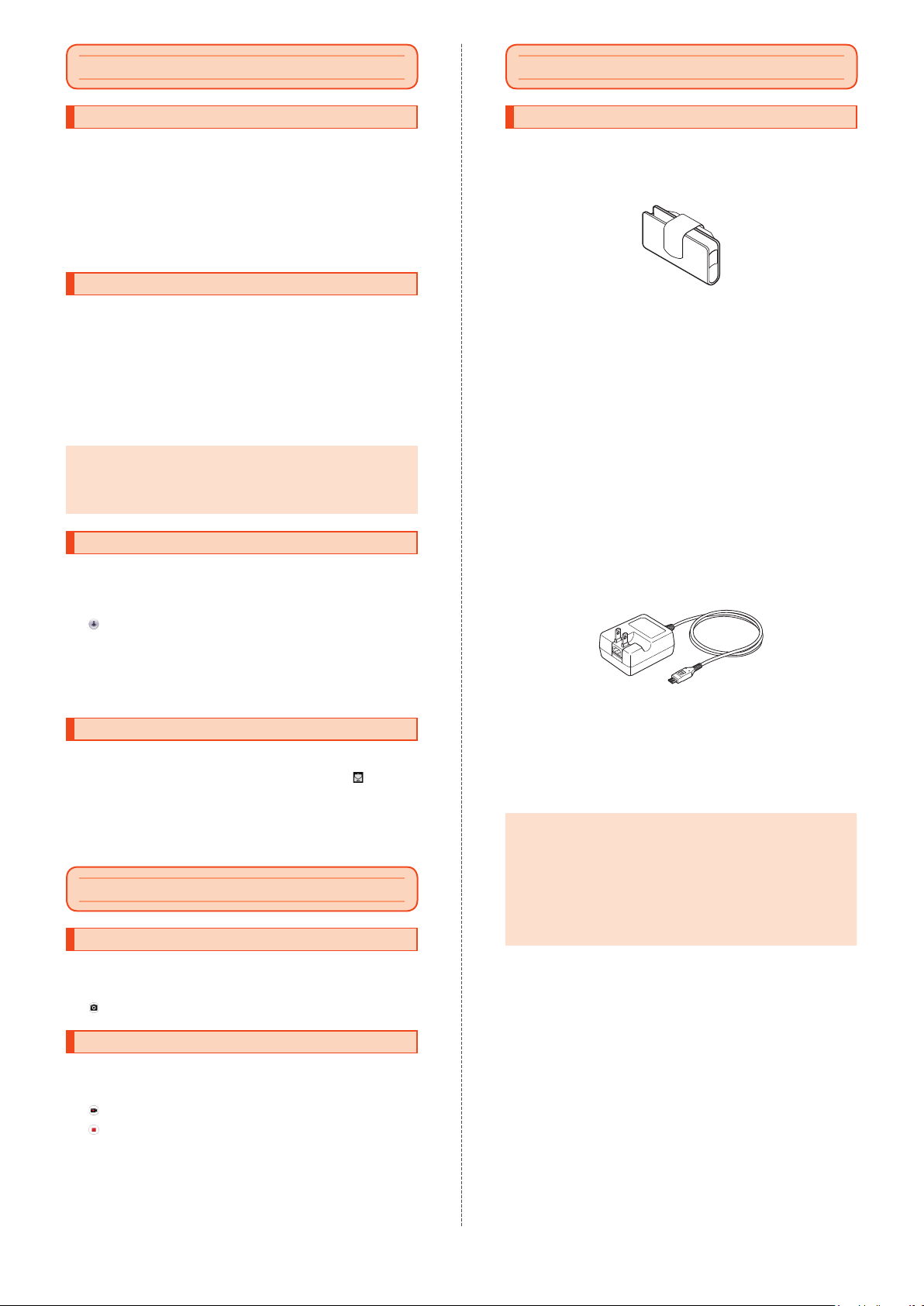
Using E-mail
Appendix
Making Initial Settings for E-mail
→
[E-mail]
m
1
When activating E-mail for the first time, the E-mail address initial
setting screen appears.
[
接続する
2
[
3
Read the contents → [Close]
4
[
5
] (Connect)
閉じる
] (Close)
同意する
] (Agree) → [完了] (Done)
Changing E-mail Address
→
[E-mail] → [MENU] → [Change Address/
m
1
Setting Filter]
レスの変更へ
Enter the security code → [送信] (Send)
2
[
承諾する
3
Enter characters in the editable portion of E-mail
4
address (before @)
→ [接続する
] (Connect) → [E
] (Change e-mail address)
] (Accept)
→ [送信
] (Send) → [OK] → [
メールアド
(Close)
◎In the editable portion of E-mail address, enter up to 30 single-
byte alphanumeric characters including ".", "-" and "_". Note that
"." cannot be entered consecutively or used as the first or last
character of the portion. "0" also cannot be used as the first
character.
Sending E-mails
→
[E-mail]
m
1
[Create new]
2
Create mail screen appears.
[ ] → [Address book] → Select the recipient
3
Alternatively, tap "Enter address" to enter an address directly.
Enter the subject
4
Enter the body text
5
[Done] → [Send] → [Send]
6
Receiving E-mails
When an e-mail arrives, the mail ringtone sounds and
•
When an e-mail arrives while the display is turned on (except in the
lock screen), a new e-mail notification appears and then
in the status bar.
→
[E-mail]
m
1
Select [Inbox] or a created folder
2
Select the e-mail
3
m
flashes.
appears
Using Camera
Shooting Still Pictures
閉じる
Introduction of Peripheral Devices
Desktop holder (SHV36PUA)
SHARP TV antenna cable 02 (02SHHSA) (sold
separately)
au Carrying Case G Black (0106FCA) (sold separately)
Common AC Adapter 03 (0301PQA)
(sold separately)
Common AC Adapter 05 (0501PWA)
(sold separately)
Common AC Adapter 03 Navy (0301PBA)
(sold separately)
Common AC Adapter 03 Green (0301PGA)
(sold separately)
]
Common AC Adapter 03 Pink (0301PPA)
(sold separately)
Common AC Adapter 03 Blue (0301PLA)
(sold separately)
AC Adapter JUPITRIS (White) (L02P001W)
(sold separately)
AC Adapter J
(sold separately)
AC Adapter JUPITRIS (Blue) (L02P001L)
(sold separately)
AC Adapter JUPITRIS (Pink) (L02P001P)
(sold separately)
AC Adapter JUPITRIS (Champagne) (L02P001N)
(sold separately)
•Style varies by model.
Portable charger 02 (0301PFA) (sold separately)
microUSB cable 01 (0301HVA) (sold separately)
microUSB cable 01 Navy (0301HBA) (sold separately)
microUSB cable 01 Green (0301HGA) (sold separately)
microUSB cable 01 Pink (0301HPA) (sold separately)
microUSB cable 01 Blue (0301HLA) (sold separately)
◎It may not be possible to charge the product adequately with
Portable charger 02 (sold separately).
◎
For the latest information about available peripheral devices, refer
to the au website (http://www.au.kddi.com/english/) or contact
Customer Service Center.
◎
The product does not support ASYNC/Fax transmission.
◎
The above-mentioned peripheral devices can be purchased from
au Online Shop. They may not be available for purchase
depending on the stock status.
http://auonlineshop.kddi.com/
UPITRIS (Red) (L02P001R)
Common AC Adapter 05
Slide the camera slide cover down → [OK]
1
Aim the out camera at the subject
2
[ ]/s (shutter key)
3
Recording Videos
Slide the camera slide cover down → [OK]
1
Aim the out camera at the subject
2
[ ] → Recording starts
3
[ ] → Recording stops
4
21
Page 23
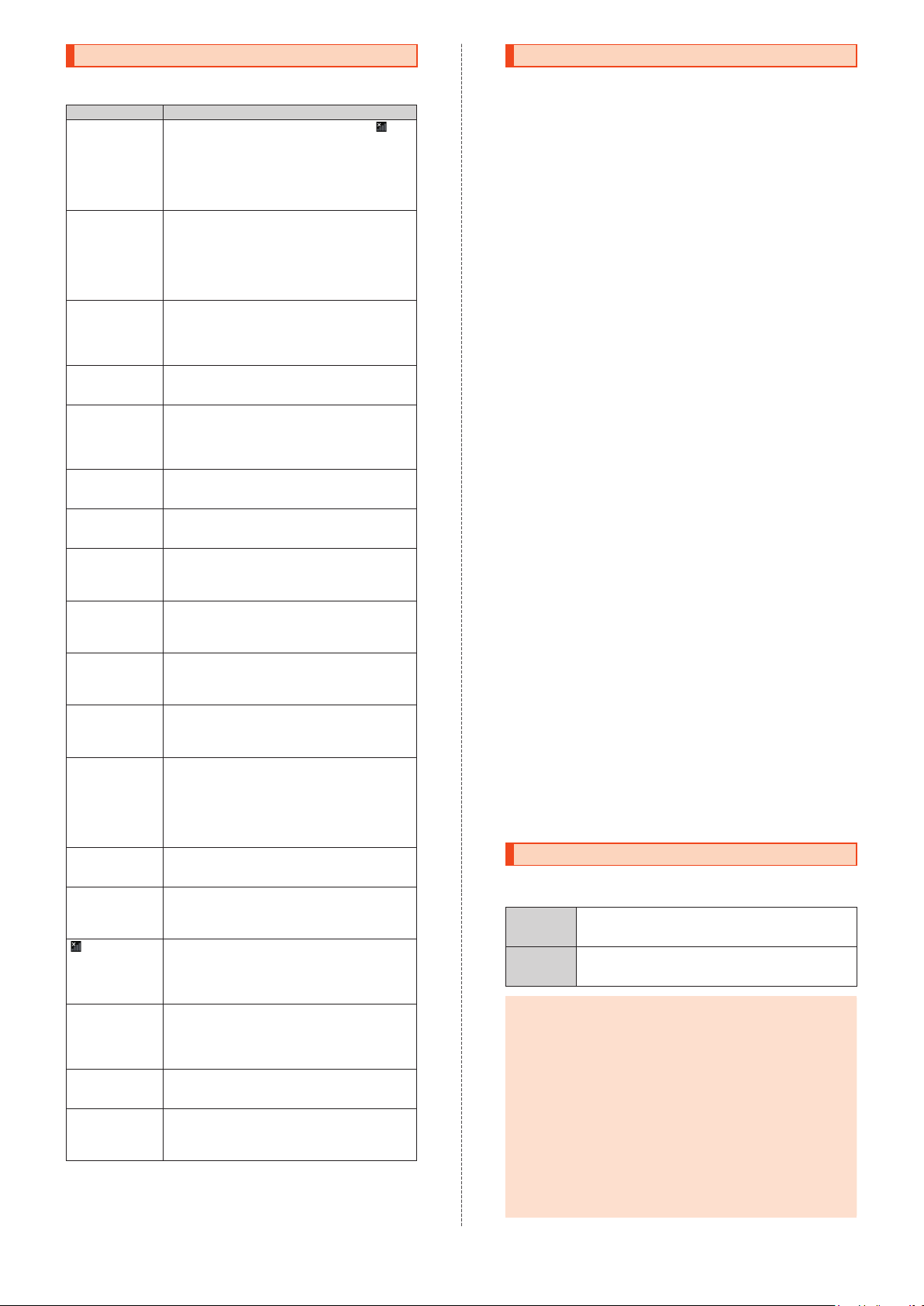
Troubleshooting
Before you assume that the product is malfunctioning, check the
following:
Problem Suggestion/possible cause
Battery runs out
fast
Cannot make
calls
Cannot receive
calls
Cannot hear the
other party
microSD memory
card is not
recognized /
Cannot find
target data
Cannot operate
the keys or touch
panel
Cannot charge
the battery
Cannot turn on
the product
Cannot operate /
Screen is frozen /
Cannot turn off
the product
Cannot operate
the touch panel
as intended
Response to
touch input or
key operation is
slow
An au IC car
(SIM)-related
error message or
a message
indicating that the
card is not
inserted appears
The product
turns off
automatically
The product
turns off after the
power-on logo
appears
(out of service
area) is displayed
The display
illuminates and
flashes but
c
the ringtone does
not sound
Low-battery
related message
is displayed
Call does not
connect and a
beep is heard
from the earpiece
•Avoid using the product in places where (out
of service area) appears (
•
The internal battery has reached the end of its
▶
P. 18).
life.
Check the battery status (
•
The battery is not adequately charged (▶P. 14).
•
Turn off functions you do not need (▶P. 18).
•
An au Nano IC Card 04 is not inserted (▶P. 13).
•
The phone number is incorrect or the area code
is missing (
•
Airplane mode is set (▶P. 19).
•
The product is turned off (▶P. 15).
•
Tap "Call" after entering the phone number (
▶
P. 20).
▶
P. 14).
P. 20).
•
Reception is poor (▶P. 18).
•
You are outside the service area (▶P. 18).
•
Airplane mode is set (▶P. 19).
•
The product is turned off (▶P. 15).
•
An au Nano IC Card 04 is not inserted (▶P. 13).
•
The call volume is too low(▶P. 20).
•
The earpiece is blocked with your ear. Place the
earpiece over your earhole.
•
The microSD memory card is not inserted
correctly (
•
The data is saved in the internal memory. Data
▶
P. 13).
can be saved in the internal memory besides
microSD memory cards.
•
Turn off the product and then turn it back on.
•
The product is turned off (▶P. 15).
•
The power plug of the specified charger (sold
separately) is not securely plugged into the
outlet (
▶
•
•
P. 14).
The internal battery is not adequately charged
(
▶
P. 14).
Make sure that you press and hold f(p) (
P. 15).
•
To force power off, press and hold f(p) for
at least 8 seconds, and then release the key
after the product vibrates. Turn the pr
back on after a while (
•
Do not operate with gloved hands.
•
Do not operate with fingernails or with a foreign
▶
P. 15).
object between the display and your finger.
•
Restart the product (▶P. 15).
•
A large amount of data is stored in the product
or large data is being exchanged between the
internal memory and microSD memory card.
•
d
An au Nano IC Card 04 is not inserted (▶P. 13).
•
The battery has run out (▶P. 14).
•
The battery has run out (▶P. 14).
•Reception is poor (▶P. 18).
•
You are outside the service area (▶P. 18).
•
Your hand is on the internal antenna area (
P. 12).
•
An au Nano IC Card 04 is not inserted (▶P. 13).
•
Manner mode is set (▶P. 19).
•
The battery is almost empty (▶P. 14).
•
Reception is poor (▶P. 18).
•
You are outside the service area (▶P. 18).
•
The network or number is busy. Try again later.
oduct
Updating Software
The product supports software updates.
The software update function is also used for operating system
updates. An operating system update is a software update which
includes an upgrade of the product's operating system.
Home screen → [設定] (Settings) under "
1
ト
" (Shortcuts) → [All settings menu] → [About
phone]
→
[Software Update]
ショートカッ
When you tap "OK," the product starts to check for a software
update in the background. If there is an update, you can download
and install it as needed.
•
If "Software update" is displayed in the notification/status panel,
tap the notification and then follow the on-screen instructions.
[YES] → [OK]
2
To install it later, [LATER] → [OK]. A confirmation screen for
▶
installation will appear after approximately 24 hours.
Notes on Software Update
•You will be charged for data communication when connecting to the
Internet from the product using packet communication. Large-volume
data communication occurs in particular for operating system
updates. Use of Wi-Fi
•
Whenever a software update is available, the information will be
announced on the au website, etc. for you. For details, contact an au
shop or Customer Service Center (
users of the SHV36 may receive a notice from au when software
update is necessary to impr
•
It is recommended that you back up data before updating the
software.
•
When the software update is performed, the product restarts before
and after the update.
•
If the software update has failed or stopped, perform it again.
•
A software update failure may disable the product. If this happens,
take the product to an au shop or PiPit (not accepted by some
shops).
•
Charge the battery adequately before performing the update. If the
battery level is low or if the battery runs low during the update, the
software update will fail.
•
Check the signal reception. The software update may fail in poor
▶
reception areas.
•
The software update will not change data stored on the product
(contacts, mails, still pictures, music files, etc.) or the settings.
However, data may be affected by the update depending on the
condition of the product (malfunctioning, damaged, water seepage,
etc.).
•
After the software is updated, download of another software update
may start automatically (consecutive updates).
•
During international roaming, the software update function is available
only when the product is connected to Wi-Fi
®
Wi-Fi
before performing the software update.
•
Once the operating system is updated, it cannot be reverted to its
previous version.
What not to do during the software update:
•
Do not change locations.
Restrictions during the software update:
•
You cannot operate the product. Not even calls to 110 (Police), 119
(Fire and Ambulance), 118 (Regional Coast Guard Headquarters) or
157 (Customer Service Center) can be made. Alarm and other
functions are also disabled.
®
is recommended.
call toll-free 157). In addition,
ove the functionality of the SHV36.
®
. Be sure to connect to
After-Sales Service
When Requesting a Repair
For repair, contact Keitai Guarantee Service Center.
During the
warranty
period
Outside the
▶
warranty
period
◎Contents in the internal memory may be lost due to repairs; keep
a copy of the contents. Note that the Company is not liable for any
damages or lost profits resulting from altered or lost contents.
◎
Recycled parts that meet the Company's quality standards may
be used for repair.
◎
Your au cell phone collected by the replacement mobile phone
delivery service will be repaired and recycled as another
replacement cell phone. Likewise, parts replaced by the au
after-sales service will be collected and recycled by the Company
Therefore, they cannot be returned to you.
◎
Instances where the product has been changed, modified, or
analyzed (including software modification or analysis (including
rooting, etc.), reverse-engineered, reverse-compiled, or reverseassembled) or has been repaired at a lo
authorized repair location designated by the Company may not be
covered by the warranty or may prevent the pr
accepted for repairs.
Repairs will be performed under the Company's terms
and conditions of the free-of-charge repair service
described on the warranty.
If the product is repairable, repairs will be performed
for a fee at your request.
.
cation other than an
oduct from being
22
Page 24
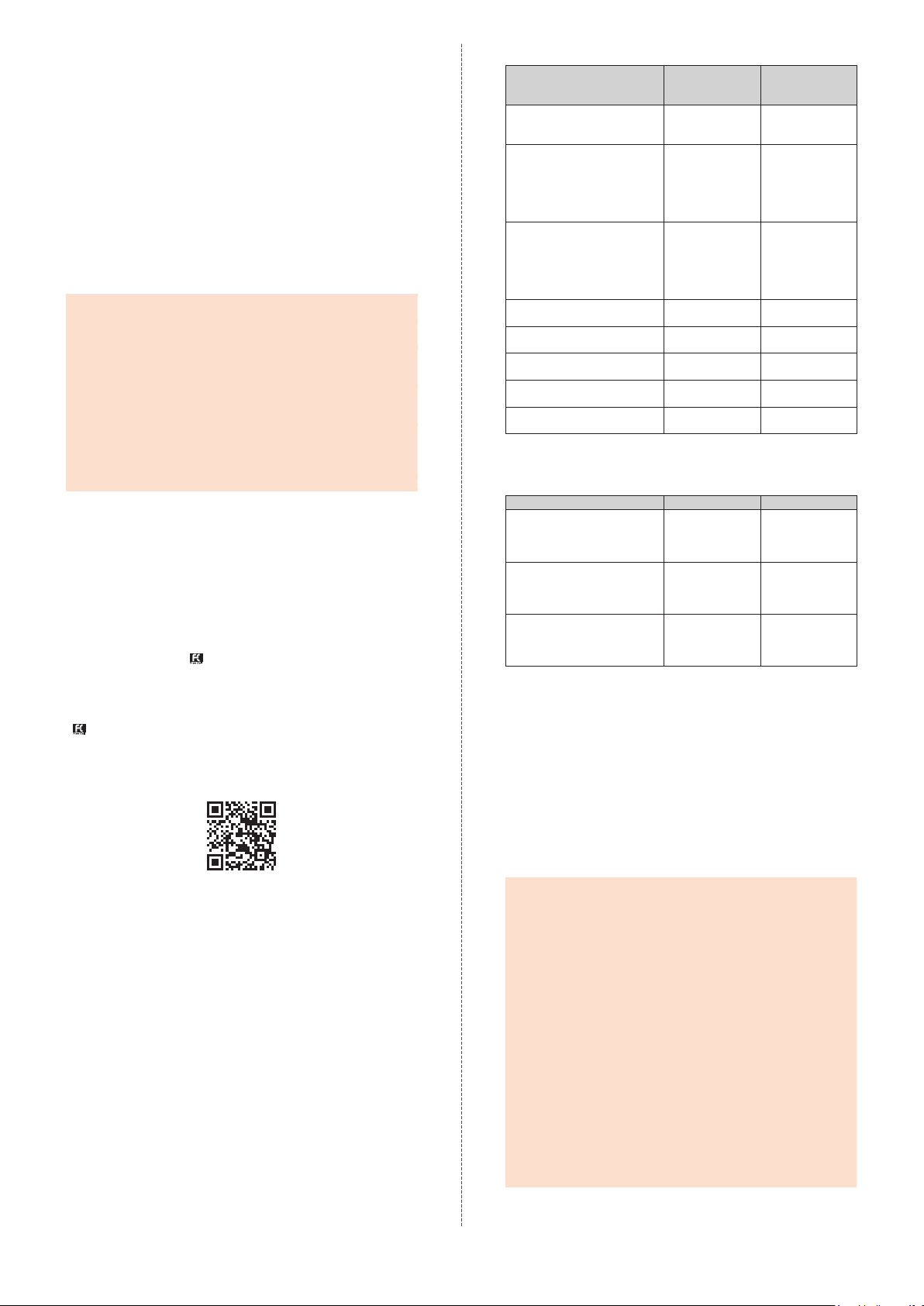
Performance Parts for Repair
The Company retains performance parts for repair for the SHV36 main
unit and its peripheral devices for 4 years after discontinuation of
production. Performance parts for repair refer to parts required for
maintaining the functionality of a product.
Warranty
At the store of purchase, check the name of the retailer, date of
purchase and other details written in the warranty. Read the contents
thoroughly and keep it in a safe place.
Keitai Guarantee Service Plus LTE
An after-sales service membership program on a monthly basis called
"Keitai Guarantee Service Plus LTE" (monthly fee: 380 yen, tax
excluded) is available for continued safe use of your au cell phone.
This service expands coverage for many troubles including
malfunction, theft and loss.
For details on
this service, refer to the au website or contact Keitai
Guarantee Service Center.
◎Membership application is available only at the time of purchasing
an au cell phone.
◎
Once you cancel your membership, you cannot reapply for the
membership until you purchase another au cell phone.
◎
In the case of cell phone upgrade or purchase of additional cell
phones, this service only covers the most recently purchased au
cell phone.
◎
In the case of transfer of ownership of an au cell phone, the Keitai
Guarantee Service Plus LTE membership is also transferred to the
successor of the au cell phone.
◎
If you purchase a new au cell phone (for upgrade, additional
purchase, etc.), your membership of the Keitai Guarantee Service
Plus or the Keitai Guarantee Service Plus LTE for your previous au
cell phone will be canceled automatically.
◎
Service features are subject to change without prior notice.
au Nano IC Card 04
The au Nano IC Card 04 is lent to you by au. Note that in case of loss
or damage, the card needs to be replaced at your own expense.
When malfunction is suspected, or in case of theft or loss, contact an
au shop or PiPit.
After-Sales Service
If you have any questions regarding the after-sales service, contact the
following service centers.
Customer Service Center (for line suspension in case of loss or
theft)
From a landline phone,
From an au cell phone, 113 without an area code (toll free)
Business hours: 24 hours a day (7 days a week)
Keitai Guarantee Service Center (in case of loss, theft or damage)
From a landline phone/au cell phone,
0120-925-919 (toll free)
Business hours: 9:00 a.m. to 8:00 p.m. (7 days a week)
Online Replacement Desk (24 hours a day)
(Accessible from PCs and smartphones only)
(https://cs.kddi.com/support/n_login.html)
•Online applications are available for an incident of damage, water
seepage, theft, or loss. In the case of spontaneous failure (for
example, the product does not turn on or the screen is frozen and
the cause is not damage or water seepage), application is accepted
only by telephone since consultation is required.
•
An e-mail address is required for online applications.
0077-7-113 (toll free)
au After-Sales Service Information
*1
)
*1
)
*1
)
Keitai Guarantee
Service Plus LTE
non-member
N/A
N/A
Actual cost
Actual cost
Ac
tual cost
N/A (upgrade
supported)
8,000 yen
(6,000 yen for
longtime au
users
7,000 yen
(5,000 yen for
longtime au
users
7,500 yen
(5,500 yen for
longtime au
users
dle
*
as your cell
*1
)
*1
)
*1
)
Service
Service Plus LTE
member
Replacement mobile phone
Keitai Guarantee
delivery service (spontaneous
Free N/A
failure; 1st year)
See "Fees for the
Replacement mobile phone
delivery service (spontaneous
failure; 2nd year and later)
Replacement
Mobile Phone
Delivery Service
(for Members)"
below
Replacement mobile phone
delivery service (partial
damage, wate
r seepage,
irreparable damage, theft or
loss)
Depot repair (spontaneous
failure; 1st year)
Depot repair (spontaneous
failure; 2nd year and later)
Depot repair (partial damage)
Depot repair (water seepage
or irreparable damage)
See "Fees for the
Replacement
Mobile Phone
Delivery Service
(for Members)"
below
Fr
ee Free
Free (three-year
warranty)
Charge
Up to 5,000 yen
Charge
10,000 yen
Depot repair (theft or loss) N/A
All fees exclude tax.
Fees for the Replacement Mobile Phone Delivery
Service (for Members)
Applicable condition First time Second time
General
"Online application discount"
and "No substitute phone
*3
discount"
"No substitute phone
discount"
All fees exclude tax.
*1 Applies to customers who have been au users for at least 25 months and
*2 Onl
*3 No substitute phone discount: If you
applied
*3
applied
to all the lines in that customer's Family Discount plan. The discount also
applies to users of a data communication device or a tablet who are
subscribed to a bundle discount plan (WIN Single Set Discount or
Smartphone Set Discount) and have been using a line in the bun
discount plan for at least 3 years.
ine application discount: If you apply for the replacement mobile phone
delivery service from the au website, 500 yen will be deducted from the
service fee.
"No substitute phone discount" automatically applies at the same time
since a substitute cell phone cannot be lent when "Online application
discount" applies.
phone when using the replacement mobile phone delivery service, 500
yen will be deducted from the service fee.
For details, r
fer to the au website.
e
Replacement Mobile Phone Delivery Service
◎
If you have trouble with your au cell phone, you can have a
replacement cell phone (same model and color
phone) delivered to the specified address by calling us. Please
return your current (faulty) au cell phone within 14 days after the
replacement cell phone is delivered to you.
* If a replacement cell phone of the same model and color is not
available, a replacement cell phone of the model and color specified by
the Company will be provided.
◎You can use this service up to twice a year starting from the date
of first use. If you have not used this service over the past year at
the time of your application for this service, the application will be
regarded as the first time. If you have, the application will be
regarded as the second
time.
For details, refer to the au website.
◎
In the event of theft or loss of the product, an au IC card has to be
reissued when using this service. In such cases, an additional fee
of 1,900 yen is required for the reissue of the au IC card.
Depot Repair
◎
This service does not cover repair of damage or malfunction
intentionally caused by the customer or resulting from modification
(disassembly, par
◎
No discount applies to replacement of the outer casing due to
ts replacement, painting, etc.) by the customer.
stains, scratches, abrasion of coating, etc. on the outer casing.
5,000 yen
(3,000 yen for
l
ongtime au
users
4,000 yen
*2
(2,000 yen for
longtime au
users
4,500 yen
(2,500 yen for
l
ongtime au
users
do not request a substitute cell
23
Page 25
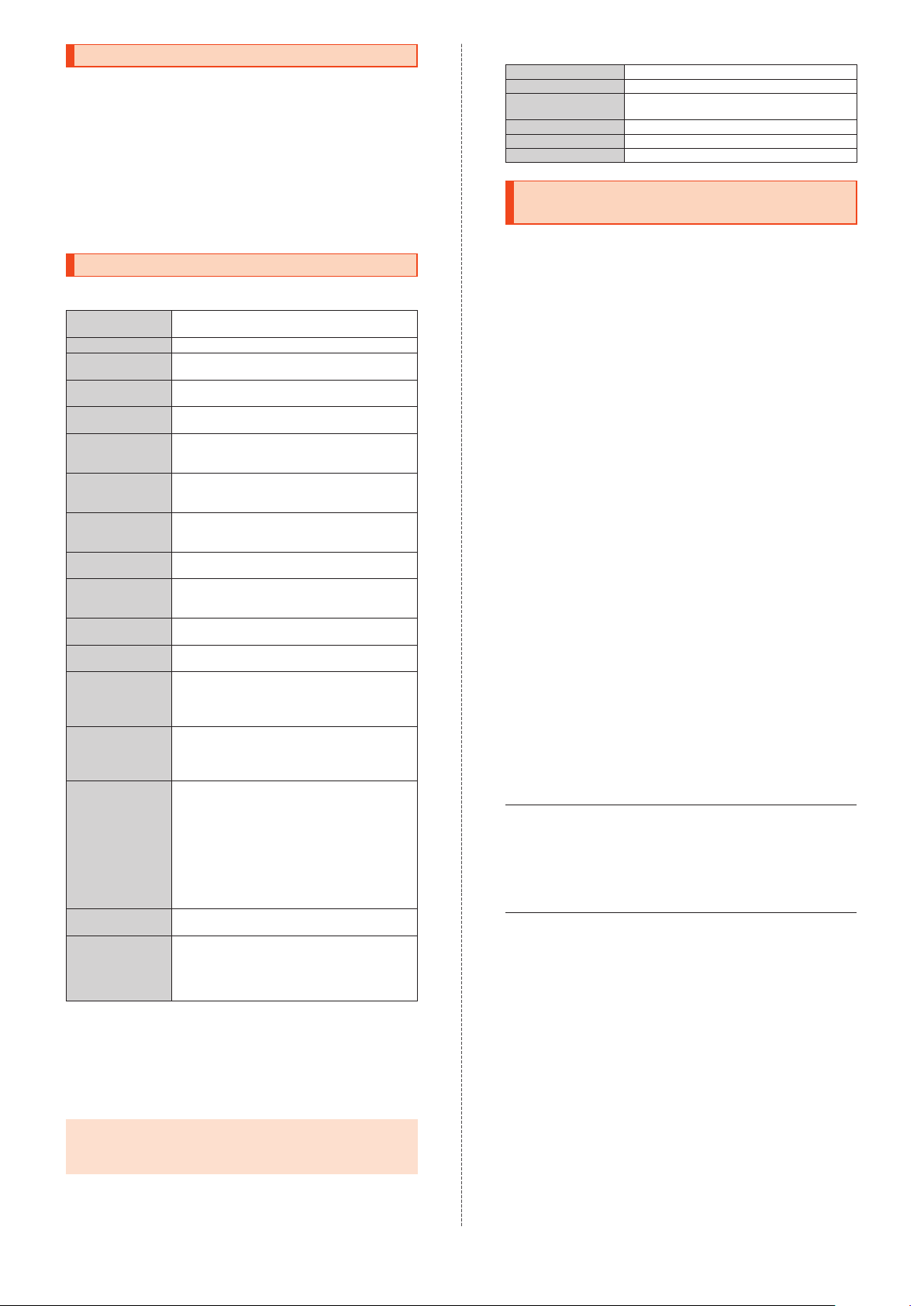
SIM-Unlocking the Product
The product can be SIM-unlocked. SIM-unlocking the product allows
other-carrier SIM cards to be used with it.
•
A request for SIM-unlocking can be made on the au website or at an
au shop.
•
Some services, functions, etc. may have restrictions when an
other-carrier SIM card is used. The Company does not guarantee
operation whatsoever.
•
Setting after SIM-unlocking the product can be made after these
steps: Home screen
(Shortcuts)
status]
→
[SIM lock status]
→ [設定
→
] (Settings) under "
[All settings menu] → [About phone] → [Status] → [SIM
ショートカット
"
For details, refer to the au website.
http://www.
au.kddi.com/english/support/contract/simcard/unlock/
Main Specifications
Main Unit (SHV36)
Display Approx. 5.0 inches, approx. 16.77 million
Weight Approx. 150
Dimensions (W x H
x D)
Memory (built-in) RAM: Approx. 2 GB
Continuous talk
time (in Japan)
Continuous talk
time (overseas
(GSM))
Continuous
standby time (in
Japan)
Continuous
standby time
(overseas (GSM))
Continuous
tethering time
Maximum Wi-Fi
tethered
connections
Charging time Common AC adapter 05 (sold separately):
Continuous 1Seg
watching time
Camera device Out camera
Effective pixels Out camera
Bluetooth
®
function Communication method: Bluetooth® Standard
Network
environment
Interface microUSB jack, 3.5 mm 4 pole earphone/
*1 Varies depending on the usage.
*2 Affected by obstacles between communication devices; varies depending
on the signal conditions.
*3 Specifications defined in Bluetooth
*4 Address Book data (contacts) may not be displayed correctly on recipient
*5 A profile that supports Bluetooth
*6 Supports some car navigation systems. Refer to the au website for use.
Bluetooth
devices.
®
◎The continuous talk time and continuous standby time may be
less than half depending on the charge on the battery, usage
environment such as temperature or signal reception, function
settings, etc.
colors, IGZO, 1,280
×
720 (HD)
g
(including the internal battery)
Approx. 71 mm x 143 mm x 9.3-12.0 mm
Internal storage: Approx. 16 GB
Approx. 1,170 min.
Approx. 900 min.
Approx. 820
hours
Approx. 940 hours
Approx. 680 min.
®
10 devices
Approx. 130 min.
Approx. 11 hours and 40 min.
*1
CMOS image sensor
In camera
CMOS image sensor
Approx. 13.10 million pixels
In camera
Approx. 5.00 million pixels
Ver.4.2
Output: Bluetooth
Communication distance
obstacles in the range
Compatible Bluetooth
®
Standard Power Class 1
*2
®
profiles*3: GATT, HSP,
HFP, A2DP, AVRCP, OPP, SPP, PBAP
PAN, PAN NAP, PANU, aptX, SCMS-T, HOGP
*6
DUN
Frequency band: 2.4 GHz band
IEEE802.11b/g/n (2.4 GHz) conformant
microphone jack (supported earphones: 3 pole
headphone (Lch/Rch/GND) and 4 pole
earphone with microphone (Lch/Rch/GND/
MIC))
®
devices according to their intended use.
standards that specify behaviors of
®
standard Ver.4.0.
: Within 10 m with no
*4
, HID,
Desktop Holder (SHV36PUA)
Input 5.0 V DC/1.8 A
Output 5.0 V DC/1.8 A
Dimensions (W x H x D)Approx. 106 mm x 53.2 mm x 52.7 mm
Weight Approx. 64
g
Ambient temperature 5°C to 35°C
Ambient humidity 35% to 85%
Specific Absorption Rate (SAR) of Cell Phones
This model 【SHV36】 cell phone complies with Japanese technical
regulations for exposure to radio waves and international guidelines on
radio wave protection.
This cell phone has been designed in observance of the Japanese
technical regulations regarding exposure to radio waves (*1) and limits
to exposure to radio waves recommended by equivalent internati
guidelines.
These international guidelines were set out by the International
Commission on Non-Ionizing Radiation Pr
otection (ICNIRP), which is in
collaboration with the World Health Organization (WHO), and the
permissible limits include a substantial safety margin designed to
assure the safety of all persons, regardless of age and health condition.
The Japanese technical regulations and inter
national guidelines define
the limits using a unit of measurement known as the Specific
Absorption Rate (SAR), which represents the average amount of radio
fr
equency energy absorbed by the human body. The SAR limit for cell
phones is 2.0 W/k
tested for use near the head is 0.705 W/k
body, is 0.543 W/k
g
. The highest SAR value for this cell phone when
g
(*2). There may be slight differences in SAR levels
g
, and when worn on the
among individual products, but they all satisfy the limit.
The actual SAR of this cell phone while talking on the phone can be
well below that indicated above. This is due to the cell phone being
designed to only output the minimum power required to communicate
with a base station. Therefore in general, the closer you are to a base
station, the lower the power output of
the cell phone.
This cell phone can be used in positions other than against your head.
Use a carrying case or similar accessory that holds the phone at least
1.5 cm separated from the body and ensure no metal parts are
located between you and the cell phone. Under these conditions, this
cell phone satisfies Japanese technical r
egulations and international
guidelines for radio wave protection.
The Wo
rld Health Organization has stated that "a large number of
studies have been performed over the last two decades to assess
whether mobile phones pose a potential health risk. To date, no
adverse health effects have been established as being caused by
mobile phone use."
If you would like to know more detailed information, please r
WHO website.
(http://www.who.int/docstore/peh-emf/publicati
fact_english.htm)
*1 Technical regulations are defined by the Ministerial Ordinance Related to
the Radio Law (Article 14-2 of Radio Equipment Regulations).
*2 The value includes other radio systems that can be simultaneously used.
Please refer to the websites listed below if you would like to know
ons/facts_press/
more detailed information regarding SAR.
○
Ministry of Internal Affairs and Communications website:
(http://www.tele.soumu.go.jp/e/sys/ele/index.htm
○
Association of Radio Industries and Businesses website:
)
(http://www.arib-emf.org/01denpa/denpa02-02.html
○
*5
,
SHARP website:
(http://k-tai.sharp.co.jp/support/sar/
○
au website:
(http://www.au.kddi.com/english/
)
)
onal
efer to the
)
24
Page 26
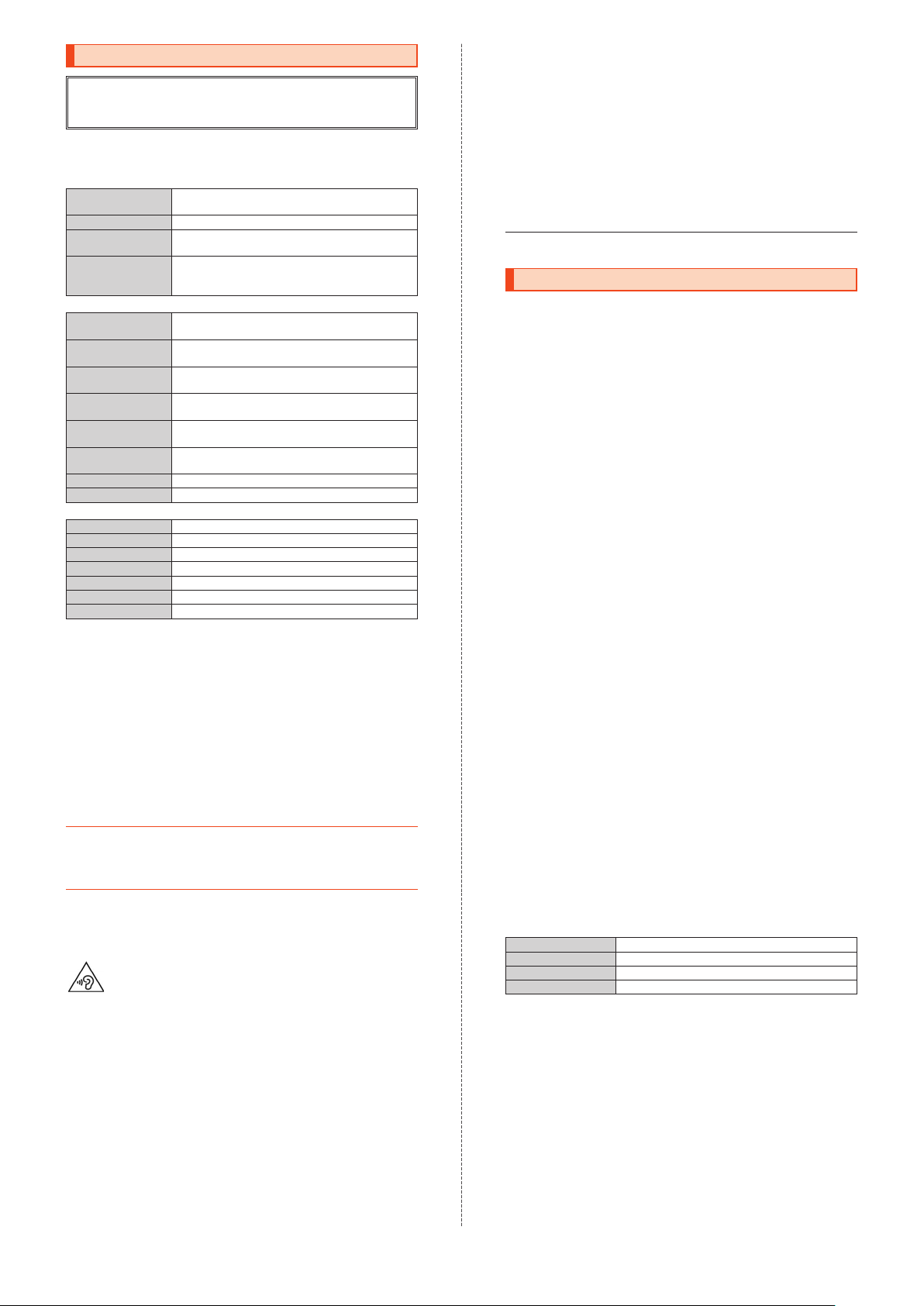
Regulatory information
Hereby, SHARP CORPORATION declares that the radio equipment type
SHV36 is in compliance with Directive 2014/53/EU.
The full text of the EU declaration of conformity is available at the following
internet address: http://www.sharp.co.jp/k-tai/
Manufacturer's Address:
SHARP CORPORATION,
1 Takumi-cho,Sakai-ku,Sakai-shi,Osaka 590-8522,Japan
◦
Description of accessories
Headset,
Handsfree
Micro USB cable For charging, peripherals, etc.
microSD memory
card
nano UIM card au Nano IC Card 04/non-au Nano IC Cards
◦
Frequency range of supported bands in EU
GSM 900 Tx 880.2 to 914.8 MHz
DCS 1800 Tx 1710.2 to 1784.8 MHz
WCDMA FDD I Tx 1922.4 to 1977.6 MHz
LTE Band 1 Tx 1922.5 to 1977.5 MHz
LTE Band 3 Tx 1710.7 to 1784.3 MHz
Bluetooth Tx 2402 to 2480 MHz
WLAN 2.4GHz
GPS Rx L1 (1575.42 MHz)
◦
Maximum transmit power
GSM 900 +33 dBm (Power Class4)
DCS 1800 +30 dBm (Power Class1)
WCDMA FDD I +24 dBm (Power Class3)
LTE Band 1 +23 dBm (Power Class3)
LTE Band 3 +23 dBm (Power Class3)
Bluetooth +5.3 dBm (Power Class1)
WLAN 2.4 GHz +12.5 dBm
Mobile Light
Do not point the illuminated light directly at someone's eyes.
Be especially careful not to shoot small children from a very close
distance.
Do not use Mobile light near people's
temporarily affected leading to accidents.
AC Adapter
Any AC adapter used with this handset must be suitably approved
with a 5Vdc SELV output which meets limited power source
requirements as specified in EN/IEC 60950-1 clause 2.5.
Battery - CAUTION
Use specified Charger only.
Non-specified equipment use may cause malfunctions, electric shock
or fire due to battery leakage, overheating or bursting.
The battery is embedded inside the product. Avoid removing the
embedded battery since this may cause overheating or bursting.
Do not dispose of the product with ordinary refuse. Take the product
to an au Shop, or follow the local disposal regulations.
Charge battery in ambient temperatures between 5
outside this range, battery may leak/overheat and performance may
deteriorate.
Volume Level Caution
To prevent possible hearing damage, do not listen at high
volume levels for long periods.
Headphone Signal Level
The maximum output voltage for the music player function, measured
in accordance with EN 50332-2, is 116.0 mV.
Stand-by Mark
: This symbol means the stand-by on/off.
p
European RF Exposure Information
Your mobile device is a radio transmitter and receiver. It is designed
not to exceed the limits for exposure to radio waves recommended by
international guidelines. These guidelines were developed by the
independent scientific organization ICNIRP and include safety margins
designed to assur
health.
The guidelines use a unit of measurement known as the Specific
Absorption Rate, or SAR. The SAR limit for mobile devices is 2 W/k
and the highest SAR value for this device when tested at the ear is
0.775 W/k
For body-worn operation, this mobile device has been tested and
25
*
g
and when worn on the body is 1.824 W/k
φ
3.5 audio jack, Bluetooth.
microSD/microSDHC/microSDXC
non-au Nano IC Cards can be used after
SIM-unlocking the handset.
Rx 925.2 to 959.8 MHz
Rx 1805.2 to 1879.8 MHz
Rx 2112.4 to 2167.6 MHz
Rx 2112.5 to 2167.5 MHz
Rx 1805.7 to 1879.3 MHz
Rx 2402 to 2480 MHz
Tx/Rx 2412 to 2472 MHz (Bandwidth: 20 MHz only)
faces. Eyesight may be
°
C and 35°C;
e the protection of all persons, regardless of age and
*
g
.
meets the RF exposure guidelines when used with an accessory
containing no metal and positioning the handset a minimum of 5 mm
from the body. Use of other accessories may not ensure compliance
with RF exposure guidelines.
As SAR is measured utilizing the devices highest transmitting power
the actual SAR of this device while operating is typically below that
indicated above. This is due to automatic
of the device to ensure it only uses the minimum level required to
each the network.
r
The World Health Organization has stated that present scientific
information does not indicate the need for any special precautions for
the use of mobile devices. They note that if you want to reduce your
exposure then you can do so by limiting the length of calls or using a
hands-free
* The tests are carried out in accordance with international guidelines for
testing.
device to keep the mobile phone away from the head.
changes to the power level
FCC Notice
- This device complies with part 15 of the FCC Rules. Operation is
subject to the following two conditions:
(1) This device may not cause harmful interfere
device must accept any interference received, including interference
that may cause undesir
- Changes or modifications not expressly approved by the
manufacturer responsible for compliance could void the u
authority to operate the equipment.
- The device is electronically labeled and the FCC ID can be displayed
from the home scr
ト
" (Shortcuts) → [All settings menu] → [About phone].
ed operation.
een as follows: [
設定
Information to User
This equipment has been tested and found to comply with the limits of
a Class B digital device, pursuant to Part 15 of the FCC Rules. These
limits are d
in
and can radiate radio frequency energy and, if not installed and used
in accordance with the instructions, may cause harmful interference to
radio communications.
However, there is no guarantee that interference will not occur in a
particular installation; if this equi
to radio or television reception, which can be determined by turning
the equipment off and on, the user is encouraged to try to corr
interference by one or more of the following measures:
1. Reorient/relocate the receiving antenna.
2. Increase the separation between the equipment and receiver.
3. Connect the equipment into an outlet on a circuit different
4. Consult the dealer or an experienced radio/TV technician for help
War
The user is cautioned that changes or modifications not expressly
approved by the manufacturer could void the user's authority to
operate the equipment.
esigned to provide reasonable protection against harmful
terference in a residential installation. This equipment generates, uses
pment does cause harmful interference
to which the receiver is connected.
and for additional suggestions.
ning
FCC RF Exposure Information
Your handset is a radio transmitter and receiver. It is designed and
manufactured not to exceed the emission limits for exposure to radio
frequency (RF) energy set by the Federal Communications Commission
of the U.S. Government.
The guidelines are based on standards that were developed by
independent scientific organizations through periodic and thorough
evaluation of scientific studies. The standards include a substantial
safety margin designed to assure the safe
of age and health.
The exposure standard for wir
measurement known as the Specific Absorption Rate, or SAR. The
SAR limit set by the FCC is 1.6 W/k
Highest SAR value:
Model SHV36
FCC ID APYHRO00238
At the Ear 0.62 W/k
On the Body 0.61 W/k
This device was tested for typical body-worn operations with the back
of the handset kept 1.0 cm from the body. To maintain compliance
with FCC RF exposure requirements, use accessories that maintain a
1.0 cm separation distance between the user's body and the back of
the handset. The use of belt clips, holsters and similar accessor
should not contain metallic components in its assembly.
The use of accessories that do not satisfy these requirements may not
comply with FCC RF exposur
The FCC has granted an Equipment Authorization for this model
handset with all reported SAR levels evaluated as in compliance with
the FCC RF emission guidelines. SAR information on this model
handset is on
fcc.gov/oet/ea/fccid/) under the Display Grant section after sear
g
on the corresponding FCC ID (see table above).
Additional information on Specific Absorption Rates (SAR) can be
found on the FCC website at (http://www.fcc.gov/encyclopedia/
radio-frequency-safety).
file with the FCC and can be found at (http://transition.
eless handsets employs a unit of
g
.
g
g
e requirements, and should be avoided.
nce, and (2) this
ser's
] (Settings) under "
ty of all persons, regardless
ショートカッ
ect the
from that
ies
ching
Page 27
Export Administration Regulations
The product and its accessories may be subject to the Japan Export
Administration Regulations ("Foreign Exchange and Foreign Trade
Law" and its related laws). In addition, U.S. Re-export Regulations
(Export Administration Regulations) may apply to the product and its
accessories. To export and re-export the product and its accessories,
take the required measures on
your responsibility and at your
expenses. For details on the procedures, contact the Ministry of
Economy, T
rade and Industry or the U.S. Department of Commerce.
Intellectual Property Rights
Trademarks
Company names and product names referred to in this manual are
trademarks or registered trademarks of respective companies.
•
The microSD logo, microSDHC logo and microSDXC logo are
trademarks of SD-3C, LLC.
•The Bluetooth® word mark and logo are registered trademarks
owned by the Bluetooth SIG, Inc., and SHARP CORPORATION is
licensed to use these trademarks.
•
Wi-Fi®, Wi-Fi CERTIFIED logo, Wi-Fi Protected Setup logo and Wi-Fi
®
Direct
are registered trademarks of Wi-Fi Alliance®.
•Wi-Fi CERTIFIED™ and Wi-Fi Protected Setup™ are trademarks of
Wi-Fi Alliance
•
The official name for Microsoft® Windows® is Microsoft® Windows®
Operating System.
•
Microsoft®, Windows®, Windows Vista®, Microsoft® Excel®, Microsoft®
PowerPoint
registered trademarks of Microsoft Corporation in the U.S.A. and
other countries.
•
Microsoft® Word and Microsoft® Office are product names of
Microsoft Corporation in the U.S.A.
•
QR code is a registered trademark of DENSO WAVE
INCORPORATED.
•
Twitter and Twitter logo are trademarks or registered trademarks of
Twitter, Inc.
•
Facebook and Facebook logo are trademarks or registered
trademarks of Facebook, Inc.
•
Google™, Google logo, Android™, Android logo, Google Play™,
Google Play logo, Google+™, Gmail™, Gmail logo, Google
Calendar™, Google Calendar logo, Google Maps™, Google Maps
logo, Google Chrome™, Google Chrome logo, Google Voice
Sear
Google Drive™, Google Drive logo, Google™ Search, Google Search
logo, Google Now™, Google Photos™ and Hangouts™ are
trademarks of Google Inc.
•
"ALKOO" is a registered trademark of NAVITIME JAPAN Co., Ltd.
•
Rovi, G-GUIDE, G-GUIDE MOBILE and G-Guide related logos are
trademarks or registered trademarks of Rovi Corporation and/or its
subsidiaries in Japan.
•
LINE is a trademark or registered trademark of LINE Corporation.
•
Oracle and Java are registered trademarks of Oracle and/or its
affiliates. Other names may be trademarks of their respective owners.
•"
でかレシーバー
ク
/Slow Talk", "Bright Keep", "NightCatch/
シャッター
パーメモ
S-Shoin", "
オート
are registered trademarks or trademarks of Sharp Corporation.
®
.
®
, Windows Media® and Exchange® are trademarks or
ch™, Google Voice Search logo, YouTube™, YouTube logo,
", "
", "
おすすめオート
", "
エモパーヘルスケア
長エネスイッチ
", "
からだメイト
おはようメール
", "LC
", "
トリプルくっきりトーク
", "
おすすめプラス
", "
エモパーク
", "
リラックスビュー
フォント
/LCFONT" and the LC logo symbol
ナイトキャッチ
", "
エモパー
/emopark", "
/Relax View", "
", "
スロートー
", "
ワンタッチ
/emopa", "
エスショイン
リラックス
エモ
/
•
The product includes pictograms that SHARP CORPORATION is
licensed by NTT DOCOMO, INC.
•
© 2014 Comic Communication Co., Ltd. All rights reserved.
•
VoiceText of HOYA Service Corporation is used for speech synthesis.
VoiceText is a registered trademark of Voiceware co.,ltd.
•
MPEG Layer-3 audio coding technology licensed from Fraunhofer IIS
and Thomson.
Open Source Software
•The product includes software based on GNU General Public License
(GPL), GNU Lesser General Public License (LGPL) and other licenses.
For details on licenses of re
(Settings) under "
[About phone]
•
Source codes of software based on GPL, LGPL and Mozilla Public
ショートカット
→
[Legal information] → [Open source licenses].
lated software, on the home screen, [
" (Shortcuts) → [All settings menu] →
設定
License (MPL) can be referred to on the following site for free. For
details, refer to the following site.
http://k-tai.sharp.co.jp/support/developers/oss/
OpenSSL License
【
OpenSSL License
】
Copyright © 1998-2009 The OpenSSL Project. All rights reserved.
This product includes software developed by the OpenSSL Project for
use in the OpenSSL Toolkit. (http://www.openssl.org/)
THIS SOFTWARE IS PROVIDED BY THE OpenSSL PROJECT ''AS
IS'' AND ANY EXPRESSED OR IMPLIED WARRANTIES, INCLUDING,
BUT NOT LIMITED TO, THE IMPLIED WARRANTIES OF
MERCHANTABILITY AND FITNESS FOR A PARTICULAR PURPOSE
ARE DISCLAIMED. IN NO EVENT SHALL THE Open
SSL PROJECT
OR ITS CONTRIBUTORS BE LIABLE FOR ANY DIRECT, INDIRECT,
INCIDENTAL, SPECIAL, EXEMPLAR
Y, OR CONSEQUENTIAL
DAMAGES (INCLUDING, BUT NOT LIMITED TO, PROCUREMENT OF
SUBSTITUTE GOODS OR SERVICES; LOSS OF USE, DATA, OR
PROFITS; OR BUSINESS INTERRUPTION) HOWEVER CAUSED AND
ON ANY THEORY OF LIABILITY, WHETHER IN CONTRACT, STRICT
LIABILITY, OR TORT (INCLUDING NEGLIGENCE OR OTHERWISE)
ARISING IN
ANY WAY OUT OF THE USE OF THIS SOFTWARE, EVEN
IF ADVISED OF THE POSSIBILITY OF SUCH DAMAGE.
【
Original SSLeay License
】
Copyright © 1995-1998 Eric Young ([email protected]) All rights
reserved.
This product includes cryptographic software written by Eric Young
([email protected])
THIS SOFTWARE IS PROVIDED BY ERIC YOUNG ''AS IS'' AND ANY
EXPRESS OR IMPLIED WARRANTIES, INCLUDING, BUT NOT
LIMITED TO, THE I
MPLIED WARRANTIES OF MERCHANTABILITY
AND FITNESS FOR A PARTICULAR PURPOSE ARE DISCLAIMED. IN
NO EVENT SHALL THE AUTHOR OR CONTRIBUTORS BE LIABLE
FOR ANY DIRECT
, INDIRECT, INCIDENTAL, SPECIAL, EXEMPLARY,
OR CONSEQUENTIAL DAMAGES (INCLUDING, BUT NOT LIMITED
TO, PROCUREMENT OF SUBSTITUTE GOODS OR SERVICES; LOSS
OF USE, DATA, OR PROFITS; OR BUSINESS INTERRUPTION)
HOWEVER CAUSED AND ON ANY THEORY OF LI
ABILITY,
WHETHER IN CONTRACT, STRICT LIABILITY, OR TORT (INCLUDING
NEGLIGENCE OR OTHER
WISE) ARISING IN ANY WAY OUT OF THE
USE OF THIS SOFTWARE, EVEN IF ADVISED OF THE POSSIBILITY
OF SUCH DAMAGE.
Windows Notations
In this manual, operating systems (Japanese editions) are abbreviated
as follows.
•
Windows 10 is an abbreviation for Microsoft® Windows® 10 (Home,
Pro, Enterprise, and Education).
•
Windows 8.1 is an abbreviation for Microsoft® Windows® 8.1,
Microsoft
Enterprise.
•
Windows 7 is an abbreviation for Microsoft® Windows® 7 (Starter,
Home Basic, Home Premium, Professional, Enterprise, and Ultimate).
•
Windows Vista is an abbreviation for Microsoft® Windows Vista®
(Home Basic, Home Premium, Business, Enterprise, and Ultimate).
®
Windows® 8.1 Pro, and Microsoft® Windows® 8.1
]
•iWnn of OMRON SOFTWARE Co., Ltd. is used for conversion
methods for Japanese language, and for phrase prediction methods
for English.
iWnn © OMRON SOFTWARE Co., Ltd. 2008-2016 All Rights
Reserved.
iWnn IME © OMRON SOFTWA
RE Co., Ltd. 2009-2016 All Rights
Reserved.
•
Qualcomm aptX is a product of Qualcomm Technologies
International, Ltd.
Qualcomm is a trademark of Qualcomm Incorporated, re
gistered in
the United States and other countries, used with permission. aptX is
a trademark of Qualcomm Technologies International, Ltd., register
in the United States and other countries, used with permission.
ed
26
Page 28

More
The software installed on this product or part of it may not be altered,
translated/adapted, reverse-engineered, decompiled or reverseassembled and any such actions are prohibited.
Under the MPEG-4 Visual Patent Portfolio License, customers have
licensed permission for the following use of this product to engage in
non-profit personal use. Other uses are not permitted.
•
Recording MPEG-4 Visual standard video (henceforth referred to as
MPEG-4 Video)
•
Playing back MPEG-4 Video that a customer engaged in personal
and non-profit activities has recorded
•
Playing back MPEG-4 Video obtained from a provider licensed by
MPEG-LA
When using for promotion, in-house use, profit use, and other intended
uses, contact MPEG LA. LLC.
•
This product is licensed under the AVC patent portfolio license for the
personal and noncommercial use of a consumer to (i) encode video
in compliance with the AVC standard (henceforth referred to as AVC
video) and/or (ii) decode AVC video that was encoded by a consumer
engaged in a personal and noncommercial activity and/or was
obtained from a video provider licensed to provide AVC video. No
license is granted or shall be implied for any other use. Additional
in
formation may be obtained from MPEG LA, L.L.C.
Visit http://www.mpegla.com
•
This product is licensed under the VC-1 Patent Portfolio License for
the personal and noncommercial use of a consumer to (i) encode
video in compliance with the VC-1 standard (henceforth referred to
as VC-1 video) and/or (ii) decode VC-1 video that was encoded by a
consumer engaged in a personal and noncommercial activity
was obtained from a video provider licensed to provide VC-1 video.
No license is granted or shall be implied for any other use. Additional
information may be obtained fr
Vi
sit http://www.mpegla.com
om MPEG LA, L.L.C.
This product is licensed under the MPEG-4 Visual Patent Portfolio
License for the personal and non-commercial use of a consumer to (i)
encode video in compliance with the MPEG-4
ideo Standard
V
("MPEG-4 Video") and/or (ii) decode MPEG-4 Video that was encoded
by a consumer engaged in a personal and non-commercial activity
and/or was obtained fr
om a licensed video provider. No license is
granted or implied for any other use. Additional information may be
obtained from MPEG LA. See (http://www.mpegla.com).
This product is licensed under the MPEG-4 Systems Patent Portfolio
Lic
ense for encoding in compliance with the MPEG-4 Systems
Standard, except that an additional license and payment of royalties
are necessary for encoding in connection with (i) data stor
replicated in physical media which is paid for on a title by title basis
and/or (ii) data which is paid for on a title by title basis and is
transmitted to an end user for permanent storage and/or use. Such
add
itional license may be obtained from MPEG LA, LLC. See (http://
www.mpegla.com )for additional details.
and/or
ed or
27
Page 29

Dear customers
Thank you for buying the BASIO(
ベイシオ
)2.
We would like to announce the following change made to the content in Basic Manual of the BASIO(
"Contents"(P.2)
Old) CE Declaration of Conformity ................. 25
FCC Note .............................................. 25
Export Administration Regulations ......... 25
New) Regulatory information ........................... 25
FCC Note ........
...................................... 25
Export Administration Regulations ......... 26
"Regulatory information"(P.25)
Old) The contents of "CE Declaration of Conformity" is described.
New) The contents of "Regulatory information" is described.
"Export Administration Regulations"(P.26)
Old) It is described on P.25.
New) It is described on P.26.
ベイシオ
)2.
Page 30
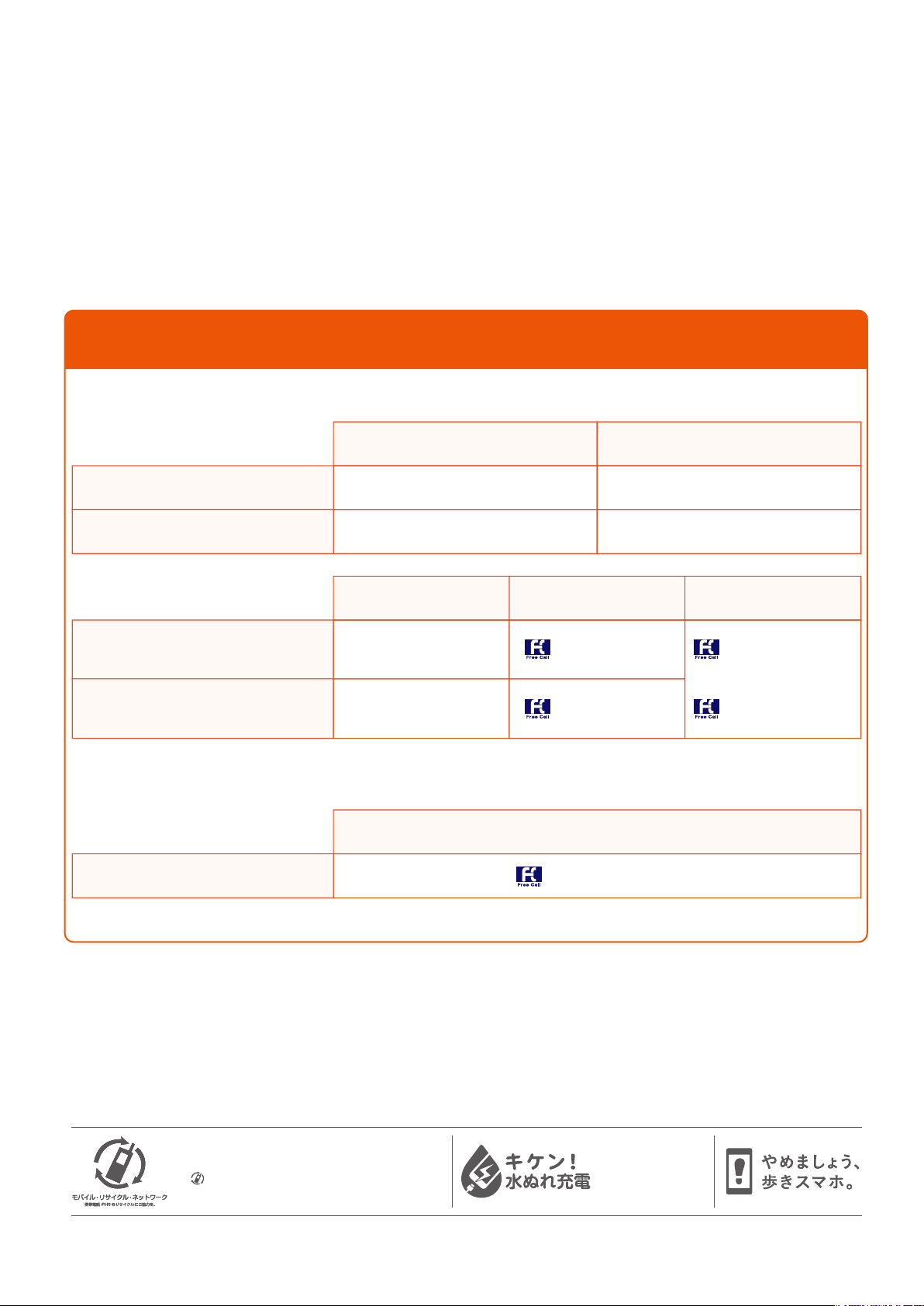
auCustomerServices
Checkservicefees,learnaboutoperationsandsettings,changesubscriptiondetails,andmore.
UsetheauCustomerSupportapplicationonsmartphones.
auCustomerSupport
Online
Application
CustomerServiceCenter
Forgeneralinformation,charges,and
operationassistance(tollfree)
Businesshours:9:00to20:00(7daysaweek)
Forservicecancelationprocedureincase
oflossortheft(tollfree)
Businesshours:24hours(7daysaweek)
Pressingzerowillconnectyoutoanoperator,aftercalling157onyouraucellphone.
・Tocheck/changeyoursubscriptiondetails,yourauphonenumberandsecuritycodearerequired.
・Amongtheautomatedcustomerservicemenus,servicefeeinquiry,linesuspension,andrestorationofyourserviceareavailable24hoursaday
(exceptduringmaintenance).
areacodenot
required
areacodenot
required
KeitaiGuaranteeServiceCenter
Forloss,theftordamage(tollfree)
Businesshours:9:00to20:00(7daysaweek)
PCsandsmartphones 3Gfeaturephones
https://cs.kddi.com
Searchfor"au お客さまサポート "
inauMarketorAppStore
Fromaucellphones:
157
113
Fromfixed-linephones/aucellphones:
Fromnon-aucellphones
andfixed-linephones:
0077-7-111
0077-7-113
EZButton>TopMenuorauPortalTop
>auCustomerSupportInquiries
Ifthephonenumbersshown
0120-925-919
-
ontheleftarenotavailable:
0120-977-033
0120-977-699
[exceptOkinawa]
[Okinawa]
・Thephonenumbersabovemaynotbereachable.
CellphoneandPHSoperatorscollectandrecycleunused
telephones,batteriesandbatterychargersatstoresbearing
thelogoregardlessofbrandandmanufacturertoprotect
theenvironmentandreusevaluableresources.
May2017,Edition1.1Soldby:KDDICORPORATION,OKINAWACELLULARTELEPHONECOMPANYManufacturedby:SHARPCORPORATION
濡れた状態での充電は、
異常な発熱・焼損などの
原因となり大変危険です。
 Loading...