

Page 1
AT&T
DEFINITY
®
Communications
System Generic 2
and System 85
7444 Voice Terminal
User's Guide
Page 2

NOTICE
While reasonable efforts were made to ensure the information in this document
was complete and accurate at the time of printing, AT&T can assume no responsibility
for any errors. Changes or corrections to the information contained in this document
may be incorporated into future issues.
TO ORDER COPIES OF THIS DOCUMENT
Contact:
AT&T Customer Information Center
2855 North Franklin Road
P. O. Box 19901
Indianapolis, IN 46219
1-800-432-6600,
In Canada: 1-800-255-1242
Order:
Document No. 555-104-744
Issue 1, July 1991
For more information about AT&T documents, see Business Communications Systems
Publications Catalog (555-000-010).
HEARING AID COMPATIBILITY
This equipment is compatible with the inductively coupled hearing aids prescribed by
the Federal Communication Commission (FCC).
Prepared by
AT&T Technical Publications Department
Denver, CO 80234
©1991 AT&T
All Rights Reserved
Printed in USA
Page 3

Contents
Your 7444 Voice Terminal
A Quick look at the Features
How to Use the Features
Abbreviated Dialing (AD)
Automatic Callback
Bridging
Call Coverage/Consult
Call Forwarding — Busy/Don’t Answer
Call Forwarding — Follow Me
Call Park
Call Pickup
Conference
Drop
Hold
Intercom (Automatic/Dial)
Last Number Dialed
Leave Word Calling (LWC)
Message
Mute
Priority Calling
Reset speakerphone
Select Button
Select Ring (and Ringer Volume)
Self-Test
Send All Calls
Speaker
Speakerphone
Terminal Busy Indication
Transfer
Display Features
Date/Time
Inspect
Message Retrieval
Normal
Stored Number
Timer
1
4
8
10
12
13
13
14
15
16
17
18
19
20
20
21
21
22
23
23
24
25
25
26
27
28
29
31
31
32
32
33
33
35
35
36
i
Page 4

Tones and Their Meanings
Key Words to Know
Quick-Reference Lists
37
38
40
ii
Page 5
Your 7444 Voice Terminal
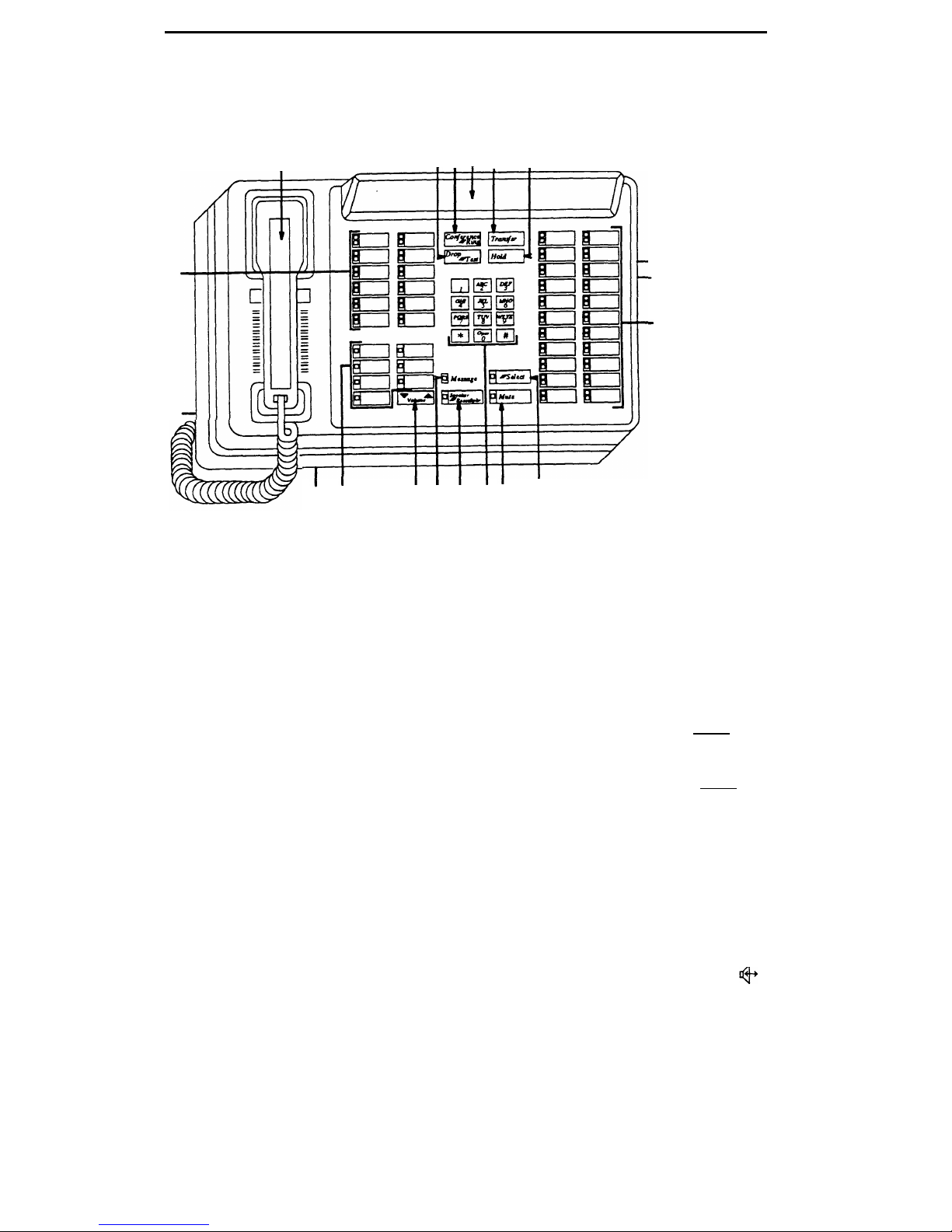
The 7444 Voice Terminal is designed so that you can conveniently use the features of
the AT&T DEFINITY® Communications System Generic 2 and System 85. Familiarize
yourself with your telephone, shown in Figure 1 and explained below.
2
1
3
4
5 6
7
19
8
9
18
17
16
15
14 13
12
10
11
Figure 1. 7444 Voice Terminal
Starting with the handset and continuing clockwise:
1) Handset
2) Drop/Test button
3) Conference/Ring
button
4) Display
5) Transfer button
6) Hold button
7) Speakerphone/
headset adapter jack
(on back of telephone)
8) Line jack (on back
of telephone)
For placing and answering calls. Also known as the receiver.
For disconnecting from a call. When used with
-Select
,
you
can test the lights, ringer, and display on your telephone.
For setting up conference calls. When used with
-Select
,
you can select your own personalized ring.
A built-in 2-line by 40-character VFD (vacuum fluorescent
display).
For transferring a call to another telephone.
For putting a call on hold.
This jack is used for connecting an external speakerphone or
a headset adapter to your telephone. The jack is labeled .
This jack is used for connecting a line cord to your telephone.
The jack is labeled “LINE.”
1
Page 6

9) Call
These 22 buttons can be used for
either
incoming and out
appearances/feature
going calls
(call appearances)
and are labeled with an
buttons
extension number for accessing features
(feature buttons)
and
are labeled with a feature name. Each has a red in-use light
to tell you the line is being used or that this is the line you
will get when you lift your handset. The green status light
next to each call appearance and feature button tells you the
line or feature is being used.
10) Select button
1)
2)
3)
11) Mute button
Can be used in 3 different ways:
Used with
Drop-Test
to initiate a self-test of your
telephone;
Used with
Conference-Ring
to select your own personalized
ring from among 8 available patterns;
Used with
Speaker-Reset Spkr
to perform an acoustic test of
the environment and adjust the speakerphone to the
surrounding acoustic environment for optimal
performance.
For turning off the microphone of the built-in speakerphone
or the handset so the other person cannot hear you.
Note:
If your telephone is set for the Speaker (listen-only)
feature, pressing
Mute
while on a call using the handset will
affect
only
the microphone associated with the handset.
When you use the Speaker feature, the Mute feature is also
activated and the light next to
Mute
is always on.
12) Dial pad
The standard 12-button pad for dialing phone numbers and
accessing features. The letters “Q” and “Z” have been added
to the appropriate dial pad keys for directory access, and the
“5” button on your dial pad has raised bars for visuallyimpaired users.
13) Speaker/Reset
For accessing the speaker
or
the built-in speakerphone and
Speakerphone button
microphone combination. When you touch
-Select
and then
Speaker-Reset Spkr
you hear a set of tones as the speakerphone
performs an acoustic test of the environment. When the
tones stop, your speakerphone has finished adjusting itself
for optimal performance. It is now ready for use.
Note:
Your telephone can be set for either the Speaker
(listen-only) feature
or
the Speakerphone (listen and talk)
feature. Check with your System Manager to see how your
Speaker button is to be used.
14) Message light
A red light which goes on when a message has been left for
you.
2
Page 7

15) Volume control
button
16) Display control
buttons
17) Microphone
18) Handset jack
19) Call
appearances/feature
buttons
For adjusting the volume of the speaker or the built-in
speakerphone when you are on a call, or for adjusting the
volume for the tone ringer when you are not using the
speakerphone.
Each of these 7 buttons accesses display features and is
labeled with a feature name.
For Speakerphone operation. Used when the Speakerphone
option is set and Speaker button is depressed.
For connecting the handset cord to the telephone. Located on
the back of your telephone, labeled .
At least 3 of these 12 buttons are devoted to incoming and
outgoing calls
(call appearances)
and are labeled with an
extension number; the remainder access features
(feature
buttons)
and are labeled with a feature name.
The following optional modules are compatible with the 7406 Plus telephone:
500A Headset Adapter
Provides a dual-purpose switch that turns on the adapter
connecting the headset to the telephone. Pressing the ON
switch is equivalent to going off-hook with the handset, and
pressing the OFF switch is equivalent to going on-hook with
the handset. Plugs into the speakerphone/headset adapter
jack.
7400B Data Module
Provides data capability to the attached DCP telephone. It
also provides integrated simultaneous voice data
communications over standard twisted-pair wiring. Plugs
into the line jack.
S101A and S201A
Provides total telephone operation without using the handset.
Speakerphone
Turning on the speakerphone is equivalent to going off-hook
when placing or answering a call and turning off the
speakerphone is equivalent to going on-hook. A mute switch
is provided to temporarily cut off transmission to the distant
caller. Plugs into the speakerphone/headset adapter jack.
3
Page 8

A Quick Look at the Features
Here are brief descriptions of some features, including what each one does and how
you might want to use it. You will have the Conference, Drop, Hold, Message, Mute,
Select, Select Ring, Self-Test, and Transfer voice features and Message Retrieval and
Normal mode among the display features. You may also be able to use the
Speakerphone (and Reset Speakerphone)
or
the Speaker feature. In addition, you may
have many of the other features listed here; your System Manager can advise you.
Abbreviated Dialing (AD) Allows you to store selected telephone numbers as 3 or
fewer digits for quick and easy dialing. Each number can be a complete or partial
telephone number, an extension number, or a trunk or feature code. There are 3
possible types of lists — personal, group, and system — and you can have a total of 3
lists. Numbers on a personal list are programmable by you; numbers on group lists
are programmable by the controller of the list; system lists are programmable only by
the System Manager. Use this feature as a timesaver for dialing frequently called,
lengthy, or emergency numbers.
Note:
Check with your System Manager for the
types of lists you have and how many of each.
Automatic Callback Sends you a special 3-burst ring tone indicating that a
previously busy extension is now available. Use to avoid constant redialing when you
want to speak to someone who is frequently busy on the telephone.
Note:
You can
use this feature only for extensions, not outside numbers.
Bridging Permits you to answer or join calls to someone else’s extension by pressing
a bridged appearance button on your telephone. This button can be any call
appearance labeled with another user's primary extension number, as assigned to you
by your System Manager. Use to assist in handling calls for a designated co-worker.
Call Coverage Provides automatic redirection of certain calls to your telephone for
answering. (Your System Manager determines which calls will be sent to you.) Use to
answer calls for other extensions for whom you provide coverage. Call Coverage can
also automatically redirect your calls when your telephone is busy, you are out of the
office, or you have pressed Send All Calls button.
Call Forwarding — Busy/Don't Answer Temporarily forwards all your calls to
another extension or to the attendant if your telephone is busy or you do not answer
your calls within a preset number of rings. Use when you want your calls to be
forwarded to a telephone number of your choice.
Call Forwarding — Follow Me Temporarily forwards all your calls to another
extension or to an outside number, depending on your system. Use when you want
your calls to be automatically forwarded to a telephone number of your choice.
Call Park Puts a call on hold at your telephone, for retrieval at any extension. Use
when you need to go elsewhere to get information during a call, or whenever you
want to complete a call from a different location. Also, if the call received is for
someone else, use it to hold the call until the called party can answer from the nearest
available telephone.
Call Pickup Lets you answer a call at your telephone for another extension in your
pickup group. Use when you want to handle a call for a group member who is absent
or otherwise unable to answer.
Note:
You can use this feature only if you and the
called party have been assigned to the same pickup group by your System Manager.
4
Page 9

Conference Allows you to add a third party to a call, so that you can conduct a
3-way conversation. (If you want to conference more than 3 parties, call your
attendant for assistance.) Use to set up time-saving conferences or to spontaneously
include a third party.
Drop Disconnects from a call without requiring you to hang up the handset or press
the switchhook. Can also be used with the Conference feature to disconnect the last
party added. Use whenever you want to continue using the handset for another action
after ending a call.
Hold Puts a call in a holding state until you can return to it. While a call is on hold,
you can place another call, activate another feature, answer a waiting call, or leave
your telephone to do another task. Use when you have a call that you don’t want to
drop, but have to interrupt briefly to do something else.
Intercom (Automatic/Dial) Gives you quick access to specified telephone. With
Automatic Intercom, you can call predetermined persons by pressing a single feature
button. With Dial Intercom, you can call any member of a predetermined group by
pressing a feature button and then dialing the group member’s 2- or 3-digit code.
Last Number Dialed Automatically redials the last number you dialed, either an
extension or an outside number. Use to save time in redialing a busy or unanswered
number. Available with DEFINITY® Generic 2 and System 85 R2V4 and some R2V3
systems. Check with your System Manager to see if the feature is available in your
system.
Leave Word Calling (LWC) Leaves a message for another extension to call you back.
The called party will be able to dial the message center, AUDIX, or a covering user to
retrieve a short, standard message that gives your name and extension, the date and
time you called, and the number of times you called. Use any time you want to have
someone call you back; it will help cut down on repeated call attempts.
Message Your Message light lets you know that a caller has left a message for you.
You can then follow your System Manager's local message retrieval procedures to get
your message.
Mute Turns off the microphone of the built-in speakerphone or the handset. Use
when you want to confer with someone in the room with you, but you do not want
the other party on the call to hear your conversation.
Priority Calling Allows you to call another extension with a distinctive 3-burst ring
to indicate that your call requires immediate attention. Use when you have important
or timely information for someone.
Reset Speakerphone Initiates an acoustic test of the surrounding acoustic
environment by using a sequence of tones. When the tones stop, your speakerphone
has finished adjusting itself for optimal performance. It is now ready for use. Use
whenever you move your telephone to a different location (even in the same room), or
whenever the light next to
Speaker-Reset Spkr
is fluttering.
Select Button Used in any of 3 different ways:
1)
When used with
Drop-Test
you can perform a self-test of your telephone's lights,
ringer, and display.
5
Page 10

2)
3)
When used with
Conference-Ring
you can select your own personalized ring from among
8 available patterns. Use to distinguish your ring from that of other nearby
telephones.
When used with
Speaker-Reset Spkr
the built-in speakerphone performs an acoustic test
of the environment to provide optimal speakerphone performance. Use whenever
you move your telephone to a different location (even in the same room), when
the telephone is unplugged, or when there has been a power failure. When any of
these three things happen, the light on this button will flutter to notify you that
the sound level and quality needs to be reset.
Select Ring Allows you to select your own personalized ring from among 8
available ringing patterns. Use to distinguish your ring from that of other nearby
telephones.
Self-Test Activates the lights, ringer, and display of your telephone. Use when you
want to test their operation.
Send All Calls Temporarily sends all your calls to the extension of a person
designated to answer them when you cannot (perhaps a secretary, receptionist, or
AUDIX). Use when you will be away from your desk for awhile, or when you do not
want to be interrupted by calls.
Speaker In the listen-only mode, allows you to place calls or access other voice
features without lifting the handset (when the speaker is on). However, in order to
speak to the other party, you must use the handset (the speaker must be off). Use
with feature activities that require
listening only,
such as on-hook dialing, monitoring
calls on hold, and retrieving messages.
Note:
Your telephone has either the Speaker
(listen-only)
or
the Speakerphone function. Check with the System Manager to see
how your telephone is set.
Speakerphone Allows you to place and answer calls or access other voice features
without lifting the handset. When used with
-Select
,
the built-in speakerphone
performs a test of the surrounding acoustic environment by using a sequence of tones.
When the tones stop, your speakerphone has finished adjusting itself for optimal
performance. It is now ready for use. Use the built-in speakerphone anytime you
prefer hands-free communication, both speaking and listening or for group conference
situations.
Note:
Your telephone may be set for the Speaker (listen-only) rather than
the Speakerphone (listen and speak) feature. Check with the System Manager.
Terminal Busy Indication Provides a visual indication of the busy (off-hook) or idle
(on-hook) status of specified telephone. Use this information when servicing calls for
another person. For example, if you are a secretary servicing your supervisor's calls,
use this feature to see whether your supervisor’s extension is busy or idle.
Transfer Transfers a call from your telephone to another extension or outside
number. Use when your caller needs to speak further with someone else.
Note:
Calls
from an outside number to your telephone can be transferred only to an extension,
not
to another outside number.
6
Page 11

Display Features
Date/Time Shows you the date and time. Use as a handy calendar and clock.
Inspect Shows you call-related information for an incoming call when you are
already active on a call. Use to identify and screen new calls.
Message Retrieval Allows you to retrieve messages left for you that have lit your
Message light. Will also let you retrieve messages for other telephones not equipped
with a display (if you are authorized as a systemwide message retriever by your
System Manager). Use to quickly and conveniently check messages, even when you
are already on a call.
Normal Identifies current call appearance, calling/called party, and calling/called
number. Use to see who is calling you and, when placing a call, to verify the number
you have dialed.
Stored Number Allows you to check the number stored on an Abbreviated Dialing
button or as an item on an Abbreviated Dialing list. Also lets you see what number
you last dialed (via Last Number Dialed feature). Use to verify Abbreviated Dialing
list items before placing a call or reprogramming a number, and to make sure that Last
Number Dialed is appropriate to use.
Timer Allows you to measure elapsed time. Use to keep track of time spent on a
call or task.
7
Page 12

How to Use the Features
Many features are available for use with your 7444 Voice Terminal. Because no
organization can use all of the available features,
each organization
must choose those
that best suit its needs. After the choices have been made, the person within your
organization who manages your telecommunication system must do any necessary
administration and label the feature buttons on individual telephones. This System
Manager can tell you how to use the features that have been administered for your
particular telephone. The procedures that follow give instructions for using some of
the more frequently used features. Features are listed alphabetically.
Special Instructions
The first time you use these procedures, you will need to customize them for yourself.
Your System Manager can supply the information required.
●
To the right of each feature name is a box. For each feature that you have, mark a
[ ✓ ] in the box if the box is blank. Some features (Conference, Drop, Hold, Message,
Mute, the Select button, Select Ring, Self-Test, and Transfer) are already marked for
you. Ask your System Manager if your telephone is set for the Speaker (listen only)
or the Speakerphone (speak and listen) feature, and then place a check in the box
beside that feature also.
Note:
If your telephone is set for the Speakerphone feature,
you can also put a check in the box beside the Reset Speakerphone feature.
To use a voice feature you must have the handset off-hook (that is, you must pick up the
handset or turn on the speakerphone, if you have one) unless you are instructed to remain
on-hook in the procedures.
You can activate or cancel most of the voice features by
dialing 2- or 3-digit codes (if they are not already assigned to a button). Write the
feature code numbers in the blanks provided within the procedures. These codes
are unique to your system; see your System Manager for the codes or to obtain more
information.
Follow carefully all the steps listed in the procedure for the particular feature you
are using.
System 85 is available in several versions. In some cases, a feature operates
●
●
●
differently with one version than it does with another; where this occurs, the
procedures include a release (R) and version (V) notation. Be sure to follow the
directions corresponding to the release and version you are using. Ask your System
Manager if you do not know the release and version you have.
Note:
If you receive an intercept tone (high-pitched, alternating high and low tone)
while attempting to use any feature, you have taken too much time to complete a step,
have made a dialing error, or do not have the feature available to you. If appropriate,
hang up or press
Drop
,
get dial tone, and begin at the first step.
8
Page 13

Conventions
The following conventions are used in the procedures:
Italic procedure steps
Procedural steps in italic type are steps that you should
follow if you do not have a button assigned for the feature.
xxxxx
A box representing a call appearance that is used exclusively
for placing, receiving, or holding calls.
Feature
and
Boxes representing buttons that have features assigned to
Feature xxxxx
them. The buttons are labeled with the feature name,
sometimes followed by an extension number or a person’s
name.
[feedback tone]
The tone appearing in brackets after a step indicates what
you hear after successfully performing that step.
For more information, see
Tones and Their Meanings
and
Key Words to Know
at the
end of this guide.
Quick-Reference Lists
At the end of this guide is a set of quick-reference lists. Use the lists to record your
feature and trunk codes, Abbreviated Dialing personal list items, and frequently called
miscellaneous extensions. Once you have completed the lists, flip to that page as
needed, or make a photocopy and keep it handy.
9
Page 14
Abbreviated Dialing (AD)
[ _ ]
Note:
If you hear the intercept tone while programming, start over from the
beginning. Abbreviated Dialing buttons must first be assigned by your System
Manager.
To program or
reprogram an outside
number, extension, or
feature code into a
personal list
1
2
3
4
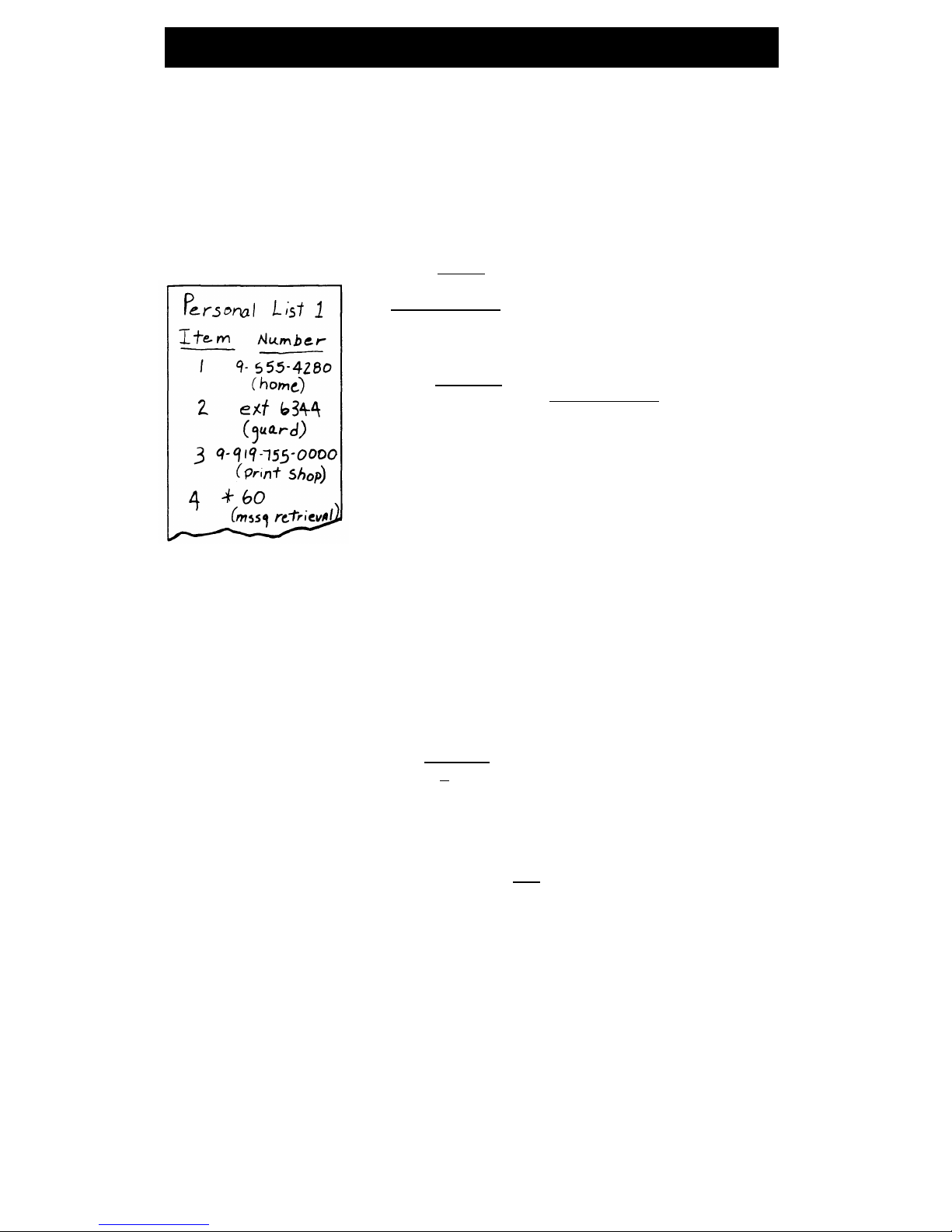
On a separate sheet of paper, jot down the outside
numbers, extensions, and feature codes you want to
program as items on your personal list (see example to
the left)
Press
Program
(while off-hook)
or dial Abbreviated Dialing program code (while off-hook)
[confirmation tone]
Note:
This code is unique to your system and must be
obtained from your System Manager.
Press
Personal List
or dial personal list code
Note:
This code is unique to your system and must be
obtained from your System Manager.
Dial desired list item number (for example, 0-9, 01-95,
and so on, depending on list size)
[dial tone]
5
6
7
Dial outside number, extension, or feature code you
want to store
Note:
Generally, 20 characters or digits can be stored
on each button; for any special needs, see your System
Manager.
Press
Personal list
or press [ #
]
[confirmation tone]
●
Number is stored
●
Repeat steps 3 through 6 if you want to program
additional items on the
same
list
Hang up or press
Drop
to end programming
●
Begin again at step 1 to program
another
personal list
(if you want to continue programming).
Note:
Record your personal list items on the
Abbreviated Dialing list in the back of this guide; group
and system lists are available from the controller of the
list or from your System Manager.
10
Page 15

To place a call using a
1
Press
Personal list
or
Group List
or
System List
(while off-hook)
personal, group, or
or dial Abbreviated Dialing list code (while off-hook)
system list
Note:
This code is unique to your system and must be
obtained from your System Manager.
●
Personal
[dial tone]
●
Group
[dial tone]
●
System
[dial tone]
Dial desired list item (1, 2, 3..., 01, 02...)
2
●
Stored number is automatically dialed
To program an
1
Abbreviated Dialing
(AD) button
2
3
4
5
Press
Program
(while off-hook)
or dial the Abbreviated Dialing program code (while off-hook)
[confirmation tone]
Note:
This code is unique to your system and must be
obtained from your System Manager.
Press selected
AD xxxxx
Dial the outside number, extension, or feature code you
want to store
Press
AD xxxxx
again
[confirmation tone]
Hang up or press
Drop
to end programming
To
unprogram
an
1
Simply program a new one over the old one by using
Abbreviated Dialing
the preceding procedure
(AD) button
To place a call using an
1
Press selected
AD xxxxx
(while off-hook)
Abbreviated Dialing
●
(AD) button
Call is automatically dialed
11
Page 16

Automatic Callback
[ _ ]
To automatically place
1
Press
Auto Callback
before or during call attempt
another call to an
[dial or confirmation tone]
extension that is
or dial Automatic Callback code (before call attempt)
frequently busy
[dial tone]
Note:
This code is unique to your system and must be
obtained from your System Manager.
●
If you have an
Auto Callback
button, green light comes on
until callback is completed or canceled
Hang up (within 7 seconds) or press
Drop
2
3
●
You will receive a 3-burst priority ring when both
your telephone and the called extension are idle
Lift handset when you hear priority ring
[ringback tone]
●
A call is automatically placed to called extension,
which receives regular ringing
Note:
Only one Automatic Callback call at a time can
be placed, and Automatic Callback is canceled after 20
to 40 minutes if the callback call is unanswered.
To cancel Automatic
1
Press
Auto Callback
again (while off-hook)
Callback
or dial Automatic Callback cancel code (while off-hook)
[confirmation tone]
Note:
This code is unique to your system and must be
obtained from your System Manager.
●
Green light goes off
12
Page 17

Bridging
[ _ ]
To answer a bridged
1
Press
xxxxx
of bridged call
call
Note:
If your telephone has Ringing Appearance
Preference, this step is not necessary; you will
automatically be connected to the call when you lift the
handset.
2
Pick up handset
To prevent other
1
Press
Exclusion xxxxx
while connected to the call
bridged telephones
from entering a call (on
Note:
Pressing
Exclusion xxxxx
again reactivates bridging.
a per-call basis)
Call Coverage/Consult
[ _ ]
To answer a call for a
1
Press
xxxxx
of incoming call when ring begins or green
co-worker for whom light flashes
you are a coverage
Note:
If your telephone has Ringing Appearance
point
Preference, this step is not necessary; you will
automatically be connected to the call when you lift the
handset. Also, the call is
not
at your telephone until the
light is flashing.
To leave a message
1
Press
Coverage Callback
while connected to the call
telling a co-worker to
[confirmation tone]
call the original caller’s
Note:
To leave a message telling a co-worker to call
extension
you,
activate Leave Word Calling instead.
13
Page 18

To talk privately with a
1
Press
Transfer
or
Conference
[dial tone]
co-worker after
●
Call is temporarily put on hold
answering a redirected
call
2
Press
Consult
[priority ring to co-worker]
or dial co-worker’s extension
[single-burst ring to co-worker]
Note:
You can privately discuss call; if co-worker is not
available, press the fluttering
xxxxx
to reconnect to call.
If your co-worker has activated Send All Calls, you
must use
Consult
to reach your co-worker.
3
Conference
to make it a 3-party call
Press
Transfer
again to send call to co-worker or press
Call Forwarding — Busy/Don't Answer
[ _ ]
To activate Call
1
Press
Call Forward
(while off-hook)
Forwarding —
or dial Call Forwarding — Busy/Don’t Answer code (while
Busy/Don’t Answer
off-hook)
[dial tone]
Note: To find out
Note: This code is unique to your system and must be
which type of Call
obtained from your System Manager.
Forwarding
Call Forward
2
Dial extension where calls will be sent
activates, contact your
System Manager.
[confirmation tone]
Note: If you hear intercept tone, you are attempting to
forward your calls to a restricted telephone, a telephone
with Call Forwarding — Follow Me activated, or a
telephone in another partition or group (if you are in a
tenant services environment). See your System
Manager for more information.
Hang up or press
Drop
3
14
Page 19

TO cancel Call
Press
Call-Forward
again from the extension where you
Forwarding —
activated Call Forward (while off-hook)
Busy/Don’t Answer
or dial Call Forward cancel code (while off-hook)
[confirmation tone]
Note:
This code is unique to your system and must be
obtained from your System Manager.
2
Hang up
●
Your calls will ring at your own telephone again
Call Forwarding — Follow Me
[ _ ]
To temporarily redirect
all calls to an extension
or outside number of
your choice
Note: To find out
which type of Call
Forwarding
Call-Forward
activates, contact your
System Manager.
1
2
Press
Call-Forward
(while off-hook)
or dial Call Forwarding — Follow Me code (while off-hook)
[dial tone]
Note:
This code is unique to your system and must be
obtained from your System Manager.
Dial extension or number where calls will be sent
[confirmation tone]
Note:
You may hear a half ring for each call forwarded
after you have activated this feature and hung up.
Also, some telephones may have restrictions on where
calls can be forwarded (only on DEFINITY Generic 2
and System 85 R2V4 and later releases); see your
System Manager.
15
Page 20

To cancel Call
1
Press
Call Forward
again from the extension where you
Forwarding — Follow
activated Call Forward (while off-hook)
Me
or dial Call Forward cancel code (while off-hook)
[confirmation tone]
Note:
This code is unique to your system and must be
obtained from your System Manager.
2
Hang up
●
Your calls will ring at your own telephone again
Call Park
[ _ ]
To park a call (for
retrieval at any
extension)
Note:
The Call Park
button may be an
Abbreviated Dialing
button that has been
programmed with the
Call Park trunk code.
1
2
3
4
5
6
7
Press
Transfer
[dial tone]
●
Second party is temporarily put on hold
Press
Call Park
or dial Call Park trunk code
[dial tone]
Note:
This code is unique to your system and must be
obtained from your System Manager.
Dial the Call Park zone number
[confirmation tone]
Dial an idle answer-back channel number
[confirmation tone]
Press
Recall
Press
Transfer
Hang up
[ringback tone]
●
Held party is transferred to the answer-back channel
and hears ringback tone (or music) while waiting
16
Page 21

To retrieve parked call
1
Dial Call Park answer-back code
[dial tone]
from any extension
2
Dial channel number where call was parked
[confirmation tone]
Note:
If you receive intercept tone, parked call has
been disconnected or retrieved by another party.
Call Pickup
[ _ ]
To answer a call to a
1
Press
Call Pickup
(while off-hook)
member of your pickup
or dial Call Pickup code (while off-hook)
group when your
Note:
This code is unique to your system and must be
telephone is idle
obtained from your System Manager.
●
You are connected to ringing call
To answer a call to
1
Press
Hold
your pickup group
●
Present call put on hold
while on another call
2
Press an idle call appearance
[dial tone]
3
Press
Call Pickup
or
dial Call Pickup code
Note:
This code is unique to your system and must be
obtained from your System Manager.
17
Page 22

●
Called telephone stops ringing
●
You are connected to ringing call
Note:
To return to held call after completing present
call, press fluttering
xxxxx
.
Conference
[ ✓ ]
To add a third party to
1
Press
Conference-Ring
[dial tone]
a call
●
Present call temporarily put on hold and you are
given a new call appearance
2
Dial number of third party and wait for answer
Note:
You can privately discuss the call with the third
party at this time; if no answer or busy, press fluttering
xxxxx
to return to the original party.
3
Press
Conference-Ring
again
●
All parties now connected
To add a call you’ve
1
Press
Conference-Ring
put on hold to another
2
Press
xxxxx
of first call
call you’re connected to
3
Press
Conference-Ring
again
[dial tone]
●
All parties now connected
18
Page 23

To drop a third party
1
Press
Drop
●
You remain connected to original party
Drop
[ ✓ ]
To disconnect from a
1
Press
Drop
normal call, or to drop
the last party added to
a conference call
19
Page 24

Hold
[ ✓ ]
To keep a call waiting
1
Press
Hold
while you answer
●
Green light flutters
another call, make a
call, or perform some
Note:
If you put a conference call on hold, the other
other task
parties remain connectd.
To answer a new call
1
Press
Hold
while active on another
●
Green light flutters
2
Press
xxxxx
of incoming call
●
You are connected to incoming call
To return to a held call
1
Press
xxxxx
of held call
●
You are connected to held call
Note:
If you are active on a call and you press the
xxxxx
of the held call, the active call will be dropped.
Intercom (Automatic/Dial)
[ _ ]
To make a call to your
1
Press
Icom Auto xxx
(while off-hook)
[ringback tone]
predetermined
●
Intercom ring is sent
Automatic Intercom
partner
To dial a call to a
1
Press
Icom Dial xxx
(while off-hook)
[dial tone]
member of your Dial
2
Dial group member’s 1- or 2-digit code
Intercom group
[ringback tone]
●
Intercom ring is sent
To answer any
1
Pick up handset and press
Icom
intercom call
●
You are connected to call
Note:
If you are active on another call, first press
Hold
,
then press flashing
Icom
.
20
Page 25

Last Number Dialed
[ _ ]
To automatically redial
1
Press
Last Dialed
(while off-hook)
the last number you
or dial Last Number Dialed code (while off-hook)
dialed (extension,
Note:
This code is unique to your system and must be
outside number, or
trunk/feature code)
obtained from your System Manager.
●
Number is automatically dialed (up to 20 digits)
Note:
Available with DEFINITY Generic 2 and System
85 R2V4 and some R2V3 systems. Check with your
System Manager to learn if the feature is available on
your system.
Limitations on this feature should be noted. Digits
dialed via Abbreviated Dialing feature dial codes,
authorization codes, and Station Message Detail
Recording (SMDR) account codes are NOT retained in
memory and must be redialed for each call.
Leave Word Calling(LWC)
[ _ ]
To leave a message
1
Press
LWC
any time after you complete dialing
[confirmation tone]
after dialing an
extension (when call is
●
Message light on called telephone goes on (if so
not answered, or you
equipped)
hear a coverage or
busy tone)
Note:
If reorder tone is heard, message is not stored;
try again.
Note:
You must have a
LWC
button.
To leave a message
without ringing an
extension
1
2
3
Press
LWC
or dial Leave Word Calling code
[dial tone]
Note:
This code is unique to your system and must be
obtained from your System Manager.
Dial extension
[confirmation tone]
●
Message light on called telephone goes on (if so
equipped)
Hang up or press
Drop
21
Page 26

To cancel a Leave
1
Press
Cancel LWC
again from the extension where you
Word Calling message
activated Leave Word Calling (while off-hook)
(you cannot cancel
or dial Leave Word Calling cancel code (while off-hook)
messages for an
[dial tone]
AUDIX subscriber)
Note:
This code is unique to your system and must be
obtained from your System Manager.
2
Dial extension
[confirmation tone]
●
Message is deleted
Note:
If reorder tone is heard, message is not deleted;
try again.
Message
[ ✓ ]
To retrieve a message
1
Ask your System Manager for local retrieval procedures
when your message
light is on
22
Page 27

Mute
[ ✓ ]
Note:
Use the Mute button in one of the following ways.
●
●
●
When you are talking on the handset, the Mute feature affects the handset rather
than the speakerphone attached to the telephone.
If your telephone has the Speakerphone feature, use the Mute button to turn off the
microphone associated with the built-in speakerphone
or
the handset.
If your telephone has the Speaker (listen-only) function, the Mute button affects
only the handset.
This feature has no effect on an external speakerphone attached to your telephone.
To prevent the other
1
Press
Mute
party from hearing you
●
Red light goes on and other party cannot hear you
2
When you are ready to resume conversation with the
other party, press
Mute
again
●
Red light goes off and other party can hear you again
Note:
When the telephone is set for the Speaker
(listen-only) feature, the light next to
Mute
will go on
whenever the speaker is activated.
The Mute feature turns off automatically when you
hang up, or switch from the speakerphone to the
handset or from the handset to the speakerphone.
Priority Calling
[ _ ]
To place a priority call
1
Press
Priority
(while off-hook)
(3-burst ring)
or dial Priority Calling code (while off-hook)
[dial tone]
Note:
This code is unique to your system and must be
obtained from your System Manager.
2
Dial extension
To change a regular
1
Press
Priority
call into a priority call
(3-burst ring) when you
hear a call-waiting
●
Called party receives a priority call-waiting tone
(3-burst ring)
ringback tone
2
Wait for called party to answer
Note:
If you still receive a call-waiting ringback tone,
wait a few minutes and try again.
23
Page 28

Reset Speakerphone
[ _ ]
Note:
If you are uncertain whether your telephone is set for Speaker (listen only) or
Speakerphone (listen and talk), check with your System Manager. Use the following
procedures if your telephone is set for the Speakerphone (listen and speak feature).
Note:
When used with
-Select
,
the built-in speakerphone performs a test of the
surrounding acoustical environment to provide optimal speakerphone performance.
Use the Reset Speakerphone feature when you move your telephone to a different
location (even in the same room), when the telephone is unplugged, or when there has
been a power failure. When any of these three things happen, the light on this button
will flutter to notify you that the sound level and quality needs to be reset. If you find
the green light next to
Speaker-Reset Spkr
fluttering when you return to your office, the
telephone may have lost power (for example, by being unplugged or due to a power
failure). In this case, you will need to readjust the speakerphone’s sound level and
quality again.
You can initiate the Reset Speakerphone feature when your handset is on-hook, or
during a call in which you are using the built-in speakerphone in the unlikely event
that your speakerphone makes a squealing noise. If a call is in progress, you will
not
hear the tones, and the sound quality is reset
only
for the duration of that call. Reset
Speakerphone should be used again after hanging up from the call.
To adjust the
1
Ensure that the front of the telephone is not blocked in
speakerphone’s sound
any way and that the telephone is on a flat smooth
quality to the room
surface
acoustics
2
Press
-Select
●
Green light next to
-Select
,
goes on steadily
3
Press
Speaker-Reset Spkr
●
Green light next to
-Select
,
goes off
●
Green light next to
Speaker-Reset Spkr
flutters
intermittently
●
You hear a series of tones as the speakerphone
performs an acoustic test of the environment. When
the tones stop, your built-in speakerphone is ready
for use.
24
Page 29

Select Button
[ ✓ ]
To use any of the
1
Choose any of the following after pressing
-Select
:
features that require
●
the Select button
Press
Drop-Test
to initiate a self-test of your telephone
lights, ringer, and display. For procedures, see “SelfTest” in this section.
( -Select )
●
●
Press
Conference-Ring
to select one of 8 personalized ringing
patterns for your telephone. For procedures, refer to
“Select Ring” in this section.
Press
Speaker-Reset Spkr
to adjust the sound level and
quality of your built-in speakerphone. Use whenever
you move your telephone to a different location (even
in the same room), when the telephone is unpluggd,
or when there has been a power failure. For
procedures, refer to “Speakerphone” in this section.
Select Ring (and Ringer Volume)
[ ✓ ]
To select a personalized
1
ring
2
●
Press
Conference-Ring
●
●
3
4
While on-hook, press
-Select
Green light goes on steadily
Green light next to
-Select
flutters; current ringing
pattern plays and repeats every 4 seconds
Display shows [
PERSONAL RING #x
] (x will be a
number from 1 to 8)
Continue to press
Conference-Ring
to cycle through all 8
ringing patterns
When you hear the desired ringing pattern, press
-Select
again
●
Your new ring is set; green light next to
-Select
goes
off
Note:
If you receive a call, go off-hook, or lose power
during selection, process is interrupted and you must
start again. If you lose power
after
you have selected
your personalized ring you will have to select your
ring pattern again.
25
Page 30

If you select any ringing pattern other than the first one,
outside calls will not be differentiated from inside calls.
To adjust the volume of
1
To raise the volume, press the right half of the Volume
the tone ringer on your
control button labeled [ ▲ ]; to lower the volume, press
telephone (when on- the left half of the Volume control button labeled [
▼
]
hook or off-hook on
●
handset or external
Display shows [
RINGER L >>>> H
] (There are 8
possible volume settings. On the display, 1 arrow is
adjunct)
the lowest setting and 8 arrows is the highest setting)
Self-Test
[ ✓ ]
To test the lights,
ringer, and display of
your telephone
1
While on-hook or off-hook, press
-Select
●
Green light goes on steadily
2
Press and hold
Drop-Test
●
Ringer sounds, all lights go on and display lights up
3
Release
Drop-Test
to end test
●
Ringer and lights return to pretest state; green light
next to
-Select
goes off
Note:
If ringer or lights do
not
respond during test,
notify your System Manager.
26
Page 31

Send All Calls
[ _ ]
To send all incoming
1
Press
Send All Calls
(while on-hook or off-hook)
calls (except priority,
or lift handset and dial Send All Calls code
intercom, and personal
[confirmation tone]
central office calls)
Note:
You may hear a half ring as each call is sent to
immediately to an
coverage if you have a DEFINITY Generic 2 or System
assigned extension,
AUDIX, or message
85 R2V4.
center for coverage
Note:
See your System
Manager to determine
how your coverage
path is set up
To send an assigned
1
Press
SAC Group
(while on-hook or off-hook)
group of extensions
[confirmation tone]
(except priority calls,
intercom, and personal
central office calls)
immediately to an
assigned extension,
AUDIX, or message
center for coverage
To cancel Send All
1
Calls or SAC Group
hook)
Press
Send All Calls
or
SAC Group
again (while on-hook or off-
or lift handset and dial Send All Calls cancel code
[confirmation tone]
●
Your calls ring at your own telephone again
27
Page 32

Speaker
[ _ ]
Note:
Your telephone is set for either the Speaker (listen-only)
or
the Speakerphone
(listen and talk) function. Check with your System Manager to see which of these two
features you can use. You can use the Reset Speakerphone feature
only if
your
telephone is set for Speakerphone (listen and talk).
Use the following procedures if your telephone is set for the Speaker (listen only)
feature.
To place a call without
lifting the handset, or
to use speaker with
any listening-only
activity (such as,
monitoring a call on
which you have been
put on hold or for
retrieving messages)
Note: In order for the
other party to hear
you, you must speak
through the handset.
1
2
3
Press
Speaker-Reset Spkr
Place call or access selected feature
Adjust speaker volume if necessary
●
●
To raise the volume, press the right half of the
Volume control button labeled [ ▲ ]; to lower the
volume, press the left half of the Volume control
button labeled [ ▼ ]
Display shows [
SPEAKER L >>>> H
] (There are 8
possible volume settings. On the display, 1 arrow is
the lowest setting and 8 arrows is the highest setting)
Note:
If your telephone is set for the Speaker feature, the Mute feature is activated
and the light next to
Mute
goes on whenever you use the speaker.
Pressing
Mute
while you are on a call using the handset affects only the microphone
associated with the handset.
To mute the
1
Press
Mute
microphone associated
●
Red light goes on and other party cannot hear you
with the handset so the
other party cannot hear
2
Press
Mute
again to resume talking to other party
you
through handset
●
Red light goes off and other party can hear you again
To activate the speaker
1
Press
Speaker-Reset Spkr
while using the handset
●
Green light next to
Speaker
and the red light next to
Mute
go on steadily
●
The speaker is active, and the handset is turned off
28
Page 33

To turn off the speaker
1
Pick up handset
and return to handset
●
Green light next to
Speaker-Reset Spkr
and red light next to
Mute
go off
●
Speaker goes off
To end a call (while
1
Press
Speaker-Reset Spkr
handset is on-hook and
●
Green light next to
Speaker-Reset Spkr
and red light next to
only speaker is active)
Mute
go off
Speakerphone
[ _ ]
Note:
If you are uncertain whether your telephone is set for the Speaker button
(listen-only) feature or the Speakerphone (listen and talk) feature, check with your
System Manager. Use the following procedures if your telephone is set for the
Speakerphone (listen and talk) feature.
For directions on using the Reset Speakerphone feature, see “Reset Speakerphone” in
this section.
To place/answer a call
1
Press
Speaker-Reset Spkr
without lifting the
●
handset, or to use
Green light goes on steadily
speakerphone with any
2
Place or answer call, or access selected feature
feature
3
Adjust speakerphone volume if necessary
To raise the volume, press the right half of the
Volume control button labeled [
▲
]; to lower the
volume, press the left half of the Volume control
button labeled [
▼
]
29
Page 34

●
The display shows [
SPEAKER L >>> H
] (There are
8 possible volume settings. On the display, 1 arrow
is the lowest setting, and 8 arrows is the highest
setting)
Note:
The Volume control does
not
affect an external
speakerphone attached to your telephone.
To prevent other party
1
from hearing you
Note: If the
Speakerphone feature
2
is not active, the Mute
feature turns off the
microphone associated
with the handset (not
the speakerphone).
Press
Mute
●
Red light goes on and other party cannot hear you
Press
Mute
again to resume talking to party
●
Red light goes off and other party can hear you again
To change from
speakerphone to
handset
1
Pickup handset and talk
●
Green light goes off next to
Speaker-Reset Spkr
To change from
handset to
speakerphone
1
Press
Speaker-Reset Spkr
●
Green light goes on next to
Speaker-Reset Spkr
2
Hang up handset
To end a call
1
Press
Speaker-Reset Spkr
again to hang up
●
Green light next to
Speaker-Reset Spkr
goes
off
30
Page 35

Terminal Busy Indication
[ _ ]
To see if the specified
1
Look at the Terminal Busy Indication status light
telephone is busy or
●
The light will be on if the telephone is busy and off if
idle
idle
Transfer
[ ✓ ]
To send present call to
another extension or
outside number
Note:
See your System
Manager to determine
whether you can
forward calls to an
outside number
1
Press
Transfer
[dial tone]
●
Present call put on hold and you are given a new call
appearance
2
Dial extension or number to which the call is to be
transferred
[ringback tone]
●
Remain on the line and announce call if desired; if no
answer or number dialed is busy, return to held call
by pressing its call appearance
3
Press
Transfer
again
●
Call is sent to dialed extension or number
4
Hang up or press
Drop
31
Page 36

Display Features
Activating and Clearing the Display
Your display is
automatically
activated when you press a call appearance or feature
button which requires displayed information. The display screen is usually cleared by
pressing
Normal
but, for some features, the display automatically returns to normal
mode after the information has been displayed for a predetermined number of
seconds. To clear the display after using the Timer feature, you must press
Timer
a
second time.
Note:
You may not have all of the display features listed below.
Normal Mode
In normal mode, the display shows call information for the current active call
appearance button:
●
●
●
When you dial an extension, that number is shown and then replaced by the called
party’s name and extension.
When a call is received from another extension, the caller’s name is shown; when a
call is received from outside, [
OUTSIDE CALL
] or a trunk identifier is shown.
The display remains in normal mode until you activate one of the other display
features. After using any of these features, return to normal mode by pressing
Normal
.
Date/Time
[ _ ]
To see date and time
1
Press
Date/Time
●
Display returns to normal mode after a few seconds
32
Page 37

Inspect
[ _ ]
To see who’s calling
1
Press
Inspect
while on a call
●
●
Name and number of caller shown if from extension;
[
OUTSIDE CALL
] or other trunk source shown if
from outside
The display screen automatically returns to display
from present call
Note:
New caller information is shown for 30
seconds when call is received.
To see who’s on hold
1
Press
Inspect
while on a call
2
Press
xxxxx
of held call
●
You remain connected to present call
To answer new call
1
Press
Normal
(if not already in normal mode)
while on a call
●
Finish present call or put on hold
2
Press
xxxxx
of new call
Message Retrieval
[ _ ]
To see your messages
1
Press
Msg Rtrv
when you Message
2
Press
Next Msg
to see first message (and then for each
light is on (while on-
following message)
hook, off-hook, or on a
call)
To return a call to
1
Lift handset
[dial tone]
message sender
2
Press
ReturnCall
while any part of message
is
shown
Note:
You can also leave your handset on-hook. The
speakerphone will turn on automatically when you
press
ReturnCall
.
To erase a message
1
Press
Delete
while any part of message is shown
33
Page 38

To see co-worker's
1
Press
CvrMsgRtrv
messages (can be
during call with co-
2
Dial co-worker’s extension
worker)
3
Press
Next Msg
to see first message (and then for each
following message)
Note: You must first
be designated as a
systemwide message
retriever, that is, have
console permission
administered by your
System Manager.
To return call for coworker to displayed
extension (while on call
with co-worker)
1
2
3
Press
Transfer
●
Co-worker is put on hold
Press
ReturnCall
while any part of message is shown
Press
Transfer
●
Co-worker is connected to call attempt
To erase a message
1
Press
Delete
while any part of message is shown
To leave Message
1
Press
Normal
Retrieval and return to
normal display
34
Page 39

Normal
[ ✓ ]
To return to normal
1
Press
Normal
display after using any
display feature
●
Display will show call information for active call
appearance
Stored Number
[ _ ]
To see number stored
on an AD button
1
2
3
Press
Stored
Press selected
AD xxxxx
●
Stored number shown
Press
Normal
to return to normal display or repeat step
2 to see another stored number
To see number stored
1
Press
Stored
as a list item
2
Lift handset
[dial tone]
3
Press selected
Pers List
or
Gp List
or
Sys List
or, if
you can use an Enhanced List, press selected
Enhcd List
or Dial appropriate AD List code:
●
●
●
List 1
List 2
List 3
35
Page 40

4
5
6
Dial selected list item
(1, 2, 3...)
Stored number shown
Hang up
Press
Normal
to return to normal display or begin
again at step 2 to see another stored number
To see the number you
1
Press
Stored
last dialed
2
Press
LastDialed
or
Dial Last
Number Dialed code
Timer
[ _ ]
To see elapsed time
1
Press
Timer
(hours, minutes,
●
Green light goes on
seconds)
2
Press
Timer
again to stop timer and clear display
●
Green light goes off
36
Page 41

Tones and Their Meanings
Ringing tones
are produced by an incoming call.
Feedback tones
are those that you
hear through the handset (receiver).
Ringing Tones
●
1 ring
— A call from another extension.
●
2 rings
— A call from outside or from the attendant.
●
3 rings
— A priority call from another extension, or a call from an Automatic
Callback call that you placed.
●
half ring
— A call redirected from your telephone to another because Send All Calls
or Call Forwarding — Follow Me is active.
●
intercom ring
— A call directed to you by the Intercom feature.
Feedback Tones
●
●
busy tone
— A low-pitched tone repeated 60 times a minute; indicates that the
number dialed is in use.
call-waiting ringback tone
— A ringback tone with a lower-pitched signal at the
end; indicates that the extension called is busy, but the called party has been given a
call-waiting tone.
●
confirmation tone
— 3 short bursts of tone; indicates that a feature activation or
cancellation has been accepted.
●
coverage tone
— 1 long burst of tone; indicates that your call will be sent to another
extension to be answered by a covering user.
●
dial tone
— A continuous tone; indicates that dialing can begin.
●
intercept/time-out tone
— An alternating high and low tone; indicates a dialing
error, a denial of the requested service, or a failure to dial within a preset interval
(usually 10 seconds) after lifting the handset or dialing the previous digit.
●
recall dial tone
— 3 short bursts of tone followed by a steady dial tone; indicates
that the feature request has been accepted and dialing can begin.
●
reorder tone
— A fast-busy tone repeated 120 times a minute; indicates that all
trunks are busy.
●
ringback tone
— A low-pitched tone repeated 15 times a minute; indicates that the
number dialed is being rung.
37
Page 42

Key Words to Know
access code
See
feature code.
activate
To begin or turn on the operation of a feature.
attendant
The person who handles incoming and outgoing calls at the main
telephone console.
AUDIX Audio Information Exchange,
an optional voice mail and message service
that provides coverage for calls to you by recording callers’ messages and reporting
Leave Word Calling messages.
call appearance
A button used exclusively to place, receive, or hold calls. It has an
assigned extension number and is equipped with a red light and a green light.
coverage
Automatic redirection of calls from an unanswered telephone to another
telephone or answering service. Redirection could be to the extension of a receptionist,
secretary, co-worker, Audix, or message center. A person who provides coverage is a
covering user.
DEFINITY® Communications System Generic 2
The AT&T switch to which you
may be connected. It transmits and receives voice and data signals for all
communications equipment in your network. (See also
System 85.)
dial pad
The 12 pushbuttons you use to dial a number and access features.
extension
A dialing number of 3 to 5 digits assigned to each telephone connected to
your DEFINITY® Generic 2 or your System 85.
feature
A special function or service, such as Conference, Hold, and Send All Calls.
feature code
A dial code of 1, 2, or 3 digits (4 digits in System 85 R2V4), that you use
to activate or cancel the operation of a feature.
group list
One of the 3 types of Abbreviated Dialing lists; programmable by the
System Manager or a controller of the list. Contains telephone numbers useful to
members of a specific group, and stored as 1- or 2-digit list item, depending on the
number of members in the list.
handset
The hand-held part of the telephone that you pick up, talk into, and listen
from. Also known as the receiver.
message retriever
A person authorized by the System Manager to retrieve messages
for other users (coverage message retriever).
off-hook
When the handset is removed from the cradle (for example, when you lift
the handset to place or answer a call) or speakerphone is ON.
on-hook
When the handset is left on the cradle and speakerphone is OFF.
party
A person who places or answers a call
personal list
One of the 3 types of Abbreviated Dialing lists; programmable by the
System Manager or by you the user. Contains telephone numbers of your choice, and
stores each of them as a 1- or 2-digit list item, depending on the number of members
in the list.
personal list item
One of the slots on an Abbreviated Dialing personal list.
38
Page 43

pickup group
A group of telephone users who can answer calls for each other
through the Call Pickup feature. Group members are determined by the System
Manager and are usually located in the same work area or perform similar job
functions.
priority call
An important or urgent call that sends a special 3-burst ring and does
not redirect to coverage or forward to designated alternative number.
program/reprogram
To use your dial pad to assign a telephone number to a persoml
list item for Abbreviated Dialing. Programming is activated by dialing an access code
or by pressing the Program button.
retrieve
To collect telephone messages using your local retrieval methods. (Also,
with Call Park, to resume a call from an extension other than the one where the call
was first placed or received.)
ringer
The device that produces the electronic ringing sound in your telephone.
Ringing Appearance Preference
If your telephone is assigned Ringing Appearance
Preference, you will automatically be connected to an incoming call when you lift the
handset. You
do not
have to press a call appearance.
stored number
A telephone number that has been programmed and stored as a 1-,
2-, 3-, or 4-digit list item for use with Abbreviated Dialing. It can be a complete or
partial telephone number, an extension number, or a trunk or feature code. Once
programmed, a number can be accessed by first dialing the list, then the list item
digit(s) which it is stored. If the number is stored on an AD xxxxx button, the
number can be accessed by simply pressing that button.
switch
The device that makes connections for all voice and data calls for a network,
and also contains software for features. Also known as a system, switching system, or
PBX (private branch exchange). Your switch is an AT&T
DEFINITY®
Communications System Generic 2
or an AT&T
System 85.
System 85
The AT&T switch to which you may be connected. It transmits and
receives voice and data signals for all communications equipment in your network.
(See also
DEFINITY® Communications System Generic 2.)
system list
One of the 3 types of Abbreviated Dialing lists; programmable only by
the System Manager. Contains telephone numbers helpful to all system users.
System Manager
The person responsible for specifying and managing the operation
of features for all the voice and data equipment in your network.
trunk
A telecommunications channel between your switch and the local or long-
distance calling network. Trunks of the same kind connecting to the same endpoints
are assigned to the same trunk group.
trunk code
A dial code of up to 4 digits that you dial to access a trunk group to
place an outside call.
39
Page 44

voice terminal
A telephone equipped with an array of specially designed features
(for example, administrable buttons) and functional capabilities that distinguish it from
a conventional telephone.
Quick-Reference Lists
Feature Codes
Feature
Code
ABBREVIATED DIALING
Personal
CALL PARK
Group
Answer Back
System
CALL PICKUP
Program
AUTOMATIC CALLBACK
Cancel
CALL FORWARDING —
BUSY/DON’T ANSWER
Cancel
CALL FORWARDING —
FOLLOW ME
Feature
LAST NUMBER DIALED
LEAVE WORD CALLING
Cancel
PRIORITY CALLING
SEND ALL CALLS
Code
Cancel
Cancel
Page 45

Trunk Codes
Abbreviated Dialing
Item
Description
Code
No.
Personal List 1
Personal List 2
1
2
3
Miscellaneous
Description
Extension
Message
Attendant
AUDIX
4
5
6
7
8
9
0
 Loading...