

Page 1

QUICK START GUIDE
Wi-Fi Cable Modem
SBG6950AC2
SBG7400AC2
SBG7600AC2
Page 2
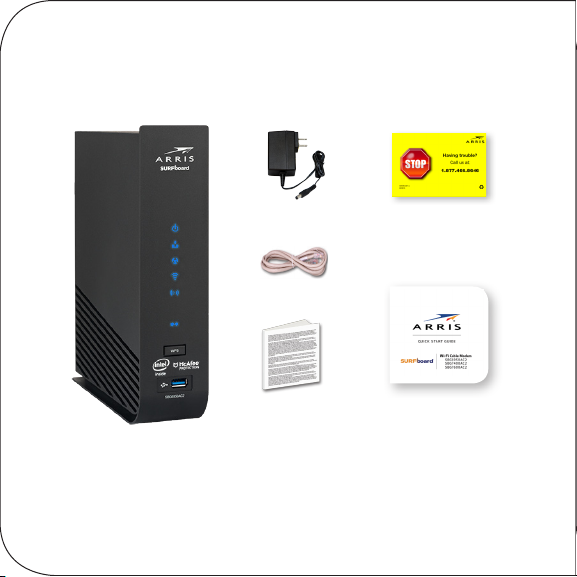
What’s in the Box
Wi-Fi Cable Modem
SBG6950AC2
SBG7400AC2
SBG7600AC2
2
Power Adapter
Ethernet Cable
Soware License
& Warranty Card
Support
Information
Card
Quick Start Guide
SBG6950AC2
SBG7400AC2
SBG7600AC2
Page 3

Introduction
1
Status Indicators
2
Let’s Get Started
3
Set Up Your Wi-Fi Network Connection
3.1 Download ARRIS SURFboard® Manager
3.2 Connect Using Your Mobile Device
Download McAfee™ Secure Home Internet
4
5
Web Manager
4
7
14
22
25
3
Page 4

1
4
Status Indicators
Page 5
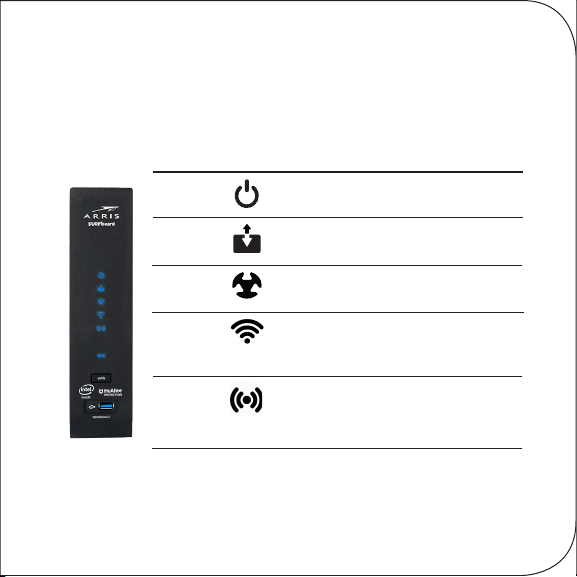
Front Panel LEDs
Power is properly connected
Power
Send
Receive
Online
2.4 GHz
Wireless
5 GHz
Wireless
Note: Detailed LED status information is available online in the
SURFboard SBG6950AC2, SBG7400AC2, & SBG7600AC2 User
Guide at the ARRIS Support website, www.arris.com/selelp.
On
to the Wi-Fi cable modem
Upstream (Send) and
On
Downstream (Receive) status
Wi-Fi cable modem is
On
connected to the network
2.4 GHz wireless connection is
Flash
made between the Wi-Fi cable
modem and your Wi-Fi device
5 GHz wireless connection is
Flash
made between the Wi-Fi cable
modem and your Wi-Fi device
5
Page 6

This SURFboard device is a combination DOCSIS 3.0
cable modem and four-port Ethernet router with Wi-Fi.
It uses DOCSIS 3.0 technology to provide ultra
high-speed Internet access on your Wi-Fi home or small
business network.
Using the connection capabilities of the Wi-Fi cable
modem, you can connect your computer and other
network-enabled devices via the four Ethernet ports or
the 2.4 GHz and 5 GHz Wi-Fi connections. The Wi-Fi
cable modem connects to the existing coaxial cable
connection in your home.
Note: For Internet connections, you need a cable
service connection with a cable Internet Service
Provider. The SBG6950AC2, SBG7400AC2, and
SBG7600AC2 will not work with DSL or satellite
Internet service.
6
Page 7
2
Let’s Get Started
7
Page 8
A
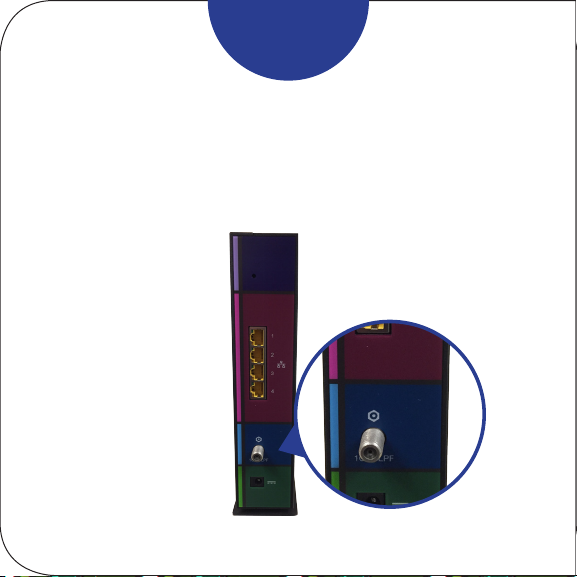
Connect the coaxial cable (not included) from the
cable wall outlet or RF splier to the Cable connector
on the rear of your Wi-Fi cable modem.
Tighten the
connector by hand.
8
Page 9
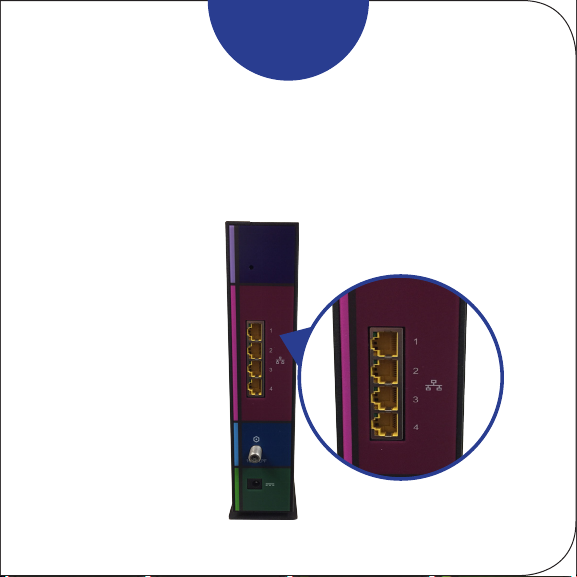
B
Connect the Ethernet cable to any Ethernet port on
the rear of your Wi-Fi cable modem and the Ethernet
port on your PC or laptop.
9
Page 10
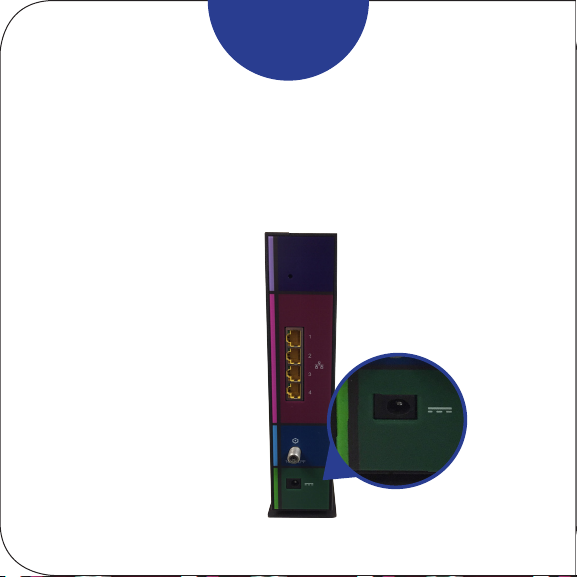
C
Connect the power adapter to the Power port on the
rear of your Wi-Fi cable modem, then plug it into an
electrical wall outlet that is not controlled by a wall
switch.
Your Wi-Fi cable modem
will automatically power
ON when the power
adapter is connected.
10
Page 11
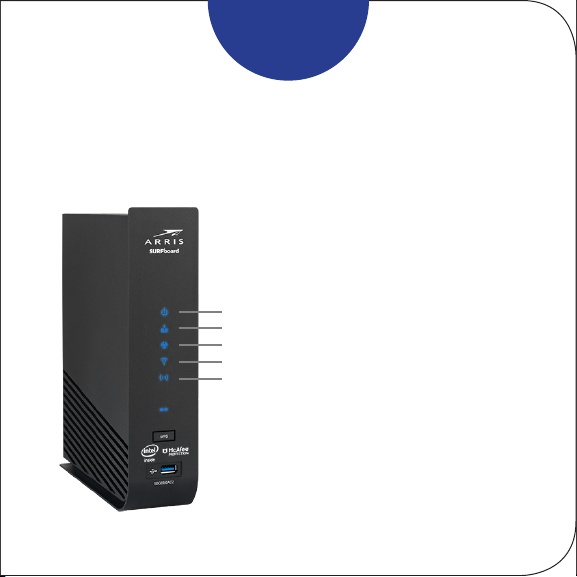
D
Check the front panel LEDs on your Wi-Fi cable
modem. Aer a brief pause, the first three LEDs
should light up SOLID blue.
Power
Send/Receive
Online
2.4 GHz Wireless
5 GHz Wireless
The 2.4 GHz and 5 GHz Wireless
LEDs will light up SOLID when Wi-Fi
connectivity is available and ready.
11
Page 12

Make sure you have the Wi-Fi cable modem model
name (SBG6950AC2, SBG7400AC2, or
SBG7600AC2), HFC MAC ID, and Serial Number
(S/N) listed on the modem label located on the
boom of your Wi-Fi cable modem or aached in the
Wi-Fi Cable Modem Label section at the end of this
document.
Note: For Comcast subscribers, please visit
xfinity.com/activate before calling Comcast or
ARRIS. If there is an issue with the activation, please
call Comcast: 1-800-Xfinity (1-800-934-6489).
Make sure you have your Comcast XFINITY account
number, account phone number, and login information
(your email address or user name and password).
12
Page 13
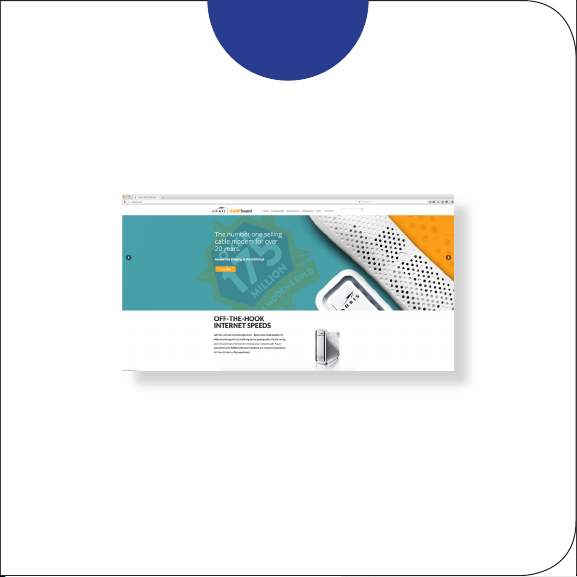
E
Verify Wi-Fi cable modem connectivity by accessing
the Internet on your connected PC or laptop.
Visit any public webpage such as www.suroard.com.
If the website fails to open, please contact your service
provider to set up your Internet service or activate your
Wi-Fi cable modem.
13
Page 14

3
14
Set Up Your Wi-Fi
Network Connection
Choose one of the following options:
3.1 Download ARRIS SURFboard® Manager
3.2 Connect using your mobile device
Page 15

3.1
Download ARRIS SURFboard® Manager Mobile App
Download the iOS or Android version of the ARRIS
SURFboard Manager Mobile App for your iOS or
Android mobile device to set up your Wi-Fi home or
small business network connection.
15
Page 16

A
Use the ARRIS SURFboard Manager mobile app (see
page 17) or the Web Manager for your SBG6950AC2,
SBG7400AC2, or SBG7600AC2 (see page 26) to
set the same network name and password, if you
are replacing the router or Wi-Fi cable modem in an
existing Wi-Fi network. This will ensure that your
Wi-Fi devices will automatically connect to your new
SBG6950AC2, SBG7400AC2, or SBG7600AC2
Wi-Fi network.
16
Page 17

B
Download the ARRIS SURFboard Manager mobile
app from the Apple App Store or Google Play Store.
Scan the QR code to download the mobile app on your
iOS or Android mobile device:
Open the ARRIS SURFboard Manager mobile app and
follow the prompts to configure your SBG6950AC2,
SBG7400AC2, or SBG7600AC2.
17
Page 18

3.2
Connect using your mobile device
!
Some of the selections used in this procedure may
vary slightly depending on your mobile device and
operating system. Please make sure to select the
most applicable selections on your mobile device.
18
Page 19
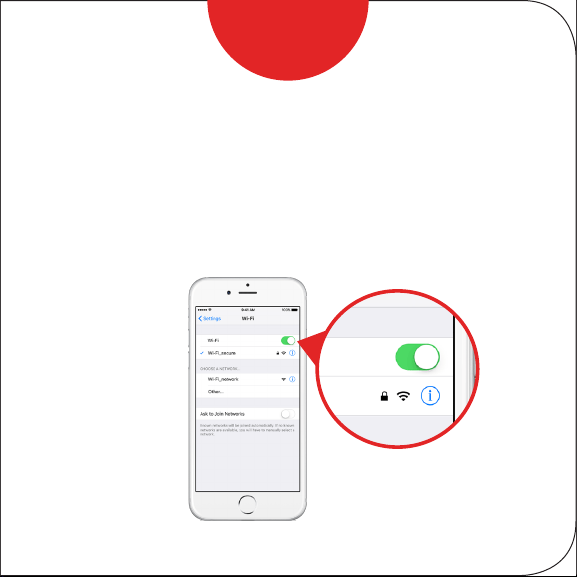
A
Access the Seings screen on your mobile device and
then select: Wi-Fi, Wireless, or Connections.
Check thatWi-FiorWirelessis set to ON.
For iOS devices, you may have to enter a password
and then selectJOIN.
19
Page 20
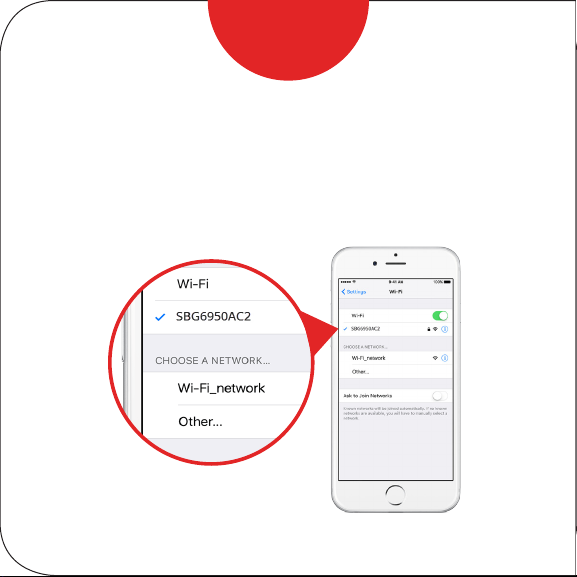
B
Select the SBG6950AC2, SBG7400AC2, or
SBG7600AC2 Wi-Fi network from the list of
available Wi-Fi networks.
20
Page 21
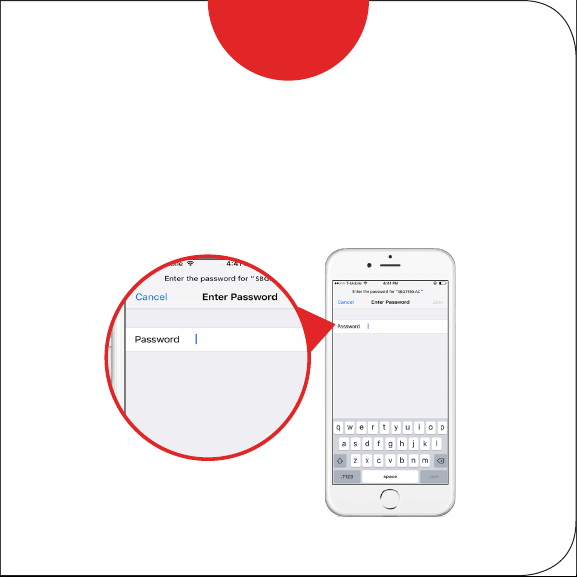
C
Enter your Wi-Fi network password in the Password
field and selectJoin or Connect.
This is the password that you set up during the Wi-Fi
cable modem activation.
21
Page 22
4
22
Download McAfee™
Secure Home Internet
Page 23
A
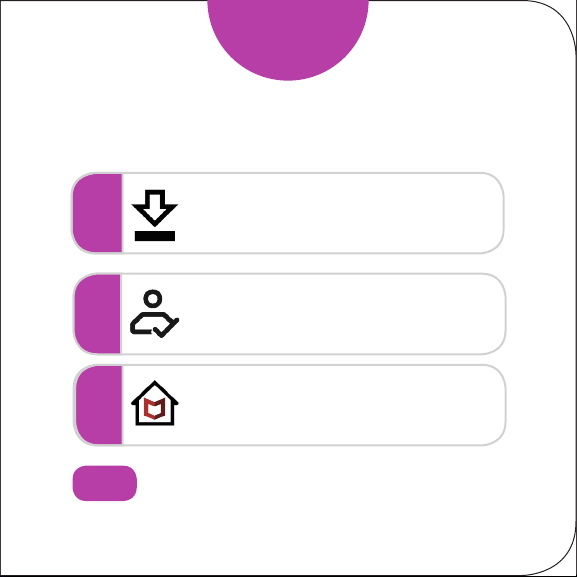
Get protection in just a few steps.
Download the McAfee Secure Home
1
Internet mobile app from the Apple
App Store or Google Play Store
2
3
PLUS
Sign up through the mobile app
Follow the step-by-step instructions
in the mobile app to set up your Wi-Fi
home network
Get McAfee LiveSafe for 90 days free to
keep devices protected even on other
networks.
23
Page 24
B
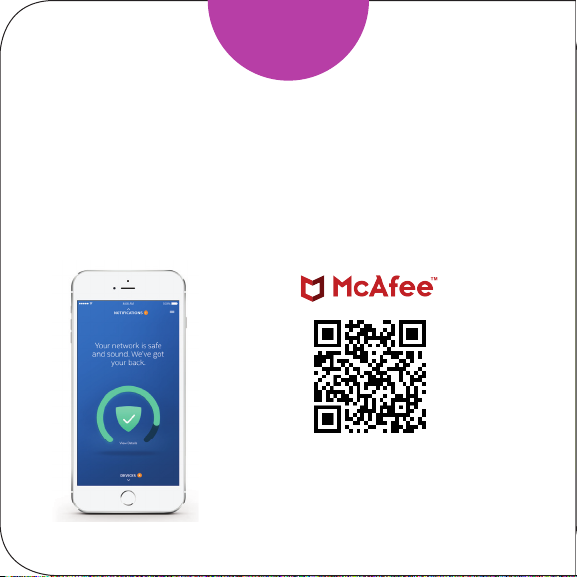
Download the McAfee Secure Home Internet mobile
app from the Apple App Store or Google Play Store.
Scan the QR code to download the mobile app on your
iOS or Android mobile device:
For more information, the McAfee
Secure Home Internet User Guide
is available online.
24
Page 25
5
Web Manager
25
Page 26

A
Manage your SBG6950AC2, SBG7400AC2, or
SBG7600AC2 using the Wi-Fi cable modem Web
Manager.
Open a web browser (e.g., Internet Explorer, Google
Chrome, etc.) on your connected computer or laptop
and then type 192.168.0.1 in the address bar.
The default login is case-sensitive:
User Name: admin
Password: password
Change the default Web Manager password located
under Basic Setup, Login Seings and then click
Apply to update your password.
26
Page 27

B
Customize the default Wi-Fi network name or SSID
(ARRIS-####) for your Wi-Fi home network aer
installing your Wi-Fi cable modem and seing up your
network connection(s).
Note: You have the option to either keep the default
Wi-Fi network name or create a new network name to
help you to easily identify your Wi-Fi home network.
For additional assistance with your Wi-Fi cable modem,
ARRIS is available to help. Choose one of the following:
• Visit www.arris.com/selelp for Self Help, FAQs,
Product Manuals, Live Chat, and Email support.
• Call us at 1-877-466-8646.
27
Page 28

Wi-Fi Cable Modem Label
If the label is not
aached, please
check the boom
of your Wi-Fi cable
modem.
© 2018 ARRIS Enterprises, LLC. All rights reserved.
No part of this publication may be reproduced or transmied in any form or by any means
without wrien permission from ARRIS Enterprises, LLC.
ARRIS, SURFboard, and the ARRIS logo are all trademarks or registered trademarks of ARRIS
Enterprises, LLC. Other trademarks and trade names may be used in this document to refer
to either the entities claiming the marks or the names of their products. ARRIS disclaims
proprietary interest in the marks and names of others.
ARSVD01735-e
28
 Loading...