

Page 1

K
Service Source
Basics
iBook
Page 2
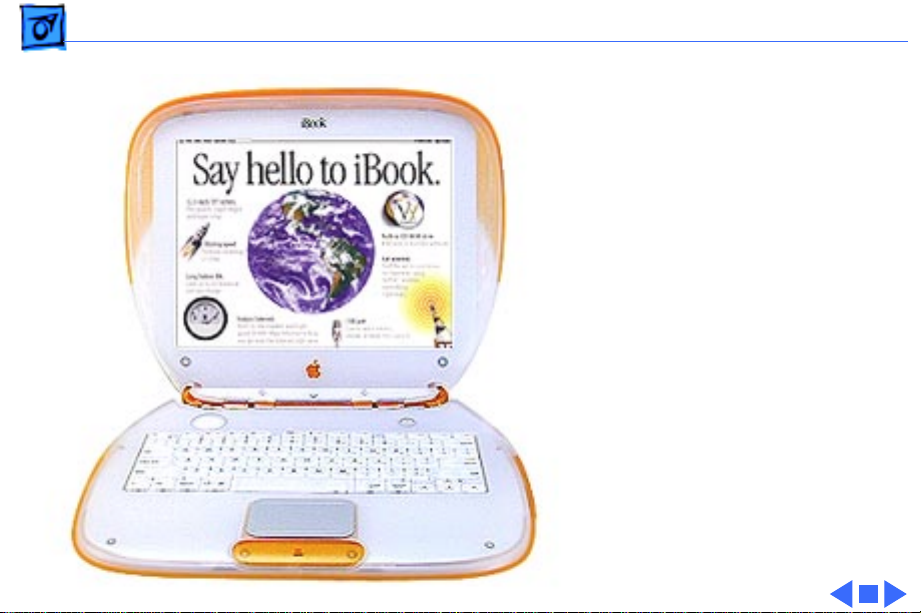
Basics Product Overview - 1
Product Overview
The iBook is designed for
computing on the move. It
features a tough,
polycarbonate body, builtin handle, lithium-ion
battery that runs up to six
hours between charges, and
support for AirPort
wireless networking.
The iBook is based on the
PowerPC G3
microprocessor and features
a 12.1-inch TFT display.
Page 3

Basics Features - 2
Features
The features of iBook include:
• PowerPC G3 microprocessor running at a clock speed of
300 MHz
• backside L2 cache of 512K
• 32 MB of SDRAM on the logic board and one expansion
slot for up to 160 MB of SDRAM via a 128-megabyte SODIMM.
• 3.2 GB built-in hard drive
• 12.1-inch TFT display with SVGA resolution (800 x 600
pixels)
• built-in CD-ROM drive
• 4MB of SDRAM video memory
• built-in 2D and 3D graphics acceleration via the ATI
RAGE Mobility video controller
• lithium-ion battery with up to six hours of battery life
• one USB port for external keyboard, mouse, and other
Page 4

Basics Features - 3
USB devices
• built-in Ethernet port with RJ-45 connector for
10BaseT and 100Base-TX operation
• built-in V.90 modem with 56 Kbps data rate
• built-in mono speaker and 16-bit stereo output jack
• keyboard with embedded numeric keypad and
programmable function keys
• trackpad with tap/double tap and drag features
• optional wireless LAN via the AirPort Card
Page 5
Basics Front View - 4
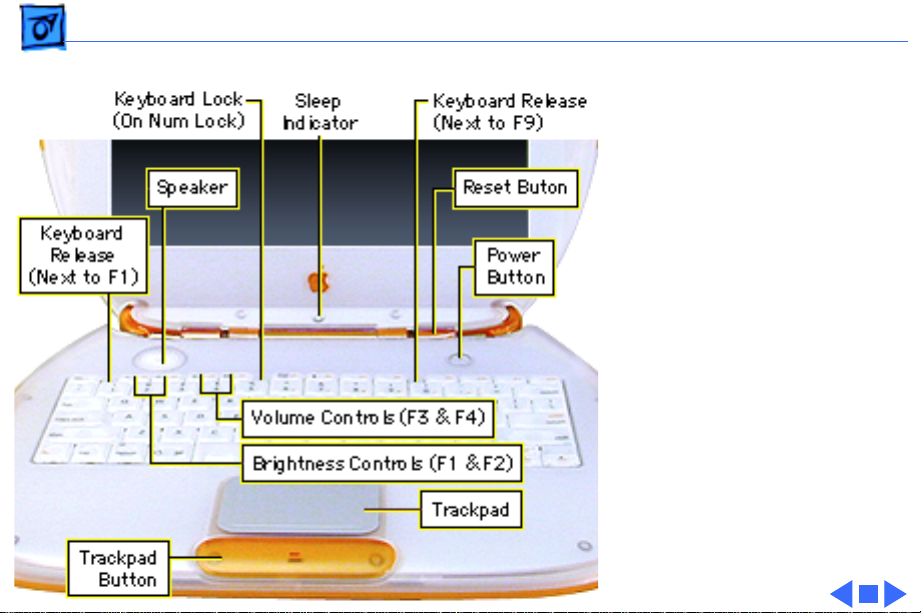
Front View
The front of the iBook
includes the: power button,
sleep indicator, reset
button, volume and
brightness controls,
keyboard release tabs,
keyboard lock, trackpad and
trackpad button, and
speaker.
Page 6
Basics Right Side View - 5
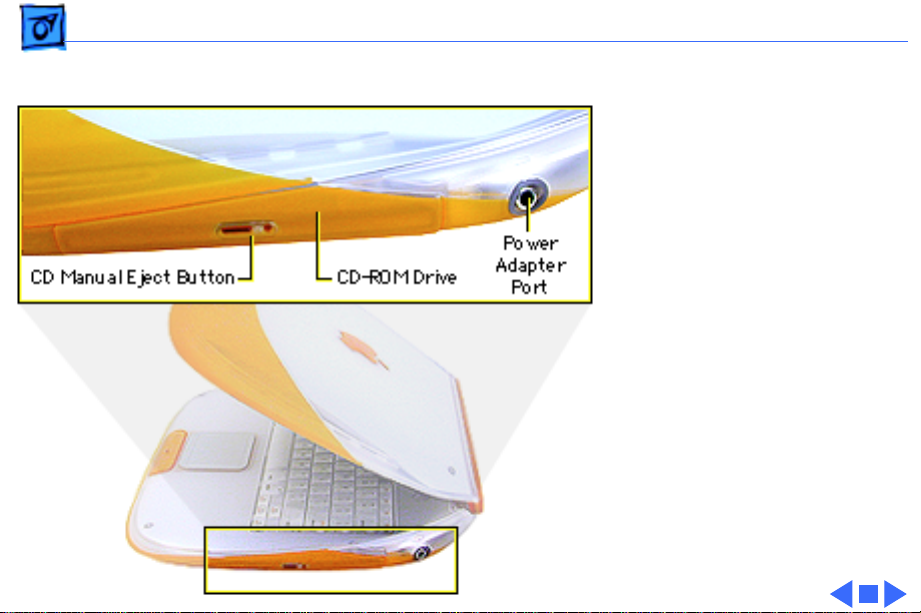
Right Side View
The right side of the iBook
includes the: power adapter
port, CD-ROM drive, and CD
manual eject button.
Page 7
Basics Left Side View - 6
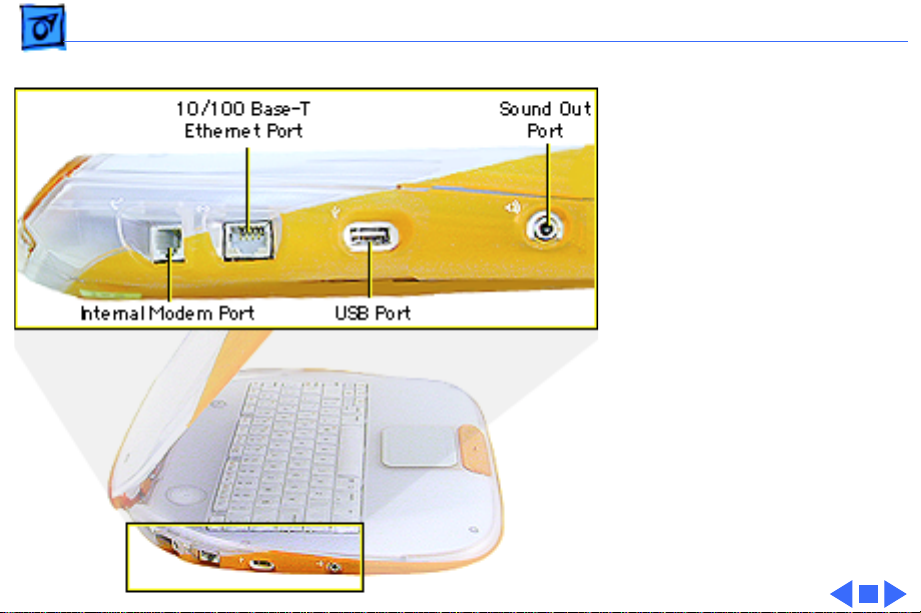
Left Side View
The left side of the iBook
includes the following ports:
sound out, USB, Ethernet,
and internal modem.
Page 8
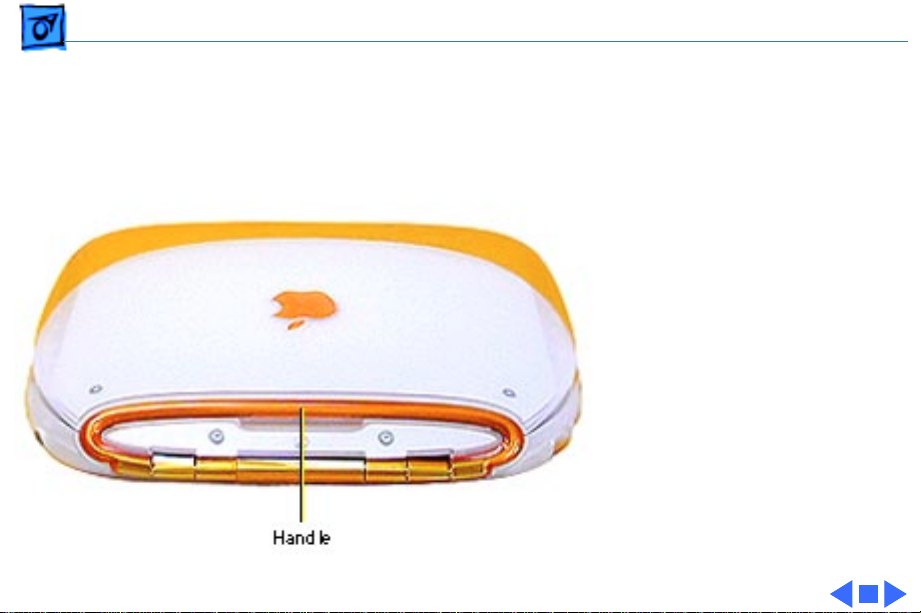
Basics Back View - 7
Back View
The handle of the iBook is on
the back side.
Page 9
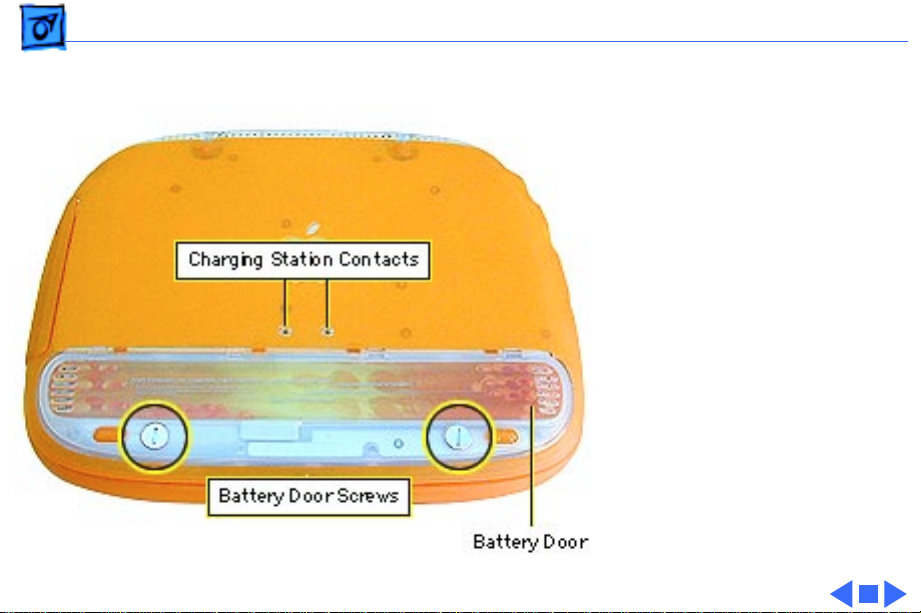
Basics Bottom View - 8
Bottom View
The bottom of the iBook
includes the battery door
with spring-loaded screws,
and the contacts for a thirdparty charging station.
Page 10

Basics Ports - 9
Ports
The iBook has ports for USB, Ethernet, sound out, power
adapter, and an internal modem.
USB
The iBook has one Universal Serial Bus (USB) port that can
be used to connect I/O devices such as a USB mouse,
printers, scanners, and low-speed storage devices. The
ports use USB Type A connectors, which have four pins.
The iBook does not support the power-on key on the Apple
USB keyboard.
Page 11

Basics Ports - 10
Ethernet
The iBook has a built-in 10/100 Mbps Ethernet port using
a RJ-45 connector. When connected to either a 10Base-T or
a 100Base-TX hub, the port will recognize which type of
hub is connected.
Sound Out
The iBook has one mono speaker located on the bottom case. A
headphone jack located on the left side of the computer
supports stereo headphones or external powered speakers.
When headphones or speakers are plugged into the external
jack, the sound to the internal speaker is turned off.
The iBook has no microphone or sound-input jack.
Page 12

Basics Keyboard - 11
Keyboard
The iBook keyboard includes an embedded numeric keypad
and controls to adjust display brightness, speaker volume,
and the Num Lock function.
Several of the keys on the keyboard have more than one mode
of operation. These changes are controlled by the Num Lock
key, Fn key, and the Function Keys checkbox in the Keyboard
control panel.
Num Lock Key
Press the Num Lock key to:
• Select the embedded numeric keypad on the right portion
of the alphanumeric keys.
• Make the rest of the alphanumeric keys functionless.
Page 13

Basics Keyboard - 12
Fn Key
Press the Fn key to:
• Toggle the function keys between their normal control
functions and their alternate F1–F12 functions.
• Select the embedded numeric keypad on the right portion
of the alphanumeric keys.
• Change certain control keys, including the cursor control
keys, to page control keys.
Table 1 below shows the operations controlled by function
keys when the Fn key is pressed.
Key Operation
F1 Decrease display brightness
F2 Increase display brightness
F3 Decrease speaker volume
Page 14

Basics Keyboard - 13
Key Operation
F4 Increase speaker volume
F5 Num Lock
F6 Mute speaker
Table 1: Function Key Operation
Function Keys Checkbox
The Fn key lets the user switch the mode of operation of the
function keys. The user selects the default mode of the
function keys in the Function-keys checkbox in the
Keyboard Control Panel. The Function-keys checkbox lets
the user choose whether the function key operations are
primary or secondary.
Page 15

Basics Keyboard - 14
Function Keys Primary
Function keys primary means the function keys are
normally in their F1–F12 mode of operation. Pressing the
Fn key activates their control-button mode.
Function Keys Secondary
Function keys secondary means the function keys are
normally in their control-button mode and pressing the Fn
key activates their function-key mode.
Page 16

Basics Battery - 15
Battery
The iBook has one lithium-ion (LiIon) battery that will
provide up to six hours of battery life when all power saving
features are implemented. With the power adapter plugged
in, the iBook battery recharges in four hours while the
computer is running, or in two hours when the computer is
shut down or in sleep mode.
The iBook battery is not compatible with any previous
Macintosh portable computer.
No Backup Battery
The iBook has no backup battery. You will lose all data stored
in RAM if you change the battery while the system is in sleep
mode and no power adapter is connected. Therefore, shut the
system down before changing the battery, or make sure a
Page 17

Basics Battery - 16
power adapter is connected.
Battery Handling Guidelines
±
Warning:
hazardous chemicals and should not be thrown out with
household or office trash. Review battery handling and
disposal instructions in Safety Information in Bulletins/
Safety.
The following are guidelines for properly handling
batteries:
• Handle the battery carefully. Do not drop, puncture,
disassemble, mutilate, or incinerate it.
• Do not leave a battery in the computer for longer than a
week without plugging in the power adapter.
• Do not short the battery contacts.
• Do not leave the battery in hot locations (such as the
Lithium-ion (LiIon) batteries contain
Page 18

Basics Battery - 17
trunk of a car).
• Do not leave a battery in storage for longer than six
months without recharging it.
• Never get batteries wet.
• Recharge batteries only as described in the user’s manual
and only in ventilated areas.
Battery Verification
When the power adapter is being used, the ring around the
power adapter port glows green when the battery is fully
charged. The ring glows amber if the battery is being
charged.
You can also check the battery status by looking at the
Battery portion of the control strip or the battery symbol in
the upper right corner of the Finder menu bar.
Page 19

Basics Battery - 18
Power Adapter Verification
Try using a known-good power adapter if the computer
cannot run off the existing one, or try the existing power
adapter with another iBook or G3 Series PowerBook
Under normal operation, the ring around the power adapter
port will glow green or amber if the computer is receiving
adequate power. If the computer is not receiving adequate
power, the ring will not glow green or amber.
Page 20

Basics Boards and Cards - 19
Boards and Cards
The architecture of the iBook is designed around one logic
board that contains the microprocessor and two new custom
ICs. Besides the logic board, the iBook can contain up to five
boards and cards: charging board, DC-in board, RAM card,
modem, inverter board, and AirPort Card.
AirPort Card
The iBook supports the AirPort Card, an internal wireless
LAN module. The AirPort Card is available as a build-toorder option or as a user-installable upgrade through the
Apple Store. The AirPort Card can be used for Internet
access, e-mail access, and file exchange.
For more information, refer to the AirPort service manual
on Service Source CD or Service Source Online.
Page 21
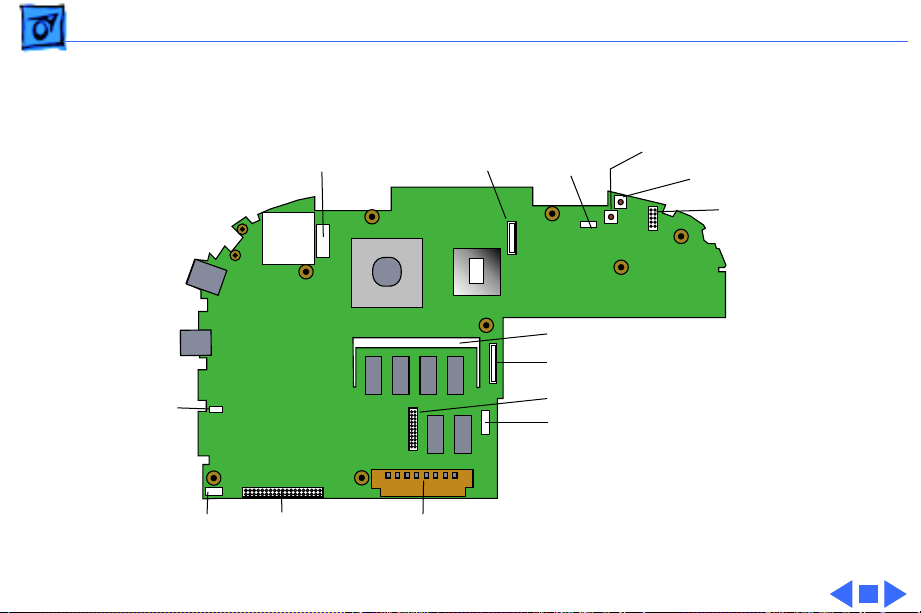
Basics Boards and Cards - 20
Logic Board
Display
Sound Out
Connector
Display Cable
Connector
Modem
Connector
Inverter
Connector
Memory Slot
CD Data Connector
Keyboard Connector
Trackpad Connector
Power on Button
Reset Button
DC Power
Connector
Charging Board
Connector
Hard Drive
Connector
AirPort Card
Slot
Page 22
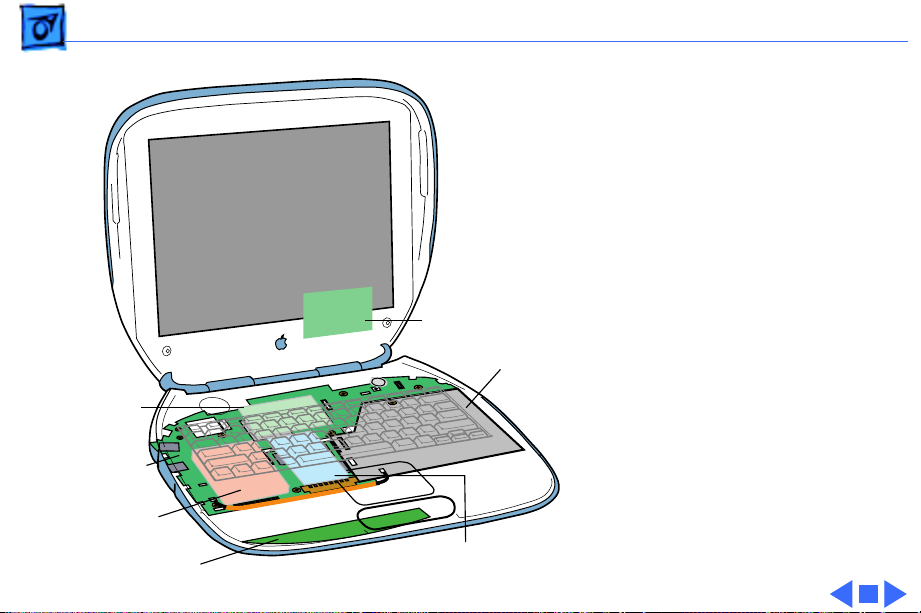
Basics Internal Hardware Locator - 21
Internal Hardware Locator
The upgradeable RAM slot is
located under the AirPort
Card and RAM access door. To
reach the CD-ROM drive and
modem, remove the
Inverter Board
keyboard and top case.
Modem
Board
Logic Board
Hard Drive
Charging Board
CD-ROM
Drive
AirPort Card
Remove the logic board EMI
shield to access the
remaining components,
including the hard drive.
Page 23

Basics System Software—NewWorld ROM - 22
System Software—NewWorld ROM
The iBook is the second Macintosh portable to take advantage
of ROM-in-RAM architecture. This design features a small
ROM that provides hardware initialization functions and
provides a mechanism to load the Mac OS ROM image into
RAM. The new software architecture that is centered around
ROM-in-RAM and its ramifications is named NewWorld.
ROM-in-RAM
Hardware-specific code resides in firmware (ROM) that
fits into one ROM called the boot ROM. The boot ROM includes
the code and tables needed to start up the computer, load an
operating system, and provide common hardware access
services.
All higher-level software resides in what has been
Page 24

Basics System Software—NewWorld ROM - 23
historically known as the Mac OS ROM, but with much of the
old hardware-specific code moved into the boot ROM. As
before, the Mac OS ROM can still be augmented by enablers,
the System file, and extensions.
Prior to the iMac, all Macintosh computers required a ROM
component that contained many components of the Mac OS
software. The NewWorld approach sidesteps this
requirement by copying an image of the Mac OS ROM into
RAM before the Mac OS begins operation. Once the Mac OS
begins operation, a Mac OS ROM image in RAM and an actual
Mac OS ROM behave in the same way. No new or different
software interfaces are directly accessible from the Mac OS.
During the boot process, software contained in the Mac OS
ROM file communicates with Open Firmware to collect
information about the hardware, using the Open Firmware
Client Interface.
Page 25

Basics System Software—NewWorld ROM - 24
RAM Footprint
Because the Mac OS ROM image is stored in RAM,
approximately 3 MB of RAM is available for other uses. In
effect, a system with 64 MB of RAM appears to have only 61
MB available. Some portion of the missing 3 MB is offset by
having fewer patches in RAM.
Data Structures and Files
The Mac OS ROM image is contained in a new file, named Mac
OS ROM, that resides in the System Folder. The Mac OS ROM
image is exactly the same as it would be if it were an actual
Mac OS ROM, containing the high-level software, the kernel
software, and the 68K emulator.
Page 26

Basics System Software—NewWorld ROM - 25
Startup Disk Control Panel
Previous systems stored the user's selected startup device
in Parameter RAM (PRAM) when the user selected a device
in the Startup Disk control panel. The startup disk routine
for the iBook, rather than setting Mac OS PRAM, sets an
Open Firmware config variable called boot-device. Open
Firmware honors this setting unless the selected device is
unavailable or is overridden by the user.
The following keys can be pressed to override the selected
startup device:
• Command-Option-Shift-Delete: ignore the boot-device
setting and scan for alternate devices.
• C: force the internal CD-ROM drive to be the startup
device.
• D: force the internal hard drive to be the startup device.
Page 27

Basics Hard Disks and HFS Plus - 26
Hard Disks and HFS Plus
The iBook hard drives use Mac OS Extended format (HFS
Plus). Some disk utility and disk locking programs
manufactured by companies other than Apple are
incompatible with HFS Plus.
Using an incompatible disk utility or disk locking program
could result in hard drive corruption and loss of all data on
the hard disk. Check the documentation that came with the
program or contact the manufacturer or the vendor of the
program before attempting to use it. Apple recommends
using the utility Disk First Aid, which is included on the
system software CD that ships with the iBook.
Page 28

Basics Hard Disks and HFS Plus - 27
Norton Utilities
±
Warning:
3.5.3 will not run on any of the iBook computers. Running
versions 3.5.1 and below may cause hard drive corruption
and loss of all data on the hard drive. See the Symantec Web
site at http://[email protected] for more
information on Norton Utilities and Mac OS Extended format.
Norton Utilities for Macintosh, v3.5.2 and
Page 29

Basics Service Strategy - 28
Service Strategy
The iBook is serviced exclusively through repair depots
worldwide throughout the life of the product. Carry-in
service to an Apple-authorized service provider is not
available.
Important:
or adding an AirPort Card may void the customer’s
warranty.
For more information about Apple’s service strategy for
iBook, refer to Program News on Service Source Online and
the Service Source CD.
Taking the computer apart beyond upgrading RAM
 Loading...