

Page 1
26
L W831
26
Page 2

TABLE OF CONTENTS
TABLE OF CONTENTS …………………………………………….....1
FOR YOUR SAFETY ………………………………………………….. 2
PRCAUTIONS AND REMINDERS ………………………………….. 3
IMPORTANT SAFETY INSTRUCTIONS
PACKAGE CONTENTS…………………………………………… 7
ATTACHING THE BASE ………………………………………… 7
PREPARING YOUR LCD TV FOR WALL MOUNTING…………8
PREPARATION ………………………………………………………… 9
PERIPHERAL CONNECTION GUIDE …………………………..…. 11
OPERATING INSTRUCTIONS ………………………………………. 13
TIPS ………………………………………………………… 31
TO USE THE FRONT PANEL CONTROL …………………… 13
TO USE THE REMOTE CONTROL ………………………….. 14
VIEWING MODES ILLUSTRATIONS……………………….. 15
CONNECTING EQUIPMENT………………………………… 16
TO USE THE MENUS ……………………………………..……26
MAIN MENU………………………………………………... 26
PICTURE MENU……………………………………………..27
SOUND MENU……………………………………………… 28
ADVANCED MENU………………………………………… 28
PC SETUP MENU………………………………………… 29
INSTALLATION MENU…………………………………… 29
SYSTEM MENU…………………………………………… 30
PRODUCT SPECIFICATION ……………………………………….…. 32
BEFORE CALLING SERVICE ………………………………………… 33
GLOSSARY …………………………………………………….... 34
………………………….. 5
English
Page 3
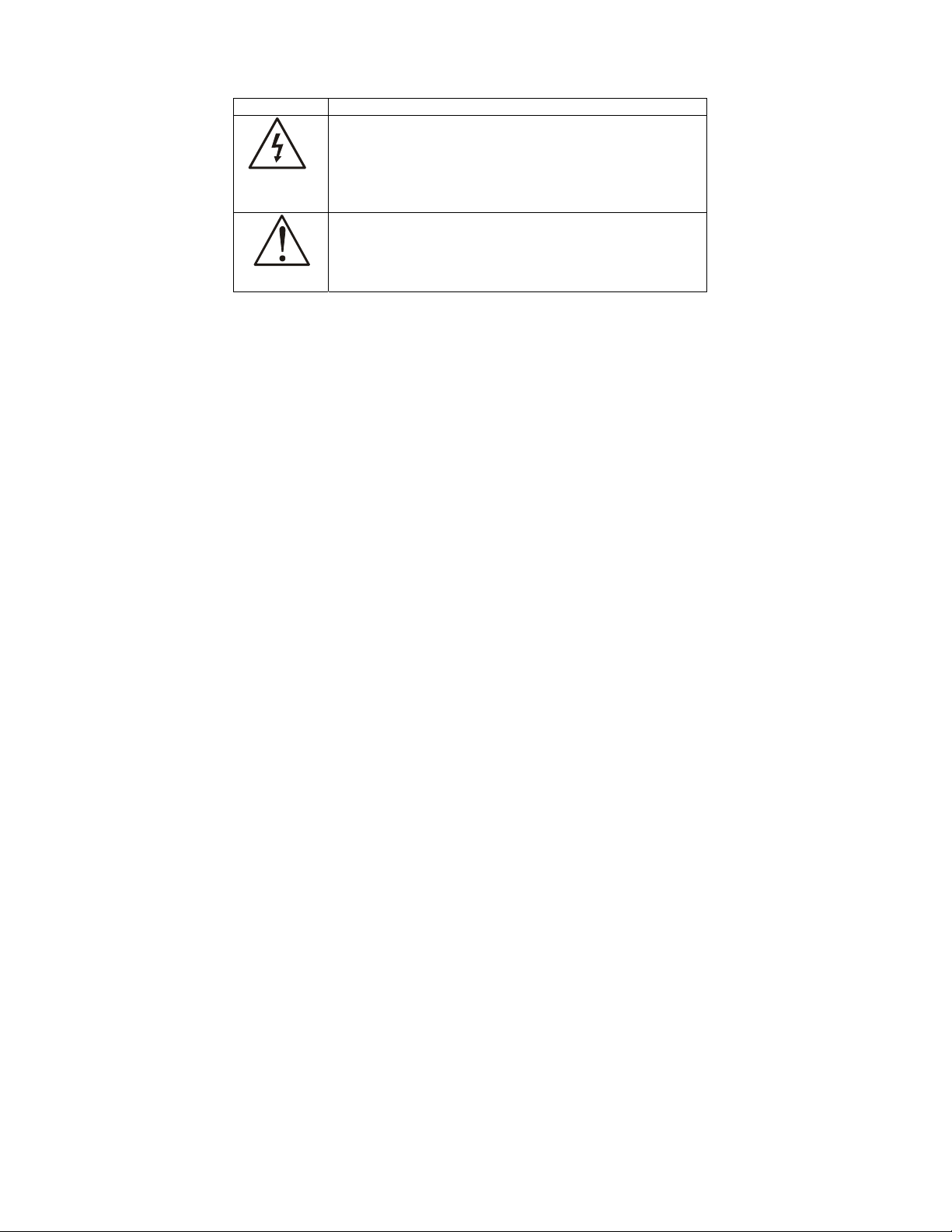
SYMBOL SYMBOL DEFINITION
DANGEROUS VOLTAGE: The lightning flash with
arrowhead symbol, within an equilateral triangle, is
intended to alert the user to the presence of uninsulated
SA 1965
“dangerous voltage” within the product’s enclosure that
may be of sufficient magnitude to constitute a risk of
electrical shock to persons.
INSTRUCTIONS: The exclamation point within on
equilateral triangle to alert the User to the presence of
important operating and maintenance (servicing)
SA 1966
instruction In the literature accompanying the appliance.
Apparatus shall not be exposed to dripping or splashing and no objects filled
with liquids, Such as vases, Shall be placed on the apparatus.
Caution - Danger of explosion if battery is incorrectly replaced. Replace only
with the same or equivalent type.
1
Page 4
FOR YOUR SAFETY
Before operating the TV please read this manual thoroughly. This manual should
be retained for future reference.
FCC Class B Radio Frequency Interference Statement
WARNING: (FOR FCC CERTIFIED MODELS)
NOTE: This equipment has been tested and found to comply with the limits for a
Class B digital device, pursuant to Part 15 of the FCC Rules. These limits are
designed to provide reasonable protection against harmful interference in a
residential installation. This equipment generates, uses and can radiate radio
frequency energy, and if not installed and used in accordance with the
instructions, may cause harmful interference to radio communications. However,
there is no guarantee that interference will not occur in a particular installation. If
this equipment does cause harmful interference to radio or television reception,
which can be determined by turning the equipment off and on, the user is
encouraged to try to correct the interference by one or more of the following
measures:
1. Reorient or relocate the receiving antenna.
2. Increase the separation between the equipment and receiver.
3. Connect the equipment into an outlet on a circuit different from that to which
the receiver is connected.
4. Consult the dealer or an experienced radio/TV technician for help.
NOTICE
1. The changes or modifications not expressly approved by the party
responsible for compliance could void the user's authority to operate the
equipment.
2. Shielded interface cables and AC power cord, if any, must be used in order
to comply with the emission limits.
3. The manufacturer is not responsible for any radio or TV interference caused
by unauthorized modification to this equipment. It is the responsibilities of
the user to correct such interference.
WARNING:
To prevent fire or shock hazard, do not expose the TV to rain or moisture.
Dangerously high voltages are present inside the TV. Do not open the cabinet.
Refer servicing to qualified personnel only.
SAFETY: Lamp Disposal
LAMP(S) INSIDE THIS PRODUCT CONTAIN MERCURY AND MUST BE RECYCLED
OR DISPOSED OF ACCORDING TO LOCAL, STATE OR FEDERAL LAWS. FOR MORE
INFORMATION, CONTACT THE ELECTRONIC
INDUSTRIES ALLIANCE AT WWW.EIAE.ORG.
2
Page 5
PRECAUTIONS AND REMINDERS
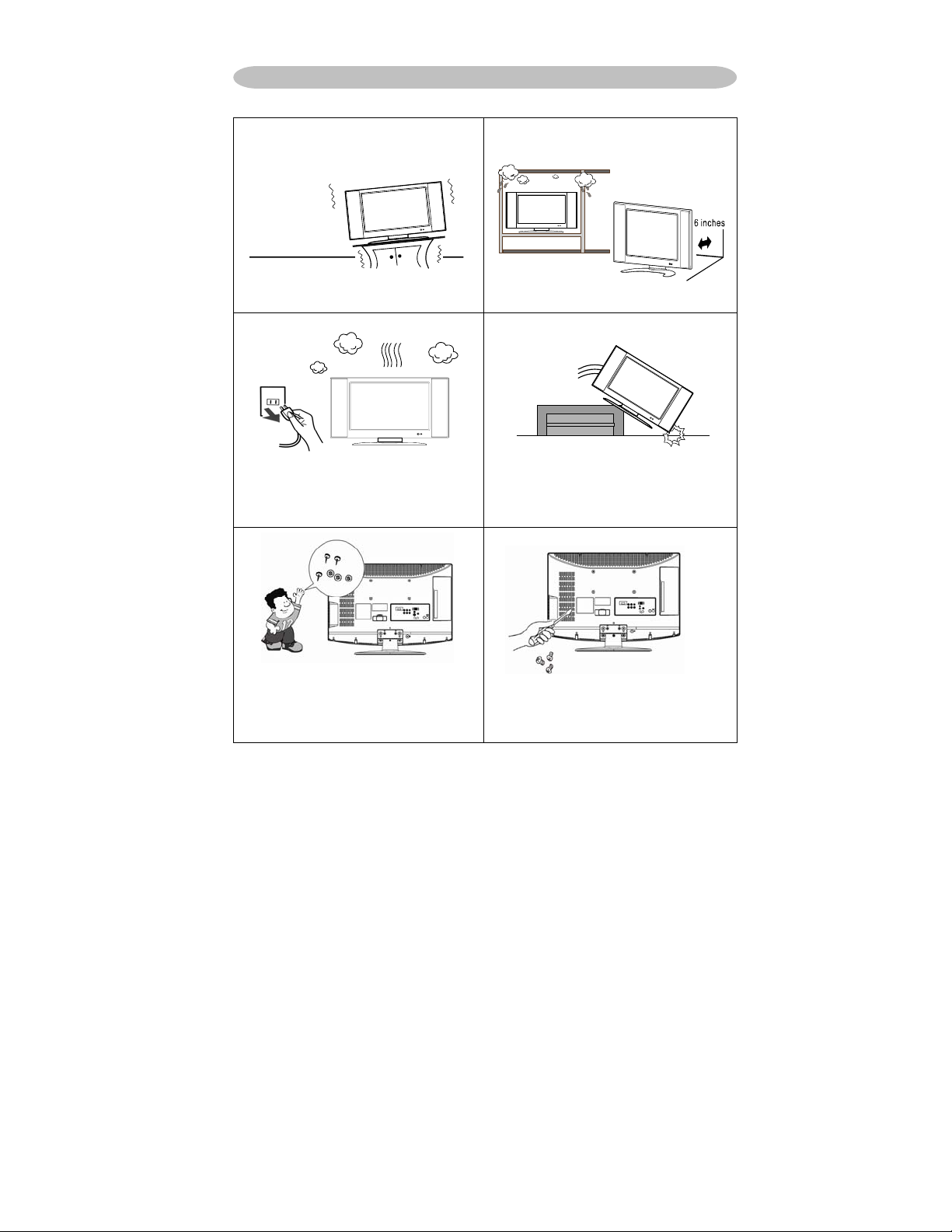
Place unit on even surfaces.
Don't place the TV in confined spaces
or in a box when using it.
Unplug immediately if is malfunction
like no picture, no video/audio,smoke
and bad odor from TV.
Don't throw any object inside the TV
box like metals or other flammable
materials.
Unplug immediately if other foreign
materials are put inside TV box or if
the TV fell down.
Prohibit/Avoid opening TV cabinet
3
Page 6
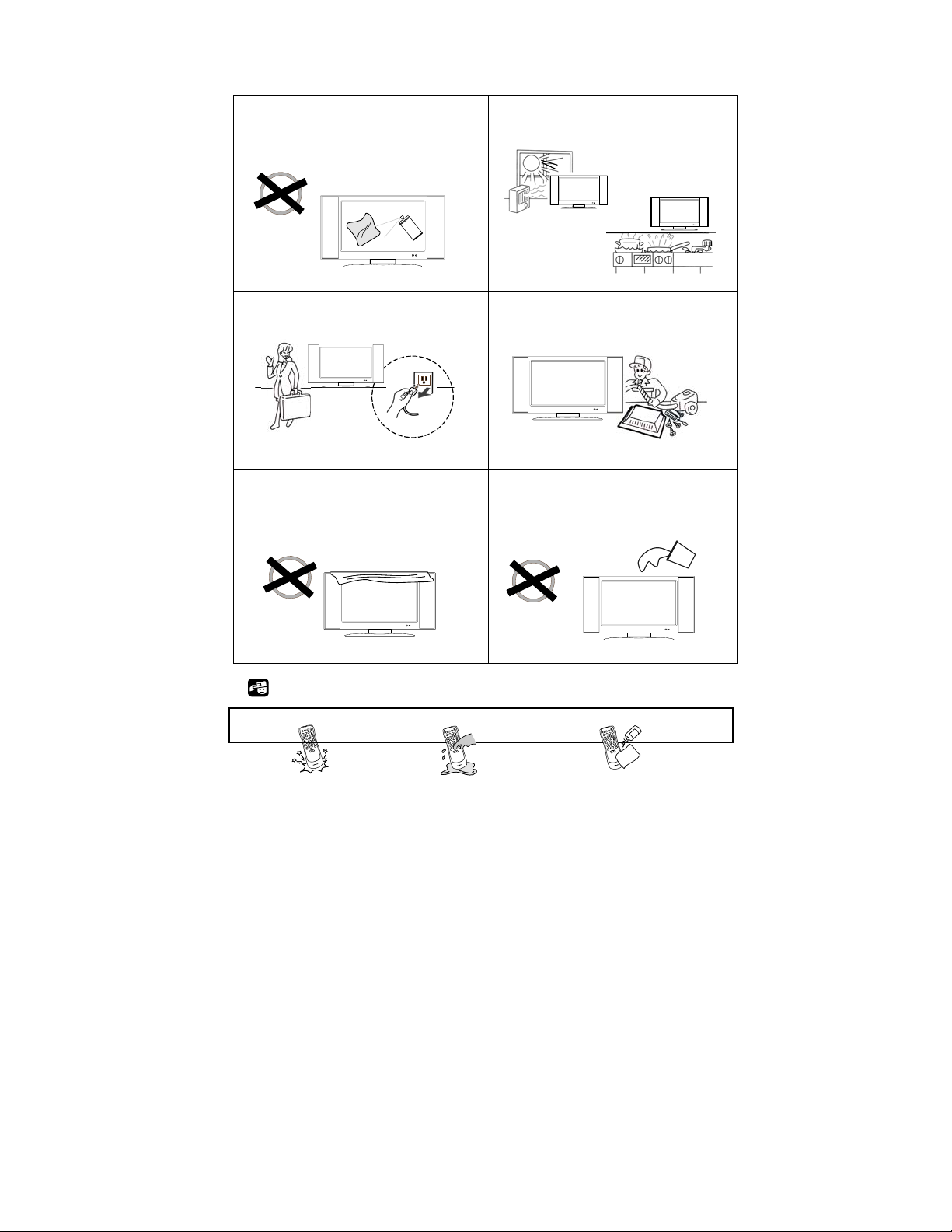
Remember to unplug the AC cord
from the AC outlet before cleaning. Do
not use liquid cleaners or aerosol
cleaners to clean the display.
Make sure to unplug the unit when not
in use for a long period of time (days).
Avoid direct sunlight, dusty, high
humidity and smoky areas.
Call service personnel to clean the
internal part of the TV once a year.
Do not cover or block any vents and
openings. Inadequate ventilation may
shorten the life of the display unit and
cause overheating.
Do not place the display near water,
such as bathtub, washbasin, kitchen
sink laundry tub, swimming pool or in
a damp basement.
Notice for Remote Controller
Avoid Dropping Avoid Liquids Avoid Aerosol Cleaners
4
3
2
1
6
5
4
9
8
7
0
3
2
1
6
5
4
9
8
7
0
3
2
1
6
5
4
9
8
7
0
Page 7

IMPORTANT SAFETY INSTRUCTIONS
Read before operating equipment
1. Read these instructions.
2. Keep these instructions.
3. Heed all warnings.
4. Follow all instructions.
5. Do not use this apparatus near water.
6. Clean only with a dry cloth.
7. Do not block any of the ventilation openings. Install in accordance with the
manufacturers instructions.
8. Do not install near any heat sources such as radiators, heat registers, stoves,
or other apparatus (including amplifiers) that produce heat.
9. Do not defeat the safety purpose of the polarized or grounding type plug. A
polarized plug has two blades with one wider than the other. A grounding
type plug has two blades and third grounding prong. The wide blade or third
prong is provided for your safety. When the provided plug does not fit into
your outlet, consult an electrician for replacement of the obsolete outlet.
10. Protect the power cord from being walked on or pinched particularly at plugs,
convenience receptacles, and the point where they exit from the apparatus.
11. Only use attachments/accessories specified by the manufacturer.
12. Use only with a cart, stand, tripod, bracket, or table specified by the
manufacturer, or sold with the apparatus. When a cart is used, use caution
when moving the cart/apparatus combination to avoid injury from tip-over.
13. The TV should be operated only from the type of power source indicated on
the label. If you are not sure of the type of power supplied to your home,
consult your dealer or local power company.
14. Unplug this apparatus during lightning storms or when unused for long
periods of time.
15. Refer all servicing to qualified service personnel. Servicing is required when
the apparatus has been damaged in any way, such as power-supply cord or
plug is damaged, liquid has been spilled or objects have fallen into apparatus,
the apparatus has been exposed to rain or moisture, does not operate
normally, or has been dropped.
16. This product may contain lead or mercury. Disposal of these materials may
be regulated due to environmental considerations. For disposal or recycling
information, please contact your local authorities or the Electronic Industries
Alliance: www.eiae.org
17. Damage Requiring Service – The appliance should be serviced by qualified
service personnel when:
A. The power supply cord or the plug has been damaged; or
B. Objects have fallen, or liquid has been spilled into the appliance; or
C. The appliance has been exposed to rain; or
D. The appliance does not appear to operate normally or exhibits a marked
change in performance; or
E. The appliance has been dropped, or the enclosure damaged.
5
Page 8
18. Tilt/Stability – All televisions must comply with recommended international
global safety standards for tilt and stability properties of its cabinets design.
Do not compromise these design standards by applying excessive pull
force to the front, or top, of the cabinet, which could ultimately overturn
the product.
Also, do not endanger yourself, or children, by placing electronic
equipment/toys on the top of the cabinet. Such items could
unsuspectingly fall from the top of the set and cause product damage
19. Wall or Ceiling Mounting – The appliance should be mounted to a wall or
20. Power Lines – An outdoor antenna should be located away from power lines.
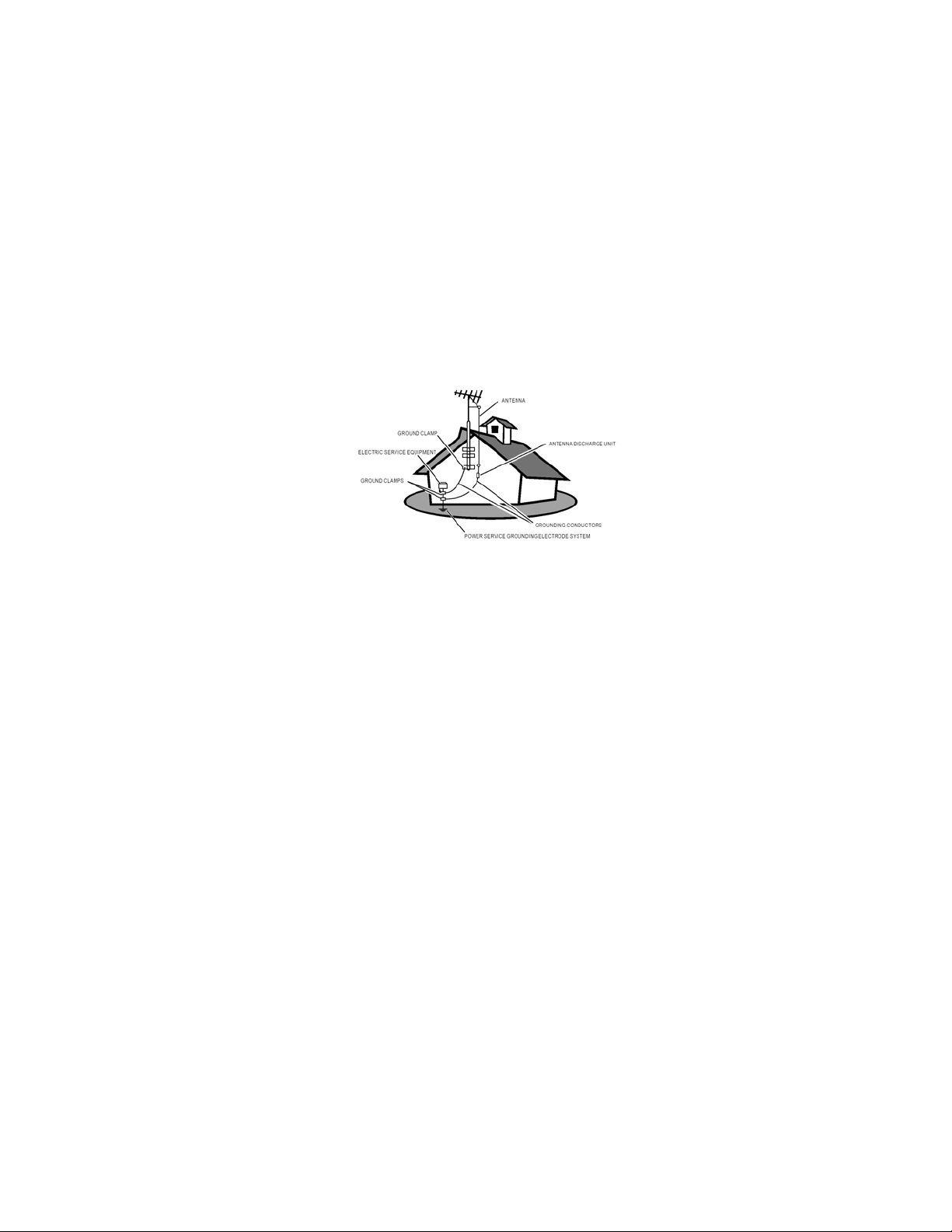
21. Outdoor Antenna Grounding – If an outside antenna is connected to the
and/or personal injury.
ceiling only as recommended by the manufacturer.
receiver, be sure the antenna system is grounded so as to provide some
protection against voltage surges and built up static charges.
Section 810 of the National Electric Code, ANSI/NFPA No. 70-1984, provides
information with respect to proper grounding of the mats and supporting
structure grounding of the lead-in wire to an antenna-discharge unit, size of
grounding connectors, location of antenna-discharge unit, connection to
grounding electrodes and requirements for the grounding electrode. See
Figure below.
EXAMPLE OF ANTENNA GROUNDING AS PER NATIONAL ELECTRICAL
CODE
Note to the CATV system installer: This reminder is provided to call the
CATV system installer’s attention to Article 820-40 of the NEC that provides
guidelines for proper grounding and, in particular, specifies that the cable
ground shall be connected to the grounding system of the building, as close
to the point of cable entry as practical.
Please, make sure to connect the power plug to the wall outlet socket after
connecting the TV to the adapter!
22. Objects and Liquid Entry – Care should be taken so that objects do not fall
and liquids are not spilled into the enclosure through openings.
6
Page 9
Package Contents
◎AOC L26W831 TV unit
◎Remote Control
◎Batteries AAA (Except Argentina)
◎Three M4 screws(to attach the Base to the stand)
◎Power Cord
◎Audio cable
◎signal cable
◎User Manual
◎Quick Setup Guide
IMPORTANT: Do not apply pressure to the screen display area which may
compromise the integrity of the display. The manufacturer’s warranty does not
cover user abuse or improper installations.
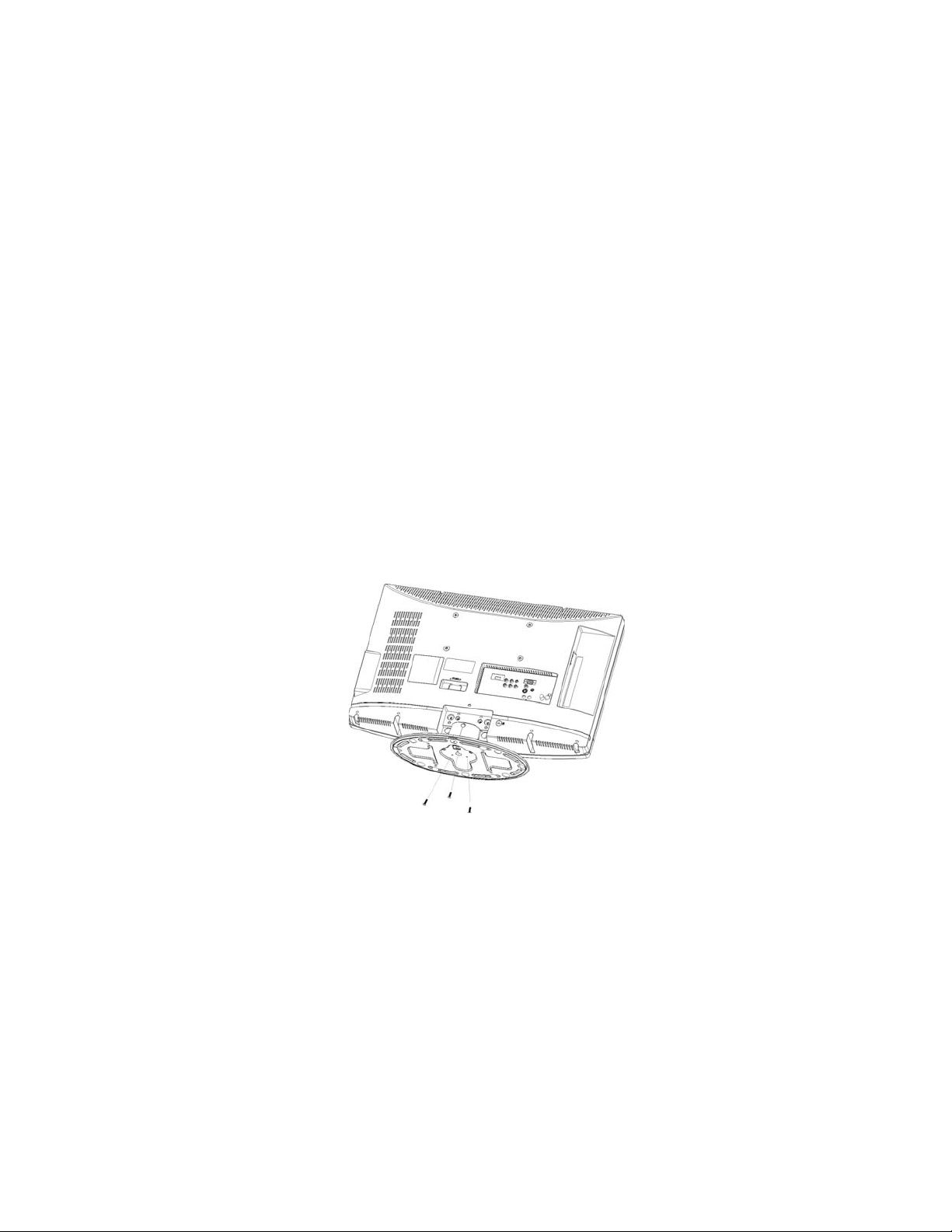
Attaching the Base
IMPORTANT: The Base of the TV must be assembled prior to usage.
1. Place TV unit face down on a soft and flat surface (blanket, foam, cloth,
etc.) to prevent any damage to the TV.
2. Carefully align and insert the Base to the stand.
3. Gently push the Base towards the TV until the locking mechanism locks
into place.
4. Insert the provided screws to the bottom of the base.
5. Use a screwdriver to tighten the Base to the stand.
7
Page 10
Preparing Your LCD TV for Wall Mounting
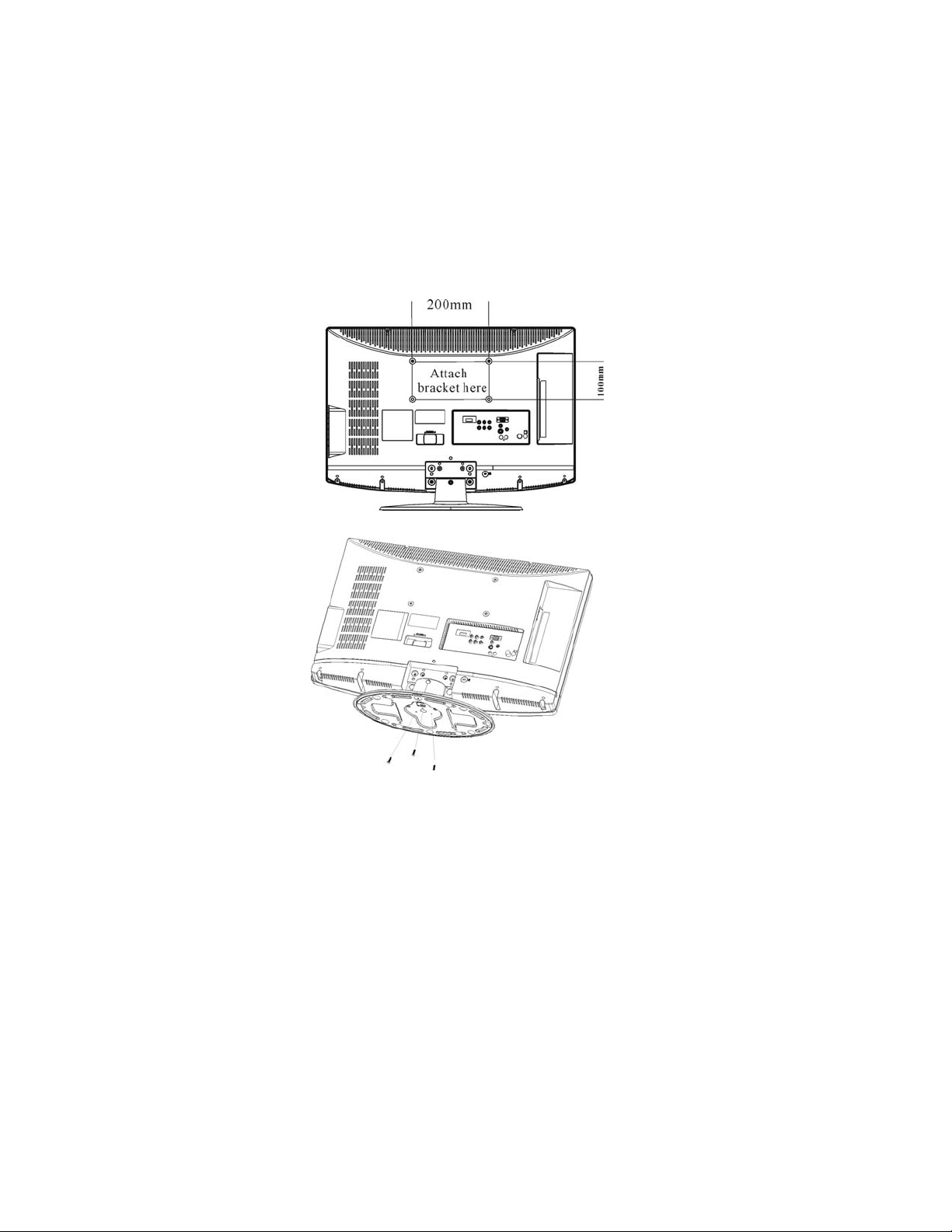
We suggest that you keep your TV at least 2.36 inches (60 mm) from the wall to
prevent cable interference.
Before you wall-mount your TV, you need to remove the base.
To attach a wall mount bracket to your TV:
1 Remove the two T4 and two M4 screws holding your TV to the stand.
2 Remove the three screws from the bottom of the stand.
3 Remove the stand base
4 Secure the wall mount bracket to the back of your TV using four M4 screws,
as indicated in the illustration.
Note: 200mmx100mm wall mount bracket & M4 screws not included.
8
Page 11
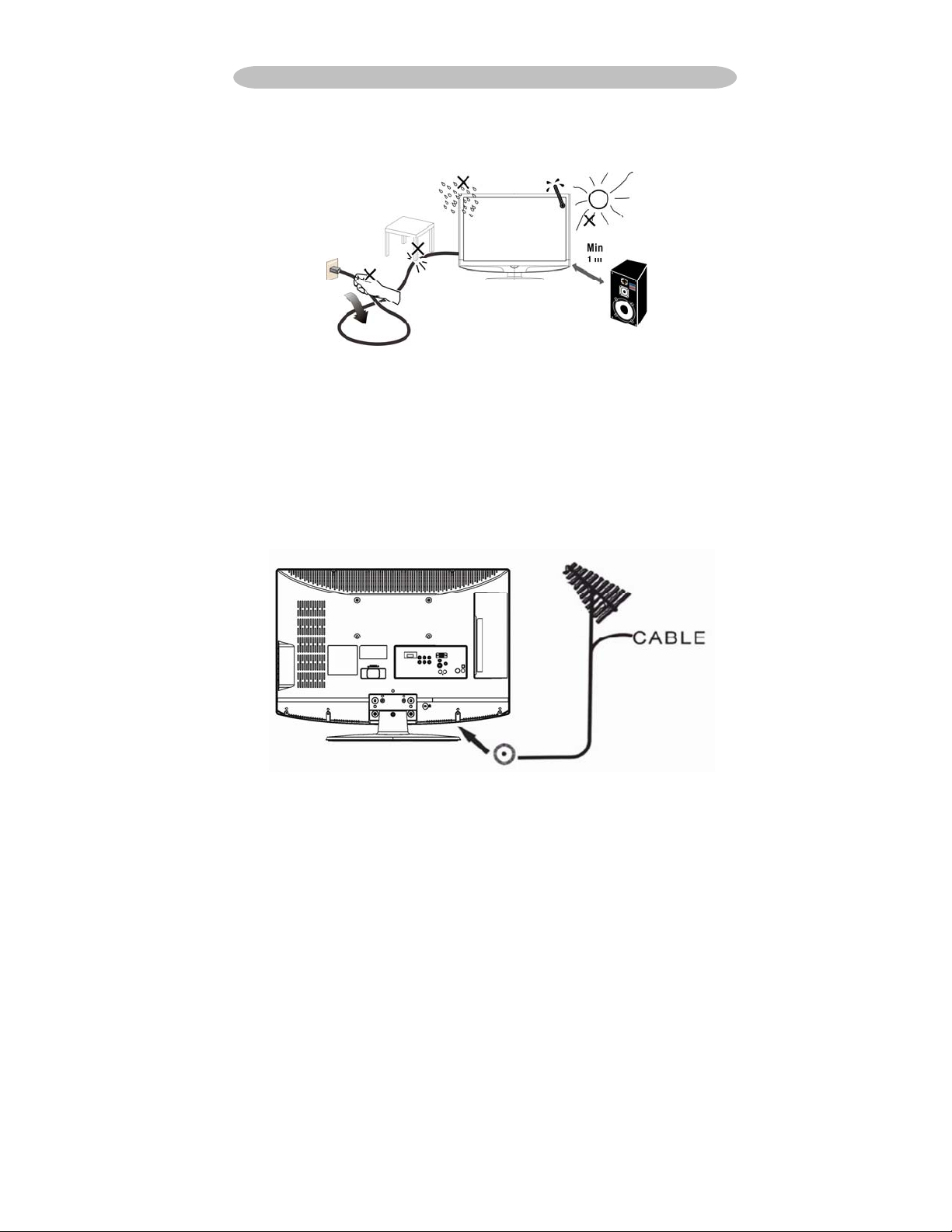
PREPARATION
Please, make sure to connect the power plug to the wall outlet socket after
connecting the TV to the power cord!
. Install the base stand; place the TV on a solid surface.
1
Ensure that the TV is placed in a position to allow free flow of air. Do not cover
the ventilation openings on the back cover.
To prevent any unsafe situations, no naked flame sources, such as lighted
candles, should be placed on or in the vicinity.
Avoid heat, direct sunlight and exposure to rain or water. The equipment shall
not be exposed to dripping or splashing.
2. Connect the antenna cable or CATV cable to the aerial socket TV IN at the
back of the TV set.
9
Page 12

3. Remote control:
Remove the cover of the battery compartment. Insert the 2 batteries supplied
(Type AAA 1.5V).
4. Power:
Insert the power cord in the wall socket having an AC power supply. You can
see LED states at the front panel. If the LED color is Green, means the TV set
is power on. If the LED color is Red, which means this TV set is in standby
state.
5. Turn the TV on:
Push the POWER key on the Remote control or the Front panel control knobs.
Wait a minute, the TV will power on and can see the display on the screen
POWER Key
10
Page 13

PERIPHERAL CONNECTION GUIDE
HDMI S-Video Composite Pr Pb Y PC Audio in 15-pin D-Sub
1. HDMI – Connect the primary source for digital video such as a DVD
multimedia player or set top box through this all digital connector.
The white color band on the rear of the TV indicates this connection.
2. PC IN– Connect the video and audio cables from a computer here.
3. AV/S-VIDEO IN – Connect the primary source for composite video
devices, such as a VCR or video game. Use the white and red
connectors to connect the external audio from the same source.
11
Page 14

The signal being carried by the S-Video cable and connector, if
connected, will take priority over the Video RCA connector (yellow
connector).
4. COMPONENT (Y Pb/Cb Pr/Cr with Audio L/R) – Connect the
primary source for component video devices such as a DVD Player
or set top box here. From left to right, use red for Pr, blue for Pb,
green for Y, red for right audio (R) and white for left audio (L) inputs.
5. TV IN– Connect to an RF cable (out-of-the-wall, not from Cable Box)
for TV.
Once your equipment is connected, use the following procedure to view the input
signal:
Press the source button on the remote controller to select the relevant source to
view. (ex: Press VIDEO button to select “Composite Rear” if you have connected
a video recorder to Composite Rear socket.)
12
Page 15

OPERATION INSTRUCTIONS
TO USE THE FRONT PANEL CONTROL
1
2 VOL▼
3 CH ▲
4 CH ▼
5 MENU
6 INPUT
7 POWER
VOL▲
VOL +: Press to increase the volume. In Menu mode,
functions as right arrow to go to a next menu or increase a
setting.
VOL - : Press to decrease the sound volume level. In Menu
mode, functions as left arrow to go to a previous menu or
decrease a setting.
CH +: Press to select the next higher Program number.
CH - : Press to select the next lower Program number.
Menu key: Press
Source key: Press to select the input source.
Power key: Press to turn on / off (standby) the TV set.
to open or exit the OSD menu.
13
Page 16

TO USE THE REMOTE CONTROL
POWER
Press to power ON/OFF (standby)
TV. (Note: TV is never completely
power off unless physically
unplugged.)
VIDEO
Press to display source menu,
then move focus by ∧ or ∨, and
select by ENTER.
COMP
Press to choose Component
source mode directly.
PC/HDMI
Press repeatedly to toggle
between PC and HDMI source
modes
TV
Press to select TV source mode.
0 ~ 9 number
Press to enter channel numbers
SLEEP
Press to set sleep timer, setting a
mount of time before your TV turn
off automaticlly. (you can set as
5min /10min /15min /30min/
45min/ 60min/ 90min/ 120min/
180min /240min or Off)
VOL- / VOL+
Press + or - to adjust the volume
MENU
Press to open or exit menu.
“”,“”,“<”,“>”,
“ENTER”
Press to adjust the various
function items on the menu.
DISPLAY
Press to show the information
about the input source or TV
channel.
MUTE
Press to mute the sound. Press
again to restore sound.
PREV CH
Press to display the previous
channel .
MTS/SAP
Press to activate the TV sounds,
such as: Stereo, SAP or Mono tone.
WIDE
Press to choose the display aspect
as: Normal, Zoom, Cinema and
Wide mode.
SOURCE
Press to display source information.
CH-/ CH +
Press to change TV channel up or
down
EXIT
Press to exit menu or OSD.
VIDEO ADJ
Press to switch the preset of video
preset mode.
AUDIO ADJ
Press to switch the preset of audio
preset mode.
CC
Press repeatedly to select closed
caption channel or set it off. You
can set as
CC1 ,CC2 ,CC3 ,CC4 ,TT1 /
TT2,TT3,TT4 and Off
FREEZE
No support for this product
FAV
No support for this product
EPG
No support for this product
V-CHIP
No support for this product
14
Page 17

Viewing Modes illustrations
Normal Mode on 16:9 Display screen
The original content would be at the center of the
screen.
mall black bars are ded on the left and right side.
Wide Mode on 16:9 Display screen
The original content would fill the width of the
screen while the proper ratio of 16:9 content is still
maintained. Little cropping of the content
on the sides is necessary.。
ZOOM Mode on 16:9 Display screen
For those wide format images which are originally
programmed into 4:3 frames with top and bottom
black bars, this mode has to stretch the image in
both wide and high directions to the full display with
active data. Little cropping on sides is necessary for
full display.
CINEMA Mode on 16:9 Display screen
This mode is applied to view 2.35:1 format content
on 16:9 displays. To crop both right and left sides a
little for keeping the undistorted ratio of the image is
provide for users.
15
Page 18

Connecting Equipment
y
Coaxial (RF)
Using Your Antenna or Cable for TV
1. Turn off the power to the TV.
2. Connect the coaxial (RF) connector from your antenna or cable
(out-of-the-wall, not from the Cable Box) to the TV IN connector at
the rear of the TV
3. Turn on the power to the TV.
4. Select TV using the INPUT button on the remote, side of the TV or
directly by pressing the TV button on the Remote Control.
Using the Antenna or Cable for your VCR
1. Turn off the power to the TV and VCR.
2. Connect the “Output to TV”, “RF Out” or “Antenna Out” connector
on the rear of your VCR to the TV IN connector at the rear of the TV.
3. Turn on the power to the TV and VCR.
4. Select TV using the INPUT button on the remote, side of the TV or
directly by pressing the TV button on the Remote Control.
Note: If you have an off-air antenna or cable TV, connect it to
the “Antenna In” connector on the rear of
our VCR.
16
Page 19

Connecting Your TV Set-Top Box
Using HDMI
TV Set-Top Boxes that have a HDMI digital interface should be connected to the
HDMI input of the LCD TV for optimal results.
Connecting your TV Set-Top Box (Best)
1. Turn off the power to the TV and TV Set-Top Box.
2. Connect a HDMI cable to the HDMI output of your TV Set-Top Box
and the other end to the HDMI Input at the rear of the TV.
3. Turn on the power to the TV and TV Set-Top Box.
4. Select HDMI using the INPUT button on the remote, side of the TV,
or directly by pressing the PC/HDMI button on the Remote Control.
Note:
a) The HDMI input on the TV supports High-bandwidth Digital
b) Refer to your TV Set-Top Box user manual for more information
Content Protection (HDCP). HDCP encrypts the transmission
between the video source and the digital display for added
security and protection.
about the video output requirements of the product or consult
your cable or satellite operator.
17
Page 20

For TV Set-Top Boxes with DVI
1. Turn off the power to the TV and TV Set-Top Box.
2. Using a HDMI-DVI cable, connect the DVI end to your TV Set-Top
Box and the HDMI end to the HDMI Input at the rear of the TV.
3. Turn on the power to the TV and TV Set-Top Box.
4. Select HDMI using the INPUT button on the remote, side of the TV,
or directly by pressing the PC/HDMI button on the Remote Control.
Note:
a) The HDMI input on the TV supports High-bandwidth Digital Content
b) Refer to your TV Set-Top Box user manual for more information about
c) The DVI to HDMI connection provides video only. Connecting an
Protection (HDCP). HDCP encrypts the transmission between the
video source and the digital display for added security and protection.
the video output requirements of the product or consult your cable or
satellite operator.
alternate audio player to PC audio port is required for audio.
Using Component Video
Connecting your TV Set-Top Box (Better):
1. Turn off the power to the TV and TV Set-Top Box.
2. Connect the Pr (red color) connector on your TV Set-Top Box to the
corresponding Pr (red color) connector in the Component group.
3. Connect the Pb (blue color) connector on your TV Set-Top Box to
the corresponding Pb (blue color) connector in the Component
group.
4. Connect the Y (green color) connector on your TV Set-Top Box to
the corresponding Y (green color) connector in the Component
group.
18
Page 21

5. Using an audio cable (red and white connectors), connect the cable
r
to the audio output connectors associated with the Component
output on your TV Set-Top Box and connect the other end to the
audio connectors associated with the Component.
6. Turn on the power to the TV and TV Set-Top Box.
7. Select Component using the INPUT button on the remote, side of
the TV or directly by pressing the COMP button on the Remote
Control.
Note:
Refer to your TV Set-Top Box user manual for more information
about the video output requirements of the product or consult your
cable or satellite operato
.
Connecting Your Basic Set-Top Box
Using Composite Video
1. Turn off the power to the TV and Set-Top Box.
2. Using an AV Cable, connect the Video (yellow color) connector on
your Set-Top Box to the corresponding Video (yellow color)
connector in the AV group at the rear of the TV.
3. Using the red and white connectors, connect the cable to the audio
output connectors associated with the Video output on your Set-Top
Box and connect the other end to the audio connectors associated
with the AV input at the rear of the TV.
4. Turn on the power to the TV and Set-Top Box.
5. Select Composite using the INPUT button on the remote, side of
the TV or directly by pressing the VIDEO button on the Remote
Control.
19
Page 22

Using Coax (RF)
g
1. Turn off the power to the TV and Set-Top Box.
2. Using a Coax (RF) cable, connect one end to the TV OUT (RF) on
your Set Top Box and the other end to the TV IN port at the rear of
the TV.
3. Turn on the power to the TV and Set-Top Box.
4. Select TV using the INPUT button on the remote, side of the TV or
directly by pressing the TV button on the Remote Control.
Note: Refer to your Set Top Box user manual for more information about
selectin
the video or RF output of the product.
20
Page 23

Connecting Your DVD Player
Using HDMI
DVD players that have a digital interface such as HDMI (High Definition
Multimedia Interface) should be connected to the HDMI input of the LCD TV for
optimal results.
Connecting your DVD Player (Best)
1. Turn off the power to the TV and DVD player.
2. Connect a HDMI cable to the HDMI output of your DVD player and
the other end to the HDMI Input at the rear of the TV.
3. Turn on the power to the TV and DVD player.
4. Select HDMI using the INPUT button on the remote, side of the TV
or directly by pressing the PC/HDMI button on the Remote Control.
For DVD Players with DVI:
1. Turn off the TV and DVD player.
2. Using a HDMI-DVI cable, connect the DVI end to your DVD player
and the HDMI end to the HDMI Input at the rear of the TV.
3. Turn on the power to the TV and your DVD player.
4. Select HDMI using the INPUT button on the remote or side of the
TV, or directly by pressing the PC/HDMI button on the Remote.
Note:
1. Refer to your DVD player user manual for more information about the
video output requirements of the product.
2. The DVI to HDMI connection provides video only. Connecting an
alternate audio player to PC audio port is required for audio output.
21
Page 24

Using Component Video
Connecting your DVD Player (Better)
1. Turn off the power to the TV and DVD player.
2. Connect the Pr (red color) connector on your DVD player to the
corresponding Pr (red color) connector in the Component at the rear
of the TV.
3. Connect the Pb (blue color) connector on your DVD player to the
corresponding Pb (blue color) connector in the Component group at
the rear of the TV.
4. Connect the Y (green color) connector on your DVD player to the
corresponding Y (green color) connector in the Component group at
the rear of the TV.
5. Using an audio cable (red and white connectors), connect the cable
to the audio output connectors associated with the Component
output on your DVD player and connect the other end to the audio
connectors associated with the Component input at the rear of the
TV.
6. Turn on the power to the TV and DVD player.
7. Select Component using the INPUT button on the remote, side of
the TV or directly by pressing the COMP button on the Remote
Control.
Note: Refer to your DVD player user manual for more information
about the video output requirements of the product.
22
Page 25

Using S-Video (AV)
Connecting your DVD Player (Good):
1. Turn off the power to the TV and DVD player.
2. Connect the S-Video jack on the rear of your DVD player to the SVideo jack in the AV group on the rear of the TV.
3. Connect an audio cable (white and red connectors) to the audio
output connectors associated with the S-Video output on your DVD
player and connect the other end to the audio connectors
associated with the AV input on the rear of the TV.
4. Turn on the power to the TV and DVD player.
5. Select S-Video using the INPUT button on the remote, side of the
TV, or directly by pressing the VIDEO button on the Remote Control.
Using Composite (AV) Video
Connecting your DVD Player (Good)
1. Turn off the power to the TV and DVD player.
2. Connect the Video (yellow color) connector on your DVD player to
the Video (yellow color) connector in the AV group.
3. Connect the R (red color) and L (white color) audio connectors on
your DVD player to the corresponding R (red color) and L (white
color) audio input connectors in the AV group.
4. Turn on the power to the TV and DVD Player.
5. Select Composite using the INPUT button on the remote, side of the
TV or directly by pressing the VIDEO button on the Remote Control.
23
Page 26

Connecting Your VCR or Video Camera
1. Turn off the TV and VCR or Video Camera.
2. Connect the S-Video jack on the rear of your VCR or Video Camera
to the S-Video jack in the AV group on the rear of the TV.
3. Connect an audio cable (white and red connectors) cable to the
audio output connectors associated with the S-Video output on your
VCR or Video Camera and connect the other end to the audio
connectors associated with the AV input on the rear of the TV.
4. Turn on the power to the TV and VCR or Video Camera.
5. Select S-Video using the INPUT button on the remote, side of the
TV or directly by pressing the VIDEO button on the Remote Control.
Note: Refer to your VCR or Video Camera user manual for more
information about the video output requirements of the product.
24
Page 27

Connecting to a PC Computer
1. Turn off the power to the TV and PC Computer.
2. Connect a 15-pin D-Sub RGB (VGA) cable to the RGB output of
your pc computer and the other end to the PC IN port at the rear of
the TV.
3. Connect the Audio Out on your pc computer to the PC Audio input
at the rear of the TV.
4. Turn on the TV and PC Computer.
5. Select PC using the INPUT button on the remote, side of the TV or
directly by pressing the PC/HDMI button on the Remote.
Note: For the best picture quality when connecting a PC computer through
RGB PC, set your PC computer timing mode to native resolution of panel.
Please refer to the PC or graphic card’s user guide for additional
information on how to set the timing mode and the video output
requirements of the product.
25
Page 28

TO USE THE MENUS
1. Press the MENU button to display the main menu
2. Use the cursor left/right to select a menu item.
3. Use the cursor Up/Down to enter a submenu.
4. Press the ENTER button to enable/disable the function.
5. Press the MENU or EXIT button to exit the menu.
Main Menu
Press the MENU button to enter the main OSD (On Screen Display). Adjust the
items including Pictrue menu, Sound menu, Advanced menu, Installation
menu ,PC setup menu and System menu.
When the input source is TV mode, Pictrue menu, Sound menu, Advanced
menu, Installation menu and System menu can be selected.
When the input source is AV, S-video,Compoent or HDMI mode, only the Pictrue
menu, Sound menu, Advanced menu and System menu can be selected.
26
Page 29

When the input source is PC mode, Pictrue menu, Sound menu, PC setup
menu and System menu can be selected.
Picture Menu
1. Preset: Designed for different types of video mode. Can select Personal, Vivid,
Standard and Mild
2. Brightness: Video brightness adjustment, can adjust only when Preset is
setted as Personal.The tuning range is 0 ~ 100.
3. Contrast: Video contrast adjustment, can adjust only when Preset is setted as
Personal. The tuning range is 0 ~ 100.
4. Color: Video color chroma adjustment, can adjust only when Preset is setted
as Personal. The tuning range is 0 ~ 100.
5. Tint: Video tint adjustment, Can only select with NTSC signal.the tuning range
is -50 ~ +50.
6. Sharpness: Video sharpness adjustment, the tuning range is 0 ~ 100.
7. Color temp: There are three options of colour temperature provided for users -
warm, normal and cool.
8. Reset: Restore the default video settings.
27
Page 30

Sound Menu
The Sound menu shows as below. It provides audio adjustment for user to modify
the audio setting.
1.Preset: Designed for different types of sound mode. Can select Personal, Voice,
Music and Theatre.
2. Bass: Bass tone adjustment, can adjust only when Preset is setted as
Personal.The tuning range is -50 ~50.
3. Treble: Treble tone adjustment, can adjust only when Preset is setted as
Personal. The tuning range is -50~50.
4. Balance: Audio balance adjustment, the tuning range is -50~50.
5. Reset: Restore the default audio settings.
Advanced Menu
1.Noise reduction : Designed for different noise reduce effect,user can
select off, Low,Normal and High.
2. Super contrast:Enhance the contrast of color. Default setting is On.
3. Size: There are various functions provided for zoom in or zoom out. Can select
Normal, Zoom, Cinema, Wide.
4. Reset: Restore the default video settings.
28
Page 31

PC setup Menu
1.Auto adjust: Automatically adjust PC input to the optimal screen size.
2.H.Position:Adjust Horizontal position of picture from -50~50.
3.V.Position: Adjust Vertical position of picture from -50~50.
4.Clock: Adjust clock of signal. The tuning range is -50~50.
5.Phase: Adjust phase of signal. The tuning range is -50~50.
Installation Menu
Installation Menu
1.Program No.: Shows the current channel number.
2.Tuning mode:Select the mode of TV signal as Cable or Air.
3.System standard:Can set as NTSC-M, PAL-M or PAL-N. Advise please do not
change this item after auto search action.
29
Page 32

4.Auto search: Select "Auto Search" to search all signaled channel; when the
searching is complete, it stays at the first channel with signal and all channels that
have been located are stored. If you would like to stop "Auto Search" during the
process, simply by pressing the MENU or EXIT button.
5.Fine tuning:Fine tune the frequency of current channel.
6.AFC: AFC can be set to ON or OFF. Set to ON, the TV will search signal
automatically; when there is any offset in the signal, will automatically adjust the
channel to the correct frequency.
7.Skip: Skip can be set to ON or OFF. When it is set to ON, a channel can be
skipped by pressing the switching button on the remote control or on the front
panel.
System Menu
1.Menu language:There are four language options provided - English, French,
Spanish and Portuguese.
2.Menu timeout: Adjust the time of menu display.
3.Sleep timer: Function with which you can set a time period after which the TV
should turn itself off.You can set it as 5, 10,15.30,45,60,90,120,180,240 and Off.
4.Menu background:Adjust the background of OSD menu. The tuning range is 0
~ 100.
5.Closed caption:Select CC channel as CC1~CC4,TT1~TT4 or Off.
6.Reset: Restore the default System settings.
7.Reset all:Reset all OSD setting to default value.
30
Page 33

TIPS
Care of the screen
Do not rub or strike the screen with anything hard as this may scratch, mar, or
damage the screen permanently.
Unplug the power cord before cleaning the screen. Dust the TV by wiping the
screen and the cabinet with a soft, clean cloth. If the screen requires additional
cleaning, use a clean, damp cloth. Do not use liquid cleaners or aerosol cleaners.
Mobile telephone warning
To avoid disturbances in picture and sound, malfunctioning of your TV or even
damage to the TV, keep away your mobile telephone from the TV.
End of life directives
We are paying a lot of attention to produce environmentally friendly in green focal
areas. Your new receiver contains materials, which can be recycled and reused.
At the end of its life specialized companies can dismantle the discarded receiver
to concentrate the reusable materials and to minimize the amount of materials to
be disposed of.
Please ensure you dispose of your old receiver according to local regulations.
Regulatory Notices – Federal Communications Commission Notice
This equipment has been tested and found to comply with the limits for a Class B
digital device, pursuant to part 15 of the FCC Rules. These limits are designed to
provide reasonable protection against harmful interference in a residential
installation. This equipment generates, uses, and can radiate radio frequency
energy and, if not installed and used in accordance with the instructions, may
cause harmful interference to radio communications. However, there is no
guarantee that interference will not occur in a particular installation. If this
equipment does cause harmful interference to radio or television reception, which
can be determined by turning the equipment off and on, the user is encouraged to
try to correct the interference by one or more of the following measures:
˙Reorient or relocate the receiving antenna.
˙Increase the separation between the equipment and the TV.
˙Connect the equipment into wall power outlet on a circuit different from that to
which the receiver is connected.
˙Consult the dealer or an experienced radio or television technician for help.
Modifications –
The FCC requires the user to be notified that any changes or modifications made
to this device that are not expressly approved by Norcent Technology Inc. may
void the user’s authority to operate the equipment.
Cables –
Connections to this device must be made with shielded cables with metallic
RF/EMI connector hoods to maintain compliance with FCC Rules and
Regulations.
31
Page 34

PRODUCT SPECIFICATION
NOTE:
*This model complies with the specifications listed below.
*Designs and specifications are subject to change without notice.
*This model may not be compatible with features and/or specifications that may
be added in the future.
*26” LCD TV Viewable image size: diagonal 660mm
Television System:
NTSC-M
PAL-M
PAL-N
Channel Coverage:
VHF-L 55.25 MHZ ~157.25MHZ
VHF-H 163.25 MHZ~439.25MHZ
UHF 445.25 MHZ~801.25MHZ
Power Source:
AC power supply: 100V~240 V, 50/60 Hz
HDMI Terminals:
HDCP compliant
E-EDID compliant
Supported scan rates: 1080i,720p, 480p,
480i
VGA Terminals:
VGA INPUT:
Rear VGA (D-SUB 15 Pin) Input x1
E-EDID compliant
Supported scan rates: 640X480 /60Hz
800x600 /60Hz
1024X768 /60Hz
1366X768 /60Hz
720X400 /70HZ
Recommended: 1366X768 /60Hz
Audio INPUT: Headphone Mini-jack for
stereo (3.5Φ)
Power Consumption
≤ 60 W
1 W in standby mode (power cord plugged in and
power OFF)
Audio Power
2 W + 2 W, Internal Speaker
Video/Audio Terminals:
Rear AV x1
Audio Input x1( share with S-VIDEO)
S-VIDEO INPUT:
Y : 1 V(p-p), 75 ohm, negative sync.
C : 0.286 V(p-p) (burst signal), 75
ohm
VIDEO/AUDIO INPUT:
VIDEO: 1 V(p-p), 75 ohm, negative sync.
AUDIO: 150 mV(rms)
Component INPUT:
Rear Component x1:
Y : 1V(p-p), 75 ohm, including sync.
Pr/Cr: ±0.35V(p-p), 75 ohm
Pb/Cb: ±0.35V(p-p), 75 ohm
AUDIO: 150 mV(rms)
Supported resolutions:1080i, 720p, 480p,
480i
32
Dimensions:
Include Stand:
651.9mm(W) x 481.5mm(H) x
219.6mm(L)
Weight: 8.8kg(With Stand)
Wall Mounting:
200X100 mm
(Wall mount kit is not included)
Supplied Accessories:
Remote Control
Two (AAA) Batteries (Except Argentina)
Base
Three M4 screws (to attach the Base to the
stand)
Power Cord
Signal cable
Audio cable
User Manual
Quick Setup Guide
Page 35

BEFORE CALLING SERVICE
Please make these simple checks before calling service. These tips may save
you time and money since charges for receiver installation and adjustments of
customer controls are not covered under your warranty.
Symptoms Items to Check and Actions to follow
“Ghost ” or double image
*This may be caused by obstruction to the
antenna due to high rise buildings or
hills. Using a highly directional antenna
may inprove the picture.
No power *Check that the TV’s AC power cord is
plugged into the mains socket.
*Unplug the TV, wait for 60 seconds. Then re-
insert plug into the mains socket and turn on
the TV again.
No picture *Check antenna connections at the rear of the
TV to see if it is properly connected to the TV.
*Possible broadcast station trouble. Try
another channel.
*Adjust the contrast and brightness settings.
*Check the Closed Captions control. Some
TEXT modes could block the screen,
Good picture but no sound *Increase the VOLUME.
*Check that the TV is not muted; press the
MUTE button on the remote control.
Good sound but poor color *Adjust the contrast, color and brightness
settings.
Poor picture *Sometimes, poor picture quality occurs when
having activated an S-VHS camera or
camcorder connected and having connected
another peripheral at the same time. In this
case switch off one of the other peripherals
Snowy picture and noise *Check the antenna connection
Horizontal dotted line *This may be caused by electrical interference
(e.g. hairdryer, nearby neon lights, etc.)
*Turn off the equipment.
Television not responding to
remote control
*Check whether the batteries are working.
Replace if necessary
*Clean the remote control sensor lens on the
TV.
*You can still use the buttons at the front of
your TV.
*Select the TV mode to be sure your remote
control is in the TV mode.
33
Page 36

GLOSSARY
HDMI Input
High-Definition Multimedia Interface
Audio / Video Inputs
Located on the rear and the front of the receiver these connectors (RCA phono
type plug) are used for the input of audio and video signals. Designed for use with
VCRs (or other accessories) in order to receive higher picture resolution and offer
sound connection options.
Menu
An on-screen listing of features shown on the TV screen is made available for
user adjustments.
MPAA
Motion Picture Association of America
Multichannel Television sound (MTS)
The broadcasting standard, which allows stereo sounds to be transmitted with the
TV picture.
Programming
The procedure of adding or deleting channel numbers into the TV’s memory.
In this way the TV remembers only the locally available or desired channel
numbers and skips over any unwanted channel numbers.
RF
Radio Frequency or modulated signal design used as the carrier for television
broadcasts.
Second Audio Program (SAP)
Another or additional audio channel provided for in the Multichannel Television
Sound (MTS) broadcast standard. A monaural soundtrack included within the
recorded or video signal (usually containing a second language translation for the
displayed program).
Sleep Timer
You can set a time period for which the TV will automatically turn itself off.
S-Video Input
You can connect your TV set to a high-resolution video source (such as Super
VHS video-cassette recorder, Laser Disc player and DVD Home Theater Set) inorder to provide maximum consumer viewing satisfaction.
34
 Loading...