

Page 1

P-330W
802.11g Secure Wireless Internet Sharing Router
Quick Start Guide
July 2006
Version 1.3
Page 2

ZyXEL P-330W
1 Introducing the P-330W
The P-330W is a broadband sharing gateway with a built-in wireless LAN access point and four-port 10/100
Mbps switch that makes it easy for people to set up a small home/office network and share Internet access via
a broadband (cable/DSL) modem. Key features of the P-330W include an embedded 802.11g wireless
Access Point, support for the advanced WPA2 wireless security, firewall with DoS protection, VPN passthrough, NAT and UPnP. See your User’s Guide for more details on all P-330W features.
You should have an Internet account already set up and have been given most of the following information.
Internet Account Information
Your device’s WAN IP Address (if given): __________________
DNS Server IP Address (if given): First ______________, Second ______________, Third ______________
Encapsulation: (select one below):
Ethernet
PPPoE (PPPoE) Service Name: ____________
Service Type: _______________________
Login Server IP Address: ______________
User Name: ____________ Password: ____________
User Name: ____________ Password: ____________
2
Page 3

ZyXEL P-330W
2 Hardware Installation
2.1 Rear Panel
LABEL DESCRIPTION
POWER Connect the end of the included power adaptor (use only this adapter) to this power socket.
LAN 1-4 Use an Ethernet cable to connect at least one computer for initial P-330W configuration. These
WAN Connect your cable/satellite/DSL modem to this port with the cable that came with your modem.
RESET You only need to use this button if you’ve forgotten the P-330W’s password. Push the button for
Antenna The P-330W uses a RP-SMA connection to attach the antenna for wireless networking. The
After you’ve made the connections, connect the power cable to a power supply and look at the front panel LEDs.
ports are auto-negotiating (can connect at 10 or 100Mbps) and auto-sensing (automatically
adjust to the type of Ethernet cable you use (straight-through or crossover)).
less than 5 seconds to cause the P-330W to reboot, push for 10 seconds to cause the P-330W to
reset to factor defaults. See your User’s Guide for details).
antenna will need to be attached here before you can use the wireless LAN.
3
Page 4

ZyXEL P-330W
2.2 Front Panel LEDs
The PWR/SYS LED blinks amber while performing system testing and then turns solid green if the testing is
successful. The LAN and WAN LEDs turn on if they are properly connected.
LED STATUS COLOR DESCRIPTION
PWR/SYS
LAN 1- 4
WAN
WLAN
Off The P-330W is not receiving power.
On Power to the P-330W is in the process of booting. Amber
Blinking Unit is resetting to factory defaults.
Green On The P-330W is receiving power.
Off No device is connected to the LAN port.
Green
Off The WAN connection is not ready, or has failed.
Green
Off The WLAN connection is turned off.
Green
On An Ethernet device is connected to the LAN port.
Blinking The P-330W is sending/receiving data on the LAN port.
On The P-330W has a successful WAN connection.
Blinking The P-330W is sending/receiving data.
On The WLAN is active.
Blinking The WLAN is sending/receiving data.
4
Page 5

ZyXEL P-330W
3 Set Up Your Computer’s IP Address
The P-330W is already set up to assign your computer an IP address. Use this section to set up your computer
to receive an IP address or assign it a static IP address in the 192.168.10.2 to 192.168.10.254 range with a
subnet mask of 255.255.255.0. This is necessary to ensure that your computer can communicate with your
P-330W.
Your computer must have a network card and TCP/IP installed. TCP/IP should already be installed on
computers using Windows NT/2000/XP, Macintosh OS 7 and later operating systems. Refer to the Setting
Up Your Computer’s IP Address appendix for other operating systems.
3.1 Windows 2000/NT/XP
The following example figures use the default Windows XP GUI theme.
1. Click start (Start in Windows 2000/NT), Settings, Control Panel.
2. In the Control Panel, double-click Network
Connections (Network and Dial-up Connections
in Windows 2000/NT).
3. Right-click Local Area Connection and then
Properties.
Control Panel
Network Connection
5
Page 6
ZyXEL P-330W
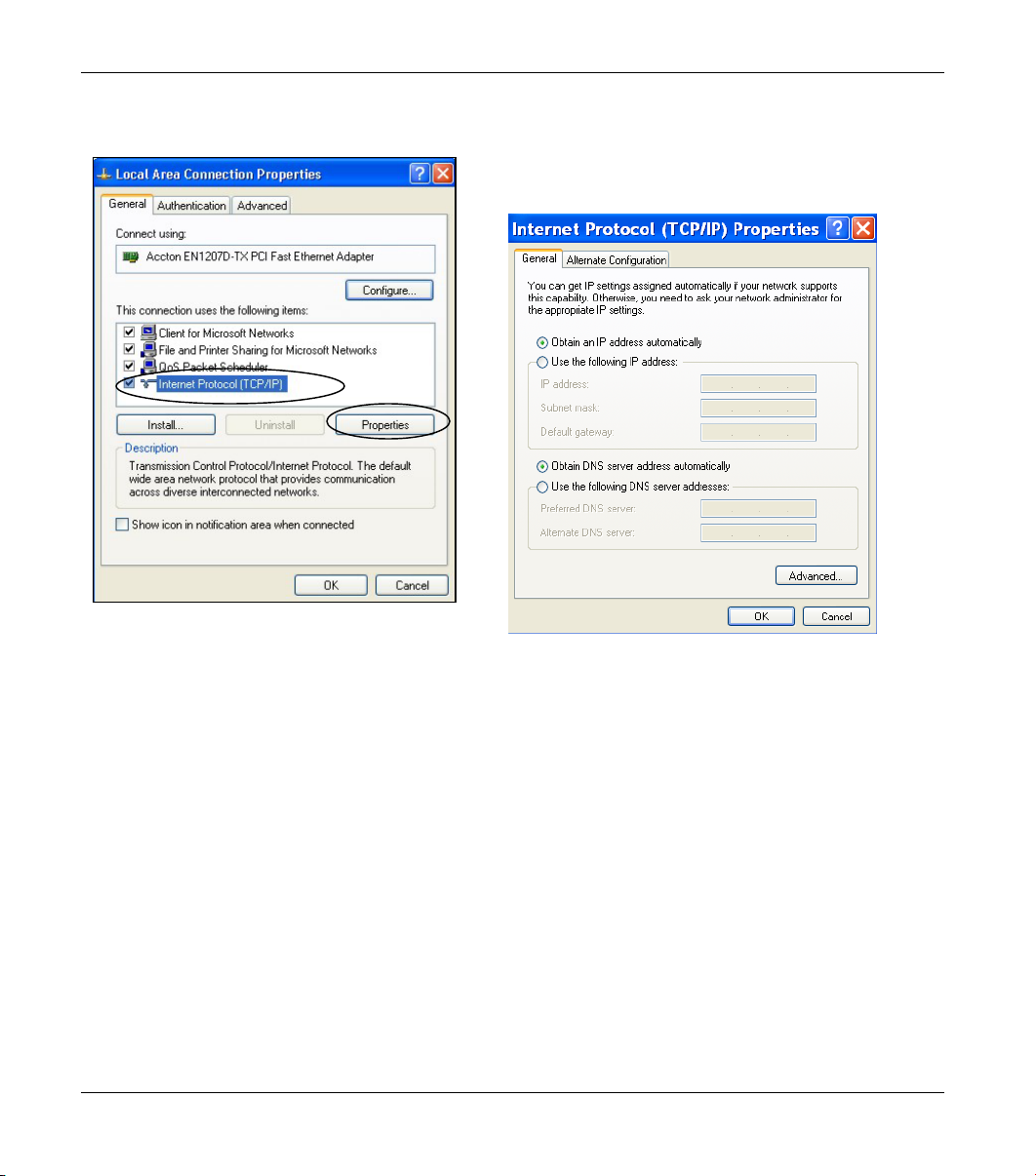
4. Select Internet Protocol (TCP/IP) and then click
Properties.
5. Select Obtain an IP address automatically to get
an IP address assigned from the DHCP server in the
P-330W broadband router.
6. Select Obtain DNS server address automatically
7. Click OK
Local Area Connection Properties
Internet Protocol Properties
8. Click OK to close the Internet Protocol (TCP/IP) Properties window.
9. Click Close (OK in Windows 2000/NT) to close the Local Area Connection Properties window.
10. Close the Network Connections window (Network and Dial-up Connections in Windows 2000/NT).
6
Page 7

ZyXEL P-330W
3.2 Checking/Updating Your Computer’s IP Address
1. In the computer, click Start, (All) Programs, Accessories and then Command Prompt.
2. In the Command Prompt window, type "ipconfig" and then press ENTER to verify that your computer’s static IP
address is in the correct subnet (in the range between 192.168.10.2 and 192.168.10.254 if using the default P330W LAN IP address). Alternatively, to have the P-330W assign your computer a new IP address (from the IP
pool), make sure your P-330W is turned on, type "ipconfig/release" and then press ENTER to release the previous
IP address settings. Then type "ipconfig/renew" and press ENTER to get a new IP address.
3.3 Testing the Connection to the P-330W
1. Click Start, (All) Programs, Accessories and then Command Prompt.
2. In the Command Prompt window, type "ping 192.168.10.1” followed by a space and the IP address of the P-330W
(192.168.10.1 is the default).
3. Press ENTER. The following screen displays.
C:\>ping 192.168.10.1
Pinging 192.168.10.1 with 32 bytes of data:
Reply from 192.168.10.1: bytes=32 time=10ms TTL=254
Reply from 192.168.10.1: bytes=32 time<10ms TTL=254
Reply from 192.168.10.1: bytes=32 time<10ms TTL=254
Reply from 192.168.10.1: bytes=32 time<10ms TTL=254
Ping statistics for 192.168.10.1:
Packets: Sent = 4, Received = 4, Lost = 0 (0% loss),
Approximate round trip times in milli-seconds:
Minimum = 0ms, Maximum = 10ms, Average = 2ms
C:\>
Your computer can now communicate with the P-330W via the ETHERNET port.
7
Page 8
ZyXEL P-330W
4 Configuring Your P-330W
Choose one of these methods to access and configure the P-330W. This Quick
Start Guide shows you how to use the web configurator setup wizard only. See
your User’s Guide for background information on all P-330W features.
Web Configurator
4.1 Accessing Your P-330W Via Web Configurator
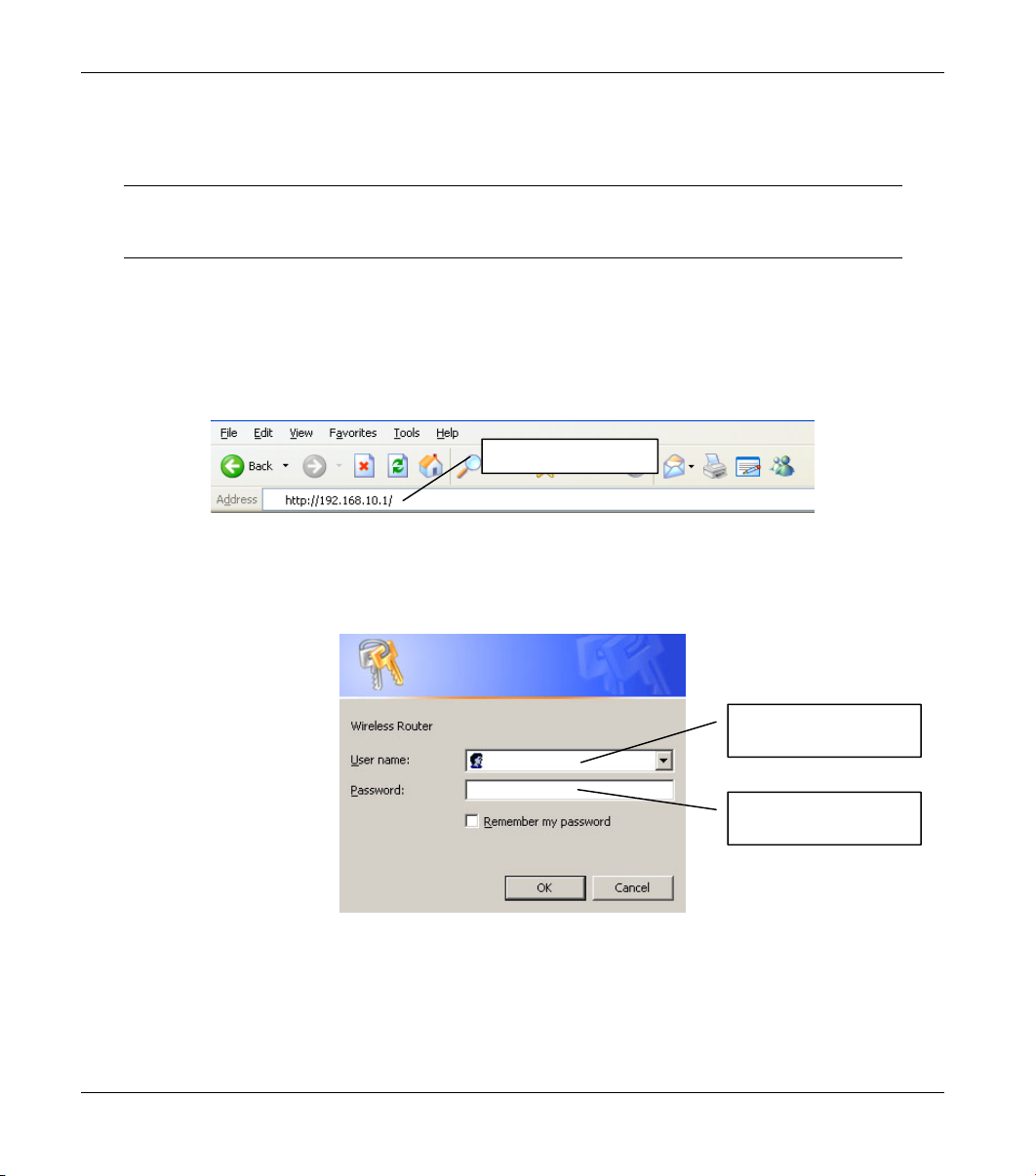
1. Launch your web browser. Enter “192.168.10.1” as the web site address.
Web site address.
2. A window will pop up asking you for a user name and password. The user name is admin and enter the password in
the password field (deafult is 1234). Click OK.
User name is
admin.
Default password is
1234.
It is highly recommended you change the default password! You can do this by selecting “Password” on
the main menu.
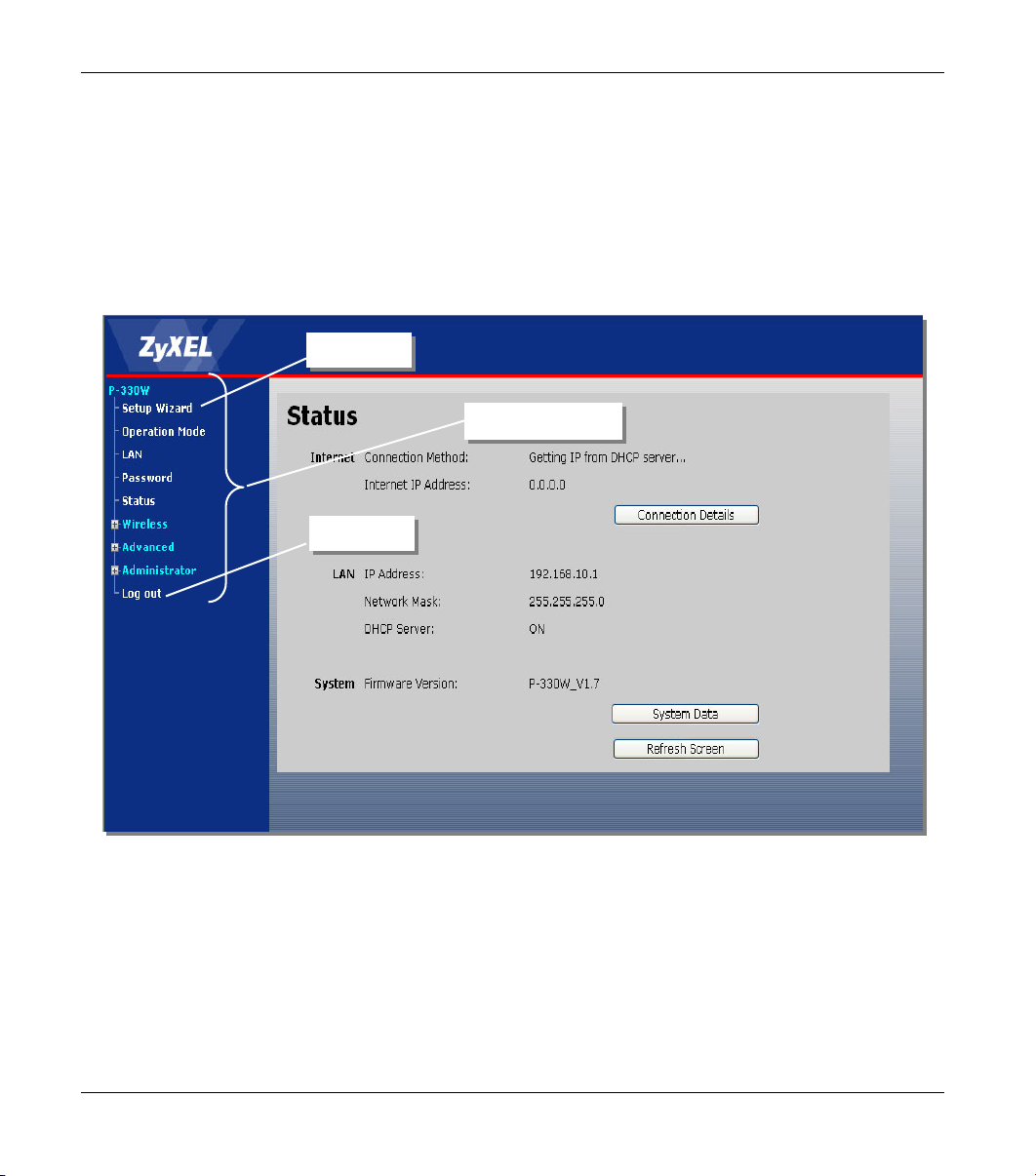
3. You should now see the web configurator STATUS screen.
8
Page 9
ZyXEL P-330W
Click SETUP WIZARD to begin a series of screens to help you configure your P-330W for the
first time.
Click a link on the left in the navigation panel to configure that P-330W feature.
Click LOG OUT when you have finished a P-330W management session. The P-330W
automatically logs you out if it is left idle for five minutes; press ENTER to display the Login
screen again and then log back in.
WIZARD
Navigation panel
LOGOUT
9
Page 10
ZyXEL P-330W
4.2 Internet Access Using the Wizard
The wizard consists of a series of screens to help you configure your P-330W for wireless stations to access
your wired LAN.
Use the following buttons to navigate the Wizard:
Back Click Back to return to the previous screen.
Next Click Next to continue to the next screen.
No configuration changes will be saved to the P-330W until you click Finish.
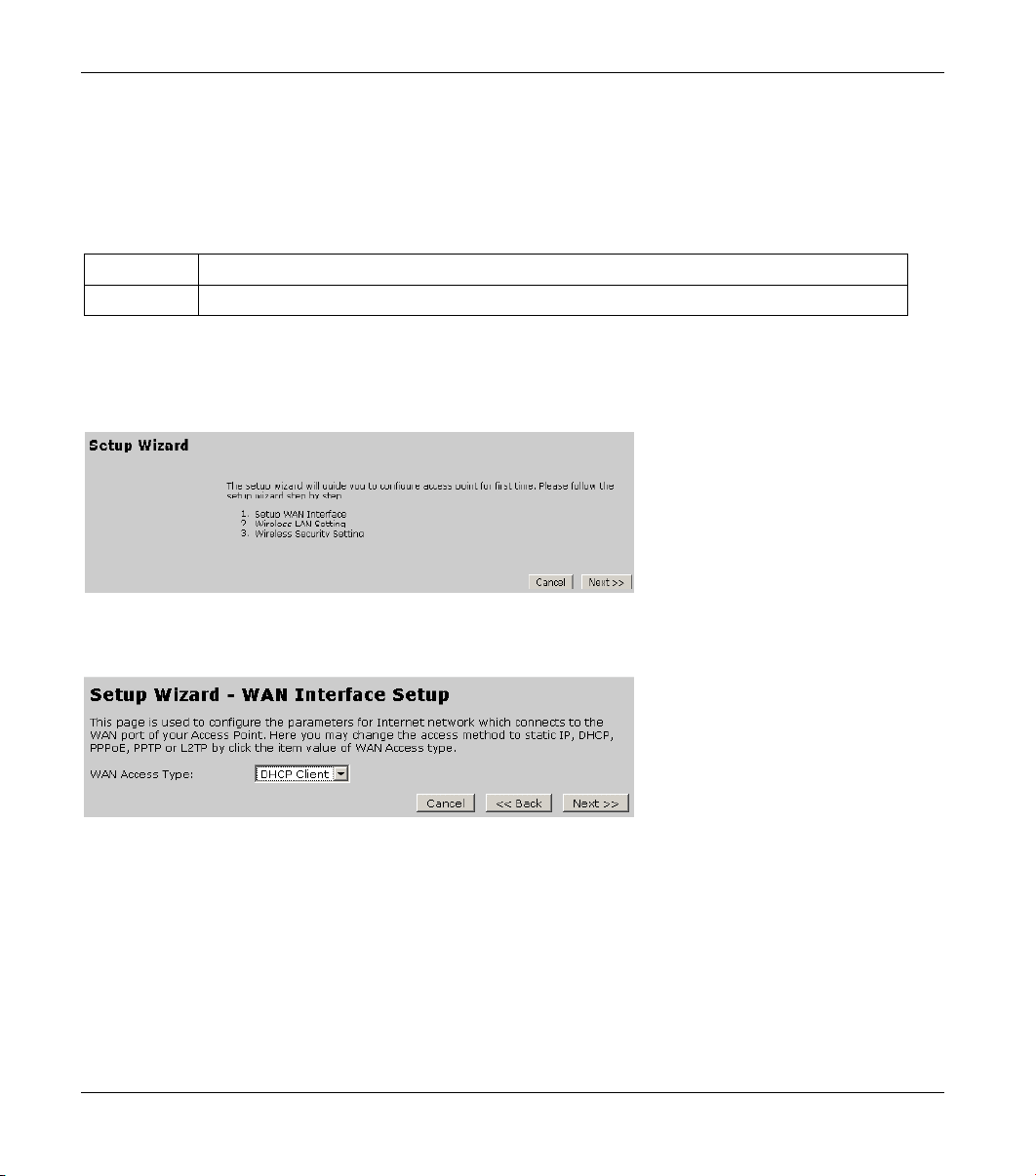
1. Click Setup Wizard in the main menu to display the first wizard screen.
2. This wizard screen has five variations depending on your broadband connection. The type of connection and required
information are provides by your Internet Service Provider.
This step introduces you to the setup
wizard and outlines the steps to setting
up your router.
Click Next to continue.
Choose DHCP Client when the WAN
port is used as a regular Ethernet. This
method is most commonly used with
cable modems.
10
Page 11
ZyXEL P-330W
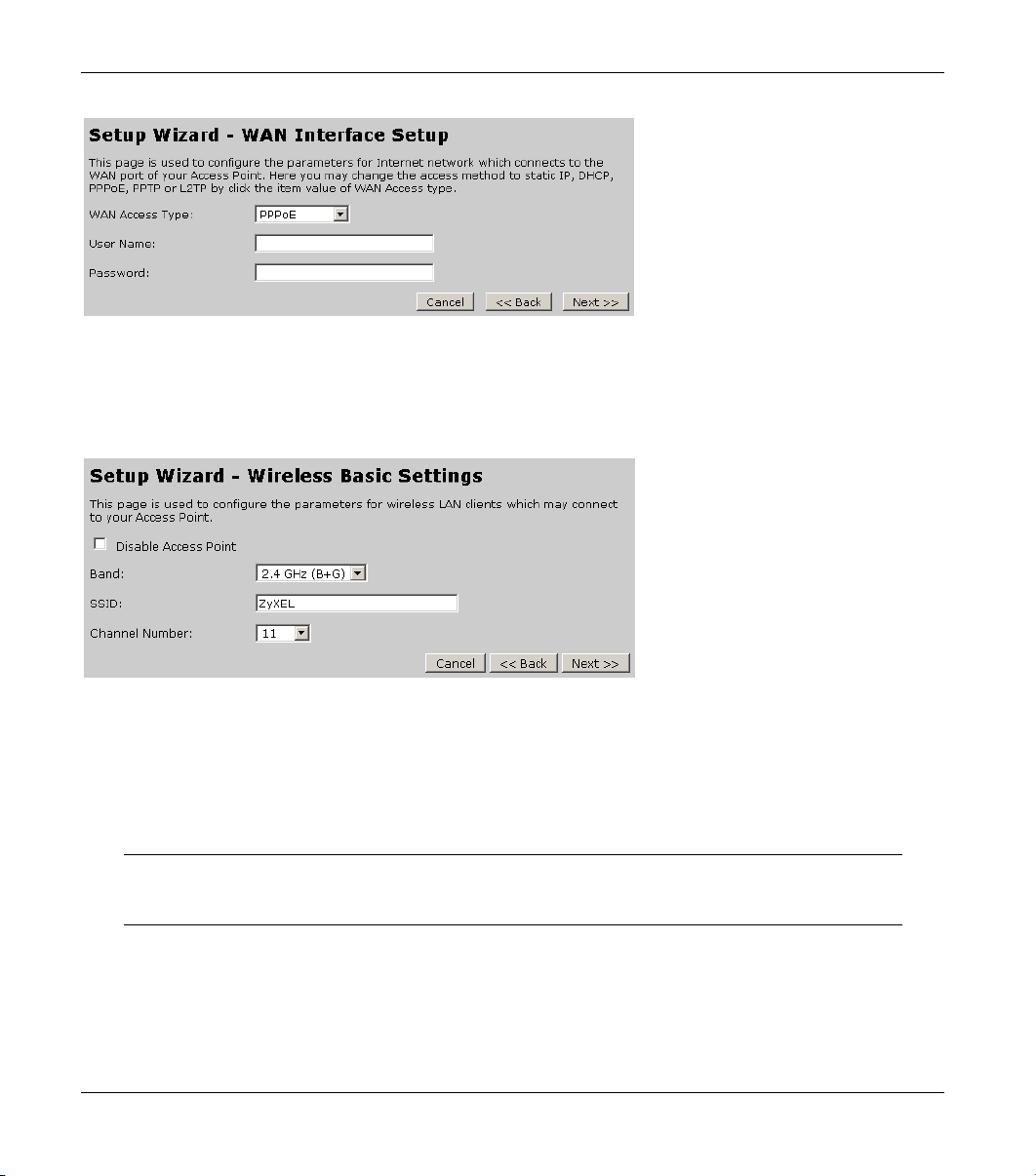
Choose PPPoE or Point-to-Point
Protocol over Ethernet (PPP over
Ethernet) also functions as a dial-up
connection. Therefore you’ll also need a
username and password and possibly
the PPPoE service name.
Your ISP will give you all needed
information. Many DSL companies
provide their connections through
PPPoE; however, some of them use
DHCP client for your WAN access.
Please call your Broadband ISP first to
confirm your WAN interface setup.
When done, click Next to continue.
3. Use the next wizard screen to set up the wireless LAN.
Band allows you to determine which
802.11 standards you want to allow to
connect to your router. 802.11g is
faster, while 802.11b usually offers
better range and noise tolerance.
SSID is a unique name to identify the
P-330W in the wireless LAN. Enter a
descriptive name so you can easily
recognize your network from one of a
neighbor.
Check Disable Access Point to turn off the wireless networking features of the P-330W.
The range of radio frequencies used by IEEE 802.11b/g wireless devices is called a channel.
Select a Channel Number that is not already in use by a neighboring device.
When done, click Next to continue.
The wireless stations and P-330W must use the same SSID, channel ID and WPAPSK (if WPA-PSK is enabled), WEP encryption key (if WEP is enabled) for wireless
communication.
11
Page 12
ZyXEL P-330W
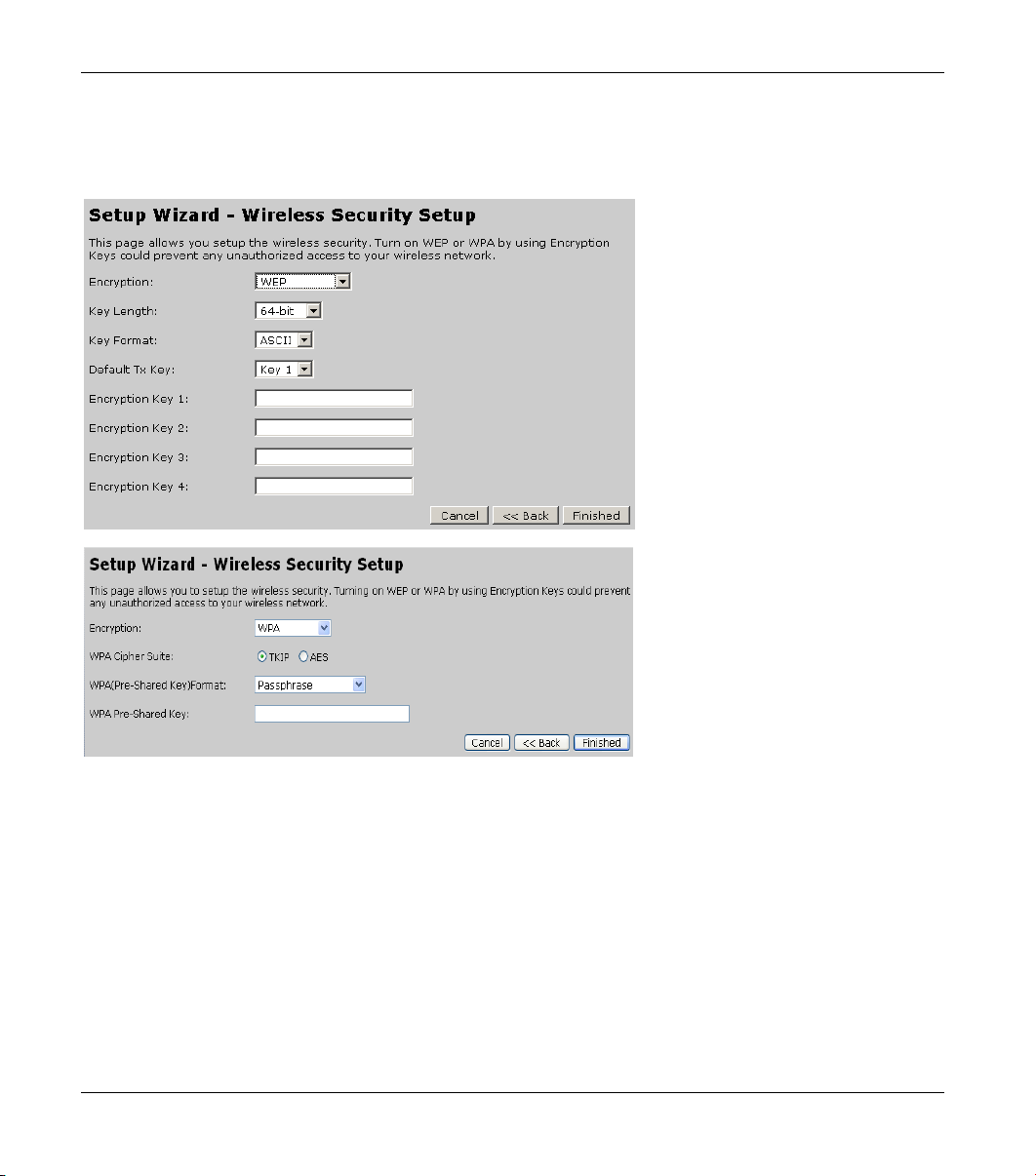
4. The next screen will change depending on the wireless security method you decide to use.
Select None if you do not want to enable any security. This will allow anyone to access your network.
WEP (Wired Equivalent Privacy)
encrypts data frames before transmitting
over the wireless network. The higher
the WEP Encryption, the higher the
security but the slower the throughput.
WEP security should only be used if you
have older devices on your network that
are not compatible with WPA or WPA2.
Select 64-bit or 128-bit from the WEP
Encryption drop-down list.
Select one of the Key’s from the pull
down menu to use as the default WEP
key.
Manually enter a key, in either ASCII or
Hex format. At least one key must be
filled in.
WPA Pre-Shared Key
WPA offers a higher level of protection
for your wireless network than WEP.
You can choose to either enter in a Hex
key, or use a passphrase to generate the
pre-shared key. We suggest using a
passphrase.
Enter in a passphrase of at least 8
characters. Your wireless clients will
need to have this passphrase entered in
order to log into the network.
5. Click Finished when done. This will complete the setup wizard. Your P-330W may reboot or pause for several seconds
while activating the settings you entered.
6. For most of the DSL/Cable users after the seup for the P-330W, it is recommended to reboot your
P-330W and DSL/Cable modems to get the Internet access. If you cannot get Internet connected, please call your
broadband ISP (Internet Service Provider) first for the trouble shooting.
7. Change the wireless parameter settings in the wireless stations to match those of the P-330W. Refer to the
Guide
for your wireless adapter if you want to have advanced settings for the WLAN.
User’s
12
Page 13

ZyXEL P-330W
4.3 Test Your Internet Connection
Launch your web browser and navigate to www.us.zyxel.com. You don’t need a dial-up program such as
Dial Up Networking. Internet access is just the beginning. Refer to the User’s Guide for more detailed
information on the complete range of P-330W features.
5 Troubleshooting
PROBLEM CORRECTIVE ACTION
None of the LEDs turn
on when you turn on the
P-330W.
Cannot access the
P-330W from the LAN.
Cannot ping any
computer on the LAN.
Cannot get a WAN IP
address from the ISP.
Cannot access the
Internet.
Make sure that you have the correct power adapter connected to the P-330W and plugged in
to an appropriate power source. Check all cable connections.
If the LEDs still do not turn on, you may have a hardware problem. In this case, you should
contact ZyXEL.
Check the cable connection between the P-330W and your computer or hub. Refer to the
Rear Panel section for details.
Ping the P-330W from a LAN computer. Make sure your computer Ethernet card is installed
and functioning properly.
If the 10/100M LAN LEDs are off, check the cable connections between the P-330W and
your LAN computers.
Verify that the IP address and subnet mask of the P-330W and the LAN computers are in the
same IP address range.
If you are using the Cable modem with the P-330W, you have to power off your Cable
modem for around 2~3 minutes after you connect your Cable modem with the P-330W.
The WAN IP is provided after the ISP verifies the MAC address, host name or user ID.
Find out the verification method used by your ISP and configure the corresponding fields.
If the ISP checks the WAN MAC address, you should clone the MAC address from a LAN
computer. Click WAN Port and then enter the MAC address in the field Clone MAC
Address.
If the ISP checks the user ID, click WAN Port and then check your service type, user name,
and password.
Check the P-330W’s connection to the cable/DSL device.
Unplug the power of the Cable/DSL modem and P-330W and plug it back to reboot the units.
Click WAN Port to verify your settings.
13
Page 14

ZyXEL P-330W
6 Customer Support
Please have the following information ready when you contact customer support.
• Product model and serial number.
• Warranty Information.
• Date that you received your device.
• Brief description of the problem and the steps you took to solve it.
SUPPORT E-MAIL
TELEPHONE
WEB SITE
REGULAR MAIL
+1-800-978-7222
www.us.zyxel.com
ZyXEL Communications Inc.
1130 N. Miller St.
Anaheim
CA 92806-2001
U.S.A.
14
 Loading...