

Page 1
1
ISG50-ISDN
ISG50-PSTN
Application Note
Version 2.0
June, 2012
Page 2

2
Table of Contents
1. How to Quickly Prepare Communication Infrastructure in a New Small Business? ..................................................................................... 5
Initial Setup .................................................................................................................................................................................................. 5
Create Extensions ................................................................................................................................................................................. 5
How to configure call forwarding for each extension? ................................................................................................................. 10
How to receive and check the voice mail? .................................................................................................................................... 12
Firewall Setting ................................................................................................................................................................................... 14
QoS ..................................................................................................................................................................................................... 15
2. How to Manage Extensions as Business Needs Grow? .............................................................................................................................. 16
Auto Provision ............................................................................................................................................................................................ 16
SIP Server/SIP account/Password ........................................................................................................................................................ 17
Phone book ........................................................................................................................................................................................ 19
Feature Key ......................................................................................................................................................................................... 20
Firmware Upgrade .............................................................................................................................................................................. 22
3. How to Develop a Non-stop Voice Service? ............................................................................................................................................... 27
WAN failover .............................................................................................................................................................................................. 27
VoIP survivability ........................................................................................................................................................................................ 30
DDNS .......................................................................................................................................................................................................... 31
4. How to Expand the Current Networking Infrastructure to Fulfill Multi-site Requirements? ...................................................................... 33
Work with ZyWALL USG products ............................................................................................................................................................... 33
Trusted Peer & SIP trunk ............................................................................................................................................................................. 43
Page 3

3
5. How to Secure the Communication? ......................................................................................................................................................... 55
Site to site IPsec VPN .................................................................................................................................................................................. 56
Trusted Peer over IPsec VPN ....................................................................................................................................................................... 78
Brute-force Attack Protection ..................................................................................................................................................................... 79
6. How to Establish a Seamless Mobile Office with ZyXEL Reach? ................................................................................................................. 82
ZyXEL Reach – Smartphone Application ...................................................................................................................................................... 82
How to avoid missing any call on a certain extension? ........................................................................................................................ 88
Mobile Extension ........................................................................................................................................................................................ 90
7. How to Leverage Enterprise-class Calling Features to Increase Business Productivity? ............................................................................. 93
Auto Attendant ........................................................................................................................................................................................... 93
Hunt Group .............................................................................................................................................................................................. 100
Three-way Conference .............................................................................................................................................................................. 102
How to perform a three-way conference on ZyXEL Reach? ................................................................................................................ 103
How to perform three-way conference on V310?.............................................................................................................................. 105
Meet-Me Conference ............................................................................................................................................................................... 107
System Sound ........................................................................................................................................................................................... 108
How to change the language of system sounds from English to a specific language? ........................................................................ 108
8. How to Record a Call? .............................................................................................................................................................................. 111
Preparation for Call Recording .................................................................................................................................................................. 111
License .............................................................................................................................................................................................. 111
USB Storage ...................................................................................................................................................................................... 112
How to record calls on a certain trunk or an extension? ........................................................................................................................... 113
Full-time Recording ........................................................................................................................................................................... 113
Page 4

4
On-demand Recording ...................................................................................................................................................................... 114
Query Call Recording Files ........................................................................................................................................................................ 115
9. How to Audit Call Usage with Report and Analyzer to Improve Working Efficiency? .............................................................................. 117
CDR .......................................................................................................................................................................................................... 117
How to find the call history? ............................................................................................................................................................. 118
How to check QoS of each call in RTCP? ............................................................................................................................................ 120
Back up CDR file ....................................................................................................................................................................................... 122
10. How do UC Server and UC Client Work with ISG50? ................................................................................................................................ 123
Preparation for TAPI Service ..................................................................................................................................................................... 124
TAPI Driver Installation ............................................................................................................................................................................. 126
UC Server Installation ............................................................................................................................................................................... 129
UC Client Installation ................................................................................................................................................................................ 139
Presence ........................................................................................................................................................................................... 147
Make a call ........................................................................................................................................................................................ 148
Hang up a call ................................................................................................................................................................................... 150
Reject a call ....................................................................................................................................................................................... 150
Blind Transfer .................................................................................................................................................................................... 151
Consultant Transfer ........................................................................................................................................................................... 152
Redirect a call ................................................................................................................................................................................... 153
Page 5

5
1. How to Quickly Prepare Communication Infrastructure in a New Small Business?
Initial Setup
A network administrator plans to deploy an ISG50 for VoIP services in a new small company. First, it is necessary to prepare extension numbers,
as well as enable voicemail and call forwarding for the current employees in the Sales and Marketing departments. In order to allow road
warriors to register with the ISG50 using their smart phones during business trips, the network administrator needs to define the firewall rules
since the ISG50 works as an all-in-one gateway.
Create Extensions
Goal to achieve: Create two authority groups for Marketing department and Sales department, and add 5 extensions in Marketing department.
Condition:
Authority Group: Marketing and Sales
Extensions for Marketing: 3100-3104
Pin Code for Marketing: 3100-3104; Password for Marketing: 53100-53104
Page 6

6
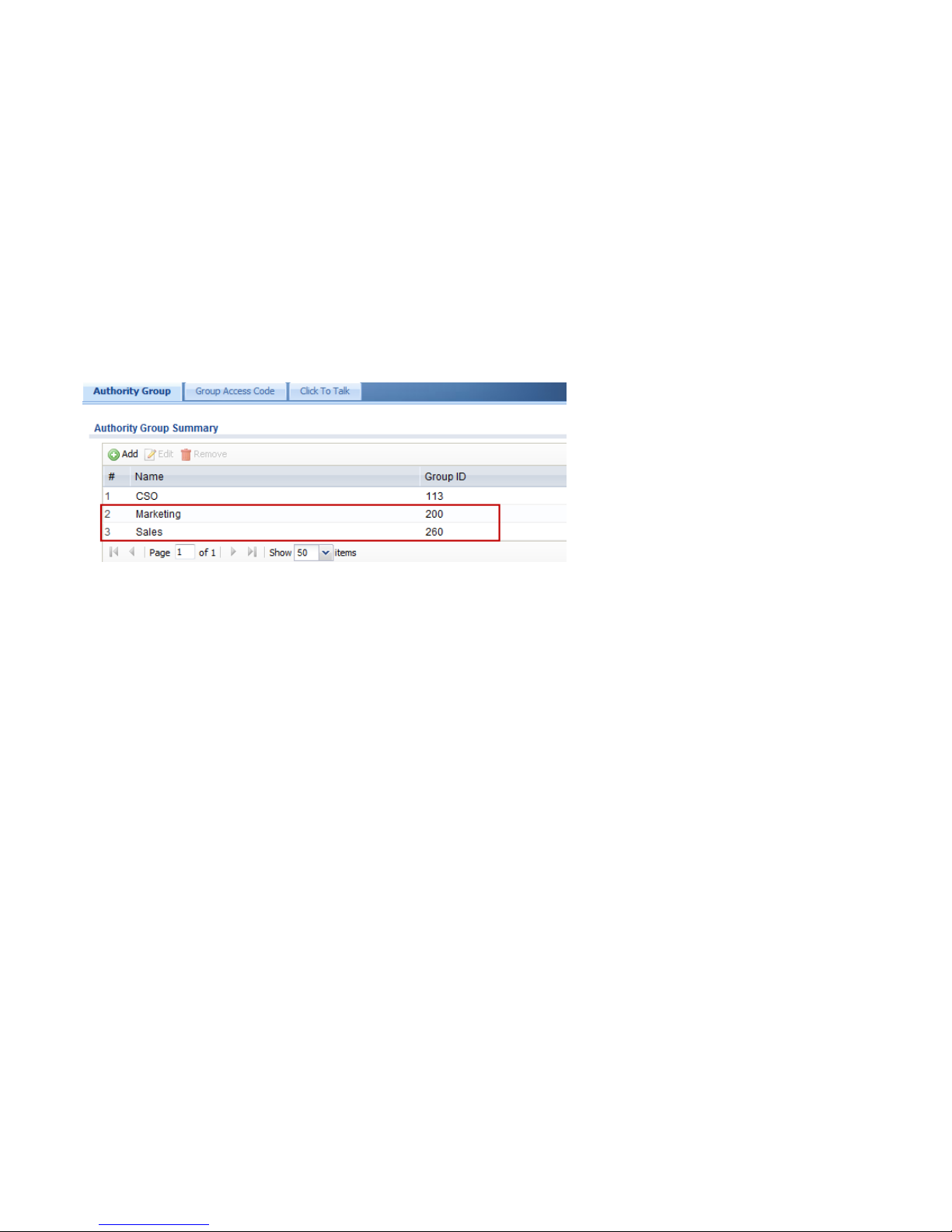
First, add authority groups for departments.
Create two authority groups and fill in “Marketing” and “Sales” as the authority group names.
Page 7
7
Page 8
8
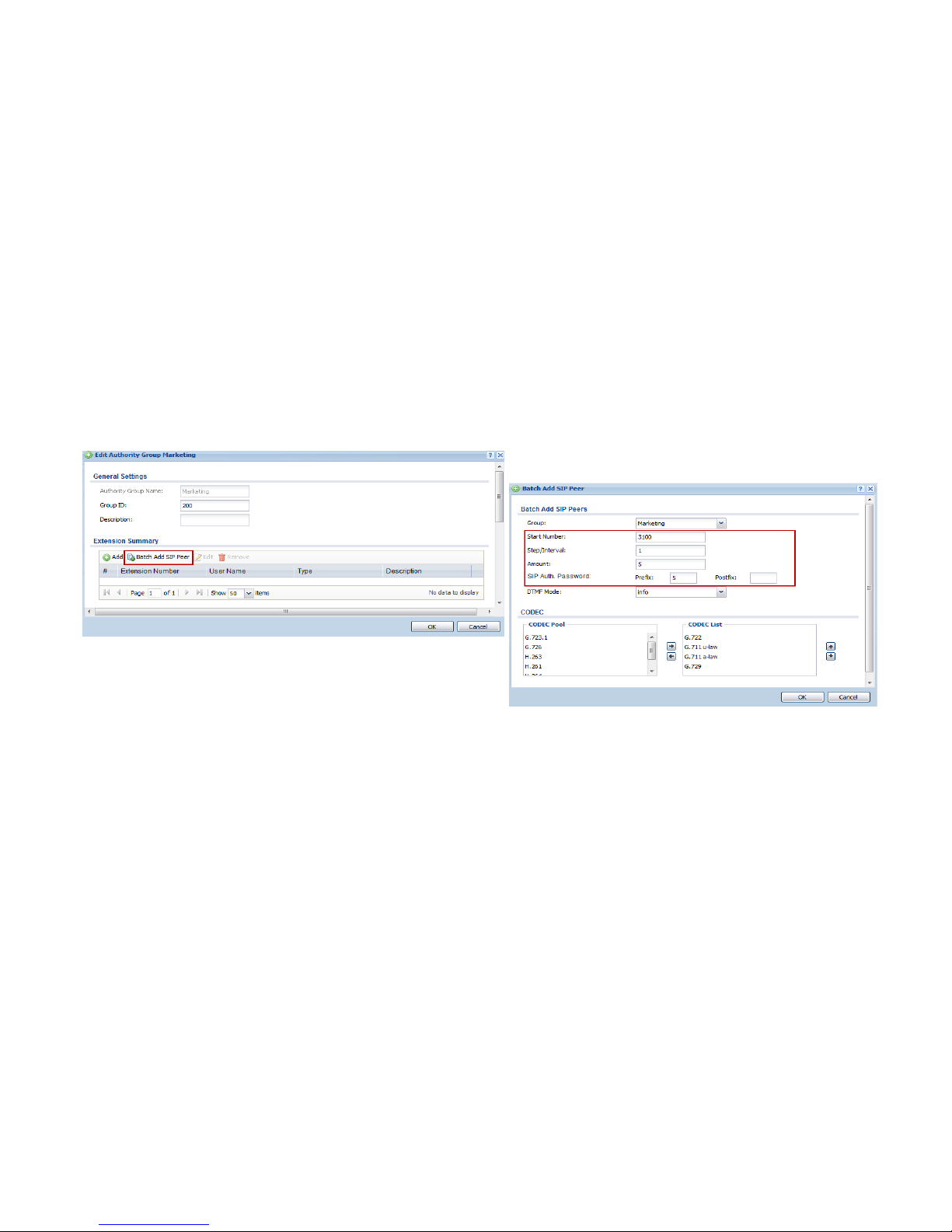
You can either add SIP peers one by one or add multiple SIP peers at a
time.
Here, we add multiple SIP peers.
Define the start number and the amount of extensions.
Here, we set 3100 as the start number.
The passwords for these SIP peers are the same as the extension
numbers. In order to make the password more secure, we add a
prefix number to these extensions.
Page 9
9
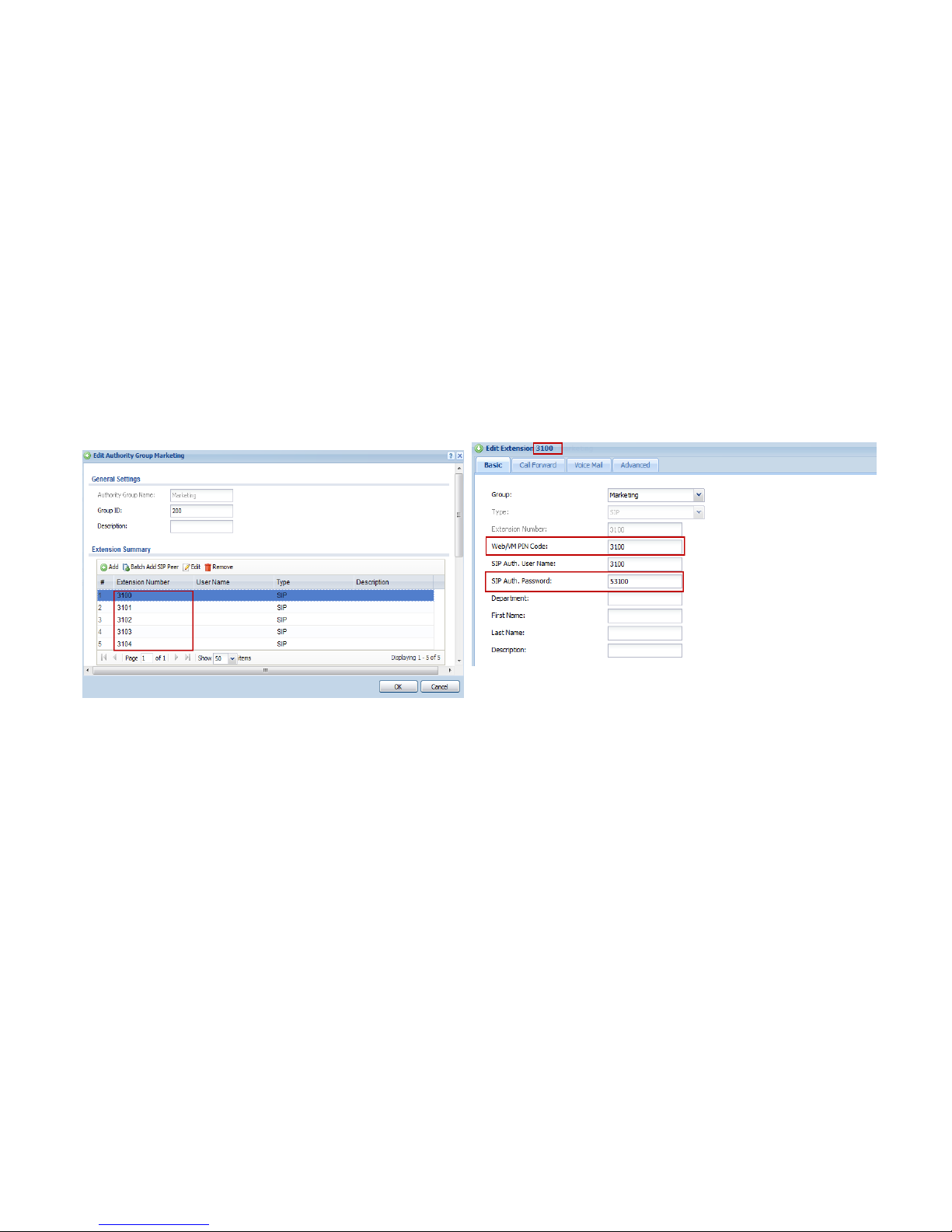
Extensions have been created.
Double click the extension number to check and modify the setting
of the extension.
For security reasons, you can modify the Web/VM PIN code and the
password for each extension.
Page 10
10
How to configure call forwarding for each extension?
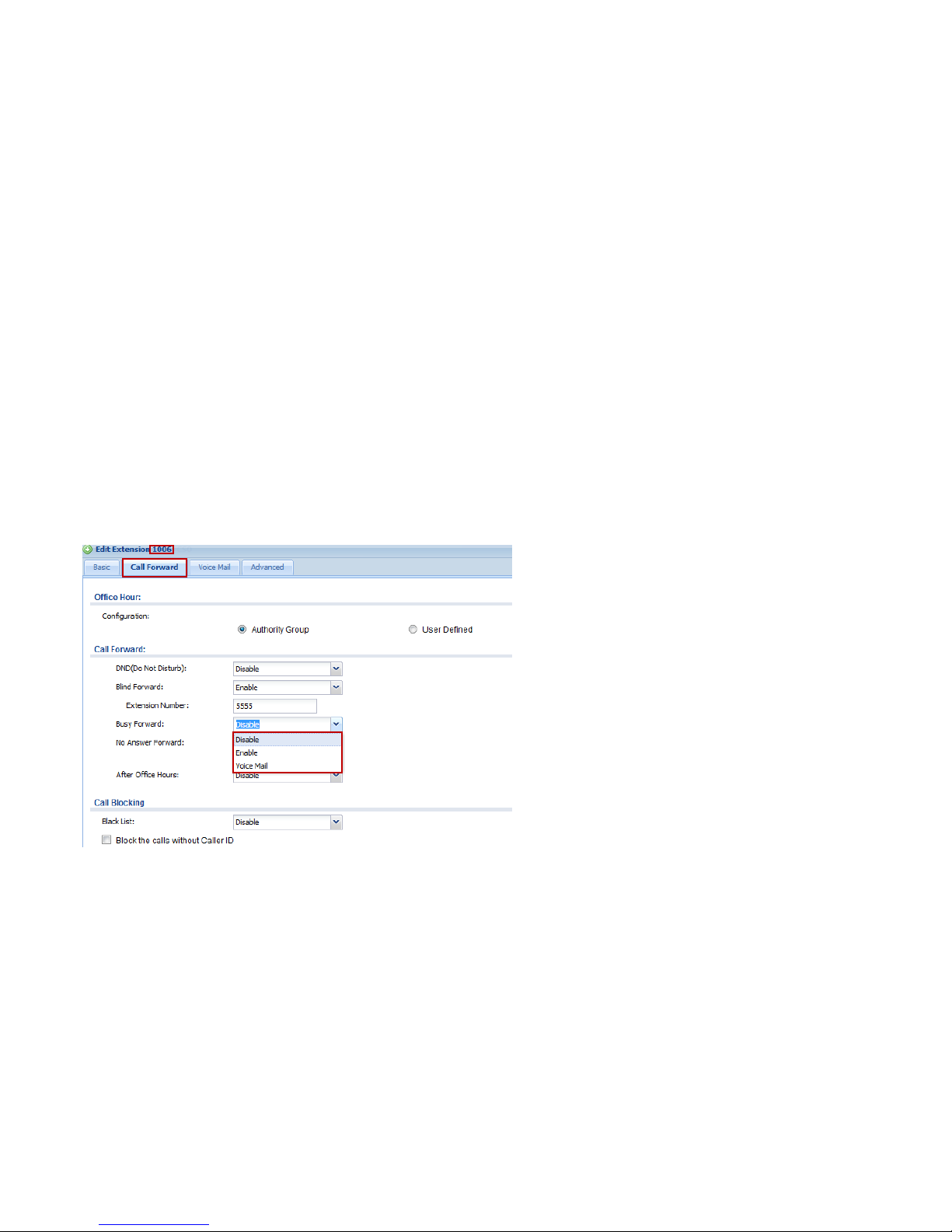
Goal to achieve: Configure call forwarding for extension 1006.
Condition:
Extension 1006
Double click the extension in the Authority Group list to configure call forwarding and call blocking rules for this extension.
Page 11

11
Examples:
DND (Do Not Disturb): When DND is enabled on #1006 and a caller tries to reach this extension, he will hear a voice prompt that the extension
is not available. The extensions configured in the “White List” can still reach #1006.
Blind Forward: When Blind Forward is enabled on #1006, every caller who tries to dial #1006 will be redirected to a pre-configured extension
or voice mail.
Busy Forward: If a caller dials #1006 while #1006 has a phone call with someone, the caller will be redirected to a pre-configured extension or
voice mail when Busy Forward is enabled. The definition of “Busy” is that “Call Waiting” is disabled.
No Answer Forward: A caller dials #1006 but #1006 doesn’t answer the phone. This caller will be redirected to a pre-configured extension or
voice mail when the ring time of #1006 exceeds the value of Default Ring Time. The default ring time is 20 seconds. You can change the value of
default ring time in CONFIGURATION > PBX > Global > SIP Server > Default Ring Time.
After Office Hours: If the incoming call is not during the office hours, you can allow the incoming call to be forwarded to a specific extension
number or voice mail.
Black List: A caller’s number is on the Black List of #1006. When this caller dials #1006, he will hear the disconnect tone.
Block the calls without Caller ID: You can block the incoming calls which are without call ID.
Page 12
12
How to receive and check the voice mail?
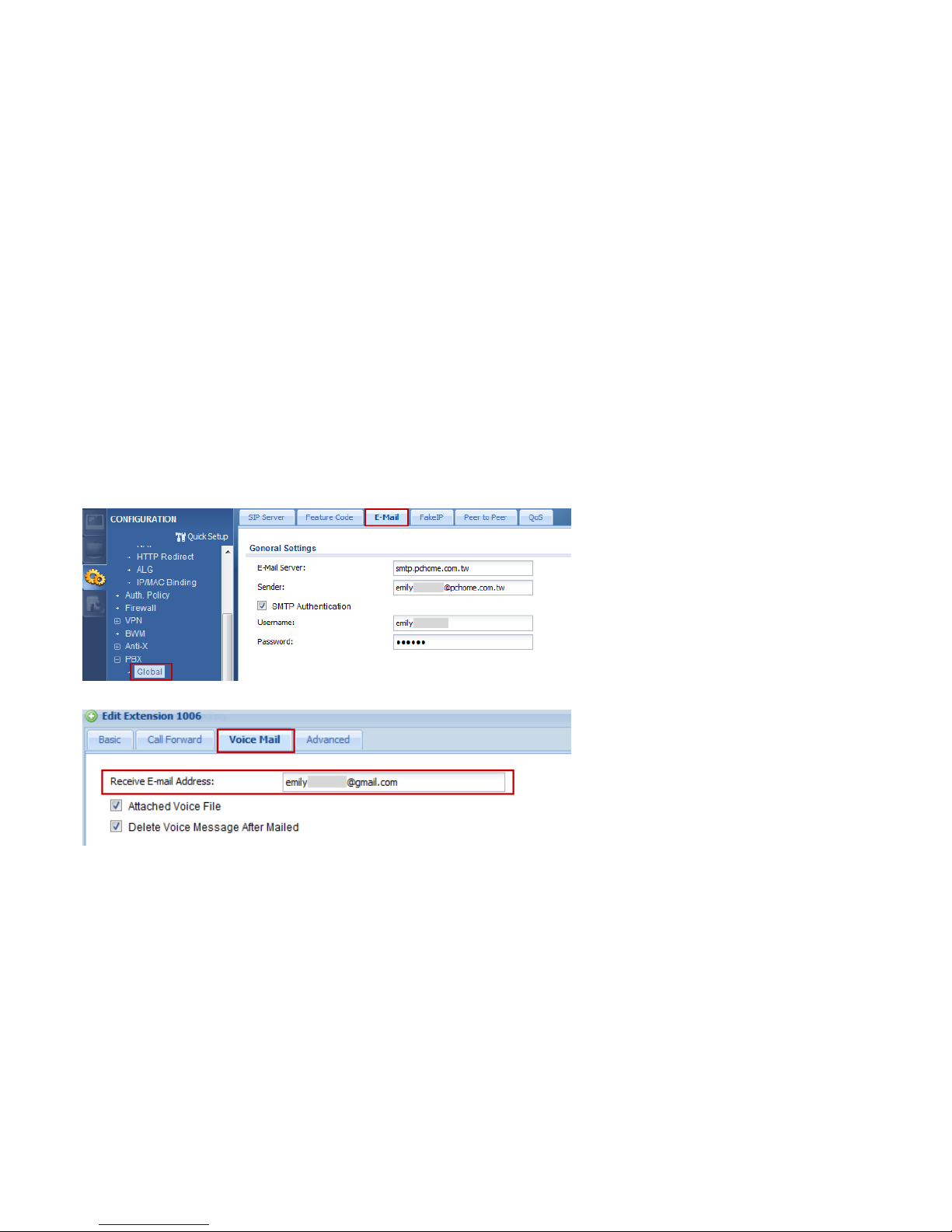
Goal to achieve: Extension 1006 would like to receive voicemail notification with the voice file in the email box.
Condition: Extension 1006
Go to CONFIGURATION > PBX > Global > E-Mail to fill in the mail server information and email account.
Specify the email address that you want to receive voice mail notifications of your extension.
Page 13
13
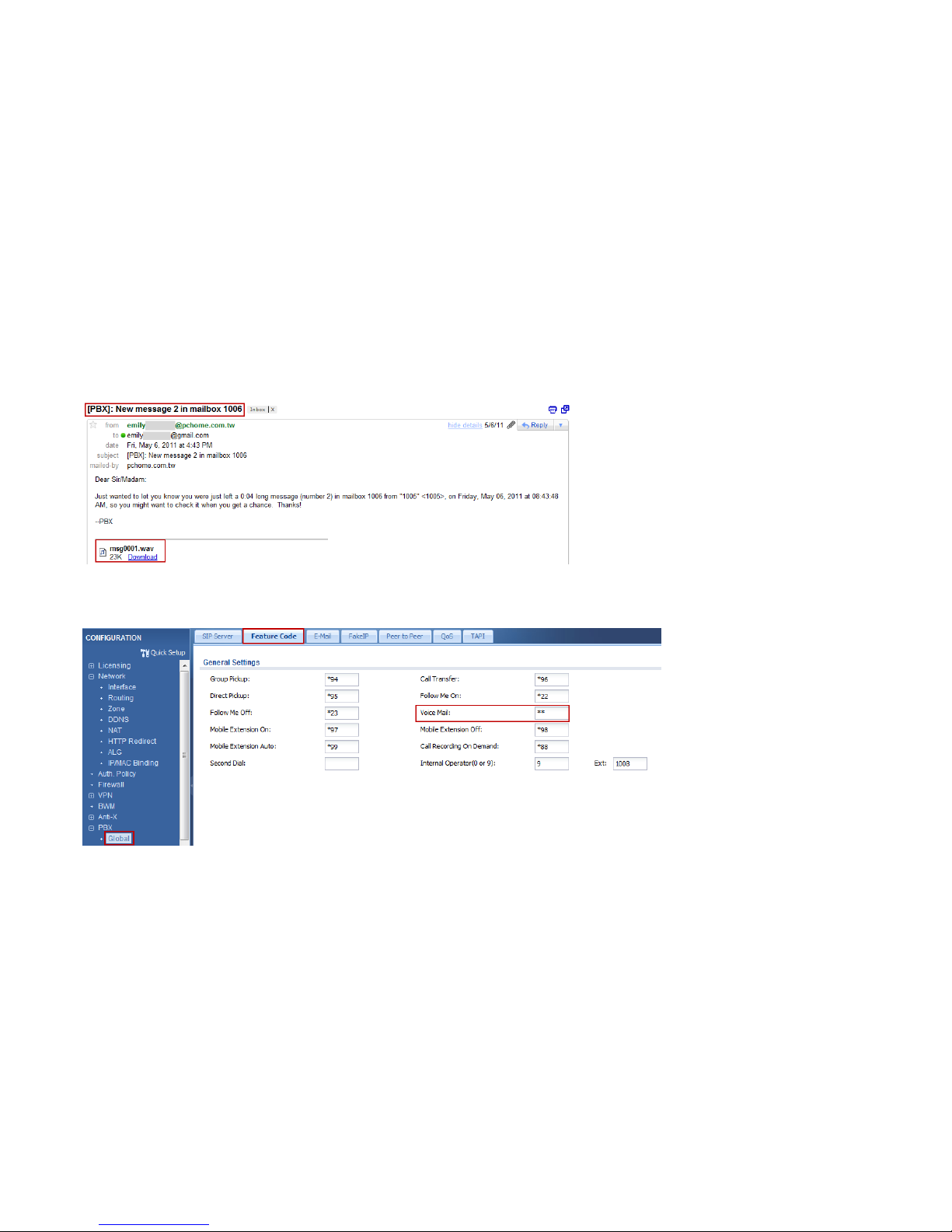
If “Attached Voice File” is selected, you can listen to the voice message by downloading the attached file in the notification mail.
If the voice message is not attached in the notification mail, you can dial the feature code and the extension number to hear the voice message.
The default feature code is **. In this example, you can dial **1006 to hear the voice mail of extension 1006.
Page 14
14
Firewall Setting
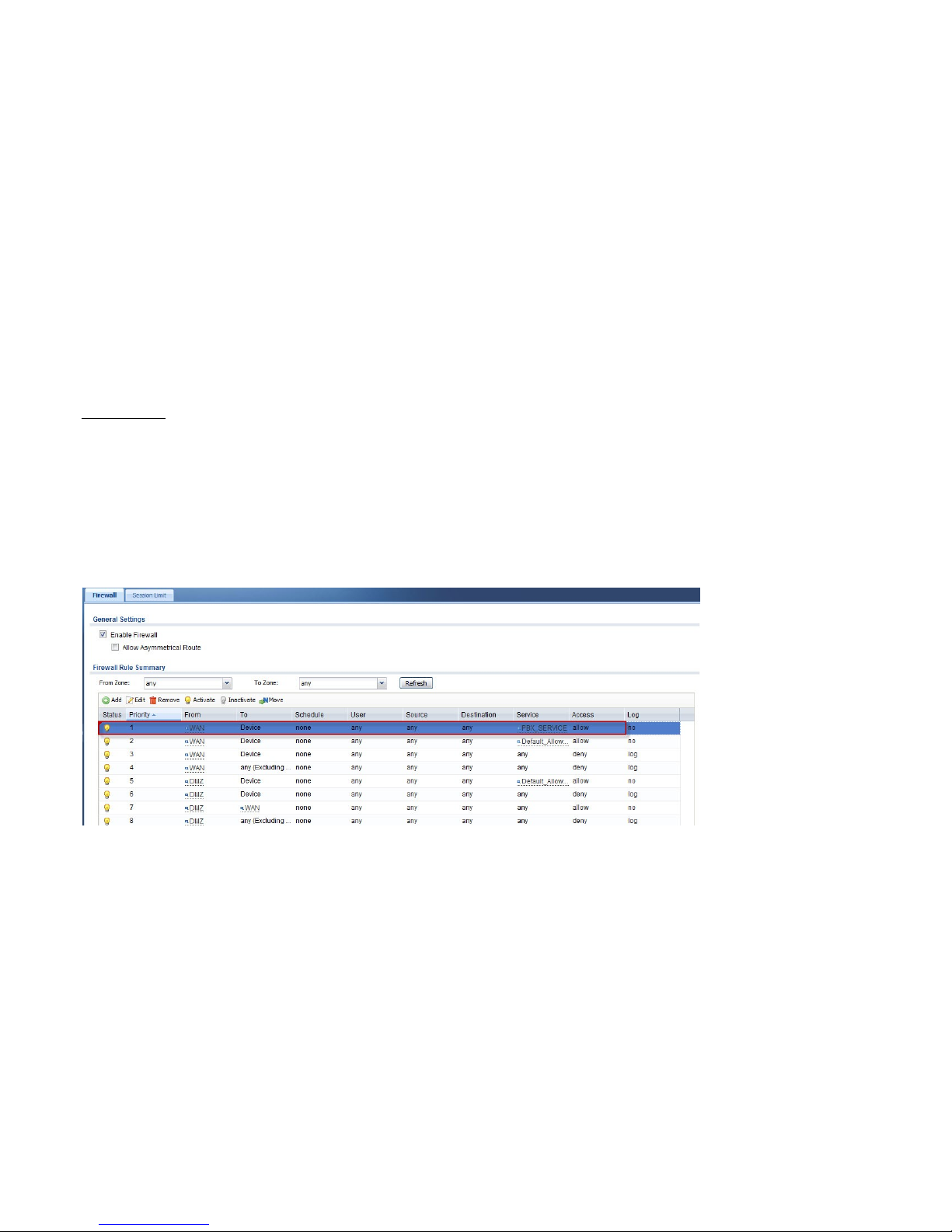
Goal to achieve: The administrator allows SIP clients to register from the WAN interface.
Condition:
Activate the firewall rule: PBX_SERVICE
Enable Firewall: checked
By default, ISG50 doesn't allow SIP clients to register from the WAN interface. You have to activate the first firewall rule “PBX_SERVICE” to let
SIP clients register from the WAN interface.
Page 15
15
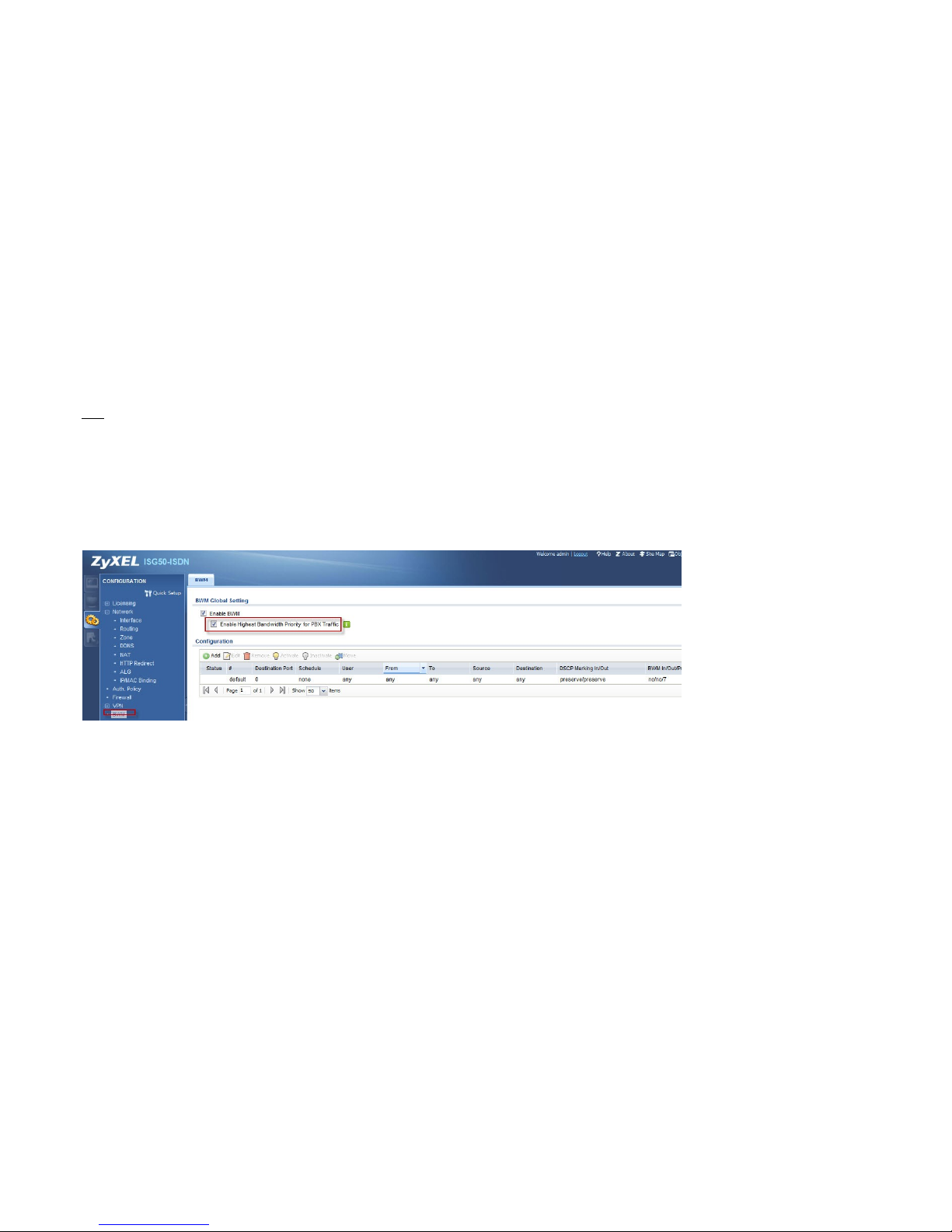
QoS
Goal to achieve: The administrator would like to let VoIP service has the highest priority over other traffic.
Condition:
Enable Highest Bandwidth Priority for PBX Traffic: checked
Check this box to ensure VoIP traffic receives the highest priority.
Page 16
16
2. How to Manage Extensions as Business Needs Grow?
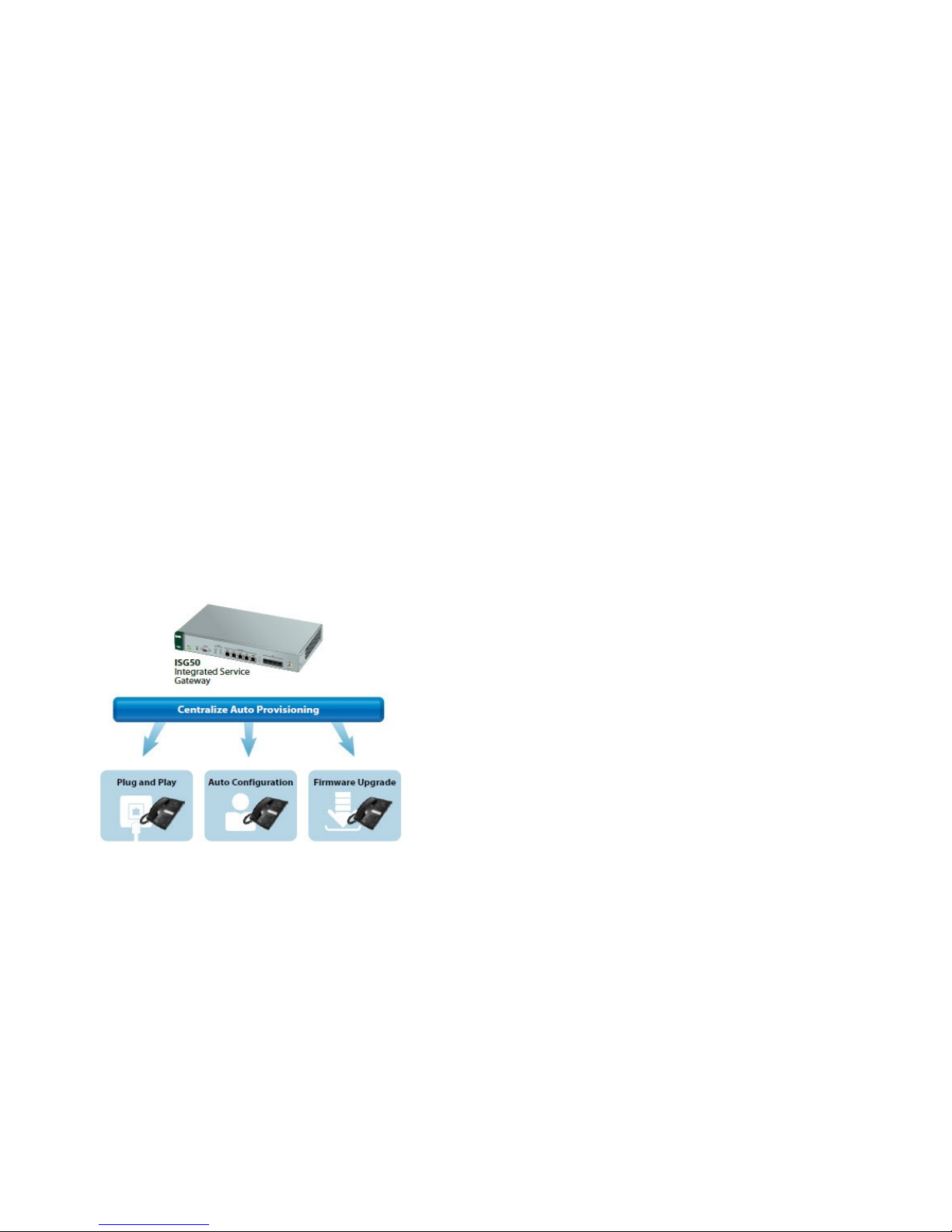
The new company recruits more employees in the following weeks and the network administrator would like to quickly deploy phone services
for the new employees at their desks. The auto-provisioning feature allows administrators to configure VoIP related settings on the V310/snom
SIP clients from a central location. A configuration file associated with the SIP extension on the ISG50 can be configured and maintained.
Auto-provisioning allows the V310/snom phones to periodically download the configuration file from the ISG50, such as SIP account
authentication, phonebook, feature keys and the phone’s firmware URL.
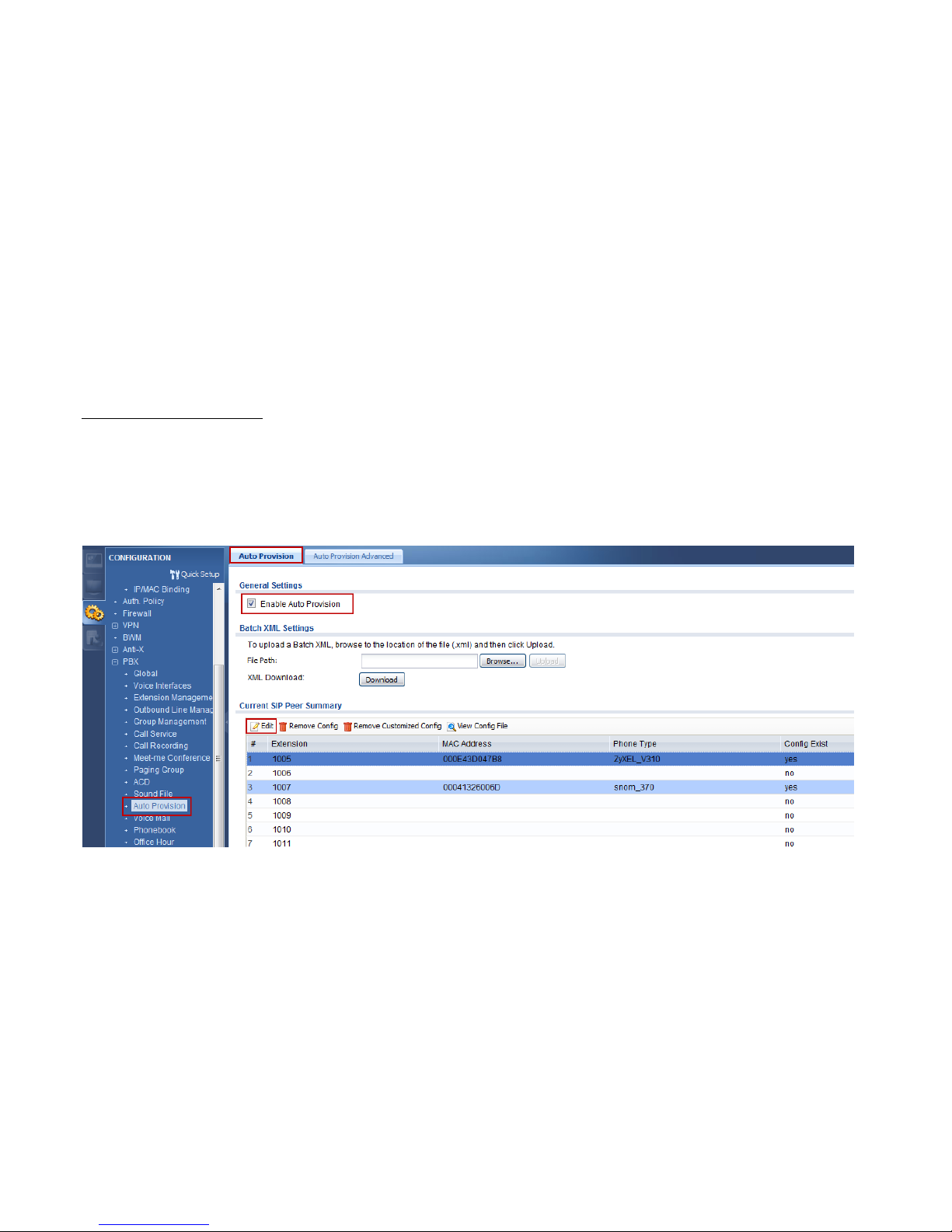
Auto Provision
Page 17
17
SIP Server/SIP account/Password
Goal to achieve: Configure SIP accounts on snom and V310 directly from ISG50.
Condition:
V310
Snom
Extension: 1005
Extension: 1007
Page 18
18
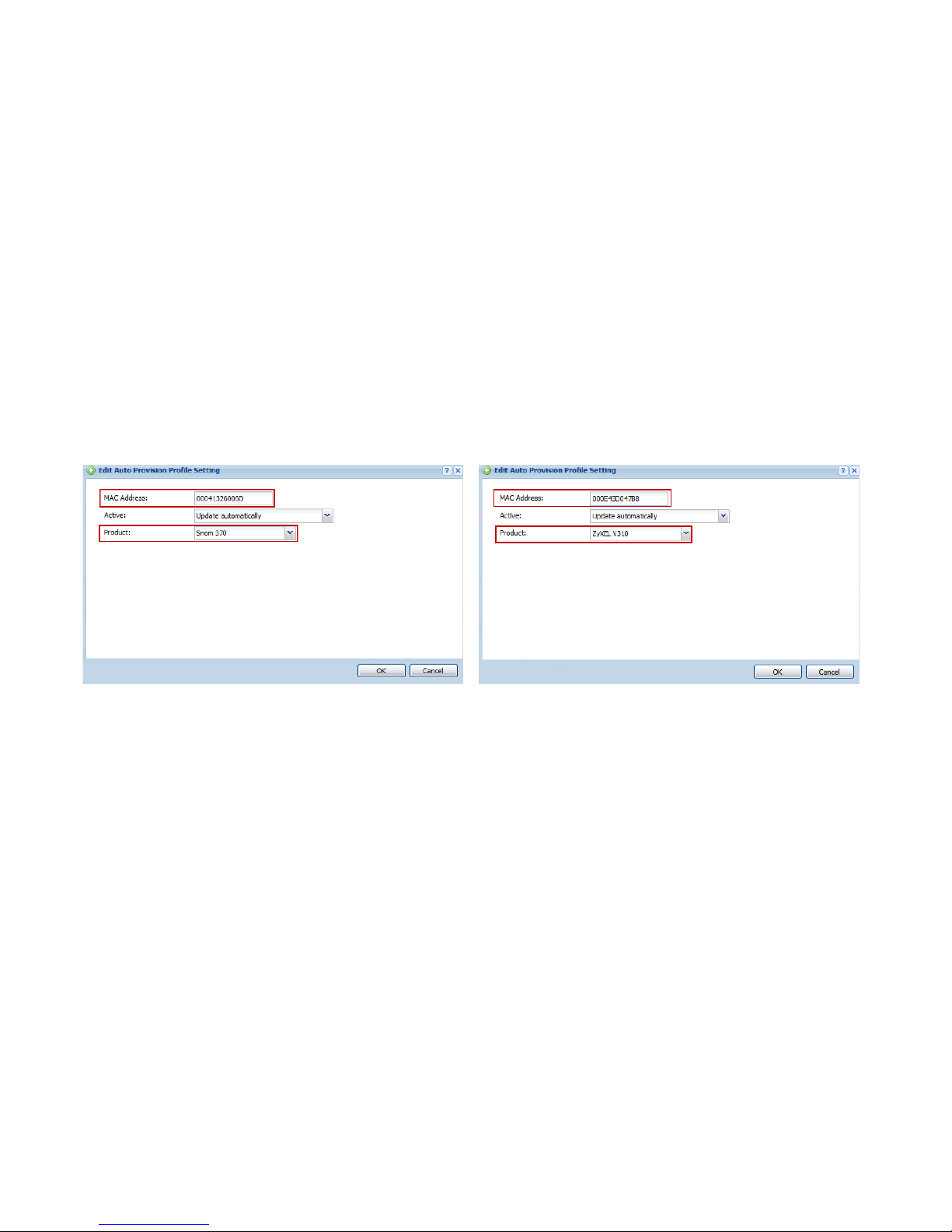
Fill in the MAC address of the IP phone and select the model name from the product list that receives configuration settings from the ISG50 for
this extension.
Snom
V310
Page 19
19
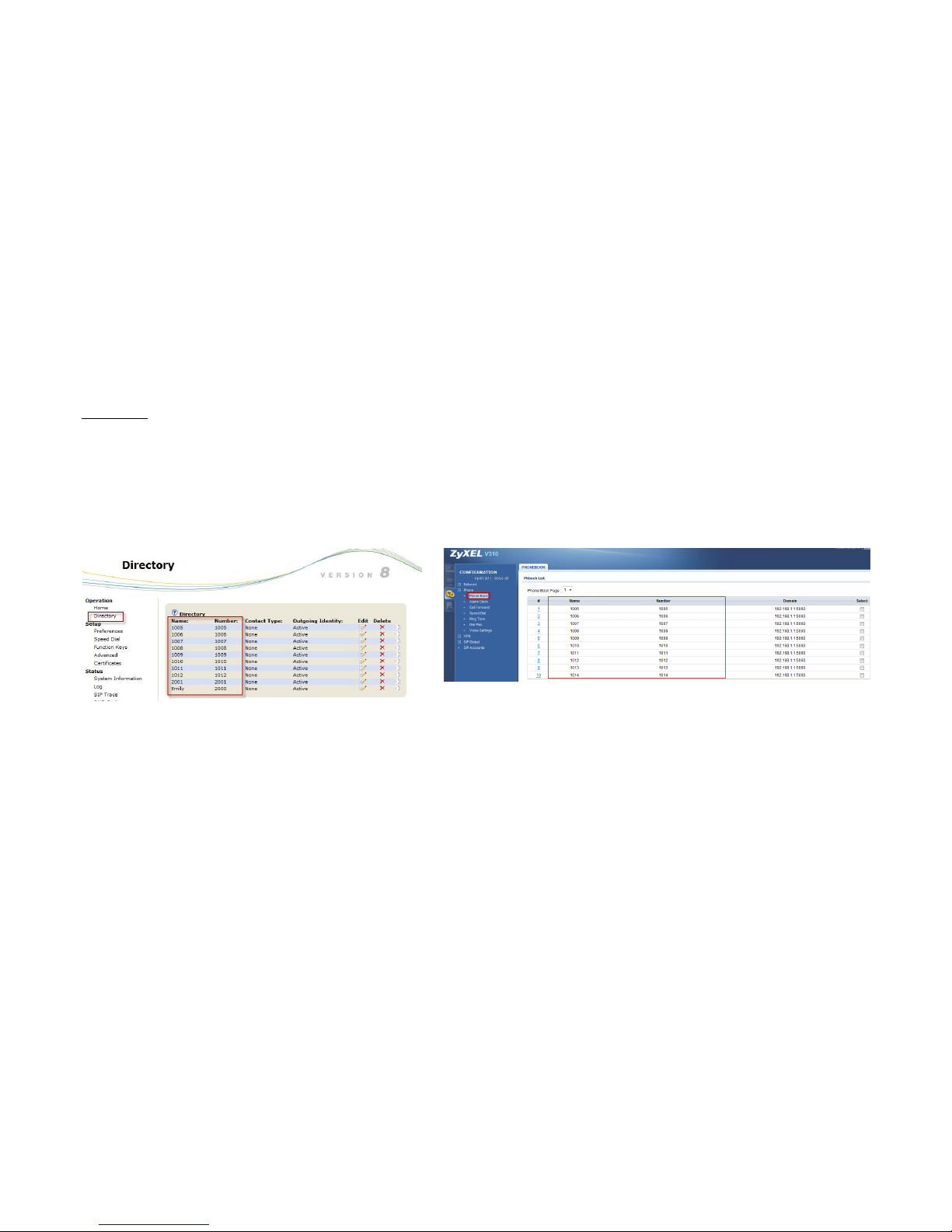
Phone book
Goal to achieve: Download the phonebook on snom and V310 from ISG50.
Condition:
Extension number: 1005-1012; 2000-2001
Snom
V310
Page 20
20
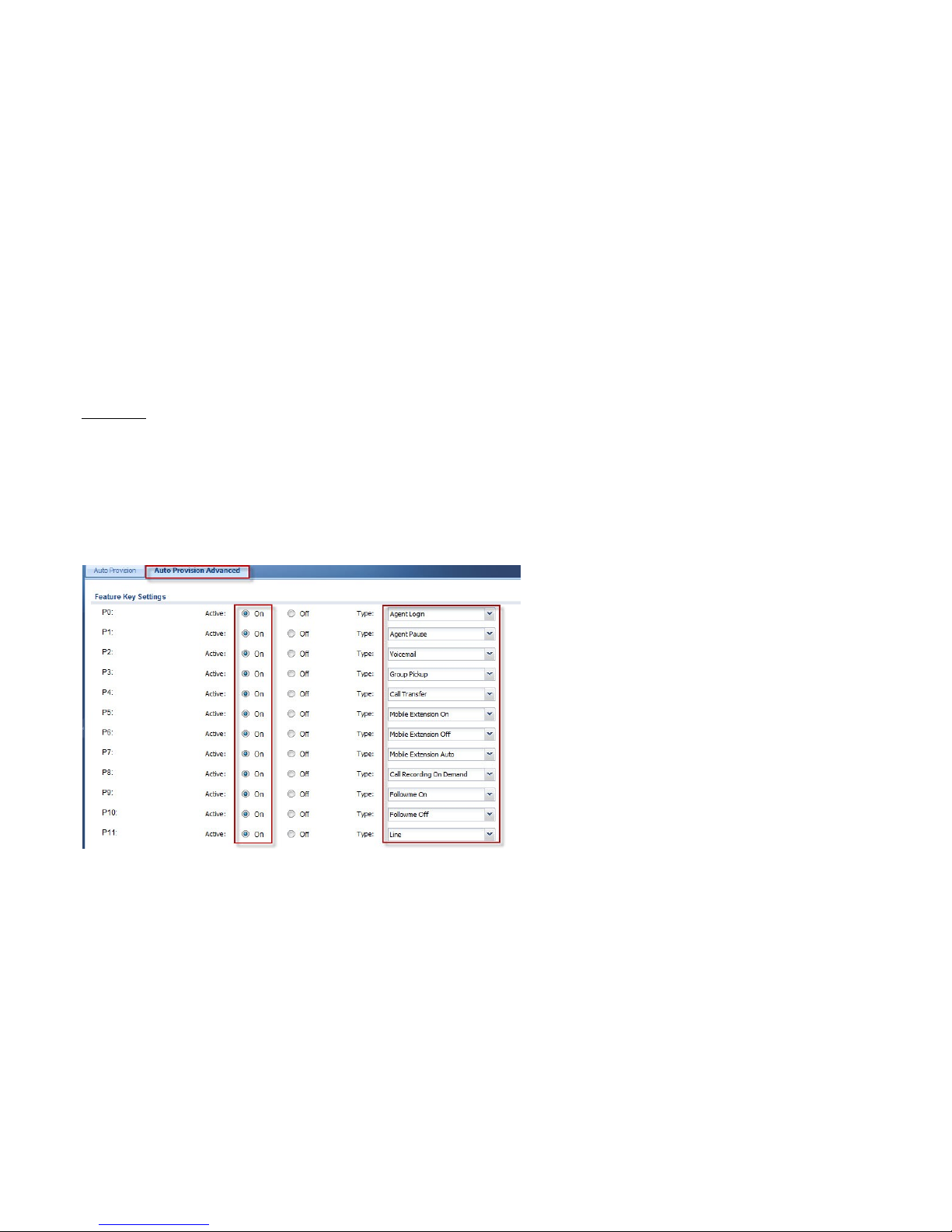
Feature Key
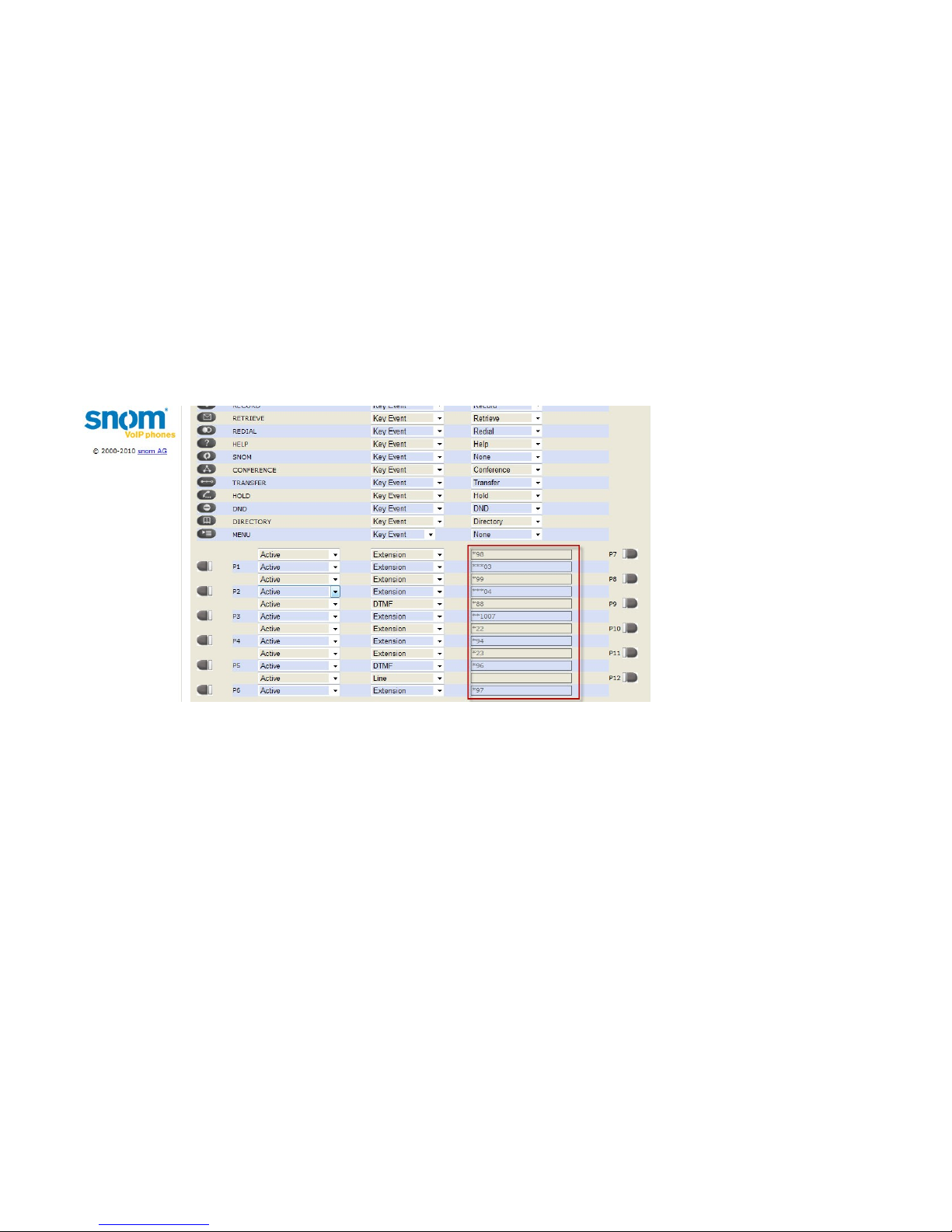
Goal to achieve: Download the feature keys on snom from ISG50.
Condition:
Feature keys: Agent Login; Agent Pause; Voicemail; Group Pickup; Call Transfer; Mobile Extension On; Mobile Extension Off; Mobile Extension
Auto; Call Recording on Demand; Followme On; Followme Off; Line
Configure the feature key settings for the Snom 370 connected to the ISG50. Feature keys cannot be provisioned to V310.
Page 21
21
The setting of feature keys is downloaded from ISG50. Here, key P[k] of ISG50 is mapped to key P[k+1] of Snom phone. (k is from 0 to 11)
Page 22
22
Firmware Upgrade
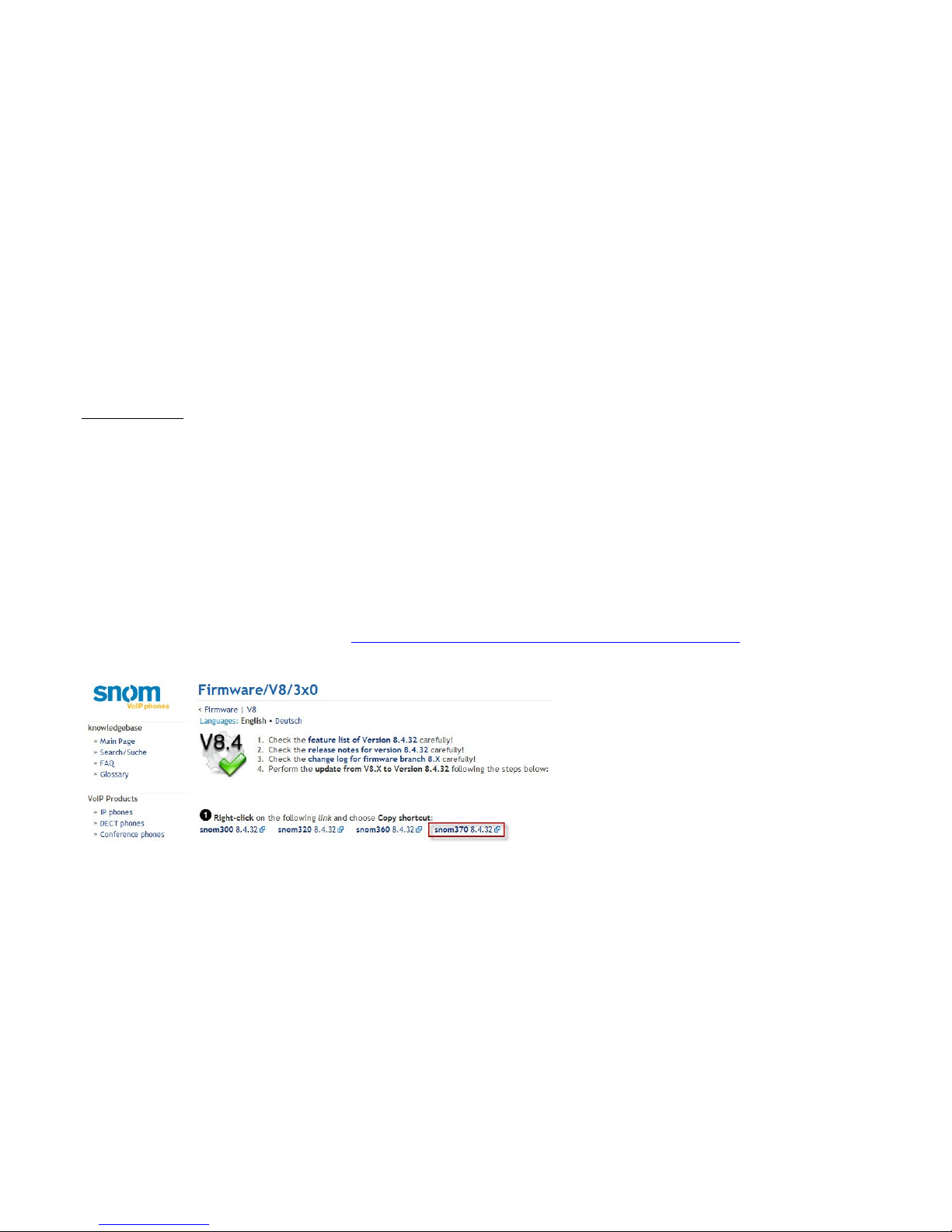
Goal to achieve: Get the firmware upgrade through the auto provision from the URL configured in ISG50.
Condition:
Firmware URL:
Snom
http://59.124.163.151/FW/snom370-8.4.32-SIP-f.bin
V310
http://10.59.1.37/V310_1.00AABT.0B5
Snom
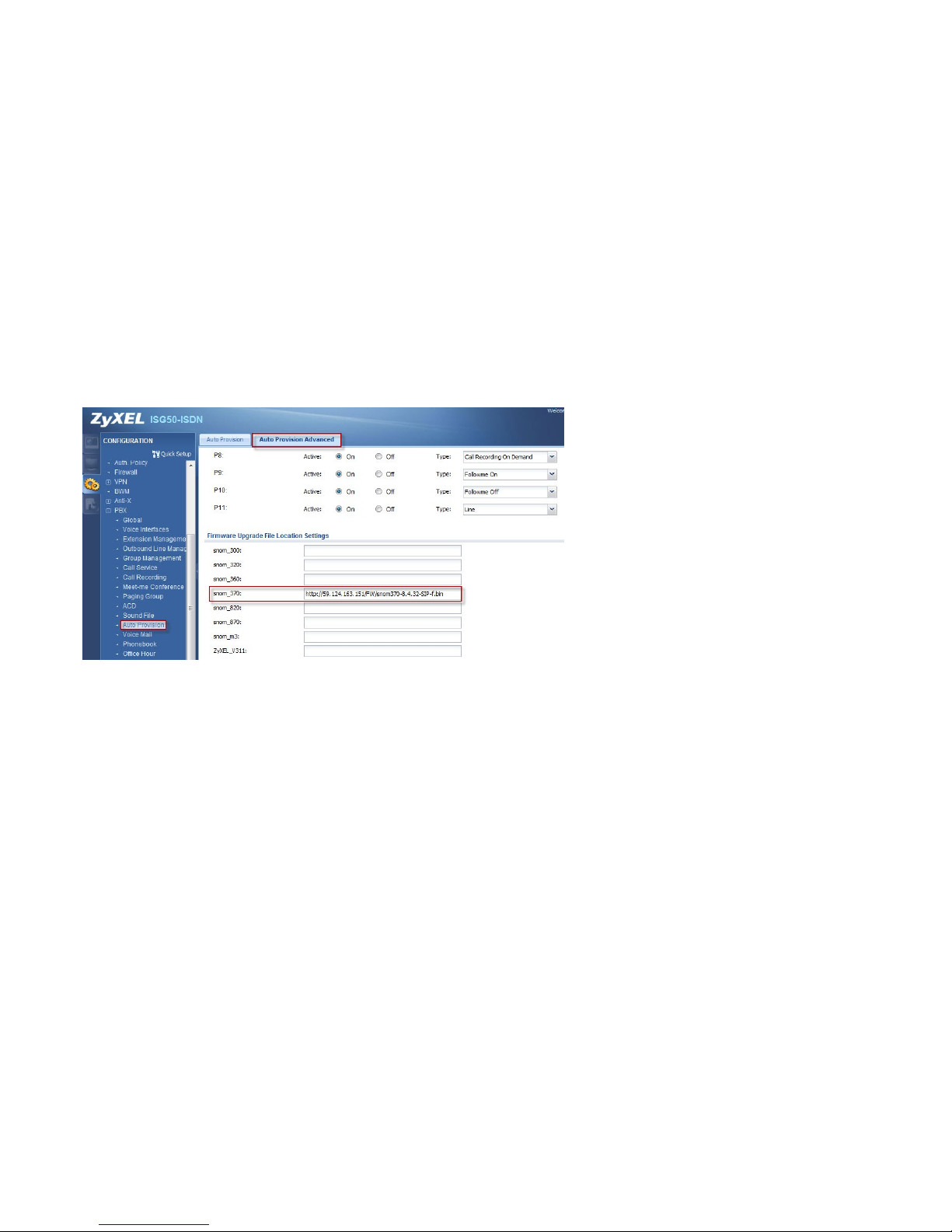
Configure firmware upgrade URLs for the Snom 370.
Visit http://wiki.snom.com/Firmware to find the latest firmware version.
You can either fill in the firmware download link (http://provisioning.snom.com/download/fw/snom370-8.4.32-SIP-f.bin) or put the firmware
on another web server.
Page 23
23
Please note that snom phones only support HTTP firmware update, so the URL link must be in the format of http://IP_address/FW_version.bin
Page 24
24
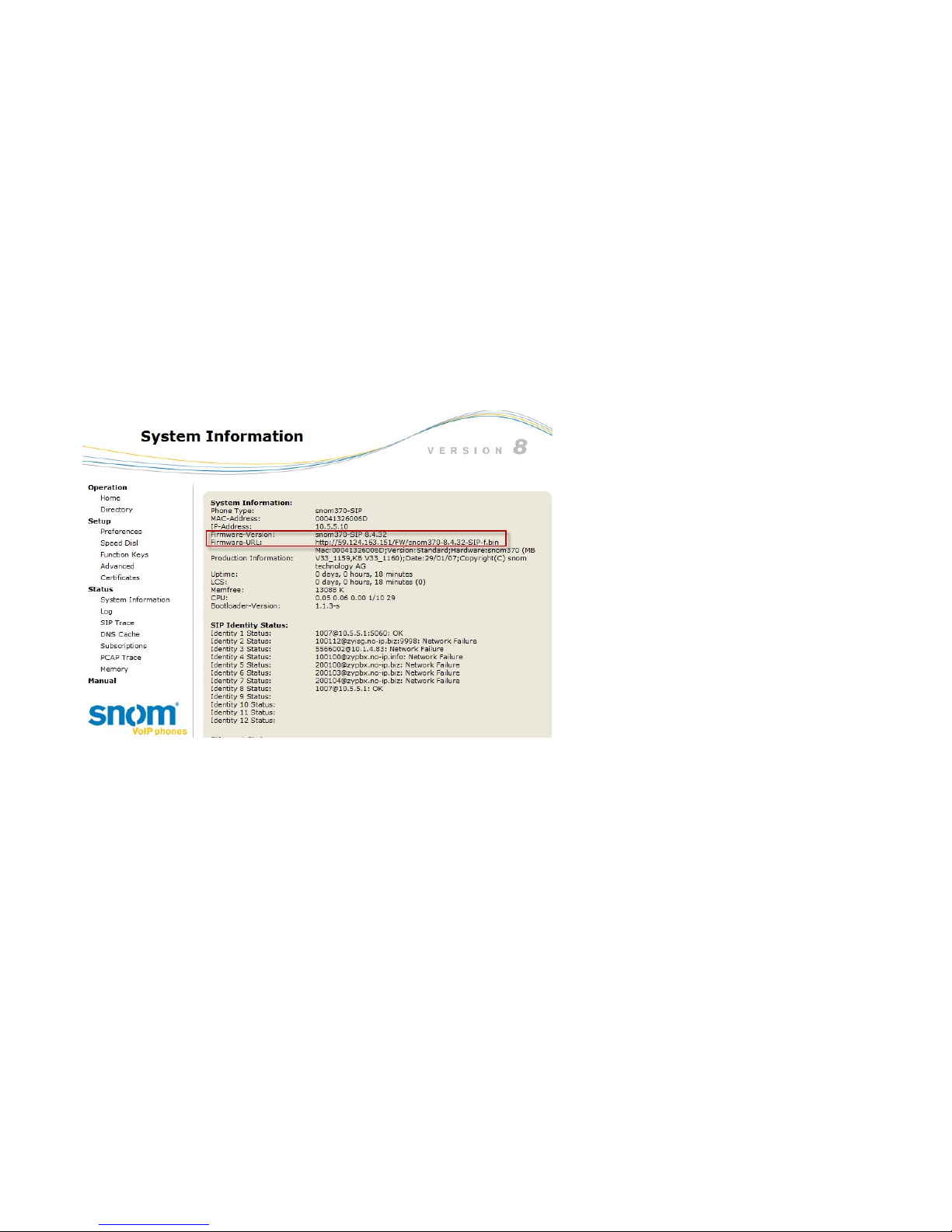
You can log into the GUI of Snom 370 to check if the firmware has been upgraded to target version.
Page 25

25
V310
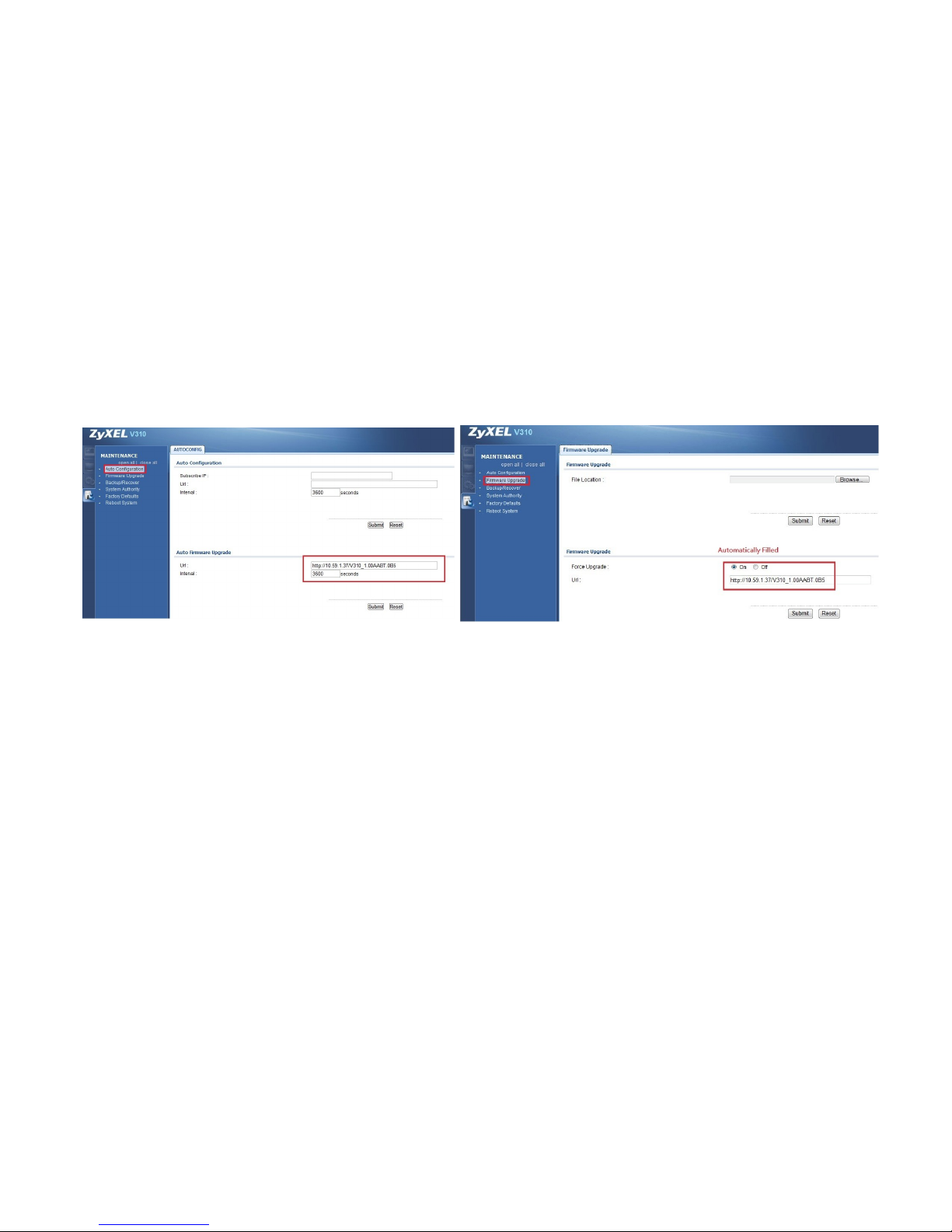
Fill in the firmware download URL.
Page 26
26
V310 will receive the firmware upgrade path through auto provision. Blanks in “Auto Configuration” and “Firmware Upgrade” tabs will be
automatically filled with an HTTP IP address.
Page 27
27
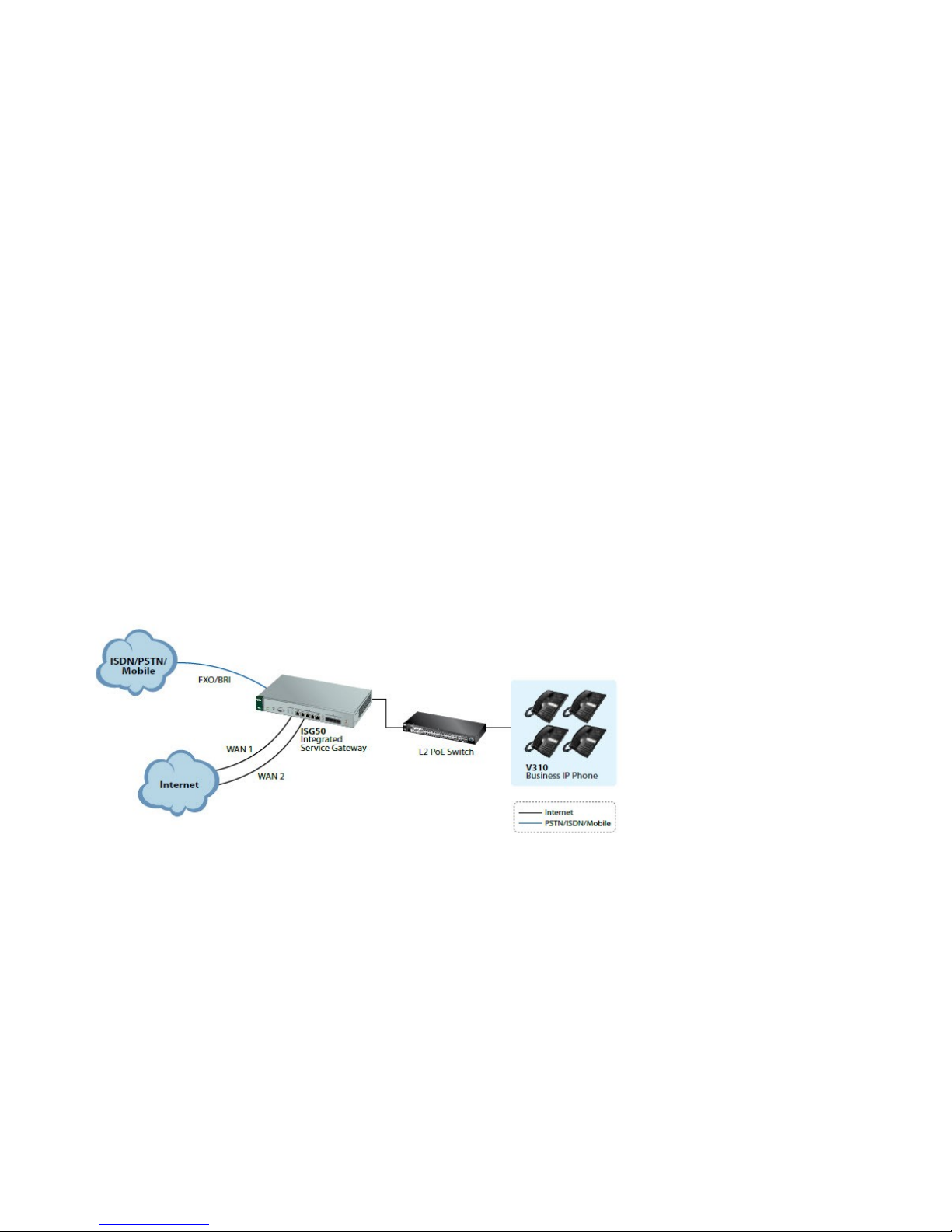
3. How to Develop a Non-stop Voice Service?
The interruption of non-stop voice service is often a concern of the employees because interrupted service may cause the company to suffer
from business losses and a bad reputation. With the dual WAN design of the ISG50, the company can connect up to two ISPs via Ethernet or
PPPoE connections to avoid VoIP service breakdowns. In addition, the ISG50 not only offers voice services through the ITSP by a SIP trunk, but
also via a PSTN/ISDN connection to ensure continuous voice services. Furthermore, in case where the WAN IP address is dynamic, the SIP
server address can be automatically updated with the DDNS function so that the mobile clients can register with the ISG50 using the domain
name.
WAN failover
Page 28
28
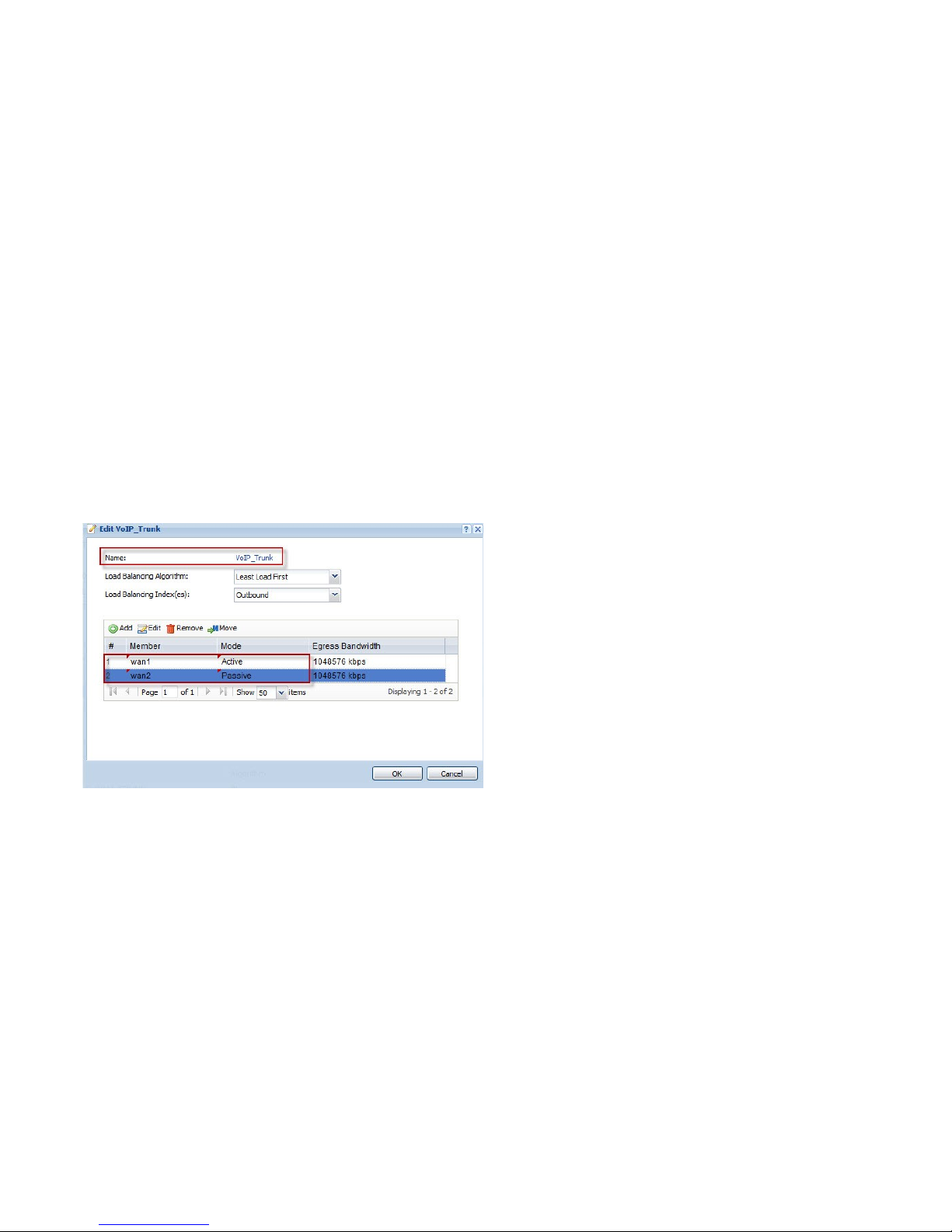
Goal to achieve:
VoIP traffic goes out primarily through WAN1. In case WAN1 is down, it will go out via WAN2.
Condition:
Primary: WAN1; Backup: WAN2
Add WAN trunk for VoIP traffic - Set WAN1 as Active mode, and set WAN2 as Passive mode.
Configuration > Network > Interface > Trunk > User Configuration > Add
Page 29
29
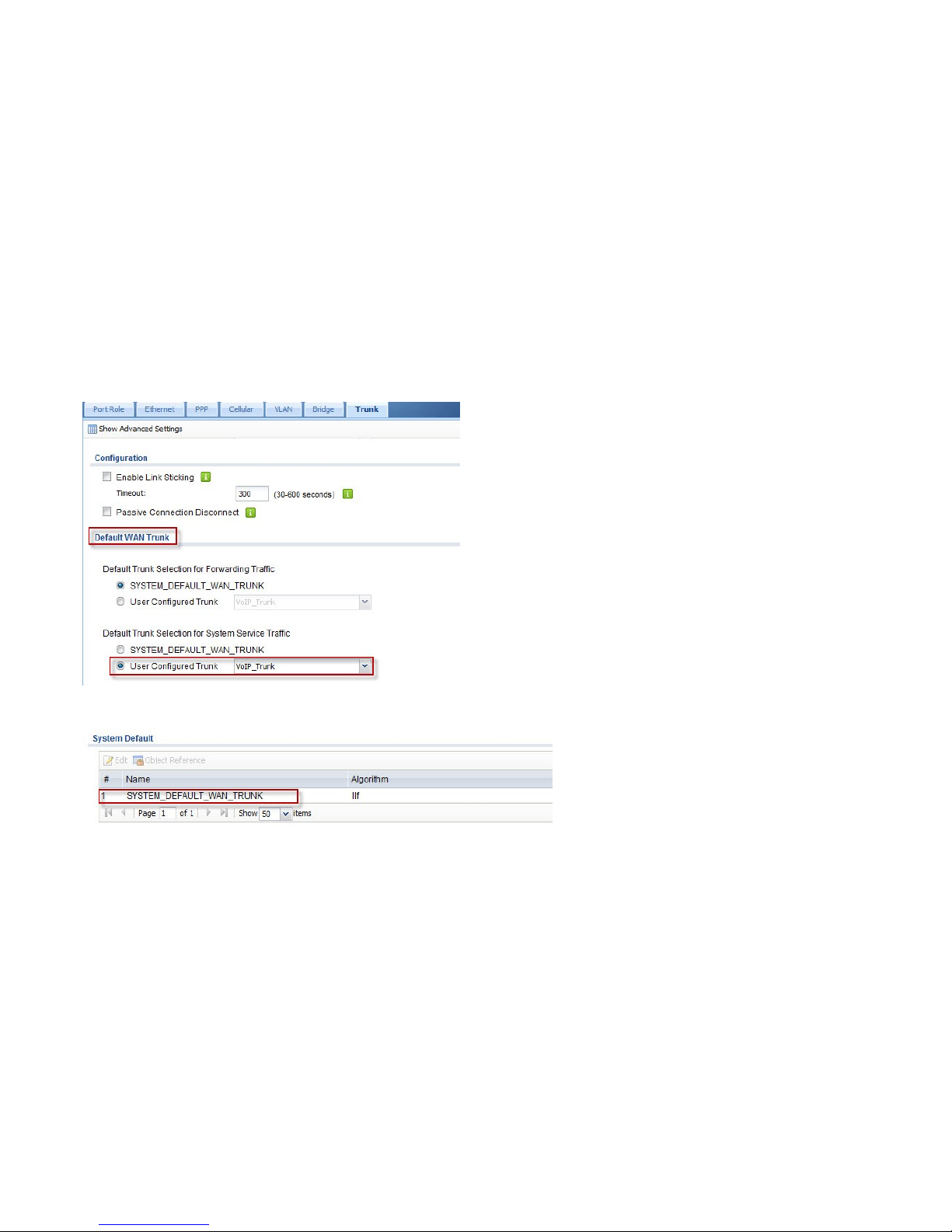
Apply this new trunk in Default Trunk Selection for System Service Traffic.
Use SYSTEM_DEFAULT_WAN_TRUNK to do load balancing for data traffic.
Page 30
30
VoIP survivability
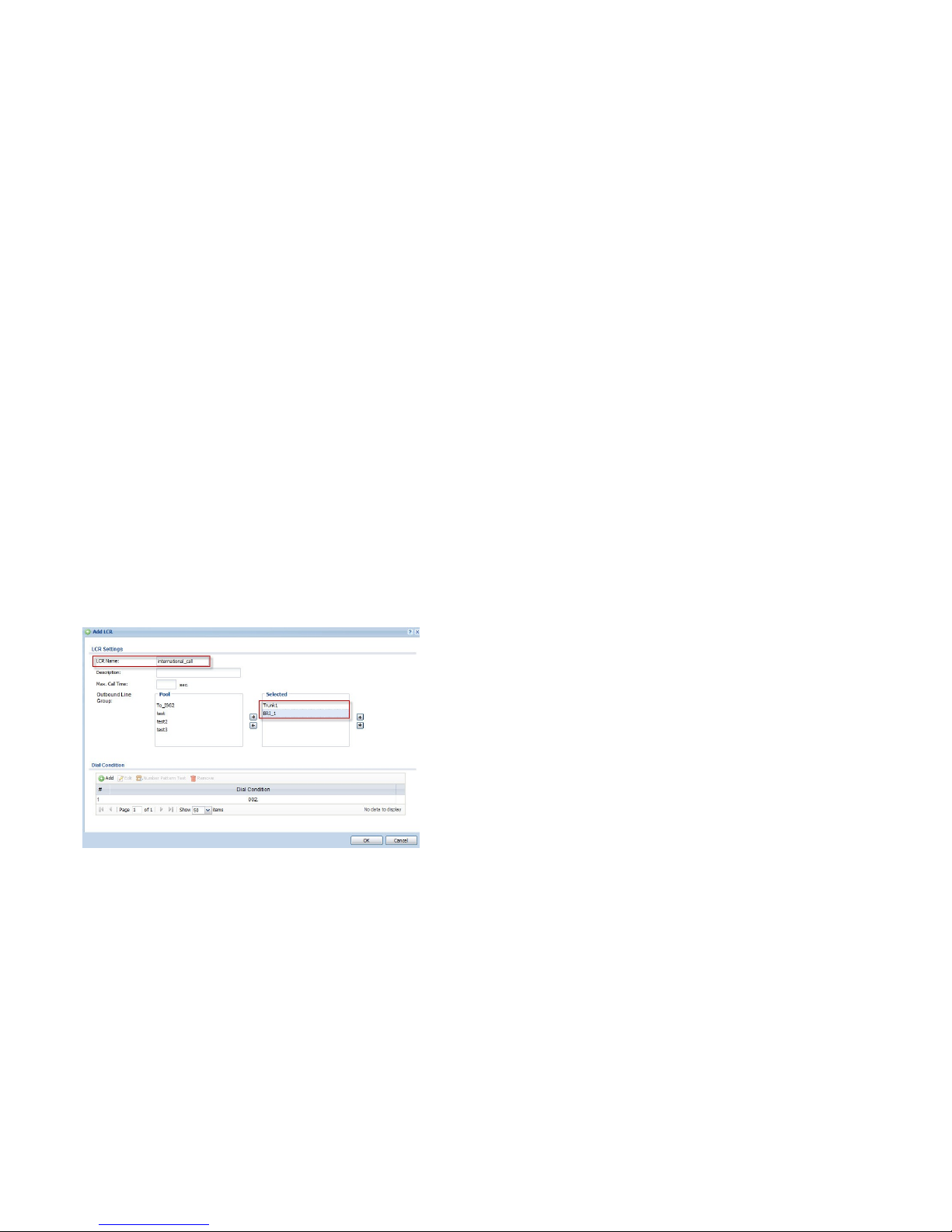
Goal to achieve: If the connection from ISTP is lost, clients can still make calls through BRI trunk.
Condition:
For international calls,
Primary trunk: SIP trunk; Secondary trunk: BRI trunk
In the LCR, move multiple outbound line groups to the Selected column for making calls out.
Use the Up and Down buttons to specify the priority of the outbound line groups.
In this example, for the LCR “international_call”, select SIP trunk (Trunk1) as the first priority outbound line and BRI trunk (BRI_1) as the
secondary outbound line.
Page 31
31
DDNS
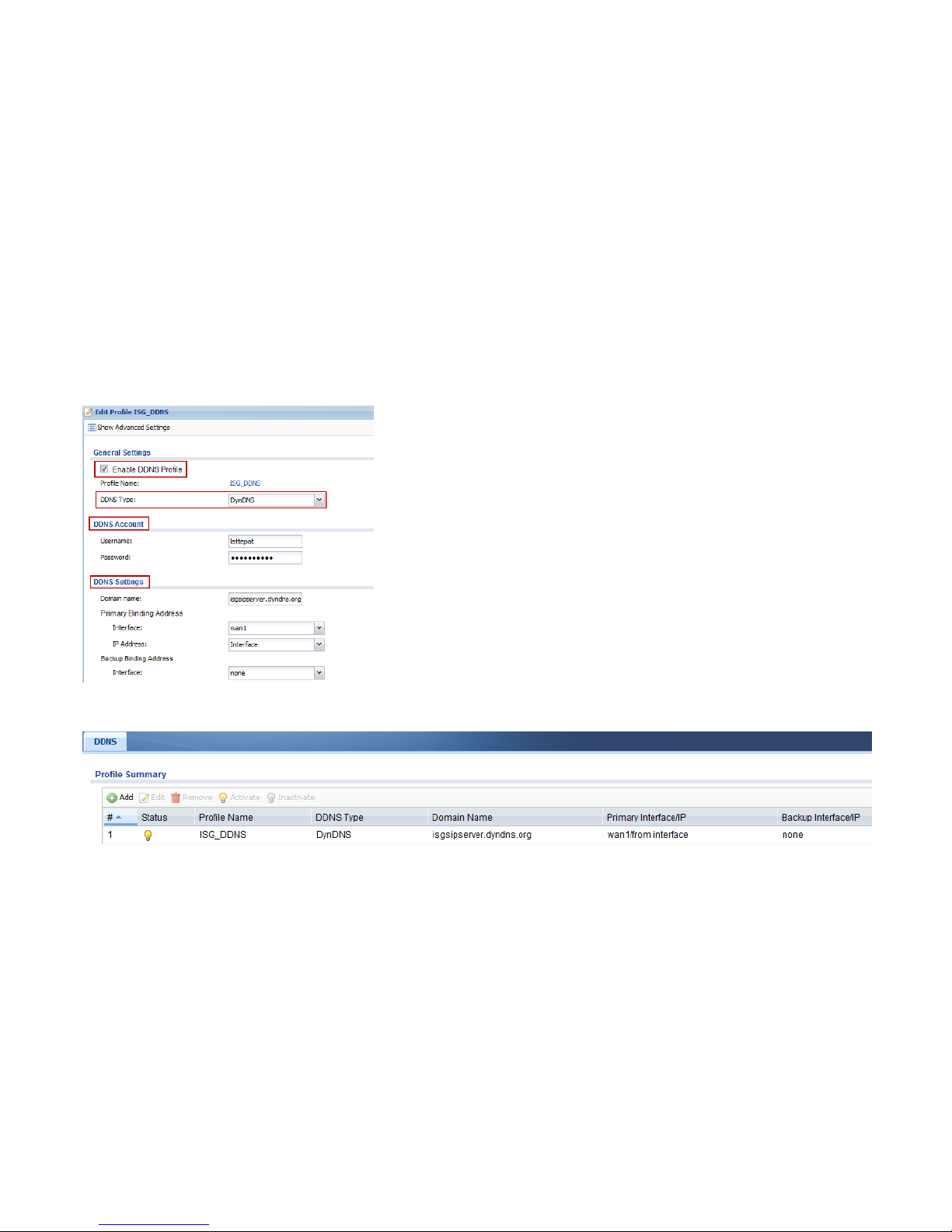
Goal to achieve: IP Phone and mobile client can register to ISG50 with the domain name in case the IP of WAN1 is dynamic.
Condition:
DDNS service provider: DynDNS
DDNS interface: WAN1
Page 32
32
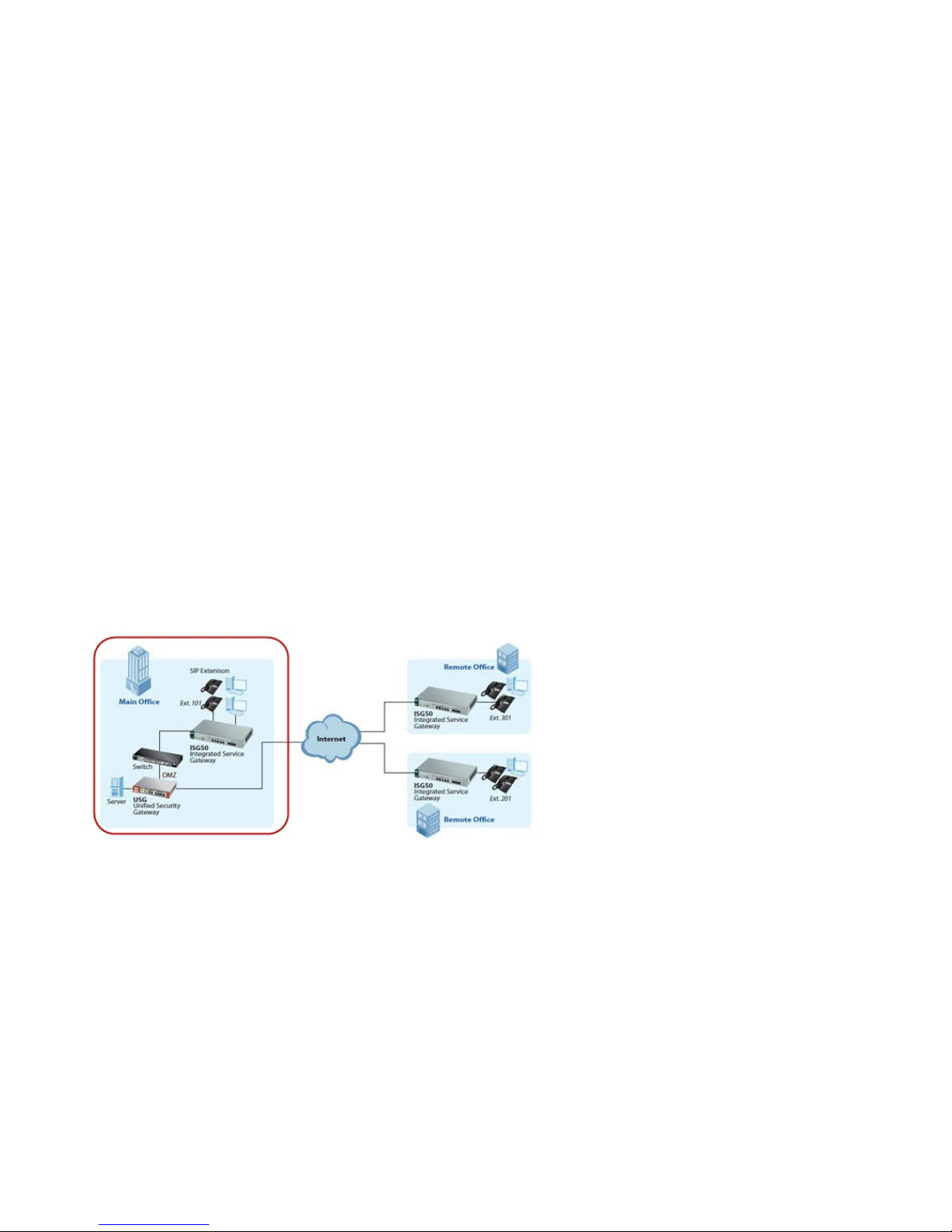
Fill in DDNS account information.
Activate DDNS.
Page 33
33
4. How to Expand the Current Networking Infrastructure to Fulfill Multi-site Requirements?
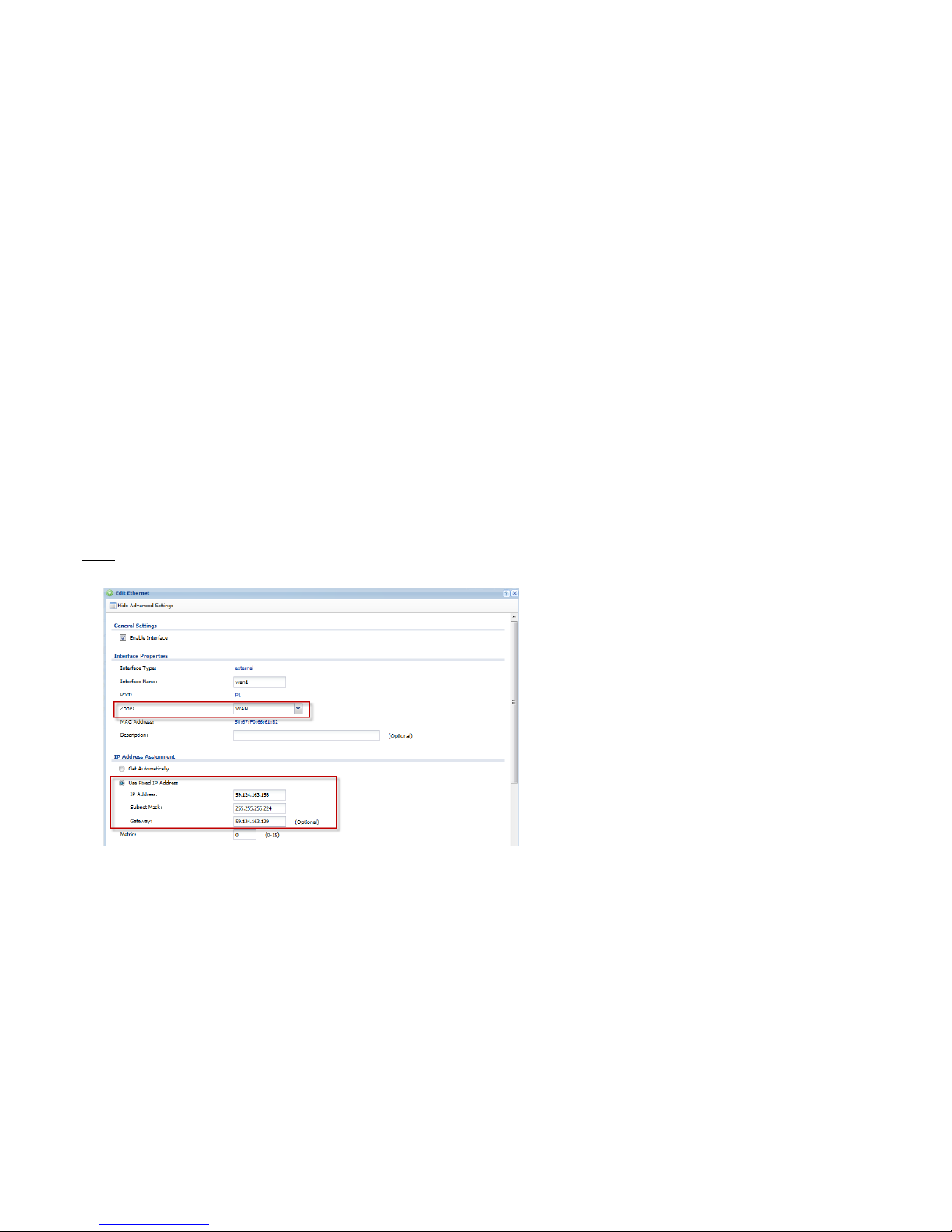
Since the company is growing, it is planning to setup two branch offices. The network administrator would like to expand the current
networking infrastructure to fulfill the requirements of multiple sites. In order to allow the main office and the branch offices to make calls to
each other more easily, the administrator needs to establish a trusted peer between two ISGs located in two offices. Furthermore, to reduce
the cost of outbound line deployments in the remote offices, the extensions must make calls out through the BRI trunk of the main office.
Moreover, the incoming calls on the BRI trunk can reach the extensions of the remote offices over a trusted peer with LCR and group
management settings. The network administrator deploys the ZyWALL USG product to offer robust protection and uses the ISG50 as a pure
VoIP service.
Work with ZyWALL USG products
Page 34
34
Goal to achieve:
Connect the ISG50 to the DMZ of the ZyWALL. The USG provides security services and the ISG50 acts as a pure IP PBX to provide VoIP services.
IP phones from the Internet can register to ISG50 through USG’s WAN IP.
Condition:
USG:
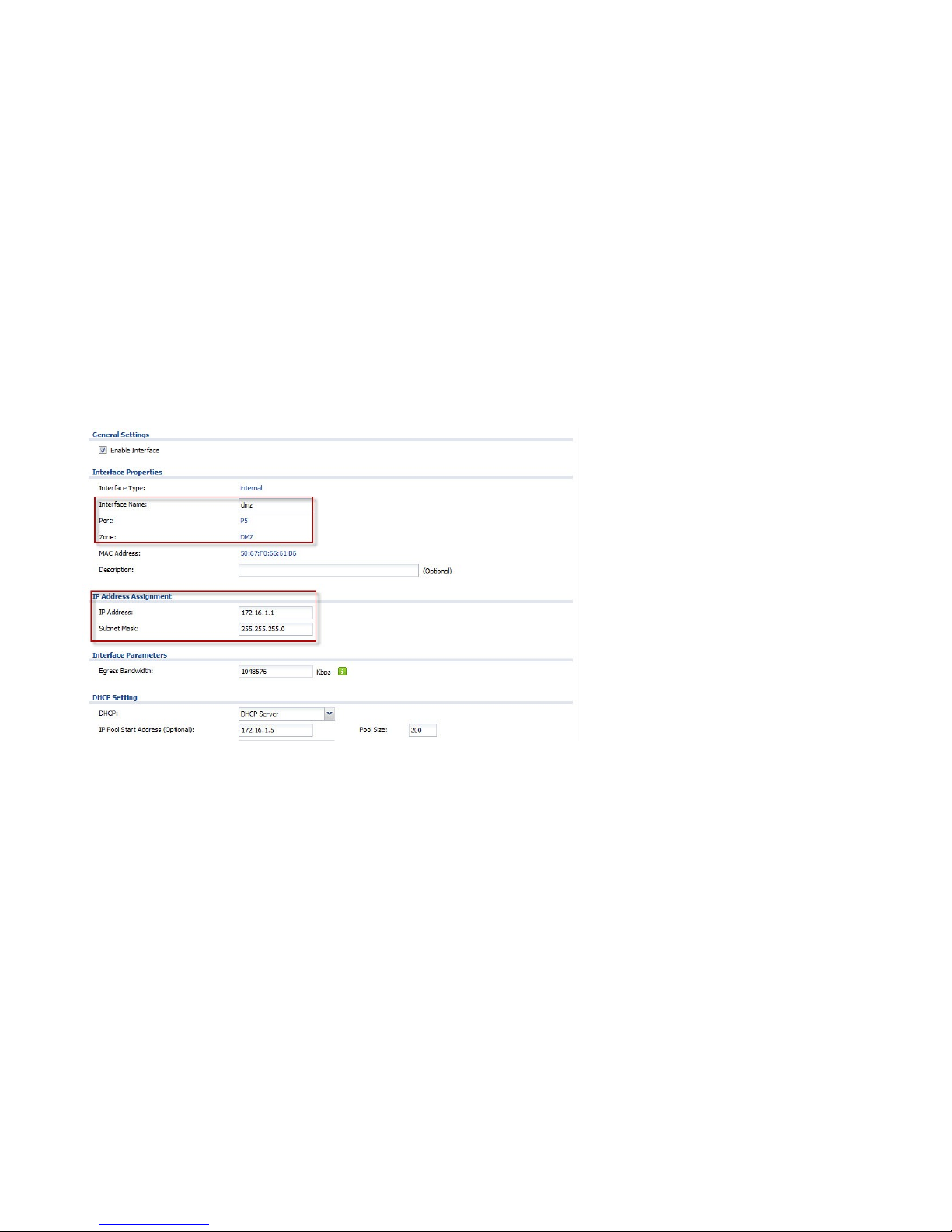
- WAN IP: 59.124.163.156
- SIP server IP (ISG50): 172.16.1.10
ISG50:
- WAN IP: 172.16.1.10
USG:
Step 1. Click CONFIGURATION > Network > Interface > Ethernet to assign a WAN IP to USG.
Page 35
35
Step 2. Assume ISG50’s WAN port is connected to DMZ (port 5) of USG.
Configure an IP for this interface.
Page 36
36
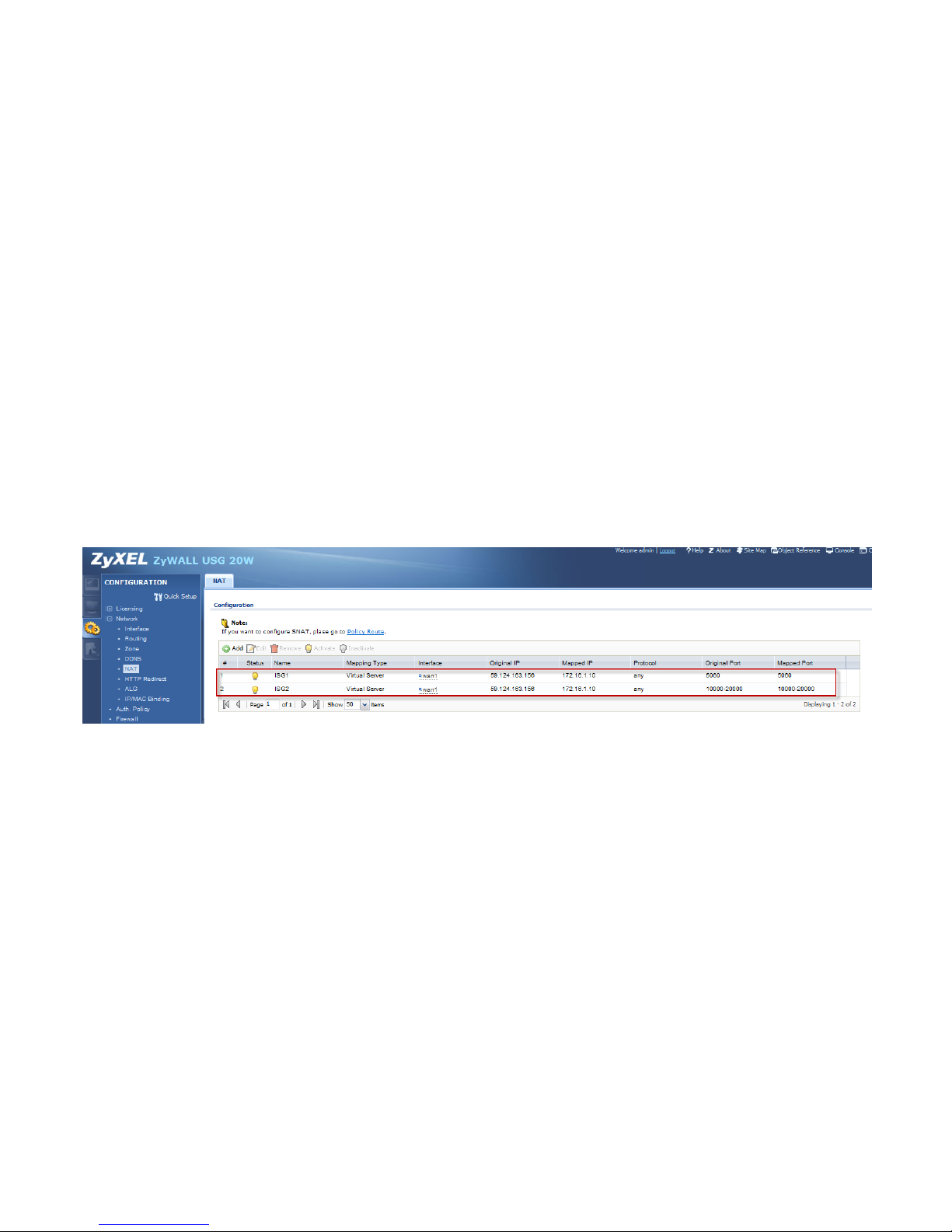
Step 3. For NAT setting, the user needs to configure the following:
- Rule’s name.
- Set Virtual Server type to let USG do packet forwarding.
- Fill in the Original IP (WAN IP) address.
- Fill in the Mapped IP (ISG’s IP) address.
- Configure the Original Port and the Mapped Port; here we set the SIP signaling port 5060 and RTP port range 10000-20000.
Make sure these port settings are the same as those set in ISG50.
Page 37
37
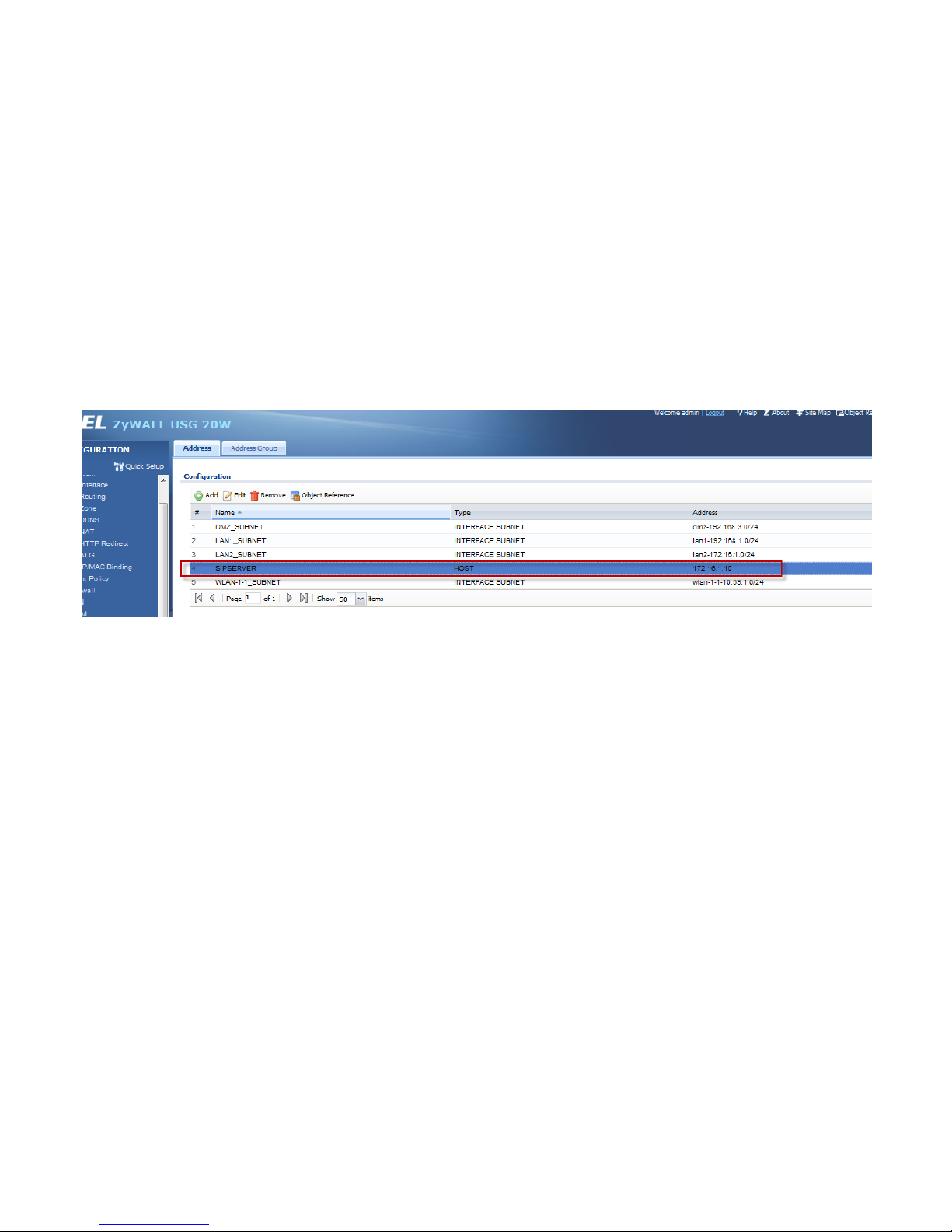
Step 4. The user can create an address object for ISG50 for further configuration usage. Click Create new object for this function.
Page 38
38
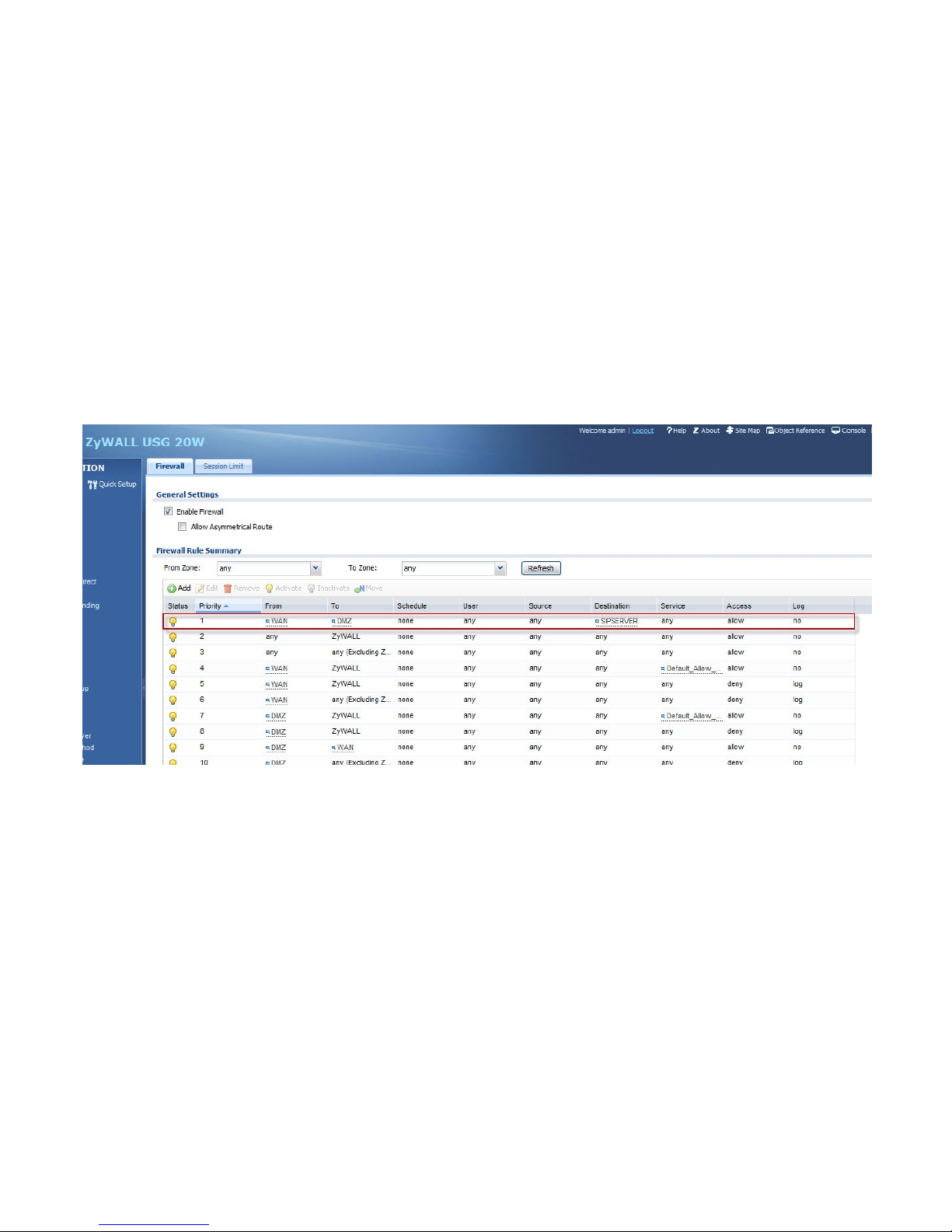
Step 5. Click CONFIGURATION > Network > Firewall to open the firewall configuration screen.
Click on the Add button to create a firewall rule to enable the VoIP service to pass from the WAN to DMZ.
Page 39
39
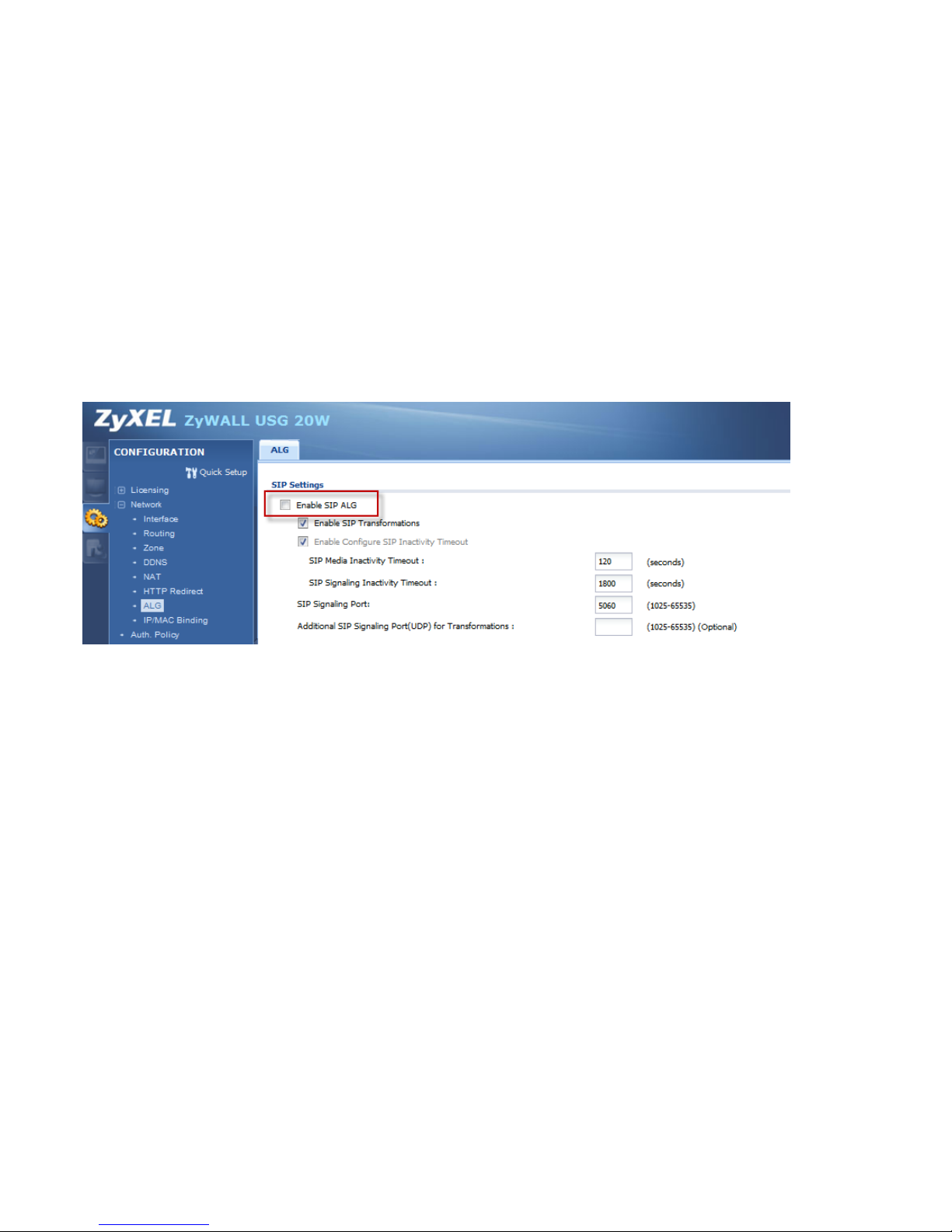
Step 6. Disable SIP ALG.
Page 40
40
ISG50:
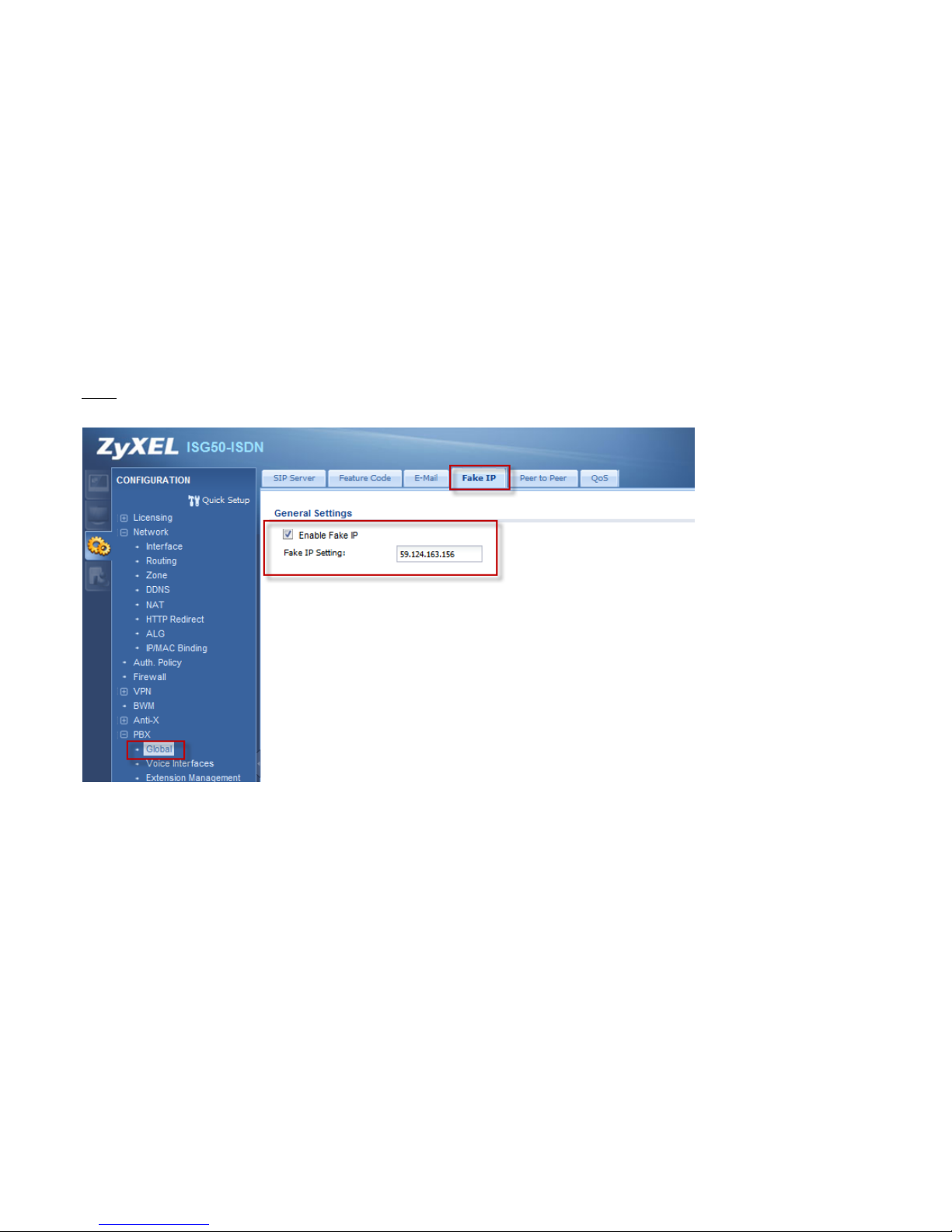
Step 1. Set the WAN IP of USG in the Fake IP field.
Page 41
41
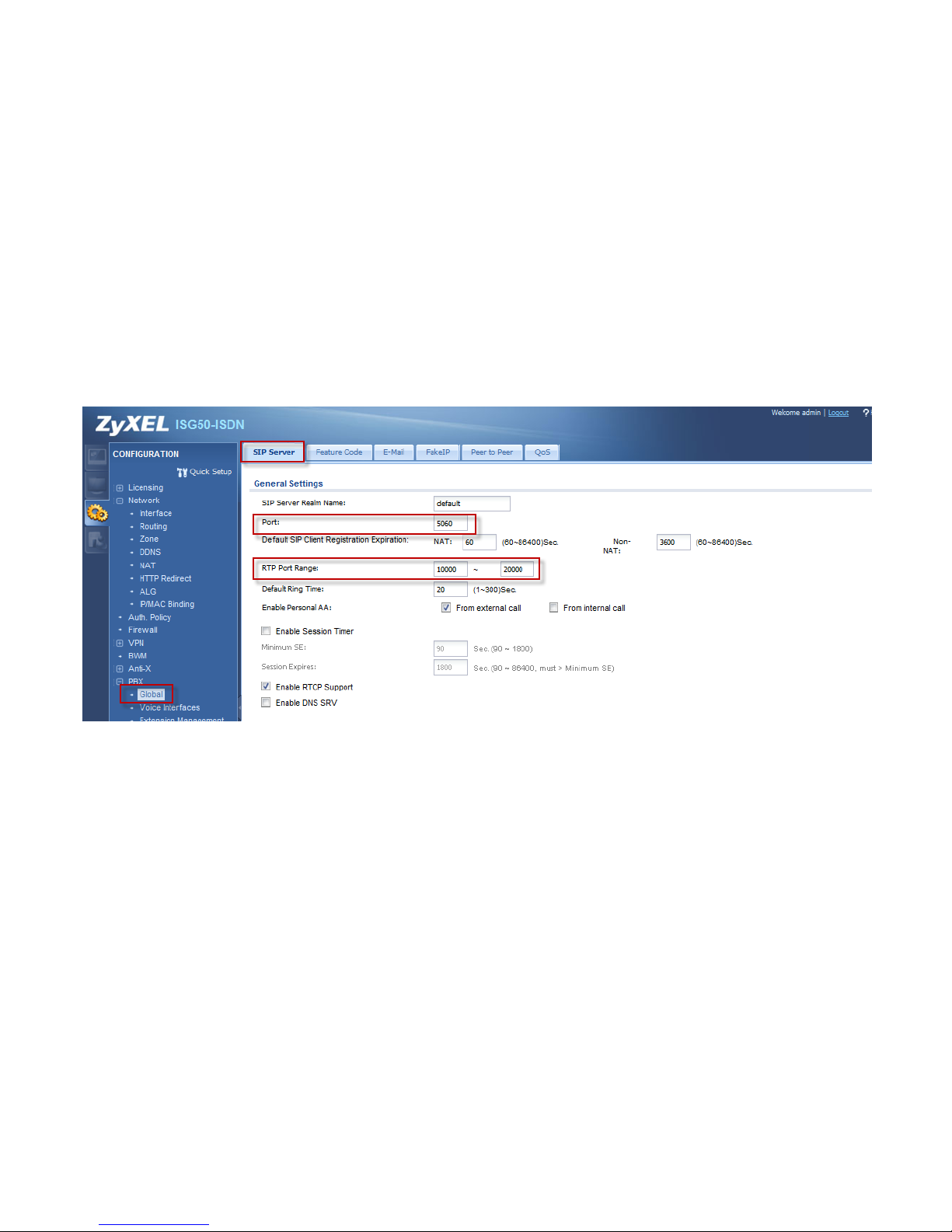
Step 2. Make sure the SIP signaling port and the RTP port range are the same as those you configured in the port forwarding in USG.
Page 42
42
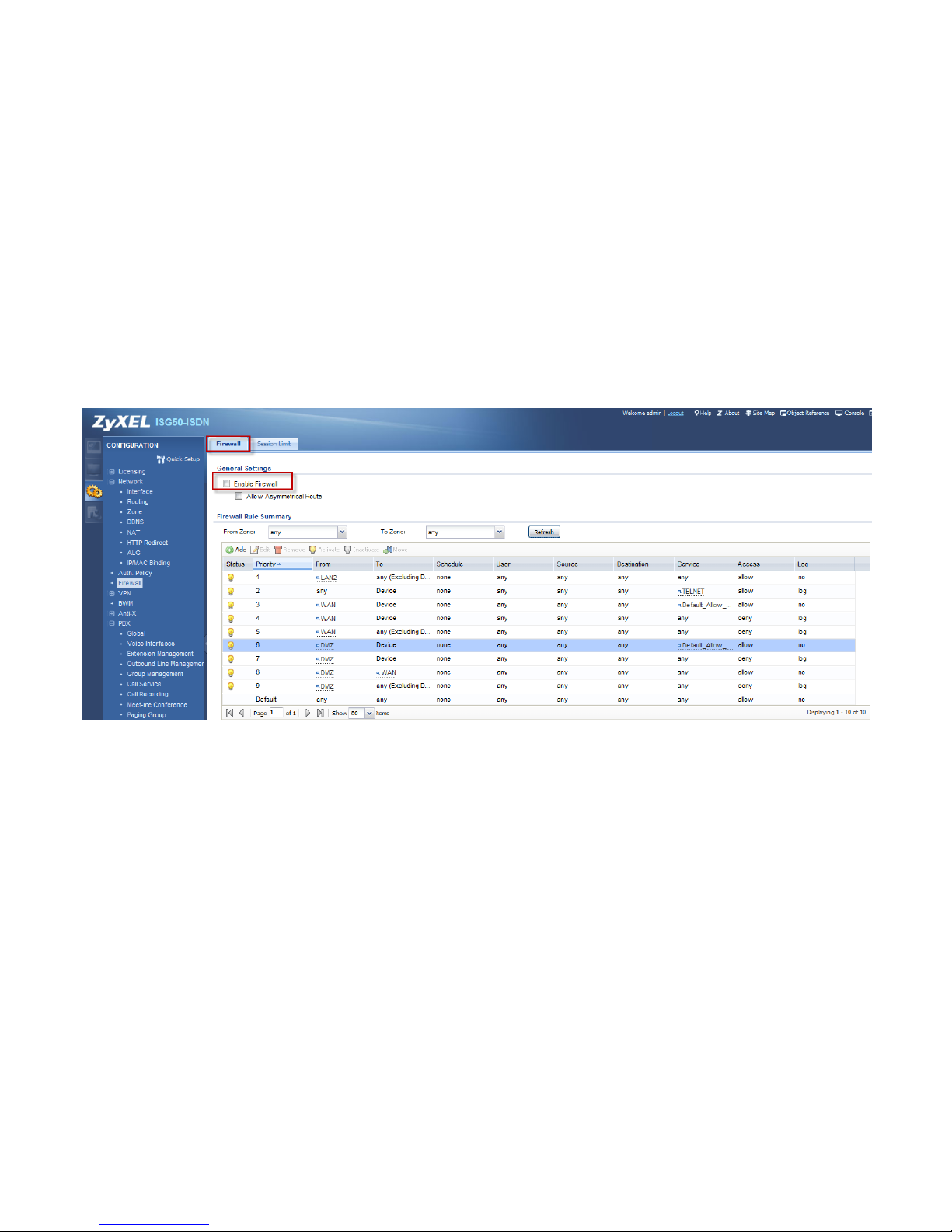
Step 3. Disable the firewall in ISG50 since USG acts as firewall.
Page 43
43
Trusted Peer & SIP trunk
Goal to achieve:
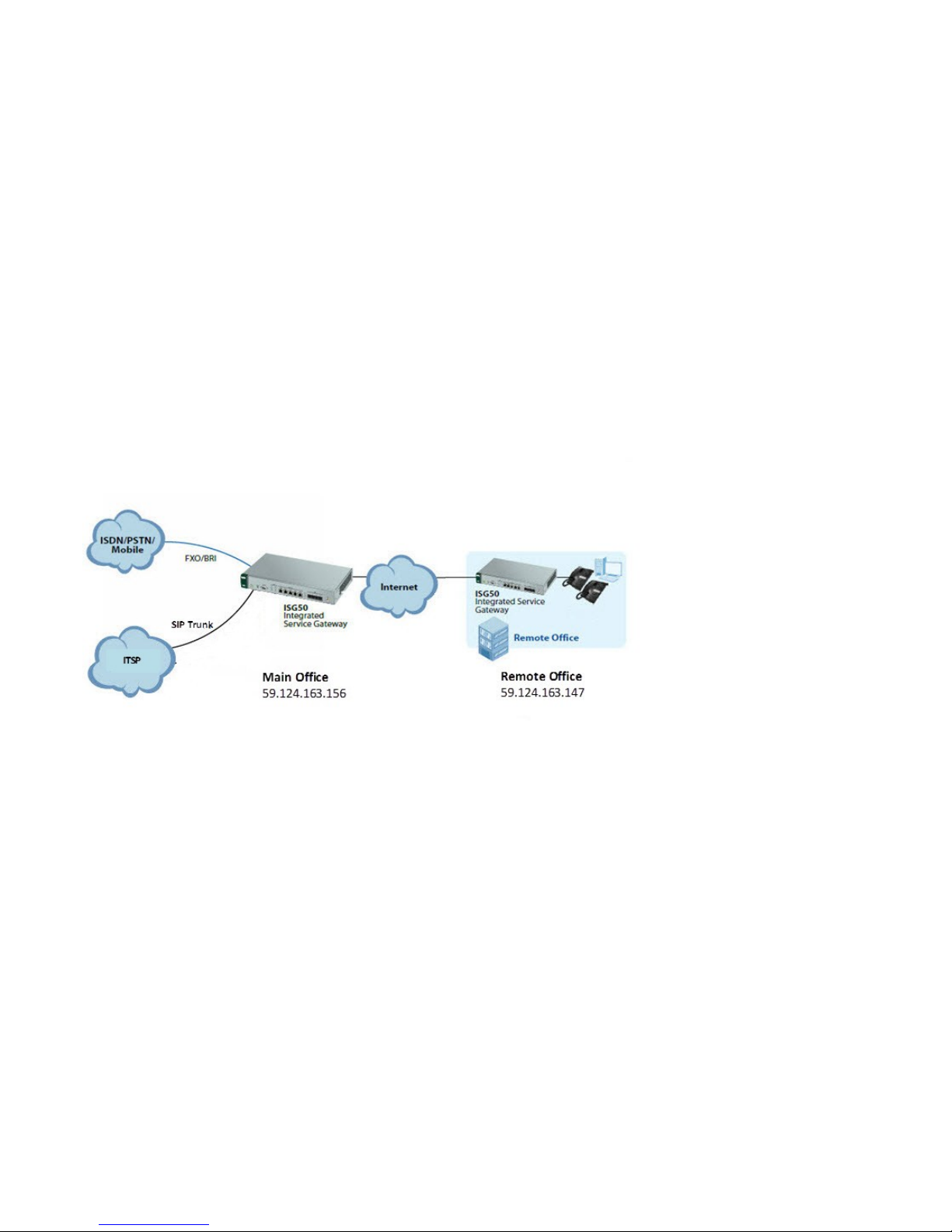
Add a SIP trunk and a BRI trunk in the main office and establish trusted peer between two ISGs located in the main office and the remote office
so that the extensions of two offices can make call to each other.
Furthermore, extensions of remote office can make call out through BRI trunk of the main office.
The incoming call on BRI trunk can be reached to the extension of the remote office over trusted peer.
Page 44
44
Condition:
ISG50-1 (Main Office):
WAN IP: 59.124.163.156
Extension format: 4 digit
Prefix number before dialing to the remote office: 49
ISG50-2 (Remote Office):
WAN IP: 59.124.163.147
Extension format: 4 digit
Prefix number before dialing to the main office: 48
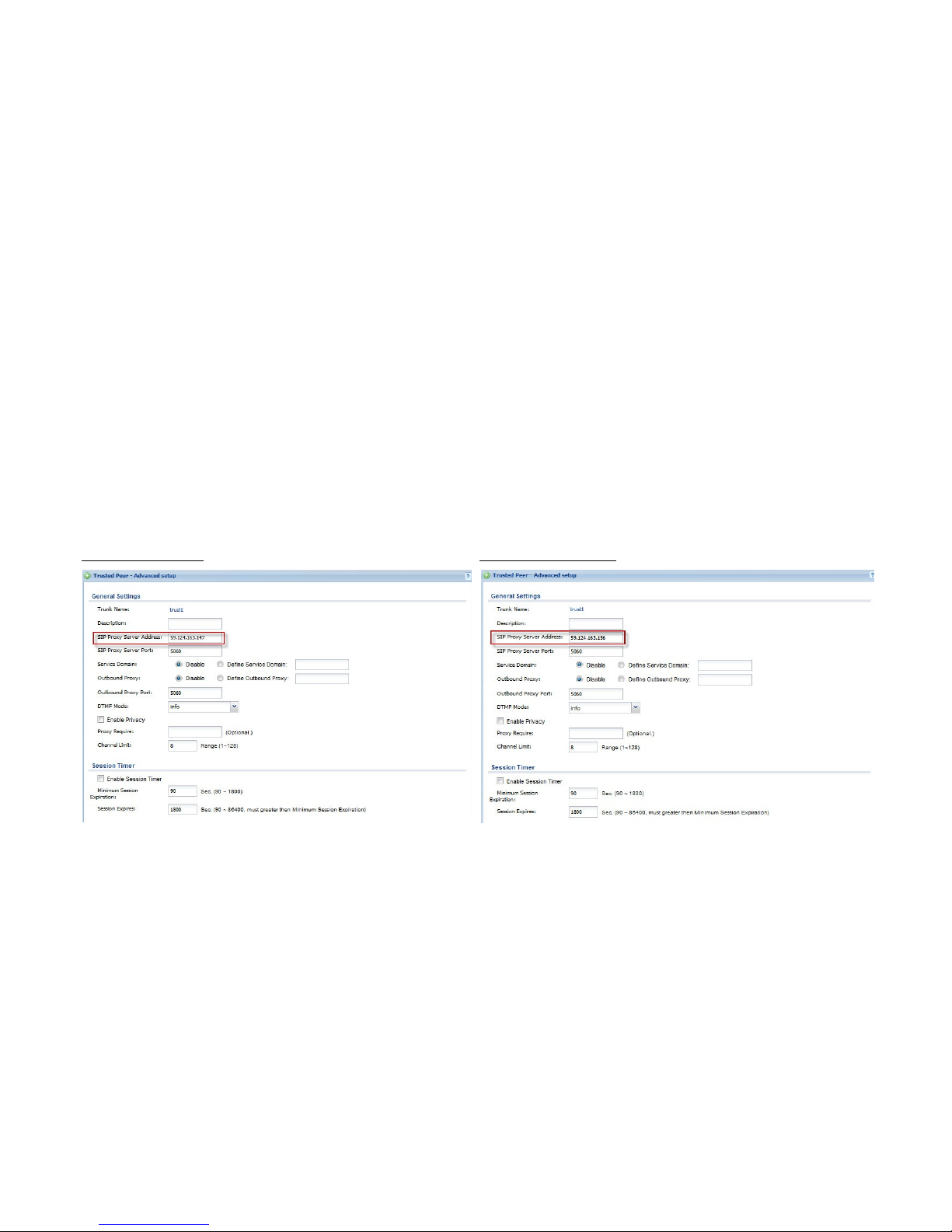
In outbound trunk setting, add a new trust peer in each ISG50 and set the remote WAN IP address as the trusted SIP server address.
ISG50-1 (Main Office):
ISG50-2 (Remote Office):
Page 45
45
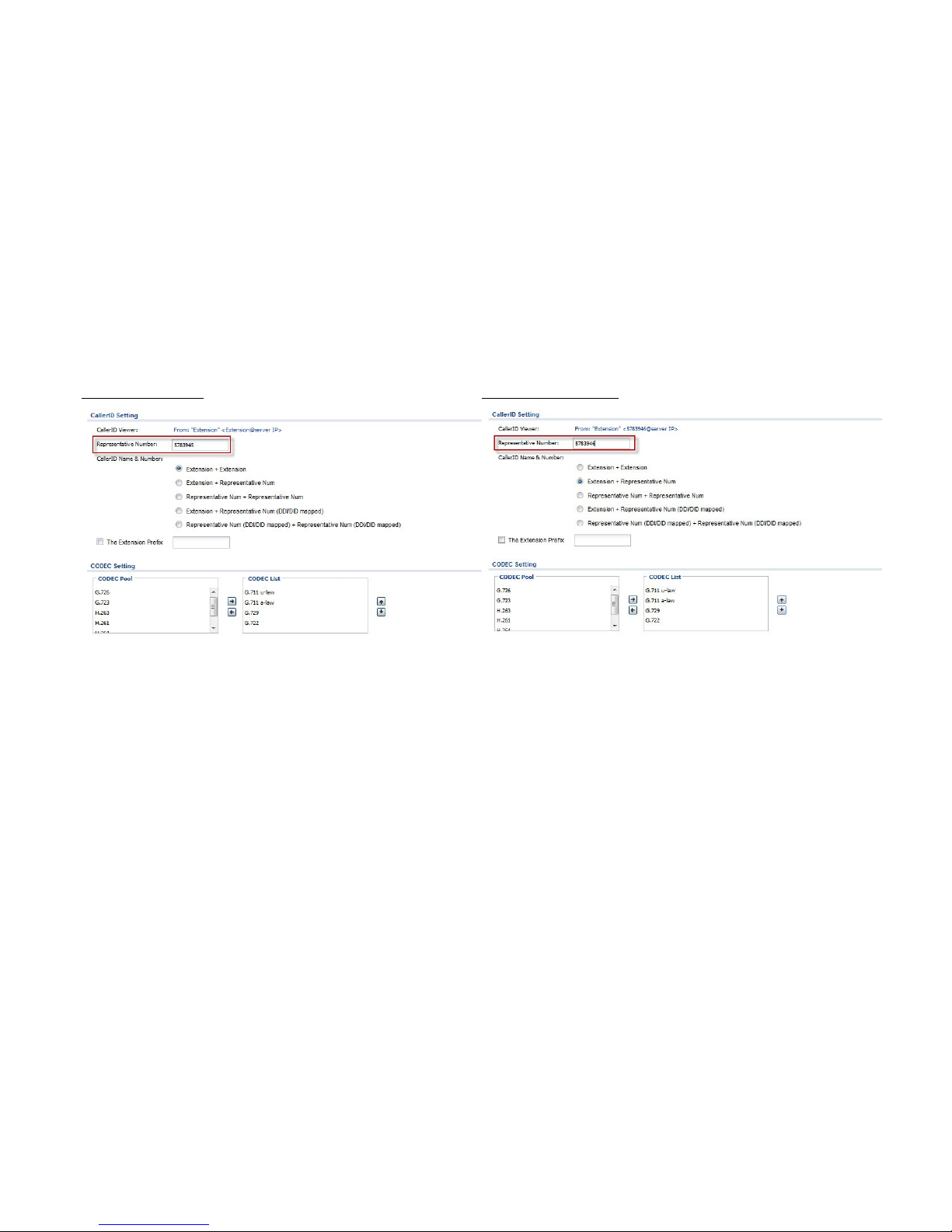
ISG50-1 (Main Office):
ISG50-2 (Remote Office):
Page 46
46
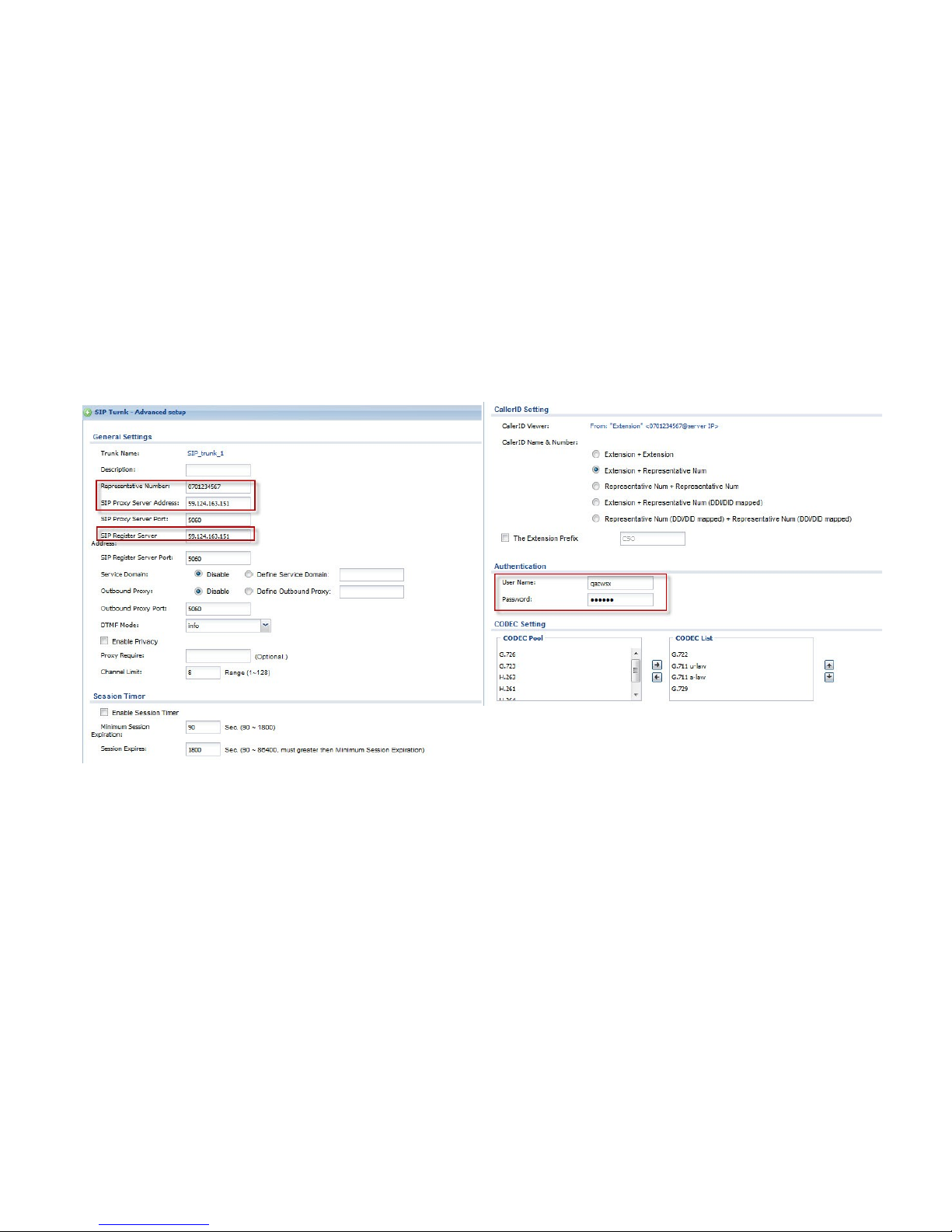
Add a SIP trunk in ISG50-1 (Main Office). The account information is provided by your ITSP.
Page 47
47
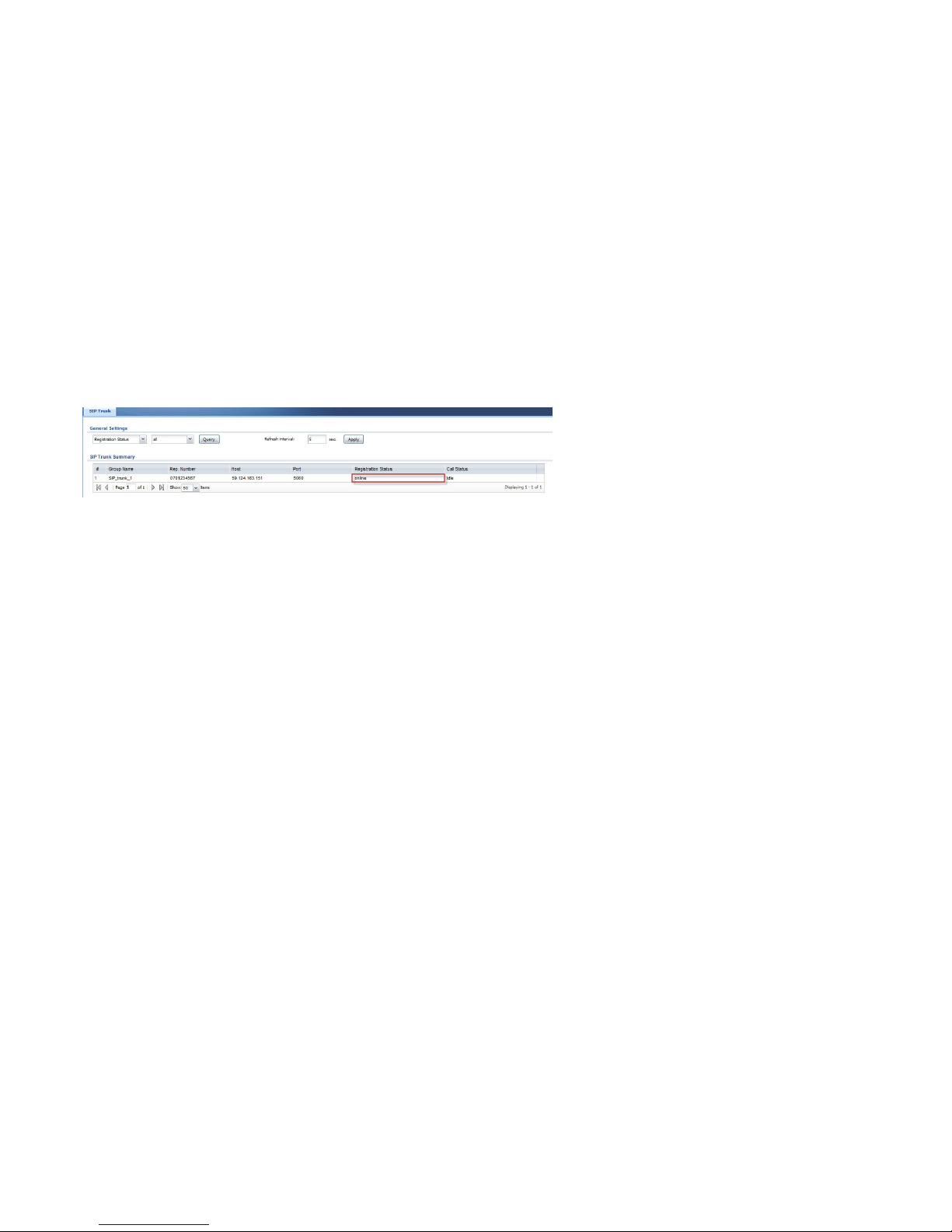
You can check if the registration status is online through MONITOR > PBX > SIP Trunk.
Page 48
48
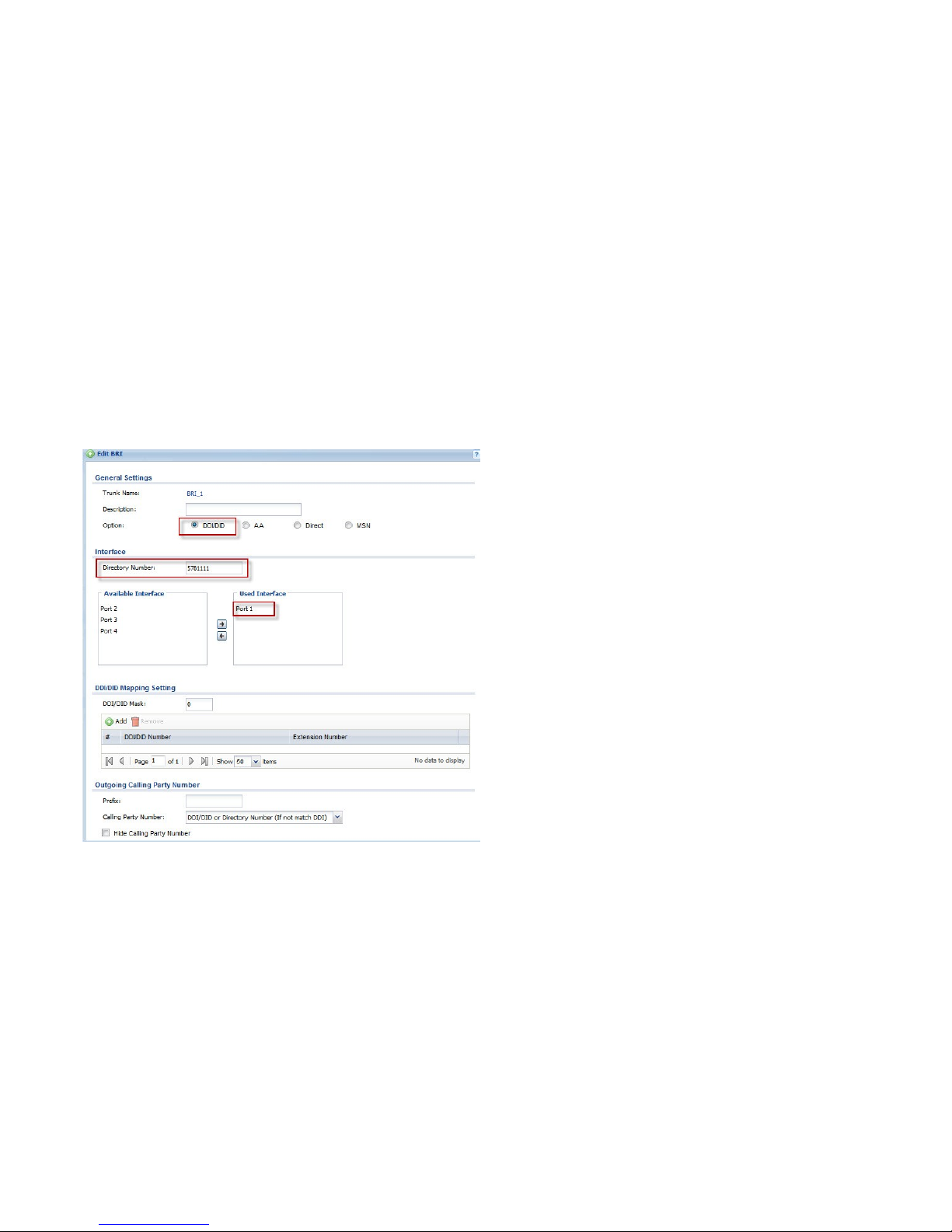
Add BRI trunk in ISG50-1 (Main Office).
Go to CONFIGURATION > PBX > Outbound Line Management > Outbound Trunk Group > BRI Settings.
Here, we use DDI/DID as the AA option.
Page 49
49
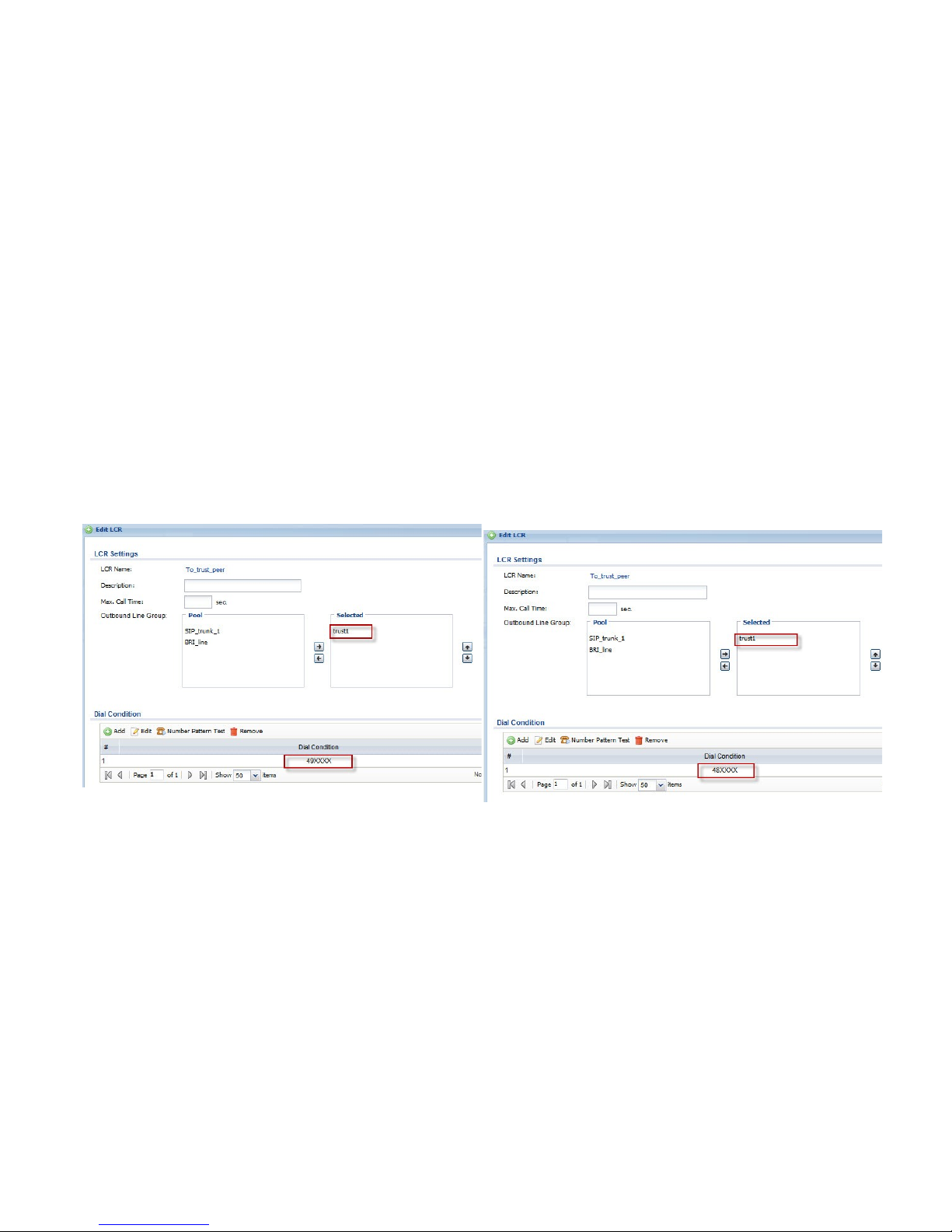
Configure the LCR in both ISG50-1 (Main Office) and ISG50-2 (Remote Office) to let the extensions of ISG50-1 (Main Office) and ISG50-2
(Remote Office) make call to each other over Trusted Peer.
In this example, for extensions in ISG50-1 (Main Office), they need to dial 49XXXX to reach extensions in ISG50-2 (Remote Office).
For extensions in ISG50-2 (Remote Office), they need to dial 48XXXX to reach extensions in ISG50-1 (Main Office).
LCR for ISG50-1 (Main Office)
LCR for ISG50-2 (Remote Office)
Page 50
50
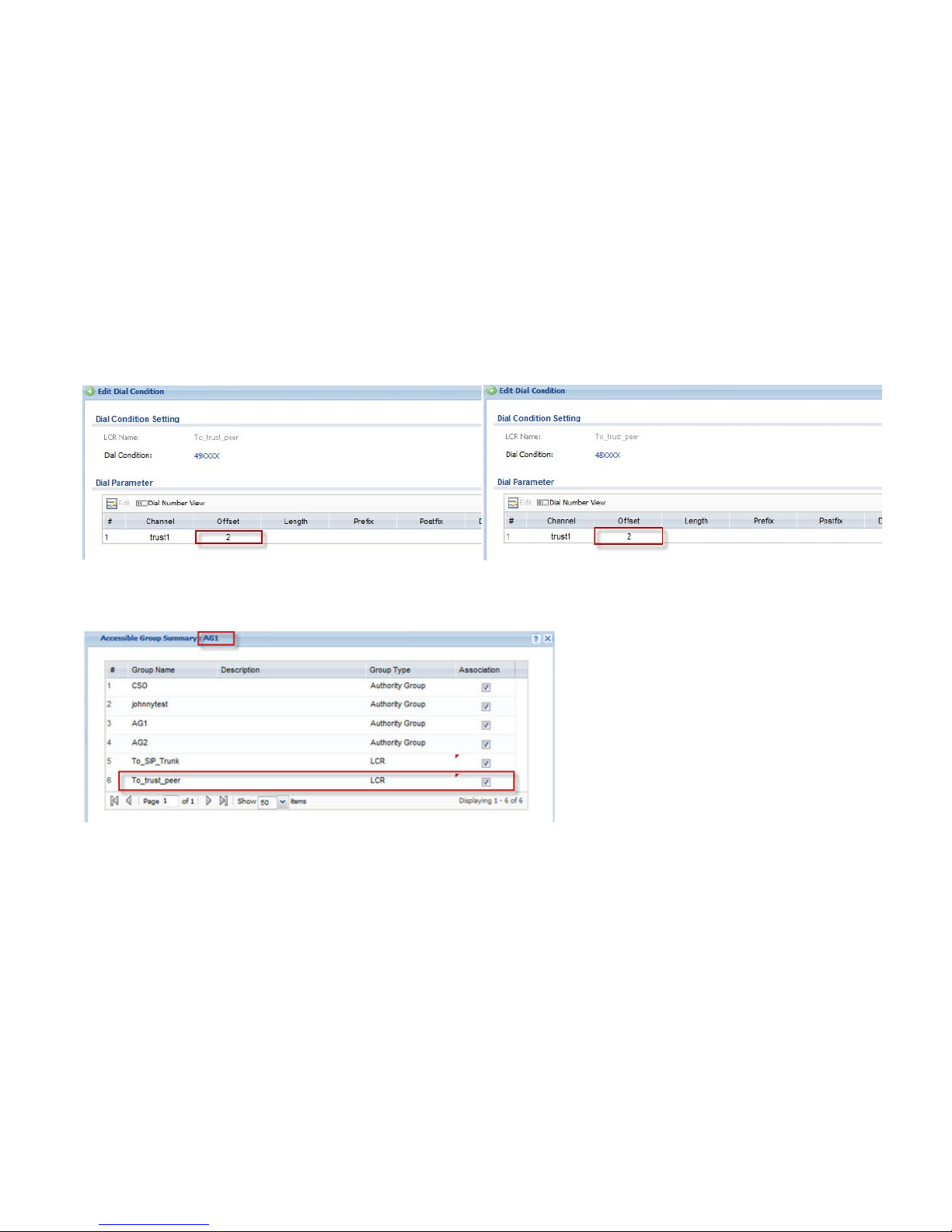
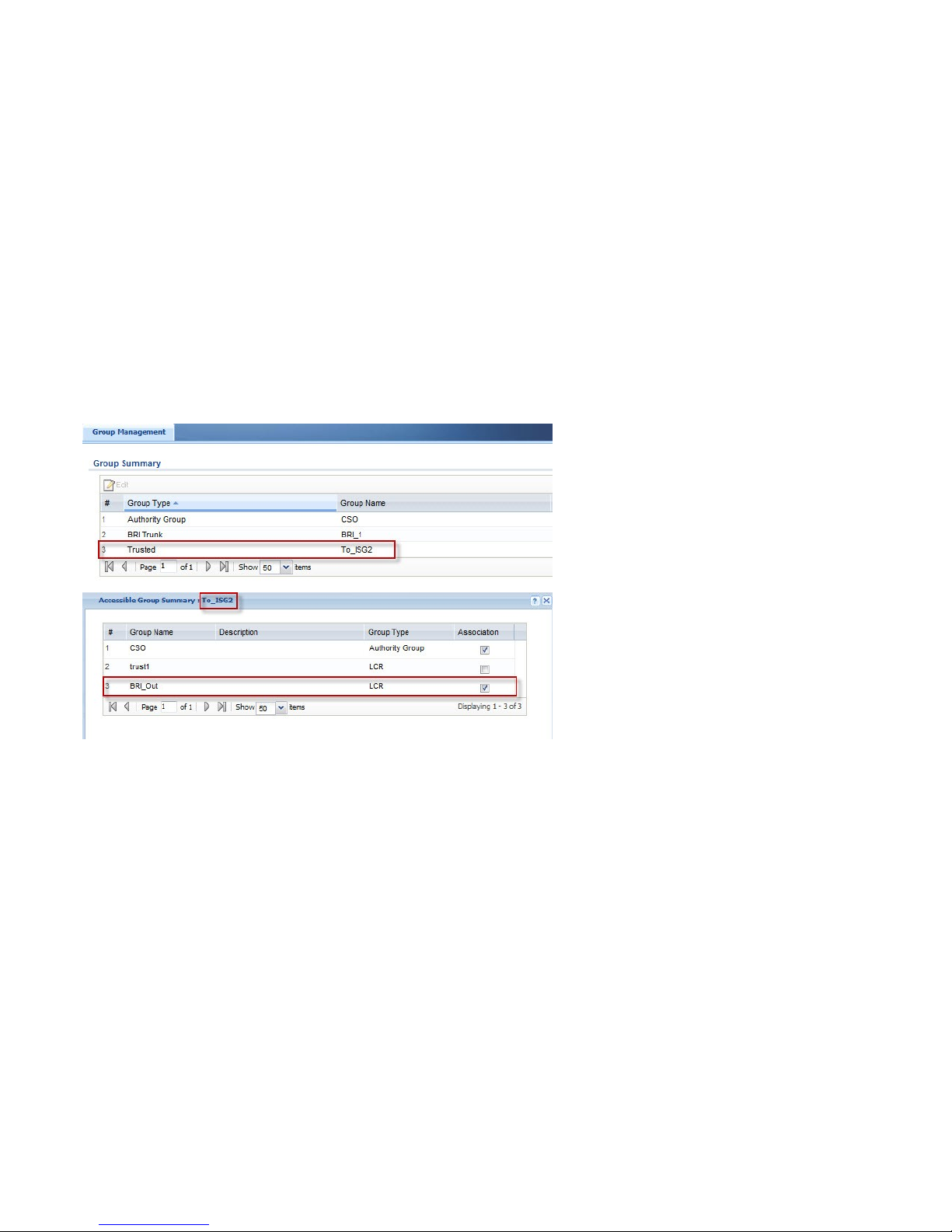
Configure Group Management in both ISG50-1 (Main Office) and ISG50-2 (Remote Office).
Associate AGs with LCR.
Page 51
51
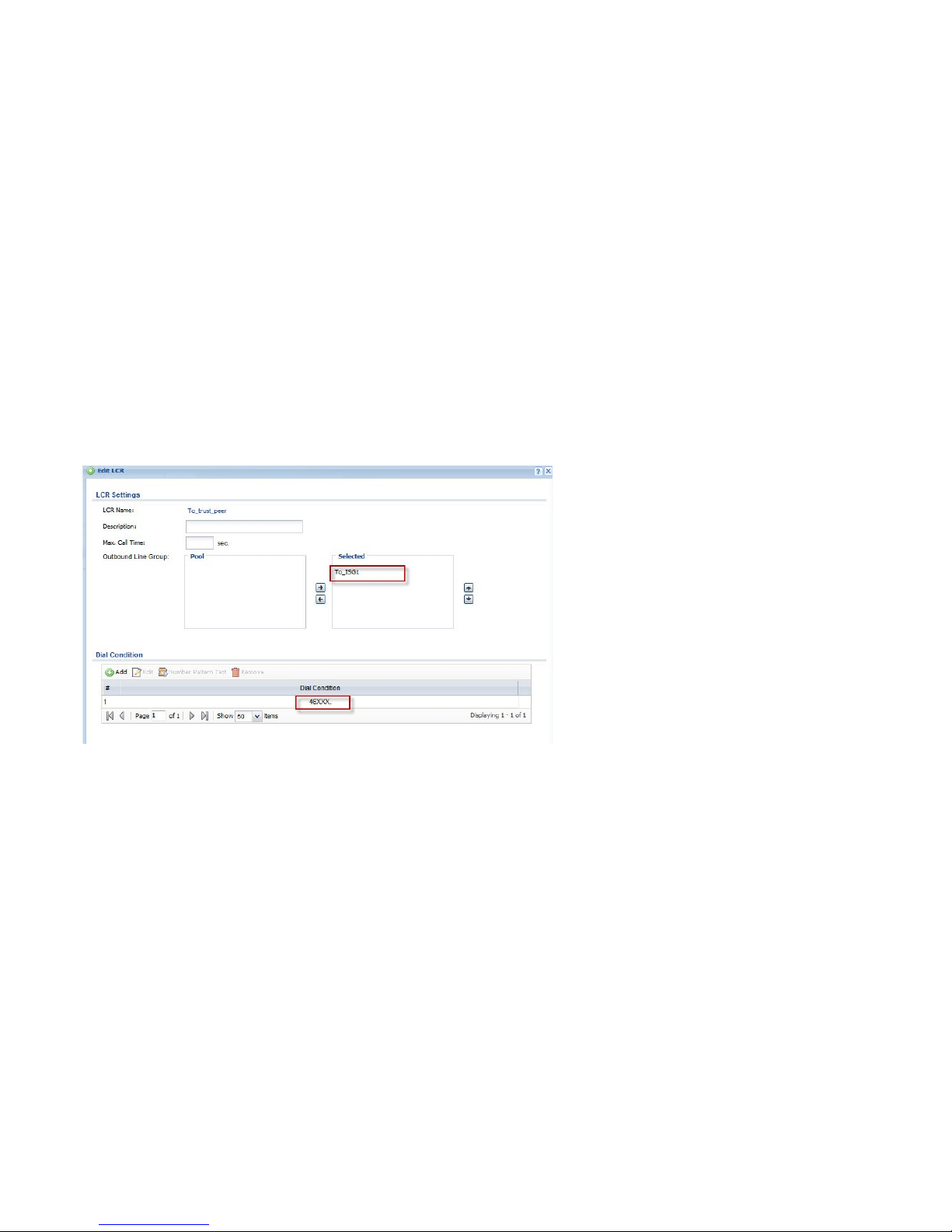
The incoming call on BRI trunk can reach the extension of ISG50-2 (Remote Office) over trusted peer.
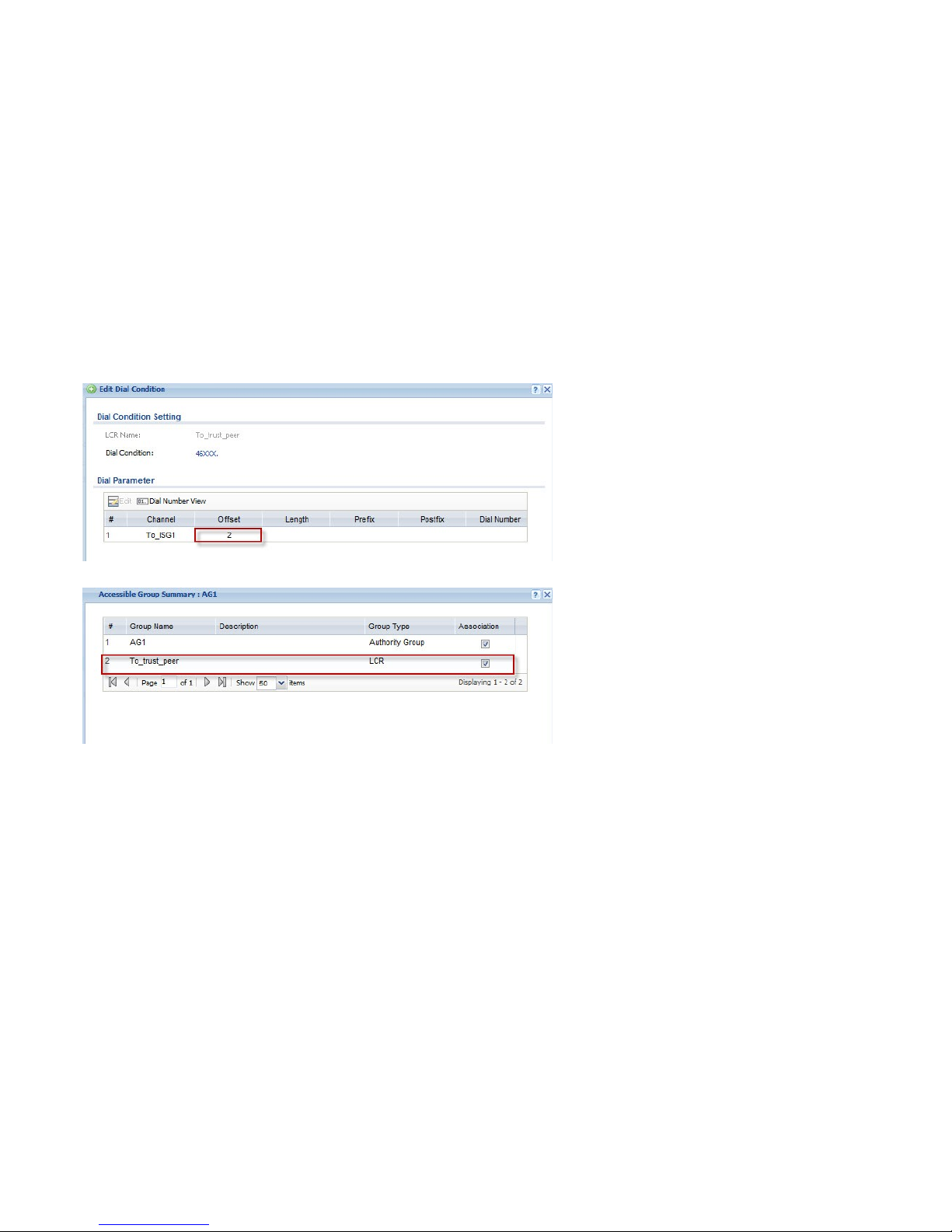
Configure LCR in ISG50-2 (Remote Office).
Here, since the call not only reaches the extension of ISG50-1 (Main Office) but also goes out through the BRI trunk, we set “46XXX.” as the dial
condition instead of “46XXXX”.
Page 52
52
Configure the Group management in ISG50-2 (Remote Office).
Page 53
53
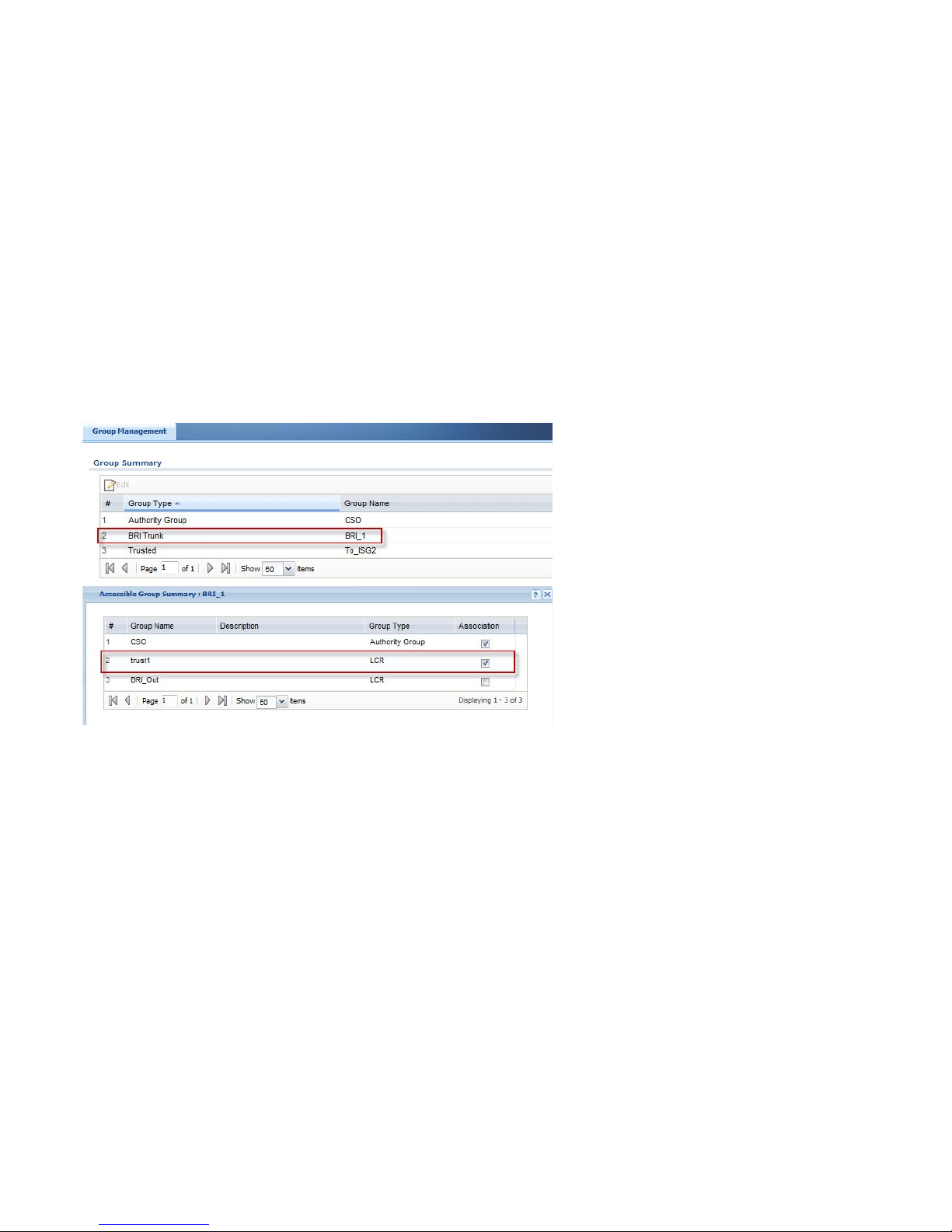
In ISG50-1 (Main Office), to let extensions of ISG50-2 (Remote Office) make call out through ISG50-1 (Main Office)’s BRI trunk, we need to
associate the outbound line (trusted peer) with the LCR.
Page 54
54
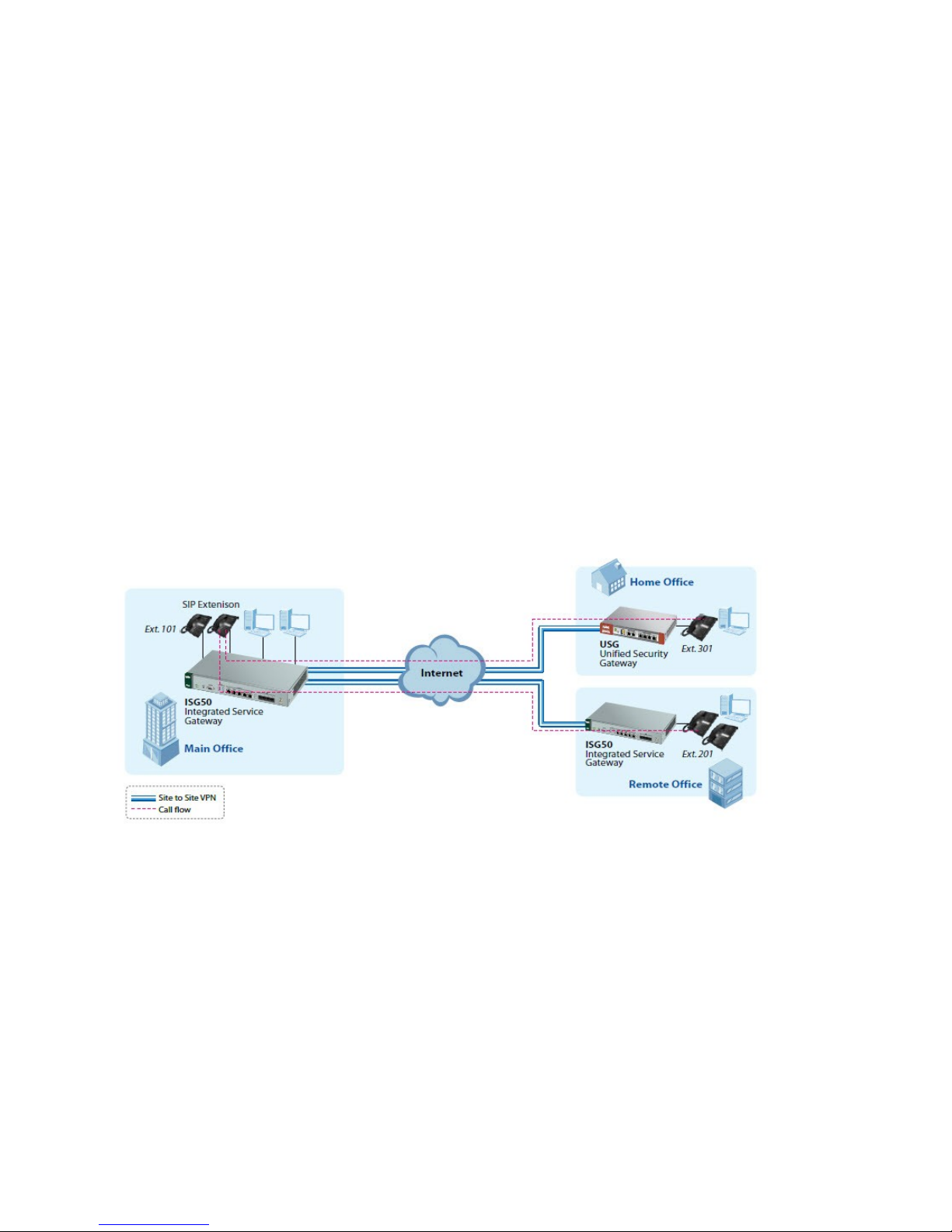
In ISG50-1 (Main Office), to let the incoming call on BRI trunk reach the extension of ISG50-2 (Remote Office) over trusted peer, we need to
associate the outbound line (BRI trunk) with the LCR.
Page 55
55
5. How to Secure the Communication?
The company plans to setup a new branch office and the network administrator would like to secure the communications within the
company’s network. The ISG50 offers an IPSec VPN feature to establish secure tunnels for data and voice communications across the Internet.
This allows employees in the branch offices or home offices to access the company’s network in the same secure way as those who work in the
main office. To protect against brute-force or password-guessing attacks, the network administrator can enable the brute force protection
function to block access to certain accounts for a period of time after multiple consecutive failed login attempts.
Page 56

56
Site to site IPsec VPN
Goal to achieve:
Build up the IPSec VPN tunnel between two ISGs located in the main office and the remote office.
Condition:
ISG as a multisite VPN & VoIP connectivity hub
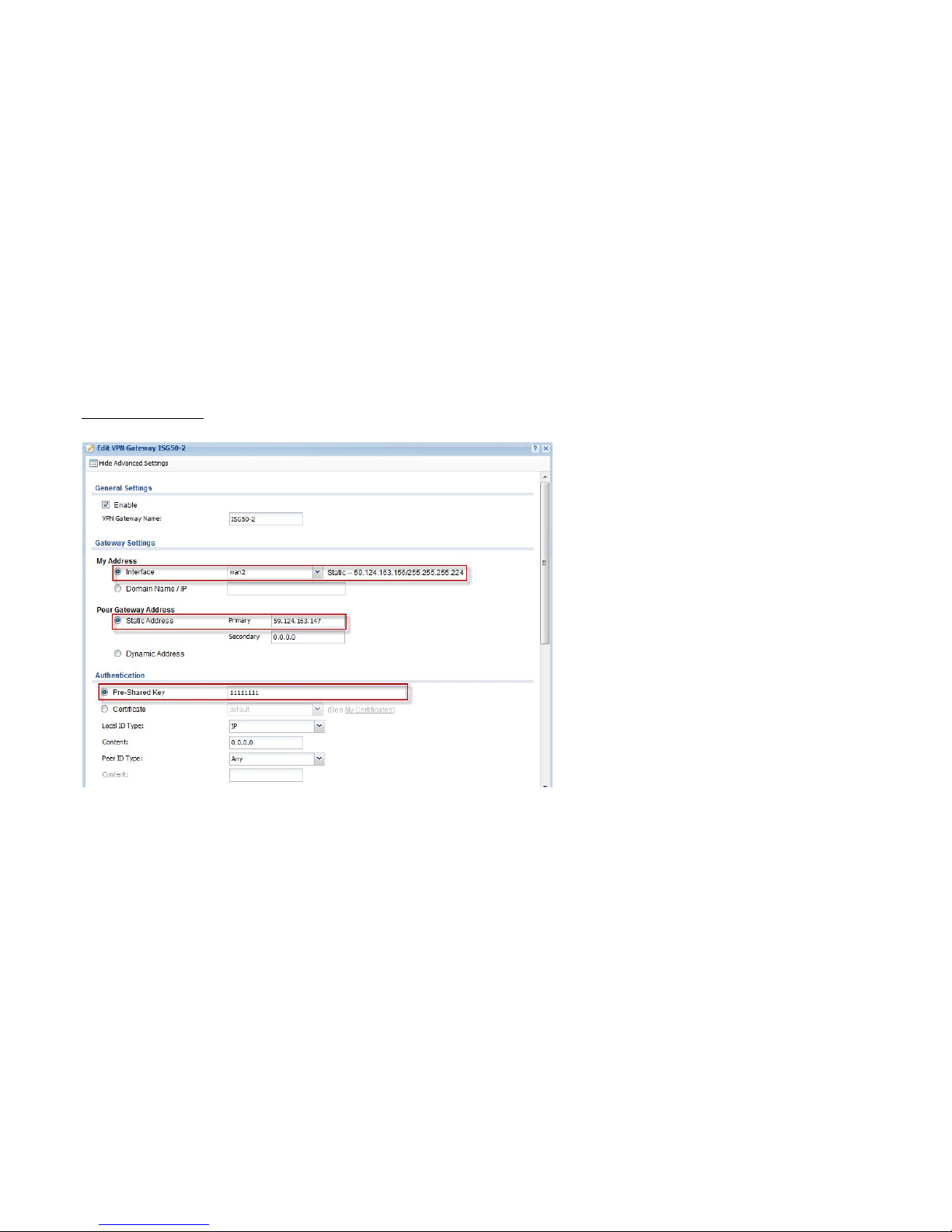
ISG50-1 (Main Office):
WAN IP: 59.124.163.156
LAN IP: 10.5.5.1
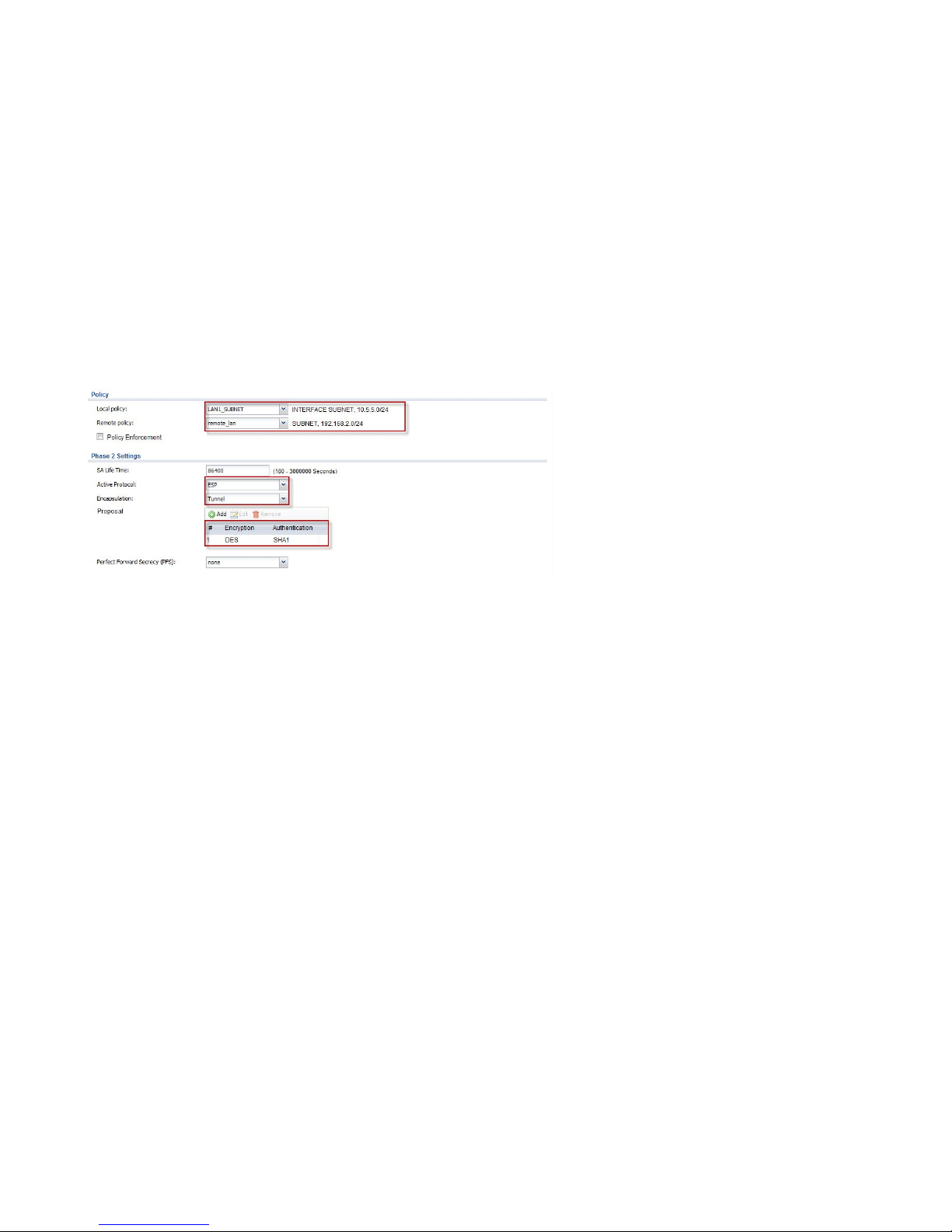
Local subnet: 10.5.5.0/24
ISG50-2 (Remote Office):
WAN IP: 59.124.163.147
LAN IP: 192.168.2.1
Local subnet: 192.168.2.0/24
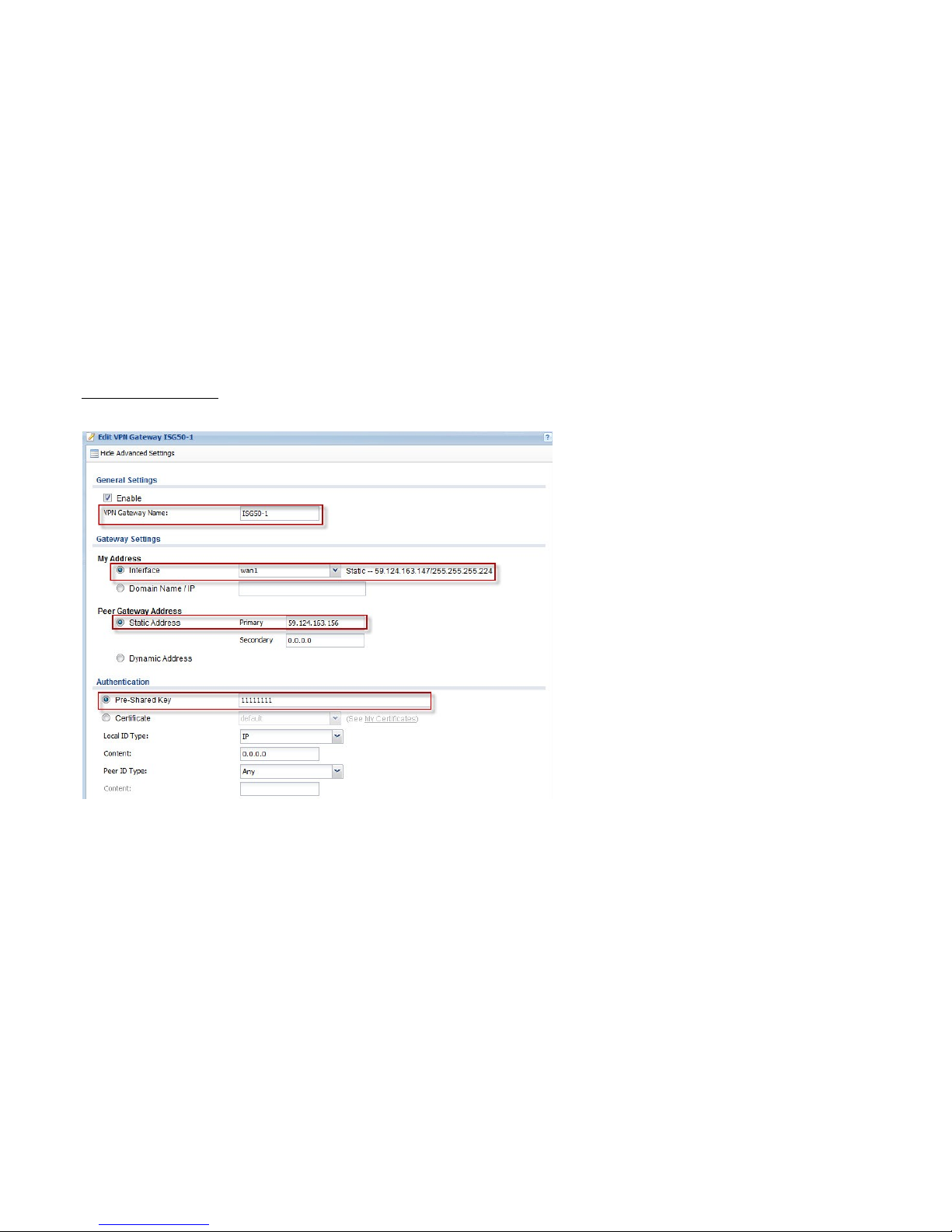
IPsec VPN
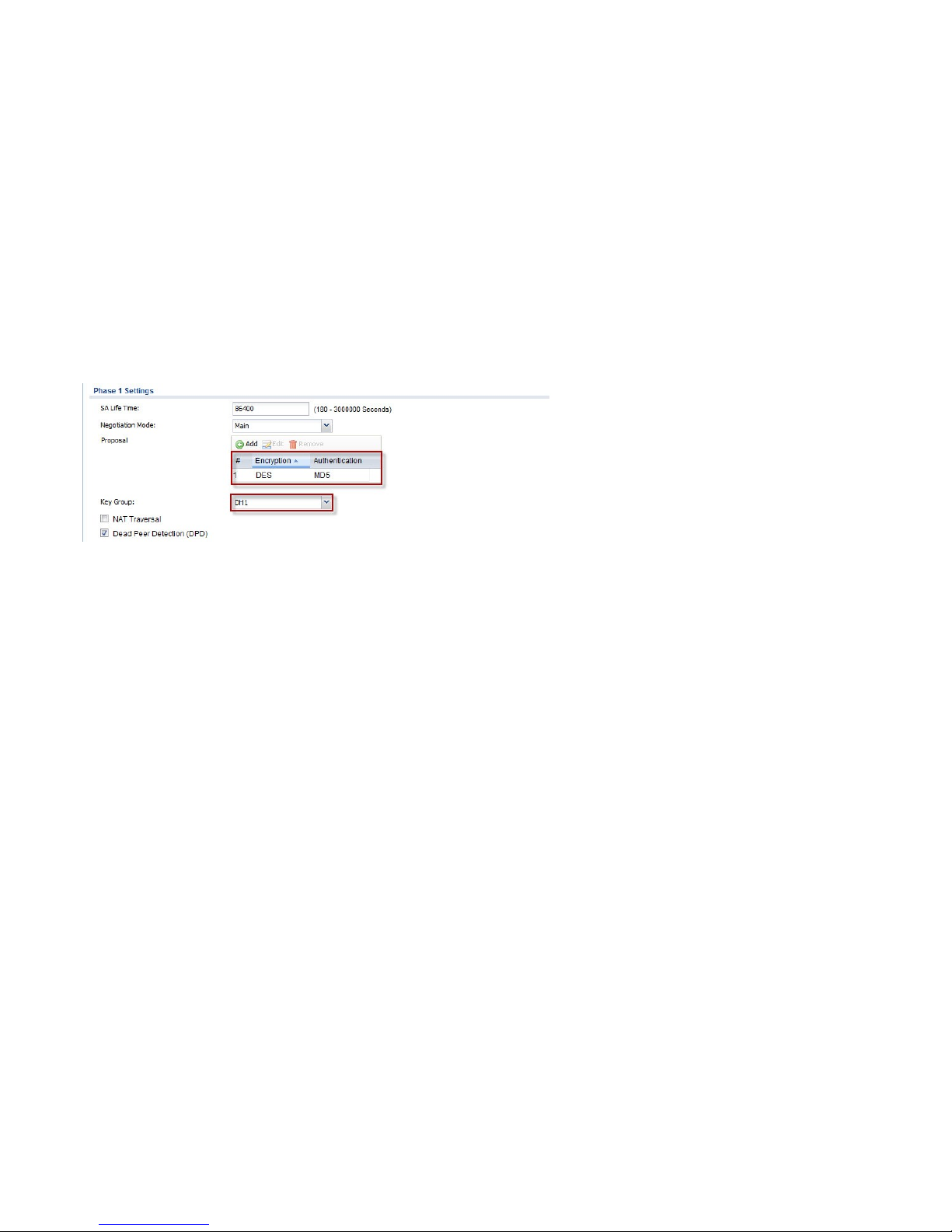
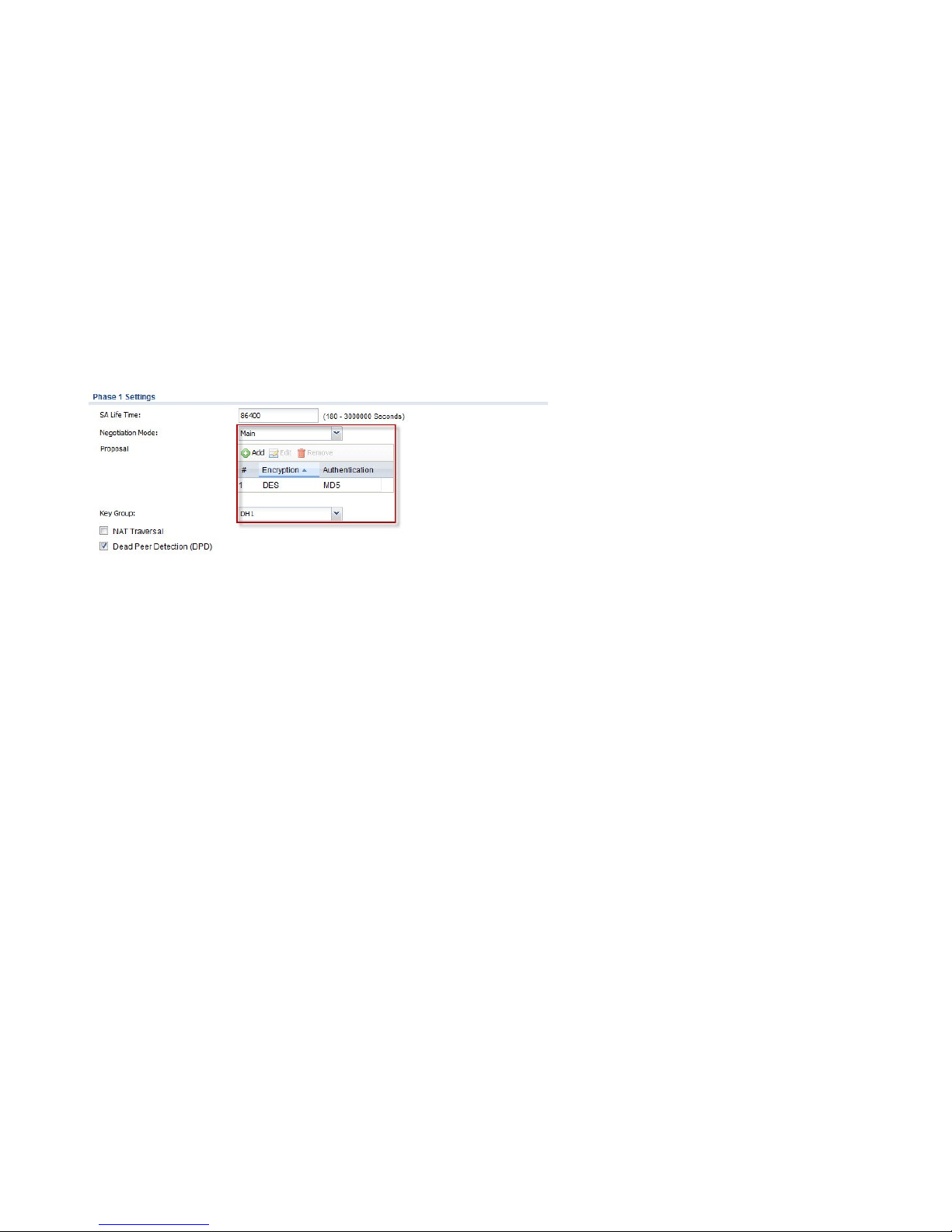
Phase 1:
Pre-Shared Key: 11111111
Negotiation mode: Main
Encryption Algorithm: DES
Authentication Algorithm: MD5
Key Group: DH1
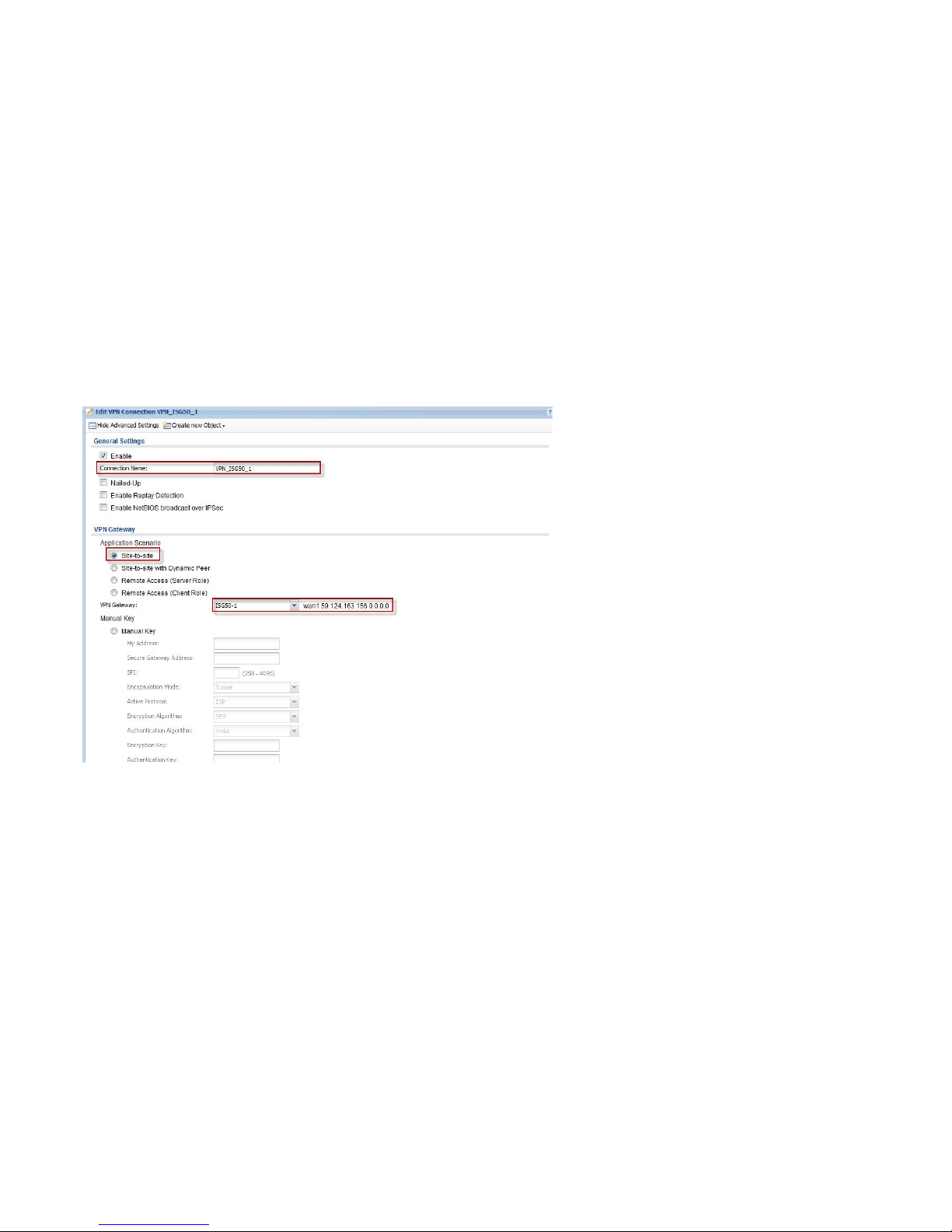
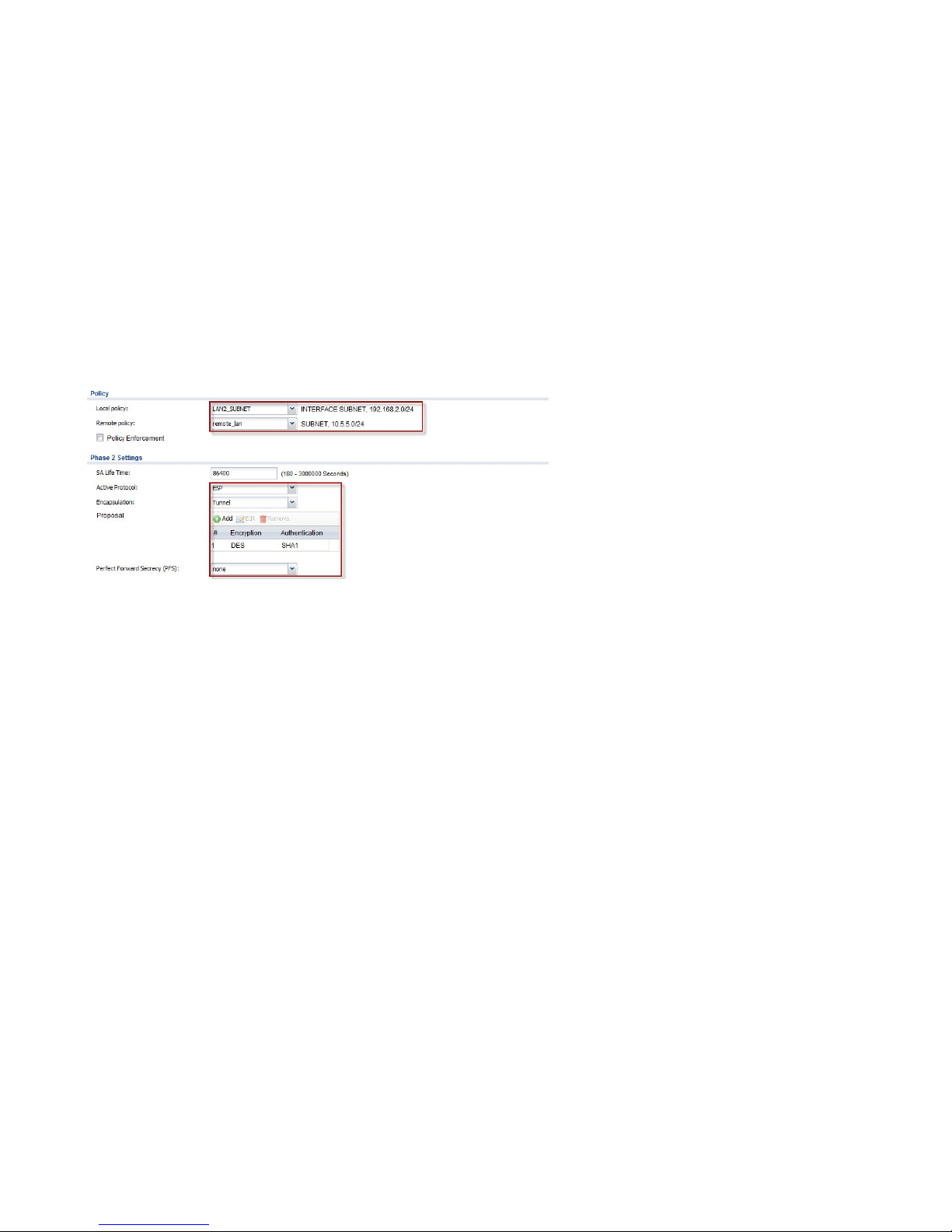
Phase 2:
Active Protocol: ESP
Encapsulation Mode: Tunnel
Encryption Algorithm: DES
Authentication Algorithm: SHA1
Perfect Forward Secrecy (PFS): None
Page 57
57
ISG50-1 (Main Office):
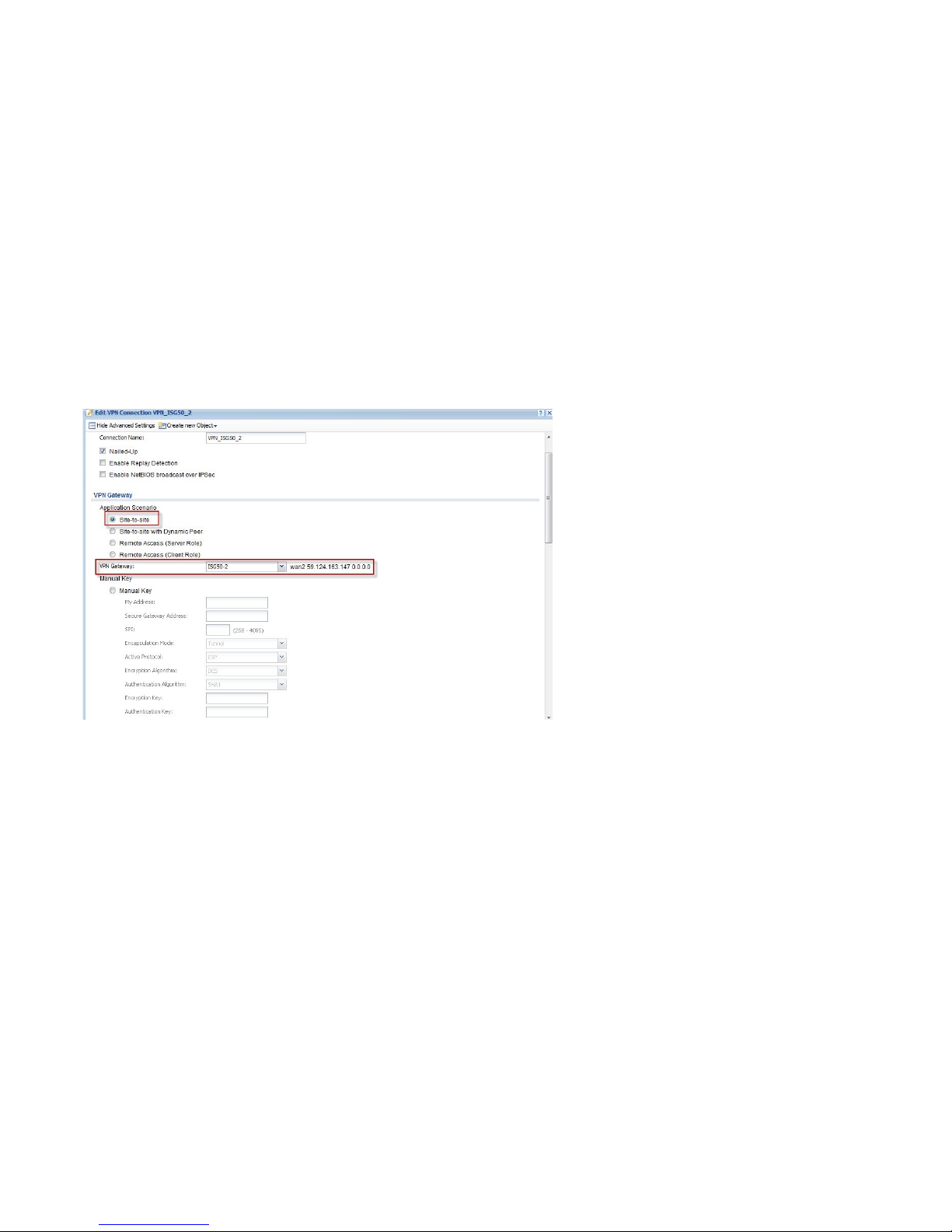
Add a VPN gateway rule.
Page 58
58
Page 59
59
Click CONFIGURATION > VPN > IPsec VPN > VPN Connection to configure the phase-2 rule.
Page 60
60
Page 61
61
ISG50-2 (Remote Office):
Add a VPN gateway rule.
Page 62
62
Page 63
63
Click CONFIGURATION > VPN > IPsec VPN > VPN Connection to configure the phase-2 rule.
Page 64
64
Page 65

65
Goal to achieve:
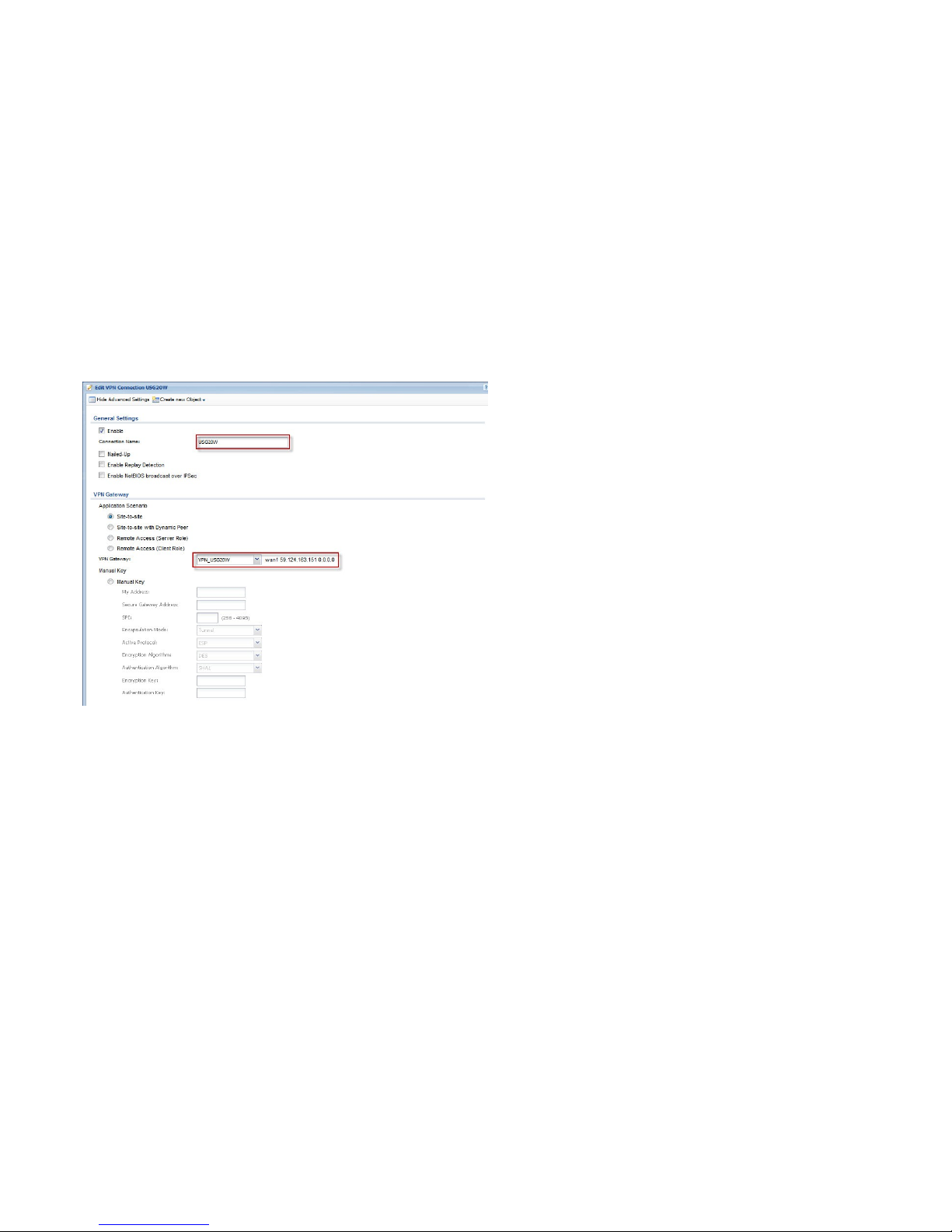
Build up the IPSec VPN tunnel between ISG located in the main office and USG located in the home office.
Condition:
ISG as a Centralized multisite VPN and VoIP connectivity
ISG50 (Main Office):
WAN IP: 59.124.163.156
LAN IP: 10.5.5.1
Local subnet: 10.5.5.0/24
USG (Home Office):
WAN IP: 59.124.163.151
Local subnet: 192.168.2.0/24
IPSec VPN
Phase 1:
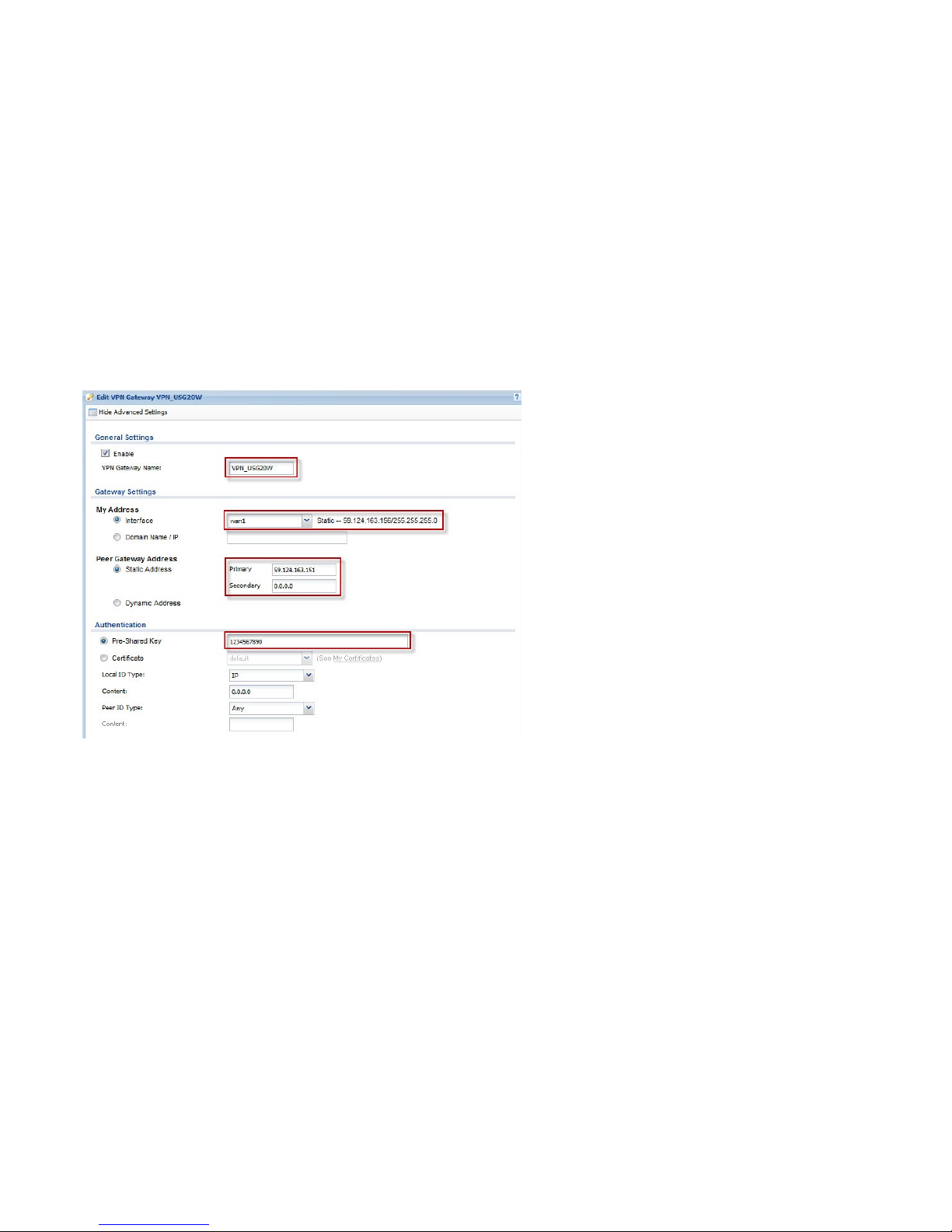
Authentication: 1234567890
Negotiation mode: Main
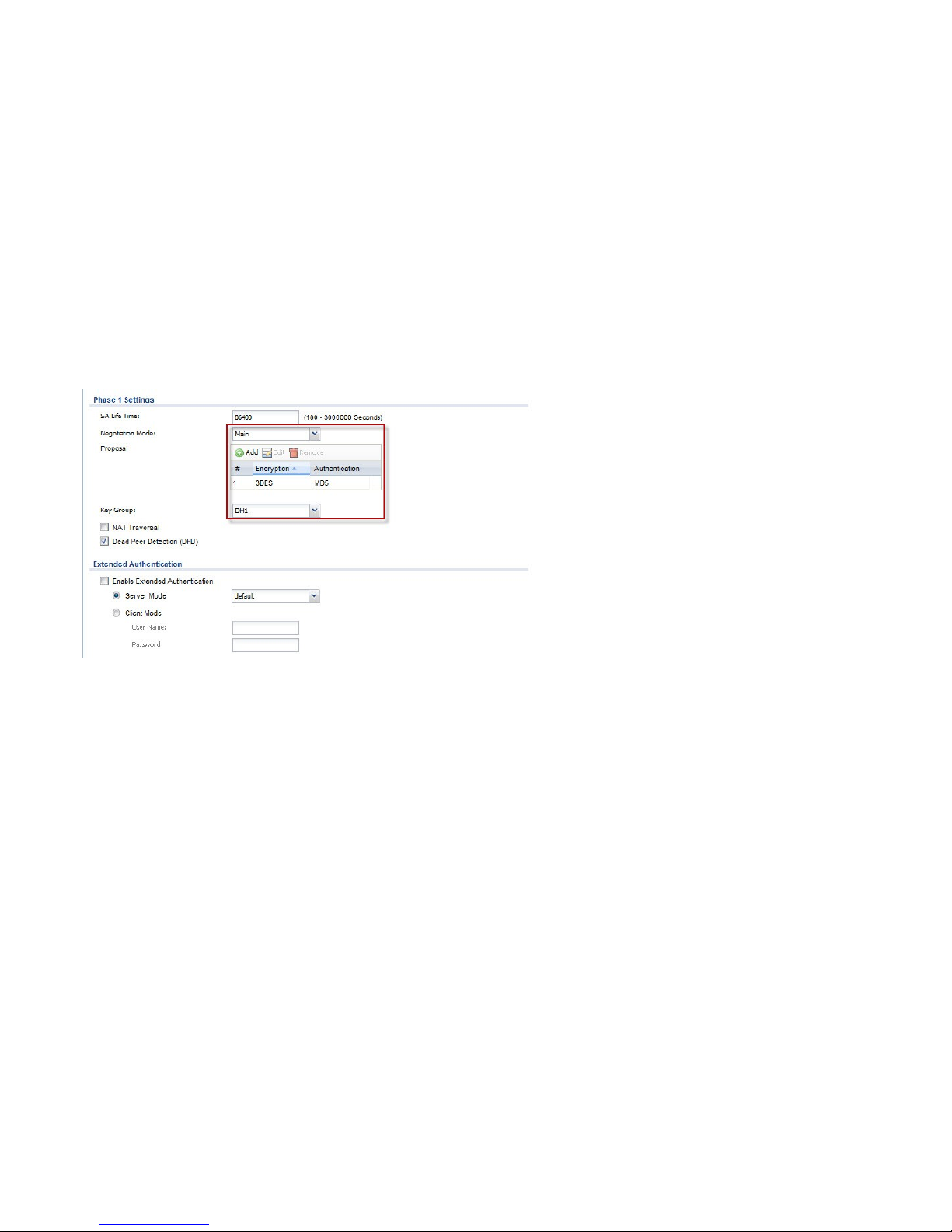
Encryption Algorithm: 3DES
Authentication Algorithm: MD5
Key Group: DH1
Phase 2:
Active Protocol: ESP
Encapsulation Mode: Tunnel
Encryption Algorithm: DES
Authentication Algorithm: SHA1
Perfect Forward Secrecy (PFS): None
Page 66
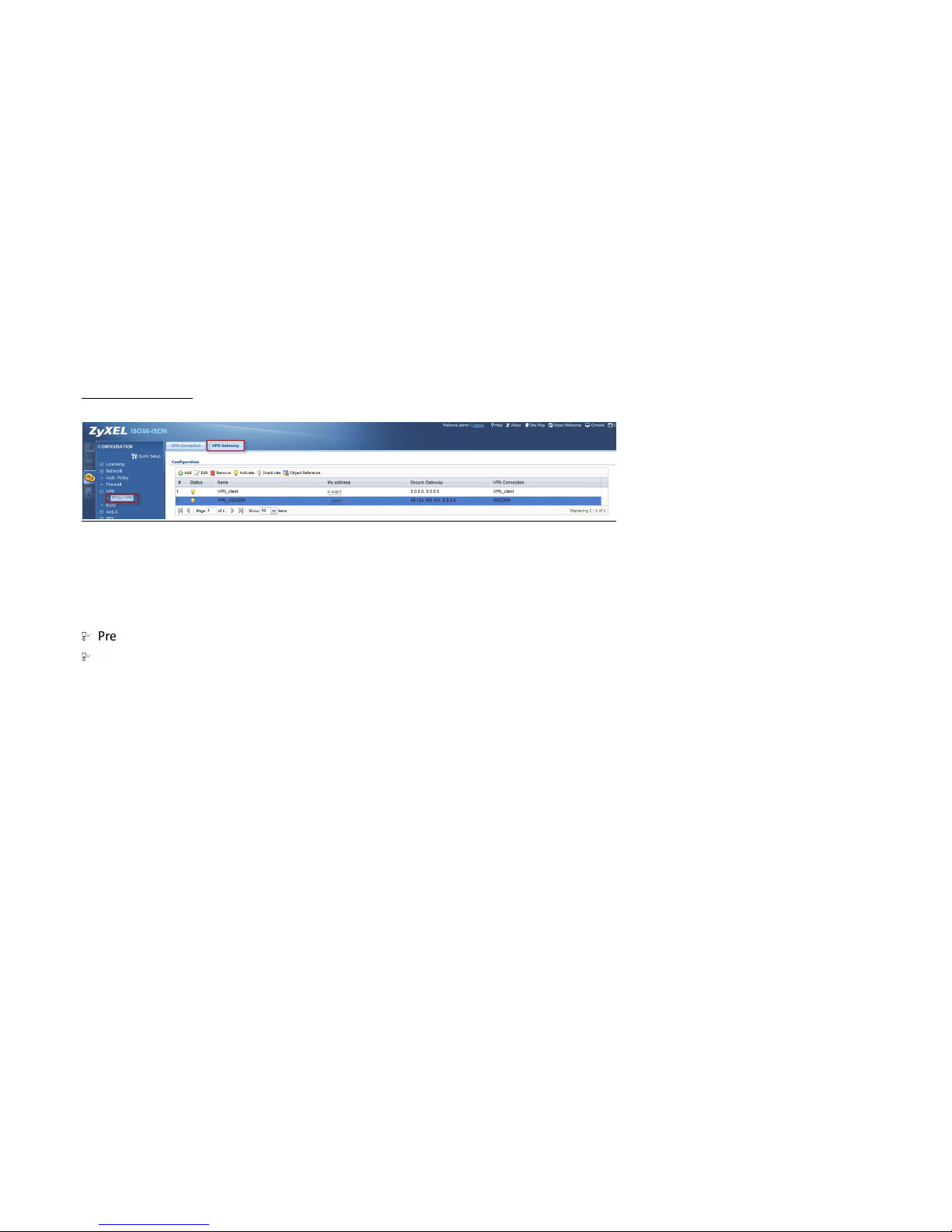
66
ISG50 (Main Office):
Click on the Add button to add a VPN gateway rule.
To configure the VPN gateway rule, the user needs to fill in the following information:
- VPN gateway name.
- Gateway address: My Address (ISG50’s IP) and Peer Gateway Address (USG’s IP).
- Authentication setting.
-Shared Key
ID Type setting (Local and Peer side)
- Phase-1 setting
Negotiation mode
Encryption algorithm
Authentication algorithm
Key Group
Page 67
67
Page 68
68
Page 69
69
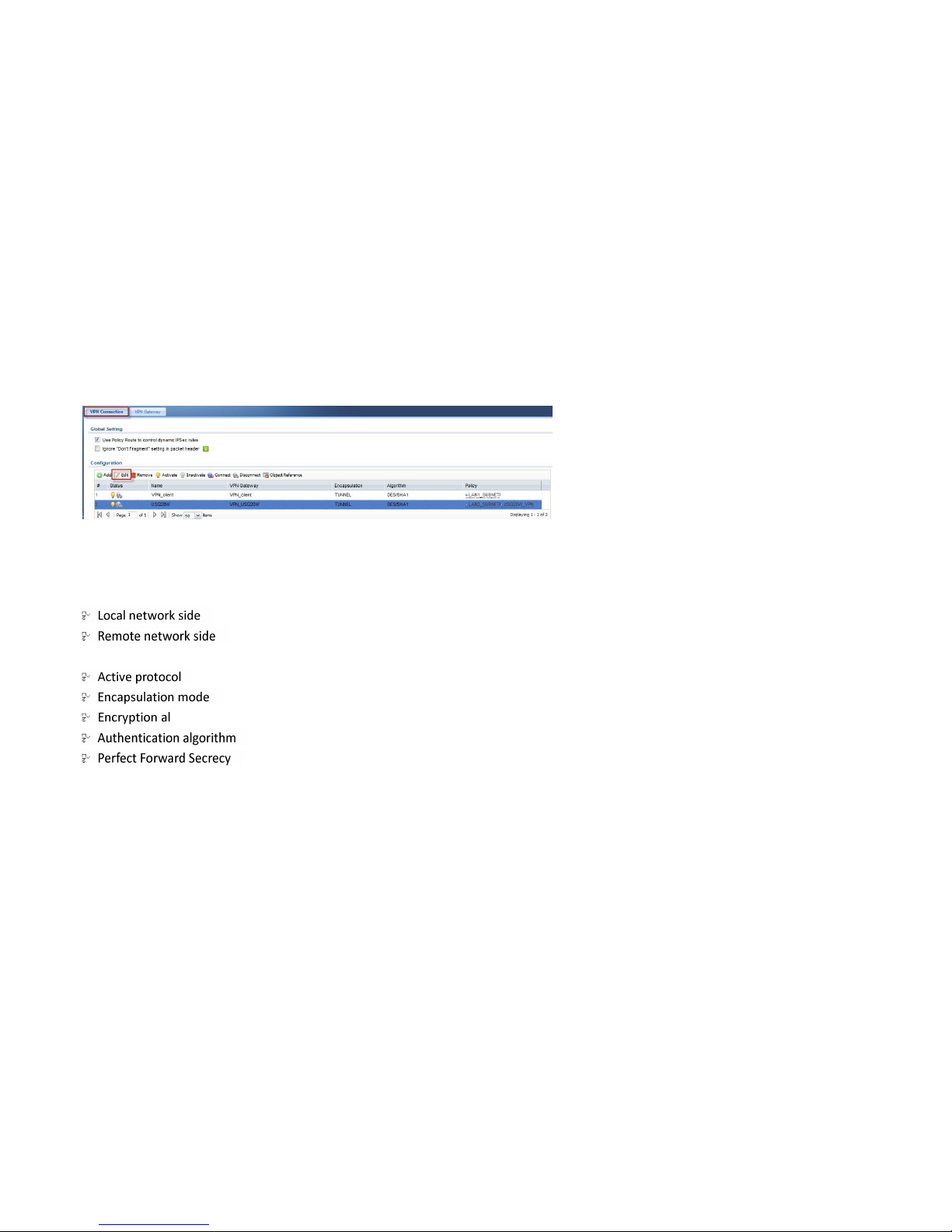
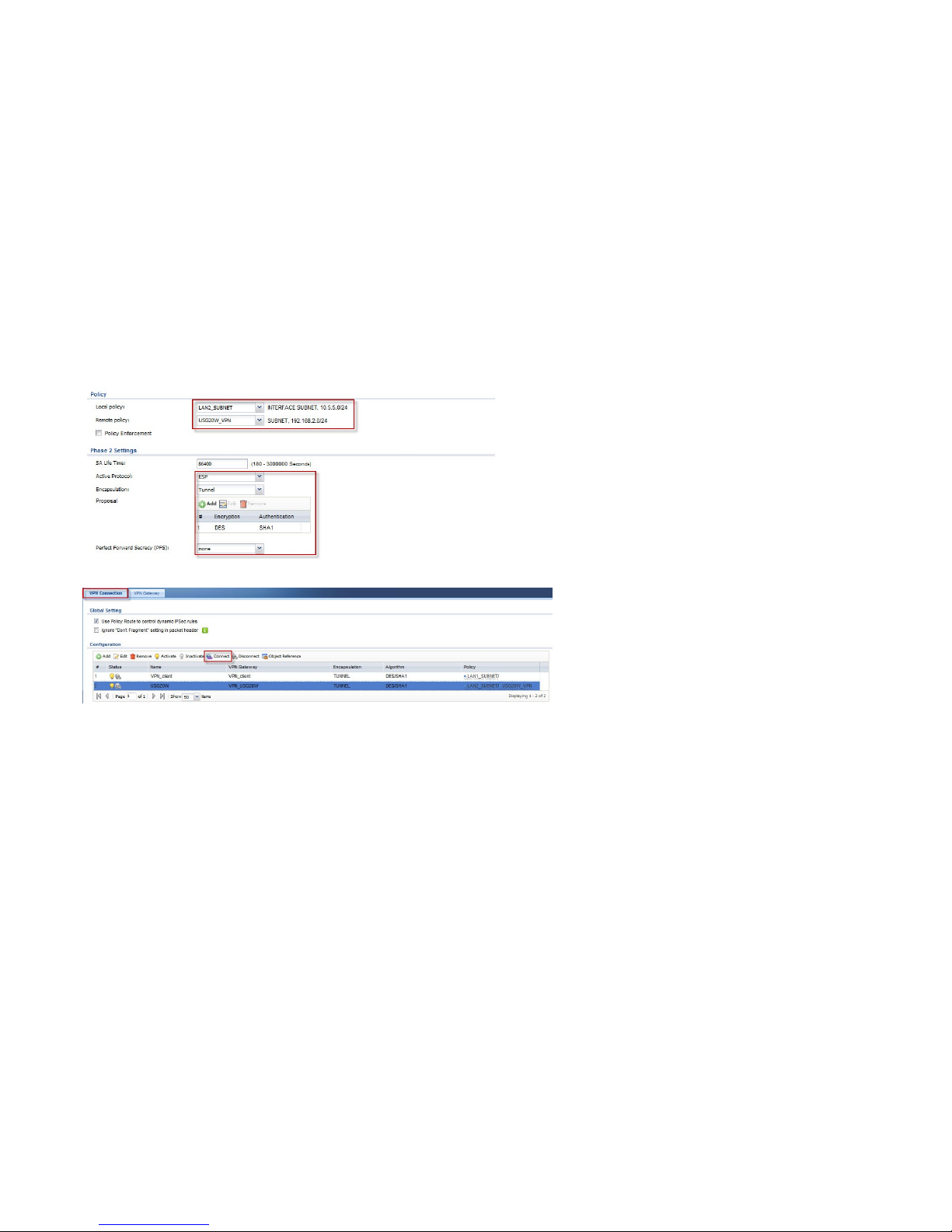
Click CONFIGURATION > VPN > IPsec VPN > VPN Connection to configure the phase-2 rule.
To configure the phase 2 rule, the user needs to fill in the following:
- VPN connection name
- VPN gateway selection
- Policy for
- Phase 2 Settings
gorithm
Page 70
70
Page 71
71
Click the Connect button to establish the VPN link. Once the tunnel is established, a connected icon will be displayed in front of the rule.
Page 72
72
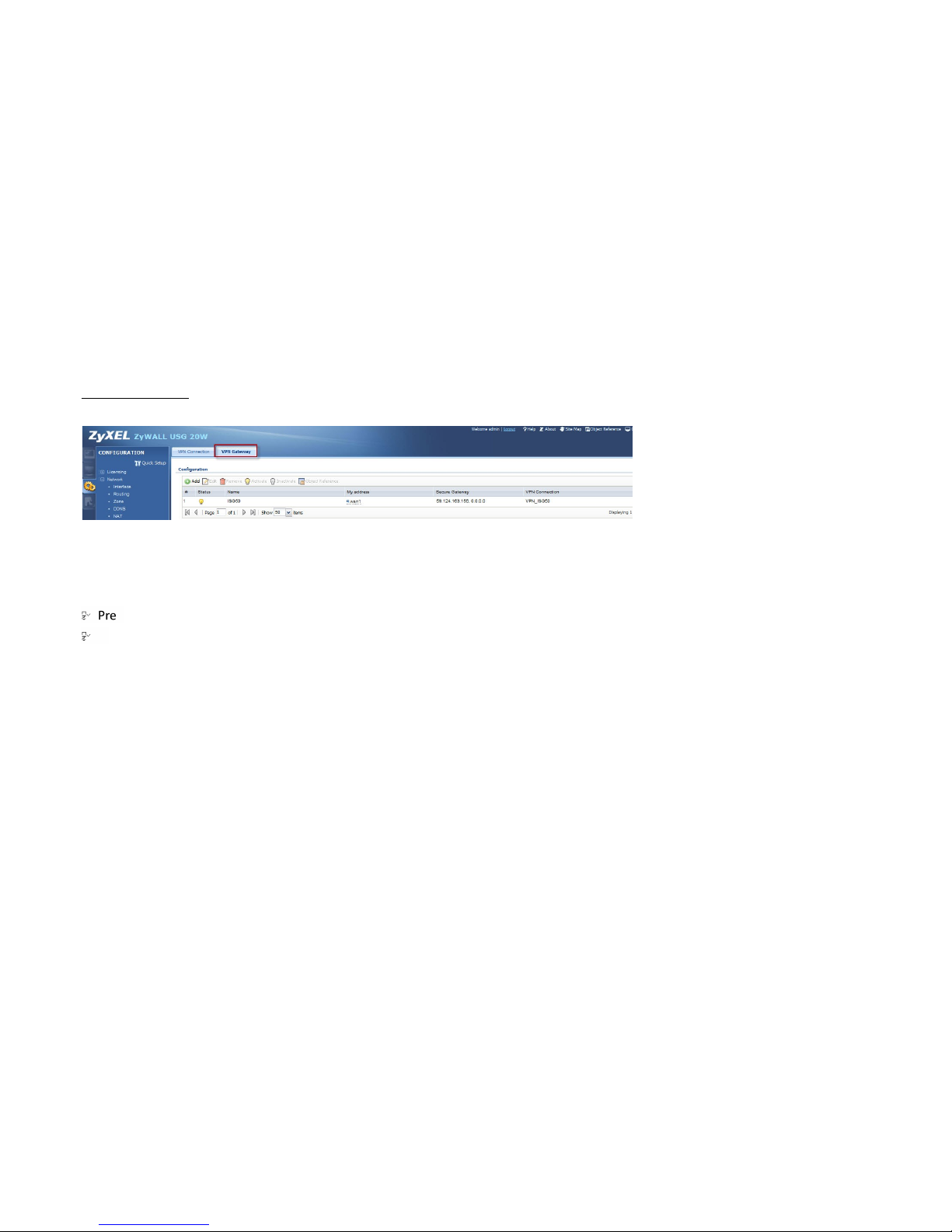
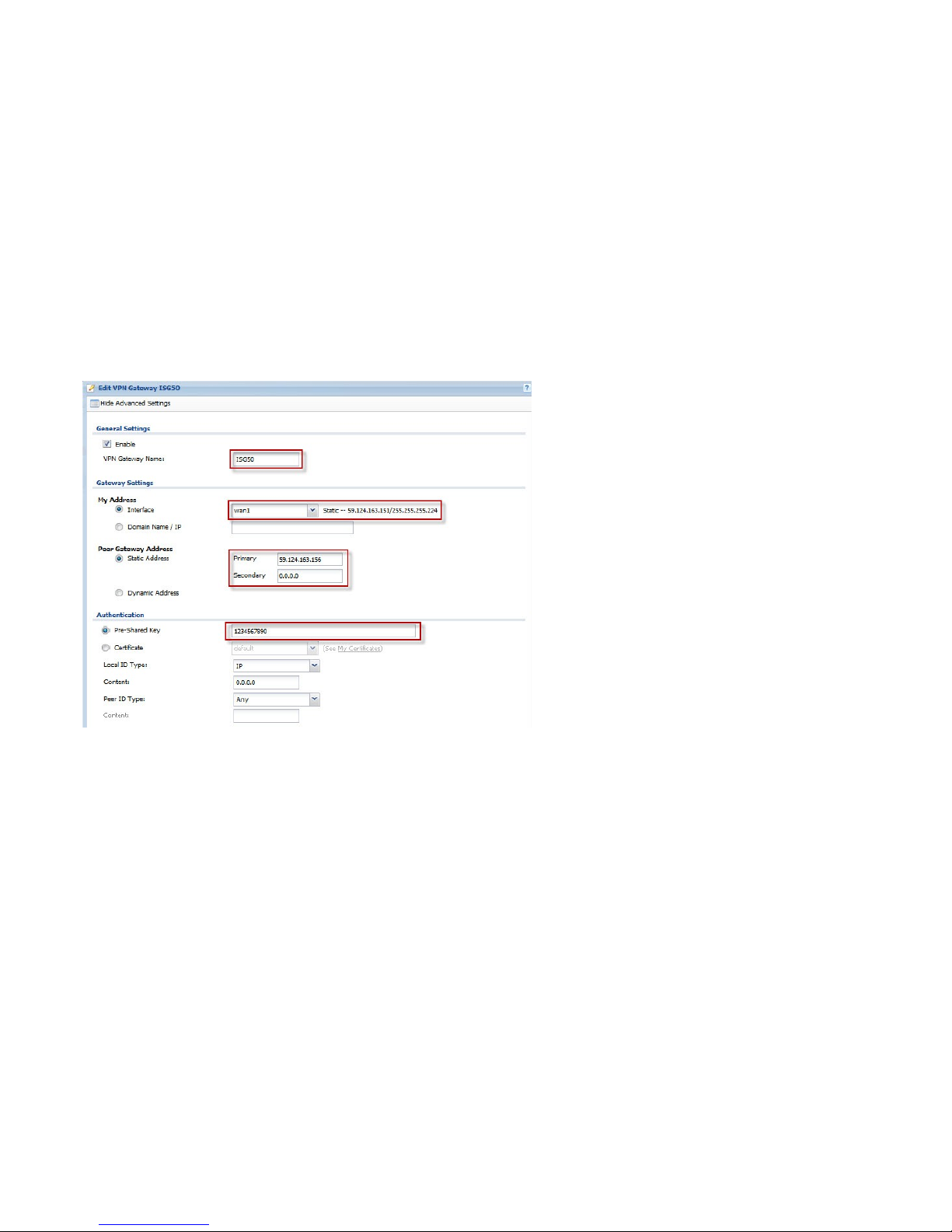
USG (Home Office):
Add a VPN gateway rule.
To configure the VPN gateway rule, user needs to fill in:
- VPN gateway name
- Gateway address: My Address (USG’s IP) and Peer Gateway Address (ISG50’s IP)
- Authentication setting
-Shared Key
ID Type setting (Local and Peer side)
- Phase-1 setting
Negotiation mode
Encryption algorithm
Authentication algorithm
Key Group
Page 73
73
Page 74
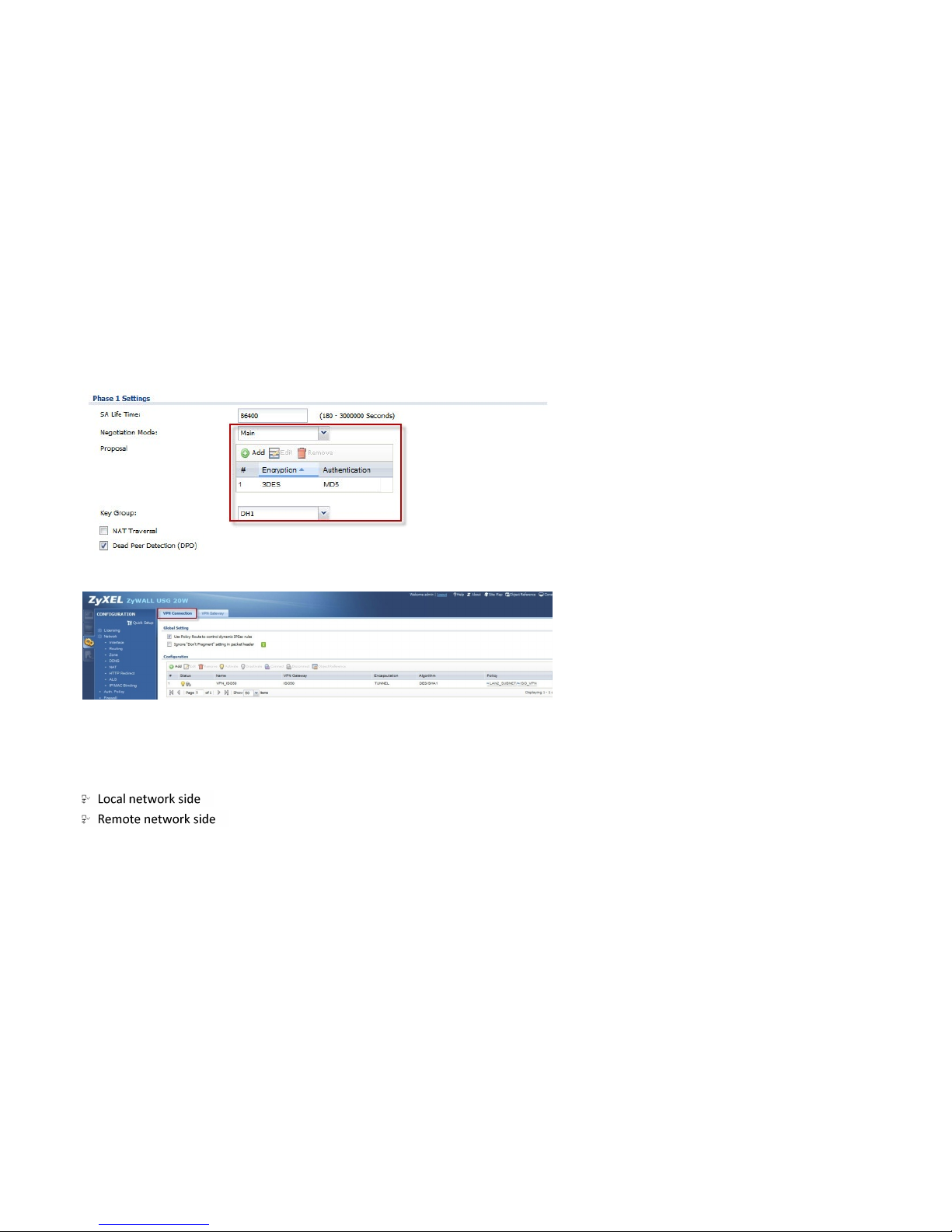
74
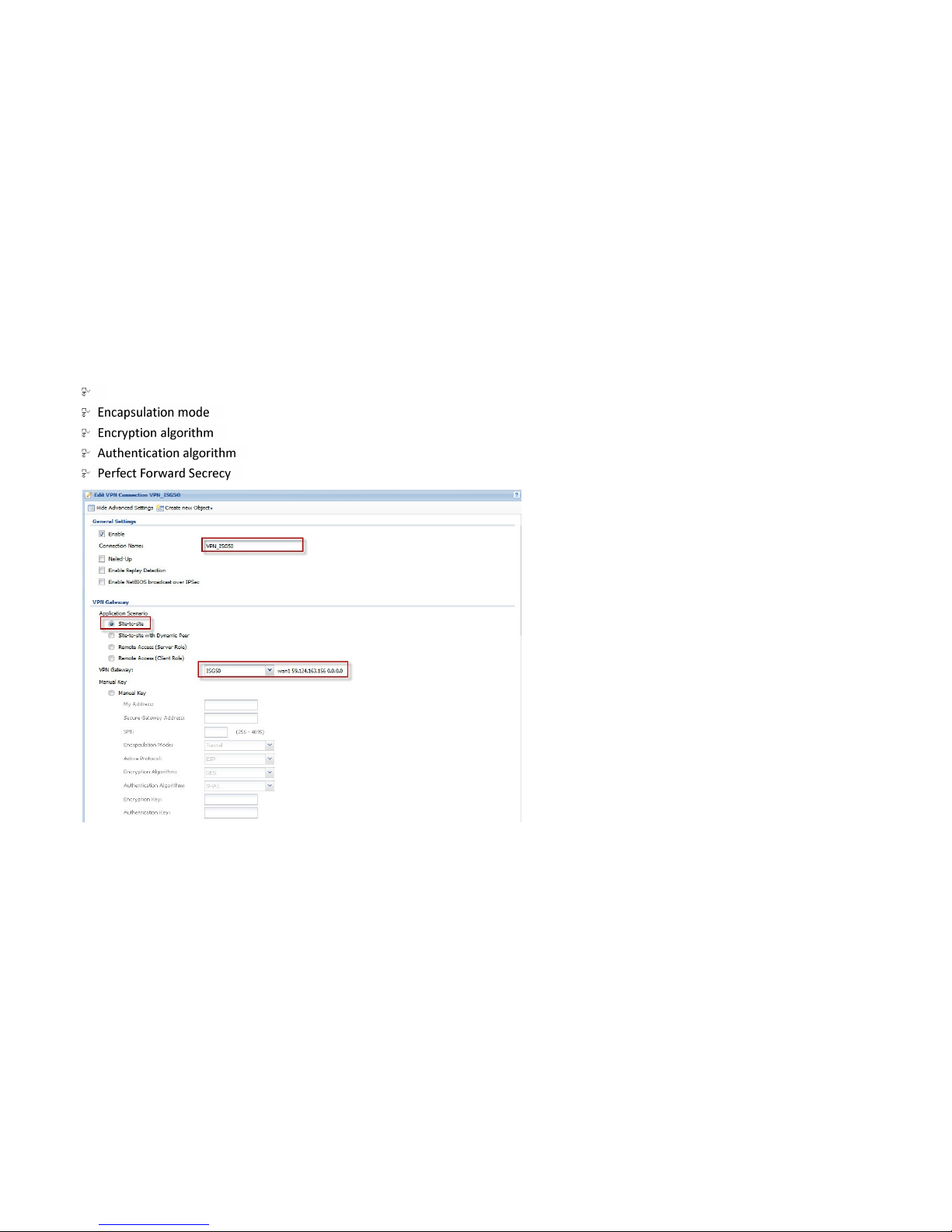
Configure the phase-2 rule.
To configure the phase 2 rule, user needs to fill in:
- VPN connection name
- VPN gateway selection
- Policy for
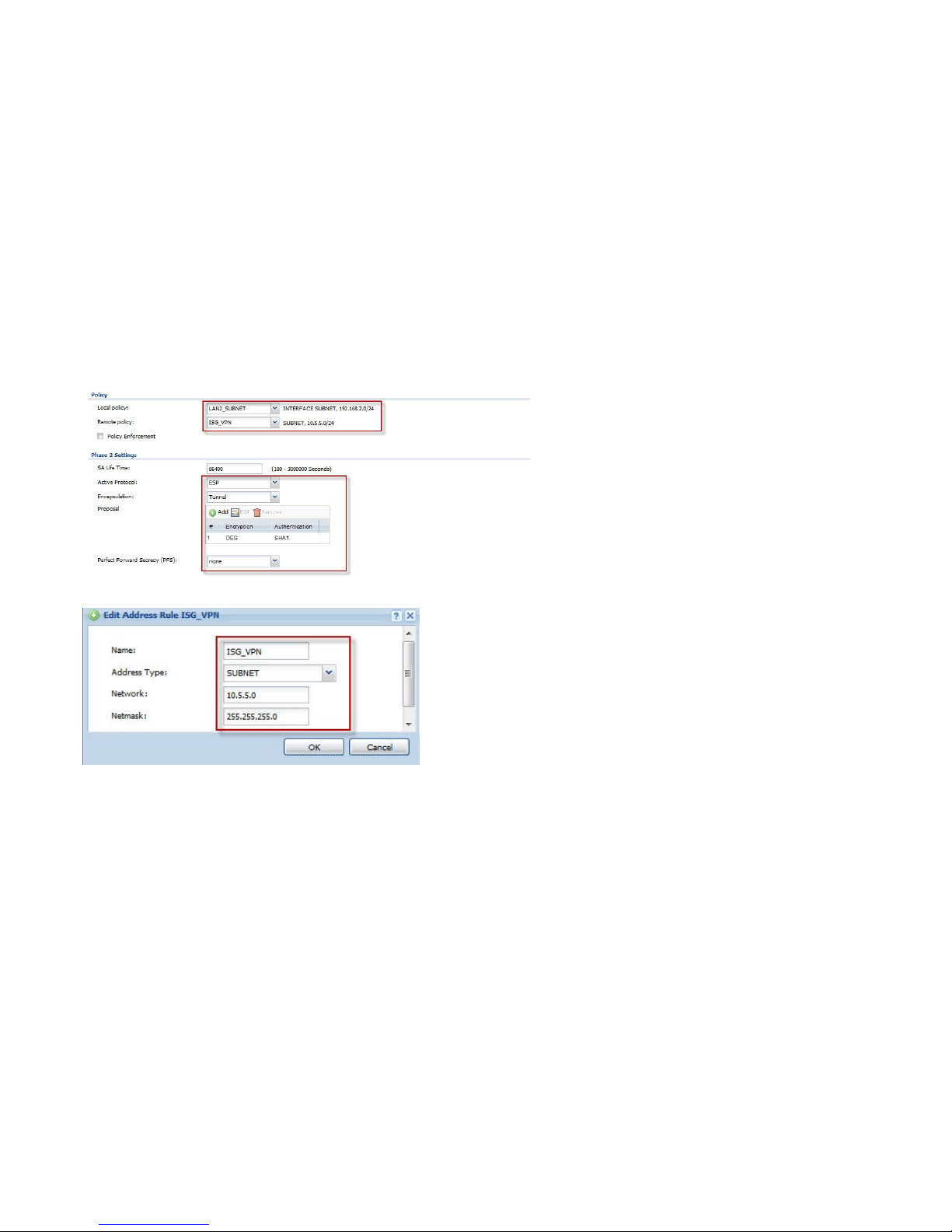
- Phase 2 Settings
Page 75
75
Active protocol
Page 76
76
Before configuring Remote Policy, the user can create a specific object for the VPN subnet.
Page 77
77
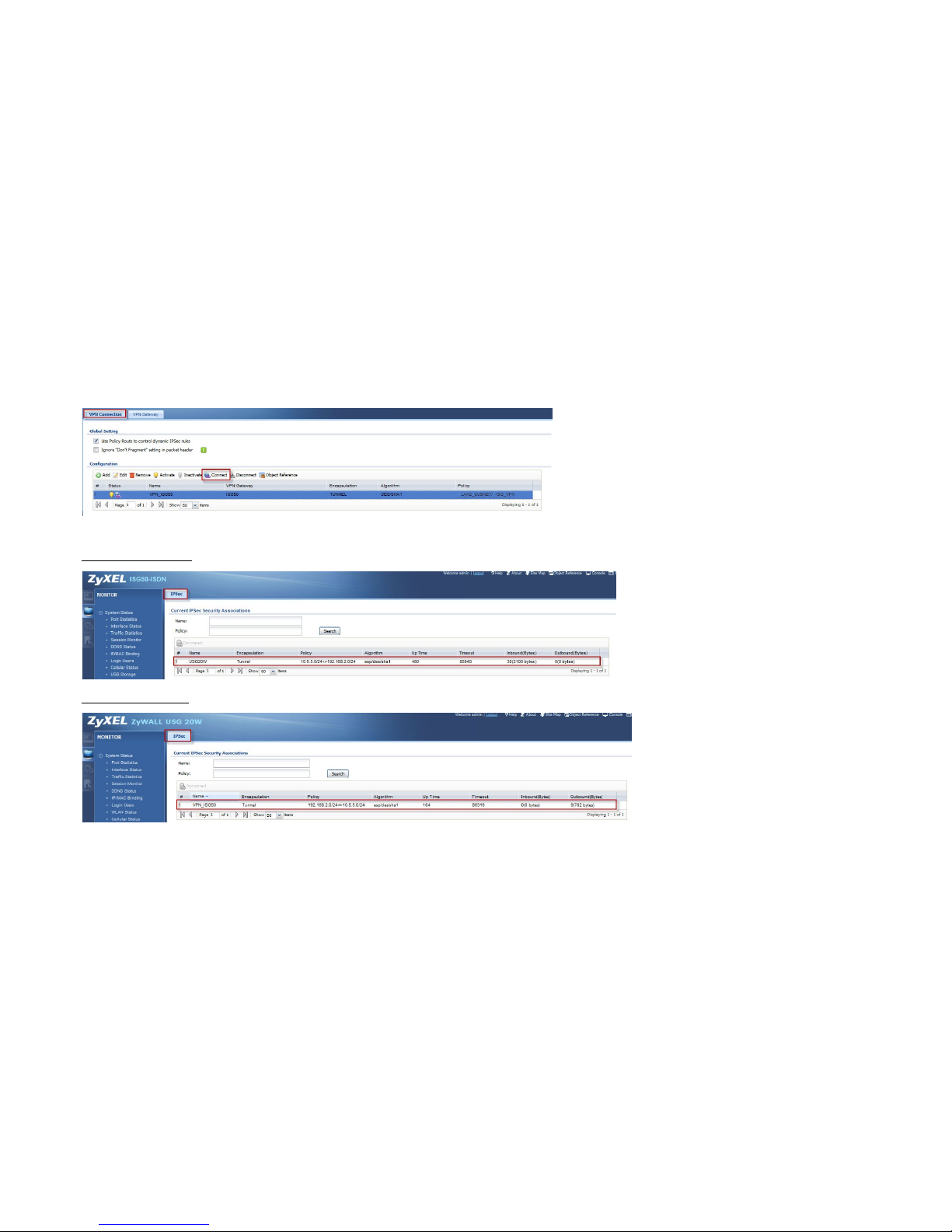
Click on the Connect button to establish the VPN link. Once the tunnel is established, a connected icon will be displayed in front of the rule.
When the VPN tunnel is established, the user can find the SA information on MONITOR > VPN MONITOR > IPsec.
ISG50 (Main Office):
USG (Home Office):
Clients in the subnet 192.168.2.0/24 of USG can register to ISG50 with the SIP server address 10.5.5.1.
Page 78
78
Trusted Peer over IPsec VPN
Goal to achieve: Build up an IPsec VPN tunnel to protect voice traffic over the Trust Peer.
Condition:
ISG50-1 (Main Office):
LAN IP: 192.168.2.1
ISG50-2 (Remote Office):
LAN IP: 10.5.5.1
The configuration for IPsec VPN is the same as that in site to site IPsec VPN.
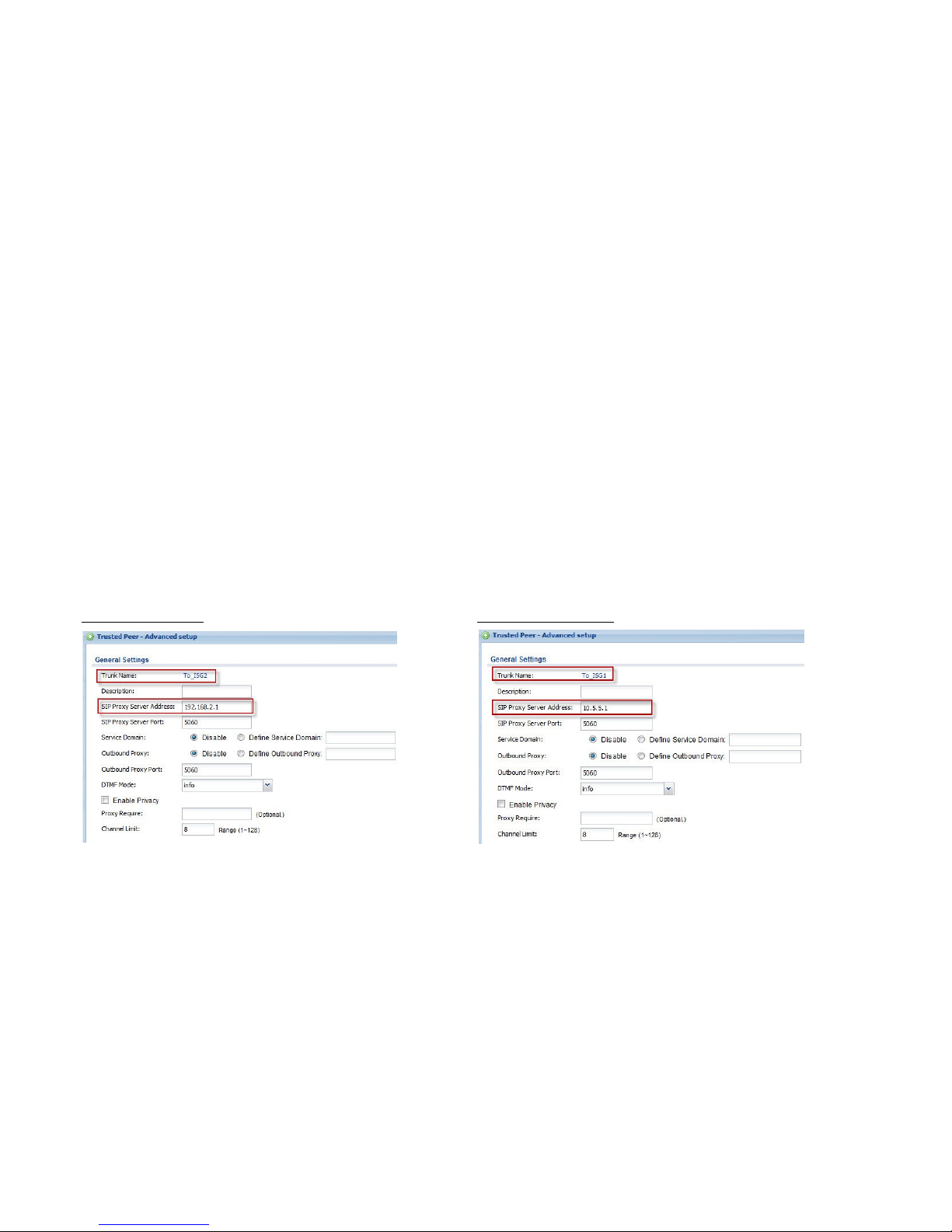
In outbound trunk setting, add a new trust peer in each ISG50 and set the remote LAN IP address as the trusted SIP server address.
ISG50-1 (Main Office):
ISG50-2 (Remote Office):
Page 79

79
Brute-force Attack Protection
Goal to achieve:
Check the current protection setting for web-portal and sip and change the block time and retry fail count for web-portal.
Unlock the blocked extension.
Condition:
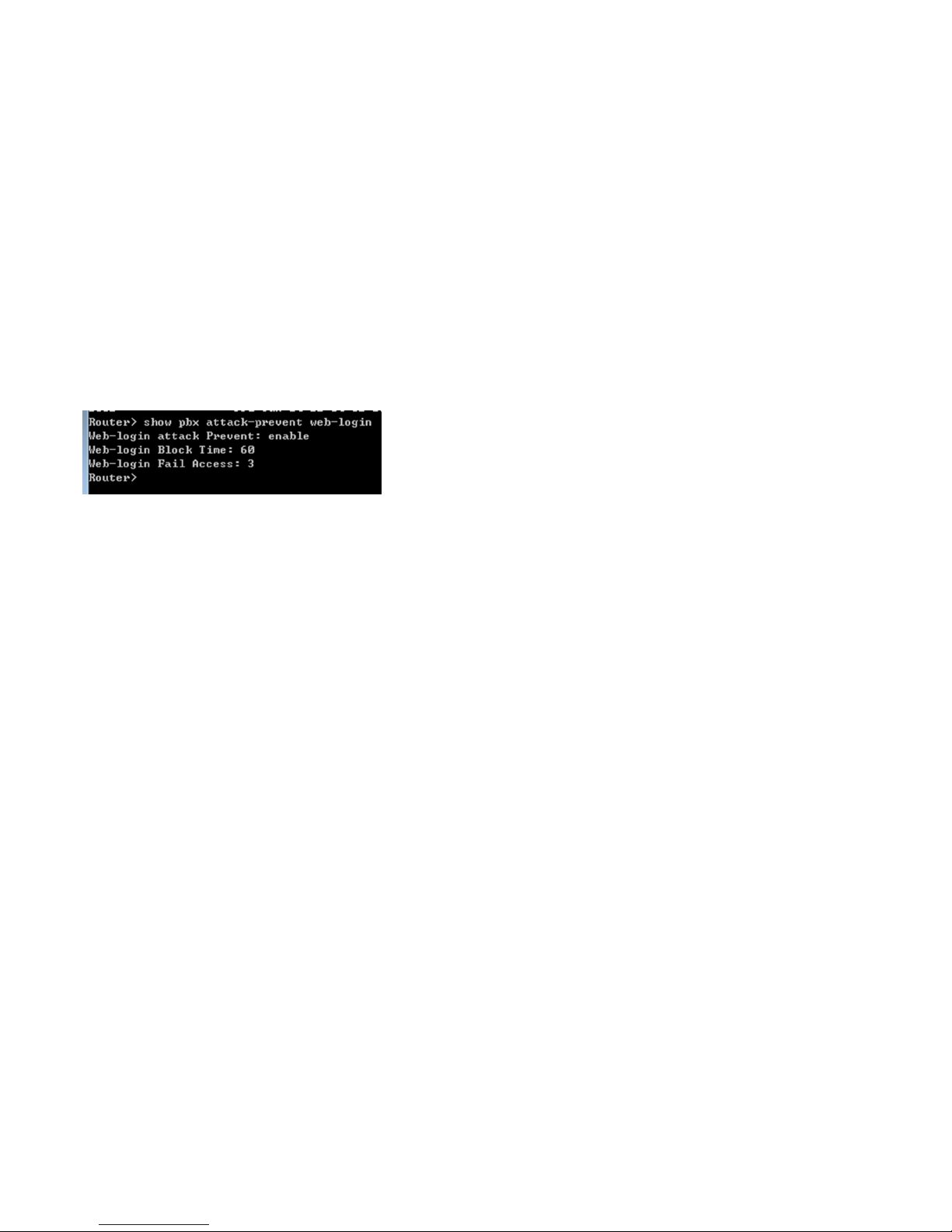
Brute force attack protection (web-login & SIP) is enabled by default.
Default block time: 60 minutes
Default number of failed access: 3
Blocked extension: 1001
Below are the CLI commands to enable/disable this feature.
Enable:
pbx attack-prevent web-login activate
pbx attack-prevent sip activate
Disable:
no pbx attack-prevent web-login activate
no pbx attack-prevent sip activate
Perform the following CLI commands to check the configuration for attack-prevent status, block time and number of failed access attempts.
show pbx attack-prevent web-login
show pbx attack-prevent sip
Page 80
80
Example:
Below are the CLI commands to change the configuration for block time.
The default value is 60 minutes.
pbx attack-prevent web-login block-time <1-1440 min>
pbx attack-prevent sip block-time <1-1440 min>
Below are the CLI commands to change the configuration for number of failed access attempts.
The default value is 3.
pbx attack-prevent web-login fail-access <1-10>
pbx attack-prevent sip fail-access <1-10>
Check the locked extension list.
show pbx attack-prevent web-login lock-list
show pbx attack-prevent sip lock-list
Page 81
81
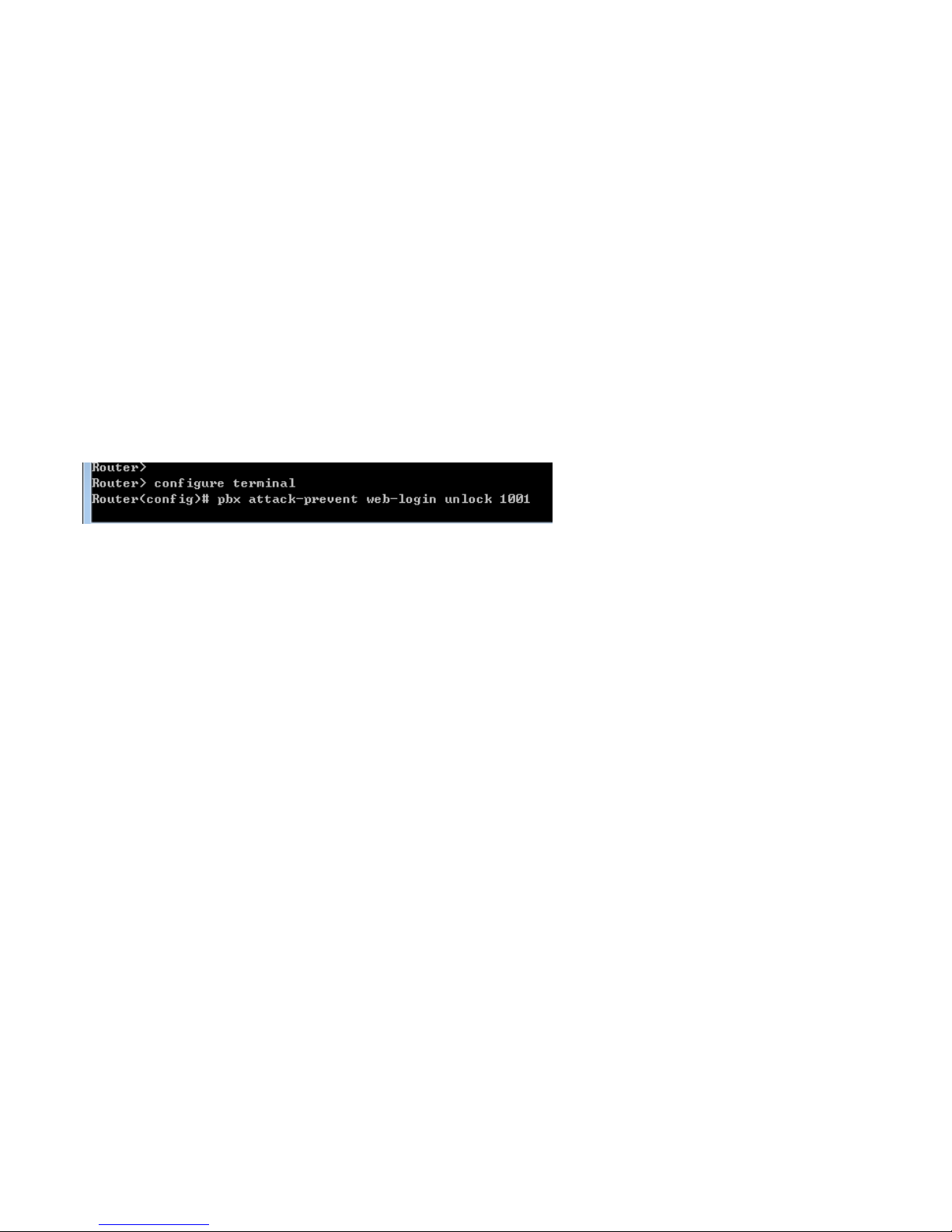
Unlock a certain blocked extension or all blocked extensions.
pbx attack-prevent web-login unlock {all | NUMBER}
pbx attack-prevent sip unlock {all | NUMBER}
Example:
Page 82
82
6. How to Establish a Seamless Mobile Office with ZyXEL Reach?
The company would like to allow its employees to be reached easily and not miss any incoming calls when they are out of the office or on
business trips. The smartphone application, ZyXEL Reach, turns every smart phone into a mobile SIP client and reduces phone bills by routing
all calls to the IP network. In addition, with the mobile extension feature, the ISG50 rings the employee’s office extension and his mobile phone
number simultaneously.
ZyXEL Reach – Smartphone Application
Goal to achieve:
Turn the smartphone into a mobile SIP client with ZyXEL Reach installation and basic configuration.
Condition:
ISG’s address: 59.124.163.156
Username: 3002
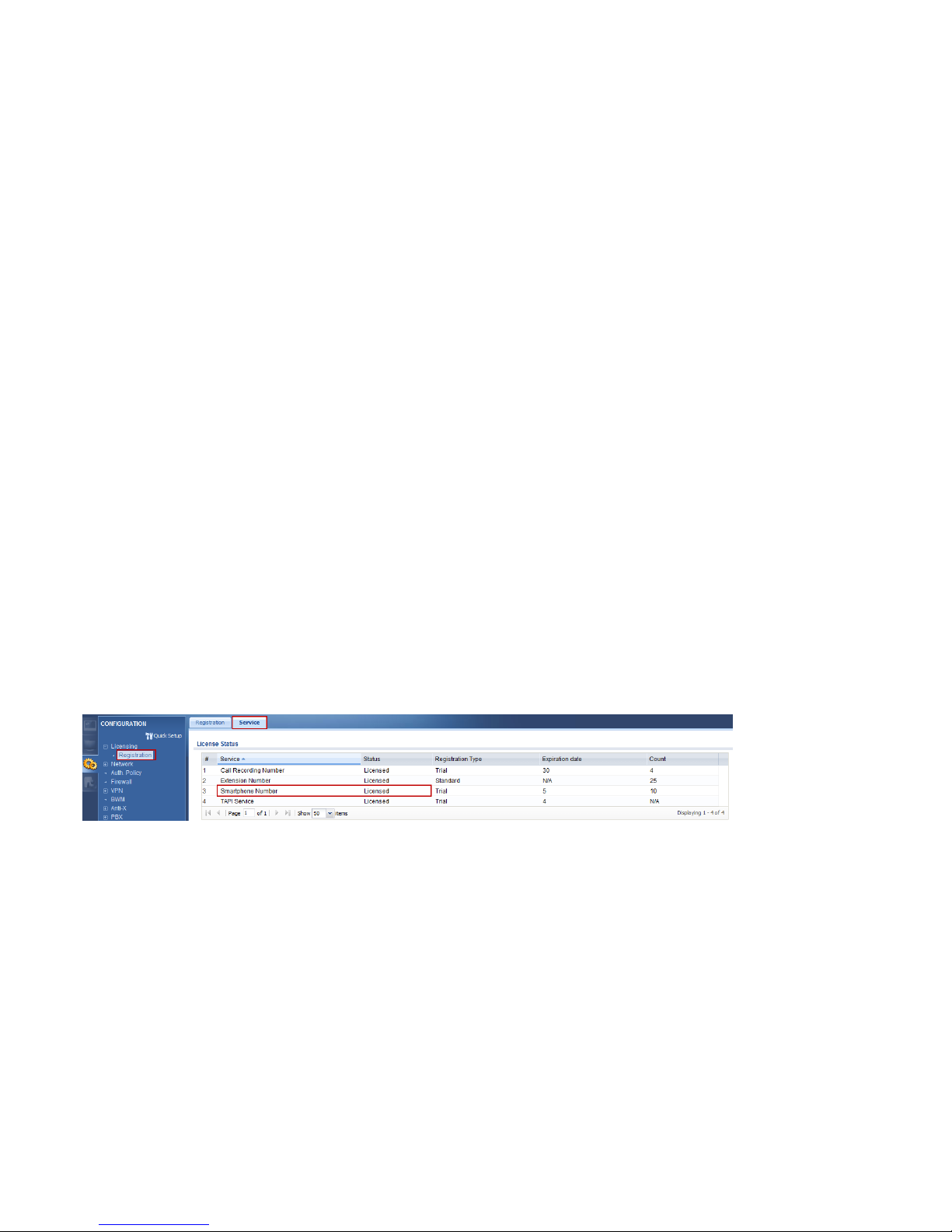
The smartphone feature is enabled when the license (ISG-SP5) is applied.
Page 83
83
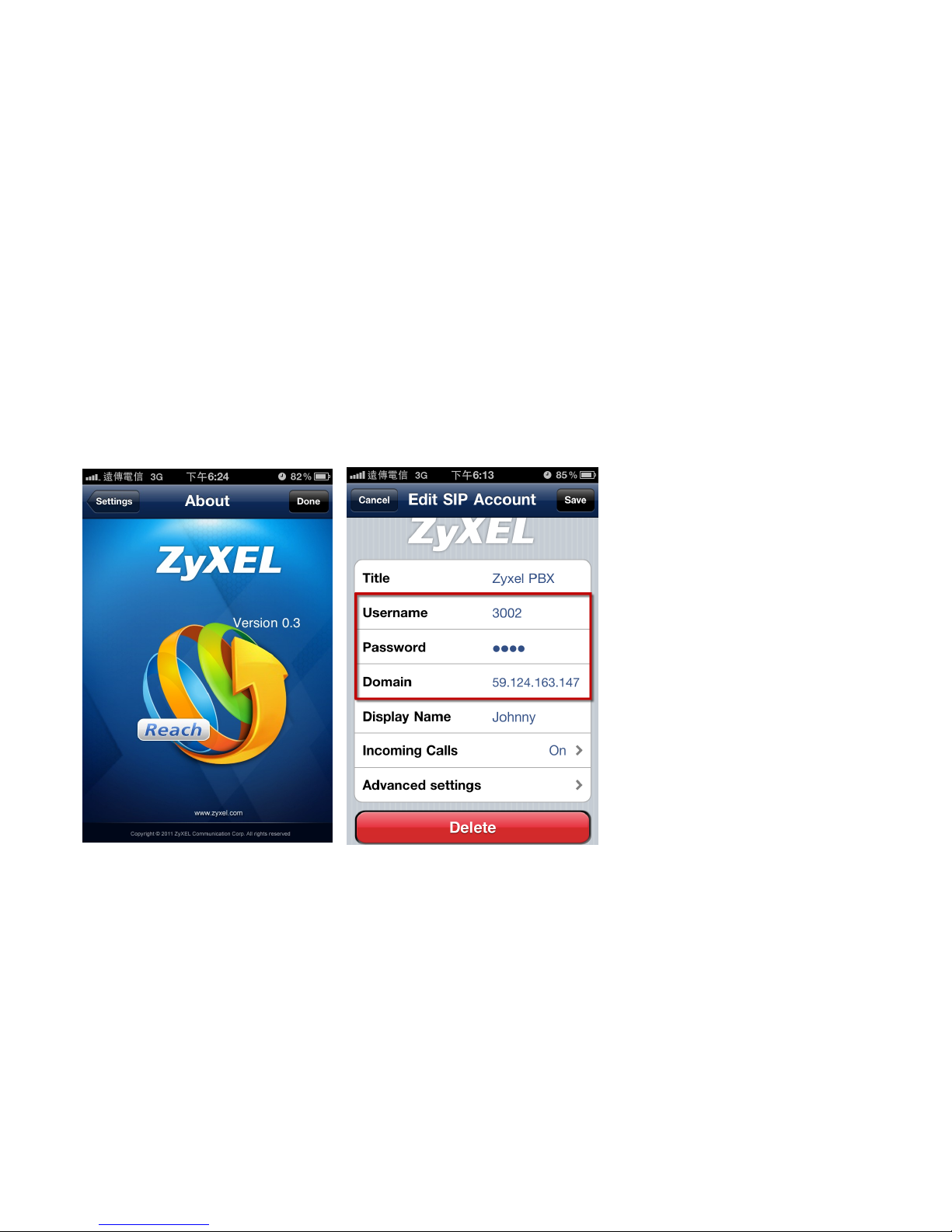
Install the mobile softphone APP, ZyXEL
Reach, on your smart phone.
It supports both iPhone and Android
platform.
Enter your SIP account, password and the
domain of ISG to register an extension on ISG.
Page 84
84
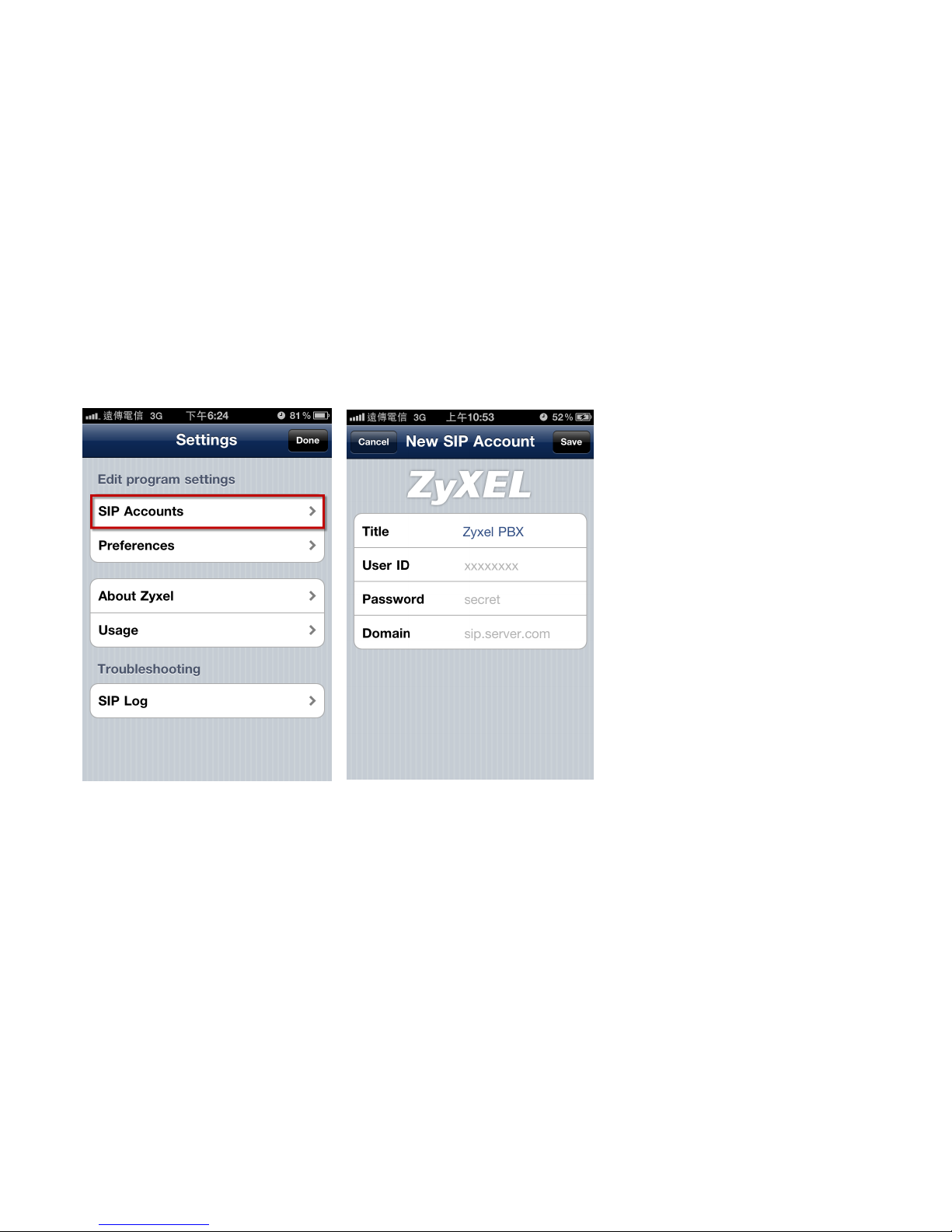
You can also add multiple SIP accounts.
Page 85
85
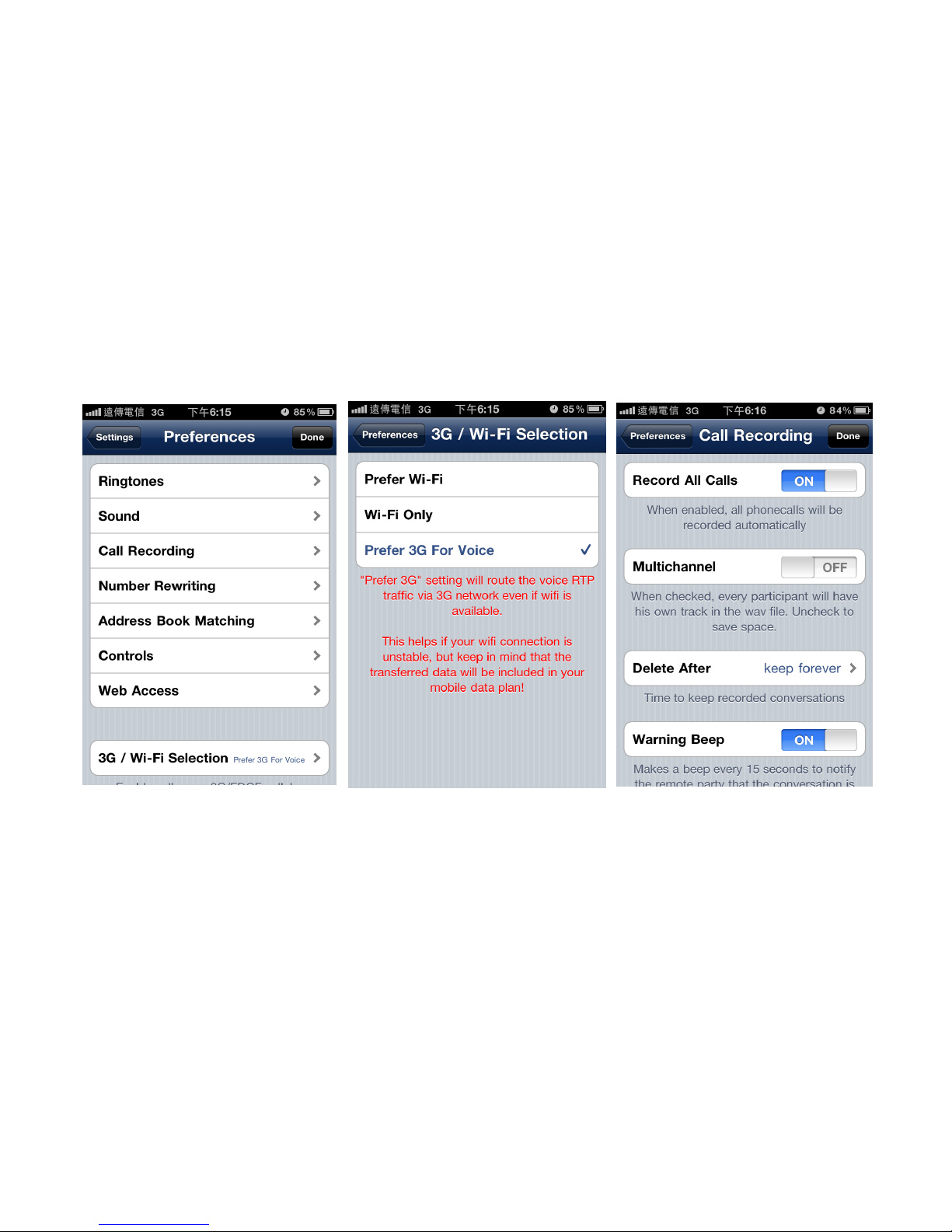
Personal settings.
Select the connection type.
Call recording settings.
Page 86
86
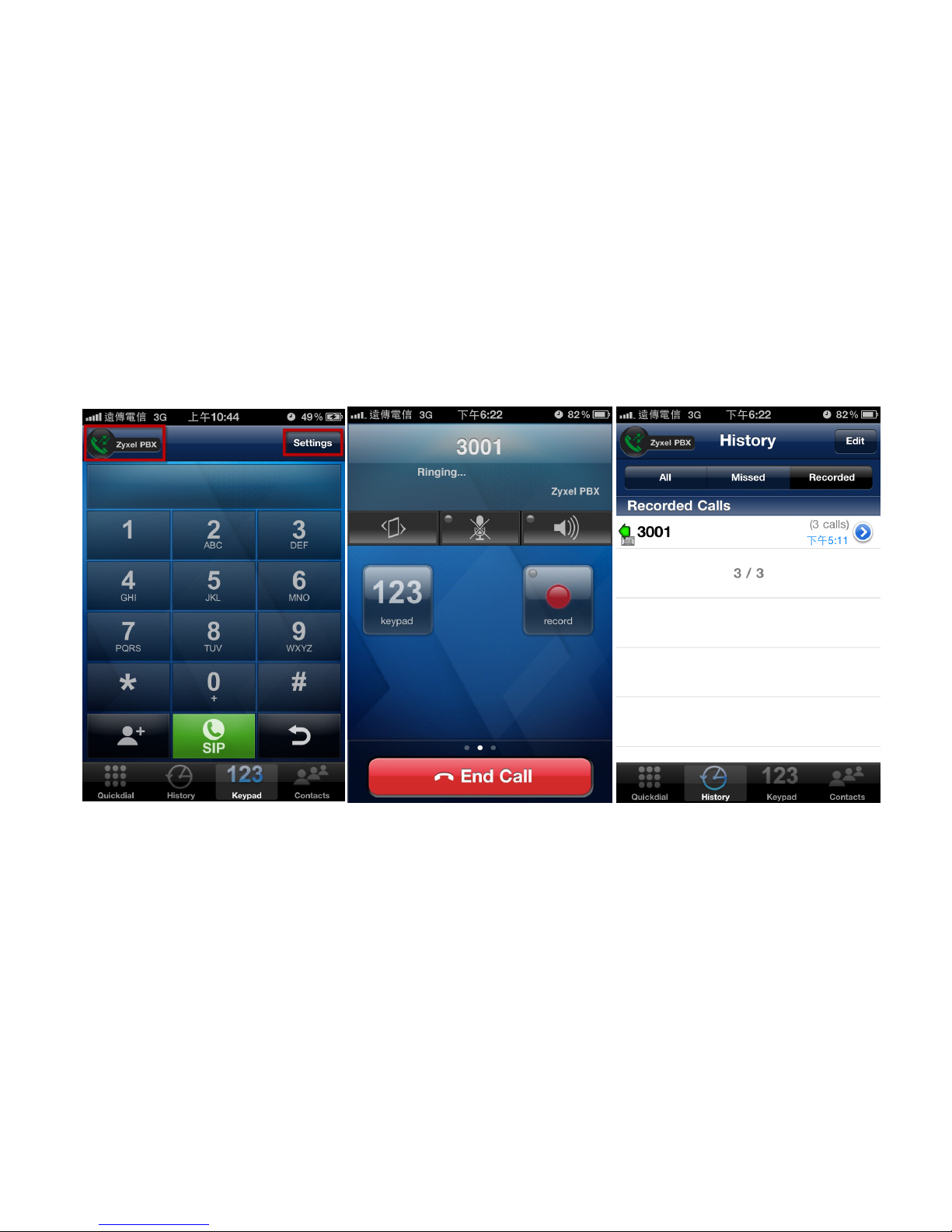
Dial the phone number from the keypad.
Check the call history.
Page 87
87
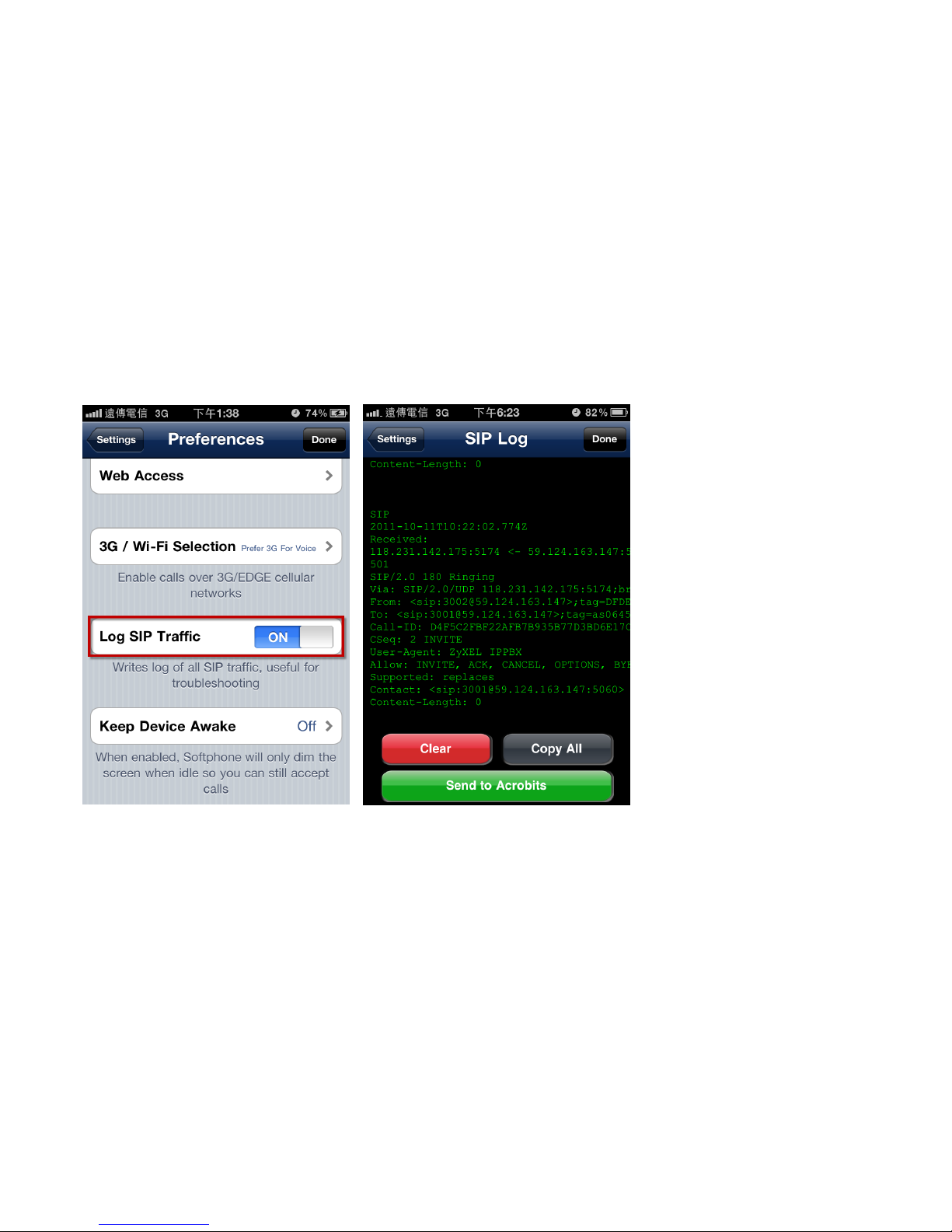
View the packet trace.
Page 88
88
How to avoid missing any call on a certain extension?
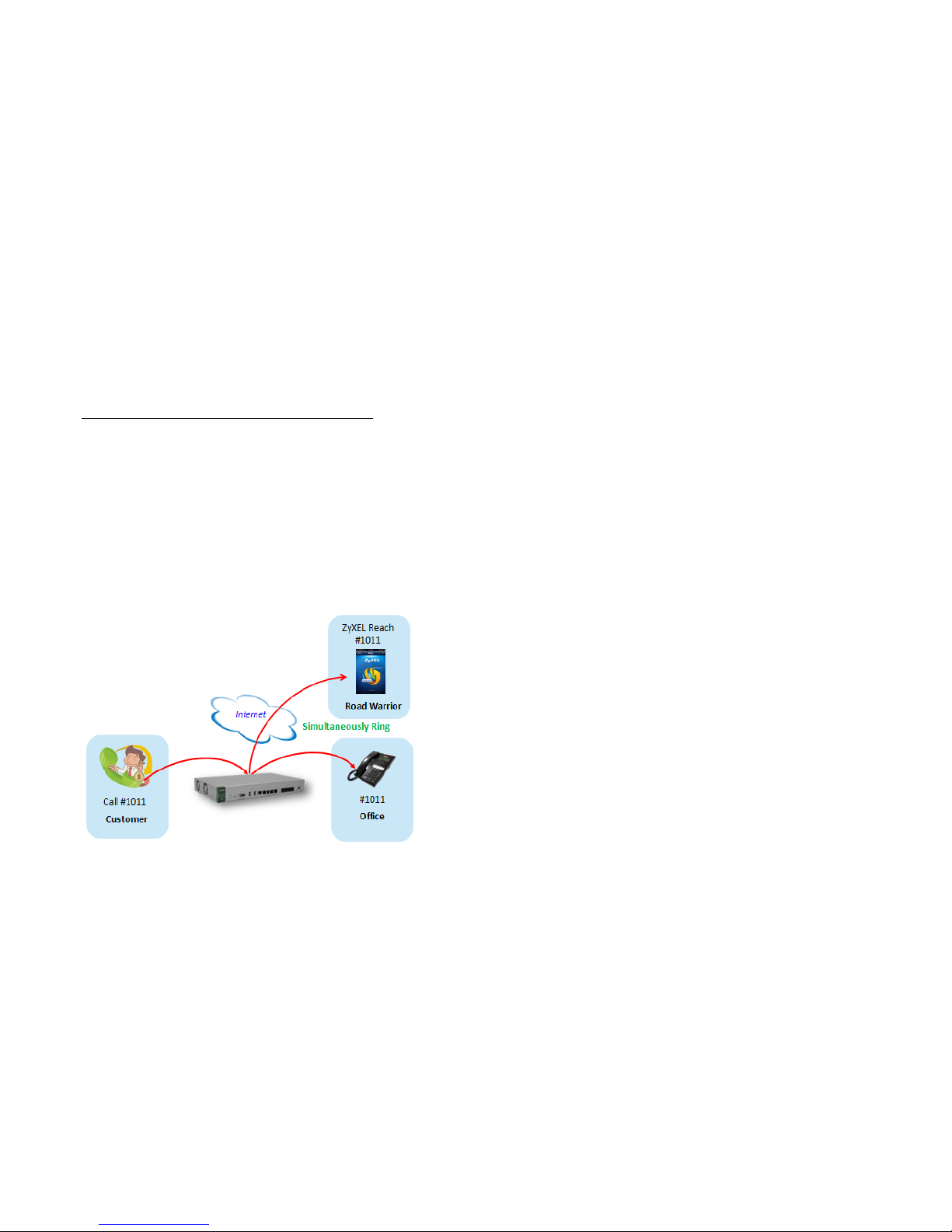
In this example, an ISG50 rings an office extension #1011 and the corresponding ZyXEL Reach simultaneously with a single number. When the
employee is away or out of the office, he can always get calls of his extension. All settings can be done on the ZyXEL Reach by the employee
himself, so it is not required to change any configuration on the ISG50.
Goal to achieve:
When there is an incoming call on the extension #1011 of the employee, both extensions #1011 on the IP phone in the office and on the ZyXEL
Reach can ring at the same time.
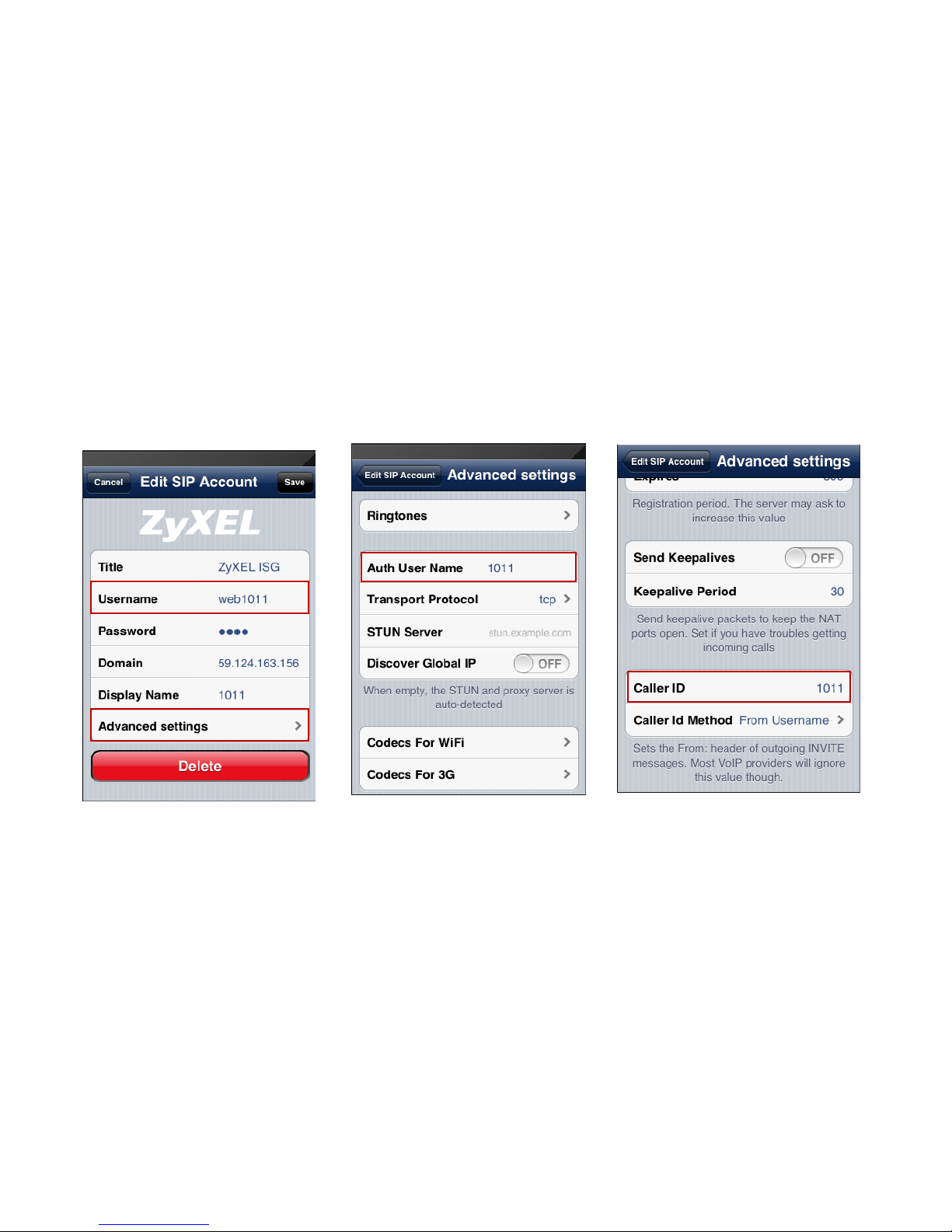
Condition:
Authentication on V310 Username: 1011
Authentication on ZyXEL Reach Username: web1011
Page 89
89
Use “web + extension” as the username. For
extension 1011, set “web1011” as the
username.
Then go to Advanced settings to configure the Auth User Name and Caller ID, which are the
same as the extension.
Page 90
90
Mobile Extension
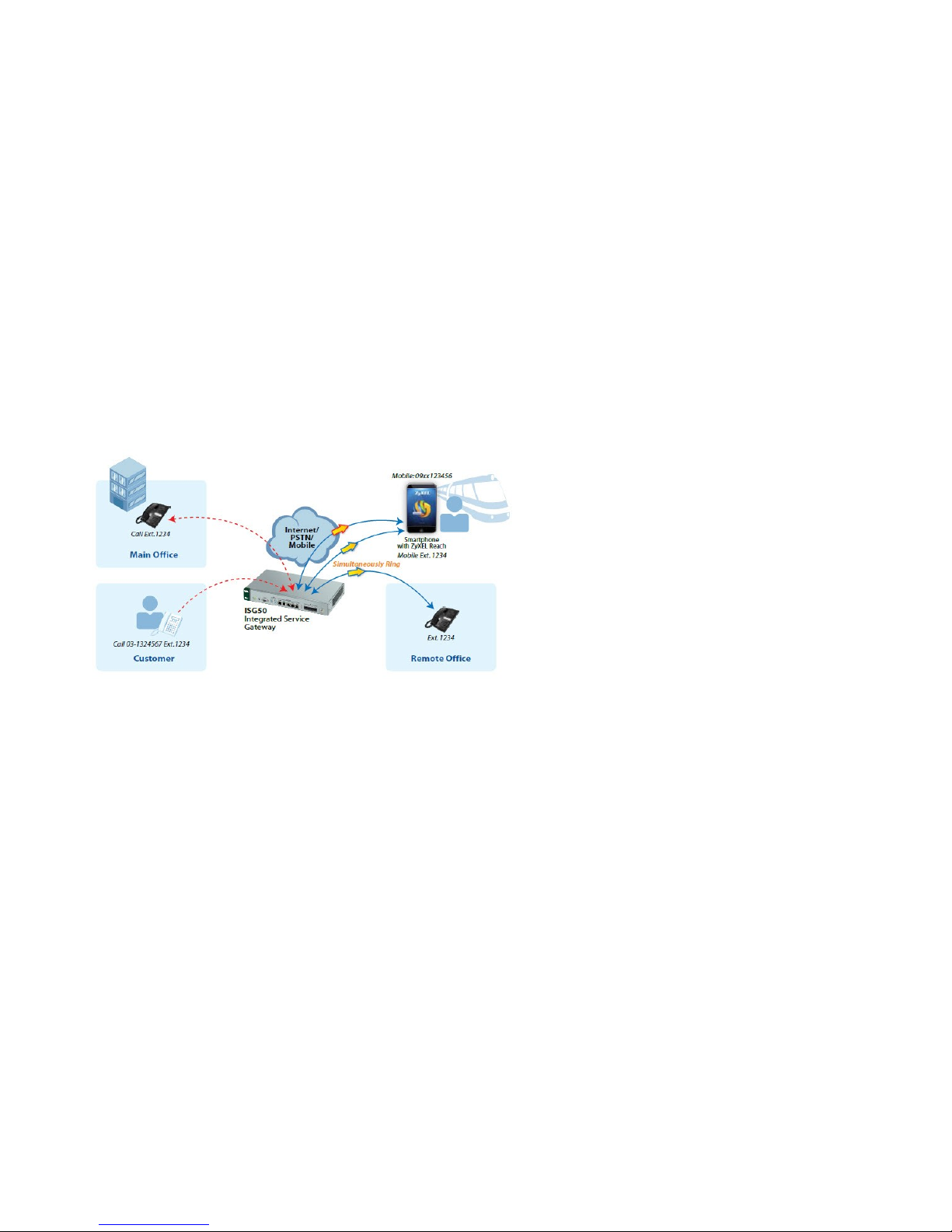
Goal to achieve:
When there is an incoming call on the extension #1007 of the employee, both of his extension #1007 on the IP phone in the office and his
mobile phone 0912345678 can ring at the same time.
Condition:
Extension: 1007
Mobile extension for #1007: 0912345678
Page 91
91
Single Number Reach (IP phone & Mobile SIP & GSM Mobile Number)
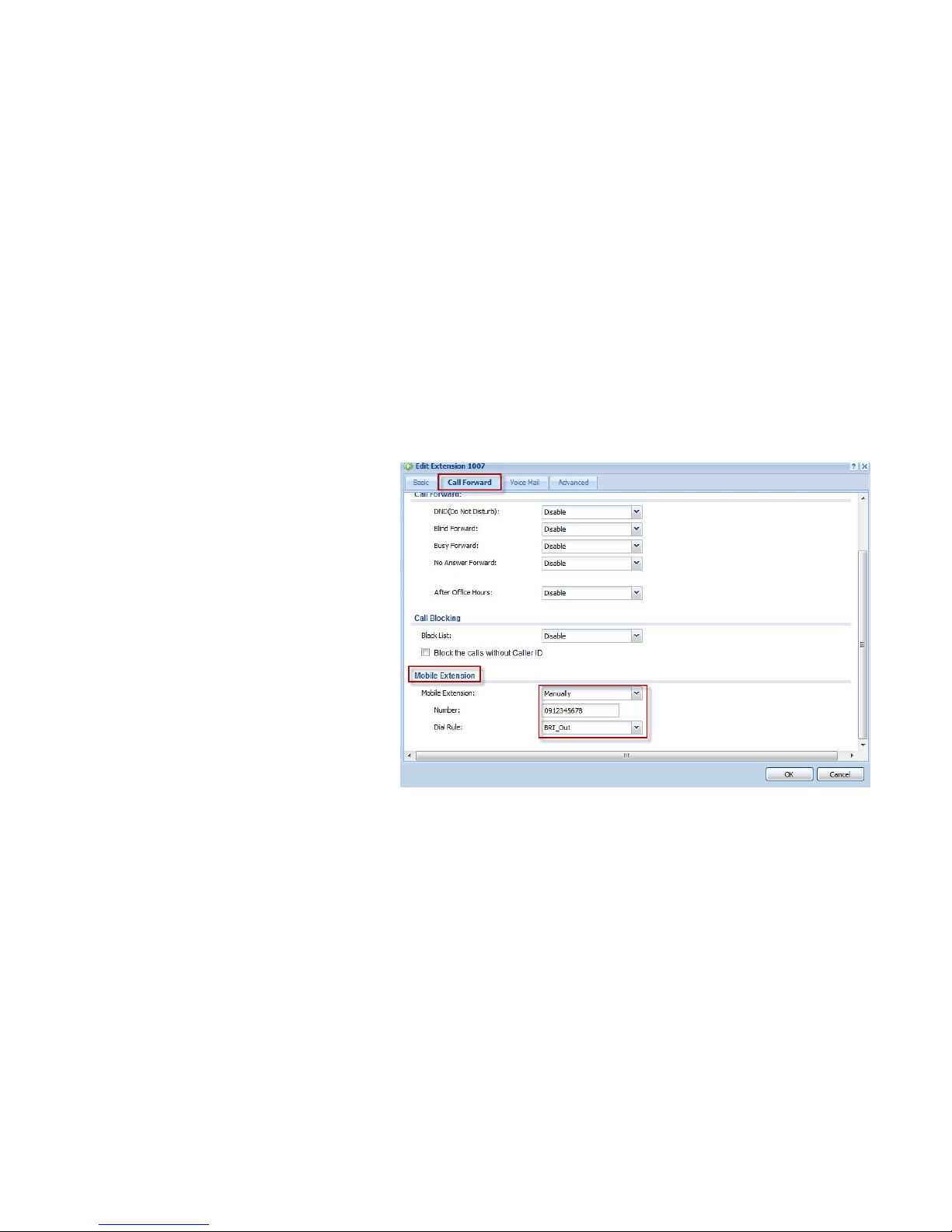
Go to CONFIGURATION > PBX > Extension Management > Authority Group > [Group Name] > [Extension Number] > Edit > Call Forward to
Configure your mobile extension settings.
You can select to “Manually” turn on and off this
feature or select “Force Enable” to always turn on this
feature.
Fill in a mobile phone number or an extension number
and select a dial rule (LCR) from the list.
In this example, ISG50 rings the extension 1007 and the
mobile phone number 0912345678 simultaneously
with a single number.
Page 92
92
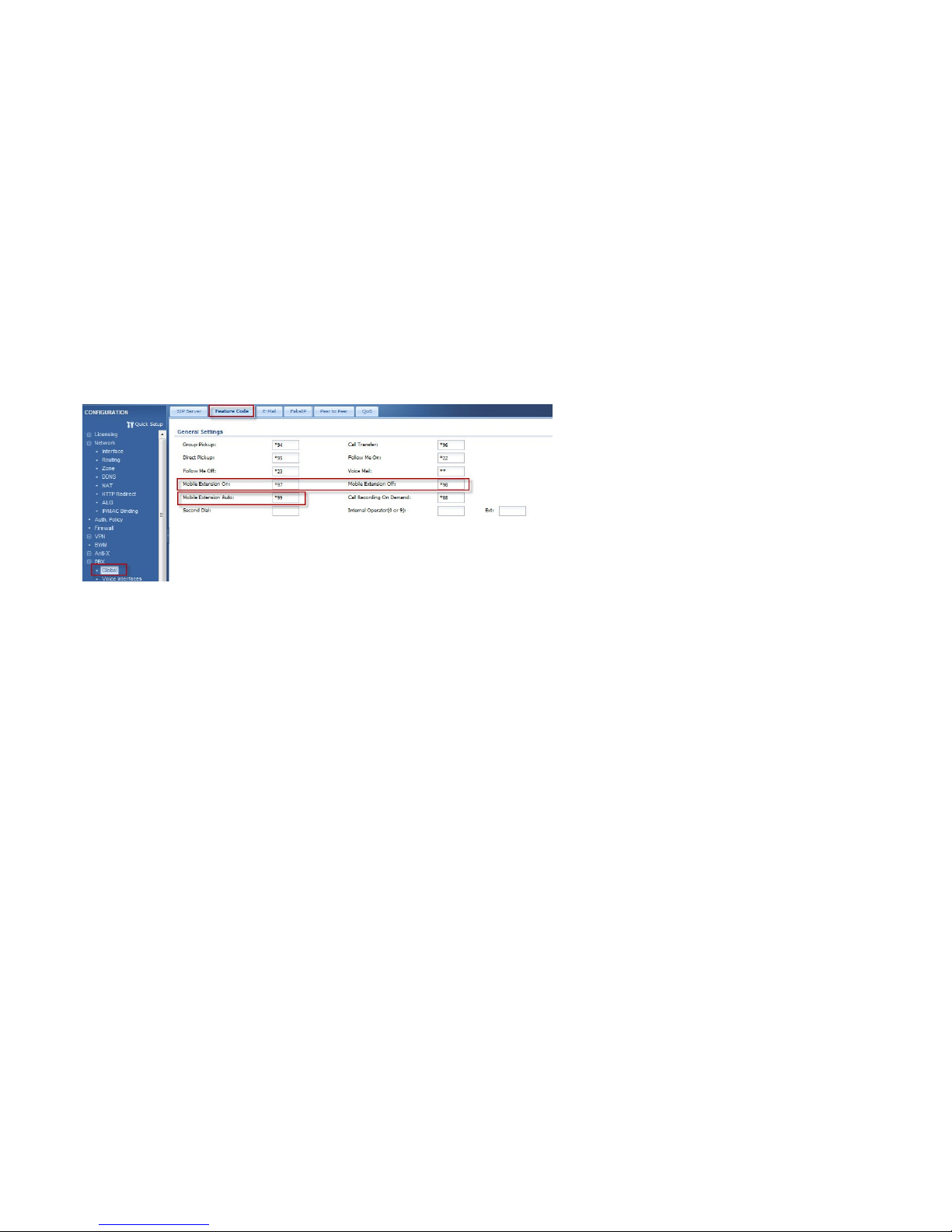
When the “Manually” option is selected, you have to dial the pre-defined feature code to turn this feature on and off.
Page 93

93
7. How to Leverage Enterprise-class Calling Features to Increase Business Productivity?
The company needs an automatic call operator to transfer each incoming call to the specific contact or department. In addition, customer
service hotlines are also required for serving customers. Employees often have conference calls with vendors and distributors. The ISG50 has a
call distribution system including Auto-Attendant, Hunt Group, Three-way Conference and Meet-me Conference features to increase operating
efficiency and reduce the cost of business communications and operations.
Auto Attendant
Goal to achieve:
Record the customized audio file by extension to auto attendant system.
Design a customized auto attendant for office hours and night service. The customer who dials into this auto attendant system during the office
hours can follow the option keys to reach the target department, or dial the extension number to reach a certain extension. If the customer
dials into the auto attendant after office hours, the call will be served by a hunt group directly.
Condition:
Recorded Peer: 1003
Office Hour: Monday – Friday; 08:00-12:00 and 13:00-17:30
Operator key for office hours: 9; extension number: 9999
Hunt group number for night service: 5555
Page 94
94
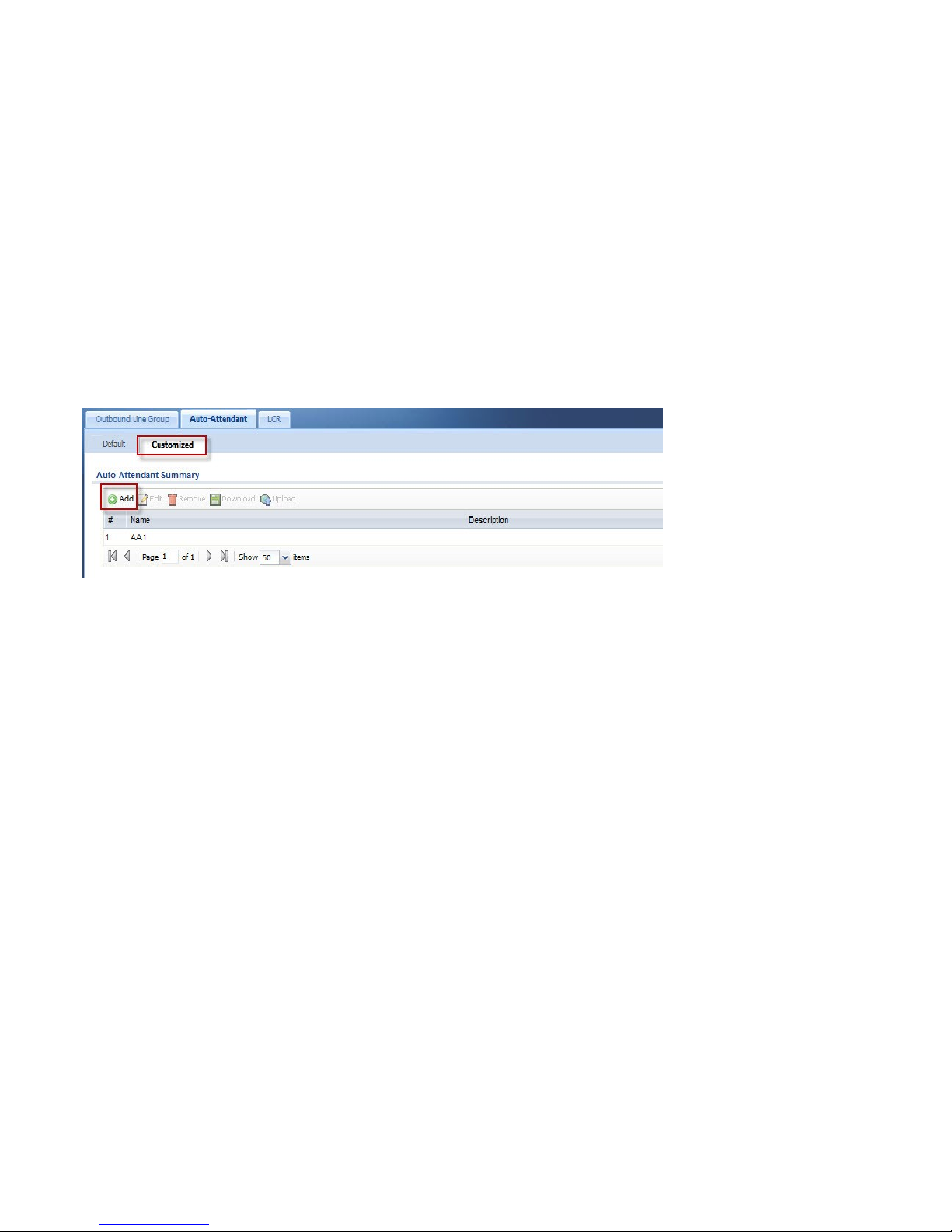
Configuration for customized Auto Attendant
Page 95
95
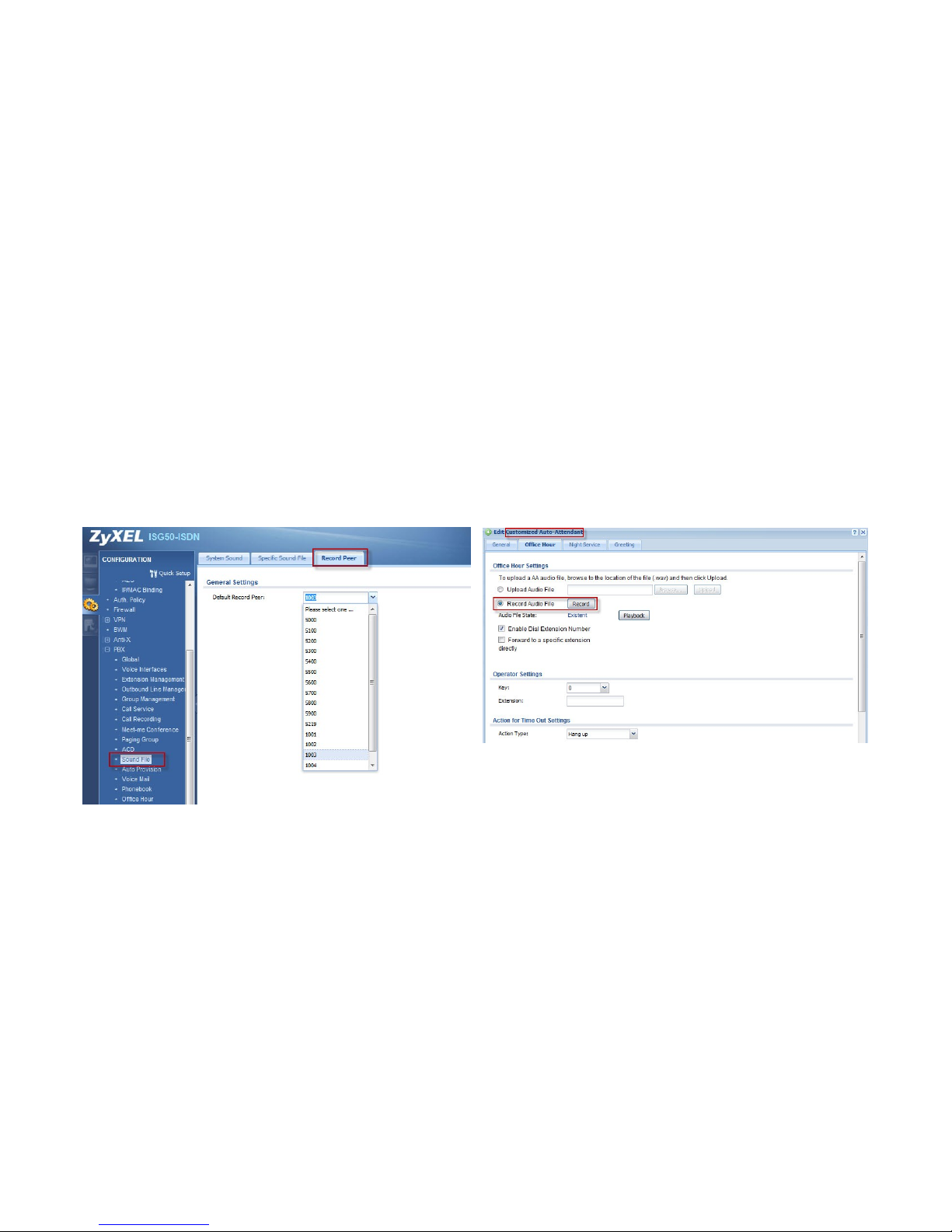
In addition to uploading an existing audio file to the system, ISG50 provides an easy way for users to record the audio file by extension to Auto
Attendant system. When you press the record button, ISG50 will call the record peer. After the extension of the record peer is picked up, you
can start recording with this extension.
Set the record peer. For example, we set extension 1003 as the record
peer. You will use this extension to record the audio file in the next
step.
Select “Record Audio File“ and press the record button. ISG50 will call
the record peer 1003. Start recording after you pick up the phone of
1003. Hang up the phone or press the # key to finish recording.
Page 96
96
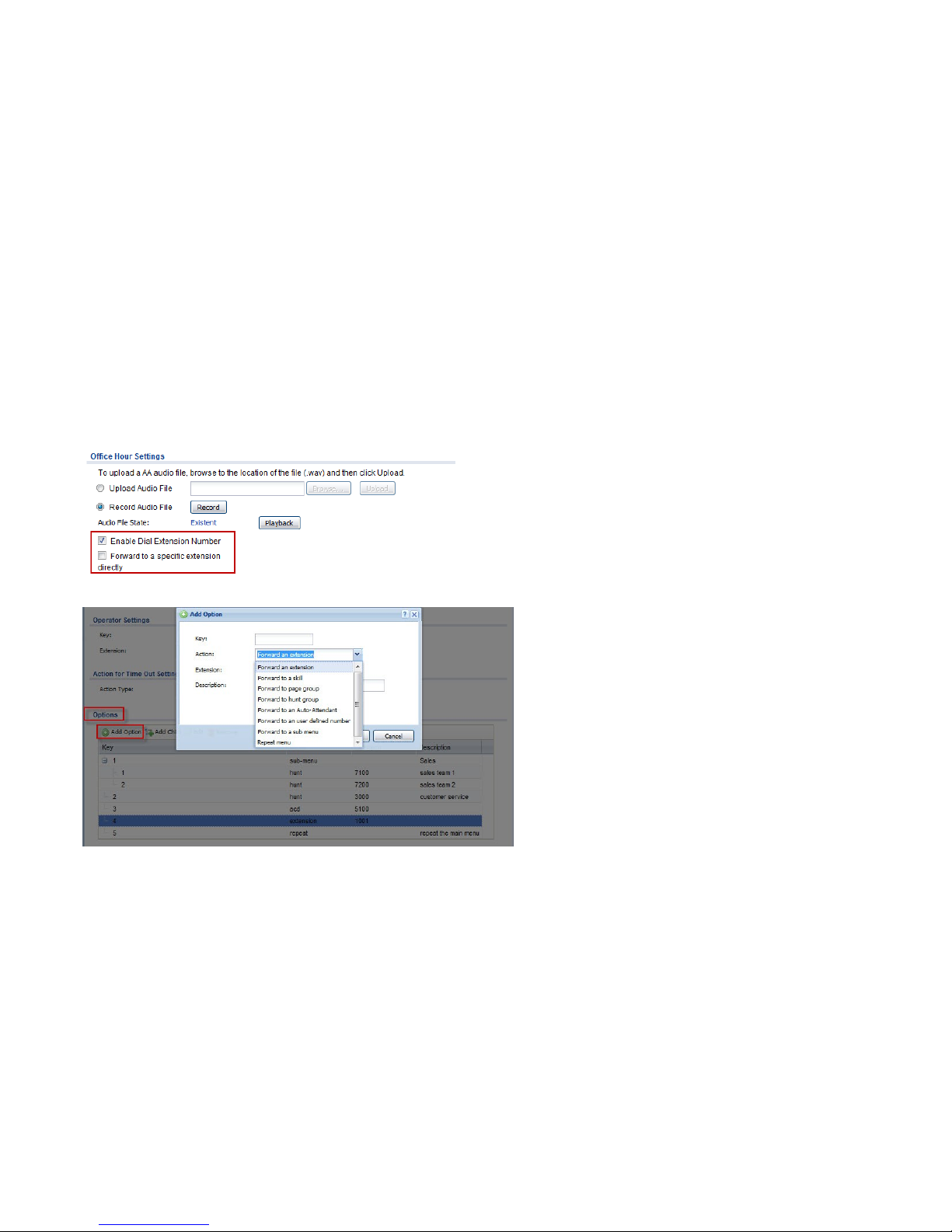
Decide if incoming calls are allowed to dial extensions in addition to key codes or bypass the options (key codes) and go straight to the specified
extension. In this example, we allow incoming calls to follow the option keys. Besides, the incoming call can also dial the extension number if
the user would like to reach a certain extension.
Design the customized menu with option keys.
Page 97
97
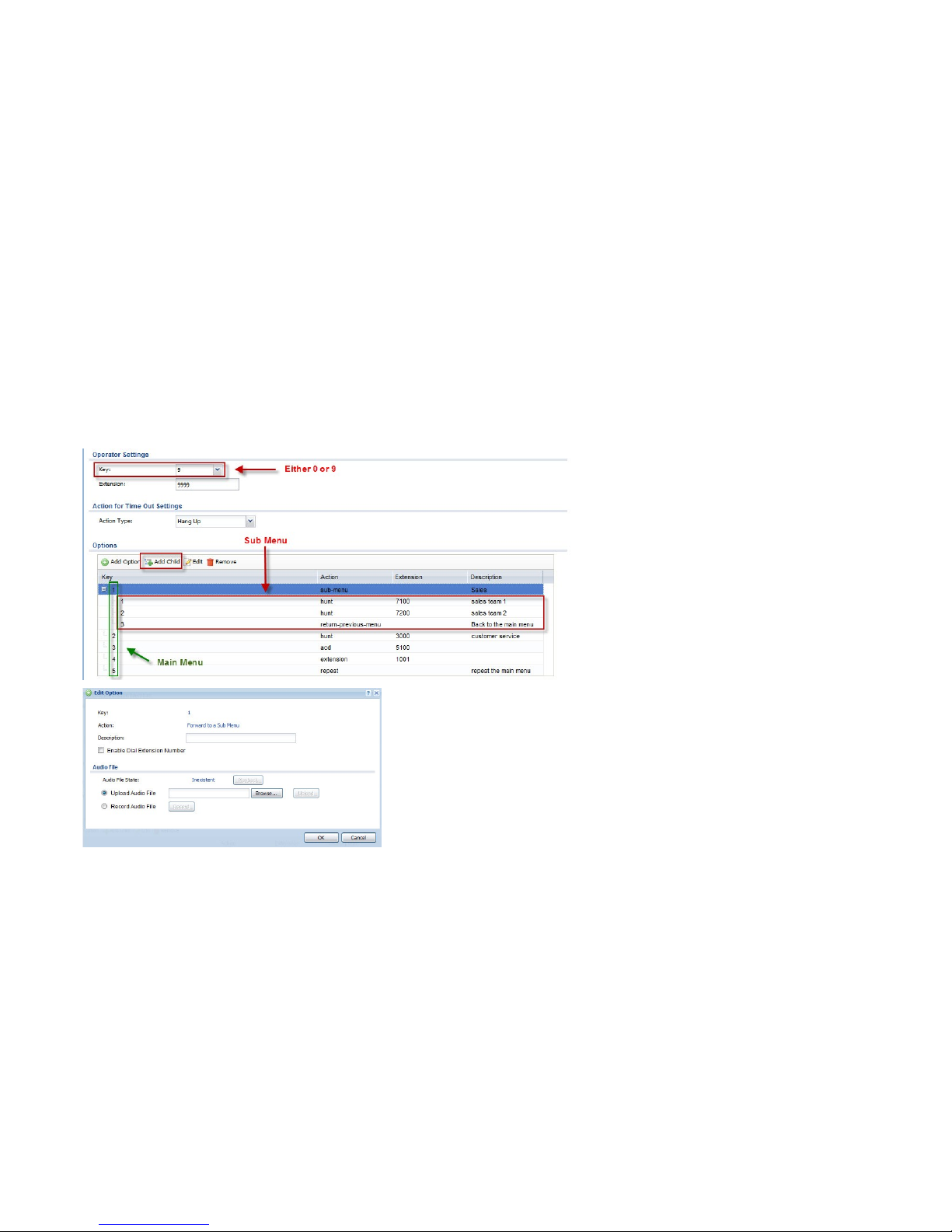
Option key 0 and 9 are reserved for the operator and can’t be configured as other option keys.
ISG50 supports up to 10 levels of sub menus.
In the sub menu, click the button “Add Child” to edit the options and “Edit” to upload the audio file for the sub menu instruction.
Page 98
98
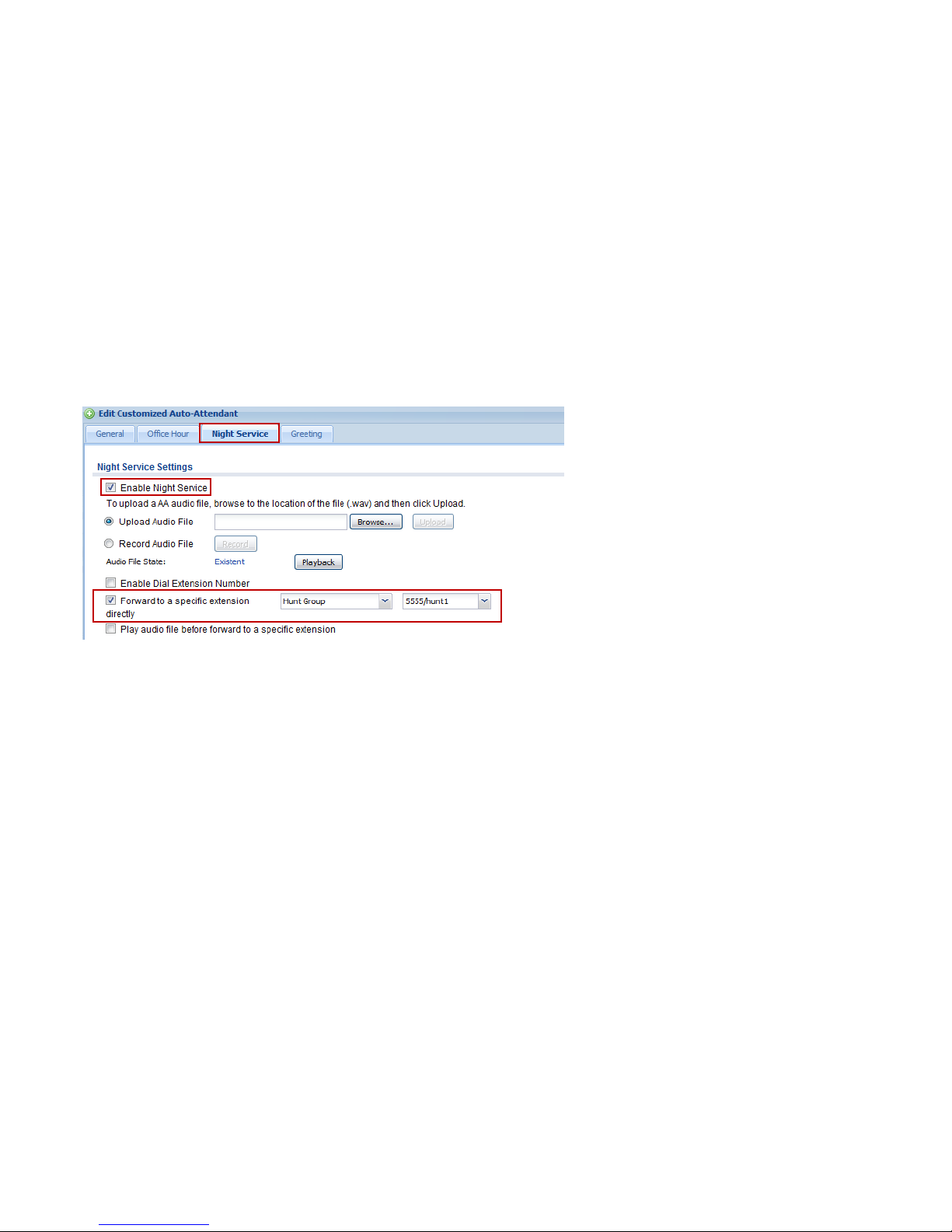
You can also enable “Night Service” to perform different AA directions outside of office hours based on the office hour setting.
Page 99
99
Select the working days and specify the time range during these working days.
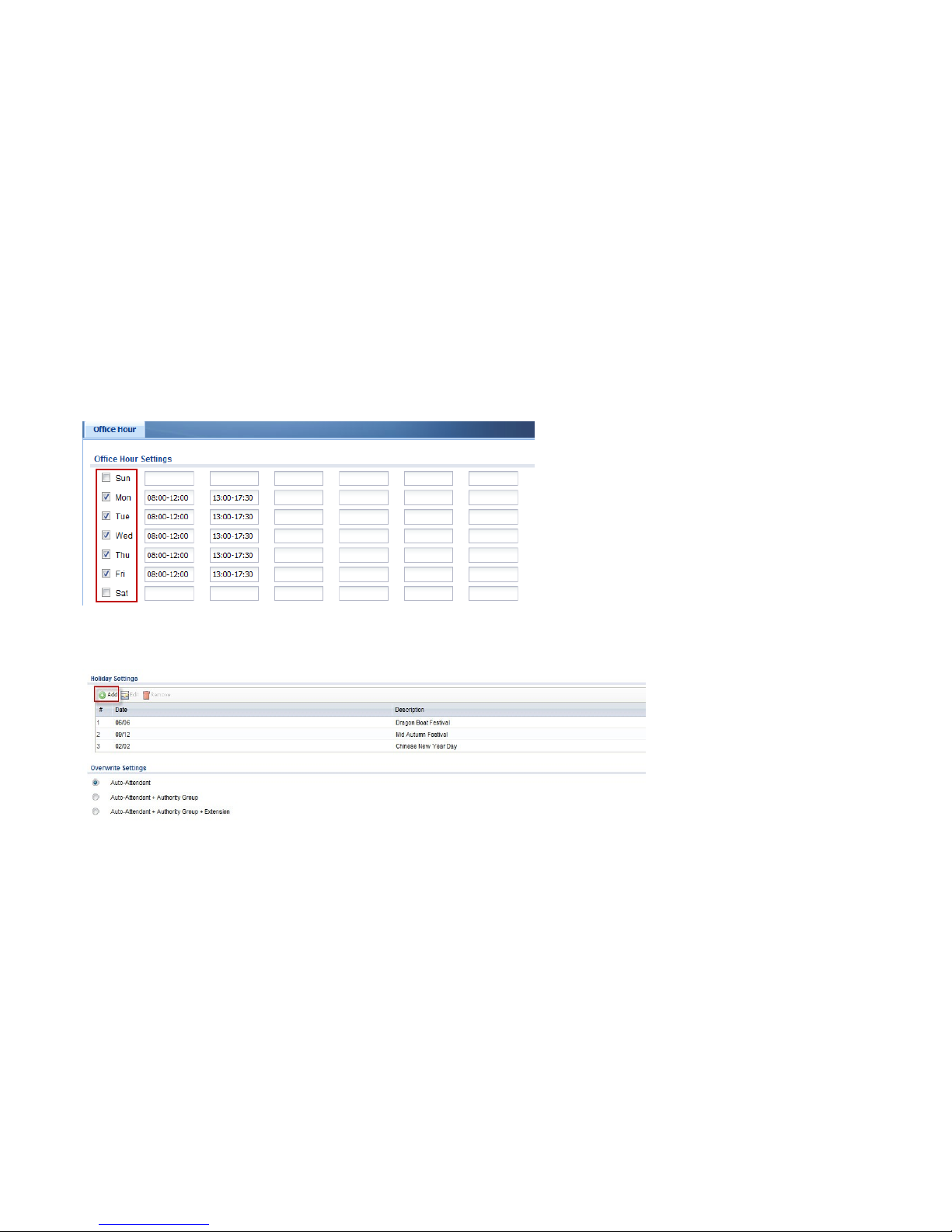
You can enter up to 6 time ranges. The time must be in 24 hr format with a start time and an end time. Ex: 08:00-12:00, 13:00-17:30
You can also set specific days as holidays according to your own country or company policy. Enter a date in mm/dd format.
Incoming calls on these holidays will be treated as “after office hours” and answered by “Night Service AA”.
Page 100
100
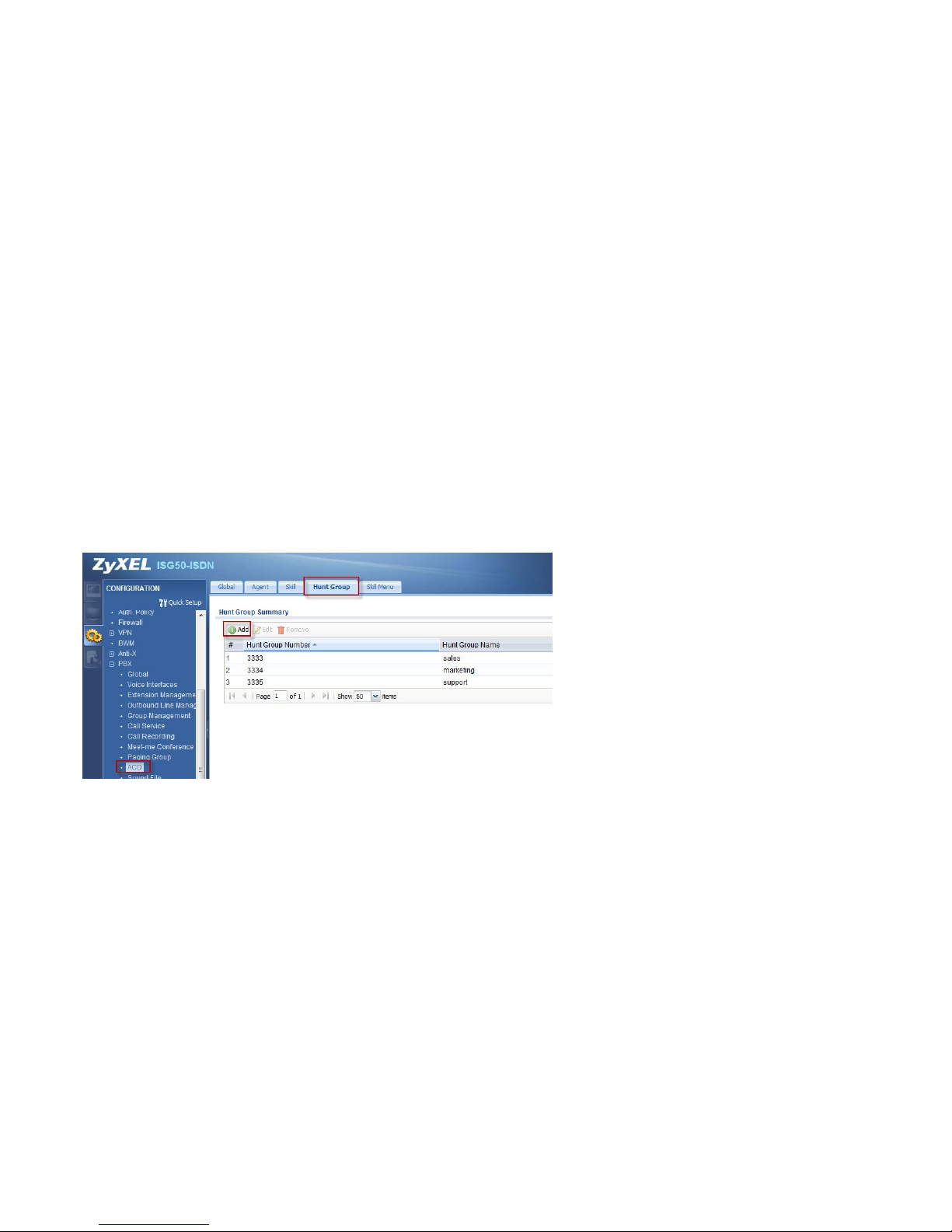
Hunt Group
Goal to achieve:
Create a hunt group number 3333 for the sales department.
Condition:
Hunt Group Number: 3333; Members: 1006, 1007 and 1008
Ring Strategy: Random
Associate Hunt Group number with extensions and decide the ring strategy and timeout action. The extensions ring based on pre-configured
ringing algorithm.
 Loading...