

Page 1

IPSubnetting VLAN
Ethernet Switch
ZyNOS 3.8
Support Notes
Version 3.80
September 2007
Page 2

IPSubnetting VLAN
All contents copyright (c) 2007 ZyXEL Communications Corporation.
2
Overview
Subnet based VLANs allow users to group traffic into logical VLANs based on the
source IP address and IP subnet. When a frame is received on a port, the switch
checks where the IP subnet it came from and what the source IP address is. The
untagged packets from the same IP subnet are then placed in the same subnet
based VLAN. The most significant advantage of using subnet based VLANs is that
the priority can be divided and tuned base on what VLAN the traffic belongs to.
Scenario
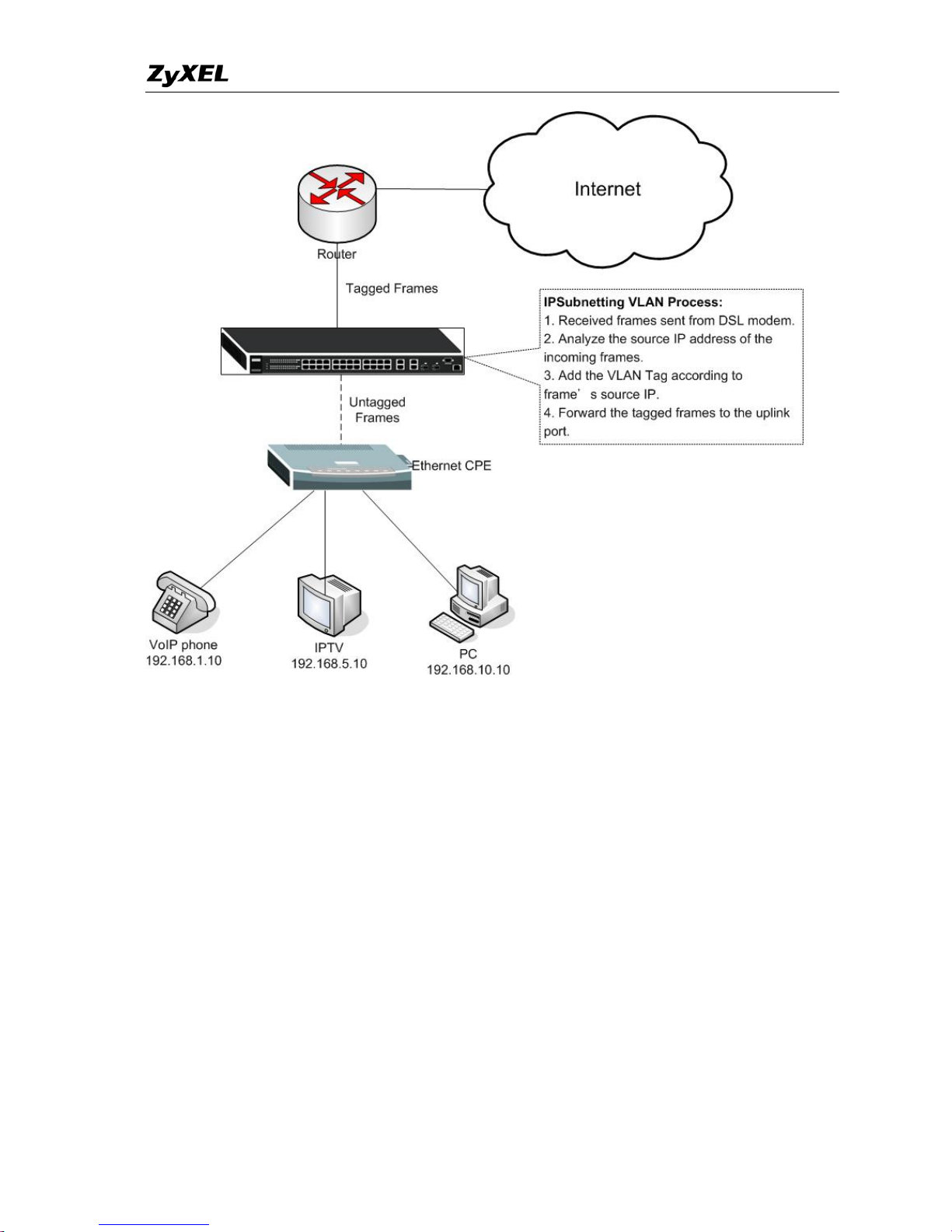
Considering the following topology:
Purpose:
Traffic from VoIP phone (source IP: 192.168.1.10) will be categorized into VLAN 3.
Traffic from IPTV (source IP: 192.168.5.10) will be categorized into VLAN 4.
Traffic from the PC (source IP: 192.168.10.10) will be categorized into VLAN 5.
Page 3
IPSubnetting VLAN
All contents copyright (c) 2007 ZyXEL Communications Corporation.
3
When there are different IP services requirement behind a modem (e.g. VoIP, IPTV,
and Common data networking). To separate the IP services in the edge site, we can
classify different VLANs for each IP service.
By distinguishing each service, Service Providers can do further policy controlling for
each VLAN.
In this topology, three IP services are needed by customer, VoIP, IPTV, and general
network access. Each client belongs to different IP subnets. We can achieve this
purpose using the switch with IPSubnetting VLAN function.
Page 4
IPSubnetting VLAN
All contents copyright (c) 2007 ZyXEL Communications Corporation.
4
Configuration using the Web GUI
1. Connect the MGMT port to a PC or Notebook with the RJ45 Cable.
2. By default, the MGMT IP address of the out-band port is 192.168.0.1/24
3. Set your NIC to 192.168.0.100/24
4. Open an Internet browser (e.g. IE) and enter http://192.168.0.1 into the URL field.
5. By default, the username for the administrator is “admin” and the password is
“1234”.
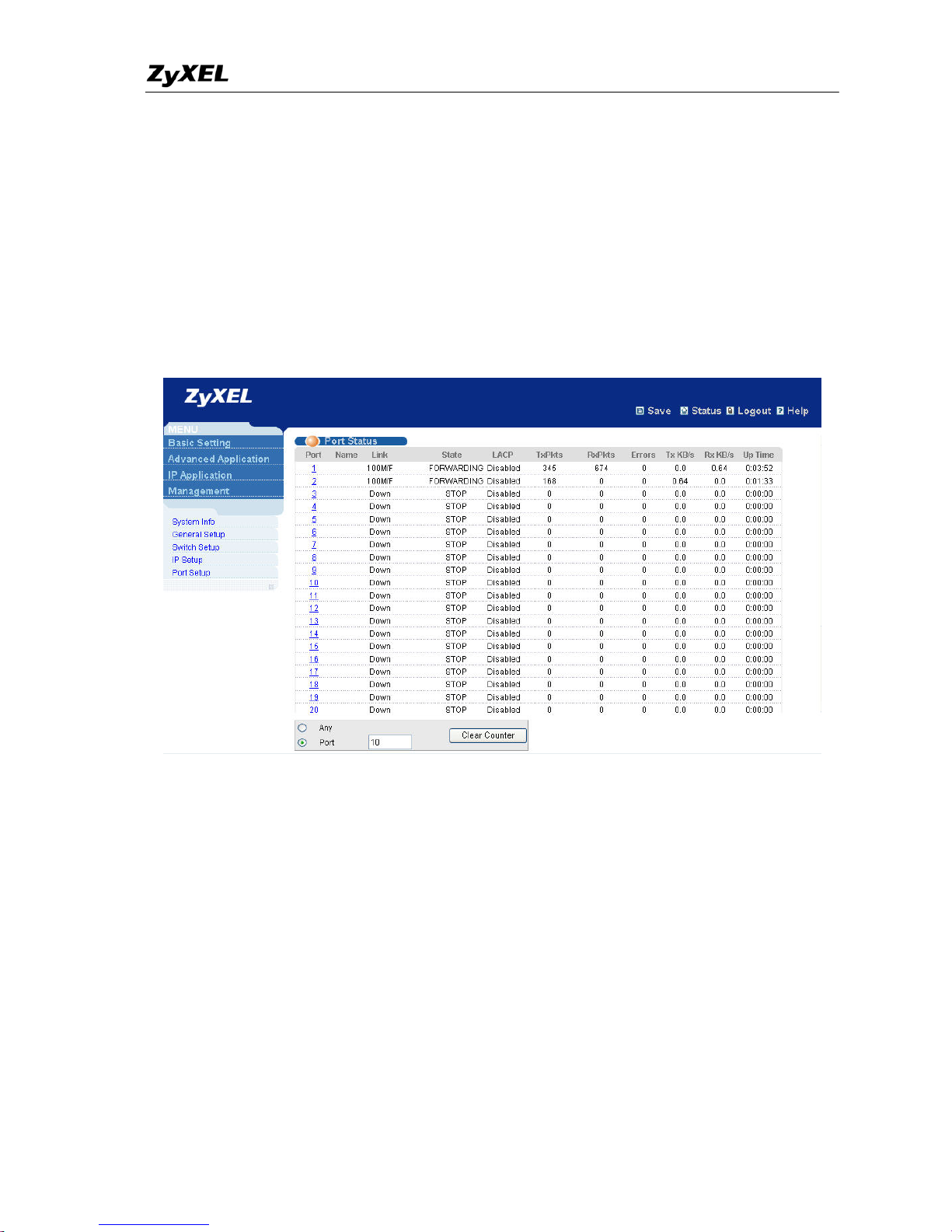
6. After successfully logging in you will see a screen similar to the one below.
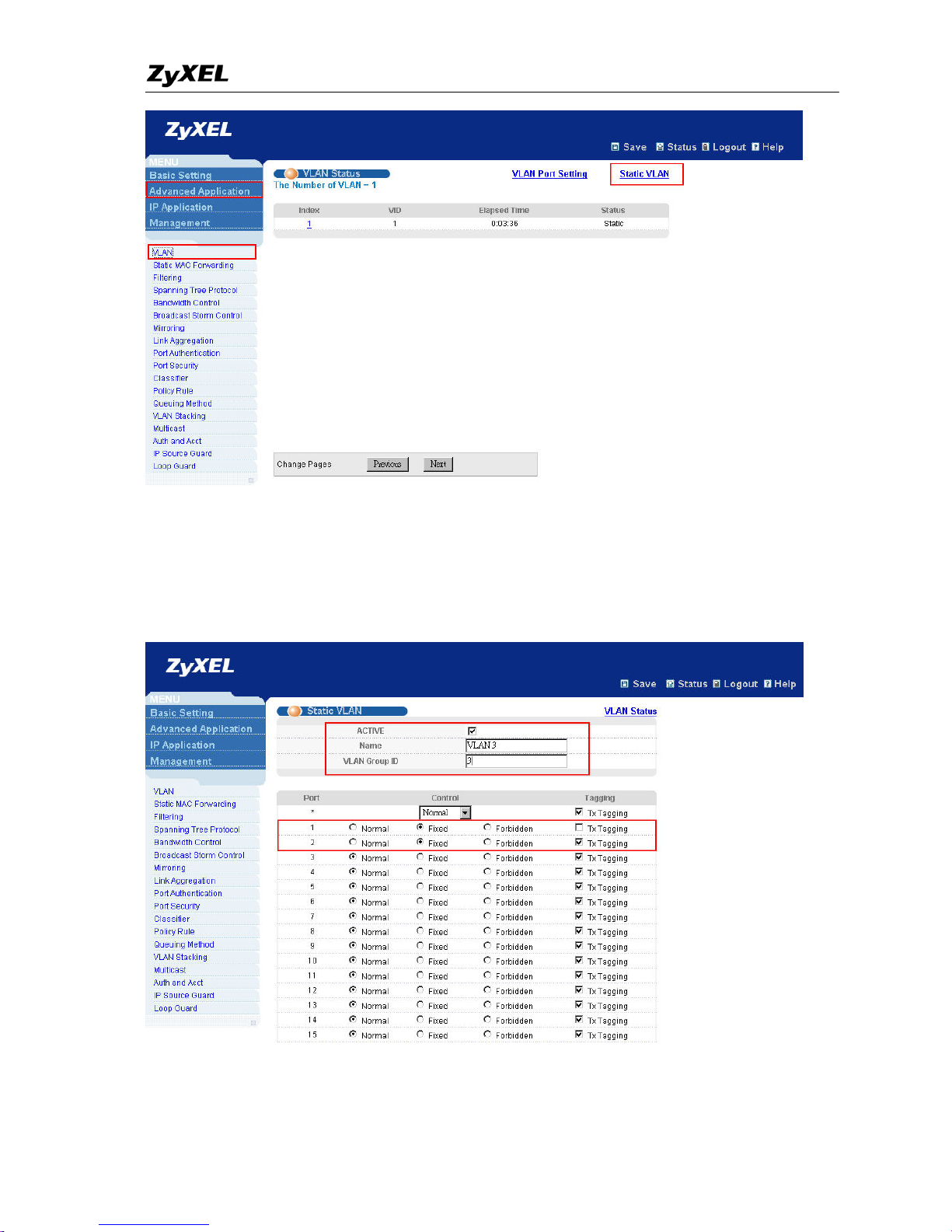
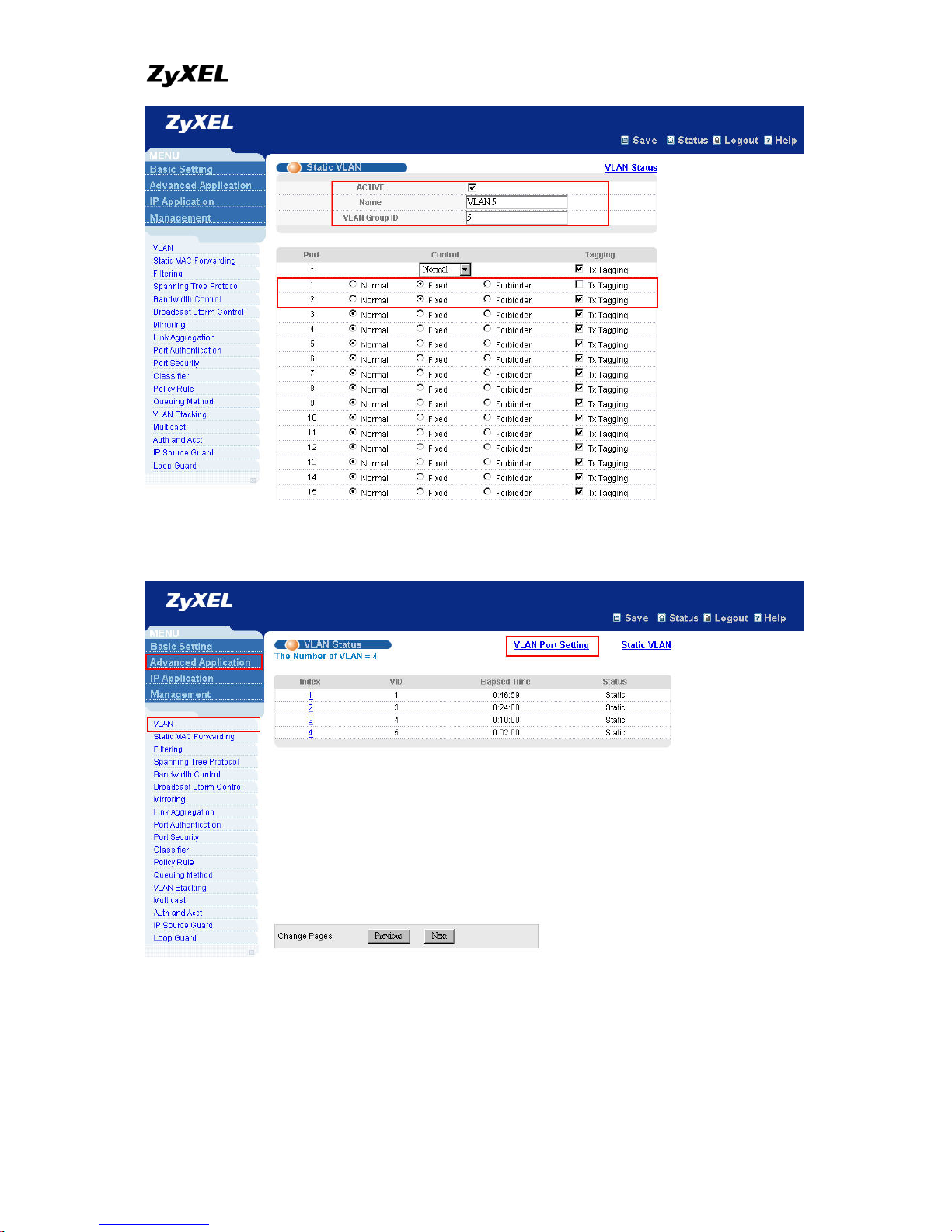
7. Go to “Stati c V L AN” page by clicking “Advanced Application”Æ”VLAN”Æ”Static
VLAN”
Page 5
IPSubnetting VLAN
All contents copyright (c) 2007 ZyXEL Communications Corporation.
5
8. Create VLAN 3, include port 1 and port 2. Port 1 connects to the modem and
packets going in and out this port shouldn’t have VLAN tag. Port 2 connects to the
router in the CO, and packets going in and out port 2 should have different VLAN tags
according to its IP address. Click “Add”.
Page 6
IPSubnetting VLAN
All contents copyright (c) 2007 ZyXEL Communications Corporation.
6
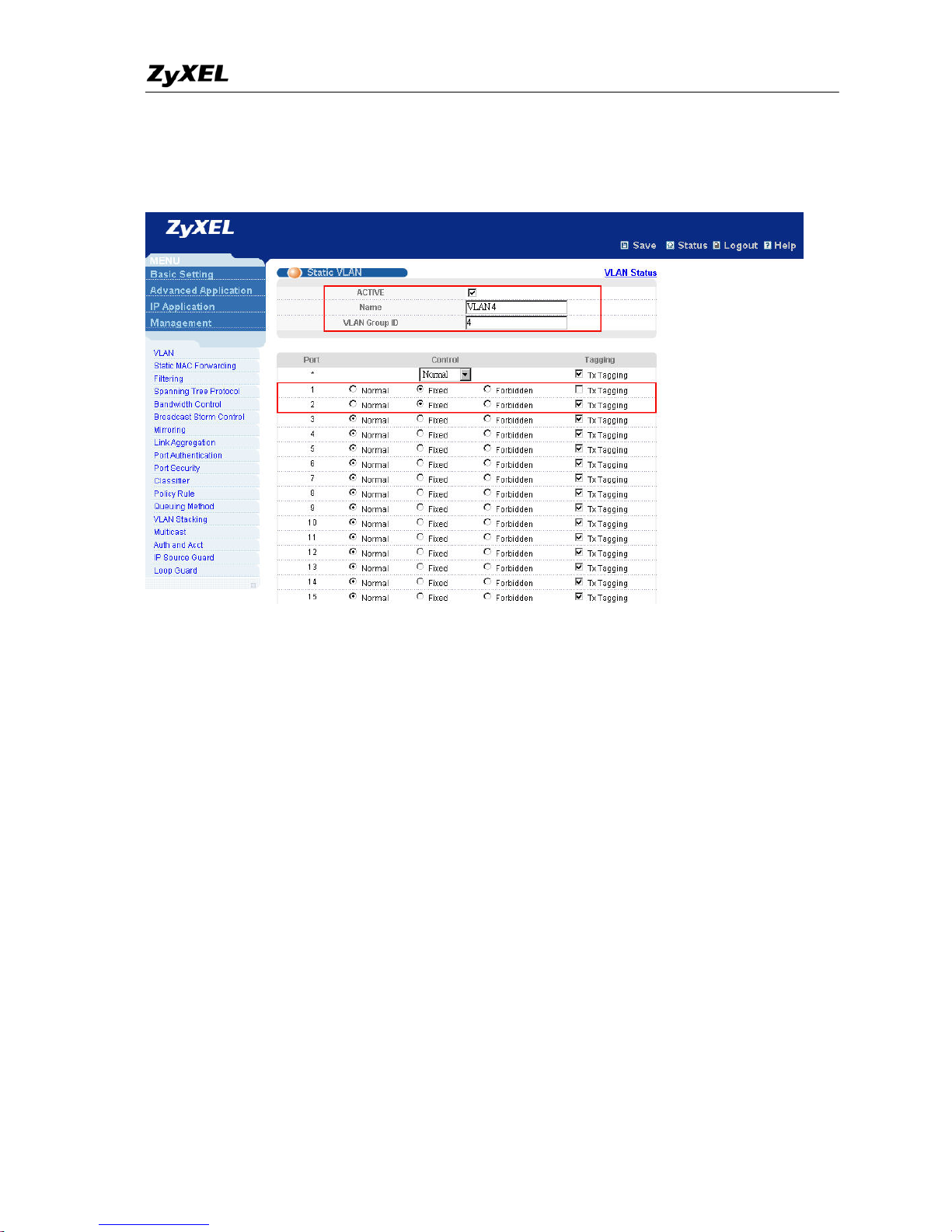
9. Create VLAN 4, include port 1 and port 2. Port 1 connects to the modem and
packets going in and out this port shouldn’t have VLAN tag. Port 2 connects to the
router in the CO, and packets going in and out port 2 should have different VLAN tags
according to its IP address. Click “Add”.
10. Create VLAN 5, include port 1 and port 2. Port 1 connects to the modem and
packets going in and out this port shouldn’t have VLAN tag. Port 2 connects to the
router in the CO, and packets going in and out port 2 should have different VLAN tags
according to its IP address. Click “Add”.
Page 7
IPSubnetting VLAN
All contents copyright (c) 2007 ZyXEL Communications Corporation.
7
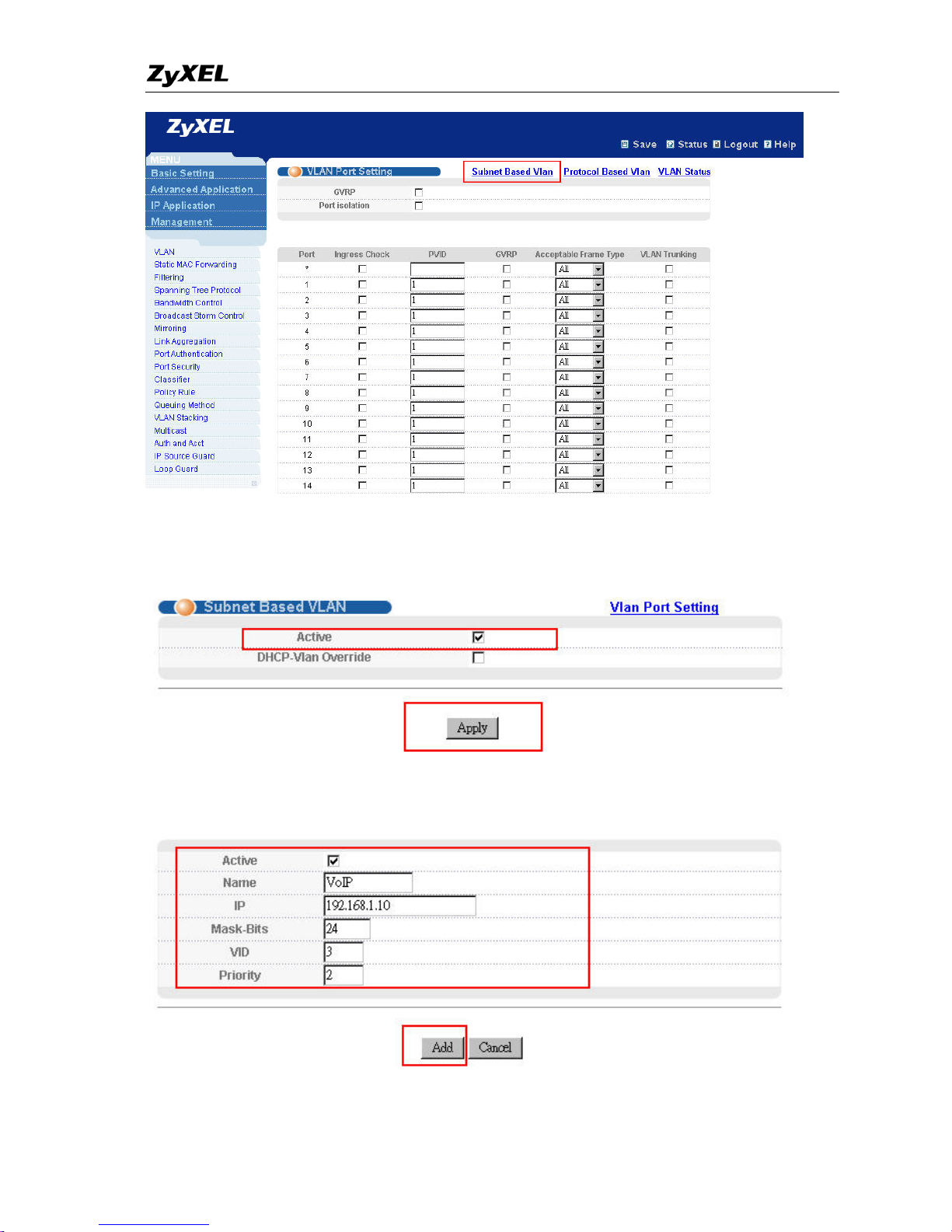
11. Go to “VLAN Port Setting” page by clicking “Advanced Application” Æ “VLAN”
Æ “VLAN Port Setting”
12. Go to “Subnet Based VLAN” page.
Page 8
IPSubnetting VLAN
All contents copyright (c) 2007 ZyXEL Communications Corporation.
8
13. In the “Subnet Based VLAN” page, first we have to activate this function. Check
the “Active” check box to enable it. Click “Apply”
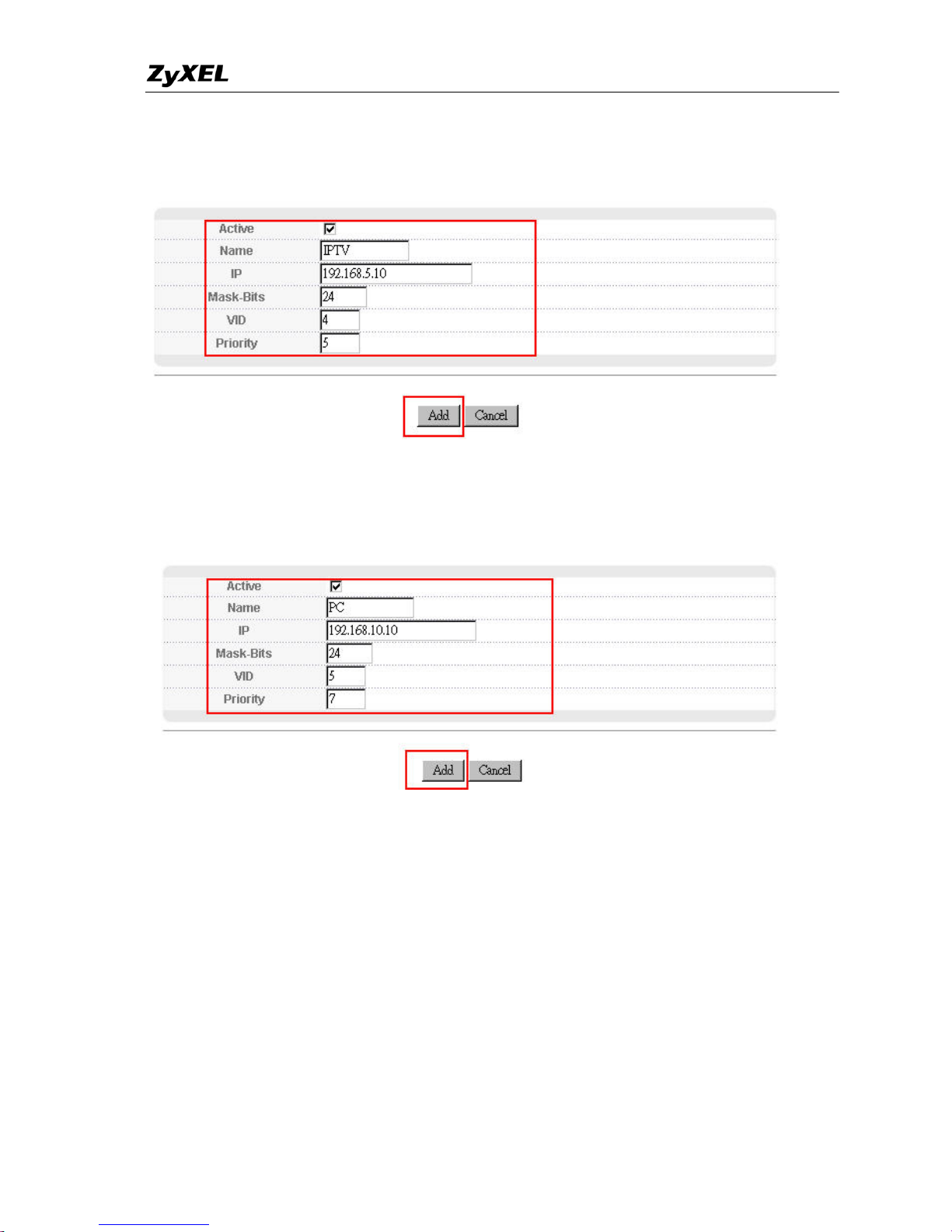
14. Create the Subnet Based VLAN entry for the VoIP phone.
Here we see that packets from 192.168.1.10/24 will be attached a VLAN tag 3 and its
Page 9
IPSubnetting VLAN
All contents copyright (c) 2007 ZyXEL Communications Corporation.
9
priority will be set to 2. Click “Add”
15. Create the Subnet Based VLAN entry for the IPTV device.
Here we see that packets from 192.168.5.10/24 will be attached a VLAN tag 4 and its
priority will be set to 5. Click “Add”
16. Create the Subnet Based VLAN entry for the PC.
Here we see that packets from 192.168.10.10/24 will be attached a VLAN tag 5 and
its priority will be set to 7. Click “Add”
Page 10

IPSubnetting VLAN
All contents copyright (c) 2007 ZyXEL Communications Corporation.
10
Configuration using the CLI
vlan 1
name 1
normal ""
fixed 1-28
forbidden ""
untagged 1-28
ip address 192.168.1.1 255.255.255.0
exit
vlan 3
name "VLAN 3"
normal 3-28
fixed 1-2
forbidden ""
untagged 1
exit
vlan 4
name "VLAN 4"
normal 3-28
fixed 1-2
forbidden ""
untagged 1
exit
vlan 5
name "VLAN 5"
normal 3-28
fixed 1-2
forbidden ""
untagged 1
exit
interface route-domain 192.168.1.1/24
exit
ip address 192.168.0.1 255.255.255.0
subnet-based-vlan
subnet-based-vlan name VoIP source-ip 192.168.1.10 mask-bits 24 vlan 3 priority 2
subnet-based-vlan name IPTV source-ip 192.168.5.10 mask-bits 24 vlan 4 priority 5
subnet-based-vlan name PC source-ip 192.168.10.10 mask-bits 24 vlan 5 priority 7
 Loading...