

Page 1
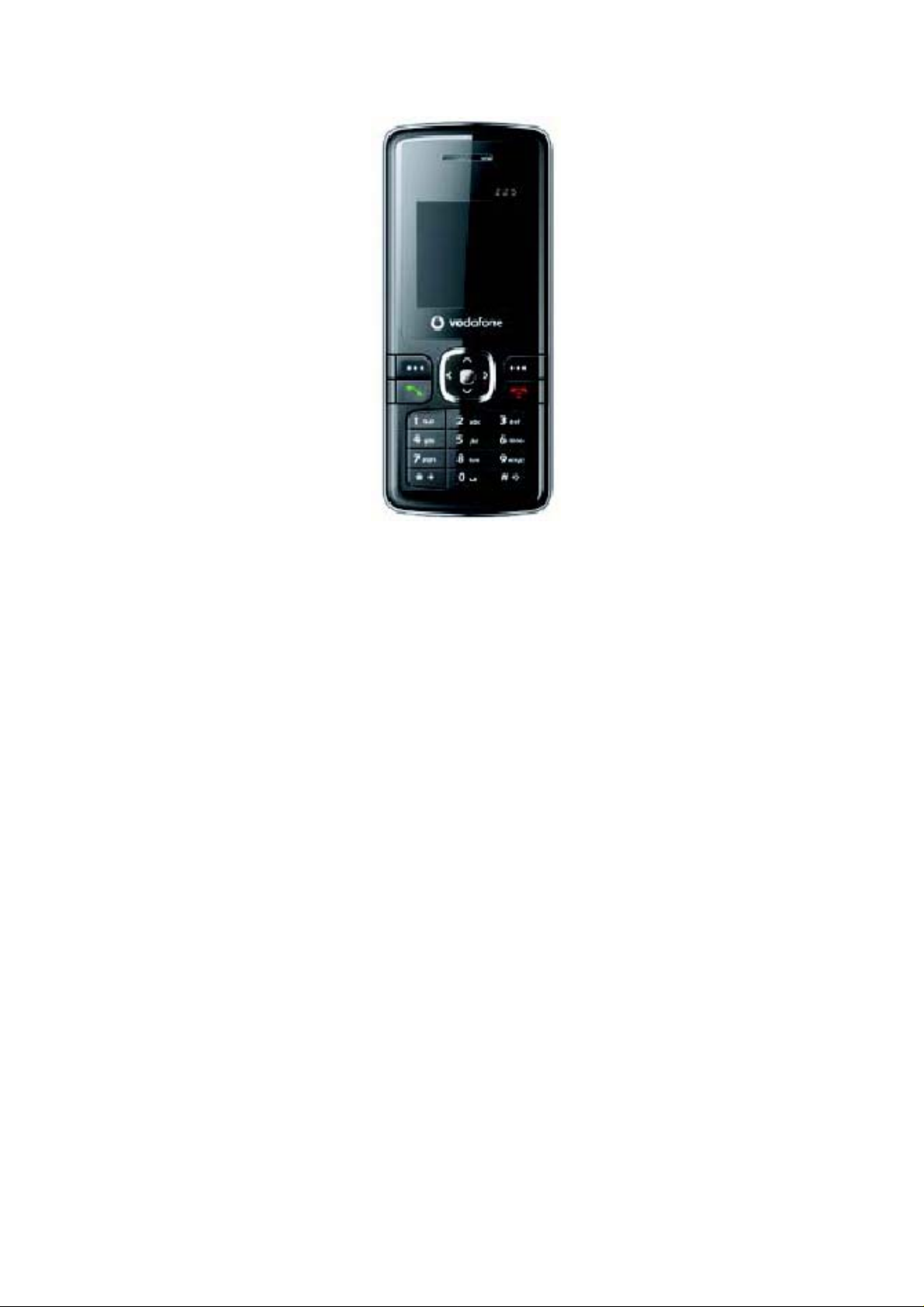
Vodafone 225
User Manual
Page 2

Notice
Copyright ©. 2007 ZTE Ltd.
All Rights Reserved
Your Vodafone 225 is made exclusively for Vodafone by ZTE Ltd.
No part of this manual may be reproduced or transmitted in any for m or by any
means without prior written consent of ZTE Ltd.
Trademarks
VODAFONE and the Vodafone logos are trade marks of the Vodafone Group.
Notice
The information in this manual is subject to change without noti ce. Every effort
has been made in the preparation of this manual to ensure accuracy of th e
contents, but all statements, information, and recommend ations in th is manual
do not constitute a warranty of any kind, expr essed or imp lied .
Please read the safety precautions carefully to ensure the correct and s afe use
of your mobile phone. For detailed information, refer to th e section "I mportant
Safety Precautions".
ZTE Ltd. Address:
ZTE Plaza, Keji Road South, Hi-tech Industrial Park,Nanshan District, Shenzhen,
P. R. China
Postal Code: 518057
Website: http://www.zte.com.cn
Page 3

Important
safety
precautions
Failure to comply with the following
precautions may be dangerous or illegal.
Page 4

4
Road safety
Full attention should be given to driving at all times in ord er to reduce th e risk
of an accident. Using a phone while driving causes distraction and can lead to
an accident. You should comply with local laws and regulations restricting the
use of wireless devices while driving.
Switch off the phone when refuelling
Do not use the phone at a refuelling point (service station) or ne ar fuels or
chemicals.
Aircraft
Mobile phones can cause interference. Consult airport and airline staff about
the use of the phone on aircraft. Switch off the phone whenever you are
instructed to d o s o .
Switch off the phone near all medical equipment
Hospitals or health care facilities may be using equipment that could be
sensitive to external radio frequency energy. Follow any regulations or rules in
force.
Interference
All Mobile phones may be subject to interference, which could affect their
performance.
Be aware of special regulations
Meet any special regulations in force in any area and always switch off your
phone whenever it is forbidden to use it, or when it may caus e interference or
danger.
Page 5

5
Water resistance
Your phone is not water-resistant. Keep it dry.
Sensible use
Use only in the normal position (held to the ear).
Emergency calls
Key in the emergency number for your present lo cation, then
press .
Keep your phone away from small children
Keep the phone and all its parts, including accessories, out of the r each of
small children. The product contains small parts with sharp edges that may
cause injury or which may become detached and create a choking hazard.
Accessories and batteries
Use only ZTE-approved batteries and accessories. Use of any unauthorised
accessories could damage you or your phone and may be dangerous.
Dispose of used batteries according to the manufacturer's instructions.
At very high volume, prolonged listening to a mobile
phone can damage your hearing.
Qualified service
Do not attempt to disassemble your product or its accessories. Only qu alified
service personnel may repair your phone.
Page 6

6
Health and safety information
SAR certification information
THIS MODEL MEETS INTERNATIONAL GUIDELINES FOR
EXPO-SURE TO RADIO WAVES.
Your mobile phone is a radio transmitter and receiver. It is designed not to
exceed the limits for exposure to radio waves recommend ed by int ernational
guidelines. The guidelines were developed by independent scientific
organisation ICNIRP and include margins designed to assure the protection of
all persons, regardless of age and health.
This guideline uses a unit of measurement known as Specific Absorption Rate,
or SAR. The SAR limit for mobile devices is1.6 W/kg and th e high est SAR valu e
for this device when tested at the ear was 1.549W/kg.1
1. The tests are carried out in accordance with international guidelines for testing.
As SAR is measured utilising the device's highest trans mitting power, th e
actual SAR of this device while operating is typically b elow that indi cated above.
This is due to automatic changes to the power level of the device to ensur e it
only uses the minimum level required to reach th e network.
The World Health Organization has stated that present scientifi c information
does not indicate the need for any special precautions for the use of mobil e
devices.
Body-worn operations are restricted to belt-clips, holsters or similar accessories
that have no metallic component in the assembly and that provide at least 1.5 cm
separation between the device, including its antenna, and the user's body.
Page 7

7
Precautions when using batteries
z Never use a charger or battery that is damaged in any way.
z Use the battery only for its intended purpose.
z If you use the phone near the network's base station, it uses less po wer.
Talk and standby time are greatly affected by the signal str ength on th e
cellular network and the parameters set by the network operator.
z Battery charging time depends on the remaining b attery charg e, the t ype
of battery, and the charger used. The battery can be charged and is
charged hundreds of times, but it will gradually wear out. Wh en the
peration time is noticeably shorter than normal, it is time to buy a new
battery.
z If left unused, a fully charged battery will discharge itself ov er time.
z Use only ZTE-approved batteries, and recharge your battery only with
ZTE-approved chargers. Disconnect the charger from the power source
when it is not in use.
z Extreme temperatures will affect the charging capacity of your battery: it
may require cooling or warming first.
z Do not leave the battery in hot or cold places because the cap acity and
lifetime of the battery will be reduced. Try to k eep th e batt ery at roo m
temperature. A phone with a hot or cold battery may not work temporarily,
even when the battery is fully charged. Li-ion batteries are particularly
affected by t e mp era tu r es b elo w 0℃ (32℉).
Page 8

8
z Do not short-circuit the battery. Accidental shortcircuiting can occur when a
metallic object like a coin, clip or pen causes a direct connection between
the + and - terminals of the battery (metal strips on th e battery). For
example, do not carry a spare battery in a pocket or bag where th e b attery
may contact metal objects. Short-circuiting the terminals may damage the
battery or the object causing the short-circuiting.
z Dispose of used batteries in accordance with local regulations. Always
recycle. Do not dispose of batteries in a fire.
Road safety
Your mobile phone gives you the powerful ability to communicate by voice,
almost anywhere, anytime. But an important responsibility accompanies the
benefits of mobile phones, one that every user must uphold.
When driving a car, driving is your first responsibility. Using a phon e while
driving causes distraction and can lead to an accident. When using your mobile
phone while driving, follow local regulations in the country or region you ar e in.
Operating environment
Remember to follow any special regulations in force in the area you are in, and
always switch off your phone whenever it is forbidden to use it, or when it may
cause interference or danger.
When connecting the phone or any accessory to another device, read its user's
guide for detailed safety instructions. Do not connect incompatible products.
Page 9

9
As with other mobile radio transmitting equipment , users are advised th at for
the satisfactory operation of the equipment and for the safety of p ersonnel, it
is recommended that the equipment should only be used in the nor mal
operating position (held to your ear).
Electronic devices
Most modern electronic equipment is shielded from radio frequency (RF)
signals. However, certain electronic equipment may not be shielded against
the RF signals from your mobile phone. Consult the manufacturer to di scuss
alternatives.
Pacemakers
Pacemaker manufacturers recommend that a minimum distance of 15 cm (6
inches) be maintained between a mobile phone and a pacemaker to avoid
potential interference with the pacemaker. These recommendations are
consistent with the independent research and recommendations of Wireless
Technology Research. If you have any reason to suspect that interference is
taking place, switch off your phone immediately.
Hearing aids
Some digital mobile phones may interfere with some hearing aids. In the
event of such interference, you may wish to consult your hearing aid
manufacturer to d is cu ss alt er n ati v es .
Page 10

10
Other medical devices
If you use any other personal medical devices, consult the manufacturer of
your device to determine if it is adequately shielded fro m external RF energy.
Your physician may be able to assist you in obtaining this info rmation.
Switch off your phone in health care facilities when r egulations post ed in these
areas instruct you to do so.
Vehicles
RF signals may affect improperly installed or inadequately shielded electroni c
systems in motor vehicles. Check with the manufacturer or its repres entative
regarding your vehicle.
You should also consult the manufacturer of any equipment that has been
added to your vehicle.
Posted facilities
Switch off your phone in any facility where posted notices require you to do
so.
Potentially explosive environments
Switch off your phone when in any area with a potentially explosive
atmosphere, and obey all signs and instructions to turn off mobile phones and
other radio equipment. Sparks in such areas could cause an explosion or fire
resulting in bodily injury or even death.
Page 11

11
Users are advised to switch off the phone while at a refuelling po int (s ervice
station). Users must observe restrictions on the use of radio equipment in fu el
depots (fuel storage and distribution areas), chemical plants, or wher e blasting
operations are in progress.
Areas with a potentially explosive atmosphere are often but not always clearly
marked. They i n clu d e t h e ar eas b el o w d eck s on b o ats , ch emi c al tr an sf e r o r
storage facilities, vehicles using liquefied petroleum g as, su ch as propane or
butane, areas where the air contains chemicals or particles, such as grain, dust
or metal powders, and any other area where you would normally be advised to
turn off your vehicle engine.
Emergency calls
This phone, like any mobile phone, operates using radio signals, wireless, and
landline networks as well as user-programmed functions, which cannot
guarantee connection in all conditions. Therefore, you should never rely solely
on any mobile phone for essential communications like medical emergencies.
To make or receive calls, the phone must be switched on and in a service area
with adequate signal strength. Emergency calls may not be possible on all
mobile phone networks or when certain network services and/or phone
features are in use. Check with local service providers.
To make an emergency call:
1. Switch on the phone.
2. Key in the emergency number for your present location. Emergency
numbers vary by location.
Page 12

12
3. Press [ ].
Certain features like Call Barring may need to be deactivated before you can
make an emergency call. Consult this document and your local cellular service
provider.
Other important safety information
z Only qualified personnel should service the phone or install the phon e in a
vehicle. Faulty installation or service may be dangerous and may inv alidate
any warranty applicable to the device.
z Check regularly that all mobile phone equipment in your vehicle is
mounted and operating properly.
z Do not store or carry flammable liquids, gases, or explosive materials in th e
same compartment as the phone, its parts, or accessories.
z For vehicles eq ui pp ed w it h an ai r b ag , r eme mb er th at an a ir b ag i nf l at es
with great force. Do not place objects, including installed or portable
wireless equipment, in the area over the air bag or in the air bag
deployment area. Improperly installed wireless equipment could result in
serious injury if the air bag inflates.
z Mobile phones can cause interference. Consult airport and airline staff
about the use of the phone on aircraft. Switch off the phon e whenever you
are instructed to do so.
z Failure to observe these instructions may lead to th e suspension or d enial
of telephone services to the offender, or legal action, or both.
Page 13

13
Care and maintenance
Your phone is a product of superior design and craftsmanship and should be
treated with care.
z Keep your phone and all its parts and accessories out of the r each of s mall
children and pets. They may inadvertently damage th ese things or choke
on small parts.
z Keep the phone dry. Precipitation, humidity, and liquids contain minerals
that corrode ele ctr oni c ci rcu its .
z Do not use the phone with a wet hand. Doing so may cause an electric
shock to you or damage to the phone.
z Do not use or store the phone in dusty, dirty areas, as its mo ving p arts may
be damaged.
z Do not store the phone in hot areas above 60℃ (140℉). High tempera-
tures can shorten the life of electronic devices, damage b atteries, and warp
or melt certain plastics.
z Do not store the phone in cold areas. When the phone warms up to its
normal operating temperature, moisture can form inside the phone, which
may damage the phone'selectronic circuit boards.
z Do not drop, knock, or shake the phone. Rough handling can break internal
circuit boards.
z Do not use harsh chemicals, cleaning solvents, or strong detergents to
clean the phone. Wipe it with a soft cloth.
Page 14

14
z Do not paint the phone. Paint can clog the device's moving parts and
prevent proper operation.
z Do not put the phone in or on heating devices, such as a micro wave oven,
stove, or radiator. The phone may explode when overheated.
z If the phone, battery or charger is not working properly, take it to your
nearest qualified service facility. The personnel ther e will assist you, and if
necessary, arrange for service.
Page 15
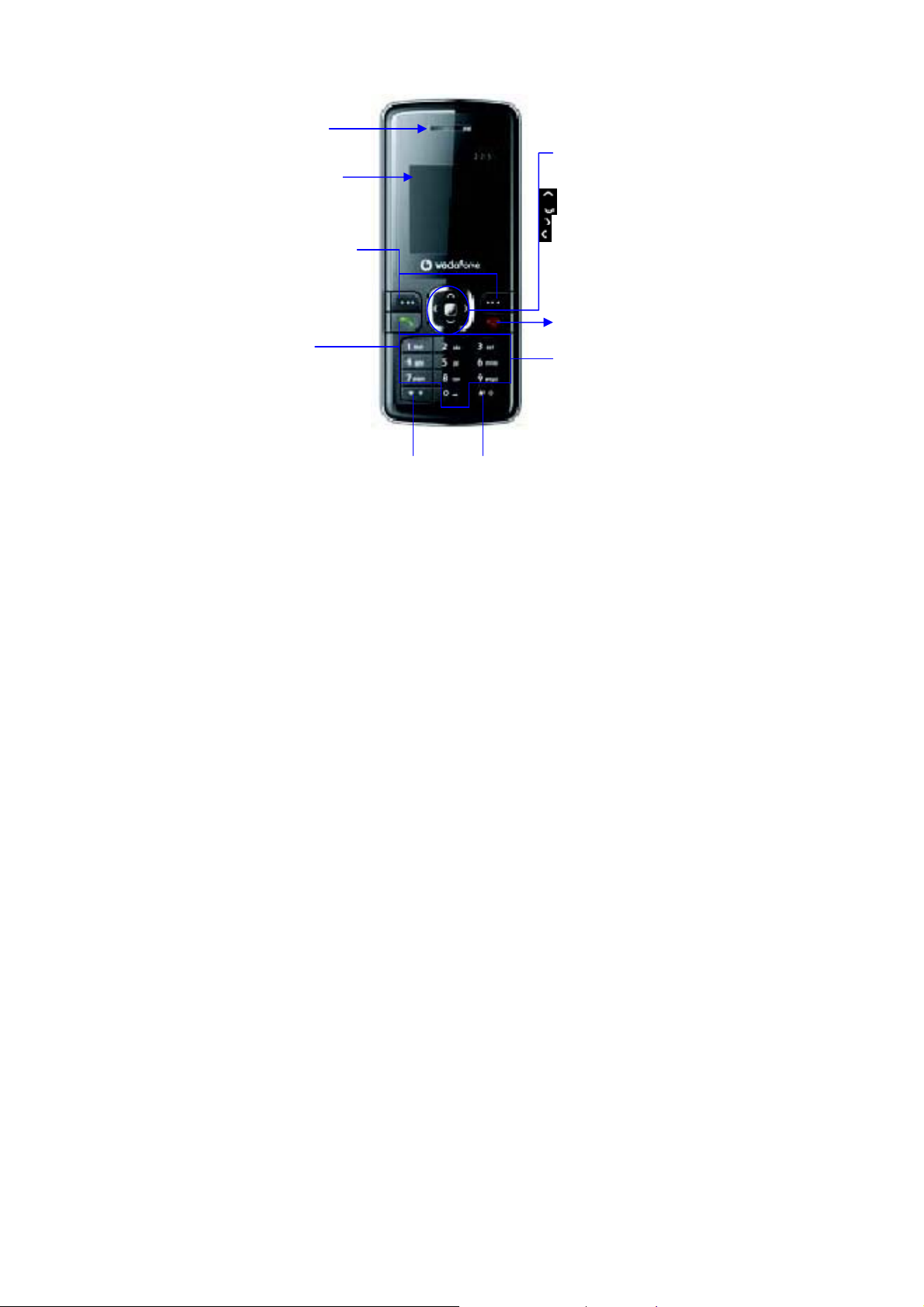
Your Phone
Earpiece
Display
Left/Right soft keys
Performs the function
indicated at the bottom
of the disply.
Send key
Dials a phone
number and
answers a call.
In standby mode,
shows a
history of calls made,
received and missed.
15
* key # key
4-Way Navigation keys
In standby mode
accesses:
history
Contacts
Profiles
Alarm
End/Power key
Alpha numeric keys
In standby mode, input
numbers to dial.
Page 16
6
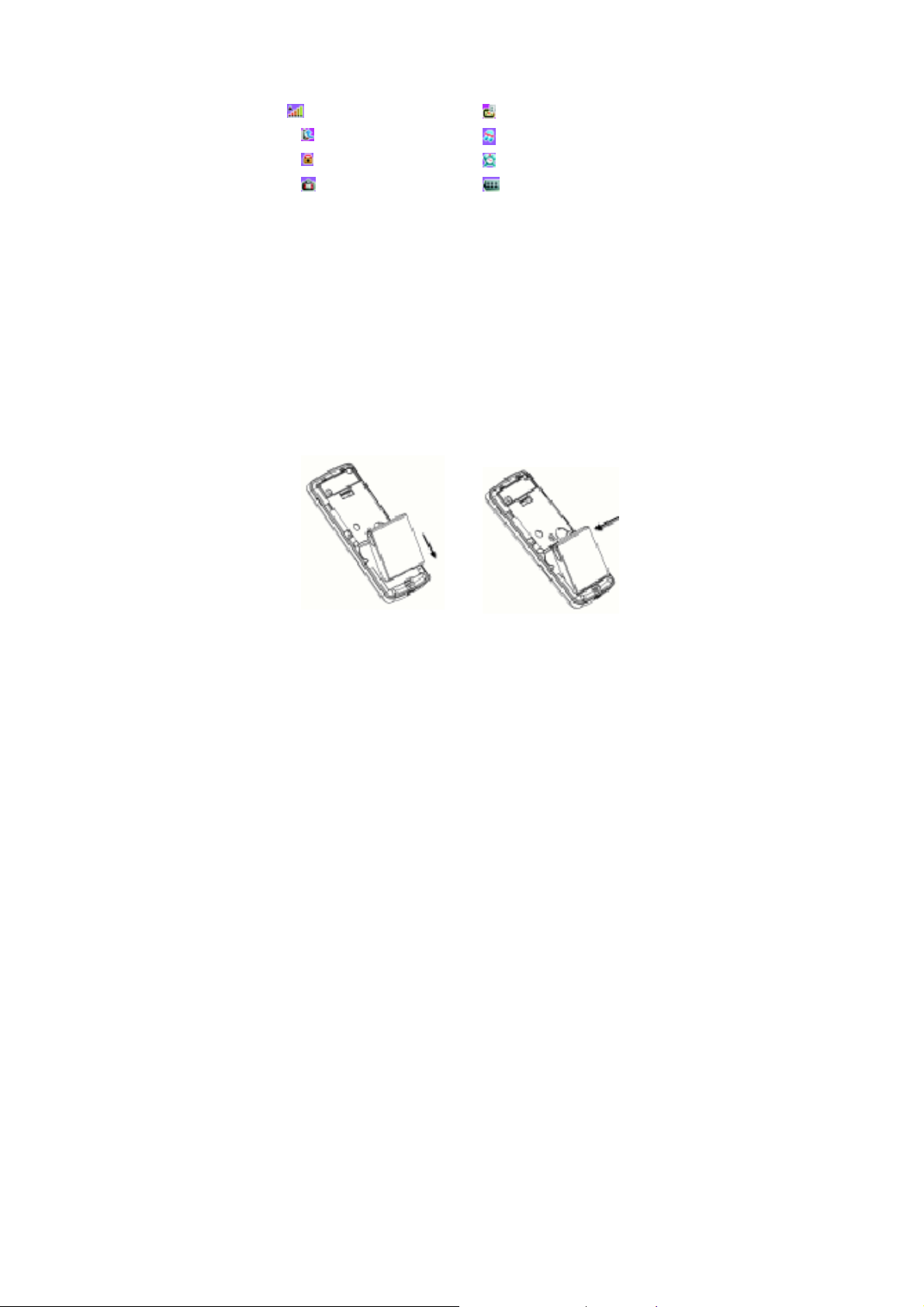
Interface Icons
Icon Description
Signal strength New message
Call diverting Silent profile is activated
Keypad locked Alarm clock set
Roaming Battery status
Battery
The lithium battery of the mobile phone can be immedi ately used after unpacking .
A new battery performs best after performing a full charge/discharge 3 times.
Installing the battery
1. Ensure that your mobile phone is switched off.
2. Insert battery by aligning the gold contacts on the b attery with the gold
contacts in the battery compartment on the phone.
3. Push down on the upper section of the battery until it clicks into place.
4. Replace the battery cover and press it gently until you hear a click.
Page 17
17
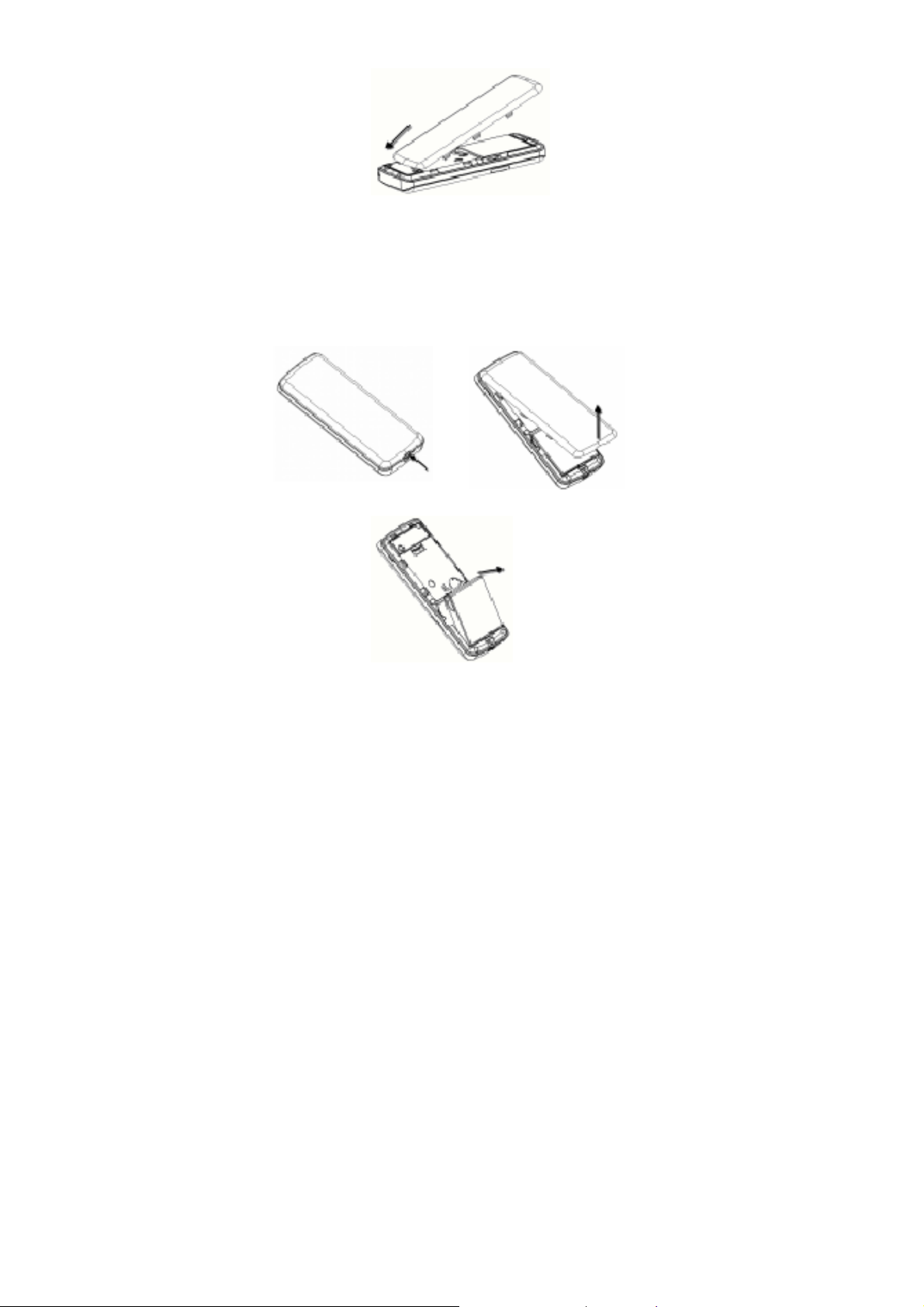
Removing the battery
1. Ensure that your mobile phone is switched off.
2. Remove the battery cover.
3. Pull the battery up and remove it from the mobile phon e.
Page 18
18
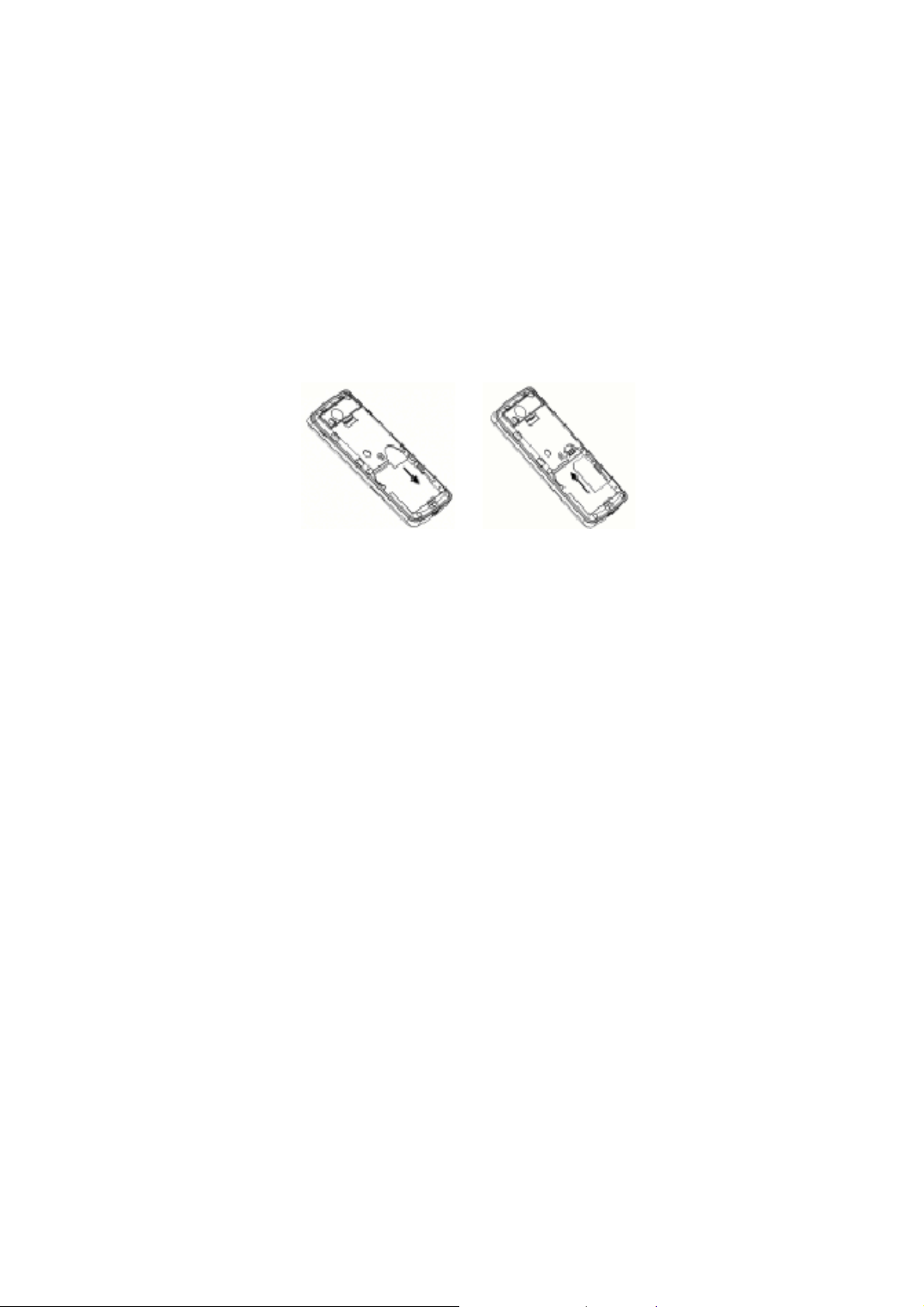
How to insert the SIM card
You want a mobile phone that is sophisticated yet easy to use and here it is in
your hands! Naturally you are eager to start using it, but firs t you need to insert
the SIM card.
The SIM card lives under your battery, here's how to insert i t.
z Ensure that the phone is switched off and the ch arger is dis connected
from the bottom of the phone.
z Turn the phone over and remove the back cover.
z If the battery is already inside, remove it!
z Hold your SIM card with the cut corner oriented as shown and then slide it
into the card holder face down.
z Replace the battery first.
z Replace the back cover.
What is a SIM card?
Every mobile phone has a SIM card (Subscriber Identity Module). This is a microchip that holds your personal information such as names and phon e numbers.
Your phone won't work without it. If you already have contacts on your SIM card,
these can be transferred in most cases.
Page 19
19
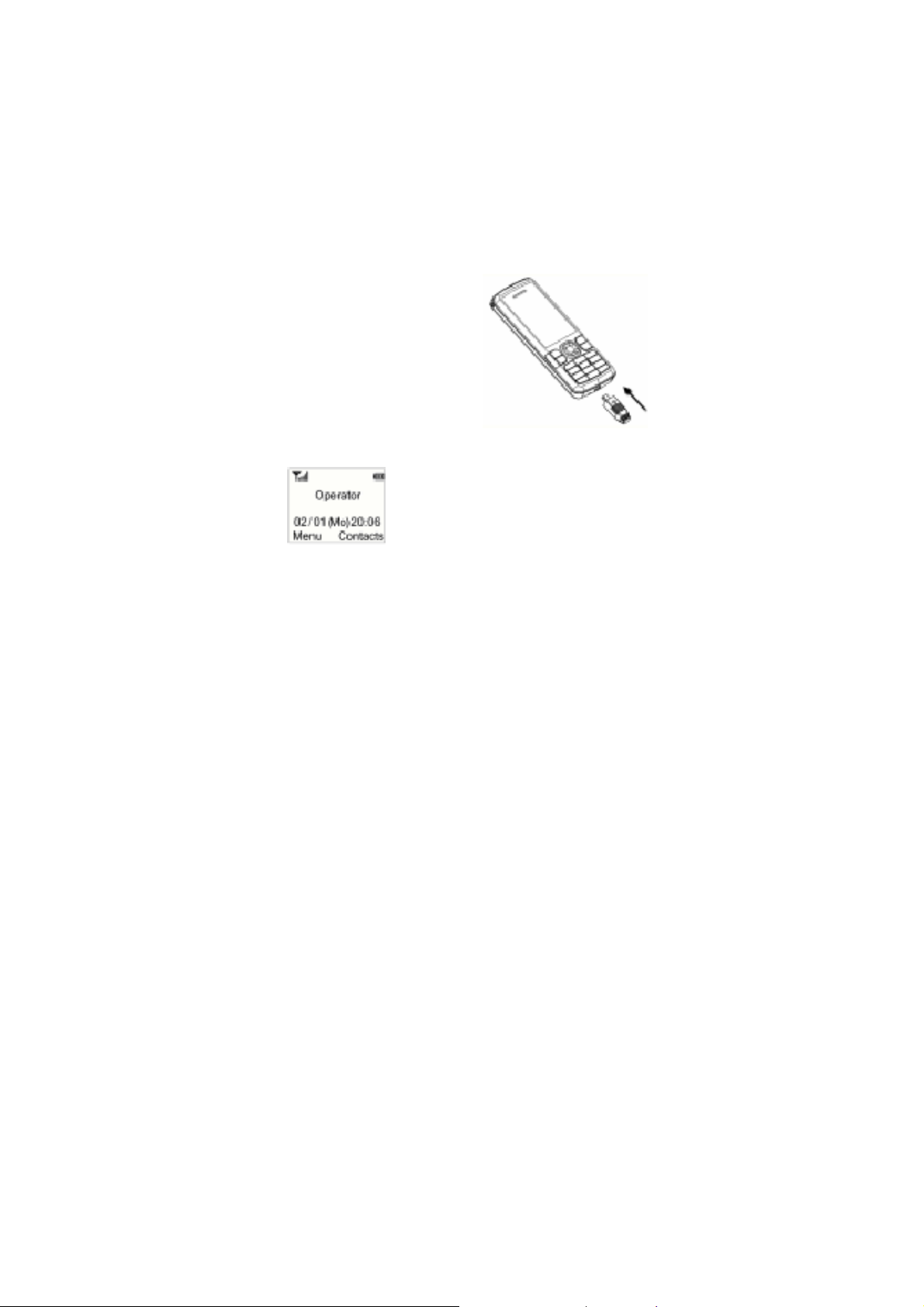
How to Charge the battery
Your phone is powered by a rechargeable battery. This needs to be charged for at
least 6-8 hours before you can make your first call.
z Connect your travel adapter to the bottom of your mobile phone as shown in
the diagram.
z Connect the o th er en d of t h e t r av el ad ap t er to t h e ma in s so ck et .
Note: The side with arrow should be upright while connecting.
z The bars on the battery icon on the display will move from r ight to left".
This indicates that the phone is charging.
z When the battery is fully charged.
z Disconnect the charger.
Power on/ off Your Phone
Ensure that your SIM card is in your mobile phone
and that the battery is charged.
Please hold the End key to power on/off the phone.
The phone will automatically search for the network.
Page 20

20
Display information
Besides sending and receiving calls, you can also do:
¾ Press Left soft key to enter main Menu.
¾ Press Right soft key to view Messaging.
¾ Press Send key in standby mode to enter Call menu list.
¾ Press End key to exit to standby mode.
¾ Press # key and then * key in standby mode to lock/unlock the keypad.
¾ You can customise the fastkey settings of 4-Way Navigation key for
standby mode.
Note: In this User Manual to "press" a key means to press the key and release
it. To "hold" a key means to keep pressing the key.
Menu Tree
1. Games
1.1 Tetris
1.2 Push box
2. Call menu
2.1 Calls
2.2 Diverts
3. Tools
3.1 Calculator
3.2 World clock
3.3 Calendar
3.4 Conversion
4. Profile
4.1 Normal
4.2 Meeting
Page 21

4.3 Outdoor
4.4 Silent
5. Messaging
5.1 New message
5.2 Inbox
5.3 Outbox
5.4 Draftbox
5.5 Msg settings
5.6 Voicemail
5.7 Cell info.
6. Alarm
6.1 Set alarm
6.2 List alarms
6.3 Clear all
6.4 Define rest day
7. SIM
8. Contacts
9. Settings
9.1 Phone settings
9.2 Display settings
9.3 Clock settings
9.4 Call settings
9.5 Fixed dialling number
9.6 Service dialling number
9.7 Network settings
9.8 Security settings
9.9 Factory settings
Page 22

21
Writing Text
z Change input mode: Press # key to change the input mode
(input modes: Eng, ABC, abc and 123).
z Input Letters: In ABC/abc/123 mode, press the corresponding letter key till the
letter appears.
z Input Words: In Eng mode, key-in any letter with a single key press. Press each
key only once for every letter. The word changes after each key stroke. When you
have finish ed writing the word and it is correct, confirm it by adding a space withe
or by pressing any of the Navigation keys. Pressing a Navigation key also moves
the cursor. Predictive text input is based on a built-in di ctionary.
z Input Digits: In 123 mode, press digit key once to key-in a digit .
z Input Symbol: Press * key to enter a s ymbol. In ABC/abc mode, press 1 key till
the required symbol (common symbols) appears.
z Selecting Template: Hold * key to open Templates. Select the required template.
z Input Space: Press 0 key to input space. It does not work in 123 mode.
z Delete Charact er: Pr ess Right sof t k ey to cle ar a ch ar act er .
z Delete all Characters: Press and hold Right soft key to delete all characters and
clear the display.
z Move Cursor to Left or Right: Press Left/Right navigation keys to move the
cursor left or right.
How do I add people to my Contacts
There are some phone numbers that you may want to call again and again so it
makes sense to add these to your Contacts. You can then access th ese numbers
quickly and easily.
Page 23

22
z Select Menu then Contacts.
z Press left soft key [Options], and then select Add new Contact.
z Select whether to save the new contact to your SIM card or to the phone's
memory.
z Enter the contact's phone number.
z Press left soft key [OK], then enter a name and confirm by clicking OK key.
z If Handset is selected to save new contact, you need also to select the group and
then confirm by clicking OK key.
You can also save a number right after you've made or received a phone call or
a text message from someone who is not yet in your Contacts list.
z To delete someone from your Contacts list, first select the n ame, then
press left soft key [Options] and choose Delete.
How to make and receive calls
The most basic way to make a call is to key in th e number and press the S end k ey.
One advantage of a mobile phone is that you can also store people's names and
numbers in your mobile Contacts and call them more easily.
To call someone:
z Press OK key in standby mode and then choose [Contacts]. From here use the
Up/Down keys to find the name of the person you want to call. You can also type
in the first letter of the name of th e person you want to call.
z Now simply press the green Send key.
z End the call by pressing the red End key.
z Make sure you are in an area with sufficient coverage to make calls. The
strength of the network signal is indicated on top left corner of scre en.
Page 24

23
How to Send and Receive Text Messages
You can use your mobile phone to send and receive text messages.
1. Go to Menu→Messaging→New message.
2. Write your message. For more information on writing , r efer to Writing Text.
3. Press the Left soft key [Options] and select Send to one to send the message
to one person.
To send to more than one person, select Send to contacts and select th e
names from the contact l ist .
Select Send and save to send the message and save it to Outbox. S elect S ave
as draft to save it to Draftbox .
4. Enter the recipient's phone number or select Contacts if you h ave previously
stored the person's number. Then select OK to send the message.
Upon receiving a message, mobile phone indicates with ringtone, prompt,or
a new message icon.
1. Press Left soft key [Select] to open the new message. You can also go to Inbox
to read the message.
2. Use Up/Down keys to read the message.
3. While the message is open, use Left soft key [Options] to Reply, Delet e, or
Forward the mes s ag e.
Page 25

24
Menu Functions
Here are some brief instructions of the menu functions of the phon e.
Function Description Selection
Add new contact S ave Phone numbers Contacts→Options
and names →Add new Contact
Edit contact Edit information of each Contacts→Options→Edit
record
Delete contact Delete one contact Contacts→Options
information →Delete
Find contact Search for a phonebook Contacts→Options
entry →Search
Memory Status Number of entries saved Contacts→Options
and maximum numb er of →Settings→Used space
entries capacity in phone
Send message Send text messages to Menu→Messaging
other mobile phones →New message
Read message Read text messages Menu→Messaging
(received, sent) →Inbox/Outbox
Templates Preset messages to help Menu→Messaging
make Sending text →Msg settings
messages easier and →Templates
quicker
Voicemail Receive and listen to Menu→ Messaging
Voice messages → Voicemail or long press
on 1 key to call voicemail
Recent calls View all recent calls Menu→Call Menu→Calls
→All calls/Received calls
/Dialled calls/Missed calls
Page 26

25
or Select green Send key
from the home screen
Function Description Selection
Calculator Execute basic Menu→ Tools→Calculator
math calculation
World Clock Check time on major cities Menu→Tools→World clock
Calendar View a full-screen Menu→Tools→ Calendar
monthly calendar
Conversion Set the exch ang e r ate Menu→To o ls
and account foreign → Conversion
currency or vice versa
Ringtone Set ringtone Menu→Profiles→Select
Profile(Normal/Meeting
etc.)→Personalise
→Ringtone
Alarm Set alarm alert time Menu→ Alarm→Setalarm
Language Set th e d efault language Menu→Settings→ Phone
settings→Language
Fastkey settings Set the shortcuts for the Menu→Settings
navigation keys (Up/Down →Phone settings
/Left/Right key) →Fastkey settings
Wallpaper Select wallpaper Men u→Settings→Display
you preferred settings→Wallpaper
Clock Settings Set date and Time Menu→ Settings→Clock
settings→Date and Time
Page 27

26
Function Description Selection
Any key answer Press any key to answer Menu→ Settings→Call
an incoming call except settings→Any key ans w er
End key and Left soft key
Minute minder Sound an alert tone Menu→ Settings→Call
ahead of every minute settings→ Minute minder
Connected Sound an alert tone Menu→Settings→Call
minder when a call is connected s ettings→ Connected
minder
Call waiting Hold the first call and Menu→Settings→Call
answer the second call settings→Call waiting
Hide my number Choose whether to show/ Menu→Settings→Call
hide my number when settings→Hide my number
calling someone
Fixed dialling Phone numbers preset in Menu→Settings→Fixed
number the list can be dialled diallin number
Service dialling Phone numbers preset by Menu→Settings→ Service
number network service provider dialling number
can be dialled
Network settings Set network searching Menu→ Settings
mode →Network settings
Security settings Access your phone's Menu→Settings
security settings →Security settings
Factory settings Restore to original Menu→S ettings
factory settings →Factory settings
Page 28

27
Declaration of RoHS Compliance
To minimise the environmental impact and take more responsibility to the
earth we live in, this document shall s erve as formal d eclaration that the Vodafon e
225 manufactured by ZTE CORPORATION is in compliance with the Directive
2002/95/EC of the European Parliament - RoHS (Restriction of Hazardous
Substances) with respect to the following substances:
(1) Lead (Pb)
(2) Mercury (Hg)
(3) Cadmium (Cd)
(4) Hexavalent Chromium (Cr (VI))
(5) Polybrominated biphenyls (PBB's)
(6) Polybromin at ed di ph en yl eth ers (PB DE 's)
(Compliance is evidenced by written declaration from our suppliers, assuring
that any potential trace contamination levels of the substances lis ted above ar e
below the maximum level set by EU 2002/95/EC, or are exempt due to their
application.)
The Vodafone 225 manufactured by ZTE CORPORATION, meets the requirements of EU 2002/95/EC.
Page 29

28
Disposal of your old appliance
1. When this crossed-out wheeled bin symbol is attached to a product
it means the product is covered by the European Directive 2002/96/
CE.
2. All electrical and electronic products should be disposed of separately from the municipal waste stream via de signated collection facilities appointed by the government or the local authorities.
3. The correct disposal of your old appliance will help prevent potenti al
negative consequences for the environment and human health.
For this product's Recycling Manual based on WEEE directive, please send an
email to [email protected], or visit the website below to downlo ad th e
document:
http://ensupport.zte.com.cn
 Loading...