

Page 1

1
Android Mobile Phone
User Manual
The manual is applicable for the ZTE V883M
mobile phone.
Page 2

Copyright © 2013 ZTE CORPORATION.
All r ights reserved.
No part of this publication may be quoted, reproduced, translated
or used in any form or by any means, electronic or mechanical,
including photocopying and microfilm, without the prior written
permission of ZTE Corporation.
ZTE Corporation reserves the right to make modifications on print
errors or update specifications in this manual without prior notice.
Goo gle, Android, Android Market, Google Mail are trad emarks of
Google, Inc.
Other trademarks and trade names are the property of their
resp ective owners.
Third-party Software Statement
When you install the software from a third-party, the phone mi ght
be res tarted repeatedly or the sof tware might not be used nor mally
due t o the inc ompatibilit y of the sof tware itself. It is not the faul t of
the phone itself.
Version 1.0 2013
Page 3

1
Using your phone
Thanks for choosing the V883M, It’s a WCDMA Digital Mobile
Phone, which will refer to as ‘phone’ from now on. Powered by
TM
Android
whi ch brin gs you bra nd new experienc es.
Don’ t worry i f the pictures we u se to dem onstrate your phone’s
functions look a little different from what you see on the screen.
It’s the functions that matter.
, the phone supports 3G high-s peed Internet access,
-1-
Page 4
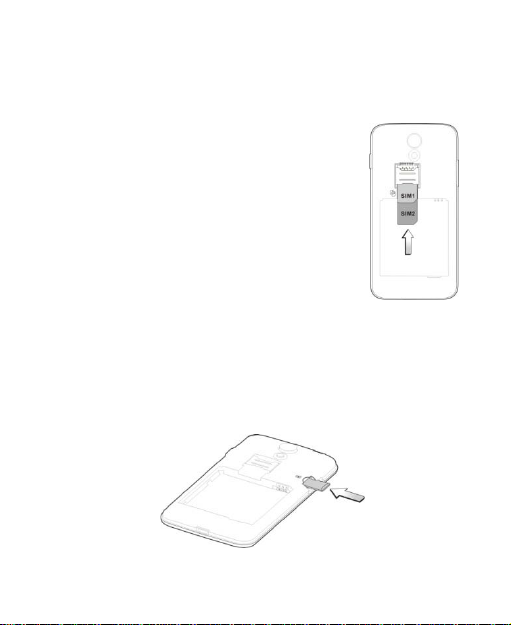
Before getting started
Inserti ng a nd removing the S IM
1. Switch off your phone and disconnect any
external power.
2. Remove the back cover and then the
battery.
3. Hold your SIM on the cut corner, and slide
it face down into the card hol der.
4. Insert the battery.
5. Replace the back cover.
Inserting a memory card
1. Remove the back cover.
2. Push tightly until the card is installed in the correct position
and replace the back cover.
-2-
Page 5
3
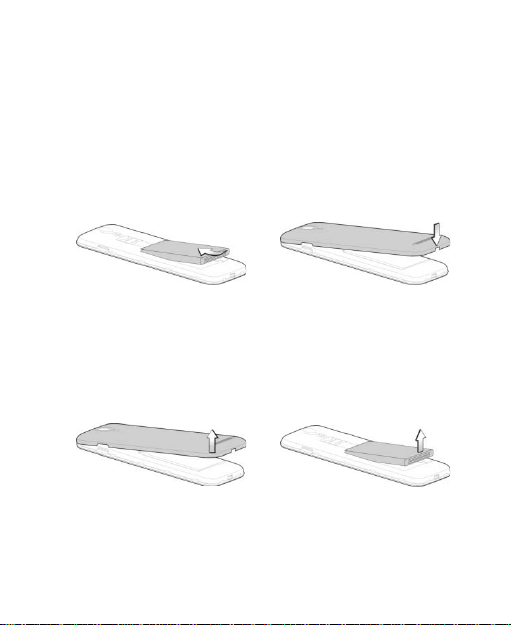
Using the bat t e ry
Inserting the battery
1. Open the battery cover on the back of your phone.
2. Align the battery's contact points with those of the phone and
gent ly pres s the bat tery do w n into place.
3. Replace the battery cover clicking it back into position.
Removing the battery
1. Switch off your phone.
2. Open the battery cover.
3. Lift the battery up and out of your phone.
-3-
Page 6
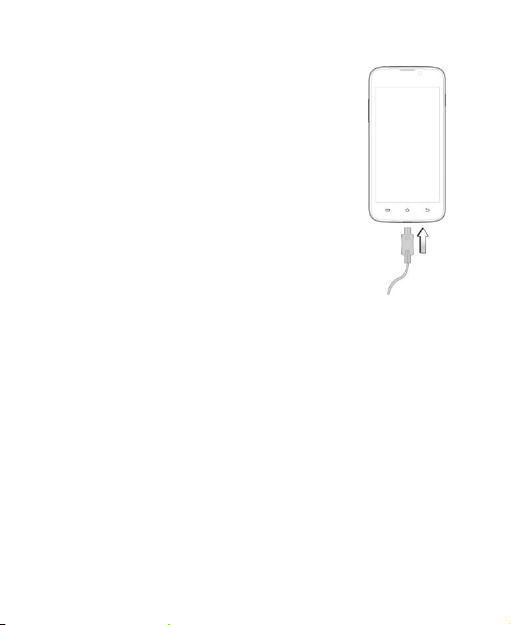
Charging the battery
The battery is not fully charged when you
unpack it for the first time. Please exhaust the
capacity of the battery before you recharge it
for the first time.To ensure the battery is
always in its best condition, plea se charge
the battery 8 hours for the first time and
recharge it later at least 2 hours each time.
1. Connect the charger to the phone, and
insert the charger to the standard power
socket.
2. Please disconnect the charger from the
power socket after the charging is
completed.
Tips:
To charge the battery, you can also connect the phone to the
PC through the USB ca ble.
During charging, the phone and charger may normally
become hot.
-4-
Page 7
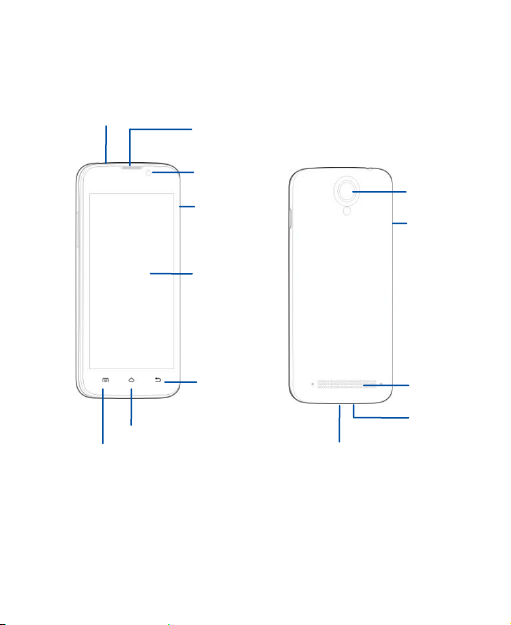
5
Touch screen
Back key
Home key
Menu key
Earpiece
Camera
Power key
Volume
Headset jack
Front camera
Speaker
USB port
Getting to know your phone
-5-
keys
Microphone
Page 8
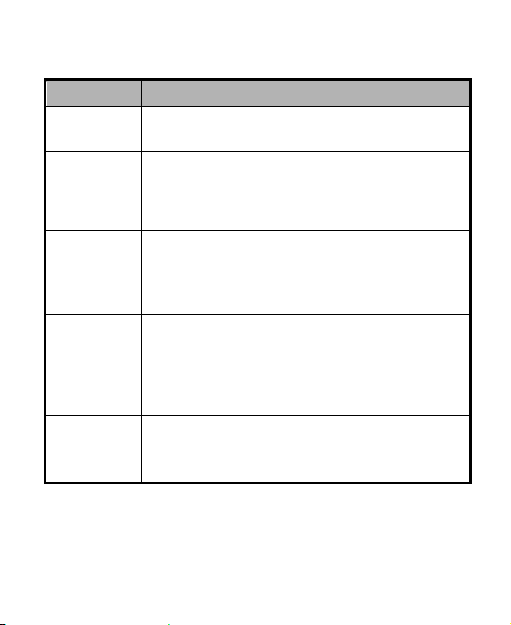
Descriptions of Keys
Keys Functions
Menu k ey
Home key
Back key
Power key
Volume
keys
Touch it to open a menu with items that affect
the current screen or application.
Touch it to open the home screen. If you’re
view ing th e l eft or right ext ended home
scr een, Press it to open the central home
screen.
Touch it to open the previous screen you were
working in.
If t he onscreen keyb oard is open, touch it to
close the keyboard.
Pres s it to tu rn on/of f the display.
Long press it to open a menu with options for
Airplane mode, for Silent mode, for Vibration
mode, and for powering off and for rebooting
the phone.
Adjust the volume.
Long press it to quickly adjust the ring tone
volume to maximum or minimum.
-6-
Page 9
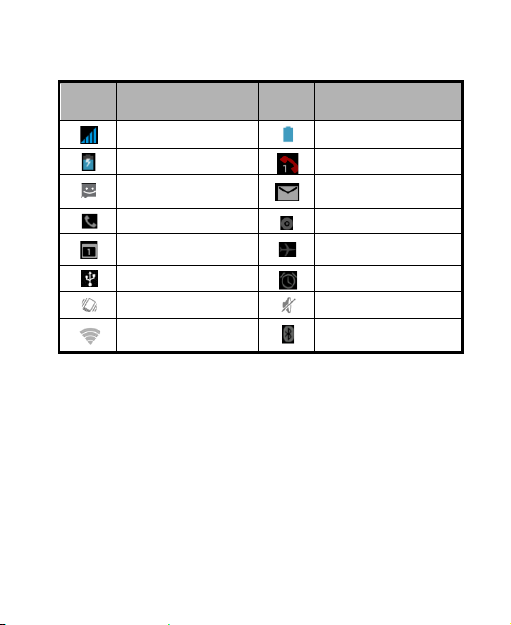
7
Onscreen icons
Icon
Icon
Descriptions
s
Signal strength
Charging
You have an unread
message.
In a call
New calendar
reminder
Connected to a PC
Vibration mode
Wi-Fi function on
-7-
Descriptions
s
Full battery
Missed calls
You have an unread
E-mail.
Music playing
Airplane mode
Alarm clock on
Silent mode
Bluetooth® function is
on
Page 10

Power on/off
Powerin g on
Long press the Power key until th e power-on animation appears.
Powerin g of f
Long press the Power k ey to dis play the phone options and
select Power off.
-8-
Page 11

9
Basic Operation
Screen c ont rol
You can control your phone through a series of operations on the
screen.
Touch: you can touch the items on the screen to select them,
to open the applications, or using the keyboard to input
characters.
Swipe or sli de: Quickly move your finger across the surface
of the screen, without pausing when you first touch (so you
don't drag something instead).
Touch & hold: you can touch & hold some items to get the
item’s available menu.
Drag: you can drag some items on the screen to realize
som e operations.
Switch between landscape mode and portrait mode: you
can switch to the landscape mode by rotating your phone.
The l andsca pe mode i s only valid under some i nterfac es,
such as text input interface, message viewing interface, etc.
Pinch: In some apps (such as Maps, Browser, and Ga l lery),
you can zoom in and out by placing two fingers on the
screen at once and pinching them together (to zoom out) or
spreading them apart (to zoom in).
-9-
Page 12
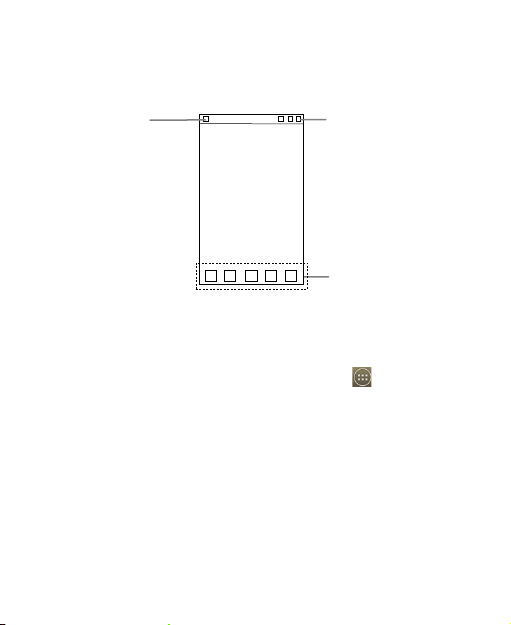
Home screen
Favorites tray
Notification ba r
Drag the notification
bar down from the
top of the screen to
open the
notifications panel.
Status bar
Shows the signal
strength, battery
status, etc.
Arrange & w ork with apps
To see all your apps, touch the All Apps Icon on any Home
screen. After op ening the All Apps , press an icon to enter the
corresponding application. Touch the Back key to ret urn to the
previous screen. Touch the Home key to return to the home
screen.
From All Apps, you can:
• Explore your widgets: Touch t he widgets tab at t he top of
any All Apps screen.
• Get more apps.: T ouch the Play Store icon at the top of any
All Apps screen.
-10-
Page 13

11
Switch to a recently used application
On the home screen, t ouch & hol d the Home key, opens a list of
thumbnail images of apps you've worked with recently. To open
an app, touch it. To remove a thumbnail from the list, swipe it left
or right.
Manage notifications
• Open notifications panel: When a new notification appears
on the notification bar, you c an drag the notification bar down
from the top of the screen to open notifications panel.
• Respond to a notification: Touch it.
• Dismis s a notificatio n: Swipe it sideways.
• Close notifications panel: Drag the tab at the bottom of the
notification panel to the top of the screen.
Favorites tray
The app icons you keep in the favorites tray remain visible on
every Home sc reen.
Touch, hol d, & slide to move one of the Favorites icons out of the
tray. Then use the same technique to move another one into the
sam e position.
The All Apps icon in the center is permanent, You can't
move it.
-11-
Page 14

Display area
The home screen can be extended to exceed the screen’s width
in order to provide more space for newly added shortcuts,
wid gets, etc.
On the home screen, slide yo ur finger on the s creen to extend to
the left or r i ght.
Use folders
You can combine several app icons in a folder. Drop one app
icon over another on a Home screen, and the tw o icons will be
combined.
From any Home screen, you can
- Ope n a folde r : Touch it. The folder opens.
- Ren ame a folder: Touch its name.
- Move icons around your Home screens: Touch, hold, and
drag.
Add icons t o t he hom e s c reen
Touch & hold the app icon, slide your finger, and lift your finger to
drop the icon in place.
Delete icons on the home screen
Touch & hold the app icon, slide your finger toward the top of the
screen, and drop the app over the Remove icon.
-12-
Page 15

13
Change wallpaper
1. Touch & hold anywhere on the home screen that's not
occupied. A list of options appears.
2. Select wallpaper from Gallery/Live Wallpapers/Video
Wallpaper /Wallpapers.
Switch to sle ep mode
Sleep mode is a kind of power saving mode, which also helps to
prev ent in advert ent operations. If your phone has been in idle
mode for a while, it will automatically switch to sleep mode.
You can also press the Power key to turn off the screen and
enable sleep mode.
Wake up your phone
After the phone switches to the sleep mode, the screen will be
turned off and locked. In this case, please awake your phone and
unlock the screen if you want to use your phone.
1. Press the Power key to turn o n the scr een.
2. Drag the icon to the right to unlock the screen.
You can adjust your phone's lock settings:
1. From the Hom e s creen, press t he Menu key then select
System settings> Security> Screen lock.
2. Touch the type of lock you'd like to use.
-13-
Page 16
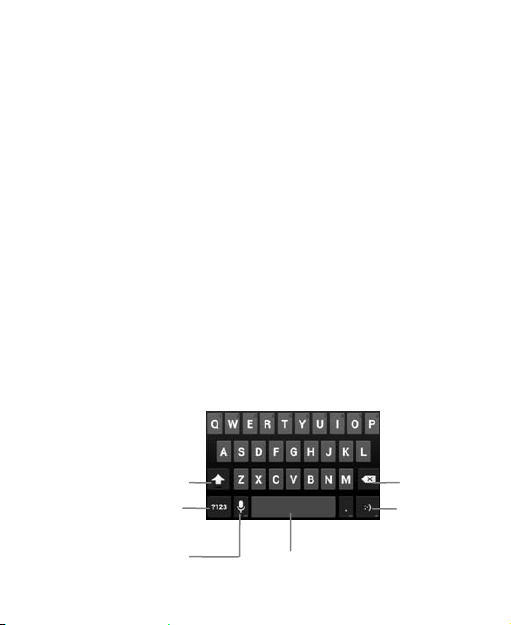
Delete a
Insert a smiley.
Change to
back.
Inse rt space
Select to t u rn on voice
Use the SD card as USB storage device
1. Ins ert the SD card into the card slot o n the phon e.
2. Connect the phone to the P C through the USB cable. The PC
will autom at icall y recognize the SD card a s removable
storage device.
3. Touch “Turn on USB storage”.
Now you can exchange data between the PC and the SD card.
Text Input
Your phone supports the Android keyboard and the GoogleTM
voice typing input method. The Android keyboard and the
TM
Google
inputs.
On the home screen, t ouch the Menu key and then select
System settings > Language & input. Look unde r Default to
select Google voice typing input method.
Android Ke y board
voice typing input method support multiple languag e
Tap to switch between
uppercase and
lowercase.Tap twice to
lock uppercase input.
symbol/number mode.
Tap again to change
typing.
-14-
character
before the
cursor.
Page 17

15
Google vo ic e t y ping
You can use voice input to typ e text. This fea ture uses Google' s
speech-recognition service, so you must have a data connection
on a mobile or Wi-Fi network to u se it. You can con t inue enterin g
text, keep it, or delete it. You can speak to enter text in most
places where you can enter text with the onscreen keyboard.
1. Touch a text field, or a location in text you'v e already enter ed
in a text field.
2. Touch the Microphone key on the onscreen keyboard.
3. When you see the microphone image, speak what you want
to be typed.
-15-
Page 18
Using your phone safely
On the r oad
Using a phone while driving is illegal in many countries.
Plea se follow local laws and driv e safely a t all times.
Near sensitive electronics
Don’t use your phone near sensitiv e electronic equipment –
particularly medical devices such as pacemakers – as it could
cause them to malfunction. It can also interfere with the
operation of fire detectors and other automatic-control
equipment.
For more inform at ion about how y our phon e affects
pacemaker s or other electronic equipment, please contact
the manufacturer or your local distributor.
Your phone may cause interference when used near TVs,
rad i os or aut omated office equipment.
While flying
Your phone can cause interference with aircraft equipment. So
it’s essential you follow airline regulations. And if airline
pers on nel ask you to switch off your phone, or disable its
wireless functions, please do as they say.
In hos pital
Your phone may interfere with the normal operation of medical
-16-
Page 19
17
equipment. Follow all hospital regulations and turn it off when
you’re asked to by posted warnings or medical staff.
At a petrol station
Don’t use your phone at petrol stations. In fact, it’s always best
to switch off whenever you’re near fuels, chemicals or
explosives.
Around water
Keep your phone away from water (or any other liquid). It’s not
a waterproof model.
Making repairs
Never take your phone apart. Please leave that to the
professionals. Unauthorised repairs could break the terms of
your warranty.
Broken antenna
Don’t use your phone if the antenna is damaged, as it could
cause injury.
Around children
Keep your phone out of children’s reach. It should never be
used as a toy and it might not be good for their health.
Original accessories
Only use the original accessories supplied with your phone or
-17-
Page 20
those approved by the manufacturer. Using unapproved
accessories may affect performance, make the warranty void,
break national regulations on the use of phones, or even cause
injury.
Near explosives
Turn off your phone in or near areas where explosive materials
are used. Always obey local laws and turn off your phone when
requested.
Emergency calls
To make an emergency call your phone must be turned on
and in an area where there’s network coverage. Dial the
national emergency number and touch ‘send’. Explain exactly
where you are and don’t hang up until help has arrived.
Working temperature
The working temperature for the phone is between 0℃ and
40℃. Please don’t use the phone outside the range. Using the
phone under too high or too low temperature might cause
problems.
At v ery high v olume, prolonged listening to a phon e
can damage your hearing.
-18-
Page 21

19
Battery care and safety
Keep the battery in a cool, ventilated place and out of direct
sunlight.
Although the battery is rechargeable, it’ll eventually start to lose
its ability to recharge. If you find that the battery won’t recharge,
it’s time to rep lace it.
Please don’t throw old batteries into your household rubbish.
You’ll find there are special bins for batteries at refuse collection
points. And some high street electrical stores provide a battery
recycling service too.
Never throw the battery into a fire – it’s highly inflammable and
could explode, hurting you or somebody else.
When you put the battery into your phone, there’s no need to
use force. Exerting too much pressure could make it leak,
overheat, explode or burst into flame.
Never take the battery apart. This may result in leakage,
overheating, explosion or fire.
If the battery becomes hot, changes colour or shape at any time
(when in use, charging or even while in storage) please stop
using it immediately and replace.
Keep the battery dry. Damp or wet conditions can cause it to
over heat or corrode.
Don’t leave the battery in direct sunlight or anywhere really hot,
like in a car on a summer’s day. That could make it leak or
overheat, while lowering its performance and shortening its life.
Don’t charge the battery continuously for 24 hours.
-19-
Page 22
Overcharging is not good for it.
Note:
Please avoid contact with the materials inside a
damaged or leaking battery. If they get on your skin,
wash with lots of water and seek medical assistance if
required.
Charger care and safety
Only plug into voltages between 100VAC and 240VAC. Using
a voltage outside that range can damage the phone/charge r –
and cause the battery to leak or catch fire.
Never short-circuit the charger – this may caus e electrocuti on,
overheating or damage.
Don’t charge the phone in direct sunlight or in an area where it’s
damp, dusty, or on a vibrating surface. And charging your
phone near – or on – a TV or radio could interfer e with
transmission.
Don’t use the charger if the power cable is damaged. It may
cause a fire or give s omeone a n electric shock.
Keep water well away from the charger. If the charger does
get splashed by water, or any other kind of liquid, immediately
unplug it to avoid overheating, fire or electrocution.
Don’t take the charger apart. It could cause in ju ry, g ive you an
electric shock or catch fire.
-20-
Page 23

21
Never touch any charger, electric cable or socket with wet
hands.
Don’t place heavy objects on the electric cable.
If the cable is damaged, don’t try to mend it yourself – it could
cause a fire or electrocute you.
Always unplug the charger before you clean it.
When unplugging the charger, hold the plug itself, rather than
pulling on the cable. A damaged cable can cause
electrocution or fire.
-21-
Page 24

Care and maintenance
Your phone is a delicate device. The following advice will he lp
you to keep it looking good and performing well…
Use a soft dry cloth to clean your phone, battery and charger.
Don’t use liquids such as alcohol, dilution agents or benzene.
From time-to-time, clean the socket where the charger cable
connects to the phone. Dust tends to gather there. This will
ensure a really good connection.
Don’t use needles, pen points or other sharp objects on the
keypad or screen.
Don’t use your phone with wet hands – it could injure you and
damage the phone.
Don’t use your phone in dusty or dirty environment.
Keep your phone away from extremes of heat – like r adiat ors
or ovens. It may explode if it gets too hot.
If your phone gets wet and the colour of the label on it
changes, the warranty will be vo id, even if the warranty period
hasn’t expired.
If there’s anything wrong with the phone, battery, charger, or
any accessory, please send them to your nearest service
centre for inspection.
-22-
Page 25

23
FCC regulations
This mobile phone complies with part 15 of the FCC Rules.
Operation is subject to the following two conditions: (1) This
device may not cause harmful interference, and (2) this
device must accept any interference received, including
interference that may cause undesired operation.
This mobile phone has been tested and found to comply with
the limits for a Class B digital device, pursuant to Part 15 of
the F C C Rules. These li mits are desig ned to provide
reasonable protection against harmful interference in a
residential installation. This equi pment g enerates, uses and
can radiated radio frequency energy and, if not installed and
used in accordance with the instructions, may cause harmful
interference to radio com munic at ions. However , there is no
guarantee t hat interfer ence wil l not occ ur in a particular
installat ion If th i s equipment does cause harmful interference
to radio or televi sion rec eption , which can be determined by
turning th e equipment off and on, the user is encouraged to
try t o correc t the interference by one or mor e of the followi ng
measures:
-Reor ient or relocate the receivi ng antenna.
-Increase the separation between t he equipment and
receiver.
-Connect the equipment into an outlet on a circuit different
from that to which t he receiv er is co nnected.
-Consult the dealer or an experienced radio/TV technician for
help.
-23-
Page 26

Changes or modifications not expressly approved by the party
resp onsible for compliance could void t he user‘ s authority to
oper ate the equipment.
The antenna(s) used for this transmitter must not be
co-located or operating in conjunction with any other
antenna or transmitter.
RF exposure information (SAR)
The SAR limit of USA (FCC) is 1.6 W/kg averaged over
one gram of tissue. Device types ZTE V883M (FCC ID:
SRQ-V883M) has also been tested against this SAR limit.
The highest SAR value reported under this standard
during product certification for use when properly worn on
the body is 1.197 W/kg and for head is 0.586 W/kg.
Simultaneous RF exposure is 1.458W/Kg.
This device was tested for typic al body‐worn operatio ns
with the back of the handset kept 10mm from the body. To
main t ai n complia n c e wit h F CC RF exp o su r e req u i r em en t s,
use accessories that maintain a 10mm separation
distance between the user's body and the back of the
handset. The use of belt clips, holsters and similar
accessories should not contain metallic component s in its
assembly. The use of accessor ie s tha t do not satisfy these
requirements may not comply with FCC RF exposure
requirements, and should be avoided.
-24-
Page 27

25
Declaration of RoHS compliance
W e’re determined to reduce the impact we have on the environment
and take r esponsibility for the earth w e li ve on. So this document
allows us t o formall y declare th at the V883M, manufactured by ZTE
CORPORATION, fully com plies with the European Parliament’s
RoHS (Restriction of Hazardous Substances) Direct ive 2002/95/E C,
with respect to all the following substances:
(1) Lead (P b)
(2) Mercury (Hg)
(3) Cadmium (Cd)
(4) Hexaval ent Chromium (Cr (VI))
(5) Polybrominated bip henyl (PBB)
(6) Polybrominated dip henyl ether (PB DE )
Our compliance is witnessed by written declaration from our suppliers.
This confirms that any p otential trac e contamination levels of the
substances listed abov e are below the maxi mum level set by EU
2002/95/ EC, or ar e exempt due to their applic ation.
The V883M manufactured by ZTE CO RP ORATION, meet s all the
requirem ents of EU 2002/95/EC.
-25-
Page 28
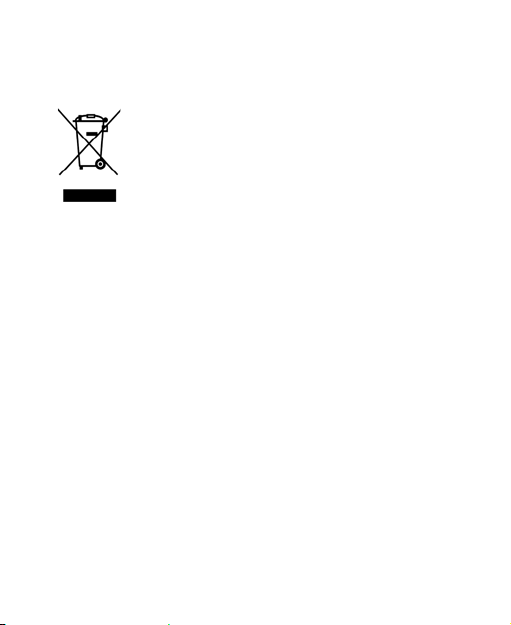
Disposal of your old phone
1. When the wheelie bin symbol is attached to a
product , it means the product is covered by the
European Directive 2002/96/CE.
2. All elect rical and electronic products should be
disposed of separately fr om n ormal household waste
via designat ed coll ecti on p oints provi d ed by
government or local auth or it ies.
3. The cor rect di s posa l of elec trical an d e l ectr onic
products wil l h elp pr ot ect th e environm ent and
human health.
-26-
 Loading...