

Page 1

ZTE R528
Mobile Phone
User Manual
Page 2

LEGAL INFORMATION
Copyright © 2012 ZTE CORPORATION.
All rights reserved.
No part of this publication may be excerpted, reproduced, translated or
utilized in any form or by any means, electronic or mechanical, including
photocopying and microfilm, without the prior written permission of ZTE
Corporation.
The manual is published by ZTE Corporation. We reserve the right to
make modifications on print errors or update specifications without prior
notice.
Version No.: R1.0
Edition Time: 2014.07.31
Page 3

Contents
SAFETY PRECAUTIONS ..................................................................... 6
OPERATIONAL PRECAUTIONS.......................................................... 6
PRECAUTIONS WHILE DRIVING ........................................................ 7
PRECAUTIONS FOR MEDICAL DEVICES AND FACILITIES .............. 7
MOBILE PHONE .................................................................................. 8
PRECAUTIONS FOR POTENTIALLY EXPLOSIVE ATMOSPHERES . 9
PRECAUTIONS FOR ELECTRONIC DEVICES ..................................10
SAFETY AND GENERAL USE IN VEHICLES ................................ .....10
AIRCRAFT SAFETY ............................................................................11
BATTERY USE ....................................................................................11
KEY FUNCTIONS ................................ ................................................ 17
INTERFACE ICONS ............................................................................19
BATTERY ............................................................................................19
3
Page 4

INSTALLING AND REMOVING THE BATTERY ................................. 20
INSERTING THE SIM/SD CARD ......................................................... 21
CHARGING THE BATTERY ............................................................... 23
POWERING YOUR PHONE ON/OFF .................................................. 24
TURNING THE TORCH ON/OFF ........................................................ 24
WRITING TEXT ................................................................ ................... 25
HOW TO ADD CONTACT TO THE PHONEBOOK ............................. 26
HOW TO MAKE AND RECEIVE CALLS ............................................. 26
SENDING AND RECEIVING MESSAGES .......................................... 27
HOW TO SET USER PROFILES ......................................................... 29
HOW TO SET YOUR PHONE ............................................................. 29
BLUETOOTH ...................................................................................... 30
ORGANIZER ....................................................................................... 31
FILE MANAGER ................................................................................. 32
HOW TO PLAY MUSIC ....................................................................... 32
Page 5

HOW TO USE FM RADIO ....................................................................33
SERVICES ..........................................................................................33
5
Page 6

Security
To protect your mobile phone from illegal use, take the security
measures as follows:
Set PIN codes of the SIM card.
Set handset lock code.
Set call restrictions.
Safety Precautions
This section includes some important information on safe and efficient
operation. Please read this information before using the phone.
Operational Precautions
Please use your phone properly. When making or receiving a call,
please hold your phone as holding a wireline telephone. Make sure
that the phone is at least one inch (about two point five centimeters)
from your body when transmitting.
Do not touch the antenna when the phone is in use. Touching the
antenna area affects call quality and may cause the phone to operate
at a higher power level than needed.
Some people may be susceptible to epileptic seizures or blackouts when
exposed to flashing lights, such as when watching television or playing
6
Page 7

video games. If you have experienced seizures or blackouts, or if
you have a family history of such occurrences, please consult your
doctor before playing video games on your phone or enabling a flashinglight feature on your phone. (The flashing-light feature is not available
on all products.)
Keep the phone out of the reach of small children. The phone may
cause injury if used as a toy.
Precautions While Driving
Please pay attention to the traffic safety. Check the laws and regulations
on the use of your phone in the area where you drive. Always obey
them.
Use hands-free function of the phone, if available.
Pull off the road and park before making or answering a call if conditions
require.
Precautions for Medical Devices and Facilities
When using your phone near pacemakers, please always keep the
phone more than eight inches (about twenty centimeters) from the
pacemaker when the phone is switched on. Do not carry the phone in
the breast pocket. Use the ear opposite the pacemaker to minimize
the potential for interference. Switch off the phone immediately if
7
Page 8

necessary.
Some phones may interfere with some hearing aids. In the event
of such interference, you may consult your hearing aids manufacturer
to discuss alternatives.
If you use any other personal medical device, please consult the
manufacturer of your device to determine if it is adequately shielded
from RF (radio frequency) energy.
In those facilities with special demand, such as hospital or health care
facilities, please pay attention to the restriction on the use of mobile
phone. Switch off your phone if required.
Mobile Phone
Please use original accessories or accessories approved by the
phone manufacturer. Using any unauthorized accessories may
affect your mobile phone‟s performance, damage your phone or even
cause danger to your body and violate related local regulations about
telecom terminals.
Turn off your phone before you clean it. Use a damp or anti-static
cloth to clean the phone. Do not use a dry cloth or electrostatically
charged cloth. Do not use chemical or abrasive cleaners as these
could damage the phone.
As your mobile phone can produce electromagnetic field, do not
place it near magnetic items such as computer disks.
8
Page 9
Using the phone near electrical appliances such as TV, telephone,
radio and personal computer can cause interference.
Do not expose your mobile phone to direct sunlight or store it in hot
areas. High temperatures can shorten the life of electronic devices.
The phone's normal operating temperature is -10℃ ~ 50℃ .In order
to ensure the normal phone functions, do not use this phone outside
the temperature range.
Keep your phone dry. Any liquid may damage your phone.
Do not drop, knock or harshly treat the phone. Rough handling
can break internal circuit boards.
Do not connect the phone with any incompatible enhancement.
Do not attempt to disassemble the mobile phone or battery.
Do not store the phone with flammable or explosive articles.
Do not charge the mobile phone without battery.
The phone cannot be used at an altitude higher than 2000 meters.
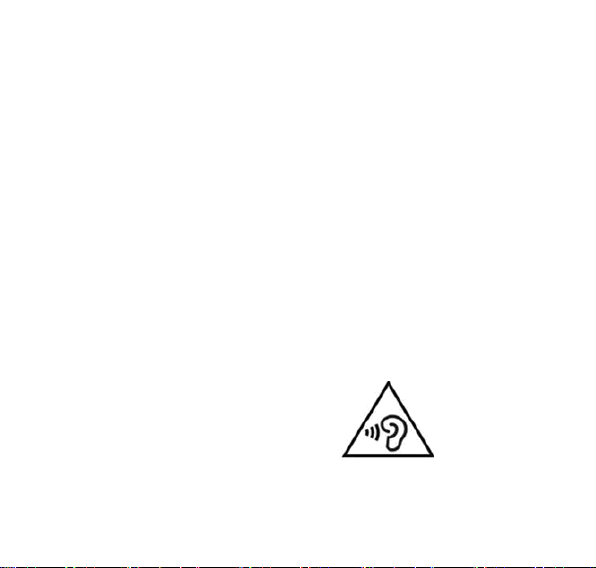
To prevent possible hearing damage,
do not listen at high volume levels
for long periods.
Precautions for Potentially Explosive Atmospheres
Switch off your phone prior to entering any area with potentially
9
Page 10

explosive atmospheres, such as fueling areas, fuel or chemical transfer
or storage facilities.
Do not remove, install, or charge batteries in such areas. Spark in a
potentially explosive atmosphere can cause an explosion or fire
resulting in bodily injury or even death.
To avoid possible interference with blasting operations, switch off
your phone when you are near electrical blasting caps, in a
blasting area, or in areas posted “Turn off electronic devices”. Obey
all signs and instructions.
Precautions for Electronic Devices
Some electronic devices are susceptible to electromagnetic interference
sent by mobile phone if inadequately shielded, such as electronic
system of vehicles. Please consult the manufacturer of the device before
using the phone if necessary.
Safety and General Use in Vehicles
Safety airbag, brake, speed control system and oil eject system
shouldn‟t be affected by wireless transmission. If you do meet problems
above, please contact your automobile provider. Do not place your
phone in the area over an airbag or in the airbag deployment area.
Airbags inflate with great force. If a phone is placed in the airbag
deployment area and the airbag inflates, the phone may be propelled
10
Page 11

with great force and cause serious injury to occupants of the vehicle.
Please turn off your mobile phone at a refueling point, and the same
to the place where the use of two-way radio is prohibited.
Aircraft Safety
Please turn off your mobile phone before the airplane takes off. In
order to protect airplane‟s communication system from interference,
it is forbidden to use mobile phone in flight. Safety regulations require
you to have permission from a crew member to use your phone while
the plane is on the ground.
If the mobile phone has the function of automatic timing power-on,
please check your alarm setting to make sure that your phone will not
be automatically turned on during flight.
Battery Use
Do not short-circuit the battery, as this can cause the unit to overheat
or ignite.
Do not store battery in hot areas or throw it into fire. Otherwise, it
will cause explosion.
Do not disassemble or refit the battery. Otherwise, it will cause liquid
leakage, overheating, explosion and ignition of the battery.
Please store the battery in a cool dry place if you don‟t use it for a long
period.
11
Page 12

The battery can be recharged for hundreds of times, but it will eventually
wear out. When the operating time (talk time and idle time) is
noticeably shorter than normal, it is time to replace it with a new one.
Please stop using the charger and battery when they are damaged
or show evidence of aging.
Return the worn-out battery to the provider or dispose of it in accordance
with environment regulations. Do not dispose of it in household rubbish.
Please use original batteries or batteries approved by the phone
manufacturer. Using any unauthorized battery may affect your handset
performance or may cause danger of explosion, etc.
Warning: If the battery is damaged, do not discharge it. If the leakage
does come into contact with the eyes or skin, wash thoroughly in clean
water and consult a doctor.
FCC Compliance
This device complies with Part 15 of the FCC Rules. Operation is subject
to the following two conditions: (1) this device may not cause harmful
interference, and (2) this device must accept any interference received,
including interference thatmay cause undesired operation.
Caution: Changes or modifications not expressly approved by the
manufacturer could void the user‟s authority to operate the equipment.
Note: This equipment has been tested and found to comply with the
limits for a Class B digital device, pursuant to part 15 of the FCC Rules.
These limits are designed to provide reasonable protection against
12
Page 13

harmful interference in a residential installation. This equipment
generates, uses and can radiate radio frequency energy and, if not
installed and used in accordance with the instructions, may cause
harmful interference to radio communications. However, there is no
guarantee that interference will not occur in a particular installation. If
this equipment does cause harmful interference to radio or television
reception, which can be determined by turning the equipment off and on,
the user is encouraged to try to correct the interference by one or more
of the following measures:
—Reorient or relocate the receiving antenna.
—Increase the separation between the equipment and receiver.
—Connect the equipment into an outlet on a circuit different from that to
which the receiver is connected.
—Consult the dealer or an experienced radio/ TV technician for help.
Health and safety information
Radio Frequency (RF) Energy
This model phone meets the government‟s requirements for exposure to
radio waves.
This phone is designed and manufactured not to exceed the emission
limits for exposure to radio frequency (RF) energy set by the Federal
Communications Commission of the U.S. Government:
The exposure standard for wireless mobile phones employs a unit of
measurement known as the Specific Absorption Rate, or SAR. The SAR
13
Page 14

limit set by the FCC is 1.6W/kg. Tests for SAR are conducted using
standard operating positions accepted by the FCC with the phone
transmitting at its highest certified power level in all tested frequency
bands. Although the SAR is determined at the highest certified power
level, the actual SAR level of the phone while operating can be well
below the maximum value. This is because the phone is designed to
operate at multiple power levels so as to use only the poser required to
reach the network. In general, the closer you are to a wireless base
station antenna, the lower the power output.
The highest SAR value for the model phone as reported to the FCC
when tested for use at the ear is 0.652W/kg and when worn on the body,
as described in this user guide, is 1.261 W/kg (Body-worn
measurements differ among phone models, depending upon available
enhancements and FCC requirements).
While there may be differences between the SAR levels of various
phones and at various positions, they all meet the government
requirement.
The FCC has granted an Equipment Authorization for this model phone
with all reported SAR levels evaluated as in compliance with the FCC RF
exposure guidelines. SAR information on this model phone is on file
with the FCC and can be found under the Display Grant section of
http://www.fcc.gov/oet/fccid after searching on
FCC ID: SRQ-ZTER528
14
Page 15

For body worn operation, this phone has been tested and meets the
FCC RF exposure guidelines for use with an accessory that contains no
metal and the positions the handset a minimum of 1.0 cm from the body.
Use of other enhancements may not ensure compliance with FCC RF
exposure guidelines. If you do not use a body-worn accessory and are
not holding the phone at the ear, position the handset a minimum of 1.0
cm from your body when the phone is switched on.
15
Page 16

Limitation of Liability
ZTE shall not be liable for any loss of profits or indirect, special, incidental
or consequential damages resulting from or arising out of or in connection
with using this product, whether or not ZTE had been advised, knew or
should have known the possibility of such damages. The user should
refer to the enclosed warranty card for full warranty and service information.
Note: The pictures and icons shown in the manual are just schematic
drawings for function demonstration. If they are inconsistent with your
handset, please take your handset as the standard. If the inconsistency
exits in the manual because of the handset function updating, please
refer to the follow-up public information from ZTE CORPORATION.
16
Page 17
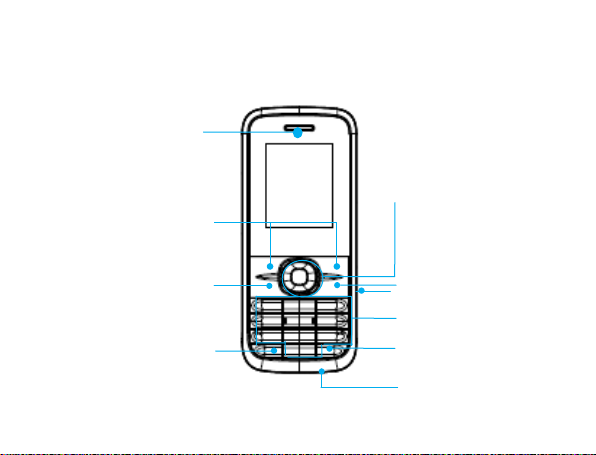
Key Functions
Torch
Earpiece
Left/Right soft keys
Send key
End/Power key
Charger/USB Jack
4-Way Navigation
keys and Centre key
Alpha numeric keys
# key
* key
17
Page 18
Function
Description
Left soft key
Performs the function indicated at the left bottom of the
screen.
Right soft key
Performs the function indicated at the right bottom of the
screen.
Centre key
Press to confirm actions and make selections.
4-Way
Navigation keys
These keys (UP, DOWN, LEFT and RIGHT) allow for
navigation through menu options and quick accessing to
some function menus.
Send key
Press to dial a phone number or answer a call, or view
the call history in the idle screen.
End/Power key
Press to exit to the standby mode.
Hold to switch on/off the phone.
Alpha numeric keys
Press to enter characters 0-9 and the alphabets from a-z.
18
Page 19
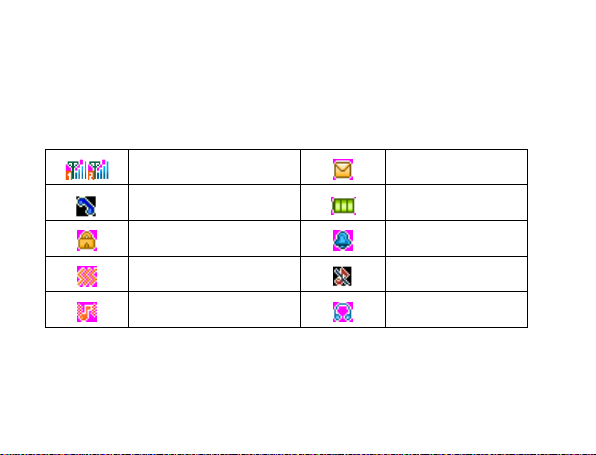
Signal strength
New SMS
Missed Call
Battery status
Keypad locked
Alarm clock set
Meeting
Silent
Outdoor
Headset
Note: In this User Manual, “press a key” means to press the k ey and
release it immediately, while “hold a key” means to press the key for
at least two seconds and then release it.
Interface icons
Battery
The lithiumion battery of the mobile phone can be immediately used
19
Page 20
after unpacking.
Installing and removing the battery
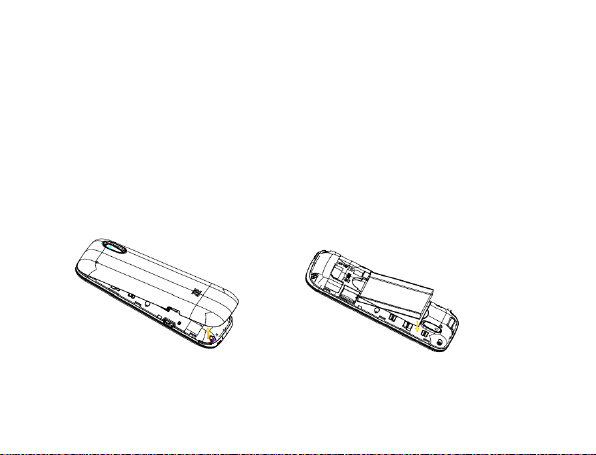
1. Make sure that your phone is off and remove the battery cover.
2. Insert the battery by aligning the metal contacts with the contacts in
the battery slot. And then Push down the upper section of the battery
until it clicks into place.
To remove the battery, pull it up and remove from mobile phone.
3. Replace the battery cover and close it gently until you hear a click.
Remove the battery cover Push down the battery
20
Page 21
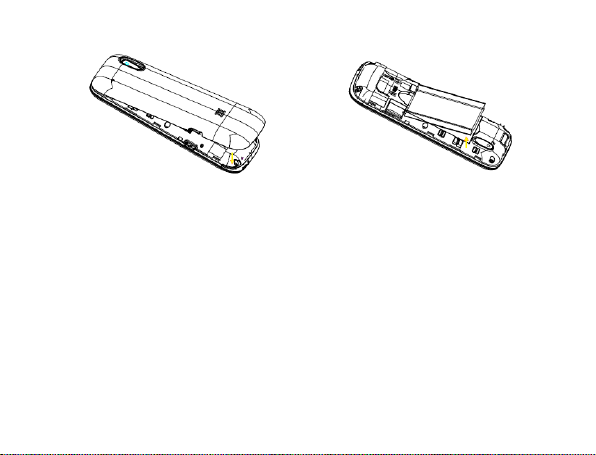
Replace the battery cover Pull up the battery from here
Inserting the SIM/SD card
SIM card (Subscriber Identity Module) is a micro-chip that holds your
personal information such as names and phone numbers. Your phone
won‟t work without it. If you already have contacts on your SIM c ard,
they can be transferred in most cases.
Insert the SIM and memory card as follows:
1. Make sure that the phone is switched off and the charger is
disconnected from the phone.
21
Page 22
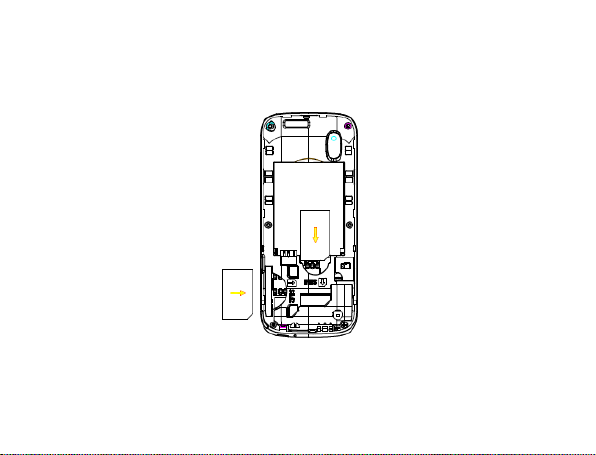
2. Turn the phone over and remove the battery cover.
3. Hold your SIM card with the cut corner oriented as shown and then
slide it into the card holder with the metal contacts facing downward.
Insert the SIM card
4. Insert the memory card with the metal contacts facing down until it
clicks to the right position.
22
Page 23
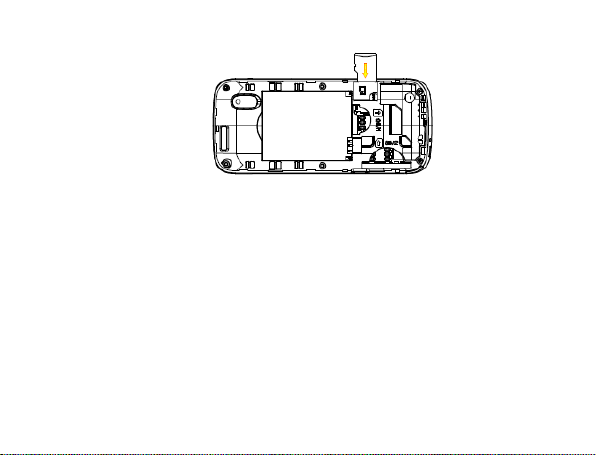
Insert the memory card
5. Fix the battery cover till you hear the click sound.
Note: You can use memory card to expand the storage of the phone.
You can store or copy files such as music and so on.
Do not take out the card or switch off the phone while transmitting or
storing data, which may cause data loss or damage to the phone or the
card.
Charging the battery
Your phone is powered by a rechargeable battery. For maximum battery
23
Page 24

performance, it is recommended that you first use up the battery power
and then charge it completely. A new battery‟s full performance is achieved
only after three complete charge and discharge cycles.
1. Connect your travel adapter to the right of your mobile phone.
2. Connect the other end of the travel adapter to the mains socket.
3. When the battery is fully charged, disconnect the charger.
Powering your phone on/off
Make sure that your SIM card is in your mobile phone and that the battery
is charged.
Hold the End/Power key to power on/off the phone. The phone will
automatically search for the network when switched on.
Turning the torch on/off
In the standby mode, hold the 0 key can turn on or off the torch.
24
Page 25

Writing text
Change input mode: Press the # key to change the input mode.
Input Letters: press the corresponding letter to enter desired characters. It
does not work in numeric (123) mode.
Input Digits: In numeric mode, press digit key once to input a digit.
Input Symbol: Press the * key to enter symbol mode, select the
required symbol (common symbols) by pressing the Navigation keys
and then press the Left soft key or Centre key to confirm it.
Input Space: Press the 0 key to input space. It does not work in
numeric (123) mode.
Delete Character: Press the Right soft key to clear a character. Hold
the Right soft key to delete all characters and clear the display.
Move Cursor to Left or Right: Among the text, press the Left/Right
navigation keys to move the cursor to left or right.
25
Page 26

How to add contact to the Phonebook
There are some numbers that you may want to call again and again, so
it makes sense to add these numbers to your Phonebook. You can then
access these numbers quickly and easily.
1. Go to Menu>Phonebook>Add new contact.
2. Edit the information and save it.
You can also save a number right after you‟ve made or received a
phone call or a text message from someone who is not yet in your
Phonebook list.
To delete someone from your Phonebook list, first select the name,
then select Options>Delete.
How to make and receive calls
The most basic way to make a call is to input the number in the standby
mode and press the Send key. You can also make a call from the
Phonebook list.
26
Page 27

To call someone: Go to Menu> Phonebook . Use the Up/Down keys to
find the name of the person you want to call. You can also type in the
first letter of the name of the person you want to call to find the right
name, and press the Send key.
To receive a call, press the Send key.
To end a call, press the End/Power key.
To reject a call, press the End/Power key.
Make sure that you are in an area with sufficient coverage to make calls.
The strength of the network signal is indicated on the Status Bar of the
screen.
Sending and receiving messages
You can use your mobile phone to send and receive messages.
Send a message
1. Go to Menu > Messaging >Write message >
27
Page 28

Text/Multimedia message.
2. Write your message. For more information on input method,
see section „Text Input‟. When you write an SMS, press
Options → Send to, and edit the recipient. When you write
an MMS, you can edit Subject and content. In content field,
you can select Options and then choose add picture, sound,
video, attachment and so on.
3. When you finish writing an SMS/MMS, select Options to
send or save the message.
Receive a message
Upon receiving a message, the mobile phone will alert you with
a ringtone, prompt, or a new message icon.
1. Press View to enter the Inbox directly and then press the Center
key to open the message.
2. Use the Up/Down keys to view the message.
3. While the message is open, use Options to reply, delete, or
forward the message. You can also call back the sender.
28
Page 29

How to set User profiles
Go to Menu> Profiles. You can select Options>Activate/ Customize
to activate/edit a profile.
How to view Call history
Go to Menu> Call logs.
Dialled calls, Received calls and Missed calls are saved in Call history.
If the records are full, the earliest saved records will be deleted.
Also, you can delete call logs in Call history.
How to configure Call settings
Go to Menu>Settings >Call settings.
You can set Call waiting, Call divert and Call barring and so on.
How to set your phone
You can adjust various settings of your phone. Go to Menu>Settings.
29
Page 30

Phone settings: Select language, set input methods and display, etc.
Network settings: Set to automatically or manually select network.
Security settings: Set security features to protect you from unauthorized
use of your phone and SIM card.
Restore factory settings: Enter the phone password to restore to the
factory settings. Some personal information might be lost if you use
this function, so be careful.
Note: You may be required to input the phone password in some of the
security settings interfaces. The default password is 1122. You also can change the
password in Settings.
Bluetooth
The Bluetooth devices must be paired before the communication is
performed.
1. Go to Menu> Settings >Connectivity>Bluetooth. You can turn on
or off Bluetooth on your phone.
30
Page 31

When Bluetooth is on, the icon will appear in the status bar.
2. Go to My device >Search new device to search other Bluetooth-
enabled devices and list them.
3. Select the desired device name in the list and press Pair.
4. Enter the wireless password, and then press OK. When the opposite
party enters the same password, the connection will be established.
Note: Go to Visibility, you can choose to be visible or not. When your
phone is visible, and the Bluetooth is turned on, all other Bluetoothenabled devices within range can detect your phone.
Organizer
Go to Menu>Organizer
Alarm
You can view, and edit the alarm clocks settings. You can also enable or
disable the alarms, or set the corresponding features of the alarm
according to instructions.
31
Page 32

Calendar
Enter the Calendar, the calendar of the current month will be displayed
on the screen and the current date will be marked by a background box
in a special colour.
File manager
Go to Menu>File manager. You can check all the folders in the memory
card, create new ones or rename, delete the folders, etc.
Note: When you select Format, the data will be lost, so please be
careful with this function.
How to play music
Go to Menu> Multimedia >Audio player. You can play the audio in the
memory card.
Note: Before using this function, you must insert the memory card first.
32
Page 33

How to use FM radio
Go to Menu> Multimedia > FM radio.
With the radio, you can search for radio channels and listen to
them. In the FM radio interface, you can press the */# keys to
adjust volume, press the Left/Right keys to tune the frequency,
and press the Center key to pause. Select Options to enter the
submenu.
Note: please take your handset as the standard.
Ser vices
Go to Menu > Services. Services allow you to view internet
content. In Services you also can use the STK.
Internet service
You can perform the following operations:
Homepage: Go to your homepage interface.
33
Page 34

Bookmarks: Access your p hone‟s preset websites. Select a
bookmark to load the website.
Search or input URL: Input a URL to visit the site.
Settings: You can set Homepage, Data account, Browser
options and Preferences.
STK
SIM card Toolkit (STK) services are value-added services
provided by your network provider.
Your mobile phone supports STK service, but if your SIM card
and network provider do not support the service, these
functi ons can‟t be used .
34
 Loading...