

Page 1

GSM Dual-Band GPRS Digital
Mobile Phone
User Manual
The manual is applicable for
ZTE-G R830 mobile phone.
Page 2

Copyright © 2009 by ZTE Corporation
All rights reserved.
No part of this publication may be excerpted, reproduced, translated or utilized
in any form or by any means, electronic or mechanical, including photocopying
and microfilm, without the prior written permission of ZTE Corporation.
ZTE operates a policy of continuous development. We reserve the right to
update the technical specifications in this document at any time without prior
notice.
Release V1.0
Manual number:
2009.02.10.
Page 3

Table of Contents
1
Before Use .................................. 1
1.1 Introduction .................................... 1
1.2 Safety Instructions ......................... 1
1.3 Safety Warnings and Precautions .. 2
1.4 Parts Definition ............................ 10
1.5 Battery ......................................... 12
1.6 Insert and Remove SIM Card ...... 15
1.7 Insert and Remove Memory Card 16
1.8 Power On/Off ............................... 16
2 Menu Tree ................................ 18
3 Writing Text ............................. 19
4 Create a Contact on Your Phone
Book ........................................... 21
5 Make and Receive Calls ............. 22
6 Send and Receive Text Messages23
7 Menu Functions ........................ 25
8 Appendix ................................. 28
8.1 Clearance and Maintenance ........ 28
8.2 Failure Analysis ............................ 30
Health and Safety Information ........... 32
FCC Regulations ............................... 34
Declaration of RoHS Compliance ...... 36
EC Declaration of Conformity ............ 38
Page 4

Page 5

1 Before Use
1
Before Use
1.1 Introduction
Thank you for choosing ZTE Corporation’s ZTE-G R830 GSM/GPRS 850/1900MHz
Digital Mobile Phone (hereinafter referred to as mobile phone).
To guarantee your mobile phone always in its best condition, please read this manual
carefully and keep it for future use.
The pictures in this user manual are only used to demonstrate the mobile phone’s
functions, so they are maybe different fr om what you see on your mob ile phone. Please
refer to your mobile p hone if there are any di fferences.
1.2 Safety Instructions
If your mobile phone is lost or stolen, notify your network service provider immediately
to prevent others from abusing it. Meanwhile you need provide your service provider
with your mobile phone’s IMEI, which is printed on the label on the back of your mobile
phone (remove the battery and find it). Keep the IMEI properly for future use.
1
Page 6
To protect your mobile phone against abuse, take the following precautions:
Set PIN code and modify it from time to time.
Take your mobile phone with you as much as you could.
1.3 Safety Warnings and Precautions
Precautions for using your mobile phone
Traffic Security
z Pay attention to traffic security and follow all local relevant laws and regulations
while driving.
Interference
z Do not use your mobile phone near weak signal or high-precision electronic
devices. Radio wave interferenc e may cause misop eration of an electr onic device
2
Page 7
1 Before Use
or other problems. Pay special attention when you use your mobile phone near
audiphone, pacemaker and/or other medical electronic devices, fire detector,
auto-door and/or other auto-control equipments. For details on the influence
caused by your mobile phone on pacemaker or other medical electronic devices,
please consult the manufacturer or your local distributor.
z Do not use your mobil e phone near TV set, r adio or office automat ed equipments to
avoid mutual influence.
On Airplane
z Turn off your mobile phone on airplane where it’s forbidden to use it. The mobile
phone may affect the normal operation of electronic devices, therefore please
follow the relevant regulations when using your mobile phone on airplane.
In Hospital
z Turn off your mobile phone in hospital where it’s forbidden to use it. The mobile
phone may affect the normal operation of medical apparatus, therefore please
follow the relevant regulations when using your mobile phone in hospital.
3
Page 8
In Gas Station
z Do not use your mobile phone in gas station. Turn off your mobile phone near fuels or
chemicals.
Wat erpr oof
z Keep your mobile phone away from water. This may cause overheating, electric
leakage or failure if water or any other kind of liquid enters your mobile phone.
Disassemble
z Do not disassemble or reassemble your mobile phone because this might cause
damage, electri c leakage or circuit failure.
Antenna
z Do not use your mobile pho ne if your antenna is dam aged because this m ay cause
body injury.
4
Page 9
1 Before Use
Away from Children
z Keep your mobile phone from children. It may cause body injury when the mobile
phone is used as a toy.
Original Accessories
z Use the original accessories or those authenticated by the manufacturer. Using
non-original accessories may affect the mobile phone’s performance, violate the
warranty provisions or relevant national regulations about telecom terminals, or
even cause body injury.
Explosion Areas
z Please strictly follow relevant laws and regulations to turn off your mobile phone in
or near the ex plosion areas.
5
Page 10
Emergency Calls
z Make sure your mobile phone is turned on and in the service area. Input the
emergency number and press “Send” key to dial. Let others know where you are
and do not hang up without permission.
Precautions for using the battery
z Put the battery in a cool and ventilated place where there is no direct sunshine.
z The battery life is usually limited, and it becomes shorter and shorter after the
battery is charged over and over again. If the charging fails several times, this
indicates that the battery is worn out and the replacement is advised.
z Dispose the worn- out batteries in de signated places according to specif ied
regulations rather than throw them into residential garbage.
z Do not throw the wo rn-out batteri es into fire bec ause this might ca use fire or
explosion.
6
Page 11
1 Before Use
z Do not press with great force when installing the battery because this may result in
leakage, overhe ating, explosion or fire.
z Do not disassemble or re assemble the batter y because this may result i n leakage,
overheating, explosion or fire.
z If the battery becomes hot, changes in color or gets deformed during the course of
use, charging or storage, please immediately stop using and replace.
z Keep the battery away from dampness to prevent overheating, smoldering or
erosion.
z Do not leave the batter y in direct sunshine, aro und a car or high-temperat ure place
because this mig ht result in leakage or overheating. This might affect the batter y’s
performance and shorten its life.
z Do not keep charging the battery continuously over 24 hours.
Note:
If the battery is damaged, please avoid contac ting the mat erials in the battery. If your
skin has contacted those materials, flush your skin with lots of water, and seek for
help from doctors if necessary.
7
Page 12
Precautions for using the charger
z Use the power voltage between 110VAC and 220VAC. Using the voltage beyond
the range may caus e leakage, fire or damage to the phone and charger.
z Do not short-circuit the charger because this might cause electric shock,
smoldering or dama ge.
z Do not charge the battery in direct sunshine, near dampness, dust, vibration, TV
set, or radio (may affect the image, sound), etc.
z Do not use the charg er if the power cable is damaged becaus e this might cause fire
or electric shock.
z Do not place wat er containers near the charger to av oid water splash ing. If water or
any other kind of liquid splashes on the charger, immediately remove the charger
from the power socket to avoid overheating, fire, electric shock or failure.
z Do not disassemble or reassemble the charger because this might cause body
injury, electric shock, fire or damage.
z Do not touch any charger, power cable or power socket with wet hands to avoid
electric shock.
8
Page 13

1 Before Use
z Do not place heavy objects onto power cables or refit power cable because this
might cause el ectric shock or f ire.
z Remove power plug from the socket before cleaning and maintenance.
z Hold the charger rather than pull the power cable while removing the plug from the
socket because this might cause damag e, electric shock or fire.
9
Page 14
r
y
A
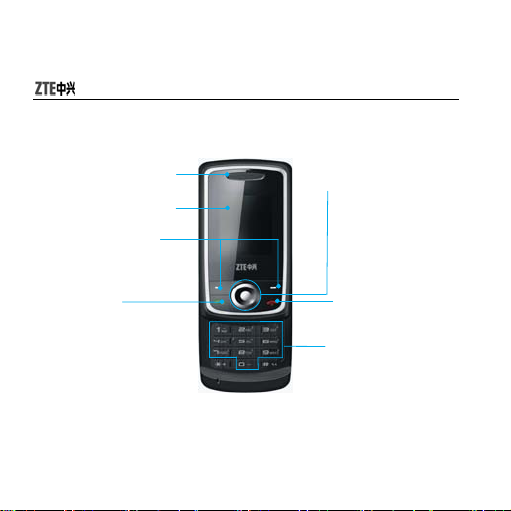
1.4 Parts Definition
Left/Right soft keys
Performs the function
indicated at the bottom of
the display.
Send key
Dials a phone number or
answers a call. In standby
mode, shows the history of
calls made, received and
missed.
Receive
Displa
4-Way Navigation keys
and Centre key
In standby mod e
accesses:
Up-Audio Player
Down-Alarm
Left-User Profiles
Right-Tone Setup
Centre-Main Menu
End/Power key
lpha numeric keys
In standby mode, inputs
numbers to dial.
10
Page 15
Note:
In this user manual, “press” means pressing the key and then releasing; “hold”
means pressing and holding the key for about 2 seco nd s or mor e.
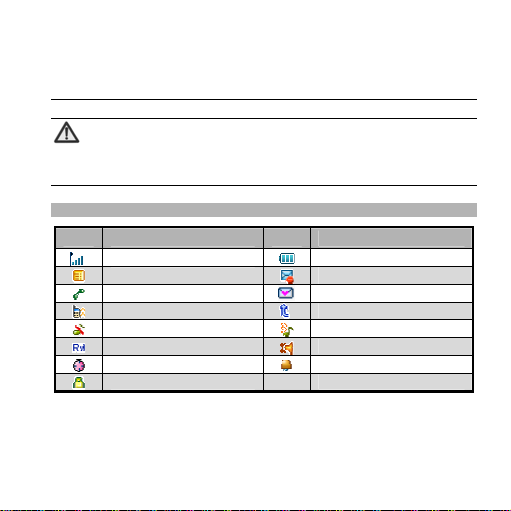
Descriptions of icons on status bar
Icons Descriptions Icons Descriptions
Network signal strength
Unread SMS
Missed call
Vibration Call diverting
Silent Vibration and ring
In Roaming Vibration then ring
Stopwatch on Alarm on
Keypad locked
11
Battery capacity
MMS is downloading Unread
Unread MMS
1 Before Use
Page 16
1.5 Battery
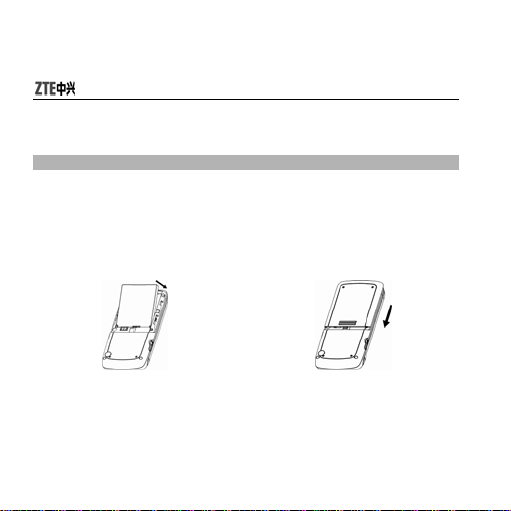
Installing the Battery
1. Insert the battery by aligning the gold
contacts on the bat tery with the g old
contacts in the battery compartment
on the phone and Insert the battery
into the slot.
2. Put on the battery cover, and push
forward in the dir ection of the arr ow as
shown until it’s locked.
12
Page 17
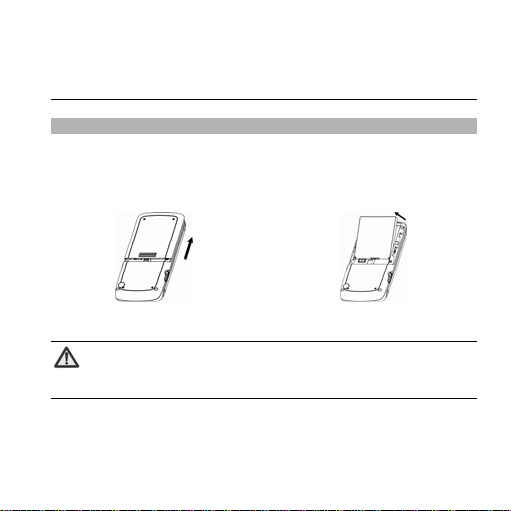
Removing the Battery
1. Push up the battery back and take out
the back cover.
Note:
Please turn off your mobile phone before takin g ou t t he batt e ry.
1 Before Use
2. Pull the battery in the direction of the
arrow as shown and take out the
battery.
13
Page 18
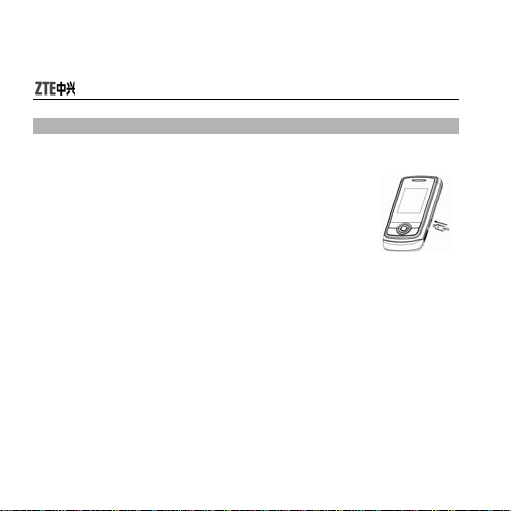
Charging the Battery
The lithium battery can be used directly after being taken out from the package. To make the
battery always in its best condition, please exhaust the capacity of the battery and then fully
recharge it for the first three times.
1. Insert the charger to the mobile phone through USB interface;
2. Plug the charger into 110V/220V power socket;
3. When the mob ile phone is powered on, the battery capacity bar
on up-right corner of th e screen keeps scrolling dur ing charging;
when the mobile phone is powered off, there will be charging indication on the
screen during charging. If the mobile phone is used excessively without enough
capability, the charging indication will not immediately appear on the screen of the
mobile phone when charging starts, and the mobile phone might not be powered on
within a few minutes after the charging starts;
4. When the mobile phone is on, the battery is fully charged as the battery capacity bar
on th e up- righ t co rner of the s creen is full and doesn’ t flicker any longer . When the
mobile phone is off, the battery is fully charged as fully charged picture appears on the
screen. During the charge, your mobile phone and charger may normally become hot;
5. Please disconnect the charger from your mobile phone and the socket when the
charging is completed.
14
Page 19
1 Before Use
Note:
Put your mobile phone in ventilated place under normal temperature during ch a r g i n g .
Use the original charg er or those authenticated by the manufacture r. Using
non-original charger may cause danger and violate the warranty provisions.
Charge your mobile phone in t ime w hen it i s powere d off a utomati cally or pr ompts
the lack of the power.
1.6 Insert and Remove SIM Card
Insert a valid SIM car d into your mobile phon e before use. All inf ormation regarding
network connection and SIM phone book is saved in SIM card. In order to avoid the loss
and damage of inf ormation saved in SI M card, please don ’t touch the metal s urface and
put SIM card far away from electricity or magnetism.
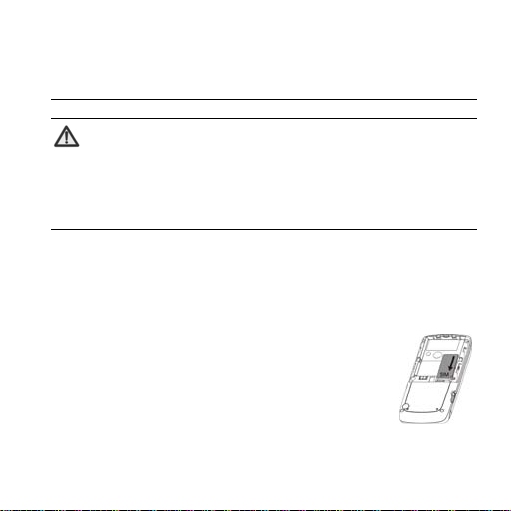
1. Turn off your mobile phone, remove the battery and disconnect
the external power.
2. Put SIM card into the socket as shown in the figure.
Turn off your phone and remove the battery bef ore taking out SIM
card.
15
Page 20
1.7 Insert and Remove Memory Card
Note:
This mobile phone supports T-FLASH memory card. For details on compatibility
information of T-FLASH, please consult your manufacturer or supplier.
Please do not take out the mem ory card when p erforming the rele vant op eration
on the card. Taking out the card might not only damage your card and mobile
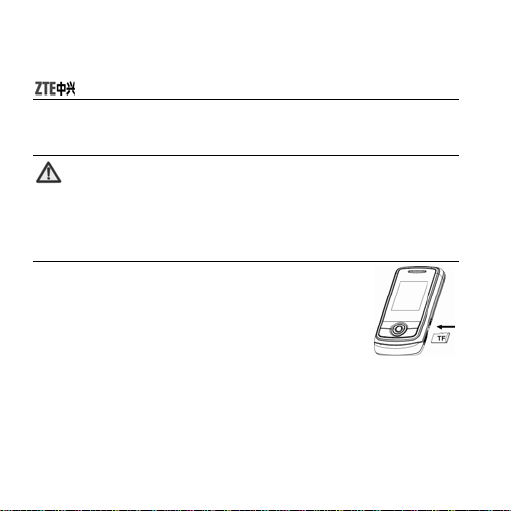
1. Open T-FLASH card cover at the right side of the phone and
2. Push tightly until the card is installed in the right position and
Before you take out the card, please open T-FALSH card cover and
press the card inward to unlock.
phone, but destroy the data saved in the card.
insert the memory card.
close T-FLASH card cover.
1.8 Power On/Off
Hold End key until the power-on/off animation appears.
16
Page 21
1 Before Use
After your turn on your mobile phone, it will automatically check whether or not SIM card
is inserted or usable, and shows the following information on the screen in turn:
Enter Phone Lock Code: If you’ve set the c ode.
Enter PIN: If you’ve set PIN code for SIM card.
Note:
SIM card will be locked if you ente r wrong PIN co de three time s. Then you ne ed
PUK code to unlock SIM card. The PIN code may be p rovided t o you to gether with
SIM card. If not, co ntact yo ur net work se rvice pr ovider . The def ault PI N code is
normally 1234. Please replace it with your own PIN code as so o n as poss ible.
Search: The mobile phone will search for the available network.
17
Page 22
2 Menu Tree
1. Call History 4. Phone Book 6.2 Image Viewer 7.9Currency Converter
1.1 Missed Calls 4.1 Quick Search 6.3 Video Recorder 7.10 Bluetooth
1.2 Dialed Calls 4.2 Add New Entry 6.4 Video Player 8. Services
1.3 Received Calls 4.3 Copy All 6.5 Audio Player 8.1 WAP
1.4 Delete Call Log 4.4 Delete 6.6 Sound Recorder 8.2 Data Account
1.5 Call Time 4.5 C aller Group 6.7 FM Radio 9. Settings
1.6 Call Cost 4.6 Extra Num ber 7. Organizer 8.1 WAP
2. User Profiles 4.7PhoneBook Settings 7.1 Calendar 8.2 Data Account
2.1 General 5. Messages 7.2 To Do list 9.1 Phone Setup
2.2 Metting 5.1 SMS 7.3 Alarm 9.2 Call Setup
2.3 Outdoor 5.2 MMS 7.4 World Clock 9.3 Network Setup
2.4 Headset 5.3 Voice Mail Server 7.5 Java 9.4 Security Setup
2.5 Silent 5.4Broadcast Message 7.6 Gam es 9.5Restore Factory Settings
2.6 Bluetooth 6. Multimedia 7.7 Stopwatch
3. File Manager 6.1 Camera 7.8 Calculator
18
Page 23

3 Writing Text
3 Writing Text
• Change input mode: Press # key to change the input mode (input modes: eZi EN,
• Input Letters: In ABC/abc mode, press the corresponding letter key till the letter
• Input Words: In eZi EN, eZi en, eZi Abc mode, key-in any letter with a single key
• Input Digits: In 123 mode, press digit key once to key-i n a digit. In ABC/abc mode,
• Input Symbol: Press * key to enter a sym bol. In ABC/abc mode, pr ess 1 key till the
eZi en, eZi Abc, ABC, abc and 123).
appears.
press. Press each key only once for every letter. The word changes
after each key stroke. When you have finished writing the word and it
is correct, confirm it by pressing 0 or the Centre key. If the word
displayed on the scr een is not what you wan t, press up/down key to
view other matching words, then confirm it by pressing 0 or the
Centre key. Pressing a Navigation key moves the cursor. Predictive
text input is based on a built-in dictionary.
long press the number key.
required symbol (common symbols) appears.
19
Page 24
• Input Space: Press 0 key to input space. It does not work in 123 mode.
• Delete Character: Press Right soft key to clear a character.
• Delete all Characters: Press and hold Right soft key to delete all charac ters and
• Move Cursor to Left or Right: Press Left/Right navigation keys to move the cursor
clear the display.
left or right.
20
Page 25

4 Create a Contact on Your Phone Book
4 Create a Contact on Your Phone Book
There are some phone numbers that you may want to call again and again so it makes
sense to add these to your Phone Book. You can then access these numbers quickly
and easily.
• Select Menu then Phone Book, and then select Add New Entry.
• Select whether to save the new contact to your SIM card or to the phone’s memory.
• Enter the contact’s name and phone number.
• Press Left soft key “OK”, then select Ye s.
• If you select To Phone, you could add the information such as Home Number,
Company Name, etc. You could also classify the contact into different groups and set
different ringtones for the contact.
You can also save a number right after you’ve made or received a phone call or a text
message from someone who is not yet in your Phone Book.
• To delete someone from your Phone Book, first select the name, then press Left soft
key “Options” and choose Delete.
21
Page 26
5 Make and Receive Calls
The most basic way to make a call is to key in the number and press the Send key. One
advantage of a mobile phone is that you can also store people’s names and numbers in
your mobile Phone Book and call them more easily.
To call someone:
• Press Right Soft key in standby mode to enter Phone Book. From here use the
Up/Down keys to find the name of the person you want to call.
• Now simply press the green Send key.
• End the call by pressing the red End key.
• Make sure you are in an area with sufficient coverage to make calls. The strength of
the network signal is indicated on top left corner of screen.
22
Page 27
6 Send and Receive Text Messages
6 Send and Receive Text Messages
You can use your mobile phone to send and receive text messages.
1. Go to Menu
2. Write your message. For more information on writing, refer to Writing Text.
3. Press the Left soft key “Opti on” and select Done
one person.
To send to more than one person, select Send To Many and select the names
Select Save and Send to send the message and save it to Sentbox. Select Save
4. Enter the rec ipient’s phone number or select Search if you h ave previously s tored t he
person’s number. Then select OK to send the message.
Upon receiving a message, the mobile phone indicates with ringtone, prompt, or a new
message icon.
Messages SMS Write Message.
Send to send the message to
from the phone book list.
to save it to Outbox.
23
Page 28
1. Press Left soft key “Read” to open the new message. You can also go to Inbox to
read the messag e.
2. Use Up/Down keys to read the message.
3. While the message is open, use Left soft key “Option” to Reply, Delete, or Forward
the message.
24
Page 29

7 Menu Functions
7 Menu Functions
Here are some brief instructions of the menu functions of the phone.
Function Description Selection
Add new contact Save phone numbers and
Edit contact Edit a contact Menu→Phone Book→ Quick Search →
Delete contact Delete one contact
Find contact Searc h for a phonebook
Memory Status Shows the number of
Send text message Send text messages to
Read text message Read text messages
Send MMS Send multimedia messages
names
Information
entry
entries in the phonebook
other mobile phones
(received, sent)
to other mobile phones
Menu→Phone Book→Add New Entry
Option→Edit
Menu→Phone Book→Qui ck Search →
Option →Delete
Menu→Phone Book→Quic k Search
Menu→Phone Book→PhoneBook
Settings →Memory Status
Menu→Messages→SMS→ Write
Message
Menu→Messages→SMS→
Inbox/Sentbox
Menu→Messages→MMS→ Write
Message
25
Page 30
Function Description Selection
Read MMS Read multim edia messages
Voicemail Receive and listen to voice
Recent calls View all r ecent calls Menu →Call History→Missed
Calendar
Alarm
World Clock
Stop watch
Calculator
Conversion
Ringtone
Language
(received, sent)
messages
View a full-screen monthl y
calendar
Set alarm alert time
Check time in major cities
Time with a stopwatch
Execute basic mathematical
calculation
Set the exchange rate and
account foreign currency or
vice versa
Set ringtone
Set the default language
Menu→Messages→MMS→
Inbox/Outbox
Menu→Messages→Voice Mail Server
or hold 1 key to call voicemail
Calls/Dialed Calls/Received Calls or
press Send key from the home screen
Menu→Organizer→Ca lendar
Menu→Organizer→Alar m
Menu→Organizer→World Clock
Menu→Organizer→St opwat ch
Menu→Organizer→Ca lculator
Menu→Organizer→
Menu→User Profiles→Select Profile
(General/Meeting etc.)→Option→
Custormize→ Tone Setup
Menu→Settings→Phone Setup→
Language
26
Currency Converter
Page 31

Function Description Selection
Wallpaper Select wallpaper for home
Clock settings Set date and time Menu→Settings→Phone Setup →Time
Call waiting Hold the first call and
Call divert Divert incoming call to
Network settings Set network searching mode Menu→Settings→Network Setup
Security settings Access your phone's
Factory settings Restore to original factory
Camera Take a photo Menu→Multimedia→Camera
Album View a photo Menu→Multimedia→Image Viewer
Video Recorder Record a vide o Menu→Multimedia→Video Recorder
Video Player Play a video file Menu→Multimedia→Video Player
Sound Recorder Record sound Menu→ Multimedia→Sound Recorder
Audio Player Play an audio file Menu→Multimedia→Audio Player
WAP Access WAP site Menu→Services→WAP
screen
answer the second call
another designated number.
security settings
settings
* Default phone password is
1234
Menu→Settings→Phone Setup
→Display Characteristic→Wallpaper
and Date
Menu→Settings→Call Setup→ Call
waiting
Menu→Settings→Call Setup→ Call
Divert
Menu→Settings→Security Setup
Menu→Settings→Restore Factory
Settings
27
7 Menu Functions
Page 32
8 Appendix
8.1 Clearance and Maintenance
Please maintain your mobile phone with good care since it is delicately designed and
manufactured. The following advice might help you extend the life of your mobile
phone.
z Clean your mobile phone, battery and charger with a soft dry cloth.
z Do not clean your mobile phone with the liquor such as alcohol, dilution agent or
benzene.
z Clean the socket from time to time because a dusty socket might cause
disconnection, power failure, or even charging failure.
z Do not press keys with needles, pen points or other sharp objects to avoid damage
or misoperation.
z Keep tiny metal objects such as thumb pins away from the mobile phone receiver.
The mobile phone speaker is magnetic and thus magnetizes those metal objects,
which may hurt people or damage the mobile phone.
28
Page 33

8 Appendix
z Keep your mobile phone dry. Rain, moisture or any kind of liquid containing
minerals might corrupt the circuit.
z Do not touch the mobile phone with wet hands because this might cause electric
shock, which would hurt people or damage the mobile phone.
z Don’t use and put your mobile phone in a dusty or dirty environment because this
might damage the phone components.
z Don’t keep your mobile phone near high-temperature because it might shorten the
life of electr onic devices, da mage the batter y, twist or melt some plas tic parts.
z Don’t keep your mobile phone i n a place where the temperatu re is too low, otherwise
the water vapor would form inside the mobile phone wh en the temperature ris es up to
normal degree, which would damage PCB of the mo bile phone.
z Don’t put your mobile phone in or on the heating devices (microwave oven, toaster
oven or radiator) because overheating might result in explosion.
z The color of the waterproof label in the mobile phone will be changed if the mobile
phone or battery gets wet. In this case, the warranty provisions will become void
even if the warranty period doesn’t expire.
z Please send your mobile phone to the nearest service center for inspection if there
is anything wrong with your mobile phone, battery, charger or accessories. The
service center staff will provide you help.
29
Page 34
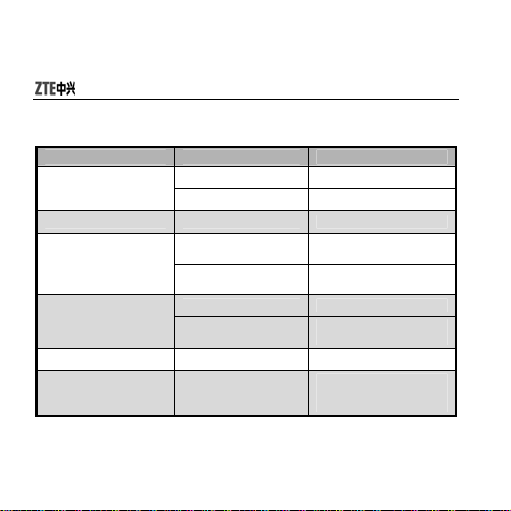
8.2 Failure Analysis
Symptoms Possible Causes Solutions
Unable to turn on the phone
Automatic power-off Seriously poor b attery capacit y Rechar ge the battery
Inadequate standby time
Unable to connect the
network
Call drop Poor network signal Move to other places
Do not ring upon incoming
calls
Inadequate battery capacity Charge the battery
Poor contact Reinstall the batter y
Deceasing of battery
performance
Poor network signal
Poor network signal Move to other places
Out of the service area
Set “Silent”
Replace the battery
Turn off the phone as the signal
is poor.
Make sure your phone is in
GSM network service area
Enter “User Profile” to change
“Silent” to other mode or check
the ringing volume.
30
Page 35
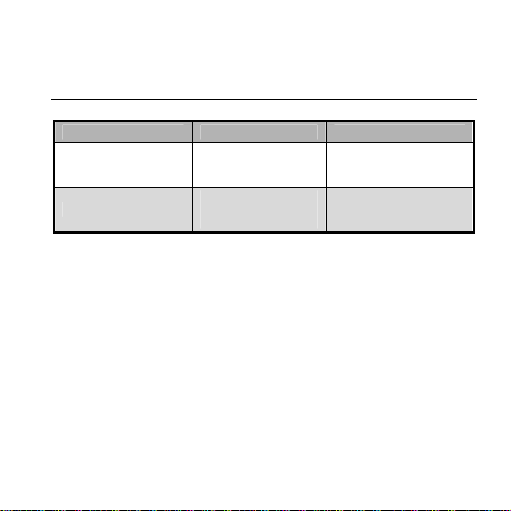
Symptoms Possible Causes Solutions
Prompt to input PUK
Unable to view some photos
SIM c ard loc ked due to the
continuous entering of w rong
PIN code for three times.
Your phone doesn’t support
the photo format, or the size
of photo is too big .
Contact your network operator.
Change the photo format or
size.
31
8 Appendix
Page 36
Health and Safety Information
SAR certification information
THIS MODEL MEETS INTERNATIONAL GUIDELINES FOR EXPOSURE TO RADIO WAVES.
Your mobile phone is a radio transmitter and receiver. It is designed not to excee d the limits for
exposure to radio waves recommended by intern ational guidelines. The guidelines were developed by
independent scientific organi sation ICNIRP and include margins d esigned to assure the protecti on of
all persons, regardless of age and healt h.
These guidelines use a unit of measure ment known as Specific Absorption Rate, or SAR. The SAR
limit for mobile devices is 1.6 W /kg and the highest SAR value f or this device when tested at t he ear
was 0.923 W/kg, when at the bod y was 1.38 W/kg .
can be used in other positions, such as on the body as described in this user gui de
As SAR is measured utilising the device’s highest transmitting power, the actual SAR of this devic e
while operating is typically below that indic ated above. This is due to automatic changes to the pow er
level of the device to ensure it only uses th e minimum level required to reach the network.
The World Health Organization has stated that pres ent scientific information does not indic ate the
need for any special precautions for the use of mobile devices.
1.The tests are carried out in accord ance with IEC standard PT62209-1.
2.Please see page 33 about bod y worn operation.
1
As mobile devices offer a range of functions, the y
2
.
32
Page 37

8 Appendix
Body worn operation
Important safety informatio n regarding radio frequency (RF) radiation exposure. To ensure compliance
with RF exposure guidelines the pho ne must be used with a minimum of 1.5 cm separat ion from the
body.
Failure to observe these instructio ns could result in your RF exposure exce eding the relevant
guideline limits.
Limiting exposure to radio frequency (RF) fields
For individuals concerned about limit ing their exposure to RF fields, the World Health Organisation
(WHO) provides the following adv ice:
Precautionary measures: Present scienti fic information does not indicate the need for any special
precautions for the use of mobile phones. If individuals are concerned, they might choose to limit their
own or their children’s RF exposure b y limiting the length of calls, or using ‘hands-free’ devices to keep
mobile phones away from the head an d body.
Further information on this su bject can be obtained from the WH O home page
http://www.who.int/peh-emf WHO Fact sheet 193: June 2000.
33
Page 38
FCC Regulations
This device complies with part 15 of the FC C Rules. Operation is subject to the following two
conditions: (1) This device may not cause ha rmful interference, and (2) this device must accept any
interference received, including i nterference that may cause undesired operation.
These limits are designed to provid e reasonable protection against harmful interference in a
residential installation. This equipme nt generates uses and can radiate radio frequency energy and, if
not installed and used in accordance wit h the instructions, may cause harmful interference to radio
communications. However, there is no guarantee that interference will not occur in a particular
installation. If this equipment does ca use harmful interference to radio or television reception, which
can be determined by turning the e quipment off and on, the user is encouraged to try to correct the
interference by one or more of th e following measures:
- Reorient or relocate the rec eiving antenna.
- Increase the separation betwe en the equipment and receiver.
- Connect the equipment into an out let on a circuit different from that to which the receiver is
connected.
Consult the dealer or an experi enced radio/TV technician for help.
34
Page 39

8 Appendix
Warning
Changes or modifications made to this eq uipment not expressly approved by ZTE for compliance
could void the user's authorit y to operate the equipment.
35
Page 40
Declaration of RoHS Compliance
To minimise the environmental impact and take more responsibility to the eart h we live in, this
document shall serve as formal declar ation that the ZTE-G R830 manuf actured by ZTE
CORPORATION is in compliance with the Directive 200 2/95/EC of the European Parliam ent - RoHS
(Restriction of Hazardous Substanc es) with respect to the following substances:
(1) Lead (Pb)
(2) Mercury (Hg)
(3) Cadmium (Cd)
(4) Hexavalent Chromium (Cr (VI))
(5) Polybrominated biphenyls (PBB’s)
(6) Polybrominated diphenyl ethers (PBDE’s)
(Compliance is evidenced by writt en declaration from our suppl iers, assuring that any potenti al trace
contamination levels of the substanc es listed above are below the maximum lev el set by EU
2002/95/EC, or are exempt due to their application.)
The ZTE-G R830 manufactured by ZTE CORPORATION, meets the require-ments of EU 2002/95/EC.
36
Page 41
8 Appendix
Disposal of your old appliance
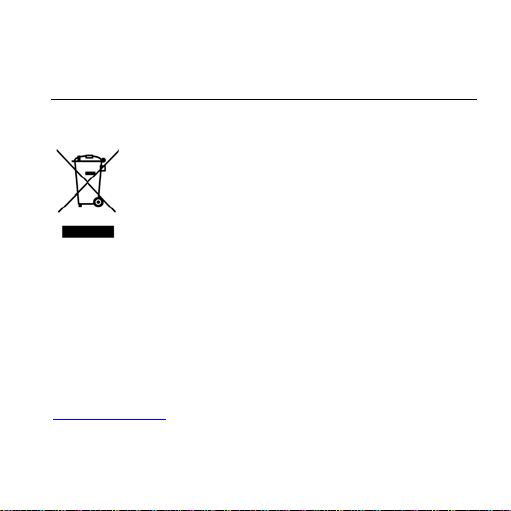
1. When this crossed-out wheel ed bin symbol is attached to a p roduct it means the
product is covered by the Europe an Directive 2002/96/CE.
2. All electrical and electro nic products should be disposed of separat ely from the
municipal waste stream via designated collection facil ities appointed by the
government or the local authorit ies.
3. The correct disposal of your ol d appliance will help prevent p otential negative
consequences for the environment and human health.
For this product’s Recycling Manual bas ed on WEEE directive, please send an email to
[email protected], or visit th e website below to download the d ocument:
http://ensupport.zte.com.cn
37
Page 42
EC Declaration of Conformity
It is hereby declared that following designated product :
Product Type: GSM Dual-band Digital Mobi le Phone
Model No.: ZTE-G R830
complies with the essential protection requirem ents of Low Voltage Directive 2006/95/EC (previous
73/23/EEC), Electromagnetic Compat ibility Directive 2004/108/EC (previous 89/336/EEC), Radio a nd
Telecommunication Terminal Equipment Directive (EC Dir ective 1999/05/EC) and their amendments.
This declaration applies to all sp ecimens manufactured identical to the samples submi tted for
testing/evaluation.
Assessment of compliance of the product with the requirements relating to Low Voltage Directive
2006/95/EC (previous 73/23/EEC), Electromagnetic Compatibility Directive 2004/108/EC (previous
89/336/EEC), Radio and Telecommunication Terminal Equipment Directive 1999/05/EC and their
amendments was performed by CETECOM(Notified Body No. 0682), based on the following standards:
Essential Requirement Applied Specifications/Standards
Art.3.1(a) Health EN 50360, EN50361
38
Page 43
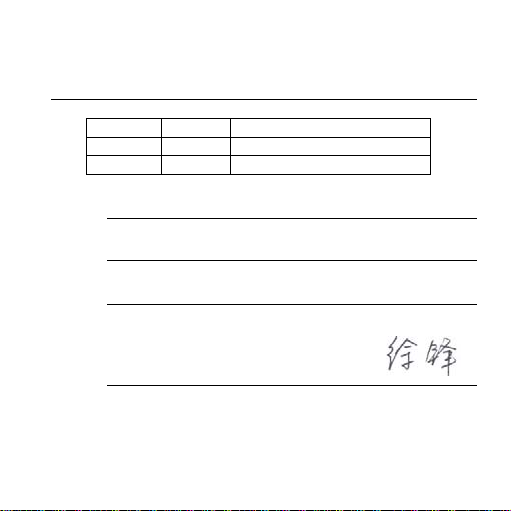
Art.3.1(a) Safety EN60950-1
Art.3.1(b) EMC EN301489-1, EN301489-7
Art.3.2 Radio EN301511
This declaration is the responsi bility of the manufacturer:
ZTE Corporation
ZTE Plaza, Keji Road South, Hi-Tech, Industrial Park,
Nanshan District,Shenzhen, Guangdong, 518057, P.R.China
Authorised person signing for the company:
Xu feng Quality Director Of ZTE Corporat ion
Name in block letters & position in the compan y
8 Appendix
Shenzhen, 12 Aug. 2008
Place & date Legally valid signature
39
 Loading...