

Page 1
Conference Microphone Speaker
QuickStartGuide
Page 2

Contents
English......................................................................................... 3
Japanese(日本語)................................................................21
Chinese(中文)....................................................................... 41
Korean(한국어)..................................................................... 57
Page 3
IMPORTANT SAFETY INSTRUCTIONS
CAUTION
RISK OF ELECTRIC SHOCK
DO NOT OPEN
CAUTION: TO REDUCE THE RISK OF ELECTRIC
SHOCK, DO NOT REMOVE COVER (OR BACK).
NO USER-SERVICEABLE PARTS INSIDE. REFER
SERVICING TO QUALIFIED SERVICE PERSONNEL.
• Explanation of Graphical Symbols
This graphic symbol is intended to alert you to the
presence of uninsulated “dangerous voltage” within
the product’s enclosure that may be of sufficient
magnitude to constitute a risk of electric shock to
persons.
This graphic symbol is intended to alert you to the
presence of important operating and maintenance
(servicing) instructions in the literature
1 Read Instructions – All the safety and oper ating instructions should
2 Retain Instructions – The safety and operating i nstructions should
3 Heed Warnings – All warnings on the product and in the operating
4 Follow Instructions – All operating and use instructions should be
5 Cleaning – Unplug this pr oduct from the PC before cleaning. Do
6 Attachments – Do not use attachments not recommended by the
7 Water and Moisture – Do not use this product near water – near a
8 Accessories – Do not place this product on an unstable cart, stand,
9 A product and cart combination should be moved with care. Quick
10 Power Sources – This product should be operated only from t he
11 USB Cable Protection – USB cable should be routed so that they
12 Lightning – For add ed protection for this product during a lightning
accompanying the appliance.
be read before you operate the product.
be retained for future reference.
instructions should be adhered to.
followed.
not use liquid cleaners or aerosol cleaners.
product manufacturer as they may cause hazards.
bath tub, wash bowl, kitchen sink, or laundry tu b; in a wet
basement; or near a swimming pool; and the like.
tripod, bracket, or table. The product may fall, causing seriou s
injury to a child or adult, and serious damage to the product. Use
only with a cart, stand, tripod, bracket, or table recommended by
the manufacturer, or sold with the product. Any mounting of the
product should follow the manufacturer’s instructions, and should
use a mounting accessory recommended by the manufacturer.
stops, excessive force, and uneven surfaces may cause the product
and cart combination to overturn.
type of power source indicated on the mark.
are not likely to be walked on or pinched by items placed upon or
against them, paying particular attention to cords at plugs,
convenience receptacles, and the point where they exit from the
product.
storm, or when it is left unattended and unused for long period s of
time, unplug it from the PC. This will prevent damage to the
product due to lightning.
13 Object and Liquid Entry – Never push objects of any kind into this
product through openings as they may touch danger ous voltage
points or short-out parts that could result in a fire or electric shock.
Never spill liquid of any kind on the product.
14 Servicing – Do not attempt to service this product yourself as
opening or removing covers may expose you to dangerous voltage
or other hazards. Refer all servicing to qualified service personnel.
15 Damage Requiring Service – Unplug this product from the PC and
refer servicing to qualified service personnel under the following
conditions:
a) When the USB cable is damaged,
b) If liquid has been spilled, or objects have fallen into the product,
c) If the product has been exposed to rain or water,
d) If the product does not operate normally by following th e
operating instructions. Adjust only those controls that are
covered by the operating instructions as an improper adjustment
of other controls may result in damage and will often require
extensive work by a qualified technician to restore the product
to its normal operation,
e) If the product has been dropped or da maged in any way, and
f) Whe n the product exhibits a distinct change in performance -
this indicates a need for service.
16 Replacement Parts – When replacement parts are required, be sure
the service technician has used replacement parts specified by the
manufacturer or have the same characteristics as the original part.
Unauthorized substitutions may result in fire, electric shock, or
other hazards.
17 Safety Check – Upon completion of any service or repairs to this
product, ask the service technician to perform safety checks to
determine that the product is in proper op erating condition.
18 Heat – The product should be situ ated away from heat sources such
as radiators, heat registers, stoves, or other products (includi ng
amplifiers) that produce heat.
English 3
Page 4

COMPLIANCE INFORMATION STATEMENT
(DECLARATION OF CONFORMITY PROCEDURE)
Responsible Party: Refer to the warranty
Address: Refer to the warranty
Telephone: Refer to the warranty
Hours of operation: Refer to the warranty
Type of Equipment: Conference Microphone Speaker
Model Name: PJP-10UR
This device complies with Part 15 of the FCC Rules.
Operation is subject to the following two conditions:
1) this device may not cause harmful interference, and
2) this device must accept any interference received including
interfernce that may cause undesired operation.
See user manual instructions if interference to radio reception is
suspected.
FCC INFORMATION (for US customers)
1 IMPORTANT NOTICE: DO NOT MODIFY THIS UNIT!
This product, when installed as indicated in the instructions
contained in this manual, meets FCC requirements.
Modifications not expressly approved by Yamaha may void your
authority, granted by the FCC, to use the product.
2 IMPORTANT: When connecting this product to accessories
and/or another product use only high quality shielded cables.
Cable/s supplied with this product MUST be used. Follow all
installation instructions. Failure to follow instructions could void
your FCC authorization to use this product in the USA.
3 NOTE: This product has been tested and found to comply with
the requirements listed in FCC Regulations, Part 15 for Class
“B” digital devices. Compliance with these requirements
provides a reasonable level of assurance that your use of this
product in a residential environment will not result in harmful
interference with other electronic devices.
This equipment generates/uses radio f requencies and, if not
installed and used according to the instructions foun d in the users
manual, may cause interference harmful to the operatio n of other
electronic devices.
This device complies with the requirements listed in FCC
regulations, Part 15 for Class “B” digital devices. If you are using a
cardiac pacemaker, please note that this device can radiate radio
frequency energy in the area near the product.
Compliance with FCC regulations does not guarantee that
interference will not occur in all installations. If this product is
found to be the source o f interference, which can be determined
by turning the unit “OFF” and “ON”, please try to eliminate the
problem by using one of the following measures;
Relocate either this product or the device th at is being affected
by the interference.
Utilize power outlets that are on different branch (circuit breaker
of fuse) circuits or install AC line filter/s.
In the case of radio or TV interference, re locate/reorient the
antenna. If the antenna lead-in is 300 ohm ribbon lead, change
the lead-in to co-axial type cable.
If these corrective measures do not produce satisfactory results,
please contact the local retailer authorized to distribute this type
of product. If you can not locate th e appropriate retailer, please
contact the responsible party stated on the warranty,
Address: Refer to the warranty
The above statements apply ONLY to those products distributed
by the responsible party stated on the warranty.
4 English
Page 5

CAUTION: READ THIS BEFORE OPERATING YOUR UNIT.
1 To assure the finest performance, please read this manual carefully.
Keep it in a safe place for future reference.
2 Install this unit in a well ventilated, cool, dry, clean place — away
from direct sunlight, heat sources, v ibration, dust, moisture, and/or
cold.
3 Locate this unit away from other electrical appliances, motors, or
transformers to avoid humming sounds.
4 Do not expose this unit to sudden temperature changes from cold to
hot, and do not locate this unit in an environment with high
humidity (i.e. a room with a humidifier) to prevent condensat ion
inside this unit, which may cause an electrical shock, fire, dama ge
to this unit, and/or personal injury.
5 Avoid installing this unit where foreign object may fall onto this
unit and/or this unit may be exposed to liqu id dripping or
splashing. On the top of this unit, do not p lace:
– Other components, as they may cause damage and/or
discoloration on the surface of this unit.
– Burning objects (i.e. candles) , as they may cause fire, damage to
this unit, and/or personal injury.
– Containers with liquid in them, as they may fall and liquid may
cause electrical shock to the user and/or damage to this unit.
6 Do not cover this unit with a newspaper, tablecloth, curtain, etc. in
order not to obstruct heat radiation. If the temperature inside this
unit rises, it may cause fire, damage to this unit, and/or personal
injury.
7 Do not install this unit near mobil e phones and/or television sets to
prevent operation failure caused by electromagnetic waves and/or
magnetism.
8 Install this unit in a stable place horizontally to prevent a fall and
damage to this unit.
9 Use the supplied USB cable. Using other USB c ables may cause an
electric shock or fire.
10 Keep your hands dry when connecting or disconnecting the USB
cable to prevent an electric shock.
11 Connect this unit and the PC directly. Connecting them through a
USB hub may cause problems in operation.
12 Do not use force on the USB cable. Doing so may cause a fire,
electrical shock, damage to this unit, short circuit, and/or
disconnection.
13 When not planning to use this unit for long periods of time,
disconnect the USB cable from the PC to prevent a fire.
14 When disconnecting the USB cable grasp the plug: do not pull the
cable.
15 Do not clean this unit with chemical solvents; this might damage
the finish. Use a clean, dry cloth.
16 Do not attempt to modify or fix this unit. Contact qualified Yamaha
service personnel when any service is needed.
17 Condensation will form when the surrounding temperature changes
suddenly. Disconnect the USB cable from the PC, then leave this
unit alone.
18 When using this unit for a long time, this unit may become warm.
Disconnect the cables, then leave this unit alone for cooling.
19 To prevent damage by lightning, keep the USB cable disconnected
during a lightning storm.
20 Always turn down the volume to the minimum level before using
this unit.
WARNING
TO REDUCE THE RISK OF FIRE OR ELECTRIC SHOCK,
DO NOT EXPOSE THIS UNIT TO RAIN OR MOISTURE.
WARNING
This is a class B product. In a domestic environment this product
may cause radio interference in which case the user may be
required to take adequate measures.
English 5
Page 6
Introduction
Thank you for purchasing Yamaha PJP-10UR.
For your safety, please read all safety instructions and precauti ons stated in this booklet carefully and keep it in a safe place for future reference.
■ Check the contents
PJP-10UR (this unit) x 1, USB cable (1.2 m) x 1, Carryi ng case x 1, This booklet x 1
■ Check the latest information
Descriptions in this booklet are based on the firmware currently available (as of November 2009). For the latest information, please visit the
Yamaha conference systems home page.
■ Using the Latest Features
You can download the firmware (program to control the functions of this unit) to use the latest features. For details, please visit the Yamaha
conference systems home page.
Yamaha conference systems home page
http://www.yamaha.co.jp/english/product/projectphone/
Information for Users on Collection and Disposal of Old Equipment
This symbol on the products, packaging, and/or accompanying docu ments means that used electrical and electronic
products should not be mixed with general house hold waste.
For proper treatment, recovery and recyclin g of old products, please take them to applicable collection po ints, in
accordance with your national legislation and the Directives 2002/96/EC.
By disposing of these products correctly, you will help to save valuable resources and prevent any potential negative
effects on human health and the environment which could otherwise arise from inappropriate waste handling.
For more information about collection and recycling of old products, please contact your local municipality, your waste
disposal service or the point of sale where you purc hased the items.
[For business users in the European Union]
If you wish to discard electrical and electronic equipment, please contact your dealer or supplier for further information.
[Information on Disposal in other Countries outside th e European Union]
This symbol is only valid in the European Union. If you wish to discard these items, please contact your local authorities
or dealer and ask for the correct method of disposal.
6 English
Page 7

About this manual
■ About abbreviations
In this manual, the product names are described as follows.
• Yamaha PJP-10UR: this unit
®
Windows®: Windows
• Microsoft
®
Windows® 7: Windows 7
• Microsoft
®
• Microsoft
Windows Vista®: Windows Vista
®
Windows XP®: Windows XP
• Microsoft
®
Windows 2000 Professional®: Windows 2000
• Microsoft
®
• Macintosh
: Mac
■ About trademarks
• Microsoft and Windows are registered trademarks of Microsoft Corporation in the United States and other countries.
• Intel, Pentium and Celeron are trademarks or registered trademarks of Intel Corporation or its subsidiaries in the United States and other
countries.
• Macintosh and Mac OS are registered trademarks of Apple Computer, Inc.
• No part of this document may be copied or used in any form wi thout permission of Yamaha.
• Specifications of this unit and contents of this document are subject to change without notice.
• Yamaha does not accept any liability for any loss or damage resulting from any use of this unit. The warranty covers a repair of this unit
only.
English 7
Page 8

CONFIRMATION SOFTWARE LICENSE AGREEMENT
BY USING THE "SOFTWARE", YOU ARE DEEMED TO AGREE TO BE BOUND BY THE TERMS AND CONDITIONS OF THIS AGREEMENT.
SOFTWARE LICENSE AGREEMENT
This License Agreement (the "AGREEMENT") is a legal agr eement between you and Yamaha Corporation ("YAMAHA") under which YAMAHA
is providing the firmware of YAMAHA's Projectphone (the "PRODUCT") and related software program, documentation and electronic files (collectively, the "SOFTWARE").
This AGREEMENT applies to the SOFTWARE which YAMAHA provides you and the installed copy thereof, subject to the provision of 1-1 herein, into the PRODUCT or personal computer owned by you.
1. GRANT OF LICENSE:
1-1. YAMAHA grants you a personal non-exclusive license to install the SOFTWARE and use the SOFTWARE on the PRODUCT or other devices,
including but not limited to the personal computer, which you own.
1-2. You shall not assign, sublicense, sell, rent, lease, loan, convey or otherwise transfer to any third party, upload to a web site or a server computer
to which specified or unspecified persons may access, or copy, duplicate, translate or convert to another programming language the SOFTWARE except as expressly provided herein. You shall not alter, modify, disassemble, decompile or otherwise reverse engineer the SOFT-
WARE and you also shall not have any third party to do so.
1-3. You shall not modify, remove or delete a copyright notice of YAMAHA contained in the SOFTWARE.
1-4. Except as expressly pr ovided herein, no license or right, express or implied, is hereby conveyed or granted by YAMAHA to you for any intel-
lectual property of YAMAHA.
2. OWNERSHIP AND COPYRIGHT:
The SOFTWARE is protected under the copyright laws and owned by YAMAHA. You agree and acknowledge that YAMAHA transfers neither
ownership interest nor intellectual property in the SOFTWARE to you under this AGREEMENT or otherwise.
3. EXPORT RESTRICTIONS:
You agree to comply with all applicable export control laws and regulations of the country involved, and not to export or re-export, directly or
indirectly, the SOFTWARE in violation of any such laws and regulations.
4. SUPPORT AND UPDATE:
YAMAHA, YAMAHA's subsidiaries and affiliates, their distributors and dealers are not responsible for maintaining or helping you to use the
SOFTWARE. No updates, bug-fixes or support will be made available to you for the SOFTWARE.
5. DISCLAIMER OF WARRANTY:
5-1. THE SOFTWARE IS PROVIDED "AS IS" WITHOUT WARRANTY OF ANY KIND, EITHER EXPRESS OR IMPLIED, INCLUDING,
BUT NOT LIMITED TO THE IMPLIED WARRANTIES OF MERCHANTABILITY AND FITNESS FOR A PARTICULAR PURPOSE.
5-2. IN NO EVENT SHALL YAMAHA, YAMAHA'S SUBSIDIARIES AND AFFILIATES, THEIR DISTRIBUTORS AND DEALERS BE LI-
ABLE FOR ANY DAMAGES WHATSOEVER (INCLUDING WITHOUT LIMITATION, LOSS OF BUSINESS PROFITS, LOSS OF
BUSINESS INFORMATION, LOSS OF BUSINESS INTERRUPTION OR OTHER INCIDENTAL OR CONSEQUENTIAL DAMAGES)
ARISING OUT OF THE SOFTWARE, USE THEREOF, OR INABILITY TO USE THEREOF EVEN IF YAMAHA, YAMAHA'S SUBSID-
IARIES AND AFFILIATES, THEIR DISTRIBUTORS OR DEALERS HAVE BEEN ADVISED OF THE POSSIBILITY OF SUCH DAM-
AGES. SOME STATES DO NOT ALLOW THE LIMITATION OR EXCLUSION OF LIABILITY FOR INCIDENTAL OR
CONSEQUENTIAL DAMAGES, SO THE ABOVE LIMITATION OR EXCLUSION MAY NOT APPLY TO YOU.
5-3. YAMAHA, YAMAHA'S SUBSIDIARIES AND AFFILIATES, THEIR DISTRIBUTORS AND DEALERS SHALL HAVE NO OBLIGA-
TION TO INDEMNIFY YOU AGAINST ANY CLAIM OR SUIT BROUGHT BY A THIRD PARTY ALLEGING THAT THE SOFTWARE
OR USE THEREOF INFRINGES ANY INTELLECTUAL PROPERTY OF SUCH THIRD PARTY.
6. TERM:
6-1. This AGREEMENT becomes effective upon your agreeing the terms and cond itions herein and continues in effect unless or until terminated
in accordance with the provision of 6-2 or 6-3 herein.
6-2. You may terminate this AGREEMENT by deleting the SOFTWARE installed into the PRODUCT.
6-3. This AGREEMENT will also terminate if you fail to comply with any of the terms and conditions of this AGREEMENT.
6-4. In case this AGREEMENT is terminated in accordance with the provisi on 6-3, you shall promptly delete the SOFTWARE.
6-5. Notwithstandi ng anything contains herein, Sections 2 though 6 shall survive any termination or expiration hereof.
7. SEVERABILITY:
In the event that any provision of this AGREEMENT is declared or found to be illegal by any court or tribunal of competent jurisdiction, such
provision shall be null and void with respect to the jurisdiction of that court or tribunal and all the remaining provisions of this AGREEMENT shall
remain in full force and effect.
8. U.S. GOVERNMENT RESTRICTED RIGHTS NOTICE:
The Software is a "commercial item," as that term is defined at 48 C.F.R. 2.101 (Oct 1995), consisting of "commercial computer software" and
"commercial computer software documentation," as such terms are used in 48 C.F.R. 12.212 (Sept 1995). Consistent with 48 C.F.R. 12.212 and 48
C.F.R. 227.7202-1 through 227.72024 (June 1995), all U.S. Government End Users shall acqu ire the Software with only those rights set forth herein.
9. ACKNOWLEDGMENT:
You agree that this AGREEMENT is the complete and exclusive statement of agreement between you and YAMAHA concerning the subject matter
hereof and supersedes all proposals or prior agreements, verbal or written, and any other communications between you and the parties relating to
the subject matter hereof. NO amendment to t his AGREEMENT shall be effective unless signed by a duly authorized representative of YAMAHA.
10. GOVERNING LAW:
This AGREEMENT shall be governed by and construed in accordance with the lows of Japan without re ference to the principles of conflict of laws.
8 English
Page 9
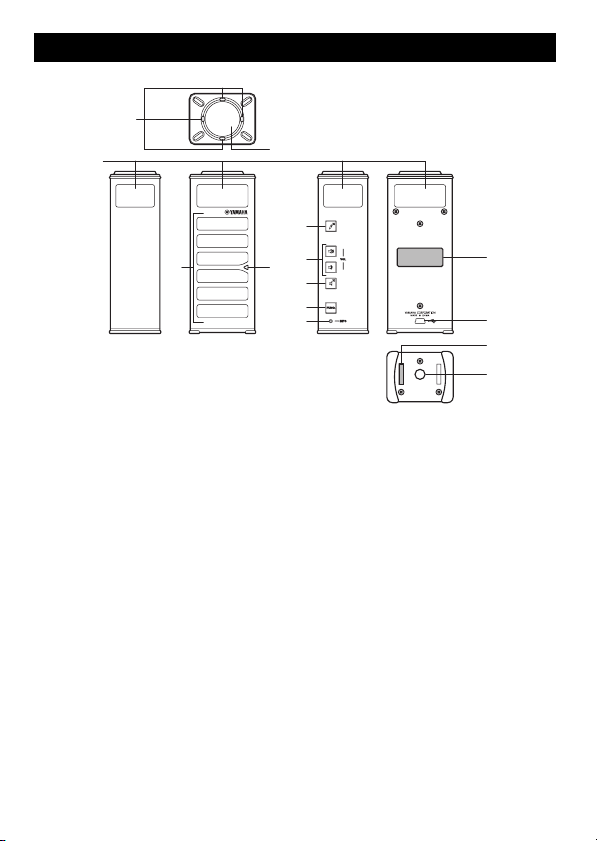
Controls and Functions
1
2
3
2
4
5
1
6
7
1
8
9
0
A
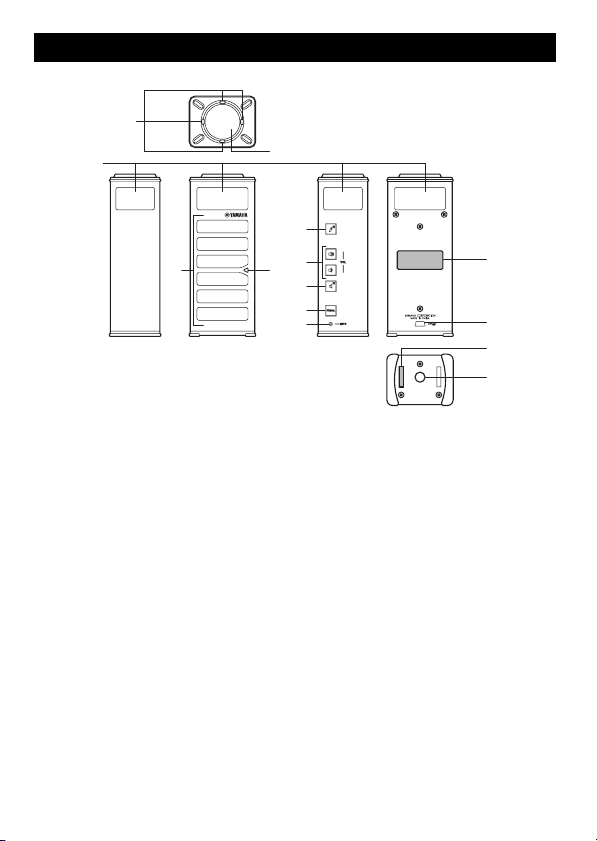
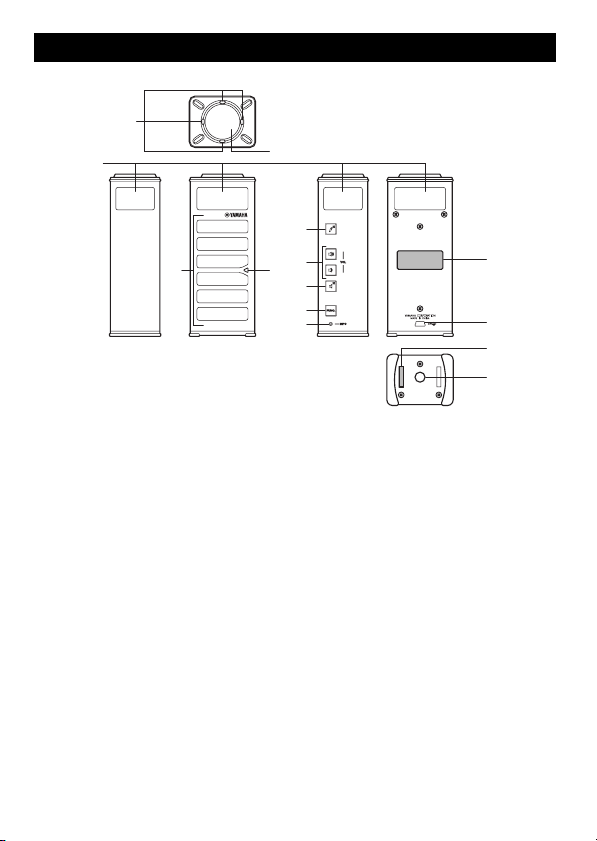
1 LEDs
Light to indicate the status of this unit.
2 Microphones
Pick up the talker's voice.
3 Speakers
Outputs the sounds.
4 Microphone mute
Press to temporarily turn off (mute) the
microphones. To cancel the mute function, press
it again.
5 VOL +/–
Press to adjust the speaker volume. Holding
either key increases or decreases the volume
continuously.
6 Speaker mute
Press to temporarily turn off (mute) the
speakers. To cancel the mute function, press it
again.
7 FUNC.
For future expansion.
8 MODEL No.
Model number of this unit.
9 USB port
For connecting the USB cable.
0 SER.
Serial number of this unit.
A Tripod socket
For attaching a commercially available tripod.
English 9
Page 10
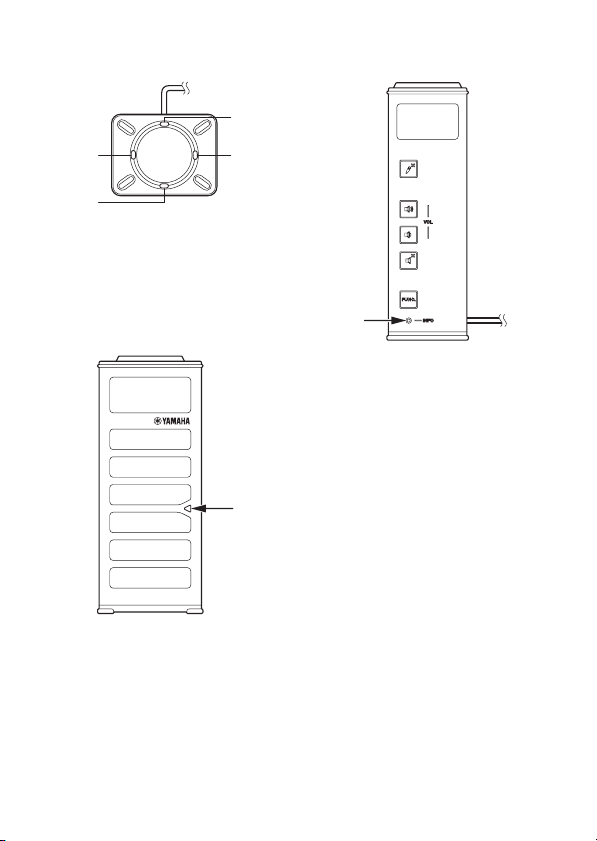
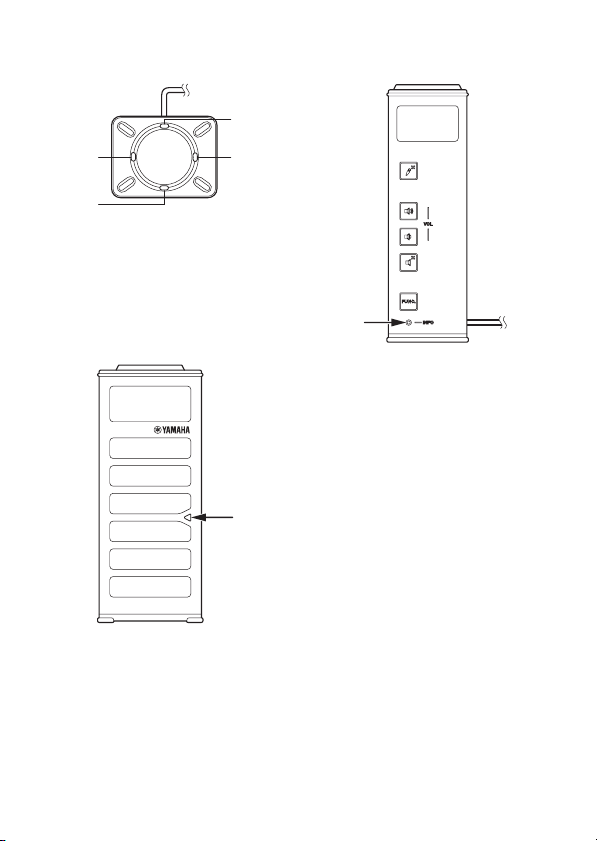
■ Functions of the LEDs
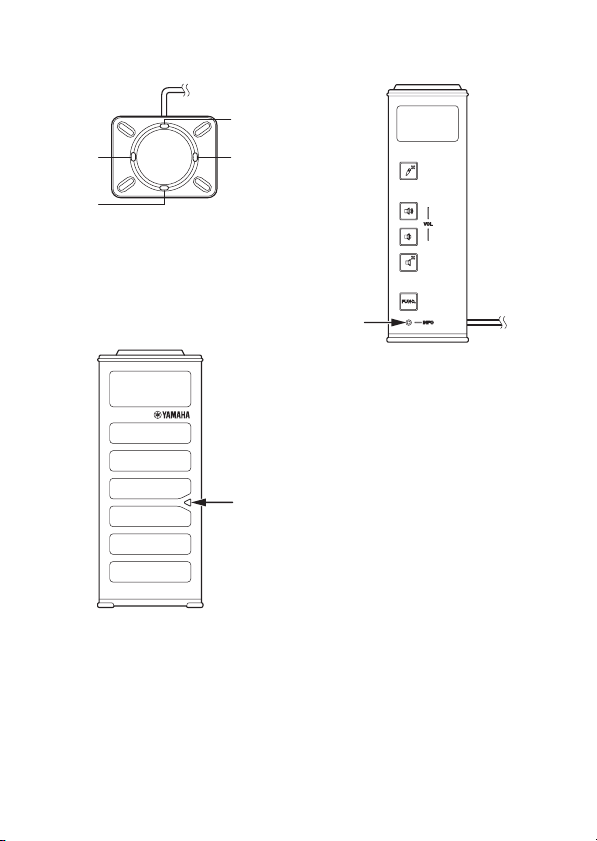
Microphone LEDs
3
24
1
Normal: 124 light up
Microphone muted: 124 blink
Waiting for firmware update: All blink
During firmware update: 13 and 24 blink
alternately
Firmware update error: Off
Speaker LED
Information LED
Normal: Off
Waiting for firmware update: Blinks in red
During firmware update: Off
Firmware update error: Blinks in red
Normal: Lights up
Speakers muted: Blinks
Maximum volume: Blinks 5 times
Waiting for firmware update: Blinks
During firmware update: Off
Firmware update error: Off
10 English
Page 11
Using this unit with Windows
System Requirements
Use a PC that meets the following requirements.
• OS: Windows 7 (32bit),
Windows Vista SP1 or later (32bit),
Windows XP SP2 or later (32bit),
Windows 2000 SP4 (32bit)
• CPU: 750MHz or more, Intel Pentium/Celeron
processor (or compatible one)
• Memory: 256 MB or more
• USB port: USB1.1 or later (USB2.0
recommended)
Notes
• You cannot connect multiple microphone
speaker devices including this unit to the PC at
the same time.
• Connect this unit and the PC directly.
Connecting them through a USB hub may
cause problems in operation.
• Audio reproduction may be interrupted
depending on the PC usage situations
(workloads or available memory space).
Connection
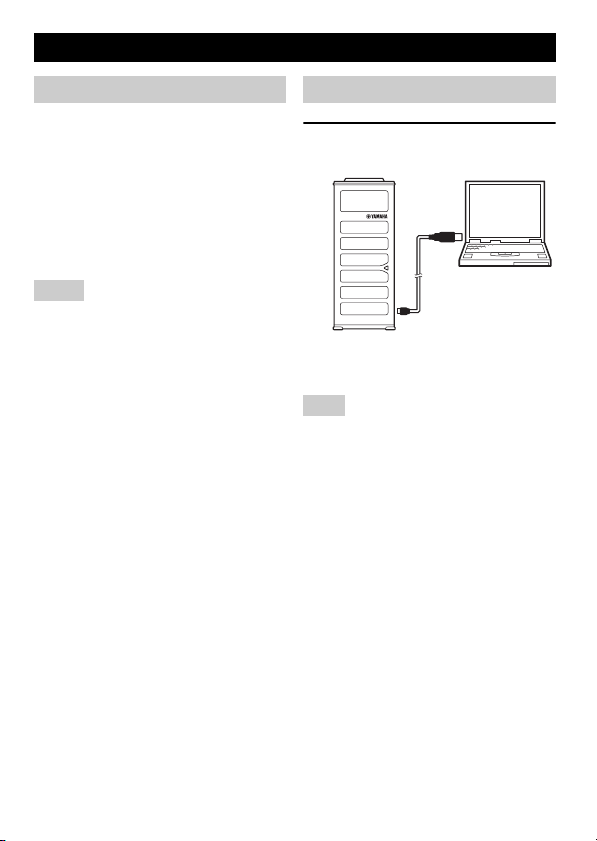
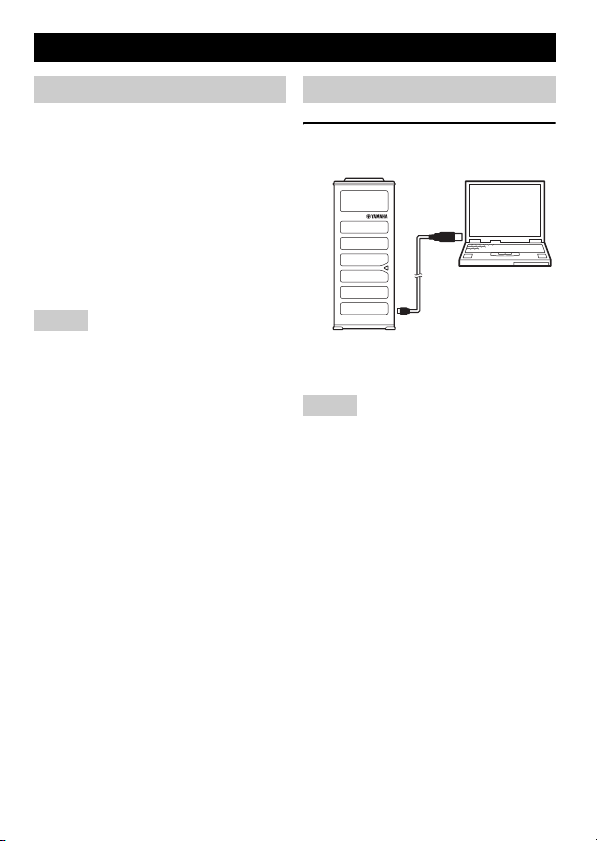
1 Connect this unit to the PC
using the supplied USB cable.
The USB driver is automatically installed on
the PC.
Note
Stand this unit on a flat surface and face the
speaker side toward your position.
y
• You do not need to install the USB driver
separately because this unit is recognized as a
basic audio device by the PC.
• The microphones of this unit pick up audio
mainly from the speaker side direction. Use
this unit at the position where the speaker side
of this unit faces your position.
English 11
Page 12
Checking the Connection
Follow the procedure below to check whether
the PC recognizes this unit properly.
• Check that this unit is recognized properly
while all the peripheral devices are connected.
• If the microphones of this unit cannot pick up
audio and/or the speaker cannot output sounds
when you are using this unit for a Web
conference, this unit may not be selected as a
sound playback and/or recording device on the
Web conference software. Refer to the owner's
manual of the Web conference software and
check the settings.
■ When using Windows XP/
Windows 2000
In this procedure, Windows XP is used as an
example.
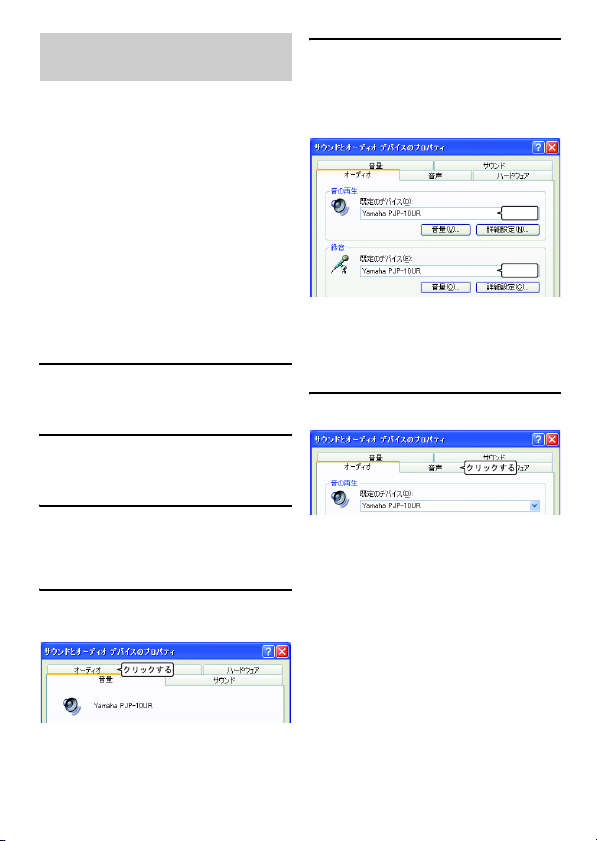
1 Click the "start" menu and click
"Control Panel".
2 Click "Sounds, Speech and
Audio Devices".
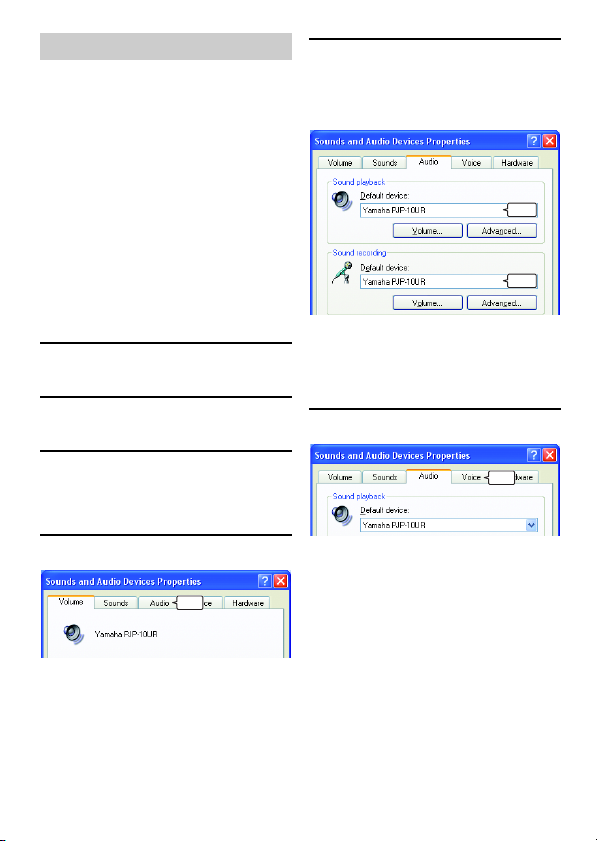
5 Check the settings.
• "Default device" in "Sound playback":
Yamaha PJP-10UR
• "Default device" in "Sound recording":
Yamaha PJP-10UR
Check
Check
y
Normally, "Yamaha PJP-10UR" is automatically
selected when this unit is connected to the PC. If
"Yamaha PJP-10UR" is not selected, select it
manually.
6 Click the "Voice" tab.
3 Click "Sounds and Audio
Devices".
The "Sounds and Audio Devices Properties"
box opens.
4 Click the "Audio" tab.
Click
12 English
Click
Page 13
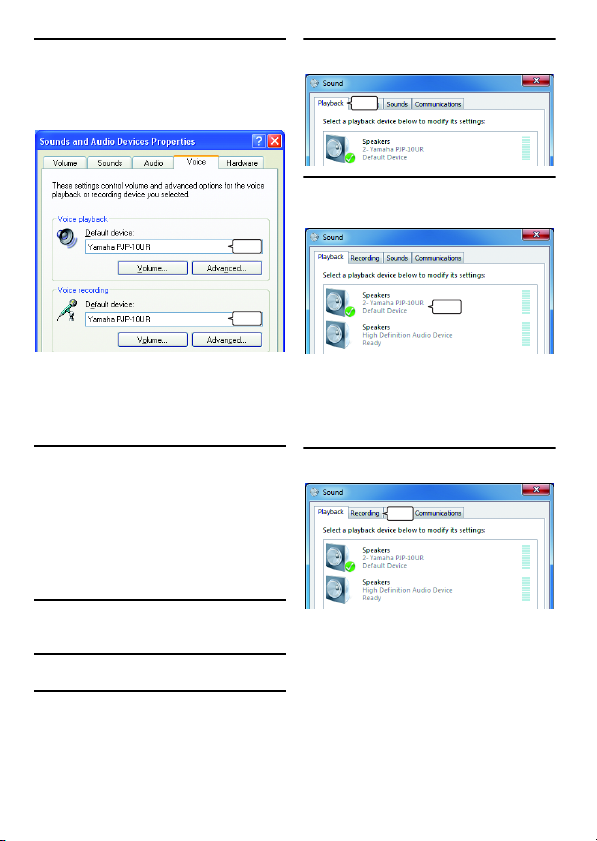
7 Check the settings.
• "Default device" in "Voice playback":
Yamaha PJP-10UR
• "Default device" in "Voice recording":
Yamaha PJP-10UR
4 Click the "Playback" tab.
Click
5 Make sure this unit is set to
"Default Device".
Check
Check
y
Normally, "Yamaha PJP-10UR" is automatically
selected when this unit is connected to the PC. If
"Yamaha PJP-10UR" is not selected, select it
manually.
8 Click "OK" to close the "Sounds
and Audio Devices Properties"
screen.
■ When using Windows 7/
Windows Vista
In this procedure, Windows 7 is used as an
example.
1 Click the "Start" menu and click
"Control Panel".
2 Click "Hardware and Sound".
3 Click "Sound".
The "Sound" screen appears.
Check
y
Normally, "Yamaha PJP-10UR" is automatically
set when this unit is connected to the PC. If
"Yamaha PJP-10UR" is not selected, select it
manually.
6 Click the "Recording" tab.
Click
English 13
Page 14
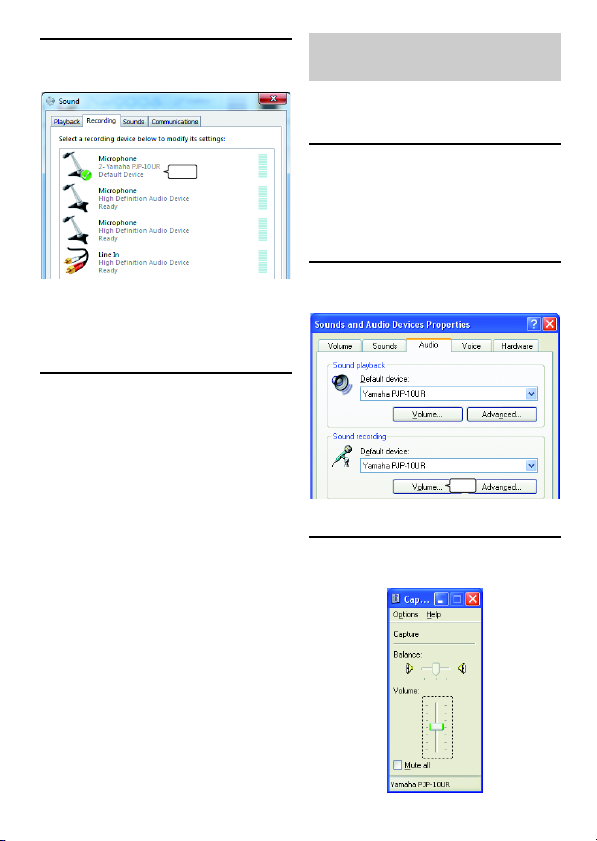
7 Make sure this unit is set to
"Default device".
Adjusting the microphone sensitivity
■ When using Windows XP/
Windows 2000
Check
y
Normally, "Yamaha PJP-10UR" is automatically
set when this unit is connected to the PC. If
"Yamaha PJP-10UR" is not selected, select it
manually.
8 Click "OK" to close the "Sound"
screen.
1 Click the "start" menu and click
"Control Panel" - "Sounds,
Speech, and Audio Devices" "Sounds and Audio Devices".
The "Sounds and Audio Devices Properties"
screen appears.
2 Click the "Audio" tab and click
"Volume" in "Sound recording".
Click
The "Capture" screen appears.
3 Adjust the microphone
sensitivity in the "Volume".
14 English
Page 15
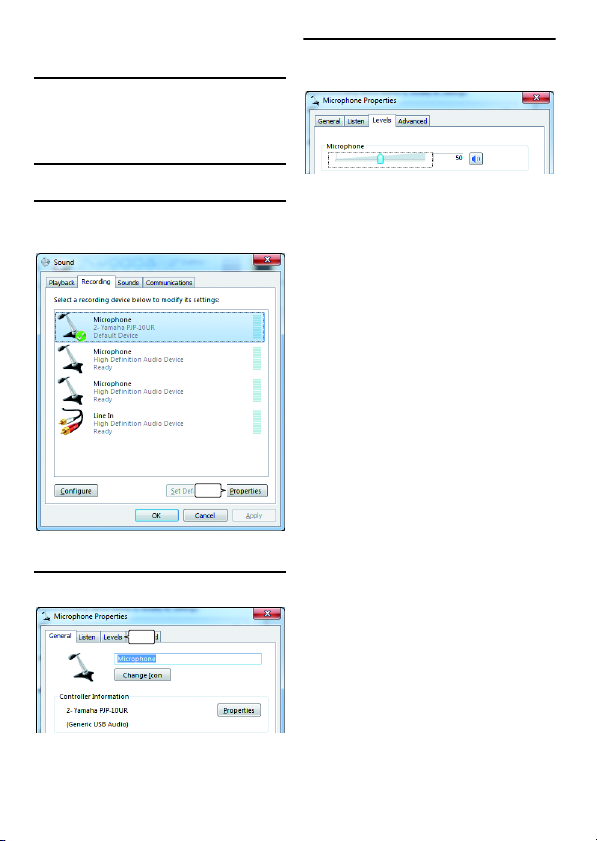
■ When using Windows 7/
Windows Vista
1 Click the "Start" menu and click
"Control Panel" - "Hardware and
Sound" - "Sound".
The "Sound" screen appears.
2 Click the "Recording" tab.
3 Select this unit and click
"Properties".
Click
The "Microphone Properties" screen appears.
4 Click the "Levels" tab.
5 Adjust the microphone
sensitivity in the "Microphone".
Click
English 15
Page 16
Using this unit with Mac
System Requirements
Use a Mac that meets the following
requirements.
• OS: Mac OS 10.5 (Leopard)
• CPU: Intel processor
• Memory: 256MB or more
• USB port: USB1.1 or later (USB2.0
recommended)
Notes
• You cannot connect multiple microphone
speaker devices including this unit to the Mac
at the same time.
• Connect this unit and the Mac directly.
Connecting them through a USB hub may
cause problems in operation.
• Audio reproduction may be interrupted
depending on the Mac usage situations
(workloads or available memory space).
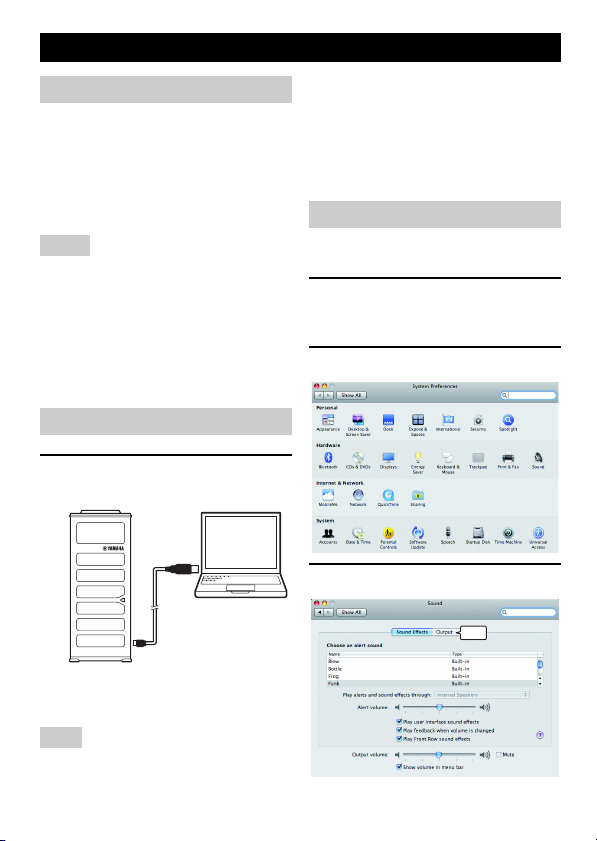
Connection
1 Connect this unit to the Mac
using the supplied USB cable.
y
• You do not need to install the USB driver
separately because this unit is recognized as a
basic audio device by the Mac.
• The microphones of this unit pick up audio
mainly from the speaker side direction. Use
this unit at the position where the speaker side
of this unit faces your position.
Changing the sound settings
You need to change the sound settings when
using this unit with Mac.
1 Click the Apple menu and select
"System Preferences".
The "System Preferences" screen appears.
2 Click "Sound".
3 Click the "Output" tab.
The USB driver is automatically installed on
the Mac.
Note
Stand this unit on a flat surface and face the
speaker side toward your position.
16 English
Click
Page 17
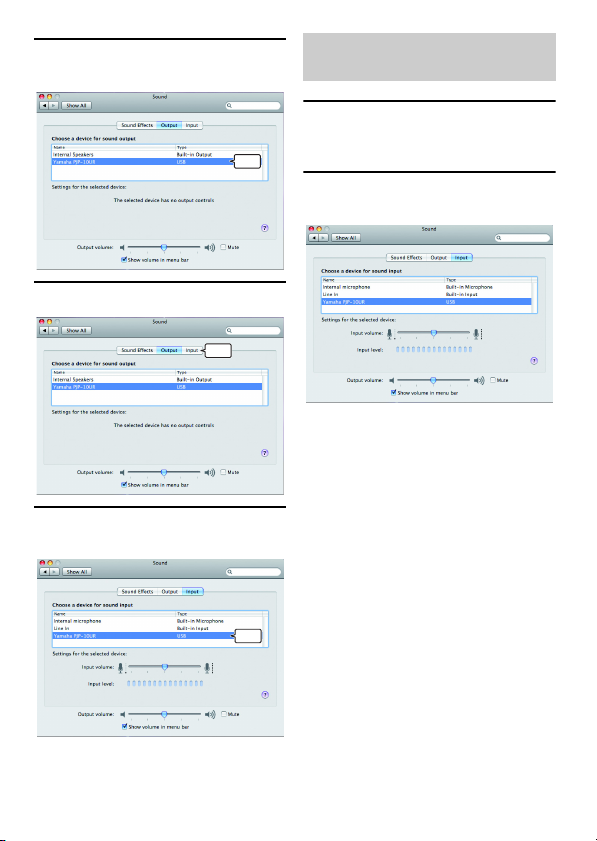
4 Select "Yamaha PJP-10UR" from
the device list.
Select
5 Click the "Input" tab.
Click
6 Select "Yamaha PJP-10UR" from
the device list.
Adjusting the microphone sensitivity
1 Click the Apple menu and select
"System Preferences" - "Sound"
- "Input" tab.
2 Adjust the microphone
sensitivity in the "Input volume".
Select
English 17
Page 18
Troubleshooting
Refer to the following tables when this unit does not function properly. If the problem you are
experiencing is not listed or the instruction does not solve, please contact the retailer or dealer who
you purchased the product from.
Q1: LED indicator does not light up
Problem Cause Remedy
The power is not turned on. The USB cable is not connected properly. Check that the USB cable is connected firmly.
Q2: Have an audio problem
Problem Cause Remedy
The audio from the other unit
cannot be heard.
The audio from this unit cannot be heard on the other unit.
The unit generates feedback
noises or echoes.
The unit generates noises. A device that interferes with this unit is placed
The audio is cracking. The speaker volume is too high. Turn the speaker volume down.
This unit does not work. This unit is not recognized by the PC. If you see "?" or "!" in the device manager, de-
The speakers are muted on this unit. Turn off the speaker mute function.
The microphone is muted on the other unit. –
The speaker volume is set to the minimum on
this unit.
The microphone sensitivity is set to the minimum on the other unit.
The microphone is muted on this unit. Turn off the microphone mute function.
The speakers are muted on th e other unit. –
The microphone sensitivity is set to the minimum on this unit.
The speaker volume is set to the minimum on
the other unit.
Another microphone is connected. Select this unit in the Audio setting s of PC/Web
An object is placed near this unit. Avoid placing an object in front of the micro-
This unit is placed near the wall. Move this unit away from the wall.
This unit is used in a room with high reverberation.
There is a problem with the equipment configuration on another unit.
near this unit.
Turn the speaker volume up.
–
Increase the microphone sensitivity.
–
conference software.
phones of this unit.
• Place objects with high sound absorbance in
the room other than in front of the microphones.
• Turn the speaker volume down to reduce reverberations.
–
Move this unit away from the device.
lete the device and then reconnect the USB cable of this unit.
18 English
Page 19

Support Information
Please visit the Yamaha conference systems home page.
■ Yamaha conference systems home page
http://www.yamaha.co.jp/english/product/projectphone/
English 19
Page 20

Specifications
General Audio
Interface:
USB2.0 Full Speed
Power consumption (max):
Approx. 2.5W
Radio interference standard:
FCC Part 15 (US)
EN55022 (EU)
Operating environment:
Temperature: 0 to 40°C (32 to 104°F)
Humidity: 20 to 85% (no condensation)
Dimensions:
Main body (W x H x D):
49 x 121 x 38 mm
(1-15/16" x 4-25/32" x 1-1/2")
Weight:
210 g (7.4 oz)
Power source:
USB bus power (5V/500mA)
Windows environment:
OS: Windows 7 (32bit),
Windows Vista SP1 or later (32bit),
Windows XP SP2 or later (32bit),
Windows 2000 SP4 (32bit)
CPU: 750MHz or more, Intel Pentium/
Celeron processor (or compatible one)
Memory: 256 MB or more
USB port: USB1.1 or later
(USB2.0 recommended)
Mac environment:
OS: Mac OS 10.5 (Leopard)
CPU: Intel processor
Memory: 256 MB or more
USB port: USB1.1 or later
(USB2.0 recommended)
Accessories:
USB cable (1.2 m), Carrying case, This booklet
Other:
Firmware update
(transfer from PC through USB)
Microphones:
4 units (Array microphone)
Speakers:
2 units
Frequency bandwidth for sound pickup:
300 to 7,000 Hz
Frequency bandwidth for playback:
300 to 20,000 Hz
Signal processing:
Adaptive echo canceller, Noise reduction,
Microphone array control
20 English
Page 21

はじめに
ヤマハ PJP-10UR をお買い上げいただきありがとうございます。
お使いになる前に本書をよくお読みになり、正しく設置や設定を行ってください。
本書中の警告や注意を必ず守り、正しく安全にお使いください。
本書はなくさないように、大切に保管してください。
■ 箱の中身をご確認ください
PJP-10UR(本機)…1 個、USB ケーブル(1.2m)…1本、キャリングポーチ…1 個、本書…1 冊、保証書…1 枚
■ 最新情報をご確認ください
本書は 2009 年1 1月現在の最新版ファームウェアに基づいております。本機の最新情報につきましては、ヤマハ会議システム
ホームページをご覧ください。
■ 最新の機能を利用する
インターネットから本機の機能を管理するプログラム(ファームウェア)をダウンロードして、最新の機能をご利用いただけま
す。詳しくはヤマハ会議システムホームページをご覧ください。
ヤマハ会議システムホームページ
http://www.yamaha.co.jp/projectphone/
• 本書の記載内容を一部または全部を無断で転載することを禁じます。
• 本書の内容および本体や専用アプリケーションの仕様は、改良のため予告なく変更されることがあります。
• 本機を使用した結果発生した情報の消失等の損失については、当社では責任を負いかねます。保証は本機の物損の範囲に限
ります。予めご了承ください。
Japanese 21
Page 22

本機を安全にお使いいただくために
以下の点を必ず守ってお使いください。
■ 安全のための注意事項を守る
詳しくは、23 〜 26 ページをご覧ください。
■ 故障したら使用を中止する
お買い上げの販売店にご連絡ください。
本書の表記について
■ 略称について
本書ではそれぞれの製品について、以下のように略称で記載しています。
• YamahaPJP-10UR:本機
• Microsoft®Windows®:Windows
®
Windows®7:Windows7
• Microsoft
®
• Microsoft
WindowsVista®:WindowsVista
®
WindowsXP®:WindowsXP
• Microsoft
®
Windows2000Professionl®:Windows2000
• Microsoft
®
• Macintosh
:Mac
■ 商標について
• Microsoft、Windows は米国 Microsoft 社の米国およびその他の国における登録商標です。
• インテル、Int el、Pentium および Celeron は、アメリカ合衆国およびその他の国における IntelCorporation またはその子会社
の商標または登録商標です。
• Macintosh、MacOS は、AppleInc. の登録商標です。
22 Japanese
Page 23
安全上のご注意
本機を安全にお使いいただくために、下記の注意事項をよくお読みになり、必ず守ってお使いください。
ここに示した注意事項は、製品を安全に正しくご使用いただき、お客様や他の方々への危害や財産への損害を未然に防止するた
めのものです。
お読みになったあとは、使用される方がいつでも見られる所に必ず保管してください。
「警告」と「注意」について
以下、誤った取り扱いをすると生じることが想定される内容を、危害や損害の大きさと切迫の程度を明示するために、「警告」と
「注意」に区分して掲載しています。
警告
この表示の欄は、「死亡する可能性または重傷を負う可能性が想定される」内容です。
注意
この表示の欄は、「傷害を負う可能性または物的損害が発生する可能性が想定される」内容です。
記号表示について
この製品や取扱説明書に表示されている記号には、次のような意味があります。
「ご注意ください」という注意喚起を示します
「〜しないでください」という禁止を示します。
「必ず実行してください」という強制を示します。
■ 電波障害自主規制について
この装置は、情報処理装置等電波障害自主規制協議会(VCCI)の基準に基づくクラス B 情報技術装置です。この装置は、家
庭環境で使用することを目的としていますが、この装置がラジオやテレビジョン受信機に近接して使用されると、受信障害を
引き起こすことがあります。取扱説明書に従って正しい取り扱いをしてください。
Japanese 23
Page 24
警告
下記の場合には、すぐに USB ケーブルを PCから抜く。
• 異常なにおいや音がする。•煙が出る。•内部に水や異物が入った。
そのまま使用すると、火災や感電の原因になります。
USB ケーブルを傷つけない。
• 重いものを上に載せない。 •加工をしない。 •ステープルで止めない。 •無理な力を加えない。
• 熱器具には近づけない。
芯線がむき出しのまま使用すると、火災や感電の原因になります。
本機を落としたり、本機が破損した場合には、必ず販売店に点検や修理を依頼する。
そのまま使用すると、火災や感電の原因になります。
分解・改造は厳禁。キャビネットは絶対に開けない。
火災や感電の原因になります。
修理・調整は販売店にご依頼ください。
放熱のため本機を設置する際には:
• 布やテーブルクロスをかけない。 •じゅうたん、カーペットの上には設置しない。
• 通気性の悪い狭いところへは押し込まない。
本機の内部に熱がこもり、火災の原因になります。
放熱用の通風孔、パネルのすき間から金属や紙片など異物を入れない。
火災や感電の原因になります。
雷が鳴りはじめたら、機器には触れない。
感電の原因になります。
本機を下記の場所には設置しない。
• 浴室、台所、海岸、水辺 •加湿器を過度にきかせた部屋 •雨や雪、水がかかるところ
水の浸入により、火災や感電の原因になります。
心臓ペースメーカーまたは除細動器などを装着している人から離して使用ください。
ペースメーカーに影響を与え重大事故につながる場合があります。
24 Japanese
Page 25
注意
必ず付属の USB ケーブルを使用する。
それ以外の USB ケーブルを使用すると、火災や感電の原因になります。
長期間使用しないときは、必ず USB ケーブルをPC から抜く。
火災や感電の原因になります。
ぬれた手で USB ケーブルを抜き差ししない。
感電の原因になります。
不安定な場所や振動する場所には設置しない。
本機が落下や転倒して、けがの原因になります。
直射日光のあたる場所や、温度が異常に高くなる場所(暖房機のそばなど)には設置しない。
本機の外装が変形したり内部回路に悪影響が生じて、火災の原因になります。
環境温度が急激に変化したとき、本機に結露が発生することがあります。
正常に動作しないときには、電源を入れない状態でしばらく放置してください。
ほこりや湿気の多い場所に設置しない。
ほこりの堆積によりショートして、火災や感電の原因になります。
他の電気製品とはできるだけ離して設置する。
本機はデジタル信号を扱います。他の電気製品に障害をあたえるおそれがあります。
他の電気製品を本機の上に置かない。
本機の上部は高温になります。他の電気製品に障害をあたえるおそれがあります。
本機に触れるときは、人体や衣服から静電気を除去する。
静電気によって故障するおそれがあります。
再生を始める前には、PC の音量(ボリューム)を最小にする。
突然大きな音が出て、聴覚障害の原因になります。
Japanese 25
Page 26

使用上のご注意
• 本機は一般向けの製品であり、人の生命や高額財産などを扱うような高度な信頼性を要求される分野に適応するようには設計さ
れていません。
本機を誤って使用した結果発生したあらゆる損失について、当社では一切その責任を負いかねますので、あらかじめご了承くだ
さい。
• 本機の使用方法や設定を誤って使用した結果発生したあらゆる損失について、当社では一切その責任を負いかねますので、あら
かじめご了承ください。
• 本機と PC は、直接接続してください。USB ハブを経由して接続すると動作に問題が生じる可能性があります。
• 本機のご使用にあたり、周囲の環境によっては電話、ラジオ、テレビなどに雑音が入る場合があります。この場合は本機の設置
場所、向きを変えてみてください。
• 本機を譲渡する際は、マニュアル類も同時に譲渡してください。
• 本機を廃棄する場合には、お住まいの自治体の指示に従ってください。
ソフトウェアライセンス契約の確認
本製品を使用するお客様は、以下のソフトウェアライセンス契約(以下、「本契約」といいます)に同意いただいたものとしま
す。
ソフトウェアライセンス契約
本契約は、お客様とヤマハ株式会社(以下、ヤマハといいます)との間の契約であって、ヤマハプロジェクトフォン(以下「本
製品」といいます)用ファームウェアおよびこれに関わるプログラム、印刷物、電子ファイル(以下「本ソフトウェア」といい
ます)をヤマハがお客様に提供するにあたっての条件を規定するものです。
「本ソフトウェア」は、「本製品」で動作させる目的においてのみ使用することができます。本契約は、ヤマハがお客様に提供し
た「本ソフトウェア」および本契約第1条第(1)項の定めに従ってお客様が作成した「本ソフトウェア」の複製物に適用されま
す。
1.使用許諾
(1) お客様は、「本ソフトウェア」をお客様が所有する「本製品」またはパーソナルコンピュータ等のデバイスにインストールし
て使用することができます。
(2) お客様は、本契約に明示的に定められる場合を除き、「本ソフトウェア」を、再使用許諾、販売、頒布、賃貸、リース、貸与
もしくは譲渡し、特定もしくは不特定多数の者によるアクセスが可能なウェブ・サイトもしくはサーバー等にアップロード
し、または、複製、翻訳、翻案もしくは他のプログラム言語に書き換えてはなりません。お客様はまた、「本ソフトウェア」
の全部または一部を修正、改変、逆アセンブル、逆コンパイル、その他リバース・エンジニアリング等してはならず、また第
三者にこのような行為をさせてはなりません。
(3) お客様は、「本ソフトウェア」に含まれるヤマハの著作権表示を変更、除去、または削除してはなりません。
(4) 本契約に明示的に定める場合を除き、ヤマハは、「本ソフトウェア」に関するヤマハの知的財産権のいかなる権利もお客様に
付与または許諾するものではありません。
2.所有権
「本ソフトウェア」は、著作権法その他の法律により保護され、ヤマハにより所有されています。お客様は、ヤマハが、本契約に
基づきまたはその他の手段により「本ソフトウェア」に係る所有権および知的財産権をお客様に譲渡するものではないことを、
ここに同意するものとします。
3.輸出規制
お客様は、当該国のすべての適用可能な輸出管理法規や規則に従うものとし、また、かかる法規や規則に違反して「本ソフト
ウェア」の全部または一部を、いかなる国へ直接もしくは間接に輸出もしくは再輸出してはなりません。
4.サポートおよびアップデート
ヤマハ、ヤマハの子会社、それらの販売代理店および販売店、並びに、その他「本ソフトウェア」の取扱者および頒布者は、「本
ソフトウェア」のメンテナンスおよびお客様による「本ソフトウェア」の使用を支援することについて、いかなる責任も負うも
のではありません。また、本契約に基づき「本ソフトウェア」に対してアップデート、バグの修正あるいはサポートを行う義務
もありません。
26 Japanese
Page 27

5.責任の制限
(1)「本ソフトウェア」は、『現状のまま(AS-IS)』の状態で使用許諾されます。ヤマハ、ヤマハの子会社、それらの販売代理店
および販売店、並びに、その他「本ソフトウェア」の取扱者および頒布者は、「本ソフトウェア」に関して、商品性および特
定の目的への適合性の保証を含め、いかなる保証も、明示たると黙示たるとを問わず一切しないものとします。
(2) ヤマハ、ヤマハの子会社、それらの販売代理店および販売店、並びに、その他「本ソフトウェア」の取扱者および頒布者は、
「本ソフトウェア」の使用または使用不能から生ずるいかなる損害(逸失利益およびその他の派生的または付随的な損害を含
むがこれらに限定されない)について、一切責任を負わないものとします。たとえ、ヤマハ、ヤマハの子会社、それらの販売
代理店および販売店、並びに、その他「本ソフトウェア」の取扱者および頒布者がかかる損害の可能性について知らされてい
た場合でも同様です。
(3) ヤマハ、ヤマハの子会社、それらの販売代理店および販売店、並びに、その他「本ソフトウェア」の取扱者および頒布者は、
「本ソフトウェア」の使用に起因または関連してお客様と第三者との間に生じるいかなる紛争についても、一切責任を負わな
いものとします。
6.有効期間
(1) 本契約は、下記(2)または(3)により終了されるまで有効に存続します。
(2) お客様は、「本製品」にインストール済みのすべての「本ソフトウェア」を消去することにより、本契約を終了させることが
できます。
(3) お客様が本契約のいずれかの条項に違反した場合、本契約は直ちに終了します。
(4) お客様は、上記(3)による本契約の終了後直ちに、「本製品」にインストール済みのすべての「本ソフトウェア」を消去す
るものとします。
(5) 本契約のいかなる条項にかかわらず、本契約第2条から第6条の規定は本契約の終了後も効力を有するものとします。
7.分離可能性
本契約のいかなる条項が無効となった場合でも、本契約のそれ以外の部分は効力を有するものとします。
8.U.S.GOVERNMENTRESTRICTEDRIGHTSNOTICE:
TheSoftwareisa"commercialitem,"asthattermisdefinedat48C.F.R.2.101(Oct1995),consistingof
"commercialcomputersoftware"and"commercialcomputersoftwaredocumentation,"assuchtermsareusedin
48C.F.R.12.212(Sept1995).Consistentwith48C.F.R.12.212and48C.F.R.227.7202-1through
227.72024(June1995),allU.S.GovernmentEndUsersshallacquiretheSoftwarewithonlythoserightsset
forthherein.
9.一般条項
お客様は、本契約が本契約に規定されるすべての事項についての、お客様とヤマハとの間の完全かつ唯一の合意の声明であり、
口頭あるいは書面による、すべての提案、従前の契約またはその他のお客様とヤマハとのあらゆるコミュニケーションに優先す
るものであることに同意するものとします。本契約のいかなる修正も、ヤマハが正当に授権した代表者による署名がなければ効
力を有しないものとします。
10.準拠法
本契約は、日本国の法令に準拠し、これにもとづいて解釈されるものとします。
以上
ヤマハ株式会社
Japanese 27
Page 28

お客様サポートについて(サポート規定)
ヤマハ株式会社は本機を快適に、またその性能・機能を最大限に活かしたご利用が可能となりますように以下の内容・条件にて
サポートをご提供いたします。
1.サポート方法
1 FAQ、技術情報、設定例、ソリューション例等の Web 掲載
2 電話でのご質問への回答
3 お問い合わせフォームからのご質問への回答
4 カタログ送付
5 代理店・販売店からの回答
ご質問内容によっては代理店・販売店へご質問内容を案内し、代理店・販売店よりご回答させていただく場合がありますので
予めご了承のほどお願い致します。
2.サポート項目
1 製品仕様について
2 お客様のご利用環境に適した当社製品の選定について
3 簡易な構成での利用方法について
4 製品の修理について
5 代理店または販売店のご紹介
3.免責事項・注意事項
1 回答内容につきましては正確性を欠くことのないように万全の配慮をもって行いますが、回答内容の保証、及び回答結果に起
因して生じるあらゆる事項について当社は一切の責任を負うことはできません。
また、サポートの結果又は製品をご利用頂いたことによって生じたデータの消失や動作不良等によって発生した経済的損失、
その対応のために費やされた時間的・経済的損失、直接的か間接的かを問わず逸失利益等を含む損失及びそれらに付随的な損
失等のあらゆる損失について当社は一切の責任を負うことはできません。
尚、これらの責任に関しては当社が事前にその可能性を知らされていた場合でも同様です。但し、契約及び法律でその履行義
務を定めた内容は、その定めるところを遵守するものと致します。
2 ファームウェアの修正は当社が修正を必要と認めたものについて生産終了後 2 年間行います。
3 質問受付対応、修理対応は生産終了後 5 年間行います。
4 期日・時間指定のサポート、及び日本語以外でのサポートは行っていません。
5 お問い合わせの回答を行うにあたって、必要な情報のご提供をお願いする場合があります。情報のご提供がない場合は適切な
サポートができない場合があります。
6 再現性がない、及び特殊な環境でしか起きない等の事象に関しては、解決のための時間がかかったり適切なサポートが行えな
い場合があります。
7 他社サービス、他社製品、及び他社製品との相互接続に関してのサポートは当社Web サイト上に掲載している範囲に限定され
ます。
8 やむを得ない事由により本機の返品・交換が生じた場合は、ご購入店経由となります。
尚、交換、返品に際しましてはご購入店、ご購入金額を証明する証憑が必要となります。
9 製品の修理は代理店・販売店経由で受付けさせて頂きます。当社への直接持ち込みはできません。また、着払いでの修理品受
付は致しておりません。発送は当社指定の通常宅配便(国内発送のみ)にて行わせて頂きます。修理完了予定期間は変更にな
る場合がありますのでご了承のほどお願い致します。尚、保証期間中の無償修理(無償例外事項)等の詳細規定は保証書に記
載しております。
0 上記サポート規定は予告なく変更されることがあります。
28 Japanese
Page 29
各部の名称とはたらき
1
2
3
2
4
5
1
6
7
1
8
9
0
A
1 LED
本機の状態を LED の点灯で示します。
2 マイク
発話者の音声を収音します。
3 スピーカー
音声を出力します。
4 マイクミュート
本機のマイクを一時的に停止(ミュート)
する際に押します。もう一度押すとミュー
トは解除されます。
5 VOL + / −
スピーカーの音量を調整する際に押しま
す。押し続けると、連続して音量を上げ下
げできます。
6 スピーカーミュート
本機のスピーカーを一時的に停止(ミュー
ト)する際に押します。もう一度押すと
ミュートは解除されます。
7 FUNC.
将来の拡張用です。
8 MODELNo.
本機の機器名が記載されています。
9 USB ポート
USB ケーブルを接続します。
0 SER.
製品を管理/区分するための製造番号が記
載されています。
A 三脚取付け穴
市販の三脚などを取り付ける場合に使用し
ます。
Japanese 29
Page 30
■ LED のはたらき
マイク LED
3
24
1
通常時:①②④が点灯
マイクミュート時:①②④が点滅
ファームウェア更新待ち状態:全て点滅
ファームウェア更新時:①③と②④が交互
に点滅
ファームウェア更新エラー時:消灯
スピーカー LED
インフォメーション LED
通常時:消灯
ファームウェア更新待ち状態:赤色点滅
ファームウェア更新時:消灯
ファームウェア更新エラー時:赤色点滅
通常時:点灯
スピーカーミュート時:点滅
ボリューム最大時:5 回点滅
ファームウェア更新待ち状態:点滅
ファームウェア更新時:消灯
ファームウェア更新エラー時:消灯
30 Japanese
Page 31
Windows で使用する
PC の仕様を確認する
本機を接続する PC には、以下のシステム
環境が必要です。
• OS:Windows7(32bit 版)、
WindowsVistaSP1 以上(32bit 版)、
WindowsXPSP2 以上(32bit 版)、
Windows2000SP4(32bit 版)
• CPU:750MHz 以上の IntelPentium/
Celeron プロセッサ(および互換プロ
セッサ)
• メモリ:256MB 以上
• USB 端子:USB1.1 以降(USB2.0 対応
を推奨)
ご注意
• 1 台のPCに対し本機を含めた複数のマイ
クスピーカーを同時に接続して使用する
ことはできません。
• 本機と PC は、直接接続してください。
USB ハブを経由して接続すると、動作に
問題が生じる可能性があります。
• PC 本体の使用状況(作業負荷やメモリ残
の状況)などにより、まれに音声再生が
途切れることがあります。
接続する
1 付属の USB ケーブルで本機と PC
を接続する。
USB ドライバーがパソコンに自動でイ
ンストールされます。
ご注意
本機はスピーカー面が正面になるように立
てて置いてください。
y ヒント
• 本機は PC から標準の USB オーディオデ
バイスとして認識されるため、USB ドラ
イバーを別途インストールする必要はあ
りません。
• 本機のマイクはスピーカー面の方向を中
心に収音します。本機のスピーカー面に
向き合う位置でご使用ください。
Japanese 31
Page 32
正しく認識されているか 確認する
PC が本機を正しく認識していることを確
認します。
• 全ての周辺機器を接続した状態で、本機
が正しく認識されているか確認してくだ
さい。
• Web 会議で使用する際に、本機のマイク
で収音できない場合や、本機のスピー
カーより音が再生されないときは、Web
会議ソフトのオーディオデバイスのプロ
パティで本機が選択されていない可能性
があります。Web 会議ソフトの取扱説明
書を参照し、設定をご確認ください。
■ WindowsXP/Windows2000
の場合
ここでは、WindowsXP を例に説明しま
す。
1 「スタート」メニューをクリック
し、「コントロールパネル」をク
リックする。
2 「サウンド、音声、およびオー
ディオデバイス」をクリックす
る。
3 「サウンドとオーディオデバイス」
をクリックする。
「サウンドとオーディオデバイスのプロ
パティ」画面が表示されます。
4 「オーディオ」タブをクリックす
る。
5 設定を確認する。
•「音の再生」欄の「既定のデバイス」:
YamahaPJP-10UR
•「録音」欄の「既定のデバイス」:
YamahaPJP-10UR
⏕ߔࠆ
⏕ߔࠆ
y ヒント
通常は接続するだけで、自動的に
「YamahaPJP-10UR」が選択されます。
「YamahaPJP-10UR」が選択されてい
ない場合は、手動で選択してください。
6 「音声」タブをクリックする。
32 Japanese
Page 33
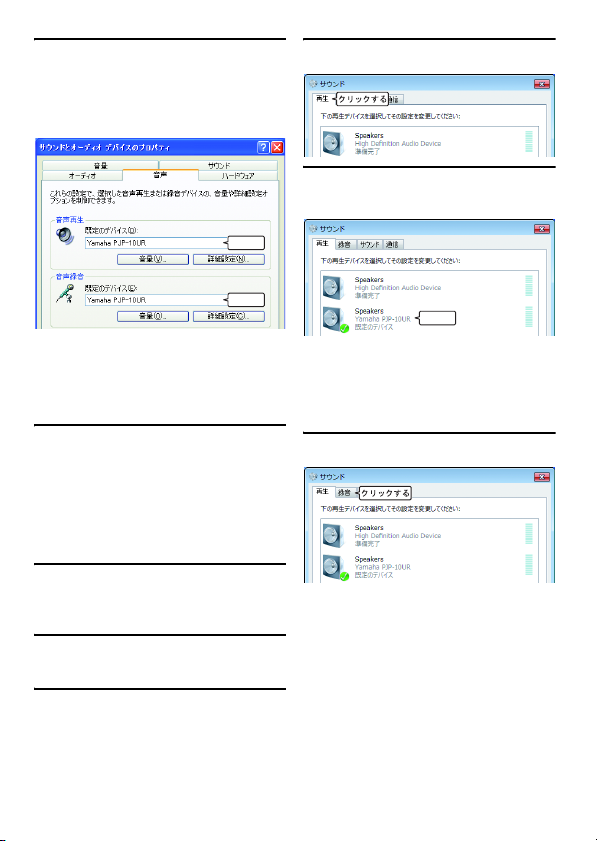
7 設定を確認する。
•「音声再生」欄の「既定のデバイス」:
YamahaPJP-10UR
•「音声録音」欄の「既定のデバイス」:
YamahaPJP-10UR
4 「再生」タブをクリックする。
5 本機が「既存のデバイス」に設定
されているか確認する。
⏕ߔࠆ
⏕ߔࠆ
y ヒント
通常は接続するだけで、自動的に
「YamahaPJP-10UR」が選択されます。
「YamahaPJP-10UR」が選択されてい
ない場合は、手動で選択してください。
8 「OK」をクリックして、「サウン
ドとオーディオデバイスのプロパ
ティ」画面を閉じる。
■ Windows7/WindowsVista
の場合
ここでは、Windows7 を例に説明します。
1 「スタート」メニューをクリック
し、「コントロールパネル」をク
リックする。
2 「ハードウェアとサウンド」をク
リックする。
3 「サウンド」をクリックする。
「サウンド」画面が表示されます。
⏕ߔࠆ
y ヒント
通常は接続するだけで、自動的に
「YamahaPJP-10UR」が設定されます。
「YamahaPJP-10UR」が選択されてい
ない場合は、手動で選択してください。
6 「録音」タブをクリックする。
Japanese 33
Page 34
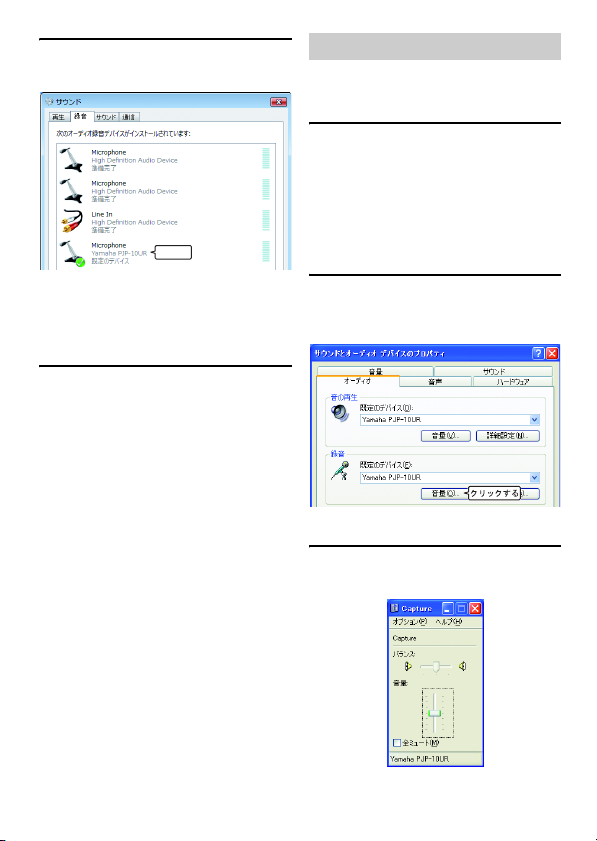
7 本機が「既存のデバイス」に設定
されているか確認する。
⏕ߔࠆ
y ヒント
通常は接続するだけで、自動的に
「YamahaPJP-10UR」が設定されます。
「YamahaPJP-10UR」が選択されてい
ない場合は、手動で選択してください。
8 「OK」をクリックして、「サウン
ド」画面を閉じる。
マイク感度を調整する
■ WindowsXP/Windows2000
の場合
1 「スタート」メニューをクリック
し、「コントロールパネル」−
「サウンド、音声、およびオー
ディオデバイス」−「サウンドと
オーディオデバイス」の順に選択
する。
「サウンドとオーディオデバイスのプロ
パティ」画面が表示されます。
2 「オーディオ」タブをクリックし、
録音欄の「音量」をクリックす
る。
「Capture」画面が表示されます。
3 「音量」欄でマイク感度を調整す
る。
34 Japanese
Page 35
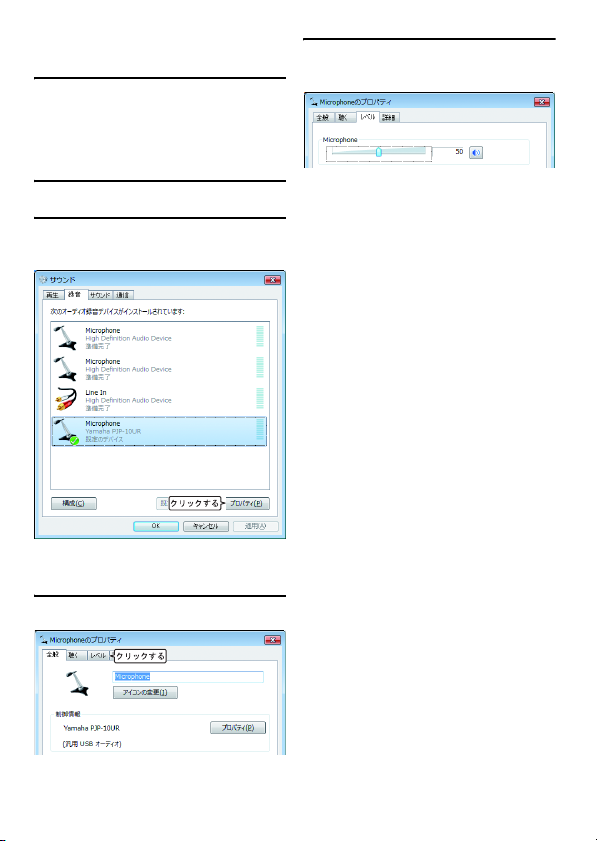
■ Windows7/WindowsVista
の場合
1 「スタート」メニューをクリック
し、「コントロールパネル」−
「ハードウェアとサウンド」−
「サウンド」の順に選択する。
「サウンド」画面が表示されます。
2 「録音」タブをクリックする。
3 本機を選択し、「プロパティ」を
クリックする。
「マイクのプロパティ」画面が表示され
ます。
4 「レベル」タブをクリックする。
5 「マイク」欄でマイク感度を調整
する。
Japanese 35
Page 36
Mac で使用する
Mac の仕様を確認する
本機を接続する Mac には、以下のシステ
ム環境が必要です。
• OS:MacOS10.5(Leopard)
• CPU:Intel プロセッサー
• メモリ:256MB 以上
• USB 端子:USB1.1 以降(USB2.0 対応
を推奨)
ご注意
• 1 台の Mac に対し本機を含めた複数のマ
イクスピーカーを同時に接続して使用す
ることはできません。
• 本機と Mac は、直接接続してください。
USB ハブを経由して接続すると、動作に
問題が生じる可能性があります。
• Mac 本体の使用状況(作業負荷やメモリ
残の状況)などにより、まれに音声再生
が途切れることがあります。
接続する
1 付属の USB ケーブルで本機と
Mac を接続する。
y ヒント
• 本機はMacから標準のUSBオーディオデ
バイスとして認識されるため、USB ドラ
イバーを別途インストールする必要はあ
りません。
• 本機のマイクはスピーカー面の方向を中
心に収音します。本機のスピーカー面に
向き合う位置でご使用ください。
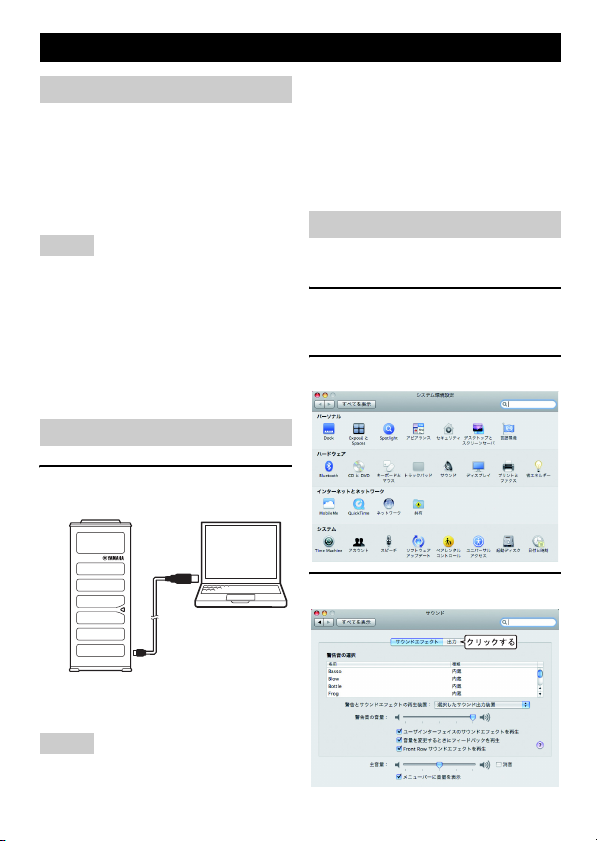
サウンド設定を切り替える
Mac で本機を使用するには、サウンド設
定を切り替える必要があります。
1 アップルメニューから「システム
環境設定」を選択する。
「システム環境設定」が表示されます。
2 「サウンド」をクリックする。
3 「出力」タブをクリックする。
USB ドライバーがパソコンに自動でイ
ンストールされます。
ご注意
本機はスピーカー面が正面になるように立
てて置いてください。
36 Japanese
Page 37
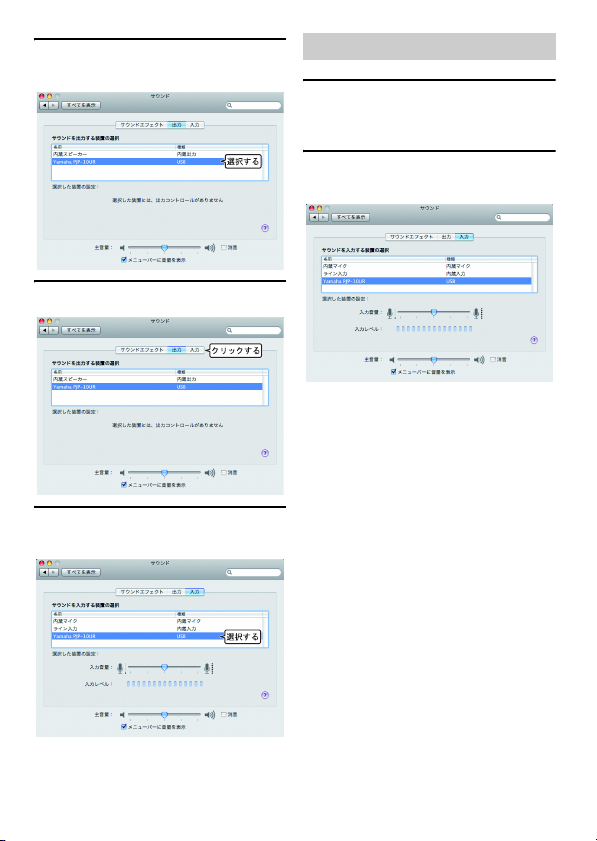
4 装置リストから「YamahaPJP-
10UR」を選択する。
5 「入力」タブをクリックする。
6 装置リストから「YamahaPJP-
10UR」を選択する。
マイク感度を調整する
1 アップルメニューから「システム
環境設定」−「サウンド」−
「入力」タブの順に選択する。
2 「入力音量」欄でマイク感度を調
整する。
Japanese 37
Page 38
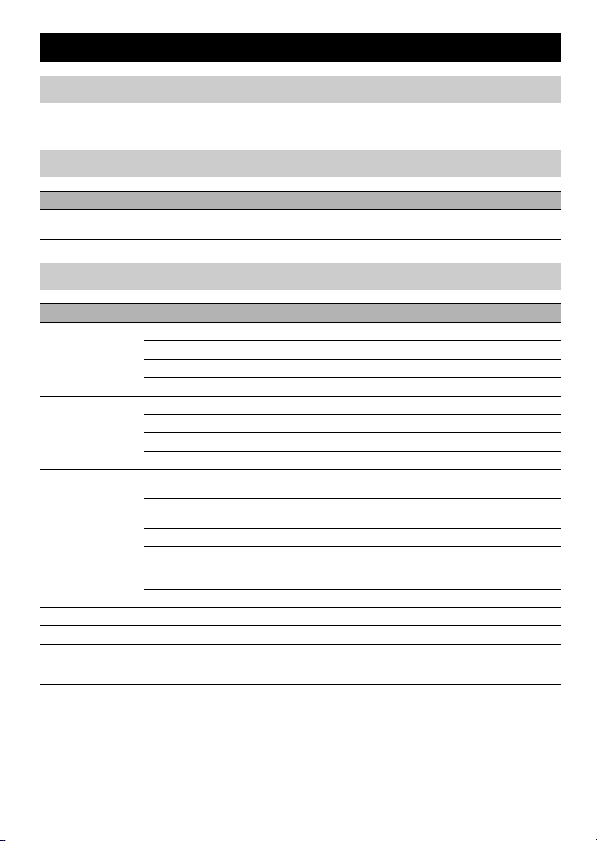
故障かな ? と思ったら
お問い合わせになる前に
本書の内容をご覧になり、問題が解決できるかどうかご確認ください。それでも問題が解
決しない場合は、サポート窓口までご相談ください(39 ページ)。
Q1LED 類が消灯している
症状 原因 対策
電源が入らない USB ケーブルが抜けた/ USB ケーブルの接
続が不安定
Q2通話音声に問題がある
症状 原因 対策
相手の音声が聞こえない本機のスピーカーミュートがはたらいている スピーカーミュートを解除する
相手側で音声が聞こ
えない
ハウリング、エコーが
発生する
ノイズが発生する 近くにノイズを発生させる機器が置いてある 本機 からできるだけ離して置くようにする
音が割れる 本機のスピーカー音量が大きい スピーカー音量を下げる
本機が使用できない PC が本機を認識していない デバイスマネジャーで?!がついてい
相手側のマイクミュートがはたらいている −
本機のスピーカー音量が最小になっている スピーカー音量を上げる
相手側のマイク感度が最小になっている −
本機のマイクミュートがはたらいている マイクミュートを解除する
相手側のスピーカーミュートがはたらいている −
本機のマイク感度が最小になっている マイク感度を上げる
相手側のスピーカー音量が最小になっている −
本機以外のマイクが接続されている PC/Web 会議ソフトのオーディオ設定で本機
本機の近くに物を置いている 本機のマイクの前にはできるだけ物を置かない
壁の側で使用している 壁の側を避けて設置する
反響の大きい部屋で使用している • 本機のマイクの前を避けて、吸音性の高い物
相手側の機器構成に問題がある −
USB ケーブルをしっかりと接続する
を選択する
ようにする
体を部屋に置く
• 反響を減らすため、スピーカー音量を下げる
る場合は、そのデバイスを削除してから本機の
USB ケーブルを差し直す
38 Japanese
Page 39

サポート窓口のご案内
本機に関する技術的なご質問やお問い合わせは、下記へご連絡ください。
■ お客様ご相談センター
TEL:053-460-2822
ご相談受付時間
9:00 〜 12:00、13:00 〜 17:00
(土・日・祝日、弊社定休日、年末年始は休業とさせて頂きます)
■ お問い合わせページ
http://www.yamaha.co.jp/projectphone/support/
Japanese 39
Page 40

主な仕様
総合 オーディオ
外部インターフェース:
USB2.0FullSpeed
最大消費電力:
最大:2.5W
電波障害規格:
VCCI クラス B
動作環境:
動作温度:0 〜 40 ℃
動作湿度:20 〜 85%(結露しないこと)
寸法:
本体:49(W)× 121(H)× 38(D)mm
重量:
210g
電源:
USB バスパワー駆動(5V/500mA)
Windows 動作環境:
OS:Windows7(32bit 版)、
WindowsVistaSP1 以上(32bit 版)、
WindowsXPSP2 以上(32bit 版)、
Windows2000SP4(32bit 版)
CPU:750MHz 以上の IntelPentium/
Celeron プロセッサ
(および互換プロセッサ)
メモリ:256MB 以上
USB 端子:USB1.1 以降
(USB2.0 対応を推奨)
Mac 動作環境:
OS:MacOS10.5(Leopard)
CPU:Intel プロセッサ
メモリ:256MB 以上
USB 端子:USB1.1 以降
(USB2.0 対応を推奨)
付属品:
USB ケーブル(1.2m)、
キャリングポーチ、本書、保証書
その他
ファームウェアアップデート
(PC より USB で転送)
マイク:
4 個(アレイマイク)
スピーカー:
2個
収音周波数帯域:
300 〜 7,000Hz
再生周波数帯域:
300 〜 20,000Hz
信号処理:
適応型エコーキャンセラー、
ノイズリダクション、マイクアレイ制御
40 Japanese
Page 41
注意:在操作本设备前请阅读此部分。
1 请仔细阅读此手册,以确保最好的使用效果。请将它保存在
安全的地方以备将来参考。
2 请将本设备安装在一个通风良好、凉爽、干燥、洁净的地方
-避免阳光直射、远离热源、避免震动、远离灰尘、避免潮
湿和/或寒冷。
3 请将本设备远离其它电子设备、马达或变压器,以避免产生
干扰音。
4 请勿将本设备暴露在温差变化很大的地方,且勿将本设备放
置在高湿度的环境中 (例如有加湿器的房间),以防止本设
备内部出现冷凝,而可能导致触电、起火、损坏本设备,和
/或造成人体伤害。
5 请勿将本设备安装在外部物体可能跌落和/或液体可能滴落
或溅到的地方。请勿在本设备的顶部放置以下物品:
– 其它元件,因为它们会使本设备表面受损和/或变色。
– 燃烧物体 (如蜡烛),因为它们可能会导致起火、本设备
受损和/或造成人体伤害。
– 装有液体的容器,因为一旦容器翻倒,液体会导致用户触
电和/或损坏本设备。
6 为不阻断热量散发,请勿使用报纸、桌布、窗帘等物品遮盖
本设备。如果本设备内部的温度升高,可能导致起火、本设
备受损和/或造成人体伤害。
7 不要将本设备安装在移动电话和/或电视机附近,以防止电
磁波和/或磁场导致操作失败。
8 安装本设备时,请保持水平安装,以避免设备受到倾斜损
害。
9 请使用随附的 USB 缆线。使用其它 USB 缆线可能会引起触
电或火灾。
10 连接或断开 USB 缆线时,请保持手部干爽,以避免发生触
电。
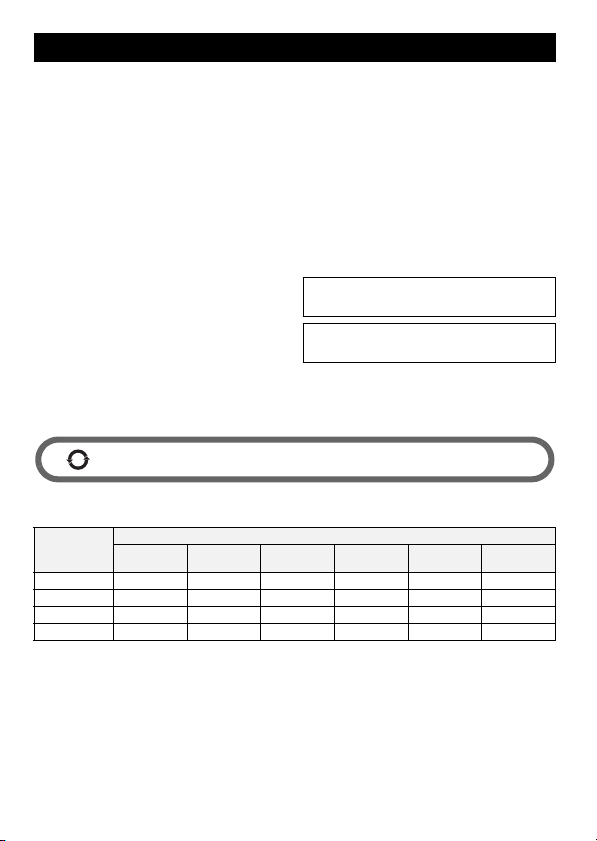
该标记附加在出售到中华人民共和国的电子信息产品上。
10
环形中的数字表示的是环境保护使用期限的年数。
○ : 表示该有毒有害物质在该部件所有均质材料中的含量均在 SJ/T 11363-2006 标准规定的限量要求以下。
表示该有毒有害物质至少在该部件的某一均质材料中的含量超出 SJ/T 11363-2006 标准规定的限量要求。
×:
部件名称
电路板 ×○○○○○
外壳箱体 ×○○○○○
扬声器单元 ○○○○○○
麦克风单元 ○○○○○○
(Pb)
铅
(Hg)
汞
11 请将本设备直接连接至电脑。通过 USB 集线器连接可能会引
起操作问题。
12 对 USB 缆线进行操作时,请勿使用蛮力,否则可能会引起火
灾、触电、设备受损、短路和/或断路。
13 不打算长期使用本设备时,请从电脑上拔下 USB 缆线,以避
免引起火灾。
14 拔下 USB 缆线时,请捏住插头部位:切勿拉拽缆线。
15 请勿使用化学溶剂清洁本设备,这可能损坏机壳涂层。请使
用洁净的干布。
16 请勿尝试改装或维修本设备。当需要任何维修时,请联系
Yamaha 专业维修人员。
17 环境温度突然变化时,将会出现冷凝现象。请从电脑上拔下
USB 缆线,让设备自行风干。
18 长时间使用本设备时,会出现设备过热。请断开电源缆线,
并将设备单独放置冷却。
19 为防止闪电损坏设备,在闪电雷雨的天气,请断开 USB 缆
线。
20 使用本设备前,始终将音量调至最低。
警告
为减少起火或电击的危险,严禁将本设备暴露在雨水或潮湿
环境中。
警告
本设备属于 B 级产品。在家居环境下,本设备可能会引起无
线电干扰,此时,用户可能必须进行充分的测量。
有毒有害物质或元素
(Cd)
镉
六价铬
(Cr(VI))
多溴联苯
(PBB)
多溴二苯醚
(PBDE)
Chinese 41
Page 42

介绍
感谢您购买 Yamaha PJP-10UR。
为了您的安全,请仔细阅读本手册内载列的所有安全指示和预防措施,并将它保存在安全的地方以备将来参考。
■ 检查内容物
PJP-10UR (本设备)x 1,USB 缆线(1 .2 m)x 1,便携袋 x 1,本手册 x 1
■ 查看最新信息
本手册中的介绍是根据目前 (截至 2009 年11 月)所提供的固件而编制。有关最新信息,请访问 Yamaha 会议系统主页。
■ 使用最新功能
您可下载固件 (控制本设备功能的程序),以使用最新功能。有关详情,请访问 Yamaha 会议系统主页。
Yamaha 会议系统主页
http://www.yamaha.co.jp/english/product/projectphone/
42 Chinese
Page 43

关于本手册
■ 关于缩写词
在本手册中,产品名称的表述如下:
• Yamaha PJP-10UR:本设备
®
Windows®: Windows
• Microsoft
®
• Microsoft
Windows® 7: Windows 7
®
Windows Vista®: Windows Vista
• Microsoft
®
• Microsoft
Windows XP®: Windows XP
®
Windows 2000 Professional®: Windows 2000
• Microsoft
®
: Mac
• Macintosh
■ 关于商标
• Microsoft 和 Windows是微软公司在美国和其它国家的注册商标。
• Intel、Pentium 和 Celeron是英特尔公司或其子公司在美国和其它国家的商标或注册商标。
• Macintosh 和 Mac操作系统是苹果电脑公司的注册商标。
• 未经 Yamaha 许可,不得以任何形式复制或使用本文件的任何部分。
• 本设备的规格和文件的内容可做出更改,而无需发出通知。
• Yamaha 不对因使用本设备造成的任何损失或损害承担任何责任。保修仅包含本设备的一次维修。
Chinese 43
Page 44

确认软件许可协议
一经使用 “有关软件”,即视为您同意受本协议条款和条件的约束。
软件许可协议
本许可协议 (“本协议”)是您与Yamaha Corporation (“YAMAHA”)订立的合法协议,据此,YAMAHA 提供 YAMAHA Projectphone固
件(“有关产品”),以及相关软件程序、文件和电子文档(统称 “有关软件”)。
根据本协议第 1-1 条,本协议适用于 YAMAHA提供给您的有关软件及安装在有关产品或您的个人电脑内的有关副本。
1. GRANT OF LICENSE:
1-1. YAMAHA grants you a personal non-exclusive license to install the SOFTWARE and use the SOFTWARE on the PRODUCT or other devices,
including but not limited to the personal computer, which you own.
1-2. You shall not assign, sublicense, sell, rent, lease, loan, convey or otherwise transfer to any third party, upload to a web site or a server computer
to which specified or unspecified persons may access, or copy, duplicate, translate or convert to another programming language the
SOFTWARE except as expressly provided herein. You shall not alter, modify, disassemble, decompile or otherwise reverse engineer the
SOFTWARE and you also shall not have any third party to do so.
1-3. You shall not modify, remove or delete a copyright notice of YAMAHA contained in the SOFTWARE.
1-4. Except as expressly provided herein, no license or right, express or implied, is hereby conveyed or granted by YAMAHA to you for any
intellectual property of YAMAHA.
2. OWNERSHIP AND COPYRIGHT:
The SOFTWARE is protected under the copyright laws and owned by YAMAHA. You agree and acknowledge that YAMAHA transfers neither
ownership interest nor intellectual property in the SOFTWARE to you under this AGREEMENT or otherwise.
3. EXPORT RESTRICTIONS:
You agree to comply with all applicable export control laws and regulations of the country involved, and not to export or re-export, directly or
indirectly, the SOFTWARE in violation of any such laws and regulations.
4. SUPPORT AND UPDATE:
YAMAHA, YAMAHA's subsidiaries and affiliates, their distributors and dealers are not responsible for maintaining or helping you to use the
SOFTWARE. No updates, bug-fixes or support will be made available to you for the SOFTWARE.
5. DISCLAIMER OF WARRANTY:
5-1. THE SOFTWARE IS PROVIDED "AS IS" WITHOUT WARRANTY OF ANY KIND, EITHER EXPRESS OR IMPLIED, INCLUDING,
BUT NOT LIMITED TO THE IMPLIED WARRANTIES OF MERCHANTABILITY AND FITNESS FOR A PARTICULAR PURPOSE.
5-2. IN NO EVENT SHALL YAMAHA, YAMAHA'S SUBSIDIARIES AND AFFILIATES, THEIR DISTRIBUTORS AND DEALERS BE
LIABLE FOR ANY DAMAGES WHATSOEVER (INCLUDING WITHOUT LIMITATION, LOSS OF BUSINESS PROFITS, LOSS OF
BUSINESS INFORMATION, LOSS OF BUSINESS INTERRUPTION OR OTHER INCIDENTAL OR CONSEQUENTIAL DAMAGES)
ARISING OUT OF THE SOFTWARE, USE THEREOF, OR INABILITY TO USE THEREOF EVEN IF YAMAHA, YAMAHA'S
SUBSIDIARIES AND AFFILIATES, THEIR DISTRIBUTORS OR DEALERS HAVE BEEN ADVISED OF THE POSSIBILITY OF SUCH
DAMAGES. SOME STATES DO NOT ALLOW THE LIMITATION OR EXCLUSION OF LIABILITY FOR INCIDENTAL OR
CONSEQUENTIAL DAMAGES, SO THE ABOVE LIMITATION OR EXCLUSION MAY NOT APPLY TO YOU.
5-3. YAMAHA, YAMAHA'S SUBSIDIARIES AND AFFILIATES, THEIR DISTRIBUTORS AND DEALERS SHALL HAVE NO
OBLIGATION TO INDEMNIFY YOU AGAINST ANY CLAIM OR SUIT BROUGHT BY A THIRD PARTY ALLEGING THAT THE
SOFTWARE OR USE THEREOF INFRINGES ANY INTELLECTUAL PROPERTY OF SUCH THIRD PARTY.
6. TERM:
6-1. This AGREEMENT becomes effective upon your agreeing the terms and cond itions herein and continues in effect unless or until terminated
in accordance with the provision of 6-2 or 6-3 herein.
6-2. You may terminate this AGREEMENT by deleting the SOFTWARE installed into the PRODUCT.
6-3. This AGREEMENT will also terminate if you fail to comply with any of the terms and conditions of this AGREEMENT.
6-4. In case this AGREEMENT is terminated in accordance with the provisi on 6-3, you shall promptly delete the SOFTWARE.
6-5. Notwithstandi ng anything contains herein, Sections 2 though 6 shall survive any termination or expiration hereof.
7. SEVERABILITY:
In the event that any provision of this AGREEMENT is declared or found to be illegal by any court or tribunal of competent jurisdiction, such
provision shall be null and void with respect to the jurisdiction of that court or tribunal and all the remaining provisions of this AGREEMENT shall
remain in full force and effect.
8. U.S. GOVERNMENT RESTRICTED RIGHTS NOTICE:
The Software is a "commercial item," as that term is defined at 48 C.F.R. 2.101 (Oct 1995), consisting of "commercial computer software" and
"commercial computer software documentation," as such terms are used in 48 C.F.R. 12.212 (Sept 1995). Consistent with 48 C.F.R. 12.212 and 48
C.F.R. 227.7202-1 through 227.72024 (June 1995), all U.S. Government End Users shall acqu ire the Software with only those rights set forth herein.
9. ACKNOWLEDGMENT:
You agree that this AGREEMENT is the complete and exclusive statement of agreement between you and YAMAHA concerning the subject matter
hereof and supersedes all proposals or prior agreements, verbal or written, and any other communications betw een you and the parties relating to
the subject matter hereof. NO amendment to t his AGREEMENT shall be effective unless signed by a duly authorized representative of YAMAHA.
10. GOVERNING LAW:
This AGREEMENT shall be governed by and construed in accordance with the lows of Japan without re ference to the principles of conflict of laws.
44 Chinese
Page 45
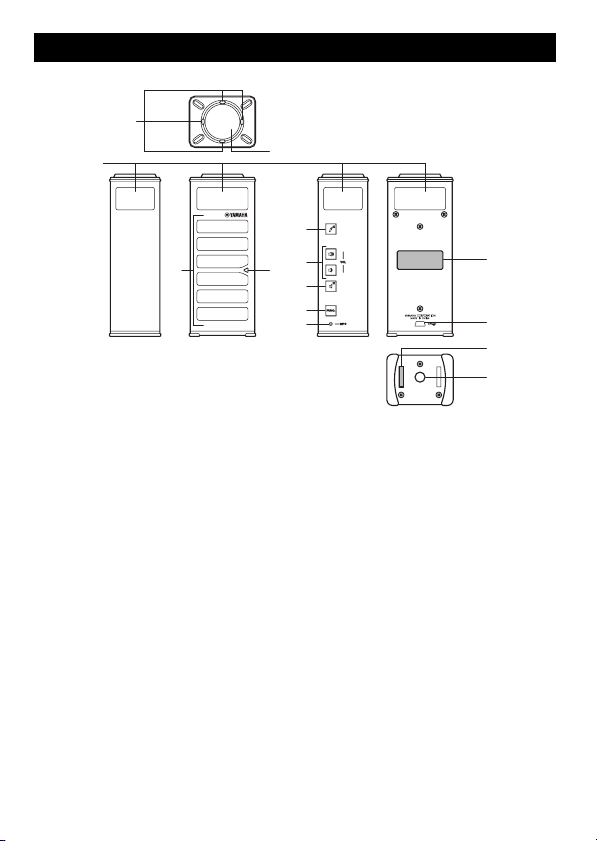
控制装置和功能
1
2
3
2
4
5
1
6
7
1
8
9
0
A
1 LED
用来显示本设备工作状态的灯。
2 麦克风
收集发言者的声音。
3 扬声器
输出声音。
4 麦克风静音
按下此按键,以暂时关闭 (静音)麦克风。
若要取消静音功能,请再次按下。
5 VOL +/-
按下此按键,以调整扬声器音量。持续按住
任一按键,以提高或降低音量。
6 扬声器静音
按下此按键,以暂时关闭 (静音)扬声器。
若要取消静音功能,请再次按下。
7 FUNC.
用于未来扩展。
8 MODEL No.
本设备的型号。
9 USB 端口
用于连接 USB 缆线。
0 SER.
本设备的序列号。
A 三脚架插口
用于连接市售的三脚架。
Chinese 45
Page 46
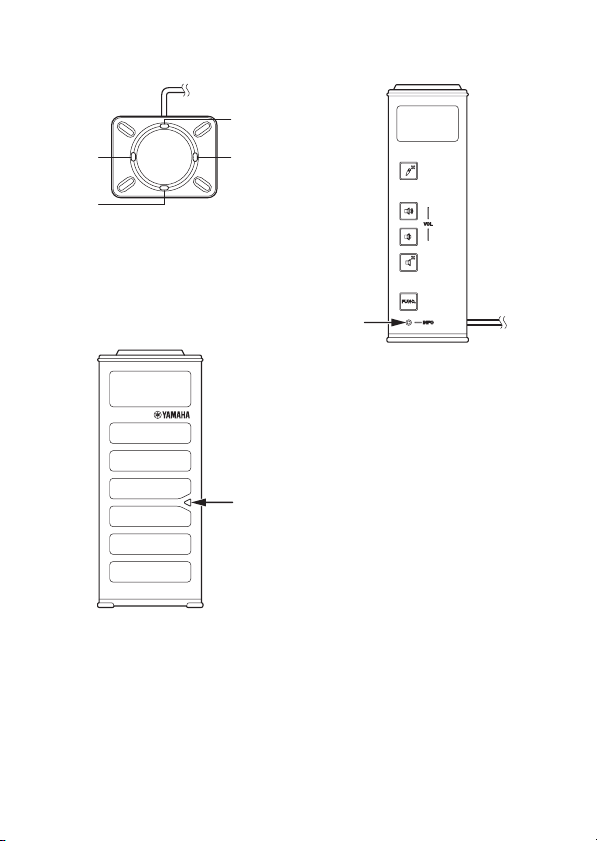
■ 指示灯的功能
麦克风指示灯
3
24
1
正常:124 亮
麦克风静音:124 闪烁
等待固件更新:全部闪烁
固件更新期间:13 和 24 交替闪烁
固件更新错误:灭
扬声器指示灯
信息指示灯
正常:灭
等待固件更新:闪烁红色
固件更新期间:灭
固件更新错误:闪烁红色
正常:亮
扬声器静音:闪烁
最大音量:闪烁 5 次
等待固件更新:闪烁
固件更新期间:灭
固件更新错误:灭
46 Chinese
Page 47
通过 Windows 使用本设备
系统要求
请使用符合下列要求的电脑。
• 操作系统:Windows 7 (32 位),
Windows Vista SP1 或以上 (32 位),
Windows XP SP2 或以上 (32 位),
Windows 2000 SP4 (32 位)
• CPU:750MHz 或更大,Intel Pentium/
Celeron 处理器 (或兼容处理器)
• 内存:256 MB 或更大
• USB 端口:USB1.1 或更高 (建议 USB2.0)
注意
• 您不能在电脑上同时连接多个传声扬声器
设备包括本设备。
• 请将本设备直接连接至电脑。通过 USB 集线
器连接可能会引起操作问题。
• 音频复制可能会根据电脑的使用状况
(负荷或可用内存空间)而被中断。
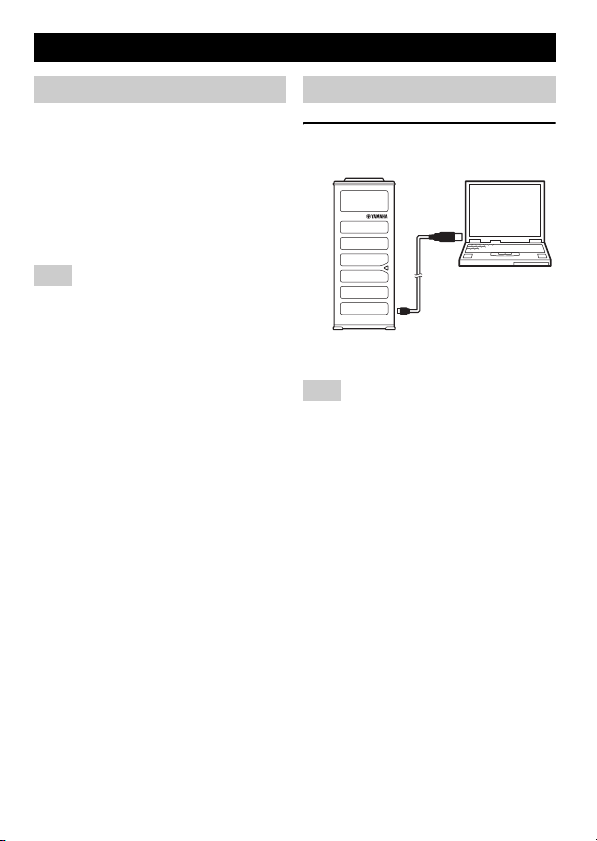
连接
1 使用随附的 USB 缆线将本设备连接
至电脑。
USB 驱动程序自动安装在电脑上。
注意
将本设备竖立放置在平整的表面,并使扬声
器侧朝向自己的位置。
y
• 您无需另行安装 USB 驱动程序,因为电脑可
将本设备识别为基本音频设备。
• 本设备的麦克风主要从扬声器侧的方向收
集声音。使用本设备时,扬声器侧应朝向
自己的位置。
Chinese 47
Page 48
检查连接
遵循下列步骤,检查电脑是否可适当识别本
设备。
• 检查在所有外围设备均已连接的情况下,
电脑是否可适当识别本设备。
• 如果在使用本设备举行 Web 会议时,麦克
风无法收集声音和 / 或扬声器无法输出声
音,可能是由于在 Web 会议软件上没有选
择本设备作为声音播放和 / 或录音设备。
请参阅 Web 会议软件的用户手册并检查设
置。
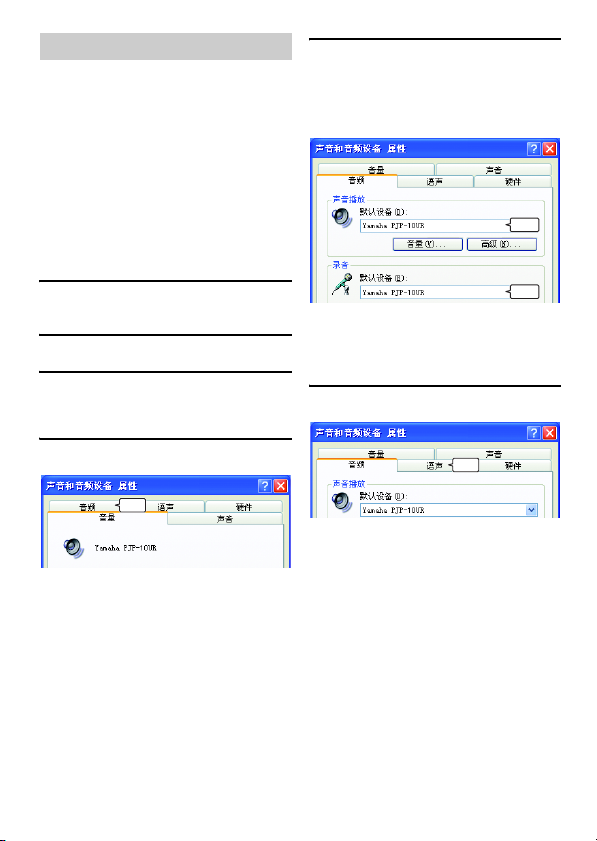
■ 使用 Windows XP / Windows 2000时
在本程序中,Windows XP 仅为举例之用。
1 单击 “开始”菜单,并单击 “控
制面板”。
2 单击 “声音、语音和音频设备”。
3 单击 “声音和音频设备”。
屏幕上弹出 “声音和音频设备属性”
方框。
5 检查设置。
•“声音播放”中的 “默认设备”:
Yamaha PJP-10UR
•“录音”中的 “默认设备”:
Yamaha PJP-10UR
⹂䅸
⹂䅸
y
通常情况下,当本设备连接至电脑上时,
电 脑会自动选定 “Yamaha PJP-10UR”。如果
“Yamaha PJP-10UR”未被选中,请手动选择。
6 单击 “语声”标签。
4 单击 “音频”标签。
ߏ
48 Chinese
ߏ
Page 49
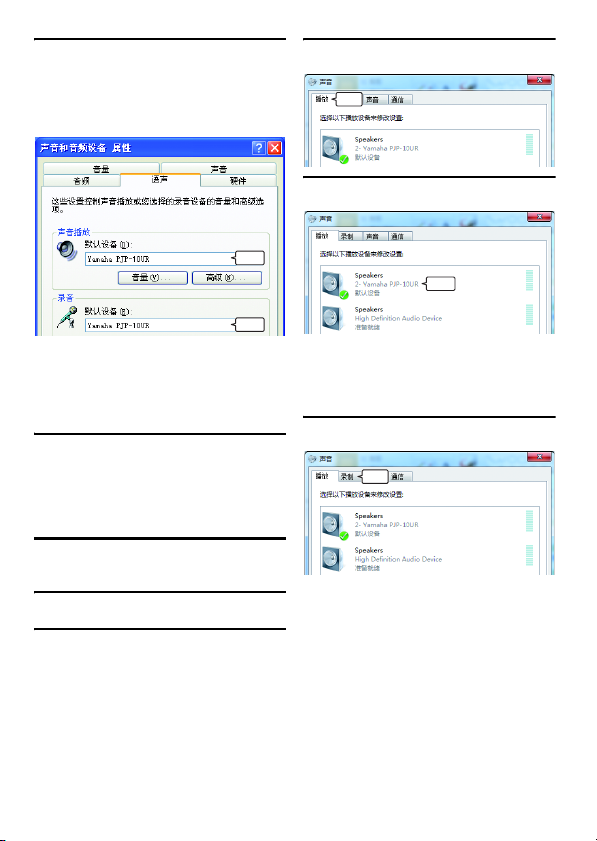
7 检查设置。
•“声音播放”中的 “默认设备”:
Yamaha PJP-10UR
•“录音”中的 “默认设备”:
Yamaha PJP-10UR
⹂䅸
⹂䅸
y
通常情况下,当本设备连接至电脑上时,电
脑会自动选定 “Yamaha PJP-10UR”。如果
“Yamaha PJP-10UR”未被选中,请手动选
择。
8 单击 “确定”,关闭 “声音和音频
设备属性”屏幕。
■ 使用 Windows 7 / Windows Vista 时
在本程序中,Windows 7 仅为举例之用。
1 单击 “开始”菜单,并单击
“控制面板”。
2 单击 “硬件和声音”。
4 单击 “播放”标签。
ߏ
5
确保将本设备设置为 “默认设备”。
⹂䅸
y
通常情况下,当本设备连接至电脑上时,电
脑会自动设置 “Yamaha PJP-10UR”。如果
“Yamaha PJP-10UR”未被选中,请手动选择。
6 单击 “录音”标签。
ߏ
3 单击 “声音”。
显示 “声音”屏幕。
Chinese 49
Page 50
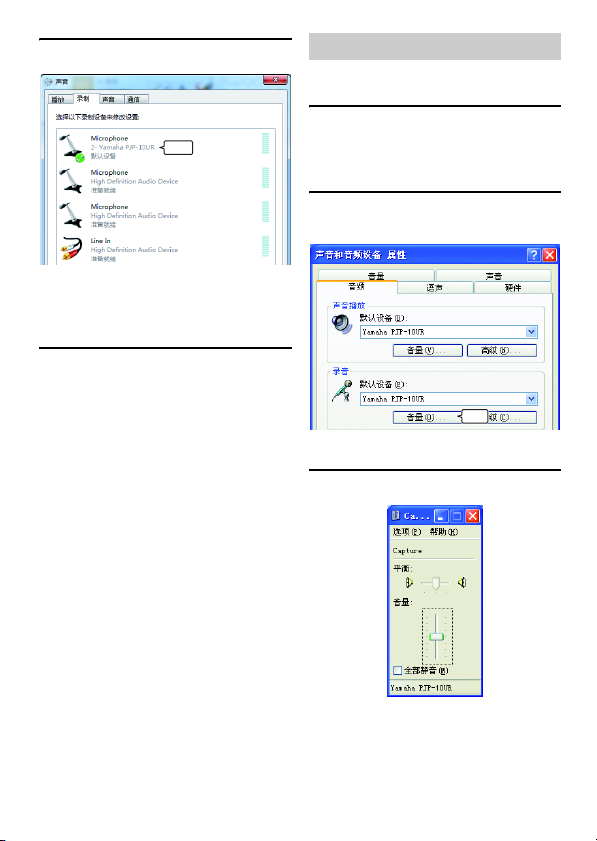
7
确保将本设备设置为 “默认设备”。
⹂䅸
y
通常情况下,当本设备连接至电脑上时,电
脑会自动设置 “Yamaha PJP-10UR”。如果
“Yamaha PJP-10UR”未被选中,请手动选择。
8
单击 “确定”,关闭 “声音”屏幕。
调整麦克风敏感度
■ 使用 Windows XP / Windows 2000时
1 单击 “开始”菜单并单击 “控制
面板”- “声音、语音和音频设
备”- “声音和音频设备”。
显示 “声音和音频设备属性”屏幕。
2 单击 “音频”标签,并单击
“录音”中的 “音量”。
ߏ
显示 “Capture”屏幕。
3 在 “音量”中调整麦克风敏感度。
50 Chinese
Page 51
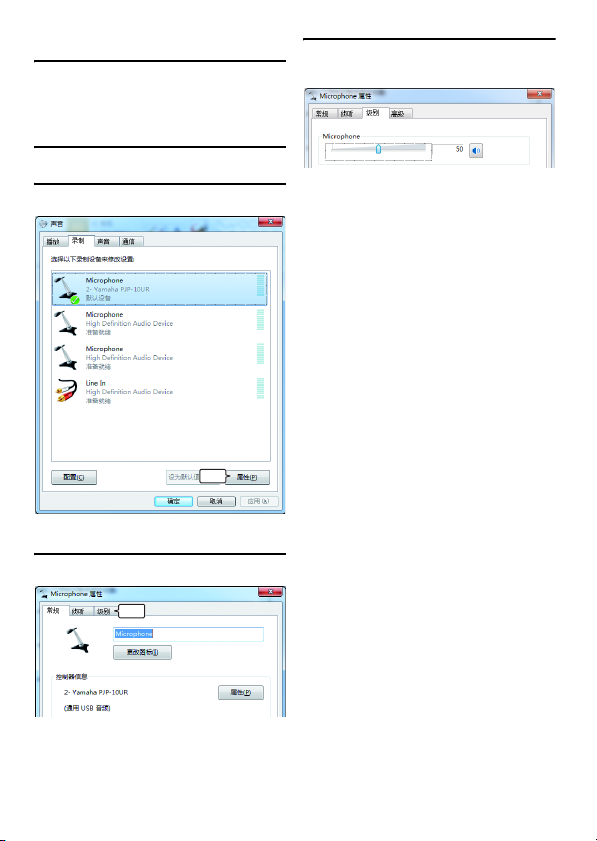
■ 使用 Windows 7 / Windows Vista 时
1 单击 “开始”菜单,并单击
“控制面板”- “硬件和声音”“声音”。
显示 “声音”屏幕。
2 单击 “录音”标签。
3 选择本设备并单击 “属性”。
ߏ
显示 “麦克风属性”屏幕。
4 单击 “级别”标签。
ߏ
5 在 “Microphone”中调整麦克风敏
感度。
Chinese 51
Page 52
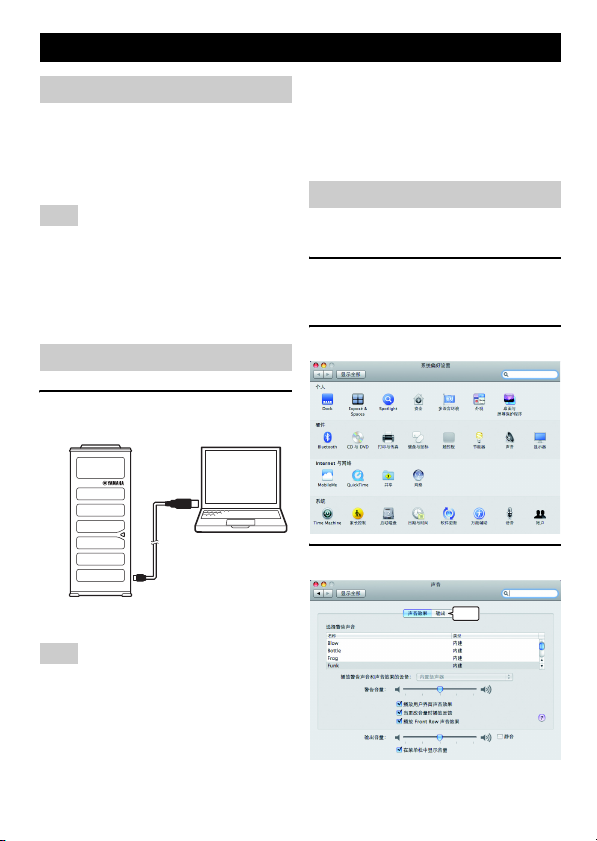
通过 Mac 使用本设备
系统要求
请使用符合下列要求的 Mac。
• 操作系统:Mac 操作系统 10.5 (美洲豹)
• CPU:Intel 处理器
• 内存:256MB 或更大
• USB 端口:USB1.1 或更高 (建议 USB2.0)
注意
• 您不能在 Mac上同时连接多个传声扬声器设
备包括本设备。
• 请将本设备直接连接至 Mac。通过 USB 集线
器连接可能会引起操作问题。
• 音频复制可能会根据 Mac 的使用状况
(负荷或可用内存空间)而被中断。
连接
1 使用随附的 USB 缆线将本设备连接
至Mac。
y
• 您无需另行安装 USB 驱动程序,因为 Mac 可
将本设备识别为基本音频设备。
• 本设备的麦克风主要从扬声器侧的方向收
集声音。使用本设备时,扬声器侧应朝向
自己的位置。
更改声音设置
通过 Mac 使用本设备时,您需要更改声音设
置。
1 单击 Apple 菜单,并选择 “系统偏
好设置”。
显示 “系统偏好设置”屏幕。
2 单击 “声音”。
3 单击 “输出”标签。
USB 驱动程序自动安装在 Mac 上。
注意
将本设备竖立放置在平整的表面,并使扬声
器侧朝向自己的位置。
52 Chinese
ߏ
Page 53
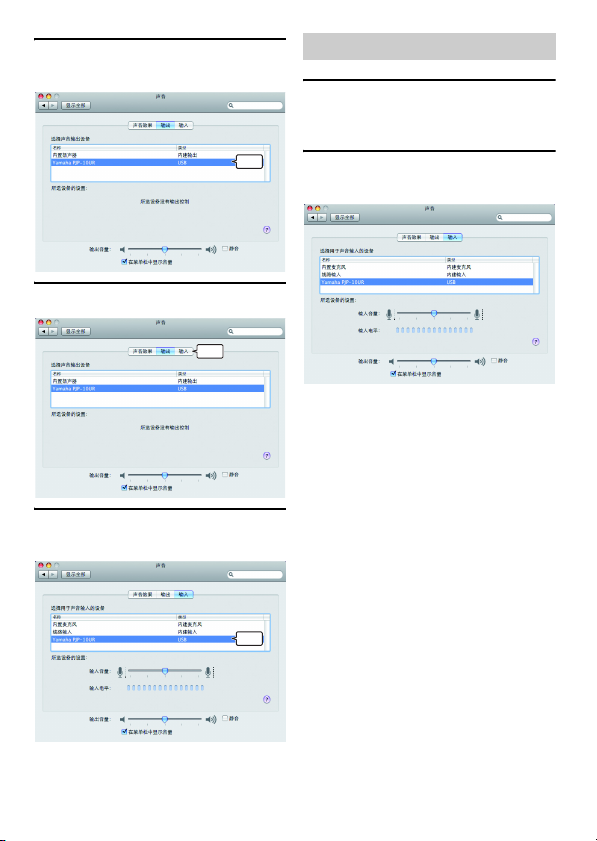
4 从设备列表中选择 “Yamaha PJP-
10UR”。
䗝ᢽ
5 单击 “输入”标签。
ߏ
6 从设备列表中选择 “Yamaha PJP-
10UR”。
调整麦克风敏感度
1 单击 Apple 菜单,并选择 “系统偏
好设置”- “声音”- “输入”标
签。
2 在 “输入音量”中调整麦克风敏感
度。
䗝ᢽ
Chinese 53
Page 54
故障排查
本设备无法正常工作时,请参阅下表。如果您遇到的问题未在表中列出,或根据说明仍无法
解决,请联系购买本产品时的零售商或经销商。
问题 1:LED 指示灯未点亮
问题 原因 补救措施
设备未通电。 USB 缆线未适当连接。 确保 USB 缆线稳固连接。
问题 2:出现音频问题
问题 原因 补救措施
听不到其它设备发出
的音频。
在其它设备上听不到
本设备所发出的音频。
本设备产生反馈噪声
或回响。
设备产生噪音。 本设备附近放有一个干扰设备。 使本设备远离此干扰设备。
音频发劈。 扬声器音量过大。 调低扬声器音量。
本设备未工作。 电脑未识别出本设备。 如果在设备管理器中看到 “?”或 “!”,请删
本设备的扬声器处于静音状态。 关闭扬声器静音功能。
其它设备上的麦克风处于静音状态。 –
本设备的扬声器音量设置为最小。 调高扬声器音量。
其它设备上的麦克风敏感度设置为最低。 –
本设备上的麦克风处于静音状态。 关闭麦克风静音功能。
其它设备上的扬声器处于静音状态。 –
本设备的麦克风敏感度设置为最低。 提高麦克风敏感度。
其它设备上的扬声器音量设置为最低。 –
另外连接有一个麦克风。 在电脑/ Web 会议软件的音频设置中,选择本
有一个物体放置在本设备附近。 避免在本设备的麦克风前面放置物体。
本设备位于墙壁附近。 使本设备远离墙壁。
应用本设备的房间混响现象严重。 • 将具有高吸音性能的物体放置在房间里但不要
另一个设备的设备配置出现问题。 –
设备。
放在麦克风前面。
• 将扬声器音量调低,以减轻混响。
除设备,并用 USB 缆线重新连接本设备。
54 Chinese
Page 55

支持信息
请访问 Yamaha 会议系统主页。
■ Yamaha 会议系统主页
http://www.yamaha.co.jp/english/product/projectphone/
Chinese 55
Page 56

规格一览表
一般资料 音频
接口:
USB2.0 全速接口
功耗 (最大):
约 2.5W
运行环境:
温度:0至40℃
湿度:20 至 85% (无冷凝)
尺寸:
主体 (W x H x D):49 x 121 x 38 mm
重量:
210 g
电源:
USB 总线供电 (5V/500mA)
Windows 环境:
操作系统:Windows 7 (32 位),
Windows Vista SP1 或以上 (32 位),
Windows XP SP2 或以上 (32 位),
Windows 2000 SP4 (32 位)
CPU:750MHz 或更大,Intel Pentium/
Celeron 处理器 (或兼容处理器)
内存:256MB 或更大
USB 端口:USB1.1 或更高 (建议 USB2.0)
Mac 环境:
操作系统:Mac 操作系统 10.5 (美洲豹)
CPU:Intel 处理器
内存:256MB 或更大
USB 端口:USB1.1 或更高 (建议 USB2.0)
附属品:
USB 缆线 (1.2 m),便携袋,本手册
其它:
固件更新 (通过 USB 从电脑中传输)
麦克风:
4 个 (阵列麦克风)
扬声器:
2个
收音的频带宽度:
300 至 7,000 Hz
播放的频带宽度:
300 至 20,000 Hz
信号处理:
适应型回声消除器,降噪,麦克风阵列控制
56 Chinese
Page 57

주의 : 장치를 사용하기 전 본 매뉴얼을 숙독하십시오 .
1 최적의 성능 을 보장할 수 있도록 본 매뉴얼을 숙독하십시 오.
이후 참고할 수 있도록 안전한 장소에 보관하십시오 .
2 본 장치는 환기가 잘되는 서늘하고 건조하며 청결한 장소에
설치하고 직사광선 , 열원 , 진동, 먼지 , 습기 및 / 또는 냉기
를 피하십시오 .
3 본 장치는 윙윙거리는 소음이 없도록 기타 가전제품 , 모터
나 변압기와 멀리 배치하십시오 .
4 본 장치는 저온에서 고온의 갑작스런 온도 변화를 피하고 장
치 내부에 수증기가 발생되지 않도록 습도가 높은 환경에 설
치하지 마십시오 . 감전 , 화재, 장치 손상 및 / 또는 사용자
부상이 초래될 수 있습니다 .
5 장치에 이물질이 들어가고 물방울이 떨어지거나 튈 수 있는
장소에 설치하지 마십시오 . 본 장치 위에 다음 물체를 올려
놓지 마십시오 .
– 본 장치를 손상시키거나 표면을 변색시킬 가능성이 있는
다른 부품 .
– 화재 , 장치 파손 및 / 또는 사용자 부상을 초래할 수 있는
연소 물체 ( 양초 등).
– 떨어진 액체로 인해 사용자가 감전되거나 장치가 파손될
수 있는 액체가 포함된 용기 .
6 열 발산을 방해하지 않도록 신문 , 테이블보 , 커튼 등으로 장
치를 덮지 마십시오 . 장치 내부 온도가 상승할 경우 화재,
장치 파손 및 / 또는 사용자 부상을 초래할 수 있습니다.
7 전자파 및/ 또는 자기로 인한 작동 불량 방지를 위해 휴대폰
및 / 또는 텔레비전 근처에 장치를 설치하지 마십시오.
8 본 장치는 낙하 및 장치의 파손 방지를 위해 안정적인 장소
에 수평으로 설치하십시오 .
9 동봉된 USB 케이블을 사용하십시오 . 다른 USB를 사용할
경우 감전이나 화재가 발생될 수 있습니다 .
10 장치를 연결하거나 분리 시에는 감전되지 않도록 손을 마른
상태로 유지하십시오 .
11 본 장치와 PC 를 직접 연결하십시오 . USB 허브를 통해 연
결할 경우 작동 상의 문제가 초래될 수 있습니다 .
12 USB 케이블에 힘을 가하지 마십시오. 힘을 가할 경우 화재,
감전 , 장치 파손 , 회로 단락 및/ 또는 단선이 발생될 수 있
습니다 .
13 본 장치를 장기간 사용하지 않을 경우에는 화재 방지를 위해
PC 에서 USB 케이블을 분리하십시오 .
14 USB 케이블을 분리 시에는 플러그를 잡으십시오. 케이블을
당기지 마십시오 .
15 화학 용제로 장치를 닦지 마십시오 . 코팅이 벗겨질 수 있습
니다 . 깨끗한 마른 천을 사용하십시오 .
16 본 장치를 개조하거나 수리하지 마십시오. 서비스가 필요할
경우 Yamaha 의 전문 서비스 기사에게 문의하십시오 .
17 주변 온도가 갑작스럽게 변할 경우 응결이 발생될 수 있습니
다 . PC 에서 USB 케이블을 분리 후 그대로 방치하십시오.
18 본 장치를 장기간 사용할 경우 장치가 과열될 수 있습니다 .
케이블을 분리한 다음 그대로 방치하여 냉각시키십시오 .
19 번개에 의한 파손 방지를 위해 번개를 동반한 폭우 시에는
USB 케이블을 분리해 두십시오 .
20 본 장치를 사용하기 전에는 항상 볼륨을 최소한으로 줄이십
시오 .
경고
화재나 감전 위험을 줄이기 위해 본 장치는 빗물이나 습기를
피하십시오 .
경고
이 기기는 가정용 (B 급) 으로 전자파적합등록을 한 기기로
서 주로 가정에서 사용하는 것을 목적 으로 하며 , 모든 지역
에서 사용할 수 있습니다 .
제조자 : Yamaha Electronics (Suzhou) Co., Ltd.
Korean 57
Page 58

소개
Yamaha PJP-10UR 을 구입해 주셔서 감사합니다.
안전을 위하여 본 소책자에 수록된 모든 안전 지침 및 주의사항을 자세히 읽으시고 차후에도 참고할 수 있도록 안전한 장소에 보관
해 주십시오 .
■ 내용물을 확인하십시오
PJP-10UR ( 본체 ) x 1, USB 케이블 (1.2 m) x 1, 캐링 케이스 x 1, 본 책자 x 1
■ 최신 정보 확인
본 책자의 설명은 현재 (2009년 11 월 ) 의 최신 펌웨어를 기반으로 한 것입니다 . 최신 정보는 Yamaha 회의 시스템 홈페이지를 참
조하십시오 .
■ 최신 기능 사용하기
펌웨어 ( 본 장치의 기능을 관리하는 프로그램) 를 다운로드하여 최신 기능을 사용할 수 있습니다 . 상세 정보는 Yamaha 회의 시스
템 홈페이지를 참조하십시오 .
Yamaha 회의 시스템 홈페이지
http://www.yamaha.co.jp/english/product/projectphone/
58 Korean
Page 59

본 설명서 소개
■ 관련용어
본 설명서에는 제품의 명칭이 다음과 같이 수록되어 있습니다 .
• Yamaha PJP-10UR: 본 제품
®
Windows®: Windows
• Microsoft
®
• Microsoft
Windows® 7: Windows 7
®
Windows Vista®: Windows Vista
• Microsoft
®
• Microsoft
Windows XP®: Windows XP
®
Windows 2000 Professional®: Windows 2000
• Microsoft
®
: Mac
• Macintosh
■ 상표에 대하여
• Microsoft 및 Windows 는 미국 및 기타 국가에 소재한 Microsoft Corporation 의 등록 상표입니다.
• Intel, Pentium 및 Celeron 은 미국과 기타 국가 소재의 Intel Corporation 및 그 자회사의 상표 혹은 등록 상표입니다 .
• Macintosh 및 Mac OS 는 Apple Computer, Inc.의 등록 상표입니다 .
• Yamaha 의 허가 없이는 본 문서를 복사하거나 사용할 수 없습니다.
• 본 장치 사양 및 매뉴얼의 내용은 통지 없이 변경될 수 있습니다 .
• Yamaha 는 본 장치 사용으로 인한 어떠한 손실 혹은 파손에 대해서도 법적 책임을 지지 않습니다 . 보증서는 본 장치의 수리에
한 하여 보장합니다 .
Korean 59
Page 60

확인 소프트웨어 사용권 계약서
" 소프트웨어 "를 사용함으로써 본 계약서 조건에 동의한 것으로 간주합니다 .
소프트웨어 사용권 계약서
본 사용권 계약서(" 계약서 ") 는 귀하와 Yamaha Corporation ("YAMAHA") 간의 법적 계약이며 YAMAHA 는 이를 기준으로YAMAHA
의 Projectphone(" 제품 ") 및 관련 소프트웨어 프로그램의 펌웨어 , 문서 및 전자 파일 ("소프트웨어 " 로 총칭 )을 제공합니다 .
본 계약서는 YAMAHA 가 본지 1-1항에 따라 귀하에게 제공한 소프트웨어 및 귀하가 소유한 제품 또는 퍼스널 컴퓨터에 설치된
사본에 적용됩니다 .
1. GRANT OF LICENSE:
1-1. YAMAHA grants you a personal non-exclusive license to install the SOFTWARE and use the SOFTWARE on the PRODUCT or other devices,
including but not limited to the personal computer, which you own.
1-2. You shall not assign, sublicense, sell, rent, lease, loan, convey or otherwise transfer to any third party, upload to a web site or a server computer
to which specified or unspecified persons may access, or copy, duplicate, translate or convert to another programming language the
SOFTWARE except as expressly provided herein. You shall not alter, modify, disassemble, decompile or otherwise reverse engineer the
SOFTWARE and you also shall not have any third party to do so.
1-3. You shall not modify, remove or delete a copyright notice of YAMAHA contained in the SOFTWARE.
1-4. Except as expressly provided herein, no license or right, express or implied, is hereby conveyed or granted by YAMAHA to you for any
intellectual property of YAMAHA.
2. OWNERSHIP AND COPYRIGHT:
The SOFTWARE is protected under the copyright laws and owned by YAMAHA. You agree and acknowledge that YAMAHA transfers neither
ownership interest nor intellectual property in the SOFTWARE to you under this AGREEMENT or otherwise.
3. EXPORT RESTRICTIONS:
You agree to comply with all applicable export control laws and regulations of the country involved, and not to export or re-export, directly or
indirectly, the SOFTWARE in violation of any such laws and regulations.
4. SUPPORT AND UPDATE:
YAMAHA, YAMAHA's subsidiaries and affiliates, their distributors and dealers are not responsible for maintaining or helping you to use the
SOFTWARE. No updates, bug-fixes or support will be made available to you for the SOFTWARE.
5. DISCLAIMER OF WARRANTY:
5-1. THE SOFTWARE IS PROVIDED "AS IS" WITHOUT WARRANTY OF ANY KIND, EITHER EXPRESS OR IMPLIED, INCLUDING,
BUT NOT LIMITED TO THE IMPLIED WARRANTIES OF MERCHANTABILITY AND FITNESS FOR A PARTICULAR PURPOSE.
5-2. IN NO EVENT SHALL YAMAHA, YAMAHA'S SUBSIDIARIES AND AFFILIATES, THEIR DISTRIBUTORS AND DEALERS BE
LIABLE FOR ANY DAMAGES WHATSOEVER (INCLUDING WITHOUT LIMITATION, LOSS OF BUSINESS PROFITS, LOSS OF
BUSINESS INFORMATION, LOSS OF BUSINESS INTERRUPTION OR OTHER INCIDENTAL OR CONSEQUENTIAL DAMAGES)
ARISING OUT OF THE SOFTWARE, USE THEREOF, OR INABILITY TO USE THEREOF EVEN IF YAMAHA, YAMAHA'S
SUBSIDIARIES AND AFFILIATES, THEIR DISTRIBUTORS OR DEALERS HAVE BEEN ADVISED OF THE POSSIBILITY OF SUCH
DAMAGES. SOME STATES DO NOT ALLOW THE LIMITATION OR EXCLUSION OF LIABILITY FOR INCIDENTAL OR
CONSEQUENTIAL DAMAGES, SO THE ABOVE LIMITATION OR EXCLUSION MAY NOT APPLY TO YOU.
5-3. YAMAHA, YAMAHA'S SUBSIDIARIES AND AFFILIATES, THEIR DISTRIBUTORS AND DEALERS SHALL HAVE NO
OBLIGATION TO INDEMNIFY YOU AGAINST ANY CLAIM OR SUIT BROUGHT BY A THIRD PARTY ALLEGING THAT THE
SOFTWARE OR USE THEREOF INFRINGES ANY INTELLECTUAL PROPERTY OF SUCH THIRD PARTY.
6. TERM:
6-1. This AGREEMENT becomes effective upon your agreeing the terms and cond itions herein and continues in effect unless or until terminated
in accordance with the provision of 6-2 or 6-3 herein.
6-2. You may terminate this AGREEMENT by deleting the SOFTWARE installed into the PRODUCT.
6-3. This AGREEMENT will also terminate if you fail to comply with any of the terms and conditions of this AGREEMENT.
6-4. In case this AGREEMENT is terminated in accordance with the provisi on 6-3, you shall promptly delete the SOFTWARE.
6-5. Notwithstandi ng anything contains herein, Sections 2 though 6 shall survive any termination or expiration hereof.
7. SEVERABILITY:
In the event that any provision of this AGREEMENT is declared or found to be illegal by any court or tribunal of competent jurisdiction, such
provision shall be null and void with respect to the jurisdiction of that court or tribunal and all the remaining provisions of this AGREEMENT shall
remain in full force and effect.
8. U.S. GOVERNMENT RESTRICTED RIGHTS NOTICE:
The Software is a "commercial item," as that term is defined at 48 C.F.R. 2.101 (Oct 1995), consisting of "commercial computer software" and
"commercial computer software documentation," as such terms are used in 48 C.F.R. 12.212 (Sept 1995). Consistent with 48 C.F.R. 12.212 and 48
C.F.R. 227.7202-1 through 227.72024 (June 1995), all U.S. Government End Users shall acqu ire the Software with only those rights set forth herein.
9. ACKNOWLEDGMENT:
You agree that this AGREEMENT is the complete and exclusive statement of agreement between you and YAMAHA concerning the subject matter
hereof and supersedes all proposals or prior agreements, verbal or written, and any other communications betw een you and the parties relating to
the subject matter hereof. NO amendment to t his AGREEMENT shall be effective unless signed by a duly authorized representative of YAMAHA.
10. GOVERNING LAW:
This AGREEMENT shall be governed by and construed in accordance with the lows of Japan without re ference to the principles of conflict of laws.
60 Korean
Page 61
제어장치 및 기능
1
2
3
2
4
5
1
6
7
1
8
9
0
A
1 LED
본 장치의 상태를 나타내는 표시등 .
2 마이크
화자의 음성을 포착합니다 .
3 스피커
소리를 출력합니다 .
4 마이크 음소거
일시적으로 마이크를 끌 때 ( 음소거 ) 누릅
니다 . 음소거 기능을 취소하려면 다시 한번
누릅니다 .
5 VOL +/-
화자의 볼륨을 조정할 때 누릅니다. 어느 한
개 키를 누르고 있으면 연속하여 볼륨이 높
아지거나 낮아집니다 .
6 스피커 음소거
일시적으로 스피커를 끌 때 ( 음소거 ) 누릅
니다 . 음소거 기능을 취소하려면 다시 한번
누릅니다 .
7 FUNC.
향후 확장용
8 MODEL No.
본 장치의 모델 번호 .
9 USB 포트
USB 케이블 연결 시 .
0 SER.
본 장치의 일련 번호 .
A 삼각대 소켓
시판되는 삼각대 부착 시 .
Korean 61
Page 62
■ LED 의 기능
마이크 LED
3
24
1
보통상태 : 124 점등
마이크 음소거 : 124 점멸
펌웨어 업데이트 대기 중 : 모두 점멸
펌웨어 업데이트 중 :
펌웨어 업데이트 오류 : 꺼짐
스피커 LED
13·24
교대로 점멸
정보 LED
보통상태 : 꺼짐
펌웨어 업데이트 대기 중 : 적색으로 점멸
펌웨어 업데이트 중 : 꺼짐
폄웨어 업데이트 오류 : 적색으로 점멸
보통상태 : 점등
스피커 음소거 : 깜박임
최대 볼륨 : 5 회 깜박임
펌웨어 업데이트 대기 중 : 깜박임
펌웨어 업데이트 중 : 꺼짐
펌웨어 업데이트 오류 : 꺼짐
62 Korean
Page 63
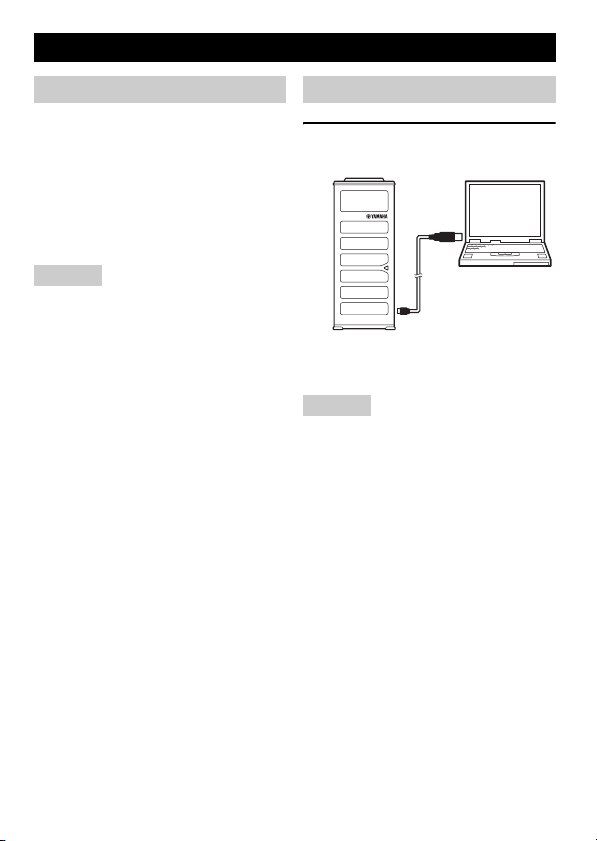
본체를 Windows 와 함께 사용하기
시스템 사양
다음 요건을 충족하는 PC 를 사용하십시오 .
• OS: Windows 7 (32 비트 ),
Windows Vista SP1 이상 (32 비트 ),
Windows XP SP2 이상 (32 비트 ),
Windows 2000 SP4 (32 비트 )
• CPU: 750MHz 이상 , Intel Pentium/
Celeron 프로세서 ( 또는 호환 가능한 것 )
• 메모리 : 256MB 이상
• USB 포트 : USB1.1 이상 (USB2.0 권장 )
유의사항
• 본 장치를 포함하여 복수의 마이크 스피커
장치를 동시에 PC 에 연결할 수 없습니다 .
• 본 장치와 PC를 직접 연결하십시오. USB
허브를 통해 연결 시 작동 상의 문제가 있
을수 있습니다 .
• 오디오 재생 시 PC 사용 환경 ( 작업 부하
또는 가용 메모리 공간 ) 에 따라 장애가 있
을수 있습니다 .
접속
1 함께 제공된 USB 케이블을 사용하
여 PC 에 본 장치를 연결하십시오 .
USB 드라이버가 PC 에 자동으로 설치
됩니다 .
유의사항
이 기기를 평평한 표면에 스피커가 여러분
을 향하도록 놓으십시오 .
y
• 본 장치는 PC 에서 기본 오디오 장치로 인
식되므로 USB 드라이버를 별도로 설치할
필요가 없습니다 .
• 본 기기의 마이크로폰들은 주로 스피커 방
향에서 음향을 모습니다 . 본 기기가 여러
분이 있는 위치를 향한 상태에서 본 기기
를 사용하십시오 .
Korean 63
Page 64
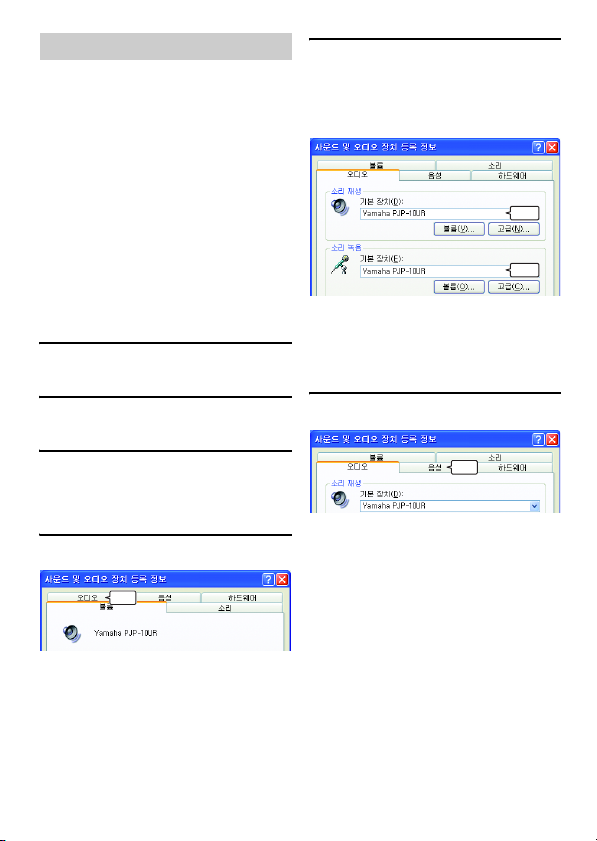
연결 확인하기
다음 절차에 따라 PC가 본 장치를 올바르게
인식하는지 확인할 수 있습니다 .
• 모든 주변기기를 연결했을 때 본 장치가
올바르게 인식되는지 확인하십시오 .
• 여러분이 웹 컨퍼런스용으로 본 기기를 사
용할 때 본 기기의 마이크로폰이 음향을
수집하지 못하거나 또는 스피커가 소리를
출력하지 못할 경우 본 기기는 웹 컨퍼런
스 소프트웨어에서 소리 재생 및 / 혹은 녹
음 기기로 선택될 수 없습니다 . 웹 회의용
소프트웨어의 사용자 설명서를 참조해서
설정을 확인하십시오 .
■ Windows XP/Windows 2000 을
사용하는 경우
본 절차에서는 Windows XP 를 예로 사용하
고 있습니다 .
1 " 시작 " 메뉴를 클릭하고 " 제어판 "
을 클릭하십시오 .
2 " 사운드 , 음성 및 오디오 장치 " 를
클릭하십시오 .
5 설정을 확인하십시오 .
• " 소리 재생 " 의 " 기본 장치 ":
Yamaha PJP-10UR
• " 소리 녹음 " 의 " 기본 장치 ":
Yamaha PJP-10UR
⹃ὦ
⹃ὦ
y
보통 본 장치가 PC에 연결되어 있을 때에는
"Yamaha PJP-10UR" 가 자동으로 선택됩
니다 . "Yamaha PJP-10UR" 가 선택되어
있지 않은 경우에는 직접 선택하십시오 .
6 " 음성 " 탭을 클릭하십시오 .
3 " 사운드 및 오디오 장치 "를 클릭하
십시오 .
" 사운드 및 오디오 장치 등록 정보 " 대
화상자가 열립니다 .
4 " 오디오 " 탭을 클릭하십시오 .
⡢ᆛ
64 Korean
⡢ᆛ
Page 65
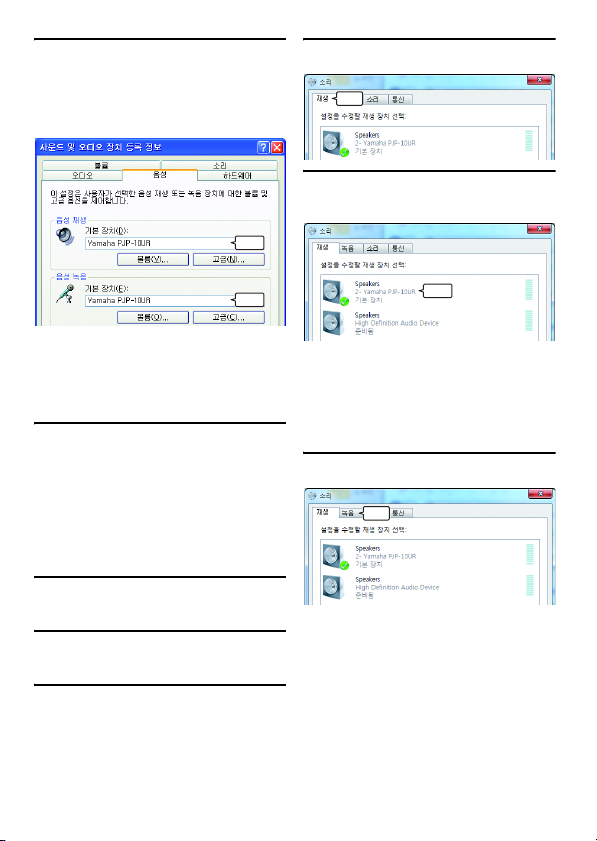
7 설정을 확인하십시오 .
• " 음성 재생 " 의 " 기본 장치 ":
Yamaha PJP-10UR
• " 음성 녹음 " 의 " 기본 장치 ":
Yamaha PJP-10UR
4 " 재생 " 탭을 클릭하십시오 .
⡢ᆛ
5 본 장치가 "기본 장치"로 설정되어
있는지 확인하십시오 .
⹃ὦ
⹃ὦ
y
보통 본 장치가 PC에 연결되어 있을 때에는
"Yamaha PJP-10UR" 가 자동으로 선택됩
니다 . "Yamaha PJP-10UR" 가 선택되어
있지 않은 경우에는 직접 선택하십시오 .
8 "확인"을 클릭하여 "사운드 및 오디
오 장치 등록 정보 " 화면을 닫으십
시오 .
■ Windows 7/Windows Vista 를
사용하는 경우
본 절차에서는 Windows 7 를 예로 사용하
고 있습니다 .
1 " 시작 " 메뉴를 클릭하고 " 제어판 "
을 클릭하십시오 .
2 “하드웨어 및 소리” 를 클릭하십
시오 .
3 " 소리 " 를 클릭하십시오 .
" 소리 " 화면이 나타납니다 .
⹃ὦ
y
보통 본 장치가 PC에 연결되어 있 을 때에는
"Yamaha PJP-10UR" 가 자동으로 설정되
어 있습니다 ."Yamaha PJP-10UR" 가 선택
되어 있지 않은 경우에는 직접 선택하십시
오.
6 " 녹음 " 탭을 클릭하십시오 .
⡢ᆛ
Korean 65
Page 66
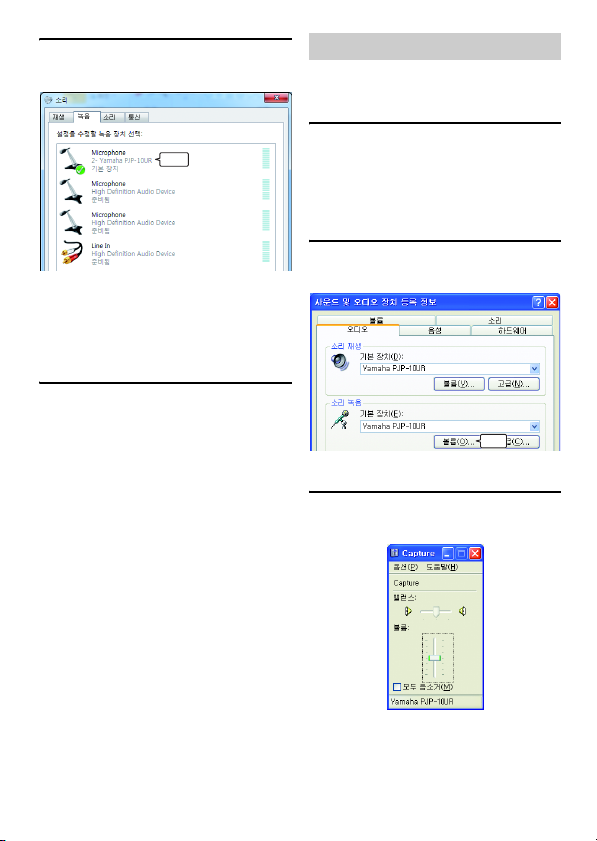
7 본 장치가 "기본 장치"로 설정되어
있는지 확인하십시오 .
⹃ὦ
y
보통 본 장치가 PC에 연결되어 있 을 때에는
"Yamaha PJP-10UR" 가 자동으로 설정되
어 있습니다 ."Yamaha PJP-10UR" 가 선택
되어 있지 않은 경우에는 직접 선택하십시
오.
8 " 확인" 을 클릭하여 "소리 " 화면을
닫으십시오 .
마이크 감도 조절하기
■ Windows XP/Windows 2000 을
사용하는 경우
1 "시작" 메뉴를 클릭하고 "제어판" -
" 사운드 , 음성 및 오디오 장치 " " 사운드 및 오디오 장치 " 를 클릭
하십시오 .
" 사운드 및 오디오 장치 등록 정보 " 화
면이 표시됩니다 .
2 "오디오" 탭을 클릭하고 "소리 녹음
" 의 " 볼륨 " 을 클릭하십시오 .
⡢ᆛ
"Capture" 화면이 나타납니다 .
3 " 볼륨 " 에서 마이크 감도를 조절하
십시오 .
66 Korean
Page 67
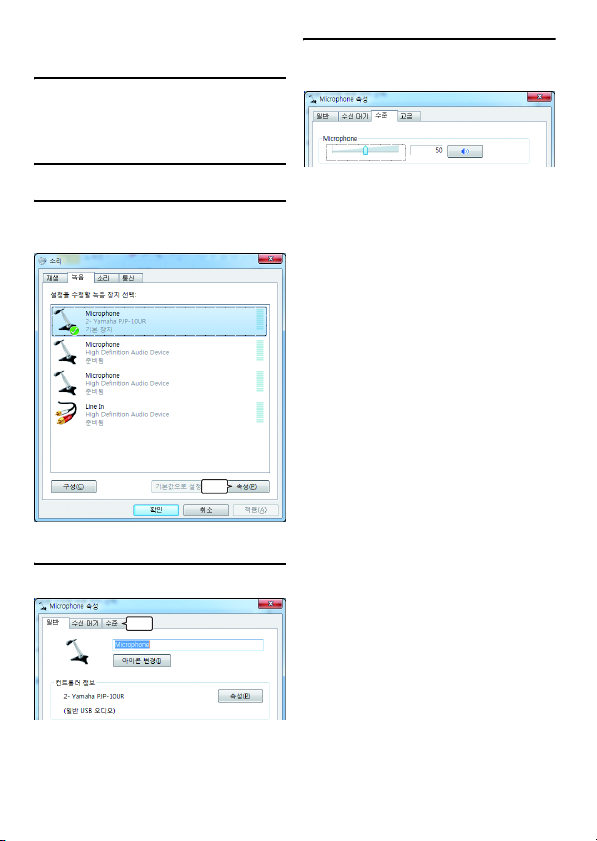
■ Windows 7/Windows Vista 를
사용하는 경우
1 "시작" 메뉴를 클릭하고 "제어판" -
" 하드웨어 및 소리 " - " 소리 " 를
클릭하십시오 .
" 소리 " 화면이 나타납니다 .
2 " 녹음 " 탭을 클릭하십시오 .
3 본 장치를 선택하고 " 속성 "을 클릭
하십시오 .
⡢ᆛ
"Microphone 속성 " 화면이 나타납니다 .
4 " 수준 " 탭을 클릭하십시오 .
5 "Microphone" 에서 마이크 감도를
조절하십시오 .
⡢ᆛ
Korean 67
Page 68
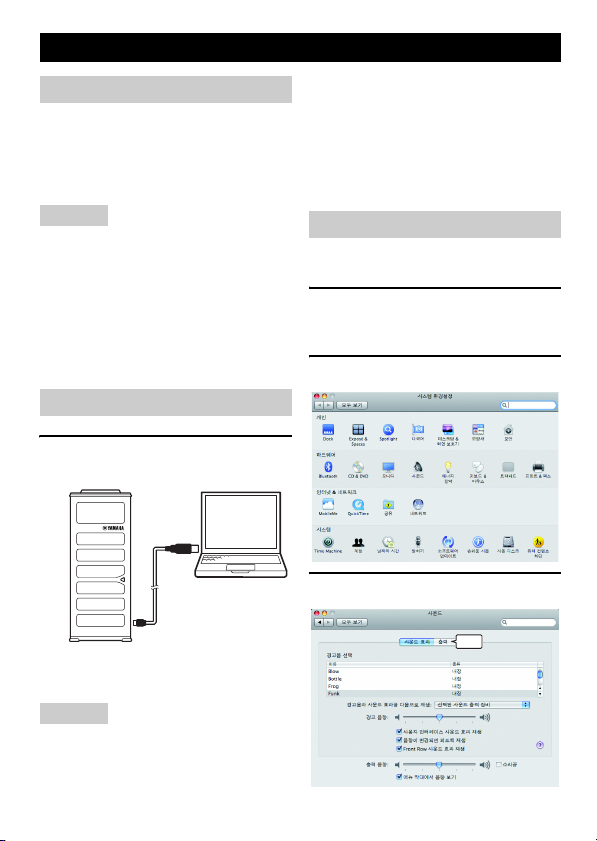
본체를 Mac 과 함께 사용하기
시스템 사양
다음 사양의 Mac 을 사용하십시오 .
• OS: Mac OS 10.5 (Leopard)
• CPU: Intel 프로세서
• 메모리 : 256MB 이상
• USB 포트 : USB1.1 이상 (USB2.0 권장 )
유의사항
• 본체를 포함한 여러 대의 마이크 스피커
장치를 Mac 에 한꺼번에 연결할 수 없습니
다.
• 본 장치와 Mac 을 직접 연결하십시오 .
USB 허브로 연결 시 작동 불량이 유발될
수 있습니다 .
• 오디오 재생은 Mac 사용 상황 ( 작업부하
혹은 가용 메모리 공간 ) 에 따라 방해를 받
을 수 있습니다 .
연결
1
함께 제공된 USB 케이블을 사용하
여 Mac 에 본 장치를 연결하십시오 .
y
• 본 제품은 Mac 에서 기본 오디오 장치로
인식하므로 USB 드라이버를 별도로 설치
할 필요는 없습니다 .
• 본 기기의 마이크로폰들은 주로 스피커 방
향에서 음향을 모습니다 . 본 기기가 여러
분이 있는 위치를 향한 상태에서 본 기기
를 사용하십시오 .
소리 설정 변경하기
본 장치를 Mac 과 함께 사용할 때는 소리 설
정을 변경해야 합니다 .
1 Apple 메뉴를 클릭하고 " 시스템 환
경설정 " 을 선택하십시오 .
" 시스템 환경설정 " 화면이 나타납니다 .
2 " 사운드 " 를 클릭하십시오 .
3 " 출력 " 탭을 클릭하십시오 .
USB 드라이버가 Mac 에 자동 설치됩니
다.
유의사항
이 기기를 평평한 표면에 스피커가 여러분
을 향하도록 놓으십시오 .
68 Korean
⡢ᆛ
Page 69
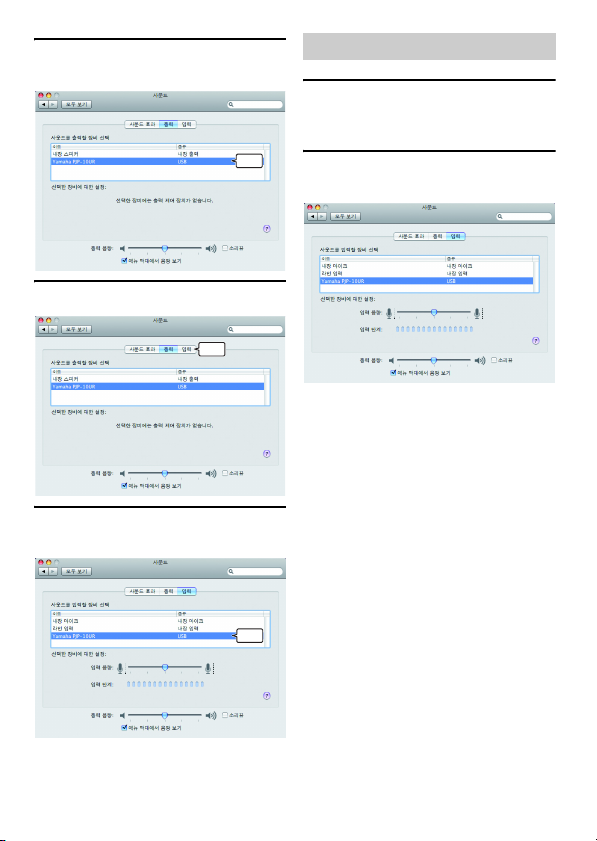
4 장비 목록에서 "Yamaha PJP-
10UR" 을 선택하십시오 .
ᤎ⣋
5 " 입력 " 탭을 클릭하십시오 .
⡢ᆛ
6 장비 목록에서 "Yamaha PJP-
10UR" 을 선택하십시오 .
마이크 감도 조절하기
1 Apple 메뉴를 클릭하고 " 시스템 환
경설정 " - " 사운드 " - " 입력 " 탭
을 선택하십시오 .
2 "입력 음량 " 에서 마이크 감도를 조
절하십시오 .
ᤎ⣋
Korean 69
Page 70
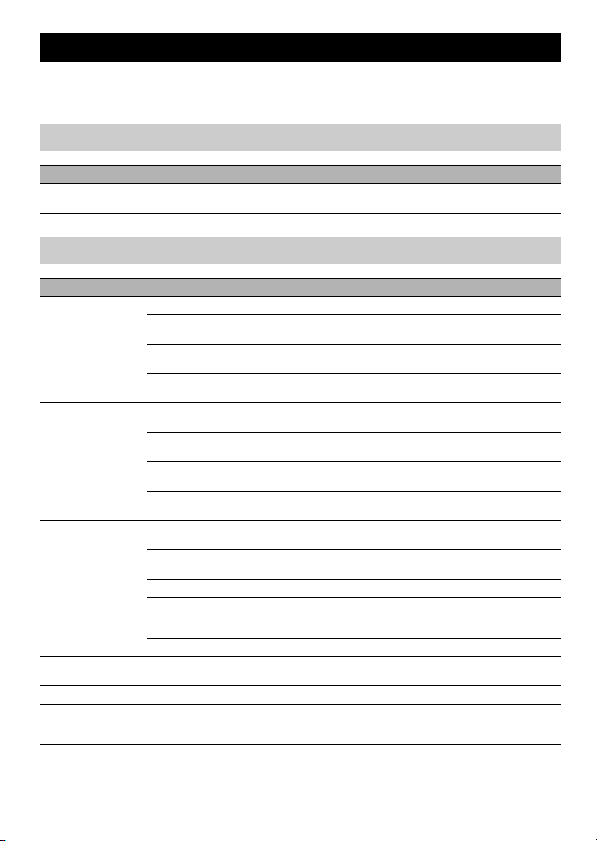
문제 해결
본 제품이 제대로 작동하지 않을 때는 다음 표를 참고해 주십시오 . 현재 겪고 있는 문제가
목록에 나와있지 않거나 지침에 따라 해결할 수 없을 경우 , 제품을 구입한 소매점이나 딜
러에게 연락하십시오 .
질문 1: LED 가 켜지지 않습니다
문제 원인 해결책
전원이 켜져 있지 않습
니다 .
USB 케이블이 제대로 연결되어 있지 않습니다 . USB 케이블이 제대로 연결되어 있는지 점검하
십시오 .
질문 2: 소리에 문제가 있습니다
문제 원인 해결책
다른 제품의 오디오를
감지할 수 없습니다 .
본 제품의 오디오를 다
른 제품에서 감지할 수
없습니다 .
본 기기는 피드백 소음
이나 에코를 발생시킵
니다 .
노이즈가 발생합니다 . 본 제품과 간섭을 일으키는 장치가 본 제품 근처
소리가 깨집니다 . 스피커 볼륨이 너무 높습니다 . 스피커 볼륨을 낮추십시오 .
본 제품이 작동하지 않
습니다 .
본 기기의 스피커가 소리 제거 상태임 스피커 음소거 기능을 끄십시오 .
다른 제품의 마이크가 음소거 상태로 되어 있습
니다 .
스피커 볼륨이 본 기기의 최소 음량에 설정되어 있음스피커 볼륨을 높이십시오 .
다른 제품의 마이크 감도가 최저로 설정되어 있
습니다 .
본 제품의 마이크가 음소거 상태로 되어 있습니다.마이크 음소거 기능을 끄십시오 .
다른 제품의 스피커가 음소거 상태로 되어 있습
니다 .
마이크로폰 감도가 본 기기의 최소 음량에 설정
되어 있음
다른 제품의 스피커 볼륨이 최저로 설정되어 있
습니다 .
다른 마이크가 연결되어 있습니다 . PC/ 웹 회의용 소프트웨어의 오디오 설정에서
제품 가까이에 다른 물체가 있습니다 . 제품의 마이크 앞에 다른 물체를 두지 않아야 합
제품이 벽 근처에 놓여 있습니다 . 제품을 벽에서 멀리 떨어진 곳으로 옮기십시오.
잔향이 많은 실내에서 제품을 사용하고 있습니다.• 실내의 마이크 바로 앞이 아닌 곳에 흡음도가
다른 제품의 장비 구성에 문제가 있습니다 . –
에 있습니다 .
PC 가 본 제품을 인식하지 못하고 있습니다 . 장치 관리자에 "?" 나 "!" 가 나타난다면 장치를
–
–
–
마이크 감도를 높이십시오 .
–
본 장치를 선택하십시오 .
니다 .
높은 물체를 설치하십시오 .
• 잔향을 줄이기 위해 스피커 볼륨을 낮추십시오.
본 제품을 해당 장치에서 멀리 떨어진 곳으로 옮
기십시오 .
삭제하고 본 제품의 USB 케이블을 다시 연결하
십시오 .
70 Korean
Page 71

지원 정보
Yamaha 회의 시스템 홈페이지를 참조하십시오 .
■ Yamaha 회의 시스템 홈페이지
http://www.yamaha.co.jp/english/product/projectphone/
Korean 71
Page 72

제품 사양
일반 오디오
인터페이스 :
USB2.0 풀 스피드
소비전력 ( 최대 ):
약 2.5W
전파간섭 기준 :
KN22
사용 환경 :
온도 : 0 ~ 40℃
습도 : 20 ~ 85% ( 비응결 )
크기 :
본체 (W x H x D): 49 x 121 x 38 mm
무게 :
210 g
전원 :
USB 버스 파워 (5V/500mA)
Windows 환경 :
OS: Windows 7 (32 비트 ),
Windows Vista SP1 이상 (32 비트 ),
Windows XP SP2 이상 (32 비트 ),
Windows 2000 SP4 (32 비트 )
CPU: 750MHz 이상 , Intel Pentium/
Celeron processor ( 또는 호환 가능한 것 )
메모리 : 256MB 이상
USB 포트 : USB1.1 이상 (USB2.0 권장 )
Mac 환경 :
OS: Mac OS 10.5 (Leopard)
CPU: Intel 프로세서
메모리 : 256MB 이상
USB 포트 : USB1.1 이상 (USB2.0 권장 )
부속품 :
USB 케이블 (1.2 m), 캐링 케이스 , 본 책자
기타 :
펌웨어 업데이트
(USB 를 통해 PC 에서 전송 )
Manufacturer
Yamaha Corporation, Sound Network Division
Nakazawa-cho 10-1, Naka-ku, Hamamatsu, Japan 430-8650
Tel: +81-53-460-3468
마이크 :
4 개 ( 마이크로폰 정렬 )
스피커 :
2대
사운드 감지 주파수 대역 :
300 ~ 7,000 Hz
재생 주파수 대역 :
300 ~ 20,000 Hz
신호 처리 :
적응형 에코캔슬러 , 노이즈 감쇠 , 마이크로
폰 정렬 컨트롤
© 2009
All rights reserved.
As of November 2009
Printed in China WU27720
 Loading...