

Page 1

XTONE
SMART STOMP
User Manual
XSONIC
RELOAD YOUR TONE
Page 2

www.xsonic.cc
Visit the website to learn more or
download the driver for windows
Page 3

Contents
Quick Start
...........................................................................
1
Connection Example
..........................................................
3
Effect APP
.............................................................................
5
Commonly Used APP
.........................................................
6
Effect APP Settings
..............................................................
7
Foot Switch and Expression Pedal
................................
11
MIDI Control Group
.........................................................
12
MIDI Control Mode
..........................................................
13
Specify MIDI Function
......................................................
15
Install Driver
......................................................................
19
XTONE Duo Instructions
.................................................
20
Common Problem
............................................................
21
Compatible Device
...........................................................
22
Parameters
.........................................................................
23
Page 4

1
Quick Start
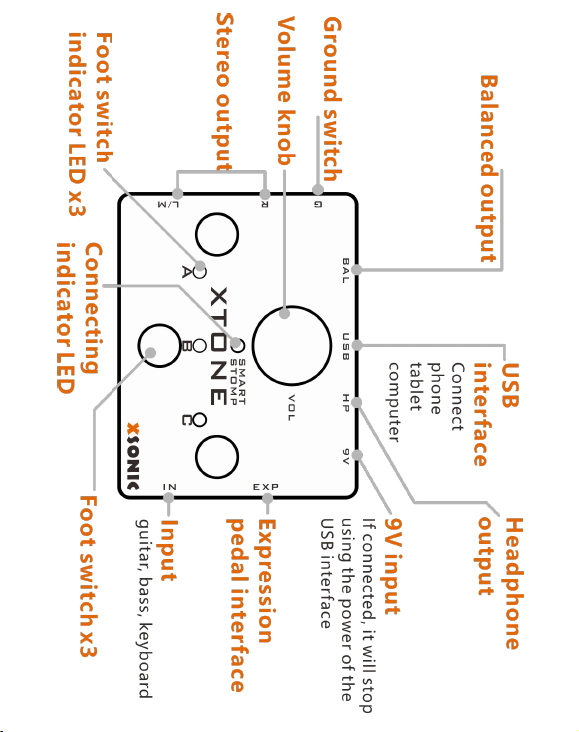
a. Connect the smart device and the XTONE
connecting indicator LED lights up;
b. Open the effect APP and complete the settings;
c. Connect your guitar, bass, keyboard;
d. Connect the headphone or speaker, then adjust the
volume;
e. Rock out !
XTONE is a high-performance audio interface, but we
prefer to call it smart stomp.
XTONE offers 192KHZ sampling rate for ultra HD audio.
It also has foot switch and expression pedal. You can
switch the presets, control the wah-wah and so on.
You can use XTONE to replace the traditional digital
effects, The APP of running on the smart device has
more top tones and more powerful additional features.
Recommended APP: JamUp, BIAS, BIAS FX.
Page 5
2
Page 6
3
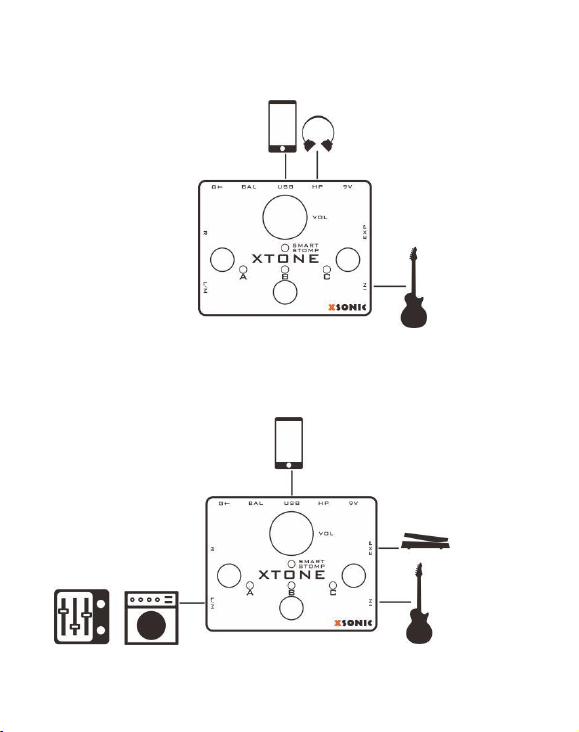
Connection Example
Practice yourself
Band rehearsal
Page 7
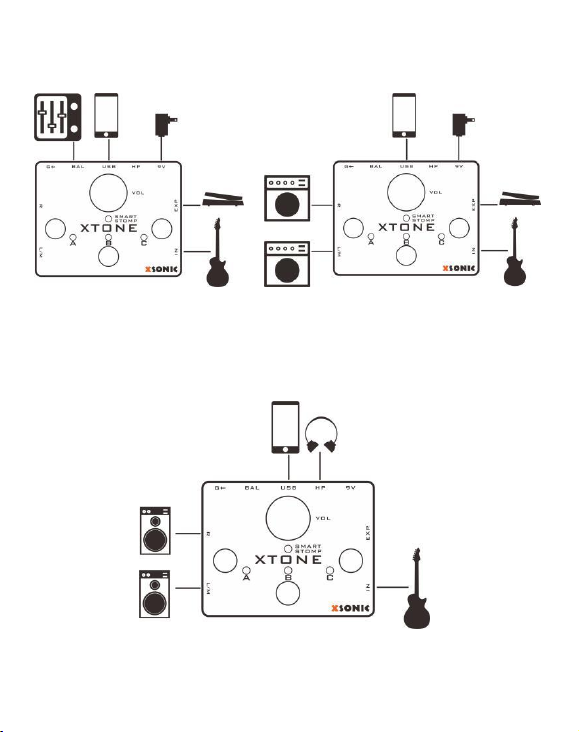
4
Live performance
Recording
Page 8

5
Effect APP
XTONE can connect all kinds of effect APP on the smart
device. They have more top tones and richer features,
give you more creative inspiration and the desire to play.
Page 9

6
Commonly Used APP
APP
Supported devices
JamUp
iOS
BIAS FX
iOS,Windows,Mac
BIAS
iOS,Windows,Mac
Guitar Rig
Windows,Mac
AmpKit
iOS,Mac
Revalver
Windows,Mac
AmpliTube
iOS,Windows,Mac,Android
Mobile POD
iOS
POD Farm
Windows,Mac
Overloud TH2
Windows,Mac
Usually, the first time you use the effect APP, you need to
set its audio parameters, see the method behind.
Use the foot switch and the expression pedal, need to
specify their function in the APP, see the method
behind.
Page 10
7
Effect APP Settings
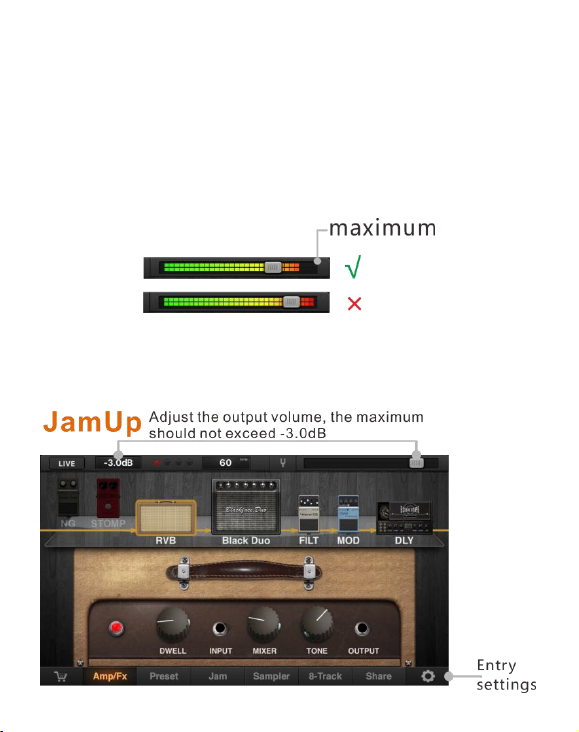
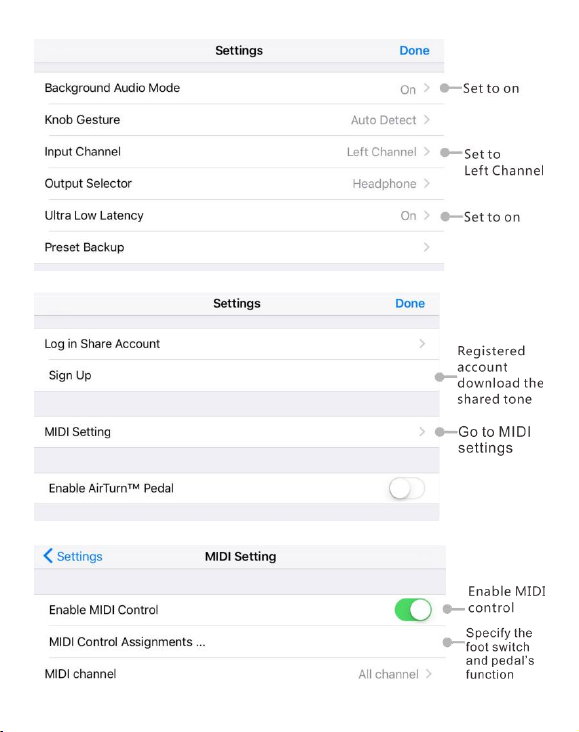
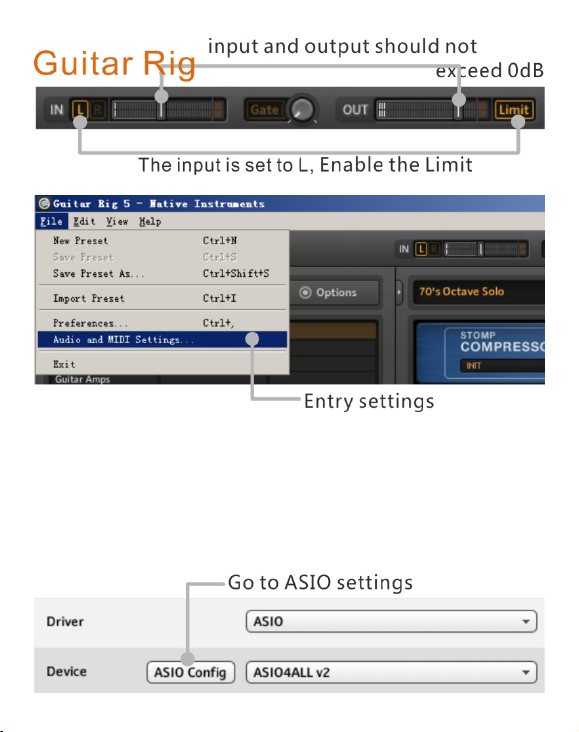
In order to get a better experience, you should set the
APP to the best match with XTONE.
First, You should observe the total volume of the APP
instructions, this indicator can not meet the maximum.
We use JamUp and Guitar Rig as an example to explain
the setting method, other APP can refer to them.
Page 11
8
Page 12
9
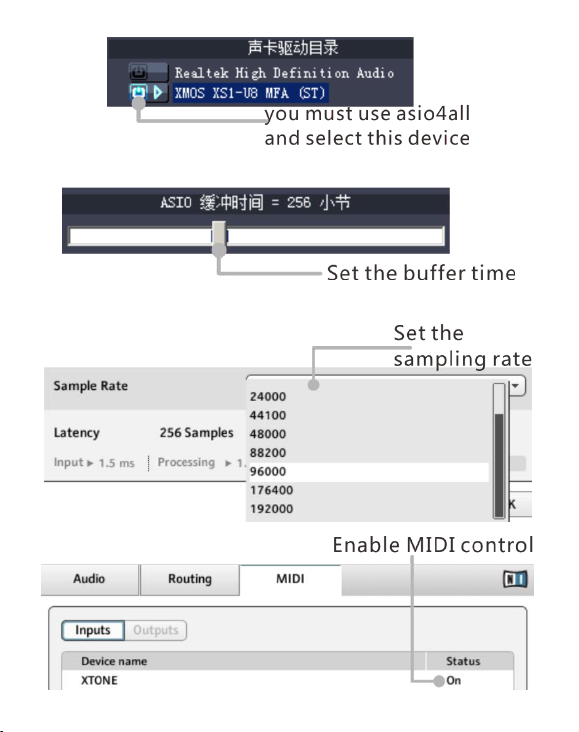
The appropriate sampling rate and buffer time should
be configured in the following items as required.
Recommended configuration (sampling rate / buffer
time): 44100/128; 48000/128; 88200/256;
96000/256; 176400/512; 192000/512;
Page 13
10
Page 14
11
Foot Switch and Expression Pedal
XTONE has 3 foot switches and 1 expression pedal
interface for playing control. When using them,
XTONE will send MIDI commands to the smart device.
After you specify their functions in the APP, You can
switch the presets, toggle the pedal, open the tuner,
start the recorder, start the looper, control the output
volume, wah-wah, delay time and so on.
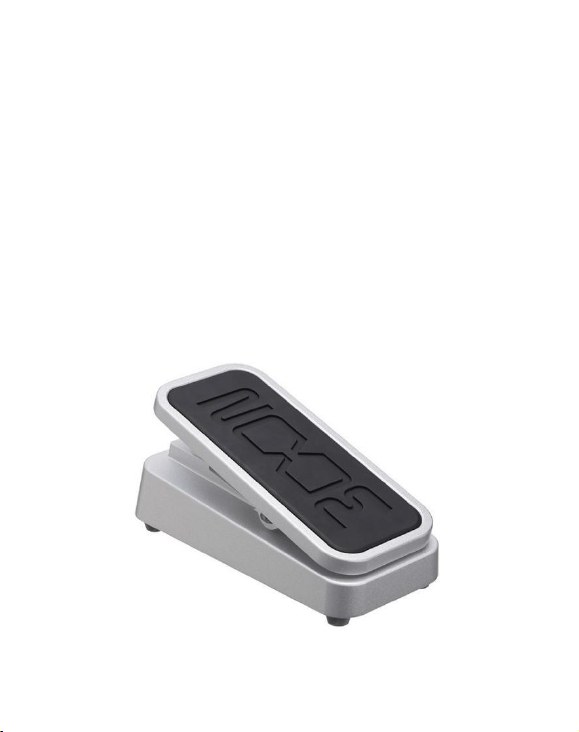
The expression pedal recommended ZOOM FP02M.
Page 15
12
MIDI Control Group
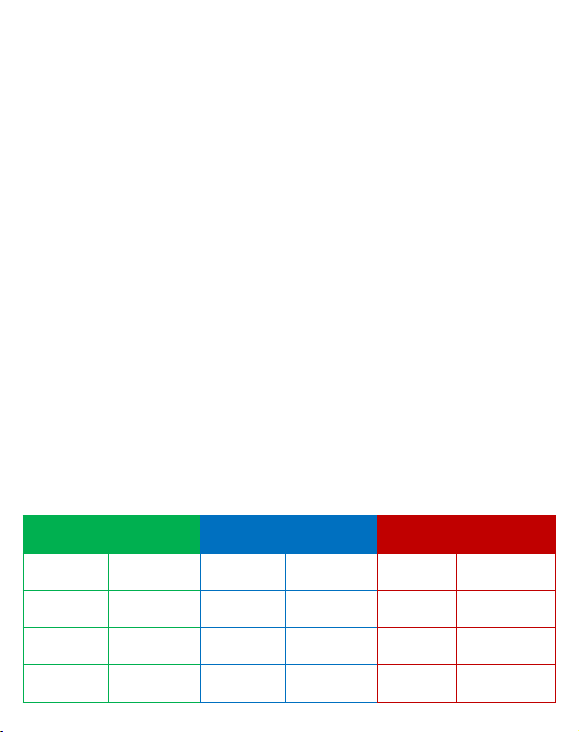
XTONE has three MIDI control groups, long press A, B,
C foot switch can be switched to the corresponding
group, different groups show different LED colors: A
group - green; B group - blue; C group - red.
Each group corresponds to a different set of MIDI
control commands, press the foot switch or the
expression pedal, XTONE will send the corresponding
MIDI commands to the APP.
Each MIDI control group sends 4 control commands,
foot switch 3, expression pedal 1. Before use, specify
the function of the foot switch and expression pedal of
each MIDI control group in APP.
The following lists the MIDI values corresponding to
the foot switch and the expression pedal in the three
MIDI control groups.
A group - green
B group - blue
C group - red
FS A
CC 10
FS A
CC 22
FS A
CC 30
FS B
CC 20
FS B
CC 24
FS B
CC 43
FS
C
CC 11FSC
CC 25FSC
CC 42
EXP
CC 7
EXP
CC 4
EXP
CC 1
Page 16
13
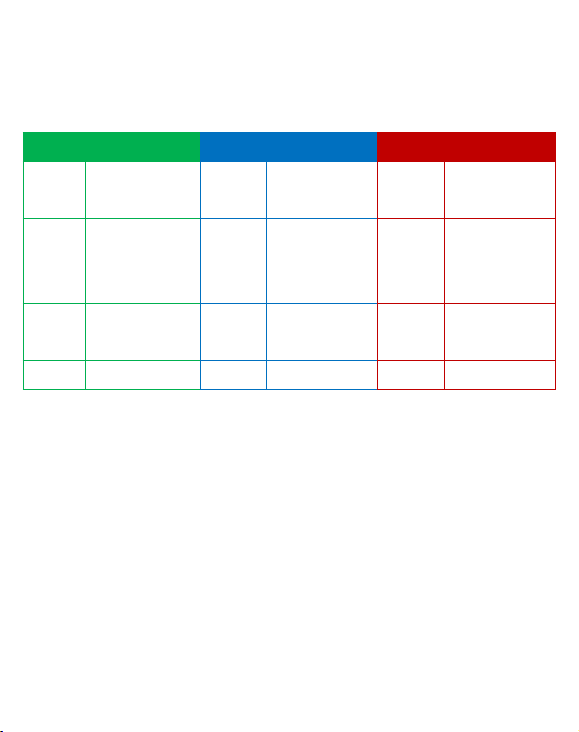
XTONE has specified the function of foot switch and
expression pedal for JamUp user, as shown below,
can be used directly. Of course, users can also specify
other functions.
A group - green
B group - blue
C group - red
FS A
Preset -
FS A
Toggle
STOMP
FS A
Play/Stop
Jam Player
FS B
Toggle
selected
effect
FS B
Toggle
MOD
FS B
Start/Stop
dub
FS C
Preset +
FS C
Toggle
DLY
FS C
Play/Stop
Sampler
EXP
Volume
EXP
wah-wah
EXP
pitch shifter
MIDI Control Mode
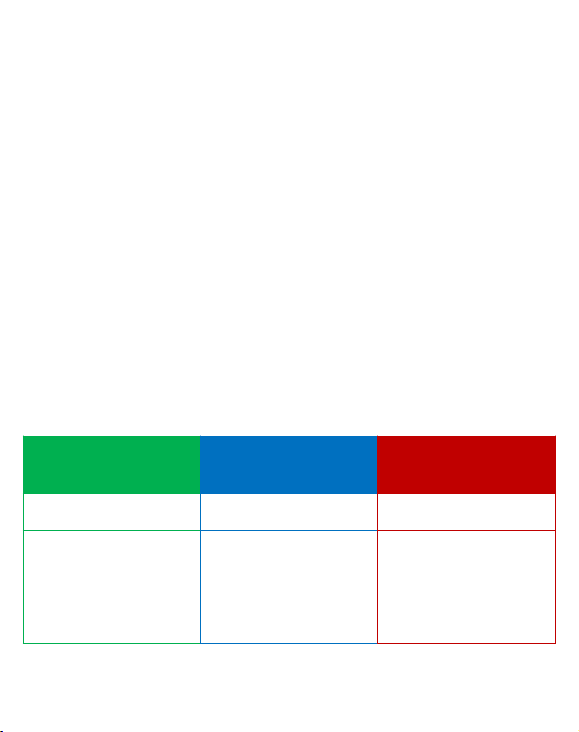
XTONE has 3 control modes, press A+B switch to
mode 1, press A+C to mode 2, press B+C to mode 3.
When the switch is successful, mode 1 blinking green,
mode 2 blinking blue, mode 3 blinking red.
Different APP may use different control modes, If you
find an abnormality when using foot switch, you
should try switching to the other two control modes.
Page 17
14
mode 1,For JamUp, BIAS FX, AmpKit, AmpliTube
(Windows), etc..
mode 2,For Guitar Rig(Disable Hold Mode)
、
AmpliTube(iOS), etc..
mode 3,Not much use, only used for toggle single
pedal in APP such as Guitar Rig (Enable Hold Mode),
AmpliTube (iOS), ToneStack.
The different functions of the same APP may also use
different control modes, such as AmpliTube (iOS),
ToneStack, use mode 2 for preset switching, using
mode 3 to toggle single pedal.
In addition, when the Guitar Rig is in the Disable Hold
Mode, only use the mode 2 can complete all of the
control.
Mode 1
blinking green
Mode 2
blinking blue
Mode 3
blinking red
Press A+B
Press A+C
Press B+C
For JamUp、BIAS
FX、AmpKit+
、
AmpliTube(Win
dows)
For Guitar Rig、
AmpliTube(iOS)、
ToneStack
For some APP’s
toggle pedal
function
Note: The control groups and control modes remain in
the previous state after the next power-up.
Page 18
15
Specify MIDI Function
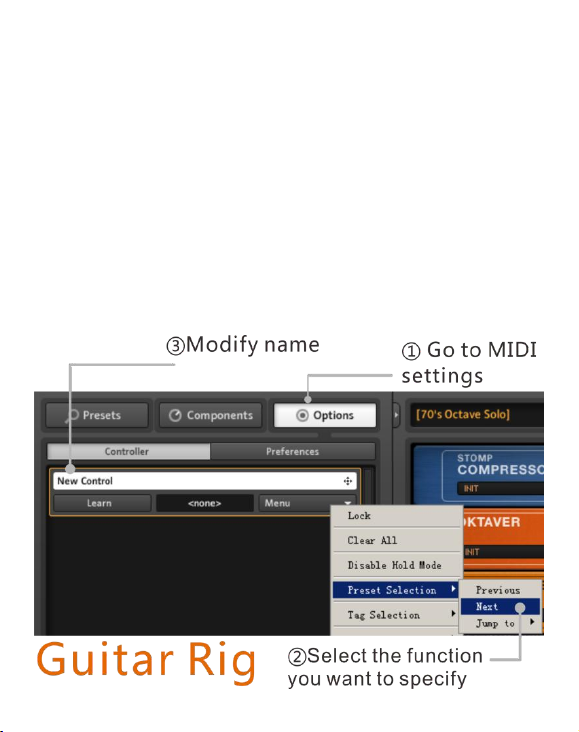
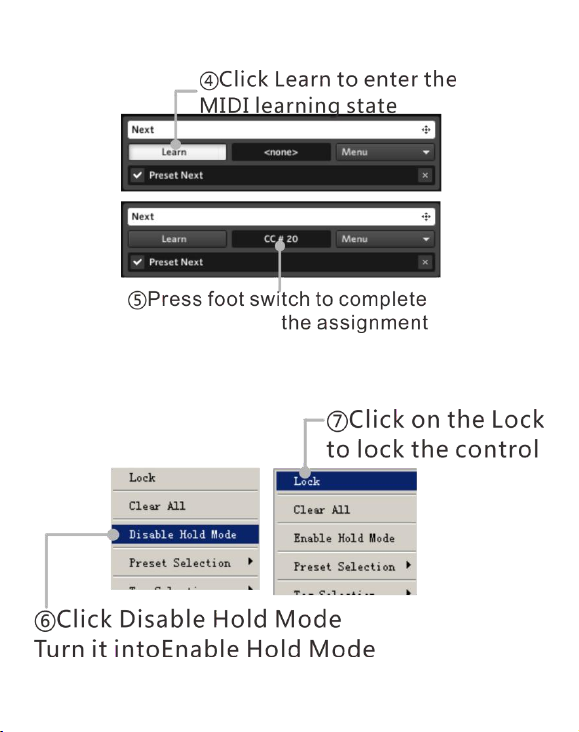
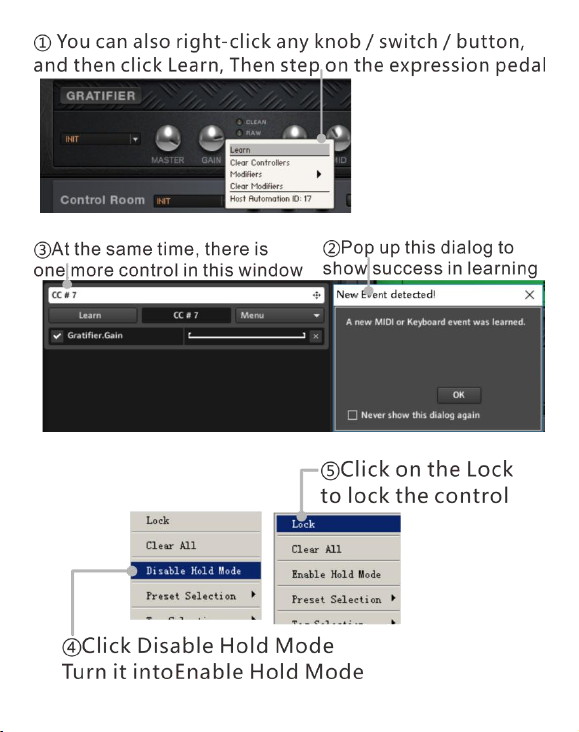
Most of the APP has a MIDI control function, to make
the foot switch and expression pedal control the APP,
you need to specify their functions in the APP’s midi
control function list.
Take Guitar Rig and JamUp as an example, and other
APPs refer to this.
When using the Guitar Rig, set the MIDI control mode to
"Mode 2"; use "Mode 1" when using JamUp;
Page 19
161718
Page 20
Page 21
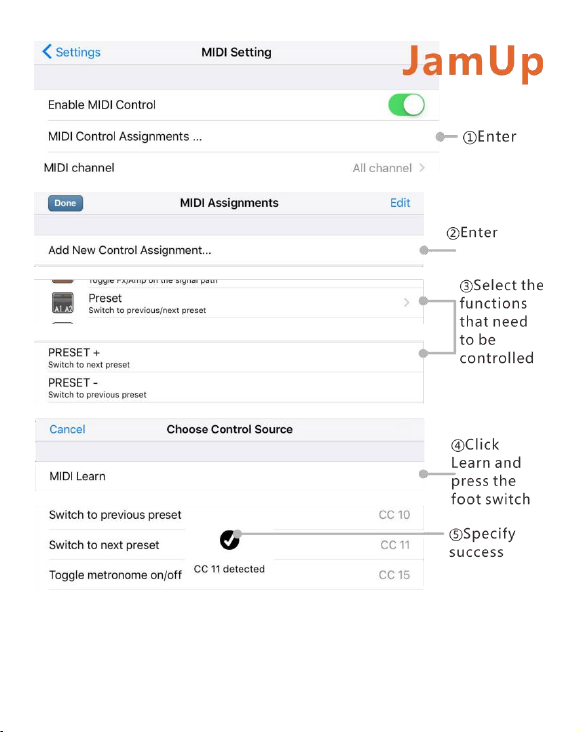
Note: In many APP, long press or right click on the view
of the knob / switch / button, will pop up a dialog box
for MIDI function specified.
Page 22
19
Install Driver
Windows devices need to install the driver, please visit
www.xsonic.cc to download the driver.
There are two installation files in the driver package,
"XTONE-Driver.exe" and "ASIO4ALL.exe", all must be
installed.
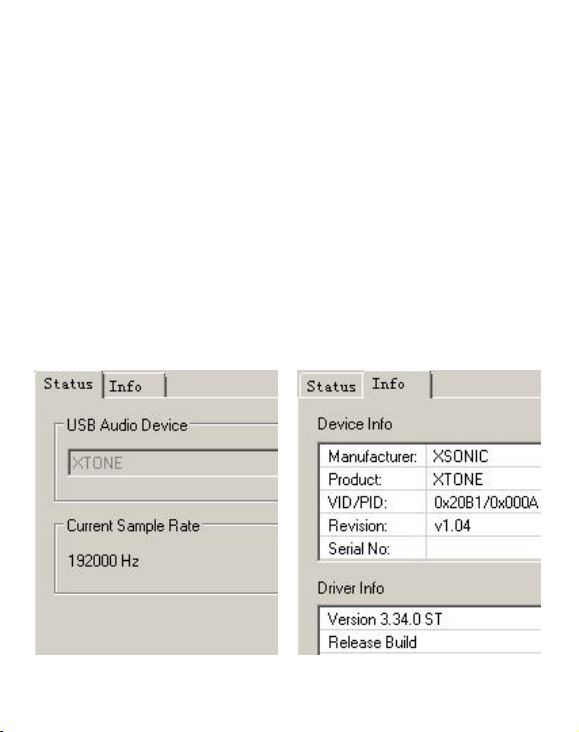
If XTONE connecting indicator LED is on, it indicates that
the driver is installed successfully.
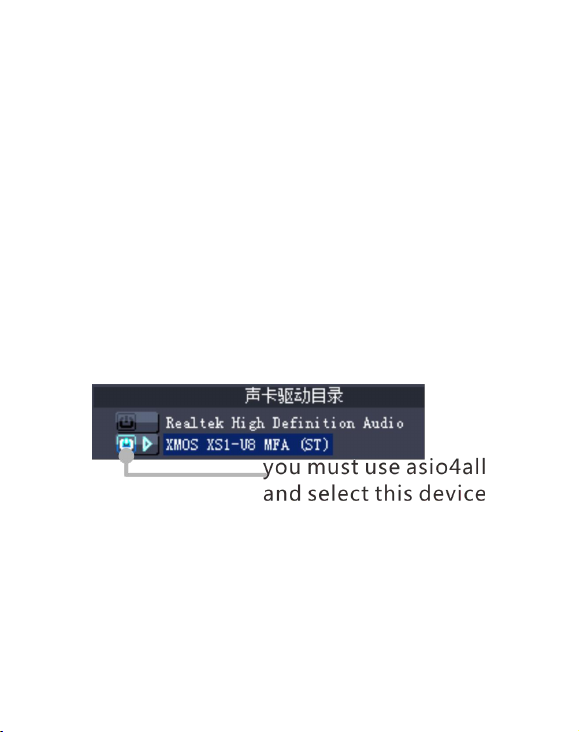
After the installation is successful, as shown below.
Note:You must use ASIO4ALL as the main driver.
Page 23

20
XTONE Duo Instructions
The function and performance of XTONE Duo are the
same as XTONE, so most of the methods of use can refer
to XTONE. The only difference between it and XTONE is
that it replaces the original expression pedal interface
with the microphone input interface. This means that the
XTONE Duo has two audio input channels, one for
guitar input (left channel, INL), one for microphone
input (right channel, INR), and the microphone input
channel with up to 50dB gain adjustment knob.
There are also a lot of effect software for vocal
microphone on smart device, such as VocaLive, JamUp,
BIAS. Among them, JamUp and BIAS can be used for
microphones because they have built-in speaker
simulations of vocal, and also you can add some reverb,
chorus and delay, then will get great vocal effects.
If you want to use the microphone effect software while
using the guitar effect software (singing and playing at
the same time), you need to make the following
software settings:
1) Open the guitar effects software (such as JamUp), set
it to run in the background mode, and set the audio
input channel to Left.
2) Open the microphone effect software (such as BIAS
Page 24
21
FX), set it to run in the background mode, and set the
audio input channel to Right.
3) Add some FX, and adjust the volume balance of the
two softwares, then you can singing and playing at
the same time.
Common Problem
An exception occurs while using Windows devices
You need to install the driver under the Windows device,
and you must use ASIO4ALL as your main driver,
otherwise it is prone to various unforeseen problems.
Control abnormal when using foot switch
XTONE has 3 MIDI control modes. If the 1 modes are
abnormal, you should try to switch to the other 2 modes.
Switch method refer to the corresponding chapter.
Page 25

22
Compatible Device
iOS device:All iPhone and iPad that has Lightning
interface;
Windows device:Windows 7, Windows 8, Windows 8.1,
Windows 10
;
Mac device: OS X 10.6 and above;
Android device:Supports devices with Samsung
Professional Audio technology such as Samsung Galaxy
S6, Galaxy S6 Edge, Galaxy Note 4, Galaxy Note Edge,
Galaxy S5, Galaxy Note 3, Galaxy Tab S2, and other
devices. At present, Android devices on the APP less,
only known AmpliTube support Android devices, So it is
not recommended to use Android devices;
Page 26

23
Parameters
Input impedance:1M ohms (Left), 100K ohms (Right) ;
Unbalanced output impedance:100 ohms ;
Balanced output impedance:200 ohms ;
Frequency response:10Hz ~ 21kHz;
Sampling Rate:44.1k,48k,88.2k,96k,176.4k,192kHz ;
Sampling depth:16bit,24bit ;
Dynamic Range:118dB ;
THD+N:0.001% ;
USB Power input:5V DC ;
9V Power input:9V DC
Power consumption:100mA ;
Dimensions:129mm(D) x 98(W) x 54mm(H) ;
Weight:355g ;
Page 27

www.xsonic.cc
Visit the website to learn more or
download the driver for windows
Page 28

Thank you for using XSONIC products
XSONIC
RELOAD YOUR TONE
 Loading...