

Page 1
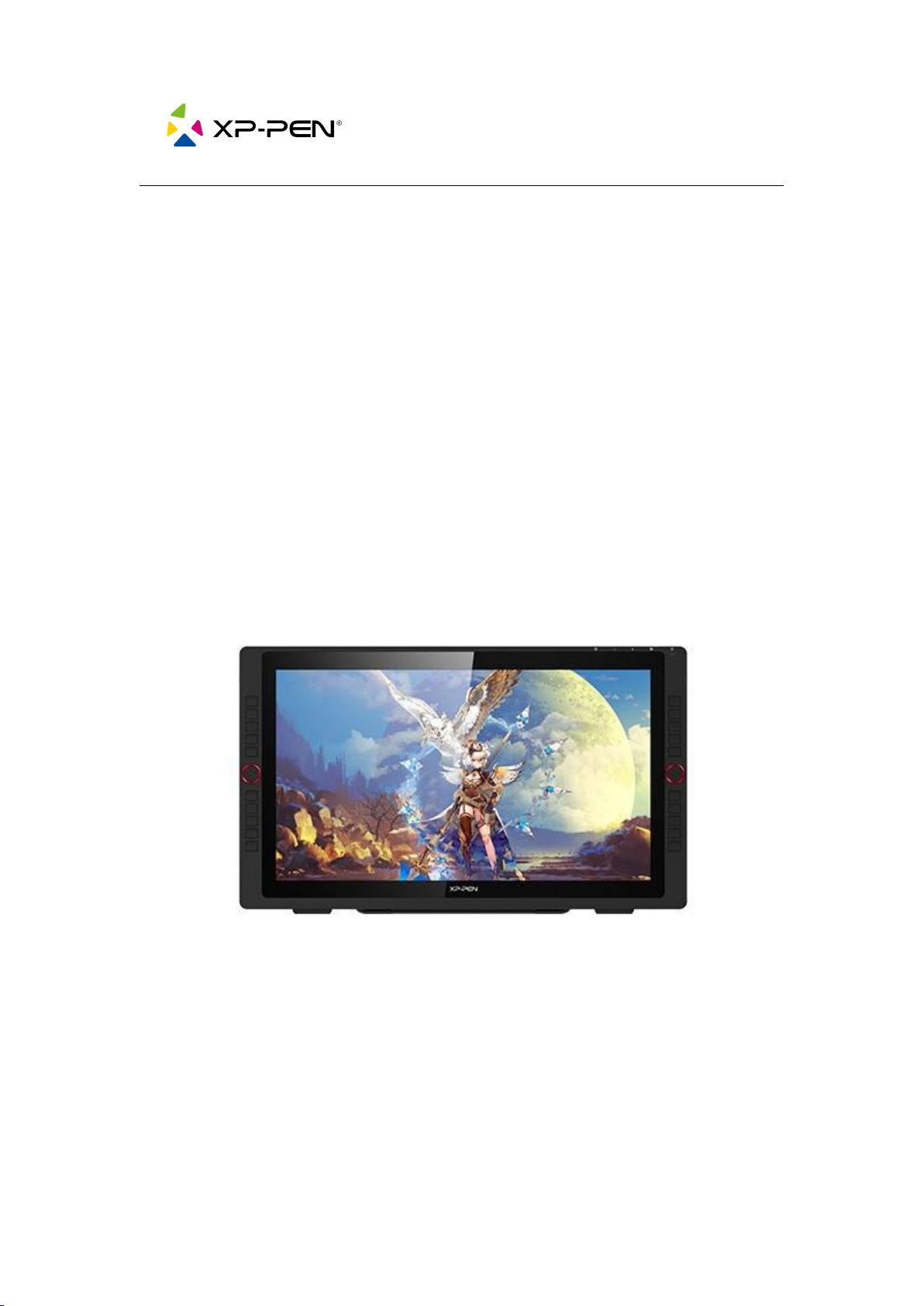
Artist22R Pro
要
FAQ
www.xp-pen.com
Page 2

Artist22R Pro FAQ
1. Customer Service and Warranty Policy
1.1. What's the warranty policy?
1.2. How do I contact customer service when I encounter a problem with the
Artist22R Pro?
2. Compatibility and Installation
2.1. How do I know whether the Artist22R Pro supports my computer?
2.2. How do I set up the Artist22R Pro on my Windows?
2.3. How do I set up the Artist22R Pro on my Mac?
2.3.1. How do I install the XP-PEN driver on Mac OS Mojave (10.14)?
2.3.2. How do I install the XP-PEN driver on Catalina (10.15)?
....................................................................................................................
...................................................................................
.......................................................................................
......................................................................
.....................................
...............................................
..................
.........
......
1
1
1
3
3
4
6
7
13
2.3.3. How do I install the XP-PEN's New UI driver on MacOS Big Sur
(11.0)?
3. Software
3.1. How do I know the Software compatibility?
3.2. Does Artist22R Pro come with Free Creative Software?
3.2.1. ArtRage 5, OpenCanvas, Cartoon Animator 4 (Choose one to
redeem)
3.2.2. Explain Everything (3-Month Free)
4. Others
4.1. What can I do if I'm not satisfied with the product?
...................................................................................................................................
.........................................................................................................................
..............................................................................................................................
...................................................
.....................................................................................................................
.........................................................
..............................
.....................................
19
26
26
27
27
28
29
29
Page 3

4.2. What can I do if I'm sent a used product?
.......................................................
29
Page 4

1
1. Customer Service and Warranty Policy
1.1. What's the warranty policy?
Policy: We provide a 1-month return policy, a 1-year warranty (as long as the
product is non-human made damaged or non-accidentally damaged), and
lifetime technical support on all our tablets.
Note:
1. Only for customers living in the US - XP-PEN Technology Amazon US.
2. It's effective from the date of purchase.
1.2. How do I contact customer service when I encounter
a problem with the Artist22R Pro?
1) .By Amazon Buyer to Seller Message.
Click here.
We'll reply to you within 24 hours.
2).By email.
XP-PEN Tech Support email: [email protected]
We'll reply to you within 24 hours.
3).By online chat.
Our official website, https://www.xp-pen.com
Page 5

2
This start button is on the bottom side.
Available time: 10am-6pm (PST) / 6pm-2am (PST), Monday-Friday.
4).By phone supprt.
Please contact us at (+1) 657-445-6128.
Monday to Friday from 10:30am to 1:00pm, 2:00pm to 4:30pm.
Page 6

3
2. Compatibility and Installation
2.1. How do I know whether the Artist22R Pro supports
my computer?
The Artist22R Pro is NOT a standalone product. It must connect to a computer
to use.
It supports Wins 7 and above, Mac 10.10 and above, and Linux.
If you're not sure about the compatibility, we suggest you contact us by
*Please Remove Other Brand's Driver from your computer and reboot before
installing the XP-PEN's driver, or there will driver conflict problem
s.
Page 7
4
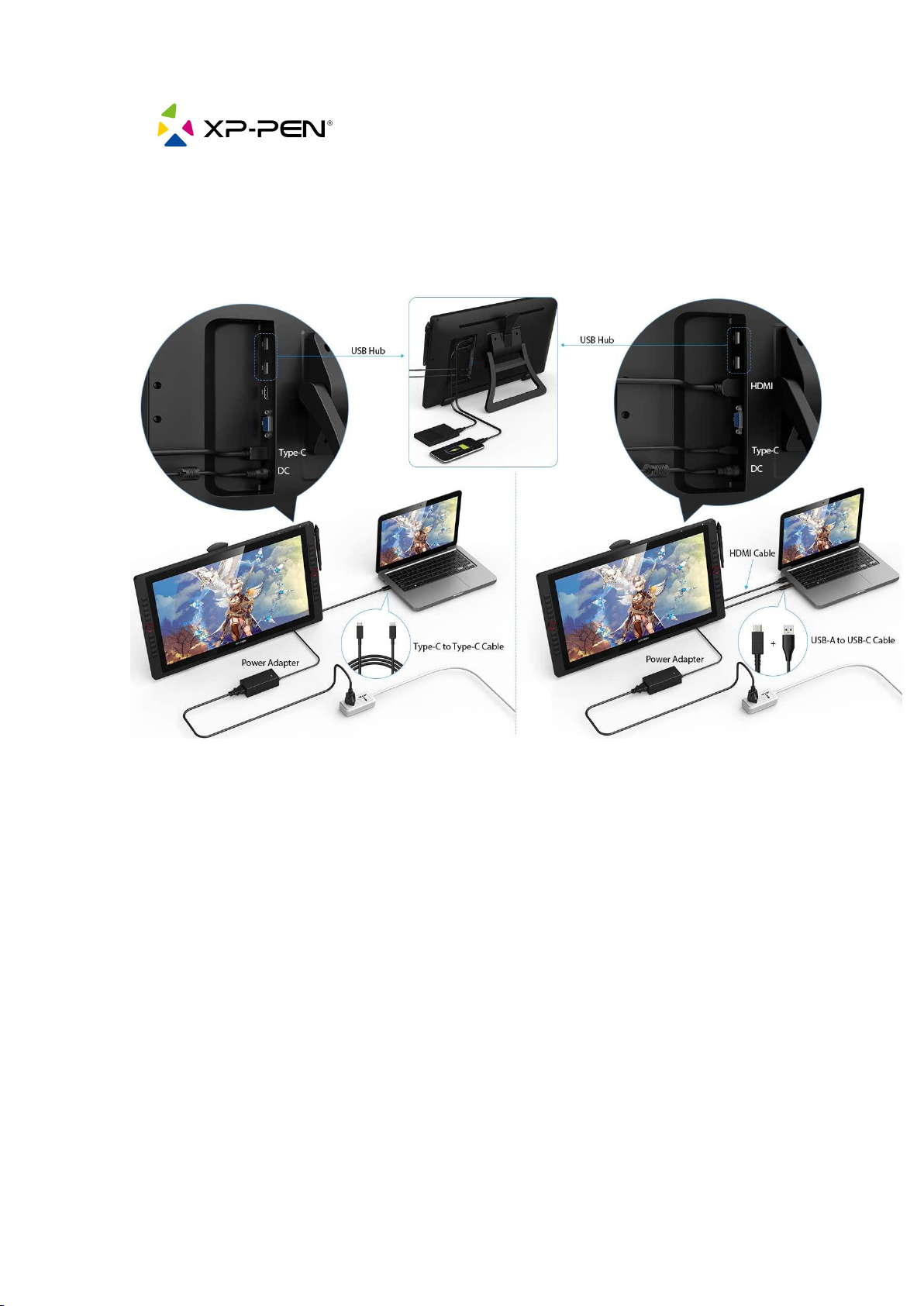
2.2. How do I set up the Artist22R Pro on my Windows?
2 Connection Ways
1. The USB-C to USB-C cable connection, and the power cable connection.
2. The USB-C to USB cable, HDMI cable connection, and power cable connection.
Page 8

5
-For a better experience, we suggest you download the tablet driver from the
XP-PEN official web, the link below.
https://www.xp-pen.com/download-483
We recommend you the New UI Beta Version.
* For more details of the tablet driver setting, please download Driver Manual on
the link above.
Page 9

6
2.3. How do I
*(For more details about the connection cables, please turn to 2.2.)
A. Please be noticed that you need to follow the steps below if your Mac OS is
Mojave (10.14), Catalina (10.15), or MacOS Big Sur (11.0).
set up the Artist22R Pro on my Mac?
Mac Mojave (10.14) or above OS upgrades in the security section, you need to
put programs into the accessibility list.
Page 10
7
2.3.1. How do I install the XP-PEN driver on Mac OS Mojave
(10.14)?
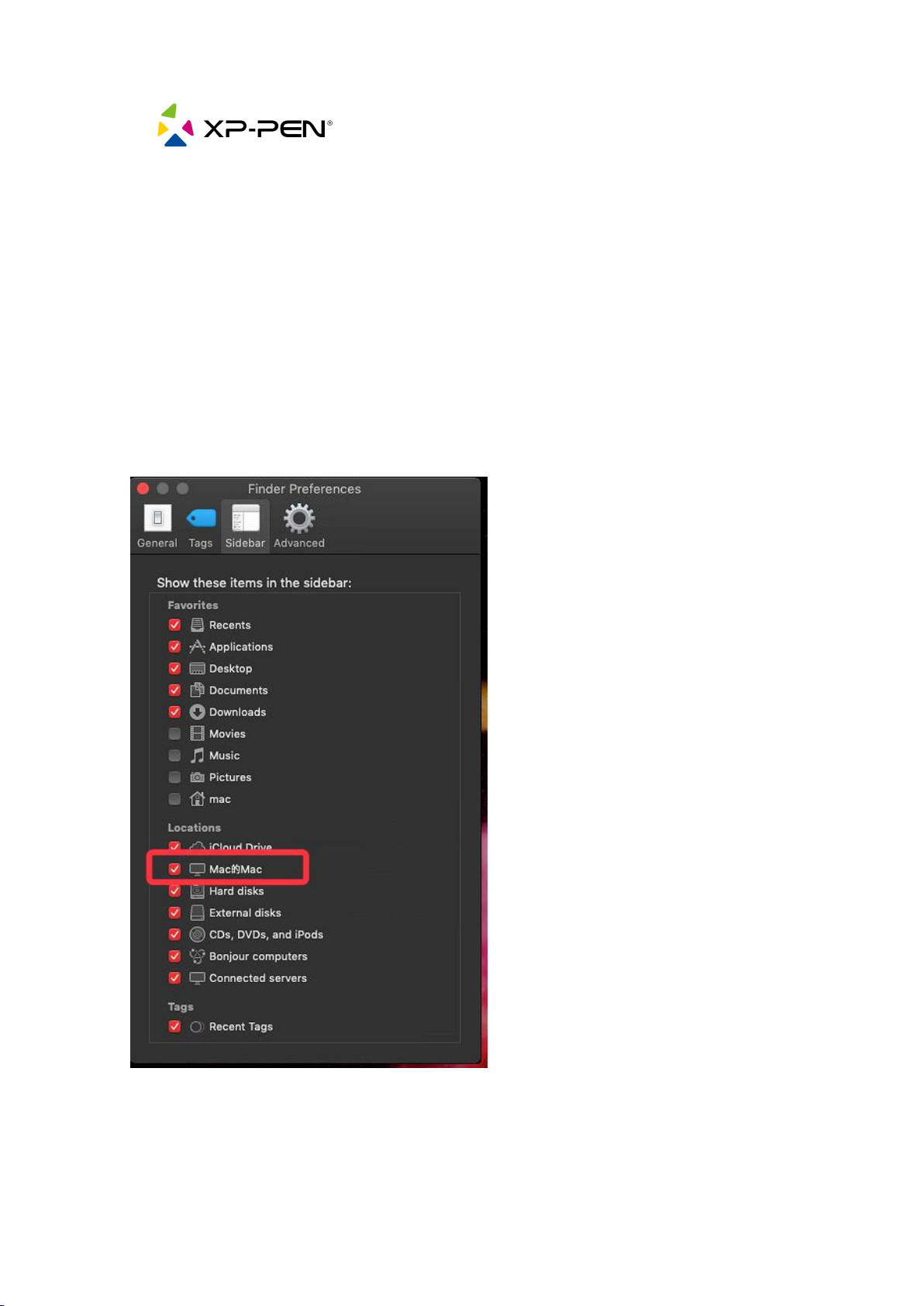
1. Please go to "Finder – Preferences - Sidebar".
2. On the Sidebar tab, please make sure your Macintosh HD (Mac) Hard Disk is
enabled.
Please visit the XP-PEN website (https://www.XP-PEN.com/download/index) and
Page 11
8
download and install the most recent driver until complete.
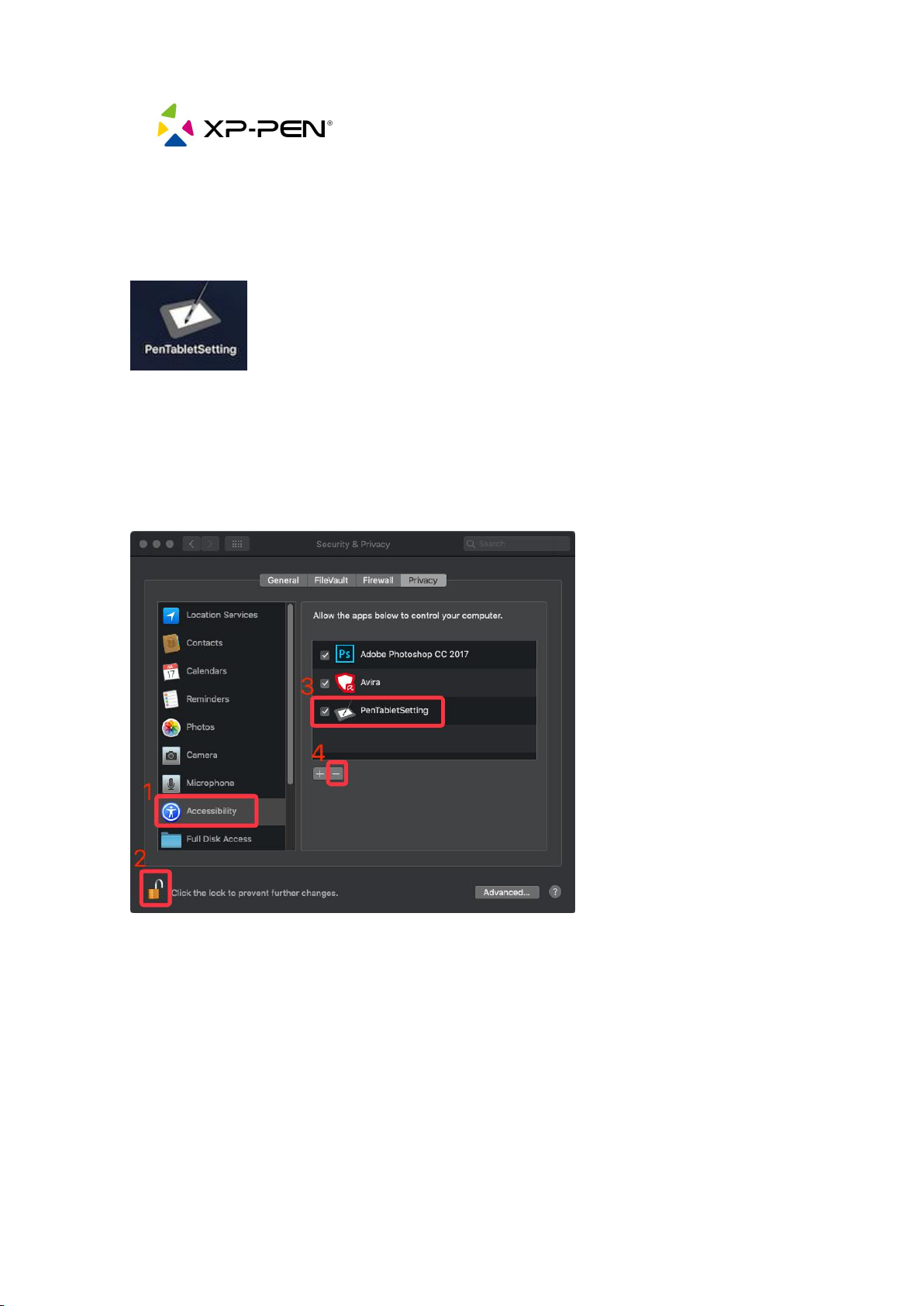
3. Open “Launchpad” and find “PenTabletSetting”.
4. Open “System Preferences”, then "Security & Privacy".
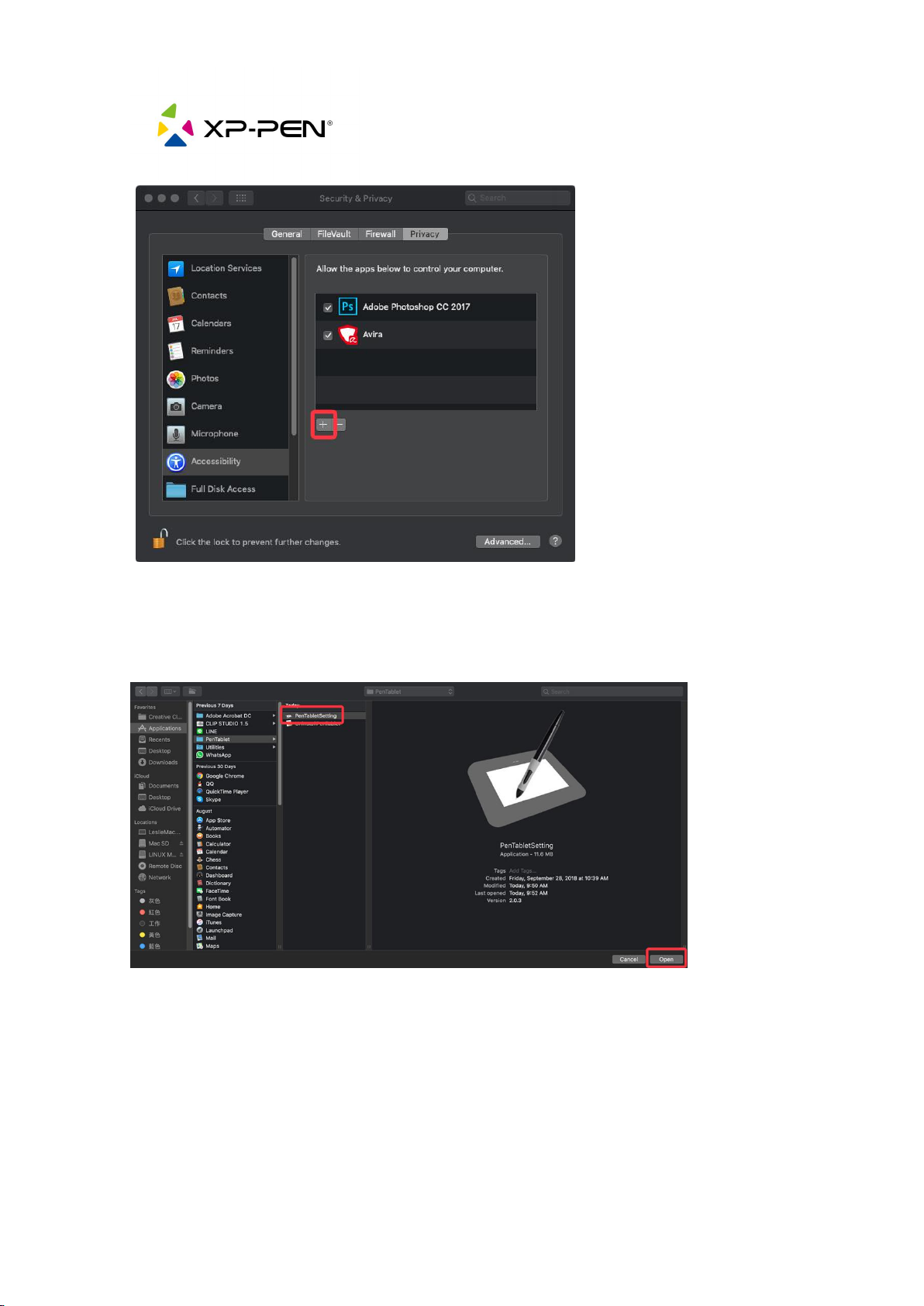
5. On the “Accessibility”setting, find“Unlock”first then click “PenTabletSettin
g” and “-” to delete it.
6. Click the “+” button.
Page 12
9
7. Go to "Application" – "PenTablet" folder, then choose "PenTabletSetting" and
"Open" button.
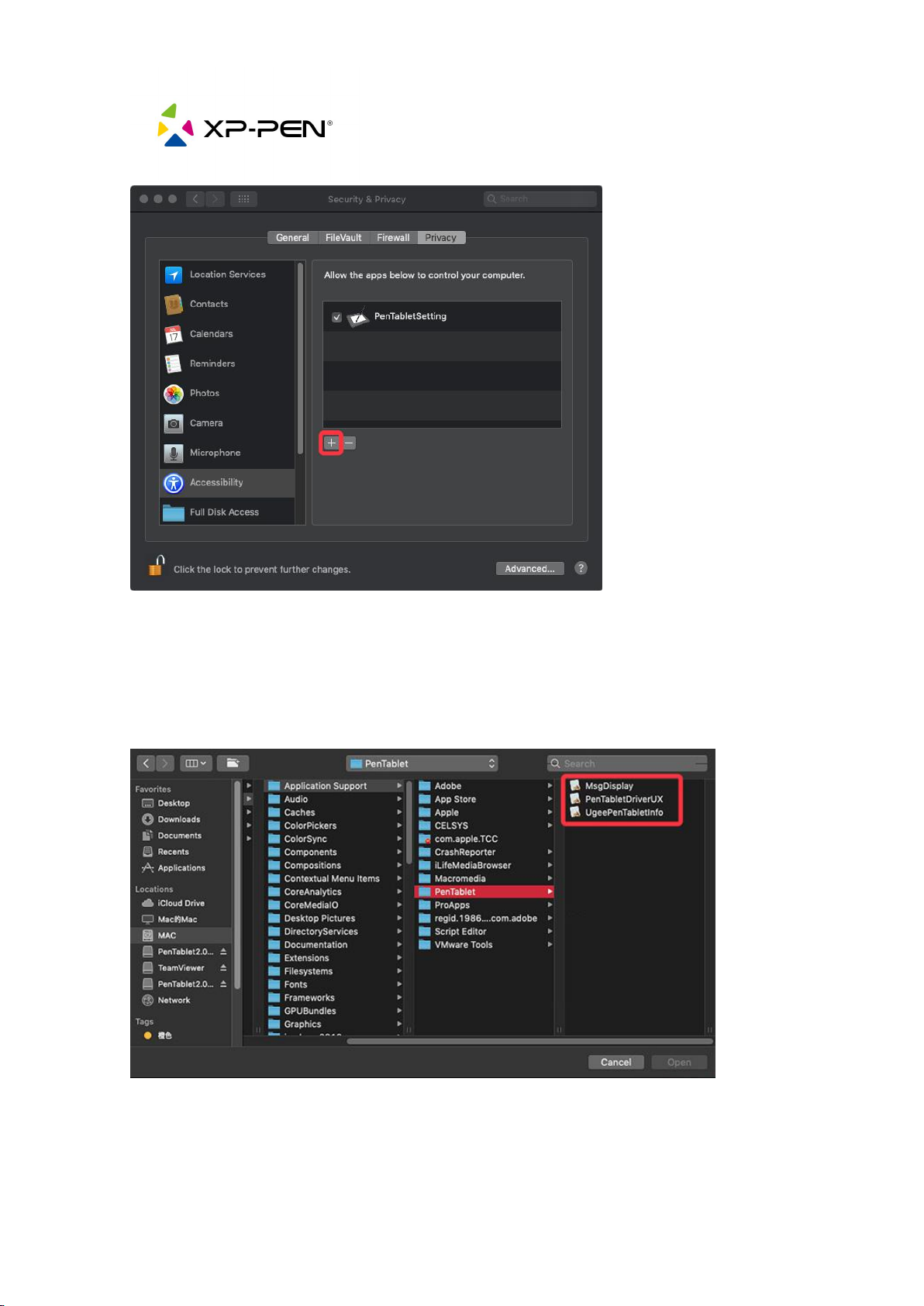
8. Click the “+” button.
Page 13
10
9. Go to "Application" – "Macintosh HD (Mac)" – "Library" – "Application
Support" – "PenTablet" folder, then choose "MsgDisplay", "PenTabletDriverUX",
"UgeePenTabletInfo" and "Open" button.
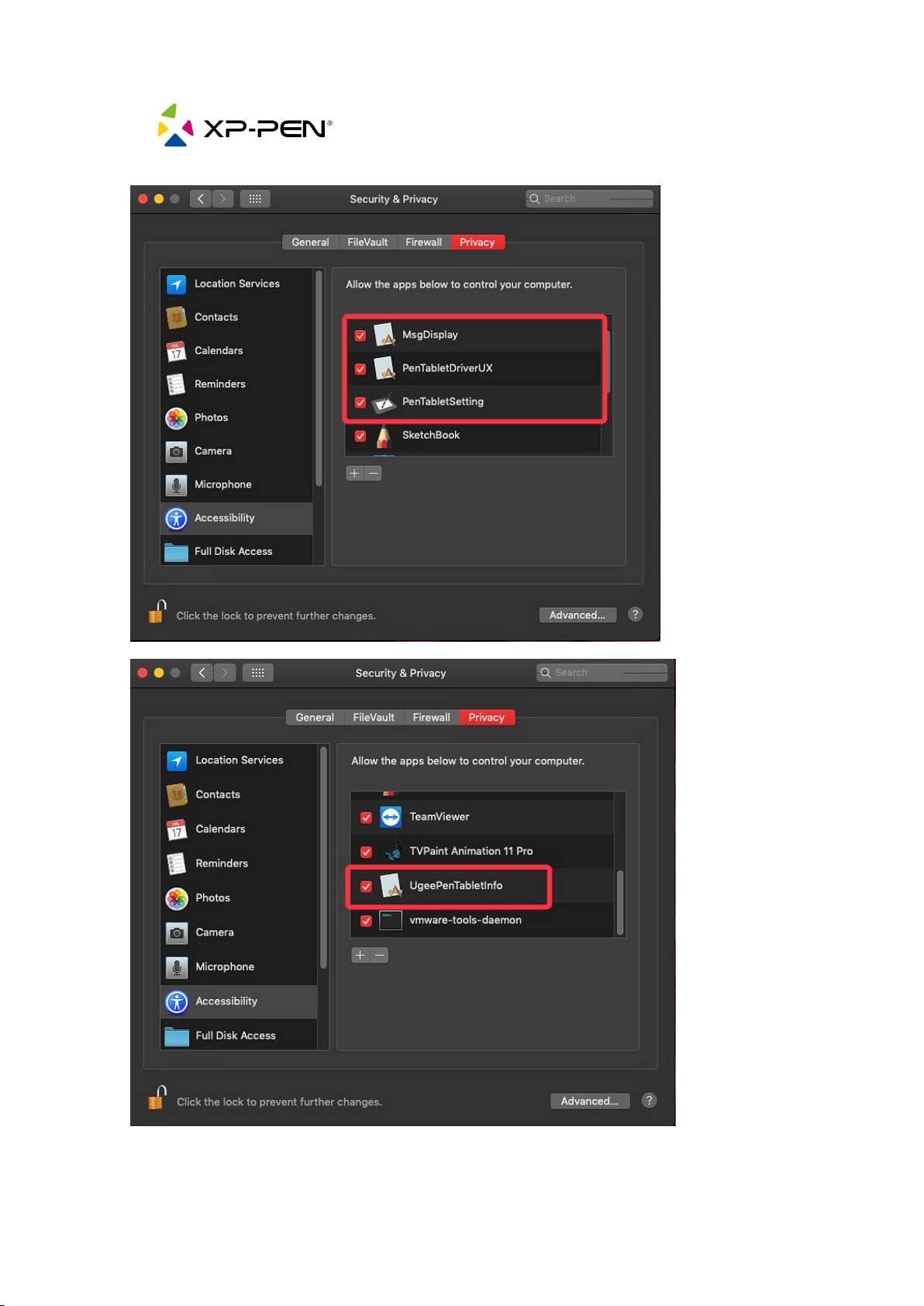
10. Make sure "MsDisplay", "PenTabletDriverUX", "PenTabletSetting", and
"UgeePenTabletInfo" are both enabled.
Page 14
11
11. Close "Security & Privacy".
Page 15

12
12. Reboot system and when system goes to the desktop, please open “PenTable
tSetting” on Launchpad and set it to your XP-PEN product.
Page 16
13
2.3.2. How do I install the XP-PEN driver on Catalina (10.15)?
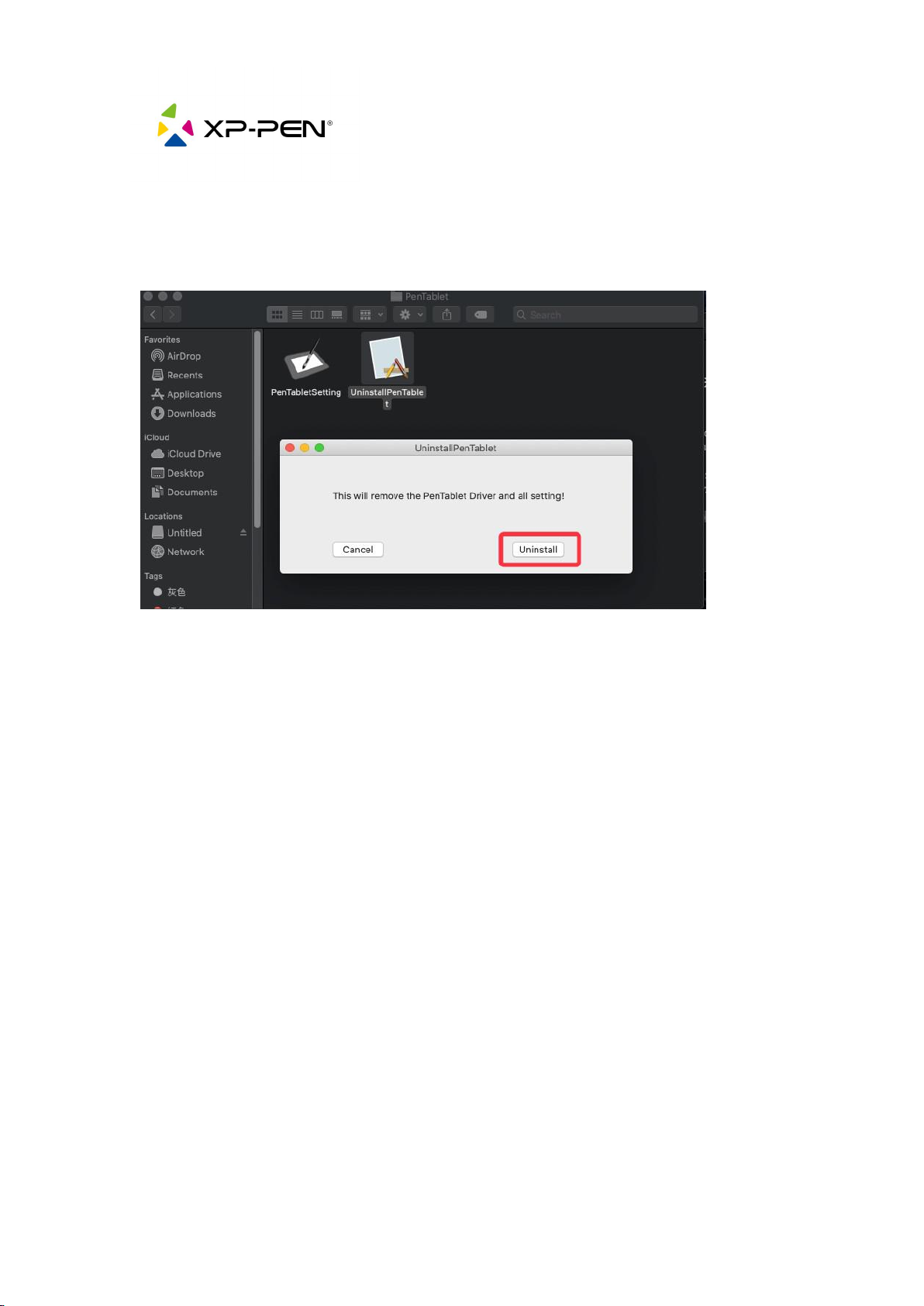
1. Go to the Application Folder and make sure uninstall all of PenTablet drivers in
the PenTablet Folder.
2. Go to “System Preferences – Security & Privacy”
3. On the Privacy tab, please delete all of tablet files on“Accessibility”&“Input
Monitoring”.
4. Reboot your Mac.
5. When the computer Restarts, please go to the XP-Pen official website then
download and install the newest Mac driver.
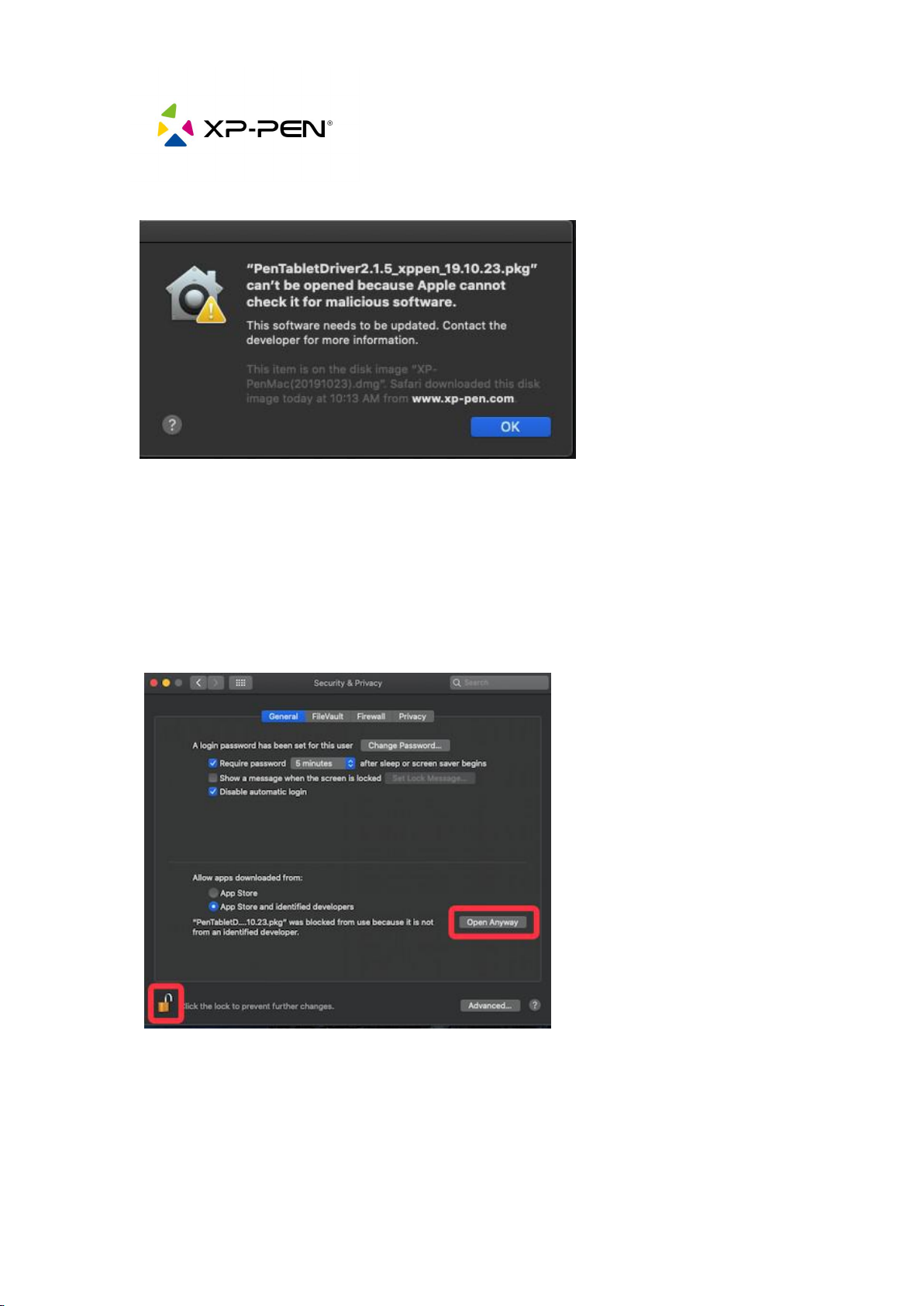
6. Install the newest driver and if you get “ PenTabletDriver can't be opened
because Apple cannot check it for malicious software.” Continue to step 7.
Page 17
14
Go to “System Preferences – Security & Privacy”.
7. On the General Tab, please Unlock “Click the lock to make changes” then
click
“Open Anyway” button to install driver until complete.
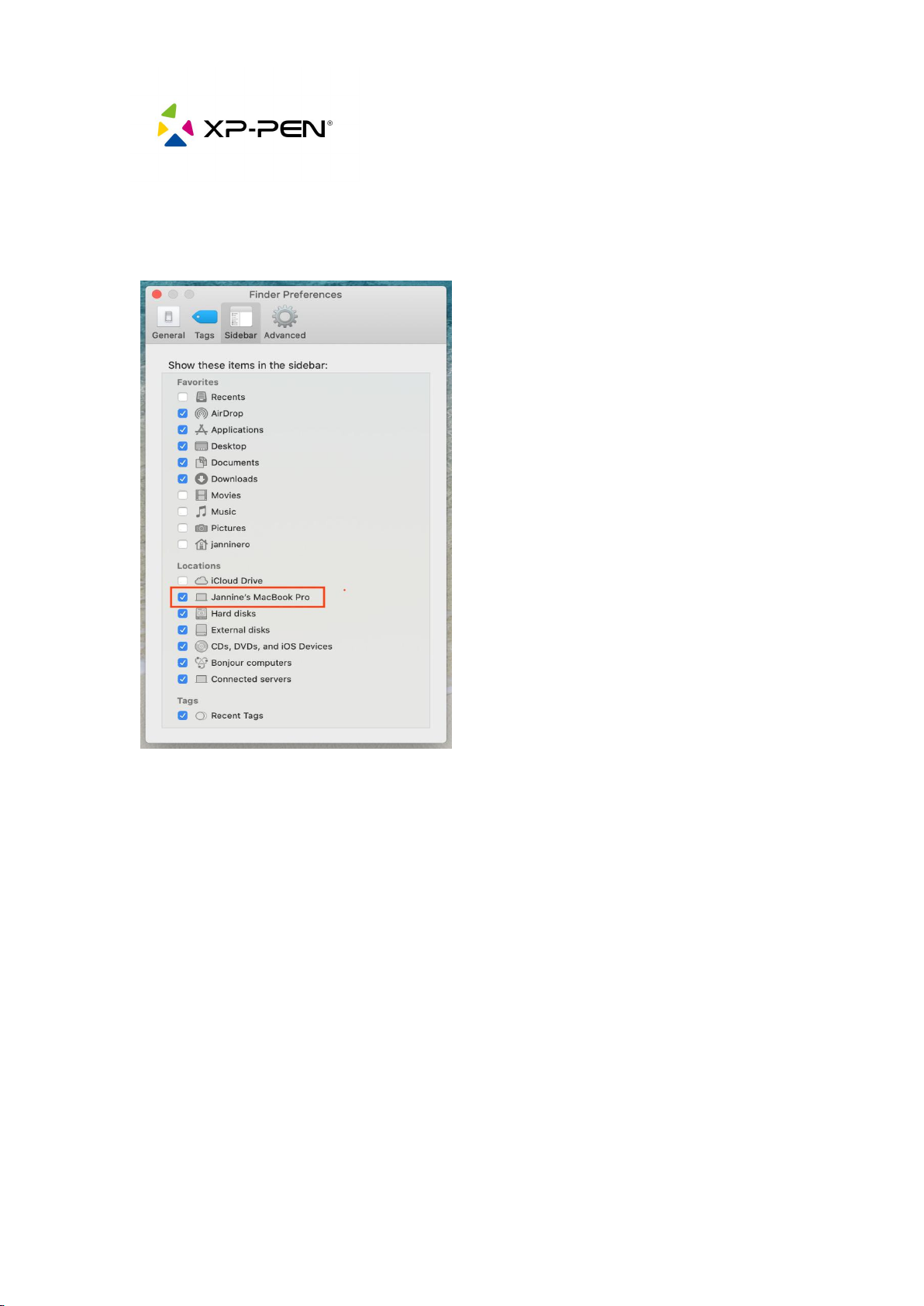
8. Once the Install is complete please go to “Finder” (The word in the top left
corner of your screen) – “Preferences” – “Sidebar”.
9. On the “Sidebar ” tab, please make sure the box next to your computers
Page 18
15
name is checked like in the image below.
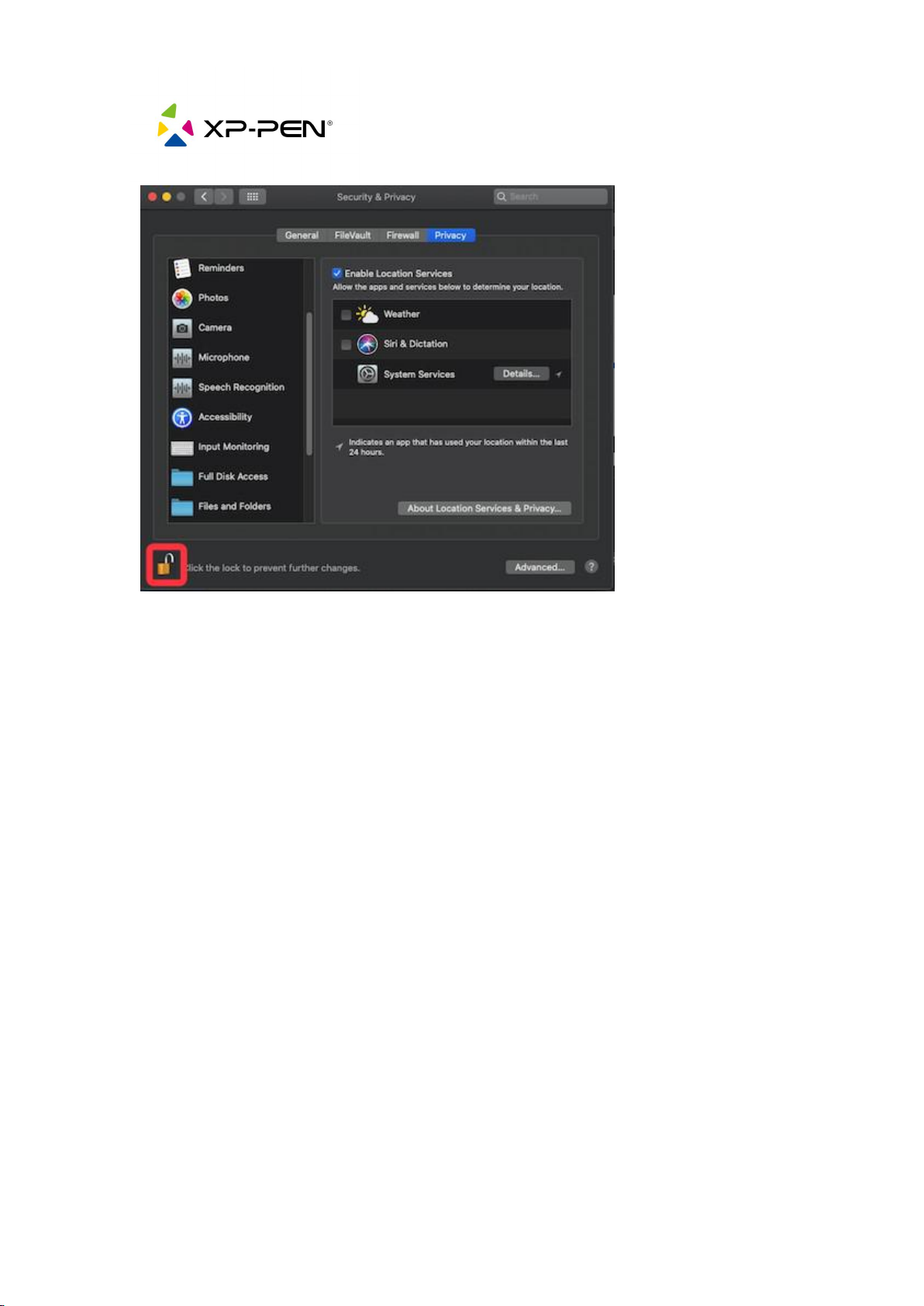
10.Go to “System Preferences - Security & Privacy - Privacy – Accessibility”.
Unlock “Click the lock to make changes.”
Page 19
16
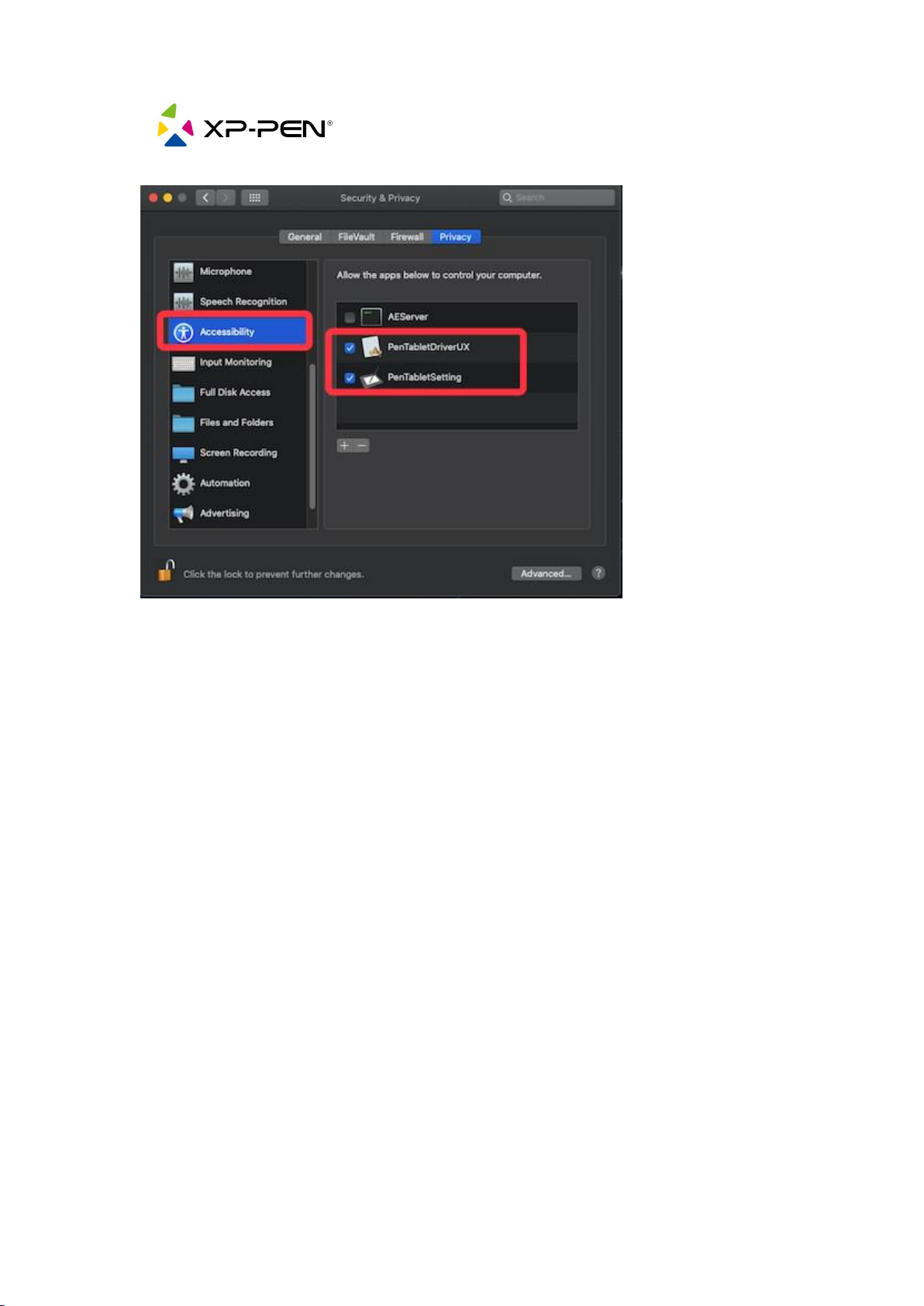
11.On the Accessibility tab, please enable “PenTabletSetting”.
12.Click “+” button then go to “ Macintosh HD – Library – Application
Support – Pen Tablet” folder then choice “PenTabletDriverUX” and click
OK button.
Page 20
17
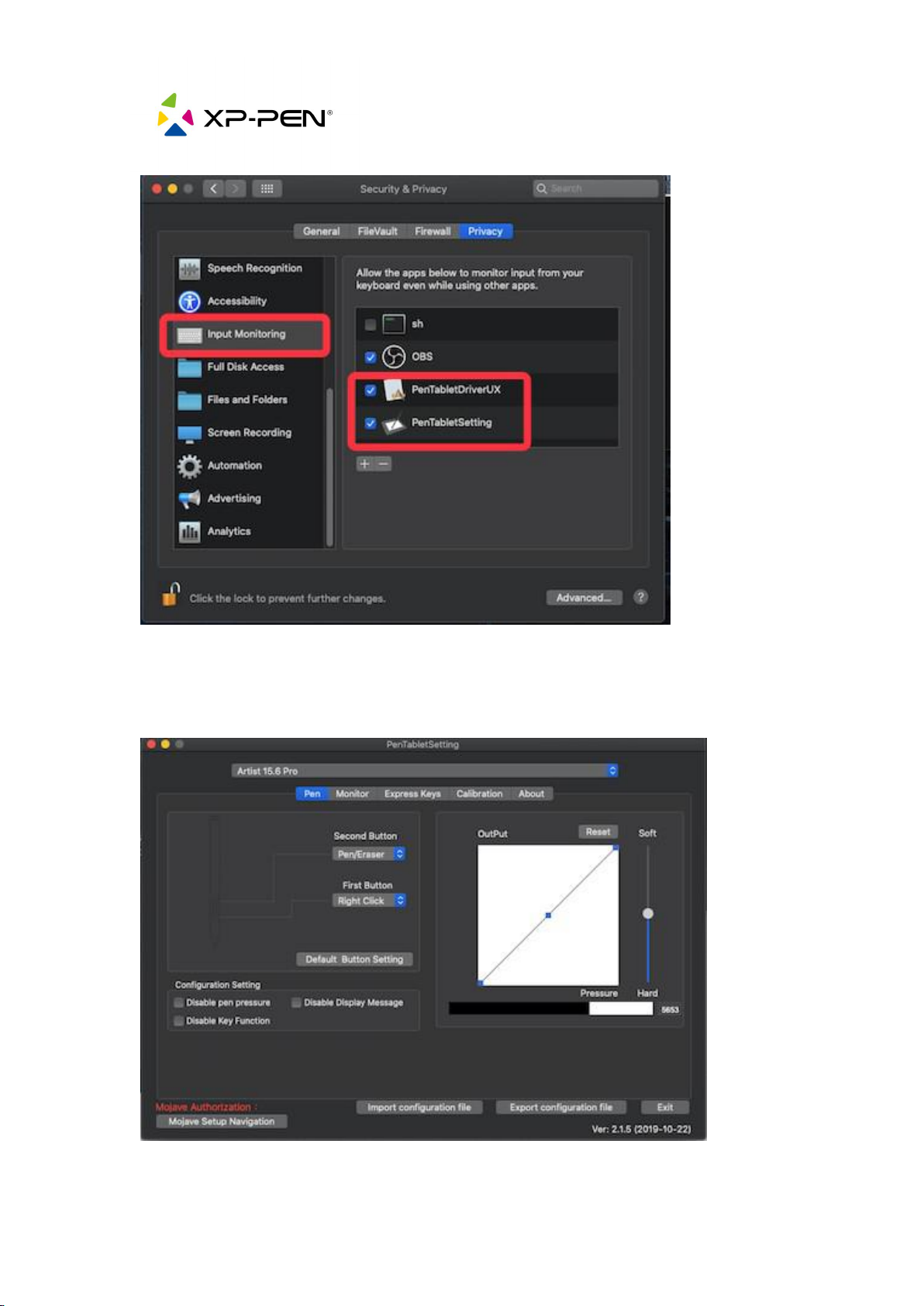
13.Go to Input Monitor tab and please also enable “PenTabletSetting”.
14.Click “+” button then go to “ Macintosh HD – Library – Application
Support – Pen Tablet” folder then choice “PenTabletDriverUX” and click
OK button. (If you get error message, please click “Quit Now” button.)
Page 21
18
15.Reboot Mac and when the computer restarts, please open the PenTablet
setting then check for pen pressure.
Page 22
19
2.3.3. How do I install the XP-PEN's New UI driver on
MacOS Big Sur (11.0)?
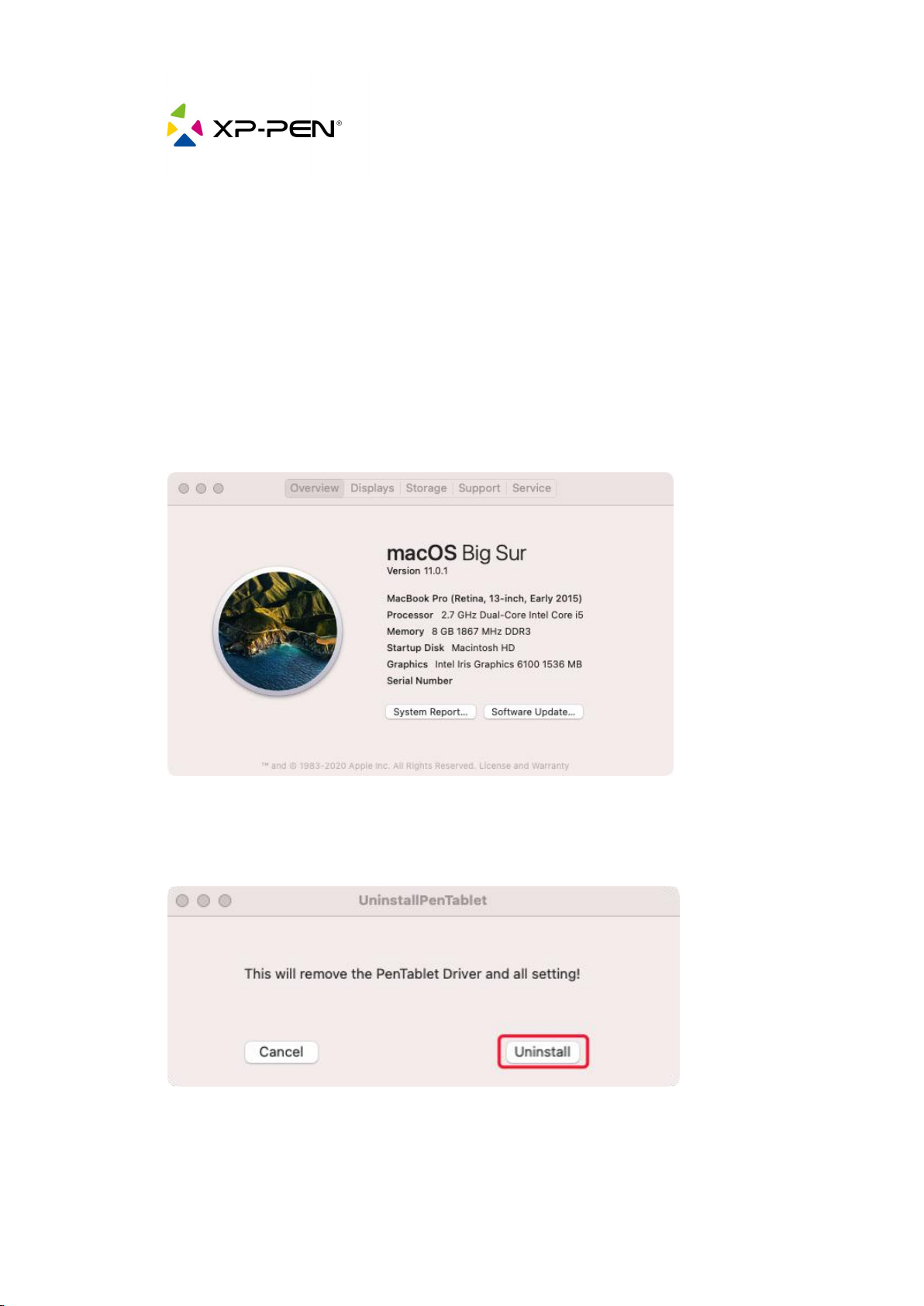
1. Make sure your MacOS is on Big Sur. You can do this by clicking on
the Apple icon on the upper left corner of your screen and then
select “About this Mac”
2. Go to the Applications Folder and be sure to uninstall all current
PenTablet drivers.
3. Reboot your Mac.
4. After restarting, please go to our XP-PEN official website and
Page 23
20
download and install the newest Mac driver for your tablet.
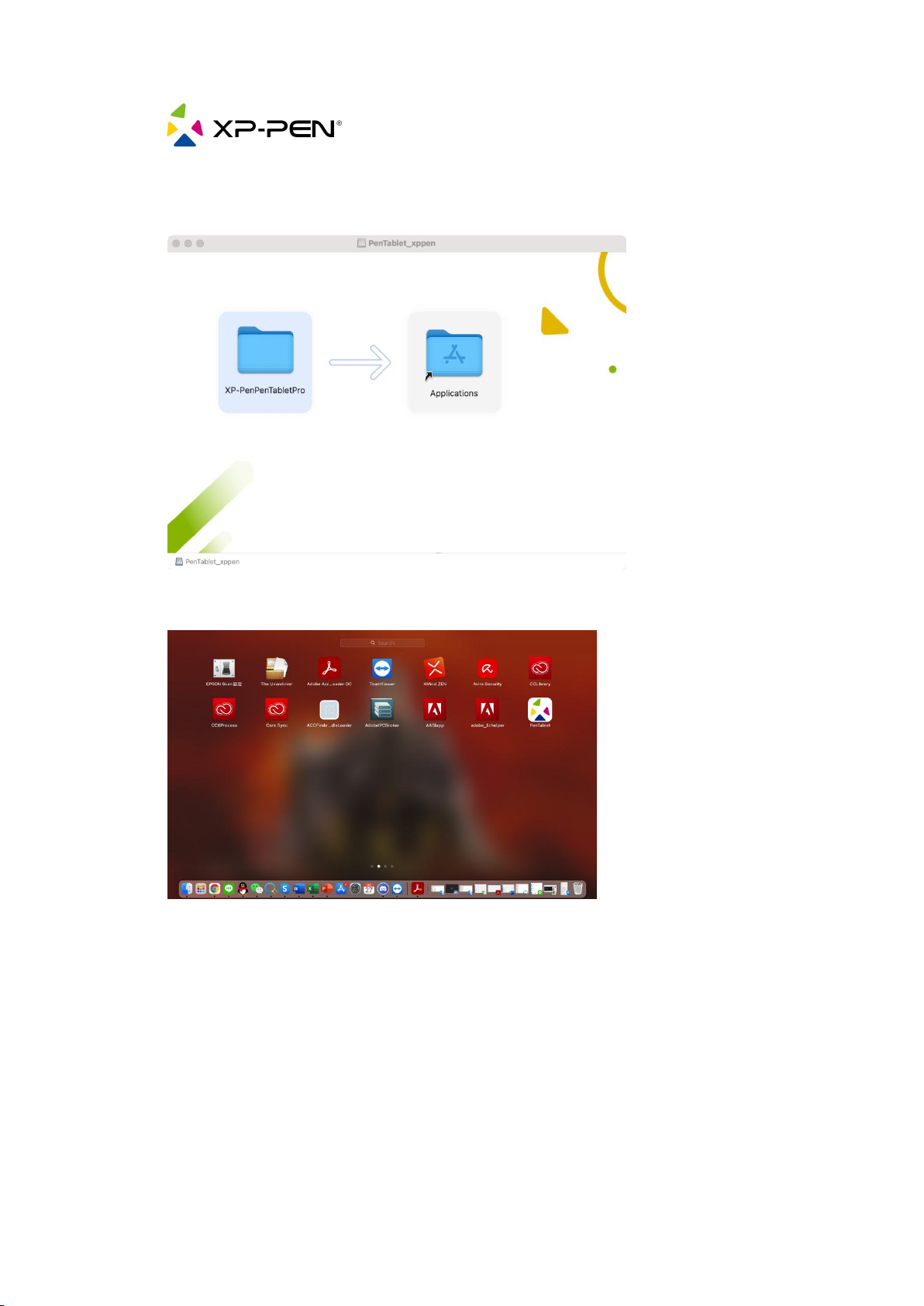
5. Go to your “Launch Pad” and open “PenTablet”.
6. When this messages pops, click “ Open ” and type in your
password to run “PenTablet”.
Page 24
21
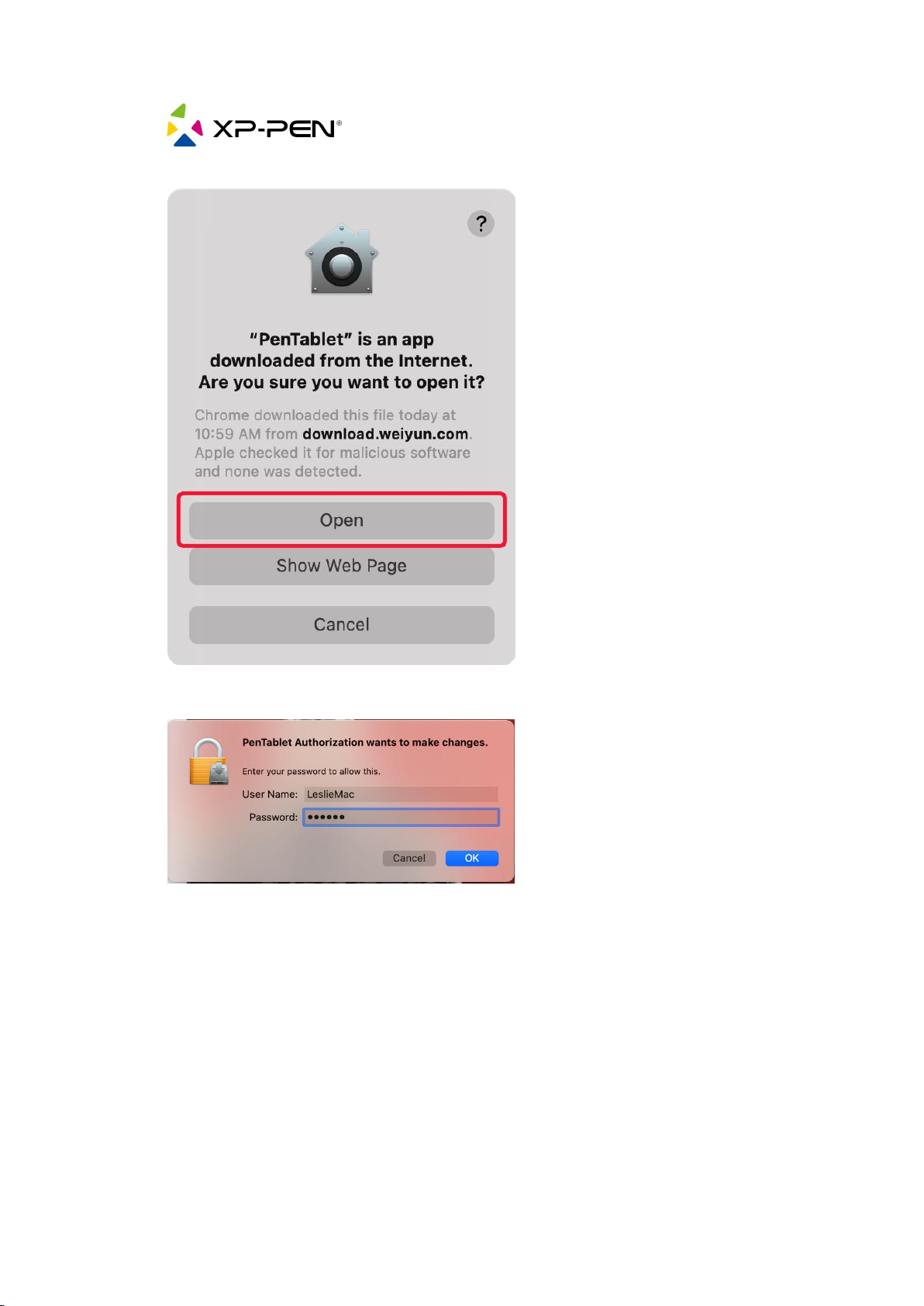
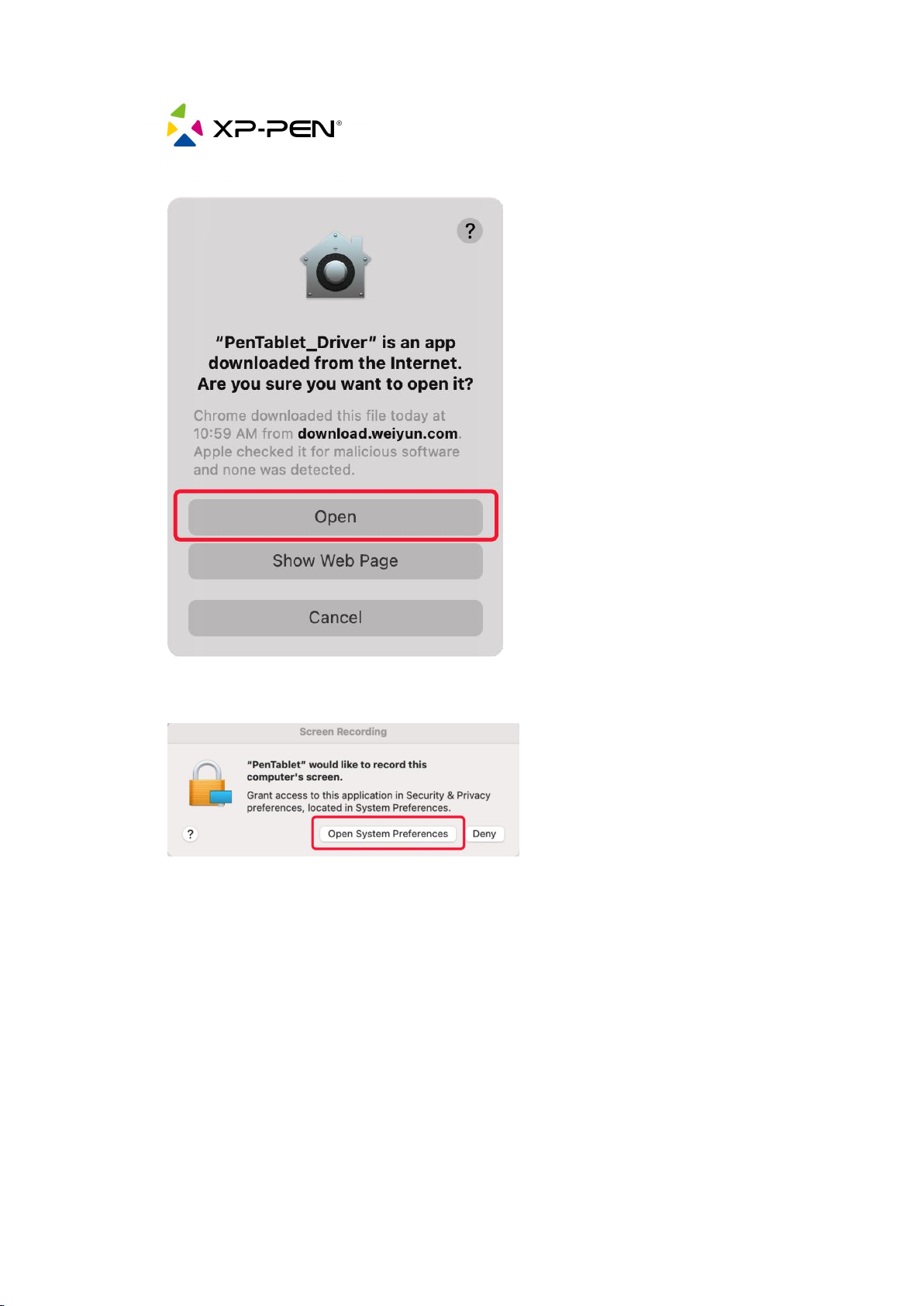
7. When this messages pops, click “ Open ” and type in your
password to run “PenTablet_Driver”.
Page 25
22
8. When this pops, please click Open System Preferences.
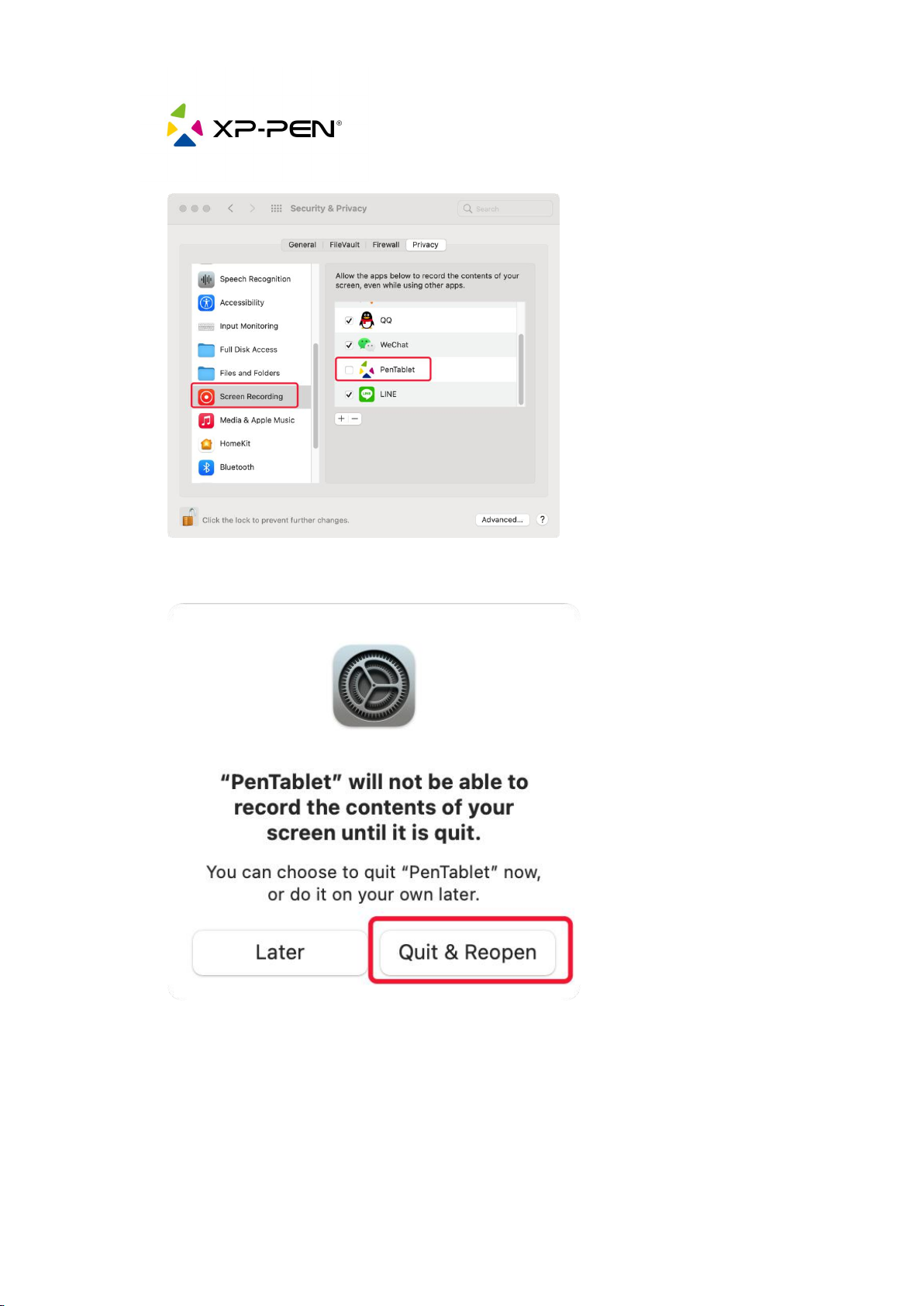
9. Unlock the list by clicking on the padlock icon and input your
password if needed then make sure “PenTablet” is checked on
Screen Recording.
Page 26
23
10.When you get the next message, click on “Quit & Reopen”.
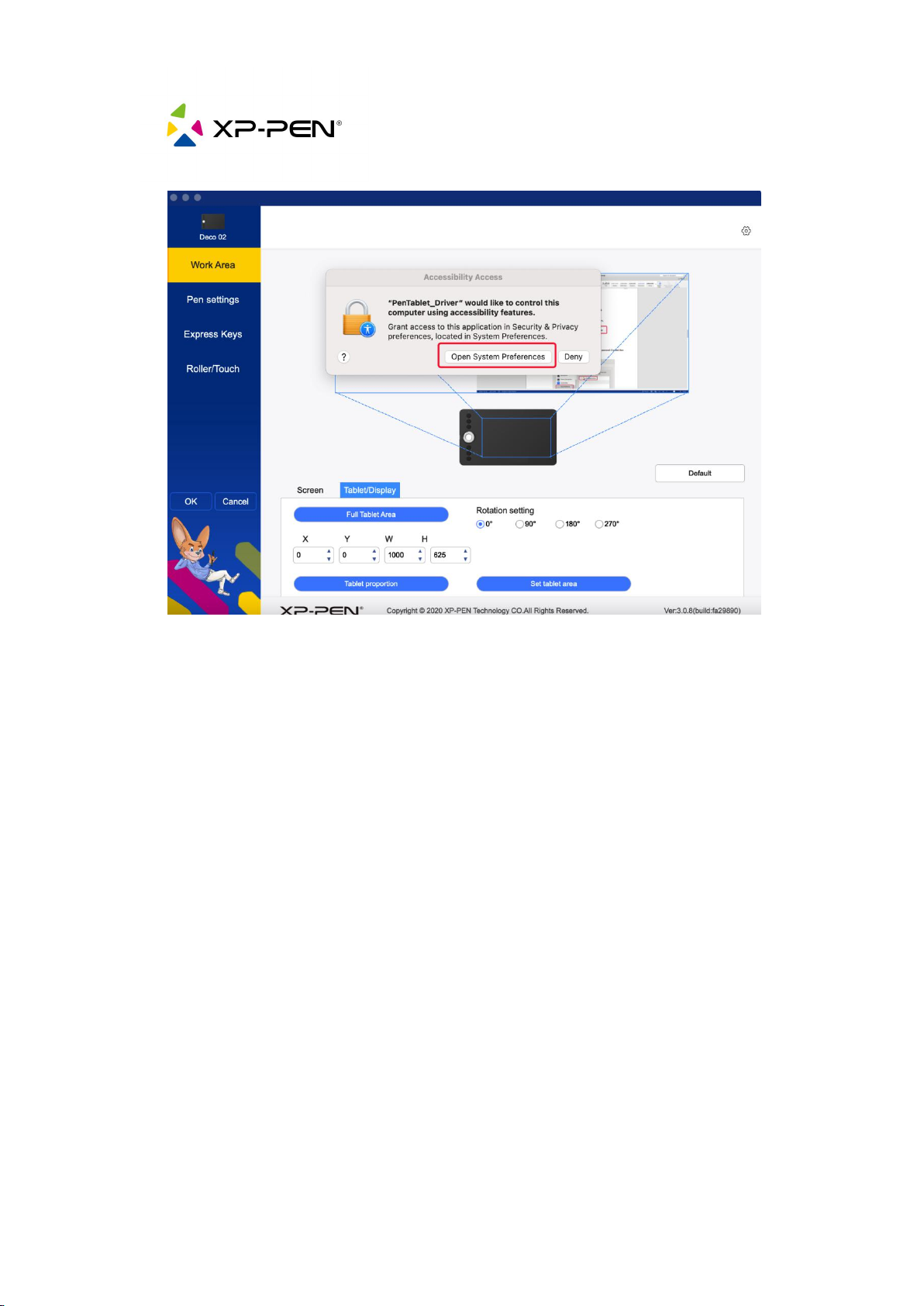
11.When Tablet the settings re-open again, please click “ Open
System Preferences”.
Page 27
24
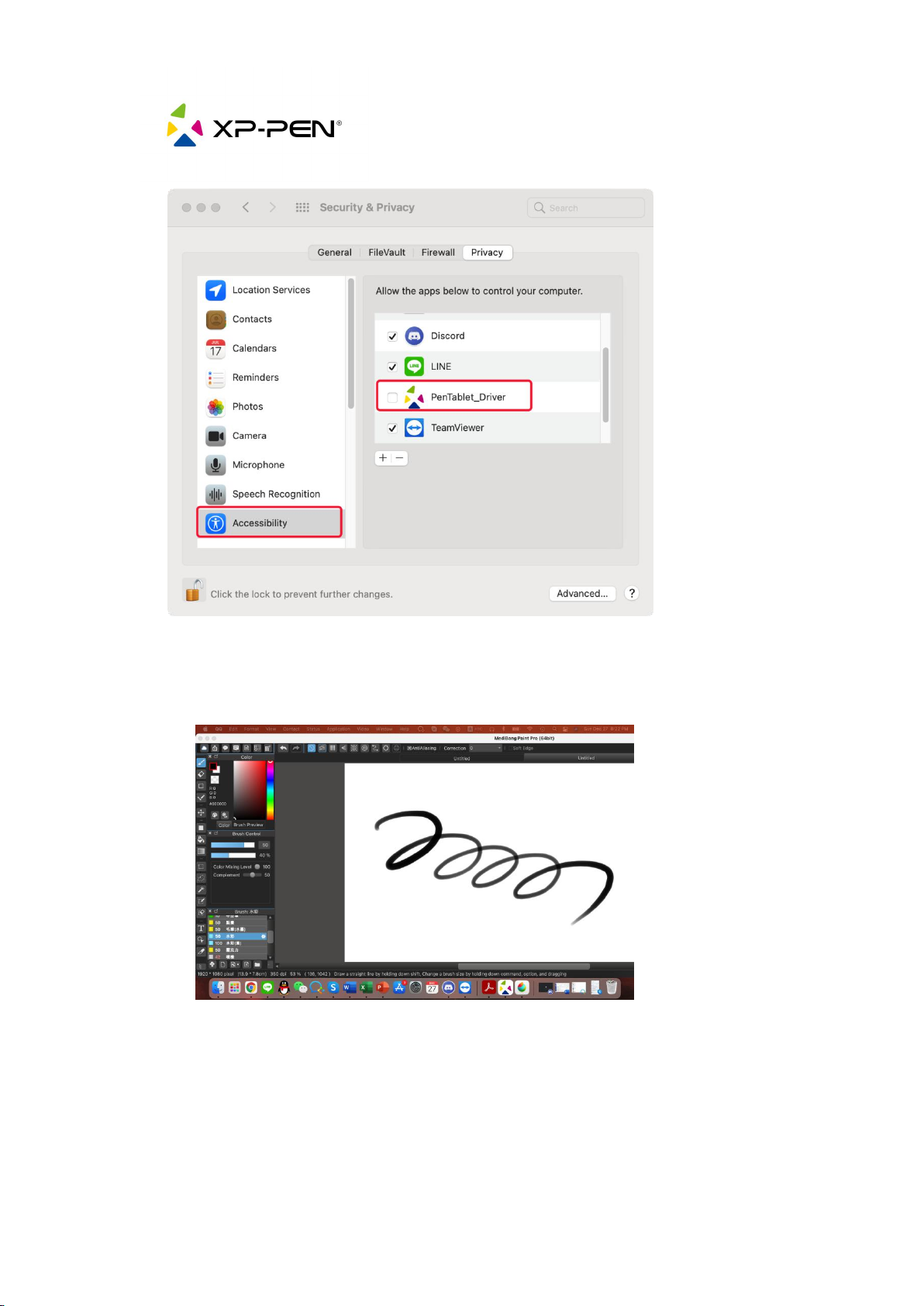
12.Unlock the Accessibility list by clicking on the padlock icon and
input your password if needed then make sure “PenTablet_Driver
” is checked then closed it.
Page 28
25
13.After above steps please open an art program and have a test if
the graphics tablet and the pen can work as intended.
Page 29

26
3. Software
3.1. How do I know the Software compatibility?
It's compatible with most designer and drawing software such as
Photoshop, SAI, Painter, Illustrator, Clip Studio, Sketchbook, openCanvas,
Microsoft office, and more.
*Please feel free to contact us when you're not sure about the
compatibility.
Email:[email protected]
Page 30

27
3.2. Does Artist22R Pro come with Free Creative
Software?
-ArtRage 5, openCanvas, Cartoon Animator 4 (Choose one to redeem)
* Be noticed that the Cartoon Animator 4 is free for 1 Year.
-Explain Everything (Free for 3 Months)
3.2.1. ArtRage 5, OpenCanvas, Cartoon Animator 4 (Choose
one to redeem)
You can use the serial number, behind the tablet and under the barcord,
to redeem the free software. (If you're not sure about the serial number,
please contact us first. Email: [email protected])
Steps:
a. At first, please enter the link on the XP-PEN official website :
https://www.xp-pen.com/topic/FreeSoftware
b. Enter the option“Click here to get the code”. Sign in first, (you can
register first if you don't have an account), then certify the product's
serial number, and you'll get the activation key of the software after
selecting this software.
c. Go to the website of the ArtRage as an example, and log in,
https://members.artrage.com, and use the key to redeem the software.
Page 31

28
3.2.2. Explain Everything (3-Month Free)
You can use the serial number, behind the tablet and under the barcord,
to redeem the free software, Explain Everything. (If you're not sure about
the serial number, please feel free to contact us first. Email:
Steps:
a. Please enter the link below on XP-PEN official website:
https://www.xp-pen.com/topic/FreeSoftware
b. Enter the option “Click here to get the code” of Explain Everything.
Sign in first, (you can register if you have no account), then certify the
product's serial number, and you'll get the activation key of the software
after selecting this software.
c. Go to the website of the software Explain Everything and log in,
https://explaineverything.com, and use the code to redeem the software.
Page 32

29
4. Others
4.1. What can I do if I'm not satisfied with the
product?
a. We suggest you contact us first and inform us your thoughts and
experience towards the product. Customers opinions are important for
us, and we've always been dedicating to provide our top service to you.
b. Please rest assured that we provide a 1-month return policy, a 1-year
warranty (As long as the product is non-human made damaged or
non-accidentally damaged), and lifetime tech support on all our tablets.
Therefore, we suggest you contact us in time, and we'll offer you a
satisfactory solution.
Email address: [email protected]
4.2. What can I do if I'm sent a used product?
a. We promise XP-PEN Technology only sells brand-new products on
Amazon US, but we are unable to exclude the possibility that Amazon
would process the returned and used product for shipping by mistake.
Please feel free to contact us in time, and we'll process a replacement
shipping asap. Email address: [email protected]
 Loading...